U-830 - Memory card reader ST Lab - Free user manual and instructions
Find the device manual for free U-830 ST Lab in PDF.


User questions about U-830 ST Lab
0 question about this device. Answer the ones you know or ask your own.
Ask a new question about this device
Download the instructions for your Memory card reader in PDF format for free! Find your manual U-830 - ST Lab and take your electronic device back in hand. On this page are published all the documents necessary for the use of your device. U-830 by ST Lab.
USER MANUAL U-830 ST Lab
USB 3.0 SD Card Reader
User Manual
Ver. 1.00
All brand names and trademarks are properties of their respective owners.
Contents:
Chapter 1: Introduction ...... 3
1.1 Product Introduction......3
1.2 Features....3
1.3 System Requirements ....4
1.4 Package Contents......5
1.5 Hardware Layout .... 5
Chapter 2: Getting Started......7
2.1 Hardware Installation ....7
Chapter 1: Introduction
1.1 Product Introduction
The USB 3.0 SD Memory Card Reader/Writer combines style with functionality. Easily backup, transfer, copy files from your Micro SD, SD, MiniSD, SDHC, MiniSDHC, SDXC, MicroSD, MicroSDHC, MicroSDXC memory cards to your computer. Integrated with the latest USB 3.0 technology, performance is increased by 10 fold offering maximum speeds of up to 5 Gbps. No drivers are required which makes it practically a simple plug & play device that enables you to read and write your memory card with ease.
1.2 Features
- USB 3.0 SuperSpeed data transfer rate up to 5Gbps
● Dedicated slots for SD and MicroSD
● Supports one logical drive of either SD or MicroSD at a time - Support Secure Ditigal™ v1.0/v1.1/v2.0/SDHC/SDXC (capacity up to 2TB)
● Support Secure Digital™ v3.0 UHS-I (Ultra High Speed) SDR12/SDR25/SDR50/DDR50/SDR104
- Compact design for easy mobility
- USB Powered – No external power adapter required
- Card Supported:
SD
MiniSD (Card adapter is needed)
SDHC
MiniSDHC (Card adapter is needed)
SDXC
MicroSD
MicroSDHC
MicroSDXC
● LED activity light lets you know when transfer is complete
1.3 System Requirements
- Windows® XP/Vista/7/8 (32/64 bit); Mac OS 10.x or higher
● Available USB port (USB 3.0 recommended)
1.4 Package Contents
- 1 x USB 3.0 SD Card Reader
● 1 x User Manual
1.5 Hardware Layout
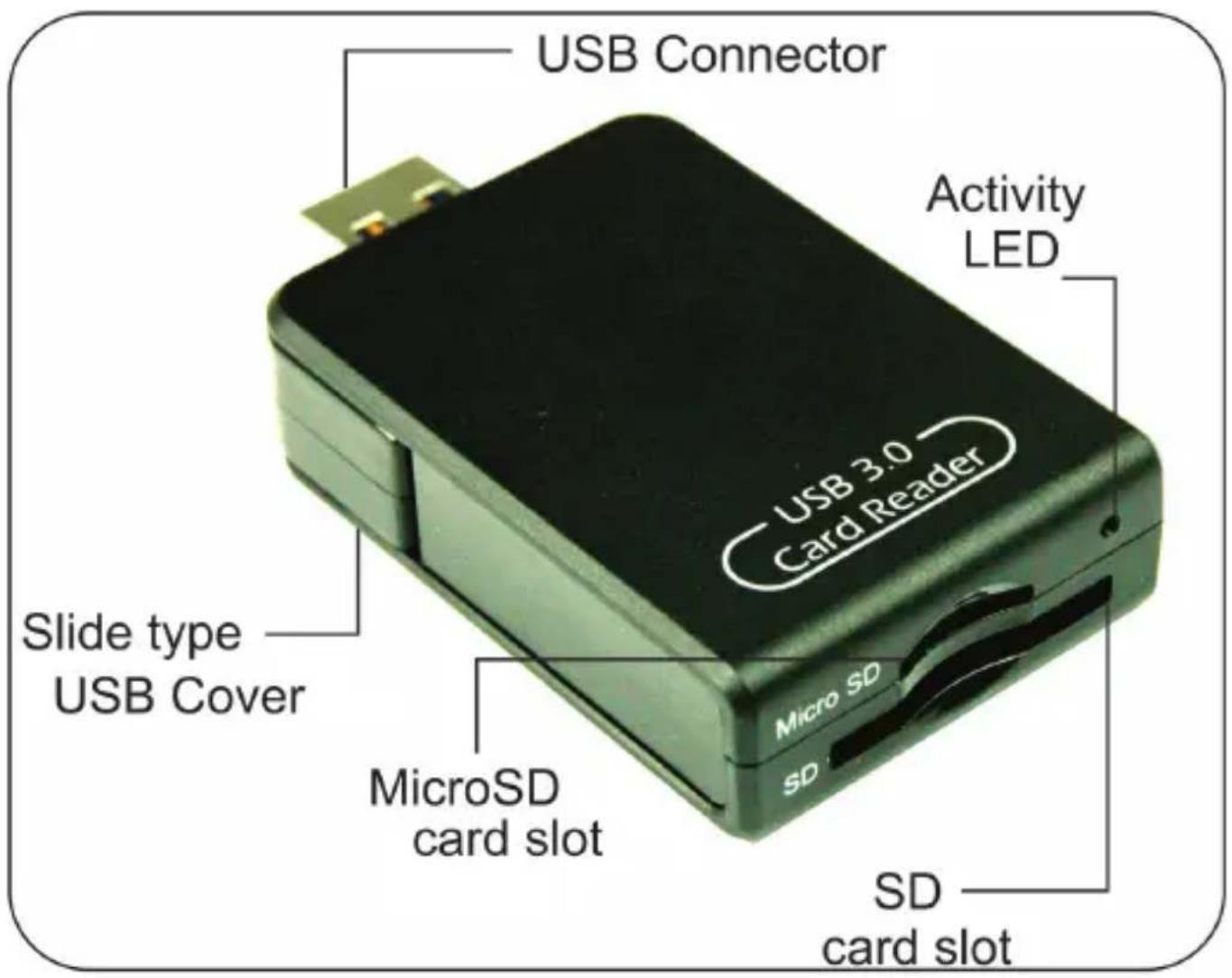
Figure 1
LED Activity Light
The reader's LED activity light was specifically designed to safeguard the files stored on your memory card, prevent interrupted file transfers, and reduce the risk of data loss or card damage. The light acts as a status indicator to help ensure proper use of the reader.
LED Indicators:
- LED off:
The reader is plugged into the computer but does not have a card inserted.
- LED on:
The reader is plugged into the computer and has recognized that a memory card has been inserted. This also means that no data is being transferred.
• LED blinks twice on initial card insertion:
The reader has detected the memory card.
• LED blinks continuously:
The reader is transferring data between the memory card and computer. Once it stops blinking, the data transfer is complete.
Chapter 2: Getting Started
2.1 Hardware Installation
To connect the reader to your computer
- Connect the reader's USB end into an available USB port (Recommend USB 3.0 port) on your computer.
Important: Do not insert or remove any cards when the USB 3.0 SD Card Reader was plugged into USB port of PC.
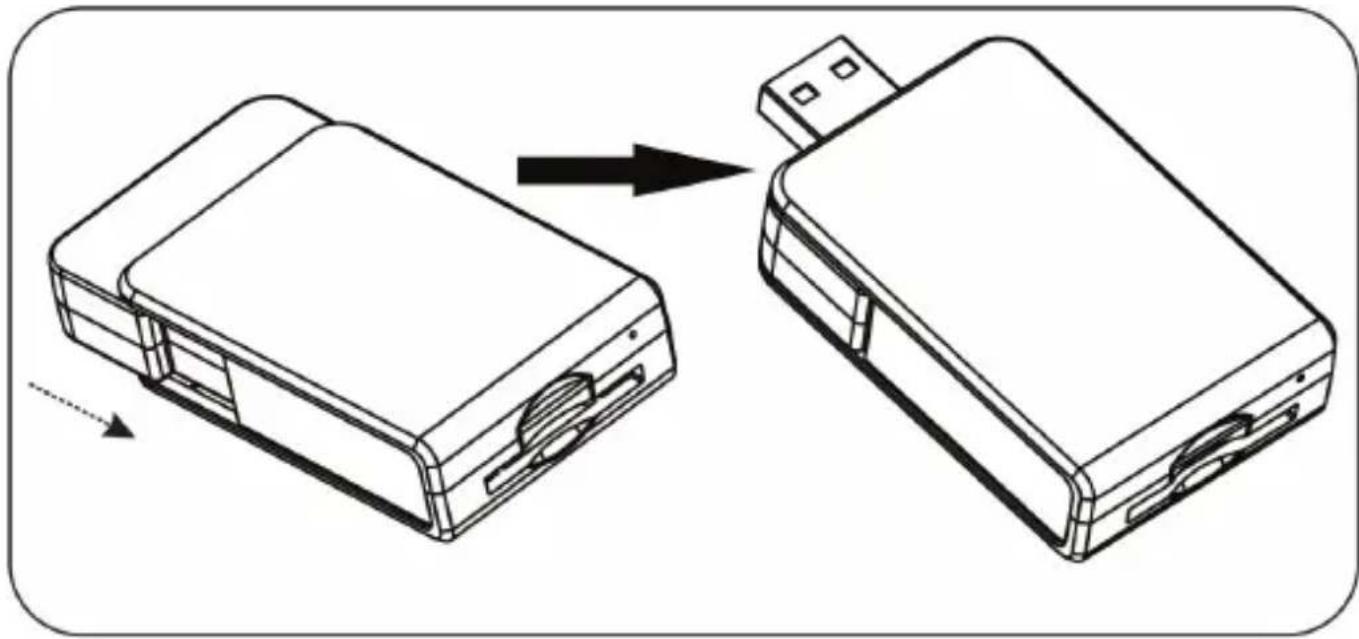
To open the reader
- Hold the reader in the palm of your hand with the reader facing forward, slide the cover.
natural_image
Line drawing of two electronic devices with arrows indicating process flow (no text or symbols)Figure 2
To Insert Cards:
• To insert MicroSD Memory Card:
Gently insert a MicroSD memory card, with the label side facing up, into the MicroSD card slot.
• To insert SD Memory Card:
Gently insert a SD memory card, gold contact up, into the SD card slot.
To Remove Cards:
- After the LED activity light stops blinking, disconnect the reader from the USB port. Now it is safe to remove the card. Gently press in on the memory card until it is partially ejected then carefully remove it from the memory card slot
Note:
This USB 3.0 SD Card Reader does support one logical drive only. If SD and MicroSD were installed at the same time, the SD card takes higher priority and will be accessed.