EasyManual
REMOTE DESKTOP 3.1 - Remote management software APPLE - Free user manual and instructions
Find the device manual for free REMOTE DESKTOP 3.1 APPLE in PDF.


Download the instructions for your Remote management software in PDF format for free! Find your manual REMOTE DESKTOP 3.1 - APPLE and take your electronic device back in hand. On this page are published all the documents necessary for the use of your device. REMOTE DESKTOP 3.1 by APPLE.
USER MANUAL REMOTE DESKTOP 3.1 APPLE
Apple Remote Desktop
Administrator's Guide
Version 3.1
Apple Computer, Inc.
© 2006 Apple Computer, Inc. All rights reserved.
The owner or authorized user of a valid copy of Apple Remote Desktop software may reproduce this publication for the purpose of learning to use such software. No part of this publication may be reproduced or transmitted for commercial purposes, such as selling copies of this publication or for providing paid for support services.
The Apple logo is a trademark of Apple Computer, Inc., registered in the U.S. and other countries. Use of the "keyboard" Apple logo (Option-Shift-K) for commercial purposes without the prior written consent of Apple may constitute trademark infringement and unfair competition in violation of federal and state laws.
Apple, the Apple logo, AirPort, JavaScript, AppleTalk, AppleWorks, FireWire, iBook, iMac, iSight, Keychain, Mac, Macintosh, Mac OS, PowerBook, QuickTime, and Xserve are trademarks of Apple Computer, Inc., registered in the U.S. and other countries.
Apple Remote Desktop, Bonjour, eMac, Finder, iCal, and Safari are trademarks of Apple Computer, Inc.
Adobe and Acrobat are trademarks of Adobe Systems Incorporated.
Java and all Java-based trademarks and logos are trademarks or registered trademarks of Sun Microsystems, Inc. in the U.S. and other countries.
UNIX is a registered trademark in the United States and other countries, licensed exclusively through X/Open Company, Ltd.
019-0835/11-13-06
Contents
Preface 9 About This Book
10 Using This Guide
10 Remote Desktop Help
10 Notation Conventions
11 Where to Find More Information About Apple Remote Desktop
Chapter 1 13 Using Apple Remote Desktop
13 Administering Computers
15 Deploying Software
18 Taking Inventory
21 Housekeeping
23 Supporting Users
23 Providing Help Desk Support
25 Interacting with Students
27 Finding More Information
Chapter 2 28 Getting to Know Remote Desktop
28 Remote Desktop Human Interface Guide
29 Remote Desktop Main Window
31 Task Dialogs
32 Control and Observe Window
33 Multiple-Client Observe Window
34 Report Window
35 Changing Report Layout
36 Configuring Remote Desktop
36 Customizing the Remote Desktop Toolbar
36 Setting Preferences for the Remote Desktop Administrator Application
37 Interface Tips and Shortcuts
Chapter 3 39 Installing Apple Remote Desktop
39 System Requirements for Apple Remote Desktop
40 Network Requirements
40 Installing the Remote Desktop Administrator Software
41 Setting Up an Apple Remote Desktop Client Computer for the First Time
41 Upgrading the Remote Desktop Administrator Software
42 Upgrading the Client Software
42 Method #1—Remote Upgrade Installation
43 Method #2—Manual Installation
43 Upgrading Apple Remote Desktop Clients Using SSH
44 Creating a Custom Client Installer
46 Considerations for Managed Clients
46 Removing or Disabling Apple Remote Desktop
46 Uninstalling the Administrator Software
47 Disabling the Client Software
48 Uninstalling the Client Software from Client Computers
Chapter 4
49 Organizing Client Computers Into Computer Lists
49 Finding and Adding Clients to Apple Remote Desktop Computer Lists
50 Finding Clients by Using Bonjour
51 Finding Clients by Searching the Local Network
51 Finding Clients by Searching a Network Range
52 Finding Clients by Network Address
53 Finding Clients by File Import
53 Making a New Scanner
54 Making and Managing Lists
About Apple Remote Desktop Computer Lists
55 Creating an Apple Remote Desktop Computer List
55 DeletingAppleRemoteDesktopLists
55 Creating a Smart Computer List
56 Editing a Smart Computer List
56 Creating a List of Computers of from Existing Computer Lists
57 Importing and Exporting Computer Lists
57 Transferring Computer Lists from Apple Remote Desktop 3 to a New Administrator Computer
58 Transferring Remote Desktop 2 Computer Lists to a New Remote Desktop 3 Administrator Computer
58 Transferring Old v1.2 Computer Lists to a New Administrator Computer
Chapter 5
60 Understanding and Controlling Access Privileges
60 Apple Remote Desktop Administrator Access
62 Setting Apple Remote Desktop Administrator Access Authorization and Privileges Using Local Accounts
63 Apple Remote Desktop Administrator Access Using Directory Services
63 Creating Administrator Access Groups
66 Enabling Directory Services Group Authorization
66 Apple Remote Desktop Guest Access
67 Apple Remote Desktop Nonadministrator Access
68 Virtual Network Computing Access
69 Command-Line SSH Access
69 Managing Client Administration Settings and Privileges
70 Getting an Administration Settings Report
70 Changing Client Administrator Privileges
Chapter 6
72 Setting Up the Network and Maintaining Security
72 Setting Up the Network
73 Using Apple Remote Desktop with Computers in an Airport Wireless Network
74 Getting the Best Performance
74 Maintaining Security
Remote Desktop Authentication and Data Transport Encryption
76 Encrypting Observe and Control Network Data
77 Encryption Network Data During Copy Items and Install Packages Tasks
Chapter 7
78 Interacting with Users
79 Controlling
79 Controlling Apple Remote Desktop Clients
80 Control Window Options
81 Switching the Control Window Between Full Size And Fit-To-Window
81 Switching Between Control and Observe Modes
81 Sharing Control with a User
82 Hiding a User's Screen While Controlling
82 Capturing the Control Window to a File
82 Switching Control Session Between Full Screen and In a Window
83 Sharing Clippboards for Copy and Paste
83 Controlling VNC Servers
84 Setting up a Non-Mac OS X VNC Server
85 VNC Control Options
86 Configuring an Apple Remote Desktop Client to be Controlled by a VNC Viewer
86 Observing
88 Changing Observe Settings While Observing
89 Changing Screen Titles While Observing
89 Viewing a User's Account Picture While Observing
89 Viewing a Computer's System Status While at the Observe Window
91 Shortcuts in the Multiple Screen Observe Window
91 Observing a Single Computer
92 Observing Multiple Computers
92 Observing a Computer in Dashboard
93 Sending Messages
93 Sending One-Way Messages
93 Interactive Chat
94 Viewing Attention Requests
94 Sharing Screens
94 Sharing a Screen with Client Computers
95 Monitoring a Screen Sharing Tasks
95 Interacting with Your Apple Remote Desktop Administrator
95 Requesting Administrator Attention
96 Canceling an Attention Request
96 Changing Your Observed Client Icon
Chapter 8
97 Administering Client Computers
97 Keeping Track of Task Progress and History
98 Enabling a Task Notification Script
99 Getting Active Task Status
99 Using the Task Feedback Display
99 Stopping a Currently Running Task
100 Getting Completed Task History
100 Saving a Task for Later Use
101 Creating and Using Task Templates
102 Editing a Saved Task
102 Installing Software Using Apple Remote Desktop
102 Installing by Package and Metapackage
104 Installing Software on Offline Computers
105 Installing by Using the Copy Items Command
106 Using Installers from Other Companies
106 Upgrading Software
108 Copying Files
108 Copy Options
110 Copying from Administrator to Clients
110 Copying Using Drag and Drop
111 Restoring Items from a Master Copy
113 Creating Reports
113 Collecting Report Data
114 Using a Task Server for Report Data Collection
115 Report Database Recommendations and Bandwidth Usage
116 Auditing Client Usage Information
118 Finding Files, Folders, and Applications
120 Comparing Software
121 Auditing Hardware
126 Testing Network Responsiveness
127 Exporting Report Information
128 Using Report Windows to Work with Computers
129 Maintaining Systems
129 删除Items
130 Emptying the Trash
130 Setting the Startup Disk
131 Renaming Computers
131 Synchronizing Computer Time
132 Setting Computer Audio Volume
133 Repairing File Permissions
133 Adding Items to the Dock
134 Changing Energy Saver Preferences
135 Changing Sharing Preferences for Remote Login
135 Setting Printer Preferences
137 Managing Computers
137 Opening Files and Folders
138 Opening Applications
139 Quitting Applications Without Logging Out the User
139 Putting a Computer to Sleep
140 Waking Up a Computer
140 Locking a Computer Screen
141 Displaying a Custom Picture on a Locked Screen
141 Unlocking a Computer Screen
142 Disabling a Computer Screen
142 Logging In a User at the Login Window
143 Logging Out the Current User
144 Restarting a Computer
144 Shutting Down a Computer
145 Starting Up a Computer
146 UNIX Shell Commands
146 Send UNIX Command Templates
148 Executing a Single UNIX Command
148 Executing Scripts Using Send UNIX Command
150 Built-in Command-Line Tools
Chapter 9
156 Automating Tasks
156 Working with the Task Server
157 Preliminary Planning for Using the Task Server
157 Setting Up the Task Server
158 Setting Up an Admin Console to Query the Task Server
159 Setting Up Clients to Interface with the Task Server
159 Using Automatic Data Reporting
160 Setting the Client's Data Reporting Policy
161 Creating a Template Data Reporting Policy
161 Working with Scheduled Tasks
161 Setting Scheduled Tasks
162 Editing Scheduled Tasks
162 Deleting Scheduled Tasks
162 Using Scripting and Automation Tools with Remote Desktop
163 Using AppleScript with Remote Desktop
166 Using Automator with Remote Desktop
Appendix A 167 Icon and Port Reference
167 Client Status Icons
167 Apple Remote Desktop Status Icons
168 List Menu Icons
168 Task Status Icons
169 System Status Icons (Basic)
169 System Status Icons (Detailed)
170 TCP and UDP Port Reference
Appendix B 171 Report Field Definitions Reference
171 System Overview Report
174 Storage Report
175 USB Devices Report
175 FireWire Devices Report
175 Memory Report
176 Expansion Cards Report
176 Network Interfaces Report
178 Network Test Report
178 Administration Settings Report
179 Application Usage Report
179 User History Report
Appendix C 180 AppleScript Remote Desktop Suite
180 Classes and Commands for the Remote Desktop Application.
Appendix D 187 PostgreSQL Schema Sample
Index 189
What Is Apple Remote Desktop?
Apple Remote Desktop is easy-to-use, powerful, open standards-based, desktop management software for all your networked Macs. IT professionals can remotely control and configure systems, install software, offer interactive online help to end users, and assemble detailed software and hardware reports for an entire Mac network.
You can use Apple Remote Desktop to:
- Manage client computers and maintain, update, and distribute software
- Collect more than 200 system-information attributes for any Mac on your network
- Store the results in an SQL database and view the information using any of several hardware or software reports
- Control and manage multiple computer systems simultaneously, making shutdown, restart, and sending UNIX commands fast and easy
- Provide help and remote assistance to users when they encounter problems
- Interact with users by sending text messages, observing and controlling users' screens, and sharing their screens with other client users
You can use Apple Remote Desktop to manage your client systems. IT administrators use Remote Desktop in education and business to simplify and empower the management of their organizations computer assets. For system administrators, Apple Remote Desktop can be used to administer large numbers of servers, like a virtual Keyboard-Video-Mouse (KVM) sharing unit. In computer administration environments, it's the ideal solution for managing remote systems, reducing administration costs, and increasing productivity.
Apple Remote Desktop can also be used by educators to facilitate instruction in computer labs or one-on-one learning initiatives. Used in a classroom, Apple Remote Desktop enhances the learning experience and allows teachers to monitor and control students' computers.
Using This Guide
The Apple Remote Desktop Administrator's Guide contains chapters to help you use Remote Desktop. It contains overviews and explanations about Apple Remote Desktop's features and commands. It also explains how to install and configure Apple Remote Desktop on clients, how to administer client computers, and how to use Remote Desktop to interact with computer users.
This guide is provided on the Apple Remote Desktop installation disc and on the Apple Remote Desktop support website as a fully searchable, bookmarked PDF file. You can use Apple's Preview application or Adobe (Acrobat) Reader to browse the contents of this guide as well as search for specific terms, features, or tasks.
Remote Desktop Help
Remote Desktop Help is available using Help Viewer. To open Remote Desktop Help, choose Help > Remote Desktop Help. The help files contain the same information found in this guide, and are useful when trying to accomplish a task when this guide is unavailable.
Additionally, the Remote Desktop Help contains new information, corrections, and late-breaking information about Apple Remote Desktop. The most up-to-date information is available through Remote Desktop Help before it's available on the web as an updated PDF file.
Notation Conventions
This guide and Remote Desktop Help contain step-by-step procedures to help you use Remote Desktop's commands effectively. In many tasks shown in this manual and in Remote Desktop Help, you need to choose menu commands, which look like this:
Choose Edit > Clear.
The first term after Choose is the name of a menu in the Remote Desktop menu bar. The next term (or terms) are the items you choose from that menu.
Terminal Command Conventions
| Notation | Indicates |
| monospaced font | A command or other Terminal text |
| $ | A shell prompt |
| {text_in_brackets] | An optional parameter |
| (one|other) | Alternative parameters (type one or the other) |
| underlined | A parameter you must replace with a value |
| [...] | A parameter that may be repeated |
| <anglebrackets> | A displayed value that depends on your configuration or settings |
Commands or command parameters that you might type, along with other text that normally appears in a Terminal window, are shown in this font. For example:
You can use the doit command to get things done.
When a command is shown on a line by itself as you might type it in a Terminal window, it follows a dollar sign that represents the shell prompt. For example:
$ doit
To use this command, type "doit" without the dollar sign at the command prompt in a Terminal window, then press the Return key.
Where to Find More Information About Apple Remote Desktop
For additional information related to Apple Remote Desktop, try these resources.
You'll find more information in the Apple Remote Desktop Read Me file and on the Apple Remote Desktop website:
www.apple.com/remotesandbox/
You can find the most recent edition of the Apple Remote Desktop Administrator's Guide at:
- the Apple Server Division Documentation page www.apple.com/server/documentation/
- the Remote Desktop section of Apple.com, and www.apple.com/remotedesktop/
- the Help Menu in the Remote Desktop application
The Apple Remote Desktop Support website provides a database of technical articles about product issues, use, and implementation:
www.apple.com/support/remotedesktop/
To provide feedback about Apple Remote Desktop, visit the feedback page: www.apple.com/feedback/remotedesktop.html
For details about how to join the Apple Remote Desktop Mailing list, visit: lists.apple.com/emailman/listinfo/remote-desktop/
To share information and learn from others in online discussions, visit the Apple Remote Desktop Discussions Forum:
discussions.info.apple.com/appleremotedesktop/
For more information about PostgreSQL go to:
www.postgresql.org
For more information about using Apple products for IT professionals go to: apple.com/itpro/
Apple Remote Desktop helps you keep Macintosh computers and the software running on them up to date and trouble free. And it lets you interact directly with Macintosh users to provide instructional and troubleshooting support.
This chapter describes the main aspects of Apple Remote Desktop's administration and user interaction capabilities and tells you where to find complete instructions for using them.
Administering Computers
Apple Remote Desktop lets you perform a wide range of client hardware and software administrative activities remotely, from an administrator computer (a computer on which administrator software resides):
- Keep users' software up to date by using Apple Remote Desktop to deploy software and related files to client computers.
- Create reports that inventory the characteristics of client computer software and hardware.
- Use Apple Remote Desktop's remote administration capabilities to perform housekeeping tasks for client computers.
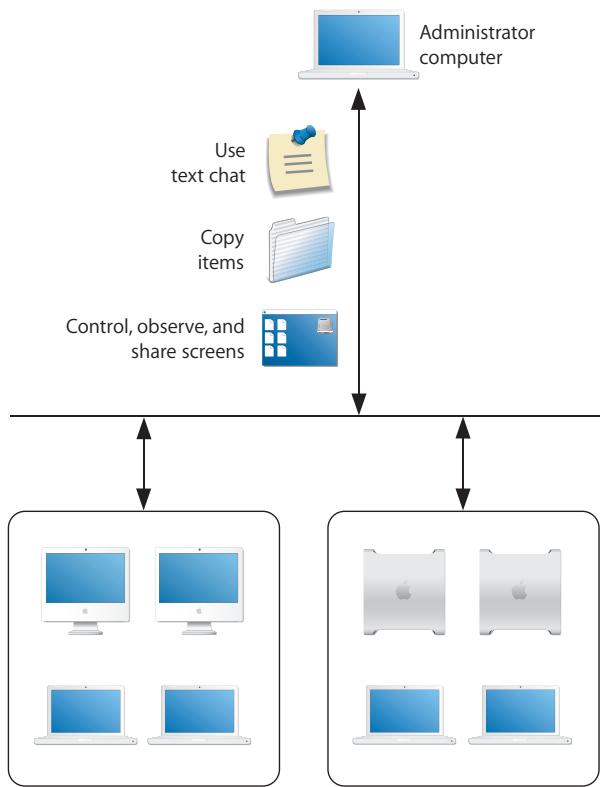
You can administer client computers individually, but most Apple Remote Desktop features can be used to manage multiple computers at the same time. For example, you may want to install or update the same applications on all the computers in a particular department. Or you may want to share your computer screen to demonstrate a task to a group of users, such as students in a training room.
Marketing department
Engineering department
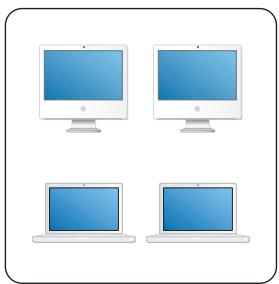
To manage multiple computers with a single action, you define Apple Remote Desktop computer lists. A computer list is a group of computers that you want to administer similarly. Computer lists let you group and organize computers for administration. Setting up computer lists is easy; you simply scan the network or import the identity of computers from files.
A particular computer can belong to more than one list, giving you a lot of flexibility for multicomputer management. A computer can be categorized by its type (laptop, desktop), its physical location (building 3, 4th floor), its use (marketing, engineering, computing), and so forth.
Once you've set up computer lists, you can perform most of the computer administration activities described next for groups of client computers.
Deploying Software
Apple Remote Desktop lets you distribute software and related files to client computers from your Apple Remote Desktop administrator computer or from a computer running Mac OS X Server.
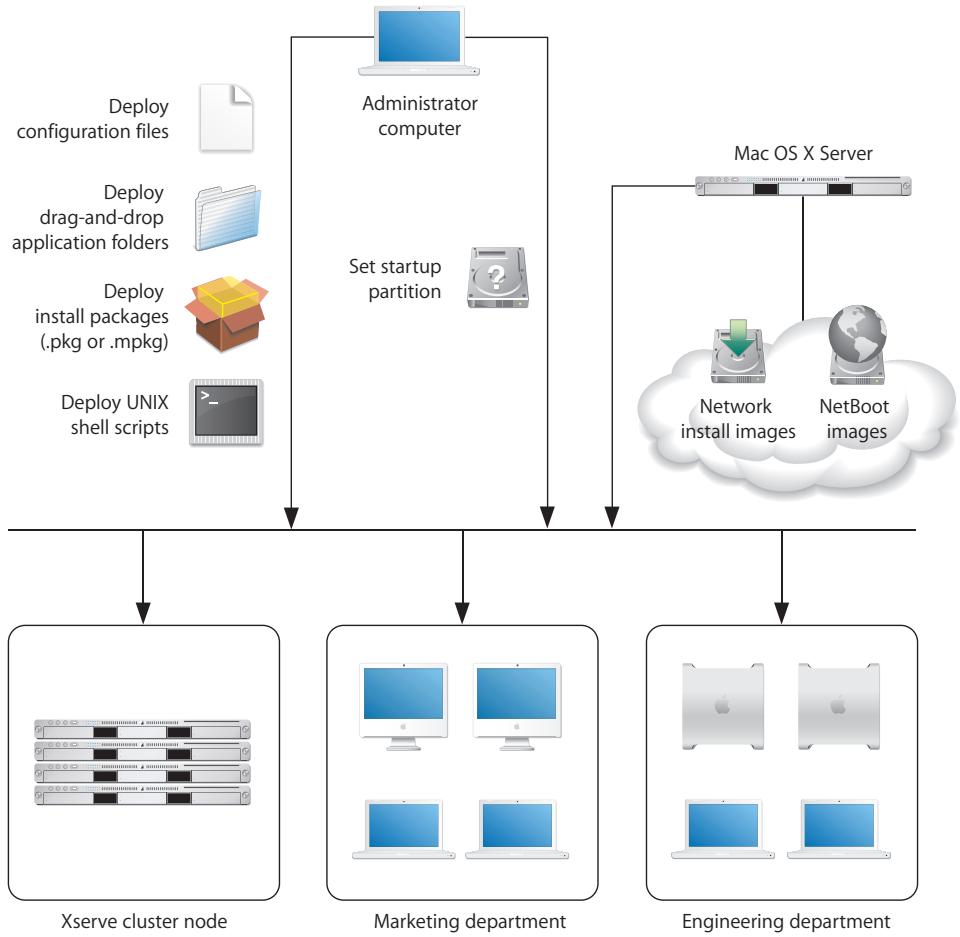
Distributing Installer Packages
You can distribute and automatically install packages in .pkg and .mpkg formats. Apple Remote Desktop lets you install software and software updates on one or more client computers without user interaction or interruption, or even if no user is logged in. After installation, Apple Remote Desktop erases the installer files. If the computers need to be restarted, as they do following an operating system update, you can restart them from Apple Remote Desktop.
For example, you can use Apple Software Update to download an iCal update or an operating system update to a test computer. If the update works as expected and introduces no compatibility issues, copy the installer package to the administrator computer to distribute to computers that need upgrading. Note that this approach conserves Internet bandwidth, because only one copy of the package needs to be downloaded.
You can also use Apple Remote Desktop to deploy new versions of computational software to Xserve computers in a cluster node.
You can use the PackageMaker tool (included on the Apple Remote Desktop installation CD and with Apple's developer tools) to create your own installer packages, such as when you want to:
- Distribute school project materials or business forms and templates
- Automate the installation of multiple installer packages
- Deploy custom applications
Before performing remote installations, you can send an Apple Remote Desktop text message to notify users, perhaps letting them know that you'll be using Apple Remote Desktop to lock their screens at a particular time before you start the installation.
Using Network Install Images
You can also distribute and install software, including the Mac OS X operating system, by using Network Install images.
On Mac OS X Server, use the Network Image Utility to create a Network Install image. You can create the image by cloning a system that's already installed and set up, or by using an installation disc or an image downloaded using Apple Software Update. If you choose to auto-install, you won't have to interact with each computer. On the Apple Remote Desktop administrator computer, set the startup disk of remote client systems to point to the Network Install image, and then remotely reboot the clients to initiate installation.
Before initiating installations that require computers to be restarted afterwards, send an Apple Remote Desktop text message to client users to notify them of a pending installation. For example, tell users you'll log them off at 5:00 p.m. to install an operating system update.
Using NetBoot Images
Another kind of system image you can create using Mac OS X Server is a NetBoot image. Like a Network Install image, a client computer uses NetBoot images to start up. Unlike a Network Install image, the boot software is not installed on the client system. Instead, it resides on a remote server. It is recommended you use a NetBoot image that has Apple Remote Desktop installed and configured. Otherwise, administering the computer using Apple Remote Desktop after starting up from NetBoot is impossible.
Client computers that boot from a NetBoot image get a fresh system environment every time they start up. For this reason, using NetBoot images is useful when a particular computer is shared by several users who require different work environments or refreshed work environments, or when you want to start a new experiment or use a different computing environment in a cluster node.
You can use Apple Remote Desktop to set the startup disks of client systems to point to the NetBoot image, and then restart the systems remotely using Apple Remote Desktop. Users can also choose a NetBoot image for startup by using the Startup Disk pane of System Preferences. With just a few clicks you can reconfigure all the computers in a lab or cluster without having to manually restart and configure each computer individually.
Distributing Preference Files
Managed computers often require a standard set of preferences for each instance of an application. Use Apple Remote Desktop to distribute preference files when you need to replace or update application preferences. For example, you can copy a standardized preference file to the currently logged in user's Library/Preferences folder.
Using UNIX Shell Scripts
You can use Apple Remote Desktop to distribute and run UNIX shell scripts on client computers.
For example, a script can mount an AFP server volume, from which it downloads a disk image to client computers. The script might also download an installer package and then perform a command-line installation.
On an Xserve in a cluster node, you could also run a script that mounts an Xserve RAID disk designed for high throughput and then downloads large data sets for processing.
You can also use Apple Remote Desktop to distribute JavaScript files that automate PDF workflows, or job instructions for computational clusters.
Distributing Drag-and-Drop Applications
You can distribute and install self-contained (drag-and-drop) applications by copying them to one or more client computers. Use this approach, for example, to distribute application updates.
Verifying Installations
To check whether an installation has been completed successfully, use Apple Remote Desktop's remote control capabilities.
For example, you can start an application remotely, or search for particular files. You can also use the File Search report to verify that all files for an application are installed correctly.
Taking Inventory
Apple Remote Desktop lets you capture data describing the attributes of client computers, then generate reports based on the data.
You specify how often you want to capture data, the data you want to capture, and the computers you want to profile. You can collect data just before generating a report if you need up-to-the-minute information. Or you can schedule data to be collected by Apple Remote Desktop at regular intervals and stored in its built-in SQL (Structured Query Language) database for use on an as-needed basis.
You can also specify where you want the database to reside—on the local administrator computer, or on a server where the Apple Remote Desktop administrator software is installed and always running, so data can be captured on an ongoing basis.
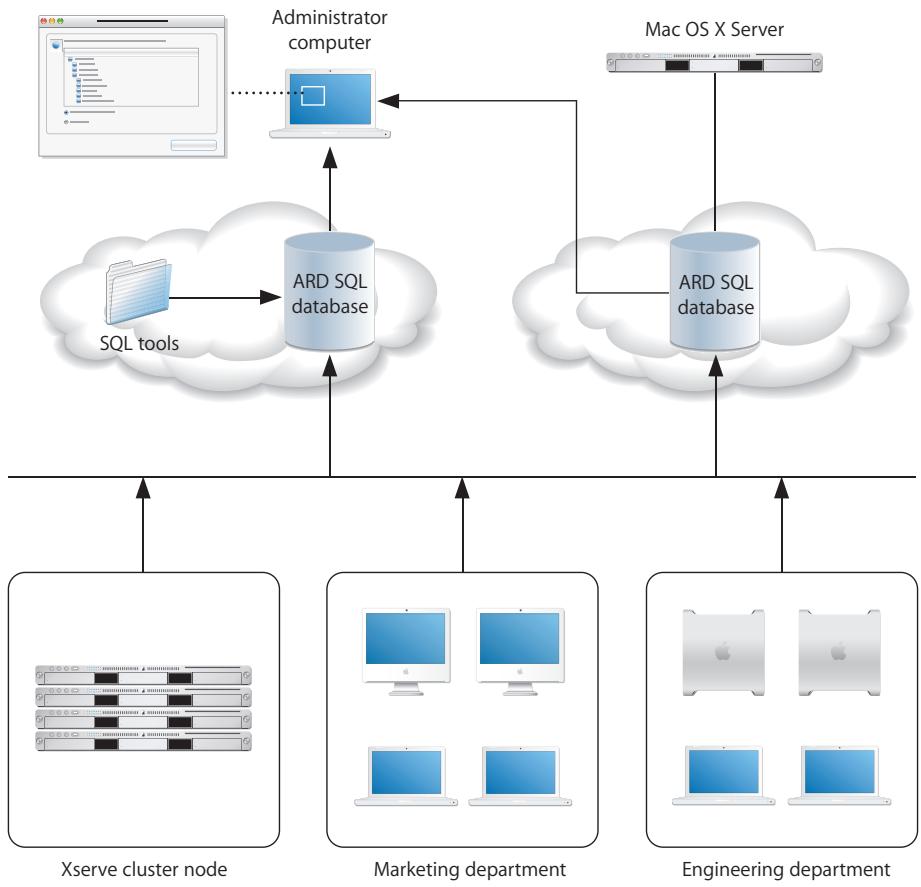
Using the collected data, Apple Remote Desktop generates reports tailored to your specifications.
File Search Report
Use the File Search report to search client systems for specific files and folders and to audit installed applications.
This report can help you find out how many copies of a particular application are in use so you don't violate license agreements.
Spotlight File Search
Use the Spotlight Search report to search Tiger client systems for specific files and folders. The information in the report is updated as files matching your search change on the client systems.
Software Version Report
Use the Software Version report to make sure that all users have the latest application versions appropriate for their systems.
Software Difference Report
Use the Software Difference report to detect application versions that are out of date, nonstandard, or unacceptable. You can also learn whether a user has installed an application that shouldn't be installed.
System Overview Report
The System Overview report makes visible a wide variety of client computer characteristics. Using this report, you can review information about a client's AirPort setup, computer and display characteristics, devices, network settings, system preferences, printer lists, and key software attributes.
There are numerous uses for this report, such as identifying problems or verifying system configurations before installing new software, or determining how many devices of a particular type (such as scanners) are in a particular lab.
Hardware Reports
Several reports provide details about particular hardware used by client computers—storage, FireWire devices, USB devices, network interfaces, memory, and expansion cards.
Use these reports to determine, for example, which computers need more memory, which computer has the fastest processor speed, and how much free space is left on a particular disk.
Administration Settings Report
Use the Administration Settings report to determine which Apple Remote Desktop administrator privileges are enabled or disabled for you in the Sharing pane of System Preferences on individual client computers.
User History Report
Use the User History report to show you who has logged in to a client, how they logged in, and for how long.
Application Usage Report
Use the Application Usage report to find out which applications have been running on your client computers and who ran those applications.
Network Test Report
A Network Test report helps you measure and troubleshoot the communication between your administrator computer and your client computers. The Network Interfaces report might also help troubleshooting network hardware issues.
Use this report to help identify reasons for network communication problems that could affect Apple Remote Desktop. For example, if you're unable to copy items to particular client computers from the administrator computer, you may find you have a bad connection to the computers. Using this information can help you isolate the problem to a particular cable or hub.
Generating Your Own Reports
Because the Apple Remote Desktop database is in standard SQL format, you can also use your favorite SQL scripts to query, sort, and analyze the collected data. In addition, you can export data from the database into a file so you can import it for viewing in a different program, such as a spreadsheet application.
Housekeeping
Apple Remote Desktop provides several ways to remotely control client computers for housekeeping activities, which you can conduct using one or more Apple Remote Desktop windows.
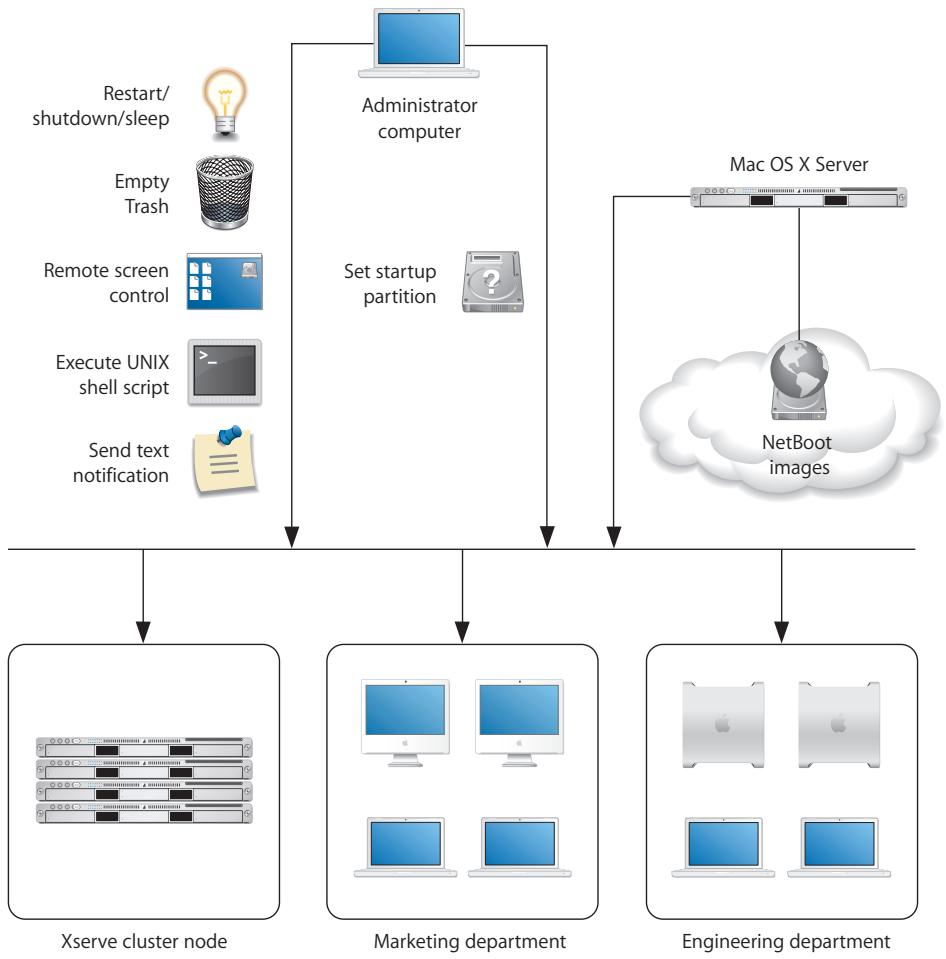
Managing Power State
Use Apple Remote Desktop to control the power state of client computers.
For example, you may need to have all computers turned off during maintenance of a power generation unit or during a holiday shutdown. You can send an Apple Remote Desktop text message reminding users to shut down their computers at a particular time. Any computers still running when you need to start maintenance can be detected and shut down remotely with Apple Remote Desktop.
Locking Computer Screens
You can lock the screens of client computers for specified durations when you don't want the computers to be used. For example, you may need to perform network maintenance and want to make sure computers don't use the network for a few hours.
You can display custom pictures or text messages on locked computer screens to let users know when the computers are available again.
Reclaiming Disk Space
Periodically empty the Trash on client computers to conserve disk space.
Automating Periodic Maintenance
Use JavaScript and UNIX shell scripts to automate periodic maintenance, such as checking permissions or deleting log files.
Controlling Screens
Use Apple Remote Desktop's remote screen control to perform activities on the desktop of Xserve computers, or use graphical applications on them. Apple Remote Desktop replaces the need for KVM (keyboard-video-mouse) switches for accessing Xserve computers without a monitor attached.
You can also remotely control a user's computer to help determine reasons for slow performance or other problems.
Changing Startup Disks
Change the startup disk of a client computer to perform diagnostic or troubleshooting activities.
For example, start up a computer using a server-based NetBoot image that's been set up for troubleshooting. When you're finished, reset the startup disk to the original boot volume.
Managing Shared Computers
On computers that are shared among users, check for files that need to be deleted, close applications, log users off, or perform other activities needed to prepare computers for the next users.
Supporting Users
Apple Remote Desktop lets you interact with users from your administrator computer in these ways:
- Provide help: respond to users who need help by using Apple Remote Desktop to receive user requests and to remotely diagnose and fix problems.
- Interact: conduct instructional interactions with students in a school or corporate training environment—from controlling or observing student screens to sharing your screen with all your students in order to perform a demonstration.
Providing Help Desk Support
When a user is having trouble, Apple Remote Desktop provides several ways to interact with the user and his or her computer to diagnose and fix the problem.
Marketing department
Engineering department
Requesting Help
A user can discreetly notify you of a problem by sending a request for help using an Apple Remote Desktop text message.
Users initiate requests using the commands in the menu that appears when they click the Apple Remote Desktop icon in the menu bar. A notification on the administrator computer alerts you to the message, and you can use several techniques to obtain more information and troubleshoot the problem.
Chatting with the User
Conduct two-way Apple Remote Desktop text communication with the user to obtain more information.
Screen Monitoring
Use Apple Remote Desktop to observe the user's screen if you need more details to understand the problem.
Screen Controlling
Use Apple Remote Desktop to control the user's screen in order to diagnose and fix the problem. You may have unlimited control, or a user can grant you temporary guest access so you can control the computer only during troubleshooting.
There are two levels of control available. You can take complete control of the user's computer, or you can share control of the keyboard and mouse with the user.
Screen Sharing
If the problem is caused by incorrect actions by the user, share your screen with the user as you demonstrate the correct way to perform the action.
Using Reports
Use hardware and software reports as diagnostic tools to determine whether the client computer setup is part of the problem. For example, if a user can't save his or her work, the storage report can help you determine whether it's a disk space issue.
Deploying New Software or Files
If software or configuration settings are part of the problem, use Apple Remote Desktop to copy new configuration files, installer packages, or other items to client computers.
Interacting with Students
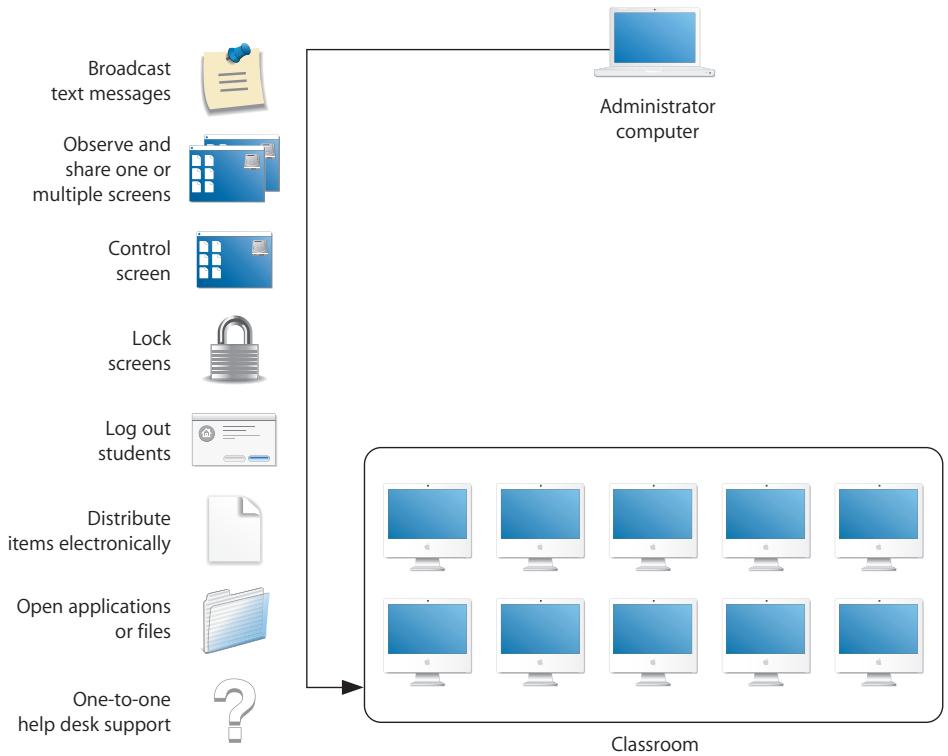
Apple Remote Desktop helps instructors teach more efficiently by letting them interact with student computers individually or as a group.
Using Text Messages
Send Apple Remote Desktop text messages to communicate with students. For example, notify them that a classroom activity will start soon or that they have ten minutes to finish an examination.
Monitoring Student Computers
View student computer screens on your computer, so you can monitor student activities or assess how well they're able to perform a particular task. You can also monitor the applications running on any student's computer.
Sharing Screens
Display your screen or a student's screen on other student computers for training and demonstration purposes.
Controlling Screens
Show students how to perform tasks by controlling their screens from your computer, opening applications and using files as required.
Locking Screens
Lock student screens to prevent students from using their computer when you want them to focus on other activities.
Terminating Computer Use
Remotely log students out or shut down their computers at the end of a class or school day.
Distributing and Collecting Files
Distribute handouts electronically, at a time that won't disrupt class activities or when they're needed for the next class activity, and collect homework files.
Automating Website Access
Open a webpage on all student computers. Drag a URL from Safari to your desktop, then copy it to student computers and open it in Safari. You can also copy files and open them in the appropriate applications on student computers.
Providing One-to-One Assistance
Provide help when a student needs it, conducting private and discreet computer-to-computer interactions.
Finding More Information
You'll find detailed instructions for performing the tasks highlighted in this chapter—and more—throughout this manual.
| To learn more about | See information for | Starting on page |
| Remote Dekstop interface | Window and icon functions | page 28 |
| Computer lists | Creating computer lists | page 49 |
| Apple Remote Desktop administration | Administrator privileges | page 60 |
| Administrator computers | ||
| Controlling screens | Controlling | page 79 |
| Observing screens | Observing | page 86 |
| Deploying software | Installing software | page 102 |
| Upgrading software | ||
| Distributing files | Copying files | page 108 |
| Taking inventory | Data collection options | page 113 |
| Auditing software | ||
| Auditing hardware | ||
| Network responsiveness | ||
| Customizing reports | ||
| Exporting report data | ||
| Client use reporting | User login accounting | page 116 |
| Application usage | ||
| Housekeeping tasks | Deleting items | page 129 |
| Emptying the Trash | ||
| Setting startup volumes | ||
| Renaming computers | ||
| Sleeping and waking | ||
| Locking screens | ||
| Logging users out | ||
| Restart and shutdown | ||
| Automating tasks | Configuring data gathering | page 156 |
| Scheduling tasks | ||
| Using UNIX shell scripts |
Additional information is available at several Apple websites:
- For information about NetBoot and Network Install, download the system imaging administration guide at: www.apple.com/server/documentation/
- You can find the Software Delivery Guide on the Apple Developer Connection website at: developer.apple.com/referencelibrary/
Remote Desktop is the administrator application for Apple Remote Desktop. Its attractive interface is powerful, yet simple to use. Remote Desktop's interface is customizable, allowing you to get the information you want quickly, the way you want it.
This chapter contains screenshots and short descriptions of Remote Desktop's interface, as well as detailed instructions for customizing the appearance and preferences of the application. You will learn about:
- "Remote Desktop Human Interface Guide" on page 28
- "Configuring Remote Desktop" on page 36
- "Interface Tips and Shortcuts" on page 37
Remote Desktop Human Interface Guide
The following sections give basic information about the human interface of Remote Desktop, Apple Remote Desktop's administrator application.
- "Remote Desktop Main Window" on page 29
- "Task Dialogs" on page 31
- "Control and Observe Window" on page 32
- "Multiple-Client Observe Window" on page 33
Report Window" on page 34 - "Changing Report Layout" on page 35
Remote Desktop Main Window
The main window of Remote Desktop has a customizable toolbar, groups of lists, tasks, and scanners on the left, and the main window area to the right. "List Menu Icons" on page 168 contains icons seen in the list menu of the main window.
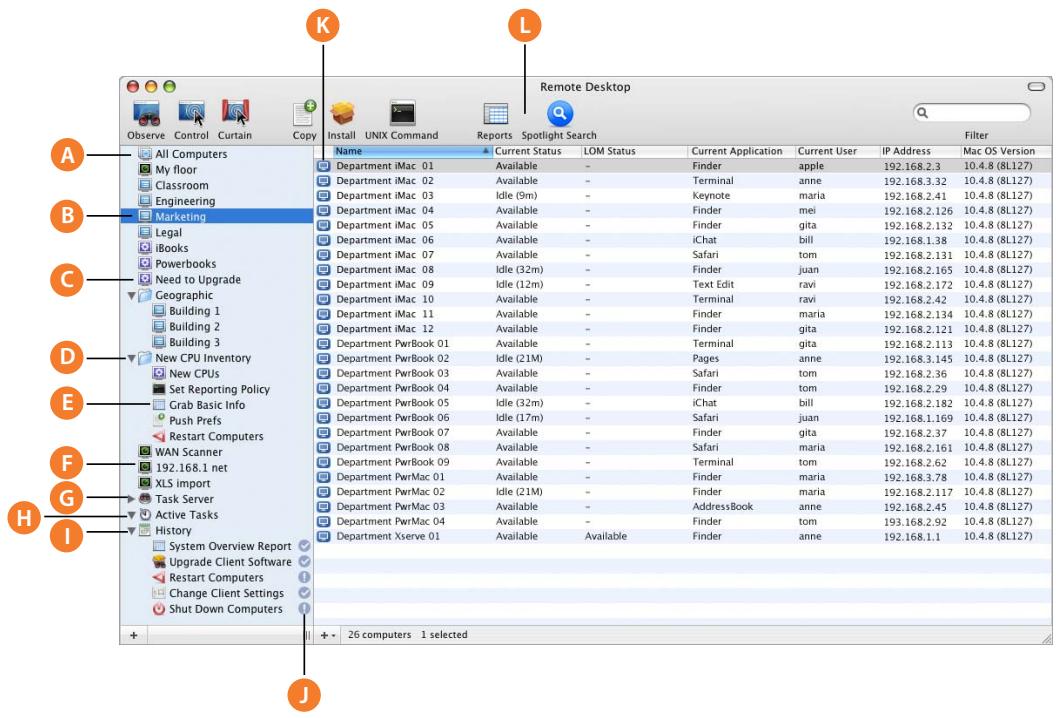
A All Computers list: The All Computers list is a list of all client computers that you plan to administer. It includes all the clients you have authenticated to, as well as the client computers that you plan to authenticate to. Computers need to be in the All Computers list before you can command or administer them. If you have a 10-client license, the All Computers list can contain only 10 computers.
B Apple Remote Desktop computer lists: A list of computers you create to group computers in ways that are convenient for you. Any list is a subset of the client computers in the All Computers list. If you add a computer directly to a computer list, it is added automatically to the All Computers list as well.
C Smart computer lists: A smart computer list is a list of computers which is a subset of the client computers in the All Computers list that meet a predetermined criteria. Smart Computer lists update themselves based on your criteria compared to the contents of the All Computers list.
D Group folders: Groups are tools to help you organize all your possible lists, tasks, and scanners. Groups look like folders, and can be collapsed to hide the group contents.
E Saved tasks: Saved tasks are listed in the left portion of the main window. They have the icon of the type of task and have a user-changeable name.
F Scanner: Scanners find clients to add to the All Computers list. You can make new scanners and customize them for your needs. See "Making a New Scanner" on page 53.
G Task server list: This lists tasks delegated to the Task Server, rather than run those run directly from the application. When all the target computers have come online and participated in the task, the task is labeled as complete.
H Active tasks list: This list shows all tasks that are currently running or scheduled and uncompleted.
History list: The History list shows a list of most recently run tasks, as defined in the Remote Desktop preferences. You can inspect each task by double-clicking it. Once a task is completed (whether successfully or not) it is moved to the History list.
J Task status icon: These icons represent the current state of a task. See "Task Status Icons" on page 168.
K Client status icon: Icon representing the current state of a client computer. See "Client Status Icons" on page 167.
Customizable toolbar: The toolbar can be fully customized with icons of your most-used Apple Remote Desktop features.
Task Dialogs
When you click a task, a dialog appears to let you set task parameters or confirm the task.
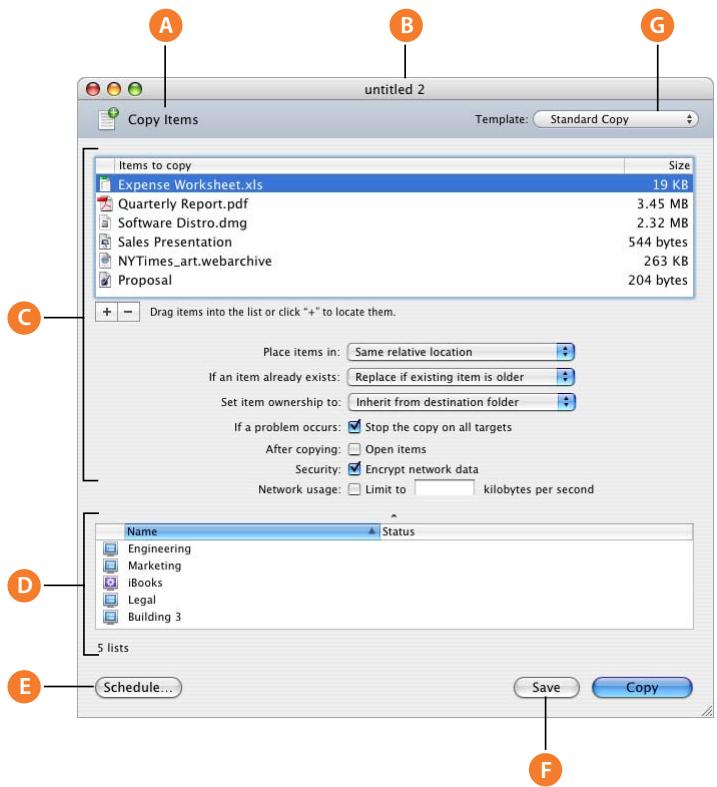
A Task type header: This header area shows you the kind of task represented.
B Saved task name: When you save a task, you name it for your own use.
C Task configuration area: This area is different for every task. It's where you set operating parameters for the task to be performed.
D Participating computers: This area shows you the computers that will be affected by the task. You can add or remove computers in this area without changing computer list membership.
E Schedule task button: When you click this button in a task dialog, you can set a time to perform the task as well as repeat the task. See "Working with Scheduled Tasks" on page 161 for more information.
F Save task button: When you click this button in a task dialog, you can name and save the task as configured. Saved tasks appear in the left side of Remote Desktop's main window.
G Task templates: This control allows you to save current task configuration settings, or apply previously saved settings to the current task. These templates are stored on a per-task basis. For example, the Send UNIX Commands template pop-up has an extensive list of built-in templates, while other tasks may have none.
Control and Observe Window
This window is the same for both controlling and observing a single client. The only difference is the state of the Observe or Control toggle button. When it's selected, you have control over the remote client.
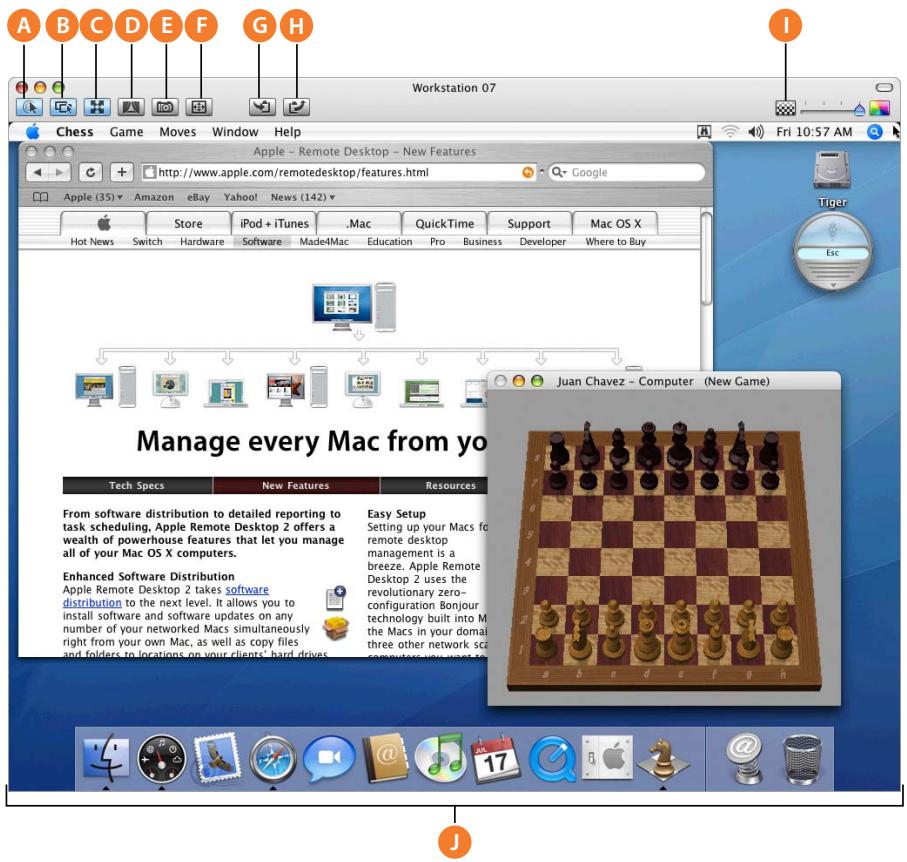
A Observe or control toggle: When this button is selected, you have control over the remote client.
B Share mouse control: When this button is selected, you share mouse control with the user.
C Fit screen in window: When this button is selected, the remote client is scaled to the Control window size.
D Lock computer screen for control: When this button is selected, the remote client screen shows a lock, and your view allows you to view the client desktop normally.
E Capture screen to file: When this button is clicked, the remote client screen is saved to a local file at the selected image quality.
F Fit screen to full display: When this button is selected, your display doesn't show your computer desktop, only that of the remote computer, at full possible resolution.
G Get clipboard from client: When this button is clicked, the contents of the remote client Clipboard are transferred to the local Clipboard.
H Send clipboard to the client: When clicked, the remote client Clipboard receives the contents of the local Clipboard.
Image Quality: Adjusts the screen color depth from black and white to millions of colors.
J Desktop of Controlled Computer: Resize this window from the lower right corner.
Multiple-Client Observe Window
When you observe many clients at the same time, they all appear in the same window. If you have more computers than will fit in the window, they are divided across several pages.
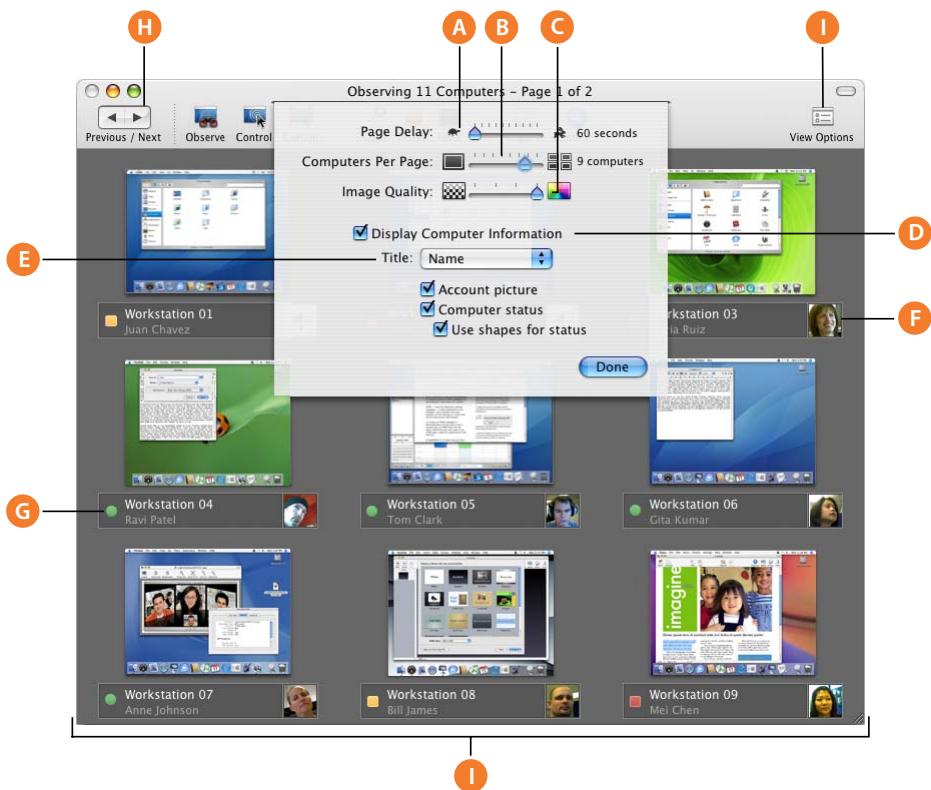
A Page Delay: Adjusts the number of seconds before automatically advancing to the next page of screens.
B Computers Per Page: Adjusts the number of client screens visible on each page.
C Image Quality: Adjusts the screen color depth from black and white to millions of colors.
D Display Computer Information: Shows the computer information area, which contains desktop titles, account pictures, and status icons.
E Computer title selector: Changes the titles displayed underneath the client screens (you can choose the computer name, IP address, or hostname).
F Account picture: Shows the login icon of the currently logged in user.
G Computer status: Shows basic computer status beneath each client screen.
H Cycle through pages: Manually advances to the next page of screens.
View Options: Reveals the view option controls.
J Observed computers: Contains the scaled desktops of the observed client computers.
Report Window
Reports serve as valuable shortcuts when you're copying files and organizing computer lists.
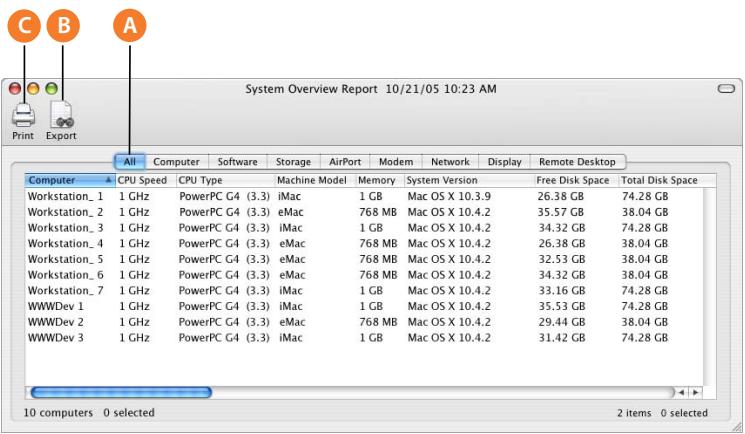
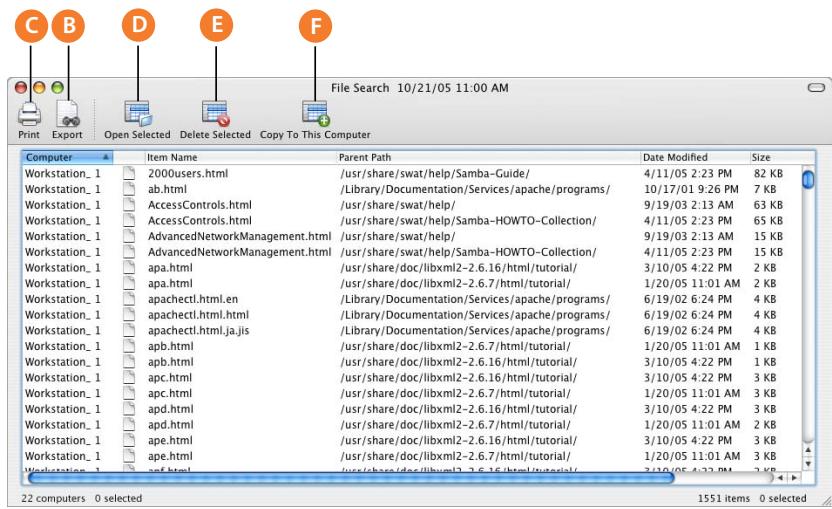
A Report category: Most reports have subcategories to help you find the information you want. In the report window, you switch between the subcategories using these tabs.
B Save report to file: Saves the report to a plain text file.
C Print: Formats and prints the report window.
D Open selected: Opens the item selected in the report. The item opens on the client computer.
E Delete selected: deletes the item selected in the report from the remote computer.
F Copy to this computer: Copies selected items to the administrator computer.
Changing Report Layout
You can customize report layouts for your own purposes. By default, reports include a column for each information type you selected before running the report, in the order presented in the report dialog. The columns in the report are initially sorted by computer name.
You can resize or rearrange the columns of a report, as well as sort the rows by column.
Additionally, in the File Search report, you can choose what information is displayed about a found item. By default, the item name, kind, parent path, actual size, and modification date are displayed.
To change what information is displayed:
1 In the File Search report window, select or deselect each report column as desired.
| Report column | If checked, will show |
| Name | The item name |
| Parent path | The path to the folder that the item is in |
| Full path | The full file path |
| Extension | The file extension indicating the file type (.app, .zip, .jpg) |
| Date modified | The last date and time the file was changed and saved |
| Date created | The date and time the file was created |
| Actual size | Actual file size, in kilobytes or megabytes |
| Size on disk | Amount of disk space used by the file, in kilobytes |
| Kind | File, folder, or application (including platform: Universal, PowerPC, Intel, or Classic) |
| Invisible | A checkmark indicating whether it is visible in the Finder |
| Version number | If an application, the version reported |
| Version string | If an application, the version reported |
| Owner | The item owner's short name |
| Group | The item's group name |
| Permissions | The item's UNIX permissions (for example, -rw-r--r--) |
| Locked | A checkmark indicating whether it is a locked file |
2 After making your selections, click Generate Report as usual.
When the report window appears, you can rearrange the columns or sort by a different column.
Configuring Remote Desktop
You can configure the Remote Desktop administrator application to meet your work needs. Remote Desktop has an interface that is both flexible and functional.
Customizing the Remote Desktop Toolbar
The Remote Desktop application has a fully customizable toolbar, which provides a quick way to perform tasks. To perform a task, just click the appropriate icon in the toolbar. To show or hide the toolbar, click the toolbar button in the upper-right corner of the application window. You can add, remove, or rearrange the task icons in the toolbar to suit your needs.
To customize the application toolbar:
1 Choose Window > Customize Toolbar.
2 Drag your favorite toolbar items or the default set of items to the toolbar. To remove an item, drag it from the toolbar. To rearrange items, drag them into the order you prefer.
3 Choose whether to display toolbar items as text, icons, or both. Selecting "Use Small Size" shrinks the items in the toolbar.
Setting Preferences for the Remote Desktop Administrator Application
In Remote Desktop preferences, you can select options that affect how the administrator application interacts with client computers.
To open the Preferences window:
- Choose Remote Desktop > Preferences.
In the General pane, you can set:
- What double-clicking a client computer does (Get Info, Control, Observe, Text Chat)
- Whether to show the client idle time
- What warnings may appear when quitting the application
- A new serial number
- A new Remote Desktop application password
In the Control & Observe pane, you can set:
- Whether a remote screen is shown in a window or a full screen
- Whether control of the mouse and keyboard is shared with the client computer when the client is controlled
- Whether a remote screen is shown at its actual size in a window or if it shrinks to fit the window
In the Task Server pane, you can set:
- Whether Remote desktop is using another computer as a Task Server, or whether this copy of Remote Desktop is being used as a Task Server
- Whether other Apple Remote Desktop administrators can access your local Task Server
- Whether clients collect user and application tracking data
- A saved template for scheduling client reporting policies
In the Labels pane, you can set:
- Label colors and text for labeling computers
In the Tasks pane, you can set:
- Whether to automatically change focus to the active task
- Whether to execute a notification script on task completion
- Limits on History list contents and time until removed
In the Security pane, you can set:
- Whether to accept messages from client users
- Whether to allow control of the computer while Remote Desktop is active
- The default encryption preference for control and observe sessions
- The default encryption preference for Copy Items and Install Packages tasks
- Which features of Remote Desktop are available to nonadministrator users? See "Apple Remote Desktop Nonadministrator Access" on page 67.
Interface Tips and Shortcuts
There are a number of features of the Remote Desktop interface which make it particularly flexible and powerful. The following lists a few built-in shortcuts to features which can make using Remote Desktop more productive.
Computers can be selected from any window
Any computer in any window—report windows, task windows, computer lists, observe windows—can be a target for some task. For example, if you are observing 10 computer screens and need to send a text message to one, select the screen with a single click and then choose Interact > Send Text Message. Likewise, if you get a software report on 50 computers and notice that one of the computers is missing some vital piece of software, you can drop that software onto the selected computer within the report window.
Treating all windows as possible computer selection lists for tasks may save you lots of time switching between the Remote Desktop window and other windows as you accomplish your work.
Drag and drop works on configuration dialogs
Configuration dialogs accept dragged items. Computer lists in the dialogs accept dragged computers. The Copy Items dialog accepts dragged files to copy, without having to browse the file system for them. Save yourself time and effort by dragging available items to dialogs rather than browsing for them.
Making lists from reports or other lists
You may need to make a list based on the outcome of some report, but you don't know which computers will need to be included. After getting a report and sorting on the desired column, you can select the computers and make a new list from the selection. If you double-click the list icon, you open another window containing the computers in the list. This is useful for comparing lists, or for using the new window as a source from which to drag computers to other lists.
Saved Tasks and Task Templates save you time
You may spend a lot of time coming up with the perfect software search to find exactly what you need. You shouldn't recreate that search every time you need it. Save your tasks, and duplicate them. With a little editing, you can have a number of similar saved tasks for specific uses. Alternatively, you can use task templates to save settings across task dialogs, applying the same settings through various tasks.
To use Apple Remote Desktop, install the administration software on the administrator computer first, and then install and enable the client software on the computers you want to manage. You'll need your install disc, the serial number, and either the printed Welcome instructions, or these instructions.
This chapter describes how to install Apple Remote Desktop for system administration and user interaction and gives complete setup instructions. You can learn about:
- "System Requirements for Apple Remote Desktop" on page 39
- "Installing the Remote Desktop Administrator Software" on page 40
- "Setting Up an Apple Remote Desktop Client Computer for the First Time" on page 41
- "Upgrading the Remote Desktop Administrator Software" on page 41
- "Upgrading the Client Software" on page 42
- "Creating a Custom Client Installer" on page 44
- "Considerations for Managed Clients" on page 46
- "Removing or Disabling Apple Remote Desktop" on page 46
System Requirements for Apple Remote Desktop
Administrator and client computers:
- Mac OS X or Mac OS X Server version 10.3.9 or later (Mac OS X version 10.4 or later is required for some features).
Mac OS Extended (HFS+) formatted hard disk. - For observing and controlling other platforms: a system running Virtual Network Computer (VNC)-compatible server software.
NetBoot and Network Install (optional)
- Mac OS X Server version 10.3 or 10.4 with NetBoot and Network Install services enabled
Network Requirements
- Ethernet (recommended), AirPort, FireWire, or other network connection. See "Setting Up the Network" on page 72 for more information.
Installing the Remote Desktop Administrator Software
To set up Apple Remote Desktop on administrator computers, you install the software on the computer you plan to use to administer remote computers. Then, you open the application setup assistant, and add to the main list of computers.
To install Apple Remote Desktop on an administrator computer:
1 Insert the Apple Remote Desktop installation disc.
2 Double-click the Remote Desktop installer package and follow the onscreen instructions.
The Remote Desktop application will be installed in the Applications folder.
3 Launch Remote Desktop (in the Applications folder).
The Remote Desktop Setup Assistant appears.
4 Enter the serial number.
The serial number can be found on the Apple Remote Desktop Welcome document that came with your software.
Optionally, enter a registration name and organization.
5 Click Continue.
6 Enter a Remote Desktop application password and verify it.
The Remote Desktop application password is used to encrypt names and passwords of client computers for Apple Remote Desktop. You can store this password in your keychain for convenience, or you can require that the password be entered each time you open Remote Desktop.
7 If you have another unlimited-licensed copy of Apple Remote Desktop acting as a Task Server (a dedicated computer running Remote Desktop for report data collection and delegated install tasks), enter the server address and click Continue.
8 Set the default data collection scope and time for newly administered computers.
These settings will be stored as the default upload schedule, which can be applied to computers when you add them for administration. For more detailed information, see "Setting the Client's Data Reporting Policy" on page 160.
9 Click Done.
The main application window appears.
10 Configure some client computers for administration, find them in a scanner, and add them to a computer list. See:
- "Setting Up an Apple Remote Desktop Client Computer for the First Time" on page 41
- "Finding and Adding Clients to Apple Remote Desktop Computer Lists" on page 49
Setting Up an Apple Remote Desktop Client Computer for the First Time
The following section contains information on setting up Apple Remote Desktop 3 on client computers. Since Apple Remote Desktop v1.2 was included with Mac OS X v10.3 computers and Apple Remote Desktop v2.2 was installed with Mac OS X v10.4 computers, all Apple Remote Desktop 3 client installations are upgrade installations, even if you are setting up clients for the first time.
See "Upgrading the Client Software" on page 42 for more information.
If the Apple Remote Desktop client software was removed from the computer, you can install a fresh copy of the most recent client software by installing Apple Remote Desktop manually.
See "Method #2—Manual Installation" on page 43 for more information.
If you're setting up Mac OS X Server for the first time using Server Setup Assistant, you can enable Apple Remote Desktop as one of the initial services. This allows you to administer a server immediately after server software installation by providing Remote Desktop with the user name and password of the default system administrator.
Upgrading the Remote Desktop Administrator Software
Upgrading Remote Desktop is just like installing it for the first time. The only difference is that the final button in the installer reads "Upgrade" rather than "Install." The installer upgrades existing software to its latest version, imports previously created lists, and restarts the underlying processes after completion.
See "Installing the Remote Desktop Administrator Software" on page 40, for detailed instructions.
If you are upgrading from version 1.2 and changing administrator computers, you'll need to transfer your existing computer lists. See "Transferring Old v1.2 Computer Lists to a New Administrator Computer" on page 58. Be sure to transfer your lists from Apple Remote Desktop v1.2 to the new computer before upgrading to Apple Remote Desktop 3. If you upgrade from version 1.2 to version 3.1 on the same administrator computer, this list migration is done for you.
Upgrading the Client Software
This section contains information on installing Apple Remote Desktop 3 on client computers. Since Apple Remote Desktop client software was automatically included on the clients running Mac OS X v10.3 and v10.4, all Apple Remote Desktop 3 installations are upgrade installations, even if you are setting up clients for the first time.
You can only upgrade Apple Remote Desktop v1.x and v2.x computers if they meet the minimum system requirements (see "System Requirements for Apple Remote Desktop" on page 39). Please note that there is no supported "downgrade" to any previous version, and if you upgrade the client computers to version 3.1, you will not be able to administer them with earlier versions of Remote Desktop.
There are two methods to upgrade the client computer's software.
Method #1—Remote Upgrade Installation
This method works best with existing clients already configured using a previous version of Apple Remote Desktop. If used with existing administered clients, use Remote Desktop to identify those clients running a previous version. You may then upgrade them to the latest version. The main benefit of this upgrade method is the ease of installation and the retention of previous client settings, if any.
This method only works for Apple Remote Desktop 1.2 clients and later. Earlier versions of Apple Remote Desktop like 1.0 must be upgraded to version 1.2 using Mac OS X's Software Update, or they must be updated manually. See "Method #2—Manual Installation" on page 43 for more information.
To upgrade existing client software remotely using Apple Remote Desktop:
1 Enable the existing version of Apple Remote Desktop on the client computers.
2 Configure the clients for administration.
See "Setting Apple Remote Desktop Administrator Access Authorization and Privileges Using Local Accounts" on page 62.
3 If the client computers are not in an existing Remote Desktop computer list, find the client computers using an Apple Remote Desktop scanner.
See "Finding and Adding Clients to Apple Remote Desktop Computer Lists" on page 49 for more information.
4 Select the client computers to be upgraded.
5 Choose Manage > Upgrade Client Software.
6 Click Upgrade.
Method #2—Manual Installation
This method works best if you have never enabled Apple Remote Desktop on your clients and have an existing software distribution infrastructure. This method also allows for the greatest power and configuration flexibility. Also, if you don't want Apple Remote Desktop to upgrade your clients using the Upgrade Client Software feature, you can perform a manual upgrade.
The custom installer not only installs the needed software but also prepares and configures the client computer for administration and can be configured to add or edit user names and passwords for Apple Remote Desktop authentication.
To manually upgrade the client software:
1 Use Remote Desktop to create a client software installer package.
For detailed instructions, see "Creating a Custom Client Installer" on page 44.
2 Copy and install the package on the client computers. You need the name and password of a user with administrator privileges on the computer to install the package.
There are several ways to do this. For example, you can:
- Distribute the package by removable media, such as a CD.
- Copy the installer to the clients over the network using file sharing.
- Copy the installer to the clients using command-line tools like scp (if ssh is enabled), and use Apple's command-line installation tool, "installer," to install the package remotely. This process is described in detail in "Upgrading Apple Remote Desktop Clients Using SSH" on page 43.
- Add the custom installer package to a Network Install image, using System Image Utility to automatically include the software and your custom settings when clients install the operating system using Mac OS X Server 10.4's NetBoot and Network Install features.
WARNING: Custom install packages that create user names contain sensitive password data. Take care to store such custom installers securely.
Upgrading Apple Remote Desktop Clients Using SSH
You may not be able to or want to use Remote Desktop to upgrade existing clients to Apple Remote Desktop 3. If the clients have SSH enabled (called Remote Login in System Preferences), and are available on the network, you can still upgrade the client computers.
You still need to use Remote Desktop to create a custom installer package. You also need the user name and password of a user with system administrator privileges on the client computer.
To upgrade existing client software using SSH:
1 Create the custom client installer package.
For detailed instructions, see "Creating a Custom Client Installer" on page 44.
2 Open the Terminal application (located in /Applications/Utilities/).
3 Copy the installer package to the client computer by typing:
$ scp -r <path to installer package> <user>@<host>:<path to package destination>
For other options, see the scp man page.
4 Log in to the client computer by typing:
$ ssh <user>@@<host>
For other options, see the ssh man page.
5 On the client computer, install the package by typing:
$ sudo installer -pkg <path to package> -target /
For other options, see installer man page.
Creating a Custom Client Installer
To install the Apple Remote Desktop client software on computers, you use the administrator application, Remote Desktop, to create a custom client installer. The custom client installer not only installs the Apple Remote Desktop system software, but can create user names and passwords on the client computer with their Apple Remote Desktop privileges already assigned. You'll use an assistant to create a custom client installer package. Any values set in the custom installer will apply to all the computers that receive the installation.
While creating a custom installer, you will have a chance to create new Apple Remote Desktop administrator user names with passwords, and automatically set Apple Remote Desktop access privileges and preferences.
WARNING: Custom installer packages that create user names contain sensitive password data. Take care to store and transmit such custom installers securely.
To create the client installer:
1 Open Remote Desktop.
2 Choose File > Create Client Installer.
The Custom Installer Setup Assistant appears.
3 Choose to create a custom installer and click Continue.
If you choose not to create a custom installer, you can create a basic installer that sets no preferences on the client computer.
4 Click Continue to begin creating a custom installer.
5 Choose whether to start Remote Desktop sharing at system startup.
This changes the setting found in the Sharing pane of System Preferences.
6 Choose whether to hide or show the Apple Remote Desktop menu bar icon.
7 Click Continue.
8 Choose whether to create a new user for Apple Remote Desktop login. Click Continue.
A new user account can be created to grant Apple Remote Desktop administrator privileges. Creating a new user account does not overwrite existing user accounts or change existing user passwords.
If you choose not to create a new user account, skip to step 10 after clicking Continue.
9 Add a new user by clicking Add and filling in the appropriate information.
Click OK after adding each user, and click Continue when you're ready to go on.
10 Choose whether to assign Apple Remote Desktop administrator access privileges to Directory Services groups.
If you choose to do so, select "Enable directory-based administration."
See "Apple Remote Desktop Administrator Access Using Directory Services" on page 63 for more information on using this method to grant Apple Remote Desktop administrator access.
11 Choose whether to assign Apple Remote Desktop administrator access privileges to specific users. Click Continue.
If you choose not to assign administrator access privileges, skip to step 14.
12 Click Add to designate a user to receive Apple Remote Desktop access privileges.
13 Provide the user's short name and set the privileges as desired.
See "Apple Remote Desktop Administrator Access" on page 60 for more information.
Click OK after each user, and click Continue when you're ready to go on.
14 Choose whether to allow temporary guest control by requesting permission on the client computers.
See "Considerations for Managed Clients" on page 46 for more information.
15 Choose whether to allow non-Apple VNC viewers to control the client computers, and click Continue.
See "Virtual Network Computing Access" on page 68 for more information.
16 If desired, select and enter information in any or all of the four System Data fields.
This information appears in Apple Remote Desktop System Overview reports. For example, you can enter an inventory number for the computer, a serial number, or a user's name and telephone number.
17 Click Continue.
18 Select a location for the installer.
19 Click Continue to create the installer.
An installer metapackage (.mpkg file) is created in the designated location.
20 Click Done.
Considerations for Managed Clients
If you plan on restricting what applications can open on a managed client, you'll need to make sure that Apple Remote Desktop's processes are allowed to run. A managed client is a client computer whose environment is governed by Mac OS X Server's Workgroup Manager. The following options need to be enabled in Workgroup Manager's client and group application preference settings:
- "Allow approved applications to launch non-approved applications"
- "Allow UNIX tools to run"
Removing or Disabling Apple Remote Desktop
Apple Remote Desktop's client components are bundled as part of Mac OS X and Mac OS X Server. You may choose to remove or disable parts of it to fit your own personal computing needs. The following section describes how to uninstall or disable key Apple Remote Desktop components.
Uninstalling the Administrator Software
To remove the administrator software completely, you must remove the application, the encrypted list of computer user names and passwords, and the client information database.
To remove the administrator software:
1 Drag the Remote Desktop application to thetrash.
2 Empty the Trash.
3 Delete the Apple Remote Desktop database from /var/db/RemoteManagement/ using the following commands in the Terminal application:
$ sudo rm -rf /var/db/RemoteManagement
4 Delete the Remote Desktop preferences files using the following commands in the Terminal application.
$ sudo rm /Library/Preferences/com.apple.RemoteDesktop.plist
$ sudo rm /Library/Preferences/com.apple.RemoteManagement.plist
$ rm ~/.Library/Preferences/com.apple.RemoteDesktop.plist
5 Delete the Remote Desktop documentation using the following commands in the Terminal application.
sudo rm -r /Library/Documentation/Applications/RemoteDesktop
6 Delete the Apple Remote Desktop support files from /Library/Application Support/ using the following commands in the Terminal application:
$ rm -rf ~/.Library/Application\ Support/Remote\ Desktop/
$ sudo rm -rf /Library/Application\ Support/Apple\ Remote\ Desktop/
7 Delete the Apple Remote Desktop installation receipts from /Library/Receipts/ using the following commands in the Terminal application:
rm -r /Library/Receipts/RemoteDesktopAdmin* rm -r /Library/Receipts/RemoteDesktopRMDB*
8 Delete the Apple Remote Desktop Dashboard widget (after closing every instance of the widget) using the following commands in the Terminal application:
$ sudo rm -r /Library/Widgets/Remote\Desktop.wdgt/
Disabling the Client Software
You may want to temporarily disable Apple Remote Desktop on a client without removing the software.
WARNING: Because Apple Remote Desktop is part of the default Mac OS X 10.3 and 10.4 installation, do not remove the Apple Remote Desktop client components.
To disable the client software on a client computer:
1 On the client computer, open System Preferences and click Sharing.
If necessary, enter the user name and password of a user with administrator privileges on that computer.
2 Deselect Apple Remote Desktop in the Sharing pane.
3 Quit System Preferences.
Apple Remote Desktop is now disabled and the underlying software is deactivated. Alternately, you can disable only the administrator privileges by doing the following
a Click Access Privileges.
b Deselect each user account that you enabled for Apple Remote Desktop administration.
c Click OK.
d Quit System Preferences.
Uninstalling the Client Software from Client Computers
To remove Apple Remote Desktop client software from Mac OS X clients, you need to remove a number of software components from each client system.
WARNING: It is not recommended that you uninstall the client software. Disabling the client software is sufficient to stop Apple Remote Desktop system activity. See "Disabling the Client Software" on page 47 for instructions.
To uninstall client software:
1 Open Terminal (located in /Applications/Utilities).
2 Delete the client pieces from /System/Library/ using the following commands in the Terminal application:
$ sudo rm -rf /System/Library/CoreServices/Menu\Extras/RemoteDesktop menu
$ sudo rm -rf /System/Library/CoreServices/RemoteManagement/
$ sudo rm -rf /System/Library/PreferencePanes/ARDPrefprefPane
$ sudo rm -rf /System/Library/StartupItems/RemoteDesktopAgent/
3 Delete the client preferences from /Library/Preferences/ using the following command in the Terminal application:
$ sudo rm /Library/Preferences/com.apple.ARDAgent.plist
$ sudo rm /Library/Preferences/com.apple.RemoteManagement.plist
4 Delete the client installation receipts from /Library/Receipts/ using the following command in the Terminal application:
$ sudo rm -r /Library/Receipts/RemoteDesktopClient*
$ sudo rm -rf /var/db/RemoteManagement/
Apple Remote Desktop uses lists of client computers to logically organize the client computers under your control. Connecting to client computers on the network and adding them to your list is necessary to administer them.
This chapter describes finding clients and organizing them into lists for Apple Remote Desktop administration and user interaction. You can learn about:
- "Finding and Adding Clients to Apple Remote Desktop Computer Lists" on page 49
"Making and Managing Lists" on page 54 - "Importing and Exporting Computer Lists" on page 57
Finding and Adding Clients to Apple Remote Desktop Computer Lists
Before you can audit, control, or maintain any client, you need to add it to an Apple Remote Desktop computer list. To use Bonjour to discover computers on your local subnet, your local network's routers and firewalls must allow multicast DNS (mDNS) packets on port 5353. To find computers that aren't on the local subnet, your local network's routers and firewalls must be properly configured to pass network pings, and TCP/UDP packets on ports 3283 and 5900.
Remote Desktop has five methods for discovering potential clients:
- Discovering clients on the local subnet (using Bonjour instead of network pings)
- Searching the local networks (found through using all available network interfaces)
- Searching a range of IP addresses
- Using a specific IP address or domain name
- Importing a list of IP addresses
Once you have found a potential client, you see the following default information:
| Search column | Description |
| (none) | Displays a small icon indicating whether the computer is already in the All Computers List. |
| (none) | Displays a small icon showing what kind of access the client is capable of. See “Client Status Icons” on page 167. |
| Name | The name given to the computer in the Sharing pane of System Preferences. |
| IP Address | The computer's IP address, if any. |
| DNS Name | The computer's DNS name, found by reverse lookup, if any. |
| ARD Version | Apple Remote Desktop client software version. |
| Network Interface | Which interface the client responded through. |
If you want to change the default display list for the scanner, you can select Edit > View Options and choose any of the other available options (which include Computer Info Fields, Ethernet ID, Label, or others).
To add a computer to a computer list, you first authenticate to the computer.
Authenticationed computers are found in the All Computers list in the Remote Desktop window. You can add a computer to the All Computers list without authenticating, but you will be unable to administer the client until you provide a valid user name and password.
Finding Clients by Using Bonjour
You can use Bonjour to display a list of only the computers on your local subnet with Remote Desktop enabled. All other client discovery methods display computers regardless of whether they have Remote Desktop enabled.
To add clients found through Bonjour:
1 Select a scanner at the left of the Remote Desktop window.
2 Choose Bonjour.
3 Select the desired computers.
4 Drag the selected computers to the All Computers list.
5伪造ate by providing a user name and password for an Apple Remote Desktop administrator.
The computer is now in your All Computers list.
Finding Clients by Searching the Local Network
When you choose a local network scanner, Remote Desktop sends a subnet broadcast to computers on the same subnets as the administrator computer. All possible clients on the local subnets appear in a list on the right side of the Remote Desktop window.
To search for clients on the local network:
1 Select a scanner at the left of the Remote Desktop window.
2 Choose Local Network.
All responding clients are listed in the Remote Desktop window.
3 Select the desired computers.
4 Drag the selected computers to the All Computers list.
5 Confirm that the user name and password are the same.
5.1 Confirm that the user name and password are the same.
5.2 Confirm that the user name and password are the same.
The computer is now in your All Computers list.
Finding Clients by Searching a Network Range
To locate computers by network range, you provide a beginning and ending IP address to scan, and Apple Remote Desktop queries each IP address in that range in sequence, asking if the computer is a client computer. This method works best when searching for clients outside the local subnet, but on the local area network.
Alternatively, you can use a text file that contains IP address ranges (in this format "192.168.0.1-192.168.3.20"), and use text file import to find clients. See "Finding Clients by File Import" on page 53.
To search a range of network addresses:
1 Select a scanner at the left of the Remote Desktop window.
2 Select Network Range.
3 Enter the beginning and ending IP address.
4 Click the Refresh button.
All responding clients are listed in the Remote Desktop window.
5 Select the desired computers.
6 Drag the selected computers to the All Computers list.
7伪造ate by providing a user name and password for an Apple Remote Desktop administrator.
The computer is now in your All Computers list.
Finding Clients by Network Address
If you know the exact IP address or fully qualified domain name of a computer, you can use that IP address or domain name to add the computer to your All Computers list.
To add a specific address immediately to the All Computers list:
1 Choose File > Add By Address.
2 Enter the IP address or fully qualified domain name.
3 Enter the user name and password.
4 Choose whether to verify the name and password before adding it to the All Computers list.
5 Click Add.
Alternatively you use the scanner to try an address or domain name and check availability before attempting to add it to the All Computers list.
To search for a specific address:
1 Select a scanner at the left of the Remote Desktop window.
2 Select Network Address.
3 Enter the IP address or fully qualified domain name in the Address field.
4 Click the Refresh button.
If the client responds successfully, it is listed in the Remote Desktop window.
5 Select the desired computers.
6 Drag the selected computers to the All Computers list.
7 Authentication by providing a user name and password for an Apple Remote Desktop administrator.
The computer is now in your All Computers list.
Finding Clients by File Import
You can import a list of computers into Apple Remote Desktop by importing a file listing the computers' IP addresses. The list can be in any file format (text, spreadsheet, word processor) and must contain either IP addresses or fully qualified domain names (such as foo.example.com).
File import also allows you to add ranges of IP addresses by expressing the range in the following format: xxx.xxx.xxx-yyy.yyy.yyy.yyy. For example, a text file with the line "192.168.0.2-192.168.2.200" would add all IP addresses in that address range.
To import a list of computers from a file:
1 Select a scanner at the left of the Remote Desktop window.
2 Select File Import.
3 Browse for the file by clicking the Open File button, or drag a file into the window. Alternatively, you can enter the file's pathname in the File field. All responding clients are listed in the Remote Desktop window.
4 Select the desired computers.
5 Drag the selected computers to the All Computers list.
6 Confirm that you are running the App Store app.
6.1 Authentication by providing a user name and password for an Apple Remote Desktop administrator.
The computer is now in your All Computers list.
Making a New Scanner
You may want several scanners in order to search for specific address ranges or to do other types of searches. You can make and save your own scanner so you can quickly do the search at any time.
You can rename scanners to make them easy to identify.
To make a custom search list:
1 Choose File > New Scanner.
2 Rename the newly created scanner.
3 Select the scanner icon.
4 Choose a search type from the pop-up menu to the right.
5 Customize the search by entering the specific parameters for the search (such as an IP address range, or file location).
You can find out how to customize the search in the following sections:
Finding Clients by Using Bonjour" on page 50
- "Finding Clients by Searching the Local Network" on page 51
- "Finding Clients by Searching a Network Range" on page 51
Finding Clients by Network Address" on page 52
- "Finding Clients by File Import" on page 53
6 Click the Refresh button.
All responding clients are listed in the Remote Desktop window.
Select your scanner icon and click the Refresh button whenever you want to run the search.
Making and Managing Lists
You use lists to organize and perform management tasks on client computers. You can make groups of lists, and rearrange the lists by dragging them up and down the left side of the main window. Apple Remote Desktop has several different kinds of lists. The following section describes the kinds of lists, and explains how to create lists and use them for client management.
About Apple Remote Desktop Computer Lists
Apple Remote Desktop displays computers in lists in the main section of the Remote Desktop window. The default computer list is called the All Computers list. This is a full list of all possible clients that you have located and authenticated to. You can create other lists to group the computers on your network in any way you wish.
Computer lists have the following capabilities:
- You can create as many lists as you want.
- The All Computers list can have up to the number of computers your license allows.
- Computers can appear in more than one list.
- Lists can be made in any grouping you can imagine: geographic, functional, hardware configuration, even color.
- Click a list name and keep the mouse over the list name, you can edit the list name.
- If you double-click the list icon, you open another window containing the computers in the list.
Creating an Apple Remote Desktop Computer List
You can make more specific, targeted lists of computers from your All Computers list. The easiest way to make a new list is to use computers already in the All Computers list. You can also create blank lists and add computers to them later.
To create an Apple Remote Desktop computer list:
1 Select the All Computers list icon in the main Remote Desktop window.
2 Select the computers you want to add to the new list.
3 Choose File > New List From Selection.
4 Name the computer list.
Alternatively, you can choose File > New List to create a blank list and drag computers from the All Computers list, or from the scanner search results, to the blank list.
Deleting Apple Remote Desktop Lists
You can delete Apple Remote Desktop computer lists and scanner lists that you created. You cannot delete the All Computers list, Task Server list, or History list.
To delete a list:
- Select the list and press the Delete key.
Creating a Smart Computer List
You can create a computer list which automatically populates based on custom criteria. Once you create a smart list, any computer added to the All Computers list (or other specified list) which matches the criteria will automatically be added to the smart list.
You can match any or all of the following criteria:
Name
- IP Address
DNS Name
Label
- Apple Remote Desktop version
- Startup Volume
- Installed RAM
- CPU Information
Machine Model
Mac OS version
Computer is in List
In order to use a smart list which populates from any list except the All Computers list, you need to add the "Computer is in List" criterion and specify the source list.
To create a smart computer list:
1 Choose File > New Smart List.
2 Name the smart computer list.
3 Choose "any" or "all" criteria to match.
4 Select the attribute to select by, using the pop-up windows and text entry field.
5 Add any other criteria with the Add (+) button.
6 Click OK.
The new smart list appears in Remote Desktop's main window.
Editing a Smart Computer List
You may want to edit the smart lists you have created. The editing window is the same as the one used to create the smart list. The options available are the same as those listed in "Creating a Smart Computer List" on page 55.
To edit a smart computer list:
1 Select the smart list in Remote Desktop's main window.
2 Choose File > Edit Smart List.
3 Change the smart computer list as desired.
Creating a List of Computers of from Existing Computer Lists
You may want a list which combines the results of several different lists and smart lists. You can create aggregate lists by using the "Computer is in List" option. The list created will have the computers from the source lists, but not indicate which source list they came from.
To create an list of computer lists:
1 Create the lists which will serve as the sources of the smart list.
See "Creating an Apple Remote Desktop Computer List" on page 55 or "Creating a Smart Computer List" on page 55 for more information.
2 Create the Smart List which will draw its computers from the previously created lists.
"Creating a Smart Computer List" on page 55 for more information.
3 In the Smart List creation dialog, choose to match all of the stated conditions.
4 For the first condition, select "Computer is in List."
5 Select a source list from the pop-up menu.
6 Add another condition by clicking the Add (+) button.
7 Repeat steps 4-6, adding Computer Lists for all of the source lists.
8 Add other conditions and criteria as desired.
9 Create the final Smart List by clicking OK.
The new Smart List appears in Remote Desktop's main window.
Importing and Exporting Computer Lists
When setting up Apple Remote Desktop 3, you may not necessarily use the same computer you used for the previous version of Apple Remote Desktop. Rather than create new lists of client computers, you can transfer existing lists between computers, with benefits and limitations depending on the transfer circumstance. The following sections will help you import or export your computer lists.
- "Transferring Computer Lists from Apple Remote Desktop 3 to a New Administrator Computer" on page 57
- "Transferring Remote Desktop 2 Computer Lists to a New Remote Desktop 3 Administrator Computer" on page 58
- "Transferring Old v1.2 Computer Lists to a New Administrator Computer" on page 58
Transferring Computer Lists from Apple Remote Desktop 3 to a New Administrator Computer
You may want to move your existing computer lists to the new administrator computer running Apple Remote Desktop 3. Lists transferred in this way retain their client computers as well as the original name of the list. You can only use these instructions to move computer lists between administrator computers which run Apple Remote Desktop 3. When you import or export a computer list, the user name and password used for Apple Remote Desktop authentication are not exported. Once you've imported the computer list, you will still need to authenticate to the computers.
To transfer the computer lists:
1 In the main Remote Desktop window, select the list you want to move.
2 Choose File > Export List.
3 Select a name and a file location for the exported list.
The default file name is the list name. Changing the file name, however, does not change the list name.
4 Click Save.
A .plist file is created in the desired location.
The XML-formatted .plist file is a plain text file that can be inspected with Apple's Property List Editor or a text editor.
5 Copy the exported file to the desired administrator computer.
6 On the new administrator computer, launch Remote Desktop.
7 Choose File > Import List.
8 Select the exported list, and click Open.
The list now appears in Remote Desktop's main window.
Transferring Remote Desktop 2 Computer Lists to a New Remote Desktop 3 Administrator Computer
If you are installing Apple Remote Desktop 3 on a computer different from the version 2.x administrator computer, you may want to move your existing computer lists to the new administrator computer running Apple Remote Desktop 3. When you import or export a computer list, the user name and password used for Apple Remote Desktop authentication are not exported. Once you've imported the computer list, you will still need to authenticate to the computers.
To transfer the computer lists:
1 In the main Remote Desktop window, select the list you want to move.
2 Make sure Remote Desktop lists the computer's name and IP address.
3 Choose File > Export Window.
4 Select a name and a file location for the exported list, and click Save. The default file name is the window's title.
5 Copy the exported file to the desired administrator computer.
6 On the new administrator computer, launch Remote Desktop.
7 Using the Scanner, add the clients by File Import. See "Finding Clients by File Import" on page 53, for detailed instructions. The list now appears in Remote Desktop's main window.
8 Select the computers in the list.
9 Choose File > New List From Selection. The new list now appears in Remote Desktop's main window.
Transferring Old v1.2 Computer Lists to a New Administrator Computer
If you are installing Apple Remote Desktop 3 on a computer other than an older administrator computer using Apple Remote Desktop 1.2, you need to move your existing computer lists to the new administrator computer before installing version 3.1.
These instructions only apply when moving Apple Remote Desktop 1.2 computer lists to a new computer.
Throughout these instructions, the computer with the original lists is the "source computer." The computer that will have Apple Remote Desktop 3 installed is the "target computer."
To transfer the computer lists:
1 Open Keychain Access (located in /Applications/Utilities) on the source computer.
2 Choose File > New Keychain.
3 Name the new keychain, and click Create.
4 Enter a password for the new keychain.
This is a temporary password that you will use to retrieve the information in the keychain. Do not use your login password or other sensitive password.
5 If necessary, click Show Keychains to show the administrator keychain.
6 Select the source computer's main keychain.
If the keychain is locked, unlock it and authenticate.
7 Select only the Apple Remote Desktop entries in the keychain.
8 Drag the Apple Remote Desktop entries to the newly created keychain.
9 Provide the source computer keychain password for each entry.
10 Quit Keychain Access on the source computer.
11 Copy the newly created keychain from the source computer (\~/Library/Keychains/
You can copy the keychain over the network, or use a removable storage drive.
12 On the target computer, open Keychain Access in the Finder.
13 Choose File > Add Keychain.
14 Select the keychain that was copied from the source computer, and click Open.
15 If necessary, click Show Keychains to show the keychains.
16 Unlock the newly imported keychain, using the password designated for that keychain.
17 Select the Apple Remote Desktop entries.
18 Drag the Apple Remote Desktop entries to the main keychain on the target computer.
Provide the temporary keychain password for each entry.
19 Quit Keychain Access on the source computer.
When you open Apple Remote Desktop on the new computer, you will notice that the computer lists from the old computer are available.
There are several different ways to access and authenticate to Apple Remote Desktop clients. Some depend on Apple Remote Desktop settings, and others depend on other client settings, or third-party administration tools.
This chapter explains the various access types, their configuration, and their uses. You can learn about:
- "Apple Remote Desktop Administrator Access" on page 60
- "Apple Remote Desktop Administrator Access Using Directory Services" on page 63
- "Apple Remote Desktop Guest Access" on page 66
- "Apple Remote Desktop Nonadministrator Access" on page 67
"Virtual Network Computing Access" on page 68
Command-Line SSH Access" on page 69 - "Managing Client Administration Settings and Privileges" on page 69
Apple Remote Desktop Administrator Access
Access privileges allow an Apple Remote Desktop administrator to add computers to a list and then interact with them. If no access privileges are allowed on a client computer, that computer cannot be used with Apple Remote Desktop. Access privileges are defined in the Apple Remote Desktop section of the Sharing pane of the client computers' System Preferences.
The recommended access privileges for a client computer depend on how it's used.
- If the computer is used in a public area, such as a computer lab, you may want to allow administrators full access privileges.
- If the computer is used by one person, you may not want to give administrators full access privileges. Also, you may want a user who administers his or her own computer to take responsibility for creating passwords and setting the access privileges for the computer
The following table shows the settings in the Apple Remote Desktop settings in the Sharing Preference pane and the features of Remote Desktop that they correspond to. For example, if you want a certain administrator to be rename computer file sharing names, you will need to grant that user that privilege by selecting "Change Settings" checkbox in the Apple Remote Desktop settings in the Sharing Preference pane on the client computer.
| Select | To allow administrators to |
| <a user name> | Select any other privileges. (If you select only this box, the administrator can see the client computer in the Computer Status window and include it in Network Test reports.) |
| Generate reports | Create hardware and software reports using the Report menu; use Set Reporting Policy and Spotlight Search. |
| Open and quit applications | Use these Manage menu commands: Open Application, Open Items, Send UNIX Command and Log Out Current User. |
| Change settings | Use these Manage menu commands: Rename Computer, Send UNIX Command and Set Startup Disk. |
| Delete and replace items | Use these Manage menu commands: Copy Items, Install Packages, Send UNIX Command and EmptyTrash. Also delete items from report windows. This item must be enabled in order to use the Upgrade Client Software feature. |
| Send text messages | Use these Interact menu commands: Send Message and Chat. |
| Restart and shut down | Use these Manage menu commands: Sleep, Wake Up, Restart, Send UNIX Command, and Shut Down. This item must be enabled in order to use the Upgrade Client Software feature. |
| Copy items | Use these Manage menu and Server menu commands: Copy Items, Send UNIX Command and Install Packages. This item must be enabled in order to use the Upgrade Client Software and Change Client Settings features. |
| Control | Use these Interact menu commands: Control, Share Screen, Lock and Unlock Screen. This item must be enabled in order to use the Upgrade Client Software and Change Client Settings features. |
Setting Apple Remote Desktop Administrator Access Authorization and Privileges Using Local Accounts
To prepare a client for administration, you activate the existing version of Apple Remote Desktop on the client computer and set Apple Remote Desktop administrator access privileges by using the Sharing pane of the computer's System Preferences. You set access privileges separately for each user account on the computer. Follow the steps in this section to set access privileges on each client computer.
Note: You can skip this step if you create a custom installer that automatically enables your desired client settings.
To make changes on a client computer, you must have the name and password of a user with administrator privileges on the computer.
To set administrator privileges on a computer:
1 On the client computer, open System Preferences and click Sharing.
If the preference pane is locked, click the lock and then enter the user name and password of a user with administrator privileges on that computer.
2 Select Apple Remote Desktop in the Sharing service pane.
3 Click Access Privileges.
4 Select each user that you want enabled for Apple Remote Desktop administration authentication.
5 Select a listed user whose access privileges you want to set, and then make the changes you want to the access privileges. Your changes take effect immediately.
Hint: Holding down the Option key while clicking the user's checkbox will automatically select all the following checkboxes for access.
See "Apple Remote Desktop Administrator Access" on page 60 for more information.
6 Repeat for additional users whose access privileges you want to set.
7 If desired, enter information in any or all of the four Computer Information fields.
This information appears in Apple Remote Desktop System Overview reports and optionally in the computer list views. For example, you can enter an inventory number for the computer, a serial number, or a user's name and telephone number.
8 Click OK.
9 To activate the Apple Remote Desktop client, make sure to select the Apple Remote Desktop checkbox, or select Apple Remote Desktop and click Start.
Apple Remote Desktop Administrator Access Using Directory Services
You can also grant Apple Remote Desktop administrator access without enabling any local users at all by enabling group-based authorization if the client computers are bound to a directory service. When you use specially named groups from your Directory Services master domain, you don't have to add users and passwords to the client computers for Apple Remote Desktop access and privileges.
When Directory Services authorization is enabled on a client, the user name and password you supply when you authenticate to the computer are checked in the directory. If the name belongs to one of the Apple Remote Desktop access groups, you are granted the access privileges assigned to the group.
Creating Administrator Access Groups
In order to use Directory Services authorization to determine access privileges, you need to create groups and assign them privileges. There are two ways of doing this:
Method #1
You can create groups and assign them privileges through the mcx_settings attribute on any of the following records: any computer record, any computer list record, or the guest computer record.
To create an administrator access group:
1 Create groups as usual.
If you are using Mac OS X Server, you use Workgroup Manager to make them.
2 After you have created groups, you edit either the computer record of the computer to be administered, its computer list record, or the guest computer record.
3 Use a text editor, or the Apple Developer tool named Property List Editor to build the mcx_settings attribute XML. The XML contains some administrator privilege key designations (ard_admin, ard Reports, etc.), and the groups that you want to possess those privileges. The following privilege keys have these corresponding Remote Desktop management privileges:
| Management Privilege | ard_admin | ard Reports | ard Manage | ard_interact |
| Generate reports | X | X | X | |
| Open and quit applications | X | X | ||
| Change settings | X | X | ||
| Copy items | X | X | ||
| Delete and replace items | X | X | ||
| Send messages | X | X | X | |
| Restart and shut down | X | X | ||
| Control | X | X | ||
| Observe | X | X | ||
| Show being observed | X | X |
In the XML, you name a privilege key and make the value the name of the group or groups you want to possess the privilege.
Use the sample XML below to make your management/ key designation XML.
4 When you have created the snippet of XML, you enter this whole snippet into a computer record or computer list record.
If you are using Workgroup Manager, you enable the preference to "Show All Records Tab and Inspector" and use the Inspector to copy the entire snippet of XML the value which corresponds to the "MCXSettings" attribute name.
The following is the sample XML format you need to use to assign management privileges via MCX keys. It assigns the above "ard_interact" privileges to the groups named "some_group" and "staff." It also assigns the "ard管理和" privileges to the group named "staff," the "ard_admin" privileges to the group "my_admin_group," and leaves no group with the "ard Reports" privilege set. Here's the XML:
<?xml version="1.0" encoding="UTF-8"?><!DOCTYPE plist PUBLIC "-//Apple Computer//DTD PLIST 1.0//EN" "http://www.apple.com/DTDs/PropertyList-1.0.dtd"> <plist version="1.0"> <dict> <key>mcx.application_data</key> <dict> <key>com.apple.remotesandbox</key> <dict> <key>Forced</key> <array> <dict> <key>Forced</key> <dict> <key>Forced</key> <dict> <key>Forced</key> <dict> <key>Forced</key> <dict> <key>Forced</key> <dict> <key>Forced</key> <dict> <key>Forced</key> <dict> <key>Forced</key> <dict> <key>Forced</key> <dict> <key>Forced</key] <array> <string>some_group</string> <string>staff</string> </array> <key>ard/manage</key> <array> <string>staff</string> </array> <key>ard_admin</key> <array> <string>my_admin_group</string> </array> <key>ard Reports</key> <array> </array> </dict> </dict> </array> </dict> </dict> </dict> </dict>
This example attribute defines four privileges, although any of them may be left out.
For more information on using Workgroup Manager, and Open Directory, see their documentation at:
www.apple.com/server/documentation
Method #2
You can create groups with special names that correspond to the privilege keys above: ard_admin, ard Reports, ard Manage, and ard_interact. The corresponding privileges are automatically assigned to these specially named groups. If you have already created these groups for use with Apple Remote Desktop 2, they will continue to work as expected with Apple Remote Desktop 3.
Enabling Directory Services Group Authorization
In order to enable group-based authorization for Apple Remote Desktop access, you create the appropriate groups in your Directory Services master directory domain.
To complete this task, you need to be the Directory Services administrator and have access to your organization's users and groups server.
To enable Apple Remote Desktop authorization by group:
1 Use one of the methods in the section "Creating Administrator Access Groups" to create groups with Apple Remote Desktop access privileges assigned to them.
2 Add users to the groups.
3 Make sure the client computers to be administered are bound to your directory system.
4 Set the clients to use directory authorization by using the Change Client Settings feature or make a custom installer.
5 Choose to enable directory-based administration on the clients using Directory Access found in /Applications/Utilities/.
Apple Remote Desktop Guest Access
You can configure an Apple Remote Desktop client to give temporary, one-time access to an Apple Remote Desktop administrator who does not have a user name or password for the client computer. Each time the Apple Remote Desktop administrator would like to control the client computer, he or she must request permission from the remote client's user.
WARNING: Granting access to control a screen is the most powerful feature in Apple Remote Desktop, and can be equivalent to unrestricted access.
To allow guest access:
1 On the client computer, open System Preferences and click Sharing.
If prompted, enter the user name and password of a user with administrator privileges on that computer.
2 Select Apple Remote Desktop in the Sharing pane.
3 Click Access Privileges.
4 Select "Guests may request permission to control screen."
5 Click OK.
Apple Remote Desktop Nonadministrator Access
Remote Desktop can operate in what is referred to as "user mode." User mode is activated when a nonadministrator user opens Remote Desktop to administer Apple Remote Desktop client computers. The administrator of the computer with Remote Desktop installed can choose which features and tasks are available to nonadministrator users.
Limiting Features in the Administrator Application
User mode is a great way to delegate administrative tasks, or give users only the features of Remote Desktop that they really use. For example, you might not allow nonadministrators to copy or delete files, but you may want them to be able to observe client screens and send messages to client users.
You can choose to allow nonadministrators to:
- Observe, control, and share screens
- Lock and unlock screens
- Send text messages and chat
- Sleep and wake client computers
- Log out users
- Restart and shut down computers
- Open or quit files and applications
- Rename computers
- Generate reports and software searches
- Copy items, delete items, and empty the Trash
- Create Apple Remote Desktop custom client installers
- Upgrade clients and change client settings
Install packages - Set the client computer's startup volume
- Set the client's data reporting policy
- Send UNIX commands
Each of these features can be enabled or disabled independently of each other, or you can enable all of Remote Desktop's features for nonadministrator users.
To enable User Mode:
1 Make sure you are logged in as an administrator user.
2 Open Remote Desktop.
3 Choose Remote Desktop > Preferences.
4 Click the Security button.
5 Enable or disable features, as desired.
6 Close the Preference's window.
Virtual Network Computing Access
You can use Apple Remote Desktop to access a Virtual Network Computing (VNC) server and view and interact with the server's screen. VNC access is determined by the VNC server software. To access a VNC server, it is only necessary to know the IP address or fully qualified domain name and the password designated in the VNC server software.
This password does not necessarily correspond to any other password on the system, and is determined by the VNC configuration.
VNC access is similar to Apple Remote Desktop's Control command. It allows you to use your keyboard and mouse to control a VNC server across a network. It doesn't give any other Apple Remote Desktop administrator privileges except those of the currently logged-in user.
Non-Apple VNC viewers can control Apple Remote Desktop clients if the client allows it. Allowing a non-Apple VNC viewer access to an Apple Remote Desktop client is less secure than using Apple Remote Desktop to control the client. The VNC protocol implemented in third-party VNC viewers may not encrypt keystrokes sent over the network, so sensitive information can be intercepted.
WARNING: Granting VNC access to control a screen is the most powerful feature in Apple Remote Desktop, and can be equivalent to unrestricted access.
To allow VNC access:
1 On the client computer, open System Preferences and click Sharing.
If prompted, enter the user name and password of a user with administrator privileges on that computer.
2 Select Apple Remote Desktop in the Sharing pane.
3 Click Access Privileges.
4 Select "VNC viewers may control screen with password."
5 Enter a VNC password.
WARNING: Do not use the same password as any local user or Apple Remote Desktop login.
Command-Line SSH Access
Command-line SSH access is not granted or managed using Remote Desktop. This type of access is managed in the Sharing pane of System Preferences (called "Remote Login") and is separate from Apple Remote Desktop access types. When you log in to a client remotely using SSH, you have the user privileges assigned to the user name and password. These may or may not include computer administrator privileges.
You can use SSH to access a client using a user account created for Apple Remote Desktop, but you are limited to performing whatever tasks were allowed to that user when the account was created. Conversely, only the users specified in the Apple Remote Desktop access privileges can access a computer using Apple Remote Desktop. Apple Remote Desktop privileges are completely separate and distinct from local computer administrator UNIX privileges.
Managing Client Administration Settings and Privileges
Regular audits of administration settings can help maintain a secure Remote Desktop administration environment. Using the various administrator options given with Apple Remote Desktop administrator privileges, you can create specialized logins for certain tasks, limiting potentially disruptive power of certain sub-administrators. The following section gives detailed instructions for checking the administrator privilege settings of client computers, and changing those settings.
Getting an Administration Settings Report
You can query active Apple Remote Desktop clients for a report on what commands they are accepting from your administrator authentication.
The report is a list of the Apple Remote Desktop administrator access types each with an "On" or "Off" to indicate whether that access type is available to you.
To get an administration settings report:
1 Select a computer list in the Remote Desktop window.
2 Select one or more computers in the selected computer list.
3 Choose Report > Administration Settings.
4 Click Get Report.
Changing Client Administrator Privileges
Once the client computers are able to be administered, you can change the administrator access privileges for multiple computers simultaneously, using the Change Client Settings command. If you are using Directory Services to designate administrator privileges, you don't need to change the settings on the clients.
To make changes on a client, you must have the name and password of a user with administrator privileges on the computer. Additionally, you must already have the Control privilege.
Note: You do not have to make a selection on every page of the assistant. You can click Continue to move to the next set of settings.
To change administrator privileges on each computer:
1 Select a computer list.
2 Select one or more computers in the selected computer list.
3 Choose Manage > Change Client Settings.
The client assistant appears. Click Continue.
4 Choose whether to start Remote Desktop sharing at system startup.
This changes the setting found in the Sharing pane of System Preferences.
5 Choose whether to hide or show the Apple Remote Desktop menu bar icon.
6 Click Continue.
7 Choose whether to create a new user for Apple Remote Desktop login. Click Continue. New users can be used to grant Apple Remote Desktop administrator privileges. Creating a new user does not overwrite existing users or change existing user passwords.
If you choose not to create a new user, skip to step 9 after clicking Continue.
8 Add a new user by clicking Add and filling in the appropriate information.
Click OK after adding each user, and click Continue when you're ready to go on.
9 Choose whether to assign Apple Remote Desktop administrator access privileges to Directory Services groups.
If you choose to do so, select "Enable directory-based administration."
See "Apple Remote Desktop Administrator Access Using Directory Services" on page 63 for more information on using this method to grant Apple Remote Desktop administrator access.
10 Choose whether to assign Apple Remote Desktop administrator access privileges to specific users. Click Continue.
If you choose not to assign administrator access privileges, skip to step 13.
11 Click Add to designate a user to receive Apple Remote Desktop access privileges.
12 Provide the user's short name and assign the privileges as desired.
See "Apple Remote Desktop Administrator Access" on page 60 for more information.
Click OK after each user, and click Continue when you're ready to go on.
13 Choose whether to allow temporary guest control by requesting permission on the client computers.
14 Choose whether to allow non-Apple VNC viewers to control the client computers, and click Continue.
See "Virtual Network Computing Access" on page 68 for more information.
15 If desired, select and enter information in any or all of the four System Data fields.
This information appears in Apple Remote Desktop System Overview reports. For example, you can enter an inventory number for the computer, a serial number, or a user's name and telephone number.
16 Click Continue to review the clients' settings.
17 Choose whether to execute the change using the application or a dedicated task server.
For more detailed information about setting up and using a task server, see "Working with the Task Server" on page 156.
18 Click Change to change the clients' settings
The client configuration assistant contacts all of the selected computers and changes their administration settings.
This chapter describes the main aspects of setting up your network for use with Apple Remote Desktop system administration, as well as best-practice tips for your network. Additionally, it contains information about Apple Remote Desktop security features, and detailed instructions for enabling them. You can learn about:
- "Setting Up the Network" on page 72
- "Using Apple Remote Desktop with Computers in an AirPort Wireless Network" on page 73
"Getting the Best Performance" on page 74
"Maintaining Security" on page 74
Setting Up the Network
Your network configuration determines Apple Remote Desktop's performance and usability. AirPort and AirPort Extreme networks offer slower performance than almost any Ethernet network. Therefore, file copying, client monitoring, and reporting are slower over AirPort and AirPort Extreme connections. Network routers and firewalls also shape, direct, or block network traffic; these things can have an effect on Apple Remote Desktop's reliability and efficiency. Here are a few guidelines to keep in mind when setting up Apple Remote Desktop on your network:
- The more AirPort clients connected to a base station, the lower the bandwidth for each computer. AirPort Base Stations are not considered "switched networks."
- Local Hostname (name using Apple's Bonjour technology, that looks like: name.local) browsing does not extend beyond the local subnet. Local Hostnames do not resolve across routers like domain names do.
-
Networks with switches have fewer collisions and packet errors than networks with hubs. This means greater reliability and speed. Consider using switches instead of hubs.
-
Organize computers you're administering using Apple Remote Desktop into small groups, and close the Remote Desktop administrator application when not in use. This helps reduce the number of status queries, thus reducing network traffic.
- If a client has a slow network type, consider running it in a list separate from the faster clients. A single slow client can slow down network operations.
- If network traffic passes through firewalls, make sure you have a large Maximum Transmission Unit (MTU) setting (1200 or greater). Too small an MTU setting can result in black screens when sharing or sending screens.
- If you are using a wide-area network (WAN), or metropolitan area network (MAN), make sure that the defrag bit is turned off in your router so packets don't get chunked up. This can result in black screens when sharing or sending screens.
- Network Address Translation (NAT) networks (such as those that use the Mac OS X Internet Sharing feature) can pose configuration and access difficulties.
If you want to use Remote Desktop from behind a NAT router to access computers beyond the NAT router, you need to set TCP and UDP port forwarding for ports 3283 and 5900 to your administrator computer. Similarly, if you wish to access a single client computer that is behind a NAT router, you need to set the router to forward TCP and UDP ports 3283 and 5900 to the client computer you wish to access.
Using Apple Remote Desktop with Computers in an AirPort Wireless Network
Using Apple Remote Desktop to observe or control client computers connected using AirPort wireless technology can sometimes result in impaired performance or cause communication errors to appear in the Computer Status window.
To get the best performance from Apple Remote Desktop with computers in an AirPort wireless network:
- Make sure that all AirPort Base Stations and all Apple Remote Desktop client computers have the latest versions of Apple Remote Desktop software, AirPort software, and Mac OS X software installed.
- Limit the number of clients that connect to an AirPort Base Station. AirPort clients on a base station receive all network communication packets sent to any one client on that base station. Although clients ignore packets that aren't addressed to them, CPU resources are used to identify and discard the packet.
- Scale the Control and Observe window. Apple Remote Desktop has server-side scaling that will allow for less traffic across the network as you scale the window to smaller sizes.
-
Try not to use tasks that multicast traffic such as Share Screen and File Copy. File Copy tries to initiate a series of individual copies if there is a significant number of multicast networking errors.
-
Wireless networks also are not suited for multicast traffic. However Apple Remote Desktop's multi-observe feature is different because it doesn't use multicast traffic.
- Display shared screens in black and white rather than in color.
- Configure your AirPort Base Station with a station density of High and increase the multicast rate to 11 Mbps using AirPort Admin Utility. Using the base station density and multicast rate settings limits the range of each AirPort Base Station's network, requiring client computers to be fewer than 50 meters from a base station.
Getting the Best Performance
To get the best performance when using the Share Screen, Observe, and Control commands:
- Use the fastest network possible. This means favoring Ethernet over AirPort, 1000Base-T over 100Base-T, and 100Base-T over 10Base-T.
- If you're using AirPort, adjust the multicast speed higher.
- Don't mix network speeds if possible.
- Reduce the use of animation on remote computers. For example, you can simplify Dock preference settings by turning off animation, automatic hiding and showing, and magnification effects.
View the client's screen in a smaller window when using the "fit to window" option.
View the client's screen with fewer colors. - Use a solid color for the desktop of the screen you're sharing.
- Share screens only on local networks. If you share a screen with a computer connected across a router, screen updates happen more slowly.
- Set the Control and Observe image quality to the lowest acceptable for the given circumstance.
Maintaining Security
Remote Desktop can be a powerful tool for teaching, demonstrating, and performing maintenance tasks. For convenience, the administrator name and password used to access Remote Desktop can be stored in a keychain or can be required to be typed each time you open the application. However, the administrator name and password for each client computer are stored in the administrator's preferences and are strongly encrypted.
Administrator Application Security
- Make use of user mode to limit what nonadministrator users can do with Remote Desktop.
See "Apple Remote Desktop Nonadministrator Access" on page 67.
- If you leave the Remote Desktop password in your keychain, be sure to lock your keychain when you are not at your administrator computer.
- Consider limiting user accounts to prevent the use of Remote Desktop.
Either in a Managed Client for Mac OS X (MCX) environment, or using the Accounts pane in System Preferences, you can make sure only the users you designate can use Remote Desktop.
- Check to see if the administrator computer is currently being observed or controlled before launching Remote Desktop (and stop it if it is).
Remote Desktop prevents users from controlling a client with a copy of Remote Desktop already running on it at connection time, but does not disconnect existing observe or control sessions to the administrator computer when being launched. Although this functionality is helpful if you want to interact with a remote LAN which is behind a NAT gateway, it is possible to exploit this feature to get secretly get information about the administrator, administrator's computer, and its associated client computers.
User Privileges and Permissions Security
- To disable or limit an administrator's access to an Apple Remote Desktop client, open System Preferences on the client computer and make changes to settings in the Remote Desktop pane in the Sharing pane of System Preferences. The changes take effect after the current Apple Remote Desktop session with the client computer ends.
- Remember that Apple Remote Desktop keeps working on client computers as long as the session remains open, even if the password used to administer the computer is changed.
- Don't use a user name for an Apple Remote Desktop access name and password. Make "dummy" accounts specifically for Apple Remote Desktop password access and limit their GUI and remote login privileges.
Password Access Security
- Never give the Remote Desktop password to anyone.
- Never give the administrator name or password to anyone.
- Use cryptographically sound passwords (no words found in a dictionary; eight characters or more, including letters, numbers and punctuation with no repeating patterns).
-
Regularly test your password files against dictionary attack to find weak passwords
-
Quit the Remote Desktop application when you have finished using it. If you have not stored the Remote Desktop password in your keychain, the application prompts you to enter the administrator name and password when you open it again.
Physical Access Security
- If you have stored the Remote Desktop password in your keychain, make sure the keychain is secured and the application isn't running while you are away from the Remote Desktop window.
- If you want to leave the Remote Desktop application open but need to be away from the computer, use a password-protected screen saver and select a hot corner so you can instantly activate the screen saver.
Remote Desktop Authentication and Data Transport Encryption
Authentication to Apple Remote Desktop clients uses an authentication method based on a Diffie-Hellman Key agreement protocol that creates a shared 128-bit key. This shared key is used to encrypt both the name and password using the Advanced Encryption Standard (AES). The Diffie-Hellman key agreement protocol used in Remote Desktop 3 is very similar to the one used in personal file sharing, with both of them using a 512-bit prime for the shared key calculation.
With Remote Desktop 3, keystrokes and mouse events are encrypted when you control Mac OS X client computers. Additionally, all tasks except Control and Observe screen data, and files copied via Copy Items and Install Packages are encrypted for transit (though you may choose to encrypt these as well by changing your application preferences). This information is encrypted using the Advanced Encryption Standard (AES) with the 128-bit shared key that was derived during authentication.
Encrypting Observe and Control Network Data
Although Remote Desktop sends authentication information, keystrokes, and management commands encrypted by default, you may want additional security. You can choose to encrypt all Observe and Control traffic, at a certain performance cost.
Encryption is done using an SSH tunnel between the participating computers. In order to use encryption for Observe and Control tasks, the target computers must have SSH enabled ("Remote Login" in the computer's Sharing Preference pane). Additionally, firewalls between the participating computers must be configured to pass traffic on TCP port 22 (SSH well known port).
If the you are trying to control a VNC server which is not Remote Desktop, it will not support Remote Desktop keystroke encryption. If you try to control that VNC server, you will get a warning that the keystrokes aren't encrypted which you will have to acknowledge before you can control the VNC server. If you chose to encrypt all network data, then you will not be able to control the VNC server because Remote Desktop is not able to open the necessary SSH tunnel to the VNC server.
To enable Observe and Control transport encryption:
1 Choose Remote Desktop > Preferences.
2 Click the Security button.
3 In the "Controlling computers" section, select "Encrypt all network data."
Encrypting Network Data During Copy Items and Install Packages Tasks
Remote Desktop can send files for Copy Items and Install Packages via encrypted transport. This option is not enabled by default, and you must either enable it explicitly for each copy task, or in a global setting in Remote Desktop's preferences. Even installer package files can be intercepted if not encrypted.
To encrypt individual file copying and package installation tasks:
In the Copy Items task or Install Packages task configuration window, select "Encrypt network data."
To set a default encryption preference for file copies:
1 In the Remote Desktop Preferences window, select the Security pane.
2 Check "Encrypt transfers when using Copy Items," or "Encrypt transfers when using Install Packages" as desired.
Alternatively, you could encrypt a file archive before copying it. The encrypted archive could be intercepted, but it would be unreadable.
Apple Remote Desktop is a powerful tool for interacting with computer users across a network. You can interact by controlling or observing remote screens, text messaging with remote users, or sharing your screen with others.
This chapter describes Remote Desktop's user interaction capabilities and gives complete instructions for using them. You can learn about:
"Controlling" on page 79
"Observing" on page 86
"Sending Messages" on page 93
"Sharing Screens" on page 94
- "Interacting with Your Apple Remote Desktop Administrator" on page 95
Controlling
Apple Remote Desktop allows you to control remote computers as if you were sitting in front of them. You can only control the keyboard and mouse of any one computer at a time. There are two kinds of remote computers that Apple Remote Desktop can control: Apple Remote Desktop clients and Virtual Network Computing (VNC) servers.
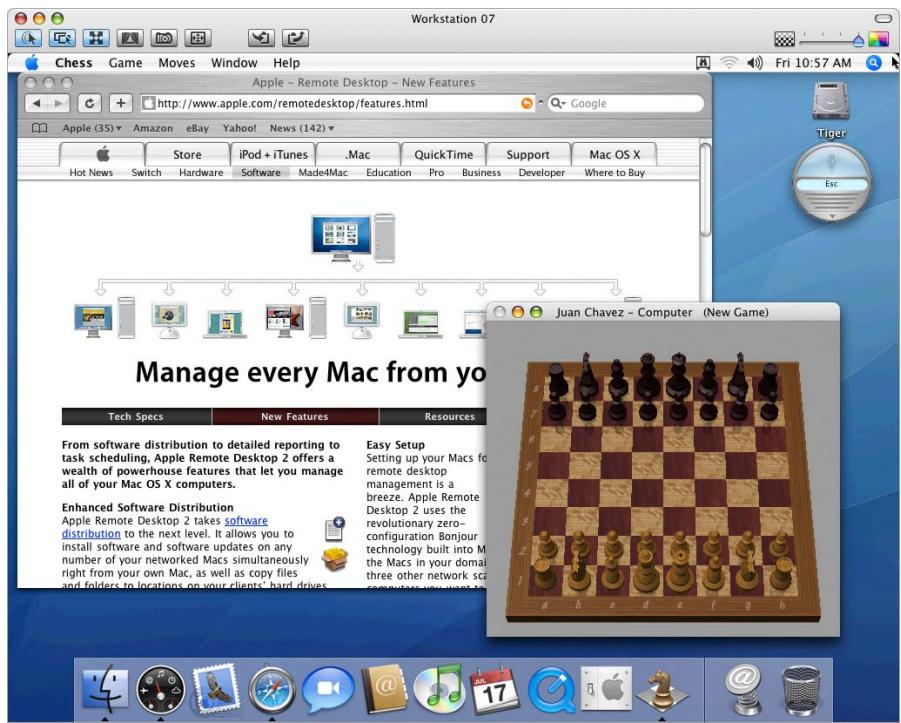
Controlling Apple Remote Desktop Clients
Apple Remote Desktop client computers can be controlled by any administrator computer that has the Control permission set. See "Apple Remote Desktop Administrator Access" on page 60 for more information about Apple Remote Desktop permissions.
While you control an Apple Remote Desktop client computer, some keyboard shortcut commands are not sent to the remote computer, but they affect the administrator computer. These include:
- Change Active Application (Command-Tab and Command-Shift-Tab)
Show or Hide Dock (Command-Option-D) - Log Out User (Command-Shift-Q)
Take Screen Shot (Command-Shift-3,-4) - Force Quit (Command-Option-Escape)
Also, special keys including the sound volume, screen brightness, and Media Eject keys do not affect the client computer.
These instructions assume the that observed computer has Apple Remote Desktop installed and configured properly (see "Setting Up an Apple Remote Desktop Client Computer for the First Time" on page 41) and that the computer has been added to an Apple Remote Desktop computer list (see "Finding and Adding Clients to Apple Remote Desktop Computer Lists" on page 49).
To control an Apple Remote Desktop client:
1 Select a computer list in the Remote Desktop window.
2 Select one computer from the list.
3 Choose Interact > Control.
4 To customize the control window and session, see "Control Window Options" on page 80.
5 Use your mouse and keyboard to perform actions on the controlled computer.
If your Remote Desktop preferences are set to share keyboard and mouse control, the remote computer's keyboard and mouse are active and affect the computer just as the administrator computer's keyboard and mouse do.
If your preferences aren't set to share control, the remote computer's keyboard and mouse do not function while the administrator computer is in control.
Control Window Options
When controlling a client, the control window contains several buttons in the window title bar which you can use to customize your remote control experience. There are toggle buttons that switch your control session between two different states, and there are action buttons that perform a single task. In addition to the buttons, there is a slider for image quality.
The toggle buttons are:
- Control mode or Observe mode
- Share mouse control with user
- Fit screen in window
- Lock computer screen while you control
- Fit screen to full display
The action buttons are:
- Capture screen to a file
- Get the remote clipboard contents
- Send clipboard contents to the remote clipboard
Switching the Control Window Between Full Size And Fit-To-Window
When controlling a client, you can see the client window at full size, or scaled to fit the control window. Viewing the client window at full size will show the client screen at its real pixel resolution. If the controlled computer's screen is larger than your control window, the screen show scroll bars at the edge of the window.
To switch in-a-window control between full size and fit-to-window modes:
1 Control a client computer.
2 Click the Fit Screen In Window button in the control window toolbar.
Switching Between Control and Observe Modes
Each control session can be switched to a single-client observe session, in which the controlled computer no longer takes mouse and keyboard input from the administrator computer. This allows you to easily give control over to a user at the client computer keyboard, or place the screen under observation without accidentally affecting the client computer.
See "Observing a Single Computer" on page 91 for more information on Apple Remote Desktop observe mode.
To switch between control and observe modes:
1 Control a client computer.
2 Click the Control/Observe toggle button in the control window toolbar.
Sharing Control with a User
You can either take complete mouse and keyboard control or share control with an Apple Remote Desktop client user. This allows you to have more control over the client interaction as well as prevents possible client side interference.
This button has no effect while controlling VNC servers. See "Controlling VNC Servers" on page 83 for more information.
To switch between complete control and shared mouse modes:
1 Control a client computer.
2 Click the "Share mouse and keyboard control" button in the control window toolbar.
Hiding a User's Screen While Controlling
Sometimes you may want to control a client computer with a user at the client computer, but you don't want the user to see what you're doing. In such a case, you can disable the client computer's screen while preserving your own view of the client computer. This is a special control mode referred to as "curtain mode." You can change what's "behind the curtain" and reveal it when the mode is toggled back to the standard control mode.
To switch between standard control and curtain modes:
1 Control a client computer.
2 Click the "Lock computer screen while you control" button in the control window toolbar.
Capturing the Control Window to a File
You can take a picture of the remote screen, and save it to a file. The file is saved to the administrator computer, and is the same resolution and color depth as the controlled screen in the window.
To screen capture a controlled client's screen:
1 Control a client computer.
2 Click the "Capture screen to a file" button in the control window toolbar.
3 Name the new file.
4 Click Save.
Switching Control Session Between Full Screen and In a Window
You can control a computer either in a window, or using the entire administrator computer screen. The "Fit screen to full display" toggle button changes between these two modes.
In full screen mode, the client computer screen is scaled up to completely fill the administrator screen. In addition to the client screen, there are a number of Apple Remote Desktop controls still visible overlaying the client screen.
In in-a-window mode, you can switch between fitting the client screen in the window or showing it actual size, possibly scrolling around the window to see the entire client screen. See "Switching the Control Window Between Full Size And Fit-To-Window" on page 81 for more information.
To switch between full screen and in-a-window modes:
1 Control a client computer.
2 Click the "Fit screen to full display" button in the control window toolbar.
Sharing Clipboards for Copy and Paste
You can transfer data between the Clippboards of the administrator and client computer. For example, you may want to copy some text from a file on the administrator computer and paste it into a document open on the client computer. Similarly, you could copy a link from the client computer's web browser and paste it into the web browser on the administrator computer.
The keyboard shortcuts for Copy, Cut, and Paste are always passed through to the client computer.
To share clipboard content with the client:
1 Control a client computer.
2 Click the "Get the remote clipboard contents" button in the control window toolbar to get the client's Clipboard content.
3 Click the "Send clipboard contents to the remote clipboard" button in the control window toolbar to send content to the client's Clipboard.
Controlling VNC Servers
Virtual Network Computing (VNC) is remote control software. It allows a user at one computer (using a "viewer") to view the desktop and control the keyboard and mouse of another computer (using a VNC "server") connected over the network. For the purposes of these instructions, VNC-enabled computers are referred to as "VNC clients."
VNC servers and viewers are available for a variety of computing platforms. Remote Desktop is a VNC viewer and can therefore control any computer on the network (whether that computer is running Mac OS X, Linux, or Windows) that is:
- Running the VNC server software
In an Apple Remote Desktop computer list
If the you are trying to control a VNC server which is not Remote Desktop, it will not support Remote Desktop keystroke encryption. If you try to control that VNC server, you will get a warning that the keystrokes aren't encrypted which you will have to acknowledge before you can control the VNC server. If you chose to encrypt all network data, then you will not be able to control the VNC server because Remote Desktop is not able to open the necessary SSH tunnel to the VNC server. For more information, see "Encrypting Observe and Control Network Data" on page 76.
These instructions assume the observed computer has been added to an Apple Remote Desktop computer list (see "Finding and Adding Clients to Apple Remote Desktop Computer Lists" on page 49). When adding a VNC server to an Apple Remote Desktop computer list, you only need to provide the VNC password, with no user name.
To control a VNC client computer:
1 Select a computer list in the Remote Desktop window.
2 Select one computer from the list.
3 Choose Interact > Control.
If the controlled computer's screen is larger than your control window, the screen scrolls as the pointer approaches the edge of the window.
4 To customize the control window and session, see "Control Window Options" on page 80.
5 Use your mouse and keyboard to perform actions on the controlled computer.
Regardless of your Apple Remote Desktop preferences, controlled VNC servers share keyboard and mouse control. The remote computer's keyboard and mouse are active and affect the computer just as the administrator computer's keyboard and mouse do.
Setting up a Non-Mac OS X VNC Server
This section contains very basic, high-level steps for setting up a non-Mac OS X client to be viewed with Remote Desktop. This section cannot give detailed instructions, since the client operating system, VNC software, and firewall will be different.
The basic steps are:
1 Install VNC Server software on the client computer (for example, a PC, or a Linux computer).
2 Assign a VNC password on the client computer.
3 Make sure the client's firewall has the VNC port open (TCP 5900).
4 Make sure "Encrypt all network data" is not selected in the Security section of the Remote Desktop Preferences.
5 Add the computer to the Remote Desktop's All Computers list using the client's IP address.
6 Put the client computer's VNC password in the Remote Desktop authentication box. There is no user name for a VNC server, just a password.
Apple Remote Desktop Control and the PC's Ctrl-Alt-Del
If you use Remote Desktop to administer a PC that's running VNC, you may be wondering how to send the Ctrl-Alt-Del command (Control-Alternate-Delete) from a Mac to the PC. Though Mac and PC key mappings differ, you can use an alternate key combination to send the command.
- For full-size (desktop) keyboards, use Control-Option-Forward Delete.
- For abbreviated keyboards (on portable computers), use Function-Control-Option-Command-Delete.
VNC Control Options
After you have added a VNC server to a computer list (or when you are first adding it), you can set a custom port for VNC communication, and you can designate a display to control.
To set a custom port on an existing computer list member:
1 Select a computer list in the Remote Desktop window.
2 Select a VNC Server computer in the Remote Desktop window.
3 Choose File > Get Info.
4 Click Edit in the Info window.
5 At the end of the IP Address or fully qualified domain name, add a colon followed by the desired port.
For example, if you want to connect to a VNC server (vncserver.example.com) that is listening on TCP port 15900, you would enter:
vncserver.example.com:15900
6 Click Done.
To set a custom VNC port when adding a computer by address:
1 Choose File > Add By Address.
2 Enter the IP address or fully qualified domain name.
3 At the end of the IP Address or fully qualified domain name, add a colon followed by the desired port.
For example, if you want to connect to a VNC server (vncserver.example.com) that is listening on TCP port 15900, you would enter:
vncserver.example.com:15900
4 Enter the user name and password.
5 Click Add.
To designate a display to control:
1 Add a custom port number, as described above.
2 Use the display number for the last number in the custom port designation (display designations start at 0 for the default primary display).
For example, if you want to control the default display on a VNC server (vncserver.example.com) that is listening on TCP port 5900, you would enter:
vncserver.example.com:5900
If you want to control the second display, you would enter:
vncserver.example.com:5901
If you want to control the third display, you would enter:
vncserver.example.com:5902
Configuring an Apple Remote Desktop Client to be Controlled by a VNC Viewer
When configured to do so, an Apple Remote Desktop client can be controlled with a non-Apple VNC viewer.
Allowing a non-Apple VNC viewer access to an Apple Remote Desktop client is less secure than using Remote Desktop to control the client. The non-Apple VNC software expects the password to be stored in a cryptographically unsecured form and location.
To configure a client to accept VNC connections:
1 On the client computer, open System Preferences.
2 Click Sharing, select Apple Remote Desktop, then click Access Privileges.
3 Select "VNC viewers may control screen with the password."
4 Enter a VNC password.
5 Click OK.
WARNING: Do not use the same password as any user or Apple Remote Desktop administrator. The password may not be secure.
Observing
You may not want to control a computer, but merely monitor what is on its screen. Observing a remote computer is similar to controlling one, except your mouse movements and keyboard input are not sent to the remote computer. Apple Remote Desktop client computers can be observed on any administrator computer that has the "Observe" permission set. See "Apple Remote Desktop Administrator Access" on page 60 for more information about Apple Remote Desktop permissions.
Remote Desktop allows you to observe multiple clients on the same screen, cycling through the list of observed computers. This allows you to monitor many screens without having to select each one individually.
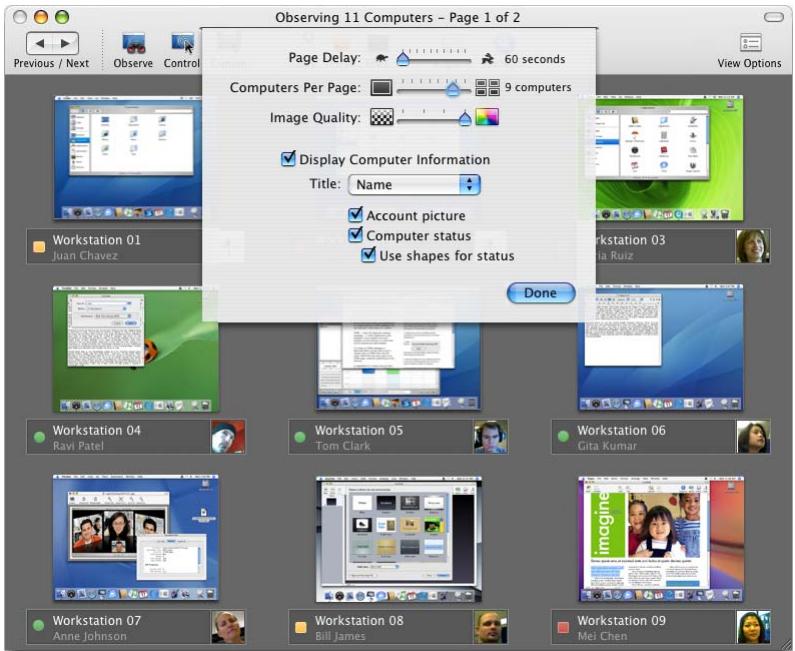
Dealing With Many Client Screens
When observing a single client, you can see the client window at full size, or scaled it to fit the observe window. To switch between the full size and fitting to the window, click the Fit to Window button, just as you would in a control window.
If you're observing more clients than you've chosen to fit on one screen, you can cycle through multiple pages by clicking the Previous or Next button.
Cycle Pages: Use these buttons to manually switch to the previous or next page of screens.

Getting More Information on Observed Clients
There is a computer information area beneath each of the observed desktops. It's automatically disabled when the administrator is viewing more computers than the computer information area is able to show effectively (a threshold of about 220 pixels across). This could happen if:
-
the initial selection of computers is too great for the window size
-
the observe window is resized, shrinking the information beneath the threshold
- the setting for the number of viewed machines is changed
The computer information area is reenabled when the sizes are returned to more than the image size threshold.
Changing Observe Settings While Observing
While you are observing multiple computers, you can adjust the Apple Remote Desktop observe settings using the controls at the top of the observe window.
These settings will be visible after clicking View Options in the toolbar.
To change your observe settings:
- Page Delay: Adjust the number of seconds before automatically advancing to the next page of screens.

- Computers per page: Adjust the number of client screens visible on each page.

- Image Quality: Adjust the screen color depth from black and white to millions of colors.

- Titles: Change the titles of the displayed screens in the computer information area.

- Account Picture: Add the currently logged-in user's account picture under each observed desktop.
See "Viewing a User's Account Picture While Observing" on page 89 for more information.
- Computer Status: Add a status overview icon underneath the observed desktop. See "Viewing a Computer's System Status While at the Observe Window" on page 89 for more information.
Changing Screen Titles While Observing
While you are observing multiple computers, you can change the title underneath the desktops shown in the observe window.
The main title can be the:
- Name (the computer sharing name)
- IP Address
- Host Name
To change your observe window titles:
1 Click View Options in the observe window's toolbar.
2 Select Display Computer Information.
3 From the Title pop-up menu, select the desired title.
4 Click Done.
Viewing a User's Account Picture While Observing
Remote Desktop can display the user's account picture and a user-created status underneath the observed desktop.
The user's account picture is their system login icon, so it might be either a picture taken from an iSight camera, or a custom image selected in the Accounts pane of System Preferences.
To view a user's account picture:
1 Click View Options in the observe window's toolbar.
2 Select Display Computer Information.
3 Select Account Picture.
4 Click Done.
Viewing a Computer's System Status While at the Observe Window
Remote Desktop can display certain system status information underneath the observed desktop. This information gives you a basic assessment of the following service statistics:
- CPU Usage
- Disk Usage
Free Memory
There are two levels of detail for system statistics. The top level is a single icon (a red, yellow, or green icon).
| Icon | Indicates |
| ○or | One or more service statistic is red. This takes precedence over any yellow or green indicator. |
| ○or | One or more service statistic is yellow This takes precedence over any green indicator. |
| Service is operating within established parameters. | |
| No service informaiton available. |
You show the second level of detail by placing the mouse pointer over the high-level status icon. The icon changes to an "i" and you can click the "i" to get more information. Clicking the icon exposes per-service status icons:
| Service | Icon | Status |
| CPU Usage | M | Usage is at 60% or less |
| M | Usage is between 60% to 85% | |
| M | Usage is at 85% or higher | |
| M | No status information is available | |
| DIsk Usage | M | Usage is at 90% or less |
| M | Usage is between 90% and 95% | |
| M | Usage is at 95% or higher | |
| M | No status information is available | |
| Free Memory | M | Less than 80% used |
| M | Between 80% and 95% used |
To show system status in the observe window:
1 Click View Options in the observe window's toolbar.
2 Select Display Computer Information.
3 Select Computer Status.
4 Click Done.
Shortcuts in the Multiple Screen Observe Window
You can access several Apple Remote Desktop commands using icons in the observe window. You can customize the observe window with the commands that are most useful to you. For example, you may want to access the Copy Items command, the Text Chat command, and the Lock Screen command, using the buttons in the observe window toolbar. You perform Remote Desktop tasks on any computer by selecting its screen and choosing a task from the Remote Desktop menus or the observe window toolbar.
Regardless of your toolbar customizations, you'll be able to advance through pages manually, change the tilting of the observed screens, change the number of client screens per page, change the number of seconds before paging, or change the color depth of the observed screens.
Observing a Single Computer
When you observe a single computer, the observed screen appears in a window on your administrator computer. If a screen saver is active when you observe the screen, the screen saver remains in effect. The observe window contains a "Share mouse control" button to switch to controlling the screen.
To observe a single computer:
1 Select a computer list in the Remote Desktop window.
2 Select a computer in the Remote Desktop window.
3 Choose Interact > Observe.
If the observed computer's screen is larger than the observe window, the screen will scroll as the pointer approaches the edge of the window.
4 To customize the single-client observe window and session, see "Control Window Options" on page 80. The observe window's options are the same as those of the control window.
Observing Multiple Computers
When you observe multiple client computers, each client screen is scaled down, so that several computers can be viewed at the same time. You can set the number of client screens that appear at any one time. See "Setting Preferences for the Remote Desktop Administrator Application" on page 36 for more information.
If a client has a screen saver running when you start observing, the screen saver remains in effect.
The screens will cycle through the entire list of selected computers, a few at a time, switching every 30 seconds, altered by the speed setting.
To observe multiple computers:
1 Select a computer list in the Remote Desktop window.
2 Select one or more computers in the selected computer list.
3 Choose Interact > Observe.
The remote computer screens appear in a window.
Observing a Computer in Dashboard
If you are using Mac OS X version 10.4 or later, you can use the Dashboard widget to observe one client computer. The computer must be in your All Computers list and be authenticated with permission to Observe. Apple Remote Desktop does not have to be launched to use the widget.
To observe using Dashboard:
1 Add the computer to your All Computers list.
See "Finding and Adding Clients to Apple Remote Desktop Computer Lists" on page 49 for detailed information.
2 Activate Dashboard, and click the widget's icon to run it.
3 Click the widget's "Info" button to flip the widget over.
4 Supply a hostname or IP address, login name, and password or simply select the computer you want to observe (if it's listed).
5 Click Done.
Sending Messages
Apple Remote Desktop allows you to communicate with users of Apple Remote Desktop client computers using text messaging. You can use text messages to give instructions or announcements, to collaborate remotely, or troubleshoot with users. There are two types of text messaging: one-way messages and two-way interactive chat. Text messages and chat are available only to Apple Remote Desktop client computers; they are not available to VNC client computers.
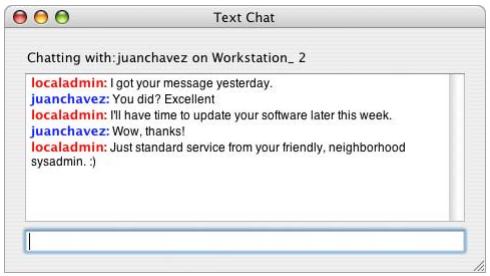
Sending One-Way Messages
You can use a one-way text message to send announcements or information to users client computers. The announcements appear in front of open application windows and can be dismissed by the user.
To send a one-way text message:
1 Select a computer list in the Remote Desktop window.
2 Select one computer from the list.
3 Choose Interact > Send Message.
4 Enter your message.
5 Click Send.
The text message appears on the screen of all the selected computers.
Interactive Chat
You can start an interactive text chat with the user of an Apple Remote Desktop client computer. This allows instant feedback from users, so you can collaborate or troubleshoot.
To begin an interactive chat:
1 Select a computer list in the Remote Desktop window.
2 Select one or more computers in the selected computer list.
3 Choose Interact > Chat.
4 Enter your message, one line at a time.
The message appears real-time on the user's screen as you type.
5 Press the Return key to complete and send each line.
Viewing Attention Requests
After a client user sends an attention request, the Apple Remote Desktop administrator can read the attention request text.
To view attention requests:
1 Choose Window > Messages From Users.
2 Select the message you want to view.
3 Click Display to view the request's message.
Sharing Screens
Apple Remote Desktop allows you to show your screen (or the screen of a client computer in your list) to any or all Apple Remote Desktop client computers in the same computer list. You can, for example, show a presentation to a classroom of computers from a single computer.
Sharing a Screen with Client Computers
You can share a client computer's screen, or the administrator's screen, with any number of clients. The client screen displays what is on the shared screen, but cannot control it in any way.
To share a computer's screen:
1 Select a computer list in the Remote Desktop window.
2 Select one or more computers in the selected computer list.
These computers include the target computers and the source computer.
3 Choose Interact > Share Screen.
4 Select the screen to be shared.
If you want to share the Apple Remote Desktop administrator screen, select "Share your screen."
If you want to share a client screen, select "Share a different screen," and drag a computer from an Apple Remote Desktop computer list to the dialog.
5 Click Share Screen.
The selected computer shows the shared computer screen.
If the target computer's screen resolution is lower than the shared computer's, only the top left part of the shared screen (up to the lowest screen resolution) is seen on the target screen.
Monitoring a Screen Sharing Tasks
You may want to keep track of the screen sharing tasks you have begun. You can get information on all active screen sharing tasks, and can sort the tasks by time started, source screen, or target computers.
To view current active screen sharing tasks:
Choose Window > Active Share Screen Tasks.
Interacting with Your Apple Remote Desktop Administrator
Users of Apple Remote Desktop client computers can initiate contact with a Remote Desktop administrator. Clients can ask for attention from the administrator, or cancel that attention request.
Additionally, users of Apple Remote Desktop client computers can set an identifying icon for a Remote Desktop administrator to view. The Remote Desktop administrator can choose whether to view the icon or not.
Requesting Administrator Attention
At times, Apple Remote Desktop client computer users need to get the attention of the Apple Remote Desktop administrator. If an Apple Remote Desktop administrator is currently monitoring the client computer, the client user can send an attention request.
To request administrator attention:
1 Click the Apple Remote Desktop status icon and choose Message to Administrator.

The attention request window appears.
2 If the network has more than one Apple Remote Desktop administrator available, choose an administrator from the "Send message to" pop-up menu.
3 Enter the message.
4 Click Send.
The attention request icon appears on the administrator's screen.
Canceling an Attention Request
If a user no longer needs the Apple Remote Desktop administrator's attention, he or she can cancel the attention request after it has been sent.
To cancel an attention request:
1 Click the Apple Remote Desktop status icon and choose Message to Administrator.

2 Click the Apple Remote Desktop status icon in the menu bar and choose Cancel Message.
Changing Your Observed Client Icon
By default, the icon that the Remote Desktop administrator sees while observing is the login icon for the currently logged-in user. If you had an iSight camera active when setting up your computer, you may have taken a picture of yourself for your user icon.
You can change this icon, and it will change on the administrator's observation screen.
To change your login icon:
1 Prepare the picture you want to use.
You could use a graphic file, or take a picture using an iSight camera.
2 Open System Preferences.
The System Preferences application launches.
3 Select the Accounts pane.
4 Select your account, and choose the Picture button.
5 Replace your current account picture with the new picture.
6 Close System Preferences.
Apple Remote Desktop gives you powerful administrative control. You can manually or automatically get detailed information about every computer, install software, and maintain systems from a single administrator computer.
This chapter describes Remote Desktop's capabilities and gives complete instructions for using them. You can learn about:
- "Keeping Track of Task Progress and History" on page 97
- "Installing Software Using Apple Remote Desktop" on page 102
"Upgrading Software" on page 106
"Copying Files" on page 108
"Creating Reports" on page 113
"Maintaining Systems" on page 129
"Managing Computers" on page 137 - "UNIX Shell Commands" on page 146
Keeping Track of Task Progress and History
The task history area is on the left side of the Remote Desktop window (see "Remote Desktop Main Window" on page 29) with all computer lists and scanners. Every time you execute a task (generating a report, copying a file, restarting a computer), the task name, affected computers, task result, and time you execute it is stored in the Task History window (accessible via Window > Task History). The History list, in the main Remote Desktop window, shows the task name and result. You can collapse the History list to reduce its size.
You can select a task in the History list to see some information about it, and double-click it to view a more detailed description of the task, as well as the computers involved with it. Tasks in progress appear in the Active Tasks list, where you can stop and restart them.
Remote Desktop keeps track of three kinds of task progress: active, Task Server, and completed. Active tasks are those which are currently being processed by the client computers, and the client computers have not all reported back to the administrator console. Some tasks are so short that they only briefly appear in the list of current tasks; other tasks may take a long time and remain there long enough to return to the task and view the progress as it happens. The Active Tasks list is located in the left side of the Remote Desktop window, and has a disclosure triangle to expand or hide the list.
Task Server tasks are those which have been assigned to the task server (either the one running on the administrator's computer, or a remote one) which have not yet completed for all the task participants.
Completed tasks are those which have received a task status for all participating client computers. The task description and computer list then moves to the History list. The History list is located in the left side of the Remote Desktop window, and has a disclosure triangle for expanding or hiding the list.
In addition to the task status and notification features of Remote Desktop, you can set a task notification shell script to run when any task has completed. This script is for all tasks, but it can be as complex as your needs require.
Enabling a Task Notification Script
When a task completes, Remote Desktop can run a script that you create. This script is for all completed tasks, and it must be a shell script. There is a default notification script provided, which you can customize for your needs. The script must be a shell script, but you can use various other scripting environments like AppleScripts with the osascript command.
To enable a task notification script:
1 Make sure you are logged in as an administrator user.
2 Open Remote Desktop.
3 Choose Remote Desktop > Preferences.
4 Click the Tasks button.
5 Select "Enable task notification script."
6 Choose the location of the script.
The default notification script is located at /Library/Application Support/Apple/Remote Desktop/Notify.
7 Close the Preferences window.
Getting Active Task Status
When you get a task's current status, you see the progress of the task, the computers involved, and their feedback to the administrator computer.
To get status on a currently running task:
1 Select the Active Tasks list.
2 Select the desired task in the Remote Desktop window.
The task status and computers involved are shown in the Remote Desktop window.
You can make sure the main window always shows the currently running task in the main work area by setting a preference. Otherwise, the main window will continue to show the last selected computer list.
To automatically show task status in the main window:
1 Make sure you are logged in as an administrator user.
2 Open Remote Desktop.
3 Choose Remote Desktop > Preferences.
4 Click the Tasks button.
5 Select "Always change focus to active task."
6 Close the Preferences window.
Using the Task Feedback Display
You can use the task feedback display to:
- Retry a task on selected computers
- Cancel a task in progress
Tasks in progress appear in the Active Tasks list, where you can stop them, or run them again.
To use the task feedback window:
1 Select the task in the History list or Active Tasks list.
2 Change the task as desired:
a Click the retry button to perform the task again.
b Click the stop button to cancel the active task.
Stopping a Currently Running Task
If a task is in progress and Remote Desktop is still waiting for feedback from the client computers, you can stop the task. You use the Active Tasks list to stop the command in progress.
To stop a currently running task:
1 Select the Active Tasks list.
2 Select the desired task in the Remote Desktop window.
The task status and computers involved are shown in the Remote Desktop window.
3 Click the Stop button in the top-right of the main window.
Getting Completed Task History
After a task has received feedback from all the involved client computers, or they have experienced a communication time-out, the task is moved to the History list. The History list is located in the left side of the Remote Desktop window, and has a disclosure triangle to expand or hide the list. This list stays populated as long you've set in the Remote Desktop preferences. The History list can also be viewed in a separate window with the tasks sorted by date.
To view a completed task history:
- To view the history in the Remote Desktop window, open the History list by using the disclosure triangle and select the desired task.
To view the history in a new window, choose Window > Task History.
The final task status and computers involved are shown in a separate window.
Saving a Task for Later Use
You may want to save a task for later, repeated use. If you find yourself repeating certain tasks, you can save those tasks and the information about which computers go with them. Observe and Control tasks cannot be saved.
Saved tasks appear in a list on the left side of the Remote Desktop main window.
To save a task for later use:
1 Open the task you want to save.
For example, if you want to save a Copy Items task, select Manage > Copy Items.
2 Configure the task as desired.
3 Before executing the task, click Save.
4 Name the saved task.
The task appears in a list on the left side of the Remote Desktop main window.
Creating and Using Task Templates
In each task configuration dialog, you can save a task's settings to a template to reuse for future tasks of that same type. For example, if you always use certain copy options for a Copy Items task, you can save those settings as a template, and have them apply to any newly created Copy Items task. Once a task template is saved, you can select any one of the saved templates from the Templates pop-up menu. Selecting a template automatically configures the dialog box according to the saved template.
If you want to perform a task similar to an existing template, you start with that template using the Template pop-up menu, then you customize the resulting task configuration dialog after applying the template. For example, if you always want to use the same Copy Items options, but you want vary the group of computers you apply it to, you create a task template by configuring the copy options dialog without selecting target computers and then saving it via the Templates pop-up menu. Then whenever you make a new Copy Items task with target computers selected, you can apply the saved settings by selecting those settings from out of the Templates pop-up menu and add your own settings afterward.
You are free to make as many templates as you want either from existing templates or from scratch. Once saved, a template can be made the task's default, with all new instances of the task opening with the default template settings. You can also edit the task template list from the Template pop-up list, removing a template, or making it the task default. There are existing, built-in templates for the Send UNIX Command task which can not be removed, see "Send UNIX Command Templates" on page 146 for more information.
Note: Templates are only stored for their own task type. For example, Copy Items saved templates are not available for use with Rename Computer tasks, etc.
To create a task template:
1 Open a task configuration window.
You can use existing saved tasks, or a newly created task.
2 Configure the task as desired.
3 Click the Template pop-up menu, and select Save as Template.
4 Name the template, and click OK.
To apply a task template:
1 Open a task configuration window.
You can use existing saved tasks, or a newly created task.
2 Click the Template pop-up menu, and select the template you want.
The settings in the template are now applied to the dialog window.
3 If desired, customize the task further.
Editing a Saved Task
You may want to change a previously saved task, changing whether what the task does or changing the target computers.
To edit a saved task:
1 Double-click the saved task you want to edit.
Alternatively, you could use Control-click or right-click and choose Edit Task from contextual menu.
2 In the task description window, change the task parameters.
You can alter task preferences, and change the computer list. Remove computers by selecting them and pressing the Delete key; add computers by dragging them from a list to the task.
After a task is completed, the task name, result, and time you last ran it are stored for review. The task feedback window gives a detailed account of the task, and reports success or failure for each participating client computer.
To view the task feedback window:
- Select the task in the History list.
Installing Software Using Apple Remote Desktop
There are several methods you can use to install software with Apple Remote Desktop. The following section describes how to install software using installer packages and metapackages, using the copy command in Remote Desktop, using installers made by other software companies, or using NetBoot or Network Install.
WARNING: Distributing copyrighted software without the appropriate license agreement is a violation of copyright law.
Installing by Package and Metapackage
You can install new software automatically and without user intervention by copying installer packages (.pkg or .mpkg files) to one or more remote clients. Apple Remote Desktop copies the package to the computers you choose, runs the installer with no visible window or user interaction required, and then erases the installer files on completion.
You can choose to initiate the installation of a package from the designated Task Server rather from a Remote Desktop task. This allows you to install packages on computers that may not be connected to the network (with a current status of "Offline") when you run the task. The Task Server monitors the network for the next time the offline client comes online again. Then the Task Server performs the installation. For more information about designating a Task Server, see "Using a Task Server for Report Data Collection" on page 114 and "Setting Up the Task Server" on page 157. For detailed instructions about installing via the Task Server, see "Installing Software on Offline Computers" on page 104.
You can install multiple packages in succession. When you execute installation of multiple packages, Remote Desktop copies over all the selected packages and then installs them. It also detects whether a restart is required and will give you a visual cue. You can tell the task to restart the computers upon completion, or restart the computers manually later.
It is not possible to stop the installation of a package. Once the installation starts, it will complete (assuming no errors occur on the client). However, you can click the Stop button to stop remaining packages from being copied over and therefore halt the install.
Alternatively, an administrator can use the PackageMaker application (available on the Apple Remote Desktop CD or with the Apple Developer Tools) to create a metapackage that contains several installers to be run in sequence. In addition to creating metapackages, you can also use PackageMaker to create packages for custom software that your organization may have developed. More information about making and using packages and metapackages is available on the Apple Developer Connection website:
developer.apple.com
To copy and install software using a .pkg file:
1 Select a computer list in the Remote Desktop window.
2 Select one or more computers in the selected computer list.
3 Choose Manage > Install Packages.
4 Select a .pkg or .mpkg file to install.
Alternatively, you can drag an installer package on to the package list window.
5 Select whether to restart the target computers after installation.
If you select "Attempt restart, allow users to save documents," users can allow or cancel restart after installation.
6 Select the option to run the task from "This application."
This option is preferable when installing on computers that are all currently online.
If you want to install the software via a Task Server, see "Installing Software on Offline Computers" on page 104.
7 Select other installation parameters, as desired.
For more information on the available options, see "Copy Options" on page 108.
Note: Client computers are not restarted automatically after an installation is complete unless explicitly selected in the task command.
8 Click Install.
During installation, a progress bar appears in the task header in the main window. No progress bars appear on the client computer. The copied package is deleted from the client computer if an error occurs during installation. However, a failed installation may leave behind other files created by the installer.
Installing Software on Offline Computers
Using Apple Remote Desktop, you can install software on a computer that is not currently connected to the network (with a status of "Offline"). This is referred to as AutolInstall. The installation does not occur when initially ordered, but when the offline computer next becomes available. The installation itself is handled by a designated Task Server. The installation uses unicast network traffic (in client groups of 10) instead of the multicast traffic used when the Remote Desktop application performs the installation.
Remote Desktop first copies the installation package to the Task Server, and gives the Task Server the necessary instructions to install the package to all the selected computers, even if some of them are offline. The Task Server monitors the network for the next time the offline client comes online again. When the client comes online, it contacts the Task Server and notifies it of its network state and any setting changes (like a DHCP-assigned IP address change). The Task Server then begins the installation. If a client goes offline during AutolInstall, the installation fails and restarts from the beginning when the client comes back online.
To use AutolInstall, you need to do the following:
- Make sure each client can be accessed by the Task Server.
- Ensure network access to the Task Server from each client network segment.
A network's topology and router configuration can keep the client computers in the administrator's list from being accessible to the designated Task Server. This can lead to installation commands that can never be completed.
- Make sure you have the network resources to perform the installation task for every client at any given time.
Your network may be sensitive to sudden increases in network activity at unexpected intervals, as designated copy recipients rejoin the network at different times.
For information about setting up and using a Task Server, see "Working with the Task Server" on page 156.
To install software on offline clients:
1 Select a computer list in the Remote Desktop window.
2 Select one or more computers in the selected computer list.
Any or all may be offline.
3 Choose Manage > Install Packages.
4 Select a .pkg or .mpkg file to install.
Alternatively, you can drag an installer package into the Packages list.
5 Choose whether to run the task from the Task Server designated by Remote Desktop preferences.
6 Select other installation parameters, as desired.
For more information on the available options, see "Copy Options" on page 108 and "Installing by Package and Metapackage" on page 102.
7 Click Install.
Installing by Using the Copy Items Command
Many applications can be installed simply by copying the application or its folder to the client computer. Consult the application's documentation to verify that you can simply copy the application to the hard disk to install it.
To install software by copying:
1 Select a computer list in the Remote Desktop window.
2 Select one or more computers in the selected computer list.
3 Choose Manage > Copy Items.
4 Add software to the "Items to copy" list.
For more information, see "Copying Files" on page 108.
Repeat this step until all the software you want to copy is in the list.
5 Select a destination.
There are several preset locations available in the "Place items in" pop-up menu, including the Applications folder. If you do not see the location you want, you can specify a fullpathname.
6 Select your copy options.
See "Copy Options" on page 108 for more information on the available options.
7 Click Copy.
The software is copied to the indicated location. If the copy operation is unsuccessful, an error message appears in the task feedback window.
Using Installers from Other Companies
The Install Packages command only works with installers that use the .pkg or .mpkg file format, and some applications can't be installed by simply copying the application to the hard disk. To install software using installers with different file formats, you use a combination of tasks.
To install software with third-party installers:
1 Select a computer list in the Remote Desktop window.
2 Select one or more computers in the selected computer list.
3 Choose Manage > Copy Items.
4 Add the software installer to the "Items to copy" list.
For more information, see "Copying Files" on page 108.
5 Select a copy destination.
6 Select After Copying Open Items.
7 Click Copy.
The software is copied to the indicated destination. If the copy is operation unsuccessful, an error message appears in the task feedback window.
8 Select a computer that received the copy of the installer.
9 Choose Interact > Control.
10 Control the screen of the selected computer and complete the installation process interactively.
Upgrading Software
Upgrading software is similar to installing software. However, the method of upgrading software depends on the original method of installation. As a general rule, upgrades should not be done while users have their applications open. Make sure the software to be upgraded is not running.
WARNING: Distributing copyrighted software without the appropriate license agreement is a violation of copyright law.
Upgrading consists of three main tasks:
- Finding out if a piece needs to be updated
- Removing the old version
- Installing the new version
To upgrade software on client computers:
1 Run a Software Version report to determine what version of the software client computers have.
See "Generating a Software Version Report" on page 120 to learn how to run the report.
2 Remove the old version of the software.
If the software was originally installed using a package or metapackage, it should be removed automatically when you install the new version.
If the software was originally installed using the Copy Items command, you can delete the old version, or simply replace the old version with the new version when you install the new version.
If the software was originally installed using another company's installer application, you may need to use an uninstaller before installing the new version. Consult the software's manual for instructions on removing its software. If an uninstaller application is necessary, you can copy it to each of the client computers and run it remotely.
3 Use the appropriate installation method to install the new version of the software. For more information, see:
- "Installing by Package and Metapackage" on page 102
- "Installing by Using the Copy Items Command" on page 105
- "Using Installers from Other Companies" on page 106
Copying Files
Apple Remote Desktop makes it easy to copy items (other than the system software) on one or more client computers.
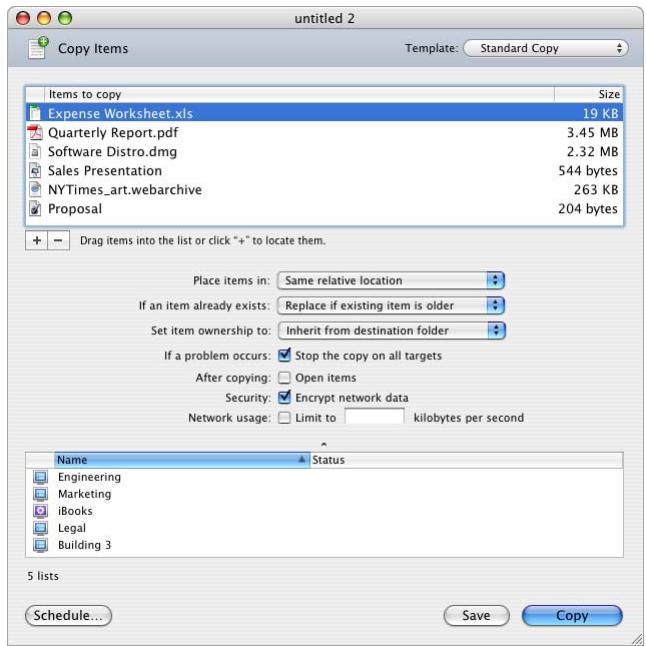
Copying files works fastest with a small number of files. For example, ten files that are 10 KB each generally take longer than one file that is 100 KB. Consider copying a single file archive (like a .zip or .sit file) to remote computers for faster copying. Remember that Mac OS X applications are bundles of many smaller files. Although the application you want to copy looks like a single file in the Finder, it may contain hundreds, or even thousands of smaller files.
If a client computer is asleep when you attempt to copy items, Remote Desktop tries to wake the client. If it can't wake the client and the copy does not proceed, you should use Remote Desktop to wake the target computer, and then attempt the copy again.
If you choose to copy out to many client computers simultaneously, Remote Desktop uses network multicasts to send the files. If there is a significant number of multicast networking errors, Remote Desktop tries to copy individually to each client computer.
Copy Options
Each time you copy an item to a remote computer, you have the chance to customize the operation to allow fine-grained control of the location and file owner of the copied file, the network bandwidth used, and what to do in case of failure or duplicate files.
Copy Destination Locations
There are several preset destinations available in the "Place Items In" destination pop-up menu, including the Applications folder. If you do not see the destination you want, you can specify a full pathname.
Owner and Group for Copied File
By default, the copied files inherit the owner and group of the enclosing destination folder. For additional flexibility, you have several options for handing file ownership.
You can:
Preserve current owner
- Set the owner to the current console user
- Specify user and group
Encryption
You can encrypt the copy transport stream to protect the data sent across the network. By selecting the "Encrypt network data" option, you exchange performance for security. This option is also available in the Install Packages dialog.
Copy Failure Handling
By default, if a single computer fails to get the copied file, the copy operation continues to all participating computers. However, there may be times when you want a copy operation to stop if one of the copies fails. You can choose to cancel the entire copy operation if one participating computer reports a failure. This option is also available in the Install Packages dialog.
Network Bandwidth Limits
File copies are done at the maximum sustainable rate for the network. This allows Apple Remote Desktop to use all the resources at its disposal to quickly and efficiently finish the copy. Depending on what else is being done on the network, you may want to explicitly limit the copy data transfer rate. You can set an approximate maximum data rate in kilobytes per second for file copies. This option is also available in the Install Packages dialog.
More Options When the Item Already EXISTS
If an item with the same name as the item you selected to copy already exists at the destination, you have several options for handing the name conflict. You can:
- replace the existing item
- replace the existing item if the existing item is older
- rename the existing item
- rename the item being copied
- always ask which of the above options you want to use
Post-Copy Action
You can choose to open a copied item immediately after it's copied. If you select this option, the file will open with the parent application that created it.
Copying from Administrator to Clients
Using Apple Remote Desktop, you can copy items to any number of client computers simultaneously.
To copy items to clients:
1 Select a computer list in the Remote Desktop window.
2 Select one or more computers in the Remote Desktop window (or any window).
3 Choose Manage > Copy Items.
4 Add software to the "Items to copy" list.
Click the Add button to browse local hard disks for items to copy, or drag files and folders to the list.
If you want to remove an item from the list, select the item and click Remove.
Repeat this step until all the software you want to copy is in the list.
5 Select your copy options.
See "Copy Options" on page 108 for more information on the available options.
6 If you want to schedule this event for another time, or set it to repeat, click the Schedule button.
See "Working with Scheduled Tasks" on page 161 for more information about scheduling events.
7 Click Copy.
The software is copied to the indicated destination. If the copy is unsuccessful, an error message appears in the task feedback window.
Copying Using Drag and Drop
Using Apple Remote Desktop, you can copy items by dragging them between Finder windows on your administrator computer, the Remote Desktop window, and control windows. For example, you can drag an item from a Finder window to a selected computer in the Remote Desktop window.
You can use this feature to collect needed files from remote computers or distribute files between remote computers.
Copying from the Finder to a Client
You can copy files, applications, or folders from the administrator's Finder windows to remote computers. You can also drag items directly on to a control window.
To copy items from the Finder to a client:
1 Select a computer list in the Remote Desktop window.
2 Select one or more computers or select the desired Control window.
3 Switch to the Finder.
4 Locate the item you want to copy in the Finder.
5 Drag the item you want to copy from the Finder to the selected clients in the Remote Desktop window or control window.
Copying onto a Control window puts the file wherever you drop it.
6 Select your copy options.
See "Copy Options" on page 108 for more information on the available options for copy tasks.
7 Click Copy.
Copying from a Client to the Finder
Using Apple Remote Desktop, you can copy files, applications, or folders from a remote computer to the administrator's computer. The process requires that you find the file you want to copy, using a report or locating them in a control window.
Note: Copied items retain their original owners and permissions.
To copy items from a client to the administrator's computer:
1 Select a computer list in the Remote Desktop window.
2 Select one or more computers in the selected computer list.
3 Choose a file search report to find the item.
See "Finding Files, Folders, and Applications" on page 118 for more information.
4 Select the item you want to copy in the report window.
5 Drag the item you want to copy from the report window to the administrator's Finder, or click the Copy To This Computer button in the menu bar of the report window.
Alternatively, you can drag items from a control window to the administrator computer's desktop.
Restoring Items from a Master Copy
Your client computers can restore non-system software from a master copy. This is helpful if you want to make sure each client computer has the same software. You can automate the software restoration process by using the instructions in "Setting Scheduled Tasks" on page 161.
You may want to start by creating a disk image that contains the Mac OS X applications and items you want to copy. Alternatively, you can copy files from any local disk, such as a hard disk, CD, disk partition, or other disk.
The Copy Items command does not copy system software that is hidden (that is, not visible in the Finder). It can copy the Applications folder, Library folder, and Users folder, as well as any folders at the root of the hard disk that were created by the computer's administrator user.
Important: You cannot use the Copy Items feature to copy Mac OS X system software to client computers
To restore files using the Copy Items command:
1 Make a master copy of the volume that has the files to be restored.
You can use any volume, such as a spare hard disk, a CD, or a mounted disk image (.dmg) file.
2 Mount the master copy volume on the administrator computer.
Master copy volumes must be local volumes, not mounted from over a network.
3 Open Remote Desktop.
4 Select a computer list in the Remote Desktop window.
5 Select one or more computers in the selected computer list.
6 Choose Manage > Copy Items.
7 Add the master copy volume to the Copy Items list.
8 Select your copy options.
See "Copy Options" on page 108 for more information on the available options for copy tasks.
9 If you want to schedule this event for another time or set it to repeat, click the Schedule button.
See "Working with Scheduled Tasks" on page 161 for more information about scheduling events.
10 Click Copy.
Creating Reports
Apple Remote Desktop allows you to query client computers for many kinds of information, from installed software to network speed and reliability. Creating reports gives you valuable information about the client computers. Reports also help when you're copying files and organizing computer lists.
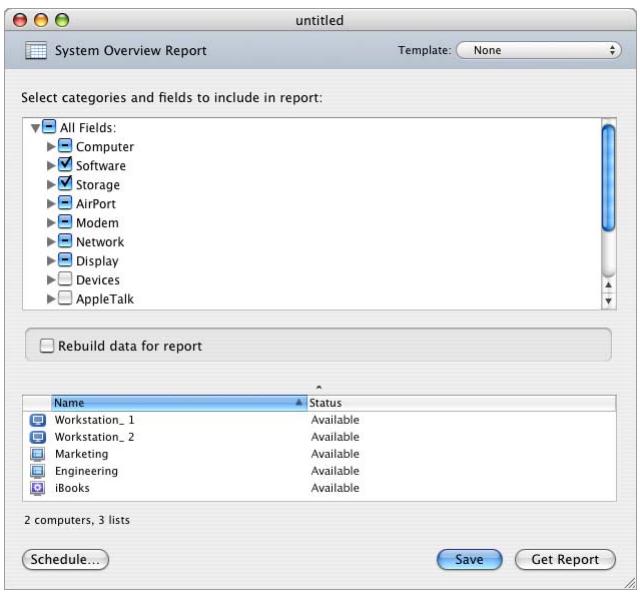
Collecting Report Data
There are three search strategies that Apple Remote Desktop uses when searching for report information: new data, cached data, and Spotlight data.
With a new data search, the Remote Desktop application queries a client directly, and waits for the client computer to respond with the desired information. A new data search gets the most recent information, but takes longer since the client computer has to gather all the data and send it over the network to the waiting administrator computer. New data reports are also generated by clients whose reporting policy is set to send data only in response to a report query.
The second kind of data search is a cached data search. With a cached data search, the application queries Apple Remote Desktop's internal database of collected system information (such as hardware information and system settings), file information (including installed applications and versions, and software names), or both. You determine how often the data is collected, and what type of data is stored.
For more information about new and cached data searches, see "Setting the Client's Data Reporting Policy" on page 160.
The database, which is a PostgreSQL database located at /var/db/RemoteManagement/RMDB/ can be accessed using other tools besides Remote Desktop. To find out more about the database schema, see "PostgreSQL Schema Sample" on page 187.
The third kind of data search is a Spotlight search. This is not a static report on saved data in a database, but it's an interactive search of the client computers. A Spotlight search can only be done on client computers running Mac OS X 10.4 or later. Spotlight searches a comprehensive, constantly updated index that sees all the metadata inside supported files—the "what, when and who" of every piece of information saved on your Mac—including the kind of content, the author, edit history, format, size, and many more details. Spotlight searches are "live" meaning that the window reflects changes in the found files even after the command is executed.
Using a Task Server for Report Data Collection
You can use a computer other than the administrator computer to collect your report data, if you have another unlimited-managed computer license for Apple Remote Desktop. Using a server that is always running and has the benefits of uninterrupted power and steady uptime, you can dedicate those computing resources to report data collection. Such a server is referred to as a Task Server. To use a Task Server, you need:
- a computer that will be running when the clients are set to upload their report data
- an unlimited license for the Remote Desktop server
- a separate unlimited license for the administrator computer
To set up a Task Server, you need to:
1 Install Remote Desktop on the server.
See "Installing the Remote Desktop Administrator Software" on page 40.
2 Configure the server to be the Task Server.
You do this via the server settings in the Remote Desktop preferences.
See "Setting Up the Task Server" on page 157.
3 Install Remote Desktop on the administrator computer.
See "Installing the Remote Desktop Administrator Software" on page 40.
4 Configure Remote Desktop on the administrator computer to use the Task Server as its source for report data.
You do this using the server settings in the Remote Desktop preferences.
See "Setting Up the Task Server" on page 157.
5 Set the client reporting policy to tell clients to send report information to the Task Server.
You do this using the Get Info window of any client computer or the client's own Apple Remote Desktop preferences.
See "Using Automatic Data Reporting" on page 159.
Report Database Recommendations and Bandwidth Usage
You can have a single Apple Remote Desktop data collection database for any number of clients. However, avoid having all the clients upload their report information at the same time. As the number of clients grows, the network usage from the clients as they upload their report data could come in bursts over a short period of time overwhelming the network buffer on the Task Server. In such a case, you will probably give yourself your own denial-of-service attack. Increasing the number of Task Server computers can divide the network and computing load among several computers for better performance and better network citizenship. However, since there is no way to aggregate report data across several collectors and display it on one administrator computer, you would need multiple administrators to balance your network load in this manner.
If you use a single database for a large number of clients, it is recommended that you stagger the generation of report caches over the time between which you want to run reports. For example, if you normally run a report every week, then set 1/7th of your clients to rebuild caches on day one, another 1/7th for the next day and so on. Additionally, they should stagger the cache rebuild over the course of the day as well.
It is recommended that you keep in a given list the minimum number of computers necessary for your purposes. When a list is selected, the clients in the list send status updates at a minimum of every 20 seconds. If you have a large number of clients in a list (for example, 1000), this makes about 50 updates a second.
Creating more lists doesn't create more resource overhead for Remote Desktop, and can allow you to quickly and easily administer the clients you want with a minimum wait. Depending on your network and list sizes, you may find that smaller lists may result in more productive and reliable administration.
What Bandwidth Does the Default System Overview Report Use on a LAN?
The average System Overview Report cache is about 20 KB. While reporting, the admin and clients will always try to use all available bandwidth (most IP-based client/server applications work this way). Therefore, on a 10Mbit/sec network, the report data collection for a single client may use 100% of the bandwidth for a period of 0.016 seconds. Assuming a list of 1000 computers, all trying to report at the same time, this may use 100% of the bandwidth for 16 seconds. Naturally, faster networks will perform better, and networks with a slow bottleneck like a DSL or modem line perform worse.
System Report Size
The file system data which is uploaded to the report database (labeled "File Search data" in the Scheduling sheet of the Task Server preference pane) contains a significant amount of data. For a client with 10 GB of files on the hard disk, the report data uploaded can easily reach 5 MB in size. With hundreds or thousands of clients, this data can add up quickly and might tax network resources. Data for other reports (System Overview, Application Usage, and User History) are only 8 KB to 12 KB each, and have little impact.
Uploading user accounting data and application usage data further increases the size of the uploaded data for any one client. Since you may not want to store all the possible information for a given client computer, you can customize which type of data is collected, as desired.
Auditing Client Usage Information
With Apple Remote Desktop, you can get detailed information about who has been using the client computers and how. There are two reports that help you audit information about how the clients are being used:
- the User History report
- the Application Usage report
Generating a User History Report
The User History report is used to track who has logged in to a computer, when they logged in and out, and how they accessed the computer. The client stores 30 days of accumulated data, so the requested time can't be more than the last 30 days. The report shows the following information:
computer name
- user's short name
- access type (login window, tty, SSH)
- login time
- logout time
- remote login host (originating host to the login session: localhost, or some remote computer)
Note: Multiple users logged in via Fast User Switching can lead to confusing or conflicting reports. When a second or third user logs in to a computer, there is no way of knowing which user is the active user. Session length may not reflect actual usage, and login and logout times overlap.
User History report information is collected by default if you are installing Remote Desktop for the first time. If you have upgraded an older version of Remote Desktop, you need to enable its collection explicitly in the clients' reporting policy. See "Setting the Client's Data Reporting Policy" on page 160 for instructions.
To generate a User History report:
1 Select a computer list in the Remote Desktop window.
2 Select one or more computers in the selected computer list.
3 Choose Report > User History.
4 Select the time frame for the user history information.
5 Click Generate Report.
The newly generated report window appears.
Generating an Application Usage Report
The Application Usage report shows which applications have been running on a given client, their launch and quit time, and who launched them. The client stores 30 days of accumulated data, so the requested time can't be more than the last 30 days. The following fields are shown by default in the report:
Computer name
- Name of application
- Launch date
Total running time
Time as frontmost application
- User name of process owner
- Current state of application
Application Usage report information is collected by default if you are installing Remote Desktop for the first time. If you have upgraded an older version of Remote Desktop, you need to enable its collection explicitly in the clients' reporting policy. See "Setting the Client's Data Reporting Policy" on page 160 for instructions.
To generate an Application Usage report:
1 Select a computer list in the Remote Desktop window.
2 Select one or more computers in the selected computer list.
3 Choose Report > Application Usage.
4 Select the time frame for application usage.
5 Click Generate Report.
The newly generated report window appears.
Finding Files, Folders, and Applications
Apple Remote Desktop allows you to search the contents of client computer hard disks for specific files, folders, or applications. Additionally, it can compare the results of such searches to the items on the administrator computer. These searches can compare software versions, fonts, applications, or installed packages.
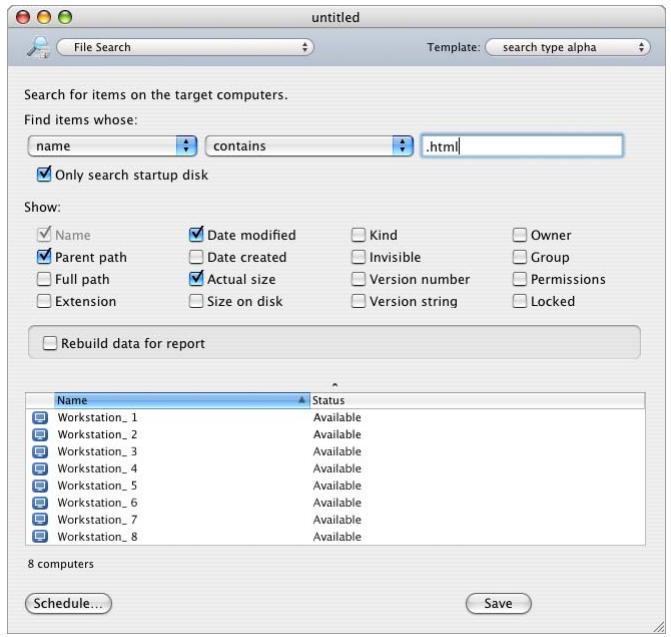
Using Spotlight to Find Items
You can use Spotlight to find items on client computers. A Spotlight search can be done only on client computers running Mac OS X v10.4 or later. Spotlight searches are "live," meaning that the window reflects changes in the found files even after the command is executed. Spotlight searches cannot be used for offline client computers.
The Spotlight Search window is similar to the Spotlight Search window found locally on a Mac OS X v10.4 computer. It supports many of the same features and queries as Spotlight on a local computer. For more information on running a Spotlight search, see Spotlight Help.
To search for software items using Spotlight:
1 Select a computer list in the Remote Desktop window.
2 Select one or more computers in the selected computer list.
3 Choose Interact > Spotlight Search.
4 Choose the desired search parameters and enter a search term.
The results are updated immediately in the window.
The results of the search are listed in the pane at the bottom of the window.
Note: The "Home" Spotlight search location means the Home folder of the currently logged in user.
Generating a File Search Report
The File Search report allows you to find up to a total of 32,000 items on selected computers. The items can be files, folders, or applications, but they can only be items accessible (or visible) in the Finder.
The search parameters include:
Name
Parent path
Full path
- Extension
- Date created
- Date modified
Size on disk
Kind
- Version number
- Version string
- Owner
Group
- Lock status
The search parameters for Apple Remote Desktop are slightly different from those used by the Finder's Find command. For example, Apple Remote Desktop does not search by visibility or by label. The report display can be customized as well. See "Changing Report Layout" on page 35 for more information.
To search for software items:
1 Select a computer list in the Remote Desktop window.
2 Select one or more computers in the selected computer list.
3 Choose Report > File Search.
4 Choose the desired search parameter from the pop-up menu and enter a search term.
5 If you want to customize the report display, do so now.
For more information about the report display, see "Changing Report Layout" on page 35 for more information.
6 To search using new data, check Rebuild Data For Report; to search using saved data only, uncheck Rebuild Data For Report.
7 Click Search.
The newly generated report window appears.
Comparing Software
Apple Remote Desktop has several specialized reports for comparing software on client computers with software on the administrator computer. These reports can't be run comparing two client computers. One computer in the comparison must be the administrator computer.
Generating a Software Version Report
The Software Version report compares application versions on client computers with application versions on the administrator computer. You can select up to 10 applications to compare. Command-line tools and unbundled Java (.jar) applications do not report their version.
To generate a Software Version report:
1 Select a computer list in the Remote Desktop window.
2 Select one or more computers in the selected computer list.
3 Choose Report > Software Version.
4 Select the software you want to compare, from the application list.
You can select up to 10 applications.
If the application you want doesn't appear in the list, click the Add (+) button to browse for the application.
5 To search using new data, check Rebuild Data For Report.
6 Click Generate Report.
The newly generated report window appears.
Generating a Software Difference Report
The Software Difference report compares the applications, fonts, and installed packages of the selected client computers with those on the administrator computer. The resulting report lists the items compared, their version, location, and whether or not they were found on the selected client computers.
The Software Difference report can compare all executable Mac OS X and Classic applications. Unbundled Java (.jar) applications and command-line utilities are not included in the report. The report can compare all the fonts in the /System/Library/Fonts/ and /Library/Fonts/, as well as the Fonts folder for the currently logged in user. Comparing installed packages returns a list of all package receipts in /Library/Receipts/.
You can use this report to find out if your clients have the applications or fonts they need. Comparing differences in installed packages can help you troubleshoot software conflicts, and keep your client computers up to date.
To generate a Software Difference report:
1 Select a computer list in the Remote Desktop window.
2 Select one or more computers in the selected computer list.
3 Choose Report > Software Difference.
4 Select the software type you want to compare.
Selecting Applications compares all executable applications. You can limit which folder on the administrator computer Remote Desktop uses to look for applications.
Selecting Fonts compares all fonts in /Library/Fonts/, /System/Library/Fonts/, and user font directories.
Selecting Installed Packages compares all package receipts in /Library/Receipts/.
5 To search using new data, select Rebuild data for report.
6 Click Generate Report.
The newly generated report window appears.
Auditing Hardware
You can get a report about the hardware of any client computer. Hardware information can be accessed using a number of different reports. Although some basic hardware information can be found in the System Overview report, several more focused hardware reports provide more detailed information.
To get a basic System Overview report:
1 Select a computer list in the Remote Desktop window.
2 Select one or more computers in the selected computer list.
3 Choose Report > System Overview.
4 Select or deselect hardware items as desired.
5 To search using new data, select Rebuild data for report.
6 Click Get Report.
The newly generated report window appears.
Getting Serial Numbers
Although there is no specific serial number report for Apple Remote Desktop, the serial number of any client is in the Computer section of the System Overview Report. In addition to using Apple Remote Desktop to retrieve a computer's serial number, you could use the command-line tool systemprofiler with Apple Remote Desktop's Send UNIX Command feature.
To generate a serial number report:
1 Select a computer list in the Remote Desktop window.
2 Select one or more computers in the selected computer list.
3 Choose Report > System Overview.
4 Select Serial Number from the Computer section.
5 Select or deselect other items as desired.
6 To search using new data, check Rebuild Data For Report.
7 Click Get Report.
The newly generated report window appears.
Getting Storage Information
The Storage report collects information about the client computer's internal hard disks. It can get information about the hardware itself, the volumes on the disk, file system information, and journaling information for the disk.
For a complete listing of Storage report options, see "Report Field Definitions Reference" on page 171.
Basic information about hard disk volumes and size can also be found in the storage section of the System Overview report.
To generate a Storage report:
1 Select a computer list in the Remote Desktop window.
2 Select one or more computers in the selected computer list.
3 Choose Report > Storage.
4 Select the hard disk information desired.
5 To search using new data, select Rebuild Data For Report.
6 Click Get Report.
The newly generated report window appears.
Getting FireWire Device Information
The FireWire Devices report gets information about FireWire devices connected to the client computer. It can get the following information from a device:
Manufacturer
Model
Device speed
- Software version
- Firmware revision
For more information about FireWire Devices report options, see "Report Field Definitions Reference" on page 171.
The number of attached FireWire devices can also be found in the Devices section of System Overview report.
To generate a FireWire Devices report:
1 Select a computer list in the Remote Desktop window.
2 Select one or more computers in the selected computer list.
3 Choose Report > FireWire Devices.
4 Select the FireWire information desired.
5 To search using new data, select Rebuild Data For Report.
6 Click Get Report.
The newly generated report window appears.
Getting USB Device Information
The USB Devices report gets information on Universal Serial Bus devices (scanners, keyboards, mice, and so forth) connected to the client computer. It can get the following information from a device:
Product name and ID
- Vendor name and ID
Device speed
- Bus power amps
For more information about the USB Devices report options, see "Report Field Definitions Reference" on page 171.
Basic information about attached USB devices can also be found in the Devices section of the System Overview report.
To generate a USB Devices report:
1 Select a computer list in the Remote Desktop window.
2 Select one or more computers in the selected computer list.
3 Choose Report > USB Devices.
4 Select the USB device information desired.
5 To search using new data, select Rebuild Data For Report.
6 Click Get Report.
The newly generated report window appears.
Getting Network Interface Information
The Network Interfaces report gets information for all network interfaces, including inactive interfaces. It also gets detailed network, output, and Ethernet statistics from client computers.
The Network Interfaces report can be used to find network errors or faulty network equipment, troubleshoot network performance, and query the network settings of the client computers.
All detailed statistics are refreshed when the client restarts, and address information may change if your client uses DHCP to get a network address.
For a complete listing of Network Interfaces report options, see "Report Field Definitions Reference" on page 171.
Basic information about network settings can also be found in the Network and AirPort section of the System Overview report.
To generate a Network Interfaces report:
1 Select a computer list in the Remote Desktop window.
2 Select one or more computers in the selected computer list.
3 Choose Report > Network Interfaces.
4 Select the interface information desired.
5 To search using new data, select Rebuild Data For Report.
6 Click Generate Report.
The newly generated report window appears.
Getting Memory Information
The Memory report gets specific information about the installed memory in a client computer. In addition to reporting how much memory the client has, it shows information about each memory module, including the module's:
- Slot identifier
Size, type, and speed
Memory reports can be used for managing computer resources, hardware troubleshooting, or deciding which client computer can handle a memory-intensive application or task.
For more information about the Memory report options, see "Report Field Definitions Reference" on page 171.
Basic information about system memory can also be found in the Computer section of the System Overview report.
To generate a Memory report:
1 Select a computer list in the Remote Desktop window.
2 Select one or more computers in the selected computer list.
3 Choose Report > Memory.
4 Select the module information desired.
5 To search using new data, select Rebuild Data For Report.
6 Click Get Report.
The newly generated report window appears.
Getting Expansion Card Information
The Expansion Cards report gets information about the expansion cards (such as PCI cards and ExpressCards) installed in a client computer. It shows information about each expansion card, including:
- Slot name
- Card name, type, memory, and revision
- Vendor and device IDs
ROM revision
For more information about the Expansion Cards report options, see "Report Field Definitions Reference" on page 171.
Basic information about a client's expansion cards is also in the Computer section of the System Overview report.
To generate an Expansion Cards report:
1 Select a computer list in the Remote Desktop window.
2 Select one or more computers in the selected computer list.
3 Choose Report > Expansion Cards.
4 Select the desired expansion card information.
5 To search using new data, select Rebuild Data For Report.
6 Click Get Report.
The newly generated report window appears.
Testing Network Responsiveness
Apple Remote Desktop can test network responsiveness between your administrator computer and client computers. It sends network packets to the clients and reports the time taken to receive confirmation from the clients.
You can choose how many network packets to send, how often they are sent, and how long the administrator computer waits for a reply before listing a packet as lost.
To generate a Network Test report:
1 Select a computer list in the Remote Desktop window.
2 Select one or more computers in the selected computer list.
3 Choose Report > Network Test.
4 Select the options you want.
Choose the number of packets sent from the Packets pop-up menu (Total Packets to Send).
Choose how often to send the send packets from the Interval pop-up menu (Interval Between Packets).
Choose how long to wait before reporting a packet as lost from the Time Out pop-up menu (Packet Time Out).
5 Click Get Report.
The newly generated report window appears.
Evaluating the Network Test Report
You can use the Network Test report to diagnose whether task failures in Apple Remote Desktop are due to network congestion or to some other factor. You may, for example, find that a Copy Items task is failing on a particular subnet, due to network congestion on that subnet.
Here are some suggestions for evaluating your network performance based on this report:
- The number of routers between your computer and another computer can affect the time the packets take to return. When you evaluate the times for a computer, you should compare them to the times for a computer in the same area of the network or with the same number of intervening routers.
- If the maximum time for a packet to return from a computer is significantly greater than the time for other computers in the same area of the network, there may be a problem with the computer.
- If a single computer has a large number of lost packets, there may be a problem with the network connection to that computer.
- If several computers in the same area of the network have a large number of lost packets, there may be a network connection problem or a problem with an intervening router or bridge.
Exporting Report Information
You can export reports into a comma-delimited or tab-delimited text file. All the columns of information in the report window are included, and the report rows are exported in the order they're sorted at the time of export.
Exported reports can be put into a database, spreadsheet, or word processor for further analysis or organization, or be sent to another administrator. You could even use certain reports as input files for network scanners for Remote Desktop.
Alternatively, you could access the report's SQL database directly with your own SQL query tools or applications. Using standard SQL database queries you can get any or all information out of the report database for use with other applications or databases.
To export a report:
Generate any report, and bring the report window to the front.
If desired, sort the report rows by selecting a new column to sort by.
If you do not want to export the entire report, select the rows to be exported.
Choose File > Export Window.
Name the file, and choose a location to save to.
Select a text encoding.
- Western (Mac OS Roman): Best choice if the report information uses the Roman alphabet, and the exported document will be opened in an application or on an operating system that does not support Unicode text encoding (for example, some installations of Mac OS 9).
-
Unicode (UTF-8): Best choice if the exported file will be opened on Mac OS X and contains no Asian language characters (such as Chinese or Japanese).
-
Unicode (UTF-16): Best choice if the report contains Asian language characters.
7 Select a field separator.
- Tab: Inserts a Tab character between column values.
- Comma: Inserts a comma between column values.
8 If you have selected only some rows of the report and want to export only the selected rows, select Export Selected Items Only.
9 Click Save.
Using Report Windows to Work with Computers
After you've created a report, you can use it to select computers and then do any of the following:
- Create new computer lists.
Select computers in the report window and select File > New List From Selection.
- Generate other reports.
Select any number of rows in a report window; then choose another report from the Report menu. The new report will be generated based on the computers in the selected rows.
- Initiate any management task.
Select any row in a report window; then choose a management task from the Manage menu. This has the same effect as selecting the computer in an Apple Remote Desktop computer list.
Interact with users.
Select any row in a report window; then choose a task from the Interact menu. This has the same effect as selecting the computer in an Apple Remote Desktop computer list.
- Delete a file from a computer.
Select a file in any file or software report window and click the Delete button.
- Copy an item to your computer.
Select an item in any software report window and click Copy to This Computer.
Maintaining Systems
Apple Remote Desktop provides easy and powerful tools for maintaining client computers, including tasks such as deleting files, emptying the Trash, and setting computer startup options.
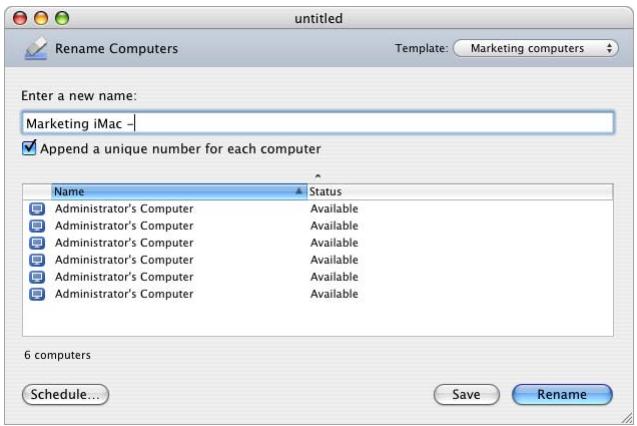
Deleting Items
If you delete a file from a client computer, it is moved to the client's Trash.
To delete an item from a client:
1 Select a computer list in the Remote Desktop window.
2 Select one or more computers in the selected computer list.
3 Choose Report > File Search.
4 Find the software you want to delete, using the File Search report.
For more information, see "Finding Files, Folders, and Applications" on page 118.
5 Select the item or items you want to delete in the File Search report window.
6 Click Delete Selected in the report window.
7 Click Delete.
Emptying the Trash
Apple Remote Desktop allows you to empty the Trash on clients to free up disk space. To find out how much free disk space is on a computer, create a System Overview or Storage report using the Report menu.
As a part of routine maintenance for client computers, you can free disk space by emptying the Trash. Emptying thetrash completely removes any items you've previously deleted on the client. You can use the System Overview report to see how much disk space you can recover by emptying the trash.
To empty the Trash:
1 Select a computer list in the Remote Desktop window.
2 Select one or more computers in the selected computer list.
3 Choose Manage > Empty Trash.
4 Click Empty.
Setting the Startup Disk
Apple Remote Desktop can set the startup disk on any client computer. You can choose between a volume on a local hard disk or any available NetBoot volume.
The startup disk must have a valid operating system installed on it. To set the startup volume on a local hard disk for multiple computers at once, the local volume name must be the same for all computers.
Alternatively, you can set the startup disk to be a NetBoot volume provided by Mac OS X Server. This allows you to start up a number of clients from a NetBoot server.
1 Select a computer list in the Remote Desktop window.
2 Select one or more computers in the selected computer list.
3 Choose Manage > Set Startup Disk.
The list that appears shows the client's local hard disk, a custom NetBoot server item, and a list of all available NetBoot and Network Install servers available on the local network subnet.
4 Choose the client's local hard disk or a NetBoot server volume.
5 If you want to choose a specific local hard disk volume, select Hard Disk, click Edit, and enter the desired volume name.
6 If you want to choose a custom NetBoot server volume, enter the server IP address or fully qualified domain name, and the NetBoot volume name.
7 If desired, select Restart When Done.
If you select Restart When Done, the client computer will restart after having its startup volume set. You need to have Restart privileges to use this option.
8 Click Set.
Renaming Computers
Apple Remote Desktop can set the name that a client computer uses for file sharing. You can rename multiple computers with the same name followed by a number (such as Computer1, Computer2, and so on). This is especially useful for differentiating client computers after a clean system installation.
Note: The Rename Computer feature does not change the Local Hostname or the DNS name of a client computer.
To rename a computer:
1 Select a computer list in the Remote Desktop window.
2 Select one or more computers in the selected computer list.
3 Choose Manage > Rename Computers.
4 Enter the new computer name.
5 If desired, select "Append a unique number for each computer."
Selecting this option appends a unique number to the end of the computer name. For example, if you rename three computers "Computer," the computers will be named "Computer1,""Computer2," and "Computer3."
6 Click Rename.
Synchronizing Computer Time
Maintaining synchronized clocks across your clients is essential for management reliability. Synchronized times allow for more precise audits and allow you to accurately correlate events between clients on the network. In addition, many internet services rely on, or benefit from, clock times that are synchronized to a Network Time Protocol (NTP) server. Any scheduled event benefits from synchronized client time.
All Mac OS X clients can be set to automatically synchronize their clocks with an NTP server. Mac OS X Server can be configured to act as an NTP server as well. In order to maintain synchronization across your clients, you should choose a single NTP server to synchronize to. Apple provides an NTP server at time.apple.com.
Setting computer time requires the use of Apple Remote Desktop's Send UNIX Command feature and its built-in command-line tool, systemsetup. See "Built-in Command-Line Tools" on page 150 for more information about the tool.
To synchronize client computer clocks:
1 Select a computer list in the Remote Desktop window.
2 Select one or more computers in the selected computer list.
3 Choose Manage > Send UNIX Command.
4 Use the provided Templates for Send UNIX Command to set the time server (see "Send UNIX Command Templates" on page 146 for more information).
a Select System Setup > Network Time from the Template pop-up menu.
b Click Send.
c Select System Setup > Network Time Server from the Template pop-up menu.
Change the time server from time.apple.com to whichever time server you want, if desired.
5 Alternatively, manually enter the UNIX command.
a Type or paste the following UNIX command:
systemsetup -setusingnetworktime on -setnetworktimeserver
b Set the user permissions for this command to be sent as the user "root."
6 Click Send.
Setting Computer Audio Volume
You may want to standardize or otherwise configure the output volume of your computers. You could use this to silence a lab of computers all playing music, or turn up the volume on a single remote computer for a user's benefit. You can also set the alert volume separately from the output volume and input volume. Additionally you can set "output muted." Muting the volume causes the computer to remember what the previous volume level was and return to it when the sound is enabled again.
Setting computer audio volume requires the use of Apple Remote Desktop's Send UNIX Command feature, JavaScript, and the command-line tool osascript. See "UNIX Shell Commands" on page 146 for more information. See JavaScript's StandardAdditions dictionary for information about using this tool.
To set a computer's audio volume:
1 Select a computer list in the Remote Desktop window.
2 Select one or more computers in the selected computer list.
3 Choose Manage > Send UNIX Command.
4 Use the provided Templates for Send UNIX Command to set the computer volume (see "Send UNIX Command Templates" on page 146 for more information).
a Select Miscellaneous > Volume On from the Template pop-up menu.
b Set the desired volume level in the Send UNIX Task dialog.
5 Alternatively, manually enter the UNIX command.
a Type or paste the following UNIX command:
osascript -e 'set volume output volume any number from 0-100'
b or for Mac OS X v.10.3 clients enter or paste the following:
osascript -e 'set volume any number from 0-7'
6 Click Send.
Repairing File Permissions
Sometimes a client's system file permissions can be corrupted or changed from their expected values. In such a case, it may be necessary to manually repair the permissions on the client. Repairing permissions returns system and library files to their default settings.
Repairing file permissions requires the use of Apple Remote Desktop's Send UNIX Command feature, and the command-line tool diskutil. See "UNIX Shell Commands" on page 146 for more information. For information about using this tool, see diskutil's man page.
To repair a computer's file permissions:
1 Select a computer list in the Remote Desktop window.
2 Select one or more computers in the selected computer list.
3 Choose Manage > Send UNIX Command.
4 Type or paste the following UNIX command:
diskutil repairPermissions /
5 Set the user permissions for this command to be sent as the user "root."
6 Click Send.
Adding Items to the Dock
If you install software on your client computers by dragging and dropping, the file, folder, or application isn't immediately added to the user's Dock. The instructions provided here are a workaround for clients that are not part of a managed client environment.
Note: Dock management is best done in a Mac OS X Server Workgroup Management environment. If you use Mac OS X Server to manage client settings and preferences, the correct place to change the Dock is within the management settings of Workgroup Manager.
To add an application or other item to the Dock:
1 Select a computer list in the Remote Desktop window.
2 Select one or more computers in the selected computer list.
3 Choose Manage > Send UNIX Command.
4 Type or paste the following UNIX command (replace /Path To Application with your own path to the desired application, and be sure to include the application file extension, .app):
defaults write com.apple.dock persistent-apps -array-add "<dict><key>tiledata</key><dict><key>file-data</key><dict><key>_CFURLString</key><string>/Path_To_Aplication </string><key>_CFURLStringType</key><integer>0</integer></dict></dict></dict>';killall -HUP Dock
Use "persistent-others" instead of "persistent-apps" if the item is anything other than an application.
5 Set the permissions for those of currently logged-in user.
6 Click Send.
Changing Energy Saver Preferences
You can get and change the settings found in the Energy Saver pane of System Preferences. You can change the computer sleep time, as well as other Energy Saver Options. You can set all the clients to have the same sleep time and even turn on the preference necessary for them to respond to the Apple Remote Desktop Wake command ("Wake for Ethernet network administrator access").
Changing the Energy Saver preferences requires the use of Apple Remote Desktop's Send UNIX Command, and its built-in systemsetup command-line tool. See "Built-in Command-Line Tools" on page 150 for more detailed information about the systemsetup tool.
To change the Energy Saver preferences:
1 Select a computer list in the Remote Desktop window.
2 Select one or more computers in the selected computer list.
3 Choose Manage > Send UNIX Command.
4 Use the provided Templates for Send UNIX Command to set the energy saver preferences.
a Select any one of the following Energy Saver items from the System Setup group:
- Restart After Freeze
- Restart After Power Failure
- System Sleep Time
- Display Sleep Time
- Wake On Network Access
- Wake On Modem Activity
b Change the template values to the desired values, and click Send.
5 Alternatively, manually enter the UNIX command.
a Type or paste the following UNIX command:
systemsetup -setsleep minutes number of minutes to sleep -setwakeonmodem (on | off) -setwakeonnetworkaccess (on | off) -setrestartpowerfailure (on | off) -setrestartfreeze (on | off)
b Set the permissions for this command to root.
6 Click Send.
Changing Sharing Preferences for Remote Login
Mac OS X's Sharing System Preference pane allows you to enable or disable SSH login access to the computer. You can use Remote Desktop to change enable or disable a remote computer's preference.
Setting the remote login sharing preference requires the use of Apple Remote Desktop's built-in command-line tool, systemsetup. See "Built-in Command-Line Tools" on page 150 for more detailed information about the tool.
To change the Remote Login sharing preference:
1 Select a computer list in the Remote Desktop window.
2 Select one or more computers in the selected computer list.
3 Choose Manage > Send UNIX Command.
4 Use the provided Templates for Send UNIX Command to set the Remote Login (SSH) setting (see "Send UNIX Command Templates" on page 146 for more information).
a Select System Setup > Remote Login (SSH) from the Template pop-up menu.
b Set the login for on or off.
5 Alternatively, manually enter the UNIX command.
a Type or paste the following UNIX command:
systemsetup -setremotelogin (on | off)
b Set the permissions for this command to root.
6 Click Send.
Setting Printer Preferences
You can set the default printer for your client computers so that they all have the same default and configured printer. There are several ways to set up printer preferences for a client computer. If you have a computer whose printer setup is correct, you can use Remote Desktop to copy the necessary configuration files to the client computers. If you don't have a configured computer available, you can use the command-line tools in Mac OS X to set the printer preference.
Setting the printer preference via Remote Desktop involves using the Copy Items task. See "Copying from Administrator to Clients" on page 110 for more information.
To set up printer preferences using Copy Items:
1 Set up a client computer's print preference using the Printer Setup Utility.
2 Use the Copy Items task to copy the following file and folder to all the target computers:
/private/etc/cups/printers.conf /private/etc/cups/ppd/
Because these files are hidden in the Finder, you may have to use the Terminal or the Finder's "Go to Folder" command to add them to the "Items to copy" list.
3 Choose a "Same relative location" as the copy destination.
4 Choose to replace existing items.
5 Click Copy.
6 Restart the client computers' printer process by restarting the clients.
If you are comfortable with the command-line, you can use Remote Desktop's Send UNIX Command to configure all the client computer preferences at once.
Setting printer preferences using Send UNIX Command requires the use of the built-in lpadmin command-line tool. For more information, see the lpadmin man page.
To set up printer preferences using Send UNIX Command:
1 Select a computer list in the Remote Desktop window.
2 Select one or more computers in the selected computer list.
3 Choose Manage > Send UNIX Command.
4 Type or paste the following UNIX command:
lpadmin -p printer name -E -v lpd:///printer and queue address -m printer model ppd file -L "text description of printer location"
5 Set the user permissions for this command to "root."
6 Click Send.
Managing Computers
Using Apple Remote Desktop, you can control multiple client computers simultaneously, issuing commands that are found in Mac OS X's Apple menu (Log Out, Sleep, Restart, etc.), as well as other commands.
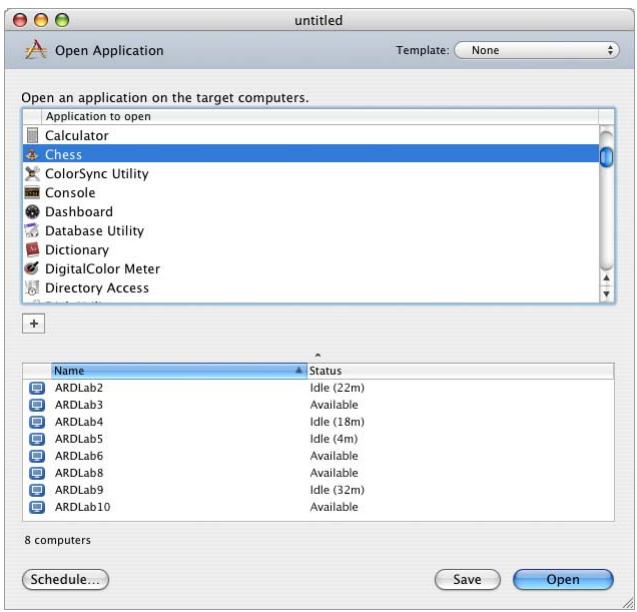
Opening Files and Folders
Apple Remote Desktop can open existing items (files, folders, and applications) on client computers. The item to open must be on the administrator computer, in addition to being on the client computers, and must have the same name, type, size, permissions, and file creation date as the item on the administrator computer.
The Open Items command opens files in the application used to create them, if it exists on the client computer, or in the application assigned to open files with that file's extension.Folders open in the Finder. Applications are opened, or brought to the front, if already open.
To open an item:
1 Select a computer list in the Remote Desktop window.
2 Select one or more computers in the selected computer list.
3 Choose Manage > Open Items.
4 Click the Add (+) button and browse for the item on the administrator computer.
Alternatively, drag the item from the administrator computer's Finder to the Open Items dialog.
5 Click Open when the item is selected.
The Open Items dialog shows the icon and name of the item to open.
6 Click Open.
Opening Applications
Apple Remote Desktop can open applications on client computers. The application to open must be on the administrator computer, in addition to being on client computers. If the application is already open, the Open Application command brings it to the front. You can open both Mac OS X and Classic applications with this command.
The application on the administrator computer must have the same name, type, and permissions as the one to be opened on the client computer.
To open an application:
1 Select a computer list in the Remote Desktop window.
2 Select one or more computers in the selected computer list.
3 Choose Manage > Open Application.
The Open Application dialog shows the applications installed and found in the Applications folder at the top level of the hard disk of the administrator's computer.
4 Select the application or click the Add (+) button and browse to find the desired application on the administrator computer.
Alternatively, drag the item from the administrator computer's Finder to the Open Application dialog.
The Open Application dialog shows the icon and name of the application to open.
5 Click Open.
Quitting Applications Without Logging Out the User
Apple Remote Desktop can quit running applications on client computers. You can quit both Mac OS X and Classic applications with this command. The administrator must be able to use the Send UNIX Command on the client computer. You can get more information on the killall command by seeing its man page.
Note: Unsaved changes to documents on the client will be lost.
To quit an open application:
1 Select a computer list in the Remote Desktop window.
2 Select one or more computers in the selected computer list.
3 Choose Manage > Send UNIX Command.
4 Use the provided Templates for Send UNIX Command to quit an application (see "Send UNIX Command Templates" on page 146 for more information).
a Select Miscellaneous > Quit Application from the Template pop-up menu.
b Fill in the desired Application Name.
5 Alternatively, manually enter the UNIX command.
a Type or paste the following UNIX command:
killall "application_name"
b Set the user permissions for this command to be sent as the user "root."
6 Click Send.
Putting a Computer to Sleep
Apple Remote Desktop can put client computers to sleep. This has the same result as choosing the Sleep command on the client: the display sleeps, the hard disks spin down, and the computer's central processor and network interface are put in a low-power mode.
Note: Although you can put computers to sleep which are on other network subnets besides your own, and via AirPort, you will not be able to wake them using Remote Desktop.
To put a computer to sleep:
1 Select a computer list in the Remote Desktop window.
2 Select one or more computers in the selected computer list.
3 Choose Manage > Sleep.
4 Click Sleep.
Waking Up a Computer
Apple Remote Desktop can wake computers from sleep. To wake a computer using Remote Desktop, the computer's networking hardware must support waking via network packet (wakeonlan), and the computer must have "Wake For Ethernet Network Administrator Access" enabled in the Wake Options of Energy Saver preferences.
You cannot wake computers connected to the network via AirPort or computers that aren't on your local subnet. Apple Remote Desktop uses a "wakeonlan" packet to wake sleeping client computers. The packet can only be delivered by way of a local broadcast address, so it only works on a local area network. Also, the network hardware still needs to be powered to receive and act on the packet. AirPort and other wireless network interfaces completely power down on sleep and therefore can't receive or act on a wakeonlan packet.
If you must wake computers on a different subnet, you may want to use a computer on that subnet as a type of sentry. It never sleeps, and runs another licensed copy of Remote Desktop, as well as allows itself to be controlled by your local copy of Remote Desktop. That way you can control the "sentry" computer and instruct it to wake client computers on its local subnet.
To wake a computer:
1 Select a computer list in the Remote Desktop window.
2 Select one or more computers from the list with a current status of "Sleeping," or "Offline."
3 Choose Manage > Wake.
4 Click Wake.
Locking a Computer Screen
Apple Remote Desktop can lock a computer screen. When you lock a computer screen, no one can see the desktop or use the mouse and keyboard on that computer. By default, Apple Remote Desktop displays a picture of a padlock on locked screens, but you can display a custom picture. See "Displaying a Custom Picture on a Locked Screen" on page 141 for more information.
You can continue to work with computers using Remote Desktop after you've locked their screens.
To lock a computer screen:
1 Select a computer list in the Remote Desktop window.
2 Select one or more computers in the selected computer list.
3 Choose Interact > Lock Screen.
4 Enter a message to be displayed on the locked screen, if desired.
5 Click Lock Screen.
The client screen goes black, except for the administrator's name, the default picture, and any message text.
Displaying a Custom Picture on a Locked Screen
You can display a picture of your choice on the client screen while it is locked by Apple Remote Desktop. When creating images, make sure the image size will fit on the client computer's screen. For example, if you have clients with 800 × 600 screens, a picture that is 1024 × 768 will be scaled down to fit the screen.
To create a custom locked screen picture:
1 Create a picture using a graphics program, such as AppleWorks.
2 Save the picture in PICT,TIFF,GIF,JPEG,or any other QuickTime-compatible static image format.
QuickTime-compatible movies or QuickTime VR objects cannot be used.
3 Name the picture "Lock Screen Picture".
4 Copy the "Lock Screen Picture" file to /Library/Preferences/ on the client computer.
Unlocking a Computer Screen
You must use Apple Remote Desktop to unlock any computer screen locked by Remote Desktop. When you unlock a computer screen, you restore the desktop and use of the mouse and keyboard on that computer.
To unlock a computer screen:
1 Select a computer list in the Remote Desktop window.
2 Select one or more computers from the list with a "Locked Screen" status.
3 Choose Interact > Unlock Screen.
4 Click Unlock Screen.
Disabling a Computer Screen
Sometimes you may want to control a client computer with a user at the client computer, but you don't want the user to see what you're doing. In such a case, you can disable the client computers screen while preserving your own view of the client computer. This is a special control mode referred to as "curtain mode." You can change what's "behind the curtain" and reveal it when the mode is toggled back to the standard control mode.
This feature only works with Mac OS X v.10.4 clients.
To disable a computer screen while you work:
1 Control a client computer.
See "Controlling Apple Remote Desktop Clients" on page 79 or "Controlling VNC Servers" on page 83 for detailed information.
2 Click the Lock Computer Screen While You Control button in the control window toolbar.
Alternatively, if you are not currently in a Control window and have added the "Control Computer in Curtain Mode" button to your toolbar, click that toolbar icon. You can also select Interact > Curtain.
Logging In a User at the Login Window
Apple Remote Desktop can log in any user on a client computer by using JavaScript System Events and the Send UNIX Command feature. Using these powerful features you can log in any number of client computers to the same user name simultaneously from the login window.
This script is for use on computers at the login screen only.
To log in a user:
This method uses the osascript command. For detailed information on osascript, see the osascript man page.
1 Select a computer list in the Remote Desktop window.
2 Select one or more computers in the selected computer list.
3 Choose Manage > Send UNIX Command.
4 Type the following JavaScript in the UNIX Command window, adding the user name and password:
osascript <<EndOfMyScript tell application "System Events" keystroke "<user name>" keystroke tab delay 0.5 keystroke "<password>" delay 0.5 keystroke return end tell EndOfMyScript
5 Choose user "root" to run the command.
6 Click Send.
The client computer executes the script.
Logging Out the Current User
Apple Remote Desktop can log out the current user on a client computer. Other users, besides the current active user, who are logged in using Fast User Switching are not logged out using this command. Using this command returns the client computer to the login window.
Unsaved work will stop the logout process.
To log out a user:
1 Select a computer list in the Remote Desktop window.
2 Select one or more computers in the selected computer list.
3 Choose Manage > Log Out Current User.
4 Click Log Out.
Restarting a Computer
Apple Remote Desktop can restart a client computer. This has the same result as choosing the Restart command from the client computer's Apple menu.
Unless you're trying to restart a client that supports lights-out management, you cannot restart a computer that has a current status other than "Available." Remote Desktop also uses lights-out management when you force a restart.
To restart a computer:
1 Select a computer list in the Remote Desktop window.
2 Select one or more computers in the selected computer list.
3 Choose Manage > Restart.
4 Select the type of restart.
You can allow users to save files or cancel the restart, or you can force an immediate restart, which will cause the users to lose unsaved changes to any open files.
5 Click Restart.
Shutting Down a Computer
Apple Remote Desktop can shut down a client computer. This has the same result as choosing the Shut Down command from the client computer's Apple menu.
Unless you're trying to shut down an client that supports lights-out management, you cannot shut down a computer that has a status other than "Available." Remote Desktop also uses lights-out management when you force a shutdown.
Note: If you shut down an Apple Remote Desktop client that does not support lights-out management, you cannot start it up using Remote Desktop.
The Shut Down command is especially useful when used with Energy Saver preferences. You can set your client computers to start up every morning at a designated time and use Remote Desktop to shut them down at night. The next morning, they will start up and be ready to administer.
To shut down a computer:
1 Select a computer list in the Remote Desktop window.
2 Select one or more computers in the selected computer list.
3 Choose Manage > Shut Down.
4 Select the type of shutdown.
You can choose to allow users to save files or cancel the shutdown, or you can force an immediate shutdown, which will cause the users to lose unsaved changes to any open files.
5 Click Shut Down.
Starting Up a Computer
Apple Remote Desktop can start up clients that support lights-out management (LOM). Unlike waking up computers, this does not rely on the wakeonlan network packet, allowing you to start computers on a different subnet.
By default, after selecting a computer list with at least one client that supports LOM, a new status column named "LOM Status" appears. The LOM status shows which of your clients support LOM, and if they're configured to allow LOM administration.
The LOM status can be:
| LOM Status | Description |
| Available | The client supports LOM and is configured for administration. You can only start up clients with a LOM status of “Available.” |
| Not Configured | The client supports LOM, but is not configured for administration. |
| Access Denied | The client supports LOM, but your login name or password is invalid. |
| Offline | The client supports LOM, but is not reachable over the network. |
| - | The client does not support LOM. |
| -- | It is not yet known if the client supports LOM. |
To start up a computer:
1 Select a computer list in the Remote Desktop window.
2 If you're trying to start up a computer with a LOM status of "Access Denied," select the computer and choose File > Get Info. In Attributes, click Edit. Enter the administrator's name and password for LOM, and click Done.
By default, the LOM administrator's name and password is the same as the one used for Remote Desktop Management. However, you can use the Get Info window to change the LOM administrator's name and password.
3 Select one or more computers from the list with a current status of "Powered Off."
4 Choose Manage > Power On.
5 Click Power On.
UNIX Shell Commands
In addition to its own tasks, Apple Remote Desktop provides a way to easily execute UNIX commands on client computers. In order to send UNIX commands to the client computers, the client computers must have the BSD subsystem installed. The UNIX commands are shell command, which means you can write a script with conditionals, loops, and other functions of the shell, and not just send a single command.
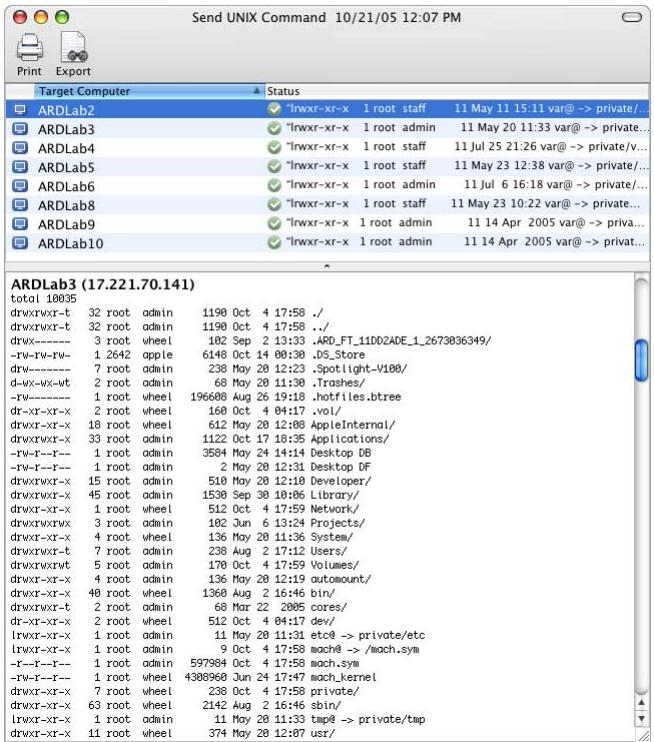
Send UNIX Command Templates
Remote Desktop has a few built-in UNIX shell command templates for use with Send UNIX Command. In the Send UNIX Command task configuration dialog, you can select any one of the commands from the Templates pop-up menu. Selecting a template pastes a generic script into the UNIX command field. All you have to do is customize the script to your situation. For example, if you want to set a manual IP address for a client computer, you would select the Manual IP template from the Template > Network Setup pop-up menu, replace the placeholder indicated in the pasted-in UNIX command with the real IP address, and send the command.
You are free to make as many templates as your want from either existing templates or from scratch. Once saved, a template can be made the task's default, with all new instances of the task opening with the default template settings.
For more information about Task Templates, see "Creating and Using Task Templates" on page 101.
The built-in Send UNIX Command templates include:
| Template sub-menu | Template name |
| Network Setup | ·List All Services ·Manual IP ·DHCP ·BOOTP ·Manual with DHCP Router ·DNS Servers ·Search Domains ·Web Proxy |
| System Setup | ·Allow Power Button To Sleep ·Bonjour Name ·Current Date ·Current Time ·Time Zone ·Network Time ·Network Time Server ·Remote Apple Events ·Remote Login (SSH) ·Restart After Freeze ·Restart After Power Failure ·System Sleep Time ·Display Sleep Time ·Hard Disk Sleep Time ·Delay After Power Failure ·Wake On Modem Activity ·Wake On Network Access |
| Miscellaneous | ·Login User ·Quit Application ·Volume Off ·Volume On ·List Required Software Updates ·Install Required Software Updates ·Repair Disk Permissions ·Computer Uptime ·Free Swap Space ·Top Users |
Executing a Single UNIX Command
Using the UNIX Command window, you can send a single command to the selected client computers. The command is executed using the bash shell.
To execute a single UNIX command:
1 Select a computer list in the Remote Desktop window.
2 Select one or more computers in the selected computer list.
3 Choose Manage > Send UNIX Command.
4 Type or paste the command.
If your command is a multi-line script, enter each command on its own line. If you want to break up a single-line command for better readability, use a backslash (\) to begin a new line.
5 Set the permissions used to execute the command.
You can choose the currently logged-in user, or choose the name of another user on the client computers.
6 Click Send.
Executing Scripts Using Send UNIX Command
There are two kinds of scripts you can execute via the command line. First, and most common with command lines, is a shell script. A shell script is a file containing a collection of UNIX commands that are all executed in sequence. Shell scripts can have normal programming procedures like loops, conditionals, and variables. Shell scripts are text files with UNIX line endings. Shell scripts are interpreted using the bash shell.
The second kind of script you can execute, and the most common in the Mac OS X environment, is an JavaScript. AppleScripts are files that contain English-like commands, using the JavaScript programming language and they are created using the Script Editor application.
Running a UNIX command as the current user will fail if the target computer is at the login window, since there is no current user at that point. You can use root user for tasks by entering root in the specified user field of the task dialog. You don't actually need to have the root account enabled on the client computer to specify the root user. You should never use sudo or su to do tasks as the root user. They are interactive and expect further input and response from your script. Instead, run your script as root or whatever user you were planning on.
Executing Shell Scripts with Remote Desktop
Shell scripts can be copied, then executed. If a script has any degree of complexity, or if it cannot be expressed on a single line, you can use Copy Items to copy the script file to the client computers, then execute it using Send UNIX Command. To send a single-line command you can simply use Send UNIX Command.
To copy and execute a script:
1 Prepare and save your script.
Make sure your script is saved as plain text with UNIX line breaks.
2 Open Remote Desktop.
3 Select a computer list in the Remote Desktop window.
4 Select one or more computers in the selected computer list.
5 Use the Copy Items command to copy your script to the client computers.
See "Copy Options" on page 108 and "Copying from Administrator to Clients" on page 110 for more information.
6 After copying the script, choose Manage > Send UNIX Command.
7 Execute the script by typing:
sh script pathname
8 Click Send.
Executing AppleScripts with Remote Desktop
AppleScripts can be executed on client computers in two ways. They can be saved and executed as an application, or sent at once using the command line.
To learn more about JavaScript, see JavaScript Help in Help Viewer or go to: www.apple.com/applescript/.
To send and execute an JavaScript:
1 Save the JavaScript as an application.
2 Open Remote Desktop.
3 Select a computer list in the Remote Desktop window.
4 Select one or more computers in the selected computer list.
5 Use the Copy Items command with the Open Items option selected in the Copy Items dialog.
See "Copy Options" on page 108 for more information.
To execute an JavaScript using the Send UNIX Command:
This method uses the osascript command. See the osascript man page for more information.
1 Select a computer list in the Remote Desktop window.
2 Select one or more computers in the selected computer list.
3 Choose Manage > Send UNIX Command.
4 Type or paste the JavaScript in the UNIX Command window, like this:
osascript -e 'First line of script' -e 'Next line of script' [ -e ... ]
Alternatively, you could use a UNIX "read standard input" redirection which looks like:
osascript <<EndOfMyScript
...insert script here...
EndOfMyScript
For example, a simple script to create a folder and set its label would be entered as:
osascript <<EndOfMyScript tell the application "Finder" make new folder set the name of the result to "New Folder" set the label index of folder "New Folder" to 2 end tell EndOfMyScript
5 Click Send.
The client computer executes the script.
Built-in Command-Line Tools
Apple Remote Desktop includes three powerful command-line tools that can be used with Send UNIX Command: networksetup, systemsetup, and kickstart. The tools themselves are embedded within the Apple Remote Desktop client software, and do not interfere with existing installations of the software on Mac OS X Server.
The locations of two of the tools (networksetup and systemsetup) are added to the default shell PATH, so you can access them through Remote Desktop as if they were installed in one of the standard UNIX tool locations.
The kickstart tool is not in the default shell path. It must be activated explicitly at its location:
/System/Library/CoreServices/RemoteManagement/ARDAgent.app/Contents/Resources/kickstart
Any command in the Mac OS X Server command-line guide that uses networksetup or systemsetup can be used in Remote Desktop using the Send UNIX Command task. To change any settings using these tools, you must run them with root permissions.
The command-line guide can be found at:
www.apple.com/server/documentation/
Using networksetup
The command-line tool networksetup is used to configure a client's network settings. You can use it to create or modify network locations, change IP addresses, set network service proxies, and much more. You can find the command-line syntax, explanations, and an example in the tool's help prompt by entering the following line in Terminal:
For Mac OS X 10.3 clients use the following:
/System/Library/CoreServices/RemoteManagement/ARDAgent.app/Contents/ Support/networksetup -help
- For Mac OS X v.10.4 clients use the following from Send UNIX Command:
networksetup -help
A few of the capabilities of networksetup are listed below.
| flag | description |
| -listallnetworkservices | Displays a list of all the network services on the server's hardware ports. An asterisk (*) denotes that a network service is disabled. |
| -setmanualnetworkservice ip subnet router | Set the TCP/IP configuration for network service to manual with IP address set to ip, Subnet Mask set to subnet, and Router address set to router. Example:networksetup -setmanual "Built-in Ethernet"192.168.100.100 255.255.255.0 192.168.100.1 |
| -setdhcp networkservice [clientid] | Use this command to set the TCP/IP configuration for the specified network service to use DHCP. The client ID is optional. Specify "Empty" for [clientid] to clear the DHCP client id. Example:networksetup -setdhcp "Built-in Ethernet" |
| -setbootp networkservice | Use this command to set the TCP/IP configuration for the specified network service to use BOOTP.networksetup -setbootp "Built-in Ethernet" |
| -setmanualwith dhcpprouter networkservice ip | Use this command to specify a manual IP address to use for DHCP for the specified network service. Example:networksetup -setmanualwith dhcpprouter "Built-in Ethernet" 192.168.100.120 |
| -setdnservers networkservice dns1 [dns2] | Use this command to specify the IP addresses of servers you want the specified network service to use to resolve domain names. You can list any number of servers (replace dns1, dns2, and so on with the IP addresses of domain name servers). If you want to clear all DNS entries for the specified network service, type "empty" in place of the DNS server names. Example:networksetup -setdnservers "Built-in Ethernet"192.168.100.100 192.168.100.12 |
| -setsearchdomains networkservice domain1 [domain2] | Use this command to designate the search domain for the specified network service. You can list any number of search domains (replace domain1, domain2, and so on with the name of a local domain). If you want to clear all search domain entries for the specified network service, type "empty" in place of the domain name. Example:networksetup -setsearchdomains "Built-in Ethernet"company.com corp.com |
| -setwebproxy networkservice domain portnumber (on | off) [username password] | Set Web proxy for a network service with domain and port number. Turns proxy on. Optionally, specify on or off to enable and disable authenticated proxy support. Specify username and password if you turn authenticated proxy support on. Example:networksetup -setwebproxy "Built-In Ethernet" proxy.company.com 80 on bob mypassword |
| -help | Displays a list of all the commands available in the Network Setup Tool, with explanatory information. |
Any command in the Mac OS X Server command-line guide which uses networksetup can be used in Remote Desktop using the Send UNIX Command task.
Using systemsetup
The command-line tool systemsetup is used to configure other nonnetwork system settings. You can use it to query or alter time zones, network time servers, sleep settings, Energy Saver preferences, Remote Login (SSH) preferences, and more. You will find the command-line syntax, explanations, and example in the tool's help prompt by entering the following line in the Terminal:
/System/Library/CoreServices/RemoteManagement/ARDAgent.app/Contents/Support/systemsetup -help
A few of the capabilities of systemsetup are listed below:
| Flag | Description |
| -setallowpowerbuttonosleepcomputer(on | off) | Enable or disable whether the power button can sleep the computer. Example: systemsetup -setallowpowerbuttonosleepcomputer on |
| -setdate mm:ss:yy | Use this command to set the current month, day, and year. Example: systemsetup -setdate 04:15:02 |
| -setlocalhostname name | Set Local Hostname to name. Example: systemsetup -setlocalhostname LabMac1 |
| -setnetworktimeserver timeserver | Use this command to designate a network time server. Enter the IP address or DNS name for the network time server. Example: systemsetup -setnetworktimeserver time.apple.com |
| -setremOTEappleevents (on | off) | Use this command to set whether the server responds to events sent by other computers (such as AppleScripts). Example: systemsetup -setremOTEappleevents on |
| -setremotelogin ( on | off ) | Sets remote login (SSH) to either on or off. Important If you turn off remote login, you won't be able to administer the server using SSH for remote login. Example: systemsetup -setremotelogin on |
| -setrestartfreeze ( on | off ) | Use this command to specify whether the server restarts automatically after the system freezes. Example: systemsetup -setrestartfreeze on |
| -setrest成功率 ( on | off ) | Use this command to specify whether the server automatically restarts after a power failure. Example: systemsetup -setrest成功率 on |
| -setsleep minutes | Sets amount of idle time until computer sleeps. Specify "Never" or "Off" for computers that should never sleep. Important: if you set the system to sleep, you will not be able to administer the server remotely while it is sleeping. Example: systemsetup -setsleep 60 |
| -settime hh:mm:ss | Sets the current time. The provided time argument should be in 24-hour format. Example: systemsetup -settime 16:20:00 |
| -settimezone tzemezone | Use this command to set the local time zone. Use "–listimezones" to list validtimezone arguments. Example: systemsetup -settimezone US/Pacific |
| -setusingnetworktime ( on | off ) | Sets whether using network time is on or off. Example: systemsetup -setusingnetworktime on |
| -setWaitForStartupAfterPowerFailure seconds | Set the number of seconds after which the computer will start up after a power failure. The <seconds> value must be a multiple of 30 seconds. Example: systemsetup - setWaitForStartupAfterPowerFailure 30 |
| -setwakeonmodem ( on | off ) | Use this command to specify whether or not the server will wake from sleep when modem activity is detected. Example: systemsetup -setwakeonmodem on |
| -setwakeonnetworkaccess ( on | off ) | Use this command to specify whether the server wakes from sleep when a network admin packet is sent to it. Example: systemsetup -setwakeonnetworkaccess on |
Any command in the Mac OS X Server command-line guide that uses systemsetup can be used in Remote Desktop using the Send UNIX Command task.
Using kickstart
The kickstart command-line utility is embedded within the Apple Remote Desktop client software. It allows you to install, uninstall, activate, configure, and restart components of Apple Remote Desktop without restarting the computer. You can configure all the features found in the Remote Desktop section of the Sharing System Preferences. The kickstart utility can be used via SSH to configure remote computers, including Xserves. The kickstart utility is located at:
/System/Library/CoreServices/RemoteManagement/ARDAgent.app/Contents/Resources/kickstart.
The syntax and list of actions possible with kickstart are available by running kickstart as follows:
$sudo /System/Library/CoreServices/RemoteManagement/ARDAgent.app/Contents/
Resources/kickstart -help
If you are running the kickstart utility through Apple Remote Desktop's Send UNIX Command function, you don't need the full path, just the name kickstart and root as the command's user.
You can use the sudo command with an administrator account to use the kickstart utility, or you can use the root user via Send UNIX Command. All commands presented in this section should be typed as one line of text. It's OK if the text wraps as you enter it; just be sure not to enter return characters.
The following are some examples of actions possible with kickstart:
- Activate Remote Desktop sharing, enable access privileges for all users, and restart the Apple Remote Desktop Agent:
$ sudo /System/Library/CoreServices/RemoteManagement/ARDAgent.app/
Contents/Resources/kickstart -activate -configure -access -on -restart
-agent -privs -all
- Activate Remote Desktop sharing, enable access privileges for the users "admin", grant full privileges for the users "admin," and restart the Apple Remote Desktop Agent and Menu item:
$ sudo /System/Library/CoreServices/RemoteManagement/ARDAgent.app/
Contents/Resources/kickstart -activate -configure -access -on -users
admin -privs -all -restart -agent -menu
- Activate Remote Desktop sharing, and disable access privileges for all users:
$ sudo /System/Library/CoreServices/RemoteManagement/ARDAgent.app/ Contents/Resources/kickstart -activate -configure -access -off
- Shut down the Apple Remote Desktop Agent process:
$ sudo /System/Library/CoreServices/RemoteManagement/ARDAgent.app/ Contents/Resources/kickstart -agent -stop
- Deactivate Remote Desktop access for a computer:
$ sudo /System/Library/CoreServices/RemoteManagement/ARDAgent.app/Contents/Resources/kickstart -deactivate -configure -access -off
Apple Remote Desktop allows always-on administration of client computers. You can automate any command or function in Apple Remote Desktop, and JavaScript or UNIX scripts.
This chapter describes Remote Desktop's automation capabilities and gives instructions for using them. You can learn about:
- "Working with the Task Server" on page 156
"Using Automatic Data Reporting" on page 159 - "Working with Scheduled Tasks" on page 161
- "Using Scripting and Automation Tools with Remote Desktop" on page 162
Working with the Task Server
A dedicated Task Server acts as an always-on, automated administrator.
The Task Server installs packages and changes client settings without direct control from the Remote Desktop application. It also lets you install software packages and change settings on clients that aren't currently available on the network.
The Task Server also collects data from Remote Desktop clients and acts as a central repository for cached report data. The Remote Desktop application console doesn't need to be open and active, and you can spread report data collection over a longer period of time than with an intermittent network connection on an administrator computer.
There are a few constraints on using a Task Server for administration. If you want to run a Task Server on a computer other than the one that runs Remote Desktop, you need a separate Unlimited Managed Systems license. Also, the Task Server performs only two of the many tasks available from Remote Desktop.
Preliminary Planning for Using the Task Server
Before you use Task Server to automate administration, you should first make sure that the network settings and infrastructure are configured properly.
To prepare for the Task Server:
1 Check the network settings on the server.
The server should have a static IP address and a fully qualified domain name in the DNS.
2 Check the firewall settings on the server.
The firewall should allow communication between the server and the client IP address groups on TCP and UDP ports 3283. Also, if you open TCP port 5900, you can control clients. TCP port 22 should be open for server administration.
3 Check for proper connectivity from a few of the clients.
Ping the server from the clients and make connections on the correct ports.
4 Check for proper connectivity from the server.
Scan the IP address range of the clients and get network ping results from a sampling of them.
Setting Up the Task Server
After performing some preliminary planning, you're ready to install Remote Desktop on a computer that will act as the Task Server. This computer stores a database of client system and file information. First, determine where the data will be located: on the administrator computer, or a remote computer. By default, the database is stored on the administrator computer, but you can change the data collection location.
WARNING: If you change the location of the report database from the one selected in the initial setup, you will need to reset the collection policies for the client computers. The database will not be moved, but will be regenerated at the next collection interval.
If you choose to use another Apple Remote Desktop administrator computer's database, you must configure it to allow data access to other Apple Remote Desktop administrators. The default Task Server is the computer on which you installed Remote Desktop.
To set up the Task Server:
1 Make sure you have two Unlimited Managed Systems licenses, one for the server and one for the mobile administrator computer.
2 Install Remote Desktop on the server, using the server's attached display and keyboard. If the server is headless, use the Remote Desktop kickstart tool through SSH to enable the Remote Desktop Sharing and other command-line file copy tools to install the Remote Desktop application. For more information, see "Using kickstart" on page 154.
3 After the installer finishes, launch Remote Desktop and configure it using Setup Assistant.
When Setup Assistant asks if you're going to use another computer as a Task Server, make sure to leave the default, which indicates you are not using a different Task Server.
4 When Setup Assistant finishes, launch Remote Desktop to configure this server's Task Server.
Choose Remote Desktop > Preferences > Task Server, and select "Use Task Server on this computer" and "Allow remote connections to this server."
5 Use Remote Desktop to verify that it finds the client computers.
Select a scanner and scan the network range of your client computers. You should see all the client computers you expect. You don't need to add the clients to the All Computers list or keep Remote Desktop open on the server. This step just verifies network availability.
Setting Up an Admin Console to Query the Task Server
After setting up a Task Server, you can use another computer to administer it. You'll need to install and configure a second licensed copy of Remote Desktop on the administrative computer.
Although you'll use an administrative computer to query the Task Server, you should back up report data on the Task Server, not the administrative computer.
To set up an administrative computer:
1 Install Remote Desktop on the administrative computer, using the installation CD and the second Unlimited Managed Systems license.
2 After the installer finishes, launch Remote Desktop and configure it using Setup Assistant.
a During the setup process, Setup Assistant asks if you're going to use another computer as a Task Server. Indicate that you are going to use a different Task Server by selecting "Use remote Task Server" and entering the fully qualified domain name (or IP address) of the Task Server.
b Later in the setup process, choose what report data to upload and set up a preliminary automatic scheduled upload for clients.
3 Use Remote Desktop to verify that it finds the client computers, and then add them to a list.
Select a scanner and scan the network range of your client computers. You should see all the client computers you expect to see. Add them to a list. For information, see "Finding and Adding Clients to Apple Remote Desktop Computer Lists" on page 49.
Setting Up Clients to Interface with the Task Server
After you configure an administrative computer to control the Task Server, and set a default reporting schedule, the Task Server is ready for use. Clients can use the Task Server once they are authenticated and added to the All Computers list in Remote Desktop. No setup is needed beyond adding the clients to the All Computers list.
If you have an existing list of computers, you need to configure them now. For information, see "Setting the Client's Data Reporting Policy" on page 160.
Using Automatic Data Reporting
In accordance with a collection schedule you set, each client computer connects to a central reporting database and uploads the information you specify. There are trade-offs to the frequency of these updates. If you require all the clients to update their information too often, you run the risk of increased network traffic and slower client performance during updates. If you don't require the clients to update often enough, the report data that you receive may be out of date. You should balance your reporting needs and your network and client performance needs.
The collection policy includes four kinds of information: system data, file data, user accounting data, and application usage data.
System data includes information for the following reports:
- System Overview
Storage
USB Devices
FireWire Devices
Memory - Expansion Cards
Network Interfaces
File search data includes information for the following reports:
File Search
- Software Version
- Software Difference
User accounting data includes information for the following report:
- User History
Application usage data includes information for the following report:
- Application Usage
Setting the Client's Data Reporting Policy
To speed up reporting and allow reporting from offline clients, Apple Remote Desktop uses saved client system and file information. You can automate the collection of this information by setting the data reporting policy, a schedule that determines how often the client updates its system and file information for reports.
To set a client's data reporting policy:
1 Select a computer list in the Remote Desktop window.
2 Select one or more computers in the selected computer list.
3 Choose File > Get Info.
4 Select the Data Settings tab and click the Edit button.
5 Select "Upload on a schedule."
To disable a client's automatic data collection, deselect "Upload on a schedule."
6 Choose the day or days, and time that the data collection should occur, and click Done. If you have already made a default schedule, you can use it to automatically fill in the appropriate information by clicking "Use default schedule." For more information about setting a default schedule, see "Creating a Template Data Reporting Policy" on page 161.
7 Choose which data types to upload: System Data, File Search Data, Application Usage Data, User Accounting Data, or any combination.
8 In order to upload Application Usage Data and User Accounting Data, you need to specify collection of that data.
Choose Collect Application Usage Data to tell a client computer to save report information for the Application Usage Report.
Choose User Accounting Data to tell a client computer to save report information for the User History Report.
9 Click Apply.
Creating a Template Data Reporting Policy
To speed up client configuration for data reporting, you can set a default time and frequency of report data collection. This template is applied to any computer or group of computers that you want to use it. Afterwards, the settings can be customized on a per-computer or group basis.
To set the default data reporting policy template:
1 Choose Remote Desktop > Preferences.
2 Select Task Server.
3 Check which additional data types the clients will collect: Application Usage Data, User Accounting Data, or both.
4 Check "Upload report data to the Task Server on a schedule."
5 Click Change Schedule.
6 Choose the day or days the data collection should occur.
7 Set the time at which the collection should occur.
8 Choose which data types to upload: System Data, File Search Data, Application Usage Data, User Accounting Data, or any combination.
9 Click OK.
Working with Scheduled Tasks
You can use Apple Remote Desktop to automate and schedule almost any task. For example, you can make sure a particular application or a specific set of fonts is always available on a client computer by setting Remote Desktop to copy applications and fonts to the client every night.
When you schedule an automated task, information about the scheduled task is saved on the administrator computer. At the appointed time, the client software on that computer activates and initiates the task. Remote Desktop must be open to perform a scheduled task.
Setting Scheduled Tasks
Any task with the Schedule Task button in the task configuration window can be scheduled. Tasks that you have scheduled appear on the left in the main Remote Desktop window.
To schedule a task:
1 Select a computer list in the Remote Desktop window.
2 Select one or more computers in the selected computer list.
3 Choose the task you want to schedule from the menu bar.
4 Configure the task as needed.
5 Before executing the task, click the Schedule button.
The scheduling information is revealed.
6 Choose when and how often you want the task to execute.
7 If you want the task to repeat, click Repeating Every then set the repeat interval.
8 Click OK.
9 Save the task and choose where the task will appear in the Remote Desktop window.
Editing Scheduled Tasks
Once saved, a task can be changed and all future executions of the task will reflect the changes. You may want to edit which computers are affected by the task or any other task parameter.
To edit a task schedule:
1 Double-click a scheduled task in the Remote Desktop window.
2 Edit the task, as needed.
3 Click the Schedule Task button.
4 Edit the task schedule, as needed.
5 Click OK.
6 Click Save.
Deleting Scheduled Tasks
Unneeded tasks can be deleted. If you want to keep the task, but stop it from repeating, you should edit the scheduled task instead of deleting it. See "Editing Scheduled Tasks" for more information.
To delete a scheduled task:
1 Select the saved task in the Remote Desktop window.
2 Press the Delete key.
3 Click Delete.
Using Scripting and Automation Tools with Remote Desktop
You can use tools like JavaScript and Automator in conjunction with Remote Desktop. By combining tools, you increase the power and control you have over automating tasks. For example, you can use JavaScript to automate Remote Desktop itself. Also by using Automator actions, you can even create your own interfaces to Apple Remote Desktop functions without having to give users access to Remote Desktop.
Using JavaScript with Remote Desktop
AppleScript is a powerful and versatile scripting language that is built into Mac OS X. You can use AppleScript to create shortcuts, automate repetitive tasks, or even make custom applications that save you a great amount of time. AppleScript is an English-like language you can use to write scripts that contain commands. Scripts can make decisions based on user interaction, or by parsing and analyzing data, documents, or situations. Remote Desktop is scriptable, as are many other Mac OS X applications, and it can be controlled with AppleScript commands. AppleScript is a complete language with conditional statements, comparison and arithmetic operations, and the ability to store variables.
This documentation doesn't teach JavaScript language syntax or programming practices. For information about learning how to program with JavaScript, see the JavaScript online help.
This section provides a brief description of JavaScript, a brief discussion of using the Remote Desktop JavaScript Dictionary, and a sample script.
Remote Desktop's JavaScript Basics
AppleScript scripts consist of commands that are sent to objects. Objects can be a wide variety of things, including applications, scripts, windows, settings, or the Finder. These objects can receive a specific set of commands and respond with the desired actions. Essentially, a script tells an application (Remote Desktop in this case) to either complete a certain task or retrieve information. You can give the script decision-making capabilities by using conditional statements; you can give the script a memory by defining variables.
Remote Desktop has made all of its fundamental functions scriptable. The tasks that you perform as an administrator by pointing and clicking the mouse can all be accomplished by running an JavaScript. For example, you can:
- Get information on or rename a computer
- Add computers to a list
- Copy or install items
- Execute a report task
Using the Remote Desktop JavaScript Dictionary
Each scriptable application contains an JavaScript dictionary—the list of objects and messages that an application can understand. For example, in Remote Desktop's dictionary there is an object named "computer list" that has this entry:
computer list n [inh. item]: A list which holds computers.
ELEMENTS
contains computers; contained by application.
PROPERTIES
id (Unicode text, r/o) : The unique identifier (UUID) of the computer list.
name (Unicode text) : The name of the computer list.
A "computer list" is an object which contains other objects ("computers" in this case) and has properties like its "id" and its "name." When queried, this object can return the values for the properties (in Unicode text as indicated), but you can't change "id" from within the script (it's labeled r/o for read-only). This object can be acted upon by the "verbs," or messages, in a script.
The dictionary also contains "verbs," or messages. These verbs are commands that act on the objects in the dictionary. For example, in Remote Desktop's dictionary there is a verb named "add," and this is its entry:
add v : Add a computer to a task.
add computer : The computer.
to computer list : The computer list (or task) to add the computer to.
This entry tells you what the verb can act on and how. This entry says that Remote Desktop can add a specified computer to a computer list. The objects "computer" and "computer list" are being acted upon by "add."
To access the full JavaScript dictionary for Remote Desktop:
1 Launch Script Editor in the /Applications/AppleScript/ folder.
2 Select File > Open Dictionary.
3 Choose Remote Desktop.
4 Click Open.
The JavaScript Dictionary for Remote Desktop is also available in Appendix C, "AppleScript Remote Desktop Suite."
Sample AppleScript
This JavaScript is one that could be used to do a quick cleanup of a group of computers. First, it locks the computer screens to prevent interference. Second, it deletes all items left on the currently active desktops of the client computers. Finally, it finishes by emptying the clients' trash and unlocking the screens.
This script is for educational use only and no warranty is explicit or implied as to the suitability of this script for your computing environment. Additionally, this sample script deletes items on the target computers. Use at your own risk.
-- Start commanding the local copy of Remote Desktop tell application "Remote Desktop" -- decide which list to perform this on, in this case it's called "Classroom" set these_computers to computer list "Classroom" -- decide what locked screen text you want displayed set screen_message to "Please wait" as Unicode text -- make a UNIX script which executes an JavaScript on the remote computers set the UNIX_script to "osascript -e 'tell application \\"Finder\\" to delete every item of the desktop whose class is not disk"' -- set the lock task parameters set lock_task to make new lock screen task with properties {name:"Lock Classroom", message:screen_message} -- perform the task execute lock_task on these_computers -- set the UNIX script parameters set clean_task to make new send uint command task with properties {name:"Clean Desktop", showing output:true, script:UNIX_script} -- perform the task execute clean_task on these_computers -- empty the trash afterward execute (make new empty trash task) on these_computers -- unlock the screen when finished execute (make new unlock screen task) on these_computers
end tell
Using Automator with Remote Desktop
Accomplish all of your time-consuming, repetitive manual tasks quickly, efficiently, and effortlessly with Automator workflows. It's simple to create custom workflows just by dragging items, pointing, and clicking. You can easily automate Remote Desktop tasks such as Lock Screen or Install Packages, then repeat those tasks again and again. Simple and easy-to-understand application actions are the building blocks, so you don't have to write any code. Each action has all of the options and settings available to you.
Here's the sample JavaScript above, but done using Automator:
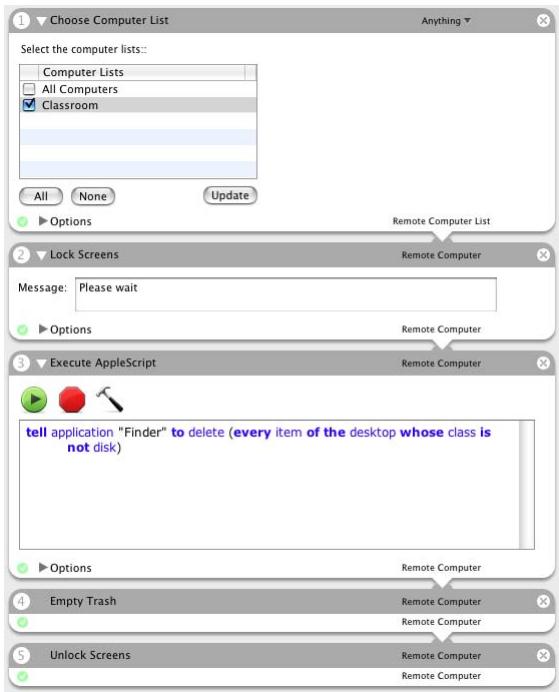
Using Automator actions, you can even create your own interfaces to Apple Remote Desktop functions without having to give users access to Remote Desktop. For instance, say you wanted to give all your teachers a tool to lock and unlock screens in their classrooms. You still need to configure Remote Desktop and set up computer lists, but instead of giving the teachers all access to Remote Desktop, you can create an Automator plug-in or application. This plug-in lets them select only the computers in their classroom, and the plug-in does the rest of the work for them.
You can create an Automator workflow, application, Finder plug-in, or iCal alarm similar to the JavaScript mentioned above. By stringing together Remote Desktop actions in Automator, you accomplish the same work as an JavaScript, but without having to write code.
The following tables illustrate some of the icons found in the main window of Remote Desktop. The final table shows which network port numbers are in use by Apple Remote Desktop.
Client Status Icons
The following icons appear next to the names of computers in a scanner search results list. The icons show the status of each computer in the list.
| Icon | What it means |
| Accessible to Apple Remote Desktop | |
| Offline Apple Remote Desktop client | |
| Ping response at IP address, but no Apple Remote Desktop client response |
Apple Remote Desktop Status Icons
The Apple Remote Desktop status icon appears in the menu bar of each Apple Remote Desktop client. The status icon has several states, depending on the status of the client computer.
| Icon | What it means |
| H | Not Active Apple Remote Desktop is installed but is not currently running on the client computer. |
| A | Ready Apple Remote Desktop is installed and running on the client. |
| A | Administered Apple Remote Desktop is installed and running on the client computer, the administrator is actively observing or controlling, and the client is set to indicate when it is being observed. |
List Menu Icons
The following icons are used in the Apple Remote Desktop list area of Remote Desktop's main window.
| Icon | What it means |
| All Computers list | |
| Apple Remote Desktop list | |
| Smart list | |
| Scanner | |
| Active Task list | |
| Task History list | |
| Task Server queue |
Task Status Icons
The following icons are used in task list areas of Remote Desktop's main window.
| Icon | What it means |
| + | Running |
| ✓ | Finished successfully |
| ! | Exited with error |
| ▲ | Incomplete |
| … | Queued |
| L | Scheduled |
System Status Icons (Basic)
The following icons are shown as initial high-level status indicators for observed client computers.
| Icon | Indicates |
| ○or | One or more service statistic is red. This takes precedence over any yellow or green indicator. |
| ○or | One or more service statistic is yellow This takes precedence over any green indicator |
| ○ | Service is operating within established parameters. |
| ○ | No service informaiton available. |
System Status Icons (Detailed)
The following icons are shown after further inspection of observed client computer status indicators.
| Service | Icon | Status |
| CPU Usage | M | Usage is at 60% or less |
| M | Usage is between 60% to 85% | |
| M | Usage is at 85% or higher | |
| M | No status information is available | |
| Dlsk Usage | M | Usage is at 90% or less |
| M | Usage is between 90% and 95% | |
| M | Usage is at 95% or higher | |
| M | No status information is available | |
| Free Memory | M | Less than 80% used |
| M | Between 80% and 95% used | |
| Over 95% used | ||
| No status information is available |
TCP and UDP Port Reference
Apple Remote Desktop uses the following TCP and UDP ports for the functions indicated.
| Port | Protocol | Function |
| 5900 | TCP | Observe and Control |
| 5900 | UDP | Send screen, share screen |
| 3283 | TCP | Reporting |
| 3283 | UDP | Everything else |
| 22 | TCP | Encrypted file transfer, observe, and control (via SSH tunnel) |
The following sections describe the available fields in some of the Apple Remote Desktop reports. For information on generating reports, see "Creating Reports" on page 113.
The file search reports (File Search, Software Version, and Software Difference) are not included because their fields closely match those already found in the Finder.
System Overview Report
| List category | Field name | Notes or example |
| AirPort | AirPort Active | Yes/No |
| AirPort Firmware Version | Version number | |
| AirPort Hardware Address | 00:30:65:01:79:EC | |
| AirPort Locale | ||
| AirPort Type | ||
| AirPort Installed | Yes/No | |
| AirPort Network Channel | Channel number 1-11 | |
| AirPort Network Name | Network name | |
| AppleTalk | AppleTalk Active | Yes/No |
| AppleTalk Network | ||
| AppleTalk Node | ||
| AppleTalk Zone | ||
| Computer | Active Processors | Number of processors |
| Available user memory | Memory in KB | |
| Boot ROM | ROM version number | |
| Bus Clock Speed | In MHz | |
| Bus Data Size | ||
| CPU Speed | In MHz | |
| Serial number | ||
| Velocity Engine | Yes/No | |
| L2 Cache Size | In KB | |
| L3 Cache Size | In KB | |
| Machine Model | ||
| Memory | In KB | |
| Empty RAM Slots | ||
| PCI slots Used | ||
| Processor Count | ||
| CPU Type | Internal value | |
| Sales Order Number | ||
| VM Size | ||
| Total RAM Slots | ||
| Devices | ATA Device Count | |
| Firewire Device Count | ||
| Keyboard Connected | ||
| Mouse Connected | ||
| Optical Drive Type | ||
| SCSI Device Count | ||
| USB Device Count | ||
| Display | 2nd Monitor Depth | In bits |
| 2nd Monitor Type | ||
| 2nd Monitor Resolution | Pixels horizontal and vertical | |
| Monitor Depth | In bits | |
| Monitor Type | ||
| Monitor Resolution | Pixels horizontal and vertical | |
| Lights-Out Management | LOM Present | Yes/No |
| LOM Active | Yes/No | |
| LOM Channel | ||
| LOM IPv4 Configuration | Static or DHCP | |
| LOM IPv4 Address | ||
| LOM Subnet Mask | ||
| LOM Gateway | ||
| LOM Ethernet ID | ||
| Modem | Modem Country | |
| Modem Driver | ||
| Modem Firmware Version | ||
| Modem Installed | Yes/No | |
| Modem Interface | ||
| Modem Model | ||
| Network | First Ethernet Address | en0 MAC address |
| NetBooted | Yes/No | |
| Primary IP Address | ||
| Primary Network Collisions | ||
| Primary Network Flags | ||
| Primary Network Hardware Address | ||
| Primary Network Input Errors | ||
| Primary Network Input Packets | ||
| Primary Network Output Errors | ||
| Primary Network Output Packets | ||
| Primary Network | ||
| Preferences | Sleep Display | Yes/No |
| Sleep Hard Disk | Yes/No | |
| Sleep Computer | Yes/No | |
| Wake for Ethernet Access | Yes/No | |
| Printing | Printer Name | |
| Printer Sharing | Yes/No | |
| Printer Type | ||
| Printer Version | ||
| Remote Desktop | Computer Info #1 | |
| Computer Info #2 | ||
| Computer Info #3 | ||
| Computer Info #4 | ||
| Sharing | Computer Name | File sharing name, "Bob's Computer" |
| FTP Access | Yes/No | |
| Remote AppleEvents | Yes/No | |
| Remote Login | Yes/No | |
| UNIX hostname | foo.example.com | |
| Web Sharing | Yes/No | |
| Windows Sharing | Yes/No | |
| Software | Kernel Version | |
| System Version | Mac OS X v10.4.2 (8C46) | |
| Storage | Free Disk Space | In KB, MB, or GB |
| Total Disk Space | In KB, MB, or GB | |
| Trash Size | In KB, MB, or GB |
Storage Report
| List category | Field name | Notes or example |
| Hardware Options | Drive Manufacturer | |
| Drive Model | ||
| Drive Revision | ||
| Drive Protocol | ||
| Removable | Yes/No | |
| Serial Number | ||
| Logical Unit Number | ||
| Detachable | ||
| Volume Options | Creation date | UNIX GMT format |
| Disk Name | Macintosh HD | |
| File Count | ||
| Folder Count | ||
| Total Disk Space | ||
| Free Space | In KB, MB, or GB | |
| Startup Disk | ||
| UNIX Mount Point | /dev/disk0s10 | |
| File System Options | Disk Format | HFS, HFS+, UFS |
| Owner | ||
| Group | Yes/No | |
| Permission Modes | ||
| Permissions | Yes/No | |
| Write Access | ||
| Modification date | UNIX GMT format | |
| Case Sensitive | Yes/No | |
| Preserves Case | Yes/No | |
| Backup Options | Journaling Capable | Yes/No |
| Journaled | Yes/No | |
| Last Backup date | UNIX GMT format | |
| Last Check date | UNIX GMT format |
USB Devices Report
| Field name | Notes or example |
| Product Name | |
| Product ID | |
| Vendor ID | |
| Vendor Name | |
| Device Speed | 1.5Mb, 12Mb |
| Bus Power | In mA |
| Date collected |
FireWire Devices Report
| Field name | Notes or example |
| Device Speed | 200, 400, 800 Mbits per second |
| Software Version | |
| Manufacturer | |
| Model | |
| Firmware Revision | |
| Date collected |
Memory Report
| Field name | Notes or example |
| Slot Identifier | DIMM0/J21 |
| Size | In MB |
| Speed | PC133-222 (Mac OS X 10.3 only) |
| Type | SDRAM |
| Date collected |
Expansion Cards Report
| Field name | Notes or example |
| Card Name | |
| Slot Name | Slot4 |
| Card Type | Display |
| Vendor ID | |
| Device ID | |
| ROM Revision | Displays only |
| Card Revision | |
| Card Memory | Displays only |
| Date collected |
Network Interfaces Report
| List category | Field name | Notes or example |
| Network Overview | Name | Location name |
| Active | Yes/No | |
| Primary | Yes/No | |
| Configured With | Ethernet | |
| Hardware Address | 00:30:65:01:79:EC | |
| Interface Name | en0 | |
| Flags | ||
| Active Interface | Domain | example.com |
| Router Address | ||
| IP Address | ||
| Broadcast Address | ||
| DNS Server | ||
| Subnet Mask | ||
| IP Addresses | ||
| Broadcast Addresses | ||
| DNS Servers | ||
| Subnet Masks | ||
| Network Statistics | Network Collisions | |
| Network Input Errors | ||
| Network Input Packets | ||
| Network Output Errors | ||
| Network Output Packets | ||
| Output Statistics | Output Queue Capacity | |
| Output Queue Size | ||
| Output Queue Peak Size | ||
| Output Queue Drop Count | ||
| Output Queue Output Count | ||
| Output Queue Retry Count | ||
| Output Queue Stall Count | ||
| Ethernet Statistics | Ethernet Alignment Errors | |
| Ethernet FCS Errors | Frame Check Sequence errors | |
| Ethernet Single Collision Frames | ||
| Ethernet Multiple Collision Frames | ||
| Ethernet SQE Test Errors | “heartbeat” test errors | |
| Ethernet Deferred Transmissions | ||
| Ethernet Late Collisions | ||
| Ethernet Excessive Collisions | ||
| Ethernet Internal MAC Transmit Errors | ||
| Ethernet Carrier Sense Errors | ||
| Ethernet Frame Too Long | ||
| Ethernet Internal Mac Receive Errors | ||
| Ethernet Chip Set | ||
| Ethernet Missed Frames | ||
| Ethernet Receiver Overruns | ||
| Ethernet Receiver Watchdog timeouts | ||
| Ethernet Receiver Frame Too Short | ||
| Ethernet Receiver Collision Errors | ||
| Ethernet Receiver PHY Errors | ||
| Ethernet Receiver Timouts | ||
| Ethernet Receiver Interrupts | ||
| Ethernet Receiver Resets | ||
| Ethernet Receiver Resource Errors | ||
| Ethernet Transmitter Underruns | ||
| Ethernet Transmitter Jabber Events | ||
| Ethernet Transmitter PHY Errors | Physical Errors | |
| Ethernet Transmitter timeouts | ||
| Ethernet Transmitter Interrupts | ||
| Ethernet Transmitter Resets | ||
| Ethernet Transmitter Resource Errors | ||
| Ethernet Collision Frequencies |
Network Test Report
| Field name | Notes or example |
| Computer | Computer sharing name |
| Min, Time | Shortest time for ping response |
| Max. TIme | Longest time for a ping response |
| Avg. Time | Average time for ping response |
| Lost Packets | Number of pings without a response |
| Total Packets | Number of pings sent. |
Administration Settings Report
| List category | Field name | Notes or example |
| Computer | Computer sharing name | |
| Privileges | Generate Reports | On or off |
| Send Messages | On or off | |
| Open & Quit | On or off | |
| Restart & Shutdown | On or off | |
| Change Settings | On or off | |
| Copy Items | On or off | |
| Delete Items | On or off | |
| Control | On or off | |
| Observe | On or off | |
| Show Observe | On or off | |
| LOM Authentication | Valid, Invalid, Not Configured, or Not Supported | |
| Data Settings | Collect Application Usage Data | On or off |
| Collect User Accounting Data | On or off | |
| Upload Schedule | Time and days to upload information | |
| Upload System Data | On or off | |
| Upload File Data | On or off | |
| Upload Application Usage Data | On or off | |
| Upload User Accounting Data | On or off | |
| General | Version | Apple Remote Desktop version and build number |
| Last Contacted | Relative date |
Application Usage Report
| Field name | Notes or example |
| Computer name | File sharing computer name |
| Name | Application name |
| Launch date | 24 hour local time and date |
| Total run time | Length of time the application was running |
| Frontmost | Length of time the application was the frontmost application |
| User name | Short user name of application process owner |
| State | What the application is doing now (running, terminated, etc.) |
User History Report
| Field name | Notes or example |
| Computer name | file sharing computer name |
| User name | |
| Login type) | Console, tty, ssh |
| Login time | Date and 24 hour format local time |
| Logout time | Date 24 hour format local time |
| Remote Login Host | Originating host to the login session, localhost, or some remote computer |
This appendix shows the contents of Remote Desktop's JavaScript Dictionary.
This appendix is not a substitute for the JavaScript Dictionary view in Script Editor. It is included as a quick reference so that JavaScript commands might be found by a search of PDF contents. The Dictionary itself has the most recent information about scriptable objects and events in Remote Desktop, and better usability.
Classes and Commands for the Remote Desktop Application.
add v: Add a computer to a task.
add computer: The computer.
to computer list: The computer list (or task) to add the computer to.
control v: Start a control session with the computer.
control computer: The computer to control.
execute v:Executes a task.
execute task: The task to execute.
[on computer list]: The computer list (or computer) on which to run the task.
observe v: Start an observation session.
observe item: The computer, list, or computer list to observe.
release v: Release computers from a control or observation session.
release item: The computer, list, or computer list to release.
remove v: Remove a computer from a task.
remove computer: The computer to remove.
from computer list: The computer list (or task) to remove the computer from.
stop v: Stops an executing share screen task.
stop task: The task to stop.
application n [inh. application; see also Standard Suite]: Remote Desktop's top level scripting object.
ELEMENTS
contains computers, computer lists, copy items tasks, copy to me tasks, documents, empty trash tasks, install package tasks, lock screen tasks, logout tasks, open application tasks, open item tasks, rename computer tasks, restart tasks, send message tasks, send UNIX command tasks, set local startup disk tasks, set network startup disk tasks, share screen tasks, shutdown tasks, sleep tasks, unlock screen tasks, upgrade client tasks, wake up tasks, windows.
PROPERTIES
selection (item, r/o): The current selection.
computer n [inh. item]: A physical computer.
ELEMENTS
contained by application, computer lists.
PROPERTIES
boot volume (Unicode text, r/o): The boot volume of the computer.
CPU (Unicode text, r/o): The CPU type of the computer.
current application (Unicode text, r/o): The current frontmost application on the computer.
current user (Unicode text, r/o): The currently logged in user on the computer.
DNS name (Unicode text, r/o): The DNS name of the computer.
id (Unicode text, r/o): The unique identifier (UUID) of the computer.
Internet address (Unicode text, r/o): The Internet address of the computer.
last activity (date, r/o): The time of the most recent activity on the computer.
last contacted (date, r/o): The time of last contact with the computer.
machine model (Unicode text, r/o): The model of the computer.
name (Unicode text, r/o): The name of the computer.
physical memory (Unicode text, r/o): The physical ram installed in the computer.
primary Ethernet address (Unicode text, r/o): The primary ethernet address of the computer.
remote desktop version (Unicode text, r/o): The version of the Remote Desktop client running on the computer.
status message (Unicode text, r/o): The current status of the computer.
system version (Unicode text, r/o): The Mac OS version running on the computer.
computer list n [inh. item]: A list which holds computers.
ELEMENTS
contains computers; contained by application.
PROPERTIES
id (Unicode text, r/o): The unique identifier (UUID) of the computer list.
name (Unicode text): The name of the computer list.
copy items task n [inh. task > item]: Copy items to the target computers.
ELEMENTS
contained by application.
PROPERTIES
bandwidth limit (integer): Network usage limit in kilobytes per second ( 0 = unlimited ). conflict resolution (ask what to do/ rename the existing item/rename the item being copied/replace/replace if older): Specifies what to do if the item(s) already exist in this location.
copy items (list): A list of files and/or folders to copy.
destination group (Unicode text): If ownership is set to a 'specific owner', a valid group name on the destination computer.
destination owner (Unicode text): If ownership is set to a 'specific owner', a valid user name on the destination computer.
destination path (alias): If the location is 'specific folder', a fully specified path to the destination folder.
encrypting (boolean): Should the items be encrypted during copying
location (applications folder/current users desktop folder/current users home directory/ same relative location/specific folder/system folder/system fonts folder/system
preferences folder/top folder of the boot disk): The target location to copy to.
ownership (current console user/current owner/destination folder owner/specific owner): Specifies the new ownership of the copied item(s).
should open (boolean): Should the items be opened after being copied
stopping on error (boolean): Should the copy terminate if an error occurs during copying
copy to me task n [inh. task > item]: Copy items from the target computers to the administrator computer.
ELEMENTS
contained by application.
PROPERTIES
bandwidth limit (integer): Network usage limit in kilobytes per second (0 = unlimited) .
conflict resolution (ask what to do/ rename the existing item/rename the item being
copied/replace/replace if older): Specifies what to do if the item(s) already exist in this location.
copy items (list): A list of files and/or folders to copy.
destination path (alias): If the location is 'specific folder', a fully specified path to the destination folder.
encrypting (boolean): Should the items be encrypted during copying
location (applications folder/current users desktop folder/current users home directory/ same relative location/specific folder/system folder/system fonts folder/system
preferences folder/top folder of the boot disk): The target location to copy to.
empty trash task n [inh. task > item]: Empty the trash on the target computers.
ELEMENTS
contained by application.
install package task n [inh. task > item]: Install package(s) on the target computers.
ELEMENTS
contained by application.
PROPERTIES
after installing (attempt restart/do nothing/force immediate restart): Specifies what to do after installing the package(s).
bandwidth limit (integer): Network usage limit in kilobytes per second ( 0 = unlimited ).
delegating to task server (boolean): Should this task be delegated to the task server encrypting (boolean): Should the packages be encrypted during copying
packages (list): A list of packages to install.
stopping on error (boolean): Should the copy terminate if an error occurs during copying
lock screen task n [inh. task > item]: Lock the screen(s) on the target computers.
ELEMENTS
contained by application.
PROPERTIES
message (Unicode text): Message to display on the screen(s).
logout task n [inh. task > item]: Log out the current user on the target computers.
ELEMENTS
contained by application.
open application task n [inh. task > item]: Launch an application on the target computers.
ELEMENTS
contained by application.
PROPERTIES
application (alias): The path to the application to open.
open item task n [inh. task > item]: Open files on the target computers.
ELEMENTS
contained by application.
PROPERTIES
files(list):A list of files to open.
power on task n [inh. task > item]: Start up the target computers.
ELEMENTS
contained by application.
Rename computer task n [inh. task > item]: Change the name of the target computers.
ELEMENTS
contained by application.
PROPERTIES
naming uniquely (boolean): Should each machine be forced to have a numerically unique name
target name (Unicode text): The new name for the computer.
restart task n [inh. task > item]: Restart the target computers.
ELEMENTS
contained by application.
PROPERTIES
user can save changes or cancel (boolean): Is the user allowed to save changes or cancel the restart
send message task n [inh. task > item]: Send a text message to the target computers.
ELEMENTS
contained by application.
PROPERTIES
message (Unicode text): Message to display on the screen(s).
send UNIX command task n [inh. task > item]: Send a UNIX command or script to the target computers.
ELEMENTS
contained by application.
PROPERTIES
script (Unicode text): The command string to be executed.
showing output (boolean): Should the complete output of command be displayed in a window
user (Unicode text): The user to execute the command as.
set local startup disk task n [inh.task > item]: Set the startup volume on the target computers.
ELEMENTS
contained by application.
PROPERTIES
boot volume (Unicode text): Specific volume of drive to boot (optional).
restarting (boolean): Should the machine be restarted after setting the startup volume
set network startup disk task n [inh. task > item]: Set the startup volume on the target computers.
ELEMENTS
contained by application.
PROPERTIES
from server (Unicode text): Internet address of the server to boot from.
mount volume (Unicode text): Volume name on server to mount.
restarting (boolean): Should the machine be restarted after setting the startup volume
share screen task n [inh. task > item]: Share a computers screen to the target computers.
ELEMENTS
contained by application.
PROPERTIES
source computer (computer): The computer (other than the admin) whose screen to share.
shutdown task n [inh. task > item]: Shutdown the target computers.
ELEMENTS
contained by application.
PROPERTIES
user can save changes or cancel (boolean): Is the user allowed to save changes or cancel the shutdown
sleep task n [inh. task > item]: Put the target computers to sleep.
ELEMENTS
contained by application.
task n [inh. item]: A task. This abstract class represents the tasks which can be executed by Remote Desktop. There are subclasses for each specific type of task.
ELEMENTS
contained by application.
PROPERTIES
computer list (computer list): The computer list associated with the task.
id (Unicode text, r/o): The unique identifier (UUID) of the computer.
name (Unicode text): The name of the task.
recurrence (Unicode text, r/o): A string which describes the task recurrence, if defined.
starting at (date): If the task is scheduled, the date and time of the first execution.
unlock screen task n [inh.task > item]: Release the screen(s) of the target computers.
ELEMENTS
contained by application.
upgrade client task n [inh. task > item]: Upgrade the Remote Desktop client on the target computers.
ELEMENTS
contained by application.
wake up task n [inh. task > item]: Wake up the target computers.
ELEMENTS
contained by application.
This chapter contains SQL commands to assist SQL programmers in obtaining the database schema used in Apple Remote Desktop's report database. You can use this knowledge about the schema to create your own applications that access Apple Remote Desktop report information.
Sample list of main database schema
Command:
/System/Library/CoreServices/RemoteManagement/rmdb.package/bin/psql -U ard -c
"\\d propertynamemap" ard
Output:
Table "public.propertynamemap" Column Type Modifiers objectname | character varying(128) not null propertyname | character varying(128) not null propertymapid integer
Sample list of system information table
Command:
/System/Library/CoreServices/RemoteManagement/rmdb.package/bin/psql -U ard -c
"\d systeminformation" ard
Output:
Table "public.systeminformation" Column Type Modifiers computerid | character(17) not null objectname | character varying(128) not null propertyname | character varying(128) not null itemseq integer value | character varying(512)
lastupdated | timestamp with time zone |
Sample list of property names
Command:
/System/Library/CoreServices/RemoteManagement/rmdb.package/bin/psql -U ard -c "select * from propertynamemap" ard
Output:
| objectname | propertyname | propertymapid |
| Mac_SystemInfoElement | WirelessCardIsActive | 0 |
| Mac_SystemInfoElement | WirelessCardFirmwareVersion | 1 |
| Mac_SystemInfoElement | WirelessCardHardwareAddress | 2 |
| Mac_SystemInfoElement | WirelessCardLocale | 3 |
| Mac_SystemInfoElement | WirelessCardType | 4 |
| Mac_SystemInfoElement | WirelessCardInstalled | 5 |
| Mac_SystemInfoElement | WirelessChannelNumber | 6 |
| Mac_SystemInfoElement | WirelessNetworkAvailable | 7 |
| Mac_SystemInfoElement | WirelessIsComputerToComputer | 8 |
| ...... | ||
Sample list of table from one computer
Command:
/System/Library/CoreServices/RemoteManagement/rmdb.package/bin/psql -U ard -c "select * from systeminformation" ard
Output:
| computerid value | objectname | propertyname | itemseq | lastupdated | ||
| 00:03:93:af:15:cc | Mac_HardDriveElement | CreationDate 2005-02-25T03:30:07Z | 2005-02-26 22:21:38-08 | |||
| 00:03:93:af:15:cc | Mac_HardDriveElement |FileSystemType 18475 | 2005-02-26 22:21:38-08 | |||
| 00:03:93:af:15:cc | Mac_HardDriveElement | FreeSpace 4101610 | 2005-02-26 22:21:38-08 | |||
| 00:03:93:af:15:cc | Mac_HardDriveElement | GroupName admin | 2005-02-26 22:21:38-08 | |||
A
aborting a task 99
access
changingprivileges70
group-based 63
via local account 62
Access Privileges 60
adding Dock items 133
administrator announce 93
Apple keyboard keys 80
Apple Remote Desktop menu icon 95, 96
application use report 117
asset tracking
application use 117
expansion cards 125
FireWire devices 123
hardware 121
management 120
memory 125
software 120
software changes 120
USB devices 123
B
basic file copy 110
best practices
networking 72
reporting 115-116
security 74
Bonjour 50
C
chat 93
cleaning up hard disks 130
client data upload policy 160
clipboard sharing 83
computer audio volume 132
computer list
making a new 55
removing 55
smart 55
computer lists 49
description of 54
computer sharing names 131
Control/Observe preferences 36
controlling a client 79
control window 32
buttons 80-83
Copy and Open 110
copying items
data encryption 109
overview 108
UNIX permissions 109
copying to relative locations 109
Copy Items options 108
CPU serial number, accessing 121
Create Custom Installer 43, 44
curtain mode 82, 142
customizing reports 35
D
Dashboard observe 92
deleting files 130
demonstration mode 94
designated data collector 114
directory services 63
drag and drop
copies 110
installation 105
E
enabling SSH on clients 135
encryption
one-time use 77
scheme description 76
setting defaults 76
Ethernet address tracking 124
F
file mirroring 111
file system maintenance 133
finding free disk space 122
firewall settings 49
full screen display 82
G
General preferences 36
group-based authorization 66
guest access 66
H
hard disk maintenance 133
hardware asset management 121
Help Desk Mode. See sharing control
human interface
customizing 36
icons 29
tips and shortcuts 37
1
installation, Remote Desktop 40
Install Packages options 108
K
keyboard shortcut exceptions 79
kickstart tool 150, 154
L
launching remote applications 138
lights-out management 144, 145
limiting access privileges 67
limiting features to administrators 67
logging in remote users 142
logging out users 143
M
main window 29
Managed Client settings 46
mcx Setting attribute 63, 65
metadata search 118
mirroring a folder 111
moving computer lists 57-58
multi-observe 86, 92
window 33
muting a computer 132
N
NetBoot 130
networking best practices 72
networking with AirPort 73
Network Install 130
network interface audit 124
network performance tuning 74
networksetup tool 150
Network Time Protocol (NTP) server 131
notification script 98
0
observation settings 88, 89
Observe Widget 92
observe window 32, 33
offline installation 104
Open Directory 63
P
package installation 102, 106
preferences 36
preference standardization 135
printer setup 135
Property List Editor tool 63
putting wired clients to sleep 139
Q
quitting applications 139
R
reclaiming hard disk space 129
Remote 42
removing client software 47, 48
removing files 129
removing Remote Desktop 46
renaming
copied items 109
multiple computers 131
repairing UNIX permissions 133
replacing copied items 109
report
access privileges 70
Application Usage 117
File Search 119, 160
Software Difference 120, 160
Software Version 120, 160
System Overview 121, 159
User History 116, 160
report data sources 113
reporting best practices 115-116
reporting policy template 161
report window 34
restarting client computers 144
reusing tasks 100, 101
S
saving reporting policy preferences 161
saving reports 127
saving settings 100
saving tasks 100, 101
scan
Bonjour 50
file import 53
IP range 51, 53
LAN 51
scatter display 49
scanners 49
screen pushing 94
screen sharing console 95
scripting Remote Desktop
AppleScript 163-165
Automator 166
Secure Screen Blanking. See curtain mode.
security
best practices 74
preferences 36
sending scripts via UNIX command 148-150
serial number 40
setting boot disk 130
setting encryption defaults 76
setting Energy Saver preferences 134
setting wake-on-LAN 134
sharing control 81
Sharing Preference 60
sharing screens 94
software installation 102
software version report 106
Spotlight search 118
SSH access description 69
starting client computers 145
start VNC server 69
system requirements 39
systemsetup tool 134, 135, 150, 152
T
task history 97
task progress 97, 99
task results 100
task schedules 161
Task Server
administration 158
clients 159
data collection 114
Install Package 104
overview 156
planning 157
preferences 36
set up 157
task status 99
task templates
saving 101
UNIX commands 146
templates
UNIX commands 146
temporary access 66
testing network performance 126-127
text announce 93
text chat 93
third-party installers 106
Tiger-only features
Spotlight search 118
tips
using report windows 128
using the observe window 91
tracking. See asset tracking.
trashing files 129, 130
U
uninstalling client software 47, 48
uninstalling Remote Desktop 46
unique computer names 131
UNIX command templates 146
updating software 120
upgrading
client software 42
Remote Desktop 41
user history report 116
user interface. See human interface.
user login report 116
usermode67
user requests, viewing 94
using a time server 131
V
VNC 68
connecting to server 83
Control-Alt-Delete 84
custom display designation 85
Mac OS X Client as VNC server 86
non-Mac OS X basic set-up 84
port customization 85
W
wakeonlan packet 140
waking wired clients 140
window, shortcuts 37
Workgroup Manager 46, 133
X
XML 65