PX9600 - Video projector BENQ - Free user manual and instructions
Find the device manual for free PX9600 BENQ in PDF.


User questions about PX9600 BENQ
0 question about this device. Answer the ones you know or ask your own.
Ask a new question about this device
Download the instructions for your Video projector in PDF format for free! Find your manual PX9600 - BENQ and take your electronic device back in hand. On this page are published all the documents necessary for the use of your device. PX9600 by BENQ.
USER MANUAL PX9600 BENQ
natural_image
Abstract halftone dot pattern with gradient shading, no text or symbols presentTable of contents
Important safety instructions 4
Overview 7
Shipping contents 7
Projector exterior view 8
Front and upper side view 8
RearView 8
Left side view 8
Upper Right side View 9
UnderView 9
Control panel and functions 10
Remote control and functions II
Remote control operation 12
Setup and Operation 13
Setting the remote control batteries 13
Connecting to the projector 13
Projection lens selection and Installation 14
Installing or Removing the Optional Lens 14
Installing the New Lens 14
Installing the New Lens Using the Anti-theft Screw 14
Removing the Existing Lens From the Projector 15
Choosing a location 16
Throw distance and screen size 17
Lens Shift Adjustable Range 19
Making Connections 20
Preparations 20
Connecting DVI-D devices 21
Connecting component-video devices 22
Connecting a computer 23
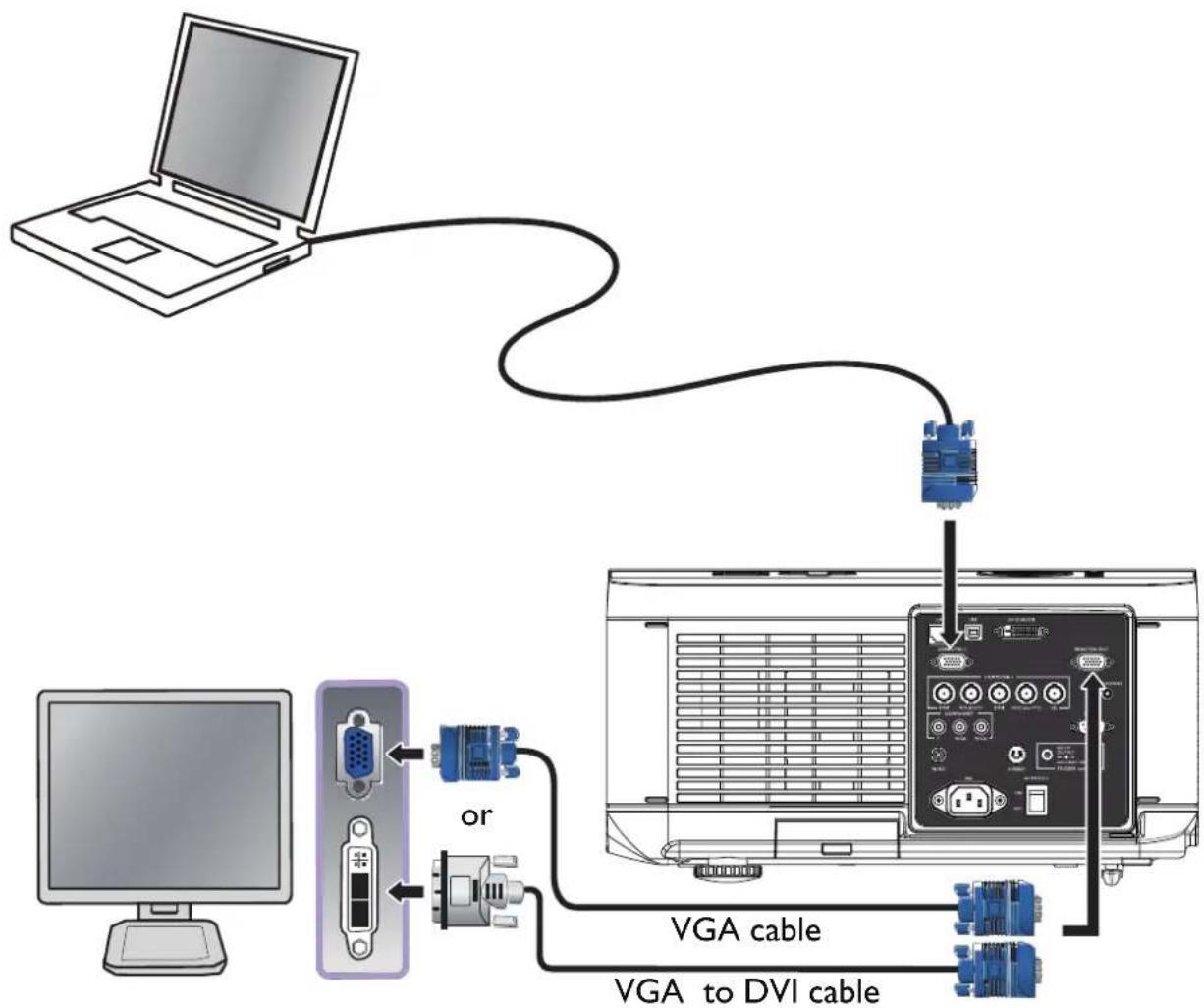
Connecting a monitor 24
Using the projector 25
Preparations 25
Turning the projector on or off 26
Selecting an input source 27
To select the video source: 27
Using the menus 28
Adjusting the projected Image 29
Adjusting the image position 29
Fine-tuning the image size and clarity 30
Adjusting the projection angle 30
Correcting picture distortion 31
Auto-adjusting the image 31
Turning off the Projector 32
Using On-Screen Display 33
Using the Menus 33
Navigating the OSD 33
On-Screen Display (OSD) menus 34
Menu Map 34
Picture 36
Signal 40
Video 41
Setup 42
Installation 48
Preventing the Unauthorized Use of the Projector 56
Unlocking the Projector 57
Using the Physical Lock 57
Additional information 58
Care of the projector 58
Cleaning the lens 58
Cleaning the projector case 58
Storing the projector 58
Transporting the projector 58
Installing the Optional Color Wheel 62
Cleaning the Filters 64
Troubleshooting 66
Indicator Messages 66
Common Problems and Solutions 67
Tips for Troubleshooting 67
Image Problems 68
Specifications 70
Dimensions 71
Timing chart 72
3D Supported Timing 73
RS232 Command Control 74
Thank you for your purchase of this quality BenQ projector. For the best results, please read this manual through carefully as it is your guide through the control menus and operation.
Important safety instructions
Your projector is designed and tested to meet the latest standards for safety of information technology equipment. However, to ensure safe use of this product, it is important that you follow the instructions mentioned in this manual and marked on the product.
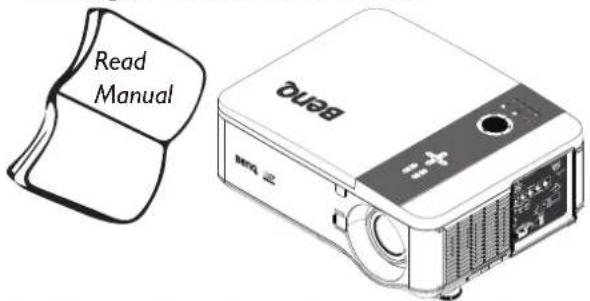
- Please read this user manual before you operate your projector. Keep this manual in a safe place for future reference.
- Always place the projector on a level, horizontal surface during operation.
- Do not place the projector on an unstable cart, stand, or table as it may fall and be damaged.
- Do not place inflammables near the projector.
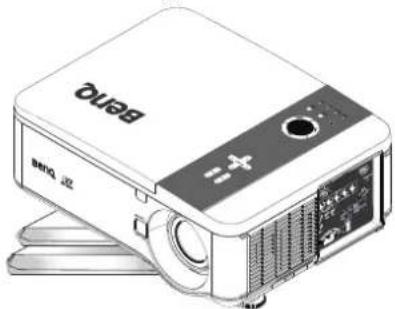
- Do not use if tilted at an angle of more than 10 degrees left to right, nor at angle of more than 15 degrees front to back.
natural_image
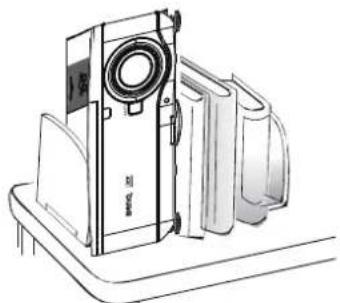
Illustration of a Baidu projector with front panel and control buttons (no text or symbols on device body)- Do not store the projector on end vertically. Doing so may cause the projector to fall over, causing injury or resulting in damage.
natural_image
Line drawing of a vintage camera mounted on a tray with stacked books beside it (no text or symbols)- Do not place the projector in any of the following environments:
- space that is poorly ventilated or confined. Allow at least 50 cm clearance from walls and free flow of air around the projector.
- locations where temperatures may become excessively high, such as the inside of a car with all windows closed.
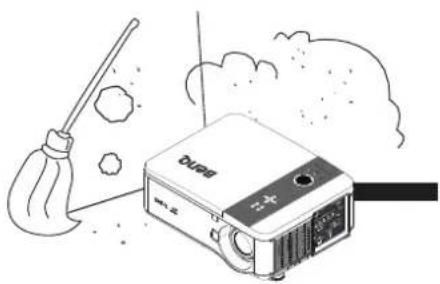
- locations where excessive humidity, dust, or cigarette smoke may contaminate optical components, shorten the projector's lifespan and darken the screen.
natural_image
Illustration of a cleaning or cleaning device with a broom and a paperclip, no text or symbols present.- locations near fire alarms.
- locations with an ambient temperature above 35^ C/ 95^ F.
- locations where altitude is higher than 1500 meters/4920 feet above sea level.
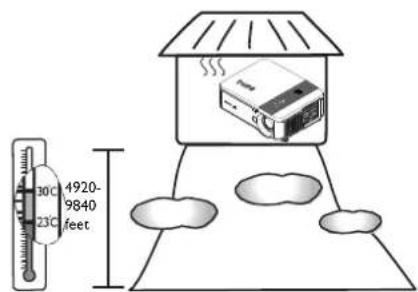
- Do not block the vents holes while the projector is on (even in standby mode):
- Do not cover the projector with any item. - Do not place the projector on a blanket, bedding or any other soft surface.
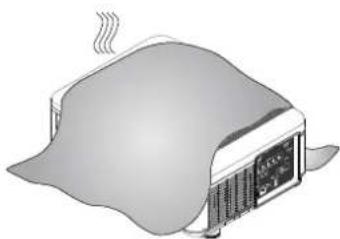
natural_image
Illustration of a toaster with steam rising from its side (no text or symbols)- In areas where the mains power supply voltage may fluctuate by ±10 volts, it is recommended that you connect your projector through a power stabilizer, surge protector or uninterruptible power supply (UPS) as appropriate to your situation.
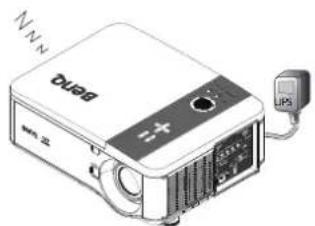
natural_image
Illustration of a Dusg projector with a small connected power outlet (no text or symbols on the device body)- Do not step on the projector or place any objects upon it.
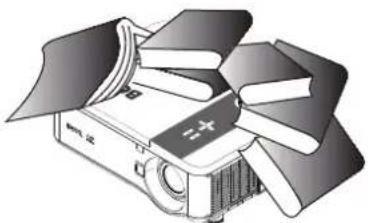
natural_image
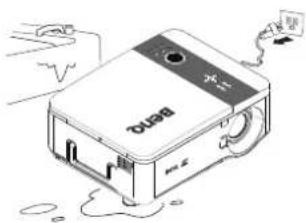
Illustration of a projector with open lid and multiple books on top (no text or symbols)- Do not place liquids near or on the projector.
Liquids spilled into the projector will void your warranty. If the projector does become wet, disconnect it from the power point and call BenQ to have the projector repaired.
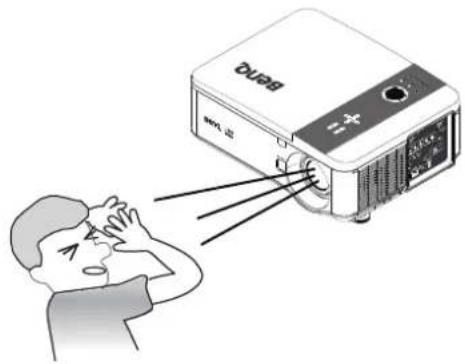
- Do not look straight into the projector lens during operation. It may harm your sight.
- Do not operate the projector lamp beyond the rated lamp life. Excessive operation of lamps beyond the rated life could cause a lamp to break on rare occasions.
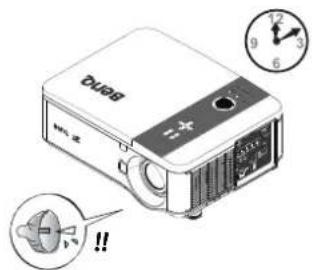
- The lamp becomes extremely hot during operation. Allow the projector to cool for approximately 45 minutes prior to removing the lamp assembly for replacement.
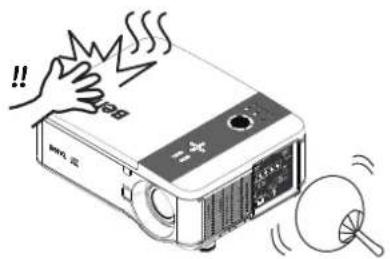
- This projector is capable of displaying inverted images for ceiling mount installation. Use only BenQ's Ceiling Mount Kit for mounting.
natural_image
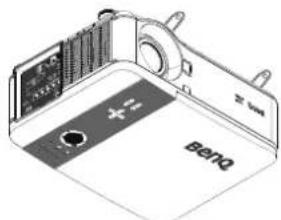
Diagram of a device casing with labeled ports and a brand name 'Beng' (no text or symbols beyond branding)- Never attempt to replace the lamp assembly until the projector has cooled down and is unplugged from the power supply.
natural_image
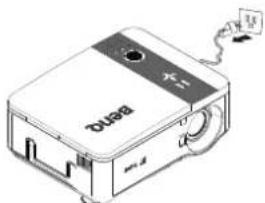
Illustration of a beige electronic device labeled 'Bened' with a cable and indicator lights (no readable text or symbols beyond branding)- When you think service or repair is required, take the projector only to a suitably qualified technician.
natural_image
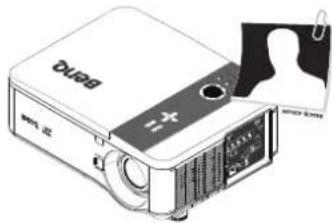
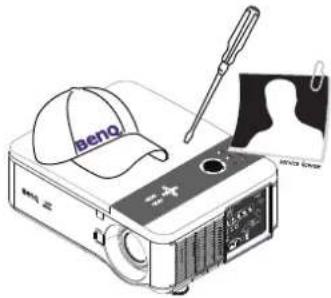
Illustration of a projector with a screen and lens, no visible text or symbols- Do not attempt to disassemble this projector.
There are dangerous high voltages inside which may cause death if you should come into contact with live parts. The only user serviceable part is the lamp which has its own removable cover.
Under no circumstances should you ever undo or remove any other covers. Refer servicing only to suitably qualified professional service personnel.
natural_image
Illustration of a projector with a cap and screwdriver, no text or symbols present
Please keep the original packing for possible future shipment.
Overview
Shipping contents
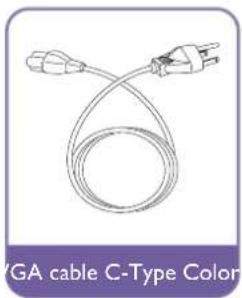
Carefully unpack and verify that you have the items below. Some of the items may not be available depending on your region of purchase. Please check with your place of purchase.

Some of the accessories may vary from region to region.
The warranty card is only supplied in some specific regions. Please consult your dealer for detailed information.
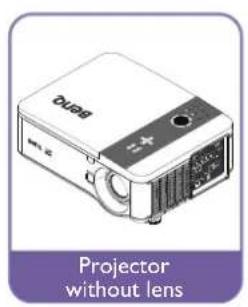
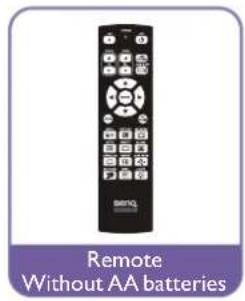
natural_image
Illustration of a CD or DVD disc with visible internal components (no text or symbols)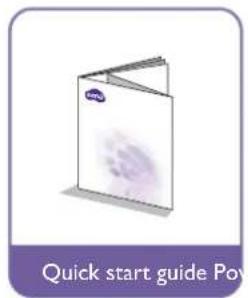
natural_image
Line drawing of a cable with two connectors and a coiled cord, labeled 'GA cable C-Type Color' below (no other text or symbols)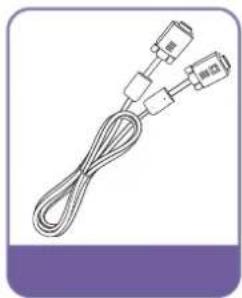
natural_image
Coiled cable with connectors and connectors, no visible text or symbols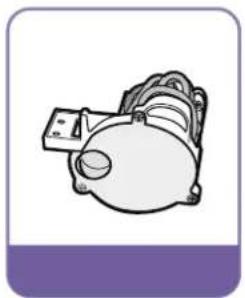
natural_image
Illustration of a mechanical component with no visible text or symbols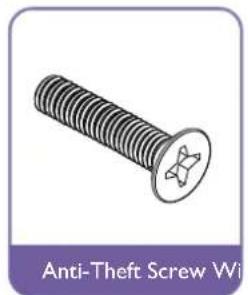
natural_image
Illustration of a bolt with a star-shaped head (no text or symbols on the screw itself)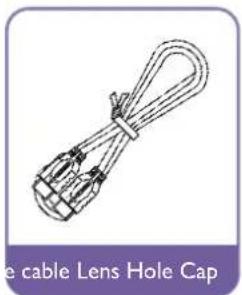
natural_image
Line drawing of a cable with a looped cable and connectors (no text or symbols)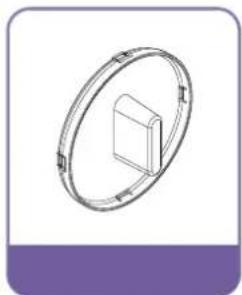
natural_image
Simple line drawing of a circular frame enclosing a rectangular object, with no text or symbols present.Projector exterior view
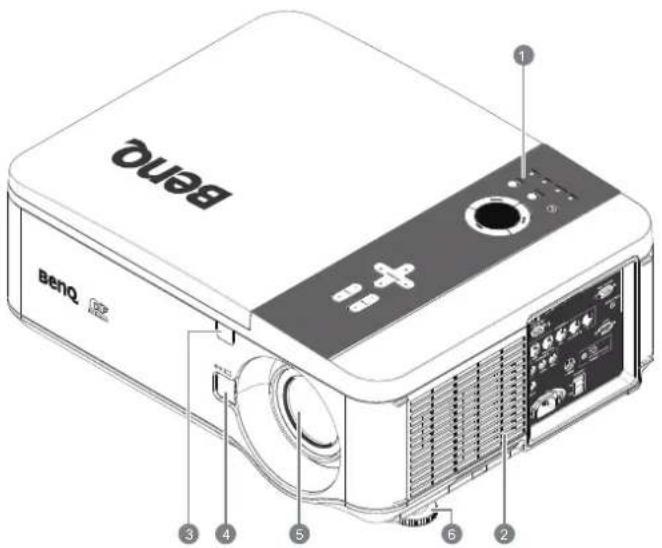
Front and upper side view
Rear View
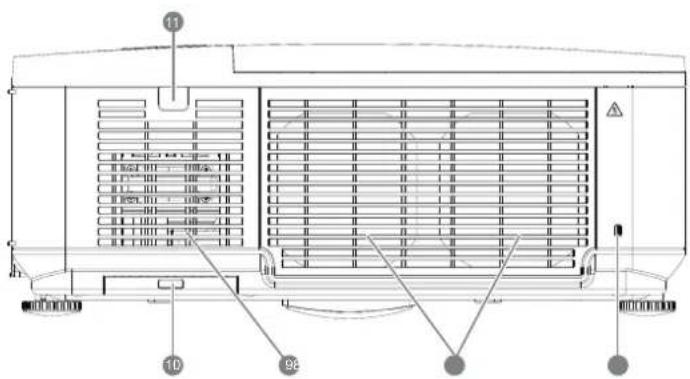
Left side view
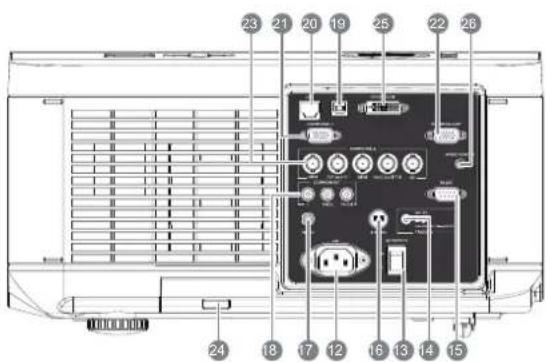
I. Control Panel
2. Air Inlet
3. Front IR sensor
4. Lens Release button
5. Lens (Remove lens hole cap before use)
6. Foot for adjusting projector level
-
Kensington Lock
-
Air Exhaust
-
Air Inlet
-
Air Filter
II. Rear IR sensor
- AC Power Cable Inlet
- AC Power Switch
- Screen Trigger output
- RS-232 control input
- S-Video input
- Video input
- Components Y/Pb(Cb)/Pr(Cr) input
- USB port for service
- LAN-RJ45
- Computer I, D-Sub VGA input
- Monitor Out, only for computer I.
- Computer 2, RGBHV(H+V), Y/Pb(CB)/Pr(Cr) input
- Air Filter
- DVI-D Input
- Wired Remote
Upper Right side View
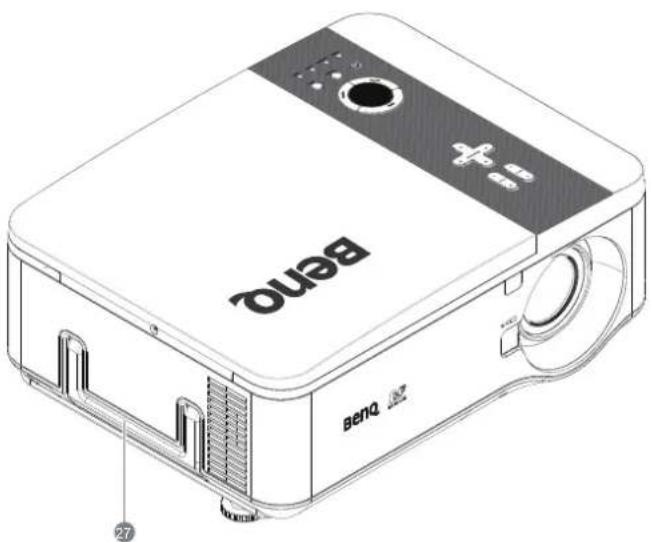
- Handle
Under View
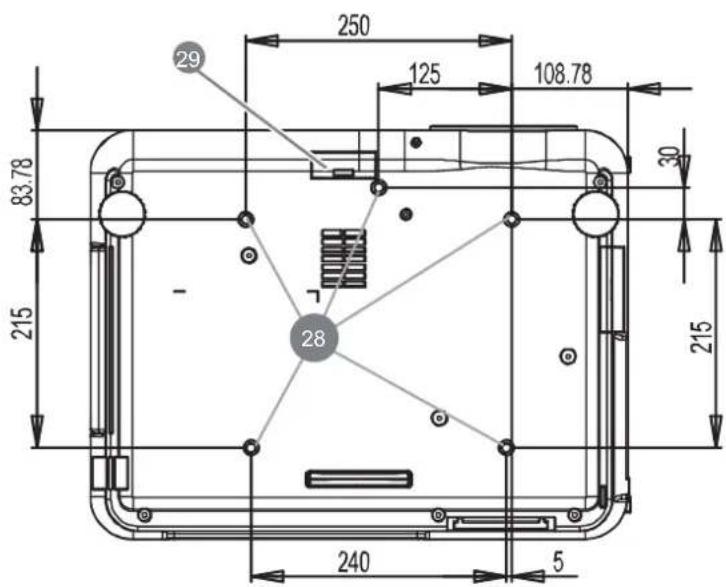
- Ceiling support holes (Mounting Screw: M4*12mm)
- Air Filter
Control panel and functions
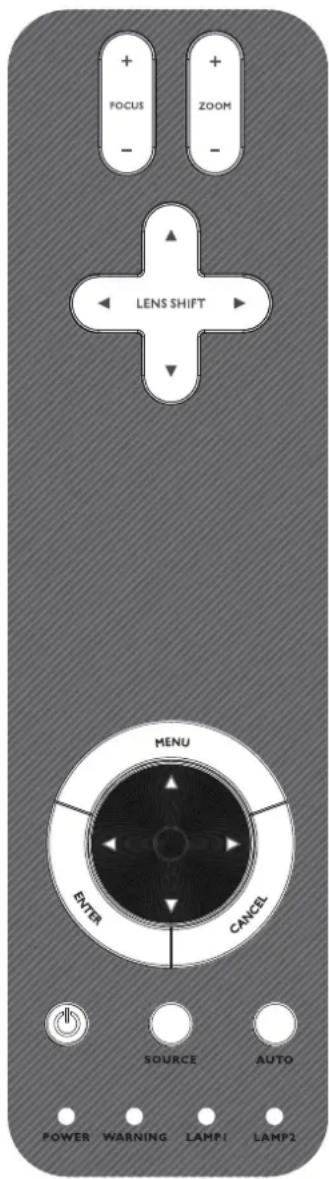
| Devices Function | |
| FOCUS+ | Focus the projected image |
| FOCUS- | |
| ZOOM+ | Increase/decrease projected image size |
| ZOOM- | |
| UP BOTTON | Control Lens shift to Move image left, right, up, or down |
| RIGHT BOTTON | |
| DOWN BOTTON | |
| LEFT BOTTON | |
| MENU Open / Close the OSD | |
| UP/ DOWN/ LEFT/ RIGHT BUTTONS | Navigate and change settings in the OSD |
| ENTER Select or change settings in the OSD | |
| CANCEL Exit the On-Screen Display (OSD) | |
| POWER | Turn the projector on or off(main power switch must be turned on first).Press to place the projector in standby mode |
| Source Select the input source | |
| AUTO | Auto Sync to optimize image size, position, and resolution |
| Power (LED) | Green / Red / Orange / FlashingSee Indicator Messagespage 66 Troubleshooting |
| WARNING (LED) | Green / Red / Orange / FlashingSee Indicator Messagespage 66 Troubleshooting |
| LAMP 1 (LED) | Green / Flashing, See Indicator Messagespage 66 Troubleshooting |
| LAMP 2 (LED) | |
Remote control and functions
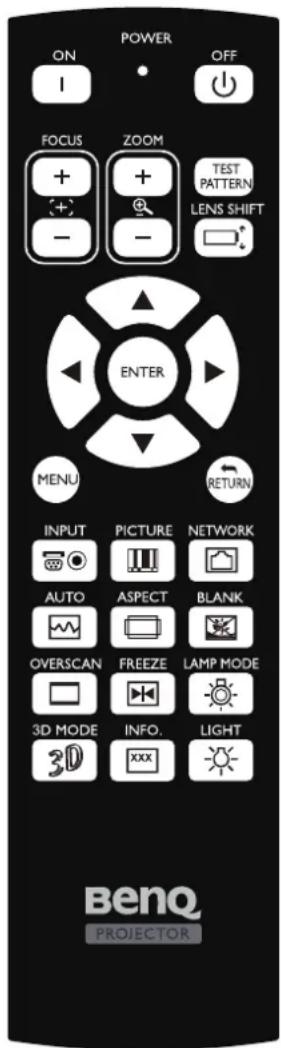
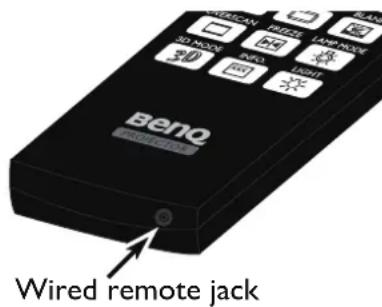
| Devices Function | |
| Status LED Lights | when the remote control is used |
| ON Turn the projector on at standby mode | |
| OFF Turn the projector off (standby mode) | |
| FOCUS+ Focus the projection image | |
| FOCUS- Focus the projection image | |
| ZOOM + Increase the projection image size | |
| ZOOM - Reduce the projection image size | |
| TEST PATTERN Test Pattern selection | |
| LENS SHIFT Adjust lens shift range | |
| UP Move OSD cursor up | |
| RIGHT Move OSD cursor right or enter submenu | |
| DOWN Move OSD cursor down | |
| LEFT | Move OSD cursor right or enter submenu |
| ENTER | Select or change setting in the OSD |
| MENU | Display OSD main menu |
| RETURN | Return to last OSD page or exit menu |
| INPUT | Select image to display. |
| PICTURE | Display picture menu |
| NETWORK | LAN input control |
| AUTO SYNC | Auto adjustment for phase, tracking, size, position |
| ASPECT | Set up aspect ratio of the projected image |
| OVERSCAN | Enable or disable the overscan function |
| FREEZE | Freeze/unfreezes the on-screen picture |
| 3D MODE | Open the 3D Mode menu |
| INFO. | Display the Information menu |
| LIGHT | Illuminates the buttons on the remote control for 10 sec. |
| BLANK | Enable or disable the display image function |
| LAMP MODE | Display or change the Lamp Control Manu |
| Wired remote jack | Connecting the remote cable to the jack on the projector |
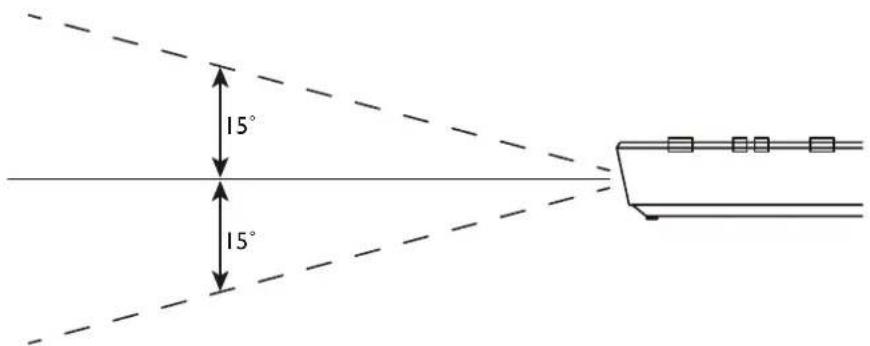
Remote control operation
- Make sure that there is nothing positioned between the remote control and the infrared (IR) sensors on the projector that might obstruct the IR beam from the remote control reaching the projector.
- The effective range of the remote control is up to 7 meters, and at an angle within 30 degrees of the IR beam. Always aim straight at the projector, however most screens will also reflect the IR beam to the projector.
Setup and Operation
Setting the remote control batteries
-
To open the battery cover, turn the remote control over to view its back, push on the finger grip on the cover and slide it up in the direction of the arrow as illustrated. The cover will slide off.
-
Remove any existing batteries (if necessary) and install two new AA batteries observing the battery polarities as indicated in the base of the battery compartment. Positive (+) goes to positive and negative (-) goes to negative.
-
Refit the cover by aligning it with the case and sliding it back up into position. Stop when it clicks into place.

flowchart
graph LR
    A["External Control Panel"] --> B["Internal Control Panel"]
    B --> C["Downward Arrow to Internal Panel"]
    style A fill:#f9f,stroke:#333
    style B fill:#ccf,stroke:#333
    style C fill:#cfc,stroke:#333

• Do not mix old batteries with new ones, or mix different types of batteries.
- Avoid leaving the remote control and batteries in an excessive hot or humid environment like the kitchen, bathroom, sauna, sunroom, or in a closed car.
- Dispose of used batteries according to the battery manufacturer's instructions and local environment regulations for your region.
- If the remote control will not be used for an extended period of time, remove the batteries to avoid damage to the control from possible battery leakage.
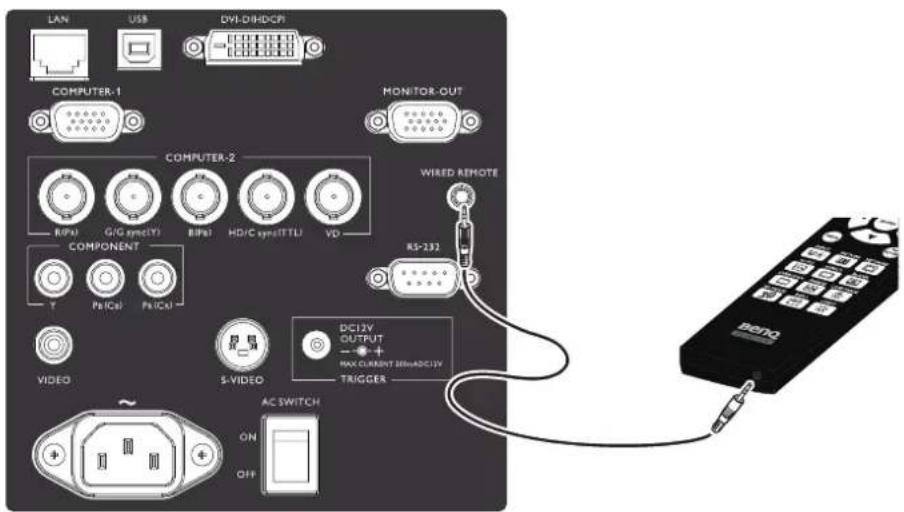
Connecting to the projector
If the path between the remote control and the projector is obstructed or remote control operation is disrupt by certain high-frequency fluorescent lights, you can connect to the projector with M3 stereo mini jack cable to operate the projector.
Projection lens selection and Installation

When installing the lens into the projector, be sure to remove the lens cap from the back of the optional lens before installing the optional lens into the projector. Failure to do so will cause damage to the projector.
Installing or Removing the Optional Lens Installing the New Lens
I. Remove the lens cap.
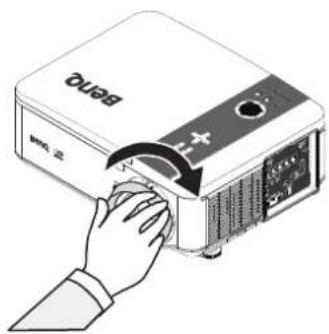
Push LENS CHANGE button and then insert the Lens with arrow mark on top.
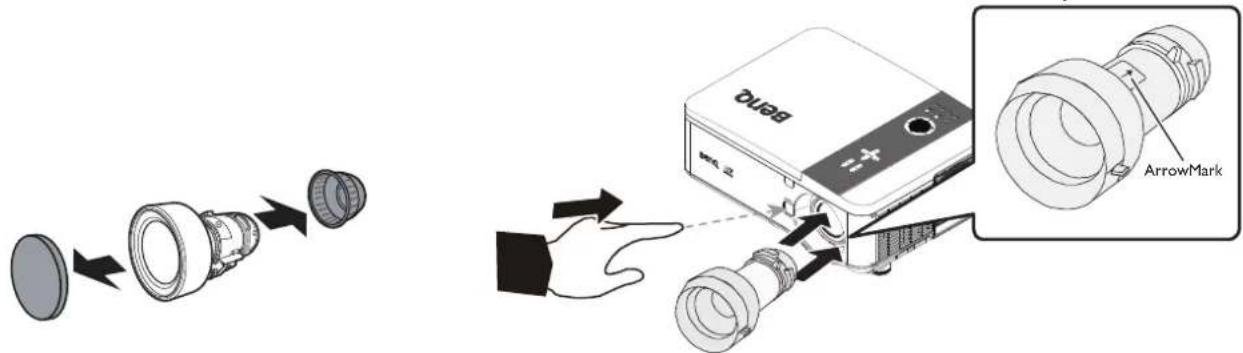
- No more push LENS CHANGE button after lens insertion. Rotate the Lens clockwise until click sound twice.
natural_image
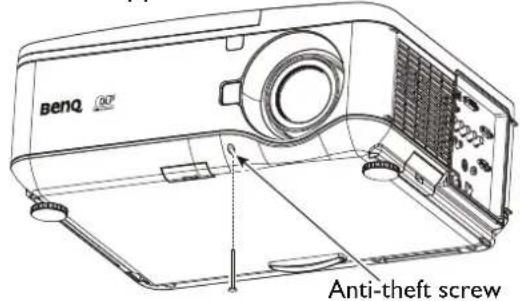
Illustration of a hand inserting a projector into a device (no text or symbols visible)Installing the New Lens Using the Anti-theft Screw
Using the anti-theft screw to prevent theft of the lens.
Tighten the supplied anti-theft screw on the front bottom.
Removing the Existing Lens From the Projector
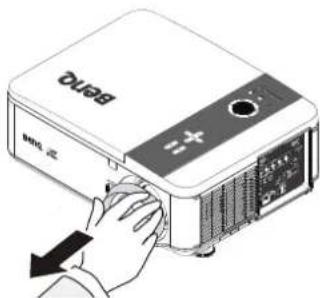
- Push the LENS CHANGE button all the way in and rotate the lens counterclockwise. The existing lens will be disengaged.
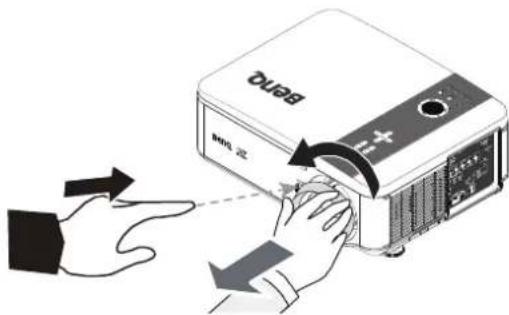
- Pull out the existing lens slowly.

- Do not shake or place excessive pressure on the projector or the lens components as the projector and lens components contain precision parts.
- Before removing or installing the lens, be sure to turn off the projector, wait until the cooling fans stop, and turn off the main power switch.
• Do not touch the lens surface when removing or installing the lens. - Keep fingerprints, dust or oil off the lens surface. Do not scratch the lens surface.
• If you remove and store the lens, attach the lens cap to the projector to keep off dust and dirt.
Choosing a location
Your projector is designed to be installed in one of four possible installation locations.
Your room layout or personal preference will dictate which installation location you select. Take into consideration the size and position of your screen, the location of a suitable power outlet, as well as the location and distance between the projector and the rest of your equipment.
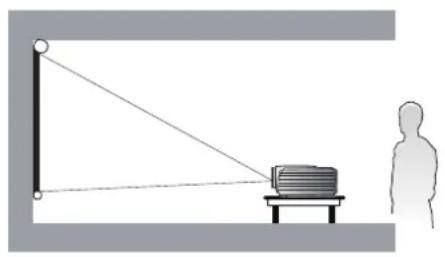
1. Front:
Select this location with the projector placed near the floor in front of the screen. This is the most common way to position the projector for quick setup and portability.
3. Rear:
Select this location with the projector placed near the floor behind the screen. Note that a special rear projection screen is required.
*Set Floor Rear after you turn the projector on.
natural_image
Simple line drawing of a person observing a computer monitor on a table, with no text or symbols present.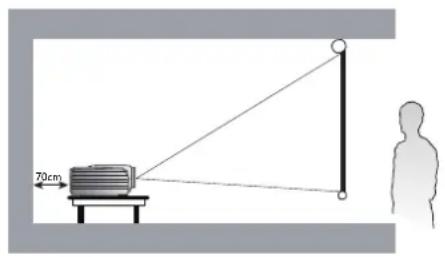
2. Ceiling + Front:
Select this location with the projector suspended from the ceiling in front of the screen. Purchase the BenQ Projector Ceiling Mount Kit from your dealer to mount your projector on the ceiling.
*Set Ceiling Front after you turn the projector on.
4. Ceiling + Rear:
Select this location with the projector suspended from the ceiling behind the screen.
Note that a special rear projection screen and the BenQ Projector Ceiling Mount Kit are required for this installation location.
*Set Ceiling Rear after you turn the projector on.
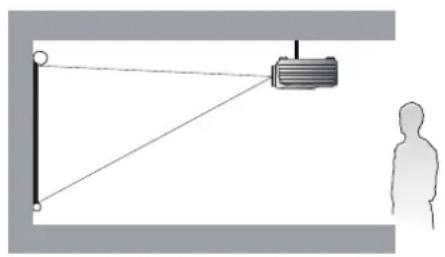
natural_image
Diagram showing a person observing a device mounted on a pole, with no visible text or symbols.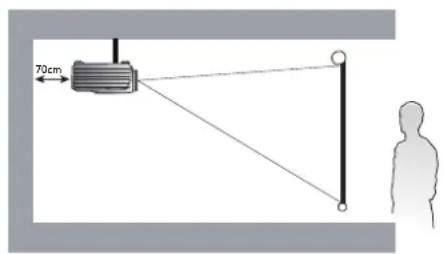
Throw distance and screen size
Example of PW9500 using Standard lens:
The further your projector is from the screen or wall, the larger the image. The minimum size the image can be is approximately 40 inches (1 m) measured diagonally when the projector is roughly 79.8 inches (2.03 m) from the wall or screen. The largest the image can be is 500 inches (12.7 m) when the projector is about 1028 inches (26.11 m) from the wall or screen.
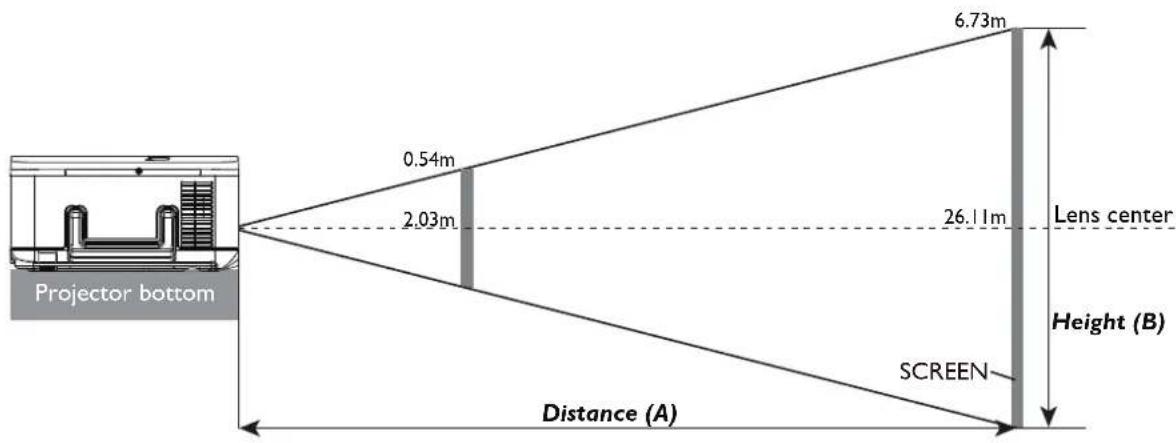
PW9500
| Screen Size | JAM37.021 5J.JAM37.001 5J.JAM37.051 | ||||||||||||||||||
| Wide Fix Lens Wide Zoom Lens STD Lens $emi long Zooml | |||||||||||||||||||
| Diagonal Width Height(B) Distance(A) | |||||||||||||||||||
| N/A Wide Tele Wide Tele Wide Tele | |||||||||||||||||||
| (inch) | (m) | (inch) | (m) | (inch) | (m) | (inch) | (m) | (inch) | (m) | (inch) | (m) | (inch) | (m) | (inch) | (m) | (inch) | (m) | (inch) | (m) |
| 40 | 1.02 | 34 | 0.86 | 21 | 0.54 | 26.4 | 0.67 | 43.6 | 1.11 | 63.1 | 1.60 | 60.2 | 1.53 | 79.8 | 2.03 | 77.6 | 1.97 | 130.5 | 3.31 |
| 50 | 1.27 | 42 | 1.08 | 26 | 0.67 | 33.5 | 0.85 | 55.0 | 1.40 | 79.3 | 2.01 | 75.9 | 1.93 | 100.4 | 2.55 | 97.8 | 2.48 | 163.9 | 4.16 |
| 60 | 1.52 | 51 | 1.29 | 32 | 0.81 | 40.5 | 1.03 | 66.4 | 1.69 | 95.5 | 2.43 | 91.7 | 2.33 | 121.0 | 3.07 | 117.9 | 3.00 | 197.3 | 5.01 |
| 80 | 2.03 | 68 | 1.72 | 42 | 1.08 | 54.7 | 1.39 | 89.3 | 2.27 | 128.0 | 3.25 | 123.1 | 3.13 | 162.3 | 4.12 | 158.3 | 4.02 | 264.1 | 6.71 |
| 100 | 2.54 | 85 | 2.15 | 53 | 1.35 | 68.8 | 1.75 | 112.1 | 2.85 | 160.5 | 4.08 | 154.5 | 3.93 | 203.5 | 5.17 | 198.7 | 5.05 | 330.9 | 8.41 |
| 120 | 3.05 | 102 | 2.58 | 64 | 1.62 | 82.9 | 2.11 | 135.0 | 3.43 | 193.0 | 4.90 | 186.0 | 4.72 | 244.7 | 6.22 | 239.0 | 6.07 | 397.7 | 10.10 |
| 150 | 3.81 | 127 | 3.23 | 79 | 2.02 | 104.1 | 2.64 | 169.2 | 4.30 | 241.7 | 6.14 | 233.1 | 5.92 | 306.5 | 7.79 | 299.6 | 7.61 | 498.0 | 12.65 |
| 180 | 4.57 | 153 | 3.88 | 95 | 2.42 | 125.3 | 3.18 | 203.5 | 5.17 | 290.4 | 7.38 | 280.3 | 7.12 | 368.4 | 9.36 | 360.1 | 9.15 | 598.2 | 15.19 |
| 200 | 5.08 | 170 | 4.31 | 106 | 2.69 | 139.4 | 3.54 | 226.4 | 5.75 | 322.9 | 8.20 | 311.7 | 7.92 | 409.6 | 10.40 | 400.5 | 10.17 | 665.0 | 16.89 |
| 300 | 7.62 | 254 | 6.46 | 159 | 4.04 | 210.0 | 5.33 | 340.6 | 8.65 | 485.3 | 12.33 | 468.9 | 11.91 | 615.7 | 15.64 | 602.3 | 15.30 | 999.0 | 25.38 |
| 400 | 10.16 | 339 | 8.62 | 212 | 5.38 | 280.6 | 7.13 | 454.8 | 11.55 | 647.7 | 16.45 | 626.1 | 15.90 | 821.9 | 20.88 | 804.1 | 20.42 | 1333.1 | 33.86 |
| 500 | 12.70 | 424 | 10.77 | 265 | 6.73 | 351.2 | 8.92 | 569.0 | 14.45 | 810.1 | 20.58 | 783.3 | 19.90 | 1028.0 | 26.11 | 1005.9 | 25.55 | 1667.1 | 42.35 |
| Screen Size | 5J.JAM37.031 | 5J.JAM37.041 | 5J.JAM37.061 | ||||||||||||||
| Long Zoom 1 Lens | Long zoom 2 Lens Ultra Wide zoom Lens | ||||||||||||||||
| Diagonal Width Height(B) | Distance(A) | ||||||||||||||||
| Wide Tele | Wide Tele Wide | Tele | |||||||||||||||
| (inch) | (m) | (inch) | (m) | (inch) | (m) | (inch) | (m) | (inch) | (m) | (inch) | (m) | (inch) | (m) | (inch) | (m) | (inch) | (m) |
| 40 | 1.02 | 34 | 0.86 | 21 | 0.54 | 124.9 | 3.17 | 190.3 | 4.83 | 183.3 | 4.65 | 292.2 | 7.42 | 25.8 | 0.65 | 32.8 | 0.83 |
| 50 | 1.27 | 42 | 1.08 | 26 | 0.67 | 157.5 | 4.00 | 239.2 | 6.08 | 232.0 | 5.89 | 368.1 | 9.35 | 32.7 | 0.83 | 41.4 | 1.05 |
| 60 | 1.52 | 51 | 1.29 | 32 | 0.81 | 190.1 | 4.83 | 288.1 | 7.32 | 280.7 | 7.13 | 444.0 | 11.28 | 39.6 | 1.00 | 50.0 | 1.27 |
| 80 | 2.03 | 68 | 1.72 | 42 | 1.08 | 255.2 | 6.48 | 385.9 | 9.80 | 378.1 | 9.60 | 595.9 | 15.13 | 53.3 | 1.35 | 67.3 | 1.71 |
| 100 | 2.54 | 85 | 2.15 | 53 | 1.35 | 320.3 | 8.14 | 483.7 | 12.29 | 475.6 | 12.08 | 747.7 | 18.99 | 67.1 | 1.70 | 84.5 | 2.15 |
| 120 | 3.05 | 102 | 2.58 | 64 | 1.62 | 385.5 | 9.79 | 581.5 | 14.77 | 573.0 | 14.55 | 899.6 | 22.85 | 80.9 | 2.05 | 101.8 | 2.59 |
| 150 | 3.81 | 127 | 3.23 | 79 | 2.02 | 483.2 | 12.27 | 728.2 | 18.50 | 719.1 | 18.27 | 1127.3 | 28.63 | 101.6 | 2.58 | 127.6 | 3.24 |
| 180 | 4.57 | 153 | 3.88 | 95 | 2.42 | 580.9 | 14.75 | 874.9 | 22.22 | 865.3 | 21.98 | 1355.1 | 34.42 | 122.2 | 3.10 | 153.5 | 3.90 |
| 200 | 5.08 | 170 | 4.31 | 106 | 2.69 | 646.0 | 16.41 | 972.7 | 24.71 | 962.7 | 24.45 | 1506.9 | 38.28 | 136.0 | 3.45 | 170.8 | 4.34 |
| 300 | 7.62 | 254 | 6.46 | 159 | 4.04 | 971.7 | 24.68 | 1461.8 | 37.13 | 1449.9 | 36.83 | 2266.2 | 57.56 | 204.9 | 5.20 | 257.0 | 6.53 |
| 400 | 10.16 | 339 | 8.62 | 212 | 5.38 | 1297.3 | 32.95 | 1950.8 | 49.55 | 1937.1 | 49.20 | 3025.4 | 76.85 | 273.8 | 6.95 | 343.2 | 8.72 |
| 500 | 12.70 | 424 | 10.77 | 265 | 6.73 | 1623.0 | 41.22 | 2439.8 | 61.97 | 2424.2 | 61.58 | 3784.7 | 96.13 | 342.7 | 8.70 | 429.4 | 10.91 |
PX9600
| Screen Size | J.JAM37.02 | 5J.JAM37.001 5J.JAM37.051 | |||||||||||||||||
| Wide Fix Lens | Wide Zoom Lens STD Lens Semi long Zoom I | |||||||||||||||||
| Diagonal Width Height(B) | Distance(A) | |||||||||||||||||
| N/A | Wide | Tele | Wide | Tele | Wide | Tele | ||||||||||||
| (inch) | (m) | (inch) | (m) | (inch) | (m) | (inch) | (m) | (inch) | (m) | (inch) | (m) | (inch) | (m) | (inch) | (m) | (inch) | (m) | (inch) |
| 40 | 1.02 | 32 | 0.81 | 24 | 0.61 | 24.5 | 0.62 | 40.4 | 1.03 | 58.5 | 1.49 | 55.8 | 1.42 | 74.1 | 1.88 | 71.9 | 1.83 | 121.3 |
| 50 | 1.27 | 40 | 1.02 | 30 | 0.76 | 31.0 | 0.79 | 51.0 | 1.30 | 73.6 | 1.87 | 70.4 | 1.79 | 93.2 | 2.37 | 90.7 | 2.30 | 152.4 |
| 60 | 1.52 | 48 | 1.22 | 36 | 0.91 | 37.6 | 0.96 | 61.6 | 1.57 | 88.8 | 2.25 | 85.1 | 2.16 | 112.4 | 2.86 | 109.5 | 2.78 | 183.5 |
| 80 | 2.03 | 64 | 1.63 | 48 | 1.22 | 50.8 | 1.29 | 82.9 | 2.11 | 119.0 | 3.02 | 114.3 | 2.90 | 150.8 | 3.83 | 147.0 | 3.73 | 245.7 |
| 100 | 2.54 | 80 | 2.03 | 60 | 1.52 | 63.9 | 1.62 | 104.1 | 2.65 | 149.2 | 3.79 | 143.5 | 3.65 | 189.1 | 4.80 | 184.6 | 4.69 | 307.9 |
| 120 | 3.05 | 96 | 2.44 | 72 | 1.83 | 77.1 | 1.96 | 125.4 | 3.18 | 179.4 | 4.56 | 172.8 | 4.39 | 227.4 | 5.78 | 222.1 | 5.64 | 370.1 |
| 150 | 3.81 | 120 | 3.05 | 90 | 2.29 | 96.8 | 2.46 | 157.3 | 3.99 | 224.8 | 5.71 | 216.7 | 5.50 | 285.0 | 7.24 | 278.4 | 7.07 | 463.4 |
| 180 | 4.57 | 144 | 3.66 | 108 | 2.74 | 116.6 | 2.96 | 189.1 | 4.80 | 270.1 | 6.86 | 260.5 | 6.62 | 342.5 | 8.70 | 334.8 | 8.50 | 556.7 |
| 200 | 5.08 | 160 | 4.06 | 120 | 3.05 | 129.7 | 3.30 | 210.4 | 5.34 | 300.3 | 7.63 | 289.8 | 7.36 | 380.8 | 9.67 | 372.3 | 9.46 | 618.9 |
| 300 | 7.62 | 240 | 6.1 | 180 | 4.57 | 195.5 | 4.97 | 316.6 | 8.04 | 451.5 | 11.47 | 436.0 | 11.07 | 572.6 | 14.54 | 560.0 | 14.23 | 930.0 |
| 400 | 10.16 | 320 | 8.13 | 240 | 6.1 | 261.3 | 6.64 | 422.9 | 10.74 | 602.6 | 15.31 | 582.2 | 14.79 | 764.3 | 19.41 | 747.8 | 18.99 | 1241.0 |
| 500 | 12.70 | 400 | 10.16 | 300 | 7.62 | 327.1 | 8.31 | 529.1 | 13.44 | 753.7 | 19.14 | 728.5 | 18.50 | 956.1 | 24.28 | 935.5 | 23.76 | 1552.0 |
| Screen Size | 5J.JAM37.03 | 5J.JAM37.04 | 5J.JAM37.061 | ||||||||||||||||
| Long Zoom 1 Lens | Long zoom 2 Lens Ultra | Wide zoom Lens | |||||||||||||||
| Diagonal Width Height(B) | Distance(A) | ||||||||||||||||
| Wide | Tele | Wide | Tele | Wide | Tele | ||||||||||||
| (inch) | (m) | (inch) | (m) | (inch) | (m) | (inch) | (m) | (inch) | (m) | (inch) | (m) | (inch) | (m) | (inch) | (m) | (inch) | (m) |
| 40 | 1.02 | 32 | 0.81 | 24 | 0.61 | 115.9 | 2.94 | 176.8 | 4.49 | 169.6 | 4.31 | 271.2 | 6.89 | 23.9 | 0.61 | 30.4 | 0.77 |
| 50 | 1.27 | 40 | 1.02 | 30 | 0.76 | 146.2 | 3.71 | 222.3 | 5.65 | 215.0 | 5.46 | 341.9 | 8.68 | 30.3 | 0.77 | 38.4 | 0.98 |
| 60 | 1.52 | 48 | 1.22 | 36 | 0.91 | 176.5 | 4.48 | 267.9 | 6.80 | 260.3 | 6.61 | 412.6 | 10.48 | 36.7 | 0.93 | 46.5 | 1.18 |
| 80 | 2.03 | 64 | 1.63 | 48 | 1.22 | 237.1 | 6.02 | 358.9 | 9.12 | 350.9 | 8.91 | 554.0 | 14.07 | 49.5 | 1.26 | 62.5 | 1.59 |
| 100 | 2.54 | 80 | 2.03 | 60 | 1.52 | 297.7 | 7.56 | 450.0 | 11.43 | 441.6 | 11.22 | 695.3 | 17.66 | 62.4 | 1.58 | 78.6 | 2.00 |
| 120 | 3.05 | 96 | 2.44 | 72 | 1.83 | 358.2 | 9.10 | 541.0 | 13.74 | 532.2 | 13.52 | 836.7 | 21.25 | 75.2 | 1.91 | 94.7 | 2.40 |
| 150 | 3.81 | 120 | 3.05 | 90 | 2.29 | 449.1 | 11.41 | 677.6 | 17.21 | 668.2 | 16.97 | 1048.8 | 26.64 | 94.4 | 2.40 | 118.8 | 3.02 |
| 180 | 4.57 | 144 | 3.66 | 108 | 2.74 | 540.0 | 13.72 | 814.2 | 20.68 | 804.1 | 20.42 | 1260.9 | 32.03 | 113.7 | 2.89 | 142.9 | 3.63 |
| 200 | 5.08 | 160 | 4.06 | 120 | 3.05 | 600.6 | 15.26 | 905.3 | 22.99 | 894.8 | 22.73 | 1402.2 | 35.62 | 126.5 | 3.21 | 158.9 | 4.04 |
| 300 | 7.62 | 240 | 6.1 | 180 | 4.57 | 903.6 | 22.95 | 1360.5 | 34.56 | 1348.0 | 34.24 | 2109.1 | 53.57 | 190.7 | 4.84 | 239.2 | 6.08 |
| 400 | 10.16 | 320 | 8.13 | 240 | 6.1 | 1206.6 | 30.65 | 1815.8 | 46.12 | 1801.2 | 45.75 | 2816.0 | 71.53 | 254.9 | 6.47 | 319.5 | 8.12 |
| 500 | 12.70 | 400 | 10.16 | 300 | 7.62 | 1509.5 | 38.34 | 2271.1 | 57.69 | 2254.3 | 57.26 | 3522.9 | 89.48 | 319.1 | 8.10 | 399.9 | 10.16 |
!
- Ceiling installation must be done by a qualified professional. Contact your dealer for more information. It is not recommended you install the projector yourself.
• Only use the projector on a solid, level surface. Serious injury and damage can occur if the projector is dropped. - Do not use the projector in an environment where extreme temperature occurs. The projector must be used at temperatures between 41 degrees Fahrenheit (5 degrees Celsius) and 104 degrees Fahrenheit (40 degrees Celsius).
• Screen damage will occur if the projector is exposed to moisture, dust or smoke. - Do not cover the vents on the projector. Proper ventilation is required to dissipate heat. Damage to the projector will occur if the vents are covered.
Lens Shift Adjustable Range
The adjustable range for lens shift is tabulated below and subject to the conditions listed.

The drawings below apply to the standard lens only.
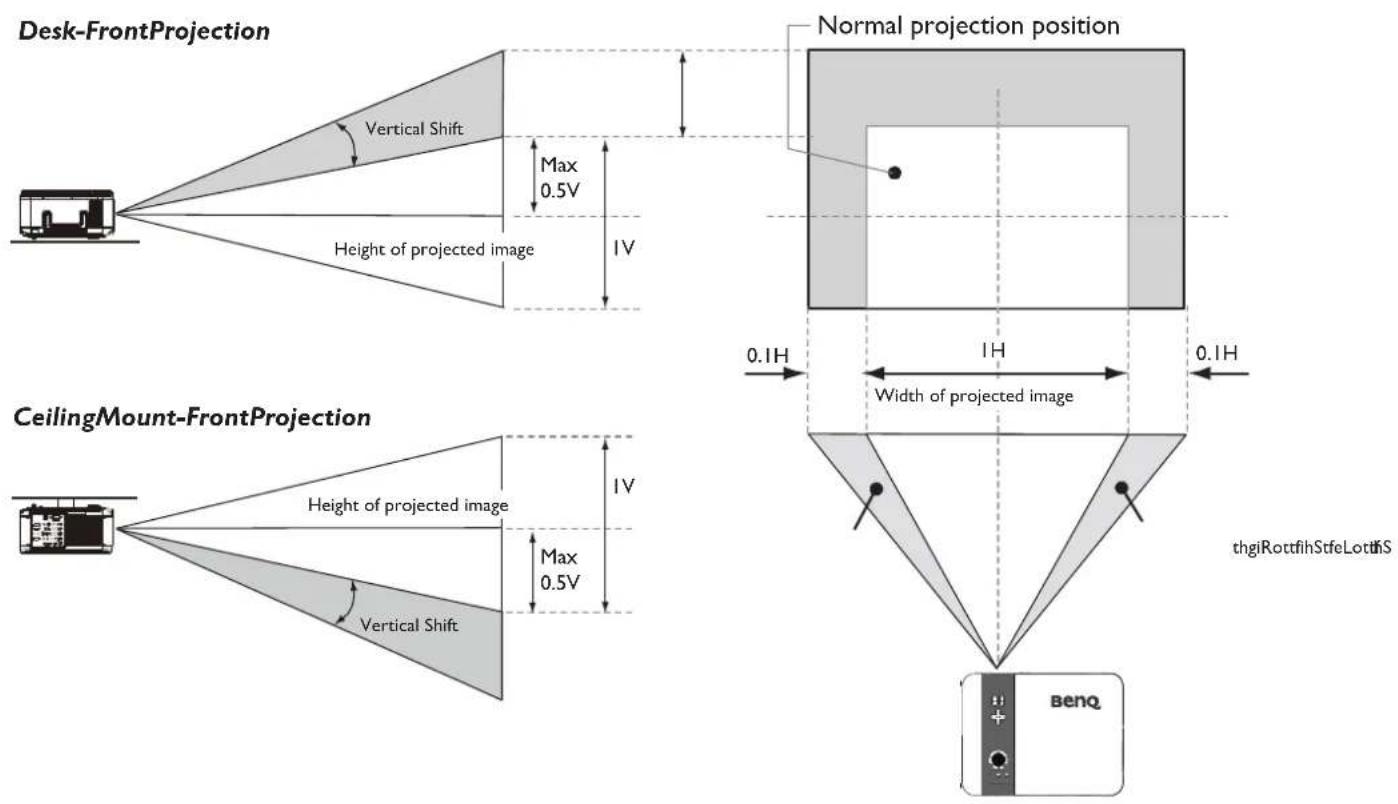
Making Connections
Preparations
When connecting a signal source to the projector, be sure to:
I. Turn off all equipment before making any connections.
2. Use only the correct type cables for each source with proper type plugs.
3. Ensure that all cable plugs are firmly fitted to the equipment jacks.

Note that all cables shown in the following connection diagrams may not be supplied with the projector (See "Shipping contents" on page 7 Shipping contents). Most cables are commercially available from electronics stores.
Connecting DVI-D devices
DVI-D (Digital Visual Interface) supports uncompressed video data transmission between compatible devices like DTV tuners, DVD players and displays over a single cable. It provides pure digital viewing and listening experience. You should use an DVI-D cable when making connection between the projector and DVI-D devices.

To make sure you select a correct input source type for the DVI-D signal.
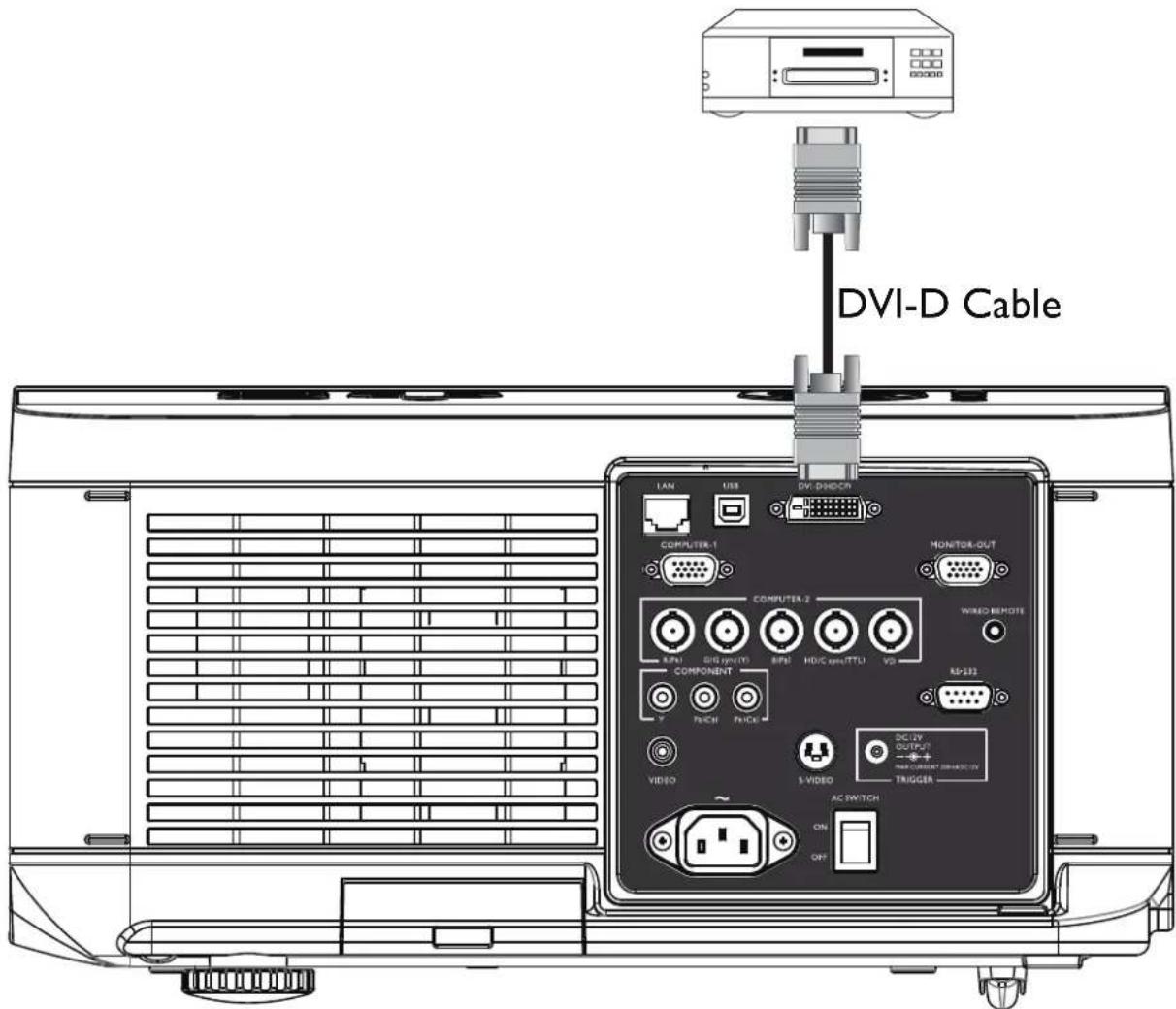
DVI-D device: DVD player, digital tuner, etc.
Connecting component-video devices
Be sure to match the corresponding colors between the cables and the terminals. The BNC type component video jacks are provided for connection to video output devices.
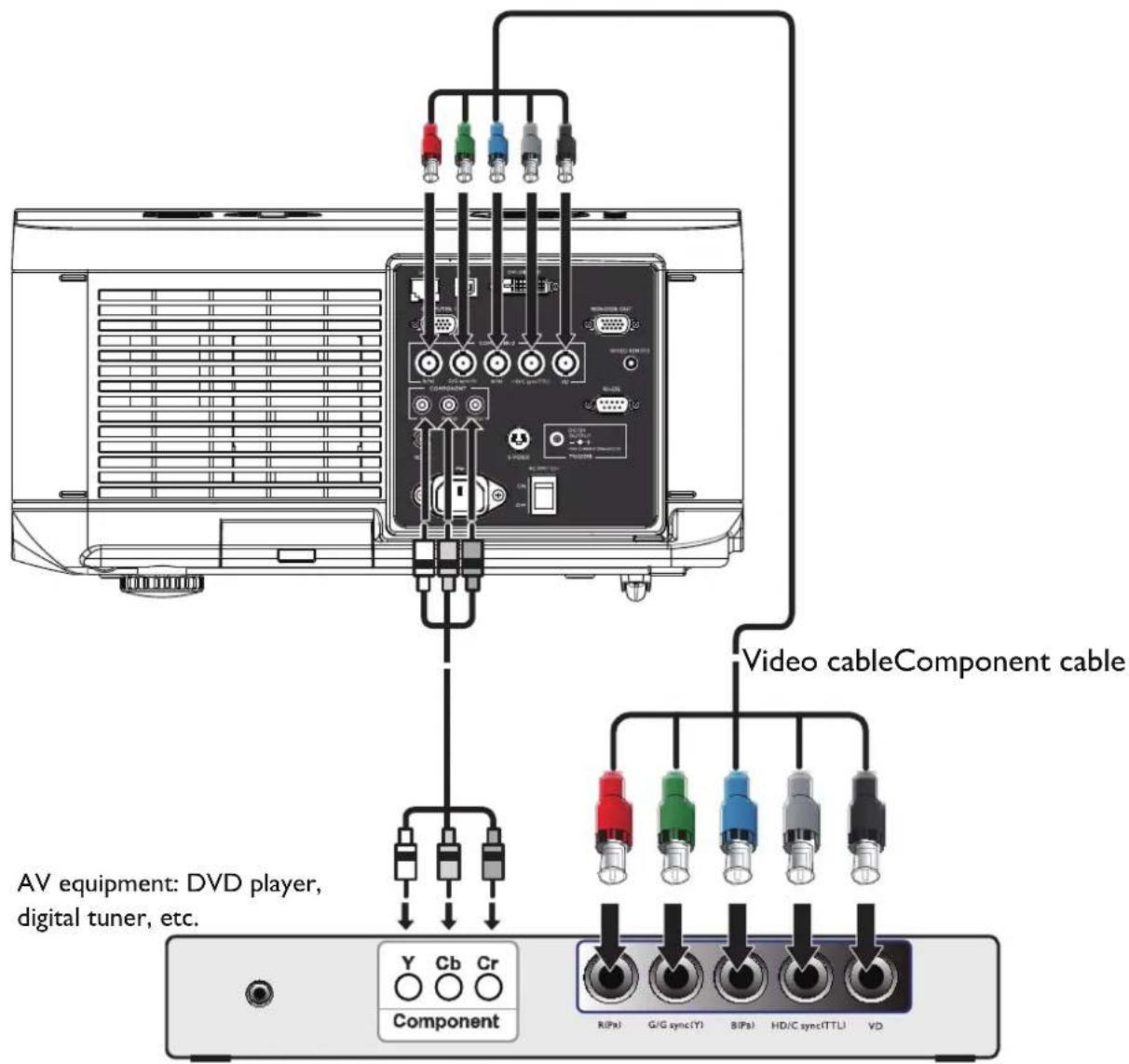

- If you have already made a Component Video connection between the projector and the video source device, you need not connect to this device again using a composite Video connection as this makes an unnecessary second connection of poorer picture quality.
- If the selected video image is not displayed after the projector is turned on and the correct video source has been selected, please check that the video source device is turned on and operating correctly. Also check that the signal cables have been connected correctly.
Connecting a computer
Connect the projector to a computer with a VGA cable.
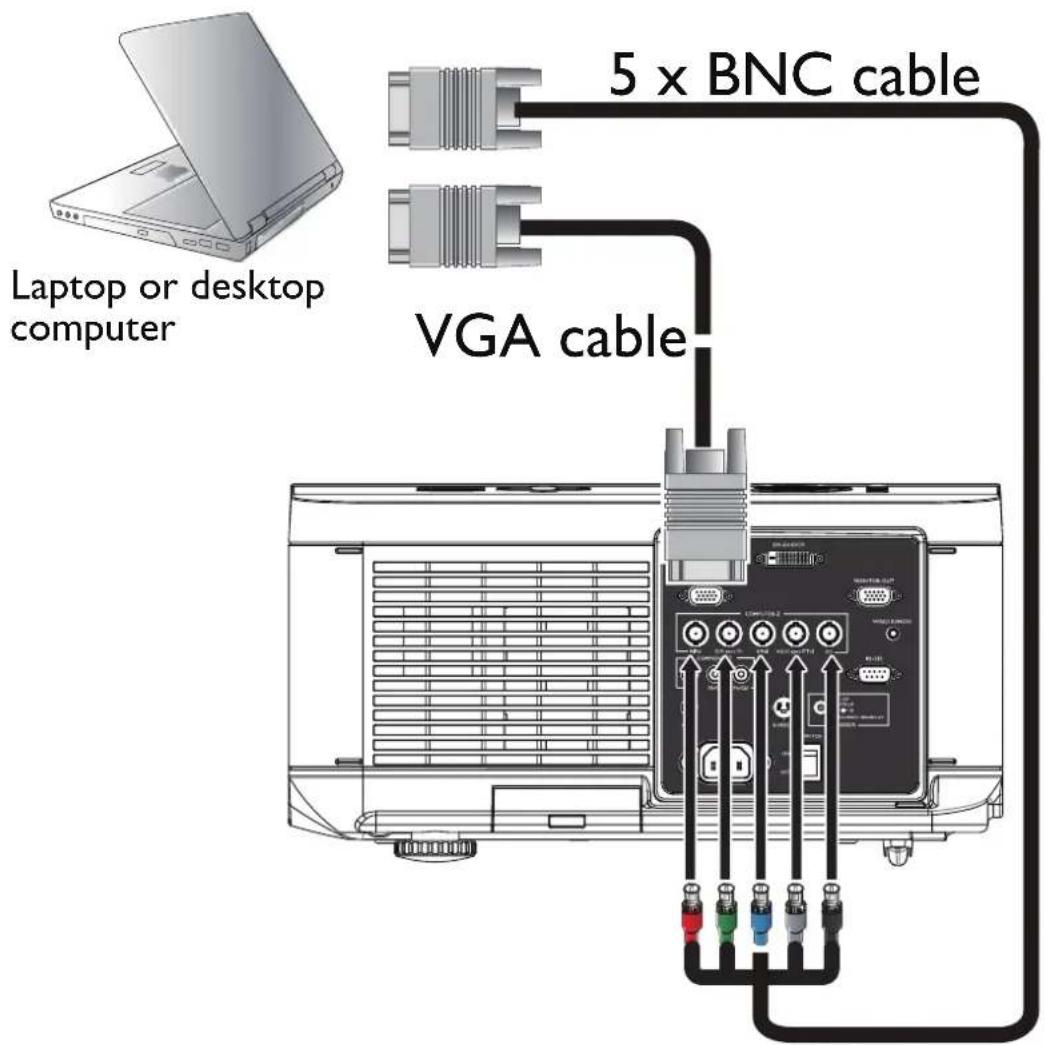

Many laptops do not turn on their external video ports when connected to a projector. Usually a key combination like Fn + F3 or CRT/LCD key turns the external display on/off. Locate a function key labeled CRT/LCD or a function key with a monitor symbol on the laptop. Press Fn and the labeled function key simultaneously. Refer to your laptop's documentation to discover your laptop's key combination.
Connecting a monitor
If you want to view your presentation close-up on a monitor as well as on the screen and the MONITOR OUT jack is available on your projector, you can connect the MONITOR OUT signal output jack on the projector.
flowchart
graph TD
    A["Laptop"] --> B["USB port"]
    B --> C["or"]
    C --> D["VGA cable"]
    D --> E["VGA to DVI cable"]
    E --> F["Computer monitor"]

• The MONITOR OUT only works when an appropriate D-Sub input is made to the PC jack.
- If you wish to use this connection method when the projector is in standby mode, make sure the Standby Monitor Out function is turned on in the Advanced Setup menu.
Using the projector
Preparations
I. Plug in and turn all of the connected equipment on.
2. If not already in, plug the supplied power cable into the AC inlet on the rear of the projector.
3. Plug the power cable into a wall power outlet and turn the wall switch on.

Please use the original accessories (e.g. power cable) only with the device to avoid possible dangers such as electric shock and fire.
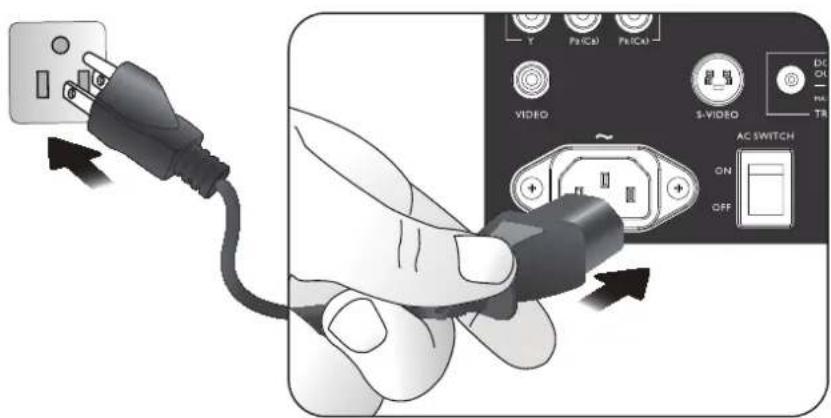
Turning the projector on or off
Once the projector is correctly located and the power cable and other connections are in place, it is important that the projector is connected and powered on correctly in order to avoid possible dangers such as electric shock and fire. Refer to the following guide to power on the projector.
I. Turn the main power switch to ON, Power light is red after power has been applied.
2. Press the POWER button on the projector or ON button on the remote control to start the projector. The Power and Lamp LED flashes green and the cooling fan start operating.
3. The projected image will be displayed on the screen for a few second while it is warming up.
4. Once the power LED is lit a solid green, the projector is ready for use.
Note: The projector will not respond to further commands while it is warming up.
5. If any of the LEDs remain flashing or blink there may be a problem with the start up. Please refer to the Troubleshooting section page 66 Troubleshooting.
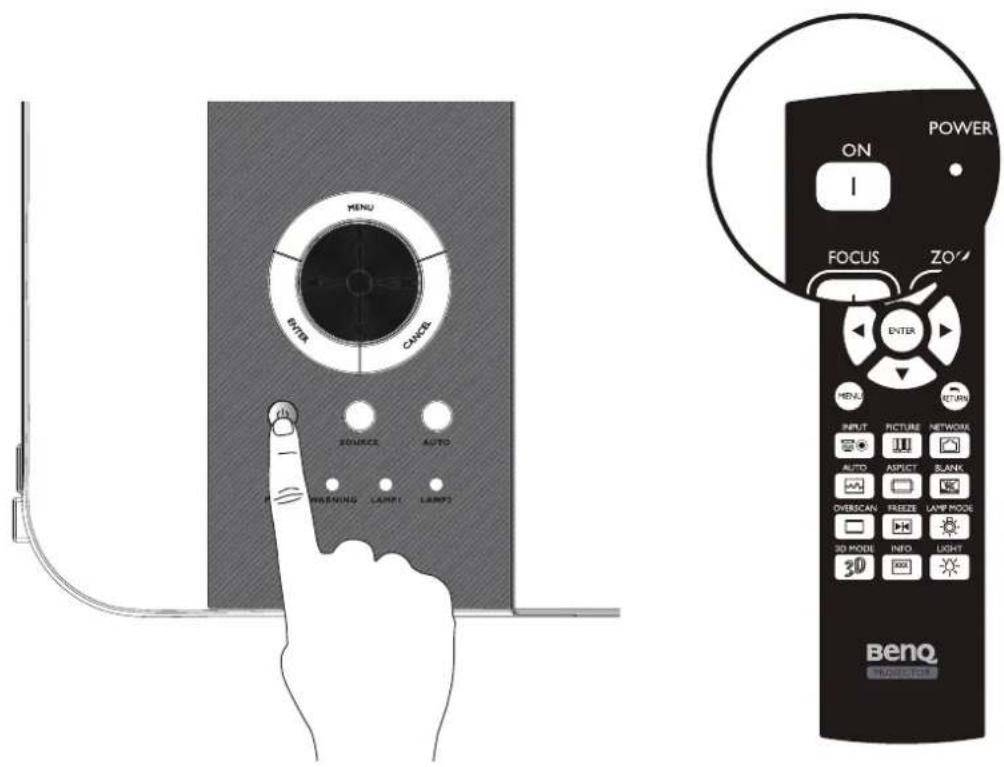

If you attempt to re-start the projector shortly after shutdown, the fans may run for a few minutes to cool down. Press Power again to start the projector after the fans stop and the Power indicator light turns orange.
Selecting an input source
The projector can be connected to multiple equipment at the same time. When the projector is first turned on, it will attempt to reconnect with the input source which was in use when the
projector was last shut down.
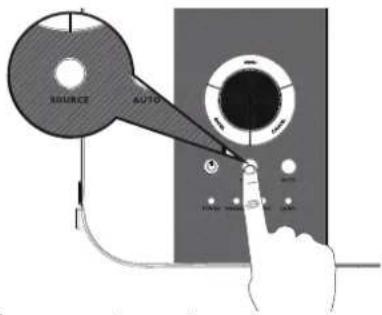
To select the video source:
The Input Source can be selected from the projector's control panel or from the remote control. Refer to the following guide to select the desired input source
I. Press INPUT key on the remote control or control panel to display INPUT Menu.
2 Select your desired input source via ▲/▼ key.
- Press ENTER key to confirm the input selection, it will take few seconds to detect the desired input signal and display the projected image.
Press RETURN key to projected image if you want to keep current input source.
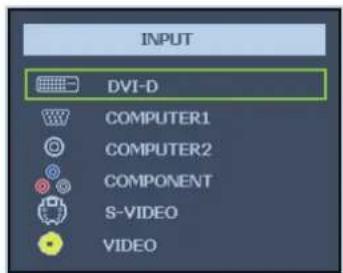
If you want the projector to automatically search for the signals, select On in the Setup > Auto Search menu.
Using the menus
The projector is equipped with multilingual On-Screen Display (OSD) for making various adjustment and settings, below is the overview of the OSD menu.
To use the OSD menu, please set the OSD menu to your familiar language.
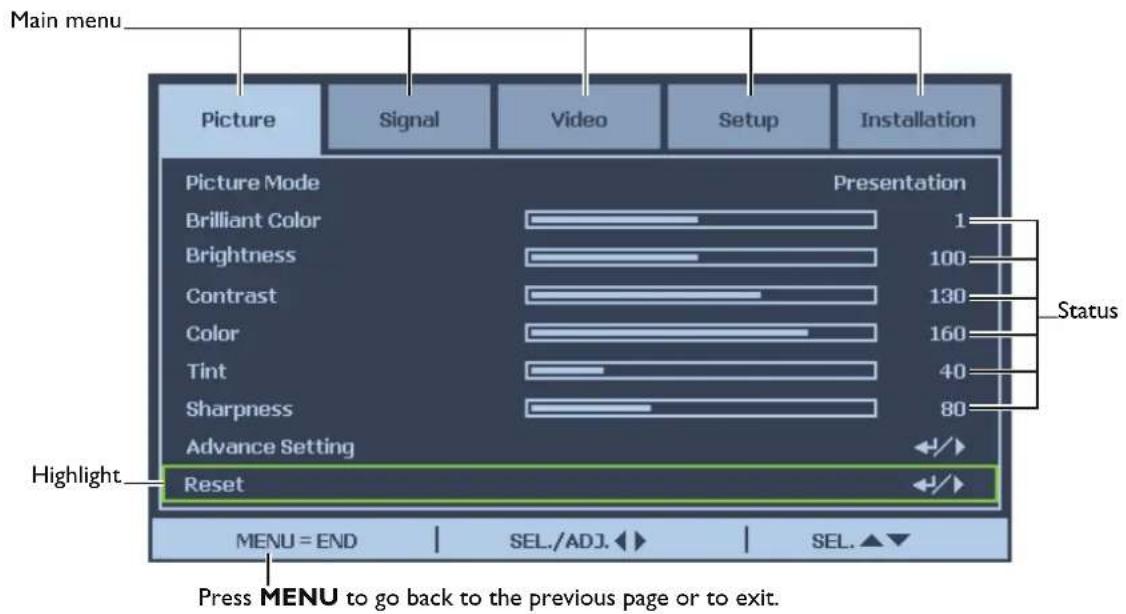
Adjusting the projected Image
Adjusting the image position
The projected image position and Size can be adjusted manually from the control panel or the remote control unit. Refer to the following guides to adjust Picture Position manually.
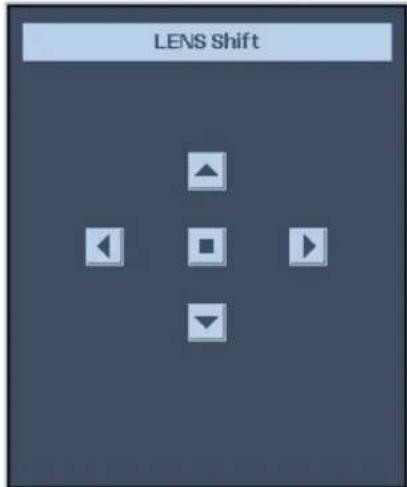
I. Press the LENS SHIFT key on the projector in any direction or LENS SHIFT key on the remote control to bring up the Lens Shift window.
2. Press the directional key as required to shift the image. Releasing the directional key will recenter the cursor.
Fine-tuning the image size and clarity
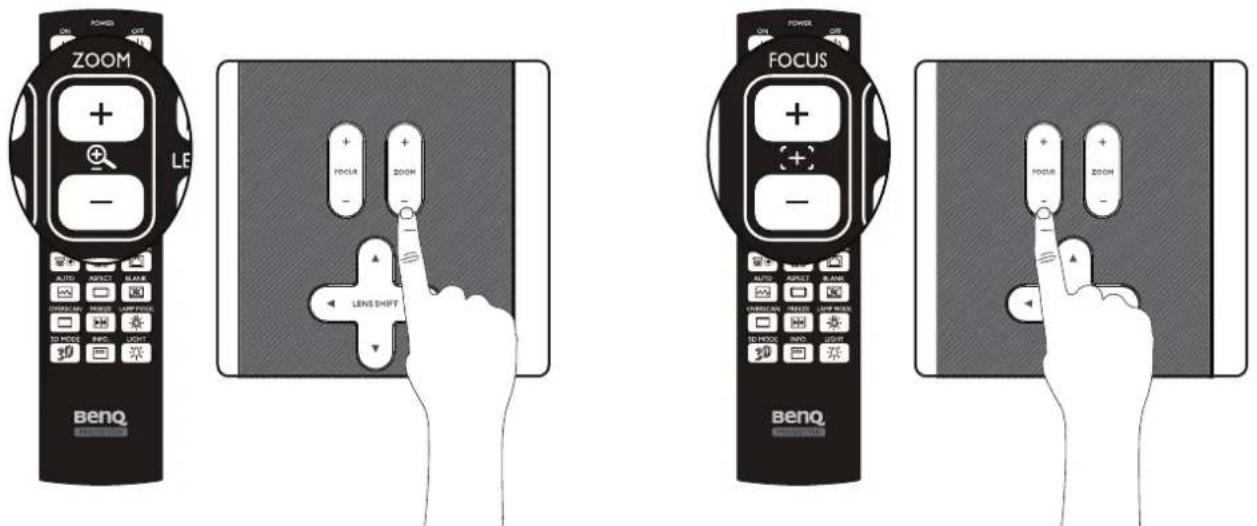
I. Press the ZOOM + or ZOOM- button on the control panel or the remote control to adjust the projected imaged as you desired.
- Sharpen the picture by pressing FOCUS+ or FOCUS- button on the control panel or the remote control.
Adjusting the projection angle
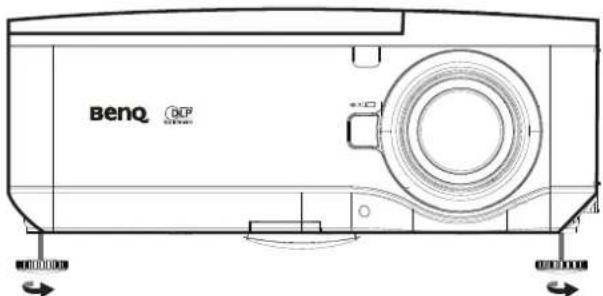
There are two adjuster feet on the bottom of the projector, these can be used if necessary to change the projection angle. Screw the feet in or out as appropriate to aim and level the projection angle.
I. Twist the adjusters clockwise to raise the level of the projector.
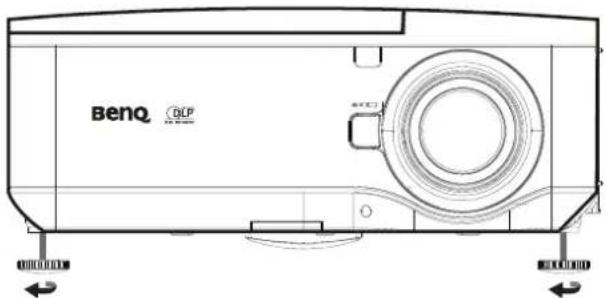
- To lower the level of the projector, lift the projector and twist the adjusters counter clockwise.
Correcting picture distortion
When the image is projected either from the top or from the bottom towards the screen at angle, the image becomes distorted trapezoidally. Keystone function in the Installation>Advance Setting>Keystone can be used to correct trapezoidal distortion, press ◀/► button to correct trapezoidal distortion till you are satisfied with the shape.

flowchart
graph LR
    A[" "] --> B[" "]
    B --> C[" "]
When the values reach their maximum or minimum with repeated key presses, the picture's shape will stop changing. You will not be able to change the picture further in that direction.
Auto-adjusting the image
In some cases, you may need to optimize the RGB picture quality. To do this, press AUTO key on the remote control or control panel, the built-in Intelligent Auto Adjustment function will re-adjust the values of Frequency and Clock to provide the best picture quality.

This function is only available when a PC signal (analog RGB) is selected.
Turning off the Projector
If the projector is no longer required, it is important to shut it down correctly to avoid damage or unnecessary wear and tear to the projector. Refer to the following guide to turn the projector Off.

- Do not unplug the power cable from the wall outlet or projector when the projector is powered on, it may cause damage to the AC IN connector of the projector and (or) the prong plug of the power cable.
- Do not turn off the AC power supply within 10 seconds of making adjustment or setting changes and closing the menu, it may cause loss of adjustments and settings and return to default.
I. Press the POWER button on the control panel or OFF button on the remote control.
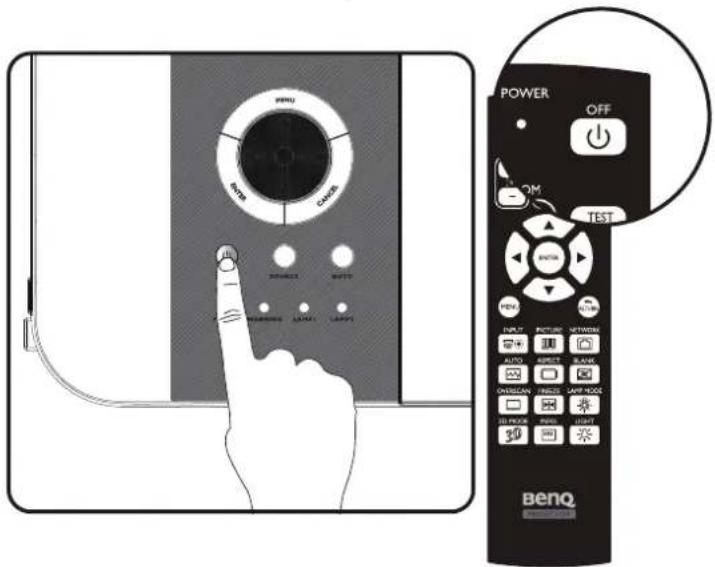
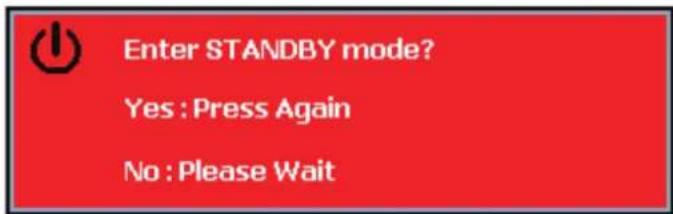
- Press the POWER or OFF button again to verify power off, the cooling fans continue to operate (cooling-off time) and the power LED flashes orange. The cooling fans stop.
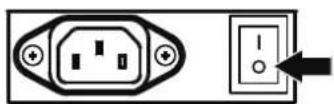
- Press the Main Power switch to the off position (O) to turn off the projector.
Using On-Screen Display
Using the Menus
The projector has an On-Screen Display (OSD) that lets you make image adjustments and change various settings.
Navigating the OSD
You can use the remote control or the buttons on the top of the projector to navigate and make changes to the OSD. The following illustration shows the corresponding buttons on the remote control and on the projector.
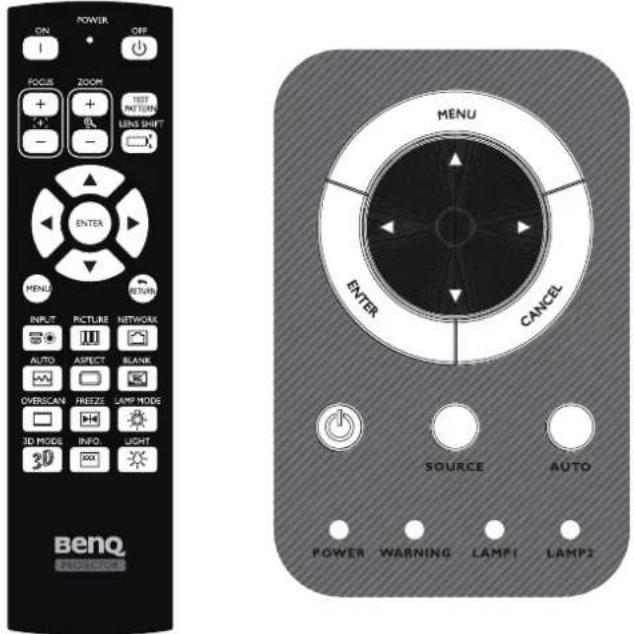
- To open the OSD, press the Menu button on the OSD control panel or remote control. There are five folders on the menu. Press the cursor ◀ or ▶ buttons to move through secondary menus.
- Press ▲ or ▼ to select menu items and ◀ or ▶ to change values for settings. Press to confirm the new setting.
- Press CANCEL/RETURN to leave a submenu or MENU to close menu.
On-Screen Display (OSD) menus
Use the following illustrations to quickly find a setting or determine the range for a setting. Please note that the on-screen display (OSD) menus vary according to the signal type selected.
Menu Map
Menu Sub Menus and Controls
| PICTURE Picture Mode Presentation | |||
| Standard | |||
| Game | |||
| Movie | |||
| sRGB | |||
| Brilliant Color | |||
| Brightness | |||
| Contrast | |||
| Color | |||
| Tint | |||
| Sharpness | |||
| Advance Setting | Signal Type Auto, RGB, YCbCr, YPbPr | ||
| Color Temperature Standard, Cold, Warm | |||
| Red | |||
| Blue | |||
| Color Manager R / G / B / C / M / Y | |||
| Hue / Saturation / Value | |||
| Film Mode Auto, Off | |||
| Noise reduction Level 1, Level 2, Level 3, Off | |||
| Dynamic Black On, Off | |||
| Reset | Confirm | No, Yes | |
| Signal | Horizontal Position | ||
| Vertical Position | |||
| Phase | |||
| Clock | |||
| Reset | Confirm | No, Yes | |
| Resolution | Auto, Wide, 4:3 | ||
| Auto Sync | On, Off | ||
| Video | Overscan | On, Off | |
| Video System | Auto, PAL (50/60Hz),PAL, SECAM, NTSC4.43,NTSC3.58, PAL-M, PAL-N,PAL-60 | ||
| Video Setup | 0 IRE, 7.5 IRE | ||
| Closed Caption | CCI, Off | ||
| Setup | Auto Search | On, Off | |
| Auto Power Off | On, Off | ||
| Auto Power On | On, Off | ||
| Standby Mode | Standard, Eco | ||
| Background | Logo, Custom, Blue, None | ||
Menu Sub Menus and Controls
| Setup 3D MODE DLP | ® LinkTM | On, Off | ||
| DLP® LinkTM Invert | ||||
| Aspect Ratio Normal, Full, 4:3, 16:9 | ||||
| Advance Setting Security Lock Enable, Disable | ||||
| Keypad Lock Confirm No, Yes | ||||
| Image Capture Save Image No, Yes | ||||
| Delete No, Yes | ||||
| Wall Color Whiteboard | ||||
| Blackboard | ||||
| Off | ||||
| Digitale Zoom | ||||
| Messaging, On, Off | ||||
| Installation | Language | English, Deutsch, Español, Français, Italiano, Svenska, Português, Русский, 繁體中文,簡體中文,한국어,日本語 | ||
| Lamp Control | Normal, Eco | |||
| Lamp Mode | Both, Lamp I only, Lamp 2 only, Auto | |||
| Projection Mode | Front, Rear, Ceiling+Front, Ceiling+Rear | |||
| Fan Mode | Normal, High, Up/Down | |||
| Test Pattern | None, RGB Ramps, Color Bars, Step Bars, Checkboard, Grid, Horizontal Lines, Vertical Lines, Diagonal Lines, Horizontal Ramp, Vertical Ramp, White | |||
| Advance Setting Keystone | ||||
Picture
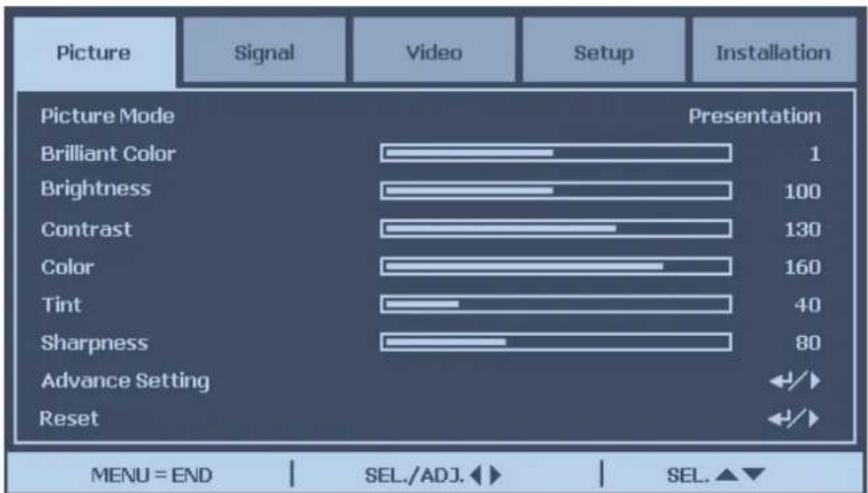
The pre-defined picture mode settings can be altered via the available items shown in the Picture menu such as picture mode, brightness, color temperature...etc..
Picture Mode
Select a set of preset values using ◀ or ▶ from the list,
Presentation: Maximizes the brightness of the projected image for more enhanced presentations.
Standard: For standard image.
Game: Gives sharpness to the projected image.
Movie: Give natural tint to the projected image.
sRGB: Maximizes the purity of RGB colors to provide true-to-life images regardless of brightness setting. It is most suitable for viewing photos taken with an sRGB compatible and properly calibrated camera, and for viewing PC graphic and drawing applications. Red, Blue, color temperature cannot be selected if picture mode is set to sRGB.
Brilliant Color
This feature utilizes a new color-processing algorithm and system level enhancements to enable higher brightness while providing truer, more vibrant colors in picture. Move the slider bar left or right to set the BrilliantColor value.
Brightness
Adjust the Brightness value using ◀ or ▶ to lighten or darken the picture.
Contrast
Adjust the Contrast value using ◀ or ▶ to highlight the differences between light and dark areas of the picture.
Color
Adjust the Color value using ◀ or ▶ to increase or decrease color input to the picture.
Tint
Adjust the Tint value using ◀ or ▶ to increase or decrease the color hue of the picture.
Sharpness
Adjust the Sharpness value using ◀ or ▶ to sharpen or blur the borders between colors and objects.
Advance Setting
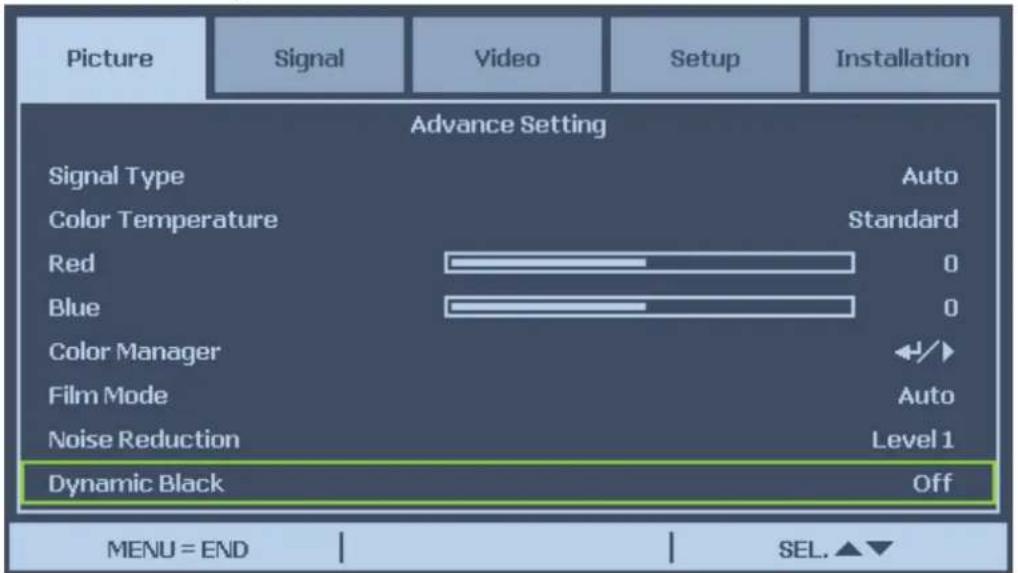
Signal Type
This function allows you to select the input signal from COMPUTER I/2, COMPONENT or DVI-D input.
Auto
Recognize the input signal as RGB or component automatically.
RGB
Set When the input signal is RGB.
YCbCr
Set when the input signal is Component(480I/480P/576I/576P).
YPbPr
Set when the input signal is Component signals(720P/1080i/1080p).
Color Temperature
Set the color temperature to Warm, Standard or Cold.
About color temperatures:
There are many different shades that are considered to be "white" for various purposes. One of the common methods of representing white color is known as the "color temperature". A white color with a low color temperature appears to be reddish white. A white color with a high color temperature appears to have more blue in it.

Color temperature is not selectable when Picture Mode is set to sRGB.
Red
Press ◀ or ▶ to heighten or weaken red in the image.
Blue
Press ◀ or ▶ heighten or weaken Blue in the image.
Color Manager
This function allows you to adjust each of the six main colors comprised the color wheel by altering their Hue, Saturation or Value.
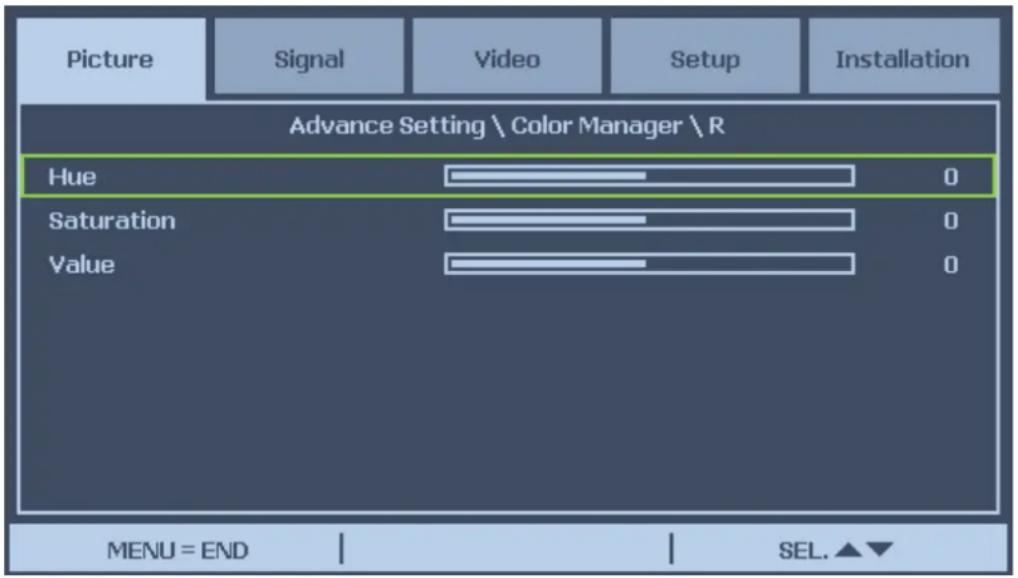
Hue
Use ◀ or ▶ to adjust Hue of the main color as below.
| Main Color Hue | |||
| R Magenta | ←→ | Yellow | |
| G Yellow | ←→ | Cyan | |
| B Cyan | ←→ | Magenta | |
| C Green | ←→ | Blue | |
| M Blue | ←→ | Red | |
| Y Red | ←→ | Green | |
Saturation
Use ◀ or ▶ to adjust Saturation of the main color, the selected color become lighter or thicker.
Value
Use ◀ or ▶ to adjust Value of the main color, the selected color become brighter or darker.
Film Mode
The function provide high-quality playback of image projected at 24fps, such as movies from DVD device.
Auto: Films are detected automatically.
Off : Films are not detected.

Film Mode is available for below input and signals.
• 480I/576I/1080I from COMPUTER/COMPONENT I, 2 or COMPONENT INPUT
• All signals from S-Video or Video input
Noise Reduction
This function provides high-quality images with minimal crawl and cross color noise, you can set your preferred level from Off to Level 3 to view a clear image.
Dynamic Black
Set this function as ON to improve the black level of the projected images.
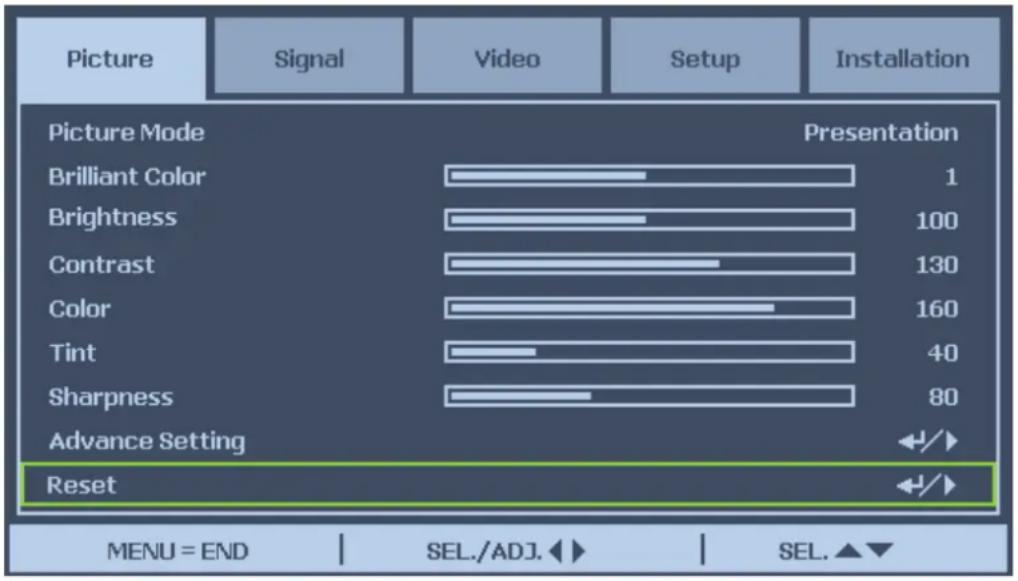
Reset
The settings and adjustments are set to initial factory settings.
Signal

Horizontal Position
Move the Image to right or left.
Vertical Position
Move the Image to up or down.
Phase
Adjust the clock phase or reduce video noise, dot or cross talk.
Clock
Fine tune a computer image or remove any vertical banding that might appear.
Reset
Reset all of the changes you made and restore to default settings.
Resolution
This function provides the options to recognize the resolution of the input signal automatically.
Auto Recognize the input signal resolution automatically.
Wide Set when the wide signal is received.
4:3 Standard TV screen (4:3), proportionally four units wide for every three units high, no matter the size of the screen.
Auto Sync
This function allows you to optimize the image automatically when the projector is turned on or when the input signal is switched or connected from a computer. If Auto Sync is set Off, Auto Sync is not automatically performed.

Auto Sync may take some time to complete, depending on the image. When the optimum image can not be achieved, please use manual adjustment.
Video
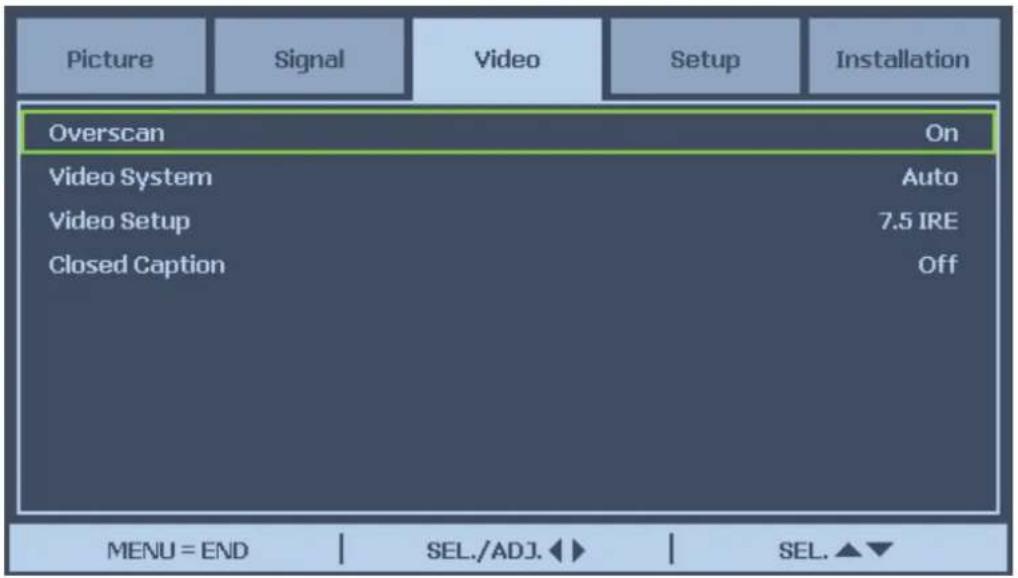
Overscan
The edge of the image may or may not be displayed correctly, this function allows you to set Overscan On to crop the border area of the image.

The function is available for 480p, 576P, 720p, 1080i and 1080p from COMPUTER I/2, COMPONENT or DVI-D input.
Video System
Set the Video System to Auto unless the projector cannot receive the signal or a clear image, selectable Video signal are Auto, PAL, SECAM, NTSC4.43, NTSC3.58, PAL-M, PAL-N and PAL-60.

Video System can only be set in Video or S-Video mode.
Video Setup
Set the black level to 0 IRE or 7.5IRE.
This function is available for 480I from COMPUTER I/2, COMPONENT, NTSC3.58 from Video or S-Video input.
Closed Caption
Set to CCI or Off as required.

This function is available in following case
• The signal is NTSC 3.58
• Not all programs and video will offer closed Caption, please make sure they offer Close
Setup
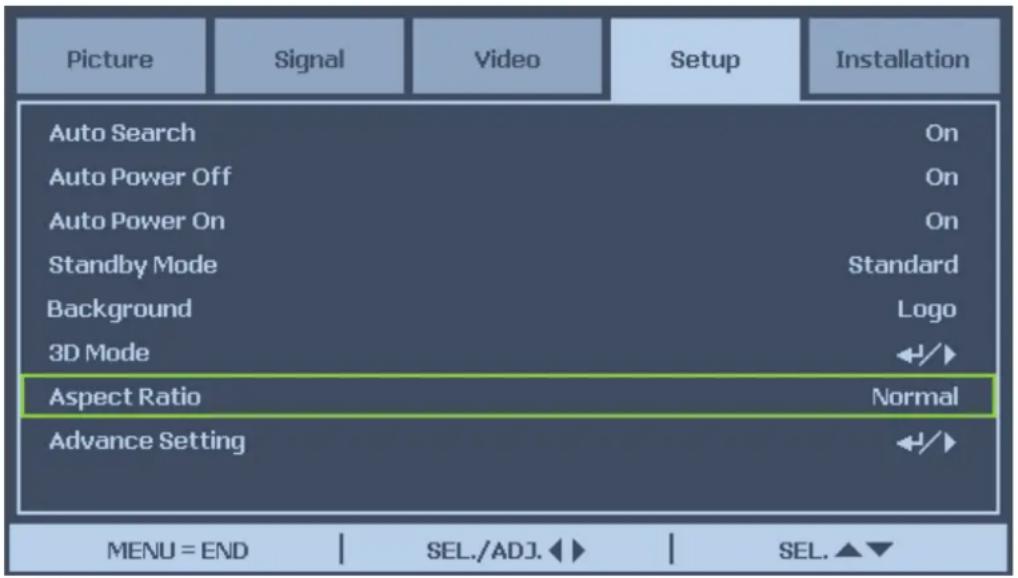
Auto Search
This function enables the projector to detect the input signal and to switch the input mode automatically when the project is turned on. Set it to On to enable Auto Search function or Off to disable it.
Auto Power Off
This function enables the projector to enter standby mode automatically when no input signal is detected more than 15 minutes. Set the function to On to enable Auto Power off or to Off to disable it.
Auto Power On
This function enables the projector to be turned on automatically when the power cord is plugged into the AC outlet or the breaker switch is turned. Set the function to On to enable this function.

This function is activated by below conditions
• The Main Power switch on the projector has to be switched to On.
- The projector should be turned off by unplugging power cord or the breaker switch directly, Auto Power On will be activated next time when you plug in the power cord or turn on breaker switch.
Standby Mode
Standby Mode allows you to put the projector in the standby condition to consume less power, twostandby modes are selectable as below.
Standard
Monitor out, LAN/RS232C and Network functions are activated in standby mode.
Eco
Monitor out, LAN/RS232C and Network functions are switched off.

The HTTP server functions, MONITOR OUT and RS232C Control are not available when Standby Mode is set to Eco, please make you the settings before using above functions.
Background
Background enables you to display a blue/black screen, Logo or captured image when there is no signal.
3D Mode:
The 3D mode of this projector is compatible with the DLP® Link™ system. To watch 3D images, you need a pair of 3D LCD shutter glasses that display the projected images for the left and right eyes alternately and are synchronized with a control signal transmitted from the lens of the projector. Before viewing 3D images, press 3D MODE button on the remote control or use arrow keys to display 3D Mode menu for setting 3D mode.

• The following people should limit 3D viewing:
- Children under 6 years of age.
- People with a history of photosensitivity, heart disease or in poor heath.
- People who are physically tired or sleep deprived.
- People under the influence of drugs or alcohol.
- Under normal condition, view 3D images is safe. However, some people may experience discomfort. Refer to the guideline issued by the 3D Consortium revised Dec. 10, 2008, You need take regular breaker at least 5 to 15 minutes after ever half of hour or one hour.
DLP ^® Link ^TM
Set DLP ^® Link ^TM On to view 3D content, Off to ending 3D projection.
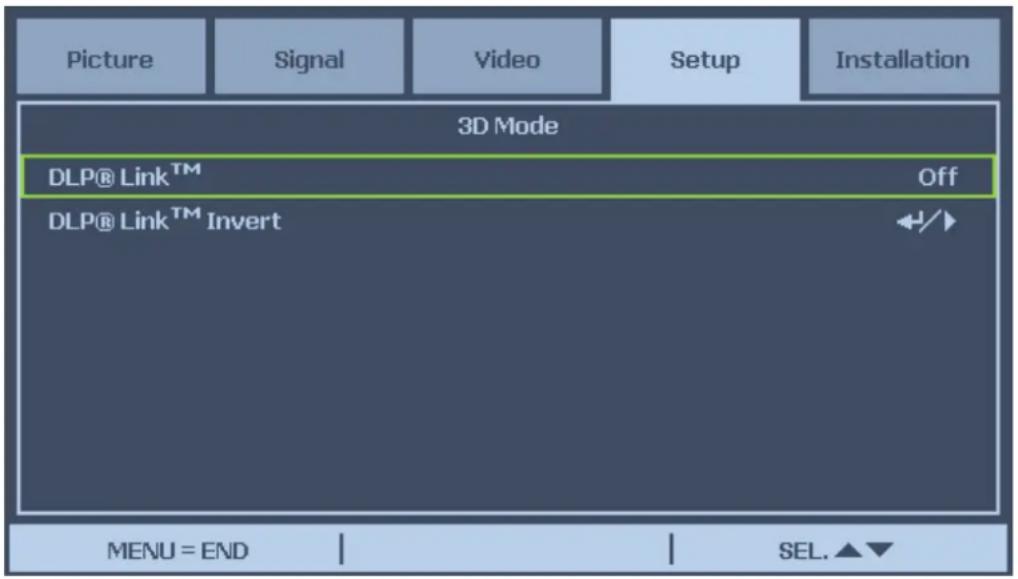

When DLP ^® Link ^TM is set to on, Keystone, Aspect Ratio and Image Resizing may not work fully or may not be available.
DLP®Link™ Invert
Set the video for your left and right eyes.

- For viewing 3D image, the source device should support the field sequential format.
- If the projector, 3D playback device or 3D LCD glasses are not set properly, you may experience eye strain and not be able to view the image in 3D.
- For better signal receiving, recommend to view 3D images in front of the screen directly as much as possible. See the operation manual of your 3D LCD glasses.
Aspect Ratio
Select from Normal, Full, 4:3, 16:9, as follows:
Normal
the image will be displayed at its intended aspect ratio, filling either the full height or width of the screen as appropriate.
Full
the image will fill the height and width of the screen, depending on the resolution of the projector.
4:3
the image will be displayed with a 4:3 aspect ratio, fitting the full height and/or width of the screen, depending on the resolution of the projector.
16:9
the image will be displayed with a 16:9 aspect ratio, fitting the full height and/or width of the screen, depending on the resolution of the projector.
Advance Setting
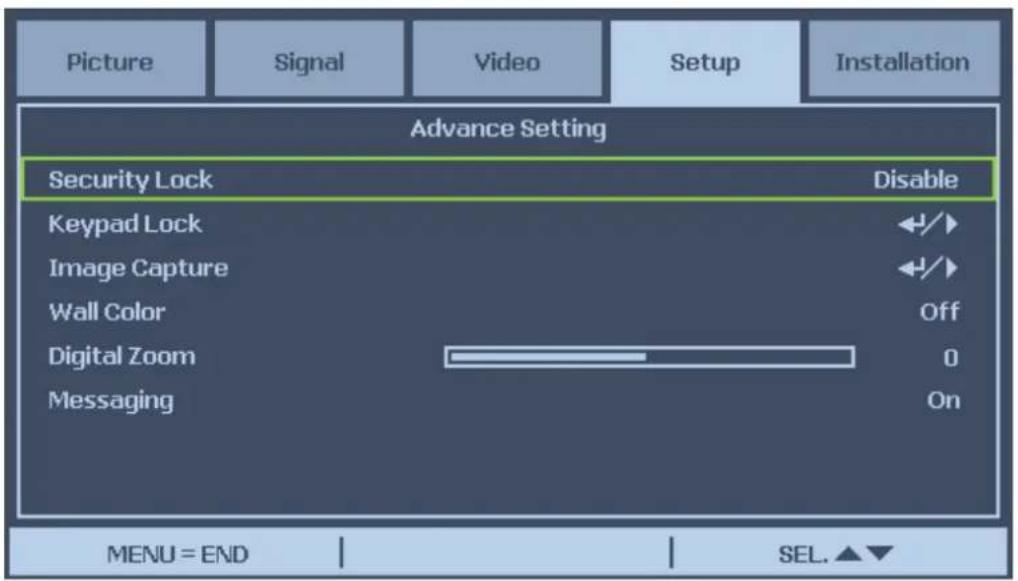
Security Lock
The function allows you to prevent unauthorized use of the projector. Once the function is activated, user must enter the password each time when project is turned on.

- Password must be recorded in a safe place where only authorized users have access.
• If you lose or forget the password, please contact BenQ Authorized Dealer or Service Center.
Keypad Lock
To prevent unauthorized operation by projector control panel, use this function to lock the buttons on the projector.
No: Turn off the Keypad Lock Function
Yes: Lock All of buttons on the projector except ON/STANDBY button.
Unlock the keypad: Hold down ▼ on the projector control panel for about 5 sec.

• Keypad Lock cannot be released if the project is under below status
- Menu is displayed
- Projector is at standby mode
- The projector is during warming up
- Input signal is changing or Auto Sync function is operation.
- Freeze function is operated.
- Security Lock window is displayed.
• This Keypad Panel Lock does not affect the remote control functions.
Image Capture
This function allows you to capture the projected image from RGB signal and set it as a startup image or background image when no signal is detected.
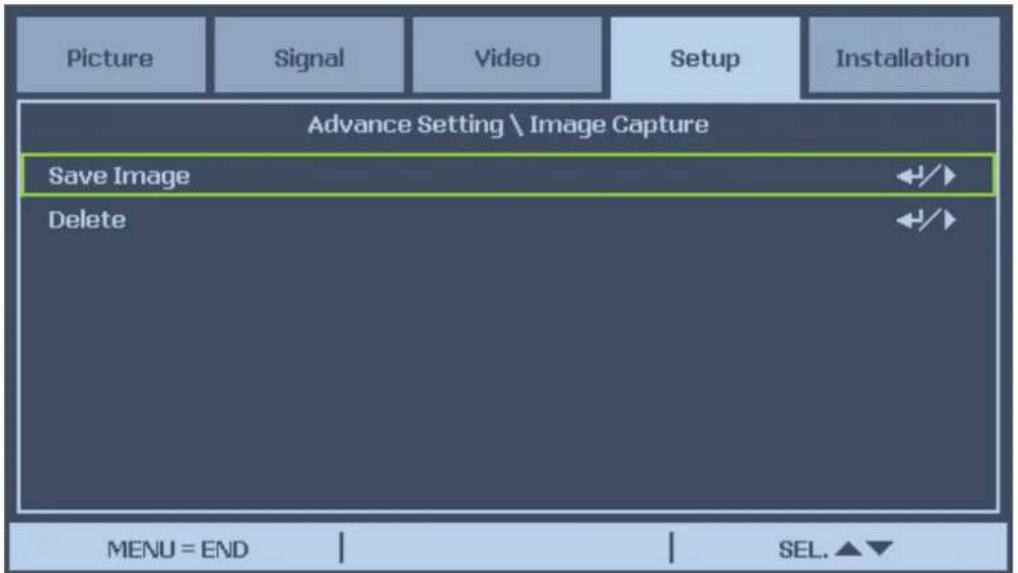
Save Image
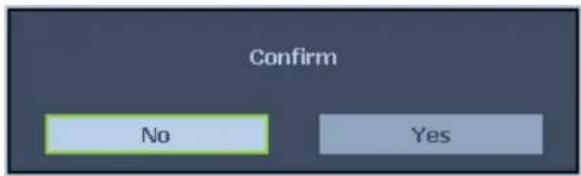
Press Enter or ▶ to capture the desired image and press Yes to execute Image capture.
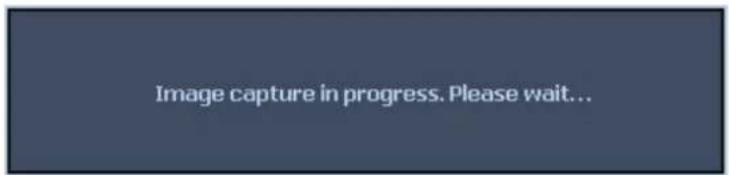
It takes 1 to 2 minutes to complete image capture and shows the progress on the screen. The message window will be closed after image capture is done.
Delete Image
Press Enter or ▶ and select "Yes" to delete captured image.

• The image can be captured only when the input source is non-interlace signal from
• COMPUTER/COMPONET 1,2 or DVI-D input, the image from Video or S-Video cannot be captured.
• The captured image must be native resolution such 1280x800 for WXGA, 1024x768 for XGA
- Aspect Ratio must be set to "Normal"
- An image can be captured and saved for either of the four-segment color wheel or six-segment color wheel, each color wheel can save one image.
- Switch the input signal during performing image capture may result in the failure of the capturing.
Wall Color
This function allows you to project the image to the colored wall or board without using a screen.
Whiteboard: Image is projected to a whiteboard.
Digital Zoom
Press arrow key ◀ to reduce the image size or arrow key ▶ magnify the image on projection screen.
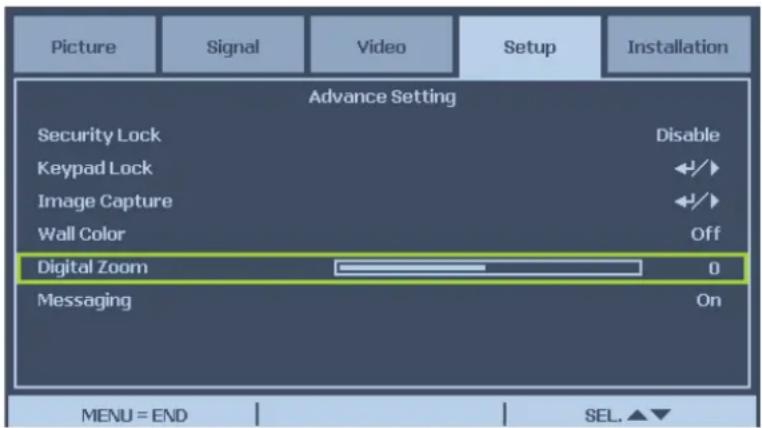
Messaging
The function allows you to turn off below message on the projected image, Select On to display the message, Off to hide the message.
- Source Status
- Message of entering standby mode when STANDBY button or Power button is pressed.
- Auto Sync
- Clean the Filter
- Lamp life Warning
Installation
The Installation tab contains menu options for various setup conditions such as orientation and remote sensor mode and is accessed through the Setting menu.
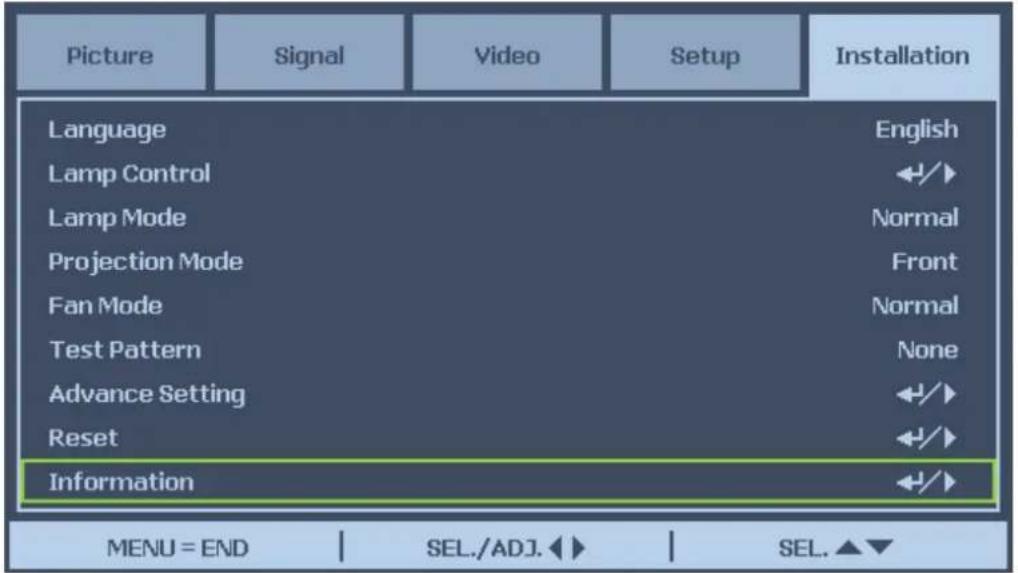
The following table lists all functions with a brief description.
Language
Select the OSD language to be used.
Lamp Control
This projector is capable of dual-lamp projection and provides four lamp modes for different purposes. Select Lamp Control then press Enter to display lamp control option.
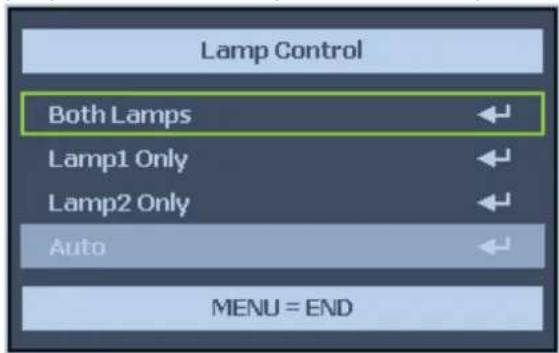
Lamp Mode
Select Normal to deliver brightest and clear image, Eco to extend the lamp life and reduce fan noise.
Both Both lamps are used for greater brightness.
Lamp I Only Select Lamp I for the projector. If lamp I burns out, the projector switches the lamp control to lamp2 automatically.
Lamp 2 Only Select Lamp 2 for the projector. If lamp 1 burns out, the projector \ switches the lamp control to lamp2 automatically.
Auto Select the lamp which the usage is lower than the other one.

For lamp protection, the lamp switching may take several minutes.
Projection Mode
Projection Mode enables you to set how the projected image is displayed. Select from the following.
Front
Standard forward facing projection (Default setting).
Rear
Standard rear projection. Enables the projector to produce the image from behind the screen by reversing the image.
Ceiling+Front
Forward facing ceiling mounted projection. Enables ceiling mounted projection by inverting the image.
Ceiling+Rear
Rear ceiling mounted projection. Enables ceiling mounted projection from behind the screen by inverting and reversing the image.
Fan Mode
Fan control is used to set the speed of the internal cooling fan according to the installation condition.
Normal
Set Fan Speed to Normal if the projector is set up on a table or ceiling mounted at altitudes under 5000 feet/1500 meters.
High
Set Fan Speed to High if the projector is set up on a table or ceiling mounted at altitudes over 5000 feet/1500 meters.
UP/Down
Set Fan Speed to Normal if the projector is set up at tilt angle over 10 degree, the fans will run at a high speed.

Please make sure fan mod is set to UP/Down if the project is set up at tilt angle over 10 degree upward or downward, actual Lamp life may be short than expected lamp life.
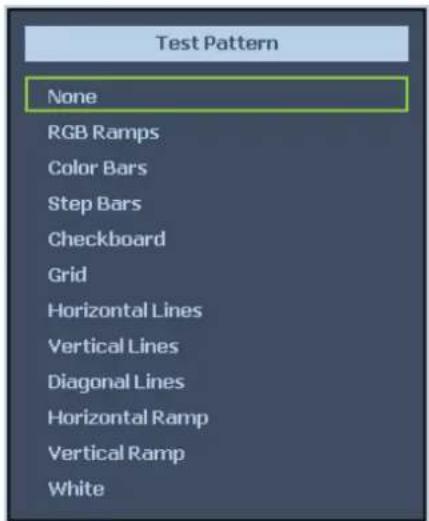
Test Pattern
Display a test pattern for installation. The test pattern can be displayed by using◀ or ▶ or TEST Pattern on the remote control. If using remote control, press▲ or ▼ on the remote control to select the desired test pattern.
Advance Setting
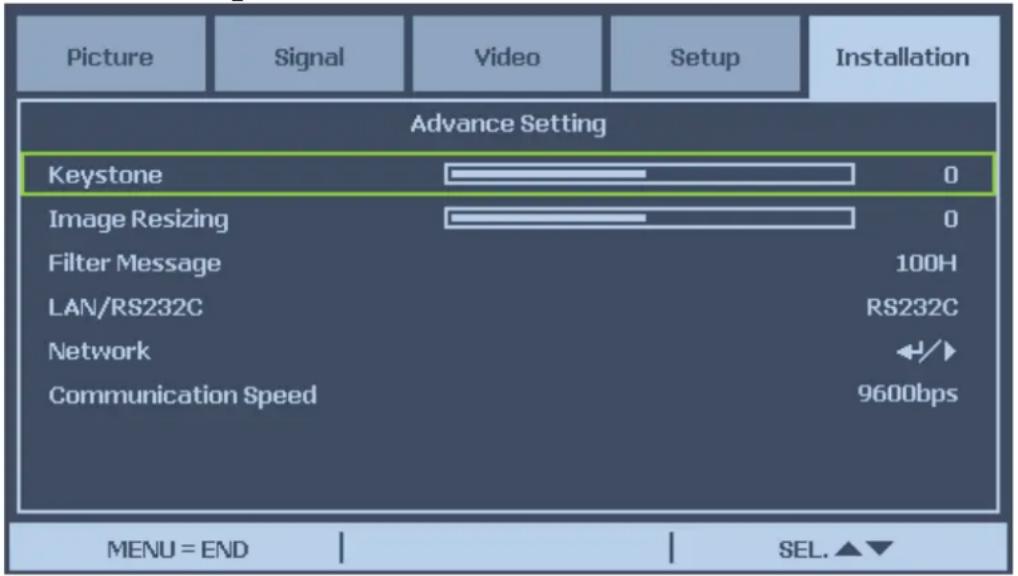
Keystone
When the image is projected either from the top or from the bottom toward the screen at an angle, the image becomes distorted, use Keystone function to correct the distortion, the adjustable range is approximately +30 degree. Use ◀ or ▶ button to adjust keystone correction.
Image Resizing
When Keystone correction works, the image may be shrunk or enlarged. Use◀ or ▶ to enlarge or shrink the image vertically.
Filter Message
Set the interval time to display a message for cleaning the filter, the selectable options are Off, 100H, 200H, 500H and 1000H.
Lan/RS232C
This function enables you to select the path for the projector control.

The Lan and RS232C control are not available when Standby Mode is set to Eco, please make you the settings before using above functions.
Network
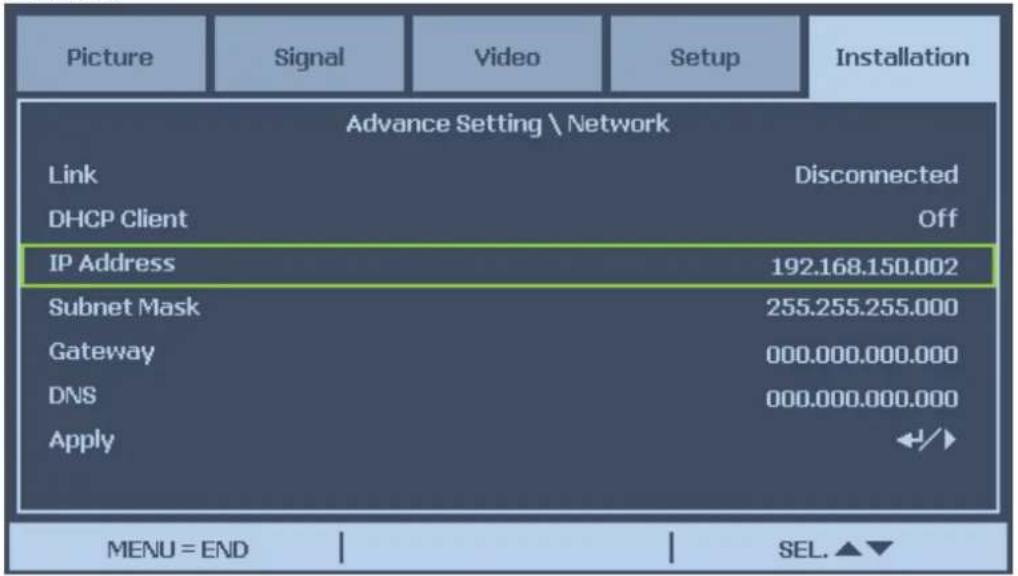
Link
Display the network connection status.
DHCP Client
Select either a static IP (Off) or DHCP IP (On) setting by using ◀ or ▶, On: Enable configuration parameters for IP Address, Subnet Mask, Gateway and DNS automatically.
Off: Set IP Address, Subnet Mask, Gateway and DNS manually.
IP Address
Press ◀ or ▶ to display IP address input window as below, use ▲ or ▼ to change the IP address.

Default setting: 192.168.150.002
Subnet Mask
Set Subnet Mask by Using ◀ or ▶ to select the digit and ▲ or ▼ to change.

Gateway
Set Gateway by Using ◀ or ▶ to select the digit and ▲ or ▼ to change.

DNS
Set DNS by Using ◀ or ▶ to select the digit and ▲ or ▼ to change.

Default setting: 000.000.000.000
Apply
Apply and save settings, please select Yes to apply the settings.
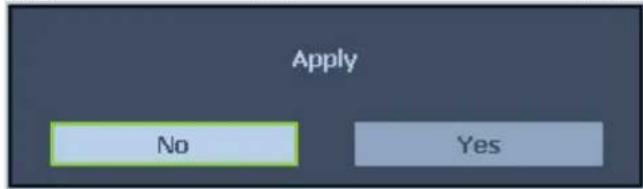

- Avoid setting an IP address that duplicates the IP Address of other network equipment.
• For details about network setting, consult your network administrator.
Communication Speed
Select communication speed to set the baud rate of the connection.
Select from the following options:
- 2400bps
- 4800bps
- 9600bps
- 14400bps
- 19200bps
- 38400bps
- 57600bps
- 115200bps

Longer cable connections may require lower settings.
Reset
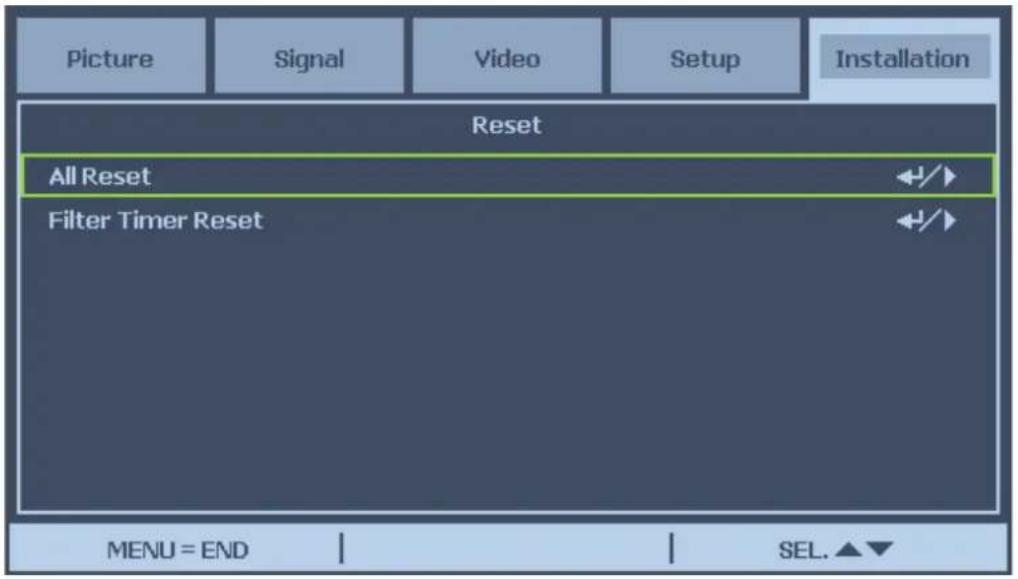
All reset
All reset allows you to initialize the settings you have made in the projector, press Enter or▶ to reset the settings.
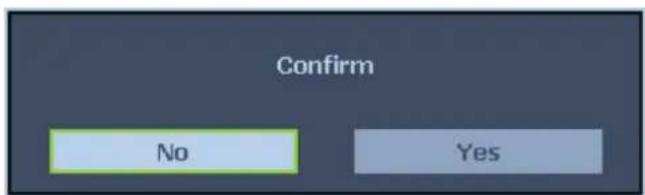
The follow items can not be initialized
- Lamp Timer
- Imaged retained using Image Capture
- Filter Timer
Filter Timer Reset
The function allows you to reset the filter timer, please make sure to reset the timer after cleaning or change the dust filter. Press Enter or ▶ to display the confirmation message and select Yes to reset the filter timer.
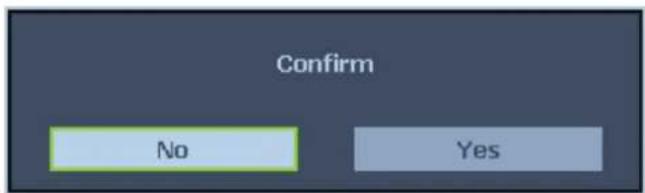
Information
| Picture | Signal | Video | Setup | Installation |
| Information | ||||
| INPUT | COMPUTER1 | |||
| Signal Info | 1024 x 768 @ 60Hz | |||
| Lamp1 Timer | [0000] h | [00] min | (100%) | |
| Lamp2 Timer | [0000] h | [00] min | (100%) | |
| Filter Timer | [0000] h | |||
| Model Name | PX9600 | |||
| S/N | 0 | |||
| Software Version | 101 | |||
| MENU = END | ||||
INPUT
Current input source.
Signal Info
Current input signal information is displayed.
Lamp Timer
Projector counts each lamp usage for reminding the remaining lamp life and usage. The lamp life and remaining are calculated numbers for reference only, actual lamp life may vary with lamp mode, application condition...etc.
Filter Timer
Current filter usage time counted from last reset you made.
Model Name
The model name is displayed.
S/N
The projector's serial numbers displayed.
Software Version
Current software version is displayed.
Preventing the Unauthorized Use of the Projector
The projector has a built-in security feature to lock the OSD control panels and deny remote control operation. The security feature has no default keyword; in the first instance of enabling the security feature, the user must define a keyword.
Locking the Projector
To setup the security keyword, refer to the following guide.
I. Press Menu on the OSD control panel on the projector or remote control to display the Main menu. Press arrow keys to select Security Lock under Setup\Advance Setting menu.
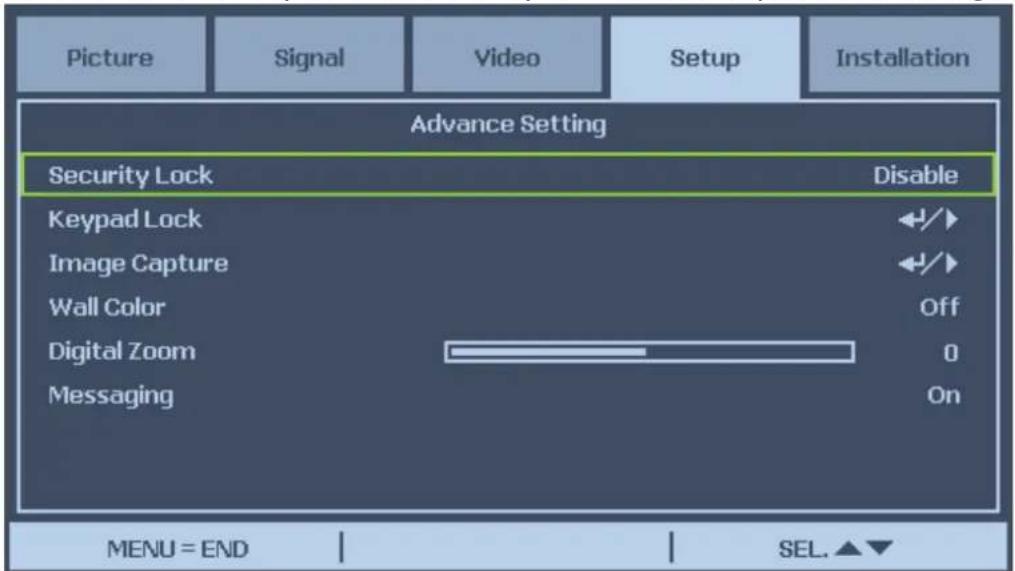
- Enter the password by arrow keys and press CANCEL to perform Security Lock function.
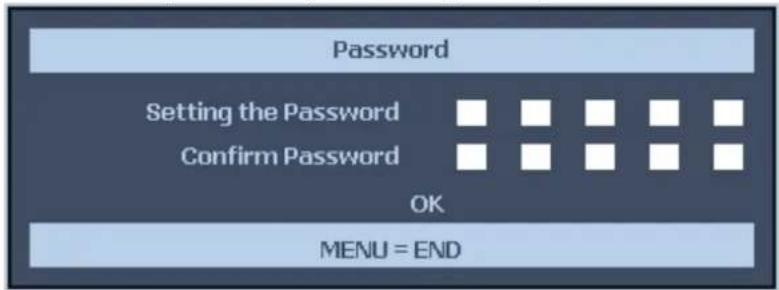
flowchart
graph TD
    A["Password"] --> B["Setting the Password"]
    B --> C["Confirm Password"]
    C --> D["OK"]
    D --> E["MENU = END"]
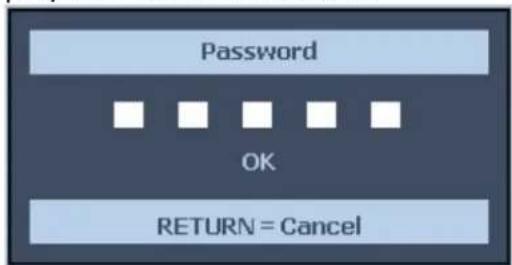
- If the Security Lock function performed the PIN code window will be displayed when the projector turns on next time.
flowchart
graph TD
    A["Password"] --> B["OK"]
    B --> C["RETURN = Cancel"]

When you have set or changed the password, take a memo and keep it securely. If you forget your PIN code, the projector can no longer be stared. Contact your or the service center.
Unlocking the Projector
To unlock the projector, refer to the following guide.
- When the projector is locked, either by request during operation or at start up, the locked message is displayed.
- To unlock the projector, press Menu on the control panel or remote control. The PIN code window is displayed. Enter the previously defined PIN code to activate the projector.
Using the Physical Lock
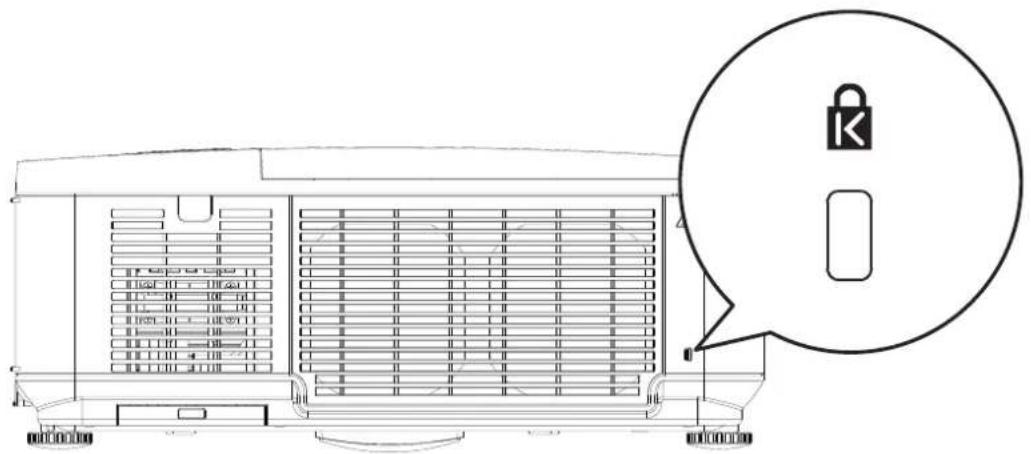
Using the Kensington Lock
If you are concerned about security, attach the projector to a permanent object with the Kensington slot and a security cable.
natural_image
Technical line drawing of a vehicle interior with a magnified inset showing a lock icon (no text or symbols present)Additional information
Care of the projector
Care of the projector
Your projector needs little maintenance. The only thing you have to do on a regular basis is keep the lens clean. Never remove any parts of the projector except the lamp. Contact your dealer or local customer service center if the projector fails to operate as expected.
Cleaning the lens
Clean the lens whenever you notice dirt or dust on the surface. Before you attempt to clean the lens, turn the projector off, unplug the power cable, and leave it several minutes to cool completely. Use a canister of compressed air to remove dust. (Available from building hardware or photographic suppliers.)
If there is stubborn dirt or smudge marks, use a proper photographic lens brush or moisten a clean soft lens cloth with lens cleaner to gently wipe the lens surface.
Never use any type of abrasive pad, alkaline/acid cleaner, scouring powder, or volatile solvent, such as alcohol, benzene, thinner or insecticide. Using such materials or maintaining prolonged contact with rubber or vinyl materials may result in damage to the projector surface and cabinet material.

Never touch the lens with your finger or rub the lens with abrasive materials. Even paper towels can damage the lens coating. Only ever use a proper photographic lens brush, cloth, and cleaning solution. Do not attempt to clean the lens while the projector is switched on or is still hot from previous use. Be sure to turn off the projector and let it cool down completely before cleaning the lens.
Cleaning the projector case
Before you attempt to clean the case, turn the projector off, unplug the power cable, and leave it several minutes to cool completely.
To remove dirt or dust, wipe the case with a soft, dry, lint-free cloth.
To remove stubborn dirt or stains, moisten a soft cloth with water and a neutral detergent. Then wipe the case.

Never use wax, alcohol, benzene, thinner or other chemical detergents. These can damage the case.
Storing the projector
If you need to store the projector for an extended time, please:
Make sure the temperature and humidity of the storage area are within the recommended range for the projector. Please refer to the Spec. page in this manual or consult your dealer about the range.
Retract the adjuster feet.
Remove the batteries from the remote control.
Pack the projector in its original packing or equivalent.
Transporting the projector
It is recommended that you ship the projector with its original packing or equivalent.
Replacing the lamp
The projection lamps should be replaced when they burn out. They should only be replaced with a certified replacement part, contact your local dealer if unsure.

- Lamps are positioned differently. Take care not to force the lamps when replacing.
- Installation of both lamp modules (Lamp 1 and Lamp 2) is required to operate the projector in dual or single lamp mode. If only a single lamp module is installed, the projector's lamp will not turn on and will appear as a lamp failure.

- The lamp contains a certain amount of mercury and should be disposed of according to local ordinance regulations.
- Avoid touching the glass surface of the new lamp: doing so may shorten its operation life.

TLamp Handling Precautions
- This projector uses a high-pressure lamp which must be handled carefully and properly. Improper handling may result in accidents, injury, or create a fire hazard.
- Lamp life may differ from lamp to lamp and according to the environment of use. There is no guarantee of the same life for each lamp. Some lamps may fail or terminate their life in a shorter period of time than other similar lamps.
- If the projector indicates that the lamp should be replaced, i.e., if LAMP 1 and/or LAMP 2 light up, replace the lamp with a new one IMMEDIATELY after the projector has cooled down. (Follow carefully the instructions in the Lamp Replacement section of this manual.) Continuous use of the lamp with LAMP 1 and/or LAMP 2 lighted may increase the risk of lamp explosion.
- A Lamp may explode as a result of vibration, shock or degradation as a result of hours of use as its lifetime draws to an end. Risk of explosion may differ according to the environment or conditions in which the projector and lamp are being used.
If a lamp explodes, the following safety precautions should be taken:
- Disconnect the projector's AC plug from the AC outlet immediately. Contact an authorized service station for a checkup of the unit and replacement of the lamp. Additionally, check carefully to ensure that there are no broken shards or pieces of glass around the projector or coming out from the cooling air circulation holes. Any broken shards found should be cleaned up carefully. No one should check the inside of the projector except those who are authorized trained technicians and who are familiar with projector service. Inappropriate attempts to service the unit by anyone, especially those who are not appropriately trained to do so, may result in an accident or injury caused by pieces of broken glass.
- The projection lamp should be replaced when it burns out. It should only be replaced with a certified replacement part, which you can order from your local dealer.

-
Be sure to turn off and unplug the projector at least 30 minutes before replacing the lamp. Failure to do so could result in a severe burn.
• Safety glasses should be worn when replacing the lamp while the projector is ceiling mounted. -
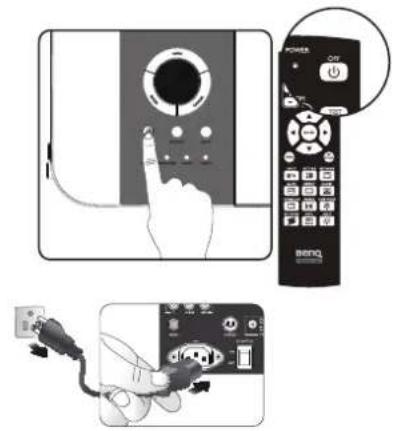
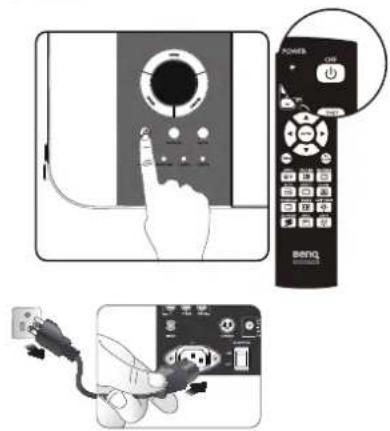
Turn the power off and disconnect the projector from the power outlet. Turn off all connected equipment and disconnect all other cables.
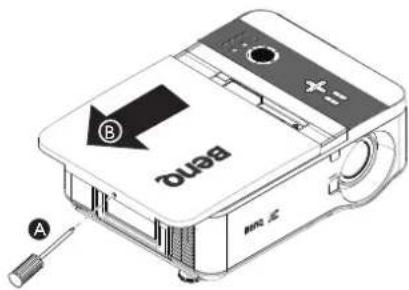
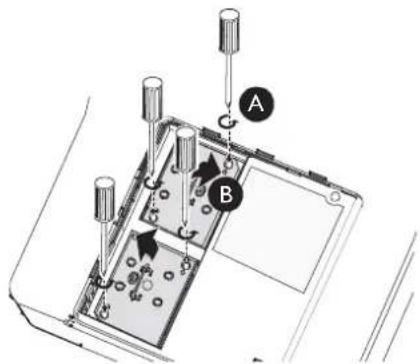
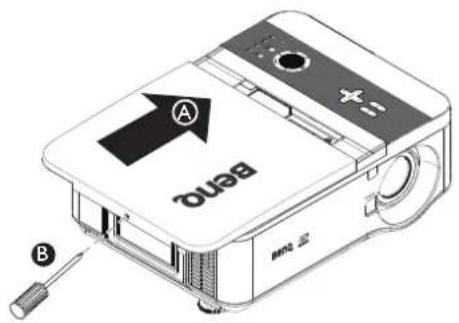
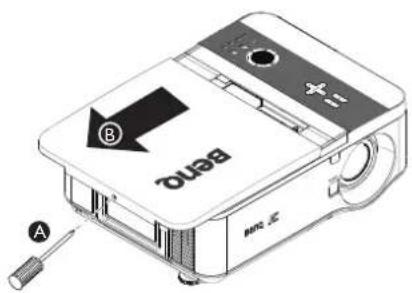
- Remove the screws on the lamp cover (A), and slide the lamp cover as shown (B).
- Loosen the two captive screws on the lamp module (A). Lift the module handle up as shown (B).
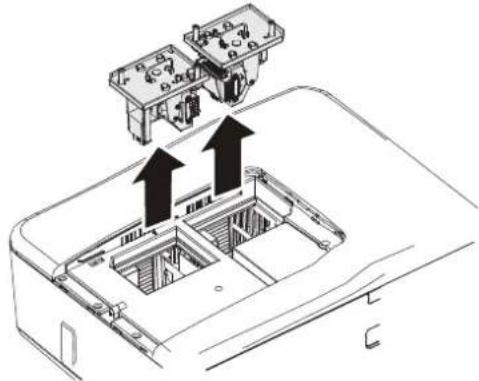
- Pull firmly on the module handle in the direction shown to remove the lamp.
natural_image
Technical line drawing of a device interior with two upward arrows indicating assembly or installation (no text or symbols present)#
- Pulling it too quickly may cause the lamp to break and scatter broken glass in the projector. To reduce the risk of injuries to fingers and damage to internal components, use caution when removing lamp glass that has shattered.
- Do not place the lamp in locations where water might splash on it, children can reach it, near or above heat sources, or near flammable materials.
-
Do not insert your hand into the projector when the lamp is removed. If you touch the optical components inside, it could cause blurred images.
-
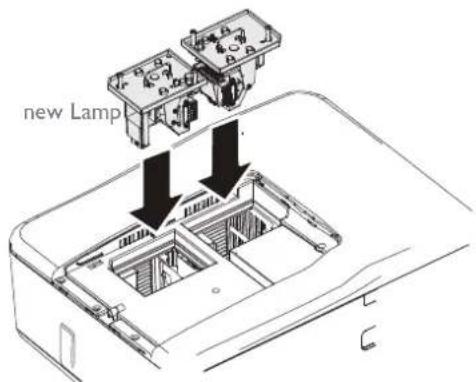
Reverse steps 1 to 3 to install the new lamp module(s).
-
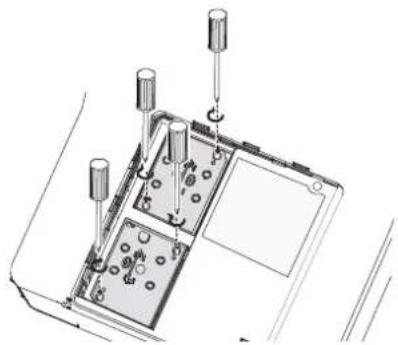
Tighten the screw securing the lamp box. Reconnect the lamp connector.
-
Ensure the handle is fully locked in place.
natural_image
Technical line drawing of a device's internal components with screw holes and mounting points (no text or symbols)
Please be careful to not over-tighten the screws. Loose screws may cause a bad connection, which could result in malfunction.
- Replace the lamp cover. close the lamp cover (A) and lock attached screws (B).
-
Tighten the screws on the lamp cover.
-
Reapply power and turn the projector back on.
Installing the Optional Color Wheel
The projector comes with a four-segment color wheel installed. An additional six-segment color wheel is optional. To replace the color wheel (located under the lamp cover adjacent to lamp I) refer to the following guide.

Wait until the lamp house and the color wheel cool off.
- Turn the power off and disconnect the projector from the power outlet. Turn off all connected equipment and disconnect all other cables.
- Remove the screws on the lamp cover (A), and slide the lamp cover as shown (B).
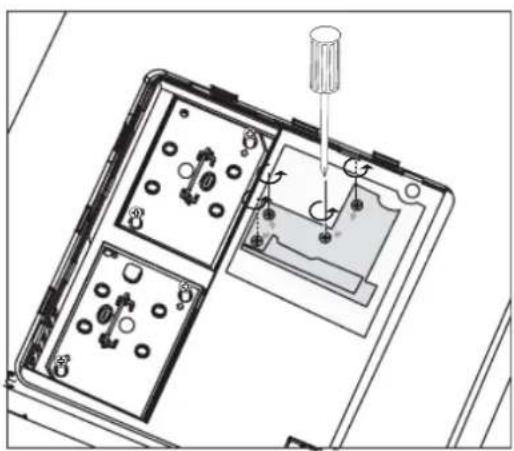
- Unscrew the retaining screws (x 4) on the four-segment color wheel.
natural_image
Technical line drawing of a device's internal components with a screwdriver inserted (no text or symbols)- Lift the color wheel in the direction shown.
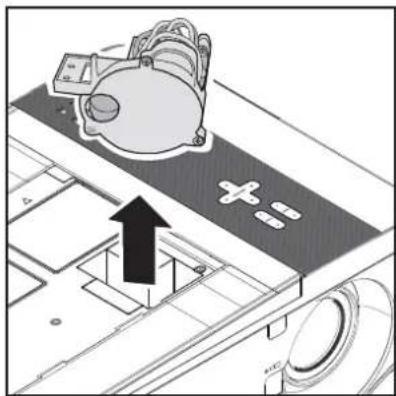
natural_image
Technical diagram showing a mechanical component with an upward arrow and cross symbol, no readable text or labels present.- Insert the six-segment color wheel.
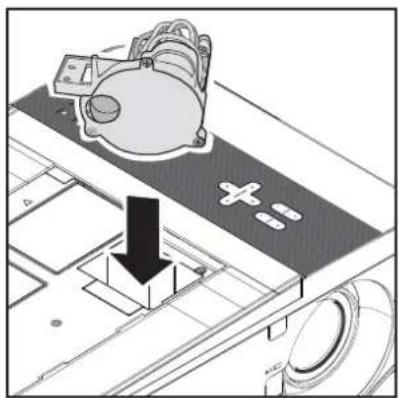
natural_image
Technical diagram showing a mechanical component with a downward arrow and cross symbol, no readable text or labels present.- Secure the retaining screws as shown, and then close the lamp cover.
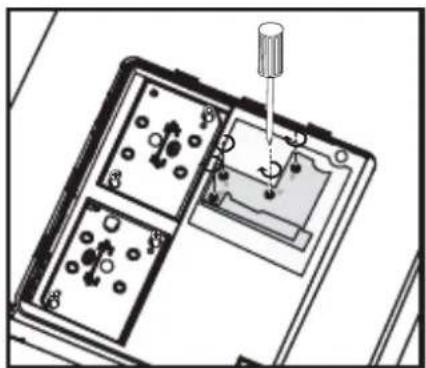
natural_image
Diagram of a screwdriver inserted into a multi-pin electrical socket (no text or symbols visible)Storing Unused Color Wheel: Keep the unused color wheel in the zipper bag in which the 6-segment color wheel (not supplied) was packaged. This bag prevents dust from falling or collecting on the color wheel.
Cleaning the Filters
The projector uses three filters to keep the fans free of dust and other particles, and should be cleaned every 500 hours of operation. In dusty environments, it is recommended to clean the filters more frequently. If the filter is dirty or clogged, your projector may overheat. When the message be-low is displayed, the filters must be cleaned.

When the Please clean filter message is displayed, please clean all three filters at the same time to synchronize the _Filter time display. The Filter Message item should be enabled in the Options menu.
Refer to the following guide to clean the filters.
- The left-side and rear filters can be cleaned as demonstrated in the following images.

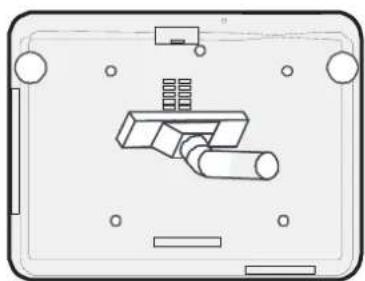
Only clean the outside of the exhaust vents with a vacuum cleaner.
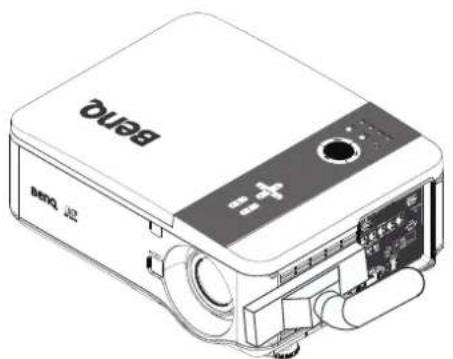
natural_image
Illustration of a beige projector with visible ports and control panel (no text or symbols)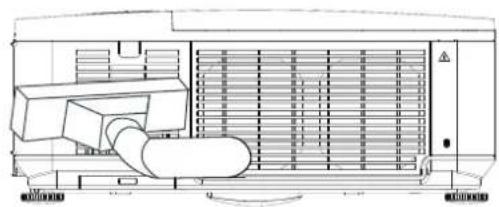
natural_image
Technical line drawing of an industrial machine with cooling unit and fan (no text or symbols)- The bottom exhaust vent can be accessed as shown.
natural_image
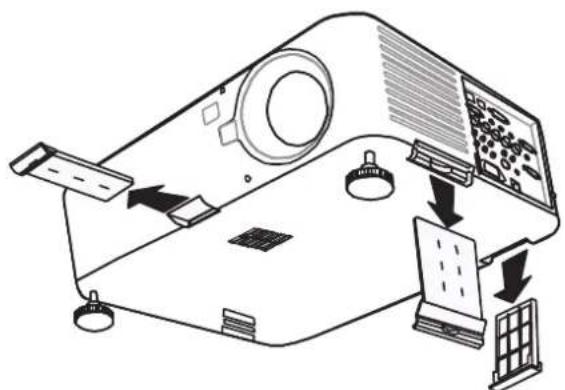
Pure technical diagram of a mechanical component without any text, numbers, or symbols- Gently slide the filter holders in the direction shown.
natural_image
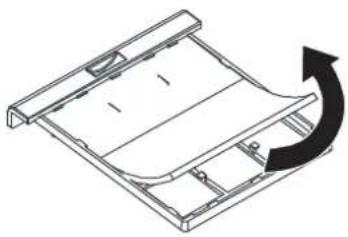
Diagram of a projector with labeled components and directional arrows indicating assembly or operation (no text or symbols present)- Lift the filter foams from all three filter holders in the direction shown. Remove them completely from each filter holder and discard.
natural_image
Isometric line drawing of a mechanical component with an arrow indicating rotation (no text or symbols)- Place a replacement foam and press down firmly.
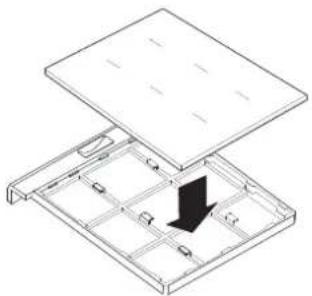
natural_image
Isometric diagram of a modular device with a black arrow indicating a component or assembly (no text or symbols present)- Replace the filter holders by push-ing gently in the direction shown.
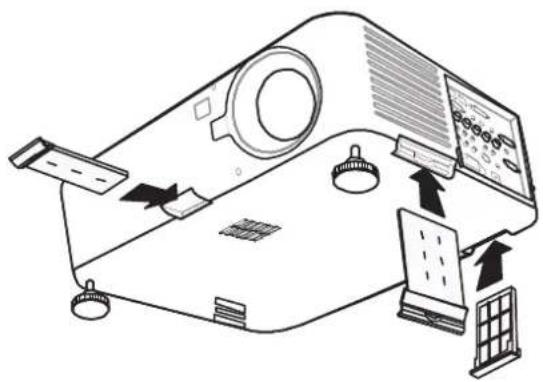
Troubleshooting
Indicator Messages
Several indicator messages are used by the projector to alert users of problems with setup or internal parts. The LEDs on the top surface of the projector show the status of the WARNING and lamp 1/2 as well as the general working order of the projector through the WARNING LED.
The following tables describe the various states of the 4 LEDs.
| LED INDICATOR | LED STATUS | PROJECTOR STATUS |
| Power Indicator | Off AC off | |
| Red on Standby | ||
| Green on Power on | ||
| Orange blinks Projector is under cooling | ||
| Green blinks Start up | ||
| Lamp indicator | Green on Normal, lamp mode is set to Normal | |
| Orange on Normal, lamp mode is set to ECO | ||
| Green blinks Lamp model is set to Normal and is warming up | ||
| Orange blinks Lamp model is set to Eco and is warming up |
| LED INDICATOR | LED STATUS | POSSIBLE CAUSE |
| Warning indicator | Red blinks The lamp | cover is open. |
| Red blinks 2 times | The internal temperature is abnormally over specification.The temperature around the projector is highPlaced projector under temperature 104^ ( 40^ ). | |
| Air intake may be blocked.Placed projector at proper ventilation environment.Internal circuit may be fail. | ||
| Orange blinks | The internal temperature is abnormally over specification.Cooling fan breakdown.Air intake may be blocked.Internal circuit may be fail.Contact with your nearest authorized dealer or service center. | |
| Lamp indicator | Red blinks | The lamp does not illuminateNo lamp is installed or lamp should be replaced.Install the lamp or check if the lamp is installed properly. |
| Red blinks 2 times (Repeatedly) | The lamp does not illuminateThe lamp is shut down abnormally.The lamp is burnt outLamp circuit failureContact with your nearest authorized dealer or service center. |
Troubleshooting
Common Problems and Solutions
These guidelines provide tips to deal with problems you may encounter while using the projector. If the problem remains unsolved, contact your dealer for assistance.
Often the problem is something as simple as a loose connection. Check the following before proceeding to the problem-specific solutions.
• Use some other electrical device to confirm that the electrical outlet is working.
• Ensure the projector is turned on.
- Ensure all connections are securely attached.
- Ensure the attached device is turned on.
- Ensure a connected PC is not in suspend mode.
- Ensure a connected notebook computer is configured for an external display. (This is usually done by pressing an Fn-key combination on the notebook.)
Tips for Troubleshooting
In each problem-specific section, try the steps in the order suggested. This may help you to solve the problem more quickly.
Try to pinpoint the problem to avoid replacing non-defective parts.
For example, if you replace batteries and the problem remains, put the original batteries back and go to the next step.
Keep a record of the steps you take when troubleshooting: The information may be useful when calling for technical support or for passing on to service personnel.
Image Problems
Problem: No image appears on the screen
I. Verify the settings on your notebook or desktop PC.
2. Turn off all equipment and power up again in the correct order.
Problem: The image is blurred
I. Adjust the Focus on the projector.
3. Press the AUTO SYNC button on the remote control or projector.
4. Ensure the projector-to-screen distance is within the specified range.
5. Check that the projector lens is clean.
6. Remove the lens cover.
Problem: The image is wider at the top or bottom (trapezoid effect)
- Position the projector so it is as perpendicular to the screen as possible.
- Use the Keystone button on the remote control to correct the problem.
Problem: The image is reversed or upside down
Check the Ceiling & Rear setting on the Setting menu of the OSD.
Problem: The image is streaked
I. Adjust the Phase and Clock on the Signal menu of the OSD to the default settings.
2. To ensure the problem is not caused by a connected PC's video card, connect to another computer.
Problem: The image is flat with no contrast
I. Adjust the Contrast setting on the Picture menu of the OSD.
2. Adjust the Brightness setting on the Picture menu of the OSD.
Problem: The color of the projected image does not match the source image.
Adjust the Color temperature and Picture settings.
Lamp Problems
Problem: There is no light from the projector
I. Check that the power cable is securely connected.
2. Ensure the power source is good by testing with another electrical device.
3. Restart the projector in the correct order and check that the Power LED is green.
4. If you have replaced the lamp recently, try resetting the lamp connections.
5. Replace the lamp module.
6. Remove the lens cap.
7. Put the old lamp back in the projector and have the projector serviced.
Problem: The lamp goes off
- Power surges can cause the lamp to turn off. Press the power button twice to turn off the projector. When the Power LED is orange, press the power button.
- Replace the lamp module.
- Put the old lamp back in the projector and have the projector serviced.
Remote Control Problems
Problem: The projector does not respond to the remote control
I. Direct the remote control towards remote sensor on the projector.
2. Ensure the path between remote and sensor is not obstructed.
3. Turn off any fluorescent lights in the room.
4. Check the battery polarity.
5. Replace the batteries.
6. Turn off other Infrared-enabled devices in the vicinity.
7. Have the remote control serviced.
8. Ensure that the remote control code conforms to the projector's code.
9. Ensure that the reset switch in the compartment lid on back of the remote control is set to use position.
Specifications

All specifications are subject to change without notice
| Model PX9600 PW9500 | |||
| Display Devices 0.7", I - DLP Chip | 0.65", I - DLP Chip | ||
| Display Devices XGA(1024x768) | WXGA(1280x800) | ||
| Input Terminals | DVI-D (Compatible with HDCP) | I | |
| Computer/Component (5BNC) | I | ||
| Computer/Component (D-sub 15p) | I | ||
| Component (RCA) XI, Y/Pb(Cb)/Pr(Cr) x I | |||
| S-Video (min Din 4 pin) I | |||
| Video (RCA) I | |||
| Output | Computer/Component (D-sub 15 p) | I | |
| Trigger (φ3.5mm stereo min jack) | XI (DC 12V Output) | ||
| Control and Service terminal | Lan (RJ-45) I | ||
| Wired Remote (φ3.5mm stereo minjack) | I | ||
| RS-232C I | |||
| USB (Type B) for service I | |||
| Power Requirement | AC 100 - 240V, 50/60Hz | ||
| Input Current | 7.3A | ||
| Power Consumption (standby Mode: Standard/Eco) | 715W (20.3W/<0.5W) with AC 110V | ||
| 675W (21.3W/<0.5W) with AC 240V | |||
| Operation Temperature | 41°C to 104°C (5°C to 40°C) | ||
| Storage Temperature | 14°C to 140°C (-10°C to 60°C), 5% to 90% Humidity (non-condensing) | ||
| Dimensions | 19.9" (W) x 15.1" (H) x 8.1" (D)505 mm (W) x 386 mm (H) x 206 mm (D) (not including protrusions) | ||
| Weight | 37.5 lb/17 kg | ||
Dimensions
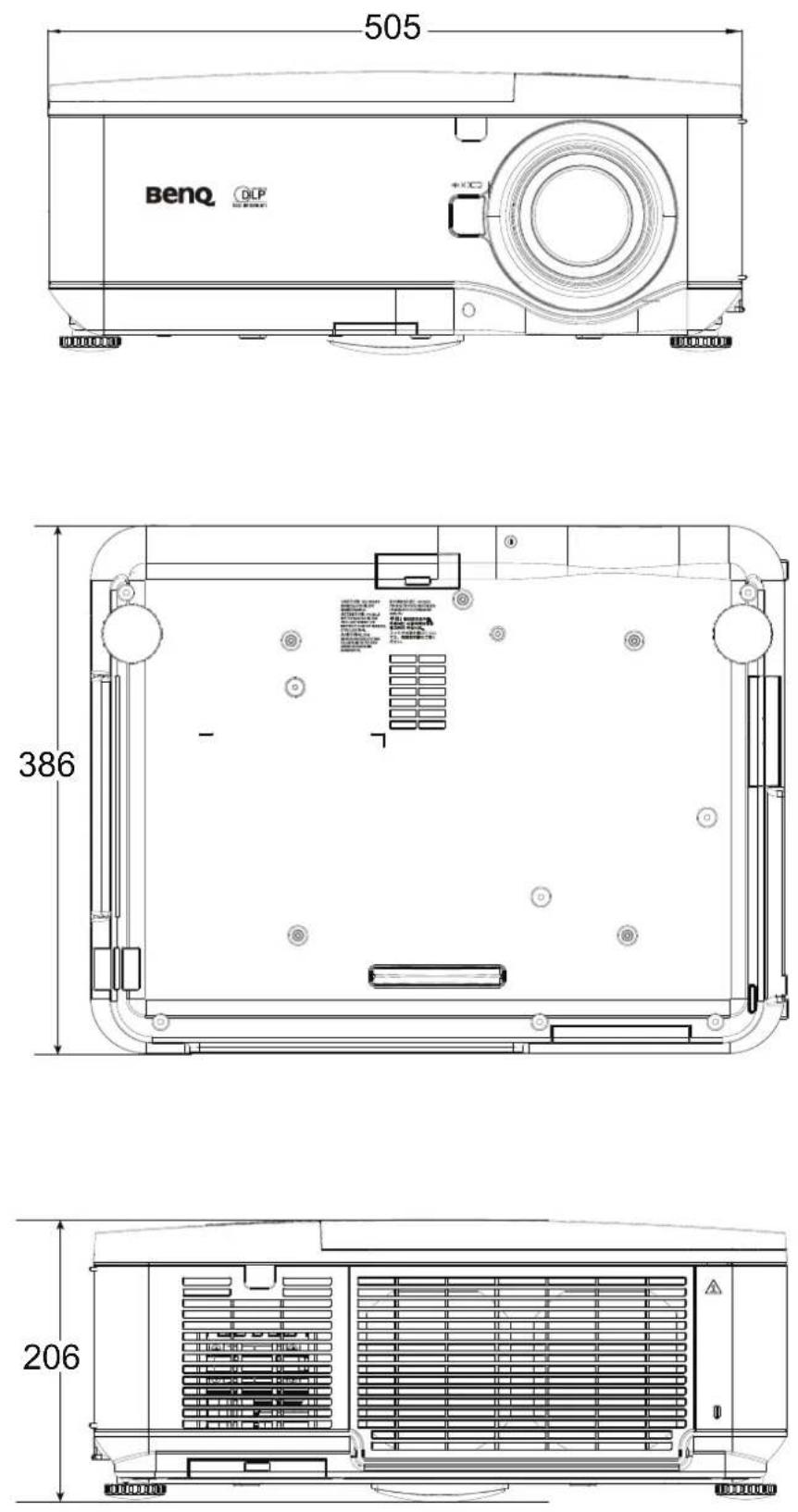
Timing chart
The following table shows compatible signal types, their resolution and frequency refresh rates.
Horizontal: 15kHz, 31kHz to 90 kHz, Vertical: 50 Hz to 85 Hz
| Mode Resolution H-Sync (KHz) V-Sync (Hz) Analog Digital | ||||
| VGA 640x480 | 31.5 60 O O | |||
| 37.9 72 O O | ||||
| 37.5 75 O | ||||
| 43.3 85 O O | ||||
| SVGA 800x600 | 35.2 56 O O | |||
| 37.9 60 O O | ||||
| 48.1 72 O O | ||||
| 46.9 75 O O | ||||
| 53.7 85 O | ||||
| XGA 1024x768 | 48.4 60 O O | |||
| 56.5 70 O O | ||||
| 60.0 75 O | ||||
| 68.7 85 O | ||||
| WXGA | 1280x720 45.0 60 O O | |||
| 1280x768 47.8 60 O O | ||||
| 1280x800 | 49.7 60 O O | |||
| 62.8 75 O | ||||
| 1360x768 47.7 60 O | ||||
| 1366x768 47.7 60 O | ||||
| WXGA+ 1440 x900 55.9 60 O | ||||
| SXGA | 1152x864 67.5 75 O | |||
| 1280x960 | 60 | 60 O O | ||
| 1280x1024 | 64.0 60 O O | |||
| 80.0 75 O O | ||||
| SXGA+ | 1400x1050 65.8 60 O O | |||
| WSXGA+ | 1680x1050 65.8 60 O | |||
| UXGA | 1600x1200 75.0 60 O | |||
| VGA (MAC 13") | 640 x480 | 34.9 67 O | ||
| SVGA (MAC 16") | 832x624 | 49.7 75 O | ||
| XGA (MAC 19") | 1024x768 60.2 75 O | |||
| SXGA (MAC 21") | 1152x870 68.7 75 O | |||
3D Supported Timing
| Mode Resolution H-Sync (KHz) V-Sync (Hz) Analog Digital | |||||
| VGA 800x600 | 37.9 | 60 | ○ | ○ | |
| 77.1 | 120 | ||||
| XGA 1024x768 | 48.4 60 | ○ | ○ | ||
| 98.6 120 | |||||
| WXGA | 1280x800 | 49.7 60 | ○ | ○ | |
| 101.6 120 | |||||
| 1280x720 | 45.0 60 | ○ | |||
| 92.6 120 | |||||
DTV
| Signal Vertical Frequency(Hz) | H or i z o n t a l Frequency(Hz) | Analog | Digital | ||
| SDTV | 480i | 15.7 | 60.0 | ○ | |
| 576i | 15.6 | 50.0 | ○ | ||
| EDTV | 480p | 31.5 | 60.0 | ○ | ○ |
| 576p | 31.3 | 50.0 | ○ | ○ | |
| HDTV | 720p | 45.0 | 60.0 | ○ | ○ |
| 720p | 37.5 | 50.0 | ○ | ○ | |
| 1080 | 33.8 | 60.0 | ○ | ○ | |
| 1080 | 28.1 | 50.0 | ○ | ○ | |
| 1080 | 56.3 | 50 | ○ | ○ | |
| 1080 | 67.5 | 60 | ○ | ○ | |

An image with higher or lower resolution than the projector's native resolution will be compressed.
• Some Composite and Sync on Green signals may not be displayed correctly.
- Signals other than those specified in the table above may not be displayed correctly. If this should happen, change the refresh rate or resolution on your PC. Refer to Display Properties help section of your PC for procedures.
RS232 Command Control
| Function Type Description ASCII | ||
| Power | Write Power On*pow=on# | |
| Write Power off*pow=off# | ||
| Read Power Status*pow=?# | ||
| Source Selection | Write COMPUTER/YPbPr*sour=RGB# | |
| Write COMPUTER 2/YPbPr2*sour=RGB2# | ||
| Write Component*sour=ypbr# | ||
| Write DVI-D*sour=dvid# | ||
| Write Composite*sour=vid# | ||
| Write S-Video | *sour=svid# | |
| Read Current source | *sour=?# | |
| Picture Mode | Write Presentation*appmod=preset# | |
| Write sRGB | *appmod=srgb# | |
| Write Game | *appmod=game# | |
| Write Cinema | *appmod=cine# | |
| Write Standard | *appmod=std# | |
| Read Picture Mode | *appmod=?# | |
| Picture Setting | Write Contrast +*con=+# | |
| Write Contrast -*con=-# | ||
| Read Contrast value | *con=?# | |
| Write Brightness + | *bri=+# | |
| Write Brightness - | *bri=-# | |
| Read Brightness value | *bri=?# | |
| Write Color + | *color=+# | |
| Write Color - | *color=-# | |
| Read Color value | *color=?# | |
| Write Sharpness +*sharp=+# | ||
| Write Sharpness - | *sharp=-# | |
| Read Sharpness value | *sharp=?# | |
| Write Color Temperature-Warm | *ct=warm# | |
| Write Color Temperature-Normal | *ct=normal# | |
| Write Color Temperature-Cool | *ct=cool# | |
| Read Color Temperature Status | *ct=?# | |
| Write Aspect 4:3 | *asp=4:3# | |
| Write Aspect 16:9 | *asp=16:9# | |
| Write Aspect Auto(Aspect Normal) | *asp=AUTO# | |
| Write Aspect Real(Aspect Native) | *asp=REAL# | |
| Write Aspect Wide(Aspect Full) | *asp=WIDE# | |
| Read Aspect Status | *asp=?# | |
| Write Brilliant color on(BC = 2) | *BC=on# | |
| Write Brilliant color off(BC = 0) | *BC=off# | |
| Read Brilliant color status | *BC=?# | |
| Operation Settings | Write Projector Position-Front Table | *pp=FT# |
| Write Projector Position-Rear Table | *pp=RE# | |
| Write Projector Position-Rear Ceiling | *pp=RC# | |
| Write Projector Position-Front Ceiling | *pp=FC# | |
| Operation Settings | Read Projector Position Status*pp=?# | |
| Write Quick auto search on(Auto Search On) | *R]*QAS=on# | |
| Write Quick auto search off (Auto Search Off) | *R]*QAS=off# | |
| Read Quick auto search status*QAS=?# | *R> | |
| Write Direct Power On-on(Auto Power On) | *R]*directpower=on# | |
| Write Direct Power On-off (Auto Power On - Off) | *directpower=off# | |
| Read Direct Power On-Status*directpower=?# | ||
| Baud Rate | Write 2400*baud=2400# | |
| Write 4800*baud=4800# | ||
| Write 9600*baud=9600# | ||
| Write 14400*baud=14400# | ||
| Write 19200*baud=19200# | ||
| Write 38400*baud=38400# | ||
| Write 57600*baud=57600# | ||
| Write 115200*baud=115200# | ||
| Read Current Baud Rate*baud=?# | ||
| Lamp Control | Read Lamp Hour*ltim=?# | |
| Read Lamp2 Hour*ltim2=?# | ||
| Write Normal mode*lampm=lnor# | ||
| Write Eco mode*lampm=eco# | ||
| Read Lamp Mode Status | *Lampm=?# | |
| Miscellaneous | Read Model Name | *modelname=?# |
| Write Blank On | *blank=on# | |
| Write Blank Off | *blank=off# | |
| Read Blank Status | *blank=?# | |
| Write Freeze On | *freeze=on# | |
| Write Freeze Off | *freeze=off# | |
| Read Freeze Status | *freeze=?# | |
| Write Menu On | *menu=on# | |
| Write Menu Off | *menu=off# | |
| Write Menu Status | *menu=?# | |
| Write Up | *up# | |
| Write Down | *down# | |
| Write Right | *right# | |
| Write Left | *left# | |
| Write Enter | *enter# | |
| Write 3D Sync Off(DLP Link Off) | *3d=off# | |
| Write 3D Sync Frame Sequential | *3d=fs# | |
| Write 3D inverter disable | *3d=da# | |
| Write 3D inverter | *3d=iv# | |
| Read 3D Sync Status | *3d=?# | |
| Write High Altitude mode on | *Highaltitude=on# | |
| Write High Altitude mode off | *Highaltitude=off# | |
| Read High Altitude mode status | *Highaltitude=?# | |
| Read Error Code | *error=report# | |
| Write Serial Number code1 | V99N1234 | |
| Write Serial Number code2 | V99N5678 | |
| Read Serial Number Query | V99N0000 | |
| Miscellaneous | Write Lens Shift Up*lst=up# | |
| Write Lens Shift Down*lst=down# | ||
| Write Lens Shift Left*lst=left# | ||
| Write Lens Shift Right*lst=right# | ||
| Write Focus Plus*focus=+# | ||
| Write Focus Minus*focus=-# | ||
| Write Zoom Plus*zoom=+# | ||
| Write Zoom Minus*zoom=-# | ||
| Write AutoSync NA | ||
| Read Get Filter Timer NA | ||
| Write System Reset NA | ||
| Read Get F/W Version | NA | |
| Read Get Tint | NA | |
| Write Set Tint | NA | |
| Read Get Keystone value | NA | |
| Write Set Keystone value | NA | |
| Read Get Messaging | NA | |
| Read Set Messaging | NA | |
BenQ ecoFACTS
BenQ has been dedicated to the design and development of greener product as part of its aspiration to realize the ideal of the "Bringing Enjoyment 'N Quality to Life" corporate vision with the ultimate goal to achieve a low-carbon society. Besides meeting international regulatory requirement and standards pertaining to environmental management, BenQ has spared no efforts in pushing our initiatives further to incorporate life cycle design in the aspects of material selection, manufacturing, packaging, transportation, using and disposal of the products. BenQ ecoFACTS label lists key eco-friendly design highlights of each product, hoping to ensure that consumers make informed green choices at purchase. Check out BenQ's CSR Website at http://csr.BenQ.com/ for more details on BenQ's environmental commitments and achievements.
Copyright 2013 BenQ Corporation. All rights reserved. No part of this publication may be reproduced, transmitted, transcribed, stored in a retrieval system or translated into any language or computer language, in any form or by any means, electronic, mechanical, magnetic, optical, chemical, manual or otherwise, without the prior written permission of BenQ Corporation.
All other logos, products, or company names mentioned in this manual may be the registered trademarks or copyrights of their respective companies, and are used for informational purposes only.
Disclaimer
BenQ Corporation makes no representations or warranties, either expressed or implied, with respect to the contents hereof and specifically disclaims any warranties, merchantability or fitness for any particular purpose. Further, BenQ Corporation reserves the right to revise this publication and to make changes from time to time in the contents hereof without obligation of BenQ Corporation to notify any person of such revision or changes.
This user manual aims to provide the most updated and accurate information to customers, and thus all contents may be modified from time to time without prior notice. Please visit http://www.benq.com for the latest version of this manual.
Statement regarding hyperlinks and third-party websites
BenQ is not responsible for the content of the websites or of similar resources, which are maintained and controlled by third parties, that may be linked from this product. Providing links to those websites or to similar resources does not mean that BenQ makes any warranty or representation to their content by expression or by implication.
Any third party content or service preinstalled in this product is provided "as is". BenQ does not, by expression or by implication, make any warrant to the content or to the services provided by third parties. BenQ does not warrant or guarantee that the content or services provided by third parties are accurate, effective, most up-to-date, legal, or complete. Under no circumstances shall BenQ be liable for the content or services provided by third parties including their negligence.
Services provided by third parties may be terminated temporarily or permanently. BenQ does not warrant or guarantee that the any content or services provided by third parties are in good condition at any time, and is not liable for the termination of the said content and services.
In addition, BenQ is not involved in any transactions you conduct in the websites or similar resources maintained by third parties.
You should contact the content or service providers for any questions, concerns, or disputes.