
GeoVision 5566 Navitel - Gps PRESTIGIO - Free user manual and instructions
Find the device manual for free GeoVision 5566 Navitel PRESTIGIO in PDF.


| Product Type | GPS Navigation Device |
| Brand | Prestigio |
| Model | GeoVision 5566 Navitel |
| Display | LCD Touch Screen |
| Touchscreen | Yes (stylus or finger) |
| Storage Expansion | microSD slot |
| Battery Type | Built-in rechargeable battery |
| Charging Time | Approximately 3-4 hours |
| Operating System | Windows CE |
| Navigation Software | Navitel 5.0 |
| Multimedia | Audio, video, photo (via Multimedia menu) |
| Analog TV | Yes (with antenna) |
| Bluetooth | Optional (handsfree, file transfer) |
| FM Transmitter | Yes |
| Ports | Mini-USB, Earphone 3.5mm |
| Audio | Built-in speaker |
| Reset Button | Yes |
| Accessories Included | Car charger, smart mount, USB cable, stylus pen, CD, manual, warranty card |
| Safety Notes | Do not expose to water; no user-serviceable parts; use only authorized service |
| PC Connection | Microsoft ActiveSync or Mobile Device Center |
Frequently Asked Questions - GeoVision 5566 Navitel PRESTIGIO
User questions about GeoVision 5566 Navitel PRESTIGIO
0 question about this device. Answer the ones you know or ask your own.
Ask a new question about this device
Download the instructions for your Gps in PDF format for free! Find your manual GeoVision 5566 Navitel - PRESTIGIO and take your electronic device back in hand. On this page are published all the documents necessary for the use of your device. GeoVision 5566 Navitel by PRESTIGIO.
USER MANUAL GeoVision 5566 Navitel PRESTIGIO
natural_image
Black triangular warning symbol with exclamation mark (no text or numbers)
The exclamation point within an equilateral triangle is intended to alert the user to the presence of important operating and maintenance (servicing) instructions in the literature accompanying the appliance.
CAUTION
- To reduce the risk of electric shock, do not remove the cover (or back). No user-serviceable parts inside. Refer servicing to qualified service personnel.
- The manufacturer should not hold responsibility for the damage caused by any substitutions and modifications of the product without authorization from the manufacturer or authorized unit.
WARNING
The device should not be exposed to dripping or splashing and no objects filled with liquids should be placed on the device.
Accessories
Accessories List
| ITEM | NAME |
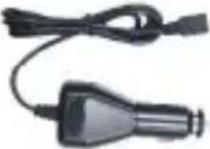 | Car Charger 1 |
 | Smart Mount 1 |
 | USB Cable 1 |
 | Stylus Pen 1 |
 | Smart mount user guide 1 |
 | Driver/Documentation CD 1 |
 | User Manual 1 |
 | Warranty Card 1 |
Front and Side View
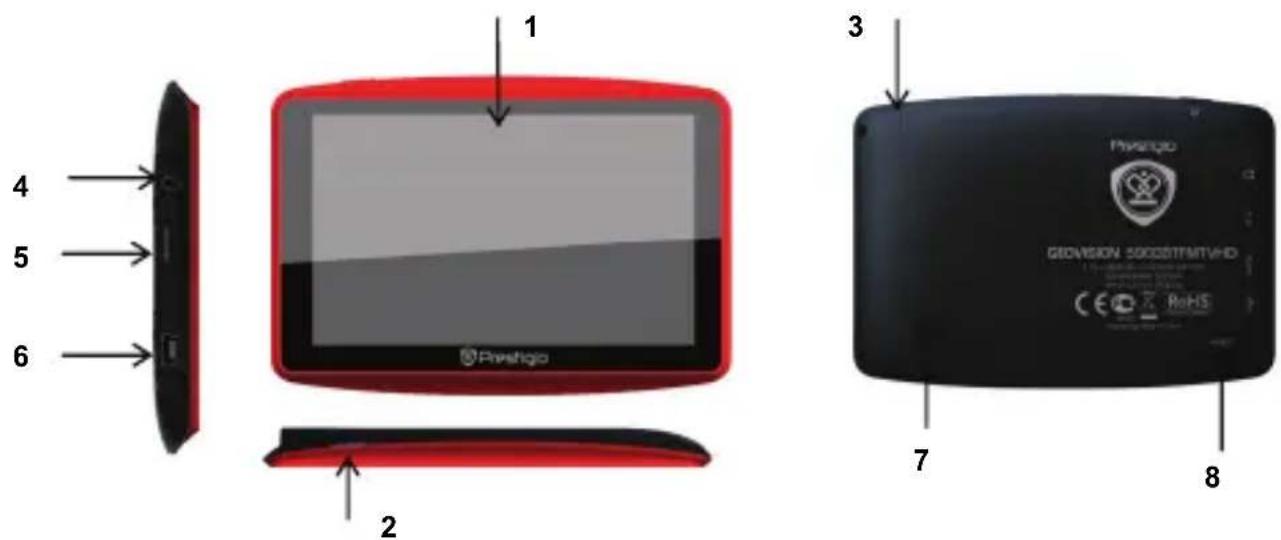
1. LCD Touch Screen
Tap the screen with touch pen or finger to select menu commands or to enter information.
2. Power Button
Press to power ON/OFF the device.
3. Analog TV Antenna
Receives television signals.
4. Earphone Port
Connect to headphones or headsets.
5. microSD Slot
Insert a microSD memory card for data access or memory expansion.
6. Mini-USB Port
Connect to USB Cable for data access or battery charging
7. Speaker
Emits sound, voice or music.
8. Reset Button
Press to reboot the device.
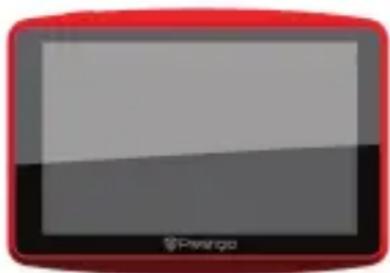
Inserting microSD Card

natural_image
Red rectangular electronic device with a blank screen, no visible text or symbols on the device itself.- To insert a microSD card, place the connector towards the device and the card label towards the front side of the device.
- To remove a microSD card, gently press the edge of the card to release the safety lock and pull the card out of the slot.

NOTE:
Please always make sure that no application is accessing the microSD card before extraction.
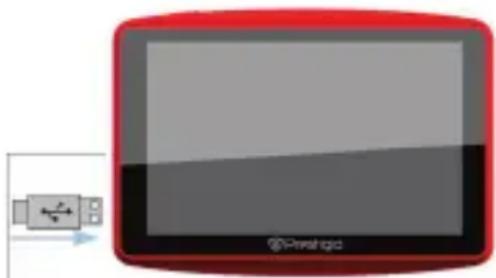
Connecting to External USB Device (Charging)
natural_image
Red rectangular electronic device with a small battery icon and 'Prinlogic' branding, no readable text or symbols on the device itself.- Insert the micro USB connector into the appropriate micro USB port.
- Insert the other USB connector into the USB port on PC to start charging.
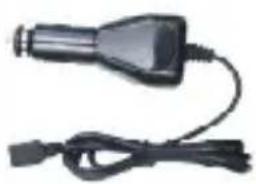
Connecting to Car Charger

natural_image
Close-up of a handheld electronic device with a black connector and coiled cable (no visible text or symbols)- Insert the micro USB connector into the appropriate micro USB port.
- Insert car charger connector into vehicle 12V accessory/cigarette socket to start charging.

NOTE:
Please connect the car charger to vehicle 12V accessory/cigarette socket after the vehicle engine is started to protect the device from sudden surges in current.
Cautions on Battery Charging
About Rechargeable Battery
The device is equipped with a built-in rechargeable battery. Please fully charge the battery (for at least 8 hours) before initial use. The battery status indicator glows in red color when charging and turns bright green color when charging is complete. Charging time is approximately 3 hours for GV5900, 4 hours for GV7900.
Working conditions and precautions for the rechargeable battery
● Device with new battery should be fully charged before initial use.
- It is not necessary to start charging the device before the battery is fully discharged.
Getting Started
- Press and hold Power Button to turn on device.
- Shortly after the greeting screen is shown, the main menu will be displayed.
- Tap the corresponding buttons with touch pen included to navigate various functions.
- Press and hold Power Button to turn off the device or to allow the device to enter sleep mode.
Main Menu
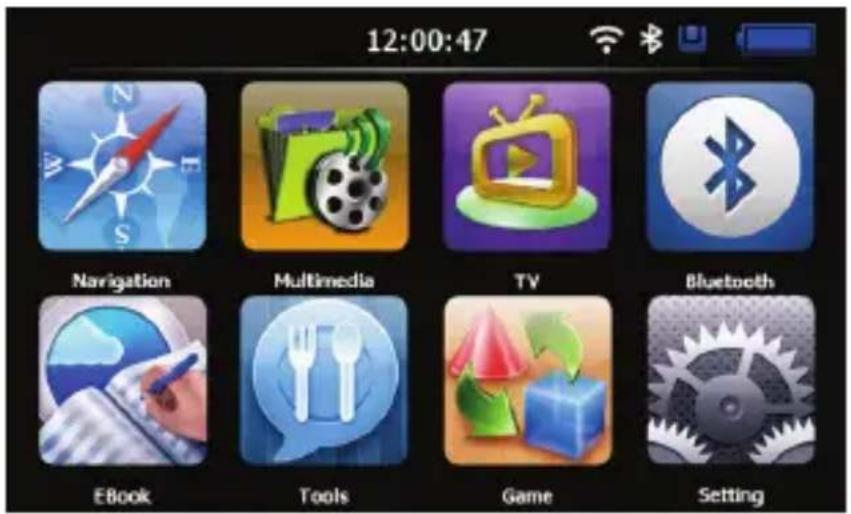
Shortly after the welcome screen is shown, main menu will be displayed automatically. The main menu consists of the following sections: Navigation, Multimedia, Analog TV, Bluetooth, EBook, Tools, Game and Settings.
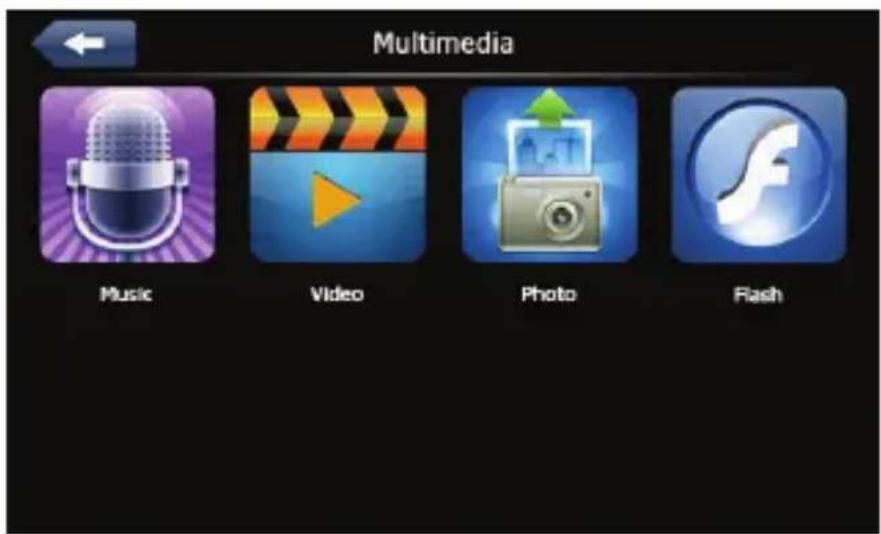
In the Multimedia, it shows the surface as below:
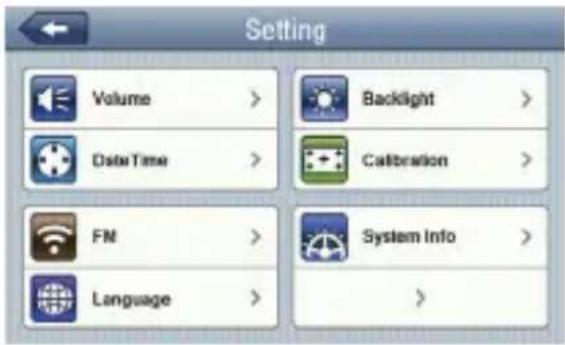
- Tap on 📄 to enter System settings.
- Tap on ← to exit.
Volume
Adjust sound volume.
Backlight Adjust the brightness of touch screen.
Date Time Set up Time Zone/Date/Time.
Calibration Calibrate the screen when position deviation occurs.
FM Transmit audio signals from the navigator to radio set.
Sys Info Show the system version and serial number etc.
Language Select desired language.
Navi Path Set navigation path
Factory default Return the default settings
GPS info Display signals data GPS received.
USB Set MASS STORAGE or MS ACTIVESYNC.
Wince Wince Operating system.
FM Transmitter
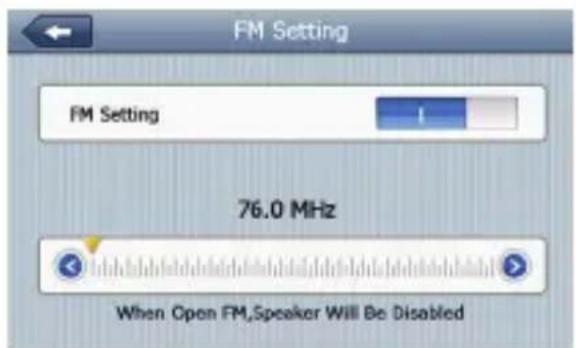
- Tap on to enter FM function.
Analog TV
Tap on

to enter Analog TV mode detailed as follows.
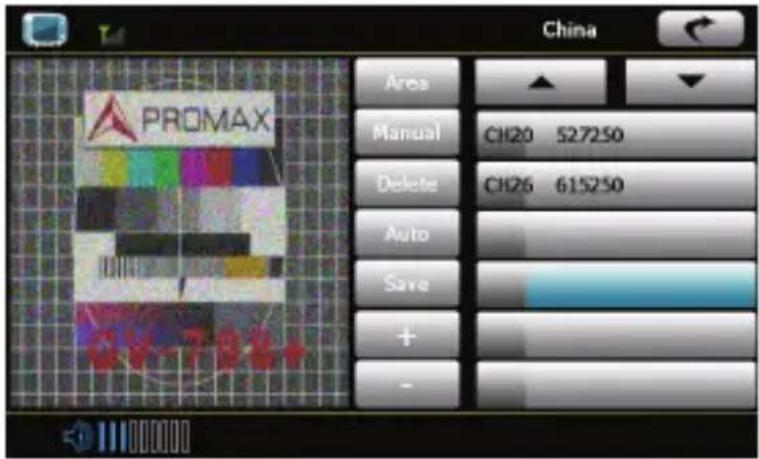
- Tap on Size to store the current TV channel.
- Tap on Manual / Auto to manually/automatically search for a TV channel. Search result is displayed in the list.
- Tap on Delete to delete the desired channel.
- Tap on Area to select the region.
- Tap on / to turn to previous/next item.
- Tap on - / + to adjust volume.
- Tap on to exit the Analog TV mode.
Bluetooth Function (Optional)
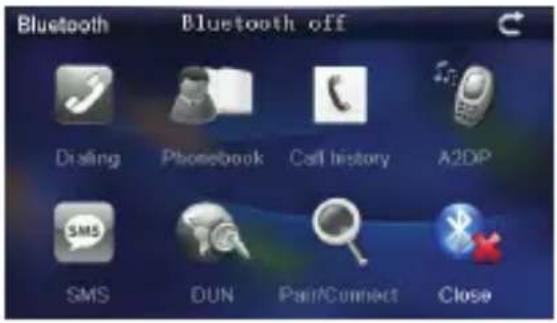
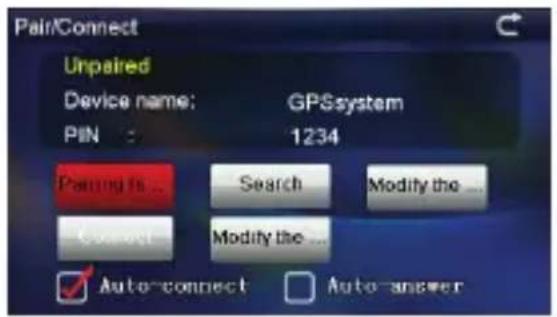
- Tap

to start using
Bluetooth function.
- Tap file

to exit the current
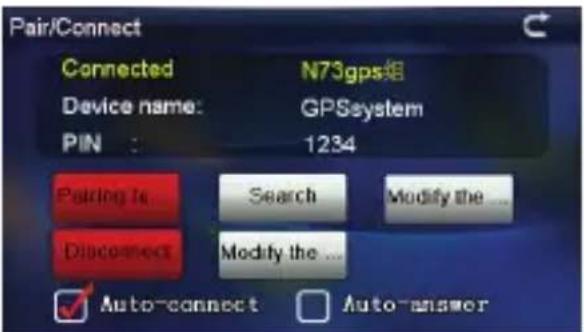
- Tap

to open the
Bluetooth settings
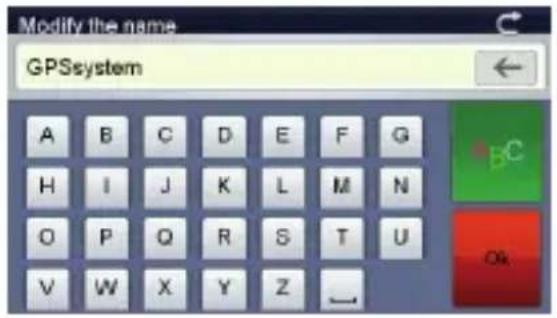
- Tap
to change
the device name, press the button

to switch between letter and
number input
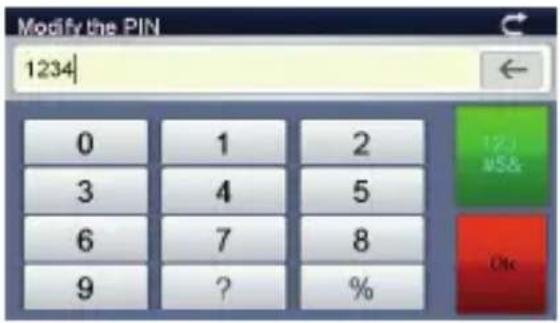
- Tap PIN.
to modify the
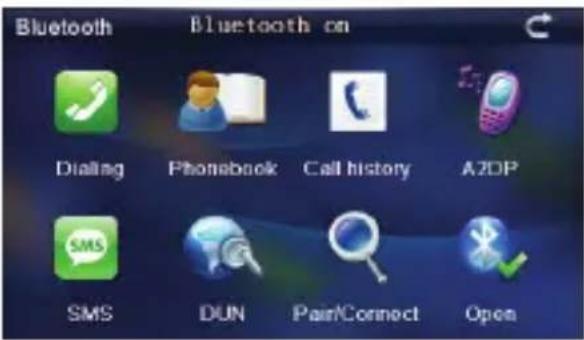
Bluetooth Function (Optional)
-
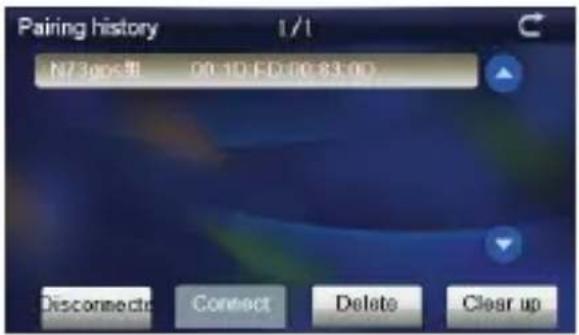
Tap on to display the connection history
-
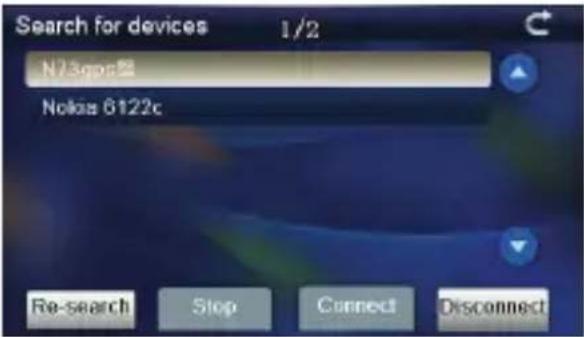
Tap on. to search Bluetooth devices
-
Select Bluetooth phone "N73gps", tap on Connect, and enter the PIN code 1234
-
After successful connection, then exit from the current interface, The main menu will be displayed in colored pattern
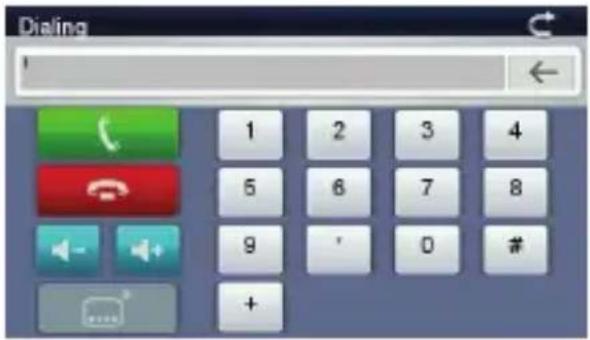
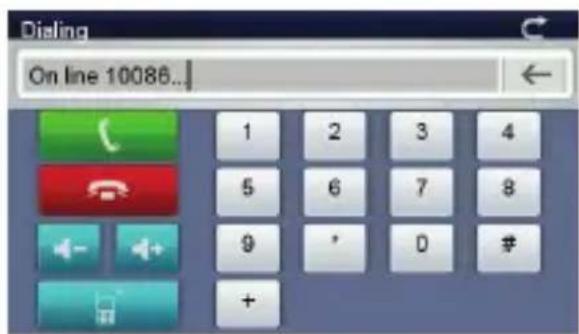
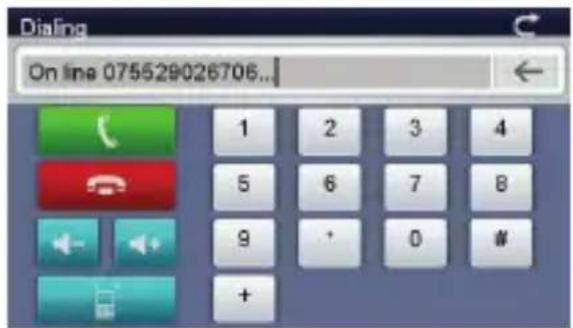
- Tap
to open dial pad
- Tap
on to dial the number.
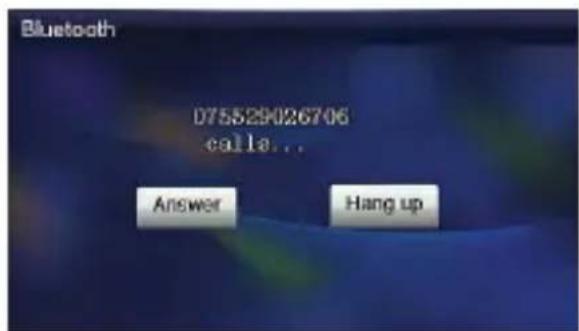
- Tap
on Answer to answer the ing call
- Calling number and its ID will be displayed in the Incoming Call. Tap on to switch phone call between GPS and cell phone
Bluetooth Function (Optional)
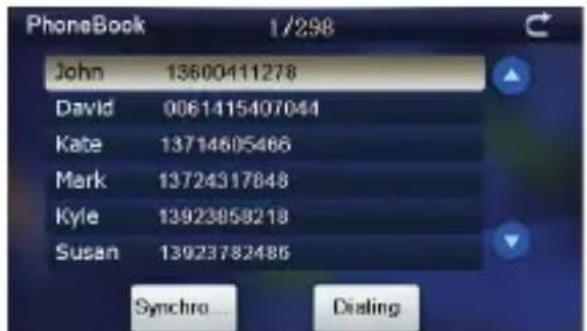
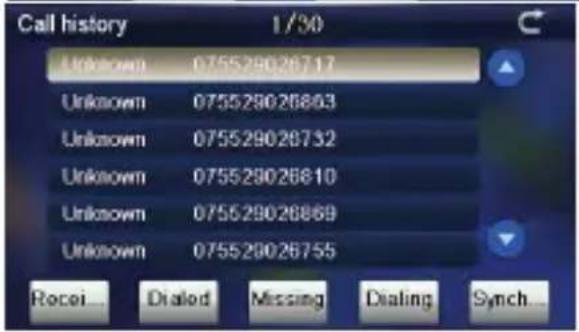
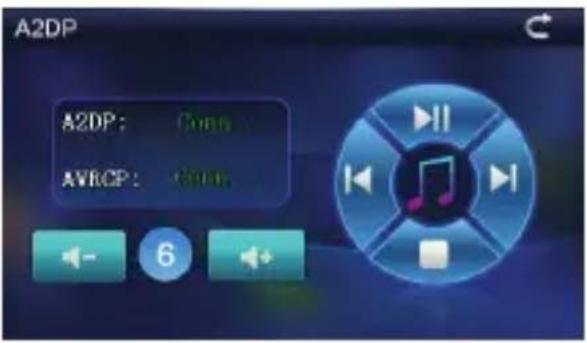
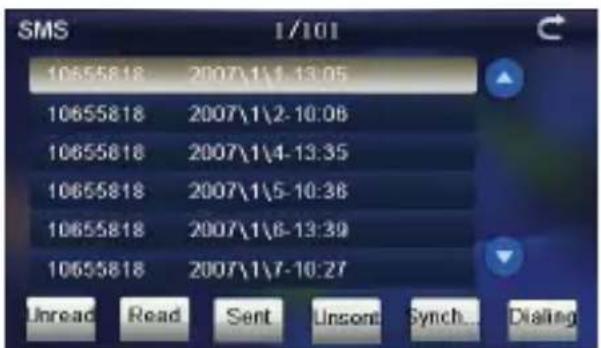
-
Tap on Phonebook open the phonebook
-
Tap of call history to open the call history
-
Tap on A2DP to open the A2DP
- Tap on SMS to download SMS from paired mobile phone.
DUN (Optional)
The Dial up Networking (DUN) function allows you to connect your navigation device to internet. To enable DUN, please turn on Bluetooth.
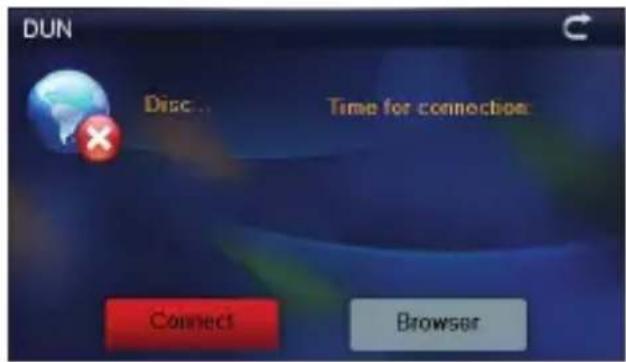
- Tap
to enter DUN
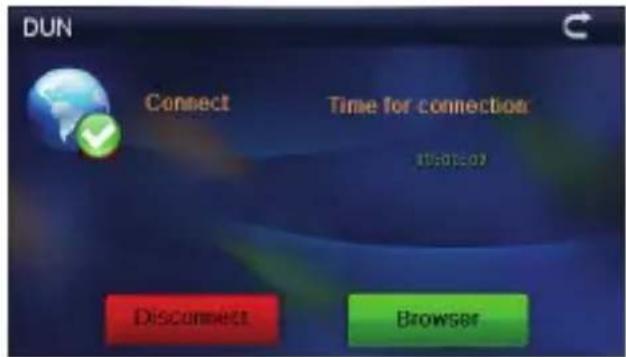
- Tap

to establish
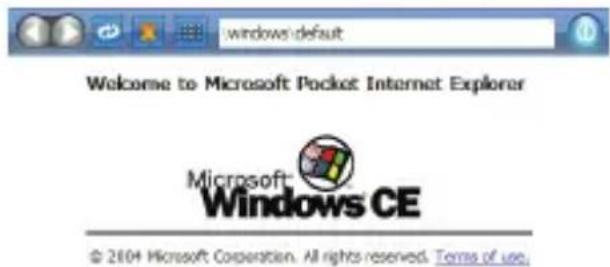
- Tap
onBrowser to open IE
browser. Tap on to back to the last page; Tap on to skip to the next page; Tap on to refresh the interface; Tap on to stop opening the website; Tap on to exit the current interface; Tap on to enter input panel
Program interface
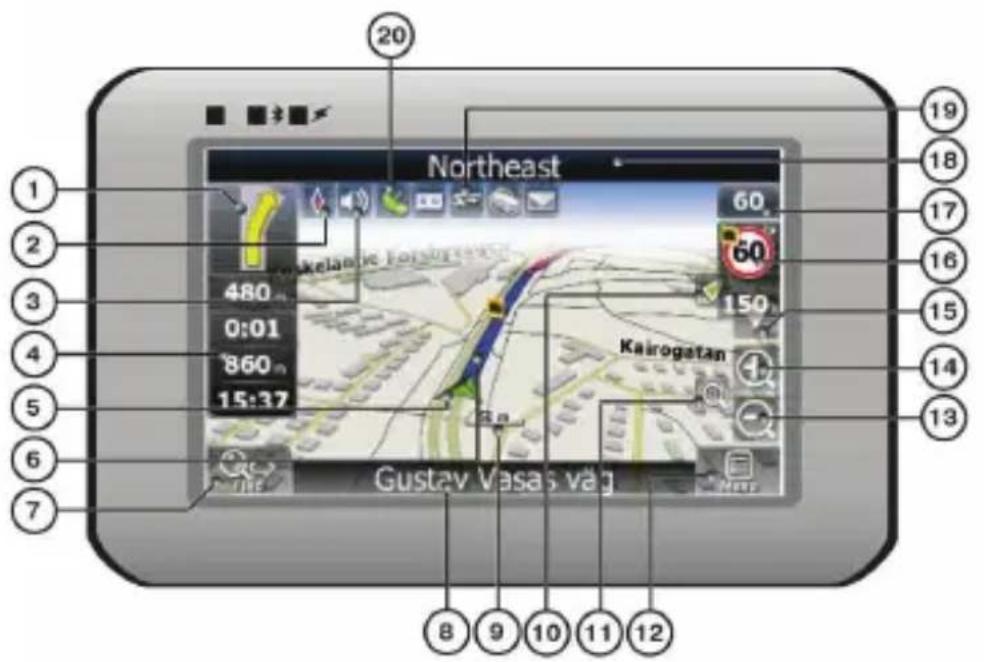
No. Name Function
| 1 | Next maneuver | Next maneuver on the way and distance up to it. Press this Icon to open route options menu. |
| 2 | Compass | Press the compass loon to edit map rotation mode, map view and day/night mode. |
| 3 | Sound | Press this button to turn on/off voice and sound effects. |
| 4 | Information panels | Display time until the end of the trip, total route length, and arrival time. |
| 5 | GPS-cursor | If GPS connection is established, displays your current location. |
| 6 | Route | Route you are currently navigating displays as a wide blue line. |
| 7 | Search | Press this button to enter the search menu and to find specific address or object (you can find more Info about Search In ~Functionality~ section) |
| 8 | Information panel | Shows street name you are currently moving on. Available only if GPS or GLONASS connection is established. If there is no street name, the direction will be shown. |
| 9 | Scale Map current scale. | |
No. Name Function
| 10 | Return to current location | You can see the green arrow at the top of the screen if the map was moved relative to your position. Press it to return view to your current location. |
| 11 | Autoscale | If you zoom In/out with ~Autozoom~ function activated, this function will deactivate for a period according to settings. Press this button to activate ~Autozoom~ function manually. |
| 12 | MENU Press to enter the Main Menu. | |
| 13 | Zoom Out | Decrease map scale. |
| 14 | Zoom In | Increase map scale. |
| 15 | Map slope | Press "Up"/"Down" to slope the map. Available only if scale is between 5 and 300 m. |
| 16 | Speedcam window | When you approach a speed camera with visual warnings being activated the window will appear In upper right comer at the screen. This window shows you permitted speed and distance left. Press the window to turn On/Off speed exceeding sound warnings. |
| 17 | Speed | Current speed. Available only with GPS connection established. |
| 18 | Information panel | Shows street name you are currently moving on. Available only if GPS or GLONASS connection is established. If there is no street name, the direction will be shown. |
| 19 | Battery | Icon displays battery life. Press it to open window with full information about battery life and remaining memory. |
| 20 | GPS | GPS connection button. Green icon - connection enabled, white icon – function disabled. Green icon also has a dot at different color: red - no connection, yellow - poor connection, green - connection established. |
Program interface
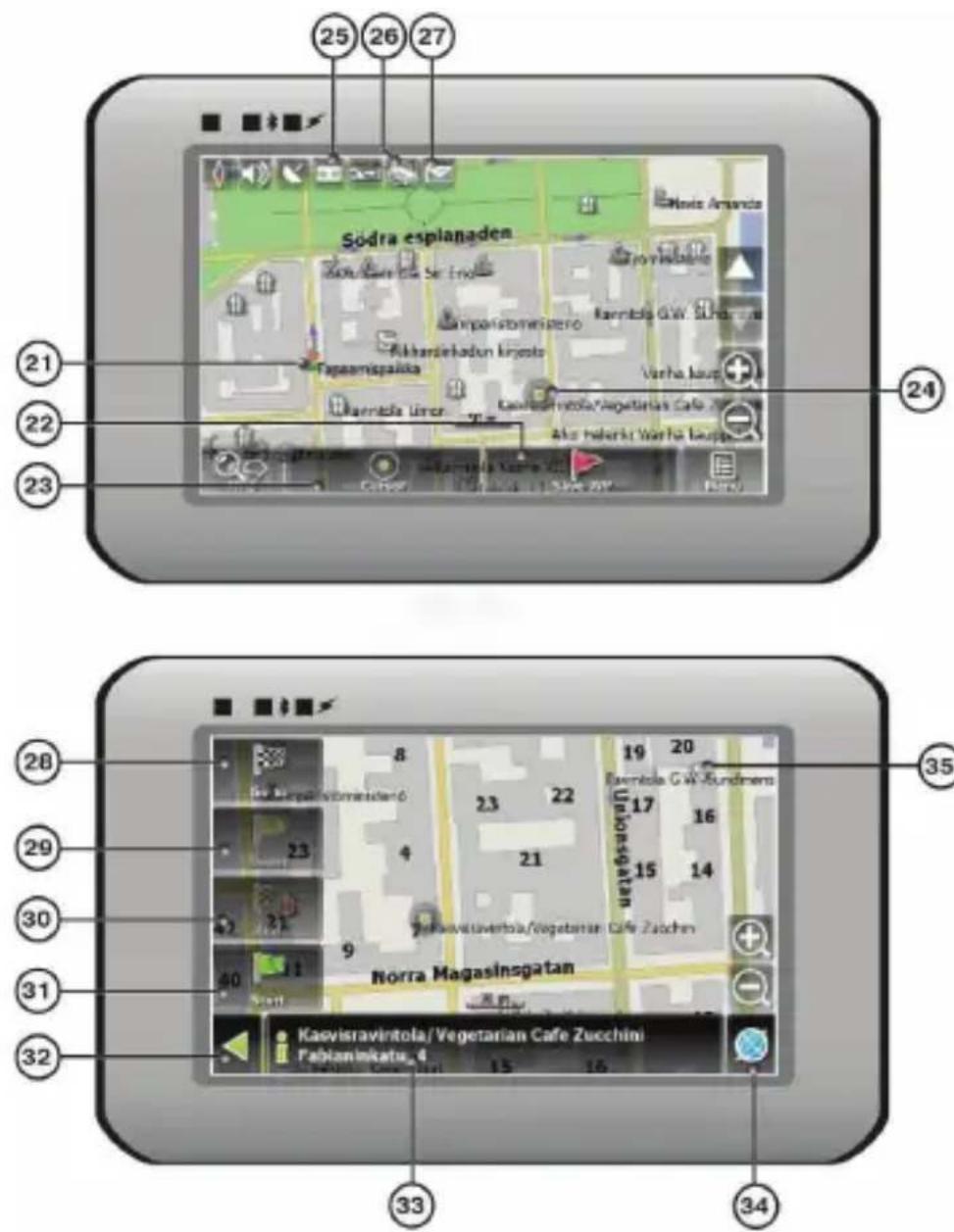
No. Name Function
| 21 Waypoint | Waypoints are manually created by the user and display with red flags on a map. |
| 22 “SaveWP” | Saves current mark on map as a waypoint. |
No. Name Function
| 23 | “Cursor” | Shows the menu of mark on map |
| 24 | Mark on map | Touch the screen with a stylus to set a mark. You can save this mark as a way point add it to the route or see object's characteristics the mark was set on. |
| 25 | Track record | Track record. Green icon - track record enabled, white icon function disabled. |
| 26 | Traffic Jams | Press this icon to edit "Navitel.Traffic Jams." function. |
| 27 | Navitel.SMS | Button is used to read/send SMS-messages and to work with coordinates given there. Figure near the icon displays number of unread messages. |
| 28 | “Go To” | “Mark on map” becomes the end point of the route. |
| 29 | Insert | “Mark on map” becomes the middle point of the route |
| 30 | “Add” | “Mark on map” becomes the end point of the route, whereas previous end point becomes middle point. |
| 31 | “Start” | “Mark on map” becomes the start point of the route. You should turn off your GPS/GLOANASS-receiver. |
| 32 | Back | Depends on way you got to this screen, returns back to “Map” screen or to find menu. |
| 33 | Info | Info about current “Mark on map” position. Tap to see more. |
| 34 | Back to map | Returns to the “Map” page |
| 35 | Object of interest | Different objects on map (traffic lights, metro stations, petrol stations etc.). |
Autorouting
Autorouting
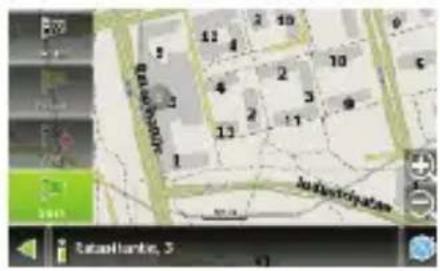
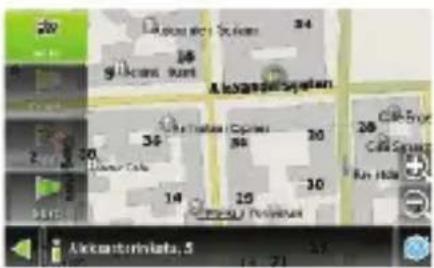
In order to create a route automatically, from the current position to the destination point, tap with the stylus pen on the place on the map where the final point is, tap on the "Cursor" button and in the context menu choose "Go to" (Fig. 1). The calculated route will be shown on the map in blue color with highly visible dark border (Fig. 2). Please, note that in case of non-routable maps, the route will represent a straight green line from your position to the destination point, ignoring the existing buildings, roads, etc.
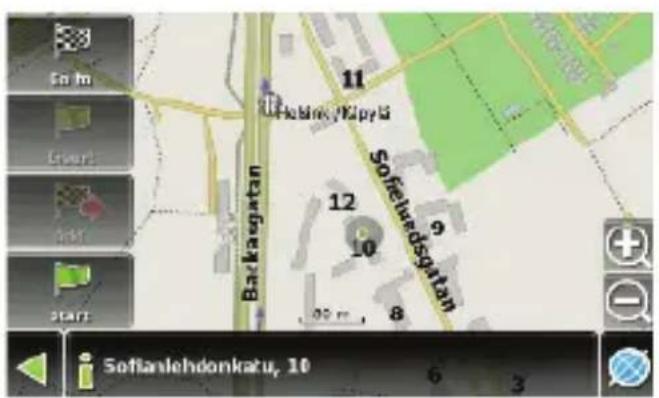
1 2
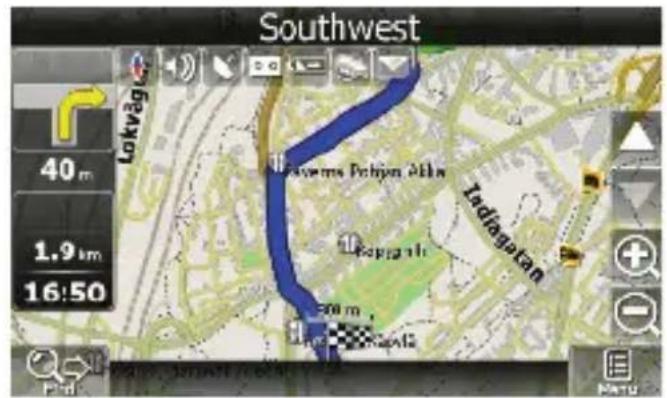

Autorouting using search
Find an object of interest using "Search" and press it with stylus, then select "Go To" item from the menu. Apart from this item there are also "Insert" — add a point between two points of existing route, and "Add" — point is added to the end of a route and continues it. Both items are available only with existing route.
Manual route creation
The difference of this route creation method from previous two is what you can set a start point and a destination point.
To create a route, press a map using stylus, press the “Cursor” (Fig. 1) button and “Start” button after the menu appears (Fig. 2). Then find the destination point and press “Cursor” — “Go To” (Fig. 3). If you using maps supports autorouting, route will be created referring to this data and will be the shortest or the quickest. Otherwise waypoints will be connected with strait green lines.
Please note! If GPS-receiver is active, you cannot set the start point!
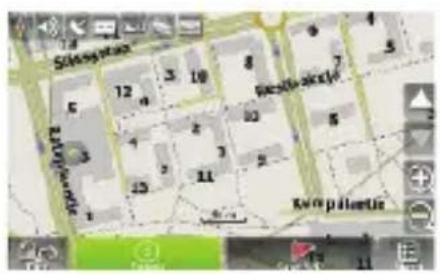
1 2 3


Additional features
If your device has GPRS-module, or provides Internet connection via the GPRS-module of your mobile phone through Bluetooth, you will be able to use some «Navitel.Navigator» software features like «Navitel.Traffic» and «Navitel.SMS» services.
Navitel. Traffic
1
2
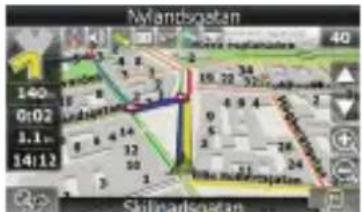
Using this service you can see the traffic situation in Russia, Ukraine, Belarus or any other country you have official map for. To set the service, go to "Settings" -> «On-line services» -> "Traffic Jams".
When the service is active, the roads are colorized in different colors, which mean: red - traffic jam, pink - movement is complicated, yellow - movement is a bit complicated, green - favorable traffic(1).
Navitel.SMS
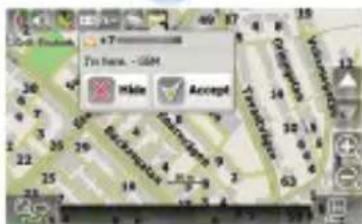
The special window will appear on the screen when you receive the Navitel.SMSI2]. Select "Hide" to hide it or "Accept" to see options.
Note:
For more detailed information regarding the functionality of Navitel 5.0 software, please, refer to the complete user manual on CD, or to www.prestigio.com.
Take the steps described in the tables below to solve simple problems before contacting customer service centers.

NOTE:
Immediately turn off the device and disconnect the power adapter if the device is not working properly. Never try to repair the unit without authorized personnel for it may damage the unit.
PROBLEM
Users cannot turn on the unit.
There is no sound.
There is no picture.
The unit cannot receive satellite signals or cannot orient.
POSSIBLE CAUSE
The adaptor is not connected well.
The built-in rechargeable battery is weak.
The volume may be turned down or mute.
The brightness may be turned down.
The unit work may be obstructed by buildings or metal constructions.
POSSIBLE SOLUTION
Connect the adaptor correctly.
Use the adaptor to supply power or charge the battery.
Turn up the volume or turn on the sound output.
Adjust the brightness of the LCD.
Make sure to use the unit out of room; if in the vehicle, you can use the external GPS antenna to solve this problem.
PROBLEM
Irregularity or instability in signal receiving.
POSSIBLE CAUSE
POSSIBLE SOLUTION
| The built-in rechargeable battery is weak. | Use the adaptor to supply power or charge the battery. |
| The unit may be obstructed by material, such as heat insulation paper. | Remove the material. |
PC Connection
To establish connection with PC for data access and synchronization, please execute setup file included in the Driver/Documentation CD or download the file from Microsoft website to install:
Microsoft Active Sync® software for operating system Microsoft XP or earlier versions
(http://www.microsoft.com/windowsmobile/en-us/downloads/microsoft/activesync-download.mspx)
and/or
Microsoft Mobile Device Center® software for operating system Microsoft Vista (http://www.microsoft.com/windowsmobile/en-us/downloads/microsoft/device-center-download.mspx).
Please refer to the Microsoft website for more detailed instructions.
- CAUTION
- WARNING
- Accessories
- Front and Side View
- LCD Touch Screen
- Power Button
- Analog TV Antenna
- Earphone Port
- microSD Slot
- Mini-USB Port
- Speaker
- Reset Button
- Inserting microSD Card
- NOTE:
- Connecting to External USB Device (Charging)
- Connecting to Car Charger
- Cautions on Battery Charging
- About Rechargeable Battery
- Working conditions and precautions for the rechargeable battery
- Getting Started
- Main Menu
- Volume
- FM Transmitter
- Analog TV
- Tap on
- Bluetooth Function (Optional)
- DUN (Optional)
- Program interface
- Autorouting
- Autorouting using search
- Manual route creation
- Additional features
- Navitel. Traffic
- Navitel.SMS
- PROBLEM
- POSSIBLE CAUSE
- POSSIBLE SOLUTION
- PC Connection
- Microsoft Active Sync® software for operating system Microsoft XP or earlier versions
Brand : PRESTIGIO
Model : GeoVision 5566 Navitel
Category : Gps