FPM-7151W-P3AE - Monitor Advantech - Free user manual and instructions
Find the device manual for free FPM-7151W-P3AE Advantech in PDF.


User questions about FPM-7151W-P3AE Advantech
0 question about this device. Answer the ones you know or ask your own.
Ask a new question about this device
Download the instructions for your Monitor in PDF format for free! Find your manual FPM-7151W-P3AE - Advantech and take your electronic device back in hand. On this page are published all the documents necessary for the use of your device. FPM-7151W-P3AE by Advantech.
USER MANUAL FPM-7151W-P3AE Advantech
natural_image
Illustration of three kitchen appliances in green outline style (no text or symbols)FPM-7151W Series
顯示器
15.6" Industrial Monitor with Projected Capacitive Touchscreen, Direct-VGA/DVI or VGA/HDMI ports
限用物質含有情況標示聲明書
| 設備名稱:電腦Equipment name | 型號(型式):FPM-7151WType designation (Type)(系列型號參見說明書) | |||||
| 單元 Unit | 限用物質及其化學符號Restricted substances and its chemical symbols | |||||
| 鉛 Lead(Pb) | 汞Mercury(Hg) | 鎘Cadmium(Cd) | 六價鉻Hexavalent chromium( Cr^+6 ) | 多溴聯苯Polybrominated biphenyls(PBB) | 多溴二苯醚Polybrominated diphenyl ethers(PBDE) | |
| 電路板- | ○ ○ ○ | ○ ○ | ||||
| 面板-○ | ○ ○ ○ | ○ | ||||
| 內外殼(外殼、內部框架...等) | - | ○ | ○ | ○ | ○ | |
| 配件(線材) | - | ○ | ○ | ○ | ○ | |
| 其它固定組件(螺絲、夾具、卡筍) | - | ○ | - | ○ | ○ | |
| 備考1.“超出0.1 wt %”及“超出0.01 wt %”係指限用物質之百分比含量超出百分比量基準值。Note 1.“Exceeding 0.1 wt %”and“exceeding 0.01 wt %”indicate that the percentage content of the restricted substance exceeds the reference percentage value of presence condition.備考2.“○”係指該項限用物質之百分比含量未超出百分比含量基準值。Note 2.“○”indicates that the percentage content of the restricted substance does not exceed the percentage of reference value of presence.備考3.“-”係指該項限用物質為排除項目。Note 3.The “-” indicates that the restricted substance corresponds to the exemption. | ||||||
Copyright
The documentation and the software included with this product are copyrighted 2017 by Advantech Co., Ltd. All rights are reserved. Advantech Co., Ltd. reserves the right to make improvements in the products described in this manual at any time without notice. No part of this manual may be reproduced, copied, translated or transmitted in any form or by any means without the prior written permission of Advantech Co., Ltd. Information provided in this manual is intended to be accurate and reliable. However, Advantech Co., Ltd. assumes no responsibility for its use, nor for any infringements of the rights of third parties, which may result from its use.
Acknowledgements
Intel and Pentium are trademarks of Intel Corporation.
Microsoft Windows and MS-DOS are registered trademarks of Microsoft Corp.
All other product names or trademarks are properties of their respective owners.
This manual covers the following models:
FPM-7151W-P3AE
FPM7151WP3A1701E-T; FPM7151WP3A1702E-T
FPM7151WP3A1703E-T; FPM7151WP3A1704E-T
FPM7151WP3A1705E-T; FPM7151WP3A1801E-T
FPM7151WP3A1802E-T; FPM7151WP3A1803E-T
FPM7151WP3A1804E-T; FPM7151WP3A1805E-T
FPM7151WP3A1901E-T; FPM7151WP3A1902E-T
FPM7151WP3A1903E-T; FPM7151WP3A1904E-T
FPM7151WP3A1905E-T; FPM7151WP3A2001E-T
FPM7151WP3A2002E-T; FPM7151WP3A2003E-T
FPM7151WP3A2004E-T; FPM7151WP3A2005E-T
FPM-7151W-X0AE
FPM7151WX0A1701E-T; FPM7151WX0A1702E-T
FPM7151WX0A1703E-T; FPM7151WX0A1801E-T
FPM7151WX0A1802E-T; FPM7151WX0A1803E-T
FPM7151WX0A1901E-T; FPM7151WX0A1902E-T
FPM7151WX0A1903E-T; FPM7151WX0A2001E-T
FPM7151WX0A2002E-T; FPM7151WX0A2003E-T
Part No. 2003715110 Edition 1
Printed in China August 2017
Product Warranty (2 years)
Advantech warrants to you, the original purchaser, that each of its products will be free from defects in materials and workmanship for two years from the date of purchase.
This warranty does not apply to any products which have been repaired or altered by persons other than repair personnel authorized by Advantech, or which have been subject to misuse, abuse, accident or improper installation. Advantech assumes no liability under the terms of this warranty as a consequence of such events.
Because of Advantech's high quality-control standards and rigorous testing, most of our customers never need to use our repair service. If an Advantech product is defective, it will be repaired or replaced at no charge during the warranty period. For out-of-warranty repairs, you will be billed according to the cost of replacement materials, service time and freight. Please consult your dealer for more details.
If you think you have a defective product, follow these steps:
- Collect all the information about the problem encountered. (For example, CPU speed, Advantech products used, other hardware and software used, etc.) Note anything abnormal and list any onscreen messages you get when the problem occurs.
- Call your dealer and describe the problem. Please have your manual, product, and any helpful information readily available.
- If your product is diagnosed as defective, obtain an RMA (return merchandize authorization) number from your dealer. This allows us to process your return more quickly.
- Carefully pack the defective product, a fully-completed Repair and Replacement Order Card and a photocopy proof of purchase date (such as your sales receipt) in a shippable container. A product returned without proof of the purchase date is not eligible for warranty service.
- Write the RMA number visibly on the outside of the package and ship it prepaid to your dealer.
Declaration of Conformity
This device complies with part 15 of the FCC rules: Operation is subject to the following two condition:
- This device may not cause harmful interference.
- This device must accept any interference received, including interference that may cause undesired operation.
FCC Class A
Note: This equipment has been tested and found to comply with the limits for a Class A digital device, pursuant to part 15 of the FCC Rules. These limits are designed to provide reasonable protection against harmful interference when the equipment is operated in a commercial environment. This equipment generates, uses, and can radiate radio frequency energy and, if not installed and used in accordance with the instruction manual, may cause harmful interference to radio communications. Operation of this equipment in a residential area is likely to cause harmful interference in which case the user will be required to correct the interference at his own expense.
Technical Support and Assistance
- Visit the Advantech web site at www.advantech.com/support where you can find the latest information about the product.
- Contact your distributor, sales representative, or Advantech's customer service center for technical support if you need additional assistance. Please have the following information ready before you call:
– Product name and serial number
– Description of your peripheral attachments
– Description of your software (operating system, version, application software, etc.)
– A complete description of the problem
– The exact wording of any error messages
警告使用者:
- Read these safety instructions carefully.
- Keep this User Manual for later reference.
- Disconnect this equipment from any AC outlet before cleaning. Use a damp cloth. Do not use liquid or spray detergents for cleaning.
- For plug-in equipment, the power outlet socket must be located near the equipment and must be easily accessible.
- Keep this equipment away from humidity.
- Put this equipment on a reliable surface during installation. Dropping it or letting it fall may cause damage.
- The openings on the enclosure are for air convection. Protect the equipment from overheating. DO NOT COVER THE OPENINGS.
- Make sure the voltage of the power source is correct before connecting the equipment to the power outlet.
- Position the power cord so that people cannot step on it. Do not place anything over the power cord.
- All cautions and warnings on the equipment should be noted.
- If the equipment is not used for a long time, disconnect it from the power source to avoid damage by transient overvoltage.
- Never pour any liquid into an opening. This may cause fire or electrical shock.
- Never open the equipment. For safety reasons, the equipment should be opened only by qualified service personnel.
- If one of the following situations arises, get the equipment checked by service personnel:
■ The power cord or plug is damaged.
- Liquid has penetrated into the equipment.
■ The equipment has been exposed to moisture.
The equipment does not work well, or you cannot get it to work according to the user's manual.
■ The equipment has been dropped and damaged.
■ The equipment has obvious signs of breakage.
-
DO NOT LEAVE THIS EQUIPMENT IN AN ENVIRONMENT WHERE THE STORAGE TEMPERATURE MAY GO BELOW -20°C (-4°F) OR ABOVE 60°C (140°F). THIS COULD DAMAGE THE EQUIPMENT. THE EQUIPMENT SHOULD BE IN A CONTROLLED ENVIRONMENT.
-
The sound pressure level at the operator's position according to IEC 704-1:1982 is no more than 70 dB (A).
DISCLAIMER: This set of instructions is given according to IEC 704-1. Advantech disclaims all responsibility for the accuracy of any statements contained herein.
安全指示
Chapter 1 General Information ....1
1.1 Introduction 2
1.2 Specifications 2
1.2.1 General 2
1.2.2 Touchscreen 2
1.3 LCD Specification....2
1.4 Power Consumption.... 3
1.5 Connectors.... 3
1.6 Dimensions 4
Figure 1.1 FPM-7151W Dimensions....4
1.7 Power Connector Bracket 5
Chapter 2 Mounting 7
2.1 Mounting the Monitor 8
2.1.1 Wall Mounting with FPM-7181W-SMKE Kit 8
Figure 2.1 Wall Mounting....8
2.1.2 Panel Mounting 9
2.1.3 VESA Mount for FPM-7151W 11
Figure 2.2 VESA Mount....11
Appendix A OSD Operation Keypad....13
A.1 OSD Board Overview.... 14
A.1.1 OSD Button Description.... 14
Table A.1: OSD Button Description 14
A.1.2 LED Function 14
Table A.2: LED Function.... 14
A.2 OSD Key Functions.... 15
A.2.1 Menu Start 15
A.2.2 Input Source Select.... 16
A.2.3 Contrast/Brightness Setting 17
A.2.4 Geometry Menu – For DVI Input.... 18
A.2.5 Color Temperature Menu.... 19
A.2.6 Language Menu 20
A.2.7 OSD Manager 21
A.2.8 Auto Configuration Menu 22
A.2.9 Mode Information Menu 23
A.2.10 Memory Recall Menu 24
A.2.11 Exit Menu 25
A.2.12 Hot Keys 26
Appendix B Touch Driver Installation .....27
B.1 Touch Driver Installation 28
Appendix C Setting Serial Data for Expansion....31
C.1 Setting Serial Data for Expansion 32
Chapter 1
General Information
Sections include:
Introduction
Specifications
LCD Specification
Power Consumption
Connectors
Dimensions
1.1 Introduction
Advantech's FPM-7151W is a 15.6" wide screen colour TFT LCD flat panel monitor built specifically for industrial applications. With the its touchscreen, FPM-7151W is an excellent and user-friendly system control interface.
In addition to its usual application as an LCD panel monitor, FPM-7151W comes as standard with direct VGA/DVI or VGA/HDMI control signal inputs, making it compatible with Industrial PCs and Workstations. Its OSD function (on rear cover) allows you to adjust display factors such as brightness, contrast, colours and VGA signal information functions that are more and more critical as HMI users become aware of the benefits of flat panel monitors. The whole chassis is of SECC steel, and the front panel is of aluminium with IP66 certification.
With new multi-touch technology, this monitor can be immediately transformed into a remote control system. Advantech FPM-7151W is the ultimate HMI solution for your industrial application.
1.2 Specifications
1.2.1 General
■ Construction: Die-cast Magnesium alloy front bezel and SECC rear cover
■ Front panel: IP66 certified
■ Control: OSD control pad on rear
■ Mounting: Panel, wall, desktop, VESA
■ Dimensions (W x H x D): 419.7 x 269 x 47.7mm
■ Weight: 5 kg (11 lbs)
1.2.2 Touchscreen
■ Type: Projected Capacitive touch
■ Controller: USB & RS-232 interface
OS Support: Microsoft® Windows XP, Vista, 7, 8, XPe, CE and Linux
1.3 LCD Specification
■ Display Type: WXGA LED LCD
■ Display Size: 15.6"
Max. Colors: 16.7 M
Max. Resolution: 1366 x 768
■ View Angle: 170° (V), 160° (H)
■ Luminance: 300 cd/m2
■ Storage Temperature: -20 \~ 60°C
■ Operating Temperature: 0 \~ 55°C
■ Contrast Ratio: 500:1 (typ)
■ Lamp Life Time (MTBF): 50,000 hrs.
1.4 Power Consumption
Max Power consumption: 20W +/- 20%
■ Power input: Phoenix Jack: 24VDC
– SINPRO, SPU63-105 adaptor: input
- AC100\~240V 1.6A, output DC12V 4.75A, Power consumption 57W
- DELTA, DPS-60PB A adaptor: input
- AC100\~240V 2A, output DC12V 5A, Power consumption 60W
■ Safety Standards: BSMI, CE, FCC, CCC, UL
1.5 Connectors
The following connectors are situated on FPM-7151W Series:
VGA Port (DB-15)
This DB-15 connector can be connected to the system via the external 15-pin DB-15 connector located on the left side of the system unit.
HDMI port
Connected with a standard HDMI connector and only supports digital signals.
■ Touchscreen Connector (DB-9)
This connector will be present only if a touchscreen is installed. It must be connected to the RS-232 port of the PC. The touchscreen cable is included with all orders which include the touchscreen option.
■ Touchscreen Connector (USB)
This connector will be present only if a touchscreen is installed. It must be connected to the USB port of the PC. The touchscreen cable is included with all orders which include the USB touchscreen option.
Note!
RS-232 & USB touchscreen interface allows connection to the system at the same time, but the USB interface has higher priority. Also note that when using the USB touch interface and then switching to RS-232 interface, you need to restart your industrial PC or workstation.

DC 12V Power In
This connector will be connected to the DC 12V Switching Power Supply.
Plug-In Block 3P Male (ME050-50803) DC10-30V
This block connector can be connected via the external plug-in block 3P with a Female MC211-F103 connector
1.6 Dimensions

Figure 1.1 FPM-7151W Dimensions
1.7 Power Connector Bracket

text_image
Technical diagram of an electronic device with labeled components and a magnified inset showing internal wiring connections.
text_image
Easy Installation: Snap hook x 2 Easy Installation: Snap hook TS Interface - RS-232 Port TS Interface - USB Port 24 VDC Power Input with Phoenix Jack DVI or HDMI Port VGA Port Easy Installation: Snap hookChapter 2
Mounting
Wall Mounting
Panel Mounting
■ Desktop Mounting
■ Swing Arm Mounting
2.1 Mounting the Monitor
The FPM-7151W Series can be mounted in many different ways. The versatility of the FPM-7151W mounts enable it to be mounted on your desk or anywhere else.
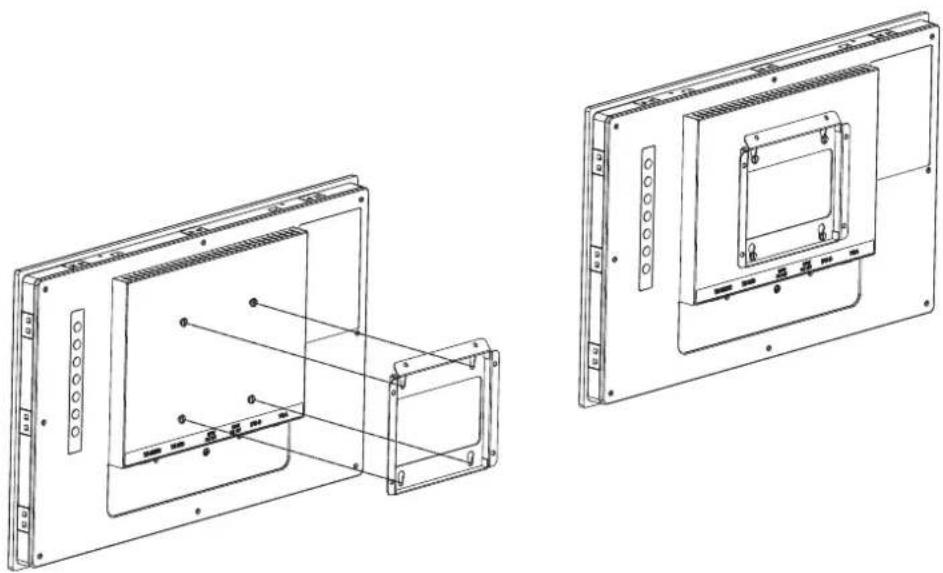
2.1.1 Wall Mounting with FPM-7181W-SMKE Kit
FPM-7151W can be mounted directly on a wall with panel mounting brackets. Refer to Figure 2.1 and follow the steps below to mount FPM-7151W on a wall:
natural_image
Technical line drawing of two views of a device frame with internal components and mounting holes (no text or symbols)Figure 2.1 Wall Mounting
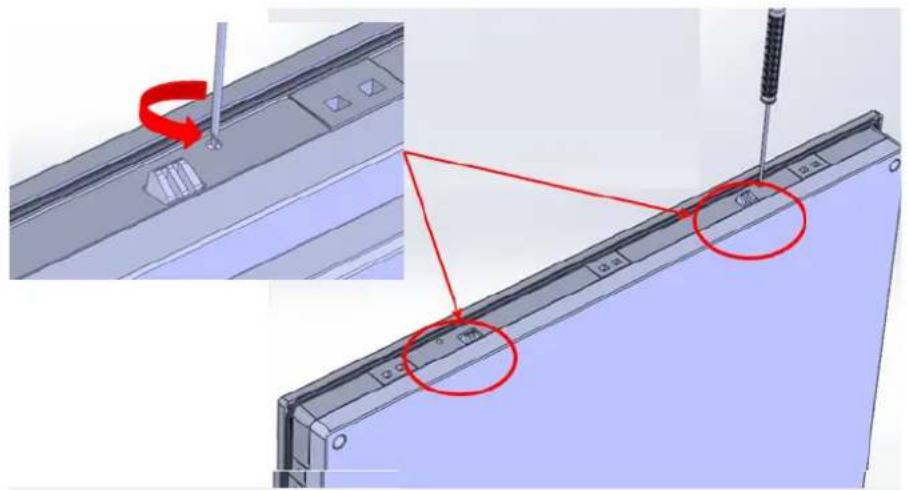
2.1.2 Panel Mounting
FPM-7151W can be mounted directly on a panel with additional mounting brackets.
- Use a screwdriver to set up the snap hook on the upper side.
- Unscrew the stopper screw on the bottom side.
- Push the FPM-7151W into the panel and snap the hook to hold FPM-7151W in place.
text_image
Technical diagram showing a mechanical assembly with red annotations highlighting specific components, including a screwdriver and a component labeled 'C1'.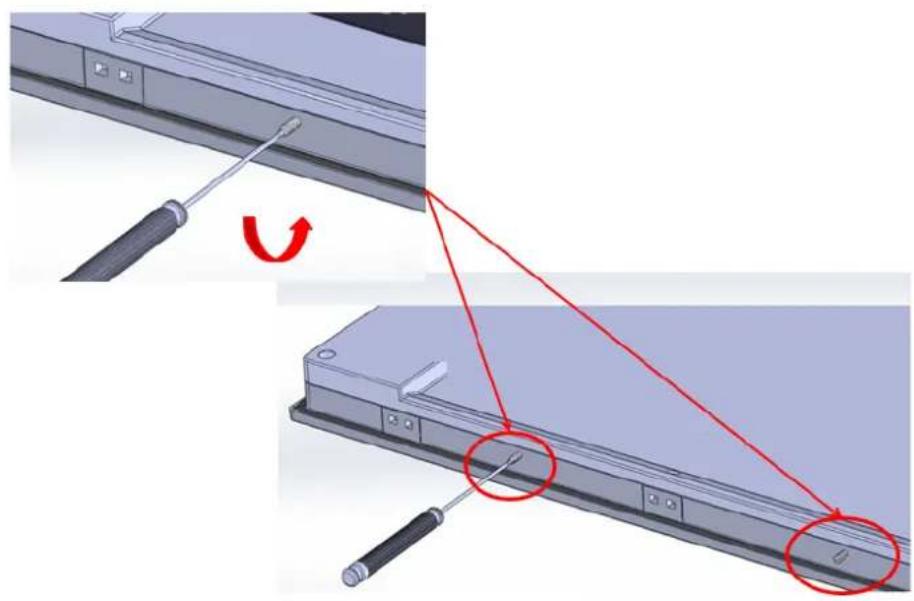
natural_image
Diagram showing a screwdriver inserted into a device panel, with red arrows indicating the process (no text or symbols present)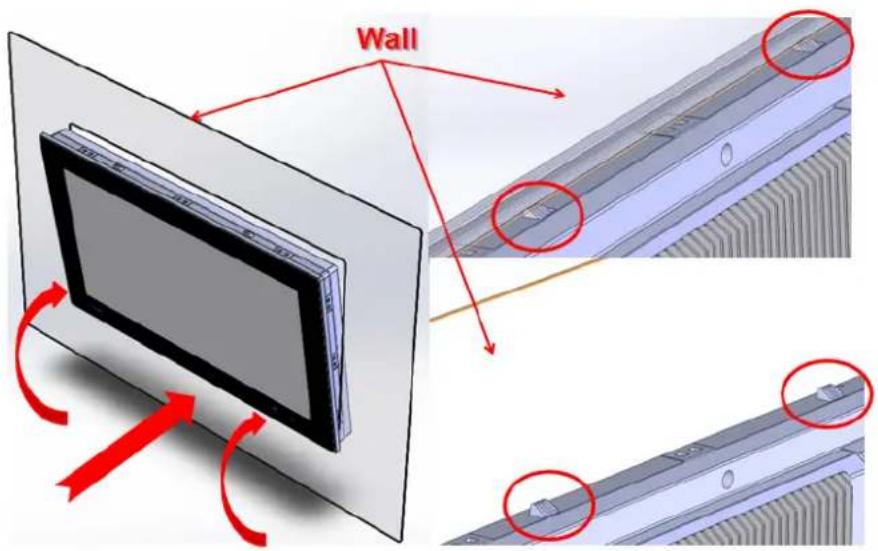
text_image
Wall
natural_image
3D illustration of a rectangular electronic device with a flat top and a black frame, labeled 'Done' in red text (no other symbols or text)2.1.3 VESA Mount for FPM-7151W
FPM-7151W has been designed with support for the VESA mount standard. Refer to figure 2.3. Supports 100mm VESA dimension. Please use M4 screws (Length 8mm to 10 mm).
Warning! Use suitable mounting apparatus to avoid risk of injury.

Figure 2.2 VESA Mount
Appendix A
OSD Operation Keypad
A.1 OSD Board Overview
The OSD keypad, including six keys and a two colour indicator, is designed as the OSD operation interface.
Note! This sheet is only for reference, different models will have different styles, but the functionality is the same.

A.1.1 OSD Button Description
Table A.1: OSD Button Description
| Power Turn the monitor power ON or OFF. | |
| Auto/Exit Automatically adjust the clock, phase, H-position and V-position.Exit menu. | |
| Down/Right/Increase Increase the brightness.Move the selector to the next option.Increase the gauge value of the selected option. | |
| Up/Left/Decrease | Decrease the brightness.Move the selector to the previous option.Decrease the gauge value of the selected option. |
| Menu/EI Activate the OSD menu.Enter/confirm the selected option. | |
| Source Changes Input video source | |
A.1.2 LED Function
Table A.2: LED Function
| ON Blue |
| StandBy/OFF Blue Blinking |
| No Signals Orange |
A.2 OSD Key Functions
Each selected value is stored into LCD memory after SEL signal input or time out. The stored values are not affected if the power is turned off. But the selected value is not available in case a selected mode is changed before time out or power is turned off before time out. TIME OUT -> 5-6 seconds (Can be set in OSD Manager) The default definition of input keys is shown as following:
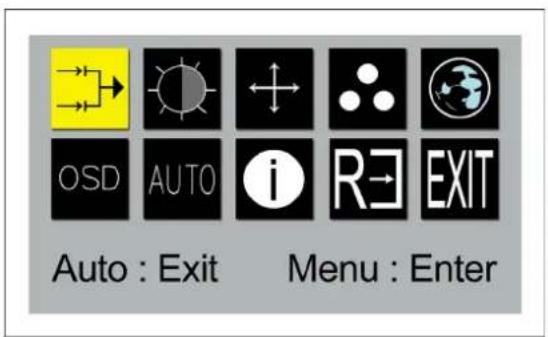
A.2.1 Menu Start
Generate Main Menu
Press MENU Button in OSD function key
■ Main Menu -- DISPLAY IN SCREEN
text_image
OSD AUTO i RE EXIT Auto : Exit Menu : EnterSub-Menu – DISPLAY IN SCREEN
N/A
■ Available Key Functions

Turn off (turn off back-light)

- Move the selector to the left - Select the sub-menu
Select to exit the menu or wait for time-out

- Confirm - Enter the selected option.

- Move the selector to the right

N/A
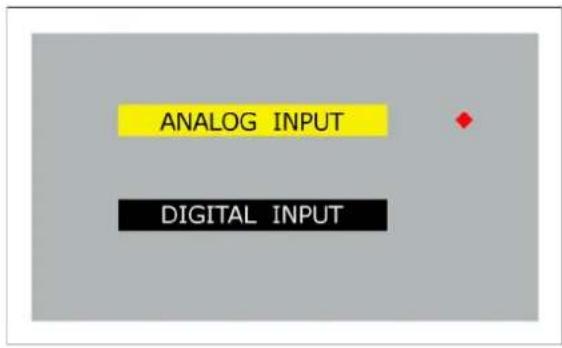
A.2.2 Input Source Select
■ Generate Main Menu
Select Left and Right Button, and then press Menu Button for selection confirmation.
■ Main Menu -- DISPLAY IN SCREEN

text_image
OSD AUTO i R→ EXIT Auto : Exit Menu : EnterSub-Menu – DISPLAY IN SCREEN
text_image
ANALOG INPUT DIGITAL INPUT■ Available Key Functions
 | Power Off the LCD Monitor |  | Select to move up/down |
 | Return to the previous menu |  | Select to confirm |
 | Select to move up/down N/A |  |
A.2.3 Contrast/Brightness Setting
Generate Main Menu
Select Left and Right Button, and then press Menu Button for selection confirmation.
■ Main Menu -- DISPLAY IN SCREEN
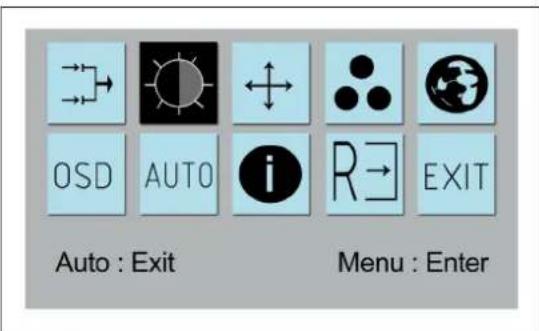
text_image
OSD AUTO i R→ EXIT Auto : Exit Menu : EnterSub-Menu – DISPLAY IN SCREEN

bar
| Metric | Value | |---|---| | CONTRAST | 50 | | DIM BRIGHTNESS | 50 | | BRIGHTNESS | 100 | | SHARPNESS | 50 | | RECALL VAULE | | | Recall | REC1 REC2 | Recall: 50 Recall: REC1 Recall: REC2Note!RECALL VALUE- Recall: go back to display default setting.

RECALL VALUE- REC1: go to record 1 setting.
RECALL VALUE- REC2: go to record 2 setting.
■ Available Key Functions

Power Off the LCD Monitor

- Select to move up/down - Decrease the gauge value of the selected option
Return to the previous menu

Select to confirm

- Select to move up/ down

N/A
A.2.4 Geometry Menu – For DVI Input
■ Generate Main Menu
Select Left and Right Button, press Menu Button for selection confirmation.
■ Main Menu -- DISPLAY IN SCREEN
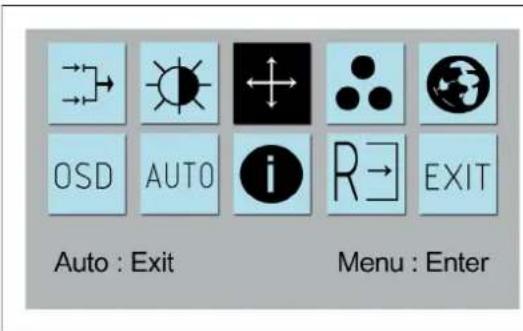
text_image
OSD AUTO i R→ EXIT Auto : Exit Menu : EnterSub-Menu – DISPLAY IN SCREEN
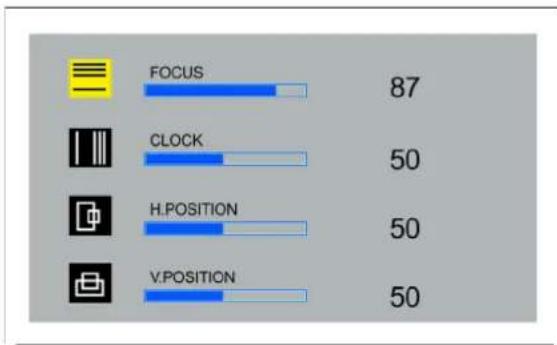
bar
| Metric | Value | |---|---| | FOCUS | 87 | | CLOCK | 50 | | H.POSITION | 50 | | V.POSITION | 50 |■ Available Key Functions

Power Off the LCD Monitor

- Select to move up/down - Decrease the gauge value of the selected option
Return to the previous menu

Select to confirm

- Select to move up/ down - Increase the gauge value of the selected option

N/A
A.2.5 Colour Temperature Menu
Generate Main Menu
Select ☐ Left and Right Button, and then press Menu Button for selection confirmation.
■ Main Menu -- DISPLAY IN SCREEN

text_image
OSD AUTO i R→ EXIT Auto : Exit Menu : EnterSub-Menu – DISPLAY IN SCREEN
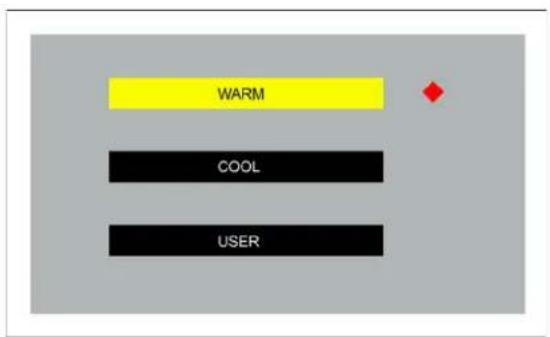
text_image
WARM COOL USER■ Available Key Functions
 | Power Off the LCD Monitor |  | ·Select to move up/down ·Decrease the gauge value of the selected option |
 | Return to the previous menu |  | Select to confirm |
 | ·Select to move up/ down ·Increase the gauge value of the selected option |  | N/A |
A.2.6 Language Menu
■ Generate Main Menu
Select left and Right Button, and then press Menu Button for selection confirmation.
■ Main Menu -- DISPLAY IN SCREEN

text_image
OSD AUTO i R→ EXIT Auto : Exit Menu : EnterSub-Menu – DISPLAY IN SCREEN
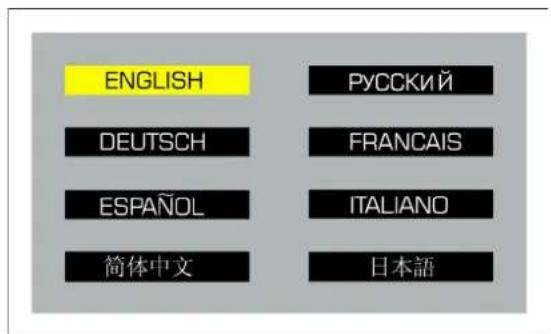
text_image
ENGLISH DEUTSCH ESPAÑOL 简体中文 РУССКИЙ FRANCAIS ITALIANO 日本語■ Available Key Functions
 | Power Off the LCD Monitor |  | Move the selector to the left |
 | Return to the previous menu |  | Select to confirm |
 | Move the selector to the right |  | N/A |
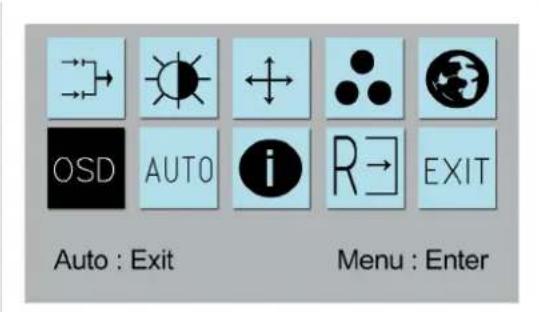
A.2.7 OSD Manager
■ Generate Main Menu
Select OSD left and Right Button, and then press Menu Button for selection confirmation.
■ Main Menu -- DISPLAY IN SCREEN
text_image
OSD AUTO i R→ EXIT Auto : Exit Menu : EnterSub-Menu – DISPLAY IN SCREEN

text_image
H POSITION 50 V POSITION 50 TIMEOUT 10■ Available Key Functions
 | Power Off the LCD Monitor |  | ·Select to move up/down ·Decrease the gauge value of the selected option |
 | Return to the previous menu |  | Select to confirm |
 | ·Select to move up/ down ·Increase the gauge value of the selected option |  | N/A |
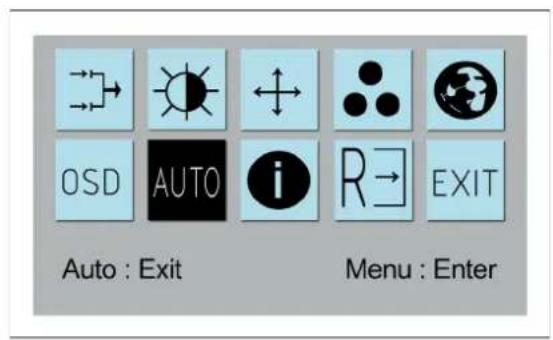
A.2.8 Auto Configuration Menu
■ Generate Main Menu
Select AUTO left and Right Button, and then press Menu Button for selection confirmation.
■ Main Menu -- DISPLAY IN SCREEN
text_image
OSD AUTO i R→ EXIT Auto : Exit Menu : EnterSub-Menu – DISPLAY IN SCREEN
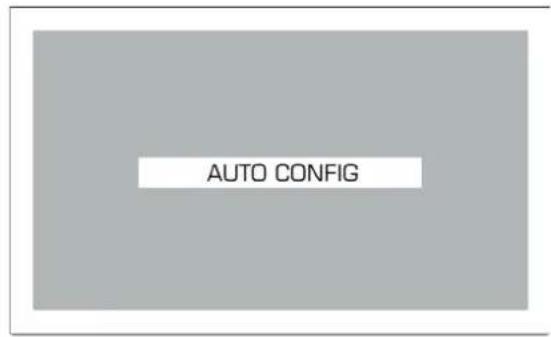
text_image
AUTO CONFIG■ Available Key Functions
| Power Off the LCD Monitor | N/A |
| Return to the previous menu | Select to confirm |
| N/A N/A | Source |
A.2.9 Mode Information Menu
Generate Main Menu
Select left and Right Button, and then press Menu Button for selection confirmation.
■ Main Menu -- DISPLAY IN SCREEN

text_image
OSD AUTO i R→ EXIT Auto : Exit Menu : EnterSub-Menu – DISPLAY IN SCREEN
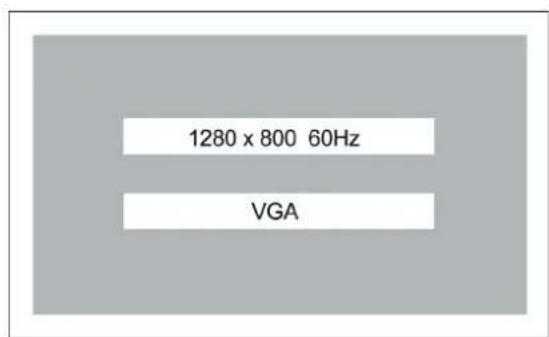
text_image
1280 x 800 60Hz VGA■ Available Key Functions

Power Off the LCD Monitor

Move the selector to the left
Return to the previous menu
Select to confirm

Move the selector to the right

N/A
A.2.10 Memory Recall Menu
■ Generate Main Menu
Select by Left and Right Button, then press Menu Button for selection confirmation.
■ Main Menu -- DISPLAY IN SCREEN
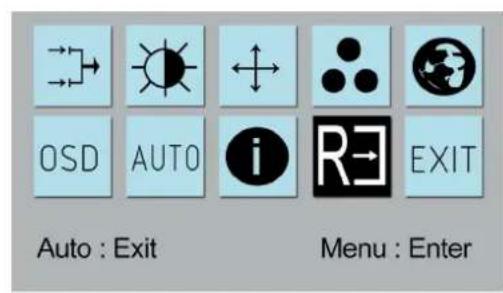
text_image
OSD AUTO i RE EXIT Auto : Exit Menu : EnterSub-Menu – DISPLAY IN SCREEN
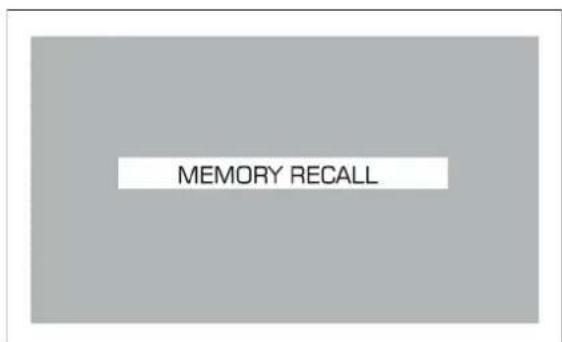
text_image
MEMORY RECALL■ Available Key Functions

N/A N/A

N/A Select to confirm


N/A N/A

A.2.11 Exit Menu
■ Generate Main Menu
Select by Left and Right Button, and then press Menu Button for selection confirmation.
■ Main Menu -- DISPLAY IN SCREEN

text_image
OSD AUTO i R→EXIT Auto : Exit Menu : EnterSub-Menu – DISPLAY IN SCREEN

text_image
EXITA.2.12 Hot Keys
OSD LOCK/UNLOCK
HOT KEYS

text_image
Press first and then press for change this setting, Followed thissequence for the button press so that you can have OSD LOCK and UNLOCK setting
Enter OSD LOCK MODE
- Press HOT KEY, the screen will show this action first
DO OSD LOCK
- Don't remove HOT KEY until the screen indicated this task is finished.
OSD LOCK
Enter OSD UNLOCK MODE
- Press HOT KEY, the screen will show this action first
DO OSD UNLOCK
- Don't remove the HOT KEY until the screen indicated this task is finished.
OSD UNLOCK

Appendix B
Touch Driver Installation
B.1 Touch Driver Installation
CD Driver supports Windows XP, Windows Vista, Windows 7. For drivers for other operating systems refer to http://home.eeti.com.tw/web20/eg/Touch_Drives.html.
1. Install driver.
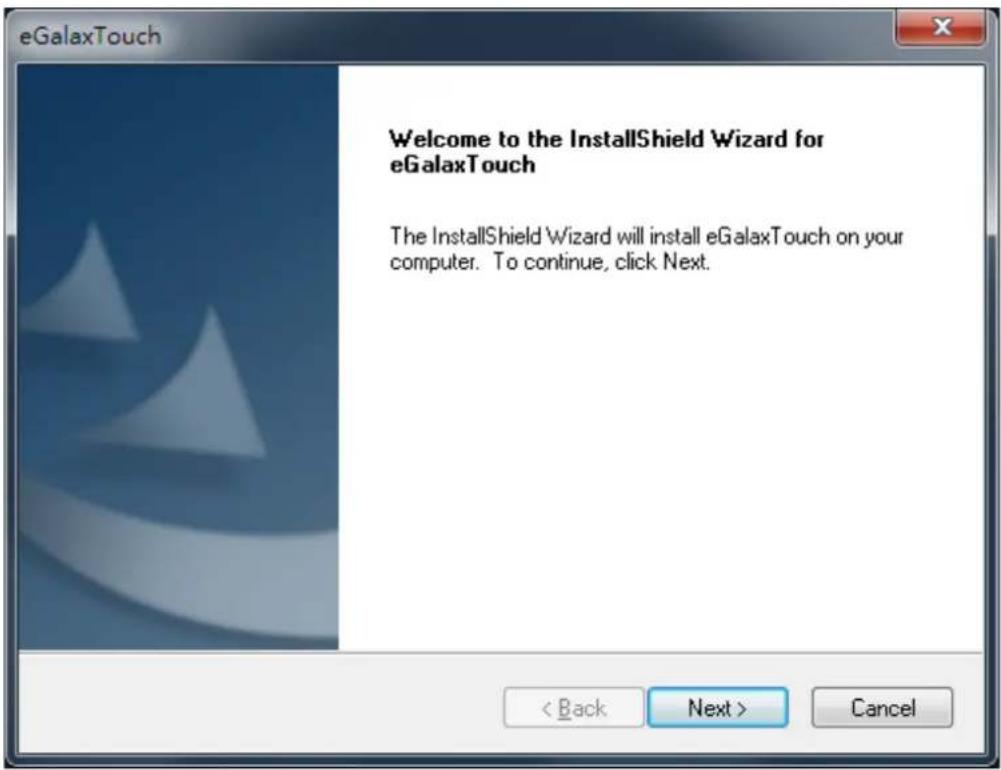
text_image
eGalaxTouch Welcome to the InstallShield Wizard for eGalaxTouch The InstallShield Wizard will install eGalaxTouch on your computer. To continue, click Next. < Back Next > Cancel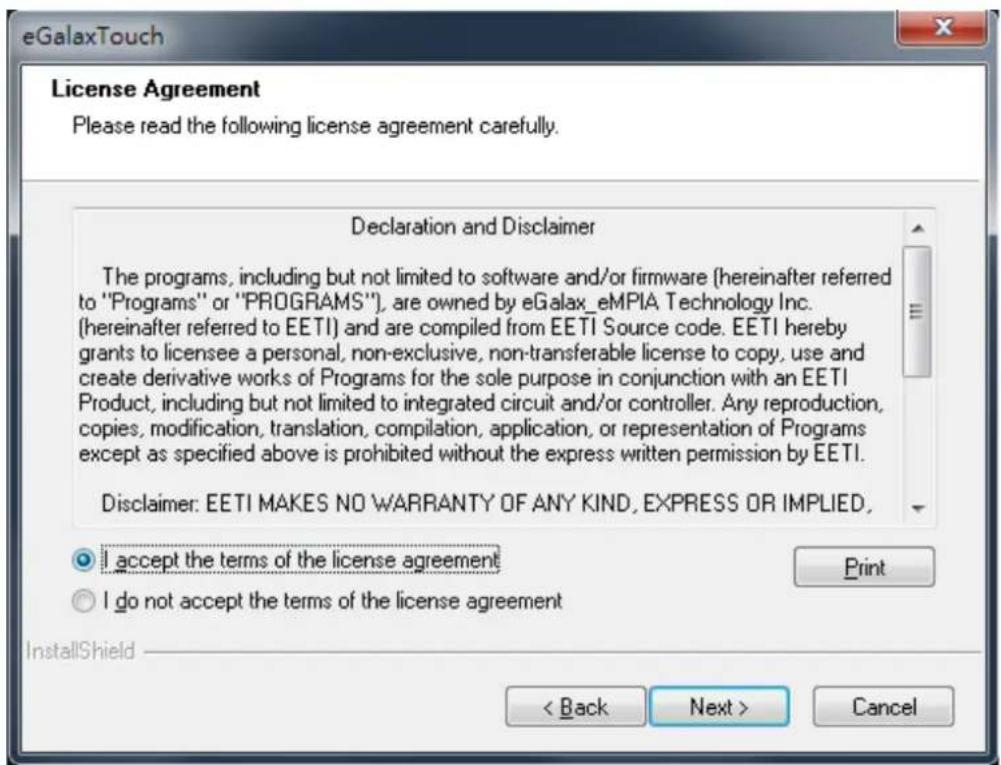
text_image
eGalaxTouch License Agreement Please read the following license agreement carefully. Declaration and Disclaimer The programs, including but not limited to software and/or firmware (hereinafter referred to "Programs" or "PROGRAMS"), are owned by eGalax_eMPIA Technology Inc. (hereinafter referred to EETI) and are compiled from EETI Source code. EETI hereby grants to licensee a personal, non-exclusive, non-transferable license to copy, use and create derivative works of Programs for the sole purpose in conjunction with an EETI Product, including but not limited to integrated circuit and/or controller. Any reproduction, copies, modification, translation, compilation, application, or representation of Programs except as specified above is prohibited without the express written permission by EETI. Disclaimer: EETI MAKES NO WARRANTY OF ANY KIND, EXPRESS OR IMPLIED. I accept the terms of the license agreement I do not accept the terms of the license agreement InstallShield < Back Next > Cancel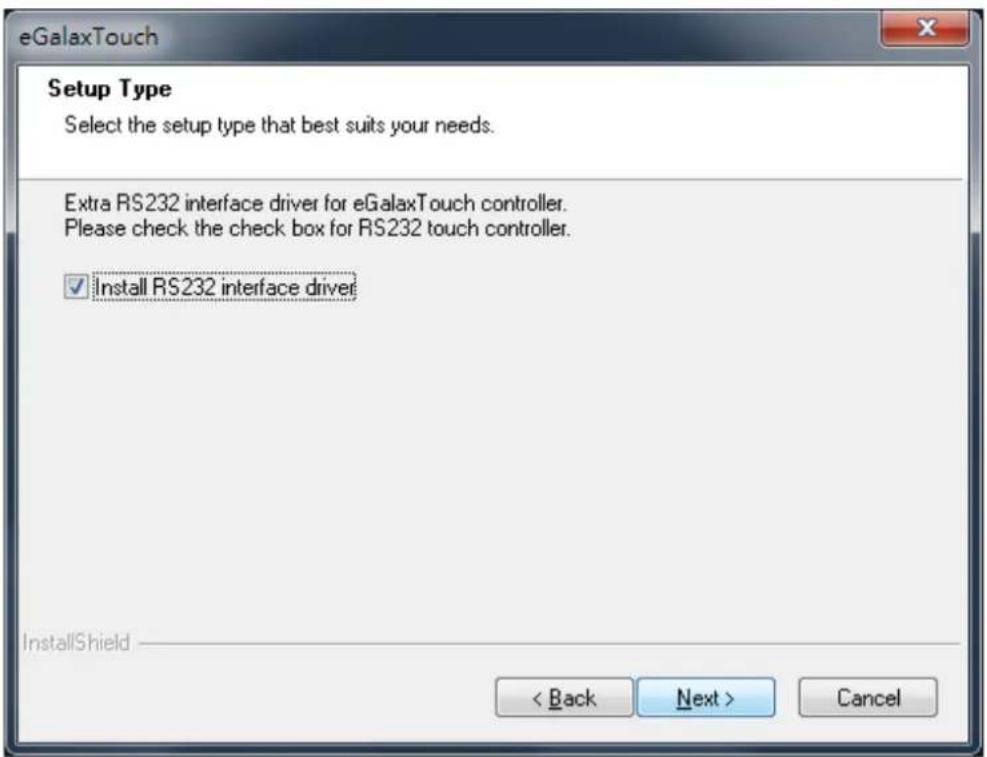
text_image
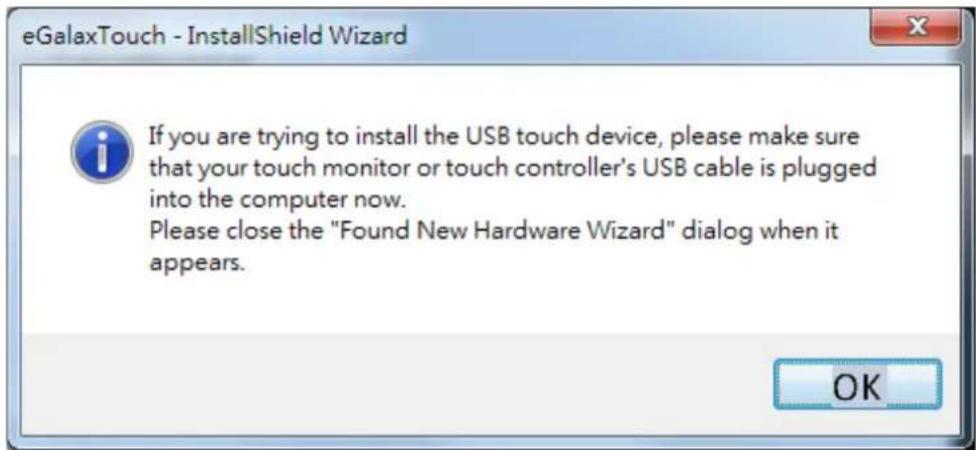
eGalaxTouch Setup Type Select the setup type that best suits your needs. Extra RS232 interface driver for eGalaxTouch controller. Please check the check box for RS232 touch controller. ✓ Install RS232 interface driver InstallShield < Back Next > Cancel- Select touch interface RS-232 or USB.
text_image
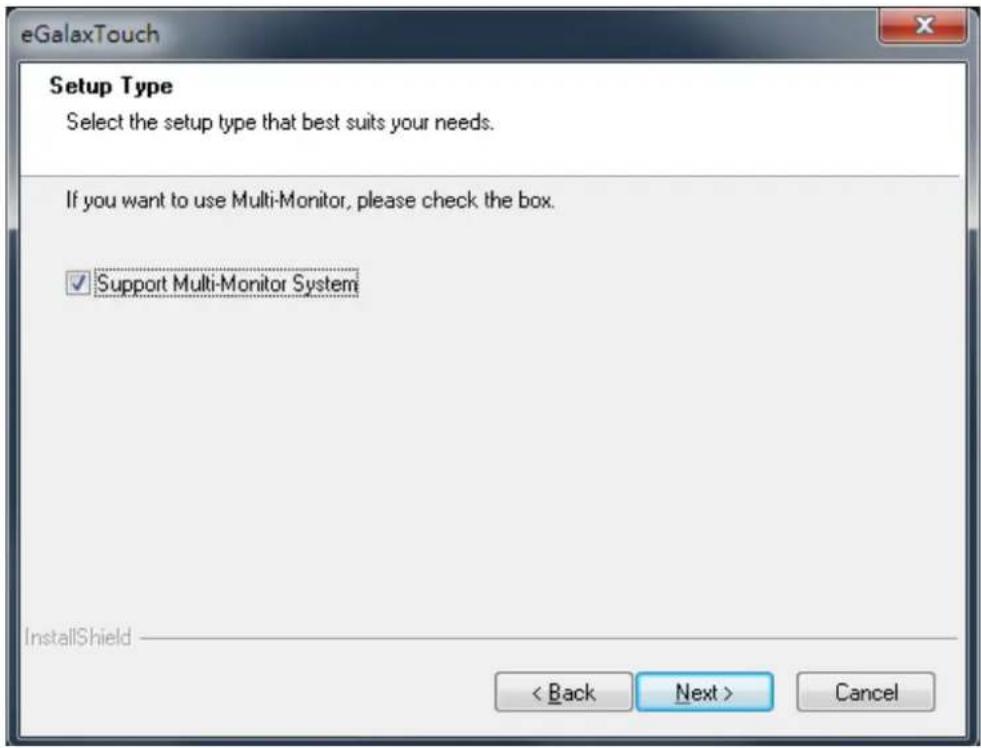
eGalaxTouch - InstallShield Wizard If you are trying to install the USB touch device, please make sure that your touch monitor or touch controller's USB cable is plugged into the computer now. Please close the "Found New Hardware Wizard" dialog when it appears.- Select support Multi Monitor or not.
text_image
eGalaxTouch Setup Type Select the setup type that best suits your needs. If you want to use Multi-Monitor, please check the box. ✓ Support Multi-Monitor System InstallShield < Back Next > CancelNote! Touch can support multi touch(18.5" 4 point / 15.6" 5 point). Touch already do the default setting, please note that no need to do calibration.


text_image
Question The eGalaxTouch driver has been installed, before operating touch function, please do 4 point calibration. Would you do 4 point calibration now ? Yes NoAppendix C
Setting Serial Data for Expansion
C.1 Setting Serial Data for Expansion
The several kinds of timings below are already programmed in this module.
The input synchronous signals are automatically recognized.
| Resolution HSYNC /K | Hz (+/-) VSYNC /Hz | (+/-) PIXEL RATE /MHz | |
| IBM, 720 * 400 31.469 | 70.087 28.322 | ||
| VESA 640 * 480 31.469 | 59.940 25.175 | ||
| VESA 640 * 480 37.861 | 72.809 31.500 | ||
| VESA 640 * 480 37.500 | 75.000 31.500 | ||
| VESA 800 * 600 35.156 | 56.250 36.000 | ||
| VESA 800 * 600 37.879 | 60.317 40.000 | ||
| VESA 800 * 600 48.077 | 72.188 50.000 | ||
| VESA 800 * 600 46.875 | 75.000 49.500 | ||
| VESA 1024*768 48.363 | 60.004 65.000 | ||
| VESA 1024*768 56.476 | 70.069 75.000 | ||
| VESA 1024*768 60.023 | 75.029 78.750 | ||
| VESA 1152*864 67.500 | 75.000 108.000 | ||
| VESA 1280*720 45.000 | 60.000 74.250 | ||
| VESA 1280*800 49.702 | 59.810 83.500 | ||
| VESA 1280*1024 63.981 | 60.020 108.000 | ||
| VESA 1280*1024 79.976 | 75.025 135.000 | ||
| VESA 1366 * 768 47.712 | 59.790 85.500 | ||
| VESA 1440 * 900 55.935 | 59.887 106.500 | ||
| VESA 1680 * 1050 | 65.290 59.954 146.250 | ||
| VESA 1920 * 1080 | 67.500 60.000 148.500 |
Note! Even if the preset timing is entered, a little adjustment of the functions such as Horizontal period, CLK-delay and display position, are required. The adjusted values are memorized in every preset number.
Note! This module recognizes the synchronous signals with near preset timing of the frequency of the HS and Vsync, even in the case that the signals other than the preset timing that were entered.
Note! Because adjustments may not fit, such as differing magnifying ratios or, in the case that you use it except for the display timing that was preset. Recommend best resolution as 1920*1080.
www.advantech.com
Please verify specifications before quoting. This guide is intended for reference purposes only.
All product specifications are subject to change without notice.
No part of this publication may be reproduced in any form or by any means, electronic, photocopying, recording or otherwise, without prior written permission of the publisher.
All brand and product names are trademarks or registered trademarks of their respective companies.
© Advantech Co., Ltd. 2017