MtG - Audio software MAAT - Free user manual and instructions
Find the device manual for free MtG MAAT in PDF.


User questions about MtG MAAT
0 question about this device. Answer the ones you know or ask your own.
Ask a new question about this device
Download the instructions for your Audio software in PDF format for free! Find your manual MtG - MAAT and take your electronic device back in hand. On this page are published all the documents necessary for the use of your device. MtG by MAAT.
USER MANUAL MtG MAAT
Online Activation....6
Offline Activation 6
Introduction......8
In Use 8
Prep Your Loop....8
Room Tone Suggestions....9
Recording 9
Trimming 9
Channel Count....9
DAW Specifics.... 10
Prepare Your Track.... 10
Let MtG Fill 10
Additional Controls....11
It's A Wrap 11
Specifications 11
System Requirements ......11
Supported formats....11
Credits.... 12
Support 12
FAQ 12
Troubleshooting....12
Share The Love....12
Installation & Setup
When preparing for installation of your MAAT MtG, we recommend that you quit all applications prior to proceeding. Also, after downloading the installer and prior to installation, let any anti-malware measures you may have running scan the installer. Then, temporarily disable all anti-malware measures once scanning is complete.
To install, simply double click on the downloaded Installer for your particular operating system. The installation process will guide you through the install procedure. If you have an older OS version, restarting your host may be required. Don't forget to reenable anti-malware measures or simply restart your host.
Licensing
MAAT software is licensed through our dongle-free, cloud-based license control framework. If your hosts are net-connected, our licenses “float,” making it easy to move from one machine to another. All you have to do is close all MAAT stuff on one machine before you open anything on another. If you’re going to use the laptop in an environment where internet is spotty or non-existent, you can also go offline temporarily for up to 30 days.
To license your MAAT purchase, open yours or instantiate an example in your preferred plug-in host. When licensing, we recommend you open a new session in your DAW just for this purpose.

text_image
Activate Online Enter Product Key XXXXXXXX-XXXXXXXX-XXXXXXXX-XXXXX-XXXXX Activate Online 30 Days Offline Activate Offline Enter Product Key XXXXXXXX-XXXXXXXX-XXXXXXXX-XXXXX-XXXXX Create License Request Activate OfflineFigure 1: The initial Activation dialog
Online Activation
Once the Activation dialog appears, paste or type in your Product Key supplied at the time of purchase. Then click on Activate/Deactivate Online and follow the prompts.

NOTE: THE ONLINE PROCESS REQUIRES A LIVE INTERNET CONNECTION. YOU MUST HAVE AN ACTIVE INTERNET CONNECTION FOR ACTIVATION.
A feature of our cloud-connected system is that, if you close a DAW session that contains MAAT plug instances, then open that session on another host, the license will “follow” you onto the new host as long as you have live internet.
You can also return or park your license on our licensing server, and pick it up later on another host. Once your product is licensed, click the Activate/Deactivate Online button to deactivate your license, then repeat to reactivate.
Offline Activation
If, for security reasons you have an offline host computer or you plan on working without a reliable internet connection, it is best to go with an offline license. There are two offline options, temporary offline and full offline.
Temporary Offline
If you plan on working without a reliable internet connection, we designed the temporary offline option just for you. The temporary offline process also requires a live internet connection, but only during activation.
A temp offline license has two unique features:
- It can remain offline, without an internet connection, for up to 30 days
- It auto-renews its lease whenever it does make a server connection
So, if your internet is spotty or unreliable, or you're heading temporarily to a location where an internet connection isn't available, the temporary offline option let's you work untethered to the 'net for up to a month.
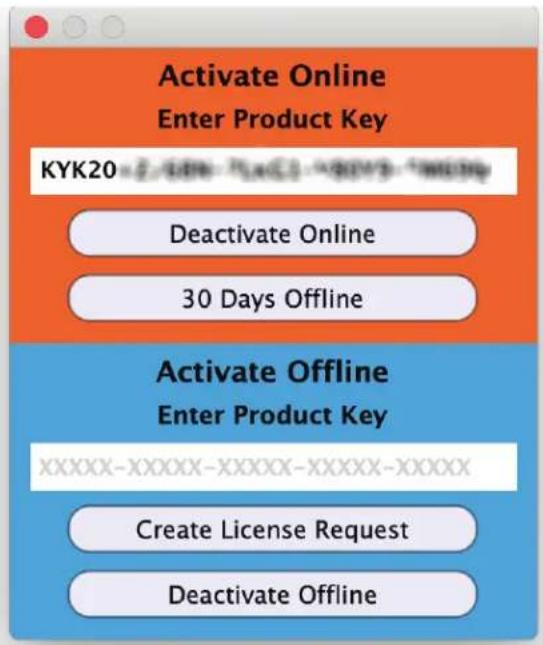
By clicking the “30 Days Offline” button, your online license will become temporarily offline for a maximum of 30 days. If, however, you use the product while connected to the internet at all during that time, the “lease” duration is automatically reset, extending another 30 days.
text_image
Activate Online Enter Product Key KYK20 Deactivate Online 30 Days Offline Activate Offline Enter Product Key XXXXXXXX-XXXXXXXX-XXXXXXXX-XXXXX Create License Request Deactivate OfflineFigure 2: The 30 Days Offline activation option
Full Offline
This will license your MAAT product without the need to periodically contact our licensing server. If you anticipate working without the internet for more than a month at a time or, for security purposes, your studio machine is “air gapped” and has no internet, take a moment to surrender your online license, and replace it with an offline version.
Note: A full offline license does need to be explicitly renewed once a year.
To prepare for offline activation, you will need:
- Your Product Key!
- Some method to move your License Confirmation file to the offline host machine.
That latter requirement can be accomplished in any number of ways, but a USB flash drive is often readily available and most convenient. You will also need your Product Key that was supplied to you via e-mail when you purchased your MAAT product.
The offline activation process starts with generating a License Request, with a “maatr” file extension, which is submitted on-line to our server or via e-mail to MAAT Support <support@maatinc.
zohodesk.com>. A License Confirmation file, with a “maatc” extension, will be returned to you, which will activate your product.
To proceed, click on the Activate/Deactivate Offline button, and follow the prompts.
In a year's time, 365 days from the date the maatr file is created, a full offline license must be renewed using the same maatr/maatc method.
Introduction
Long ago, back when Digi was selling 8 bit drum samples, the first truly professional DAW had a command called Loop & Fill. That useful function in the Sonic System allowed you to define a clip of audio, and fill any empty space with as many repetitions of the defined clip as needed to fill the gap. MtG is a simple tool to replicate that function for the modern DAW. It automatically slugs in seamless room tone, ambience, actualities or whatever you need to reinforce the sense of verisimilitude in your cleaned dialog tracks. Sounds simple enough, but how exactly does that work?
Thanks for installing this copy of MAAT's MtG plug-in. We think you like its simple and time saving functionality.
MtG's functionality is wrapped in a visually unobtrusive user interface. The plug-in is responsive yet also very "light weight," demanding a minimum of CPU resources so it won't slow down your host. We've worked hard to make this an exceptionally useful and usable tool, and we hope you'll dig it.
In Use

text_image
MAAT MtG RECORD PLAY OPEN Zoom S11wallaR2.wav Bias 0db -90db 0dBFigure 3: MtG's user interface
Prep Your Loop
First, open a dialog recording and add MtG as the first plug-in instance in your signal chain. You want your dialog and the replaced room tone
to match in all ways; amplitude, power spectrum, et cetera. so, don't alter or process the dialog track in any way prior to instantiating MtG.
Room Tone Suggestions
Let's talk about that replacement room tone...You can either open a WAV or AIFF file that was recorded at the time the dialog was also captured or, record room tone after the fact. The former is preferable as it will match the dialog in all aspects. Recording room tone afterwards may result in a file that doesn't match the dialog as well.
When recording room tone, if possible use the same microphone in the same location as that which recorded the dialog. Also, in order to make the final result believable, you will need at minimum 2 seconds of room tone to loop. Twice that or more is better. Again, the intent should be to make the final result natural and believable.
Recording
To record in MtG, make sure you have your microphone input ready in your DAW, then click RECORD in MtG. The plug-in prompts you for a file name and, as with all engineering tasks, use good housekeeping practices. In this case, give the recording a meaningful name that associates it in the future with the dialog track you will be improving. Click on OK to begin recording. The user interface tells you MtG is recording, so wait for a sufficient time to elapse. During record, the RECORD button changes to STOP. So, click on STOP to complete the recording. Be sure to take the DAW out of Input mode.
If you have some room tone at the head or tail of an existing track, you can hit RECORD in MtG, then play back that audio from the DAW. The same suggestion as above apply to naming the new room tone file.
Trimming
As mentioned earlier, you can also open a WAV or AIFF file of room tone using the OPEN button. Whether you record it into MtG or open an existing file, that audio ends up in the waveform window. Notice the two vertical lavender editing trim handles snugged up against the left and right side of the waveform. Click and drag these to remove any junk audio at the head and tail of your tone. Use the PLAY button to audition the remaining audio as a loop. You can start and stop playing, and drag the Play Head around before clicking PLAY if need be. Also notice the minus and plus zoom controls at the bottom center of the waveform. For longer duration room tone files, these let you zoom out or in on a smaller section of time.
Channel Count
MtG is designed to work with monaural or stereo files. Match the room tone to the dialog track. If your dialog is stereo, open or record a stereo room tone file. On the other hand, if your dialog is monaural, then use or record mono room tone.
DAW Specifics
Each DAW is a bit different when it comes to how a plug-in instance is slotted into the signal flow and your workflow.

NOTE WAVELAB AND LOGIC HAVE PECULIARITIES WHEN IT COMES TO PLAYING YOUR ROOM TONE IN MTG
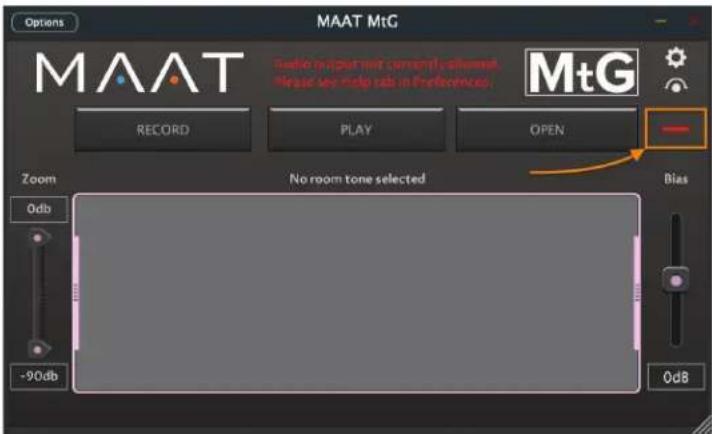
MtG has a status indicator in the upper right corner. It will illuminate red when your DAW needs some additional love to fully embrace MtG. You will also see MtG's PLAY button light up as if it's playing, but no audio will result. In Wavelab, Logic and possibly other DAWs, when your project is paused or stopped, the DAW will not allow MtG to output sound.
text_image
Options MAAT MtG M A A T Radio is part with currently allowed. Please see help rub in Preferences. RECORD PLAY OPEN - Zoom No room tone selected Bias 0db -90db 0dBFigure 4: MtG's Status Light in error mode
As a workaround, start playback in a (muted) track that contains audio. This will enable the DAW to “allow” MtG to audition and trim your room tone. Once you have initially done this, MtG will operate normally after that and the status indicator will change to green. The MtG installer provides optional null data placeholder files if you’d like to open them in your DAW just for this purpose.
1) In MtG, click on PLAY
2) In your DAW, start playback in a track
Prepare Your Track
Next, strip out all the existing room tone from your track. You can do that manually or, even better for very long tracks, let your favorite DAW do it. It might be called Strip Silence, Remove Silence or Dynamic Split. Whatever the name, the function will edit out any audio below a user-defined amplitude and duration threshold. Be sure to leave some intake breath sounds and a few lips smacks so the cleaned track retains a natural aspect and doesn't sound too sterile.
Let MtG Fill
Once you have edited black or clips interspersed with edited silence, then all you have to do is reposition your DAW's play head at the start
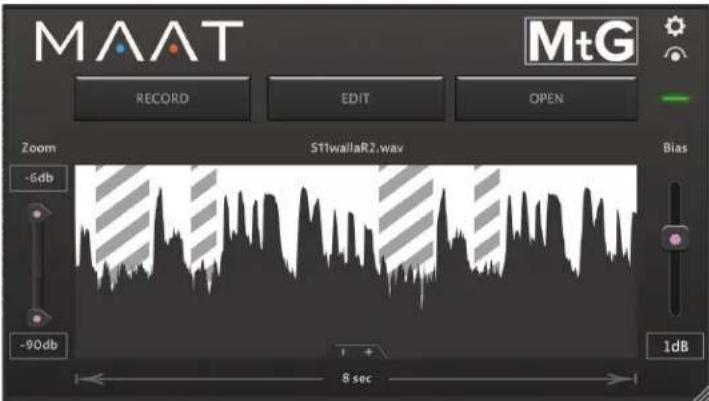
of the dialog track and begin playback. MtG will switch its display from showing the loop to showing the dialog track with the edited gaps filled in with “zebra stripes.”
text_image
MAAT RECORD EDIT OPEN Zoom S11wallaR2.wav Bias -6db -90db 8 sec 1dBFigure 4: MtG in auto-fill mode
The working title for MtG was “Mind the Gap,” and that’s what it does: finds each gap in your dialog, and fills it with a loop of the defined room tone. Those zebra strips appear in MtG’s waveform display wherever it’s filled a gap.
Additional Controls
At lower left, notice the Zoom control. This continuous slider lets you zoom or magnify the waveform to better inspect the amplitude match between your dialog and looped replaced audio. At lower right is the Bias control. This continuous slider lets you increase the playback gain of the looped audio to, once again, better match your dialog and looped audio.
It's A Wrap
Having tried to make MtG as easy to use as possible, we hope it speeds your workflow and helps you move on to other tasks. Or, maybe you get to head out and absorb some sunshine. Either way, let us know how we can make MtG better...enjoy!
Specifications
System Requirements
• macOS: 10.8 and newer, 32 & 64 bit
• Windows: 7 and newer, 32 & 64 bit
- 4GB RAM minimum
Supported formats
• 44.1 to 384 kHz sample rate
• AAX, AU, VST 2, VST 3
Credits
Product Concept:
Adam, Agent of Shield
UX & Product Development:
Oliver Masciarotte
Support
For product support, please visit:
https://www.maat.digital/supports
FAQ
Frequently ask questions are addressed in our web site's Support section. Also, comments, suggestions, and words of encouragement regarding all our stuff is always welcome. Ping us at our Support address above.
Troubleshooting
Want to get started troubleshooting a problem on your own? Then run the following utility we've included, and send us the ZIP file that's created:
For macOS, launch;
/Applications/MAAT/Shared/Utilities/DiagnosticsReporter.app
For Windows C drive;
\Program Files\MAAT\Shared\Utilities\DiagnosticsReporter.exe
Share The Love
Would you like to help us in our quest for better sound quality? Help support MAAT by sharing the love...Like us on Facebook!
https://www.facebook.com/maatdigital/
and Twitter too:
https://twitter.com/maat_digital
Please tell your friends and colleagues about us!
About This Manual
This manual was written in Adobe InDesign 15.0.3, and is set in Robert Slimbach's Minion Pro and Myriad Pro. The cover page is set in Aldo Novarese's modernist geometric Eurostyle.
This documentation, as well as the software described in it, is furnished under license and may only be used or copied in accordance with the terms of such license. The information in this manual is furnished for informational use only, is subject to change without notice, and should not be construed as a commitment by MAAT Incorporated. MAAT Incorporated assumes no responsibility or liability for any errors or inaccuracies that may appear in this document.
Except as permitted by such license, no part of this publication may be reproduced, stored in a retrieval system, or transmitted, in any form or by any means, electronic, mechanical, recording, or otherwise, without the prior written permission of MAAT Incorporated.
Notice of Liability
The author and publisher have made every effort to ensure the accuracy of the information herein. However, the information contained in this document is provided without warranty, either express or implied. Neither the authors, MAAT Incorporated, nor its dealers or distributors will be held liable for any damages to be caused either directly or indirectly by the instructions contained in this book, or by the software or hardware products described herein.
MAAT INCORPORATED MAKES NO WARRANTIES, EXPRESS OR IMPLIED, INCLUDING WITHOUT LIMITATION THE IMPLIED WARRANTIES OF MERCHANTABILITY AND FITNESS FOR A PARTICULAR PURPOSE, REGARDING THE APPLE SOFTWARE. MAAT INCORPORATED DOES NOT WARRANT, GUARANTEE, OR MAKE ANY REPRESENTATIONS REGARDING THE USE OR THE RESULTS OF THE USE OF THE MAAT INCORPORATED SOFTWARE IN TERMS OF ITS CORRECTNESS, ACCURACY, RELIABILITY, CURRENTNESS, OR OTHERWISE. THE ENTIRE RISK AS TO THE RESULTS AND PERFORMANCE OF THE MAAT INCORPORATED SOFTWARE IS ASSUMED BY YOU. THE EXCLUSION OF IMPLIED WARRANTIES IS NOT PERMITTED BY SOME STATES. THE ABOVE EXCLUSION MAY NOT APPLY TO YOU.
IN NO EVENT WILL MAAT INCORPORATED, ITS DIRECTORS, OFFICERS, EMPLOYEES, OR AGENTS BE LIABLE TO YOU FOR ANY CONSEQUENTIAL, INCIDENTAL, OR INDIRECT DAMAGES (INCLUDING DAMAGES FOR LOSS OF BUSINESS PROFITS, BUSINESS INTERRUPTION, LOSS OF BUSINESS INFORMATION, AND THE LIKE) ARISING OUT OF THE USE OR INABILITY TO USE THE MAAT INCORPORATED SOFTWARE EVEN IF MAAT HAS BEEN ADVISED OF THE POSSIBILITY OF SUCH DAMAGES. BECAUSE SOME STATES DO NOT ALLOW THE EXCLUSION OR LIMITATION OF LIABILITY FOR CONSEQUENTIAL OR INCIDENTAL DAMAGES, THE ABOVE LIMITATIONS MAY NOT APPLY TO YOU.
©2019-2020 MAAT Incorporated — All rights reserved.
MAAT, LINearise and the MAAT logo are trademarks of MAAT Incorporated. All other company or product names are either trademarks or registered trademarks of their respective owners.
200903-1.5