TEL1706 - Smartphone Manta - Free user manual and instructions
Find the device manual for free TEL1706 Manta in PDF.


User questions about TEL1706 Manta
0 question about this device. Answer the ones you know or ask your own.
Ask a new question about this device
Download the instructions for your Smartphone in PDF format for free! Find your manual TEL1706 - Manta and take your electronic device back in hand. On this page are published all the documents necessary for the use of your device. TEL1706 by Manta.
USER MANUAL TEL1706 Manta
natural_image
Abstract black-and-white circular logo with interlocking curved shapes (no text or symbols)MANTA
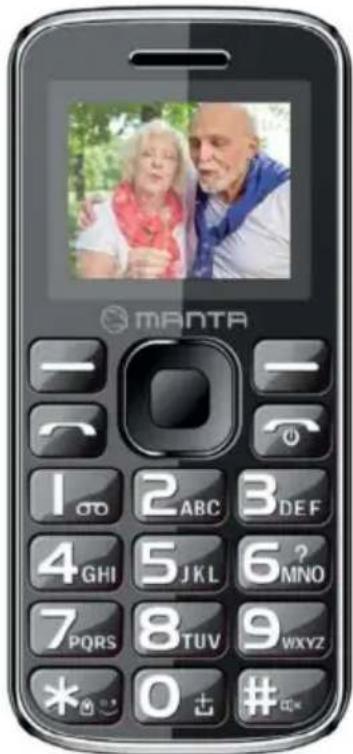
Senior Phone
TEL1706
text_image
MANTA 1 2 ABC 3 DEF 4 GHI 5 JKL 6 ? MNO 7 PQRS 8 TUV 9 WXYZ * 0 + #Instrukcja obsługi
User's Manual
General recommendations
The phone can only use the battery - and the battery character specified company. The use of other types of products can cause battery leakage, overheat, catch fire or even explode.
- Avoid sharp hitting, shaking - or throwing the phone, which may malfunction or cause a fire.
- Do not place the battery or charger phone in a microwave or dev under high pressure. Otherwise, there may be unforeseen events, eg. Damage to the circuitry or the threat of fire.
- It is recommended not to use the phone near the sites where fla explosive gases, as this may cause malfunction or a risk of fire.
- Do not expose your phone to high temperatures, high humidity, places with dust, as this may cause malfunction.
- Keep the phone away from places available for children. The photo Children can hurt your self.
- Do not place the phone on uneven or unstable ground to prevent which will result in malfunction or damage.
Recommendations for the use of batteries
- The battery in your phone has a limited lifespan. Frequent charge battery life. For the complete consumption of the battery shows the situation when fully charged, the battery is still weak. In this case, replace it with a new one.
- Do not dispose of old batteries in household waste. Used battery disposed of properly disposing of following the regulations for such waste.
- It is forbidden to inserting the batteries into the fire, as this ignition and explosion.
- Do not use force or pressure when installing the battery, to avoid overheat, rupture and catch fire.
- Do not use wires, needles or other metal objects to cause a short battery. Nor are you permitted to place the battery near necklaces or other metal objects to avoid the leak, overheat, rupture and catch fire.
- Do not solder the battery terminals, as this will cause the battery rupture and catch fire.
- Getting the liquid contained in the battery to the eyes may cause of eye contact with the liquid, do not rub your eyes. Rinse with clean water
TEL1706
EN
immediately and go to the hospital after professional help.
- It is forbidden to dismantle or modify batteries, as this will it le rupture and catch fire.
- Do not use or place the battery near hot places, eg. Close to the heating, as this will it leak, overheat, rupture and catch fire.
- Stop the use of batteries and replace it when in the course of us storage battery overheating occurs, or when it changes color or becomes distorted.
- Contact of battery liquid with skin or clothing can cause burns. I si tuati on, i mmedi atel y wash the aff ected area wi th cl ean water and if necessary
e iv la idles
- Move the battery away from open flames, to avoid the risk of fir the event of leak or release from its center an unusual odor.
- Do not allow the battery to get wet, as this could cause overheat release of smoke, which causes corrosion.
- Do not place the battery in areas with elevated temperatures, e.g. sunlight, as this will cause leakage and overheating of the battery, and reduces
efficiency and shorten the time of suitability for use.
- Do not charge the phone continuously for more than 24 hours.
Buttons
- Left soft key / Right button: Features shown in the left / bottom right-hand corner of the screen.
- Call / Receive (handset): Press after dialing the number to dial. Press to answer an incoming call. Press in standby mode to go to the call history.
- End / Power Button: Press and hold to turn on / off the phone. Press to reject call or exit the menu.
- OK: Confirmation or accept the selection on the menu. Press in standby mode to enter the selected function.
- Navigation keys: Up / down / left / right: in the menu to scroll to view or edit. In Idle mode, press: up / down / left / right / left to select press the OK button to confirm.
- 0-9 alphanumeric keys: Press the keys to enter numbers when dialing numbers or numbers and characters when editing.
Press the "+" button to enter a "+" for international dialing.
-
* ( a s t e r i s k ) : Press in standby mode to enter the symbol "*".
-
(p o u n d) : Press in standby mode to enter the "#". Long press in standby mod to activate or deactivate the silent mode.
Preparing Your Phone
1 Installing the SIM card
Keep the SIM card out of reach of children.
Be very careful when installing, removing, moving or storage card.
Before installing or removing the SIM card, make sure that the phone is turned off. Remove the back cover and remove the battery.
Note: During installation, make sure that the SIM card contacts are facing down and pay attention to the markings towards the slot.
2 Installing a memory card
This phone supports microSD memory cards. Please make sure that the memory card is inserted correctly before use.
When mounting the microSD card, pay attention to the direction of the outlet, tilt the memory card slot cover, insert the memory card until it is fully seated in the slot and close the cover. The phone supports microSD cards
3 Installing the battery
- Insert the battery according to the markings on the battery contacts knock on your phone and press the top of the battery down until it is inserted into the battery compartment.
4 Remove the battery
First, turn off the phone, put it face down, remove the lid and remove the battery.
5 Charging the battery
Insert one end of the adapter into the jack charger. If the phone is switched on the battery icon is displayed in the upper right corner of the screen. If the indicator is full and stop fully charged. If the phone is off during charging, h the screen. When charging is finished, unplug.
NOTE: Before first use, charge the battery for at least 4 hours. It will reach its maximum capacity after several cycles of charging and discharging.
Using your phone
1 Turn on / off
Press and hold the End / Power key to turn on or turn off the phone.
2 Make a call
In standby mode, press the numeric buttons to enter the phone number, press the right soft key to delete the invalid ent handset to make a call.
3 Receiving a call
When there is an incoming call, if your network supports Caller ID, the screen will display the name or number of the caller (depending on whether there is information about the caller in the phone book).
- Press the call button ( h a n d s e t ) / r e s p o n s e , or press the l an incoming call.
- If a function is selected [a key], press any key to answer an incoming call, with the exception of the right soft key or the key End / Power.
-
If the handset is connected and select Auto Answer, an incoming call will be answered automatically after the bell for about 5 seconds.
-
If you do not want to answer an incoming call, press the End / Power key to reject it.
You can also press the End / Power key to end the call.
- During a call, you can press the up / down buttons to adjust the volume.
- You can contact emergency services without a SIM card. Different network uses different emergency numbers, contact your network operator for details.
4 Alarm mode
You can directly dial the emergency room without a SIM card. Different network use different numbers of emergency services. For details, please ask your telephone company.
5 Using the menu when ringing
The phone allows certain operations and functions during an active call. Som them are network dependent, please ask your network operator or service provider availability.
Press the right soft key to activate the speakerphone during a call in the same way you can disable the feature.
Press the left soft key [ Options ] to access the menu opti call to select from the following options (available only in certain conditions, some of the options):
Suspend / Restore: Pause or resume a telephone conversation hel : I lac o e End the current call.
Phonebook: To perform a search; add; and other operations in the phone book.
Call History: Record the current connection.
News: To access the messages.
Mute: To turn on or turn off mute.
Swap *: Switch the current call and the held call.
Conference * : Turn on the conference call.
* Transfer: To transfer the call to another call.
Enable or disable the DMTF.
silac IlaE nd all.
Note: Menu items marked with "*" can be displayed only in special circumstances. Such as: "Switch" will appear only on the coexistence of the conversation and the suspension of the connection. In order to activate the "Conference", you must follow the instructions of the network operator.
Menu functions
1 Message
- Write a message
Function: Create a new message, save and / or send it to the recipient.
Note: To send an SMS, you need to set the correct SMS service center number, which you can get from your network operator.
When writing, press # to change the input method, text messages can be up to 160 characters.
Press the left [ Options ] to select options when edit i
- Send: Sending composed message. Enter the recipient's phone number using the keypad or insert contact from phonebook.
- Input method: Select the input methods.
- Insert template: Select a preset tem
- Advanced: Select number you want to insert, name, contact or .
2 Inbox
Received SMS messages can be stored in the phone or on the SIM card, and are available here.
After receiving the message, the information about the tragedy, will appear on the screen and a beep. Press the left soft key [Read] or the OK button to read the new message, press the right soft key [Back] to return, and you can get access to your inbox, to read the new message.
In the message list, press the OK key or the left soft key [ Options ] following menu:
• Reply: Reply to Sender SMS directly.
• Call the sender: Call the sender know you.
- Submit provided for: the transfer of know whom you else.
• Del ete: Delete SMS.
- Save in the book until the telephone directory: Write the numbers to the book until the phone book
3 Drafts
Incompletely folded and saved messages can be stored and available here.
4 Outbox
When selected messaging, SMS sent is stored in the Outbox before sending. In a sent message list, press the OK key or the left soft key to read the select message.
5 Sent
If a message is sent successfully sent SMS is saved in the Sent box.
6 SMS settings
You can set the parameters of the SMS service.
Phonebook (Phonebook)
Stores and manages your contacts. There are two places where you can store names and phone numbers on the SIM card and phone memory. The volume of contacts can be stored on the SIM card depends on the capacity of the SIM card.
After searching for a name, press the call key / Receive to select a number from the registry, and then press the dial / handset to make a call.
- Add a new contact
This menu allows you to add a new entry to the SIM card or phone. Enter a phc number directly in the standby mode, then press the OK button to save the phone number on the SIM card or phone.
First you need to choose the storage: SIM or phone.
· The SIM: Select this option, press the OK button, or press the left soft key [Edit] to enter the interface, enter the then press OK or press the left soft key [Options] to select "Done" and confirm.
- Preview: See the contact details.
- Send SMS: Send SMS to a contact.
· Select: Select the currently select
- Edit: Edit contact.
- Del et e: Delete the currently selected contact.
· C o p y : Copy conact to your SIM card if it is stored in the phone and vice versa.
- Settings Phonebook
Preferred storage: Select a location to save the contact.
Additional numbers: Modification to the owner and the fixed dialing settings.
Memory status: View the status of the SIM card and phone book.
Copy contacts: Copy contacts to your SIM card, if they are stored in your phone, and vice versa.
Move contacts: Move contacts to your SIM card, if they are stored in your phone, and vice versa.
Delete all contacts: Delete all contacts.
Call History
The phone can record information about all received calls, dialled calls, r calls and rejected, as well as the duration of the call. Call history can be accessed by pressing the Answer (phone), in standby mode or via the menu.
- Missed calls / dialed / received / All Calls
Displays a list of all / missed / dialed / received calls.
- Delete call logs
Remove dialed / received / missed / all calls
Connection settings
- Call settings SIM1 / SIM2
You can select Sl M1 or Sl M2 to set options Connection settings, as shown bel
- Call Waiting (supported by the network): You can enable and disable call waiting or check.
Turn on call waiting, you will hear a beep warning, if it is a new incoming talking with the phone number on a call.
- Call Forwarding (supported by the network) to forward incoming calls to voicemail or another number. There are three ways a waste, each of which can be set to divert to voicemail or to another number, cancel or check the status.
- Call Barring (supported by the network): You can enable or disable checking or call barring.
- Advanced Settings
- Answer mode: with the OK key or the left soft key to turn any button or turn off, if it is enabled, you can receive incoming calls only by any key, except the Red key and the right key.
Multimedia
1 Audio Player
Allows you to play audio files stored in the phone memory or memory card.
Press OK to select / "Play / Pause / Stop", press 4/6 to select "Previous /
Next"; press the up and down to adjust t
Press the left soft key [List] to select the playlist, press the left soft key [ Options ] to access the service menu MP3 player.
2 Camera
The phone is equipped with a camera and allows you to take pictures. You save the photos on your phone or use as wallpaper.
The camera's menu, you can select the following operations by pressing the left:
- Switch to camera: switch to video recording.
TEL1706
EN
- Photos: You can view an album of pictures.
- Camera settings: Use the navigation buttons to select the shutter sound, EV, contrast, anti-flicker, delay, press the OK key or the left soft key to confirm the current position.
- Image settings: Select the quality and si
- Storage: Select [Phone] or [Memory Card], as a place to save images.
3 Reviewing pictures
Selecting this option allows you to view a list of images stored in the album. Press the OK button to display the selected image, press the left soft key [Options] to perform the following operations:
- View: view of the currently selected photo.
- Use as: a l l o w s y o u t o s e t t h e p i c t u r e
- Rename: Rename the image.
- Delete: Delete the current picture.
- Storage: Select [Phone] or [Memory Card] as the location to save the image.
- Image Info: Displays information about the selected
4 Sound Recorder
ter rac edp et
Select "Record" button to start or stop recording. Use the appropriate button to stop recording Use the left button. Select "Yes" to sa
After selecting the options, you can access the menu:
- New recording: recording a new recording.
- List: Shows the list of recordings.
- Settings: allows you to set the quality of recorded files.
5 Video Player
This menu allows you to play movies stored on your phone or memory card. Print OK to play. Press the left soft key [Options] to select the operation:
- Play: play video.
- Rename: change the name of the video file.
- Delete: delete the movie.
- Storage: Select [Phone] or [Memory Card], as storage space movies.
6 File Manager
Phones available memory is displayed in the interface file manager (phone or memory card).
Press the left soft key [Options] in order to use the following options:
- Open: Opens the selected drive.
- Create Folder: Create a new folder in the currently selected drive.
- Rename: rename the folder (file, if the file option).
- Delete: delete the current folder or file.
SOS button
You can set up to 3 SOS numbers. When you press the SOS button to call the phone number to call SOS.
Settings
1 Time and Date
- Set time / date: use the left or right key to move the cursor to the position and use the numeric keys to enter the date and time value. Press the OK button to
.gittes et ess
- Format: Set the date and time format.
- Language
: teles rac w/
- Pref. Input Method
Set the default input method every time the phone goes into edit mode, depending on the habit.
- Display (Screen)
You can change the display settings according to your preferences.
- Wallpaper: Sets the selected screen wallpaper.
- Automatic lock screen: You can change the screen lock time.
- Screen saver: You can set and change the screen saver.
- Enabling phone: Allows you to select the manager (user) to run the phone
- Turn off the phone: Allows you to select the wallpaper system (System) or the file manager (user) to turn off the phone
- Shortcut Keys
Set and features four buttons to navigate the press in standby mode.
Up / down / left / right keys can be used as shortcuts to access specific functions in standby mode. Select the key you want to change and press the OK button to get the available options. Scroll to the desired function and press OK.
- Flight mode
Active or inactive.
- Various settings
• LCD backlight: You can set time lighting and light.
• Quality image: you can set quality of image
2 Profiles
a teles rac uV
3 Security Settings
You can set security options on your phone. You can turn your phone password set a password, change your password, activate, deactivate the PIN lock.
4 Dual SIM settings
You can choose to set the functions associated with dual SIM cards.
5 Factory Reset
To reset the phone to factory their original values, enter the phone passw. ]s[ teleWill reboot the phone.
Note!
Product design and Technical parameters may be change without notice. This mainly concerns parameters technical, software and user manual present. User's Manual is a general orientation on service product. Manufacturer and distributor do not assume any responsibility as compensation for any inaccuracies errors in the descriptions appearing in this user manual.
Note about disposal
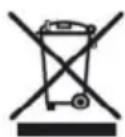
Older appliances, which display the symbol as shown in the picture, may not be discarded in household waste. You must take them to a specific disposal site (check with your local authority) or to you retailer. These sites will guarantee disposal without harming the environment