EBS-S500W - Uncategorized ASUS - Free user manual and instructions
Find the device manual for free EBS-S500W ASUS in PDF.


User questions about EBS-S500W ASUS
0 question about this device. Answer the ones you know or ask your own.
Ask a new question about this device
Download the instructions for your Uncategorized in PDF format for free! Find your manual EBS-S500W - ASUS and take your electronic device back in hand. On this page are published all the documents necessary for the use of your device. EBS-S500W by ASUS.
USER MANUAL EBS-S500W ASUS
No part of this manual, including the products and software described in it, may be reproduced, transmitted, transcribed, stored in a retrieval system, or translated into any language in any form or by any means, except documentation kept by the purchaser for backup purposes, without the express written permission of ASUSTeK COMPUTER INC. ("ASUS").
ASUS PROVIDES THIS MANUAL "AS IS" WITHOUT WARRANTY OF ANY KIND, EITHER EXPRESS OR IMPLIED, INCLUDING BUT NOT LIMITED TO THE IMPLIED WARRANTIES OR CONDITIONS OF MERCHANTABILITY OR FITNESS FOR A PARTICULAR PURPOSE. IN NO EVENT SHALL ASUS, ITS DIRECTORS, OFFICERS, EMPLOYEES OR AGENTS BE LIABLE FOR ANY INDIRECT, SPECIAL, INCIDENTAL, OR CONSEQUENTIAL DAMAGES (INCLUDING DAMAGES FOR LOSS OF PROFITS, LOSS OF BUSINESS, LOSS OF USE OR DATA, INTERRUPTION OF BUSINESS AND THE LIKE), EVEN IF ASUS HAS BEEN ADVISED OF THE POSSIBILITY OF SUCH DAMAGES ARISING FROM ANY DEFECT OR ERROR IN THIS MANUAL OR PRODUCT.
Products and corporate names appearing in this manual may or may not be registered trademarks or copyrights of their respective companies, and are used only for identification or explanation and to the owners' benefit, without intent to infringe.
SPECIFICATIONS AND INFORMATION CONTAINED IN THIS MANUAL ARE FURNISHED FOR INFORMATIONAL USE ONLY, AND ARE SUBJECT TO CHANGE AT ANY TIME WITHOUT NOTICE, AND SHOULD NOT BE CONSTRUED AS A COMMITMENT BY ASUS. ASUS ASSUMES NO RESPONSIBILITY OR LIABILITY FOR ANY ERRORS OR INACCURACIES THAT MAY APPEAR IN THIS MANUAL, INCLUDING THE PRODUCTS AND SOFTWARE DESCRIBED IN IT.
Copyright © 2024 ASUSTeK COMPUTER INC. All Rights Reserved.
LIMITATION OF LIABILITY
Circumstances may arise where because of a default on ASUS' part or other liability, you are entitled to recover damages from ASUS. In each such instance, regardless of the basis on which you are entitled to claim damages from ASUS, ASUS is liable for no more than damages for bodily injury (including death) and damage to real property and tangible personal property; or any other actual and direct damages resulted from omission or failure of performing legal duties under this Warranty Statement, up to the listed contract price of each product.
ASUS will only be responsible for or indemnify you for loss, damages or claims based in contract, tort or infringement under this Warranty Statement.
This limit also applies to ASUS' suppliers and its reseller. It is the maximum for which ASUS, its suppliers, and your reseller are collectively responsible.
UNDER NO CIRCUMSTANCES IS ASUS LIABLE FOR ANY OF THE FOLLOWING: (1) THIRD-PARTY CLAIMS AGAINST YOU FOR DAMAGES; (2) LOSS OF, OR DAMAGE TO, YOUR RECORDS OR DATA; OR (3) SPECIAL, INCIDENTAL, OR INDIRECT DAMAGES OR FOR ANY ECONOMIC CONSEQUENTIAL DAMAGES (INCLUDING LOST PROFITS OR SAVINGS), EVEN IF ASUS, ITS SUPPLIERS OR YOUR RESELLER IS INFORMED OF THEIR POSSIBILITY.
SERVICE AND SUPPORT
Visit our multi-language website at https://www.asus.com/support/.
Contents
About this manual....5
Conventions used in this manual....6
Package contents ....7
Chapter 1: Getting to know your Embedded Computer
1.1 Features....10
1.1.1 Front view....10
1.1.2 Rear view....15
1.1.3 Right view....17
1.2 Motherboard Overview....18
1.2.1 Motherboard layout....18
1.2.2 System memory....20
1.2.3 Onboard jumpers....21
1.2.4 Internal connectors....23
Chapter 2: Using your Embedded Computer
2.1 Getting started....40
2.1.1 Connect the AC power adapter to your Embedded Computer ....40
2.1.2 Connect a display panel to your Embedded Computer ....43
2.1.3 Connect the USB cable from keyboard or mouse....45
2.1.4 Turn on your Embedded Computer 46
2.2 Turning off your Embedded Computer....47
2.3 Putting your Embedded Computer to sleep....47
2.4 Entering the BIOS Setup 47
Chapter 3: Upgrading your Embedded Computer
3.1 Removing the bottom cover....50
3.2 Replacing the bottom cover ....51
3.3 Installing memory modules....52
3.4 Installing 2.5-inch storage device ....53
3.5 Installing an M.2 SSD....55
3.6 Installing a nano SIM card....57
3.7 Installing a wireless card to the M.2 (E-key) slot 59
3.8 Installing an M.2 B-key module....61
3.9 Installing antennas (optional)....66
3.10 Installing wall mount brackets (optional)....70
3.11 Installing DIN rail clips (optional) 72
3.12 Installing the VESA mount (optional)....73
Chapter 4: Watchdog Timer
4.1 Watchdog Timer implementation....78
4.2 Watchdog Timer owchart....79
4.3 Watchdog Timer Programming....80
Appendix
Safety information....84
Setting up your system....84
Care during use....85
Regulatory notices 86
Service and Support 94
About this manual
This manual provides information about the hardware and software features of your Embedded Computer, organized through the following chapters:
Chapter 1: Getting to know your Embedded Computer
This chapter details the hardware components of your Embedded Computer.
Chapter 2: Using your Embedded Computer
This chapter provides you with information on using your Embedded Computer.
Chapter 3: Upgrading your Embedded Computer
This chapter provides you with information on how to upgrade the memory modules, wireless modules, and hard disk drive / solid state drive of your Embedded Computer.
Chapter 4: Watchdog Timer
This chapter will guide you in implementing and programming the Watchdog Timer to allow you to monitor and manage system reliability.
Appendix
This section includes notices and safety statements for your Embedded Computer.
Conventions used in this manual
To highlight key information in this manual, some text are presented as follows:
IMPORTANT! This message contains vital information that must be followed to complete a task.
NOTE: This message contains additional information and tips that can help complete tasks.
WARNING! This message contains important information that must be followed to keep you safe while performing certain tasks and prevent damage to your Embedded Computer's data and components.
Package contents
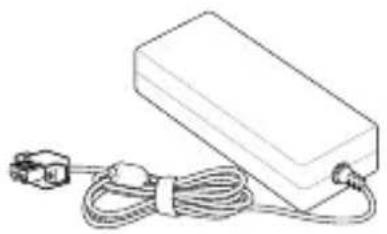
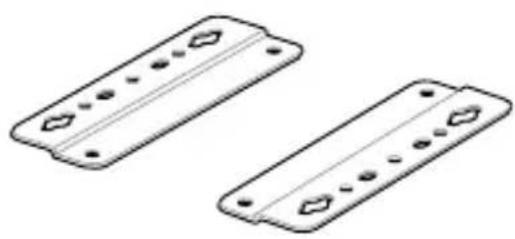
Your Embedded Computer package contains the following items:
EBS-S500W Series
natural_image
Line drawing of a rectangular electronic device with a cable and connector (no text or symbols)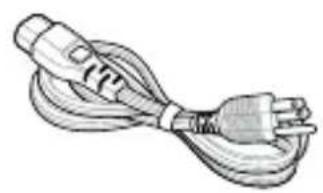
natural_image
Line drawing of a cable with two leads, no text or symbols presentAC power adapter* Power cord*
Optional item(s)
natural_image
Two identical plastic electronic components with mounting holes and mounting holes (no text or symbols)Wall mount kit VESA mount
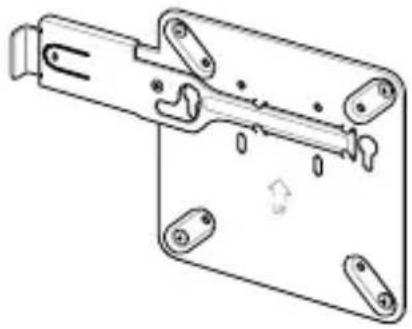
natural_image
Technical line drawing of a mechanical bracket assembly (no text or symbols)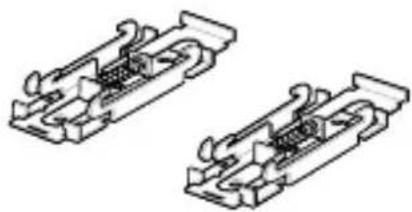
natural_image
Technical line drawing of two mechanical component assemblies (no text or symbols)DIN rail clips
NOTE:
*The bundled power adapter and power cord may vary depending on model and country (or region) of sale.
- Some bundled accessories may vary depending on model. For details on these accessories, refer to their respective user manuals.
- The device illustration is for reference only. Actual product specifications may vary depending on model.
- If the device or its components fail or malfunction during normal and proper use within the warranty period, bring the warranty card to the ASUS Service Center for replacement of the defective components.
1
Getting to know your Embedded Computer
1.1 Features
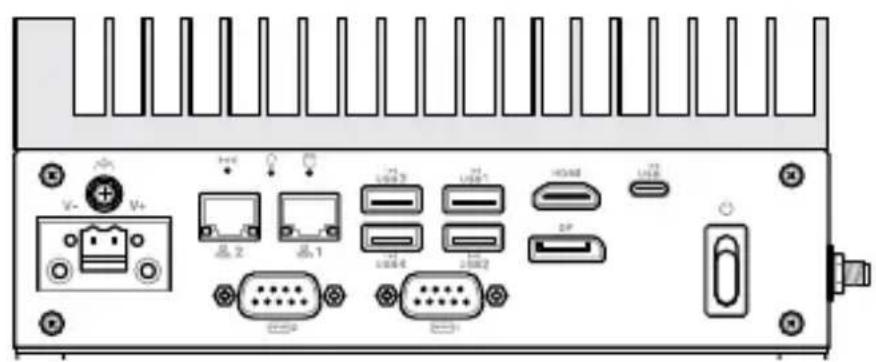
1.1.1 Front view
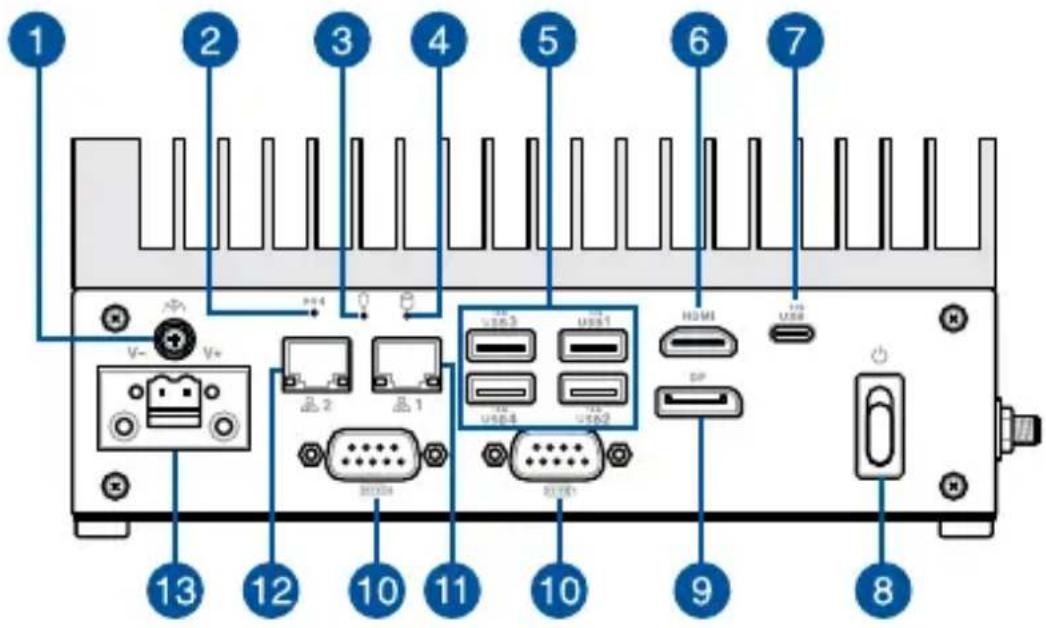


Functional Earth Ground (on selected models)
The Functional Earth Ground provides you with a grounding point.


System reset pinhole
The hard reset pinhole allows you to reboot your Embedded Computer.


Power indicator
The power indicator lights up when your Embedded Computer is turned on and blinks slowly when in sleep mode.


Drive activity indicator
This indicator lights up when your Embedded Computer is accessing the internal storage drive.

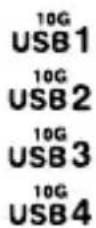
USB 3.2 Gen 2 port
The USB 3.2 Gen 2 (Universal Serial Bus) port provides a transfer rate up to 10 Gbit/s.

HDMI
HDMI™ port
The HDMI (High Definition Multimedia Interface) port can support resolutions up to 4096 x 2160 @ 60 Hz on external display devices.


USB 3.2 Gen 2 Type-C® port
This USB Type-C® (Universal Serial Bus) port provides a transfer rate of up to 10 Gbit/s and a maximum of 5 V/3 A output. It also supports DP 1.4 Alt Mode that allows DisplayPort signals to be carried alongside USB data.


Power switch
The power switch allows you to turn the Embedded Computer on or off. You can use the power switch to put your Embedded Computer to sleep mode or press it for four (4) seconds to force shutdown your Embedded Computer.


DisplayPort
This DisplayPort 1.4 port can support resolutions up to 5120 x 3200 @ 60 Hz on external display devices.

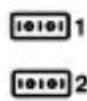
Serial (COM) connector
The 9-pin DB9 connector allows you to connect RS-232/422/485 serial (COM) devices, such as bar code scanners, modems, and printers. Please refer to the table below for the pin definitions of the different COM connectors.
NOTE: Default set to RS-232. Setting can be changed through the BIOS.
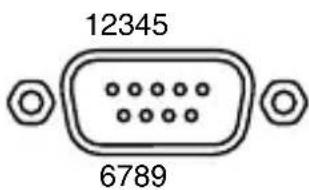
| Pin RS-232 RS-422 RS-485 | ||
| 1 DCD# TX- D- | ||
| 2 RXD TX+ D+ | ||
| 3 TXD RX+ NA | ||
| 4 DTR RX- NA | ||
| 5 GND GND GND | ||
| 6 DSR NA NA | ||
| 7 RTS NA NA | ||
| 8 CTS NA NA | ||
| 9 RI NA NA | ||


LAN port
The 8-pin RJ-45 LAN port supports a standard Ethernet cable for 10/100/1000 Mbps connection to a local network.
LAN port 1 LED indications
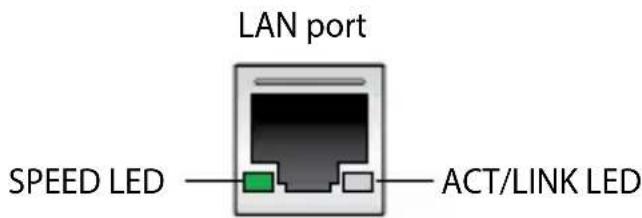
| Activity Link LED | |
| Status Description | |
| Off No link | |
| Yellow Linked | |
| Yellow (blinking) Data activity | |
| Yellow (blinking then steady) | Ready to wake up from suspend mode |
| Speed LED | |
| Status Description | |
| Off 10 Mbps connection | |
| Orange 100 Mbps connection | |
| Green 1 Gbps connection |


LAN port
The 8-pin RJ-45 LAN port supports a standard Ethernet cable for 10/100/1000/2500 Mbps connection to a local network.
LAN port 2 LED indications
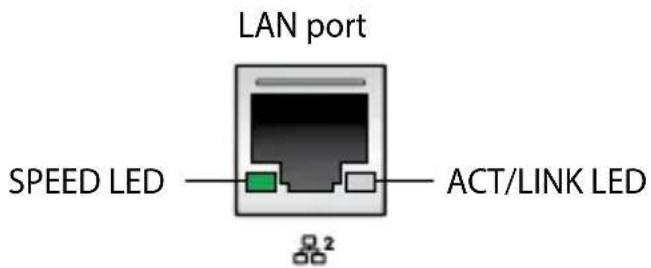
| Activity Link LED | |
| Status Description | |
| Off No link | |
| Green Linked | |
| Green (blinking) Data activity | |
| Green (blinking then steady) | Ready to wake up from suspend mode |
| Speed LED | |
| Status Description | |
| Off | 10/100 Mbps connection |
| Orange 1 Gbps connection | |
| Green 2.5 Gbps connection | |

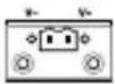
Power input
The supplied terminal block power adapter converts AC power to DC power for use with this jack. Power supplied through this jack supplies power to the Embedded Computer.
WARNING! The power adapter may become warm to hot when in use. Do not cover the adapter and keep it away from your body.
1.1.2 Rear view
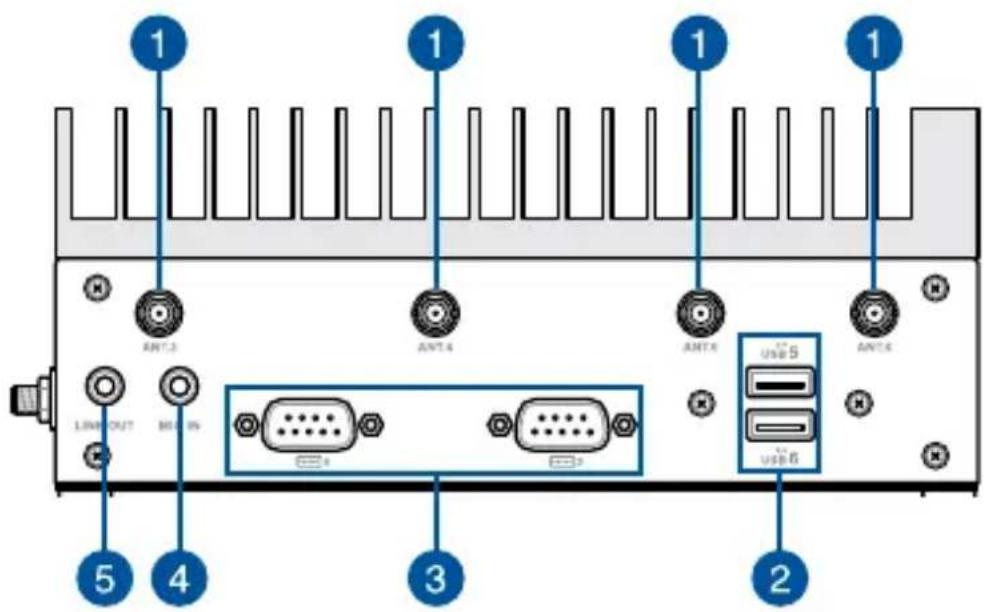
1 ANT. 3 Antenna hole
ANT. 4 The antenna hole allows you to connect a wireless ANT. 5 antenna to enhance wireless signal reception.
ANT. 6
2 USB5 2.0 USB 2.0 port
USB 6 The USB (Universal Serial Bus) port is compatible with USB 2.0 and USB 1.1 devices, such as keyboards, pointing devices, flash disk drives, external HDDs, speakers, cameras, and printers.


Serial (COM) connector
The 9-pin DB9 connector allows you to connect RS-232/422/485 serial (COM) devices, such as bar code scanners, modems, and printers. Please refer to the table below for the pin definitions of the different COM connectors.
NOTE: Default set to RS-232. Setting can be changed through the BIOS.
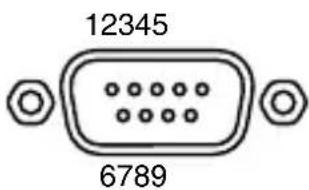
| Pin RS-232 RS-422 RS-485 | ||
| 1 DCD# TX- D- | ||
| 2 RXD TX+ D+ | ||
| 3 TXD RX+ NA | ||
| 4 DTR RX- NA | ||
| 5 GND GND GND | ||
| 6 DSR NA NA | ||
| 7 RTS NA NA | ||
| 8 CTS NA NA | ||
| 9 RI NA NA | ||

MIC IN
Microphone
The built-in microphone can be used for video conferencing, voice narrations, or simple audio recording.

LINE OUT
Headphone jack
This port allows you to connect amplified speakers or headphones.
1.1.3 Right view
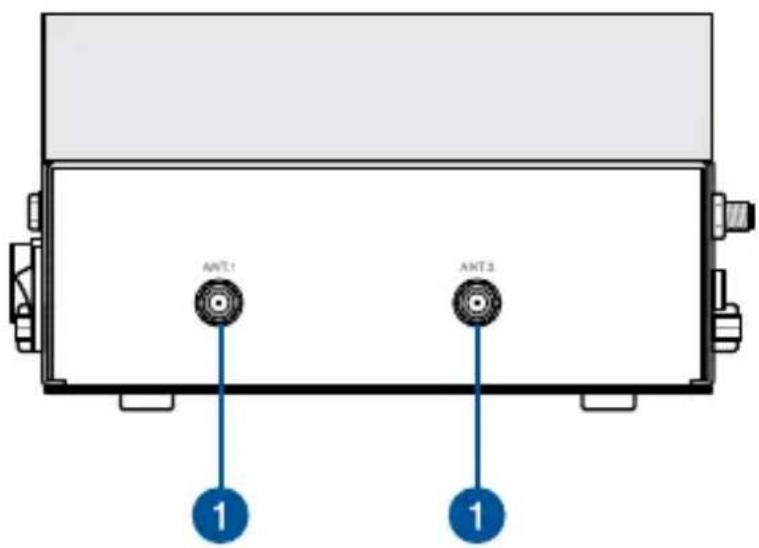

ANT. 1 Antenna hole (the antenna jack is optional)
ANT. 2 The antenna hole allows you to connect a wireless antenna to enhance wireless signal reception.
1.2 Motherboard Overview
1.2.1 Motherboard layout
The EBS-S500W Series is an Embedded Computer based on a 3.5" motherboard (146 mm x 105 mm). Refer to the table on the next page for the page numbers corresponding to the numbered items.
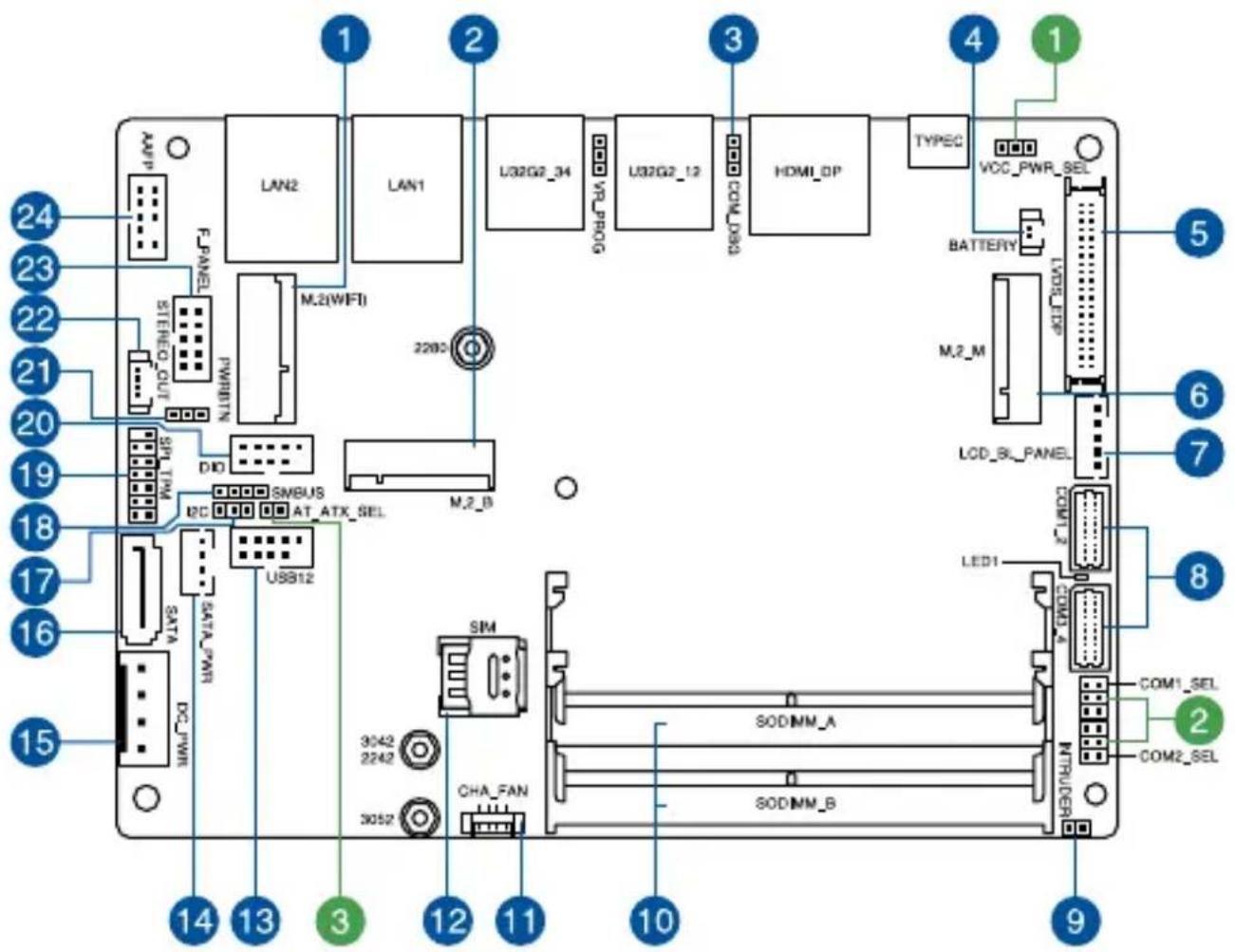
| Jumpers Page | |
| 1. Display Panel VCC Power Selection jumper 21 | |
| 2. COM +5V/+12V Selection jumper 21 | |
| 3. AT/ATX Mode Configuration jumper 22 |
| Connectors/slots Page | |
| 1. M.2 (E-key) Wi-Fi slot 23 | |
| 2. M.2 (B-key) slot 24 | |
| 3. COM Debug connector 25 | |
| 4. Battery connector 25 | |
| 5. LVDS connector 26 | |
| 6. M.2 (M-key) slot 26 | |
| 7. Backlight Inverter Power connector 27 | |
| 8. Serial Port connector 28 | |
| 9. Chassis Intrusion connector 29 | |
| 10. DIMM slot | 20 |
| 11. Fan connector | 29 |
| 12. Nano SIM Card slot | 30 |
| 13. USB 2.0 connector | 31 |
| 14. SATA Power connector | 32 |
| 15. DC-in Power connector 33 | |
| 16. SATA connector | 32 |
| 17. I ^2C connector | 33 |
| 18. SMBus connector | 34 |
| 19. SPI TPM connector | 34 |
| 20. GPIO connector 35 | |
| 21. Power Button connector | 35 |
| 22. Stereo Out connector | 36 |
| 23. System Panel connector | 37 |
| 24. Line Out / Mic connector | 38 |
1.2.2 System memory
The motherboard comes with two Small Outline Dual Inline Memory Module (SODIMM) slots designed for DDR5 (Double Data Rate 5) memory modules.
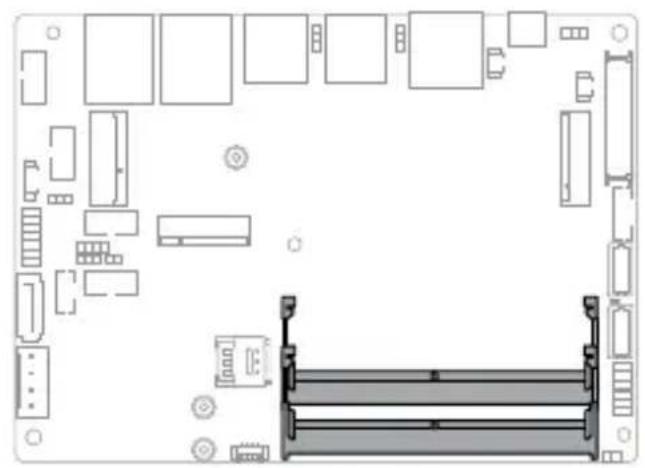
natural_image
Top-down schematic of a computer RAM module layout with no text or symbols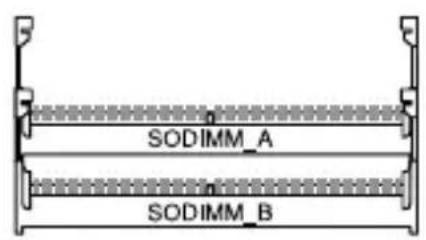
1.2.3 Onboard jumpers
1. Display Panel VCC Power Selection jumper (on selected models)
The Display Panel VCC Power Selection jumper allows you to select the voltage for the LVDS panel.
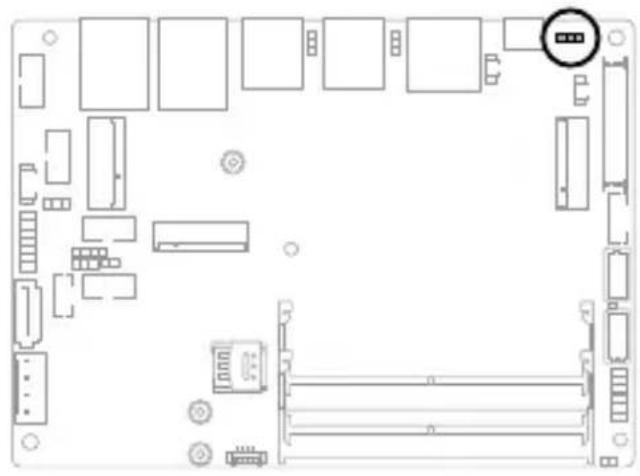
natural_image
Top-down schematic of a computer motherboard showing slots, connectors, and memory drive (no text or labels)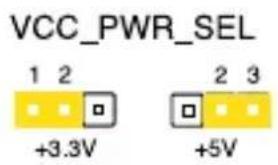
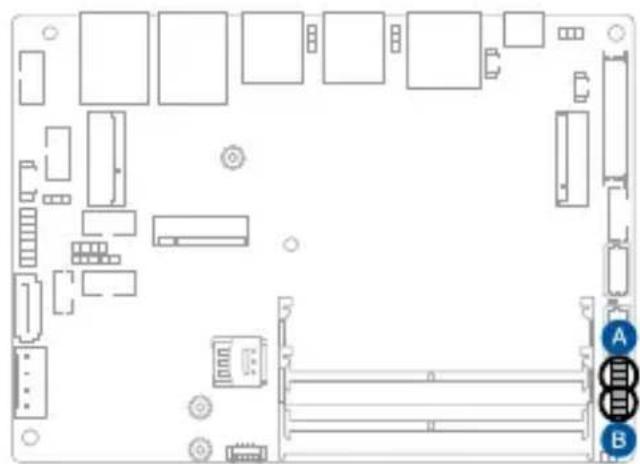
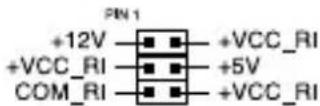
2. COM +5V/+12V Selection jumper
The COM +5V/+12V Selection jumper allows you to select the voltage for the COM1 and COM2 ports.
natural_image
Top-down schematic of a computer motherboard layout with labeled ports (A, B) and connectors (no text or symbols beyond labels)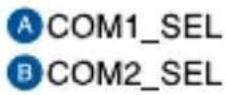
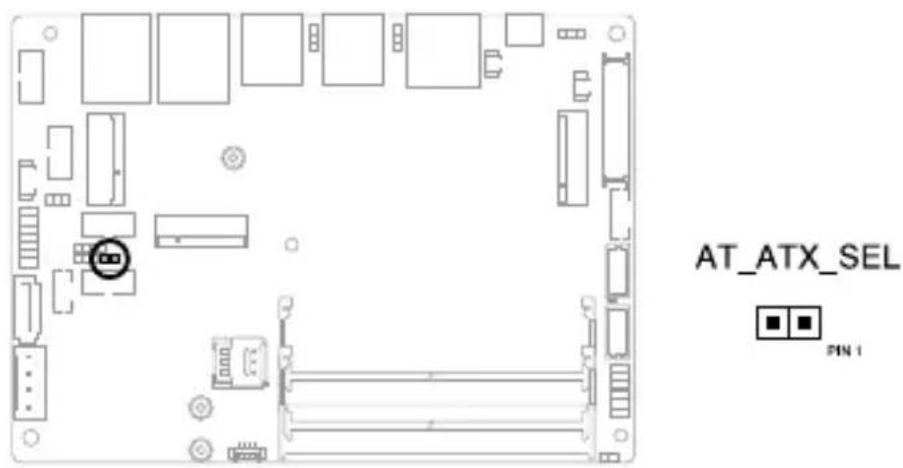
3. AT/ATX Mode Configuration jumper
The AT/ATX Mode Configuration jumper allows you to switch between AT and ATX modes. The default setting for this jumper is set to ATX mode with a jumper cap attached. To switch to AT mode, remove the jumper cap.
1.2.4 Internal connectors
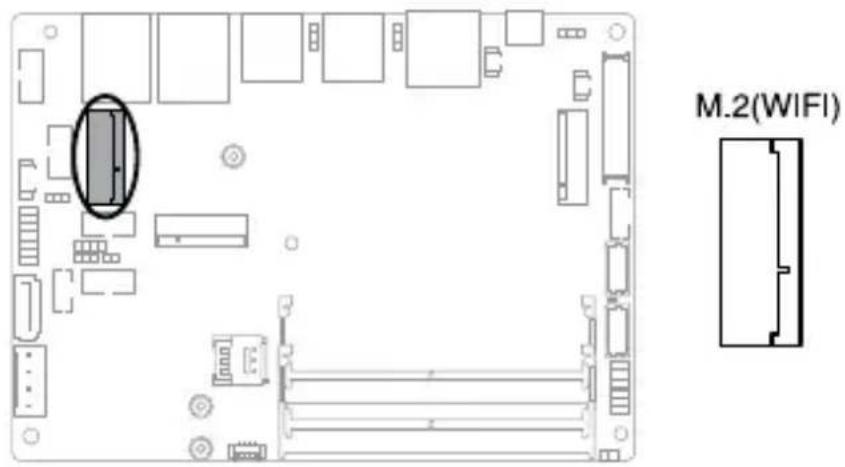
1. M.2 (E-key) Wi-Fi slot
The M.2 Wi-Fi slot allows you to install an M.2 Wi-Fi module (E-key, type 2230).
NOTE:
- The M.2 Wi-Fi module is purchased separately.
• We recommend using a PH1 screwdriver with a torque of 2.0 ± 0.2 kgf-cm when tightening the screw.
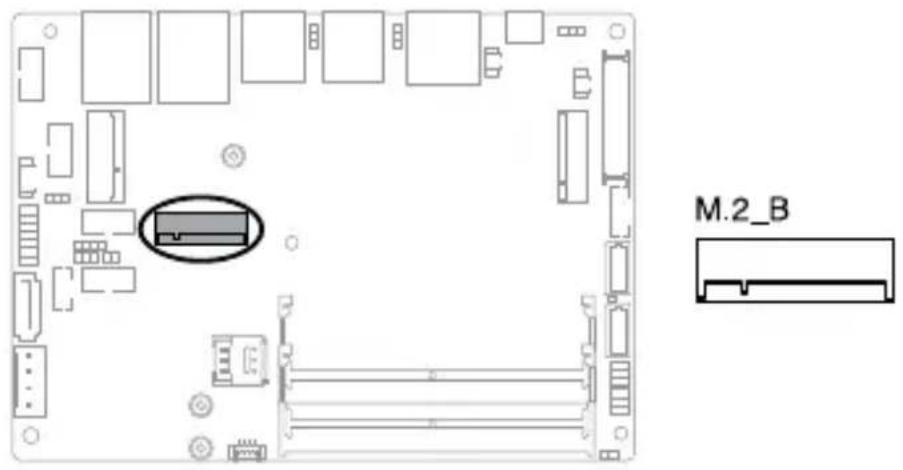
2. M.2 (B-key) slot
The M.2 (B-key) slot allows you to install a B-key (PCIe) type 3042/3052 M.2 device, such as a 4G LTE or 5G NR module.
NOTE:
• The M.2 4G LTE or 5G NR module is purchased separately.
• We recommend using a PH1 screwdriver with a torque of 2.0 ± 0.2 kgf-cm when tightening the screw.
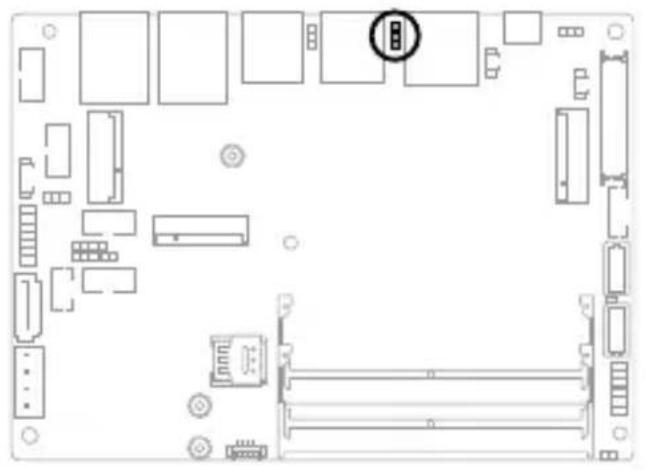
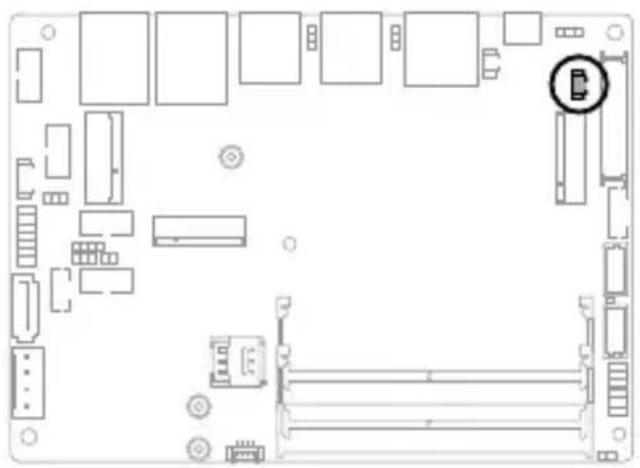
3. COM Debug connector
The COM Debug connector allows you to connect a COM debug card.
natural_image
Top-down schematic of a computer motherboard showing internal components and connectors (no text or labels)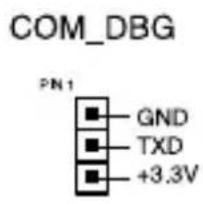
Connector type
Header 2x3p, 2.54mm pitch
4. Battery connector
The Battery connector allows you to connect a lithium CMOS battery.
natural_image
Top-down schematic of a computer motherboard showing internal components and connectors (no text or labels)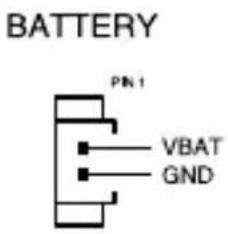
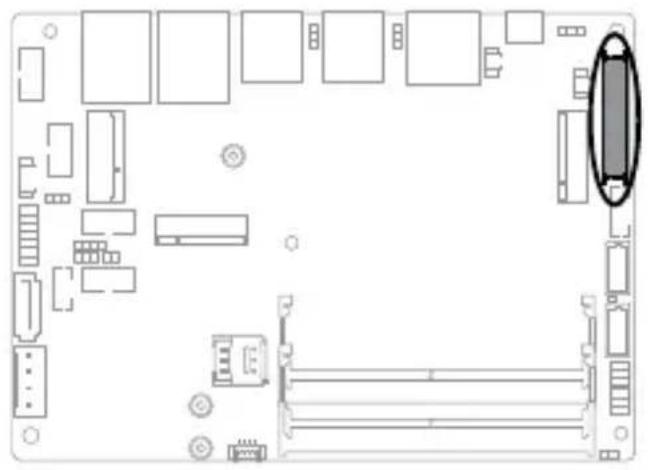
5. LVDS connector
The LVDS connector allows you to connect an LCD monitor that supports a Low-voltage Differential Signaling (LVDS) interface.
natural_image
Top-down schematic of a computer motherboard showing various components and connectors (no text or labels)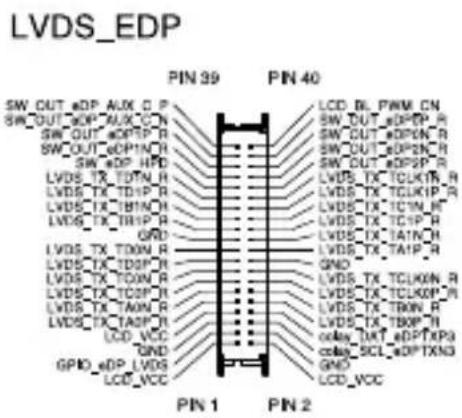
Connector type
WtoB 2x20p, 1.25mm pitch
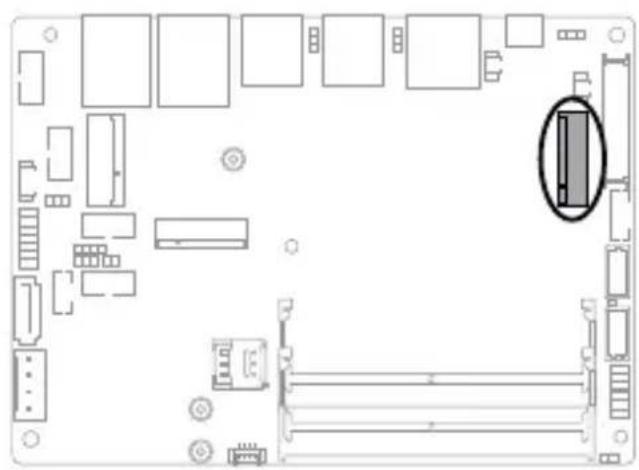
6. M.2 (M-key) slot
The M.2 slot allows you to install 2280 M.2 devices, such as 2280 M.2 SSD modules.
natural_image
Top-down schematic of a computer motherboard showing internal components and a highlighted rectangular component (no text or labels)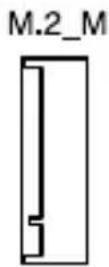
NOTE:
- The M.2 SSD module is purchased separately.
• We recommend using a PH1/sleeve screwdriver with a torque of 2.0 ± 0.2 kgf-cm when tightening the screw/standoff.
7. Backlight Inverter Power connector
The Backlight Inverter Power connector allows you to power the backlight inverter on a display panel via a backlight inverter module.
IMPORTANT! The Backlight Inverter Power connector supports a maximum current of 1.5 A.
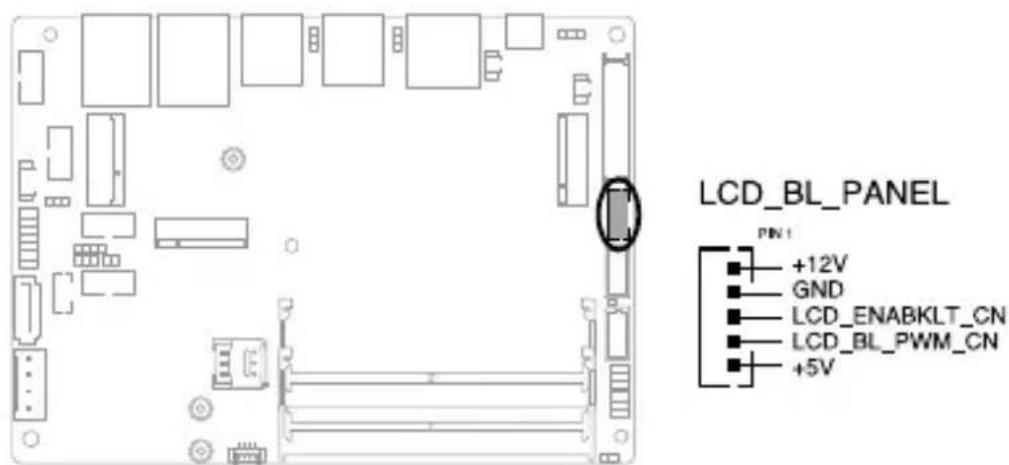
Connector type
Header 1x5p, K6, 2.0mm pitch
8. Serial Port connector
The Serial (COM) Port connector allows you to connect a serial port module. Connect the serial port module cable to this connector, then install the module to a slot opening on the system chassis.
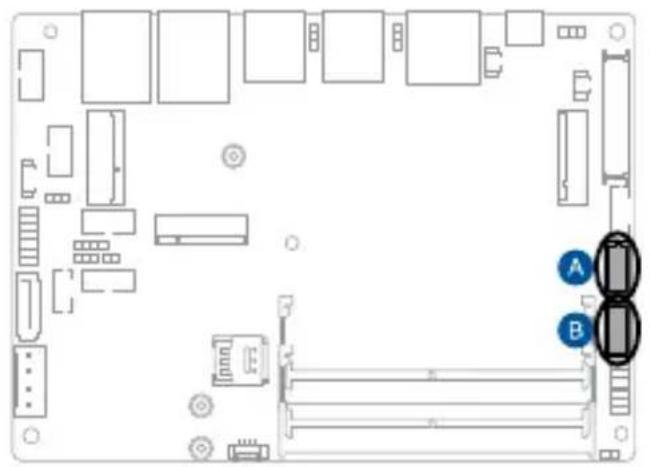
natural_image
Top-down schematic of a computer motherboard with labeled ports (A and B) and connectors (no text or symbols beyond labels)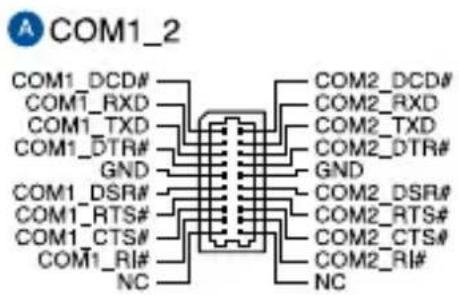
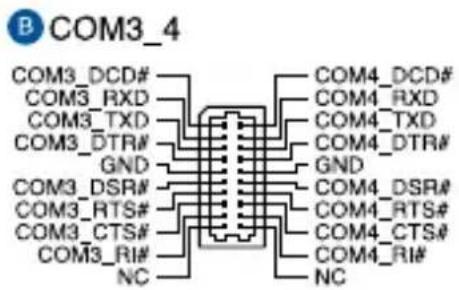
Connector type
BOX header 2x10p, K10, 2.0mm pitch
NOTE:
- The serial port module is purchased separately.
• COM1_2 and COM3_4 support RS-232/422/485.
9. Chassis Intrusion connector
The Chassis Intrusion connector allows you to connect a intrusion sensor or microswitch for the chassis intrusion detection feature. When you remove any chassis component, the sensor or microswitch triggers and sends a high level signal and records a chassis intrusion event.
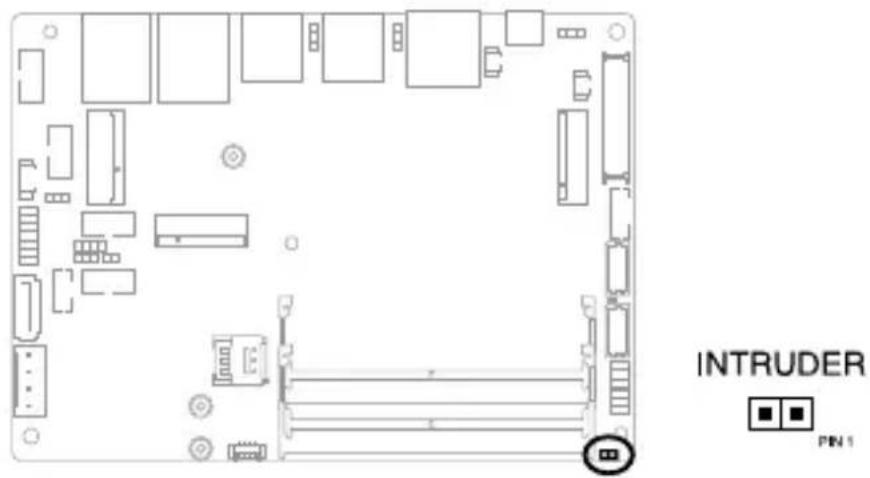
NOTE: By default, a jumper cap that disables the intrusion detection feature is installed on the connector to prevent accidental triggers.
10. Fan connector
The fan connector allows you to connect a fan to actively cool the system.
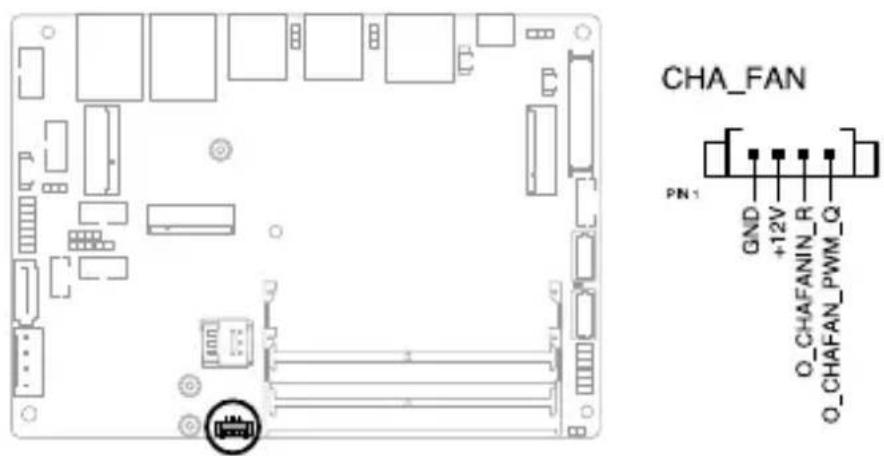
Connector type
WtoB 1x4p, 1.25mm pitch
11. Nano SIM Card slot
The Nano SIM Card slot allows you to install a Nano SIM card.
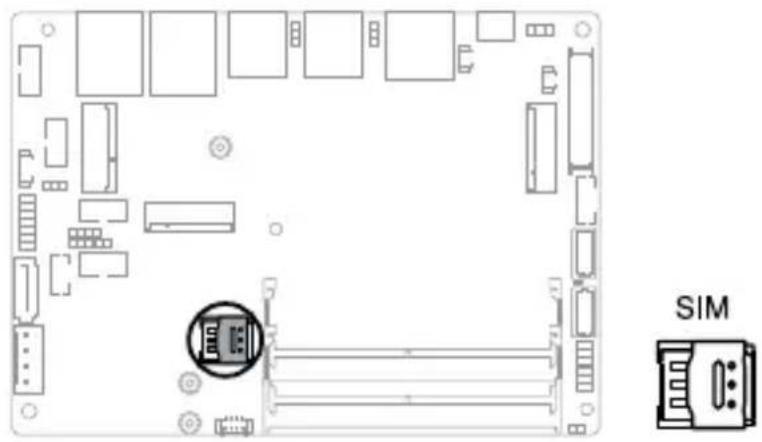
natural_image
Diagram of a computer motherboard layout with SIM component highlighting a keyway (no text or symbols present)NOTE: The Nano SIM card is purchased separately.
12. USB 2.0 connector
The USB 2.0 connector allows you to connect a USB module for additional USB 2.0 ports. The USB 2.0 connector provides data transfer speeds of up to 480 MB/s connection speed.
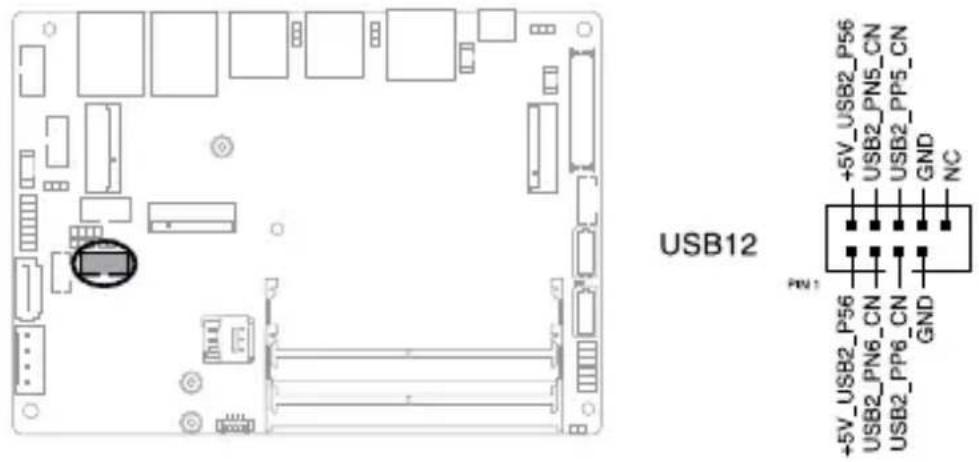
Connector type
BOX header 2x5p, K9, 2.0mm pitch
WARNING! DO NOT connect a 1394 cable to the USB connectors. Doing so will damage the motherboard!
NOTE: The USB 2.0 module is purchased separately.
13. SATA 6Gb/s & SATA Power connector
The SATA 6Gb/s and SATA Power connectors allow you to connect SATA devices such as optical disc drives and hard disk drives via a SATA cable and power cable.
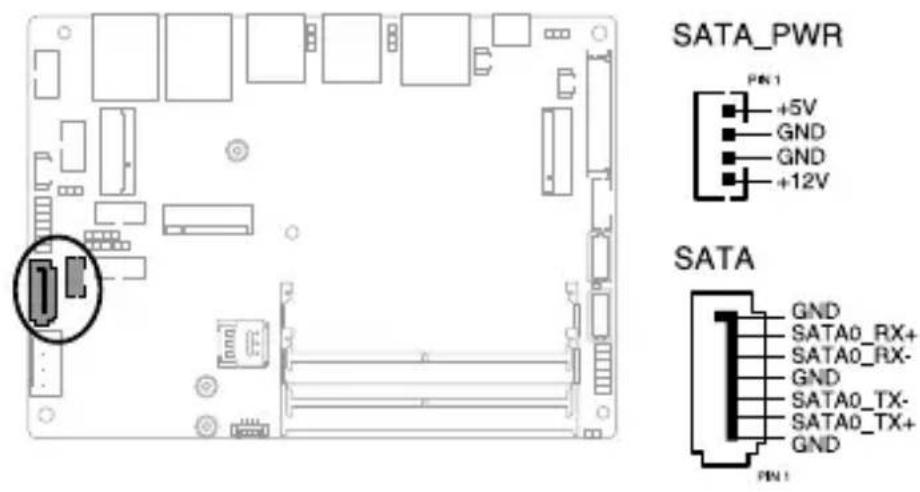
Connector type
Wafer HD 4P, 2.0mm pitch & Wafer HD 7p, 1.27mm pitch
NOTE: Ensure to use the bundled cable when connecting a storage device to this connector.
14. DC-in 4-Pin Power connector
The DC-in 4-pin Power connector is for DC power input. Using a compatible power cable, you may connect a suitable power supply with DC-in jacks.
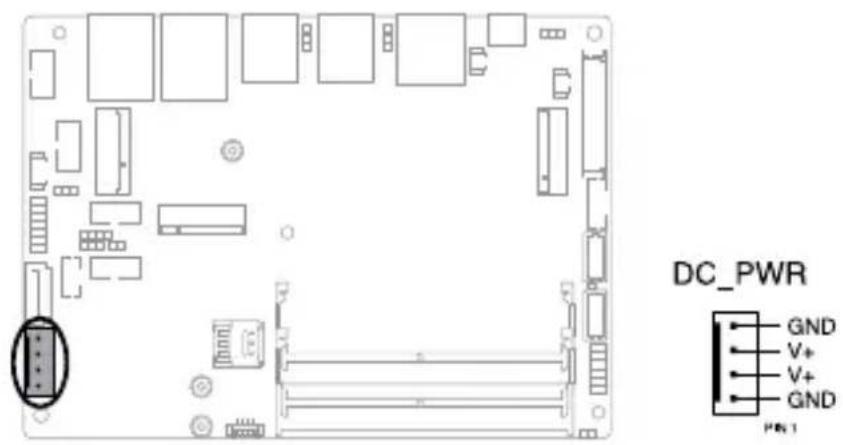
Connector type
POWER CON 4P R/A
15. I²C connector
The I²C (Inter-Integrated Circuit) connector allows you to connect an I²C-compatible IoT security module.
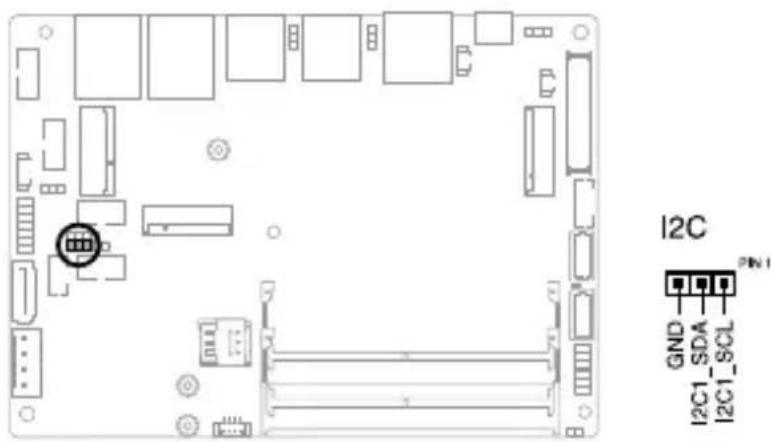
Connector type
Header 1x3p, K6, 2.0mm pitch
16. SMBus connector
The System Management Bus (SMBus) connector allows you to connect SMBus devices. This connector is generally used for communication with system and power management-related tasks.
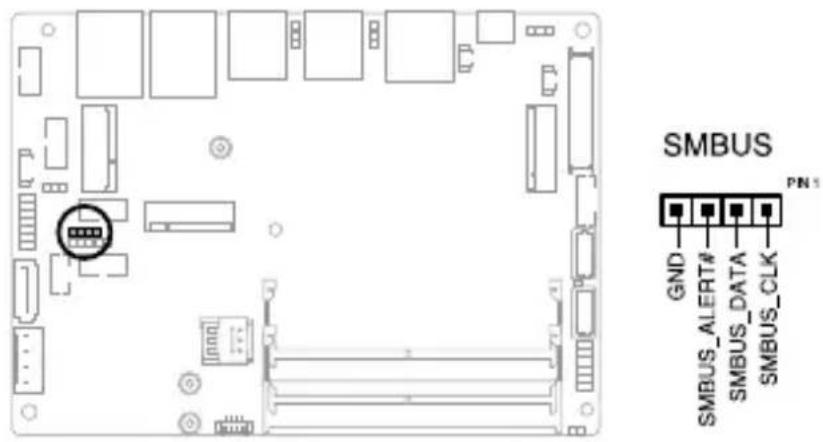
Connector type
Header 1x4p, 2.0mm pitch
17. SPI TPM connector
The SPI TPM connector supports a Trusted Platform Module (TPM) system, which can securely store keys, digital certificates, passwords, and data. A TPM system also helps enhance network security, protects digital identities, and ensures platform integrity.
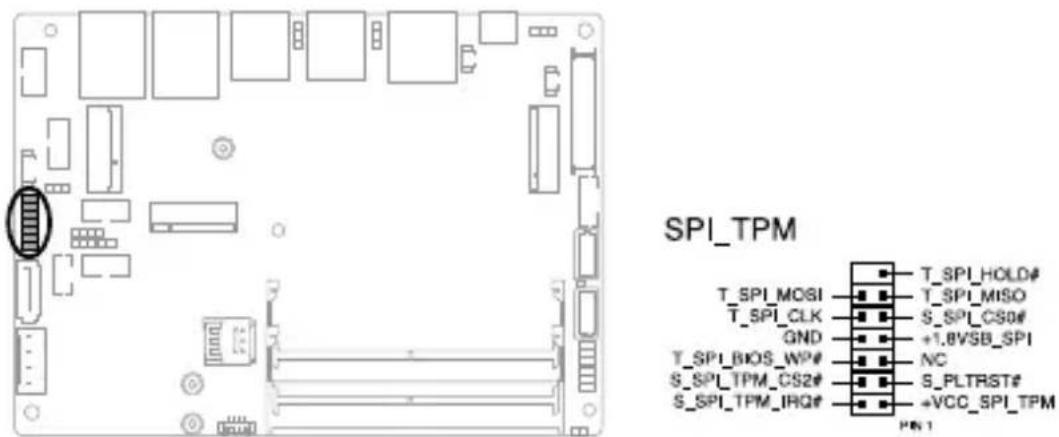
Connector type
Header 2x7p, K14, 2.0mm pitch
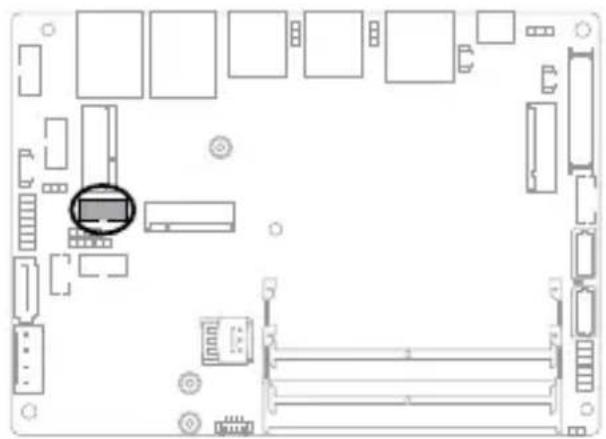
18. GPIO connector
The GPIO connector allows you to connect a general purpose input/output module to customize digital signal input/output.
natural_image
Top-down schematic of a computer motherboard layout showing slots, connectors, and a central monitor (no text or labels)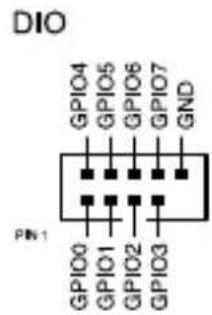
Connector type
BOX header 2x5p, K9, 2.0mm pitch
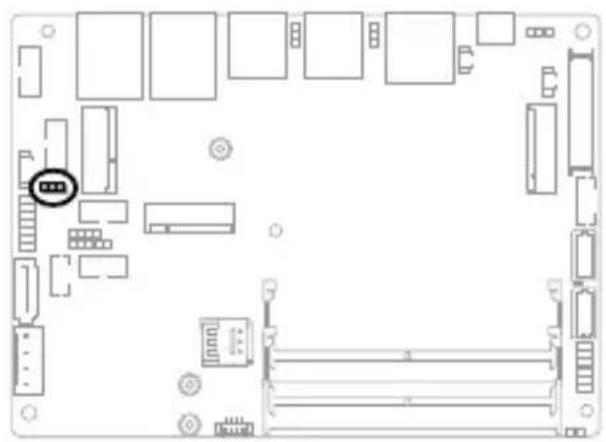
19. Power Button connector
The Power Button connector allows you to connect an external power button.
natural_image
Top-down schematic of a computer motherboard showing internal components and connectors (no text or labels)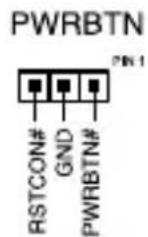
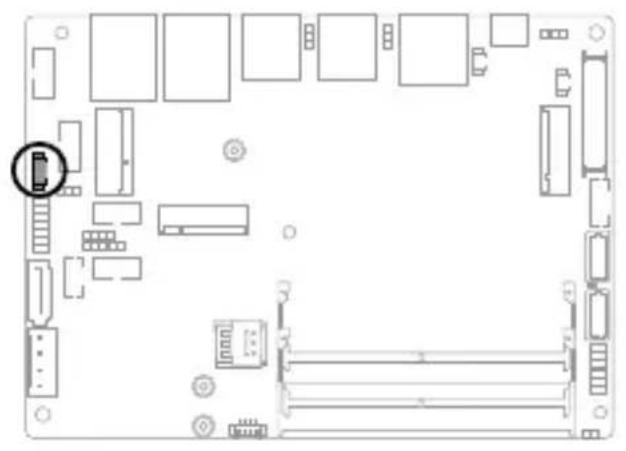
20. Stereo Out connector
The Stereo Out connector allows you to connect a stereo speaker. This connector supports 2 W at 4 Ω stereo speakers.
natural_image
Top-down schematic of a computer motherboard showing internal components and connectors (no text or labels)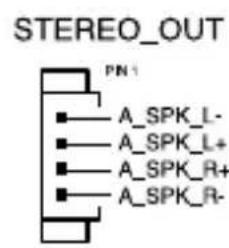
21. System Panel connector
The System Panel connector supports several chassis-mounted functions.
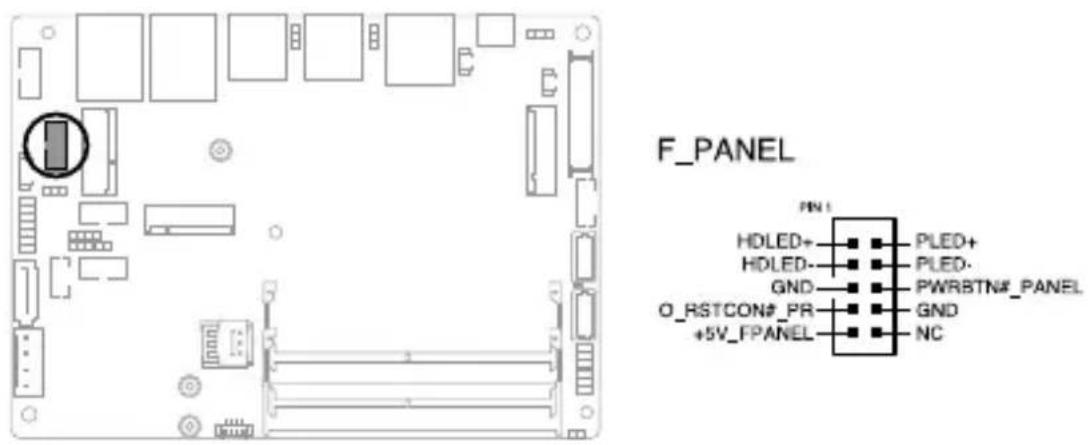
Connector type
BOX header 2x5p 2.0mm pitch
• System Power LED connector (PLED)
The 2-pin connector allow you to connect the System Power LED. The System Power LED lights up when the system is connected to a power source, or when you turn on the system power, and blinks when the system is in sleep mode.
• Storage Device Activity LED connector (HDLED)
The 2-pin connector allows you to connect the Storage Device Activity LED. The Storage Device Activity LED lights up or blinks when data is read from or written to the storage device or storage device add-on card.
- Power button/Soft-off button connector (PWRBTN)
The 3-1 pin connector allows you to connect the system power button. Press the power button to power up the system, or put the system into sleep or soft-off mode (depending on the operating system settings).
- Reset button connector (O\_RSTCON)
The 2-pin connector allows you to connect the chassis-mounted reset button. Press the reset button to reboot the system.
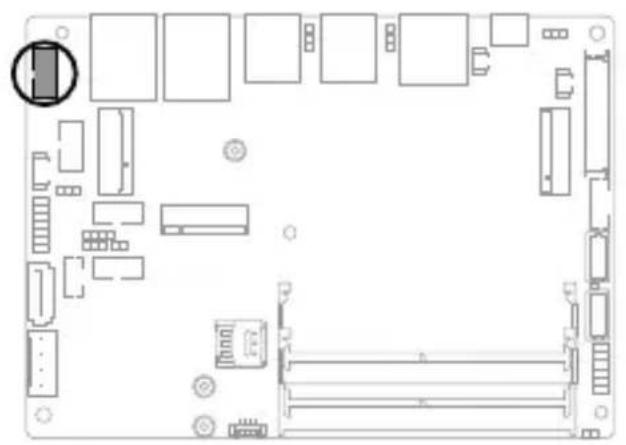
22. Front Panel Audio (Line Out / Mic) connector
The Front Panel Audio connector is for a line out /microphone module that supports HD Audio. Connect one end of the line out / mic module cable to this connector.
natural_image
Top-down schematic of a computer motherboard showing internal components and connectors (no text or labels)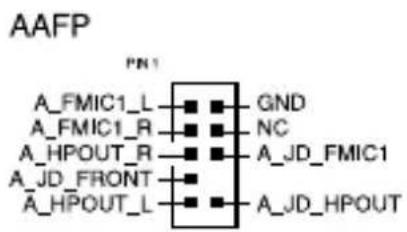
Connector type
BOX header 2x5p, K8, 2.0mm pitch
NOTE: We recommend that you connect a high-definition line out / mic module to this connector to avail of the motherboard's high-definition audio capability.
Using your Embedded Computer
2
2.1 Getting started
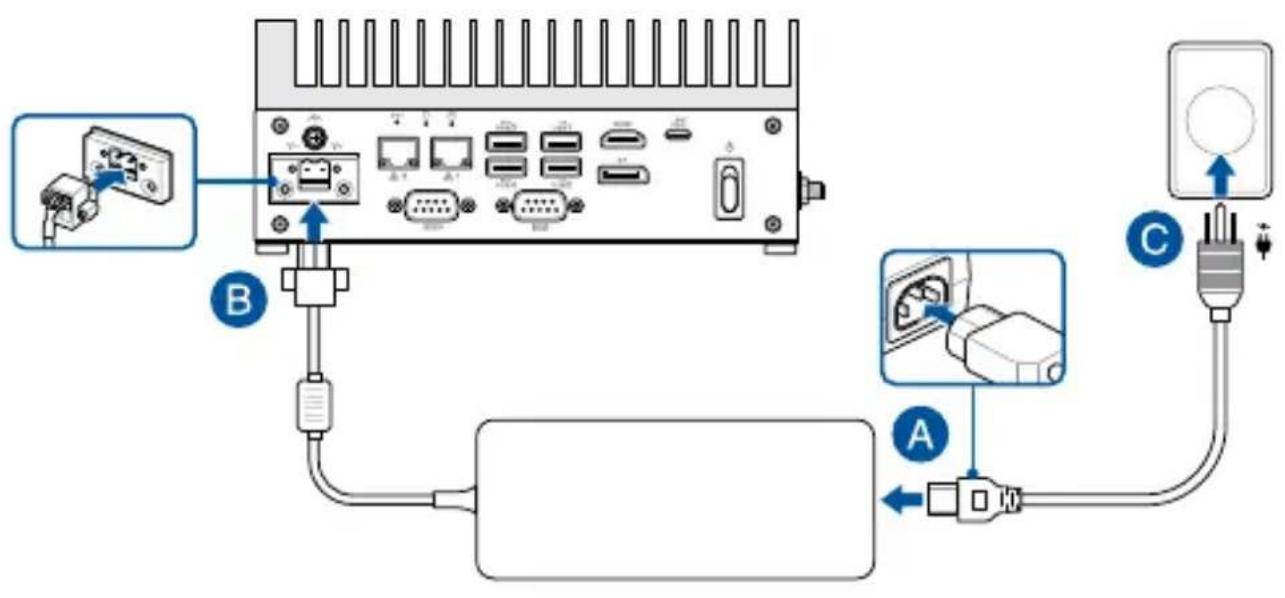
2.1.1 Connect the AC power adapter to your Embedded Computer
To connect the AC power adapter to your Embedded Computer:
A. Connect the power cord to the AC power adapter.
B. Connect the DC power connector to your Embedded Computer's power (DC) input.
C. Plug the AC power adapter into a 100 V - 240 V power source.
flowchart
graph TD
    A["Port B"] -->|USB| B["Port B"]
    B -->|USB| C["Port C"]
    C -->|USB| D["Terminal"]
    B -->|USB| E["Terminal"]
    style A fill:#f9f,stroke:#333
    style B fill:#ccf,stroke:#333
    style C fill:#cfc,stroke:#333
    style D fill:#fcc,stroke:#333
    style E fill:#ffc,stroke:#333
NOTE:
The power adapter may vary in appearance, depending on model and country (or region) of sale. Refer to the following for more information on the different power adapters, as well as the system:
150 W Power adapter
- Input voltage: 100 - 240 Vac
- Input frequency: 50 - 60 Hz
• Output current: 7.89 A max (150 W)
• Output voltage: 19.0 Vdc - Operating temperature: 0^ to 40^
System
- Rated input current: 10 A - 2.5 A (90 W)
- Rated input voltage: 9 - 36 Vdc
- Operating temperature: -20^ to 60^
IMPORTANT!
• We strongly recommend that you use only the AC power adapter and cable that came with your Embedded Computer.
- We strongly recommend that you use a grounded wall socket while using your Embedded Computer.
- The socket outlet must be easily accessible and near your Embedded Computer.
- To disconnect your Embedded Computer from its main power supply, unplug your Embedded Computer from the power socket.
WARNING!
- Do not use power adapters or batteries from other devices to reduce the risk of injury to persons due to fire or explosion. Use only UL certified power adapters or batteries supplied by the manufacturer or authorized retailers.
- Do not disable or remove the power cord grounding plug, the grounding is an important safety feature.
- Ensure to plug the power cord into a grounded (earthed) electrical outlet that is easily accessible at all times.
2.1.2 Connect a display panel to your Embedded Computer
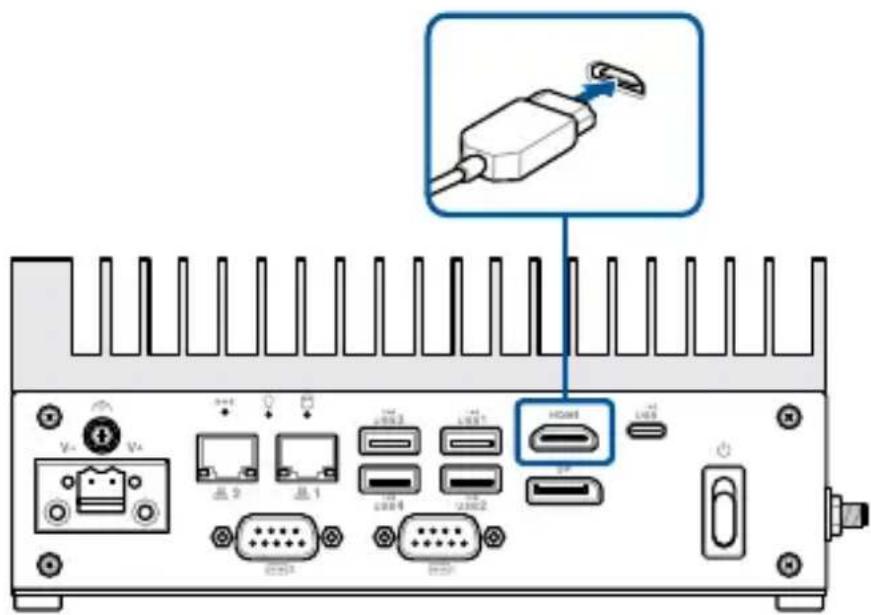
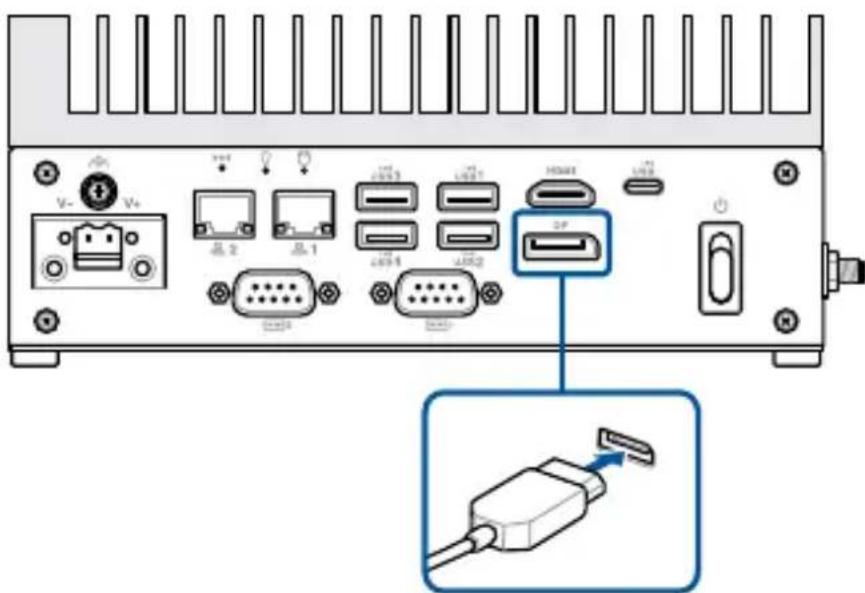
You can connect a display panel or projector to your Embedded Computer that has the following connectors:
- HDMI™ connector
- DisplayPort
To connect a display panel to your Embedded Computer:
Connect one end of an HDMI™ or a DisplayPort cable to an external display, and the other end of the cable to your Embedded Computer's HDMI™ port or DisplayPort.
Connect display via HDMI™ port
Connect display via DisplayPort
2.1.3 Connect the USB cable from keyboard or mouse
You can connect generally any USB keyboard and mouse to your Embedded Computer. You can also connect a USB dongle for a wireless keyboard and mouse set.
To connect a keyboard and mouse to your Embedded Computer:
Connect the USB cable from your keyboard and mouse to any of the USB ports of your Embedded Computer.
NOTE:
• The keyboard varies with country or region.
- The keyboard and mouse are purchased separately.
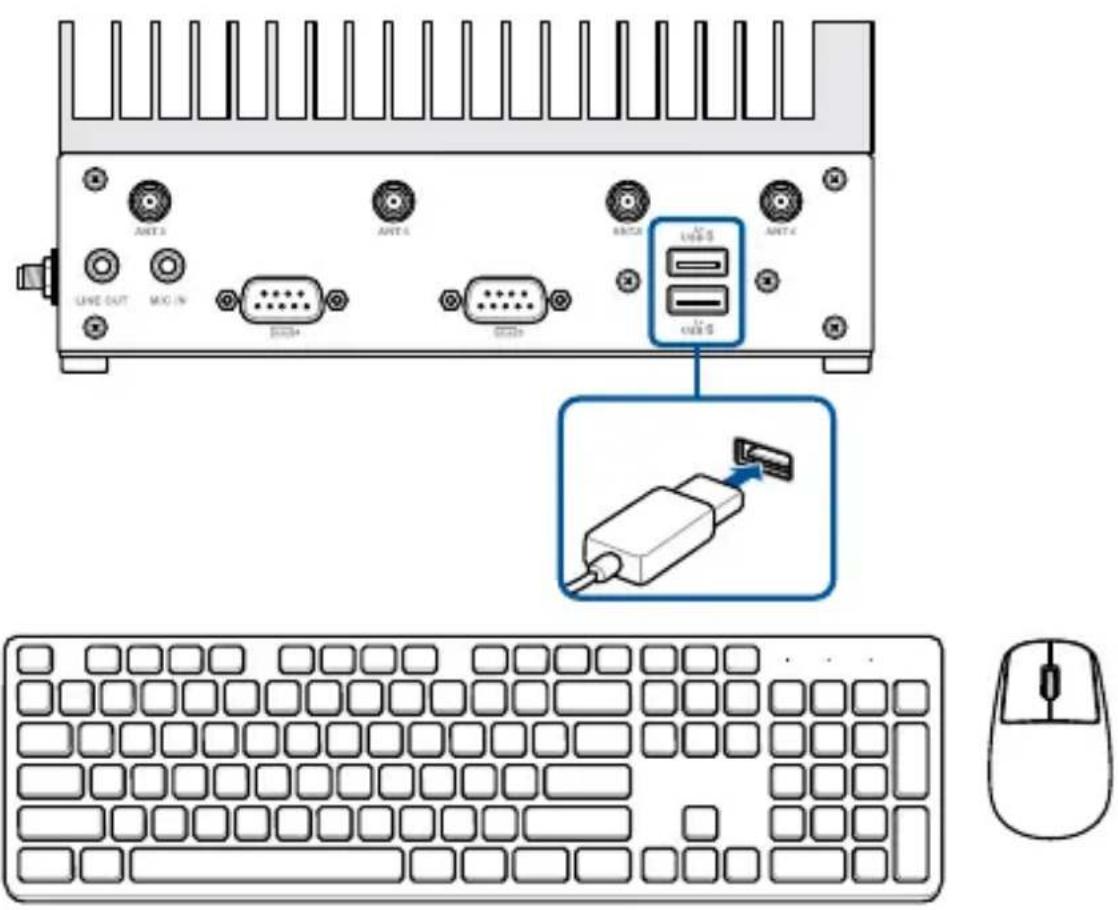
2.1.4 Turn on your Embedded Computer
Press the power switch to turn on your Embedded Computer.
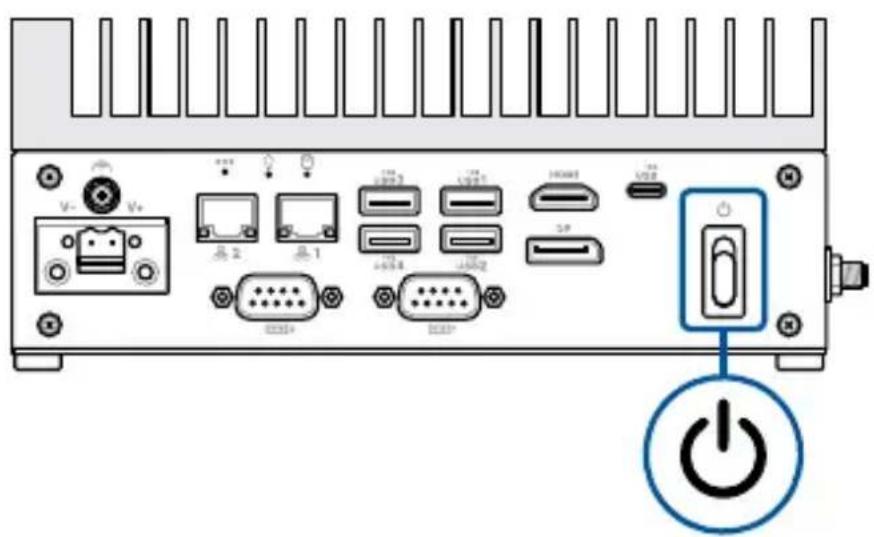
2.2 Turning off your Embedded Computer
If your Embedded Computer is unresponsive, press and hold the power switch for at least four (4) seconds until your Embedded Computer turns off.
2.3 Putting your Embedded Computer to sleep
To put your Embedded Computer in Sleep mode, press the power switch once.
2.4 Entering the BIOS Setup
BIOS (Basic Input and Output System) stores system hardware settings that are needed for system startup in the Embedded Computer.
In normal circumstances, the default BIOS settings apply to most conditions to ensure optimal performance. Do not change the default BIOS settings except in the following circumstances:
- An error message appears on the screen during the system bootup and requests you to run the BIOS Setup.
- You have installed a new system component that requires further BIOS settings or update.
WARNING! Inappropriate BIOS settings may result to instability or boot failure. We strongly recommend that you change the BIOS settings only with the help of a trained service personnel.
Load default BIOS settings
To load the default values for each of the parameters in your BIOS:
- Enter the BIOS by pressing
or on the POST screen.
NOTE: POST (Power-On Self Test) is a series of software controlled diagnostic tests that run when you turn on your Embedded Computer.
- Navigate to the Exit menu.
- Select the Load Optimized Defaults option, or you may press
. - Select OK to load the default BIOS values.
3
Upgrading your Embedded Computer
IMPORTANT!
- Ensure that your hands are dry before proceeding with the rest of the installation process. Before installing any of the features in this guide, use a grounded wrist strap or touch a safely grounded object or metal object to avoid damaging them due to static electricity.
- Turn off the power of your Embedded Computer, and allow it to cool for at least 10 minutes before performing any installation/uninstallation process.
NOTE: The illustrations in this section are for reference only. The slots may vary depending on model.
3.1 Removing the bottom cover
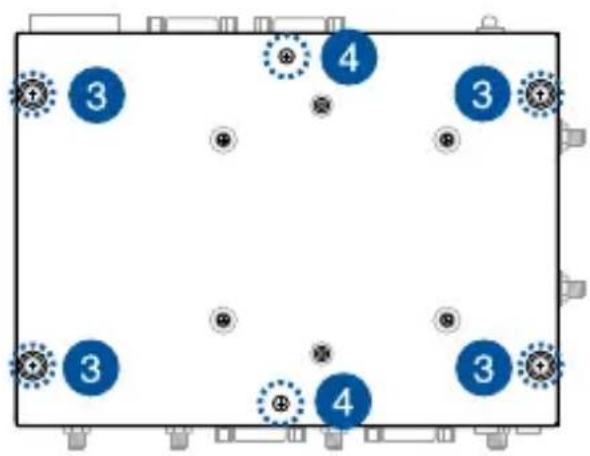
- Turn off your Embedded Computer then disconnect all cables and peripherals.
- Place the Embedded Computer on a flat stable surface, with its top side facing down.
- Remove the four (4) rubber feet screws from the bottom cover.
- Remove the two (2) screws securing the bottom cover.
- After removing the screws, remove the bottom cover and place it aside.
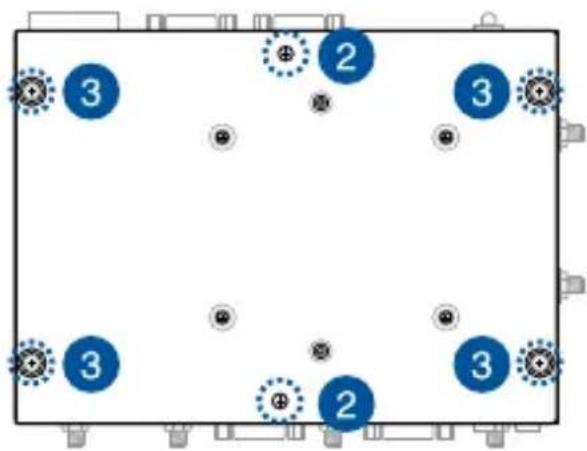
3.2 Replacing the bottom cover
- Align the bottom cover with the screw holes, then replace the bottom cover onto the Embedded Computer.
- Secure the bottom cover using the two (2) screws removed previously.
- Replace the four (4) rubber feet screws removed previously.
3.3 Installing memory modules
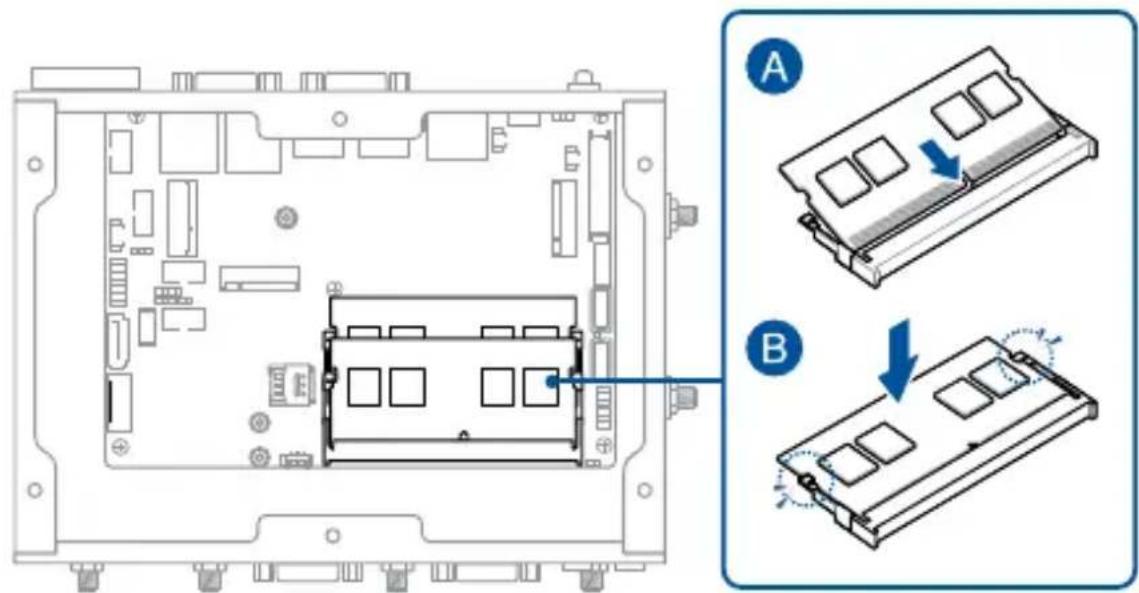
Your Embedded Computer comes with two (2) SO-DIMM slots that allow you to install DDR5 SO-DIMMs.
IMPORTANT! If you have two memory modules installed and the ambient temperature exceeds 45°C, you will need to install a device heatsink to prevent your Embedded Computer from overheating.
Align and insert the memory module into the slot (A) and press it down (B) until it is securely seated in place.
3.4 Installing 2.5-inch storage device
IMPORTANT! If you have two memory modules installed and the ambient temperature exceeds 45^ C, you will need to install a device heatsink to prevent your Embedded Computer from overheating. However, this will also prevent you from installing a 2.5-inch storage device due to the space constraint.
-
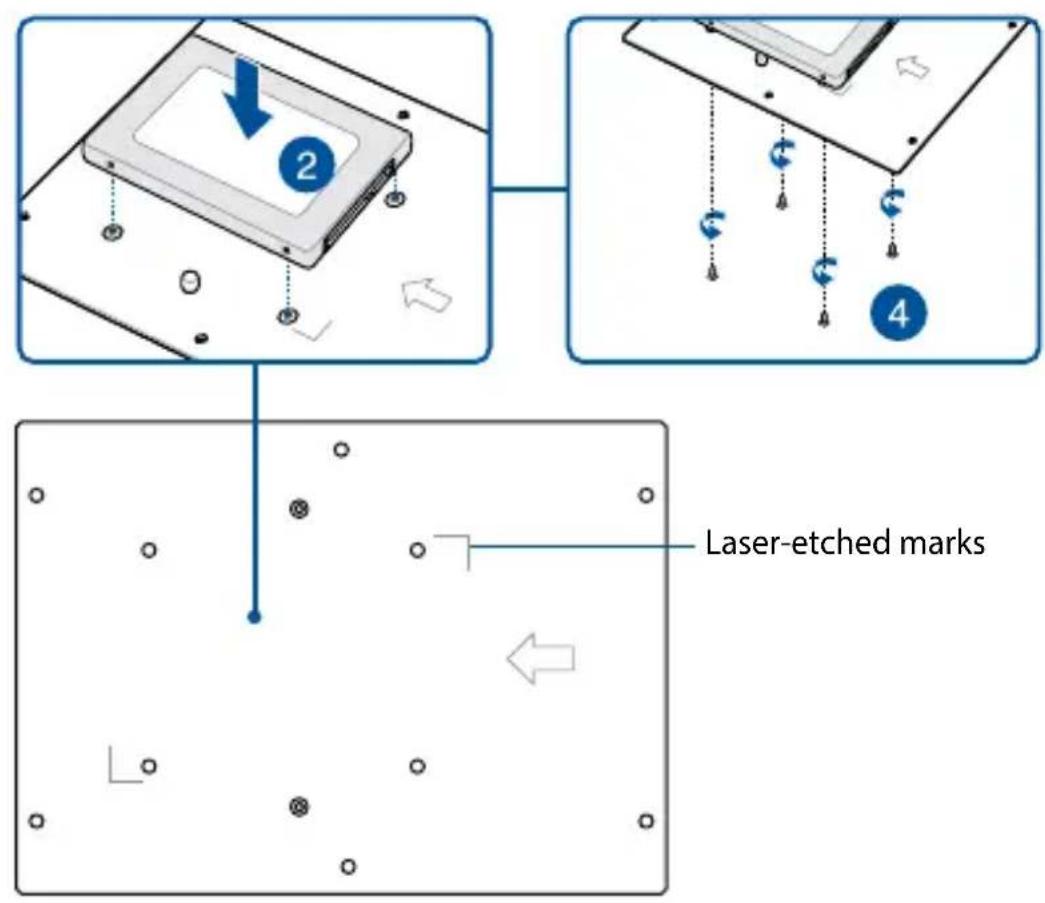
Remove the four (4) screw hole covers from the bottom cover, if they exist.
-
Prepare your 2.5-inch storage device, then position it within the two diagonally opposite laser-etched marks on the bottom cover of your Embedded Computer.
-
Align the four (4) screw holes on the storage device with the ones on the bottom cover.
-
Secure the storage device to the storage bay using four (4) screws.
-
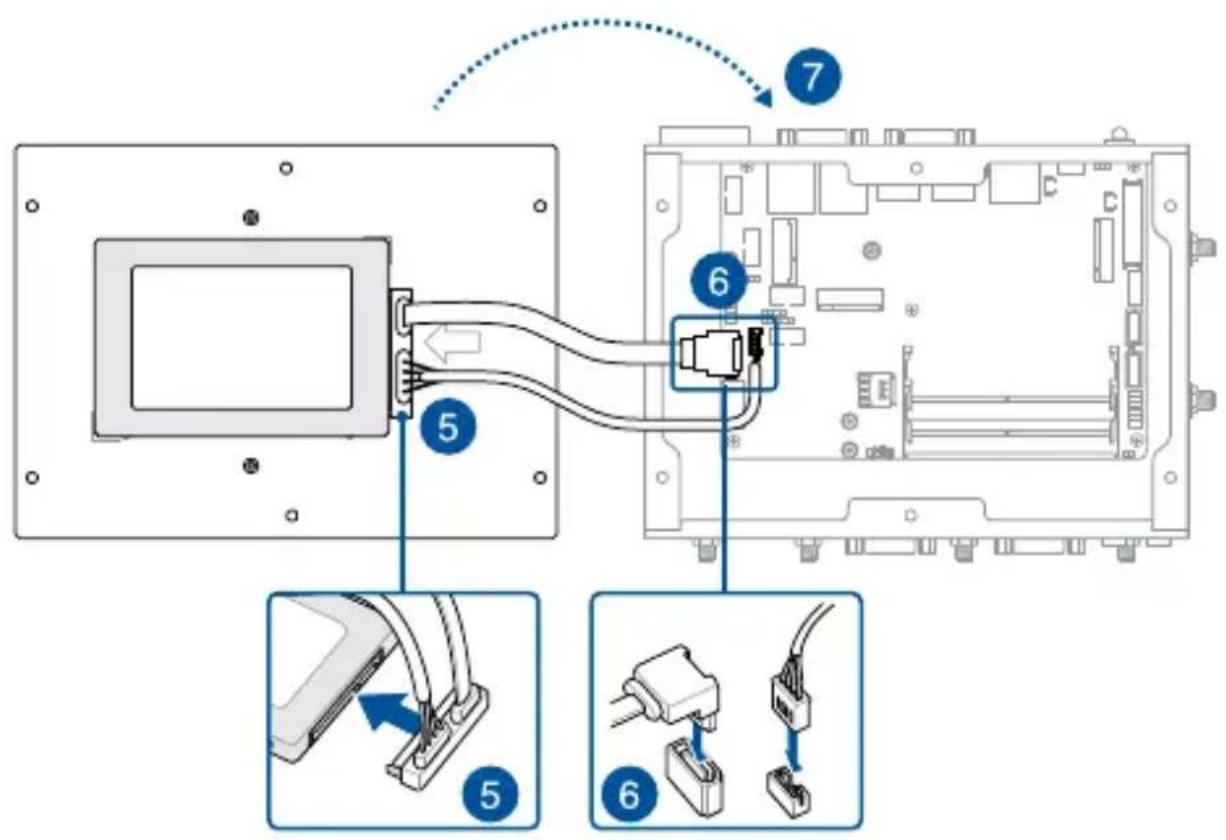
Connect the storage device cable to the storage device.
IMPORTANT! This device only supports 7mm 2.5-inch SSD.
-
Connect the storage device cable to the SATA and SATA_PWR connectors on the motherboard.
-
Replace the bottom cover, then secure the bottom cover using the two (2) screws removed previously.
-
Replace the four (4) rubber feet screws removed previously.
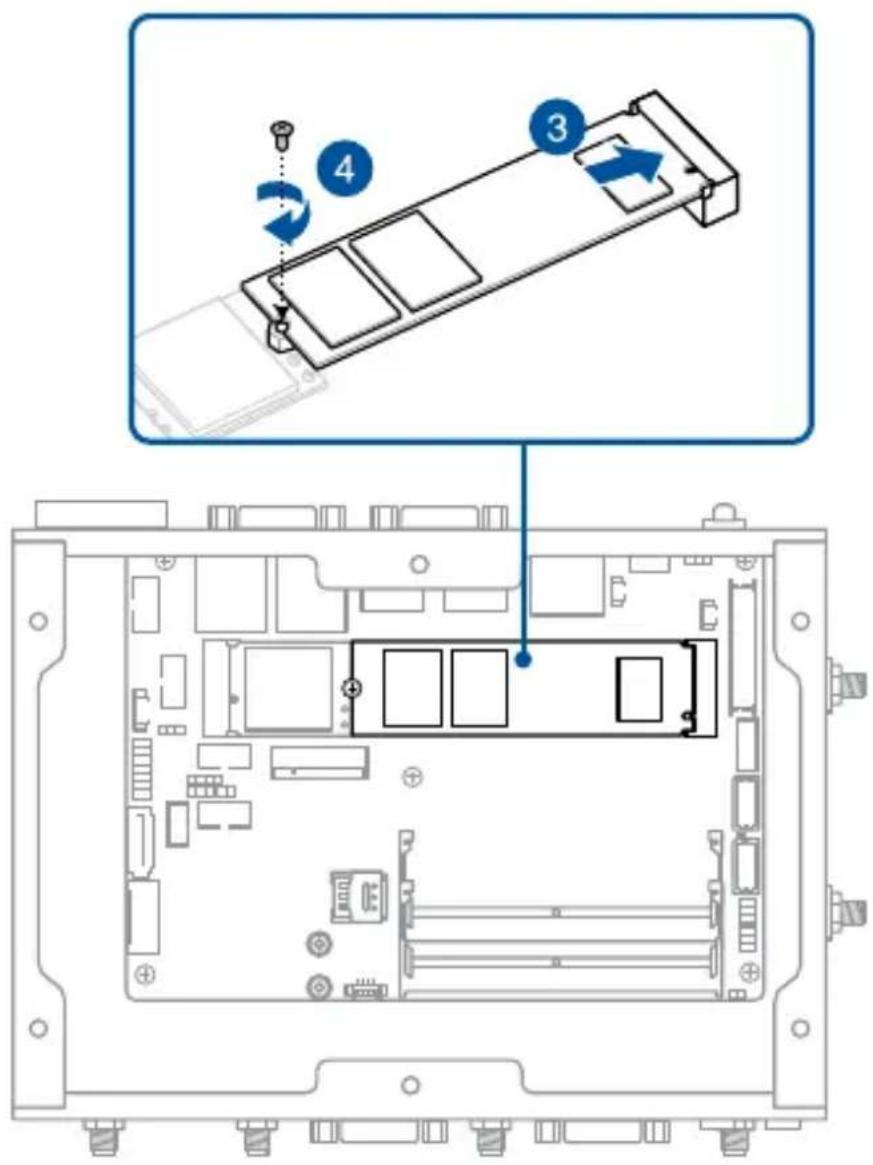
3.5 Installing an M.2 SSD
To install an M.2 2280 SSD:
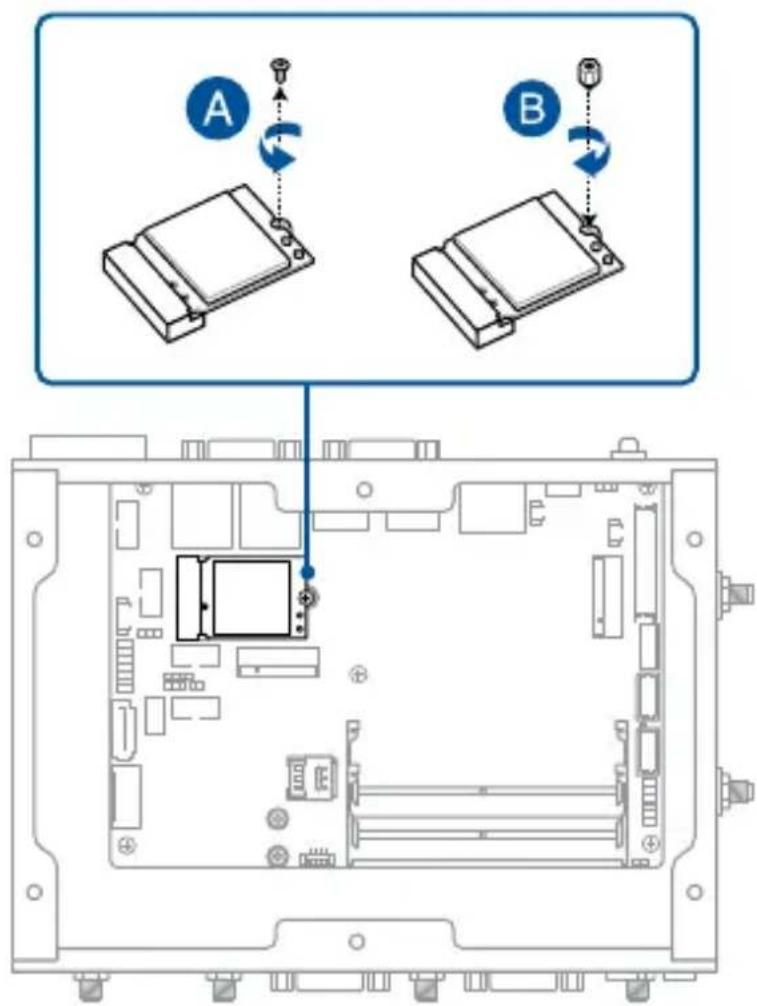
- (Optional) If a wireless card is installed, remove the screw holding it in place (A), replace it with a standoff (B), and skip to step 3.
NOTE: We recommend using a PH1/sleeve screwdriver with a torque of 2.0 ± 0.2 kgf-cm when tightening the standoff.
- (Optional) Replace the standoff if it was removed.
NOTE: We recommend using a PH1/sleeve screwdriver with a torque of 2.0 ± 0.2 kgf-cm when tightening the standoff.
-
Align and insert the M.2 SSD into its slot inside the Embedded Computer.
-
Gently push down the M.2 SSD on top of the standoff and fasten it using a screw.
NOTE: We recommend using a PH1 screwdriver with a torque of 2.0 ± 0.2 kgf-cm when tightening the screw.
3.6 Installing a nano SIM card
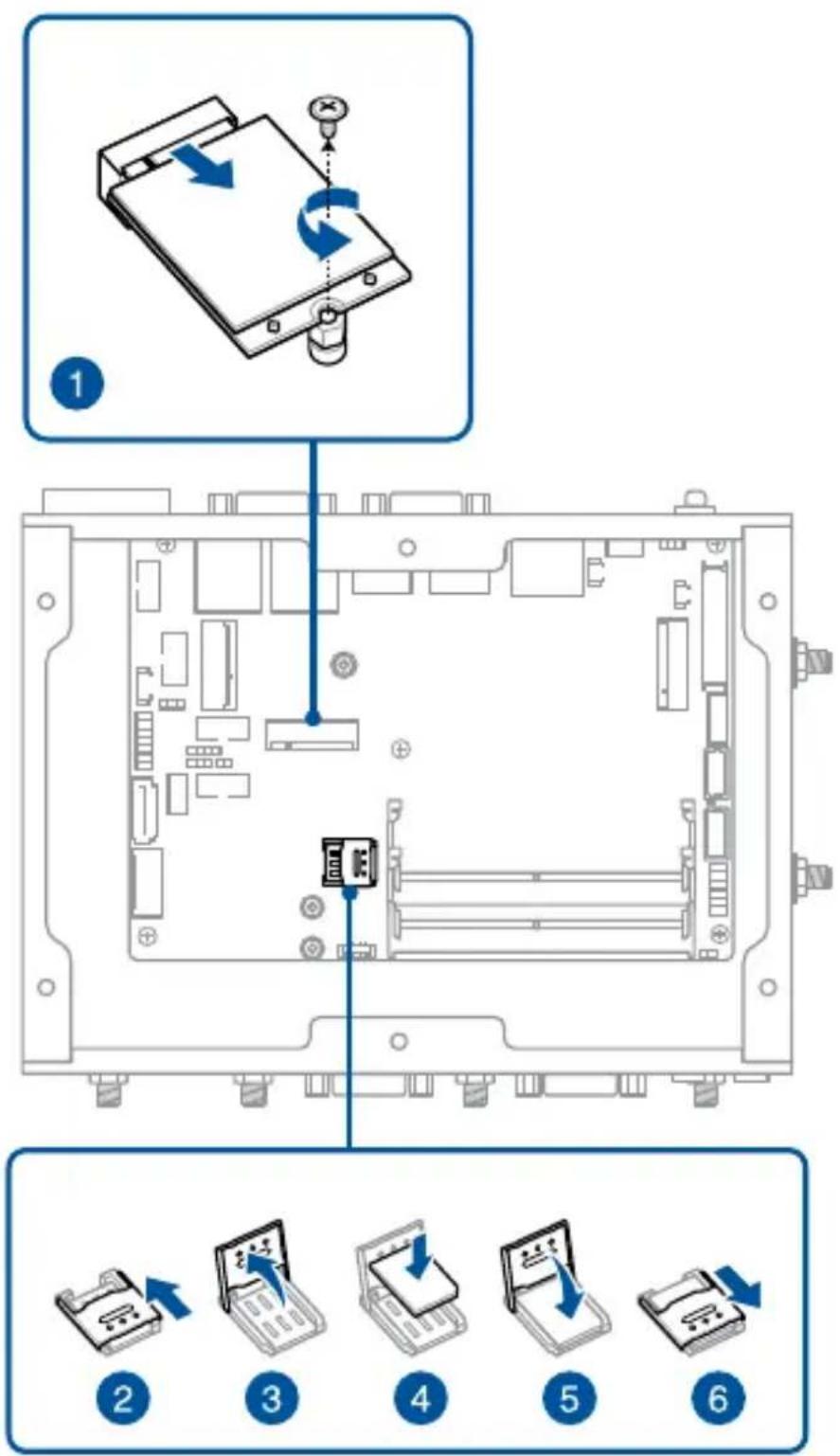
- (Optional) Remove the M.2 module from the M.2 B-key slot, if one is installed, by first removing the screw securing the module, and then removing the module.
- Push the nano SIM cover in the direction away from the SO-DIMM slots.
- Lift the nano SIM cover.
- Place the nano SIM into the nano SIM slot.
- Close the nano SIM cover.
- Push the nano SIM cover towards the SO-DIMM slots to secure the nano SIM card.
3.7 Installing a wireless card to the M.2 (E-key) slot
WARNING! RF modules are intended for OEM or host integrators only. For availability of system level RF certification, check with your OEM integrator.
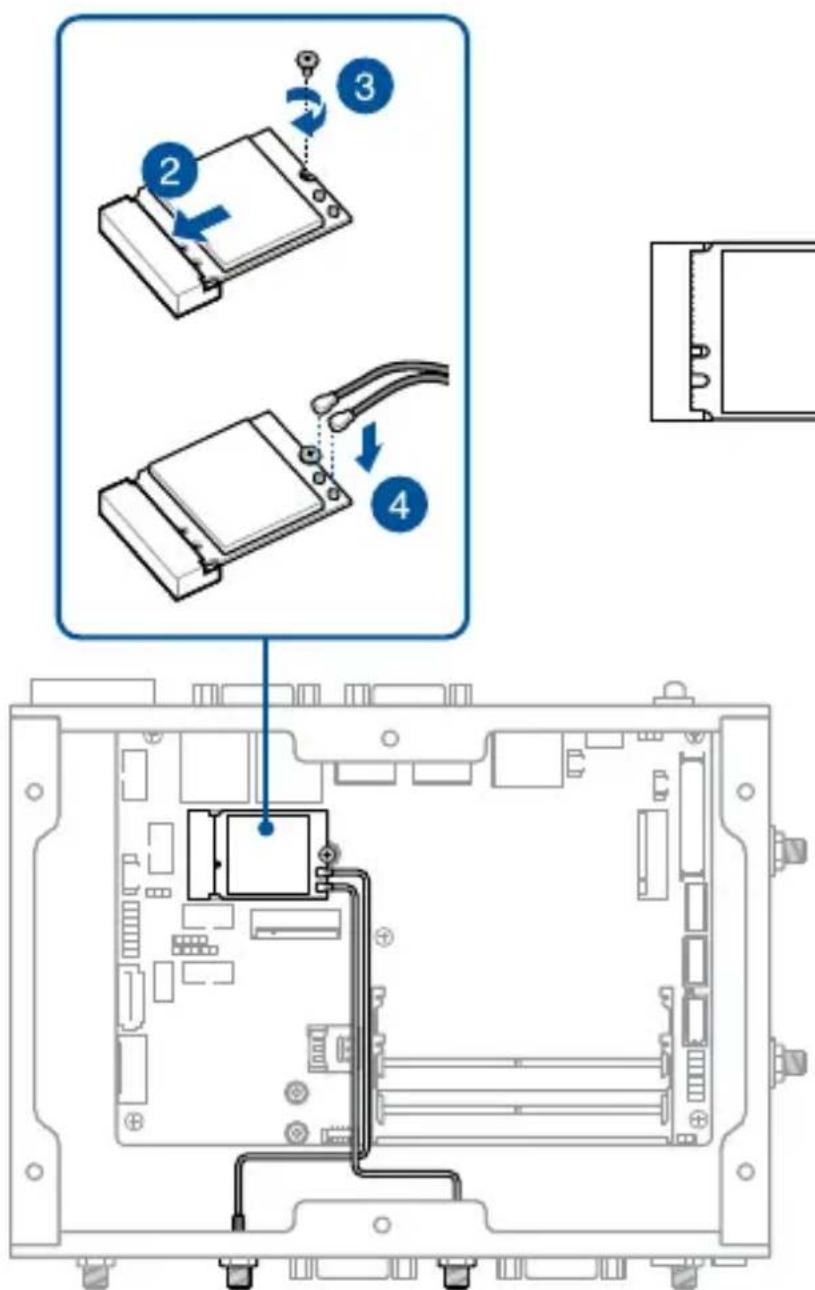
- Remove the M.2 screw.
- Align and insert the wireless card into the M.2 slot inside the Embedded Computer.
- Gently push down the wireless card on top of the standoff, and then fasten it using the previously removed screw.
NOTE: We recommend using a PH1 screwdriver with a torque of 2.0 ± 0.2 kgf-cm when tightening the screw.
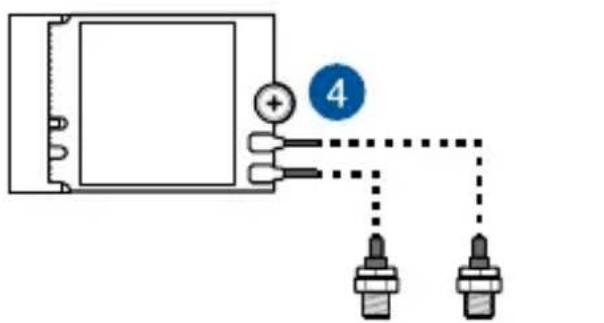
- (Optional) Connect the RF cables from the antennas to your wireless card. Make sure that the correct cable is attached to each of the connectors by referring to the illustration on the next page.
NOTE:
- Please refer to the Installing antennas section for more information on installing the antennas.
- Connecting antennas to your wireless card may strengthen the wireless signal.
- A soft clicking sound indicates that the antenna has been securely attached on the wireless card.
ANT.5ANT.4
ANT.5ANT.4
3.8 Installing an M.2 B-key module
Your Embedded Computer comes with an M.2 (B-key) slot that allows you to install a B-key (PCIe) type 3042/3052 M.2 device, such as a 4G LTE or 5G NR module.
WARNING! RF modules are intended for OEM or host integrators only. For availability of system level RF certification, check with your OEM integrator.
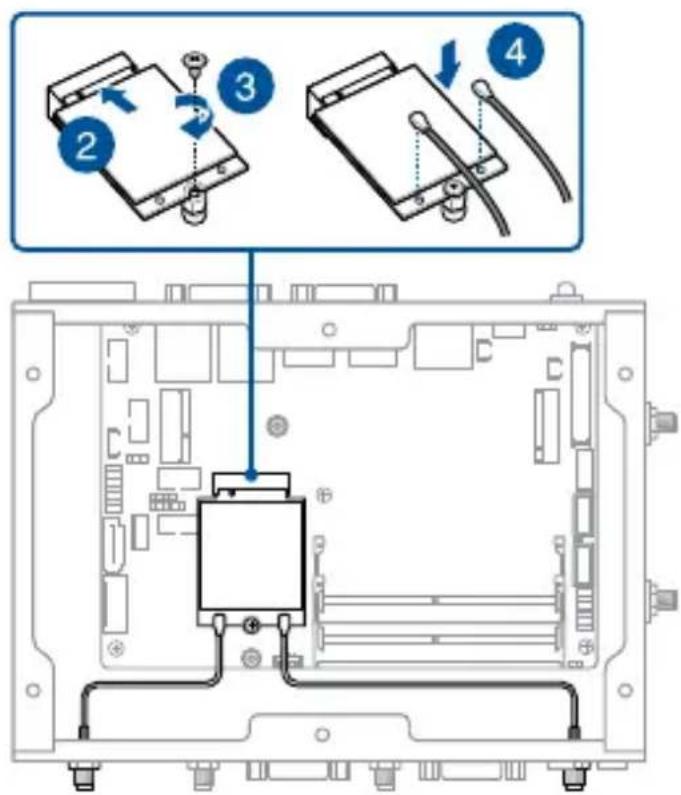
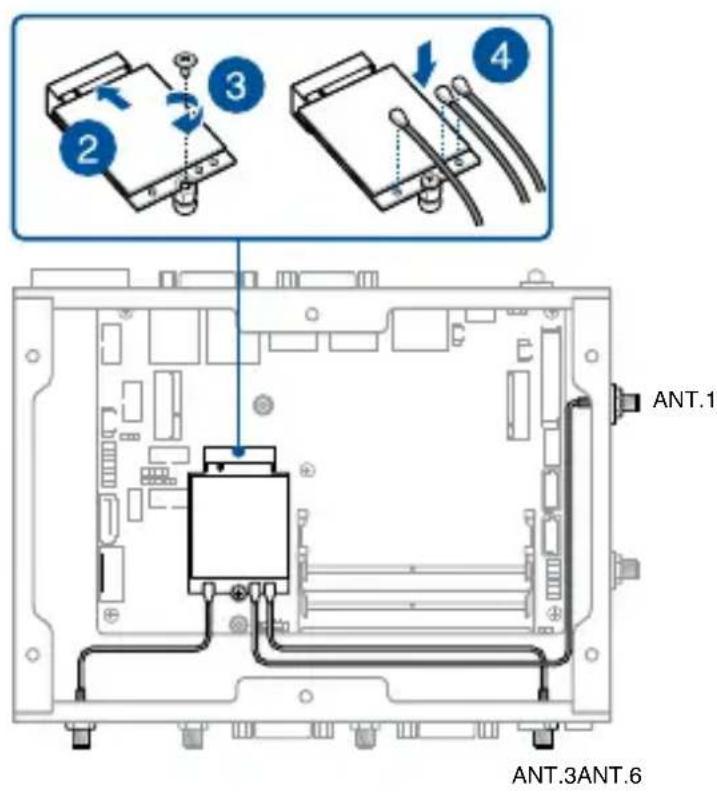
To install a 4G LTE module:
- Remove the screw from the M.2 standoff.
- Align and insert the module into the slot.
- Press down, and then secure it in place using the screw previously removed.
NOTE: We recommend using a PH1 screwdriver with a torque of 2.0 ± 0.2 kgf-cm when tightening the screw.
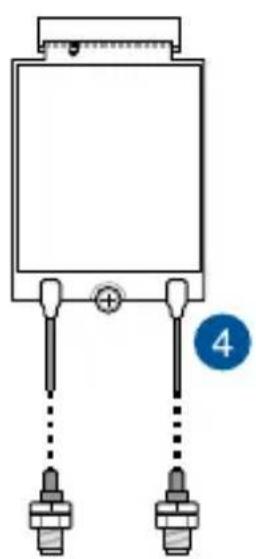
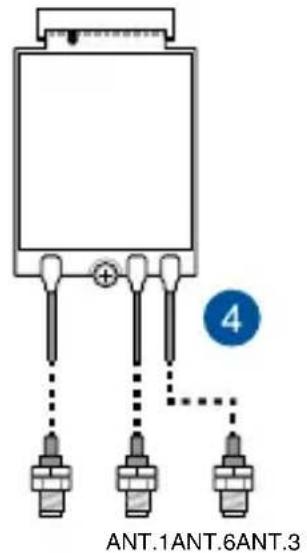
- (Optional) Connect the RF cables from the antennas to your module. Make sure that the correct cable is attached to each of the connectors by following chart on the next page.
NOTE:
- To enable the hot-plug function of your 4G LTE module, click the weston-terminal icon in the upper left corner of your screen, and type the first command below when prompted:
mm cli sim-detect 1 (enable hot-plug function)
mm cli sim-detect 0 (disable hot-plug function)
mm_cli sim-detect (display current setting)
• Refer to Installing antennas for more information on installing the antennas.
- Connecting antennas to your module may strengthen the signal.
- A soft clicking sound indicates that the antenna has been securely attached on the module.
For 4G LTE modules with two (2) RF connectors
natural_image
Pure electrical circuit lines without any symbolsANT.6ANT.3
For 4G LTE modules with three (3) RF connectors
To install a 5G NR module:
- Remove the screw from the M.2 standoff.
- Align and insert the module into the slot.
- Press down, and then secure it in place using the screw previously removed.
NOTE: We recommend using a PH1 screwdriver with a torque of 2.0 ± 0.2 kgf-cm when tightening the screw.
- (Optional) Connect the RF cables from the antennas to your module. Make sure that the correct cable is attached to each of the connectors by following chart on the next page.
NOTE:
• Refer to Installing antennas for more information on installing the antennas.
- Connecting antennas to your module may strengthen the signal.
- A soft clicking sound indicates that the antenna has been securely attached to the module.
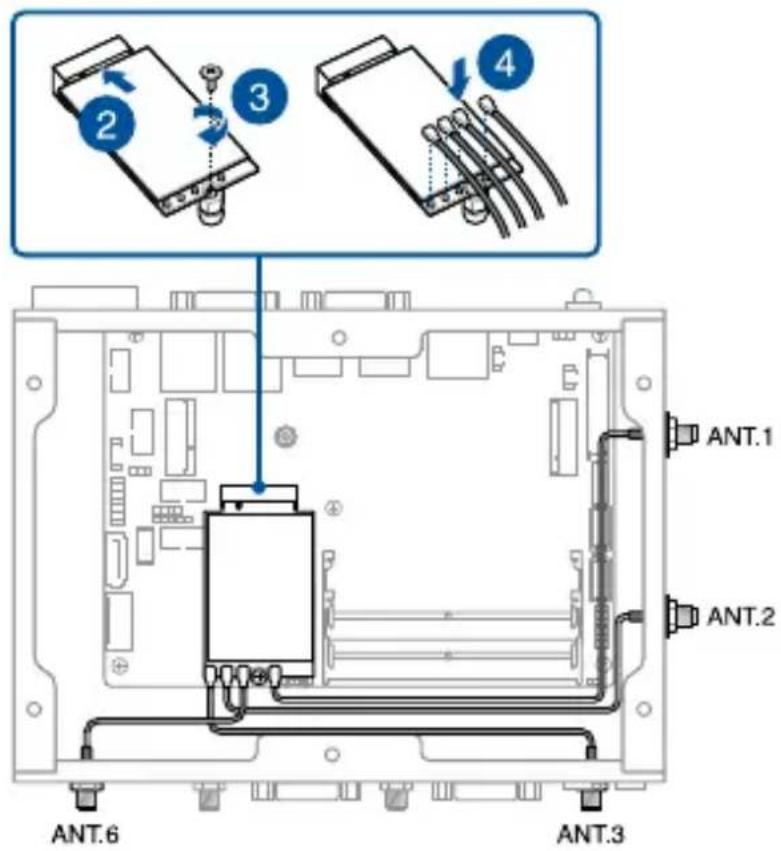
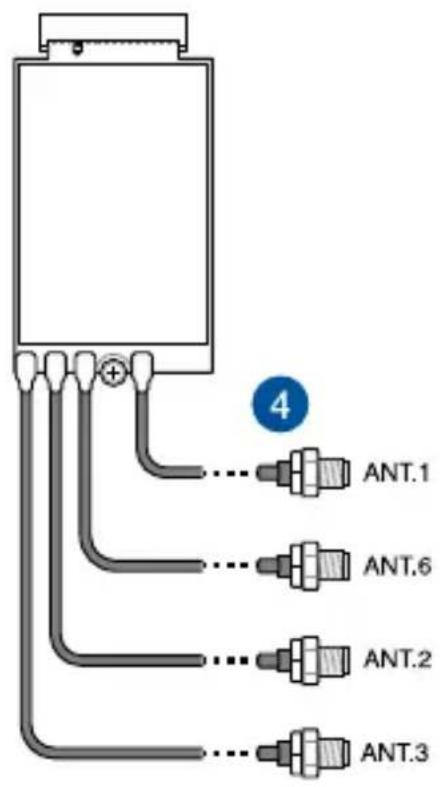
3.9 Installing antennas (optional)
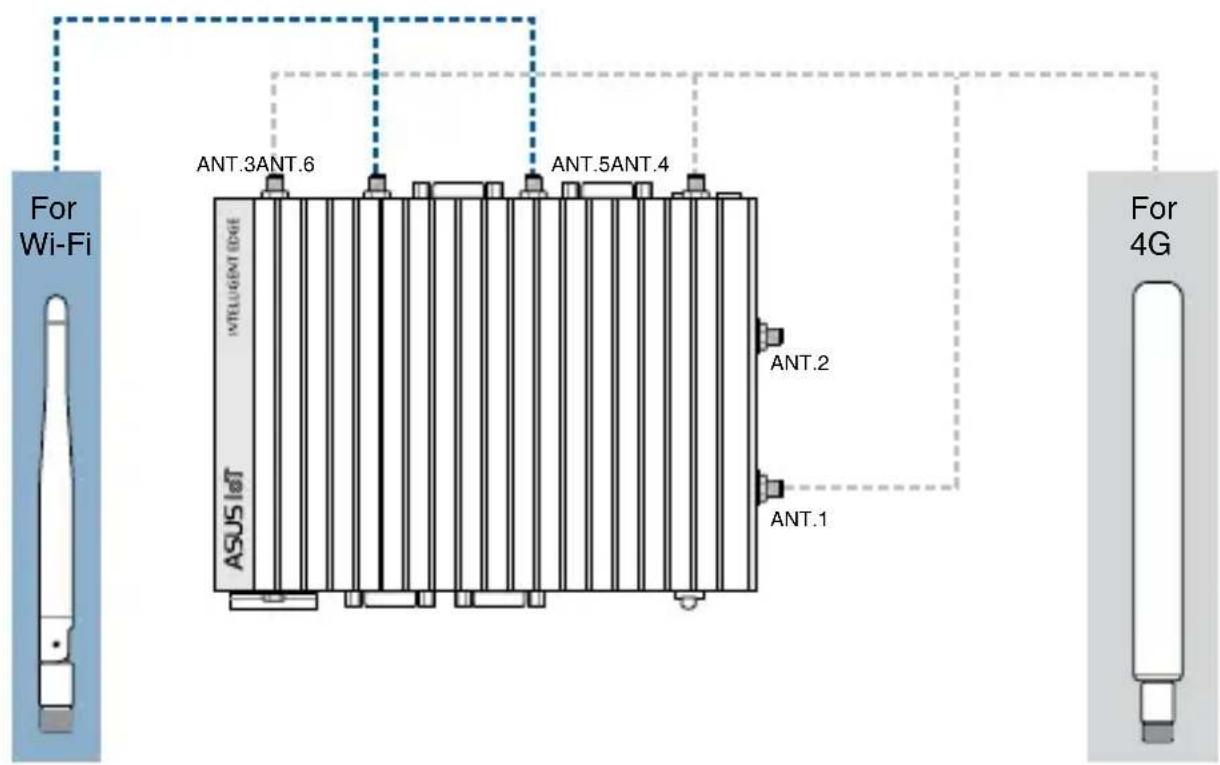
You may install antennas to the antenna jacks located on the right and rear panels. The installed antennas can be connected to a 4G LTE or 5G NR module installed in the M.2 B-key slot or to a wireless card installed in the M.2 E-key (Wi-Fi) slot.
4G module with two RF connectors and wireless card
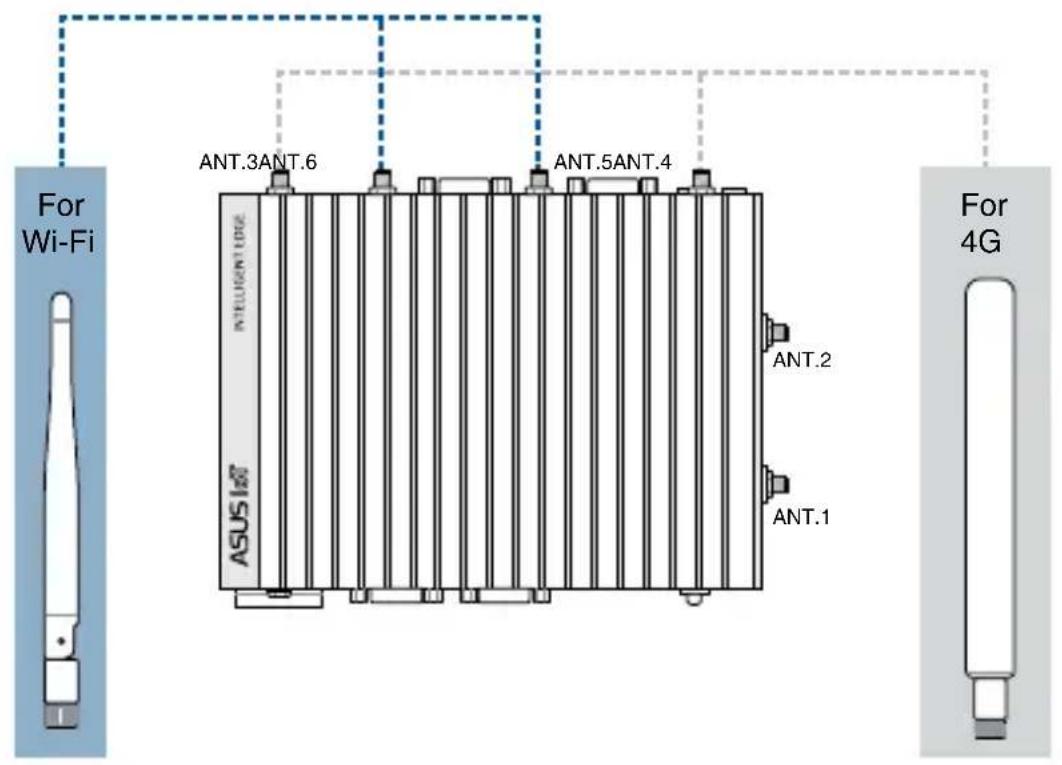
4G module with three RF connectors and wireless card
5G module and wireless card
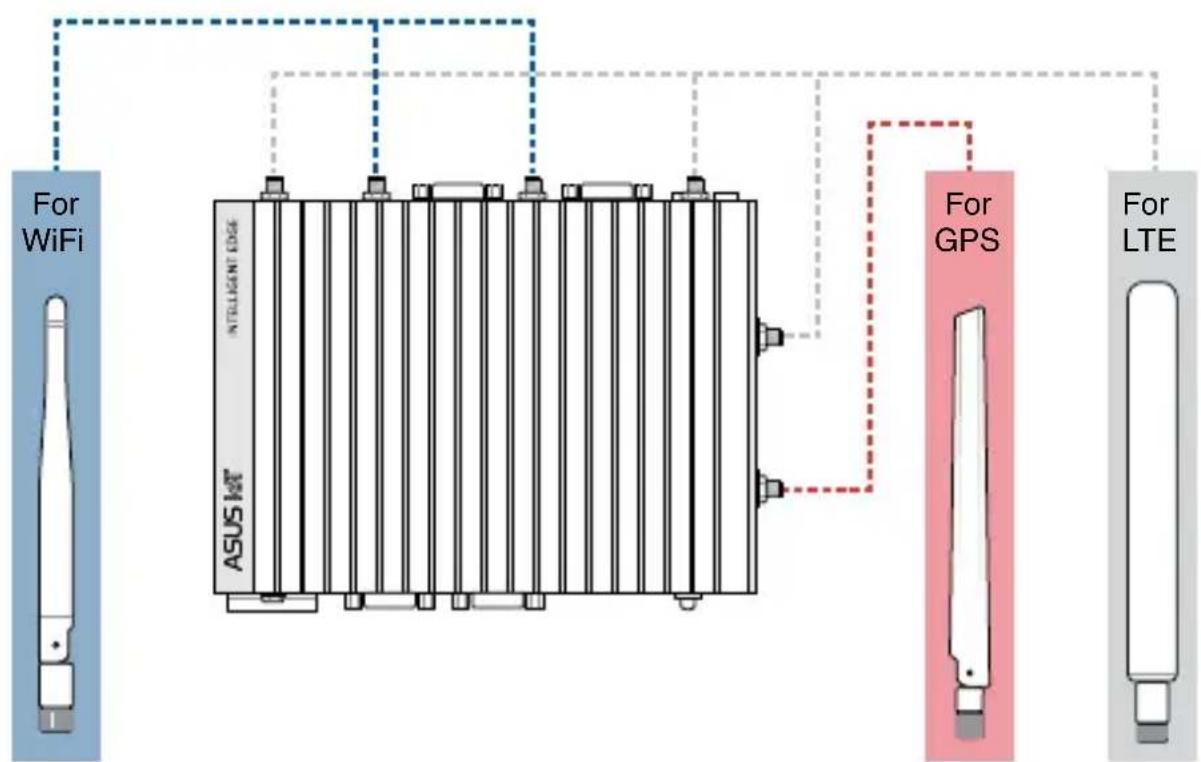
flowchart
graph TD
    A["For WiFi"] --> B["ASUS HAT"]
    B --> C["FOR GPS"]
    C --> D["For LTE"]
    style A fill:#f9f,stroke:#333
    style B fill:#ccf,stroke:#333
    style C fill:#cfc,stroke:#333
    style D fill:#fcc,stroke:#333
To install an antenna:
NOTE: If your Embedded Computer came pre-installed with wireless card antenna jacks, skip to step 8.
- Remove the bottom cover. Refer to Removing the bottom cover for details.
- Prepare the RF connector and cable.
- Remove the rubber caps from the antenna holes.
- Insert the antenna jack end of the RF connector and cable into the antenna hole from within the chassis outwards, ensuring that the flat edge of the jack is properly aligned to the flat edge of the hole.
- Insert the bundled O-ring over the antenna jack.
- Secure the antenna jack using one of the bundled hex screws.
- Connect the other end of the RF connector and cable to your wireless card (refer to Installing a wireless card to the M.2 (E-key) slot for details) or to your 4G LTE / 5G NR module (refer to Installing an M.2 B-key module for details).
- Replace the bottom cover. Refer to Replacing the bottom cover for details.
- Screw the external Wi-Fi antennas onto their corresponding antenna jacks on the front and rear panels by turning them in a clockwise direction.
- Position the antennas for optimal signal reception.
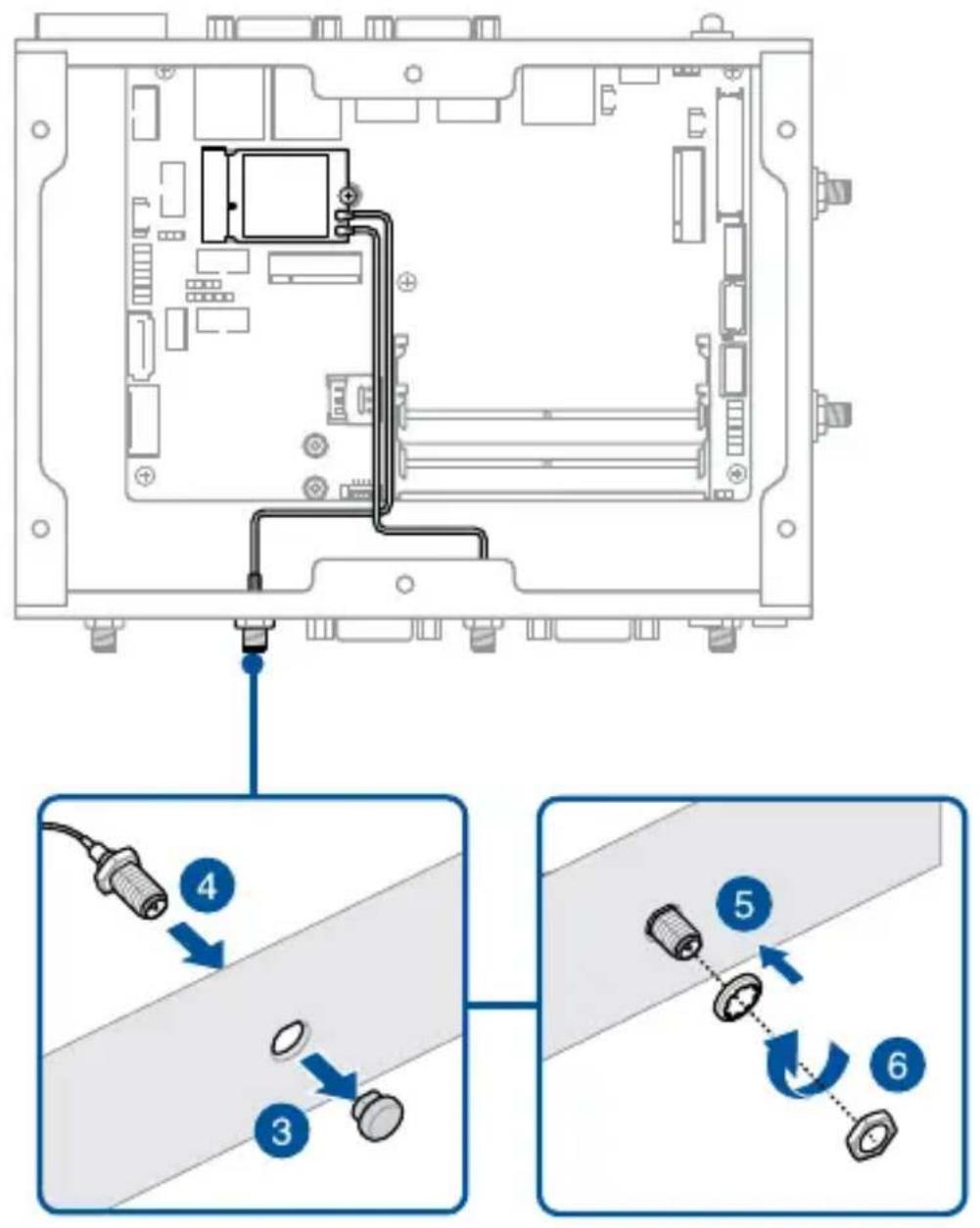
3.10 Installing wall mount brackets (optional)
- Remove the four (4) rubber feet screws (A), and then remove the rubber feet from the rubber feet screws (B).
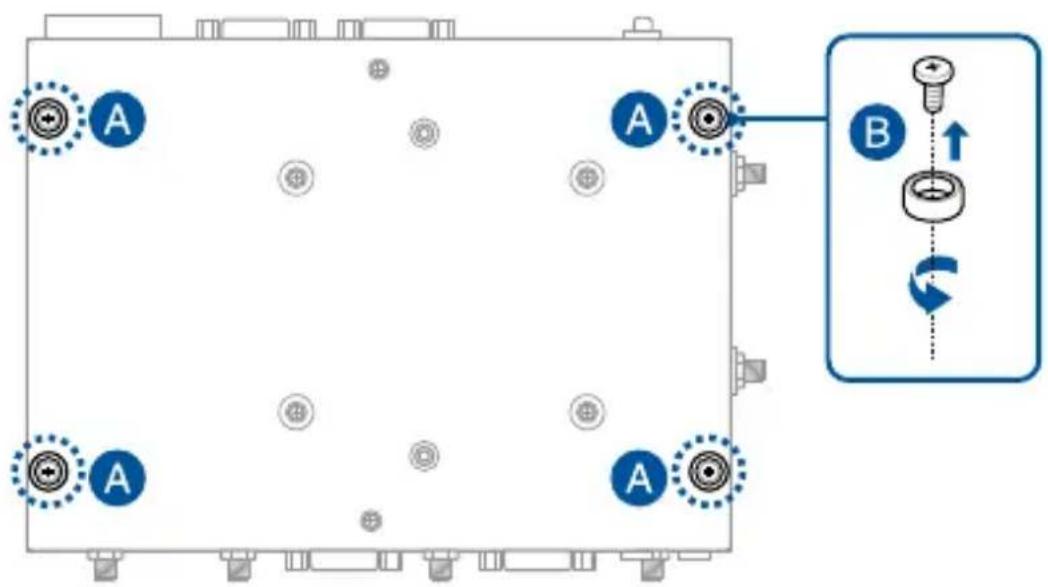
- Align the wall mount with the rubber feet screw holes (A), and then secure the wall mount brackets to your Embedded Computer using the rubber feet screws (B).
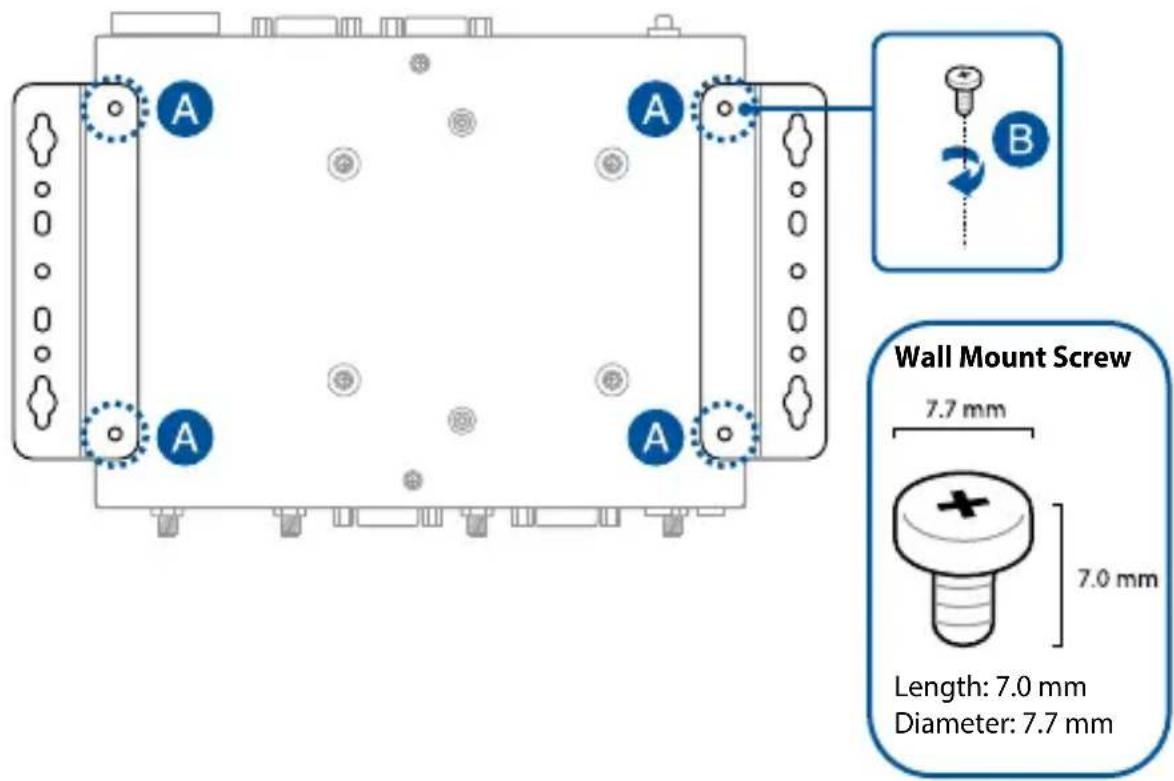
NOTE: The rubber feet and wall mount screws are the same screws.
3.11 Installing DIN rail clips (optional)
-
Make sure that the wall mount brackets are already installed. Refer to the section Installing wall mount brackets for installation instructions.
-
Align the screw holes on the DIN rail clips to the ones on the wall mount brackets as shown below.
-
Secure the DIN rail clips to the wall mount brackets using the screws bundled with the DIN rail clips.
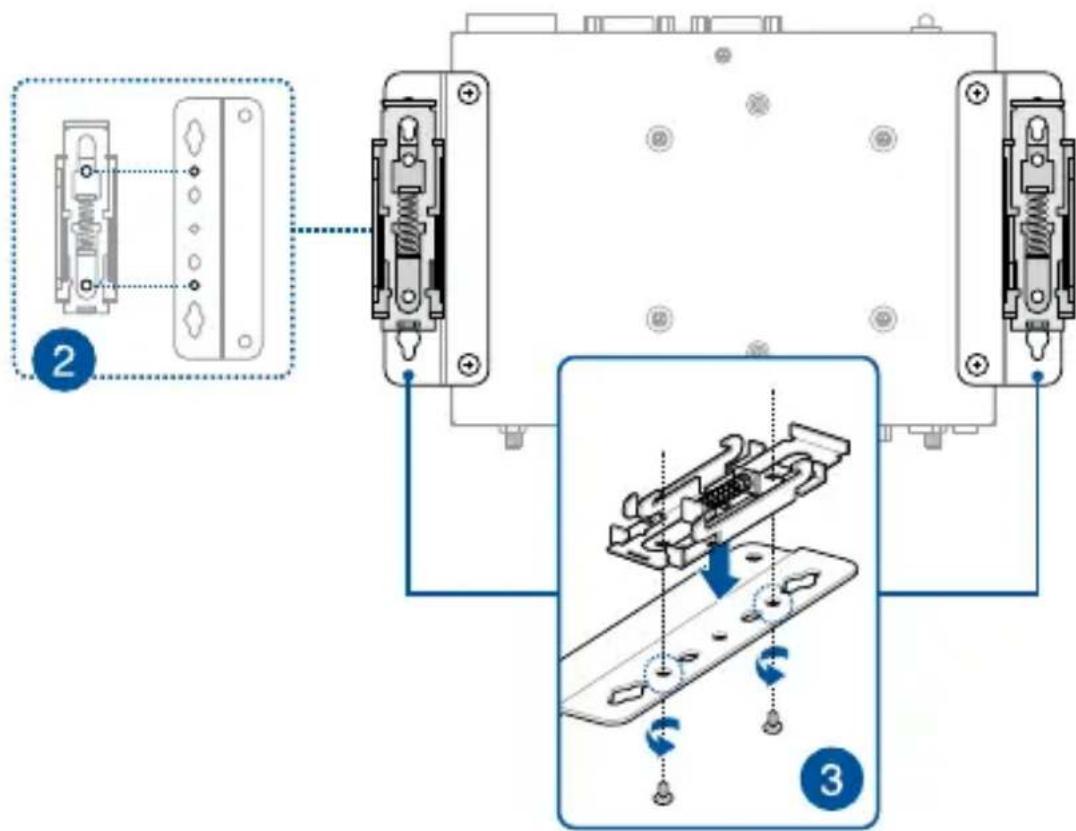
flowchart
graph TD
    A["Component 2"] --> B["Component 3"]
    B --> C["Internal Component 1"]
    B --> D["Internal Component 2"]
    style A fill:#f9f,stroke:#333
    style B fill:#ccf,stroke:#333
    style C fill:#cfc,stroke:#333
    style D fill:#fcc,stroke:#333
- Clip the final assembly to a DIN rail by hooking the DIN rail clips to the top of the DIN rail and then pressing down until you hear the clips snap into place.
3.12 Installing the VESA mount (optional)
You may install a VESA mount to your Embedded Computer, which allows you to install your Embedded Computer to a VESA mount-compatible device, such as a monitor.
IMPORTANT! When installing your Embedded Computer to a VESA mount-compatible device, such as a monitor, ensure to first consider the stability of the setup. This is especially critical for VESA mount-compatible devices that weigh less than 4.28 kg.
- Place your Embedded Computer upside down on a flat and stable surface.
- Attach the bundled two (2) 12mm screws into the screw holes at the bottom of your Embedded Computer.
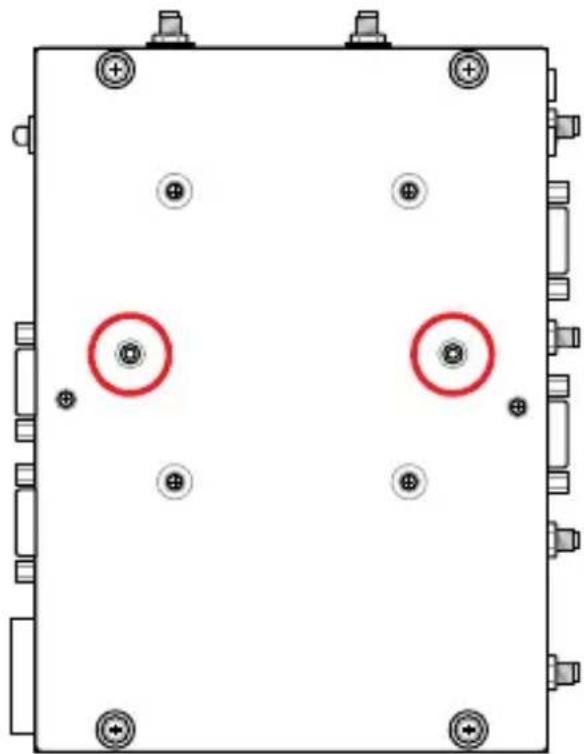
natural_image
Pure electrical circuit lines without any symbols-
Remove the screw hole covers at the back of your VESA mount-compatible device, if they exist.
-
With the arrow on the VESA mounting plate pointing upward, align its screw holes to the screw holes of the VESA mount-compatible device.
-
Secure the VESA mounting plate to the VESA mount-compatible device using the bundled screws.
WARNING! Do not overtighten the screws as it may cause damage to your VESA mount-compatible device.
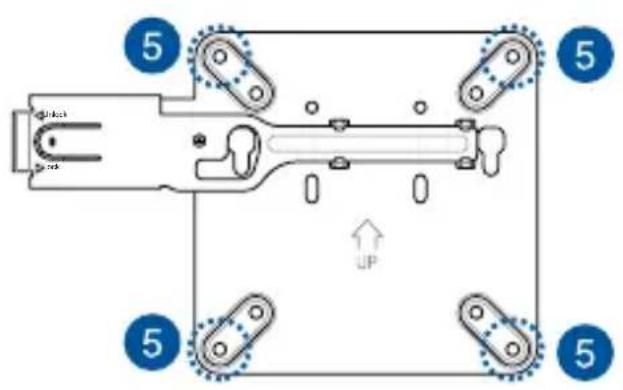
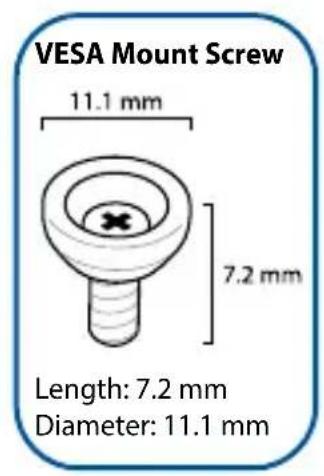
- Pull the metal lock on the VESA mounting plate outwards.
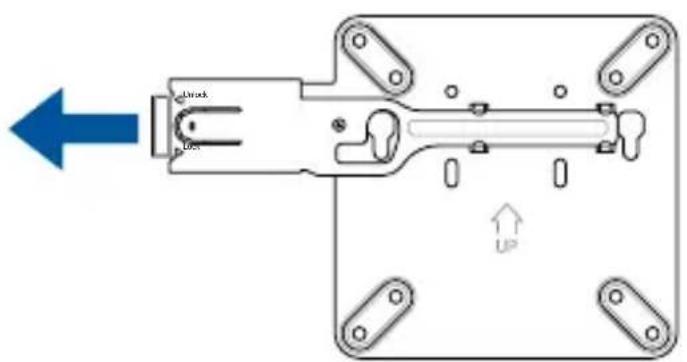
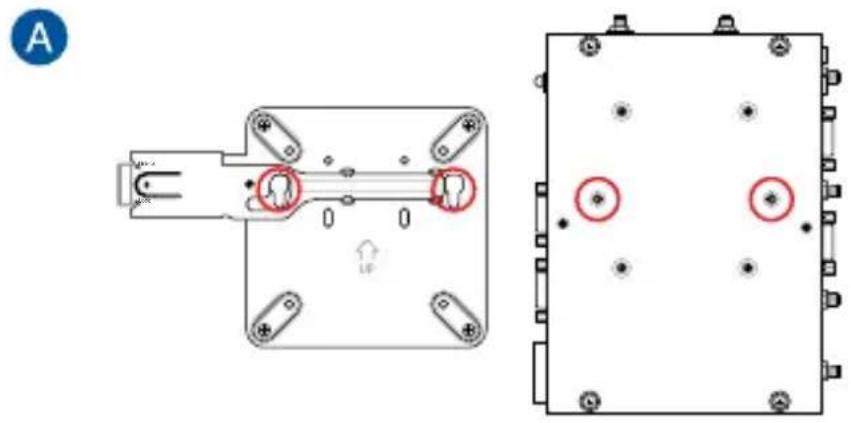
- Position the Embedded Computer and insert the screws attached on the Embedded Computer to the mounting holes of the VESA mounting plate (A), then gently push the Embedded Computer down as shown in the illustration to secure it in place (B).
natural_image
Technical diagram showing two mechanical components with mounting holes and a central connector, no text or symbols present.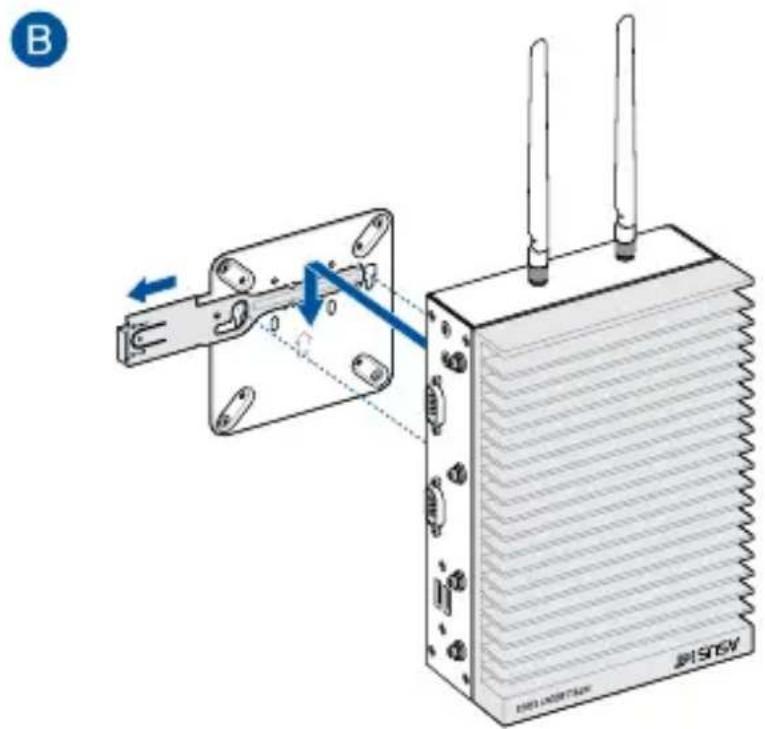
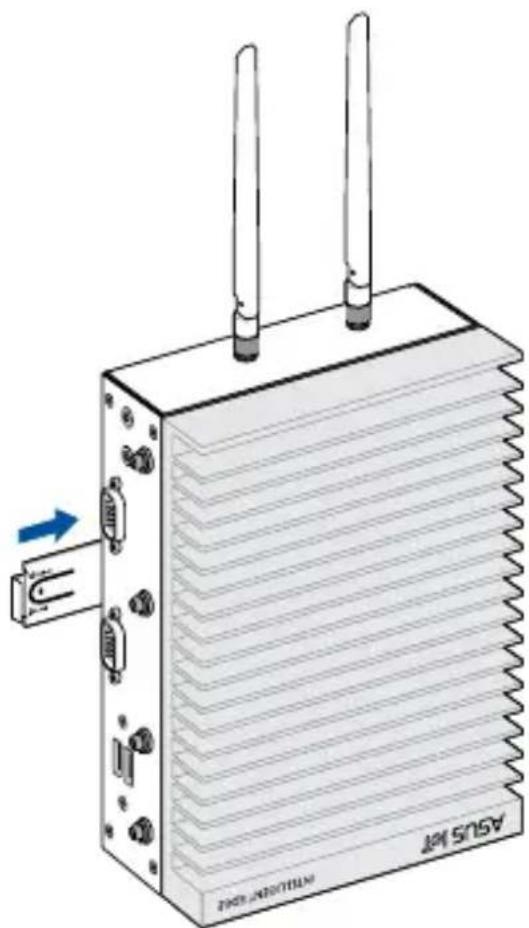
- Push the metal lock back towards the Embedded Computer until it securely snaps in place.
natural_image
Illustration of an ASU5 IoT device with two antennas and a heat sink, showing no text or symbols on the main body.Watchdog Timer
4
4.1 Watchdog Timer implementation
The Watchdog Timer used in this Embedded Computer is the POST Watchdog Timer. The Watchdog Timer circuit is in SuperIO and can be controlled by the BIOS setup menu through the system BIOS for different boot phases.
Please refer to the table below for more details on the implementation of the Watchdog Timer.
| Watchdog Timer Implementation Default Timeout | ||
| POST Watchdog Timer | This Watchdog Timer is for recovering the system from crashes during BIOS takeover to OS. | The timeout value is determined by the BIOS settings. |
| NOTE: The default setting for the BIOS item is set to enabled. | ||
| *OS Watchdog Timer | No implementation. User needs to write software in OS to keep updating the watchdog timer to prevent it from timing out. The application is executed on payload. | N/A |
| NOTE: Please refer to the section Watchdog Timer Programming for more information. | ||
4.2 Watchdog Timer flowchart
Please refer to the Watchdog Timer initialization flowchart below:
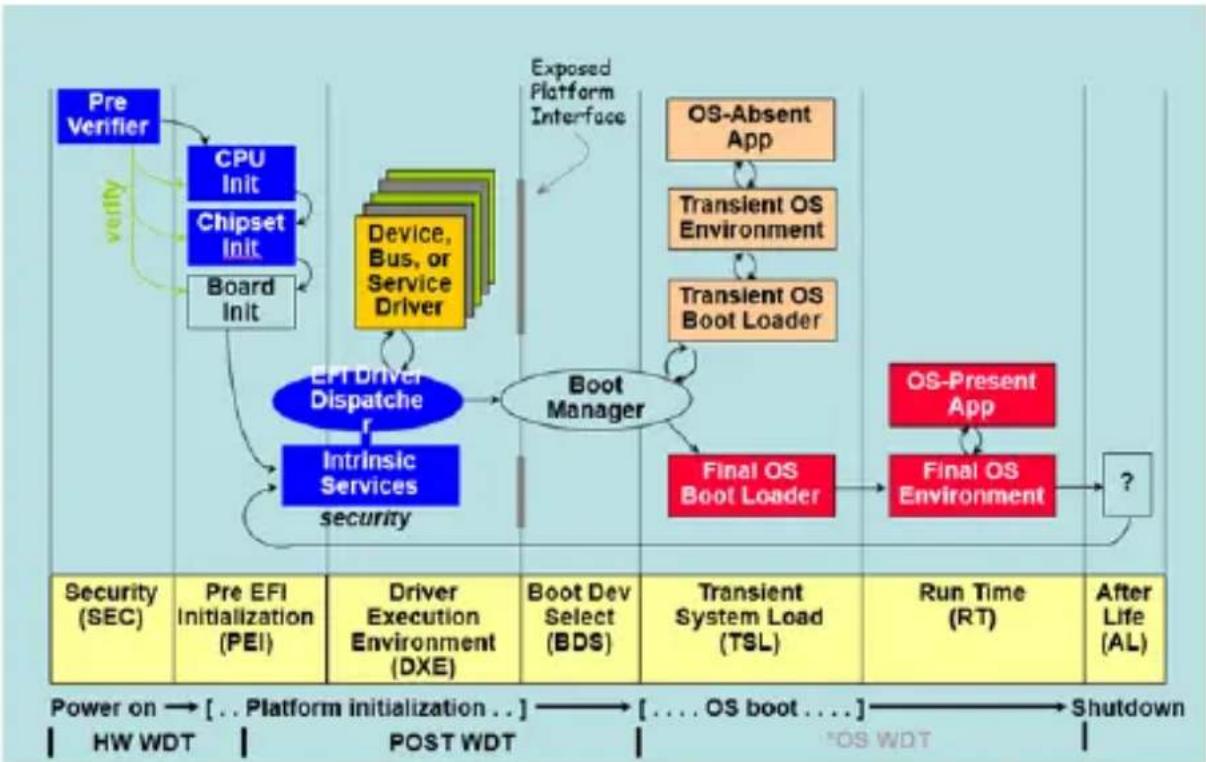
flowchart
graph TD
    A["Pre Verifier"] --> B["CPU Init"]
    B --> C["Chipset Init"]
    C --> D["Board Init"]
    D --> E["EFT Driver Dispatch"]
    E --> F["Intrinsic Services security"]
    F --> G["Boot Manager"]
    G --> H["OS-Absent App"]
    H --> I["Transient OS Environment"]
    I --> J["Transient OS Boot Loader"]
    J --> K["Final OS Boot Loader"]
    K --> L["OS-Present App"]
    L --> M["Final OS Environment"]
    M --> N["?"]

    subgraph Security (SEC)
        A
        B
        C
        D
    end

    subgraph PEI
        B
        C
        D
    end

    subgraph POST WDT
        E
        F
        G
        H
        I
        J
        K
        L
        M
    end

    subgraph POST WDT
        K
        L
        M
        N
    end

    subgraph OS_WDT
        M
        N
    end

    note1[""Power on → [.. Platform initialization .."] --> [.... OS boot ....] --> Shutdown"]
    note2["Exposed Platform Interface"]
    note3["Exposed Platform Interface"]
    note4[""Power on → [.. Platform initialization .."] --> [.... OS boot ....] --> Shutdown"]
4.3 Watchdog Timer Programming
Please refer to the pseudo code for the NCT6116D watchdog timer programming below:
SIO_INDEX_PORT is 0x2E
SIO_DATA_PORT is 0x2F
1. Set WDT Time Unit
Outportb(SIO_INDEX_PORT, 0x87); // Unlock SIO
Outportb(SIO_INDEX_PORT, 0x87); // Unlock SIO
Outportb(SIO_INDEX_PORT, 0x07);
Outportb(SIO_DATA_PORT, 0x08);
Outportb(SIO_INDEX_PORT, 0xF0);
val = Inportb(SIO_DATA_PORT) // Read current WDT setting
val = val | 0x08; // minute mode, val = val & 0xF7 if second mode
Outportb(SIO_INDEX_PORT, 0xF0);
Outportb(SIO_DATA_PORT, val); // Write back WDT setting
Outportb(SIO_INDEX_PORT, 0xAA); // Lock SIO
2. Set WDT Time
Outportb(SIO_INDEX_PORT, 0x87); // Unlock SIO
Outportb(SIO_INDEX_PORT, 0x87); // Unlock SIO
Outportb(SIO_INDEX_PORT, 0x07);
Outportb(SIO_DATA_PORT, 0x08);
Outportb(SIO_INDEX_PORT, 0xF1);
Outportb(SIO_DATA_PORT, Time); // Write WDT time, value 1 to 255
Outportb(SIO_INDEX_PORT, 0xAA); // Lock SIO
3. Enable WDT
Outportb(SIO_INDEX_PORT, 0x87); // Unlock SIO
Outportb(SIO_INDEX_PORT, 0x87); // Unlock SIO

Outportb(SIO_INDEX_PORT, 0x07);
Outportb(SIO_DATA_PORT, 0x08);
Outportb(SIO_INDEX_PORT, 0x30);
val = Inportb(SIO_DATA_PORT) // Read current WDT status

val = val | 0x01; // Enable WDT Timer

Outportb(SIO_INDEX_PORT, 0x30);
Outportb(SIO_DATA_PORT, val); // Write back WDT status

Outportb(SIO_INDEX_PORT, 0xAA); // Lock SIO
4. Disable WDT
Outportb(SIO_INDEX_PORT, 0x87); // Unlock SIO
Outportb(SIO_INDEX_PORT, 0x87); // Unlock SIO
Outportb(SIO_INDEX_PORT, 0x07);
Outportb(SIO_DATA_PORT, 0x08);
Outportb(SIO_INDEX_PORT, 0xF1);
Outportb(SIO_DATA_PORT, 0x00); // Clear WDT time (WDT Time-Out disable)
Outportb(SIO_INDEX_PORT, 0x30);
val = Inportb(SIO_DATA_PORT) // Read current WDT status
val = val & 0xFE; // Disable WDT Timer
Outportb(SIO_INDEX_PORT, 0x30);
Outportb(SIO_DATA_PORT, val); // Write back WDT status
Outportb(SIO_INDEX_PORT, 0xAA); // Lock SIO
Appendix
4
Safety information
Your Embedded Computer is designed and tested to meet the latest standards of safety for information technology equipment. However, to ensure your safety, it is important that you read the following safety instructions.
Setting up your system
- Read and follow all instructions in the documentation before you operate your system.
- Do not use this product near water or a heated source.
- Set up the system on a stable surface.
- Peripherals with extended tolerance (such as industrial grade mSATA and micro SD card) will allow this product to be used in environments with ambient temperatures between 0°C and 60°C with 0.1 m/s air flow.
- The product should be used in environments with an ambient temperature of 60^ when using the 150 W power adapter.
- If you use an extension cord, make sure that the total ampere rating of the devices plugged into the extension cord does not exceed its ampere rating.
- This equipment should be installed and operated with a minimum distance of 20 cm between the radiator and your body.
- This device shall not be connected to an Ethernet network with outside plant routing.
Care during use
- Do not walk on the power cord or allow anything to rest on it.
- Do not spill water or any other liquids on your system.
- When the system is turned off, a small amount of electrical current still flows. Always unplug the power cord from the power outlets before cleaning the system.
- If you encounter the following technical problems with the product, unplug the power cord and contact a qualified service technician or your retailer.
- The power cord or plug is damaged.
– Liquid has been spilled into the system. - The system does not function properly even if you follow the operating instructions.
- The system was dropped or the cabinet is damaged.
- The system performance changes.
Safety Precautions
Accessories that came with this product have been designed and verified for the use in connection with this product. Never use accessories for other products to prevent the risk of electric shock or fire.
Lithium-Metal Battery Warning
CAUTION: Danger of explosion if battery is incorrectly replaced. Replace only with the same or equivalent type recommended by the manufacturer. Dispose of used batteries according to the manufacturer's instructions.
NO DISASSEMBLY
The warranty does not apply to the products that have been disassembled by users
Regulatory notices
COATING NOTICE
IMPORTANT! To provide electrical insulation and maintain electrical safety, a coating is applied to insulate the device except on the areas where the I/O ports are located.
Federal Communications Commission Statement
This device complies with Part 15 of the FCC Rules. Operation is subject to the following two conditions:
- This device may not cause harmful interference, and
- This device must accept any interference received including interference that may cause undesired operation.
This equipment has been tested and found to comply with the limits for a Class A digital device, pursuant to part 15 of the FCC Rules. These limits are designed to provide reasonable protection against harmful interference when the equipment is operated in a commercial environment.
This equipment generates, uses, and can radiate radio frequency energy and, if not installed and used in accordance with the instruction manual, may cause harmful interference to radio communications. Operation of this equipment in a residential area is likely to cause harmful interference in which case the user will be required to correct the interference at his own expense.
IMPORTANT! Outdoor operations in the 5.15\~5.25 GHz band is prohibited. This device has no Ad-hoc capability for 5250\~5350 and 5470\~5725 MHz.
CAUTION! Any changes or modifications not expressly approved by the party responsible for compliance could void the user's authority to operate the equipment.
FCC RF Exposure Information
This device meets the government's requirements for exposure to radio waves. This device is designed and manufactured not to exceed the emission limits for exposure to radio frequency (RF) energy set by the Federal Communications Commission of the U.S. Government. The exposure standard employs a unit of measurement known as the Specific Absorption Rate, or SAR. The SAR limit set by the FCC is 1.6 W/kg. Tests for SAR are conducted using standard operating positions accepted by the FCC with the EUT transmitting at the specified power level in different channels. The FCC has granted an Equipment Authorization for this device with all reported SAR levels evaluated as in compliance with the FCC RF exposure guidelines. SAR information on this device is on file with the FCC and can be found under the Display Grant section of www.fcc.gov/oet/ea/fccid.
FCC 5.925-7.125 GHz Caution Statement
Operation of transmitters in the 5.925-7.125 GHz band is prohibited for control of or communications with unmanned aircraft systems.
End Product Labeling
This transmitter module is authorized only for use in device where the antenna may be installed such that 20cm may be maintained between the antenna and users.
ISED Radiation Exposure Statement for Canada
This equipment complies with ISED radiation exposure limits set forth for an uncontrolled environment. To maintain compliance with ISED RF exposure compliance requirements, please avoid direct contact to the transmitting antenna during transmitting. End users must follow the specific operating instructions for satisfying RF exposure compliance.
Operation is subject to the following two conditions:
• This device may not cause interference and
- This device must accept any interference, including interference that may cause undesired operation of the device.
Compliance Statement of Innovation, Science and Economic Development Canada (ISED)
This device complies with Innovation, Science and Economic Development Canada licence exempt RSS standard(s). Operation is subject to the following two conditions: (1) this device may not cause interference, and (2) this device must accept any interference, including interference that may cause undesired operation of the device.
CAN ICES-003(B)/NMB-003(B)
ISED 5.925-7.125 GHz Caution Statement
RLAN devices:
Wireless Operation Channel for Different Domains
N. America 2.412-2.462 GHz Ch01 through CH11
Japan 2.412-2.484 GHz Ch01 through Ch14
Europe ETSI 2.412-2.472 GHz Ch01 through Ch13
VCCI: Japan Compliance Statement
Class B ITE
Japan RF Equipment Statement
屋外での使用について
RF Module Warning Statement
RF modules are intended for OEM or host integrators only. For availability of system level RF certification, check with your OEM integrator.
HDMI Trademark Notice
The terms HDMI, HDMI High-Definition Multimedia Interface, HDMI Trade Dress, and the HDMI Logos are trademarks or registered trademarks of HDMI Licensing Administrator, Inc.
Declaration of compliance for product environmental regulation
ASUS follows the green design concept to design and manufacture our products, and makes sure that each stage of the product life cycle of ASUS product is in line with global environmental regulations. In addition, ASUS disclose the relevant information based on regulation requirements.
Please refer to https://esg.asus.com/Compliance.htm for information disclosure based on regulation requirements ASUS is complied with
EU REACH and Article 33
Complying with the REACH (Registration, Evaluation, Authorization, and Restriction of Chemicals) regulatory framework, we publish the chemical substances in our products at ASUS REACH website at https://esg.asus.com/Compliance.htm
EU RoHS
This product complies with the EU RoHS Directive. For more details, see https://esg.asus.com/Compliance.htm
Japan JIS-C-0950 Material Declarations
Information on Japan RoHS (JIS-C-0950) chemical disclosures is available on https://esg.asus.com/Compliance.htm
India RoHS
This product complies with the “India E-Waste (Management) Rules, 2016” and prohibits use of lead, mercury, hexavalent chromium, polybrominated biphenyls (PBBs) and polybrominated diphenyl ethers (PBDEs) in concentrations exceeding 0.1% by weight in homogenous materials and 0.01% by weight in homogenous materials for cadmium, except for the exemptions listed in Schedule II of the Rule.
Vietnam RoHS
ASUS products sold in Vietnam, on or after September 23, 2011, meet the requirements of the Vietnam Circular 30/2011/TT-BCT.
ASUS recycling and takeback programs come from our commitment to the highest standards for protecting our environment. We believe in providing solutions for you to be able to responsibly recycle our products, batteries, other components as well as the packaging materials. Please go to https://esg.asus.com/en/Takeback.htm for detailed recycling information in different regions.
Ecodesign Directive
The European Union announced a framework for the setting of ecodesign requirements for energy-related products (2009/125/EC). Specific implementing measures are aimed at improving environmental performance of specific products or across multiple product types. ASUS provides product information at https://esg.asus.com/Compliance.htm.
低功率電波輻射性電機管理辦法
Taiwan NCC Warning Statement
Article 12: Without permission, any company, firm or user shall not alter the frequency, increase the power, or change the characteristic and functions of the original design of the certified lower power frequency electric machinery.
Article 14: The application of lower power frequency electric machineries shall not affect the navigation safety nor interfere alegal communication, if an interference is found, the service will be suspended until improvement is made and the interference no longer exists.
「產品之限用物質含有情況」之相關資訊,請參考下表:Taiwan Declaration of Restricted Substances Marking
| 單元(Unit) | 限用物質及其化學符號(Restricted substances and its chemical symbols) | |||||
| 鉛Lead(Pb) | 汞Mercury(Hg) | 鎘Cadium(Cd) | 六價鉻Hexavalent chromium( Cr^+9 ) | 多溴聯苯Polybrominated biphenyls(PBB) | 多溴二苯醚Polybrominated diphenyls ethers(PBDE) | |
| 印刷電路板及電子組件PCB | - ○ | ○ ○ ○ | ○ | |||
| 外殼Chassis | - ○ | ○ ○ ○ | ○ | |||
| 硬碟Disk drive | - ○ | ○ ○ ○ | ○ | |||
| 散熱設備Thermal solutions | - ○ | ○ ○ ○ | ○ | |||
| 其他及其配件(線材等)Accessories (e.g., cables) | - ○ | ○ ○ ○ | ○ | |||
| 備考1. “○”係指該項限用物質之百分比含量未超出百分比含量基準值。備考2. “-”係指該項限用物質為排除項目。Note 1 “○” indicates that the percentage content of the restricted substance does not exceed the percentage of reference value of presence.Note 2 The“-”indicates that the restricted substance corresponds to the exemption. | ||||||
Service and Support
Visit our multi-language website at https://www.asus.com/support/.