KAPR6L011QA - Video projector Kogan - Free user manual and instructions
Find the device manual for free KAPR6L011QA Kogan in PDF.


User questions about KAPR6L011QA Kogan
0 question about this device. Answer the ones you know or ask your own.
Ask a new question about this device
Download the instructions for your Video projector in PDF format for free! Find your manual KAPR6L011QA - Kogan and take your electronic device back in hand. On this page are published all the documents necessary for the use of your device. KAPR6L011QA by Kogan.
USER MANUAL KAPR6L011QA Kogan
natural_image
Line drawing of a cylindrical mechanical device with a spool and base mount (no text or symbols)FREESTYLE PROJECTOR WITH MIRACAST
KAPR6L011QA
SAFETY & WARNINGS
- Read this user guide carefully before use and keep it for future reference.
- This projector is not dustproof or waterproof.
- To reduce the risk of fire and electric shock, do not expose this projector to rain or fog.
- Only use the original power adapter.
- Do not look directly into the lens when the projector is operating, as the light can damage your eyes.
- Children should only use the projector under the supervision of adults.
- Do not cover the vents of the projector and ensure the projector is adequately ventilated. Overheating will reduce the life of the projector and create a fire hazard.
- Regularly clean the projector vents as dust may damage the projector.
- Do not use the projector in greasy, damp, dusty or smoky environments. Oil or chemicals will damage the projector.
- Handle the projector with care during daily use.
- Unplug the projector when it is not being used for a long time.
- Do not disassemble the projector. If the projector requires repair, contact help.Kogan.com.
- Do not use the projector with damaged wires.
- Consult a qualified trade professional to install the projector.
- The projector must be kept away from flammable and explosive substances, strong electromagnetic interference, and strong ambient light (i.e. direct sunlight).
- Do not bend or drag the power cord.
- Do not put the power cord under the projector or any heavy objects.
- Do not cover the power cord.
- Do not heat the power cord.
- Do not touch the power adaptor with wet hands.
OVERVIEW
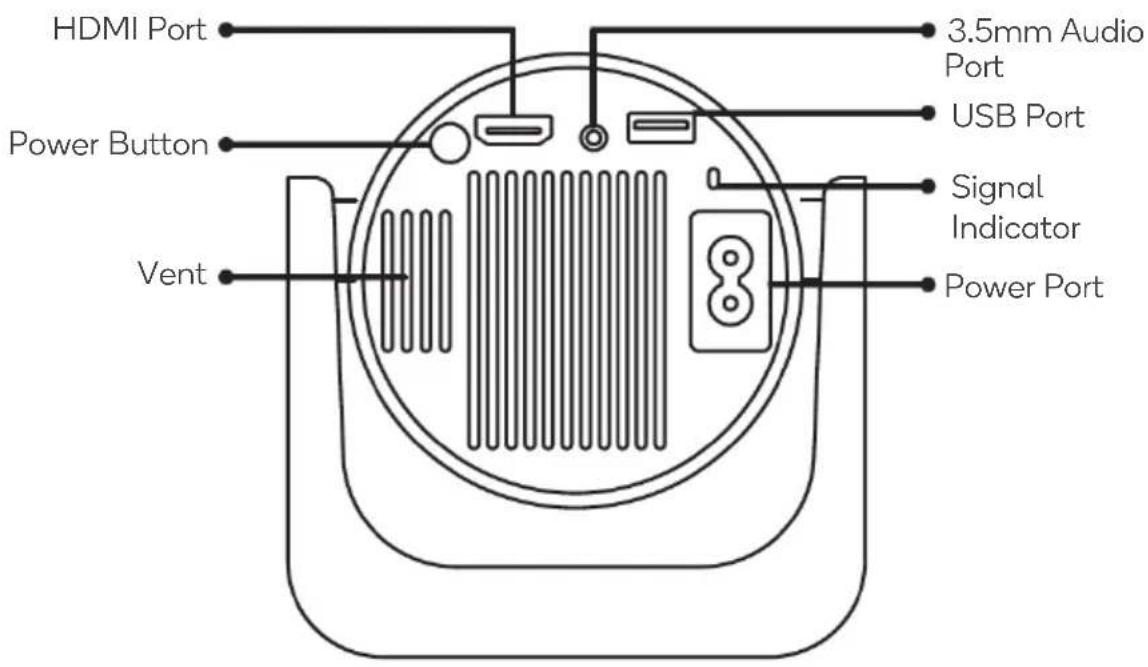
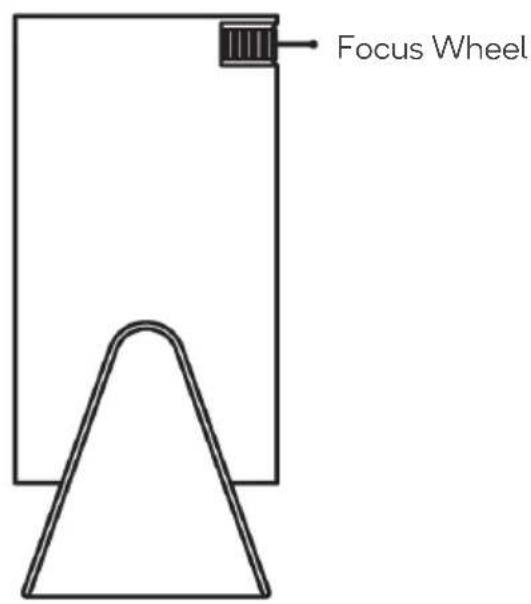
Note:
This illustration is for reference only and is subject to change.
Remote Control
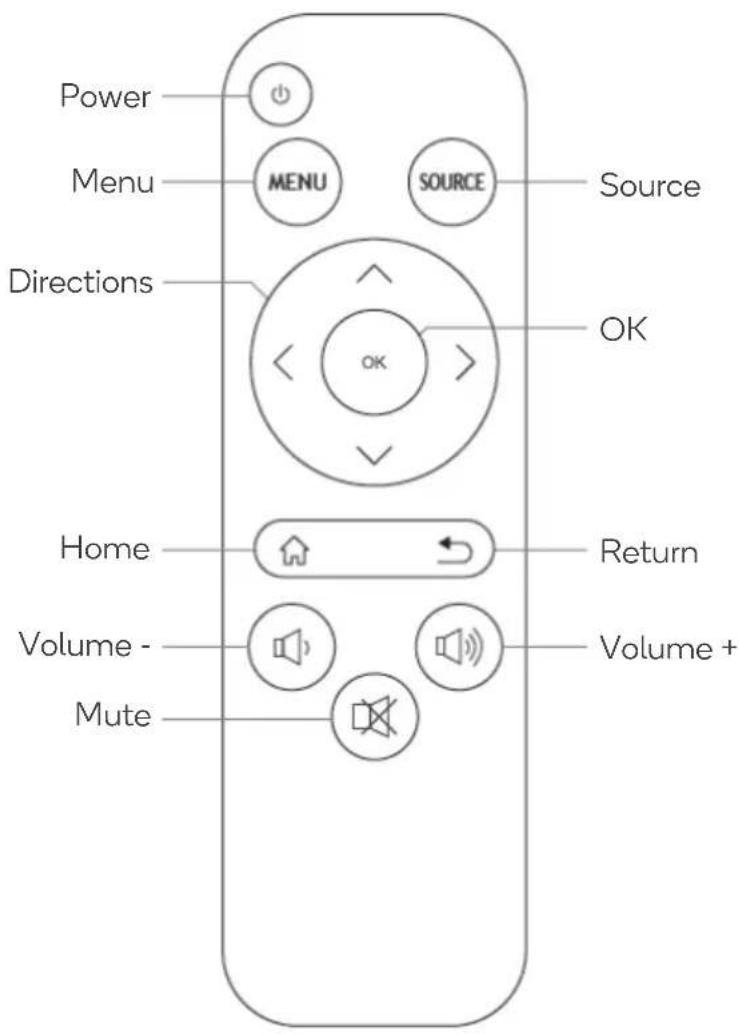
OPERATION
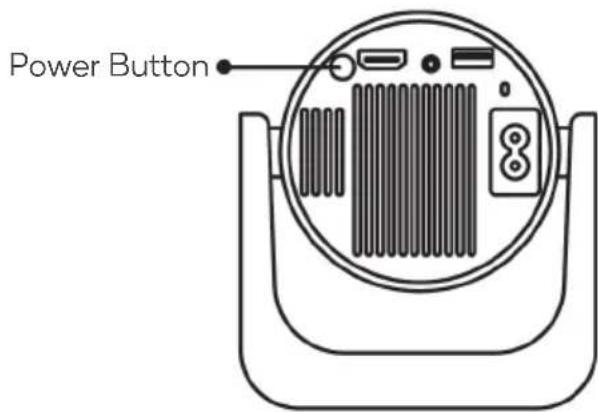
Power On/Off
To power the projector on/off, press and hold the power button on the projector or the remote control for 3 seconds.
Focus Adjustment
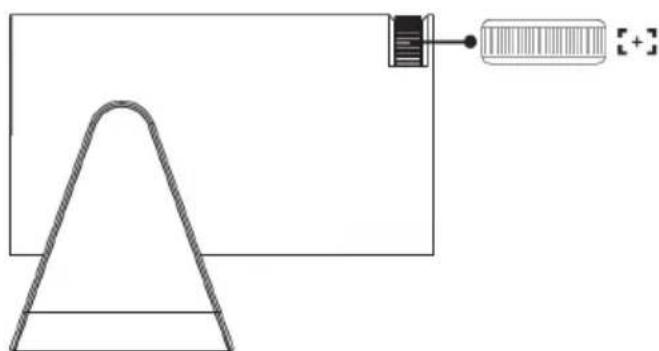
Turn the focus wheel on the back of the monitor to adjust the sharpness.
natural_image
Simple line drawing of a cone and a rectangular object with a plus symbol, no text or labels present.FUNCTIONS
Main Menu
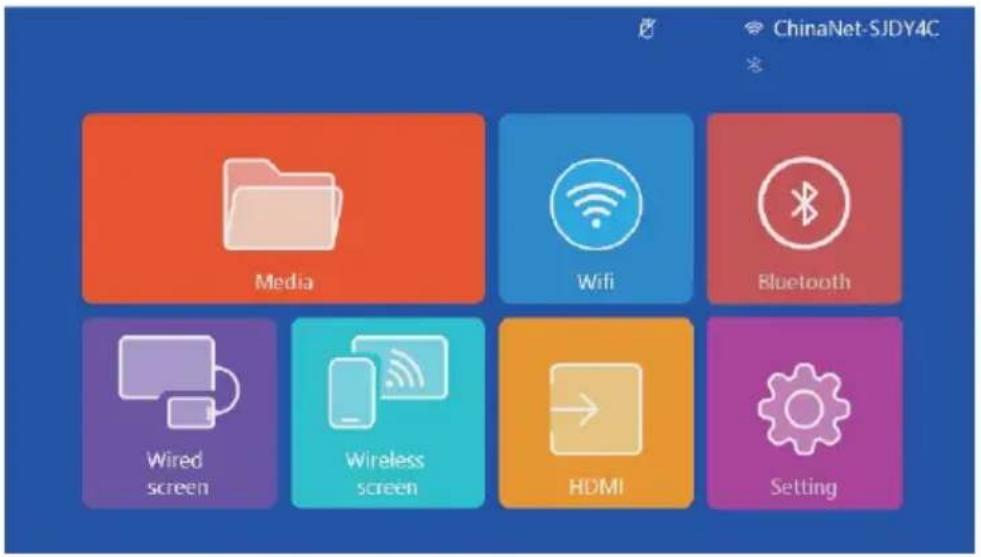
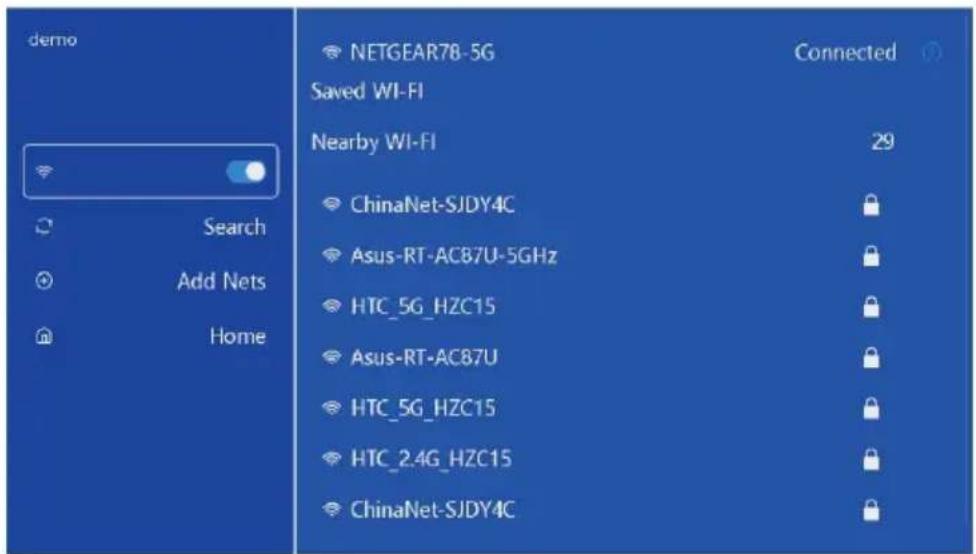
Wi-Fi
Select the Wi-Fi network and enter the password to connect.
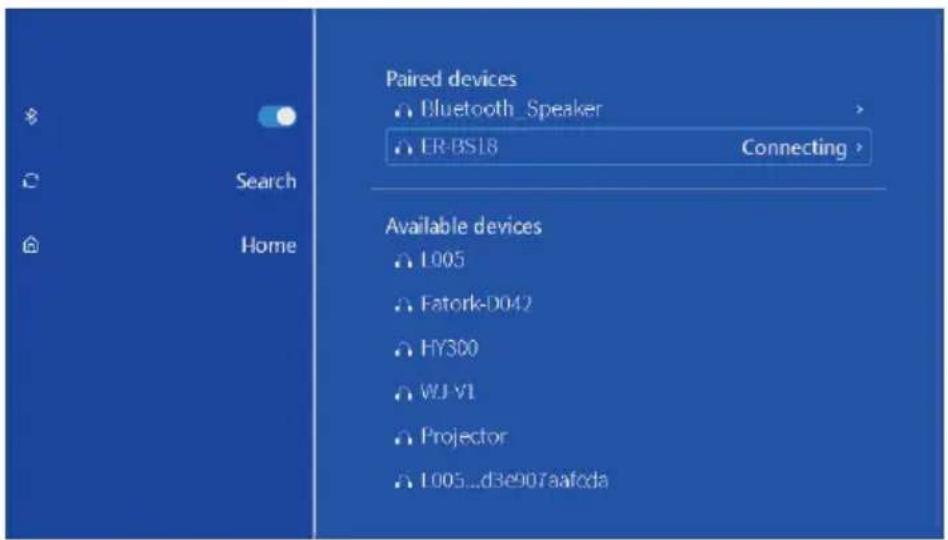
Bluetooth
Enable Bluetooth and select a device from the list to pair.
Settings
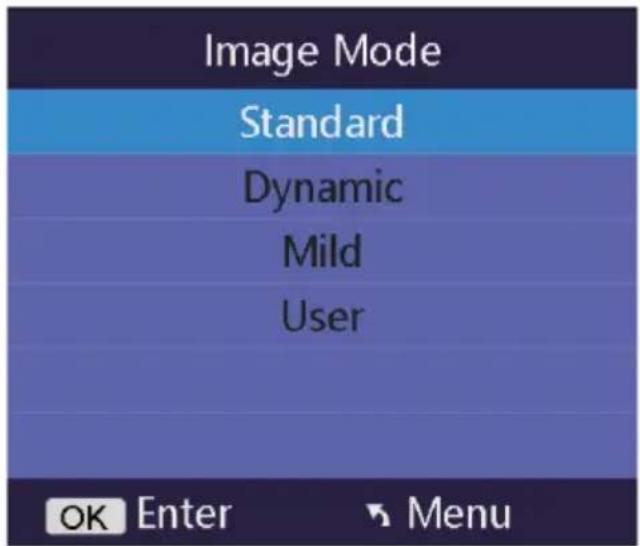
Image Mode:
- Enter the 'Picture' submenu and select 'Image Mode'.
- Select from 'Standard', 'Dynamic', 'Mild' and 'User'.
- Click 'OK' to save.
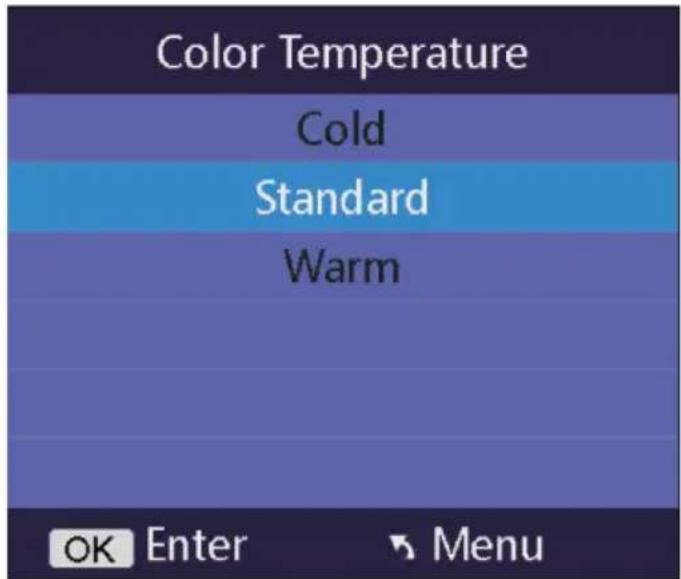
Color Temperature:
- Enter the 'Picture' submenu and select 'Color Temperature'.
- Select from 'Cold', 'Standard' and 'Warm'.
- Click 'OK' to save.
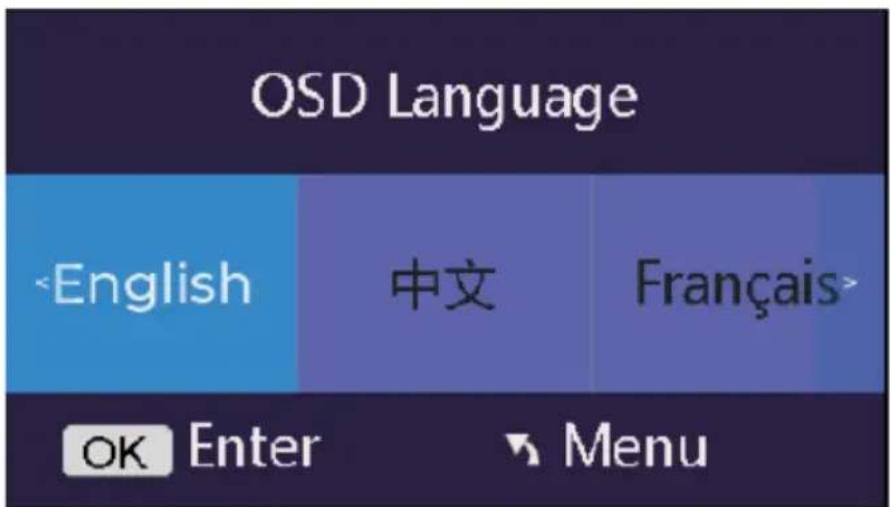
OSD Language:
- Enter the 'System' submenu and select 'OSD Language'.
- Select your language.
- Click 'OK' to save.
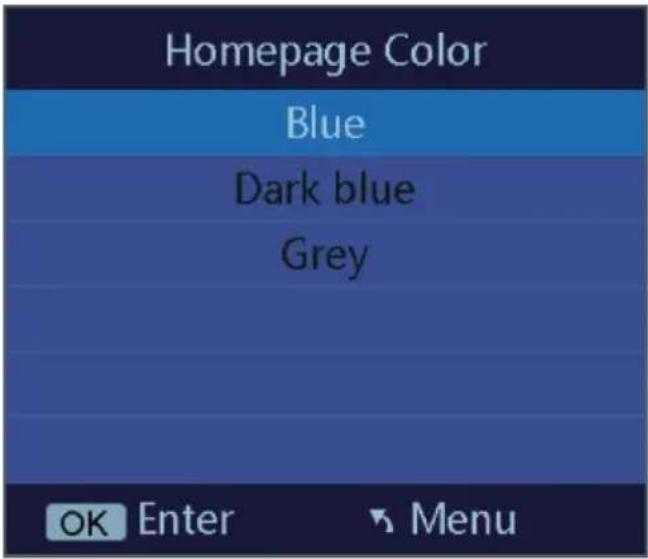
Homepage Color:
- Enter the 'System' submenu and select 'Home Background'.
- Select from 'Blue', 'Dark blue', and 'Grey'.
- Click 'OK' to save.
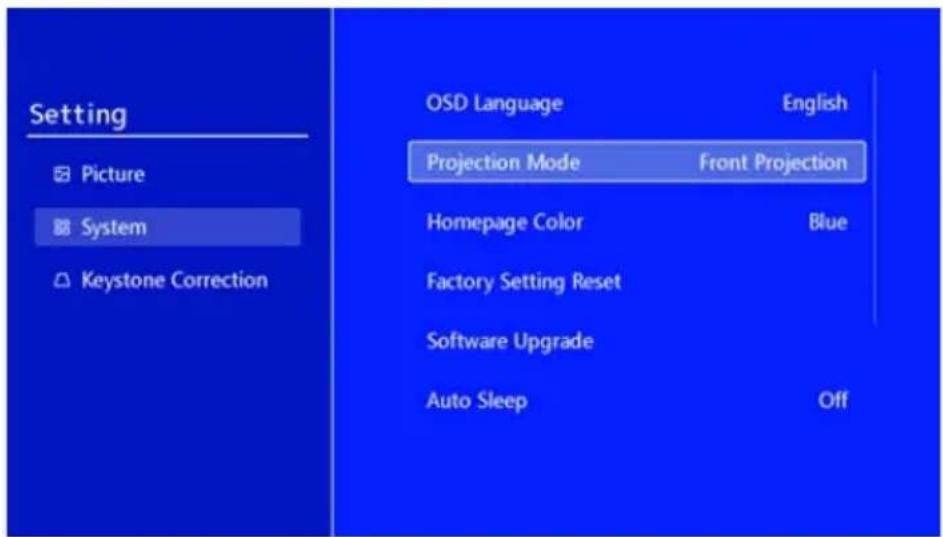
Projection Mode:
- Enter the 'System' submenu. The default projection mode is 'Front Projection'.
- To change projection mode, go to 'Projection Mode' and select from 'Front Projection', 'Front Ceiling', 'Back Table', 'Back Ceiling'.
- Click 'OK' to save.
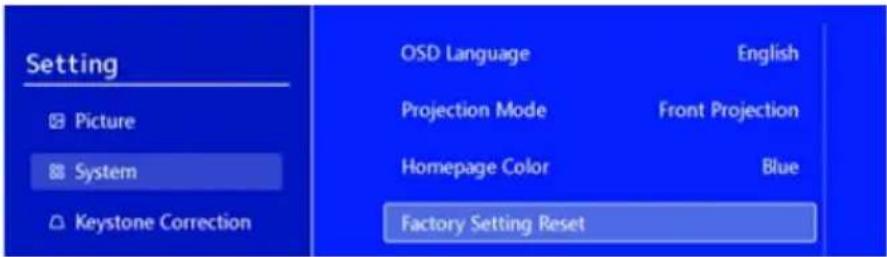
Factory Reset:
Enter the 'System' submenu and select 'Factory Setting Reset'. All data will be cleared.
Keystone Correction:
Enter the 'Keystone Correction' submenu and manually correct the keystone.
| Setting Picture System Keystone Correction | Auto Keystone Correction Manual Keystone Correction Manual Keystone Correction Manual Keystone Correction | Off + Reset - |
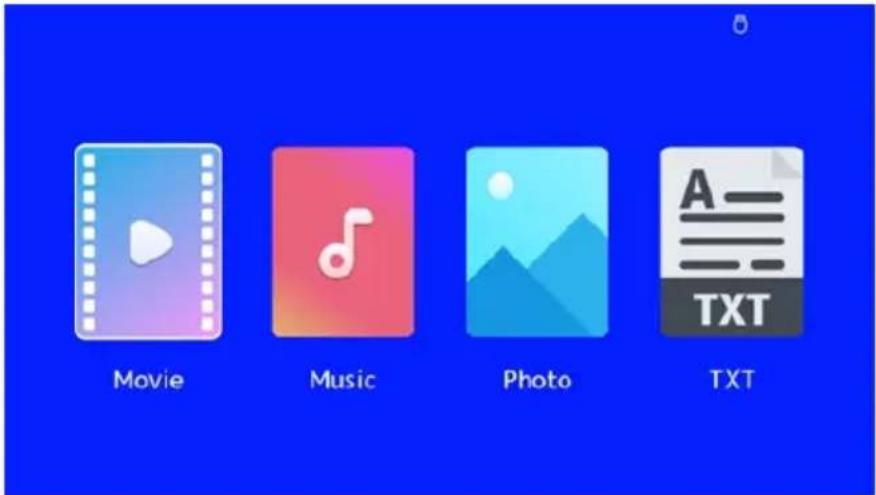
Media Player
- Insert a USB into the USB port on the projector.
- Enter the 'Media' menu.
- Select 'Movie', 'Music', 'Photo' or 'TXT' to view your media.
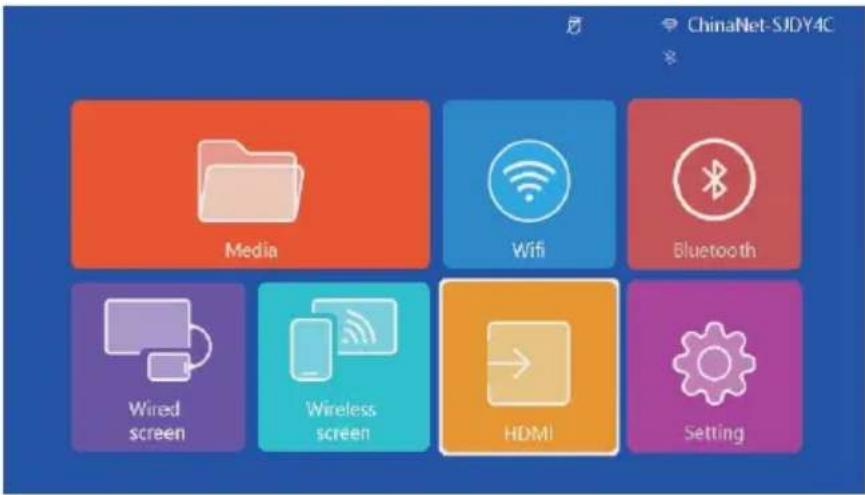
HDMI Signal
- Connect one end of an HDMI cable (not provided) to the projector and the other to an external sourcing device.
- Enter the 'HDMI' menu. The signal from the sourcing device will be transmitted to projector and cast out.
Connect to an iOS Device
iOS cable:
- Connect the lightning end of the iOS charging cable to your iOS device and the USB end to the USB port on the projector.
- Tap 'Trust' on your iOS device when the pop-up window appears.
- Enter your iOS device password.
Screen mirroring (wireless):
- Ensure the iOS device is on the same network as the projector.
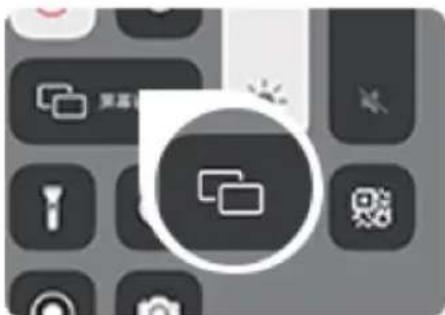
- Open your iPhone Control Centre and select Screen Mirroring.
natural_image
Close-up of a keyboard interface with two overlapping document icons, no readable text or symbols present.- Select 'Kogan L011 Projector' from the list to connect.
Connect to an Android Device (Wireless)
- Ensure the Android device and the projector are on the same Wi-Fi network.
- Open the settings menu on your Android device.
- Access your display or screen mirroring settings.
- Select 'Kogan L011 Projector' from the list of devices.
DLNA
- Ensure the DLNA device is on the same Wi-Fi network as the projector.
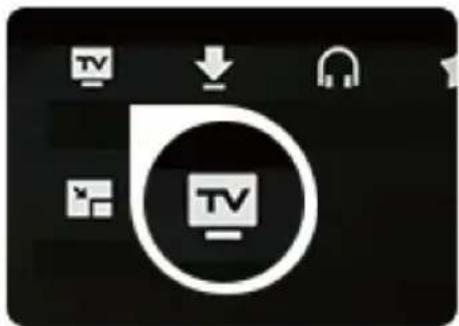
- Open the video playing app and tap the TV icon.
natural_image
Black square icon with white TV symbol and icons (no text or symbols)- Select the device name 'Kogan L011 Projector'.
NOTES
Need more information?
We hope that this user guide has given you the assistance needed for a simple set-up.
For the most up-to-date guide for your product, as well as any additional assistance you may require, head online to help.kogan.com
kogan.com