KASHDC3DFCA - Ventilateur domestique Kogan - Free user manual and instructions
Find the device manual for free KASHDC3DFCA Kogan in PDF.


| Product Type | Rechargeable 3D Oscillating DC Fan |
| Model | KASHDC3DFCA |
| Brand | Kogan |
| Fan Speeds | 10 (Levels 1-10, grouped as A-D) |
| Oscillation Angles | Horizontal: 0°, 60°, 90°, 120°, 150°; Vertical: 90° up, 25° down; 3D Mode |
| Timer | 1 to 12 hours |
| Wind Modes | Normal, Natural, Sleep, Auto, 3D Wind |
| Auto Mode Temperature | ≤20°C: Speed A; 20-24°C: Speed B; 24-29°C: Speed C; >29°C: Speed D |
| Wi-Fi Connectivity | Yes, 2.4GHz only, SmarterHome app |
| Smart Control | Compatible with Google Home and Amazon Alexa |
| Child Lock | Yes (long press Timer button) |
| Remote Control | Included with LCD display |
| Power Source | DC adapter (input 100-240V AC); Rechargeable battery |
| Battery | Rechargeable (capacity not specified) |
| Cleaning | Monthly: disassemble fan cover and blades, wipe with dry cloth |
| Safety Features | Overheating protection, child lock, stability design |
| Material | Plastic |
| Included Accessories | Remote control, AC adapter, user manual |
| Installation | Assemble poles and head, no tools required |
| Storage | Store in safe, dry location when not in use |
Frequently Asked Questions - KASHDC3DFCA Kogan
User questions about KASHDC3DFCA Kogan
0 question about this device. Answer the ones you know or ask your own.
Ask a new question about this device
Download the instructions for your Ventilateur domestique in PDF format for free! Find your manual KASHDC3DFCA - Kogan and take your electronic device back in hand. On this page are published all the documents necessary for the use of your device. KASHDC3DFCA by Kogan.
USER MANUAL KASHDC3DFCA Kogan
natural_image
Line drawing of a standard electric fan with a circular top and vertical base (no text or symbols)KOGAN SMARTERHOME™ PREMIUM RECHARGEABLE 3D OSCILLATING DC FAN
KASHDC3DFCA
Safety & Warnings 3
Overview 5
Installation 6
Operation 8
Connect to SmarterHome™App 11
Google Home Control 14
Amazon Alexa Control 17
Cleaning & Care 20
Notes 21
Important Safeguards
When using electrical appliances, basic safety precautions should always be followed to reduce the risk of fire, electric shock, and injury:
For your safety:
- Read all instructions carefully, even if you are familiar with the appliance. Retain this user guide for future reference.
- Failure to comply with the warnings listed below may result in electric shock or serious injury.
- This product should be used only in accordance with the specifications outlined in this manual. Usage other than what has been specified here may result in serious injury.
- Read and understand the complete user manual before using the fan.
- The fan is only suitable for specified power types and voltages. Do not use a power source that does not match the specifications.
- Ensure the power switch is in the off position and unplug the power cord before use.
- Place the fan on a stable dry surface away from flammable materials and water sources.
- Position the fan in a well-ventilated area to ensure proper airflow and prevent overheating.
- Before cleaning or servicing the fan, always disconnect the power and wait for it to completely stop running.
- Avoid inserting fingers or other objects into moving parts of the fan to prevent accidents.
- If any abnormal noise, odour, or other issues are noticed with the fan, immediately discontinue use and contact customer service.
- Do not place heavy objects on the fan or block airflow to ensure normal operation and performance.
- When the fan is not in use for an extended period, unplug the power cord and store it in a safe location.
- Do not expose the fan to direct sunlight or high temperatures to prevent damage or deformation.
-
When cleaning the fan, use a soft cloth or brush and avoid using corrosive or abrasive cleaners.
-
Regularly check the fan's power cord and plug for any damage and replace if necessary.
- Avoid splashing water or other liquids into the interior of the fan to prevent electric shock or circuit damage.
- When using the fan, do not obstruct the airflow or place it in confined spaces to ensure proper ventilation.
- For prolonged use of the fan, regularly inspect its operation and clean it from dust as needed.
- If the fan surface becomes wet or damp, disconnect it from the power source and allow it to completely dry before use.
- Place the fan in a location away from children and pets to prevent accidental contact or injury.
- For repairs or replacement of fan components, please contact a professional or authorized service center.
OVERVIEW
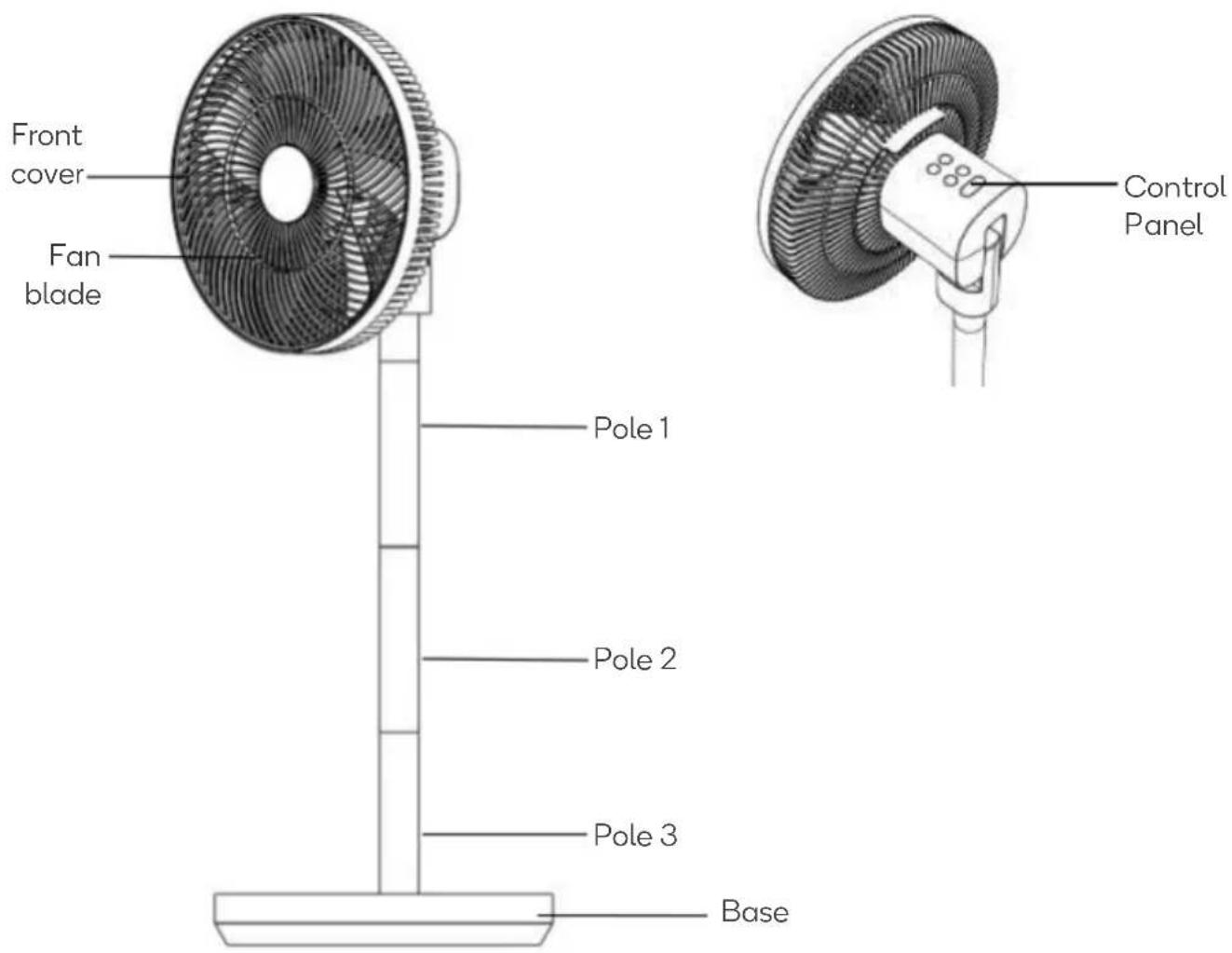
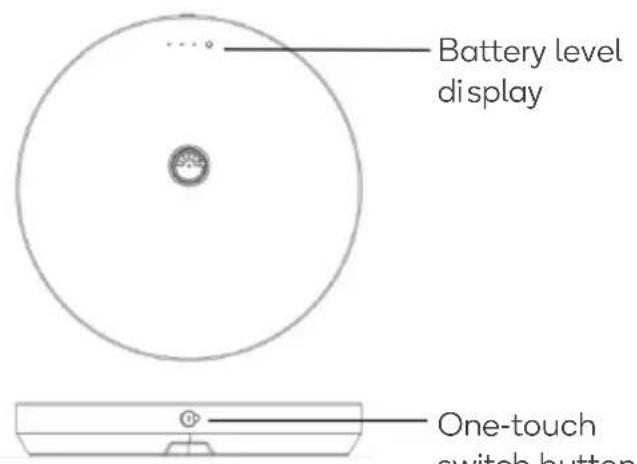
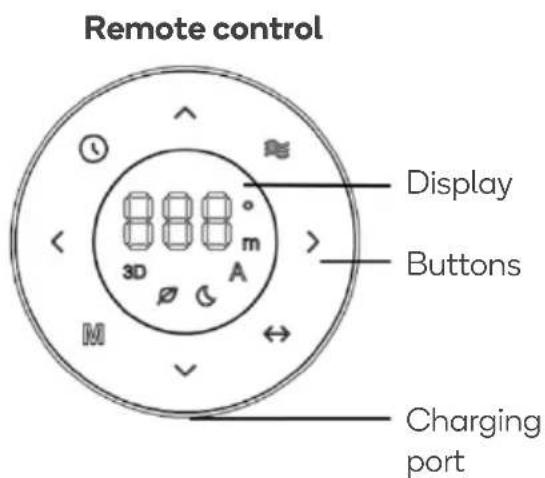
INSTALLATION
To install the fan, follow these steps. To disassemble and store, simply follow the steps in reverse:
- Take out the 3 fan poles from the bottom of the base.
- Connect and tighten the 3 poles together.
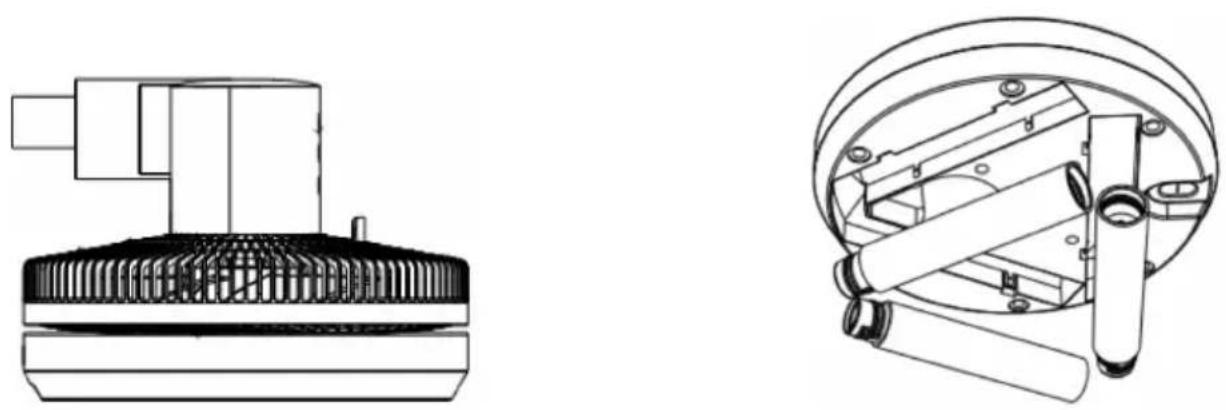
natural_image
Technical line drawings of mechanical components, one showing a cylindrical assembly and the other a multi-cylindrical housing (no text or symbols)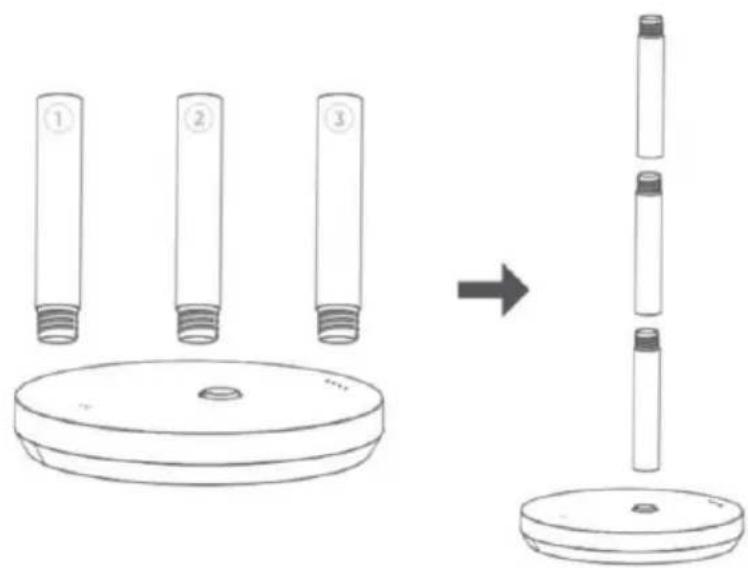
- Rotate the head clockwise to align with the threads of the poles and tighten.
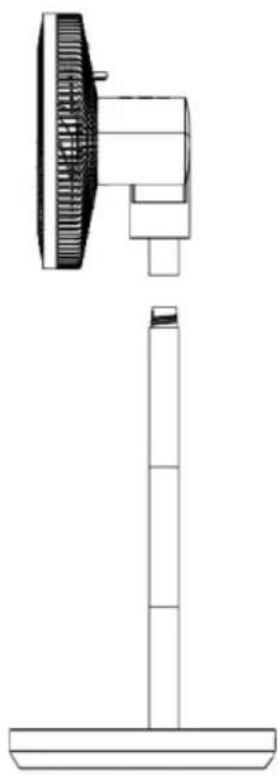
natural_image
Technical line drawing of a vertical stand with a fan-shaped top and base, no text or symbols present- Install the remote control and plug in the adapter for charging.
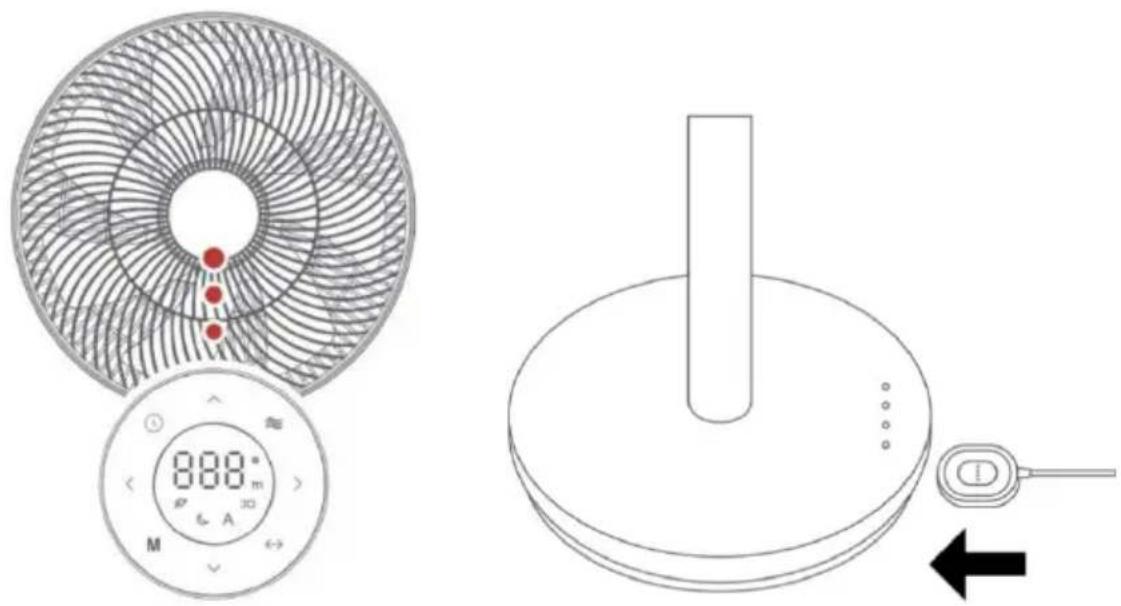
OPERATION
Control panel
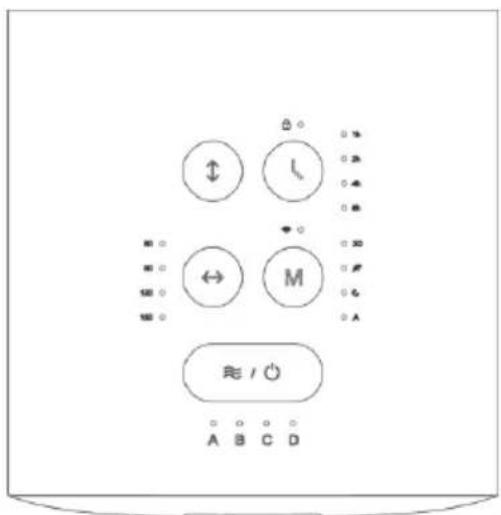
Power & Fan speed
- Short press this button to turn on the unit and long press for 3-5 seconds to turn off the unit.
- Press this button to cycle through the speed settings from A, B, C to D.
Timer & Child lock mode
- Press this button to cycle through the timer settings from 1 hour, 2 hours, 4 hours, 8 hours to 12 hours.
- Long press this button for 3-5 seconds to enter or exit the child lock mode.
Horizontal Oscillation
- Press this button to enable the fan to oscillate from left to right, cycling through swing angles of 0°, 60°, 90°, 120°, and 150°.
- Pressing this button during vertical oscillation activates 3D rotation mode.
- In 3D rotation mode, press this button to stop horizontal oscillation, exiting 3D rotation mode while maintaining vertical oscillation.
Vertical Oscillation
- Press this button to enable the fan to oscillate up and down (90° upward, 25° downward).
- Pressing this button during horizontal oscillation activates 3D rotation mode.
- In 3D rotation mode, pressing this button stops vertical oscillation, exiting 3D rotation mode while maintaining horizontal oscillation.
Mode & Wi-Fi button
- Short press this button to cycle through the blowing modes: normal wind, natural wind, sleep wind, auto wind, and 3D wind mode.
- Under auto mode, the fan speed will automatically change according to the temperature.
○ Room temperature ≤ 20°C: Speed A
Room temperature 20^ C < T ≤ 24^ C: Speed B
Room temperature 24^ < T ≤ 29^ : Speed C
○ Room temperature > 29°C: Speed D
Wi-Fi connection
Long press this button for 3-5 seconds to connect with WI-FI.
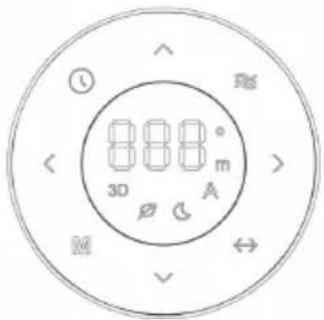

Power & Fan speed
- Short press to power on and adjust the fan speed from level 1 to level 10.
- Long press to power off.
○ A=Speed 1,2
○ B=Speed 3,4,5
○ C=Speed 6,7,8
○ D=Speed 9,10
Timer
- Press this button to cycle through the timer settings from 1 hour to 12 hours.
- The display screen on the remote control shows time in minutes, decreasing by one-minute intervals.
Mode
Short press this button to cycle through the blowing modes: normal wind, natural wind, sleep wind, auto wind, and 3D wind mode.
Blowing rotation selection button & Screen status adjustment
- Short press to activate horizontal oscillation at angles: 0^ , 60^ , 90^ , 120^ , and 150^ .
- Long press to choose the remote-control screen status: constant display (888) or auto screen off after 10 seconds (- -).
Angle selection for Horizontal Oscillation and Vertical Oscillation
Download the "Kogan SmarterHome" app from the Play Store (Android) or App Store (iOS).
Play Store (Android)
App Store (iOS)

To register:
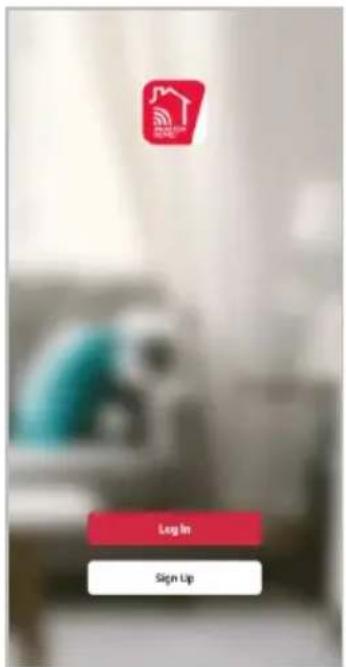
- If you already have a SmarterHome account, select 'Log In'. To register a new account, select 'Sign Up'.
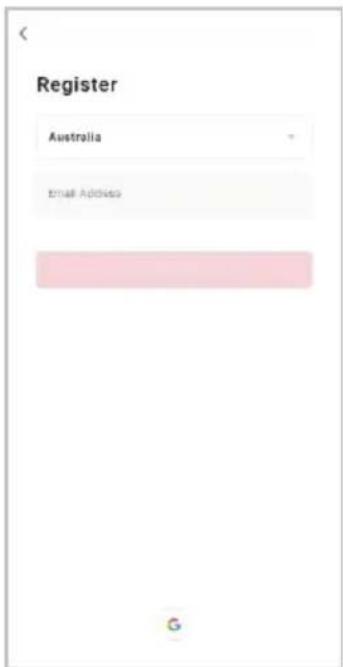
- The system will automatically recognise your country. If needed, you can manually select your country from the drop-down box. Enter your email address and tap 'Get Verification Code' to continue.
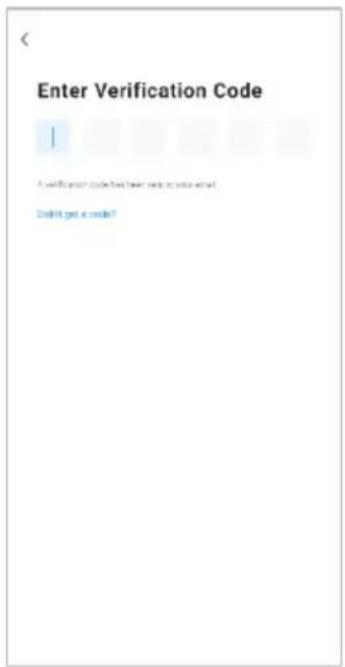
- A 6-digit code will be sent to the submitted email address. Enter this code before the one-minute timer expires.
- Continue to the next page and complete your SmarterHome profile.
Set device in pairing mode
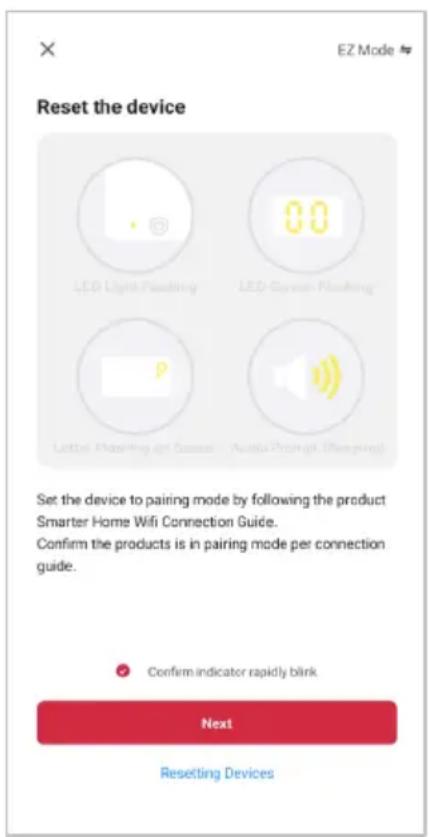
When the device is first turned on, it may automatically enter pairing mode (the Wi-Fi indicator will be flashing rapidly).
If not automatically in pairing mode when powered on, you can manually set the device in pairing mode by pressing and holding the Mode button for 5 seconds until the Wi-Fi indicator is flashing rapidly.
Add device through network
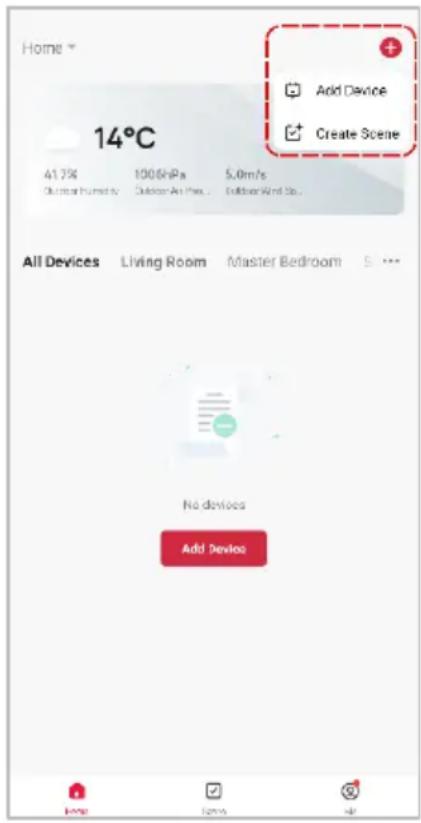
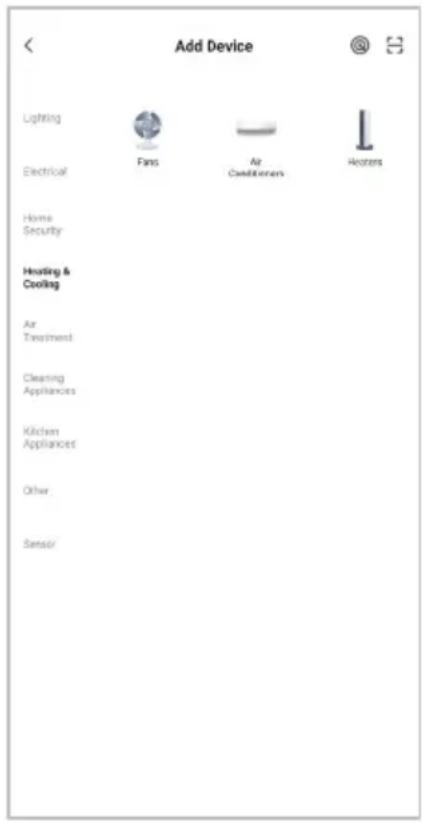
- Once registered, tap 'Add Device' on the app's home page, or the '+' in the upper right corner, to add a new device through the network.
- Select the product type from the list of options in the app (Heating & Cooling > Fans).
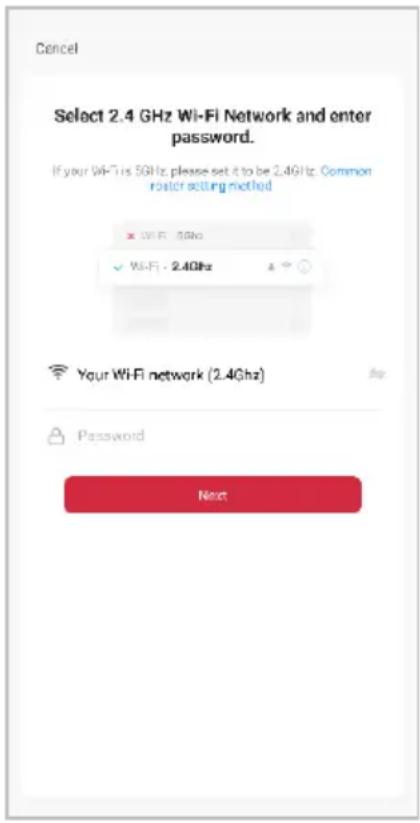
- Enter your Wi-Fi details. It is important that your SmarterHome™ device and the app are connected to the same Wi-Fi network during setup.
Notes:
- The device and the app have to use the same Wi-Fi network.
- The device is only compatible with 2.4Ghz networks.
-
Depending on the product, Steps 3 and 4 may be in opposite order.
-
Ensure that the device is in pairing mode, with Wi-Fi indicator flashing rapidly, and tap 'Confirm light is rapidly flashing' and press "Next".
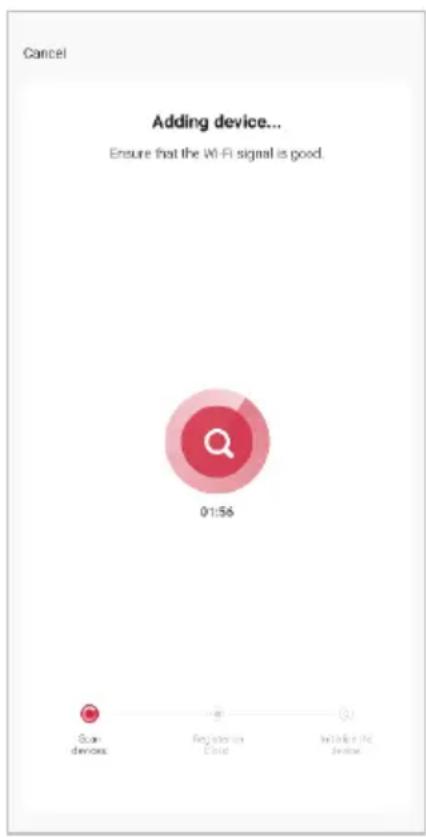
- The device will commence the pairing process and connect to the app. Ensure your Wi-Fi router, mobile phone, and the SmarterHome™ device are kept close until connection is complete.
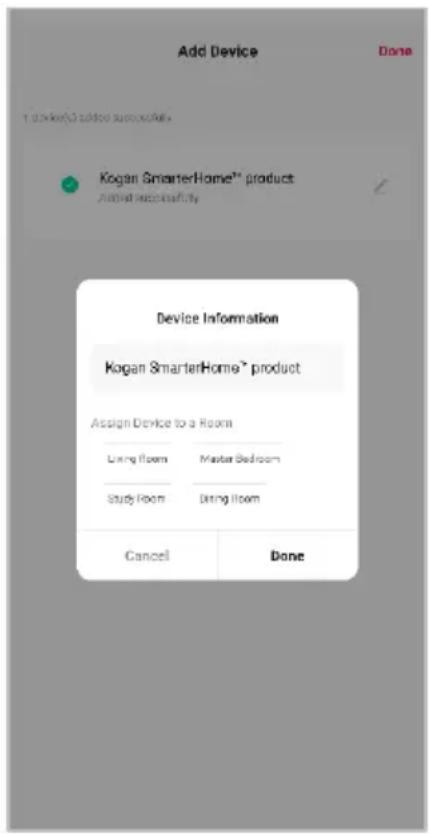
- After successfully being added, you will have the option to rename the device and assign it to a location. It will now be listed on the app's home page. Tap the device listing to enter its control page.
Note:
Once connected, you can select Create Scene from the ‘+’ in the upper right corner (or from the Scene tab) to group connected SmarterHome™ products and automate their functions.
GOOGLE HOME CONTROL
Note:
You will need to have set up a Google Home account prior to linking your Kogan SmarterHome™ device.
Adding 'SmarterHome' to the Google Home app
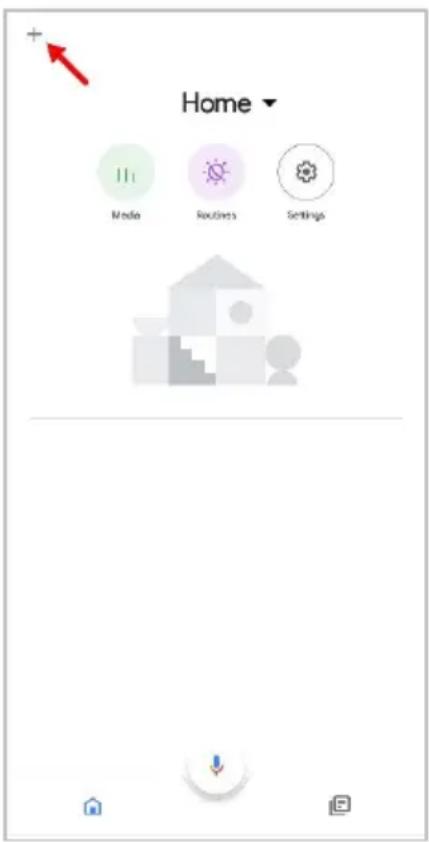
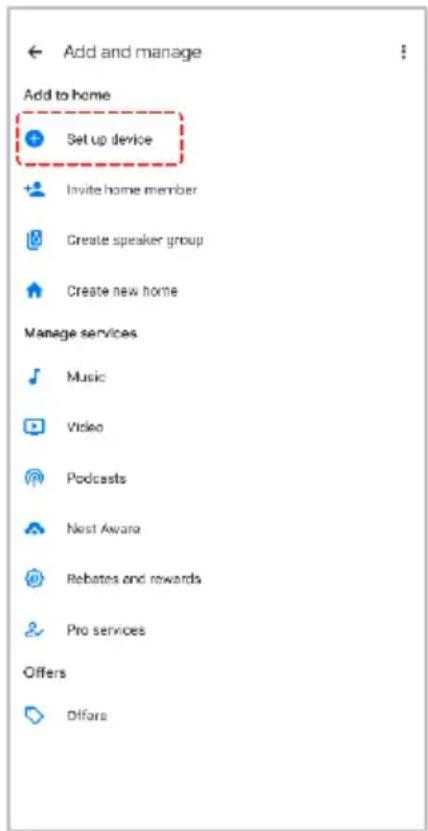
- From the home page of the Google Home app, select the ‘+’ icon (top left corner, see arrow in the below screenshot) to access the ‘Add and manage’ page.
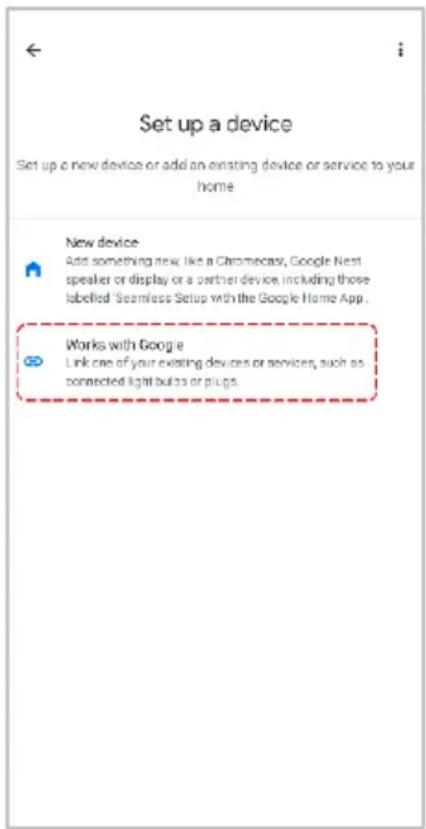
- Select 'Set up device', then select the 'Works with Google' option.
- Select the search bar and type 'Smarter Home' to locate the Kogan SmarterHome™ service.
- From here, you will be prompted to sign into your SmarterHome™ account using either your email or mobile phone number, depending on which method you used to register your account.
- Select 'Kogan SmarterHome™' from the app options.
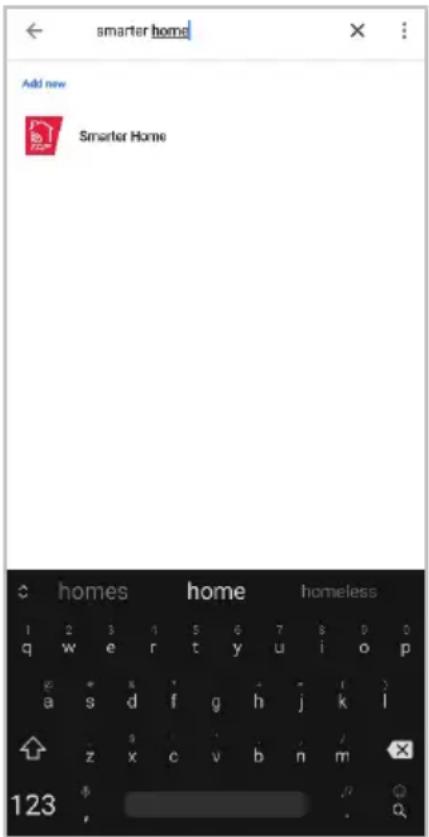
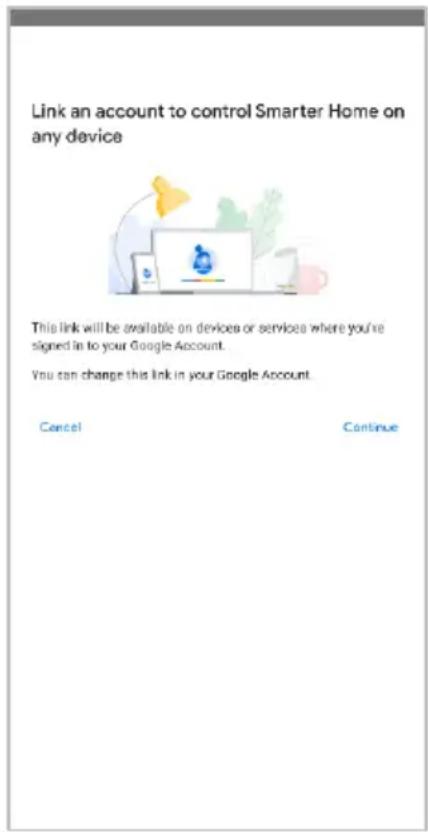
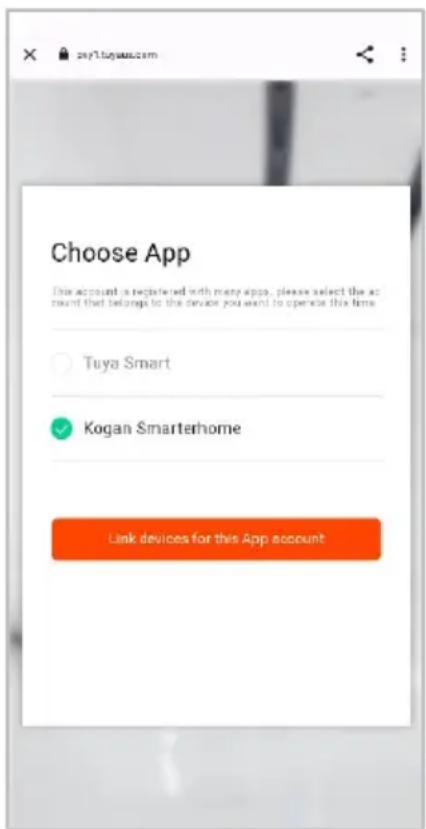
- Tap 'Authorise' to grant Google permission to access the SmarterHome™ app and your devices.
- Once connected, the app will display any compatible devices linked to your SmarterHome™ account. From here you can assign them to rooms and set up any routines. Tap on any of the devices to view a list of available commands.
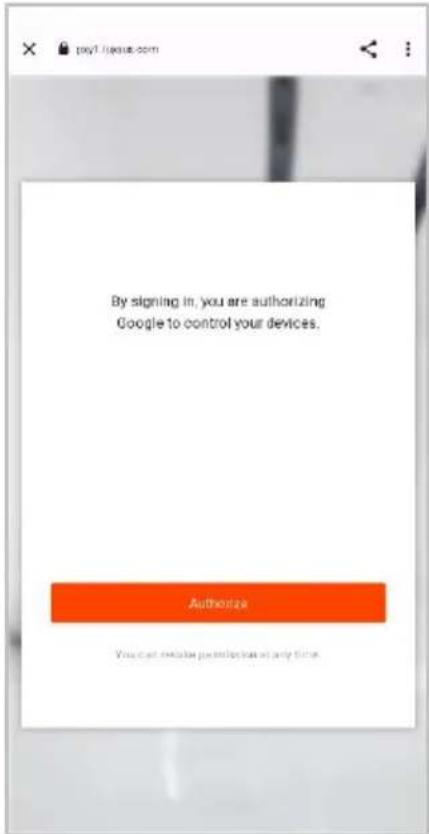
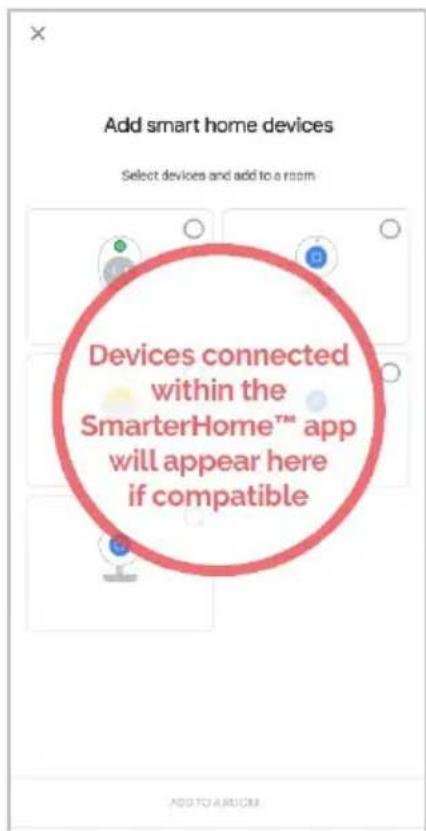
Note:
Please note that Google Home can only control the base/core functions of any compatible SmarterHome™ devices. To make full use of this product's smart functionality, please use the Kogan SmarterHome™ app.
AMAZON ALEXA CONTROL
Note:
You will need to have set up an Alexa account prior to linking your Kogan SmarterHome™ device.
Adding 'SmarterHome' to the Alexa app
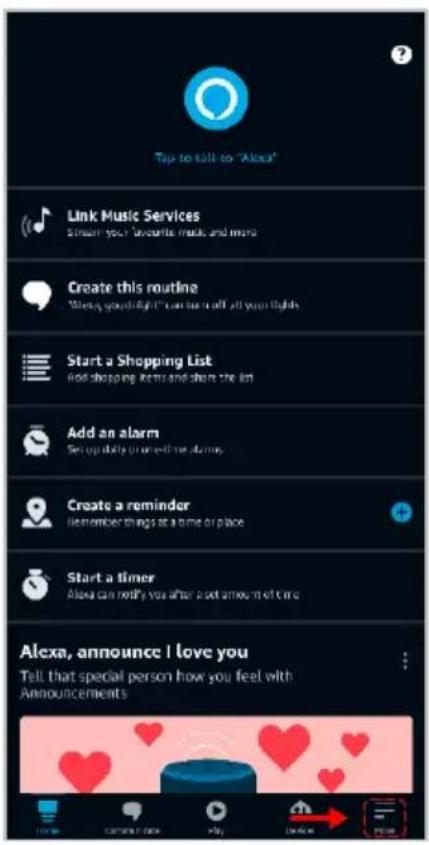
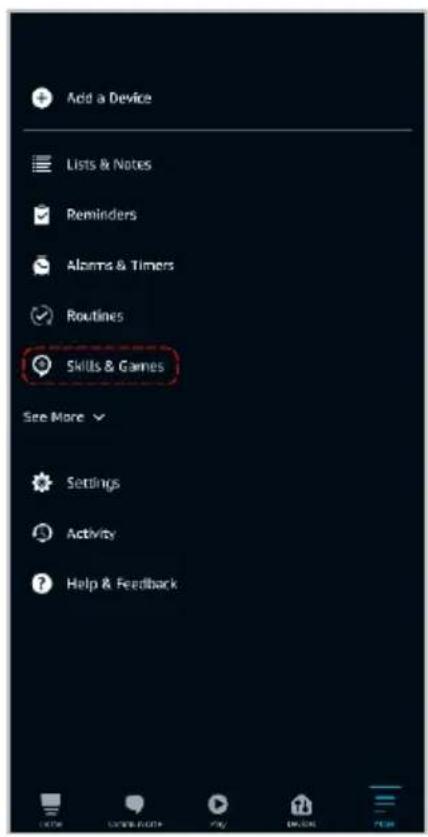
- From the home page of the Alexa app, select the ' ’ icon in the bottom-right and select 'Skills & Games' from the sidebar.
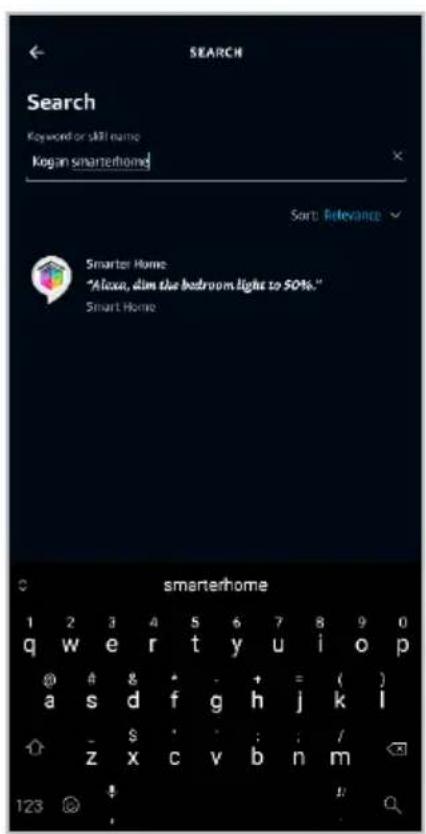
- Select the search bar and type 'Smarter Home' to locate the Kogan SmarterHome™ skill.
- Tap 'Enable to Use' to add the Kogan SmarterHome™ skill to Alexa.
- From here, you will be prompted to sign into your SmarterHome™ account using either your email or mobile phone number, depending on which method you used to register your account.
- Select 'Kogan SmarterHome™' from the app options.
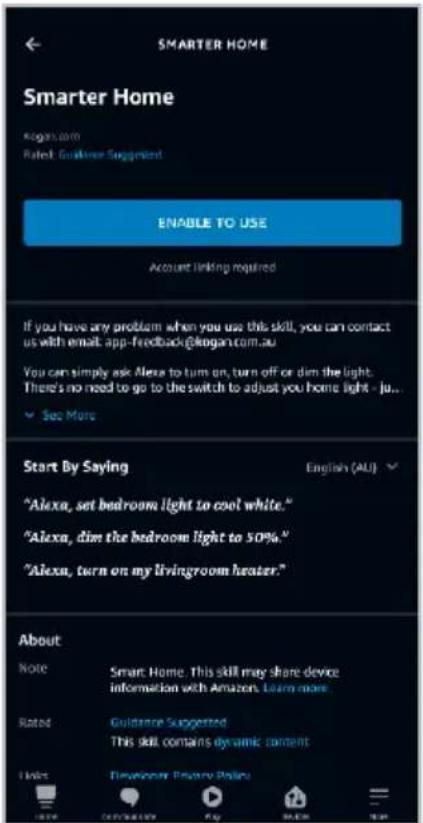
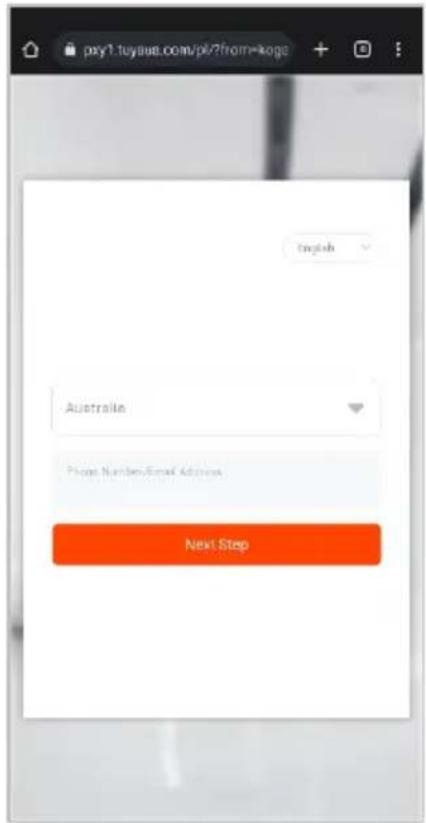
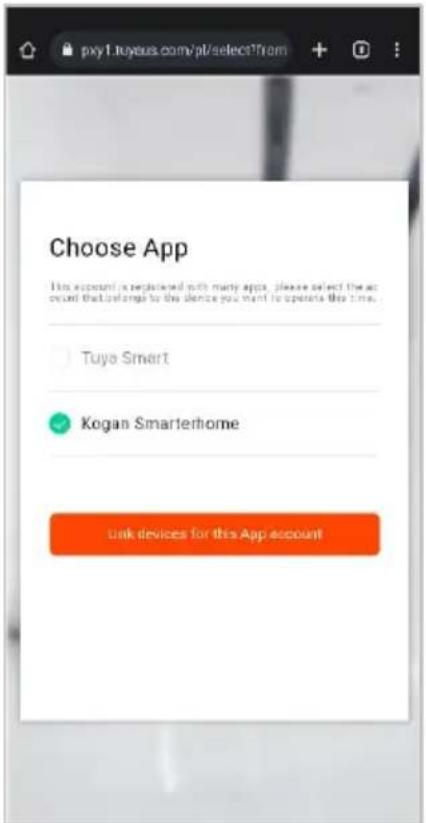
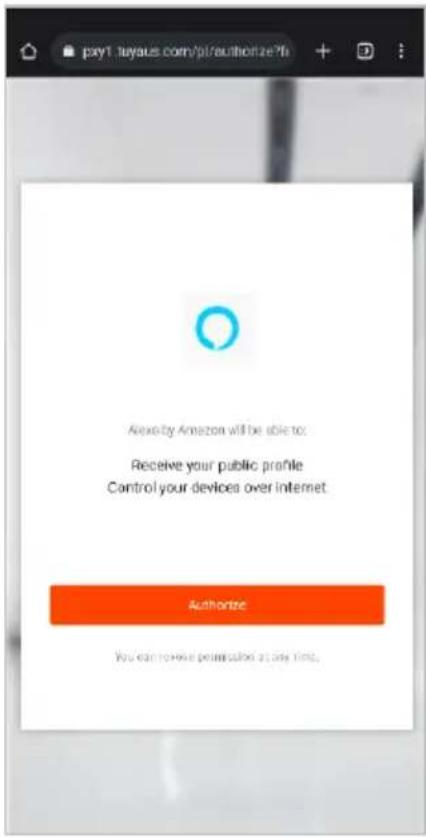
- Tap 'Authorise' to grant Alexa permission to access the SmarterHome™ app and your devices.
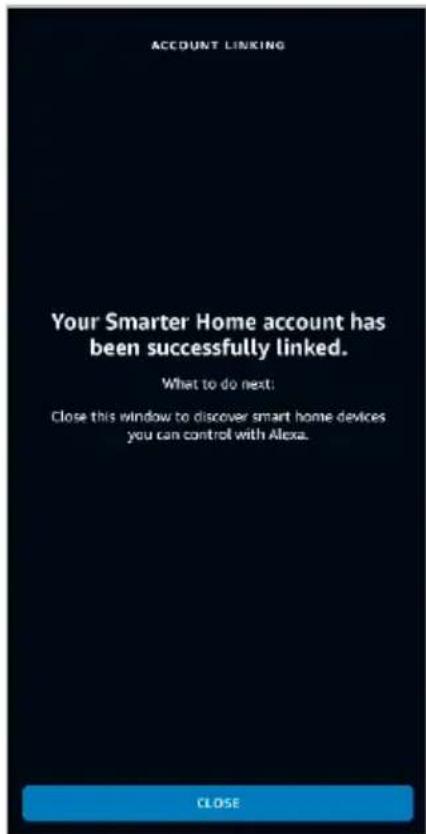
- Once connected, the app will perform a search and display the devices linked to your SmarterHome™ account. When your devices have successfully connected to the Alexa app, you will be able to control your Kogan SmarterHome™ devices via Alexa's voice commands.
Note:
Please note that Alexa can only control the base/core functions of any compatible SmarterHome™ devices. To make full use of this product's smart functionality, please use the Kogan SmarterHome™ app.
CLEANINIG & CARE
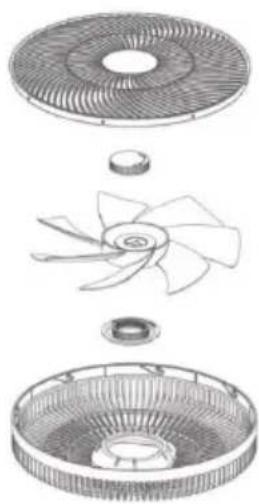
- Use a screwdriver to loosen the bottom screws and remove the fan cover.
- Rotate and lift the front cover to detach it.
• Sequentially disassemble the nut, fan blade, and back cover.
- Wipe or rinse the disassembled parts and ensure they are completely dry before reassembly and use.
- Clean the remaining fan components with a dry cloth, avoiding the use of water.
- Clean the fan at least once every month. More frequent cleaning may be required depending on environmental conditions.
natural_image
Exploded view diagram of a mechanical fan assembly showing internal blades and housing (no text or labels)Label for Recording the Filter Replacement Date:
Enter the installation date of the new filter:
Day: ____
Month:
Year:
Enter the installation date of the new filter:
Day:
Month:
Year:
Enter the installation date of the new filter:
Day:
Month:
Year:
NOTES
Need more information?
We hope that this user guide has given you the assistance needed for a simple set-up.
For the most up-to-date guide for your product, as well as any additional assistance you may require, head online to help.kogan.com
kogan.com
- KOGAN SMARTERHOME™ PREMIUM RECHARGEABLE 3D OSCILLATING DC FAN
- Important Safeguards
- For your safety:
- OVERVIEW
- INSTALLATION
- OPERATION
- Control panel
- Power & Fan speed
- Timer & Child lock mode
- Horizontal Oscillation
- Vertical Oscillation
- Mode & Wi-Fi button
- Wi-Fi connection
- Timer
- Mode
- Blowing rotation selection button & Screen status adjustment
- Angle selection for Horizontal Oscillation and Vertical Oscillation
- To register:
- Set device in pairing mode
- Add device through network
- Notes:
- Note:
- GOOGLE HOME CONTROL
- Adding 'SmarterHome' to the Google Home app
- AMAZON ALEXA CONTROL
- Adding 'SmarterHome' to the Alexa app
- CLEANINIG & CARE
- Label for Recording the Filter Replacement Date:
- NOTES
Brand : Kogan
Model : KASHDC3DFCA
Category : Ventilateur domestique