M173WA - Screen LG - Free user manual and instructions
Find the device manual for free M173WA LG in PDF.


User questions about M173WA LG
0 question about this device. Answer the ones you know or ask your own.
Ask a new question about this device
Download the instructions for your Screen in PDF format for free! Find your manual M173WA - LG and take your electronic device back in hand. On this page are published all the documents necessary for the use of your device. M173WA by LG.
USER MANUAL M173WA LG
Installation and Connection
| Safety Precautions | A1 |
| Accessories | A4 |
| Before connecting to the PC | A5 |
| Important Product Features | A7 |
| Name and Function of the Parts | A8 |
| Connecting to External Devices | A17 |
| When connecting to your PC | A17 |
| When watching VCR / DVD | A20 |
| When watching TV | A22 |
| To arrange the cables | A23 |
Input Selection and Tracking
| Selecting and Adjusting the Screen | A24 |
| Name of the Buttons in the screen Adjustment Unit | A24 |
| OSD (On Screen Display) menu | A26 |
| How to adjust the OSD (On Screen Display) screen. | A27 |
| Set/Selects the channel when using the TV | A28 |
| Adjusts screen brightness, contrast and colour that you prefer | A30 |
| Adjusting the audio function | A31 |
| Adjusting the timer function | A32 |
| Adjusts the screen status according to the circumstances | A33 |
| Adjusting Screen Clock/Phase and Position | A34 |
| Adjusting PIP/POP/PBP Mode (Multiple Screen) Functions | A35 |
Miscellaneous
| Troubleshooting | A37 |
| Specifications | A40 |

is a trademark of SRS Labs, Inc. technology is incorporated under license from SRS Labs, Inc.
Safety Precautions
Please read these safety precautions carefully before using the product.

Warning
If you ignore the warning message, you may be seriously injured or there is a possibility of accident or death.

Caution
If you ignore the caution message, you may be slightly injured or the product may be damaged

Precautions in installing the Product

Warning
- Keep away from heat sources like electrical heaters.
- Electrical shock, fire, malfunction or deformation may occur.
- Keep the packing anti-moisture material or vinyl packing out of the reach of children.
- Anti-moisture material is harmful if swallowed. If swallowed by mistake, force the patient to vomit and visit the nearest hospital. Additionally, vinyl packing can cause suffocation. Keep it out of the reach of children.
■ Do not put heavy objects on the product or sit upon it.
- If the product collapses or is dropped, you may be injured. Children must pay particular attention.
■ Do not leave the power or signal cable unattended on the pathway.
- The passerby can falter, which can cause electrical shock, fire, product breakdown or injury.
■ Install the product in a neat and dry place.
- Dust or moisture can cause electrical shock, fire or product damage.
■ If you can smell smoke or other odors or hear a strange sound unplug the power cord and contact the service center.
- If you continue to use without taking proper measures, electrical shock or fire can occur.
■ If you dropped the product or the case is broken, turn off the product and unplug the power cord.
- If you continue to use without taking proper measures, electrical shock or fire can occur. Contact the service center.
■ Do not drop metallic objects such as coins, hair pins, chopsticks or wire into the product, or inflammable objects such as paper and matches. Children must pay particular attention.
- Electrical shock, fire or injury can occur. If a foreign object is dropped into the product, unplug the power cord and contact the service center.

Caution
■ Make sure the product ventilation hole is not blocked. Install the product in a suitably wide place (more than 10cm from the wall)
- If you install the product too close to the wall, it may be deformed or fire can break out due to internal heat.
■ Do not block the ventilation hole of the product by a tablecloth or curtain.
- The product can be deformed or fire can break out due to overheating inside the product.
■ Install the product on a flat and stable place that has no risk of dropping the product.
- If the product is dropped, you may be injured or the product may be broken.
■ Install the product where no EMI occurs.
- Keep the product away from direct sunlight.
- The product can be damaged.

Electrical Power Related Precautions
Warning
■ Make sure to connect the power cable to the grounded current. - You may be electrocuted or injured.
■ Use the rated voltage only. - The product can be damaged, or you may be electrocuted.
■ During a thunder or lightning storm, unplug the power cable or signal cable. - You may be electrocuted or a fire can break out.
- Do not connect several extension cords, electrical appliances or electrical heaters to a single outlet. Use a power bar with a grounding terminal designed for exclusive use with the computer. - A fire can break out due to overheating.
- Do not touch the power plug with wet hands. Additionally, if the cord pin is wet or covered with dust, dry the power plug completely or wipe dust off. - You may be electrocuted due to excess moisture.
If you don't intend to use the product for a long time, unplug the power cable from the product. - Covering dust can cause a fire, or insulation deterioration can cause electric leakage, electric shock or fire.
- Fix the power cable completely. - If the power cable is not fixed completely, a fire can break out.
- Hold the plug when pulling out the power cable. Do not bend the power cord with excessive force or put heavy objects on the power cord. - The power line can be damaged, which may cause electric shock or fire.
- Do not insert a conductor (like a metal chopstick) into one end of the power cable while the other end is connected to the input terminal on the wall. Additionally, do not touch the power cable right after plugging into the wall input terminal. - You may be electrocuted.
■ The power supply cord is used as the main disconnection device. Ensure that the socket-outlet is easily accessible after installation.

Caution
■ Do not unplug the power cord while the product is in use.
- Electrical shock can damage the product.

Precautions in Moving the Product
Warning
■ Make sure to turn off the product.
- You may be electrocuted or the product can be damaged.
■ Make sure to remove all cables before moving the product. - You may be electrocuted or the product can be damaged.
Safety Precautions
Caution
■ Do not shock the product when moving it.
- You may be electrocuted or the product can be damaged
■ Do not dispose the product-packing box. Use it when you move.
■ Make the panel face forward and hold it with both hands to move.
- If you drop the product, the damaged product can cause electric shock or fire. Contact with the service center for repair.
Precautions in Using the Product
Warning
■ Do not disassemble, repair or modify the product at your own discretion.
- Fire or electric shock accident can occur.
- Contact the service center for check, calibration or repair.
■ Do not spray water on the product or scrub with an inflammable substance (thinner or benzene). Fire or electric shock accident can occur
- Keep the product away from water.
- Fire or electric shock accident can occur.
Caution
■ Do not put or store inflammable substances near the product.
- There is a danger of explosion or fire due to careless handling of the inflammable substances.
■ When cleaning the brown tube surface, unplug the power cord and scrub with soft cloth to prevent scratching. Do not clean with a wet cloth.
- The water can sink into the product, which can cause electric shock or serious malfunction.
■ Take a rest from time to time to protect your vision.
- Keep the product clean at all times.
■ Take a comfortable and natural position when working with a product to relax the muscles.
■ Take a regular break when working with a product for a long time.
■ Do not press strongly upon the panel with a hand or sharp object such as nail, pencil or pen, or make a scratch on it.
- Keep the proper distance from the product. - Your vision may be impaired if you look at the product too closely.
■ Set the appropriate resolution and clock by referring to the User's Guide. - Your vision can be impaired.
■ Use authorized detergent only when cleaning the product. (Do not use benzene, thinner or alcohol.) - Product can be deformed.
On Disposal
■ The fluorescent lamp used in this product contains a small amount of mercury.
■ Do not dispose of this product with general household waste.
Disposal of this product must be carried out in accordance to the regulations of your local authority.
Accessories
Please check the accessories in the product package.
* The product and the accessories can be different from the figures shown here.
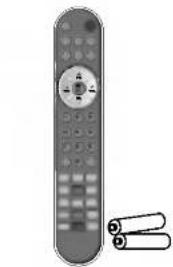
natural_image
Exterior view of a remote control with two cylindrical batteries beside it (no text or symbols visible)Remote Control /Batteries

Speaker Cover (2ea) /Picker

Power Cord

User's Guide / Drive CD/Cards
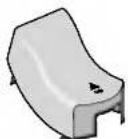
Cable Cap
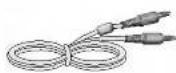
Audio Cable (PC)
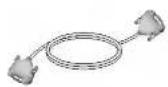
D-Sub Signal Cable
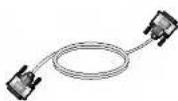
DVI-D Signal Cable

USB Cable
(only applies to the
20.1 inch product)

Inserting batteries into remote control.

- Take out the battery cap.
- Insert the batteries with correct polarity (+/-).
-
Close the battery cap.
-
You can use a remote control 7 meter distance and 30 degree (left/right) within the receiving unit scope.
- Dispose of used batteries in the recycle bin to prevent environmental pollution.
Before Connecting to the PC
- Before setting up the product, ensure that the power to the product, the computer system, and other attached devices is turned off.
Unfolding the stand base
1 Place the product with its front facing downward on a soft cloth.

natural_image
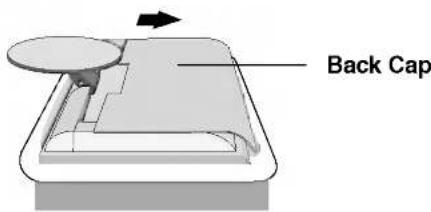
Illustration of a rolled-up document with a circular object on top (no text or symbols)② Push up the back cap.
text_image
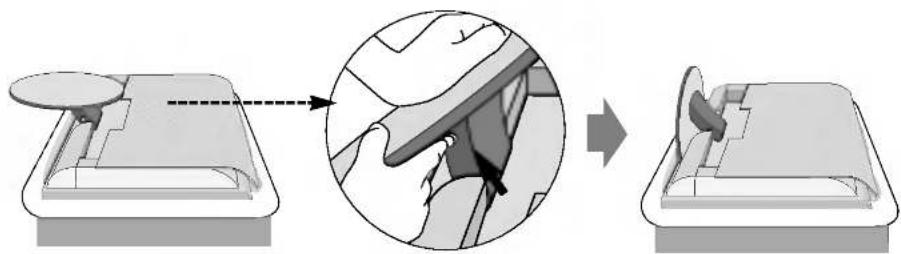
Back Cap③ Hold down the release button inside the stand and strongly pull out the stand with your two hands.
natural_image
Diagram showing a car interior with a magnified view of the seatbelt being adjusted (no text or symbols present)The stand won't move if you don't press release button. If the release button does not operate easily, fold the stand a bit more, and then press the release button.
- Install the speaker covers on the both sides of the speaker for protection. Installing and removing the cover on/from the speaker

text_image
speaker cover Installing the speaker cover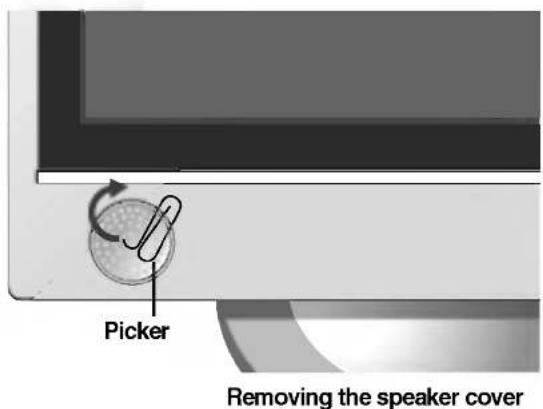
text_image
Picker Removing the speaker coverImportant Product Features
Swapping Function
You can swap the main screen and the sub-screen when the PIP/POP/PBP function is used.
Spectacle Function
The screen center area is close to a 4:3 ratio and the outskirt area is expanded by more than Spectacle. Therefore, the different screen ratio is applied for each area. Because most ordinary people concentrate their focus on the screen center, a non-linear ratio increase at the outskirt area is not recognized, which makes it possible to watch 4:3 TV screen with a wide screen. However, the spectacle function is useful in watching TV or motion pictures but is not suitable for the PC environment in which you perform graphic or document work.
Sleep Function
When watching AV/TV – The product will be automatically turned off after a certain period of time. Press this button repetitively to select an appropriate time duration.
Media Manager (only 20.1 inch)
With this card, you are free to watch pictures and video, and enjoy listening to music without turning on your computer.
Name and Function of the Parts

Name of the Remote Control Buttons
Remote Control

text_image
MUTE SOURCE TV/AV I/II MENU EXIT */SSM PR OK VOL VOL PR - 1 2 + 4 5 6 7 8 9 AUTO SWAP 0 TEXT SLEEP MODE UPDATE LIST TIMEMUTE
Use the this button so that no sound comes out temporarily.
POWER
Able to power On/Off.
SOURCE

text_image
INPUT SELECT TV Audio Audio Video Prints Dn1 • Dash HeaderIf you press the button once, the following Input Signal Window will appear. Select the signal type you want using the ▼▲ button.
* Card Reader : Optional
TV/AV : TV/AV button
TV > AV1 > AV2 > S-Video
I/II : Bilingual choice and sound mode selection Press this button
[TV]
■ to switch from Stereo to Mono sound in case of stereo transmission, or from Nicam Stereo to Nicam Mono, in case of digital transmission.
■ to switch from Nicam Dual I to Nicam Dual II or Nicam Dual I+II in case of Nicam Dual transmission.
■ to choose between Dual I, Dual II or Dual I+II in case of bilingual transmission:
Dual I sends the primary broadcast language to the loudspeakers;
Dual II sends the secondary broadcast language to the loudspeakers.
Dual I+II sends a separate language to each loudspeakers.
[AV]
In AV mode, you can select output sound for the left and right loudspeakers.
Repeatedly press the I/II button to select the sound output.
■ L+L : Audio signal from audio L input is sent to left and right loud-speakers.
■ L+R : Audio signal from audio L input is sent to left loud-speaker and audio signal from audio R input is sent to right loud-speaker.
■ R+R : Audio signal from audio R input is sent to left and right loud- speakers.
■ NOTE : In case of weak stereo sound signals, with stereo or Nicam stereo transmission, select mono reception.
Name and Function of the Parts

text_image
MUTE SOURCE TV/AV 1/II MENU EXIT */SSM PR OK VOL VOL PR 1 2 3 4 5 6 7 8 9 AUTO 0 SWAP TEXT SLEEP MODE UPDATE LIST TIMEMENU
Use this button to enter the On Screen Display menu.
EXIT
Use this button to exit the On Screen Display menu.
\*/SSM (Sound Status Memory)
Use this button to select the sound tone. Press repeatedly to select Flat, Music, Movie, Speech, User sound tone.
PR ( ▲▼ ) Buttons
Able to change channel.
VOL (◀ ▶) Buttons
Able to adjust sound.
OK Button
Use when functional adjustment is completed.
Number buttons
Able to directly select and change channel.
AUTO Button
- This function is to automatically search the available channels. It is available to the TV signal inputs only.
- This function is to automatically adjust your display image to the ideal settings for the current screen resolution size (display mode). It is available to the PC analog signal input only.
SWAP function Button
To switch the main-screen and sub-screen in PIP/POP/PBP mode.
Remote Control

text_image
PR OK VOL VOL PR - + 1 2 3 4 5 6 7 8 9 AUTO 0 SWAP TEXT SLEEP MODE UPDATE LIST TIME SIZE Q.VIEW MIX HOLD APC/PSM REVEAL INDEX PIP POPSLEEP : SLEEP Timer
You can set a time period after which the
TV / AV1 / AV2 / S-Video should switch itself to standby. Press the key repeatedly to select the number of minutes.

flowchart
graph TD
    A["OFF"] --> B["10"]
    B --> C["20"]
    C --> D["30"]
    D --> E["60"]
    E --> F["90"]
    F --> G["120"]
    G --> H["180"]
    H --> I["240"]
    I --> A
LIST : Programme list
To display the programme list (0\~99).

text_image
PROGRAMME LIST 0.... 1.... 2.... 3.... 4.... 5.... 6.... 7.... 9.... 6.... 10.... 11.... 12.... 13.... 14.... 15.... 18.... 19.... 20.... 21....Note: TV channels displayed in blue have been setup to be skipped in the Programme Edit menu
Q.VIEW : QUICK VIEW Button
* Favourite Program On : Rotate Favourite channel.
* Favourite Program Off : To display the previously selected TV channel.
APC/PSM Button
Press repeatedly to select Dynamic, Standard, Mild, Game or User picture mode. This function is not supported in PC mode.
Name and Function of the Parts
Remote Control - PIP/POP/PBP function

text_image
1 2 4 5 6 7 8 9 AUTO 0 SWAP TEXT SLEEP MODE UPDATE LIST TIME SIZE Q.VIEW MIX HOLD APC/PSW REVEAL INDEX PIP POP1. Swap Button
You can swap the main screen and the sub-screen when the PIP/POP/PBP function is used.
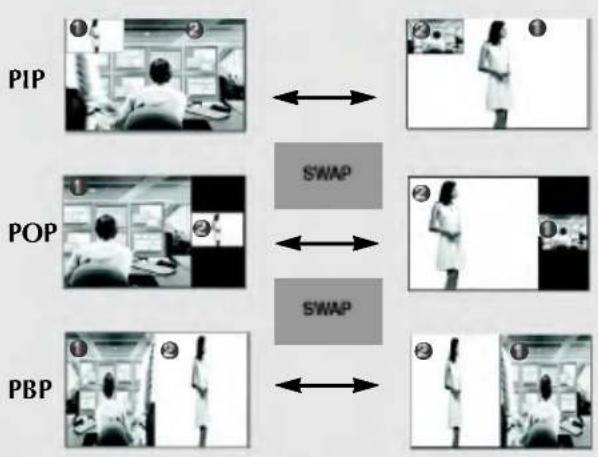
flowchart
graph TD
    A["PIP"] --> B["1"]
    A --> C["2"]
    D["POP"] --> E["1"]
    D --> F["2"]
    G["PBP"] --> H["1"]
    G --> I["2"]
    B <--> J["SWAP"]
    C <--> J
    E <--> K["SWAP"]
    F <--> K
    H <--> L["SWAP"]
    I <--> L
2. PIP (Picture in Picture) Button
The sub-screen is changed in the order shown below.
: SMALL -> MEDIUM-> LARGE -> OFF
3. POP (Picture out Picture) Button
The sub-screen moves to the next mode whenever you press this button.
: POP ON -> PBP(FULL) -> PBP(4:3) -> OFF
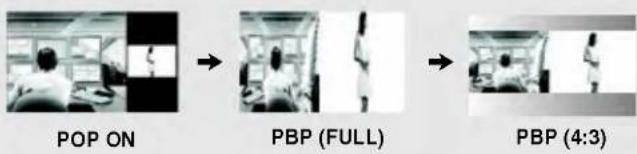
flowchart
graph LR
    A["POP ON"] --> B["PBP (FULL)"]
    B --> C["PBP (4:3)"]
| Sub-Screen\Main Screen | DVI | RGB | TV | AV1 | AV2 | S-Video | *CARD |
| DVI | X | X | ● | ● | ● | ● | X |
| RGB | X | X | ● | ● | ● | ● | X |
| TV | ● | ● | X | X | X | X | X |
| AV1 | ● | ● | X | X | X | X | X |
| AV2 | ● | ● | X | X | X | X | X |
| S-Video | ● | ● | X | X | X | X | X |
| *CARD | X | X | X | X | X | X | X |
Remote Control - Using the Teletext function
text_image
MENS PR OK VOL VOL PR - + 1 2 3 4 5 6 7 8 9 AUTO SWAP 0 TEXT SLEEP MODE UPDATE LIST TIME SIZE Q.VIEW MIX HOLD APC/PSM REVEAL INDEX PIP POPTEXT
To select the teletext on or off. The main index page or the last selected page appears on the screen together with an information headline and an option line at the bottom of the screen. UPDATE
Press the button to appear the TV programme. At the top of screen indicates that you are still in the teletext mode. Before interrupting teletext, you may select a page number. When the page has been found, the information line appears briefly on your screen. Press the button again to reappear teletext. SIZE
Press the button repeatedly to display the upper part, the lower part and then to return to the normal page size. HOLD
Press the button to stop the automatic rotating of the subpages. Press the button again to continue the automatic rotating again. INDEX
To display the main index.Name and Function of the Parts
Remote Control - Using the Teletext function
text_image
1 2 4 5 6 7 8 9 AUTO 0 TEXT SLEEP MODE UPDATE LIST TIME SIZE Q VIEW MIX HOLD APG/PSM REVEAL INDEX PIP POPMODE
The mode will be switched in the Teletext mode. TIME
When viewing a TV programme, press this button to display the time at the top right hand corner of the screen. press this button to select a sub-page number. The sub-page number is displayed at the bottom of the screen. To hold or change the sub page, press the RED/GREEN, ▲▼ or NUMBER buttons. Press again to exit this function. MIX
Display the teletext pages superimposed on the TV picture. To switch the TV picture off press this button again. REVEAL
Press the button to reveal/conceal the hidden information, such as solutions to riddles and puzzles. Press this button again to remove the information from the display. Rear View
First, pull out the back cap attached to the rear of the product to detach, as shown. text_image
Back Cap - Open the back cap before you install the product. 17 inch 20.1 inchtext_image
EXT. AUDIO IN 4 5 1 2 3 6 7 8text_image
EXT. IDI AUDIO IN 4 5 1 2 3 6 7Name and Function of the Parts
Rear View
text_image
17 inch 3 x 2.5 mm 多层单层text_image
20.1 inchtext_image
S-Video Video Audio L Audio R ① ② ③ ④text_image
SD/MMC Memory Stick Card Reader Compact Flash USB downstream Port USB upstream PortSound card Connection Terminal Input Terminal
text_image
EXT. I/O AUDIO INPC Audio Input Terminal
\- Cect the audio cable to the LINE OUT jack in the PC sound card.Connect the SCART CABLE
Connecting the sound card output terminal
- Make sure to check the sound card connection terminal in the PC before connecting to the product. If the PC sound card supports both Speaker Out and Line Out, change it to Line Out by setting the jumper or the PC application. (For more details, refer to the sound card user's manual.) - Speaker Out: The terminal connected to the speaker that is not equipped with an amplifier. - \*Line Out : The terminal connected to the speaker equipped with an amplifier. If Audio Out in the PC sound card has only Speaker Out, reduce the PC volume. This product is integrated with an amplifier. TV Output Terminal
Connect to the external device if you record the broadcasting. ■ When you set the input signal of the main screen as 'TV', you can transmit the signal that you're watching to the Scart output terminal. text_image
Product SCART Cable * Please, use shielded scart cableConnecting to External Devices
When Connecting to your PC
1 First of all, see if the computer, product and the peripherals are turned off. Then, connect the signal input cable and audio cable. (A) When connecting with the DVI-D signal input cable. (B) When connecting with the D-Sub signal input cable. (IBM compatible PC) C When connecting with the D-Sub signal input cable. (Macintosh) text_image
17 inch Rear side of the product. 20.1 inch EXT. AUDIO IN PC Audio cable MAC A B C Macintosh Adapter (Optional) Use the standard Macintosh adapter since an incompatible adaptor is available in the market. (Different signaling system)② Connect the power cord.
text_image
17 inch Rear side of the product. 20.1 inchConnecting to External Devices
③ Turn on power by pressing the power button on the product. text_image
SOURCE MENU V PR A < VOL > AUTOSPECTtext_image
SOURCE WAV VLD MICROV EXIT R/RSM PR VOL VOL PRtext_image
INPUT SELECT TV AX1 AX2 5-Video FOXO ON * Card ReaderWhen watching VCR / DVD
1 Connect the video cable as shown in the below figure and then connect the power cord. (See page A18) A When connecting with an SCART cable. text_image
Rear side of the Product EXT. SCART Cable (Not included) * Please, use shielded scart cable AUDIO/ VIDEO rAUDIO G L D Rtext_image
Rear side of the Product S-Video Video Audio Audio Yellow White Red RCA Cable (Not included) Y W R S-VIDEO OUT VIDEO OUT AUDIO OUTConnecting to External Devices
© When connecting with an S-Video cable. \- Connect to the S-Video input terminal to watch high image quality movies. text_image
Rear side of the Product S-Video Video Audio Audio White Red S-Video Cable (Not included) RCA Cable (Not included) W R S-VIDEO OUT VIDEO OUT AUDIO OUTtext_image
INPUT SELECT TV AV1 AV2 S-Video RGB DA1 * Card Headertext_image
SOURCE TWAV TMI EXIT BSEM PR OK VOL VOL PRWhen watching TV
① See if the antenna cable is connected at the rear side of the product and then, connect the power cord. text_image
17 inch Rear side of the Product 20.1 inch Antenna Cable (Not Included)text_image
INPUT SELECT TV AW1 AW2 S-Video RGB DVI * Card Readertext_image
SOURCE WAVE EXIT X-RCM PR OK VOL VOL PRConnecting to External Devices
To arrange the cables
1 Connect the signal input cable and the audio cable to use in order to arrange the power cord, D-Sub cable and DVI-D cable as shown in the following figure. natural_image
Illustration of a computer monitor with cables and connectors, no visible text or symbolsnatural_image
Diagram of an electronic device with exposed wiring and a central connector (no text or symbols)text_image
Cable Captext_image
17 inch 20.1 inchSelecting and Adjusting the Screen
Name of the Buttons in the Screen Adjustment Unit text_image
SOURCE MENU v PR A < VOL > AUTOSELECT ⑥ ③ ④ ⑤ ② ⑦Selecting and Adjusting the Screen
Name of the Buttons in the Screen Adjustment Unit
 AUTO/SELECT Button [For PC Analogue signal] Auto in progress [For AV1, AV2, S-Video] • The current signal and mode information will be displayed.  SOURCE Button SOURCE → ∨ ∧ → AUTO/SELECT \- Select the input signal TV Television AV1 SCART AV2 Composite video S-Video SeparateVideo RGB D-Sub analog signal DVI DVI digital signal Card Reader Media Manager text_image
INPUT SELECT TV A31 A42 B-Video DXG DA1 * Card Reader| Icon | Function Description |
 | Set/Selects the channel when using the TV |
 | Adjusts screen brightness, contrast and colour that you prefer. |
| PICTURE | |
 | Adjusting the audio function. |
| SOUND | |
 | Adjusting the timer function. |
| TIMER | |
 | Adjusts the screen status according to the circumstances. |
| SPECIAL | |
 | Adjusting Screen Clock/Phase and Position |
| SCREEN | |
 | Adjusting PIP/POP/PBP Mode (Multiple Screen) Functions |
| PIP/POP/PBP |
Selecting and Adjusting the Screen
How to adjust the OSD (On Screen Display) screen. flowchart
graph LR
    A["MENU"] --> B["Move where you want to adjust"]
    B --> C["Select a menu icon"]
    C --> D["Move where you want to adjust"]
    D --> E["Select a menu icon"]
    E --> F["Adjust the status"]
    F --> G["Save/Select adjustment"]
    G --> H["Exit from the menu screen."]
How to adjust the screen automatically.
You need to adjust the screen display when connecting the product to a new computer or changing the mode. Refer to the following section to set an optimal product screen. Press the AUTO/SELECT button (AUTO button in a remote control) in the PC analog signal. Then, an optimal screen status will be selected that fits into the current mode. If adjustment is not satisfactory, you need to adjust screen position, clock and phase in the OSD menu. Auto in progress Set/Selects the channel when using the TV
Auto programme
text_image
STATION Auto programmes Manual programme Programme with Formulite programme System Storage from Box Panel PrintSystem
Press the ▼▲ buttons to select the TV system of the country or part of the world from where you want to receive the TV channels. If you want to receive 'SECAM L' channel, change the SYSTEM menu to 'L' before launching an automatic search. L: SECAM L/L (France) BG : PAL B/G, SECAM B/G (Europe/East Europe) I: PAL I/II (U.K/Ireland) DK : PAL D/K, SECAM D/K (East Europe)Storage from
To select a programme number or enter the programme number with the number buttons from where you want to start searching for new channels. If you want to keep the channels 1 to 10 stored earlier, enter programme number 11. Your TV search for new channels from number 11 onwards.Start
Press OK button to start automatic programming. all available TV channels are searched for and stored automatically. To stop auto programming, press the MENU or EXIT button. When auto programming is completed, the programme list menu appears.Manual programme
text_image
STATION Auto programmes Manual programmes Programme add Favourable programmes System Storage Control Name Search MIDI PlanSystem
Press the ▼▲ buttons to select the TV system of the country or part of the world from where you want to receive the TV channels. L: SECAM L/L (France) BG : PAL B/G, SECAM B/G (Europe/East Europe) I: PAL I/II (U.K/Ireland) DK : PAL D/K, SECAM D/K (East Europe)Storage
Press the ▼▲ buttons to select the channel number or enter the programme number with the number buttons in where you want to store channel.Channel
Press the ▼▲ buttons to select V/UHF for aerial channels or CABLE for cable channels. If you know the C-(01\~69) or S-channel number(01\~47), enter it directly with the digit buttons 0 to 9. To select the channel reception type.: V/UHF / CABLESelecting and Adjusting the Screen
Set/Selects the channel when using the TV
Name
To see the assigned channel name. It is possible to change the name stored in the memory or to assign a name to a TV channel which has not yet been entered. A name with up 5 letters or numbers can be given to the programme numbers 0 to 99. Press the ◀▶ buttons to move cursor to be changed. -> Press the ▼▲ buttons to select a character.(space, number 0\~9, and alphabet A\~Z, +,-) -> Press OK button and MENU button).Search
Use the ◀▶buttons to search next channel backward or foreward direction.Programme edit
text_image
STATION Auto programme Manual programme Programme off Favorite programme 0_ 1_ 2_ 3_ 4_ 5_ 6_ 7_ 8_ 9_ 10_ 11_ 12_ 13_ 14_ 15_ 16_ 17_ 18_ 19_ Delete More Copy BuyDelete
Press the ▼▲◀▶ buttons to select a TV channel to be deleted. -> Press the red key on the remote control -> The background colour of the selected channel will change to red. Press the Delete button one more time to delete the selected channel. All the following channels are shifted up one position.Copy
Press the ▼▲◀▶ buttons to select a TV channel to be copyed. -> Press the green key on the remote control. All the following channel numbers are shifted down one position.Move
Press the ▼▲◀▶ buttons to select a channel number to be moved. -> Press the yellow key on the remote control. -> Press the ▼▲◀▶ buttons to move the TV channel to the desired channel number. -> Press the yellow key again to release this function.Skip
Press the ▼▲◀▶ buttons to select a channel number to be skipped. -> Press the blue key on the remote control. The skipped TV channel is displayed in blue.Favourite programme
text_image
STATION Audio programme Manual programme Programme audio Preview the ping tension OK 1 C09 2 C08 3 C07 4 C06 5 C05 6 C04 7 C03 8 C02 9 C01 10 C00 11 C09 12 C10 13 C11 14 C12 15 C13 16 C14 17 C15 18 C16 19 C17 20 C18 21 C19 22 C20 23 C21 24 C22 25 C23 26 C24 27 C25 28 C26 29 C27 30 C28 31 C29 32 C30 33 C31 34 C32 35 C33 36 C34 37 C35 38 C36 39 C37 40 C38 41 C39 42 C40 43 C41 44 C42 45 C43 46 C44 47 C45 48 C46 49 C47 50 C48 51 C49 52 C50 53 C51 54 C52 55 C53 56 C54 57 C55 58 C56 59 C57 60 C58 61 C59 62 C60 63 C61 64 C62 65 C63 66 C64 67 C65 68 C66 69 C67 70 C68 71 C69 72 C70 73 C71 74 C72 75 C73 76 C74 77 C75 78 C76 79 C77 80 C78 81 C79 82 C80 83 C81 84 C82 85 C83 86 C84 87 C85 88 C86 89 C87 90 C88 91 C89 92 C90 93 C91 94 C92 95 C93 96 C94 97 C95 98 C96 99 C97 100Adjusts screen brightness, contrast and colour that you prefer.
PSM
text_image
PNG PNG MAC MENU Press Patterns Standard File Game UserTV/AV1/AV2/S-Video input only
The PSM function automatically adjusts the screen image quality depending on the AV/TV usage environment. • Dynamic : Select this option to display with a sharp image. - Standard: The most general and natural screen display status. - Mild : Select this option to display with a mild image. • Game : Select this option to enjoy dynamic image when playing a game. - User : Select this option to use the user-defined settings. text_image
PICTURE RGB AOC Color at 100% Brightness 50% Noise 0% Noise Normal FilterBrightness
To adjust the brightness of the screen.Color
To adjust the colour to desired level.Sharpness
To adjust the cleaness of the screen.Tint
To adjust the tint to desired level. (only 60Hz signal)ACC
text_image
PICTURE Show Show Normal Cash MENU ShowSelecting and Adjusting the Screen
 Adjusts screen brightness, contrast and colour that you prefer. CSM text_image
PICTURE FISH DIM 80.00K 60.00K User HOLD Printtext_image
RGB RGB RGB RGB RGB RGB RGB RGB RGB RGB RGB RGB RGB RGB RGB RGB RGB RGB RGB RGB RGB RGB RGB RGB RGB RGB RGB RGB RGB RGB RGB RGB RGB RGB RGB RGB RGB RGB RGB RGB RGB RGB RGB RGB RGB RGB RGB RGB RGB RGB RGBAdjusting the audio function
SSM text_image
Sound Balance AVL GPS ICON READ Find Modify Update Speedup Usertext_image
SOUND SOLD Absolute AVG Noise Frist Black Binary Audio Noise Noise Signal 0.1 0.2 1.0 1.5 2.0 AVGAdjusting the timer function
Clock text_image
TIMER Clock Diffuser On Timer Auto OFF MENU Press Time AMSelecting and Adjusting the Screen
 Adjusts the screen status according to the circumstances. text_image
SPECIAL Input Click Lock Language Power Indicator Transparency Zoom Format MENU Flowtext_image
SPECIAL Signal Word Lock Language Power Attribute Experienting Event Reset BNDU Main To FXY FXY P YRBox RGB EN1 Cast Countertext_image
IMPORT Import Build Lock Language Power Indicator Transparency Balance Finish Change 8 Position 9 PositionAdjusting Screen Clock/Phase and Position
text_image
SCREEN AFC Auto-Config Camera Phone Print ©MTNL PrintARC
To select the image size of the screen.Auto- Configure
This function is suitable for analogue signal input only. This button is for the automatic adjustment of the screen position, clock and phase.Clock
This function is suitable for analogue signal input only. To minimize any vertical bars or stripes visible on the screen background. The horizontal screen size will also change.Phase
This function is suitable for analogue signal input only. To adjust the focus of the display. This item allows you to remove any horizontal noise and clear or sharpen the image of characters.Position
 This function is suitable for analogue singnal input only. To adjust position of the screen. Press the ▶ button to display the submenu for position. Left ▶ Right Up ▼ Down Moving the screen position horizontally. Moving the screen position vertically.  When the Interlace Signal is inputted at the RGB source input level, the Auto-Cnfigure, Clock, Phase and Position menu can't be used. Selecting and Adjusting the Screen
Adjusting PIP/POP/PBP Mode (Multiple Screen) Functions
(To adjust the sub screen) text_image
PIP/POP/PBP Open/Off Save As Show Show As Show As Presets Presets GPs PIP POP PBP MSU Printnatural_image
Interior view of a control room with multiple monitors and a person at the desk (no visible text or symbols)natural_image
Interior view of a control room with multiple monitors and a person working at a desk (no visible text or symbols)natural_image
Interior view of a modern office or lab space with two individuals standing in front (no visible text or symbols)text_image
PIP/POP/PSP QUART Borems Wits Energy Noise Pump PMP0 - Pmp Constant 5 Brightness: 0 % Color 0 % OKAdjusting PIP/POP/PBP Mode (Multiple Screen) Functions
Position text_image
PHP/POP/PBP Create Create Save Insert Paste Browse OK/OK Printtext_image
HINDIVIPSP Cut/SP Browse Share Image Spread Projection Drop Multi-Prizeflowchart
graph TD
    A["PIP"] --> B["SWAP"]
    C["POP"] --> D["SWAP"]
    E["PBP"] --> F["SWAP"]
    B <--> G["2"]
    D <--> H["2"]
    F <--> I["2"]
Troubleshooting
No image is displayed
\- Is the product power cord connected? \- Does the power Indicator is turned on? ● Power is on, power Indicator is blue but the screen appears extremely dark. \- Does the power Indicator look amber? \- Does the 'Out of Range' message appear? Does the 'Check Signal Cable' message appear? • See if the power cord is properly connected to the outlet. • See if the power switch is turned on. \- Adjust brightness (♀) and contrast (●) again. \- If the product is in power saving mode, move the mouse or press any key. \- The signal from the PC (video card) is out of the vertical or horizontal frequency range of the product. Adjust the frequency range by referring to the Specifications in this user's guide.\* Maximum resolution
17 inch : 1280 x 1024 @60Hz 20.1 inch : 1680 x 1050 @60Hz \- The signal cable between PC and product is not connected. Check the signal cable. \- Press the 'SOURCE' button in the remote control to check the input signal.'Unknown product' message appears when the product is connected.
Did you install the driver? • Install the product driver, which is provided with the product, or download it from the web site. (http://www.lge.com) \- See if the plug&play function is supported by referring to the video card user's guide.'Controls Locked' message appears.
The "Controls locked" message appears when pressing local key. \- The control locking function prevents unintentional OSD setting change due to careless usage. To unlock the controls. You can only set this function using the remote control.Note
 \* Vertical frequency: To enable the user to watch the product display, screen image should be changed tens of times every second like a fluorescent lamp. The vertical frequency or refresh rate is the times of image display per second. The unit is Hz. \* Horizontal frequency: The horizontal interval is the time to display one vertical line. When the 1 is divided by horizontal interval, the number of horizontal lines displayed every second can be tabulated as the horizontal frequency. The unit is kHz. The screen image looks abnormal.| ●Is the screen position wrong? | ●D-Sub analog signal – Press the “AUTO” button in the remote control to automatically select the optimal screen status that fits into the current mode. If adjustment is not satisfactory, use the Position menu in OSD.●See if the video card resolution and frequency are supported by the product. If the frequency is out of range, set to the recommended resolution in the Control Panel – Display – Setting menu. |
| ●Do thin lines appear on the background screen? | ●D-Sub analog signal – Press the “AUTO” button in the remote control to automatically select an optimal screen status that fits into the current mode. If adjustment is not satisfactory, use the Clock menu in OSD. |
| ●Horizontal noise appears or the characters look blurred. | ●D-Sub analog signal – Press the “AUTO” button in the remote control to automatically select an optimal screen status that fits into the current mode. If adjustment is not satisfactory, use the Phase menu in OSD. |
| ●Unable to adjust the horizontal / vertical position in the Zoom menu. | ●See if the Zoom value is set to 0. If it is, you cannot adjust the H/V Position value. |
| ●Screen size is automatically adjusted when connected to the PC. | ●If the screen size is not full when connected to the PC, execute the PIP/POP/PBP to change to full screen mode. |
| ●No sound appears in the TV channel display window. | ●See if the TV sound is set to mono. If it is, the sound will not be displayed. |
| ●Brightness differs in the main and sub screen when connected to the PC. | ●You cannot adjust brightness in the PIP/POP/PBP Screen menu for the sub-screen among PIP/POP/PBP menus. Therefore, brightness can be different for the sub-screen. |
| ●The screen is displayed abnormally. | ●The proper input signal is not connected to the signal port. Connect the signal cable that matches with the source input signal. |
Troubleshooting
The audio function does not work.
No sound? - No sound is available when the PIP/POP/PBP mode is engaged. Sound is too dull. Sound is too low. • See if the audio cable is connected properly. - Adjust the volume. • See if the sound is set properly. - See if the sound is set to On in the PIP/POP/PBP menu. - Select the appropriate equalize sound. - Adjust the volume.The TV function does not work.
The TV signal is not being received. • See if you have selected the proper channel mode. - Use the automatic channel setup function. • See if the TV antenna is properly connected.Screen colour is abnormal.
\- Screen has poor colour resolution (16 colours). \- Set the number of colours to more than 24 bits (true colour) Select Control Panel – Display – Settings – Colour Table menu in Windows. \- Screen colour is unstable or monocoloured. \- Check the connection status of the signal cable. Or, re-insert the PC video card. Do black spots appear on the screen? \- Several pixels (red, green, white or black colour) may appear on the screen, which can be attributable to the unique characteristics of the LCD panel. It is not a malfunction of the LCD.After-image appears on the product.
\- After-image appears when the product is turned off. \- If you use a fixed image for a long time, the pixels may be damaged quickly. Use the screensaver function.Specifications
[17 inch]| LCD Panel | Screen Type | 17 inch (434.38 mm) TFT (Thin Film Transistor)LCD (Liquid Crystal Display) PanelVisible diagonal size: 434.38 mm |
| Pixel Pitch | 0.291 mm | |
| Video Signal | Max. Resolution | D-Sub :1280 X1024 @60 HzDVI-D : 1280 X1024 @60 Hz |
| Recommended Resolution | D-Sub : WXGA 1280 X 768 @60 HzDVI-D : WXGA 1280 X 768 @60 Hz | |
| Horizontal Frequency | D-Sub : 30 - 66 kHzDVI-D : 30 - 66 kHz | |
| Vertical Frequency | 56 - 75 Hz | |
| Synchronization Type | Separate/Composite/SOG (Sync On Green)/Digital | |
| Input Connector | 15-pin D-Sub type, DVI-D (digital), S-Video, Composite video, Scart, TV | |
| Power | Rated VoltagePower Consumption | AC 100-240V~ 50/60Hz 1.0AOn Mode : 70WSleep Mode : ≤ 4WOff Mode : ≤ 2W |
| Tilt | Tilt Range | -5°~20° |
| Tilt Stand | Attached | |
| Dimension/Weight | Size (WxLxH) |  438.2 mm x 241.4 mm x 378.9mm 438.2 mm x 241.4 mm x 378.9mm 438.2mm x 139.2 mm x 403.5mmWeight (excl. package) 7.1 kg (15.6 lbs) 438.2mm x 139.2 mm x 403.5mmWeight (excl. package) 7.1 kg (15.6 lbs) |
| Environmental Conditions | Operational ConditionStorage Condition | Temperature: 10°C ~ 35°C , Humidity: 10% ~ 80%Temperature: -20°C ~ 60°C , Humidity: 5% ~ 95% |
Specifications
[20.1 inch]| LCD Panel | Screen Type | 20.1inch (481.84 mm) TFT (Thin Film Transistor)LCD (Liquid Crystal Display) PanelVisible diagonal size: 481.84 mm |
| Pixel Pitch | 0.294 mm | |
| Video Signal | Max. Resolution | D-Sub : 1680 X 1050 @60 HzDVI-D : 1680 X 1050 @60 Hz |
| Recommended Resolution | D-Sub : WXGA+ 1680 X 1050 @60 HzDVI-D : WXGA+ 1680 X 1050 @60 Hz | |
| Horizontal Frequency | D-Sub : 30 - 83 kHzDVI-D : 30 - 83 kHz | |
| Vertical Frequency | 55 - 75 Hz | |
| Synchronization Type | Separate/Composite/SOG (Sync On Green)/Digital | |
| Input Connector | 15-pin D-Sub type, DVI-D (digital), S-Video, Composite video, Scart, TV | |
| Power | Rated VoltagePower Consumption | AC 100-240V~ 50/60Hz 1.2AOn Mode :74WSleep Mode : ≤ 4WOff Mode : ≤ 2W |
| Tilt | Tilt Range | -5°~20° |
| Tilt Stand | Attached | |
| Dimension/Weight | Size (WxLxH) |  496.4 mm x 241.4 mm x 424.1 mm 496.4 mm x 241.4 mm x 424.1 mm 496.4 mm x 135.2 mm x 448.7 mmWeight (excl. package) 8.2 kg (18.0 lbs) 496.4 mm x 135.2 mm x 448.7 mmWeight (excl. package) 8.2 kg (18.0 lbs) |
| Environmental Conditions | Operational ConditionStorage Condition | Temperature: 10°C ~ 35°C , Humidity: 10% ~ 80%Temperature: -20°C ~ 60°C , Humidity: 5% ~ 95% |
PC Mode – Preset Mode
[17 inch]| Preset mode | Horizontal Frequency (kHz) | Vertical Frequency (Hz) | Preset mode | Horizontal Frequency (kHz) | Vertical Frequency (Hz) | ||
| 1 | VGA 640 x 350 | 31.468 | 70 | 8 | VESA 1024 x 768 | 48.363 | 60 |
| 2 | VGA 720 x 400 | 31.469 | 70 | 9 | VESA 1280 x 1024 | 63.981 | 60 |
| 3 | VGA 640 x 480 | 31.469 | 60 | 10 | VESA 1280 x 768 | 47.776 | 60 |
| 4 | VESA 640 x 480 | 37.500 | 75 | ||||
| 5 | VESA 800 x 600 | 37.879 | 60 | ||||
| 6 | VESA 800 x 600 | 46.875 | 75 | ||||
| 7 | MAC 832 x 624 | 49.725 | 74 | ||||
| Preset mode | Horizontal Frequency (kHz) | Vertical Frequency (Hz) | Preset mode | Horizontal Frequency (kHz) | Vertical Frequency (Hz) | ||
| 1 | VGA 720 x 400 | 31.468 | 70 | 8 | VESA 1152 x 864 | 67.500 | 75 |
| 2 | VGA 640 x 480 | 31.469 | 60 | 9 | MAC 1280 x 1024 | 63.981 | 60 |
| 3 | VGA 640 x 480 | 37.500 | 75 | 10 | VESA 1280 x 1024 | 79.976 | 75 |
| 4 | VESA 800 x 600 | 37.897 | 60 | 11 | VESA 1680 x 1050 | 65.290 | 60 |
| 5 | VESA 800 x 600 | 46.875 | 75 | ||||
| 6 | VESA 1024 x 768 | 48.363 | 60 | ||||
| 7 | VESA 1024 x 768 | 60.123 | 75 | ||||
| Mode | Product |
| On Mode | Blue |
| Sleep Mode | Amber |
| Off Mode | - |
Specifications
VESA wall mounting
Connected to another object (stand type and wall-mounted type. This product accepts a VESA-compliant mounting interfacepad(optional) For further information, refer to the VESA Wall Mounting Instruction Guide. 17 inch natural_image
Diagram of a computer monitor with a paper holder and control panel, showing no text or symbolsnatural_image
Diagram of a computer monitor with a circular diagram and control panel, no visible text or symbolsLocking Device
Use this locking cable (optional) to prevent theft.  DVI-D text_image
1 8 9 6 17 24| No. | Signal |
| 1 | T. M. D. S. Data 2- |
| 2 | T. M. D. S. Data 2+ |
| 3 | T. M. D. S. Data 2/4 Shield |
| 4 | T. M. D. S. Data 4- |
| 5 | T. M. D. S. Data 4+ |
| 6 | DDC Clock |
| 7 | DDC Data |
| 8 | Analogue Vertical Synchronization |
| 9 | T. M. D. S. Data 1- |
| 10 | T. M. D. S. Data 1+ |
| 11 | T. M. D. S. Data 1/3 Shield |
| 12 | T. M. D. S. Data 3- |
| 13 | T. M. D. S. Data 3+ |
| 14 | +5V Power |
| 15 | Grounding (return for +5V, horizontal sync and vertical sync) |
| 16 | Hot Plug Detect |
| 17 | T. M. D. S. Data 0- |
| 18 | T. M. D. S. Data 0+ |
| 19 | T. M. D. S. Data 0/5 Shield |
| 20 | T. M. D. S. Data 5- |
| 21 | T. M. D. S. Data 5+ |
| 22 | T. M. D. S. Clock Shield |
| 23 | T. M. D. S. Clock+ |
| 24 | T. M. D. S. Clock |