VT-5172 - Home Automation V-TAC - Free user manual and instructions
Find the device manual for free VT-5172 V-TAC in PDF.


User questions about VT-5172 V-TAC
0 question about this device. Answer the ones you know or ask your own.
Ask a new question about this device
Download the instructions for your Home Automation in PDF format for free! Find your manual VT-5172 - V-TAC and take your electronic device back in hand. On this page are published all the documents necessary for the use of your device. VT-5172 by V-TAC.
USER MANUAL VT-5172 V-TAC
INSTALLATION INSTRUCTION
SMART SOCKET

TECHNICAL DATA
| MODEL | VT-5172 | VT-5173 | VT-5175 |
| INPUT | AC:120-240V, 50/60Hz | ||
| Wi-Fi FREQUENCY | 2.4Ghz + Bluetooth | ||
| RATED CURRENT | 16A | 13A | 16A |
| RATED POWER | 3680W | 3120W | 3680W |
| OPERATION TEMPERATURE | -10°C to +50°C | -10°C to +50°C | -10°C to +50°C |
| WORKING HUMIDITY | ≤85%RH | ≤85%RH | ≤85%RH |
| DIMENSION | 49.5x49.5x82mm | 58x58x61mm | 70x69.8x64mm |
| BODY TYPE | PC | PC | PC |
| LED INDICATOR | BLUE | BLUE | BLUE |
| SOCKET & PLUG TYPE | EU | BS | ITALY |
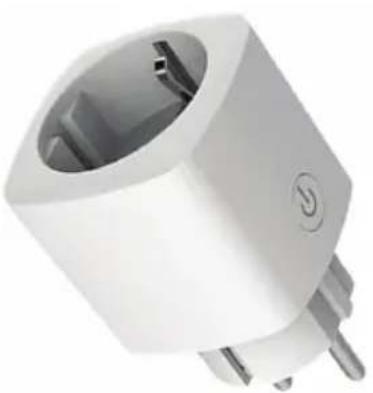
natural_image
White electrical plug with three pins and a small terminal symbol (no text or labels visible)


INTRODUCTION & WARRANTY
Thank you for selecting and buying V-TAC SMART LED Lighting. V-TAC will serve you the best. Please read these instructions carefully before starting the installation and keep this manual handy for future reference. If you have any other query, please contact our dealer or local vendor from whom you have purchased the product. They are trained and ready to serve you at the best. The warranty is valid for 2 years from the date of purchase. The warranty does not apply to damage caused by incorrect installation or abnormal wear and tear. The company gives no warranty against damage to any surface due to incorrect removal and installation of the product. The products are suitable for 10-12 Hours Daily operation. Usage of product for 24 Hours a day would void the warranty. This product is warranted for manufacturing defects only.
SAFETY WARNING
1) Devices are limited to indoor use and are not advisable for use in humid environment
2) Do not discard the devices with regular trash. devices are made with electronic components and should be properly disposed at designated locations with unified treatment like traditional electronic equipment.
NOTE:
- This device requires Wi-Fi Frequency 2.4Ghz
- Indoor use only
- Operating frequency 2.412-2.484GHz
- Support Android 4.4 or newer and IOS 8.0 or newer.

This marking indicates that this product should not be disposed of with other household wastes.

Caution, risk of electric shock.

MULTI-LANGUAGE MANUAL QR CODE
Please scan the QR code to access the manual in multiple languages.




INSTALLATION
Step 1: Disconnect the power supply and install the device.
Step 2: Turn the power ON to test the device.
Step 3: Enable WI-FI and bluetooth on your phone device.
Step 4: Scan the given QR code, or download "V-TAC Smart Light" from the App Store (iOS) or the Google Play Store (Android).
For ANDROID

For IOS

Step 5: Open the V-TAC Smart Light app and tap on register for creating a new account.
V-TAC Smart Light
Login
Register
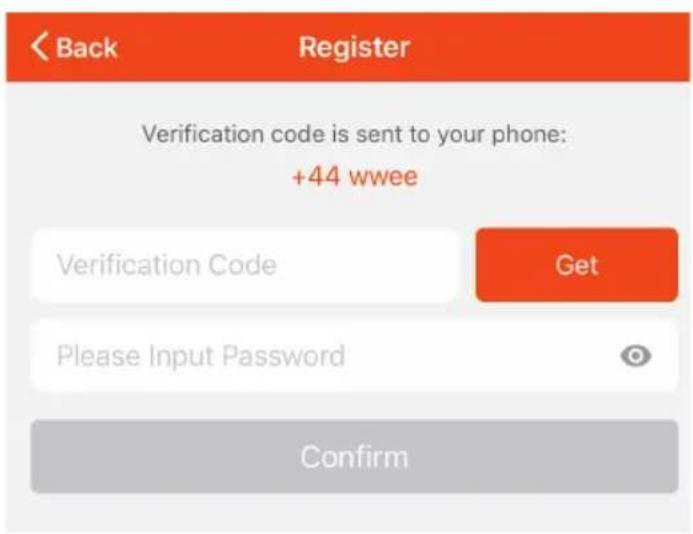
Step 7: Enter the verification code which will be sent to your mobile number/email id, then assign a new password to your account and tap on "Confirm".
Step 6:
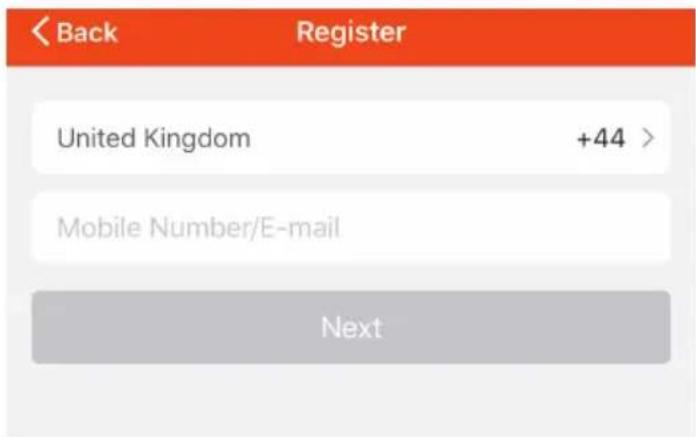
A) Mobile Number: Select the country, then enter your mobile number. Once done, tap 'Next'.
B) E-Mail: Enter your email id and tap on 'Next'.
Step 8: Tap on 'Add Device' or the + sign. Make sure the device is switched on.
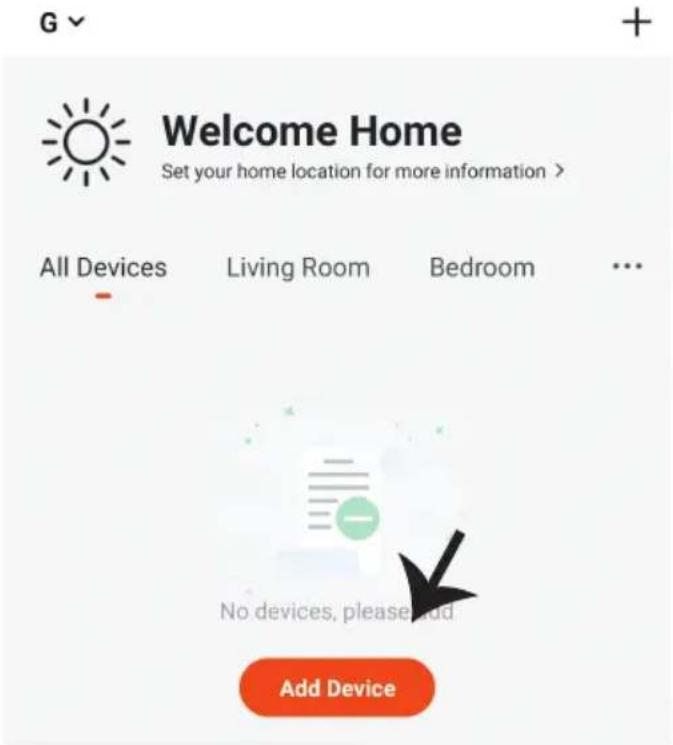
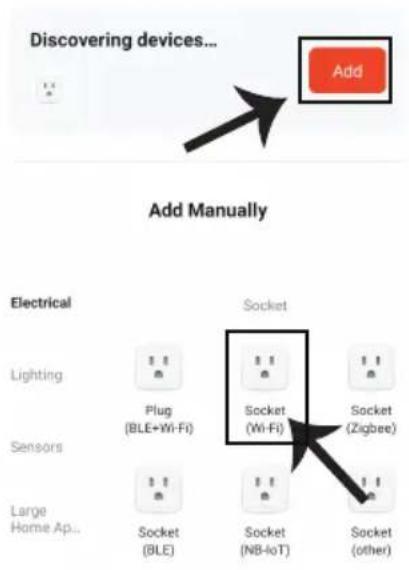
Step 9: Configuration
- Phone: Switch on Bluetooth and Connect WI-FI
- Tap "+" on the top right corner
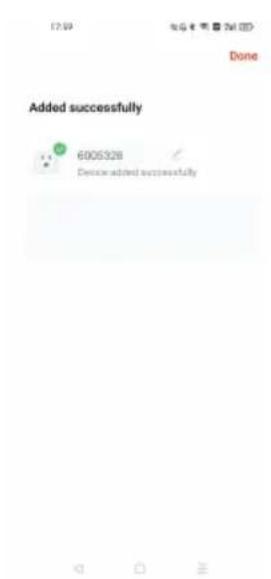
- Device will be auto scanned, click "ADD", auto adding till successfully added
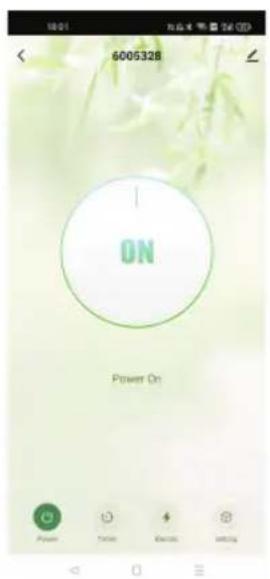
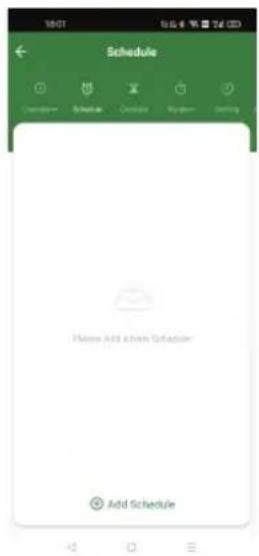
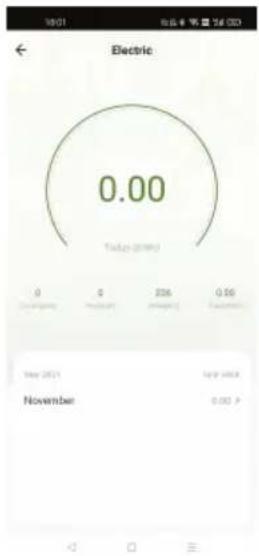
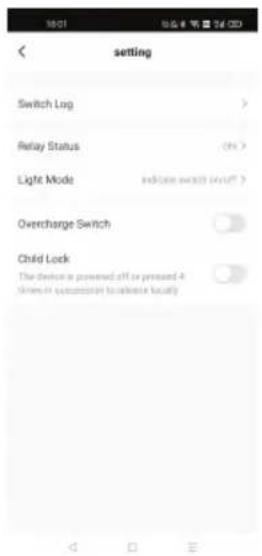
- On the control interface, user can "ON/OFF" "Timer" "Electric" "Setting"
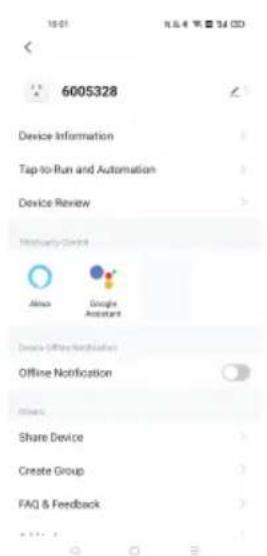
- Click to modify the device such as
*Connect to Alexa
*Connect to Google Assistant
*Remove
How to enable/reset the smart device into pairing mode - Long press the reset key till button flashes rapidly in blue then it will be ready for configuration.
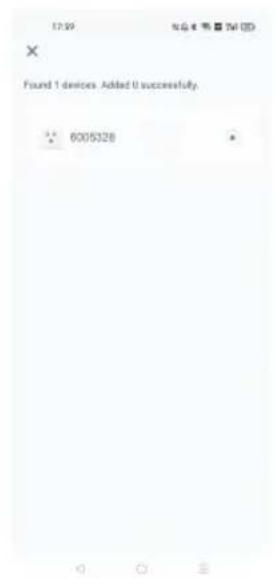
PIC 2
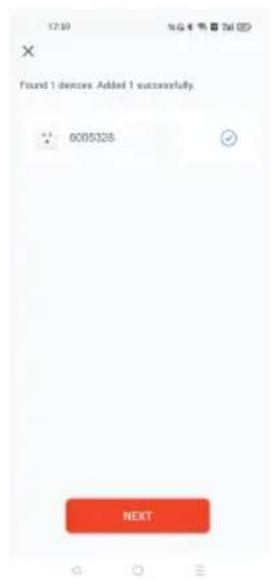
PIC 3 PIC 4 PIC 5
PIC 7
PIC 8
PIC 9
PIC 10
ALEXA SETTINGS
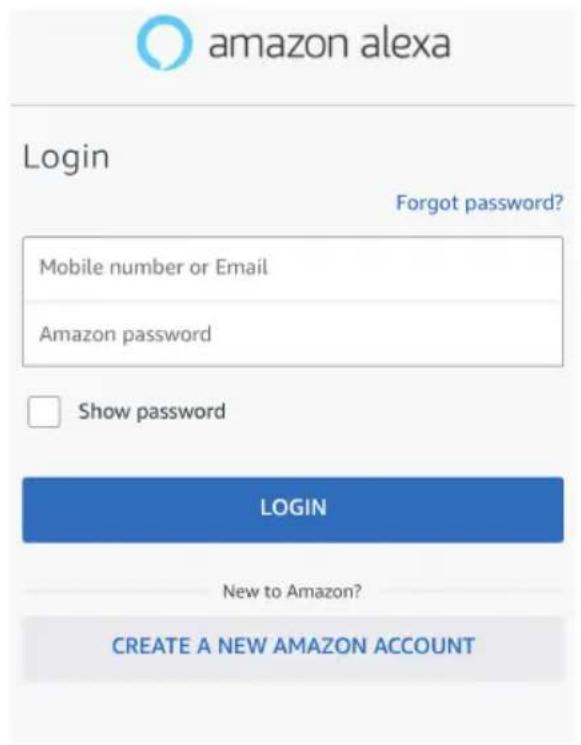
Step 1: Install the Amazon Alexa app via the App Store(iOS) or the Play Store (Android) and register. If you already have an existing account with Amazon Alexa, please proceed to logging in.
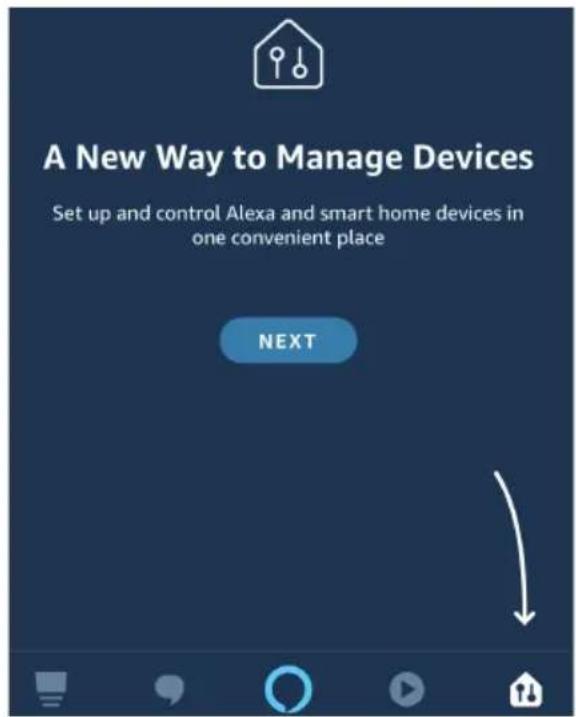
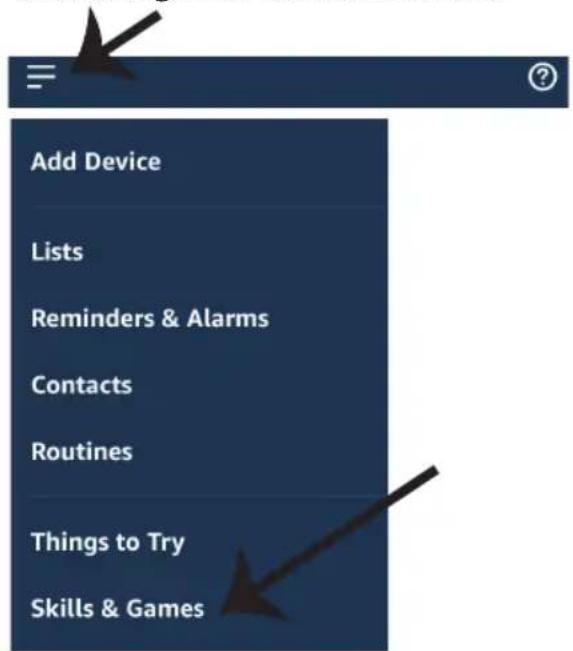
Step 2: Once you are on the Amazon Alexa home page, tap on the lower right icon — where the arrow is pointed— to add a new device and skill.
Step 3: Tap on settings and tap on
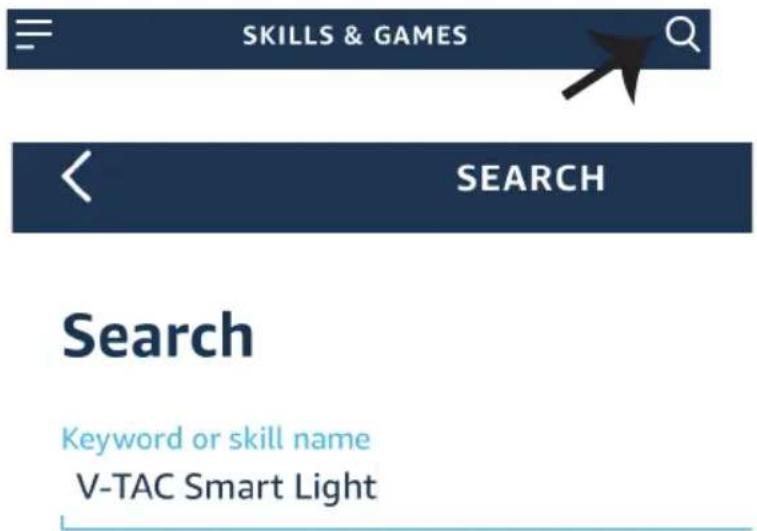
Step 4: Search for 'V-TAC Smart Light' on the "Skills & Games" page as shown below.
"skills and games" as shown below.
Step 5: Enable the Skill.
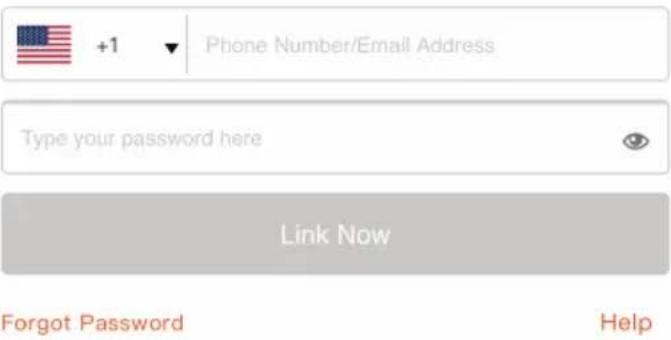
Step 6: Enter your V-TAC Smart Light login ID and password and tap on "Link Now"
ENABLE

Account linking in progress

+1

Phone Number/Email Address
Type your password here

Link Now
Forgot Password
Help
Step 7: Once you tap on Link Now, you will be redirected to a new page requesting for authorization(Ref Image below). Tap on "Authorize"
Step 8: You will receive confirmation of the account being linked successfully (Ref Image below)

Alexa by Amazon will be able to:
Receive your public profile Control your devices over internet

Done

skills-store.amazon.in

amazon alexa

V-TAC has been successfully linked.
What to do next:
→ Close this window to discover smart home devices you can control with Alexa.
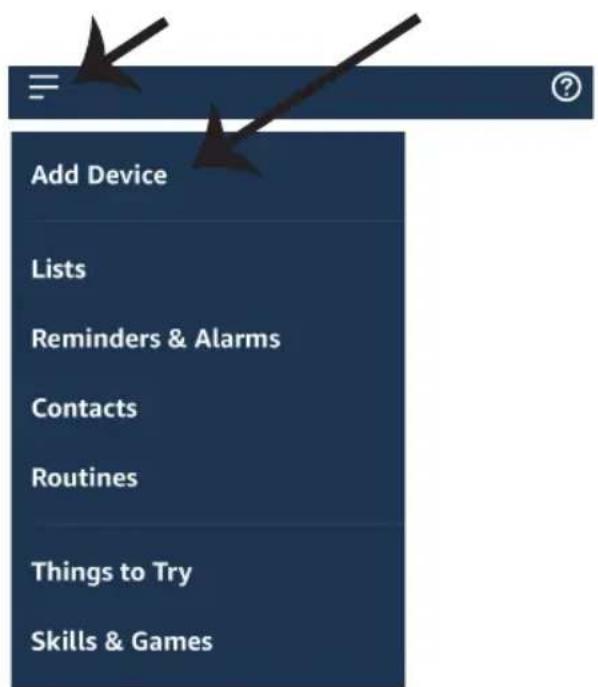
Step 9: Discover your smart device on Alexa. Once you have enabled the skill A) You can use voice command "Alexa discover devices" to the Alexa device which you have.
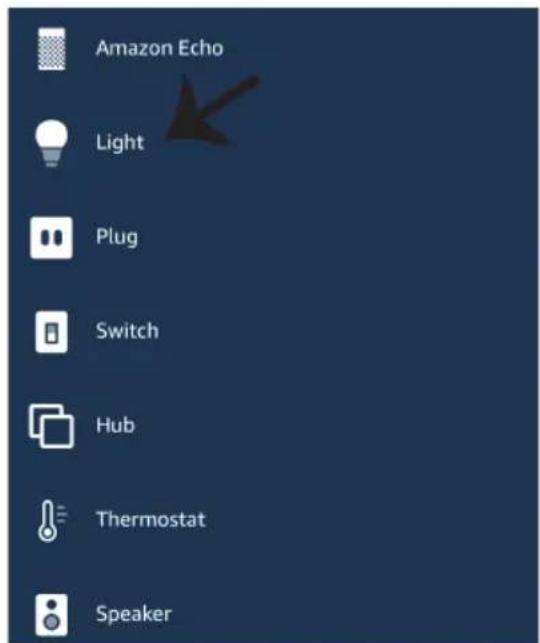
B) To add device manually on home page tap on and tap on Add device, select the device which you are adding and tap on discover device.
Note: Discovering the device must be done every time the device's name is changed on the app.
ALEXA Commands
Now, you can control your smart device using voice commands on Alexa.
Below are a few commands you can use:
➢! Alexa, turn on/off bedroom light.
➢! Alexa, set bedroom light to 50 percent.
➢! Alexa, set bedroom light to green.
➢! Alexa, set bedroom light to warm white.
THINGS TO REMEMBER BEFORE STARTING INSTALLATION:
- V-TAC Smart Light App & Amazon Alexa App
- Make sure you have Amazon Alexa Device(including Echo, Echo Tap, or Echo Dot)
- Smart Device - device
- Stable Wifi network
GOOGLE HOME SETTINGS
Step 1:
a&b) Install the Google Home app via the App Store (iOS) or the Play Store (Android) and register. If you already have an existing account with Google Home, please proceed to logging in.
c) Create a New Home/Choose from the existing home if any.
d) Power ON the Google Home device and connect it to the App.(Then Proceed to step 2)
a. Welcome home
Your content and devices all in one place

natural_image
Abstract geometric shapes including a triangle, square, circle, and rectangle (no text or symbols)GET STARTED >
b. Choose account
This account will be used to personalize your experience
c. Choose a home
You will be able to control the devices and services in this home.

Create another home
d. Plug in your device
Make sure your device is nearby and connected to power, then try again

Step 2: Once you are on the Google home page, tap on the Add "+" icon- to add a new device and skill. And then tap on Set up device as shown in below image.
a.

Play
Office

Broadcast


Add

Settings
Office
1 device

Office Speaker
Pause
b.

Add to Home

Set up device

Add home member

Create speaker group

Create new home
Add services

Music and audio

Videos and photos
Step 3: Make sure the Smart Bulb is paired with V-TAC Smart Light app before starting step 3. Tap on the arrow section as highlighted in the below image.
Set up
Set up new devices or add existing devices and services to your home
New devices

Set up new devices
Google Home, smart displays and devices labelled 'Made for Google' such as C by GE smart bulbs
Works with Google

Have something already set up?
Link your smart home services such as Philips Hue and TP-Link

Step 5: Sign In with your V-TAC Smart Light Login credentials to Link the Smart Light device
Step 4: Type "V-TAC Smart Light" on the search bar and tap on the icon of "V-TAC Smart Light"

V-TAC Smart Light

Step 6: Tap on Authorize in order to proceed to linking the device.

Google will be able to:
Receive your public profile Control your devices over internet

Step 7
a. Account will now be linked, please stay on the page you will be redirected in few seconds to select the device to add to your home.
b. Select the device and tap on Next as show in image b.

b. ✗ Choose device
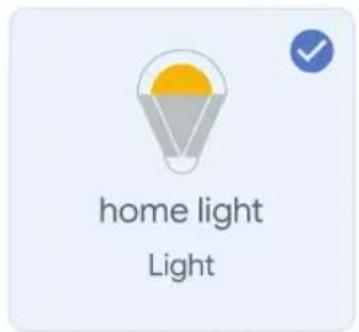
Step 8: Select the Home where you would like to add the Smart Light under. (Or) you can create a New home in order to add the Smart Light to it.
Step 9: You have successfully added Smart Light device to your Google home App.
Choose a home
You will be able to control the devices and services in this home.

Smart-Home

Office

Smart Home

Create another home
Smart-Home
Master bedroom
1 device

home light
Off
。

Local devices
1 device

Office Speaker
Step 10:
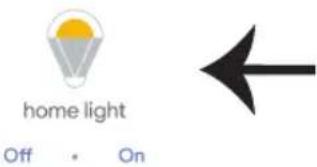
a. You can turn the device On/OFF by taping on On/Off options as shown below. (OR) You can tap on the Smart Lamp.
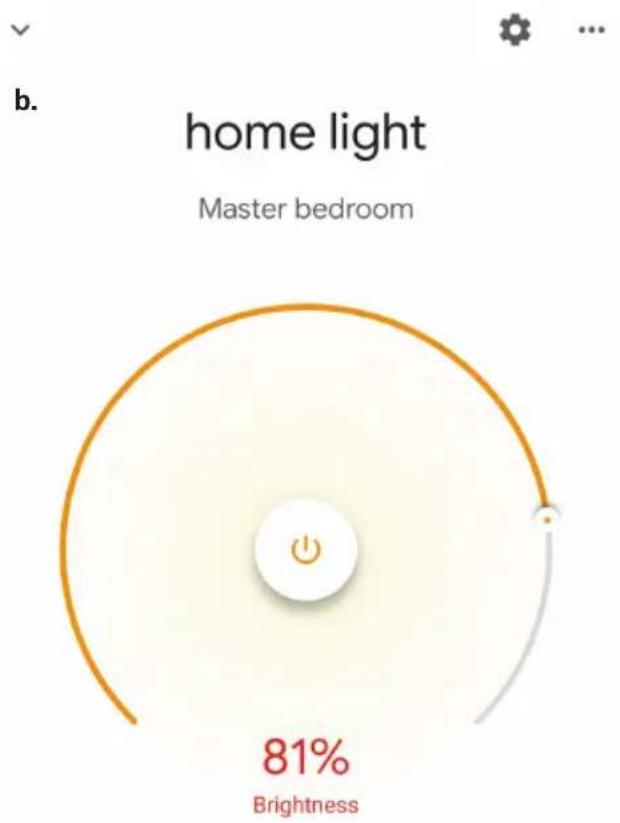
b. You will be redirected to page(as shown in image b) where you can control the lights "Power and Dimming functionality".
a. Smart-Home
Master bedroom
1 device
Local devices
1 device

pie
| Metric | Value | |--------|-------| | Brightness | 81% |Google Commands:
Now, you can control your smart device using voice commands on Google Home. Below are a few commands you can use:
➢! Ok, Google, turn on/off bedroom light
➢! Ok, Google, set bedroom light to 50 percent.
➢! Ok, Google, set bedroom light to green.
➢! Ok, Google, set bedroom light to warm white.
THINGS TO REMEMBER BEFORE STARTING INSTALLATION:
- V-TAC Smart Light App & Google Home App
- Make sure you have Google Home Device
- Smart Device - device
- Stable Wifi network
