VT-5102 - Home Automation V-TAC - Free user manual and instructions
Find the device manual for free VT-5102 V-TAC in PDF.


| Product Type | Home Automation Controller/Hub |
| Brand | V-TAC |
| Model | VT-5102 |
| Dimensions | 120 x 80 x 25 mm |
| Weight | 150 g |
| Power Supply | 5V DC via USB-C |
| Wireless Connectivity | Wi-Fi 2.4 GHz, Bluetooth 4.0 |
| Supported Protocols | Zigbee, Z-Wave |
| Maximum Devices Supported | 50 |
| Operating Temperature | 0°C to 40°C |
| Material | ABS Plastic |
| Color | White |
| Functions | Remote control, scheduling, scene setting, voice control (Alexa/Google) |
| Maintenance | Clean with dry cloth |
| Safety | Overload protection, surge protection |
| Spare Parts | Not available separately |
| Repairability | Not user-serviceable |
| Warranty | 2 years |
| Certifications | CE, RoHS |
Frequently Asked Questions - VT-5102 V-TAC
User questions about VT-5102 V-TAC
0 question about this device. Answer the ones you know or ask your own.
Ask a new question about this device
Download the instructions for your Home Automation in PDF format for free! Find your manual VT-5102 - V-TAC and take your electronic device back in hand. On this page are published all the documents necessary for the use of your device. VT-5102 by V-TAC.
USER MANUAL VT-5102 V-TAC
WORKS WITH amazon alexa

works with the Google Assistant

INTRODUCTION & WARRANTY
Thank you for selecting and buying V-TAC product. V-TAC will serve you the best. Please read these instructions carefully before starting the installation and keep this manual handy for future reference. If you have any another query, please contact our dealer or local vendor from whom you have purchased the product. They are trained and ready to serve you at the best. The warranty is valid for 2 years from the date of purchase. The warranty does not apply to damage caused by incorrect installation or abnormal wear and tear. The company gives no warranty against damage to any surface due to incorrect removal and installation of the product. This product is warranted for manufacturing defects only.
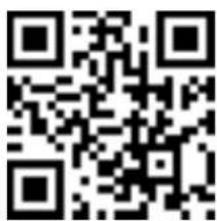
MULTI-LANGUAGE MANUAL QR CODE
Please scan the QR code to access the manual in multiple languages.
- Please make sure to turn off the power before starting the installation.
- Installation must be performed by a qualified electrician.
- When installing and using products, they must be far away from fire or high temperature objects.
- For indoor use only.
WIFI MODULE SAFETY INSTRUCTIONS
- Make sure that the Input voltage of this product is as prescribed by the manufacturer. Other incoming voltages can cause the product to break down and potentially harm the environment and your health.
- The wires must be connected correctly and in accordance with the colors of the wire and the instructions given in the circuit diagram described in this instruction.
- Make sure before switching on that the power elements have a power lower than that specified by the manufacturer.
- Make sure before plugging in that the led light voltage is suitable for configuration with this product.
- This product is suitable for products manufactured by the company V-TAC, when connected with products of other companies, V-TAC is not responsible for any adverse consequences for your health.
- The initial installation of the product must be done by a specialist with the relevant qualifications and skills.
- Before using this product, make sure that all parts are configured correctly according to the instructions in the attached instruction.
- The product should not be used by people under 5 years of age without supervision by a parent or guardian.
FCC WARNING
Note: This equipment has been tested and found to comply with the limits for a Class B digital device, pursuant to part 15 of the FCC Rules. These limits are designed to provide reasonable protection against harmful interference in a residential installation. This equipment generates uses and can radiate radio frequency energy and, if not installed and used in accordance with the instructions, may cause harmful inter-
ference to radio communications. However, there is no guarantee that interference will not occur in a particular installation. If this equipment does cause harmful interference to radio or television reception, which can be determined by turning the equipment off and on, the user is encouraged to try to correct the interference by one or more of the following measures:
- Reorient or relocate the receiving antenna.
- Increase the separation between the equipment and receiver.
- Connect the equipment into an outlet on a circuit different from that to which the receiver is connected.
- Consult an experienced radio/TV technician for help.
This equipment complies with FCC radiation exposure limits set forth for an uncontrolled environment. This equipment should be installed and operated with minimum distance 20cm between the radiator & your body.
Caution, Risk of electric shock
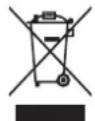
This marking indicates that this product should not be disposed of with other household wastes.
WIRING & INSTALLATION INSTRUCTION
- Make sure the power is OFF before starting the installation.
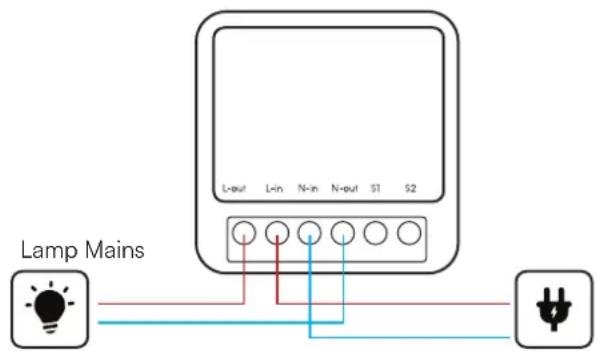
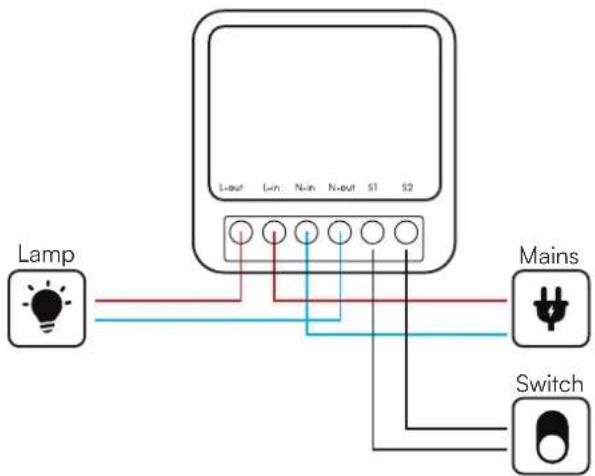
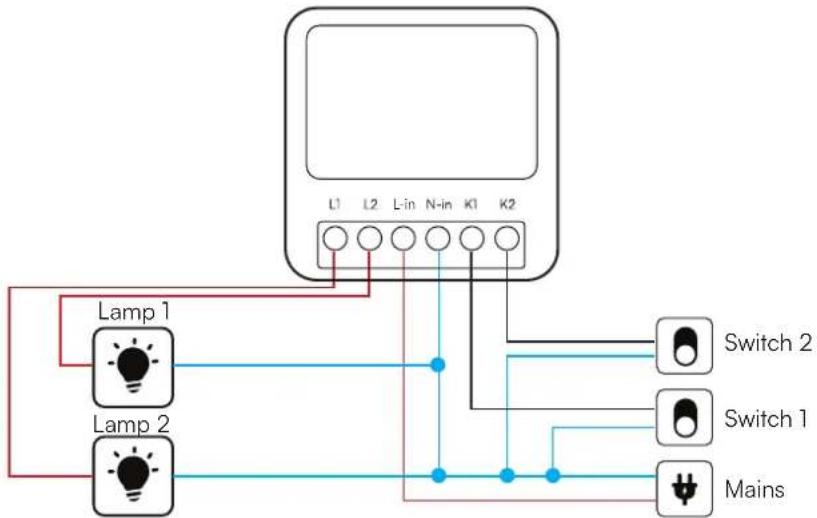
- Ensure that the wires are connected accurately according to the following diagram. (Input and output cannot be reversed)
• Install and power it up.
A. DIRECT LIGHT CONNECTION
B. LIGHT WITH 1-WAY SWITCH CONNECTION [1 GANG, SKU-23604]
C. LIGHT WITH 2-WAY SWITCH CONNECTION [2 GANG, SKU-23605]
APP INSTALLATION INSTRUCTIONS
Step 1: Turn the power button ON of the device. Then follow the below instruction for the device. Step 2: Scan the given QR code, or download "Smart Life" from the App Store (iOS) or the Google Play Store (Android).
Step 3: Open the Smart Life app and tap on register for creating a new account. If you already have an existing account, please proceed to please proceed to logging in.(Ref Fig 1)
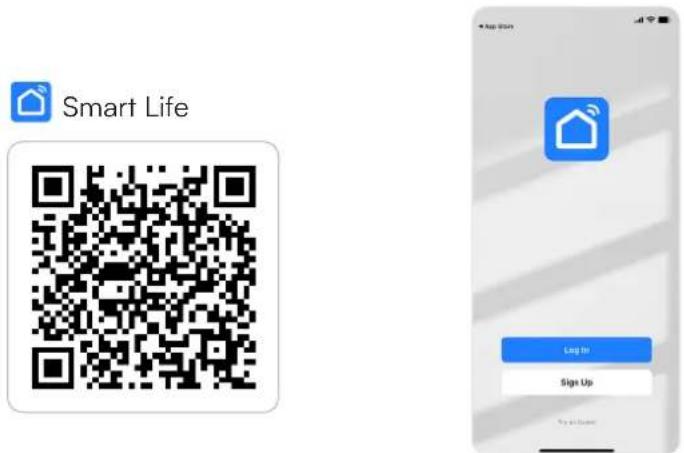
Fig 1
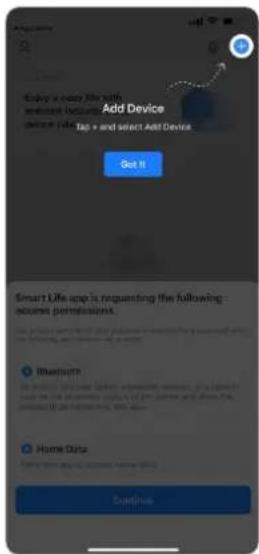
- Enable Bluetooth and Home Wifi for the device to access your wifi connection for pairing
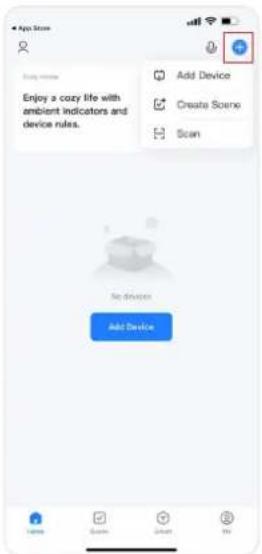
- Click "Add a device" or "+" in the top right corner.
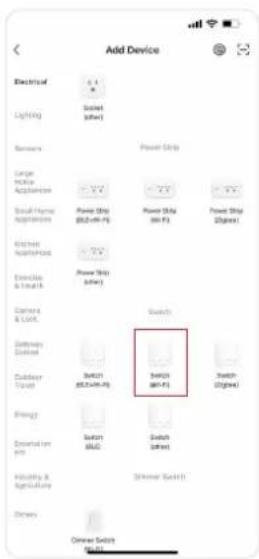
- Click on the Electrical choose "Switch (Wi-Fi)"
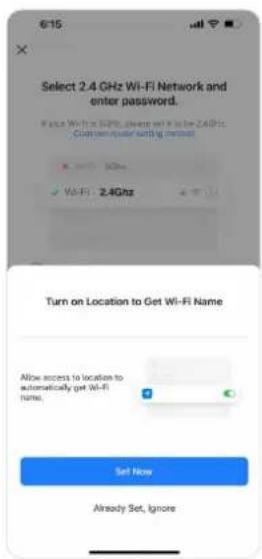
- Select 2.4GHz Wi-Fi network and enter the password
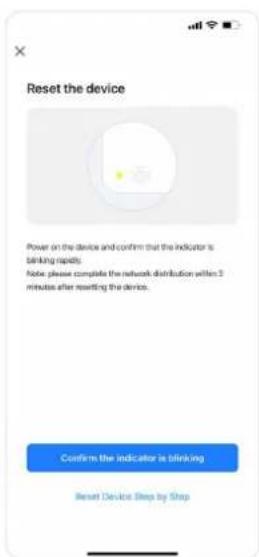
- Click on the "Confirm the indicator is blinking".
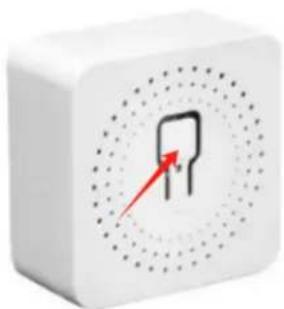
natural_image
White 3D cube with a red arrow pointing to a rectangular symbol inside, surrounded by concentric dotted circles (no text or labels)Fig 2
Step 8
• Power ON the device to Pair
- The Buzzer makes "DIDI" sound and LED light starts blinking rapidly
- If it doesn't make the "DIDI" Sound or LED light doesn't blink rapidly, the you can try the following:
A): Long press the manual button for 5s on the Wi-Fi module to reset
B): Open and close rocker switch six times (if connected to a switch),
C): Turn on and off the main power six times . until the Buzzer make
"DIDI" sound, or the led light starts blinking
D) Follow the reset device step by step on the App
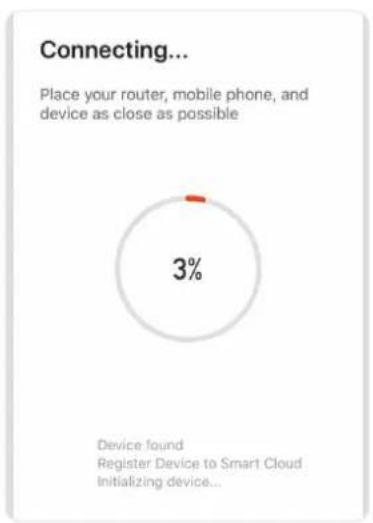
Step 9: Once you have successfully completed step 8, you will be redirected to "Connecting Now" page, where the App searches, registers and initializes the device (ref Fig 14). Once it is completed your device will be successfully paired.
pie
Connecting... Place your router, mobile phone, and device as close as possible | Device found | | :--- | | Register Device to Smart Cloud Initializing device... | | 3% |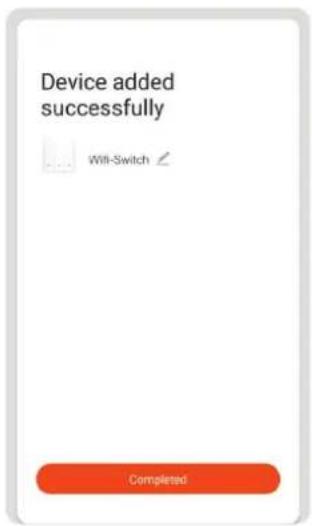
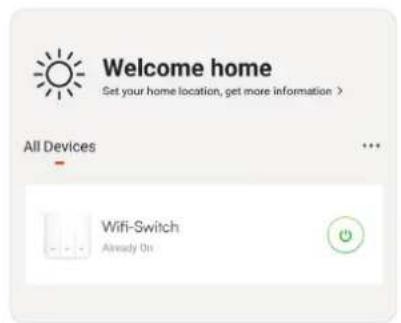
Fig 14 Fig 15 Fig 16
Step 10: Once your device is successfully paired, rename the device to your preference. And then tap on completed. (Ref Fig 15)
Step 11: You can now start controlling your device with the App. Tap the device name on the home page to enter the controls and features of the device. (Ref Fig 16)
GOOGLE ASSISTANT SETTINGS
Step 1:
• Install the Google Assistant app via the App Store (iOS) or the Play Store (Android) and register. If you already have an existing account with Google Assistant, please proceed to logging in.
- Create a New Home/Choose from the existing home if any.
• Power ON the Google Assistant device and connect it to the App.(Then Proceed to step 2)
Welcome home
Your content and devices all in one place

GET STARTED >
Choose account
This account will be used to personalize your experience
Choose a home
You will be able to control the devices and services in this home.

Create another home
Plug in your device
Make sure your device is nearby and connected to power, then try again

Step 2:
- Once you are on the Google home page, tap on the Add "+" icon— to add a new device and skill. And then tap on Set up device as shown in below image.
Office
Office
1 device

Office Speaker
Pause
Add to Home

Set up device

Add home member

Create speaker group

Create new home
Add services

Music and audio

Videos and photos
- Step 3: Make sure the Wifi Switch is paired with Smart Life app before starting Tap on the arrow section as highlighted in the below image.
- Step 4: Type "Smart Life" on the search bar and tap on the icon of "Smart Life"
Set up
Set up new devices or add existing devices and services to your home
New devices

Set up new devices
Google Home, smart displays and devices labelled 'Made for Google' such as C by GE smart bulbs
Works with Google

Have something already set up?
Link your smart home services such as Philips Hue and TP-Link

Smart Life
- Step 5: Sign In with your Smart Life Login credentials to Link the Smart Life device.
- Step 6: Tap on Authorize in order to proceed to linking the device.


Phone Number/Email Address
Type your password here

Link Now
Forgot Password
Help

Google will be able to:
Receive your public profile Control your devices over internet
Authorize
Step 7
- a. Account will now be linked, please stay on the page you will be redirected in few seconds to select the device to add to your home.
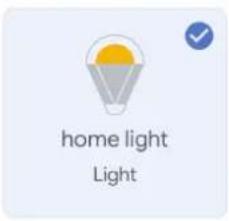
• b. Select the device and tap on Next as show in image b.

b. ✗ Choose device
NEXT >
- Step 8: Select the Home where you would like to add the Smart Life under. (Or) you can create a New home in order to add the Smart Life to it.
- Step 9: You have successfully added Smart Life device to your Google Assistant App.
Choose a home
You will be able to control the devices and services in this home.

Smart-Home

Office

Smart Home

Create another home
NEXT>
Smart-Home

Off

On

Add

Settings
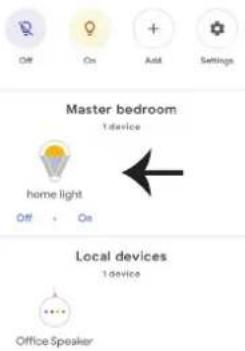
Master bedroom
1 device

home light


On
Local devices
1 device

Office Speaker
Step 10:
- a. You can turn the Lamp On/OFF by taping on On/Off options as shown below. (OR) You can tap on the Smart Lamp.
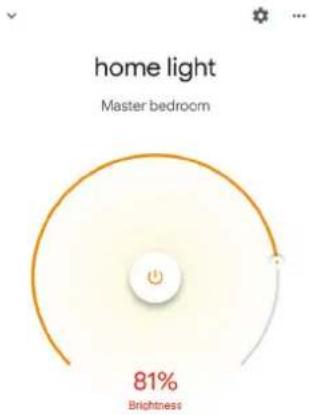
- b. You will be redirected to page(as shown in image b) where you can control the lights "Power and Dimming functionality".
Smart-Home
Google Commands
Now, you can control your smart device using voice commands on Google Assistant. Below are a few commands you can use:
Ok, Google, turn on/off bedroom light Ok,
Google, turn on/off Hall light Ok,
THINGS TO REMEMBER BEFORE STARTING INSTALLATION
-
Smart Life App & Google Assistant App Ok, Google, set bedroom light to warm white.
-
Make sure you have Google Assistant Device
-
Smart Device - Lamp
-
Stable Wifi network
ALEXA SETTINGS
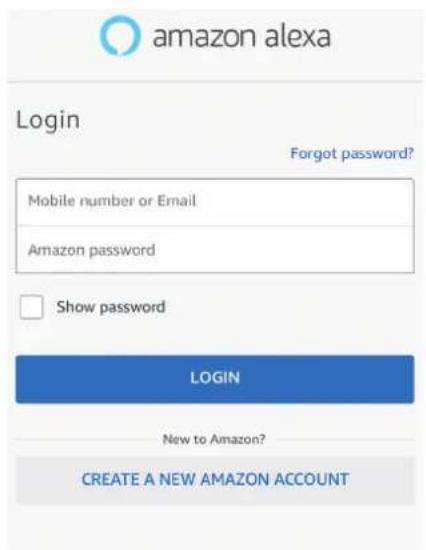
Step 1: Install the Amazon Alexa app via the App Store(iOS) or the Play Store (Android) and register. If you already have an existing account with Amazon Alexa, please proceed to logging in.
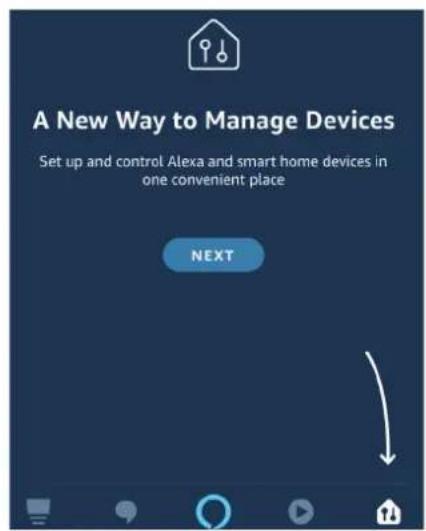
Step 2: Once you are on the Amazon Alexa home page, tap on the lower right icon — where the arrow is pointed— to add a new device and skill.
Step 3: Tap on settings and tap on "skills and games" as shown below.
Step 4: Search for 'Smart Life' on the "Skills & Games" page as shown below.
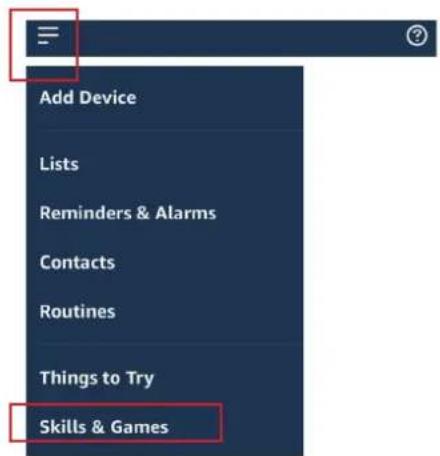
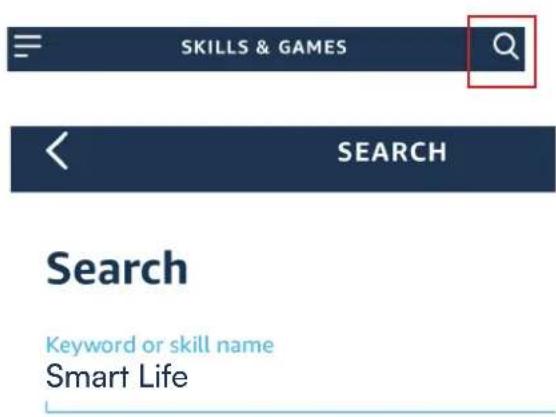
Step 5: Enable the Skill
Step 6: Enter your Smart Life login ID and password and tap on "Link Now"

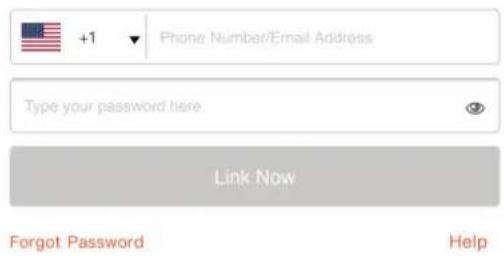
Step 7: Once you tap on Link Now, you will be redirected to a new page requesting for authorization(Ref Image below). Tap on "Authorize"
Step 8: You will receive confirmation of the account being linked successfully (Ref Image below)
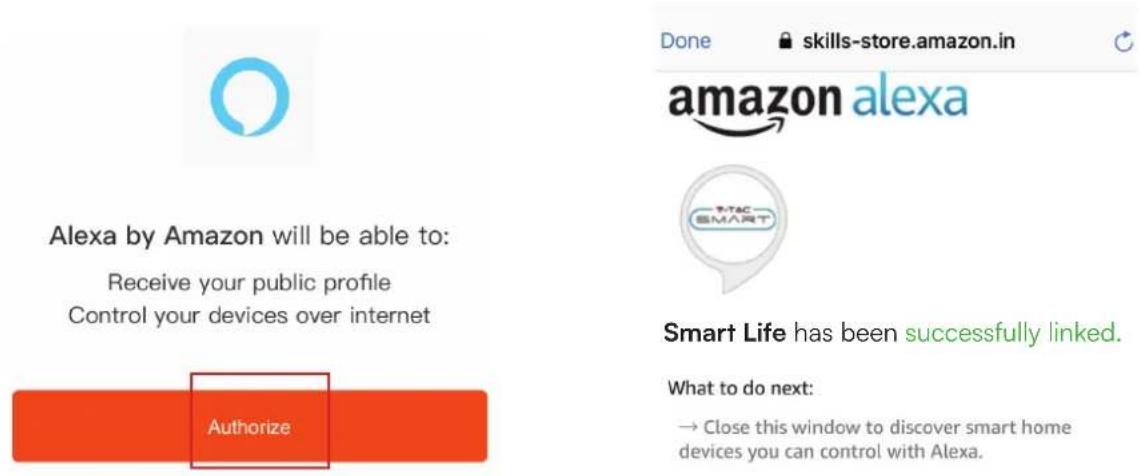
Step 9: Discover your smart device on Alexa. Once you have enabled the skill
A) You can use voice command "Alexa discover devices" to the Alexa device which you have.
B) To add device manually on home page tap on which you are adding and tap on discover device.

and tap on Add device, select the device
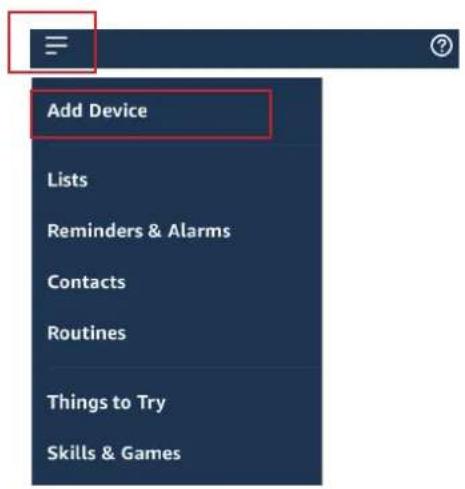
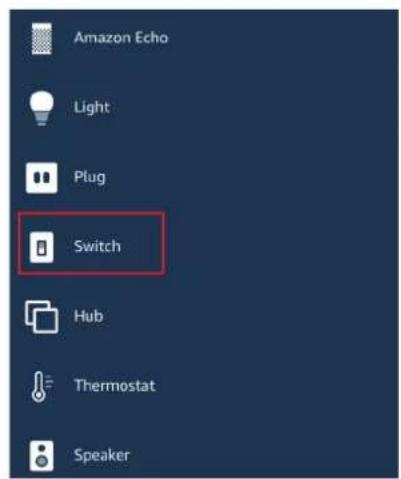
Note: Discovering the device must be done every time the device's name is changed on the app.
ALEXA COMMANDS
Now, you can control your smart device using voice commands on Alexa.
Below are a few commands you can use:
Alexa, turn on/off bedroom light Ok,
Alexa, turn on/off Hall light Ok,
THINGS TO REMEMBER BEFORE STARTING INSTALLATION
- Smart Life App & Amazon Alexa App
- Make sure you have Amazon Alexa Device(including Echo, Echo Tap, or Echo Dot)
- Smart Device - Lamp
- Stable Wifi network
SIMPLIFIED EU DECLARATION OF CONFORMITY
Hereby, V-TAC declares that this radio equipment type VT-5101 & VT-5102 Wifi Smart Switch is in compliance with Directive 2014/53/EU.
The full text of the EU declaration of conformity is available at the following internet address.
https://www.vtacexports.com/media/ftp-upload/certificates/DOC/EU/VT-5101-DOC-WIFI%20SMART%20SWITCH-EU.pdf
