FAX-737MC - Fax BROTHER - Free user manual and instructions
Find the device manual for free FAX-737MC BROTHER in PDF.


User questions about FAX-737MC BROTHER
0 question about this device. Answer the ones you know or ask your own.
Ask a new question about this device
Download the instructions for your Fax in PDF format for free! Find your manual FAX-737MC - BROTHER and take your electronic device back in hand. On this page are published all the documents necessary for the use of your device. FAX-737MC by BROTHER.
USER MANUAL FAX-737MC BROTHER
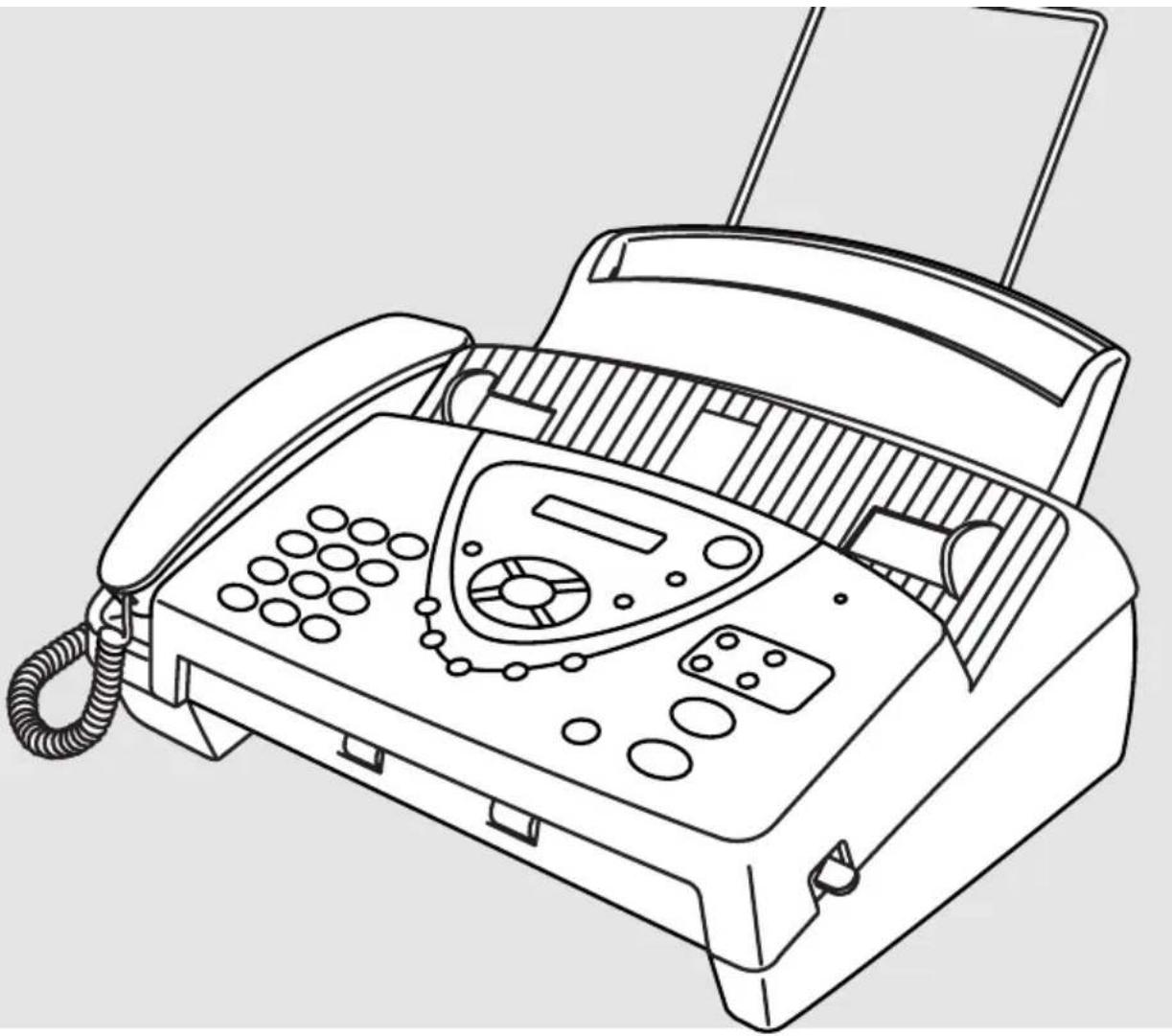
natural_image
Line drawing of a classic office typewriter with keypad and control panel (no text or symbols)FAX-717 FAX-727 FAX-737MC
brother
| Australia, New Zealand FAX-727, FAX-737MC |
| Others FAX-717, FAX-727, FAX-737MC |
THIS EQUIPMENT IS DESIGNED TO WORK WITH A TWO WIRE ANALOGUE PSTN LINE FITTED WITH THE APPROPRIATE CONNECTOR.
APPROVAL INFORMATION
Brother advises that this product may not function correctly in a country other than which it was originally purchased, and does not offer any warranty in the event that this product is used on public telecommunication lines in another country.
Using This Manual
Thank you for purchasing a Brother fax machine (FAX).
This machine has been designed to be simple to use, with LCD screen prompts to guide you through functions. However, you can use your machine to its fullest potential by taking a few minutes to read this manual.

Additionally, your machine can print a Help List. Make sure that there is no document in the Automatic Document Feeder, and press Copy/Reports and press 1 to print a list of basic operational steps and functions.
Finding Information
All chapter headings and subheadings are listed in the Table of Contents. You will be able to find information about a specific feature by checking the Index at the back of this manual. Also, throughout this manual, you will see special symbols alerting you to important information, cross-references, and warnings. Illustrations of some screen displays also help you choose the correct key-presses.
Symbols Used In This Manual

Note or additional information.
The machine would be damaged or would not work correctly if this is not observed.

Warnings detail precautions you must take to avoid possible personal injury.
User-Friendly Programming
We have designed your fax machine with on-screen programming using navigation keys.
User-friendly programming helps you take full advantage of all the functions your machine has to offer. (See Using This Manual, page i.)
Because you do all your programming on the LCD, we created step-by-step on-screen prompts to help you program your machine. All you need to do is follow the prompts as they guide you through the function menu selections and programming options and settings.
A complete list of the function selections, options, and settings that are available is provided in the appendix of this manual. (See Menu Mode & Menu Selection Table, page 100.)
Function Mode
You can access the Function Mode by pressing Menu/Set.
When you enter the Function Mode, your machine displays a list of main menu options from which you can choose. These options appear one after the other on the display. Select an option by pressing Menu/Set when the option appears on the LCD.
You can “scroll” more quickly through options by pressing ⏻When the screen displays your selection, press Menu/Set. (Use ⏻ to scroll backward if you passed your choice or to save key strokes. Both arrow keys show all options, in the opposite order.)
When you finish a function, the screen displays ACCEPTED.

If you want to exit the Function Mode, pressStop/Exit.
Alternating Displays
The LCD sometimes alternates between the currently selected option, and a help message giving brief instructions about how to proceed. The display you will probably see most often is shown below, showing you that when you place a document in the feeder, you can either dial a number to send it as a fax or press the copy key to make a copy of the document.
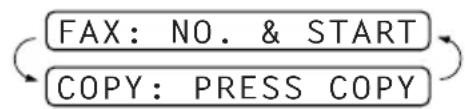
flowchart
graph LR
    A["FAX: NO. & START"] --> B["COPY: PRESS COPY"]
    B --> A
Quick Reference Guide
Sending Faxes
Automatic Transmission
1 Insert the document face down in the Automatic Document Feeder.
2 Enter the fax number you want to call.
3 Press Fax Start.
5 Press or to select the type of number and press Menu/Set.
6 Press or to select if you set ANTI JUNK to ON (or OFF) and press Menu/Set. (Not available in Australia and New Zealand)
7 Press Stop/Exit.
Receiving Faxes
Select Receive Mode
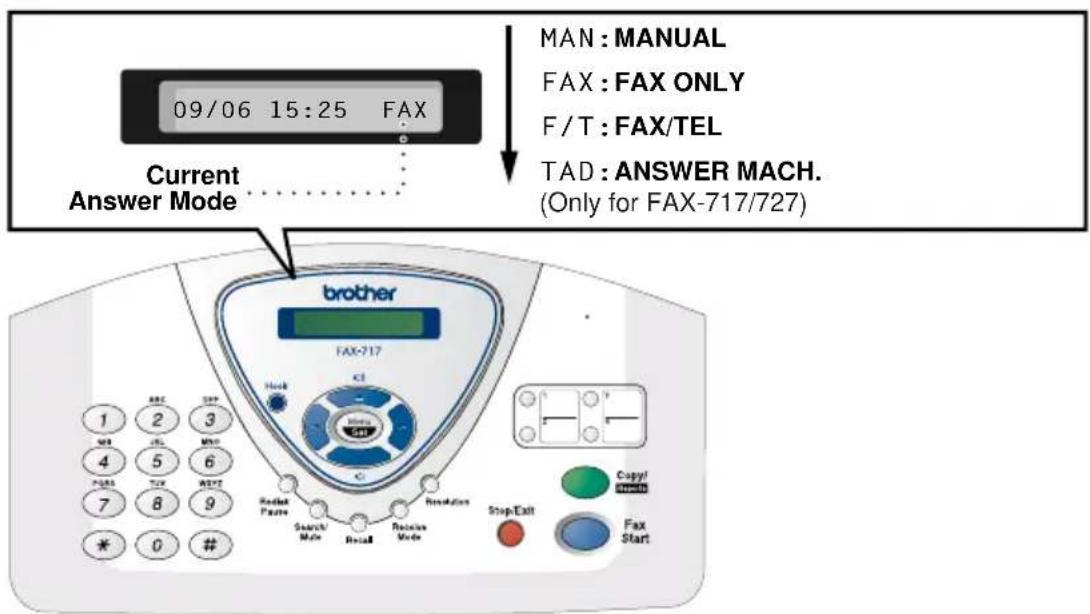
Press Receive Mode to select FAX ONLY, FAX/TEL, TAD:ANSWER MACH. (FAX-717/727) or MC:MSG CTR (FAX-737MC) or MANUAL. If you select FAX/TEL, make sure you set Ring Delay and F/T Ring Time.
Storing Numbers
Storing One Touch Dial Numbers
1 Press Menu/Set, 6, 1.
2 Press One Touch key
where you want to store a
number.
3 Enter a number (up to 20 digits), and then press Menu/Set.
4 Enter a name (or leave it blank), and then press Menu/Set.
Storing Speed Dial Numbers
1 Press Menu/Set, 6, 2.
2 Enter a two-digit Speed Dial number and then press Menu/Set.
3 Enter a number (up to 20 digits), and then press Menu/Set.
4 Enter a name (or leave it blank), and then press Menu/Set.
5 Press or to select the type of number and press Menu/Set.
6 Press or to select if you set ANTI JUNK to ON (or OFF) and press Menu/Set. (Not available in Australia and New Zealand)
7 Press Stop/Exit.
Dialling Operations
One Touch Dialling
1 Insert the document face down in the Automatic Document Feeder.
2 Press One Touch key
where you want to call.
3 Press Fax Start.
Speed Dialling
1 Insert the document face down in the Automatic Document Feeder.
2 Press Search/Mute, then press # and the two-digit Speed Dial number.
3 Press Fax Start.
Search
1 Insert the document face down in the Automatic Document Feeder.
2 Press Search/Mute, and then enter the first letter of the name you are looking for.
3 Press or to search the memory.
4 Press Fax Start, when the LCD shows the name you want to call.
Making Copies
Making a Single Copy
1 Insert the document face down in the Automatic Document Feeder.
2 Press Copy/Reports twice.
Sorting Multiple Copies
1 Insert the document face down in the Automatic Document Feeder.
2 Press Copy/Reports.
3 Enter the number of copies you want (up to 99).
4 Press Menu/Set.
5 Press or to select SORT, and then press Copy/Reports.
Table of Contents
PREPARATION AND SIMPLE USE GUIDE
Preparation and Simple Use Guide
Advice for Preparation and Simple Use Guide ....4
FAX-717/727 Control Panel Overview....8
FAX-737MC Control Panel Overview....10
BASIC USE
Chapter 1 Setup
Initial Settings.... 12
Custom Settings....14
Melody Settings (Only for FAX-737MC)......16
Storing Numbers for Easy Dialling....17
Chapter 2 Sending a Fax
Scanning Adjustment....20
Sending Operation....20
Dialling a Number....21
Chapter 3 Receiving a Fax
Answer Mode Settings ......23
Receiving a Fax....26
Chapter 4 Making Copies
Copy Functions.... 28
Chapter 5 Telephone
Making a Call.... 30
Answering a Call....32
Chapter 6 Printing Reports
Transmission Report and Journal Setting....33
Using the Reports Key.... 34
ADVANCED USE
Chapter 7 Advanced Sending
Advanced Operations....35
Chapter 8 Advanced Receiving
Operation from an External or Extension Telephone....44
Chapter 9 Telephone Service
Telephone Service for Australia (Telstra® Duet) ......47
Telephone Service for New Zealand....50
Telephone Service for Some Countries ....54
Chapter 10 Polling
Polling Receive....56
Polled Transmit....58
Secure Polling....59
Chapter 11 Remote Fax Options (Only for FAX-717/727)
Fax Forwarding....60
Remote Retrieval ....61
Chapter 12 Message Centre (Only for FAX-737MC)
Message Centre Mode ....65
Fax Forwarding/Paging....70
Remote Retrieval ....72
MAINTENANCE
Chapter 13 Troubleshooting and Maintenance
Error Messages ....77
Document Jams and Paper Jams....79
Difficulty with Operation....81
Regular Maintenance....83
Packing and Shipping the Machine 90
IMPORTANT INFORMATION
Chapter 14 Important Safety Information
Important Information for Australia ....91
Important Information for New Zealand....92
Important Information for Some Countries ....95
APPENDIX
Chapter 15 Specifications
Specifications 98
Menu Mode & Menu Selection Table....100
Entering Text....106
About Fax Machines.... 107
Glossary.... 108
Index....111
Accessory List....114
Preparation and Simple Use Guide
Simple steps to prepare and use the machine.
Follow these simple steps below to prepare and use the machine.
However, before you perform these steps, refer to the Important Information (page 91), and Advice for Preparation and Simple Use Guide (page 4).
If you need further information, refer to BASIC USE or ADVANCED USE.
1 Make sure you have the items shown below
Check that you have the following items:
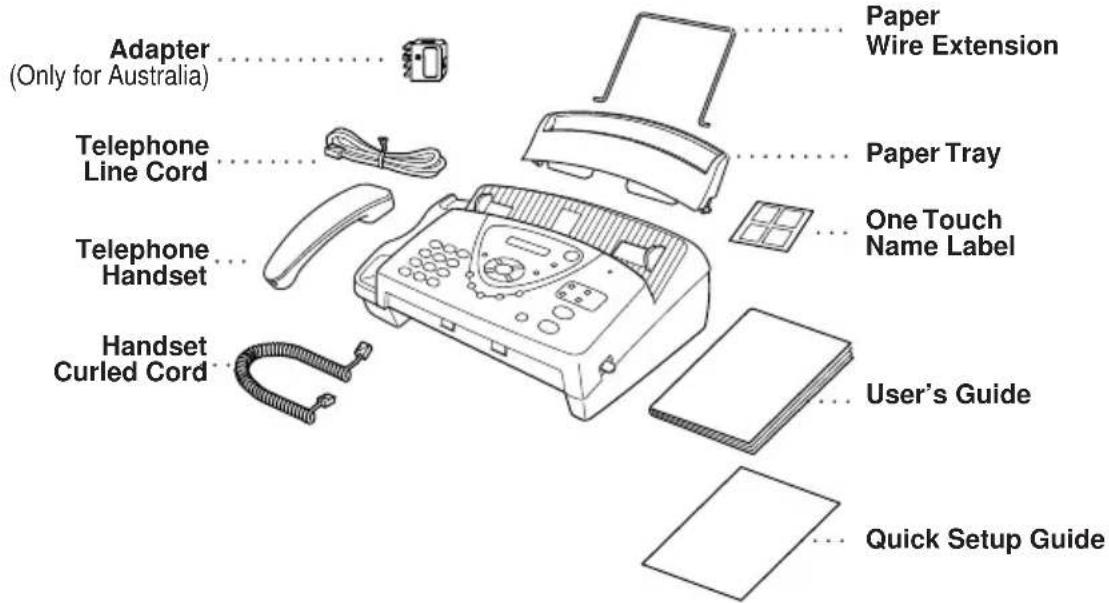
* The printing cartridge is already installed in the machine.
Keep the packing materials for possible future transport. Failure to pack the machine properly may damage the machine and such damages will not be covered under warranty.
2 Read the Quick Setup Guide
Follow the instructions on the Brother Quick Setup Guide to set up the machine.
3 Setting the Dialling Mode (Tone/Pulse) (Not available in New Zealand)
① Press Menu/Set, 1, 1. The screen prompts you to select TONE or PULSE.
② Use 🏠 or 🚫 to select the dialling mode, and press Menu/Set when the screen displays the dialling mode you want.
③ Press Stop/Exit.
4 Using the telephone
① Pick up the handset.
② When you hear a dial tone, dial the number, using the dial pad.
③ To hang up, replace the handset on its cradle.
5 Setting the Document
■ Documents must be between 14.8 and 21.6 cm wide, and 15 and 60 cm long. Your fax machine can only scan an image 20.8 cm wide, regardless of how wide the paper is.
■ Make sure you insert documents face down, top edge first.
■ Adjust the paper guides to fit the width of your document.
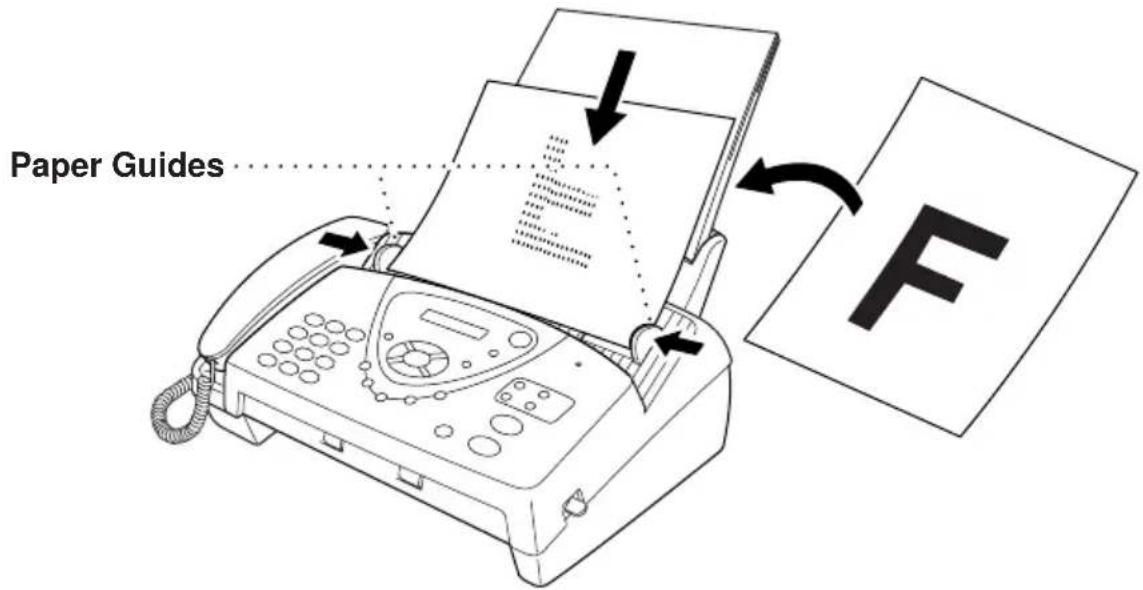
■ The Automatic Document Feeder can hold up to 10 pages, feeding each one individually through the fax machine. Use standard (64 gsm\~90 gsm) paper when using the Automatic Document Feeder; if you are using heavier paper, feed each sheet individually to prevent paper jams.
■ Press Resolution (before you send the fax) to select the resolution for the document you are sending. If you wish to send in STANDARD resolution, i.e. a general fax with no graphics, then the default is STANDARD, and the resolution button need not be pressed. (See Resolution, page 20.)
- DO NOT use, curled, wrinkled paper, folded, ripped paper, or paper with staples, paper clips, paste, or tape attached.
• DO NOT use, cardboard, newspaper or fabric. - DO NOT use paper on which correction fluid has been used.
- Make sure documents written with ink are completely dry.
6 Sending a fax automatically
① Insert the document face down in the Automatic Document Feeder.
② Enter the fax number you want to call.
③ Press Fax Start.
IMPORTANT: Do not pick up the handset.
7 Making a Single Copy
① Insert the document face down in the Automatic Document Feeder.
② Press Copy/Reports.
③ Press Copy/Reports. (See Making Copies, page 28.) To cancel, press Stop/Exit.
Your machine cannot scan anything closer than 4 mm from the edge of the paper.
Do NOT pull the paper while copying is in progress.
8 Setting up the Answer phone (MC) (Only for FAX-737MC)
① Press Menu/Set, 8, 1. The screen prompts you to choose a DOC (Document) setting.
② Press 🎨 or 🌐 to select ON (or OFF), and press Menu/Set. The screen prompts you to choose a VOICE setting.
③ Press 🎨 or 📋 to select your setting from the list (ON, OFF or EXT), and press Menu/Set when the screen displays your selection.
④ Press Stop/Exit.
⑤ Press Menu/Set, 8, 3. The screen prompts you to choose an OGM.
⑥ Press or to reach MSG CTR OGM.
This is the only setting you can select if you want to turn the Message Centre on.
⑦ Press Menu/Set.
⑧ Press 📋 or 🌐 to select RECORD MSG and press Menu/Set.
⑨ Pick up the handset to record a message.
For example: Hello. We are unable to take your call at this time. Please leave a message after the tone. If you wish to send a fax, please press 51 (9x1 for New Zealand), wait for the fax tones, then press the start button on your machine. (See Recording the Message Centre's Outgoing Message (MSG CTR OGM), page 66.)
⑩ Replace the handset. The Message Centre plays your OGM.
⑪ Press Stop/Exit.
⑫ Activate Message Centre (MC) Mode by pressing
Advice for Preparation and Simple Use Guide
Packing
Whenever you transport the machine, use the packing materials that came with your machine and pack the machine correctly.
Choosing a Location
Place your fax machine on a flat, stable surface, such as a desk. Select a place that is free of vibration and shocks. Locate the machine near a telephone socket and a standard, earthed Mains socket.
Avoid placing your machine in a busy area. Do not place near heaters, air conditioners, water, chemicals or refrigerators. Do not expose the machine to direct sunlight, excessive heat, moisture or dust. Do not connect your machine to electrical outlets controlled by wall switches or automatic timers. Disruption of power can wipe out information in the unit's memory. Do not connect your machine to electrical outlets on the same circuit as large appliances or other equipment that might disrupt the power supply. Avoid connecting the fax machine near to interference sources, such as speakers or the base units of cordless phones.
Connecting the Power Cord
- This fax must be earthed using a 3-pin plug.
- Since the machine is earthed through the power outlet, you can protect yourself from potentially hazardous electrical conditions on the telephone network by keeping the power to your machine on when you connect it to a telephone line. Similarly, you can protect yourself when you want to move your machine, by disconnecting the telephone line first, and then the power cord.
• Lightning and power surges can damage this product! We recommend that you use a quality surge protection device on the AC power line as well as on the telephone line, or unplug the lines during a lightning storm.
Memory Storage
Your machine is equipped with an internal battery which will keep the date and time information for up to about 48 hours after power has been cut off. After this time, the date and time will be lost and you will have to re-enter the information. In the event of a power failure, all settings in the menus are stored permanently except for the settings that are valid for the next fax only (e.g. contrast, overseas mode).
The FAX-737MC will retain any documents or voice messages stored into the memory for up to 15 hours after a power interruption.
The FAX-717/727 will not retain any documents stored into the memory after a power interruption.
Connections
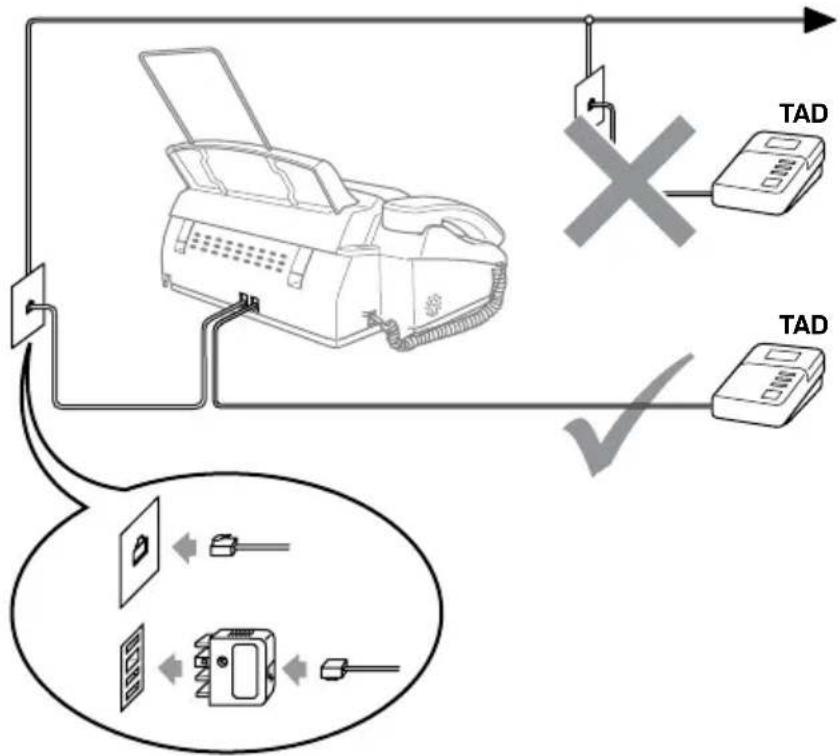
1 You may connect an external TAD to your machine, as shown below.
flowchart
graph TD
    A["Printer"] --> B["TAD"]
    B --> C["Switch"]
    C --> D["TAD"]
    style A fill:#f9f,stroke:#333
    style B fill:#ccf,stroke:#333
    style C fill:#cfc,stroke:#333
    style D fill:#fcc,stroke:#333
(Example for Australia)
2 Set the number of rings to one or two on your external TAD. (The fax machine's Ring Delay setting does not apply.)
3 Record the outgoing message on your external TAD (see next page).
4 Set the external TAD to answer calls.
5 Set MESSAGE STORE (Function menu 8-1) to VOICE:EXT. (Only for FAX-737MC)
6 Set the Answer Mode to TAD:ANSWER MACH.. (Only for FAX-717/727) On FAX-737MC, set the Answer Mode to MC:MSG CTR.
Do not connect a TAD elsewhere on the same phone line—your machine and TAD will both try to control the line.
Outgoing Message (OGM) of External TAD
Timing is important in recording this message.
1 Record four seconds of silence at the beginning of your message. (This allows your machine time to listen for the fax CNG tones of automatic transmissions before they stop.)
2 Try to record the shortest possible message on your telephone answering device (ideally less than 20 seconds).
3 End your message by giving your Fax Receive Code for people sending manual faxes. For example:
"After the beep, leave a message or send a fax manually by pressing*5 1 (91 for New Zealand)."
Please note that some faxes that are sent manually cannot be received automatically because some fax machines do not send a fax tone in manual mode. In these cases you must inform callers that they must enter the remote Fax Receive Code to send a fax.
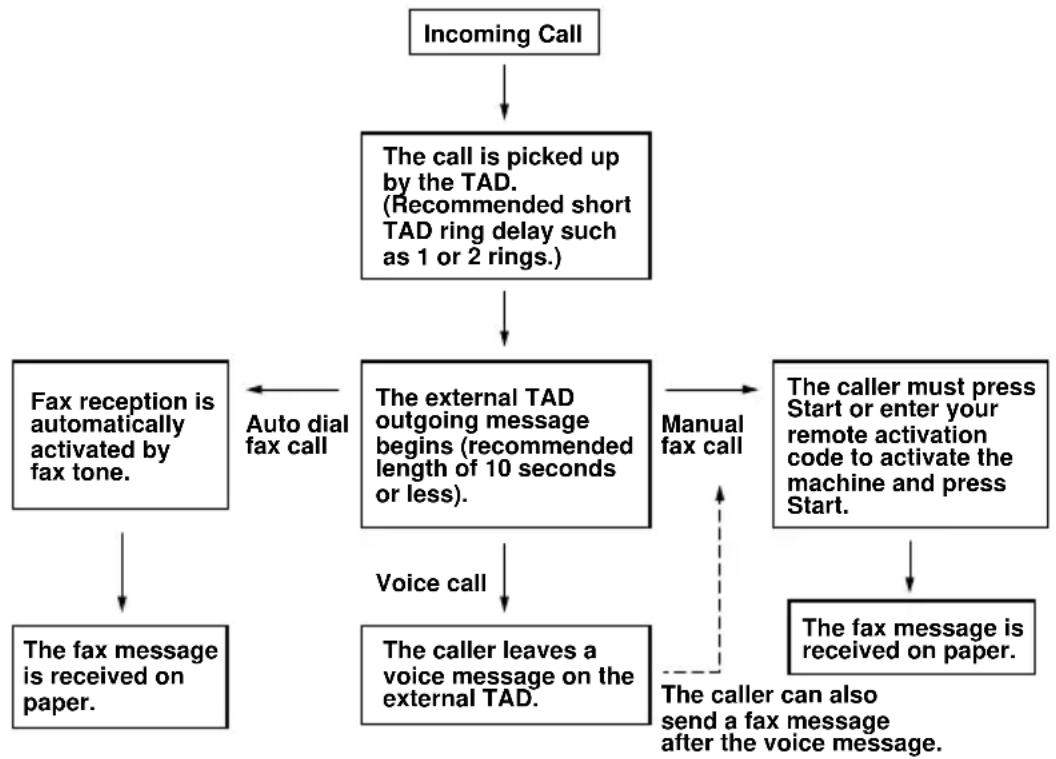
Sequence of External TAD Reception
When you leave your machine set in TAD mode, all calls will be answered by the externally connected telephone answering device, and fax calls will be received automatically provided they come from a machine which sends standard Calling tone (CNG).
flowchart
graph TD
    A["Incoming Call"] --> B["The call is picked up by the TAD. (Recommended short TAD ring delay such as 1 or 2 rings.)"]
    B --> C["The external TAD outgoing message begins (recommended length of 10 seconds or less)."]
    C --> D["Auto dial fax call"]
    C --> E["Manual fax call"]
    D <--> F["Fax reception is automatically activated by fax tone."]
    E <--> G["The caller must press Start or enter your remote activation code to activate the machine and press Start."]
    F --> H["The fax message is received on paper."]
    G --> I["The fax message is received on paper."]
    H --> J["The fax message is received on paper."]
    I --> K["The caller leaves a voice message on the external TAD."]
    K --> L["Voice call"]
    L --> M["The fax message is received on paper."]
    M --> N["The caller can also send a fax message after the voice message."]
Connecting an External Telephone
Your machine is equipped with a handset that you can use as a regular phone. However, you can also connect a separate telephone to your machine, as shown below.
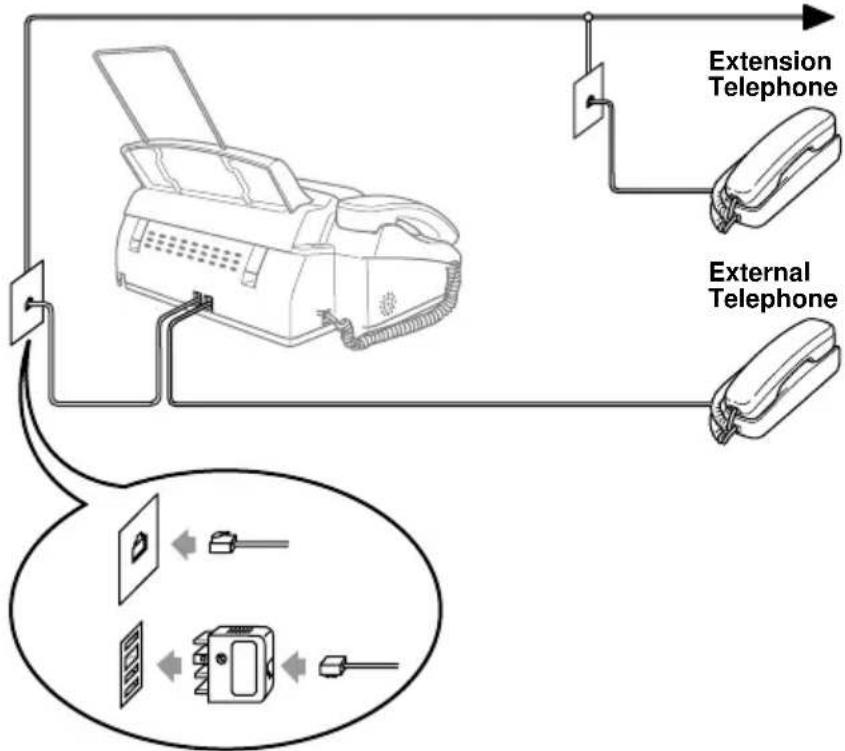
flowchart
graph TD
    A["External Telephone"] --> B["Printer"]
    C["Extension Telephone"] --> B
    B --> D["Switch"]
    B --> E["Battery"]
    style A fill:#f9f,stroke:#333
    style C fill:#f9f,stroke:#333
    style D fill:#ccf,stroke:#333
    style E fill:#ccf,stroke:#333
(Example for Australia)
Whenever this external phone (or TAD) is in use, the screen displays EXT. TEL IN USE, and, if the fax handset is lifted, an alarm sounds.
To disconnect the call on the external phone and switch to the fax, lift the handset and press Hook (FAX-717/727) or Speaker Phone (FAX-737MC).
FAX-717/727 Control Panel Overview
(FAX-727 panel is the same as FAX-717)
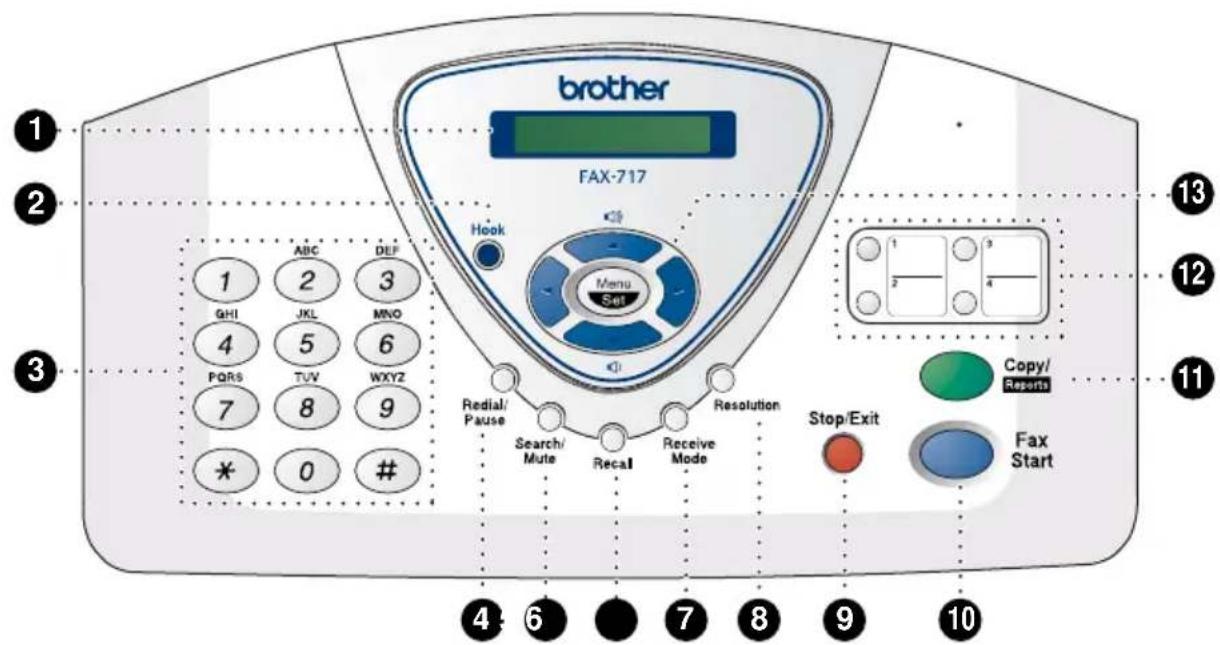
① LCD (Liquid Crystal Display)
Displays messages to help you set up and operate your machine.
② Hook
Lets you dial telephone and fax numbers without lifting the handset.
③ Dial Pad
Dials phone and fax numbers and can be used as a keyboard for entering information into the machine.
# key lets you switch the dialling type during a telephone call from "PULSE" to "TONE". (Not available in New Zealand)
4 Redial/Pause
Re-dials the last number called. Also inserts a pause in autodial numbers.
⑤ Search/Mute
Lets you dial stored phone numbers by pressing # and a two-digit number or lets you look up numbers stored in the dialling memory. Also, lets you put calls on hold.
6 Recall
Use this key to gain access to an outside line and/or to recall the operator or transfer a call to another extension when it is connected to a PABX. (Australia & New Zealand only)
⑦ Receive Mode
Use to select how the machine will handle incoming calls.
8 Resolution
Sets the resolution when you send a fax or make a copy.
9 Stop/Exit
Stops a fax, cancels an operation or exits from Menu mode.
10 Fax Start
Starts an operation, such as sending a fax.
11 Copy/Reports
With document in the Automatic
Document Feeder: Makes a copy.
Without document in the Automatic
Document Feeder: Lets you access the
Reports menu so you can select a report to print: HELP LIST, QUICK-DIAL,
FAX JOURNAL, XMIT VERIFY,
TEL.INDEX, USER SETTINGS and MEMORY STATUS List.
12 One Touch Dial Keys
These four keys give you instant access to previously stored phone numbers.
13 Navigation Keys: Menu/Set
Lets you access the menu and programming mode and stores your settings in the machine.

Press to scroll forward or backward to set a menu selection.
You can also use these keys to do an alphabetical search for the names of stored numbers.

Press to scroll through the menus and options.
—OR—
You can press these keys to adjust the beeper, ring or speaker volume.
FAX-737MC Control Panel Overview
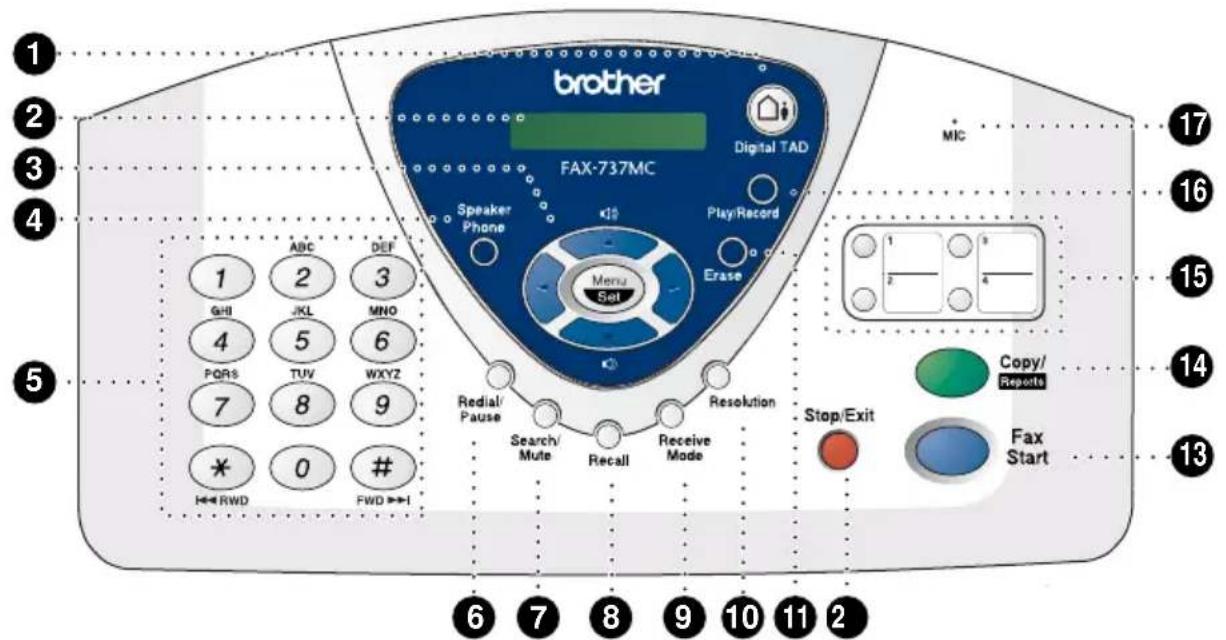
1 Digital TAD
Lets you activate Message Centre.
Also, notifies you that you have voice or fax messages in the memory.
② LCD (Liquid Crystal Display)
Displays messages to help you set up and operate your machine.
③ Navigation Keys: Menu/Set
Lets you access the menu and programming mode and stores your settings in the machine.

or

Press to scroll forward or backward to set a menu selection.
You can also use these keys to do an alphabetical search for the names of stored numbers.

Press to scroll through the menus and options.
—OR—
You can press these keys to adjust the beeper, ring or speaker volume.
4 Speaker Phone
Lets you speak to the person at the other end and dial telephone and fax numbers without lifting the handset.
⑤ Dial Pad
Dials phone and fax numbers and can be used as a keyboard for entering information into the machine.
# key lets you switch the dialling type during a telephone call from "PULSE" to "TONE". (Not available in New Zealand)
# key also lets you skip to the next message when you are playing voice messages and *key lets you repeat the last message when you are playing voice messages.
6 Redial/Pause
Re-dials the last number called. Also inserts a pause in autodial numbers.
⑦ Search/Mute
Lets you dial stored phone numbers by pressing # and a two-digit number or lets you look up numbers stored in the dialling memory. Also, lets you put calls on hold.
8 Recall
Use this key to gain access to an outside line and/or to recall the operator or transfer a call to another extension when it is connected to a PABX. (Australia & New Zealand only)
9 Receive Mode
Use to select how the machine will handle incoming calls.
10 Resolution
Sets the resolution when you send a fax or make a copy.
11 Erase
Lets you delete voice messages, fax messages or all messages.
⑫ Stop/Exit
Stops a fax, cancels an operation or exits from Menu mode.
13 Fax Start
Starts an operation, such as sending a fax.
14 Copy/Reports
With document in the Automatic Document Feeder: Makes a copy. Without document in the Automatic Document Feeder: Lets you access the Reports menu so you can select a report to print: HELP LIST, QUICK-DIAL, FAX JOURNAL, XMIT VERIFY, TEL.INDEX, USER SETTINGS and MEMORY STATUS List.
15 One Touch Dial Keys
These four keys give you instant access to previously stored phone numbers.
16 Play/Record
Lets you listen to voice messages and print fax messages stored in memory. Also, lets you record telephone calls.
17 MIC (Microphone)
Picks up your voice when you speak to another party using speakerphone.
1 Setup
Initial Settings
Setting the Dialling Mode (Tone/Pulse) (Not available in New Zealand)
Your machine is initially set to TONE. If you are using a PULSE dial line, you can change the setting to PULSE by following the steps below.
1 Press Menu/Set, 1, 1. The screen prompts you to select TONE or PULSE.
2 Use 🏠 or 🏠 to select the dialling mode, and press Menu/Set when the screen displays the dialling mode you want.
3 Press Stop/Exit.

Although this equipment can use either Pulse or Tone signalling, only the performance of the Tone signalling is subject to regulatory requirements for correct operation. It is therefore strongly recommended that the equipment is set to use the Tone signalling for access to public or private emergency services. The Tone signalling also provides faster call set up.
Setting the Date and Time
The screen displays the date and time you set, whenever the machine is in stand-by mode. It will print the date and time on every fax you send. In the event of a power failure, the machine maintains date and time information for about 48 hours.
1 Press Menu/Set, 1, 2.
3 Enter two digits for the month and press Menu/Set.
4 Enter two digits for the day and press Menu/Set.
5 Enter the time in 24 hour format and press Menu/Set.
6 Press Stop/Exit.
2 Enter the two digits of the year, and press Menu/Set. "04" is registered as 2004 in the machine.
Setting the Station ID
You can store your name, fax number and telephone number in this setting. The name and fax number will be printed on the fax cover pages and all fax pages that you send. (The telephone number will be printed only on your cover pages and on the call back messages.) (See Electronic Cover Page (Only for FAX-727/737MC), page 35 and Call Reservation (Only for FAX-727/737MC), page 38.) It is important that you enter the fax and telephone numbers in the internationally standardised format, i.e. in accordance with the following strict sequence:
- The “+” (plus) character (by pressing key)
- Your Country Code
- Your local area code minus any leading "0"
- A space
- Your number on the local exchange, using spaces to aid readability as appropriate.
1 Press Menu/Set, 1, 3.
2 Enter your fax number (up to 20 digits) and press Menu/Set.
3 Enter your telephone number (up to 20 digits) and press Menu/Set.
4 Enter your name (up to 20 characters) using the dial pad and the chart. To enter a space press twice.
5 Press Menu/Set.
6 Press Stop/Exit.

■ When you enter your name, see Entering Text, page 106.
■ The telephone number you enter is used only for the Call Back Message and Cover Page features.
■ If you do not enter a fax number, no additional information can be entered.
■ To enter a space, press once between numbers and twice between characters.
If your Station ID has already been programmed, the screen prompts "1" to make a change, or "2" to exit without changing.
Custom Settings
Volume Settings
Beeper Volume
You can set the beeper to LOW, HIGH or OFF. The machine comes set to LOW. When the beeper is set to LOW or HIGH, the machine beeps every time you press a key or make an error, and at the end of sending or receiving a fax.
1 Press Menu/Set, 1, 4.
2 Press or to select your setting.
3 When the screen displays the setting you want, press Menu/Set.
4 Press Stop/Exit.
Speaker Volume
You can adjust the speaker volume. If you have FAX-717/727, you must lift the handset, then press Hook before you can adjust the volume. If you have FAX-737MC, press Speaker Phone.
Press or to adjust the volume level. The display shows the setting you are choosing. Each key press changes the volume to the next setting. The new setting will remain until you change it again.

■ If you have FAX-737MC, you can adjust the speaker volume while you are listening to your OGM (Outgoing Message) and ICMs (incoming messages).
If you turn Incoming Recording Monitor to OFF (Menu/Set, 8, 5) on FAX-737MC, the Speaker for screening calls will be disabled and you won't hear callers leaving messages. The volume for other operations can still be controlled using 🎨 and 🏠
Ring Volume
You can adjust the ring volume when your fax machine is idle. You can select a ring volume level or press or until the ring is off.
Press or to adjust the volume level. With each key press, the fax machine rings so you can hear the current setting and the display shows the setting you are choosing. Each key press changes the volume to the next setting. The new setting will remain until you change it again.
PABX and TRANSFER (Not available for some countries)
Your machine is initially set to be connected with PSTN (Public Switched Telephone Network) lines. However many offices use a central telephone system or Private Automatic Branch Exchange (PABX). Your fax can be connected to most types of PABX. You can gain access to the outside line from your fax connected to PABX by just pressing Recall.

You can transfer a call to another extension by pressing Recall.
If your machine is connected to a PABX, you may need to insert an additional number prefix (e.g. "9") and a "pause", not press Recall, before each fax or telephone number, in order to again access to the outside line.
Setting PABX
If your machine is connected to a PABX system, set PBX:ON. If not, set OFF.
1 Press Menu/Set, 1, 5. The screen displays
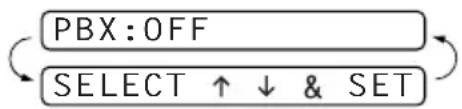
flowchart
graph TD
    A["PBX:OFF"] --> B["SELECT ↑ ↓ & SET"]
    B --> A
2 Press 🎨 or 🎨 to select ON (or OFF).
3 Press Menu/Set when the screen displays your selection.
4 Press Stop/Exit.

You can program an Recall keypress as part of a number stored in a One Touch or Speed Dial location. When programming the One Touch or Speed Dial number (Function menu 6-1 or 6-2) press Recall first (the screen displays “!”), then enter the telephone number. If you do this, you do not need to press Recall each time before you dial using a One Touch or Speed Dial location. (See Storing Numbers for Easy Dialling, page 17.) However, if PBX is set to OFF, you can’t use the One Touch or Speed Dial number that an Recall keypress is programmed into.
Melody Settings (Only for FAX-737MC)
Setting the Ring Pattern
You can select a ring pattern from signal (regular ring pattern) or 4 types of melody.
The default setting is SIGNAL.
1 Press Menu/Set, 9, 1.
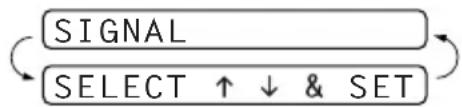
flowchart
graph LR
    A["SIGNAL"] --> B["SELECT ↑ ↓ & SET"]
    B --> C["Return to SIGNAL"]
2 Press 🎨 or 🎨 to select SIGNAL, MELODY1, MELODY2, MELODY3 or MELODY4 and press Menu/Set.
3 Press Stop/Exit.

Even if you select a melody for rings, F/T pseudo-ring can not be changed to the melody.
Setting the Music on Hold
You can select the music on hold. You can also set the music to OFF.
1 Press Menu/Set, 9, 2.
2 Press 🎨 or 📋 to select MELODY1, MELODY2, MELODY3, MELODY4 or OFF and press Menu/Set when the screen displays your selection.
3 Press Stop/Exit.
Setting the Melody Alarm
You can ring the melody at the setting time.
Also, you can select the alarm sound from a signal or 4 types of melody.
1 Press Menu/Set, 9, 3.
3.MELODY ALARM
2 Press 🎨 or 📋 to select ON (or OFF) and press Menu/Set. If you select OFF, go to Step 5.
3 Enter the time in 24-hour format you want to set the alarm and press Menu/Set.
SET TIME=10:15
4 Press 📁 or 🌐 to select SIGNAL, MELODY1, MELODY2, MELODY3 or MELODY4 and press Menu/Set.
MELODY1
5 Press Stop/Exit.
◆ During the Melody Alarm waiting, the screen displays ALARM WAITING.
◆ Once the melody rings on the time you set, the Melody Alarm setting returns to OFF.
If the time you set comes during the another operation, the Melody Alarm rings after they are finished.
Storing Numbers for Easy Dialling
You can set up your machine to do three types of easy dialling:
One Touch, Speed Dial, and Groups for Broadcasting of faxes.
If you use the Caller ID subscriber service offered by your local phone company (For Singapore, Hong Kong and Philippine only), you can register the number for Anti-Junk Fax/Call in One Touch and Speed Dial locations.

If you lose electrical power, auto dial numbers in memory will not be lost.
Storing One Touch Dial Numbers/Storing Junk Fax/Call Numbers
You can store four fax/phone numbers that you can dial by pressing one key. You can also store names with these numbers. When you press a One Touch dial key, the screen displays the name or number as the call is dialled. (See One Touch Dialling, page 21.)

■ One Touch keys are not the dial pad keys. They are the four keys (numbers 1–4) located to the right of the navigation keys.
■ If you want to store a Junk number, you have to set ANTI JUNK to ON in Step 6. (Not available in Australia and New Zealand)
1 Press Menu/Set, 6, 1.
2 Press the One Touch key where you want to store a number. The screen displays the location you selected.
3 Enter a number (up to 20 digits) and press Menu/Set.

If you want to enter a pause in the dialling sequence (to wait for an “outside line,” for example), press Redial/Pause as you’re entering digits. Pressing
Redial/Pause enters a 3.5-second pause when the number is dialled, and a dash appears on the screen.
4 Use the dial pad to enter the name or company (up to 15 characters) and press Menu/Set. You can use the chart to help you enter letters (See Entering Text, page 106.) —OR—
To store the number without a name, press Menu/Set.
NAME:
5 Press 🎨 or 🎨 to select the type of number and press Menu/Set.
FAX a fax only number
TEL a telephone (voice) number
F/T both a fax and telephone (voice) number
6
Press 🎨 or 🎨 to select if you set ANTI JUNK to ON (or OFF) and press
Menu/Set. (Not available in Australia and New Zealand)

If you set ANTI JUNK to ON, the number is registered as the Junk Fax or Call in the machine. The machine will reject receiving the fax message or telephone call. (Not available in Australia and New Zealand)
If you don't use the Caller ID subscriber service offered by your local telephone company, you cannot use the Anti-Junk function. (For Singapore, Hong Kong and Philippine)
7 Return to Step 2 to store another One Touch number—OR—Press Stop/Exit to exit.
When you dial a One Touch Dial number, the screen displays the name you have stored, or, if you have not stored a name, the number you have stored.
Storing Speed Dial Numbers/Storing Junk Fax/Call Numbers
You can store Speed Dial numbers, when you dial by pressing only four keys. There are 100 (FAX-727/737MC) or 60 (FAX-717) Speed Dial locations.

If you want to store a Junk number, you have to set ANTI JUNK to ON in Step 6. (Not available in Australia and New Zealand)
1 Press Menu/Set, 6, 2.
SPEED-DIAL? #
2 Use the dial pad to enter a two-digit location and press Menu/Set. (00-99 for FAX-727/737MC, 01-60 for FAX-717)
05:
3 Enter the number (up to 20 digits) and press Menu/Set.
ENTER & SET
4 Use the dial pad to enter the name or company (up to 15 characters) (See Entering Text, page 106.) and press Menu/Set—OR—Press Menu/Set to store the number without a name.
NAME:
5 Press 🎨 or 📋 to select the type of number and press Menu/Set.
FAX a fax only number
TEL a telephone (voice) number
F/T both a fax and telephone (voice) number
6 Press 📄 or 🌐 to select if you set ANTI JUNK to ON (or OFF) and press
Menu/Set. (Not available in Australia and New Zealand)
7 Return to Step 2 to store another Speed Dial number—OR—Press Stop/Exit to exit.
Changing One Touch and Speed Dial Numbers
If you try to store a One Touch or Speed Dial number in a location where a number is already stored, the screen displays the current name stored there, then prompts you to either
1. CHANGE—OR—2. QUIT.
1 Press 1 to change the number stored, or press 2 to exit without making a change.
2 Enter a new number.
If you want to erase the entire number, press Stop/Exit when the cursor is to the left of the digits. The letters above and to the right of the cursor are deleted.
If you want to change a digit, use or to position the cursor under the digit you want to change, then type over it.
3 Follow the directions from Step 3 in Storing One Touch Numbers or Storing Speed Dial Numbers.
Setting Up Groups for Broadcasting
Groups allow you to send the same fax message to many fax numbers by pressing only one One Touch key (Broadcasting). First, you'll need to store each fax number as a One Touch or Speed Dial number. Then, you can combine them into a Group. Each Group uses up a One Touch key. Finally, you can have up to four small Groups, or you can assign up to 103 (FAX-727/737MC) or 63 (FAX-717) numbers to one large Group. (See Storing One Touch Dial Numbers/Storing Junk Fax/Call Numbers, page 17, Storing Speed Dial Numbers/Storing Junk Fax/Call Numbers, page 18 and Broadcasting, page 22.)
1 Press Menu/Set, 6, 3.
SELECT ONE-TOUCH
2 Select a One Touch key where you wish to store the number. (For example, press One Touch key 2 to store a Group.)
3 Use the dial pad to enter the Group number and press Menu/Set. (For example, press 1 for Group 1.)
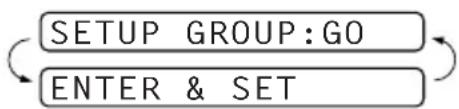
flowchart
graph TD
    A["SETUP GROUP:GO"] --> B["ENTER & SET"]
    B --> C["Return Loop"]
4 To include One Touch or Speed Dial numbers in the Group, enter them as if you were dialling. For example, for One Touch key 3, press One Touch key 3. For Speed Dial location 09, press Search/Mute, then press 0, 9 on the dial pad. The LCD shows *03, #09.
G01:*03#09_
5 Press Menu/Set to accept the numbers for this group.
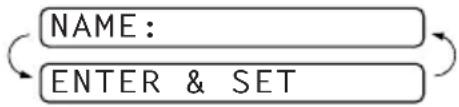
flowchart
graph TD
    A["NAME:"] --> B["ENTER & SET"]
6 Use the dial pad to enter a name for the group and press Menu/Set. (For example, NEW CLIENTS) (See Entering Text, page 106.)
7 Press Stop/Exit.

You can print a list of all One Touch and Speed Dial numbers. (See Printing Reports, page 33.)
2 Sending a Fax
Scanning Adjustment
Contrast
If your document is very light or very dark, you might want to set the contrast accordingly. Use LIGHT to send a light document. Use DARK to send a dark document. After sending the document the contrast setting is set to AUTO (suitable for most documents) automatically.
1 Insert the document face down in the Automatic Document Feeder.
2 Press Menu/Set, 3, 3.
3 Use 📋 or 📋 to select AUTO, LIGHT, or DARK.
4 When the screen displays your selection, press Menu/Set. The screen displays:
5 Press 2 if you have finished choosing settings, and go to Step 6—OR—Press 1 if you want to select additional settings. The display returns to SETUP SEND menu.
6 Enter a fax number and press Fax Start to send a fax.
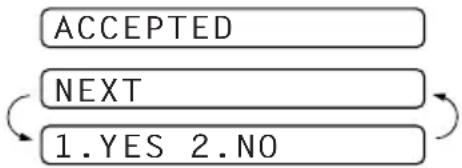
flowchart
graph TD
    A["ACCEPTED"] --> B["NEXT"]
    B --> C["1.YES 2.NO"]
    C --> A
Resolution
When you have a document in the feeder, you can use the Resolution key. Press Resolution continuously until you see your selection on the screen if you want to set a different resolution for each page, see Multiple Resolution Transmission, page 43.
STANDARD: suitable for most typed documents.
FINE: good for small print; transmits a little slower than standard resolution.
S. FINE: good for small print or artwork; transmits slower than fine resolution.
PHOTO: use when document has varying shades of grey; slow transmission time.
Sending Operation
Manual Transmission
Manual transmission lets you hear the dial tone, ringing and fax receiving tones before sending the fax.
1 Insert the document face down in the Automatic Document Feeder.
2 Pick up the handset and listen for a dial tone—OR—Press Speaker Phone (for FAX-737MC only).
3 Enter the fax number you want to call. (See Dialling a Number, page 21.)
4 When you hear the fax tone, press Fax Start. If you are using the handset, hang up.
Automatic Transmission
This is the easiest way to send a fax.
IMPORTANT: Do not pick up the handset—OR—Press Speaker Phone (for FAX-737MC only).
1 Insert the document face down in the Automatic Document Feeder.
2 Enter the fax number you want to call.
3 Press Fax Start.
Dialling a Number
One Touch Dialling
1 Insert the document face down in the Automatic Document Feeder.
2 Press the One Touch key of the location you want to call.
3 Press Fax Start.

If you try to use a One Touch or Speed Dial location with no number stored in it, you hear a warning sound, and screen displays NOT ASSIGNED. The display returns to normal after 2 seconds.
Speed Dialling
1 Insert the document face down in the Automatic Document Feeder.
2 Press Search/Mute, then press # and the two-digit Speed Dial number.
3 Press Fax Start.
Search
You can search for names you have stored in One Touch and Speed Dial memories. (See Storing One Touch Dial Numbers/Storing Junk Fax/Call Numbers, page 17 and Storing Speed Dial Numbers/Storing Junk Fax/Call Numbers, page 18.) Names are displayed alphabetically.
1 Insert the document face down in the Automatic Document Feeder.
2 Press Search/Mute.
3 To search for numbers alphabetically by name, enter the first letter of the name by using the dial pad, and then press or .
4 When the screen displays the name you want to call, press Fax Start.
Automatic and Manual Fax Redial
Automatic Fax Redial: If you are sending a fax automatically and the line is busy, the machine will automatically redial up to 3 times at 5 minute intervals.
Manual Fax Redial: Place the document to be re-sent and press Redial/Pause and then Fax Start to make a second call to the last number dialled.
Broadcasting
Using the numbers you have stored in Groups, One Touch and Speed Dial memory, you can “Broadcast” faxes automatically to a maximum of 104 (FAX-727/737MC) or 64 (FAX-717) different locations in a few simple steps.
To Broadcast, you must set Memory TX to either ON or NEXT FAX ONLY.
After the Broadcast is completed, a Broadcast Report will be printed automatically to let you know the results.
1 Insert the document face down in the Automatic Document Feeder.
2 Press Menu/Set, 3, 9 to select ON or NEXT FAX ONLY.
3 Press Menu/Set.
4 Enter the One Touch and Speed Dial numbers (one after the other), Search numbers or a Group number you have stored.
5 Press Fax Start. The machine stores the document in memory, and then transmits it to all the numbers you entered. If the line is busy, your machine will redial.

Press Stop/Exit during transmission to cancel the current fax Broadcast.
To cancel all locations, press Menu/Set, 4. (See Cancelling a Scheduled Job, page 40.)
3 Receiving a Fax
Answer Mode Settings
Select Answer Mode
MANUAL—Use this function if you receive many telephone calls and few fax messages. You must answer all calls yourself. If you hear fax tones, wait until the machine takes over the call automatically, then hang up (see Fax Detect function).
FAX ONLY—Use this function if you want to receive fax messages only (no telephone calls). The machine automatically answers every call as a fax call. You cannot receive a voice call, but you can dial out and make a voice call.
FAX/TEL—Use this function if you expect to receive many fax messages and few phone calls. The machine automatically answers every call. If the call is a fax, it prints the fax. If the call is not a fax, it signals you with an F/T pseudo-ring, different from the phone company ringing, to alert you to pick up the call. If you select this setting, you will need to set the Ring Delay and F/T Ring Time features (on the following pages). (See For F/T (Fax/Tel) Mode Only, page 44.)
TAD: ANSWER MACH. (FAX-717/727)—This is the only setting in which you can use an external answering machine. Your telephone answering device answers every call. Once the external telephone answering device (TAD) answers, the machine listens for fax tones. If it detects fax tones, fax messages are printed.
The TAD setting works only with an external telephone answering device (TAD). Ring Delay and F/T Ring Time do not work in this setting.
MC:MSG CTR (FAX-737MC)—FAX-737MC provides you with a built-in digital Message Centre for fax and voice. When you set the machine to answer calls, it will record up to 15 minutes of messages. See Message Centre (Only for FAX-737MC), page 65 for more information.
FAX-717/727
FAX-737MC
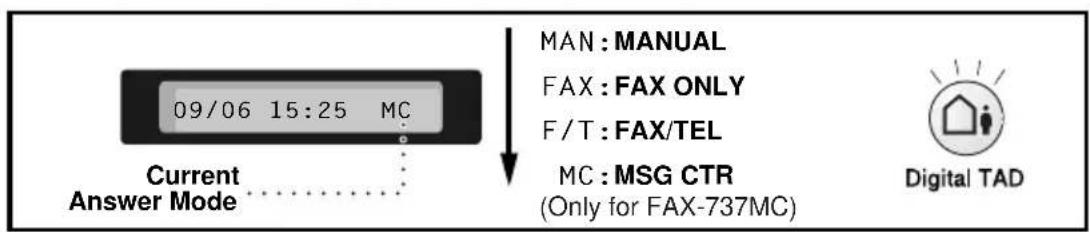
flowchart
graph TD
    A["Current Answer Mode"] --> B["09/06 15:25 MC"]
    B --> C["MAN: MANUAL"]
    B --> D["FAX: FAX ONLY"]
    B --> E["F/T: FAX/TEL"]
    B --> F["MC: MSG CTR (Only for FAX-737MC)"]
    F --> G["Digital TAD"]
To select or change your Answer Mode
1 Press Receive Mode. The screen displays your current selection.
The options on FAX-717/727 are:
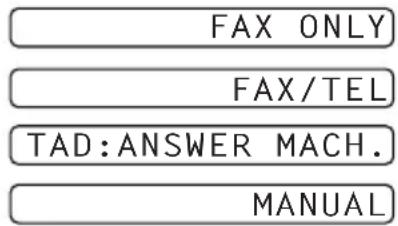
The options on FAX-737MC are:
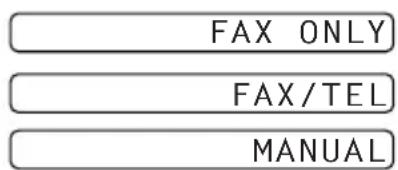
Or, if TAD Mode is switched ON by pressing (Digital TAD button), it overrides your Answer Mode Setting, so the display shows:

2 Continue to press Receive Mode until your new selection appears. After 2 seconds, the screen returns to the date and time display, along with your new Answer Mode setting.

If you are changing Answer Mode while in another operation, the screen returns to the current operation display.
Setting the Ring Delay
The Ring Delay setting determines the number of times the machine rings before it answers. (See Operation from an External or Extension Telephone, page 44 and For F/T (Fax/Tel) Mode Only, page 44.)
1 Press Menu/Set, 2, 1. If you have a FAX-717/727, go to Step 3.
2 Press 🎨 or 📋 to select RING DELAY, and press Menu/Set.
3 Press or to select how many times the line rings before the machine answers, and press Menu/Set when the screen displays your selection.
4 Press Stop/Exit.

(Only for FAX-737MC)
When Toll Saver is ON, it overrides your Ring Delay setting. Toll Saver must be off for the machine to operate using your Ring Delay setting. (See Setting the Toll Saver, page 70.)
Setting the F/T Ring Time (Only Applies to F/T Receiving Mode)
You need to determine how long the machine will give its special F/T pseudo-ring when you have a voice call. This ringing happens after the initial ringing from the phone company. Only the fax machine rings for 20, 30, 40 or 70 seconds; no other phones (extension or external) on the same line rings during the special F/T pseudo-ring.
1 Press Menu/Set, 2, 2.
2 Press or to select how long the machine will ring to alert you that you have a voice call, and press Menu/Set when the screen displays your selection.
3 Press Stop/Exit.

Even if the caller hangs up during the F/T pseudo-ringing, the machine continues the F/T pseudo-ringing for the set time.
Please note that some faxes cannot be received automatically in F/T mode, because some fax machines do not send the standard Group 3 calling tone (“CNG”) but this is not common.
This machine does not generate F/T ringing tones to any extension telephones. Any such extension telephones will only ring during the period set on ring delay.
Recording the Fax/Tel Outgoing Announcement (FAX/TEL OGM) (Only for FAX-737MC)
This is the announcement played by your machine (not an external TAD) when someone calls and your machine is set to F/T mode. Although callers hear your announcement, they cannot leave a message. See Erasing the Outgoing Message (OGM), page 67 for directions to erase the announcement. The purpose of this F/T message is for the callers to better understand the status of their call, when your machine is set in F/T receiving mode. If you want to use Message Centre, you MUST record the Message Centre OGM.
1 Press Menu/Set, 8, 3. The screen prompts you to choose FAX/TEL OGM, MSG CTR OGM or PAGING OGM.
2 Press 📁 or 📋 to select FAX/TEL OGM, and press Menu/Set.
3 Press 🏠 or 🏠 to select RECORD MSG and press Menu/Set, then pick up the handset to record a message.
4 Replace the handset. Your announcement is played.
5 Press Stop/Exit.

It is not necessary to have an outgoing message. The F/T mode will work fine without one. It is only to help the caller understand the status of your machine.
For example, you can leave a message that says:
“Hello, please wait, we are trying to connect you. If you wish to send a fax, please wait until you hear a fax tone and press the Start key, or, press *5 1 (9*1 for New Zealand) (your three-digit remote Fax Receive Code) and press the Start key.”
Fax Detect
When you use this feature, you don't have to press Fax Start when you answer a fax call and hear calling beeps. Just hold the handset and wait for several seconds. When you see RECEIVE on the fax screen or when you hear “chirps” through the handset of an extension phone connected to another wall jack, just replace the handset, and your machine does the rest.
- Selecting ON allows the machine to receive fax calls automatically, even if you lift the handset of an extension phone, an external phone, a phone or TAD connected to the machine.
- Selecting SEMI lets the fax machine receive the call only if you've answered it at the machine.
- Selecting OFF means you will have to activate the machine yourself, by pressing Fax Start or by pressing * 51 (* 91 for New Zealand) if you are not at your machine. (See Operation from an External or Extension Telephone, page 44 and For F/T (Fax/Tel) Mode Only, page 44.)
In case Fax Detect does not work, because of a poor phone line connection, just press Fax Start or press the Fax Receive Code * 51 (* 91 for New Zealand). (You have to set Remote Code to ON in Menu/Set, 2, 4 to use * 51 (* 91 for New Zealand).)
1 Press Menu/Set, 2, 3.
2 Use 📋 or 📋 to select ON, SEMI or OFF, and press Menu/Set when the screen displays your selection.
3 Press Stop/Exit.
If you've set the feature to ON, but your machine doesn't automatically connect a fax call when you lift an external or extension phone handset, press * 5 1 (* 9 1 for New Zealand).
At the machine, lift the handset and press Fax Start.
Receiving a Fax
Printing a Reduced Incoming Document
You can always reduce the size of an incoming fax to a fixed percentage with your machine. If you choose AUTO, the machine reduces an incoming document automatically, so that it fits on one page of A4 recording paper, regardless of the size of the original document.
1 Press Menu/Set, 2, 5. The screen displays
- REDUCTION
2 Use 📋 or 📋 to select the reduction ratio you want—AUTO, 100%, 93%, 87%, or 75%. Choose 100% if you don't want a reduction.
3 Press Menu/Set when the screen displays your selection.
4 Press Stop/Exit.

If you receive faxes that are split on two pages, change the reduction to AUTO—OR—Choose a lower reduction percentage.

- When you use Auto Reduction to reduce incoming documents to fit on one page of recording paper, you can do so only as long as the original document is not longer than 35 cm. If the original is longer than 35 cm, the data will not be reduced and will carry over to print on a second page.
■ When you use Auto Reduction and you receive an incoming document that is smaller than your recording paper, no reduction will take place, and you will get the same size recorded as the original.
Reception into Memory
As soon as the paper cassette becomes empty or ink ribbon runs out during fax reception, the screen will display CHECK PAPER; please put some paper in the paper tray.
If the MEMORY RECEPTION switch is ON at this time...
The current fax reception will continue, with the remaining page(s) being stored in memory, subject to available memory. Subsequent incoming faxes will also be stored into memory until the memory is full, following which no further incoming fax calls will be automatically answered; all data will be printed as soon as fresh paper is put in the paper cassette.
If the MEMORY RECEPTION switch is OFF at this time...
The current fax reception will continue, with the remaining page(s) being stored in memory, subject to available memory. Subsequent incoming fax calls will not be automatically answered until fresh paper is put in the paper cassette. The last fax received will be printed as soon as fresh paper is put in the cassette.
1 Press Menu/Set, 2, 6. The screen displays
6.MEM.RECEIVE
2 Use 🎨 or 🎨 to select ON or OFF, and press Menu/Set when the screen displays your selection.
3 Press Stop/Exit.
Printing a Fax from Memory (Only for FAX-717/727)
If you have fax storage ON for remote retrieval, you can still print a fax from the machine's memory when you are at your machine. (See Setting Fax Storage, page 60.)
1 Press Menu/Set, 8, 4.
2 Press Fax Start.
3 Press Stop/Exit.
4 Making Copies
Copy Functions
To make a single copy that is not reduced, enlarged or sorted, you only have to press one key. Remember, your machine cannot scan anything closer than 4 mm from the edge of the paper.
Making a Single Copy
1 Insert the document face down in the Automatic Document Feeder.
2 Press Copy/Reports twice.
To cancel, press Stop/Exit.
Do NOT pull on the paper while copying is in progress.

The default resolution for a single copy is S.FINE Set the resolution toPHOTO for photographs by using the Resolution key.
Copy Options: Single or Multiple Copies, Sort/Stack, Reduce/Enlarge
You can choose additional copy options. First, you can select the number of copies. Next, you can choose whether multiple copies will be STACKED (all copies of page 1, then all copies of page 2, etc.) or SORTED (collated). Finally, you can choose an enlargement or reduction ratio. To automatically reduce the copy to the paper size you have set for the paper tray, select AUTO. To reduce the copy by a fixed percentage, choose 93%, 87%, 75% or 50%. Or, to enlarge the copy, select 150%, 125% or 120%. To copy a document at its original size, select 100%.
1 Insert the document face down in the Automatic Document Feeder.
2 Press Copy/Reports.
3 Enter the number of copies you want (1-99).
To start copying now, press Copy/Reports.
If you would like to select additional copy options, like SORT, ELG/RDC (Enlarge or Reduce) press Menu/Set.
4 Press or to select SORT or STACK. To start copying now without enlarging or reducing, press Copy/Reports.
To reduce or enlarge the image, press Menu/Set.
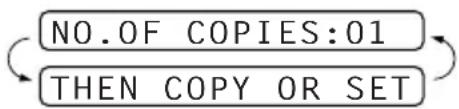
flowchart
graph TD
    A["NO.OF COPIES:01"] --> B["THEN COPY OR SET"]
    B --> A
ELG/RDC:100%
SELECT ↑ ↓ & SET
5 Press or to select an enlargement or reduction ratio.
6 Press Copy/Reports.

If you are making multiple copies and get a OUT OF MEMORY message while you are scanning the first page, press Stop/Exit to cancel the job. Then make a single copy. If you selected SORT and the OUT OF MEMORY message appears while scanning subsequent pages, you can press Copy/Reports to copy the portion that is in memory, or press Stop/Exit to cancel. To re-start the copy job using less memory, press Copy/Reports for stacked copies.

The default resolution for multiple copies or reducing and enlarging copies is FINE. Set the resolution to S.FINE for small print or artwork and PHOTO for photographs by using the Resolution key. S.FINE and PHOTO resolutions use up more memory than FINE mode.
5 Telephone
Making a Call
You can use your machine to make voice telephone calls, by dialling manually or by using One Touch or Speed Dial memory. You can use the handset or if you have FAX-737MC you can use the Speakerphone to make and receive calls. For more details, see Dialling a Number, page 21.
The “full-duplex” digital Speakerphone allows you to operate the phone hands free, or allows more than one person in the room to participate in a two-way phone conversation. When using the Speakerphone, make sure that you speak clearly. If the other party has difficulty hearing you, move closer to the microphone or use the handset.
On Hook Dialling
1 Dial the number by using the dial pad or Quick-Dial keys.
The number you are dialling, or the name you have stored for One Touch or Speed Dial is displayed on the LCD.
2 For FAX-717/727, press Fax Start and pick up the handset when you hear the call answered on the monitor speaker. If you press Hook before lifting the handset, the call will be disconnected. Replace the handset to finish the call.
For FAX-737MC, press Fax Start, and when the call is answered, you can now speak to the party at the other end without lifting the handset. Press Speaker Phone when you finish the conversation.
One Touch Dialling
1 Pick up the handset—OR—Press Speaker Phone (for FAX-737MC only).
2 Press the One Touch Dial key of the location you want to call.
3 To hang up, replace the handset—OR—Press Speaker Phone (for FAX-737MC only).

If you try to use a One Touch or Speed Dial location with no number stored in it, you hear a warning sound, and screen displays NOT ASSIGNED. The display returns to normal after 2 seconds.
Speed Dialling
1 Pick up the handset—OR—Press Speaker Phone (for FAX-737MC only).
2 Press Search/Mute, then press # and the two-digit Speed Dial number. (See Storing Speed Dial Numbers/Storing Junk Fax/Call Numbers, page 18.)
3 To hang up, replace the handset—OR—Press Speaker Phone (for FAX-737MC only).
Search
You can search for names you have stored in One Touch and Speed Dial memories. (See Storing One Touch Dial Numbers/Storing Junk Fax/Call Numbers, page 17 and Storing Speed Dial Numbers/Storing Junk Fax/Call Numbers, page 18.)
1 Pick up the handset—OR—Press Speaker Phone (for FAX-737MC only).
2 Press Search/Mute, then enter the first letter of the name you are looking for by using the dial pad.
3 Press or to search the names that are displayed alphabetically.
4 When the screen displays the name you want to call, press Fax Start to begin dialling.
5 To hang up, replace the handset—OR—Press Speaker Phone (for FAX-737MC only).
Redial
If you are calling someone and the line is busy, you can retry the number by pressing Redial/Pause.
1 Pick up the handset—OR—Press Speaker Phone (for FAX-737MC only).
2 Press Redial/Pause.
3 To hang up, replace the handset—OR—Press Speaker Phone (for FAX-737MC only).
Pause
Press Redial/Pause to insert a pause between digits to be dialled.
If your fax machine is connected to a PABX, you may need to insert an additional number prefix (e.g. “9”) and a “pause” before each fax or telephone number to gain access to the outside line.
(Australia & New Zealand only)
When you press Redial/Pause, a dash “-” will appear on the display. By storing a pause, you can create a delay of 3.5 seconds.
Tone/Pulse (Not available in New Zealand)
If you have pulse dialling service, but need to send tone signals (for telephone banking, for example), follow the directions below. If you have touch tone service, you do not need this feature to send tone signals.
1 Lift the handset and dial the number.
2 When you are asked to enter any number, press # on the control panel of the machine. Any digits dialled after this sends tone signals.
3 When you hang up, the machine returns to pulse dialling service.
Answering a Call
F/T (FAX/TEL) Mode
When you share one line for your telephone and fax machine, in the F/T (FAX/TEL) mode, the fax machine can determine whether an incoming call is a fax or a telephone call. (See Answer Mode Settings, page 23.)
Answering Calls with the Speakerphone (Only for FAX-737MC)
When the machine rings, instead of lifting the handset, press Speaker Phone. Speak clearly, toward the microphone. To end the call, press Speaker Phone.
If you have a bad telephone line connection, the other party might hear your voice echoed during the call. Hang up and try the call again—OR—Pick up the handset.
Mute
1 Press Search/Mute to put a call on hold.
2 You can replace the handset without disconnecting the call.
3 Pick up the machine's handset or press Speaker Phone (for FAX-737MC only) to release the call from hold.
If you press Search/Mute without lifting the handset or pressing Speaker Phone (for FAX-737MC only), this key works as the Search key.

You can select a music type or set to off the music during a call put on hold. (See Setting the Music on Hold, page 16.)
Hook Key (Only for FAX-717/727)
If you pick up the machine's handset and press Hook when you are talking lifting the external telephone's handset, now you can talk to the other party at the machine.
6 Printing Reports
Transmission Report and Journal Setting
Two reports require initial setup in the Menu table: Transmission Verification Report and Journal Period. For initial setup:
Press Menu/Set, 7, 1.
—OR—
Press Menu/Set, 7, 2.
1.XMIT REPORT
- JOURNAL PERIOD
Customizing the Transmission Verification Report
You can use the Transmission Report as proof that you sent a fax. This report lists the name or fax number of the receiving party, the time and date of transmission, and if the transmission was successful.
When the feature is OFF, the report is printed automatically only if there's an error during transmission. If the report indicates ERROR, send the document again. If the report indicates you should check the readability of certain pages, resend those pages.
When the feature is ON, the report is printed with every fax you send.
1 Press Menu/Set, 7, 1.
2 Press 🎨 or 🎨 to select ON or OFF, and press Menu/Set.
3 Press Stop/Exit.
Setting the Journal Period
You can set the machine to print activity reports at specific intervals (every 30 faxes, 6, 12, 24 hours, 2 or 7 days). If you set the interval to OFF, you can print the report manually. (See To Print a Report, page 34.)
1 Press Menu/Set, 7, 2.
2 Press 🎨 and 🔵 key to choose your setting and press Menu/Set.
3 If you choose 7 days, the screen prompts you to choose a day at which to begin the 7-day countdown. Press 🎨 or 🏠 to choose your setting and press Menu/Set.
4 Enter the time to begin printing, in 24-hour format (for example, enter 19:45 for 7:45 PM), and press Menu/Set.
5 Press Stop/Exit.
Using the Reports Key
You can print the following lists and reports:
- HELP LIST
Lists basic operational steps and functions. - QUICK-DIAL
Lists names and numbers stored in One Touch and Speed Dial memory, in numerical order.
3.FAX JOURNAL
Journal lists information about the last 30 incoming and outgoing faxes. TX means Transmit; RX means Receive.
4.XMIT VERIFY
Choose if Transmission Verification Report is printed after all Faxes sent.
5.TEL.INDEX
Quick-dial list (above), alphabetically.
6.USER SETTINGS
Lists settings for INITIAL SETUP, SETUP RECEIVE, SETUP SEND. REPORT SETTING,
REMOTE FAX OPT (FAX-717/727),
SETUP MSG CTR(FAX-737MC), SETUP MELODY
(FAX-737MC) and MISCELLANEOUS. - MEMORY STATUS
Lists summary information and amount of occupied memory.
To Print a Report
1 Make sure that there is no document in the Automatic Document Feeder.
2 Press Copy/Reports, then enter the number (see list above) of the report you want to print. For example, press 6 to print the USER SETTINGS.
3 Press Stop/Exit.
Advanced Operations
Electronic Cover Page (Only for FAX-727/737MC)
The cover page is sent to the receiving party's machine. Your cover page includes the name stored in the One Touch or Speed Dial memory, if you have used this feature to start the call.
The cover page indicates the fax is from your Station ID, and the number of pages you are sending. If you have COVERPG SETUP set to ON (see Always Send Cover Page, page 36), the number of pages on the cover page remains blank.
You can select a comment to include on your cover page, or you can select 1.COMMENT OFF if you do not wish to include a comment.
As well as using one of the comments shown on the right, you can also enter up to two customized messages, each 27 characters long. (See Composing Your Own Comments, page 37.)
1.COMMENT OFF
2. PLEASE CALL
3.URGENT
4. CONFIDENTIAL
Cover Page for Next Fax Only
Make sure Station ID is set up. (See Setting the Station ID, page 13.) This feature does not work without the Station ID.
You can set the fax to send a cover page with a particular document. This cover page will include the number of pages in your document.
1 Insert the document face down in the Automatic Document Feeder.
2 Press Menu/Set, 3, 1.
3 Press Menu/Set when the screen displays NEXT FAX ONLY.
4 Press 🎨 or 🎨 to select ON (or OFF), and press Menu/Set.
5 Press or to view the comment selections.
6 Press Menu/Set when the screen displays your selection.
7 Enter two digits to indicate the number of pages you are sending. (Enter 00 to leave the number of pages blank.) If you have made a mistake, press -to back up and re-enter the number of pages.
1.COMMENT OFF
2. PLEASE CALL
3. URGENT
4. CONFIDENTIAL
5. (user defined)
6. (user defined)
8 Press Menu/Set. The screen displays:
9 Press 1 if you want to select additional settings. The display returns to the SETUP SEND menu—OR—Press 2 if you are finished choosing settings, and go to Step 10.
10 Enter the fax number you are calling and then press Fax Start.
ACCEPTED
NEXT
1.YES 2.NO
Always Send Cover Page
Make sure Station ID is set up. (See Setting the Station ID, page 13.) This feature does not work without the Station ID.
You can set the machine to send a cover page whenever you send a fax. The number of pages in your fax is not included when you use this setting.
1 Press Menu/Set, 3, 1.
2 Press 🎨 or 🎨 to select ON (or OFF).
3 Press Menu/Set when the screen displays COVERPAGE:ON. (If you select ON, a coverpage is always sent when you send a fax.)
4 If you selected ON, the screen displays the cover page comment options. Press or to view comment selections.
1.COMMENT OFF
2. PLEASE CALL
- URGENT
- CONFIDENTIAL
- (user defined)
- (user defined)
5 Press Menu/Set when the screen displays your selection. The screen displays:
6 Press 1 if you want to select additional settings. The display returns to the SETUP SEND menu—OR—Press 2 to exit if you are finished choosing settings.
ACCEPTED
NEXT
1.YES 2.NO
Using a Printed Cover Page
If you prefer using a printed cover page that you can write on, you can print the sample page and attach it to your fax.
1 Press Menu/Set, 3, 1.
2 Press 🎨 or 🎨 to select PRINT SAMPLE, and press Menu/Set.
![=== COVER PAGE === TO: ________ FROM: ________ FAX: TEL: PAGE[S] TO FOLLOW COMMENT:](/content/2026/06/1164428/images/40ec573672bfa108435dfb743f165d8109f97bd5990c9eeb94ead6b78cf06950.jpg)
Composing Your Own Comments
1 Press Menu/Set, 3, 2. The screen displays: COVERPAGE NOTE.
2 Use 📋 or 📋 to choose position 5 or 6 for your customized comment, and press Menu/Set.
3 Use the dial pad to enter your customized comment. (See Entering Text, page 106.)
4 Press Menu/Set. The screen displays:
5 Press 1 if you want to select additional settings. The display returns to the SETUP SEND menu—OR—Press 2 if you are finished choosing settings and exit.
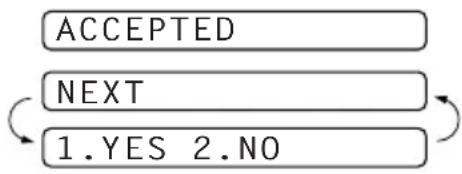
flowchart
graph TD
    A["ACCEPTED"] --> B["NEXT"]
    B --> C["1.YES 2.NO"]
    C --> A
Overseas Mode
Sometimes, when sending a fax to overseas numbers, problems can be experienced. This mode makes the machine work better for such calls.
After you send a fax using this feature, the feature turns itself off.
1 Insert the document face down in the Automatic Document Feeder.
2 Press Menu/Set, 3, 5.
3 Press 🎨 or 🎨 to select ON (or OFF), and press Menu/Set when the screen displays your selection. The screen displays
4 Press 1 if you want to select additional settings. The display returns to the SETUP SEND menu—OR—Press 2 if you have finished choosing settings, then go to Step 5.
5 Enter the fax number you are calling, and press Fax Start.
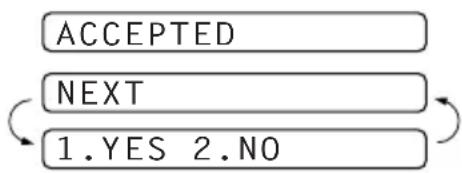
flowchart
graph TD
    A["ACCEPTED"] --> B["NEXT"]
    B --> C["1.YES 2.NO"]
    C --> A
Memory Transmission
This feature allows your machine to scan a fax into its memory and send it as soon as the scan is complete. This way, you don't have to wait for the entire fax to be transmitted before you retrieve your document.
1 Insert the document face down in the Automatic Document Feeder.
2 Press Menu/Set, 3, 9.
3 To change the default setting, press or to select ON (or OFF) and press Menu/Set. Go to Step 5—OR—For the next fax transmission only, press or to select NEXT FAX ONLY and press Menu/Set.
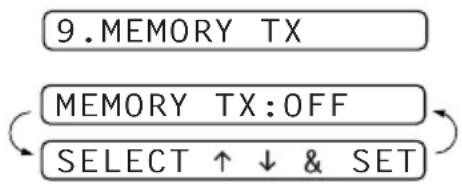
flowchart
graph TD
    A["9. MEMORY TX"] --> B["MEMORY TX:OFF"]
    B --> C["SELECT ↑↓ & SET"]
    C --> A
4 For the next fax only, press 🏠 or 📋 to select ON (or OFF) and press Menu/Set.
5 Press 1 to select additional settings. The display returns to the SETUP SEND menu—OR—Press 2 if you are finished choosing settings and go to Step 6.
6 Enter fax number and press Fax Start.

If you get a OUT OF MEMORY message while scanning the first page of a fax, press Stop/Exit to cancel the scan. If you get OUT OF MEMORY message while scanning in a subsequent page, you'll have the option to press Fax Start to transmit the pages scanned so far, or to press Stop/Exit to cancel the operation. In this case, send the fax by the Manual Transmission.

Depending on your typical faxes, OUT OF MEMORY errors can occur frequently. If this happens, change the Memory Transmission setting back to OFF.
Call Reservation (Only for FAX-727/737MC)
You can send a fax and let the other party know that you want to speak to him after the fax transmission is completed. The other fax machine will ring as if it were receiving a telephone call; if the other party picks up the handset, your machine will ring. Lift the handset to have a conversation.
If you set Call Reservation and Call Back message to ON, your machine leaves a message if the other party does not answer.
1 Insert the document face down in the Automatic Document Feeder.
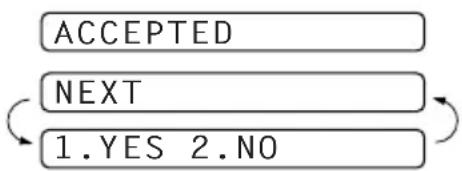
4 If you set Call Reservation to ON, the screen displays the current setting for Call Back Message. Press or 📋 to select ON (or OFF), and press Menu/Set when the screen displays your selection. The screen displays
5 Press 1 if you want to select additional settings. The display returns to the SETUP SEND menu—OR—Press 2 if you are finished choosing settings, and go to Step 6. The screen prompts you to enter the fax number you want to call.
2 Press Menu/Set, 3, 6. The screen displays the current setting for Call Reservation.
3 Press 🎨 or 🎨 to select ON (or OFF), and press Menu/Set when the screen displays your selection.
6 Enter the fax number, and press Fax Start.
7 If you've set Call Reservation to ON, pick up your handset if the machine rings.
flowchart
graph TD
    A["ACCEPTED"] --> B["NEXT"]
    B --> C["1.YES 2.NO"]
    C --> A

You cannot use auto redial with Call Reservation. You cannot use Call Reservation with Delayed Transmission or with Polling. You must register your Station ID to set Call Back Message to ON.
Print Sample Call Back Message
1 Press Menu/Set, 3, 6.
2 Press 🎨 or 🎨 to select PRINT SAMPLE, and press Menu/Set.
Delayed Transmission (Timer)
You can use this function to send a fax up to 24 hours later.
1 Insert the document face down in the Automatic Document Feeder.
2 Press Menu/Set, 3, 7.
3 Enter the time you want the fax to be sent, in 24-hour format (for example, enter 1945 for 7:45 PM), and press Menu/Set.
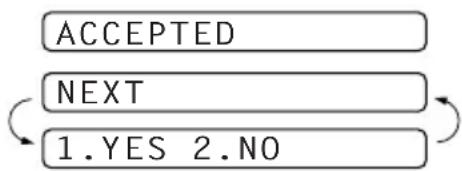
4 Press 1 if you want to select additional settings. The display returns to the SETUP SEND menu—OR—Press 2 if you are finished choosing settings and go to Step 5. The screen prompts you to enter the fax number.
5 Enter the fax number, and press Fax Start. The machine will wait until the time you have entered to send the fax.
flowchart
graph TD
    A["ACCEPTED"] --> B["NEXT"]
    B --> C["1.YES 2.NO"]
    C --> A
Next-Fax Reservation (Only for FAX-727/737MC)
Even if your machine is receiving another fax, you can prepare to send your next fax. This way, you don't have to wait for it to finish sending or receiving the other fax. You can dial this fax call manually, or by using Redial or One Touch dialling. (When you use One Touch Dial, only the memory location—not the name of the person you are calling—is displayed.)
1 Insert the document face down in the Automatic Document Feeder. If necessary, press Resolution to adjust resolution.
2 Enter the fax number, and press Fax Start.
3 Press Menu/Set. The screen displays NEXT-FAX RESERVD.
4 To cancel the reservation, remove the documents and press Stop/Exit.

■ If you use Next-Fax Reservation, the machine will send a document without storing it in memory.
- You can't use this feature if there is a document waiting in the feeder (possibly for Delayed Transmission or Polling Transmit), or when the timer has been interrupted.
Cancelling a Scheduled Job
You can cancel tasks you've scheduled such as Timer or Polling Transmit.
1 Press Menu/Set, 4. Any waiting jobs appear on the display. If no job is waiting, the screen displays NO JOB WAITING.
2 If you have more than two jobs waiting, use or to select the job you want to cancel. Press Menu/Set when the screen displays your selection—OR—If you have only one job waiting, go to Step 3.
3 Press 1 to cancel—OR—Press 2 to quit without cancelling.
4 Press Stop/Exit.
Interrupting Timer and Polled Transmit Jobs
You can send a fax or make a copy now, even if you have the machine set to send a fax later, or if you have it set to be polled. However, you cannot use automatic redial or the Menu mode.
1 Press Menu/Set, 5.
2 Wait 2 seconds, then remove the documents that are waiting in the Automatic Document Feeder.
3 Insert the document you want to send now in the Automatic Document Feeder.
4 Enter the number for the fax you want to send now, and press Fax Start.
5 After the transmission is finished, return the first document to the Automatic Document Feeder.
6 Press Menu/Set, 5 to restore the timer.

If you set Timer or Polled Transmit using the memory (that is, if you have already scanned the document into the machine's memory and will send it from there), you don't have to interrupt to send a fax or make a copy.
Memory Security
This feature allows you to prevent unauthorised access to the machine. When switched ON, Memory Security prohibits most functions. The following functions listed are available while Memory Security is switched ON.
■ Receiving faxes into memory [limited by Memory Capacity].
■ Scheduled Delayed Transmission*
■ Polling*
■ Fax Forwarding*
■ Remote Retrieval
* Provided it was set before Memory Security was switched ON.

The stored documents will be saved for up to 15 hours in the event of a power failure (FAX-737MC). The stored documents will not be saved in the event of a power failure (FAX-717/727).
You must use a password to switch Memory Security ON and OFF.
Setting Up Memory Security for the First Time
1 Press Menu/Set, 0, 1.
2 Enter a 4-digit number as a password.
3 Press Menu/Set.
The screen prompts you to re-enter the password.
4 Re-enter the password and press Menu/Set.
5 Press or to choose SET SECURITY.
6 Press Menu/Set.
The screen prompts you to enter the password.
7 Enter a 4-digit password, followed by Menu/Set. This is the same as the security password of the machine already stored.
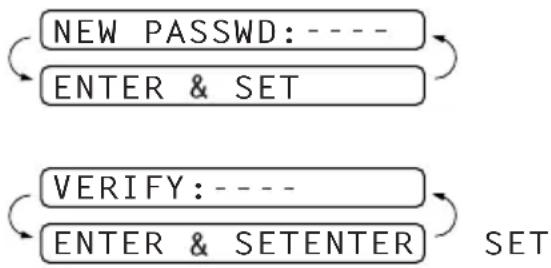
flowchart
graph TD
    A["NEW PASSWD: ----"] --> B["ENTER & SET"]
    C["VERIFY: ----"] --> D["ENTER & SETENTER"]
    B --> E["SET"]
    D --> E
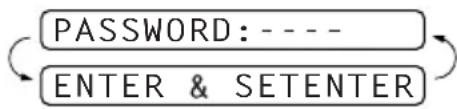
flowchart
graph TD
    A["PASSWORD: ----"] --> B["ENTER & SETENTER"]
    B --> A
The screen displays ACCEPTED for 2 seconds, followed by SECURE MODE - Memory Security is now switched ON.

If the password you enter at Step 7 is incorrect, the screen would display WRONG PASSWORD. After 2 seconds the display will then return to Miscellaneous Menu. You must then switch ON Memory Security again. (See Switching Memory Security ON, page 42.)
Changing the Memory Security Password
1 Press Menu/Set, 0, 1.
2 Press or to choose SET PASSWORD.
3 Press Menu/Set.
The screen prompts you to enter the old password.
4 Enter the current password.
5 Press Menu/Set.
6 Enter a 4-digit number as a new password.
7 Press Menu/Set.
The screen prompts you to re-enter the new password.
8 Enter the new password again and press Menu/Set.
9 Press Stop/Exit.

flowchart
graph LR
    A["OLD PASSWD: ----"] --> B["ENTER & SETENTER"]
    B --> C["SET"]

flowchart
graph TD
    A["NEW PASSWD: ----"] --> B["ENTER & SET"]

flowchart
graph LR
    A["VERIFY: ----"] --> B["ENTER & SETENTER"]
    B --> C["SET"]
Switching Memory Security ON
1 Press Menu/Set, 0, 1.
2 Press or to choose SET SECURITY.
3 Press Menu/Set.
The screen prompts you to enter the password.
4 Enter a 4-digit password, followed by Menu/Set. This is the same as the security password of the machine already stored.
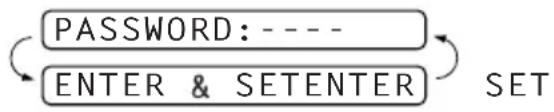
flowchart
graph LR
    A["PASSWORD: ----"] --> B["ENTER & SETENTER"]
    B --> C["SET"]
The screen displays ACCEPTED for 2 seconds, followed by SECURE MODE - Memory Security is now switched ON.

If the password you enter at Step 4 is incorrect, the screen would display WRONG PASSWORD. After 2 seconds the display will then return to
Miscellaneous Menu. You must press 1 and then start from Step 2 to set Memory Security.
Switching OFF Memory Security
1 When Memory Security is switched ON, press Menu/Set.
2 Enter a 4-digit password and press Menu/Set.

flowchart
graph LR
    A["PASSWORD: ----"] --> B["ENTER & SETENTER"]
    B --> C["SET"]
The screen displays ACCEPTED, then after 2 seconds the display reverts to normal. Memory Security is now switched OFF. Then all the data saved in the memory will be printed out.

If the password you enter at Step 2 is incorrect, the screen would display
WRONG PASSWORD. After 2 seconds the display will then return to displaying SECURE MODE. You must then start from Step 1 to switch OFF Memory Security.
If you forget the Memory Security password, please contact your Brother dealer for service or the help number given with the warranty documentation.
Multiple Resolution Transmission
Use this feature to select separate resolution settings for each page of the fax you are sending. This could be useful if you are sending a fax with photos and letters, or some pages with small print and others with normal print. Resolution settings return to STANDARD after the fax is sent.
1 Insert the document face down in the Automatic Document Feeder, then press Menu/Set, 3, 4.
2 Use 📁 or 🌐 to select resolution for page 1, and press Menu/Set.
3 Repeat Step 2 for subsequent pages. Press Stop/Exit when you are finished. The screen displays:
4 Press 1 if you want to select additional settings. The display returns to the SETUP SEND menu—OR—Press 2 if you are finished choosing settings, and go to Step 5. The screen prompts you to enter the fax number you want to call.
5 Enter the fax number you are calling, and press Fax Start.

If you want to copy a document using multiple resolutions, pressCopy/Reports in Step 5.
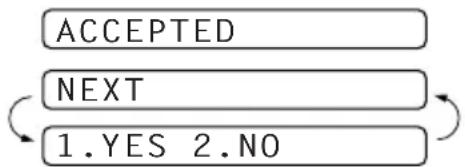
flowchart
graph TD
    A["ACCEPTED"] --> B["NEXT"]
    B --> C["1.YES 2.NO"]
    C --> A
8 Advanced Receiving
Operation from an External or Extension Telephone
An external phone is a telephone that is plugged into the machine (either into the machine's EXT socket or into the back of the connector that plugs into the telephone wall socket).
An extension phone is another phone on the same phone number as the machine, but plugged into a different telephone wall socket. For example, the machine may be connected to a phone line in your study, and you may have another phone on the same line (and same phone number) in your kitchen. This feature enables you to answer the phone in the kitchen if it rings while you are making a coffee, knowing that you can transfer the call to the machine if the incoming call is a fax.
If you answer a fax call on an external or extension phone, you can make your machine take over by using the Fax Receive Code. When you press the Fax Receive Code * 51 (* 91 for New Zealand), the machine starts to receive a fax.
If the machine answers a voice call and F/T pseudo-rings for you to take over, use the Telephone Answer Code #51 (#91 for New Zealand) to take the call at an extension phone. The Telephone Answer Code is used only in F/T mode. (You have to set Remote Code to ON in Menu/Set, 2, 4 to use *51 or #51 (*91 or #91 for New Zealand).)
If you answer a call, and no one is on the line, assume you are receiving a fax.
• If you are using the machine phone, press Fax Start, then hang up.
- If you are using an extension phone, press * 51 (* 91 for New Zealand), wait for fax receiving tones (chirps), then hang up.
- If you are using an external phone, press * 51 (* 91 for New Zealand) and wait for the phone to be disconnected (the screen displays RECEIVE) before you hang up. (Your caller will have to press Fax Start to send the fax.)

If you accidentally pick up an extension phone when a fax message is being received, you may disrupt the transmission or render some portions unreadable.
Extension telephones are not permitted in some countries, in such a case the Telephone Answer Code will not work.
The Remote Code also can be used by your callers. When you are using an external TAD, your outgoing message (OGM) should end with the statement “to send a fax, press *51 (*91 for New Zealand)”. (See Outgoing Message (OGM) of External TAD, page 6.)
For F/T (Fax/Tel) Mode Only
When the machine is in F/T mode, it will use the F/T Ring Time (F/T pseudo-ringing) to alert you to a voice call.
- If you are at the machine, you can lift the handset to answer.
- If you are at an extension phone, you will need to lift the handset during the F/T Ring Time and press #51 (#91 for New Zealand) between the F/T pseudo-rings.
- If no one is on the line, or if someone wants to send you a fax, send the call back to the machine by pressing * 51 (* 91 for New Zealand).
Remote Call Transfer
In order to use the Activation Voice Code, you should first set REMOTE CODE (Menu/Set, 2, 4) to ON. (See Changing Remote Codes, page 46.)
This function works when you receive the incoming Voice call at the remote cordless phone externally connected to the fax machine. (See Connecting an External Telephone, page 7.) You can transfer voice call to the fax machine. But you can not transfer the incoming voice call from the fax machine to the cordless phone.
To transfer telephone call to the fax machine
When you pick up the voice call at remote cordless phone and would like to transfer it to the fax machine,
1 Press Activation Voice Code * 81 at remote cordless phone.
2 The fax machine rings (pseudo-ring same as current F/T ring) and the display shows PICK UP PHONE.
3 Pick up the handset and press Hook or Speaker Phone (for FAX-737MC only)—OR—Just press Speaker Phone (for FAX-737MC only) at the fax machine in order to transfer the voice call to the fax machine.

Don't hang up the call from the cordless phone until the voice call has been transferred to the fax machine. You will know when this is because you will no longer be able to hear or talk to the caller via the cordless phone. If you do not wait until this point before hanging up from the cordless phone, the call will be lost.
If nobody answers at the fax machine, pseudo-ringing stops after 30 seconds. In that case, it may still be possible to speak with the caller from the cordless phone. Speech between the fax machine and the cordless phone (= intercom) is not possible.
Changing Remote Codes
Remote Codes might not work with some telephone systems. The preset Fax Receive Code is * 5 1 (* 9 1 for New Zealand). The preset Telephone Answer Code i# 5 1 (# 9 1 for New Zealand). The preset Activation Voice Code is * 8 1.

If you are always disconnected when accessing your external TAD remotely, try changing the Fax Receive Code from * 5 1 (★9 1 for New Zealand) to # # # and the Telephone Answer Code from# 5 1 (# 9 1 for New Zealand) to 1 1 1. You cannot use the same number for the Fax Receive Code, the Telephone Answer Code, and the Activation Voice Code.
To change Remote Codes
1 Press Menu/Set, 2, 4.
2 Press 🏠 or 📋 to select ON (or OFF), and press Menu/Set when the screen displays the setting you want.
3 If you want to, enter a new Fax Receive Code, then press Menu/Set.
4 If you want to, enter a new Telephone Answer Code, then press Menu/Set.
5 If you want to, enter a new Activation Voice Code, then press Menu/Set.
6 Press Stop/Exit.
Telephone Service for Australia (Telstra ^® Duet)
Distinctive Ringing (Telstra® FaxStream® Duet)
This machine feature lets you use the Distinctive Ringing subscriber service offered by Telstra's FaxStream® Duet, which allows you to have two separate telephone numbers on the one phone line. Each phone number has its own Distinctive Ringing pattern, so you know which phone number is ringing. This is one way you can have a separate phone number for your fax machine.
Your fax machine has a Distinctive Ringing function, allowing you to dedicate one phone number just for receiving faxes.

You can switch it off temporarily, then turn it back on. When you get a new fax number, make sure you reset this function.
- In order for Duet to work properly, you must set your receive mode to Manual and set the Distinctive Ringing to ON.
- To have your external TAD answer only the main number, the machine must be in Manual Mode.
Flowchart Sequence of Incoming Call
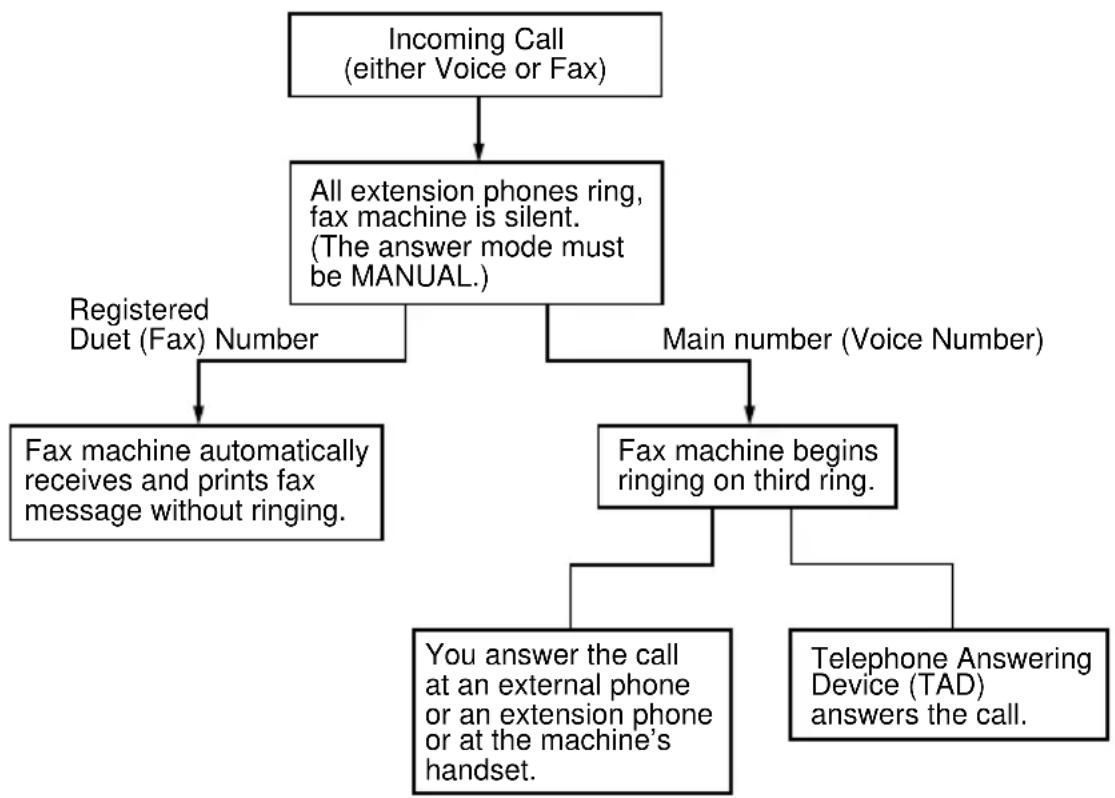
flowchart
graph TD
    A["Incoming Call (either Voice or Fax)"] --> B["All extension phones ring, fax machine is silent. (The answer mode must be MANUAL.)"]
    B --> C["Registered Duet (Fax) Number"]
    B --> D["Main number (Voice Number)"]
    C --> E["Fax machine automatically receives and prints fax message without ringing."]
    D --> F["Fax machine begins ringing on third ring."]
    F --> G["You answer the call at an external phone or an extension phone or at the machine's handset."]
    F --> H["Telephone Answering Device (TAD) answers the call."]
Set the Distinctive Ringing to ON
1 Disconnect the fax machine from any TAD or telephone company voice mail.
2 Press Menu/Set, 0, 3. The screen displays the current setting of this feature.
3 Press 📁 or 📋 to select ON (or OFF).
4 Press Menu/Set.
5 Press Stop/Exit.

If you set the Distinctive Ringing to ON, the receive mode will turn to Manual mode automatically.
Only in the MC mode, even if you set the Distinctive Ringing to ON, the receive mode will not be changed.
Caller ID (Caller IDentification)
Caller ID is a telephone service that allows the subscriber to see a display of the caller's phone number or name as the telephone rings. It is a fast way to screen your calls. You can respond quickly to calls you missed, because Caller IDs are received and stored in your fax machine memory.

To get the Caller ID Service: apply for the Caller ID service at your local telephone company, if available.
Advantages of Caller ID
For Business
All businesses profit from a quicker response to customer calls. Businesses that provide mail order services, memory-lending services or provide confidential information, can protect themselves from false orders or acceptance of false identification.
At Home
Residential customers can protect themselves from unwanted calls.
How Does the Caller ID Work?
The Caller ID Appears on the Display When Your Telephone Rings
As your telephone rings, the display shows you the caller's phone number or name. Once you pick up the handset, the caller's ID disappears. You will see up to the first 16 characters of the number on the display.
Helpful Hints
If # UNAVAILABLE appears on the display, it means that the call came from outside your caller ID service area or a public phone. *
If # WITHHELD appears on the display, it means the caller intentionally blocked the transmission of his/her ID. *
■ If no caller ID was transmitted to your fax machine, PICK UP PHONE will remain on the display.
* Depends on network Function.
The Caller ID is Stored in Your Machine's Memory
The FAX can store a maximum of the last 30 incoming caller IDs in the memory, along with the time and date of reception, The 31st call will cause the oldest ID to be erased.
The Caller ID information stored in the memory can be used for the following.
■ Printing the Caller ID List.
You can review calls you received by checking the Caller IDs in memory. This report will list the Date, Time, Phone Number (Caller ID), and type of Call (Comment).
Viewing Caller ID List
Caller ID memory stores information for up to thirty calls; when the thirty-first call comes in, information about the first call is erased. You can scroll through Caller ID information to review those calls made to your FAX.
1 Press Menu/Set, 0, 2.
2 Press 🎨 or 🌐 to select DISPLAY ID and press Menu/Set.
If the name was not received, it will not be displayed.
3 Press or to scroll through the Caller ID memory to select the Caller ID you want to view and press Menu/Set.
The next screen shows the caller's telephone number and the date and time of the call.
4 Press 🎨 or 📋 to return to the Caller ID listing—OR—Press Stop/Exit to exit.
Printing Caller ID List
1 Press Menu/Set, 0, 2.
2 Press or to select PRINT REPORT.
3 Press Menu/Set.
Returning a Call from the Log
You can scroll through the Caller ID Log and select a call to return automatically.
1 Press Menu/Set, 0, 2.
2 Press or to select DISPLAY ID and press Menu/Set.
If the name was not received, it will not be displayed.
3 Press or to scroll through the Caller ID Log and when you see a call you want to return immediately, press Menu/Set.
4 To begin dialling, press Fax Start.
5 Begin speaking when the other party answers.
DISPLAY ID
SELECT ↑ ↓ & SET
01) MARY HENDERSON
01)9082438436
01)02/01 12:00
DIAL: PRESS START

This feature may not be available in certain area.
Telephone Service for New Zealand
FaxAbility
FaxAbility is a service offered by Telecom that allows you to have an additional number on one phone line, with its own distinctive ring pattern. This way, when you get an incoming call, you can identify the number being called by its ring.
How Will the Fax Machine Treat All Other Numbers?
FaxAbility mode ensures that the machine will answer calls to the FaxAbility (secondary) number. When a call comes in to your main number, all the phones will ring. You can set an external answering device (TAD) to answer calls on the other number(s). (See the chart in the following page.)
If you change the answer mode on the fax machine to FAX/TEL (F/T) or FAX ONLY mode, that setting will override the FaxAbility setup. In FAX/TEL (F/T) or FAX ONLY mode, your fax machine will answer all the phone numbers (including its own ring pattern).
What is the Advantage of Using the FaxAbility Function?
Using FaxAbility is the most efficient way to receive both fax and telephone calls on the same line. It is much easier for your callers who dial manually. The fax machine will answer with receiving tones so they will not have to press an Fax Receive Code. And the people who call to talk on your main number will not have to talk to your fax machine. Basically, it gives you two independent numbers without the higher cost of a second line.
How Does FaxAbility Work?
Your telephone number will have the standard ring pattern of long, long tone, while the new number will have a ring pattern of long, silence, long, etc. When FaxAbility is ON, you will not hear the first ring of all incoming calls on the fax machine. Extension phones will ring as usual. If the fax machine recognizes the ring pattern, all ringing will stop and the fax machine will answer and automatically receive the fax message. Otherwise, you will hear the extension phones and the fax machine continue to ring. The fax machine always listens to the ring pattern before it answers, so do not pick up the phone during that time. You will quickly learn to recognize the ring pattern for faxes, so you will not be tempted to answer that number. Either you or a telephone answering device can answer the main number(s).
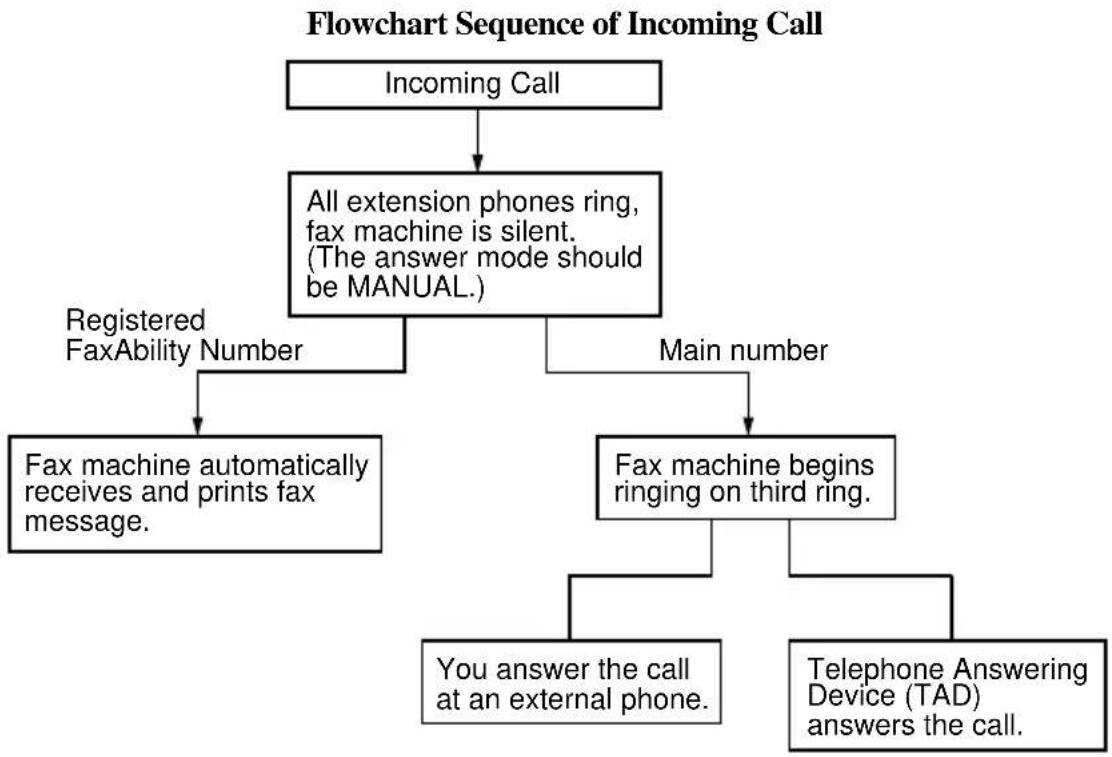
flowchart
graph TD
    A["Incoming Call"] --> B["All extension phones ring, fax machine is silent. (The answer mode should be MANUAL.)"]
    B --> C["Registered FaxAbility Number"]
    B --> D["Main number"]
    C --> E["Fax machine automatically receives and prints fax message."]
    D --> F["Fax machine begins ringing on third ring."]
    F --> G["You answer the call at an external phone."]
    F --> H["Telephone Answering Device (TAD) answers the call."]
How to Turn FaxAbility OFF or ON
The FaxAbility function is designed to accommodate the FaxAbility service provided by Telecom. To change the setting, repeat Steps 1-3; Step 2 is where you can select either ON or OFF.
Call Waiting beeps caused by incoming calls on your main number can affect fax transmissions. If you have FaxAbility Service but don't have Call Waiting, you need do nothing at this stage. If you do have Call Waiting as well as FaxAbility, set the Call Waiting menu option to ON. See below. The machine can suspend Call Waiting when incoming faxes are being sent to you.
1 Set the fax machine to Manual Mode.
2 Press Menu/Set, 0, 3.
3 Press 🎨 or 🌐 to select ON (or OFF).
4 Press Menu/Set.
Only when FAXABILITY is set ON, Call Waiting can be selected ON.
In case of FAXABILITY is set OFF, Call Waiting is automatically OFF without choice.
5 Press Menu/Set.
6 Press Stop/Exit.
3.FAXABILITY
FAXABILITY:OFF
FAXABILITY:ON
CALL WAITING:OFF
CALL WAITING:ON
Caller ID (Caller IDentification)
Caller ID is a telephone service that allows the subscriber to see a display of the caller's phone number as the telephone rings. It is a fast way to screen your calls. You can respond quickly to calls you missed, because Caller IDs are received and stored in your machine's memory.

To get the Caller ID Service: apply for the Caller ID service at your local telephone company, if available.
Advantages of Caller ID
For Business
All businesses profit from a quicker response to customer calls. Businesses that provide mail order services, memory-lending services or provide confidential information, can protect themselves from false orders or acceptance of false identification.
At Home
Residential customers can protect themselves from unwanted calls.
How Does the Caller ID Work?
The Caller ID Appears on the Display When Your Telephone Rings
As your telephone rings, the display shows you the caller's phone number. Once you pick up the handset, the caller's ID disappears. You will see up to the first 16 characters of the number on the display.
Helpful Hints
If # UNAVAILABLE appears on the display, it means that the call came from outside your caller ID service area. *
If # WITHHELD appears on the display, it means the caller intentionally blocked the transmission of his/her ID. *
■ If no caller ID was transmitted to your fax machine, PICK UP PHONE will remain on the display.
* Depends on network Function.
Viewing Caller ID List
Caller ID memory stores information for up to thirty calls; when the thirty-first call comes in, information about the first call is erased. You can scroll through Caller ID information to review those calls made to your fax machine.
1 Press Menu/Set, 0, 2.
2 Press 🎨 or 🌐 to select DISPLAY ID and press Menu/Set.
If the name was not received, it will not be displayed.
3 Press or to scroll through the Caller ID memory to select the Caller ID you want to view and press Menu/Set.
The next screen shows the caller's telephone number and the date and time of the call.
4 Press 🎨 or 🎨 to return to the Caller ID listing—OR—Press Stop/Exit.
Printing Caller ID List
1 Press Menu/Set, 0, 2.
2 Press or to select PRINT REPORT.
3 Press Menu/Set.

If you use the Caller ID for Dial back...
■ Please be sure that you use appropriate dialling procedures for local and national call.
■ Please be sure that you make sure of the details of the exact number to be called back, and the need to insert prefix(es) for manual dialling.
■ Please understand that you machine may not display precisely the digits to be called.
Returning a Call from the Log
You can scroll through the Caller ID Log and select a call to return automatically.
1 Press Menu/Set, 0, 2.
2 Press or to select DISPLAY ID and press Menu/Set.
If the name was not received, it will not be displayed.
3 Press or to scroll through the Caller ID Log and when you see a call you want to return immediately, press Menu/Set.
4 To begin dialling, press Fax Start.
5 Begin speaking when the other party answers.
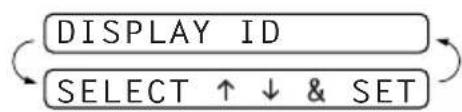
flowchart
graph TD
    A["DISPLAY ID"] --> B["SELECT ↑↓ & SET"]
    B --> A
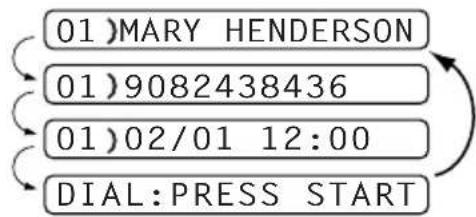

This feature may not be available in certain area.
Telephone Service for Some Countries
Distinctive Ringing (For Singapore and Hong Kong)
This fax machine feature lets you use the Distinctive Ringing subscriber service offered by some telephone companies, which allows you to have several telephone numbers on one phone line. Each phone number has its own Distinctive Ringing pattern, so you'll know which phone number is ringing. This is one way you can have a separate phone number for your fax machine.
Your fax machine has a Distinctive Ringing function, allowing you to dedicate one phone number just for receiving faxes. You'll need to set Distinctive Ringing to ON.

You can switch it off temporarily, then turn it back on. When you get a new fax number, make sure you reset this function.
■ The fax machine will answer only calls to the Distinctive Ringing number.
■ To have your external TAD answer only the main number, the fax machine must be in Manual Mode.
In FAX/TEL (F/T) or FAX ONLY mode, the fax machine will answer all numbers on the phone line.

If you set the Distinctive Ringing to ON, the receive mode will turn to Manual mode automatically.
Only in the MC mode, even if you set the Distinctive Ringing to ON, the receive mode will not be changed.
Setting the Distinctive Ringing
1 Press Menu/Set, 0, 3.
2 Press 🎨 or 📋 to select ON (or OFF).
3 Press Menu/Set.
4 Press Stop/Exit.
Caller ID (For Singapore, Hong Kong and Philippine)
The Caller ID feature of this machine lets you use the Caller ID subscriber service offered by many local phone companies. This service provides you, by means of the screen display, the telephone number (or name) of your caller as the line rings.
After a few rings, the screen displays the telephone number of your caller (or name, if available). Once you pick up the handset, the Caller ID information disappears from the screen, but the call information remains stored in the Caller ID memory.
■ You will see the first 16 characters of the number or name.
■ # UNAVAILABLE display means call originates outside your Caller ID service area.
■ # WITHHELD display means the caller has intentionally blocked transmission of information.
■ PICK UP PHONE display remains on the screen when no Caller ID information was transmitted.

If both the name and number are received, the screen displays only the name.
You can print a list of Caller ID information received by; your machine.
Caller ID service varies with different carriers. Call your local phone company to determine the kind of service available in you area.
Viewing Caller ID List
Caller ID memory stores information for up to thirty calls; when the thirty-first call comes in, information about the first call is erased. You can scroll through Caller ID information to review those calls made to your machine.
1 Press Menu/Set, 0, 2.
2 Press 🎨 or 🎨 to select DISPLAY ID and press Menu/Set.
If the name was not received, it will not be displayed.
3 Press or to scroll through the Caller ID memory to select the Caller ID you want to view and press Menu/Set.
The next screen shows the caller's telephone number and the date and time of the call.
4 Press 📁 or 📋 to return to the Caller ID listing—OR—Press Stop/Exit.
Printing Caller ID List
1 Press Menu/Set, 0, 2.
2 Press 📋 or 📋 to select PRINT REPORT and press Menu/Set.
Returning a Call from the Log
You can scroll through the Caller ID Log and select a call to return automatically.
1 Press Menu/Set, 0, 2.
2 Press or to select DISPLAY ID and press Menu/Set.
If the name was not received, it will not be displayed.
3 Press or to scroll through the Caller ID Log and when you see a call you want to return immediately, press Menu/Set.
4 To begin dialling, press Fax Start.
5 Begin speaking when the other party answers.
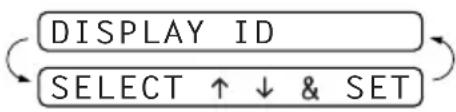
flowchart
graph LR
    A["DISPLAY ID"] --> B["SELECT ↑↓ & SET"]
    B --> A
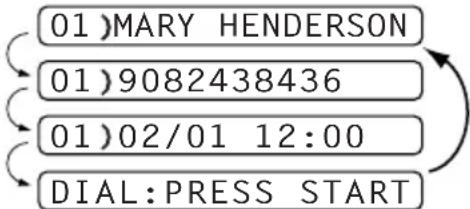

This feature may not be available in certain area.
10 Polling

Polling is the process of retrieving faxes from another machine. You can use your machine to “poll” other machines, or you can have someone poll your machine.
All parties involved in polling need to set up their machines to accommodate polling. When someone polls your machine to receive a fax, they pay for the call; if you poll someone's fax machine to receive a fax, you pay for the call. (See Polled Transmit, page 58.)
Polling Receive
Setup for Polling Receive (Standard)
Polling Receive is when you call another fax machine to receive a fax from it.
1 Press Menu/Set, 2, 7. The screen displays
2 Press or to choose STANDARD, and press Menu/Set.
The screen prompts you to enter the fax number you want to poll, and then to press Fax Start.
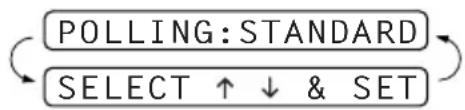
flowchart
graph TD
    A["POLLING: STANDARD"] --> B["SELECT ↑ ↓ & SET"]
    B --> A
3 Enter the fax number you are polling, and press Fax Start. The screen displays DIALLING.
Setup for Polling Receive with Secure Code
You need to make sure you are using the same ID number as the other party.
1 Press Menu/Set, 2, 7.
2 Press or to choose SECURE, and press Menu/Set.
3 Enter a four-digit number.
This is the same as the security code of the fax machine you are polling.
4 Press Menu/Set.
The screen prompts you to enter the fax number you want to poll, and then to press Fax Start.
5 Enter the fax number, and press Fax Start.
POLLING: SECURE
You can set your machine to begin Polling Receive at a later time.
1 Press Menu/Set, 2, 7.
2 Press or to choose TIMER, and press Menu/Set.
3 The screen prompts you to enter the time you want to begin polling.
4 Enter the time (in 24-hour format) you want to begin polling. For example, enter 21:45 for 9:45 PM.
5 Press Menu/Set.
The screen prompts you to enter the fax number you are polling and then to press Fax Start.
6 Enter the fax number, and press Fax Start. The machine makes the polling call at the time you entered.

You can set up only one Delayed Polling.
Sequential Polling
Your machine can request documents from several fax units in a single operation. You just specify several destinations in Step 4. Afterward, a Sequential Polling Report will be printed.
1 Press Menu/Set, 2, 7. The screen displays
POLLING: STANDARD
2 Press 🏠 or 🏠 to choose STANDARD, SECURE or TIMER, and press Menu/Set when the screen displays the setting you want.
3 If you selected STANDARD, the screen prompts you to enter the fax number you want to poll, and then to press Fax Start.
• If you selected SECURE, enter a four-digit number and press Menu/Set.
- If you selected TIMER, enter the time (in 24-hour format) you want to begin polling and press Menu/Set.
4 Specify the destination fax machines, which you wish to poll by using One Touch, Speed Dial, Search or a Group. For example, for One Touch 3 and Speed Dial location 09, press One Touch Dial key 3, Search/Mute, # and 09. (See Dialling a Number, page 21.)
5 Press Fax Start.
Your machine polls each number or group number in turn for a document.
Cancelling a Scheduled Job
This function allows you to cancel tasks that you've scheduled such as Delayed Fax, Delayed Polling Receive or Polling Transmit.
1 Press Menu/Set, 4. Any waiting jobs appear on the display. If nothing is waiting, the screen displays NO JOB WAITING.
2 If you have more than two jobs waiting, use or to select the job you want to cancel. Press Menu/Set when the screen displays your selection—OR—If you have only one job waiting, go to Step 3.
3 Press 1 to cancel—OR—Press 2 to exit without cancelling.
4 Press Stop/Exit.
Polled Transmit
Polling Transmit is when you set up your fax machine to wait with a document so another fax machine can retrieve it.
1 Insert the document to be retrieved in the Automatic Document Feeder.
2 Press Menu/Set, 3, 8. The screen displays
3 Press or to choose STANDARD, and press Menu/Set.
4 Press 1 to select DOC if you want your machine to scan the printed document at the time it is polled —OR—Press 2 to select MEMORY.
5 Press 1 if you want to select additional settings. The display returns to the SETUP SEND menu—OR—Press 2 if you are finished choosing settings and go to Step 6.
6 Press Fax Start. The screen displays POLLED WAITING.

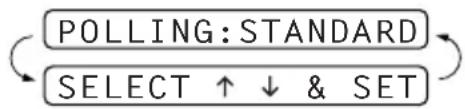
flowchart
graph LR
    A["POLLING: STANDARD"] --> B["SELECT ↑ ↓ & SET"]
    B --> A
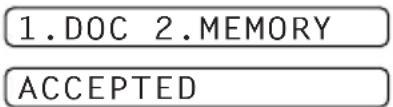
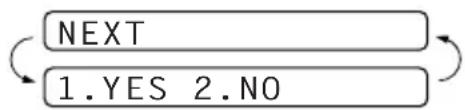
flowchart
graph TD
    A["NEXT"] --> B["1.YES 2.NO"]
    B --> C["Return Arrow"]
If you do not store the polled document into memory in Step 4, the polled document remains on the Automatic Document Feeder until your machine is polled.
However, you can "interrupt" it to send another fax. (See Interrupting Timer and Polled Transmit Jobs, page 40.)
The document on the Automatic Document Feeder can only be polled once unless they had been stored in memory.
Setup for Polling Transmit with Secure Code
When you set POLLING:SECURE to ON, anyone who polls your machine must enter the polling ID number.
1 Insert the document face down in the Automatic Document Feeder.
2 Press Menu/Set, 3, 8.
3 Press or to choose SECURE, and press Menu/Set.
4 Enter a four-digit number, and press Menu/Set.
5 Press 1 to select DOC if you want your machine to scan the printed document at the time it is polled —OR—Press 2 to select MEMORY.
6 Press 1 if you want to select additional settings. The display returns to the SETUP SEND menu—OR—Press 2 if you are finished choosing settings and go to Step 7.
7 Press Fax Start and wait for the fax to be polled.
NEXT
POLLING: SECURE
1.DOC 2.MEMORY
ACCEPTED
1.YES 2.NO
Secure Polling
Secure Polling is a way to keep your documents from “falling into the wrong hands” while the fax machine is set up for polling. You can use Secure Polling only with another Brother fax machine. Your four-digit ID number must be entered on the fax machine that polls for your documents.
Some machines do not respond to the polling function.
11
Remote Fax Options (Only for FAX-717/727)
This chapter is for Model FAX-717/727. If you have model FAX-737MC your remote fax options are handled by the Message Centre. (See Message Centre (Only for FAX-737MC), page 65.)
Setting Fax Storage
If you set Fax Storage to ON, you will be able to retrieve fax messages from another location, using Fax Forwarding or Remote Retrieval functions. The screen will indicate when you have a fax stored in memory.
1 Press Menu/Set, 8, 2. The screen prompts you to choose fax settings.
2 Press 🎨 or 🎨 to select ON (or OFF), and press Menu/Set when the screen displays your selection.
3 Press Stop/Exit.

If there are faxes in memory when you turn the Fax StorageOFF, the screens prompts you to erase any faxes in memory. (See Printing a Fax from Memory (Only for FAX-717/727), page 27.)
If you press 1, all fax data is erased and Fax Storage is turned off. If the fax data in memory has not been printed before, it will be printed first, and then erased. If you press 2, data is not erased, and Fax Storage remains on.
Fax Forwarding

You cannot use Fax Forwarding or Remote Retrieval when "Fax Storage" is set to OFF.
Programming a Fax Forwarding Number
When Fax Forwarding is set to ON, your fax machine stores the received fax in memory, then dials the fax machine phone number you have programmed, and forwards the fax message.
1 Press Menu/Set, 8, 1.
2 Press 🏠 or 📋 to select ON (or OFF), and press Menu/Set.
The screen prompts you to enter the number of the fax machine where faxes will be forwarded.
3 Enter the forwarding number (up to 20 digits), and press Menu/Set.
4 Press Stop/Exit.
Remote Retrieval
You can call your machine from any touch tone phone (or remote Group 3 fax machine) and use a Remote Access Code and other button presses in order to check the receiving status, retrieve fax messages or change settings.
To receive faxes or the Memory Status List at your location, you must call from a fax machine using touch tone. For convenience, you can retrieve faxes and the Status List from a touch tone phone by having them sent to a fax machine.
For example, if your hotel room does not have a fax machine, you can enter the number of the fax machine at the hotel's Front Desk.
Setting the Remote Access Code
Enter your Remote Access Code when the fax machine picks up your call, so you can access features remotely. The default code is inactive code (--*).
1 Press Menu/Set, 8, 3.
2 Enter a three-digit code using number keys 0-9, * and #, and press Menu/Set. The *cannot be changed. Do not use the same digits that appear in your Fax Receive Code, Telephone Answer Code or Activation Voice Code.
3 Press Stop/Exit.
Using Your Remote Access Code
1 Dial your fax machine phone number from a touch tone phone.
2 When your fax machine answers and beeps, immediately enter your Remote Access Code (3 digits followed by *).
3 The fax machine signals if there are any messages received:
1 long beep—Fax message(s)
No long beep—no messages
4 The fax machine then prompts you with two short beeps to enter a command. If you wait longer than 30 seconds to enter a command, the machine hangs up. If you enter an invalid command, the machine beeps three times.
5 Press 90 to reset the machine when you finish.
6 Hang up.

If your fax machine is set to MANUAL mode, you can access your machine remotely by phoning it and letting it ring for about 100 (50 in Australia) seconds. Your fax machine will answer the phone after 100 (50 in Australia) seconds of ringing, and you then have 30 seconds to enter your Remote Access Code.
Remote Commands
Follow the commands below to access features remotely. When you call the fax machine and enter your Remote Access Code (3 digits followed by ), the system will signal you with two short beeps to enter a remote control command.
| Remote control commands Detail Operation | ||
| 95 Change Fax Forwarding Setting | ||
| 1 OFF If you hear one long | beep, the change is accepted. If you hear three short beeps, you cannot change it because the conditions (ex. registering fax forwarding) have not been completed. You can register your fax forwarding number by using 4.FAX FWD NO. Once you have registered the number, the machine will automatically turn to “FAX FWD:ON” mode. Then, receive a Memory Status List by entering 961. Check the List to make sure the Fax Forwarding number you registered is correct. Now the machine will start Fax Forwarding. | |
| 2 Fax forwarding | ||
| 4 FAX FWD No. | ||
| 6 FAX STORAGE ON You | ou can set FAX STORAGE ON or OFF. (Switching Fax Storage OFF is only possible if there are no faxes stored in the memory, or if all faxes have been erased using Remote Control 9 6 3.) | |
| 7 FAX STORAGE OFF | ||
| 96 Retrieve FAX | ||
| 1 Memory Status List You | must use a remote fax machine in order to receive a List of stored fax message(s). | |
| 2 Retrieve all FAX | ||
| 3 Erase FAX i memory | If ydu hear one long beep, you can erase fax message(s) from the memory. | |
| 97 Check the receiving status | You can check whether your fax machine has received any fax message(s). If yes, you will hear one long beep. If no, you will hear three short beeps. | |
| 98 Change Answer Mode If you hear one long beep, you can change the answer mode. | ||
| 1 TAD | If you hear three short beeps, you cannot change it. (Example: There is no TAD MSG when you want to change to TAD mode.) | |
| 2 F/T | ||
| 3 FAX | ||
| 90 Exit | After a long beep, you can exit remote control. | |
Retrieving the Memory Status List
You can retrieve the Memory Status List from a remote fax machine to see if you have any fax messages.
1 Dial your fax machine's number.
2 When you hear the beep, immediately enter your Remote Access Code (3 digits followed by*).
3 When you hear two short beeps, use the dial pad to press 961.
4 Using the dial pad, enter the number (up to 20 digits) of the remote fax machine where you want the Memory Status List forwarded, and then press # #.

You cannot use and # as dial numbers. However, if you want to store a pause, press #.
5 After you hear your fax machine beep, hang up and wait.
Your fax machine calls the remote fax machine and sends the Memory Status List. The remote fax machine prints the List.
Retrieving Fax Messages
1 Dial your fax machine's number.
2 When you hear the beep, immediately enter your Remote Access Code (3 digits followed by*).
3 As soon as you hear two short beeps, use the dial pad to press 962.
4 Using the dial pad, enter the number (up to 20 digits) of the remote fax machine where you want your fax messages forwarded to, and then press # #.

You cannot use and # as dial numbers. However, if you want to store a pause, press #.
5 After you hear your fax machine beep, hang up and wait.
Your fax machine calls the remote fax machine and sends the stored documents. The remote fax machine prints your fax messages.
Changing the Fax Forwarding Number
You can change the default setting of your fax forwarding number from a remote fax machine.
1 Dial your fax machine's number.
2 When you hear the beep, immediately enter your Remote Access Code (3 digits followed by*).
3 When you hear two short beeps, use the dial pad to press 954.
4 Enter the new number of the remote fax machine where you want your fax messages forwarded, and then press # #.

You cannot use and # as dial numbers. However, if you want to store a pause, press #.
5 To retrieve the Memory Status List, when you hear two short beeps, use the dial pad to press 961.
6 Use the dial pad to enter the number of the remote fax machine (up to 20 digits), and then press
.
7 After you hear your fax machine beep, hang up and wait.
Your fax machine calls the remote fax machine. Your fax machine then sends the Memory Status List showing the new forwarding number to the remote fax machine.
8 Check the forwarding number. If the forwarding number is incorrect, return to Step 1 to reset it.
Message Centre Mode
Message Centre Mode allows you to store incoming fax and voice messages in a flexible memory. The memory stores 15 minutes of voice messages, or up to 20 pages of fax messages. The actual number of pages stored in memory varies depending on the content and the resolution used. Memory is shared between fax and voice messages, which are stored on a “first-come, first-served” basis. Any voice or fax message can be retrieved remotely.
You must record an Outgoing Message in order to use the Message Centre Mode. (See Recording the Message Centre's Outgoing Message (MSG CTR OGM), page 66.)
Flexible Memory Settings (Message Store)
Message Centre Mode offers you six flexible memory settings, so that you can decide which kinds of messages you want to receive.
| 1. DOC:ON, VOICE:ON | Both voice and fax messages are stored. You can use the Fax Forwarding or Paging features and retrieve voice and fax messages remotely. |
| 2. DOC:ON, VOICE:EXT | You need an external answering machine connected to the fax machine for this setting. Fax messages are stored in the Message Centre memory, but voice messages are stored in your external answering machine. Retrieve voice messages from the external answering machine. You cannot use the Paging feature for voice message with this setting. |
| 3. DOC:ON, VOICE:OFF | All memory is used to store fax messages—no voice messages will be stored. |
| 4. DOC:OFF, VOICE:ON | All memory is used to store voice messages—no fax messages will be stored. Incoming faxes will be printed on paper. You can use the Paging feature, and retrieve voice messages remotely. |
| 5. DOC:OFF, VOICE:EXT | You need an external answering machine connected to the fax machine for this setting. Incoming faxes are not stored in memory, but will be printed on paper. Voice messages are stored in the external answering machine. |
| 6. DOC:OFF, VOICE:OFF | Incoming faxes are not stored in memory, but will be printed on paper. Voice calls are not stored in memory. |
Setting Up Message Centre
You must set up Message Centre in the following order:
1 Set the Message Store.
2 Record the Message Centre's Outgoing Message (MSG CTR OGM).
3 Activate Message Centre (MC) Mode by pressing
Select the setting from the descriptions of "Flexible Memory Settings".
1 Press Menu/Set, 8, 1. The screen prompts you to choose a DOC (Document) setting.
2 Press 🙏 or 📋 to select ON (or OFF), and press Menu/Set. The screen prompts you to choose a VOICE setting.
3 Press 🏠 or 🏠 to select your setting from the list (ON, OFF or EXT), and press Menu/Set when the screen displays your selection.
4 Press Stop/Exit.
Recording the Message Centre's Outgoing Message (MSG CTR OGM)
Recording the Message Centre's Outgoing Message (MSG CTR OGM) is the second step you need to follow before you can turn on the Message Centre. Make sure your OGM (Outgoing Message) is less than 20 seconds long.
1 Press Menu/Set, 8, 3. The screen prompts you to choose an OGM.
2 Press or to reach MSG CTR OGM.

This is the only setting you can select if you want to turn the Message Centre on.
3 Press Menu/Set.
4 Press 🎨 or 🎨 to select RECORD MSG and press Menu/Set.
5 Pick up the handset to record a message.
For example: Hello. We are unable to take your call at this time. Please leave a message after the signal. If you wish to send a fax, please press the start button on your machine.
6 Press Stop/Exit and replace the handset. The Message Centre plays your OGM.
7 Press Stop/Exit.
Listening the Outgoing Message (OGM)
1 Press Menu/Set, 8, 3.
2 Press 🎨 or 📋 to select MSG CTR OGM (or FAX/TEL OGM or PAGING OGM), and press Menu/Set when the screen displays your selection.
3 Press 🏠 or 🏠 to select PLAY MSG and press Menu/Set. Adjust volume by pressing 🏠 or 🏠.
4 Press Stop/Exit.
Erasing the Outgoing Message (OGM)
1 Press Menu/Set, 8, 3.
2 Press 📋 or 🌐 to select MSG CTR OGM (or FAX/TEL OGM or PAGING OGM), and press Menu/Set when the screen displays your selection.
3 Press 📋 or 🌐 to select ERASE MSG and press Menu/Set.
4 Press 1 to erase the OGM—OR—Press 2 to exit without erasing.
5 Press Stop/Exit.
Activating Message Centre Mode
Press and hold ⏻ until the button lights and the screen displays MC:MSG CTR.
When Ⓞ light is out, the Message Centre is off. (See Setting Up Message Centre, page 65.)
Message Indicator
The Right flashes when you have new messages and/or faxes waiting for your review.
The LCD screen displays the total number of voice (including recorded conversations) and/or fax messages stored in Message Centre memory.
If you press the flashing to turn off the Message Centre before getting your new messages, they won't be lost. The new messages will be played automatically and the LCD will ask you to acknowledge the new faxes:
VOICE:03 DOC:02
PRINT DOC?
1.YES 2.NO
Press 1 to print (and automatically delete) the faxes from memory—OR—Press 2 to save the faxes in memory until printing is convenient.
What Happens When the Memory Is Full...

If the memory becomes full when you have set your machine to Message Centre mode, the machine will change to F/T mode automatically. In this mode, the machine can accept incoming faxes automatically. Then, if your machine should run out of paper, the answer mode will shift automatically to manual mode. In manual mode the call is not answered, so your caller will know to try again later.
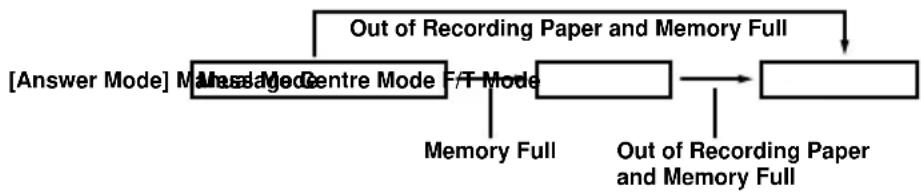
flowchart
graph TD
    A["Message Mode"] --> B["Centre Mode"]
    B --> C["F/T Mode"]
    C --> D["Out of Recording Paper and Memory Full"]
    D --> E["Out of Recording Paper and Memory Full"]
    F["Answer Mode"] --> A
    G["Memory Full"] --> C
Print the Memory Status List and select the item to be cleared. This will clear space for new messages and faxes to be stored in memory. (See Printing Reports, page 33.)
Playing Voice Messages
Follow the steps below to listen to voice messages.
1 Press Play/Record. Adjust volume by pressing or.

All new messages are played in the order they were recorded. The display shows the number of the current message, and the total number of messages.
If Caller ID information was received, the machine beeps during the message and displays the Caller ID information for one second.
During playback, the screen displays the time and date the message was recorded.
2 Press * (RWD) at the end of the message to repeat a message. Use # (FWD) to skip to the next message. You can press * and # repeatedly until you reach the message you want to play.
3 Press Stop/Exit.
Printing a Fax Message
Once you print a new fax message stored in memory, it is erased from the memory automatically.
1 Press Play/Record. After two seconds, the machine begins to play voice messages.
2 After playing voice messages, the display asks if you want to print fax messages that are in the memory. There is no display if there are no faxes.
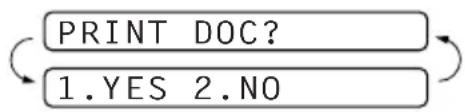
flowchart
graph TD
    A["PRINT DOC?"] --> B["1.YES 2.NO"]
    B --> A
3 To print the fax messages, press 1—OR—Press 2 to exit without printing.
Backup Printing Option
When you choose DOC:ON in the Message Centre mode, all incoming fax messages are stored in the available memory for retrieval. To print a backup copy automatically, turn this option on.
1 Press Menu/Set, 8, 2. The screen prompts you to select a setting.
2 Press 🏻 or 🏻 to display ON (or OFF), and press Menu/Set when the screen displays your selected setting.
3 Press Stop/Exit.
Erasing Messages
If you choose to erase all fax messages, the machine will print any previously unprinted fax messages before erasing them from memory. Fax messages cannot be erased individually.
You can erase voice messages individually, or all at once.
To erase voice messages individually
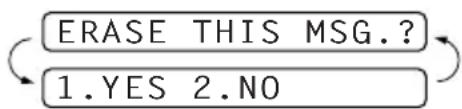
flowchart
graph TD
    A["ERASE THIS MSG.?"] --> B["1.YES 2.NO"]
    B --> A
1 Press Play/Record. The machine beeps and begins message playback. Each message is preceded by one long beep, and followed by two short beeps.
2 To erase a specific message, press Erase immediately after the two short beeps, or while the message is playing. The screen prompts:
3 Press 1 to erase the message—OR—Press 2 to exit without erasing.
4 Press Stop/Exit.
To erase messages all at once
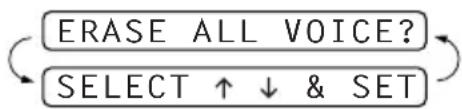
flowchart
graph TD
    A["ERASE ALL VOICE?"] --> B["SELECT ↑ ↓ & SET"]
    B --> A
1 Press Erase. The screen prompts you to choose what kind of messages you want to erase.
2 Press or to select erasing all voice messages (ALL VOICE), all document messages (ALL DOC.), or all messages—both voice and fax—(ALL MSG), and press Menu/Set.
3 Press 1 to erase—OR—Press 2 to exit without erasing.
Setting the Maximum Time for Incoming Messages
Your machine comes set to receive voice messages up to 30 seconds long. You can change this setting to any length from 20 seconds to 60 seconds in 5-second increments.
1 Press Menu/Set, 8, 4. The screen prompts you to select a maximum time.
2 Press or to select the maximum time setting for incoming messages, and press Menu/Set when the screen displays your setting.
3 Press Stop/Exit.
Setting the Toll Saver
When you set the Toll Saver feature, the machine answers after 5 (4 in Australia and New Zealand) rings if you don't have messages, and after 3 (2 in Australia and New Zealand) rings if you do have messages. This way, when you call the machine, if it rings 4 (3 in Australia and New Zealand) times, you know you have no messages, and can hang up, avoiding any toll charge.

When Toll Saver is ON, it overrides your Ring Delay setting. Toll Saver must be off for the machine to operate using your Ring Delay setting. (See Setting the Ring Delay, page 24.)
1 Press Menu/Set, 2, 1.
2 Press 🎨 or 📋 to select TOLL SAVER, and press Menu/Set.
3 Press 📋 or 📋 to select ON (or OFF), and press Menu/Set.
4 Press Stop/Exit.
ICM Recording Monitor
This feature lets you turn OFF (or ON) the speaker volume for voice messages. When you turn the monitor OFF, you will not hear messages as they come in.
1 Press Menu/Set, 8, 5.
2 Press 🎨 or 🎨 to select OFF (or ON), and press Menu/Set.
3 Press Stop/Exit.
Recording a Conversation
You can record a telephone conversation by pressing Play/Record during the conversation. Your recording can be as long as the Incoming Message Maximum Time. The other party will hear a beep every 15 seconds while recording. You cannot record a conversation using the Speakerphone.
Fax Forwarding/Paging
When Paging is set to ON, your machine dials the pager number you have programmed and, when connected, plays the Paging OGM message you have recorded for 60 seconds. This activates your pager and let you know you have a fax or voice message in the Message Centre memory.
When Fax Forwarding is set to ON, your machine dials the fax machine phone number you've programmed, and forwards any faxes you've received.

You cannot use Paging and Fax Forwarding at the same time.
Programming a Fax Forwarding Number
1 Press Menu/Set, 8, 6.
2 Press 🙏 or 📋 until the screen displays FAX FORWARD, and press Menu/Set.
The screen prompts you to enter the number of the fax machine where faxes will be forwarded.
3 Enter the forwarding number (up to 20 digits), and press Menu/Set.
4 Press Stop/Exit.
You can change a Fax Forwarding number remotely.
Recording the Paging Outgoing Message (OGM)
Before paging can work, you should first record the Paging OGM.
1 Press Menu/Set, 8, 3. The screen prompts you to choose an OGM.
2 Press 🎨 or 📋 to reach PAGING OGM, and press Menu/Set.
3 Press 🎨 or 🎨 to select RECORD MSG, and press Menu/Set.
4 Pick up the handset to record a message.
5 Press Stop/Exit and replace the handset. The Message Centre plays your OGM.
6 Press Stop/Exit.

You can delete or play the Paging message in the same way as the MSG CTR OGM. (See Recording the Message Centre's Outgoing Message (MSG CTR OGM), page 66.)
Programming the Paging Number
1 Press Menu/Set, 8, 6.
2 Press 🎨 or 🏠 until the screen displays PAGING, and press Menu/Set. The screen prompts you to enter your pager number.
3 Enter your paging number up to 20 digits and press Menu/Set. This is the telephone number which your machine must call.
4 Press Stop/Exit.

You cannot change a Paging number remotely.
Remote Retrieval
This section is for FAX-737MC. (If you have FAX-717/727, please see chapter 10 for your remote fax options.)
You can call your machine from any touch tone phone (or remote Group 3 fax machine set for tone) and use a Remote Access Code and Remote Control Commands to retrieve voice (and fax) messages. You can also program and change some settings for your Message Centre.
Using the Remote Access Code
1 Dial your machine phone number from a touch tone phone.
2 When your machine answers and beeps, immediately enter your Remote Access Code.
3 The machine signals the kinds of messages received:
1 long beep—Fax message(s)
2 long beeps—Voice message(s)
3 long beeps—Fax and Voice message(s)
No beeps—no messages
4 The machine then prompts you with two short beeps to enter a command. If you wait longer than 30 seconds to enter a command, the machine hangs up. If you enter an invalid command, the machine beeps three times.
5 Press 90 to reset the machine when you finish.
6 Hang up.

If your fax machine is set to MANUAL mode, you can access the Message Centre remotely by phoning your machine and letting it ring for about 100 (50 in Australia) seconds. Your fax machine will answer the phone after 100 (50 in Australia) seconds of ringing, and you then have 30 seconds to enter your Remote Access Code.
Setting the Remote Access Code
Enter your Remote Access Code when the machine picks up your call, so you can access features remotely. The default code is inactive code (--*).
1 Press Menu/Set, 8, 7.
2 Enter a three-digit code using number keys 0-9, * and #, and press Menu/Set.
The *cannot be changed. Do not use the same digits that appear in your Fax Receive Code, Telephone Answer Code or Activation Voice Code.
3 Press Stop/Exit.

When you call your machine and enter the Remote Access Code, you must press the fourth digit (3 digit number plus *)
Remote Control Commands
Follow the commands below to access features remotely. When you call the fax machine and enter your Remote Access Code (3 digits followed by*), the system will signal you with two short beeps to enter a remote control command.
| Remote control commands Detail Operation | ||
| 91 Playing voice messages After one long beep, the machine plays In-Coming Message (ICM). | ||
| 1 Skip back | Press 1 while listening to an ICM to play it again. If you press 1 before a message, you will hear the previous message. | |
| 2 Skip next While playing ICM, you can skip to next message. | ||
| 9 STOP Playing Stop | playing the ICM. | |
| 93 Erase all ICM If you hear one long beep, the erase is accepted. If you hear three short beeps, you cannot erase because all voice messages have not been played, or there is no voice message to erase.*This code erases all recorded messages, not one at a time. | ||
| 94 Play and Record OGM in memory | ||
| 1 Play 1 | MSG CTR OGM The machine plays the selected OGM. You can stop playing OGMs by pressing 9. | |
| 2 FAX/TEL OGM | ||
| 3 PAGING OGM | ||
| 2 Record | 1 MSG CTR OGM After one long beep, you can record the selected OGM. You will hear the message played once. You can stop recording the message by pressing 9. | |
| 2 FAX/TEL OGM | ||
| 3 PAGING OGM | ||
| 95 Changing Fax Forwarding/Paging setting | If you hear one long beep, the change is accepted. If you hear three short beeps, you cannot change it because the conditions have not been met (Example: registering paging number).You can register your fax forwarding number by using 4.FAX FWD NO. (See Changing the Fax Forwarding Number, page 76.) Once you have registered the number, the machine will automatically turn to “FAX FWD:ON” mode Then retrieve a Memory Status List by entering 9 6 1 to make sure that the Fax Forwarding number you registered is correct in the List. | |
| 1 O FF | ||
| 2 Fax Forwarding | ||
| 3 Pa ging | ||
| 4 FAX FWD NO. | ||
| Remote control commands Detail Operation | |
| 96 Retrieve Fax Enter the number of a remote fax machine to receive a report or stored fax messages. (See Retrieving the Memory Status List, page 75 and Retrieving Fax Messages, page 75.) | |
| 1 Memory Status List | |
| 2 Retrieve all FAX | |
| 3 Erase FAX in the memory | If you hear one long beep, you can erase the fax message from the memory. |
| 97 Check the receiving status You can check whether your fax machine has received any Document or Voice messages. If yes, you will hear one long beep. If no, you will hear three short beeps. | |
| 1 Document | |
| 2 Voice | |
| 98 Change Answer Mode If you hear one long beep, you can change the answer mode. If you hear three short beeps, you cannot change it. (Example: There is no MC MSG when you want to change to MC mode.) | |
| 1 MC | |
| 2 F/T | |
| 3 FAX | |
| 90 Exit After a long beep, you can exit remote control. | |
Retrieving the Memory Status List
You can retrieve the Memory Status List from a remote fax machine to see if you have any fax messages.
1 Dial your fax machine's number.
2 When you hear the beep, immediately enter your Remote Access Code (3 digits followed by*).
3 When you hear two short beeps, use the dial pad to press 961.
4 Using the dial pad, enter the number (up to 20 digits) of the remote fax machine where you want the Memory Status List forwarded, and then press # #.

You cannot use and #as dial numbers. However, if you want to store a pause, press #.
5 After you hear your fax machine beep, hang up and wait.
Your fax machine calls the remote fax machine and sends the Memory Status List. The remote fax machine prints the List.
Retrieving Fax Messages
1 Dial your fax machine's number.
2 When you hear the beep, immediately enter your Remote Access Code (3 digits followed by*).
3 As soon as you hear two short beeps, use the dial pad to press 962.
4 Using the dial pad, enter the number (up to 20 digits) of the remote fax machine where you want your fax messages forwarded, and then press # #.

You cannot use and #as dial numbers. However, if you want to store a pause, press #.
5 After you hear your fax machine beep, hang up and wait.
Your fax machine calls the remote fax machine and sends the stored documents. The remote fax machine prints your fax messages.
Changing the Fax Forwarding Number
You can change the default setting of your fax forwarding number from a remote fax machine.
1 Dial your fax machine's number.
2 When you hear the beep, immediately enter your Remote Access Code (3 digits followed by*).
3 When you hear two short beeps, use the dial pad to press 954.
4 Enter the new number of the remote fax machine where you want your fax messages forwarded, and then press # #.

You cannot use and # as dial numbers. However, if you want to store a pause, press #. Also, if your fax machine is connected to a PABX, you can press#first before the fax machine's number. The# works as well as Recall key. (Australia & New Zealand only)
5 To retrieve the Memory Status List, when you hear two short beeps, use the dial pad to press 961.
6 Use the dial pad to enter the number of the remote fax machine (up to 20 digits), and then press
.
7 After you hear your fax machine beep, hang up and wait. Your fax machine calls the remote fax machine. Your fax machine then sends the Memory Status List showing the new forwarding number to the remote fax machine.
8 Check the forwarding number. If the forwarding number is incorrect, return to Step 1 to reset it.
Error Messages
You may occasionally encounter a difficulty with your machine or telephone line. If this happens, your machine often identifies the problem and displays an error message. The list below explains the most common error messages.
| ERROR MESSAGE CAUSE/ACTION | |
| CHECK CARTRIDGERESET OR REPLACE | The machine is out of ribbon or the print cartridge is not properly installed. Install the print cartridge again. (See Changing the Ribbon, page 86.) |
| CHECK DOCUMENTREMOVE DOCUMENTCHECK DOCUMENTPRESS STOP KEY | The documents were not inserted or fed properly, or were too long. (See Document Jam, page 79.) |
| CHECK PAPERRELOAD PAPER | The fax machine is out of paper or paper is not properly loaded in the paper tray. Refill the paper or remove the paper and load it again. If this error appears while receiving a fax, load paper to restart printing. If you were coping or printing reports, load paper and try again. |
| COMM.ERROR | A poor quality phone line resulted in a communications error. Try the call again. |
| CONNECTION FAIL | You have requested a polling call from another party, but the other fax machine is not in Poll Waiting mode. Verify the other parties polling setup. |
| COOLING DOWNWAIT FOR A WHILE | The print head has overheated. Wait 30 minutes for it to cool. |
| COVER OPENPLS CLOSE COVER | The cover is not completely closed. Close the cover. |
| DISCONNECTED | The other party has disconnected during a call or fax. |
| MACHINE ERROR XXCALL YOUR DEALER | The fax machine has a mechanical problem. Unplug the machine. Then contact your Brother dealer for service. |
| NO RESPONSE/BUSY | The number you called does not answer or is busy. You may also have reached a number not connected to a fax. Check the number and call again. |
| OUT OF MEMORYERASE MESSAGE | The memory capacity has been exceeded. Print the faxes stored in memory to delete them. Then try again. |
| OUT OF MEMORYPRINT: PRESS COPYOUT OF MEMORYQUIT: PRESS STOP | There is not enough memory available to perform your copy operation. PressStop/Exit. Print the faxes stored in memory to delete them. Then try again.—OR—PressStop/Exitto cancel the job. Then try again.(See Cancelling a Scheduled Job, page 58.) |
| OUT OF MEMORYSEND: PRESS STARTOUT OF MEMORYQUIT: PRESS STOP | There is not enough memory available to send your fax. PressStop/Exit. Print the faxes stored in memory to delete them. Then try again.—OR—PressStop/Exitto cancel the job. Then try again.(See Cancelling a Scheduled Job, page 58.) |
| PAPER JAMPLS OPEN COVERPAPER JAMREMOVE PAPER | The paper is jammed in the machine. (See Paper Jam, page 79.) |
Document Jams and Paper Jams
Document Jam
The documents were not inserted or fed properly, or were too long.
1 Remove any paper that is not jammed from the Automatic Document Feeder.
2 Open the top cover by lifting the lever on the right side of the top cover.
3 Pull the document toward the front of the machine.
4 Close the top cover. Press the both edges of the top cover and close it until it clicks.
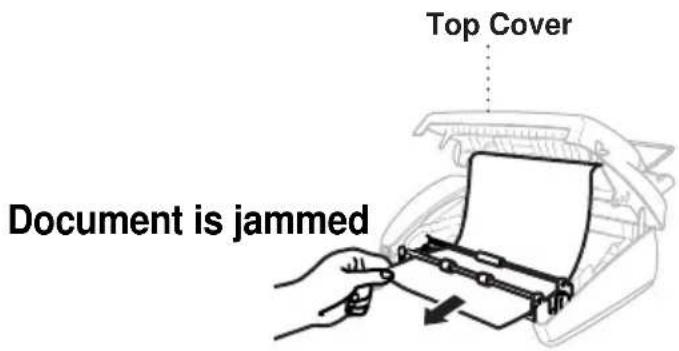
Paper Jam
The recording paper is jammed in the machine.
1 Remove any paper that is not jammed.
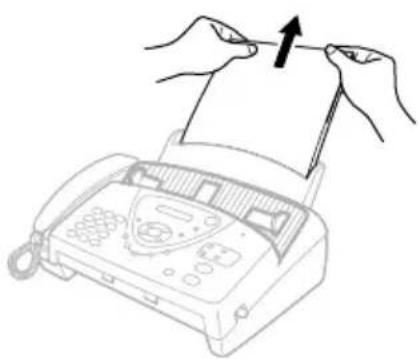
natural_image
Line drawing of hands inserting a card into a lathe machine (no text or symbols)2 Open the top cover by lifting the lever on the right side of the top cover.
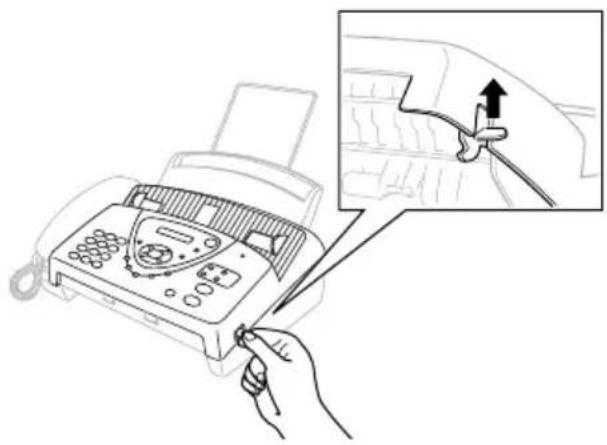
natural_image
Line drawing of a printer with a hand inserting a cable to a car interior (no text or symbols)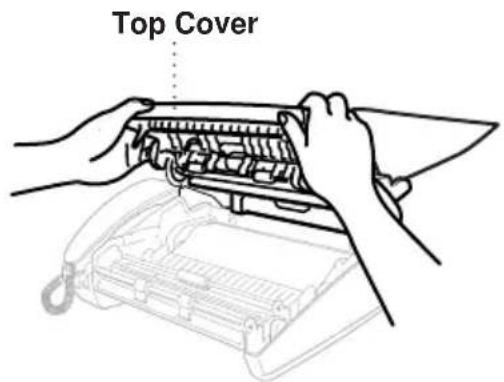
3 Pull the jammed printout gently from the paper tray toward the front of the machine. If the printout is jammed, then pull it toward the back of the machine.
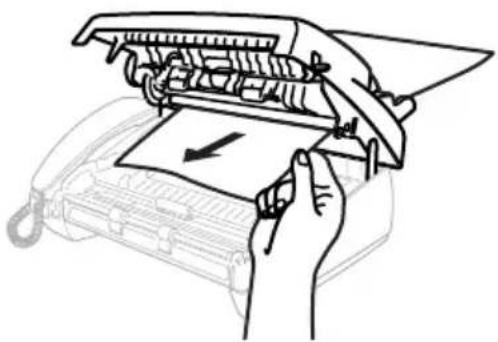
natural_image
Illustration of hands holding a mechanical device with a paper sheet and arrow indicating direction (no text or symbols)Printout is jammed
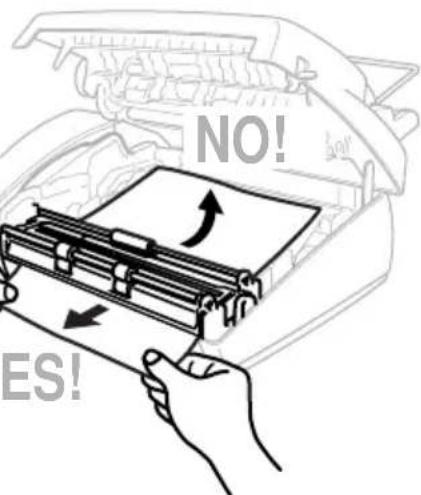
4 Remove the print cartridge and turn the spool to tighten the ribbon.
5 Install the cartridge. (See Changing the Ribbon, page 86.)
6 Close the top cover.
Press the both edges of the top cover and close it until it clicks.
7 Put the recording paper back into the paper tray.
Difficulty with Operation
If you think there is a problem with sending or printing quality of your fax machine, make a copy first. If the copy quality looks good then the problem may not be your fax machine. Check the difficulties below and follow the suggestions to help resolve your problems.
| DIFFICULTY SUGGESTIONS | |
| Printing or Receiving Faxes | |
| Condensed Print and Horizontal Streaks; Top and Bottom of Sentences Cut Off | This can be caused by static or interference on the telephone line. You can make a copy using the Copy function and see if the same problem occurs. If the copy is also bad, call your Brother dealer for service. |
| Vertical Black Lines When Receiving | The sender's scanner may be dirty. Ask the sender to make a copy to see if the problem is with the sending machine. Try receiving from another fax machine. If the problem continues, contact the Brother dealer for service. |
| Phone Line or Connections | |
| Fax Machine Does Not Answer When Called | Make sure the machine is in the correct receiving mode for your setup (either FAX, F/T (FAX/TEL) or TAD). Check for dial tone. It possible, call your machine to hear it answer. If there is still no answer, check the telephone line cord connection. Connect a standard telephone handset to the machine's telephone jack. If there is no ringing when you call your machine, call your Telephone Company to check the line. |
| No Dial Tone on the Handset | Press Speaker Phone (for FAX-737MC only)—OR—Lift the handset. If you hear no dial tone, check telephone line cord connections at the machine and wall jack. Check that the handset is connected to the machine's handset jack. Test the wall jack with another single line telephone. If no dial tone on the wall outlet, call your Telephone Company. |
| Sending Faxes | |
| Poor Transmitting Quality | Try changing your resolution to FINE or S.FINE. (See Resolution, page 20.) Make a copy to verify the machine's scanner operation. |
| Dialling Does Not Work Check for a dial tone. | Change TONE/PULSE setting. (See Setting the Dialling Mode (Tone/Pulse) (Not available in New Zealand), page 12.) Check all line cord connections. Check power cord connection. Send a manual fax by pressing Speaker Phone (for FAX-737MC only)—OR—Lifting the handset, and dialling the number. Wait to hear fax receiving tones before pressing Fax Start. |
| Vertical Black Lines When Sending | Use your machine to make a copy. If the copy shows the same problem, the scanner area is dirty. Lift the front cover and check the document path. Clean the scanner's white roller and the glass strip under the roller using isopropyl alcohol and a lint-free cloth. |
| Handling Incoming Calls | |
| F/T Pseudo-Ring in F/T Mode | The machine knows the incoming call is not a fax so it is signalling you to answer the voice call. Pick up the machine's handset or answer from an extension phone and press your machine's Telephone Answer Code (default setting is # 5 1 (# 9 1 for New Zealand)). |
| Transferring a Call to the Machine | If you have answered at the machine's handset, press Fax Start, and hang up immediately.If you answered at an extension phone, press your three-digit Fax Receive Code (the factory setting is* 5 1 ( 9 1 for New Zealand)). When your machine answers, hang up. |
| Machine goes into receive mode when the caller is not a fax | If the machine is set to Fax Detect ON, it is more sensitive to sounds The machine may mistakenly interpret certain voices or music on the line as a calling fax machine and respond with fax receiving tones. Deactivate the fax by pressing Stop/Exit.Try avoiding this problem by turning Fax Detect to OFF. (See Fax Detect, page 26.) |
| Transmission Verification Report Prints “RESULT:ERROR” | There is probably temporary noise or static on the phone line. Try sending the fax again. If the problem continues, call the Telephone Company to check your phone line. |
Regular Maintenance
Cleaning the Scanner
1 Unplug the power cord for safety.
2 Open the top cover by lifting the lever on the right side of the top cover.
3 Clean the white bar and the glass strip under the bar with isopropyl alcohol on a lint-free cloth. Be careful not to bend the spring plate or drop anything into the machine.
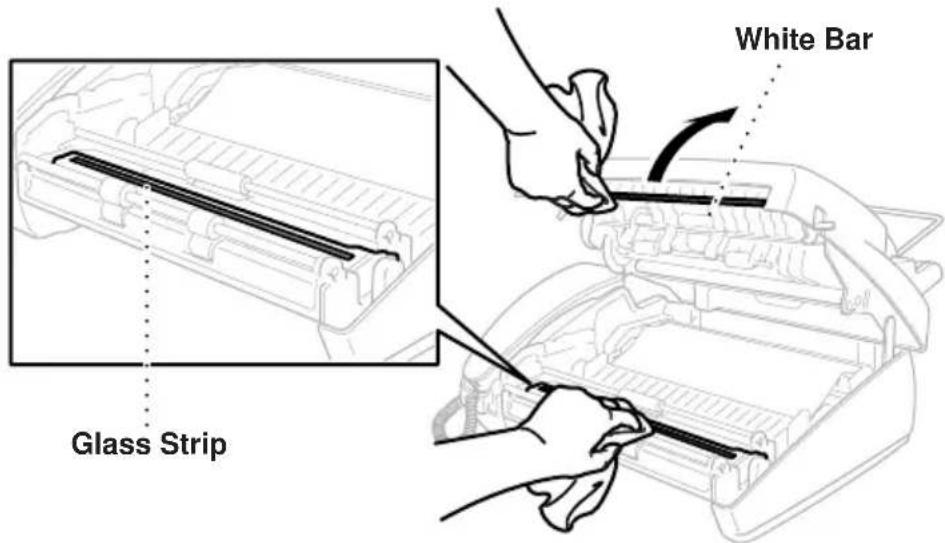
4 Close the top cover. Press the both edges of the top cover and close it until it clicks.

WARNING
After you have just used the machine, some internal parts of the machine are extremely HOT! So please be careful.
1 Unplug the power cord for safety.
2 Open the top cover by lifting the lever on the right side of the top cover.

Be careful not to cut yourself on the sharp edges of the metal part shown in the illustration.
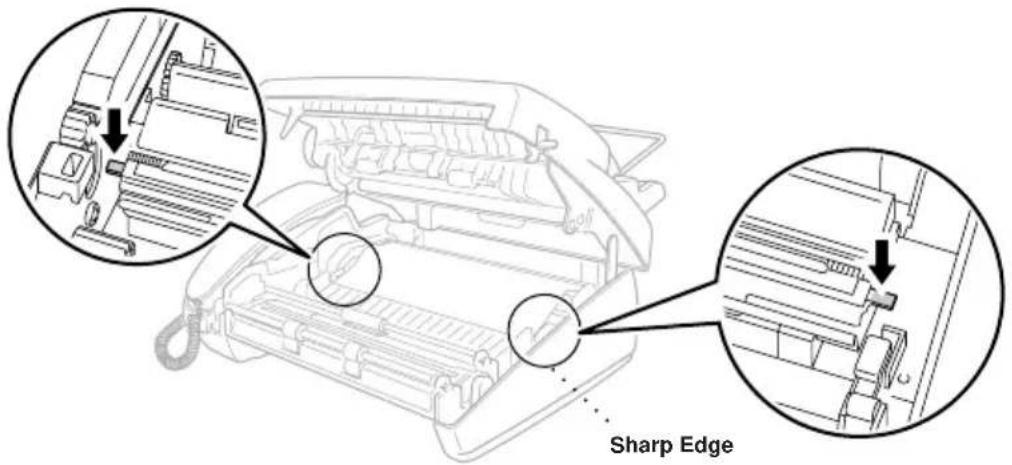
3 Take out the printing cartridge.
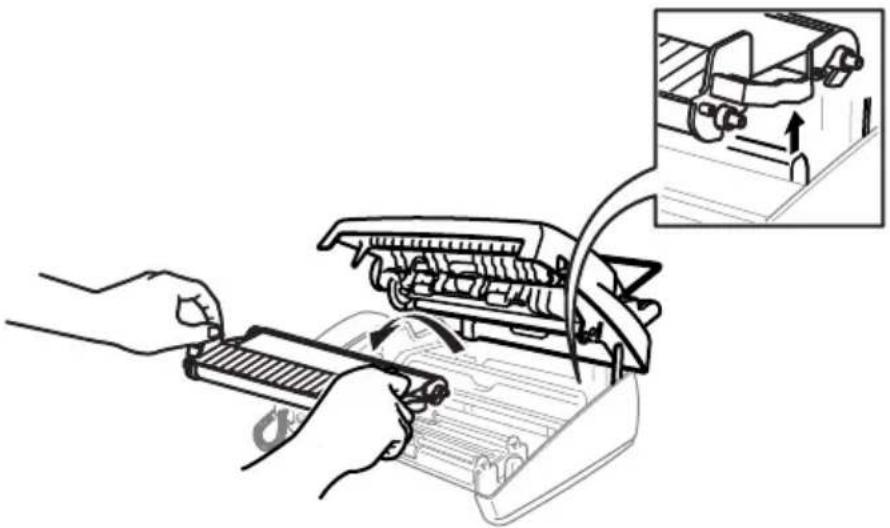
natural_image
Illustration of a hand using a tool to adjust or install a mechanical component, with an inset showing a vehicle being turned off (no text or symbols present)4 To clean the machine's print head, wipe the print head with a lint-free cloth that is dry or lightly moistened with isopropyl alcohol.
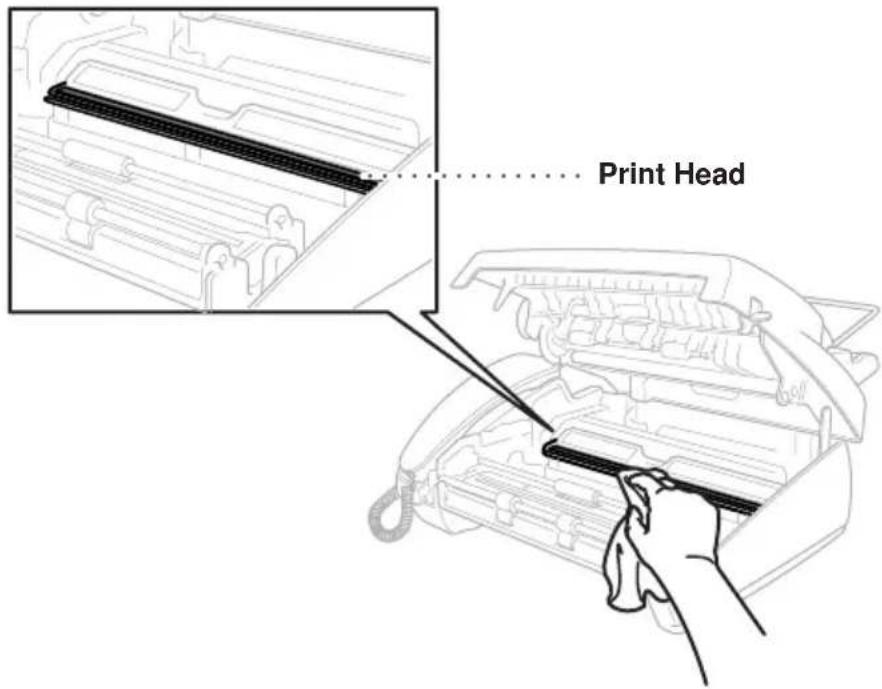
5 Wait until the alcohol on the print head is totally dried.
6 Install the printing cartridge. (See Changing the Ribbon, page 86.)
7 Press both edge of the top cover until it clicks and close the top cover.
1 Open the top cover by lifting the lever on the right side of the top cover.
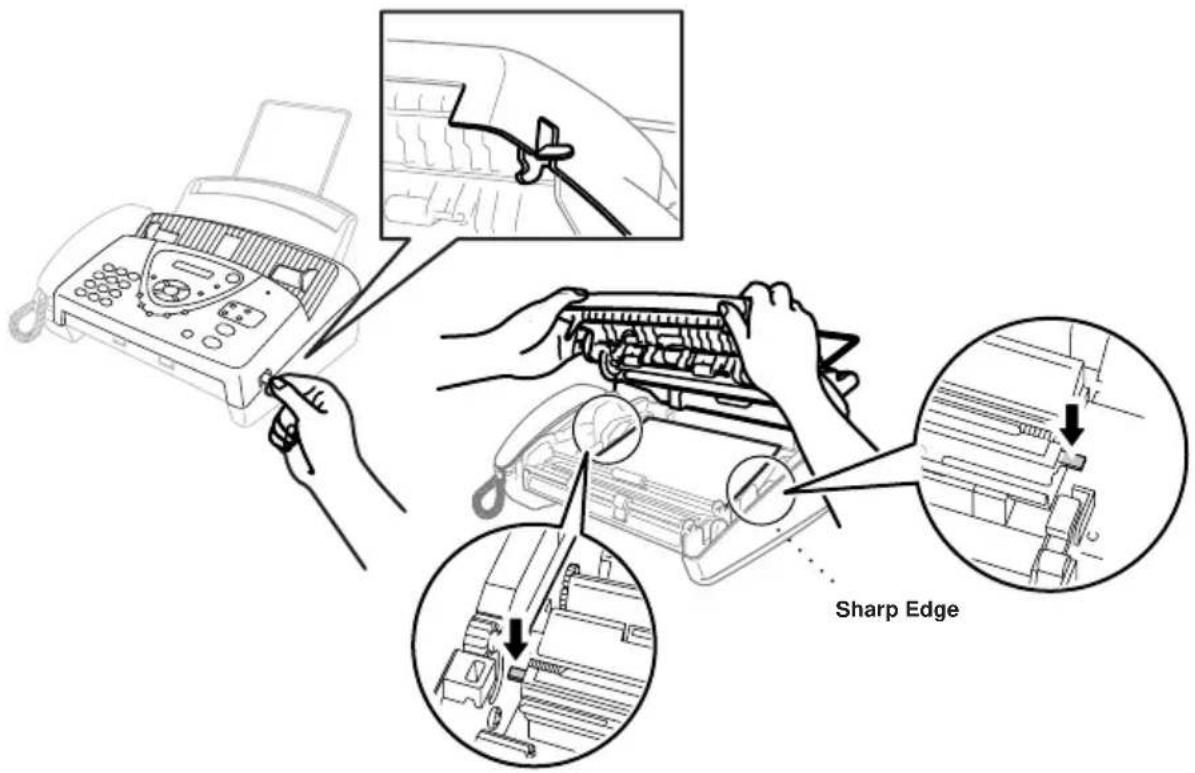

Be careful not to cut yourself on the sharp edges of the metal part shown in the illustration.
2 Remove the print cartridge containing the used ribbon and set it upside—down with the blue gear in the upper left corner.
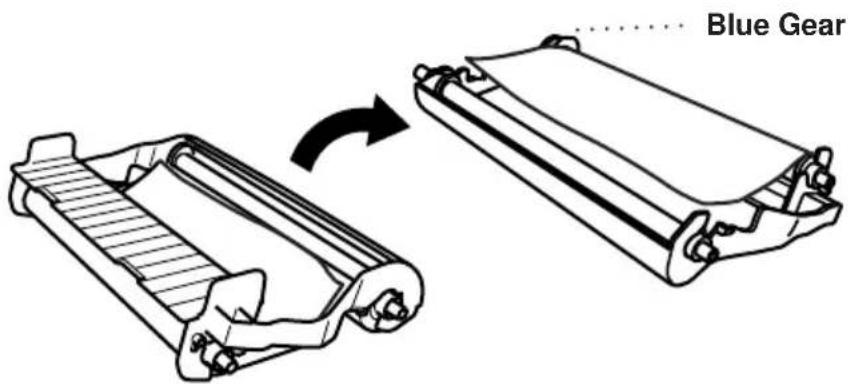
3 Take the used ribbon out of the cartridge:
① Snap out the upper white spool and slide the roll off the blue gear. (Do not remove the blue gear) ② Lift out the lower roll.
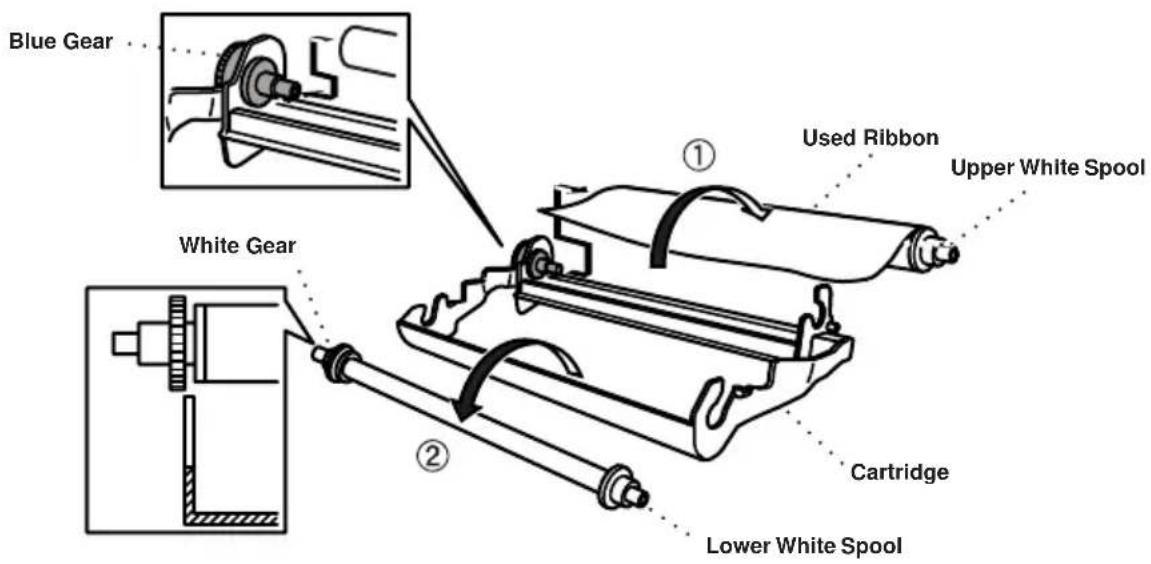
4 Slide the white elastic off the new refill rolls and set them down with the full roll in the lower position. (The ribbon's shiny side is facing down.)
5 Remove the white gear and spools from the ends of the used cardboard cores. Then insert them into the same positions in the new cores.
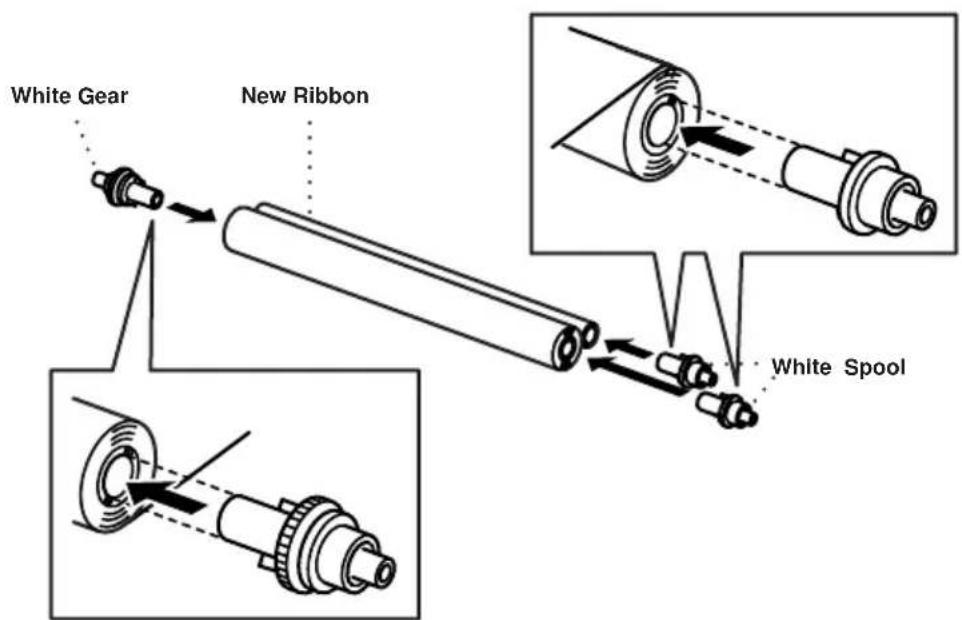
6 Install the new ribbon back into the cartridge:
① Insert the lower roll into the cartridge holders.
② Skip the upper left cardboard onto the blue gear of the cartridge and insert the upper roll into the cartridge holders.
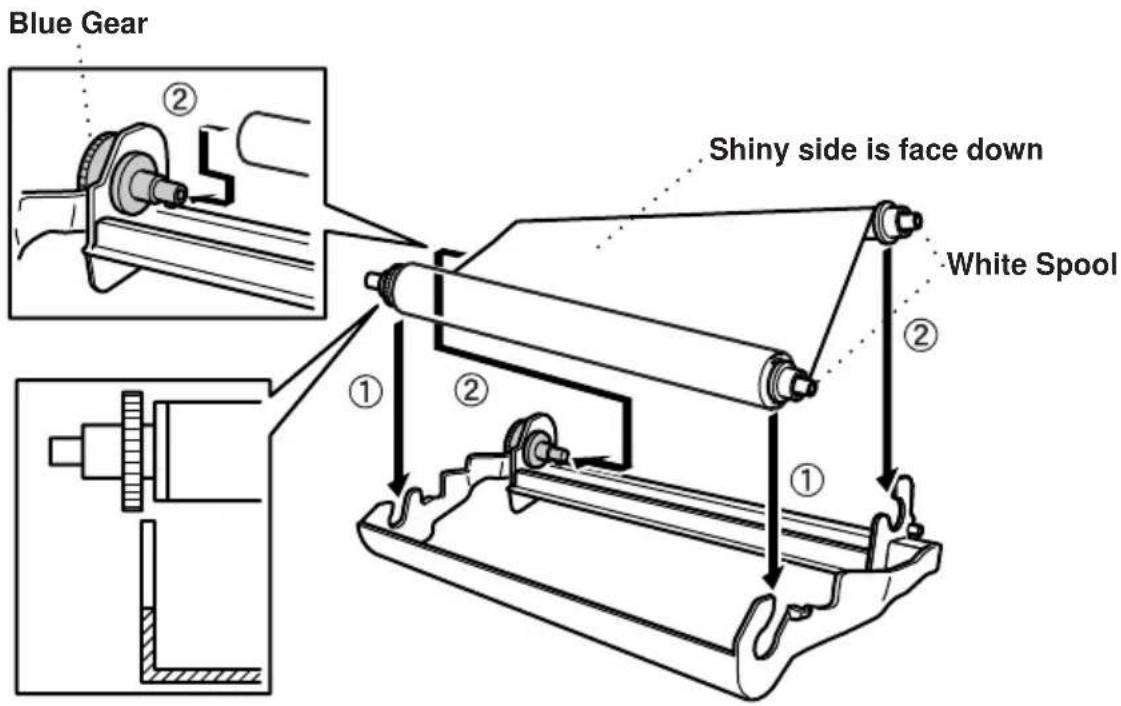
7 Turn the upper right white spool clockwise to tighten the ribbon, as shown.
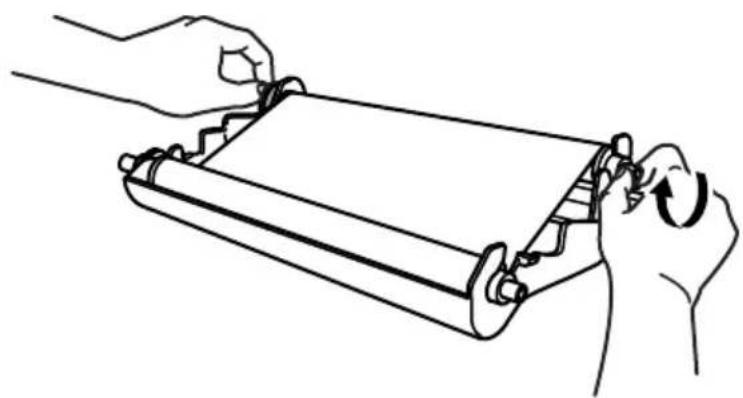
natural_image
Line drawing of hands holding a rolled-up document or scroll, with no visible text or symbols8 Turn the cartridge over and re-install it into the machine: Insert the recessed first and place the cartridge into its four holders.
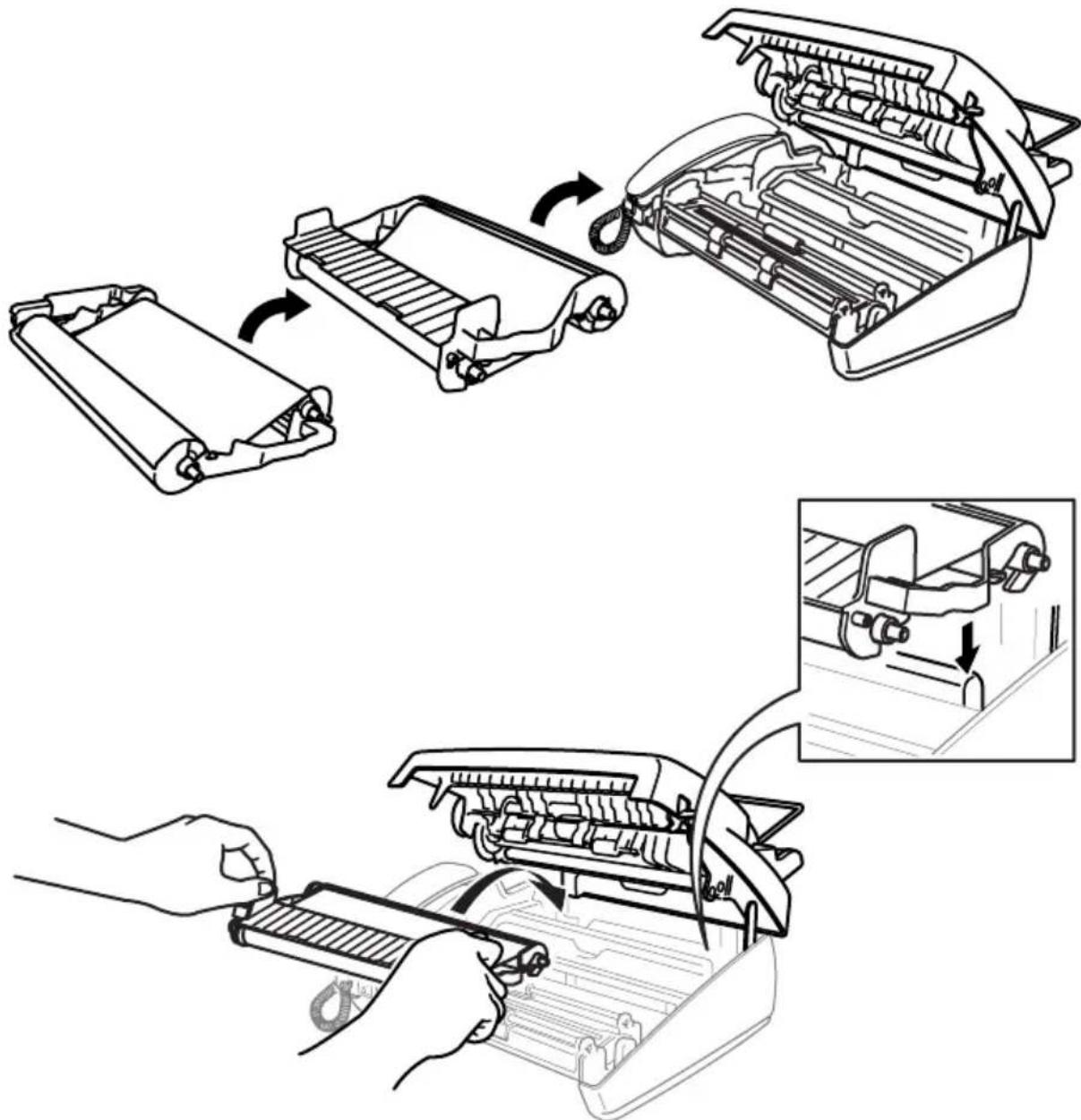
9 Press down on both sides of the top cover to close it securely.
Packing and Shipping the Machine
Whenever you transport the fax machine, use the packing materials that came with your fax machine. Failure to pack the machine properly may damage the machine and such damages will not be covered under warranty.
1 Unplug the fax machine from the AC power outlet.

Do not unplug the fax machine after a print job until you hear the final click.
2 Remove the paper wire extension, telephone line cord, print cartridge and handset, and pack them.

If you are returning the fax machine to Brother as part of the Brother Exchange Service, pack only the fax machine. Keep all separate parts to use with your "Exchange" machine.
3 Wrap the fax machine in the plastic bag and place it in the original carton with the original packing material.
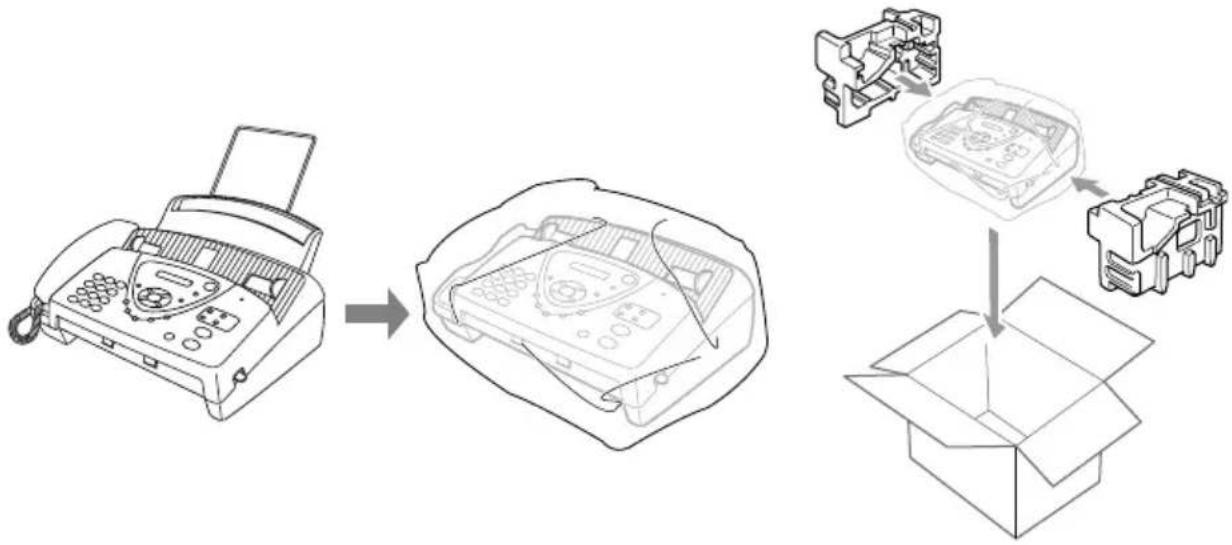
flowchart
graph TD
    A["Printer Printer"] --> B["Box Box"]
    B --> C["Printer Assembly"]
    style A fill:#f9f,stroke:#333
    style B fill:#ccf,stroke:#333
    style C fill:#cfc,stroke:#333
14 Important Safety Information
Important Information for Australia
Important Safety Instructions
1 Read all of these instructions.
2 Save them for later reference.
3 Follow all warnings and instructions marked on the product.
4 Unplug this product from the telephone and AC sockets (in this order) before cleaning. Do not use liquid or aerosol cleaners. Use a damp cloth for cleaning.
5 Do not place this product on an unstable surface.
6 Do not use this product near water.
7 Slots and openings in the case and the back or bottom are provided for ventilation; to ensure reliable operation of the product and to protect it from overheating, these openings must not be blocked or covered. The openings should never be blocked by placing the product on a bed, sofa, rug, or other similar soft surface. This product should never be placed near or over a radiator or heater. This product should not be placed in a built-in installation unless proper ventilation is provided.
8 This product should be operated from the type of power source indicated on the label. If you are not sure of the type of power available, consult with your dealer or local power company.
9 This product is equipped with a 3-wire earthed plug. This plug will fit into only an earthed socket. This is a safety feature. If you are unable to insert the plug into the outlet, contact your electrician to replace your obsolete socket. Do not defeat the purpose of an earthed plug.
10 Do not allow anything to rest on the power cord. Do not locate this product where people can walk on the cord.
11 Do not place anything in front of the machine that will block received faxes. Do not place anything in the path of received faxes.
12 Do not touch a document during printing.
13 Never push objects of any kind into this product through cabinet slots, since they may touch dangerous voltage points or short out parts resulting in a risk of fire or electric shock. Never spill liquid of any kind on the product.
14 Do not attempt to service this product yourself, because opening or removing covers may expose you to dangerous voltage points and/or other risks. Refer all servicing to service personnel.
15 This product has no mains ON/OFF switch. It is therefore highly important that access to the mains plug and the mains socket to which the plug is connected, is never obstructed, in case for some reason the mains power to the machine must be quickly disconnected.
16 Unplug this product from the mains power and telephone line sockets, and refer servicing to qualified service personnel under the following conditions:
◆ When the power cord is damaged or frayed.
◆ If liquid has been spilled into the product.
◆ If the product has been exposed to rain or water.
If the product does not operate normally when the operating instructions are followed. Adjust only those controls that are covered by the operating instructions. Improper adjustment of other controls may result in damage and will often require extensive work by a qualified technician to restore the product to normal operation.
◆ If the product has been dropped or the cabinet has been damaged.
◆ If the product exhibits a distinct change in performance, indicating a need for service.
17 We do not advise the use of an extension lead.
Important Information for New Zealand
Important Safety Instructions
1 Read all of these instructions.
2 Save them for later reference.
3 Follow all warnings and instructions marked on the product.
4 Unplug this product from the telephone and AC sockets (in this order) before cleaning. Do not use liquid or aerosol cleaners. Use a damp cloth for cleaning.
5 Do not use this product near water.
6 The grant of a Telepermit for any item of terminal equipment indicates only that Telecom has accepted that the item complies with minimum conditions for connection to its network. It indicates no endorsement of the product by Telecom, nor does it provide any sort of warranty. Above all, it provides no assurance that any item will work correctly in all respects with another item of Telepermitted equipment of a different make or model, nor does it imply that any product is compatible with all of Telecom's network services.
7 This equipment does not fully meet Telecom's impedance requirements. Performance limitations may occur when used in conjunction with some parts of the network. Telecom will accept no responsibility should difficulties arise in such circumstances.
8 If a charge for local calls is unacceptable, the “Dial Button” should not be used for local calls. Only the 7-digits of the local number should be dialled from your telephone. Do not dial the area code digit or the “0” prefix.
9 This equipment shall not be set to make automatic calls to the Telecom '111' Emergency Service.
10 IMPORTANT NOTICE
Under power failure conditions, this telephone may not operate. Please ensure that a separate telephone, not dependent on local power, is available for emergency use in emergencies.
11 The call log incorporated in this equipment does not record all answered calls. The call log, therefore may not agree with the Telecom account which may include calls not shown on the log.
12 Some parameters required for compliance with Telecom's Telepermit requirements are dependent on the equipment (PC) associated with this device. In order to operate within the limits for compliance with Telecom's Specifications, the associated equipment shall be set to ensure that automatic calls to different numbers are spaced such that there is no less than 5 seconds between the end of one call attempt and the beginning of another.
13 Some parameters required for compliance with Telecom's Telepermit requirements are dependent on the equipment (PC) associated with this device. In order to operate within the limits for compliance with Telecom's Specifications, the associated equipment shall be set to ensure that calls are answered between 3 and 30 seconds of receipt of ringing.
14 This equipment should not be used under any circumstances which may constitute a nuisance to other Telecom customers.
15 Not all telephones will respond to incoming ringing when connected to the extension socket.
16 This equipment may not provide for the effective hand-over of a call to another device connected to the same line.
17 The answer delay setting of this equipment shall not be set to less than two rings to answer as this will destroy Caller ID information.
18 All persons using this device for recording telephone conversations shall comply with New Zealand law. This requires that at least one party to the conversation is to be aware that it is being recorded. In addition, the Principles enumerated in the Privacy Act 1993 shall be complied with in respect to the nature of the personal information collected, the purpose for its collection, how it is to be used and what it disclosed to any other party.
19 The Caller ID Information is presented in the form: Area Code + Directory number When dialling back, always insert a zero in front of the area code for a toll call and omit the area code for a local call, If a zero is inserted in front of the area code for a local call, the call will still proceed correctly but if the line has non-code access to another toll carrier, you should check with that carrier before inserting zero on a local call.
20 Do not place this product on an unstable surface.
21 Slots and openings in the case and the back or bottom are provided for ventilation; to ensure reliable operation of the product and to protect it from overheating, these openings must not be blocked or covered. The openings should never be blocked by placing the product on a bed, sofa, rug, or other similar soft surface. This product should never be placed near or over a radiator or heater. This product should not be placed in a built-in installation unless proper ventilation is provided.
22 This product should be operated from the type of power source indicated on the label. If you are not sure of the type of power available, consult with your dealer or local power company.
23 This product is equipped with a 3-wire earthed plug. This plug will fit into only an earthed socket. This is a safety feature. If you are unable to insert the plug into the outlet, contact your electrician to replace your obsolete socket. Do not defeat the purpose of an earthed plug.
24 Do not allow anything to rest on the power cord. Do not locate this product where people can walk on the cord.
25 Do not place anything in front of the machine that will block received faxes. Do not place anything in the path of received faxes.
26 Do not touch a document during printing.
27 Never push objects of any kind into this product through cabinet slots, since they may touch dangerous voltage points or short out parts resulting in a risk of fire or electric shock. Never spill liquid of any kind on the product.
28 Do not attempt to service this product yourself, because opening or removing covers may expose you to dangerous voltage points and/or other risks. Refer all servicing to service personnel.
29 This product has no mains ON/OFF switch. It is therefore highly important that access to the mains plug and the mains socket to which the plug is connected, is never obstructed, in case for some reason the mains power to the machine must be quickly disconnected.
30 Unplug this product from the mains power and telephone line sockets, and refer servicing to qualified service personnel under the following conditions:
◆ When the power cord is damaged or frayed.
◆ If liquid has been spilled into the product.
◆ If the product has been exposed to rain or water.
If the product does not operate normally when the operating instructions are followed. Adjust only those controls that are covered by the operating instructions. Improper adjustment of other controls may result in damage and will often require extensive work by a qualified technician to restore the product to normal operation.
◆ If the product has been dropped or the cabinet has been damaged.
◆ If the product exhibits a distinct change in performance, indicating a need for service.
31 We do not advise the use of an extension lead.
32 This device only responds to Distinctive Alert Cadences DA1, DA2 and DA4.
33 Configuration of the machine with Faxability ON will result in Caller ID information being destroyed when ring cadence DA4 is received.
Important Information for Some Countries
Important Safety Instructions
1 Read all of these instructions.
2 Save them for later reference.
3 Follow all warnings and instructions marked on the product.
4 Unplug this product from the wall outlet before cleaning. Do not use liquid or aerosol cleaners. Use a damp cloth for cleaning.
5 Do not place this product near water.
6 Do not place this product on an unstable cart, stand, or table. The product may drop, causing serious damage to the product.
7 Slots and openings in the cabinet and the back or bottom are provided for ventilation; to ensure reliable operation of the product and to protect it from overheating, these openings must not be blocked or covered. The openings should never be blocked by placing the product on a bed, sofa, rug, or other similar surface. This product should never be placed near or on a radiator or heater. This product should never be placed in a built-in installation unless proper ventilation is provided.
8 This product should be operated from the type of power source indicated on the label. If you are not sure of the type of power available, consult with your dealer or local power company.
9 This product is equipped with a 2-wire grounding type plug and a 3-wire grounding type plug, a plug having two or three pins. This plug will only fit into only a grounding-type power outlet. This is a safety feature. If you are unable to insert the plug into the outlet, contact your electrician to replace your obsolete outlet. Do not defeat the purpose of the grounding-type plug.
10 Do not allow anything to rest on the power cord. Do not place this product where people can walk on the cord.
11 If an extension cord is used with this product, make sure that the total ampere ratings on the products plugged into the extension cord do not exceed the extension cord ampere rating.
12 Do not place anything in front of the machine that will block received faxes. Do not place anything in the path of received faxes.
13 Do not touch a document during printing.
14 Never push objects of any kind into this product through cabinet slots, since they may touch dangerous voltage points or short out parts resulting in the risk of fire or electric shock. Never spill liquid of any kind on the product.
15 Do not attempt to service this product yourself, as opening or removing covers may expose you to dangerous voltage points and/or other risks, and may not be covered under your warranty. Please refer all servicing to our Authorized Service Personnel. A list of Authorized Service Centres has been included for your convenience, or you may contact the Brother Dealer for Service.
16 This product has no mains ON/OFF switch. It is therefore highly important that access to the mains plug and the mains socket to which the plug is connected, is never obstructed, in case for some reason the mains power to the machine must be quickly disconnected.
17 Unplug this product from the wall outlet and refer servicing to Authorized Service Personnel under the following conditions:
◆ If the power cord is damaged or frayed.
◆ If the product has been spilled by liquid.
◆ If the product has been exposed to rain or water.
If the product does not operate normally when the operating instructions are followed. Adjust only those controls that are covered by the operating instructions. Improper adjustment of other controls may result in damage and will often require extensive work by a qualified technician to restore the product to normal operation.
◆ If the product has been dropped or the cabinet has been damaged.
◆ If the product exhibits a distinct change in performance, indicating a need for service.
18 To protect your product against power surges, we recommend the use of a power protection device (Surge Protector).
19 We do not advise the use of an extension lead.

- For protection against the risk of electrical shock, always disconnect all cables from the wall outlet before servicing, modifying or installing the equipment.
- This equipment may not be used on coin service lines provided by the telephone company or connected to party lines.
- Brother cannot accept any financial or other responsibilities that may be the result of your use of this information, including direct, special or consequential damages. There are no warranties extended or granted by this document.
For Your Safety
To ensure safe operation the three-pin plug supplied must be inserted only into a standard three-pin power point which is effectively grounded through the normal household wiring.
The fact that the equipment operates satisfactorily does not imply that the power is grounded and that the installation is completely safe. For your safety, if in any doubt about the effective grounding of the power, consult a qualified electrician.
Disconnect device
This product must be installed near a socket outlet that is easily accessible. In case of emergencies, you must disconnect the power cord from the socket outlet in order to shut off power completely.
15 Specifications
Specifications
Type Desktop facsimile transceiver
Compatibility ITU-T Group 3
Coding system Modified Huffman (MH)
Modem speed 9600/7200/4800/2400;
Automatic Fallback (FAX-717, FAX-727)
14400/12000/9600/7200/4800/2400;
Automatic Fallback (FAX-737MC)
Document size Width: 148 mm to 216 mm
Length: 150 mm to 600 mm
Weight:64 gsm ^2 to 90 gsm ^2
Paper size Width: 210 mm (A4)
Length: Up to 356 mm
Weight:64 gsm ^2 to 90 gsm ^2
Scanning/Printing width 208 mm
Paper tray Up to 30 sheets (75 gsm ^2 )
Printer type Line thermal with ribbon
Grey scale 64 levels (Dithered)
Display LCD, 16 characters
Polling types Standard, Secure, Delayed, Sequential
Contrast control Automatic/Light/Dark (Manual setting)
Resolution • Horizontal 8 dot/mm
• Vertical Standard—3.85 line/mm
Fine, Photo—7.7 line/mm
Superfine, Photo (copy)—15.4 line/mm
Memory capacity 512 KB
One touch dial 4 stations
Speed dial 100 stations (FAX-727/737MC)
60 stations (FAX-717)
Groups Up to 4
Automatic redial 3 times at 5 minute intervals
Speaker type Full Duplex, Digital (FAX-737MC)
Monitor (FAX-717/727)
Automatic answer 2, 3, 4, 5, 6, 7, 8, 9 or 10 rings (for Australia)
1, 2, 3, 4, 5, 6, 7, 8, 9 or 10 rings (for New Zealand)
0, 1, 2, 3, 4, 5, 6, 7, 8, 9 or 10 rings (for some countries)
Communication source Public switched telephone network
Operating environment 5 - 35°C
Power source 220-240 V AC 50/60 Hz
Power consumption Standby: under 5 watts — Peak: under 170 watts
Dimensions 334(W) x 301(D) x 281(H) (mm)
Weight 3.5 kg
Specifications are subject to change for improvement without prior notice.
*“Pages” refers to the ITU-T Test Chart No.1 (in Out of Paper Reception in ECM mode).
Menu Mode & Menu Selection Table
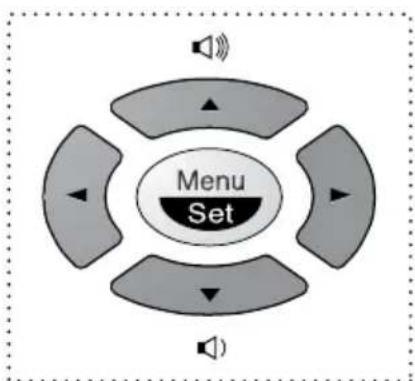
flowchart
graph TD
    A["Menu Set"] --> B["Top"]
    A --> C["Left"]
    A --> D["Right"]
    A --> E["Bottom"]

- Access the Menu
- Go to next menu level
- Accept an option

- Scroll through the current menu level


- Back to previous menu level

- Forward to next menu level

- Exit the Menu
You can access the menu mode by pressing Menu/Set. When you enter the Menu, the LCD scrolls:
Press 1 for Initial Setup Menu—OR—
Press 2 for Setup Receive Menu—OR—
Press 3 for Setup Send Menu—OR—
Press 4 for Cancel Job Menu—OR—
Press 5 for Interrupt Menu—OR—
Press 6 for Set Quick-Dial Menu—OR—
Press 7 for Report Setting Menu—OR—
Press 8 for Remote Fax Options Menu (FAX-717/727) —OR—
Press 8 for Setup Message Centre Menu (FAX-737MC) —OR—
Press 9 for Setup Melody Menu (FAX-737MC)—OR—
Press 0 for Miscellaneous Menu—OR—
SELECT ↑ ↓ & SET
1.INITIAL SETUP
-
SETUP RECEIVE
-
SETUP SEND
-
CANCEL JOB
-
INTERRUPT
6.SET QUICK-DIAL
-
REPORT SETTING
-
REMOTE FAX OPT
-
SETUP MSG CTR
-
SETUP MELODY
0.MISCELLANEOUS
You can scroll more quickly through each menu level by pressing or keys, and then set an option by pressing Menu/Set when that option appears on the LCD. Then the LCD shows next menu level. Press or key to scroll to your next menu selection, and then press Menu/Set. When you finish setting an option, the LCD shows ACCEPTED.

Use to scroll backward if you passed your choices or to save keystrokes.
You can program the machine by pressing Menu/Set followed by the menu numbers. For example: to set RESOLUTION to FINE, press Menu/Set, 3, 4 and 🎨 or 🏠 to select FINE, and then press Menu/Set.
To access the menu, press ⓂMenu/Set.
To exit, press Stop/Exit.
| Main Menu | Menu Selections | Options Descriptions Page to accept | |
| 1. INITIAL SETUP 1. | TONE/PULSE(Not available in New Zealand) | TONEPULSE | Select the dialling mode. |
| 2. DATE/TIME | — | Enter date and time for LCD display and to print on transmissions. | |
| 3. STATION ID | — | Program the name, fax number and telephone number to appear on each transmitted page. | |
| 4. BEEPER OFF | LOWHIGH | Adjust the volume level of the beeps when you press a key, an error occurs or a document is sent or received. | |
| 5. PBX(Australia & New Zealand only) | ONOFF | Turn on if PABX (Private Automatic Branch Exchange) is connected to your machine. | |
| 2. SETUP RECEIVE | 1. RING DELAY 10 | 09080706050403 (Example for02 Australia)TOLL SAVER:OFF(FAX-737MC Only) | Sets the number of rings before the machine answers in F/T, FAX or TAD (Message Centre) mode. |
| 2. F/T RING TIME 70 | 403020 | Sets the time for “F/T pseudo-ring” in Fax/Tel (F/T) Mode. | |
| 3. FAX DETECT ON | SEMIOFF | Receive fax messages without pressing theFax Startkey. |
* The factory setting (option) is shown in bold.
| Main Menu | Menu Selections | Options Descriptions Page to accept | |
| 2. SETUP RECEIVE (Continued) | 4. REMOTE CODE ON( #1, #51, 81?( #1, #91, 81 for New Zealand)OFF | Enter code to activate or deactivate machine from a remote location or to transfer voice call from cordless phone to the machine. | 46 |
| 5. REDUCTION AUTO100%93%87%75% | Reduces size of image. | 26 | |
| 6. MEM.RECEIVE ON | OFF | Automatically stores any incoming faxes in its memory if it runs out of paper. | |
| 7. POLLING RX STANDARDSECURE TIMER | You call another fax machine to receive a fax from it. 56 | ||
| 3. SETUP SEND 1. COVERPG SETUP(FAX-727/737MC Only) | NEXT FAX ONLYONOFFPRINT SAMPLE | Automatically sends a programmable cover page or prints a sample coverage. | 35 |
| 2. COVERPAGE NOTE(FAX-727/737MC Only) | — | Program a customized message for fax cover page. | 37 |
| 3. CONTRAST AUTO | LIGHTDARK | Change the lightness or darkness of a fax you are sending. | 20 |
| 4. RESOLUTION STANDARDS.FINE S.FINE PHOTO | ANDARD | Allows you to change resolutions page by page. | 43 |
| 5. OVERSEAS MODE | ONOFF | Special setting for international transmissions. | 37 |
| 6. CALL RESERVE(FAX-727/737MC Only) | ONOFFPRINT SAMPLE | You can send a fax, then speak or print a sample call back message. | 38 |
* The factory setting (option) is shown in bold.
To access the menu, press ⓂMenu/Set.
To exit, press Stop/Exit.
| Main Menu | Menu Selections | Options Descriptions Page to accept | |
| 3. SETUP SEND (Continued) | 7. TIMER | — | Set the machine to send your documents later. |
| 8. POLLED TX STAN DARD SECURE | SET Polled Transmission for someone to poll the machine to receive a fax from you. | 58 | |
| 9. MEMORY TX NEXT FAX ONLY ON OFF | You can send faxes from memory. | 37 | |
| 4. CANCEL JOB | — | — | Cancel a delayed fax or polling job. |
| 5. INTERRUPT | — | — | Send a fax now, even if you have the machine set to send a fax later, or if you have it set for Polling. |
| 6. SET QUICK-DIAL | 1. ONE-TOUCH DIAL — | Dial numbers stored in memory by pressing only one key. | |
| 2. SPEED-DIAL | — | Dial numbers stored in memory by pressing only four keys. | |
| 3. SETUP GROUPS | — | Set up a Group number for broadcasting. | |
| 7. REPORT SETTING | 1. XMIT REPORT ON | OFF | Initial setup for Transmission Verification Report and Journal period. |
| 2. JOURNAL PERIOD | EVERY 30 FAXES EVERY 6 HOURSEVERY 12 HOURSEVERY 24 HOURSEVERY 2 DAYS EVERY 7 DAYS OFF |
* The factory setting (option) is shown in bold.
To access the menu, press ⓂMenu/Set.
To exit, press Stop/Exit.
| Main Menu | Menu Selections | Options Descriptions Page | ||
     to pt [CA7X] to pt [CA7X] | ||||
| 8. REMOTE FAX OPT(FAX-717/727 Only) | 1. FAX FWD ON | OFF | Set the machine to forward faxes. | 60 |
| 2. FAX STORAGE ON | OFF | Store incoming faxes in memory for fax forwarding and remote retrieval. | 60 | |
| 3. REMOTE ACCESS | --- Set code for retrieving faxes. | 61 | ||
| 4. PRINT DOCUMENT | — | Print incoming faxes stored in the memory. | 27 | |
| 8. SETUP MSG CTR (FAX-737MC Only) | 1. MESSAGE STORE | DOC:ONDOC:OFFVOICE:ONVOICE:EXTVOICE:OFF | Select if memory will store fax, voice or both. | 66 |
| 2. BACKUP PRINT ON | OFF | Automatically prints a copy of faxes received into memory. | 68 | |
| 3. OGM MSG CTR OGM | FAX/TEL OGM PAGING OGM | Select/Record outgoing message. 25, 66 | ||
| 4. ICM MAX.TIME 20-60 seconds(Factory setting is 30 seconds) | Select maximum length of incoming messages. 69 | |||
| 5. ICM REC.MONITR | ONOFF | Select ON or OFF for voice messages as they come in. | 70 | |
| 6. FAX FWD/PAGING | OFFFAX FORWARD PAGING | Set fax machine to forward fax/message—OR—to call your pager. | 70 | |
| 7. REMOTE ACCESS | --- Set code for retrieving messages. | 72 | ||
* The factory setting (option) is shown in bold.
To access the menu, press ⓂMenu/Set.
To exit, press Stop/Exit.
| Main Menu | Menu Selections | Options Descriptions Page to accept | |
| 9. SETUP MELODY (FAX-737MC Only) | 1. RING PATTERN SIGNALMELODY1MELODY2MELODY3MELODY4 | Selects ring pattern. | 16 |
| 2. MUSIC ON HOLD | OFFMELODY1MELODY2MELODY3MELODY4 | Selects the music type or sets to off the music on hold. | |
| 3. MELODY ALARM | OFFON(SIGNALMELODY1MELODY2MELODY3MELODY4) | Set the machine to alarm the melody later—OR—select the music type for melody alarm. 16 | |
| 0. MISCELLANEOUS | 1. MEM SECURITY | — | Prohibits most functions except receiving faxes into memory. |
| 2. CALLER ID DISPLAY | AY IDPRINT REPORT | View and dial back, or print a list of the last 30 Caller IDs stored in memory. | |
| 3. DISTINCTIVE(Not available in New Zealand) | ONOFF | Use with phone company distinctive ringing service to register the ring pattern with the machine. | |
| 3. FAXABILITY(Only for New Zealand) | ONOFF | If you have FaxAbility from Telecom, you can use this function to store the ringing pattern of your fax number. And if you set it to ON, you should use the registered number as a fax number only. |
* The factory setting (option) is shown in bold.
Entering Text
When you are setting certain functions, such as the Station ID, you may need to enter text into the machine. Most keys on the dial pad have three or four letters printed above them. The keys for 0, #, and *don't have printed letters because they are used for special characters.
By pressing the appropriate number on the dial pad the correct number of times, you can access the character you want.
| Press Key once twice three times four times five times | |||||
| 2 | A | B | C | 2 | A |
| 3 | D | E | F | 3 | D |
| 4 | G | H | I | 4 | |
| 5 | J | K | L | 5 | J |
| 6 | M | N | O | 6 | M |
| 7 | P | Q | R | S | 7 |
| 8 | T | U | V | 8 | T |
| 9 | W | X | Y | Z | 9 |
G
Inserting spaces
If you want to enter a blank space, press twice.
Making corrections
If you entered a letter incorrectly and want to change it, press to move the cursor after the last correct letter. Then press Stop/Exit all letters above and to the right of the cursor are deleted. Re-enter the correct text and/or digits. You can also back up and type over incorrect letters.
Repeating letters
If you need to enter a character assigned to the same key as the previous character, press to move the cursor to the right.
Special characters and symbols
Press *, # or 0 repeatedly or press 📋 to move the cursor under the special character or symbol you want. Then press Menu/Set to select it.
Press *for (space)!" # \$ % & ' () * + , - . /
Press # for :; <=> ? @ [ ] ^ _
Press 0 for ÄËÖÜÀÇÈÉO
About Fax Machines
If you are a first-time fax machine user, fax operation might seem a little mysterious. You will soon get used to the unusual fax tones on your phone line, and be able to send and receive faxes easily.
Fax Tones and Handshake
When someone is sending a fax, the fax machine sends fax calling tones, (CNG tones)—soft, beeps at 4-second intervals. You will hear them when you dial and press Fax Start, and they continue for about 60 seconds after dialling. During that time, the sending machine must begin the “handshake” with the receiving machine. Each time you use automatic procedures to send a fax, you are sending CNG tones over the phone line. You will soon learn to listen for these soft beeps each time you answer a phone on your fax line, so you can know if you are receiving a fax message.
The receiving fax responds with fax receiving tones—loud, chirping sounds. A receiving fax chirps for about 40 seconds over the phone line, and the screen displays RECEIVE. If your fax machine is set to the FAX ONLY Mode, it will answer every call automatically with fax receiving tones. Even if the other party hangs up, your fax machine continues to send the “chirps” for about 40 seconds, and the screen continues to display RECEIVE. To cancel the receiving mode, press Stop/Exit.
When your fax machine is in FAX/TEL (F/T) mode, it answers with a short beep. After this beep, the fax machine listens for CNG tones, and, if heard, it will respond with receiving tones.
The fax “handshake” is the time in which the sending machine’s CNG tones and the receiving machine’s “chirps” overlap. This must be for at least 2 to 4 seconds, so the fax machines can understand how each is sending and receiving the fax. The handshake cannot begin until the call is answered, and the CNG tones only last for about 60 seconds after the number is dialled. Therefore, it’s important for the receiving machine to answer the call in as few rings as possible.

When you have an external telephone answering device (TAD) on your fax line, your TAD will determine the number of rings before the call is answered. Pay special attention to the directions in the Installation chapter for connecting a TAD to your fax machine.
ECM (Error Correction Mode)
The Error Correction Mode (ECM) is a way for the fax machine to check the integrity of a fax transmission while it is in progress. ECM transmissions are possible only between machines that both have the ECM feature. If they do, you may send and receive fax messages that are continuously checked for their integrity.
Sufficient memory must be available in your machine for this feature to work.
Glossary
Anti Junk Allows you to reject receiving the fax message or telephone call if you register a particular number with this function on.
Automatic Document Feeder Refers to the number of pages that can be placed in the document feeder and fed one at a time automatically.
Automatic fax transmission Sending a fax without picking up the handset or pressing Speaker Phone (for FAX-737MC only).
Backup Print Sets your machine to print a copy of faxes that are received and stored in memory.
Beeper The sound that the speaker makes when the keys are pressed, an error occurs or a document has been received or transmitted.
Broadcasting The ability to send the same fax message to more than one location.
Call Back Message Allows you to send a fax and then leave a message for the other party to call you back.
Call Reservation Allows you send a fax and then at the end of transmission, you can talk with the other party.
Caller ID A service purchased from the Telephone Company that lets you see the number (or name) of the party calling you.
Cancel Job Cancels a programmed job, for instance, Delayed Fax or Polling.
CNG tones The special tones (beeps) sent by fax machines during automatic transmission to tell the receiving machine that they are from fax machine.
Communication error (or Comm. Error) An error during fax sending or receiving, usually caused by line noise or static.
Contrast Setting to compensate for dark or light documents, by lightening dark documents or darkening light documents.
Cover Page Prints a page at the other party's machine, that contains the sender and recipient's name and fax number, number of pages and comment. You can generate an electronic cover page at the other end with pre-programmed information from memory or you can print a sample cover page to fax with your document.
Delayed Transmission Sends your fax at a later time that day.
Distinctive Ringing A service purchased from the Telephone Company that provides another phone number on an existing phone line. The fax machine uses the new number to simulate a dedicated fax line.
ECM (Error Correction Mode) Detects errors during fax transmission and resends the page(s) of the document that had an error.
F/T Ring Time The length of time the machine rings (when the answer mode setting is FAX/TEL) to notify you to pick up a voice call that it answered.
Fax Forwarding Sends a fax received in memory to another preprogrammed fax number.
Fax tones The signals sent by sending and receiving fax machines while communicating information.
Fine Resolution Resolution is 196 x 203 dpi. It is used for small print and graphs.
Gray scale The shades of grey available for copying and faxing photographs.
Group number A combination of One Touch and/or Speed Dial numbers that are stored on a One Touch Dial key for Broadcasting.
ICM (Incoming Message) A recorded voice message received into an external answering machine or FAX-737MC's digital Message Centre.
Interrupt Temporarily puts a waiting job on hold while you perform another operation.
Journal Lists information about the last 30 incoming and outgoing faxes.
Journal Period The preprogrammed time period between automatically printed Journal Reports. You can print Journal on demand without interrupting this cycle.
LCD (Liquid Crystal Display) The display screen on the machine that shows interactive messages during On-Screen Programming and defaults to the date and time when the machine is idle.
Manual fax When you press Speaker Phone (for FAX-737MC only)—OR—lift the handset so you can hear the receiving fax machine answer before you press Fax Start to begin transmission.
Memory Status List Shows how much memory is being used, how much is left, and the type of messages in memory.
Memory usage Instructs the machine how to allocate the memory.
Message Centre (FAX-737MC only) The Message Centre is an electronic messaging facility for faxes and voice mail. Callers can send you faxes or leave voice messages for you, and you can retrieve these from a remote location.
Next Fax Reservation Accepts the next document in the document feeder for transmission while the machine is still receiving.
OGM (Outgoing Message) The message which callers can hear when you call your Message Centre or external answering machine.
Out of Paper Reception Receives faxes into the machine's memory when the machine is out of paper.
Overseas Mode Makes temporary changes to the fax tones to accommodate noise and static on overseas phone lines.
Paging (FAX-737MC only) Feature enables your fax unit to call your pager when a fax and/or a voice message is received into its memory.
Pause Allows you to place a 3.5 second delay in the dialling sequence stored on One Touch and Speed Dial numbers.
PBX (Private Branch Exchange) This machine can be connected to PBX. With connecting PBX you can transfer a call to another extension by pressing Recall.
Photo Resolution A resolution setting that uses varying shades of grey for the best representation of photographs.
Polling The process of a fax machine calling another fax machine to retrieve waiting fax messages.
Print reduction reduces the size of incoming faxes.
Pulse A form of dialling on a telephone line.
Quick-Dial Keys on the machine control panel where you can store numbers for easy dialling. You must use a separate key for each number.
Quick-Dial List A listing of names and numbers stored in One Touch and Speed Dial memory, in numerical order.
Remote access The ability to access your messages stored in the machine's memory remotely from a touch tone phone.
Remote access code The four-digit code that allows you to call and access your messages stored in the machine's memory from a remote location.
Remote activation allows you to transfer a fax call, answered at an extension phone, to the machine by pressing the Fax Receive Code.
Resolution The number of vertical and horizontal lines per mm. See: Standard, Fine, Super Fine and Photo resolution.
Ring Delay The number of telephone rings before the machine answers a call in F/T or FAX ONLY mode.
Scanning The process of sending an electronic image of an original paper document into your computer.
Standard resolution 98 x 203 dpi. It is used for regular size text and quickest transmission.
Station ID The stored information that appears on the top of faxed pages. It includes the sender's name and fax number.
Super fine resolution 392 x 203 dpi. Best for very small print and line art.
System Setup List A printed report that shows the current setting of your machine.
Thermal transfer A printing process in which heat transfers carbon ink from a ribbon to plain paper.
Toll Saver (FAX-737MC only) A Message Centre setting that allows the machine to answer after two ring when a message(s) was received and after four rings when there are no messages. The caller can hang up (after two rings) without paying for the call if there are no messages to retrieve.
Tone A form of dialling on the telephone line used for Touch Tone telephones.
Transmission The process of sending documents over the phone lines from your fax machine to the receiving fax machine.
Transmission Report A listing of each transmission, showing name and number, date, time, and number of pages.
TX/RX TX means Transmit. RX means Receive.
Index
A
Alternating Displays ...... ii
Answer Mode 5, 23, 24
Automatic Document Feeder 2
B
Backup Printing 68
Beeper 14
Broadcasting 19, 22
C
Call Back Message ....38
Call Reservation 38
Cancelling a Job 58
Cleaning 83, 84
Connecting 4, 5, 7
Contrast 20
Control Panel 8-11
Copy 28
Copy (Multiple) 28
Corrections 106
Cover Page 35 -37
D
Date and Time ....12
Delayed Polling 57
Delayed Transmission ....39
Dialling a Number 21
Dialling Mode 12
Distinctive Ringing (Duet) 47
Document 2
Document Size 2
E
ECM (Error Correction Mode) .....107
Entering Text ......106
Erasing Messages 67, 69
Error Messages ....77
Extension Telephone 25, 44
External Telephone 7, 44
External Telephone Answering Device (TAD) 5
F
F/T (Fax/Tel) Mode 23, 32, 44
F/T (Fax/Tel) Outgoing Announcement (OGM) 25
F/T (Fax/Tel) Ring Time 25
F/T Pseudo-Ringing 25
Fax Detect 26
Fax Forwarding 70
Fax Journal 34
Fax Only Mode 23
Fax Receive Code ......6, 26, 44, 46
Fax Redial 22
Fax Storage 60
Fax Tones and Handshake .....107
Fine Resolution 20
Flexible Memory Settings ......65
Function Mode ......ii
Function Selection Table ...... 100—105
G
Grey Scale 98
Groups 19
H
HELP 34
Help ......i
Hold 8, 10, 16, 32
|
ICM Recording Monitor ....70
Important Safety Instructions .....91
Inserting Spaces ....106
Interrupting 40
J
Jams 79
Journal Period ....33
M
Maintenance 83
Manual Mode 23
Manual Transmission 20
Maximum Message Time ....69
Melody 16
Melody Alarm ....16
Memory 27, 65
Memory Security 40
Memory Status List ....34
Memory Storage 4
Memory Transmission ....37
Menu Mode ....100
Menu Selection Table 100
Message Centre Mode 65
Message Store 65
MSG CTR OGM 66
Multiple Resolution 43
Mute 32
N
Navigation Keys 9, 10
Next-Fax Reservation ....39
0
OGM (Outgoing Message) ...... 66, 71
One Touch Dialing 17, 21
On-Screen Programming .....ii
Operation from an External or Extension
Telephone 44
Overseas Mode 37
P
PABX 15
Paging 70
Pause 31
Photo Resolution 20
Playing Messages ......68
Polling 56
Power 4
Printing 27, 33, 36
Program Fax Forward Number .....60, 71
Q
Quick-Dial List 34
R
Recording a Conversation 70
Recording Monitor 70
Redial 22
Reduction 26
Remote Access Code ......61, 72
Remote Code 46
Remote Commands ......62, 73
Remote Retrieval ......61, 72
Reports 34
Resolution 20
Ring Delay 24
Ring Pattern 16
Ring Volume 14
S
Safety Instructions 91
scroll ......ii
Search 21, 31
Sequential Polling 57
Setting Up 1
Speaker Volume ......14
Speakerphone 32
Special Characters ....106
Specification 98
Speed Dialing 18, 21
Standard Resolution ......20
Station ID 13
Super Fine Resolution ......20
T
TAD Mode 23
Telephone Answer Code 44, 46
Telephone Answering Device (TAD) .....5
Temporary Cover Page ....35
Toll Saver 70
Tone/Pulse 12
Transmission Verification Report......33
Troubleshooting 77
U
User Settings List ....34
V
Voice Calls 30
Volume 14
Accessory List
Model Name Description
PC-401 Printing Cartridge and a re-fill (1 set per box)
PC-402RF 2 re-fills for use in PC-401 Printing Cartridge
PC-404RF 4 re-fills for use in PC-401 Printing Cartridge
PC-AS4RF 4 re-fills for use in PC-401 Printing Cartridge
(Not available in Australia and New Zealand)
*For optimum print quality and product performance within published specifications, use only the correct Brother replacement ribbon. Failure to use the genuine Brother consumable may damage the machine and such damages will not be covered under warranty.
(For FAX-717/727)→
(For FAX-737MC)
Change Answer Mode
Press 98.
then for TAD, press 1.
Fax/Telephone (F/T), press 2.
Fax, press 3.
Exit Remote Operation
Press 90.
Change Remote Access Code
1 Press Menu/Set, 8, 3.
2 Enter a three-digit number. The * cannot be changed.
3 Press Menu/Set.
4 Press Stop/Exit.
4
REMOTE CONTROL ACCESS CARD
Using Remote Access Code
1 Dial your machine phone number from a touch tone phone.
2 Enter your Remote Control Access Code (3 digits followed by *) after the beep.
3 Your machine signals the kinds of messages received: 1 long beeps - Fax message(s)
No beeps – no messages
4 After 2 short beeps, enter a command.
5 Press 90 to reset your machine when you finish.
6 Hang up.
1
Retrieve a Fax
Press 96.
then to Print a Memory Status List press
1, then enter the number of remote fax machine, and then # #. After the beep, hang up and wait.
Retrieve all faxes press 2, then enter the number of remote fax machine, and then # #. After the beep, hang up and wait.
Erase all fax messages press 3.
Check Receiving Status
Press 97.
then for Fax message, press 1.
Voice message, press 2.
1 long beeps – received messages
3 short beeps – no messages
Change Answer Mode
Press 98.
then for Message Centre, press 1.
Fax/Telephone (F/T), press 2.
Fax Only, press 3.
Exit Remote Operation
Press 90.
5
MESSAGE MANAGER
REMOTECONTROLACCESSCARD
Using Remote Access Code
1 Dial your fax machine phone number from a touch tone phone.
2 Enter your Remote Control Access Code (3 digits followed by *) after the beep.
3 The fax machine signals the kinds of messages received:
1 long beep - Fax message(s)
2 long beeps - Voice message(s)
3 long beeps – Fax and Voice message(s)
No beeps – no messages
4 After 2 short beeps, enter a command.
5 Press 90 to reset the machine when you finish.
6 Hang up.
1
Remote Commands
Change Fax Forwarding Setting
Press 95.
then to Turn feature off press 1.
Enter Fax Forwarding press 2.
Program Fax Forward Number press 4. Enter the new number of the remote fax machine where you want your fax messages forwarded, and then press ##. Press 9 6 1 after two short beeps, then enter the number of remote fax machine, and then ## to retrieve Memory Status List.
Turn Fax Storage on press 6.
Turn Fax Storage off press 7.
Retrieve a Fax
Press 96.
then to Print a Memory Status List press 1, then enter the number of remote fax machine, and then # #. After the beep, hang up and wait.
Retrieve all faxes press 2, then enter the number of remote fax machine, and then # #. After the beep, hang up and wait.
Erase all fax messages press 3.
Check the Receiving Status
Press 971.
1 long beep - Fax message(s)
3 short beeps – no messages


Changing Remote Access Code
1 Press Menu/Set, 8, 7.
2 Enter a three-digit code using number keys 0-9. The * cannot be changed.
3 Press Menu/Set.
4 Press Stop/Exit.
Remote Commands
Listen to Voice Messages
Press 91.
then to Repeat a message press 1.
Skip to next message, press 2.
Stop playing the message press 9.
Erase All Voice Messages
Press 9 3. If you hear three beeps, all messages have not yet been heard, and the messages will not be erased.
Play/Record Outgoing Message
Press 94.
then to Play Message Centre OGM press 1 1. Play F/T OGM press 1 2.
Play Paging OGM press 1 3.
Record new Message Centre OGM
press 2 1, then speak after beep. press 9 to stop.
Record new F/T OGM press 2 2, then speak after beep. press 9 to stop.
Record new Paging OGM press 23, then speak after beep. press 9 to stop.
Change Paging/Fax Forwarding Setting
Press 95.
then to Turn feature off press 1.
Enter Fax Forwarding press 2. Enter Paging press 3.
Program Fax Forward Number press 4. Enter the new number of the remote fax machine where you want your fax messages forwarded, and then press # #. Press 9 6 1 after two short beeps, then enter the number of remote fax machine, and then # # to retrieve Memory Status List.


brother®
This machine is approved for use in the country of purchase only, local Brother companies or their dealers will only support fax machines purchased in their own countries.