
TOOLS FOR NUAGE - Audio Production Tools YAMAHA - Free user manual and instructions
Find the device manual for free TOOLS FOR NUAGE YAMAHA in PDF.


| Product Type | Audio Production Software Suite |
| Brand | YAMAHA |
| Model | TOOLS FOR NUAGE |
| Main Functions | Workgroup management, extension for Nuendo, Pro Tools bridge (Mac) |
| Included Components | NUAGE Workgroup Manager, NUAGE Extension, NUAGE PT Bridge (Mac only) |
| Operating Systems | Windows and Mac OS |
| Installation | Via setup.exe file (Windows) or .pkg file (Mac) |
| Uninstallation | Control Panel (Windows) or dedicated utility (Mac) |
| System Requirements | Computer with Ethernet connection, administrator account |
| DAW Compatibility | Nuendo, Pro Tools (Mac) |
| Usage | Control of Nuage devices (Nuage Fader, Nuage Master) |
| Documentation | Installation manual provided in French and English |
| Support Website | www.yamahaproaudio.com |
| License | End user license agreement during installation |
| Updates | Announced on the official website |
| Copyright | Yamaha Corporation, Steinberg Media Technologies GmbH |
| Legal Notices | Copying prohibited except for personal use |
| Installation Type | Customizable (choice of components) |
| Automatic Launch | Workgroup Manager launches at system startup after installation |
| Available Languages | French, English |
Frequently Asked Questions - TOOLS FOR NUAGE YAMAHA
User questions about TOOLS FOR NUAGE YAMAHA
0 question about this device. Answer the ones you know or ask your own.
Ask a new question about this device
Download the instructions for your Audio Production Tools in PDF format for free! Find your manual TOOLS FOR NUAGE - YAMAHA and take your electronic device back in hand. On this page are published all the documents necessary for the use of your device. TOOLS FOR NUAGE by YAMAHA.
USER MANUAL TOOLS FOR NUAGE YAMAHA
TOOLS for NUAGE Installation Guide
Information
- This software and Installation Guide are the exclusive copyrights of Yamaha Corporation.
- Copying of the software or reproduction of this Installation Guide in whole or in part by any means is expressly forbidden without the written consent of the manufacturer.
- Steinberg/Yamaha makes no representations or warranties with regard to the use of the software and documentation and cannot be held responsible for the results of the use of this Installation Guide and the software.
- Future upgrades of application and system software and any changes in specifications and functions will be announced at the following website.
http://www.yamahaproaudio.com/
- Steinberg and Nuendo are the registered trademarks of Steinberg Media Technologies GmbH.
- Windows is the registered trademark of Microsoft® Corporation in the United States and other countries.
- Apple, Mac and Macintosh are trademarks of Apple Inc., registered in the U.S. and other countries.
- The company names and product names in this manual are the trademarks or registered trademarks of their respective companies.
- Copying of the commercially available musical data including but not limited to MIDI data and/or audio data is strictly prohibited except for your personal use.
TOOLS for NUAGE — An Introduction
TOOLS for NUAGE is a package of applications required in order to connect Nuage devices to a computer. In specific terms, it comprises NUAGE Workgroup Manager, NUAGE Extension, and NUAGE PT Bridge (Mac only). Using the TOOLS for NUAGE installer, you can select which of these applications to install or you can install all of them together.
- NUAGE Workgroup Manager
NUAGE Workgroup Manager is an application that allows multiple devices and DAW applications to be controlled as a single group, referred to as a Workgroup. Adding Nuage Fader, Nuage Master, DAW application such as Nuendo, and the like to a Workgroup in this way makes it possible to control Nuendo from the Nuage Fader and Nuage Master devices. NUAGE Workgroup Manager must be installed on one of the computers on the network being used.
- NUAGE Extension
NUAGE Extension provides support for connectivity between Nuage devices and Nuendo. It must be installed on any computers on the network running Nuendo.
- NUAGE PT Bridge
NUAGE PT Bridge is an application that makes it possible to control Pro Tools (Mac only) using Nuage Fader and Nuage Master devices. It must be installed on any Mac computers on the network running a compatible version of Pro Tools. (: basic functions only.)
NOTE
- For details regarding restrictions, setting methods, button functions, and the like, please refer to the Nuage Fader and Nuage Master operation manuals, which can be downloaded from the following website. http://www.yamahaproaudio.com/downloads/
Typical Workgroup configuration
The following diagram shows the condition when all devices have—after first being connected using Ethernet cables—been added to a Workgroup using NUAGE Workgroup Manager.
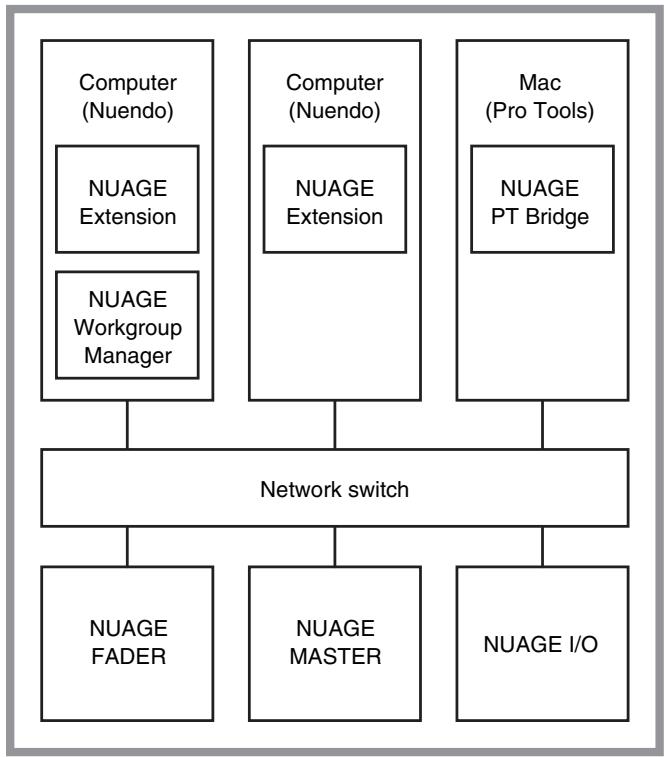
Workgroup
TOOLS for NUAGE Installation
NOTE
- You are only permitted to use this software pursuant to the terms and conditions of the "License Agreement" shown during the installation.
- If the same software components have already been installed in your computer, you can use the same procedure as described in the Installation instructions here to update the software.
Windows
Before installing
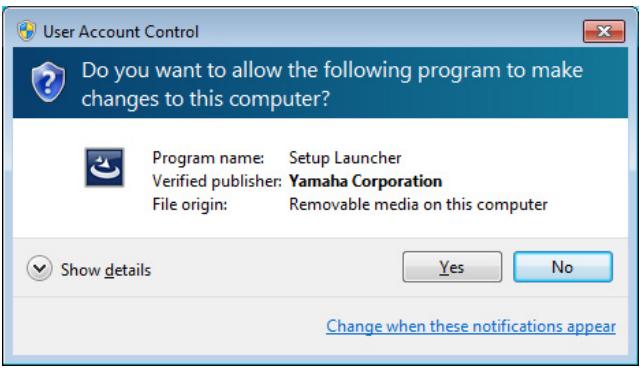
A warning message similar to that shown below may be displayed during the installation process. In such a case, you should follow the on-screen instructions to install the software.
Installation
1 Start the computer and log on to the Administrator account.
Exit any open applications and close all open windows.
2 After the downloaded compressed file is properly extracted, double-click the file "setup.exe."
3 Follow the on-screen instructions to install the software.
The following can be selected for installation.
- NUAGE Workgroup Manager
NUAGE Extension
4 When installation has been completed, click [Finish].
If you installed NUAGE Workgroup Manager, it will now launch.
NOTE
Once installed, NUAGE Workgroup Manager will launch automatically whenever you start up the computer in question.
Installation of the TOOLS for NUAGE is now complete.
Mac
Installation
1 Start the computer and log in to the Administrator account.
Exit any open applications and close all open windows.
2 After the downloaded compressed file is properly extracted, double-click the file "TOOLS for NUAGE V***.pkg."
*** represents the version number.
3 Follow the on-screen instructions to install the software.
The following can be selected for installation.
NUAGE Workgroup Manager
NUAGE Extension
NUAGE PT Bridge
NOTE
Only NUAGE PT Bridge can be installed on Mac computers running Mac OS X 10.5 or 10.6.
4 When installation has been completed, click [Close].
If you installed NUAGE Workgroup Manager, it will now launch.
NOTE
Once installed, NUAGE Workgroup Manager will launch automatically whenever you start up the computer in question.
Installation of the TOOLS for NUAGE is now complete.
Windows
1 Start the computer and log on to the Administrator account.
Exit any open applications and close all open windows.
2 In Control Panel, click "Uninstall a Program" or "Programs and Features" to open the uninstall window.
3 Select "TOOLS for NUAGE" from the list displayed.
4 Click [Uninstall]. Follow the onscreen instructions to remove the software.
NOTE
[Change] allows you to add or remove individual pieces of software.
Uninstallation of the TOOLS for NUAGE is now complete.
Mac
1 Start the computer and log in to the Administrator account.
Exit any open applications and close all open windows.
2 After the downloaded compressed file is properly extracted, double-click the file "Uninstall TOOLS for NUAGE."
3 Click [Run] when the "Welcome to the TOOLS for NUAGE installer" window appears.
After that, follow the on-screen instructions to uninstall the software.
4 After completing the uninstallation, an "Uninstallation completed" window appears. Click [Close].
Uninstallation of the TOOLS for NUAGE is now complete.
Brand : YAMAHA
Model : TOOLS FOR NUAGE
Category : Audio Production Tools