PixelPro ZN-PTZW36 - Surveillance Camera Ganz - Free user manual and instructions
Find the device manual for free PixelPro ZN-PTZW36 Ganz in PDF.


| Product Type | PTZ Surveillance Camera |
| Brand | Ganz |
| Model | PixelPro ZN-PTZW36 |
| Image Sensor | 1/2.8" Progressive CMOS |
| Resolution | 1920x1080 (Full HD) |
| Optical Zoom | 36x |
| Pan Range | 360° continuous |
| Tilt Range | -10° to 90° |
| Night Vision | Up to 150m IR distance |
| Video Compression | H.265, H.264 |
| Power Supply | PoE+ (IEEE 802.3at) or DC 12V |
| Power Consumption | Max 25W |
| Dimensions (Ø x H) | 200mm x 150mm (approx.) |
| Weight | 2.5 kg (approx.) |
| Ingress Protection | IP66 |
| Operating Temperature | -40°C to +60°C |
| Main Features | Auto-tracking, Smart IR, Wide Dynamic Range (WDR) |
| Mounting | Wall, ceiling or pole mount (bracket included) |
| Compatible Protocols | ONVIF, RTSP, HTTP, HTTPS |
| Storage | MicroSD card slot (up to 256GB), NVR |
| Maintenance | Clean lens with soft cloth; check connections annually |
| Safety | Use only provided or approved power adapter; avoid exposure to weather |
| Spare Parts & Repairability | Contact Ganz support for replacement parts; repair by qualified technician |
Frequently Asked Questions - PixelPro ZN-PTZW36 Ganz
User questions about PixelPro ZN-PTZW36 Ganz
0 question about this device. Answer the ones you know or ask your own.
Ask a new question about this device
Download the instructions for your Surveillance Camera in PDF format for free! Find your manual PixelPro ZN-PTZW36 - Ganz and take your electronic device back in hand. On this page are published all the documents necessary for the use of your device. PixelPro ZN-PTZW36 by Ganz.
USER MANUAL PixelPro ZN-PTZW36 Ganz
(ZN-PTZxxVP-XT is an Outdoor PTZ Camera, Adding an Outdoor Housing to Indoor PTZ ZN-PTZxxVP)
IMPORTANT!
The explanaon and specicaon at this manual are mainly on the basis of ZN-PTZW36VP which uses Sony 36X Opcal Zoom module.
INFORMATION TO USER
CAUTION
RISK OF ELECTRIC SHOCK, DO NOT OPEN

CAUTION: TO REDUCE THE RISK OF ELECTRIC SHOCK,
DO NOT REMOVE COVER (OR BACK).
NO USER SERVICEABLE PARTS INSIDE.
REFER SERVICING TO QUALIFIED SEERIVCE PERSONEL.
This symbol is intended to alert the user to the presence of un-insulated “dangerous voltage” within the product’s enclosure that may be of sucient magnitude to constute a risk of electric shock to persons.

This symbol is intended to alert the user to the presence of important operang and maintenance (servicing) instrucons in the literature accompanying the appliance.
Table of Contents
- FEATURES ...... 6
- PACKAGE CONTENTS .... 7
- PART NAMES 8
- INSTALLATION .... 11
4.1. Seing the Image Aribute ...... 12
4.2.Operang the OSD Menu ....12
- CONNECTIONS 13
5.1. Connectors.... 13
- CONFIGURATION ...... 18
6.1.Set up network environment....18
6.2.View video on web page....18
6.2.1. View video using IPAdmin Tool 18
6.2.2. View video using IP address....20
6.3. Reset....20
6.4. Factory Default....20
APPENDIX (A): SPECIFICATIONS....21
Summary 21
Electrical Characteristics ......23
Environment Condion 23
APPENDIX (B): DIMENSIONS....24
Dome....24
Outdoor Housing....25
APPENDIX (C): ACCESSORIES 26
Outdoor part....26
Assembling outdoor housing....27
APPENDIX (D): HEXADECIMAL-DECIMAL CONVERSION TABLE....29
REVISION HISTORY 30
1. FEATURES
Camera
• Indoor / Outdoor PTZ Dome IP Camera
• IP66 vandal proof (supported only with Outdoor Housing)
• Sony 1/4" Exview HAD CCD
• x36 Opcal Zoom, x12 Digital Zoom
• True Day & Night (IR Cut Filter) +DSS
Streaming
- Dual streaming mode (such as dierent codec/resoluon/bit rate and so on.)
- De-interlacing on DSP
- Burnt-in text supported
• Unicast/Mulcast supported
Video/Audio
• Video compression: H.264/MPEG/MJPEG, 25/30FPS@D1(PAL/NTSC)
• Audio compression: G.711(μLaw, aLaw)/PCM
- Analog video out for external monitors
• Video Moon Detecon supported
- Two-way mono audio supported
Network
• RTSP/ HTTP protocol supported
• 10/100 Base-T Ethernet
Additional Features
- RS-485 supported
- OSD supported
- SDK (Soware Development Kit) provided
• 4ch DI / 2ch DO supported
VCA (Video Content Analysis)
• Built-in Auto-Tracking license
• VCA Presence (Included as basic)
• VCA Surveillance (Oponal)
2. PACKAGE CONTENTS
Unpack carefully and handle the equipment with care. The packaging contains:
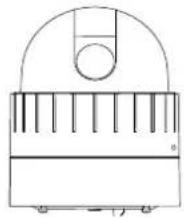
Camera
natural_image
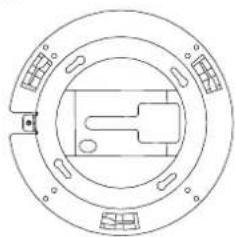
Simple line drawing of a piano with a circular head and vertical ribs (no text or symbols)Ceiling Mount Bracket
natural_image
Pure technical diagram of a circular mechanical component with no text or symbolsCeiling Cover

natural_image
Simple concentric circle diagram with no text or symbolsScrews
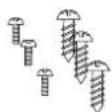
Wrench

Terminal block
(2Pin, 3Pin, 5Pin, 6Pin)
Safety Wire
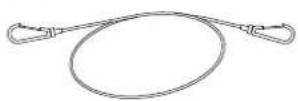
Cable Ties

Quick Installaon Guide

The above contents are subject to change without prior noce.
3. PART NAMES
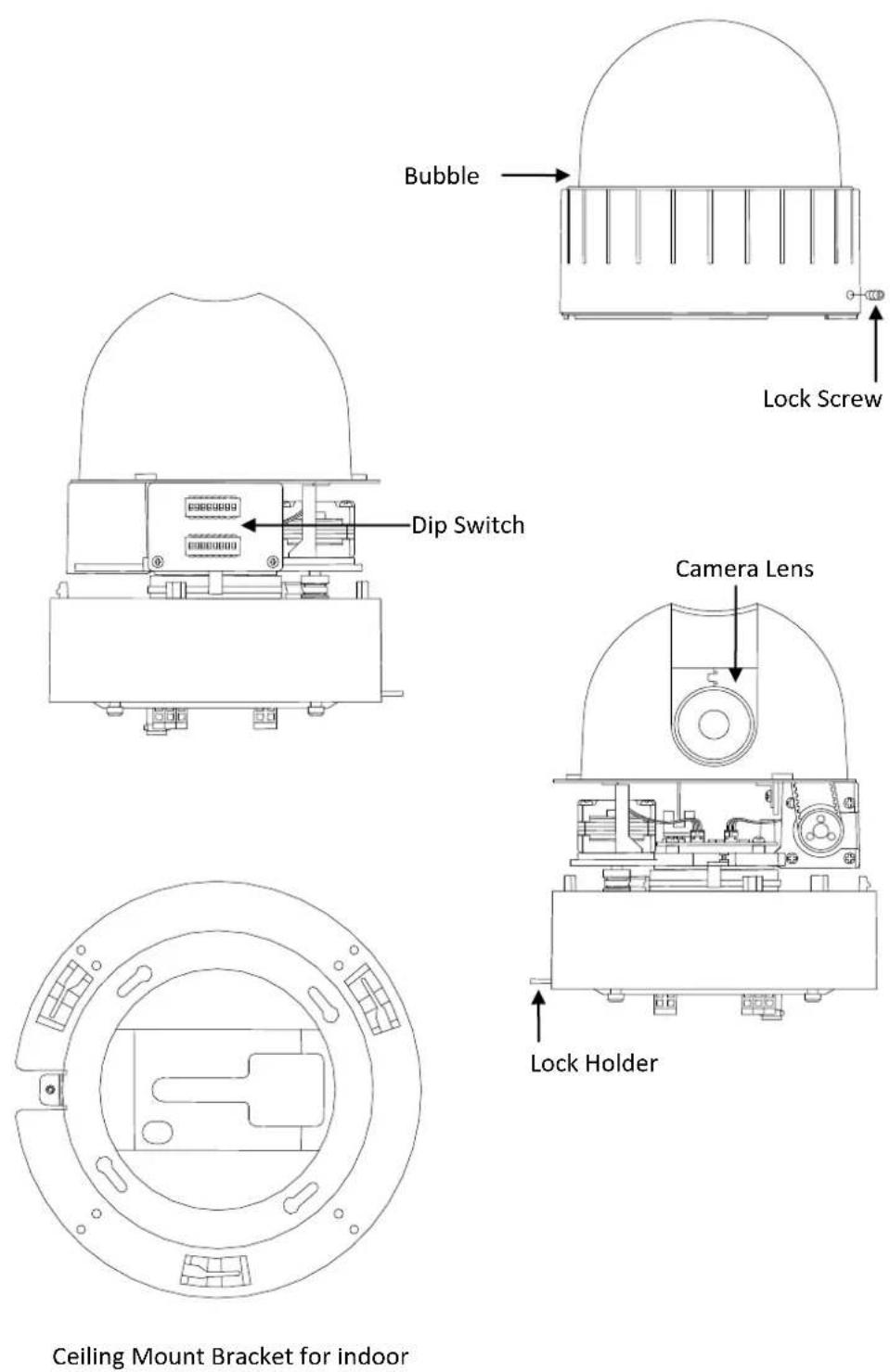
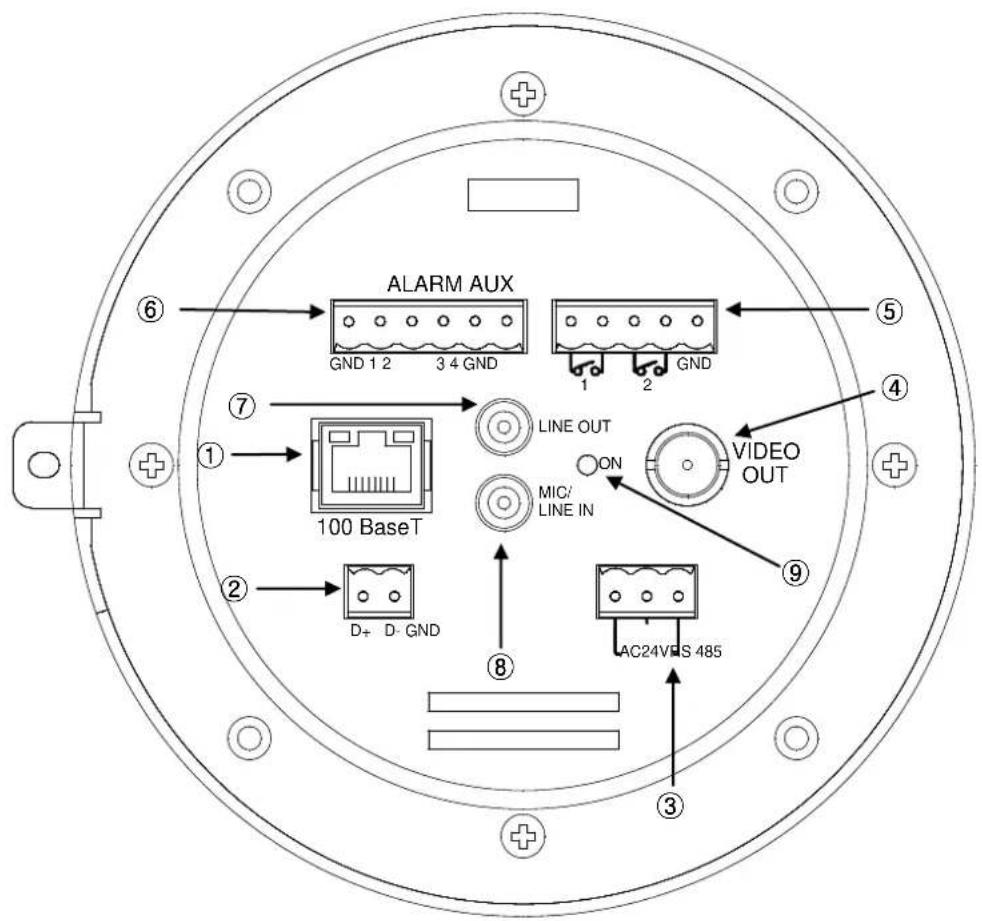
* Models herein and their appearance are subject to change without any prior noce.
① LAN Connector (Ethernet)
This is a RJ45 LAN connector for 10/100 Base-T Ethernet.
LED1 LED2
This LED lights up as orange and turns green when the encoder is powered on.
LED operaon seng:
For the factory default seng, LED 2 blinks for the heartbeat and LED 1 turns on for video signal. To change its seng, refer to the secon 4.5.11. LED Seng of the NVC Web Page User's Manual.
② RS-485
The camera supports RS-485 Serial Communicaton Port.
③ 3 pin connector for power
The camera needs an AC24V for power supply. Refer to the secon "5.1.Connectors" for more specific informaon.
④ External video
It is an analog video output port.
⑤ 5 pin connector for D/O
The camera provides 2 channel D/O. Refer to the secon "5.1.Connectors" for more specific informaon.
⑥ 6 pin connector for D/I
The camera provides 4 channel D/I. Refer to the secon "5.1.Connectors" for more speci informaon.
⑦ Audio Output
The camera has a mono audio output.
⑧ Audio Input
The camera has a mono audio input.
⑨ Reset
Reset switch is used for restarng or reseng the camera as Factory Default (FD). Refer to the secon "6.3. Reset" for more speci information.
4. INSTALLATION
147.0 mm
A
B
SAFETY WIRE
COVER HOLE
SCREW(∅4.0)
LOCK HOLDER 1
CELING BRACKET
SAFETY WIRE HOLE MOUNTING HOLE
C
Before you install the camera, you should set the DIP switches to congregate the camera ID, communicaon protocol. Please refer to the page15. DIP Switch
- Find the places which are strong enough to support the camera, about 2kg.
CABLE TIE
- Make a hole, ∅ 147mm, on the ceiling.
MOUNT HOLDER
- Hook the safety wire to suspension and the safety wire hold on the bracket.
LOCK HOLDER 2
-
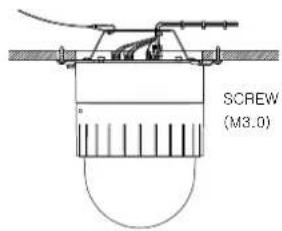
Install the ceiling mount bracket by driving 4 screws, ∅ 4mm tapping screws.
-
You can make wires simple by cable es.
D
natural_image
Technical diagram of a mechanical or electrical assembly with no visible text, numbers, or symbols.E
natural_image
Technical line drawing of a circular mechanical component with a central knob and attached lever (no text or symbols)F
natural_image
Simple line drawing of a mechanical component with a curved base and vertical grooves (no text or symbols)- Make the wires go through the square hole.
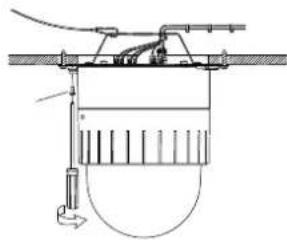
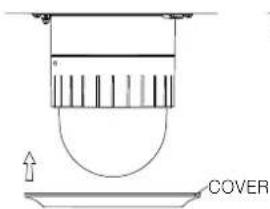
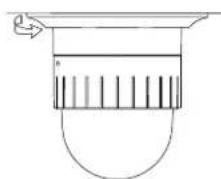
- Insert mount holder and twist the camera counterclockwise.
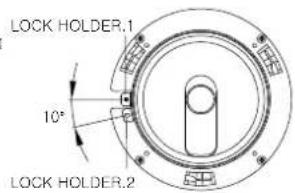
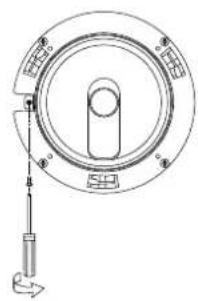
- Fix the camera by driving a screw on lock holder1 and 2.
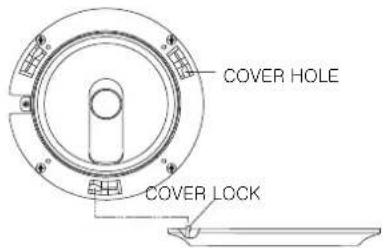
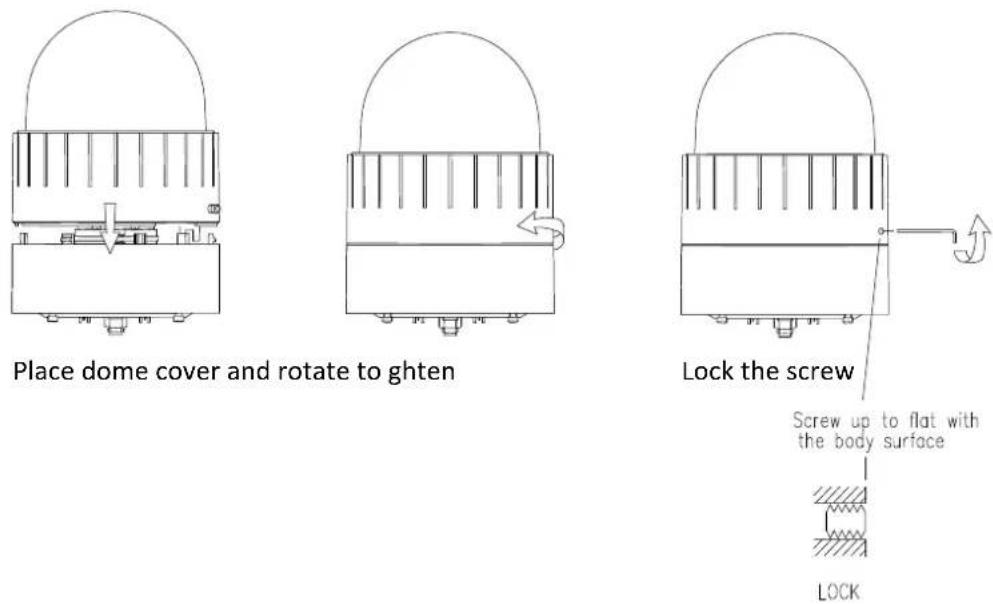
- Install the cover by inserng cover lock and twisng clockwise.

The camera may fall o the ceiling even aer the proper installaon and mounng. To prevent any accident, make sure the ceiling is rm and stable enough to support the camera. If any reinforcement is needed, consult with your safety personnel and proceed with the installaon.
4.1. Setting the Image Attribute
You can set the image aribute of camera through the webpage.
The menu of image aribute can be seen under Setup > Video & Audio > Video-in > Aribute Seng.
Brightness, contrast, hue, saturaon and sharpness can be adjusted.
4.2.Operating the OSD Menu
To operate the OSD of camera; refer to the "OSD Menu Control Manual" in the SDK.
5. CONNECTIONS
5.1Connectors
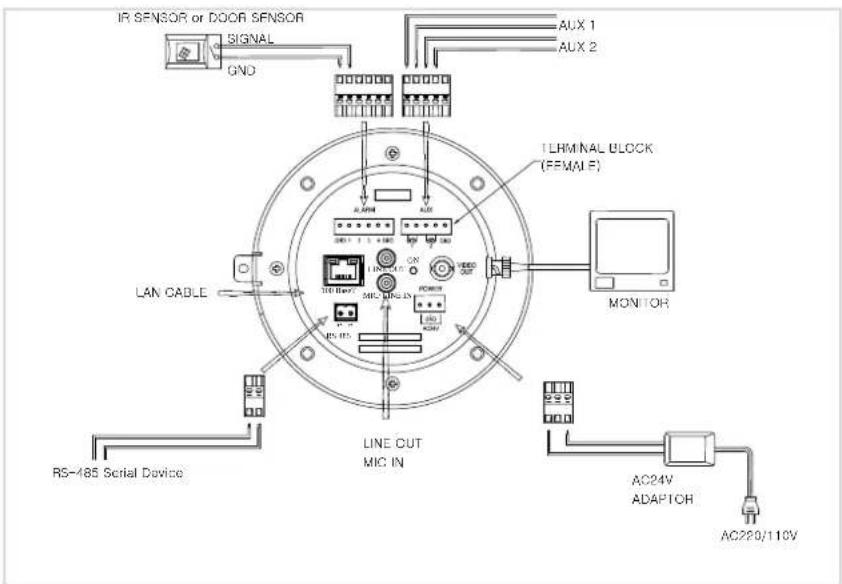
Power Connecon
Please, check the voltage and current capacity of rated power carefully. Rated power is indicated in the back of main unit.
| Type | Rated Power | Input Voltage Range | Current Consumpon |
| Indoor | AC 24V | 18~32VAC | 850mA |
| Outdoor | AC 24V | 18~32VAC | 1.5A |
RS-485 Communicaon
For PTZ control, connect this line to keyboard and DVR. To control mulple cameras at the same me, RS-485 communicaon lines of them is connected in parallel.
Analog Video Connecon
Connect with BNC coaxial cable.
Audio Input/Output Connecon
Connect to the audio input device such as a Mic and the audio output device such as the amplifier speaker.

Do not connect the speaker without amplifier.
Sensor (DI) conncon
The camera provides 4 channel D/I. It can be connected to a relay type sensor as the following gures.
Relay Rang: Max 24VAC 500mA or 12VDC 1A

Do not exceed the maximum relay rateing.
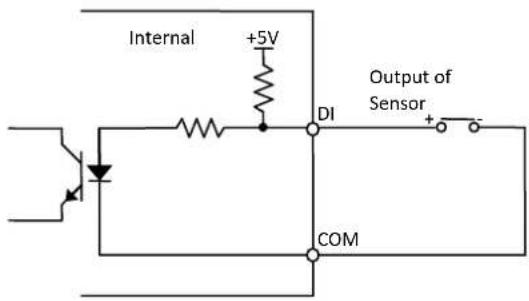
Relay Type
Alarm (DO) conneccon
The camera provides 2 channel D/O.
Relay Rang: Max 24VAC 500mA or 12VDC 1A

Do not exceed the maximum relay rang.
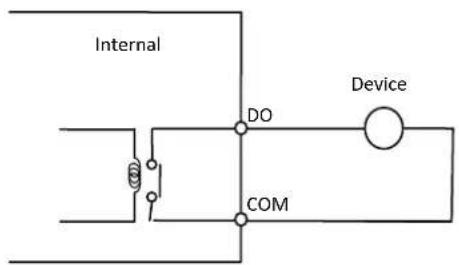
Relay Type
DIP Switch
Before you install the camera, you should set the DIP switches to congregate the camera ID, communicaon protocol.
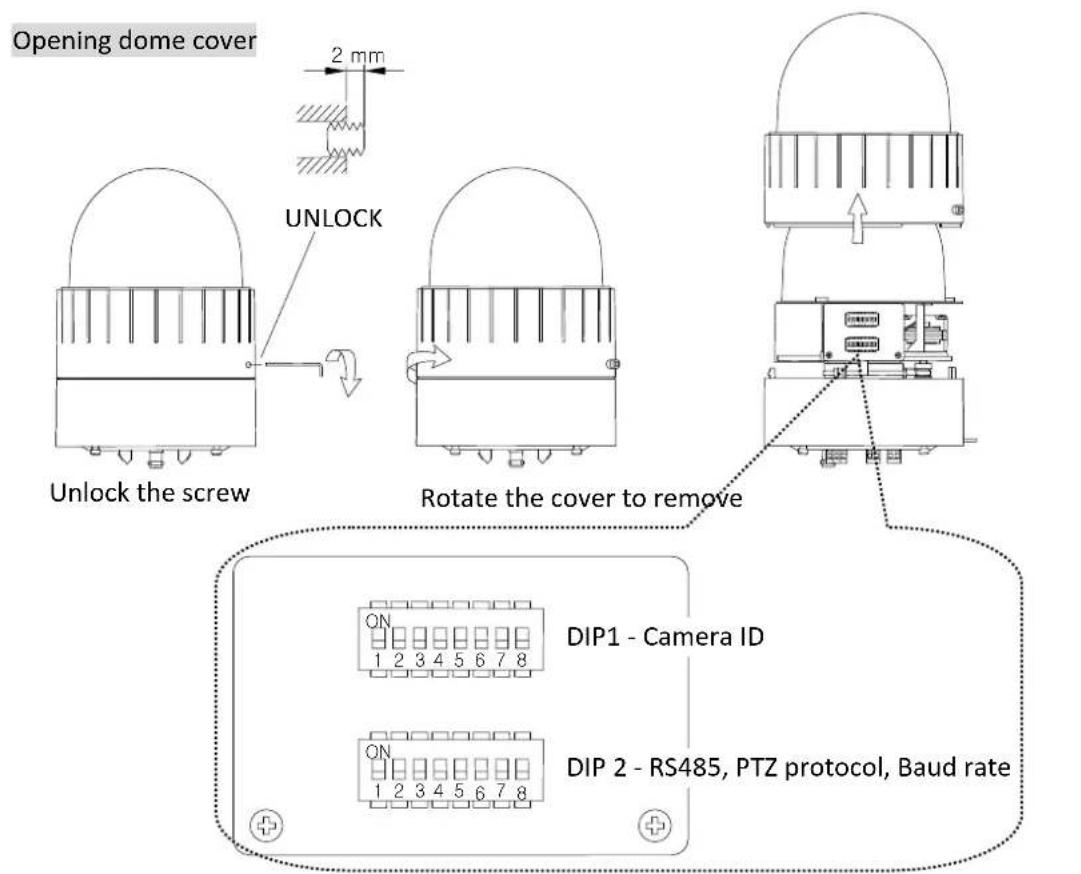
Placing dome cover
Camera ID Setup
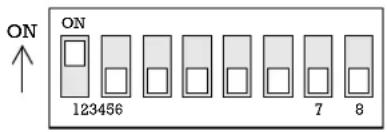
ID number of camera is set using binary number. The example is shown bellow.
DIP1
| Pin | 1 | 2 | 3 | 4 | 5 | 6 | 7 | 8 |
| ID Value | 1 | 2 | 4 | 8 | 16 | 32 | 64 | 128 |
| Defaultex) ID=10 | on | o | o | o | o | o | o | o |
| o | on | o | on | o | o | o | o |
The range of ID is 1\~255. Do not use 0 as camera ID. Factory default of Camera ID is 1. If you want to control a certain camera, you must match the camera ID with Cam ID seng of DVR or Controller.
Communicaon Protocol Setup
Select the appropriate Protocol with DIP switch combinaon.
DIP2
| Pin | 1 | 2 | 3 | 4 | 5 | 6 | 7 | 8 |
| ID Value | RS485Terminaon | Not used | Protocol1 | Protocol 2 | Not used | Not used | Baud Rate 1 | Baud Rate 2 |
| Default | Off | Off | Off | Off | Off | Off | Off | On |
Pin1 is used for RS485, 100W terminaon. Set ON DIP2-1st of only the last looped camera from the controller. Even in case of only one camera, set ON DIP2-1st of the camera.
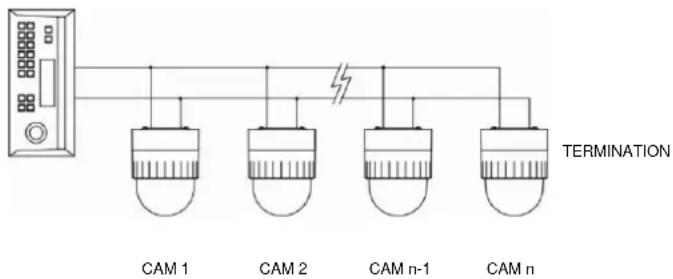
flowchart
graph TD
    A["Device"] --> B["CAM 1"]
    A --> C["CAM 2"]
    A --> D["CAM n-1"]
    A --> E["CAM n"]
    B --> F["Failure Line"]
    C --> F
    D --> F
    E --> F
    F --> G["TERMINATION"]
| Pin3 | Pin4 | Protocol |
| OFF | OFF | Pelco-D or Pelco-P |
| ON | ON | Not used |
| ON | OFF | Maxpro |
| Pin7 | Pin8 | BAUD RATE |
| OFF | OFF | Not Used |
| OFF | ON | 2400bps (Pelco-D) |
| ON | OFF | 4800bps (Pelco-P) |
| ON | ON | 9600bps (Maxpro) |
- If you want to control using DVR or P/T controller, their protocol must be identical to camera. Otherwise, you cannot control the camera.
- If you changed camera protocol by changing DIP S/W, the change will be eecve aer you reboot the camera.
- Factory default of protocol is "Pelco-D, 2400 bps, 8 bit, 1 stop bit, no parity."
6. CONFIGURATION
6.1. Set up network environment
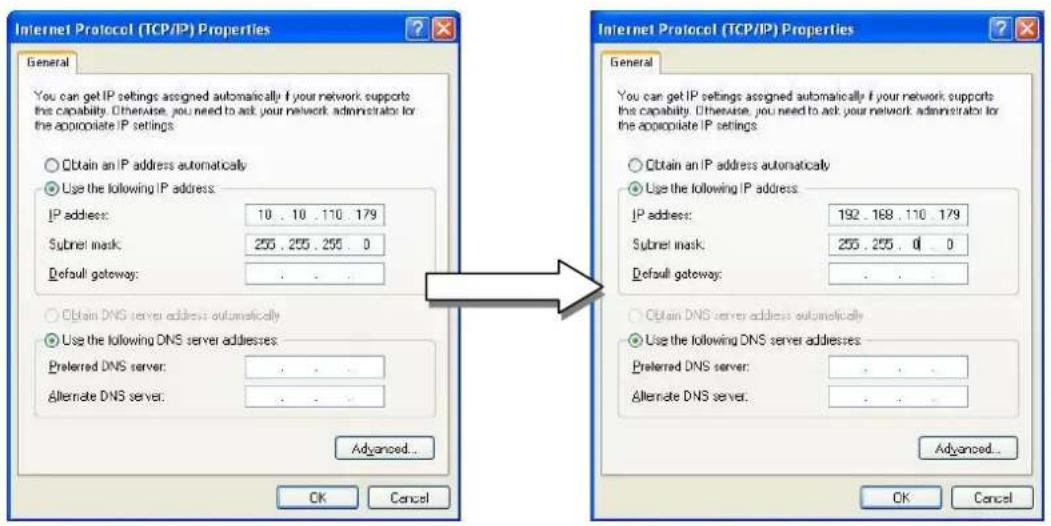
The default IP address of your IP device is 192.168.XXX.XXX. You can nd the available IP address from the MAC address of your device. Please make sure the device and your PC are on the same network segment before running the installaon. If the network segment between your PC and the device is dierent, change your PC's sengs as below.
IP address : 192.168.xxx.xxx
Subnet mask: 255.255.0.0
6.2.View video on web page
View the live video on a web page using your IP device and its IP address. You can use the IPAdminTool or enter the IP address on the web page.
6.2.1. View video using IPAdmin Tool
IPAdminTool automatically searches all acvated network encoders and IP cameras and shows the product name, IP address, MAC address and etc. IPAdminTool is provided with SDK at the following SDK path.
{SDK root}\BIN\TOOLS\AdminTool\
To use the IPAdminTool and view the live video on a web page:
- Start IPAdminTool. Names and info of currently acvated IP devices appear as a list.
- Right-click on the desired device and select Web view.
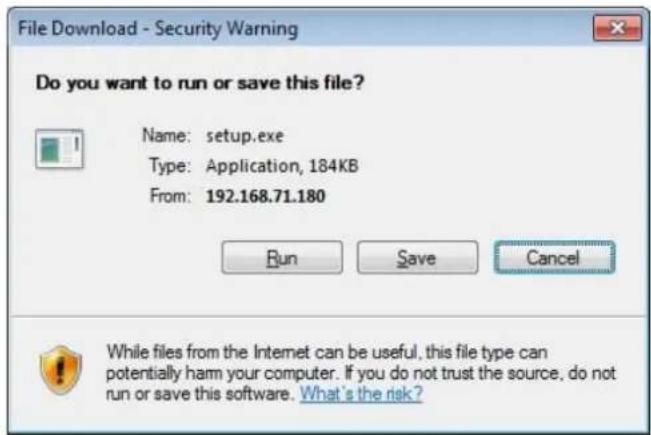
- Click pop-up blocked and install the AcveX setup.exe by clicking the Run or Save buon. You need to install the AcveX for displaying the images.
-
Follow the instructions of the dialog boxes and complete the installaon. Then the live video is displayed on the main page of the web browser.
-
If the live video is not displayed with the message said, "This soware requires the Microso XML Parser V6 or higher. Please download MSXML6 from the Microso website to connue. Error code: Can not create XMLDOMDocument.", please download and install the relevant MSXML.

If the AcveX setup.exe file fails to be installed successfully, close all of the Internet Explorer windows and go to Program Files > AxInstall folder on your computer. Then, run Uninstall.exe and try to perform the steps 1 to 4 above again.
6.2.2. View video using IP address
View the live video on a web page using your IP device and its IP address. To have the correct IP address ready and use it on a web page:
- Convert a MAC address to an IP address or check the IP address on the IPAdminTool. Refer to Appendix (D): Hexadecimal-Decimal Conversion Table.
(The MAC address is aached on the side or boom of the device.)

- Open a web browser and enter the IP address of the device.
- Click pop-up blocked and install the ActiveX setup.exe by clicking the Run or Save buon. You need to install the AcveX for displaying the images.
- Follow the instructions of the dialog boxes and complete the installaon. Then the live video is displayed on the main page of the web browser.
6.3. Reset
- While the device is in use, press and hold the Reset buon.
- Release the Reset buon aer 3 seconds.
- Wait for the system to reboot.
6.4. Factory Default
- Disconnect the power supply from the device.
- Connect the power to the device with the Reset buon pressed and held.
- Release the Reset buon aer 5 seconds.
- Wait for the system to reboot.
The factory default sengs can be inferred as follows:
IP address: 192.168.xx.yy
Network mask: 255.255.0.0
Gateway: 192.168.0.1
User ID: root
Password: pass
APPENDIX (A): SPECIFICATIONS
Summary
The explanaon and specicaon at this manual are mainly on the basis of the specific camera model, which uses Sony 36X Opcal Zoom module.
| Camera Module | ||||
| Image Sensor | Sony 1/4" Exview HAD CCD | Samsung 1/4" Interline Transfer CCD | ||
| Eecve Pixels | NTSC 768(H) * 494(V) 380K / PAL 752(H) * 582(V) 440K | |||
| TV System | NTSC / PAL | |||
| Horizontal Resoluon | 550TV Lines | 550TV Lines | ||
| White Balance | Auto / Manual (Red, Blue Gain Adjustable) | ATW / AWC / OUTDOOR / MANUAL (1700 °K ~ 11,000°K) | ||
| Scanning System | 2:1 Interlace | |||
| Sync System | Internal (12 VDC) | |||
| Min. Illuminaon Lens (Opcal) | 1.4Lux (50IRE), 0.01Lux (ICR On)36x Opcal Zoom (F=1.6 ~ 4.5, f=3.4 to 122.4mm) | 0.2Lux (50IRE), 0.02Lux (ICR On)27x Opcal Zoom (F=1.6 ~ 2.8, f=3.5 to 95mm) | 37x Opcal Zoom (F=1.6~F3.9, f=3.5~129.5 mm) | |
| Lens (Digital) | 12x (432x with opcal) | 16x (432x with opcal) | 16x (592x with opcal) | |
| Focus | Auto/ Manual / SemiAuto | Auto/ Manual / One push | ||
| Iris | Auto / Manual | On/O | ||
| Day & Night | Auto / Day / Night(ICR) | |||
| Digital Slow Shuer | On / O | |||
| Luminance S / N Rao | More than 50 dB (AGC o) | |||
| AGC | Normal / High / O | Low / Medium / High / O | ||
| BLC | On / O | |||
| HCL | No | On / O | ||
| Flickerless | On / O | |||
| SSNR | Low / Middle / High / O | |||
| PAN / TILT | ||||
| Pan Rotaon Angle | 360° Quick Endless Rotaon | |||
| Pan Speed | Manual | 0.5°~ 100 or 200°/sec (64step) | ||
| Preset | Max 300°/sec, Min 10°/sec | |||
| Tilt Rotaon Angle | -2°~ 90° | |||
| Tilt Speed | Manual | 0.5°~ 45°/sec (64step) | ||
| Preset | Max 250°/sec, Min 200°/sec | |||
| System Accuracy | 0.024° | |
| Dome | ||
| Horizontal Angle of View (Approx.) | 57.8° (Wide end) to 1.7° (Tele end) | |
| Preset | 165 posions with 16 character labels / Independent preset characterisc setup | |
| Auto Scan | Programmable Auto Scan | |
| Group Tour | Max. 8 Programmable group tours (each one consisng of up to 60 preset steps with dierent steps) | |
| Paern | 8 Programmable Paerns (total 480 seconds) | |
| Sector | 8 Selectable Sectors with 16 characters | |
| Privacy Zone | 24 | 8 |
| Auto Flip | On / OFF | |
| On Screen Display(analog) | Camera ID, Pan/Tilt angle, Flip, Zoom, etc | |
| Video | ||
| Compression | H.264, MPEG-4, MJPEG Selectable per Stream | |
| Number of Streams | Dual stream, Congurable | |
| Resoluon | D1, 4CIF, 2CIF, VGA, CIF, QVGA, QCIF | |
| Compression FPS | 25/30 fps @ D1 (PAL/NTSC) | |
| De-interlacing | Supported (DSP) | |
| Moon Detecon | Supported | |
| Burnt-in Text(digital) | Supported (DSP) | |
| Analog Video Output | 1 Loop Out (BNC Connector) | |
| Audio | ||
| Input/Output | 1 / 1 ch | |
| Compression | PCM, G.711 | |
| Funcon | ||
| Network | 10/100 Base-T | |
| DI / DO | 4 / 2 CH | |
| RS-485 | Supported | |
| SD Memory Card Slot | Supported (microSD type) | |
| Protocol | TCP/IP, UDP/IP, HTTP, RTSP, RTCP, RTP/UDP, RTP/TCP, SNTP, mDNS, UPnP, SMTP, SOCK, IGMP, DHCP, FTP, DDNS, SSL v2/v3, IEEE 802.1X, SSH, SNMP v2/v3 | |
| Mechanical | ||
| Motor Type | Stepping motor | |
| Micro Steps | 1/8 Micro Step | |
| Material | (Dome) ABS | |
| (Outdoor Housing) Aluminum ,Poly Carbonate | ||
| Dimensions | Dome: 147 * 190mm(H) (5.8" (D) * 7.5"(H))Outdoor Housing: 149 * 312mm(H) | |
| Color | Cool gray | |
| Weight (Approx) | Dome: 1.9 kg (5 lbs)Outdoor Housing: 5.7 kg | |
Electrical Characteristics
| Power Source | Dome:18~32VAC 60/50Hz 850mAWith Outdoor Housing: 18~32VAC 60/50Hz 1.5A |
| Power Consumpon | Dome:18W MaxWith Outdoor Housing: 36W Max |
| Analog Video Output | 1 Vp-p, 75Ω, Composite |
| Audio Input | Linein, 1.43Vp-p(Min 1.35Vp-p, max 1.49 Vp-p), 39 KΩ |
| Audio Output | Lineout, 46mW Power, 16 Ω |
| D/I | Voltage type : Max 12V, Max 50mARelay type : On resistance- Max 50 Ω |
| D/O | Relay type :On-state current : Max 110mA,On-state resistance: 50 Ω (max connuous) |
Environment Condition
| Fan / Heater | Supported via Outdoor Housing |
| Operang Temperature | -10 °C ~ 50 °C (14 °F ~ 122 °F) (Dome)-40 °C ~ 50 °C (-40 °F ~ 122 °F) (with Outdoor Housing) |
| Storage Temperature | -20 °C ~ 60 °C (-4°F ~ 140 °F) |
| Operang Humidity | Up to 85% RH (Non-condensing) |
| Cercaon | FCC/CE, IP66(with outdoor housing) |
APPENDIX (B): DIMENSIONS
Dome
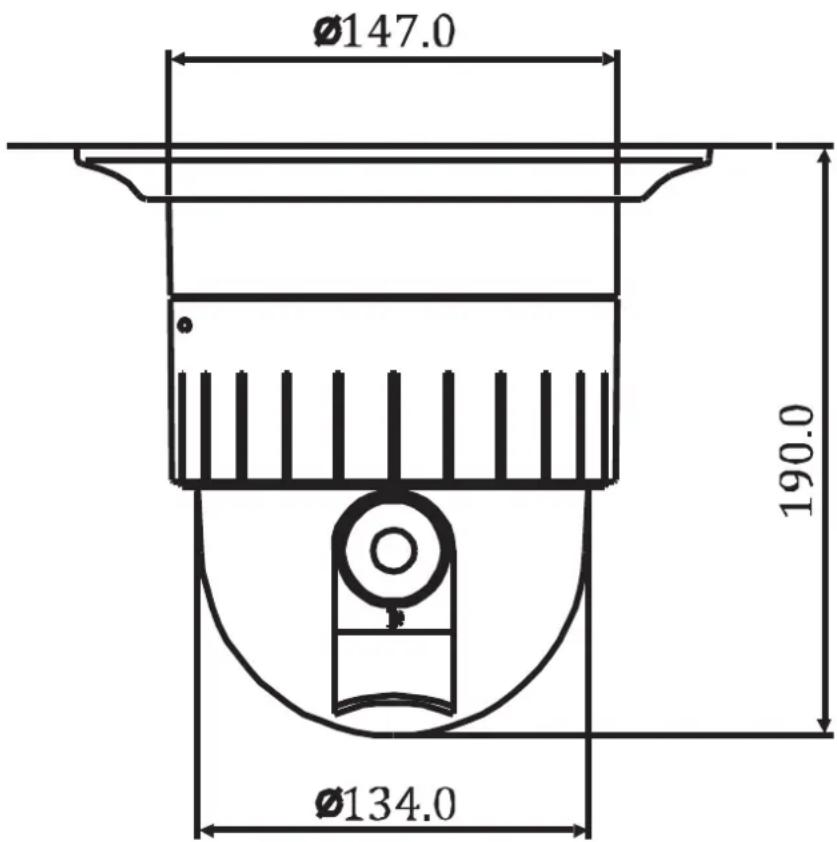
(Unit: mm)
Outdoor Housing
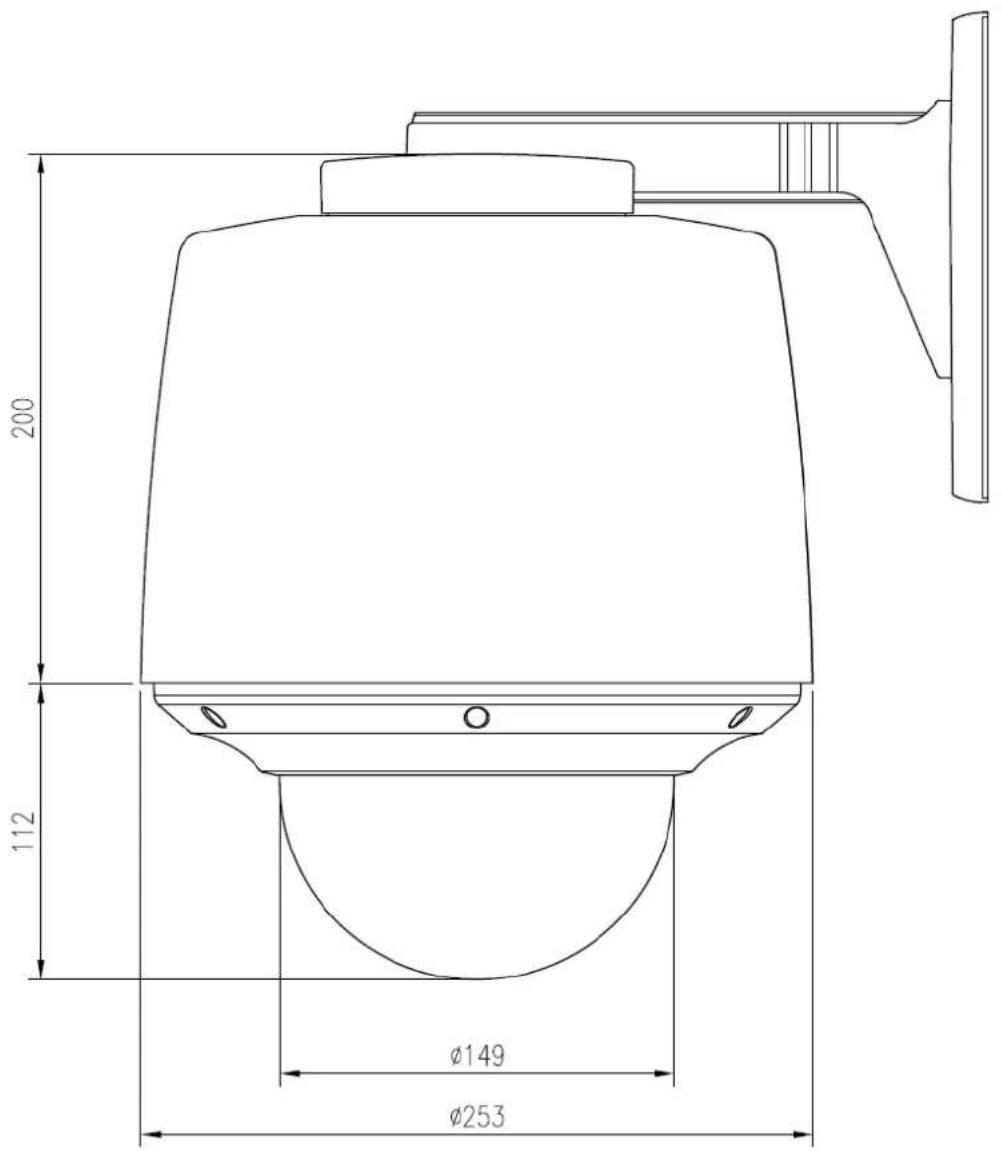
(Unit: mm)
APPENDIX (C): ACCESSORIES
Outdoor part
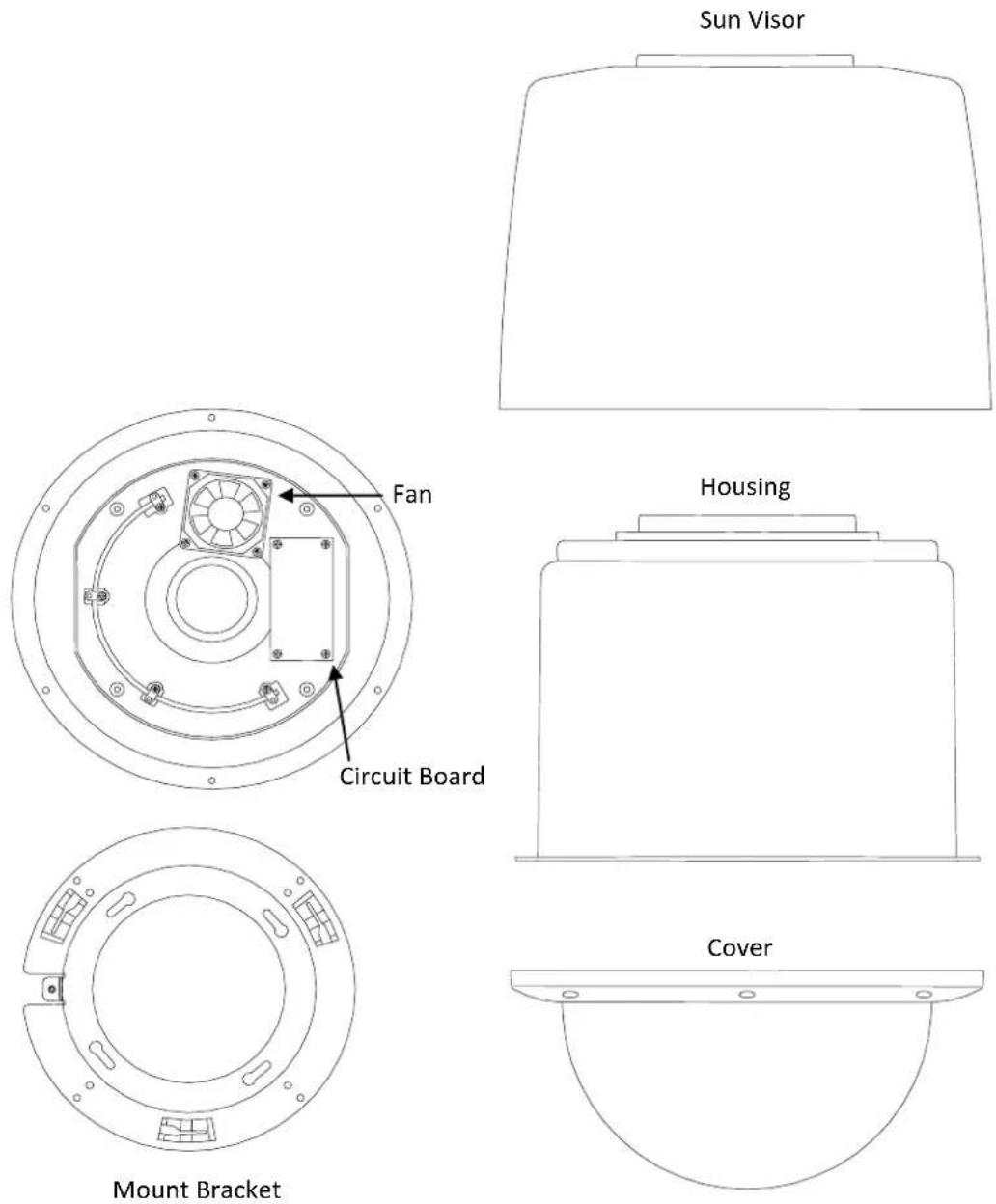
Assembling outdoor housing
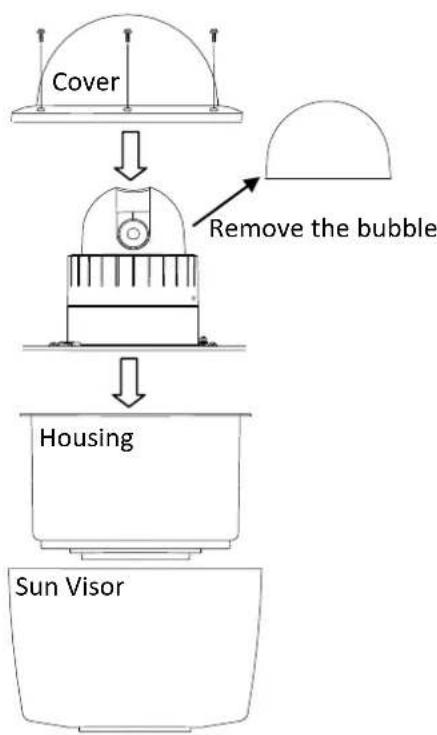
flowchart
graph TD
    A["Sun Visor"] --> B["Housing"]
    B --> C["Remove the bubble"]
    C --> D["Cover"]
1) Aach the mount bracket to the dome camera. Find more explanaon at NOTE A below.
2) Open the dome cover to remove the bubble. Find more explanaon at NOTE B below.
3) Twist the bubble counterclockwise and remove it from the dome cover.
4) Put the dome cover on the dome camera.
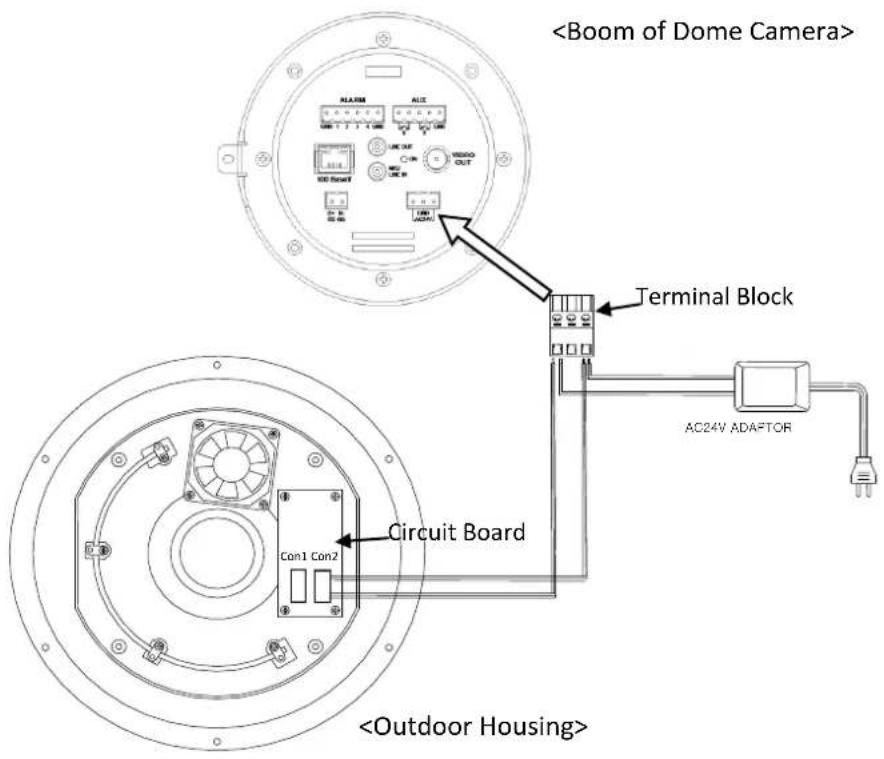
5) Connect the LAN cable and power supply cable with the dome camera. Find more explanaon at NOTE C below.
6) Place the dome camera into the outdoor housing.
7) Fasten the dome camera with screws. Make sure the dome camera and the housing t each other into place.
8) Put the outdoor cover on the housing.
9) Fasten the cover with screws.

When assembling the dome and its outdoor housing, make sure they t each other into place.
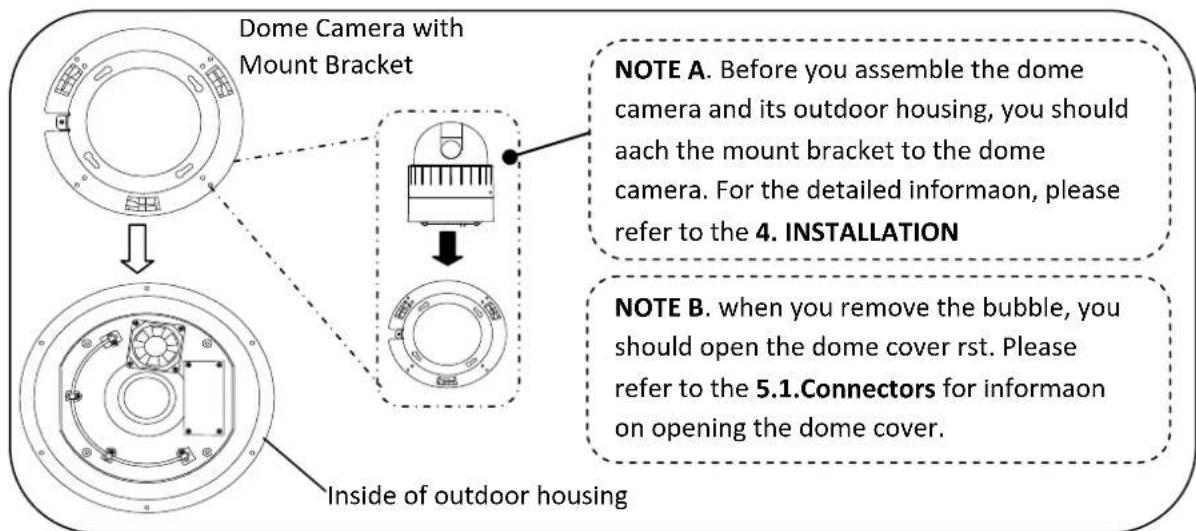
NOTE C. when you supply the electric power to the outdoor housing, you should connect the lines between outdoor housing and dome camera using terminal block. Please refer to the picture below.
There is a bimetal implemented in the outdoor housing for controlling the fan and heater. Refer to its specicaon below for more details.
| Bimetal for | Fan | Heater |
| Acvaon | 35°C-OFF / 45°C-ON | 15°C-OFF / 5°C-ON |
| Part Number | R45 | N10 |
| Package | DIP Type | DIP Type |
| Maker | Korea Bitec | Korea Bitec |
APPENDIX (D): HEXADECIMAL-DECIMAL CONVERSION TABLE
Refer to the following table when you convert the MAC address of your device to IP address.
| Hex | Dec | Hex | Dec | Hex | Dec | Hex | Dec | Hex | Dec | Hex | Dec | Hex | Dec |
| 00 | 0 | 25 | 37 | 4A | 74 | 6F | 111 | 94 | 148 | B9 | 185 | DE | 222 |
| 01 | 1 | 26 | 38 | 4B | 75 | 70 | 112 | 95 | 149 | BA | 186 | DF | 223 |
| 02 | 2 | 27 | 39 | 4C | 76 | 71 | 113 | 96 | 150 | BB | 187 | E0 | 224 |
| 03 | 3 | 28 | 40 | 4D | 77 | 72 | 114 | 97 | 151 | BC | 188 | E1 | 225 |
| 04 | 4 | 29 | 41 | 4E | 78 | 73 | 115 | 98 | 152 | BD | 189 | E2 | 226 |
| 05 | 5 | 2A | 42 | 4F | 79 | 74 | 116 | 99 | 153 | BE | 190 | E3 | 227 |
| 06 | 6 | 2B | 43 | 50 | 80 | 75 | 117 | 9A | 154 | BF | 191 | E4 | 228 |
| 07 | 7 | 2C | 44 | 51 | 81 | 76 | 118 | 9B | 155 | C0 | 192 | E5 | 229 |
| 08 | 8 | 2D | 45 | 52 | 82 | 77 | 119 | 9C | 156 | C1 | 193 | E6 | 230 |
| 09 | 9 | 2E | 46 | 53 | 83 | 78 | 120 | 9D | 157 | C2 | 194 | E7 | 231 |
| 0A | 10 | 2F | 47 | 54 | 84 | 79 | 121 | 9E | 158 | C3 | 195 | E8 | 232 |
| 0B | 11 | 30 | 48 | 55 | 85 | 7A | 122 | 9F | 159 | C4 | 196 | E9 | 233 |
| 0C | 12 | 31 | 49 | 56 | 86 | 7B | 123 | A0 | 160 | C5 | 197 | EA | 234 |
| 0D | 13 | 32 | 50 | 57 | 87 | 7C | 124 | A1 | 161 | C6 | 198 | EB | 235 |
| 0E | 14 | 33 | 51 | 58 | 88 | 7D | 125 | A2 | 162 | C7 | 199 | EC | 236 |
| 0F | 15 | 34 | 52 | 59 | 89 | 7E | 126 | A3 | 163 | C8 | 200 | ED | 237 |
| 10 | 16 | 35 | 53 | 5A | 90 | 7F | 127 | A4 | 164 | C9 | 201 | EE | 238 |
| 11 | 17 | 36 | 54 | 5B | 91 | 80 | 128 | A5 | 165 | CA | 202 | EF | 239 |
| 12 | 18 | 37 | 55 | 5C | 92 | 81 | 129 | A6 | 166 | CB | 203 | F0 | 240 |
| 13 | 19 | 38 | 56 | 5D | 93 | 82 | 130 | A7 | 167 | CC | 204 | F1 | 241 |
| 14 | 20 | 39 | 57 | 5E | 94 | 83 | 131 | A8 | 168 | CD | 205 | F2 | 242 |
| 15 | 21 | 3A | 58 | 5F | 95 | 84 | 132 | A9 | 169 | CE | 206 | F3 | 243 |
| 16 | 22 | 3B | 59 | 60 | 96 | 85 | 133 | AA | 170 | CF | 207 | F4 | 244 |
| 17 | 23 | 3C | 60 | 61 | 97 | 86 | 134 | AB | 171 | D0 | 208 | F5 | 245 |
| 18 | 24 | 3D | 61 | 62 | 98 | 87 | 135 | AC | 172 | D1 | 209 | F6 | 246 |
| 19 | 25 | 3E | 62 | 63 | 99 | 88 | 136 | AD | 173 | D2 | 210 | F7 | 247 |
| 1A | 26 | 3F | 63 | 64 | 100 | 89 | 137 | AE | 174 | D3 | 211 | F8 | 248 |
| 1B | 27 | 40 | 64 | 65 | 101 | 8A | 138 | AF | 175 | D4 | 212 | F9 | 249 |
| 1C | 28 | 41 | 65 | 66 | 102 | 8B | 139 | B0 | 176 | D5 | 213 | FA | 250 |
| 1D | 29 | 42 | 66 | 67 | 103 | 8C | 140 | B1 | 177 | D6 | 214 | FB | 251 |
| 1E | 30 | 43 | 67 | 68 | 104 | 8D | 141 | B2 | 178 | D7 | 215 | FC | 252 |
| 1F | 31 | 44 | 68 | 69 | 105 | 8E | 142 | B3 | 179 | D8 | 216 | FD | 253 |
| 20 | 32 | 45 | 69 | 6A | 106 | 8F | 143 | B4 | 180 | D9 | 217 | FE | 254 |
| 21 | 33 | 46 | 70 | 6B | 107 | 90 | 144 | B5 | 181 | DA | 218 | FF | 255 |
| 22 | 34 | 47 | 71 | 6C | 108 | 91 | 145 | B6 | 182 | DB | 219 | ||
| 23 | 35 | 48 | 72 | 6D | 109 | 92 | 146 | B7 | 183 | DC | 220 | ||
| 24 | 36 | 49 | 73 | 6E | 110 | 93 | 147 | B8 | 184 | DD | 221 |
REVISION HISTORY
| MAN# | DATE(M/D/Y) | Comments |
| 01A.00 | 15/07/2009 | Created. |
| 01A.01 | 08/24/2009 | Added the requirement of VCA : MSXML4.0 |
| 01A.02 | 09/25/2009 | Added Operaon the OSD menuAdded Seng the Image Aribute |
| 01A.03 | 09/29/2009 | Changed the VCA specicaon |
| 01A.04 | 10/15/2009 | Added the Cross Reference |
| 01A.05 | 11/16/2009 | Added the assembling Outdoor housing |
| 01A.06 | 11/19/2009 | Removed DI voltage type |
| 01A.07 | 12/09/2009 | Added Specicaons items |
| 01A.08 | 12/24/2009 | Changed the assembling Outdoor housing |
| 01B.00 | 01/08/2010 | Ocial SDK release version |
| 01B.01 | 01/11/2010 | Added the descripon of ZN-PTZ(W)xx-XT. |
| 01B.02 | 01/28/2010 | Corrected Version number |
| 01B.03 | 02/25/2010 | Modified for end users. |
| 01B.04 | 05/17/2010 | Added informaon about a bimetal |
| 02A.00 | 09/07/2010 | FW v1.06.02 updatedRemoved VCA contents from the Specicaon seconAdded hexadecimal-decimal conversion table |
| 03A.00 | 10/01/2010 | FW v1.06.03 updatedChanged AcveX installaon method for viewing web pageChanged the default value for web server protocol from hps to hp |
| 03A.01 | 1/11/2011 | Added the horizontal angle of view |
| 04A.00 | 1/25/2011 | Added Auto-tracking as a standard feature |
| 05A.00 | 2/16/2011 | Added the new module specicaons |
| 06A.00 | 03/09/2011 | Added LED indicator informaonChanged the MSXML error messageChanged the operang temperature specicaon |
| 06A.01 | 04/13/2011 | Added Scanning System and Sync System specicaon for Samsung Module |
| 06A.02 | 04/26/2011 | Modified the incorrect lens specicaon of 37x module |
| 06A.03 | 05/27/2011 | Changed the ZN-PTZ(W)xx-XT dimension |