
DME-24N - Audio signal processor YAMAHA - Free user manual and instructions
Find the device manual for free DME-24N YAMAHA in PDF.


| Brand | YAMAHA |
| Model | DME-24N |
| Category | Audio signal processor |
| Product type | Digital multi-effects processor and routing matrix |
| Main functions | Digital signal processing, audio routing, built-in effects, remote control via Ethernet |
| Analog inputs | 8 XLR inputs (balanced) |
| Analog outputs | 8 XLR outputs (balanced) |
| Digital inputs/outputs | Ethernet port for control and CobraNet audio (optional) |
| Power supply | 100-240 V AC, 50/60 Hz |
| Power consumption | 30 W |
| Dimensions (W x D x H) | 480 x 300 x 44 mm (19 inches, 1U) |
| Weight | 3.5 kg |
| Operating temperature | 0 °C to 40 °C |
| Operating humidity | 20 % to 80 % (non-condensing) |
| Maintenance and cleaning | Unplug the device before cleaning. Use a dry, soft cloth. Avoid solvents. |
| Safety | Do not expose to moisture or shocks. Use only in a dry indoor environment. |
| Spare parts and repairability | Contact authorized Yamaha after-sales service. The device contains no user-serviceable parts. |
| General information | Professional audio processor for fixed installations. Configuration via dedicated software. |
Frequently Asked Questions - DME-24N YAMAHA
User questions about DME-24N YAMAHA
0 question about this device. Answer the ones you know or ask your own.
Ask a new question about this device
Download the instructions for your Audio signal processor in PDF format for free! Find your manual DME-24N - YAMAHA and take your electronic device back in hand. On this page are published all the documents necessary for the use of your device. DME-24N by YAMAHA.
USER MANUAL DME-24N YAMAHA
DIGITAL MIXING ENGINE
DME64N / DME24N
Owner's Manual
The above warning is located on the top of the unit.
Explanation of Graphical Symbols
The lightning flash with arrowhead symbol within an equilateral triangle is intended to alert the user to the presence of uninsulated "dangerous voltage" within the product's enclosure that may be of sufficient magnitude to constitute a risk of electric shock to persons.

The exclamation point within an equilateral triangle is intended to alert the user to the presence of important operating and maintenance (servicing) instructions in the literature accompanying the product.
IMPORTANT SAFETY INSTRUCTIONS
1 Read these instructions.
2 Keep these instructions.
3 Heed all warnings.
4 Follow all instructions.
5 Do not use this apparatus near water.
6 Clean only with dry cloth.
7 Do not block any ventilation openings. Install in accordance with the manufacturer's instructions.
8 Do not install near any heat sources such as radiators, heat registers, stoves, or other apparatus (including amplifiers) that produce heat.
9 Do not defeat the safety purpose of the polarized or grounding-type plug. A polarized plug has two blades with one wider than the other. A grounding type plug has two blades and a third grounding prong. The wide blade or the third prong are provided for your safety. If the provided plug does not fit into your outlet, consult an electrician for replacement of the obsolete outlet.
10 Protect the power cord from being walked on or pinched particularly at plugs, convenience receptacles, and the point where they exit from the apparatus.
WARNING
TO REDUCE THE RISK OF FIRE OR ELECTRIC SHOCK, DO NOT EXPOSE THIS APPARATUS TO RAIN OR MOISTURE.
11 Only use attachments/accessories specified by the manufacturer.
12 Use only with the cart, stand, tripod, bracket, or table specified by the manufacturer, or sold with the apparatus. When a cart is used, use caution when moving the cart/ apparatus combination to avoid injury from tip-over.
13 Unplug this apparatus during lightning storms or when unused for long periods of time.
14 Refer all servicing to qualified service personnel. Servicing is required when the apparatus has been damaged in any way, such as power-supply cord or plug is damaged, liquid has been spilled or objects have fallen into the apparatus, the apparatus has been exposed to rain or moisture, does not operate normally, or has been dropped.

FCC INFORMATION (U.S.A.)
1. IMPORTANT NOTICE: DO NOT MODIFY THIS UNIT!
This product, when installed as indicated in the instructions contained in this manual, meets FCC requirements. Modifications not expressly approved by Yamaha may void your authority, granted by the FCC, to use the product.
- IMPORTANT: When connecting this product to accessories and/ or another product use only high quality shielded cables. Cable/s supplied with this product MUST be used. Follow all installation instructions. Failure to follow instructions could void your FCC authorization to use this product in the USA.
- NOTE: This product has been tested and found to comply with the requirements listed in FCC Regulations, Part 15 for Class "B" digital devices. Compliance with these requirements provides a reasonable level of assurance that your use of this product in a residential environment will not result in harmful interference with other electronic devices. This equipment generates/uses radio frequencies and, if not installed and used according to the instructions found in the users manual, may cause interference harmful to the operation of other electronic devices. Compliance with FCC regulations does not guarantee that interference will not occur in all
installations. If this product is found to be the source of interference, which can be determined by turning the unit "OFF" and "ON", please try to eliminate the problem by using one of the following measures:
Relocate either this product or the device that is being affected by the interference.
Utilize power outlets that are on different branch (circuit breaker or fuse) circuits or install AC line filter/s.
In the case of radio or TV interference, relocate/reorient the antenna. If the antenna lead-in is 300 ohm ribbon lead, change the lead-in to co-axial type cable.
If these corrective measures do not produce satisfactory results, please contact the local retailer authorized to distribute this type of product. If you can not locate the appropriate retailer, please contact Yamaha Corporation of America, Electronic Service Division, 6600 Orangethorpe Ave, Buena Park, CA90620
The above statements apply ONLY to those products distributed by Yamaha Corporation of America or its subsidiaries.
- This applies only to products distributed by YAMAHA CORPORATION OF AMERICA.
(class B)
IMPORTANT NOTICE FOR THE UNITED KINGDOM Connecting the Plug and Cord
WARNING: THIS APPARATUS MUST BE EARTHED
IMPORTANT. The wires in this mains lead are coloured in accordance with the following code:
GREEN-AND-YELLOW : EARTH
BLUE : NEUTRAL
BROWN : LIVE
As the colours of the wires in the mains lead of this apparatus may not correspond with the coloured markings identifying the terminals in your plug proceed as follows:
The wire which is coloured GREEN-and-YELLOW must be connected to the terminal in the plug which is marked by the letter E or by the safety earth symbol or colored GREEN or GREEN-and-YELLOW.
The wire which is coloured BLUE must be connected to the terminal which is marked with the letter N or coloured BLACK.
The wire which is coloured BROWN must be connected to the terminal which is marked with the letter L or coloured RED.
- This applies only to products distributed by Yamaha-Kemble Music (U.K.) Ltd. (3 wires)
ADVARSEL!
This product contains a battery that contains perchlorate material. Perchlorate Material—special handling may apply, See www.dtsc.ca.gov/hazardouswaste/perchlorate.
- This applies only to products distributed by YAMAHA CORPORATION OF AMERICA. (Perchlorate)
NEDERLAND / THE NETHERLANDS
COMPLIANCE INFORMATION STATEMENT (DECLARATION OF CONFORMITY PROCEDURE)
Responsible Party : Yamaha Corporation of America
Address: 6600 Orangethorpe Ave., Buena Park, Calif. 90620
Telephone:714-522-9011
Type of Equipment : Digital Mixing Engine
Model Name : DME64N / DME24N
This device complies with Part 15 of the FCC Rules.
Operation is subject to the following two conditions:
1) this device may not cause harmful interference, and
2) this device must accept any interference received including interference that may cause undesired operation.
See user manual instructions if interference to radio reception is suspected.
- This applies only to products distributed by YAMAHA CORPORATION OF AMERICA.
(FCC DoC)
PRECAUTIONS
PLEASE READ CAREFULLY BEFORE PROCEEDING
- Please keep this manual in a safe place for future reference.

WARNING
Always follow the basic precautions listed below to avoid the possibility of serious injury or even death from electrical shock, short-circuiting, damages, fire or other hazards. These precautions include, but are not limited to, the following:
Power supply/Power cord
- Only use the voltage specified as correct for the device. The required voltage is printed on the name plate of the device.
- Use only the supplied power cord/plug.
- Do not place the power cord near heat sources such as heaters or radiators, and do not excessively bend or otherwise damage the cord, place heavy objects on it, or place it in a position where anyone could walk on, trip over, or roll anything over it.
- Be sure to connect to an appropriate outlet with a protective grounding connection. Improper grounding can result in electrical shock.
- Check the electric plug periodically and remove any dirt or dust which may have accumulated on it.
Do not open
- The device contains no user-serviceable parts. Do not open the device or attempt to disassemble the internal parts or modify them in any way. If it should appear to be malfunctioning, discontinue use immediately and have it inspected by qualified Yamaha service personnel.

CAUTION
Water warning
- Do not expose the device to rain, use it near water or in damp or wet conditions, or place on it any containers (such as vases, bottles or glasses) containing liquids which might spill into any openings. If any liquid such as water seeps into the device, turn off the power immediately and unplug the power cord from the AC outlet. Then have the device inspected by qualified Yamaha service personnel.
- Never insert or remove an electric plug with wet hands.
Fire warning
- Do not put burning items, such as candles, on the unit. A burning item may fall over and cause a fire.
If you notice any abnormality
- When one of the following problems occur, immediately turn off the power switch and disconnect the electric plug from the outlet. Then have the device inspected by Yamaha service personnel.
- The power cord or plug becomes frayed or damaged.
- It emits unusual smells or smoke.
- Some object has been dropped into the instrument.
- There is a sudden loss of sound during use of the device.
- If this device should be dropped or damaged, immediately turn off the power switch, disconnect the electric plug from the outlet, and have the device inspected by qualified Yamaha service personnel.
Always follow the basic precautions listed below to avoid the possibility of physical injury to you or others, or damage to the device or other property. These precautions include, but are not limited to, the following:
Power supply/Power cord
- Remove the electric plug from the outlet when the device is not to be used for extended periods of time, or during electrical storms.
- When removing the electric plug from the device or an outlet, always hold the plug itself and not the cord. Pulling by the cord can damage it.
Location
- Before moving the device, remove all connected cables.
-
When setting up the device, make sure that the AC outlet you are using is easily accessible. If some trouble or malfunction occurs, immediately turn off the power switch and disconnect the plug from the outlet. Even when the power switch is turned off, electricity is still flowing to the product at the minimum level. When you are not using the product for a long time, make sure to unplug the power cord from the wall AC outlet.
-
Do not place the device in an unstable position where it might accidentally fall over.
- Do not block the vents. This device has ventilation holes at the front and rear to prevent the internal temperature from rising too high. In particular, do not place the device on its side or upside down, or place it in any poorly-ventilated location, such as a bookcase or closet.
- Do not place the device in a location where it may come into contact with corrosive gases or salt air. Doing so may result in malfunction.
Connections
- Before connecting the device to other devices, turn off the power for all devices. Before turning the power on or off for all devices, set all volume levels to minimum.
Maintenance
- Remove the power plug from the AC outlet when cleaning the device.
Handling caution
- Do not insert your fingers or hand in any gaps or openings on the device (vents, ports, etc.).
- Avoid inserting or dropping foreign objects (paper, plastic, metal, etc.) into any gaps or openings on the device (vents, ports, etc.) If this happens, turn off the power immediately and unplug the power cord from the AC outlet. Then have the device inspected by qualified Yamaha service personnel.
- Do not use the device or headphones for a long period of time at a high or uncomfortable volume level, since this can cause permanent hearing loss. If you experience any hearing loss or ringing in the ears, consult a physician.
- Do not rest your weight on the device or place heavy objects on it, and avoid use excessive force on the buttons, switches or connectors.
Backup battery
This device has a built-in backup battery that maintains data in internal memory even when the device's power is switched off. The backup battery will eventually become depleted, however, and when that happens the contents of the internal memory will be lost.* To prevent loss of data be sure to replace the backup battery before it becomes fully depleted. When the remaining capacity of the backup battery becomes so low that it needs to be replaced a "Low Battery" or "No Battery" message will appear on the display during operation or when the device is powered on. If either of these messages appears do not turn off the power and immediately transfer any data you want to save to a computer or other external storage device, then have qualified Yamaha service personnel replace the backup battery. The average life of the internal backup battery is approximately 5 years, depending on operating conditions.
- Data items maintained in the internal memory by the backup battery are as follows:
- Current scene parameters and number.
Device parameters (SLOT, HA, UTILITY, Master Mute/Level, etc.).
Event log.
Data items other than those described above are stored in memory that does not require backup power, and will be retained even if the backup battery fails.
Yamaha cannot be held responsible for damage caused by improper use or modifications to the device, or data that is lost or destroyed.
Do not turn the [POWER] switch on and off repeatedly and rapidly. Be sure to wait six seconds or more between turning the power to the unit off and then on.
Always turn the power off when the device is not in use.
The performance of components with moving contacts, such as switches, volume controls, and connectors, deteriorates over time. Consult qualified Yamaha service personnel about replacing defective components.
NOTICE
To avoid the possibility of damage to the product, data or other property, follow the notices below.
Handling and Maintenance
- Do not use the device in the vicinity of a TV, radio, stereo equipment, mobile phone, or other electric devices. Otherwise, the device, TV, or radio may generate noise.
- Condensation can occur in the device due to rapid, drastic changes in ambient temperature—when the device is moved from one location to another, or air conditioning is turned on or off, for example. Using the device while condensation is present can cause damage. If there is reason to believe that condensation might have occurred, leave the device for several hours without turning on the power until the condensation has completely dried out.
Information
■ About this manual
- The illustrations in this document are for instructional purposes, and may appear somewhat different from the actual equipment.
-
The bitmap fonts used in this device have been provided by and are the property of Ricoh Co., Ltd.
CobraNet and Peak Audio are trademarks of Cirrus Logic, Inc. -
Do not expose the device to excessive dust or vibrations, or extreme cold or heat (such as in direct sunlight, near a heater, or in a car during the day) to prevent the possibility of panel disfiguration or damage to the internal components.
- Avoid setting all equalizer controls and faders to their maximum. Depending on the condition of the connected devices, doing so may cause feedback and may damage the speakers.
Foreword
Thank you for choosing a Yamaha DME64N/24N Digital Mixing Engine.
Using the supplied DME Designer software, the DME64N and DME24N can be easily configured to handle a wide range of audio processing applications – institutional audio installations, sub-mixing, speaker system control, matrix and routing, multi-effect processing, and much more.
In order to take full advantage of the features and performance provided by the DME64N/24N, we urge you to read this owner's manual thoroughly before use, and keep it in a safe place for future reference.
The Yamaha Pro Audio web site is at: http://www.yamahaaproaudio.com/
Contents
Foreword 8
Accessories (Please make sure the following
items are included in the package.). 8
Options. 8
About the Product Names 8
About the Firmware Version. 8
Preparation. 8
Connecting the AC power cord. 8
Turning the power on and off 8
Introduction to the DME64N/24N 9
Differences between DME64N/24N 9
DME64N/24N Features 9
Audio System Network 9
Glossary for the DME64N/24N 9
Signal Types 11
System Examples 12
About DME Designer. 13
The Controls and Connectors 14
Front Panel. 14
Rear Panel 16
Setup 18
Setup Procedure 18
I/O Card Installation. 20
Compatible I/O Cards 20
I/O Card Installation Procedure. 21
Connecting to a Computer 22
USB Connection 22
Ethernet Connection ([NETWORK] Connector). 23
Audio I/O Connection 26
Analog Audio Connection ([IN] and [OUT] Connectors)
(DME24N only) 26
I/O Slots 27
Connecting to an External Device 28
Remote Connection ([REMOTE] Connector) .. 28
Controlling external head amplifiers from the DME64N/24N.28
Controlling a DME24N's internal head amps from a digital mixer.29
Controlling the DME64N/24N from an external device . . .29
Network Connection ([NETWORK] Connectors). 30
MIDI Connection ([MIDI] Connectors) 30
Cascade Connection ([Cascade] Connectors)
(DME64N only). 31
WORD CLOCK Connection ([WORD CLOCK]
Connectors) 32
GPI Connection ([GPI] Connectors). 33
Panel Operation and Displays 34
Basic Operation 34
Main Display 35
Parameter Edit Displays. 36
Editing User Defined Button 38
Mute Switching 39
Output Level Control 39
Scene Recall 39
Scene Store. 40
Monitoring 40
Spectrum Display 41
Level Meter Display 42
Initializing the DME64N/DME24N. 42
Utility Displays 43
Items accessible via the Utility display. 43
Utility Display Operation 45
Info Page 45
Network Settings (Net) Page 46
Display Setup (Disp) Page 46
Security Setup (Lock) Page 47
Miscellaneous Setup (Misc) Page 48
Remote Control Setup (Remote) Page 48
MIDI Setup (MIDI) Page 49
WordClock Setup (WCLK)Page. 50
Slot Information (Slot) Page. 51
GPI Setup (GPI) Page 51
Head Amplifier Setup (HA) Page 52
Cascade Setup (CASCAD) Page 53
Check Page 54
References 55
Options 55
ICP1. 55
CP4SW, CP4SF, and CP1SF 55
Error Messages. 56
Troubleshooting 59
Specifications 60
Input/Output Characteristics 61
Control I/O 62
Connector Pin Assign 63
Dimensions 65
MIDI Data Format 66
MIDI Data Format 70
Glossary 71
Index 73
| Foreword |
| Introduction to the DME64N/24N |
| The Controls and Connectors |
| Setup |
| Connecting to a Computer |
| Audio I/O Connection |
| Connecting to an External Device |
| Panel Operation and Displays |
| References |
Foreword
Thank you for choosing a Yamaha DME64N/24N Digital Mixing Engine.
In order to take full advantage of the features and performance provided by the DME64N/24N, we urge you to read this
owner's manual thoroughly before connecting or using the unit. Keep this manual in a safe place for future reference.
Accessories (Please make sure the following items are included in the package.)
- DME64N/DM24N Owner's Manual (This document)
- AC power cord
- AC plug clamp
- Euroblock plug (16P) x 2
Euroblock plug (8P) x 4 (DME64N only) - Euroblock plug (3P) x 16 (DME24N only)
Options
Control Panels
ICP1 Intelligent Control Panel
- CP4SW Control Panel
- CP4SF Control Panel
- CP1SF Control Panel
NOTE
For more information on your Control Panel, refer to the owner's manual that came with the Control Panel, as well as the DME Designer Owner's Manual.
About the Product Names
In this manual, models DME64N, DME24N, DME8i-C, DME8o-C, DME4io-C, DME8i-ES, DME8o-ES and DME4io-ES are categorized as DME series, and models DME8i-C, DME8o-C, DME4io-C, DME8i-ES, DME8o-ES and DME4io-ES are all called the "DME Satellite".
About the Firmware Version
You can download the latest firmware from the following Yamaha website.
http://www.yamahaproaudio.com/downloads/
Preparation
Connecting the AC power cord

Be sure to turn all devices OFF before connecting AC mains power.
First plug the female-connector end of the AC cord into the [AC IN] socket on the rear panel of the DME64N/24N, then plug the male plug into an appropriate AC mains outlet.
Be sure to use the voltage specified for the device.
Turning the power on and off

CAUTION
To prevent the initial power-on surge from generating a large noise spike or damaging your speaker system, turn the devices on in the following order: audio sources, mixer (such as M7CL or PM5D), DME64N/24N, and finally power amplifiers.
Reverse this order when turning power off.
- Press the [POWER] switch to turn on the power to the DME64N/24N.
- Press the [POWER] switch again to turn off the power.
NOTE
The DME64N/24N remembers scene settings when you turn off the power.
When you turn on the power to the DME64N/24N, it will start up with the same scene settings.
You can set up the DME64N/24N so that at the startup it will recall the scene selected before you turned off the power to the device. (page 48)

CAUTION
Do NOT turn off the power to the DME64N/24N while it is receiving data from DME Designer or while it is being manipulated from an external device. Otherwise, a malfunction may occur.

CAUTION
Even when the power switch is turned off, electricity is still flowing to the product all the minimum level. When you are not using the product for a long time, make sure to unplug the power cord from the wall AC outlet.
Introduction to the DME64N/24N
Differences between DME64N/24N
The DME64N has four I/O card slots, while the DME24N has one I/O card slot and eight channels of built-in analog audio I/O.
A single I/O card can handle up to 16 channels of audio I/O, so the DME64N can handle a maximum of 64 audio I/O channels. The DME24N can handle up to 24 audio I/O channels.
The DME64N has approximately double the DSP processing power of the DME24N.
DME64N/24N Features
In addition to basic mixing and matrix output functions, the DME64N/24N includes a equalizers, compressors, delay, etc. – that can be patched together via DME Designer to configure just about any audio system you need.
Audio System Network
Multiple DME series units that are interconnected in a network via Ethernet function as a single audio system.
In a DME audio system, a group of the same models that can be operated in sync is called a "device group;" audio processing divisions that accommodate multiple device groups are called "zones;" and the entire area serviced by the acoustic system is called an "area."
Each device group always includes one DME series unit that functions as the "group master" and controls all other DME series units in the same device group.
If a computer is connected to the network, you can use the computer to control an entire device group via the group master.
Glossary for the DME64N/24N
This section explains terminology specific to the DME64N/24N.
Components and parameters
The individual audio processing modules (equalizers, compressors, etc.) are called "components."
External head amplifier control modules are also available as components.
Changing the parameters of components enables control over the operation of the components.
Configuration
A "configuration" is a complete set of components for constructing an audio system.
Each configuration determines the audio function(s) of the corresponding DME64N/24N unit.
All parameter sets included with each component in a configuration are called "preset parameters."
One DME64N/24N unit has a number of configurations, and a configuration has a number of preset parameters.
User Defined buttons
Assigning parameters to be User Defined Buttons enables you to control the device from the ICP1 and the DME64N/DME24N.
Refer to the DME Designer Owner's Manual for details.
Scene
A combination of all configuration and preset parameters is called a "scene."
Scenes can be recalled from an ICP1, GPI device, other external controllers, DME64N/DME24N, or computer.
Up to 999 scenes can be stored for each device group.
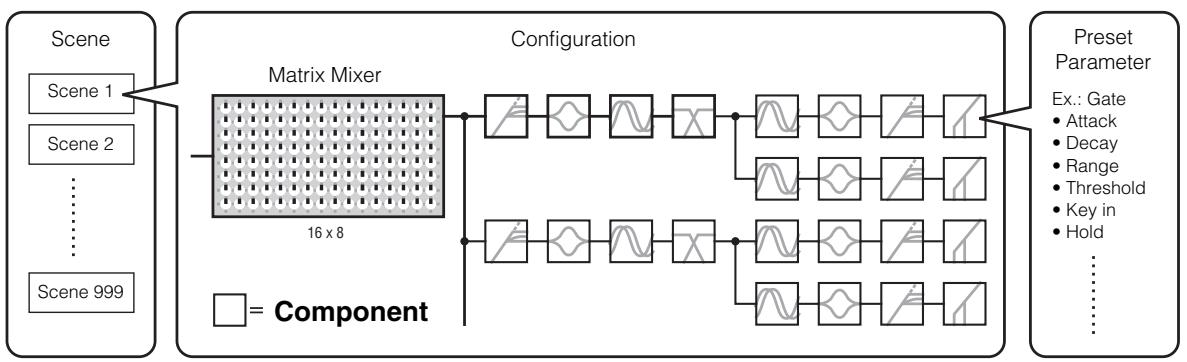
Scene structure
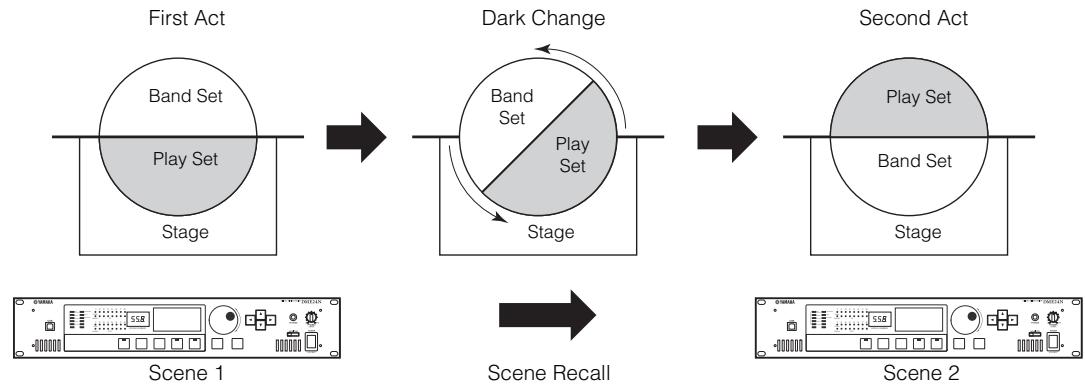
Scene change
Signal Types
DME64N/24N audio system signals can be broadly categorized as follows.
1 Audio
The DME64N/24N will be required to send and receive audio signals to and from other DME series units as well as other audio equipment.
Audio signal transmission and reception will occur primarily via the [INPUT] and [OUTPUT] connectors on the DME24N.
2 Control signals within a device group
Device group control signals control all DME series devices in the group.
There are two types of device group control signals, as follows:
- Control signals between the computer and the group master DME series unit
- Control signals between the group master DME series unit and the other DME series units
You can use the DME Designer application to control the entire device group, such as sending components to the devices and setting the parameters as required.
3 Control signals between devices outside the device group
These signals provide communication and control between individual devices.
Included in this category are MIDI messages transferred between [USB] connectors, GPI signals transferred between [GPI] connectors, and remote head amp control signals handled via the [REMOTE] connector.
Type of signals handled by the DME64N/24N
| Connector | Audio Signal | Device Control | Word Clock | Reference Page |
| [USB] Connector | - | • Control signals between computer and DNE64N/24N • MIDI messages | - | 22 |
| [NETWORK] Connector | - | • Control signals between computer and DNE64N/24N • Control signals between DME series unit. • Control signals with a controller such as an AMX or Creston | - | 23 |
| [MIDI] Connector | - | Control signals (MIDI commands) between MIDI controller and DME64N/24N. | - | 30 |
| [GPI] Connector | - | Control signals between GPI device (GPI controller, etc.) and DME series unit | - | 33 |
| [ CASCADE] Connector (DME64N only) | 32 channels of input/output. | Control signals from the digital mixer to the DME64N | Word clock transmission and reception to and from other devices. | 31 |
| [WORD CLOCK] Connector | - | - | Word clock transmission and reception to and from other devices. | 32 |
| [REMOTE] Connector | - | • Control signals to/from an external device (such as AD8HR head amplifier) • Control signals for a digital mixer and internal head amp • Control signals with a controller such as an AMX or Creston • MIDI messages | - | 28 |
| (Audio I/O Connectors) (DME24N only) | 8 channels of input and output. | - | - | 26 |
| (I/O Slot) | Number of I/O channels depends on card. | Serial signal transmission/reception (depending on function of card). | Word clock transmission and reception to and from other devices (depending on function of card). | 27 |
System Examples
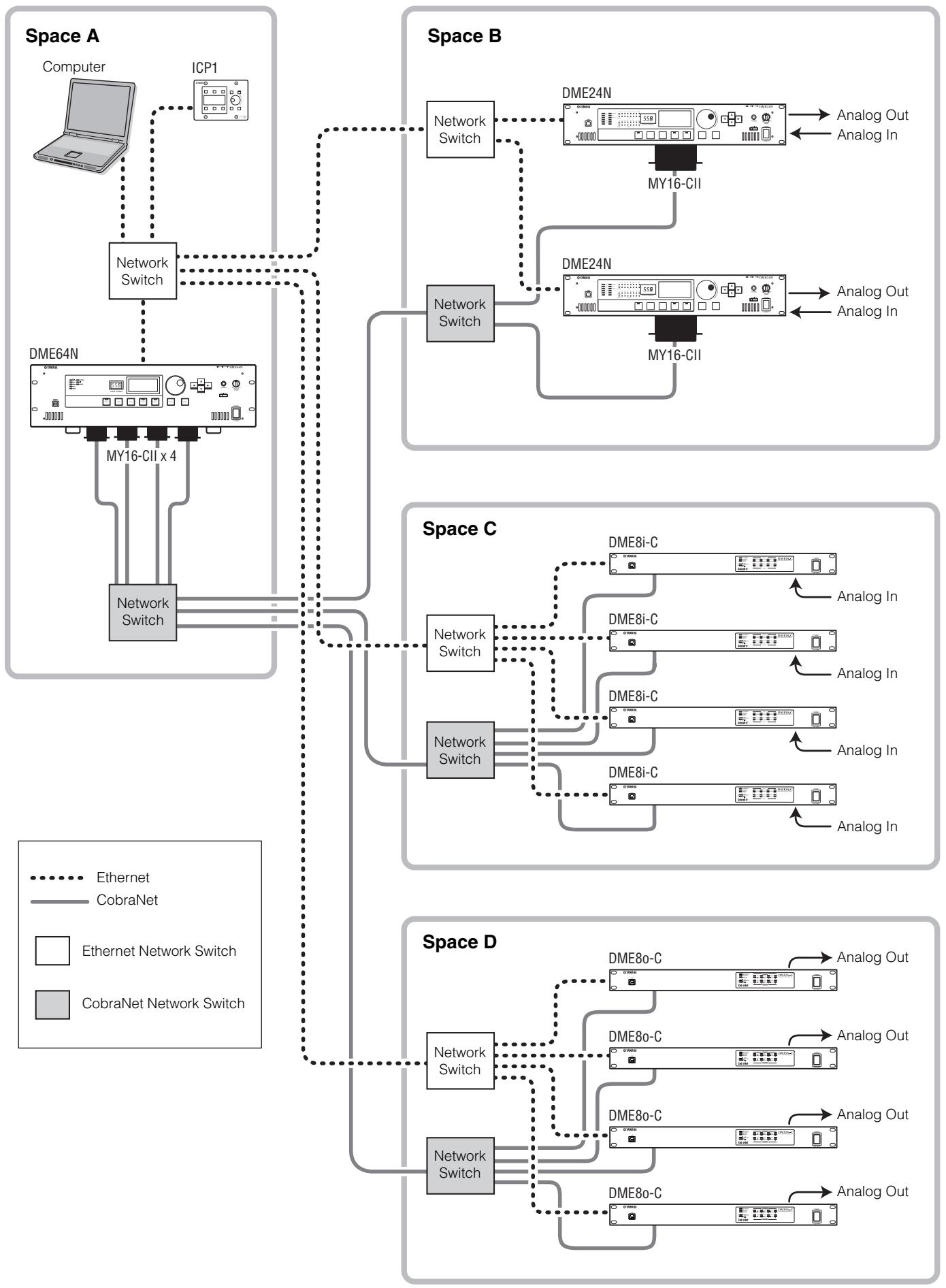
Large systems using CobraNet
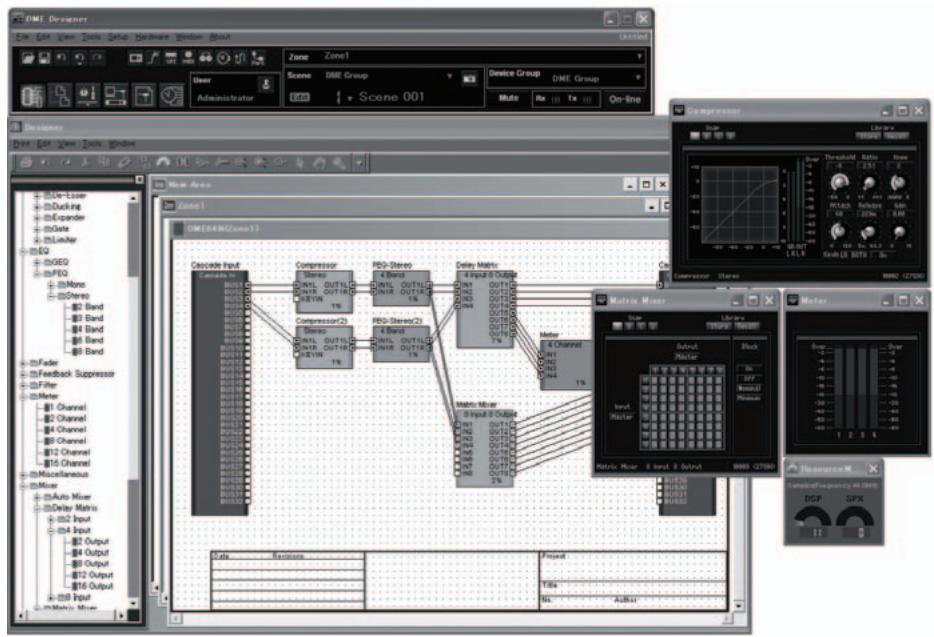
About DME Designer
DME Designer software enables you to integrate, configure, and control the DME series system from a connected computer.
You can build the DME series audio system using graphic blocks in DME Designer that are displayed on the computer monitor.
The DME series settings, configuration, and parameter data are transferred from the computer to the DME series unit via the USB or Ethernet connection.
DME series settings, configuration, and parameter data is sent via USB or Ethernet to the connected DME series unit. After the data is transmitted, you can disconnect the DME series unit from the computer and use it as an independent processor.
You can also connect it to a computer and control it in realtime from DME Designer.
If multiple DME series units are connected in the network, DME Designer enables you to build a configuration that includes those units.
Please download the DME Designer application, driver, DME setup manual, and DME Designer Owner's Manual at the following URL: http://www.yamahaaproaudio.com/
Refer to the "Connecting to a Computer" (page 22) for more information on connecting a computer to the DME64N/24N. For details on how to install DME Designer and the drivers that are required for connection, refer to the "DME Setup Manual."
Refer to the DME Designer Owner's Manual for setup and operation instructions.
The Controls and Connectors
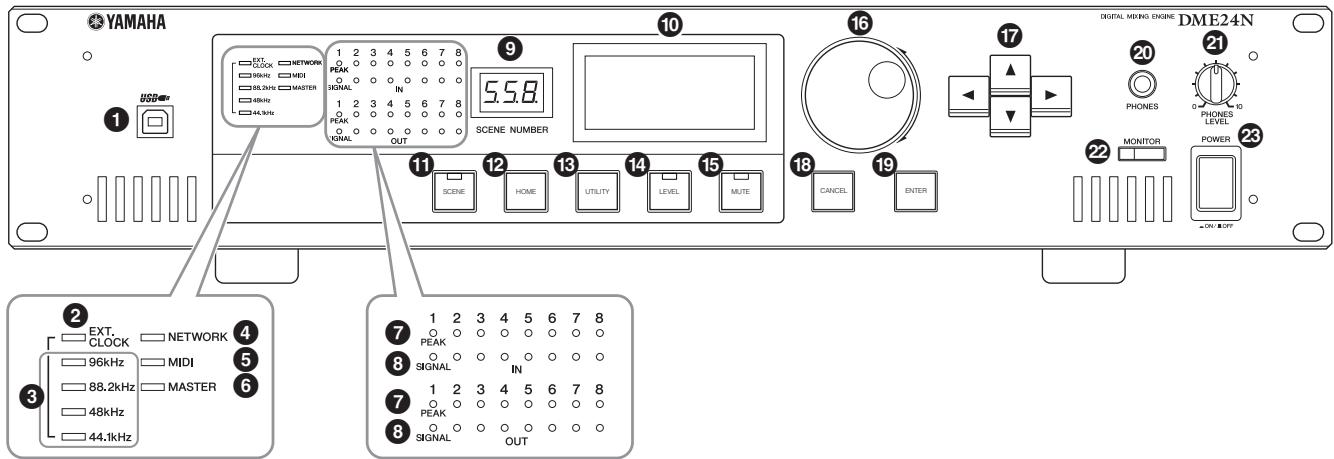
Front Panel
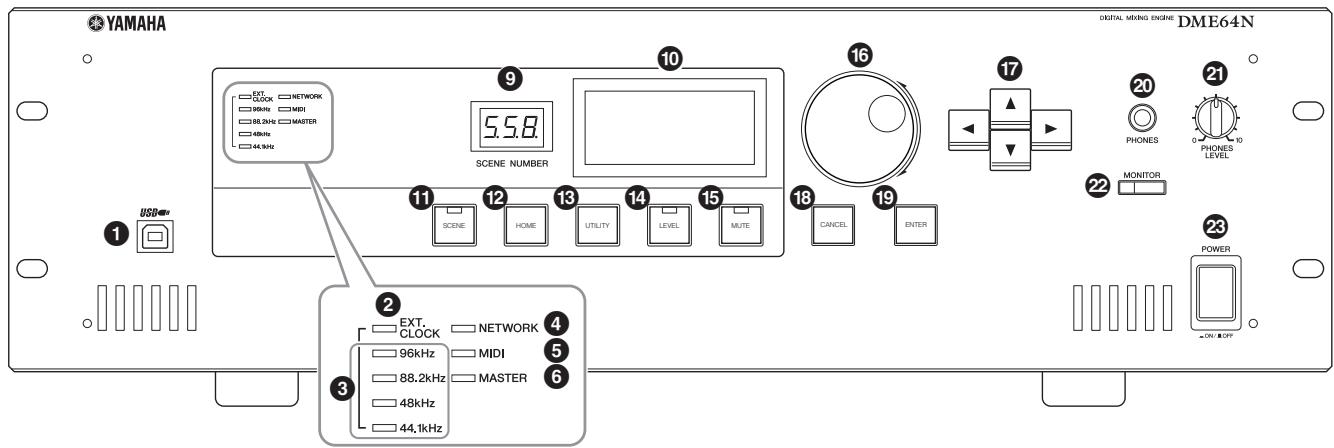
DME64N
DME24N
1 [USB] Connector
A computer can be connected here when it is necessary to program or control the device. When a USB connection is to be used, the USB-MIDI driver must be installed on the computer. Refer to the DME Designer Installation Guide for installation instructions.
[EXT. CLOCK] Indicator
When a clock signal from an external device is selected, the indicator will light green. If the clock signal is not appropriate the indicator will flash red. The indicator will go out when the internal word clock is selected.
[96kHz] [88.2kHz] [48kHz] [44.1kHz] Indicator
Normally, the indicator corresponding to the current word clock frequency will light green. If a problem with the master clock is detected all of these indicators will flash red. 2 seconds after a problem is detected with an external master clock the internal clock will temporarily be selected. When this happens the indicator corresponding to the frequency of the internal clock will light green, and all other indicators will continue to flash red.
4 [NETWORK] Indicator
Lights while data communication is occurring via the [USB], [NETWORK], or [CASCADE] connector. Received data causes the indicator to light in green, while transmitted data causes the indicator to light in orange. If a problem occurs the indicator will light in red.
[MIIDI] Indicator
Lights while data communication is occurring via the [MIDI] connector. Received data causes the indicator to light green, while transmitted data causes the indicator to light orange. The indicator will light green when reception and transmission occur simultaneously. If a problem occurs the indicator will light red.
[MASTER] Indicator
Lights green when the device is operating as the device group master (page 9). The indicator will not light if the device is operating as a device group slave. Refer to page 45 for device group master setup instructions.
[PEAK] Indicator (DME24N only)
Light red when a signal on the corresponding built-in analog audio input or output ([IN] and [OUT] connectors) reaches or exceeds -3 dB.
[ SIGNAL] Indicator (DME24N only)
Light green when a signal with a level greater than -40 dB is present at the built-in analog audio inputs and outputs ([IN] and [OUT] connectors).
NOTE
The DME64N has no built-in analog audio inputs or outputs ([IN] and [OUT] connectors).
[SCENE NUMBER] Indicator
Shows the current scene number.
10 Display
Displays scene information and device parameters.
1 [SCENE] Button
Calls the scene recall/store display (page 39). The scene store display will appear if the button is held for longer than 2 seconds (page 40). The indicator will light green while the scene recall or store display is showing.
[HOME] Button
Directly recalls the home (main) display. If pressed while the main display is showing the [HOME] button steps through the user-defined parameter display pages (refer to page 38 in this manual).
[UTILITY] Button
Calls the output level display. If this button is held for longer than 2 seconds while the main display is showing the utility display will appear. Switches between the Utility display pages if pressed while the Utility display is showing.
LEVEL]Button
Calls the output level setup display (page 39). The indicator will light green.
[MITE] Button
Calls the mute display (page 39). The indicator will light orange when mute is on. The indicator will light green when mute is off and the mute display is showing, and will be off if the mute display is not showing.
Dial
Adjusts the value of selected parameters.
17 [A] [▲] [▼] [▶] Buttons
Move the display cursor in the corresponding directions.
18 [CANCEL] Button
Closes the window on the display.
[ENTER] Button
Confirms and enters a value or setting.
20 [PHONES] Jack
A pair of headphones can be plugged in here.
[PHONES LEVEL] Control
Adjusts the headphone volume. Even when the control is set to the minimum level, the sound at the headphones is not completely muted.
2 [MONITOR] Button
Calls the monitoring point slot selection display (page 40). When the [ENTER] button is pressed to select a slot, the monitoring point selection display will appear. The spectrum analyzer display will then appear when the [ENTER] button is pressed to select a monitoring point. The indicator will light green while the monitoring slot/point or spectrum analyzer display is showing.
23 [POWER] Switch
Turns mains power to the device on and off.
![YAMAHA DME-24N - [POWER] Switch - 1](/content/2025/01/114975/images/384dec29cbef41ba802bab81c1e571081b03c18bf57672ffaff1f276e680fd45.jpg)
Even when the power switch is turned off, electricity is still flowing to the product all the minimum level. When you are not using the product for a long time, make sure to unplug the power cord from the wall AC outlet.
Rear Panel
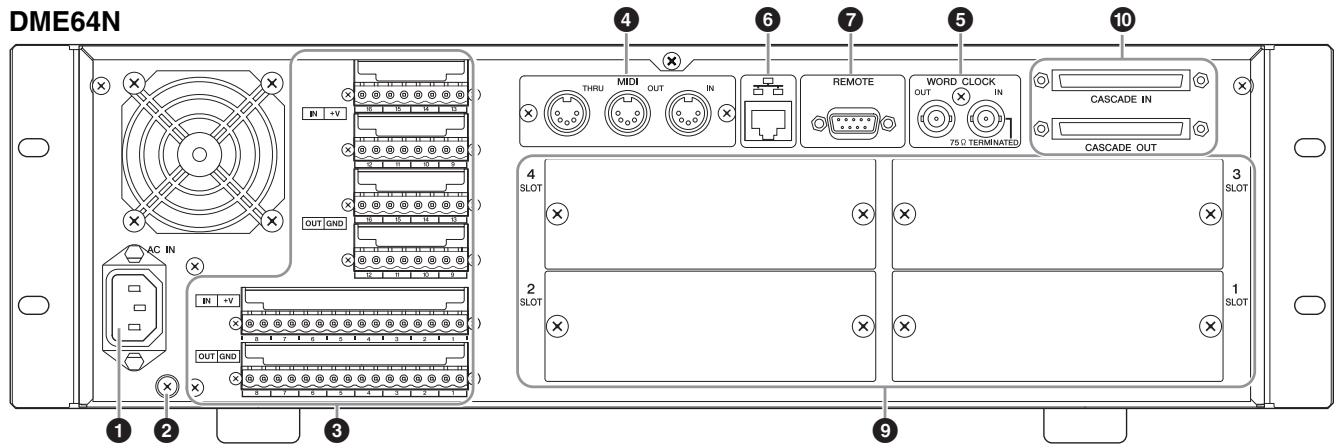
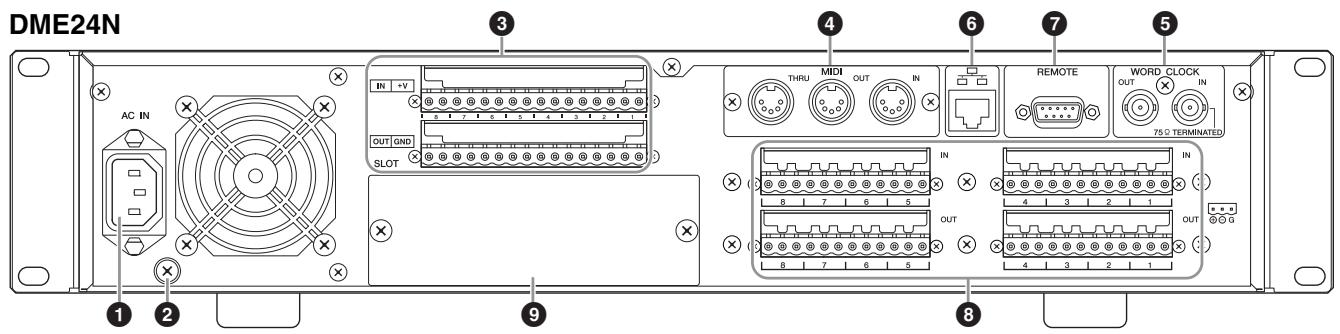
1 [AC IN] Connector
This is the device's three-pronged AC power connector. Connect to the AC mains using the supplied AC power cord. See "Setup" on page 18 for details.
NOTE
Use the supplied AC cord clamp to prevent accidental disconnection of the AC power.

Even when the power switch is turned off, electricity is still flowing to the product all the minimum level. When you are not using the product for a long time, make sure to unplug the power cord from the wall AC outlet.
Ground Screw
The supplied AC power cable is a 3-wire type, so if the AC outlet used is properly earthed the DME64N/24N will be earthed as well. Hum and interference may by further reduced in some cases by also connecting the earth screw to an earth point.
NOTE
Connect the device to only one ground point. Connecting the device to more than ground point can result in ground loops that can cause increased hum and noise.
[GPL] Connector
This Euroblock connector provides access to the unit's GPI (General Purpose Interface) interface for transfer of control signals to and from external equipment. The DME64N provides 16 channels of GPI input and output, while the DME24N provides 8 channels. Each input channel has an IN terminal and a +V terminal. Output channels each have an OUT terminal and a GND terminal. The open voltage at the +V terminal is 5V, while the IN terminal detects voltage changes from 0V ~ 5V. The OUT terminals output either signal "L" or "H" at a TTL level.
See "GPI Connection ([GPI] Connectors)" on page 33 for connection details.
4 [MIDI IN] [MIDI OUT] [MIDI THRU] Connectors
These are standard MIDI connectors that handle reception and transmission of MIDI data: [MIDI IN] receives MIDI data, [MIDI OUT] transmits MIDI data, and [MIDI THRU] re-transmits MIDI data received at the [MIDI IN] connector. See "MIDI Connection ([MIDI] Connectors)" on page 30 for connection details.
5 [WORD CLOCK IN] [WORD CLOCK OUT] Connectors
These BNC connector receive and transmit word clock from and to external equipment. See “WORD CLOCK Connection ([WORD CLOCK] Connectors)” on page 32 for connection details. Word clock settings are available via the device's Utility display WCLK page (see page 50 of this document).
[NETWORK] Connector
This is a 100Base-TX/10Base-T Ethernet connector for connection to a computer or other DME series units. Normally this connector will be connected to a network switch via an Ethernet cable. When two DME64N/24N units are to be directly connected a "cross" cable should be used. See "Ethernet Connection ([NETWORK] Connector)" on page 23 for connection details.
NOTE
Use a STP (Shielded Twisted Pair) cable for this connection to prevent electromagnetic interference.
7 [REMOTE] Connector
This 9-pin D-SUB connector allows connection to Yamaha AD824 or AD8HR remote head amplifier or an RS-232C/RS-422 compatible controller such as those from AMX or Crestron. You can also connect a Yamaha PM5D or DM2000 and control the internal head amps of DME24N. Refer to page 28 for connection details.
[IN] [OUT] Connectors (DME24N only)
These are balanced Euroblock connectors for analog audio input and output. The analog signal from microphones or line sources such as CD players can be input via the IN connectors, while the OUT connectors can deliver analog output to powered speakers or recording equipment. 48V phantom power can be supplied to the IN connectors (page 51). Refer to page 26 for [IN] and [OUT] connection details.
NOTE
The [IN] and [OUT] connectors each have 24 terminal pins. Each of the eight inputs and outputs uses three pins – hot, cold, and ground. Use the supplied 3-pin Euroblock plugs to connect to the appropriate inputs and outputs.
I/O Slots
Optional Yamaha or third-party mini-YGDAI cards can be plugged in here for system expansion. The DME64N has four I/O slots, while the DME24N has one. One expansion card can be plugged into each slot. Refer to "I/O Card Installation" on page 20 for installation details.
[ CASCADE IN] [CASCADE OUT] Connectors (DME64N only)
This 68-pin D-SUB connector can be connected to the CASCADE connector of other devices via a dedicated cascade cable. The CASCADE connector transmits and receives control, audio, and word clock signals. Refer to "Cascade Connection ([Cascade] Connectors" on page 31 for connection details.
Setup
Setup Procedure
Follow the steps outlined below to prepare the DME64N/24N for operation.
- Install any required I/O cards.
Refer to "I/O Card Installation" on page 20 for details.
- Connect the AC power cord.

Be sure to turn all devices OFF before connecting AC mains power. Attach the cable clamp to prevent accidental disconnection.
Attaching the cable clamp.
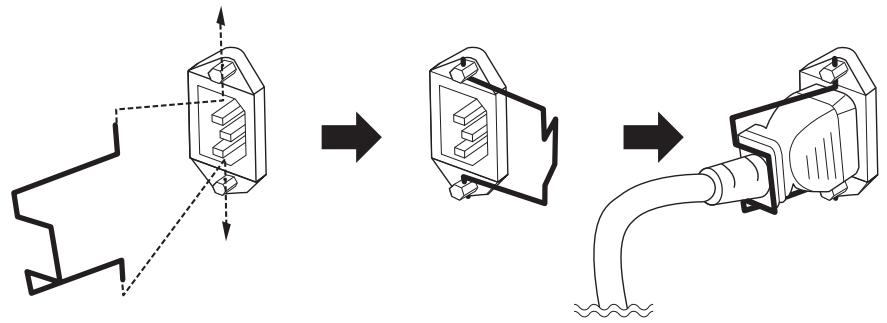
Be sure to properly ground the device to prevent possible electrical shock.
First plug the female-connector end of the AC cord into the [AC IN] socket on the rear panel of the DME64N/24N, then plug the male plug into an appropriate AC mains outlet. Make sure the AC power to be used complies with the conditions marked on the top cover of the device.

Use only the AC power cord supplied with the DME64N/24N. If the supplied cord is lost or damaged and needs to be replaced, contact your Yamaha dealer. The use of an inappropriate replacement can pose a fire and shock hazard!
The type of AC power cord provided with the DME64N/24N may be different depending on the country in which it is purchased (a third prong may be provided for grounding purposes). Improper connection of the grounding conductor can create the risk of electrical shock. Do NOT modify the plug provided with the DME64N/24N. If the plug will not fit the outlet, have a proper outlet installed by a qualified electrician. Do not use a plug adapter which defeats the grounding conductor.
Security Cover Mounting
Security cover mounting screw holes (M3 size) are provided on the front panel of the unit. The spacings are 423mm width and 96mm (DME64N) / 52mm (DME24N) height. See "Dimensions" on page 65 for details. A security cover made by the customer or contractor can be attached to the front panel via these mounting holes to prevent accidental operation. Yamaha cannot supply a security cover.
When mounting a cover make sure that the screws used do not go deeper than 15 millimeters into the front panel. Also, to ensure that the cover does not come in contact with the panel controls, leave a space of about 20 millimeters between the front panel and the cover.
- Install the DME Designer software and necessary drivers on the computer to be used for device group control.
See the "DME Setup Manual" (PDF file) for details.
4. Connect devices.
Network connection Ethernet connection (page 23) USB connection (page 22)
- Analog connection (page 26)
- External device connection
Remote connection (page 28)
MIDI connection(page 30)
CASCADE connection(page 31)
WORD CLOCK connection(page 32)
GPI connection (page 33)
5. Turn power to the computer, DME64N/24N, and related devices on. Press the DME64N/24N [POWER] switch to turn it on.
![YAMAHA DME-24N - Turn power to the computer, DME64N/24N, and related devices on. Press the DME64N/24N [POWER] switch to turn it on. - 1](/content/2025/01/114975/images/a61f4c7777af9dcec02a401ce24d63d665973fc79887c92a9c5995832278fefa.jpg)
To prevent the initial power-on surge from generating a large noise spike or damaging your speaker system, turn devices on in the following order: audio sources, mixer and/or recorders, and finally power amplifiers. Reverse this order when turning power off.
No information will appear on the display the first time the device is turned on. The appropriate scene and other data must first be transferred to the device from the DME Designer. Refer to the "DME Setup Manual" (PDF file) for details.
![YAMAHA DME-24N - Turn power to the computer, DME64N/24N, and related devices on. Press the DME64N/24N [POWER] switch to turn it on. - 2](/content/2025/01/114975/images/a684fd06cc3b505adb5733b5420a3c44b2ebc03c5d8a75dfc7175e299d611bfb.jpg)
Once the appropriate data has been transferred to the device, the current number and name will appear on the display:
![YAMAHA DME-24N - Turn power to the computer, DME64N/24N, and related devices on. Press the DME64N/24N [POWER] switch to turn it on. - 3](/content/2025/01/114975/images/4a955cc5270dc5adc021133c52248287b6378c92eaedc5231e88c653a99d19f3.jpg)
If any scene data has been stored in the DME64N/24N, the current scene and its name will be displayed.
6. Set up the DME64N/24N operation parameters.
See the "Utility Display" section on page 43 for details.
NOTE
The "NET" page settings must be set up as required before using the unit for the first time.
7. Launch the DME Designer application, create configuration and transfer.
DME Designer setup, operation, and data transfer instructions can be found in the DME Designer Manual.
This completes preparation of the DME64N/24N system.
I/O Card Installation
The DME64N has four I/O card slots, and the DME24N has one I/O card slot. The number of audio input channels available on the DME64N/24N can be increased by plugging the appropriate mini-YGDAI I/O card(s) into the available card slot(s).
Compatible I/O Cards
As of June, 2010, Yamaha mini-YGDAI cards that can be used with the DME64N/24N are as follows:
| Card Name | Function | Input | Output | No. of Available Cards | |
| DME64N | DME24N | ||||
| MY8-AT | ADAT | 8 | 8 | 4 | 1 |
| MY8-TD | TDIF-1 | 8 | 8 | 4 | 1 |
| MY8-AE | AES/EBU | 8 | 8 | 4 | 1 |
| MY4-AD | ANALOG IN | 4 | - | 4 | 1 |
| MY8-AD | ANALOG IN | 8 | - | 4 | 1 |
| MY4-DA | ANALOG OUT | - | 4 | 4 | 1 |
| MY8-AD24 | ANALOG IN | 8 | - | 4 | 1 |
| MY8-AD96 | ANALOG IN | 8 | - | 4 | 1 |
| MY8-DA96 | ANALOG OUT | - | 8 | 4 | 1 |
| MY8-ADDA96 | ANALOG IN/OUT | 8 | 8 | 4 | 1 |
| MY8-AE96S | AES/EBU | 8 | 8 | 4 | 1 |
| MY8-AE96 | AES/EBU | 8 | 8 | 4 | 1 |
| MY8-AEB | AES/EBU | 8 | 8 | 4 | 1 |
| MY16-AT | ADAT | 16 | 16 | 4 | 1 |
| MY16-AE | AES/EBU | 16 | 16 | 4 | 1 |
| MY16-TD | TDIF-1 | 16 | 16 | 4 | 1 |
| MY16-C | CobraNet | 16 | 16 | 4(*) | 1 |
| MY16-CII | CobraNet | 16 | 16 | 4 | 1 |
| MY16-ES64 | EtherSound | 16 | 16 | 1 | 1 |
| MY16-MD64 | MADI | 16 | 16 | 4 | 1 |
| MY16-EX | Expansion | 16 | 16 | 3 | 1 |
| MY8-SDI-D | HD-SDI | 8 | - | 4 | 1 |
The input/output numbers above apply to 44.1/48kHz operation.
(^*)
In order to use three or four MY16-C cards, firmware V1.10 or later will be required.
If the serial number written on the upper surface of your DME64N is shown below, a hardware upgrade is needed. KK, KL, KM, KN, KO, KP, KX, KY are the third and fourth digits of the serial number.
A fee is charged for the hardware upgrade.
For details, contact Yamaha customer support using the contact information located at the end of the "DME64N/24N Owner's Manual."
For the latest information on what cards can be used with the DME64N/24N, visit the Yamaha Pro Audio website at: http://www.yamahaaproaudio.com/
- Make sure that the DME64N/24N power is OFF.
If the power is on, turn it off.
- Loosen the two card slot screws and remove the slot cover, as shown in the diagram.
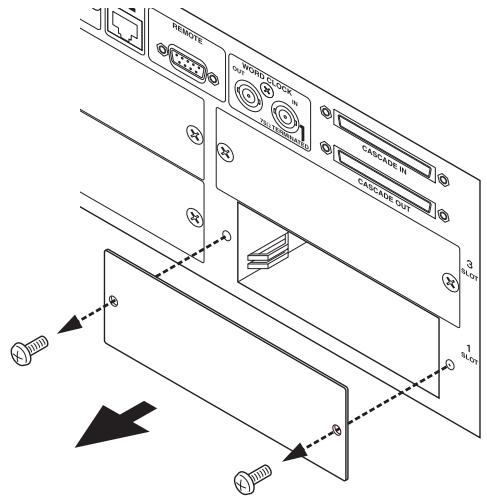
NOTE
The slot cover and screws will need to be re-attached if the I/O card is later removed from the slot, so keep them in a safe place.
- Slide the I/O card into the slots in the guide rails, as shown in the diagram, and push the card into the slot.
Be sure to push the card all the way back into the slot so that the card contacts make proper contact with the slot connector.
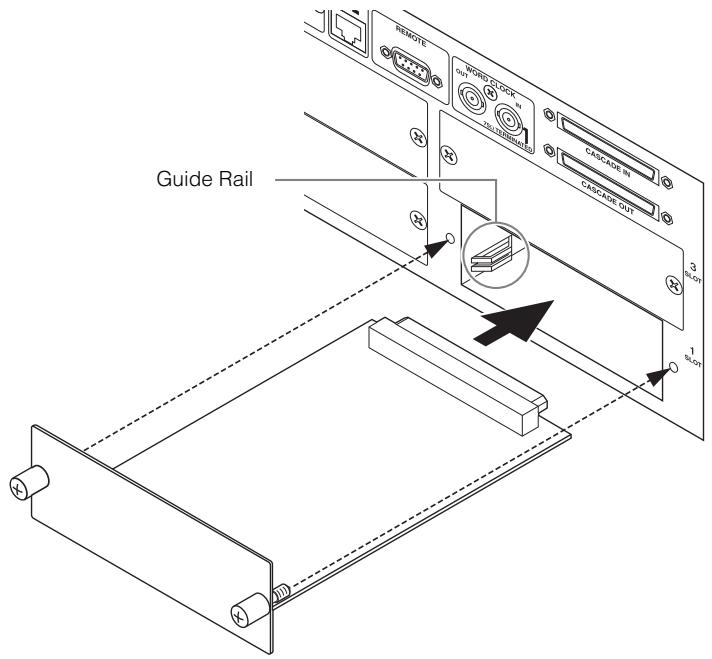
- Secure the card with the attached screws.

Be sure to tighten the screws securely. If the screws are left loose proper contact may be lost and malfunction of damage may result.
Connecting to a Computer
USB Connection
NOTE
Refer to the "DME Setup Manual" (PDF file) for details on installing USB-MIDI Driver and DME Designer.
- Make sure that the USB-MIDI Driver's THRU setting is "OFF."
USB connections can be used in the following two ways:
(1) Control the DME64N/24N from DME Designer.
(2) Connect to any individual DME64N/24N and control that DME64N/24N unit by transmitting MIDI commands from a MIDI sequencer or similar software.
NOTE
- The computer on which DME Designer is running can be connected to either the group master or a slave DME series unit.
- The correspondence between the MIDI commands to be received/transmitted and the scene parameters can be set up using DME Designer.
- The USB port being used by DME Designer is not available for use by a MIDI sequencer or other application.
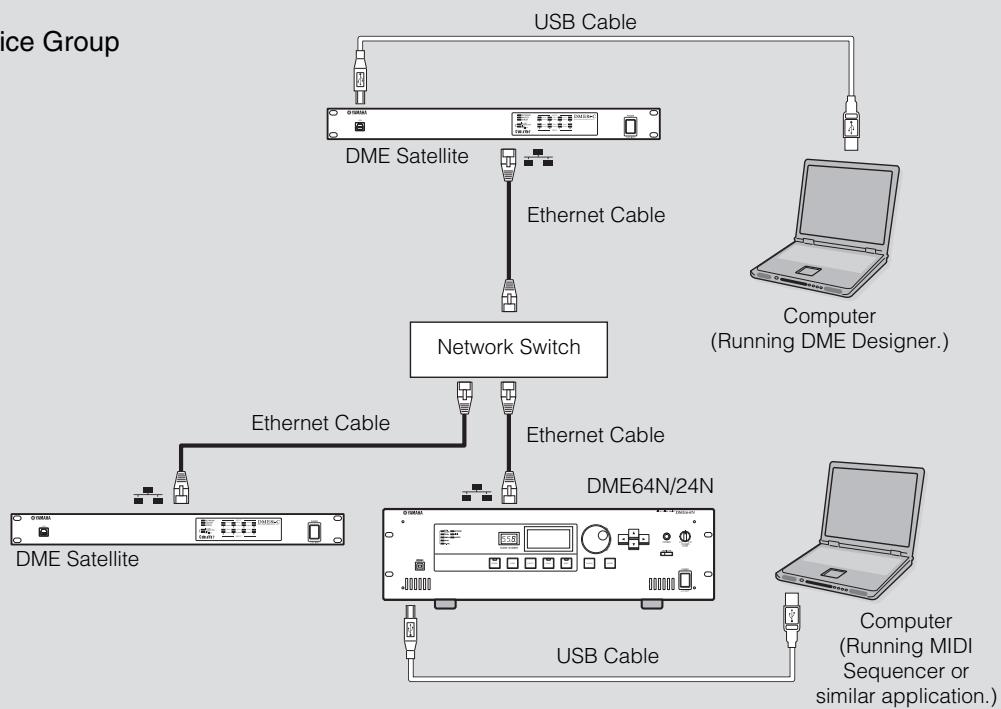
Device Group
Be sure to follow the procedure below when you make a USB connection with a computer. Otherwise, the computer and/or DME64N/24N may freeze, resulting in damages or loss of data. If the computer or DME64N/24N freezes, turn the power to the DME64N/24N off and then on, then restart the computer.

- Before you connect the DME64N/24N to the computer via USB, cancel the computer's energy saving mode (such as Suspend, Sleep, or Stand-by mode).
- Before turning on the power to the DME64N/24N, first connect its [USB] connector to the computer's USB port.
-
Before turning the power to the unit on or off, and before connecting or disconnecting the USB cable, take the following actions:
-
Quit all open applications.
-
Make sure that the DME64N/24N is NOT transferring any data.
-
Be sure to wait six seconds or more between turning the power to the unit on and then off (or off and then on), or between connecting and disconnecting (or vice versa) the USB cable.
Ethernet Connection ([NETWORK] Connector)
To control the DME64N/24N from the computer via Ethernet, use an Ethernet cable to connect the [NETWORK] connector on the rear panel of the DME64N/24N to the computer, then install DME-N Network Driver.
NOTE
Refer to the "DME Setup Manual" (PDF file) for details on installing DME-N Network Driver.
- Appropriate IP addresses must first be assigned to all devices connected to an Ethernet network.
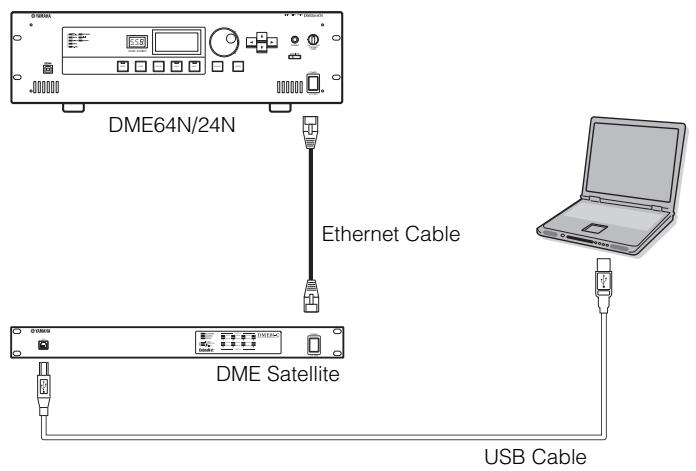
Two DME series units directly connected via Ethernet
You can connect devices in the same device group directly to each other using Ethernet cables, without connecting them to a network switch.
A cross cable or straight cable can be used since the DME series supports Auto MDI/MDI-X. In this case, set Link Mode on both units to the same setting. Devices in different subnet (different network address) groups can be connected via a router or layer-3 compliant network switch.
Control from a computer in the same subnet group
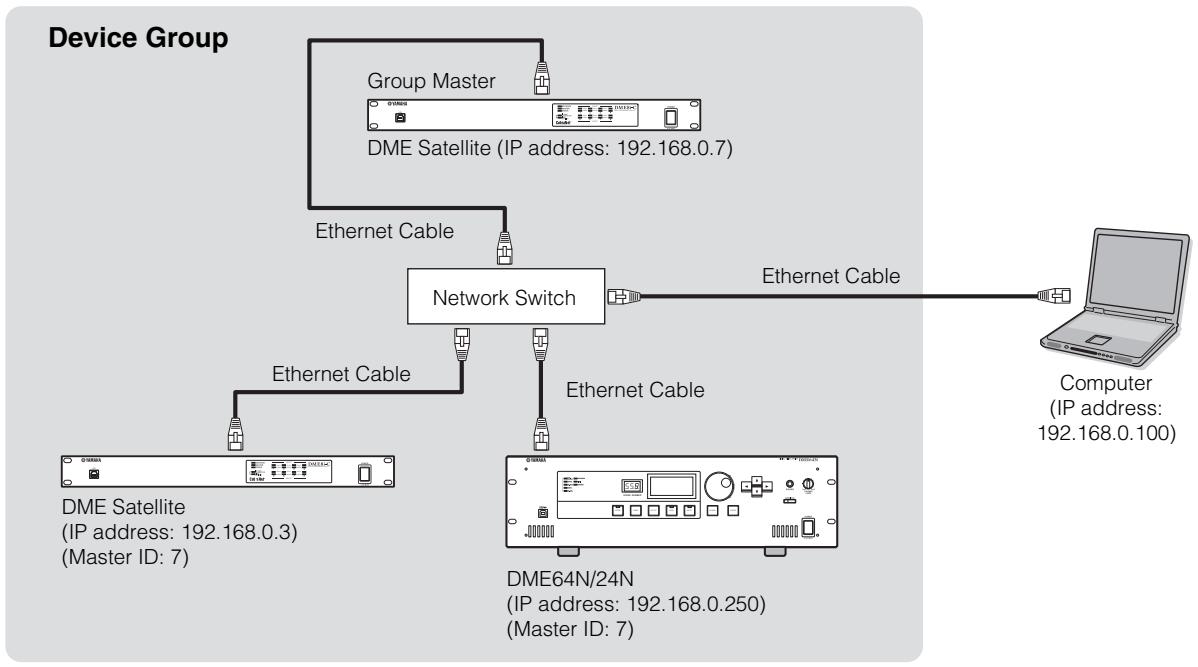
NOTE
- The IP addresses in the diagram are examples.
- Use a network switch that is compatible with 100Base-TX/10Base-T network speeds.
The maximum length of a cable between a network switch and the DME series is 100 meters. Due to the quality of cables and network switch performance, however, proper operation at the maximum length cannot be guaranteed in some cases.
Use a STP (Shielded Twisted Pair) cable to prevent electromagnetic interference.
- If you are using multiple DME series units, set Link Mode on each unit to the same setting. Yamaha recommends that you select 100Base-TX for the Link Mode setting.
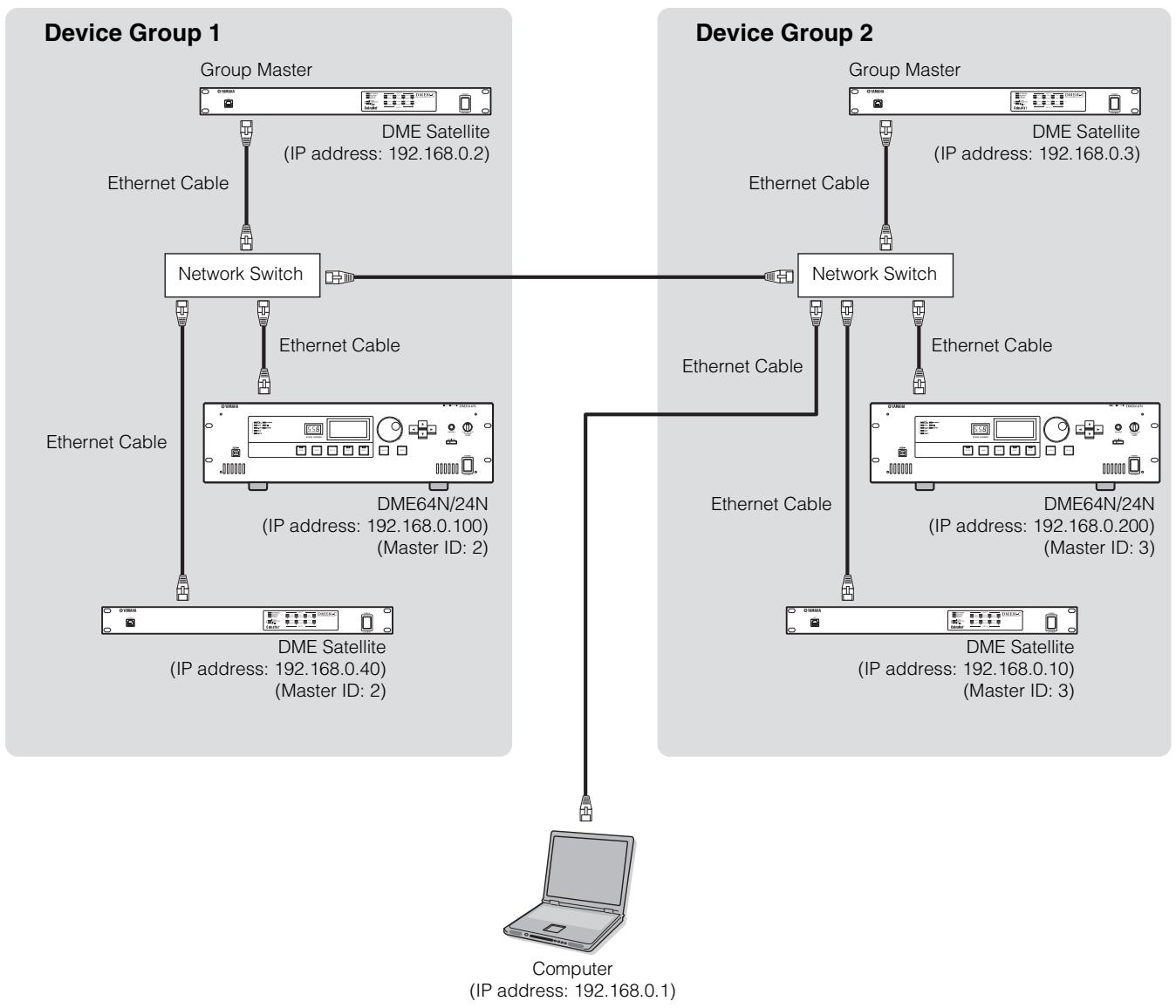
Control from a computer with a different subnet
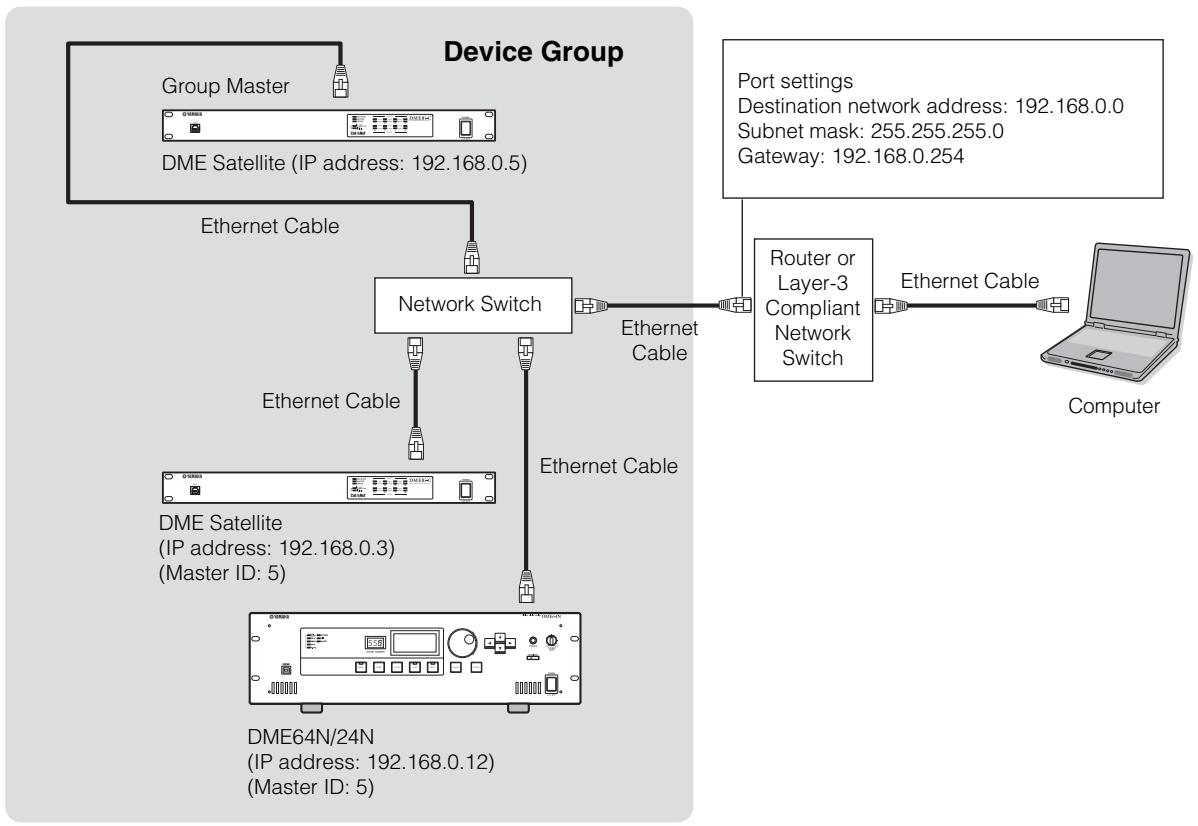
Connecting multiple device groups
Audio I/O Connection
Analog Audio Connection ([IN] and [OUT] Connectors) (DME24N only)
The DME24N includes [IN] and [OUT] connectors for 8 channels of analog audio input and output. Wire the supplied Euroblock plugs as shown below. Head amplifier gain and phantom power settings can be made via the Utility display HA page described on page 52 of this manual, or via the DME Designer application.
Euroblock Connection
Please be sure to use the supplied Euroblock plugs. If you lose them, contact your nearest Yamaha dealer.
Cable preparation
- To prepare the cable for attachment to a Euroblock connector, strip the wire as shown in the illustration, and use stranded wire to make connections. With a Euroblock connection, the stranded wire may be prone to breakage because of metal fatigue due to the weight of the cable or due to vibration. When rack-mounting your equipment, use a lacing bar when possible to bundle and fasten the cables.
- If cables will be frequently connected and disconnected, as in the case of a portable installation, we recommend that you use ferrules with insulation sleeves. Use a ferrule whose conductor portion has an external diameter of 1.6 ~mm or less, and a length of approximately 7 ~mm (such as the A10,5-6WH made by the Phoenix Contact corporation).
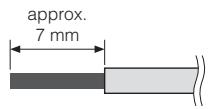


If you use stranded wire, do not tin (plate with solder) the exposed end.
1. Loosen terminal screws.
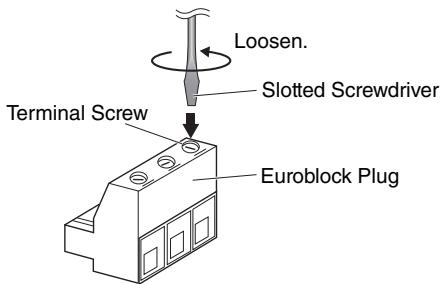
NOTE
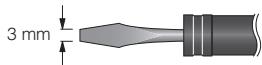
A slotted screwdriver with a blade width of about 3 millimeters is recommended.
2. Insert cables.
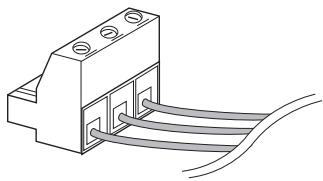
3. Securely tighten terminal screws.
Pull the cables (not too strongly) to confirm that they are securely connected.
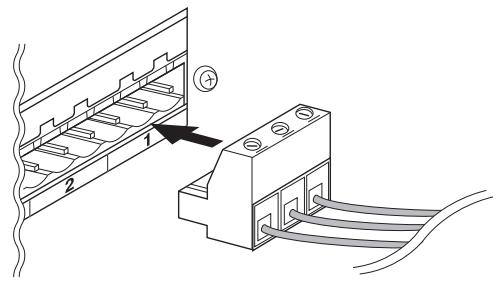
4. Plug the Euroblock plug into the panel connector.
I/O Slots
The DME64N has four I/O card slots, and the DME24N has one I/O card slot. The number of audio input channels available on the DME64N/24N can be increased by plugging the appropriate mini-YGDAI I/O card(s) into the available card slot(s). Some types of cards also provide control and/or word clock transmission and reception functionality.
Refer to "Compatible I/O cards" (page 20) for details on the cards that can be used. For details on how to install cards, refer to "I/O card Installation Procedure" (page 21).
Connecting to an External Device
Remote Connection ([REMOTE] Connector)
The [REMOTE] connector of the DME64N/24N can be connected to remotely-controllable Yamaha AD8HR or AD824 head amplifiers (pre-amps), digital mixers, or RS-232C compatible controllers (such as those from AMX or Crestron). The [REMOTE] connector also transmits and receives MIDI messages.
Controlling external head amplifiers from the DME64N/24N
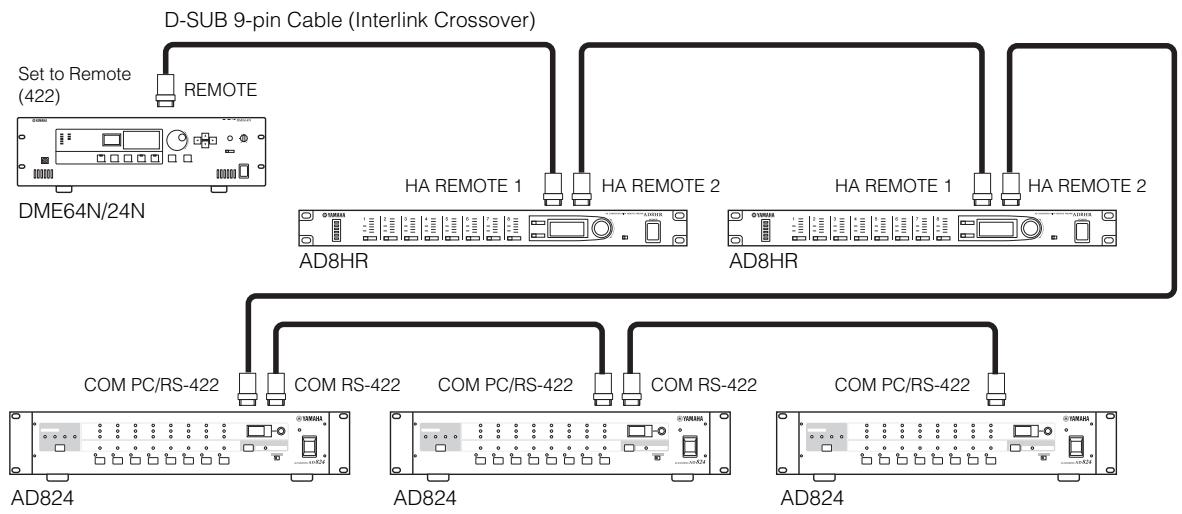
You can remotely control the AD8HR or AD824 head amplifier settings from DME Designer. Up to eight AD8HR/AD824 head amplifiers can be connected.
When connecting to a combination of AD8HR and AD824 head amplifiers, be sure to place the AD8HR units closest to the DME64N/24N in the chain, otherwise the AD8HR or AD824 unit(s) may not be properly recognized by the DME64N/24N. For details about the settings, refer to the "Ext HA Ctrl" in "Remote page" on page 49.
NOTE
Only control signals are transmitted and received via the REMOTE connection. Audio connections must be made separately.
Controlling a DME24N's internal head amps from a digital mixer
The internal head amp settings of a DME24N can be remotely controlled from a digital mixer such as the Yamaha PM5D or DM2000.
Connect the digital mixer to the DME series' [REMOTE] connector, and use an Ethernet cable to make connections between the [NETWORK] connectors of the DME series. From the digital mixer, DME series units can be controlled as an AD8HR.
The gain and the phantom power (+48V) can be controlled. For details about the settings, refer to the "Int HA Ctrl" in "Remote page" on page 49.
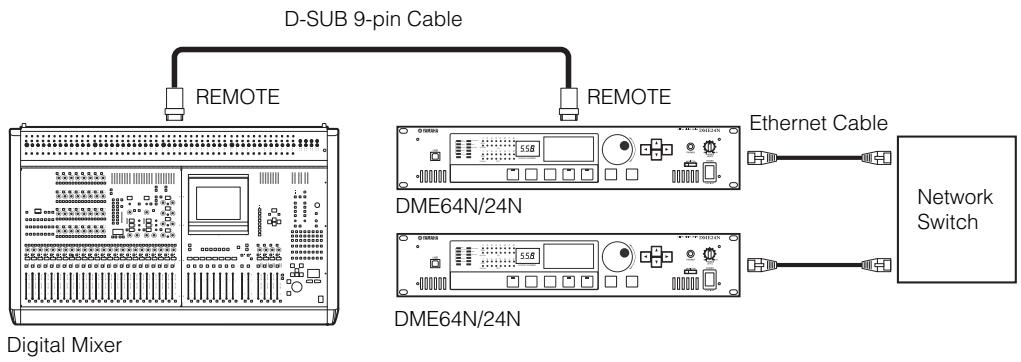
NOTE
Only one mixer can be connected within each device group.
The digital mixer can be connected to any DME series unit, whether it is the group master or a slave unit.
The ID number of the DME series unit being remotely controlled is specified from DME Designer.
For details on making this setting, refer to the "DME Designer Owner's Manual."
If the connection between DME series units is broken, it will no longer be possible to communicate with DME units of an ID number that follows the disconnected DME.
The variable range of GAIN differs between the AD8HR and the DME24N. You cannot use the mixer to specify a value that exceeds the variable range of the DME24N.
Controlling the DME64N/24N from an external device
You can remotely control the DME64N/24N from a connected RS-232C or RS-422 compatible controller, such as those from AMX or Crestron.
When connecting a remote controller via RS-232C or RS-422, be sure to set the "Utility" display "Remote page" (see manual page 45) "Rmt Ctrl" parameter to match the controller being connected. Also, do change this setting while the unit is connected. Doing so can damage the unit.
NOTE
Refer to "DME Remote Control Protocol Specifications" on the Yamaha web site for more information on communication protocols used to control the DME64N/24N from an external device (such as those from AMX or Crestron).
http://www.yamahaproaudio.com/
Network Connection ([NETWORK] Connectors)
You can connect a controller such as the AMX or Crestron to DME64N/24N via Ethernet, and remotely control multiple DME64N/24N units. For details about the settings, refer to the "Rmt Ctrl" in "Remote page" on page 48.
- The port used for remote control is specified from DME Designer. For details on making this setting, refer to the "DME Designer Owner's Manual."
- Refer to "DME Remote Control Protocol Specifications" on the Yamaha web site for more information on communication protocols used to control the DME64N/24N from an external device (such as those from AMX or Crestron).
http://www.yamahaproaudio.com/
MIDI Connection ([MIDI] Connectors)
In this case connection is made to the rear-panel [MIDI] connectors. MIDI commands are sent to the DME64N/24N from a MIDI device. Refer to "MIDI Page" on page 49 for MIDI setup details.
NOTE
The DME Designer can be used to set up the system so that scene recall operations and user parameter control can be carried out from connected MIDI devices. Refer to the DME Designer manual for details.
By connecting the [MIDI OUT] terminal of a digital mixer (such as the DM2000) to the [MIDI OUT] of the DME64N/24N and making the proper settings on the mixer and the DME64N/24N, you can change scenes by sending program change messages from the mixer.
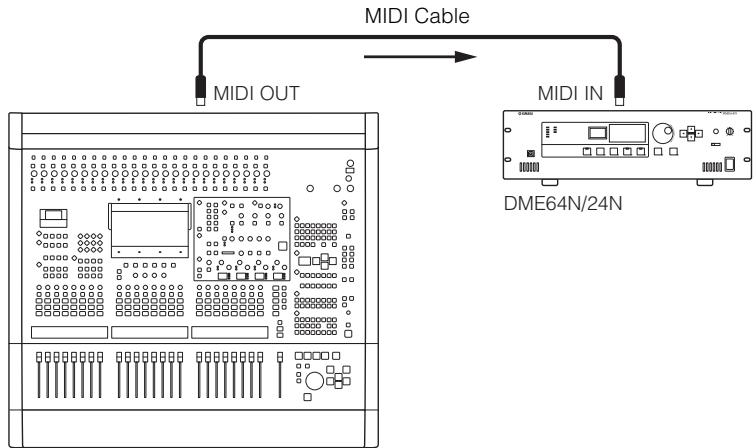
DM2000 Digital Mixer or Other Controller
If the [MIDI OUT] connector of the DME64N/24N is connected to the [MIDI IN] connector of an SPX2000 or similar digital effect unit, and if the DME64N/24N and SPX2000 are set up appropriately, DME64N/24N program change operations will case the corresponding effect to be recalled on the effect unit.

SPX2000 or Other Digital Effect Unit
Cascade Connection ([Cascade] Connectors) (DME64N only)
The rear-panel [CASCADE] connector can be connected to the [CASCADE] connector on another DME64N/24N or other compatible device via a dedicated cascade cable for bidirectional transfer of control, audio, and word clock signals. The communication direction automatically switches to unidirectional when connecting to a mixer such as the PM5D, or bidirectional when connecting to another DME64N/24N unit.
Up to eight DME64N units can be cascade connected.
In the unidirectional mode the audio signal flow is from the [CASCADE OUT] connector to the [CASCADE IN] connector. For bidirectional communication the data flows in both directions within a single cable, and input on the same channel from other DME64N units is summed (bus sharing). The total number of audio channels that can be connected to a mixer or DME64N/24N unit is 32.
Word clock is continuously output from both the [CASCADE IN] and [CASCADE OUT] connectors, and is received by the corresponding [CASCADE IN] or [CASCADE OUT] connector on the connected device. In all cases the [CASCADE OUT] of one device must be connected to the [CASCADE IN] connector of the other. Do not connect [CASCADE IN] to [CASCADE IN], or [CASCADE OUT] to [CASCADE OUT].
NOTE
Maximum length by the optional dedicated Cascade cables
Unidirectional Cascade connection: 200m (44.1/48kHz), 100m (88.2/96kHz)
Bidirectional Cascade connection: 100m (44.1/48kHz), 30m (88.2/96kHz)
Cascade Connection Example

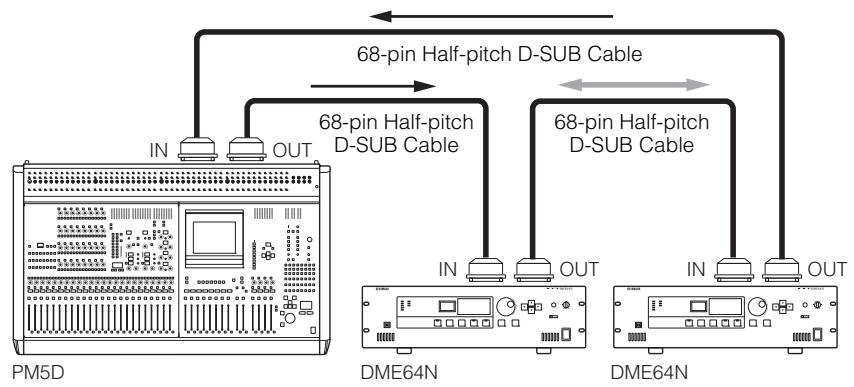
NOTE
Never create a full cascade loop using only DME64N units!
NOTE
It is also possible to remotely control DME series units from the PM5D via a CASCADE connection. In such cases assign the nearest DME64N unit to the PM5D as the device group master. When using a DME64N/24N together with the DME Satellite, you must assign the DME Satellite as the master.
Another method of remotely controlling a DME series from a PM5D is via CobraNet connections to MY16-C or MY16-CII cards.
All DME series units to be controlled from the PM5D must be in the same device group, and the host address of the device group master must be set to "2." However, if the PM5D is version 2.20 or higher and the DME Satellite is version 3.07 or higher, you can set the parameter to any number.
For information on the PM5D DME CONTROL function refer to the PM5D/PM5D-RH Owner's Manual or to the "Cascade Setup Guide" available at the Yamaha website.
http://www.yamahaproaudio.com/
WORD CLOCK Connection ([WORD CLOCK] Connectors)
Word clock signals are transferred to and from external devices via the [WORD CLOCK IN] and [WORD CLOCK OUT] connectors. The [WORD CLOCK OUT] connector can be used to supply the DME64N/24N word clock to external equipment. Word clock is continuously output by the DME64N/24N during normal operation. The word clock signal from an external device can be received via the [WORD CLOCK IN] connector. Refer to the Utility display WCLK page described on page 50 of this manual for details.
NOTE
Word clock can also be received and transmitted via a mini-YGDAI card installed in an I/O slot, or the [CASCADE IN] and [CASCADE OUT] connectors. It is necessary to specify whether the DME64N/24N will use the internal word clock or an external word clock for synchronization.
NOTE
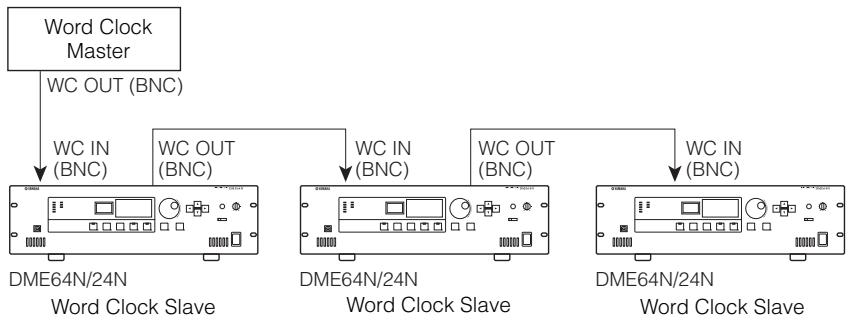
A device transmitting the word clock signal that will be used by other devices for synchronization is the "word clock master," while devices received the word clock are "word clock slaves."
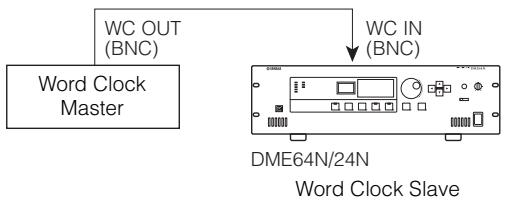
To distribute the word clock signal from one device to multiple slave devices, either a word clock distribution box or daisy-chained connection can be used.
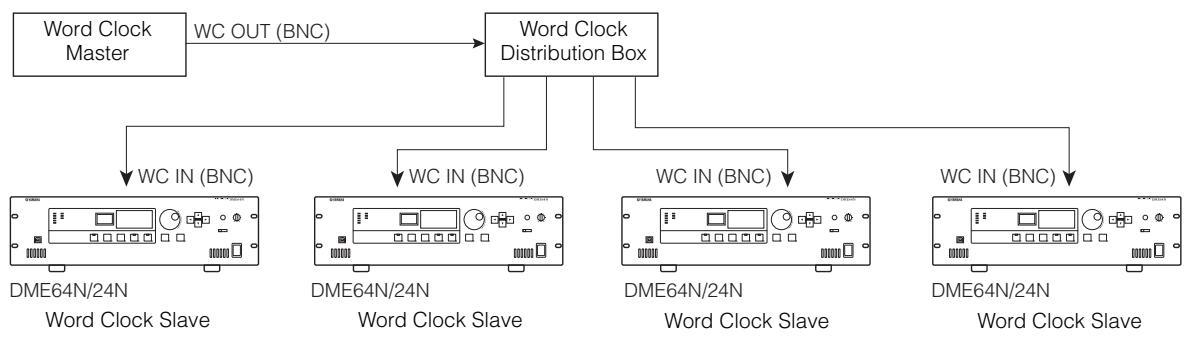
Distribution Box Connection
Daisy Chain Connection
NOTE
This method is not recommended for large systems.
GPI Connection ([GPI] Connectors)
GPI (General Purpose Interface) device (GPI controller, etc.) can be connected to the rear-panel [GPI] connectors. Using GPI a variety of control signals can be transferred between the DME64N/24N and external controllers or other devices. The optional CP4SW, CP4SF, and CP1SF control panels are also connected via GPI.
NOTE
For more information on the CP4SW, CP4SF, and CP1SF control panels refer to "CP4SW, CP4SF, and CP1SF" in the Appendix of this manual (page 51).
The DME64N provides 16 channels of GPI input and output, and the DME24N provides 8 channels. Each channel has an IN terminal, a +V terminal, an OUT terminal and a GND terminal. The +V terminals have an open-terminal voltage of 5 volts. The IN terminals can detect a full range of input voltages from 0V through 5V, while the OUT terminals output either signal “L” or “H” at a TTL level.
The parameters for each GPI input and output are assigned via the DME Designer application.
NOTE
The DME Designer can be used to set up the system so that scene recall operations and user parameter control can be carried out from connected GPI control devices. Refer to the DME Designer manual for details.
Euroblock connectors are used for all GPI input and output connections. Euroblock connection methods are described in "Euroblock Connection" on page 26 in this manual.
Example: Controlling the DME64N/24N from a switch.
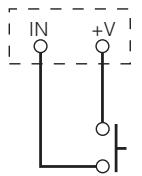
GPI Connection
Example: Controlling the DME64N/24N via a 10k ohm linear taper potentiometer.
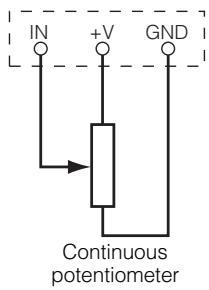
GPI Connection
Example: Lighting external LED indicators from the DME64N/24N.
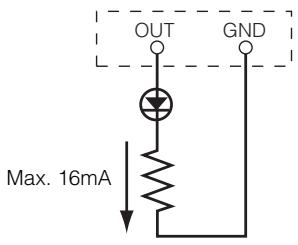
GPI Connection

CAUTION
Make sure that the current between the OUT and GND [GPI] connectors is less than 16mA.
NOTE
GPI connector calibration procedure is described on page 51 of this manual, in the Utility display GPI page.
Panel Operation and Displays
Basic Operation
By pressing the panel buttons it is possible to select the DME64N/24N Main display, Utility display, and Parameter Edit displays that allow individual settings to be edited and changed. refer to the pages listed below for more detailed information about each display.
[HOME] button Main Display (page 35)
The Main display can be directly recalled from any display other than the Main display by pressing the [HOME] button. The Main display shows the current scene information.
![YAMAHA DME-24N - [HOME] button Main Display (page 35) - 1](/content/2025/01/114975/images/d6b51a0c132c160dd4dcbceee9a9800d5b84c0dfb4098b21aeb56b4b1139a157.jpg)
[HOME] button User Defined Button Page Selection (page 38)
Pressing the [HOME] button while the Main display is shown sequentially selects the four User Defined Button pages.
![YAMAHA DME-24N - [HOME] button User Defined Button Page Selection (page 38) - 1](/content/2025/01/114975/images/a01cbb4cec4f8428de25b6321e7606d66b274e497d831afd3135f6184b7261e2.jpg)
[MUTE] button Mute Display (page 39)
[LEVEL] button Output Level Display (page 39)
[SCENE] button Scene Recall Display (page 39)/Scene Store Display (page 40)
These buttons can be pressed from the Main or Utility displays to directly call the related parameter edit displays.
[MONITOR] button Monitor Point Selection Display (page 40)
This function is useful for level monitoring. When the button is pressed the monitor point selection display will appear, and the spectrum analyzer display will appear when a selection has been made.
[UTILITY] button Utility Display (page 43)
The Utility display appears when the [UTILITY] button is pressed for longer than two seconds while the Main display is showing.
The Utility display includes a number of pages that can be selected in sequence by repeatedly pressing the [UTILITY] button.
Main Display
The Main display will appear in a few seconds after the power is turned on. The Main display shows information about the current scene.
NOTE
Nothing will appear on the display if no scene data is stored in the DME64N/24N scene memory (this is the case when the unit is initially shipped, for example).
Up to 24 parameters can be accessed from the DME64N/24N or ICP1 control panel for each scene. Six parameters are shown on the Main display at a time.
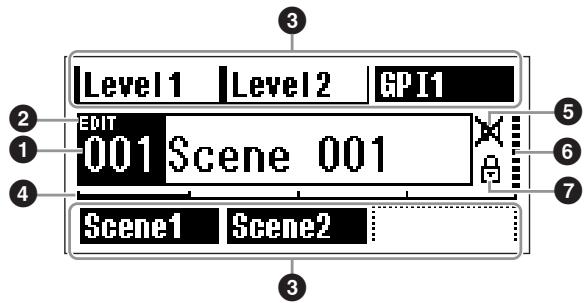
Scene Information
The current scene number and name. Scene names can be entered by using the DME Designer application. A maximum of 12 one-byte (Roman) characters can be displayed in a scene name. When "two-byte" characters are to be used for languages such as Japanese, the total number of displayable characters is reduced accordingly.
When the power is turned on the last scene selected before the power was turned off is automatically recalled.
Edit Indicator
If a parameter is changed after recalling a scene, a dot will appear in the scene number indicator, and “EDIT” will appear in the display.
User Defined Button Names
Displays the User Defined Button. The buttons are specified by using the DME Designer application. "No Assign" settings in DME Designer are displayed as dotted lines. When [Parameter Value Edit] is selected the display will be a solid line. When [Direct Parameter Value], [Scene Change], [GPI Out], or [Play Wav File] are selected, the display will be inverted.
A maximum of 24 buttons can be made available for user control, but only six buttons can be shown in any one display page. Press the [HOME] button to switch to other available button pages. A maximum of 8 one-byte (Roman) characters can be displayed in a button name. When "two-byte" characters are to be used for languages such as Japanese, the total number of displayable characters is reduced accordingly.
Buttons are selected for editing by using the cursor buttons - [▲] [▲] [▼] [▶] - to select the button, and then pressing [ENTER].
NOTE
User Defined Button settings are common to the device group.
Page Scroll Bar
The scroll bar provides an indication of which parameter page is currently being displayed. 4 pages are available, and the scroll bar moves one position to the right each time the [HOME] button is pressed and a new page of parameters is selected, and then back to the leftmost position after the rightmost position has been reached.
NOTE
Scroll bar operation is independent for each DME64N/ DME24N unit, and is not linked within a device group.
Mute Indicator
Shows the current mute ON/OFF status.

: Mute ON

: Mute OFF
Output Level Indicator
Displays the current output level in 10 increments. The longer the "bar," the higher the output level.
Panel Lock Icon
This icon appears when the panel lock function is turned ON.

: Panel Lock ON (Panel controls locked)
Panel Lock
The panel controls can be "locked" to prevent accidental mis-operation.
To activate the panel lock function simultaneously press and hold the [HOME] and [ENTER] buttons for longer than 2 seconds.
The panel lock icon will appear on the Main display when the panel is locked.
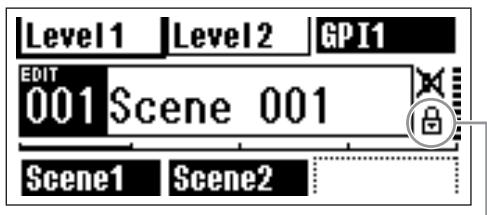
Panel lock icon
Panel Lock can be disengaged by pressing the [CANCEL] button for longer than 2 seconds.
NOTE
The panel lock function can be set up to lock just the panel buttons ("Key Only"), or the panel buttons and GPI control ("Key+GPI"). You can also select whether or not the panel lock function is automatically engaged when the unit is initially turned on. This selection can be made via the Utility display "Lock" page (refer to the page 47).
Parameter Edit Displays
Parameter Edit displays will appear when the [SCENE], [MUTE], [MONITOR] or other button is pressed to allow scene changes, level adjustment, and other settings to be edited as required. Parameter Edit displays are also used to edit utility parameters.
In most cases the desired parameter edit page can be accessed by selecting the item you want to edit in the appropriate display by using the cursor [ ], [▲], [▼], and [▶] buttons, and then pressing the [ENTER] button.
There are basically three types of parameters that can be accessed via a Parameter Edit display:
- Numeric values
Lists
ON/OFF switches
Numeric Parameters
Numeric parameters can be edited in a number of ways, and depending on the parameter a fader, knob, or minimum and maximum values may appear to the left of the numeric value.
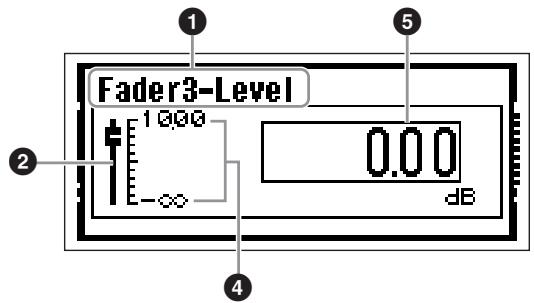
A Numeric Value with a fader
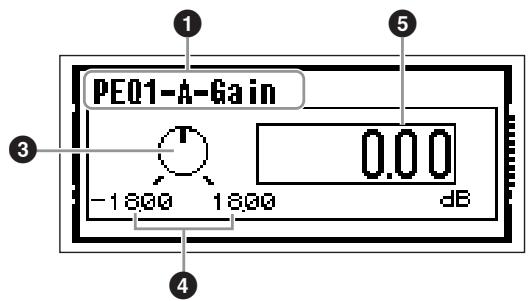
A Numeric Value with a Knob
1 Name of parameter selected for editing
Fader
3 Knob
Minimum and maximum values
Current value
Some Parameter Edit displays have just one numeric parameter, while other may have two or more.
Parameter Edit Display with One Numeric Parameter
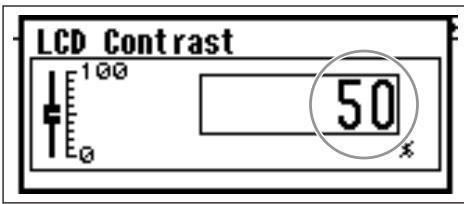
- Numeric values can be changed by rotating the dial. Dial rotation produces an immediate, corresponding change in the selected value.
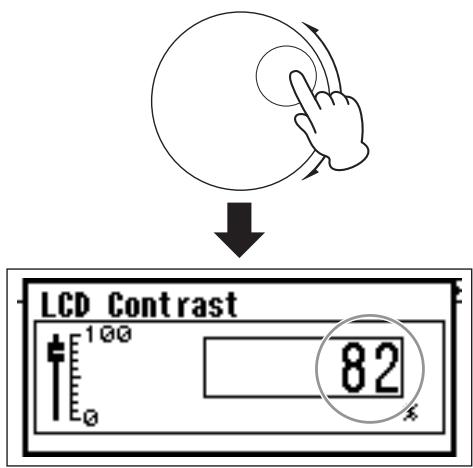
- Press the [ENTER] button to close the Parameter Edit display after the value(s) have been edited as required.
Parameter Edit Display with Multiple Numeric Parameters
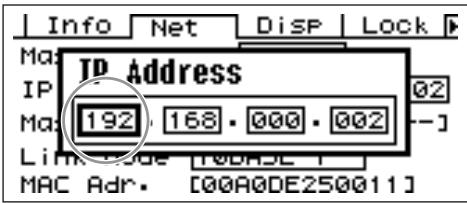
- Use the cursor buttons - [▲] [▲] [▼] [▶] - to select the value to be edited.
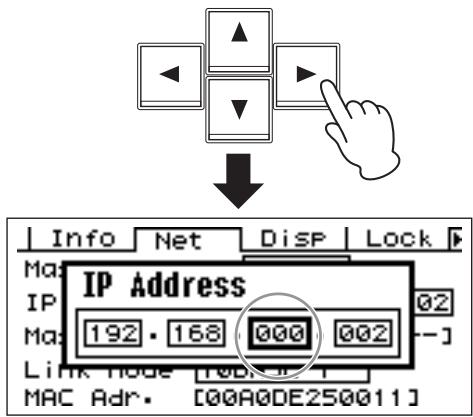
- Rotate the dial to edit the value as required.
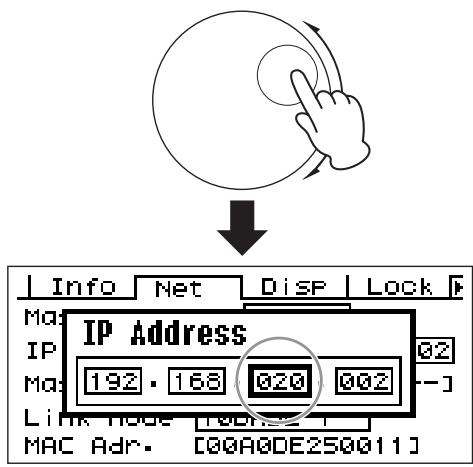
- Repeat step 1 to select the next value to be edited, use the dial to edit as required, and repeat until all values have been edited as required.
- When all values have been edited, press the [ENTER] button. A confirmation window will appear: press [ENTER] one more time to confirm the edits and close the window.
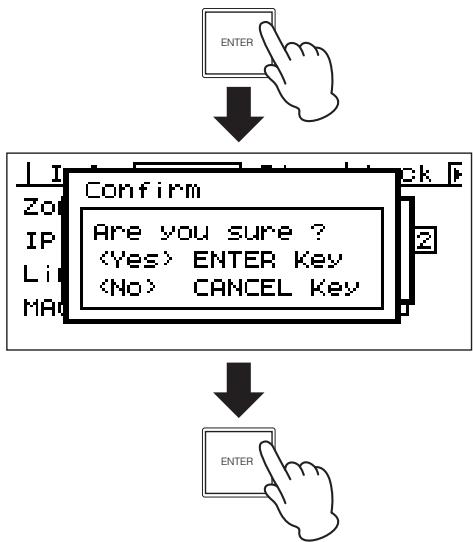
NOTE
You can close the window without changing any values by pressing the [CANCEL] button rather than the [ENTER] button.
List Parameters
List parameters allow you to make one selection from a list of possibilities.
Rotate the dial to scroll up or down the list. In some cases the centermost item on the display will be always highlighted as the list is scrolled, and in others the same item will remain highlight as the list is scrolled up or down.
List Parameter with Center Item Always Highlighted
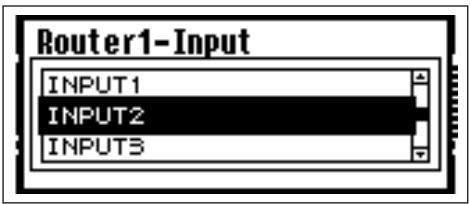
1. Use the dial to scroll up or down the list.
As you scroll the centermost item on the display will be highlighted.
2. Press the [ENTER] button to select the highlighted item and close the window.
List Parameter with Scrolling Highlight
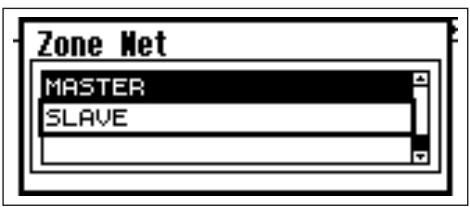
1. Use the dial to scroll up or down the list.
As you scroll the highlighted selection will remain highlighted, and will scroll up or down with the list.
2. Press the [ENTER] button to highlight the centermost item on the display.
NOTE
In some cases a confirmation dialog will appear when the [ENTER] button is pressed. If this occurs press the [ENTER] button a second time to continue.
3. Press the [ENTER] button to select the highlighted item and close the window.
ON/OFF Parameters
Parameters that are either ON or OFF are edited via this type of display (e.g., Mute Parameter Edit display in "Mute Switching" on page 39).
- Rotate the dial clockwise to select ON, or counterclockwise to select OFF.
- Press enter to confirm the selection and close the window.
Parameter Edit displays will also appear when the [SCENE], [MUTE], [MONITOR] or other button is pressed.
These allow scene changes, level adjustment, and other settings to be edited as required.
Editing User Defined Button
- If the Main display is not showing, press the [HOME] button to recall it.
- Press the [HOME] button until the page containing the parameter to be edited appears.
- Use the [] [] [] [] buttons select the parameter to be edited.
- Press the [ENTER] button.
The Parameter Edit display for the selected User Defined Button will appear.
NOTE
User Defined Button can be of all three types: numeric, list, and ON/OFF.
NOTE
When editing from an ICP1 control panel, the [F1] ~ [F6] buttons are used for button selection.
5. Edit the User Defined Button as required.
Refer to "Parameter Edit Displays" on page 36 for editing procedures.
NOTE
Any changed User Defined Button values will be lost if the power is turned off or if scenes are changed. However, if the Last.Mem.Resume setting is ON, the setting will be preserved even when the power is turned off. To preserve the changed values, store the scene data.
Mute Switching
Turns the DME64N/24N output mute function ON or OFF.
1. Press the [MUTE] button.
The Mute Parameter Edit display will appear.
![YAMAHA DME-24N - Press the [MUTE] button. - 1](/content/2025/01/114975/images/1ba4c578101ef24d51e84e656fb7fdfbafc926a367cb4bc3783681404af27ca1.jpg)
2. Select Mute ON or OFF.
The mute function is turned on or off as described in "ON/OFF Parameters" on page 38.
NOTE
To access this function from the ICP1 control panel, hold the [F6] button for longer than 2 seconds.
NOTE
All outputs in the device group, including the [PHONES] jack, are muted.
Output Level Control
Adjust the output level of the DME64N/24N.
NOTE
Output level settings apply individually to each DME64N/24N unit. There is no overall device group setting. This function cannot be accessed from the ICP1 control panel.
1. Press the [LEVEL] button.
The "Output Level" Parameter Edit display will appear.
![YAMAHA DME-24N - Press the [LEVEL] button. - 1](/content/2025/01/114975/images/f5dc433d482280003f7f8663253c6e5af761486b0fdabfb496794530bbf25353.jpg)
2. Adjust the numeric output level parameter as required.
The Output Level parameter is adjusted as described in "Numeric Parameters" on page 36. The graphic fader provides a visual indication of the current output level setting.
Scene Recall
This procedure recalls a new scene (refer to page 10).
NOTE
The same procedure is used for scene recall from an ICP1 control panel.
1. Press the [SCENE] button.
The Scene Recall display will appear.
![YAMAHA DME-24N - Press the [SCENE] button. - 1](/content/2025/01/114975/images/05a3f636a21f3e016f7b7a50725e2bdb7830b079b399345016c05bc406f89e6b.jpg)
2. Select a new scene.
Scenes are selected as described in the "List Parameters" section on page 38.
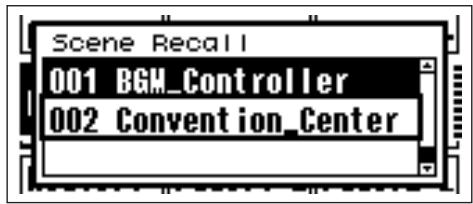
3. Press the [ENTER] button.
A confirmation window will appear.
![YAMAHA DME-24N - Press the [ENTER] button. - 1](/content/2025/01/114975/images/1d29e56b8c509dba1d04a36fbd5081758aecf6fb1e111f837b9fe5e3be560317.jpg)
4. Press the [ENTER] button again.
The new scene will be selected.
![YAMAHA DME-24N - Press the [ENTER] button again. - 1](/content/2025/01/114975/images/39ce9905257199f27724ba9071a5df5beb8469708e71ec01c5aafe5b11fa30fe.jpg)
![YAMAHA DME-24N - Press the [ENTER] button again. - 2](/content/2025/01/114975/images/37c1c2f25cc782d03c90c7191e9438e114d742551f095764814e9ace356209e3.jpg)
Don't turn the power off during a scene recall operation. Doing so can cause corruption of the current scene data.
NOTE
Scenes can also be changed from a computer or GPI/ MIDI controller connected to the device.
The DME Designer application is used to make scene changes from a computer. If a GPI/MIDI controller is to be used for changes it must be initially set up for scene change control by using the DME Designer.
NOTE
If head amplifier parameters are included in the recalled scene data, the head amplifier settings will be changed accordingly.
Scene Store
Stores the current scene data for later recall.
NOTE
This function can be accessed in the same way from the ICP1.
1. Press the [SCENE] button for longer than 2 seconds.
A confirmation window will appear on the display.
![YAMAHA DME-24N - Press the [SCENE] button for longer than 2 seconds. - 1](/content/2025/01/114975/images/b242395ea2afe6622375c1ead6dc23069a2d584193e332b61e7750de3fb0c9e2.jpg)
2. Press the [ENTER] button.
This stores the scene data in the current scene memory.
NOTE
Press the [CANCEL] button if you want to abort the scene store operation.
NOTE
If head amplifier settings are included in the scene the Utility display HA page settings are also stored. If head amplifier settings are not included in the scene, the HA page settings are stored as head amplifier startup settings.
NOTE
Any parameter values changed by GPI/MIDI controllers will be lost if the power is turned off or if scenes are changed. To preserve the changed values, store the scene data.
Monitoring
The monitor functions allow you to monitor the audio signal at the inputs or outputs of I/O slots, points between components, and other critical monitoring points.
NOTE
User-defined monitoring functions, such as monitoring at points between components, must be specified via the DME Designer application.
NOTE
These functions cannot be accessed from the ICP1.
1. Press the [MONITOR] button.
The slots available for monitoring will be shown in the parameter list.
![YAMAHA DME-24N - Press the [MONITOR] button. - 1](/content/2025/01/114975/images/ba940621efc59a904c0177ff355e0844cc86469643fb449dfc15a11d900e7147.jpg)
2. Select the desired monitor source from the list.
List selections are made as described in the "List Parameters" section on page 38.
The following five position types can be selected:
1 Slot input/output terminal
2 CASCADE input/output terminal (DME64N only)
3 IN terminal (DME24N only)
4 OUT terminal (DME24N only)
5 User Defined
By connecting 1 through 4 in DME Designer, you will be able to select the input/output terminal.
You will be able to select 5 by editing the Monitoring Point List in DME Designer.
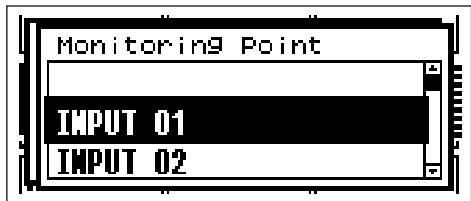
3. Select the desired monitor point from the list.
The audio signal from the selected monitoring point will be output via the PHONES jack and the [MONITOR] indicator lights up.
NOTE
Press the [CANCEL] button to move back to the previous edit display.
NOTE
When the monitoring function is set to ON ([MONITOR] indicator lit steadily), you can turn it OFF by pressing the [MONITOR] button.
Probe Monitor Functions
The Probe Monitor function allows monitoring points to be selected from the DME Designer application. For details, see the “DME Designer Owner's Manual.” When the Probe Monitor function is used the monitoring point will change and the [MONITOR] indicator will flash.
NOTE
The monitoring point selected in the DME64N/24N is disabled.
Spectrum Display
The monitor functions also provide spectrum analyzer type level display of the signal at the selected monitor point.
NOTE
Spectrum display is not available on the ICP1 control panel.
Procedure
- Select the monitor point for which you want to see a spectrum display from the list.
- Press the [ENTER] button.
A spectrum display of the audio signal at the selected monitor point will appear.
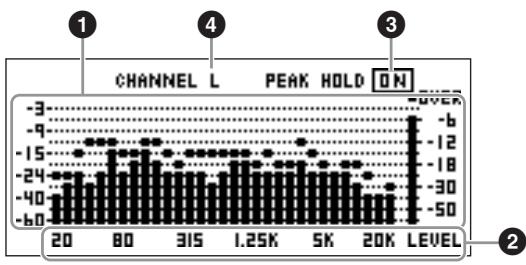
1 Frequency
These are the separate frequency bands displayed.
2 Band Output Level
Signal level is displayed independently in 31 separate frequency bands. Output level is displayed in 12 steps.
Peak Hold
When the peak hold function is ON, peak levels since the current monitor point was selected are held indefinitely. Peak levels are cleared after one second when peak hold is OFF.
To turn the peak hold function ON or OFF, move the cursor to the PEAK HOLD ON/OFF setting and press the [ENTER] button to alternately turn it ON or OFF.
L/R Select
Indicates when the spectrum display is for the left or right channel. The same spectrum display will be shown for the L and R channels of all monitor points other than user-defined points specified via the DME Designer application.
To switch between the L and R displays move the cursor to the CHANNEL L/R setting and press the [ENTER] button to alternately select L or R.
NOTE
The fall rate of the meters can be set up via the Utility display "Disp" page.
Level Meter Display
Individually displays the input/output level for each channel.
NOTE
Level display is not available on the ICP1 control panel.
1. Make sure that the Main display is showing.
If the Main display is not showing, press the [CANCEL] to return.
2. Press the [UTILITY] button.
The level meter display will appear.
![YAMAHA DME-24N - Press the [UTILITY] button. - 1](/content/2025/01/114975/images/791e59fd2e62bfc95ffe9cc88f2dff3956af4fd6184b83fb9bd86b7e18299166.jpg)
Level Display Slot
Select from [SLOT1] ~ [SLOT4], [AD/DA], [CASCADE IN] or [CASCADE OUT].
NOTE
[SLOT2] ~ [SLOT4] and [CASCADE IN], [CASCADE OUT] are only available on the DME64N, while [AD/DA] is only available on the DME24N.
Channel Number
A maximum of 32 [CASCADE IN]/[CASCADE OUT] channels can be displayed, while for other channels a maximum of 16 can be displayed.
Input/Output Level Display
Shows the levels at the individual inputs and outputs.
4 Peak Hold
When the peak hold function is set to ON, peak levels are held indefinitely. Peak levels are cleared after one second when peak hold is set to OFF.
To turn the peak hold function ON or OFF, move the cursor to the PEAK HOLD ON/OFF setting and press the [ENTER] button to alternately turn it ON or OFF.
Initializing the DME64N/DME24N
The DME64N/DME24N and ICP1 internal memories can be initialized as follows.
Begin with the power turned off. Turn the power on while holding the [SCENE] and [ENTER] buttons, and continue to hold those buttons until the Yamaha logo appears.
The initialization screen will appear, allowing you to choose one of the following three options.
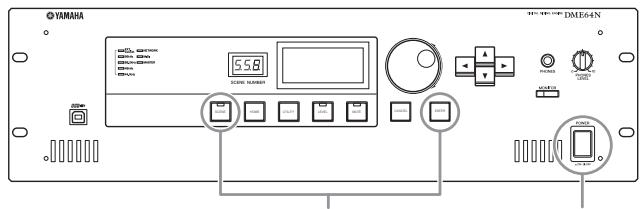
1.Holding down the [SCENE] and [ENTER] buttons
2. Press the [POWER] button
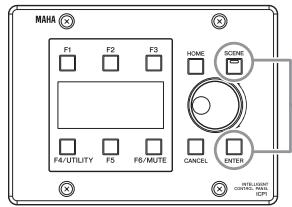
Plug the PA-300 AC adaptor while holding down the [SCENE] and [ENTER] buttons
01.Initialize DME:
All scenes, preset parameter settings and WAVE files except components and files saved via the File Storage function will be deleted. All UTILITY settings are reset to their default values.
02/Delete All Data:
All internally-stored components, scenes, preset parameters, wave files, and files stored using the File Storage function are erased. All UTILITY settings are reset to their default values. Use this problem when a problem occurs with the data stored in the device. After initialization, make sure to update the firmware and the components from the DME Designer application. Refer to the DME Designer Owner's Manual for details.
03. => Exit Diag Mode:
Exits from the initialization screen and restarts the unit.
Do not turn off the power during initialization. Doing so can damage the device.
Utility Displays
Most basic DME64N/24N functions can be accessed via the Utility Display.
Items accessible via the Utility display
| Page | Item | Description | Manual Page |
| Info | Current status and settings for the devices basic parameters. | Page 45 | |
| Label | Name display. | ||
| Version | The device's current version number. | ||
| Date | Current status and setup for the internal calendar/clock. | ||
| Battery | Shows the status of the internal battery. | ||
| Net | Current status and settings for the Ethernet network. | Page 46 | |
| MASTER/SLAVE | Displays current status and determines whether the device is device group master or not. | ||
| IP Adr. | Current status and setup for the device's IP address. | ||
| Master ID | Displays and sets the device group master host address. | ||
| Link Mode | Current status and setup for the [NETWORK] connector. | ||
| MAC Adr. | Displays the device's MAC address. | ||
| Disp | Current status and setup for the display mode, etc. | Page 46 | |
| LCD Contrast | Current status and setup for display panel contrast. | ||
| LCD Backlight | Current status and setup for the display panel backlight. | ||
| Meter Fall Time | Current status and setup for meter fall time. | ||
| Lock | Current status and setup for panel lock and related functions. | Page 47 | |
| Utility | Current status and setup for the Utility display settings. | ||
| Panel Lock Boot | Current status and setup for the DME64N/24N's power-on panel lock status. | ||
| Panel Lock Target | Current status and setup for the panel lock target. | ||
| User Defined Lock | Panel lock and setup for each page of User Defined Button. | ||
| Misc | Current status and setup for settings not included in other pages. | Page 48 | |
| Scene Store | Current status and setup for scene store accessibility. | ||
| Last Mem. Resume | Indicates and determines whether the previous memory contents will be retained when the unit is restarted. | ||
| Event Scheduler | Current status and setup whether an event schedule setup in the DME Designer will be executed or not. | ||
| Remote | Rmt Ctrl | Displays/sets the connector and connection type to be used for DME remote control protocol communication. | Page 48 |
| Int HA Ctrl | Displays/sets the connector to be used for internal head amp control. | ||
| Ext HA Ctrl | Displays/sets the type of connection to be used for external head amp control. | ||
| COM | Displays/sets the type of connection to be used for DME protocol communication. | ||
| MIDI | Current status and setup for MIDI functions. | Page 49 | |
| Port | Current status and setup of the MIDI port. | ||
| Protocol | Displays/sets the protocol to be used for communication with devices connected via MIDI. | ||
| CH | Current status and setup for the MIDI transmit and receive channels. | ||
| Program Change | Current status and setup for program change transmission/reception, omni on, and echo on/off. | ||
| Control Change | Current status and setup for control change transmission/reception, omni on, and echo on/off. | ||
| Param Change | Current status and setup for parameter change transmission/reception, omni on, and echo on/off. | ||
| WCLK | Current status and selection of the DME64N/24N word clock. | Page 50 | |
| Fs | Displays the word clock frequency. | ||
| Int | Current status of the internal word clock. | ||
| WCIN | Current status of the word clock received at the [WORD CLOCK IN] connector. | ||
| Cascade | Current status of the word clock received via the [CASCADE IN] and [CASCADE OUT] connectors. | ||
| SLOT1-4 | Current status of the word clock received via cards plugged in to the I/O card slots. | ||
| Slot | Displays info about an I/O card installed in a DME64N/24N I/O slot. | Page 51 | |
| Card name | Displays the name of the installed card. | ||
| (no title) | Reset the installed card. | ||
| Format | Displays the audio format - 88.2 or 96 kHz. | ||
| GPI | GPI connector calibration and status display. | Page 51 | |
| Reset | Reset the GPI calibration. | ||
| Max | Sets the maximum calibration value. | ||
| Min | Sets the minimum calibration value. | ||
| (no title) | Current calibration status. | ||
| HA | Current status and setup for the internal and connected external head amplifiers. | Page 52 | |
| HA | Current status and setup for head amplifier type. | ||
| WCLK | Current status and setup for the word clock used by the head amplifier(s). | ||
| (no title) | Displays the audio format 88.2/96 kHz. | ||
| Gain | Current status and setup for individual head amplifier channel gain. | ||
| +48V | Current status and setup for individual head amplifier channel phantom power supply (+48V ON/OFF). | ||
| (no title) | Displays current status of the master phantom power switch. | ||
| HPF | Current status and setup for individual head amplifier channel high-pass filter on/off. | ||
| Freq | Current status and setup for individual head amplifier channel high-pass filter frequency. | ||
| CASCAD(DME64N only) | Displays current status for the [CASCADE] connectors. | Page 53 | |
| Head Margin | Displays current status for the head margin of the audio signal handled via the [CASCADE] connectors. | ||
| Unit No. | Displays how many devices the unit is from the beginning of the cascade chain. | ||
| Mixer I/O | Displays current status for the channels to be used for audio signals cascaded to a mixer. | ||
| Check | Mode | Current status and setup for the thru connection. | Page 54 |
Utility Display Operation
The general procedure for operating the Utility displays is outlined below.
- Press the [UTILITY] button for longer than 2 seconds from the Main display to go to the Utility display.
- Press the [UTILITY] button as many times as necessary until the desired parameter page appears.
NOTE
Press the [CANCEL] button to display the pages in reverse order.
- Use the cursor buttons - [][] [][] to select the parameter you want to edit.
NOTE
On the ICP1 the function buttons are used in place of the cursor buttons as follows:
[F1] button: Left
[F2] button: Up
[F3] button: Right
[F5] button: Down
- Press the [ENTER] button.
This either confirms a selection or edit, or calls the appropriate parameter edit page.
Info Page
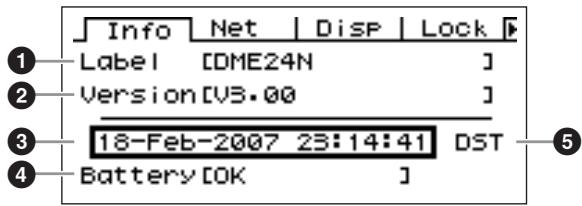
NOTE
The date and time (3) and the internal battery status
(4) are not shown on the ICP1 control panel display.
1 Label
Shows the name. The name can be changed via the DME Designer application running on a computer connected to the unit.
NOTE
The name can not be changed from the DME64N/24N controls.
Program Version
This is the current firmware version number.
Date
Shows the currently set date and time. The internal clock and calendar can be set here.
Edit using the "Numeric Parameters" editing procedure described on page 36.
NOTE
"Zone slave" cannot be used to set this parameter.
Date/Time Parameter Edit Dialog
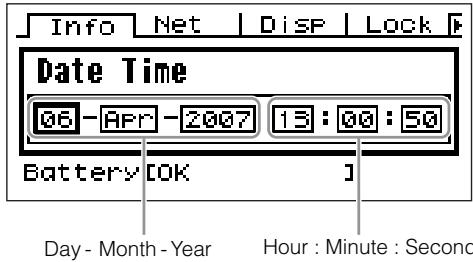
4 Battery
Shows the status of the internal battery. "Low Battery" will appear when the battery needs to be replaced, and "No Battery" will appear when no battery is present in the device.
Daylight Saving Time
If you enable daylight saving time, the display will indicate "DST."
You can enable daylight saving time using DME
Designer from a connected computer.
NOTE
Daylight saving time cannot be set on the DME64N/24N itself.
Network Settings (Net) Page
Shows the Ethernet network address and other parameters.
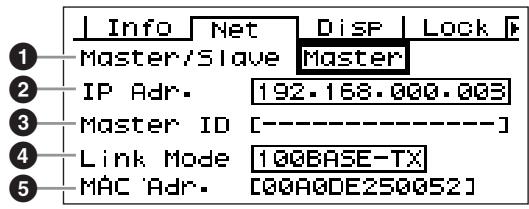
1 Master/Slave
Indicates whether or not the device is functioning as the device group master: "Master" or "Slave."
Master: the device is the device group master.
Slave: the device is a device group slave.
Edit using the "List Parameters" editing procedure described on page 38.
NOTE
Device group status of ICP1 is fixed to "Slave." This cannot be changed.
NOTE
Make sure that one device group master is assigned for each device group. If no device group master is assigned, no scene information will appear on the display and scene-related control will not be possible. Mute operations will also not be possible.
IP Adr.
This is the device's IP address.
Edit using the "Numeric Parameters" editing procedure described on page 36.
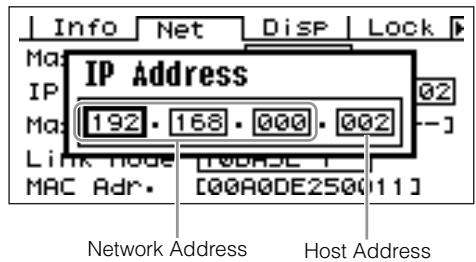
NOTE
The network addresses of devices in the same device group must be the same.
NOTE
Device group master's IP address can be changed via the DME Designer application running on a computer connected to the unit.
Master ID
Displays and sets the device group master host address.
NOTE
This is not displayed on the device group master device.
4 Link Mode
Shows the status of the [NETWORK] connector. The [NETWORK] connector can be set to operate in "10Base-T" or "100Base-TX" mode.
10Base-T: The [NETWORK] connector is compatible with 10Base-T operation.
100Base-TX: The 100Base-Tx: [NETWORK] terminal operates as 100Base-TX if possible. If the network environment does not support 100Base-TX, it operates as 10Base-T.
Edit using the "List Parameters" editing procedure described on page 38.
5 MAC Adr.
This is the device's MAC (Media Access Control) address.
NOTE
The MAC address is also known as the Ethernet address, and is an independent address assigned to all Ethernet devices. No two devices anywhere in the world can have the same address.
Display Setup (Disp) Page
Provides access to a number of display parameters.
NOTE
The meter fall time (3) is not shown on the ICP1 control panel display.
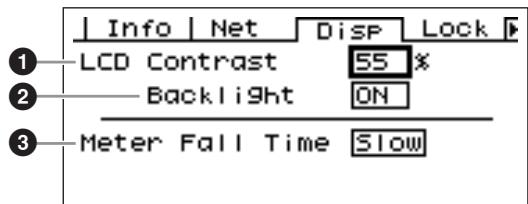
LCD Contrast
The current LCD contrast setting. This parameter can be adjusted from 0% through 100% .
Edit using the "Numeric Parameters" editing procedure described on page 36.
LCD Backlight
Specifies LCD backlight operation. Two settings are available: "ON," and "OFF."
ON: The display is continuously lit.
OFF: The display lights when a control is operated, and will go out 10 seconds after panel operation ceases.
Pressing the [ENTER] button alternately selects "ON" and "OFF".
3 Meter Fall Time
Determines the fall time of the level meters – “Fast” or “Slow.”
Fast: The meters rapidly follow changes in the signal level.
Slow: The meters fall slower than the actual changes in the signal level, allowing easier reading in some cases.
Edit using the "List Parameters" editing procedure described on page 38.
Security Setup (Lock) Page
Panel lock and related settings.
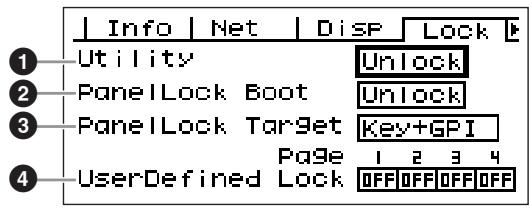
Utility
The lock status for the Utility display settings. This parameter can be set to "Unlock" or "Lock."
Unlock: The Utility display can be accessed without a password.
Lock: A password must be entered to access the Utility display.
When "Lock" is selected a password entry window will appear when the [UTILITY] button is pressed to access the utility pages.
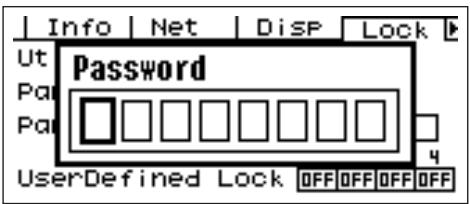
Use the [ ] and [ ] buttons to position the cursor, and the dial to enter the desired character at the cursor location. When all of the password's characters have been entered as required press the [ENTER] button.
The password will also be required when switching from the "Unlock" mode to the "Lock" mode.
NOTE
Password security and management is very important! If you forget your password the unit cannot be operated! If you forget your password contact the system administrator.
If the password become unrecoverable for some reason and you need to unlock the system, please contact your Yamaha representative.
Panel Lock Boot
Determines whether or not panel lock will be on when power to the device is turned on. This parameter can be set to "Unlock" or "Lock."
Unlock: Panel lock is OFF when power to the device is turned on.
Lock: Panel lock is ON when power to the device is turned on.
Panel Lock Target
Determines the controls (control functions) to be affected by panel lock. The available settings are "Key Only" and "Key+GPI."
Key Only: Panel lock only affects the panel buttons.
Key+GPI: Panel lock applies to the panel buttons as well as GPI control input.
NOTE
See page 36 for details on how to use the Panel lock feature.
NOTE
This parameter is displayed, but cannot be changed on the ICP1 display.
User Defined Lock
- Sets the lock status individually for each of the four User Defined Button pages.
ON: The corresponding User Defined Button will not appear on the display.
OFF: The corresponding User Defined Button will appear on the display.
To change the settings use the [ ] and [▶] buttons to move the cursor to the setting for the desired page, the press the [ENTER] button to alternately turn the setting "ON" and "OFF."
NOTE
The User Defined Button are accessed as described in the "Parameter Edit Display" section on page 36.
Miscellaneous Setup (Misc) Page
This page includes parameters not available in any other page.
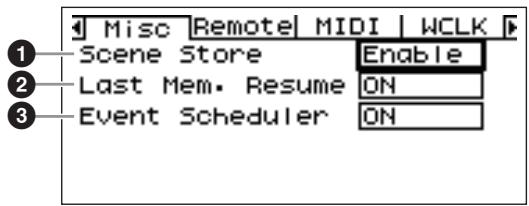
Scene Store
Determines whether or not scene store operations are allowed. This parameter can be set to "Enable" or "Disable."
Enable: Scene store operations are allowed.
Disable: Scene store operations are prohibited.
Edit using the "List Parameters" editing procedure described on page 38.
NOTE
This item cannot be set if Internal HA Ctrl is set to Remote.
NOTE
This setting applies to individual devices only. Even if one DME64N/24N unit is set to "Disable," scene store operations will be possible via another DME64N/24N in the same device group that is set to "Enable."
Last Mem. Resume
This parameter displays and determines whether the DME64N/DME24N will recall the current scene when started up, or whether the memory contents at the time the unit was turned off will be recalled. The possible settings are "ON" or "OFF".
ON: The memory contents at the time the unit was turned off will be recalled at startup.
OFF: The current scene will be recalled at startup.
NOTE
This parameter can be changed from the device group master only.

If "Last Mem. Resume" is set to ON, the unit will back up data to the internal memory periodically. In this case, do not turn off the power to the unit within five (5) seconds after you operate any parameters.
Event Scheduler
Determines whether an event schedule setup in the DME Designer will be executed or not, and displays the current status. This parameter can be set to "ON" or "OFF."
ON: The event will be executed.
OFF: The event schedule will not be executed. Edit using the "List Parameters" editing procedure described on page 38.
NOTE
This parameter can be changed from the device group master only.
Remote Control Setup (Remote) Page
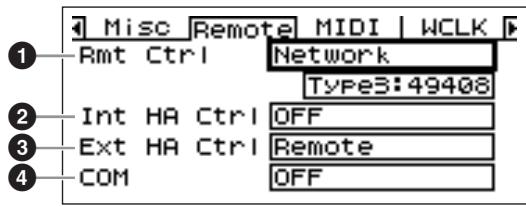
NOTE
This page will not appear on the ICP1 display.
1 Rmt Ctrl (Remote Control)
Displays/sets the connector and connection type to be used for DME remote control protocol* communication. If the selected terminal was previously assigned to a different function, a confirmation dialog will appear. Edit using the "List Parameters" editing procedure described on page 38.
OFF: Select "OFF" when this function is not to be used.
Remote (232C): External controllers (AMX, Crestron, etc.) control the DME64N/24N via the [REMOTE] connector using an RS-232C connection.
Remote (422): External controllers (AMX, Crestron, etc.) control the DME64N/24N via the [REMOTE] connector using an RS-422 connection.
Network: This setting allows the DME64N/24N to be controlled via the [NETWORK] terminal. When "Network" is selected it is also possible to select the port number to be used.
Int HA Ctrl (Internal head amp control)
Displays/sets the connector to be used for internal head amp control. From a single digital mixer, you can control the internal head amps of multiple DME series units within the device group. Set this parameter only on the DME series units that is connected directly to the digital mixer, and turn in "OFF" for other units. Edit using the "List Parameters" editing procedure described on page 38.
OFF: Select "OFF" when this function is not to be used.
Remote (422): Allows a digital mixer to control the internal head amps via RS-422 protocol.
Slot1 [Slot1 ~ Slot4 (DME64N)]: Allows a digital mixer to control the internal head amps via the specified expansion slot.
Ext HA Ctrl (External head amp control)
Displays/sets the type of connection to be used for external head amp control.
OFF: Select "OFF" when this function is not to be used.
Remote (422): Allows remote head amp control. Always use this setting when a remote head amp unit (AD8HR, AD824) is connected. Also, don't change the setting while a remote head amp is connected. Doing so can damage the unit.
COM
Displays/sets the type of connection to be used for DME protocol communication. This is a Yamaha maintenance function. Normally, set this to "OFF".
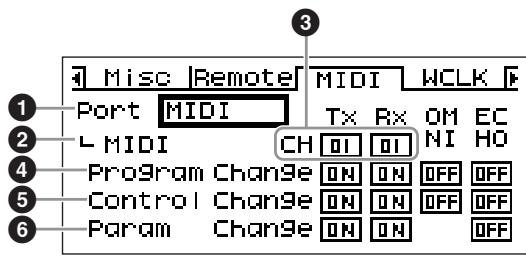
MIDI Setup (MIDI) Page
NOTE
This page will not appear on the ICP1 display.
1 Port (MIDI port)
Sets/displays the port to be used for MIDI communication. The available settings are: OFF, Remote(232C), Remote(422), MIDI, USB-1, USB-2, SLOT-1, SLOT-2, SLOT-3, and SLOT-4.
OFF: Select "OFF" when this function is not to be used.
Remote (232C): MIDI data will be received via the [REMOTE] connector using an RS-232C connection.
Remote (422): MIDI data will be received via the [REMOTE] connector using an RS-422 connection.
MIDI: The MIDI connector is the currently active MIDI port.
USB-1, USB-2: The corresponding USB port is selected for MIDI input.
Slot1 [Slot1 ~ Slot4 (DME64N)]: A card installed in the corresponding I/O slot is currently selected for MIDI input.
Edit using the "List Parameters" editing procedure described on page 38.
NOTE
When the DME64N/24N is functioning as the device group master and is connected to a computer running the DME Designer application via USB, the MIDI port being used by the DME Designer will not be available.
Protocol (MIDI Protocol Setup)
Displays/sets the protocol to be used for communication with devices connected via MIDI. The available settings are: MIDI, DAW(Type1), and DAW(Type2).
MIDI: Use this setting when any MIDI device other than a general-purpose ProTools controller (HUI protocol) or general-purpose Logic or Cubase controller (Mackie control protocol) is to be connected.
DAW (Type1): Use this setting when a general-purpose ProTools controller (HUI protocol) is to be connected.
DAW (Type2): Use this setting when a general-purpose Logic or Cubase controller (Mackie control protocol) is to be connected.
Edit using the "List Parameters" editing procedure described on page 38.
Refer to the DAW controller owner's manual as well as the DME Designer manual for setup details.
NOTE
"DAW" stands for "Digital Audio Workstation." ProTools, Logic, and Cubase are DAW applications, and this parameter provides direct compatibility with a number of physical controls surfaces that are available for use with these DAW software packages.
The following parameters are available when the Protocol parameter is set to MIDI.
CH
Specifies the device's MIDI transmit and receive channel: 1 ~ 16.
Edit using the "List Parameters" editing procedure described on page 38.
Program Change
Turns transmission and reception, the omni mode, and echo ON or OFF for MIDI program change messages. Move the cursor to the required parameter, then press the [ENTER] button to alternately turn ON and OFF.
Control Change
Turns transmission and reception, the omni mode, and echo ON or OFF for MIDI control change messages. Move the cursor to the required parameter, then press the [ENTER] button to alternately turn ON and OFF.
Parameter Change
Turns transmission and reception, and echo ON or OFF for MIDI parameter change messages.
Move the cursor to the required parameter, then press the [ENTER] button to alternately turn ON and OFF.
Word Clock Setup (WCLK) Page
Shows the status of incoming word clock signals, and allows setup of the DME64N/24N master word clock.
NOTE
This page will not be displayed on the ICP1.
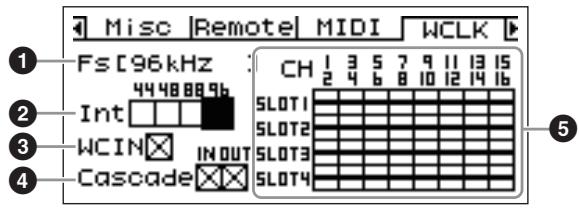
Master Clock Selection Procedure
- Use the cursor [▲], [▲], [▼], [▶], buttons to select one of the square blocks representing the available master clock sources.
- Press the [ENTER] button to select the master clock.
1 Fs
The current sampling frequency of the master word clock. The value shown here is determined by the system's master word clock signal. To select the word clock to be used as the master, move the cursor to the appropriate word clock indication in this display – the [WORD CLOCK IN] clock, the cascade clock, or a slot clock, for example – and press the [ENTER] button.
Int
Sets the frequency of the internal word clock - 44.1 kHz, 48 kHz, 88.2 kHz, or 96 kHz.
3 WCIN
Shows the status of the word clock signal at the [WORD CLOCK IN] connector.
4 Cascade
Shows the status of the word clock signal at the [CASCADE IN] and [CASCADE OUT] connectors.
SLOT1~4
Shows the status of the word clock signal input via I/O cards installed in the I/O slots.
The Status Icons
| □ | A word clock signal is present, and this signal can be selected as the DME64N/24N word clock. |
| × | No word clock signal (cannot be selected as the master clock). |
| ◇ | A word clock signal is present, but is not in sync with the master word clock. |
| ■ | Currently selected as the DME64N/24N word clock. |
| × | Currently selected as the DME64N/24N word clock, but the clock signal is not useable. |
| ● | Inactive slot channel, or no I/O card is present in the slot. |
Slot Information (Slot) Page
Displays the name of the card installed in an I/O card slot. Some cards can also be reset via this page.
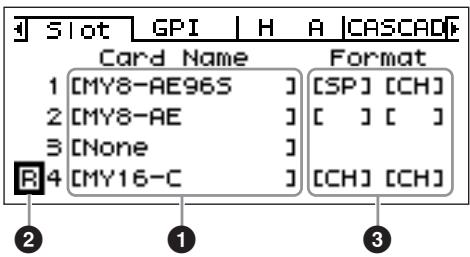
NOTE
This page will not appear on the ICP1 display.
1 Card Name
The name of the installed card appears here.
Reset
Resetstheinstalledcard.
3 Format
Displays the 88.2/96 kHz audio signal transfer mode. The input setting is on the left and the output setting is on the right.
No Display (Default): 44.1/48 kHz audio signal transfer.
SP (Double Speed): An 88.2/96 kHz capable card is installed, allowing direct transfer at 88.2 or 96 kHz.
CH (Double Channel): A 44.1/48 kHz card is installed, and 88.2 or 96 kHz audio is transferred by using two 44.1/48 kHz channels to transfer each channel of 88.2/96 kHz audio. The number of audio channels that can be handled in this mode is half the number of channels normally handled by the card.
GPI Setup (GPI) Page
Input calibration parameters for the [GPI] connector.
NOTE
This page will not appear on the ICP1 display.
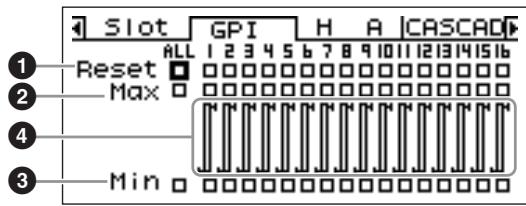
1 Reset
ResetsgPIcalibration.
To reset the calibration, use the [▲][▲][▼][▶] buttons to select ALL to reset all inputs, or select an individual input from 1 to 16 to be reset, then press the [ENTER] button.
MAX
Sets the maximum calibration value.
To set the MAX value, use the [▲][▲][▼][▶] buttons to select ALL to set all inputs, or select an individual input from 1 to 16 to be set, then press the [ENTER] button to set the MAX value to the current input voltage.
MIN
Sets the minimum calibration value.
To set the MIN value, use the [▲][▲][▼][▶] buttons to select ALL to set all inputs, or select an individual input from 1 to 16 to be set, then press the [ENTER] button to set the MIN value to the current input voltage.
4 Calibration Info
Shows the calibration settings as well as the current input voltage.
Head Amplifier Setup (HA) Page
Provides access to the head amplifier settings. Refer to "REMOTE Connection" on page 28 for head amplifier control signal connection.
NOTE
This page will not appear on the ICP1 display.
NOTE
Some scenes include head amplifier settings. In such cases, the HA page settings will be saved along with the scene when it is stored.
Internal Head Amplifier (DME24N only)
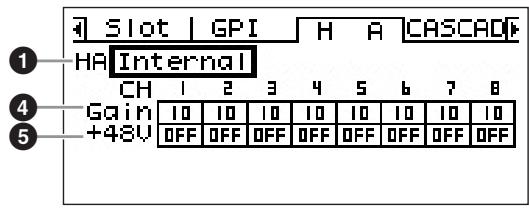
AD8HR
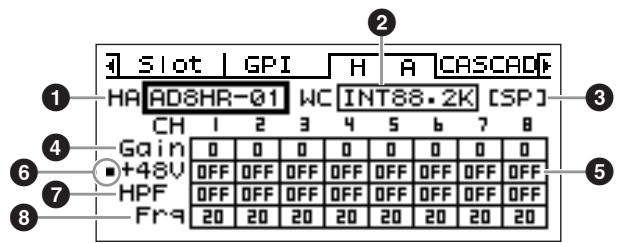
AD824
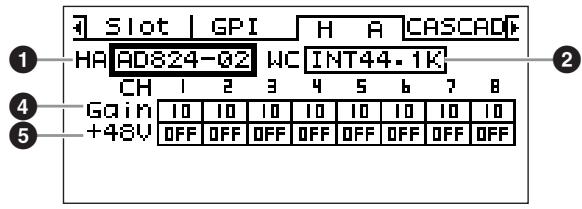
HA
Specifies the type of head amplifier to be set up. The available options are AD8HR, AD824, and Built-in HA (DME24N only). When the AD8HR and AD824 are selected, a number indicating the connection order will also appear.
Edit using the "List Parameters" editing procedure described on page 38.
WCLK (AD8HR/AD824 only)
Specifies the word clock signal to be used by the head amplifier(s).
Available settings of the AD8HR are "D OUT A," "WCLK IN," "INT44.1K," "INT48K," "INT88.2K," and "INT96K."
D OUT A: Sets the word clock signal at the digital input as the master clock of the AD8HR.
WCLK IN: Sets the word clock signal at BNC connector as the master clock of the AD8HR.
INT44.1K: Sets the 44.1 kHz internal word clock as the master clock of the AD8HR.
INT48K: Sets the 48 kHz internal word clock as the master clock of the AD8HR.
INT88.2K: Sets the 88.2 kHz internal word clock as the master clock of the AD8HR.
INT96K: Sets the 96 kHz internal word clock as the master clock of the AD8HR.
Available settings of the AD824 are "SLOT," "BNC," "INT44.1K," and "INT48K."
SLOT A: Sets the word clock signal input via I/O cards installed in the I/O slots as the master clock of the AD824.
BNC: Sets the word clock signal at the BNC connector as the master clock of the AD824.
INT44.1K: Sets the 44.1 kHz internal word clock as the master clock of the AD824.
INT48K: Sets the 48 kHz internal word clock as the master clock of the AD824.
3 Format (AD8HR only)
Displays the 88.2/96 kHz audio signal transfer mode. The input setting is on the left and the output setting is on the right.
No Display (default): 44.1/48 kHz audio signal transfer.
SP (Double Speed): Allows direct transfer at 88.2 or 96 kHz.
CH (Double Channel): 88.2 or 96 kHz audio is transferred by using two 44.1/48 kHz channels to transfer each audio channel of 88.2 and 96 kHz respectively. The number of audio channels that can be handled in this mode is half the number of channels normally handled by the AD8HR.
4 Gain
Individually sets the gain of each head amplifier channel. Edit using the "Numeric Parameters" editing procedure described on page 36.
NOTE
The gain of the DME24N internal head amplifiers can be adjusted from +10 dB to -60 dB in 1-dB increments. The internal circuitry switches at about the -45 -dB point, and the signal is automatically muted at that point to prevent noise.
The AD8HR gain can be adjusted from +10 dB to -62 dB in 1-dB steps, and the AD824 gain can be adjusted from +10 dB to -62 dB in 6-dB steps.
The PAD will be internally switched on or off when the gain of the DME24N built-in head amplifier is adjusted between -8 dB and -7 dB. Keep in mind that noise may be generated if there is a difference between the Hot and Cold output impedance of the external device connected to the IN connector when using phantom power.
5 +48V
Individually turns phantom power ON or OFF for each head amplifier channel.
Use the [ ] and [▶] buttons to position the cursor at the desired channel, then press the [ENTER] button to alternately turn phantom power for that channel ON and OFF.

- Always turn the phantom power off when it is not needed.
- When turning phantom power ON, make sure that no equipment other than phantom-powered devices such condenser microphones are connected to the [IN] connectors (DME24N only). Applying phantom power to a device that does not require phantom power can damage the device.
- Do not connect or disconnect a device to a [IN] connector (DME24N only) while phantom power is applied. Doing so can damage the connected device and/or the unit itself.
- To prevent speaker and possible hearing damage, be sure to turn power amplifiers OFF when turning phantom power ON or OFF. It is also a good idea to turn the output level all the way down (page 39).
Phantom Master Switch (AD8HR only)
Displays overall phantom power ON or OFF.
High-pass Filter (HPF) (AD8HR only)
Individually turns the high-pass filter for each AD8HR head amplifier channel ON or OFF. This parameter is only available for the AD8HR head amplifier. Use the [ ] and [ ] buttons to select a channel, then press the [ENTER] button to turn the HPF for that channel ON or OFF.
High-pass Filter Frequency (Frq) (AD8HR only)
Individually sets the high-pass filter frequency for each AD8HR head amplifier channel. This parameter is only available for the AD8HR head amplifier.
Edit using the "Numeric Parameters" editing procedure described on page 36.
Cascade Setup (CASCAD) Page
Shows the status of the [CASCADE] connectors. Refer to "CASCADE Connection" on page 31 for connection details.
Settings are made from the DME Designer application running on the connected computer.
NOTE
This page only appears on the DME64N.
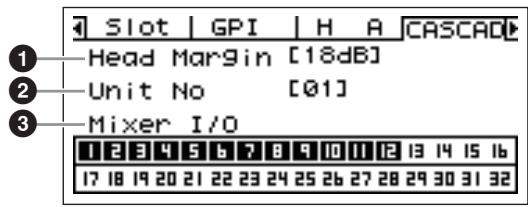
Head Margin
Displays the head margin for cascade connection.
18dB: Use this setting when cascading DME64N units or when connecting to a mixer's normal cascade bus.
0dB: Use this setting when connecting to a PM5D in situations in which the PM5D SLOT OUT port signal is being output via the CASCADE OUT terminal.
NOTE
The Head Margin setting only applies when connected to a mixer. When the DME64N is connected to another DME64N unit, head margin is fixed at 18 dB.
Unit No
Shows how many devices the unit is from the beginning of the cascade chain.
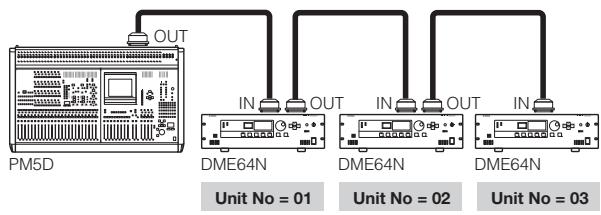
3 Mixer I/O
Displays whether the cascade signal is bus shared or not.
A DME64N connected directly to the mixer is connected to a second DME64N on this unidirectional channel.
Input on the same channel from other DME64N units will be independent.
□: This channel is being used for bidirectional bus shared connection between DME64N units. Input on the same
channel from other DME64N units will be summed.
NOTE
Make sure that the Mixer I/O setting is the same for all cascaded DME64N/24N units.
Check Page
Even in an environment with no computer, you can check the connections without using DME Designer by directly connecting the DME64N/24N input/output.
The meter does not operate during a connection check.
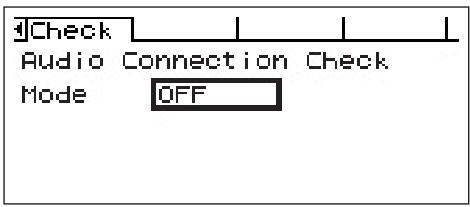
MODE: OFF
Makes connections in the configuration used in the current scene.
This is set to OFF when the unit is started.
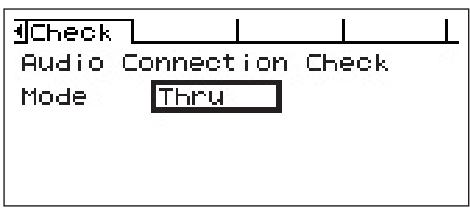
MODE: Thru
Directly connects the Input and Output of each slot one-to-one for each channel.
When input-only or output-only cards like AD or DA cards are inserted in the slots, you cannot perform checks in this mode.
In the DME24N, the internal AD and internal DA are directly connected on each channel.
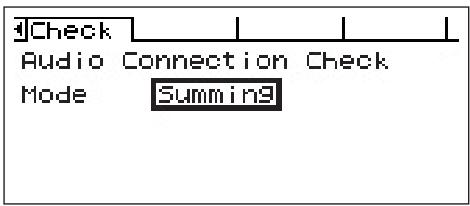
MODE: Summing
Sums all input signals coming from Inputs (-12dB), without regard to device or card type, and outputs it through all Outputs.
NOTE
This page will not appear on the ICP1 display.
References
Options
The ICP1, CP4SW, CP1SF, and CP4SF controllers are available as options for remote external control of the DME series. The ICP1 connects via Ethernet, while the CP4SW, CP1SF, and CP4SF connect via the GPI interface. For more information on installing your Control Panel and connecting it to a DME series unit, refer to the owner's manual that came with the Control Panel. For more information on settings, refer to the DME Designer Owner's Manual.
ICP1
This controller connects to a DME series unit via Ethernet. Like the DME series units, a unique IP address must be assigned to each controller unit. Data is transmitted and received via Ethernet cables.
You can assign and control any function of all DME series units in the same device group via the controller. Up to four parameter sets can be assigned to six function buttons (F1 - F6) located above and under the LCD. You can control up to 24 parameters by selecting a display page using the [HOME] button.
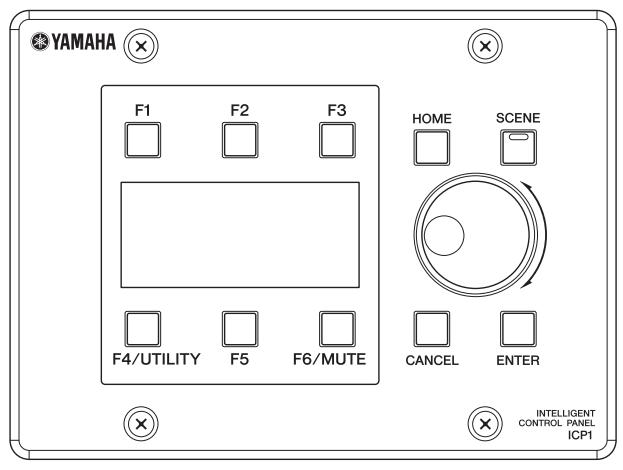
CP4SW, CP4SF, and CP1SF
These controllers connect to DME series units via the [GPI] connectors. These controllers control only the DME series units to which they are directly connected. The controller switches enable you to turn the parameter settings On and Off. The switch LEDs enable you to check the parameter status. The faders enable you to control the parameter values.
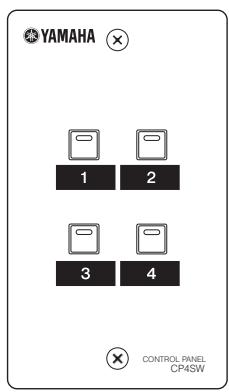
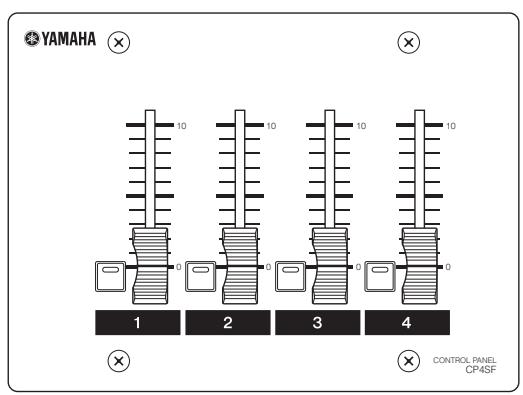
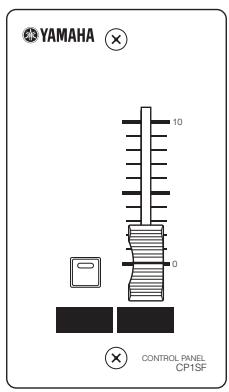
Error Messages
| Message | Meaning | Action |
| Error messages | ||
| Cannot Select | No selectable items are available in the scene or monitoring point list display. | Make the appropriate settings via the DME Designer application. |
| Component Corrupt Update Firmware! | The component data is corrupt or can't be found. | Restart after updating the component using DME Designer. If the error indicators are still indicating the error, execute the "Delete All Data" initialization. If the problem persists, contact a Yamaha dealer. |
| Critical Battery | The internal battery is almost discharged. Your data may be lost. | If you turn off power to the unit, the current settings may be lost and reset to the default values. Stop operating the unit, and contact a Yamaha dealer for battery replacement. |
| Int.Data Corrupt | Data inside the internal flash memory has been erased. | Execute the "Delete All Data" initialization. If the problem persists, contact a Yamaha dealer. |
| Invalid Password | An invalid password has been entered. | Enter the correct password. If you have lost or forgotten your password, contact a Yamaha dealer. |
| Log Buffer Full | Saving is not possible, since the Event Log saving area is full. | Use DME Designer to delete the log. |
| Low Battery | The backup battery voltage is low. | This does not affect the operation of the unit. However, if you continue using the unit, the settings may be lost and reset to the default values. Contact a Yamaha dealer for battery replacement at your earliest convenience. |
| No Battery | The internal battery is completely discharged or not installed. | If you turn off the power to the unit, the current settings will be lost and reset to the default values. Stop operating the unit, and contact a Yamaha dealer for battery replacement. |
| Param Access Err | The current setting cannot be displayed because the parameter you attempted to operate does not exist. It is possible that the component is not operating normally. | Save the current settings using DME Designer, execute the initialization (Delete All Data). If the problem persists, contact a Yamaha dealer. |
| Param Set Err | The current setting cannot be changed because the parameter you attempted to operate does not exist. It is possible that the component is not operating normally. | Save the current settings using DME Designer, execute the initialization (Delete All Data). If the problem persists, contact a Yamaha dealer. |
| ResumeData Corrupt Recall a Scene! | The data has been partially corrupted due to power shutdown while writing to the internal memory. The current settings have been lost. | Recall the scene again. If the problem persists, contact a Yamaha dealer. |
| Resume Data Lost! Recall a Scene! | Current setting has been lost. | Recall the scene again. If the problem persists, contact a Yamaha dealer. |
| Saving Failed | A save operation has failed. | Stop using the device immediately and contact a Yamaha dealer. |
| Slots Overloaded | The current being used by all cards installed in I/O slots exceeds the rated limit. | Make sure that the total current consumption of the cards used does not exceed the limit. |
| Store Disable | The scene store parameter is set to "Disable." | Set the scene store parameter to "Enable" via the Utility display "Lock" page. |
| Storing Failed | Either the flash memory for storing data is full, or the file system has been damaged. | Reduce the number of unused scenes. Alternatively, delete the files saved via the File Storage function. If deleting these items does not solve the problem, execute the Delete All Data initialization. If the problem persists, contact a Yamaha dealer. |
| Status messages | ||
| Cable Disconnect | No network cable connected. | Make sure that a network cable is properly connected, and that all network devices are functioning normally. |
| Cannot be assigned | No parameter assigned. | — |
| Cannot Store | The scene data is protected. | Set the protect parameter to "OFF" via the DME Designer application. |
| CAS. In Sync Err | The DME64N/24N clock is not in sync with the clock signal being received at the [CASCADE IN] connector. | Make sure that the DME64N/24N and the card or external source supplying the word clock are set to use the same word clock. |
| CAS. Out Sync Err | The DME64N/24N clock is not in sync with the clock signal being received at the [CASCADE OUT] connector. | Make sure that the DME64N/24N and the card or external source supplying the word clock are set to use the same word clock. |
| Connection to Master DME is Lost | Communication with the master DME device has been interrupted. | Check that all cables are properly connected, and than network switches, routers, and related devices are functioning properly. |
| Connection to Slave SME is Lost | Communication with the slave DME device has been interrupted. | Check that all cables are properly connected, and than network switches, routers, and related devices are functioning properly. |
| Download Success | The program has been successfully updated. | — |
| Loading Do not turn off | Program update in progress. Do NOT turn power off while the unit displays this message. | — |
| DSP Power Shortage | Audio is not input or output and is muted due to insufficient DSP resources. | This error sometimes occurs if you try to operate a configuration at 96 kHz that has been created with a word clock of 48 kHz. To operate a configuration at any word clock setting, use DME Designer to create a configuration with the word clock set to 96 kHz. |
| Duplicate IP Adr. | Duplicate IP addresses. | Change the IP addresses so that there are no duplicates. |
| Err: Wrong Device Group Settings | The device group configuration set via DME Designer does not match the actual configuration. | Use DME Designer to go off-line, create a configuration that correctly matches the actual configuration, and then go back on-line to synchronize the configuration. |
| Executing | A User Defined Button operation is in progress. | — |
| File Opening Do not turn off | A file operation is in progress during which the computer manipulates scene data. Do NOT turn power off while the unit displays this message. | — |
| Illegal MAC Adr. | An illegal MAC address has been encountered. | This could be due to a hardware malfunction. Refer this problem to a contact a Yamaha dealer. |
| Invalid IP Adr. | The network IP address is not appropriate. | Set an appropriate network IP address. |
| Network Busy | There is too much network traffic. Communication is not possible. | Check the devices connected to the network. If there are too many devices connected, reduce the number of devices. |
| Network Error | One of the following errors has occurred on the network: • A cable has been unplugged. • The power to a network switch or router has been shut off. • A cable is in an inappropriate state (e.g. a heavy object has been placed on the cable, etc.). Static electricity can also cause errors. | Locate and eliminate the cause of the error. |
| Network Setup | Preparing network connection. | — |
| No Current Scene | There is no data in the current scene. | Send appropriate scene data from a computer running the DME Designer application. |
| No MAC Adr. | MAC address not specified. | This could be due to a hardware malfunction. Refer this problem to a Yamaha dealer. |
| Panel Locked | Panel operation not allowed. | Press the [CANCEL] button for longer than 2 seconds to disengage panel lock and allow panel operation. |
| Panel Unlocked | Panel lock has been disengaged. Panel operation is now possible. | — |
| Recovering Do not turn off | A program update attempt has failed, and the previous program is currently being restored. | Do NOT turn power off while the unit is displaying this message. If the update attempt repeatedly fails, there may be a hardware malfunction. Refer this problem to a Yamaha dealer. |
| Saving HA Info Do not turn off | Head amplifier info save in progress. (Do not turn power off.) | — |
| Saving Setup Info Do not turn off | Info set up via the Utility display (other than head amplifier info) is being saved. (Do not turn power off.) | — |
| Scene Recalling Do not turn off | Scene recall in progress. Do NOT turn power off while the unit displays this message. | — |
| Scene Storing Do not turn off | Scene store in progress. Do NOT turn power off while the unit displays this message. | — |
| Searching for Master DME Unit... | Currently searching for the master DME unit. | — |
| Searching for Slave DME Unit... | Currently searching for the slave DME unit. | — |
| SLOT1 Sync Err | The DME64N/24N clock is not synchronized with the clock of the card installed in I/O slot 1. | Make sure that the DME64N/24N and the card or external source supplying the word clock are set to use the same word clock. |
| SLOT2 Sync Err | The DME64N clock is not synchronized with the clock of the card installed in I/O slot 2. | Make sure that the DME64N and the card or external source supplying the word clock are set to use the same word clock. |
| SLOT3 Sync Err | The DME64N clock is not synchronized with the clock of the card installed in I/O slot 3. | Make sure that the DME64N and the card or external source supplying the word clock are set to use the same word clock. |
| SLOT4 Sync Err | The DME64N clock is not synchronized with the clock of the card installed in I/O slot 4. | Make sure that the DME64N and the card or external source supplying the word clock are set to use the same word clock. |
| Synchronizing Do not turn off | Data is being received from the computer. Do NOT turn power off while the unit displays this message. | — |
| Updating Do not turn off | Data is being received from the computer. Do NOT turn power off while the unit displays this message. | — |
| WCLK Unlocked | A usable word clock signal is not being received or cannot be detected. | Recheck all word clock connections and internal parameters. |
| WCLK In Sync Err | The DME64N/24N clock is not in sync with the clock signal being received at the WORD CLOCK IN] connector. | Make sure that the DME64N/24N and the card or external source supplying the word clock are set to use the same word clock. |
Troubleshooting
| The power won't turn on, and the panel indicators and LCD won't light. | ·Is the power cable properly connected? ·Is the POWER switch turned on? ·If neither of the above is the problem, contact your Yamaha service center or representative. |
| Cannot exchange data between the DME64N/24N and the DME Designer. | ·Are the network cables connected correctly? ·Has the USB-MIDI driver been properly installed? ·If you are using the [NETWORK] connector, has the DME-N Network Driver been properly set up? ·Has a MIDI port been properly assigned (page 49)? ·Are you using a version of DME Designer later than 3.8? |
| No sound input. | ·Are the cables connected properly? ·Is an appropriate signal being received from the external device? ·Is the GAIN of the internal (DME24N) or external head amp set to an appropriate level? |
| No sound output. | ·Are the cables connected properly? ·Make sure that the output level isn't turned down (page 39). ·Is MUTE ON (page 39)? ·Have you used DME Designer to select a scene that does not output audio? ·Are you attempting to run a configuration that is not compatible with 96 kHz operation at 96 kHz? |
| MIDI messages aren't transmitted or received. | ·Is power to the MIDI device(s) turned on? ·Are the MIDI ports properly set up (page 49)? ·Are the receive and transmit device channels set appropriately? |
| Scenes are not recalled when MIDI program change messages are received. | ·Have the settings required to receive program change messages been properly made (page 49)? ·Use the DME Designer to set up the MIDI Program Change table as required. |
| Parameter control does not function even when MIDI control change messages are received. | ·Make the settings required to allow control change reception. ·Use the DME Designer to set up the MIDI Control Change table as required. |
| Parameter control does not function even when MIDI parameter change messages are received. | ·Have the settings required to receive parameter change messages been properly made (page 49)? ·Use the DME Designer to set up the MIDI Parameter Change table as required. |
| Slow data transfer. | ·Set the LINK MODE to 100Base-TX (page 46). |
| The desired scene can't be recalled. | ·Write the require scene data from the DME Designer to the DME64N/24N. |
| Scenes are recalled unexpectedly. | ·Is input being received from an external device or the DME Designer? ·Use the DME Designer to check the MIDI Program Change Table settings. ·Use the DME Designer to check the GPI input assignments. ·Use the DME Designer to check the Remote Control Setup List assignments. |
| Scenes can be recalled but not stored. | ·Set scene store to "Enable" (page 48). |
| The 96kHz/88.2kHz/48kHz/44.1kHz indicator flashes red. | ·Select a different word clock source (page 50). ·If an external device is functioning as the word clock master, check that the cables are connected properly. |
| Noise appears on the analog outputs when an external device is the word clock master and the word clock source is switched. | ·Reduce the power amp level to prevent speaker damage, or turn the DME64N/24N off before switching clock sources. |
| Use Defined Button settings change unexpectedly. | ·Use the panel lock function (page 38) to prevent unwanted operation of the panel controls on specific DME64N/24N or ICP1 units. |
| User Defined Button settings cannot be changed. | ·Use the DME Designer to make sure that multiple User Defined Buttons are not assigned to the same parameter. ·Turn the User Defined Lock function off (page 38). |
| The panel controls cannot be operated. | ·Is the panel lock function on (page 36)? |
| The Utility screen cannot be opened. | ·Is the Utility screen lock function on (page 47)? If you have forgotten your password contact your Yamaha service center or representative. |
Specifications
Specifications and descriptions in this owner's manual are for information purposes only. Yamaha Corp. reserves the right to change or modify products or specifications at any time without prior notice. Since specifications, equipment or options may not be the same in every locale, please check with your Yamaha dealer.
| Sampling Frequency | Internal | 44.1kHz, 48kHz, 88.2kHz, 96kHz |
| External | Normal Rate: 39.69 – 50.88kHz Double Rate: 79.39 – 101.76kHz | |
| Signal Delay (Fs = 96kHz) | DME64N: 0.85 msec (Input of MY8-AD96 to Output of MY8-DA96) DME24N: 0.5 msec ([IN] port to [OUT] port) | |
| Memory | Configuration | 16 (depends on size of data) |
| Scene | 999 (depends on size of data) | |
| Display | 160 x 64 dot matrix LCD with backlight | |
| Scene No. | 7-segment LED x 3 | |
| Indicators | Wordclock | EXT.CLOCK, 96kHz, 88.2kHz, 48kHz, 44.1kHz |
| External Control | NETWORK, MIDI | |
| Zone Configuration | MASTER | |
| Analog Input*1 | SIGNAL x 8, PEAK x 8 | |
| Analog Output*1 | SIGNAL x 8, PEAK x 8 | |
| Power Requirements | 120V AC, 60Hz (USA, Canada) 230V AC, 50Hz (Europe) 100V AC, 50/60Hz (Japan) | |
| Power Consumption | DME64N: 80W DME24N: 75W | |
| Dimensions (W x H x D) | DME64N: 480 x 145 x 411.5mm, 3U DME24N: 480 x 101 x 411.5mm, 2U | |
| Weight | DME64N: 9.5kg DME24N: 8kg | |
| Temperature Range | Free-Air operating | 10 – 35 °C |
| Storage | -20 – 60 °C | |
| AC Power Cord Length | 2.5m | |
| Supplied Accessories | AC power cord, Owner's Manual, AC plug clamp, 16-pin Euroblock plug x 2, 8-pin Euroblock plug x 4 (DME64N), 3-pin Euroblock plug x 16 (DME24N) | |
*1. Available on DME24N only
European models
Purchaser/User Information specified in EN55103-1 and EN55103-2.
Inrush Current: 39A
Conforms to Environments: E1, E2, E3 and E4
Input/Output Characteristics
DME24N ANALOG INPUT CHARACTERISTICS
| Terminals | Gain | Actual Load Impedance | For Use With Nominal | Input Level | Connector | |
| Nominal | Max. before clip | |||||
| CH INPUT 1 - 8 | -60dB | 3kΩ | 50 - 600Ω Mics & 600Ω Lines | -60dBu (0.775mV) | -40dBu (7.75mV) | Euroblock |
| +10dB | +10dBu (2.451V) | +30dBu (24.511V) | ||||
- 0dBu = 0.775 Vrms
- All AD converters (CH1-8) are 24-bit linear, 128 times oversampling.
- +48V DC (phantom power) is supplied to CH INPUT (1-8) connectors via each individual controlled switch.
DME64N ANALOG OUTPUT CHARACTERISTICS
| Output Terminals | Actual Source Impedance | For Use With Nominal | Output Level | Connector | |
| Nominal | Max. before clip | ||||
| PHONES | 15Ω | 8Ω | 75mW | 150mW | Stereo Phone Jack |
| 40Ω | 65mW | 150mW | |||
- 0dBu = 0.775 Vrms
- Stereo Phone Jack = unbalanced (Tip = LEFT, Ring = RIGHT, Sleeve = GND)
DME24N ANALOG OUTPUT CHARACTERISTICS
| Output Terminals | Actual Source Impedance | For Use With Nominal | Output Level | Connector | |
| Nominal | Max. before clip | ||||
| CH OUTPUT 1 – 8 | 75Ω | 600Ω Lines | +4dBu (1.23V) | +24dBu (12.28) | Euroblock |
| PHONES | 15Ω | 8Ω | 75mW | 150mW | Stereo Phone Jack |
| 40Ω | 65mW | 150mW | |||
- 0dBu = 0.775 Vrms
- All AD converters (CH1-8) are 24-bit linear, 128 times oversampling.
- Stereo Phone Jack = unbalanced (Tip = LEFT, Ring = RIGHT, Sleeve = GND)
DME64N DIGITAL INPUT CHARACTERISTICS
| Terminal | Format | Data Length | Level | Connector |
| CASCADE IN | - | 24-bit | RS422 | D-SUB Half Pitch connector 68P (Female) |
DME64N DIGITAL OUTPUT CHARACTERISTICS
| Terminal | Format | Data Length | Level | Connector |
| CASCADE OUT | - | 24-bit | RS422 | D-SUB Half Pitch connector 68P (Female) |
DME64N/24N ELECTRICAL CHARACTERISTICS
(Output impedance of signal generator: 150
- CH INPUT 1-8 and CH OUTPUT 1-8 are provided on the DME24 only.
Frequency Response 20Hz - 20kHz, reference to the nominal output level @1kHz
| Input | Output | RL | Conditions | Min. | Typ. | Max. | Units |
| CH INPUT 1 - 8 | CH OUTPUT 1 - 8 | 600Ω | GAIN = -60dB | -1.5 | 0.0 | 0.5 | dB |
| Internal OSC | PHONES | 8Ω | -3.0 | 0.0 | 0.5 | dB |
Frequency Response fs = 96kHz@20Hz - 40kHz, reference to the nominal output level @1kHz
| Input | Output | RL | Conditions | Min. | Typ. | Max. | Units |
| CH INPUT 1 - 8 | CH OUTPUT 1 - 8 | 600Ω | GAIN = -60dB | -1.5 | 0.0 | 0.5 | dB |
| Internal OSC | PHONES | 8Ω | -3.0 | 0.0 | 0.5 | dB |
Gain Error @1kHz
| Input | Output | RL | Conditions | Min. | Typ. | Max. | Units |
| CH INPUT 1 - 8 | CH OUTPUT 1 - 8 | 600Ω | GAIN = -60dB | 2.0 | 4.0 | 6.0 | dBu |
| GAIN = +10dB | 2.0 | 4.0 | 6.0 | dBu | |||
| Internal OSC | PHONES | 8Ω | -30dBFS @1kHz, phones level control: max. | -2.0 | 0.0 | 2.0 | dBu |
Total Harmonic Distortion fs = 48kHz
| Input | Output | RL | Conditions | Min. | Typ. | Max. | Units |
| CH INPUT1-8 | CH OUTPUT1-8 | 600Ω | GAIN = -60dB@20Hz - 20kHz@+14dBU | 0.1 | % | ||
| GAIN = +10dB@20Hz - 20kHz@+14dBU | 0.05 | % | |||||
| InternalOSC | PHONES | 8Ω | -30dBFS @1kHz,phones level control:max. | 0.1 | % |
Total Harmonic Distortion fs=96kHz
| Input | Output | RL | Conditions | Min. | Typ. | Max. | Units |
| CH INPUT 1 - 8 | CH OUTPUT 1 - 8 | 600Ω | GAIN = -60dB @20Hz - 20kHz @+14dBu | 0.1 | % | ||
| GAIN = +10dB @20Hz - 20kHz @+14dBu | 0.05 | % | |||||
| Internal OSC | PHONES | 8Ω | -30dBFS @1kHz, phones level control: max. | 0.1 | % |
Hum & Noise EIN = Equivalent Input Noise
| Input | Output | RL | Conditions | Min. | Typ. | Max. | Units |
| CH INPUT 1-8 | CH OUTPUT 1-8 | 600Ω | GAIN = -60dB Master fader at nominal level and one Ch fader at nominal level. (Mixer mode) | -128 EIN | dBu | ||
| -64 | dBu | ||||||
| 600Ω | GAIN = +10dB Master fader at nominal level and one Ch fader at nominal level. (Mixer mode) | -82 | dBu | ||||
| - | PHONES | 8Ω | Residual output noise, phones level control: min. | -86 | dBu |
- Hum & Noise are measured with a 6dB/octave filter @12.7kHz; equivalent to a 20kHz filter with infinite dB/octave attenuation.
DME24N ELECTRICAL CHARACTERISTICS
Dynamic Range
| Input | Output | RL | Conditions | Min. | Typ. | Max. | Units |
| CH INPUT 1 - 8 | CH OUTPUT 1 - 8 | 600Ω | GAIN = +10dB | 106 | dB |
- Dynamic range are measured with a 6dB/octave filter @12.7kHz; equivalent to a 20kHz filter with infinite dB/octave attenuation.
Crosstalk@1kHz
| From/To | To/From | Conditions | Min. | Typ. | Max. | Units |
| CH N | CH (N-1) or (N+1) | CH1 - 8, adjacent inputs | -80 | dB |
Maximum Voltage Gain@1kHz
| Input | Output | RL | Conditions | Min. | Typ. | Max. | Units |
| CH INPUT 1 - 8 | CH OUTPUT 1 - 8 | 600Ω | GAIN = -60dB | 64 | dB |
Phantom Voltage
| Output | Conditions | Min. | Typ. | Max. | Units | |
| CH INPUT 1 - 8 | hot, cold: No load | 46 | 48 | 50 | V |
PEAK/SIGNAL Indicator Level
| Input | Output | Conditions | Min. | Typ. | Max. | Units |
| CH INPUT 1 - 8 | - | GAIN +10dB PEAK red LED:ON | 25 | 27 | 29 | dBu |
| GAIN +10dB SIGNAL green LED:ON | -12 | -10 | -8 | dBu | ||
| - | CH OUTPUT 1 - 8 | PEAK red LED:ON | 19 | 21 | 23 | dBu |
| SIGNAL green LED:ON | -18 | -16 | -14 | dBu |
Control I/O
| Terminals | Format | Level | Connector |
| REMOTE | - | RS232C | D-SUB Connector 9-pin (Male)Baud Rate = 38,400 bpsData = 8bitStop bit = 1bitPARITY = NON |
| - | RS422 | ||
| MIDI | IN/OUT/THRU | - | DIN Connector 5P |
| WORDCLOCK | IN/OUT | TTL/75Ω | BNC Connector |
| Ethernet | Ethernet | - | RJ-45 |
| USB | USB | 0 - 3.3V | USB Type B (Female) |
| GPI | IN | 0 - 5V | Euroblock Connector |
| OUT | TTL | ||
| +V | 5V |
DME64N: 16-GPI inputs and 16-GPI outputs
DME24N: 8-GPI inputs and 8-GPI outputs
Outputs: Imax/pin = 16mA
Outputs: VH = 2.5V(.) , VL = 0.6V(.)
Connector Pin Assign
[ CASCADE IN/OUT] Connectors (DME64N only)
CASCADE IN
| Pin No. | Signal | Pin No. | Signal |
| 1 | GND | 35 | GND |
| 2 | INPUT 1-2 (+) | 36 | INPUT 1-2 (-) |
| 3 | INPUT 3-4 (+) | 37 | INPUT 3-4 (-) |
| 4 | INPUT 5-6 (+) | 38 | INPUT 5-6 (-) |
| 5 | INPUT 7-8 (+) | 39 | INPUT 7-8 (-) |
| 6 | INPUT 9-10 (+) | 40 | INPUT 9-10 (-) |
| 7 | INPUT 11-12 (+) | 41 | INPUT 11-12 (-) |
| 8 | INPUT 13-14 (+) | 42 | INPUT 13-14 (-) |
| 9 | INPUT 15-16 (+) | 43 | INPUT 15-16 (-) |
| 10 | DTR IN (+) | 44 | DTR IN (-) |
| 11 | RTS OUT (+) | 45 | RTS OUT (-) |
| 12 | GND | 46 | GND |
| 13 | WORD CLOCK IN (+) | 47 | WORD CLOCK IN (-) |
| 14 | WORD CLOCK OUT (+) | 48 | WORD CLOCK OUT (-) |
| 15 | CONTROL IN (+) | 49 | CONTROL IN (-) |
| 16 | CONTROL OUT (+) | 50 | CONTROL OUT (-) |
| 17 | GND | 51 | ID6 IN |
| 18 | GND | 52 | ID6 OUT |
| 19 | INPUT 17-18 (+) | 53 | INPUT 17-18 (-) |
| 20 | INPUT 19-20 (+) | 54 | INPUT 19-20 (-) |
| 21 | INPUT 21-22 (+) | 55 | INPUT 21-22 (-) |
| 22 | INPUT 23-24 (+) | 56 | INPUT 23-24 (-) |
| 23 | INPUT 25-26 (+) | 57 | INPUT 25-26 (-) |
| 24 | INPUT 27-28 (+) | 58 | INPUT 27-28 (-) |
| 25 | INPUT 29-30 (+) | 59 | INPUT 29-30 (-) |
| 26 | INPUT 31-32 (+) | 60 | INPUT 31-32 (-) |
| 27 | ID0 IN | 61 | ID1 IN |
| 28 | ID2 IN | 62 | ID3 IN |
| 29 | ID4 IN | 63 | ID5 IN |
| 30 | ID0 OUT | 64 | ID1 OUT |
| 31 | ID2 OUT | 65 | ID3 OUT |
| 32 | ID4 OUT | 66 | ID5 OUT |
| 33 | MSB //LSB IN | 67 | 2CH//4CH IN |
| 34 | FG | 68 | FG |
CASCADE OUT
| Pin No. | Signal | Pin No. | Signal |
| 1 | GND | 35 | GND |
| 2 | OUTPUT 1-2 (+) | 36 | OUTPUT 1-2 (-) |
| 3 | OUTPUT 3-4 (+) | 37 | OUTPUT 3-4 (-) |
| 4 | OUTPUT 5-6 (+) | 38 | OUTPUT 5-6 (-) |
| 5 | OUTPUT 7-8 (+) | 39 | OUTPUT 7-8 (-) |
| 6 | OUTPUT 9-10 (+) | 40 | OUTPUT 9-10 (-) |
| 7 | OUTPUT 11-12 (+) | 41 | OUTPUT 11-12 (-) |
| 8 | OUTPUT 13-14 (+) | 42 | OUTPUT 13-14 (-) |
| 9 | OUTPUT 15-16 (+) | 43 | OUTPUT 15-16 (-) |
| 10 | DTR OUT (+) | 44 | DTR OUT (-) |
| 11 | RTS IN (+) | 45 | RTS IN (-) |
| 12 | GND | 46 | GND |
| 13 | WORD CLOCK OUT (+) | 47 | WORD CLOCK OUT (-) |
| 14 | WORD CLOCK IN (+) | 48 | WORD CLOCK IN (-) |
| 15 | CONTROL OUT (+) | 49 | CONTROL OUT (-) |
| 16 | CONTROL IN (+) | 50 | CONTROL IN (-) |
| 17 | GND | 51 | ID6 OUT |
| 18 | GND | 52 | ID6 IN |
| 19 | OUTPUT 17-18 (+) | 53 | OUTPUT 17-18 (-) |
| 20 | OUTPUT 19-20 (+) | 54 | OUTPUT 19-20 (-) |
| 21 | OUTPUT 21-22 (+) | 55 | OUTPUT 21-22 (-) |
| 22 | OUTPUT 23-24 (+) | 56 | OUTPUT 23-24 (-) |
| 23 | OUTPUT 25-26 (+) | 57 | OUTPUT 25-26 (-) |
| 24 | OUTPUT 27-28 (+) | 58 | OUTPUT 27-28 (-) |
| 25 | OUTPUT 29-30 (+) | 59 | OUTPUT 29-30 (-) |
| 26 | OUTPUT 31-32 (+) | 60 | OUTPUT 31-32 (-) |
| 27 | ID0 OUT | 61 | ID1 OUT |
| 28 | ID2 OUT | 62 | ID3 OUT |
| 29 | ID4 OUT | 63 | ID5 OUT |
| 30 | ID0 IN | 64 | ID1 IN |
| 31 | ID2 IN | 65 | ID3 IN |
| 32 | ID4 IN | 66 | ID5 IN |
| 33 | MSB //LSB OUT | 67 | 2CH//4CH OUT |
| 34 | FG | 68 | FG |
[NETWORK] Connector (100Base-TX Ethernet, RJ-45)
Straight/Cross Cable Wiring Details
| Pin | Connection |
| 1 | TxD+ |
| 2 | TxD- |
| 3 | RxD+ |
| 4 | Unused |
| 5 | Unused |
| 6 | RxD- |
| 7 | Unused |
| 8 | Unused |
Straight Cables
| Pins |
| 1 —— 1 |
| 2 —— 2 |
| 3 —— 3 |
| 4 —— 4 |
| 5 —— 5 |
| 6 —— 6 |
| 7 —— 7 |
| 8 —— 8 |
Cross Cables
| Pins |
| 1 —— 3 |
| 2 —— 6 |
| 3 —— 1 |
| 4 —— 4 |
| 5 —— 5 |
| 6 —— 2 |
| 7 —— 7 |
| 8 —— 8 |
Dimensions
Unit: mm
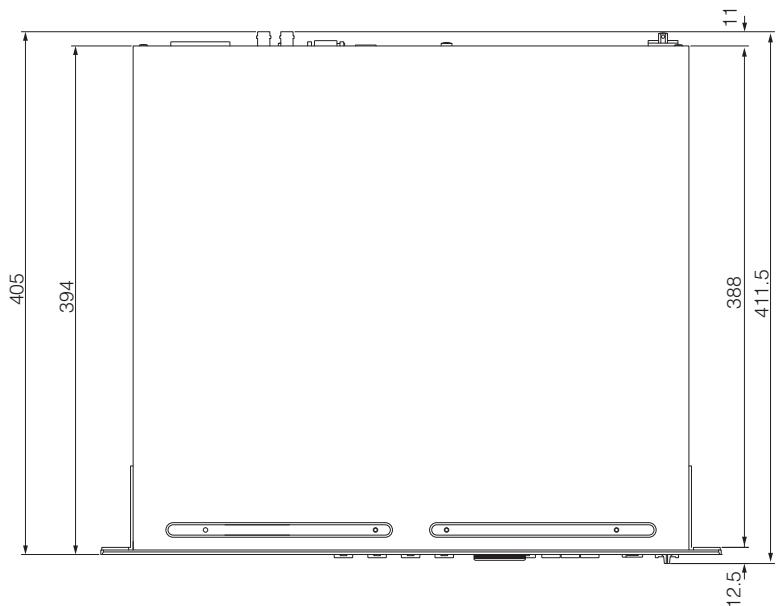
DME64N
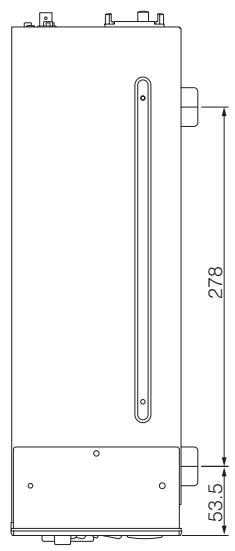
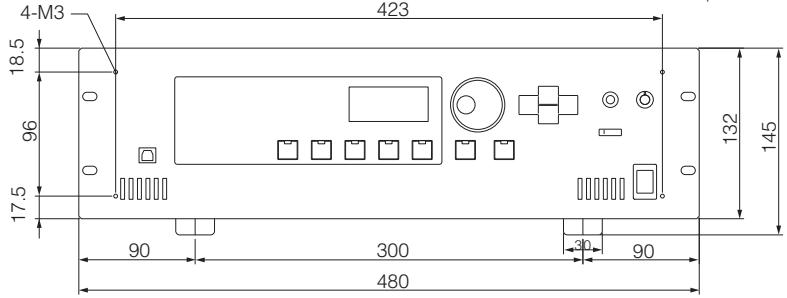
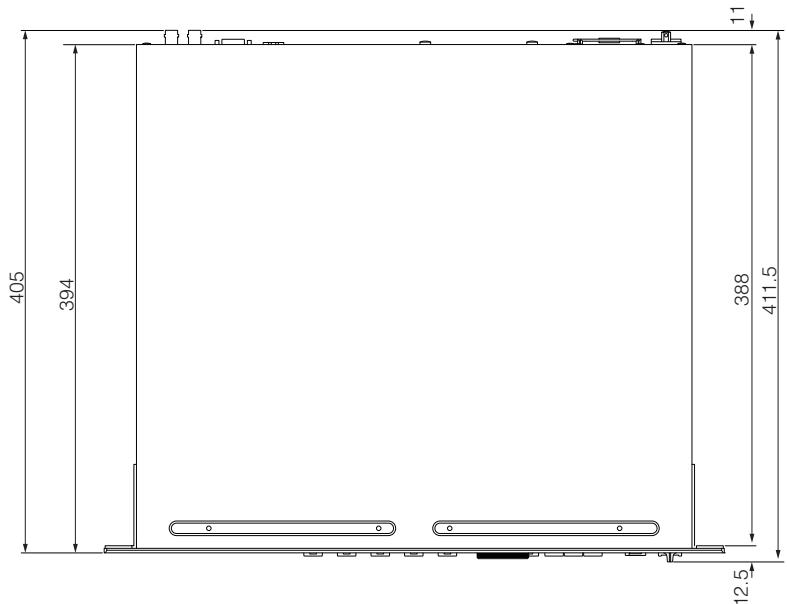
DME24N
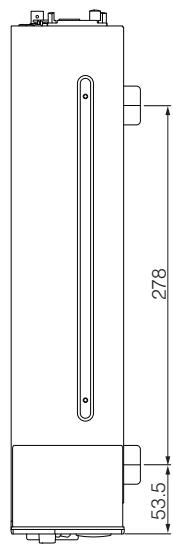
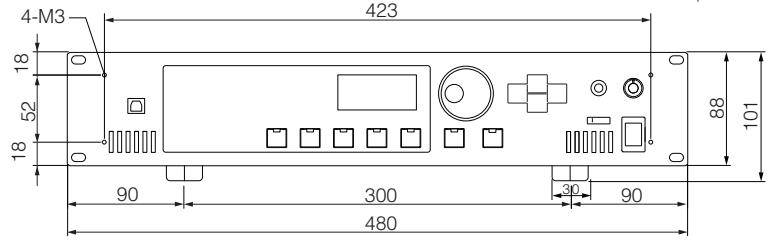
MIDI Data Format
1. DME64N/24N MIDI Functions
1.1 Scene Change
Scene recall occurs according to the "MIDI Program Change Table" assignments when appropriate MIDI Bank Select MSB/LSB and Program Change messages are received by the DME64N/24N.
Corresponding MIDI Bank Select MSB/LSB and Program Change messages are also transmitted by the DME64N/24N when a scene recall operation is carried out via the panel controls, as specified by the "MIDI Program Change Table" assignments.
Transmission does not occur when switching Configurations.
1.2 Parameter Control
MIDI Control Change and Parameter Change messages transmitted to the DME64N/24N can be used to control parameters according to the "MIDI Control Change table" and "MIDI Parameter Change Table" assignments.
Corresponding MIDI Control Change and Parameter Change messages are also transmitted by the DME64N/24N when a parameter is edited out via the panel controls, as specified by the "MIDI Control Change table" and "MIDI Parameter Change Table" assignments.
2. MIDI Data Flow
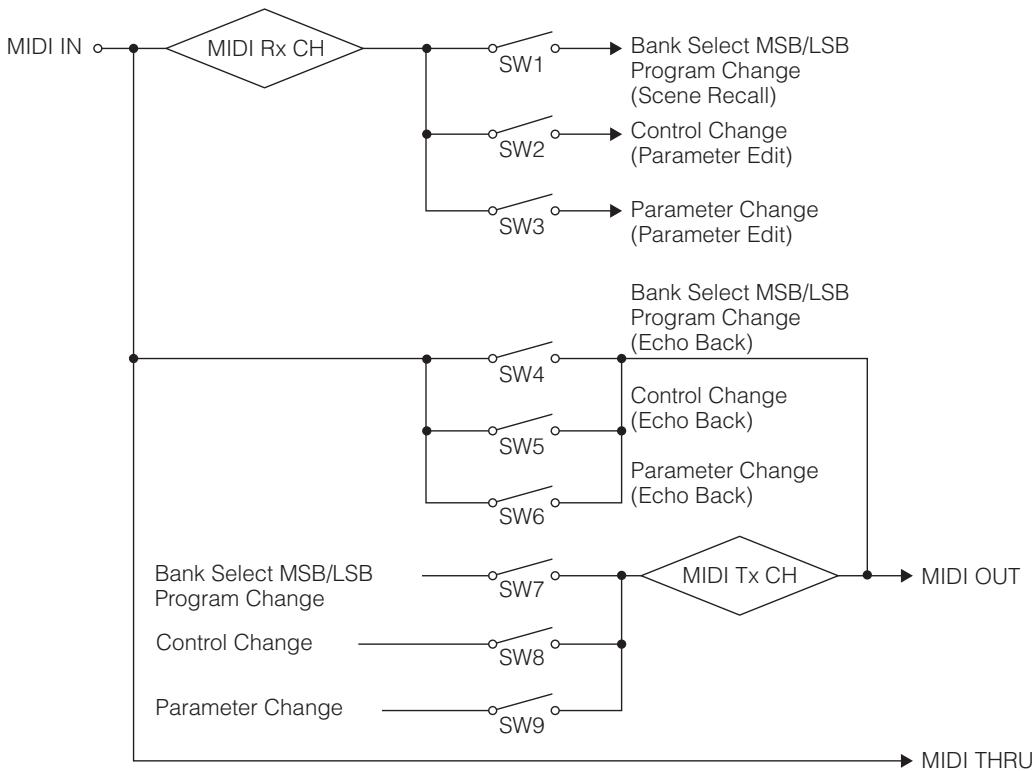
SW1: Program Change Rx Switch [On/Off]
SW2: Control Change Rx Switch [On/Off]
SW3: Parameter Change Rx Switch [On/Off]
SW4: Program Change Echo Back Switch [On/Off]
SW5: Control Change Echo Back Switch [On/Off]
SW6: Parameter Change Echo Back Switch [On/Off]
SW7: Program Change Tx Switch [On/Off]
SW8: Control Change Tx Switch [On/Off]
SW9: Parameter Change
MIDI Rx CH: MIDI Rx Channel (1-16)
MIDI Tx CH: MIDITx Channel (1-16)
3. MIDI Setup
Specifies basic MIDI operation.
3.1 Host Select
Selects the input/output port to be used for MIDI communication.
3.2 DAW Controller
Specifies the DAW controller type when a DAW control surface is to be used to control the DME64N/24N. When Type 1/2 is selected, Host Select is automatically set to MIDI.
3.3 MIDI Tx Channel
Specifies the MIDI transmit channel (1 16)
3.4 MIDI Rx Channel
Specified the MIDI receive channel (1 ~ 16).
3.5 MIDI Tx Switch
Program Change Tx Switch: turns Bank Select MSB, LSB, and Program Change transmission on or off.
Control Change Tx Switch: turns Control Change transmission on or off.
Parameter Change Tx Switch: turns Parameter Change transmission on or off.
3.6 MIDI Rx Switch
Program Change Rx Switch: turns Bank Select MSB, LSB, and Program Change reception on or off.
Control Change Rx Switch: turns Control Change reception on or off.
Parameter Change Rx Switch: turns Parameter Change reception on or off.
3.7 MIDI Omni Switch
Program Change Omni Switch: turns the Bank Select MSB, LSB, and Program Change omni mode on or off.
Control Change Omni Switch: turns the Control Change omni mode on or off.
3.8 MIDI Echo Back Switch
Program Change Echo Back Switch: turns Bank Select MSB, LSB, and Program Change echo back on or off.
Control Change Echo Back Switch: turns Control Change echo back on or off.
Parameter Change Echo Back Switch: turns Parameter Change echo back on or off.
4. MIDI Format
Number Format Notation
Numbers ending with "h" are in hexadecimal format, while numbers ending with "b" are binary format.
Characters "A" through "F" in hexadecimal numbers represent decimal values 10 through 15. Other lowercase characters (usually "n" or "x") represent any number.
MIDI Format Chart (Rx: receive, Tx: transmit)
| Command | Rx/Tx | Function | |
| Channel Message | Control Change (Bnh) | Rx/Tx | Parameter Change |
| Program Change (Cnn) | Rx/Tx | Scene Recall | |
| System Real-time Message | ACTIVE SENSING (FEH) | Rx | MIDI Cable Check |
| System Exclusive Message | Parameter Change | Rx/Tx | Parameter Change |
4.1 Program Change (Cnh)
Receive
When the "Program Change Rx Switch" is on, Program Change messages are received on the MIDI channel specified by the "MIDI Rx Channel" parameter.
If the "Program Change Omni Switch" is also on, however, Program Change messages will be received on all MIDI channels regardless of the "MIDI Rx Channel" setting.
When a Program Change message is received, the scene assigned to the received program number in the "MIDI Program Change table" is recalled.
The accepted Bank Select, Program Change range is as follows:
Bank Select MSB: 0
Bank Select LSB: 0 ~ 7
Program Change No.: 0 ~ 127
Transmit
When the "Program Change Tx Switch" is on, the corresponding Program Change number will be transmitted as specified by the "MIDI Program Change table" and "MIDI Tx Channel" settings. If multiple Program Change numbers are assigned to a single scene, the Bank Select MSB/LSB and Program Change number corresponding to the lowest number will be transmitted.
Bank Select MSB
| Status | Bnh (1101nnnnb) | Control Change |
| Data | 00h (00000000b) | Control Change No. 0 (Bank Select MSB) |
| Data | nnh (0nnnnnnnb) | Control Value (Bank Select MSB No.) |
Bank Select LSB
| Status | Bnh (1101nnnnb) | Control Change |
| Data | 20h (00100000b) | Control Change No. 32 (Bank Select LSB) |
| nnh (0nnnnnnnb) | Control Value (Bank Select LSB No.) |
Program Change No.
| Status | Cnh (1100nnnnb) | Program Change |
| Data | nnh (0nnnnnnnb) | Program Change No. (0-127) |
4.2 Active Sensing (FEh)
Receive
MIDI communication will be initialized if no data is received within 300 ms after reception (Running Status, etc., will be cleared).
Active Sensing
| Status | FEh (1111110b) | Active Sensing |
4.3 Control Change (Bnh)
Receive
When the "Control Change Rx Switch" is on, Control Change messages are received on the MIDI channel specified by the "MIDI Rx Channel" parameter.
If the "Control Change Omni Switch" is also on, however, Control Change messages will be received on all MIDI channels regardless of the "MIDI Rx Channel" setting.
Control Change parameter resolution is 128 regardless of the parameters effective range. For finer settings use Parameter Change.
Transmit
When the "Control Change Tx Switch" is on, appropriate Control Change data will be transmitted when a parameter is edited via the panel controls, as specified by the "MIDI Control Change table" and "MIDI Tx Channel" settings.
Transmission does not occur when switching Configurations.
Refer to "Supplementary Information 1" for cases in which multiple messages are assigned to single parameter.
| Status | Bnh (1011nnnnb) | Control Change |
| Data | cch (0cccccccb) | Control Change No. (1-31, 33-95, 102-119) |
| vvh (0vvvvvvvb) | Control Value (0-127) |
4.4 Parameter Change (F0h ~ F7h)
Receive
When the "Parameter Change Rx Switch" is On, Parameter Change messages are received on the MIDI channel specified by the "Device ID (Rx Ch)" parameter.
Transmit
When the "Parameter Change Tx Switch" is On, appropriate Parameter Change data will be transmitted when a parameter is edited via the panel controls, as specified by the "MIDI Parameter Change table" and "MIDI Tx Channel" settings.
Refer to "Supplementary Information 1" for cases in which multiple messages are assigned to single parameter.
Refer to "Supplemental Information 2" for information on setting Parameter Data values.
| Status | F0h (11110000b) | System Exclusive Message |
| ID No. | 43h (01000011b) | Manufacturer's ID No.(YAMAHA) |
| DEVICE ID. | 10h (0001xxxxb) | Rx/Tx Channel (0-15) |
| GROUP ID. | 3Eh (00111110b) | Digital Mixer |
| MODEL ID. | 10h (00010000b) | Device Code (DME) |
| Parameter Address | aah (0aaaaaaab) | Parameter Address High |
| aah (0aaaaaaab) | Parameter Address Low | |
| Parameter Data Value | ddh (0dddddb) | data 0 |
| ddh (0dddddb) | data 1 | |
| ddh (0dddddb) | data 2 | |
| ddh (0dddddb) | data 3 | |
| ddh (0dddddb) | data 4 | |
| EOX | F7h (11110111b) | End of Exclusive |
Supplemental Information 1
Messages Transmitted When Multiple Messages are Assigned to the Same Parameter
The DME64N/24N MIDI transmit messages are specified via the "MIDI Control Change Table" and "MIDI Parameter Change Table." The "MIDI Control Change Table" and "MIDI Parameter Change Table" can be set up via the DME Designer application.
Multiple messages can be assigned to a single parameter, but the DME64N/24N will only transmit one of the assigned messages.
The transmitted messages are as follows:
- If a Control Change message and a Parameter Change message are assigned to the same parameter the Control Change message will be transmitted.
- If multiple Control Change numbers are assigned to the same parameter the smallest Control Change number message will be transmitted.
- If multiple Parameter Change numbers are assigned to the same parameter the smallest Parameter Change number message will be transmitted.
Supplemental Information 2
Setting the Parameter Change Message Parameter Data Values
The Parameter change parameter values are expressed as 32-bit integers with or without parity.
- A parity bit (positive: 0, negative: 1) is added above the most significant value bit (bit 31).
- Fractional parameters will be converted according to the integer table.
- For integers with parity, negative numbers are expressed as the 2's complement.
| bit0 | bit1 | bit2 | bit3 | bit4 | bit5 | bit6 | bit7 | bit8 | bit9 | bit10 | bit11 | bit12 | bit13 | bit14 | bit15 | bit16 | bit17 | bit18 | bit20 | bit21 | bit22 | bit23 | bit25 | bit26 | bit27 | bit28 | data 0 | data 1 | data 2 | data 3 | data 4 |
Example
- When value is 1000 (decimal) / 3E8h (hexadecimal):
| + | 0 | 0 | 0 | 0 | 3 | E | 8 | |||||||||||||||||||||
| ↓ | ↓ | ↓ | ↓ | ↓ | ↓ | ↓ | ↓ | |||||||||||||||||||||
| 0 | 0 | 0 | 0 | 0 | 0 | 0 | 0 | 0 | 0 | 0 | 0 | 0 | 0 | 0 | 0 | 0 | 0 | 0 | 1 | 1 | 1 | 1 | 1 | 0 | 1 | 0 | 0 | 0 |
| ↓ | ↓ | ↓ | ↓ | ↓ | ↓ | ↓ | ||||||||||||||||||||||
| data 0 = 00h | data 1 = 00h | data 2 = 00h | data 3 = 07h | data 4 = 68h | ||||||||||||||||||||||||
- When value is 1000 (decimal) / FFFFFFFC18h (hexadecimal; 2's complement of 3E8h):
| - | F | F | F | F | C | 1 | 8 | ||||||||||||||||||||||||||
| ↓ | ↓ | ↓ | ↓ | ↓ | ↓ | ↓ | ↓ | ||||||||||||||||||||||||||
| 0 | 0 | 1 | 1 | 1 | 1 | 1 | 1 | 1 | 1 | 1 | 1 | 1 | 1 | 1 | 1 | 1 | 1 | 1 | 1 | 1 | 1 | 1 | 0 | 0 | 0 | 0 | 0 | 0 | 1 | 1 | 0 | 0 | 0 |
| ↓ | ↓ | ↓ | ↓ | ↓ | ↓ | ↓ | |||||||||||||||||||||||||||
| data 0 = 1Fh | data 1 = 7Fh | data 2 = 7Fh | data 3 = 78h | data 4 = 18h | |||||||||||||||||||||||||||||
YAMAHA [Digital Mixing Engine]
Model DME64N/24N MIDI Implementation Chart
Date :31-MAR-2004
Version : 1.0
| Function... | Transmitted | Recognized | Remarks |
| Basic Default Channel Changed | 1 - 161 - 16 | 1 - 161 - 16 | Memorized |
| Mode Default Messages Altered | ××********** | ××× | |
| Note Number : True voice | ×********** | ×× | |
| Velocity Note ON Note OFF | ×× | ×× | |
| After Key's Touch Ch's | ×× | ×× | |
| Pitch Bend | × | × | |
| 0,32 1-31,33-95,102-119 Control Change | O *1 O *2 | O *1 O *2 | Bank Select Assignable |
| Prog Change : True # | O O - 127 *1********** | O O - 127 *1 O - 127 | |
| System Exclusive | O *3 | O *3 | Assignable |
| : Song Pos. Common : Song Sel. : Tune | ××× | ××× | |
| System : Clock Real Time : Commands | ×× | ×× | |
| : All Sound Off Aux : Reset All Cntrls Local ON/OFF Mes- : All Notes OFF sages : Active Sense : Reset | ××××××××× | ××××××O× | |
| Notes: not include "DAW controller" command*1 transmit/receive if program change switch is on.*2 transmit/receive if control change switch is on.*3 transmit/receive if parameter change switch is on. | |||
Mode 1 : OMNI ON , POLY
Mode 3 : OMNI OFF, POLY
Mode 2 : OMNI ON , MONO
Mode 4 : OMNI OFF, MONO
O : Yes
X : No
Glossary
| Terms | Explanations |
| 100Base-TX | A physical specification for a 100 Mbps Ethernet network connection using 2-conductor Category 5 UTP cable included in the IEEE 802.3u standard. Maximum data transfer distance is 100 meters. |
| 10Base-T | A physical specification for a 10 Mbps Ethernet network connection using 2-conductor Category 3 UTP cable included in the IEEE 802.3i standard. Maximum data transfer distance is 100 meters. |
| BNC (Bayonet Nut Connector, or Bayonet Neill Concelman) | A type of connector used for high-frequency connections using thin-core coaxial cable. An internal spring ensures a solid connection. |
| Cascade | A means of connecting Yamaha digital audio equipment to allow transfer of audio, control, and word clock signals. Yamaha cascade connections employ half-pitch 68-pin D-Sub connectors. |
| Category 3 | Electrical specifications for one type of UTP cable jointly developed by the TIA (Telecommunications Industry Association) and EIA (Electronic Industry Alliance). Several categories are specified according to electrical characteristics, with higher category numbers denoting higher quality cable. Category 3 cable can be used for transmission speeds up to 10 MHz. |
| Category 5 | Electrical specifications for one type of UTP cable jointly developed by the TIA (Telecommunications Industry Association) and EIA (Electronic Industry Alliance). Several categories are specified according to electrical characteristics, with higher category numbers denoting higher quality cable. Category 5 cable can be used for transmission speeds up to 100 MHz. |
| Component | The basic modules that are combined to create DME64N/24N audio systems. In addition to complete audio processors such as mixers, compressors, effects,rossovers, etc., a range of smaller functions such as faders, switches, pan controls, and meters are also available. Components can also be customized. |
| Configuration | A set of components and connections that make up an audio system in the DME64N/24N. |
| D-Sub | Another common form of connector that gets its name from the "D" shape of the connector. This type of connector can be securely attached using screws. Individual "pins" are used to connect each of the cable's conductors. D-Sub connectors come in 9-pin, 15-pin, 25-pin, 37-pin, and other sizes. |
| DSP (Digital Signal processor) | A semiconductor chip (LSI), or device containing one or more such chips, developed specifically to process large volumes of data in real time. Ideal for processing digital audio. |
| Ethernet | A network protocol jointly developed by the Xerox, DEC, and Intel corporations, and codified in the IEEE 802.3 industry standard. Transfer speeds have increased to 100 Mbps, 1000 Mbps, and 10 Gbps from the initial 10 Mbps, while maintaining network compatibility. |
| Euroblock | A connector system consisting of plug and socket components that allows easy, solder-less wiring for a range of installations and devices. Simply insert the wire into the plug slot, tighten the screw, and plug into the socket to complete the connection. |
| GPI (General Purpose Interface) | A general-purpose control interface that can be used to allow control of the DME64N/24N via external devices and custom-made controllers. Connections are made via a Euroblock connector. The optional CP4SW, CP1SF, and CP4SF control panels also connect via GPI. |
| Initial Settings | The initial values and settings of all editable parameters that will be in effect when a device is powered on for the first time after it is shipped from the factory. Also known as "default settings" or "initial factory settings." |
| MAC (Media Access Control) Address | The MAC address is also known as the Ethernet address, and is an independent address assigned to all Ethernet devices worldwide. No two devices can have the same address. |
| MIDI (Musical Instrument Digital Interface) | An international standard for data communication between electronic musical instruments and audio devices. |
| Mini YGDAI (Yamaha General Digital Audio Interface) card | A standard for I/O cards that can be installed to Yamaha audio products. |
| Phantom Power | A power delivery system that allows power to be delivered to devices along with audio signals via standard balanced audio cables. The term "phantom" is applied because the system uses the audio conductors for power delivery without disrupting the audio signal – the power is not "seen" by the audio signal. |
| Preset Parameter | The parameter set of all components included in a configuration. |
| RJ-45 | An 8-conductor modular connector used for Ethernet cable and ISDN telephone connections. The appearance is similar to the RJ-11 connectors used for telephone lines, but the connector is actually somewhat larger. "RJ" stands for "Registered Jack," and is a connector type included in the Bell System USOC (Universal Service Ordering Codes) standards. |
| Router | An equipment that relays data in network by selecting the most effective route. |
| RS-232C | A serial communication protocol that allows data transfer over distances of up to 15 meters. RS232C interfaces usually employ 9-pin D-sub connectors. "RS" stands for "Recommended Standard," and one of the standards developed by the EIA (Electronic Industry Alliance). |
| RS-422 | A balanced serial communication protocol that allows data transfer over distances of up to 1 kilometer. RS-422 offers higher data rates and greater reliability than the RS-232C protocol. |
| Sampling Frequency | The number of times per second an analog audio signal is "sampled" when it is being converted to digital audio. |
| Scene | A complete audio setup including configuration data and the related component preset parameters. Up to 999 scenes can be stored for each zone in a DME64N/24N audio system. |
| STP (Shielded Twisted Pair) Cable | A data transmission cable consisting of a shielded twisted pair. This type of cable is more resistant to noise and interference than UTP (Unshielded Twisted Pair) cable. |
| Network Switch | A network switch which automatically connects only ports through which communication is currently taking place. This reduces network load while maximizing security. This type of switch can often mediate between devices having different transmission speeds and standards. |
| USB (Universal Serial Bus) | A serial bus primarily used for connecting peripheral devices to computer equipment. The USB 1.1 standard allows data transfer rates of up to 12 Mbps. |
| UTP (Unshielded Twisted pair) Cable | A data transmission cable consisting of an unshielded twisted pair. This type of cable is less expensive and more commonly available than STP (Shielded Twisted Pair) cable, and is widely used in 10Base-T and 100Base-TX network connections. |
| Word Clock | A signal used to synchronize multiple interconnected digital audio devices. The word clock frequency will be the same as the sampling frequency of the audio signal being processed. |
Index
+48V 53
[ ] [ ] [ ] [ ] Buttons 15
100Base-TX (Glossary) 71
10Base-T (Glossary) 71
[96kHz] [88.2kHz] [48kHz] [44.1kHz] Indicator 14
A
[AC IN] Connector 16
area 9
audio 11
B
Band Output Level 41
Battery 45
BNC (Bayonet Nut Connector, or Bayonet Neill ConceIman)
(Glossary) 71
C
cable clamp 18
Calibration Info 51
[CANCEL]Button 15
Card Name 51
CASCAD Page 53
Cascade (Glossary) 71
Cascade (WCLK Page) 50
CASCADE connection 31
[ CASCADE IN] [CASCADE OUT] Connectors ....17, 31
cascade loop 31
Cascade Setup (CASCAD) Page 53
Category 3 (Glossary) 71
Category 5 (Glossary) 71
CH(Double Channel) (Slot Page) 51
CH (MIDI Page) 50
component (Glossary) 71
Components 9
Configuration 9
configuration (Glossary) 71
connector pin assign 63
Control Change 50
control I/O 62
CP4SW, CP4SF, and CP1SF 55
D
Date 45
Device control 11
device group 9
Device Group (Net Page) 46
Device group control 11
Dial 15
dimensions 65
Disp Page 46
Display 15
Display Setup (Disp) Page 46
DME Designer 13
DME-N Network Driver 23
DSP (Digital Signal processor) (Glossary) 71
D-Sub (Glossary) 71
E
[ENTER]Button 15
Error Messages 56
Ethernet (Glossary) 71
Ethernet Connection 23
Euroblock 26
Euroblock (Glossary) 71
[EXT.CLOCK]Indicator 14
F
Format (HA Page) 52
Format (Slot Page) 51
Frequency 41
front panel 14
Frq 53
Fs 50
G
Gain 52
GPI (General Purpose Interface) 33
GPI (General Purpose Interface) (Glossary) 71
GPI connection 33
[GPI] Connector 16,33
GroundScrew 16
H
HA 52
HA Page 52
Head Amplifier Setup (HA) Page 52, 54
Head Margin 53
High-pass Filter 53
High-pass Filter Frequency 53
[HOME]Button 15
HPF 53
1
I/O card 20
I/O card (installation procedure) 21
I/O Slots 17
ICP1 55
[IN] [OUT] Connectors 17, 26
Info Page 45
initial settings (Glossary) 71
Input/Output Level Display 42
Int 50
IP Adr. 46
L
L/R Select 41
Label 45
LCDBacklight 47
LCD Contrast 46
[LEVEL]Button 15
Level Meter display 42
Link Mode 46
List Parameter 38
Lock Page 47
M
MAC (Media Access Control) Address (Glossary) ....71
MAC Adr. 46
Main display 35
[MASTER] Indicator 15
MAX 51
Meter Fall Time 47
MIDI (Musical Instrument Digital Interface) (Glossary) ..71
MIDI connection 30
MIDI Data Format 66, 70
[MIDI IN] [MIDI OUT] [MIDI THRU] Connectors 16
[MIDI] Indicator 15
MIDI Page 49
MIDI Setup (MIDI) Page 49
MIN 51
Mini YGDAI (Yamaha General Digital Audio Interface) card (Glossary) 71
Misc Page 48
Miscellaneous Setup (Misc) Page 48
Mixer I/O 53
[MONITOR] Button 15
Monitoring 40
[MUTE]Button 15
Mute Indicator 35
Mute Switching 39
N
Net Page 46
[NETWORK] Connector 17, 23
[NETWORK] Indicator 14
Network Settings 22
Network Settings (Net) Page 46
Network Switch (Glossary) 72
Numeric Parameter 36
0
ON/OFF Parameter 38
Options 55
Output Level Control 39
Output Level Indicator 35
P
Page Scroll Bar 35
Panel Lock 36
Panel Lock Boot 47
Panel Lock Icon 35
Panel Lock Target 47
Parameter Change 50
Parameter Edit display 36
Peak Hold (Level Meter display) 42
Peak Hold (Spectrum display) 41
[PEAK] Indicator 15
Phantom Master Switch 53
Phantom Power (Glossary) 71
[PHONES] Jack 15
[PHONES LEVEL] Control 15
Port (MIDI Page) 49
[POWER] Switch 15
preparation 18,26
preset parameter (Glossary) 71
Probe Monitor Function 41
Program Change 50
Protocol (MIDI Page) 50
R
rear panel 16
Remote Connection 28
[REMOTE] Connector 17, 28
Remote Page 48
Reset (GPI Page) 51
Reset (Slot Page) 51
RJ-45 (Glossary) 71
router (Glossary) 71
RS-232C (Glossary) 72
RS-422 (Glossary) 72
S
sampling frequency (Glossary) 72
Scene 10
scene (Glossary) 72
Scene Information 35
[SCENE NUMBER] Indicator 15
Scene Recall 39
Scene Store (Misc Page) 48
Scene Store (Operation) 40
security cover mounting 18
Security Setup (Lock) Page 47
[SIGNAL] Indicator 15
Slot Information (Slot) Page 51
Slot Page 51
SLOT1~4 51
SP (Double Speed) 51
specifications 60
Spectrum display 41
status message 56
STP (Shielded Twisted Pair) Cable (Glossary) 72
T
troubleshooting 59
U
Unit No 53
USB (Universal Serial Bus) (Glossary) 72
USB Connection 22
[USB] Connector 14
USB-MIDI Driver 22
User Defined button 9
User Defined Button (Edit) 38
User Defined Button Names 35
User Defined buttons (User Defined parameters) 9
User Defined Lock 47
Utility (Lock Page) 47
[UTILITY]Button 15
Utility display 43
Utility display (Operation) 45
UTP (Unshielded Twisted pair) Cable (Glossary) .... 72
V
Version 45
W
WCIN 50
WCLK (HA Page) 52
WCLK Page 50
WordClock(Glossary) 72
WORD CLOCK connection 32
[WORD CLOCK IN] [WORD CLOCK OUT] Connectors 16, 32
word clock master 32
WordClock Setup (WCLK) Page 50
word clock slave 32
Z
zones 9
MEMO
MEMO
MEMO
For details of products, please contact your nearest Yamaha representative or the authorized distributor listed below.
Yamaha Canada Music Ltd.
135 Milner Avenue, Scarborough, Ontario,
M1S 3R1, Canada
Tel: 416-298-1311
U.S.A.
Yamaha Corporation of America
6600 Orangethorpe Ave., Buena Park, Calif. 90620,
U.S.A
Tel: 714-522-9011
CENTRAL & SOUTH AMERICA
MEXICO
Yamaha de Mexico S.A. de C.V.
Calz. Javier Rojo Gomez #1149
Col. Guadalupe del Moral
C.P.09300, Mexico, D.F., Mexico
Tel: 55-5804-0600
BRAZIL
PANAMA AND OTHER LATIN
AMERICAN COUNTRIES/
CARIBBEAN COUNTRIES
Yamaha Music Latin America, S.A.
Torre Banco General, Piso 7, Urbanizacion Marbella.
Sherbourne Drive, Tilbrook, Milton Keynes,
MK7 8BL, England
Tel: 01908-366700
GERMANY
Yamaha Music Europe GmbH
Siemensstraße 22-34, 25462 Rellingen, Germany
Tel: 04101-3030
Branch Switzerland in Zurich
Seefeldstrasse 94, 8008 Zurich, Switzerland
Tel: 01-383 3990
AUSTRIA
Yamaha Music Europe GmbH Branch Austria
Schleiergasse 20, A-1100 Wien, Austria
Tel: 01-60203900
CZECH REPUBLIC/SLOVAKIA/
HUNGARY/SLOVENIA
Yamaha Music Europe GmbH Branch Austria
Schleiergasse 20, A-1100 Wien, Austria
Tel: 01-602039025
POLAND
Yamaha Music Europe GmbH
YS Copenhagen Liaison Office
Generatorvej 6A, DK-2730 Herlev, Denmark
Tel: 44 92 49 00
NORWAY
Yamaha Music (Russia)
Room 37, bld. 7, Kievskaya street, Moscow, 121059
Russia
Tel: 495 626 5005
OTHER EUROPEAN COUNTRIES
Yamaha Music Europe GmbH
Siemensstraße 22-34, 25462 Rellingen, Germany
Tel: +49-4101-3030
AFRICA
Yamaha Corporation,
Asia-Pacific Sales & Marketing Group
Nakazawa-cho 10-1, Naka-ku, Hamamatsu, Japan 430-8650
Tel: +81-53-460-2303
MIDDLE EAST
TURKEY/CYPRUS
Yamaha Music Europe GmbH
Siemensstraße 22-34, 25462 Rellingen, Germany
Tel: 04101-3030
OTHER COUNTRIES
Yamaha Music Gulf FZE
LOB 16-513, P.O.Box 17328, Jubel Ali,
Dubai, United Arab Emirates
Tel: +971-4-881-5868
ASIA
THE PEOPLE'S REPUBLIC OF CHINA
Yamaha Music & Electronics (China) Co.,Ltd.
2F, Yunhedasha, 1818 Xinzha-lu, Jingan-qu,
Shanghai, China
Tel: 021-6247-2211
INDIA
Yamaha Music India Pvt. Ltd.
5F Ambience Corporate Tower Ambience Mall Complex
Ambience Island, NH-8, Gurgaon-122001, Haryana, India
Tel: 0124-466-5551
INDONESIA
PT. Yamaha Music Indonesia (Distributor)
PT. Nusantik
Gedung Yamaha Music Center, Jalan Jend. Gatot
SubROTO Kav. 4, Jakarta 12930, Indonesia
Tel: 21-520-2577
KOREA
Yamaha Music Korea Ltd.
8F, 9F, Dongsung Bldg. 158-9 Samsung-Dong,
Kangnam-Gu, Seoul, Korea
Tel: 080-004-0022
MALAYSIA
Yamaha Music Malaysia, Sdn., Bhd.
Lot 8, Jalan Perbandaran, 47301 Kelana Jaya,
Petaling Jaya, Selangor, Malaysia
Tel: 3-78030900
SINGAPORE
Yamaha Music Asia Pte., Ltd.
03-11 A-Z Building
140 Paya Lebor Road, Singapore 409015
Tel: 747-4374
TAIWAN
Yamaha KHS Music Co., Ltd.
3F, #6, Sec.2, Nan Jing E. Rd. Taipei.
Taiwan 104, R.O.C.
Tel: 02-2511-8688
THAILAND
Siam Music Yamaha Co., Ltd.
4, 6, 15 and 16th floor, Siam Motors Building,
891/1 Rama 1 Road, Wangmai,
Pathumwan, Bangkok 10330, Thailand
Tel: 02-215-2626
OTHER ASIAN COUNTRIES
Yamaha Corporation,
Asia-Pacific Sales & Marketing Group
Nakazawa-cho 10-1, Naka-ku, Hamamatsu,
Japan 430-8650
Tel: +81-53-460-2303
OCEANIA
AUSTRALIA
Yamaha Music Australia Pty. Ltd.
Level 1, 99 Queensbridge Street, Southbank,
Victoria 3006, Australia
Tel: 3-9693-5111
COUNTRIES AND TRUST
TERRITORIES IN PACIFIC OCEAN
Yamaha Corporation,
Asia-Pacific Sales & Marketing Group
Nakazawa-cho 10-1, Naka-ku, Hamamatsu,
Japan 430-8650
Tel: +81-53-460-2303

YAMAHA
Yamaha Pro Audio global web site:
http://www.yamahaproaudio.com/
Yamaha Manual Library
- DIGITAL MIXING ENGINE
- DME64N / DME24N
- Owner's Manual
- Explanation of Graphical Symbols
- IMPORTANT SAFETY INSTRUCTIONS
- WARNING
- FCC INFORMATION (U.S.A.)
- IMPORTANT NOTICE: DO NOT MODIFY THIS UNIT!
- IMPORTANT NOTICE FOR THE UNITED KINGDOM Connecting the Plug and Cord
- WARNING: THIS APPARATUS MUST BE EARTHED
- ADVARSEL!
- NEDERLAND / THE NETHERLANDS
- COMPLIANCE INFORMATION STATEMENT (DECLARATION OF CONFORMITY PROCEDURE)
- PRECAUTIONS
- PLEASE READ CAREFULLY BEFORE PROCEEDING
- Power supply/Power cord
- Do not open
- CAUTION
- Water warning
- Fire warning
- If you notice any abnormality
- Location
- Connections
- Maintenance
- Handling caution
- Backup battery
- NOTICE
- Handling and Maintenance
- Information
- ■ About this manual
- Foreword
- Contents
- Foreword 8
- Introduction to the DME64N/24N 9
- The Controls and Connectors 14
- Setup 18
- Connecting to a Computer 22
- Audio I/O Connection 26
- Connecting to an External Device 28
- Panel Operation and Displays 34
- References 55
- Index 73
- Accessories (Please make sure the following items are included in the package.)
- Options
- Control Panels
- NOTE
- About the Product Names
- About the Firmware Version
- Preparation
- Connecting the AC power cord
- Turning the power on and off
- Introduction to the DME64N/24N
- Differences between DME64N/24N
- DME64N/24N Features
- Audio System Network
- Glossary for the DME64N/24N
- Components and parameters
- Configuration
- User Defined buttons
- Scene
- Signal Types
- Audio
- Control signals within a device group
- Control signals between devices outside the device group
- System Examples
- About DME Designer
- The Controls and Connectors
- Front Panel
- [USB] Connector
- [EXT. CLOCK] Indicator
- [96kHz] [88.2kHz] [48kHz] [44.1kHz] Indicator
- [NETWORK] Indicator
- [MIIDI] Indicator
- [MASTER] Indicator
- [PEAK] Indicator (DME24N only)
- [ SIGNAL] Indicator (DME24N only)
- [SCENE NUMBER] Indicator
- Display
- [SCENE] Button
- [HOME] Button
- [UTILITY] Button
- LEVEL]Button
- [MITE] Button
- Dial
- [A] [▲] [▼] [▶] Buttons
- [CANCEL] Button
- [ENTER] Button
- [PHONES] Jack
- [PHONES LEVEL] Control
- [MONITOR] Button
- [POWER] Switch
- Rear Panel
- [AC IN] Connector
- Ground Screw
- [GPL] Connector
- [MIDI IN] [MIDI OUT] [MIDI THRU] Connectors
- [WORD CLOCK IN] [WORD CLOCK OUT] Connectors
- [NETWORK] Connector
- [REMOTE] Connector
- [IN] [OUT] Connectors (DME24N only)
- I/O Slots
- [ CASCADE IN] [CASCADE OUT] Connectors (DME64N only)
- Setup
- Setup Procedure
- Security Cover Mounting
- Connect devices.
- Turn power to the computer, DME64N/24N, and related devices on. Press the DME64N/24N [POWER] switch to turn it on.
- Set up the DME64N/24N operation parameters.
- Launch the DME Designer application, create configuration and transfer.
- I/O Card Installation
- Compatible I/O Cards
- Connecting to a Computer
- USB Connection
- Ethernet Connection ([NETWORK] Connector)
- Control from a computer in the same subnet group
- Control from a computer with a different subnet
- Connecting multiple device groups
- Audio I/O Connection
- Analog Audio Connection ([IN] and [OUT] Connectors) (DME24N only)
- Euroblock Connection
- Cable preparation
- Loosen terminal screws.
- Insert cables.
- Securely tighten terminal screws.
- Plug the Euroblock plug into the panel connector.
- Connecting to an External Device
- Remote Connection ([REMOTE] Connector)
- Controlling external head amplifiers from the DME64N/24N
- Controlling a DME24N's internal head amps from a digital mixer
- Controlling the DME64N/24N from an external device
- Network Connection ([NETWORK] Connectors)
- MIDI Connection ([MIDI] Connectors)
- Cascade Connection ([Cascade] Connectors) (DME64N only)
- Cascade Connection Example
- WORD CLOCK Connection ([WORD CLOCK] Connectors)
- Daisy Chain Connection
- GPI Connection ([GPI] Connectors)
- Example: Controlling the DME64N/24N from a switch.
- Example: Controlling the DME64N/24N via a 10k ohm linear taper potentiometer.
- Example: Lighting external LED indicators from the DME64N/24N.
- Panel Operation and Displays
- Basic Operation
- [HOME] button → Main Display (page 35)
- [HOME] button → User Defined Button Page Selection (page 38)
- [MUTE] button → Mute Display (page 39)
- [LEVEL] button → Output Level Display (page 39)
- [SCENE] button → Scene Recall Display (page 39)/Scene Store Display (page 40)
- [MONITOR] button → Monitor Point Selection Display (page 40)
- [UTILITY] button → Utility Display (page 43)
- Main Display
- Scene Information
- Edit Indicator
- User Defined Button Names
- Page Scroll Bar
- Mute Indicator
- Output Level Indicator
- Panel Lock Icon
- Panel Lock
- Parameter Edit Displays
- Numeric Parameters
- Parameter Edit Display with One Numeric Parameter
- Parameter Edit Display with Multiple Numeric Parameters
- List Parameters
- List Parameter with Center Item Always Highlighted
- Use the dial to scroll up or down the list.
- Press the [ENTER] button to select the highlighted item and close the window.
- List Parameter with Scrolling Highlight
- Press the [ENTER] button to highlight the centermost item on the display.
- Press the [ENTER] button to select the highlighted item and close the window.
- ON/OFF Parameters
- Editing User Defined Button
- Edit the User Defined Button as required.
- Mute Switching
- Press the [MUTE] button.
- Select Mute ON or OFF.
- Output Level Control
- Press the [LEVEL] button.
- Adjust the numeric output level parameter as required.
- Scene Recall
- Press the [SCENE] button.
- Select a new scene.
- Press the [ENTER] button.
- Press the [ENTER] button again.
- Scene Store
- Press the [SCENE] button for longer than 2 seconds.
- Press the [ENTER] button.
- Monitoring
- Press the [MONITOR] button.
- Select the desired monitor source from the list.
- Select the desired monitor point from the list.
- Probe Monitor Functions
- Spectrum Display
- Procedure
- Level Meter Display
- Make sure that the Main display is showing.
- Press the [UTILITY] button.
- Level Display Slot
- Channel Number
- Input/Output Level Display
- Peak Hold
- Initializing the DME64N/DME24N
- 01.Initialize DME:
- 02/Delete All Data:
- => Exit Diag Mode:
- Utility Displays
- Utility Display Operation
- Info Page
- Program Version
- Date/Time Parameter Edit Dialog
- Network Settings (Net) Page
- Master/Slave
- IP Adr.
- Master ID
- Link Mode
- MAC Adr.
- Display Setup (Disp) Page
- LCD Contrast
- LCD Backlight
- Meter Fall Time
- Security Setup (Lock) Page
- Utility
- Panel Lock Boot
- Panel Lock Target
- User Defined Lock
- Miscellaneous Setup (Misc) Page
- Scene Store
- Last Mem. Resume
- Event Scheduler
- Remote Control Setup (Remote) Page
- Rmt Ctrl (Remote Control)
- Int HA Ctrl (Internal head amp control)
- Ext HA Ctrl (External head amp control)
- COM
- Port (MIDI port)
- Protocol (MIDI Protocol Setup)
- CH
- Program Change
- Control Change
- Parameter Change
- Word Clock Setup (WCLK) Page
- Master Clock Selection Procedure
- Fs
- Int
- WCIN
- Cascade
- SLOT1~4
- Slot Information (Slot) Page
- Card Name
- Reset
- Format
- GPI Setup (GPI) Page
- Reset
- MAX
- MIN
- Calibration Info
- Head Amplifier Setup (HA) Page
- Internal Head Amplifier (DME24N only)
- AD8HR
- AD824
- HA
- WCLK (AD8HR/AD824 only)
- Format (AD8HR only)
- Gain
- +48V
- Phantom Master Switch (AD8HR only)
- High-pass Filter (HPF) (AD8HR only)
- High-pass Filter Frequency (Frq) (AD8HR only)
- Cascade Setup (CASCAD) Page
- Head Margin
- Unit No
- Mixer I/O
- Check Page
- MODE: OFF
- MODE: Thru
- MODE: Summing
- References
- ICP1
- CP4SW, CP4SF, and CP1SF
- Specifications
- Input/Output Characteristics
- DME64N/24N ELECTRICAL CHARACTERISTICS
- (Output impedance of signal generator: 150
- DME24N ELECTRICAL CHARACTERISTICS
- Control I/O
- Connector Pin Assign
- [ CASCADE IN/OUT] Connectors (DME64N only)
- Dimensions
- MIDI Data Format
- DME64N/24N MIDI Functions
- Scene Change
- Parameter Control
- MIDI Data Flow
- MIDI Setup
- Host Select
- DAW Controller
- MIDI Tx Channel
- MIDI Rx Channel
- MIDI Tx Switch
- MIDI Rx Switch
- MIDI Omni Switch
- MIDI Echo Back Switch
- MIDI Format
- Number Format Notation
- Program Change (Cnh)
- Receive
- Transmit
- Active Sensing (FEh)
- Control Change (Bnh)
- Parameter Change (F0h ~ F7h)
- Supplemental Information 1
- Messages Transmitted When Multiple Messages are Assigned to the Same Parameter
- Supplemental Information 2
- Setting the Parameter Change Message Parameter Data Values
- Example
- Index
- A
- B
- C
- D
- E
- F
- G
- H
- 1
- L
- M
- N
- 0
- P
- R
- S
- T
- U
- V
- W
- Z
- MEMO
- U.S.A.
- CENTRAL & SOUTH AMERICA
- MEXICO
- BRAZIL
- PANAMA AND OTHER LATIN
- AMERICAN COUNTRIES/
- CARIBBEAN COUNTRIES
- GERMANY
- AUSTRIA
- CZECH REPUBLIC/SLOVAKIA/
- HUNGARY/SLOVENIA
- POLAND
- NORWAY
- OTHER EUROPEAN COUNTRIES
- AFRICA
- MIDDLE EAST
- TURKEY/CYPRUS
- OTHER COUNTRIES
- ASIA
- THE PEOPLE'S REPUBLIC OF CHINA
- INDIA
- INDONESIA
- KOREA
- MALAYSIA
- SINGAPORE
- TAIWAN
- THAILAND
- OTHER ASIAN COUNTRIES
- OCEANIA
- AUSTRALIA
- COUNTRIES AND TRUST
- TERRITORIES IN PACIFIC OCEAN
- YAMAHA
Brand : YAMAHA
Model : DME-24N
Category : Audio signal processor