Point X551 - Smart Home Vivax - Free user manual and instructions
Find the device manual for free Point X551 Vivax in PDF.


User questions about Point X551 Vivax
0 question about this device. Answer the ones you know or ask your own.
Ask a new question about this device
Download the instructions for your Smart Home in PDF format for free! Find your manual Point X551 - Vivax and take your electronic device back in hand. On this page are published all the documents necessary for the use of your device. Point X551 by Vivax.
USER MANUAL Point X551 Vivax
natural_image
Warning symbol with a triangle containing a stylized ear and sound waves (no text or numbers)- Uređaj uvijek držite dalje od predmeta poput bankovne kartice. Zračenje mobilnog telefona može uzrokovati gubitak podataka na kredinoj kartici i sličnim predmetima.
- %e odlažite uređaj na vlažnim i mokrim mjestima, što može uzrokovati pregrijavanje ili kvar uređaja.
OPR3Z PR- VOŽ>--
natural_image
Symbol of a trash bin with crossed lines indicating no waste or restriction (no text or labels)Proizvodi označeni ovim simbolom označavaju da proizvod ulazi u grupu električne i elektroničke opreme (WEEE proizvodi) te se ne smije odlagati zajedno s kućnim i glomaznim otpadom. Ovaj proizvod treba odložiti na označeno sabirno mjesto za prikupljanje električne i elektroničke opreme. Pravilnim odlaganjem ovog proizvoda spriječiti ćete moguće negativne posljedice na okoliš i ljudsko zdravlje, koje bi inače mogli biti ugroženi zbog neodgovarajućeg odlaganja ovog proizvoda.
Recikliranjem materijala iz ovog proizvoda pomoći ćete sačuvati zdrav životni okoliš i prirodne resurse.
Za detaljne informacije o sakupljanju EE proizvoda obratitet se M SA% →rupi d.d. ili prodavaonici u kojoj ste kupili proizvod. Više informacija možete pronaći na www.elektrootpad.com i info9elektrootpad.com, te pozivom na broj: 062 606 062
ydlaganje potrošenih baterija
natural_image
Symbol of a trash bin with crossed lines indicating no waste or discharge (no text or labels)Postavljanje →oogle računa
Čarobnjak će vas voditi kroz postavljanje telefona i prilagoditi telefon vašoj telefonskoj mreži, Wi-Fi pristupu, →oogle računu, E-mail računu i drugim početnim postavkama.
PRISTUP UPUTAMA >A ZASLO>U
Za više informacija i pristup Uputama za uporabu na zaslonu telefona, pritisnite
na oznaku "Manual"

2. Tipke
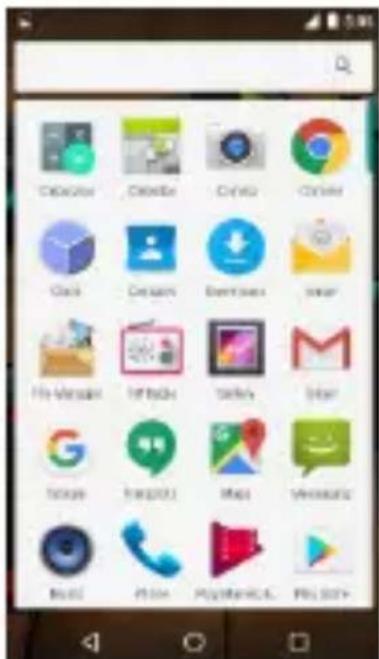
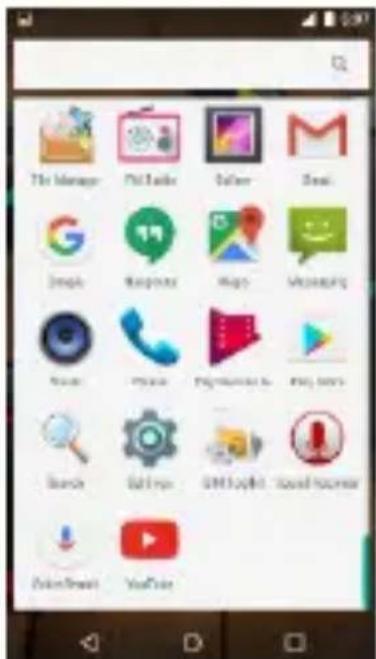
Za pokretanje Aplikacije, pritisnite na oznaku aplikacije.
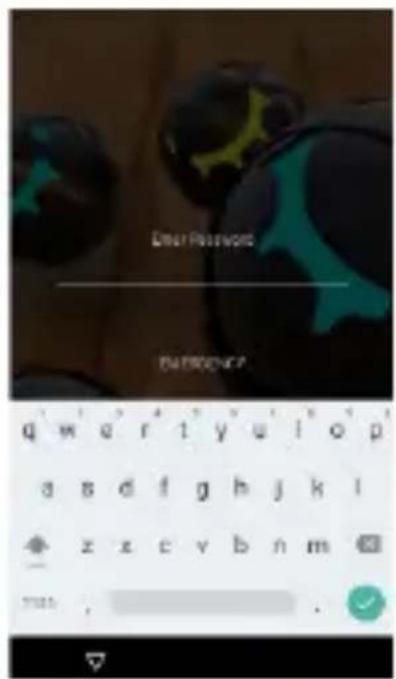
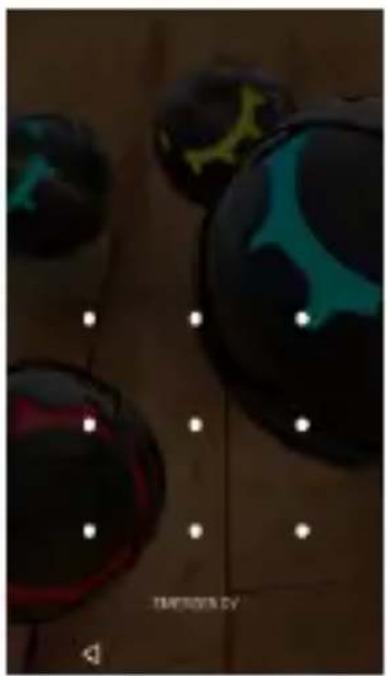
4. Zaključavanje zaslona
Možete povećati sigurnost vašeg telefona odabirom tipa zaključavanje zaslona: Za ulazak u ugađanje odaberite: "Settings" (Postavke) > "Security" (Sigurnost) > "Screen lock" (Zaključavanje zaslona).
Možete postaviti zaključavanje zaslona s različitim razinama sigurnosti:
- %o Lock (%ema zaključavanja)
- Finger Slide (Pomak prsta)
- Pattern (Uzorak)
- PI% (Brojčana Lozinka)
- Password (Slovna Lozinka)
natural_image
Close-up of a black and teal spherical object with glowing patterns, possibly a game controller or display (no visible text or symbols)5. Postavljanje početnog zaslona
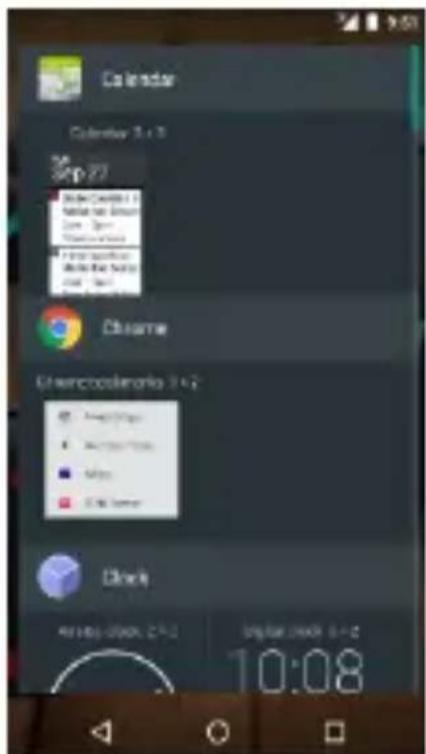
Duljim dodirom na sliku Aplikacije možete pomicati aplikacije po zaslonu, brisati ih ili dodavati iz popisa aplikacija
6. Widget-i
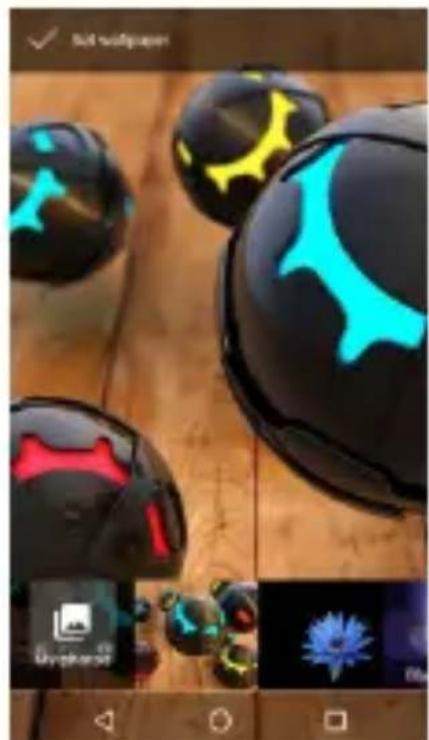
Možete dodati aktivne aplikacije (Widget-e) na početni zaslon. Widget-i omogućavaju da na jednostavan i brz način možete vidjeti različite podatke i obavijesti na vašem početnom zaslonu, poput sata, vremenske prognoze, statusa E-mail-a, itd.
natural_image
Close-up of black and cyan spherical objects with abstract star-like patterns, displayed on a wooden surface (no text or symbols visible)7. Kamera
natural_image
Mobile phone screenshot showing a blank screen with control buttons and navigation icons (no readable text or symbols)8. Internet
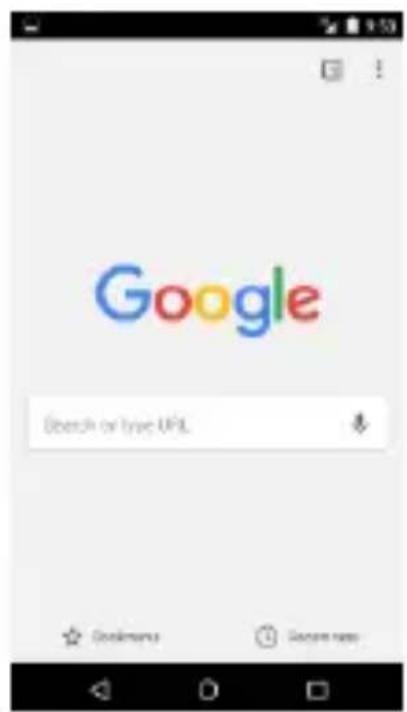
Za pristup i pretraživanje interneta, možete koristiti →oogle Android aplikacije kao što je Chrome ili druge internetske tražilice.
9. Uspostava poziva
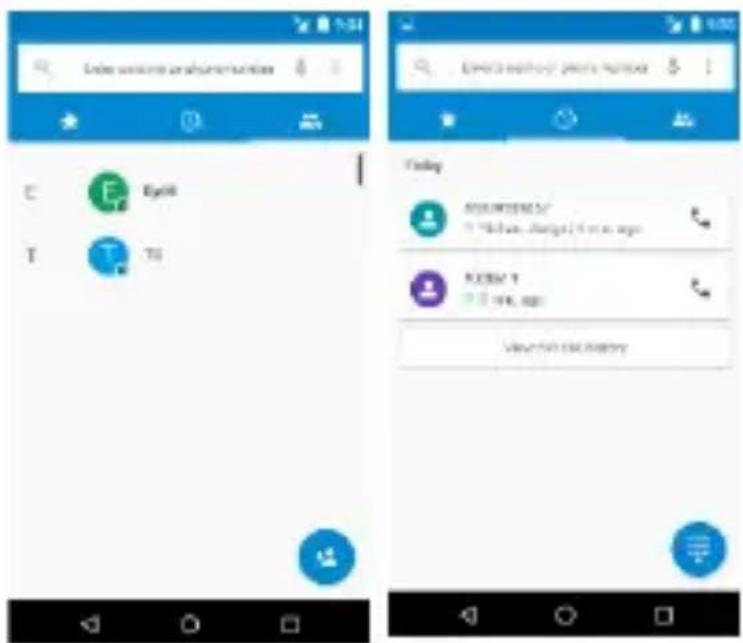
Možete ostvariti poziv putem zapisnika poziva, odabirom kontakata, preko poruke koja sadrži tel. broj ili direktnim upisom broja koji želite pozvati. U modu
12. 5udio
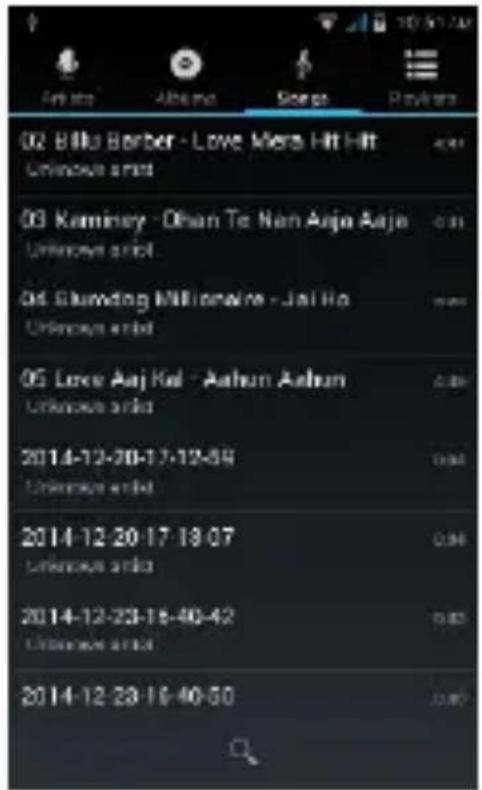
Vaš telefon podržava različite audio formate, različite zvučne efekte i četiri kategorizacije, tj. filtriranje po Izvođaču, Albumu, %aslovu i Listi za reprodukciju.
13. Video
Za reprodukciju različitih video formata, odaberite Video reproduktor Aplikaciju na vašem telefonu.
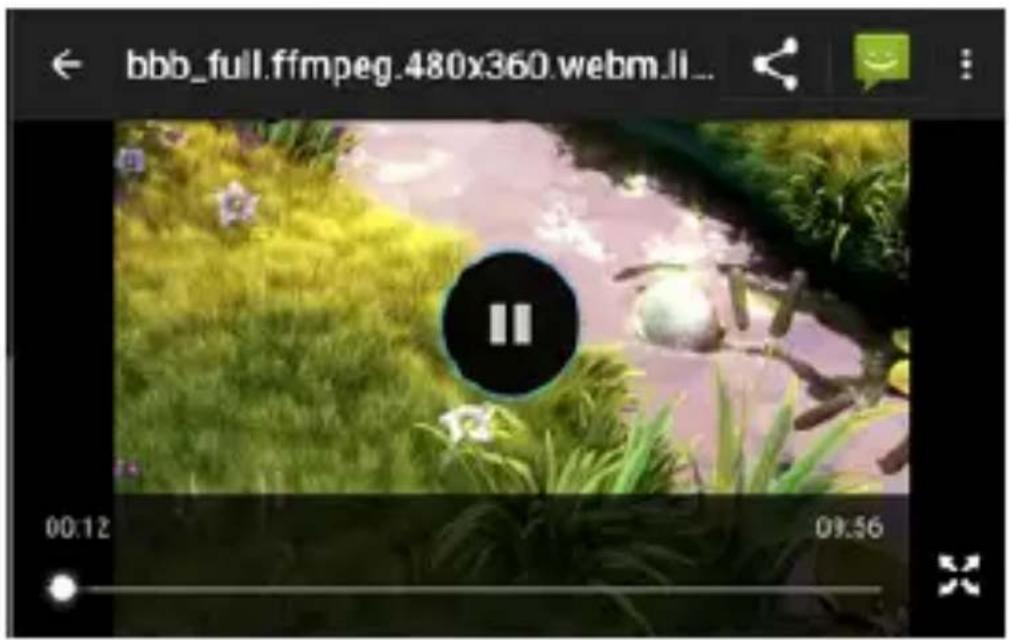
Možete reproducirati video datoteke iz različitih izvora, snimljene kamerom s telefona, video datoteka s Interneta ili Youtube-a.
14. Slike
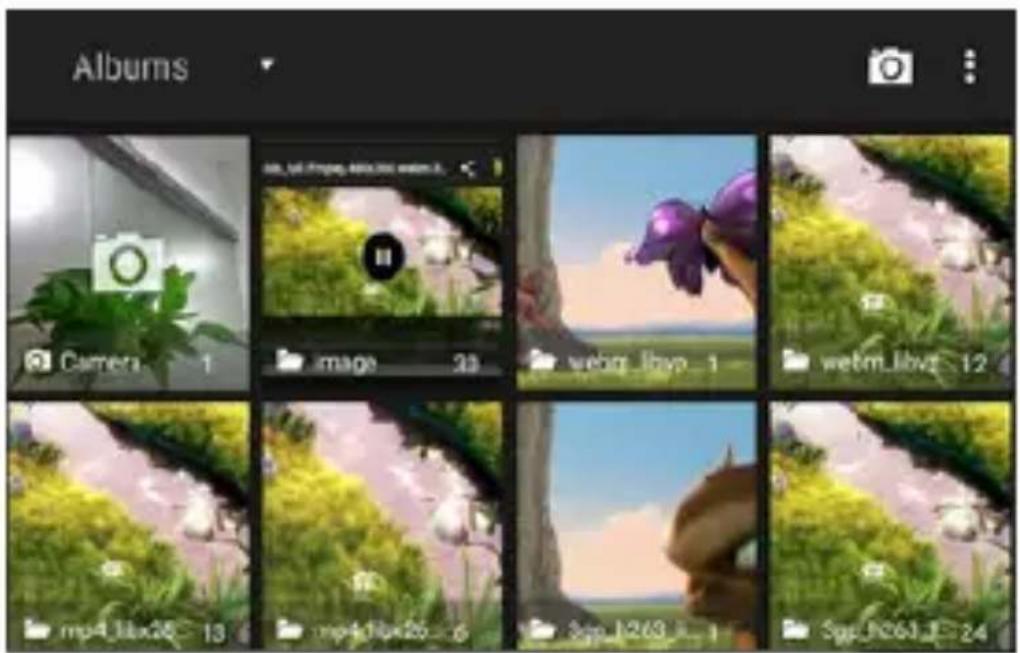
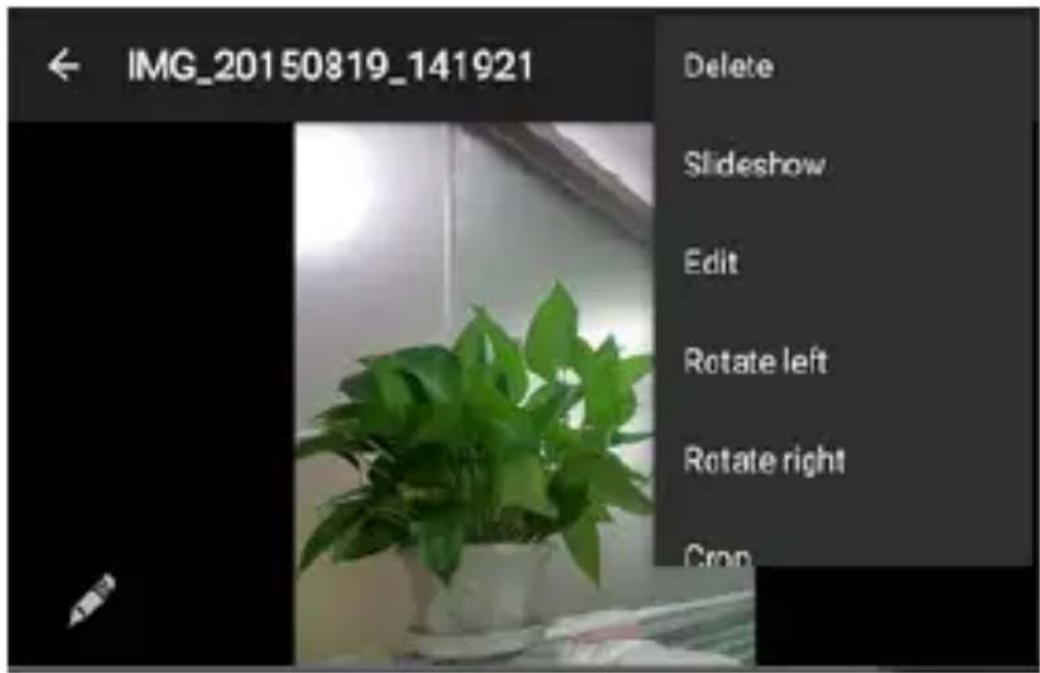
Telefon posjeduje alat za lagano i brzo pregledavanje fotografija. Pomakom prsta po zaslonu desno ili lijevo možete pomicati slike. Dodirnite dvaput ili razmaknite dva prsta za uvećanje. Možete uređivati, dijeliti, ispisati slike i mnoge druge funkcije.
16. Karte i GPS
Android logo, Google™, Google Maps™, Google Mail™, YouTube™, Google Play™ Store, i Google Talk™ su robne marke Google, Inc.
Wi-Fi ^® , Wi-Fi Protected Setup ^™ , Wi-Fi Direct ^™ , Wi-Fi CERTIFIED ^™ , i Wi-Fi logo su registrirane robne marke Wi-Fi Alliance.
32,17;551
SR BIH CG
Korisničko uputstvo
Hvala vam na kupovini Vivax proizvoda.
Uputstva za upotrebu daju vam detaljne informacije o radu vašeg novog uređaja. Pre nego što počnete sa upotrebom vašeg novog telefona, obavezno pročitajte uputstva kako biste u potpunosti, sigurno i pravilno upotrebljavali vaš telefon. Sačuvajte uputstva za slučaj da vam ponovo zatrebaju.
S(2UR>OS>/ UPOZOR7>)/ ( >/PO"7>7
Pročitajte ove sigurnosne napomene pre upotrebe uređaja. Prilikom upotrebe, pridržavajte se sigurnosnih napomena jer time smanjujete rizik od požara, električnog udara ili povređivanja.
1/T7R()/, PU>)/Č (OST/“/ 6O6/T>/ OPR7”/
Zbog toga se ne preporučuje slušanje audio zapisa sa velikom glasnoćom i ne više od jedan sat dnevno, pri srednjoj glasnoći.
natural_image
Two abstract geometric shapes: a rectangle and a grid-patterned square (no text or symbols)Postavljanje Google računa
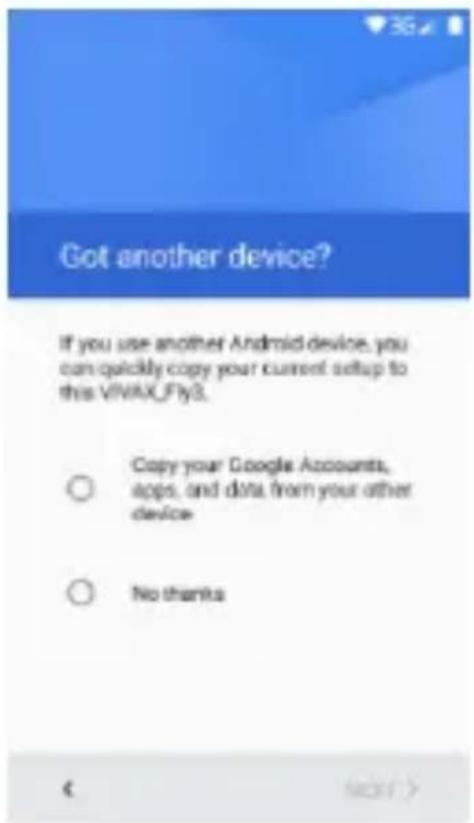
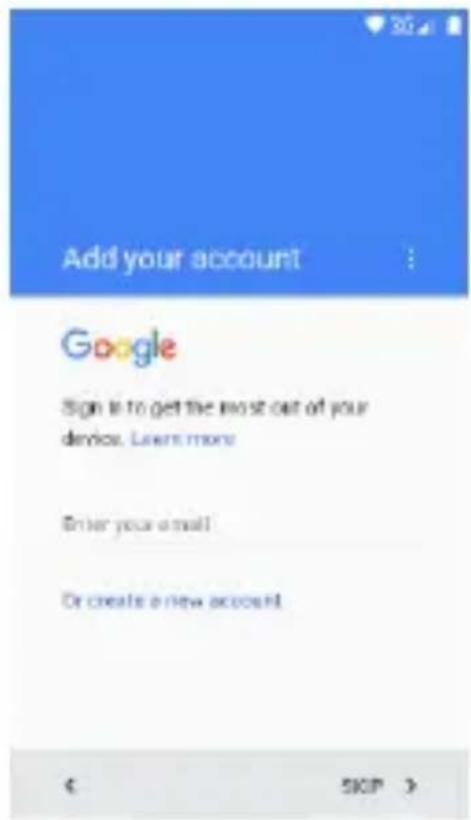
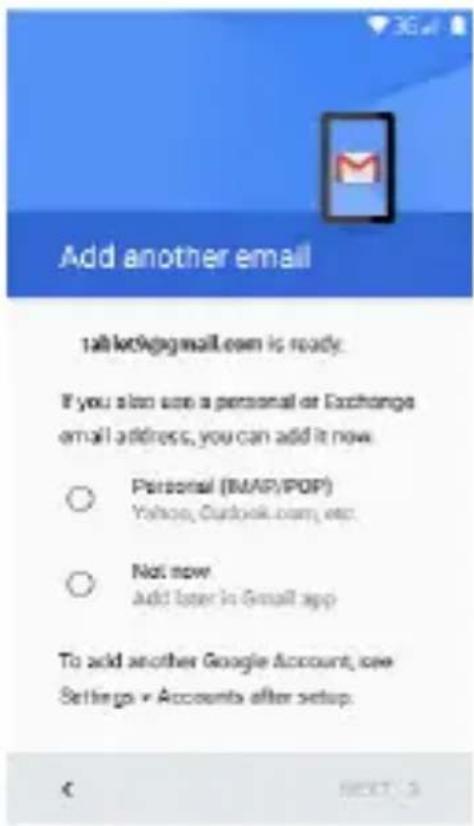
Vodič će da vas vodi kroz podešavanje telefona, prilagođavanje telefona vašoj telefonskoj mreži, Wi-Fi pristup, Google račun, E-mail račun i druga početna podešavanja.
PRISTUP UPUTSTVIMA >A 7KRA>U
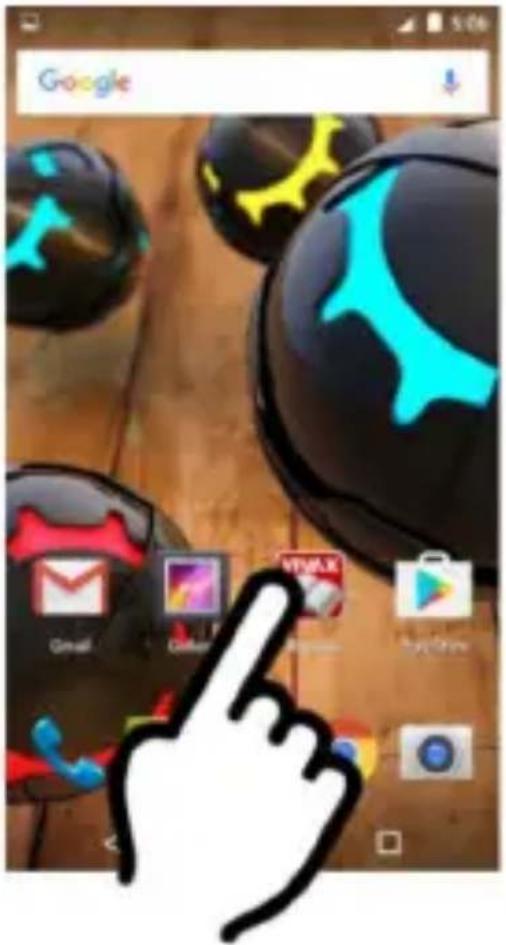
Za više informacija i pristup Uputstvima za upotrebu na ekranu telefona, pritisnite
na oznaku "Manual"

Pritiskom na Aplikaciju "Manual", na ekranu će se prikazati elektronska verzija uputstava sa više podataka o podešavanjuu i upotrebi telefona.
Sadržaj
- Pregled telefona 19
- Tasteri 19
- Ekran 20
- Zaključavanje ekrana 21
- Podešavanje početnog ekrana 22
- Widget-i 22
- Kamera 23
- Internet 23
- Uspostava poziva 24
- Poruke 25
- E-mail 25
- %uzika 26
- Video zapisi 27
- Slike 27
- Isecanje, Kopiranje i lepljenje zapisa 28
- %ape i GPS
Početak upotrebe
1. Pregled telefona
Na glavnom ekranu, povucite prstom sa vrha ekrana prema dnu za prikaz brzog menija za podešavanje:
- Svetline ekrana
- Wi-Fi pristupa
-%obilnog pristupa - Bluetooth konekcije
- Avionski mod
- Lokacije itd...
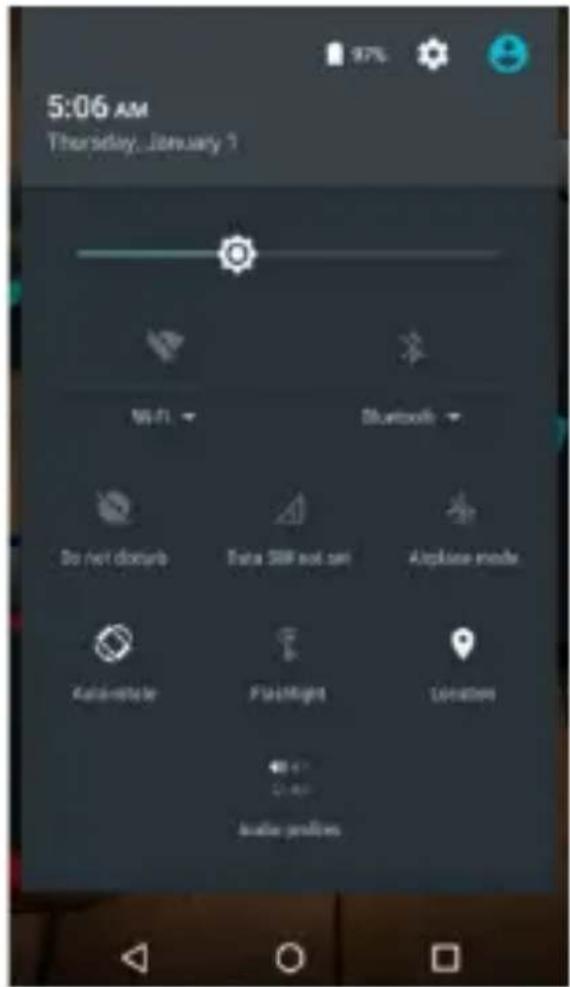
2. Tasteri
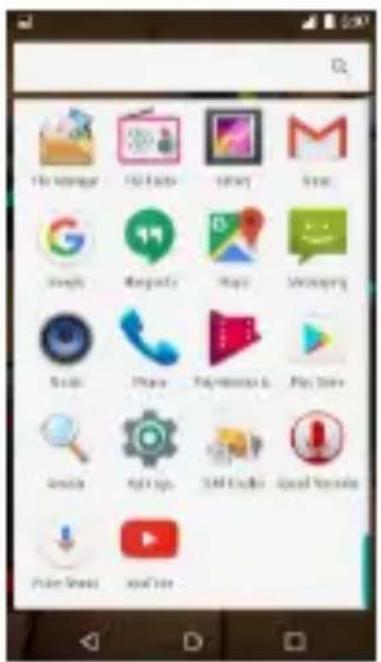
Za pokretanje aplikacije, pritisnite na oznaku aplikacije.
4. Zaključavanje ekrana
%ožete da povećate sigurnost vašeg telefona izborom tipa zaključavanja ekrana6 Za ulazak u podešavanje izaberite6 “Settings” (Podešavanja) > “Security” (Sigurnost) > “Screen lock” (Zaključavanje ekrana).
natural_image
Close-up of three glossy, dark spherical objects with green and teal highlights on a wooden surface, no visible text or symbols.5. Podešavanje početnog ekrana
Dužim pritiskom na prazan deo na početnom ekranu ili izborom "Podešavanja", otvoriće se opcije za podešavanje pozadinske slike (wallpaper), dodavanje "widgets-a" i aplikacija.
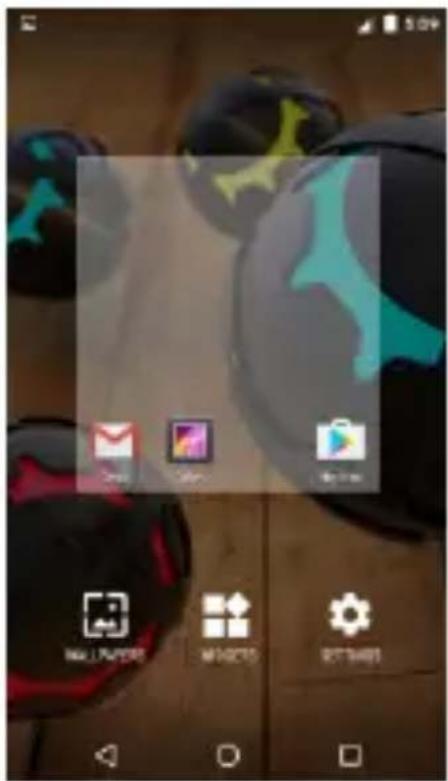
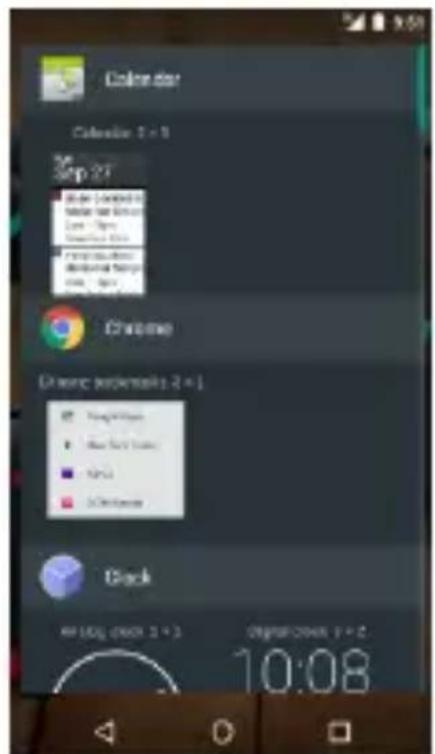
Dužim dodirom na sliku Aplikacije možete da pomerate aplikacije po ekranu, brišete ih iz popisa ili dodajete u popis aplikacija.
6. Widget-i
natural_image
Close-up of black and cyan spherical objects with abstract star-like patterns, displayed on a wooden surface (no text or symbols visible)7. Kamera
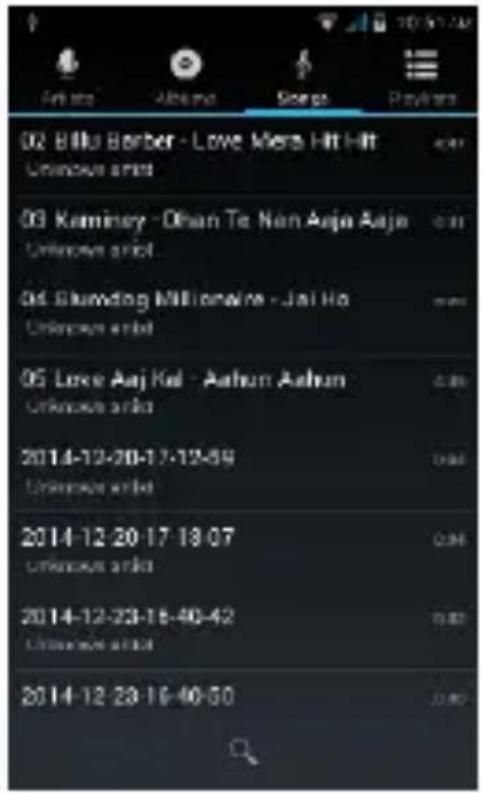
12. Audio
Vaš telefon podržava različite audio formate, različite zvučne efekte i četiri kategorizacije, tj. filtriranje po izvođaču, albumu, naslovu i listi za reprodukciju.
%ožete poboljšati kvalitet zvuka u slušalicama uz pomoć Equalizer-a.
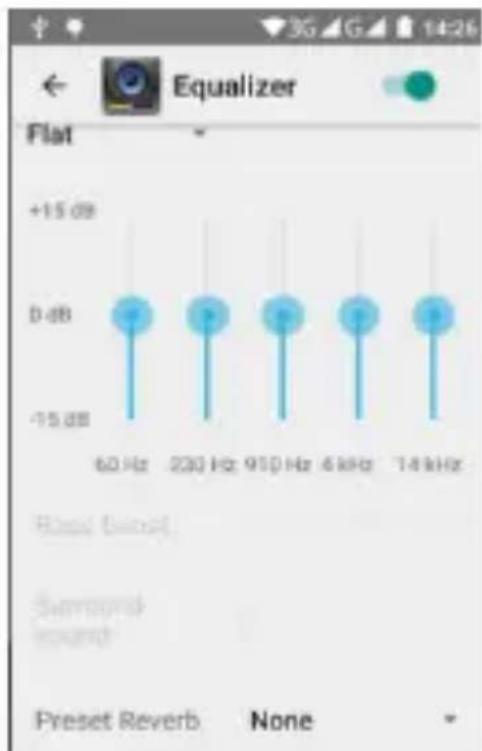
bar
| Frequency | Value | | :--- | :--- | | 60 Hz | +15 dB | | 230 Hz | +15 dB | | 910 Hz | +15 dB | | 6 kHz | +15 dB | | 14 kHz | +15 dB | Preset Reverb None13. Video
Za reprodukciju različitih video formata, izaberite Video reproduktor Aplikaciju na vašem telefonu.
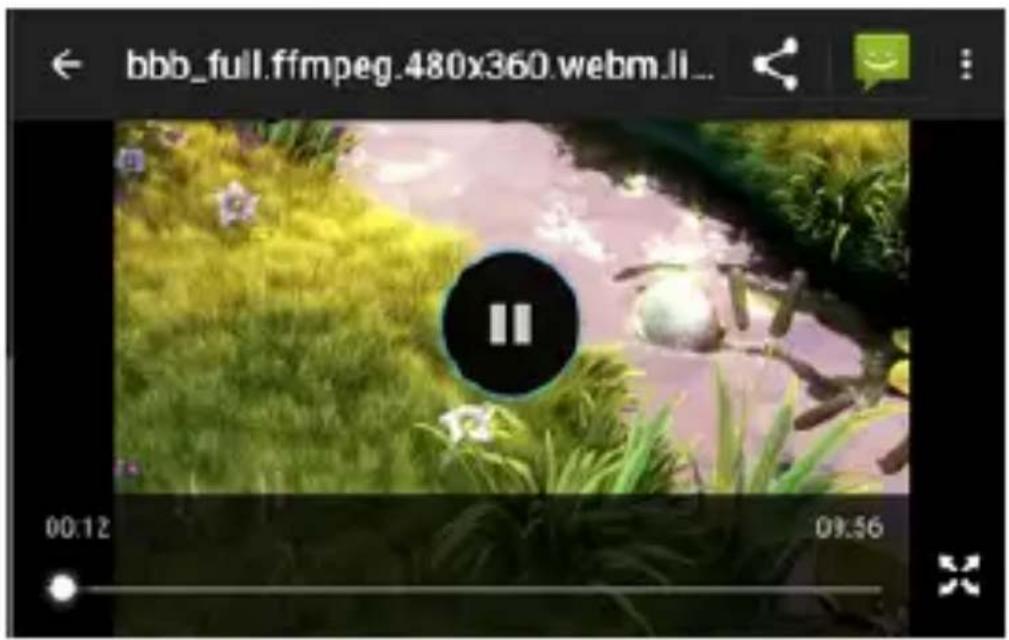
%ožete da reprodukujete video datoteke iz različitih izvora, snimljene kamerom sa telefona, video datoteke sa interneta ili Youtube-a.
14. Slike
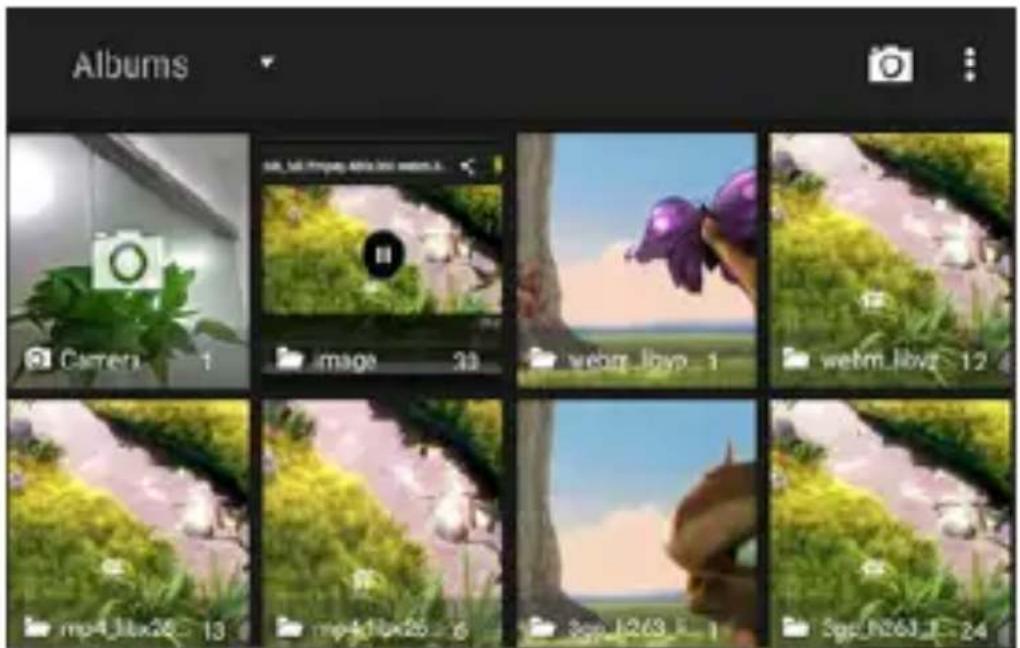
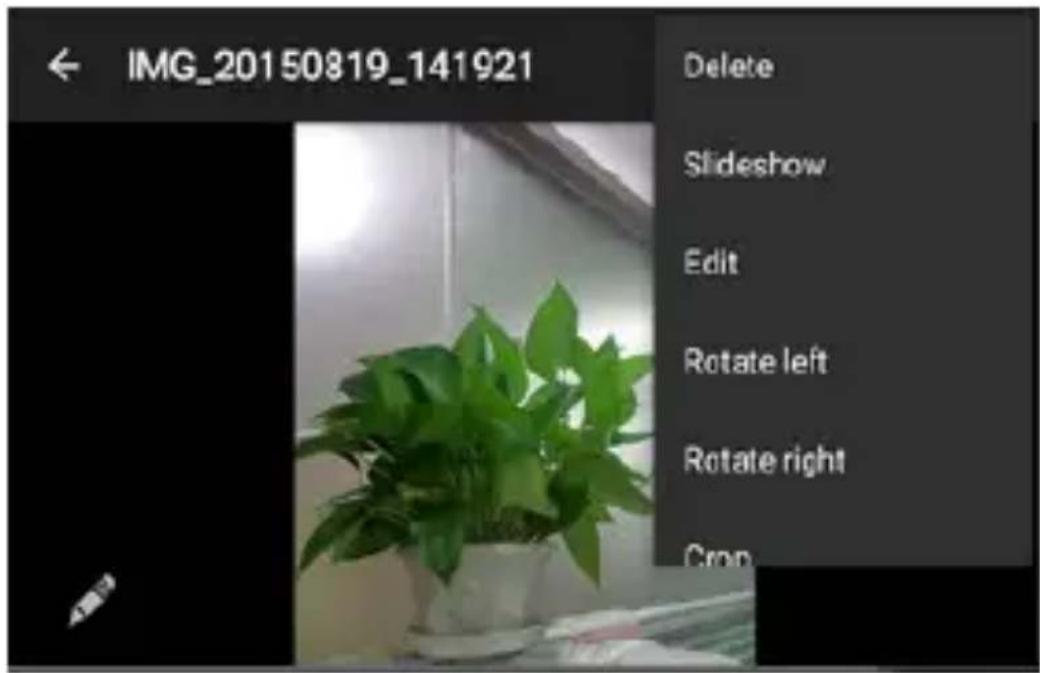
Telefon poseduje alat za lagano i brzo pregledavanje fotografija. Pomerenjem prsta po ekranu desno ili levo možete da pomerate slike. Dodirnite dvaput ili razmaknite dva prsta za uvećanje. %ožete da uređujete, delite, šaljete slike i još mnogo toga.
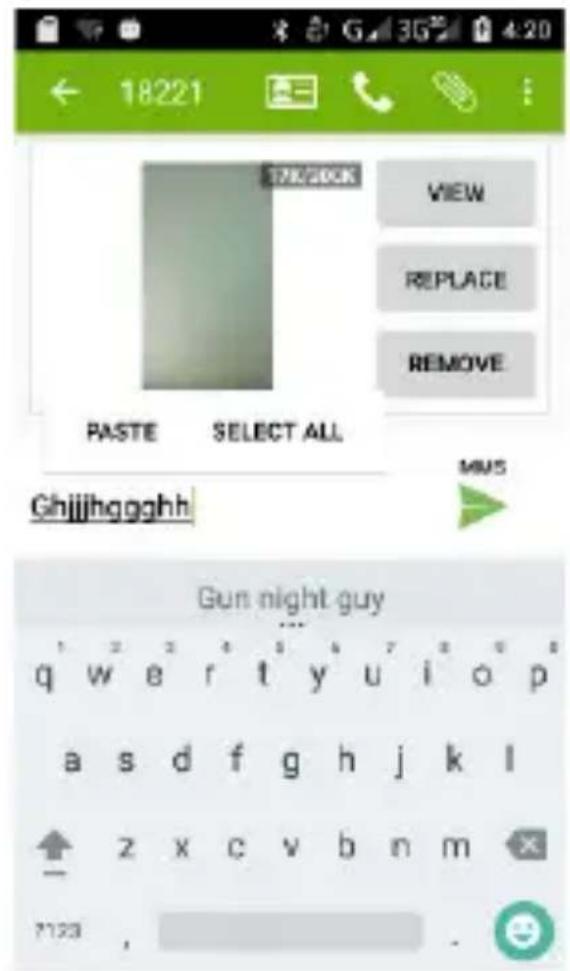
16. Karte i GPS
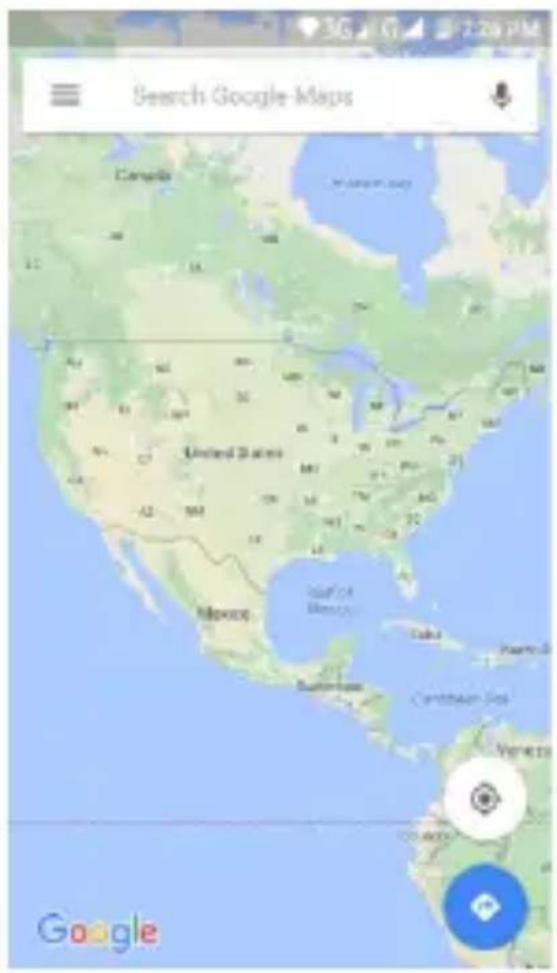
%ožete da pogledate satelitske slike ili kartu sa detaljnim uputstvima rute i da uključite navigaciju. Aplikacija “Karte” vrlo je korisna za navigaciju, određivanje rute, proveru uslova u saobraćaju, potrebnog vremena, bilo da idete peške, autobusom ili tražite rutu za vožnju automobilom. Dostupnost Google %ape zaisi od vaše internet veze i GPS podešavanja.
natural_image
Warning symbol with a triangle containing a stylized ear and sound waves (no text or numbers)natural_image
Symbol of a trash bin with crossed lines indicating no waste or discharge (no text or labels)natural_image
Symbol of a trash bin with crossed lines indicating no waste or restriction (no text or numbers present)flowchart
graph TD
    A["Icon 1"] --> D["Device Icon"]
    B["Icon 2"] --> D
    C["Micro Icon"] --> D
2. Копчиња
natural_image
Close-up of black and red spherical objects with glowing green patterns, no visible text or symbols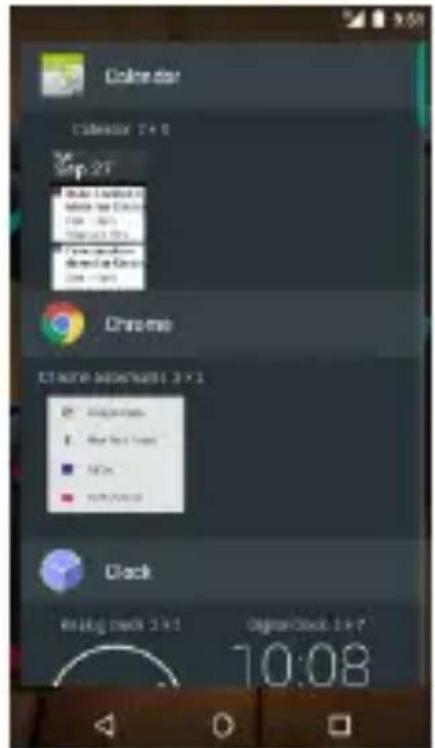
natural_image
Close-up of black and cyan spherical objects with abstract markings, displayed on a wooden surface (no readable text or symbols)7. Камера
natural_image
Mobile phone screenshot showing a blank screen with control buttons and navigation icons (no readable text or symbols)8. Интернет
12. Аудио
16. Мапи и GPS
Android logo, Google™, Google Maps™, Google Mail™, YouTube™, Google Play™ Store, i Google Talk™ ce заштитени брендови на Google, Inc.
Wi2Fi ^® , Wi2Fi Protected Setup ^™ , Wi2Fi Direct ^™ , Wi2Fi CERTIFIED ^™ , i Wi2Fi logo се регистрирани рендирани марки на Wi2Fi Alliance.
32,17;551
AL
natural_image
Warning symbol with a sine wave inside a triangle (no text or numbers)http://hr.vivax.com/, zgjidhni PROIZVODI→Smart,
natural_image
Symbol of a trash bin with no text or labelsnatural_image
Symbol of a trash bin with no text or labels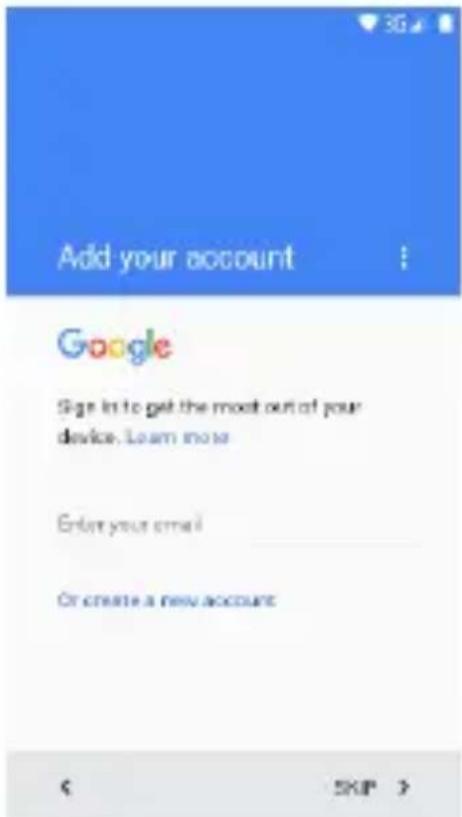
2. Sustat
Susta për kyçje8
natural_image
Close-up of glossy black and teal spherical objects with white dots, placed on a wooden surface (no text or symbols visible)natural_image
Close-up of colorful 3D-rendered objects on a wooden surface, no visible text or symbols6. Kamera
natural_image
Blank grayscale image editing interface with no visible text, symbols, or graphical elements7. Internet
11. Audio
12. Video
15. Harta dhe GPS
Thank you for purchasing VIV7X product.
Operating Instructions provides the most detailed information to operate your Smartphone.
Before using your new Smartphone for the first time, read the safety instructions in “Safety Notice” chapter. To get the most from your Smartphone, please be sure to read all instructions thoroughly and keep them where they will be read by all who use the product.
S2""TY NOTI7"S
Read these safety instructions before using your device and store them for possible future reference. 7lways follow these basic safety precautions when using your Smartphone or Tablet. This reduces the risk of fire, electric shock, and injury.
32TT"RY, 7>2R""R, 2ND OT>"R 277"SSORI"S
If the charger cord is damaged, have it repaired by the manufacturer, its service or a similarly qualified person in order to avoid any hazard.
The charger is not intended for use by persons (including children) with reduced physical, sensory or mental capacity. Persons who have not read the manual, unless they have received explanations by a person responsible for their safety and supervision should not use this unit. 8children should be monitored to ensure that they do not play with the charger.
The charger should always be readily accessible. The device should not be exposed to dripping or splashing water. No objects filled with liquids such as vases shall be placed on the device. 7lways leave a minimum
distance of 10 cm around the unit to ensure sufficient ventilation. Naked flame sources, such as candles, should not be placed on top of the device. The device is intended for use only in a temperate climate. Do not dismantle or modify the charger5 otherwise, personal injury, electric shock, fire and charger may occur.
Do not use the charger in such places with high humidity such as bathroom, etc., otherwise, electric shock, fire and charger damage may occur.
Do not touch the charger, electric wire and power socket with wet hand5 otherwise, electric shock may occur.
72UTION: Danger of explosion if battery is incorrectly placed or not replaced by the same type or equivalent. The battery should not be exposed to excessive heat such as sunshine, fire or similar conditions. The battery must be disposed of safely.
SWIT7> O" " IN R" STRI7T" D 2R" 2S
Switch the mobile device off where the use of mobile devices is not allowed or where there is a risk of causing interference or danger, for example on board an aircraft, near medical equipment, fuel, chemicals or blasting sites.
2UT>ORIS"D P"RSONN"L9 Only qualified people are authorized to install or repair this product
277"SSORI"S9 Only use batteries, chargers and other accessories which are compatible with this equipment. Do not connect incompatible products.
K""P T>" "QUIPM"NT DRY9 This equipment is not water proof. Keep it dry.
7>ILDR"N9 Keep your mobile device in a safe place, out of the reach of young children. The mobile device contains small parts that may present a choking hazard.
Radio frequency interference
Radio frequency output from electronic devices can interfere with other electronic equipment and cause malfunctions. 7lthough this mobile device has been designed in accordance with 9U regulations on radio frequency emission, mobile device wireless transmitters and electrical circuits can cause interference with other electronic equipment. We therefore recommend taking the following
precautions:
2ircraft9 Wireless equipment can cause interference in aircraft. Turn off your mobile device before boarding the aircraft. Do not use on the ground until allowed to do so by the flight crew.
Vehicles9 Mobile device radio frequency emissions can affect the electronic systems of motor vehicles. In relation to your vehicle, check with the manufacturer or dealer.
Medical implants9 Medical equipment manufacturers recommend a minimum distance of 15 centimeters between a wireless device and an implanted medical device such as a pacemaker or defibrillator to avoid any interference with the medical device. It is recommended that people fitted with such devices:
- 7lways keep wireless equipment more than 15cm away from the medical device.
- Never carry wireless equipment in a breast pocket.
- Place such equipment at the opposite ear to the medical device.
- Turn off the wireless equipment if they think it is interfering with their device
- Follow the instructions provided by the medical implant manufacturer.
If you are fitted with a medical implant and have any questions related to the use of your mobile/wireless equipment, you should consult your doctor
Other medical devices9 Radio transmitting equipment including mobile devices may interfere with the proper operation of insufficiently protected medical equipment. 8onsult a doctor or the medical equipment manufacturer to find out whether the equipment is sufficiently protected from external radio wave signals. Turn off your device where required by regulations, particularly in hospitals.
health facilities9 Hospitals and health facilities may be using equipment which is particularly sensitive to external radio frequency emissions. Turn off the mobile device when staff or notices tell you to.
earing9 Warning: Using a headset risks not be able to correctly hear outside sounds. Do not use a headset when it could endanger your safety. Some mobile devices can interfere with the proper operation of hearing aids.
3 lasting sites and marked areas9 Turn off your device in potentially explosive areas. Follow all official instructions. Sparks in such areas can cause an explosion or a fire, resulting in serious injury or death. Turn off your equipment in petrol/gas stations, especially when near the fuel pumps. Strictly follow usage restrictions in fuel depots, chemical plants or in places using explosives. Potentially explosive areas are often, but not always, clearly signed. These include areas where it is normally considered advisable to turn of vehicle engines, the area below deck on ships, chemical storage or transfer plants, and areas where the air contains chemical products or particles, such as grain, dust and metal powder. 7ll our mobile devices conform to international standards and regulations, and if need be national ones, with a view to limiting user exposure to electromagnetic fields. These standards and regulations were adopted after the completion of extensive scientific research. This research established no link between the use of the mobile device and any adverse effects on health if the device is used in accordance with standard practices. However, if you would like to reduce the level of exposure to radio frequency radiation you can limit your use of wireless, because the time in contact with is a factor of exposure for a person, and you can move away the device from you, because the exposure level decreases with a smaller distance
GENER2L S2FETY PRE72UTIONS 2ND 2DVI7ES
Read and retain these instructions for future reference.
Warnings: On the product and User Guide instructions should always be adhered to.
7leaning9 Do not use liquid cleaners or aerosol cleaners. Use a damp soft cloth for cleaning.
2dapters: Use certified adapters recommended by producer. Other adapters may be hazardous or void your warranty.
Moisture & Water: Do not use near water such as near bath tub, kitchen sink, laundry tub, or swimming pool. Ventilation: Should there be slots and openings in the mobile device, they are provided for ventilation to ensure reliable operation of and protection from overheating. These openings should never be blocked by placing the product on a bed, sofa, rug, or other similar surface.
Power Sources: This mobile device should be operated from the type of power source indicated on the rating label. 8onsult your product dealer or our website for more information. For products intended to operate from battery power or other sources, refer to the operating instructions.
Overloading: Do not overload wall outlets, extension cords, or integral convenience receptacles as this can result in a risk of fire or electric shock.
Object and Liquid Entry: Never put objects of any kind on to or into this product through openings as they may touch dangerous voltage points or short out parts that
could result in a fire or electric shock. Never spill liquid of any kind on the product.
Servicing: Do not attempt to service this product yourself as opening or removing covers may expose you to dangerous voltage or other hazards and will void your warranty. Refer all servicing to qualified service personnel.
zamage Requiring Service: Unplug this product from the wall outlet and refer servicing to qualified service personnel:
a) when the power-supply is damaged
b) if liquid has been spilled
c) if the product has been exposed to rain or water
d) if the product does not operate normally
e) if the product has been dropped or damaged in any way (voids warranty)
eat: The product should be kept away from heat sources such as a radiator, heat register, stove, or other products that generate heat.
Replacement Parts: Unauthorized substitutions when service this product may result in fire, electric shock, or other hazards. Make sure your service technician has used parts specified by the manufacturer.
"nergy Save: To save energy, unplug the USB power adapter when not in use. The USB power adapter does not have a power switch, so you must unplug the USB power adapter from the electrical socket when not in use to avoid wasting power. The device should remain close to the electrical socket while charging.
9xcessive sound pressure from earphones and headphones can cause hearing loss. If you notice any disturbance or hum noise in your ears, stop using the headset or earphones.
72UTION W>"N DRIVIN"
- Do not handle the mobile device when driving. Concentrate fully on the driving.
- Radio signals could affect some of the car's electronic systems such as the audio stereo and alarm systems.
- If the car is equipped with an airbag, do not hinder its deployment with fixed or wireless equipment. This could result in serious injury due to inadequate performance.
INT"R""R"N7"9 All wireless devices are susceptible to interference which may affect their performance.
"ile and 2plication Download: Files you download from the Internet can include viruses that will damage your device. To reduce this risk, only download files from sources you trust. The descriptions in this manual are based on the default settings of your device. The images and screenshots used in this manual may differ from the actual product.
If the device receives an unstable power supply while charging, the touch screen may not function properly. If this happens, unplug the USB cable from the device.
The device may heat up while charging. This is normal and should not affect your device's lifespan or performance.
Precautions for use
This mobile device meets guidelines concerning the exposure to radio waves. Your mobile device is a radio transmitter and receiver. It was designed to meet the limits recommended by international guidelines to limit the exposure to radio waves. These guidelines were developed by and independent scientific organization, The ICNIRP; and include safety margins designed to ensure the protection of all, regardless of age and health.
The recommendations on exposure guidelines for mobile devices employ a unit of measure known as the Specific absorption rate or SAR. The SAR limit defined in the ICNIRP recommendations is 2.0 watts/kilogram (W/kg) averaged over 10 grams of tissue. In tests to determine the SAR, the equipment is used in standard usage positions at its highest certified power level in all tested frequency bands. The actual SAR level of a device in use may be lower than the maximum value because the equipment is designed to only use the necessary power required reaching the network. That amount changes depending on a number of factors such as the distance from a network base station.
SAR VALUES: >EAD: 0,489 W/kg
BODY: 1,560 W/kg
EU Declaration of 7onformity
Hereby, M S7N Grupa d.d. declares that the radio equipment type SmartTelephone is in compliance with Directive 2014/53/9U.
The full text of the 9U declaration of conformity is available at the following internet address:
Instructions for using your device you can find on http://hr.vivax.com/, Select :
PROIZVODI→Smart, Choose Model → Documents → Korisnički priručnik
Information on Disposal for Users of Waste Electrical & Electronic Equipment (private households)
natural_image
Symbol of a trash bin with no text or labelsThis symbol on the product(s) and / or accompanying documents means that used electrical and electronic products should not be mixed with general household waste. For proper treatment, recovery and recycling, please take this product(s) to designated collection points where it will be accepted free of charge. 7lternatively, in some countries you may be able to return your products to your local retailer upon purchase of an equivalent new product. Disposing of this product correctly will help save valuable resources and prevent any potential negative effects on human health and the
environment, which could otherwise arise from inappropriate waste handling. Please contact your local authority for further details of your nearest designated collection point. Penalties may be applicable for incorrect disposal of this waste, in accordance with your national legislation.
zisposal of waste batteries
natural_image
Symbol of a trash bin with no text or labels8heck local regulations for disposal of waste batteries or call your local customer service in order to get instructions on the disposal of old and used batteries. The batteries in this
product should not be disposed of with household waste. Be sure to dispose of old batteries in special places for disposal of used batteries that are found in all retail shops where you can buy batteries
MAIN PARTS AND FUNCTIONS
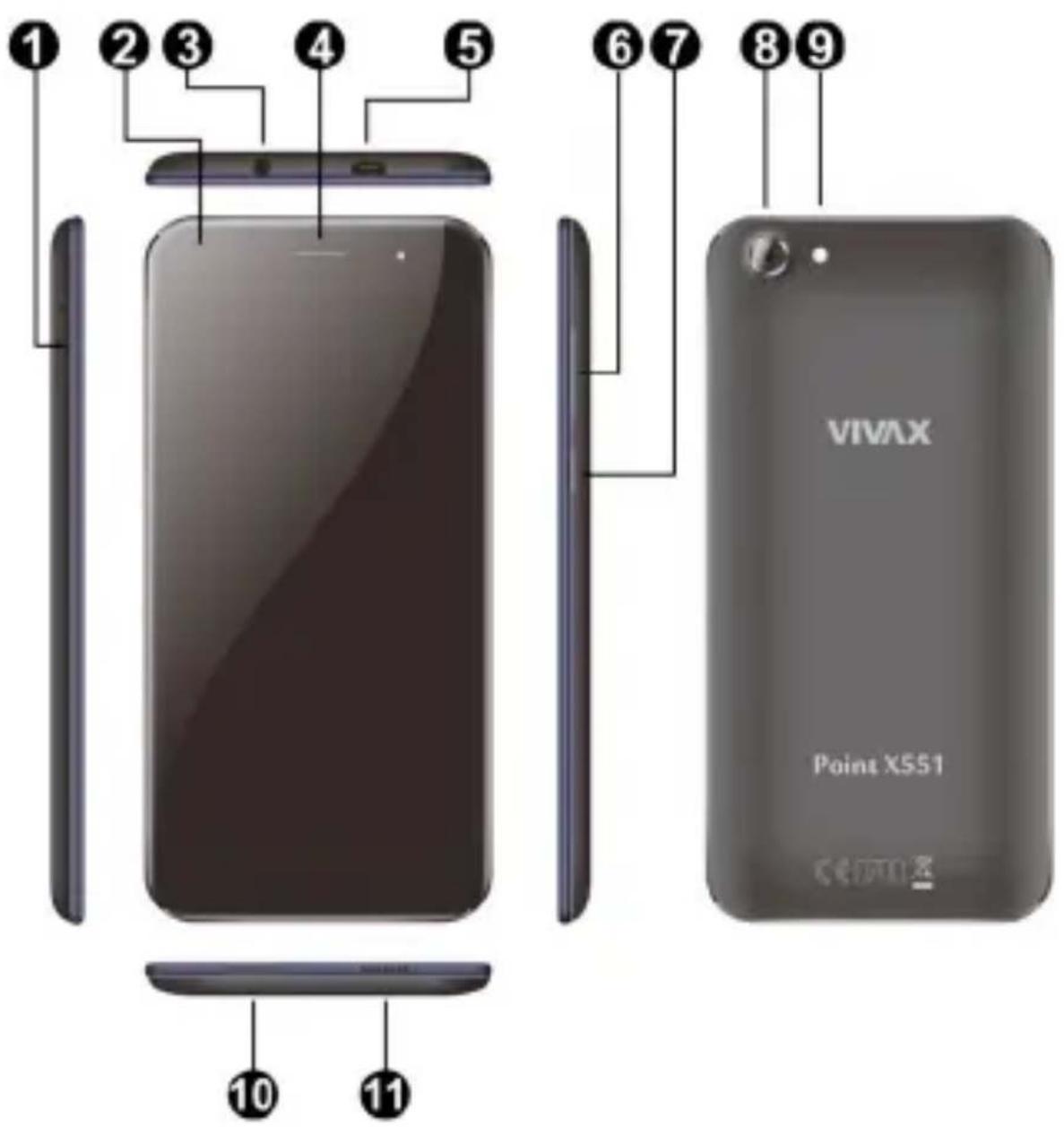
- Slot-Cradle for SIM Cards and Memory SD Cards
- Front Camera
- 3,5mm earphone or active speaker output
-
eadset speaker
- USB Connection for Charger or Data transfer from/to computer
- Volume buttons
-
On/Off button
-
Back Camera
- LED Flash
- Microphone
- Speaker
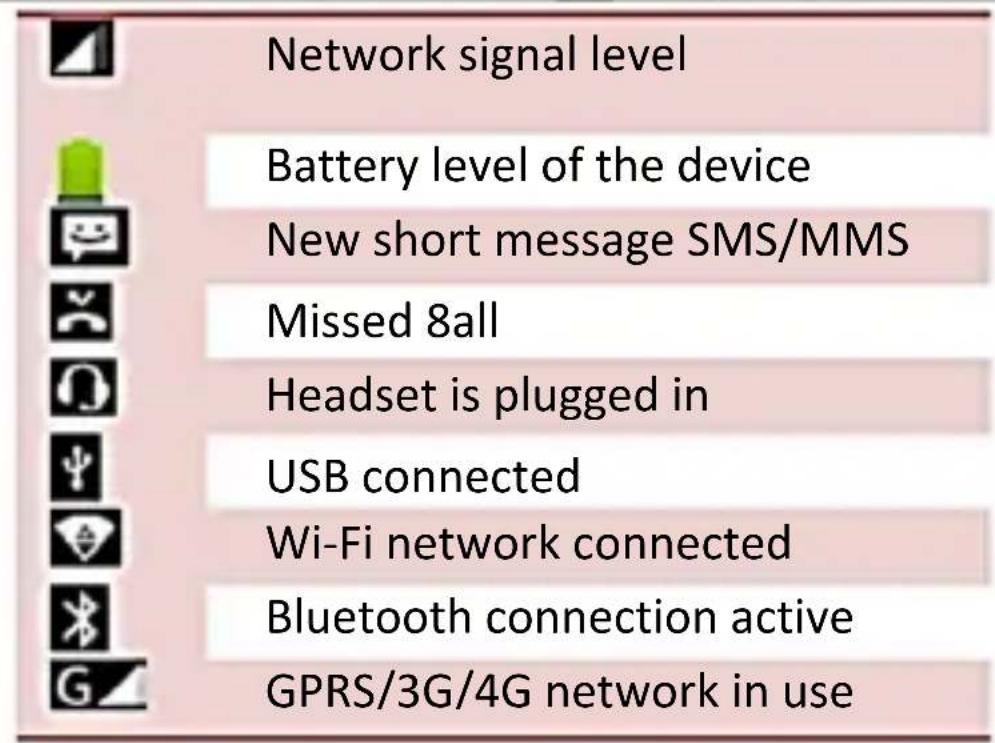
DISPLAY NOTIFICATIONS
FIRST USE
Please switch off your device before inserting or removing the SIM card and memory card.
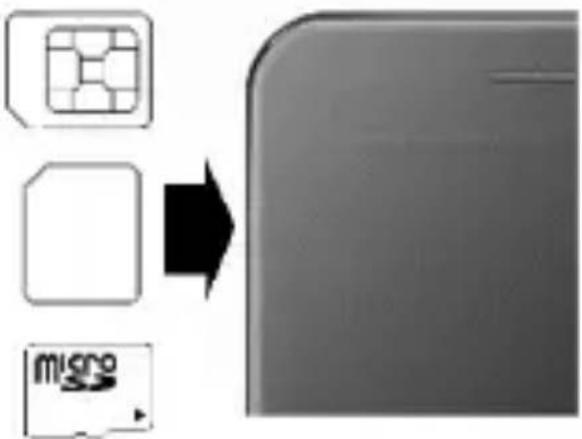
- Open the SIM card Slot-8radle (1)5 Press a thin needle in the hole to open a Slot and pull it out.
- Insert the Micro SIM phone card and (or) SD TF Memory card into the appropriate slot, and then carefully put the Slot-8radle back into slot.
8ard carefully insert into the slot trays with the contacts facing to the outside, as shown in Figure:
SIM A (1)
SIM B (2)
SD Card
flowchart
graph TD
    A["Grid Icon"] --> B["Micro Symbol"]
    C["Grid Icon"] --> B
    D["Grid Icon"] --> B
IMPORTANT:
a. SIM B (2) slot share SIM2 card or SD memory card. You can not simultaneously use SIM and SD card inserted in SIM2 slot. b. Before inserting or removing a Card, turn Off your phone. Never insert or remove a Card while the phone is switched on, as this may damage your card or phone.
-
To turn on Smartphone, press and hold more than 3 seconds the power button (7).
-
Your phone will be turned on for a few moments (after the boot operating system) and it will display the image of the home screen.
-
Now it is necessary to adjust the basic settings of your Phone in order to access applications with Google Play Store, Wi-Fi wireless network and other services.
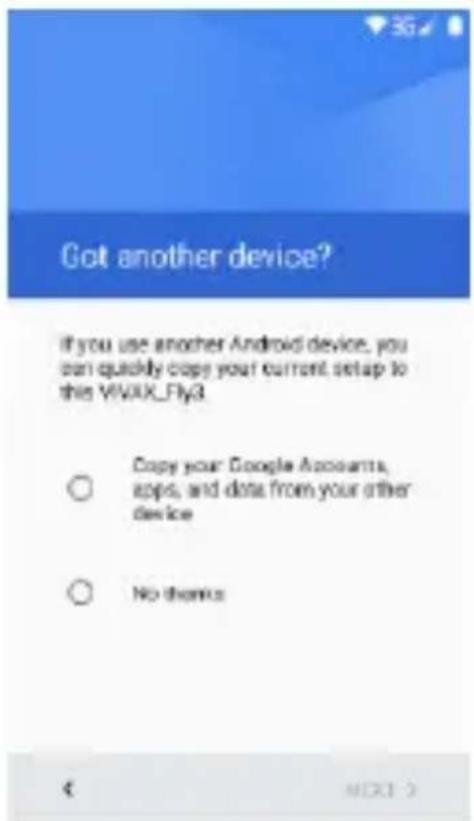
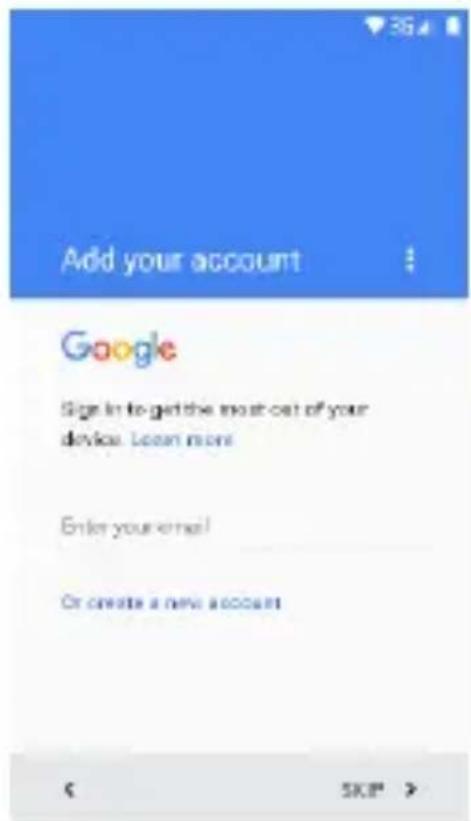
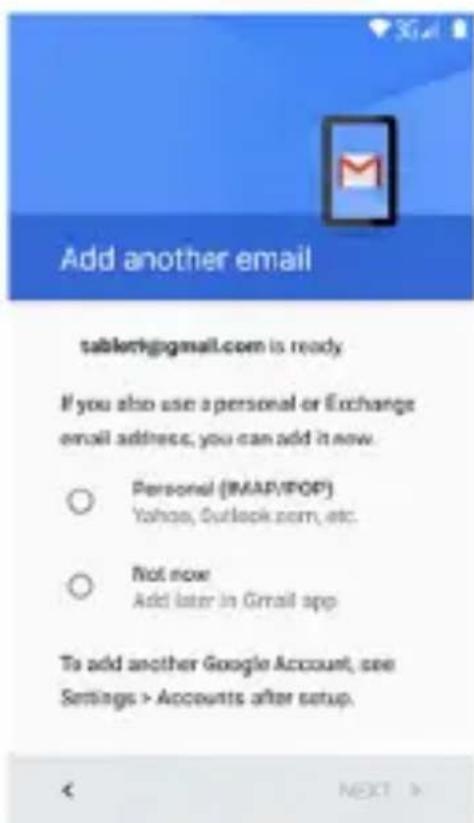
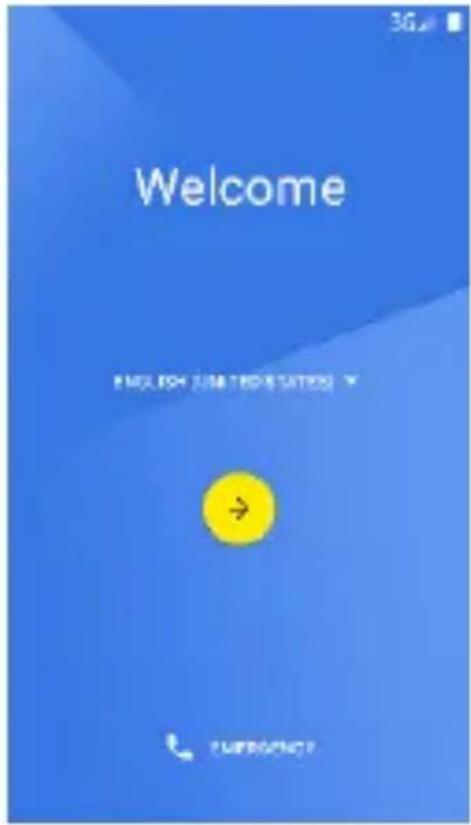
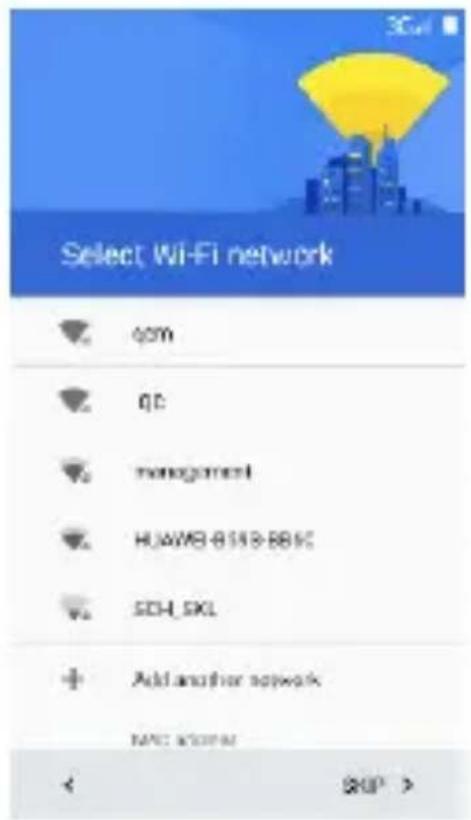
A) Follow the instructions that are shown in the "Wizard - Setup Guide phone":
OSD Language: Wi-Fi network setup:
8opy your setup from some other device (opt)
Google account setup
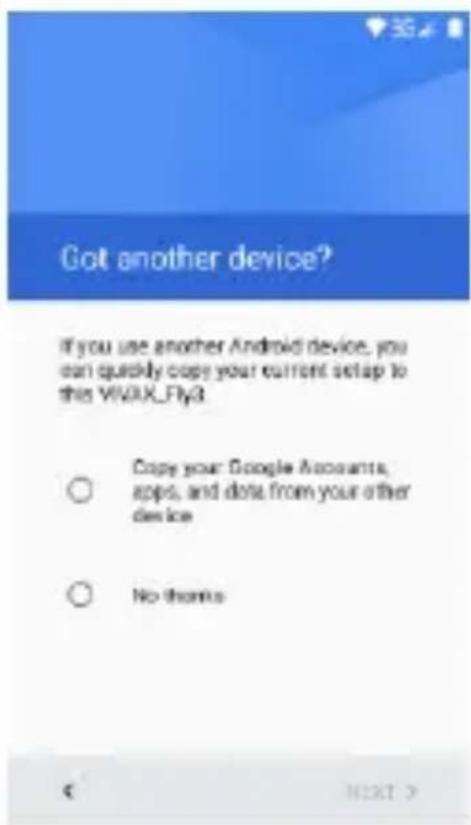
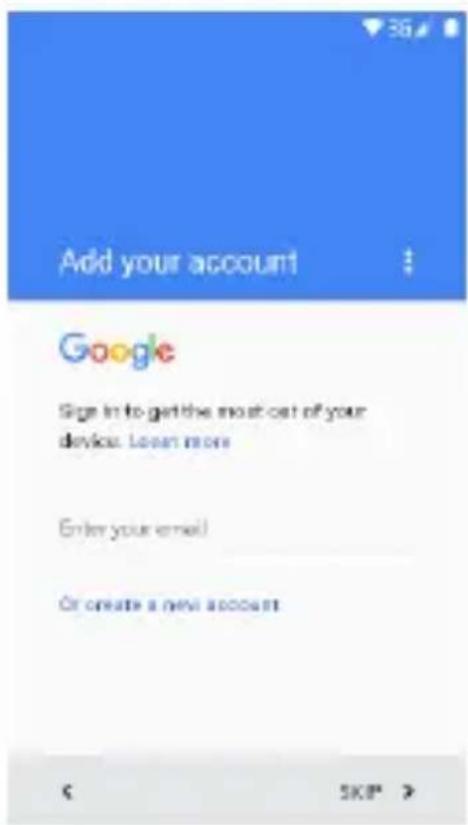
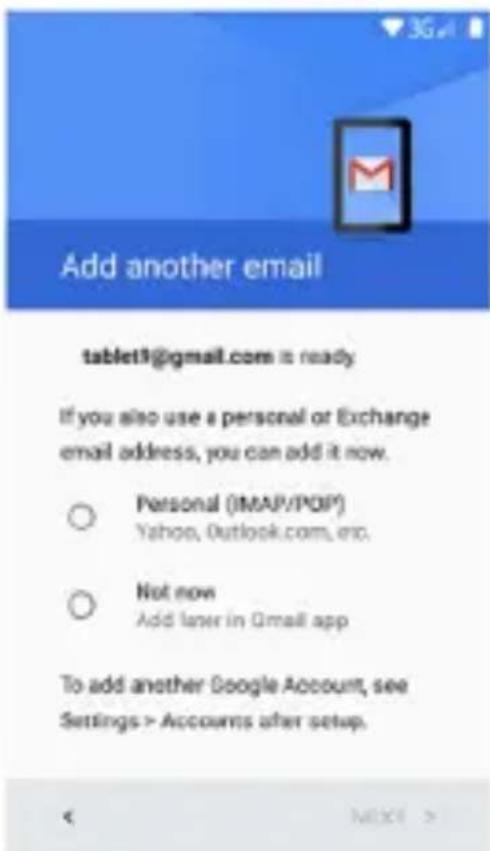
The wizard will guide you through setting up your phone and customize your phone to the telephone network, Wi-Fi access, a Google account, 9-mail accounts and other setups.
When finished with the initial setup of the phone, the display will show the home screen and your phone is ready for use.
Or ...
3) To open and adjust the settings, follow the steps below9
a. On the home screen, to open the list of applications, press the icon: >>>
b. Press the icon Settings:
c. To select the display language, select "Language and Input" and choose language from the list.
d. To login to a Wi-Fi network and adjust the settings, select "Wi-Fi" and follow the onscreen instructions.
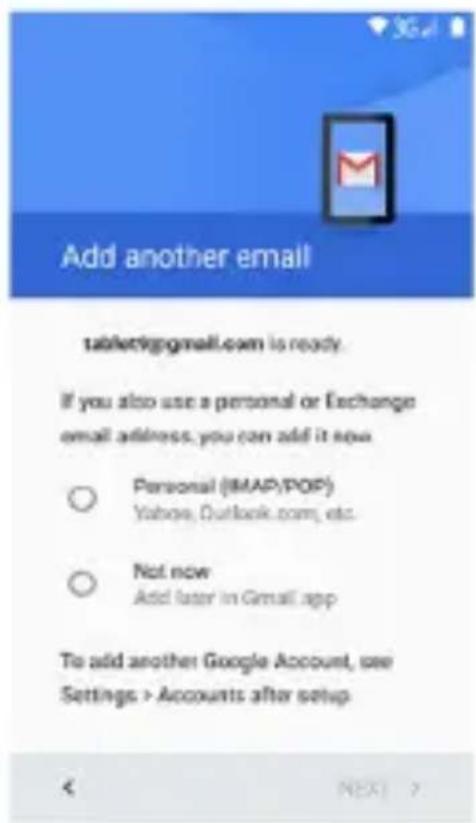
e. To log in to a Google account, without these settings you will not be able to download applications from the Google Store, select "2ccounts".

BATTERY 7>ARGING
In most cases, your phone comes with a pre-charged battery with approximately 50% charge, so it is ready for use. When the battery level falls below 10%, connect the charger to the phone.
a. Connect the mini USB plug from the charger into the USB port (5) on your Phone.
b. Plug the charger into a power outlet. On the device, along with the battery sign is marked lightning icon.
c. Leave your phone connected to the charger until the battery symbol not show full charge.
d. Disconnect your phone and charger from the supply.
OPEN T>E INSTRUCTIONS ON T>E P>ONE DISPLAY
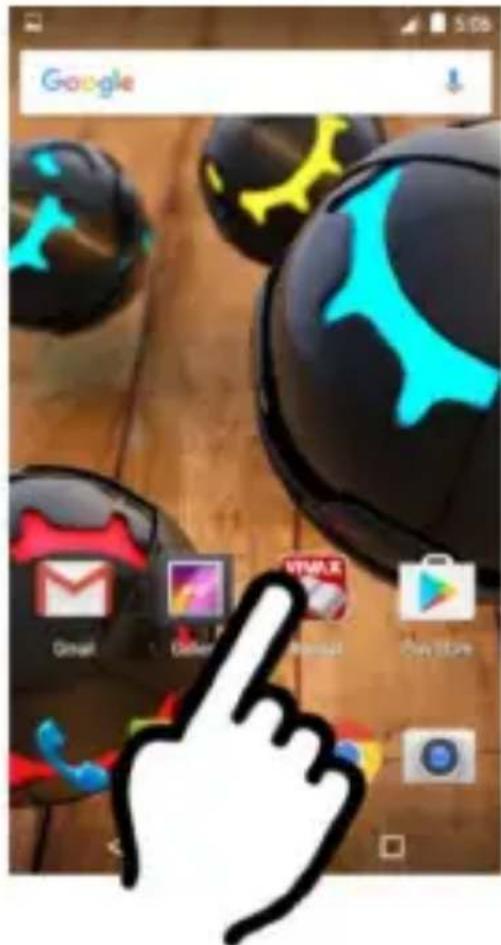
For more information and access to the Instruction manual on the phone screen, press the icon "Manual"
By pressing the Icon "Manual", the display will show the Electronic version of the Instructions with more information about settings and using your phone.
7contents
1、Phone overview 19
2、Buttons 19
3、Screen 20
4、Screen lock 20
5. Customize home screen 21
6、Widgets 22
7、Camera 23
8、Internet 23
9 Make a call 24
10、Messaging 25
11、Email 25
12、Music 26
13、Videos 27
14、Photos 28
15、Cut, Copy, and Paste 29
16、Maps and GPS 29
Getting Started
1. Telephone overview
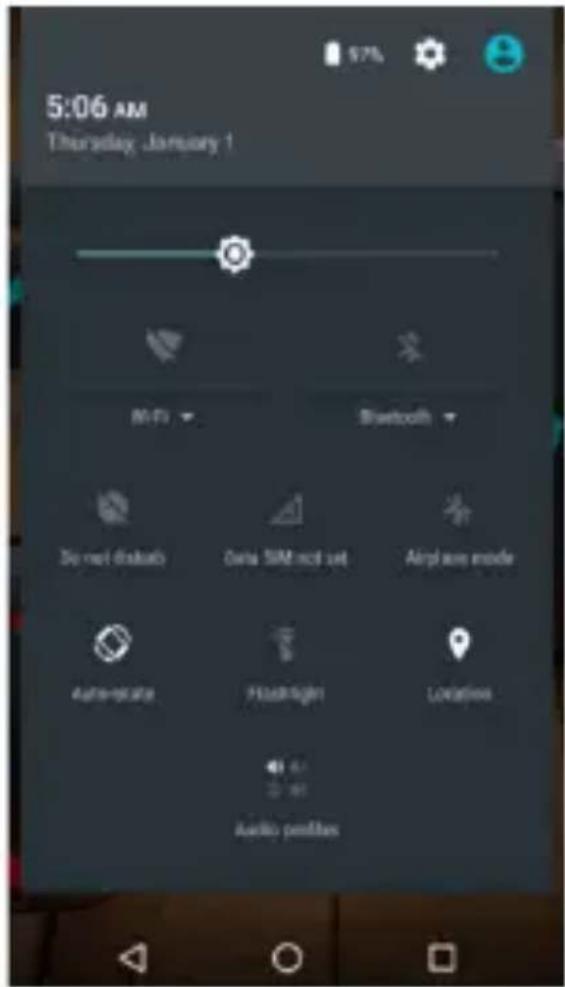
On the Home screen, swipe from the top to the bottom of the screen to open and display the quick menu to adjust:
- Screen brightness
- Wi-Fi access
- Mobile access
- Bluetooth connection
- Airplane mode
- Locations eg...
2. 3uttons
On/Off button:
To turn On the phone, press the power button for a few seconds.
When the phone is switched on, briefly press the button to switch On or Off the screen.
At the bottom of the screen you can find the buttons for navigation:
-
Home key ( 🔒) Touch the key to return to the home screen. In idle screen, touch and hold the key to view recently accessed features.
-
Menu key ( ) in standby mode, touch the button to set the wallpaper, add widgets, view settings, enter the system setup.
-
Back key ( 🔍 Touch to go back to the previous menu
3. Screen
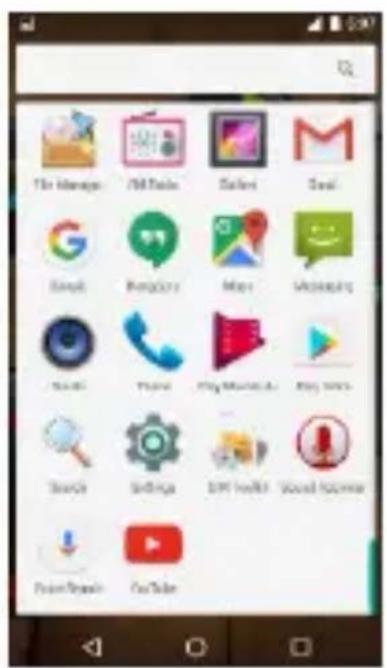
On the home screen, to open the list of applications, press the icon: ::It will be shown a list of all applications installed on your phone.
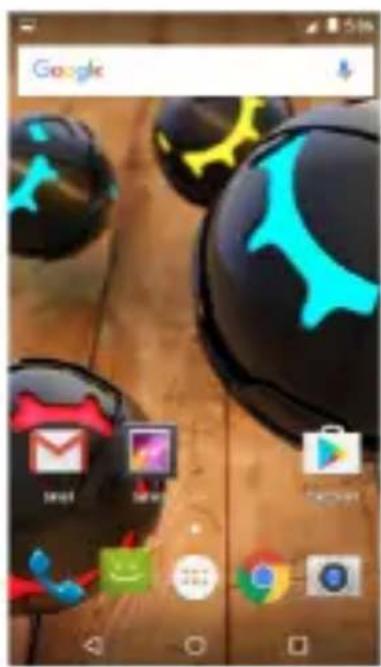
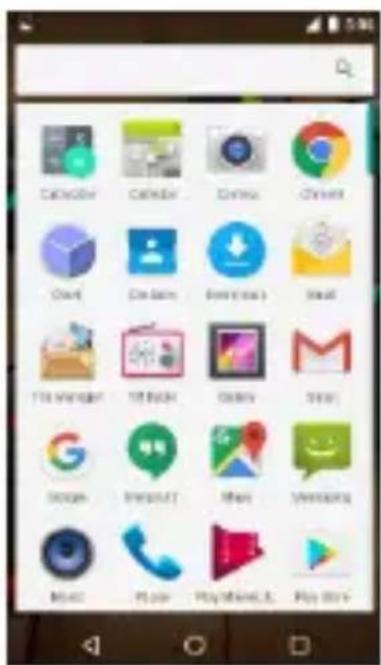
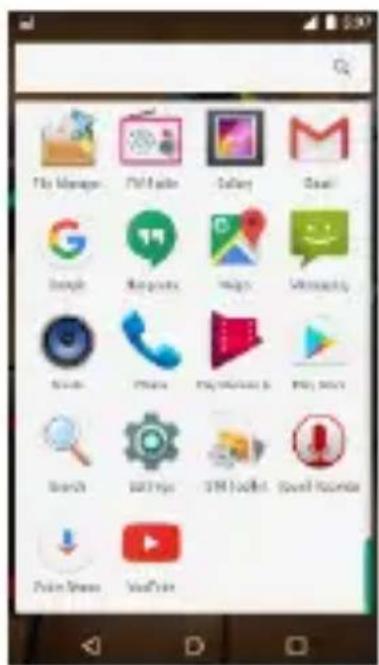
To launch the 7applications, press on Icon.
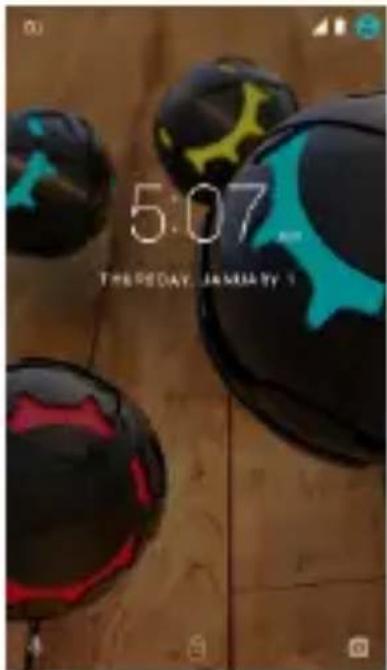
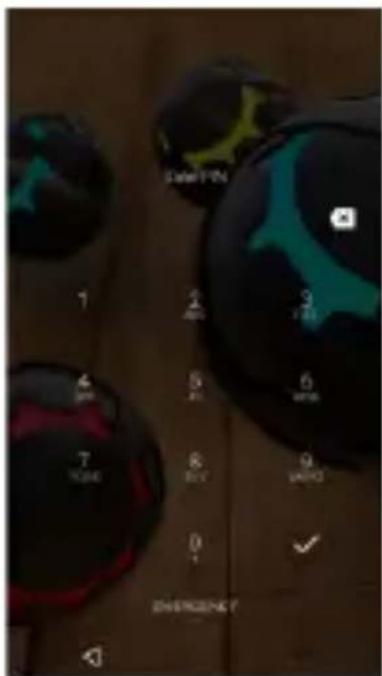
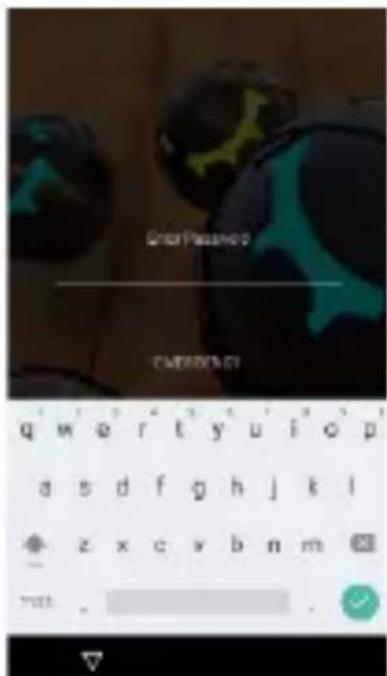
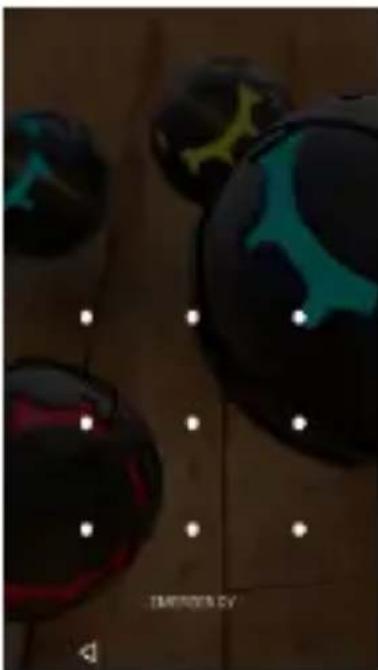
4. Screen lock
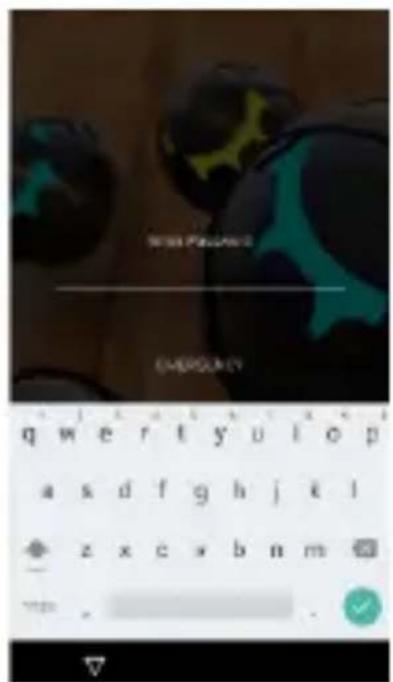
You can increase the security of your phone by selecting screen lock. Screen lock settings can be found under "Settings">"Security">"Screen lock".
You can set your screen lock with the different security levels:
- No Lock
- Finger Slide
- Pattern
- PIN
- Password
natural_image
Close-up of a black, textured spherical object with green and red highlights, placed on a wooden surface (no visible text or symbols)5. 7 customize >ome Screen
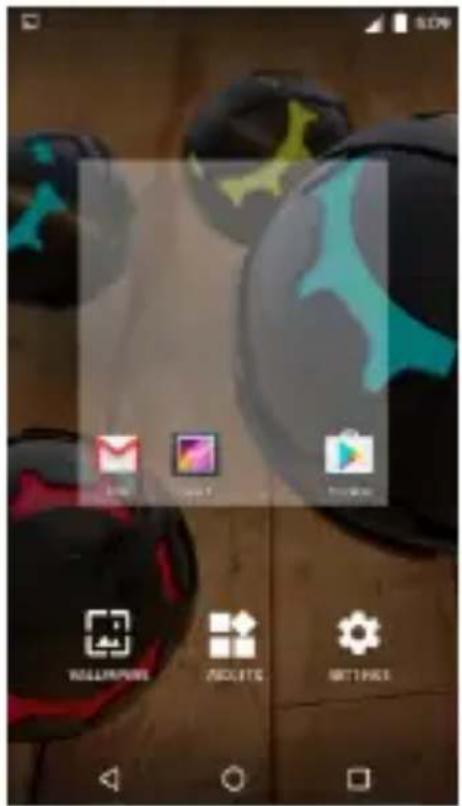
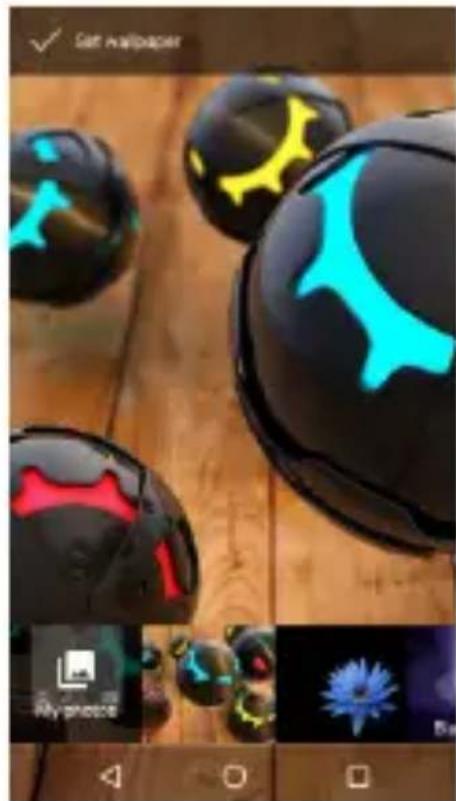
In standby mode, press and hold an empty area or press the menu button to set the wallpaper. In addition, you can also delete items from the Home screen, Move
items, add items to the main screen to customize the home screen
natural_image
Close-up of black and cyan spherical objects with abstract facial markings, displayed on a wooden surface (no text or symbols visible)6. Widgets
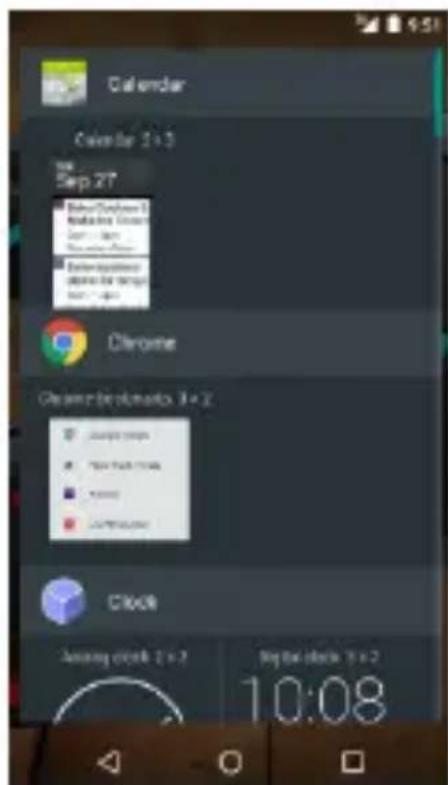
You can add widgets to home screen.
Widgets allows you that on easy and fast way you can see informations and notifications on your home screen, like Time, Weather forecast, 9-mail status, Task and so on.
7. Camera
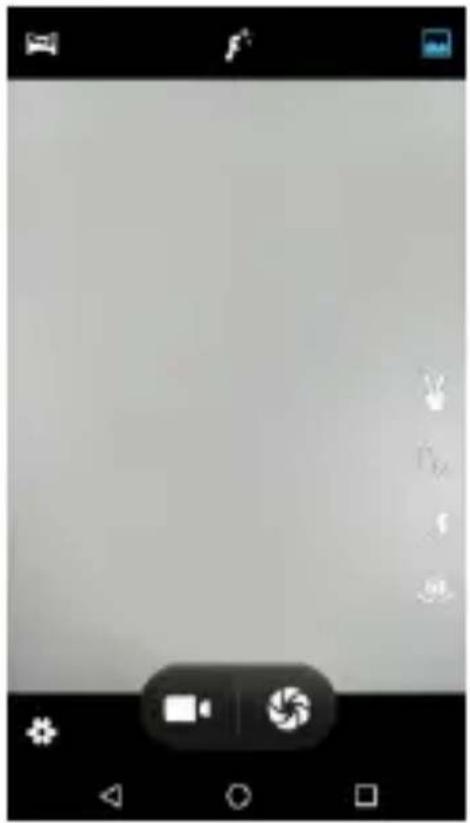
PHON9 is equipped with high resolution cameras and a camcorder, which are designed for you to share wonderful moments with friends and family.
7djust focus, flash, zoom in or zoom out, switch between cameras and switch between the functions by flipping the icon on the screen
natural_image
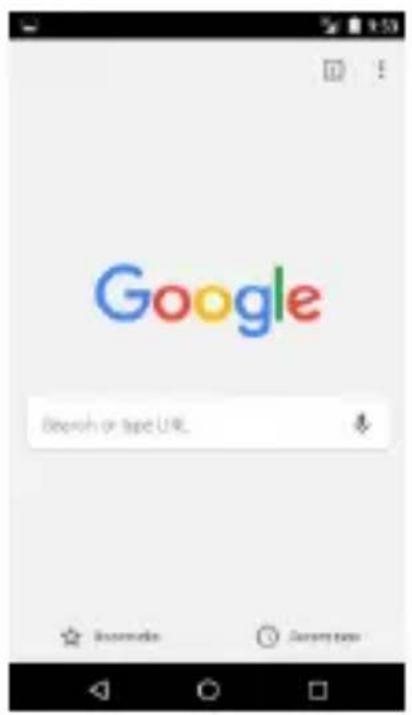
Grayscale image editing interface with tool icons and control buttons (no readable text or symbols)8. Internet
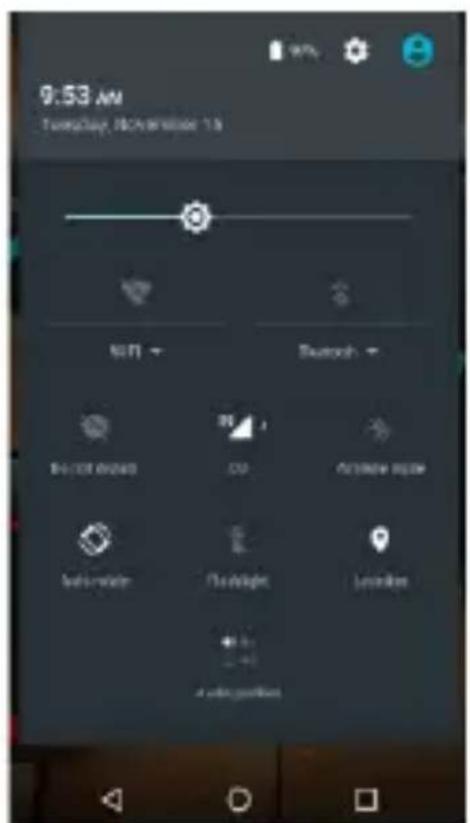
You can connect to the Internet network by selecting 3G/4G broadband, WL7N. 9njoy music, videos, 7pps and news anywhere and anytime as you like.
You can switch On/Off any kind of connection through Fast menu or Settings.
For internet browsing, launch Google 7ndroid 7pps or Internet 7pps.
9. Make a Call
You can make a call under the interface of 8all log, 8contacts, Message (which contains a phone number) or with direct input of the telephone number.
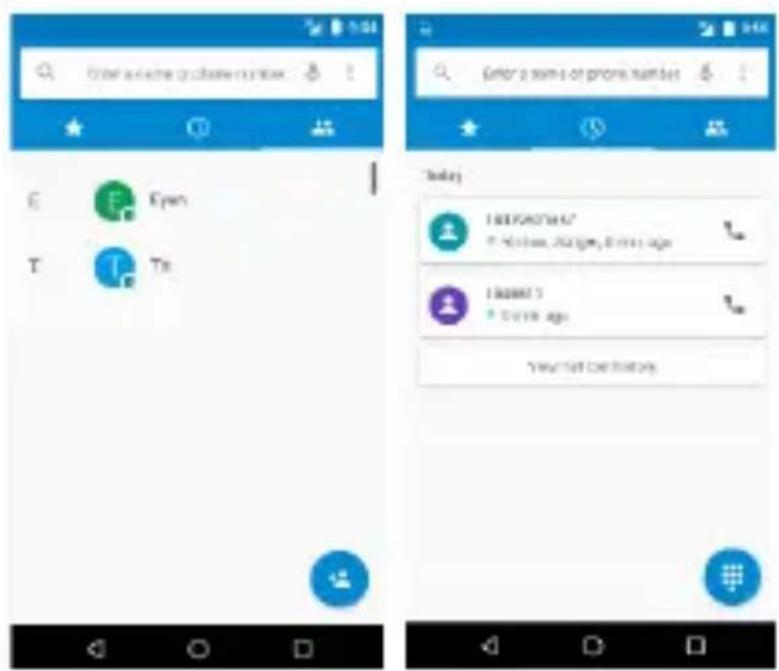
In the standby mode, touch a number to make a call.
To dial Direct telephone number:
Press icon: . Dial number and press Green button to make a call. When the call is finished, press Red button.
10. Massaging
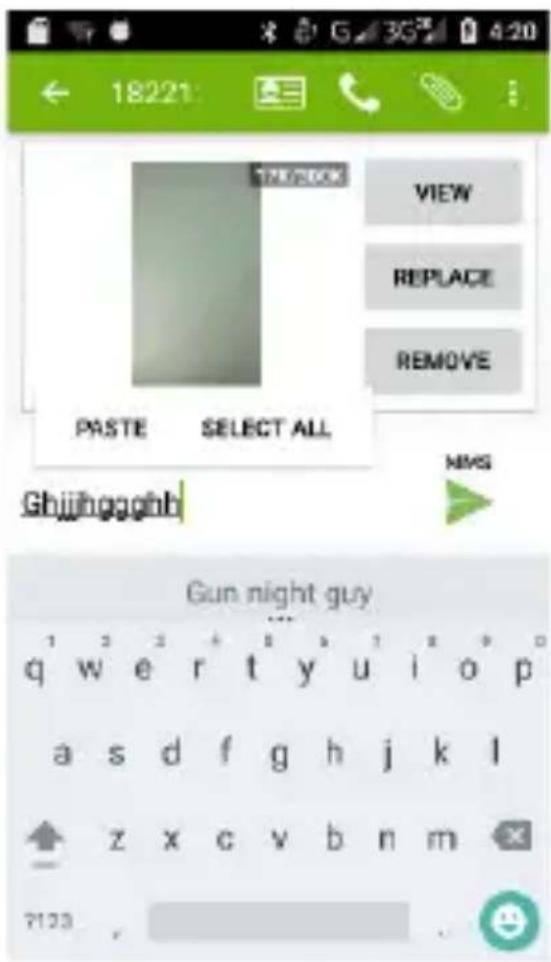
Touch and hold the text box to select an input method. You can insert smiley, picture, audio or video files and send to multiple recipients.
11. E-Mail
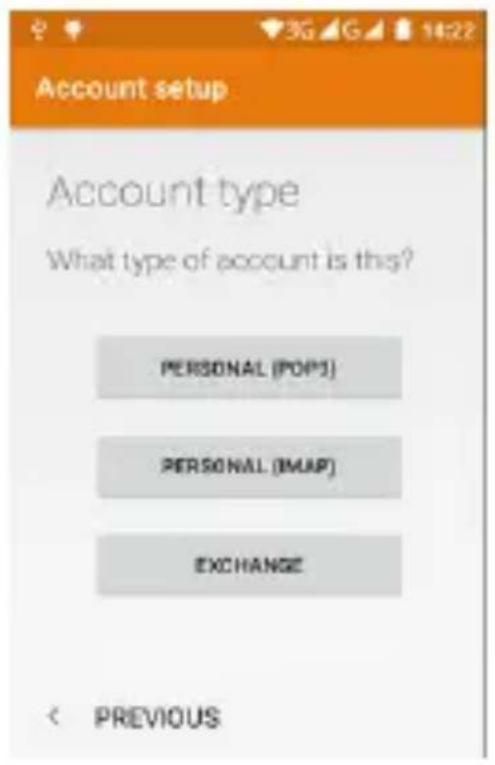
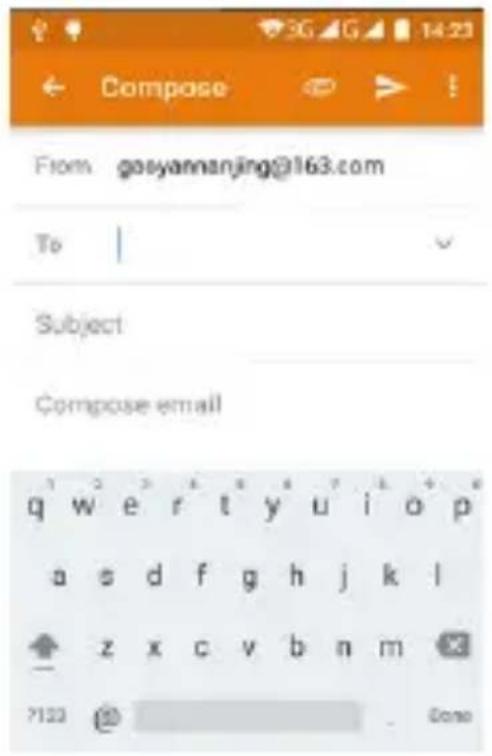
The email 7pp enables you to read, compose and send emails, and is configured to work with all the major email
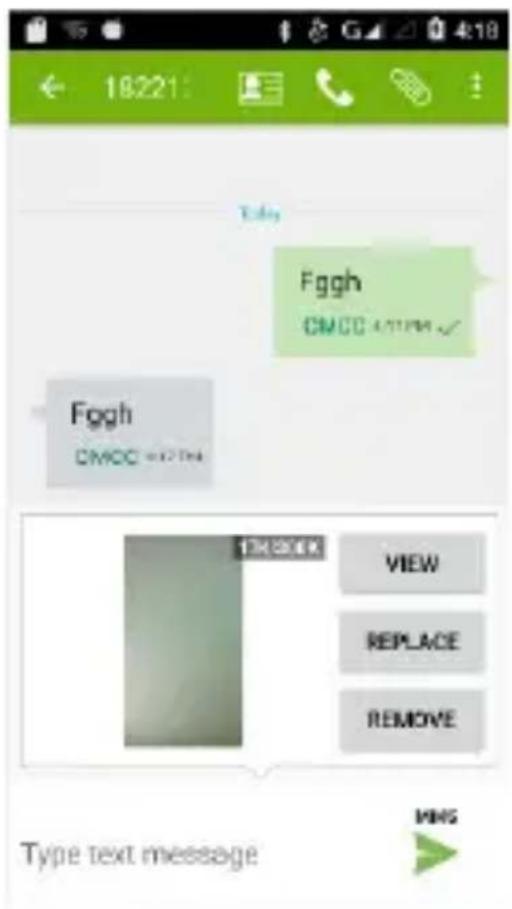
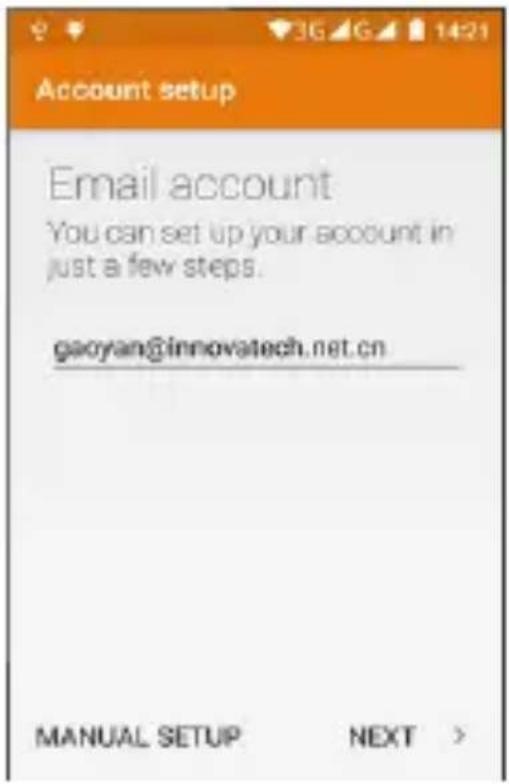
providers. Phone supports multiple account mode, and you won't miss any email.
12. Music
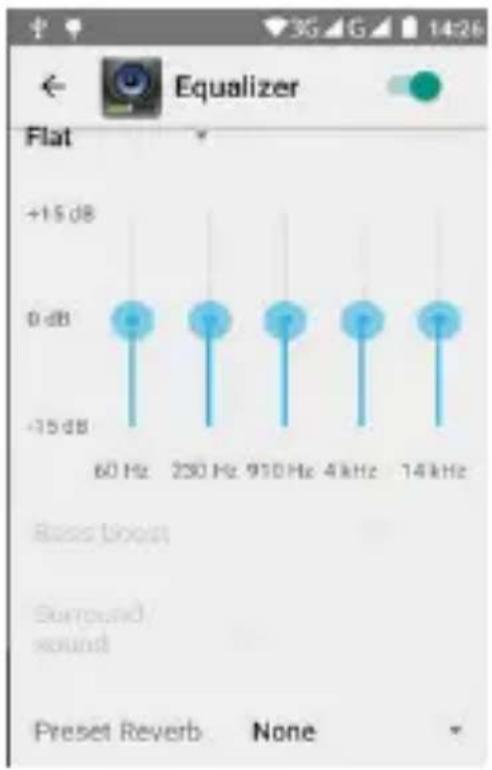
Your Phone supports various music formats, different sound effects, and 4 categorizing, i.e. 7rtists, 7lbums, Songs and Playlists.
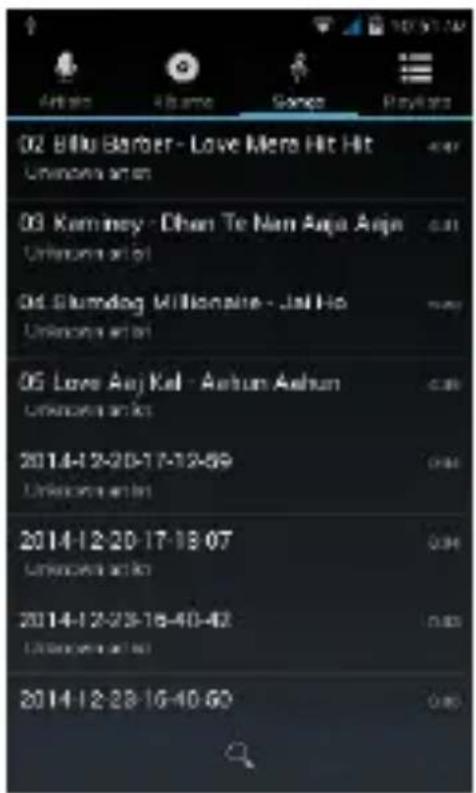
You can improve your earphone sound quality to adjust 9qualizer settings.
13. Video
9njoy a visual feast in a variety of video formats, please choose Video player on your Phone.
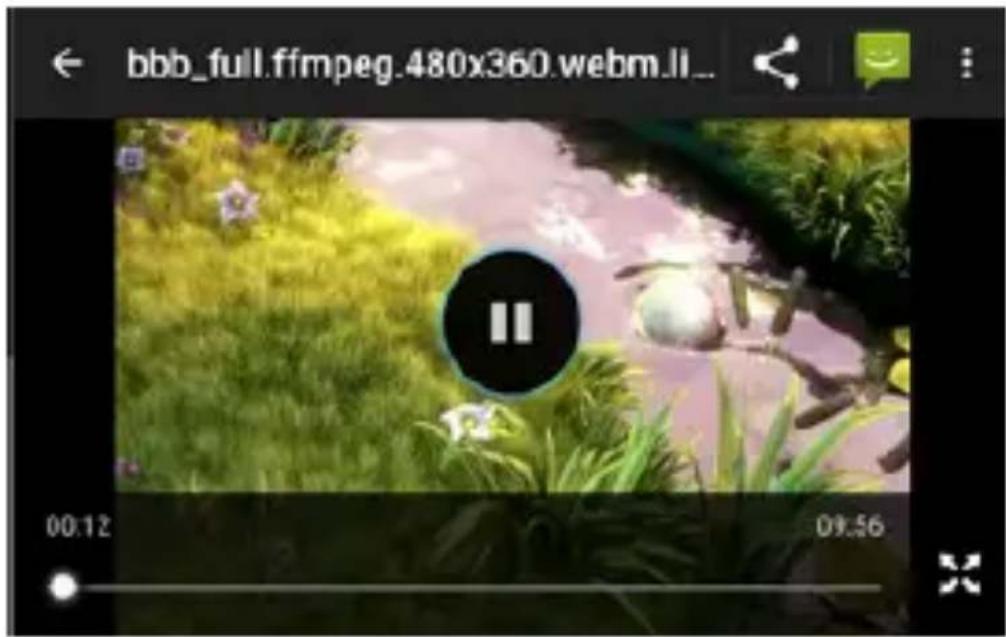
You can play Video files from different sources, Recorded Videos with your 8amera, Video files from Internet or YouTube.
14. Photos
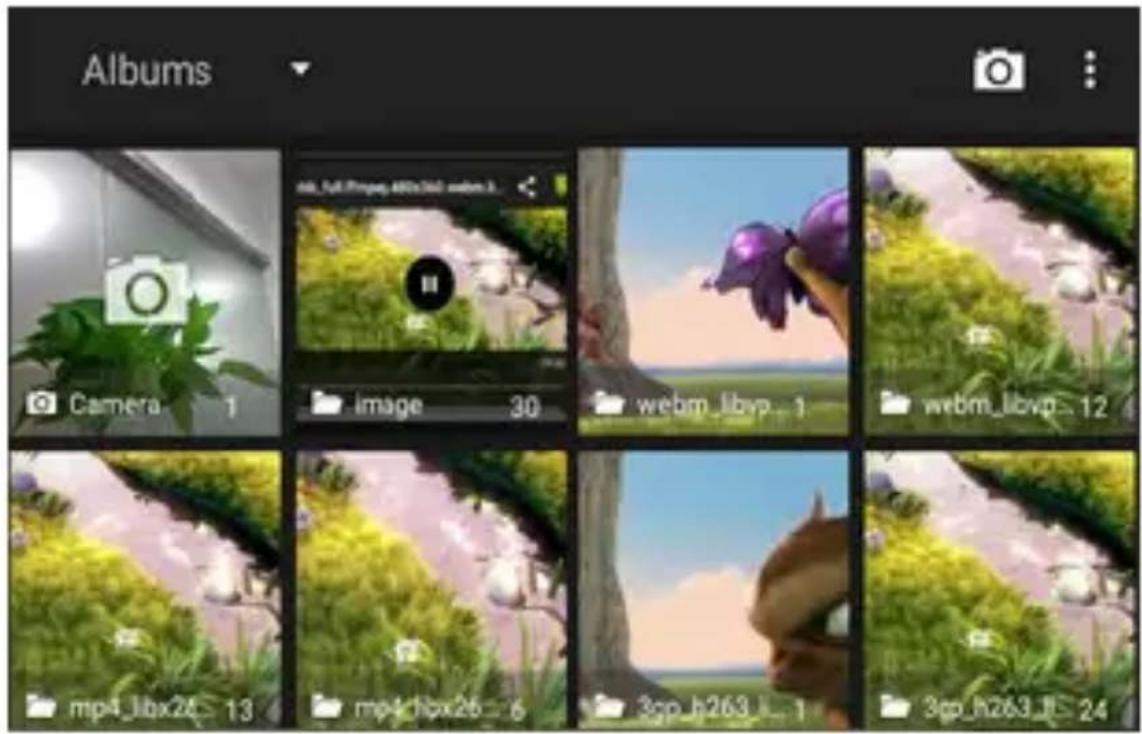
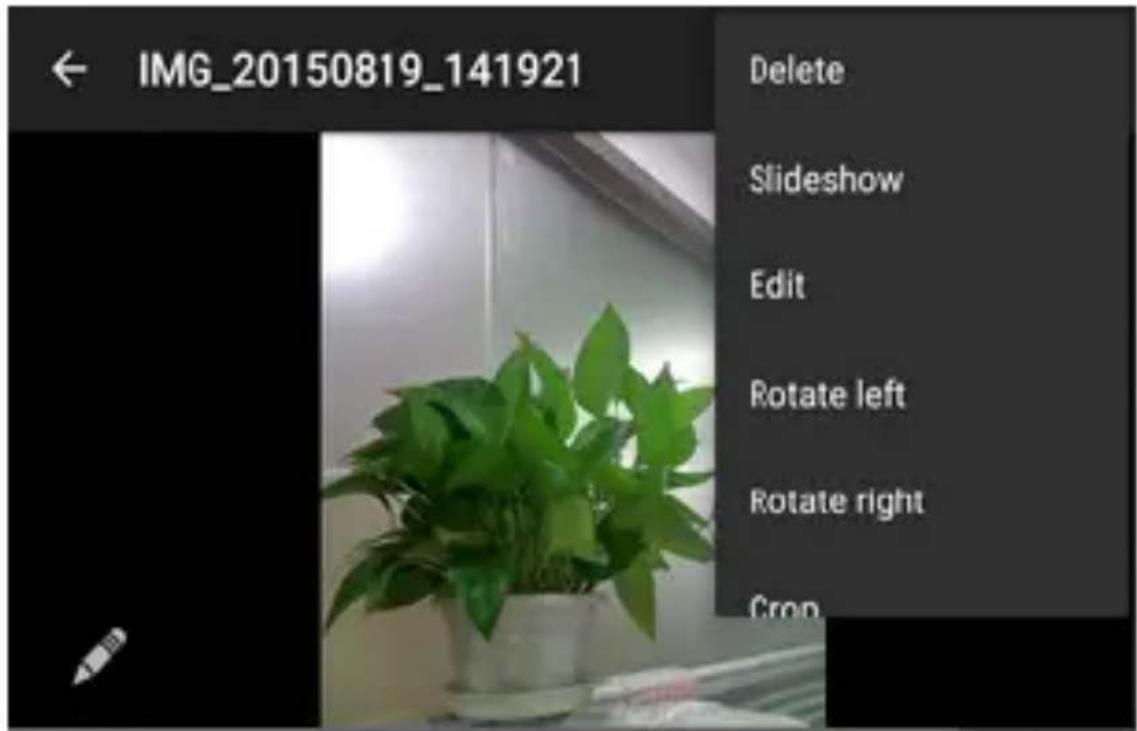
You will find it very easy to view all the photos. Flick right or left to move among images. Double-tap or pinch the photo to zoom. You can edit, share, print, and more.
15. 7ut, 7opy and Paste
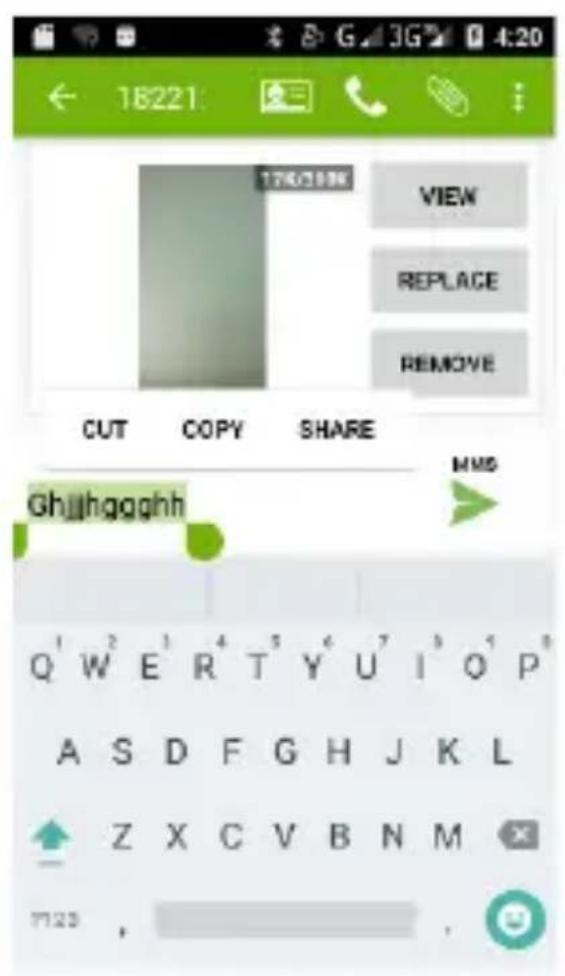
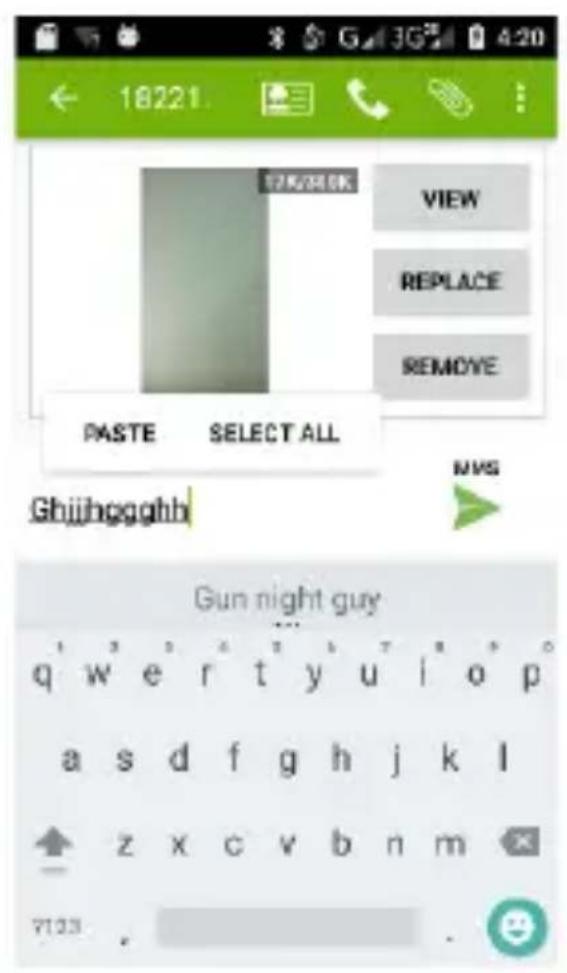
Touch and hold text content to bring up the magnifying glass, and then slide your finger to move the insertion points. Then tap to cut, copy, or paste. It is very easy to copy text from web pages, email, or text messages.
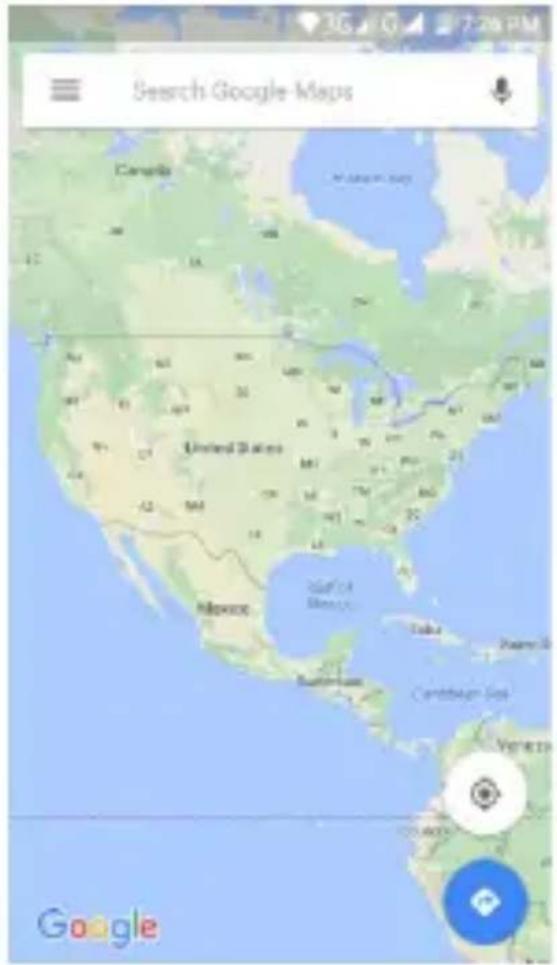
16. Maps and GPS
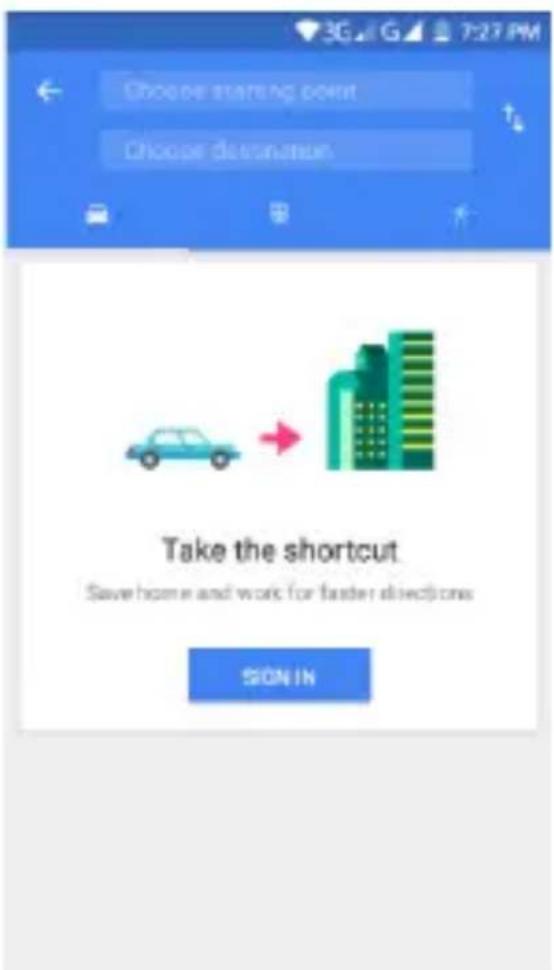
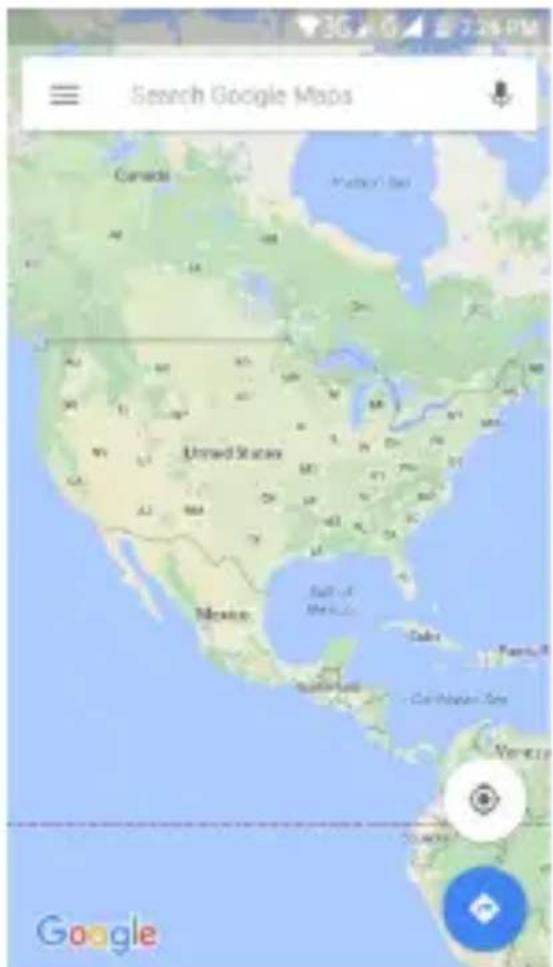
You can view satellite images or street map with detailed route instructions just as you are walking in the street. The Map App can be used to locate yourself, view real-time traffic conditions, pedestrian, bus routes or car driving route instructions. Available Google maps
depends about your Internet connection and GPS settings.
7Iso, you can download a various GPS Route maps from Google Play Store.
Android logo, Google™, Google Maps™, Google Mail™, YouTube™, Google Play™ Store, i Google Talk™ are Trademarks from Google, Inc.
Wi-Fi ^® , Wi-Fi Protected Setup ^™ , Wi-Fi Direct ^™ , Wi-Fi CERTIFIED ^™ , i Wi-Fi logo are registered Trademarks from Wi-Fi Alliance.
POSTOVANII
Zahvaljujemo na kupnji Vivax uređaja i nadamo se da ćele biti zadovoljni odabirom. Ako u jamstvenom periodu bude potreban popravak proizvoda, molim savjetuje se sa ovlaštenim prodavačem koji Vam je proizvod prodao ili nas kontaktirajte na dolje navedene brojeve i adrese. MOLIMO VAS DA PRIJE UPOTREBE PROIZVODA PAŽLJIVO PROČITATE TEHNIČKU DOKUMENTACIJU I UPUTE KOJI SUPRILOŽENI UZ PROIZVODI
- brigade 1B, (Mejaši)
HR-21000 Split
Tel. (021) 684 000,
Fax. (021) 684 001
Radno vrijeme: 9:00 do 17:00 sati, pon-pet
POSTOVANII
POTPIS I PEČAT PRODAVATELJA
INFORMACIJE POTROŠAČIMA
OBAVEZE POTROŠAČA
INFORMACIJE POTROŠAČIMA
Poštovani,
M.P.