
EZW-UH4 - Audiovisual Equipment Smart-AVI - Free user manual and instructions
Find the device manual for free EZW-UH4 Smart-AVI in PDF.


| Product Type | Ultra HD Video Wall Processor |
| Model | EZW-UH4 |
| Brand | Smart-AVI |
| HDMI Compliance | HDMI 2.0, HDCP 2.2/1.4 |
| Maximum Input Resolution | 3840 × 2160 @ 60 Hz |
| Maximum Output Resolution | 3840 × 2160 @ 60 Hz |
| Video Inputs | 2 × HDMI (19-pin female) |
| Video Outputs | 4 × HDMI (19-pin female) + 2 × HDMI Loop Out |
| Audio Formats | 2.0/5.1 channel, LPCM, Dolby, AC3, DTS |
| Control Methods | RS-232, TCP/IP, IR Remote, Front Panel Buttons |
| RS-232 Settings | Baud rate 115200, 8 data bits, 1 stop bit, no parity |
| Video Wall Modes | Single, 1×2, 2×1, 2×2 |
| Power Supply | DC 12V, 3A (included) |
| Dimensions (W × D × H) | 12.57" × 1.76" × 6.69" |
| Weight | 4.4 lbs |
| Operating Temperature | 0°C ~ 40°C / 32°F ~ 104°F |
| Storage Temperature | -20°C ~ 70°C / -4°F ~ 158°F |
| Relative Humidity | 10% ~ 50% (non-condensing) |
| ESD Protection | ±8kV Air-gap discharge, ±4kV Contact discharge |
| Warranty | 1 year limited warranty |
| Surge Protection | Recommended (not included) |
| Safety & Maintenance | Operate within specified temperature/humidity; ensure adequate ventilation; keep dry; repair only by qualified professionals |
| Spare Parts & Repairability | Contact SmartAVI support for replacement parts; repairs by authorized service only |
Frequently Asked Questions - EZW-UH4 Smart-AVI
User questions about EZW-UH4 Smart-AVI
0 question about this device. Answer the ones you know or ask your own.
Ask a new question about this device
Download the instructions for your Audiovisual Equipment in PDF format for free! Find your manual EZW-UH4 - Smart-AVI and take your electronic device back in hand. On this page are published all the documents necessary for the use of your device. EZW-UH4 by Smart-AVI.
USER MANUAL EZW-UH4 Smart-AVI
Designed and Manufactured in the USA
Smart-AM
1-800-284-2131
www.smartavi.com
THANK YOU FOR PURCHASING THIS PRODUCT
For optimum performance and safety, please read these instructions carefully before connecting, operating or adjusting this product. Please keep this manual for future reference.
SURGE PROTECTION DEVICE RECOMMENDED
This product contains sensitive electrical components that may be damaged by electrical spikes, surges, electric shock, lighting strikes, etc. Use of surge protection systems is highly recommended in order to protect and extend the life of your equipment.
OVERVIEW
INTRODUCTION 3
FEATURES 3
WHAT'S IN THE BOX? 3
TECHNICAL SPECIFICATIONS 4
OPERATION CONTROLS AND FUNCTIONS 5
REMOTE CONTROL 6
RS232 CONTROL 7-8
NETWORK CONTROL 9-12
SAFETY INSTRUCTION 13
TROUBLESHOOTING 14
TECHNICAL SUPPORT 14
LIMITED WARRANTY STATEMENT 15
INTRODUCTION
This product is a HDMI 2.0 Video Wall controller with 2 HDMI input, 2 HDMI loop out and 4 HDMI scaling out for video wall processing. With WEB UI and Remote Control to control the product for different wall display.
FEATURES
• HDMI 2.0 and HDCP 2.2 compliant
- Support multi-resolution up to 3840 x 2160 @ 60 Hz video output for video wall
• Support 2 channels HDMI loop out
• Support RS-232 and TCP/IP control
WHAT'S IN THE BOX?
| PART NO. Q-TY DESCRIPTION | ||
| EZW-UH4-S 1 Ultra HD | Video Wall | Processor |
| PS12VDC3A 1 Power Adapter | ||
| 1 User | Manual | |
TECHNICAL SPECIFICATIONS
| VIDEO & AUDIO | |
| HDMI Compliance HDMI 2.0 | |
| HDCP Compliance HDCP 2.2/1.4 | |
| Input Resolutions 3840 × 2160 @ 60Hz | |
| Output Resolutions 3840 × 2160 @ 60Hz | |
| Input Interface (2) HDMI INPUT (19-pin female) | |
| Output Interface (4) HDMI OUTPUT (19-pin female), (2) HDMI LOOP (19-pin female) | |
| Audio Format 2.0 channel, 5.1 channel, LPCM, Dolby, AC3, DTS | |
| CONTROL | |
| RS-232 Baud rate: 115200, data | bit: 8, Stop bit: 1, no parity |
| OTHER | |
| ESD Protection Human-body Model: ±8kV (Air-gap discharge), ±4kV (Contact discharge) | |
| Power PS12VDC3A | |
| Dimensions 12.57" W x 1.76" D x 6.69" H | |
| Weight 4.4 lbs | |
| Operating Temperature | 0°C ~ 40°C / 32°F ~ 104°F |
| Storage Temperature | -20°C ~ 70°C / -4°F ~ 158°F |
| Relative Humidity | 10%~50% RH (non-condensing) |
OPERATION CONTROLS AND FUNCTIONS
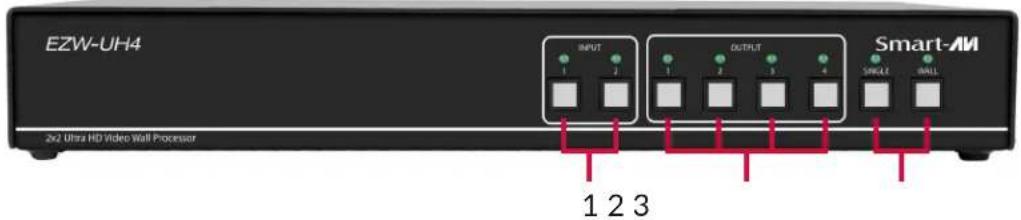
FRONT PANEL
# NAME DESCRIPTION
1 Input Buttons Port input selection
2 Output Buttons Port output selection
3 Mode Buttons Mode selection
SELECTING INDIVIDUAL MONITOR DESCRIPTION
Input 1 -> Output 1 - 4 -> SINGLE Display Input 1 on selected Output
Input 2 -> Output 1 - 4 -> SINGLE Display Input 2 on selected Output
SELECTING 1X2 WALL
Input # -> Output 1 -> WALL Display Input # as a 1X2 wall using Output 1 + 2
Input # -> Output 2 -> WALL Display Input # as a 1X2 wall using Output 3 + 4
SELECTING 2X1 WALL
Input # -> Output 3 -> WALL Display Input # as a 2X1 wall using Output 1 + 3
Input # -> Output 4 -> WALL Display Input # as a 2X1 wall using Output 2 + 4
SELECTING 2X2 WALL
Input # -> WALL Display Input # as a 2X2 wall using all Outputs
SET RESOLUTION
| SINGLE + WALL | While in Wall Mode for Input 1 or Input 2: Pressing SINGLE + WALL together for the first time will set the resolution to 1920 x 1080 @ 60Hz Let go and press SINGLE + WALL together again will bring the resolution back to 3840 x 2160 @ 60 Hz |

REAR PANEL
NAME DESCRIPTION
| 1 | Input | HDMI signal input ports, connect to HDMI source device such as DVD or PS4 with HDMI cable |
| 2 | Loop Out | HDMI signal loop out ports. Loop out HDMI A/B signal to downstream |
| 3 | Outputs | HDMI signal scaling output for video wall |
| 4 | RS232 | RS232 control command |
| 5 | LAN | CAT5/5e/6 |
| 6 | 12V/3A | DC 12V/3A power supply port |
REMOTE CONTROL
The EZW-UH4 supports IR control to manage inputs and video wall settings. Using the included remote, the instructions are as follows:
SELECTING INDIVIDUAL MONITOR DESCRIPTION
| 1 -> Input 1 - 4 -> OK Display Input 1 on Output 1-4 |
| 2 -> Input 1 - 4 -> OK Display Input 2 on Output 1-4 |
SELECTING 1X2 WALL
| 1 -> SW/SP -> 1 Display Input 1 | as a 1X2 wall using Output 1 + 2 |
| 1 -> SW/SP -> 2 Display Input 1 | as a 1X2 wall using Output 3 + 4 |
| 2 -> SW/SP -> 1 Display Input 2 | as a 1X2 wall using Output 1 + 2 |
| 2 -> SW/SP -> 2 Display Input 2 | as a 1X2 wall using Output 3 + 4 |
SELECTING 2X1 WALL
| 1 -> SW/SP -> 3 Display Input 1 | as a 2X1 wall using Output 1 + 3 |
| 1 -> SW/SP -> 4 Display Input 1 | as a 2X1 wall using Output 2 + 4 |
| 2 -> SW/SP -> 3 Display Input 2 | as a 2X1 wall using Output 1 + 3 |
| 2 -> SW/SP -> 4 Display Input 2 | as a 2X1 wall using Output 2 + 4 |
SELECTING 2X2 WALL
| 1 -> SW/SP -> OK Display Input | 1 as 2X2 wall using all Outputs |
| 2 -> SW/SP -> OK Display Input | 2 as 2X2 wall using all Outputs |
CLEAR ALL STITCHING
| Exit | Removes all stitching and returns each Output to Single Mode |

RS232 CONTROL
The EZW-UH4 can be controlled via RS232 to manage input and video wall settings. Once connected to a PC, launch your preferred RS232 console. The baud rate connection will need to be set as 115200 bps. If the RS232 connection is established before booting up the device, the UI should display the following:

USING THE MENU
The help menu can be displayed by sending the “//?” command which will prompt the following:
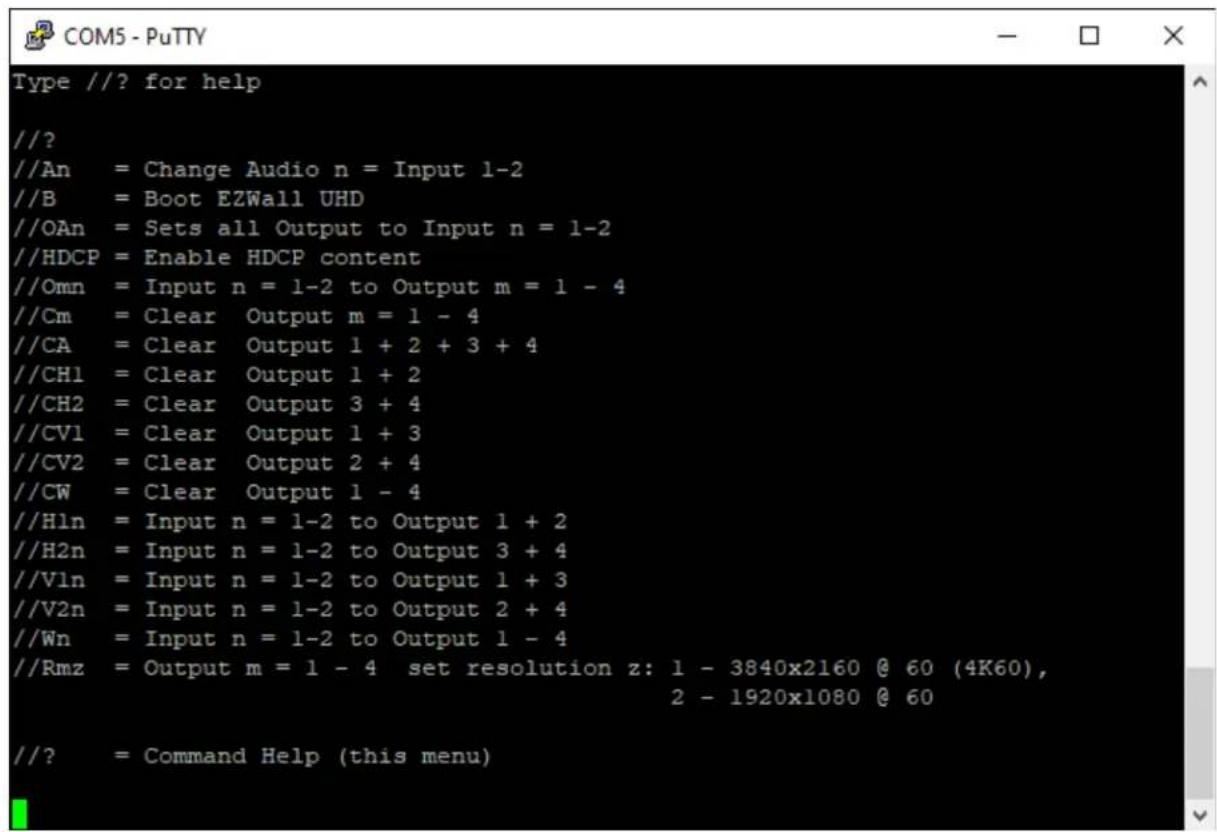
RS232 CONTROL (CONTINUED)
All menu commands must be sent with “//” followed by the appropriate command.
HOTKEY DESCRIPTION
| //? | Display Help menu |
| //A1 or //A2 | Change audio to Input 1 or Input 2 |
| //B | Reboot the device |
| //0A1 or //0A2 | Sets all Outputs to Input 1 or Input 2 |
| //HDCP | Enables HDCP content |
| //0(m)(n) | Set Input n to Output m |
| //C(m) | Clear select Output number of stitching |
| //CA | Clear all Output stitching |
| //CH1 | Clear Output 1 + 2 |
| //CH2 | Clear Output 3 + 4 |
| //CV1 | Clear Output 1 + 3 |
| //CV2 | Clear Output 2 + 4 |
| //H1(n) | Set Input n as 1X2 wall using Output 1 + 2 |
| //H2(n) | Set Input n as 1X2 wall using Output 3 + 4 |
| //V1(n) | Set Input n as 2X1 wall using Output 1 + 3 |
| //V2(n) | Set Input n as 2X1 wall using Output 2 + 4 |
| //W(n) | Set Input n as 2x2 wall using Output 1-4 |
| //R(m)(z) | Set resolution of Output m to resolution z where: Z: 1 - 3840x2160 @ 60 HzZ: 2 - 1920x1080 @ 60 Hz |
CHART KEY
(m) - Output number (1-4)
(n) - Input number (1-2)
(z) - Resolution option (1-2)
NETWORK CONTROL
The EZW-UH4 can also be controlled via IP to manage input and video wall settings. To find the IP, visit our website at https://smartavi.com/helpful-links/. Download and open the IP-Finder 2 software. Once launched, click on "Search Device". This will display the device under Device IP. Use the IP displayed on your IP-Finder 2 on your preferred web browser. We highly recommend Google Chrome for the best compatibility.
![USR-TCP232-M4,E45 V2.3.0.78 Device(D) ÖDÍA(L) Help Search List [Click a device to read parameters in the Search List] Device IP Device Name MAC Version 192.168.1.57 K3 A6 4C 5E 02 9F C8 3015 192.168.1.94 K3 A6 4C 5E 03 0F C8 3015 192.168.1.24 K3 A6 4C 5E E5 0F 7F 3015 Search Device Clear ARP table Compatible with Open Device Device Restart Factory Reset Base Save IP Type: DHCP/Auto I (?) ModuleStaticIP: 192.168.1.79 (?) SubnetMask: 255.255.255.0 (?) Gateway: 192.168.1.1 (?) Full Show + Base Save Port1 Baudrate: 115200 (?) Parity/Data/Stop: NONE 8 1 (?) FlowControl: None (?) Work Mode: TCP Server (?) RemoteIP: 192.168.0.201 (?) Remote Port: 23 (?) Local Port: 23 (?) TCP Server style: Transparent transmi (?) ModbusTCP: None (?) PackTime: 0 ms (0~255) (?) PackLen: 0 byte (0~1460) (?) Synchronize baudrate(RFC2217 (?) Enable USR Cloud (?) Device ID communication Code Save COM1 On-line Device NUM:3 Search Port:1901](/content/2026/06/1148768/images/d47e7969d26bf01493eaca6ed3f542e9845b909addb0b2402d36ed206530a71d.jpg)
NETWORK CONTROL (CONTINUED)
The EZW-UH4 will have several pages of navigation: Matrix Switch, TV Wall, and Settings. The default landing page will display the Matrix Switch page. TV Wall can be navigated by click on "TV Wall" on the top right side. Settings can be opened on the top left side with the triple lines in the purple box.

The Matrix Switch page can be used to quickly change individual inputs and outputs for video, loop, and audio. Note: Loop Output 1 and Loop Output 2 only affect the Loop 2/MAIN output. Loop 1 will always display Input 1.

NETWORK CONTROL (CONTINUED)
The TV Wall page can be used to stitch the video outputs to create video walls within a 2X2 dimension. This includes 1X2, 2X1, or 2X2. Simply click on the desired input, draw over the grid area and click save selection. The cyan highlighted boxes will indicate the area that will be used for the new stitching. Clear selection will remove all stitching already set; this will allow new stitching to be created.

Opening settings allows for the resolution to be changed or open configuration settings.

NETWORK CONTROL (CONTINUED)
The Configuration page allows for the EZW-UH4 to update its method for receiving its IP. The IP can be set as DHCP (default) or as Static. The login credentials can also be modified on this page as well. Note: Please select Save and Restart after making any changes. If updating IP, select the Save and Restart under the IP settings. If updating login credentials, select the Save and Restart under the username and password field.
SAFETY INSTRUCTION
To ensure reliable operation of this product as well as protecting the safety of any person using or handling this device while powered, please observe the following instructions.
- Do not operate either of this product outside the specified temperature and humidity range given in the above specifications.
- Ensure there is adequate ventilation to allow this product to operate efficiently.
- Repair of the equipment should only be carried out by qualified professionals as these products contain sensitive devices that may be damaged by any mistreatment.
- Only use this product in a dry environment. Do not allow any liquids or harmful chemicals to come into contact with these products

flowchart
graph TD
    A["HDMI Source"] --> B["SmartAVI WEB Controller"]
    B --> C["EZW-UH4"]
    C --> D["Computer 1"]
    C --> E["Computer 2"]
    C --> F["Computer 3"]
    C --> G["Computer 4"]
    C --> H["Computer 5"]
    C --> I["Computer 6"]
    style A fill:#f9f,stroke:#333
    style B fill:#ccf,stroke:#333
    style C fill:#cff,stroke:#333
    style D fill:#ffc,stroke:#333
    style E fill:#cfc,stroke:#333
    style F fill:#fcc,stroke:#333
    style G fill:#fcc,stroke:#333
    style H fill:#fcc,stroke:#333
    style I fill:#fcc,stroke:#333
TROUBLESHOOTING
No Power
- Make sure that the power adapter is securely connected to the power connector of the unit.
- Check the output voltage of the power supply and make sure that the voltage value is around 12VDC.
- Replace the power supply.
No Video
- Check if all the video cables are connected properly.
- Connect the computer directly to the monitor to verify that your monitor and computer are functioning properly.
- Restart the computers.
Keyboard is not working
- Check if the keyboard is properly connected to the unit.
- Check if the USB cables connecting the unit and the computers are properly connected.
- Try connecting the USB on the computer to a different port.
- Make sure that the keyboard works when directly connected to the computer.
- Replace the keyboard.
Mouse is not working
- Check if the mouse is properly connected to the unit.
- Try connecting the USB on the computer to a different port.
- Make sure that the mouse works when directly connected to the computer.
- Replace the mouse.
No Audio
- Check if all the audio cables are connected properly.
- Connect the speakers directly to the computer to verify that the speakers and the computer audio are functioning properly.
- Check the audio settings of the computer and verify that the audio output is through the speakers.
TECHNICAL SUPPORT
For product inquiries, warranty questions, or technical questions, please contact info@smartavi.com.
LIMITED WARRANTY STATEMENT
A. Extent of limited warranty
SmartAVI, Inc. warrants to the end-user customers that the SmartAVI product specified above will be free from defects in materials and workmanship for the duration of 1 year, which duration begins on the date of purchase by the customer. Customer is responsible for maintaining proof of date of purchase.
SmartAVI limited warranty covers only those defects which arise as a result of normal use of the product, and do not apply to any:
a. Improper or inadequate maintenance or modifications
b. Operations outside product specifications
c. Mechanical abuse and exposure to severe conditions
If SmartAVI receives, during applicable warranty period, a notice of defect, SmartAVI will at its discretion replace or repair defective product. If SmartAVI is unable to replace or repair defective product covered by the SmartAVI warranty within reasonable period of time, SmartAVI shall refund the cost of the product.
SmartAVI shall have no obligation to repair, replace or refund unit until customer returns defective product to SmartAVI.
Any replacement product could be new or like new, provided that it has functionality at least equal to that of the product being replaced.
SmartAVI limited warranty is valid in any country where the covered product is distributed by SmartAVI.
B. Limitations of warranty
To the extant allowed by local law, neither SmartAVI nor its third party suppliers make any other warranty or condition of any kind whether expressed or implied with respect to the SmartAVI product, and specifically disclaim implied warranties or conditions of merchantability, satisfactory quality, and fitness for a particular purpose.
C. Limitations of liability
To the extent allowed by local law the remedies provided in this warranty statement are the customers sole and exclusive remedies.
To the extant allowed by local law, except for the obligations specifically set forth in this warranty statement, in no event will SmartAVI or its third party suppliers be liable for direct, indirect, special, incidental, or consequential damages whether based on contract, tort or any other legal theory and whether advised of the possibility of such damages.
D. Local law
To the extent that this warranty statement is inconsistent with local law, this warranty statement shall be considered modified to be consistent with such law.
Smart-AM
SMART AUDIO VIDEO INNOVATION
NOTICE
The information contained in this document is subject to change without notice. SmartAVI makes no warranty of any kind with regard to this material, including but not limited to, implied warranties of merchantability and fitness for particular purpose. SmartAVI will not be liable for errors contained herein or for incidental or consequential damages in connection with the furnishing, performance or use of this material. No part of this document may be photocopied, reproduced, or translated into another language without prior written consent from SmartAVI, Inc.
20180109

Designed and Manufactured in the USA
Tel: (800) AVI-2131 • (702) 800-0005
2455 W Cheyenne Ave, Suite 112
North Las Vegas, NV 89032
www.smartavi.com


- Smart-AM
- THANK YOU FOR PURCHASING THIS PRODUCT
- SURGE PROTECTION DEVICE RECOMMENDED
- OVERVIEW
- INTRODUCTION
- FEATURES
- TECHNICAL SPECIFICATIONS
- OPERATION CONTROLS AND FUNCTIONS
- # NAME DESCRIPTION
- SELECTING INDIVIDUAL MONITOR DESCRIPTION
- SELECTING 1X2 WALL
- SELECTING 2X1 WALL
- SELECTING 2X2 WALL
- SET RESOLUTION
- NAME DESCRIPTION
- REMOTE CONTROL
- RS232 CONTROL
- USING THE MENU
- RS232 CONTROL (CONTINUED)
- CHART KEY
- NETWORK CONTROL
- NETWORK CONTROL (CONTINUED)
- SAFETY INSTRUCTION
- TROUBLESHOOTING
- No Power
- No Video
- Keyboard is not working
- Mouse is not working
- No Audio
- TECHNICAL SUPPORT
- LIMITED WARRANTY STATEMENT
- Extent of limited warranty
- Limitations of warranty
- Limitations of liability
- Local law
- SMART AUDIO VIDEO INNOVATION
- NOTICE
- Designed and Manufactured in the USA
Brand : Smart-AVI
Model : EZW-UH4
Category : Audiovisual Equipment