Patriot PH60 - To scan Visioneer - Free user manual and instructions
Find the device manual for free Patriot PH60 Visioneer in PDF.


| Product Type | Document Scanner |
| Brand | Visioneer |
| Model | Patriot PH60 |
| Dimensions (W x D x H) | Approximately 290 x 160 x 100 mm |
| Weight | Approximately 1.5 kg |
| Power Source | USB bus power or AC adapter (5V, 1.5A) |
| Scan Speed | Up to 20 pages per minute (monochrome, A4, 300 dpi) |
| Optical Resolution | 600 x 600 dpi |
| Connectivity | USB 2.0 Type B |
| Supported Media | Paper, plastic cards, receipts (max width: 216 mm) |
| Software Included | Visioneer Acuity, Twain driver, Nuance PaperPort |
| Maintenance | Clean glass and rollers with lint-free cloth and mild cleaner |
| Safety | Use only provided power supply; keep away from liquids |
| Spare Parts Availability | Replacement rollers and pads available from Visioneer |
| Repairability | User replaceable consumables; other repairs by authorized service |
| Warranty | One year limited warranty |
Frequently Asked Questions - Patriot PH60 Visioneer
User questions about Patriot PH60 Visioneer
0 question about this device. Answer the ones you know or ask your own.
Ask a new question about this device
Download the instructions for your To scan in PDF format for free! Find your manual Patriot PH60 - Visioneer and take your electronic device back in hand. On this page are published all the documents necessary for the use of your device. Patriot PH60 by Visioneer.
USER MANUAL Patriot PH60 Visioneer
Scanner User's Guide
SCANNER USER'S GUIDE
VISIONEER PATRIOT H60 &
VISIONEER PATRIOT H80
COPYRIGHT INFORMATION
© 2016 Visioneer, Inc. All rights reserved. The Visioneer brand name and OneTouch® logo are registered trademarks of Visioneer, Inc.
Changes are periodically made to this document. Changes, technical inaccuracies, and typographic errors will be corrected in subsequent editions. Information is subject to change without notice and does not represent a commitment on the part of Visioneer.
Document Version: 05-0935-000 (October 2016)
This product is covered by one or more of the following patents: 6,064,778, 6,480,304, 7,715,061, 10/838,364, 7,397,587.WO 02/25571, 7,617,985, 11/140,653, 10/787,912
Reproduction, adaptation, or translation without prior written permission is prohibited, except as allowed under the copyright laws. Copyright protection claimed includes all forms of matters of copyrightable materials and information now allowed by statutory or judicial law or hereinafter granted, including without limitation, material generated from the software programs which are displayed on the screen such as styles, templates, icons, screen displays, looks, etc.
The software described is furnished under a licensing agreement. The software may be used or copied only in accordance with the terms of such an agreement. It is against the law to copy the software on any medium except as specifically allowed in the licensing agreement. No part of this document may be reproduced or transmitted in any form or by any means, electronic or mechanical, including photocopying, recording, or information storage and retrieval systems, or translated to another language, for any purpose other than the licensee's personal use and as specifically allowed in the licensing agreement, without the express written permission of Visioneer.
The PaperPort ^® and OmniPage ^® brand name and logo are registered trademarks of Nuance Communications, Inc.
ISIS ^a is a registered trademark of EMC ^2b Corporation in the United States and/or other countries.
Adobe ^® , Adobe ^® Acrobat ^® , Adobe ^® Reader ^® , and the Adobe ^® PDF logo are registered trademarks of Adobe Systems Incorporated in the United States and/or other countries.
Post-It ^® is a registered trademark of 3M in the United States and/or other countries.
Microsoft is a U.S. registered trademark of Microsoft Corporation. Windows ^™ is a trademark and SharePoint ^® is a registered trademark of Microsoft Corporation.
Kensington ^® is a registered trademark of ACCO Brands Corporation.
ZylINDEX is a registered trademark of ZyLAB International, Inc. ZyINDEX toolkit portions, Copyright © 1990-1998, ZyLAB International, Inc.
All other products mentioned herein may be trademarks of their respective companies and are hereby acknowledged.
VISIONEER'S LIMITED PRODUCT WARRANTY
Please go to www.visioneer.com, select your product, and then click the "Warranty Program" link to view the warranty terms and conditions for your scanner.
RESTRICTED RIGHTS LEGEND
Use, duplication, or disclosure is subject to restrictions as set forth in contract subdivision (c)(1)(ii) of the Rights in Technical Data and Computer Software Clause 52.227-FAR14. Material scanned by this product may be protected by governmental laws and other regulations, such as copyright laws. The customer is solely responsible for complying with all such laws and regulations.
RoHS AND WEEE COMPLIANCE
This product is compliant with RoHS Regulations of the European Parliament and Council Directive on the Restrictions of the Use of Certain Hazardous Substances in Electrical and Electronic Equipment (2002/95/EC), and with the Waste Electrical and Electronic Equipment (WEEE) Directive (2002/96/EC).
UNITED STATES (FCC REGULATIONS)
This equipment has been tested and found to comply with the limits for a Class B digital device, pursuant to Part 15 of the FCC Rules. These limits are designed to provide reasonable protection against harmful interference in a residential installation. This equipment generates, uses, and can radiate radio frequency energy and, if not installed and used in accordance with the instruction manual, may cause harmful interference to radio communications.
However, there is no guarantee that interference will not occur in a particular installation. If this equipment does cause harmful interference to radio or television reception, which can be determined by turning the equipment off and on, the user is encouraged to try to correct the interference by one or more of the following measures:
- Reorient or relocate the receiving antenna.
- Increase the separation between the equipment and receiver.
- Connect the equipment into an outlet on a circuit different from that to which the receiver is connected.
- Consult the dealer or an experienced radio/TV technician for help.
This device complies with Part 15 of the FCC Rules. Operation is subject to the following two conditions: (1) This device may not cause harmful interference, and (2) this device must accept any interference received, including interference that may cause undesired operation.
Changes and modifications to this equipment not specifically approved by Visioneer may void the user's authority to operate this equipment. Shielded cables must be used with this equipment to maintain compliance with FCC regulations.
ENERGY STAR FOR THE USA
Energy Program compliance
As an ENERGY STAR® partner, Visioneer Inc. has determined that this product meets the ENERGY STAR guidelines for Imaging Equipment.
ENERGY STAR and the ENERGY STAR mark are registered trademarks owned by the U.S. Environmental Protection Agency. The ENERGY STAR Imaging Equipment Program is a team effort between the U.S., European Union and Japanese governments and the office equipment industry to promote energy-efficient copiers, printers, fax, multifunction machine, personal computers, and monitors. Reducing product energy consumption helps combat smog, acid rain and long-term changes to the climate by decreasing the emissions that result from generating electricity.

VISUAL DISPLAY
Warning: This device is not intended for use in the direct field of view at visual display workplaces. To avoid incommodding reflections at visual display workplaces, this device must not be placed in the direct field of view.
CLASS 1 LED
This machine is certified as Class 1 LED product. This means that this machine does not produce hazardous laser radiation.
PRODUCT RECYCLING & DISPOSAL
If you are managing the disposal of your Visioneer* product, please note that the product may contain lead, mercury, Perchlorate, and other materials whose disposal may be regulated due to environmental considerations. The presence of these materials is fully consistent with global regulations applicable at the time that the product was placed on the market. For recycling and disposal information, contact your local authorities. In the United States, you may also refer to the Electronic Industries Alliance web site: http://www.eiae.org.
Perchlorate Material - This product may contain one or more Perchlorate-containing devices, such as batteries. Special handling may apply, please see: http://www.dtsc.ca.gov/hazardouswaste/perchlorate/.
SAFETY
Notices and Safety
Please read the following instructions carefully before operating the machine and refer to them as needed to ensure the continued safe operation of your machine.
Your Visioneer® product and supplies have been designed and tested to meet strict safety requirements. These include safety agency evaluation and certification, and compliance with electromagnetic regulations and established environmental standards.
WARNING: The safety and environment testing and performance of this product have been verified using Visioneer® materials only. Unauthorized alterations, which may include the addition of new functions or connection of external devices, may impact the product certification. Please contact your Visioneer representative for more information.
Operational Safety Information
Your Visioneer ^® equipment and supplies have been designed and tested to meet strict safety requirements. These include safety agency examination, approval, and compliance with established environmental standards.
To ensure the continued safe operation of your Visioneer® equipment, follow these safety guidelines at all times:
Do these:
• Always follow all warnings and instructions that are marked on or supplied with the equipment.
• Always use materials specifically designated for this product, the use of other materials may result in poor performance and create a hazardous situation. Do not use aerosol cleaners, they may be explosive and flammable under certain conditions.
• Always exercise care when moving or relocating equipment.
• Always locate the machine on a solid support surface that has adequate strength to support the weight of the machine.
- Always locate the machine in an area that has adequate ventilation and room for servicing.
• Always unplug this equipment from the electrical outlet before cleaning.
Do not do these:
• Never attempt any maintenance function that is not specifically described in this documentation.
• Never remove covers or guards that are fastened with screws. There are no operator serviceable areas within these covers.
- Never locate the machine near a radiator or any other heat source.
- Never override or "cheat" any of the electrical or mechanical interlock devices.
Emergency Power Off
If any of the following conditions occur, turn off the scanner immediately and disconnect the power cable(s) from the electrical outlet(s).
- The equipment emits unusual odors or makes unusual noises.
• The power cable is damaged or frayed. - A wall panel circuit breaker, fuse, or other safety device has been tripped.
- Liquid is spilled into the machine.
- The machine is exposed to water.
- Any part of the machine is damaged.
Maintenance Information
• Any operator product maintenance procedures will be described in the user documentation supplied with the product.
• Do not carry out any maintenance on this product which is not described in the customer documentation.
- Do not use aerosol cleaners. The use of cleaners that are not approved may cause poor performance of the equipment, and could cause a dangerous condition.
- Use supplies and cleaning materials only as directed in this manual.
• Do not remove covers or guards that are fastened with screws. There are no parts behind these covers that you can maintain or service.
- Do not perform any maintenance procedures unless you have been trained to do them by an authorized local dealer or unless a procedure is specifically described in the user manuals.
- Never place this equipment where people might step on or trip on the power cord.
TABLE OF CONTENTS
Welcome....7
What's in the Box....7
System Requirements 7
Documentation 8
The Visioneer® Patriot H60/80 Scanner Features 9
Scanner Setup 11
Connect the Power Cord 12
Moving or Repacking the Scanner ....13
Safety Lock....15
Installation 17
Install the Software and Connect the Scanner ....17
Installing the Scanner Driver....19
Connect the USB Cable and Turn on the Power 20
Installing Visioneer OneTouch....22
Installing Additional Applications....23
View the User Guides....24
Register Your Scanner....25
Loading Documents to Scan 27
Supported Document Types....27
Documents to Avoid Scanning....28
Unsupported Document Types 28
Scanning from the Automatic Document Feeder (ADF) 29
Scanning Regular Documents 29
Scanning Dot Matrix Printer Paper 30
Scanning Interfaces 32
Maintenance 35
Safety Precautions....35
Hardware Properties 36
Device Settings 36
Driver Settings....37
Adjusting the Paper Guides....38
Clearing Paper Jams....39
Cleaning the Scanner....40
Cleaning Inside the Automatic Document Feeder 40
Replacing the Separation Roller....42
Replacing the Feed Roller....44
Troubleshooting 47
Error Light Troubleshooting Codes 49
Uninstalling Your Scanner 50
Visioneer® Patriot H60/H80 Specifications....52
Visioneer® Patriot H60/80 Parts List ....54
Appendix A: Copy Regulations 55
United States....55
Canada 56
Other Countries 57
WELCOME
Your new Visioner ^® scanner can quickly scan stacks of single-sided or double-sided pages and place their electronic images on your computer.
WHAT'S IN THE BOX
Before proceeding, check the contents of the box. If items are missing or damaged, contact the dealer where you purchased the scanner.
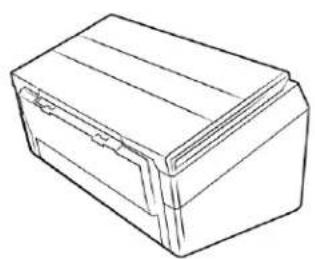
natural_image
Line drawing of a rectangular toolbox with handles and compartments (no text or symbols)Visioneer® Patriot™ H60 or
Visioneer® Patriot™ H80
Quick Install Guide Technical Support Card Installation Disc


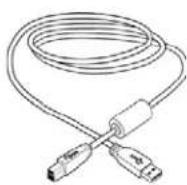
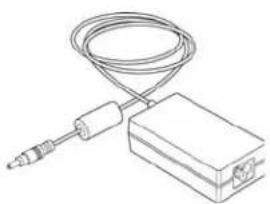
USB 3.0 Cable Power Supply Power Cord
natural_image
Line drawing of a medical or laboratory setup with a coiled tube, connector, and rectangular device (no text or symbols)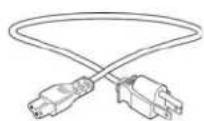
SYSTEM REQUIREMENTS
■Intel Pentium 4 or equivalent processor
■DVD-ROM drive capable of reading Dual Layer DVDs
■Universal Serial Bus (USB) port
■Microsoft ^ Windows ^ operating system:
●32-bit Windows XP (Service Pack 3)
●32-bit or 64-bit Windows Vista (Service Pack 2)
●32-bit or 64-bit Windows 7 (Service Pack 1)
●32-bit or 64-bit Windows 8 / 8.1
●32-bit or 64-bit Windows 10
■2 gigabyte (GB) internal memory (RAM)
■Minimum available hard disk space:
●350 MB for the scanner driver
●750 MB for Visioneer OneTouch
●1 to 2 GB for each additional application
Please refer page 23 for a list of the applications provided with your scanner.
■Monitor (recommended settings):
●Color quality of 16-bit or 32-bit
●Resolution set to at least 800 x 600 pixels
Refer to your Windows documentation for instructions on setting the color quality and resolution for the monitor.
DOCUMENTATION
The following printed documentation is provided in the box:
■ Installation guide—abbreviated scanner setup and installation instructions.
■ Technical support card—contact information for technical support and customer service, and a brief overview of our standard product warranty.
The following soft-copy documentation is available on the installation disc:
Scanner user guide—instructions for scanner setup, installation, operation, maintenance, safety, and warranty
■ OneTouch scanning guide—instructions for configuring and scanning using OneTouch
■ TWAIN Scanning guide—instructions for accessing and scanning using the TWAIN interface
■ Patch code sheets—use with an application that supports detection of patch code data when using the TWAIN interface. The patch code page layouts have been specifically designed for your scanner. The file contains Patch 1 layouts for A4 and U.S. Letter size pages.
Make sure you print the correct page size for the paper in your printer. Also, make sure the application you are using is not set to automatically scale the page to fit on the paper in your printer.
Nuance PaperPort user's guide—contains detailed information using the application and managing your scanned documents.
Nuance OmniPage user's guide—contains detailed instructions on using the software, including information on using Optical Character Recognition to create editable text files from the scanned documents.
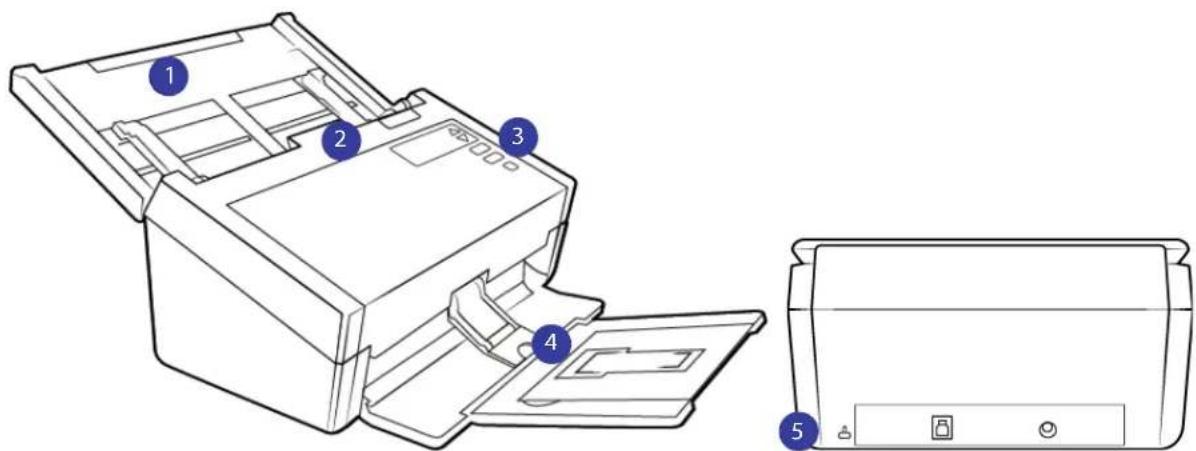
THE VISIONEER® PATRIOT H60/80 SCANNER FEATURES
-
Input Tray—Holds the documents in the Automatic Document Feeder for scanning.
-
Extension—Pull out to support various document lengths.
● Paper Guide Switch—Push up to allow the paper guides to adjust wider for dot matrix printer paper.
● Paper Guides—Slide to adjust to document width. -
Automatic Document Feeder—Feeds documents through the scanner during scanning.
- ADF Cover Release—Press to open the Automatic Document Feeder.
- Control Panel—OneTouch scanning controls.
●LCD Screen—Shows the current scan settings
● Function Buttons—Select the scan setting for the OneTouch buttons. Press the up or down arrow to cycle through the settings.
- Simplex Button—Press to scan single-sided documents.
- Duplex Button—Press to scan double-sided documents.
● Status Light / Power Button—Turns the scanner's power on/off and indicates the scanner's status.
- Output Tray—Holds documents after being scanned.
● Paper Stop (Short Documents)—Flip up to keep short items stacked neatly in the output tray after scanning. Slide to adjust to the length of the scanned documents.
- Extension—Flip out to support various document lengths.
● Paper Stop (Regular Documents)—Flip up to keep regular documents stacked neatly in the output tray after scanning.
- Connections—Scanner connection ports.
● Safety Lock Slot—Connect a Kensington® style safety lock.
● Universal Serial Bus (USB 3.0) Port—Connect the scanner to the computer via the USB 3.0 cable.
● Power Jack—Connect the power cord to the scanner.
SCANNER SETUP
-
Remove the scanner from its protective foam and plastic bag.
-
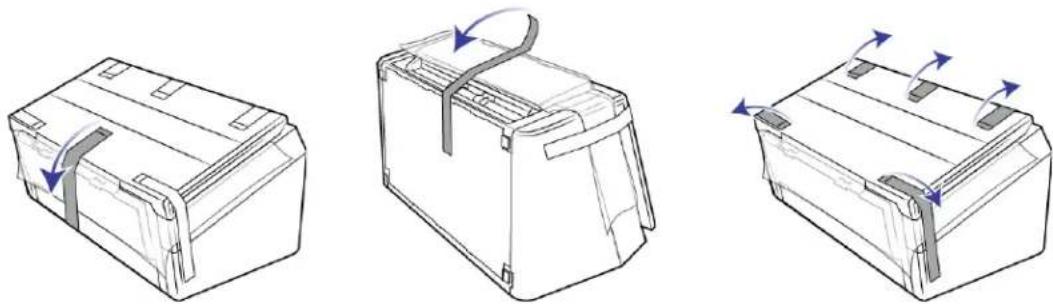
Remove any shipping tape from the scanner as indicated in the following illustration(s).
natural_image
Three technical line drawings of a battery pack with internal components and directional arrows indicating motion (no text or symbols)The above illustrations are for example purposes only. Your scanner's packaging may vary slightly.
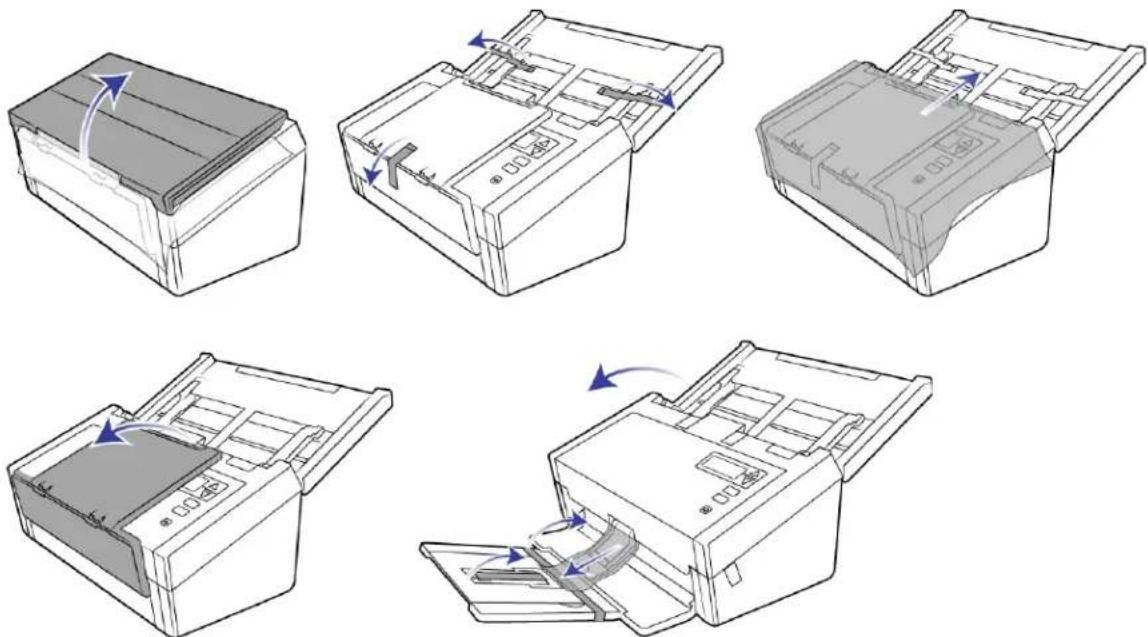
- Lift the input tray up from the scanner. Pull the output tray down from the scanner body. Remove any shipping tape from the input and output trays.
flowchart
graph TD
    A["Printer Printing"] --> B["Recirculation"]
    B --> C["Quality Inspection"]
    C --> D["Recirculation"]
    D --> E["Quality Inspection"]
    E --> F["Recirculation"]
    F --> G["Quality Inspection"]
The above illustrations are for example purposes only. Your scanner's packaging may vary slightly.
- Open the automatic document feeder cover and remove any tape or protective foam from inside the feeder. Close the feeder cover when you are finished.
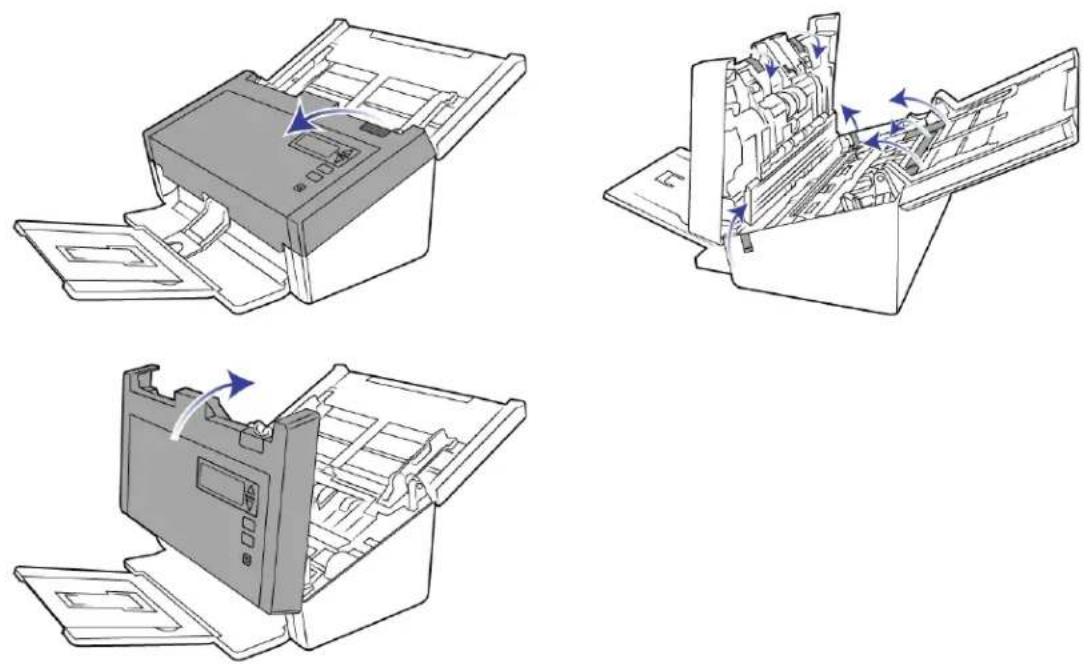
The above illustrations are for example purposes only. Your scanner's packaging may vary slightly.
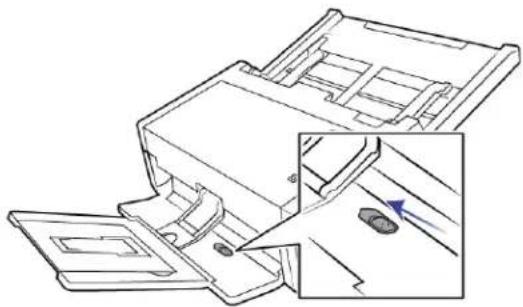
- Slide the release switch in the output tray if you want it to lay flat on the desk.
natural_image
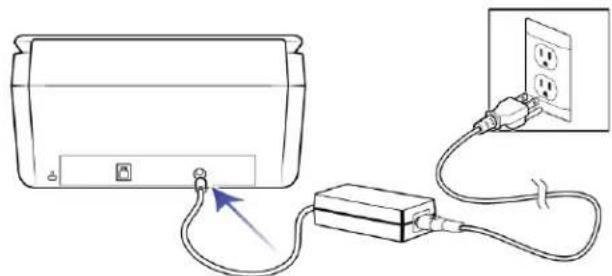
Technical line drawing of a mechanical device with an inset showing internal components and a blue arrow indicating motion (no text or symbols)Note: Only use the power supply (DA-48M24 made by APD) included with your scanner. Connecting any other type of power supply may damage your scanner, and will void its warranty.
-
Plug the power supply into the power port on the scanner.
-
Plug the power cord into the power supply and into a wall outlet.
natural_image
Diagram showing connection between a device with cable and plug, next to an electrical outlet (no text or symbols)MOVING OR REPACKING THE SCANNER
If you want to move or repack the scanner, please follow the instructions in this section to prevent damage to the scanner's input and output tray.
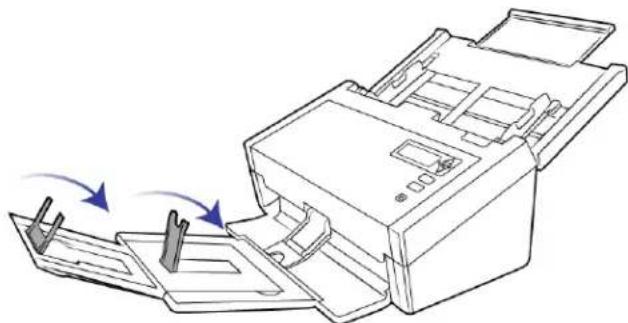
- Lower the paper stop.
natural_image
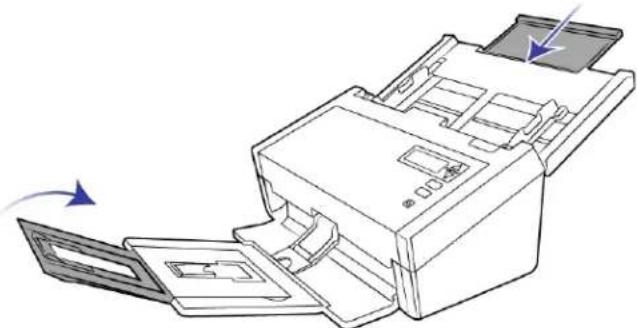
Line drawing of a printer's internal structure with arrows indicating process flow (no text or symbols)- Close the input and output tray extensions.
natural_image
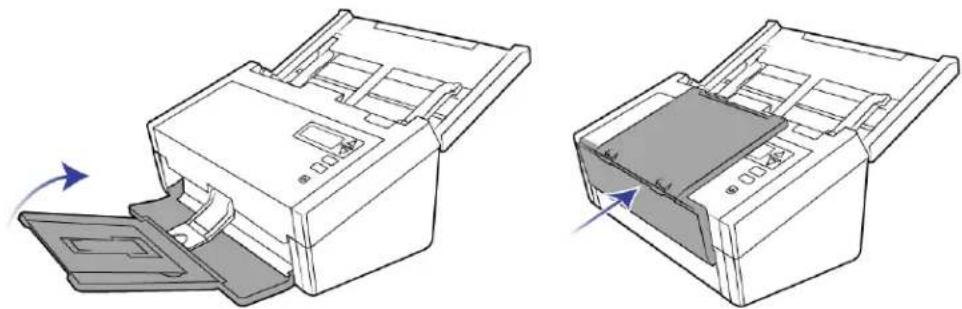
Line drawing of a printer internal structure with arrows indicating motion (no text or symbols)- Lift the output tray up and fold it against the scanner. Press on the output tray until it clicks in place.
natural_image
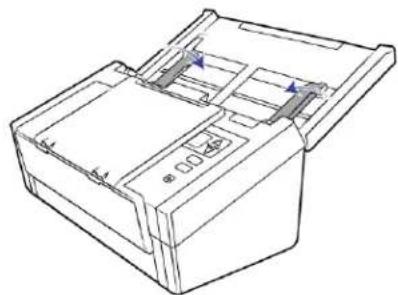
Technical line drawing of a printer internal structure showing open and closed compartments with no visible text or symbols- Flip the paper guides closed so that they are flat against the input tray.
natural_image
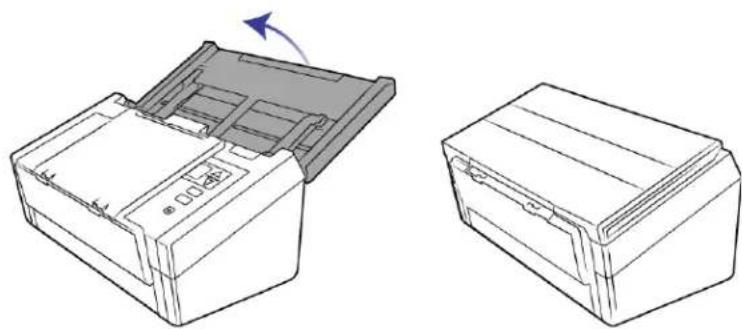
Technical line drawing of a mechanical device with internal components and mounting holes (no text or symbols)- Close the input tray.
natural_image
Technical line drawing of a mechanical device with an open lid and a closed case, showing internal components and a blue arrow indicating rotation (no text or symbols)SAFETY LOCK
Your scanner may have a slot for installing a Kensington® style safety lock. This slot can be identified by the lock icon. It is to the left of the USB port on the scanner. When following the instructions in this document, make sure you connect the USB cable into the USB port which is identified by the USB symbol.
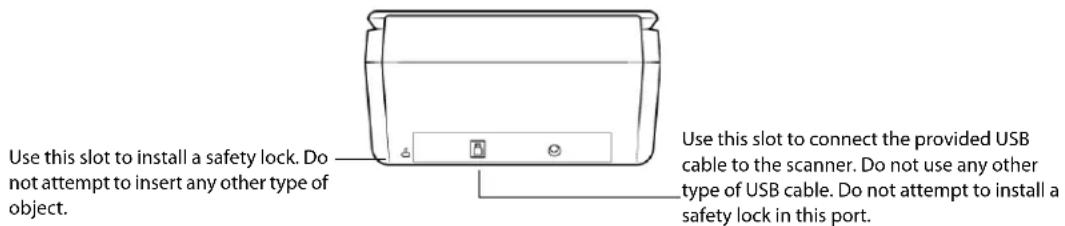
A lock is not provided with the scanner and this document does not contain instructions on purchasing and installing a safety lock. If you choose to use a safety lock, please carefully read the installation instructions provided with the lock. More information about Kensington ^® locks can be found at www.kensington.com.
VISIONEER® PATRIOT™ H60 / H80 SCANNER SETUP
INSTALLATION
Please make sure of the following before you begin installation:
If you are prompted to reboot during installation, please select "No". Finish installing the rest of the software, then close all open windows and reboot your computer.
The information in this guide may cover software not provided with the scanner you purchased. Please disregard any information about the software not applicable to your scanner.
If your computer has AntiVirus or AntiSpyware software running, you may encounter alerts or messages during installation asking you to allow the installation to proceed. Although the messages will differ based on the software your computer is running, in each case you should allow the installation to proceed if that option is available. Alternatively, you can turn off the AntiVirus or AntiSpyware software before installing your scanner, but if you do, make sure to turn it back on again when installation is finished.
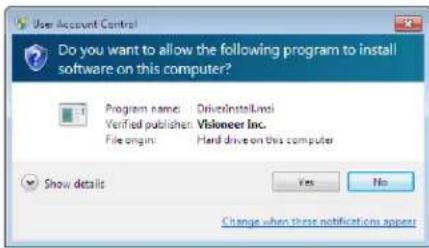
If your computer is running Windows Vista or later, you may see the Windows User Account Control screen asking you to confirm system changes. Click the Yes button to allow the installation to proceed.
INSTALL THE SOFTWARE AND CONNECT THE SCANNER
- Start Microsoft Windows and make sure that no other applications are running.
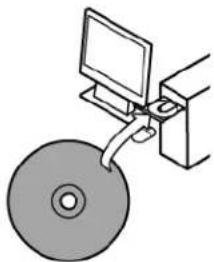
- Insert the installation disc into your computer's DVD-ROM drive.
natural_image
Simple line drawing of a computer monitor connected to a CD, with no text or symbols present.The disc automatically starts.
- The Select Language window opens. Click the drop-down menu arrow and select the language to use. Click OK.
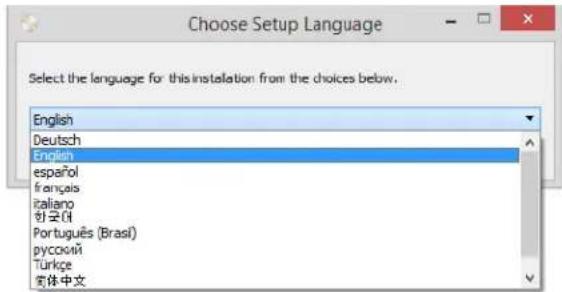
The disc's Main menu window opens.
Note: If the disc does not start, check the following:
●Make sure the disc drives door is completely shut.
● Make sure the disc was inserted in the drive in the proper direction (label side up).
To launch the disc manually:
- Open the Windows options for your computer's disc drives.
●Double-click the icon for your DVD-ROM drive.
●The Installation menu for the disc should now open.
If the menu does not open:
●From the list of files on the disc, double-click the file named setup.exe.
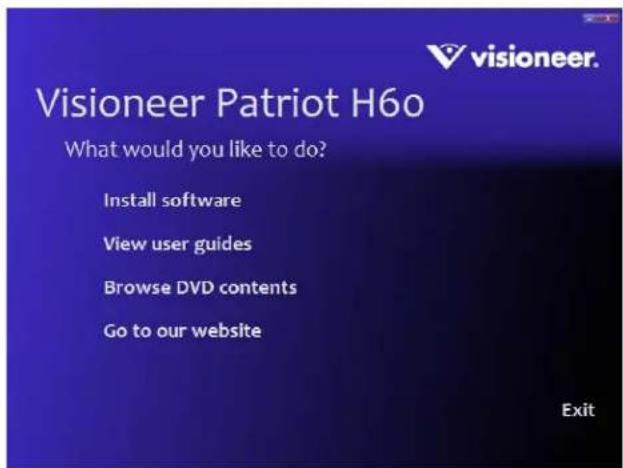
- On the Main menu, select Install software.
- Make sure the boxes for Scanner Driver and Visioneer OneTouch are selected, as well as any other applications you want to install.
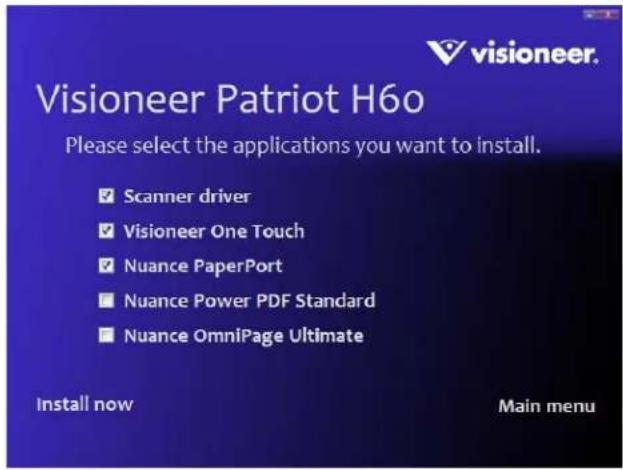
Note: The software provided with your scanner may differ slightly from the list shown in the window.
- Click Install now.
Installing the Scanner Driver
The scanner driver installation will start first.
- The Welcome screen for the scanner driver Setup Wizard opens. Click Next.
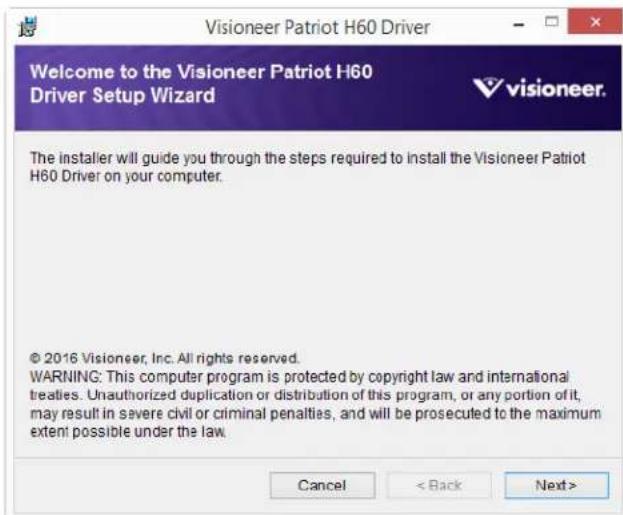
Note: there may be an option in the installation window to remove any current scanning profiles. You will see this prompt if you already have a previous version of the scanner driver installed. Select the option in the installation window only if you want the existing profiles removed.
- On the Visioneer License Agreement window, read the license agreement. If you accept the terms, select I Agree then click Next.
If you choose not to accept the license agreement, click Cancel. Click Close on the Installation Interrupted window.
-
The software will now be installed.
-
Stop when you see the "Complete the installation by connecting your hardware" window. Do not click OK yet. Leave the window open and proceed to the next section.
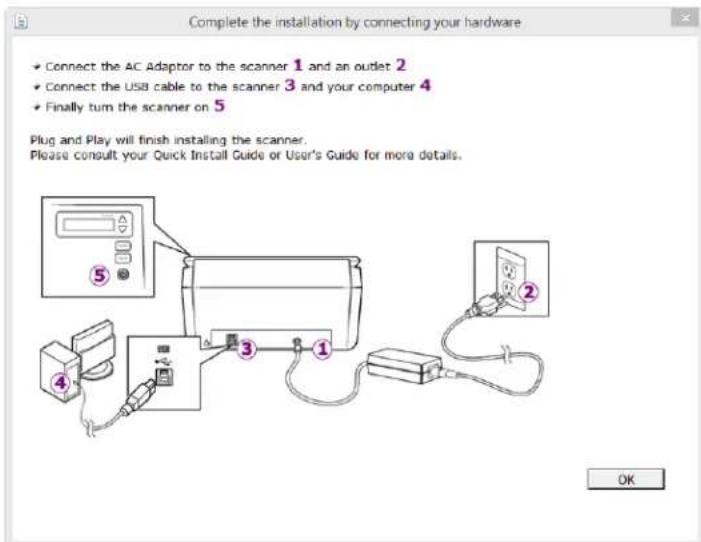
Note: If you do not see this on-screen diagram for connecting the scanner, stop and follow the instructions below.
Connect the USB Cable and Turn on the Power
-
Remove any tape from the USB cable.
-
Plug the USB 3.0 cable provided into the USB port on the scanner then into a USB 3.0 port on the computer. Check your computer's manual for USB port locations.
It is possible to use a USB 2.0 cable and computer port, however the scanner may not achieve the rated speed.
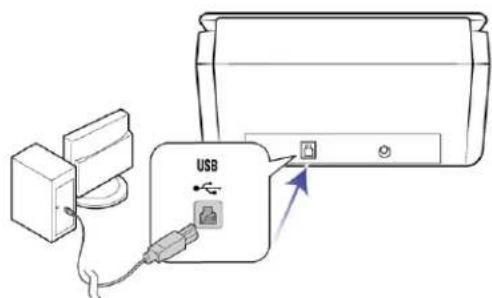
If the plug does not attach easily, make sure that you are plugging it in correctly. Do not force the plug into either connection.
3. Turn on the scanner power.
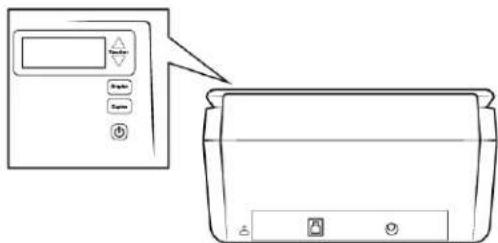
The status light comes on and flashes indicating that the scanner is receiving power.
Your computer recognizes that a scanner has been plugged into the USB port and automatically loads the appropriate software to run the scanner.
4. When you're certain that the software has completely loaded, return to the "Complete the installation by connecting your hardware" window.
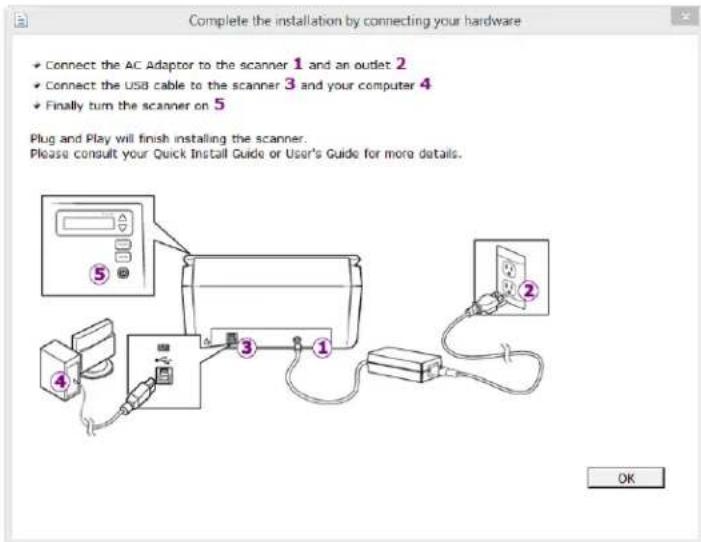
5. Click OK to complete the installation process.
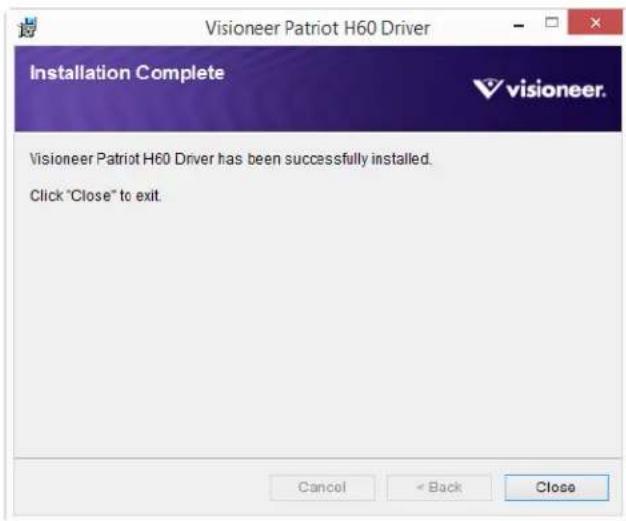
- Click Close on the Installation Complete window to close and exit the driver installer.
Installing Visioneer OneTouch
The Visioneer OneTouch software installation will start automatically after you click Close on the driver Installation Complete window.
- Click Next on the Welcome to the OneTouch Setup Wizard.
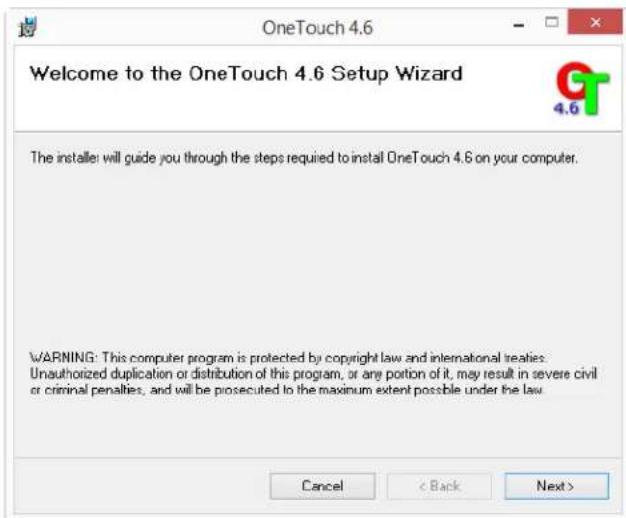
Note: there may be an option in the installation window to remove any current scanning profiles. You will see this prompt if you already have a previous version of OneTouch installed. Select the option in the installation window only if you want the existing profiles removed.
- On the Visioneer License Agreement window, read the license agreement. If you accept the terms, select I Agree then click Next.
If you choose not to accept the license agreement, the installation will terminate and OneTouch will not be installed.
- Click Close on the Installation Complete window to close and exit the software installer.
Note: If you selected other software to install from the DVD the installation for that software will automatically start after you click Close on the Installation Complete window. Follow the instructions on-screen to install each application you selected.
INSTALLING ADDITIONAL APPLICATIONS
Your scanner includes free, additional applications as described in the table below.
- Return to the disc's Main menu and click Install software.
- Select the additional applications you want to install, then click Install now.
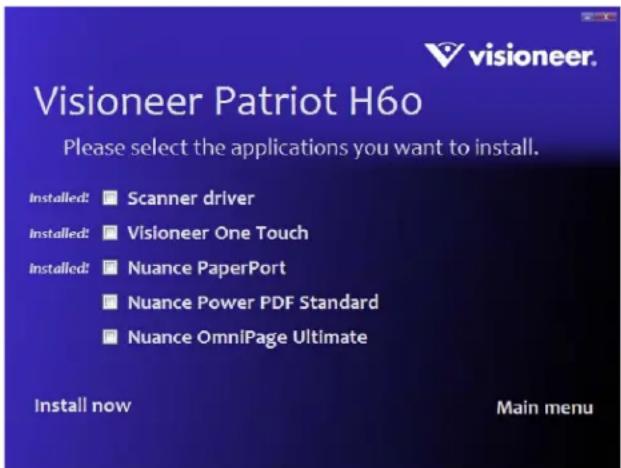
- Follow the instructions on the screen to install each of the additional applications.
| Software About the Software | |
| Nuance PaperPort® | PaperPort is a document management software application. The PaperPort scanning features allow you to insert new pages into an existing file and name your file immediately after scanning. From within the PaperPort desktop you can sort your documents and move them between folders as you would through the Windows My Documents folder. You can reorder the pages in a PDF file, and unstack a document so all the pages are re-saved as individual files. PaperPort also has some basic image editing options in the PaperPort PageView, such as; adding notes to image files, modifying image colors, and touch up the image using the erase and/or auto-correct options.You can see more information about this application atwww.nuance.com |
| Nuance OmniPage® | OmniPage Pro provides precision OCR analysis, advanced layout detection, and Logical Form RecognitionTM (LFR) technology. Advanced security features quickly turn office documents and forms into over 30 different PC applications for editing, searching and sharing. Custom workflows handle large volumes of documents, and you can use its tools to print to PDF. |
| Nuance Power PDF Power | Power PDF features 100% industry-standard PDF creation and editing plus the world's most accurate PDF conversion to editable Microsoft Office formats available. It also offers one-click scanning to PDF, the most advanced PDF search capabilities, excellent graphics management, document flattening and auto-removal of sensitive information. Combining unparalleled functionality, built-in intelligence and ease of use, Power PDF enables users to create, convert, edit, assemble and securely share PDF files like never before for enhanced professionalism, productivity and collaboration. |
VIEW THE USER GUIDES
- Return to the disc's Main menu and click on View user guides.
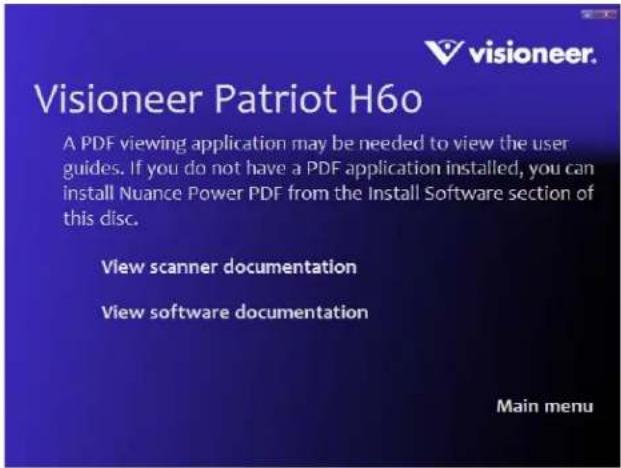
-
Click on View scanner documentation to access the scanner user guide and scanning guides for OneTouch and TWAIN.
-
Scanner user guide—Instructions for scanner setup, installation, operation, maintenance, safety, and warranty
● OneTouch scanning guide—Instructions for configuring and scanning using OneTouch - TWAIN scanning guide—Instructions for accessing and scanning using the TWAIN interface
Click on View software documentation to access the user guides for the software applications provided with the scanner.
From either of these user guide windows, click on the User guide menu button to return to the main user guide window, then select the other documentation section to view the user guides.
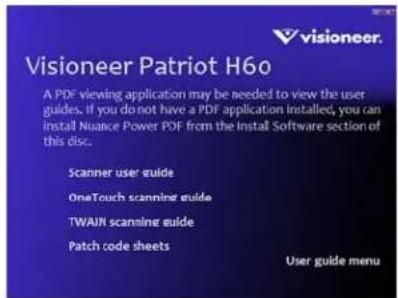
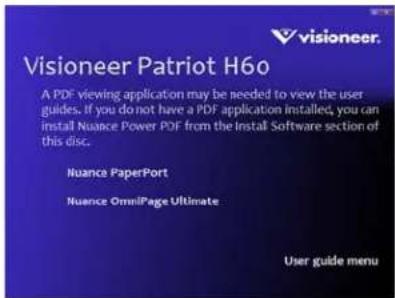
- Click the links of the guides you want to view.
- When you're finished, click Main menu to return to the Main menu window and click Exit.
- Remove the installation disc and store it in a safe place.
REGISTER YOUR SCANNER
Registering your scanner is important as it provides you with access to our free telephone support service. Registration also gives you free access to software updates for your scanner.
To register your scanner:
You will need an active network connection to register your scanner. If you do not have network access you can contact our customer service department to register the scanner. Please refer to the Technical Support Card, that you received with the scanner, for our customer service contact information.
- Open an Internet Explorer window, or any other Internet browser you have installed on your computer.
- In the web address field type www.visioneer.com.
- Press Enter on your computer's keyboard or click the option on screen to go to the web address.
- When the Visioneer * scanners web page loads click on Register Your Product.
- Fill in the registration form, all required fields have an asterisk (*).
A valid email address is required for registration.
- You will be asked to enter the serial number for the scanner, it is located on the back or underside of the scanner.
- After filling in the form, click on Submit Your Registration to complete the registration.
VISIONEER® PATRIOT™ H60 / H80 INSTALLATION
LOADING DOCUMENTS TO SCAN
Always remove any staples or paper clips from documents before inserting them into the scanner. Staples and paper clips can jam the feed mechanism and scratch the internal components. Also remove any labels, stickers, or Post-It™ notes that may come off during the scanning process and get stuck in the scanner. Misuse as described here will void your scanner's warranty. Please go to www.visioneer.com, select your product, and then click the "Warranty Program" link to view the warranty terms and conditions for your scanner.

SUPPORTED DOCUMENT TYPES
You can scan the following types of documents and cards with this scanner.
■Maximum amount of paper in the input tray
●Approximately 80 pages of 20 lb (75–80 g/m ^4 ) new printer paper
■Document size
●Minimum size (width x length) – 2 x 2 inches (51 x 51mm)
●Maximum size (width x length) – 8.5 x 14 inches (216 x 356 mm)
●Maximum length with long document enabled
○236 inches (5994 mm) up to 200 dpi
○218 inches (5537 mm) at 300 dpi
○59 inches (1499 mm) at 400 dpi and higher
We recommend scanning one page at a time when the documents you are scanning are longer than 14 inches (356 mm).
■Mixed document stacks
- Scanner minimum to maximum without long document enabled
Arrange the documents so that all items are centered in the stack. The document sensor, paper separation, and feed rollers are located in the middle of the paper path. If smaller items are offset from the center they will not be detected. This will cause feeding issues and paper jams.
■Dot matrix printer paper
■Paper thickness between 7–110 lb paper (27–413 g/m ^2 )
■Embossed plastic cards up to 1.25 mm thick
■Non-embossed plastic cards up to 1 mm thick
DOCUMENTS TO AVOID SCANNING
The documents in this list can be scanned, but please note that scanning documents of this type will reduce the life of the scanner. Maintenance will be required more often and replaceable parts will wear faster. These types of documents will jam more frequently and damage to the original documents may occur. If you do choose to scan these document types, do not scan large batches. This type of use is not covered under the scanner warranty and alters replacement parts life expectancy.
We recommend you limit the amount or completely avoid scanning documents that are in this list.
■ Curled, wrinkled or folded documents may cause paper jams or multiple pages being fed through the scanner at one time.
■Perforated or punched paper that could tear when the separation roller engages.
■ Coated paper or photographs where the coating can flake off during scanning and leave residue in the scanner.
■ Extremely smooth, shiny, or highly textured paper may cause the paper feed rollers to slip across the page and cause the scanner to report a paper jam.
■ Carbonless copy paper may tear while being fed through the scanner and the pressure of the rollers may leave streaks on the page. The chemical coating on this paper will rub off on the rollers during the scan process, increasing the frequency of miss-feeds and paper jams.
■ Partially transparent paper such as tracing paper as any images from the opposite side of the page or black background will appear in the scanned images.
UNSUPPORTED DOCUMENT TYPES
Do not scan the following types of documents as they may cause damage to the scanner.
Items outside of the specified supported sizes, thickness, and weight defined in this document.
■ Non-rectangular or irregularly shaped paper will cause the scanner to detect and report document skew errors or paper jams.
■ Carbon paper that will leave residue in the scanner and on the rollers that will transfer to the next set of documents scanned.
■ Documents with hard items attached such as paper clips, binder clips, and staples.
■Documents with wet ink or white-out.
■Thermal or photosensitive paper.
■ Overhead projector sheets, plastic film, camera film, and any other type of transparent or partially transparent plastic item.
■Documents that have been glued together.
■Cloth or metallic sheets.
SCANNING FROM THE AUTOMATIC DOCUMENT FEEDER (ADF)
Scanning Regular Documents
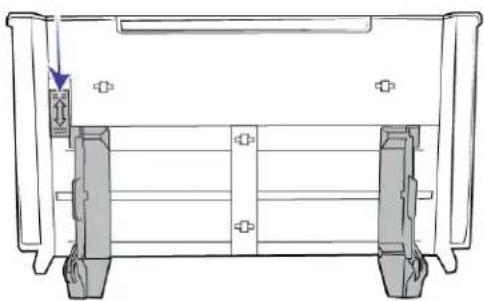
Make sure the paper guide switch is in the correct position for scanning regular documents, as indicated in the following illustration.
natural_image
Technical line drawing of a mechanical frame or enclosure with mounting feet and structural supports (no text or symbols)When the paper guide switch is in the down position, the paper guides can be adjusted to a maximum of 8.5 inches (216 mm) wide. If the paper guides are adjusted wider than the maximum for regular paper, documents may skew excessively during scanning.
Preparing Documents for Scanning
■Fan the documents to make sure all pages in the stack are separated.
■ Bend and then flatten the document stack to make sure the horizontal edges are aligned to help prevent paper from skewing while being pulled through the scanner.
■ Pinch the ends to align the leading edges slantwise to help prevent multiple pages from being fed through at a single time.

natural_image
Illustration of four different types of open book pages: folded, closed, curved, and blank (no text or symbols)Loading Documents
-
Make sure the paper guide switch is in the down position.
-
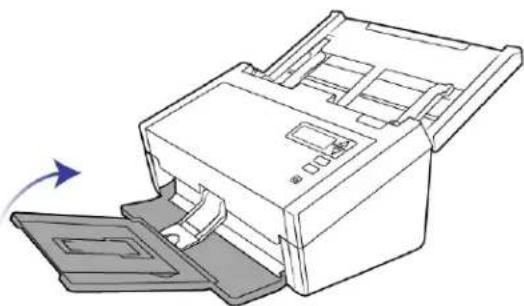
Flip up the paper guides and adjust them to the width of the documents you are scanning. Extend the input and output trays.
natural_image
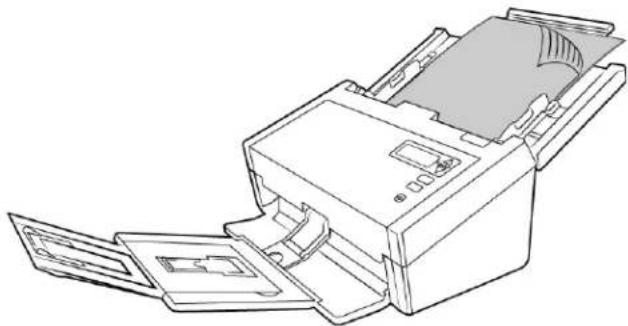
Technical line drawing of a printer or printer with an open lid and internal compartments (no text or symbols)- Load the documents face down with their tops into the Automatic Document Feeder.
natural_image
Line drawing of a printer with open lid and internal compartments (no text or symbols)- You can now scan the documents using the scanner buttons, OneTouch, or one of the other scanning interfaces.
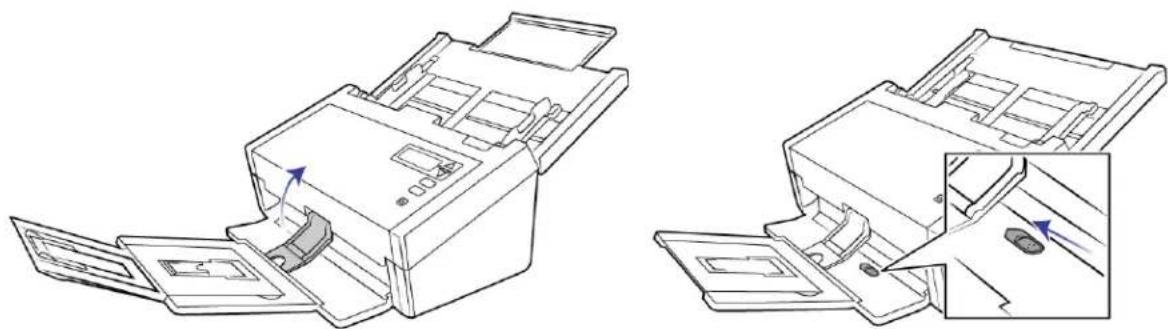
Note: Occasionally the last page in a scanned batch may not be ejected completely. To resolve this, raise the paperweight and release the output tray to lie flat as shown.
natural_image
Technical line drawing of a printer internal structure showing open and closed compartments with no text or symbolsScanning Dot Matrix Printer Paper
With the Visioneer® Patriot™ H60 / H80 you can scan dot matrix printer paper without removing the perforated sides from the page.
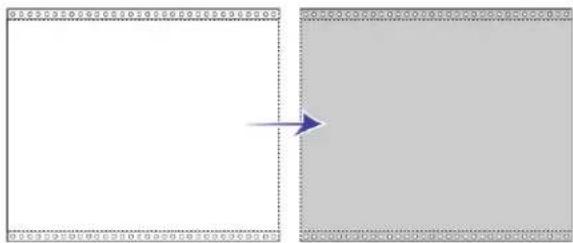
- Separate the pages so that you have a stack of single pages.
natural_image
Simple diagram with a blue arrow pointing from a dashed rectangular frame, no text or symbols present.Do not place a stack of connected paper in the input tray. The paper will tear when the separation roller attempts to separate the current page from the rest of the stack. If you want to scan a long document of dot matrix paper, try placing the document stack on the desk behind the input tray. Close the input tray extension and place the leading page in the input tray.
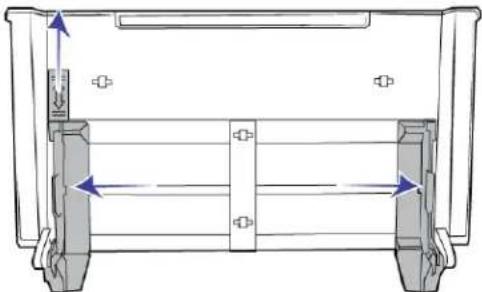
- Slide the paper guide switch up and then adjust the paper guides.
natural_image
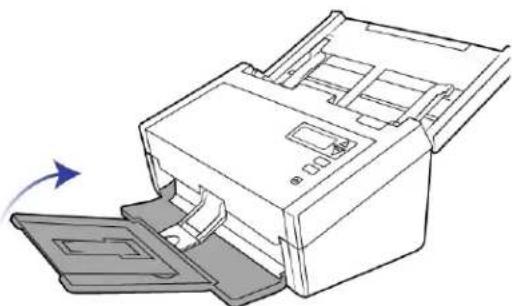
Technical line drawing of a mechanical frame with arrows indicating motion or force direction (no text or symbols)- Flip up the paper guides, extend the input and output trays.
natural_image
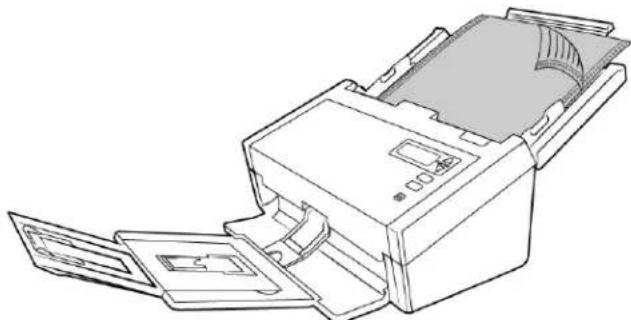
Line drawing of a printer with an open lid and internal compartments, showing no text or symbols.- Load the documents face down with their tops into the Automatic Document Feeder.
natural_image
Line drawing of a printer with open lid and internal compartments (no text or symbols)- You can now scan the documents using the scanner buttons, OneTouch, or one of the other scanning interfaces.
SCANNING INTERFACES
■ One Touch Control Panel—When you press either the Simplex or Duplex button, documents are scanned using the scan settings indicated by the LCD display. The scanned images are then sent to a software application on your computer.
■ OneTouch Button Panel—Use this scan option when you want to scan from the computer screen. Scanning from the on-screen OneTouch Button Panel is the same as selecting a scanning option on the scanner, except you click an icon that represents the function.
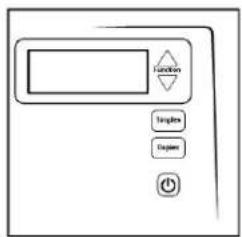
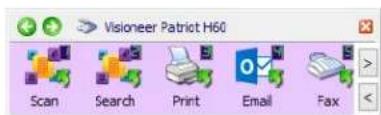
Scanner Control Panel OneTouch Button Panel
Please see the OneTouch Scanning Guide on the installation disc for instructions. You can also click the Help button in the OneTouch Properties window to open the instructions in an Internet browser.
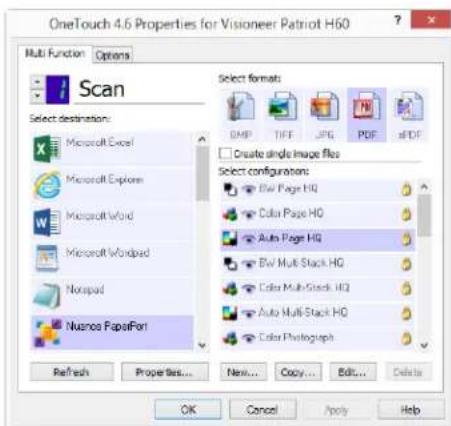
■ TWAIN and WIA Interface—This option uses your scanner's TWAIN interface to scan. Select scanning options before scanning, put the document in the scanner, then click the Scan button in the TWAIN interface window.
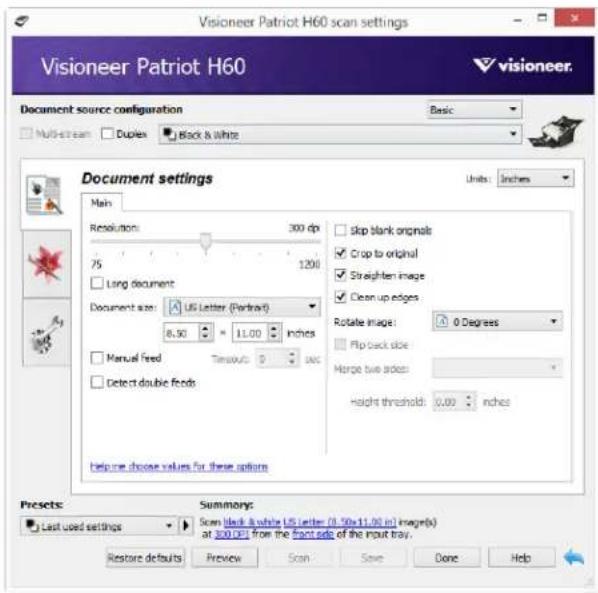
Please see the TWAIN Scanning Guide on the installation disc for instructions. You can also click the Help button in the TWAIN interface to open the instructions in an Internet browser.
ISIS Interface—This option uses the ISIS interface for scanning. Please refer the user manual for your ISIS scanning application for instructions on scanning with the ISIS interface.
MAINTENANCE
This section contains information about maintenance, troubleshooting, uninstalling, scanner specifications, and spare parts.
SAFETY PRECAUTIONS
When servicing the scanner you should take the following precautions to ensure your safety and prevent damage to the scanner.
Do These
■ Wear protective gloves when cleaning the scanner with Isopropyl rubbing alcohol. Rubbing alcohol may irritate sensitive skin.
■Only perform scanner maintenance as described in this chapter.
- Keep the scanner and cleaning supplies away from any open flame or heat source as any form of alcohol is flammable.
■ Always read the instructions in each section carefully, the instructions are specific to the part you are installing or servicing.
■Move the scanner to an area that has adequate room for opening the scanner.
If your scanner has a power cord and/or power switch, always turn off the scanner and unplug the power cord before performing maintenance, unless the maintenance instructions below specifically state to leave the scanner plugged in and powered on.
■ Always unplug the USB cable from the scanner before performing maintenance, unless the maintenance instructions below specifically state to leave the scanner plugged in.
■ Wear an anti-static strap to prevent electrostatic discharge when touching metal components.
- Keep all cleaning supplies, scanner parts and accessories out of the reach of children.
Do Not Do These
■ Never attempt installation of any part not described in this manual.
■Never service the scanner near a radiator or any other heat source.
■ Never use aerosol sprays or compressed air, or attempt to lubricate parts with an oil or silicon spray.
■Never service the scanner in an area where there are open liquid containers.
■Never pour or spill liquid on the scanner or any of its components.
HARDWARE PROPERTIES
You can use the scanner's properties page to keep track of scanner maintenance, change some of the hardware options, configure the scanner interface behavior, and adjust application options that may be available for your scanner.
To open the scanner hardware properties page:
■ Windows 7 and later—from the Windows Control Panel, open Hardware and Sound and then Devices and Printers.
Right-click on the scanner and then select Scan properties from the list. Click Yes if you are prompted by the Windows User Account Control to confirm that you want make changes to the system settings.
■ Windows Vista—from the Windows Control Panel, open Hardware and Sound and then Scanners and Cameras.
Click on the scanner icon then click on the Properties button. Click Yes if you are prompted by the Windows User Account Control to confirm that you want make changes to the system settings.
■ Windows XP—from the Windows Control Panel when in category view, open Printers and Other Hardware and then Scanners and Cameras.
Right-click on the scanner and then select Properties from the list.
Device Settings
The Device Settings tab shows the hardware information for your scanner. The options on the Device Settings tab will be available based on whether or not the scanner hardware supports the feature. Some features described herein may not be available for the current scanner. Please disregard any information about features that you do not see in the interface for your scanner.
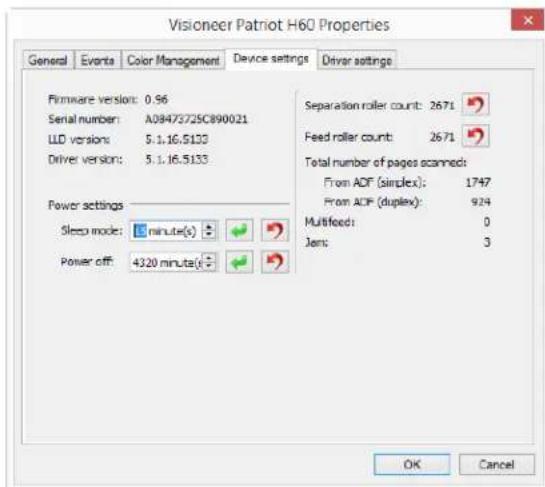
Scanner Details
■ Firmware version—this is the scanner's hardware processor version number.
Serial number—the scanner's unique identification number.
■ LLD version—the scanner's base driver version. This is not the OneTouch software revision, TWAIN or WIA driver versions.
- Driver version—this is the version of the scanner's TWAIN driver.
Scanner configuration
■ Counters—click the reset button next to the counter you want to set back to 0.
Power Settings
Some features described herein may not be available for the current scanner.
■ Sleep mode—sleep mode is the low-power state when the scanner is not in use. You can adjust the amount of time you want the scanner to wait before it goes into low power.
Click the green enter button to save any changes in the Sleep mode field.
Click the red reset button to reset to the default timeout value.
■ Power off—input the number of minutes you want the scanner to wait before it turns itself off.
Click the green enter button to save any changes in the power off field.
Click the red reset button to reset to the default timeout value.
Driver Settings
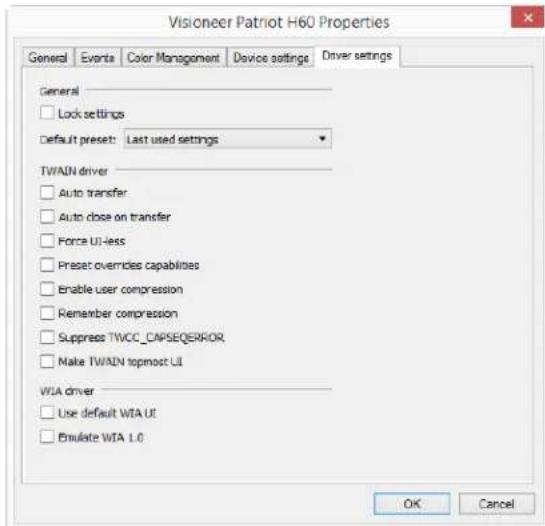
The options in this panel are for configuring how the interface will behave in some scenarios. Please see the scanning guide on the installation disc for instructions.
ADJUSTING THE PAPER GUIDES
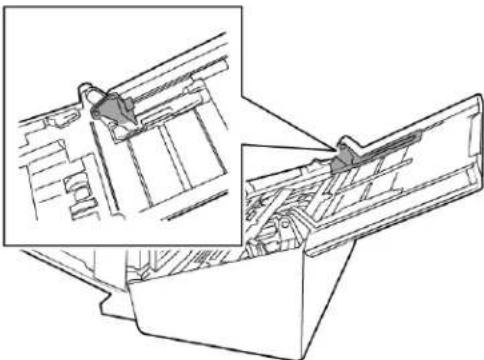
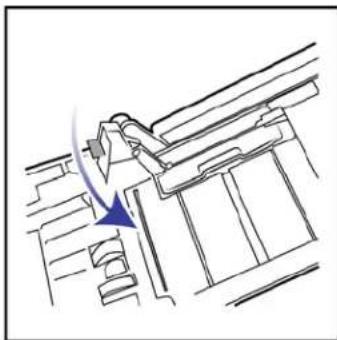
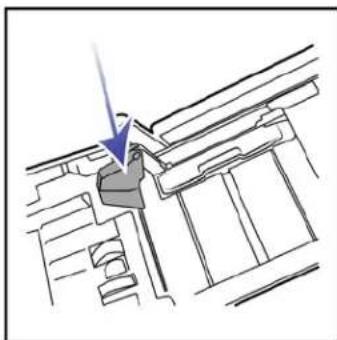
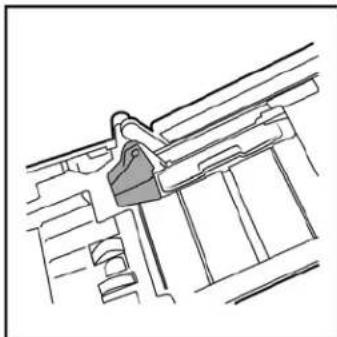
The paper guides are designed to release from the channel in the scanner body. This prevents damage to the paper guides while performing maintenance or removing the input tray. When following the instructions in this section for troubleshooting and maintaining the scanner, please make sure the paper guides are fully seated before closing the scanner.
Check the position of the paper guides in your scanner compared to the following illustration. If the end of the paper guide is flipped over similar to the image, follow the instructions below for properly seating the paper guides.
natural_image
Technical line drawing of a mechanical assembly with two views (top and side), no visible text or symbolsTo reset the paper guides:
- Rotate the end of the paper guide and align the tab with the channel in the scanner.
natural_image
Technical line drawing of a mechanical assembly with a blue arrow indicating direction (no text or symbols)- Gently press on the paper guide to lock the paper guide in the scanner.
natural_image
Architectural line drawing of a building facade with a blue arrow pointing to a detail (no text or symbols)- You can close the scanner when both paper guides are properly seated in the scanner.
natural_image
Line drawing of a mechanical assembly or structural component (no text or symbols)CLEARING PAPER JAMS
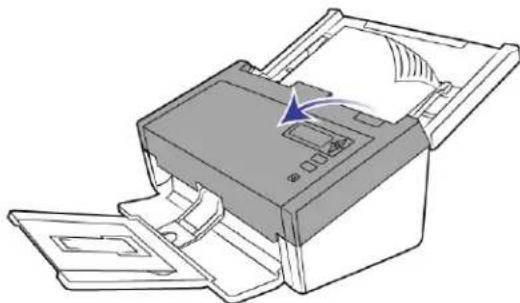
If your scanner stops scanning due to a paper jam in the Automatic Document Feeder, a warning opens after a few moments.
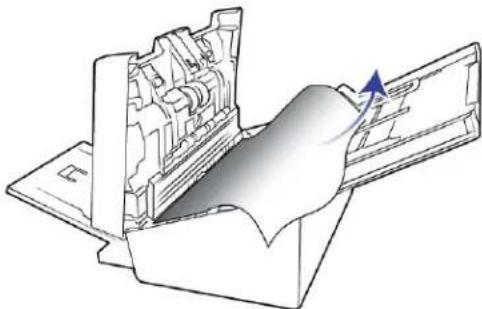
- Open the Automatic Document Feeder cover.
Do not attempt to remove a jammed page with the scanner closed.
natural_image
Diagram of a printer internal structure showing paper feeding into a tray (no text or symbols)- Remove the jammed paper and close the cover.
natural_image
Technical line drawing of a mechanical component with internal structure and directional arrow (no text or symbols)To reduce the number of paper jams, smooth and straighten the paper before scanning, adjust the guides to the paper size, and insert the paper evenly into the ADF.
CLEANING THE SCANNER
Regular maintenance of your scanner can help to ensure continual optimal performance.
Using a soft, lint-free cloth, wipe down all plastic surfaces on the scanner.
Cleaning Inside the Automatic Document Feeder
Cleaning the inside of the scanner helps to keep your scanner operating at optimum performance. You should clean the inside of the scanner at least once a week or after 1,000 pages have been scanned. If you are getting frequent paper jams, multiple pages feeding at the same time, or you're seeing lines in the scanned image, it is time to clean the scanner.
Note: Be careful when cleaning the rollers. All of the rollers, except the free rollers, are designed to rotate in one direction only. Do not force the roller to rotate in the opposite direction. Forcing the roller to rotate will damage it, and cause the scanner to feed pages incorrectly.
-
Wet a soft cloth with some Isopropyl rubbing alcohol (70%).
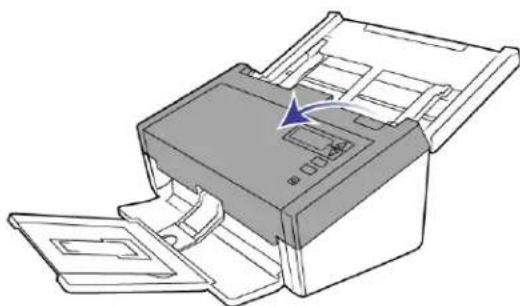
-
Open the Automatic Document Feeder cover.
natural_image
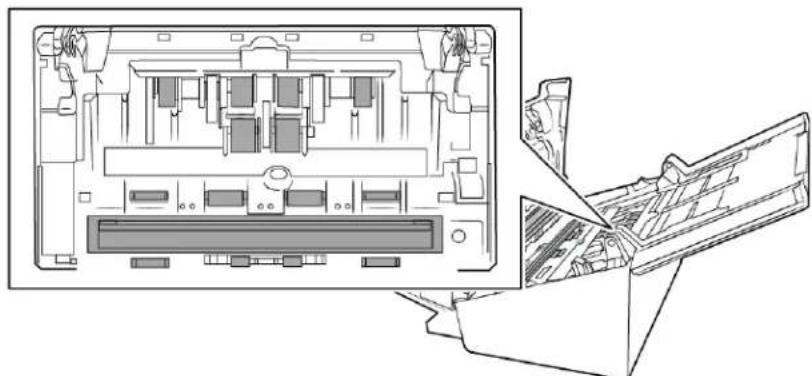
Diagram of a printer internal structure showing paper feeding into a slot (no text or symbols)- Wipe clean the rollers and glass in the scanner body. Rotate the rollers to clean the entire surface.
natural_image
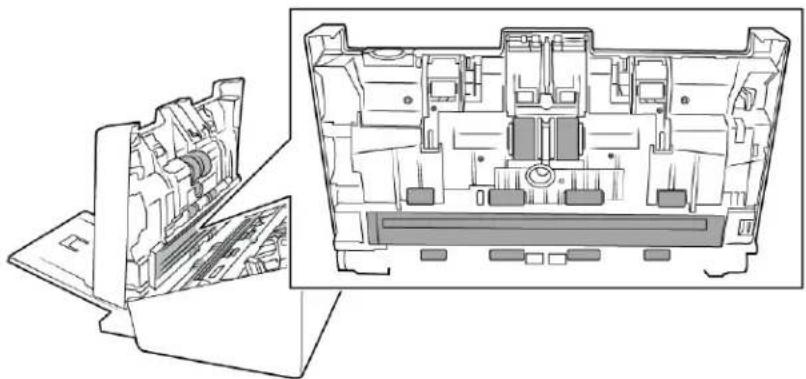
Technical line drawing of an electronic device interior showing internal components and a close-up view of the exterior panel (no text or symbols)- Wipe clean the rollers and glass in the underside of the ADF door. Rotate the rollers to clean the entire surface.
natural_image
Architectural floor plan showing internal room layouts and structural elements (no text or labels)- Using a clean, dry cotton swab, brush away any dust on the double feed detection sensors.
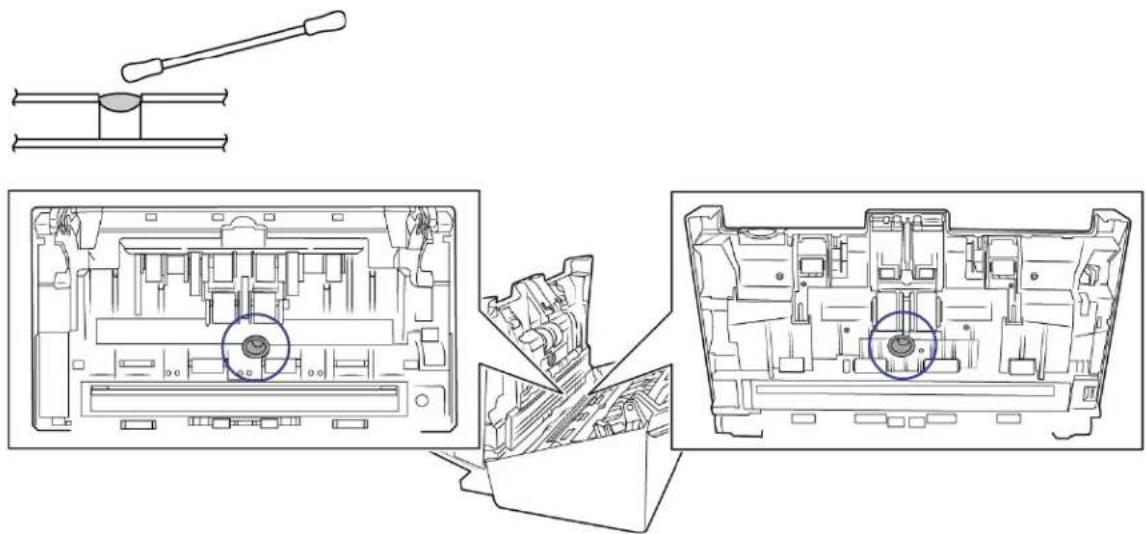
natural_image
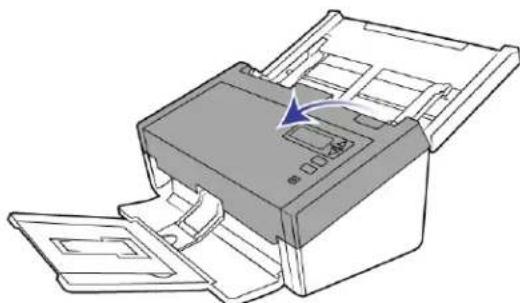
Technical line drawing of a mechanical assembly with exploded and assembled views (no text or symbols)- Close the scanner when you're finished.
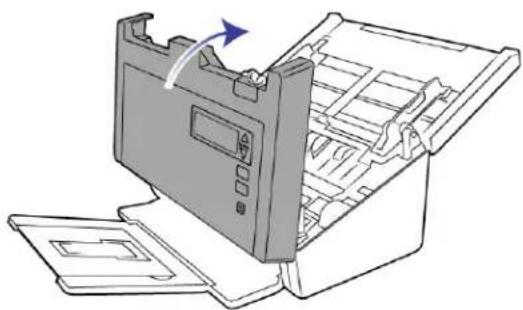
natural_image
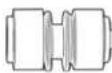
Diagram of a device with an open lid and internal compartments, showing a blue arrow indicating rotation (no text or symbols present)The roller will wear out and is designed to be a user-replaceable part. A worn roller can cause documents to feed in skewed at an angle, or multiple pages to feed at the same time. Before replacing the roller you should clean it as excessive dust on the roller will make it appear worn and smooth. You cannot properly diagnose a worn roller until you have cleaned it. You should generally replace the roller between 80,000 and 100,000 scans.
Replacement parts can be purchased from the Parts & Accessories page for your scanner at www.visioneer.com.
- Open the scanner.
natural_image
Diagram of a printer internal structure showing paper feeding into a tray (no text or symbols)- Locate the roller cover in the ADF door.
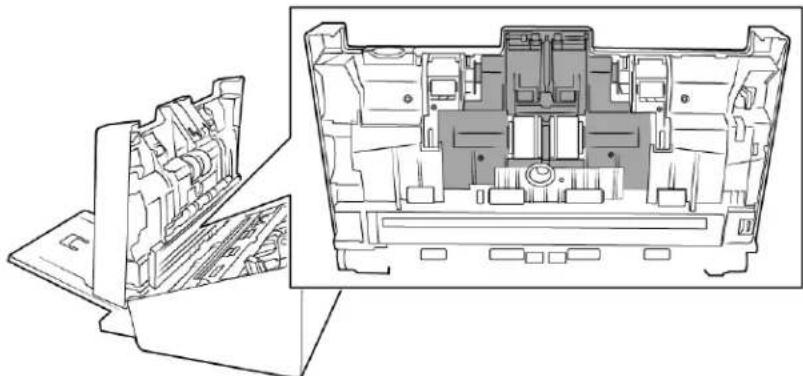
natural_image
Technical line drawing of a mechanical housing or enclosure with internal components, shown from two views (top: front view; bottom: side view), no text or symbols present.- Pinch the sides of the roller cover and pull it down to access the roller.
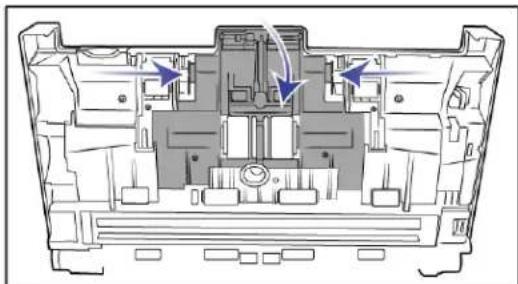
natural_image
Technical diagram of a mechanical or electronic component with internal structures and directional arrows (no text or symbols)- Carefully angle the roller up and out of the scanner.
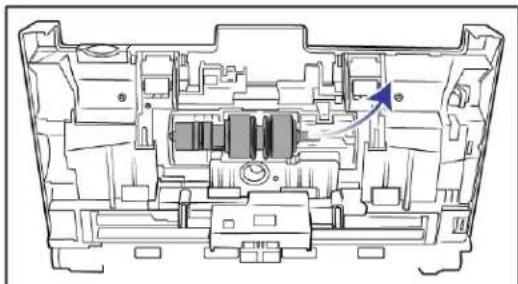
natural_image
Technical line drawing of a mechanical or electronic component interior (no text or symbols)- Remove the replaceable roller from the bar.
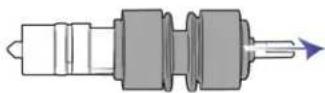
-
Discard the roller, it cannot be repaired or reused.
-
Take the new roller out of its packaging. Clean any dust off the roller before installing it.
-
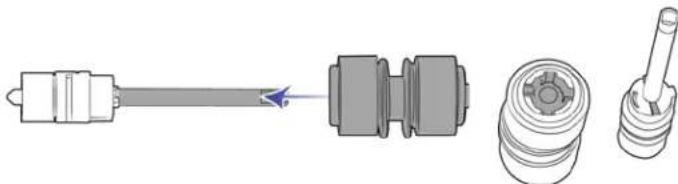
Slide the new roller onto the bar. Make sure the struts on the bar line up to the slots in the end of the roller.
natural_image
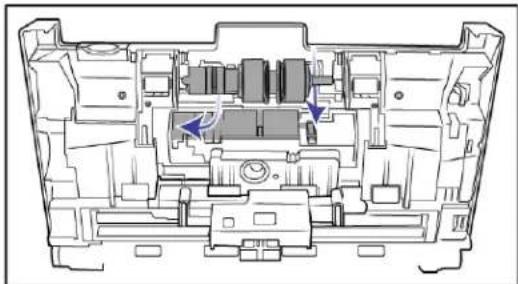
Technical illustration of a mechanical component with four views: straight shaft, cylindrical housing, cross-sectional view, and cylindrical pin (no text or symbols)- Insert the round end of the roller into the slot in the scanner. Carefully lower the roller into the scanner. Make sure the groove on the right side of the roller is aligned so that it slides in place into the U-shape of the bracket.
natural_image
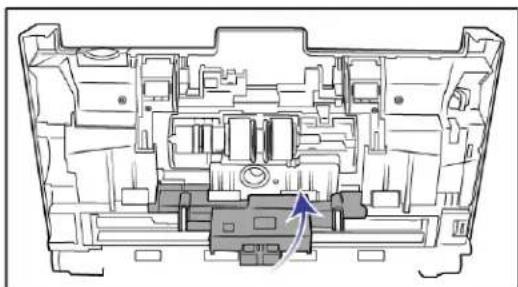
Cross-sectional diagram of a mechanical or electronic component with internal compartments and directional arrows (no text or symbols)- Lift the roller cover and carefully push it closed to lock it in place. Make sure everything is aligned properly and the cover is fully closed. If the cover is not fully closed it will break during scanning and damage the scanner.
natural_image
Cross-sectional diagram of a mechanical or electronic component with internal structure and directional arrow (no text or symbols)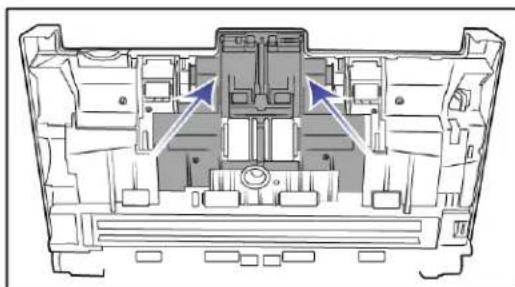
natural_image
Cross-sectional diagram of a device casing with internal components and directional arrows indicating flow or movement (no text or symbols)- Close the scanner when you're finished.
natural_image
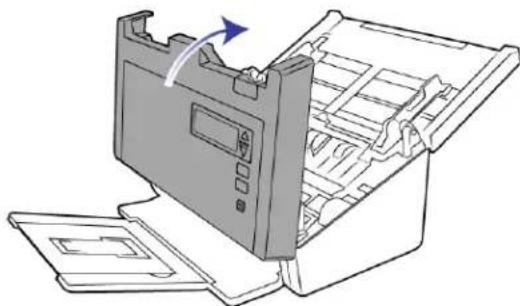
Diagram of a printer's internal structure showing paper feeding into a tray (no text or symbols)The roller will wear out and is designed to be a user-replaceable part. A worn roller can cause documents to feed in skewed at an angle, or multiple pages to feed at the same time. Before replacing the roller you should clean it as excessive dust on the roller will make it appear worn and smooth. You cannot properly diagnose a worn roller until you have cleaned it. You should generally replace the roller every 160,000 to 200,000 scans.
Replacement parts can be purchased from the Parts & Accessories page for your scanner at www.visioneer.com.

- Open the Automatic Document Feeder cover.
natural_image
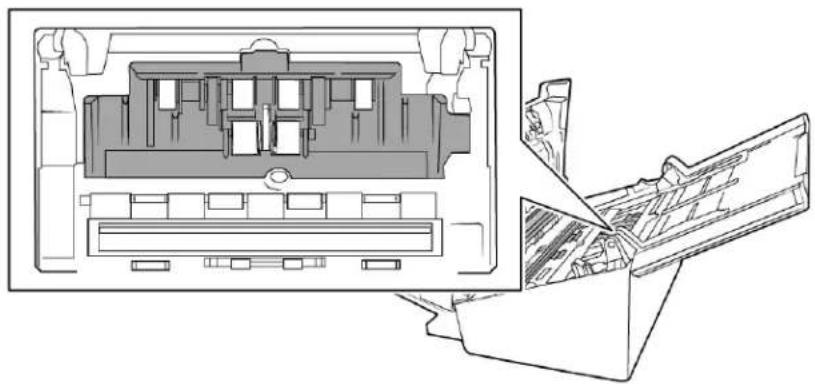
3D diagram of a printer internal structure with an open lid and a blue arrow indicating rotation (no text or symbols)- Locate the roller cover in the body of the scanner.
natural_image
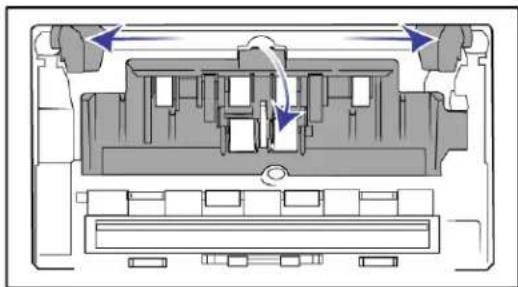
Technical line drawing of a mechanical or electrical component cross-section, showing internal structure and assembly (no text or symbols)- Move the paper guides to the side and then pull the feed roller cover away from the scanner.
natural_image
Cross-sectional diagram of a mechanical or electrical component with internal flow arrows (no text or symbols)Note: if the paper guides are in front of the roller cover when you open it, they will automatically release from the scanner body. If this happens, follow the instructions on page 38 for resetting the guides in the scanner.
natural_image
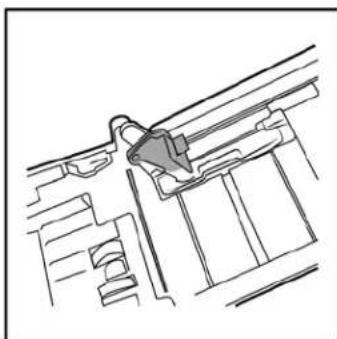
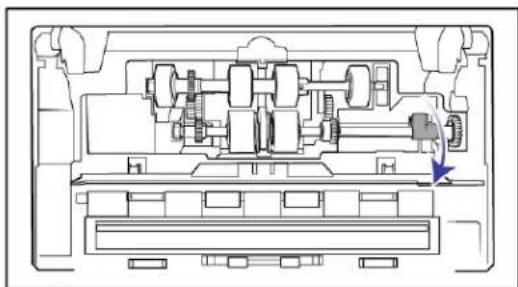
Line drawing of a mechanical assembly with no visible text or symbols- The lower roller is held in place with a lock tab that rotates to lock and unlock it. To unlock the tab, rotate it until the small lock flange is completely free.
natural_image
Cross-sectional diagram of a mechanical assembly (no text or labels visible)-
Carefully angle the roller up and out of the scanner and then discard it, it cannot be repaired.
-
Take the new roller out of its packaging. Clean any dust off the roller before installing it.
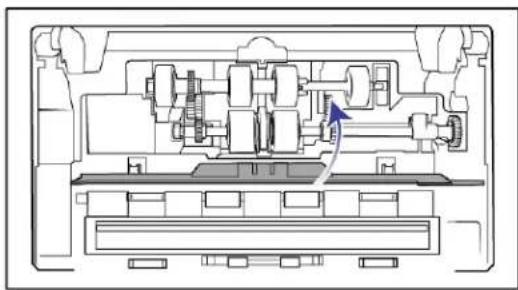
- Insert the left end of the new roller assembly into the hole in the roller channel. Angle the roller module into the roller channel. Align the tab on the lock flange with the slot in the scanner.
Make sure the belt on the roller is facing you and that the gears on the roller module properly align to the gears in the scanner. Hold the roller module in the scanner while you lock it in place.
- Rotate the locking tab into the slot in the scanner. Push on the lever until it clicks in place and locks the roller in the scanner.
The lock will "click" into place when it is secure. However, if it does not rotate easily into the housing, make sure the flange is properly seated in its latch.
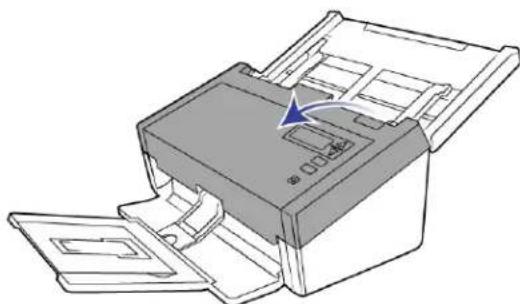
- Lift the roller cover and carefully push it closed to lock it in place. Make sure everything is aligned properly and the cover is fully closed. If the cover is not fully closed it will break during scanning and damage the scanner.
natural_image
Cross-sectional diagram of a mechanical assembly with internal components and a directional arrow (no text or labels)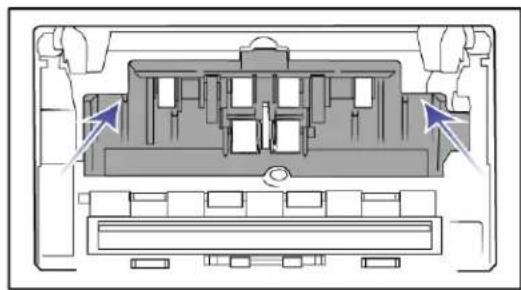
natural_image
Cross-sectional diagram of a mechanical or electronic component with internal compartments and mounting holes (no text or symbols)- Make sure the paper guides are properly seated in the scanner.
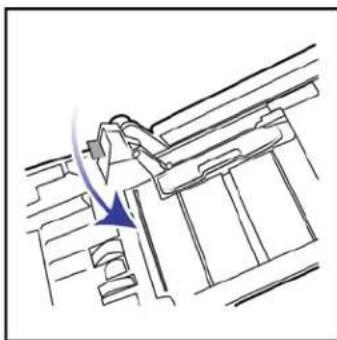
natural_image
Technical line drawing of a mechanical assembly with a blue arrow indicating direction (no text or symbols)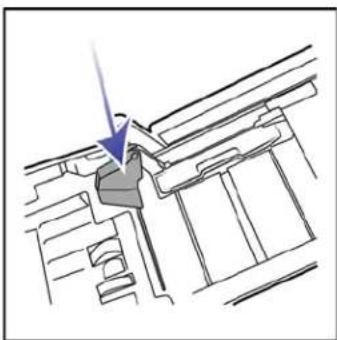
natural_image
Architectural line drawing of a building facade with a blue arrow pointing to a specific section (no text or symbols present)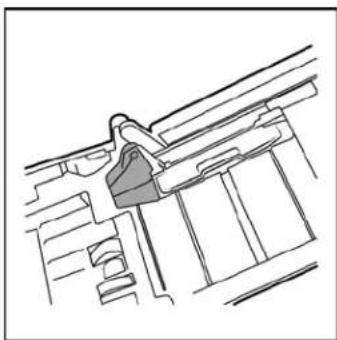
natural_image
Architectural line drawing of a building facade with window grilles and a sloped roof (no text or symbols)- Close the scanner when you're finished.
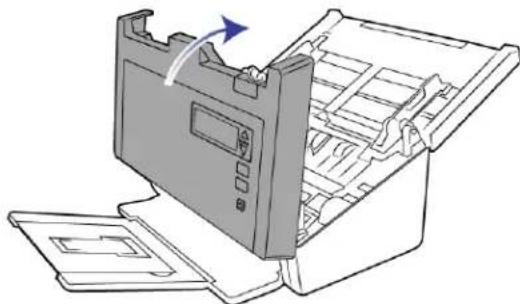
natural_image
Diagram of an open file organizer with a blue arrow indicating rotation (no text or symbols present)TROUBLESHOOTING
Problem: The scanner won't scan. What's wrong?
Check for one of these possible causes:
Are the cables loose or not plugged in securely? Inspect the cable connections. Make sure the cables are plugged in securely.
Is the scanner's status light on? Turn on the scanner's power. If the status light doesn't come on, plug the power supply into another electrical outlet. If you are using a UPS battery back-up or power strip, try plugging the scanner directly to a wall outlet.
Did you restart the computer and scanner? If the scanner gets a paper jam, or looses connection because of an error, try restarting your computer and power cycling the scanner.
Did you plug the scanner into a USB hub? If you're using a USB hub to connect the scanner try plugging the scanner's USB cable directly to the back of the computer. It is not recommended that you use the scanner with a USB hub, if you are using a hub, the hub must have its own power supply.
Is the USB cable 6' or less? If you are using a USB cable that is longer than 6' you may lose connection to the scanner. The recommended USB cable length is 6' or less, the USB cable provided with your scanner is within this range.
Did you select another image source in the scanning software? If you use multiple imaging devices with your computer, such as a camera, all-in-one printer, or another scanner, you may have selected another source for images. Make sure Visioneer® Patriot™ H60 / H80 is selected as the scanner.
Problem: Why does my scanner not function after performing a system restore on Windows?
The system restore process may have corrupted some of the driver components. It is recommended that you reinstall your scanner driver. Please refer to Uninstalling Your Scanner on page 50 for installation instructions.
Problem: Why won't my scanner buttons work after scanning with Windows Image Acquisition (WIA)?
After performing a scan using the WIA interface you must close the application you were using before scanning with the buttons on the scanner. This does not occur when scanning using the TWAIN or ISIS interface.
Problem: Why won't my scanner work after the computer has been sitting idle for several hours?
To resolve the problem, simply turn off the scanner power then turn it back on again.
This may occur after Windows goes into power saving mode to "hibernate" the computer into a low power state. When you move your mouse or type on the keyboard it "wakes" the computer back up and restores full power to the system. This power fluctuation during the computer's hibernating period may sometimes cause the scanner to lose communication to the computer.
Problem: The installation will not complete successfully. If installation finishes, the scanner's OneTouch options do not seem to work properly.
A likely cause is that some driver programs are already installed on your computer for another scanner. They may be interfering with the installation and OneTouch options, and you need to remove those other drivers and re-install your Visioneer ^® scanner. You can remove these programs from the Windows Control Panel. Please refer to the user manual provided with your other scanner hardware for instructions about removing the driver and software for that unit.
Problem: My computer keeps giving me out of hard drive space error messages.
The minimum requirement of free hard drive space is for the installation of the scanner driver and basic, low resolution, scanning. High resolution scans result in files that can be over 1 gigabyte in size. Free up some space on your hard drive for the software to be able to save the scanned images.
Problem: The paper jams the ADF.
To reduce the number of paper jams, smooth and straighten the paper before scanning, and adjust the guides to the paper size. Paper fed into the ADF at an angle can cause the feed mechanism to jam. If paper jams are occurring more frequently, try cleaning the roller with a soft cloth dampened with Isopropyl rubbing alcohol. Excessive dust on the roller can make it appear worn and will cause issues feeding paper. See Cleaning Inside the Automatic Document Feeder on page 40 for cleaning instructions.
Problem: The ADF won't feed pages properly.
A dirty or worn roller can cause documents to feed in skewed at an angle, or multiple pages to feed at the same time. First, try cleaning the rollers as described in Cleaning Inside the Automatic Document Feeder on page 40. If the problem persists, the separation and/or feed rollers may need to be replaced. Please see Replacing the Separation Roller on page 42 and Replacing the Feed Roller on page 44.
Problem: If the USB cable is disconnected during a scan, the scanner does not reconnect when the USB cable is plugged back in.
Unplug the power cable from the scanner, and then plug it back in.
If the scanner does not reconnect:
- Unplug the power cable from the scanner.
-
Restart your computer.
-
After the restart is complete, plug the power cable back in.
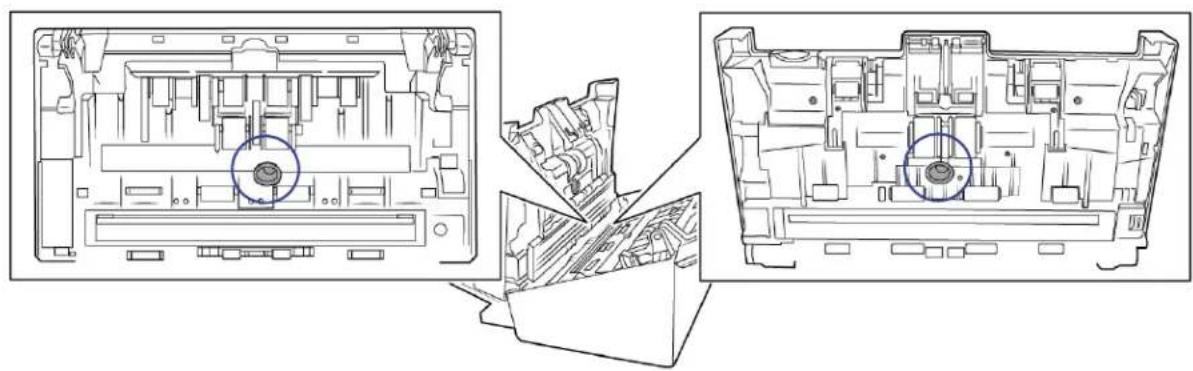
Problem: The scanner reports a Double Feed error when there is only one page in the scanner.
Try cleaning the double feed detection sensor. Dust on the sensor may prevent the sensor from working properly.
natural_image
Technical line drawing of a mechanical component showing internal structure and assembly (no text or symbols)Error Light Troubleshooting Codes
Normal Operation
■ Steady blue: indicates the scanner is ready to scan.
■ Slow flashing blue: indicates the scanner is in low power mode.
■ Rapid flashing blue: indicates the scanner is waking up from low power mode.
■ Steady red: the scanner is busy or it is not connected to the computer.
■ Flashing red: the scanner is reporting an error.
Error Codes
If an error occurs during scanning the LCD will display an error code. The following table lists the codes, messages, and common solutions.
In all cases, you should turn off the scanner and check the scanner setup. Make sure the USB cable is plugged into the scanner and computer. Make sure the power cord is plugged into the scanner and into a wall outlet. Contact Visioneer Technical Support if you experience a different blinking pattern.
| Error Code | Problem Description Solution | |
| -- Scanner | is not connected to the computer | A cable may be loose. Check that the scanner's cables are correctly attached to the computer. If the scanner still does not connect, re-boot the computer. |
| 2013 Paper jam Open the ADF cover and remove the jammed page. See Clearing Paper Jams on page 39. | ||
| 3101 | Multiple paper feed | Multiple pages have fed through the scanner at one time. Open the ADF door and remove the pages from the scanner. Make sure the pages are not stuck or taped together before loading them in the ADF. If the problem persists, clean the scanner as described in Cleaning Inside the Automatic Document Feeder on page 40. |
| 2014 | The scanner's cover is open | The ADF door is not closed all the way. Open the scanner, make sure the paper guides are properly seated in the scanner and that the roller covers are fully closed, and then close the ADF again. Push down on the lid until it locks into place. |
| 2033 Excessive Skew Open the scanner, remove the pages, then close the scanner. Adjust the paper guides to the document width. Restack the paper in the ADF and click retry to continue. | ||
| 3006/3010 | The lamp in the scanner body or lid has malfunctioned | This usually occurs if the power was disconnected during a scan. Turn the scanner off, then back on again. If the problem persists, turn off the scanner, re-start the computer, then turn the scanner on. If the problem continues, and your scanner's power is plugged into a surge protector or UPS battery backup, try plugging the scanner power directly into a wall outlet. |
| All Other Codes | An internal part in the scanner may have malfunctioned | Turn off the power to your scanner, re-boot your computer, then turn it back on. If the problem persists, contact Visioneer Technical Support. |
UNINSTALLING YOUR SCANNER
Use the options in the Windows Control Panel to remove the scanner driver and modules, and any other software provided with the scanner.
Please leave the scanner's USB cable plugged into the computer while uninstalling the scanner driver. Unplug the USB cable when directed to do so in the instructions below.
Open the list of installed programs in the Windows Control panel.
■Windows XP: Open Add/Remove Programs
■Windows Vista and later: Open Programs and Features
Uninstalling the scanner driver:
- In the list of installed programs click on Visioneer ^3 Patriot ^TM H60 / H80 driver.
- Click the Change/Remove or Uninstall button.
- Click Yes when asked to confirm that you want to remove the driver.
When the driver uninstallation is complete the progress window will automatically close.
-
Turn off the scanner and unplug the USB cable.
-
Reboot the computer if you are prompted to do so.
Follow these instructions to remove any of the other software you installed with your scanner. Depending on the software provided with your scanner, and which applications you installed during the scanner setup, the application list may include:
OneTouch
■OneTouch OmniPage OCR module
■Nuance PaperPort
■Nuance OmniPage
■Nuance Power PDF
Uninstalling Visioneer Acuity™:
Visioneer Acuity is automatically installed when you install the scanner driver using the installation disc. You can also download the Visioneer Acuity module from the support pages for your scanner at www.visioneer.com. Visioneer Acuity is a utility with advanced image processing options to instantly improve the visual clarity of anything you scan.
- In the list of installed programs select Visioneer Acuity Assets.
- Click Yes when asked to confirm you want to remove the software.
Depending on the method of installation, and your scanner model, there may be multiple entries for Visioneer Acuity in the installed programs list. The additional entries in this list are the image processing libraries needed to support various scanner models. These additional items will be called "Visioneer Acuity Assets" followed by a version number. In the scenario described here, when you want to uninstall Visioneer Acuity make sure you select and uninstall Visioneer Acuity. If you uninstall one of the entries labeled as an "asset" you will still need to uninstall the main Visioneer Acuity utility.
VISIONEER® PATRIOT H60/H80 SPECIFICATIONS
| Scanner Specifications | |
| Document Requirements | |
| Minimum Item Size 2 x 2 inches (51 x 51mm) | |
| Maximum Item Size 8.5 x 236 inches (216 x 5994 mm) at 200 dpi8.5 x 218 inches (216 x 5537 mm) at 300 dpi8.5 x 59 inches (216 x 1499 mm) at 400dpi and above | |
| Capacity 100 pages of 20lb printer paper (75–80 g/m ^2 ) | |
| Paper Thickness 7–110 lbs. (27–413 g/m ^2 ) | |
| Plastic Card Embossed cards up to 1.25 mm thick | |
| General Specifications | |
| Scanning Speeds Visioneer Patriot H60:60 pages per minute / 120 images per minute @ 200 dpiVisioneer Patriot H80:80 pages per minute / 160 images per minute @ 200 dpi | |
| Optical Resolutions 200, 300, and 600 dpi | |
| Interpolated Resolutions | 75, 100, 150, 400, 500, and 1200 dpi(these resolutions are available when Visioneer Acuity is installed) |
| Internal Bit Depth 48-bit color, 16-bit grayscale, 1-bit bitonal (black & white) | |
| Output Bit Depth 24-bit color, 8-bit grayscale, 1-bit bitonal (black & white) | |
| Scan Method Duplex Automatic Document Feeder (ADF) | |
| Image Sensor CCD (Charge-Coupled Device) | |
| Light Source White LED lamp | |
| Interface | SuperSpeed USB 3.0, (compatible with Hi-Speed USB 2.0 and USB 1.1) |
| Certifications FCC Class B, CE, CU, RoHS, ENERGY STAR, Mexico Energy, WEEE | |
| Operating Temperature | 40° ~ 95° F (5° ~ 35° C without condensation) |
| Relative Humidity 10% ~ 90% (@35°C without condensation) | |
| Scanner Dimensions (Trays Collapsed) | |
| Width | 12.5 inches (316 mm) |
| Depth | 7.5 inches (191 mm) |
| Height | 6.6 inches (168 mm) |
| Weight | 9.2 pounds (4.2 kg) |
| Scanner Dimensions (Trays Extended) | |
| Width 12.5 inches (316 mm) | |
| Depth 26.8 inches (680 mm) | |
| Height 9.5 inches (239 mm) | |
| Weight 9.2 pounds (4.2 kg) | |
| Power Information | |
| Power Supply APD (DA-48M24)DC Jack, 3P, 100~240Vac, 24Vdc, 2A, 48W, Class 1, ENERGY STAR, RoHS | |
| Scanner Rating 24Vdc, 2.0A | |
| Power consumption ≤ 24 Watts (during operation)≤ 8 Watts (ready)≤ 2.5 Watts (power save after 15 minutes without scanning)≤ 0.5 Watt (power off) | |
| Cable Information | |
| AC Power Cord US,3P,7A/125V, L=1800mm, 3C*18AWG, BLACK, LONGWELL (PH8BIEDJF0AA05B),RoHSEUR.(CEE),2P+G. BASE,16A/250V,L=1800mm,3Cx0.75mm2,BLACK, LONGWELL(PG8B9CIJG0A-05B),RoHSUK(BS/PSB),3P,3A/250V,L=1800mm,3C*0.75mm2,BLACK, LONGWELL (PG8B9X3JG0A-05B), RoHS | |
| USB 3.0 cable | 1800 mm, 28AWG, with core, RoHS compliant |
| Software Information | |
| Supported Operating Systems | Microsoft Windows-32-bit XP (Service Pack 3)-32-bit or 64-bit Vista (Service Pack 2)-32-bit or 64-bit 7 (Service Pack 1)-32-bit or 64-bit 8 / 8.1-32-bit or 64-bit 10 |
| Scanner Drivers | TWAIN, WIA, ISIS |
| Bundled Software | Visioneer OneTouch®Visioneer Acuity ModuleNuance PaperPort®Nuance OmniPage®Nuance Power PDF |
VISIONEER® PATRIOT H60/80 PARTS LIST
| Part Name Part Number | ||
| Feed Roller 65-2457-000 |  | |
| Separation Roller 65-2459-000 | ||
| USB 3.0 Cable 35-0253-000 | 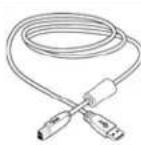 | |
| AC Power Cord 35-0103-000 (US)35-0104-000 (EUR)35-0105-000 (UK) | 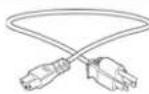 | |
| Power Supply 37-0098-000 | 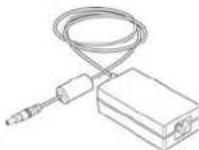 |
APPENDIX A: COPY REGULATIONS
UNITED STATES
Congress, by statute, has forbidden the reproduction of the following subjects under certain circumstances. Penalties of fine or imprisonment may be imposed on those guilty of making such reproductions.
■Obligations or Securities of the United States Government, such as:
| Certificates of Indebtedness National Bank Currency Coupons from Bonds | ||
| Federal Reserve Bank Notes Silver | Certificates Gold Certificates | |
| United States Bonds Treasury Notes | Federal Reserve Notes | |
| Fractional Notes Certificates of Deposit Paper Money | ||
Bonds and Obligations of certain agencies of the government, such as FHA, etc.
Bonds. (U.S. Savings Bonds may be photographed only for publicity purposes in connection with the campaign for the sale of such bonds.)
Internal Revenue Stamps. (If it is necessary to reproduce a legal document on which there is a canceled revenue stamp, this may be done provided the reproduction of the document is performed for lawful purposes.)
Postage Stamps, canceled or uncanceled. (For philatelic purposes, Postage Stamps may be photographed, provided the reproduction is in black and white and is less than 75% or more than 150% of the linear dimensions of the original.)
Postal Money Orders.
Bills, Checks, or Drafts of money drawn by or upon authorized officers of the United States.
Stamps and other representatives of value, of whatever denomination, which have been or may be issued under any Act of Congress.
■ Adjusted Compensation Certificates for Veterans of the World Wars.
■ Obligations or Securities of any Foreign Government, Bank, or Corporation.
Copyrighted material, unless permission of the copyright owner has been obtained or the reproduction falls within the "fair use" or library reproduction rights provisions of the copyright law. Further information of these provisions may be obtained from the Copyright Office, Library of Congress, Washington, D.C. 20559. Ask for Circular R21.
■ Certificates of Citizenship or Naturalization. (Foreign Naturalization Certificates may be photographed.)
■Passports. (Foreign Passports may be photographed.)
■Immigration Papers.
■Draft Registration Cards.
■ Selective Service Induction Papers that bear any of the following Registrant's information:
| Earnings or Income Dependency | Status Court Record | |
| Previous military service Physical | or mental condition |
Exception: U. S. Army and Navy discharge certificates may be photographed.
■ Badges, Identification Cards, Passes, or Insignia carried by military personnel, or by members of the various Federal Departments, such as FBI, Treasury, etc. (unless photograph is ordered by the head of such department or bureau.)
■ Reproducing the following is also prohibited in certain states: Automobile Licenses — Drivers' Licenses — Automobile Certificates of Title.
The above list is not all inclusive, and no liability is assumed for its completeness or accuracy. In case of doubt, consult your attorney.
CANADA
Parliament, by statute, has forbidden the reproduction of the following subjects under certain circumstances. Penalties of fines or imprisonment may be imposed on those guilty of making such copies.
■Current bank notes or current paper money.
■Obligations or securities of a government or bank.
■Exchequer bill paper or revenue paper.
■ The public seal of Canada or of a province, or the seal of a public body or authority in Canada, or of a court of law.
■ Proclamations, orders, regulations or appointments, or notices thereof (with intent to falsely cause same to purport to have been printed by the Queen's Printer for Canada, or the equivalent printer for a province).
■ Marks, brands, seals, wrappers or designs used by or on behalf of the Government of Canada or of a province, the government of a state other than Canada or a department, board, Commission or agency established by the Government of Canada or of a province or of a government of a state other than Canada.
■ Impressed or adhesive stamps used for the purpose of revenue by the Government of Canada or of a province or by the government of a state other than Canada.
■ Documents, registers or records kept by public officials charged with the duty of making or issuing certified copies thereof, where the reproduction falsely purports to be a certified copy thereof.
■ Copyrighted material or trademarks of any manner or kind without the consent of the copyright or trademark owner.
The above list is provided for your convenience and assistance, but it is not all inclusive, and no liability is assumed for its completeness or accuracy. In case of doubt, consult your solicitor.
OTHER COUNTRIES
Copying certain documents may be illegal in your country. Penalties of fine or imprisonment may be imposed on those found guilty of making such reproductions.
■Currency notes
■Bank notes and cheques
■Bank and government bonds and securities
■Passports and identification cards
■ Copyright material or trademarks without the consent of the owner
■Postage stamps and other negotiable instruments
Note: this list is not inclusive and no liability is assumed for either its completeness or accuracy. In case of doubt, contact your legal counsel.
visioneer®
INTELLIGENT SCANNING SOLUTIONS