NetScan 4000 - To scan Visioneer - Free user manual and instructions
Find the device manual for free NetScan 4000 Visioneer in PDF.


| Product Type | Network Scanner |
| Brand | Visioneer |
| Model | NetScan 4000 |
| Scanning Element | CIS (Contact Image Sensor) |
| Optical Resolution | 600 x 600 dpi |
| Scan Speed (Color/Black & White) | Up to 25 ppm / 50 ipm |
| Maximum Document Size | Legal (8.5 x 14 inches) |
| Duplex Scanning | Automatic (one-pass duplex) |
| Network Connectivity | Ethernet (10/100 Base-T) |
| Scan Destinations | Email, FTP, Network Folder, USB |
| Supported File Formats | PDF, JPEG, TIFF, BMP |
| Dimensions (W x D x H) | 19.0 x 12.0 x 8.0 inches (483 x 305 x 203 mm) |
| Weight | 12.5 lbs (5.7 kg) |
| Power Supply | AC Adapter, 100-240 VAC, 50/60 Hz |
| Power Consumption | Operating: 30W, Standby: 5W |
| Maintenance | Clean scanner glass with soft, lint-free cloth; replace roller assembly periodically |
| Safety Certifications | UL, FCC Class B, CE |
| Spare Parts Available | Roller kit, power adapter, USB cable |
| Repairability | User-replaceable roller assembly; professional service recommended for internal issues |
Frequently Asked Questions - NetScan 4000 Visioneer
User questions about NetScan 4000 Visioneer
0 question about this device. Answer the ones you know or ask your own.
Ask a new question about this device
Download the instructions for your To scan in PDF format for free! Find your manual NetScan 4000 - Visioneer and take your electronic device back in hand. On this page are published all the documents necessary for the use of your device. NetScan 4000 by Visioneer.
USER MANUAL NetScan 4000 Visioneer
natural_image
Abstract geometric logo design with stylized eye and V-shaped elements (no text or symbols)Visioneer®
NetScan 4000
User's Guide
visioneer

for Windows
Visioneer
NetScan 4000 Scanner
User's Guide
FOR WINDOWS
COPYRIGHT INFORMATION
Copyright © 2009 Visioneer, Inc.
Reproduction, adaptation, or translation without prior written permission is prohibited, except as allowed under the copyright laws.
The Visioneer® brand name and logo are registered trademarks of Visioneer, Inc. The PaperPort® and OmniPage® Pro brand name and logo are registered trademarks of Nuance Communications, Inc. Kofax® and Virtual ReScan® are registered trademarks, and VRS™ is a trademark of Kofax Image Products, Inc. QuickScan™ is a trademark and ISIS® is a registered trademark of Captiva Software Corporation. Adobe®, Adobe® Acrobat®, Acrobat® Reader®, and the Adobe® Acrobat® PDF® logo are registered trademarks of Adobe Systems Incorporated in the United States and/or other countries. The Adobe PDF logo will appear in this product's software, and full access to Adobe software features is only available if any Adobe product is installed on your computer.
This product is covered by one or more of the following patents: 6,480,304; 5,818,976; 5,499,108; 5,517,332.
Microsoft is a U.S. registered trademark of Microsoft Corporation. Windows is a trademark and SharePoint® is a registered trademark of Microsoft Corporation. ZyINDEX is a registered trademark of ZyLAB International, Inc. ZyINDEX toolkit portions, Copyright © 1990-1998, ZyLAB International, Inc. All Rights Reserved. All other products mentioned herein may be trademarks of their respective companies.
Information is subject to change without notice and does not represent a commitment on the part of Visioneer. The software described is furnished under a licensing agreement. The software may be used or copied only in accordance with the terms of such an agreement. It is against the law to copy the software on any medium except as specifically allowed in the licensing agreement. No part of this document may be reproduced or transmitted in any form or by any means, electronic or mechanical, including photocopying, recording, or information storage and retrieval systems, or translated to another language, for any purpose other than the licensee's personal use and as specifically allowed in the licensing agreement, without the express written permission of Visioneer.
Part Number: 05-0790-000
Restricted Rights Legend
Use, duplication, or disclosure is subject to restrictions as set forth in contract subdivision (c)(1)(ii) of the Rights in Technical Data and Computer Software Clause 52.227-FAR14. Material scanned by this product may be protected by governmental laws and other regulations, such as copyright laws. The customer is solely responsible for complying with all such laws and regulations.
Visioneer's Limited Product Warranty
IF YOU FIND PHYSICAL DEFECTS IN THE MATERIALS OR THE WORKMANSHIP USED IN MAKING THE PRODUCT DESCRIBED IN THIS DOCUMENT, VISIONEER WILL REPAIR, OR AT ITS OPTION, REPLACE THE PRODUCT AT NO CHARGE TO YOU, PROVIDED YOU RETURN IT (POSTAGE PREPAID, WITH PROOF OF YOUR PURCHASE FROM THE ORIGINAL RESELLER) DURING THE 90-DAY PERIOD AFTER THE DATE OF YOUR ORIGINAL PURCHASE OF THE PRODUCT. UPON RECEIPT DURING THE INITIAL 90-PERIOD BY VISIONEER OF A VALID REGISTRATION OF THE PRODUCT, THIS LIMITED PRODUCT WARRANTY PERIOD IS EXTENDED TO THE 12-MONTH PERIOD AFTER THE DATE OF YOUR ORIGINAL PURCHASE. IF A VALID REGISTRATION IS NOT RECEIVED DURING THE INITIAL 90-DAY PERIOD, THE 12-MONTH WARRANTY IS NO LONGER AVAILABLE AND YOUR PRODUCT WARRANTY WILL TERMINATE AFTER THE 90-DAY INITIAL PERIOD EXPIRES.
THIS IS VISIONEER'S ONLY WARRANTY AND YOUR EXCLUSIVE REMEDY CONCERNING THE PRODUCT, ALL OTHER REPRESENTATIONS, WARRANTIES OR CONDITIONS, EXPRESS OR IMPLIED, WRITTEN OR ORAL, INCLUDING ANY WARRANTY OF MERCHANTABILITY, FITNESS FOR A PARTICULAR PURPOSE OR NON-INFRINGEMENT, ARE EXPRESSLY EXCLUDED. AS A RESULT, EXCEPT AS SET OUT ABOVE, THE PRODUCT IS SOLD "AS IS" AND YOU ARE ASSUMING THE ENTIRE RISK AS TO THE PRODUCT'S SUITABILITY TO YOUR NEEDS, ITS QUALITY AND ITS PERFORMANCE.
IN NO EVENT WILL VISIONEER BE LIABLE FOR DIRECT, INDIRECT, SPECIAL, INCIDENTAL OR CONSEQUENTIAL DAMAGES RESULTING FROM ANY DEFECT IN THE PRODUCT OR FROM ITS USE, EVEN IF ADVISED OF THE POSSIBILITY OF SUCH DAMAGES.
All exclusions and limitations in this warranty are made only to the extent permitted by applicable law and shall be of no effect to the extent in conflict with the express requirements of applicable law.
RoHS and WEEE Compliance
This product is compliant with RoHS Regulations of the European Parliament and Council Directive on the Restrictions of the Use of Certain Hazardous Substances in Electrical and Electronic Equipment (2002/95/EC), and with the Waste Electrical and Electronic Equipment (WEEE) Directive (2002/96/EC).
FCC Radio Frequency Interference Statement
This equipment has been tested and found to comply with the limits for the class B digital device, pursuant to part 15 of the FCC Rules. These limits are designed to provide reasonable protection against interference in a residential installation. This equipment generates, uses and can radiate radio frequency energy and if not installed, and used in accordance with the instructions, may cause harmful interference to radio communications. However, there is no guarantee that interference will not occur in a particular installation. If this equipment does cause harmful interference to radio or television reception, which can be determined by turning the equipment off and on, the user is encouraged to try and correct the interference by one or more of the following measures:
- Reorient or relocate the receiving antenna.
- Increase the separation between the equipment and receiver.
- Connect the equipment into an outlet on a circuit different from that to which the receiver is connected.
- Consult the dealer or an experienced radio/TV technician for help.
This equipment has been certified to comply with the limits for a class B computing device, pursuant to FCC Rules. In order to maintain compliance with FCC regulations, shielded cables must be used with this equipment. Operation with non-approved equipment or unshielded cables is likely to result in interference to radio and TV reception. The user is cautioned that changes and modifications made to the equipment without the approval of manufacturer could void the user's authority to operate this equipment.
This device complies with part 15 of the FCC Rules. Operation is subject to the following two conditions: (1) This device may not cause harmful interference, and (2) this device must accept any interference received, including interference that may cause undesired operation.
TABLE OF CONTENTS
Introduction ...... 1
What's In The Box 2
Features 2
The Visioneer NetScan 4000 4
Control Panel 6
Before You Begin 8
Internet Communication Features 11
Scan to E-Mail 11
Scan to Folder 12
Installing Your Machine....13
Minimum Configuration Requirements 13
Unlocking the Scan Unit 14
Connecting the Cables 15
Connecting the Power Cables 15
Connecting the Ethernet Cables 16
Connecting the Telephone Line 17
Connecting the Printer Cable 17
Turn on the Power 18
Configuring the Scanner....19
Specifying the Scanner's Network Settings 20
Specifying Administrator Settings Using the Scanner's Web Page . . 23
Specifying Administrator Settings Using the Network Management Tool 24
Summary of the Menu Options 27
Creating A Folder Template 49
FTP—Setting the Server to Store Your Image 49
HTTP—Setting the Server to Store Your Image ..... 49
HTTPS—Setting the Server to Store Your Image ..... 55
CIFS—Setting the Server to Store Your Image .... 58
Creating a Folder Template using the Scanner's Embedded Web Page 60
Editing a Folder using the Scanner's Web Page 63
Setting Required Fax Settings 71
Setting Your Location 71
Setting Your Fax Header 72
Operation 74
Loading Paper 74
Notice on Using the ADF 75
Placing Document(s) in the ADF 75
Using the Paper Stopper 77
Placing Document(s) on the Glass 77
Making Copies 78
Basic Operation 78
Advanced Operation 79
Settings Description 80
Sending Your Document to E-mail 86
Basic Operation 86
Advanced Operation 87
Settings Descriptions 88
Using the Soft Keyboard 92
Using the Address Book 93
Sending Your Document to Filing Servers 95
Basic Operation 95
Advanced Operation 96
Settings Description 97
Adding A New Folder 99
Faxing Your Scanned Document 104
Basic Operation 104
Advanced Operation 106
Setting Descriptions 107
Canceling a Fax Job 108
Using the Phone Book 109
Troubleshooting 111
Information Messages 111
Information Messages During Scanning and Copying ..... 111
Information Messages During Networking ..... 113
Information Messages During E-Mailing 114
Information Messages During Filing 116
Information Codes During Faxing 118
Maintenance 121
Clearing a Paper Jam 121
Cleaning the Scanner 123
Cleaning the Automatic Document Feeder ..... 123
Cleaning the Scanner Glass 124
Cleaning the LCD-display 125
Replacing the ADF Pad Assembly 126
Replacing the Roller Assembly 129
Appendix 132
Defining the Shortcut Buttons 132
Using the Shortcut Buttons 137
Managing the Address Book 139
Adding an E-mail Address 139
Modifying an E-mail Address 142
Deleting an E-mail Address 145
Adding A New Group 147
Modifying a Group 152
Deleting Groups 154
Managing Fax Phone Book 155
Adding a New Fax Number 156
Deleting or Modifying Phone Numbers 157
Adding a New Fax Group 158
Modifying a Phone Group 159
Deleting a Phone Group 159
Account Management 160
Setting up Account Management Using the Scanner's Web Page . 161
iv
TABLE OF CONTENTS
Specifications 166
NetScan 4000 Spare Parts List ....173
Index 175
Introduction
Thank you for purchasing the NetScan 4000, a 4-in-1 MFP (Multifunction Peripheral). The scanner offers an unprecedented document delivery technology, transmitting paper documents electronically over the internet. With this scanner, you can instantly scan single-sided or double-sided paper-based document and deliver the electronic image to various destinations including e-mail addresses, printer, fax machine, ftp servers, web site, or someone else's computer on the network. The new way to distribute documents is faster, more cost effective, and safer than any traditional methods such as mail, or courier.
Important: To perform the fax and copy function, you need to connect the scanner to a supported printer. Please visit the scanner information page for your scanner at www.visioneer.com for more information.
WHAT'S IN THE BOX
Before proceeding, check the contents of the box. If items are missing or damaged, contact the dealer where you purchased the scanner.
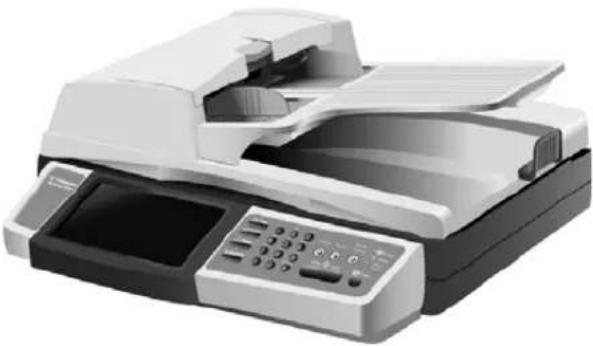
natural_image
Exterior view of a modern digital scanner with open lid and control panel (no visible text or symbols)Visioneer NetScan 4000
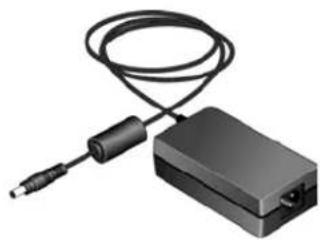
natural_image
3D rendering of a black electronic device with coiled cable and connector (no text or symbols visible)Power Supply
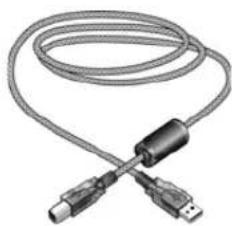
natural_image
Coiled USB cable with two connectors (no text or symbols visible)USB Cable
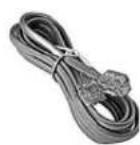
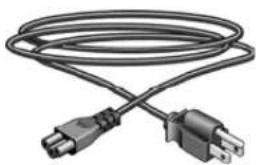
natural_image
Coiled black cable with two terminal connectors (no text or symbols visible)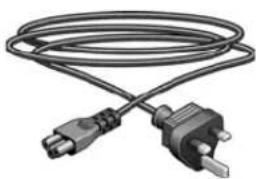
natural_image
Coiled black cable with two plug connectors (no text or symbols visible)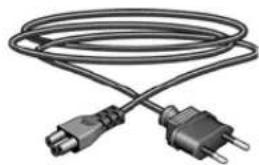
natural_image
Coiled black cable with two terminal plugs, no text or symbols visibleTelephone Cord Power Cord (US) Power Cord (UK) Power Cord (EUR)
FEATURES
Digital Copying:
Since the scanner can connect to a laser printer, it is able to perform digital copies with outstanding copy quality. With an intuitive control panel and a quality touch-panel LCD-screen, making digital copy becomes fast and easy.
E-Mailing:
When connected to an ethernet network and an SMTP server, the scanner allows you to transmit document(s) to your e-mail as an attachment. With a touch of the e-mail key and the selection of your recipients' e-mail address(es), the document(s) is/are first scanned and converted into an image file, and then transmitted to remote recipients within minutes.
Filing (Scan to Folder):
The scanner allows you to send the scanned documents to a server or a personal computer's file folder over the intranet with FTP (File Transfer Protocol), HTTP (Hypertext Transfer Protocol), HTTPS (a secure way of using HTTP), or CIFS (Common Internet File System). The scan-to-folder feature off-loads the mail server from handling large attachments.
Duplex Scanning:
Both sides of the page are scanned at the same time when using the Automatic Document Feeder.
Faxing:
With the built-in fax modem and a telephone line, the scanner is able to transmit your scanned document to a remote fax machine just like a regular fax machine.
Sending Multi-Page Document:
With the Auto Document Feeder, the scanner allows a stack of 50-page document(s) to be continuously scanned at one time to increase your efficiency.
Managing the Scanner Remotely:
The scanner provides a convenient way to manage your e-mail address book, filing destinations (folders), and telephone book remotely. By simply typing the machine's IP address in the URL field of your browser, the scanner's embedded web page will be displayed. This web page allows the administrator to create up to 2000 e-mail addresses, 40 filing destinations, and 200 fax numbers to conveniently deliver the scanned documents to multiple destinations.
Shortcuts:
By assigning your frequently used functions and settings as shortcut buttons, the scanner allows you to complete your task in three simple touches on the LCD-screen and the control panel.
THE VISIONEER NETSCAN 4000
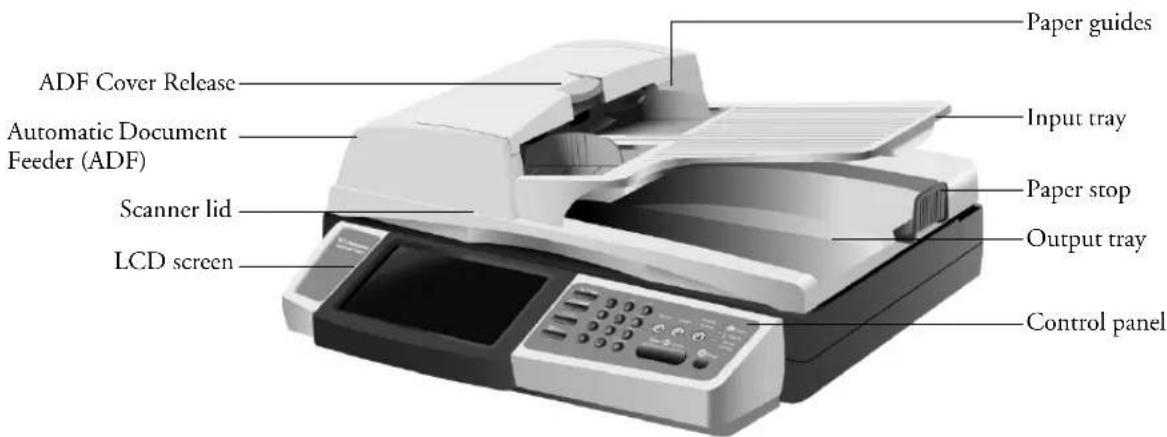
ADF Cover Release—Lift to open the ADF
Automatic Document Feeder (ADF)—Feeds paper through the scanner.
Scanner lid—Lift to show the flatbed glass.
LCD screen—Shows the scanner settings. Touch the screen to input scan batch requirements, configure destinations, and configure the server settings.
Paper guides—Adjusts to fit document width.
Input tray—Holds paper in the ADF for scanning.
Paper stop—Keeps paper in the output try.
Output tray—Holds paper after being scanned through the ADF.
Control Panel—Scanning controls.
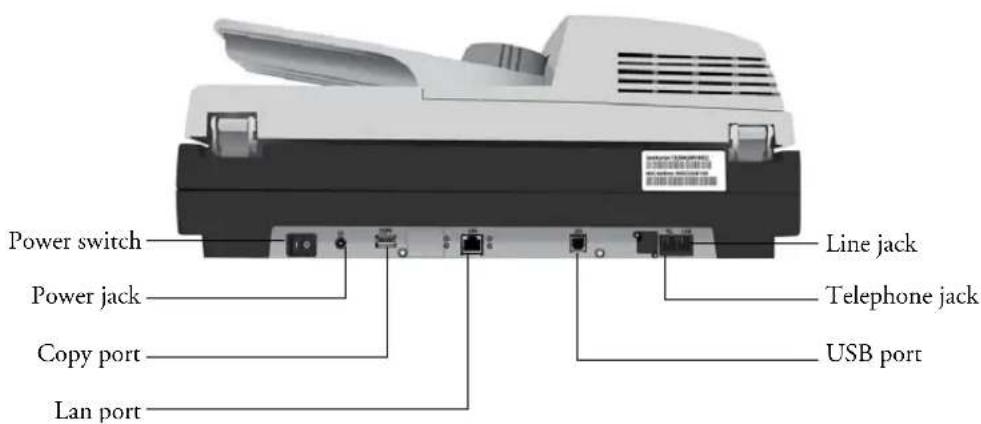
Power switch—Turns the power on and off.
Power jack—Connects the power cord to the scanner.
COPY port—Connects to a printer with a USB cable.
LAN port—Connects to the network with a network cable.
USB port—Connects to a computer with a USB cable as a USB scanner.
Telephone jack—This connection port should be ignored since a handset is not provided with this model.
LINE jack—Connects the scanner to a "RJ-11" telephone line.
Note: If you want to use the scanner as a regular fax machine, you must plug one end of the telephone line to the "LINE jack" and plug the other end to an "RJ-11" telephone jack, in a wall or switch, with a telephone line.
CONTROL PANEL
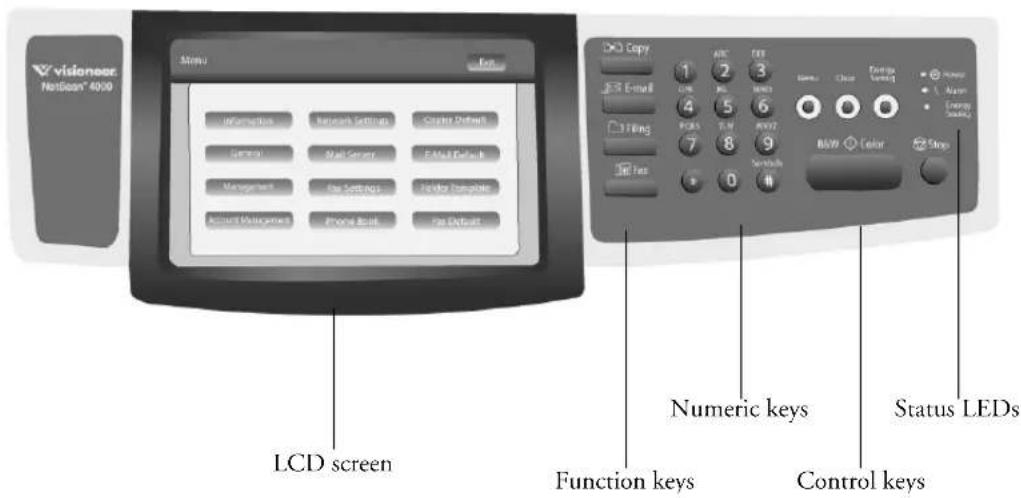
LCD screen—Displays the current operation. Touch to set operation parameters.
Function keys—Used to select a working mode.
| Press to make a copy. | |
| Press to send your scanned document to e-mail. | |
| Press to send your scanned document to a designated server. | |
| Press to send your scanned document to a fax machine. |
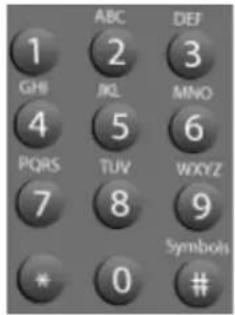
Numeric keypad—Used to specify a copy quantity or input a fax number.
Control keys—Used to select special requirements or one of the start keys to start sending or copying your document(s).
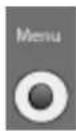
Menu key—Press to access the options to set up the system.

Clear key—Press to clear current settings and return to the default settings. Press the button for over 5 seconds to return to the factory default settings.
Energy Saving key—Press to enter power saving mode.
Stop key—Press to stop processing.
B&W key—Press to start copying, e-mailing, filing or faxing in Black&White mode.
Color key—Press to start e-mailing or filing in Color mode.
Status LEDs—Indicates the hardware status.
■ The Power LED—Used to indicate the power on and ready status.
■The Alarm LED—Used to indicate hardware and transmission errors.
■ The Energy Saving LED—Used to indicate power-saving status.
BEFORE YOU BEGIN
The scanner has to be setup properly on your network to perform the e-mail and filing functions. Before using the scanner, please setup the scanner properly on your network for e-mail and filing function. The following network parameters have to be set.
Important: Make a copy of the following table and ask your Network Administrator to complete the information.
| 1. | DHCP Enable: | |
| 2. | IP Address: . . . | |
| 3. | Subnet Mask: . . . | . |
| 4. | Gateway IP: . . . | |
| 5. | DNS Server: . . . | |
| 6. | SMTP Server: | |
| 7. | SMTP Port: 25 | |
| 8. | POP3 Server: | |
| 9. | POP3 Port: | |
| 10. | LDAP Server: | . . . |
| 11. | LDAP Port: |
Explanation of contents:
| 1. | * DHCP Enable: Choose Yes to obtain IP/subnet/gateway addresses automatically from the DHCP server. |
| 2. | * IP Address: The Internet Protocol (IP) address assigned to your machine by your network administrator or by the DHCP server. |
| 3. | Subnet Mask: The net mask address assigned by your network administrator or by the DHCP server |
| 4. | Gateway IP: The gateway IP address assigned by your network administrator or by the DHCP server. |
| 5. | * DNS Server: The IP address of the DNS server assigned by your network administrator. |
| 6. | * SMTP Server: The IP address of your SMTP mail server assigned by your network administrator. |
| 7. | SMTP Port: The port number of your SMTP Mail Server. |
| 8. | * POP3 Server: The IP address of your POP3 server. |
| 9. | * POP3 Port: The port number of your POP3 server. |
| 10. | * LDAP Server: The IP address of your LDAP server. |
| 11. | LDAP Port: The port number of your LDAP server. |
Note:
-
DHCP Server—With DHCP (Dynamic Host Configuration Protocol), a host can automatically be given a unique IP address each time it connects to a network—making IP address management an easier task for network administrators. If the DHCP server is available from your network, you do not need to enter the TCP/IP, subnet mask, gateway, and DNS information. Instead, this information will be automatically given for the scanner.
-
IP Address—An IP (Internet Protocol) address uniquely identifies a host connection to an IP network. The system administrator or network designer assigns the IP address. The IP address consists of two parts, one identifying the network and one identifying your node.
The IP address is usually written as four numbers separated by periods. Each number can be zero to 255. For example, 10.1.30.186 could be an IP address.
-
SMTP—Stands for Simple Mail Transfer Protocol. It is the main communication protocol used to send and receive e-mail on the internet.
-
DNS—Stands for Domain Name System. The DNS server identifies hosts via names instead of IP addresses. If the DNS server is available on your network, you can enter the domain name instead of numbers for the IP address.
-
POP3—POP3 is the latest Post Office Protocol, this is a service that stores and serves e-mails for various client machines that are not connected to the Internet 24 hours a day. E-mails are held in POP3 until you log on.
-
LDAP—Stands for Lightweight Directory Access Protocol. LDAP enables users to access directories and address books directly from external networked devices to simplify document distribution.
INTERNET COMMUNICATION FEATURES
SCAN TO E-MAIL
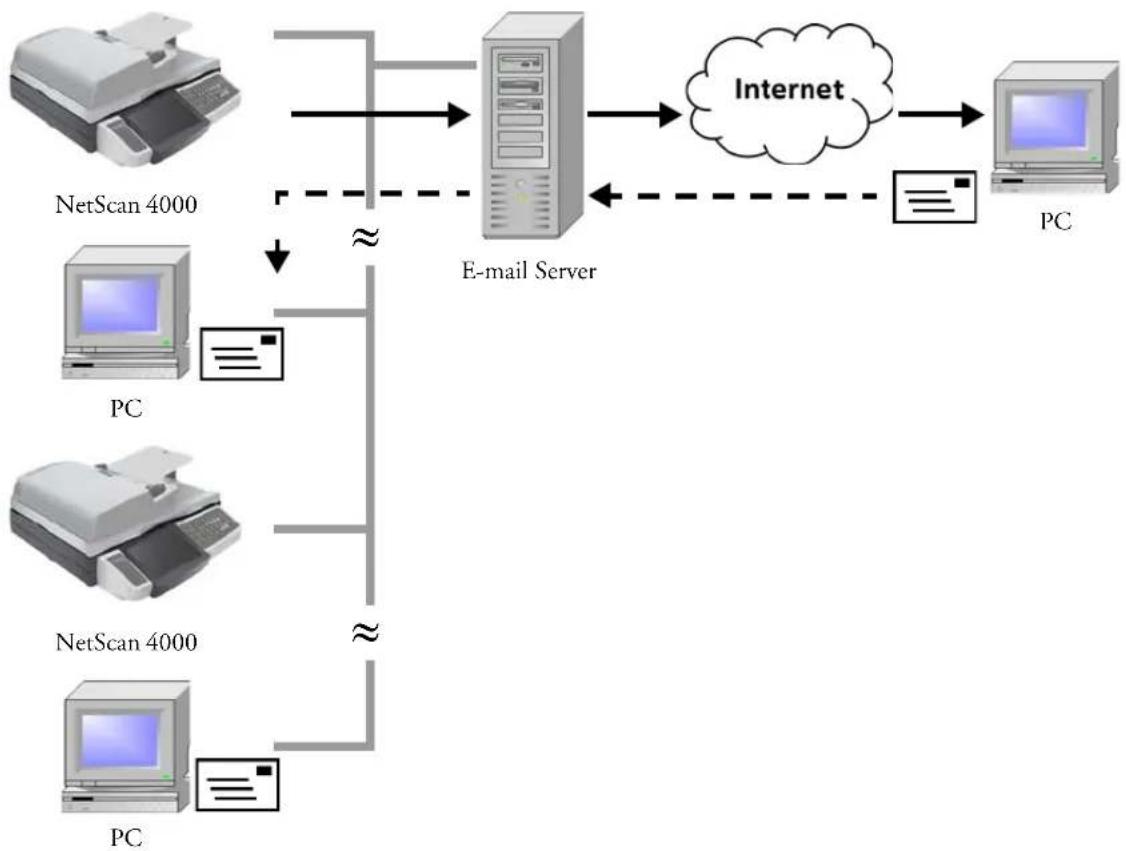
The scanner allows you to deliver your scanned document to e-mail addresses on the network. The document is first scanned and converted to a standard PDF, JPEG, TIFF, or MTIFF (Multi-page TIFF) file format and then transmitted to remote recipients simultaneously as an e-mail attachment.
When you send an e-mail to someone via the scanner, the scanner uses SMTP (Simple Mail Transfer Protocol) to transfer your outgoing e-mails to your SMTP mail server, and then send these e-mails to your recipients through the internet.
flowchart
graph TD
    A["NetScan 4000"] -->|Data Flow| B["E-mail Server"]
    C["PC"] -->|Data Flow| B
    D["NetScan 4000"] -->|Data Flow| B
    E["PC"] -->|Data Flow| B
    B --> F["Internet"]
    F --> G["PC"]
    style A fill:#f9f,stroke:#333
    style C fill:#f9f,stroke:#333
    style D fill:#f9f,stroke:#333
    style E fill:#f9f,stroke:#333
    style F fill:#ccf,stroke:#333
    style G fill:#ccf,stroke:#333
SCAN TO FOLDER
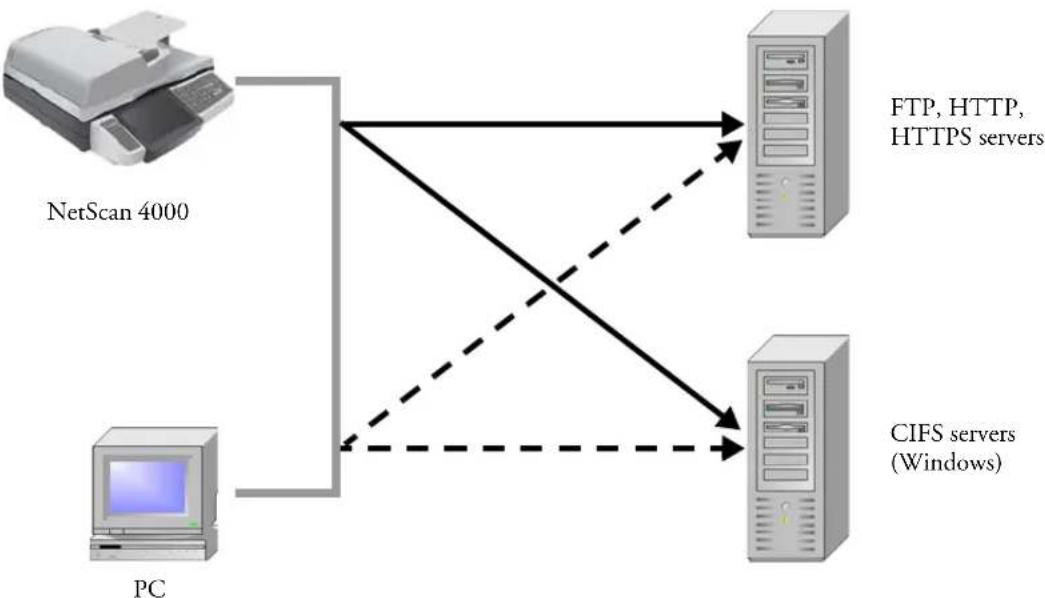
Through the intranet with FTP (File Transfer Protocol), HTTP (Hypertext Transfer Protocol), HTTPS (a secure way of using HTTP), or CIFS (Common Internet File System), the scanner allows you to save scanned document directly to a designated server or a personal computer on the network in a standard PDF, JPEG, TIFF, or MTIFF file format.
CIFS is the sharing system of Microsoft Windows. What's unique about this filing function is that it lets all corporate users share one machine to send documents to each desired file folder on a designated server or individual computer.
flowchart
graph TD
    A["NetScan 4000"] --> B["PC"]
    B --> C["FTP, HTTP, HTTPS servers"]
    C --> D["CIFS servers (Windows)"]
    D --> B
    style A fill:#f9f,stroke:#333
    style B fill:#ccf,stroke:#333
    style C fill:#cfc,stroke:#333
    style D fill:#fcc,stroke:#333
Installing Your Machine
This chapter is specifically targeted to the persons who are responsible for the administration of the scanner. It is recommended that the administrator read this chapter before installing the machine.
MINIMUM CONFIGURATION REQUIREMENTS
To make the best use of the scanner, the following configuration is required:
To send e-mails from the scanner:
■TCP/IP network
■An SMTP and an optional POP3 server
To file document(s) via intranet
■FTP, HTTP, HTTPS, or CIFS protocol environment
■Windows 98SE, Windows NT, Windows 2000, Windows Me, Windows XP, Windows Vista, HTTP or FTP server
UNLOCKING THE SCAN UNIT
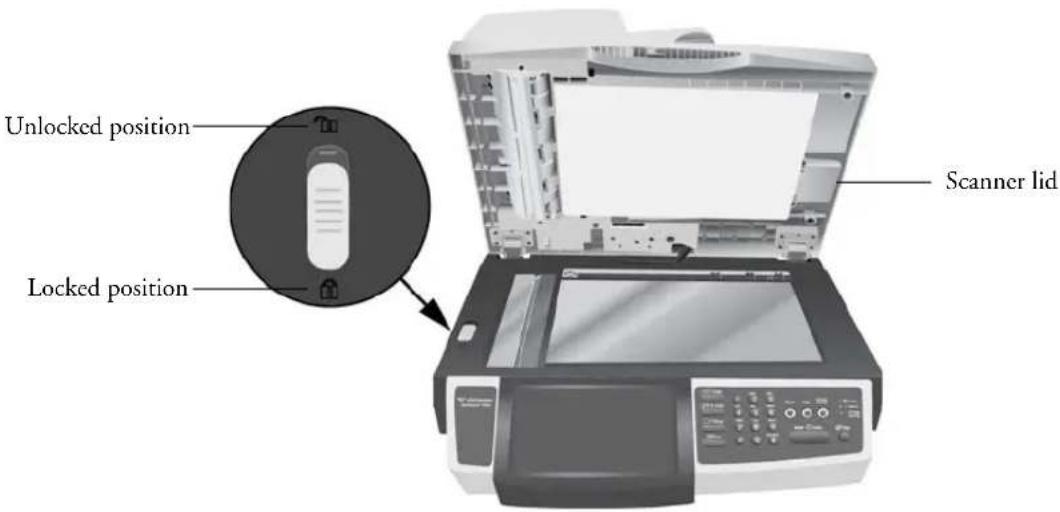
The scan unit is locked during transport to protect the scanning mechanism from being damaged. Be sure to unlock the scan unit before using the machine.
- Open the document cover. Locate the lock switch at the left side.
- Move the lock switch to the "unlocked position".
Note:
If you need to move the scanner for repair or any other reason, be sure to lock the scanner before moving. To lock the scanner, please do the following:
- Turn off the scanner.
- If the scan unit is not located at the front of the glass, turn on the scanner. After the scan unit returns to the front end, turn off the scanner.
- Move the lock switch to the "Locked Position".
CONNECTING THE CABLES
- Press the power switch to the "O" position to turn off the scanner.
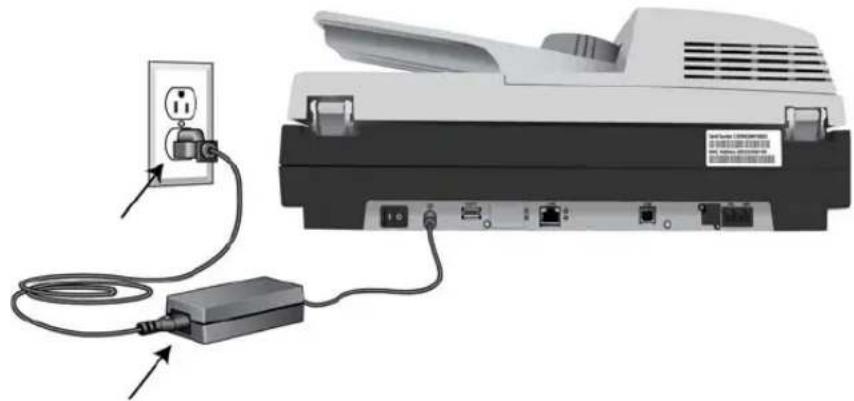
- Plug the power supply into the power jack on the scanner.
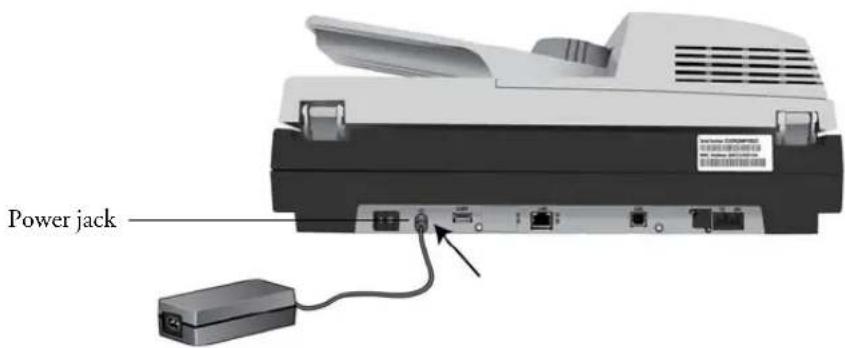
Note: Only use the power supply (HEG75-S240320-7L made by HiTron) included with your scanner. Connecting any other type of power supply may damage your scanner, and will void its warranty.
- Plug the power cord into the power supply and into a wall outlet.
natural_image
Diagram showing connections between a printer, electrical outlet, and cable (no text or symbols visible)CONNECTING THE ETHERNET CABLES
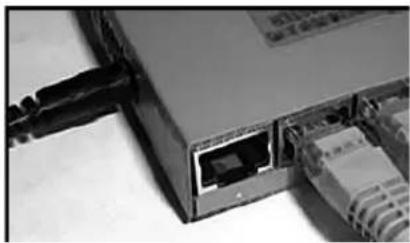
- Connect one end to the LAN port at the back of the scanner.
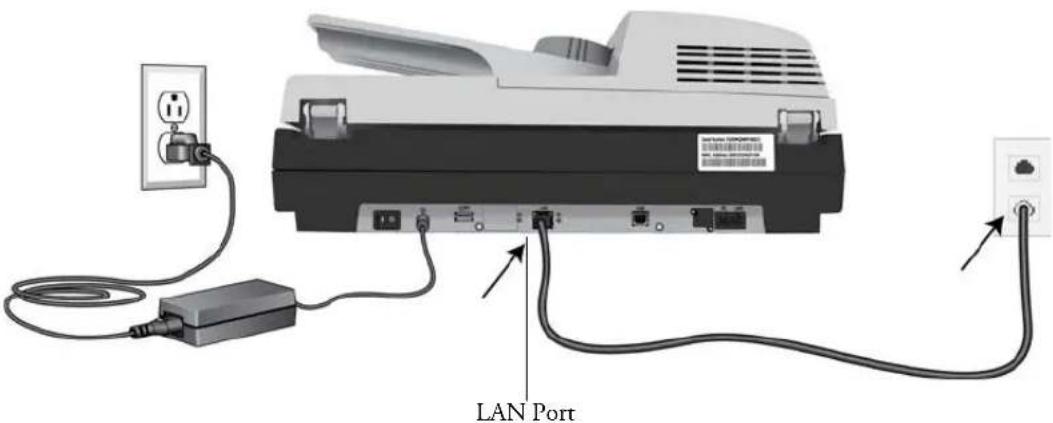
- Connect the other end of your Ethernet LAN cable to an available port on your Ethernet Hub or wall.
natural_image
Close-up of a network device showing an Ethernet port, USB socket, and cable connectors (no visible text or symbols)CONNECTING THE TELEPHONE LINE
- Plug one end of the telephone line to the LINE jack at the right end of the rear panel.
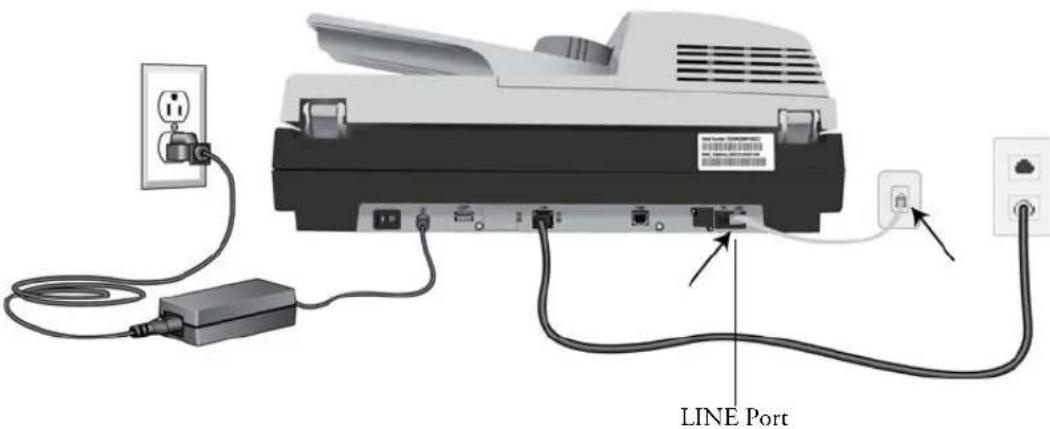
- Plug the other end of telephone line to the "RJ-11" telephone jack provided by the telephone company.
CONNECTING THE PRINTER CABLE
- Connect one end of the printer cable (USB cable) to the printer.
- Connect the other end to the COPY port at the rear of the scanner.
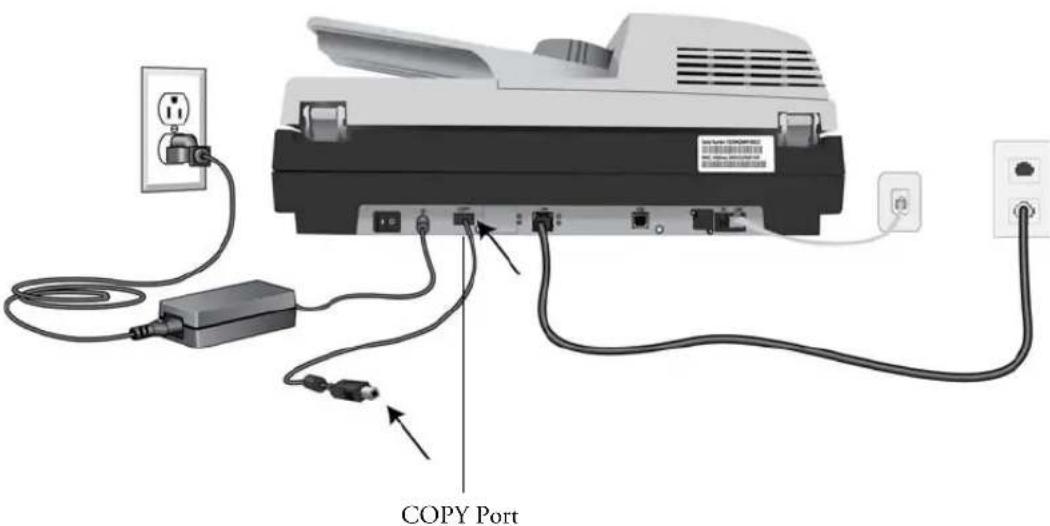
TURN ON THE POWER
Press the power switch to the “|” position to turn on the scanner. After showing the booting up message, the LCD screen displays the preset ready status.
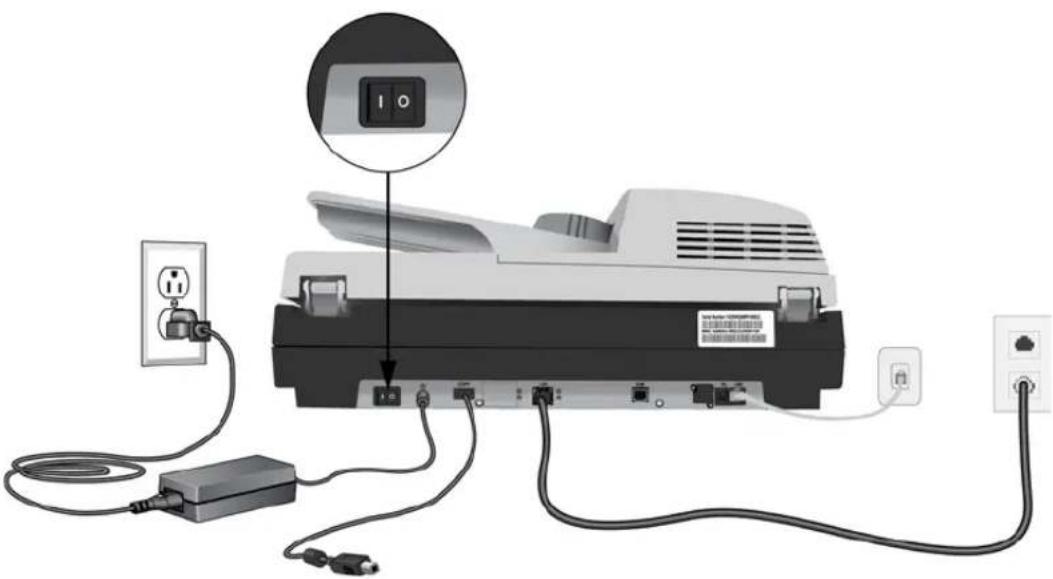
Note: After the scanner is turned on, you can press the Energy Saving button on the control panel to switch to the power saving mode. If the scanner is idle for 15 minutes (default setting), it automatically shuts off the scanning lamp. Press any key except the Energy Saving button to return to the ready status.
Configuring the Scanner
The following settings or destinations must be defined by the system administrator before the scanner is used to distribute the scanned document on the network.
■ Network and E-mail parameters: Defines the parameters for TCP/IP, SMTP, and POP3 protocols to send your scanned document to e-mail addresses.
■ Filing Destinations: Defines the protocols and destinations to send your scanned document to FTP servers, web, or any personal computers on the network.
To specify these settings or destinations, the administrator can enter a relevant value in the Menu options on the control panel. In addition to using the control panel, the scanner allows the administrator to remotely configure the machine by either launching the scanner's embedded web page (Web Image Monitor) or starting the Network Management Tool provided in the supplied Scanner Driver CD-ROM.
The scanner's embedded web page (Web Image Monitor) allows the administrator to configure each machine remotely, with a web browser, while the Network Management Tool allows the administrator to update the scanner and manage several scanners on the network. For more information on how to use the scanner's Network Management Tool, please refer to the online help for the Network Management Tool.
Note:
■If the system administrator has chosen DHCP, then the IP address of TCP/IP, gateway, subnet mask, and DNS server will be automatically configured.
■When installing the scanner for the first time, it is recommended that the Administrator retain the default system settings. The settings can be customized at a later date once you are familiar with the operation and functionality of the scanner.
SPECIFYING THE SCANNER'S NETWORK SETTINGS
- Turn on the machine. After warming up for a few seconds, the default working mode is displayed on the touch panel. For example, the following is for the Copy mode.
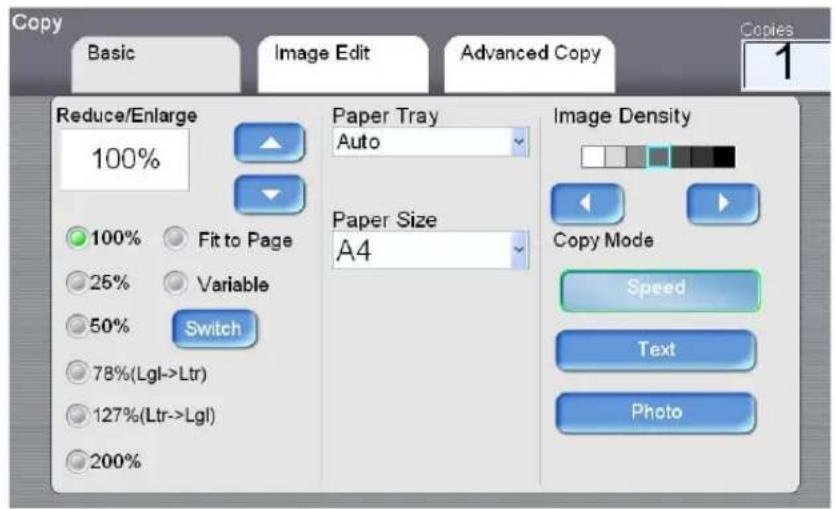

- Press the Menu button on the control panel. This displays the following Menu screen.
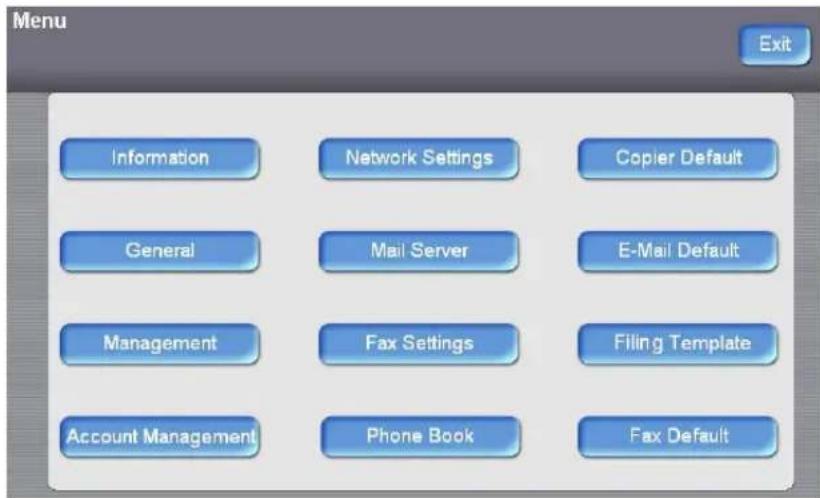
- Touch Network Settings to display the following Network Settings screen.
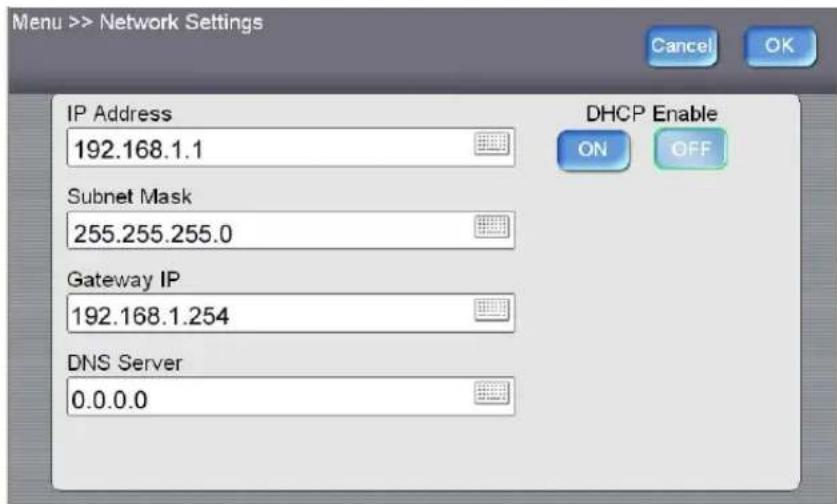
- Touch ON under DHCP Enable to enable DHCP. Otherwise, follow the steps on the next page for inputting static information in these fields.
Writedown the address in the IP Address field. You will need this information to access the scanner's embedded webpage from your web browser.
- The default TCP/IP information is incorrect for your network environment, please enter your own network information via the soft keyboard. Touch on an IP Address/Subnet Mask/Gateway IP/DNS Server field to bring up the soft keyboard and then enter the relevant value for the field you selected.
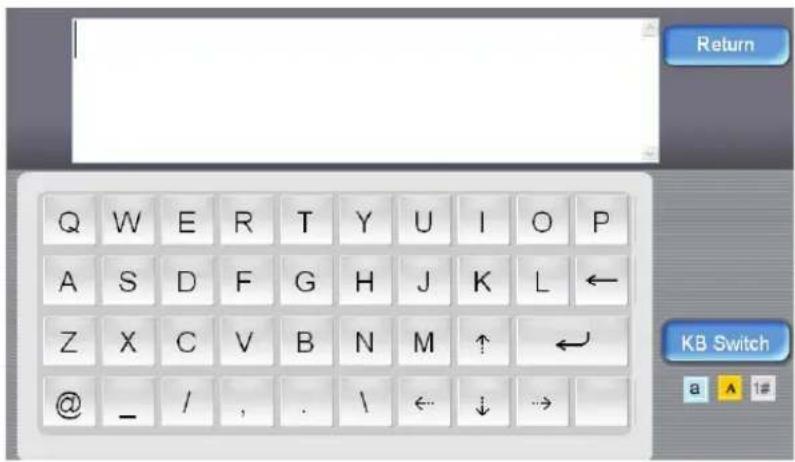
- Touch KB Switch to switch from the Alpha keyboard to the Numeric keyboard.
- Input the data then touch Return. Repeat this for each field you are going to be specifying information for an IP Address/Subnet Mask/Gateway IP/DNS Server.
- Touch Return after you are finished entering your information to return to the Network Settings screen.
- In the Network Settings screen, press OK to return to the Menu screen.
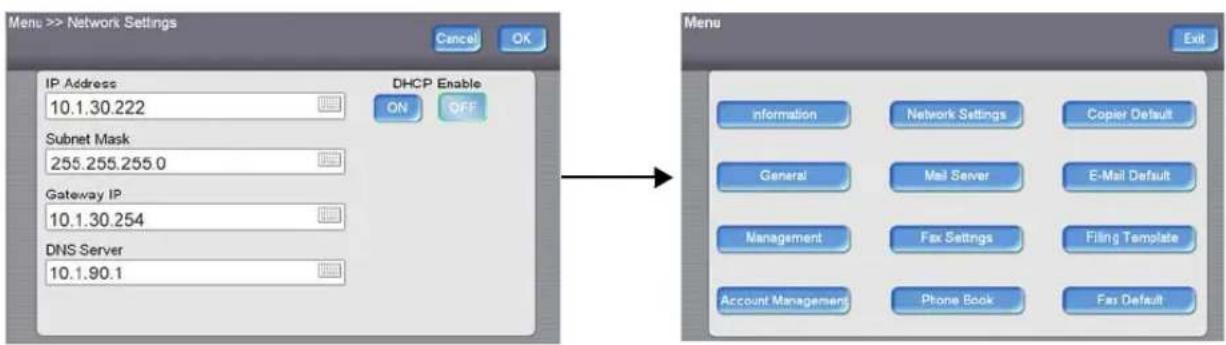
SPECIFYING ADMINISTRATOR SETTINGS USING THE SCANNER'S WEB PAGE
-
Input the network settings on the control panel, via the soft keyboard, as described in the preceding section "Specifying the Scanner's Network Settings" on page 20.
-
The scanner is designed with an embedded web page to allow the system administrator to remotely manage the scanner. Simply type the IP address of the scanner in the URL field of your browser and then press Enter. The scanner's embedded web page opens.
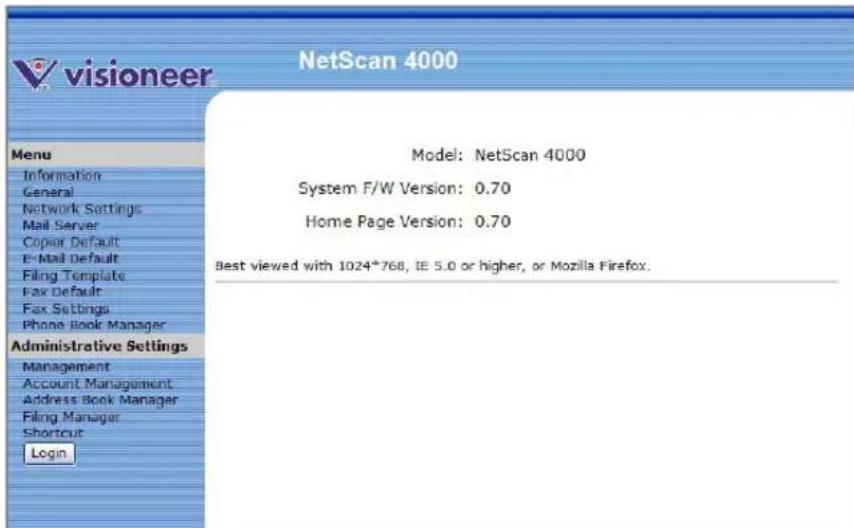
- Click each item on the menu to enter relevant values. For details on each setting, please refer to the section "Summary of the Menu Options" on page 27.
Note:
■The “Management” and “Administrative Settings” menus are blocked by password. After selecting either of these options, touch Login to enter the detailed settings. There is no default password for these options, you can create a password later. When you do create a password, write it down somewhere in case you may forget it.
■For effective management, it is recommended you create an administrator's login password later.
■If you wish to return to factory default settings, simply press and hold the Clear button for over 5 seconds. All the values in the Management and Administrative Settings will be changed back to factory defaults.

- Please note that some of the settings in the “Menu” can also be modified by users while they are making copies, sending individual e-mails, sending individual files to folder, or sending individual files to a fax machine when they press the “Copy”, “E-mail”, “Folder”, or “Fax” button on the control panel. However, if the user fails to set these settings, then the default settings will be used to perform the copy, e-mail, file, or fax function. That is to say, the administrator assigns default settings for common functions, but an individual user can specify his or her own settings when he or she is performing one of the function modes, without permanently modifying the default options.
SPECIFYING ADMINISTRATOR SETTINGS USING THE NETWORK MANAGEMENT TOOL
- Place the Scanner Driver CD-ROM into your CD-ROM drive. The CD will automatically start and launch the main screen.
- Choose Network Management Tool and follow the on-screen instruction to complete the installation.
-
Start the Network Management Tool by following this path from the Windows Start menu: Start > (All)Programs > Visioneer NetScan 4000 Network Management Tool > NetScan 4000 Network Management Tool.
-
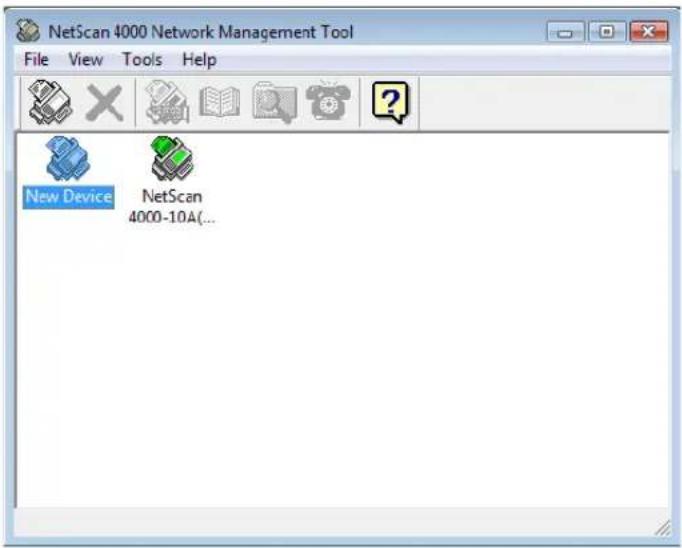
The Network Management Tool main screen opens.
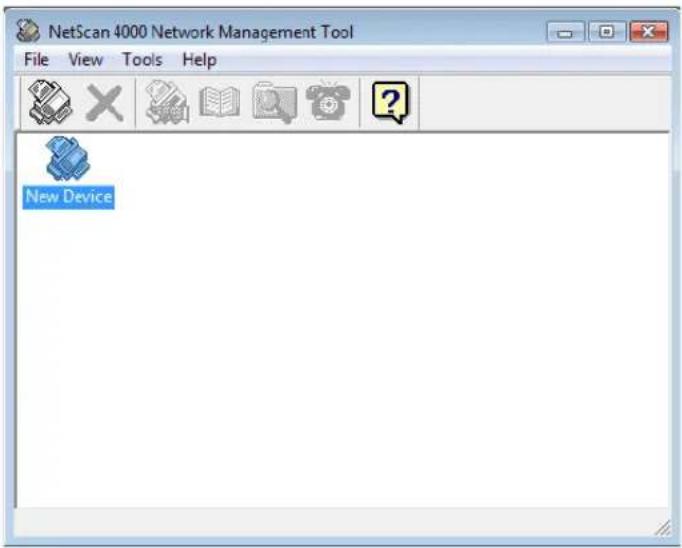

- Choose New Device from the File menu to open the New Device dialog box.
Or, you can click the new device tool from the toolbar.
Or, double-click the large New Device icon.
- Enter the IP address of your device as illustrated in the example below.
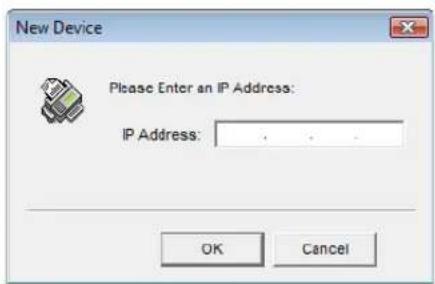
- The scanners on the network will be displayed in the main screen as follows. It may take a few moments to load the network device to this window.

-
Double click the NetScan icon or you can use either of the following options to open the scanner's embedded web page to specify your desired settings.
-
Select the device's icon and choose the Menu Settings tool in the toolbar.
■Select the device's icon and click your right mouse button and then select Menu from the list. -
Click each item on the menu to enter a relevant value. For details on each setting, please refer to the next section "Summary of the Menu Options" on page 27.
Note: For more information on how to use the Network Management Tool, please refer to the online help of the Network Management Tool.
SUMMARY OF THE MENU OPTIONS
Information : Used to display the scanner's basic information.
| Item Description |
| Model Displays the scanner's model name. |
| Manufacturer Displays the manufacturer name. |
| MAC Address Displays the scan unit's MAC address. |
| Serial Number Displays the scanner's serial number. |
| System Firmware Version Displays the system's firmware version. |
| Scanner Firmware Version Displays the scanner's firmware version. |
| Homepage Version Displays the homepage's version. |
| Page Count Displays the counters for Copy, B&W Email, ColorEmail, B&W Filing, Color Filing, Fax Send, FaxReceived, PC Scan, ADF, Total.Menu Map: Touch "Print" to print out all the menuitems and their values.Usage Report: Touch "Print" to print out the counterinformation. |
General : Used to specify the scanner's general information
| Item | Description |
| Machine Name | Sets the scanner's machine name. (The name that you wish to show in recipient's e-mail.) |
| Country Code | Select the country in which you are located. This setting is required to perform the fax function. |
| Time Zone | Sets the local time zone based on Greenwich Mean Time (GMT). With the time zone setting, your overseas e-mail will display your local time instead of recipient's local time. |
| Date/Time | Sets the device's clock including date and time. |
Network Setting : Used to specify the scanner's network settings.
| Item Description | |
| DHCP Enable | If you have a DHCP server available on your network and the DHCP has been enabled, the IP address, subnet mask, gateway, and DNS server will be automatically given.Choice: ON, *OFF |
| IP Address | The Internet Protocol (IP) address assigned to your machine by your network administrator. |
| Subnet Mask | The subnet mask address assigned by your network administrator. |
| Gateway IP | The gateway IP address assigned by your network administrator. |
| DNS Server | The Domain Name Server assigned by your network administrator. |
| * Factory Default | |
Mail Server : Used to specify the scanner's mail server information.
| Item Description | |
| Device E-mail Address Account | |
| Device E-mail Address | Enter the email address of the device. This is also the default “From” address when you are sending email from the device. |
| OutBox Server (SMTP) IP or URL | Enter the SMTP IP or SMTP URL address. |
| Port # Enter the port number of the SMTP server.* 25 | |
| Authentication Method | Enter the email authentication method.Choice: *None, SMTP, POP3 |
| Login Name Enter the login name for SMTP or POP3 authentication. | |
| Password Enter the password for SMTP or POP3 authentication. | |
Mail Server : Used to specify the scanner's mail server information.
| Item Description | |
| POP3 ServerIP or URL | Enter the POP3 server IP or POP3 URL address. |
| Port # Enter the port number of the POP3 server.* 110 | |
| External Address Book | |
| LDAP ServerIP or URL | Enter your LDAP server IP or URL address here. |
| Port # Enter the port number of the LDAP server.* 389 | |
| Login Name Enter the login name of the LDAP server.Note:1. In Microsoft Active Directory, some servers may require you to add “domain name” as your full login name. For example, if your domain name is “company” and your user name is “administrator”, then your full login name is “company\administrator”.2. When your LDAP server requests an “anonymous login”, please leave your login name and password blank instead of typing “anonymous” as your login name and password. | |
| Password Enter the password of the LDAP server. | |
| Base DN | Enter your base DN. Base DN (distinguished name) identifies the starting point of a search. A DN indicates what record to view in an LDAP tree. The top level of the LDAP directory tree is the base, referred to as the "base DN". For example, you could indicate a base of dc=com,dc=net for a search that starts at the top and proceeds downward. |
| * Factory Default | |
Note:
- The login name and password are case-sensitive and can be up to 28 characters.
- LDAP Search:
■ This machine supports two types of authentication, simple and anonymous login to your LDAP servers.
■This machine allows up to 100 match results in a single search.
■The attributes such as “cn” and “mail” have been predefined as the search field. Therefore, if your search text is “m”, the LDAP search engine will search the name or the email address that contains the character “m”. For example, you might get the return match results such as “mary.mary@abc.com”, or “jack.jack@abc.com”.
Copier Default : Used to specify the scanner's default copy settings. Note when the system auto reset time is over, or the device is turned on and off again, the copy settings will be reset to these values.
| Item Description | |
| Basic | |
| Image Density The image density can be adjusted within a range of 7 levels using the control panel, or using the scanner's Web Page. Increasing the value makes the printouts darker, decreasing the value makes the printouts lighter.Choices: 1, 2, 3, *4, 5, 6, 7 | |
| Copy Mode Choose the focus of your copy result. For example, if your document contains pictures, choose Photo for clearer graphic quality. If your document contains text only, choose Text. Speed mode is the standard mode for all documents.Choices: *Speed, Text, Photo | |
| Image Edit | |
| Erase Border Sets the width of the border you want removed from the image.Choices:*0 / 0.25 / 0.5 / 0.75 / 1.0 inch or *0 / 6 / 13 / 19 / 25 mm | |
| Margin Adjustment The “Margin Adjustment” option will move the copy image to the right and/or to the bottom; depending on the “Right” and “Bottom” parameters.Choices for Right or Bottom:*0 / 0.25 / 0.5 / 0.75 / 1.0 inch or *0 / 6 / 13 / 19 / 25 mm | |
| Unit Choose the unit of measurement you want to use.Choices: *inch, mm | |
| * Factory Default | |
| Advanced Copy | |
| Collate Choose the order you want your copies to be placed in “*Sort” (e.g. pages 1,2,3 / 1,2,3 / 1,2,3) or “Stack” (e.g. pages 1,1,1 / 2,2,2 / 3,3,3). |
Copier Default: Used to specify the scanner's default copy settings. Note when the system auto reset time is over, or the device is turned on and off again, the copy settings will be reset to these values.
Item Description
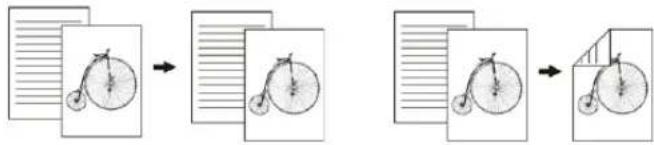
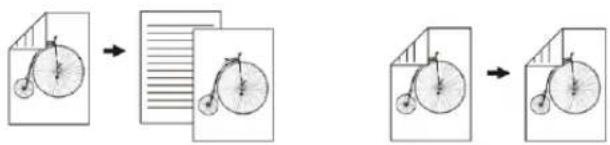
Duplex Choose one of these four types to use when printing duplex.
(First verify that your printer includes a duplex option.)
Choices: 1 to 1 Sided, *1 to 2 Sided, 2 to 2 Sided, 2 to 1 Sided
1 to 1 Sided: Copy single-sided originals onto one side of one sheet of paper.
1 to 2 Sided: Copy single-sided originals onto two sides of one sheet of paper.
2 to 1 Sided: Copy double-sided originals onto one side of one sheet of paper.
2 to 2 Sided: Copy double-sided originals onto two sides of one sheet of paper.

flowchart
graph LR
    A["1 2"] --> B["1 2"]
    C["1 2"] --> D["1 2"]
    E["1 2"] --> F["1 2"]
    G["1 2"] --> H["1 2"]
1 to 1 Sided 1 to 2 Sided 2 to 2 Sided 2 to 1 Sided
Example:
flowchart
graph LR
    A["Document Image"] --> B["Image Display"]
    B --> C["Final Output"]
1 to 1 Sided 1 to 2 Sided
flowchart
graph LR
    A["Document Image"] --> B["Printed Sheet"]
    B --> C["Document Paper Icon"]
    C --> D["Final Output"]
    style A fill:#f9f,stroke:#333
    style B fill:#ccf,stroke:#333
    style C fill:#cfc,stroke:#333
    style D fill:#fcc,stroke:#333
2 to 2 Sided2 to 1
Copier Default: Used to specify the scanner's default copy settings. Note when the system auto reset time is over, or the device is turned on and off again, the copy settings will be reset to these values.
Item Description
Orientation Specify how you want to bind your duplex printing.
Note: This feature is available only if a duplex printer is installed.
Long Edge means documents are to be bound, or flipped, on the long edge of paper.
Short Edge means documents are to be bound, or flipped, on the short edge of paper.
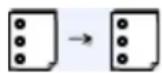

Turn your documents from long- Turn your documents from long-edge binding to long-edge binding. edge binding to short-edge binding.
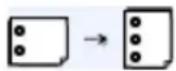
Turn your documents from long-edge binding to short-edge binding.
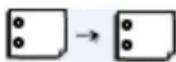
Turn your documents from short-edge binding to long-edge binding.
Turn your documents from short-edge binding to short-edge binding.
Note: The selection of orientation varies depending on the type of duplex printing.
Duplex Availability of Orientation
| 1 to 1 sided All options are unavailable. |
| 2 to 1 sided Only Long Edge to Long Edge and Short Edge to Long Edge are available. |
| 1 to 2 sided Only Long Edge to Long Edge and Long Edge to Short Edge are available. |
| 2 to 2 sided All options are available. |
Copier Default: Used to specify the scanner's default copy settings. Note when the system auto reset time is over, or the device is turned on and off again, the copy settings will be reset to these values.
Item Description
Orientation Examples:
(Cont'd)
Long Edge: /
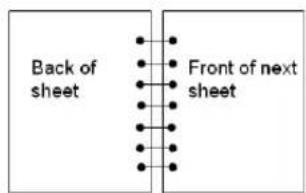
flowchart
graph TD
    A["Back of sheet"] --> B["•"]
    A --> C["•"]
    A --> D["•"]
    A --> E["•"]
    A --> F["•"]
    A --> G["•"]
    A --> H["•"]
    A --> I["•"]
    A --> J["•"]
    A --> K["•"]
    A --> L["•"]
    A --> M["•"]
    A --> N["•"]
    A --> O["•"]
    A --> P["•"]
    A --> Q["•"]
    A --> R["•"]
    A --> S["•"]
    A --> T["•"]
    A --> U["•"]
    A --> V["•"]
    A --> W["•"]
    A --> X["•"]
    A --> Y["•"]
    A --> Z["•"]
    A --> AA["•"]
    A --> AB["•"]
    A --> AC["•"]
    A --> AD["•"]
    A --> AE["•"]
    A --> AF["•"]
    A --> AG["•"]
    A --> AH["•"]
    A --> AI["•"]
    A --> AJ["•"]
    A --> AK["•"]
    A --> AL["•"]
    A --> AM["•"]
    A --> AN["•"]
    A --> AO["•"]
    A --> AP["•"]
    A --> AQ["•"]
    A --> AR["•"]
    A --> AS["•"]
    A --> AT["•"]
    A --> AU["•"]
    A --> AV["•"]
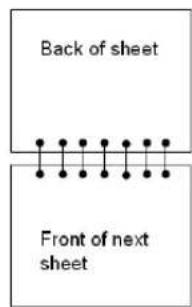
Short Edge:
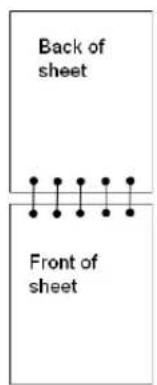
/
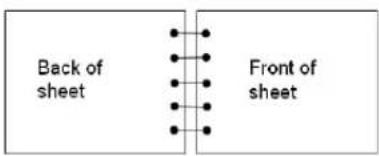
flowchart
graph LR
    A["Back of sheet"] --> B["●"]
    B --> C["●"]
    C --> D["●"]
    D --> E["●"]
    E --> F["●"]
    F --> G["●"]
    G --> H["●"]
    H --> I["Front of sheet"]
Copier Default: Used to specify the scanner's default copy settings. Note when the system auto reset time is over, or the device is turned on and off again, the copy settings will be reset to these values.
Item Description
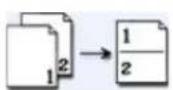
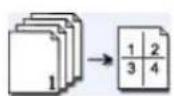
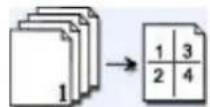
| N-Up (Paper Saving) | Use this setting to print multiple pages of a document onto a single sheet of paper, and to set the sequence of the page images on each sheet of paper.Choices: *1-in-1, 2-in-1, 4-in-1 (landscape), 4-in-1 (portrait)1-in-1 means one page will be printed on a single sheet of paper.2-in-1 means two pages will be printed on a single sheet of paper as illustrated.4-in-1 (landscape) means four pages will be printed on a single sheet of paper in rows from left to right, top to bottom as illustrated.4-in-1 (portrait) means four pages will be printed on a single sheet of paper in columns from top to bottom, left to right as illustrated. |
Stamp
You can specify a word to appear as a stamp on the scanned documents.
(Note: In the Stamp field, there is a small "Soft Keyboard" icon shown at the upper-right corner. Touch anywhere on the Stamp field to bring up the soft keyboard to enter your stamp characters.) Example:

* Factory Default
E-Mail Default : Used to specify the default settings set by the administrator when sending an e-mail from the scanner. The default settings are what the scanner will be reset to when the system auto reset time is over, or when the scanner is turned off and on again.
| Item Description | |
| Default E-Mail Options | |
| Default Subject | Enter text for the default email subject, for all outgoing e-mails, being sent from the scanner. Up to 64 characters are allowed. Touch anywhere in “Subject” field to bring up the soft keyboard to enter the subject line. |
| Default File Separation | Choose a default maximum file size for attachments sent by the scanner. The purpose of file separation is to avoid the file size limitation of SMTP servers. Use the combo box to select from the list.Choices: 1MB / 3MB / 5MB / 10MB / 30MB / *Unlimited |
| Default Scan Options | |
| Original Size Choose your default document size.Choices: *A4 / Letter / A5 / B5 / LegalNote: The Legal option is only for ADF scan. | |
| Resolution Choose your default resolution for the scanned document. The higher the resolution, the greater the detail for the scanned image. High resolution settings take longer to scan and produce larger file sizes.Choices: 75 / 100 / 150 / *200 / 300 / 400 / 600 dpi.Note: If you are scanning duplex (two-sided) paper, the resolution for color or gray scanning have a maximum option of 300 dpi. | |
| Image Density The image density can be adjusted within a range of 7 levels using the control panel or from the scanner's Web Page. Increasing the value makes your scanned image darker and decreasing the value makes your scanned image lighter.Choices: 1, 2, 3, *4, 5, 6, 7 | |
E-Mail Default : Used to specify the default settings set by the administrator when sending an e-mail from the scanner. The default settings are what the scanner will be reset to when the system auto reset time is over, or when the scanner is turned off and on again.
Item Description
Color Color documents to be sent via E-mail from the scanner.
Options:
- File Format: *PDF, JPEG, TIFF, MTIFF (Multi-page TIFF)
Note: Choose MTIFF or PDF when you need to scan multi-page documents and convert it to a single image file.
- Compression Level: *Low, Medium, High
(If TIFF or MTIFF is selected as a file format, the compression Level is defined as Raw only.)
Black&White Multi-Level (Gray): Choose "ON" if you wish to make gray copies or OFF to make a B&W (single-bit) copy.
Options:
- Multi-Level (Gray): ON, *OFF
- File format: *PDF, TIFF, MTIFF(Multi-page TIFF)
- Compression Level: *Low, Medium, High
(If you choose ON from Multi-Level (Gray), the file formats include PDF, JPEG, TIFF, and MTIFF. If TIFF or MTIFF is selected as your file format, the compression Level is limited to Raw only.
If you choose OFF from Multi-Level (Gray), the file formats include PDF, TIFF, and MTIFF. The compression Level of MTIFF or TIFF includes G3, G4, and Raw.)
* Factory Default
Explanation of file format :
PDF PDF (Portable Document Format) is a very popular file format used by Adobe. You can view PDF files using Adobe Acrobat or Adobe Reader.
Explanation of file format :
| TIFF/MTIFF | TIFF (The Tagged-Image File Format) is a flexible bitmap image format supported by virtually all paint, image-editing, and page-layout applications. Also, virtually all desktop scanners can produce TIFF images. |
| JPEG | JPEG (Joint Photographic Experts Group) compression provides the best results with continuous-tone color and the smallest file size. |
The following table gives you an idea of file size v.s. file format
| File Format TIFF PDF JPEG |
| File Size (A4, Color, @ 200 dpi) 10MB 53KB 212KB |
| File Size (A4, B&W, @ 200 dpi) 100KB 20KB 5MB |
Folder Template : Used to specify the parameters for a Folder Template. The Folder Template contains similar information as the new folder screens. The Folder Template will display on the folder screen when users want to add a new folder to save the time to retype the data again.
| Item | Description |
| Server Settings | |
| Target URL | Choose the type of protocol of your filing server in the first field.Choices include *FTP, HTTP, CIFS, HTTPS.Enter the target URL in the second field. You can enter either the domain name or the IP address with the directory path. Note that the directory will be varied due to different protocols. The route starts from the root directory in FTP, HTTP, HTTPS, and CIFS.For example, ftp://, http://, and file:\, https://.Important note:You must use this CIFS filing format, file:\IP\computer name\folder name, to set CIFS URL. |
Folder Template : Used to specify the parameters for a Folder Template. The Folder Template contains similar information as the new folder screens. The Folder Template will display on the folder screen when users want to add a new folder to save the time to retype the data again.
| Item Description | |
| Port # Enter the port number for the server where you want to store your scanned document.Default value: *ftp:21, http:80, CIFS:139, https:443If the default value is different from the real case, input the correct port number in this field. Touch anywhere on the “Port” field to bring up the soft keyboard to enter the text. | |
| File Name | The file name of your scanned document without a file extension. If you have not entered a value in the box, the system will set a default file name. Using a #Y#M#D#h#m#s#n format causes the file name to change by scan time. (Y, M, D, h, m, s, and n represent year, month, date, hour, minute, second and series number respectively.) For example, typing the file name: test#D#n will save the file name as test0500001 |
| Report to e-mail | Enter an e-mail address if you wish to send the filing report to an e-mail. |
| Create a Subfolder | Choose ON to enable the server to create a subfolder when sending the scanned image to the destination server. (Check if you are authorized to write under the destination server.)Choices: ON, *OFF |
*Factory Default
| Default Scan Options | |
| Document Size Choose your default document size.Choices: *A4 / Letter / A5 / B5 / Legal | |
| Resolution Choose your default resolution for the scanned document. The higher the resolution, the greater the detail for the scanned image. High resolution settings take longer to scan and produce larger file sizes.Choices: 75 / 100 / 150 / *200 / 300 / 400 / 600 dpiNote: If you are scanning duplex (two-sided) paper, the resolution for color or gray scanning have a maximum option of 300 dpi. |
Folder Template : Used to specify the parameters for a Folder Template. The Folder Template contains similar information as the new folder screens. The Folder Template will display on the folder screen when users want to add a new folder to save the time to retype the data again.
Item Description
| Image Density | Adjust the image density in seven steps using the control panel. And you can specify the default value of image density in the range of 1 to 7 using Web Page. Increasing the value makes your scanned image darker and decreasing your scanned image lighter.Choice: 1, 2, 3, *4, 5, 6, 7 |
Color Color documents to be sent via filing from the scanner.
Choices:
- File Format: *PDF, JPEG, TIFF, MTIFF (Multi-page TIFF)
Note: Choose MTIFF or PDF when you need to scan multi-page document and convert it to a single image file.
- Compression Level: *Low, Medium, High
(If TIFF or MTIFF is selected as a file format, the compression Level is defined as RAW only.)
Black&White Black and White documents to be set via filing from the scanner.
Choices:
- Multi-Level (Gray): ON,*OFF
- File format: *PDF, TIFF, MTIFF(Multi-page TIFF)
- Compression Level: *Low, Medium, High
(If you choose ON from Multi-Level (Gray), the file formats include PDF, JPEG, TIFF, and MTIFF. If TIFF or MTIFF is selected as your file format, the compression Level is limited to RAW only.
If you choose OFF from Multi-Level (Gray), the file formats include PDF, TIFF, and MTIFF. The compression Level of MTIFF or TIFF includes G3, G4, and Raw.)
* Factory Default
Explanation of file format :
| PDF PDF (Portable Document Format) is a very popular file format used by Adobe. You can view PDF files using Adobe Acrobat or Adobe Reader. | |
| TIFF/MTIFF TIFF (The Tagged-Image File Format) is a flexible bitmap image format supported by virtually all paint, image-editing, and page-layout applications. Also, virtually all desktop scanners can produce TIFF images. | |
| JPEG | JPEG (Joint Photographic Experts Group) compression provides the best results with continuous-tone color and the smallest file size. |
The following table gives you an idea of file size v.s. file format
| File Format TIFF PDF JPEG | |
| File Size (A4, Color, @200 dpi) 10MB 53KB 212KB | |
| File Size (A4, B&W, @ 200 dpi) 100KB 20KB | 5MB |
Fax Default : Used to specify the fax default settings.
| Item Description | |
| Quality | Set default quality type.Choices: Standard, *Fine, Extra Fine, Photo■ Standard (200 x 100 dpi): Suitable for most typed originals.■ Fine (200 x 200 dpi): Good for small print.■ Extra Fine (200 x 400 dpi): Good for small print or artwork and transmits slower than Fine resolution.■ Photo (200 x 200 dpi): Use when the original has varying shades of gray.Note: Faxes are sent in the specified resolution if that resolution is supported by the receiving fax machine. |
Fax Default : Used to specify the fax default settings.
| Item Description | |
| Document Size Set default document size.Choice: A4, Letter, Legal.Note: The Legal option is only for ADF scan. | |
| Image Density The image density can be adjusted within a range of 7 levels using the control panel or from the scanner's Web Page. Increasing the value makes your scanned image darker and decreasing the value makes your scanned image lighter. Set default image density level.Choice: 1, 2, 3, *4, 5, 6, 7 | |
| Polling Reception Sets the default status of polling reception. Choose ON to use the scanner to poll other machines. Polling is the process of retrieving faxes from another fax machine.Choice: ON, *OFF | |
| Overseas Mode Sets the default overseas mode. Choose ON to avoid transmission problems when faxing overseas.Choice: ON, *OFF | |
| * Factory Default |
Fax Settings : Used to specify additional fax settings.
| Item Description | |
| Settings | |
| ID Enter the ID of the scanner. Up to 32 characters can be entered.Normally, you can enter your company name in this field. Touch anywhere on the “ID” field to bring up the soft keyboard to type your text. The text in this field as well as the station number (telephone number of the scanner), the scanner’s clock including date and time, the receiving fax number, and page index will be printed at the top of all outgoing faxes as header information. |
Fax Settings : Used to specify additional fax settings.
| Item Description | |
| Station Number | Enter the telephone number of the scanner. The Station Number is the phone number of the line connected to the built-in modem and the Station Number should be a value not more than 20 characters. The “+” (plus) and “” (blank space) are supported. The value of the station number will be printed as part of the fax header information of all outgoing faxes.Touch anywhere on the “Station Number” field to bring up the soft keyboard to type your number. |
| Select Line Select to use the device’s fax telephone line as a direct outside line (PSTN line) or as an extension (PABX line).Choices: *Outside, Extension | |
| PSTN Access No. | Enter the number to access the PSTN (Pubic Switched Telephone Network) line if your device’s fax telephone line is used as an extension.For example, enter 0 or 9 in the field via the soft keyboard. |
| Redial Sets the number of redial attempts if the number dialed is busy.Choices: 0, 1, *2, 3, 4, 5, 6, 7, 8, 9, 10 (The Redial value 0 indicates no redial.) | |
| Redial Interval The redial interval setting selects the number of minutes between each redial if the number dialed is busy.Choices: 1, 2, *3, 4, 5, 6 minutes | |
| Ring Response Lets you set the number of times the phone rings before the fax answers.Choices: *1 ring, 5, 10, 15, 20 seconds | |
| Sound Volume Use the arrow keys to adjust the sound volume during fax communication.Choices: 0, 1, 2, *3 | |
| *Factory Default | |
| Options | |
| Add Phone # Choose ON then the new fax number will be automatically included in the Phone Book after sending the fax finishes.Choices: ON, *OFF | |
Fax Settings : Used to specify additional fax settings.
| Item Description | |
| Transmission Report | Select if you want to print the fax transmission report. This report lists the time and date of transmission and whether the transmission was successful (OK). If you select Yes, a report will be printed after each transmission. If you select Error, the report will only be printed when a fax fails to transmit.Choices: *Yes, No, Error only |
| Fit to Page Choose Enable to scale the entire contents of your receiving fax to fit into the paper of the printer. If this setting is disabled, an incoming image larger than the page splits across multiple pages.Choices: *Enable, Disable | |
| Detect Dial Tone | Choose Enable to allow this scanner to wait for and detect a dial tone before proceeding with dialing. If you are using the scanner on the same line as your phone, turn on the detect dial tone setting.This will prevent the scanner from sending a fax while someone is on the phone.Choices: Enable, *Disable |
| Detect Busy Tone | Choose Enable to allow this scanner to detect a busy tone when sending a fax.Choices: *Enable, Disable(The default setting varies based on country code.) |
| Manual Receive | Choose Enable to use the Manual Receive fax function or Disable to use the auto receive fax function. When Manual Receive is enabled, and there is an incoming fax, and the machine starts ringing you need to press the Start button, in the Fax working mode, to receive and print the fax.Choices: Enable, *Disable |
| ECM Mode Choose Enable to use “ECM Mode”. The Error Correction Mode function helps this scanner to improve communication in areas where telephone line conditions are poor.Choices: *Enable, Disable | |
| * Factory Default | |
Fax Settings : Used to specify additional fax settings.
Item Description
Report Print You can print the following types of reports:
■ Activity Report: Select to print a report showing the latest record, of up to 50 communications, between the sending and receiving fax machines. (The default setting is to print a record of every 50 communications between sending and receiving fax machines.) The report may contain information and results which are useful for troubleshooting problems.
■ Broadcast Report: Select to print the group transmission report.
■ Transmission Report: Select to print the latest transmission report, to check if the transmission result is successful, disregarding which selection you have chosen in the Transmission Report option.
Cancel Fax Jobs
Delete If you wish to cancel pending fax jobs, you can choose the item in the delayed send fax job list and then press the “Delete” button to cancel it.
Phone Book : Used to create and edit the fax phone book, which includes up to 200 individual phone numbers and 20 groups.
Item Description
| Single Dial |
| Program Select to enter a new name and phone number. Up to 200 phone numbers can be entered. |
| Change Changes a current phone number. Select a phone number you wish to change and then touch the Change button. |
| Delete Deletes a current phone number. Select a phone number you wish to delete and then touch the Delete button. The selected phone number will be deleted. |
| Group Dial |
Phone Book : Used to create and edit the fax phone book, which includes up to 200 individual phone numbers and 20 groups.
| Item Description | |
| Program Select to enter a new group. Up to 20 phone groups can be created. | |
| Change | Changes a current phone group. Select a group you wish to change and then touch the Change button. |
| Delete Deletes a current phone group. Select a group you wish to delete and then touch the Delete button. The selected group will be deleted. | |
Management : Used to specify the administrator authentication and other management settings such as energy saving (timer), display language, the default operation mode, and so on.
| Item Description | |
| Administrator Profile | |
| Login Name Enter the login name to access the Menu options.Up to 32 characters or digits are allowed and is case-sensitive. | |
| Password Enter the password to access the Menu options.Up to 8 characters or digits are allowed and is case-sensitive. | |
| E-mail Address Enter the e-mail address of the administrator of the scanner, so that the system can send error or warning messages. Up to 64 characters or digits are allowed and is case-sensitive. | |
| Management Settings | |
| Add “To” Addr. After Sending | Choose Enable to add the “To” address to the current address book, after the e-mail has been sent from the scanner.Choices: *Enable, Disable |
| Add a New Folder After Sending | Choose Enable to add the new folder to the current folder list, after the document has been sent to the server from the scanner.Choices: *Enable, Disable |
| Energy Saving | Set to enable or disable energy saving. The energy saving lets you reduce power usage while the machine is idle.Choices: *Enable, Disable |
Management : Used to specify the administrator authentication and other management settings such as energy saving (timer), display language, the default operation mode, and so on.
| Item Description | |
| Energy Saving (Timer) | If Energy Saving has been enabled, choose how long the machine will be idle before it automatically enters the energy saving mode after the last action. The factory default setting is 15 minutes.Choices: 5, *15, 30, 60, 240 minutes |
| System Auto Reset (Timer) | Specify the system's auto reset time. If users have not performed any action during the limited reset time, the LCD display will automatically return to the default operation mode, for example, copy or e-mail working mode.Choices: 20, 40, *60, 120,180 seconds |
| Language | Choose the language you want to show in the LCD-display.Choices: *English, Chinese |
| Default Mode | Specify a default operation mode. The default mode will show after the system auto reset time is over or when the system is turned off and on again.Choices: Copy, *E-Mail, Filing, Fax, ShortcutNote: Shortcut provides you an effective way to copy or send your document with just a few touches on the LCD screen. If you wish to use the Shortcut function, you need to create your shortcut buttons first via the scanner's web page and specify the default working mode to be Shortcut. For more details on using the Shortcut buttons, please refer to the Appendix. |
*Factory Default
Account Management : Used to set user's privileges including using the copy, e-mail, folder, or fax function of the scanner by assigning an account authentication method.
Item Description
| Important!For effective management, the scanner allows the administrator to specify users' privileges only through the scanner's embedded web page. Simply type the scanner's IP address, in the URL field of your browser, and choose Account Management to set users' privileges in the scanner's web page. (For more details, please see Appendix.) | |
| Authentication Type | Choose to select the authentication type for account management.Choices: None, Local, HTTP, LDAP, SMTPNote:“None” means no account management will be applied.“Local” means using the scanner as the authentication type, and the name and password entered in the Account management are saved in the scanner memory.“HTTP, LDAP, or SMTP” means using a HTTP, LDAP, or SMTP server as the authentication type. |
| Server Information IP or URL | Assign the server IP or the URL address of the authenticating SMTP, HTTP or LDAP server. Touch anywhere on the URL field to bring up the soft keyboard to enter the text. |
| Port # Enter the port number if you chose HTTP, LDAP, or SMTP as your authenticating server. | |
CREATING A FOLDER TEMPLATE
There are server configuration requirements that must be met before attempting to scan to a folder. The following will briefly review the server systems that can be used with the scanner. There is additional information that you need to be aware of.
FTP — SETTING THE SERVER TO STORE YOUR IMAGE
FTP Stands for “File Transfer Protocol.” It is a common method of transferring files via the Internet from one computer to another. FTP uses RFC 959[FTP] as their protocol, and the default Port is usually 21. Therefore, please make sure you have a valid FTP account, with write privileges, under the directory to save the files. To add a sub-directory from the scanner, you need to have the write privilege of adding a new directory.
HTTP — SETTING THE SERVER TO STORE YOUR IMAGE
HTTP uses RFC 2616 [HTTP 1.1] as the protocol, and the default port is usually 80. If you are not using the default HTTP port to send and save files, you must change the HTTP Port of the scanner to the port for the web server you are using.
Generally speaking a web server, such as IIS or other HTTP server, can use an anonymous account for authentication, so that the user can link directly to the web page without entering a user name and password first. Hence, if the HTTP Server allows anonymous account authentication, when you use the scanner to send and save the files, there is no need for specifying any text in the Login name and Password fields of the scanner.
On the other hand, if the IIS or HTTP server does not allow anonymous account authentication connecting to the web page, the user will be prompted to enter the user name and password first when connecting to the web site. In this mode, the file saving feature is available only when entering the user name and password, permitted by the server, in the Login name and Password fields for the scanner, respectively.
Therefore, please make sure which mode your Web Server allows before using HTTP for file saving. If anonymous access mode is not allowed, you must have an HTTP account and password.
Since the scanner will check whether the directory for saving the file really exists, before proceeding with file saving, and then writing the file after scanning to the specified directory, you have to set the directory for saving files as “browse” and allow write access in the Web Server; otherwise, the scanner will not be able to write the file into the directory.
If you wish to use the scanner to save files, in addition to changing some settings in the Web Server, you will have to confirm the account with the privilege of writing to the Web Server; otherwise, the scanner will not be able to “write” the scanned file to the file system.
The following uses the IIS setting for anonymous access to Microsoft Windows 2000 as an example, and assumes the HTP application is installed in the root directory of IIS, C:\Inetpub\wwwroot\Xcabinet, and the directory for file saving is C:\Inetpub\wwwroot\Xcabinet. For non-anonymous access, refer to IIS for more detail information.
The settings for IIS anonymous access is as below:
- Start "Internet service manager" in the "Control Panel", select "Default Web site" and right click C:\Inetpub\wwwroot\Xcabinet, and select "Properties".
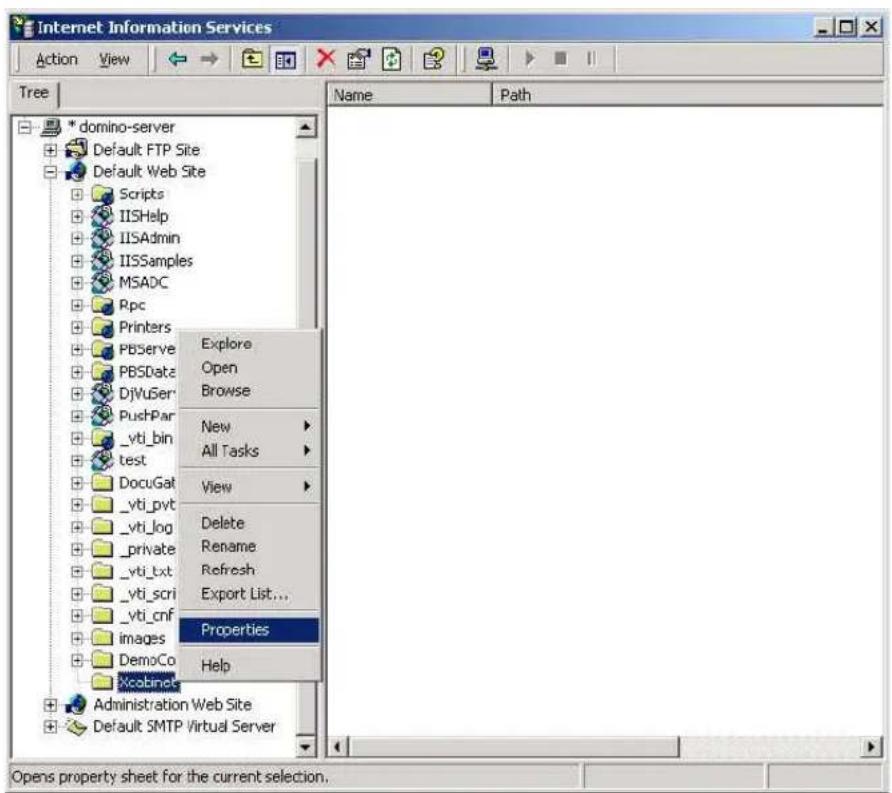
- In the Xcabinet dialog box, select the "Directory security" tab, and click "Edit" for "Anonymous Access and Authentication Control". Please make sure "Anonymous Access" is selected in the "Authentication Methods" dialog box.
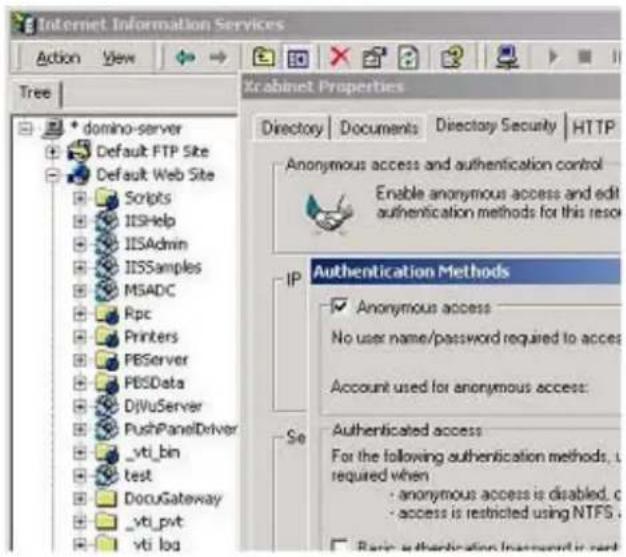
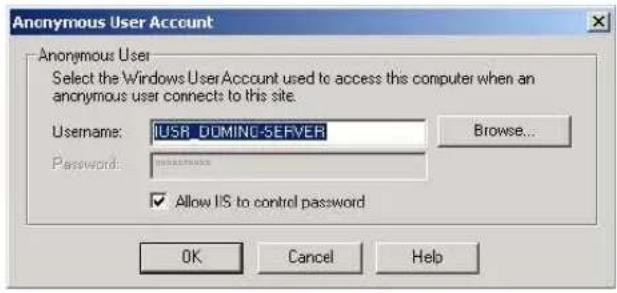
- Click on "Edit" to open the "Anonymous User Account" window.
Please make sure that the account, stored in your computer system, in the "Username" field has sufficient privileges to access the file system.
The settings for IIS privilege is as below:
-
Like the setting in anonymous access, start the "Internet service manager" and select "Default Web site". Right-click C:\Inetpub\wwwroot\Xcabinet, and select "Properties".
-
Select the "Directory" tab in the Properties page. Please ensure the privileges for "Read", "Write" and "Directory Browsing" are selected.
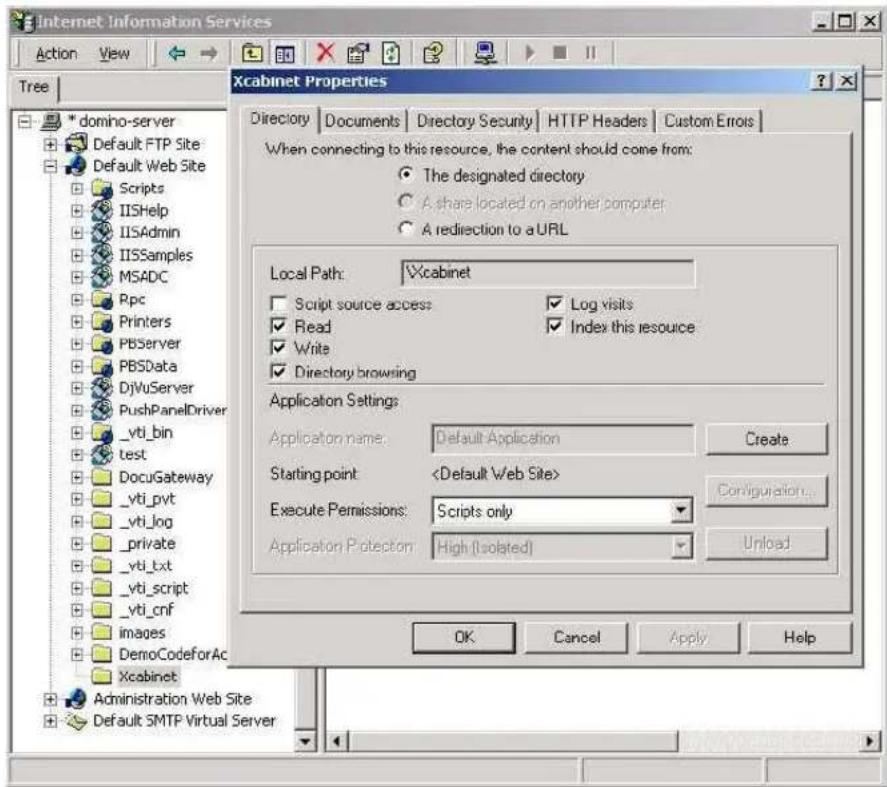
The settings for the directory is as below:
If the file management system in your server is NTFS, in order to allow IIS to use an anonymous account to access the files in the directory of C:\Inetpub\wwwroot\Xcabinet, you have to make sure the anonymous account has sufficient write privileges. You may make settings changes similar to the following:
- Select C:\Inetpub\wwwroot\Xcabinet directory in Windows Explorer, right-click and then select "Properties".
- Select the “Security” tab in the File dialog box, and then select “Everyone”. Select the privileges for “Read and Execute”, “Folder Properties List”, “Read” and “Write”.
After that “every user” has the privilege to manage all files in the directory for saving files.
Note: For the actual security of the scanned files, you should not allow the group “Everyone” to have full privileges to the file directory. Therefore, when setting the access privilege for your file system, it is recommended to set the privileges of the directory for file saving for IIS anonymous account, or the other users and groups that can use the directory only.
Note:
■Please note that the scanner cannot add a server sub-directory when using HTTP.
■When using Apache as the HTTP server, you need to have HTTP/1.1 put an add-in module since the scanner uses chunked Transfer-encoding. In addition, the Apache server will have to be set to accept the HTTP PUT command in order to accept the scanner for file saving. For more information, refer to the related Apache server documentation.
■For IIS 6.0 on Windows 2003, you need to enable WebDAV in the Server Extension folder.
HTTPS—SETTING THE SERVER TO STORE YOUR IMAGE
HTTPS is a secure way of using HTTP. HTTP provides almost no security features. It contains only basic authentication mechanisms, and supports little privacy. HTTPS solves this problem by adding SSL, a secure transport layer over insecure TCP.
To send a scanned document to a server using HTTPS, you must install SSL on the destination servers. For instructions on how to setup SSL properly on the server, please refer to the server's instruction manual. After SSL has been installed, please check if the SSL port is editable and the directory security has been selected. The following illustrations show how to check the SSL port and directory security in a Windows 2000 Server system.
To check if SSL port and directory security have been selected:
- Click Start>Program>Administrator Tools>Internet Service Manager in succession.
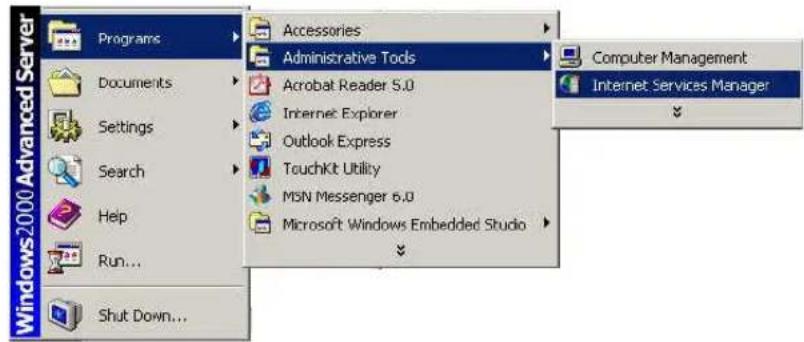
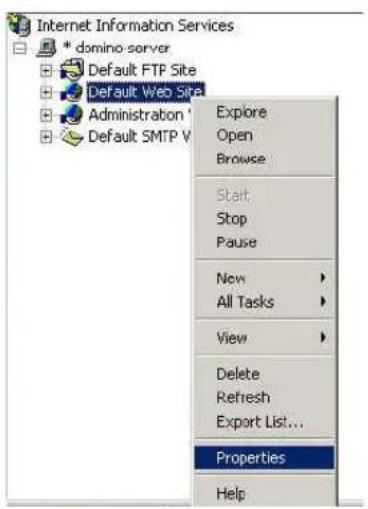
- Select then right-click on Default Web Site and then choose Properties. The Default Web Site Properties dialog box appears. Click the Web Site tab and check if SSL port is editable.
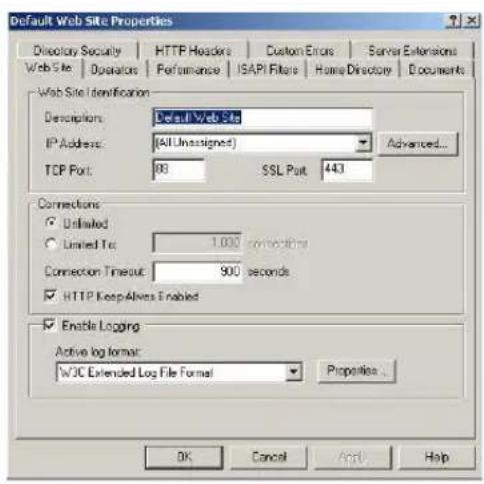
- In the Default Web Site Properties dialog, click the Directory Security tab and then click the Edit button from the Secure Communication field.
The Secure Communication dialog opens.
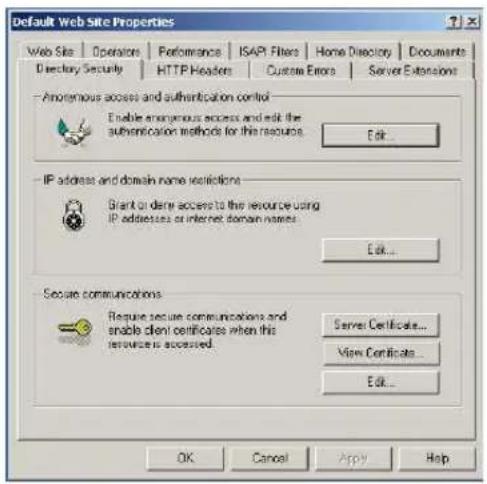
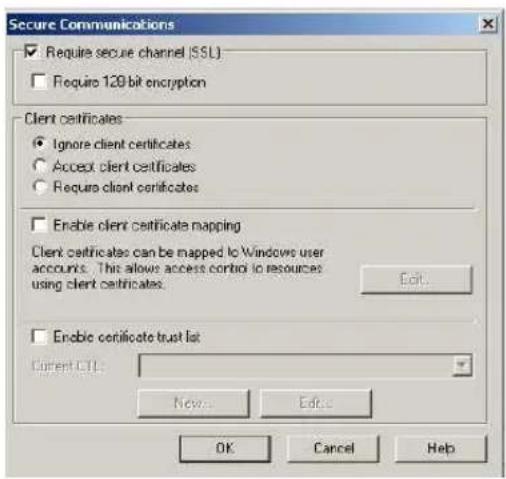
- Make sure “Require secure channel (SSL)” and “Ignore client certificates” have been selected.
Or
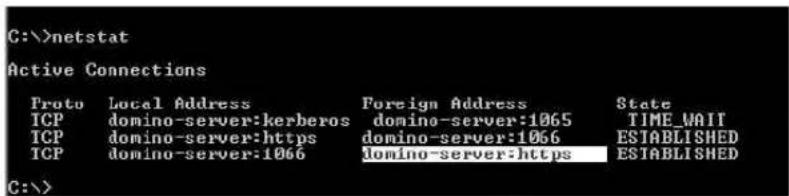
You can simply type “netstat” in an MS-DOS command. If the https has been established, and indicated in the example below, then the server is ready to receive scanned documents from the scanner via HTTPS.
CIFS — SETTING THE SERVER TO STORE YOUR IMAGE
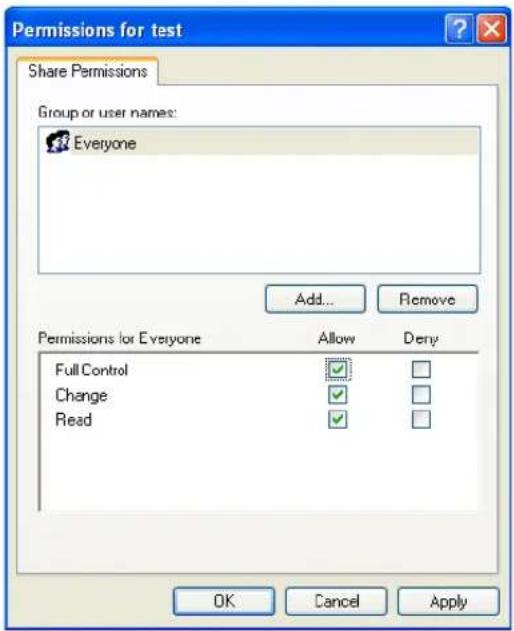
CIFS (Windows Network Share) is a file saving protocol generally used for “recourse sharing” of networks in Microsoft Windows systems. Please set up the “shared directory” per the network settings for sharing in MS Windows. Generally, in the shared directory Properties dialog box under the Windows XP, select the “Sharing” tab, and then select “Share this folder”. Click the “Permissions” button to open “Permissions for the shared directory” dialog box.
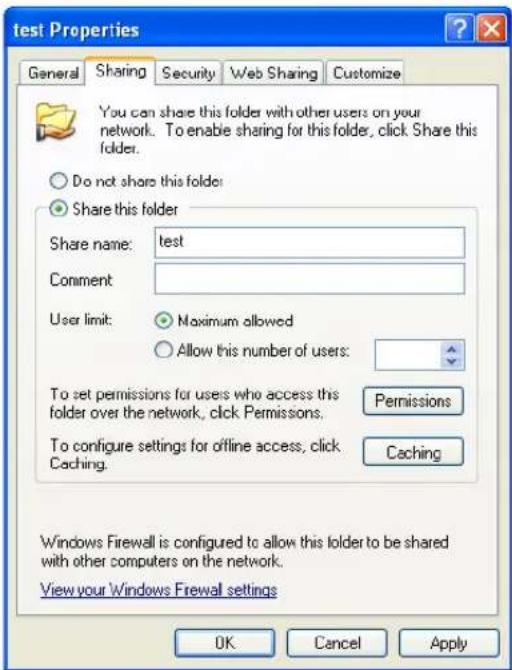
Click the "Full Control" option to allow full privileges to the shared directory.
CREATING A FOLDER TEMPLATE USING THE SCANNER'S EMBEDDED WEB PAGE
For management purposes, the scanner allows the administrator to specify the Filing Template remotely only through the scanner's embedded web page. Please note that you cannot specify these settings using the scanner's touch panel.
To specify the Filing Template by the scanner's web page:
- Type the IP address of the scanner in the URL field of your browser and then press Enter to launch the scanner's web page.
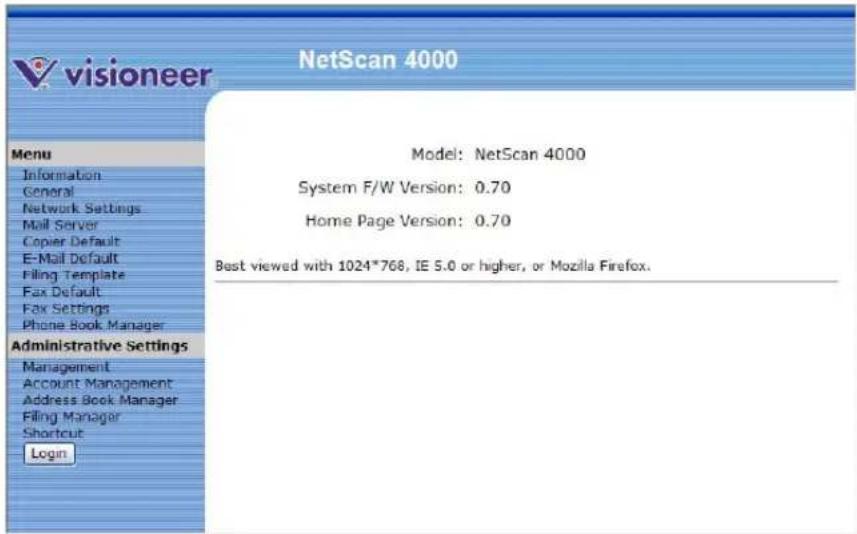
- Click Filing Template to prompt the following Filing Template screen.
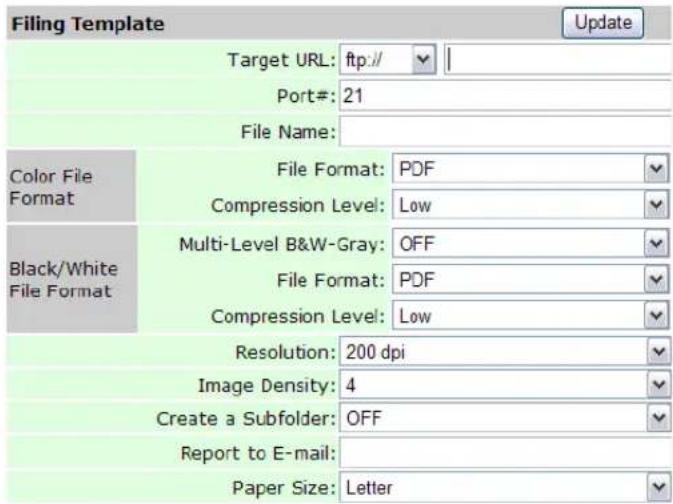
- Enter or select an input parameter respectively, and then click Update to save your settings. Refer to the following table for details of each setting:
Item Description
Target URL Please choose the type of protocol for your filing server in the first field.
Choices include: *FTP, HTTP, CIFS, HTTPS
Please enter the target URL in the second field. You can enter either the domain name or the IP address with the directory path. Note that the directory will be varied due to different protocols. The route starts from the root directory in FTP, HTTP, HTTPS, and CIFS. For example, ftp://, http://, and file:\, https://.
Important note:
You must use this CIFS filing format, file:\IP\computer name\folder name, to set CIFS URL.
Port # The port number of your filing server.
Default value: FTP:21, HTTP:80, CIFS:139, HTTPS:443
If the default value is different from the current server, input the correct port number in this field.
| Item Description | |
| File Name | The file name for your scanned document without extension. Using #Y#M#D#h#m#s#n creates a counting number file name. (Y, M, D, h, m, s, n represent Year, Month, Day, hour, minute, second and series number respectively.) For example, typing the file name: test#D#n will bring your filing file name as test0500001 |
| Color File Format | Color documents are sent to the server from the scanner.Choices are:1. File Format: *PDF, JPEG, TIFF, MTIFF(Multi-page TIFF)Note: Choose MTIFF or PDF when you need to scan multi-page document and convert it to a single image file.2. Compression Level: *Low, Medium, High(If TIFF or MTIFF is selected as a file format, the compression Level is defined as Raw only.) |
| Black&White File Format | Black & White or Gray documents are sent to the server from the scanner.Choices are:1. Multi-Level (Gray): ON, *OFF2. File Format: *PDF, MTIFF(Multi-page TIFF), TIFF3. Compression Level: *Low, Medium, HighIf you choose ON from Multi-Level (Gray), the available file formats are PDF, JPEG, TIFF, and MTIFF. If TIFF or MTIFF is selected as your file format, the compression Level is limited to RAW only.If you choose OFF from Multi-Level (Gray), the available file formats are PDF, TIFF, and MTIFF. The compression Level of MTIFF or TIFF includes G3, G4, and Raw. |
| Resolution | The resolution of your scanned document.The higher the resolution the clearer the image, but high resolutions take longer to scan and result in larger file sizes.Choices are: 75, 100, 150, *200, 300, 400, 600 dpi.Note: If you are scanning duplex (two-sided) paper, the resolution for color or gray image is up to 300 dpi. |
| Image Density | The image density can be adjusted within a range of 7 levels using the control panel or from the scanner's Web Page.Increasing the value makes your scanned image darker and decreasing the value makes your scanned image lighter.Choices are: 1, 2, 3, *4, 5, 6, 7 |
| Subfolder Input | the name of the subfolder. (Make sure you have write access to create a subfolder on the server.)Choices are: *ON, OFF |
| Report to e-mail | Enter an e-mail address if you want to send a filing report to an e-mail message. |
| Document Size | Choose your document size.Choices are: A4, Letter, A5, B5, LegalNote the legal size is available from the ADF only.* The default paper size depends on the main tray of the printer. |
* Factory Default
EDITING A FOLDER USING THE SCANNER'S WEB PAGE
You can create a new folder, and modify or delete an existing folder.
To add a new folder,
- Type the IP address of the scanner in the URL field of your browser and then press Enter to launch the scanner's embedded web page.
- Choose Administrator Settings to launch the Login dialog.
-
There is no default administrator name or password, simply click Login to access the Administrator Settings.
-
Click Filing Manager to open the Filing Manager options.

Folder counter:3/50
5. Click New to open the New Folder dialog.
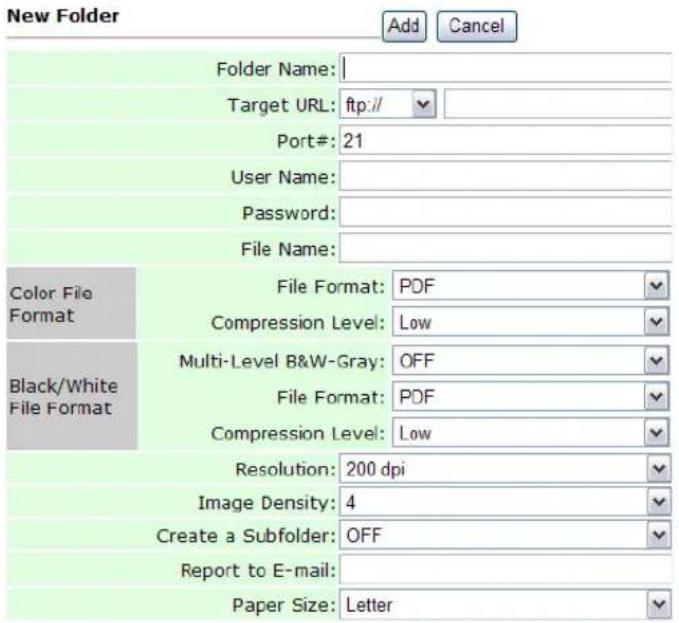
Note:
If you have created a Folder Template, all the settings of the template will be automatically copied to the new folder settings so that you don't need to retype the information when adding a new folder.
■The five most often used folder names appear first on the Filing Manager main screen. Up to 40 folders can be entered. You can use the Up-Arrow or Down-Arrow key to scroll through all folders in the folder list.
- Input the folder information in the fields you want to modify. The following example shows the settings from the Folder Template's.
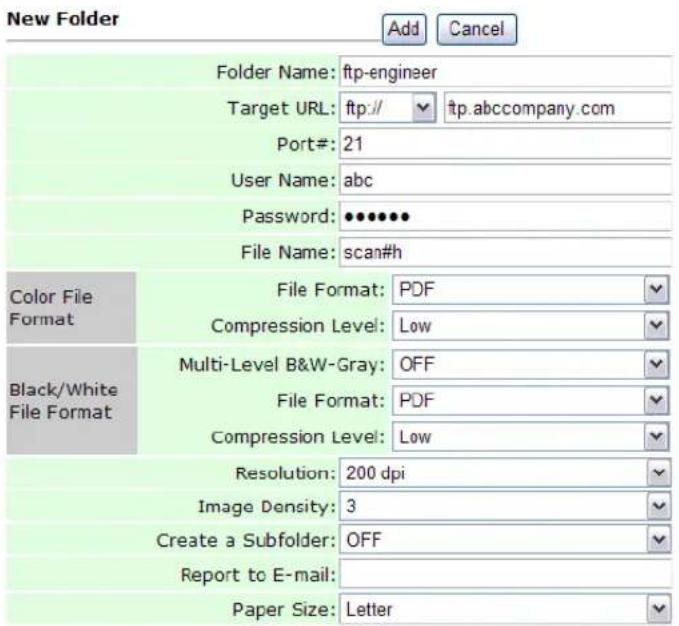
- Click Add to save the folder and return to the main screen. Your new folder name will be displayed in the window. Click Update to send the changes to the scanner, or Exit to leave without saving any change.
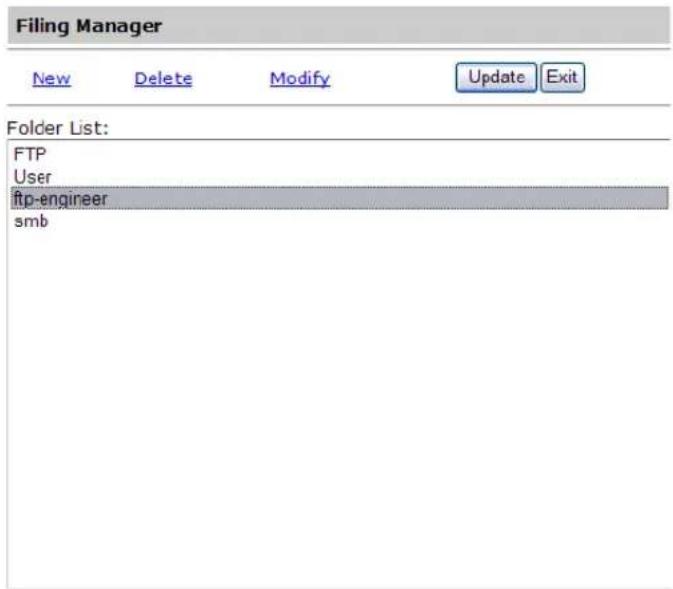
Folder counter:4/50
To modify a current folder,
- Repeat Step 1 to 2 from the previous section, "Editing a Folder using the Scanner's Web Page".
- Choose a folder you wish to edit from the folder list and click Modify to open the following Modify Folder screen. Or, you can double-click the folder to open the Modify Folder screen.
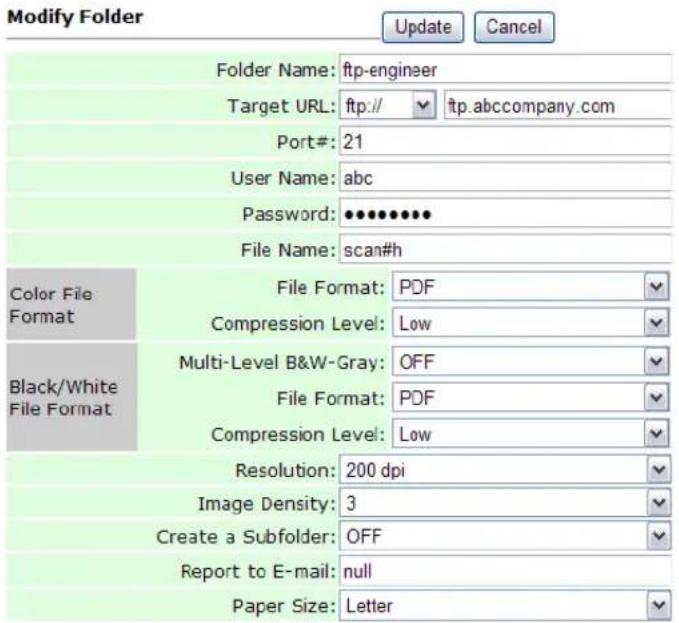
- Modify your folder content and click Update to save the latest data, or Cancel to exit and return to the Folder Manager screen.
- In the Folder Manager screen, click Update to send the changes to the scanner, or Exit to leave without saving any changes.
To delete a folder:
-
Repeat Step 1 to 2 from the previous section, Adding a New Folder By the scanner's Web Page.
-
Choose the folder you wish to delete in the Folder Manager screen.
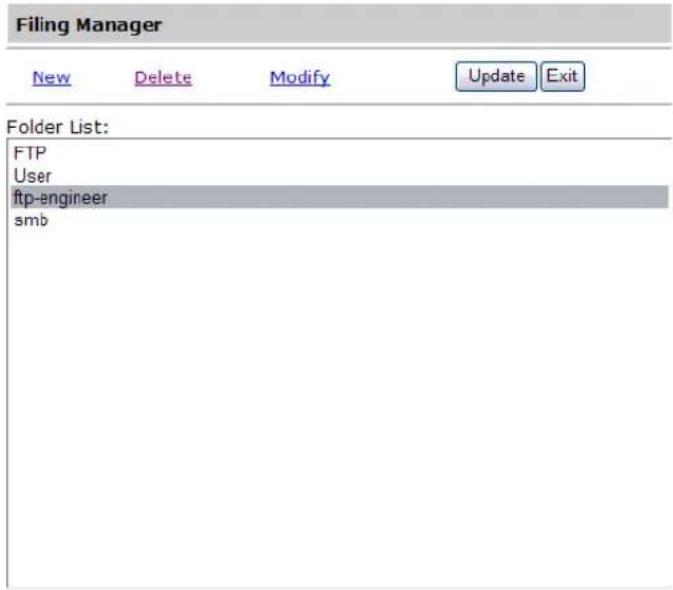
Folder counter:4/50
- Click Delete to remove the folder. A warning message appears to confirm your deletion. Click OK to confirm or Cancel to exit.
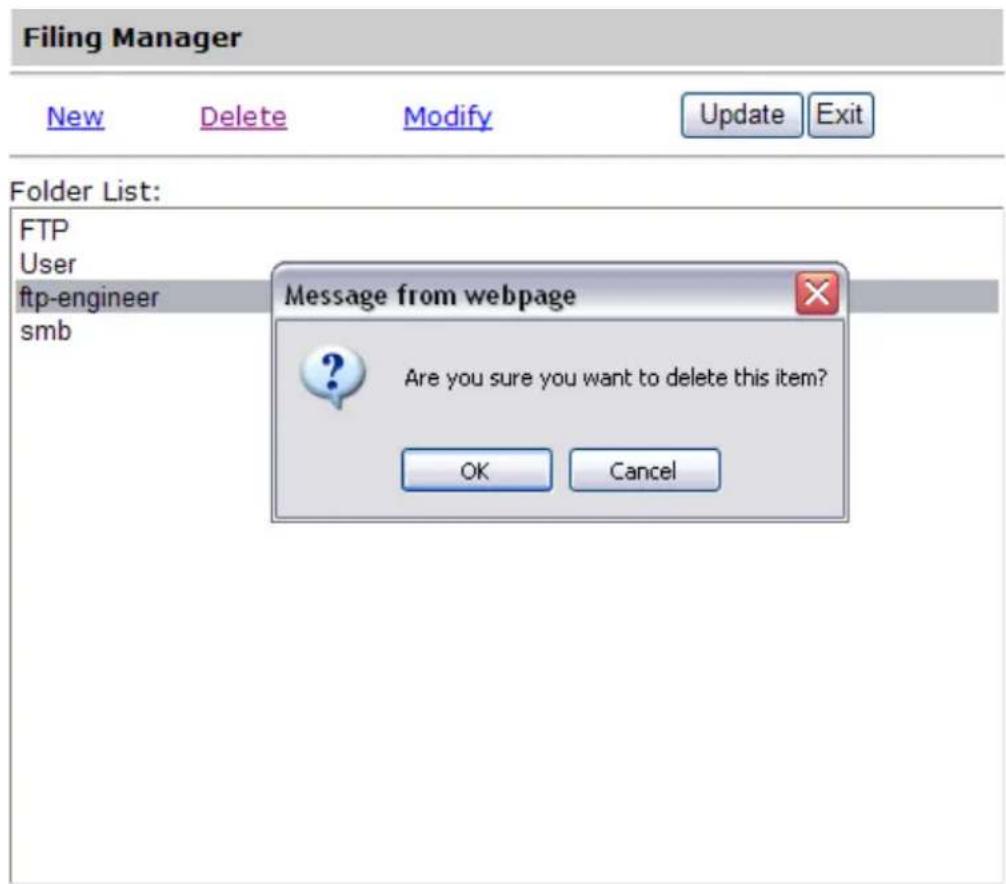
Folder counter: 4/50
- Click Update to send the changes to the scanner, or Exit to leave without saving any changes.
SETTING REQUIRED FAX SETTINGS
Your location has to be set first to ensure the fax transcending signals are correct.
To set your location:
- Start Your Browser.
- Type the IP address of the scanner in the URL field. For example, http://10.1.30.83. The scanner's embedded web page opens.
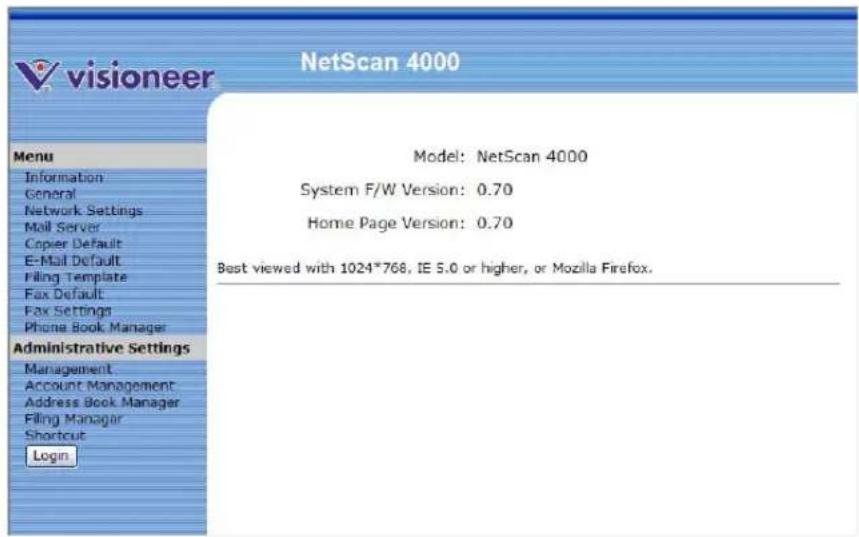
- Click General from the Menu to open the General options.
- Choose your location from the Country Code drop down list box.
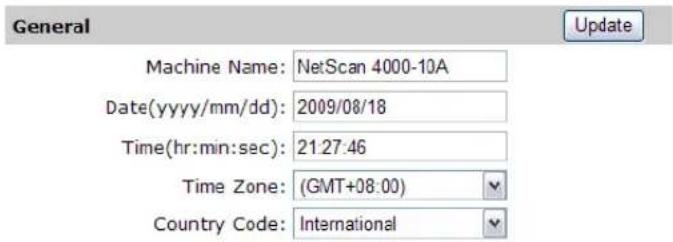
- Click Update to save your settings.
Note: Alternatively, you can set your location via the touch panel.
SETTING YOUR FAX HEADER
The fax header consists of date, time, ID number, the receiving fax number and page index which will be shown at the top of all outgoing faxes.
To set the fax header:
- Start your browser.
- Type the IP address of the scanner in the URL field. For example, http://10.1.30.83. The scanner's embedded web page opens.
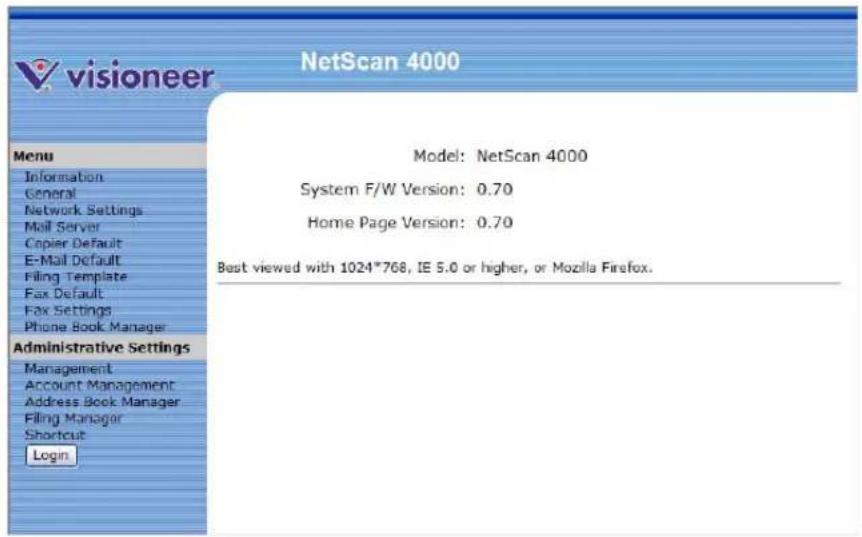
- Click General from the Menu to open the General options.
- Input the current date and time using the format (YYYY/MM/DD) and (hh:mm:ss) and click Update to save your settings.
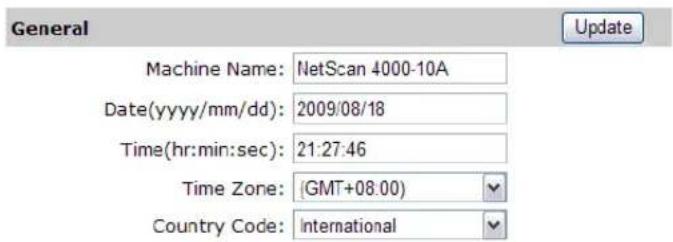
- Click Fax Settings from the Menu to open the Fax Settings screen.
- Input your information in the ID # field. For example, your company name or your fax number. Up to 32 characters or digits can be entered.
- Enter the scanner's fax number in the Station Number field on the Fax Settings screen. Up to 20 digits can be entered, numbers and “” (blank space) and “+” (plus) are supported.
The following is an example of the fax header.
ID#: AAA Company Station #: 5231111 To:1234567 2007/07/31 15:31 Page:1
Operation
With an intuitive control panel and a large LCD display, the scanner is designed to be easy-to-use. After the administrator has completed the configuration of the machine, basically, operating the scanner takes only a few steps as follows.
- Place the document in either the input tray or on the flatbed glass.
- Press Copy, E-mail, Filing, or Fax on the control panel.
Copy—sends the scan to the attached printer.
E-mail—enter an e-mail address or select an address from the address book.
Filing—choose the desired folder to save your image.
Fax—enter a fax number or select one number from the phone book.
- Press the "Black & White" or "Color" button to start scanning and send the scanned document to your printer, e-mail address, filing server, or a remote fax machine.
The following sections describe the advanced steps on how to make a copy of your scanned document, how to fax your scanned document, and how to distribute your document over the internet.
LOADING PAPER
The scanner can scan and send document(s) from the ADF (Automatic Document Feeder) or the flatbed glass. If you need to send multiple pages, please load your papers in the ADF. The ADF can hold up to 50 pages at one time. If you need to send pages from books, newspaper clippings, plastic cards, or paper with wrinkles or curls, please place your paper on the flatbed glass.
NOTICE ON USING THE ADF
Before using the ADF, please make sure that your paper meets the following specifications:
■Document(s) can range in size from 4.5 by 5.5 inches to 8.5 by 14 inches (Legal).
■Document(s) can range in weight from 16 to 28 lbs (0.002" to 0.006" or 60 g/m² to 105 g/m²).
■ Document(s) should be square or rectangular and in good condition (not fragile or worn).
■ Document(s) should be free of tape, curl, wrinkle, tears, wet ink, or punch holes.
■ Document(s) should be free of staples, paper clips, labels, and paper sticky notes.
■There is nothing on the flatbed glass.
Note: To scan irregular types of document(s), place the document(s) on the glass or make a copy first and then scan the copy instead.
PLACING DOCUMENT(S) IN THE ADF
- If you have multiple pages, fan your document(s) to avoid occasional paper jam and to verify that none of the pages are stapled or taped together. The ADF holds up to 50 pages at one time.
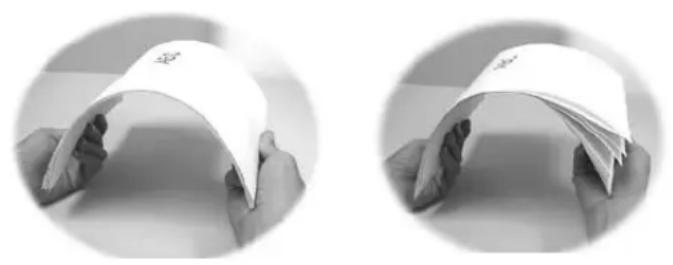
natural_image
Two black-and-white photos showing hands holding up a curved paper sheet with Chinese characters on its surface (no other text or symbols visible)- Adjust the Paper Guides to center the document(s) in the ADF.
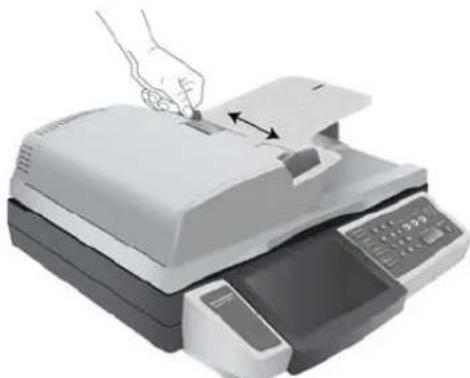
natural_image
Illustration of a hand inserting a small object into a document scanner (no text or symbols visible)- Place your document(s) with the text FACE UP in the ADF with the tops pointing into the scanner.
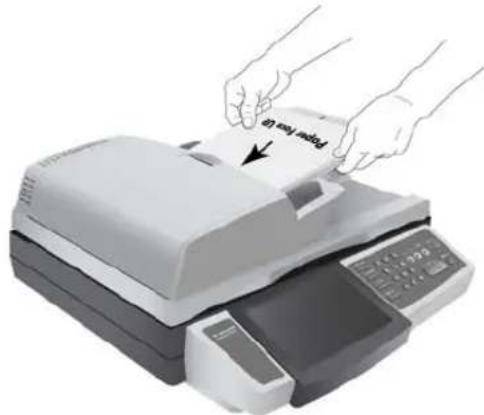
natural_image
Illustration of a printer with hands inserting a paper into it (no text or symbols visible)USING THE PAPER STOPPER
If you are using legal size paper, move the paper stopper to the right end as shown below. The paper stopper is designed to keep your documents from falling to the floor during operation.
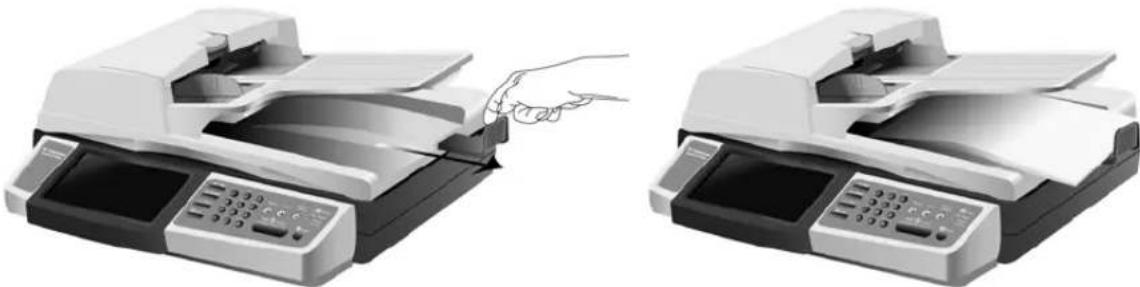
natural_image
Two grayscale images of a scanner with a hand inserting a component into the first image (no text or symbols visible)PLACING DOCUMENT(S) ON THE GLASS
- Open the document(s) cover to reveal the glass.
- Place your document with the text FACE DOWN on the glass and align the document in the upper-left corner.
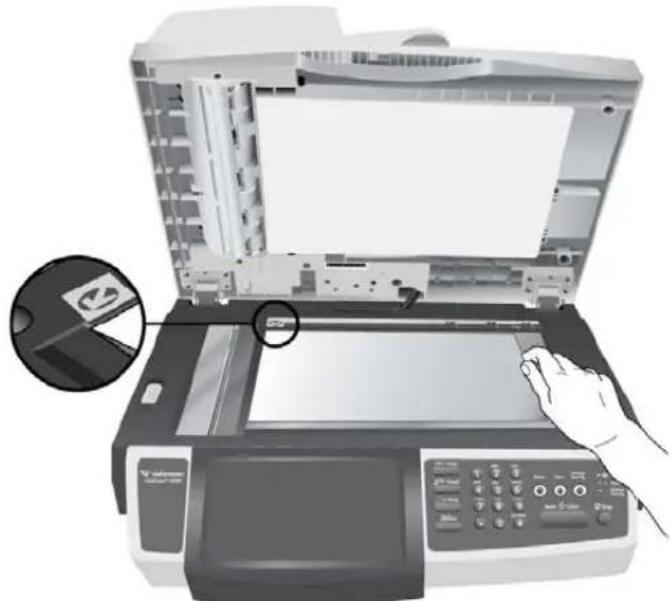
natural_image
Illustration of an open printer with a hand inserting a button to the left (no text or symbols visible)- Close the document cover.
MAKING COPIES
BASIC OPERATION
Important!
Before making copies through your printer, please make sure your printer has been properly connected to the scanner and that the power of the printer has been turned on FIRST. Otherwise, the copy function will not work properly.
Using the Default Settings
-
Place your document(s) with text FACE UP in the ADF or FACE DOWN on the flatbed glass.
-
Press the Copy button on the control panel to show the Copy main screen on the touch panel.
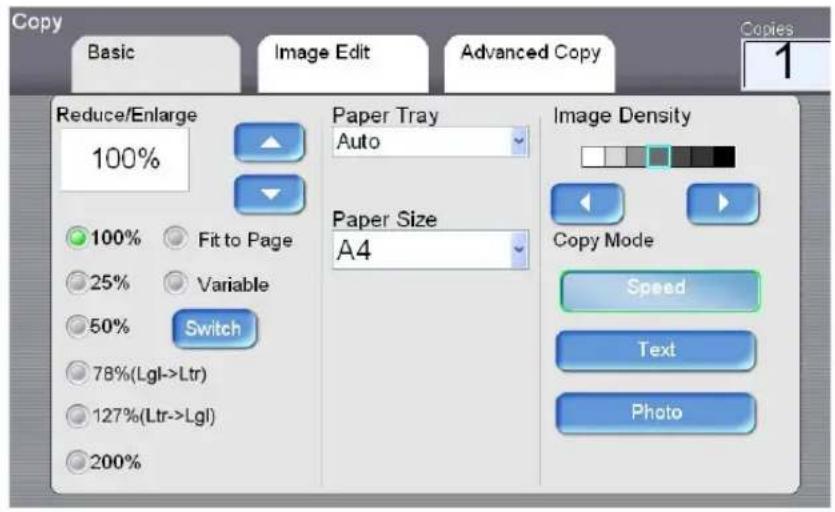
- Press the B&W or Color start button on the control panel to copy your document(s) in black and white.
ADVANCED OPERATION
USING SPECIAL SETTINGS
-
Place your document(s) with text FACE UP in the ADF or FACE DOWN on the glass.
-
Press the Copy button on the control panel to prompt the Copy main screen.
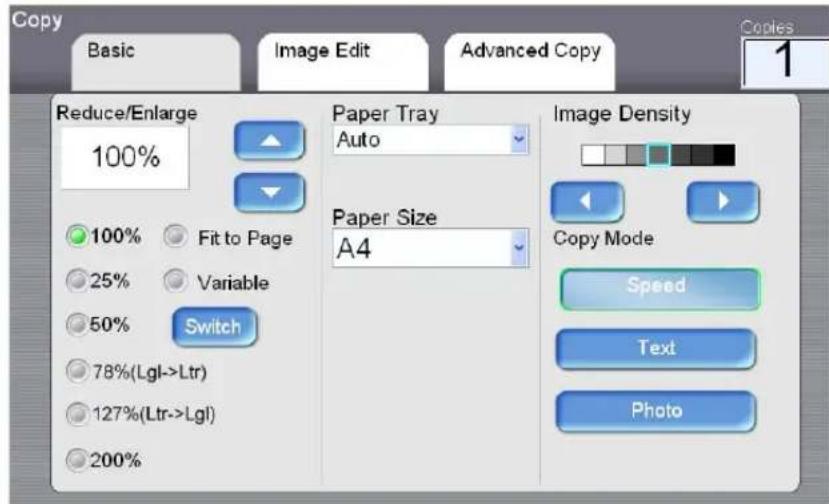
-
If you need to make more than one copy, enter your desired copy count using the numeric keypad on the control panel. The number of copies will appear on the upper right corner.
-
On the Basic screen, check if the paper size, the scaling percentage, the image density, and the copy mode meets your requirement. If not, make any change that suits your needs.
-
Choose the Image Edit or the Advanced Copy tab to show more copy options. (For more information about the settings, see the settings description below.)
-
Press the B&W or Color button on the control panel to copy your document(s) in black and white.
SETTINGS DESCRIPTION
Basic Copy :
| Item Description | |
| Reduce/Enlarge | Select the scaling percentage by touching theSwitchbutton.Choices: *100%, 25%, 50%, 78% (Legal -> Letter), 93% (Fit to Page), 127% (Letter -> Legal), 200%, VariableVariable means selecting your scaling percentage in a one percent increment from 25%-400% using the Up-arrow and Down-arrow key. |
| Paper Tray Sets which paper tray, in the printer, will be used for the current Copy job.Choices: *Auto (Select paper tray automatically), Tray 1, Tray 2, MP(Multi-purpose) TrayPlease confirm that the paper size of the scanner's LCD has changed when you change the paper size of the printer. | |
| Paper Size Sets your paper size.Choice: A4, Letter, A5, B5, Legal. Note Legal size is available only when scanning from the ADF. | |
| Image Density Use the “Image Density” control to adjust from level 1 to level 7.Choice: 1, 2, 3, *4, 5, 6, 7 | |
| Copy Mode Choose the focus of your copy result. For example, if your document contains pictures, choose Photo. If your document contains text only, choose Text. Speed mode is a standard mode for all documents.Choice: *Speed, Text, Photo | |
| * Factory Default | |
Image Edit :
| Item Description | |
| Erase Border Sets the length of border you want removed from the image. | |
| Options: *0 / 0.25 / 0.5 / 0.75 / 1.0 inch or *0 / 6 / 13 / 19 / 25 mm | |
| Margin Adjustment | The “Margin Adjustment” option will move the copy image to the right and/or to the bottom; depending on the “Right” and “Bottom” parameters. Right or Bottom options: *0 / 0.25 / 0.5 / 0.75 / 1.0 inch or *0 / 6 / 13 / 19 / 25 mm |
| Unit Choose the unit of measurement you want to use. | |
| Choices: *inch, mm | |
| * Factory Default | |
Advanced Copy :
Item Description
Collate Choose the order you want your copies to be placed in “*Sort” (e.g. pages 1,2,3/1,2,3 /1,2,3) or “Stack” (e.g. pages 1,1,1/2,2,2/3,3,3).
Duplex Choose one of these four types to use when printing duplex.
(First verify that your printer includes a duplex option.)
Choices: 1 to 1 Sided, *1 to 2 Sided, 2 to 2 Sided, 2 to 1 Sided
1 to 1 Sided: Copy single-sided originals onto one side of one sheet of paper.
1 to 2 Sided: Copy single-sided original onto two sides of one sheet of paper.
2 to 1 Sided: Copy double-sided original onto one side of one sheet of paper.
2 to 2 Sided: Copy double-sided original onto two sides of one sheet of paper.
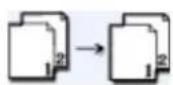
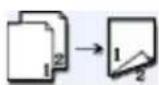
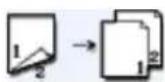
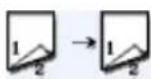
1 to 1 Sided 1 to 2 Sided 2 to 2 Sided2 to 1 Sided
Example:
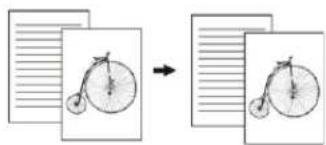
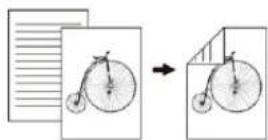
1 to 1 Sided 1 to 2 Sided
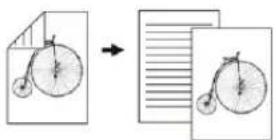
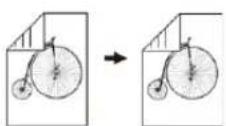
2 to 2 Sided2 to 1
Advanced Copy :
Item Description
Orientation Specify how you want to bind your duplex printing.
Note: This feature is available only if a duplex printer is installed.
Long Edge means documents are to be bound or flipped on the long edge of paper.
Short Edge means documents are to be bound, or flipped, on the short edge of paper.
Turn your documents from long-edge binding to long-edge binding.
Turn your documents from long-edge binding to short-edge binding.
Turn your documents from short-edge binding to long-edge binding.
Turn your documents from short-edge binding to short-edge binding.
Note: The selection of orientation varies depending on the type of duplex printing.
Duplex Availability of Orientation
| 1 to 1 sided All options are unavailable. |
| 2 to 1 sided Only Long Edge to Long Edge and Short Edge to Long Edge are available. |
| 1 to 2 sided Only Long Edge to Long Edge and Long Edge to Short Edge are available. |
| 2 to 2 sided All options are available. |
Advanced Copy :
Item Description
Orientation (Cont'd) Examples:
Long Edge: /
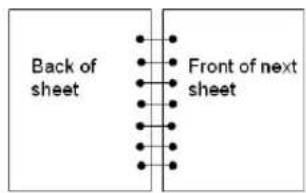
flowchart
graph TD
    A["Back of sheet"] --> B["•"]
    B --> C["•"]
    C --> D["•"]
    D --> E["•"]
    E --> F["•"]
    F --> G["•"]
    G --> H["•"]
    H --> I["•"]
    I --> J["•"]
    J --> K["•"]
    K --> L["•"]
    L --> M["•"]
    M --> N["•"]
    N --> O["•"]
    O --> P["•"]
    P --> Q["•"]
    Q --> R["•"]
    R --> S["•"]
    S --> T["•"]
    T --> U["•"]
    U --> V["•"]
    V --> W["•"]
    W --> X["•"]
    X --> Y["•"]
    Y --> Z["•"]
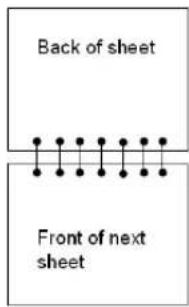
Short Edge:
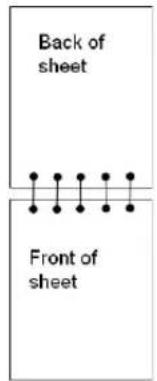
/
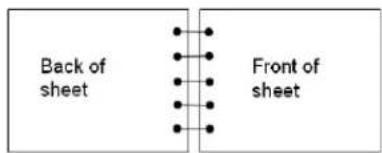
flowchart
graph LR
    A["Back of sheet"] --> B["•"]
    B --> C["•"]
    C --> D["•"]
    D --> E["•"]
    E --> F["•"]
    F --> G["•"]
    G --> H["•"]
    H --> I["Front of sheet"]
Advanced Copy :
| Item Description | |||
| N-Up (Paper Saving) | Use this setting to print multiple pages of a document onto a single sheet of paper, and to set the sequence of the page images on each sheet of paper.Choices: *1-in-1, 2-in-1, 4-in-1 (landscape), 4-in-1 (portrait)1-in-1 means one page will be printed on a single sheet of paper.2-in-1 means two pages will be printed on a single sheet of paper as illustrated.4-in-1 (landscape) means four pages will be printed on a single sheet of paper in rows from left to right, top to bottom as illustrated.4-in-1 (portrait) means four pages will be printed on a single sheet of paper in columns from top to bottom, left to right as illustrated. | ||
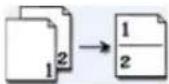 | 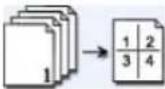 | 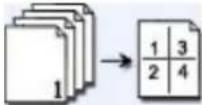 | |
| 2-in 1 4-in 1(landscape) | 4-in-1(portrait) | ||
| Stamp | You can specify a word to appear as a stamp on the scanned documents.(Note: In the Stamp field, there is a small “Soft Keyboard” icon shown at the upper-right corner. Touch anywhere on the Stamp field to bring up the soft keyboard to enter your stamp characters.)Example: | ||
* Factory Default
SENDING YOUR DOCUMENT TO E-MAIL
BASIC OPERATION
Using the Default Setting
- Place your document(s) with text FACE UP in the ADF or FACE DOWN on the flatbed glass.
- Press the E-mail button on the control panel. The following E-mail main screen appears.

- Enter the e-mail address.
■Touch any place on the "To" field (the empty box in the center) to bring up the "soft keyboard" to input an email address. Press the Enter key, on the soft keyboard, to move to another line and input another email address. When finished adding email addresses, press Return to return to the E-mail main screen.
■ You can also touch the Address Book button to bring up the address book and select an option from the list. You can also select multiple addresses at one time.
- Press the B&W button to send your document(s) in black and white, or the Color button to send your document(s) in color.
ADVANCED OPERATION
Using Special Settings
-
Place your document(s) with text FACE UP in the ADF or FACE DOWN on the glass.
-
Press the E-mail button on the control panel. The following E-mail main screen appears.
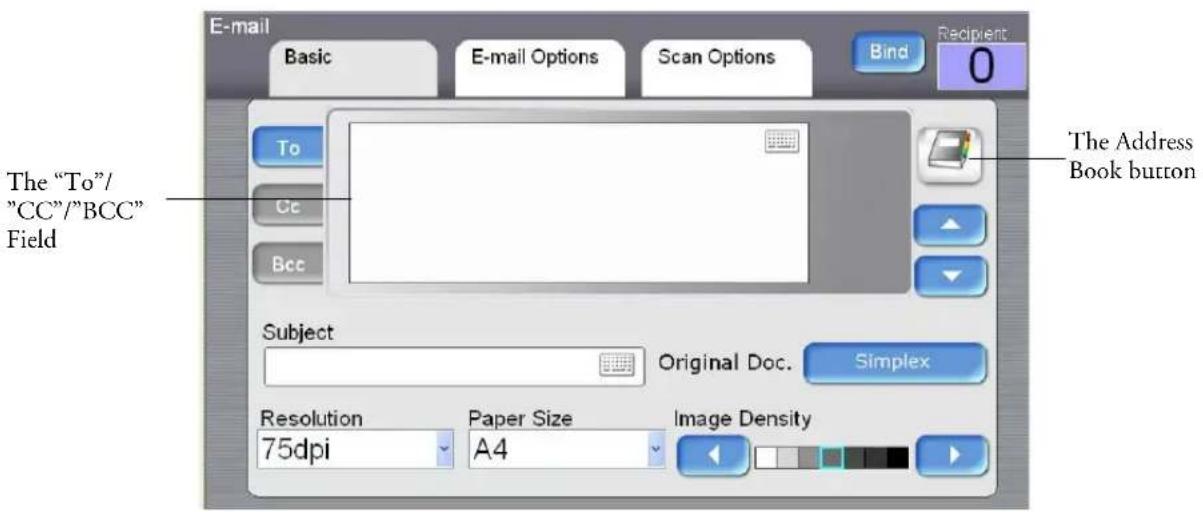
- Enter the e-mail address.
■Touch any place on the "To" field (the empty box in the center) to bring up the "soft keyboard" to input an email address. Press the Enter key, on the soft keyboard, to move to another line and input another email address. When finished adding email addresses, press Return to return to the E-mail main screen.
■ You can also touch the Address Book button to bring up the address book and select and address from that list.
■Press CC or BCC if you want to input an email address in either of those sections.
■ Enter the subject of your e-mail via the soft keyboard. If not, the "Default Subject" will be displayed in recipients' e-mail message.
- On the Basic screen, check if the original size, scanning resolution, original doc.: Simplex, or image density meets your requirement. If not, change the settings to suit your needs.
- Press the E-mail Options tab to open the E-mail Options screen. Enter the file name of the scanned document, the "From" address, and type your e-mail message if necessary in the Text field, using the soft keyboard in each field. (For more information about the settings, see the settings description below.)
- Press the Scan Options tab to prompt the Scan Options screen. Change the file format and compression level of the scanned image if the default settings are not satisfactory.
- Press the B&W button to send your document(s) in black and white, or the Color button to send your document(s) in color.
SETTINGS DESCRIPTIONS
Item Description
| Basic | |
| Resolution Choose your default resolution for the scanned document. The higher the resolution, the greater the detail for the scanned image. High resolution settings take longer to scan and produce larger file sizes.Choice: 75, 100, 150, *200, 300, 400, 600 dpiNote: If you are scanning duplex (two-sided) paper, the resolution for color or gray scanning have a maximum option of 300 dpi. | |
| Original Size Choose your default document size.Choices: *A4/Letter/A5/B5/LegalNote: The legal option is only available when scanning from the ADF. | |
| Image Density The image density can be adjusted within a range of 7 levels using the control panel or from the scanner's Web Page. Increasing the value makes your scanned image darker and decreasing the value makes your scanned image lighter.Choice: 1, 2, 3, *4, 5, 6, 7 |
Item Description
Original Doc. Choice: Simplex, Duplex(Long), Duplex(Short)
■ Simplex: If your original is a single-sided document, choose Simplex to scan your documents only on one side.
■ Duplex(long): If your original is a double-sided document which is bound along the long edge of paper, choose Duplex(Long) to scan your document on the front and the back side.
■ Duplex(Short): If your original is a double-sided document which is bound along the short edge of paper, choose Duplex(Short) to scan your document on the front and the back side.
Bind Multi-batch document scanning from the ADF or Multi-page scanning from the flatbed can be enabled. Press the Bind button when you want to scan more than 50 pages from the ADF or more than one page from the flatbed. After scanning the 1st batch or 1st page, a dialog box will pop up asking if you wish to Bind or End. Choose Bind to scan the next batch or page or choose End to stop scanning.
* Factory Default
| E-Mail Options | |
| File Name of Attachment | The file name of your scanned document without a file extension. If you have not entered a value in the box, the system will set a default file name. Using a #Y#M#D#h#m#s#n format causes the file name to change by scan time. (Y, M, D, h, m, s, and n represent Year, Month, Day, hour, minute, second and series number respectively.) For example, type file name: test#D#n will save the file name as test0500001 |
| From Enter the “From” address of your outgoing e-mail from the scanner. If an e-mail can not be sent, notification is returned to this address. If the administrator has not set the device’s e-mail account in the Mail Server settings, you can enter the e-mail address here. This is the “From” address in your e-mail when you receive an email from the scanner. | |
| Item Description | |
| Reply To Enter a “Reply to” address if you want to specify a reply address that is different from the “From” address. Up to 60 characters can be entered in the field. To enter the address, you can touch anywhere on the “Reply To” field to bring up the soft keyboard to type the address. | |
| TextType your e-mail message here. To enter the text, you can press anywhere on the “Text” field to bring up the soft keyboard to type the text. | |
| File Separation Limit the file size of the attachment of each outgoing message to avoid the size limitation of SMTP servers. Use the combo box to select from the list.Choice: 1MB / 3MB / 5MB / 10MB / 30MB / *Unlimited | |
| * Factory Default | |
| Scan Options | |
| Color | ■ File Format: Choose a file format for your scanned image.Choices include: *PDF, TIFF, JPEG, MTIFFNote: Choose MTIFF or PDF when you need to scan a multi-page document and convert it to a single image file.■ Compression Level: Choose the compression level for your scanned image.Choices: *Low, Medium, HighIf TIFF or MTIFF is selected as the file format, the compression Level is defined as Raw only. |
Item Description
Black&White
■ Multi-Level (Gray): Choose “ON” if you wish to make grayscale copies or *OFF to make B&W (single-bit) copies.
■ File Format: Choose a file format for your scanned image. Grayscale choices include: *PDF, TIFF, JPEG, MTIFF Black&White choices include: *PDF, TIFF, MTIFF
■Compression Level:
Choices: *Low, Medium, High
(If you choose ON from Multi-Level (Gray), the file formats include PDF, JPEG, TIFF, and MTIFF. If TIFF or MTIFF is selected as your file format, the compression Level is limited to Raw only. If you choose OFF from Multi-Level (Gray), the file formats include PDF, PCX, TIFF, and MTIFF. The compression Level of MTIFF or TIFF includes G3, G4, and Raw.)
* Factory Default
Note:
■If you make a mistake during the process, press the Stop button on the control panel to cancel the operation.
■The machine allows you to send the scanned document(s) to multiple e-mail addresses. After inputting the first e-mail address, simply press the enter key, on the soft keyboard, to type another address in the next line.
■ Up to 64 characters can be entered in the File Name of Attachment, “To”, “From”, “Reply to”, “Subject”, and the “Text” fields.
■ If you wish to scan a multi-page document and convert it to a single image file, choose your output file format to be MTIFF or PDF.
If you want to scan multiple pages from the flatbed, or more than one set of 50 pages from the ADF, press the Bind button first. After the first flatbed or ADF scan finishes, you will be prompted to bind to the next scan. Place the next page on the flatbed, or document batch in the ADF, and press Bind to continue. After you are done scanning all pages in the document, choose End to close the dialog box.
USING THE SOFT KEYBOARD
In the E-mail main screen, the soft keyboard is used to enter your e-mail address, or message in the text field.
To use the soft keyboard:
- Whenever there is a soft keyboard icon shown in a blank field, for example the following Subject field on the E-mail screen, touch anywhere on the blank field to bring up the soft keyboard.
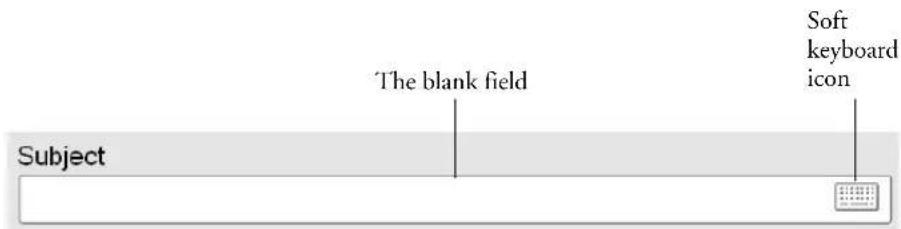
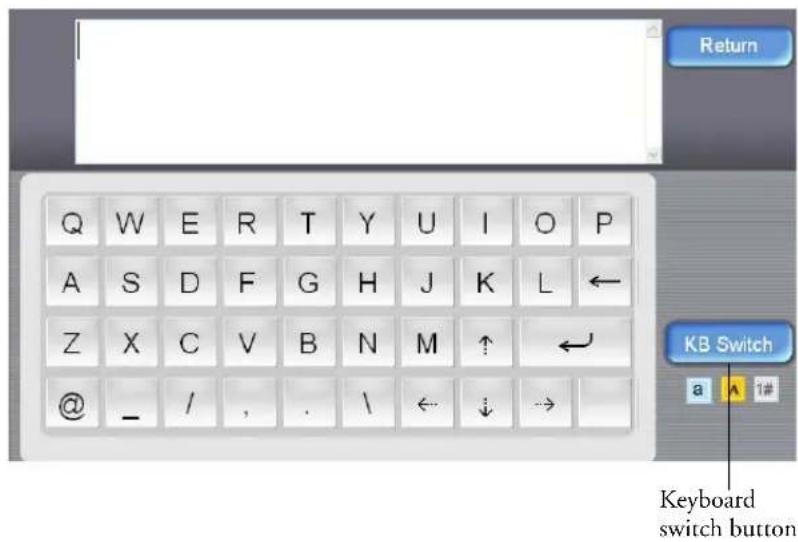
- To enter lower-case letters, numbers, or other characters, press the KB Switch button to switch between keyboards as shown below.
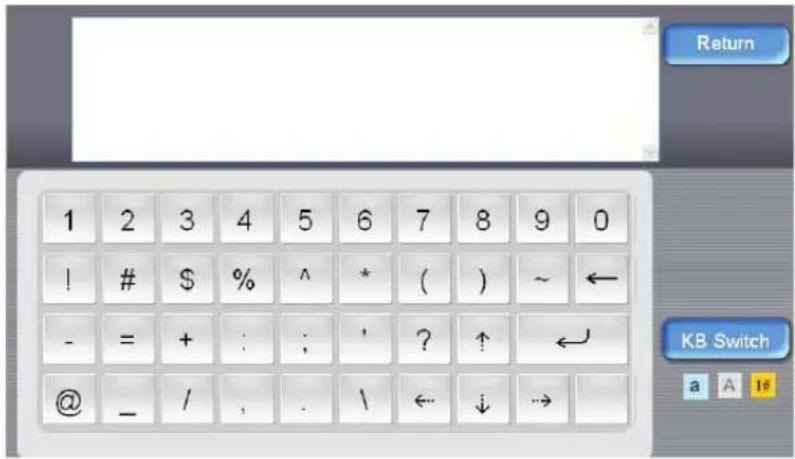
- To return to the E-mail main screen, press the Return button.
USING THE ADDRESS BOOK
To select e-mail addresses:
-
Touch the Address Book icon on the E-mail main screen. The following Address Book screen displays.
-
Touch an e-mail address to select it. The selected one will be highlighted. (You can touch another address for multiple selections.)
-
Touch OK to return to the E-mail main screen.
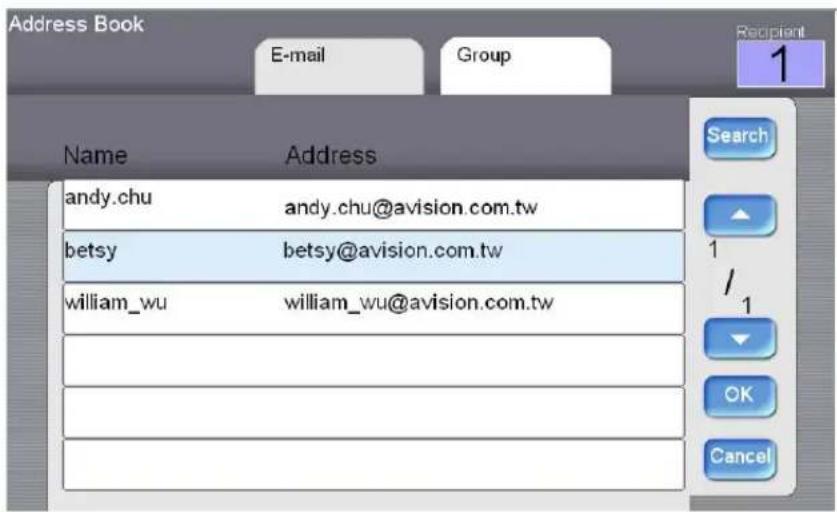
To select a group address:
-
On the Address Book screen, touch the Group tab to display the following Group screen.
-
Touch a group to select it and then touch OK to return to the E-mail main screen. (You can touch another group to select multiple groups)
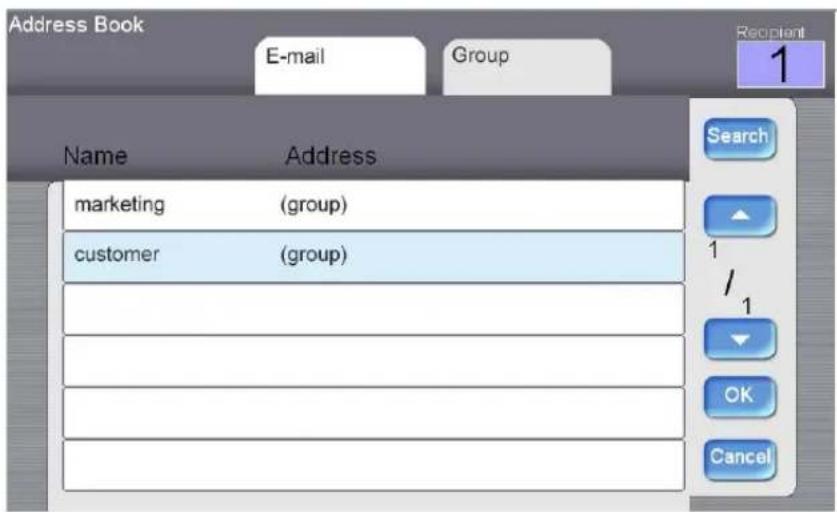
To search an e-mail address or a group:
-
On the Address Book main screen, touch Search to display the following E-mail Search screen.
-
Choose your search type. (All means to search the addresses from current Address Book of the scanner. LDAP means to search the addresses from an external address book on an LDAP server.)
-
Enter your search string via the soft keyboard.
-
Touch the Search button to start searching.
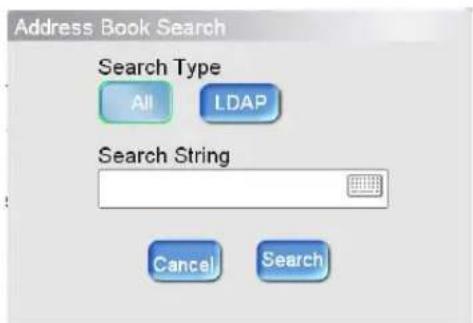
SENDING YOUR DOCUMENT TO FILING SERVERS
Before sending your document to a destination server, you should set up a few folders first to speed up the process. A folder contains a list of parameters such as your filing protocol, directory, file name and other scanning parameters. On how to set up a new folder, please refer to the section "Creating A Folder Template" on page 49 in the previous chapter.
BASIC OPERATION
Using the Default Settings
- Place your document(s) with the text FACE UP in the ADF or FACE DOWN on the flatbed glass.
- Press the Filing button on the control panel. The LCD-screen displays the following Filing main screen.
![Filing Basic Server Options Scan Options Bind Name URL [marketing] FTP://ftp.abc.com/marketing [betsy-cifs] CIFS:\10.1.30.42\pcname\share [test] HTTP://10.1.44.67/test [software] FTP://ftp.abc.com/software Original Doc. Simplex Resolution Paper Size Image Density 200dpi A4](/content/2026/06/1145997/images/4267cf0f8875f481f94ca6ff6d70c840a5b2ff22af95a28ad57d563f857d8150.jpg)
- Choose a folder to save your scanned image.
■ Or you can use the Up-arrow or Down-arrow button to scroll through the list.
■Or you can display the most frequently used folder list by touching the Show All button.
- Press the B&W button to scan your document(s) in black and white, or the Color button to scan your document(s) in color.
ADVANCED OPERATION
Using Special Settings
- Place your document(s) with the text FACE UP in the ADF or FACE DOWN on the flatbed glass.
- Press the Filing button on the control panel. The LCD-screen displays the following Filing main screen.
![Filing Basic Server Options Scan Options Bind Name URL [marketing] FTP://ftp.abc.com/marketing [betsy-cifs] CIFS:\10.1.30.42\pcname\share [test] HTTP://10.1.44.67/test [software] FTP://ftp.abc.com/software Original Doc. Simplex Resolution Paper Size Image Density 200dpi A4](/content/2026/06/1145997/images/8438dea7abbb625cd9526b7cb50a0fa39885b8db2a70a0ace49a3a87bf7b0813.jpg)
- Choose a folder to save your scanned image.
■ Or you can use the Up-arrow or Down-arrow button to scroll through the list.
■Or you can display the most frequently used folder list by touching the Show All button.
-
On the Basic screen, check if the original size, scanning resolution, or image density meets your requirement. If not, change the settings to suit your needs.
-
Touch the Server Options tab to display the Server Options screen. If you are a registered user, and there is a different login name displayed on the Server Options screen, please enter your own login name and password, your desired file name for the scanned image, the e-mail address to send the filing report, and check if you want to create a subfolder on the screen.
-
Touch the Scan tab to display the Scan Settings screen. If you want, change the file format and the compression. (For information about the setting, please see the setting descriptions below.)
- Press the B&W button to send your document(s) in black and white, or the Color button to send your document(s) in color.
SETTINGS DESCRIPTION
Item Description
| Basic | |
| Resolution Choose a scanning resolution for your document. The higher the resolution, the greater the detail for the scanned image. High resolution settings take longer to scan and produce larger file sizes.Choices: 75, 100, 150, *200, 300, 400, 600 dpiNote: If you are scanning duplex (two-sided) paper, the resolution for color or gray scanning have a maximum option of 300 dpi. | |
| Original Size Choose your original paper size.Choices: A4, Letter, A5, B5, LegalNote: The Legal option is only available when scanning from the ADF. | |
| Image Density If your original document is too light or too dark, you can use this option to adjust the density level.Choices: 1, 2, 3, *4, 5, 6, 7 | |
| Original Doc. Choices: Simplex, Duplex(Long), Duplex(Short)■ Simplex: If your original is a single-sided document, choose Simplex to scan your documents only on one side.■ Duplex(Long): If your original is a double-sided document, and is bound along the long edge of paper, choose Duplex(Long) to scan your document on the front and the back side.■ Duplex(Short): If your original is a double-sided document, and is bound along the short edge of paper, choose Duplex(Short) to scan your document on the front and the back side. | |
| Item Description | |
| Bind Multi-batch document scanning from the ADF or Multi-page scanning from the flatbed can be enabled. Press the Bind button when you want to scan more than 50 pages from the ADF or more than one page from the flatbed. After scanning the 1st batch or 1st page, a dialog box will pop up asking if you wish to Bind or End.Choose Bind to scan the next batch or page or choose End to stop scanning. | |
| Server Options | |
| Login Name If you are a registered user, and there is a different login name displayed on the Server Options screen, please enter your own login name here. | |
| Password Enter your own password of the destination server if you are a registered user yet with a different login name displayed on the screen. | |
| File Name | The file name of your scanned document without a file extension. If you have not entered a value in the box, the system will set a default file name. Using a #Y#M#D#h#m#s#n format causes the file name to change by scan time. (Y, M, D, h, m, s, and n represent Year, Month, Day, hour, minute, second and series number respectively.) For example, type file name: test#D#n will save the file name as test0500001 |
| Report to E-mail | Enter an e-mail address if you want to send a filing report to an e-mail message. |
| Create a Subfolder | Choose ON to enable the server to create a subfolder when sending the scanned image to the destination server. (Check if you are authorized to write under the destination server.)Choices: ON, *OFF |
Item Description
| Scan Options | |
| Color | ■ File Format: Choose a file format for your scanned image.Choices include: *PDF, TIFF, JPEG, MTIFFNote: Choose MTIFF or PDF when you need to scan a multi-page document and convert it to a single image file.■ Compression Level: Choose the compression level for your scanned image.Choices: *Low, Medium, HighIf TIFF or MTIFF is selected as the file format, the compression Level is defined as Raw only. |
| Black&White | ■ Multi-Level (Gray): Choose “ON” if you wish to make grayscale copies or *OFF to make B&W (single-bit) copies.■ File Format: Choose a file format for your scanned image.Grayscale choices include: *PDF, TIFF, JPEG, MTIFFBlack&White choices include: *PDF, TIFF, MTIFF■Compression Level:Choices: *Low, Medium, High(If you choose ON from Multi-Level (Gray), the file formats include PDF, JPEG, TIFF, and MTIFF. If TIFF or MTIFF is selected as your file format, the compression Level is limited to Raw only.If you choose OFF from Multi-Level (Gray), the file formats include PDF, PCX, TIFF, and MTIFF. The compression Level of MTIFF or TIFF includes G3, G4, and Raw.) |
* Factory Default
ADDING A NEW FOLDER
If the folder you want to save the scanned documents to is not in the current Folder list, add a new one by touching the Add New Folder button. This displays the following New Folder screen. The New Folder
screen displays the server and scanning parameters that are same as the options in the folder Folder Template except the Folder Name. Refer to the following table to enter the relevant value, and then press the B&W start or Color start button to start sending your document.
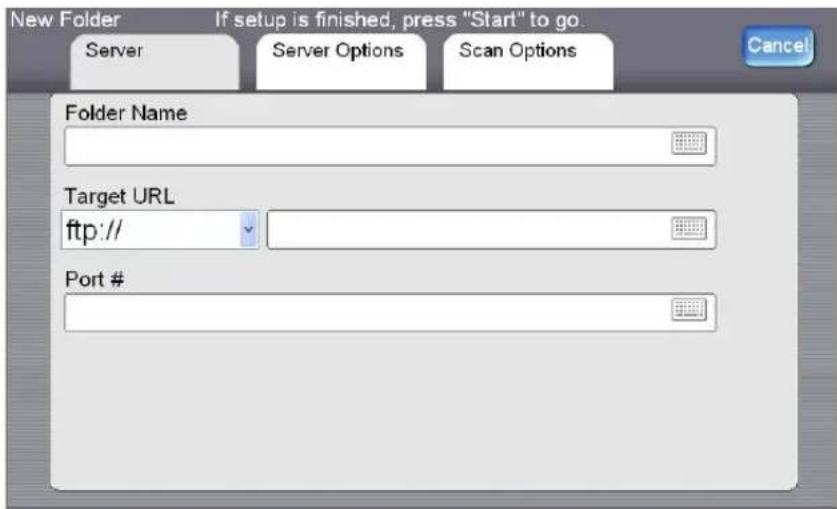
Note: After sending the scanned document to your target server, the new folder will be automatically added to the folder list in the Folder main screen.
Server Information :
| Item Description | |
| Folder Name Enter name of your folder. | |
| Target URL | Please choose the type of protocol of your filing server in the first field.Choices include: *FTP, HTTP, CIFS, HTTPSPlease enter the target URL in the second field. You can enter either the domain name or the IP address with the directory path. Note that the directory will vary due to different protocols. The route starts from the root directory in FTP, HTTP, HTTPS, and CIFS. For example, ftp://, http://, and file:\, https://.Important note:You must use this CIFS filing format, file:\IP\computer name\folder name, to set CIFS URL. |
| Port # Enter the port number for the server which you want to store your scanned document.Default value: FTP:21, HTTP:80, CIFS:139, HTTPS:443If the default value is different from the real case, input the correct port number in this field. Touch anywhere on the “Port” field to bring up the soft keyboard to enter the text. | |
| * Factory Default | |
Server Options :
| Item Description | |
| Login Name Enter the login name of the destination server. | |
| Password Enter the password of the destination server | |
| File Name | The file name of your scanned document without a file extension. If you have not entered a value in the box, the system will set a default file name. Using a #Y#M#D#h#m#s#n format causes the file name to change by scan time. (Y, M, D, h, m, s, and n represent Year, Month, Day, hour, minute, second and series number respectively.) For example, type file name: test#D#n will save the file name as test0500001 |
| Report to E-mail | Enter an e-mail address if you want to send a filing report to an e-mail message. |
| Create a Subfolder | Choose ON to enable the server to create a subfolder when sending the scanned image to the destination server. (Check if you are authorized to write to the destination server.) Choices: ON, *OFF |
| * Factory Default | |
Scan Options :
| Item Description |
| Original Size Choose your document size.Choices: *A4, Letter, A5, B5, LegalNote the legal size is available when scanning from the ADF. |
| Resolution The resolution for your scanned document. The higher the resolution, the greater the detail for the scanned image. High resolution settings take longer to scan and produce larger file sizes.Choices: 75, 100, 150, *200, 300, 400, 600 dpiNote: If you are scanning duplex (two-sided) paper, the resolution for color or gray image is up to 300 dpi. |
Scan Options :
| Item Description | |
| Image Density The image density can be adjusted within a range of 7 levels using the control panel or from the scanner's Web Page.Choices: 1, 2, 3, *4, 5, 6, 7(1 means the lightest density while 7 means the darkest density.) | |
| Color File Format | ■ File Format: Choose a file format for your scanned image.Choices include: *PDF, TIFF, JPEG, MTIFFNote: Choose MTIFF or PDF when you need to scan a multi-page document and convert it to a single image file.■ Compression Level: Choose the compression level for your scanned image.Choices: *Low, Medium, HighIf TIFF or MTIFF is selected as the file format, the compression Level is defined as Raw only. |
| B&W File Format | ■ Multi-Level (Gray): Choose “ON” if you wish to make grayscale copies or *OFF to make B&W (single-bit) copies.■ File Format: Choose a file format for your scanned image.Grayscale choices include: *PDF, TIFF, JPEG, MTIFFBlack&White choices include: *PDF, TIFF, MTIFF■Compression Level:Choices: *Low, Medium, High(If you choose ON from Multi-Level (Gray), the file formats include PDF, JPEG, TIFF, and MTIFF. If TIFF or MTIFF is selected as your file format, the compression Level is limited to Raw only.If you choose OFF from Multi-Level (Gray), the file formats include PDF, PCX, TIFF, and MTIFF. The compression Level of MTIFF or TIFF includes G3, G4, and Raw.) |
* Factory Default
Before faxing your document through the scanner, make sure that you have installed a telephone line on the scanner. Refer to Chapter 2 on how to connect a telephone line.
BASIC OPERATION
Using the default settings
- Place your document(s) with text FACE UP in the ADF or FACE DOWN on the glass.
- Press the Fax button on the control panel to display the Fax main screen.
![[13:44] Quality Fine Paper Size A4 Image Density Original Doc. Simplex Pause Destination 0 Basic More Setting Bind](/content/2026/06/1145997/images/24f2f7d58d78ec67be32f38d9792fe6e92a011921a2d8f86018cc063dbc1d222.jpg)
- Enter the fax number with the numeric keypad on the control panel.
■ Or you can touch the Phone Book button to bring up the telephone book and then select a number from the list.
■ You can also select multiple fax numbers at one time. To enter the next fax number, press the Down-arrow key, at the right of the Phone Number field, after finishing entering the first fax number.
- Press the B&W button to send your document(s) in black and white.
Note:
■ If you make a mistake during the process, press the Stop button on the control panel to cancel the operation.
■ Up to 20 characters can be entered in the Fax Number field and some characters such as “-” and “P” (a 2-second pause) are supported.
■When entering a phone number from the numeric keypad, include any PSTN access number (number to access the public telephone line, usually a 9 or 0), area codes, and the telephone number.
■The machine allows broadcast faxing. This means it allows you to send the scanned document(s) to multiple fax numbers. After entering your first fax number, press the Down Arrow button on the LCD-screen to enter your next fax number in the next line. Up to 200 fax numbers can be entered and broadcasted at one time.
■ If you want to scan multiple pages from the flatbed, or more than one set of 50 pages from the ADF, press the Bind button first. After the first flatbed or ADF scan finishes, you will be prompted to bind to the next scan. Place the next page on the flatbed, or document batch in the ADF, and press Bind to continue. After you are done scanning all pages in the document, choose End to close the dialog box.
ADVANCED OPERATION
Using Special Settings
- Place your document(s) with the text FACE UP in the ADF or FACE DOWN on the flatbed glass.
- Press the Fax button on the control panel to display the Fax main screen.
![[13:44] Quality Fine Paper Size A4 Image Density Original Doc. Simplex Pause Destination 0 Basic More Setting Bind](/content/2026/06/1145997/images/f593c9432a952e2bd32f046c8ad4f5c7c7c5bac0c0f86c86db1779c1b59da7fd.jpg)
- Enter the fax number with the numeric keypad on the control panel.
■ Or you can touch the Phone Book button to bring up the preset telephone book and then select a number from the list.
■ You can also select multiple fax numbers at one time. To enter the next fax number, press the Down-arrow key, at the right of the Phone Number field, after entering the first fax number.
Note the Destination button on the upper right corner will display the number of recipients you have chosen.
- Check if the quality, paper size, original doc.: Simplex, and image density meets your requirement. If not, change the setting to suit your needs. (For more information about the settings, refer to the setting descriptions below.)

- Click the More Setting tab to display the More Setting screen. Check if you want to use Delay Send, Polling Reception or the Overseas Mode. (For more information about the settings, please see the setting descriptions below.)
- Press the B&W or the Color button to send your document(s) in black and white.
SETTING DESCRIPTIONS
Basic :
Item Description
Original Doc. Choices: Simplex, Duplex(Long), Duplex(Short)
■ Simplex: If your original is a single-sided document, choose Simplex to scan your documents only on one side.
■ Duplex(Long): If your original is a double-sided document, and is bound along the long edge of paper, choose Duplex(Long) to scan your document on the front and the back side.
■ Duplex(Short): If your original is a double-sided document, and is bound along the short edge of paper, choose Duplex(Short) to scan your document on the front and the back side.
Quality Choose your favorable quality type.
Choice: Standard, *Fine, Extra Fine, Photo
■ Standard (200 x 100 dpi): Suitable for most typed originals.
■Fine (200 x 200 dpi): Good for small print.
■ Extra Fine (200 x 400 dpi): Good for small print or artwork and transmits slower than Fine resolution.
■ Photo (200 x 200 dpi): Use when the original has varying shades of gray.
Original Size Choose your original paper size.
Choices: A4, Letter, Legal
Note: The Legal option is only available when scanning from the ADF.
Basic :
| Item Description |
| Image Density The image density can be adjusted within a range of 7 levels using the control panel or from the scanner's Web Page.Choices: 1, 2, 3, *4, 5, 6, 7(1 means the lightest density while 7 means the darkest density.) |
| * Factory Default |
More Settings :
| Item Description | |
| Send Later(Date/Time) | Enter the specific date and time you wish to send the fax via the soft keyboard. This frees you from the need to manually start the transmission. |
| Polling Reception | Choose ON to use the scanner to poll other machines. Polling is the process of retrieving faxes from another fax machine.Choices: ON, *OFF |
| Overseas Mode | Choose ON to avoid transmission problems when faxing overseas.Choices: ON, *OFF |
| * Factory Default | |
CANCELING A FAX JOB
To cancel a fax during scanning,
When the original documents are still scanning, press the Stop button to cancel sending the fax.
To cancel a fax during waiting:
If you want to cancel a previously set delayed fax, touch the Cancel Fax Job tab to display the following Cancel Fax Job screen. Touch the fax job you want to cancel and then touch the Delete button to cancel the fax job.
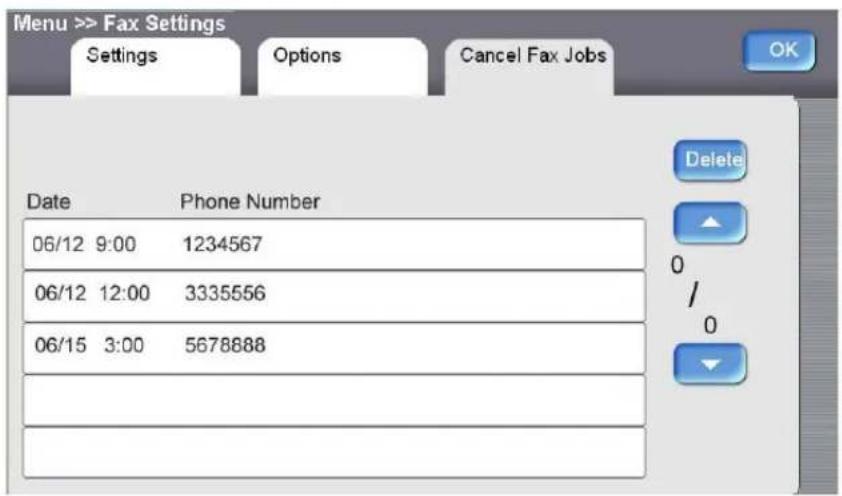
USING THE PHONE BOOK
To select a fax phone number or a fax group:
- In the Fax main screen, press the Phone Book icon to display the Phone Book screen.
![Fax Basic More Setting Bind Destination [13:44] Pause Frequent abc def ghi jkl mno pqrs tuv wxyz Misc. Recent 1 2 3 4 5 6 7 8 9 10](/content/2026/06/1145997/images/8e62c47897472b0d3de6d008bdfd6e93c3dfe8e9c0654da7095405faf3f962b1.jpg)
- To choose a phone number or a group:
■Touch a name or a group shown in the screen. Touch another phone number or group to send the fax to multiple people or groups.
■If the receiving name of the phone number group does not appear on the screen, you can find the name by touching the Characters button for a quick search.
■ Or you can touch the Frequent or the Recent button to show the 10 most frequently used or 10 recently used names of phone numbers or groups.
Troubleshooting
INFORMATION MESSAGES
INFORMATION MESSAGES DURING SCANNING AND COPYING
| Message Action | |
| ADF paper empty | Press the OK button. Reload your documents into the auto document feeder and try again. |
| ADF cover open Close the ADF door and press the OK button. | |
| Flatbed cover open | Close the scanner lid. Remove any paper from the ADF and press the OK button. |
| Flatbed Light Check Power cycle the scanner.If the code still appears, contact your nearest dealer. | |
| Calibration Error Power cycle the scanner.If the code still appears, contact your nearest dealer. | |
| Error_Flatbed Home Position | Power cycle the scanner.If the code still appears, contact your nearest dealer. |
| Error_Pick Up Roller | ■ If this occurs while previewing, split your multi-page document into smaller batches and try again.■ If this occurs while scanning, the pick up roller may not work properly. Contact your nearest dealer for a replacement. |
| Home sensor error Power cycle the scanner.If the code still appears, contact your nearest dealer. | |
| Lamp error Power cycle the scanner.If the code still appears, contact your nearest dealer. | |
INFORMATION MESSAGES DURING SCANNING AND COPYING
| Message Action | |
| ADF paper jam ADF paper jam.Open the ADF cover and remove the paper from the ADF.If the code still appears, power cycle the scanner.If the code still appears, contact your nearest dealer. | |
| Lock error Scanning unit is locked.1. Turn off your scanner.2. Find the lock switch underneath the scanner lid, to one side of the flatbed glass, and unlock the machine.3. Turn the scanner back on.4. If the code still appears, contact your nearest dealer. | |
| Check printer cable or status | 1. Check if the printer cable has been correctly connected.2. Check if the printer is turn on.3. Restart the scanner and your printer.4. If the message still appears, contact your nearest dealer. |
| Detect printer error 1. Turn off the scanner.2. Turn off the printer.3. Turn on the printer.4. Turn on the scanner. | |
| Paper size not supported | Please set the supported paper size to the tray of the printer. HLT and * are not supported. |
INFORMATION MESSAGES DURING NETWORKING
| Message Action | |
| The connection has failed.Please check network settings. | Ping the IP address of the scanner from another PC in a DOS prompt. For example, type “Ping 10.1.20.144” in a DOS prompt. If the scanner has no response, then perform the following steps. |
| The address is invalid.Please check network settings. | |
| Network is down.Please check network settings. | Check if the RJ-45 connector is firmly plugged-in. Check the Ethernet cable. Check the scanner's IP address. Check the destination IP address. Check Subnet Mask. Check Gateway IP. |
| Network is unreachable.Please check network settings. | |
| Connection aborted by the server.Please check network settings. | |
| Connection reset by the server.Please check network setting. | |
| Connection timed out.Please check network setting. | |
| Unable to reach the destination host.Please check network settings. | |
| Failed to connect mail server.Please check network environment. | Check network environment. |
| Connection error.Please check network environment. | |
| Failed to create socket for DHCP Check IP address of DHCP server or contact your network administrator for further help. | |
| Failed to search DHCP server. | |
| Failed to get IP from DHCP server. | |
| Failed to renew IP from DHCP server. | |
INFORMATION MESSAGES DURING E-MAILING
| Message Action | |
| Sequence error Reboot the machine, and try again later. If the error is still there, contact your nearest dealer. | |
| Device internal failure | Reboot the machine, and try again. If the error is still there, contact your nearest dealer. |
| Failed to connect mail server Contact your network administrator for further help. | |
| Failed to get response from mail server. | Contact your network administrator or nearest dealer for further help. |
| SMTP server is empty.Please specify SMTP server in the Menu options. | Please specify the IP address of the SMTP server by pressing the Menu button on the panel. |
| SMTP server address is wrong.Please check SMTP server. | Check the IP address of the SMTP server. |
| Unpredicted error Power cycle the scanner.Contact your network administrator or nearest dealer for further help. | |
| Insufficient System Storage Contact your network administrator for further help. | |
| Mail server doesn’t support SMTP service extension | Contact your network administrator for further help. |
| Mail server doesn’t support SMTP login authentication. | Contact your network administrator to turn on the SMTP login option. |
| SMTP login error Check your login user name and password. | |
| Mailbox Unavailable Make sure the “To” address is correct. | |
| Processing Error Contact your network administrator for further help. | |
| Temporary authentication failure | Contact your network administrator for further help on the mail server’s authentication mechanism.Choose SMTP authentication for E-mail security or turn off the mail server’s authentication and try again. |
INFORMATION MESSAGES DURING E-MAILING
| Message | Action |
| Command error Reboot the machine, and try again. If the error is still there, contact your nearest dealer. | |
| Parameters or argument error 1. Check if the Device Name is valid. The Device Name can be found in Menu>General.2. Check “From” address.3. Check “To” address.4. Contact your network administrator for further help. | |
| Command parameters not implemented | Check if the Device Name is valid. The Device Name can be found in Menu>General.Or you may contact your network administrator for further help. |
| Authentication requires Contact your network administrator on mail server’s authentication mechanism.Choose SMTP authentication for E-mail security or turn off the mail server’s authentication and try again. | |
| Mailbox unavailable Check “To” address. | |
| User not local Check “To” address. | |
| Service unavailable Contact your network administrator for further help. | |
| Mail server does not support SMTP service extension | Contact your network administrator for further help. |
| Exceeded storage allocation 1. Check “To” address.2. Check mailbox storage allocation.3. Contact your network administrator for further help. | |
| Mailbox name is not allowed Check “To” address. | |
| Mail action has not been taken Check “To” address. | |
| Connection error | 1. Check network environment.2. Check if email attachment size is larger than the mailbox quota. |
INFORMATION MESSAGES DURING E-MAILING
Message Action
The transaction has failed Contact your network administrator for further help.
INFORMATION MESSAGES DURING FILING
Message Action
| Can not create a subfolder | Make sure you have privileges to create folders on the server. |
| Device internal failure | Reboot the machine, and try later. If the error is still there, contact your nearest dealer. |
| Failed to connect FTP server | Make sure the FTP server is not shut downing and the port number is correct. If the error is still there, contact your FTP server administrator. |
| Unpredicted error Contact your network administrator for further help. | |
| FTP login name error Check your login name and try again | |
| FTP password incorrect Check your password and try again | |
| FTP can’t enter this directory Make sure your have privilege to enter this directory. | |
| FTP can’t check file existed or not | Make sure your have privilege to browse this directory. |
| FTP can’t change data transfer type | Contact your server administrator for further help. |
| FTP store file error Make sure your have privilege to store file in the server. | |
| Insufficient storage space in system | Verify the FTP server has enough free storage space to save the file and contact your server administrator. |
| File name not allowed Change the file name to meet the naming convention of the FTP server’s OS. | |
| FTP permission denied | Make sure your account has sufficient privileges to write files to the server. |
INFORMATION MESSAGES DURING FILING
| Message | Action |
| CIFS (User level) can not make subdirectory | The account does not have access to create subdirectories. |
| CIFS Network share name incorrect | Check the folder directory and make sure it follows the UNC, such as \\Computer\Share\directory. |
| Failed to connect CIFS Check if the server supports CIFS(SMB) connection. | |
| CIFS Computer name error Make sure the computer name in the directory is correct. | |
| CIFS dialect negotiation failed The CIFS may not support PC NETWORK PROGRAM 1.0 dialect. | |
| CIFS (User level) login fail Check the login name and password and try again. | |
| CIFS fail to create file Make sure you have full control privileges on the network. | |
| CIFS send data error Contact your network administrator for help. | |
| CIFS failed to send file attribute Make sure you have full control privileges on the network. | |
| HTTP unauthorized This HTTP server needs authorization. Make sure your account has the correct authorization credentials. | |
| Failed to connect HTTP Check Server IP and HTTP port. Make sure they are correct.Or, check whether the server supports HTTP connection. | |
| HTTP Resource not found The server can't save the files, contact your server administrator for help. | |
| HTTP Forbidden This action is forbidden on the current server. This is not unauthorized but forbidden. | |
| Unpredicted error Power cycle the scanner and try again. Contact your server administrator or nearest dealer for further help. | |
| HTTP MKCOL method not allowed Contact your server administrator to change permissions on this privilege. | |
| HTTP MKCOL method not implemented The target HTTP server does not support MKCOL to create the directory. Create the directory on the server in advance. | |
| HTTP PUT method not allowed Contact the server administrator to change permissions for this privilege. | |
INFORMATION MESSAGES DURING FILING
| Message Action | |
| HTTP internal server error Contact your server administrator for further help. | |
| HTTP PUT method not implemented | The server does not use the HTTP PUT method. The scanner can't save the file to this server, contact your system administrator for help. |
| HTTP server unavailable Contact your server administrator for help. | |
| HTTP server does not support HTTP version 1.1 | The server does not support HTTP version 1.1 (the type the scanner uses), contact your server administrator for help. |
| POP3 server address is wrong Check the IP address of the POP3 server. | |
| Failed to connect POP3 server Contact your network administrator for help. | |
| Failed to login POP3 server Check the login name and password. | |
| LDAP server login error Check the login name and password. | |
| LDAP server IP error Check the IP address of the LDAP server. Or contact your network administrator for help. | |
| LDAP port error Check if the port number is correct. | |
| LDAP user password error Check if the password is correct. | |
INFORMATION CODES DURING FAXING
| Code Description/Cause | |
| * Please note that when a problem occurs during faxing, only the “Communication Error” will be shown in the LCD-display. The information codes which indicate possible causes will only be shown in the Fax Activity Report. To print the Fax Activity Report, simply select “Yes” or “Error only”, in the “Transmission Report” option, when you press the “Menu” button and choose Fax Settings and then Options in succession. | |
| 0 | Fax is done & OK. |
| 0200 | Error occurs, but cause is unknown since your fax machine has not received a fax message from the remote fax machine.Check the remote fax machine and then try again. |
INFORMATION CODES DURING FAXING
Code Description/Cause
| 0201 No Dial ToneOccurs when “Detect Dial Tone” is enabled and there is no dial tone detected. |
| 0202 1. Your fax machine receives an invalid fax message from the remote fax machine.Please try again or use another line.2. The line quality is poor. Please try again or use another line.3. If the error still occurs, please call your service support. |
| 0203 No fax response.The remote modem or fax modem has not sent a fax message within the specified time.Check the remote fax machine and then try again. |
| 0204 Destination line is busy.Wait a few seconds, then try again. |
| 0205 User has cancelled the job during scanning or transmission. |
| 0207 1. Your fax machine received an invalid fax message from the remote fax machine.Please try again or use another line.2. The line quality is poor. Please try again or use another line.3. If the error still occurs, please call your service support. |
| 0209 The remote fax machine may be disconnected.Check the remote fax machine and then try again. |
| 0212 1. Your fax machine received an invalid fax message from the remote fax machine.Please try again or use another line.2. The line quality is poor. Please try again or use another line.3. If the error still occurs, please call your service support. |
| 0213 Your fax machine received an invalid fax message from the remote fax machine.Please try again or use another line. |
| 0215 Your fax machine received an invalid fax message from the remote fax machine.Please try again or use another line. |
| 0225 The line quality is poor. Please try again or use another line. |
INFORMATION CODES DURING FAXING
| Code Description/Cause |
| 0226 1. Your fax machine received an invalid fax message from the remote fax machine.Please try again or use another line.2. The line quality is poor. Please try again or use another line.3. If the error still occurs, please call your service support. |
| 0229 1. Your fax machine received an invalid fax message from the remote fax machine.Please try again or use another line.2. The line quality is poor. Please try again or use another line.3. If the error still occurs, please call your service support. |
| 0230 1. Your fax machine received an invalid fax message from the remote fax machine.Please try again or use another line.2. The line quality is poor. Please try again or use another line.3. If the error still occurs, please call service. |
| 0234 Memory Full1. Check if the printer is connected. If the printer is not connected, the scanned image will be stored in the scanner's memory.2. Your printer may have an error. Check and resolve the problems.3. Check if there are “Send Later” jobs. These jobs are waiting in the scanner’s memory to be transmitted later. Send these transmissions immediately to free memory in the scanner.4. The amount of system memory is not enough to process the scanning job.Press “Start” to send the pages successfully scanned or “Stop” to abort the job.Try rescanning using a lower resolution or try sending fewer pages at once. |
| 0237 1. Your fax machine received an invalid fax message from the remote fax machine.Please try again or use another line.2. The line quality is poor. Please try again or use another line.3. If the error still occurs, please call your service support. |
| 0238 1. Your fax machine received an invalid fax message from the remote fax machine.Please try again or use another line.2. The line quality is poor. Please try again or use another line.3. If the error still occurs, please call your service support. |
Maintenance
CLEARING A PAPER JAM
If scanning stops due to a paper jam in the Automatic Document Feeder, follow the instructions below for removing the jammed page.
- Lift up on the ADF cover release, and carefully open the ADF door.
- Remove the jammed page and then gently close the ADF cover.
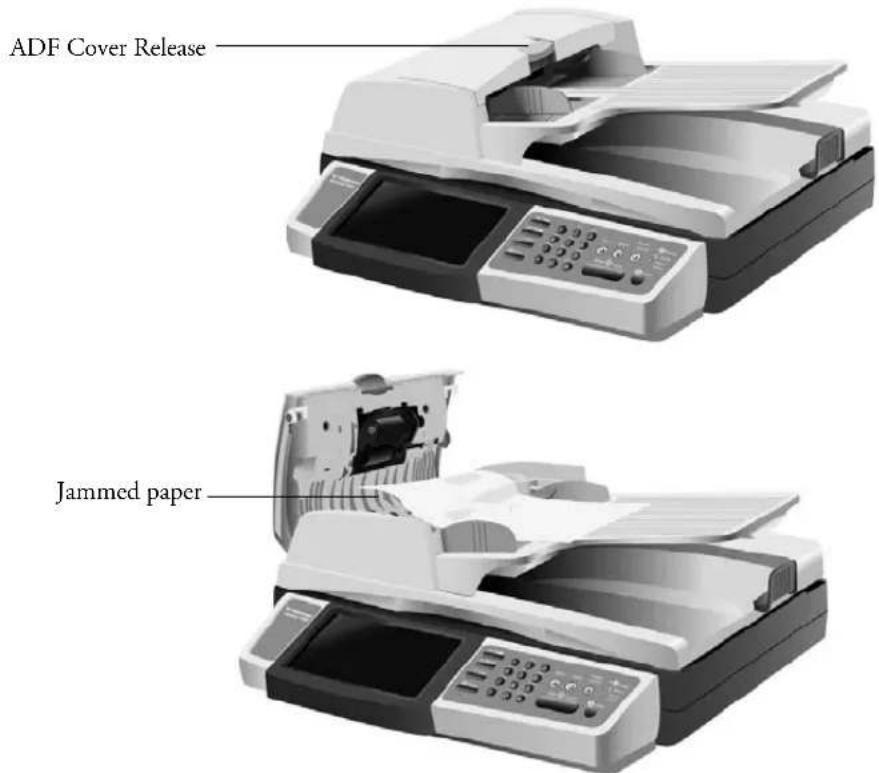
If the jammed page is too far in the scanner to be retrieved from the ADF, gently pull the page out from under the paper tray:
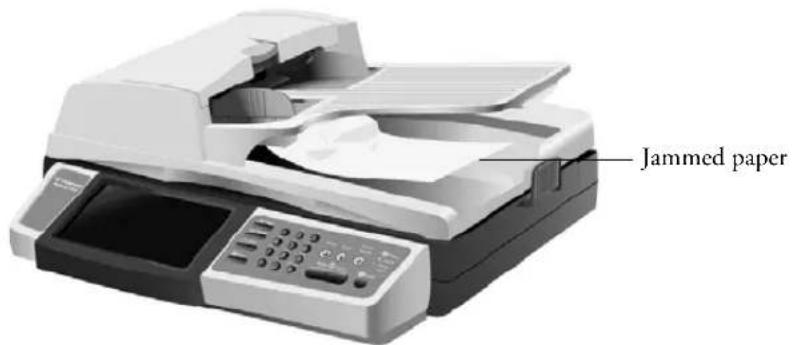
CLEANING THE SCANNER
Regular maintenance of your scanner can help to ensure continual optimal performance.
CLEANING THE AUTOMATIC DOCUMENT FEEDER
Clean the ADF if documents do not feed easily into the ADF, or if several feed in at the same time.
To clean the ADF:
-
Dampen a soft, lint-free, cloth with some Isopropyl rubbing alcohol (95% solution).
-
Lift up on the ADF cover release, and carefully open the ADF door.
-
Wipe the feeding rollers from side to side. Rotate the rollers as you are cleaning them to clean the entire surface. Be careful not to snag or damage the pick-up springs.
-
Wipe down all plastic areas of the scanner housing.
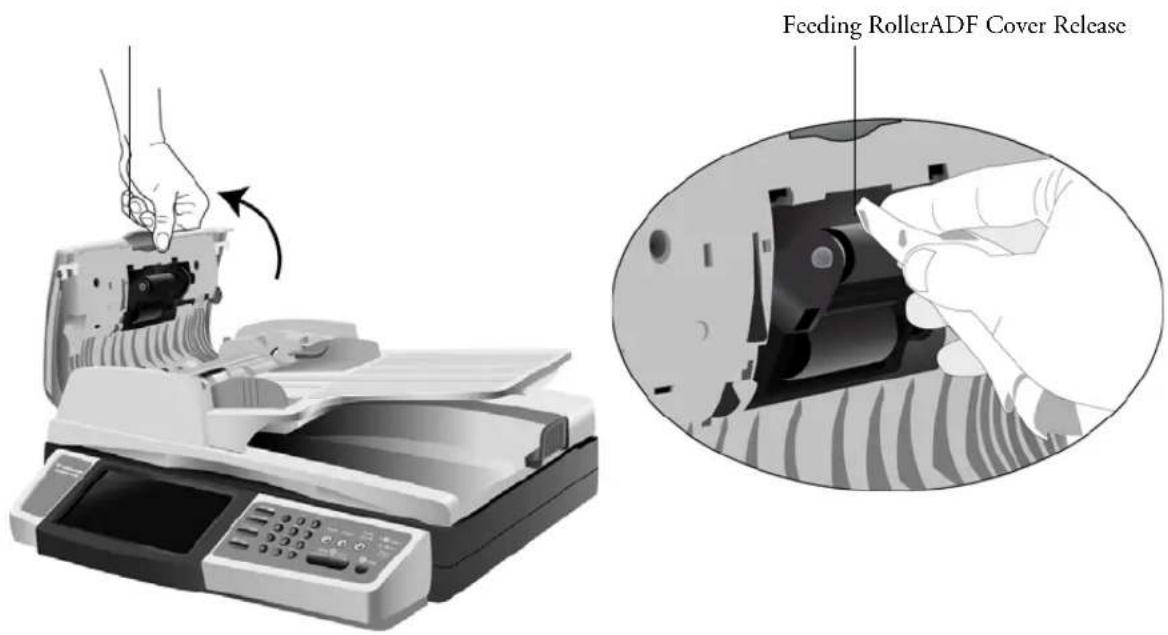
Note: Please be careful when cleaning the roller. The roller is designed to rotate in one direction only. As you are cleaning the roller, make sure it rotates easily, and continue rotating it in that direction while wiping it clean. Do NOT force the roller to rotate in the opposite direction. Forcing the roller to rotate will damage it, and may cause the scanner to feed pages incorrectly.
- Wipe the black part of the ADF snap-in pad. Be careful not to snag the cloth on the housing that keeps the pad in the scanner.
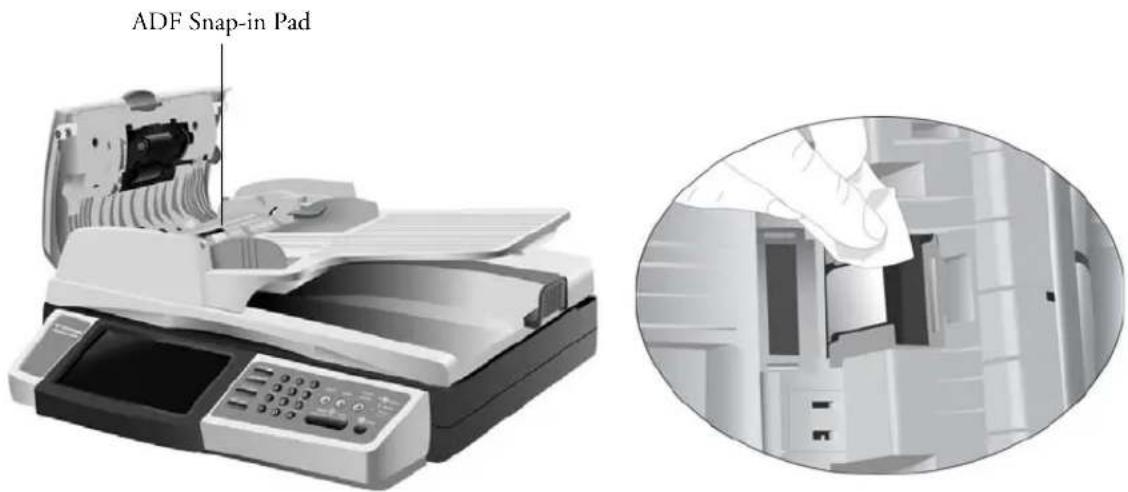
- Close the ADF unit. Your machine is now ready to use.
CLEANING THE SCANNER GLASS
Scanning items that have excessive amounts of dirt or dust may dirty the glass.
To clean the scanner glass:
- Lift up the scanner lid to show the flatbed glass.
- Dampen a soft, clean, lint-free cloth with some Isopropyl rubbing alcohol (95% solution).
-
Gently wipe the glass clean. Do not vigorously rub the cloth against the glass so as to prevent scratching.
-
Clean the strip of glass that is to one side of the flatbed glass.
Note: If lines appear on the images scanned with the ADF, but not on the Flatbed glass, the thin plate of glass used by the ADF may be dirty. When pages are pulled through the ADF during scanning, this thin glass plate is where the images are captured by the scanner.
- Close the document cover when you are done cleaning the scanner.
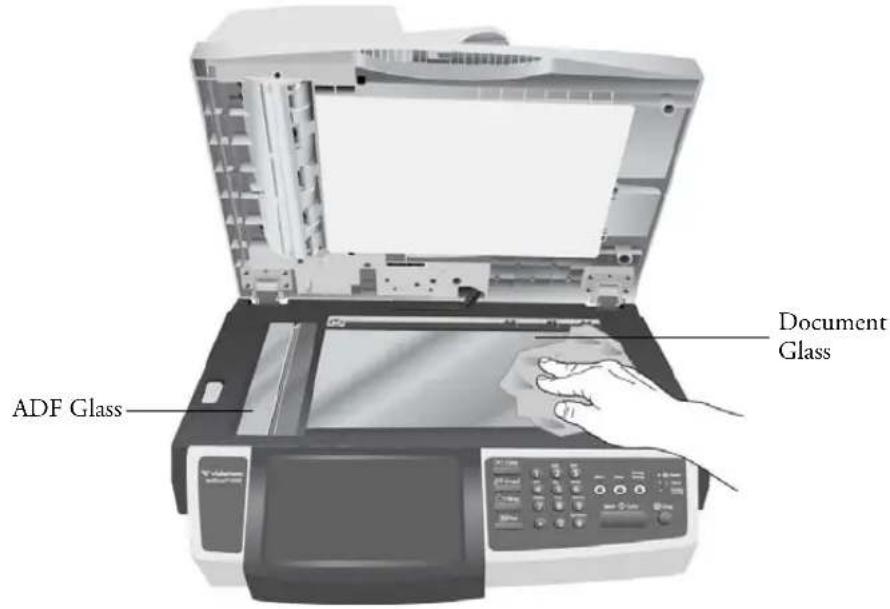
CLEANING THE LCD-DISPLAY
To clean the display surface, use a soft lint-free cloth, either dry or moistened with neutral detergent or ethanol. Do not use any organic solvents, acid or alkali solution.
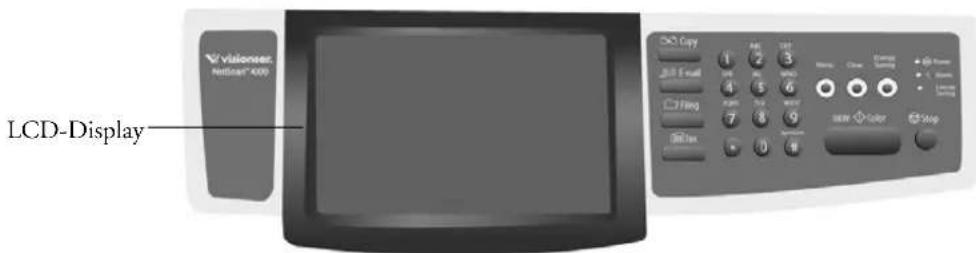
REPLACING THE ADF PAD ASSEMBLY
The ADF Pad may wear out and is designed to be a user-replaceable part. Problems with documents feeding through the ADF is an indication that the pad is wearing out. You should first clean the ADF following the instructions in the previous section “Cleaning the Automatic Document Feeder” on page 123.
To remove the ADF pad assembly:
- Lift up on the ADF cover release, and carefully open the ADF door.
- Press the top of the ADF snap-in pad housing as illustrated to raise the holder.
Note: Do NOT remove and discard the metal spring that is located under the ADF pad housing. Please be careful not to snag anything on the spring nor bend it.
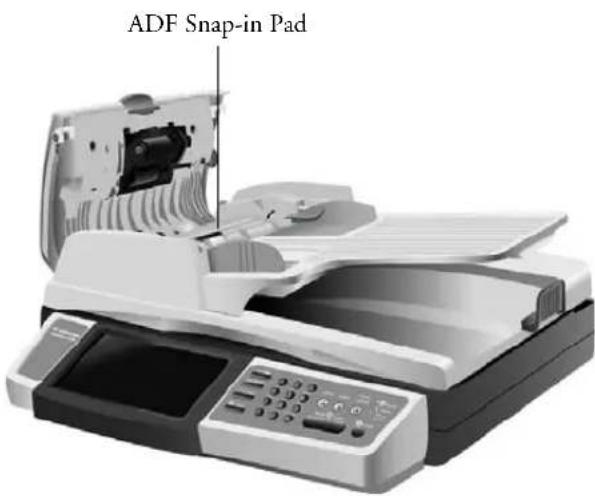
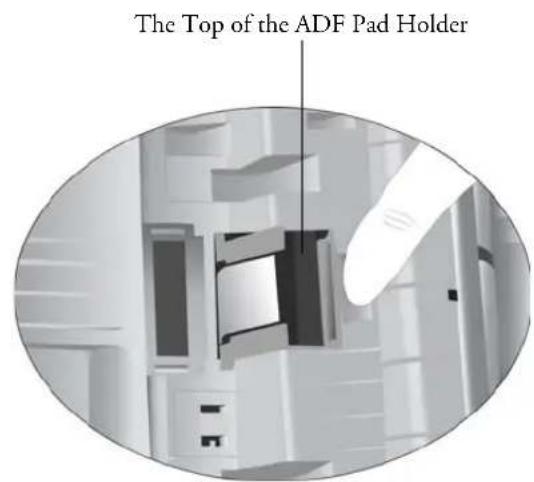
-
Pinch both sides of the housing inward, to release it from the scanner, then remove it from the slot.
-
Pinch both sides of the ADF pad inward, to release it from the scanner, then remove it from the slot.
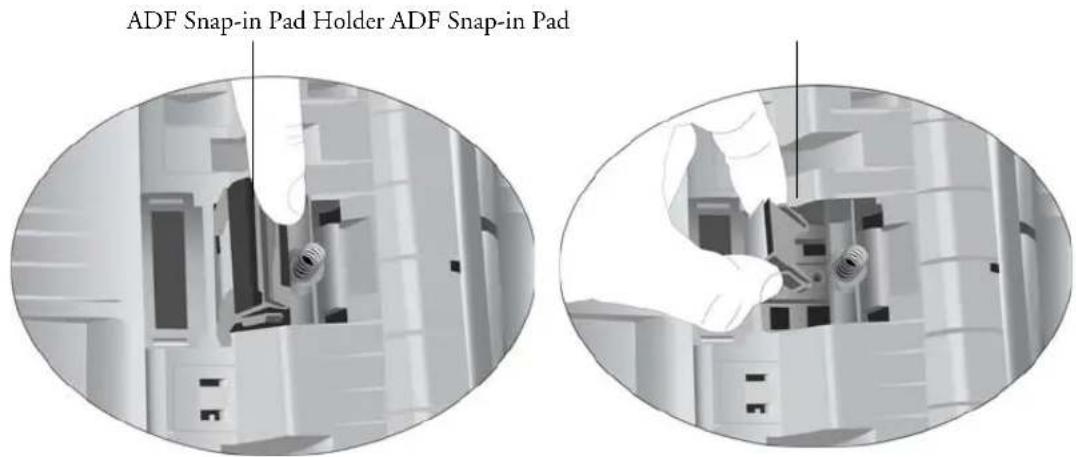
To replace the ADF pad assembly:
- Take the ADF pad module out of the box.
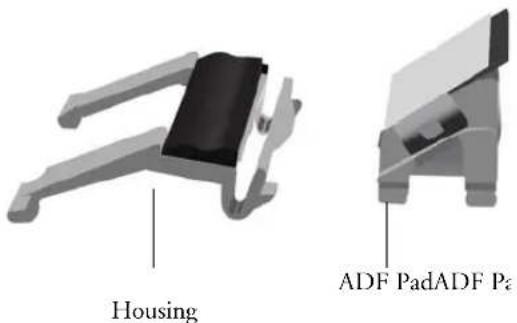
-
Pinch both arms of the ADF pad inward and align the arms of the ADF pad with the slots on the scanner.
-
Place it into the slots in the scanner, then press down until it snaps into place.
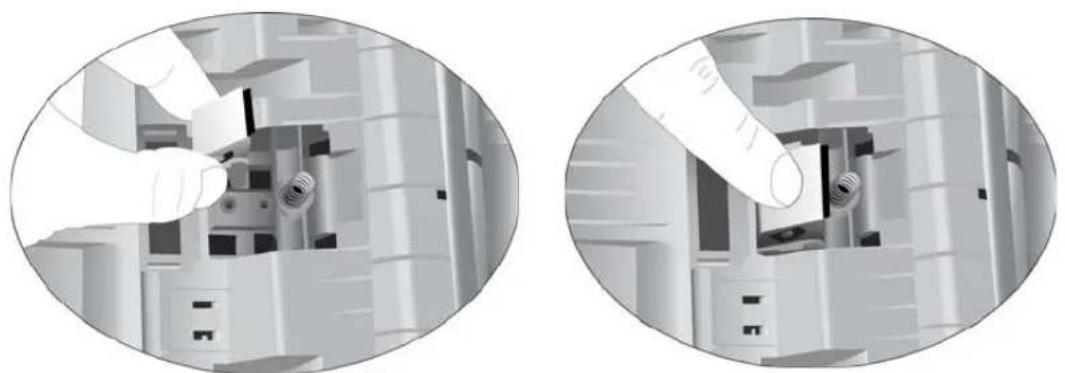
natural_image
Two circular illustrations showing hands inserting a component into a mechanical housing (no text or symbols visible)Be careful not to bend or warp the metal spring.
-
Pinch both sides of the ADF pad housing and insert the pins to the holes in the scanner.
-
Press down the top of the housing until it snaps into place.
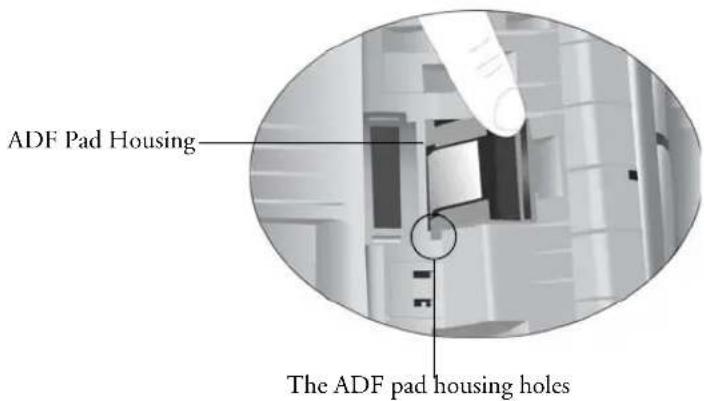
- Close the ADF cover when you are finished replacing the ADF pad.
REPLACING THE ROLLER ASSEMBLY
The ADF Roller may wear out and is designed to be a user-replaceable part. Problems with documents feeding through the ADF is an indication that the roller may be wearing out. You should first clean the ADF following the instructions in the previous section “Cleaning the Automatic Document Feeder” on page 123. Excessive dust on the roller can make it appear worn and smooth to touch. You cannot determine if it is time to replace a roller if the roller hasn’t been cleaned first. The roller should last for approximately 200,000 pages scanned.
To remove the roller assembly:
- Lift up on the ADF cover release, and carefully open the ADF door.
- Lift up the green lock flange to unlock the roller from the ADF door.
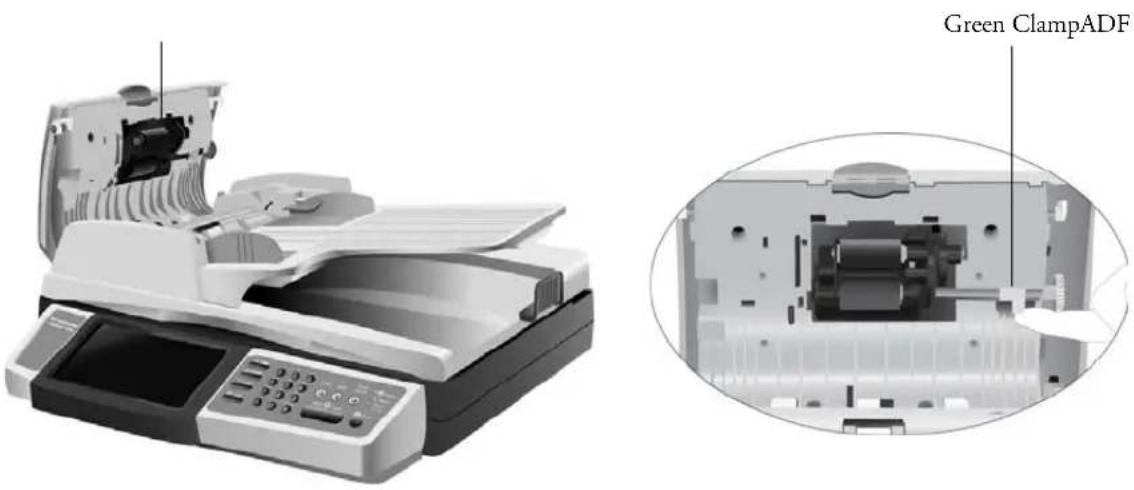
- Carefully angle the roller out and away from the ADF door.
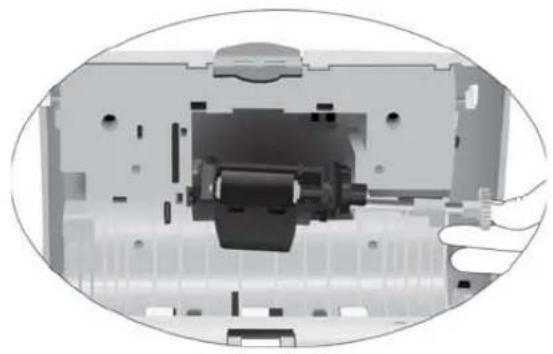
natural_image
Cross-sectional view of a mechanical device showing internal components and a hand interacting with a cable (no text or symbols visible)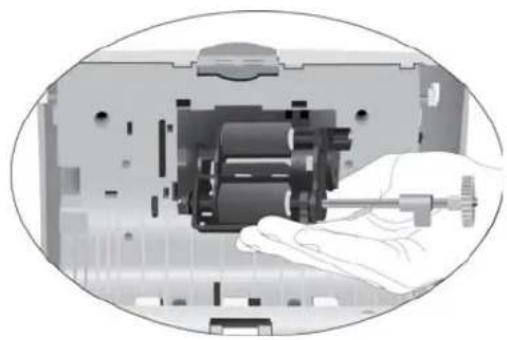
natural_image
Close-up of a hand operating a mechanical device inside a transparent enclosure (no visible text or symbols)To replace the roller assembly:
To install the ADF roller, please follow these steps.
- Insert the left end of the roller assembly into the hole in the ADF door.
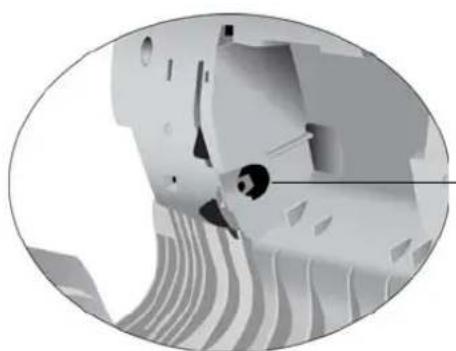
natural_image
Close-up of a mechanical component with layered structure and internal features (no visible text or symbols)Roller Housing Hole
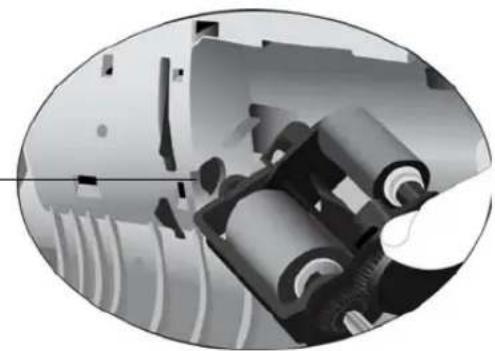
natural_image
Close-up of mechanical components with rollers and a housing (no visible text or symbols)- Angle the roller into the scanner.
-
Align the tab on the green lock flange with the slot in the ADF door.
-
Press down on the lock flange to lock the roller into the scanner.
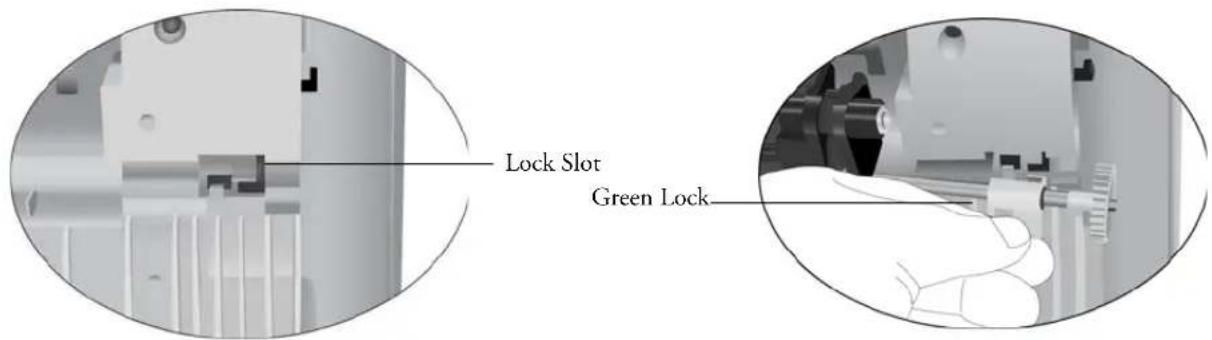
- Close the ADF front cover.
Appendix
DEFINING THE SHORTCUT BUTTONS
The scanner's Shortcut provides you an effective way to make copies, or distribute your documents, in three simple touches on the LCD-display or the control panel. The three-step operation saves you a considerable amount of time in typing or choosing your favorite settings.
Before using the shortcut buttons, you need to first define the shortcut buttons via the scanner's web page. You will need the scanner's IP address to access its embedded web page.
To determine the scanner's IP address:
- Press the Menu button on the scanner.
- Touch the Network Settings button on the LCD screen.
- Write down the number in the IP Address field.
To define a shortcut:
- Start your browser, Microsoft I.E. 5.0 or higher, or Netscape Communicator 6.0 or higher, or Mozilla Firefox.
- Type the IP address of the scanner in the URL field. For example, http://10.1.30.83 The scanner's embedded web page opens.
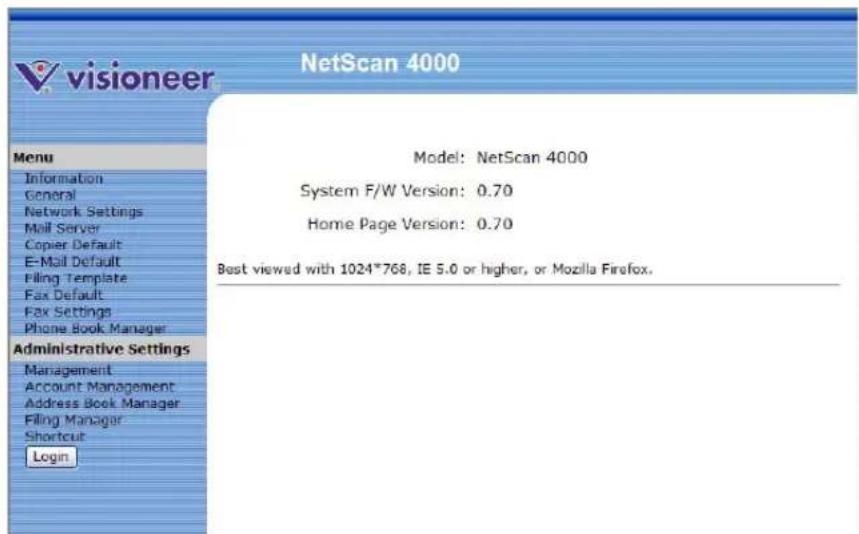
- Click Shortcut and you will be prompted to enter the administrator password.
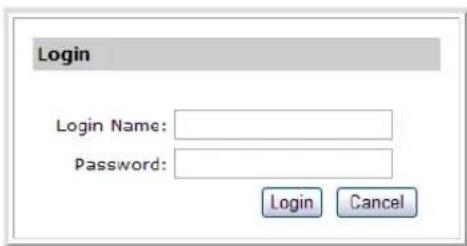
-
There is no default password set when the scanner is shipped from the manufacturer. If a password has not be defined by a system administrator, simply click on Login to access the shortcut button configuration screen.
-
For the first shortcut button you want to set, click the drop down arrow under the Mode: column and select an option from the list.
In the example below, E-Mail has been chosen for shortcut button #1.
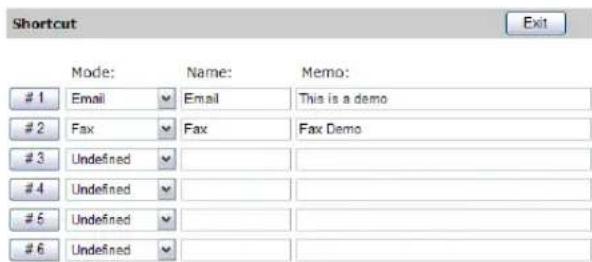
- Click the “#1” button to display the following Shortcut #1 Settings screen. (Note the default settings for the designated working mode will be displayed)
Any information you specify, in the bottom portion of the screen, will be the settings used anytime this shortcut button is used. The Name and Memo fields is the data displayed in the shortcuts menu. You can use the Memo field to describe what functions this shortcut performs.
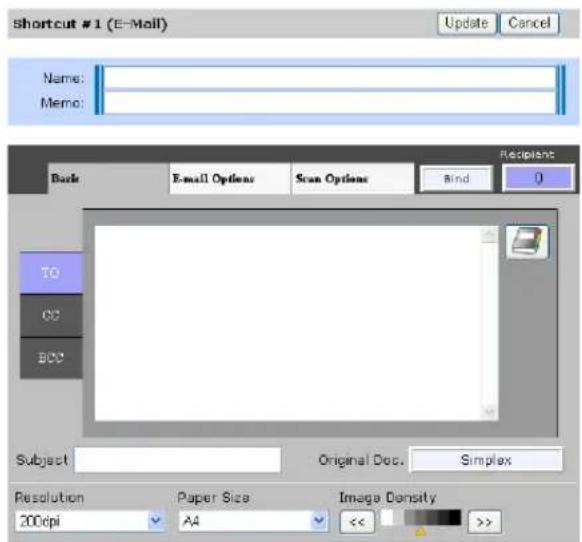
- Type a shortcut name in the Name field.
- Type a description in the Memo field.
-
Select the TO, CC, and/or BCC tab to input e-mail address(es) for the shortcut button. You can click the Address Book button to access and select any e-mail addresses stored in the scanner's address book.
-
Type a subject title, in the Subject field, and select the other most commonly used settings for the type of documents you scan and send via email.
The following list of fields have settings that should be adjusted to meet the document requirements: Original Doc., Resolution, Paper Size, Image Density, and Bind.
| Item Description | |
| Original Doc | Press to choose betweenSimplexorDuplex.Select Simplex for single-sided scans, select Duplex for double-sided scans. |
| Resolution The resolution for your scanned document. The higher the resolution, the greater the detail for the scanned image. High resolution settings take longer to scan and produce larger file sizes.Choices: 75, 100, 150, *200, 300, 400, 600 dpi | |
| Paper Size Choose your document size.Choices: *A4, Letter, A5, B5, LegalNote the legal size is available when scanning from the ADF. | |
| Image Density The image density can be adjusted within a range of 7 levels using the control panel or from the scanner's Web Page.Choices: 1, 2, 3, *4, 5, 6, 7(1 means the lightest density while 7 means the darkest density.) | |
| Bind | Press theBindbutton when you want to scan more than 50 pages from the ADF, or more than one page from the flatbed. After scanning the 1st batch or 1st page, a dialog box will pop up asking if you want toBindorEnd.Choose Bindto scan the next batch or page or choose Endto stop scanning. |
-
Click the E-mail Options or the Scan Options tab if you wish to define more settings for your Shortcut button.
-
When you are done making changes, click Update to send the changes to the scanner, or Cancel to leave the screen without saving the shortcut button changes.
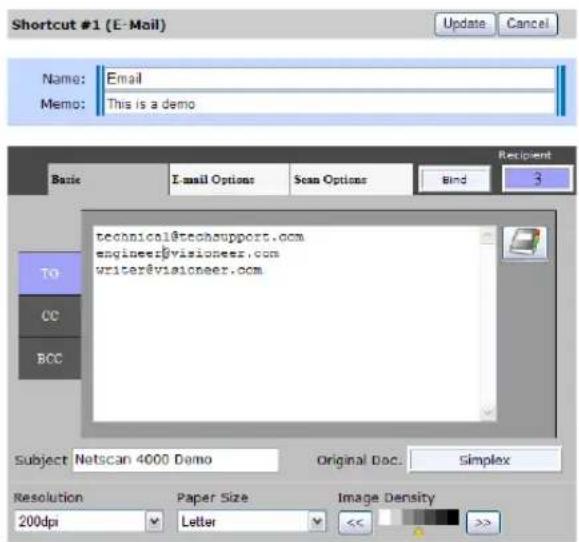
Note:
■Up to six shortcut buttons can be assigned.
■Except for entering the button name and its memo, other shortcut settings are the same with the operation steps described in Chapter 5. Please refer to Chapter 5 Operation for more details on how to set the settings for E-mail, Copy, Folder, and Fax function.
■To edit your current shortcut button, simply click the button number and make your changes and click Update to save your changes.
■To delete the current shortcut button, click the button number and choose your working mode to be "Undefined".
USING THE SHORTCUT BUTTONS
To use a shortcut button:
- Set your default working mode to be Shortcut by pressing the Menu button on the control panel, and then choose Management>Device Management>Default Mode>Shortcut in succession on the LCD-screen touch panel. Press OK to save the change.
Or you can set the default working mode via the scanner's embedded web page and choose Management>Default Mode>Shortcut in succession. Press Update to save the change.
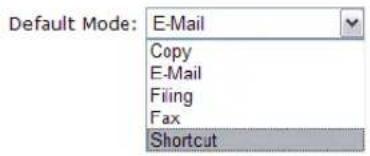
Note: If an administrator password has been set, setting the scanner to use the shortcut button mode will require a password be entered when accessing this function through either option.
- Press the Reset button on the control panel. The LCD-screen shows the following Shortcut display.

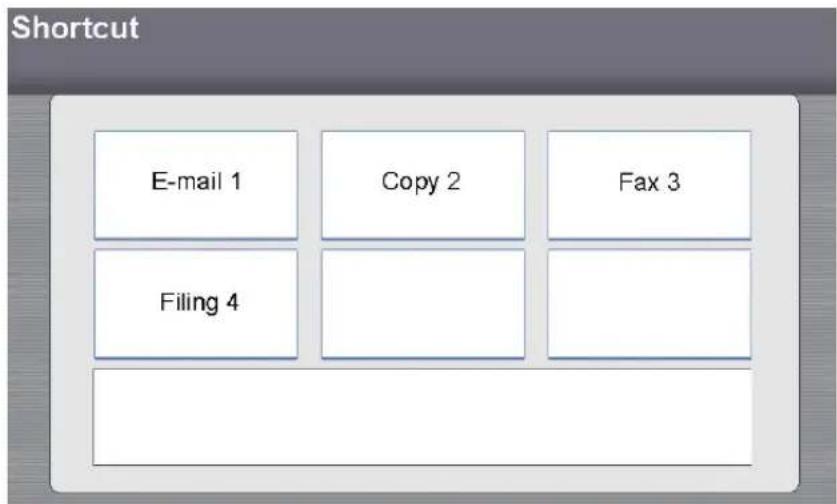
- Press the Shortcut button you want to use. The LCD-screen will show the memo of your selected Shortcut button.
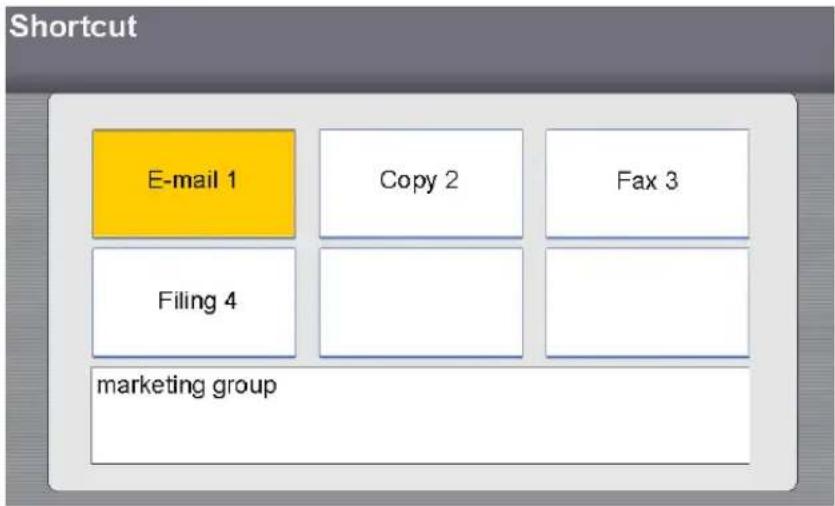
- Press the B&W or Color button on the control panel to copy or send your documents in black and white or in color.
Note: If the Scan Options tab, for the selected shortcut button, has been set to Black/White Multi-Level(gray): ON, pressing the B&W button on the control panel will produce a grayscale scan.
MANAGING THE ADDRESS BOOK
The scanner's Java-Manager is a convenient and effective browser-based tool to manage the address book for the scanner remotely. Since only the administrator can manage the address book, it is highly recommended that the administrator read this chapter before managing the scanner.
To access the embedded web-page address book, you will need the scanner's IP address to access its embedded web page.
To determine the scanner's IP address:
- Press the Menu button on the scanner.
- Touch the Network Settings button on the LCD screen.
- Write down the number in the IP Address field.
ADDING AN E-MAIL ADDRESS
To add an e-mail address:
-
Start your browser, Microsoft I.E. 5.0 or higher, or Netscape Communicator 6.0 or higher, or Mozilla Firefox.
-
Type the IP address of the scanner in the URL field. For example, http://10.1.30.83. The scanner's embedded web page opens.
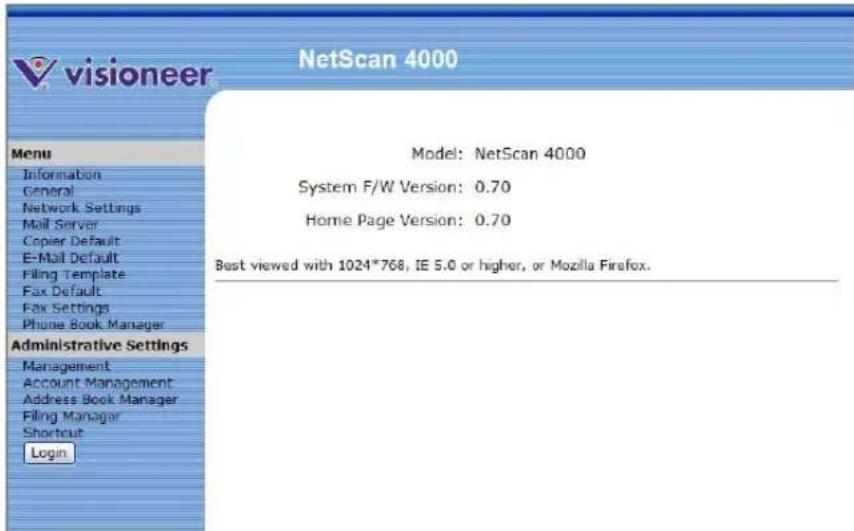
- Click Address Book Manager and you will be prompted to enter a password.
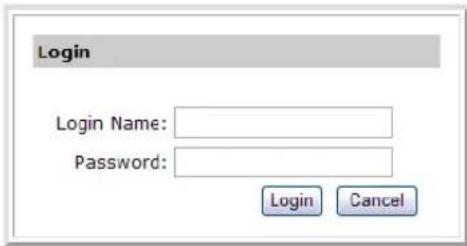
- There is no default password set when the scanner is shipped from the manufacturer. If a password has not be defined by a system administrator, simply click on Login to access the Address Book Manager configuration screen.
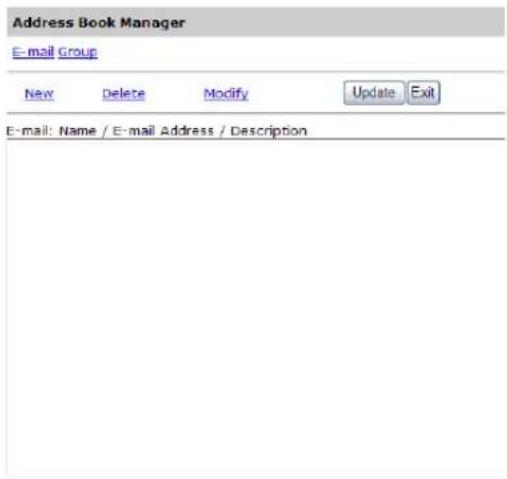
- Click the E-mail link and choose New to display the following Add a New E-Mail Address dialog box.
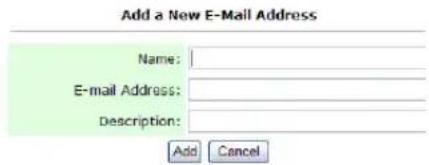
- Enter a name, e-mail address, and description, and then click Add to temporarily save the latest data or Cancel to return to the Address Book Manager screen without adding the e-mail address to the Address Book.
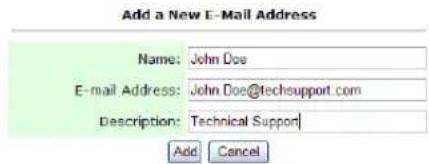
- Click Update to send the changes to the scanner, or Exit to leave without saving the address.
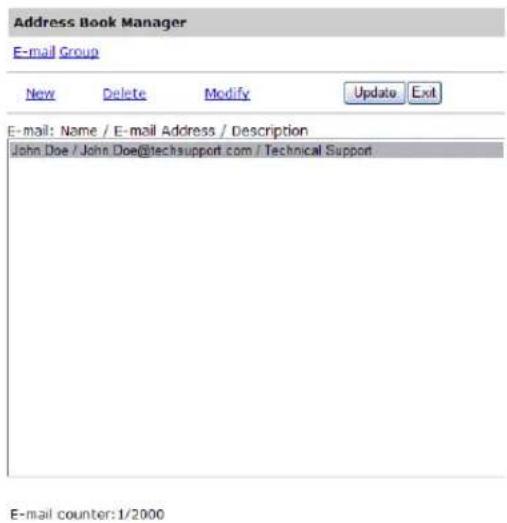
Note: Up to 2,000 e-mail addresses can be entered in the Address Book.
MODIFYING AN E-MAIL ADDRESS
To modify an e-mail address:
- Start your browser, Microsoft I.E. 5.0 or higher, or Netscape Communicator 6.0 or higher, or Mozilla Firefox.
- Type the IP address of the scanner in the URL field. For example, http://10.1.30.83. The scanner's embedded web page opens.
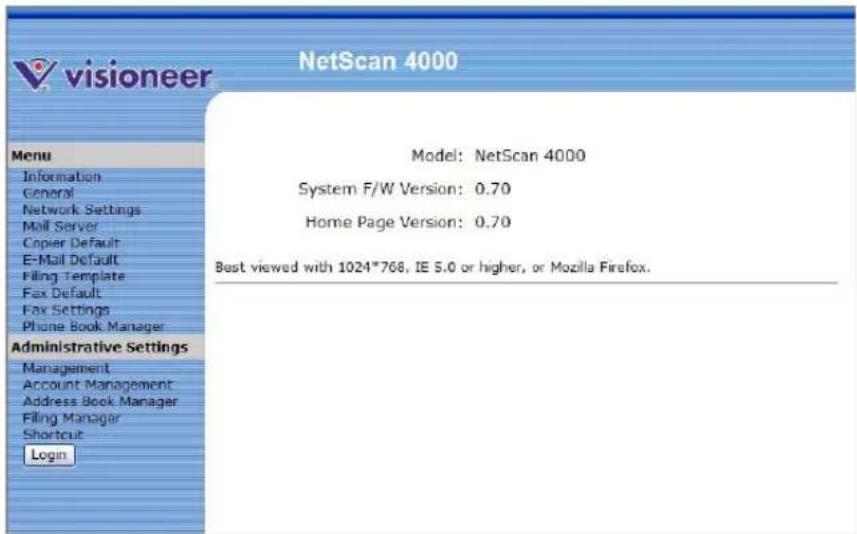
- Click Address Book Manager and you will be prompted to enter a password.
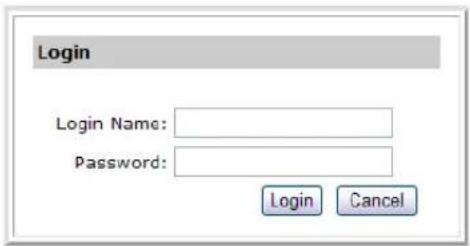
- There is no default password set when the scanner is shipped from the manufacturer. If a password has not be defined by a system administrator, simply click on Login to access the Address Book Manager configuration screen.
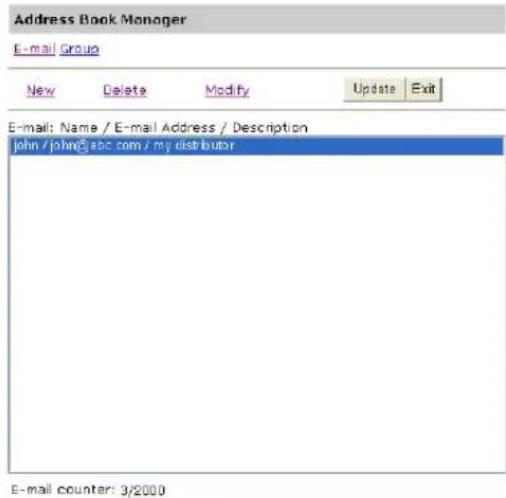
-
Select the address you want to modify and then click Modify.
-
The Modify an E-Mail Address dialog box opens.
You can also double-click on the e-mail address, you want to modify, to open the Modify an E-Mail Address dialog box.
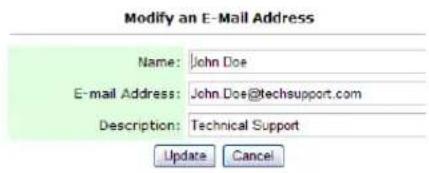
-
Modify the e-mail address data as needed.
-
Click Update to save the changes, or Cancel to return to the Address Book Manager screen without saving the changes.
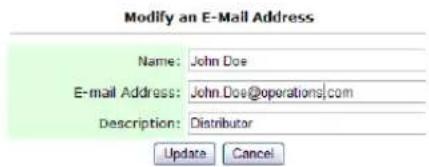
- Click Update to send the changes to the scanner, or Exit to leave without saving the changes.
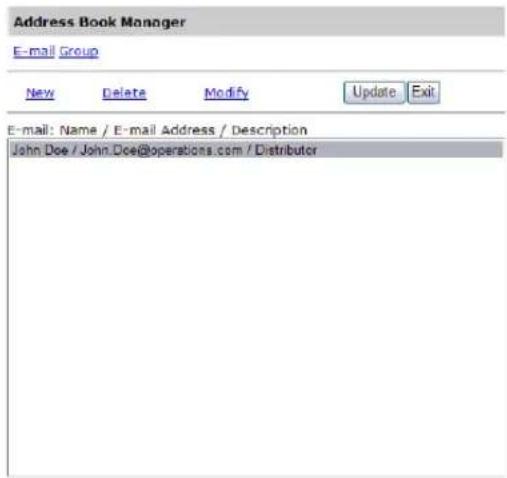
E-mail counter:1/2000
DELETING AN E-MAIL ADDRESS
To delete an e-mail address:
- Start your browser, Microsoft I.E. 5.0 or higher, or Netscape Communicator 6.0 or higher, or Mozilla Firefox.
- Type the IP address of the scanner in the URL field. For example, http://10.1.30.83. The scanner's embedded web page opens.
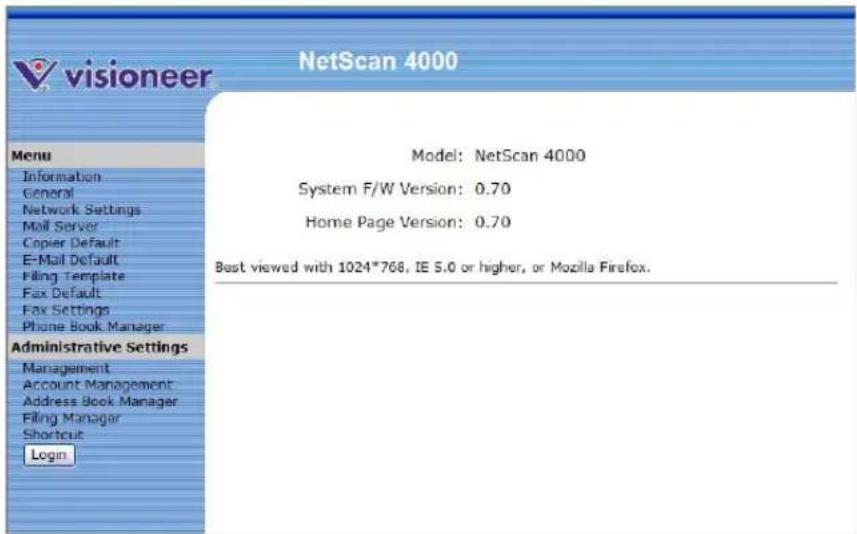
- Click Address Book Manager and you will be prompted to enter a password.
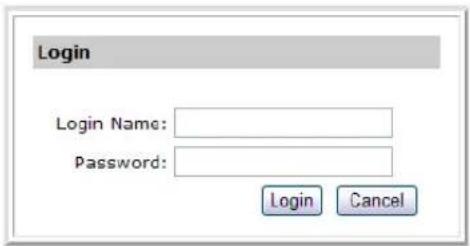
- There is no default password set when the scanner is shipped from the manufacturer. If a password has not be defined by a system administrator, simply click on Login to access the Address Book Manager configuration screen.
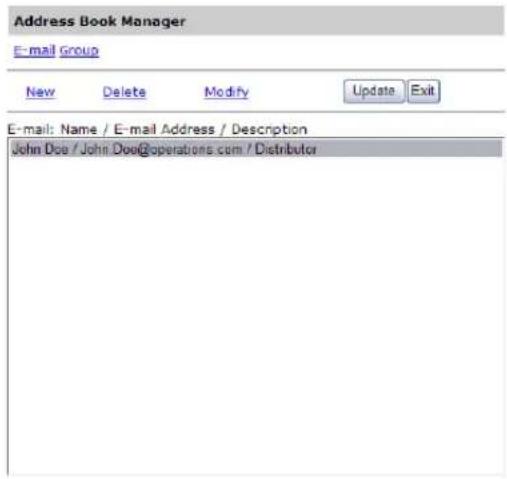
E-mail counter:1/2000
- Select the address you want to delete then click on the Delete button. A Confirmation dialog box opens for you to confirm your choice. Click OK to delete the e-mail address and close the dialogue, or Cancel to exit without deleting the e-mail address.
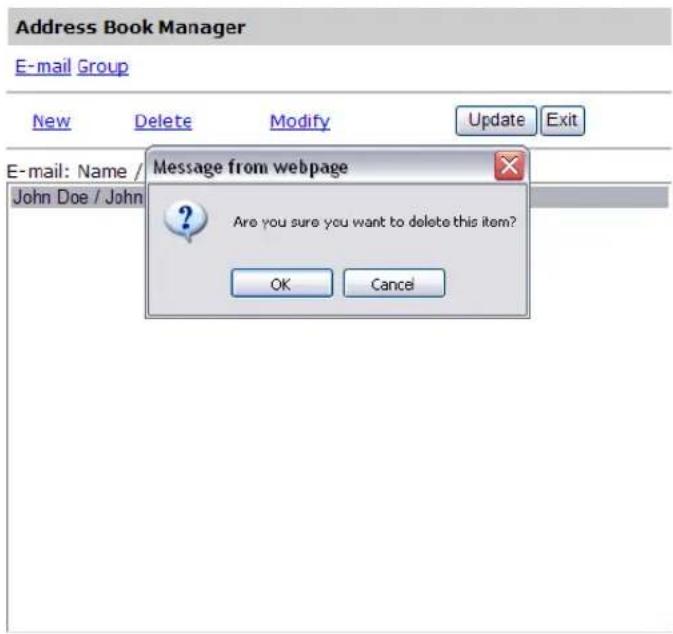
E-mail counter:1/2000
- Click Update to send the changes to the scanner, or Exit to leave without saving any changes.
ADDING A NEW GROUP
To send multiple addresses simultaneously at one time, you can create address group to speed up the process. Up to 99 addresses can be included in one group and a total of 20 groups can be created in the Address Book.
To add a new group:
-
Start your browser, Microsoft I.E. 5.0 or higher, or Netscape Communicator 6.0 or higher, or Mozilla Firefox.
-
Type the IP address of the scanner in the URL field. For example, http://10.1.30.83. The scanner's embedded web page opens.
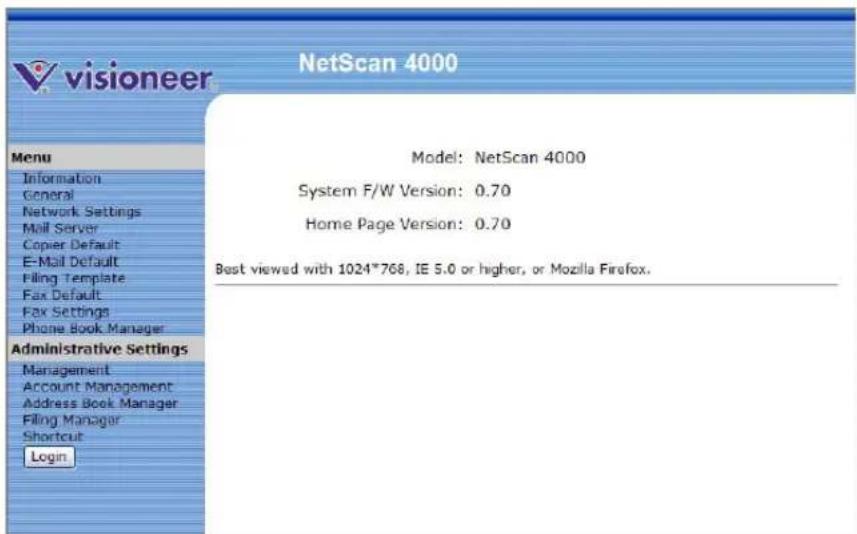
- Click Address Book Manager and you will be prompted to enter a password.
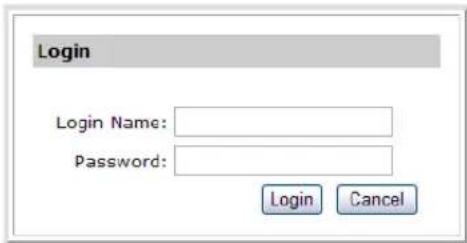
- There is no default password set when the scanner is shipped from the manufacturer. If a password has not be defined by a system administrator, simply click on Login to access the Address Book Manager configuration screen.
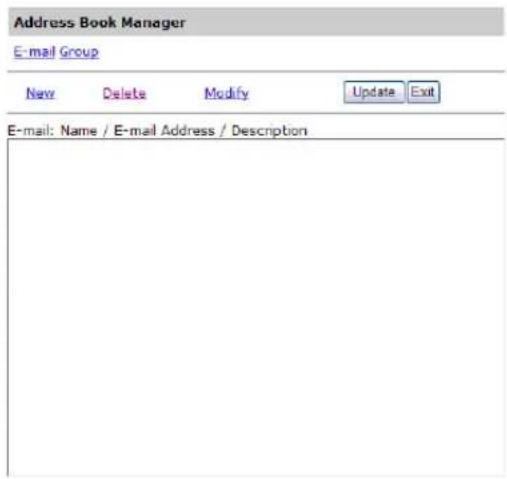
E-mail counter:0/2000
- Click the Group link and then click the New link to display the Add a New Group Set dialog box.
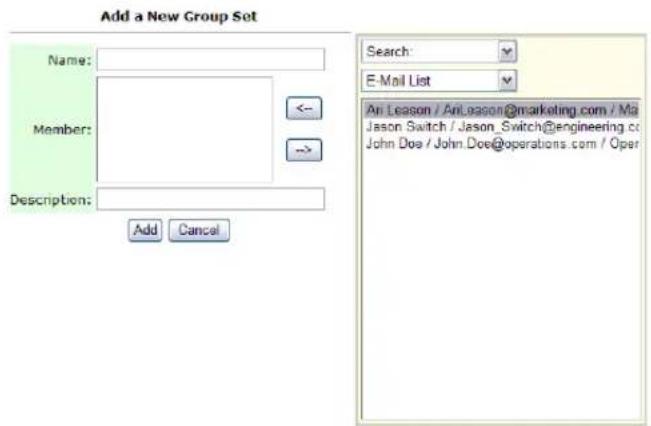
-
Type a group name in the Name field.
-
Select an e-mail address on the right side and then click <- to add a member to the group.
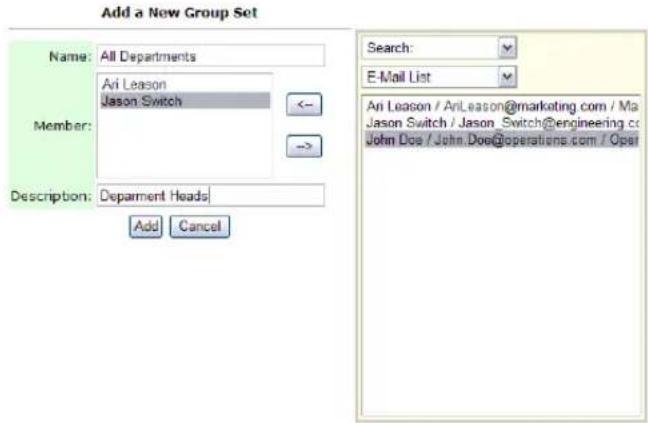
- Click Add to temporarily save the changes, or Cancel to return to the Address Book Manager screen without adding a new group.
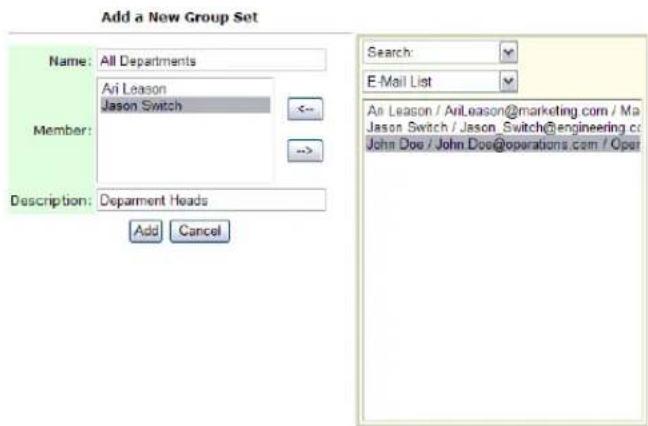
- Click Update to send the changes to the scanner, or Exit to leave without saving any changes.
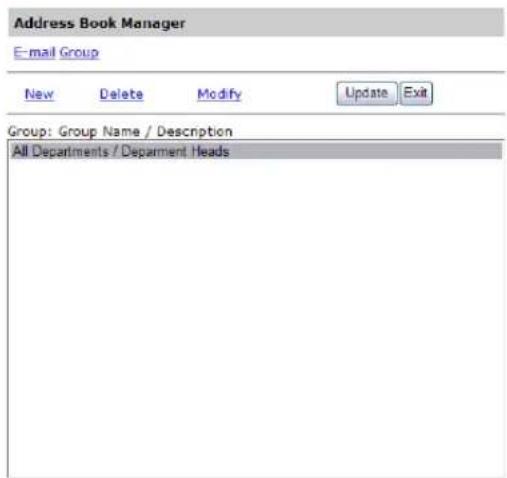
Group counter:1/20
MODIFYING A GROUP
To modify a group:
- In the Address Book Manager screen, click the Group link, and then click the Modify link to open the Modify a Group Set dialog box. Or you can double-click the group to open the Modify a Group Set dialog box.
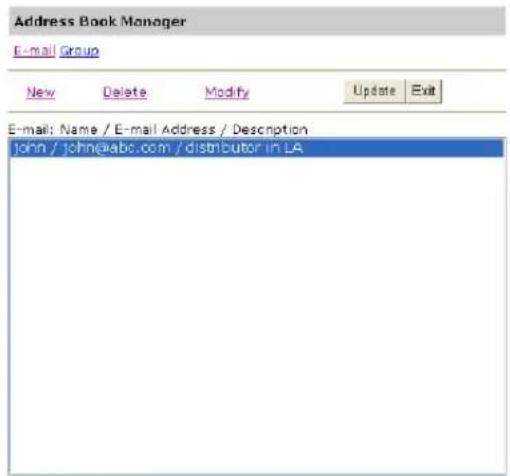
E-mail counter: 3/2000
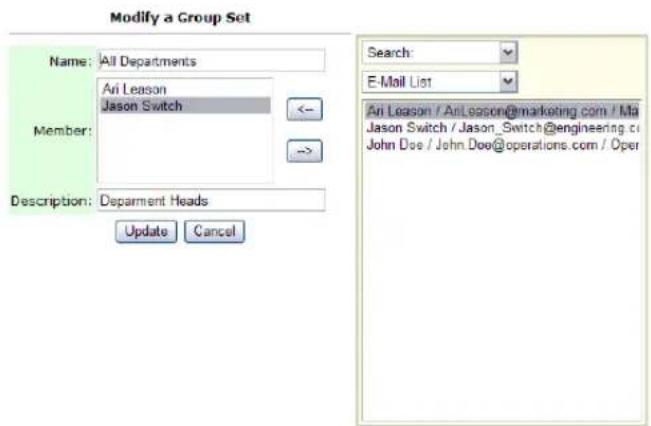
-
Select the group member, on the right side, that you want to add, and then click <- to add the new member to the current list. Or, select a group member on the left side and click -> to remove a member from the group.
-
Click Update to save the changes, or Cancel to return to the Address Book Manager screen without modifying the group.
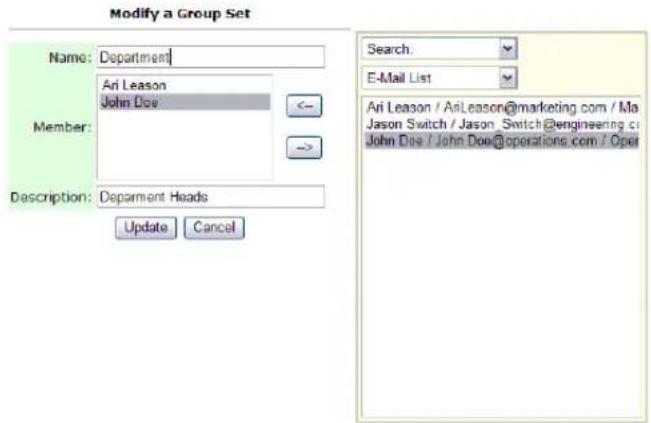
- Click Update to send the changes to the scanner, or Exit to leave the screen without saving any changes.
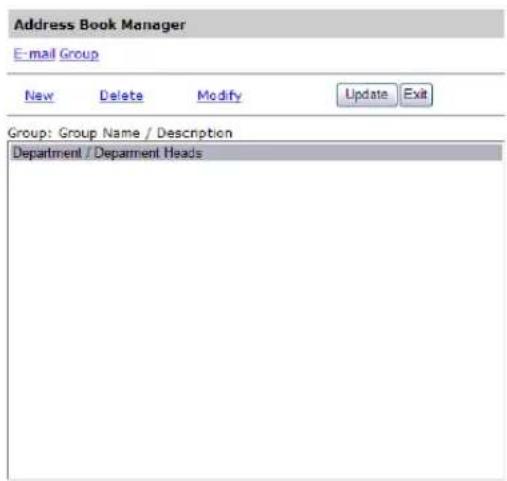
Group counter:1/20
DELETING GROUPS
To delete a group:
- In the Address Book Manager screen, click the Group link and select the group you want to delete.
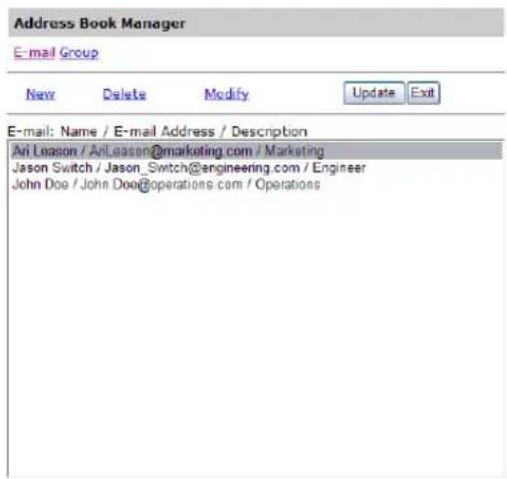
E-mail counter:3/2000
- Click Delete to remove the group. A Confirmation dialog box opens to confirm your selection. Click OK to delete or Cancel to close the dialogue without deleting the group.
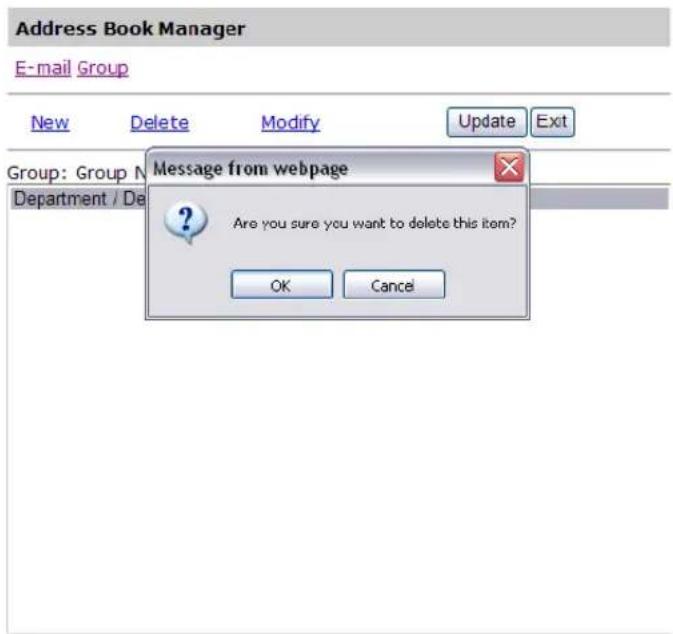
Group counter:1/20
- Click Update to send the changes to the scanner, or Exit to leave the screen without saving any changes.
Note: You can make multiple selections by choosing one group, and then pressing the Shift or Ctrl key to click and select other groups in the list.
MANAGING FAX PHONE BOOK
With the Fax Phone Book, you can send your scanned documents simultaneously to multiple fax machines at one time. The Fax Phone Book allows you to create up to 200 phone numbers and 20 phone groups.
To access the embedded web-page phone book, you will need the scanner's IP address to access its embedded web page.
To determine the scanner's IP address:
- Press the Menu button on the scanner.
- Touch the Network Settings button on the LCD screen.
- Write down the number in the IP Address field.
ADDING A NEW FAX NUMBER
To add a new fax number:
- Start your browser, Microsoft I.E. 5.0 or higher, or Netscape Communicator 6.0 or higher, or Mozilla Firefox.
- Type the IP address of the scanner in the URL field. For example, http://10.1.30.83. The scanner's embedded web page opens.
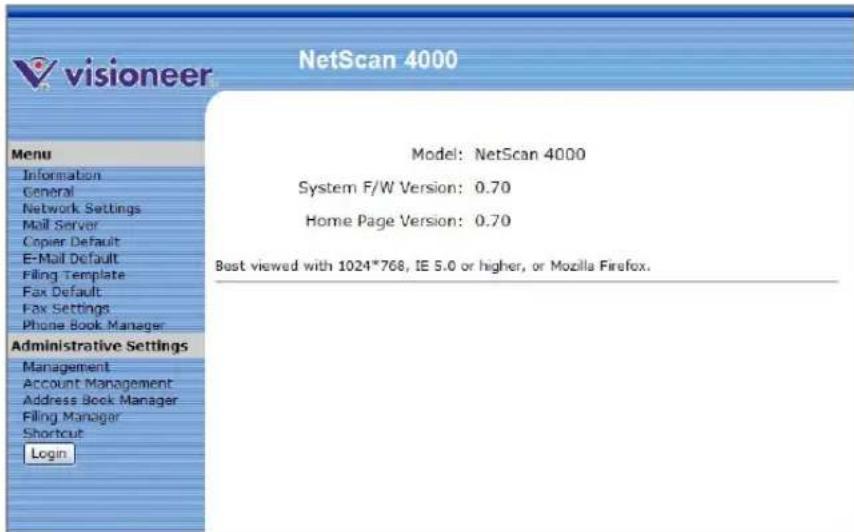
-
Click Phone Book Manager to open the Phone Book Manager screen.
-
In the Phone Book Manager screen, create the phone book by entering the names and phone numbers as illustrated below.
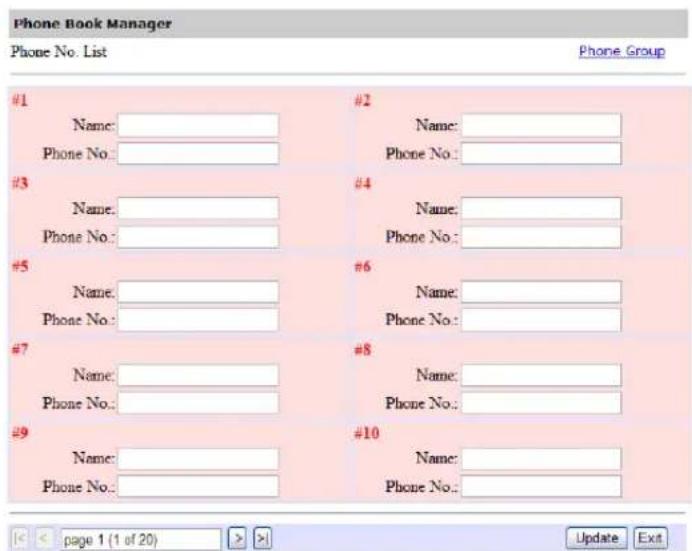
- Click Update when you are finished enter names and phone numbers, or Exit to leave the screen without saving your changes.
DELETING OR MODIFYING PHONE NUMBERS
To delete or modify a current phone number, simply make your changes in the Phone Book Manager screen and then click Update to save the changes.
ADDING A NEW FAX GROUP
Please note up to 50 phone numbers can be included in a fax group and up to 20 groups can be created in the Phone Book.
To add a new group:
- In the Phone Book screen, click Phone Group at the upper right corner to display the following Phone Group List screen.
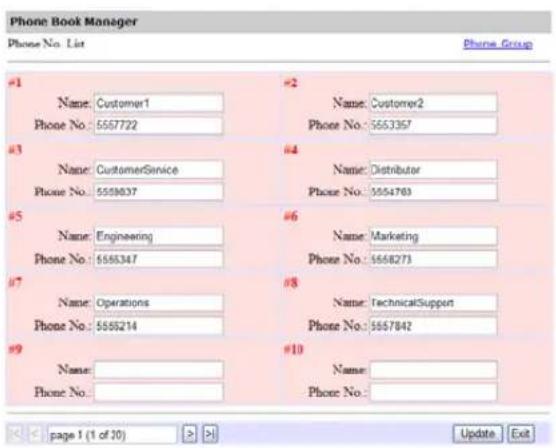
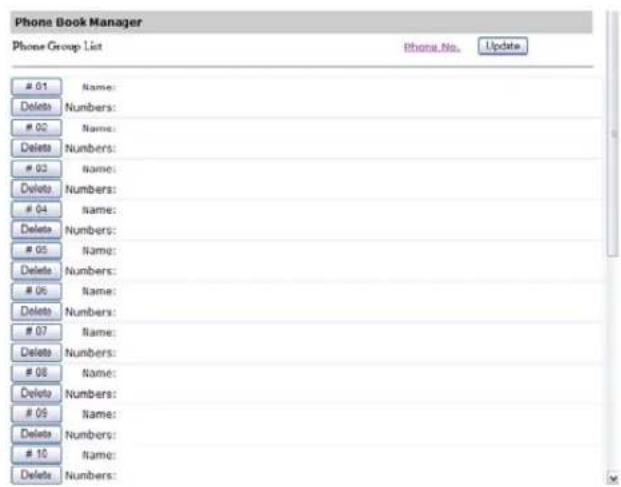
- Click a group number button to open the following Add a New Group Set screen.
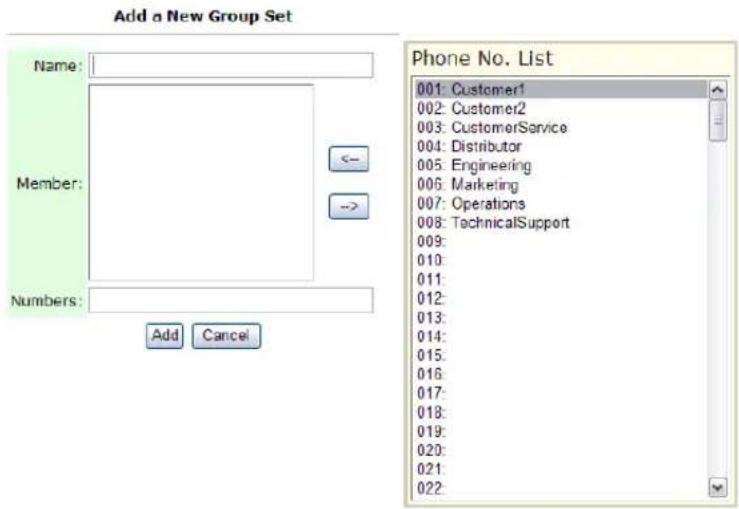
- Enter the name of the group, and select group members on the right sie of the screen, then add them to the group by clicking the <- button.
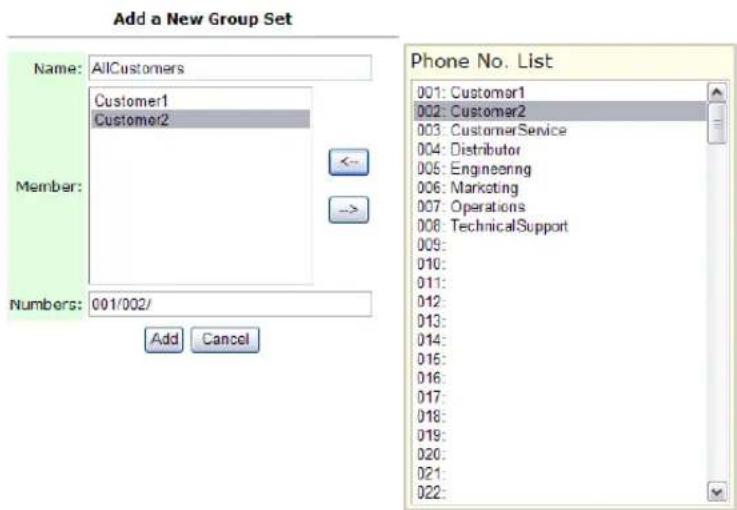
- Click Add to save your settings and return to the Phone Group List screen.
MODIFYING A PHONE GROUP
To modify a phone group:
- In the Phone Group List screen, click the group which you want to modify.
- In the Modify a Group Set screen, enter your changes and then click Update to save your settings and return to the Phone Group List screen.
- Click Update to send the changes to the scanner.
DELETING A PHONE GROUP
To delete a phone group:
- In the Phone Group List screen, click Delete beneath the group number which you want to delete.
- A Confirmation dialog box opens. Click Yes to delete or No to cancel.
ACCOUNT MANAGEMENT
This chapter is specifically targeted to the persons who are responsible for the administration of the scanner. If you are the administrator of this scanner, please read this chapter before using the scanner.
This chapter describes how to set up and manage servers and user accounts. If you want to assign local users privileges to modify the individual scanner features, such as the Copy, E-mail, Filing, and Fax function, you must set up accounts in the Account Management. The Account Management feature can only be accessed through the scanner's embedded web page.
After creating user accounts, power cycle the scanner for the data to refresh to the scanner. A user is required to create a login name and password and quota to use the scanner. The access to the Account Management section is blocked by the administrator password. It is recommended that an administrator create a password before changing the default settings to the secure network environment of the workplace.
To determine the scanner's IP address:
- Press the Menu button on the scanner.
- Touch the Network Settings button on the LCD screen.
- Write down the number in the IP Address field.
SETTING UP ACCOUNT MANAGEMENT USING THE SCANNER'S WEB PAGE
- Start your browser, Microsoft I.E. 5.0 or higher, or Netscape Communicator 6.0 or higher, or Mozilla Firefox.
- Type the IP address of the scanner in the URL field. For example, http://10.1.30.83. The scanner's embedded web page opens.
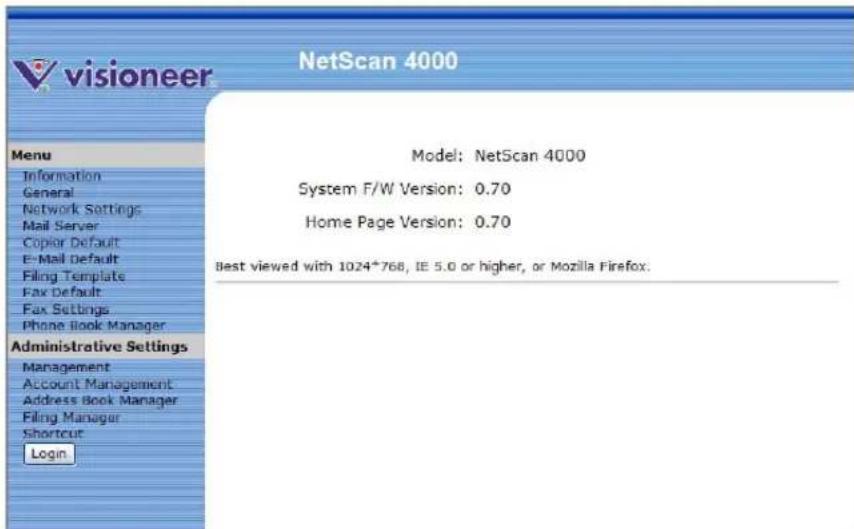
- Click Account Management and you will be prompted to enter a password.
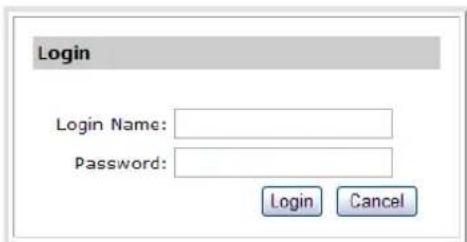
- There is no default password set when the scanner is shipped from the manufacturer. If a password has not be defined by a system administrator, simply click on Login to access the Address Book Manager configuration screen.
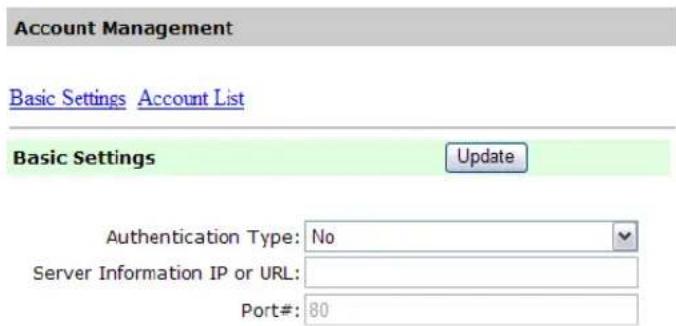
- In the Basic Settings tab, select your security type and then enter the server's URL in the Server URL field, type in your server port in the Port field. Finally click Update to save your settings. You may refer to the following table for the details of each setting:
Basic Settings :
| Item Description | |
| TypeChoose your preferred authentication type for account management.Choices: None, Local, HTTP, LDAP, SMTP“None” means no account management will be applied.“Local” means using the scanner as the authentication type, and the name and password entered in the Account management are saved in the scanner memory.HTTP, LDAP, or SMTP means using an HTTP, LDAP, or SMTP server as the authentication type. | |
| Server Information IP or URL | Assign the URL of the authenticating SMTP, HTTP or LDAP server. Touch anywhere on the URL field to bring up the soft keyboard to enter the text. |
| Port # Enter the port number if you choose HTTP, LDAP, or SMTP as your authenticating server. Default value: http:80, CIFS:139, https:443 | |
- Once you have chosen either Local, SMTP server, LDAP server, or HTTP server as your security type. You need to set each local user's login name and password. To create a new account, click the Account List link to open the Account List dialog box.
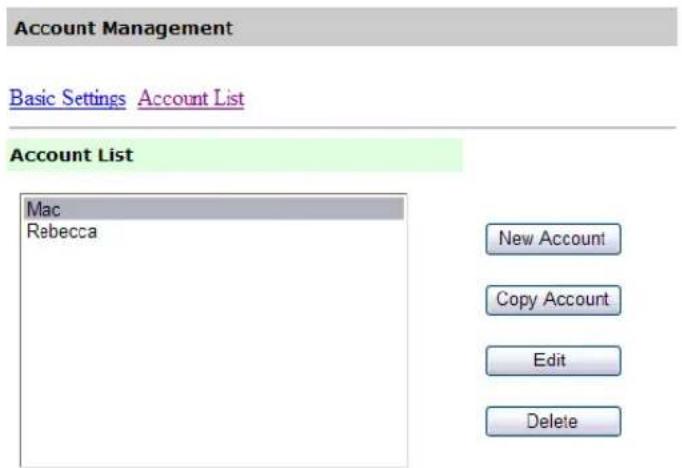
- Click the New Account button to open the New Account dialog box.
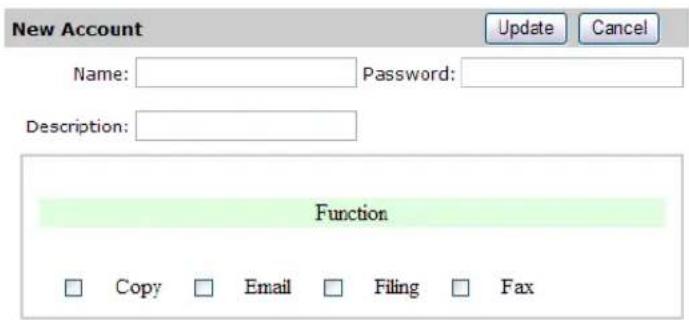
-
Set up your user name and password respectively in the Name and Password fields. The name and password are case-sensitive and up to 64 characters can be entered in the Name field and up to 16 characters can be entered in the Password field. Fill the Description field if necessary.
-
Define the user's privileges for using the scanner.
■ Function—Click to select the name of the function the user is allowed to access.
For example, the administrator allows the user, Bess, to perform the Copy, E-mail, and Filing functions, but does not allow her to use the Fax function. The New Account settings are demonstrated as below.
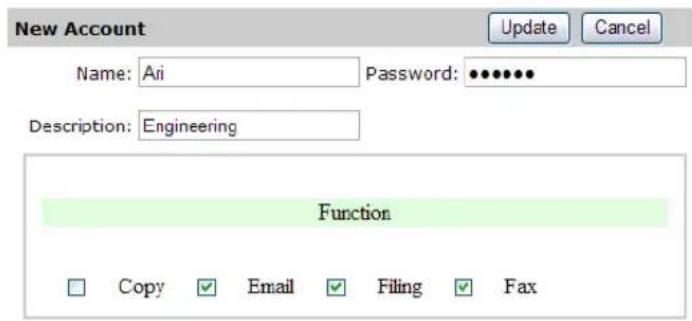
- Click Update to save the settings and return to the Account List screen.
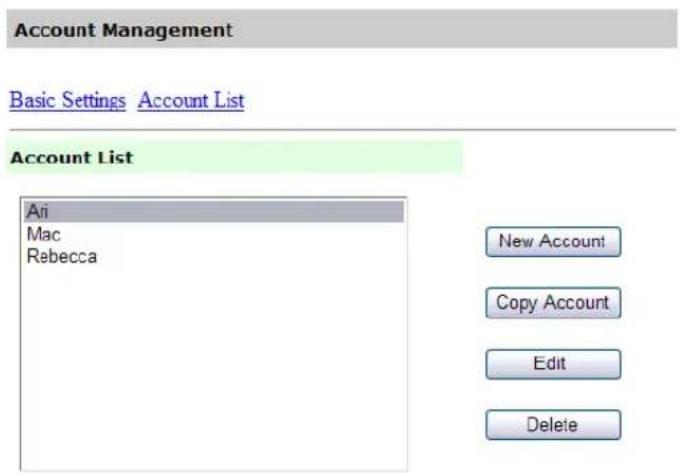
COPY ACCOUNT:
If you want to permit other users to use the same privileges as a currently defined user, simply select the account from the account list and then click the Copy Account button to open the Copy Account screen. You only
need to give a new name and password for the new user without changing any other settings. Click Update to save the settings or Cancel to return to the Account Management screen without saving any changes.
EDIT:
If you want to edit a current local user, choose the account from the account list and then click the Edit button to open the Edit Account screen. Modify the account options as needed and then click Update to save the settings, or Cancel to return to the Account Management screen without saving any changes.
DELETE:
If you want to delete a current local user, select the account from the account list and click the Delete button. A confirmation message appears to confirm your deletion. Click OK to confirm or Cancel to exit. Click Update to save the settings or Cancel to return to the Account Management screen without saving any changes.
Note: You can make multiple selections by choosing one group and then pressing the Shift or the Ctrl key, then clicking on another name to select multiple names, and delete them at once.
Specifications
General Specifications :
| Item Specification | |
| Regulatory Model Visioneer NetScan 4000 | |
| TypeA4 Flatbed with 3-pass Duplex ADF | |
| Memory Size System: 128 Mbytes,Image processing:64 MbytesScanner Asic: 64 Mbytes | |
| Flash Memory Size 9.5 Mbytes | |
| Light Source Cold Cathode Fluorescent Lamp | |
| Color Output Quality 24 bits Color,8 bits Gray,4 bits CMYK,1 bit bitonal | |
| Optical Resolution 600x600 dpi | |
| Network Connection 10/100 Mbits auto-negotiation | |
| Dimensions (W x D x H) 18.75 x 19.10 x 8.10 inches (475 x 485 x 205 mm) | |
| Weight | 22.5 lbs (10.2 kgs) |
| Warm Up Time | 45 seconds |
| Power Requirement | 24Vdc, 3.2A |
| Power Consumption | Working < 62 WStandby < 30 WSleep < 20 W |
General Specifications :
| Item | Specification |
| Power Supply DESK-TOP, IEC 320-C6, 3P, 100-240Vac, 24Vdc, 3.2A,76.8W, HEG75-S240320-7L, HiTRON CLASS I, EfficiencyLevel:V, L=1980mm, DC JACK, 0-40°C, RoHS | |
| Power Cord US—3P, 7A/125V, L=1800mm, 3C*18AWG, Black,PH8B2EDJF0A-05B, RoHSEUR(CEE)—2P+G., BASE, 16A/250V, L=1800mm,3C*0.75mm2, Black, PG8B9CIJG0A-05B, RoHSUK(BS/PSB)—3P, 3A/250V, L=1800mm, 3C*0.75mm2, Black,PG8B9X3JG0A-05B, RoHS | |
| USB Cable USB A(M)/B(M), 4P, L=1850mm, UL2725 #28AWG,CA1004020233510, transparent, with core, 75°C, RoHS | |
| Phone Cable 2 conn.: 6P2C, L=1800mm, 26AWG, RoHS | |
| LCD Size 800x480 pixelsEffective Area: 6 x 3.6 inches (152.4 x 91.44 mm) | |
| LCD Display 7" color TFT LCD | |
| LED Indicators PowerAlarmEnergy Saving | |
| Copy Port | USB 2.0 |
| Power Saving Mode | Time to power saving: 5/15*/30/60/240 min (*default) |
| Acoustic Noise | Standby ≤ 45dBFlatbed Scanning ≤ 54 dBADF Scanning ≤ 66 dB |
| Operation Environment | 10 ~ 35°C, 10 ~ 85% RH |
Flatbed Specifications :
| Item Specification | |
| Dimensions (WxDxH) 18.75 x 19.10 x 3.62 inches (47 5x 485 x 92 mm) | |
| Weight 13.07 lbs (5.93 kgs) | |
| Maximum Scanning Area (Flatbed) | 8.5" x 11.7" (215.9 x 297.2 mm) |
| Lamp Life More than 10,000 hours | |
| Maximum Document Thickness | 0.51 inches (13 mm) |
Auto Document Feeder Specifications :
| Item Specification | |
| Type U-shape | |
| Capacity 50 sheets (Xerox 4024 DP 20lb paper) | |
| Dimensions (W x D x H) 18.75 x 13.75 x 4.48 inches (475 x 350 x 114 mm) | |
| Weight 9.43 lbs (4.27 kgs) | |
| Document Size Minimum to Maximum Width: 5.5” ~ 8.5”Minimum to Maximum Length: 5.5” ~ 14” | |
| Paper Feed Face Up | |
| Paper Weight | 16 lb ~ 28 lb (60g/m2 ~ 105 g/m2) (0.002” ~ 0.006”) |
| Recommended Daily Scans Up to 1,000 pages a day | |
Copy Specifications :
| Item Specification |
| Copy Port USB 2.0 Host Rev 2.0 |
Copy Specifications :
| Item | Specification |
| Printer Language PCL5c. PCL5e | |
| Multi-Copy Speed Speed mode | 32 CPM(type B) (copies per minute) |
| Multiple Copies (Copy count) Up to 99 | |
| Copy Print Resolution 600 x 600 dpi | |
| Original Size ADF Scans—U.S. Legal size 8.5”x14” Flatbed Scans—Maximum 8.5”x11.7” | |
| Copy Size Up to Legal | |
| Density Control 1-7 levels (lightest to darkest) | |
| Variable 25% - 400%, in 1% increments | |
| Paper Supply A4, U.S. Letter, A5, B5, U.S. Legal | |
| Scaling Option 100%(Default) | |
| 70% (A4->A5) | |
| 78% (Legal->Letter) | |
| 86% (A4->B5) | |
| 115% (B5->A4) | |
| 127% (Letter->Legal) | |
| 141% (A5->A4) | |
| 98% (Fit to Page) | |
| Edge Erase 0/6/13/19/25 mm | |
| Margin Shift (right, bottom) | 0/6/13/19/25 mm |
| Paper saving(N-Up) | 1 in 1, 2 in 1, 4 in 1 (landscape), 4 in 1 (portrait) |
| Collate | Sort/Stack |
| Duplex | 1-1 / 1-2 / 2-1 / 2-2 |
| Orientation for Duplex | Long Edge to Long Edge, Long Edge to Short Edge, Short Edge to Long Edge, Short Edge to Short Edge |
Network Specifications :
| Item Specification | |
| Configuration Requirement 1. IP address | |
| 2. Subnet mask | |
| 3. Gateway | |
| 4. SMTP server/POP3 server | |
| 5. FTP server | |
| 6. Web server | |
E-mail Specifications :
| Item Specification | |
| Protocol SMTP, MIME, | |
| Mail Sever Authentication SMTP-AUTH, POP3 | |
| File format | |
| B/W (single bit) | PDF, TIFF, M-TIFF |
| Gray (8 bit) | PDF, JPEG, TIFF, M-TIFF |
| Color (24 bit) | PDF, JPEG, TIFF, M-TIFF |
| Compression Method | |
| B/W | RAW, G3, G4 |
| Gray | JPEG |
| Color | JPEG |
| Compression Level Low / Medium / High | |
| Supported Resolution 75, 100, 150, 200, 300, 400, 600 dpi | |
| Default Resolution 200 dpi | |
| Address Book Capacity | |
| Max. Address | 2000 |
| Group | 100 |
| No. of Address in Each Group | 99 |
E-mail Specifications :
| Item Specification |
| Multiple Recipients allowed Yes |
| Supported Mail Server Lotus Mail Server 5.0MS Exchange Server 2000/2003RedHat 7.0 SendMailMAC Mail Server in OS 9.04 |
| Supported LDAP Server Windows 2003 Active Directory with SFU(Service for Unix)Windows Server 2000 + MS Exchange 5.5Lotus Notes R5 |
| Supported Mail Application Microsoft Outlook 2000Microsoft Outlook Express 5.0Microsoft Outlook Express 6Eudora 4.3.2JLotus Notes R5MAC built-in MAIL Application |
Fax Specifications :
| Item Specification | |
| Compatibility ITU-T G3 (ECM) | |
| Modem Speed 33.6K | |
| Resolution Receive(dpi)—200x100, 200x200, 200x400 dpiSend(dpi)—200x100, 200x200 | |
| Compression MH, MR, MMR | |
| Transmission Speed Approximately 3 seconds (*1) | |
| Page Memory | 2.0 MB in Flash |
| Speed Dial 200 sets | |
| Error Correction Mode | Yes |
| Contrast Control | 7 Levels |
Fax Specifications :
| Item Specification |
| Monitor Speaker Yes |
| Busy Tone Detection Yes |
| Redial Automatic / Manual |
| Immediate Transmission N/A |
| Memory Transmission Yes |
Filing Specifications :
| Item Specification | |
| Protocol FTP, HTTP, HTTPS, CIFS | |
| File format | |
| B/W (single bit) | PDF, TIFF, M-TIFF |
| Gray (8 bit) | PDF, JPEG, TIFF, M-TIFF |
| Color (24 bit) | PDF, JPEG, TIFF, M-TIFF |
| Compression Method | |
| B/W | Raw, G3, G4 |
| Gray | JPEG |
| Color | JPEG |
| Compression Level | Low / Medium / High |
| Supported Resolution | 75, 100, 150, 200, 300, 400, 600 dpi |
| Default Resolution | B/W: 200 dpiGray: 200 dpiColor: 200 dpi |
| Most Used Folders | 5 |
| No. of Filing Folders | 50 |
NetScan 4000 Spare Parts List
Please use the following part names and numbers when ordering replacements for your scanner.
| Part Name Part Number | |
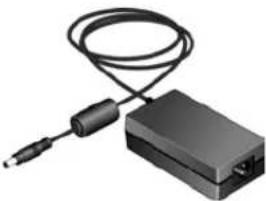 | Power Supply 37-0086-000 |
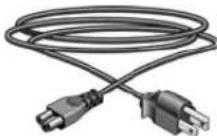 | Power Cord (North America) 35-0223-000 |
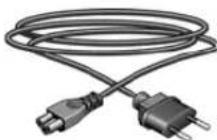 | Power Cord (Europe) 35-0104-000 |
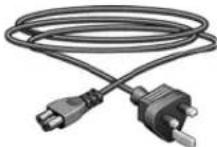 | Power Cord (United Kingdom) 35-0105-000 |
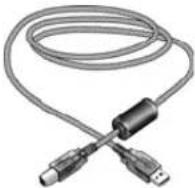 | USB Cable 35-0118-000 |
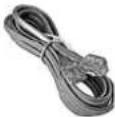 | Telephone Cord 35-0224-000 |
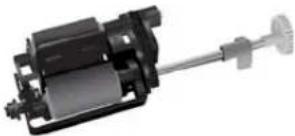 | Roller Assembly 57-0128-000 |
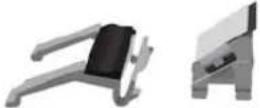 | ADF Pad Module 57-0129-000 |
INDEX
A
Account Management 160
Add Phone # 43
Address Book 86, 87, 93, 139
Address Book Manager 142, 145, 148, 150
ADF cover opens 111
ADF paper empty 111
ADF paper jam 112
Administrator E-Mail Address 46
Administrator Profile 46
Administrator Settings 23, 24
Authentication Method 28
Authentication Type 48
Automatic Document Feeder (ADF) 4
Requirements 75
B
B&W File Format 103
B&W key 7,74
Base DN 29
Bind 89, 98, 135
Black&White 37, 40, 91, 99
Black&White File Format 62
Busy Tone
Detect 44
C
Calibration Error 111
Change Phone Book 45, 46
Check printer cable or status 112
CIFS 12, 13, 38, 58, 101
Clear 7
Clear key 24
Clear Modes key 7
Collate 31, 82
Color 37, 40, 90, 99
Color File Format 62, 103
Color key 7, 74
Compression Level 37, 40, 62, 90, 91, 99, 103
Control keys 7
Control Panel 4
Copier Defaults 31
Copy 6, 74
Advanced Operation 79
Important Information 78
Copy Errors 111
Copy Mode 80
Copy mode 20, 31
COPY port 5, 17
Country Code 27, 71
Create a Subfolder 39, 98, 102
D
Date/Time 27
Delete a Folder 69
Delete Phone Book 45, 46
Detect printer error 112
Device E-mail Address 28
DHCP Enable 28
DHCP Server 10
Dial Tone
Detect 44
Digital Copying 2
DNS 10
DNS Server 28
Document Size 39, 42, 63
Duplex 3, 82
Printing 32
E
Edit Folder 63
E-Mail 3, 6, 11, 13, 74, 92, 93
Adding a new Group 147
Advanced Operation 87
Basic Operation 86
Default Options 36
Modify a Group 152
Options 88
E-Mail Address 143
E-Mail Messages and Errors 114
E-Mail Options 135
Energy Saver key 18
Energy Saving 18
Energy Saving key 7
Erase Border 31, 81
Error_Flatbed Home Position 111
Error_Pick Up Roller 111
Ethernet 16
Extra Fine 41
F
Fax 74
Managing Phone Groups 158, 159
Fax Header 72
Fax Number 105
Fax Phone Book 155
Fax Quality 41
Fax Settings 42, 71, 73
Faxing 3, 6
Defaults 41
Important Information 104
Faxing Messages and Errors 118
File Format 37, 40, 62, 90, 91, 99, 103
File Name 39, 62, 98
File Name of Attachment 89
File Separation 36, 90
Filing 3, 6, 12, 13, 74
Servers Advanced Operation 96
Servers Basic Operation 95
Template 60
Filing Manager 64
Filing Messages and Errors 116
Fine 41
Fit to Page 44
Flatbed cover opens 111
Flatbed Light Check 111
Folder Manager 68
Folder Name 101
Folder Template 38, 65
From Address 89
FTP 12, 13, 19, 38, 49, 101
FTP Errors 116
Function keys 6
G
Gateway IP 28
Group Address 94
H
Home sensor error 111
Homepage Version 27
HTTP 49, 162
HTTP(S) 12, 13, 38, 101
HTTPS 55
|
ID 42,72
IIS anonymous 51
IIS privilege 53
Image Density 31, 36, 40, 42, 63, 80, 88, 97, 103, 108, 135
Image Edit 79
Information Messages 111
Input tray 4
Installation 13
IP Address 10, 28
L
Lamp error 111
LAN port 5, 16
LCD screen 4, 6, 74
LDAP 10, 30, 162
LDAP Server IP or URL 29
Port # 29
LINE jack 5, 17
Lock error 112
Login Name 28, 29, 98, 102
Administrator 46
Long Edge 83
M
MAC Address 27
Machine Name 27
Mail Server 11, 28
Management Options 46
Managing the Product Remotely 3
Manual Receive 44
Manufacturer 27
Margin Adjustment 31, 81
Menu 22, 27
Menu key 7, 21
Minimum Configuration Requirements 13
Model 27
Modify Folder 68
Multi-Level (Gray) 37, 40, 62, 91
N
Network Management Tool 19, 24
Network Messages and Errors 113
Network Parameters 8
Network Settings 21, 28
New Folder 65
Numeric keypad 7
N-Up (Paper Saving) 85
0
Orientation 33, 34, 83
Original Doc. 89, 97, 107
Original Size 36, 88, 97, 102, 107
OutBox Server (SMTP) IP or URL 28 Port # 28
Output tray 4
Overseas Mode 42, 108
P
Page Count 27
Paper Size 80, 135
Paper size not supported 112
Paper stop 4, 77
Paper Tray 80
Password 28, 29, 98, 102
Administrator 46
Phone Book 45, 104, 109, 155
Phone Book Manager 157
Photo 41
Polling Reception 42, 108
POP3 10, 13, 19
POP3 Server IP or URL 29
Port # 29
Power jack 5, 15
Power switch 5
Print Orientation
1 to 1 Sided, 1 to 2 Sided, 2 to 1 Sided, 2 to 2
Sided 32, 33, 82
Program Phone Book 45, 46
PSTN Access # 43
Q
Quality 41, 107
R
Redial & Redial Interval 43
Reduce/Enlarge 80
Reply To 90
Report to E-Mail 39, 63, 98, 102
Resolution 36, 39, 62, 88, 97, 102, 135
Ring Response 43
RJ-11 5
S
Scan Errors 111
Scan Options 36, 39, 99, 135
Scan Settings 97
Scan to E-Mail 11, 13
Scan to Folder 3, 6, 12, 13
Scanner Firmware Version 27
Scanner lid 4
Scanner Setup 14
Select Line 43
Send Later (Date/Time) 108
Serial Number 27
Server Information IP or URL 48, 162
Server Options 96, 98
Server Settings 38
New Folder 99
Short Edge 83
Shortcut Buttons 132, 137
Shortcuts 4
Single Dial 45
SMTP 10, 11, 13, 19, 162
Soft Keyboard 35, 92
Switch 93
Sound Volume 43
SSL 55
Stamp 35, 85
Station Number 43, 73
Status LED 8
Stop key 7
Subfolder 63
Subject 36
Subnet Mask 28
System Firmware Version 27
T
Target URL 38, 61, 101
Port # 39
TCP/IP 13, 19
Telephone jack 5
Text 90
Time Zone 27
Transmission Report 44
U
Unit 31, 81
USB cable 17
USB port 5
User Tools 22
visioneer
