AXAC-CH7 - Video camera AXESS - Free user manual and instructions
Find the device manual for free AXAC-CH7 AXESS in PDF.


User questions about AXAC-CH7 AXESS
0 question about this device. Answer the ones you know or ask your own.
Ask a new question about this device
Download the instructions for your Video camera in PDF format for free! Find your manual AXAC-CH7 - AXESS and take your electronic device back in hand. On this page are published all the documents necessary for the use of your device. AXAC-CH7 by AXESS.
USER MANUAL AXAC-CH7 AXESS
natural_image
Black SEVAC electronic device with multiple connected cables and connectors (no visible text or symbols)INTERFACE COMPONENTS
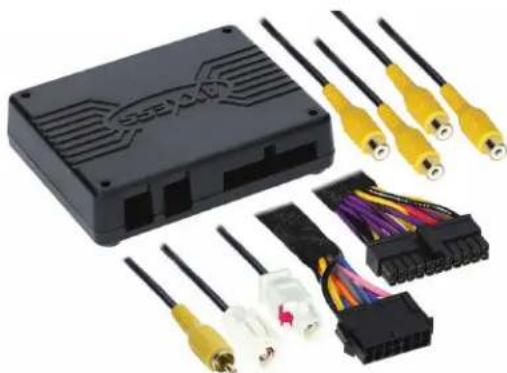
- AXAC-CH7 interface
- AXAC-CH7 interface harness
- AXAC-CH7 vehicle harness
APPLICATIONS
Jeep
Wrangler JL 2018.5-2023
Jeep Gladiator JT....2020-2023
Jeep/Ram\* Camera Interface With Pre-Wired Harness 2018.5-2023
*With 8.4-inch U-Connect radio
Note: Only compatible with NTSC cameras.
Visit AxxessInterfaces.com for more detailed information about the product and up-to-date vehicle specific applications
INTERFACE FEATURES
• (4) Camera inputs
• (1) Programmable camera control wire
- Micro-B USB updatable
- Reverse signal trigger generated via CAN bus communication of the vehicle
- Turn signal trigger generated via CAN bus communication of the vehicle
Ram
1500 (DT) (with 8.4" U-Connect) ......2019-2021
1500 Classic (with 8.4" U-Connect).....2019-2023
TABLE OF CONTENTS
Introduction 2
Configuration 2-4
Connections....4-5
Installation 5-6
Programming......7
Rebooting the U-Connect Radio 7
REQUIRED ITEMS
Update Cable: AXUSB-MCBL (sold separately)
Axxess Updater Program
TOOLS REQUIRED
- Crimping tool and connectors, or solder gun, solder, and heat shrink
- Tape • Wire cutter • Zip-ties
ATTENTION: With the key out of the ignition, disconnect the negative battery terminal before installing this product. Ensure that all installation connections, especially the air bag indicator lights, are plugged in before reconnecting the battery or cycling the ignition to test this product.
NOTE: Refer also to the instructions included with the aftermarket accessory before installing this device.
INTRODUCTION
The AXAC-CH7 is a camera switching interface that provides:
- A front camera, and/or side cameras that an be added to the factory radio.
- Up to (3) additional camera inputs to the factory radio, while still retaining the factory camera.
• Automatic camera function, no human interaction is required, unless desired. - Up to (4) cameras, if the vehicle doesn't come equipped with a backup camera.
Note: Axxess recommends cameras from the iBEAM product line for best results.
CONFIGURATION
text_image
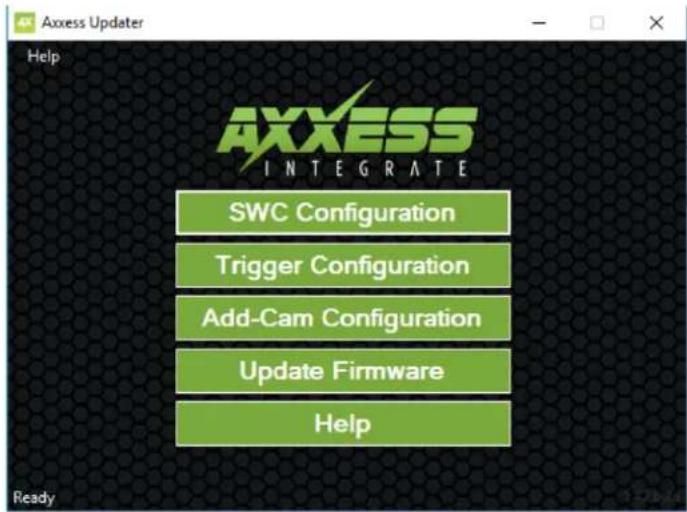
Axxess Updater Help AXXESS INTEGRATE SWC Configuration Trigger Configuration Add-Cam Configuration Update Firmware Help Ready- Download and install the Axxess Updater available at: AxxessInterfaces.com
- Connect the AXUSB-MCBL update cable (sold separately) between the interface and the computer. The cable will connect into the micro-B USB port in the interface.
- Open the Axxess Updater and wait until the word Ready is listed in the bottom left of the screen.
- Select Add-Cam Configuration.
Continued on the next page
CONFIGURATION (CONT.)
text_image
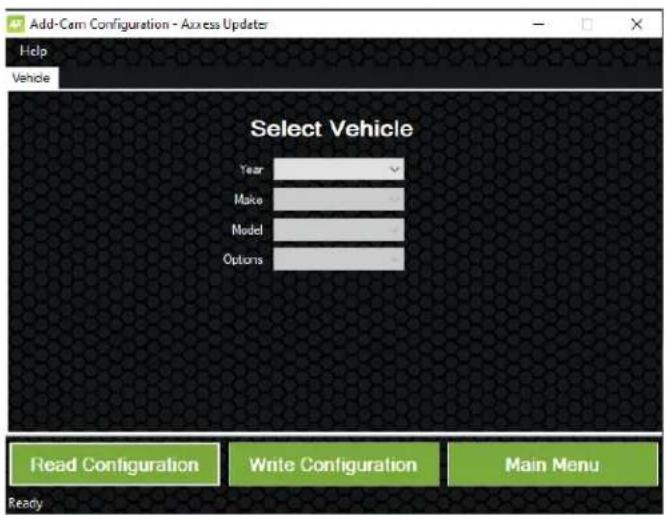
Add-Cam Configuration - Axcess Updater Help Vehicle Select Vehicle Year Make Model Options Read Configuration Write Configuration Main Menu Ready- Select the vehicle in the drop down list. A tab labeled Configuration will appear after the vehicle has been selected.
text_image
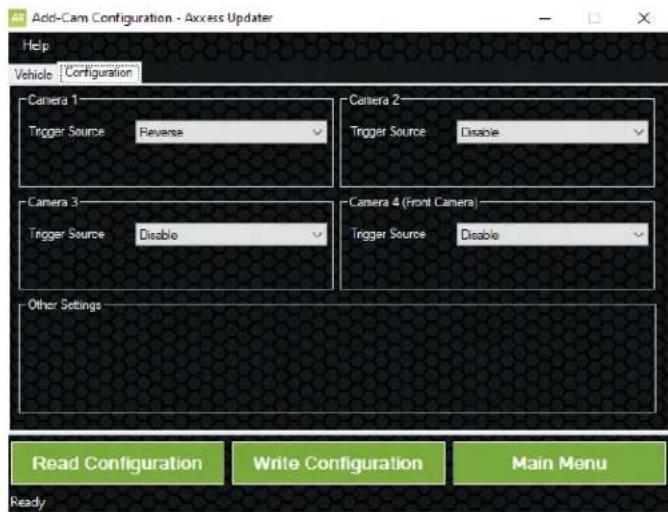
Add-Cam Configuration - Access Updater Help Vehicle : "Configuration" Camera 1 Trigger Source : Reverse Camera 2 Trigger Source : Disable Camera 3 Trigger Source : Disable Camera 4 (Front Camera) Trigger Source : Disable Other Settings Read Configuration Write Configuration Main Menu Ready• Under Configuration, configure the (4) video trigger inputs to the desired settings. *
- Once all selections have been configured, press Write Configuration to save the settings.
- Unplug the update cable from the interface and computer.
* Refer to the following page for more information.
Continued on the next page
CONFIGURATION (CONT.)
Video trigger legend
- Disable (will turn off the input)
- Backup Camera (dedicated backup camera)
• Left Blinker (will be used for activation)
• Right Blinker (will be used for activation)
• Control 1 (positive trigger activation)
• Control 1 (negative trigger activation)
- Auto (Reverse -> Drive) will activate once that sequence is seen (only available for video trigger 4)
Video trigger description
- Reverse Camera: Dedicated by default to Video Trigger 1. Will activate the backup camera while the vehicle is in reverse.
- Left Blinker: Activation of the left turn signal will activate the left camera.
- Right Blinker: Activation of the right turn signal will activate the right camera.
- Auto (Reverse -> Drive): Available only for Video Trigger 4, when installing a front camera. With this feature selected, the camera will activate automatically once a reverse-then-drive sequence is seen from the vehicle. Example of this scenario would be while parallel parking the vehicle. As an alternative, a control wire can be used instead to manually activate the camera.
Note: Auto (Reverse -> Drive) will disable the camera once (15) MPH is reached. A control wire activated will also disable the camera.
Note: If the control wire is activated while driving, the camera will activate and deactivate during stop-and-go traffic. - Control 1 (positive or negative) trigger activation wire: Can be used as a positive or negative trigger to manually activate a camera via a toggle switch, or similar device.
CONNECTIONS
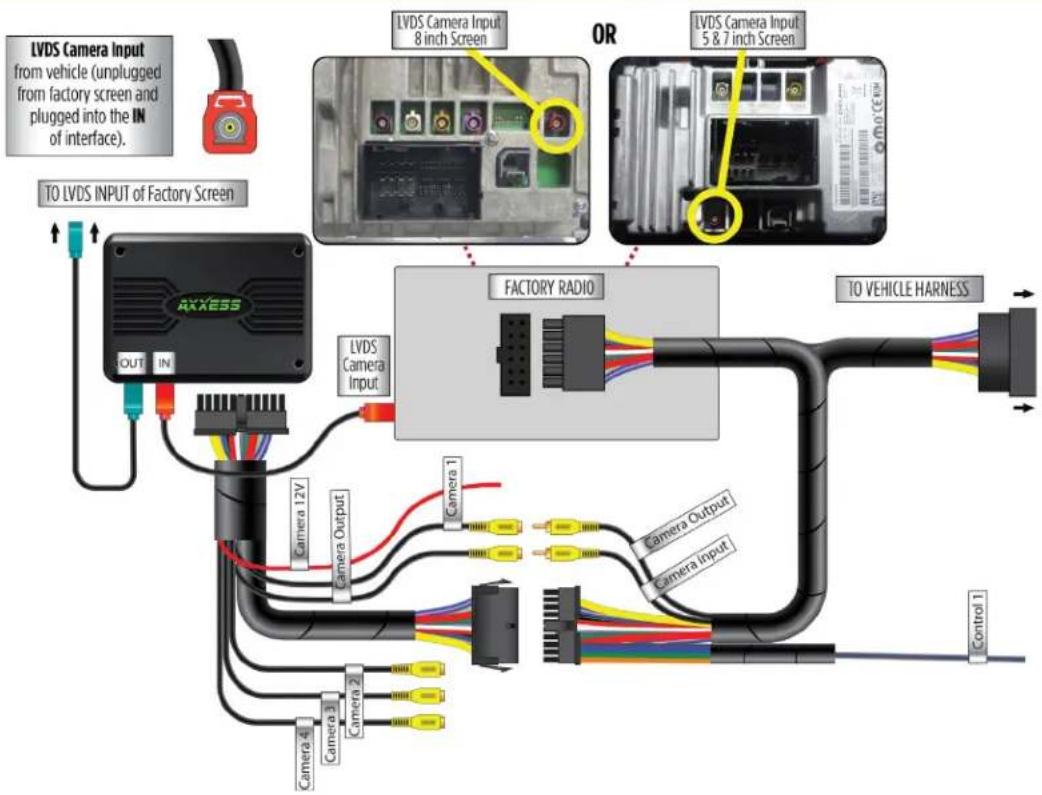
For models with a factory backup camera, the camera's LVDS signal will need to be interrupted and reconnected:
The camera's LVDS signal will need to be interrupted and connected to the corresponding input/output RCA jacks from the interface.
- Connect the RCA jack from the AXAC-CH7 vehicle harness labeled "Camera input", to the RCA jack from the AXAC-CH7 interface harness labeled "Camera output".
- Connect the RCA jack from the AXAC-CH7 vehicle harness labeled "Camera output", to the RCA jack from the AXAC-CH7 interface harness labeled "Camera 1".
For models without a factory backup camera:
- Connect the RCA jack from the AXAC-CH7 vehicle harness labeled "Camera input", to the RCA jack from the AXAC-CH7 interface harness labeled "Camera output".
- Connect the RCA jack from the AXAC-CH7 interface harness labeled "Camera 1", to the aftermarket backup camera.
- Disregard the RCA jack labeled "Camera output" from the AXAC-CH7 vehicle harness.
- Connect the Red wire from the AXAC-CH7 interface harness labeled "Camera 12V", to the power wire from the aftermarket backup camera.
CONNECTIONS (CONT.)
Camera Input:
Camera 1 Backup camera input
Camera 2 Left or right camera, user assignable
Camera 3 Left or right camera, user assignable
Camera 4 Front camera
Analog control trigger wires:
The (optional) analog control wire can be used with either a negative or positive trigger, depending on how it is configured in the Axxess.i Backup Camera Updater. This wire will only be used for manual control of the camera, otherwise disregard the wire.
Control Wire Wire Color
Control 1 Gray/Blue
INSTALLATION
With the ignition cycled off:
- Remove the harness from the factory radio, then install the AXAC-CH7 vehicle harness in between.
- Connect the AXAC-CH7 vehicle harness to the AXAC-CH7 interface harness.
- Connect the AXAC-CH7 interface harness to the AXAC-CH7 interface.
- Make sure the camera(s) is connected to the appropriate input.
- Make sure the interface has been configured beforehand as shown in the Configuration section. Failure to configure the interface will result in the interface not functioning properly.
INSTALLATION (CONT.)
text_image
LVDS Camera Input from vehicle (unplugged from factory screen and plugged into the IN of interface). TO LVDS INPUT OF FACTORY SCREEN LVDS Camera Input 8 inch Screen OR LVDS Camera Input 5 & 7 inch Screen FACTORY RADIO LVDS Camera Input Camera 12V Camera Output Camera 1 Camera Output Camera 4 Camera 3 Camera 2 Camera 1 Camera 1 Camera 1 Camera 1 TO VEHICLE HARNESS Control 1PROGRAMMING
For models with a factory backup camera:
- Cycle the ignition on and wait until the LED in the interface comes on.
Note: If the LED doesn't come on within a few seconds, yet blinks instead, turn the key to the off position, disconnect the interface, check all connections, reconnect the interface, and then try again.
- Test all functions of the installation for proper operation.
For models without a factory backup camera:
Refer to next section (Rebooting the U-Connect Radio).
REBOOTING THE U-CONNECT RADIO
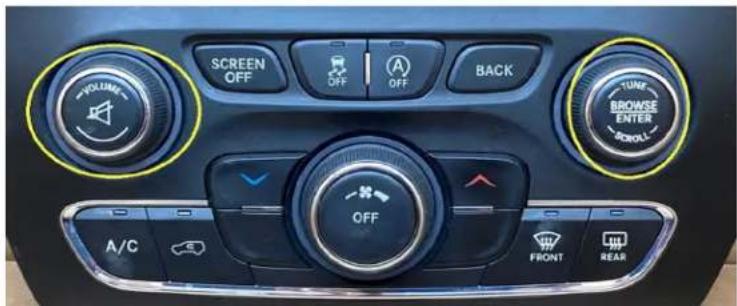
- The factory U-Connect Radio will require a reboot process to accept the aftermarket interface/or add a camera. Disconnecting the main harness to install a T-harness and repowering the radio may cause U-Connect Radio to program as a different model of vehicle than it was programmed to originally. Below are the different U-Connect initial Splash/Boot Up screens for vehicle types.
SPLASH/BOOT UP COLORS
Chrysler: Blue
Dodge/Ram: Red
Jeep: Orange
text_image
VOLUME SCREEN OFF OFF A) OFF BACK TUNF BROWSE ENTER ROLL- OFF A/C FRONT REARREBOOTING STEPS
- Turn the Key or Press Push to Start Button to the ACC position. DO NOT press brake on Push to Start vehicles.
- Press the Volume PWR/MUTE button and TUNE/ENTER button for 10-16 seconds, until the radio reboots.
- Let go once the radio reboots, now you have successfully rebooted your factory radio.
Having difficulties? We're here to help.
Contact our Tech Support line at:
385-257-1187
Or via email at: techs
techsupport@metra-autosound.com
Tech Support Hours (Eastern Standard Time)
Monday - Friday: 9:00 AM - 7:00 PM
Saturday: 10:00 AM - 5:00 PM
Sunday: 10:00 AM - 4:00 PM

Metra recommends MECP certified technicians
natural_image
Black SEAL device with multiple connected audio and cable connectors (no visible text or symbols)COMPONENTES DE LA INTERFAZ
- Download and install the Axxess Updater available at:
- Connect the AXUSB-MCBL update cable (sold separately) between the interface and the computer. The cable will connect into the micro-B USB port in the interface.
- Open the Axxess Updater and wait until the word Ready is listed in the bottom left of the screen.
- Select Add-Cam Configuration.
- Download and install the Axxess Updater available at:
- Connect the AXUSB-MCBL update cable (sold separately) between the interface and the computer. The cable will connect into the micro-B USB port in the interface.
- Open the Axxess Updater and wait until the word Ready is listed in the bottom left of the screen.
- Select Add-Cam Configuration.
CONFIGURACIÓN
