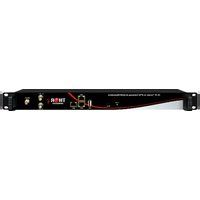
H-16QAM-IP-RF - Audio/video converter Thor - Free user manual and instructions
Find the device manual for free H-16QAM-IP-RF Thor in PDF.


| Product Type | Audio/Video Converter (RF to IP Gateway) |
| Model | H-16QAM-IP-RF |
| Brand | Thor Broadcast |
| Input Types | 16 QAM/ATSC/FTA DVB-S/S2 tuners (model dependent) + 2 ASI inputs |
| Output Types | 16 MPTS or 512 SPTS over UDP/RTP/RTSP, unicast/multicast |
| Output Ports | 2 GE mirrored ports (SPTS) or 2 independent GE ports (MPTS) |
| BISS Descrambling | Mode 1, Mode E, up to 850 Mbps (per program) |
| DiSEqC Support | Yes |
| PID Filtering/Remapping | Yes (SPTS output) |
| PSI/SI Rebuilding | Yes (SPTS output) |
| Null Packet Filtering | Yes (MPTS output) |
| PCR Adjusting | Yes (SPTS output) |
| Input Frequency (QAM) | 45-960 MHz |
| Dimensions (W x L x H) | 482 mm x 410 mm x 44 mm |
| Weight | Approx. 3.6 kg |
| Power Requirements | 100-240 VAC, 50/60 Hz |
| Power Consumption | 20 W |
| Operating Temperature | 0 to 45°C |
| Storage Temperature | -20 to 80°C |
| Management | Web-based NMS (default IP: 192.168.0.136) |
| Front Panel Interfaces | Power LED, Reset button, USB port, NMS port, 2 data ports, 2 ASI inputs |
| Rear Panel Interfaces | 16 RF inputs, 16 loop-out outputs, power switch/socket |
Frequently Asked Questions - H-16QAM-IP-RF Thor
User questions about H-16QAM-IP-RF Thor
0 question about this device. Answer the ones you know or ask your own.
Ask a new question about this device
Download the instructions for your Audio/video converter in PDF format for free! Find your manual H-16QAM-IP-RF - Thor and take your electronic device back in hand. On this page are published all the documents necessary for the use of your device. H-16QAM-IP-RF by Thor.
USER MANUAL H-16QAM-IP-RF Thor
H-16QAM-IP-RF
A Note from Thor Broadcast about this Manual
Intended Audience
This user manual has been written to help people who have to use, integrate and to install the product. Some chapters require some prerequisite knowledge in electronics and especially in broadcast technologies and standards.
Disclaimer
No part of this document may be reproduced in any form without the written permission of Thor Broadcast. The contents of this document are subject to revision without notice due to continued progress in methodology, design and manufacturing. Thor shall have no liability for any error or damage of any kind resulting from the use of this document.
Copy Warning
This document includes some confidential information. Its usage is limited to the owners of the product that it is relevant to. It cannot be copied, modified, or translated in another language without prior written authorization from Thor Broadcast.
Table of Contents
CHAPTER 1....1
1.1 OUTLINE.... 1
1.2 FEATURES .... 1
1.3 SPECS 2
1.4 FLOW CHART 3
1.5 APPEARANCE AND DESCRIPTION 4
CHAPTER 2 - INSTALLATION GUIDE....5
2.1 GENERAL PRECAUTIONS....5
2.2 POWER PRECAUTIONS 5
2.3 DEVICE'S INSTALLATION FLOW CHART ILLUSTRATED (AS FOLLOWING) 5
2.4 ENVIRONMENT 6
2.5 GROUNDING REQUIREMENT....7
CHAPTER 3 – WEB NMS....8
4.1 SETUP THE NMS 8
4.2 NMS OPERATION....8
4.2.2 STATUS PAGE 9
CHAPTER 5 - TROUBLESHOOTING ...... 25
CHAPTER 6 -PACKING LIST 26
Chapter 1
1.10Outline
The Thor Broadcast H-16QAM-IP-RF gateway is our new solution in converting tuner based inputs into IP transport streams. This ideal head-end conversion device has massive processing power which lets you intake up to 16 QAM frequencies and convert them to a single Ethernet output. Thor's new power packed device integrates tuner demodulation and IP gateway functionality, which can demodulate the signals from 16 tuners into 16 MPTS or 512 SPTS via UDP and RTP/RTSP protocols.
1.2 Features
● 16 QAM/ATSC/FTA DVB-S/S2 inputs (model dependent), 2 ASI inputs
- BISS descrambling
- Diseqc functionality
● 16 MPTS or 512 SPTS output (MPTS and SPTS output)
● 2 GE mirrored outputs, up to 850Mbps---SPTS
● 2 independent GE output port, GE1 + GE2---MPTS
● PCR adjusting (Only for SPTS output)
- PID filtering, re-mapping (Only SPTS output)
● PSI/SI rebuilding and editing (Only SPTS output)
● “Null PKT Filter” function (For MPTS output)
● Support Web operation
1.3 Specs
| Input | Optional 1:16 QAM tuners input +2 ASI input---SPTS outputOptional 2:14 QAM tuners input +2 ASI input --- MPTS outputOptional 3:16 QAM tuners input --- MPTS output | |
| Tuner Section QAM | Input Frequency | 45-960MHz |
| Output | 512 SPTS IP mirrored output over UDP and RTP/RTSP protocol through GE1 and GE2 port, Unicast and Multicast | |
| 16 MPTS IP output (for Tuner passthrough) over UDP and RTP/RTSP protocol through GE1 and GE2 port, Unicast and Multicast | ||
| BISS descrambling | Mode 1, Mode E (Up to 850Mbps) (descramble individual program) | |
| Miscellaneous | Dimension(W×L×H) | 482mm×410mm×44mm |
| Approx weight | 3.6kg | |
| Environment | 0~45°C(work); -20~80°C (Storage) | |
| Power requirements | 100~240VAC, 50/60Hz | |
| Power consumption | 20W | |
1.4 Flow Chart
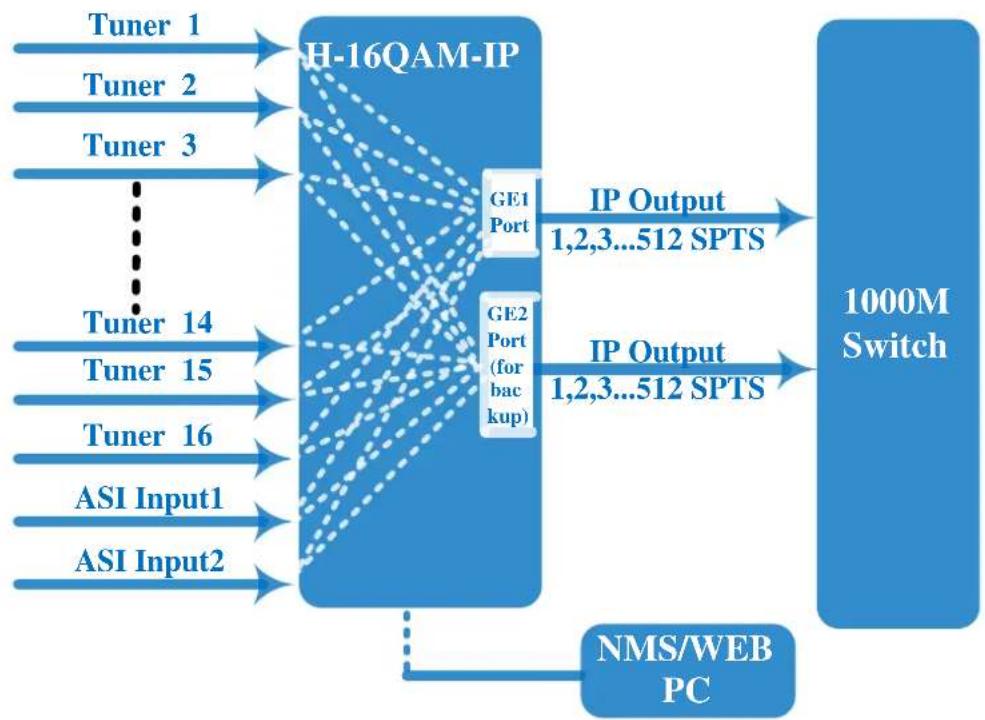
flowchart
graph LR
    A["Tuner 1"] --> B["H-16QAM-IP"]
    C["Tuner 2"] --> B
    D["Tuner 3"] --> B
    E["Tuner 14"] --> B
    F["Tuner 15"] --> B
    G["Tuner 16"] --> B
    H["ASI Input1"] --> B
    I["ASI Input2"] --> B
    B --> J["GE1 Port"]
    B --> K["GE2 Port (for backup)"]
    J --> L["IP Output 1,2,3...512 SPTS"]
    K --> M["IP Output 1,2,3...512 SPTS"]
    L --> N["1000M Switch"]
    M --> N
    O["NMS/WEB PC"] --> P["Feedback"]
SPTS output

flowchart
graph LR
    A["Tuner 1"] --> B["H-16QAM-IP"]
    C["Tuner 2"] --> B
    D["Tuner 3"] --> B
    E["Tuner 14"] -.-> B
    F["Tuner 15"] --> B
    G["Tuner 16"] --> B
    H["ASI Input1(Optional)"] --> B
    I["ASI Input2(Optional)"] --> B
    B --> J["Pass through (16Tuner Input or 14Tuner+2ASI input)"]
    J --> K["GE1 Port"]
    J --> L["GE2 Port"]
    K --> M["IP Output 1,2,3...16 MPTS"]
    L --> N["IP Output 1,2,3...16 MPTS"]
    M --> O["1000M Switch"]
    N --> O
    P["NMS/WEB PC"] --> O
MPTS output
1.5 Appearance and Description
Front Panel Illustration:

| 1 | Power Indicator |
| 2 | Reset: Reset webmaster IP address, recover to default IP address |
| 3 | USB Port for Updates |
| 4 | NMS – Network Management Interface |
| 5 | Data Ports (1 & 2) – IP Output for SPTS / MPTS |
| 6 | ASI input ports (1 & 2) |
Rear Panel Illustration

| 7 | 16 channels RF IN Interface (top row) |
| 8 | Loop Out Interface (bottom row) |
| 9 | Power Switch and Socket |
Chapter 2 - Installation Guide
This section is here to explain the cautions you should adhere to so you don't hurt yourself or anyone else. That would not be good for anyone; so read through before operating your new Thor Broadcast equipment.
2.1 General Precautions
√ Must be operated and maintained in an area free of dust and debris.
√ The cover should be securely fastened, do not open the cover of the chassis when the power is on. This will also void Thor's manufacturer's warranty.
√ After installation, securely stow away all loose cables, external antenna, and others.
2.2 Power precautions
√ Be careful when connecting a power source to the device.
√ Do not operate in wet or damp areas. Make sure the extension cable is in good condition
√ Make sure the power switch is off before you start to install the device
2.3 Device's Installation Flow Chart Illustrated (as following)

flowchart
graph LR
    A["Acquisition Check"] --> B["Installing Device"]
    B --> C["Connecting Grounding Wire and Power Cord"]
    C --> D["Connecting Signal cable"]
    D --> E["Setting Parameter"]
    E --> F["Running Device"]
2.4 Environment
| Machine Hall Space | When installing unit on rack, the distance between 2 rows of machine frames should be 1.2~1.5m and the distance against wall should be no less than 0.8m. |
| Machine Hall Floor | Electric Isolation, Dust Free, HVACanti-static material: 1 × 10^7 1 × 10^10 , Grounding current limiting resistance: 1MΩ (Floor bearing should be greater than 450Kg/m2) |
| Environment | 5~40°C(sustainable), 0~45°C(short time), |
| Temperature | installing air-conditioning is recommended |
| Relative Humidity | 20%~80% sustainable 10%~90% short time |
| Pressure | 86~105KPa |
| Door & Window | Installing rubber strip for sealing door-gaps and dual level glasses for window |
| Fire Protection | Fire alarm system and extinguisher |
| Power | Device power, HVAC and lighting should be independent to each other. Device power requires AC 110V±10%, 50/60Hz or AC 220V±10%, 50/60Hz. Please carefully check before running. |
2.5 Grounding Requirement
√ It is important to keep this device grounded to ensure all of the modules function correctly. Correctly grounding the device will also help prevent any electrical interference, lightening. Etc. Also it helps reject minor interference that may disrupt the devices ability to function smoothly. General rule of them, make sure the device is grounded when installing anywhere.
√ Always use copper wire. When applied correctly the ground must be wrapped well to ensure maximum conduction so it can reduce any high frequencies. The copper ground wire should also be as short and thick as possible
√ Installer must make sure that the two ends of the ground are well conducted and have appropriate anti-rust properties.
√ It is prohibited to use any other device as part of the grounding electric circuit.
√ The area of the conduction between the ground wire and device's frame should be no less than 25 m ^2 .
Chapter 3 – WEB NMS
4.1 Setup the NMS
The default IP of this device is 192.168.0.136. We can modify the IP through the front panel.
Connect the pc and the device with net cable, and use ping command to confirm they are on the same network segment.
E.G. the PC IP address is 192.168.99.252, we then change the device IP to 192.168.99.xxx (xxx can be 0 to 255 except 252 to avoid IP conflict).
Use any web browser to connect the device with the PC by inputting the Encoder & Modulator's IP address in the browser's address bar and press Enter.
It will display the Login interface as Figure-1. Input the Username and Password (Both the default Username and Password are “admin”.) and then click “LOGIN” to start the device setting.
4.2 NMS Operation
4.2.1 Login Interface
Once you set the units address and enter that IP into your browser this Login window appears

Both the default user name and password are admin.
4.2.2 Status Page
Status
When we login, it will display the status interface as shown in Figure-2.

Figure-2
Parameters→Tuner input
From the menu on left side of the webpage, click “Tuner Input”, it displays the interface where you can check the 16 Tuner input status. (Figure-3)

Figure-3
Parameters→ASI input
From the menu on left side of the webpage, click “ASI Input”, it displays the interface where you can check the 2x ASI input status. (Figure-4)

Figure-4
Parameters→BISS
From the menu on left side of the webpage, click "BISS", it displays the interface where you can configure BISS and descramble the input channels (Figure-5).

Figure-5
Parameters→Program Parse
From the menu on left side of the webpage, click "Program Parse", it displays the interface where you can parse the program from the input channels.
When you disable the ASI input, the RF to IP Gateway can support 16 Tuner inputs with 16 MPTS IP outputs (Figure-6).

Figure-6
When you enable the ASI input, the RF to IP Gateway can support 14 Tuner inputs and 2 ASI inputs with 16 MPTS IP outputs (Figure-7).
![Tuner to IP Gateway Web Management 2017-03-01 17:16:29 Summary ► Status Parameters ► Tuner Input ► ASI Input ► Biss ► Program Parse ► IP Stream System ► Network ► Date | Time ► Password ► Save | Restore ► Backup | Load ► Firmware PROGRAM PARSE ASI Input: enable Parse → Lose → Locked →1 Tuner DVBS2 1 (prog: 0) [0.000 M] →2 Tuner DVBS2 2 (prog: 0) [0.000 M] →3 Tuner DVBS2 3 (prog: 0) [0.000 M] →4 Tuner DVBS2 4 (prog: 0) [0.000 M] →5 Tuner DVBS2 5 (prog: 0) [0.000 M] →6 Tuner DVBS2 6 (prog: 0) [0.000 M] →7 Tuner DVBS2 7 (prog: 0) [0.000 M] →8 Tuner DVBS2 8 (prog: 0) [0.000 M] →9 Tuner DVBS2 9 (prog: 0) [0.000 M] →10 Tuner DVBS2 10 (prog: 0) [0.000 M] →11 Tuner DVBS2 11 (prog: 0) [0.000 M] →12 Tuner DVBS2 12 (prog: 0) [0.000 M] →13 Tuner DVBS2 13 (prog: 0) [0.000 M] →14 Tuner DVBS2 14 (prog: 0) [0.000 M] →15 ASI 1 (prog: 0) [0.000 M] →16 ASI 2 (prog: 0) [0.000 M] Parse program time out 60 seconds](/content/2026/06/1147825/images/3a3763eaba35df6597b0a8e00fbc349b840a32f660ab8265a4084d15de340f03.jpg)
Figure-7
Parameters→IP Stream
The H-16QAM-IP-RF supports TS to output in IP (16*MPTS) format through the GE1 or GE2 port. Click 'IP Stream', it will display the interface where to set IP out parameters (Figure-8).
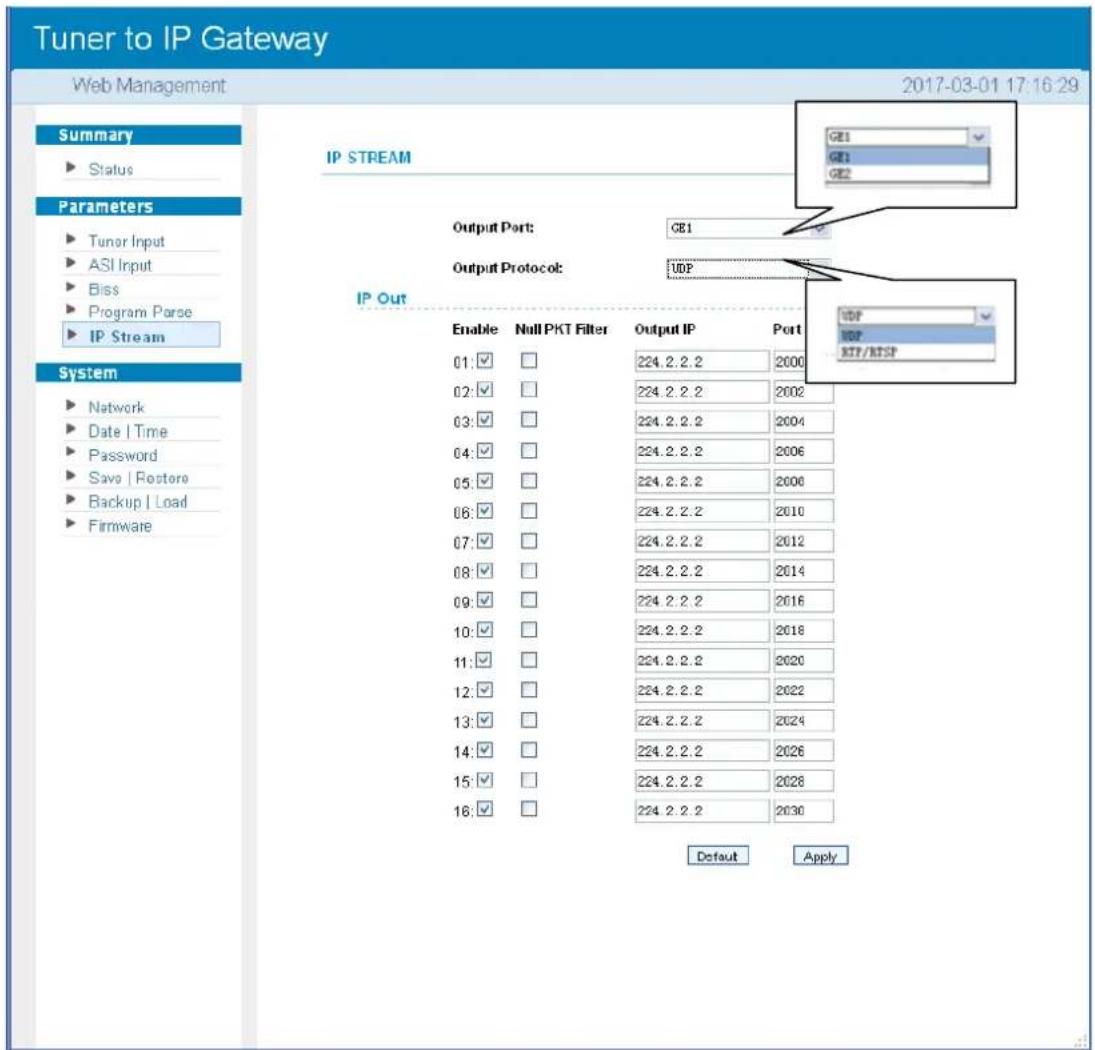
Figure-8
This RF to IP Gateway supports 16 Tuner inputs and 2 ASI input with 512 SPTS output, the parameter interface is different from MPTS. When you switch MPTS to SPTS, the new mode will work after you reboot the device.
Parameters→Tuner Input (SPTS MODE)
From the menu on the left side of the webpage, click “Tuner Input”, it displays the interface where you can check the 16 Tuner input status. (Figure-9)

Parameters→ASI Input (SPTS MODE)
From the menu on top side of the webpage, click “ASI Input”, it displays the interface where users can check the 2 channels ASI input status. (Figure-10)

Figure-10
Parameters→TS Config (SPTS MODE)
Click "TS Config", it displays the interface where you can set the output TS and configure TS ID and ON ID the four output channel (Figure-11)..

Figure-11
Parameters→BISS: (SPTS MODE)
From the menu on left side of the webpage, click "BISS", it displays the interface where you can configure BISS and descramble the input channels (Figure-12).

Figure-12
Parameters SPTS Select:
From the menu on left side of the webpage, click "SPTS Select", it displays the interface where you can choose 16 Tuner inputs and 2 ASI Input programs to output from IP (max 512 SPTS). (Figure-13)

flowchart
graph TD
    A["Program Select"] --> B["Normalized Output"]
    B --> C["Operation Area"]
    C --> D["Output Area"]
    subgraph Program Select
        E1["Lock"] --> F1["TAI Tuner DVB-S/S2 (prog. 0)"]
        E2["Locked"] --> F2["TAI Tuner DVB-S/S2 (prog. 0)"]
        E3["Tuner"] --> F3["TAI Tuner DVB-S/S2 (prog. 0)"]
        E4["Tuner"] --> F4["TAI Tuner DVB-S/S2 (prog. 0)"]
        E5["Tuner"] --> F5["TAI Tuner DVB-S/S2 (prog. 0)"]
        E6["Tuner"] --> F6["TAI Tuner DVB-S/S2 (prog. 0)"]
        E7["Tuner"] --> F7["TAI Tuner DVB-S/S2 (prog. 0)"]
        E8["Tuner"] --> F8["TAI Tuner DVB-S/S2 (prog. 0)"]
        E9["Tuner"] --> F9["TAI Tuner DVB-S/S2 (prog. 0)"]
        E10["Tuner"] --> F10["TAI Tuner DVB-S/S2 (prog. 0)"]
        E11["Tuner"] --> F11["TAI Tuner DVB-S/S2 (prog. 0)"]
        E12["Tuner"] --> F12["TAI Tuner DVB-S/S2 (prog. 0)"]
        E13["Tuner"] --> F13["TAI Tuner DVB-S/S2 (prog. 0)"]
        E14["Tuner"] --> F14["TAI Tuner DVB-S/S2 (prog. 0)"]
        E15["Tuner"] --> F15["TAI Tuner DVB-S/S2 (prog. 0)"]
        E16["Tuner"] --> F16["TAI Tuner DVB-S/S2 (prog. 0)"]
        E17["ASI (prog. 0)"]
        E18["ASI (prog. 0)"]
    end
    subgraph Operation Area
        F1["CA Filter"]
        F2["PioRemap"]
        F3["Refresh Input"]
        F4["Refresh Output"]
        F5["All Output"]
        F6["All Output"]
    end
    style A fill:#f9f,stroke:#333
    style B fill:#ccf,stroke:#333
    style C fill:#cfc,stroke:#333
    style D fill:#fcc,stroke:#333
    style E fill:#ffc,stroke:#333
    style F fill:#cfc,stroke:#333
    style G fill:#fcc,stroke:#333
    style H fill:#cfc,stroke:#333
    style I fill:#fcc,stroke:#333
    style J fill:#fcc,stroke:#333
    style K fill:#fcc,stroke:#333
    style L fill:#fcc,stroke:#333
    style M fill:#fcc,stroke:#333
    style N fill:#fcc,stroke:#333
    style O fill:#fcc,stroke:#333
    style P fill:#fcc,stroke:#333
    style Q fill:#fcc,stroke:#333
    style R fill:#fcc,stroke:#333
    style S fill:#fcc,stroke:#333
    style T fill:#fcc,stroke:#333
    style U fill:#fcc,stroke:#333
    style V fill:#fcc,stroke:#333
    style W fill:#fcc,stroke:#333
    style X fill:#fcc,stroke:#333
    style Y fill:#fcc,stroke:#333
    style Z fill:#fcc,stroke:#333
    style AA fill:#fcc,stroke:#333
    style AB fill:#fcc,stroke:#333
    style AC fill:#fcc,stroke:#333
    style AD fill:#fcc,stroke:#333
    style AE fill:#fcc,stroke:#333
    style AF fill:#fcc,stroke:#333
    style AG fill:#fcc,stroke:#333
    style AH fill:#fcc,stroke:#333
    style AI fill:#fcc,stroke:#333
    style AJ fill:#fcc,stroke:#333
    style AK fill:#fcc,stroke:#333
    style AL fill:#fcc,stroke:#333
    style AM fill:#fcc,stroke:#333
    style AN fill:#fcc,stroke:#333
    style AO fill:#fcc,stroke:#333
    style AP fill:#fcc,stroke:#333
    style AQ fill:#fcc,stroke:#333
    style AR fill:#fcc,stroke:#333
    style AS fill:#fcc,stroke:#333
    style AT fill:#fcc,stroke:#333
Figure-13
Configure ‘Input Area’ and ‘Output Area’ with buttons in ‘Operation Area’. Instructions are as below:
☑ CA Filter : To filter/not filter the source CA information
☑ PidRemap : To enable/disable the PID remapping
Refresh Input To refresh the input program information
Refresh Output To refresh the output program information
=== Select one input program first and click this button to transfer the selected program to the right box to output.
<==> Similarly, user can cancel the multiplexed programs from the right box.
All Input To select all the input programs
All Output To select all the output programs
Parse program To parse programs time limitation of parsing input programs
Program Modification:
The multiplexed program information can be modified by clicking the program in the 'output' area. For example, when clicking, it triggers a dialog box (Figure 14) where you can input new information.
![Program Information Program From Input: CH1_Models 1 [101] Service Name: CCTV-101 Program Number: 1 Service Type: Dx01 Service Provider: TV-Provider PMT Descriptor Tag: Dx01 PMT Descriptor Data: (hex) PMT PID: Dx0020 PCR PID: Dx0021 MPEG-2 Video PID: Dx0021 MPEG-1 Audio PID: Dx0022 Add OK Add](/content/2026/06/1147825/images/9938ccf7368b15107b04078a42a5a37796c8ae80a149360a3ada7c082611b5c4.jpg)
Figure-14
System → Network:
Click 'Network', it will display the interface as Figure-15 where to set network parameters.
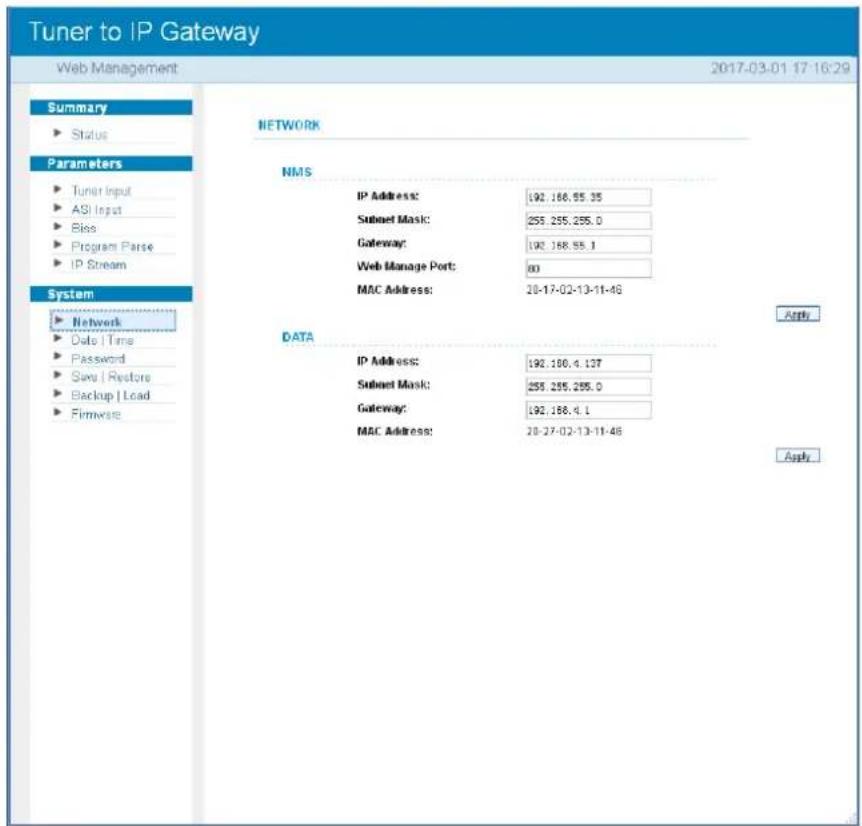
Figure-15
System → Date/Time:
From the menu on left side of the webpage, click "Date/Time", it will display the screen as in Figure-16 where to set date and time for the device.
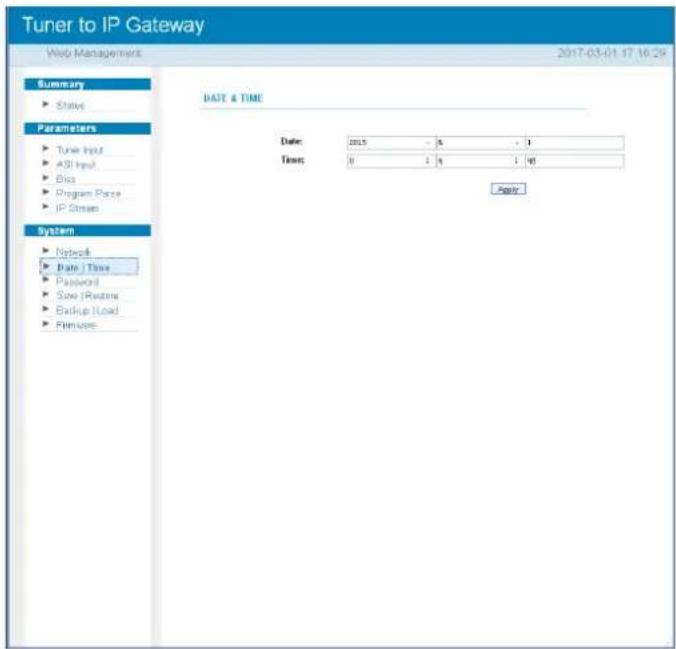
Figure-16
System → Password:
From the menu on left side of the webpage, click "Password", it will display the screen as in Figure-17 where to set the login account and password for the web NMS.
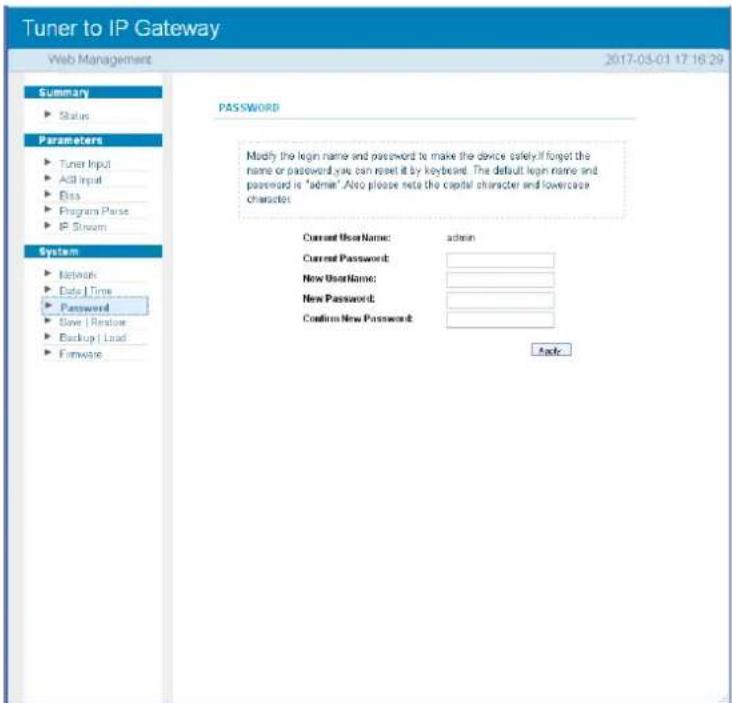
Figure-17
From the menu on left side of the webpage, clicking "Save/Restore", it will display the screen as Figure-18 where to save or restore your configurations.
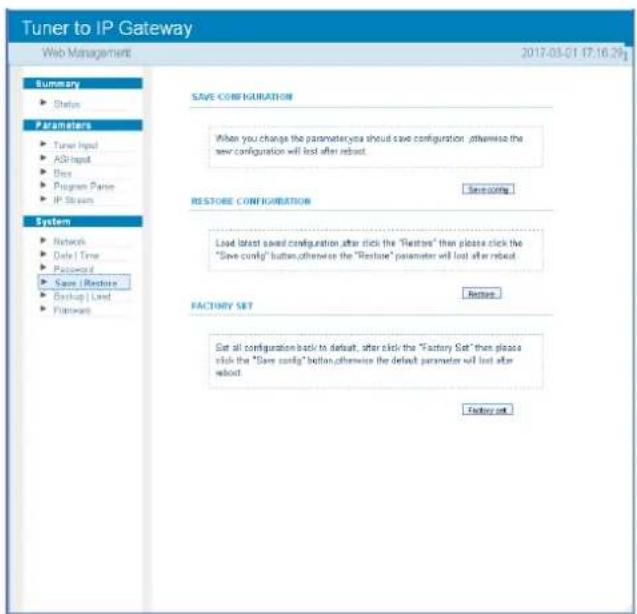
Figure-18
System → Backup/Load:
From the menu on left side of the webpage, clicking “Backup/Load”, it will display the screen as Figure-19 where to backup or load your configurations.
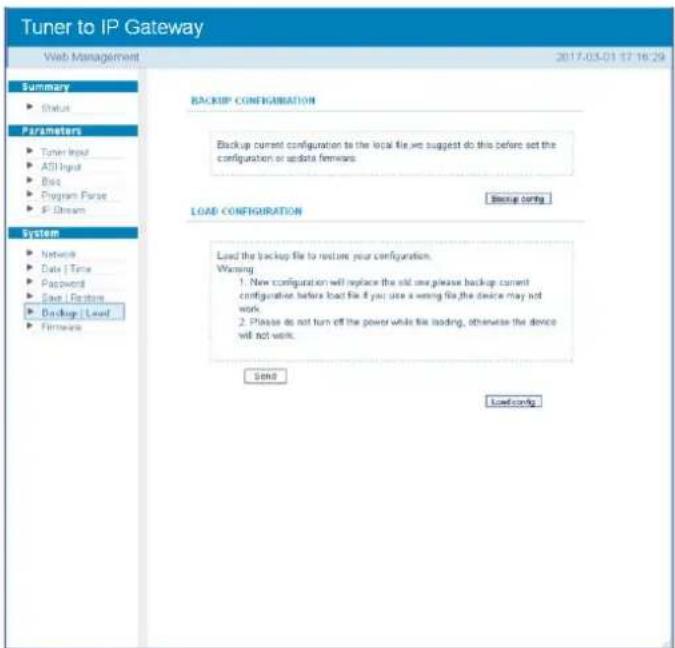
Figure-19
System → Firmware:
From the menu on left side of the webpage, click "Firmware", it will display the screen as in Figure-20 where to update firmware for the device.

Figure-20
Chapter 5 - Troubleshooting
THOR's ISO9001 quality assurance system has been approved by the CQC organization. We guarantee the products' quality, reliability and stability. All THOR products haven passed all testing and manual inspections before they are shipped out. The testing and inspection scheme already covers all the Optical, Electronic and Mechanical criteria which have been published by THOR. To prevent a potential hazard, please strictly follow the operation conditions.
Prevention Measures
➢ Installing the device in a place where the environmental temperature is between 0 to 45 °C
Making sure the unit has plenty of ventilation for the heat-sink on the rear panel; and other heat-sink bores if necessary
➢ Checking the AC input within the power supply and ensure it is working, the connection is correctly installed before switching on device
- Checking the RF output levels to stay within a tolerable range, if it is necessary
- Checking all signal cables have been properly connected
➢ Frequently switching on/off device is prohibited; the interval between every switching on/off must be greater than 10 seconds.
Conditions needed to unplug power cord
Power cord or socket damage.
▶ Any liquid that got into the device.
▶ Any stuff that could cause a circuit short
▶ Device in damp environment
➢ Device has suffered from physical damage; i.e. it fell off a rack.
➢ Longtime idle.
After switching on and restoring to factory setting, device still won't work properly.
▶ Maintenance needed on device
Chapter 6 -Packing List
H-8QAM-IP-RF
1PC
User's Manual CD
1PC
Power Cord
1PC
RF In and Loop-out Cables
16PCS

For Further Tech Support
1-800-521-Thor(8467)
support@thorfiber.com

- A Note from Thor Broadcast about this Manual
- Intended Audience
- Disclaimer
- Copy Warning
- Table of Contents
- CHAPTER 1....1
- CHAPTER 2 - INSTALLATION GUIDE....5
- CHAPTER 3 – WEB NMS....8
- CHAPTER 5 - TROUBLESHOOTING ...... 25
- CHAPTER 6 -PACKING LIST 26
- Chapter 1
- 1.10Outline
- Features
- Specs
- Flow Chart
- Appearance and Description
- Chapter 2 - Installation Guide
- General Precautions
- Power precautions
- Device's Installation Flow Chart Illustrated (as following)
- Environment
- Grounding Requirement
- Chapter 3 – WEB NMS
- Setup the NMS
- NMS Operation
- Login Interface
- Status Page
- Status
- Parameters→Tuner input
- Parameters→ASI input
- Parameters→BISS
- Parameters→Program Parse
- Parameters→IP Stream
- Parameters→Tuner Input (SPTS MODE)
- Parameters→ASI Input (SPTS MODE)
- Parameters→TS Config (SPTS MODE)
- Parameters→BISS: (SPTS MODE)
- Parameters → SPTS Select:
- Program Modification:
- System → Network:
- System → Date/Time:
- System → Password:
- System → Backup/Load:
- System → Firmware:
- Chapter 5 - Troubleshooting
- Prevention Measures
- Conditions needed to unplug power cord
- Chapter 6 -Packing List
Brand : Thor
Model : H-16QAM-IP-RF
Category : Audio/video converter