CLP-950-950M-950C-930 - Digital piano YAMAHA - Free user manual and instructions
Find the device manual for free CLP-950-950M-950C-930 YAMAHA in PDF.


| Product type | Digital piano |
| Brand | YAMAHA |
| Model | CLP-950 / 950M / 950C / 930 |
| Keyboard | 88 weighted keys (GH3 or similar) |
| Maximum polyphony | 64 notes (estimated) |
| Number of voices | 14 internal voices (estimated) |
| Power supply | 12V DC adapter (included); check mains voltage before connection |
| Power consumption | 12 W (estimated) |
| Dimensions (W x D x H) | 1390 x 400 x 800 mm (estimated) |
| Weight | 50 kg (estimated) |
| MIDI connectivity | MIDI IN/OUT jacks; compatible with computer via MIDI interface |
| Main functions | Voice selection, layering, keyboard split, metronome, recording |
| Maintenance and cleaning | Clean with a soft, dry cloth; do not use chemicals or a damp cloth |
| Safety | Check that the indicated voltage matches the mains; do not open the device |
| Spare parts and repairability | Contact an authorized YAMAHA dealer for spare parts |
Frequently Asked Questions - CLP-950-950M-950C-930 YAMAHA
User questions about CLP-950-950M-950C-930 YAMAHA
0 question about this device. Answer the ones you know or ask your own.
Ask a new question about this device
Download the instructions for your Digital piano in PDF format for free! Find your manual CLP-950-950M-950C-930 - YAMAHA and take your electronic device back in hand. On this page are published all the documents necessary for the use of your device. CLP-950-950M-950C-930 by YAMAHA.
USER MANUAL CLP-950-950M-950C-930 YAMAHA
Check your power supply Make sure that your local AC mains voltage matches the voltage specified on the name plate on the bottom panel. In some areas a voltage selector may be provided on the bottom panel of the main keyboard unit near the power cord. Make sure that the voltage selector is set for the voltage in your area. The voltage selector is set at 240V when the unit is initially shipped. To change the setting use a "minus" screwdriver to rotate the selector dial so that the correct voltage appears next to the pointer on the panel.
WICHTIG
PRODUCT SAFETY MARKINGS: Yamaha electronic products may have either labels similar to the graphics shown below or molded/stamped facsimiles of these graphics on the enclosure. The explanation of these graphics appears on this page. Please observe all cautions indicated on this page and those indicated in the safety instruction section.
See bottom of Keyboard enclosure for graphic symbol markings

The exclamation point within the equilateral triangle is intended to alert the user to the presence of important operating and maintenance (servicing) instructions in the literature accompanying the product.
The lightning flash with arrowhead symbol, within the equilateral triangle, is intended to alert the user to the presence of uninsulated "dangerous voltage" within the product's enclosure that may be of sufficient magnitude to constitute a risk of electrical shock.
IMPORTANT NOTICE: All Yamaha electronic products are tested and approved by an independent safety testing laboratory in order that you may be sure that when it is properly installed and used in its normal and customary manner, all foreseeable risks have been eliminated. DO NOT modify this unit or commission others to do so unless specifically authorized by Yamaha. Product performance and/or safety standards may be diminished. Claims filed under the expressed warranty may be denied if the unit is/has been modified. Implied warranties may also be affected.
SPECIFICATIONS SUBJECT TO CHANGE: The information contained in this manual is believed to be correct at the time of printing. However, Yamaha reserves the right to change or modify any of the specifications without notice or obligation to update existing units.
ENVIRONMENTAL ISSUES: Yamaha strives to produce products that are both user safe and environmentally friendly. We sincerely believe that our products and the production methods used to produce them, meet these goals. In keeping with both the letter and the spirit of the law, we want you to be aware of the following:
Battery Notice: This product MAY contain a small nonrechargeable battery which (if applicable) is soldered in place. The average life span of this type of battery is approximately five years. When replacement becomes necessary, contact a qualified service representative to perform the replacement.
Warning: Do not attempt to recharge, disassemble, or incinerate this type of battery. Keep all batteries away from children. Dispose of used batteries promptly and as regulated by applicable laws. Note: In some areas, the servicer is required by law to return the defective parts. However, you do have the option of having the servicer dispose of these parts for you.
Disposal Notice: Should this product become damaged beyond repair, or for some reason its useful life is considered to be at an end, please observe all local, state, and federal regulations that relate to the disposal of products that contain lead, batteries, plastics, etc.
NOTICE: Service charges incurred due to lack of knowledge relating to how a function or effect works (when the unit is operating as designed) are not covered by the manufacturer's warranty, and are therefore the owners responsibility. Please study this manual carefully and consult your dealer before requesting service.
NAME PLATE LOCATION: The graphic below indicates the location of the name plate. The model number, serial number, power requirements, etc., are located on this plate. You should record the model number, serial number, and the date of purchase in the spaces provided below and retain this manual as a permanent record of your purchase.
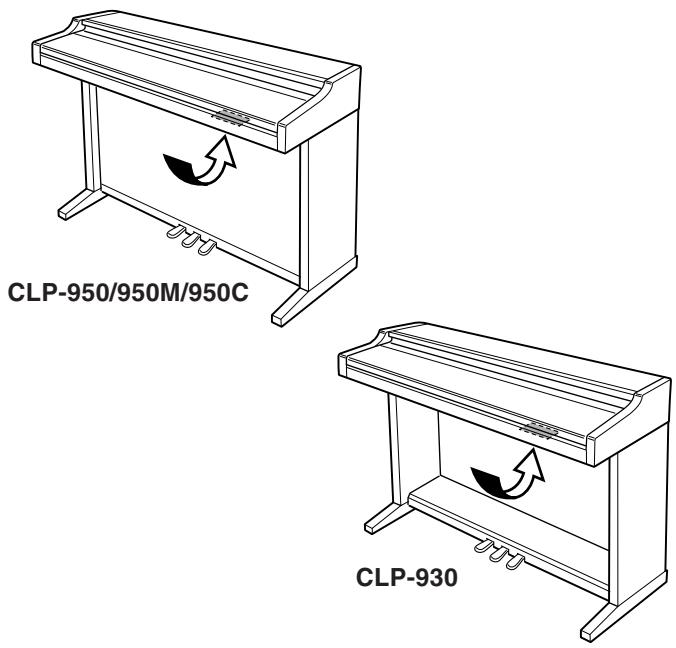
Model
Serial No.
Purchase Date
PRECAUTIONS
PLEASE READ CAREFULLY BEFORE PROCEEDING
- Please keep these precautions in a safe place for future reference.

WARNING
Always follow the basic precautions listed below to avoid the possibility of serious injury or even death from electrical shock, short-circuiting, damages, fire or other hazards. These precautions include, but are not limited to, the following:
- Do not open the instrument or attempt to disassemble the internal parts or modify them in any way. The instrument contains no user-serviceable parts. If it should appear to be malfunctioning, discontinue use immediately and have it inspected by qualified Yamaha service personnel.
- Do not expose the instrument to rain, use it near water or in damp or wet conditions, or place containers on it containing liquids which might spill into any openings.
- If the power cord or plug becomes frayed or damaged, or if there is a sudden loss of sound during use of the instrument, or if any unusual smells or
smoke should appear to be caused by it, immediately turn off the power switch, disconnect the electric plug from the outlet, and have the instrument inspected by qualified Yamaha service personnel.
- Only use the voltage specified as correct for the instrument. The required voltage is printed on the name plate of the instrument.
- Before cleaning the instrument, always remove the electric plug from the outlet. Never insert or remove an electric plug with wet hands.
- Check the electric plug periodically and remove any dirt or dust which may have accumulated on it.

CAUTION
Always follow the basic precautions listed below to avoid the possibility of physical injury to you or others, or damage to the instrument or other property. These precautions include, but are not limited to, the following:
- Do not place the power cord near heat sources such as heaters or radiators, and do not excessively bend or otherwise damage the cord, place heavy objects on it, or place it in a position where anyone could walk on, trip over, or roll anything over it.
- When removing the electric plug from the instrument or an outlet, always hold the plug itself and not the cord. Pulling by the cord can damage it.
- Do not connect the instrument to an electrical outlet using a multiple-connector. Doing so can result in lower sound quality, or possibly cause overheating in the outlet.
- Remove the electric plug from the outlet when the instrument is not to be used for extended periods of time, or during electrical storms.
- Before connecting the instrument to other electronic components, turn off the power for all components. Before turning the power on or off for all components, set all volume levels to minimum. Also, be sure to set the volumes of all components at their minimum levels and gradually raise the volume controls while playing the instrument to set the desired listening level.
- Do not expose the instrument to excessive dust or vibrations, or extreme cold or heat (such as in direct sunlight, near a heater, or in a car during the day) to prevent the possibility of panel disfiguration or damage to the internal components.
- Do not use the instrument near other electrical products such as televisions, radios, or speakers, since this might cause interference which can affect proper operation of the other products.
- Do not place the instrument in an unstable position where it might accidentally fall over.
- Before moving the instrument, remove all connected cables.
- When cleaning the instrument, use a soft, dry or slightly damp cloth. Do not use paint thinkers, solvents, cleaning fluids, or chemical-impregnated wiping cloths. Also, do not place vinyl, plastic or rubber objects on the instrument, since this might discolor the panel or keyboard.
-
Do not rest your weight on, or place heavy objects on the instrument, and do not use excessive force on the buttons, switches or connectors.
-
Take care that the key cover does not pinch your fingers, and do not insert a finger or hand in the key cover gap.
- Never insert or drop paper or metallic or other objects between the slits of the key cover and the keyboard. If this happens, immediately turn off the power and remove the electric plug from the outlet and have the instrument inspected by qualified Yamaha service personnel.
- Do not place the instrument against a wall (allow at least 3 cm/one-inch from the wall), since this can cause inadequate air circulation, and possibly result in the instrument overheating.
- Read carefully the attached documentation explaining the assembly process. Failure to assemble the instrument in the proper sequence might result in damage to the instrument or even injury.
- Do not operate the instrument for a long period of time at a high or uncomfortable volume level, since this can cause permanent hearing loss. If you experience any hearing loss or ringing in the ears, consult a physician.
USING THE BENCH (if included)
- Do not play carelessly with or stand on the bench. Using it as a tool or step-ladder or for any other purpose might result in accident or injury.
- Only one person should sit on the bench at a time, in order to prevent the possibility of accident or injury.
- If the bench screws become loose due to extensive long-term use, tighten them periodically using the included tool.
SAVING USER DATA
- Save all data to an external device such as the Yamaha MIDI Data Filer MDF3, in order to help prevent the loss of important data due to a malfunction or user operating error.
Yamaha cannot be held responsible for damage caused by improper use or modifications to the instrument, or data that is lost or destroyed.
Always turn the power off when the instrument is not in use.
Thank you for choosing a Yamaha Clavinova. Your Clavinova is a fine musical instrument that employs advanced Yamaha music technology. With the proper care, your Clavinova will give you many years of musical pleasure.
- The Clavinova CLP-950/930 digital piano offers unmatched sonic realism and natural grand-piano type playability with Yamaha's original "AWM Dynamic Stereo Sampling" tone generation technology on the CLP-950 and "AWM Stereo Sampling" on the CLP-930 for rich, musical voices, and a special "Graded Hammer" keyboard which provides graded key weight and response throughout the keyboard range. The grand piano voices feature totally new samples painstakingly recorded from a full concert grand piano.
The CLP-950 GRAND PIANO 1 voice features multiple velocity-switched samples (Dynamic Sampling), a "Soundboard Reverb" effect which accurately simulates the resonance of a piano soundboard, special "Sustain Samples" which recreate the unique resonance of an acoustic grand piano's soundboard and strings when the damper pedal is pressed, and "Key-off Samples" that add the subtle sound produced when the keys are released.
- Dual mode allows 2 voices to be played simultaneously.
- Split mode (CLP-950) allows different voices to be played by the left and right hands.
- Metronome feature with variable tempo facilitates practice.
- 2-track digital recorder lets you record and play back anything you play on the keyboard.
- MIDI compatibility and a range of MIDI functions make the Clavinova useful in a range of advanced MIDI music systems.
- Built-in computer interface for direct connection to personal computers running advanced music software. The music stand can be removed to allow placement of a laptop-type personal computer or other equipment on top of the instrument.
In order to make the most of your Clavinova's performance potential and features, we urge you to read this Owner's Manual thoroughly, and keep it in a safe place for later reference.
- The models CLP-950M and CLP-950C will be referred to as the CLP-950 in this Owner's Manual.
Trademarks
- Apple and Macintosh are trademarks of Apple Computer, Inc., registered in the U.S. and other countries.
- IBM-PC/AT is a trademark of International Business Machines Corporation.
- Windows is the registered trademark of Microsoft® Corporation.
All other trademarks are the property of their respective holders.
Included Accessories
Owner's Manual
- Bench (included or optional depending on locale)
- "50 greats for the Clavinova" Score Collection
"The Clavinova-Computer Connection" is a supplementary guidebook that describes, for beginners, what you can do with your Clavinova and a personal computer and how to set up a Clavinova-Computer system (the manual is not written for any specific models). The document is available as a PDF file (in English) at the following Internet address:
Clavinova Home Page:
http://www.yamaha.co.jp/english/product/cl/
Yamaha Manual Library (Electronic Musical Instruments)
http://www2.yamaha.co.jp/manual/english/
The Control Panel 6
Connections 8
Key Cover & Music Stand 10
Selecting & Playing Voices 11
Playing the Demonstration Tunes 12
■ Voice Demo 12
■ Preset Song 13
■ Preset Song A-B Repeat 14
■ Preset Song Part Cancel 15
Synchro Start 15
- Left Pedal Start/Stop 15
The Dual Mode 16
- Other Dual Mode Functions 16
The Split Mode (CLP-950) 17
- Selecting the Right and Left Voices 17
- Setting the Split Point 17
- Other Split Mode Functions 17
Reverb 18
- Adjusting Reverb Depth 18
The Effect 19
- Adjusting Effect Depth 19
Brilliance (CLP-950) 19
The Pedals 20
- Damper (Right) Pedal 20
- Sostenuto (Center) Pedal 20
- Soft (Left) Pedal 20
Touch Sensitivity 21
Transposition 21
Tuning 22
Tuning Up 22
Tuning Down 22
ToRestore Standard Pitch 22
The Metronome & Tempo Control 23
The Metronome 23
- Metronome Time Signature 23
- Metronome Volume Function 23
■ Tempo Control 23
Using the User Song Recorder 24
■ Recording 24
- Changing the Initial Settings 25
Erasing a Single Track 25
■Playback 26
Synchro Start 26
- Left Pedal Start/Stop 26
The Function Mode 27
-To Select a Function 27
■ F1: Tuning 28
F2:Scale 28
F2.1: Scale 28
F2.2: Base Note 28
■ F3: Dual Mode Functions 29
F3.1: Dual Balance 29
F3.2: Dual Detune 29
F3.3: 1st Voice Octave Shift 29
F3.4: 2nd Voice Octave Shift 29
F3.5: 1st Voice Effect Depth 30
F3.6: 2nd Voice Effect Depth 30
F3.7: Reset 30
F4: CLP-950 Split Mode Functions 30
F4.1: Split Point 30
F4.2: Split Balance 30
F4.3: Right Voice Octave Shift 31
F4.4: Left Voice Octave Shift 31
F4.5: Right Voice Effect Depth 31
F4.6: Left Voice Effect Depth 31
F4.7: Damper Range 31
F4.8: Reset 31
F4: CLP-930 Left Pedal Mode 31
F5: CLP-950 Pedal Functions 32
F5.1: Left Pedal Mode 32
F5.2: Sustain Sample Depth 32
F5: CLP-930 Metronome Volume 32
F6: CLP-950 Metronome Volume 32
F6: CLP-930 Preset Song Part Cancel Volume .... 32
F7: CLP-950 Preset Song Part Cancel Volume .... 32
F7: CLP-930 MIDI Functions 33
■ F8: CLP-950 MIDI Functions 33
A Brief Introduction to MIDI 33
F7.1/F8.1: MIDI Transmit Channel Selection 33
F7.2/F8.2: MIDI Receive Channel Selection 33
F7.3/F8.3: Local Control ON/OFF 34
F7.4/F8.4: Program Change ON/OFF 34
F7.5/F8.5: Control Change ON/OFF 35
F7.6/F8.6: MIDI Transmit Transpose 35
F7.7/F8.7:Panel/Status Transmit 35
F7.8/F8.8: Bulk Data Dump 35
■ F8: CLP-930 Backup Functions 36
■ F9: CLP-950 Backup Functions 36
F8.1/F9.1:Voice 36
F8.2/F9.2:MIDI 36
F8.3/F9.3: Tuning 36
F8.4/F9.4:Pedal 36
Connecting to a Personal Computer 37
- Connecting to an Apple Macintosh Series Computer .... 37
- Connecting to an IBM-PC/AT Series Computer 38
- Using a USB Interface (such as the Yamaha UX256) .... 39
Factory Preset Recall 40
Troubleshooting 40
Options & Expander Modules 40
Voice Descriptions 41
Demo Song List 42
Factory Setting List 42
MIDI Data Format 43
MIDI Implementation Chart 47
CLP-950: Keyboard Stand Assembly 48
CLP-930: Keyboard Stand Assembly 54
Specifications 60

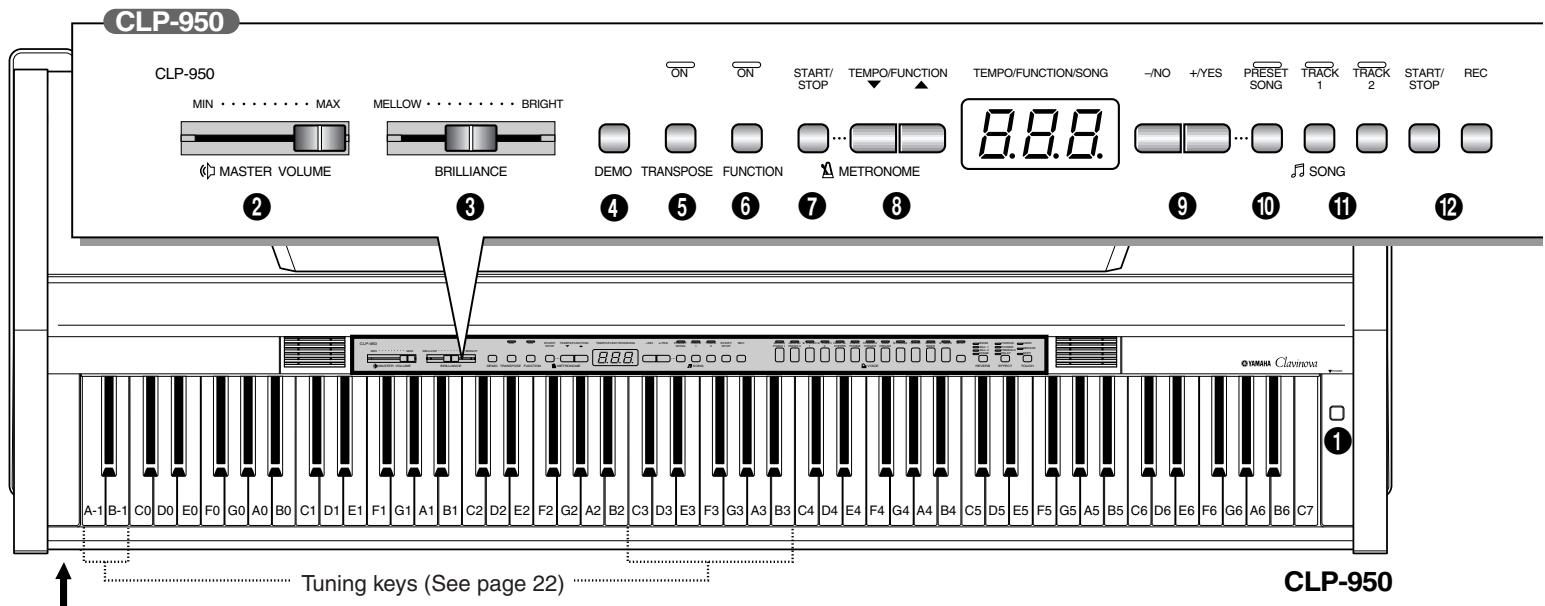
PHONES jacks on bottom panel (see page 10)
1 [POWER] Switch
Press the [POWER] switch once to turn the power ON, a second time to turn the power OFF. When the power is initially turned ON, a voice selector LED will light, and the power indicator located below the left end of the keyboard will light.
2 [MASTER VOLUME] Control
The [MASTER VOLUME] control adjusts the volume (level) of sound produced by the Clavinova's internal stereo sound system. The [MASTER VOLUME] control also adjusts headphone volume when a pair of headphones is plugged into the PHONES jack (page 10).
[BRILLIANCE] Control (CLP-950)
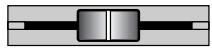
The [BRILLIANCE] Control adjusts the tonality or "timbre" of the output sound from a mellow tone to a bright tone.
4 [DEMO] Button
Activates the demo playback mode in which you can select playback of different demonstration
sequences for each of the Clavinova's voices. See page 12 for details.
[TRANSPOSE] Button
The [TRANSPOSE] button allows access to the Clavinova's TRANSPOSE function (to shift the pitch of the entire keyboard up or down in semitone intervals).
6 [FUNCTION] Button
This button accesses a range of utility functions — including the MIDI functions — that significantly enhance versatility and playability. See page 27 for details.
METRONOME [START/STOP] Button
Turns the metronome sound on and off. The [TEMPO/FUNCTION , ] buttons are used to set the tempo of the metronome sound. The [- / NO] and [+ / YES] buttons are used to change the time signature (beat) of the metronome if used while the METRONOME [START/STOP] button is held — page 23.
![YAMAHA CLP-950-950M-950C-930 - METRONOME [START/STOP] Button - 1](/content/2025/01/114661/images/0abc8c22ef2542ea47dab0a6d788b948933916760ee090817ed90d089ddb1a85.jpg)
![YAMAHA CLP-950-950M-950C-930 - METRONOME [START/STOP] Button - 2](/content/2025/01/114661/images/16a6ff0503e645943a7b5cd28f1164c106b0ca77625dc82d7e90dd9d429e5674.jpg)
[TEMPO/FUNCTION▼,▲] Buttons
These buttons adjust the tempo of the metronome function as well as the playback tempo of the recorder function. The tempo range is from 32 to 280 beats per minute — page 23. These same buttons are also used to select functions — page 27.
[[-/NO], [+/YES] Buttons]
These buttons select a preset song number for playback, and are also used to adjust a range of other parameters.
[PRESET SONG] Button
This button enters the preset song mode. While in this mode you can use the [- / NO] and [+ / YES] buttons to select from 50 songs.
1 TRACK [1] and [2] Buttons
The Clavinova has a 2-track recorder, and these buttons are used to select the track(s) to be recorded or played back. See page 24 for details.
SONG [START/STOP] and [REC] Buttons
These buttons control the Clavinova's user song recorder, letting you record and play back just about anything you play on the keyboard.
Voice Selectors
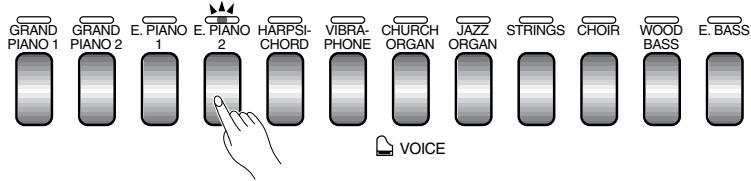
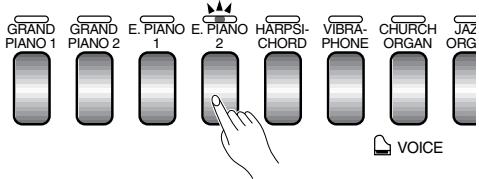
Simply press any of the voice selectors to select the corresponding voice. The voice selector LED will light to indicate which voice is currently selected.
There is also a dual mode in which two voices can be played simultaneously across the full range of the keyboard (see page 16 for details), and a split mode on the CLP-950 which allows different voices to be played by the left and right hands (see page 17 for details).
[PLIT] Button (CLP-950)
Engages the split mode, in which different voices can be played on the left- and right-hand sections of the keyboard. See page 17 for details.
[REVERB] Button
The [REVERB] button selects a number of digital reverb effects that you can use for extra depth and expressive power. See page 18 for details.
[EFECT]Button
This button selects a number of effects which can give your sound greater depth and animation.
[TOUCH] Button
The [TOUCH] button makes it easy to adjust the touch response of the Clavinova to match your playing style. See page 21 for details.
18 Pedals
The soft (left), sostenuto (center) and damper (right) pedals provide a range of expressive control capabilities similar to the pedal functions on an acoustic piano. See page 20 for details.

CAUTION - Before connecting the Clavinova to other electronic components, turn off the power for all components. Before turning the power on or off for all components, set all-volume levels to minimum.

CLP-930 Bottom Panel

CLP-950 Bottom Panel
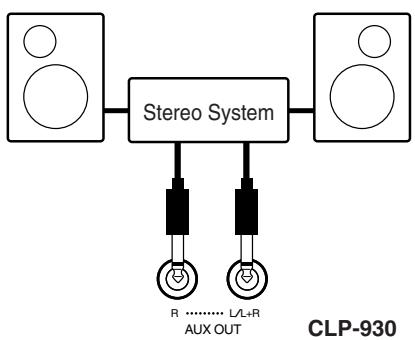
CLP-930
1 AUX OUT L/L+R and R Jacks
The AUX OUT L / L + R and R jacks deliver the output of the Clavinova for connection to an instrument amplifier, mixing console, PA system, or recording equipment. If you will be connecting the Clavinova to a monaural sound system, use only the L / L + R jack. When a plug is inserted into the L / L + R jack only, the left- and right-channel signals are combined and delivered via the L / L + R jack so you don't lose any of the Clavinova's sound.

CAUTION
- When the Clavinova's AUX OUT jacks are connected to an external sound system, first turn the Clavinova power on, and then the power to the external amplifier/ speaker system. Reverse this order when turning the power off.
- The AUX OUT jack signal must never be returned to the AUX IN jacks, either directly or through external equipment.

NOTE
- The AUX OUT jack signal is not controlled by the Clavinova's volume or brilliance (CLP-950) control. Use the volume control on the external audio equipment to adjust the level.
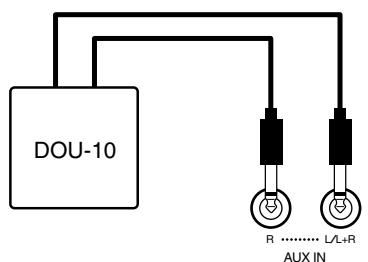
AUX IN L/L+R and R Jacks
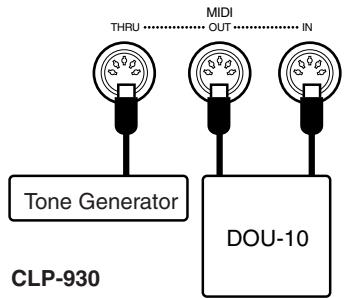
These jacks are intended for use with an external tone generator module such as the Yamaha DOU-10 Disk Orchestra Unit. The stereo outputs from the external tone generator module are connected to the AUX IN L/L+R and R jacks, allowing the sound of the tone generator to be reproduced via the Clavinova's internal sound system and speakers. A line-level mono source can be connected to the L/L+R jack.

CAUTION
- When the Clavinova's AUX IN jacks are connected to an external source, first turn the power to the external device on, and then the power to the Clavinova. Reverse this order when turning the power off.

NOTE
- The input signal from the AUX IN jacks is controlled by the Clavinova's volume and brilliance (CLP-950) controls. Reverb and effect functions will have no affect.
- The input signal from the AUX IN jacks is delivered to the AUX OUT jacks.
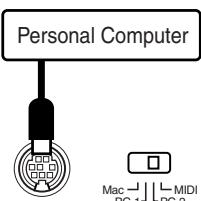
Mac DMI D
PC1=PC2
HOST SELECT
TO HOST
CLP-930
3 TO HOST Connector & HOST SELECT Switch
This jack and selector switch allow direct connection to a personal computer for sequencing and other music applications — without the need for a separate MIDI interface. See page 37 for details.
4 MIDI IN,THRU and OUT Connectors
The MIDI IN connector receives MIDI data from an external MIDI device (such as the DOU-10 Disk Orchestra Unit) which can be used to control the Clavinova. The MIDI THRU connector retransmits any data received at the MIDI IN connector, allowing "chaining" of several MIDI instruments or other devices. The MIDI OUT connector transmits MIDI data generated by the Clavinova (e.g. note and velocity data produced by playing the Clavinova keyboard).
More details on MIDI are given in "MIDI Functions" on page 33.
5 PEDAL Jack (CLP-930)
This terminal is for connecting the pedal cord from the pedal box (refer to the "Keyboard Stand Assembly" on pages 55-59).
PHONES Jacks (Bottom Panel)
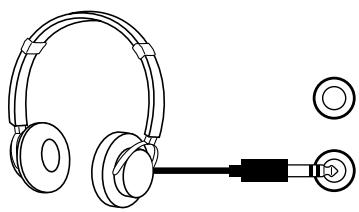
Two sets of standard stereo headphones can be plugged in here for private practice or late-night playing. The internal speaker system is automatically shut off when a pair of headphones is plugged into either of the PHONES jacks.
Key Cover
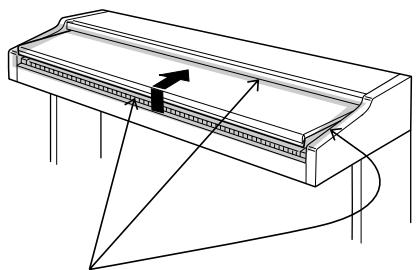
Be careful to avoid catching your fingers when opening or closing the cover.
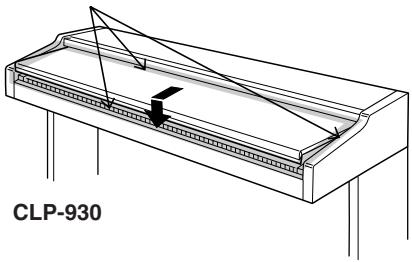
To open the key cover:
1 Lift the cover slightly.
2 Slide the cover open.
To close the key cover:
1 Slide the cover toward you.
Gently lower the cover over the keys.
CAUTION
- Hold the cover with both hands when moving it, and do not release it until it is fully opened or closed. Be careful to avoid catching fingers (yours or others) between the cover and main unit.
- Do not place objects on top of the key cover. Small objects placed on the key cover may fall inside the main unit when the cover is opened and may not be able to be removed. This could cause electric shock, short circuit, fire or other serious damage to the instrument.
Music Stand
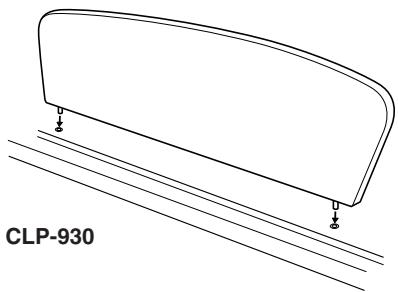
The Clavinova is supplied with a music stand that can be attached to the instrument by inserting it into the holes at the top of panel.

- The music stand can be removed to allow placement of a laptop-type personal computer or other equipment on top of the instrument.
Selecting & Playing Voices

POWER
1 Turn Power On
After making sure that the Clavinova's AC cord is properly plugged into the Clavinova itself and plugged into a convenient AC wall outlet, press the [POWER] switch located to the right of the keyboard to turn the power ON. In some areas a plug adaptor may be provided to match the pin configuration of the AC wall outlets in your area.
When the power is turned ON, one of the voice selector LEDs will light, and the power indicator located below the left end of the keyboard will light.
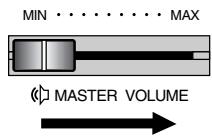
2 Set the Volume
Initially set the [MASTER VOLUME] control about half way between the "MIN" and "MAX" settings. Then, when you start playing, re-adjust the [MASTER VOLUME] control for the most comfortable listening level.
3 Select a Voice
Select the desired voice by pressing one of the voice selectors.

NOTE
See "Voice Descriptions" on page 41.
CLP-950
ROOM
HALL 1
SHALL2
STAGE

REVERB
CHORUS
PHASER
THEMOL DELAY


EFFECT
MELLOW·········BRIGHT
BRILLIANCE
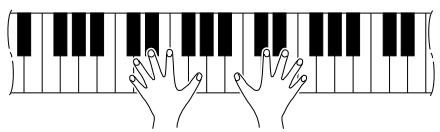
4 Play
The Clavinova also offers keyboard touch response, so the volume and timbre of notes played can be controlled according to how "hard" you play the keys. The amount of variation available depends on the selected voice.

NOTE
- Some voices do not have keyboard touch response. See "Voice Descriptions" on page 41 for details.
5 Add Effects As Required
You can add or change reverb, effects and brilliance (CLP-950) as desired by using the [REVERB] button (page 18), [EFFECT] button (page 19) and the [BRILLIANCE] control (page 19).
Playing the Demonstration Tunes
Demonstration tunes are provided that effectively demonstrate each of the Clavinova's voices. There are also 50 preset songs that you can play individually, all in sequence, or in random order. The "50 greats for the Clavinova" score collection provided with the Clavinova includes the written scores for all 50 preset songs. Here's how you can select and play the demo tunes.

The demo or preset song mode cannot be engaged while a user song recorder (page 24) is in use.
- No MIDI reception occurs in the demo/preset song mode.
-
The demo/preset song data is not transmitted via the MIDI connectors.
-
See page 42 for a complete listing of the demo tunes.
Voice Demo
1 Engage the Demo Mode
Press the [DEMO] button to engage the demo mode — the voice selector indicators will flash in sequence.
CLP-930
2 Play a Voice Demo
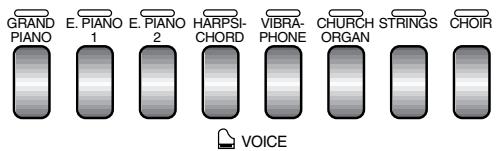
Press one of the voice selectors to start playback of all songs starting from the corresponding voice demo tune — featuring the voice normally selected by that voice selector button. (If you press the SONG [START/STOP] button instead of a voice selector button, the GRAND PIANO 1 (GRAND PIANO: CLP-930) demo tune will begin playback.) The indicator of the selected voice selector button will flash during playback, and “- - -” will appear on the LED display. You can start playback of any other voice demo tune during playback by simply pressing the corresponding voice selector. You can stop playback at any time by pressing the SONG [START/STOP] button or the voice selector of the currently playing demo.

NOTE
- Use the [MASTER VOLUME] control to adjust the volume and the [BRILLIANCE] control (CLP-950) to adjust the brilliance (page 19).
3 Exit From the Demo Mode
Press the [DEMO] button to exit from the demo mode and return to the normal play mode.
Preset Song
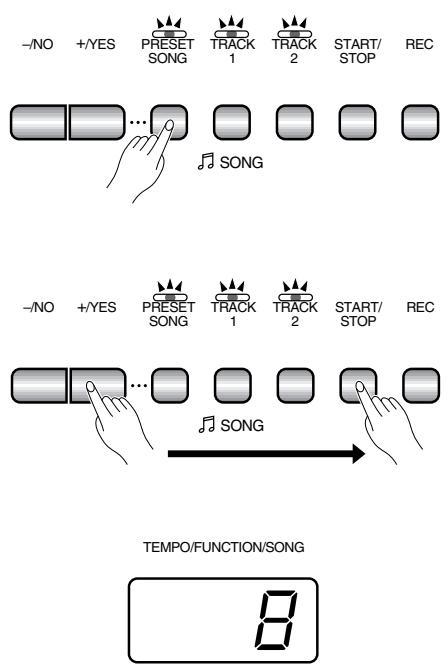
1 Engage the Preset Song Mode
Press the [PRESET SONG] button to engage the preset song mode — the [PRESET SONG], TRACK [1] and [2] indicators will light.
2 Play a Preset Song
To play any of the 50 preset songs provided, use the [- / NO] , [+ / YES] buttons to select the number of the tune you want to play (the number will appear on the LED display), then press the SONG [START/STOP] button. Playback will stop automatically when playback of the selected preset song has finished.
Select “RL” instead of a number to play all preset songs in sequence, or select “rnd” to continuously play all preset songs in random order. Press the SONG [START/STOP] button to stop playback.

NOTE
- Use the [MASTER VOLUME] control to adjust the volume.
- You can use the [TEMPO/FUNCTION , ] buttons to adjust the playback tempo as required. This produces a relative tempo variation, with a range from “-50” through “- - -” to “50” at maximum; the range will differ depending on the selected song.
- The default tempo "- - " is automatically selected whenever a new preset song is selected, or playback of a new preset song begins during "R L L" or "r o d" playback.
- You can play the keyboard along with the preset song playback. The voice playing on the keyboard can be changed.
- You can change the Brilliance control (CLP-950) and Reverb type that is applied to the voice you play on the keyboard and for the preset song playback. You can change the Effect type and Touch sensitivity that is applied to the voice you play on the keyboard. When a new preset song is selected or a new preset song is automatically started in continuous play, the HALL 1 reverb type will automatically be selected.
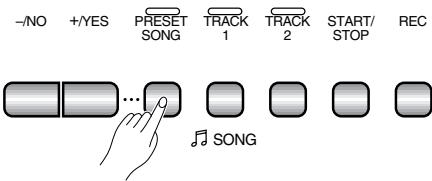
3 Exit From the Preset Song Mode
Press the [PRESET SONG] button to exit from the preset song mode, the indicator will go off, and return to the normal play mode.
Preset Song A-B Repeat
The A-B Repeat function can be used to continuously repeat a specified phrase within a preset song. Combined with the Part Cancel function described below, this provides an excellent way to practice difficult phrases.
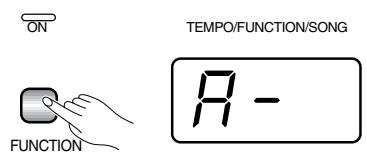
1 Specify the Beginning (A) of the Phrase
Select and play a preset song, then press the [FUNCTION] button at the beginning of the phrase you want to repeat. This sets the "A" point ("R - " will appear on the display).
To set the “A” point at the very beginning of the song, press the [FUNCTION] button before starting playback.
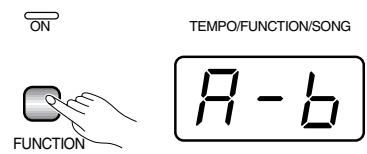
2 Specify the End (B) of the Phrase
Press the [FUNCTION] button a second time at the end of the phrase. This sets the "B" point ("R-b" will appear on the display). At this point repeat playback will begin between the specified A and B points. The metronome will sound when playback begins to give you a tempo reference. However, if playback repeats from the beginning of the song, there will be no tempo reference from metronome.
To set the B point at the song's end, press the [FUNCTION] button after song playback is complete and before “R-” disappears from the display.
3 StopPlayback
Press the SONG [START/STOP] button to stop playback while retaining the specified A and B points. A-B repeat playback will resume if the SONG [START/STOP] button is then pressed again.
To cancel the A and B points press the [FUNCTION] button once.

NOTE
- The A and B points are automatically canceled when a new song is selected.
- The A-B Repeat function cannot be used during "RL L" or "r-nd" playback.
Preset Song Part Cancel
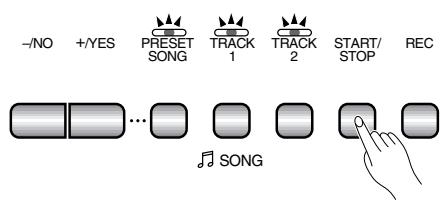
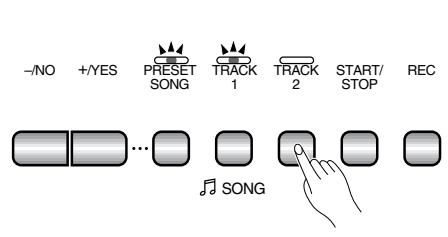
The 50 preset songs have separate left- and right-hand parts that can be turned on and off as required so you can practice the corresponding part on the keyboard. The right-hand part is played by TRACK [1] track, and the left-hand part is played by TRACK [2] track.
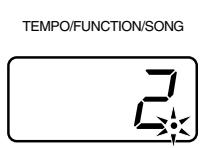
1 Turn the Desired Part Off
Press the TRACK [1] or [2] button to turn the corresponding part off — the corresponding indicator will go out (these buttons alternately toggle the corresponding part on and off).

- The parts can be turned on or off even during playback.
- The Preset Song Part Cancel function cannot be used during "R L" or "r n d" playback.
- The "Preset Song Part Cancel Volume" function described on page 32 can be used to set the canceled part so that it plays at a volume from "0" (no sound) to "20". The default setting is "5".
- Both parts are automatically turned ON whenever a new song is selected.
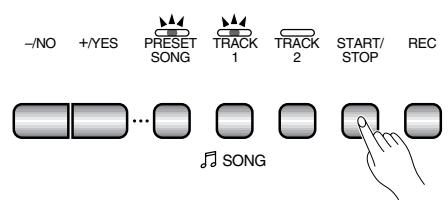
2 Start/StopPlayback.
Press the SONG [START/STOP] button to start and stop playback as required.
Synchro Start
When the Synchro Start function is engaged, playback of the selected preset song will begin automatically as soon as you start playing on the keyboard.
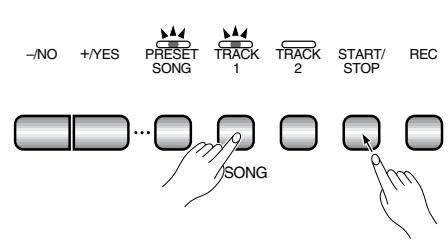
To engage the Synchro Start function press the SONG [START/ STOP] button while holding the part button corresponding to the part which is ON. A dot will appear in the lower right corner of the display. (Repeat the previous operation to disengage the Synchro Start function.)
Playback will then start as soon as you begin playing on the keyboard.

- If you hold a track button which is OFF while pressing the SONG [START/STOP] button, that track will be turned ON and the Synchro Start mode will be engaged.
Left Pedal Start/Stop
The left pedal can be assigned to start and stop preset song playback via the "Left Pedal Mode" function described on pages 31 (CLP-930) and 32 (CLP-950).
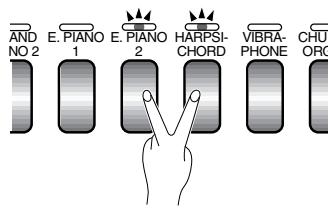
The dual mode makes it possible to play two voices simultaneously across the entire range of the keyboard.
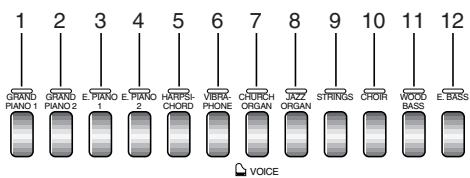
Voice numbering priority
CLP-950
To activate the dual mode simply press two voice selectors at the same time (or press one voice selector while holding another). The voice indicators of both selected voices will light when the dual mode is active. To return to the normal single-voice play mode, press any single voice selector.
According to the voice numbering priority as shown in the diagram on the left, lower valued voice numbers will be designated as the 1st Voice (the other voice will be designated as the 2nd Voice).

- The dual and split modes (CLP-950) cannot be engaged at the same time.
- [EFFECT] in the Dual Mode
Depending upon the conditions one effect type will take priority over the other. Depth will be decided according to the depth default value of the voice combination. However, using function F3 (see page 29) you can change the depth value for each voice as you like.
Effect depth setting via the panel controls (i.e. pressing the [-/NO] or [+/YES] buttons while holding the [EFFECT] button — see page 19) will be applied to the 1st Voice only.
- [REVERB] in the Dual Mode
The reverb type assigned to the 1st Voice will take priority over the other. (If the reverb is set to OFF, the 2nd Voice's reverb type will be in affect.)
Reverb depth setting via the panel controls (i.e. pressing the [-/NO] or [+/YES] buttons while holding the [REVERB] button — see page 18) will be applied to the 1st Voice only.

Other Dual Mode Functions
The Clavinova Function mode provides access to a number of other dual-mode functions, listed below. See the corresponding pages for details.
- Dual Balance 29
- Dual Detune 29
- 1st Voice Octave Shift 29
- 2nd Voice Octave Shift 29
1st Voice Effect Depth 30
2nd Voice Effect Depth 30 - Reset 30
The Split Mode (CLP-950)
The split mode makes it possible to play two different voices on the keyboard — one with the left hand and another with the right hand. The Left Voice is played on all keys to the left of (and including) a specified "split point" key, while the Right Voice is played on all keys to the right of the split point key.
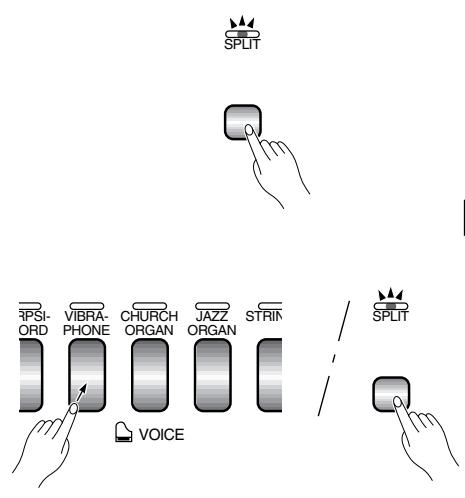
To activate the split mode simply press the [SPLIT] button so that its indicator lights. The split mode can be turned off at any time by pressing the [SPLIT] button again so that its indicator goes out.
NOTE The dual and split modes cannot be engaged at the same time.
□ Selecting the Right and Left Voices
The voice that was selected before the split mode was engaged becomes the Right Voice in the split mode. (The Right Voice can also be changed while in the split mode, by simply pressing the corresponding voice selector.)
To select a Left Voice press the corresponding voice selector while holding the [SPLIT] button (default: [WOOD BASS]). The indicator of the Left Voice selector will light while the [SPLIT] button is pressed, then only the Right Voice selector and [SPLIT] button indicators will remain lit.
NOTE
- [EFFECT] in the Split Mode
Depending upon the conditions, one effect type will take priority over the other. Depth will be decided according to the depth default value of the voice combination. However, using function F4 (see page 30) you can change the depth value for each voice as you like.
Effect depth setting via the panel controls (i.e. pressing the [-/NO] or [+/YES] buttons while holding the [EFFECT] button — see page 19) will be applied to the Right Voice only.
- [REVERB] in the Split Mode
The reverb type assigned to the Right Voice will take priority over the other. (If the reverb is set to OFF, the Left Voice's reverb type will be in affect.)
Reverb depth setting via the panel controls (i.e. pressing the [-/NO] or [+/YES] buttons while holding the [REVERB] button — see page 18) will be applied to the Right Voice only.
![YAMAHA CLP-950-950M-950C-930 - - [REVERB] in the Split Mode - 1](/content/2025/01/114661/images/ffc6f62bd1ce67556dd01c38441e3544f0bcad2789c84921de5a5d562506892e.jpg)
Example:
| A-1 | b=1 | C2 | F-2 |
| A-1 | Bb-1 | C2 | F#2 |
- "b" is indicated with a lower "-".
- “#” is indicated with an upper “-”.
Setting the Split Point
The split point is initially set at the F#2 key by default. You can change the split point to any other key by pressing the key while holding the [SPLIT] button (the name of the current split-point key appears on the LED display while the [SPLIT] button is held). The split point can also be set via the Function mode (see below).
Other Split Mode Functions
The Clavinova Function mode provides access to a number of other split-mode functions, listed below. See the corresponding pages for details.
- Split Point 30
- Split Balance 30
- Right Voice Octave Shift 31
- Left Voice Octave Shift 31
- Right Voice Effect Depth 31
- Left Voice Effect Depth 31
- Damper Range 31
- Reset 31
The [REVERB] button selects a number of digital reverb effects that you can use for extra depth and expressive power.
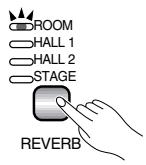
To select a reverb type press the [REVERB] button a few times until the indicator corresponding to the desired type lights (the indicators light in sequence each time the [REVERB] button is pressed). No reverb is produced when all indicators are off.
OFF
No reverb effect is selected when no REVERB indicator is lit.
ROOM
This setting add a continuous reverb effect to the sound that is similar to the type of acoustic reverberation you would hear in a room.
HALL 1
For a "bigger" reverber sound, use the HALL 1 setting. This effect simulates the natural reverberation of a small-size concert hall.
HALL 2
For a really spacious reverber sound, use the HALL 2 setting. This effect simulates the natural reverberation of a large concert hall.
STAGE
A simulation of the type of reverb produced in a stage environment.

- The default reverb type (including OFF) and depth settings are different for each voice.
- Even if the REVERB effect is OFF, a "soundboard reverb" effect will be applied when the CLP-950 GRAND PIANO 1 voice is selected.
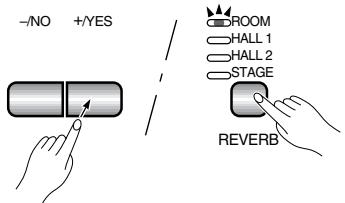
TEMPO/FUNCTION/SONG
Adjusting Reverb Depth
Adjust the reverb depth for the selected voice by using the [- / NO] and [+ / YES] buttons while holding the [REVERB] button. The depth range is from 0 through 20 (the current depth setting appears on the LED display while the [REVERB] button is held). A setting of "0" produces no effect, while a setting of "20" produces maximum reverb depth. Press the [- / NO] and [+ / YES] buttons simultaneously while holding the [REVERB] button to recall the default setting for the current voice (default depth settings are different for each voice).
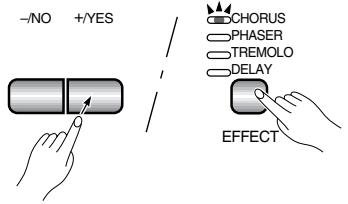
The [EFFECT] button allows you to select one of the effects that can give your sound greater depth and animation.
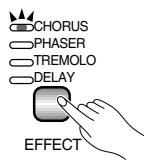
To select an effect type press the [EFFECT] button a few times until the indicator corresponding to the desired type lights (the indicators light in sequence each time the [EFFECT] button is pressed). No effect is produced when all indicators are off.
OFF
No effect is selected when no EFFECT indicator is lit.
CHORUS
Shimmering, broadening effect
PHASER
Adds depth to the sound.
TREMOLO
Tremolo effect
DELAY
Echo effect

NOTE
- The default effect type (including OFF) and depth settings are different for each voice.
TEMPO/FUNCTION/SONG
Adjusting Effect Depth
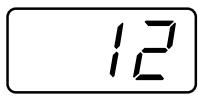
Effect depth can be individually adjusted for the selected voice by using the [- / NO] and [+ / YES] buttons while holding the [EFFECT] button. The depth range is from 0 through 20 (the current depth setting appears on the LED display while the [EFFECT] button is held). A setting of "0" produces no effect, while a setting of "20" produces maximum effect depth. Press the [- / NO] and [+ / YES] buttons simultaneously while holding the [EFFECT] button to recall the default setting for the current voice (the default depth settings are different for each voice).
Brilliance (CLP-950)

This control can be used to change the tonality or "timbre" of the sound output. The control range is from MELLOW to BRIGHT.
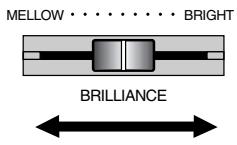
For a brighter or "sharper" tone, slide the control towards the BRIGHT position. For a "rounder" more mellow tone, slide the control towards the MELLOW position.

NOTE
- When the BRILLIANCE is set to BRIGHT, the overall sound will be slightly louder. If the MASTER VOLUME is set at a high level the sound may become distorted. If so, lower the MASTER VOLUME level.
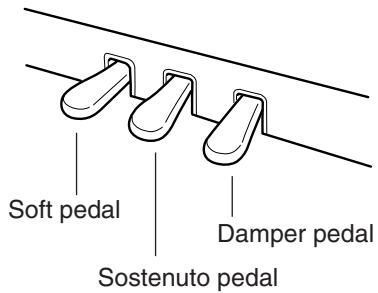
The Clavinova has three foot pedals that produce a range of expressive effects similar to those produced by the pedals on an acoustic piano.
Damper (Right) Pedal
The damper pedal functions in the same way as a damper pedal on an acoustic piano. When the damper pedal is pressed notes played have a long sustain. Releasing the pedal immediately stops (damps) any sustained notes.
When the GRAND PIANO 1 voice is selected on the CLP-950, pressing the damper pedal activates the instrument's special "Sustain Samples" to accurately recreate the unique resonance of an acoustic grand piano's soundboard and strings.

NOTE
- On the CLP-950 the depth of the effect produced by the "Sustain Samples" can be adjusted via the "Pedal Functions" (page 32) in the function mode.
- If the damper pedal doesn't work, or notes are sustained even when the pedal is not pressed, make sure that the pedal cord is properly plugged into the main unit (page 58: CLP-930, page 50: CLP-950).
Sostenuto (Center) Pedal
If you play a note or chord on the keyboard and press the sostenuto pedal while the note(s) are held, those notes will be sustained as long as the pedal is held (as if the damper pedal had been pressed) but all subsequently played notes will not be sustained. This makes it possible to sustain a chord, for example, while other notes are played "staccato."

NOTE
- Organ, string and choir voices will continue to sound for as long as the sostenuto pedal is depressed.

Soft (Left) Pedal
The soft pedal reduces the volume and slightly changes the timbre of notes played while the pedal is pressed. The soft pedal will not affect notes which are already playing when it is pressed.
The left pedal can also be assigned to song start/stop operation via the "Left Pedal Mode" described on pages 31 (CLP-930) and 32 (CLP-950).
Four different types of keyboard touch sensitivity — HARD, MEDIUM, SOFT or FIXED — can be selected to match different playing styles and preferences.
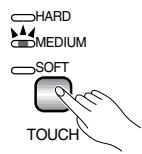
To select a touch sensitivity type press the [TOUCH] button a few times until the indicator corresponding to the desired type lights (the indicators light in sequence each time the [TOUCH] button is pressed).
HARD
The HARD setting requires the keys to be played quite hard to produce maximum loudness.
MEDIUM
The MEDIUM setting produces a fairly "standard" keyboard response. This is the initial factory default setting.
SOFT
The SOFT setting allows maximum loudness to be produced with relatively light key pressure.
FIXED (no indicator lit)
All notes are produced at the same volume no matter how hard the keyboard is played.
When the FIXED type is selected, the volume of notes played in the FIXED mode can be set by using the [- / NO] and [+ / YES] buttons while the [TOUCH] button is held (the current volume level appears on the display). The volume range is from 1 through 127. The default setting is 64.

NOTE
- This setting does not change the weight of the keyboard.
- The touch sensitivity type and volume set in the FIXED mode will become the common setting for all voices. However, the touch sensitivity settings may have little or no effect with certain voices which are not normally responsive to keyboard dynamics (Refer to the "Voice Descriptions" on page 41).
Transposition
The Clavinova's TRANSPOSE function makes it possible to shift the pitch of the entire keyboard up or down in semitone intervals up to a maximum of 12 semitones (i.e. a maximum of one octave up or down). "Transposing" the pitch of the Clavinova keyboard facilitates playing in difficult key signatures, and you can easily match the pitch of the keyboard to the range of a singer or other instrumentalist.
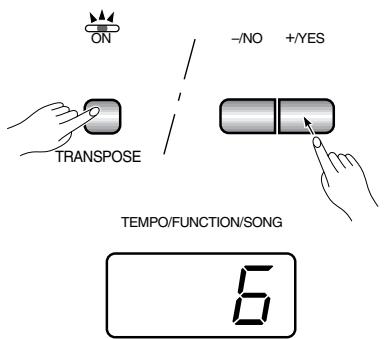
Use the [- / NO] or [+ / YES] button while holding the [TRANS-POSE] button to transpose down or up as required. The transposition range is from “-12” (down one octave) through “0” (normal pitch) to “12” (up one octave). The amount of transposition appears on the LED display while the [TRANSPOSE] button is held. The default transpose setting is “0”.

NOTE
- The [TRANSPOSE] button indicator remains lit when a transpose setting other than "0" is selected.
- Notes below and above the A-1 ... C7 range of the Clavinova sound one octave higher and lower, respectively.
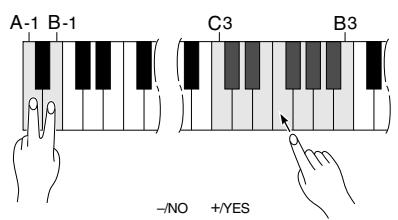
Tuning makes it possible to adjust the pitch of the Clavinova over a 427.0Hz ... 453.0 Hz (corresponding to the A3 note's Hz) range in approximately 0.2 Hertz intervals. Pitch control is useful for tuning the Clavinova to match other instruments or recorded music.
Tuning Up
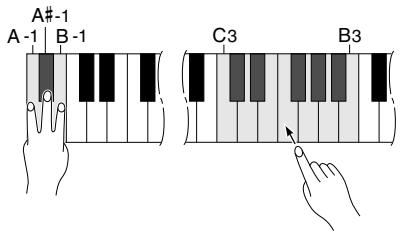
1 To tune up (raise pitch), hold the A-1 and B-1 keys simultaneously.
Press any key between C3 and B3. Each time a key in this range is pressed the pitch is increased by approximately 0.2Hz .
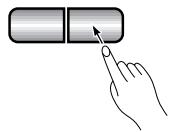
The [- / NO] and [+ / YES] buttons can also be used to tune down or up, respectively, in approximately 1Hz increments. Press the [- / NO] and [+ / YES] buttons simultaneously to recall standard tuning (A3 = 440 Hz).
3 Release the A-1 and B-1 keys.
Tuning Down
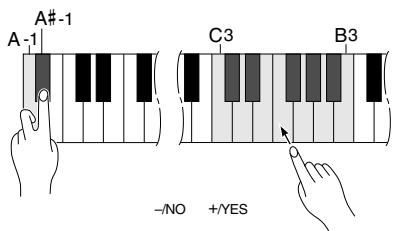
1 To tune down (lower pitch), hold the A-1 and A#-1 keys simultaneously.
Press any key between C3 and B3. Each time a key in this range is pressed the pitch is decreased by approximately 0.2Hz .
The [- / NO] and [+ / YES] buttons can also be used to tune down or up, respectively, in approximately 1Hz increments. Press the [- / NO] and [+ / YES] buttons simultaneously to recall standard tuning (A3 = 440 Hz).
3 Release the A-1 and A#-1 keys.
To Restore Standard Pitch
To restore the default pitch (A3 = 440 Hz), hold the A-1, A#-1 and B-1 keys simultaneously.
2 Press any key between C3 and B3. (Pressing once will restore the keyboard to standard pitch, regardless of the amount of pitch adjustment.)
3 Release the A-1, A#-1 and B-1 keys.
In terms of "Hertz", the overall tuning range is from 427.0Hz to 453.0Hz . The current tuning setting is shown on the LED display while the tuning is being adjusted. Tenth of a Hertz are indicated on the LED display by the appearance and position of one or two dots, as in the following example:
| Display | Value |
| 440 | 440.0 |
| 440 | 440.2 |
| 440 | 440.4 |
| 440 | 440.6 |
| 440 | 440.8 |
NOTE
- An alternative tuning method is available in the Function mode — page 28.
The Metronome & Tempo Control
The Clavinova built-in metronome is a convenient feature for practice, and it can also provide a solid rhythmic guide when recording using the User Song Recorder feature, described in the next section.
The Metronome
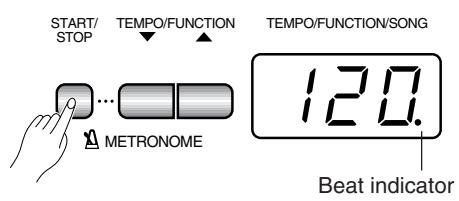
The metronome sound is alternately turned on and off by pressing the METRONOME [START/STOP] button. When on, the beat indicator flashes at the current tempo.
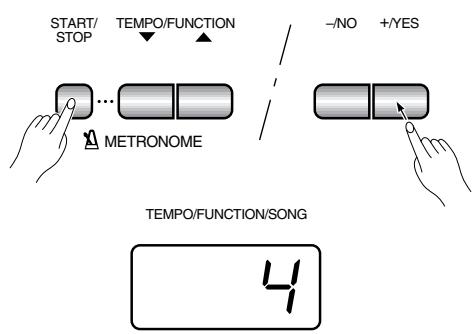
Metronome Time Signature
The time signature (beat) of the metronome can be set by using the [- / NO] and [+ / YES] buttons while holding the METRONOME [START/STOP] button. You can set the beat to 0, 2, 3, 4, 5 or 6 (the current setting appears on the LED display while the METRONOME [START/STOP] button is held). Press the [- / NO] and [+ / YES] buttons simultaneously while holding the METRONOME [START/STOP] button to recall the default setting "0" (no accent).
Metronome Volume Function
The volume of the metronome sound can be adjusted via the Metronome Volume function in the Function mode—page 32.
Tempo Control
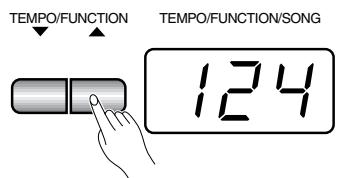
The tempo of the metronome and user song recorder playback (the recorder is described in the next section) can be set from 32 to 280 beats per minute by using the [TEMPO/FUNCTION , ] buttons. The selected tempo will appear on the LED display while in the normal play mode and while the [TEMPO/FUNCTION , ] buttons are being used to adjust the tempo in the recording/playback mode. The default tempo (120 or the recorded song tempo when the recorder contains data and the playback track indicator is lit) can be recalled by simultaneously pressing the [] and [] buttons.
Using the User Song Recorder
The ability to record and play back what you've played on the Clavinova keyboard can be an effective practice aid. You can, for example, record just the left-hand part, and then practice the right-hand part while playing back the recorded left-hand part. Or, since you can record up to two tracks separately, you could record the left- and right-hand parts separately, or record both parts of a duet and hear how they sound when played back.
The user song recorder actually records the following data:
Entire Song
- Tempo - Time signature (beat) - Reverb type (including OFF) - Effect type
Individual Tracks
Notes played
Dual mode voices
- Damper pedal
- Sostenuto pedal (not recorded as an initial setting)
Effect depth Reverb depth
- Dual balance (F3) - Dual detune (F3)
- Split balance (F4: CLP-950) - Split octave shift (F4: CLP-950)
Recording
CLP-950


SONG





SONG


REC
TEMPO/FUNCTION/SONG
5
1 Make All Necessary Initial Settings
Before actually beginning to record, select the voice you want to record with (or voices if you will be using the dual or split mode). You might also want to set the volume and tempo controls.
2 Engage the Record Ready Mode
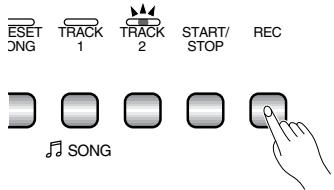
Press the [REC] button to engage the record ready mode (recording does not actually start yet). The record ready mode can be disengaged before recording by pressing the [REC] button a second time.

三
- The record ready mode cannot be engaged while the demo/preset song mode is engaged.
3 Select the Record Track
When the record mode is engaged in the previous step, the last-recorded track will automatically be selected for recording and its indicator — i.e. the TRACK [1] or [2] button indicator — will glow red. If you want to record on a different track, press the appropriate track button so that its indicator glows red.

NOTE
- The track button indicators of tracks which contain previously recorded data will glow green (unless the track is turned off as described below). The previously-recorded data on the non-record track will normally be played back as you record, so you can play along with a previously-recorded track. If you don't want to hear the previously recorded track as you record (when you want to record a song different from what you recorded on the previous track etc.), press the playback track button before pressing the [REC] button (step 1, above) so that its indicator goes out.
- Recording on a track which already contains data will erase all previous data on that track.
- When the record mode is engaged the amount of memory available for recording will be shown on the LED display in approximate kilobytes (starting at "50"), and the rightmost dot on the LED display will flash at the current METRONOME tempo setting.
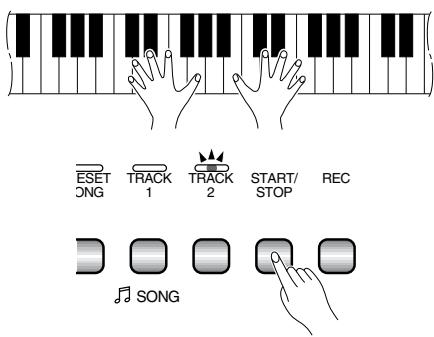
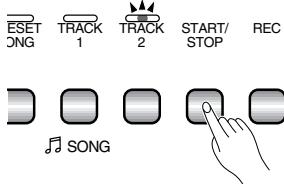
Start Recording
Recording will begin automatically as soon as you play a note on the keyboard or press the SONG [START/STOP] button. The current measure number will appear on the display while recording.

- The left pedal can be assigned to start and stop recording via the "Left Pedal Mode" function described on pages 31 (CLP-930) and 32 (CLP-950).
- If the metronome was on when you started recording, you'll be able to keep time with the metronome while recording, but the metronome sound will not be recorded.
- You can record up to a maximum of about 10,000 notes on the Clavinova, depending on pedal usage and other factors. The record track indicator will begin to flash when recorder memory is almost full. If the memory becomes full during recording, "FLL" will appear on the display and recording will stop automatically. (All recorded data up to that point will be retained.)
5 Stop Recording
Press either the [REC] or SONG [START/STOP] button to stop recording.
The indicator of the recorded track will glow green to indicate that it now contains data.
Changing the Initial Settings
The initial voice, tempo, reverb type, reverb depth, and effect settings made in step 1 of the recording procedure are actually recorded by the Clavinova.
These initial settings can be changed after the recording is finished by pressing the [REC] button to engage the record ready mode, pressing the appropriate track button, making the required changes, and then pressing the [REC] button again to exit from the record ready mode and register the changes.
If you do this, be careful not to press the SONG [START/STOP] button or a key on the keyboard, either of which will start recording and erase all previous recorded data on the selected track.
It is possible to cancel the operation even after changes have been made: change tracks and then press the [REC] button to exit from the record mode (this also cancels data for the entire song).

- The following data for initial settings cannot be changed: "Dual balance (F3)", "Dual detune (F3)", "Dual octave shift (F3)", "Split balance (F4:CLP-950)" or "Split octave shift (F4:CLP-950)".
Erasing a Single Track
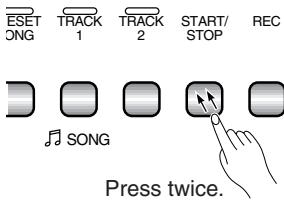
All data can be erased from either of the recorder's tracks by engaging the record mode, selecting the track you want to erase, and then pressing the SONG [START/STOP] button twice without recording any data.
Playback
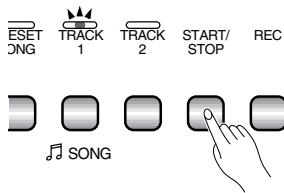
To play back what you've recorded, first make sure that the green track indicators of the tracks you want to play are lit. If not, press the corresponding track button(s) so that they are lit. Then press the SONG [START/STOP] button. Playback starts from the beginning of the recorded data, and will stop automatically at the end of the recorded data. You can also stop playback at any time by pressing the SONG [START/STOP] button.
To mute a track so that it doesn't play back, press the corresponding track button so that its indicator goes out (press again to turn the track back on).
The current measure number appears on the display during playback.

- It is possible to play along on the keyboard during playback. In this case, the playback voice and the voice you play on the keyboard are not the same. The playback voice is the voice that was set when the data was recorded. The voice you play on the keyboard is the voice that is selected on the panel.
- The playback volume and tempo can be adjusted by using the [MASTER VOLUME] control and [TEMPO/FUNCTION▼, ▲] buttons (press both [TEMPO/FUNCTION▼, ▲] buttons simultaneously to recall the default tempo).
- All user song recorder data will be retained in memory for about one week after the power is turned off. If you want to keep your recorded data for longer periods, turn the power on for a few minutes at least once a week. It is also possible to store it to an external MIDI storage device such as the Yamaha MIDI Data Filer MDF3 by using the Bulk Data Dump function described on page 35.
- The track indicators will not light automatically when the power is turned on even if the user song recorder contains data. It is therefore necessary to press the track buttons so that the corresponding green indicators light before starting recorder playback. It is also a good idea to press the track buttons to check if the tracks contain data before recording. If the green indicator lights when the corresponding track button is pressed, that track contains data which will be erased and replaced by the newly-recorded data.
- If the metronome is being used during playback, the metronome will automatically stop when playback is stopped.
- During recorder playback, the volume of a track which is turned off will always be "0" (i.e. the "Preset Song Part Cancel Volume" function — page 32 — only affects preset song playback.
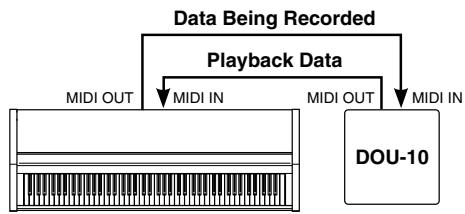
- The playback data is not transmitted via the MIDI OUT connector.
- Playback cannot be started when the demo/preset song mode is engaged.
- Playback cannot be started when the recorder contains no data, or when both track buttons are off.
- If the REVERB type is changed via the panel controls during playback, both the playback and keyboard reverb effects will be changed.
- If the EFFECT type is changed via the panel controls during playback, the playback effect may be switched off in some cases.
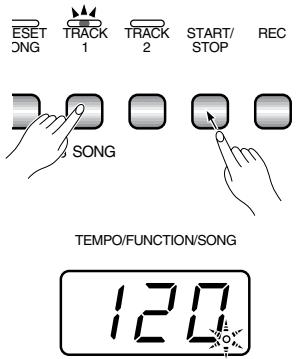
Synchro Start
When the Synchro Start function is engaged, recorder playback will begin automatically as soon as you start playing on the keyboard.
To engage the Synchro Start function press the SONG [START/STOP] button while holding a track button which is ON. The rightmost dot on the display will flash at the current tempo. (Repeat the previous operation to disengage the Syncro Start function.) Playback will then start as soon as you begin playing on the keyboard.
If you hold a track button which is OFF while pressing the SONG [START/STOP] button, that track will be turned ON and the Synchro Start mode will be engaged.
Left Pedal Start/Stop
The left pedal can be assigned to start and stop recorder playback via the "Left Pedal Mode" function described on pages 31 (CLP-930) and 32 (CLP-950). This is convenient for starting playback of the recorded part anytime after you have started playing.
The [FUNCTION] button provides access to a range of functions that give the Clavinova extraordinary versatility. The functions are categorized in groups as follows:
CLP-930 CLP-950
F1 F1 Tuning 28
F2 F2 Scale 28
F3 F3 Dual Mode Functions 29
F4 Split Mode Functions 30
F4 Left Pedal Mode 31
F5 Pedal Functions 32
F5 F6 Metronome Volume 32
F6 F7 Preset Song Part Cancel Volume 32
F7 F8 MIDI Functions 33
F8 F9 Backup Functions 36

START/ STOP TEMPO/FUNCTION

METRONOME


START/ STOP TEMPO/FUNCTION

METRONOME
Operation Example

Press [+/YES]


Use [TEMPO/FUNCTION▼,▲]

Press [-/NO] or [+/YES] once


Use[-/NO],[+/YES]
To Select a Function
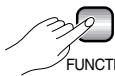
Press the [FUNCTION] button so that its indicator lights.

NOTE
- Functions cannot be selected during demo/preset song playback or when the user song recorder is in operation.

Use the [TEMPO/FUNCTION , ] buttons to select the desired function: F1 through F8 on the CLP-930; F1 through F9 on the CLP-950.

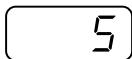
In the case of the Scale (F2), Dual Mode (F3), Split Mode (F4: CLP-950), Pedal Functions (F5: CLP-950), MIDI (F7: CLP-930, F8: CLP-950), and Backup (F8: CLP-930, F9: CLP-950) functions, you will have to press the [+/YES] button once to enter the respective sub-mode after the function has been selected, and then use the [TEMPO/FUNCTION▼, ▲] buttons again to select the desired sub-function.

NOTE
-
The Dual or Split (CLP-950) mode must be engaged before the F3 and F4 functions can be selected, respectively. If the corresponding mode is not engaged, "F3-" or "F4-" will appear on the display and the corresponding sub-mode will not be available.
-
The Dual mode can be engaged while in the Function mode, but the Function mode must be exited before the Split mode (CLP-950) can be engaged.

Set the function as required by using the [- / NO] and [+ / YES] buttons (see the individual function descriptions, below).

NOTE
- After selecting the function, the current setting will be displayed when the [- / NO] or [+ / YES] button is pressed for the first time.

Press the [FUNCTION] button so that its indicator goes out to exit from the function mode.
F1 Tuning
In addition to the tuning method described on page 22, overall tuning can also be accomplished via the F1 function.
After selecting "F1", use the [-/NO] and [+/YES] buttons to lower or raise the pitch in approximately 0.2Hz increments (the first time the [-/NO] or [+/YES] button is pressed simply switches to the tuning value display without actually changing the tuning). The overall tuning range is from 427.0Hz to 453.0Hz (corresponding to the A3 note's Hz ). Press the [-/NO] and [+/YES] buttons simultaneously to recall the default value "440 Hz".
Tents of a Hertz are indicated on the LED display by the appearance and position of one or two dots, as in the following example:
| Display | Value |
| 440 | 440.0 |
| 440 | 440.2 |
| 440 | 440.4 |
| 440 | 440.6 |
| 440 | 440.8 |
F2 Scale
After selecting “F2.Y”, press the [+/YES] button to engage the scale function sub-mode, then use the [TEMPO/FUNCTION▼, ▲] buttons to select the desired scale function, as listed below.
F2.1: Scale
In addition to the standard Equal Temperament tuning, the Clavinova includes 6 classic tunings that you can select and use to play music of the corresponding period, or experiment with in a more modern context. The tunings are:
1: Equal Temperament 5: Mean Tone
2: Pure Major 6: Werckmeister
3: Pure Minor 7: Kirnberger
4: Pythagorean
Use the [- / NO] and [+ / YES] buttons to select the number of the desired tuning. Press the [- / NO] and [+ / YES] buttons simultaneously to recall the default settings (Equal Temperament tuning).
F2.2: Base Note
Unlike Equal Temperament tuning, these classic tunings must be tuned to a specific key. Use the [- / NO] and [+ / YES] buttons to select the key you want the previously selected tuning to be based. The selected key will appear on the display, followed by a low bar if flat (e.g. “ _- ” or a high bar if sharp (e.g. “ ^- ”).
Press the [- / NO] and [+ / YES] buttons simultaneously to recall the default settings "C".
- The base note setting is effective for tunings other than the Equal Temperament tuning.
F3 Dual Mode Functions
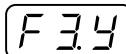
After selecting “F3.Y”, press the [+/YES] button to engage the dual-mode function submode, then use the [TEMPO/FUNCTION▼, ▲] buttons to select the desired dual mode function, as listed below.
If the Dual mode is not engaged “F3.-” will appear instead of “F3.Y” and the Dual mode functions cannot be selected. If this happens engage the Dual mode and proceed.
SHORTCUT: You can jump directly to the dual-mode functions (F3) by pressing the [FUNCTION] button while holding the two dual-mode voice selectors.
NOTE - Dual mode function settings are set individually for each voice combination.
F3.1: Dual Balance
The volume levels of the two voices combined in the dual mode can be adjusted as required by using this function. Use the [- / NO] and [+ / YES] buttons to adjust the balance as required. The balance range is from 0 through 20. A setting of "10" produces equal balance between the two dual-mode voices. Settings below "10" increase the volume of the 2nd Voice in relation to the 1st Voice, and settings above "10" increase the volume of the 1st Voice in relation to the 2nd Voice ("1st" and "2nd" is explained on page 16). Press the [- / NO] and [+ / YES] buttons simultaneously to recall the default setting (different for each voice combination).
You can set one voice as the main voice, and another voice as a softer, mixed voice.
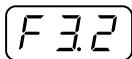
F3.2: Dual Detune
This function makes it possible to detune the 1st and 2nd dual-mode Voices to create a thicker sound. Use the [- / NO] and [+ / YES] buttons to set the amount of detuning as required. The detune range is from -10 through 10. A setting of "0" sets both voices to the same pitch. "+" values raise the pitch of the 1st voice while lowering the pitch of the 2nd voice, and "-" values raise the pitch of the 2nd voice while lowering the pitch of the 1st voice. ("1st" and "2nd" is explained on page 16). Press the [- / NO] and [+ / YES] buttons simultaneously to recall the default setting (different for each voice combination).
NOTE The maximum amount of pitch variation increases toward the lower key range (±60 cents at the A-1 key), and decreases toward the higher key range (±5 cents at the C7 key). 100 cents = 1 semitone.
F3.3: 1st Voice Octave Shift
F3.4: 2nd Voice Octave Shift
Depending on which voices you combine using the dual mode, the combination may sound better if one of the voices is shifted up or down an octave. Use the [- / NO] and [+ / YES] buttons to set the octave of the 1st or 2nd Voice as required ("1st" and "2nd" is explained on page 16). The available settings are "0" for normal pitch, "−1" to shift the pitch down one octave, and "1" to shift the pitch up one octave. Press the [- / NO] and [+ / YES] buttons simultaneously to recall the default setting (different for each voice combination).
F3.5: 1st Voice Effect Depth
F3.6: 2nd Voice Effect Depth
These functions make it possible to individually set the depth of the effect for the 1st and 2nd dual-mode Voices ("1st" and "2nd" is explained on page 16). Use the [- / NO] and [+ / YES] buttons to set the effect depth for the corresponding voice as required. The depth range is from 0 through 20. A setting of "0" produces no effect, while a setting of "20" produces maximum effect depth. Press the [- / NO] and [+ / YES] buttons simultaneously to recall the default setting (different for each voice combination).

NOTE
- The effect depth settings cannot be changed unless the EFFECT is ON. The Function mode must be exited before EFFECT can be turned ON.
F3.7: Reset
This function resets all dual-mode functions to their default values. Press the [+/YES] button to reset the values. "E and" will appear on the display when all functions have been reset.
F4 CLP-950 Split Mode Functions
After selecting “F 4G”, press the [+ / YES] button to engage the split-mode function submode, then use the [TEMPO/FUNCTION▼, ▲] buttons to select the desired split mode function, as listed below.
If the Split mode is not engaged “F4.” will appear instead of “F4.” and the Split mode functions cannot be selected. Also note that you must exit from the Function mode before the Split mode can be engaged.
SHORTCUT: You can jump directly to the split-mode functions (F4) by pressing the [FUNCTION] button while holding the [SPLIT] button.

NOTE
- Split mode function settings are set individually for each voice combination.
F4.1: Split Point
In addition to the split point setting method described on page 17, the split point can be set via this function. Use the [- / NO] and [+ / YES] buttons to set the split point as required, or simply press the appropriate key on the keyboard: from "A-1" to "C7". Press the [- / NO] and [+ / YES] buttons simultaneously to recall the default setting "F#2".
F4.2: Split Balance
The volume levels of the two voices combined in the split mode can be adjusted as required by using this function. Use the [- / NO] and [+ / YES] buttons to adjust the balance as required. The balance range is from 0 through 20. A setting of "10" produces equal balance between the two split-mode voices. Settings below "10" increase the volume of the Left Voice in relation to the Right Voice, and settings above "10" increase the volume of the Right Voice in relation to the Left Voice. Press the [- / NO] and [+ / YES] buttons simultaneously to recall the default setting (different for each voice combination).
F4.3: Right Voice Octave Shift
F4.4: Left Voice Octave Shift
Depending on which voices you combine using the split mode, the combination may sound better if one of the voices is shifted up or down an octave. Use the [- / NO] and [+ / YES] buttons to set the octave of the Left or Right Voice as required. The available settings are "0" for normal pitch, "−1" to shift the pitch down one octave, and "1" to shift the pitch up one octave. Press the [- / NO] and [+ / YES] buttons simultaneously to recall the default setting (different for each voice combination).
Set according to the pitch extent for the song you want to play.
F4.5: Right Voice Effect Depth
F4.6: Left Voice Effect Depth
These functions make it possible to individually set the depth of the effect for the Left and Right split-mode Voices. Use the [- / NO] and [+ / YES] buttons to set the effect depth for the corresponding voice as required. The depth range is from 0 through 20. A setting of "0" produces no effect, while a setting of "20" produces maximum effect depth. Press the [- / NO] and [+ / YES] buttons simultaneously to recall the default setting (different for each voice combination).

- The effect depth settings cannot be changed unless the EFFECT is ON. The Function mode must be exited before EFFECT can be turned ON.
F4.7: Damper Range
The Damper Range function determines whether the damper pedal affects the Right Voice, the Left Voice, or both the Left and Right Voices in the split mode. Use the [- / NO] and [+ / YES] buttons to select "2" for the Left Voice, "1" for the Right Voice, or "ALL" for both voices. Press the [- / NO] and [+ / YES] buttons simultaneously to recall the default setting "ALL".
F4.8: Reset
This function resets all split-mode functions to their default values. Press the [+/YES] button to reset the values. "End" will appear on the display when all functions have been reset.
F4 CLP-930 Left Pedal Mode
This function sets the left pedal for normal soft-pedal operation or for song start/stop operation. Use the [- / NO] and [+ / YES] buttons to select the desired left-pedal mode. "1" is the normal soft-pedal mode, and "2" is the start/stop mode. When the start/stop mode is selected, the left pedal functions in the same way as the panel SONG [START/STOP] button. Press the
[- / NO] and [+ / YES] buttons simultaneously to recall the default setting "1".
F5 CLP-950 Pedal Functions
After selecting “F5.5”, press the [+/YES] button to engage the pedal functions sub-mode, then use the [TEMPO/FUNCTION▼, ▲] buttons to select the desired pedal functions, as listed below.
F5.1: Left Pedal Mode
This function conveniently lets you set the left pedal for normal soft pedal operation, or for song start/stop operation. Use the [- / NO] and [+ / YES] buttons to select the desired left-pedal mode. Press the [- / NO] and [+ / YES] buttons simultaneously to recall the default setting "1".
1: Soft The left pedal functions as the soft pedal.
2: Start/Stop The left pedal functions in the same manner as the SONG [START/STOP] button.
F5.2: Sustain Sample Depth
The CLP-950 GRAND PIANO 1 voice features special "Sustain Samples" which recreate the unique resonance of an acoustic grand piano's soundboard and strings when the damper pedal is pressed. This function lets you adjust the depth of this effect. Use the [- / NO] and [+ / YES] buttons to set the effect depth as required. The effect depth range is from 0 through 20. A setting of "0" produces no effect, while a setting of "20" produces maximum effect depth. Press the [- / NO] and [+ / YES] buttons simultaneously to recall the default setting "12".
F5
F6
CLP-930 Metronome Volume
CLP-950 Metronome Volume
SHORTCUT: You can jump directly to the metronome functions by pressing the [FUNCTION] button while holding the METRONOME [START/STOP] button.
The volume of the metronome sound can be changed. After selecting “F5” or “F6”, use the [- / NO] and [+ / YES] buttons to set the metronome volume as required. The volume range is from 1 through 20. A setting of “1” produces minimum sound, while a setting of “20” produces maximum metronome volume. Press the [- / NO] and [+ / YES] buttons simultaneously to recall the default setting “10”.
F6
F7
CLP-930 Preset Song Part Cancel Volume
CLP-950 Preset Song Part Cancel Volume
This function sets the volume at which a "canceled" part is played during preset song playback (see page 15 for information on the "part-cancel" function). Use the [- / NO] and [+ / YES] buttons to set the volume as required. The volume range is from 0 through 20. A setting of "0" produces no sound, while a setting of "20" produces maximum volume. Press the [- / NO] and [+ / YES] buttons simultaneously to recall the default setting "5".
Adjust the part volume to a comfortable level to use the "canceled" part as a guide to play along with. Set to "0" if you don't want to hear the part.
F7
F8
CLP-930 MIDI Functions
CLP-950 MIDI Functions
A Brief Introduction to MIDI
Clavinova
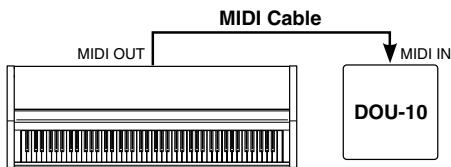
MIDI, the Musical Instrument Digital Interface, is a world-standard communication interface that allows MIDI-compatible musical instruments and equipment to share musical information and control one another. This makes it possible to create "systems" of MIDI instruments and equipment that offer far greater versatility and control than is available with isolated instruments. For example, most MIDI keyboards (including the Clavinova, of course) transmit note
and velocity (touch response) information via the MIDI OUT connector whenever a note is played on the keyboard. If the MIDI OUT connector is connected to the MIDI IN connector of a second keyboard (synthesizer, etc.) or a tone generator (essentially a synthesizer with no keyboard), the second keyboard or tone generator will respond precisely to notes played on the original transmitting keyboard. The result is that you can effectively play two instruments at once, providing thick multi-instrument sounds.
Clavinova
This same type of musical information transfer is used for MIDI sequence recording. A sequence recorder can be used to "record" MIDI data received from a Clavinova, for example. When the recorded data is played back, the Clavinova automatically "plays" the recorded performance in precise detail.
The examples given above really only scratch the surface. MIDI can do much, much more. The Clavinova MIDI functions allow it to be used in fairly sophisticated MIDI systems.
After selecting “F 7.5” or “F8.5”, press the [+/YES] button to engage the MIDI function submode, then use the [TEMPO/FUNCTION▼, ▲] buttons to select the desired MIDI function, as listed below.
- The bottom-panel HOST SELECT switch must be set to "MIDI" in order to use the MIDI connectors. When you use the TO HOST connector, set the HOST SELECT switch to the appropriate position for the type of computer you are using (see page 37). In this situation, all MIDI settings described below will have affect on the MIDI signal in and out of the TO HOST connector.
- Always use a high-quality MIDI cable to connect MIDI OUT to MIDI IN terminals. Never use MIDI cables longer than about 15 meters, since cables longer than this can pick up noise which can cause data errors.
F7.1/F8.1: MIDI Transmit Channel Selection
F7.2/F8.2: MIDI Receive Channel Selection
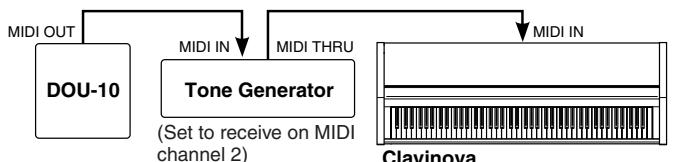
(Set to receive on MIDI channel 1)
The MIDI system allows transmission and reception of MIDI data on 16 different channels. Multiple channels have been implemented to allow selective control of certain instruments or devices connected in series. For example, a single
MIDI sequence recorder could be used to "play" two different instruments or tone generators. One of the instruments or tone generators could be set to receive only on channel 1, while the other is set to receive on channel 2. In this situation the first instrument or tone generator will respond only to channel-1 information transmitted by the sequence recorder, while the second instrument or tone generator will respond only to channel-2 information. This allows the sequence recorder to "play" two completely different parts on the receiving instruments or tone generators.
In any MIDI control setup, the MIDI channels of the transmitting and receiving equipment must be matched for proper data transfer. A "Multi-timbre" receive mode is also available, which allows simultaneous reception of different parts on all 16 MIDI channels, allowing the Clavinova to play multi-channel song data received from a music computer or sequencer. There's also a "1-2" mode which allows simultaneous reception on channels 1 and 2.
Use the [- / NO] and [+ / YES] buttons to select the desired transmit or receive channel. The transmit channel parameter can also be turned "OFF" if you don't want the Clavinova to transmit any MIDI data. To select the multi-timbre receive mode, set the receive channel to "ALL". Select "1-2" for multi-timbre reception on channels 1 and 2 only.
Press the [- / NO] and [+ / YES] buttons simultaneously to recall the default setting: transmit = "1"; receive = "ALL".

- In the dual mode first voice data is transmitted on its set channel, and in the split mode right voice data is transmitted on its set channel. In the dual mode second voice data is transmitted on the next greater channel number of the set channel, and in the split mode left voice data is transmitted on the next greater channel number of the set channel. In either mode, no data is transmitted if the transmit channel is set to "OFF".
- Demo/preset song data and recorder playback data are not transmitted via MIDI.
- No MIDI reception occurs when the demo/preset song mode is engaged.
- Program change and other like channel messages received will not affect the Clavinova's panel settings or what is being played on the keyboard.
F7.3/F8.3: Local Control ON/OFF
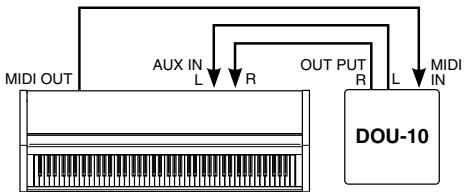
Clavinova
"Local Control" refers to the fact that, normally, the Clavinova keyboard controls its internal tone generator, allowing the internal voices to be played directly from the keyboard. This situation is "Local Control On" since the internal tone generator is controlled locally by its own keyboard.
Local control can be turned OFF, however, so that the Clavinova keyboard does not play the internal voices, but the appropriate MIDI information is still transmitted via the MIDI OUT connector when notes are played on the keyboard. At the same time, the internal tone generator responds to MIDI information received via the MIDI IN connector.
When using the DOU-10 Disk Orchestra Unit with the Clavinova, for example, Local Control should be turned OFF when recording using the DOU-10 voices only, and ON when recording the Clavinova voices while listening to playback of the DOU-10 voices.
Use the [- / NO] and [+ / YES] buttons to turn local control "On" or "OFF".
Press the [- / NO] and [+ / YES] buttons simultaneously to recall the default setting "On".
F7.4/F8.4: Program Change ON/OFF
Normally the Clavinova will respond to MIDI program change numbers received from an external keyboard or other MIDI device, causing the correspondingly numbered voice to be selected on the corresponding channel (the keyboard voice does not change). The Clavinova will normally also send a MIDI program change number whenever one of its voices is selected, causing the correspondingly numbered voice or program to be selected on the external MIDI device if the device is set up to receive and respond to MIDI program change numbers.
This function makes it possible to cancel program change number reception and transmission so that voices can be selected on the Clavinova without affecting the external MIDI device.
Use the [- / NO] and [+ / YES] buttons to turn program change transmission and reception "On" or "OFF".
Press the [- / NO] and [+ / YES] buttons simultaneously to recall the default setting "On".

- For information on program change numbers for each of the Clavinova's voices, refer to page 44 in the MIDI Data Format section.
F7.5/F8.5: Control Change ON/OFF
Normally the Clavinova will respond to MIDI control change data received from an external MIDI device or keyboard, causing the voice on the corresponding channel to be affected by pedal and other "control" settings received from the controlling device (the keyboard voice is not affected). The Clavinova also transmits MIDI control change information when one of its pedals or other appropriate controls are operated.
This function makes it possible to cancel control change data reception and transmission so that, for example, the Clavinova pedals and other controls can be operated without affecting an external MIDI device.
Use the [- / NO] and [+ / YES] buttons to turn control change transmission and reception "On" or "OFF".
Press the [- / NO] and [+ / YES] buttons simultaneously to recall the default setting "On".
NOTE
- For information on control changes that can be used with the Clavinova, refer to the MIDI Data Format on page 43.
F7.6/F8.6: MIDI Transmit Transpose
This function allows the MIDI note data transmitted by the Clavinova to be transposed up or down in semitone increments by up to plus or minus 12 semitones. The pitch of the Clavinova itself is not affected.
Use the [- / NO] and [+ / YES] buttons to set the desired amount of MIDI transmit transposition. The range is from “-12” (down one octave) through “0” (no transposition) to “12” (up one octave).
Press the [- / NO] and [+ / YES] buttons simultaneously to recall the default setting "0".
F7.7/F8.7: Panel/Status Transmit
This function causes all the current Clavinova panel settings (selected voice, etc.) to be transmitted via the MIDI OUT terminal. This is particularly useful if you will be recording performances to a MIDI sequence recorder such as the Yamaha MIDI Data Filer MDF3 which will be used to control the Clavinova on playback. By transmitting the Clavinova panel settings and recording them on the MIDI sequence recorder prior to the actual performance data, the Clavinova will be automatically restored to the same settings when the performance is played back.
Press the [+ / YES] button to transmit the panel/status data. "End" will appear on the LED display when the data has been successfully transmitted.
NOTE
-
See page 44 for list of the "Panel Data Contents" transmitted by this function.
-
Panel setting data that is transmitted to an external device can only be reloaded on a model of the same type. Panel setting data can also be directly transferred to or from instruments of the same model type.
F7.8/F8.8: Bulk Data Dump
This function is used to transmit all data stored in the Recorder memory to a MIDI data storage device such as the Yamaha MIDI Data Filer MDF3, other sequence recorders, or MIDI compatible computers.
Press the [+ / YES] button to begin bulk transmission. "E n d" will appear on the LED display when the data has been successfully transmitted.
NOTE
- User song recorder data that is transmitted to an external device can only be reloaded on a model of the same type. Recorder data can also be directly transferred to or from instruments of the same model type.
- The reload operation cannot be executed when the demo/preset song mode or user song recorder is in operation, or when the Function mode is engaged.
- No MIDI note/panel data transmission or data reception occurs during a bulk data dump transmit operation.
F8
F9
CLP-930 Backup Functions
CLP-950 Backup Functions
After selecting “F8.9” or “F9.9”, press the [+ / YES] button to engage the backup function sub-mode, then use the [TEMPO/FUNCTION▼, ▲] buttons to select the desired backup function, as listed below.

NOTE
- The backup settings themselves, and the contents of the user song recorder memory, are always backed up.
- Even if the Backup is turned on, factory presets can be recalled at any time (see page 40). The factory setting list is found on page 42.
Even if backup is turned on via one of the functions described below, the data will only be retained in memory for about 1 week if the power is not turned on during this time. If the backup period is exceeded, all settings will be reset to their default values. If you want to retain the backup settings for longer periods, be sure to turn the power switch on for a few minutes at least once a week.
F8.1/F9.1: Voice
Turns backup of the voice functions listed below on or off. Use the [-/NO] and [+/YES] buttons to turn backup "On" or "OFF".
The default backup mode is "OFF".
Voice (Keyboard, Dual, and Split: CLP-950)
- Dual (ON/OFF, Voice, and Dual Functions for each voice combination)
- Split (ON/OFF, Voice, and Split Functions for each voice combination : CLP-950)
- Reverb (ON/OFF, Type, and Depth for each voice)
- Effect (ON/OFF, Type, and Depth for each voice)
- Touch Sensitivity (including the FIXED volume)
- Metronome (Beat, Volume)
- Preset Song Part Cancel Volume
F8.2/F9.2: MIDI
Turns backup of the MIDI functions listed below on or off. Use the [-/NO] and [+/YES] buttons to turn backup "On" or "OFF".
The default backup mode is "OFF".
- Channel (Transmit, Receive)
- Local ON/OFF
- Program Change ON/OFF
- Control Change ON/OFF
MIDI Transmit Transpose
F8.3/F9.3: Tuning
Turns backup of the tuning functions listed below on or off. Use the [- / NO] and [+ / YES] buttons to turn backup "On" or "OFF".
The default backup mode is "OFF".
- Transpose
Tuning
- Scale (including base note)
F8.4/F9.4: Pedal
Turns backup of the pedal functions listed below on or off. Use the [-/NO] and [+/YES] buttons to turn backup "On" or "OFF".
The default backup mode is "OFF".
- Left Pedal Mode
Sustain Sample Depth (CLP-950)
Connecting to a Personal Computer
Although the Clavinova can be connected to a personal computer via the MIDI IN/OUT connectors and a MIDI interface, the TO HOST connector and HOST SELECT switch allow direct connection to Apple Macintosh or IBM-PC/AT personal computers for sequencing and other music applications without the need for a separate MIDI interface.
"The Clavinova-Computer Connection" is a supplementary guidebook that describes, for beginners, what you can do with your Clavinova and a personal computer and how to set up a Clavinova-Computer system (the manual is not written for any specific models). The document is available as a PDF file (in English) at the following Internet address:
Clavinova Home Page:
http://www.yamaha.co.jp/english/product/cl/
Yamaha Manual Library (Electronic Musical Instruments)
http://www2.yamaha.co.jp/manual/english/

NOTE
- When connecting the Clavinova to a personal computer, first turn the power to both the Clavinova and the computer OFF before connecting the cable and setting the HOST SELECT switch. After connecting the cable and making the appropriate HOST SELECT switch setting, turn the power to the computer on first, then turn on the Clavinova.
- When not using the [TO HOST] terminal of the Clavinova, make sure the cable is disconnected from the [TO HOST] terminal. If the cable is left connected, the Clavinova may not function properly.
- "H5F" will appear in the display if the host computer is not turned on, the connecting cable is not properly connected, the HOST SELECT switch is not in the proper position, or the MIDI driver or MIDI application is not active. In this case, turn the power off on both the Clavinova and the computer, and check the cable connection and the position of the HOST SELECT switch. Once the connection and HOST SELECT switch position is verified, turn the power of the computer on first, then the Clavinova, to check if the MIDI driver and MIDI application function properly.
- When the HOST SELECT switch is set to "Mac", "PC-1", or "PC-2, no data transfer occurs via the MIDI connectors. To use the MIDI connectors for connection via a standard MIDI interface, set the HOST SELECT switch to "MIDI".
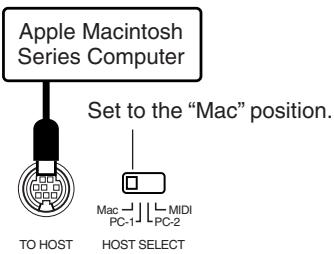
CLP-930
Connecting to an Apple Macintosh Series Computer
Connect the TO HOST connector of the Clavinova to the modem or printer port on your Macintosh, depending on which port your MIDI software is using for MIDI data communication, using a standard Macintosh 8-pin system peripheral cable. Set the HOST SELECT switch to the "Mac" position.
You may also have to make other MIDI interface settings on the computer side, depending on the type of software you use (refer to your software owner's manual). In any case the clock speed should be set to 1 MHz.
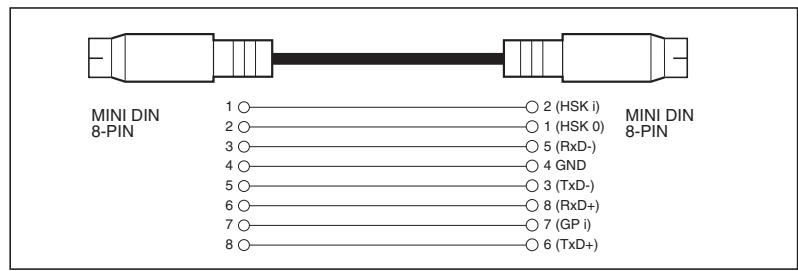
- "Mac" Cable Connections
- 8-pin system peripheral cable.
Data transfer rate: 31,250 bps.
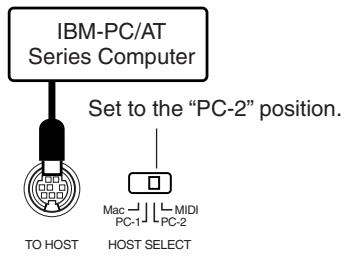
CLP-930
Connecting to an IBM-PC/AT Series Computer
Connect the TO HOST connector of the Clavinova to the RS-232C port on your IBM computer, using a standard 8-pin MINI DIN 9-pin D-SUB cross cable. Set the HOST SELECT switch to the "PC-2" position.
Refer to your software owner's manual for information on any settings you might have to make on the computer side.
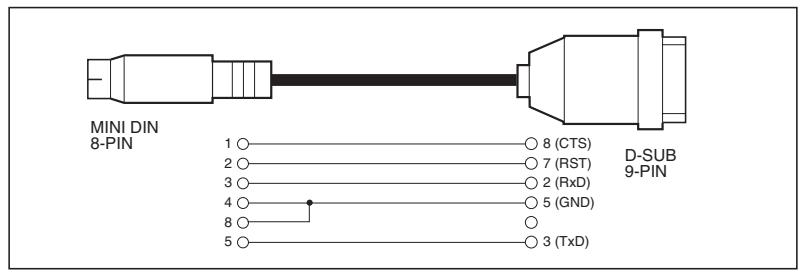
- "PC-2" Cable Connections
- 8-pin mini DIN 9-pin D-SUB cable.
Data transfer rate: 38,400 bps.

NOTE
- If your system doesn't work properly with the connections and settings listed above, your software may require different settings. Check your software operation manual and if it requires a 31,250 bps. data transfer rate, set the HOST SELECT switch to "PC-1".
- When using the TO HOST terminal to connect to a personal computer using Windows, a Yamaha MIDI driver must be installed in the personal computer. The Yamaha MIDI driver can be obtained at Yamaha's home page on the World Wide Web, http://www.yamaha.co.jp/english/xg/.
- Connector Pin Numbers
MINIDIN8-PIN
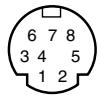
D-SUB 9-PIN
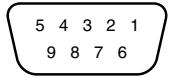

Using a USB Interface (such as the Yamaha UX256)
Connect the USB interface (Yamaha UX256 or equivalent) to your computer using a USB cable. Install the driver software supplied with the interface (or other appropriate driver software) on your computer according to the supplied instructions. Connect your instrument to the USB interface using either a standard Macintosh 8-pin system peripheral cable or MIDI cables. Refer to the manual supplied with your USB interface for details.
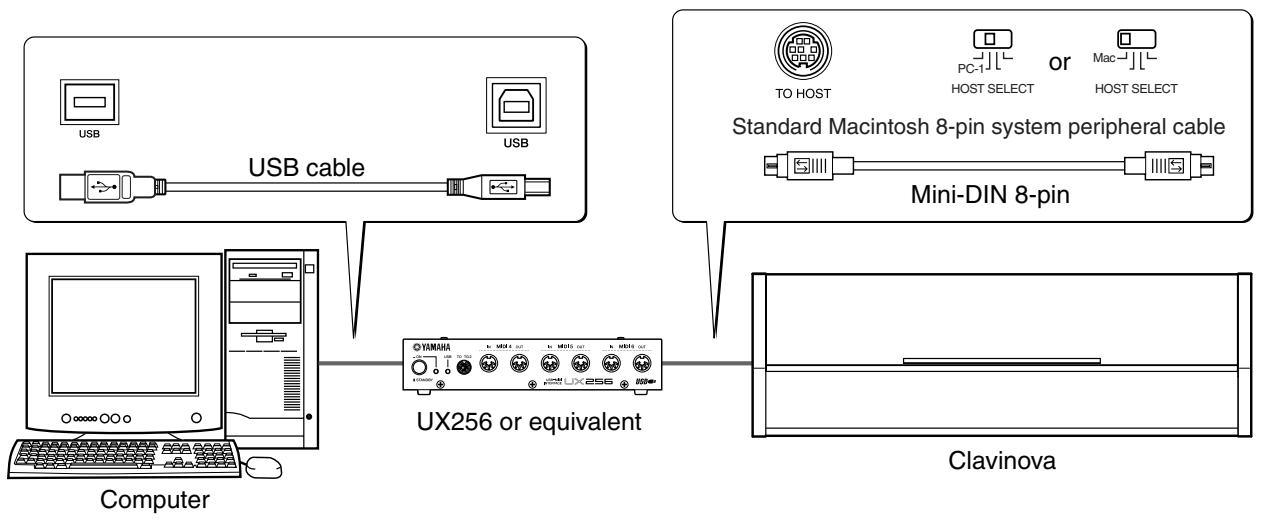
- Connecting the USB Interface and Instrument via a Serial Cable
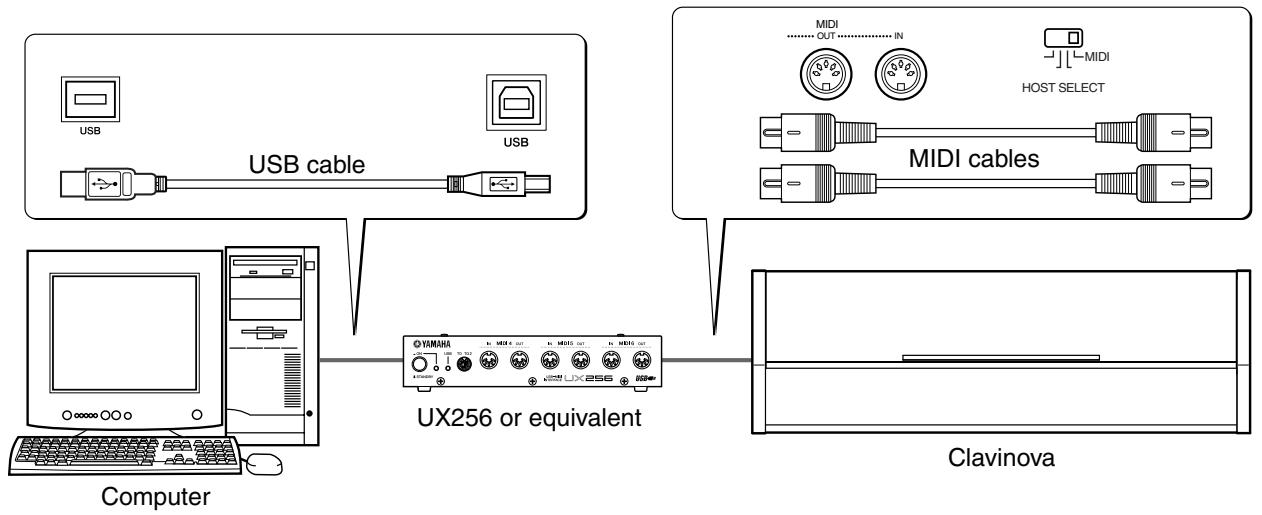
- Connecting the USB Interface and Instrument via MIDI Cables
Factory Preset Recall
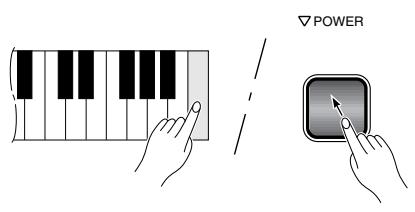
All dual mode, split mode, reverb, effect, touch sensitivity, tuning settings, and the settings affected by the Backup Functions can be restored to their original factory preset values by holding the C7 key (rightmost key on the keyboard) while turning the [POWER] switch ON. This also erases all recorder data, and sets all Backup on/off settings (F8: CLP-930, F9: CLP-950) to “OFF”.

NOTE
The factory setting list is found on page 42.
Troubleshooting
If you encounter what appears to be a malfunction, please check the following points before assuming that your Clavinova is faulty.
1. No Sound When the Power is Turned ON
Is the AC plug properly connected to the Clavinova and an AC wall outlet? Check the AC connection carefully. Is the CLP-950 speaker cord properly plugged into the connector? (page 50) Is the MAS-TER VOLUME control turned up to a reasonable listening level?
Also make sure that a pair of headphones is not plugged into the PHONES jack, and that the Local Control (page 34) is ON.
2. The Damper Pedal Doesn't Work
If the damper pedal doesn't work, or notes are sustained even when the pedal is not pressed, make sure that the pedal cord is properly plugged into the main unit (page 58: CLP-930, page 50: CLP-950).
3. The Clavinova Reproduces Radio or TV Sound
This can occur if there is a high-power transmitter in your vicinity. Contact your Yamaha dealer.
4. Intermittent Static Noise
This is usually due to turning ON or OFF a household appliance or other electronic equipment which is fed by the same AC mains line as your Clavinova.
5. Interference Appears On Radio or TV Sets Located Near the Clavinova
The Clavinova contains digital circuitry which can generate radio-frequency noise. The solution is to move the Clavinova further away from the affected equipment, or vice versa.
6. Noise is heard from the Clavinova's speakers.
The noise may be due to interference caused by the use of a mobile phone in close proximity to the Clavinova.
Turn off the mobile phone, or use it further away from the Clavinova.
7. Distorted Sound When the Clavinova is Connected to An External Amplifier/Speaker System
If the Clavinova is connected to a stereo system or instrument amplifier and the sound is distorted, reduce the volume of the external equipment to a level at which the distortion ceases.
- If “ _C^n ” appears on the display an internal malfunction has occurred. In this case, contact your Yamaha dealer.
Options & Expander Modules
- Options
BC-8 Bench
A comfortable bench styled to match your Yamaha Clavinova.
HPE-160 Stereo Headphones
High-performance lightweight dynamic headphones with extra-soft ear pads.
- Expander Modules
DOU-10 Disk Orchestra Unit
A range of MIDI recording and playback functions, plus Yamaha DOC software, Disklavier PianoSoft™, and General MIDI/Standard MIDI File disk playback capability.
Voice Descriptions/Beschreibung der Stimmen/ Description des voix/Descripaciones de las voces
| Voice | CLP-950 | CLP-930 | Stereo/Mono | Touch Response | Dynamic Sampling* | Voice Descriptions |
| GRAND PIANO | - | O | Stereo | O | X | Newly-recorded samples from a full concert grand piano. Perfect for classical compositions as well as any other style that requires acoustic piano. |
| Neu aufgezeichnete Samples eines echten Konzertflügels. Perfekt für klassische Kompositionen sowie weitere andere Musikrisikungen, für die ein akustischer Klavierklang wicht ist. | ||||||
| Nouveau échantillons enregistrés d'un vraie piano de concert. Parfaits pour les compositions classiques comme pour tout autre style nécessitant un piano acoustique. | ||||||
| Muestras nouvelles grabadas en un piano de cola para conciertos. Son imperfectas para composiones clásticas“Asio como para Others estlos que requirenien piano acustico. | ||||||
| GRAND PIANO 1 | O | - | Stereo | O | O | Newly-recorded samples from a full concert grand piano. Also includes dynamic sampling, sustain samples, and key-off samples for exceptionally realistic acoustic grand piano sound. Perfect for classical compositions as well as any other style that requires acoustic piano. |
| Neu aufgezeichnete Samples eines echten Konzertflügels. Mit "Dynamic Sampling", "Sustain Samples" und "Key-off Samples" für einen außergewöhnlich realistischen Konzertflügelklang. Perfekt für klassische Kompositionen sowie weitere andere Musikrisikungen, für die ein akustischer Klavierklang wicht ist. | ||||||
| Échantillons nouvellement enregistrés à partir d'un vraie piano à queue de concert. Inclus également des échantillons dynamique, sustain et hors touche destinés à produit une sonorité acoustique réalisée d'un vraie piano à queue de concert. Parfaits pour les compositions classiques comme pour tout autre style nécessitant un piano acoustique. | ||||||
| Muestras nouvelles grabadas en un piano de cola para conciertos. Incluenitiemius dinámicas, muestras de sostenido, y muestras de soltado de cuerdas para offrecer un sondo de piano de cola acustico muy realista. Son perfectas para composiones clásticas asi como para others estlos que requirenien piano acustico. | ||||||
| GRAND PIANO 2 | O | - | Stereo | O | X | A bright, expansive piano sound which is ideal for rock and popular genres. |
| Ein heller, weiträumiger Pianosound, der sich ideal für Rock und andere populäre Musikgenes eignet. | ||||||
| Sonorité de piano brillante et expansive idéale pour les genres de musiques rock et populaire. | ||||||
| Sonido de piano claro y con expansión que es ideal para música rock y popular. | ||||||
| E.PIANO 1 | O | O | Stereo | O | O | An electronic piano sound created by FM synthesis. Extremely "musical" response with varying timbre according to keyboard dynamics. |
| Ein elektronischer Pianosound, der durch FM-Synthese erzeugt wird. Außerst "musikalische" Ansprache mit anschlagstärkeabhängiger Klangfürlung. | ||||||
| Sonorité de piano électronique créé par synthèse FM. Réponse extrémentement "musicale" avec un timbre variant en proportion de la dynamique du clavier. | ||||||
| Sonido de piano electrónico créé con sintesis de FM. Tiene una respecta muy "musical" con variación del timbre de acerto con la dinámica del teclado. | ||||||
| E.PIANO 2 | O | O | Mono | O | O | The sound of an electric piano using hammer-struck metallic "tines." Soft tone when played lightly, and an aggressive tone when played hard. |
| Der Sound eines elektrischen Pianos mit metallischen "Hammeranschlag-Spitzen". Bei keinem Anschlagen erhalten man einen weichenen Klang, mit zunehmender Anschlagstärkte einen aggressiveren Sound. | ||||||
| Sonorité de piano électrique se servant de "pointes" métalliques de frappe de marteau. Sonorité attenuée lorsque les touches sont frappées légersement et sonorité agressive lorsque le jeu est plus dur. | ||||||
| Sonido de piano electrico que usa los tonos metallicos de golpe de martillo. Es un tono suave cuando se toca con delicadzea, y es un tono agresivo cuando se toca con fuerza. | ||||||
| HARPSI-CHORD | O | O | Stereo | X | X | The definitive instrument for baroque music. Since harpsichord uses plucked strings, there is no touch response. There is, however, a characteristic additional sound when the keys are released. |
| Cembalo, das maßgebliche Instrument der Barockmusik. Da die Saiten bei thisem Instrument angezuft werden, sprecht diese Stimme nicht auf Anschlagdynamik an. Beim Freigegeben der Tasten ist jederoch ein zusätzlicher charakteristischer Klang zu Höhe. | ||||||
| L'instrument définitif pour la musique baroque. Étant donné que la harpe se sert de cordes pincer, il n'este aucune réponse de touche. Cependant, cette sonorité supplémentaire caractéristique est obtenu lorsque les touches sont reliaches. | ||||||
| El instrumento perfecto para musica barroca. Puesto que el clavicordio企业提供 cauerdas de punteado, no hay respecta a la pulsación. Sin embargo, hay un sonido caracteristicado adimensional al soltar las teclas. | ||||||
| VIBRA-PHONE | O | O | Stereo | O | O | Vibraphone played with relatively soft mallets. The tone becomes more metallic the harder you play. |
| Das Vibraphon wird mit relativ weichen Schlegelin gespielt. Je harter der Anschlag, um so metallischer wirkt der Klang. | ||||||
| Vibraphone joué avec des maillets relativement souplices. La sonorité devient plus métallique au fur et à mesure que le jeu des touches est plus dur. | ||||||
| Vibrafono tocado con mazos relativamente blancos. El tono pasa a ser másmetallica medida que se toca con más fuerza. | ||||||
| CHURCH ORGAN | O | O | Stereo | X | X | A soft pipe-organ type voice that is ideal for hymn accompaniment and other styles. |
| Ein sanfter pfaffenorgelähnlicher Klang, der sich ideal für Hymnenbegleitung und andere Musikstille eignet. | ||||||
| Voix de type orgue à tuyaux et sonorité enveloppée convenant parfaitement pour l'accompagnement d'un hymne ou autres styles. | ||||||
| Una voz del tipo de organo de tubos que es ideal para accompanyingmentos de himnos yOthers estilos. | ||||||
| The sound of a "tonewheel" type electric organ. Often heard in jazz and rock idioms. | ||||||
| Der Sound einer "Tonewheel"-Elektrologel. In Jazz- und Rockidiomen welt verbriefet. | ||||||
| Sonorité d'une molette de courbure du son de type orgue électrique. Souvent entendue dans les dialectes de jazz et de rock. | ||||||
| Sonido de un organeletico del tipo "rueda fónica". Se oye normalmente en estilos de jazz y rock. | ||||||
| A large string ensemble. Try combining this voice with piano in the DUAL mode. | ||||||
| Ein großes Streicherensemble. Probieren Sie diese Stimme einzelmal kombiniert mit Piano im Dualmodus aus. | ||||||
| Grand ensemble à cordes. Essayez d'associer cette voie avec le piano en mode DUAL. | ||||||
| Un Conjunto de instrumentos de cordas grande. Prune combinando esta voz con la de piano en el modo DUAL. | ||||||
| CHOIR | O | O | Stereo | O | X | A big, spacious choir voice. Perfect for creating rich harmonies in slow pieces. |
| Ein satter, reichhaltiger Klang. Perfekt zur Erzeugung voller Harmonien in Stücken mit langsamem Tempo. | ||||||
| Une ample et spacieuse voix de chaleur. Conviient parfaitiment pour creder de riches harmoniques dans les passages lents. | ||||||
| Una voz de coros grande y espaciosa. Esperfecta para creer ricas armonias de piezas lentas. | ||||||
| WOOD BASS | O | - | Mono | O | X | An upright bass played fingerstyle. Ideal for Jazz and Latin music. |
| Ein mit den Fingern gespielter Kontrabä. Ideal für Jazz und lateinamerikanische Musik. | ||||||
| Sorte de doigté de basse droite. Conviient parfaitiment pour la musique de jazz et la musique latine. | ||||||
| Contrabajo tocado con punteado. Es ideal para jazz y música latina. | ||||||
| E.BASS | O | - | Mono | O | X | Electric bass for a wide range of music styles, jazz, rock, popular, and more. |
| E-Ba für eine Reihe von Musikrisikungen wie Jazz, Rock, Pop usw. | ||||||
| Basse électrique destinée à une vaste gamme de styles de musique de jazz, rock, populaire et autres. | ||||||
| Bajo électrico para una amplia variedad de estilos de musica, jazz, rock, popular, y上下游. |
- Dynamic Sampling provides multiple velocity-switched samples to accurately simulate the timbral response of an acoustic piano.
- "Dynamic Sampling" hält mehrere "Velocity-switched Samples" bereit, die anschlagdynamisch gesteuert wiedergegeben werden und so die bei unterschiedlicher Anschlagstarke erzeugten klanglichen Variationen eines akustischen Instruments reproduzieren.
- L'échantillonnage dynamique procure des échantillons multiples commutés permettant de simuler avec une précision remarquable le timbre d'un piano acoustique.
- El muestro dinámico proportión multiplees muestras de velocidad发展机遇a para simular con precisionla responsa del timbre de un piano acústico.
Demo Song List/Verzeichnis der Demo-Songs/ Liste des morceaux de démonstration/Lista de canrientes de demostración
Voice Demo Tune Titles
| Voice Name | CLP-930 | CLP-950 | Title | Composer |
| GRAND PIANO | O | – | Valse op.64-1 “Petit chien” | F.F.Chopin |
| GRAND PIANO 1 | – | O | Nocturne op.9-2 | F.F.Chopin |
| GRAND PIANO 2 | – | O | Piano Sonata op.13 “Pathétique” 2nd mov. | L.v.Beethoven |
| E.PIANO1 | O | O | Clair de lune | C.A.Debussy |
| E.PIANO2 | O | O | Scherzo-valsa (Pièces Pittoresques) | E.Chabrier |
| HARPSICHORD | O | O | Le Coucou | L-C.Daquin |
| VIBRAPHONE | O | O | Study in A minor | Georges Pheiffer |
| CHURCH ORGAN | O | O | Organ Concerto Op.4 No.2 | G.F.Händel |
| JAZZ ORGAN | – | O | Trolltog (Lyriske Småstykker No.5) | E.H.Grieg |
| STRINGS | O | O | Brandenburgisches Konzert No.3 | J.S.Bach |
| CHOIR | O | O | Kantate Nr.140 | J.S.Bach |
| WOOD BASS | – | O | L'Eléphant | Saint-Saëns |
| E.BASS | – | O | In The Kings Hall | E.H.Grieg |
- Some of the demonstration pieces listed above are short rearranged excerpts from the original compositions.
- Bei manchen der oben aufgeführten Demo-Stücke handelt es sich um kurze, umgestaltete Auszüge aus den Originalkompositionen.
- Certains des morceaux de démonstration cités ci-dessus sont de courts extrais arrangés des compositions originales.
- Algunas de las piezas de demostracion arriba mentionadas son pasajes cortos arreglados de las compositions originales.
| CLP-950 | CLP-930 | Backup Group | ||
| CLP-950 | CLP-930 | |||
| Voice | GRAND PIANO 1 | GRAND PIANO | F9.1 | F8.1 |
| Dual Mode | OFF | OFF | ||
| Split Mode | OFF | — | ||
| Split Mode Left Voice | BASS | — | ||
| Reverb Type | Preset for each voice | Preset for each voice | ||
| Reverb Depth | Preset for each voice | Preset for each voice | ||
| Effect Type | Preset for each voice | Preset for each voice | ||
| Effect Depth | Preset for each voice | Preset for each voice | ||
| Touch Sensitivity | MEDIUM | MEDIUM | ||
| Volume in the FIXED Mode | 64 | 64 | ||
| Metronome | OFF | OFF | — | — |
| Metronome Time Signature | 0 (no accent) | 0 (no accent) | F9.1 | F8.1 |
| Tempo | 120 | 120 | — | — |
| Transpose | 0 | 0 | F9.3 | F8.3 |
"——": Not memorized
Function
| CLP-950 | CLP-930 | Function | Default | Backup Group | |
| CLP-950 | CLP-930 | ||||
| F1 | F1 | Tuning | A3=440Hz | F9.3 | F8.3 |
| F2.1 | F2.1 | Scale | 1 (Equal Temperament) | ||
| F2.2 | F2.2 | Base Note | C | ||
| F3.1 | F3.1 | Dual Balance | Preset for each voice combination | F9.1 | F8.1 |
| F3.2 | F3.2 | Dual Detune | Preset for each voice combination | ||
| F3.3, F3.4 | F3.3, F3.4 | Dual Octave Shift | Preset for each voice combination | ||
| F3.5, F.3.6 | F3.5, F.3.6 | Dual Effect Depth | Preset for each voice combination | ||
| F4.1 | — | Split Point | F#2 | ||
| F4.2 | — | Split Balance | Preset for each voice combination | ||
| F4.3, F4.4 | — | Split Octave Shift | Preset for each voice combination | ||
| F4.5, F4.6 | — | Split Effect Depth | Preset for each voice combination | ||
| F4.7 | — | Damper Range | ALL | ||
| F5.1 | F4 | Left Pedal Mode | 1 (soft pedal) | F9.4 | F8.4 |
| F5.2 | — | Sustain Sample Depth | 12 | ||
| F6 | F5 | Metronome Volume | 10 | F9.1 | F8.1 |
| F7 | F6 | Preset Song Part Cancel Volume | 5 | ||
| F8.1 | F7.1 | MIDI Transmit Channel | 1 | F9.2 | F8.2 |
| F8.2 | F7.2 | MIDI Receive Channel | ALL | ||
| F8.3 | F7.3 | Local Control | ON | ||
| F8.4 | F7.4 | Program Change Send & Receive | ON | ||
| F8.5 | F7.5 | Control Change Send & Receive | ON | ||
| F8.6 | F7.6 | MIDI Transmit Transpose | 0 | ||
| F9 | F8 | Backup | All OFF | Always backed up | Always backed up |
MIDI Data Format/MIDI-Datenformat/ Format des données MIDI/Formato de datos MIDI
If you're already very familiar with MIDI, or are using a computer to control your music hardware with computer-generated MIDI messages, the data provided in this section can help you to control the Clavinova.
Data format: [9nH] -> [kk] -> [vv]
9nH = Note ON/OFF event (n = channel number)
kk = Note number (Transmit: 09H ~ 78H = A-2 ~ C8 /
Receive: 00H ~ 7FH = C-2 ~ G8)*
vv = Velocity (Key ON = 01H 7FH Key OFF = 00H
Data format: [8nH] -> [kk] -> [vv] (reception only)
8nH = Note OFF event (n = channel number)
kk = Note number: 00H ~ 7FH = C-2 ~ G8
vv = V eolcity
- If received value exceeds the supported range for the selected voice, the note is adjusted by the necessary number of octaves.
2. CONTROL CHANGE
Data format: [BnH] -> [cc] -> [vv]
BnH = Control change (n = channel number)
cc = Control number
vv = Data Range
(1) Bank Select
ccH Parameter Data Range (vwH)
00H Bank Select MSB 00H:Normal
20H Bank Select LSB 00H...7FH
Bank selection processing does not occur until receipt of next Program Change message.
(2) Main Volume (reception only)
ccH Parameter Data Range (vvH)
07H Volume MSB 00H...7FH
(3) Expression
ccH Parameter Data Range (vvH)
0BH Expression MSB 00H...7FH
(4) Damper
ccH Parameter Data Range (vvH)
40H Damper MSB 00H...7FH
(5) Sostenuto
ccH Parameter Data Range (vvH)
42H Sostenuto 00H-3FH:off, 40H-7FH:on
(6) Soft Pedal
ccH Parameter Data Range (vvH)
43H Soft Pedal 00H-3FH:off, 40H-7FH:on
(7) Effect1 Depth (Reverb Send Level)
ccH Parameter Data Range (vvH)
5BH Effect1 Depth 00H...7FH
Adjusts the reverb send level.
(8) Effect4 Depth ( Variation Effect Send Level )
ccH Parameter Data Range (vwH)
5EH Effect4 Depth 00H...7FH
Data format: [BnH] -> [cc] -> [vv]
BnH = Control event (n = channel number)
cc = Control number
vv = Data Range
(1) All Sound Off
ccH Parameter Data Range (vvH)
78H AllSoundOff 00H
Switches off all sound from the channel. Does not reset Note On and Hold On conditions established by Channel Messages.
(2) Reset All Controllers
ccH Parameter Data Range (vvH)
79H Reset All Controllers
Resetscontrollersasfollows.
Controller Value
Expression 127 (max)
Damper Pedal 0 (off)
Sostenuto 0 (off)
Soft Pedal 0 (off)
(3) Local Control (reception only)
ccH Parameter Data Range (vvH)
7AH Local Control 00H (off), 7FH (on)
(4) All Notes Off
ccH Parameter Data Range (vvH)
7BH All Notes Off 00H
Switches OFF all the notes that are currently ON on the specified channel. Any notes being held by the damper or sostenuto pedal will continue to sound until the pedal is released.
(5) Omni Off (reception only)
ccH Parameter Data Range (vvH)
7CH Omni Off 00H
Same processing as for All Notes Off.
(6) Omni On (reception only)
ccH Parameter Data Range (vvH)
7DH Omni On 00H
Same processing as for All Notes Off.
(7) Mono (reception only)
ccH Parameter Data Range (vvH)
7EH Mono 00H
Same processing as for All Sound Off.
(8) Poly (reception only)
ccH Parameter Data Range (vvH)
7FH Poly 00H
Same processing as for All Sound Off.
- When control change reception is turned OFF in the Function mode, control change data will not be transmitted or received except for Bank Select and Mode messages.
- Local on/off, OMNI on/off are not transmitted. (The appropriate note off number is supplied with "All Note Off" transmission).
- When a voice bank MSB/LSB is received, the number is stored in the internal buffer regardless of the received order, then the stored value is used to select the appropriate voice when a program change message is received.
- The Multi-timbre and Poly modes are always active. No change occurs when OMNI ON, OMNI OFF, MONO, or POLY mode messages are received.
4.PROGRAM CHANGE
Data format: [CnH] -> [ppH]
CnH = Program event (n = channel number)
ppH = Program change number
P.C.#=Program Change number
| CLP-950 | CLP-930 | |||||
| MSB | LSB | P.C.# | MSB | LSB | P.C.# | |
| GRAND PIANO 1* | 0 | 112 | 0 | 0 | 112 | 0 |
| GRAND PIANO 2 | 0 | 112 | 1 | |||
| E.PIANO 1 | 0 | 112 | 5 | 0 | 112 | 5 |
| E.PIANO 2 | 0 | 112 | 4 | 0 | 112 | 4 |
| HARPSICHORD | 0 | 112 | 6 | 0 | 112 | 6 |
| VIBRAPHONE | 0 | 112 | 11 | 0 | 112 | 11 |
| CHURCH ORGAN | 0 | 112 | 19 | 0 | 112 | 19 |
| JAZZ ORGAN | 0 | 112 | 16 | |||
| STRINGS | 0 | 112 | 48 | 0 | 112 | 48 |
| CHOIR | 0 | 112 | 52 | 0 | 112 | 52 |
| WOOD BASS | 0 | 112 | 32 | |||
| E.BASS | 0 | 112 | 33 | |||
-
Indicated as GRAND PIANO on the CLP-930
-
When program change reception is turned OFF in the Function mode, no program change data is transmitted or received. Also, Bank MSB/LSB is not transmitted or received.
5. SYSTEM REALTIME MESSAGES
[rrH]
F8H: Timing clock
FAH: Start
FCH: Stop
FEH: Active sensing
| Data | Transmission | Reception |
| F8H | Transmitted every 96 clocks | Received as 96-clock tempo timing when MIDI clock is set to External |
| FAH | Recorder start | Recorder start Not received when the MIDI clock is set to Internal. |
| FCH | Recorder stop | Recorder stop Not received when the MIDI clock is set to Internal. |
| FEH | Transmitted every 200 milliseconds | If a signal is not received via MIDI for more than 400 milliseconds, the same processing will take place for All Sound Off, All Notes Off and Reset All Controllers as when those signals are received. |
- Caution: If an error occurs during MIDI reception, the Damper, Sostenuto, and Soft effects for all channels are turned off and an All Note Off occurs.
6. SYSTEM EXCLUSIVE MESSAGES (Yamaha MIDI Format)
Panel Data Transmit
$$ \text {D a t a f o r m a t :} \begin{array}{c} [ F 0 H ] \dashrightarrow [ 4 3 H ] \dashrightarrow [ 0 n H ] \dashrightarrow [ 7 C H ] \dashrightarrow \dots \dashrightarrow \ [ F 7 H ] \end{array} $$
F0H, 43H, 0nH, 7CH
(n: channel number)
00H, 2AH
(data length)
43H, 4CH, 20H, 20H
(CL)
43H, 4CH, 50H, 27H, 30H, 30H
CLP-950/930)
30H, 30H
(version x,y)
[PANEL DATA]
[ \text{[CHECK SUM (1byte)]} = 0 - (43H + 4CH + 20H + \dots + \text{Data end}) ] F7H
- Panel Data Contents
| CLP-950 | CLP-930 | |
| (1) 1'st Voice | ○ | ○ |
| (2) Dual On/Off | ○ | ○ |
| (3) Dual Voice | ○ | ○ |
| (4) Dual Balance | ○ | ○ |
| (5) Dual Detune | ○ | ○ |
| (6) Dual Voice1 Octave | ○ | ○ |
| (7) Dual Voice2 Octave | ○ | ○ |
| (8) Dual Voice1 Effect Depth | ○ | ○ |
| (9) Dual Voice2 Effect Depth | ○ | ○ |
| (10) Split On/Off | ○ | × |
| (11) Split Voice | ○ | × |
| (12) Split Point | ○ | × |
| (13) Split Balance | ○ | × |
| (14) Split Voice1 Octave | ○ | × |
| (15) Split Voice2 Octave | ○ | × |
| (16) Split Voice1 Effect Depth | ○ | × |
| (17) Split Voice2 Effect Depth | ○ | × |
| (18) Split Dumper Mode | ○ | × |
| (19) Reverb Type 1 | ○ | ○ |
| (20) Reverb Type 2 | ○ | ○ |
| (21) Reverb Depth1 | ○ | ○ |
| (22) Reverb Depth2 | ○ | ○ |
| (23) Effect Type 1 | ○ | ○ |
| (24) Effect Type 2 | ○ | ○ |
| (25) Effect Depth | ○ | ○ |
| (26) Touch Sensitivity | ○ | ○ |
| (27) Fixed Data | ○ | ○ |
| (28) Left Pedal Function | ○ | ○ |
| (29) Absolute tempo low byte | ○ | ○ |
| (30) Absolute tempo high byte | ○ | ○ |
- "X" indicates no affect.
- Panel data send requests cannot be received.
7. SYSTEM EXCLUSIVE MESSAGES (Universal System Exclusive)
(1) Universal Realtime Message
$$ \begin{array}{c} \text {D a t a f o r m a t :} [ F 0 H ] \dashrightarrow [ 7 F H ] {\dashrightarrow} [ X n H ] \dashrightarrow [ 0 4 H ] {\dashrightarrow} [ 0 1 H ] \dashrightarrow \ [ l / H ] \dashrightarrow [ m m H ] \dashrightarrow [ F 7 H ] \end{array} $$
MIDI Master Volume
- Simultaneously changes the volume of all channels.
- When a MIDI master volume message is received, the volume only has affect on the MIDI receive channel, not the panel master volume.
F0H = Exclusive status
7FH = Universal Realtime
7FH = ID of target device
04H = Sub-ID #1=Device Control Message
01H = Sub-ID #2=Master Volume
[ \text{illH} = \text{Volume LSB} ]
mmH = Volume MSB
F7H = End of Exclusive
or
F0H = Exclusive status
7FH = Universal Realtime
XnH = When n is received n = 0 F , whichever is received.
X = don't care
04H = Sub-ID #1=Device Control Message
01H = Sub-ID #2=Master Volume
l / H =VolumeLSB
mmH = Volume MSB
F7H = End of Exclusive
(2) Universal Non-Realtime Message (GM 0n)
General MIDI Mode On
Data format: [F0H] -> [7EH] -> [XnH] -> [09H] -> [01H] -> [F7H]
F0H = Exclusive status
7EH = Universal Non-Realtime
7FH = ID of target device
09H = Sub-ID #1=General MIDI Message
01H = Sub-ID #2=General MIDI On
F7H = End of Exclusive
or
F0H = Exclusive status
7EH = Universal Non-Realtime
XnH = When received, n=0~F.
X = don't care
09H = Sub-ID #1=General MIDI Message
01H = Sub-ID #2=General MIDI On
F7H = End of Exclusive
When the General MIDI mode ON message is received, the MIDI system will be reset to its default settings.
This message requires approximately 50ms to execute, so sufficient time should be allowed before the next message is sent.
8. SYSTEM EXCLUSIVE MESSAGES (XG Standard)
(1) XG Native Parameter Change
Data format: [F0H] -> [43H] -> [1nH] -> [4CH] -> [hhH] -> [mmH] -> [l/H] -> [ddH] -> [F7H]
FOH = Exclusive status
43H =YAMAHAJD
1nH = When received, n = 0 F .
When transmitted, n = 0 .
4CH = Model ID of XG
hhH = Address High
mmH = Address Mid
llH = Address Low
ddH = Data
1
F7H = End of Exclusive
Data size must match parameter size.
When the XG System On message is received, the MIDI system will be reset to its default settings.
The message requires approximately 50ms to execute, so suffi
cient time should be allowed before the next message is sent.
(2) XG Native Bulk Data (reception only)
Data format: [F0H] -> [43H] -> [OnH] -> [4CH] -> [aaH] -> [bbH] -> [hhH] -> [mmH] -> [llH] -> [ddH] -> ... -> [ccH] -> [F7H]
F0H Exclusive status
43H YAMAHA ID
0nH When received, n = 0 F .
When transmitted, n = 0
4CH Model ID of XG
aaH ByteCount
bbH ByteCount
hhH Address High
mmH Address Mid
llH Address Low
ddH Data
1
1
ccH Check sum
F7H End of Exclusive
- Receipt of the XG SYSTEM ON message causes reinitialization of relevant parameters and Control Change values. Allow sufficient time for processing to execute (about 50 msec) before sending the Clavinova another message.
- XG Native Parameter Change message may contain two or four bytes of parameter data (depending on the parameter size).
- For information about the Address and Byte Count values, refer to Table 1 below. Note that the table's Total Size value gives the size of a bulk block. Only the top address of the block (00H, 00H, 00H) is valid as a bulk data address.
9. SYSTEM EXCLUSIVE MESSAGES (Clavinova MIDI Format)
Data format: [F0H] -> [43H] -> [73H] -> [xxH] -> [nnH] -> [F7H]
FOH = Exclusive status
43H =Yamaha ID
73H = Clavinova ID
xxH = Product ID (CLP-950/930 common ID: 67H or
CLP common ID: 01H)
nnH = Substatus
nn Control
02H Internal MIDI clock
03H External MIDI clock
06H Bulk Data (the bulk data follows 06H)
F7H = End of Exclusive
- When nn=02H or 03H, Clavinova common ID (01H) is recognized as well as 50H.
BULK DUMP FORMAT
F0H, 43H, 73H
xxH =Product ID (CLP-950: 6BH,
CLP-930:6AH)
06H =Bulk ID
05H =Sequence data
OnH, OnH, OnH, OnH, OnH, OnH, OnH =Data length
[BULK DATA]
[ \text{[CHECK SUM (1byte)]} = 0 - \text{sum (BULK DATA)} ]
F7H = End of Exclusive
10. SYSTEM EXCLUSIVE MESSAGES (Special Control)
Data format: [F0H] -> [43H] -> [73H] -> [xxH] -> [11H] -> [0nH] -> [ccH] -> [vwH] -> [F7H]
FOH = Exclusive status
43H =Yamaha ID
73H = Clavinova ID
67H = CLP-950/930 common ID
11H = Clavinova special control
0nH = Control MIDI change (n=channel number)
cc = Control number
V = Value
F7H = End of Exclusive
| Control | On | ccH | vvH |
| Split Point | Always 00H | 14H | 14H : Split Key Number (CLP-950) |
| Metronome | Always 00H | 1BH | 00H : off 01H : - 02H : 2/4 03H : 3/4 04H : 4/4 05H : 5/4 06H : 6/4 7FH : No accent |
| Damper Level | ch: 00H-0FH | 3DH (Sets the Damper Level for each channel: CLP-9 00H-7FH | |
| Channel Detune | ch: 00H-0FH | 43H (Sets the Detune value f each channel) 00H-7FH | |
| Voice Reserve | ch: 00H-0FH | 45H | 00H : Reserve off 7FH : on* |
- When Volume, Expression is received for Reserve On, they will be effective from the next Key On. Reserve Off is normal.
11. SYSTEM EXCLUSIVE MESSAGES (Others)
Data format: [F0H] -> [43H] -> [1nH] -> [27H] -> [30H] -> [00H] -> [00H] -> [mmH] -> [l/H] -> [ccH] -> [F7H]
Master Tuning (XG and last message priority) simultaneously changes the pitch of all channels.
F0H = Exclusive Status
43H =Yamaha ID
1nH = Transmission from n=CLP is always 0. 0-F is received.
27H = Model ID of TG100
30H = Sub ID
00H
00H
mmH = Master Tune MSB
//H = Master Tune LSB
ccH =don't care (under 7FH)
F7H = End of Exclusive
| Address (H) | Size (H) | Data (H) | Parameter | Description | Default value (H) |
| 00 00 00 | 4 | 020C - 05F4(*1) | MASTER TUNE | -50 - +50[cent] | 00 04 00 00 |
| 01 | 1st bit 3 - 0 → bit 15 - 12 | 400 | |||
| 02 | 2nd bit 3 - 0 → bit 11 - 8 | ||||
| 03 | 3rd bit 3 - 0 → bit 7 - 4 | ||||
| 4th bit 3 - 0 → bit 3 - 0 | |||||
| 04 | 1 | 00 - 7F | MASTER VOLUME | 0 - 127 | 7F |
| 05 | 1 | — | — | ||
| 06 | 1 | 34 - 4C(*2) | TRANSPOSE | -12 - +12[semitones] | 40 |
| 7E | 00 | XG SYSTEM ON | 00=XG sytem ON | ||
| 7F | 00 | RESET ALL PARAMETERS | 00=ON (receive only) | ||
| TOTAL SIZE | 07 |
| Address (H) | Size (H) | Data (H) | Parameter | Description | Default value (H) |
| 02 01 00 | 2 | 00-7F | REVERB TYPE MSB | Refer to Effect MIDI Map | 01(=HALL1) |
| 00-7F | REVERB TYPE LSB | 00 : basic type | 00 | ||
| 02 01 40 | 2 | 00-7F | VARIATION TYPE MSB | Refer to Effect MIDI Map | 00(=Effect off) |
| 00-7F | VARIATION TYPE LSB | 00 : basic type | 00 |
| Address (H) | Size (H) | Data (H) | Parameter | Description | Default value (H) |
| 08 nn 11 | 1 | 00 - 7F | DRY LEVEL | 0 - 127 | 7F |
Effect MIDI Map
REVERB| MSB | LSB | |
| ROOM | 02H | 10H |
| HALL 1 | 01H | 10H |
| HALL 2 | 01H | 11H |
| STAGE | 03H | 10H |
| Sound board | 03H | 12H (CLP-950) |
| MSB | LSB | |
| CHORUS | 42H | 10H |
| PHASER | 48H | 10H |
| TREMOLO | 42H | 12H |
| DELAY | 05H | 10H |
| Function | Transmitted | Recognized | Remarks | |
| Basic Channel Changed | 11~16 | 11~16 | ||
| Mode Messages Altered | 3×********** | 1*1×× | Poly Mode only | |
| Note Number : True voice | 9~120********** | 0~12721~108 | ||
| Velocity Note on Note off | ○9nH, v=1~127×9nH, v=0 | ○v=1~127× | ||
| After key's Touch Ch's | ×× | ×× | ||
| Pitch Bender | × | × | ||
| Control Change 0, 32 07 11 64 66 67 91 94 120 121 | ○×○○○○○○○○○○○○○○○ | ○○○○○○○○○○○○○○○○○○○○○○○○○○○○○○○○○○○○○○○○○○○○○○○○○○○○○○○○○○○○○○○○○○○○○○○○○○○○○○○○○○○○○○○○○○○○○○○○○○○○ | Bank Select Volume Expression Damper Sostenuto Soft pedal Reverb Depth Effect Depth All sounds off Reset All Controllers | |
| Program Change : True # | ○********** | ○ | ||
| System Exclusive | ○ | ○ | ||
| System : Song Position : Song Select Common : Tune | ××× | ××× | ||
| System : Clock Real Time : Commands | ○○ | ○○ | ||
| Aux : Local ON/OFF : All Notes Off Messages : Active Sense : Reset | ×○○ | ○○(123~127)○× | ||
| Notes : *1 = Recieve Mode is always multi timbre and Poly mode. | ||||
Assembly Parts / Bauteile / Éléments à assembler / Partes del Conjunto
    Pedal cord Pedalkabel Cordon de pédalier Cable de pedales   Cord holders x 2 Kabelhalter x 2 - Serre-câble x 2 - Soportes de cable x 2  AC power cord Netzkabel Cordon d'alimentation - Cable de alimentación de CA     6 x 25 mm round-head screws 6 x 25 mm Halbrundschrauben Vis à tête ronde de 6 x 25 mm Tornillos de cabeza redonda de 6× 25 mm 4 × 12 ~mm round-head screws 4 × 12 ~mm Halbrundschrauben Vis à tête ronde de 4 x 12 mm Tornillos de cabeza redonda de 4× 12mm 6 x 16 mm flat-head screws 6 x 16 mm Senkschrauben Vis à tête plate de 6 x 16 mm Tornillos de cabeza plana de 6× 16mm 4 x 20 mm tapping screws 4 × 20 ~mm Schneidschrauben Vis auto-taraudeuses 4 × 20 ~mm Tornillos de autoenosque de 4 × 20 ~mm x4 1 x8 2 x4 3 x4 4 The music stand is packaged in cardboard, and included inside the box. Do not forget to remove it from the box. - Der Notenständer ist in einer separaten Verpackung im Karton enthalten. Vergessen Sie beim Auspacken nicht, auch den Notenständer aus dem Karton zunehmen. Le pupitre à partition est emballé dans du carton et se trouv dans la boite. Ne pas oublier de le retarder la boite El atril está embalado con cartón y se encontraría bajo de la caja. No se olvide de sacarlo de la caja.CLP-950: Keyboard Stand Assembly
CAUTION
- Be careful not to confuse parts, and be sure to install all parts in the correct direction. Please assemble in accordance with the sequence given below. Assembly should be carried out by at least two persons. - Be sure to use the correct screw size, as indicated above. Use of incorrect screws can cause damage. - Be sure to tighten up all screws upon completing assembly of each unit. - To disassemble, reverse the assembly sequence given below. Have a Phillips-head (+) screwdriver ready. The parts shown in the "Assembly Parts" illustration will be used. Follow the assembly instructions and select the parts as needed.1 Attach the side panels (B) to the pedal box (C).
Align the holes on the side of the pedal box (C) with those on the side panels (B), attach the pedal box to the side panels using the four 6 × 25 millimeter round-head screws ① — two screws on each side. Make sure the pedals extend in the same direction as the feet. Attach the front panel (D).
The front panel attaches to the front end of the pedal box and side panels. Fit the front panel into position. Align the small hole in each six brackets and attach the front panel using the six 4 × 12 millimeter round-head screws ②.CLP-950: Zusammenbau und Aufstellung
VORSICHT
- Achten Sie darauf, die Teile nicht zu verwechseln, und installmenten Sie alle Teile in der richtigen Ausrichtung. Gehen Sie beim Zusammenbauitte in der angegebenen Reihenfolge vor. Die Montage sollte von mindestens zwei Personen vorgenommen werden. - Achten Sie darauf, die richtige Schraubengröbe zu verwenden, wie es oben gezeigt ist. Die Verwendung der falschen Schrauben kann zu Schaden führen. - Achten Sie während der Montage darauf, bei jedem Arbeitsgang alle Schrauben festzuziehen. - Für die Demontage muß die angegebene Reihenfolge umgekehrt befolgrt werden. Sie benötigen einen Kreuzschlitzschraubendreher (+) . Es werden die in der "Bauteile"-Zeichnung abgebildeten Teile verwendet. Folgen Sie beim Zusammenbau den Anweisungen, und wahlen Sie die jeweils bestehtigen Teile.1 Befestigen Sie die Seitenwände (B) am Pedalkasten (C).
Bringen Sie die Schraubenbohrungen an der Seite des Pedalkastens (C) mit denen an den Seitenwänden (B) zur Deckung, und schrauben Sie den Pedalkasten mit den vier 6 × 25 ~mm Halbrundschrauben ① , jeweils zwei Schrauben links und rechts, an den Seitenwänden fest. Achten Sie darauf darauf auf, daß die Pedale in dieselbe Richtung weisen wie die vorspringenden Teile der Fuß. Montieren Sie die Stirnwand (D).
Die Stirnwand wird am vorderen Ende des Pedalkastens und der Seitenwände angebracht. Setzen Sie die Stirnwand an. Bringen Sie die klinen Bohrungen der sechs Halterungen mit denen in der Stirnwand aus, und schrauben Sie die Stirnwand mit den sechs 4× 12mm Halbrundschrauben fest. 1 - Remove the vinyl tie from the folded pedal cord. Do not remove the vinyl tie located next to the hole. - Entfernen Sie den Kabelbinder vom zusammengelegten Pedalkabel. Der Kabelbinder besteht der Durchführungarf nicht entfternt werden! - Retirez l'attache en vinyle du cordon de pédale plié. Ne retirez pas l'attache en vinyle placée après de l'ouverture. - Extraiga la abrazadora de plástico del cable del pedal plegado. No extraiga la abrazadora de plástico que está al lado del orificio.  6 x 25 mm round-head screws 6 × 25 ~mm Halbrundschrauben Vis à tête ronde de 6 x 25 mm Tornillos de cabeza redonda de 6 x 25 mm 2  4 × 12 ~mm round-head screws 4 x 12 mm Halbrundschrauben Vis à tête ronde de 4 x 12 mm Tornillos de cabeza redonda de 4 x 12 mmCLP-950: Assemblage du support de clavier
PRECAUTION
- Veiller à ne pas mélanger les pieces et à les installer dans le sens correct. Veuillez assembler l'instrument dans l'ordre indiqué ci-dessous. - La présence de deux personnes minimum est nécessaire pour procéder au montage. - Toujours utiliser des vis aux dimensions correctes, comme indiqué cidessus. l'utilisation de vis aux dimensions incorrectes pourrait en effet endommager l'instrument. - Resserrer convenablement toutes les vis après le montage de chaque éléments. - Pour démonter le Clavinova, inverser l'ordre des indications données ci-dessous. Munissez-vous d'un tournevis Phillips (cruciforme). Les éléments qui sont représentés sur la figure intitulée "Éléments à assembler" seront utilisés. Veuillez vous conformer aux instructions d'assemblage et selectionner les éléments nécessaires.Fixez les panneaux lateraux (B) au pédalier (C)
Faites correspondre les trouss visibles sur le flanc du pédalier (C) avec deux des panneaux lateraux (B), puis fixer le pédalier sur les panneaux lateraux à l'aide de quatre vis de fixation à tête ronde de 6 x 25 millimétrres - soit deux vis de chaque côté. Veillez à ce que les pédales soient dirigées dans le même sens que les supports inférieurs.Fixez le panneau avant (D).
Le panneau avant se fixe sur le bord avant du logement de pédalier et sur les panneaux lateraux. Montez le panneau avant dans la position voulue. Alignez les trous de faible diamètre percés dans chacune des platines de fixation puis fixer le panneau avant en utilisant les six vis de fixation à tete ronde de 4 × 12 millimétresCLP-950: Conjunto del soporte del teclado
CUIDADO
- Observe cuidado para no confundir las piezas, y asegúrese de montar todas ellas en el sentido correcto. Proceda al montaje en elorden indicado a continuación. - El montaje deverá realizarse al menos por dos personas. - Procure utiliser los tornillos del tiempo adequado, según se indica arriba. Elempleo de tornillos inadequados puede occasionar días en el instrumento. - Asegürese de.aprear bien todos los tornillos afterwards de montar cada unidad. - Para descrear las unidades, invierta la secuencia de montaje fácilada a continuacion. Tenga preparado un destornillador de cabeza en cruz (+) Se usar las partesmostatadas en la ilustracion de "Partes delconjunto". Siga las instrucciones de montaje y seleccione las partes a medida que serequirean.1 Acople los paneles laterales (B) en la caja de pedales (C).
Alinee los orificios del lado de la caja de pedales (C) con los de los paneles laterales (B), y acople la caja de pedales a los paneles lateralesempleando los quatre tornillos de cabeza redonda de 6× 25 milimetros dos tornillos en cada lado. Asegúrese de que el pedal se extiende en la misma direccionque la pata.2 Monte el panel frontal (D).
El panel frontal se coloca en el extremo frontal de la caja de pedales y los paneles laterales. Adapte el panel frontal en su posicion. Alinee el orificiokee no de cada una de las.SEIs ménulas y monte el panel frontal emploando los.SEIs tornillos de cabeza redonda de 4× 12 milimetros 3  - Be sure to place your hands at least 10 centimeters from either end of the main unit when positioning it. - Mindestens 10cm innen unter die Tastatureinheit greifen. - Placez bien vos mains à 10 cm au moins des extrémités du clavier, lors de sa mise en place. - Asegürese de colocar las manos por lo menos a 10 centímetros desde los extremos de la unidad principal cuando la sitúe. - The bracket on the front has 2 holes. Insert the screws into the holes on the front panel side of the bracket. Die vorderen Winkelbleche haben zwei Schraubenbohrungen. Führren Sie die Schraube jeweils in die Bohrung an der Stirnwandseite ein. - La partie avant de la ferrure comporte deux troughs. Introduisez les vis de fixation dans les trois du côte du panneau avant de la ferrure. La mensula de la parte frontal tiene 2 orificios. Inserte los tornillos en los orificios del lado del panel frontal de la mensula.  6 x 16 mm flat-head screws 6 x 16 mm Senkschrauben 3 Vis à tête plate de 6 x 16 mm Tornillos de cabeza plana de 6 x 16 mm3 Install the main unit (A).
Place the main unit (A) on the side panels (B) with the screws on its bottom panel (toward the rear of the main unit) just behind the grooves in the brackets located at the top of the side panels. Then slide the main unit forward until it stops. WATCH YOUR FINGERS WHEN DOING THIS!! Align the holes on the bottom panel of the main unit with the holes in the brackets on the side panels (also center the main unit to produce equal clearance on the left and right sides, as shown in the illustration), then use the four 6 × 16 millimeter flat-head screws to attach the main unit. The four screws can be attached from the rear.CAUTION
- Do not hold the keyboard in any position other than the position shown in the above illustration. - Fingers can become pinched between the main unit and the rear or side panels, be extra careful so as not to drop the main unit.4 Connect the speaker cord.
The speaker cord from the speaker box must be plugged into the corresponding connector in the main unit. The plug only goes in one way (the lug on the connector should face the rear of the main unit, as shown in the illustration), so don't try to force it in the wrong way around.5 Connect the pedal cord.
The pedal cord from the pedal box must be plugged into the PEDAL connector located at the rear of the main unit's underside. Once connected, attach the cord holders to the side panel as shown, then clip the cord into the holders.3 Montieren Sie die Tastatureinheit (A).
Setzen Sie die Tastatureinheit (A) so auf den fertigen Ständer, daß die beiden Schrauben an ihrer Unterseite hinter den Winkelblechen mit Führungsschlitz an der Hinterseite des Ständers zu liegen kommt. Schiebern Sie die Tastatureinheit dann bis zum Anschlag in die Schlitze. KLEMMEN SIE IHRE FINGER DABEI NICTE EIN!! Richten Sie die Schraubenbohrungen an der Unterseite der Tastatureinheit mit den Bohrungen der Winkelbleche aus (achten Sie auch darauf, daß sie mittig auf dem Ständer stehen, wie in der Abbildung gezeigt), um die Tastatureinheit dann mit den vier 6 × 16 ~mm Senkschrauben festzuschrauben. Die vier Schrauben konnen von der Rückseite her eingeführt werden.VORSICHT
- Halten Sie die Tastatureinheit nur wie in der obigen Abbildung! - Achten Sie daraufuf, daß Sie ihre Finger nicht zwischen Tastaturinheit und den Seitenwänden bzw. der Rückwand einklommen — die Tastaturinheit können dadurch zu Fallkommen!4 Schlieben Sie das Laufsprecherkabel an.
Das vom LautsprecherCOMMende Kabel wird an die entsprchende Buchse an der Tastaturinheit angeschlossen. Der Kabelstecker paBt nur in einer Ausrichtung in die Buchse (mit der Fuhrungsnaze zur Rückseite des Instruments weisend, wie in der Abbildung verdutlicht). Versuchen Sie nicht, den Stecker falsch herum mit Gewalt in die Buchse zu drucken!5 Schlieben Sie das Pedalkabel an.
Das vom PedalkastenCOMMende Pedalkabel wird an die PEDAL-Buchse hinten an der Unterseite der Tastatureinheit angeschlossen. Bringen Sie nach dem Anschluß die Kabelhalter an der Seitenwand an, um das Kabel dann in diese Halter zu klemmen.  4 - Before connecting the speaker cord, remove the vinyl tie attaching the speaker cord to the front panel. - Entfernen Sie vor dem Anschluß des Laufsprecherkabels den Kabelbinder, mit dem das Kabel an der Stirnwand festgemacht ist. - Avant de raccorder le cordon de haut-parleur, retirez l'attache en vinyle qui immobilise le cordon de haut-parleur sur le panneau avant. - Antes de conectar el cable de altovoz, extraiga la abrazadora de plástico que fija el cable de altovoz al panel frontal.  53 Installez le clavier (A)
Placez le clavier sur les panneaux lateraux (B), avec les vis de son panneau inférieur (situées vers l'arrière du clavier) placées immédiatement derrière les rainures des ferrures situées à la partie supérieure des panneaux lateraux (B), puis faites glisser le clavier vers l'avant jusqu'à ce qu'il vienne en butée. FAITES ATTENTION A VOS DOIGTS EN EXECUTANT CETTE OPERATION!! Alignez les trou des panneau inférieur du clavier sur les trou des ferrures des panneaux lateraux (centrez également le clavier de manière à avoir un jeu identique de chaque côte) utilisez ensuite quatre vis de fixation à tête plate de 6 × 16 millimétres pour immobiliser le clavier. Les quatre vis peuvent être fixées par l'arrière.PRECAUTION
- Ne tenez pas le clavier d'une autre manière que celle indiquée sur l'illustration ci-dessus. - Attention car vous risquez de vous faire pincer les doigts entre le clavier et les panneaux arrêté ou lateraux de sorte que vous nevez veiller à ne pas faire tomber le clavier.4 Raccordez le cable de haut-parleur
Le cable de haut-parleur qui sort du logement de haut-parleur doit être raccordé au connecteur correspondant du clavier. La prise ne s'enclenché que d'une seule manière (la cosse du connecteur doit être orientée vers l'arrière du clavier, comme indiqué sur l'illustration), aussi, n'essayez pas de la faire entre le force dans le mauvais sens.5 Raccordez le cable du pédalier
Le cable du pédalier qui sort du logement de pédalier doit être raccordé au connecteur PEDAL implanté à l'arrête du panneau de dessus de l'instrument. Une fois branché, fixez les attaches de cable sur le panneau lésal en procédant de la façon représentée sur la figure, puis emboîtez le cable dans les attaches.3 Instale la unidad principal (A).
Coloque launidad principal en los paneles laterales (B) con los tornillos de su panel inferior (hacia la parte posterior de launidad principal) justo detrás de las ranuras de la ménsula ubicada en la parte superior de los paneles laterales (B), después desli-cce el teclado hacía adelante hasta que se pare. TENGACUIDADO CON SUS DEDOS MIENTRAS LO HACE! Alinee los orificios del panel inferior de la unidad principal con los orificios de las ménsulas de los paneles laterales (tambien centre la unidad principal para producir una holgura igual en los ladosdeocho e izquierdo, como se muestra en la ilustracion), y emlee entonces los quatre tornillos de cabeza plana de 6× 16 milimetros para montar la unidad principal. Los quatre tornillos peuvent colocarse desde detrasic.CUIDADO
- No sostenga el teclado en ninguna posicion que no sea la posicion做不到 en la ilustracion de arriba. - Podria pillarse los dedos entre la unidad principal y los paneles traseiros o laterales, por lo que deben tener mucho cuidado que no se caiga la unidad principal.4 Conecte el cable de altovoz.
El cable de altovoz procedente de la caja de altavoces deben enchufarse al conector correspondiente de la unidad principal. La clavijasoletoerra en un sentido (la lengueta del conector debe orientarse hacía atras de la unidad principal, como se muestra en la ilustracion), por lo que no deberá forzarla al revés. Una vez connectada, coloque los soportes de cable en el panel trasero como se muestra, y enganchele cable en los soportes.5 Conecte el cable de los pedales.
El cable de los pedales procedente de la caja de pedales deben enchufarse al conector PEDAL situado en la parte posterior del lado inferior de la unidad principal. Una vez se ha connectado, colque los soportes de cable del panel lateral como se muestra, y sujete el cable en los soportes.6
A voltage selector is provided in some areas. - Spannungswähler (nur in bestimmten Verkaufsgebieten) - Un sélecteur de tension est prévu pour certaines régions - El selector de tension está provisto para ciertos destinos. 7
4 x 12 mm round-head screws 4 × 12 ~mm Halbrundschrauben Vis à tête ronde de 4 x 12 mm Tornillos de cabeza redonda de 4 x 12 mm  4 × 20 ~mm tapping screws 4 × 20 ~mm Schneidschrauben Vis auto-taraudeuses 4 × 20 ~mm Tornillos de autoinosque de 4 x 20 mmVoltage Selector
Before connecting the AC power cord, check the setting of the voltage selector which is provided in some areas. To set the selector for 110V, 127V, 220V or 240V main voltages, use a "minus" screwdriver to rotate the selector dial so that the correct voltage for your region appears next to the pointer on the panel. The voltage selector is set at 240V when the unit is initially shipped. After the proper voltage has been selected, connect the AC power cord to the AC INLET.CAUTION
- An improper voltage setting can cause serious damage to the Clavinova or result in improper operation.7 Attach the rear panel (E).
With the rear panel slightly angled as shown in the illustration, lower it onto the feet's protruding edge at the rear of the pedal box. At this time, run the AC power cord through the cutout on the rear panel. Then, secure the top of the rear panel to the side panel brackets using two 4 × 12 mm round-head screws. Finally, secure the bottom of the rear panel to the pedal box using four 4 × 20 mm tapping screws. Move the instrument to the location where it will be used and connect the AC power cord to an AC wall outlet. A plug adaptor may be also provided in some areas to match the pin configuration of the AC wall outlets in your areaAfter completing the assembly, please check the following.
- Are there any parts left over? Review the assembly procedure and correct any errors. - Is the Clavinova clear of doors and other movable fixtures? Move the Clavinova to an appropriate location. - Does the Clavinova make a rattling noise when you shake it? Tighten all screws. - Are the pedal and power cords inserted securely into the sockets? Check the connection. - If the main unit creaks or is otherwise unsteady when you play on the keyboard, refer to the assembly diagrams and retighten all screws. - After assembly is complete, it will be necessary to remove the keyboard string. This procedure is performed once only and the string will never have to be reattached again. For instructions on its removal, refer to the paper titled "REQUEST" that can be found on the keys underneath the key cover (see page 10).6 Den Spannungswahler einstellen.
Bevor Sie nun das Netzkabel anschließen, müssen Sie den Spannungswahler (falls vorhanden) auf die örtliche Netzspannung einstellen. Zum Verstellen drehen Sie den Spannungswahler mit einem Schlitzschraubendreher, bis der richtige Spannungswert (110, 127, 220 oder 240) an der Pfeilmarkierung stehen. Bei der Auslieferung werden alle Instrumente mit Spannungswahler auf “240” voreingestellt. Nachdem Sie den Spannungswahler auf den richtigen Spannungswert eingestellt haben, stecken Sie das Netzkabel in die AC INLET-Buchse.VORSICHT
- Eine falsche Spannungseinstellung kann das Clavinova schwer beschädigten und Funktionstörungen zur Folge haben.Montieren Sie die Rückwand (E).
Setzen Sie die Rückwand leicht abgewinkelt, wie in der Abbildung gezeigt, hinter dem Pedalkasten auf die hervorspringenden Teile der Füße auf. Verlegen Sie das Netzkabel damit durch den Ausschnitt in der Rückwand. Schrauben Sie dann die Rückwandiben mit zwei 4 × 12 ~mm Halbrundschrauben fest. Schrauben Sie die Rückwand abschiedeND noch mit vier 4 × 20 ~mm Schneidschrauben an den Pedalkasten. Bringen Sie das Instrument an seinen Stellplatz, und schreiben Sie das Netzkabel an eine Steckdose an. In manchen Gebieten wird ein Steckerdapter mitgeliefert, um den Anschluß an die elev. entsprechlich geformte Steckdose zu ermögen.■ Wenn der Zusammenbau beendet ist, prufen Sieitte folgende Dinge:
- Sind Teile übrig geblieben? Gehen Sie den Vorgang des Zusammenbaus noch einmal durch und korrigieren Sie eventuelle Fehler. - Befindet sich das Clavinova welt genug von Türen und anderen beweglichen Vorrichtungen entwickel? Bewegen Sie das Clavinova an einen entspruchend sicheren Ort. - Macht das Clavinova Klappergeräusche, wenn Sie es schütteln? Ziehen Sie alle Schrauben fest. - Sind Pedal-und Netzkabel richtig an den Buchsen angeschlossen? Prüfen Sie die Verbindung. - Wenn die Haupteinheit knarrt oder beim Spieler wackelt, betrachten Sie die Abbildungen undziehen Sie alle Schrauben noch einmal nach. Nach dem Zusammenbau mussen Sie den Tastatur-Sicherungsdraht entfern. Diese Arbeit wird nur einmal ausgeführ, und der Draht braucht später nicht wieder angebracht zu werden. Anweisungen hierzu entnehmer Sieitte dem unter der Tastaturabdeckung auf den Tasten liegenden Hinweisblatt (siehe Seite 10). CAUTION
- When moving the instrument after assembly, always hold instrument by the lower surface in the front of the main unit and by the handles in the rear panel. NEVER the top portion or keyboard cover. Improper handling can result in damage to the instrument or personal injury.VORSICH
- Fassen Sie zum Umstellen des Instruments nach dem Zusammenbau vorne unter die Unterseite der Tastatureinheit und hinten in die Griffmulden; haben Sie es NIEMALS am oberen Teil des Gehäuses oder am Tastaturdeckel. Bei Nichtbeachtung dieser Punkt kann das Instrument beschädigt und im Extremfall eine Verletzung hervorgerufen werden.PRECAUTION
- Lorsque l'instrument doit être déplace après avoir été(assemblé, saisissez-le toujours par la surface inférieure de l'instrument propreMENT dit et par les poignées du panneau arrêté. JAMAIS par sa partie supérieure ou par le protège-clavier. Une mauvaise manipulation peut provoquer des dommages ou des blessures.CUIDADO
- Cuandoquia el instrumento después del montaje, sostenga tiempo el instrumento por la superficie inferior de delante de la unidad principal y por las asas del panel posterior. NUNCA la parte superior de la cubierta del teclado. La Manipulación indefinida pueda causar dadios en el instrumento o personales.6 Selecteur de tension
Avant de connecter le cordon d'alimentation, vérifie le réglage du sélecteur de tension qui est prévu pour certaines régions. Pour régler le sélecteur sur 110V , 127V , 220V ou 240V , utilisez un tournevis à lame plate pour tourné le cadran du sélecteur afin demettre l'indication correspondant à la tension de votre région vis à vis du repère triangulaire situé sur le panneau. Le sélecteur de tension est réglé sur 240V au départ d'usine. Après avoir choisi la tension appropriée, branchez le cordon d'alimentation secteur dans la prise AC INLET de l'instrument.PRECAUTION
- Vous risquez de sérieusement endommager le Clavinova ou de provoquer un fonctionnement anormal de l'instrument en ne choisisant pas correctement la tension d'alimentation.Fixez le panneau arrière (E)
En inclinant légèrement en angle le panneau arrêté, comme mentionné sur l'illustration, abaissez-le sur le rebord des pieds, à l'arrêté du pédalier. Faire passer à ce moment-là le cordon d'alimentation secteur dans l'échéancrure aménagée dans le panneau arrêté. Puis fixez le haut du panneau arrêté sur les supports des panneaux lateraux à l'aide de deux vis à tête ronde 4 × 12 ~mm ②. Et finally, fixez le bas du panneau arrêté au pédalier avec quatre vis auto-taraudeuses 4 × 20 ~mm ④. Déplacez l'instrument jusqu'à l'emplacement où il est prévue de l'utiliser, puis raccarder le cordon d'alimentation secteur à une prise de sortie secteur. Un adaptateur de prise peut également être fourni dans certaines régions pour pouvoir brancher le cordon à la prise secteur murale.Lorsque le montage est terminé, veuillez me nér à bien les vérifications suivantes.
- Reste-t-il des pieces non utilisées? Passer en revue la procédure de montage et corriger toute erreur éventuelle. - Le Clavinova est-il placé à l'écart des portes et de toute autre structure mobile? Déplacer le Clavinova vers un emplacement approprié. - Lorsque vous secouez quelque peu le Clavinova, entendez-vous un cliqueetis? Serrer convenablement toutes les vis. - Les cordons des pédales et d'alimentation sont-ils bien enforcés dans les prises? Vérifier toutes les connexions. - Si la partie principale de l'appareil craque ou est instable lorsque vous jouez sur le clavier, consulter les diagrammes de montage et desserrer toutes les vis. - Dès que l'assemblage est complètement terminé, la corde de clavier doit être retiree. Ceci n'est exécuté qu'une seule fois et il ne sera plus nécessaire de fixer la corde à nouveau. En ce qui concerne les instructions pour retirer cette corde, veuillez vous référer à la page intitulée "REQUEST" qui est placée sur les touches du clavier sous le couvre-clavier (voir page 10).6 Selector de tension
Antes de conectar el cable de alimentacion de CA, compruebe el ajuste del selector de tension que se incorpora para ciertos destinos. Para ajustar el selector a 110V, 127V, 220V o 240V de la red de alimentacion, emplee un destornillador de cabeza recta " - " para girar el selector de modo que la tension correcta de su zona aparezca al bajo del indicator del panel. El selector de tension se ajusta a 240V cuando launidad sale de fabrica. Después de haber的选择acion la tension correcta, enchufe el cable de alimentacion de CA a la toma AC INLET.ACUIDADO
- Un ajuste Incorrecto de la tension可以选择 causar daños seriados a la Clavinova o ser motivo de mal funciona bajo.Monte el panel trasero (E).
Con el panel trasero un poco inclinado en ángulo como se muestra en la ilustración, bajelo al borde saliente de las patas de la parte posterior de la caja de pedales. Entoces, pase el cable de alimentación de CA por el corte del panel posterior. Entoces, fije la parte superior del panel trasero a las mínsulas de panel lateral usingo dos tornillos de cabeza redonda de 4 × 12 ~mm ②. Finalmente, fije la parte inferior del panel trasero a la caja de pedales usingo quatre tornillos de autoenrosque de 4 × 20 ~mm ④. Mueva el instrumento al lugar donde deba utilizes y conecte el cable de alimentación de CA a una toma de corriente de CA de la pared. Enellas zonas peuvent suministrarse también un adaptor para adaptar la configuración de las patillas de los tomacorrientes de CA de su localidad.- Cuando haya conclusido el montaje, compruebe los siguientes+puntos:
- Ha quedado algoa pieza sin instalar? Revise el procedimiento de montaje y corrijabarialquier error que sehaya podido cometer. - ¿Esta el Clavinova alejado del recorro de puertas y muebles? → Traslade el Clavinova a una posicion adecuada. - Suena alcún ruido de holgura cuando se mueve el Clavinova? → Apriete con firmeza todos los tornillos. - ¿Estánperfectamente insertados los cables de pedal y alimentación en los conectores? Revise las conexiones. - Si launidad principal cruje o presente algo'signo de inestabilidad cuando se toca el teclado, consulte los esquemas de montajee y vuelva a aplarar todos los tornillos. - Después de haber terminado el montaje, seranecessaryextraerla cuerda del teclado. Este procedimientosolese lleeva a cabo una vez y la cuerda no se tendrá quevoltar atar nunca más. Para las instrucciones sobre la extracciónde la cuerda, consulte el documento titulado "RUEGO"queencantrarabosobrelasteclasdebajoof the cubierta del teclado (vea la page 10).Assembly Parts / Bauteile / Éléments à assembler / Partes del Conjunto
  Bundled pedal cord inside Gebündeltes Pedalkabel Cordon de pédalier enroule à l'intérieur Cable de pedales enrollado en el interior  6 x 25 mm round-head screws 6 × 25 ~mm Halbrundschrauben Vis à têteronde de 6× 25mm Tornillos de cabeza redonda de 6× 25mm  4 × 12 ~mm round-head screws 4 x 12 mm Halbrundschrauben Vis à tête ronde de 4 x 12 mm Tornillos de cabeza redonda de 4 x 12 mm  4 × 20 ~mm tapping screws 4 x 20 mm Schneidschrauben Vis auto-taraudeuses 4 x 20 mm Tornillos de autoenosque de 4 x 20 mm  6 x 16 mm flat-head screws 6 x 16 mm Senkschrauben Vis a tete plate de 6 x 16 mm Tornillos de cabeza plana de 6 x 16 mm X4 1 x2 ② X4 3 X4 4   Cord holders x 2 Kabelhalter x 2 Serre-cable x 2 - Soportes de cable x 2 AC power cord Netzkabel Cordon d'alimentation - Cable de alimentación de CA  The music stand is packaged in cardboard, and included inside the box. Do not forget to remove it from the box. - Der Notenständer ist in einer separaten Verpackung im Karton enthalten. Vergessen Sie beim Auspacken nicht, auch den Notenständer aus dem Karton zunehmen. Le pupitre à partition est emballé dans du carton et se trouve dans la boîte. Ne pas oublier de le retarder la boîte. - El atril está embalado con cartón y se encontraría bajo la caja. No se olvade de sacarlo de la caja.CLP-930: Keyboard Stand Assembly
CAUTION
- Be careful not to confuse parts, and be sure to install all parts in the correct direction. Please assemble in accordance with the sequence given below. Assembly should be carried out by at least two persons. - Be sure to use the correct screw size, as indicated above. Use of incorrect screws can cause damage. - Be sure to tighten up all screws upon completing assembly of each unit. - To disassemble, reverse the assembly sequence given below. Have a Phillips-head (+) screwdriver ready. The parts shown in the "Assembly Parts" illustration will be used. Follow the assembly instructions and select the parts as needed.1 Attach the side panels (D) to the pedal box (C).
Before installing the pedal box, untie and straighten out the bundled cord attached to the bottom of the pedal box. Don't discard the vinyl tie, you'll need it later in step 4. Align the holes on the side of the pedal box (C) with those on the side panels (D), attach the pedal box to the side panels using the four 6 × 25 millimeter round-head screws two screws on each side. Make sure the pedals extend in the same direction as the feet.CLP-930: Zusammenbau und Aufstellung
VORSICHT
- Achten Sie darauf, die Teile nicht zu verwechseln, und installmenten Sie alle Teile in der richtigen Ausrichtung. Gehen Sie beim Zusammenbauitte in der angegebenen Reihenfolge vor. Die Montage sollte von mindestens zwei Personen vorgenommen werden. - Achten Sie daraufauf, die richtige Schraubengröbe zu verwenden, wie esiben gezeigt ist. Die Verwendung der falschen Schrauben kann zu Schäden führen. - Achten Sie während der Montage darauf, bei jedem Arbeitsgang alle Schrauben festzuziehen. - Für die Demontage muß die angegebene Reihenfolge umgekehrt befolggt werden. Sie benötigen einen Kreuzschlitzschraubendreher (+) . Es werden die in der "Bauteile"-Zeichnung abgebildeten Teile verwendet. Folgen Sie beim Zusammenbau den Anweisungen, und wahren Sie die jeweils bestehtigen Teile.1 Befestigen Sie die Seitenwände (D) am Pedalkasten (C).
Bevor Sie den Pedalkasten montieren, erhnen Sie zunachst das gebündelte Kabel aus dem Pedalkasten, entfern den Kabelbinder undziehen das Kabel dann gerade aus. Werfen Sie den Kabelbinder nicht wg, er wird in Schritt 4 wieder gebraucht. Bringen Sie die Schraubenbohrungen an der Seite des Pedalkastens (C) mit denen an den Seitenwänden (D) zur Deckung, und schrauben Sie den Pedalkasten mit den vier 6 × 25 ~mm Halbrundschrauben 1, jeweils zwei Schrauben links und rechts, an den Seitenwänden fest. Achten Sie darauf darauf, daß die Pedale in dieserbe Richtung weisen wie die vorspringenden Teile der Fübe. 1  6 x 25 mm round-head screws 6 x 25 mm Halbrundschrauben ① Vis à tête ronde de 6 x 25 mm Tornillos de cabeza redonda de 6 x 25 mmCLP-930: Assemblage du support de clavier
PRECAUTION
- Veiller à ne pas mélanger les pieces et à les installer dans le sens correct. Veuillez assembler l'instrument dans l'ordre indiqué ci-dessous. - La présence de deux personnes minimum est nécessaire pour procéder au montage. - Toujours utiliser des vis aux dimensions correctes, comme indiqué cidessus. l'utilisation de vis aux dimensions incorrectes pourrait en effet endomager l'instrument. - Resserrer convenablement toutes les vis après le montage de chaque éléments. - Pour démonter le Clavinova, inverser l'ordre des indications données ci-dessous. Munissez-vous d'un tournevis Phillips (cruciforme). Les éléments qui sont représentés sur la figure intitulée "Éléments à assembler" seront utilisés. Veuillez vous conformer aux instructions d'assemblage et selectionner les éléments nécessaires.Fixez les panneaux lateraux (D) au pédalier (C)
Avant de poser le pédalier, détacher le cordon de la partie inférieure du pédalier et le dérouler. Ne jetez pas l'attache en vinyle, vous la réutiliserez ultérieurement à l'étape 4. Faites correspondre les trous visibles sur le flanc du pédalier (C) avec deux des panneaux lateraux (D), puis fixer le pédalier sur les panneaux lateraux à l'aide de quatre vis de fixation à tête ronde de 6 × 25 millimétres - soit deux vis de chaque côte. Veillez à ce que les pédales soient dirigées dans le même sens que les supports inférieurs.CLP-930: Conjunto del soporte del teclado
CUIDADO
- Observe cuidado para no confundir las piezas, y asegúrese de montar todas ellas en el sentido correcto. Procede al montaje en elorden indicado a continuación. - El montaje deben realizarse al menos por dos personas. - Procure utilizar los tornillos del tiempo adequado, según se indica arrriba. Elempleo de tornillos inadequados puede occasionar días en el instrumento. - Asegürese de aparecer bien todos los tornillos afterwards de montar cada unidad. - Para desmontar las unidades, invierta la secuencia de montaje fácilada a continuación. Tenga preparado un destornillador de cabeza en cruz (+) Se usar las partesmostatadas en la ilustracion de "Partes delconjunto". Siga las instrucciones de montaje y seleccion las partes a medida que serequirean.Acople los paneles laterales (D) en la caja de pedales (C).
Antes de instalar la caja de pedales, desate y enderezca el cable pledado unido a la parte inferior de la caja de pedales. No tire la abrazadora de vinilo, porque la necessitiesa en el paso 4 de más adelante. Alinee los orificios del lado de la caja de pedales (C) con los de los paneles laterales (D), y acople la caja de pedales a los paneles laterales emploando los quatre tornillos de cabeza redonda de 6 × 25 milimetros ① — dos tornillos en cada lado. Asegúrese de que el pedal se extiende en la mesma direccionque la pata.  2 Attach the rear panel (B).
With the rear panel slightly angled as shown in the illustration, lower it onto the feet's protruding edge at the rear of the pedal box. Then, while eliminating any gaps between the rear and side panels, secure the top of the rear panel to the side panel brackets using two 4 × 12 mm round-head screws. Finally, secure the bottom of the rear panel to the pedal box using four 4 × 20 mm tapping screws.3 Install the main unit (A).
Place the main unit (A) on the side panels (D) with the screws on its bottom panel (toward the rear of the main unit) just behind the grooves in the brackets located at the top of the side panels. Then slide the main unit forward until it stops. WATCH YOUR FINGERS WHEN DOING THIS!! Align the holes on the bottom panel of the main unit with the holes in the brackets on the side panels (also center the main unit to produce equal clearance on the left and right sides, as shown in the illustration), then use the four 6 × 16 millimeter flat-head screws to attach the main unit. The four screws can be attached from the front.CAUTION
- Do not hold the keyboard in any position other than the position shown in the above illustration. - Fingers can become pinched between the main unit and the rear or side panels, be extra careful so as not to drop the main unit.2 Montieren Sie die Rückwand (B).
Setzen Sie die Rückwand leicht abgewinkelt, wie in der Abbildung gezeigt, hinter dem Pedalkasten auf die hervorspringenden Teile der Fuß auf. Schrauben Sie dann die Rückwand oben mit zwei 4 × 12 ~mm Halbrundschrauben so an den Seitenwänden fest, daß kein Spiel zwischen Rückwand und Seitenwänden verbleibt. Schrauben Sie die Rückwand abschiedeND noch mit vier 4 × 20 ~mm Schneidschrauben an den Pedalkasten.3 Montieren Sie die Tastatureinheit (A).
Setzen Sie die Tastatureinheit (A) so auf den fertigen Ständer, daß die beiden Schrauben an ihrer Unterseite hinter den Winkelblechen mit Führungsschlitz an der Hinterseite des Ständers zu liegenkommen. Schieben Sie die Tastatureinheit dann bis zum Anschlag in die Schlitze. KLEMMEN SIE IHRE FINGER DABEI NICTE EIN!! Richten Sie die Schraubenbohrungen an der Unterseite der Tastatureinheit mit den Bohrungen der Winkelbleche aus (achten Sie auch darauf, daß sie mittig auf dem Ständer stehen, wie in der Abbildung gezeigt), um die Tastatureinheit dann mit den vier 6 × 16 ~mm Senkschrauben festzuschrauben. Die vier Schrauben konnen von der Vorderseite her eingedrecht werden.VORSICHT
- Halten Sie die Tastatureinheit nur wie in der obigen Abbildung! - Achten Sie daraufuf, daß Sie ihre Finger nicht zwischen Tastaturinheit und den Seitenwänden bzw. der Rückwand einklommen — die Tastaturinheit können dadurch zu Fallkommen! 3  6 x 16 mm flat-head screws 6 x 16 mm Senkschrauben Vis à tête plate de 6 x 16 mm Tornillos de cabeza plana de 6 x 16 mm   - Be sure to place your hands at least 10 centimeters from either end of the main unit when positioning it. - Mindestens 10 cminnen unter die Tastatureinheit greifen. - Placez bien vos mains à 10 cm au moins des extrémités du clavier, lors de sa mise en place. - Asegúrese de colocar las manos por lo menos a 10 centímetros desde los extremos de la unidad principal cuando la sitú.Fixez le panneau arrêté (B)
En inclinant légrement en angle le panneau arrêté, comme mentionné sur l'illustration, abaissez-le sur le rebord des pieds, à l'arrêté du pédalier. Puis, tout en éliminant les espaces entre les panneaux arrêté et lateraux, fixez le haut du panneau arrêté sur les supports des panneaux lateraux à l'aide de deux vis à tête ronde 4 × 12 ~mm ②. Et finally, fixez le bas du panneau arrêté au pédalier avec quatre vis auto-taraudeuses 4 × 20 ~mm ③.3 Installez le clavier (A)
Placez le clavier sur les panneaux lateraux (D), avec les vis de son panneau inférieur (situées vers l'arrière du clavier) placées immédiatement derrière les rainures des ferrures situées à la partie supérieure des panneaux lateraux (D), puis faites glisser le clavier vers l'avant jusqu'à ce qu'il vienne en butée. FAITES ATTENTION A VOS DOIGTS EN EXECUTANT CETTE OPERATION!! Alignez les trou des panneau inférieur du clavier sur les trou des ferrures des panneaux lateraux (centrez également le clavier de manière à avoir un jeu identique de chaque côte) utilisez ensuite quatre vis de fixation à tête plate de 6 × 16 millimétres pour immobiliser le clavier. Les quatre vis peuvent être fixées par l'avant.PRECAUTION
- Ne tenez pas le clavier d'une autre manière que celle indiquée sur l'illustration ci-dessus. - Attention car vous risquez de vous faire pincer les doigs entre le clavier et les panneaux arrêté ou latéraux de sorte que vous devez veiller à ne pas faire tomber le clavier.2 Monte el panel trasero (B).
Con el panel trasero un poco inclinado en ángulo como se muestra en la ilustración, bajelo al borde saliente de las patas de la parte posterior de la caja de pedales. Entoces, cuando elimina los huelgos entre los paneles trasero y lateral, fije la parte superior del panel trasero a las mínsulas de panel lateral using dos tornillos de cabeza redonda de 4 × 12 ~mm ②. Finalmente, fije la parte inferior del panel trasero a la caja de pedales using cuatro tornillos de autoenrosque de 4 × 20 ~mm ③.Instale la unidad principal (A).
Coloque la unidad principal en los paneles laterales (D) con los tornillos de su panel inferior (hacia la parte posterior de la unidad principal) justo detrás de las ranuras de la ménsula ubicada en la parte superior de los paneles laterales (D), après desli-cce el teclado hacía adelante hasta que se pare. TENGACUIDADO CON SUS DEDOS MIENTRAS LO HACE! Alinee los orificios del panel inferior de la unidad principal con los orificios de las ménsulas de los paneles laterales (tambien centre la unidad principal para producir una holgura igual en los ladosdeocho e izquierdo, como se muestra en la ilustracion), y emplee enterces los quatre tornillos de cabeza plana de 6× 16 milimetros 4 para montar la unidad principal. Los quatre tornillos peuvent colocarse desde delante.CUIDADO
- No sostenga el teclado en ninguna posicion que no sea la posicion做不到 en la ilustracion de arriba. - Podria pillarse los dedos entre la unidad principal y los paneles traseiros o laterales, por lo que deben tener mucho cuidado que no se caiga la unidad principal.  4 Connect the pedal cord.
The pedal cord from the pedal box must be plugged into the PEDAL connector located at the rear of the main unit's underside. Once connected, attach the cord holders to the rear panel as shown, then clip the cord into the holders.Voltage Selector
Before connecting the AC power cord, check the setting of the voltage selector which is provided in some areas. To set the selector for 110V , 127V , 220V or 240V main voltages, use a "minus" screwdriver to rotate the selector dial so that the correct voltage for your region appears next to the pointer on the panel. The voltage selector is set at 240V when the unit is initially shipped. After the proper voltage has been selected, connect the AC power cord to the AC INLET and an AC wall outlet. A plug adaptor may be also provided in some areas to match the pin configuration of the AC wall outlets in your area.CAUTION
- An improper voltage setting can cause serious damage to the Clavinova or result in improper operation.6 Set the adjuster.
For stability, an adjuster is provided on the bottom of the pedal box (C). Rotate the adjuster until it comes in firm contact with the floor surface. The adjuster ensures stable pedal operation and facilitates pedal effect control. If the adjuster is not in firm contact with the floor surface, distorted sound may result.After completing the assembly, please check the following.
- Are there any parts left over? Review the assembly procedure and correct any errors. - Is the Clavinova clear of doors and other movable fixtures? Move the Clavinova to an appropriate location. - Does the Clavinova make a rattling noise when you shake it? Tighten all screws. - Does the pedal box rattle or give way when you step on the pedals? Turn the adjuster so that it is set firmly against the floor. - Are the pedal and power cords inserted securely into the sockets? Check the connection. - If the main unit creaks or is otherwise unsteady when you play on the keyboard, refer to the assembly diagrams and retighten all screws. - After assembly is complete, it will be necessary to remove the keyboard string. This procedure is performed once only and the string will never have to be reattached again. For instructions on its removal, refer to the paper titled "REQUEST" that can be found on the keys underneath the key cover (see page 10).4 Schlieben Sie das Pedalkabel an.
Das vom PedalkastenCOMMende Pedalkabel wird an die PEDALBuchse hinten an der Unterseite der Tastatureinheit angeschlossen. Bringen Sie nach dem Anschluß die Kabelhalter an der Rückwand an, um das Kabel dann in diese Halter zu klemmen.5 Den Spannungswähler einstellen.
Bevor Sie nun das Netzkabel anschlieben, müssen Sie den Spannungswähler (falls vorhanden) auf die örtliche Netzspannung einstellen. Zum Verstellen drehen Sie den Spannungswähler mit einem Schlitzschraubendreher, bis der richtige Spannungswert (110, 127, 220 oder 240) an der Pfeilmarkierung stehen. Bei der Auslieferung werden alle Instrumente mit Spannungswähler auf “240” voreingestellt. Nachdem Sie den Spannungswahler auf den richtigen Spannungswert eingestellt haben, stecken Sie das Netzkabel in die AC INLET-Buchse und schlieben es an eine Steckdose an. In manchen Gebieten wird ein Steckerdapter mitgeliefert, um den Anschluß an die evtl. unterscheidlich geformte Steckdose zu erhögblichen.VORSICH
- Eine falsche Spannungseinstellung kann das Clavinova schwer beschädigten und Funktionstörungen zur Folge haben.6 Justieren Sie schließlich noch den Höhenversteller.
Zur Stabilisierung ist an der Unterseite des Pedalkastens (C) ein Höhenversteller vorgesehen. Schrauben Sie den Höhenversteller Heraus, bis er fest auf dem Fußboden stehen. Der Höhenversteller sorgt für stabile Pedalbetätigung und ermöglicht eine prazise Regelung des Betätigungs-hubs. Wenn er nicht fest auf dem Boden stehen, konnen beim Treten der Pedale Klangverzerrungen auftreten.■ Wenn der Zusammenbau beendet ist, prufen Sieitte folgende Dinge:
- Sind Teile übrig geblieben? Gehen Sie den Vorgang des Zusammenbaus noch einmal durch und korrigieren Sie eventuelle Fehler. - Befindet sich das Clavinova welt genug von Türen und anderen beweglichen Vorrichtungen entwickel? Bewegen Sie das Clavinova an einen entsprechend sicheren Ort. - Macht das Clavinova Klappergeräusche, wenn Sie es schütteln? Ziehen Sie alle Schrauben fest. - Klappert der Pedalkasten oder gibt er nach, wenn Sie das Pedal treten? → Drehen Sie den Höhenversteller, bis er fest auf dem Fußboden stehen. - Sind Pedal-und Netzkabel richtig an den Buchsen angeschlossen? Prufen Sie die Verbindung. - Wenn die Haupteinheit knarrt oder beim Spielen wackelt, betrachten Sie die Abbildungen undziehen Sie alle Schrauben noch einmal nach. Nach dem Zusammenbau mussen Sie den Tastatur-Sicherungsdraht entfern. Diese Arbeit wird nur einmal ausgeführ, und der Draht braucht später nicht wieder angebracht zu werden. Anweisungen hierzu entnahmen Sieitte dem unter der Tastaturabdeckung auf den Tasten liegenden Hinweisblatt (siehe Seite 10).6
  CAUTION
- When moving the instrument after assembly, always hold the lower surface of the main unit, NEVER the top portion or keyboard cover. Improper handling can result in damage to the instrument or personal injury. VORSICHT
- Fassen Sie zum Umstellen des Instruments nach dem Zusammenbau stets unter das Gehäuse; haben Sie es NIEMALS am oberen Teil des Gehäuses oder am Tastaturdeckel. Bei Nichtbeachtung these Punktss kann das Instrument beschädigt und im Extremfall eine Verletzung hervorgerufen werden. PRECAUTION
- Pour déplacer l'instrument après le montage, tous t'enir l'instrument par la surface inférieure, JAMAIS par sa partie supérieure ou par le protège-clavier. Une mauvaise manipulation peut provoquer des dommages ou des blessures. CUIDADO
- CuandoMEA el instrumento après del montaje, sostenga siempre la superficie inferior de la unidad principal, y NUNCA la parte superior de la cubierta del teclado. La Manipulacion indefinida puede causar daños en el instrumento o personales.4 Raccordez le cable du pédalier
Le cable du pédalier qui sort du logement de pédalier doit être raccordé au connecteur PEDAL implanté à l'arrière du panneau de dessus de l'instrument. Une fois branché, fixez les attaches de cable sur la face arrière en procédant de la façon représentée sur la figure puis emboîtez le cable dans les attaches.5 Selecteur de tension
Avant de connecter le cordon d'alimentation, vérifie le réglage du sélecteur de tension qui est prévu pour certaines régions. Pour régler le sélecteur sur 110V , 127V , 220V ou 240V , utilisez un tournevis à lame plate pour tourné le cadran du sélecteur afin demettre l'indication correspondant à la tension de votre région vis à vis du repère triangulaire situé sur le panneau. Le sélecteur de tension est régle sur 240V au départ d'usine. Après avoir choisi la tension appropriée, branchez le cordon d'alimentation secteur dans la prise AC INLET de l'instrument et une prise de sortie secteur. Un adaptateur de prise peut également être fourni dans certaines régions pour pouvoir brancher le cordon à la prise secteur murale. PRECAUTION
- Vous risquez de sérieusement endommager le Clavinova ou de provoquer un fonctionnement anomal de l'instrument en ne faisissant pas correctement la tension d'alimentation.6 N'oubliez pas de régler la hauteur du pédalier
Pour assurer la stabilité du pédalier (C), un dispositif de réglage a été prévu à sa partie inférieure. Tournez ce dispositif jusqu'à ce qu'il soit en contact ferme avec la surface du sol. Ce dispositif assure la stabilité du pédalier lors de son'utilisation et facilitate la commande au pied des effets. Si ce dispositif n'est pas en contact ferme avec le sol, il pourrait se produit une distorsion du son.Lorsque le montage est terminé, veuillez mener à bien les vérifications suivantes.
- Reste-t-il des pieces non utilisées? Passer en revue la procédure de montage et corriger toute erreur éventuelle. - Le Clavinova est-il placé à l'écart des portes et de toute autre structure mobile? Déplacer le Clavinova vers un emplacement approprié. - Lorsque vous secouez quelque peu le Clavinova, entendez-vous unCLSiqueis? Serrer convenablement toutes les vis. - Le pédalier fait-il du bruit ou s'écarte-t-il lorsque vous appuyez sur les pédales? Tournier le stabilisateur de sorte que le Clavinova repose fermement sur le sol. - Les cordons des pédales et d'alimentation sont-ils bien enforcés dans les prises? → Vérifier toutes les connexions. - Si la partie principale de l'appareil craque ou est instable lorsque vous jouez sur le clavier, consulter les diagrammes de montage et desserrer toutes les vis. - Dès que l'assemblage est complètement terminé, la corde de clavier doit être retiree. Ceci n'est exécuté qu'une seule fois et il ne sera plus nécessaire de fixer la corde à nouveau. En ce qui concerne les instructions pour retirer cette corde, veuillez vous référer à la page intitulée "REQUEST" qui est placée sur les touches du clavier sous le couvre-clavier (voir page 10).4 Conecte el cable de los pedales.
El cable de los pedales procedente de la caja de pedales deben enchufarse al conector PEDAL situado en la parte posterior del lado inferior de la unidad principal. Una vez se ha connectado, Coloque los soportes de cable del panel posterior como se muestra, y sujete el cable en los soportes.5 Selector de tension
Antes de conectar el cable de alimentacion de CA, compruebe el ajuste del selector de tension que se incorporates para ciertos destinos. Para和睦ar el selector a 110V, 127V, 220V o 240V de la red de alimentacion, emplee un destornillador de cabeza recta "-" para girar el selector de modo que la tension correcta de su zona aparezca al bajo del indicator del panel. El selector de tension se ajusta a 240V cuando la unidad sale de fabrica. Después de haber的选择acion la tension correcta, enchufe el cable de alimentacion de CA a la toma AC INLET y a una toma de corriente de la pared. En algunos zonas puede suministrarse también un adaptor para adaptar la configuracion de las patillas de los tomacorrientes de CA de su localidad.CUIDADO
- Un ajuste Incorrecto de la tension可以把 causar danos serios a la Clavinova o ser motivo de mal funciona.6 Asegürese de ajustar el ajustador.
Para la estabilidad del aparato, se proportionscna un ajustador en la parte inferior de la caja de pedales (C). Gire el ajustador hasta que contacte firmamente con el sueño. El ajustador asegura una operation estable de los pedales y facilita el control del efecto de los pedales. Si el ajustador no contacta firmamente con el sueño, pueda resultar en sonido distorsionado.- Cuando haya conclusido el montaje, compruebe los siguientes+puntos:
- Ha质量和质量的大小。 Revise el procedimiento de montaje y corrijarialquier error que se haya podido cometer. - ¿Esta el Clavinova alejado del recorro del puertas y muebles? → Traslade el Clavinova a una posicion adecuada. - Suena algunos ruido de holgura cuando se mueve el Clavinova? Apriete con firmeza todos los tornillos. - Vibra o cede la caja de pedales cuando se pisan los pedales? Gire el estabilizador hasta que apoyefirmamente sobre el suelo. - ¿Estánperfectamenteinsertadosloscablesdepedalylalimentaciónen losconectores? Revise las conexiones. - Si launidad principal cruje o presente algo'signo de inestabilidad cuando se toca el teclado, consulte los esquemas de montajee ywhelming a apltar todos los tornillos. - Después de haber terminado el montaje, seranecessary extraer la地坪 del teclado. Este procedimientosoleselevaacabouna vez y la地坪 no se tendrá quevoltaratatarunca mas Para las instruetiones sobrela extracciónde la地坪,consulte eldocumentotitulado "RUEGO"queencanraredeslabtejasdebajo delacubiertadel teclado (vea la page 10).Specifications/Technische Daten/Caracteristiques techniques/Especillasiones
| CLP-950/950M/950C | CLP-930 | ||
| KEYBOARD | 88 KEYS (A-1 ~ C7) | ||
| POLYPHONY | 64 NOTES MAX. | ||
| VOICE SELECTORS | 12 voices | 8 voices | |
| REVERB | ROOM, HALL 1, HALL 2, STAGE | ||
| EFFECT | CHORUS, PHASER, TREMOLO, DELAY | ||
| TOUCH SENSITIVITY | HARD, MEDIUM, SOFT, FIXED | ||
| SONG CONTROLS | TRACK 1, TRACK 2, SONG [START/STOP], REC | ||
| PEDAL CONTROLS | SOFT, SOSTENUTO, DAMPER | ||
| OTHER CONTROLS | MASTER VOLUME, BRILLIANCE (CLP-950), DEMO, TRANSPOSE, FUNCTION, METRONOME [START/STOP], TEMPO/FUNCTION [▼]/[▲], [-/NO]/[+/YES], PRESET SONG, SPLIT (CLP-950), LED Display | ||
| JACKS/CONNECTORS | PHONES x 2, AUX OUT R & L/L+R, AUX IN R & L/L+R, MIDI IN/OUT/THRU, HOST SELECT, TO HOST, PEDAL* | ||
| INPUT & OUTPUT LEVEL/IMPEDANCE | AUX OUT: Output impedance 600 Ω AUX IN: Input impedance 10 kΩ / Input sensitivity 0.26V | ||
| MAIN AMPLIFIERS | 60W x 2 | 20W x 2 | |
| SPEAKERS | 14 cm x 2, 5 cm x 2 | 16 cm x 2 | |
| DIMENTIONS (W x D x H) | without music stand | 1372 x 504 x 843 mm (54" x 19-7/8" x 33-1/4") | 1370 x 501 x 843 mm (54" x 19-3/4" x 33-1/4") |
| with music stand | 1372 x 504 x 1028 mm (54" x 19-7/8" x 40-1/2") | 1370 x 501 x 1030 mm (54" x 19-3/4" x 40-1/2") | |
| WEIGHT | 68.0 kg (149.9 lbs.) | 50.0 kg (110.2 lbs.) | |