CardReader 100 Card Scanner - To scan Visioneer - Free user manual and instructions
Find the device manual for free CardReader 100 Card Scanner Visioneer in PDF.


User questions about CardReader 100 Card Scanner Visioneer
0 question about this device. Answer the ones you know or ask your own.
Ask a new question about this device
Download the instructions for your To scan in PDF format for free! Find your manual CardReader 100 Card Scanner - Visioneer and take your electronic device back in hand. On this page are published all the documents necessary for the use of your device. CardReader 100 Card Scanner by Visioneer.
USER MANUAL CardReader 100 Card Scanner Visioneer
CardReader 100 Scanner
© Copyright 2003 Visioneer, Inc. Visioneer and Visioneer logo are registered trademarks of Visioneer, Inc. All rights reserved.
Using Online Help....3
What is the Visioneer Business Card Reader Software? 3
Getting More Information.... 3
Installing the Visioneer Business Card Reader Software and the CardReader 100
Scanner 4
Uninstalling the Visioneer Business Card Reader Software and the CardReader 100
Scanner 4
Calibrating and Cleaning the CardReader 100 Scanner....5
What is Optical Character Recognition (OCR)?......5
File Menu Commands....7
Toolbar Commands.... 11
Open an Existing Database of Business Cards....12
Creating a New Contact 12
Scanning a Business Card 12
Scan Options 12
Optical Character Recognition of Fields 13
OCR Options....14
Editing a Text Field.... 15
Saving the Business Card Database.... 15
Deleting Business Card(s).... 17
Back-Up and Restore the Business Card Database 18
Back-Up a Database....18
Restore a Database....18
Printing Business Cards.... 19
Print one or more card(s) 19
Print Label Patterns 20
Searching Business Cards 21
QuickSearch 21
Specify searchable fields 21
Sorting Business Cards....22
List Business Cards 22
List View Options 23
Classifying Business Cards 24
Change options available in Classification 24
Export Contact Information 25
Export to Outlook Express....25
Export to Outlook 26
Export to DBasell or CSV file 27
Export to vCard 28
Export Image....29
Emailing Contacts 29
Synchronization.... 29
Synchronization with Palm Device....29
Synchronization with WinCE Device 31
Synchronization with WinCE BCR.... 33
Using Online Help
Online Help is the most complete source of information about the Visioneer Business Card Reader software and the CardReader 100 Scanner. Open Help by choosing Contents from the Help menu.
1) To start Help:
a. Select Help on the file menu bar and select Contents.
2) To read the contents of a Help topic:
a. Select the desired topic in the left frame to display the corresponding information on the right.
3) To navigate the Help topics already viewed:
a. On the Help toolbar, click Back to display the last Help topic viewed.
b. On the Help toolbar, click Forward to display the previous Help topic viewed.
What is the Visioneer Business Card Reader Software?
The Visioneer Business Card Reader software is a user-friendly electronic organizer which helps keep track of information from business cards. The software automatically saves and organizes data with a simple scan of a business card. It is able to organize contact information to meet a variety of business and personal needs.
The Visioneer Business Card Reader Software includes the following features:
Scan and recognize English Language business cards
Scan both sides of a business card
Retrieve and browse business card information easily
Click and Post business card information from the card image to the designated field
Find any contact using QuickSearch
Sort business card information by any field or creation time
Add additional information in the memo field
Categorize business cards
Print business cards as an address book or print card images
Import and Export an address book between the Business Card Reader Software and Outlook/Outlook Express
Export a contact list to a DBaseIII or CSV file format which can then be imported into applications such as ACT!, Goldmine, and MS-Excel
Directly email contacts from the Business Card Software with vCard and/or business card image attached
Direct synchronization with Palm and WinCE devices, Visioneer Business Card Software and other PDAs
Getting More Information
The Help system provides step-by-step instructions for using the Visioneer Business Card Reader software with your CardReader 100 Scanner.
You may obtain other sources of information from:
Visioneer Business Card Reader Software User Manual
This printed guide provides detailed information about all of the Visioneer Business Card Reader software features.
Visioneer Web Site
Visit our website http://www.visioneer.com for the latest on products, technical support and more information on other Visioneer products.
Registering the CardReader 100 Scanner
Register the CardReader 100 scanner during the scanner installation process, or at the Visioneer web site http://www.visioneer.com.
Installing the Visioneer Business Card Reader Software and the CardReader 100 Scanner
Warning: Do not plug the CardReader 100 USB cable into the computer until prompted to by the scanner driver installation wizard.
1) Insert the Visioneer Business Card Reader Software CD into the CD-ROM/DVD-ROM drive of the computer.
2) When the installation screen opens up, click on Visioneer Business Card Software.
3) The installation wizard will begin, accept all default locations and options, the installation will complete the install and return to the main install screen.
4) Now click on CardReader 100 Driver to start the driver installation wizard.
5) Plug the CardReader 100 USB cable into a USB port on the computer when prompted to by the install wizard.
6) Click on Finish to complete the driver install.
7) Click on Exit to close the CD installation screen.
Uninstalling the Visioneer Business Card Reader Software and the CardReader 100 Scanner
To uninstall Visioneer Business Card Reader software from the system, use the Windows Control Panel to remove the application and all system files associated with it.
Warning : Following this procedure, will permanently remove the Visioneer Business Card Reader software from the computer's hard drive.
To uninstall the Visioneer Business Card Software from your system:
1) From the start menu, select Settings and then click on Control Panel to open the Control Panel window.
2) Double-click on the Add/Remove Programs icon.
3) Select VisioneerBCR 1.5 and click on the Add/Remove button.
4) Click Yes and Windows will remove the Visioneer Business Card Reader software application and all associated files from the computer's hard drive.
To uninstall the CardReader 100 Scanner from your system:
1) From the start menu, select Settings and then click on Control Panel to open the Control Panel window.
2) Double-click on the Add/Remove Programs icon.
3) Select CardReader 100 and click on the Add/Remove button.
4) Click Yes and Windows will remove the CardReader 100 scanner and all associated files from the computer's hard drive.
Calibrating and Cleaning the CardReader 100 Scanner
The Visioner Business CardReader 100 scanner must be calibrated before using the first time. Calibration and cleaning may need to be performed from time-to-time to maintain/improve the quality of the scanned images.
To calibrate the scanner:
1) Select Scan from the 'File' menu or click on the Scan button to open the scanning utility.
2) Click on the Calibrate button.
3) Insert the calibration page into the scanner, or use a white piece of paper cut to the width of the card slot.
4) Click on the OK button after calibration has completed.
To clean the scanner:
1) Select Scan from the 'File' menu or click on the Scan button to open the scanning utility.
2) Insert the cleaning sheet provided with the scanner; the CardReader 100 will automatically pull the cleaning sheet through as with a regular business card scan.
3) Discard any image file created after the cleaning sheet has been fed through.
What is Optical Character Recognition (OCR)?
Simply stated, Optical Character Recognition (OCR) looks at the scanned image and “recognizes” text. The software will process the text for the purpose of modifying it in text editing programs (e.g. MS-Word, MS-Excel, WordPerfect, etc...)
The Visioner Business Card Reader Software recognizes the text on a business card and inserts the results into editable fields. The software recognizes the type of information being processed and inserts it into the most likely text field (e.g. Name, Telephone Number, Address, Company, etc...)
To optimize the OCR results, make sure the image of the business card is horizontal and readable left-to-right. Be aware that business cards which are colored, or have graphic images, are probably not going to be recognized accurately the first time. Don't worry, the Visioneer Business Card Reader software allows selection of a specific area on the business card to re-process and insert into the selected field.
Scanner Updates
All updates can be found on our website http://www.visioneer.com
Getting Technical Support
If you cannot diagnose your problem using the topics in this Help system, contact Visioneer Technical Support at: http://www.visioneer.com
File Menu Commands
File
The Visioneer Business Card Reader Software's 'File' menu includes the following options:
| Choose: | To: | ||||
| New | Create a new business card database | ||||
| File Edit View Settings List | Open | Open an existing business card database | |||
| New Database Ctrl+N | Save As | Save the current contacts file under another file name | |||
| Open ... Ctrl+O | |||||
| Save As ... | |||||
| Save Ctrl+S | Save | Save the current contacts file | |||
| Print ... Ctrl+P | |||||
| Scan ... | |||||
| Merge Database ... | Use the Print wizard to print the selected business cards | ||||
| Export ▶ | |||||
| Import ▶ | |||||
| Synchronization ▶ | |||||
| BackUp Database | Scan | Use scanner to scan name cards directly | |||
| Restore | |||||
| Quit Ctrl+Q | Select Scanner... | Choose scanner type | |||
| Merge Database | Export | Merge a database into the current one | |||
| Export | Export an existing business card database to Outlook, Outlook Express, DBaseIII, CSV, vCard and as an image | ||||
| Import | Import an existing business card database from Outlook, Outlook Express, DBaseIII, CSV and vCard | ||||
| Synchronization | Synchronize with Palm, Visioneer Business Card Reader Software and other Personal Digital Assistants (PDA) | ||||
| BackUp Database | BackUp a database and its images to a “*.db” file | ||||
| Restore | Restore a “*.db” file | ||||
| Quit | Exit from the Visioneer Business Card Reader software | ||||
Edit
The Visioneer Business Card Reader Software's 'Edit' menu includes the following options:
| Choose: | To: | |||||
| Select All | Select all the business cards in the current database | |||||
| Edit | View | Settings | List | Card | Dic | |
| Select All Ctrl+A | Deselect All | Undo selection of all business cards in the current database | ||||
| Deselect All | ||||||
| New Business Card | New Business Card | Creates an empty business card in the existing database | ||||
| Delete Business Card(s) | ||||||
| Edit Category | Delete Business Card(s) | Delete the selected business card(s) | ||||
| Edit Shortcuts... | Edit Category | Edit, add, delete or modify existing categories for scanned business cards | ||||
| Edit Shortcuts | Edit the strings of existing shortcuts or add new shortcut strings | |||||
| Email the contents, or an image, of the scanned business cards | ||||||
View
The Visioneer Business Card Reader Software's 'View' menu includes the following options:
| Choose: | To: | ||||
| View by Thumbnail | View all business car images | ||||
| View by Details | View information of business cards in a list format | ||||
| Display in Uppercase | Display all the information of the business card in uppercase letters | ||||
| Enlarge Window Size | Enlarge window size | ||||
| Reduce Window Size | Reduce window size | ||||
Settings
The Visioneer Business Card Reader Software's 'Settings' menu includes the following options:
| Choose: | To: | |
| Settings List Card Dic | Scan Options | Change scanning options such as brightness and contrast |
| Scan OptionsOCR OptionsView OptionsPrint Label Options | OCR Options | Replace or append text fields with Optical Character Recognition (OCR) results |
| View Options | Select the field names to be displayed for the ‘Database Browser’ | |
| Print Label Options | Edit the dimensions for printing out the scanned business cards |
List
The Visioneer Business Card Reader Software's 'List' menu includes the following options when in the List View:
| Choose: | To: | |
| List Card Dictionary He | Sort By Name | Sort business cards by contact's first name |
| Sort By Name | Sort By Company | Sort business cards by the company name |
| Sort By Company | ||
| Sort By Date | Sort By Date | Sort business cards by last date modified |
| Search Unverified | Search Unverified | Lists all unverified business cards |
| Search Verified | ||
| Search by Date | Search Verified | Lists all verified business cards |
| Search By Category | Search by Date | List all business cards created before or after specified date |
| Search By Category | List all business cards in the chosen category | |
| Hide Search Results | Return list view to show all business cards |
Card
The Visioneer Business Card Reader Software's 'Card' menu includes the following options when viewing the card image and details:
| Choose: | To: | |
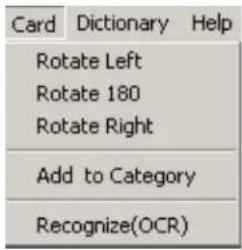 | Rotate Left | Flip business card to the left |
| Rotate 180 | Rotate business card upside down | |
| Rotate Right | Flip business card to the right | |
| Add to Category | Create a new category to organize the business cards | |
| Recognize (OCR) | Process the business card image to fill in the text fields |
Dictionary
The Visioneer Business Card Reader Software's 'Dictionary' menu includes the following options:
| Choose: | To: | ||
| Last Name | Search and list by common last name | ||
| City | Search and list by common cities | ||
| State | Search and list by contacts' state | ||
| Title | Search for all contacts by specified title | ||
| Department | Search for all contacts in a specific department | ||
| Others | Search for all contacts by salutation | ||
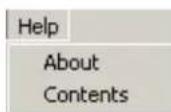
Help
The Visioneer Business Card Reader Software's 'Help' menu includes the following options:
| Choose: | To: |
| About | Provides basic information about the Business Card Reader software |
| Contents | Provides a Help menu for the Visioneer Card Reader |
Toolbar Commands
The Visioneer Business Card Software toolbar includes the following options:












Scans a business card with the specified default scanner
Creates a new business card Database
Deletes the current business card
Send Email to the selected business card holder
Print business card lists, images and labels
Export business card to Outlook
Synchronize Palm Address
Select previous business card
Select next business card
Business card image browser
Business card database browser
Search business cards according to the first character of their name fields
Open an Existing Database of Business Cards
The most recently edited database will be opened when accessing the Visioneer Business Card Reader software. To open a previously saved database of business cards:
1) Select Open from the 'File' menu.
2) In the 'Open the data File' window select the file.
3) Click OK.
Creating a New Contact
The ‘New’ option allows for manual entry of the details of a business card without scanning.

1) Click on the New button on the toolbar, or select New Business Card from the 'Edit' menu.
2) A blank business card view will be displayed.
3) Enter the details of the business card.
4) The business card will be saved automatically.
Note: Any changes to an existing database are saved automatically on close of software.
Scanning a Business Card
To scan business cards:
1) Select Scan Options from the 'Settings' menu to set the default scanning options prior to start of business card scan.

2) Click on the Scan button or select Scan from the 'File' menu.
3) Insert business card face down and flush to the side of the paper feed slot on the scanner.
4) After the business card has been scanned the following options are available:
a) Scan opposite side – if the business card has information on both sides, select this option to begin scan of second side.
b) Discard – if the image is not clear, click on the 'Discard' button to delete the image and scan again.
c) Process – clicking on the 'Process' button will begin the OCR process, when it completes, the contact information text fields will be filled in with the results.
5) If the business card has been scanned in upside down, or if the business card view should be vertical instead of horizontal, rotate the card image then reprocess (OCR) the card.
a) Click Card on the File menu bar.
b) Select a rotate option form the drop menu.
i) Rotate Left, Rotate 180, or Rotate Right
ii) The business card image will rotate according to the option selected.
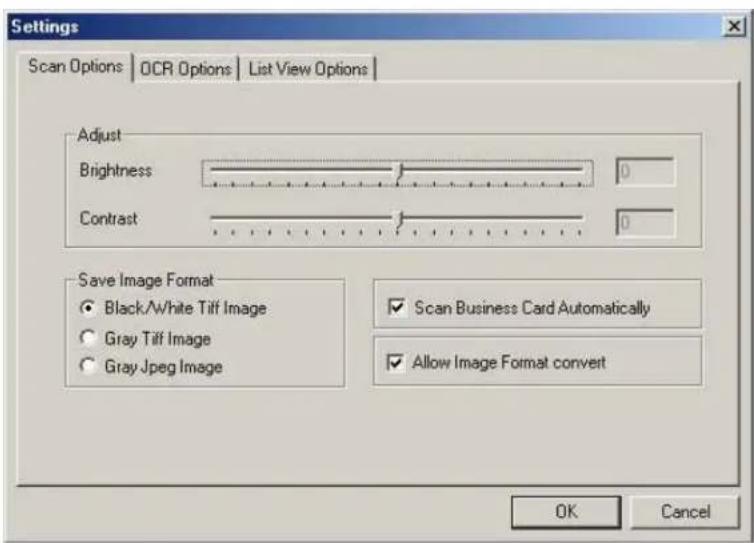
Scan Options
Change the default scan settings for business card scans prior to scanning:
1) Select Scan Options from the 'Settings' menu to access the options for scanning, OCR and lists.
2) Click on the Scan Options tab if not already selected.
3) Modify the options as desired then click on the OK button.
a) Adjust:
i) Brightness – changes the brightness of the image as it is being scanned in.
ii) Contrast - sharpens the contrast between light and dark for clearer images.
b) Save Image Format:
i) Black/White Tiff Image – saves the scanned card images as black/white tiff images.
ii) Gray Tiff Image – saves the scanned card images as “shades of gray” tiff images.
iii) Gray Jpeg Image – saves the scanned card images as "shades of gray" jpeg images.
c) aSc n Business Cards Automatically:
i) Option selected – after opening the scanning window all business cards will be scanned when they are inserted into the scanner.
ii) Option not selected – business cards will not be scanned until clicking on the Scan button in the scanning window – this may be useful as the scanner does not always pull cards through straight, which can affect OCR results.
d) Allow Image Format Convert:
i) eOption selected whenever the EReporters be complet saved in the new format defined in the option page.
**NOTE: this will set the default options for all cards scanned in.
Optical Character Recognition of Fields
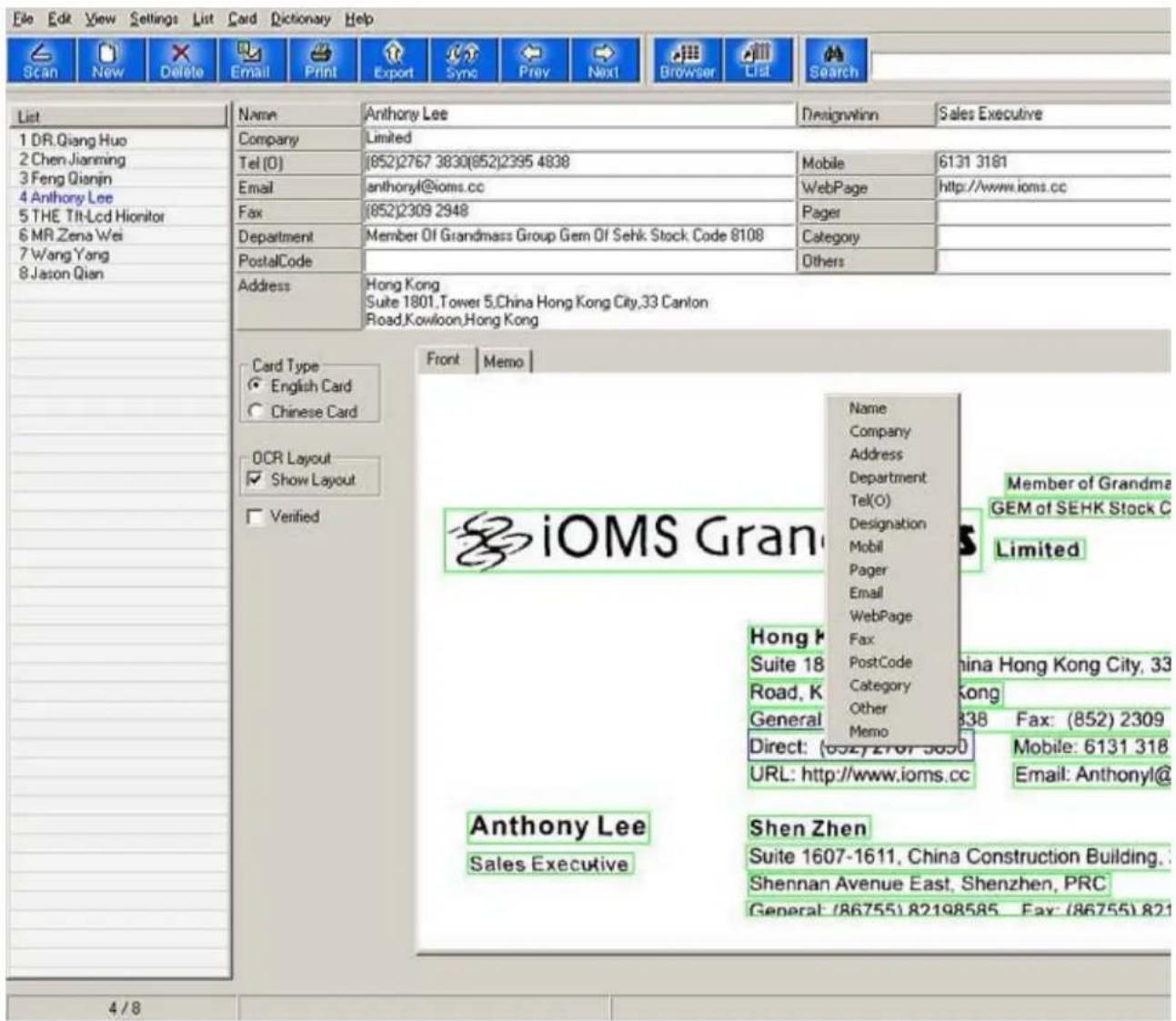
Some fields on the business card may not have been recognized accurately during the OCR process. These areas may be recognized again. The results will be placed in the field selected and will append, insert or replace the current text in that field based on the OCR options previously selected.
There are three methods available for reprocessing OCR results.
OCR Method #1:
1) Order is the diagram box (OCR layout) that surrounds the field to be a). The OCR layout field border will change from green to blue.
2) Click on the field name where the results should be inserted.
OCR Method #2:
1) ☐☐☐☐☐☐☐☐☐☐☐☐☐☐☐☐☐☐☐☐☐☐☐☐☐☐☐☐☐☐☐☐☐☐☐☐☐☐☐☐☐☐☐☐☐☐☐☐☐☐☐☐☐☐☐☐☐☐☐☐☐☐☐☐☐☐☐☐☐☐☐☐☐☐☐☐☐☐☐☐☐☐☐☐☐☐☐☐☐☐☐☐☐☐☐☐☐☐☐☐☐ ☐ ☐ ☐ ☐ ☐ ☐ ☐ ☐ ☐ ☐ ☐ ☐ ☐ ☐ ☐ ☐ ☐ ☐ ☐ ☐ ☐ ☐ ☐ ☐ ☐ ☐ ☐ ☐ ☐ ☐ ☐ ☐ ☐ ☐ ☐ ☐ ☐ ☐ ☐ ☐ ☐ ☐ ☐ ☐ ☐ ☐ ☐ ☐ ☐ ☐ ☑
2) Right-click in the OCR layout box.
3) From the drop menu, choose the field where the OCR text should be inserted.
OCR Method #3:
1) Move the mouse to the area of the business card that needs to be processed.
2) Press and hold down the left mouse button.
3) Drag the mouse cursor across the area to be reprocessed.
a) The OCR layout field border will change from green to blue.
4) Right-click on the selected text area.
5) From the drop menu, choose the field where the OCR text should be inserted.
OCR Options
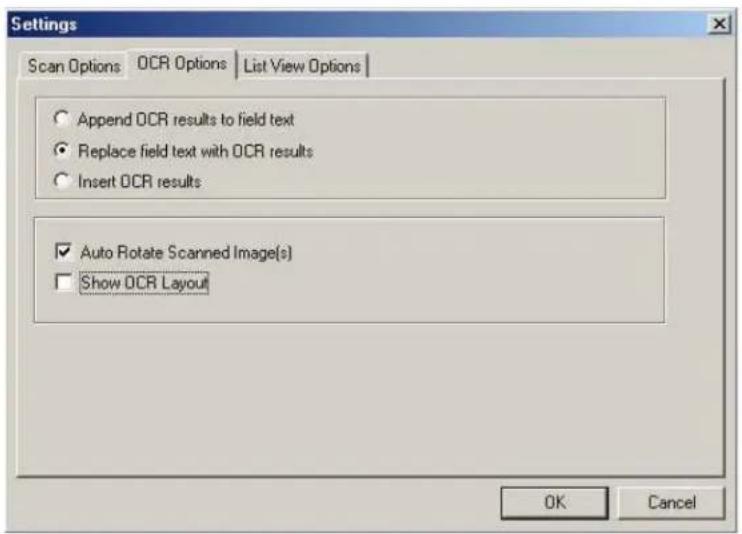
Change the default OCR settings for business card scans prior to processing:
1) Select OCR Options from the 'Settings' menu to access the options for scanning, OCR and lists.
2) Click on the OCR Options tab if not already selected.
3) Select the desired options then click on the OK button.
a) Append OCR to field text – adds the OCR results to the current text in a particular field.
b) Replace field text with OCR results – replaces the current text in a particular field with the OCR results.
c) Insert OCR results – inserts the OCR results where the cursor is placed in a designated text field.
d) Auto-Rotate Scanned Image(s) – if selected, the card image will be automatically rotated if scanned in the wrong direction.
e) Show OCR Layout – displays the OCR layout boxes on the image and is useful when reprocessing OCR on a particular image.
**NOTE: this will set the default options for all cards on which OCR has been processed.
Editing a Text Field
Make changes to the information in the text fields easily and efficiently.
To edit the text fields:
1) Click on the in the text field to be edited.
2) Type in the desired changes.
3) Changes are saved automatically.
If the text is correct, but placed in the wrong field:
1) Click on the field name to highlight all text in that field.
2) Right-click on the highlighted text and select Cut from the e drop menu.
3) Click on the field name where the text is to be inserted.
4) Right-click in the field text and choo se Paste from the drop menu.
5) Changes are saved automatically.
After making all the necessary changes to the fields, there is an option to click on the 'Verified' checkbox. This is to indicate that all the details of the business card are verified accurate and placed correctly. This may be useful later as there is an option to search verified or unverified cards only.
Saving the Business Card Database
To save the business card database under the same file name:
1) Select Save from the 'File' menu.
To save the business card database under a different file name:
1) Select Save As from the 'File' menu.
2) andfile SaveAsaviabg box, select the folder location where the business c a) Default file location is: c:\Program Files\Visioneer BCR1.5\User Data
3) Type in the new file name.
4) Click on the Save button to complete the action.
Deleting Business Card(s)
The 'Delete' option allows deletion of one or more business cards at the same time.
There are two methods for selecting business card(s) to be deleted:
1) In the 'List' view, click on the checkbox next to the business cards to be deleted.
| File Edit View Settings List Card Dictionary Help | ||||||||||
| Scan | New | Delete | Export | Sync | Prev | Next | Browser | List Search | ||
| S | Name | Designation | Department | Company | Address | Postal Code | Tel(o) | DID | ||
| □ | Dr.Qiang Huo | Associate P... | Department Of C... | THE University ... | (852)2857 8459 | |||||
| □ | Chen Jianming | Tonsoft Co.,Ltd. | N 0.289,Tonsoft... | 51 9002 | (0756)2525593 ... | |||||
| □ | Feng Qianjin | THE First Military... | KEY Lab For Me... | 510515 | 86 20 85148285 | |||||
| ✓ | Anthony Lee | Sales Exec... | Member Of Gran... | Limited | Hong Kong Suit... | (852)2767 3830[..] | (852)2767 3830 | |||
| □ | The Tilt-Lcd Hionitor | Actio 1 Shenzhe... | A Block,Second... | 518081 | 0755-25558209... | |||||
| □ | Mr.Zena Wei | Vice Gener... | Xiamen Scan Te... | Room 5109,Huo... | 86-592-5713078 | |||||
| □ | Wang Yang | Sales Dept ... | 层脚總。 | 86-1062161648 ... | ||||||
| □ | Jason Qian | Manager | Unioncyber Tec... | 5F.Aihua Buildin... | 51 8031 | 86755-836981 1 ... | ||||
OR
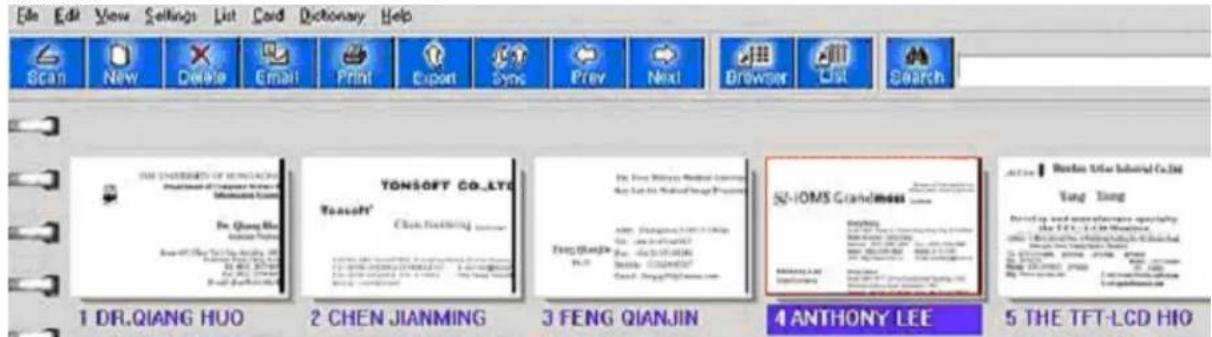
2) In the 'Browser' view, left-click to select the business card(s) to be deleted. To select multiple business cards press the CTRL button on the keyboard and left-click the mouse at the same time on each card to be deleted.
3) Click on the Delete button on the toolbar, or select Delete selected name card(s) from the 'Edit' menu.
4) The following window will open:
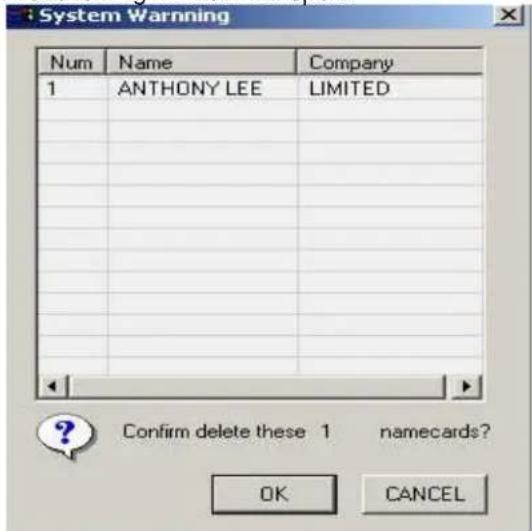
5) Click on the OK button to confirm deletion of the business cards selected.
Back-Up and Restore the Business Card Database
Visioneer recommends that the Business Card Database be backed-up on a regular basis. This may be helpful if there are any system problems where the data may be lost or the current database may become corrupted.
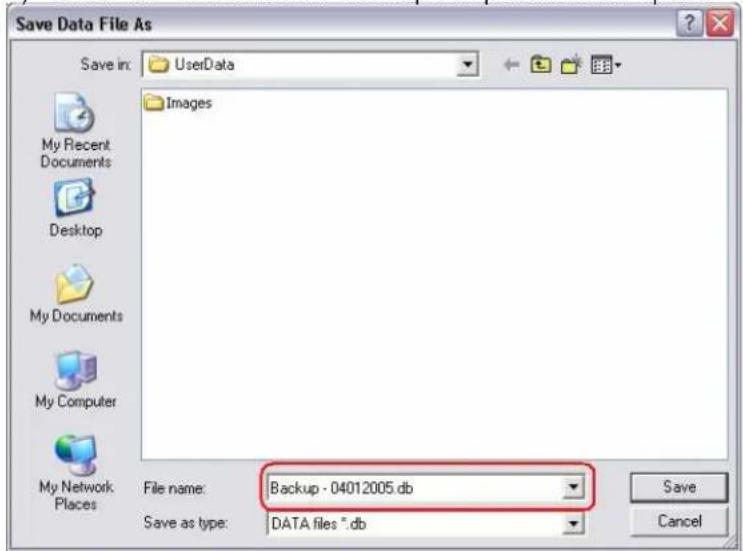
Back-Up a Database
1) Select BackUp Database from the 'File' menu
2) Browse to the location where the back-up file is to be saved
a) Default file location is c:\program files\VisioneerBCR 1.5\user data
3) Name the file then click on the Save button
a) Example: the file name could be the day the back-up is completed
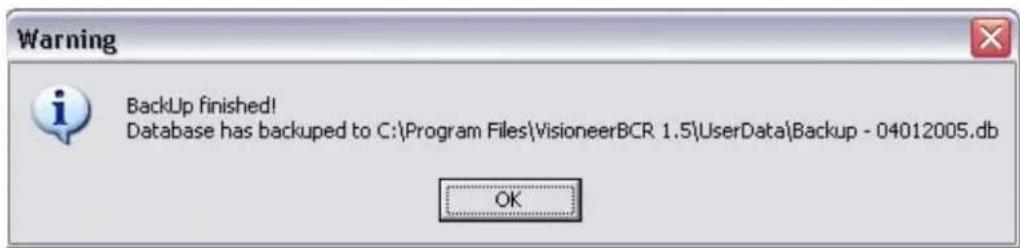
4) Click on OK when the back-up complete window opens
Restore a Database
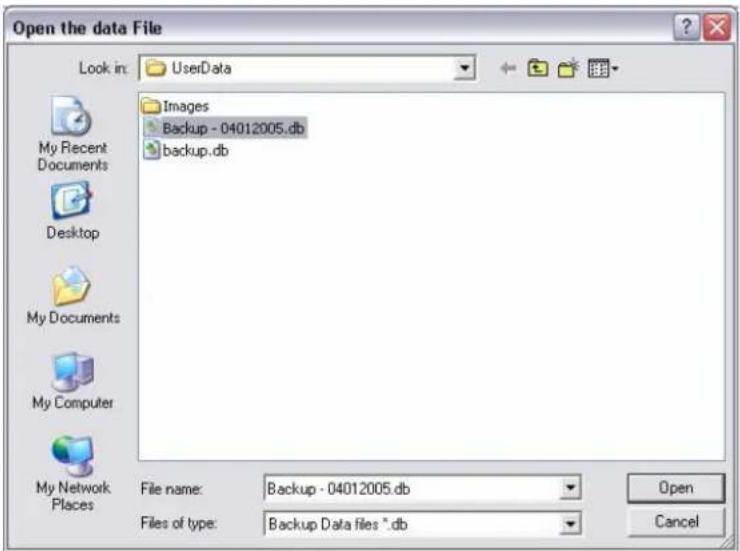
1) Select Restore from the 'File' menu
2) rBwise to the location where the back-up files have been saved
3) Select the desired back-up file that needs to be restored and click on the Open button
4) The backup database will now be the current database
a) All changes will be made to this back-up database
b) he database as aGo to 'File' and select Save As to save t nother name to maintain the content of the backup database file
Printing Business Cards
The 'Print' option allows for printing business card images or contact details.
Print one or more card(s)
1)) Inde pBtewse' view select the business card(s t
a) Left-click to select the business card
b) To select multiple business cards press the CTRSubsetbe the keyboard and left-click the same time on each card to be printed.
2) In the 'List' view, click on the checkbox next to the e business card(s) to be printed.

3) Click on the Print button on the toolbar, or select Print from the 'File' menu.
4) The following options will be available:

a) Print the front image of each busines steard sele
b) Print the front and back image of each b seleess card cted.
c) Print the contact details of each busin ees card sele d.
i) All the fields as shown in ' ' List w.
d) Print labels for all cards selected.
i) Prints contact details in pattern specified under 'Print Label Options'.
ii) The following section covers modifying the print label patterns dimensions.
a) Print the front image of each busines stedrd sele
b) Print the front and back image of each b seleess card cted.
c) Print the contact details of each busin eles card sele d.
i) All the fields as shown in ''Vist w.
d) Print labels for all cards selected.
i) Prints contact details in pattern specified under 'Print Label Options'.
ii) The following section covers modifying the print label patterns dimensions.
To print only specific fields, the fields that are not to printed must be removed from the 'List' view prior to printing.
Please look at the section 'List of Name Cards' for instructions on how to add & remove fields from the 'List' view. Note: the business card fields will print in the same order as seen in the 'List' view.
Print Label Patterns
Add, edit and select a print label pattern.
1) Select Print Label Options from the 'Settings' menu.
2) The label dimensions window will open.
3) Click the pattern name on the left to modify a current pattern.
4) Click on the Add button and input a name for the new pattern.
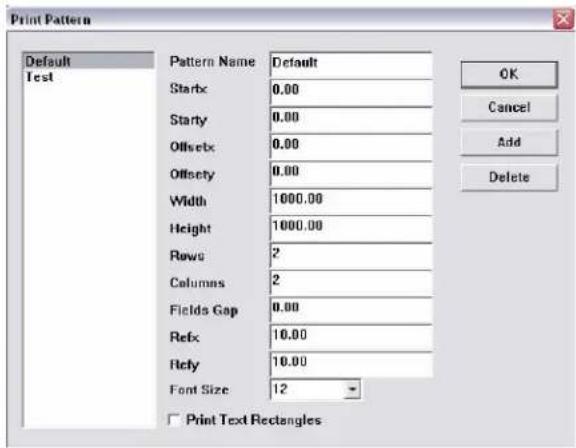
Note: all values are measured in 1/10mm
Pattern name:
Input any name to represent pattern dimensions
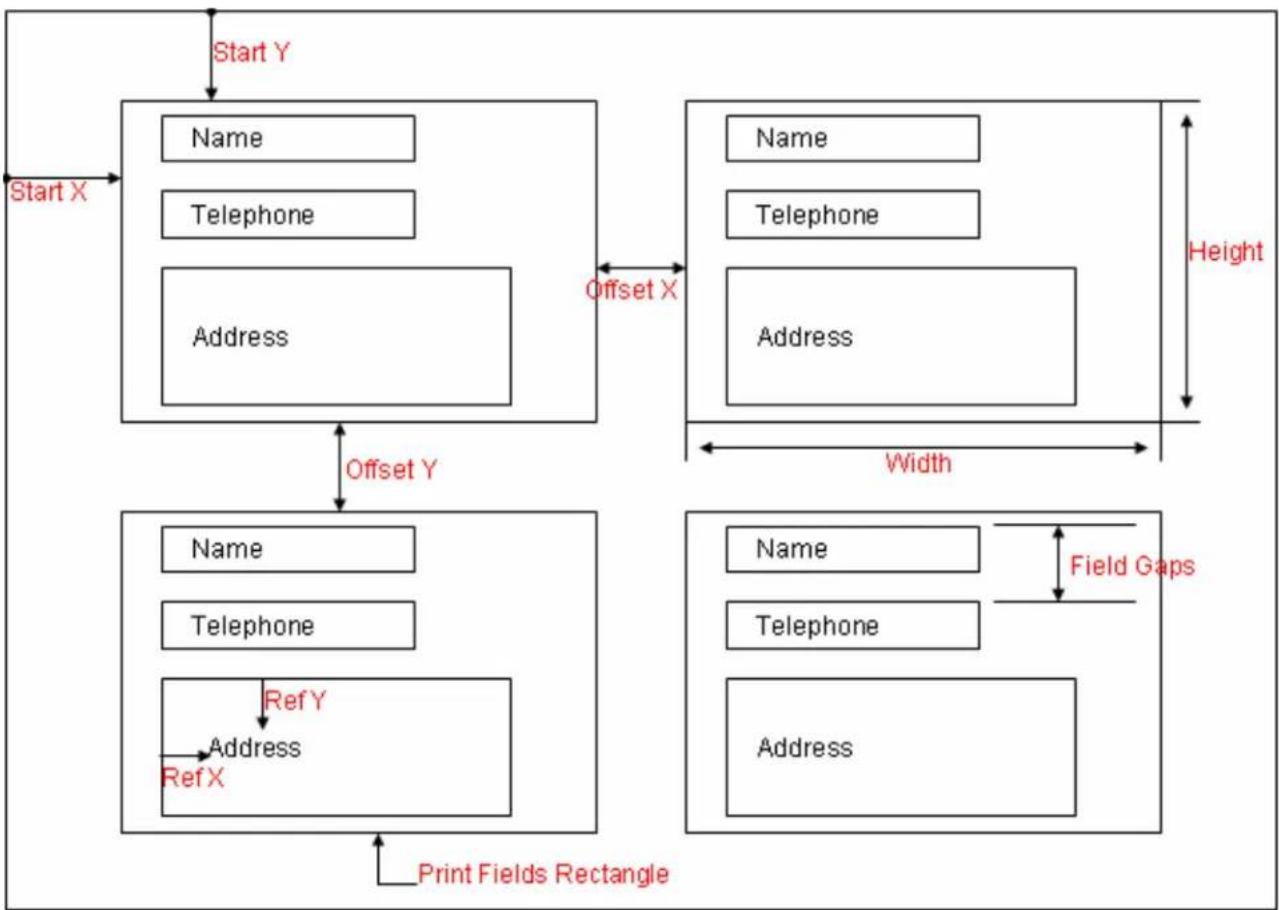
StartX and StartY:
Horizontal(x) and vertical(y) distances between labels sticks and labels papers.
These values must be adjusted for different printers
OffsetX and OffsetY:
Horizontal(x) and vertical(y) distances between neighboring label sticks.
Width and Height:
Horizontal and vertical dimensions of label sticks.
Rows and Columns:
The number of business cards to print in horizontal and vertical direction.
Fields Gap:
The Fields vertical distance in a label stick.
(Height of each field will change according to font size. The address field is 3 times of any other field, like name. Adjust fields gap to tune the space between fields.)
RefX and RefY:
Horizontal and vertical distance between fields bounding rectangles and fields text.
Font Size:
Fields text printed font size.
Print Text Rectangle:
Will print borders around fields.
Pattern items: (all values measured in 1/10 mm)
| Fractional Inch | Decimal Inch | Millimeters | 1/10 | Millimeter |
| 1/8 | 0.125000 | 3.175 | 31.75 | 0 |
| 1/4 | 0.250000 | 6.3500 | 63.5 | |
| 1/3 | 0.333333 | 8.4667 | 84.667 | |
| 1/2 | 0.500000 | 12.7001 | 127.001 | |
| 2/3 | 0.666666 | 16.9334 | 169.334 | |
| 3/4 | 0.750000 | 19.0501 | 190.501 | |
| 1 | 1.000000 | 25.4001 | 254.001 |
flowchart
graph TD
    A["Start X"] --> B["Name"]
    B --> C["Telephone"]
    C --> D["Address"]
    D --> E["Offset Y"]
    E --> F["Name"]
    F --> G["Telephone"]
    G --> H["Address"]
    H --> I["Width"]
    I --> J["Field Gaps"]
    J --> K["Address"]
    K --> L["RefX"]
    L --> M["RefY"]
    M --> N["Address"]
    N --> O["Print Fields Rectangle"]
    style A fill:#f9f,stroke:#333
    style J fill:#f9f,stroke:#333
Searching Business Cards
The search function allows fast and easy retrieval of business car
QuickSearch
To search for business cards:
1) Enter a keyword in the search textbox on the tool bar

2) The keyword can be any information contained in the business card.
3) If a business card containing the keyword is found, it will be displayed. If not, an empty screen will be shown.
4) More than one keyword can be entered, separated by clicking on AND (AND&) or OR (OR|) button.
a) To search for all business cards containing all the keywords entered, use the 'AND&' separator.
b) To search for all business cards containing any of the keywords entered, use the 'OR' separator.
5) To cancel a search, click on the All button to cancel searched results and view all business cards in browse or list view.
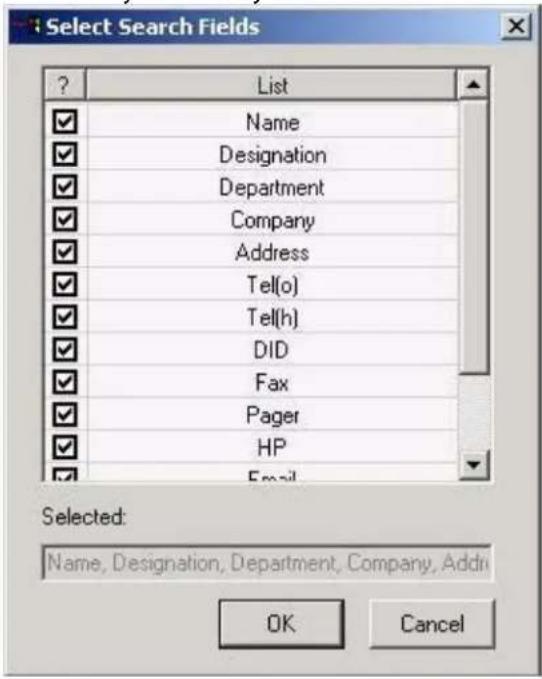
Specify searchable fields
) Click on the Search button to open the 'Select Search Fields' option window. 1
2) Select the fields to be searched by keyword.
a) By default, all of the fields will be selected, so the search will be for all business cards containing the keyword in any of the fields.
Sorting Business Cards
Sorting the business cards allows the information to be viewed easily in the 'List' view.
To sort the business cards:
1) In the 'List' view, click on a field header to sort alpha-numerically.
a) Click on the field header one time to sort A to Z.
b) Click on the field header a second time to re-sort Z to A.
2) Alternatively the business cards can be sorted by Name, Comp any or Date (time created) by choosing one of these three options in the 'List' menu.
| File Edit View Settings List Card Dictionary Help | |||||||||
| Scan | New | Delete | Export | Sync | Prev | Next | Browser List Search | ||
| S | Name | Designation | Department | Company | Address | Postal Code | Tel(o) DID | ||
| Dr. Qiang Huo | Associate P... | Department Of C... | THE University ... | (852)2857 8459 | |||||
| Chen Jianming | Tonsoft Co.,Ltd. | N 0.289,Tonsoft... | 51 9002 | (0756)2525593 ... | |||||
| Feng Qianjin | THE First Military... | KEY Lab For Me... | 510515 | 86 20 85148285 | |||||
| Anthony Lee | Sales Exec... | Member Of Gran... | Limited | Hong Kong Suit... | (852)2767 3830( ) | (852)2767 3830 | |||
| The Tit-Lcd Hionitor | Actfo 1 Shenzhe... | A Block,Second... | 518081 | 0755-25558209 ... | |||||
| Mr Zena Wei | Vice Gener... | Xiamen Scan Te... | Room 5109,Huo... | 86-592-5713078 | |||||
| Wang Yang | Sales Dept ... | 层眼鹅。 | 161 1,Building A... | 86-1062161648 ... | |||||
| Jason Qian | Manager | Unioncyber Tec... | 5F.Aihua Buildin... | 51 8031 | 86755-836981 1 ... | ||||
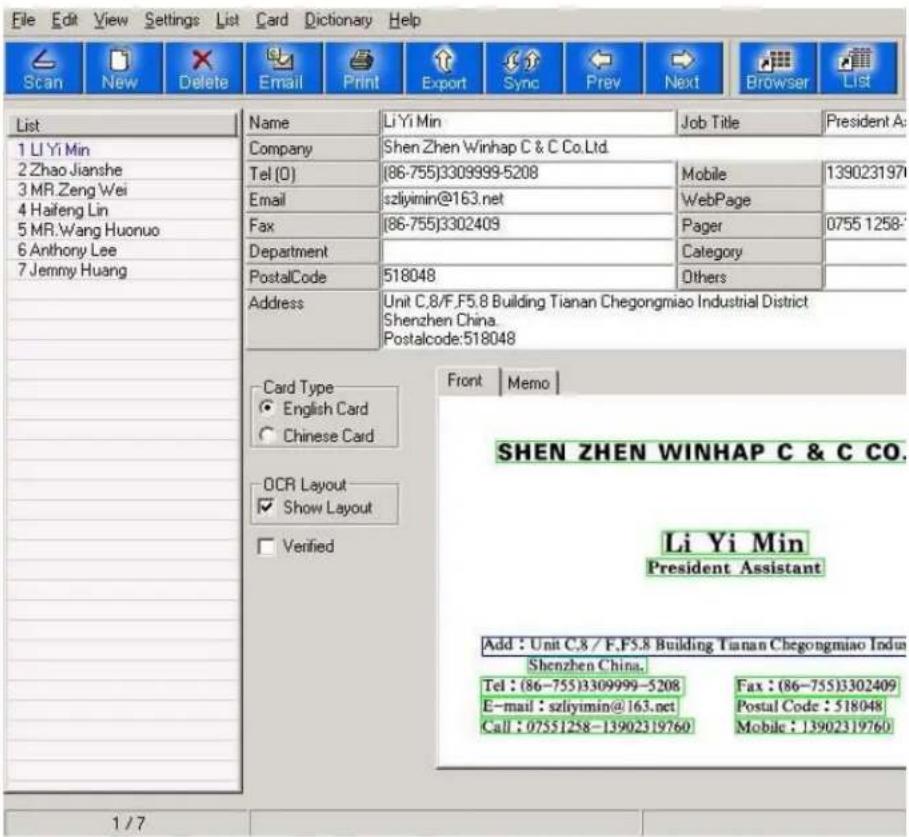
List Business Cards
The 'Edit' view: she's that business data lists being done any one of the records on the left side of the window shows the contact and company information for that card.
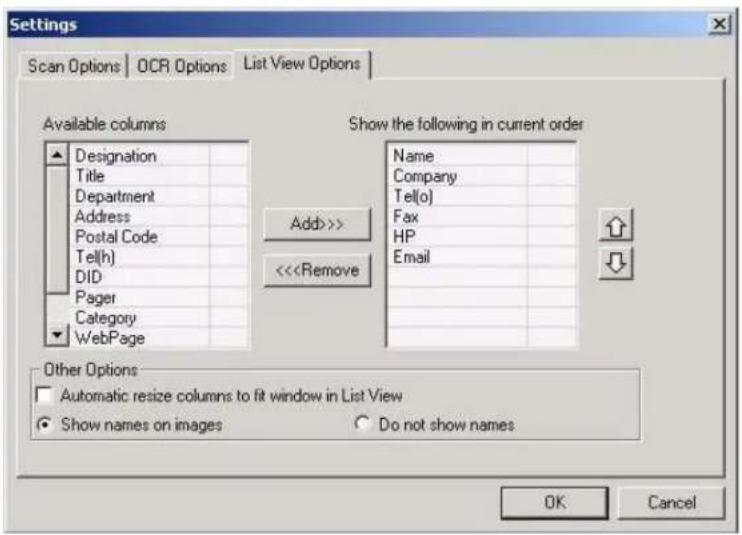
List View Options
Change the default List view settings:
1) Select List Options from the 'Settings' menu to access the options for scanning, OCR and lists.
2) Click on the List Options tab if not already selected.
3) Select the desired options then click on the OK button.
a) Available columns – all possible fields in the database to be viewed in the 'List' view.
b) Show the following in current order – shows the selected fields in the 'List' view in the order of the fields top to bottom.
i) Add>>> button – moves the selected fields from the 'Available Columns' list to the 'Show the following in current order' list.
ii) <<<Remove button – moves the selected fields from the 'Show the following in current order' list to the 'Available Columns' list.
iii) ↑ (up) button – moves the selected field up the list under 'Show the following in current order'.
iv) ↓ (down) button – moves the selected field down the list under 'Show the following in current order'.
c) Other Options
i) Automatic resize columns in to fit window in the 'List' view – if selected, the columns will be resized so that all may be viewed in the window without scrolling left-to-right.
ii) Show Names on images – if selected, displays the name of the contact person below the business card in the 'Browser' view.
es not display the information of the content provided below the business card image in the 'Browser' view.