AC1200UBE2 - Network card Rosewill - Free user manual and instructions
Find the device manual for free AC1200UBE2 Rosewill in PDF.


User questions about AC1200UBE2 Rosewill
0 question about this device. Answer the ones you know or ask your own.
Ask a new question about this device
Download the instructions for your Network card in PDF format for free! Find your manual AC1200UBE2 - Rosewill and take your electronic device back in hand. On this page are published all the documents necessary for the use of your device. AC1200UBE2 by Rosewill.
USER MANUAL AC1200UBE2 Rosewill
Thank you for purchasing a quality Rosewill Product.
Please register your product at: www.rosewill.com for complete warranty information and
future support for your product.
1. Package Contents
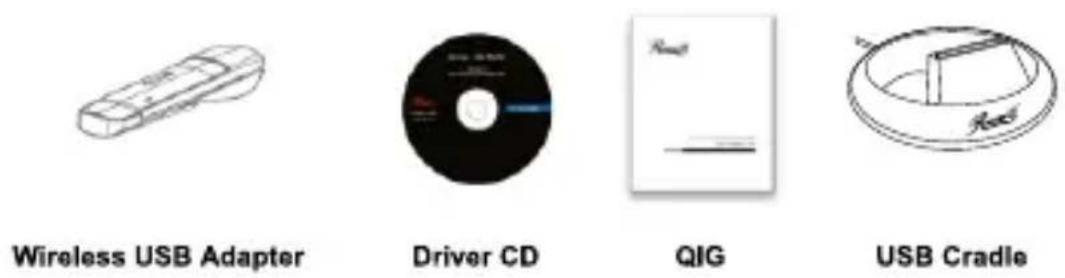
* Contents: Wireless USB Adapter, Driver CD, QIG, USB Cradle
* This QIG is for Wireless USB Adapters: AC1200UBE2.
2. Hardware Connection
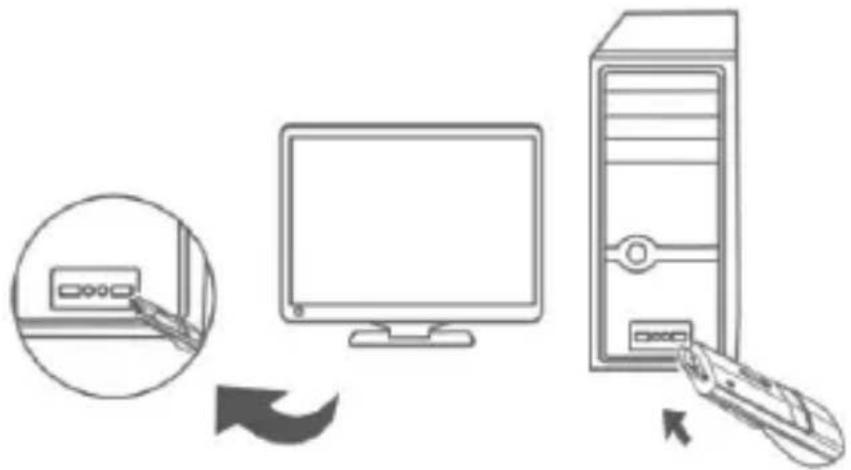
Plug AC1200UBE2 directly into an available USB interface on your computer. (For AC1200UBE2, you may connect it and your computer with the USB cradle included).
3. Driver Installation
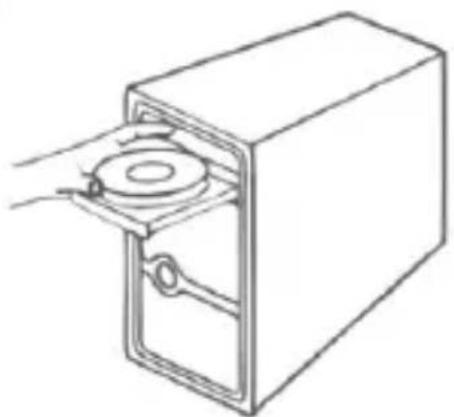
3.1. Insert the Driver CD into your CD-ROM drive.
natural_image
Line drawing of a mechanical device with a circular component inserted into a housing (no text or symbols)3.2. Install the provided driver from the CD.
For Windows 8/7/Vista/XP
The Setup Wizard on the CD will guide you through the driver installation procedures.
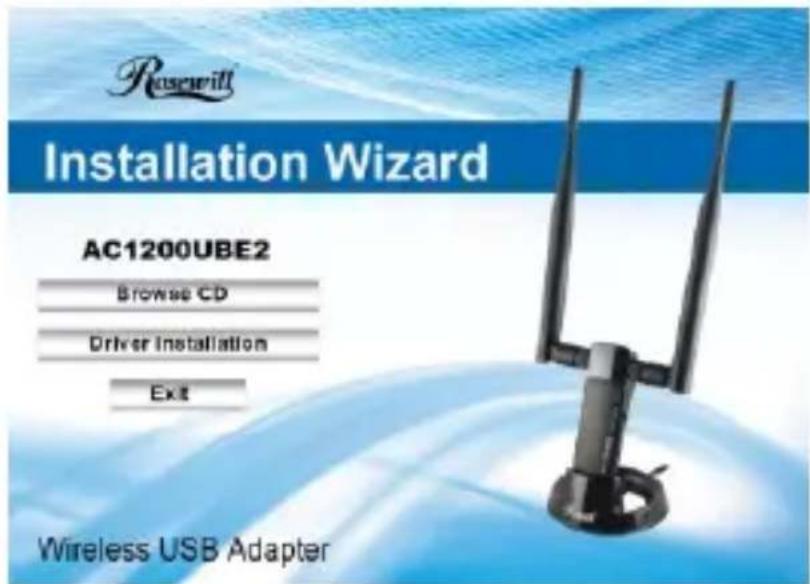
Simply click "Install". The Rosewill smart driver assistant will choose the correct driver program automatically based on your Windows operating system.
The InstallShield Wizard window will appear, then please click "Next" and follow the step by step procedures to finish the driver installation.
For MAC OS
Open the folder "Driver"> "MAC" from the CD.
Select the driver package according to your MAC OS version and run the Installer.pkg file.
Then an installation dialog will pop up. Please click "Continue" and follow the step by step procedures to finish the driver installation.
For Linux
You may get the available driver files from the "Driver" > "Linux" folder in the CD.
4. Connect to the Wireless Network
For Windows 8/7/Vista/XP
(Here we take Windows 7 for example.)
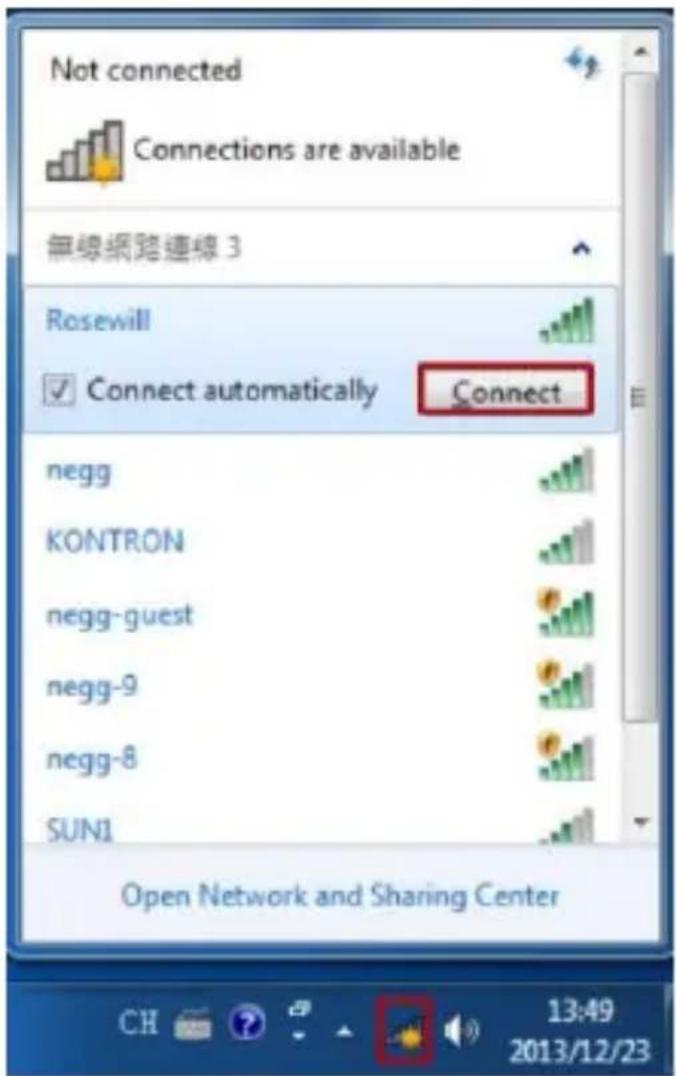
After driver installation, please click on the wireless network connection icon in the lower right corner of the task bar. Choose the available wireless network, and click on the "Connect" button to setup a wireless connection.
If the wireless network is secured, enter the security key/password in the next pop up window.
For MAC OS
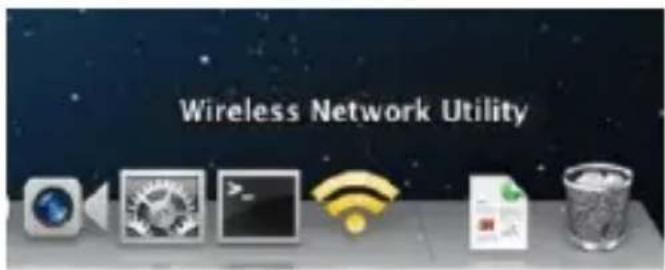
Click the Wireless Network icon as below.
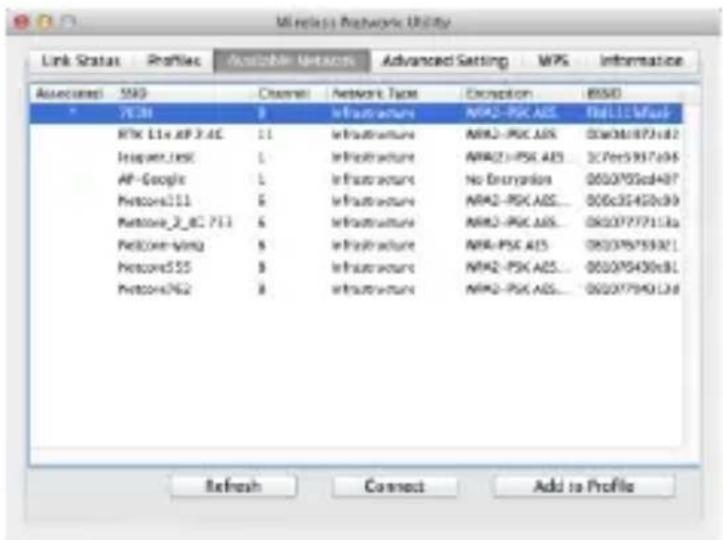
Choose the available wireless network, and click on the "Connect" button to setup a wireless connection. If the wireless network is secured, enter the network key/password in the next page.
For Linux
(Here we take Ubuntu for example.)
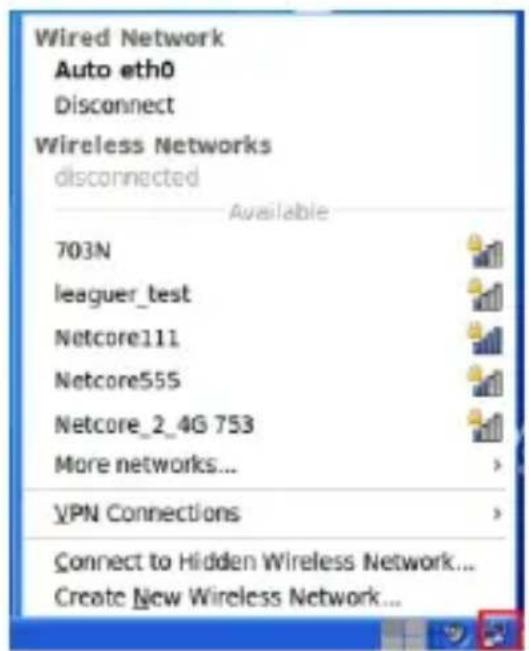
Choose the available wireless network to setup a wireless connection.
If the wireless network is secured, enter the password in the pop up window.