
D24V2 - Digital recorder YAMAHA - Free user manual and instructions
Find the device manual for free D24V2 YAMAHA in PDF.


| Brand | YAMAHA |
| Model | D24V2 |
| Category | Digital recorder |
| Recording media | MO (magneto-optical) disk and hard disk |
| Sampling frequencies | 48 kHz, 44.1 kHz |
| Recording resolutions | 16, 20, and 24 bits |
| Number of tracks | 8 tracks (up to 16 with hard disk and 44.1 kHz) |
| Recording functions | Punch In/Out, Auto Punch In/Out, take 00 |
| Fade modes (Crossfade) | Fade In/Out, Crossfade 1 (-3 dB), Crossfade 2 (-6 dB) |
| Punch out monitoring | Inaudible monitoring at the Punch Out point (depending on configuration) |
| Reference points | Points A, B, LAST REC IN, OUT (erasable) |
| Editing | Track and part editing, Time Compression, Pitch Change |
| Remote control | Compatible with RC-D24 (update possible) |
| I/O cards | Compatible with Apogee AP8AD and AP8DA (mini YGDAI) |
| Remaining time display | Available during recording |
| Track selection | SOLO/SELECT buttons, JOG/DATA wheel, and numeric keypad |
| Firmware update | Via dedicated MO disk (Version 2.0) |
| Multi-D24 system settings | Repeated on slaves (points, modes, etc.) |
| Remote control address conflict | Error message RMT ID ERROR if duplicate ID |
Frequently Asked Questions - D24V2 YAMAHA
User questions about D24V2 YAMAHA
0 question about this device. Answer the ones you know or ask your own.
Ask a new question about this device
Download the instructions for your Digital recorder in PDF format for free! Find your manual D24V2 - YAMAHA and take your electronic device back in hand. On this page are published all the documents necessary for the use of your device. D24V2 by YAMAHA.
USER MANUAL D24V2 YAMAHA
This document explains how to upgrade the D24 and RC-D24 to Version 2.0 and the new features and functions provided by the upgrade.
Upgrading the D24
The following procedure explains how to upgrade the D24. Be sure to use the MO disk labelled "Ver. 2.00 DISK."
1 Turn off the D24.
2 Turn on the D24.
3 Insert the MO disk labelled "Ver. 2.00 DISK" into the D24.
4 When the message "UNFORMATTED" appears on the 2nd line of the display (which takes about 10 seconds), press the [UTILITY] button.
5 Use the JOG/DATA dial to select "UPDATE," and then press the [ENTER] button.
6 When the message "UPDATE - D24" appears, press the [ENTER] button.
Warning: Do not press the [ENTER] button more than once.
After about 10 seconds, the message "WAITING" appears. After a further 60 seconds the message changes to "TURN OFF." The upgrade procedure is now complete.
Warning: Do not turn off the D24 before the message "TURN OFF" appears.
7 To check the version number, first turn off the D24, and then, while pressing the [UTILITY] button, turn on the D24. The version number appears on the display as follows: "V1 200."
Upgrading the RC-D24
The following procedure explains how to upgrade the D24's remote controller, the RC-D24. Be sure to use the MO disk labelled "Ver. 2.00 DISK."
1 Turn off the D24.
2 Connect the RC-D24 to the D24.
3 Turn on the D24.
4 Turn on the RC-D24.
5 Confirm that "00:00:00.00" is shown on the RC-D24 display.
6 Insert the MO disk labelled "Ver. 2.00 DISK" into the D24.
7 When the message "UNFORMATTED" appears on the 2nd line of the display (which takes about 10 seconds), press the [UTILITY] button.
8 Use the JOG/DATA dial to select "UPDATE," and then press the [ENTER] button.
9 When the message "UPDATE - D24" appears, use the JOG/DATA dial to select "RCU," and then press the [ENTER] button.
The message "WAITING" appears. The RC-D24 and D24 counters count up from 1/374" to "374/374," which takes about 120 seconds. After a further 20 seconds the RC-D24 transport buttons start flashing. The upgrade procedure is now complete.
Warning: Do not turn off the D24 or RC-D24 before the transport buttons start flashing.
10 To check the version number, first turn off and on the D24, and then, while pressing the RC-D24's [RTN TO ZERO] button, turn on the RC-D24.
The RC-D24 version number appears on the display as follows: “200xxxxxx”.
Seamless Punch Out Monitoring
At the punch-out point, the monitor circuits now switch from input to playback seamlessly. (Previously, monitoring was muted for an instant as the punch-out occurred.)
The number of tracks with which seamless punch out monitoring can be used simultaneously is limited by the following factors: recording media (MO or hard disk), sampling rate (48 kHz or 44.1 kHz), and recording resolution (16-, 20-, or 24-bit), as shown in the following table.
| Media | Sampling Rate | Recording Resolution | Max. No. of Tracks for Seamless Punch Out |
| MO | 48 kHz | 24-bit | 8 |
| 20-bit | 9 | ||
| 16-bit | 11 | ||
| 44.1 kHz | 24-bit | 9 | |
| 20-bit | 10 | ||
| 16-bit | 12 | ||
| Hard Disk | 48 kHz | 24-bit | 12 |
| 20-bit | 15 | ||
| 16-bit | 16 | ||
| 44.1 kHz | 24-bit | 15 | |
| 20-bit | 16 | ||
| 16-bit | 16 |
The maximum number of tracks for seamless punch out consists of the number of tracks previously recorded (i.e., the number of tracks playing back) and the number of tracks selected for punch in/out recording. For example, the maximum number of tracks for seamless punch out using an MO disk at 48kHz / 24 -bit is eight, so if four tracks have already been recorded, up to four tracks can be selected for seamless punch out.
If the maximum number of tracks for seamless punch out is exceeded (i.e., a greater number tracks are selected for recording), punch out monitoring will not be seamless. Audio recorded to disk is always seamless.
Crossfade Modes
Two new Crossfade modes, with variable fade times, are now available for use with punch in/out recording and part editing. Previously, a variable fade in/out time could be set to smooth the transition between new and existing material at the punch in/out points, and the part editing edit points. This option has been kept because it has the advantage that it affects only playback and the fade time can be changed at anytime, since the fades are not recorded to disk. With the new Crossfade modes, however, the fades are recorded to disk, so once recorded, they cannot be changed.
The following procedure explains how to select a Fade mode and fade time.
1 Press the [UTILITY] button.
The UTILITY indicator lights up.
2 Use the JOG/DATA dial to select "FADE MODE," and then press the [ENTER] button.
The current mode setting appears on the display.
3 Use the JOG/DATA dial to select a Fade mode:
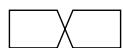
FADE IN/OUT—Same as previous version.
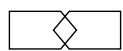
CROSS FADE1—Signal levels are at -3 dB at the crossover point (suitable for music).
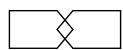
CROSS FADE2—Signal levels are at -6 dB at crossover point (suitable for sounds consisting essentially of a single, simple tone (e.g., flute, recorder).
4 Press the [ENTER] button to activate your selection, or the [CANCEL] button to cancel the Fade Mode function.
5 To set the fade time, with the UTILITY indicator still lit, use the JOG/DATA dial to select "FADE I/O," and then press the [ENTER] button.
The currently set fade time appears on the display.
6 Use the JOG/DATA dial to select a fade time: 2, 5, 10, 25, 50, or 100~ms .
The default setting is 2ms
7 Press the [ENTER] button to activate your selection, or the [CANCEL] button to cancel the Fade I/O function.
8 Press the [UTILITY] button again to leave utility.
The UTILITY indicator goes out.
Note that if a project that was recorded in the Fade I/O mode is played back in one of the new Crossfade modes, it will play without the fade in/outs at the punch in/out points, or part edit points. Therefore, such projects are best played back with the Fade I/O mode selected.
Clearing the A, B, IN & OUT Points
Previously set A, B, LAST REC IN and OUT points can now be cleared.
1 While holding down the [CANCEL] button, press the [A], [B], [IN], or [OUT] button.
The previously set point is cleared and the corresponding indicator goes out. So long as the loaded disk is not write-protected, the A, B, LAST REC IN and OUT point information stored on disk is also cleared.
This new function also works on the remote controller.
Using the A, B, IN & OUT Points as Edit Times
The A, B, LAST REC IN and OUT points can now easily be used as the start (ST) and end (ED) times when using a part edit function, the Time Compression function, or the Pitch Change function.
1 When the display shows "STxxxxxxxx" or "EDxxxxxxxx" or "TOxxxxxxxx" and you are required to enter a start, end, or to time, press the [A], [B], [IN], or [OUT] button.
The time value previously stored for that point is entered and appears on the display. If no point has been set, no time value is entered.
Using the Solo Buttons to Select Tracks
The SOLO/SELECT buttons can now be used to select the source and destination tracks for the track and part editing functions and the Time Compression and Pitch Change functions. (Previously, only the JOG/DATA dial could be used to select tracks.)
1 When the display shows "FROM TR" or "TO TR," use the SOLO/SELECT buttons to select the source or destination tracks.
As with the JOG/DATA dial, depending on the function being used, tracks can be selected individually (1-8) or in pairs (1/2, 3/4, 5/6, 7/8).
Note that the JOG/DATA dial must be used to select destination virtual tracks.
Remaining Time
The time remaining can now be checked while recording is in progress. (Previously, it could be checked only when the D24 had stopped.)
Apogee I/O Cards
The D24 now supports the Apogee AP8AD and AP8DA mini YGDAI I/O cards. (Only the AP8AD is currently available.)
Assigning Virtual Tracks Using SOLO & Keypad
When assigning virtual tracks to main tracks, the SOLO/SELECT buttons can now be used to select the main track. (Previously, only the SHUTTLE/CURSOR could be used for this.) In addition, the number keypad can now be used to select virtual tracks. (Previously, only the JOG/DATA dial could be used for this.)
1 While the D24 is stopped, press the [V. TRACK SELECT] button.
The V. TRACK SELECT indicator lights up.
The 1st line of the display shows the main track numbers from 1 through 8. The 2nd line shows the virtual tracks assigned to those main tracks. Initially, each main track is assigned its respective virtual track 1.
2 Use the SOLO/SELECT buttons or SHUTTLE/CURSOR ring to select a main track.
The number of the virtual track assigned to the selected main track flashes on the 2nd line of the display and the corresponding SOLO/SELECT indicator lights up.
3 Use the number keypad or JOG/DATA dial to assign a virtual track to the selected main track.
4 Press the [ENTER] button to apply your virtual track settings.
"FINISHED" appears on the display for a few seconds and then The V. TRACK SELECT indicator goes out.
Functions Echoed Across Multiple D24s
In a multiple-unit system, the following settings made on the master D24 are echoed by the slave D24s. (Previously, these settings were not echoed by the slaves.)
- Setting the A, B, LAST REC IN and OUT points.
- Canceling the A, B, LAST REC IN and OUT points.
LAST REC IN and OUT points for auto punch in/out recording. - Setting the LEVEL METER mode—NORMAL or FINE.
Settings other than LEVEL METER mode also work on the remote controller.
Fixing Take 00
When using the Fix Take function to select the take you want to keep after auto punch in/out recording, the original material (i.e., TAKE 00) can now be selected. (Previously, TAKE 00 could not be selected, so to revert to the original material you had to fix another take, exit the Auto Punch function, and then use Undo.) As before, the original material (i.e., TAKE 00) can be auditioned by using the Audition Take function.
Fix Take cannot be performed from the remote controller or in a multiple-unit system.
Remote ID Conflict Error Message
In a multiple-unit system, if two or more D24s are assigned the same Remote ID, the error message "RMT ID ERROR" appears when the [CHASE] button is pressed, and Chase mode cannot be engaged.
- Upgrading the D24
- Upgrading the RC-D24
- Seamless Punch Out Monitoring
- Crossfade Modes
- Clearing the A, B, IN & OUT Points
- Using the A, B, IN & OUT Points as Edit Times
- Using the Solo Buttons to Select Tracks
- Remaining Time
- Apogee I/O Cards
- Assigning Virtual Tracks Using SOLO & Keypad
- Functions Echoed Across Multiple D24s
- Fixing Take 00
- Remote ID Conflict Error Message
Brand : YAMAHA
Model : D24V2
Category : Digital recorder