X4-Z11-E-W - Network Interface Digi - Free user manual and instructions
Find the device manual for free X4-Z11-E-W Digi in PDF.


| Product Type | Industrial Cellular/VPN Router |
| Model | X4-Z11-E-W |
| Brand | Digi International |
| Cellular Technology | GSM/EDGE (2G) or CDMA (3G) depending on variant |
| WiFi Standards | 802.11 b/g/n (on WiFi models) |
| Ethernet Ports | 1 x 10/100 Mbps (RJ-45) |
| Serial Ports | 1 x RS-232 (DB9) for console/management |
| XBee Socket | 1 x XBee module slot for ZigBee/802.15.4 |
| Management Interface | Web-based GUI (HTTP/HTTPS), Device Discovery Utility |
| IP Addressing | DHCP client/server, static IP, AutoIP |
| Gateway Priority | Configurable failover between Ethernet, cellular, WiFi |
| VPN Support | IPsec, PPTP, L2TP (via advanced settings) |
| Device Cloud Integration | Automatic registration with Digi Device Cloud for remote management |
| Power Supply | 9-30 VDC (power adapter included) |
| Operating Temperature | 0°C to 60°C (32°F to 140°F) |
| Dimensions | Approximately 140 x 100 x 30 mm (5.5 x 3.9 x 1.2 in) |
| Weight | Approximately 300 g (0.66 lb) |
| Security | WPA/WPA2-PSK (TKIP/AES), WEP, 802.1x (WiFi), IP filtering, firewall |
| Firmware Update | Via web GUI, TFTP, or Device Cloud |
| Warranty | 1 year limited (check with vendor) |
Frequently Asked Questions - X4-Z11-E-W Digi
User questions about X4-Z11-E-W Digi
0 question about this device. Answer the ones you know or ask your own.
Ask a new question about this device
Download the instructions for your Network Interface in PDF format for free! Find your manual X4-Z11-E-W - Digi and take your electronic device back in hand. On this page are published all the documents necessary for the use of your device. X4-Z11-E-W by Digi.
USER MANUAL X4-Z11-E-W Digi
©2014 Digi International Inc.
All rights reserved.
ConnectPort ^® , Digi, Digi International, the Digi logo, the Digi website, a Digi International Company, and ConnectPort X are trademarks or registered trademarks of Digi International, Inc. in the United States and other countries worldwide. All other trademarks are the property of their respective owners.
All other trademarks mentioned in this document are the property of their respective owners.
Information in this document is subject to change without notice and does not represent a commitment on the part of Digi International.
Digi provides this document “as is,” without warranty of any kind, either expressed or implied, including, but not limited to, the implied warranties of fitness or merchantability for a particular purpose. Digi may make improvements and/or changes in this manual or in the product(s) and/or the program(s) described in this manual at any time.
This product could include technical inaccuracies or typographical errors. Changes are periodically made to the information herein; these changes may be incorporated in new editions of the publication.
Table of Contents
Introduction to the ConnectPort X4 5....5
Important Information Regarding Your Device....5
Using this Guide....5
Digi Information....6
- Contact Information ....6
Chapter 1: ConnectPort X4 Ethernet Models 7
Connecting to the ConnectPort X4 Home Page.... 7
Configuring Ethernet Settings for the ConnectPort X4 10
ConnectPort X4 Ethernet IP Settings Page 10
Viewing ConnectPort X4 IP Address Information 11
Viewing ConnectPort X4 Ethernet Statistics 11
X4 Smart Energy.... 11
Chapter 2: ConnectPort X4 Cellular Models.... 12
Connecting to the ConnectPort X4 Home Page.... 12
Configuring the ConnectPort X4 Cellular Interface 13
GSM/Edge Cellular Configuration Example (AT&T) 13
CDMA Cellular Configuration Example (Verizon) 15
CDMA Cellular Configuration Example (Sprint) 18
Verifying the ConnectPort X4 Cellular Connection Status.... 21
Configuring the ConnectPort X4 IP Gateway Priority 22
Configuring the ConnectPort X4 Ethernet Interface.... 23
Viewing ConnectPort X4 IP Address Information 24
Viewing ConnectPort X4 Ethernet Statistics 26
Chapter 3: ConnectPort X4 WiFi Models 27
Connecting to the ConnectPort X4 Home Page.... 27
Configuring the ConnectPort X4 WiFi Interface 29
ConnectPort X4 WiFi IP Settings Page 30
ConnectPort X4 WiFi LAN Settings Page 31
ConnectPort X4 WiFi Security Settings Page 32
ConnectPort X4 DHCP Server Settings Page 33
Verifying the ConnectPort X4 WiFi Connection Status 34
Configuring the ConnectPort X4 IP Gateway Priority 35
Configuring the ConnectPort X4 Ethernet Interface.... 36
Viewing ConnectPort X4 IP Address Information 37
Viewing ConnectPort X4 Ethernet Statistics 37
Introduction to the ConnectPort X4
Important Information Regarding Your Device
Your device is configured to automatically register with a Device Cloud Technical Support Account when you first power up your device*. Activation with Device Cloud Technical Support is free. Our Device Cloud Technical Support team will only access your device upon your approval. With your consent, the Device Cloud Technical Support team is afforded visibility and access to your device to diagnose and resolve issues, should you require assistance.
For any support queries, please contact the Device Cloud Customer Support Center by phone at 952.912.3456 or via our web portal at: http://www.digi.com/support/eservice/login.jsp?p=true
Should you wish to forego the enhanced service and benefits that automated registration with Device Cloud Technical Support provides, you can disable this feature via the gateway's web UI:
- Open the web UI of the gateway using the method outlined in the Quick Start Guide
- Navigate to the Configuration > Device Cloud section
- From the “Short Messaging” menu, uncheck the box labeled Opt-in.
• To completely disable SMS, uncheck the box labeled Enable SMS. - Uncheck the box labeled Enable Device-Initiated Device Cloud Connection.
- Click Apply.
- Reboot the gateway
*The registration process involves sending a single SMS message containing the device's mobile phone number. Network costs associated with this single SMS transmission are the customer's responsibility. Any device information stored in the Device Cloud Technical Account is secured with adherence to Device Cloud security and privacy procedures, and will not be disclosed to, or accessible by third parties.
If you currently configure your Digi device using a configuration file (defaults.rci), then in order to disable this feature, you will have to update that file.
Using this Guide
This guide is meant to be used in conjunction with Digi's ConnectPort X4 Quick Start Guides. Depending on which ConnectPort X4 model you have purchased, all of the information in this guide will not be
relevant to the configuration of your ConnectPort X4. To determine which chapters of this guide are relevant to your ConnectPort X4 refer to the following chart:
| If you have a | Refer to chapter |
| ConnectPort X4 with EthernetConnectPort X4 IA with EthernetConnectPort X4 for Smart Energy with Ethernet | 1 |
| ConnectPort X4 with Cellular and EthernetConnectPort X4 IA with Cellular and Ethernet | 2 |
| ConnectPort X4 with WiMAX and EthernetConnectPort X4 IA with WiMAX and Ethernet | 3 |
| ConnectPort X4 with Wi-Fi and EthernetConnectPort X4 IA with Wi-Fi and Ethernet | 4 |
Digi Information
Contact Information
For more information about your Digi products, or for customer service and technical support, contact Digi International.
| To contact Digi International by | Use |
| Digi InternationalWorld Headquarters11001 Bren Road EastMinnetonka, MN 55343 | |
| Phone | 1-877-434-4439 or1-952-912-3456 |
| Web www.digi.com/support |
Chapter 1: ConnectPort X4 Ethernet Models
By default, ConnectPort X4 Ethernet models are configured to be DHCP clients. In order to configure your device, simply put it on an Ethernet network with a DHCP Server.
Connecting to the ConnectPort X4 Home Page
If you already know the IP address of your ConnectPort X4 open a web browser and type in the IP address, otherwise use the Digi Device Discovery Utility.
To download the Digi Device Discovery Utility:
- Navigate to http://www.digi.com/connectportx4 and then click on the “Download: Digi Device Discovery Utility” link.
- Click the "Download your file" link and then follow the prompts to install the application.
-
Run the Digi Device Discovery Utility from your PC's Start Menu (Digi > Digi Device Discovery > Digi Device Discovery), if it is not already open.
-
Once the application opens, locate your device within the Digi Device Discovery Application Devices List. The IP address of your device should be displayed.
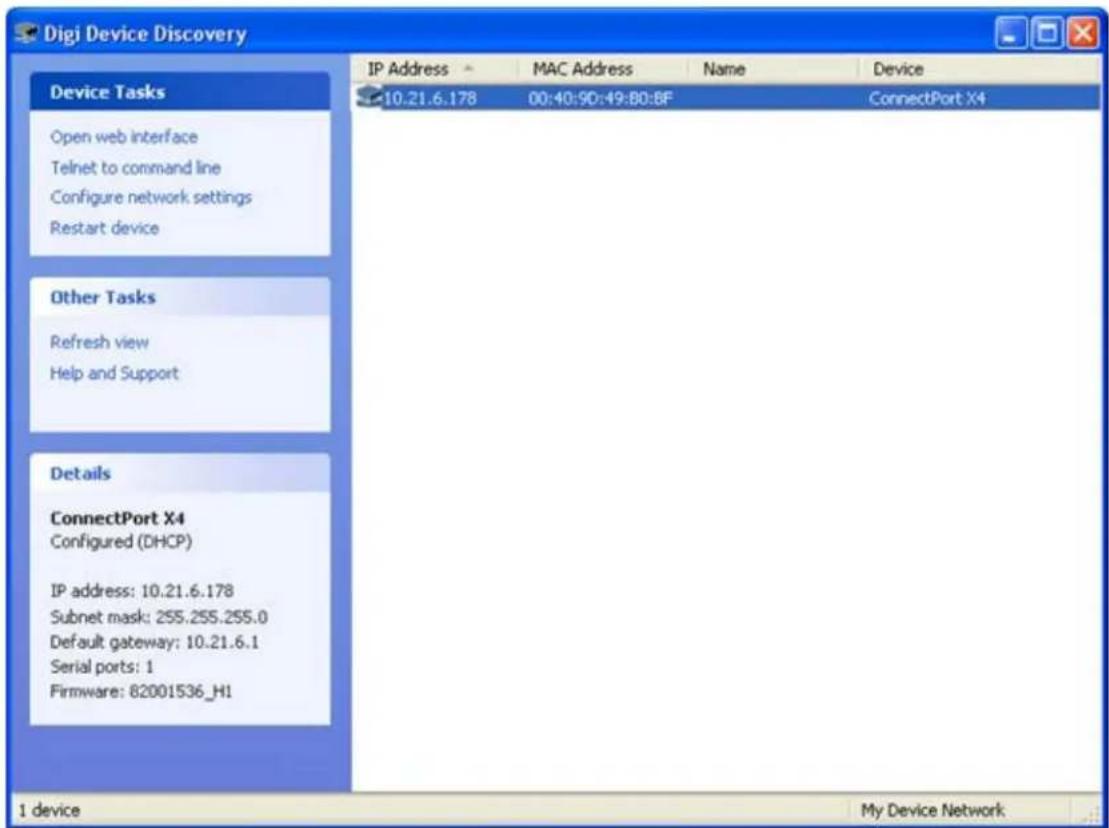
- Open a web browser and type in the IP address of your ConnectPort X4 device. This will open the ConnectPort X4's Home page.
After you enter the IP address of the ConnectPort X4 into your web browser, you will see a screen similar to the following:

ConnectPort X4 Configuration and Management
Home
Configuration
Network
Mobile
XBee Network
Serial Ports
Camera
Alarms
System
Device Cloud
Users
Position
Applications
Python
RealPort
Industrial Automation
Management
Serial Ports
Connections
Event Logging
Network Services
Administration
File Management
X.509 Certificate/Key
Management
Backup/Restore
Update Firmware
Factory Default Settings
System Information
Reboot
Logout
Home
Getting Started
Tutorial Not sure what to do next? This Tutorial can help.
System Summary
Model: ConnectPort X4
Ethernet MAC Address: 00:40:9D:6D:83:99
Ethernet IP Address: 10.8.16.86
Mobile IP Address: Not Connected
Description: None
Contact: None
Location: None
Device ID: 00000000-00000000-00409DFF-FF6D8399
Configuring Ethernet Settings for the ConnectPort X4
To configure your device's Ethernet settings open the Ethernet Network Configuration page by clicking on Configuration > Network from the left-hand menu.
Network Configuration
Ethernet IP Settings
Obtain an IP address automatically using DHCP *
Use the following IP address:
√ Enable AutoIP address assignment
* Changes to DHCP, IP address, and Subnet Mask may affect your browser connection.
Apply
▶ DHCP Server Settings
▶ Network Services Settings
▶ Dynamic DNS Update Settings
▶ IP Filtering Settings
▶ IP Forwarding Settings
▶ IP Network Failover Settings
▶ Socket Tunnel Settings
▶ Virtual Private Network (VPN) Settings
▶ IP Pass-through Settings
▶ Host List Settings
▶ Virtual Router Redundancy Protocol (VRRP) Settings
▶ Advanced Network Settings
Within the Network Configuration page various Ethernet parameters can be configured depending on your type of installation. Basic settings can be configured in the Ethernet IP Settings page.
ConnectPort X4 Ethernet IP Settings Page
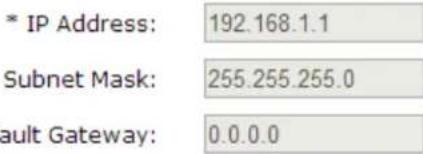
The Ethernet IP Settings page (shown in the image above) allows you to set your device to obtain IP addresses automatically (using DHCP) or enter in your own IP address.
Configure your Ethernet IP settings as desired, click Apply when finished.
Viewing ConnectPort X4 IP Address Information
The ConnectPort X4 Home page will display the IP address of the unit.
Viewing ConnectPort X4 Ethernet Statistics
To view information about the Ethernet Link as well as Ethernet and IP statistics, navigate to the Administration > System Information > Network page.
X4 Smart Energy
For information regarding connecting your Smart Energy device with the Veris Clamp, reference the X4 Smart Energy Quick Start Guide http://www-qa.digi.com/

You have completed basic configuration of your ConnectPort X4.
Chapter 2: ConnectPort X4 Cellular Models
The ConnectPort X4 cellular models have cellular and Ethernet interfaces. By default, the Ethernet interface is configured as a DHCP Server with a static IP Address of 192.168.1.1. This configuration simplifies the initial configuration of the unit.
Connecting to the ConnectPort X4 Home Page
-
Connect one end of the provided Ethernet cable to your PC, and the other end to the ConnectPort X4 Ethernet port (ensure that your PC is configured to obtain its IP address via DHCP).
-
Open the web interface of the ConnectPort X4 by navigating to the 192.168.1.1 address in a web browser on the PC. You will see a screen similar to the following (this is the device's Home page):

ConnectPort X4 Configuration and Management
Home
Configuration
Network
Mobile
XBee Network
Serial Ports
Camera
Alarms
System
Device Cloud
Users
Position
Applications
Python
RealPort
Industrial Automation
Management
Serial Ports
Connections
-
Home
Getting Started
Tutorial Not sure what to do next? This Tutorial can help.
System Summary
Model: ConnectPort X4
Ethernet MAC Address: 00:40:9D:6D:83:99
Ethernet IP Address: 10.8.16.86
Mobile IP Address: Not Connected
Description: None
Contact: None
Location: None
Device ID: 00000000-00000000-00409DFF-FF6D8399
Configuring the ConnectPort X4 Cellular Interface
Configuring the ConnectPort X4 cellular interfaces will vary depending on whether the ConnectPort X4 supports the GSM/Edge or CDMA cellular network.
This section provides examples of how to configure the ConnectPort X4 cellular interface for three of the popular cellular networks: AT&T, Verizon, and Sprint.
After following the example for your specific cellular provider (for Verizon users see page 15, for Sprint users see page 18), go to the “Verifying the ConnectPort X4 Cellular Connection Status” section on page 21.
GSM/Edge Cellular Configuration Example (AT&T)
To configure a GSM/Edge ConnectPort X4 cellular interface perform the following steps:
-
Click on Configuration > Mobile from the left-hand menu.
-
The ConnectPort X4 has two SIM slots with Slot 1 being the primary SIM slot. If you wish to use SIM Slot 2, use the SIM drop-down box to select "Slot 2", and then click Set as Primary.
Mobile Configuration
Select a SIM to configure from the list below.
Settings on this page apply to the selected SIM.
SIM:
Slot 1
Set as Primary
IMSI: 310410265385546
ICCID: 89014104232653855469
Phone Number: 19522212376
Status: Primary
- Configure the Mobile Service Provider Settings by entering the Service Provider, Service Plan/APN, and Customer Plan Name appropriate for your environment as shown.
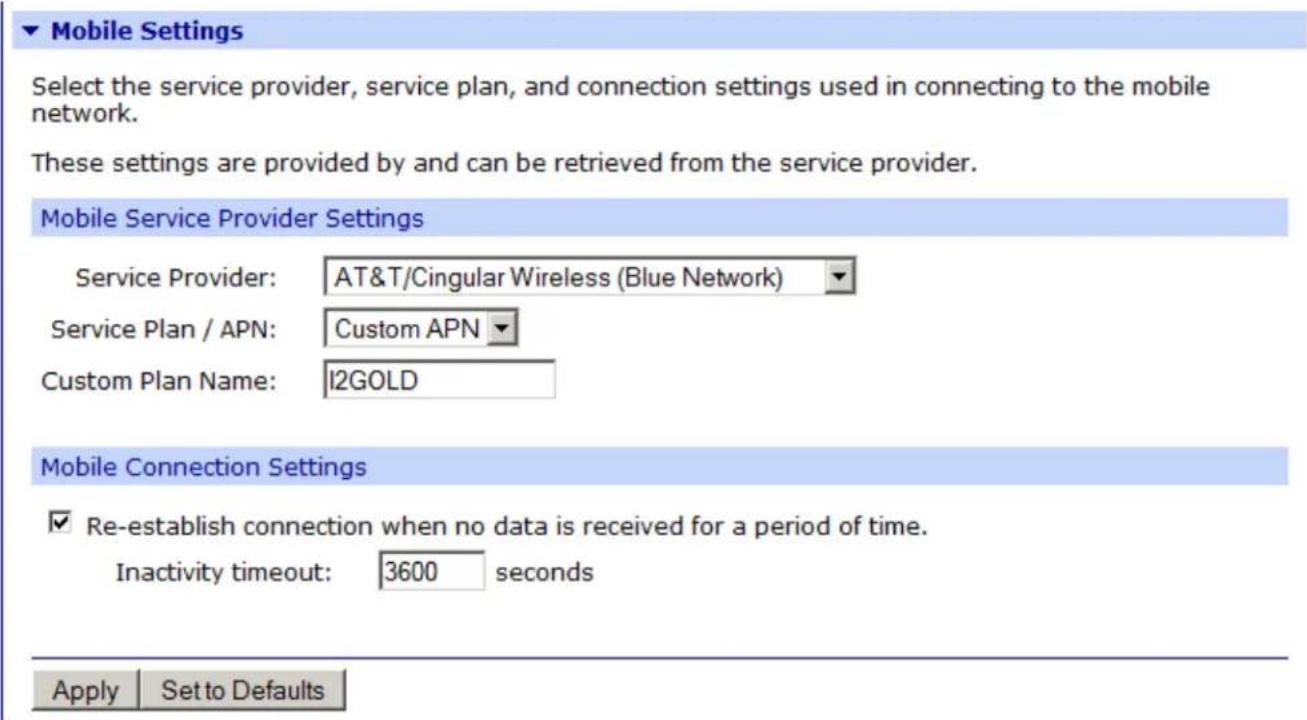
- Click Apply when finished.
Your mobile configuration is complete. Proceed to the “Verifying the ConnectPort X4 Cellular Connection Status” section on page 21.
CDMA Cellular Configuration Example (Verizon)
NOTE: This example assumes that the ESN/MEID# for the ConnectPort X4 has been activated with your cellular provider. You can find the ESN/MEID# on the bottom of your unit.
To configure a CDMA ConnectPort X4 cellular interface perform the following steps:
- Click on Configuration > Mobile from the left-hand menu and select Verizon Wireless from the Service Provider drop-down menu. You should see a screen similar to the following:
Mobile Configuration
▼ Mobile Settings
Select the service provider, service plan, and connection settings used in connecting to the mobile network.
These settings are provided by and can be retrieved from the service provider.
Mobile Service Provider Settings
Service Provider:
Verizon Wireless
Mobile IP mode:
Mobile IP Preferred
Caution: Modify the mobile IP mode only on the recommendation of your service provider.
This device needs to be provisioned:
Provision Device
Mobile Connection Settings
√ Re-establish connection when no data is received for a period of time.
Inactivity timeout:
3600
seconds
Apply Set to Defaults
▶ GPS Settings
▶ Advanced Settings
SureLink Settings
▶ Short Message Service (SMS) Settings
- After selecting a Service Provider, the unit needs to go through its provisioning process. Click the Provision Device button, and then follow the steps displayed within the Mobile Device Provisioning dialog screens.
NOTE: The default options within the Mobile Device Provisioning dialog screens will be correct for most installations.
- When the following screen is displayed, select the Automatically provision the mobile device option.
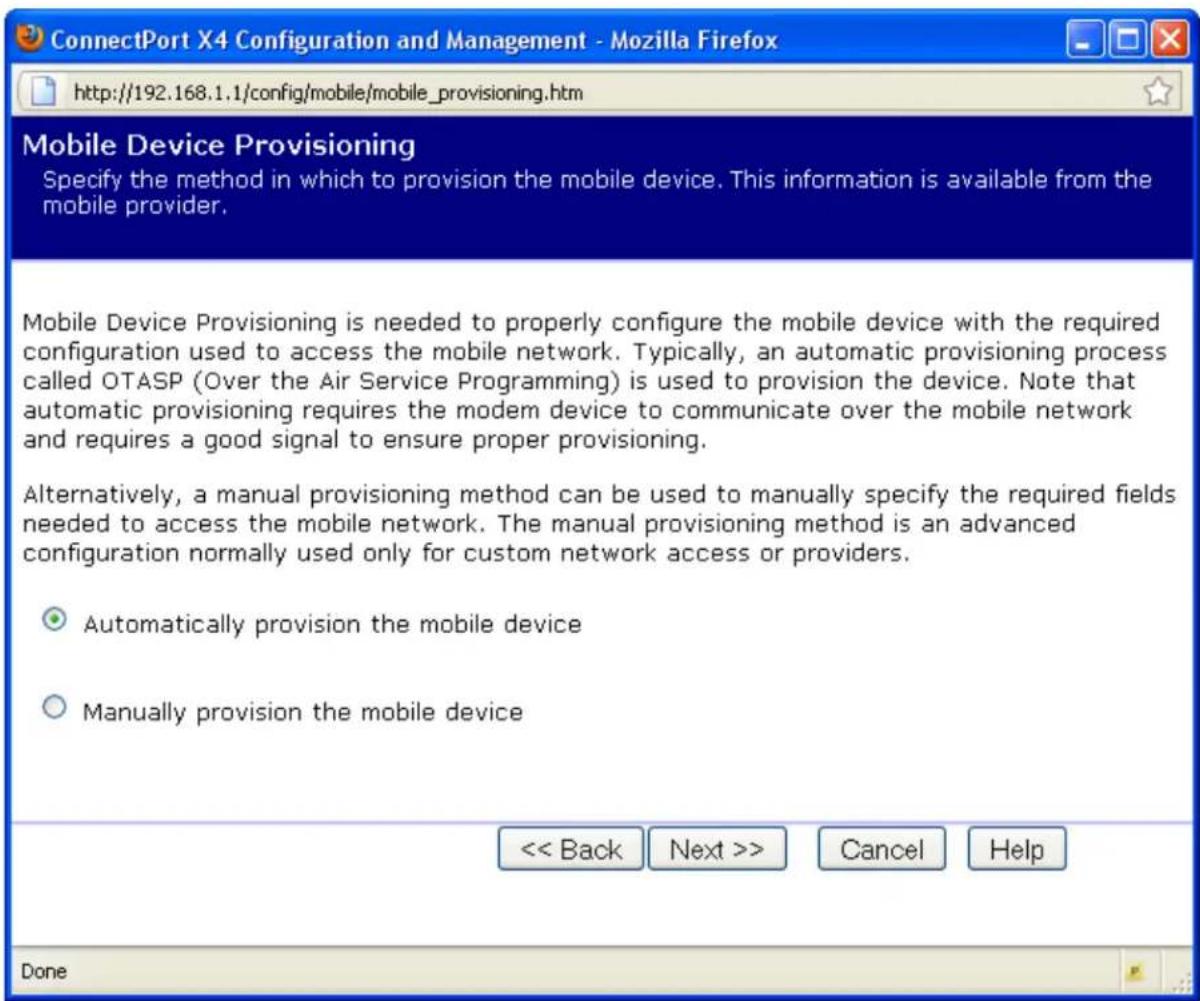
- Continue to go through the mobile provisioning process until you see the following screen. This screen will indicate that the mobile provisioning process completed successfully.
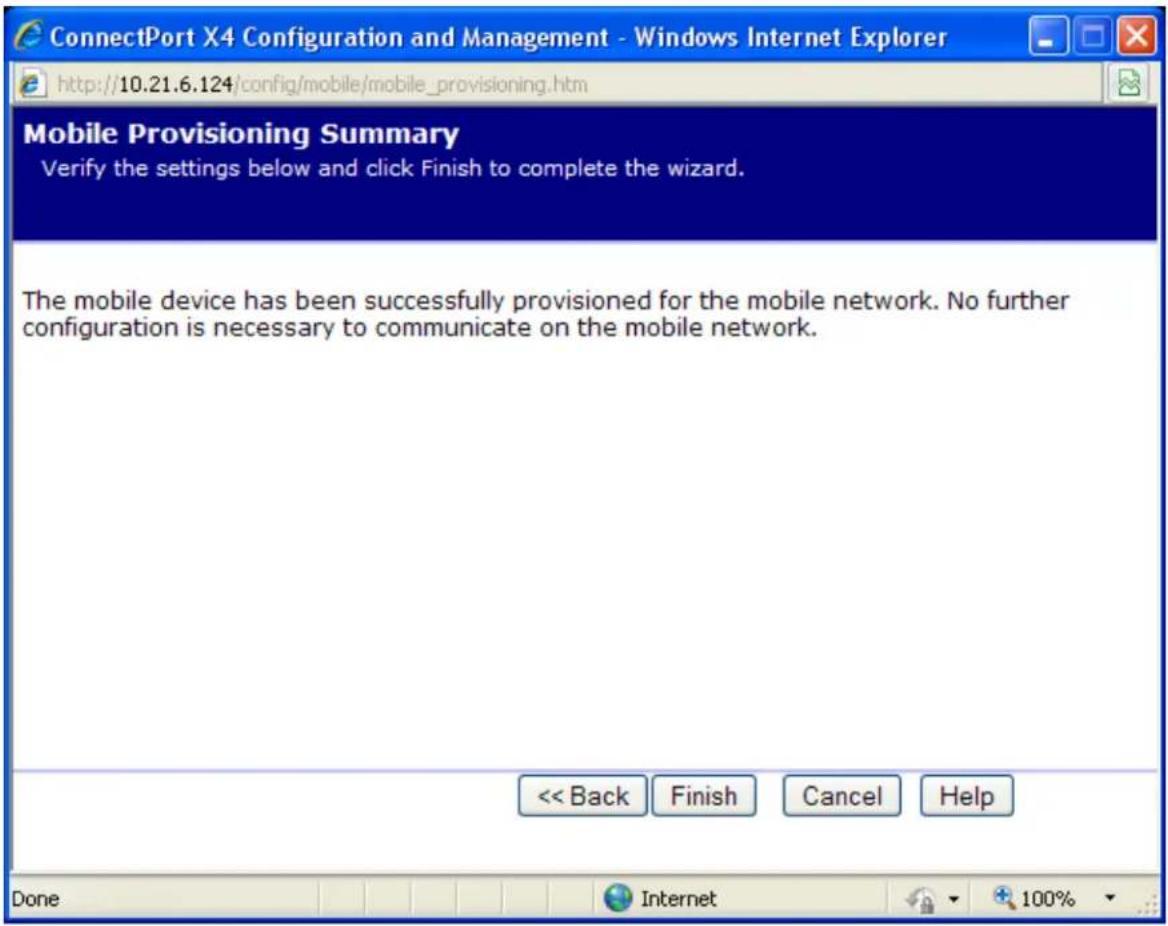
- Click Finish to return to the Mobile Configuration page.
- Click Apply on the Mobile Configuration page when finished.
Your Mobile configuration is complete. Proceed to the “Verifying the ConnectPort X4 Cellular Connection Status” section on page 21.
CDMA Cellular Configuration Example (Sprint)
NOTE: This example assumes that the ESN/MEID# for the ConnectPort X4 has been activated with your cellular provider. You can find the ESN/MEID# on the bottom of your unit.
To configure a CDMA ConnectPort X4 cellular interface perform the following steps:
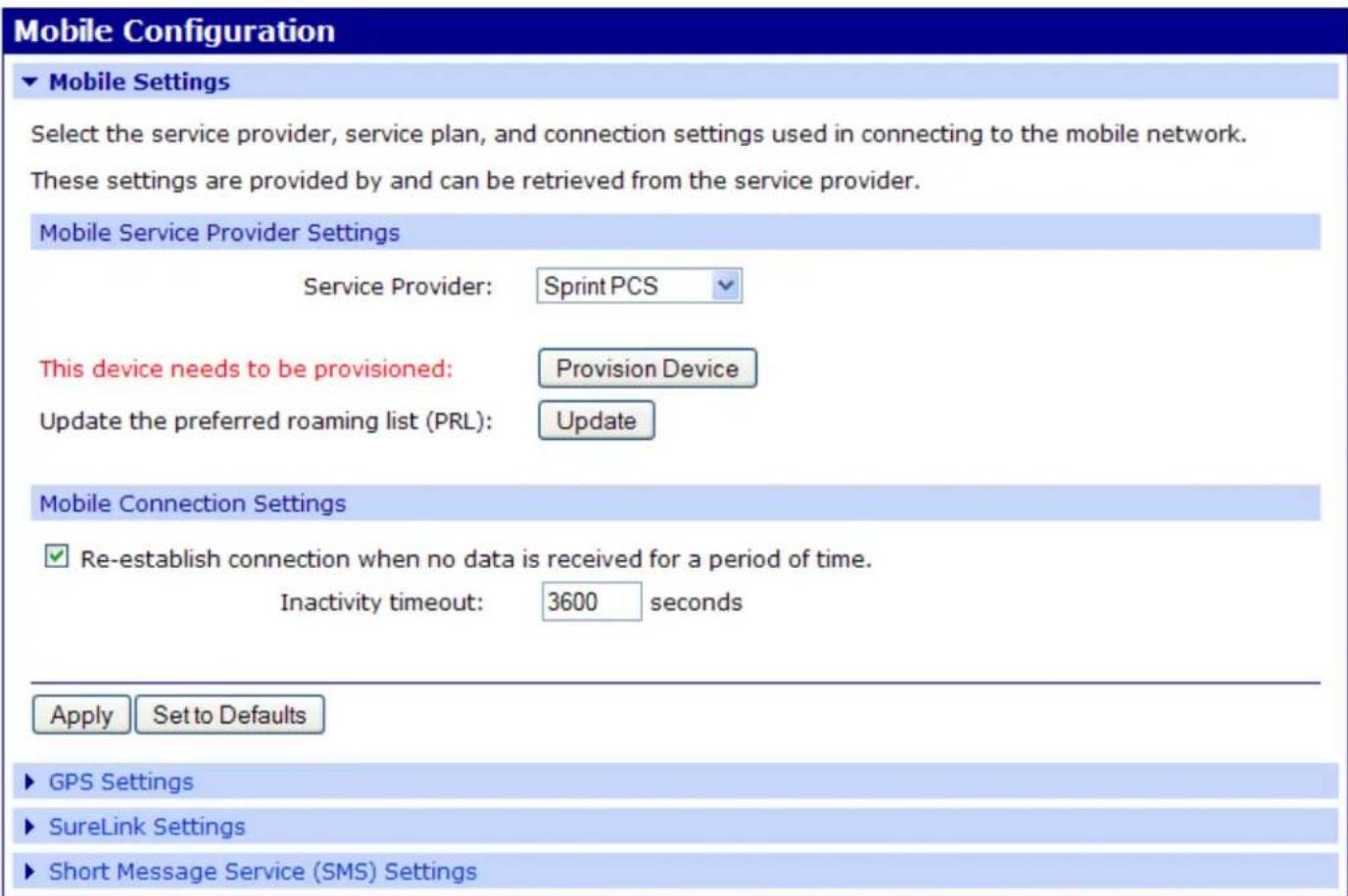
- Click on Configuration > Mobile from the left-hand menu and select Sprint PCS from the Service Provider drop-down menu. You should see a screen similar to the following:
- After selecting a Service Provider, the unit needs to go through its provisioning process. Click the Provision Device button, and then follow the steps displayed within the Mobile Device Provisioning dialog screens.
NOTE: The default options within the Mobile Device Provisioning dialog screens will be correct for most installations.
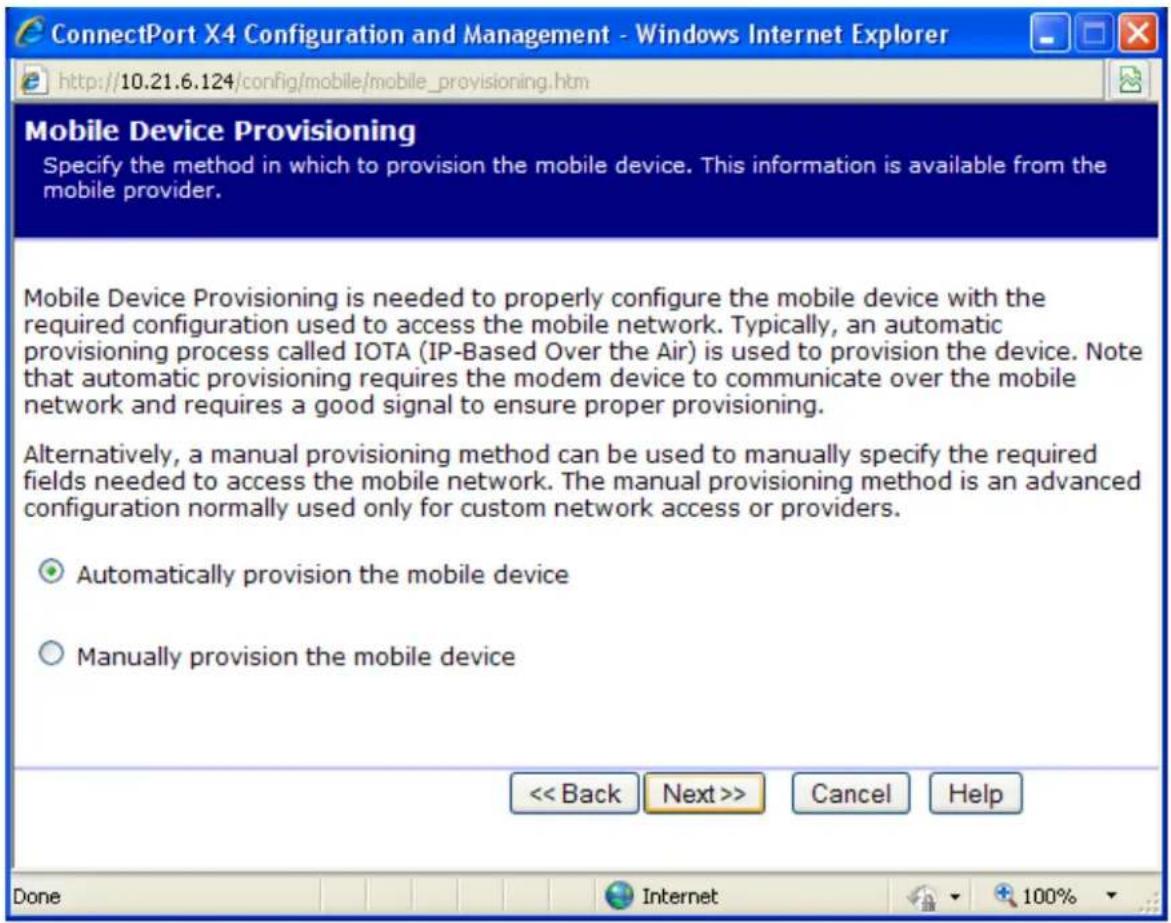
- When the following screen is displayed, select the Automatically provision the mobile device option.
- Continue to go through the mobile provisioning process until you see the following screen. This screen will indicate that the mobile provisioning process completed successfully.
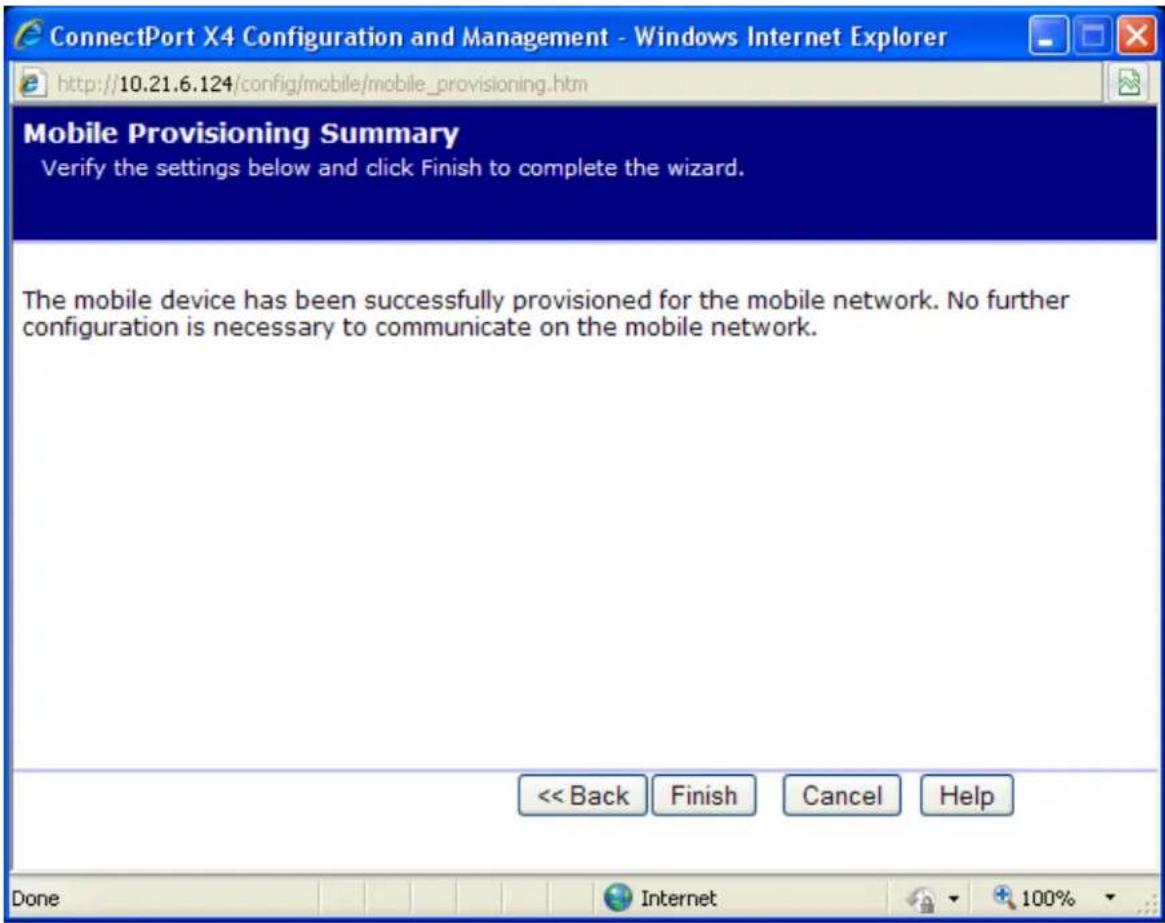
- Click Finish to return to the Mobile Configuration page.
- Click Apply on the Mobile Configuration page when finished.
Your Mobile configuration is complete. Proceed to the “Verifying the ConnectPort X4 Cellular Connection Status” section on the next page.
Verifying the ConnectPort X4 Cellular Connection Status
Once the correct cellular configuration has been applied, the ConnectPort X4 will begin to establish the cellular connection. You can verify the connection status by navigating to the Administration > System Information > Mobile page.
System Information
| ▶ General |
| ▶ Serial |
| ▶ Network |
| ▼ Mobile |
The following information and statistics can be used to manage and monitor your mobile connection. This information may also be helpful in troubleshooting problems with the mobile network.
SIM Information
| Slot | IMSI and ICCID | Phone Number | Status | PIN Status | Active |
| 1 | 310410265385546 | 19522212376 | Primary | Ready | |
| 89014104232653855469 | |||||
| 2 | IMSI: N/A | N/A | Not configured | N/A | |
| ICCID: N/A |
Mobile Connection
| Registration Status: | Registered (Home Network) |
| Location Area Code: | 0xD6EF (55023) |
| Cell ID: | 0x969E (38558) |
| Signal Strength: | (-88 dBm) |
Mobile Statistics
| IP Address: | 166.130.120.49 |
| Primary DNS Address: | 209.183.33.23 |
| Secondary DNS Address: | 209.183.33.23 |
| Data Received: | 30222 bytes |
| Data Sent: | 42331 bytes |
| Idle Resets: | 26 |
| Inactivity Timer: | 3600 seconds (receiving) |
| 0 seconds (sending) |
Mobile Information
NOTE: In the above example, the ConnectPort X4 is connected to the cellular network and has obtained the 166.130.120.49 address for its cellular interface.
Configuring the ConnectPort X4 IP Gateway Priority
Once the ConnectPort X4's cellular interface is connected, it could conceivably reach the Internet via either of its network interfaces (Mobile or Ethernet). Configuring the ConnectPort X4 Gateway Priority List determines the priority for each of its network interfaces. By default the ConnectPort X4 gives the Mobile interface the highest priority.
The ConnectPort X4 IP Gateway Priority List and the DNS Priority List are configurable via the Configuration > Network > Advanced Network Settings page, as displayed below:
▼ Advanced Network Settings
The following settings are advanced settings used to fine tune the network connection and network interfaces. The default settings will typically work in most situations.
IP Settings
Host Name:
Static Primary DNS:
Static Secondary DNS:
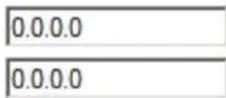
DNS Priority:
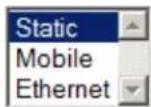


Gateway Priority:
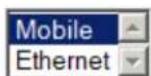


See also IP Network Failover Settings for default gateway management.
DNS Proxy Settings

Enable DNS Proxy Service
Request Cache Size Maximum:
256
entries (16-1024)
Configuring the ConnectPort X4 Ethernet Interface
Now that the ConnectPort X4's cellular interface is configured, you will need to configure the Ethernet interface. The Ethernet configuration changes will involve disabling the DHCP Server and determining how the ConnectPort X4 will be given its IP address.
- Click on Configuration > Network from the left-hand menu. You should see the Network Configuration screen (with the Ethernet IP Settings page displayed by default) as shown:

ConnectPort X4 Configuration and Management
Home
Configuration
Network
Mobile
XBee Network
Serial Ports
Camera
Alarms
System
Device Cloud
Users
Position
Applications
Python
RealPort
Industrial Automation
Management
Serial Ports
Connections
Event Logging
Network Services
Administration
File Management
X.509 Certificate/Key
Management
Backup/Restore
Update Firmware
Factory Default Settings
System Information
Reboot
Logout
Network Configuration
Ethernet IP Settings
Obtain an IP address automatically using DHCP *
Use the following IP address:
* IP Address: 192.168.1.1
* Subnet Mask: 255.255.255.0
Default Gateway: 0.0.0.0
√ Enable AutoIP address assignment
* Changes to DHCP, IP address, and Subnet Mask may affect your browser connection.
Apply
▶ DHCP Server Settings
▶ Network Services Settings
▶ Dynamic DNS Update Settings
▶ IP Filtering Settings
▶ IP Forwarding Settings
▶ IP Network Failover Settings
▶ Socket Tunnel Settings
▶ Virtual Private Network (VPN) Settings
▶ IP Pass-through Settings
▶ Host List Settings
▶ Virtual Router Redundancy Protocol (VRRP) Settings
▶ Advanced Network Settings
-
Click the DHCP Server Settings link and open the DHCP Server Settings page.
-
To disable the DHCP Server, un-check the "Enable Dynamic Host Configuration Protocol (DHCP) Server" entry. Click Apply when finished.
- Return to the Ethernet IP Settings page by clicking the Ethernet IP Settings link.
- Configure the ConnectPort X4 with either a static IP address, or have it get its IP address from a DHCP Server, whichever method is appropriate. Click Apply when finished.
The ConnectPort X4 is now ready to be moved to your Ethernet network, and by default will use its cellular interface as its primary network interface.
Disconnect the ConnectPort X4 from your PC and then connect it to the Ethernet network (if the PC needs to be reconfigured with a static IP address, do this prior to moving the PC to the Ethernet network as well).
Viewing ConnectPort X4 IP Address Information
The ConnectPort X4 Home page will display the IP address for both the Ethernet and Cellular networks.

ConnectPort X4 Configuration and Management
Home
Configuration
Network
Mobile
XBee Network
Serial Ports
Camera
Alarms
System
Device Cloud
Users
Position
Applications
Python
RealPort
Industrial Automation
Management
Serial Ports
Connections
Event Logging
Network Services
Administration
File Management
X.509 Certificate/Key
Management
Backup/Restore
Update Firmware
Factory Default Settings
System Information
Reboot
Logout
Home
Getting Started
Tutorial Not sure what to do next? This Tutorial can help.
System Summary
Model: ConnectPort X4
Ethernet MAC Address: 00:40:9D:6D:83:99
Ethernet IP Address: 10.8.16.86
Mobile IP Address: Not Connected
Description: None
Contact: None
Location: None
Device ID: 00000000-00000000-00409DFF-FF6D8399
Viewing ConnectPort X4 Ethernet Statistics
To view information about the Ethernet Link as well as Ethernet and IP statistics, navigate to the Administration > System Information > Network page.

You have completed basic configuration of your ConnectPort X4.
Chapter 3: ConnectPort X4 WiFi Models
The ConnectPort X4 WiFi models have WiFi and Ethernet interfaces. By default, the Ethernet interface is configured as a DHCP Server with a static IP Address of 192.168.1.1. This configuration simplifies the initial configuration of the unit.
Connecting to the ConnectPort X4 Home Page
-
Connect one end of the provided Ethernet cable to your PC, and the other end to the ConnectPort X4 Ethernet port (ensure that your PC is configured to obtain its IP address via DHCP).
-
Open the web interface of the ConnectPort X4 by navigating to the 192.168.1.1 address in a web browser on the PC. You will see a screen similar to the following (this is the device's Home page):
Home
Configuration
Network
Mobile
XBee Network
Serial Ports
Camera
Alarms
System
Device Cloud
Users
Position
Applications
Python
RealPort
Industrial Automation
Management
Serial Ports
Connections
Event Logging
Network Services
Administration
File Management
X.509 Certificate/Key
Management
Backup/Restore
Update Firmware
Factory Default Settings
System Information
Reboot
Logout
Home
Getting Started
Tutorial Not sure what to do next? This Tutorial can help.
System Summary
Model: ConnectPort X4
Ethernet MAC Address: 00:40:9D:6D:83:99
Ethernet IP Address: 10.8.16.86
Mobile IP Address: Not Connected
Description: None
Contact: None
Location: None
Device ID: 00000000-00000000-00409DFF-FF6D8399
Configuring the ConnectPort X4 WiFi Interface
To configure the ConnectPort X4 WiFi interface perform the following steps:
- Click on Configuration > Network from the left-hand menu. You should see the Network Configuration screen (with the Ethernet IP Settings page displayed by default) as shown:
Network Configuration
Ethernet IP Settings
Obtain an IP address automatically using DHCP *
Use the following IP address:
* IP Address: 10.21.6.123
* Subnet Mask: 255.255.255.0
Default Gateway: 10.21.6.1
√ Enable AutoIP address assignment
* Changes to DHCP, IP address, and Subnet Mask may effect your browser connection.
Apply
▶ WiFi IP Settings
▶ WiFi LAN Settings
▶ WiFi Security Settings
▶ WiFi 802.1x Authentication Settings
▶ DHCP Server Settings
▶ Network Services Settings
▶ IP Filtering Settings
▶ IP Forwarding Settings
▶ IP Network Failover Settings
▶ Socket Tunnel Settings
▶ Virtual Private Network (VPN) Settings
▶ Host List Settings
▶ Advanced Network Settings
Within the Network Configuration page WiFi IP, LAN, and Security settings can be configured depending on your type of installation.
ConnectPort X4 WiFi IP Settings Page
- Open this page by clicking on the WiFi IP Settings link (Configuration > Network > WiFi IP Settings), and configure how the ConnectPort X4 should determine its IP address on the WiFi network..
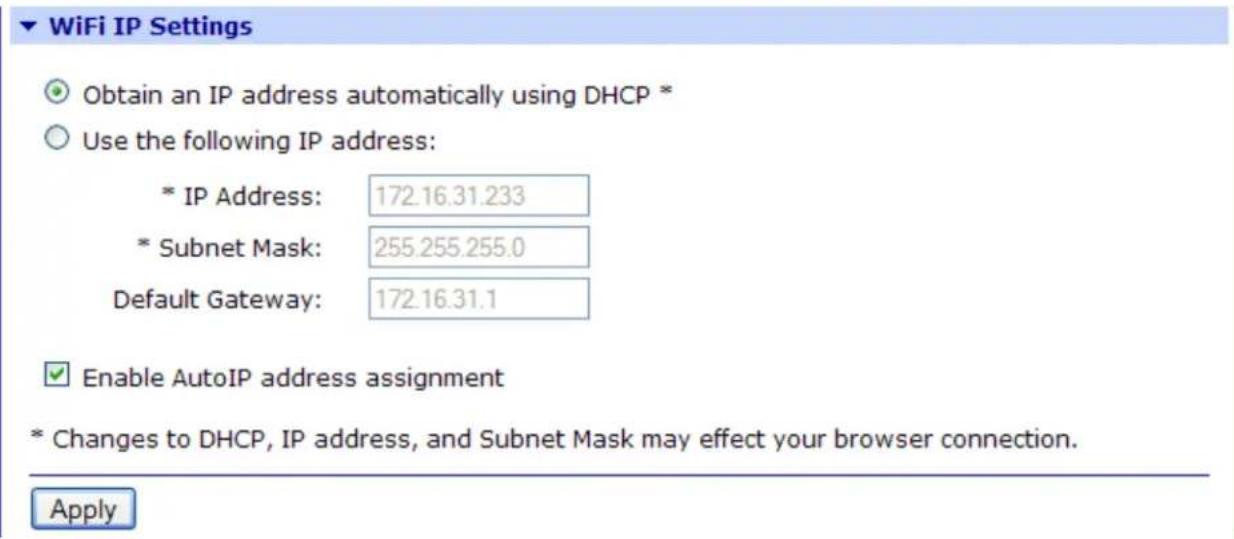
The WiFi IP Settings page allows you to set your ConnectPort X4 to obtain an IP address on the WiFi network automatically (using DHCP) or enter in your own IP address.
- Configure your WiFi IP settings as desired. Click Apply when finished.
ConnectPort X4 WiFi LAN Settings Page
- Open this page by clicking on the WiFi LAN Settings link (Configuration > Network > WiFi LAN Settings).
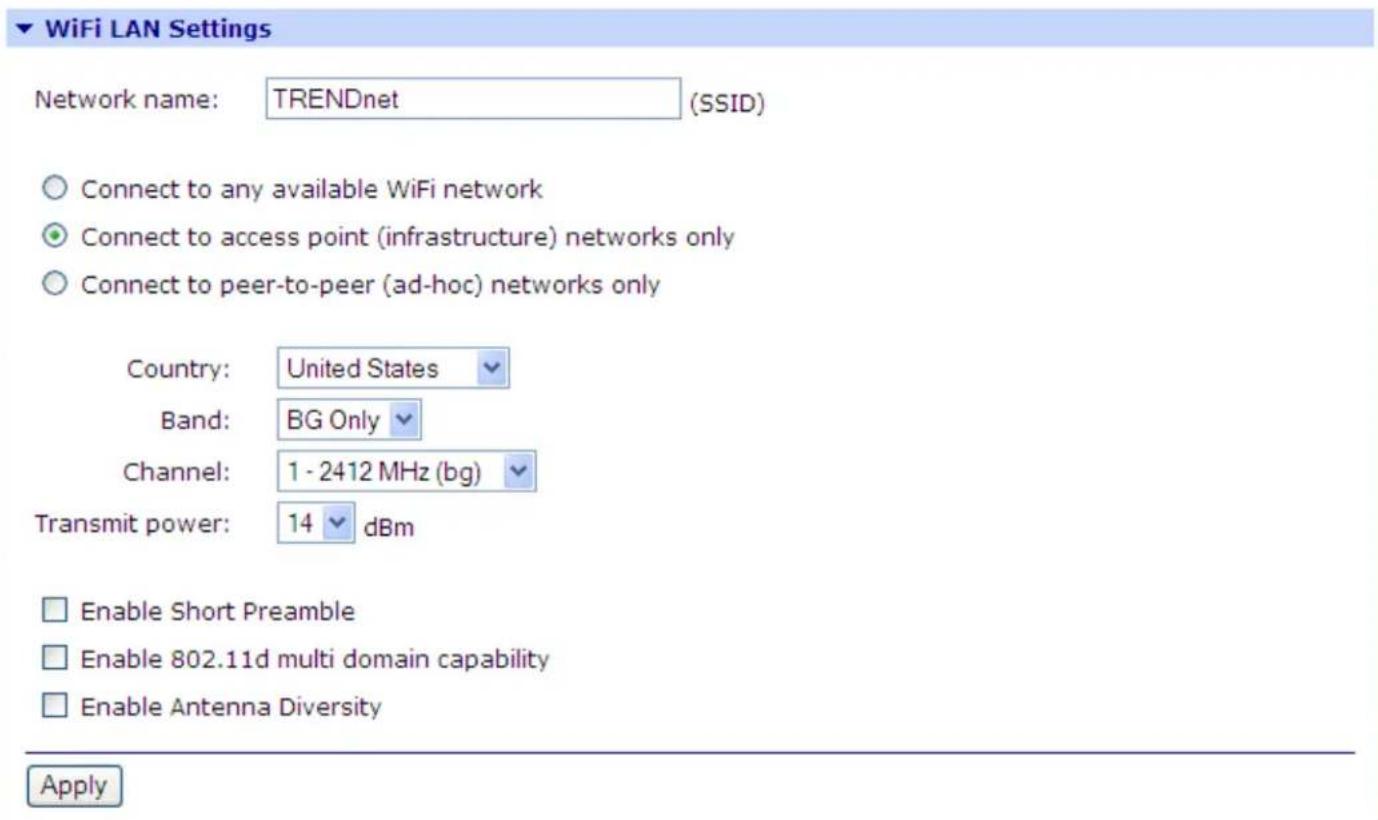
The WiFi LAN Settings page allows you to set your connection type and name your network. The above example configures the ConnectPort X4 to connect to the "TRENDnet" WiFi network, using Channel 1.
- Configure your WiFi LAN settings as desired. Click Apply when finished.
ConnectPort X4 WiFi Security Settings Page
- Open this page by clicking on the WiFi Security Settings link (Configuration > Network > WiFi Security Settings).
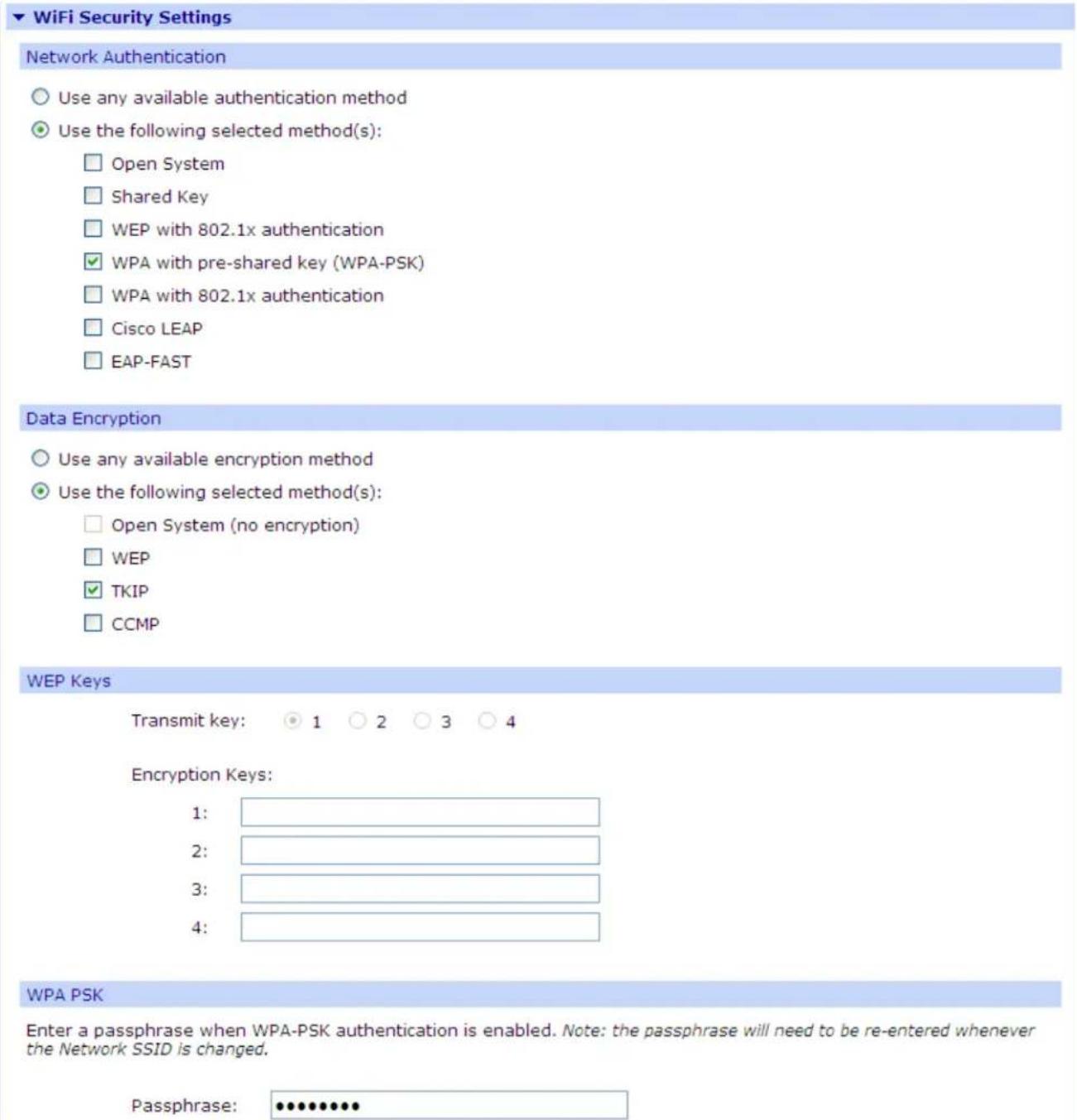
The WiFi Security Settings page allows you to set Network Authentication, Data Encryption, WEP Key, WPA PSK, and Username/Password information for your network. The above example configures the ConnectPort X4 to use WPA-PSK authentication using TKIP encryption with a WPA PSK passphrase.
- Configure your WiFi security settings as desired. Click Apply when finished.
ConnectPort X4 DHCP Server Settings Page
- If the ConnectPort X4 is to act as a DHCP Server on the WiFi network, open this page by clicking on the DHCP Server Settings link (Configuration > Network > DHCP Server Settings).
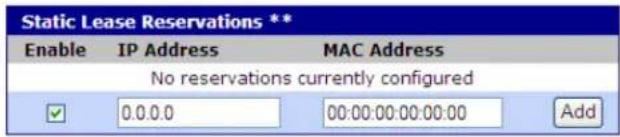
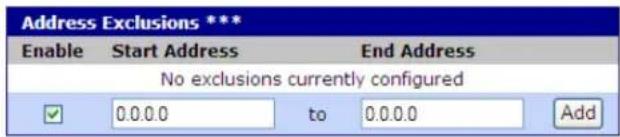
- The ConnectPort X4 can act as a DHCP Server on either its WiFi or Ethernet interface. To enable the DHCP Server on the WiFi network, check the "Enable Dynamic Host Configuration Protocol (DHCP) Server" entry and select the "wln0" Scope name. Configure the other parameters as appropriate. Click Apply when finished.
▼ DHCP Server Settings
Note: For the DHCP server to operate, the ConnectPort X4 must be configured to use a static IP address. (See the IP Settings page in the Network Configuration area.) Please review additional notes below.
√ Enable Dynamic Host Configuration Protocol (DHCP) Server
Scope Name: wln0
* IP Addresses: 192.168.1.100 to 192.168.1.131
Lease Duration: 1 days 0 hrs 0 mins
☑ Wait specified delay before sending DHCP offer reply
Delay: 500 ms
☐ Check that an IP address is not in use before offering it
☑ Send the DHCP Server IP address as a DNS Proxy Server
Send a default gateway in the client lease (DHCP Option 3: Routers on Subnet):
IP address of scope interface (default)
○ Configured IP address of default gateway for scope interface
This gateway IP address: 0.0.0.0
Do not send a default gateway
Remove All
Remove All
For DHCP server status and lease management, use the DHCP Server Management page in the Network Services Management area.
* The IP address pool must specify addresses that are in the subnetwork of the ConnectPort X4. The DHCP server will not operate if this configuration does not meet this requirement.
Verifying the ConnectPort X4 WiFi Connection Status
You can verify the WiFi connection status by navigating to the Administration > System Information > Mobile page. You should see a screen similar to the following displaying the settings and statistics for the WiFi network.

ConnectPort X4 Configuration and Management
Home
Configuration
Network
Mobile
XBee Network
Serial Ports
Camera
Alarms
System
Device Cloud
Users
Position
Applications
Python
RealPort
Industrial Automation
Management
Serial Ports
Connections
Event Logging
Network Services
Administration
File Management
X.509 Certificate/Key
Management
Backup/Restore
Update Firmware
Factory Default Settings
System Information
Reboot
Logout
System Information
▼ General
Model: ConnectPort X4
Ethernet MAC Address: 00:40:9D:6D:83:99
Firmware Version: 2.17.0.5 (Version 82001536_N 08/30/2013)
Boot Version: 1.1.3 (release_82001975_D)
POST Version: 1.1.3 (release_82001753_H)
Product VPD Version: release_82003236_A
Product ID: 0x0081
Hardware Strapping: 0x0044
CPU Utilization: 3%
Up Time: 2 days 17 hours 6 minutes 26 seconds
Date and Time: Sat Jan 3 17:06:26 1970 (based on uptime)
Total Memory: 32768 KB
Used Memory: 16124 KB
Free Memory: 16644 KB
Total Flash Filesystem: 7812 KB
Used Flash Filesystem: 625 KB
Free Flash Filesystem: 7187 KB
Refresh
Serial
▶ Network
▶ Mobile
▶ IP Network Failover
▶ Device Cloud
▶ Position
Configuring the ConnectPort X4 IP Gateway Priority
Once the WiFi interface is connected, the ConnectPort X4 could conceivably reach the Internet via either of its network interfaces (WiFi or Ethernet). Configuring the ConnectPort X4 Gateway Priority List determines the priority for each of its network interfaces. By default the ConnectPort X4 gives the Ethernet interface the highest priority.
The ConnectPort X4 IP Gateway Priority List and the DNS Priority List are configurable via the Configuration > Network > Advanced Network Settings page as displayed below.:
▼ Advanced Network Settings
The following settings are advanced settings used to fine tune the network connection and network interfaces. The default settings will typically work in most situations.
IP Settings
Host Name:
Static Primary DNS:
Static Secondary DNS:
0.0.0.0
0.0.0.0
DNS Priority:
Static
Ethernet WiFi
↑
↓
Gateway Priority:
Ethernet
WiFi
↑
↓
See also IP Network Failover Settings for default gateway management.
DNS Proxy Settings
Enable DNS Proxy Service
| Request Cache Size Maximum: | 256 | entries (16-1024) |
| Request Idle Time-To-Live: | 20 | seconds (10-120) |
| Request Retries Per DNS Server: | 1 | retries (0-4) |
For new client requests received when the request cache is full:
Replace the Least Recently Used (LRU) client request with the new request
○ Discard (ignore) new requests until some existing requests have expired
Ethernet Interface
If you wish to change the DNS Server or IP Gateway Priority order, click on the desired entry and use the arrow keys to raise, or lowers its priority in the list of entries. Click Apply when finished.
Configuring the ConnectPort X4 Ethernet Interface
Now that the ConnectPort X4's WiFi interface is configured, you will need to configure the Ethernet interface. The Ethernet configuration changes will involve disabling the DHCP Server and determining how the ConnectPort X4 will be given its IP address.
- Click on Configuration > Network from the left-hand menu. You should see the Network Configuration screen (with the Ethernet IP Settings page displayed by default) as shown:

ConnectPort X4 Configuration and Management
Home
Configuration
Network
Mobile
XBee Network
Serial Ports
Camera
Alarms
System
Device Cloud
Users
Position
Applications
Python
RealPort
Industrial Automation
Management
Serial Ports
Connections
Event Logging
Network Services
Administration
File Management
X.509 Certificate/Key
Management
Backup/Restore
Update Firmware
Factory Default Settings
System Information
Reboot
Logout
Network Configuration
Ethernet IP Settings
Obtain an IP address automatically using DHCP *
Use the following IP address:
* IP Address:
192.168.1.1
* Subnet Mask:
255.255.255.0
Default Gateway:
0.0.0.0
√ Enable AutoIP address assignment
* Changes to DHCP, IP address, and Subnet Mask may affect your browser connection.
Apply
▶ DHCP Server Settings
▶ Network Services Settings
▶ Dynamic DNS Update Settings
▶ IP Filtering Settings
▶ IP Forwarding Settings
▶ IP Network Failover Settings
▶ Socket Tunnel Settings
▶ Virtual Private Network (VPN) Settings
▶ IP Pass-through Settings
▶ Host List Settings
▶ Virtual Router Redundancy Protocol (VRRP) Settings
▶ Advanced Network Settings
-
Click the DHCP Server Settings link and open the DHCP Server Settings page.
-
The ConnectPort X4 can act as a DHCP Server on either its network interfaces. If it was not configured to act as a DHCP on the WiFi network above, and you do not wish for it to act as a DHCP Server on the Ethernet network, disable the DHCP Server by un-checking the "Enable Dynamic Host Configuration Protocol (DHCP) Server" entry. Click Apply when finished.
The ConnectPort X4 is now ready to be moved to your Ethernet network, and by default will use its Ethernet network as its primary network interface.
Disconnect the ConnectPort X4 from your PC and then connect it to the Ethernet network (if the PC needs to be reconfigured with a static IP address, do this prior to moving the PC to the Ethernet network as well).
Viewing ConnectPort X4 IP Address Information
The ConnectPort X4 Home page will display the IP address for both the Ethernet and WiFi networks.
Viewing ConnectPort X4 Ethernet Statistics
To view information about the Ethernet Link as well as Ethernet and IP statistics, navigate to the Administration > System Information > Network page.

You have completed basic configuration of your ConnectPort X4.