
A5000 EDITOR - Synthesizer YAMAHA - Free user manual and instructions
Find the device manual for free A5000 EDITOR YAMAHA in PDF.


User questions about A5000 EDITOR YAMAHA
0 question about this device. Answer the ones you know or ask your own.
Ask a new question about this device
Download the instructions for your Synthesizer in PDF format for free! Find your manual A5000 EDITOR - YAMAHA and take your electronic device back in hand. On this page are published all the documents necessary for the use of your device. A5000 EDITOR by YAMAHA.
USER MANUAL A5000 EDITOR YAMAHA
A5000/A4000 Editor Owners Manual
Contents
Introduction 2
Starting Up 3
Menu Bar 4
The Memory List Window. 6
The Toolbar 7
The Program Edit Window 8
The Sample Edit Window 13
The Toolbar 24
OMS Settings (Macintosh) 25
Troubleshooting 27
- The software and this owner's manual are exclusive copyrights of Yamaha Corporation.
- Copying of the software or reproduction of this manual in whole or in part by any means is expressly forbidden without the written consent of the manufacturer.
- Yamaha makes no representations or warranties with regard to the use of the software and documentation and cannot be held responsible for the results of the use of this manual and the software.
- Copying of the commercially available music sequence data and/or digital audio files is strictly prohibited except for your personal use.
- The company names and product names in this Owner's Manual are the trademarks or registered trademarks of their respective companies.
- The screen displays as illustrated in this Owner's Manual are for instructional purposes, and may appear somewhat different from the screens which appear on your computer.
This owner's manual is applicable to both the A5000 Editor and the A4000 Editor (for both Windows and Macintosh).
The screen illustrations are mainly taken from the A5000 Editor for Windows, although and differences between versions are explained.
This owner's manual assumes that you are already familiar with basic Windows/Macintosh operation. If you are not, please refer to the owner's manual which came with your Windows/Mac OS software before using A5000/A4000 Editor.
For information about hardware requirements, the interconnection of devices and the installation of the A5000/A4000 Editor software, refer to the separate "Installation Manual" as well as the Owner's Manual for the respective MIDI device.
Introduction
With A5000/A4000 Editor (hereafter referred to as Editor), you can edit your A5000/A4000's programs, sample banks or samples via your computer.
NOTE Editor for Windows is a plug-in for XGworks(lite). To use Voice Editor for Windows, XGworks(lite) must be installed beforehand.
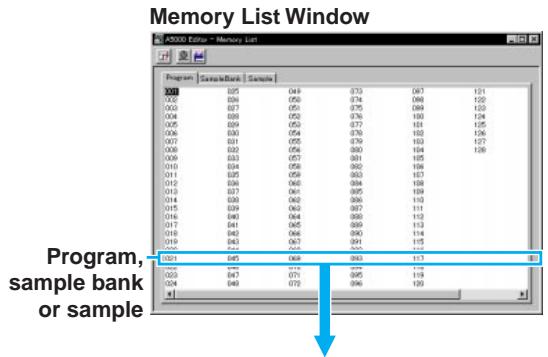
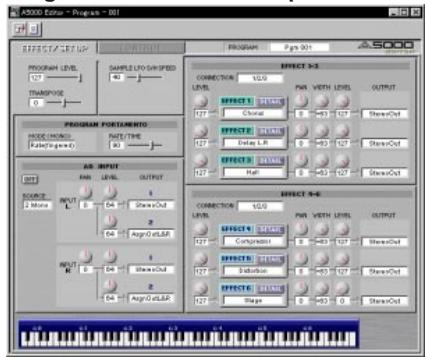
Program Edit Window/Sample Edit Window
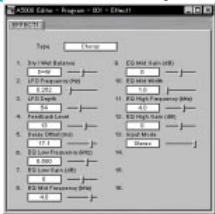
Set the effects parameters

MIDI Cable Transmit/Receive bulk data or parameter change data
A5000/A4000
Starting Up
Windows 95/98
If you have a A5000, you can start Editor by starting XGworks and choosing “A5000 Editor” from the “Plug-in” menu. If you have an A4000, choose “A4000 Editor” instead.
NOTE Set the MIDI Out port appropriately to send the edited data to the A5000/A4000 (Page 7).
Macintosh
NOTE If you are using Voice Editor on a Macintosh computer, open the "Chooser" from the Apple menu and turn off "Apple Talk."
If you have an A5000, open the "A5000 Editor" folder in the "YAMAHA Voice Editor" folder and double-click the "A5000Editor" icon.
If you have an A4000, open the “A4000 Editor” folder in the “YAMAHA Voice Editor” folder and double-click the “A4000Editor” icon.
Menu Bar
The Menu Bar holds various editing and setup functions/comands in its menus. Click each of the menu names to open their pull-down menu, and choose the function/comand you wish to apply. Those functions/comands which are unavailable are grayed out.
NOTE The most commonly-used menus in the Menu Bar are available as buttons in Editor's toolbar.
NOTE To use Editor for Windows, refer to the documentation that came with XGworks(lite).
File
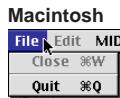
Close (Macintosh only)
Closes the window. This is the same as the "Close" box in the Title Bar. (Not effective for the Memory List Window.)
Windows
| works lite -Untitled1 | ||||
| Edit | Setup | Job | Plug-in | Window |
| Undo | Ctrl+Z | |||
| Redo | Ctrl+Y | |||
| A5000 Editor Edit | ||||
| A5000 Editor Memory List | ||||
Macintosh
| Edit | MIDI | Windows |
| Edit | EMemory List |
A5000/A4000 Editor Edit (Edit)
This is the same as the "Edit Window" button in the toolbar (Page 7).
Windows
| Setup | Job | Plug-in | Window | Help |
| System Setup... | Ctrl+U | |||
| Metronome... | Ctrl+M | |||
| Record/Playback Settings... | Ctrl+R | |||
| A5000 Editor Setup... | ||||
| A5000 Editor Receive Memory List | ||||
Macintosh
MIDI Windows Design
Editor Setup...
OMS Port Setup...
OMS MIDI Setup...
OMS Studio Setup...
Receive Memory List
A5000/A4000 Editor Setup (Editor Setup)
This is the same as the "Editor Setup" button in the toolbar (Page 7).
A5000/A4000 Editor Receive Memory List (Receive Memory List)
This is the same as the "Receive Memory List" button in the toolbar (Page 7).
OMS Port Setup (Macintosh only)
Opens the OMS Port Setup window for Editor. Refer to the section "OMS Port Setup" (Page 26) for further details.
OMS MIDI Setup (Macintosh only)
Opens the OMS MIDI Setup window. Refer to the documentation that came with OMS for further details.
OMS Studio Setup (Macintosh only)
Opens the OMS Studio Setup window. Refer to the documentation that came with OMS for further details.
The Memory List Window
When you start Editor, you will first see the Memory List Window consisting of tabs, each representing the program, sample bank or sample in your A5000/A4000. When you choose to edit a program, sample bank or sample from the Memory List Window by double-clicking it, the Edit Window will be opened.
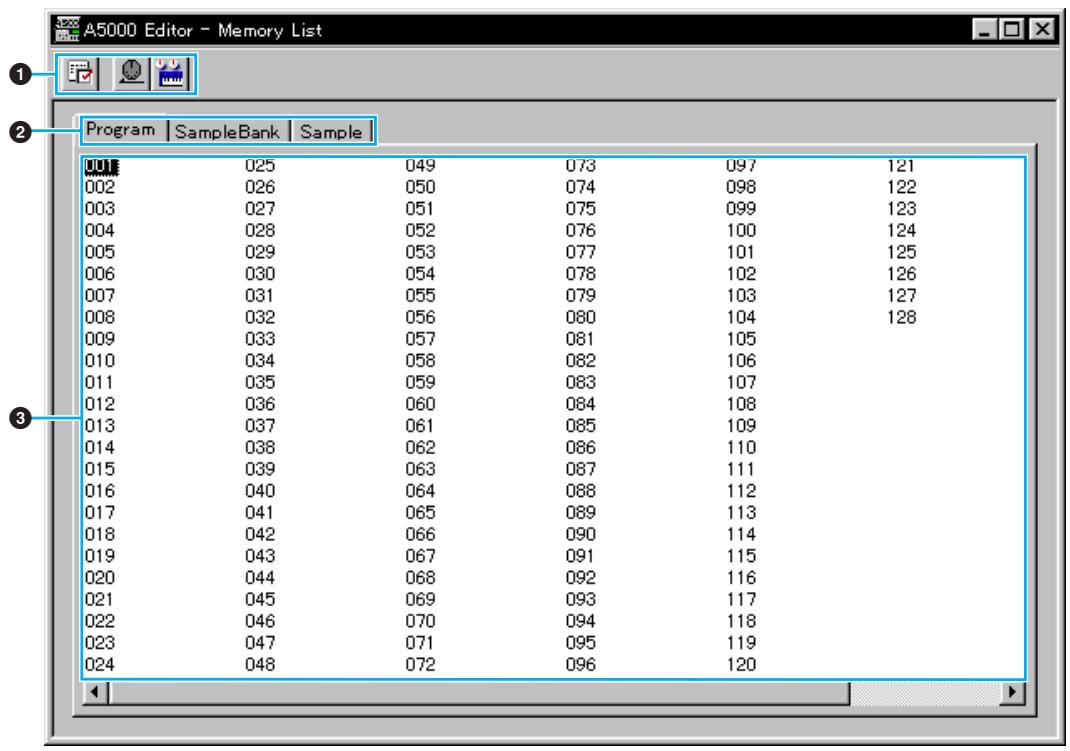
Toolbar
This area holds the buttons controlling Editor (Page 7).
2 Tabs
Click any of these to view the list of program, sample bank or sample.
List
This area shows all the programs, sample banks or samples as a scrollable list.
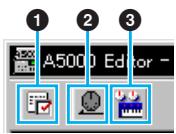
"Editor Setup" button
Click this to open the "Editor Setup" dialog and specify the MIDI Out port settings.
"Editor Setup" Dialog
This is where you set up the Editor to allow the transmission of edited data to your A5000/A4000. Click the [OK] button to apply the settings and quit the dialog. Click the [Cancel] button to quit without applying the settings.
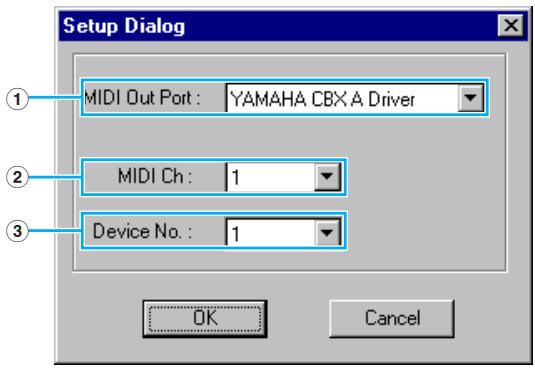
① “MIDI Out Port:” Click this and choose the MIDI Out port. You can use the Voice Editor to control and edit the device connected to this port. Select the port which has been assigned to your A5000/A4000 within XGworks(lite).
NOTE If you are using a Macintosh, the MIDI Out Port setting is assigned in the OMS Port Setup. For further details, see section "OMS Settings." (Page 27)
② “MIDI Ch:” Click this and choose the MIDI Out channel. This is used when monitoring sounds using the on-screen keyboard in the Edit Windows.
③ “Device No.:” .Click this and choose the MIDI device number of your A5000/A4000.
Receive Memory List" button
Click this to receive all the programs, sample banks or samples data in bulk from your A5000/A4000.
"Edit Window" button
Click this to open the Edit Window for the selected program, sample bank or sample in the list.
Program Edit Window
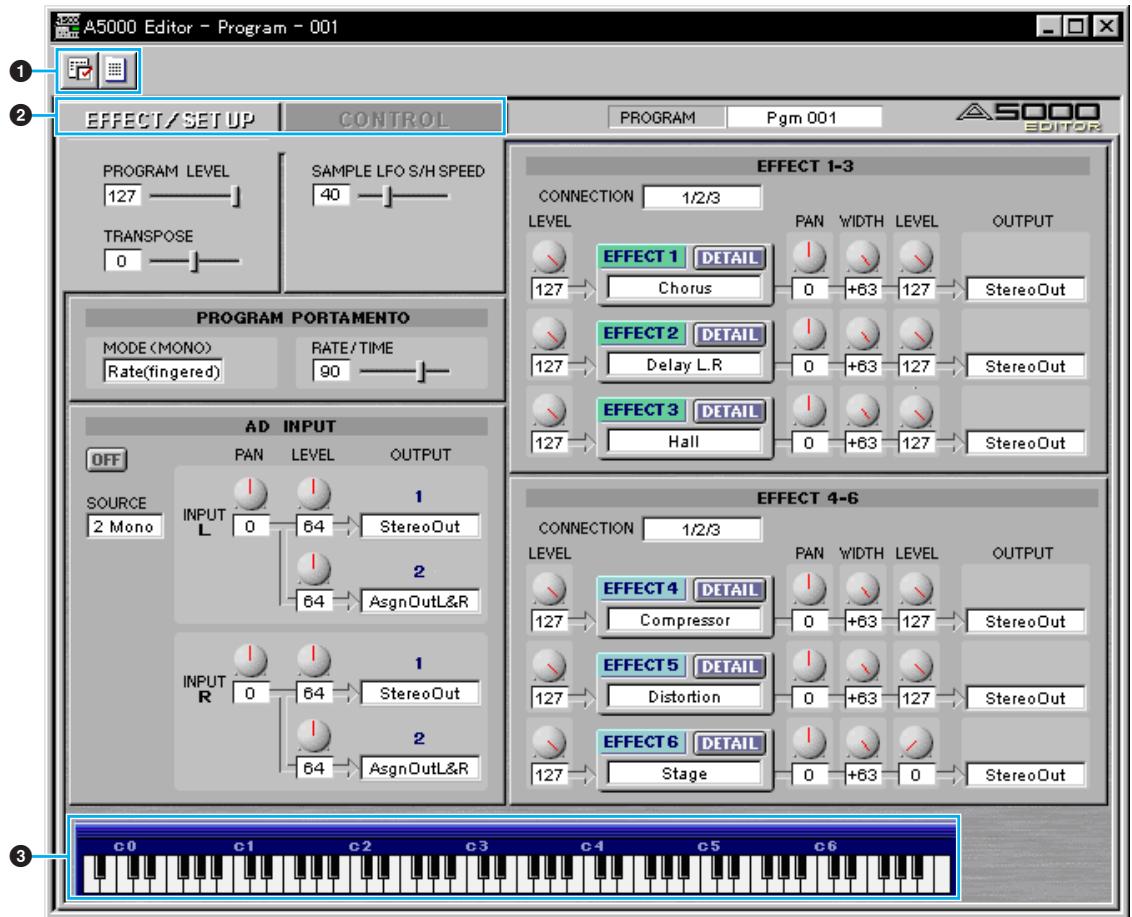
The Program Edit Window allows you to edit the parameters related to the A5000/A4000 programs. The edited data are transmitted to the A5000/A4000 via MIDI in realtime. For information on each parameter, refer to the A5000/A4000 Owner's Manual.
The Toolbar
This area includes the buttons controlling the Edit Window (P.24).
“EFFECT/SETUP” and “CONTROL” Tabs
Click the tabs to switch between the "EFFECT/SETUP" and "CONTROL" pages.
③ Keyboard button
Click or drag this to hear the edited results.
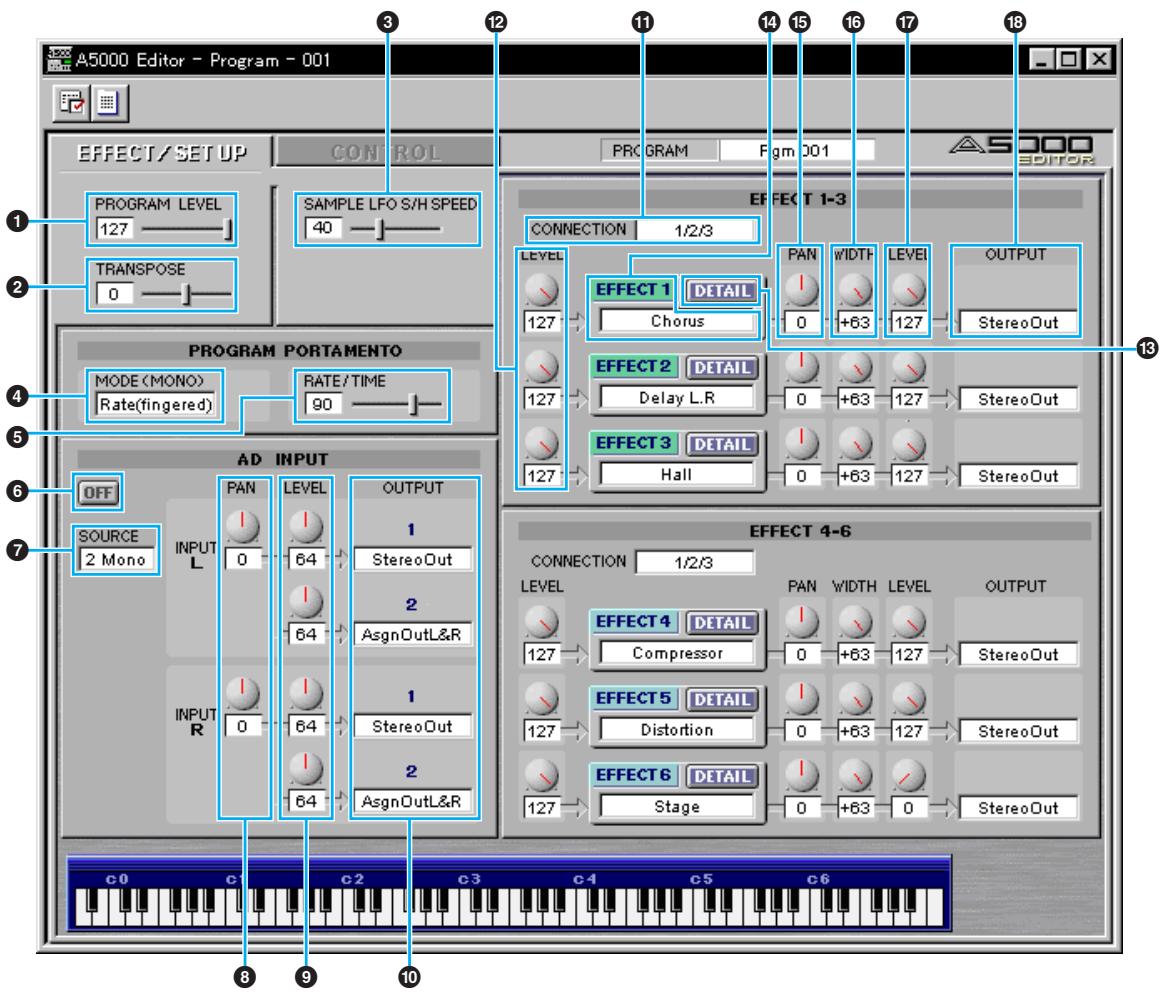
1 PROGRAM LEVEL
Sets the program volume.
2 TRANSPOSE
Sets the pitch of the entire program in semitone intervals.
3 SAMPLE LFO S/H SPEED
Sets the frequency of the LFO S/H waveform. Higher values produce higher speed.
Selects the PROGRAM PORTAMENTO mode. The mode indicated in parenthesis is effective only when the sample that uses the PROGRAM PORTAMENTO is in the mono mode.
5 RATE/TIME
Sets the PROGRAM PORTAMENTO rate or time.
AD INPUT unit
AD INPUT ON/OFF
Turns the AD INPUT function on or off.
SOURCE
Sets the input source of the AD INPUT.
8 PAN
Sets the pan position of the input signal via the AD INPUT function. If the source is set to 2Mono, separate settings for INPUT L and INPUT R are available.
LEVEL
Sets the levels for OUTPUT 1 and OUTPUT 2, respectively. If the source is set to 2Mono, separate settings for INPUT L and INPUT R are available.
10 OUTPUT
Selects the output destination of the input signal via the AD INPUT function. Two independent stereo outputs are available for OUTPUT 1 and 2. If the source is set to 2Mono, separate settings are available for INPUT L and INPUT R for both OUTPUT 1 and 2, for a total of four independent stereo outputs.
EFFECT1-3 unit
1 CONNECTION
Sets the connections for EFFECT 1, 2 and 3.
12 LEVEL
Sets the input levels for EFFECT 1, 2 and 3.
DETAIL
Opens the EFFECT 1, 2 and 3 dialog for editing in detail.
14 EFFECT TYPE
Shows the effect types assigned to EFFECT 1, 2 and 3. Click the boxes to see the effect type list and assign other effects.
15 PAN
Sets the output pan positions for EFFECT 1, 2 and 3.
16WIDTH
Sets the output pan widths for EFFECT 1, 2 and 3.
LEVEL
Sets the output levels for EFFECT 1, 2 and 3.
18 OUTPUT
Selects the output destination for EFFECT 1, 2 and 3. This function is not available for an effect block which is connected to another effect block.
EFFECT4-6 unit
The same functions are provided for EFFECT 4, 5 and 6 as for EFFECT 1, 2 and 3 above. This unit is not available for the A4000.
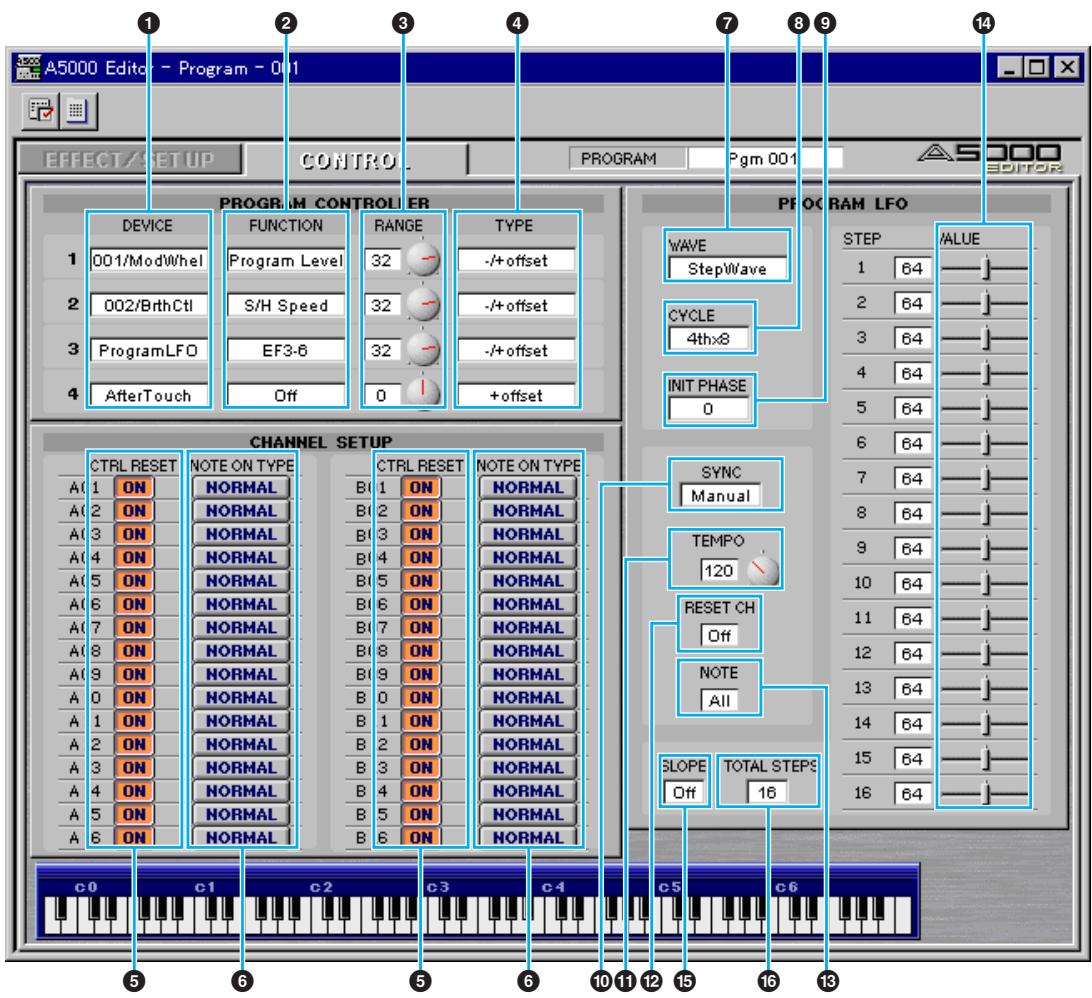
PROGRAM CONTROL unit
1 DEVICE
Selects the control devices for PROGRAM CONTROLS 1 through 4.
2 FUNCTION
Selects the control functions for PROGRAM CONTROLS 1 through 4.
3 RANGE
Selects the control value ranges for PROGRAM CONTROLS 1 through 4.
TYPE
Selects the control methods for PROGRAM CONTROLS 1 through 4.
CHANNEL SETUP unit
CTRL RESET
Determines whether the control value is reset or maintained for each MIDI channel when the program is switched by a program change message or other mean. Select ON to reset or NO to maintain. MIDI channels B01 through B16 are not available on the A4000.
6 NOTE ON TYPE
Selects the type of playback which will occur when note-on messages are received for each MIDI channel. MIDI channels B01 through B16 are not available on the A4000.
PROGRAM LFO unit
WAVE
Selects the PROGRAM LFO waveform. The selected waveform is used to modulate the sound in synchronization with the received MIDI clock and the playback tempo.
CYCLE
Selects the note type corresponding to the one PROGRAM LFO cycle.
9 INIT PHASE
Selects the initial phase of the PROGRAM LFO.
10 SYNC
Selects the PROGRAM LFO synchronization method. MANUAL allows the PROGRAM LFO to be synchronized to the specified tempo, and MIDI allows the PROGRAM LFO to be synchronized to a received MIDI clock.
TEMPO
Sets the tempo for MANUAL synchronization. This has no effect when MIDI synchronization is selected.
12 RESET CH
Specifies the MIDI channel via which a received note-on message will initialize the phase of the PROGRAM LFO when MANUAL synchronization is selected. This has no effect when MIDI synchronization is selected.
13 NOTE
Specifies the note number which will initialize the phase of PROGRAM LFO. This has no effect when MIDI synchronization is selected.
14 VALUE
Sets the values for STEP 1 through 16 of the step wave waveform. This has no effect on waves other than the step wave.
15 SLOPE
Selects the method by which the step wave steps will be smoothly connected. This has no effect on waves other than the step wave.
16 TOTAL STEPS
Sets the total number of steps for the step wave. Values for steps beyond the total step number have no effect.
Sample Edit Window
The Sample Edit Window allows you to edit the parameters related to the A5000/A4000 sample banks or samples. The edited data are transmitted to the A5000/A4000 via MIDI in realtime. For information on each parameter, refer to the A5000/A4000 Owner's Manual.
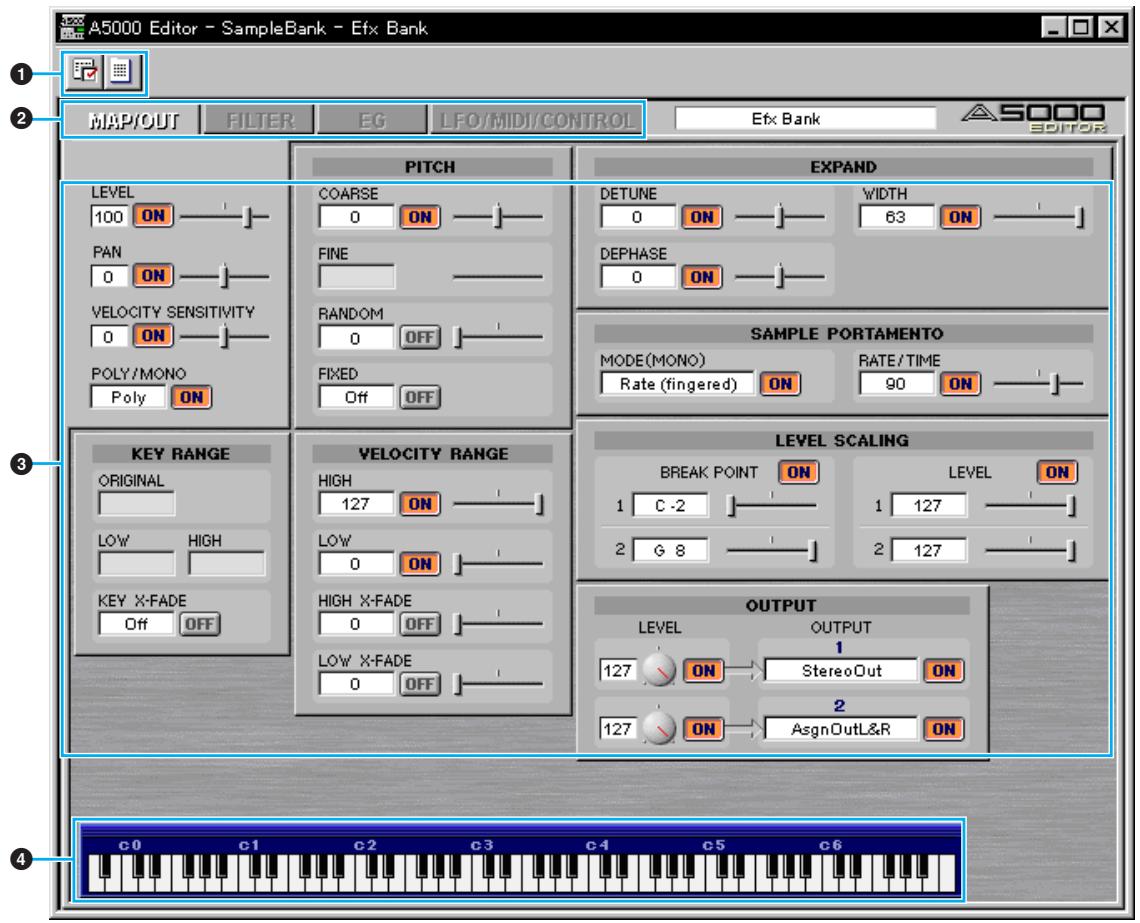
The Toolbar
This area includes the buttons controlling the Sample Edit Window (P.24).
2 "MAP/OUT", "FILTER", "EG" and "LFO/MIDI/CONTROL" tabs
Click the tabs to switch between the “MAP/OUT”, “FILTER”, “EG” and “LFO/MIDI/CONTROL” pages.
ON/OFF button
Determines whether the sample bank values or the individual sample values will be effective for each parameter or parameter group. Select ON to make the sample bank values effective, or OFF to make the inindividual sample values effective (the sample bank values are ignored). This button appears only when a sample bank is being edited. If you change a parameter value this parameter is automatically turned ON.
4 Keyboard button
Click or drag this to hear the edited results.
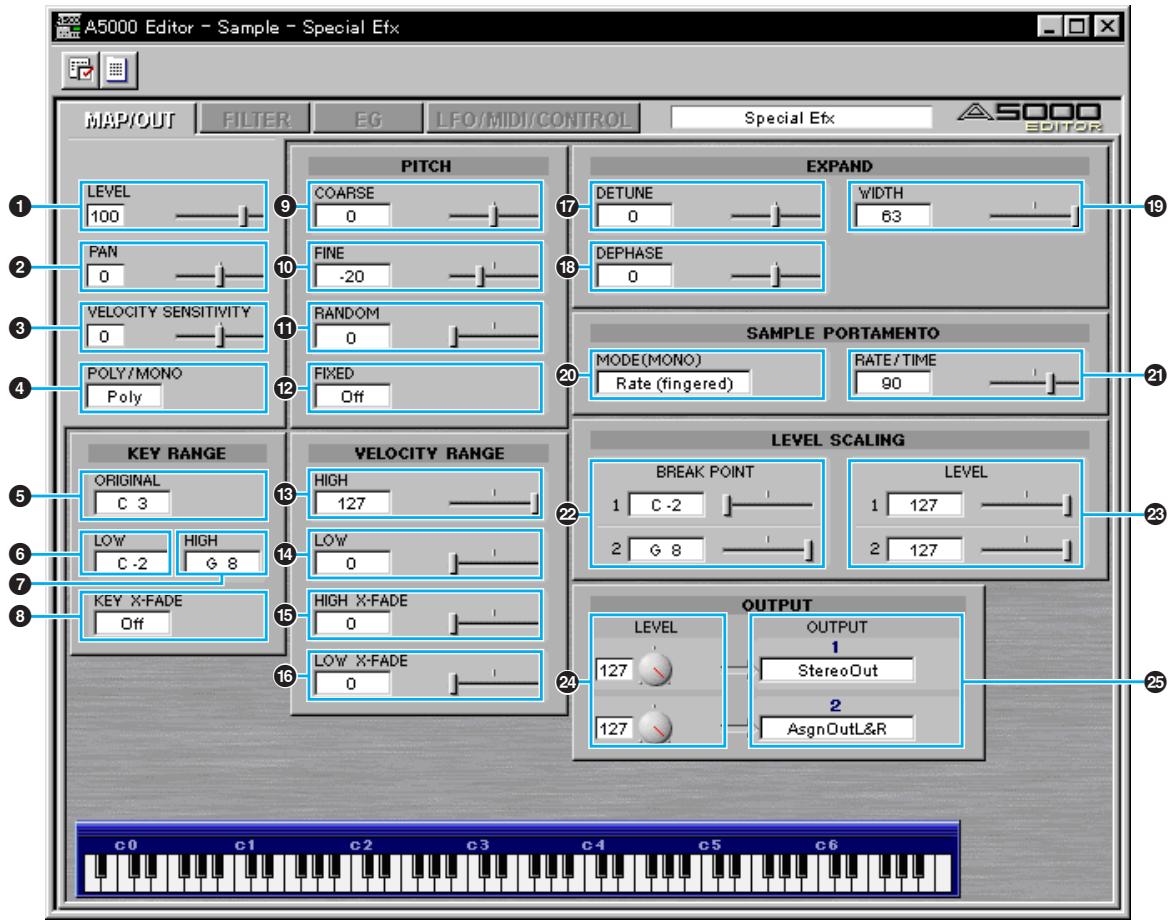
LEVEL
Sets the volume level.
PAN
Sets the pan position.
③ VELOCITY SENSITIVITY
Sets the velocity sensitivity to control the volume level.
4 POLY/MONO
Selects polyphonic or mono playback.
KEY RANGE unit
ORIGINAL
Specifies the original key note number at which the sample sounds at its original pitch. This cannot be set when a sample bank is being edited.
6 LOW
Sets the lowest key note number for the sample's key range. This cannot be set when a sample bank is being edited.
7 HIGH
Sets the highest key note number for the sample's key range. This cannot be set when a sample bank is being edited.
3 KEY X-FADE
Turns key crossfade OFF or ON.
PITCH unit
COARSE
Adjusts the sample's pitch in semitone intervals.
10 FINE
Fine-tunes the sample's pitch. This cannot be set when a sample bank is being edited.
1 RANDOM
Sets the amount of random pitch variation.
FIXED
Determines whether the sample sounds at the same pitch over the entire key range or not.
VELOCITY RANGE unit
13 HIGH
Sets the maximum velocity for the velocity range.
14 LOW
Sets the minimum velocity for the velocity range.
15 HIGH X-FADE
Sets the crossfade depth at the maximum velocity.
16 LOW X-FADE
Sets the crossfade depth at the minimum velocity.
EXPAND unit
17 DETUNE
Sets the detune depth.
18 DEPHASE
Sets the dephase depth.
9WIDTH
Sets the pan width for the detuned or dephased sound.
Selects the sample portamento mode. The mode in parentheses is effective only when the sample or sample bank is set to the mono mode.
2 RATE/TIME
Sets the portamento rate or time.
LEVEL SCALING unit
2 BREAK POINT
Sets the note number for level scaling BREAK POINT 1, 2.
23 LEVEL
Sets the BREAK POINT 1, 2 volume level.
OUTPUT unit
24 LEVEL
Sets the OUTPUT 1, 2 volume level.
25 OUTPUT
Selects the output destination of the sample or sample bank. Two independent stereo outputs are available for OUTPUT 1 and 2.
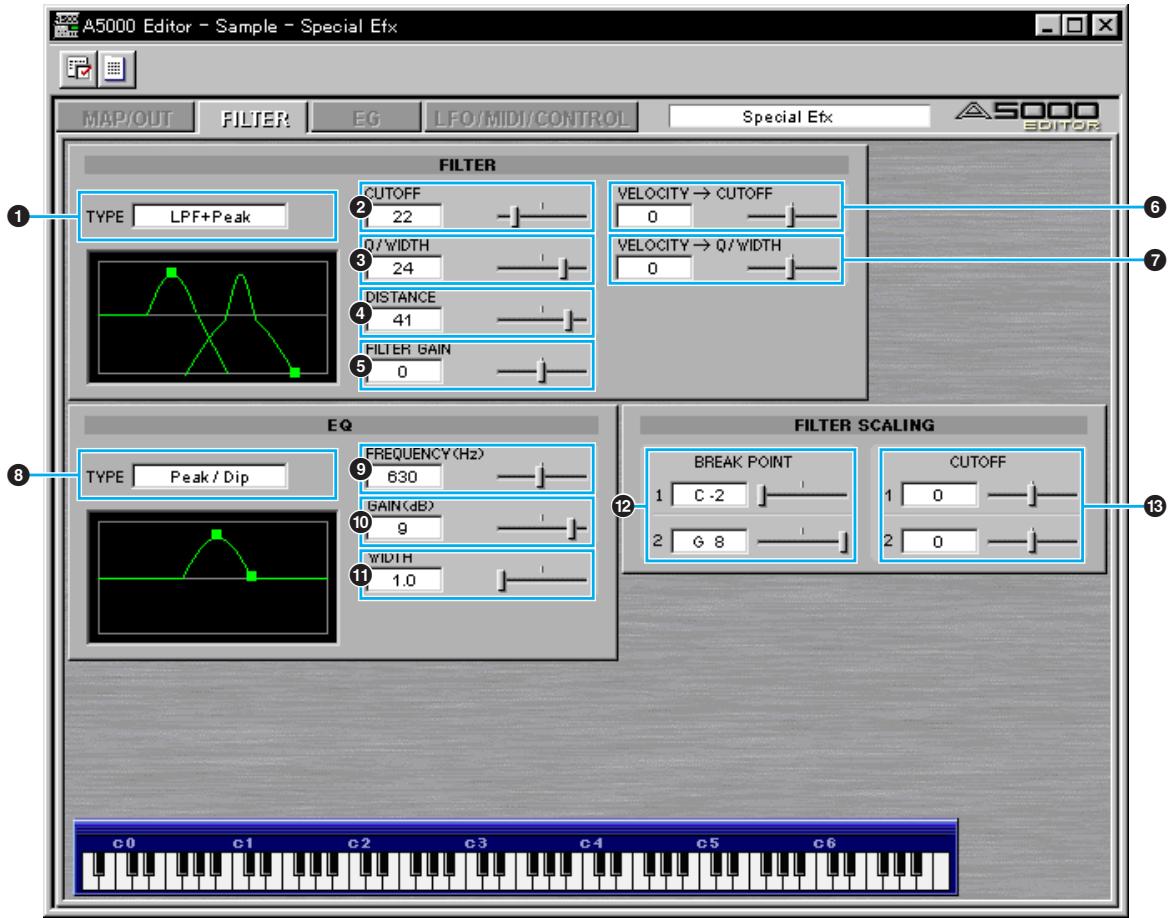
Edit Operation on the Graph
Drag the "■" marker toward the arrow mark to set the parameter on the graph.
NOTE "■" markers may be overlapped sometimes.
FILTER unit
1 TYPE
Sets the filter type.
CUTOFF
Sets the filter cutoff frequency.
3 Q/WIDTH
Sets the filter resonance depth or band width for the band pass filter.
4 DISTANCE
Sets the distance between the cutoff frequencies of the two filters when a combined filter type is selected.
5 FILTER GAIN
Sets the filter output level. The sound may become distorted if the Q/WIDTH is set too high.
6 VELOCITY CUTOFF
Determines how the cutoff frequency changes in response to velocity.
VELOCITY→Q/WIDTH
Determines how the Q/WIDTH value changes in response to velocity.
EQ unit
3 TYPE
Sets the EQ type.
FREQUENCY
Sets the EQ frequency point.
10 GAIN
Sets the gain at the selected frequency point.
WIDTH
Sets the band width. This may not be available for some filter types.
FILTER SCALING unit
12 BREAK POINT
Sets the filter scaling BREAK POINT 1, 2 note.
13 CUTOFF
Sets the amount of cutoff increase or decrease at BREAK POINT 1, 2.
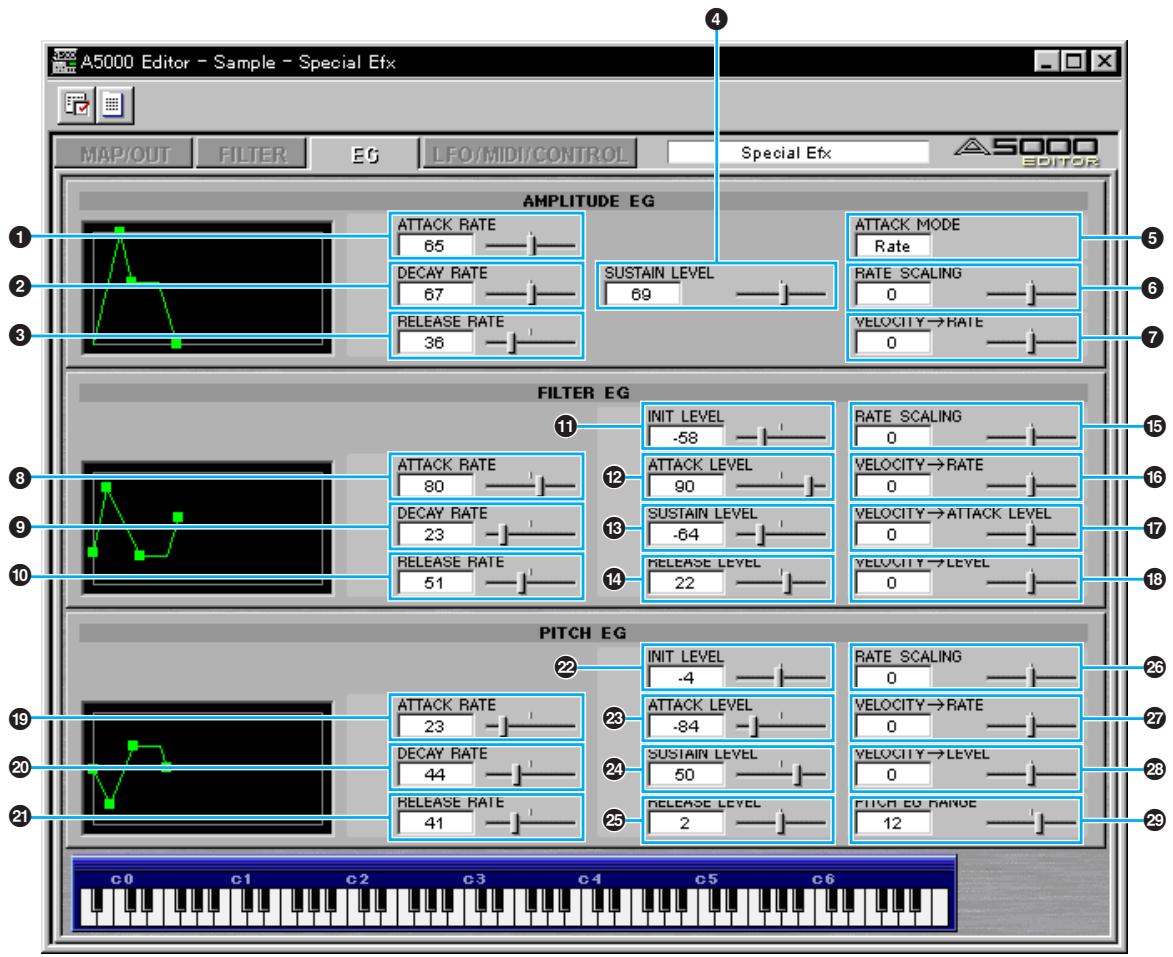
Edit Operation on the Graph
Drag the "■" marker toward the arrow mark to set the parameter on the graph.
NOTE "■" markers may be overlapped sometimes.
AMPLITUDE EG unit
1 ATTACK RATE
Sets the attack rate.
2 DECAY RATE
Sets the decay rate.
3 RELEASE RATE
Sets the release rate.
SUSTAIN LEVEL
Sets the sustain level.
ATTACK MODE
Sets the attack mode.
RATE SCALING
Determines how the amplitude EG rates vary according to the note played.
VELOCITY RATE
Determines how the amplitude EG rates vary in response to the velocity of the played note.
FILTER EG unit
ATTACK RATE
Sets the rate at which the cutoff frequency moves from its initial level (at note on) to the attack level.
9 DECAY RATE
Sets the rate at which the cutoff frequency moves from the attack level to the sustain level.
10 RELEASE RATE
Sets the rate at which the cutoff frequency moves from the sustain level to the release level following note off.
1 INIT LEVEL
Sets the cutoff frequency offset value at the time of note on.
12 ATTACK LEVEL
Sets the cutoff frequency offset value at the attack level.
SUSTAIN LEVEL
Sets the cutoff frequency offset value at the sustain level.
14 RELEASE LEVEL
Sets the cutoff frequency offset value at the release level.
15 RATE SCALING
Determines how the filter EG rates vary according to the note played.
16 VELOCITY→RATE
Determines how the filter EG rates vary in response to the velocity of the played note.
VELOCITY ATTACK LEVEL
Sets the first velocity-sensitivity value for the filter EG's initial level and attack level.
18 VELOCITY LEVEL
Sets the general velocity sensitivity for all filter EG levels.
PITCH EG unit
19 ATTACK RATE
Sets the rate at which the pitch moves from its initial level (at note on) to the attack level.
20 DECAY RATE
Sets the rate at which the pitch moves from the attack level to the sustain level.
21 RELEASE RATE
Sets the rate at which the pitch moves from the sustain level to the release level following note off.
2 INIT LEVEL
Sets the pitch offset value at the time of note on.
23 ATTACK LEVEL
Sets the pitch offset value at the attack level.
24 SUSTAIN LEVEL
Sets the pitch offset value at the sustain level.
25 RELEASE LEVEL
Sets the pitch offset value at the release level.
26 RATE SCALING
Determines how the pitch EG rates vary according to the note played.
VELOCITY RATE
Determines how the pitch EG rates vary in response to the velocity of the played note.
28 VELOCITY LEVEL
Sets the general velocity sensitivity for pitch EG levels.
29 PITCH EG RANGE
Sets the range for pitch EG pitch variation.

1 RECEIVE CHANNEL
Sets the MIDI receive channel on which the sample will sound.
2 ALTERNATE GROUP
Used to eliminate inappropriate simultaneous sounding of multiple drum instruments.
LFO unit
WAVE
Selects the LFO waveform. The selected waveform is used to modulate the sound.
4 SPEED
Sets the LFO frequency. Higher values produce faster modulation.
⑤ KEY SYNC
Determines whether the LFO waveform is reset or maintained at the time of note on.
6 DELAY
Sets the delay time to the beginning of LFO modulation after note on.
PITCH MODULATION DEPTH
Sets the degree by which the pitch is modulated by the LFO waveform.
FILTER MODULATION DEPTH
Sets the degree by which the filter's cutoff frequency is modulated by the LFO waveform.
⑨ AMPLITUDE MODULATION DEPTH
Sets the degree by which the amplitude is modulated by the LFO waveform.
10 PITCH MODULATION PHASE INVERT
Inverts the waveform used to modulate the pitch.
FILTER MODULATION PHASE INVERT
Inverts the waveform used to modulate the filter.
SAMPLE CONTROL unit
12 DEVICE
Selects the control devices for PROGRAM CONTROLS 1 through 6.
13 FUNCTION
Selects the control functions for PROGRAM CONTROLS 1 through 6.
14 RANGE
Selects the control value ranges for PROGRAM CONTROLS 1 through 6.
15 TYPE
Selects the control methods for PROGRAM CONTROLS 1 through 6.
PITCH BEND unit
16 PITCH BEND TYPE
Sets the pitch bend control method.
PITCH BEND RANGE
Sets the pitch bend control range.
VELOCITY unit
18 VELOCITY LOW LIMIT
Sets the minimum note velocity. When a note on message with a lower velocity is received, the actual playback velocity will be automatically raised to the value set here.
19 VELOCITY OFFSET
Sets the offset value which is applied to all received velocities to raise or lower them by the same amount.
The Toolbar (Edit Window)
This area holds the buttons controlling the Edit Window.
"Editor Setup" button
See item 1 in "The Toolbar" of "The Memory List Window" (Page 7).
"Memory List" button
Click this to bring the Memory List Window back into view (Page 6).
OMS Settings (Macintosh)
The A5000/A4000 Editor software uses OMS (Open Music System) for MIDI input/output. To use the A5000/A4000 Editor software, OMS must be installed beforehand.
F NOTE For information about installing OMS, refer to the separate Installation Manual.
About OMS
Voice Editor uses the OMS (Open Music System) to transfer MIDI data to an external MIDI device. OMS is a system extension that goes in the Mac OS System folder, designed to manage the MIDI data stream (input & output) in a computer, to enable MIDI data transfer between MIDI software and hardware attached to the computer. OMS is a de facto standard of the MIDI environment under the Mac OS, and various music software manufacturers have released OMS-compatible sequencer and other software.
OMS has the following merits:
- As OMS-compatible MIDI applications communicate with various MIDI devices via OMS, it is no longer necessary for you to set up multiple MIDI drivers for those applications. Thus, you can avoid conflicts between different drivers with the same purpose (MIDI control).
- Once a Studio Setup is read in OMS, any OMS-compatible application will be aware of it, even if you need to reconfigure the routing of the MIDI data stream or change the current Studio Setup. OMS-compatible applications will commonly recognize the new configuration.
- You can have different Studio Setups to choose one from, to switch to a different MIDI routing (patches between MIDI devices and software) fast and easily.
- Every time the OMS Setup application is opened, any MIDI device connected to the computer is automatically detected, and its icon appears with a current MIDI status (channel number, port number, patches, etc.). Once devices are configured with OMS Setup, however, you need not care too much about the status.
- OMS can drive various MIDI interfaces, including the standard type (16 channels) and the multi-port type (16 channels per port). If you use a multi-port type, you can control over 16 channels simultaneously via OMS.
F NOTE For more information about OMS features, see the READ ME file included with OMS.
Setting up OMS
Setup files for the A5000/A4000 have already been created for use with the A5000/A4000 Editor; please use the appropriate file for your device. The following example is for the A5000.
- Interconnect the MIDI interface device connected to the Macintosh and the MIDI IN-A or MIDI IN-B terminal of the A5000. Select the terminal you use (MIDI IN-A or MIDI IN-B) in the UTILITY/MIDI function/SysEx page/Receive Port. (This setting is not needed for the A4000.)
- Double-click the "OMS Setup" icon in the "OMS Application" folder.
- Choose "Open" from the "File" menu and select "A5000-Modem" from within the "OMS setup for YAMAHA" folder.
NOTE If you are using a computer with no modem port (such as the Performa series), look in the "A5000- Printer" folder instead.
- Choose "Make Current" from the "File" menu. The setup for your A5000 is now saved as the current studio setup.
- Choose "Quit" from the "File" menu to close OMS Setup.
NOTE A5000/A4000 Editor is not compatible with versions of OMS earlier than 2.0.
OMS Port Setup
Having set up OMS, you now need to start up the A5000/A4000 Editor and set the OMS ports.
-
First, start up the A5000/A4000 Editor by double-clicking its icon.
-
NOTE If AppleTalk is enabled, you will get an alert message. Click "OFF." It will take some time for AppleTalk to be disabled.
-
Choose "OMS Port Setup" from the A5000/A4000 Editor's "MIDI" menu, then select the port settings. In the following example, the tone generator is an A5000 and its setups are applied to OMS.
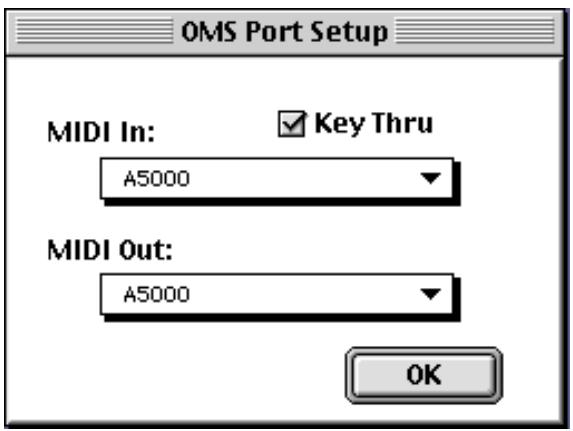
MIDI Out: Select "A5000."
- Click [OK] to close OMS Port Setup.
Troubleshooting
If you encounter problems such as no sound output or abnormal behavior, verify the connections before checking the following. If you are using the A5000/A4000 Editor for Windows, refer to the XGworks(lite) owner's manual too.
The printer port is not recognized.
- The printer port will not be recognized if AppleTalk is ON. Note that with some Macintosh models, AppleTalk is automatically enabled when starting up.
- Verify that the "Printer" checkbox has been checked in the OMS MIDI Setup window.
The modem port is not recognized.
- On some Macintosh models such as the Performa series, the modem port cannot be used and only the printer port is available.
- Verify that the "Modem" checkbox has been checked in the OMS MIDI Setup window.
No MIDI In/Out data
- In the OMS Port Setup, is MIDI In/Out set to "unknown"? If you change the OMS ports or setup, the OMS output ports have to be set accordingly in A5000/A4000 Editor's OMS Port Setup window. Choose the appropriate receiving device.
- Is OMS using the same port as that connected to the cable? Open the OMS MIDI Setup window and verify that the checkbox for the relevant port has been checked.
- If the port and setup assignments are frequently altered, OMS may be unable to easily recognize the serial port. Reboot the Macintosh, set up OMS correctly, then start up the A5000/A4000 Editor.
Memory List data are not received.
- Open the OMS Port Setup window and check that the MIDI In has been properly assigned (Page 26).
- Open the Editor Setup Dialog and check that the Device No. has been properly assigned (Page 7).
A5000/A4000 Editor is not available in the Plug-in menu.
Is the A5000/A4000 Editor installed in the same folder as XGworks(lite)? If not, reinstall A5000/ A4000 Editor.
Bulk data is not received.
Is the MIDI In set correctly in the System Setup of XGworks?
- Open the Editor Setup Dialog and check that the Device No. has been properly assigned (Page 7).
MIDI Out port is not available in Editor Setup.
- The MIDI Out port in Editor Setup can be chosen from the MIDI Out ports in the System Setup of XGworks(lite). Check the MIDI Out settings in the System Setup of XGworks(lite).
Sound does not change when using knobs or sliders.
Are the MIDI Out port and Device Number set correctly in the Editor Setup? (Page 7)
Parameter change data is not transmitted.
- Are the MIDI Out port and Device Number set correctly in the Editor Setup? (Page 7)
No sound heard when clicking on-screen keyboard in Edit Window.
Is the MIDI Ch. set correctly in the Editor Setup? (Page 7)