
MOTIF ES6 - Synthesizer YAMAHA - Free user manual and instructions
Find the device manual for free MOTIF ES6 YAMAHA in PDF.


| Product type | Workstation synthesizer |
| Brand | YAMAHA |
| Model | MOTIF ES6 |
| Number of keys | 61 keys with velocity and aftertouch |
| Maximum polyphony | 64 voices |
| Sound generator | AWM2 (Advanced Wave Memory 2) |
| Built-in effects | Reverb, chorus, variations, insertion, master effects |
| Sequencer | 16 tracks (pattern and song) |
| Arpeggiator | Yes, with multiple styles |
| Sampling | Optional (MLAN expansion) |
| Storage | SmartMedia drive, USB To Host port, CompactFlash card (optional) |
| Connectivity | MIDI In/Out/Thru, audio outputs L/R (6.35 mm jack), headphone, USB To Host, sustain pedal, volume pedal |
| Dimensions (W x D x H) | 1040 x 310 x 110 mm |
| Weight | 15 kg |
| Power supply | AC adapter 16 V DC (PA-300 or equivalent) |
| Power consumption | Approx. 25 W |
| Main functions | Synthesis, sequencer, arpeggiator, performances, Voice, Performance, Song, Pattern modes |
| Maintenance and cleaning | Dust with a soft, dry cloth. Do not use solvents. |
| Safety | Do not expose to moisture, shocks, or extreme temperatures. |
| Spare parts and repairability | Parts available from an authorized Yamaha after-sales service. |
| Included accessories | Power cable, user manual, CD-ROM with software and drivers |
Frequently Asked Questions - MOTIF ES6 YAMAHA
User questions about MOTIF ES6 YAMAHA
0 question about this device. Answer the ones you know or ask your own.
Ask a new question about this device
Download the instructions for your Synthesizer in PDF format for free! Find your manual MOTIF ES6 - YAMAHA and take your electronic device back in hand. On this page are published all the documents necessary for the use of your device. MOTIF ES6 by YAMAHA.
USER MANUAL MOTIF ES6 YAMAHA
Integrated Sampling Sequencer / Modular Synthesis Plug-in System / Real-time External Control Surface
MOTIFS6
MOTIFS
MOTIFS8
SPECIALMESSAGESECTION
PRODUCT SAFETY MARKINGS: Yamaha electronic products may have either labels similar to the graphics shown below or molded/stamped facsimiles of these graphics on the enclosure. The explanation of these graphics appears on this page. Please observe all cautions indicated on this page and those indicated in the safety instruction section.

The exclamation point within the equilateral triangle is intended to alert the user to the presence of important operating and maintenance (servicing) instructions in the literature accompanying the product.
The lightning flash with arrowhead symbol, within the equilateral triangle, is intended to alert the user to the presence of uninsulated "dangerous voltage" within the product's enclosure that may be of sufficient magnitude to constitute a risk of electrical shock.
IMPORTANT NOTICE: All Yamaha electronic products are tested and approved by an independent safety testing laboratory in order that you may be sure that when it is properly installed and used in its normal and customary manner, all foreseeable risks have been eliminated. DO NOT modify this unit or commission others to do so unless specifically authorized by Yamaha. Product performance and/or safety standards may be diminished. Claims filed under the expressed warranty may be denied if the unit is/has been modified. Implied warranties may also be affected.
SPECIFICATIONS SUBJECT TO CHANGE: The information contained in this manual is believed to be correct at the time of printing. However, Yamaha reserves the right to change or modify any of the specifications without notice or obligation to update existing units.
ENVIRONMENTAL ISSUES: Yamaha strives to produce products that are both user safe and environmentally friendly. We sincerely believe that our products and the production methods used to produce them, meet these goals. In keeping with both the letter and the spirit of the law, we want you to be aware of the following:
Battery Notice: This product MAY contain a small non-rechargeable battery which (if applicable) is soldered in place. The average life span of this type of battery is approximately five years. When replacement becomes necessary, contact a qualified service representative to perform the replacement.
Warning: Do not attempt to recharge, disassemble, or incinerate this type of battery. Keep all batteries away from children. Dispose of used batteries promptly and as regulated by applicable laws. Note: In some areas, the servicer is required by law to return the defective parts. However, you do have the option of having the servicer dispose of these parts for you.
Disposal Notice: Should this product become damaged beyond repair, or for some reason its useful life is considered to be at an end, please observe all local, state, and federal regulations that relate to the disposal of products that contain lead, batteries, plastics, etc.
NOTICE: Service charges incurred due to lack of knowledge relating to how a function or effect works (when the unit is operating as designed) are not covered by the manufacturer's warranty, and are therefore the owners responsibility. Please study this manual carefully and consult your dealer before requesting service.
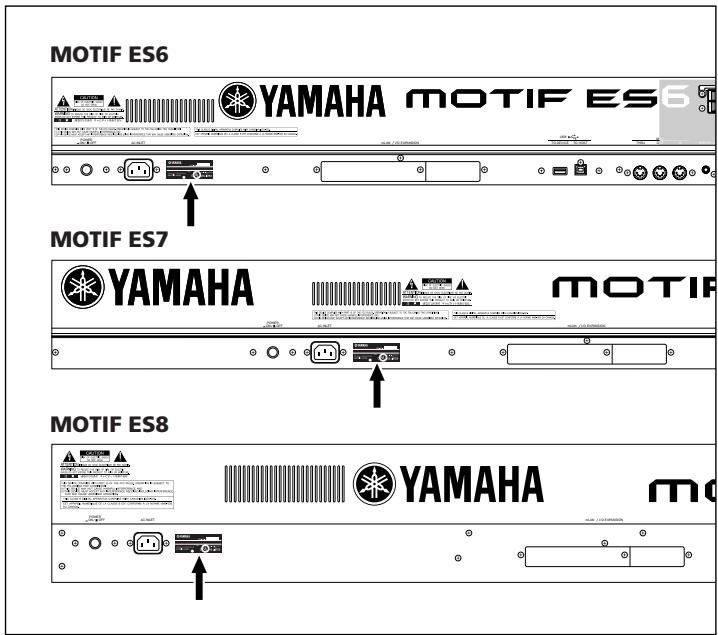
NAME PLATE LOCATION: The graphic below indicates the location of the name plate. The model number, serial number, power requirements, etc., are located on this plate. You should record the model number, serial number, and the date of purchase in the spaces provided below and retain this manual as a permanent record of your purchase.
Model
Serial No.
Purchase Date
IMPORTANT SAFETY INSTRUCTIONS
INFORMATION RELATING TO PERSONAL INJURY, ELECTRICAL SHOCK, AND FIRE HAZARD POSSIBILITIES HAS BEEN INCLUDED IN THIS LIST.
WARNING- When using any electrical or electronic product, basic precautions should always be followed. These precautions include, but are not limited to, the following:
- Read all Safety Instructions, Installation Instructions, Special Message Section items, and any Assembly Instructions found in this manual BEFORE making any connections, including connection to the main supply.
- Do not attempt to service this product beyond that described in the user-maintenance instructions. All other servicing should be referred to qualified service personnel.
- Main Power Supply Verification: Yamaha products are manufactured specifically for the supply voltage in the area where they are to be sold. If you should move, or if any doubt exists about the supply voltage in your area, please contact your dealer for supply voltage verification and (if applicable) instructions. The required supply voltage is printed on the name plate. For name plate location, please refer to the graphic found in the Special Message Section of this manual.
- DANGER-Grounding Instructions: This product must be grounded and therefore has been equipped with a three pin attachment plug. If this product should malfunction, the ground pin provides a path of low resistance for electrical current, reducing the risk of electrical shock. If your wall socket will not accommodate this type plug, contact an electrician to have the outlet replaced in accordance with local electrical codes. Do NOT modify the plug or change the plug to a different type!
- WARNING: Do not place this product or any other objects on the power cord or place it in a position where anyone could walk on, trip over, or roll anything over power or connecting cords of any kind. The use of an extension cord is not recommended! If you must use an extension cord, the minimum wire size for a 25' cord (or less) is 18 AWG. NOTE: The smaller the AWG number, the larger the current handling capacity. For longer extension cords, consult a local electrician.
- Ventilation: Electronic products, unless specifically designed for enclosed installations, should be placed in locations that do not interfere with proper ventilation. If instructions for enclosed installations are not provided, it must be assumed that unobstructed ventilation is required.
-
Temperature considerations: Electronic products should be installed in locations that do not seriously contribute to their operating temperature. Placement of this product close to heat sources such as; radiators, heat registers etc., should be avoided.
-
This product was NOT designed for use in wet/damp locations and should not be used near water or exposed to rain. Examples of wet / damp locations are; near a swimming pool, spa, tub, sink, or wet basement.
- This product should be used only with the components supplied or; a cart, rack, or stand that is recommended by the manufacturer. If a cart, rack, or stand is used, please observe all safety markings and instructions that accompany the accessory product.
- The power supply cord (plug) should be disconnected from the outlet when electronic products are to be left unused for extended periods of time. Cords should also be disconnected when there is a high probability of lightning and/or electrical storm activity.
- Care should be taken that objects do not fall and liquids are not spilled into the enclosure through any openings that may exist.
- Electrical/electronic products should be serviced by a qualified service person when:
a. The power supply cord has been damaged; or
b. Objects have fallen, been inserted, or liquids have been spilled into the enclosure through openings; or
c. The product has been exposed to rain; or
d. The product does not operate, exhibits a marked change in performance; or
e. The product has been dropped, or the enclosure of the product has been damaged.
- This product, either alone or in combination with an amplifier and headphones or speaker/s, may be capable of producing sound levels that could cause permanent hearing loss. DO NOT operate for a long period of time at a high volume level or at a level that is uncomfortable. If you experience any hearing loss or ringing in the ears, you should consult an audiologist.
IMPORTANT: The louder the sound, the shorter the time period before damage occurs. - Some Yamaha products may have benches and/or accessory mounting fixtures that are either supplied as a part of the product or as optional accessories. Some of these items are designed to be dealer assembled or installed. Please make sure that benches are stable and any optional fixtures (where applicable) are well secured BEFORE using. Benches supplied by Yamaha are designed for seating only. No other uses are recommended.
PLEASE KEEP THIS MANUAL
PRECAUTIONS
PLEASE READ CAREFULLY BEFORE PROCEEDING
- Please keep this manual in a safe place for future reference.

WARNING
Always follow the basic precautions listed below to avoid the possibility of serious injury or even death from electrical shock, short-circuiting, damages, fire or other hazards. These precautions include, but are not limited to, the following:
Power supply/AC power adaptor
- Only use the voltage specified as correct for the instrument. The required voltage is printed on the name plate of the instrument.
- Check the electric plug periodically and remove any dirt or dust which may have accumulated on it.
- Use only the supplied power cord/plug.
- Do not place the power cord near heat sources such as heaters or radiators, and do not excessively bend or otherwise damage the cord, place heavy objects on it, or place it in a position where anyone could walk on, trip over, or roll anything over it.
Do not open
- This instrument contains no user-serviceable parts. Do not attempt to disassemble or modify the internal components in any way.
Water warning
- Do not expose the instrument to rain, use it near water or in damp or wet conditions, or place containers on it containing liquids which might spill into any openings.
- Never insert or remove an electric plug with wet hands.
Fire warning
- Do not put burning items, such as candles, on the unit.
A burning item may fall over and cause a fire.
If you notice any abnormality
- If the power cord or plug becomes frayed or damaged, or if there is a sudden loss of sound during use of the instrument, or if any unusual smells or smoke should appear to be caused by it, immediately turn off the power switch, disconnect the electric plug from the outlet, and have the instrument inspected by qualified Yamaha service personnel.

CAUTION
Always follow the basic precautions listed below to avoid the possibility of physical injury to you or others, or damage to the instrument or other property. These precautions include, but are not limited to, the following:
Power supply/Power cord
- Always connect the three-pin attachment plug to a properly grounded power source. (For more information about the main power supply, see page 26.)
- When removing the electric plug from the instrument or an outlet, always hold the plug itself and not the cord. Pulling by the cord can damage it.
- Remove the electric plug from the outlet when the instrument is not to be used for extended periods of time, or during electrical storms.
- Do not connect the instrument to an electrical outlet using a multiple-connector. Doing so can result in lower sound quality, or possibly cause overheating in the outlet.
Location
- Do not expose the instrument to excessive dust or vibrations, or extreme cold or heat (such as in direct sunlight, near a heater, or in a car during the day) to prevent the possibility of panel disfiguration or damage to the internal components.
- Do not use the instrument in the vicinity of a TV, radio, stereo equipment, mobile phone, or other electric devices. Otherwise, the instrument, TV, or radio may generate noise.
- Do not place the instrument in an unstable position where it might accidentally fall over.
- Before moving the instrument, remove all connected cables.
- Do not place objects in front of the instrument's air vent, since this may prevent adequate ventilation of the internal components, and possibly result in the instrument overheating.
Connections
- Before connecting the instrument to other electronic components, turn off the power for all components. Before turning the power on or off for all components, set all volume levels to minimum. Also, be sure to set the volumes of all components at their minimum levels and gradually raise the volume controls while playing the instrument to set the desired listening level.
Maintenance
- When cleaning the instrument, use a soft, dry cloth. Do not use paint thinners, solvents, cleaning fluids, or chemical-impregnated wiping cloths.
Handling caution
- Do not insert a finger or hand in any gaps on the key cover or instrument.
- Never insert or drop paper, metallic, or other objects into the gaps on the panel or keyboard. If this happens, turn off the power immediately and unplug the power cord from the AC outlet. Then have the instrument inspected by qualified Yamaha service personnel.
- Do not place vinyl, plastic or rubber objects on the instrument, since this might discolor the panel or keyboard.
- Do not rest your weight on, or place heavy objects on the instrument, and do not use excessive force on the buttons, switches or connectors.
- Do not operate the instrument for a long period of time at a high or uncomfortable volume level, since this can cause permanent hearing loss. If you experience any hearing loss or ringing in the ears, consult a physician.
Saving data
Saving and backing up your data
- DRAM data (see page 186) is lost when you turn off the power to the instrument. Save the data to a SmartMedia/USB storage device.
- Never attempt to turn off the power while data is being written to Flash ROM (while an "Executing..." or "Please keep power on" message is shown). Turning the power off in this state results in loss of all user data and may cause the system to freeze (due to corruption of data in the Flash ROM). This means that this synthesizer may not be able to start up properly, even when turning the power on next time.
Backing up the SmartMedia/external media
- To protect against data loss through media damage, we recommend that you save your important data onto two SmartMedia/external media.
Yamaha cannot be held responsible for damage caused by improper use or modifications to the instrument, or data that is lost or destroyed.
Always turn the power off when the instrument is not in use.
Introduction
Congratulations and thank you for your purchase of the Yamaha MOTIF ES6/MOTIF ES7/MOTIF ES8 Music Production Synthesizer!
You now own what is perhaps the best-sounding, most versatile, and certainly most powerful synthesizer and total music production instrument on the planet.
We strove to put virtually all our synthesizer technology and music making know-how into one instrument — and we succeeded. The new MOTIF ES not only gives you the latest and greatest sounds and rhythms (as well as the ability to create and sample your own), it gives you powerful, easy-to-use tools for playing, combining and controlling these dynamic sounds/rhythms — in real time, as you perform!
Take time to look through this manual carefully. It's packed with important information on how to get the most from this amazing instrument.
Dive in now and enjoy!
Accessories
The following items have been included with your MOTIF ES 6/MOTIF ES 7/MOTIF ES 8. Check to see that you have everything listed here.
- AC Power cord
- CD-ROM x 3
- Owner's Manual (this book)
Data List - Installation Guide
About the included CD-ROMs
The following three CD-ROMs are included in the MOTIF ES package.
- TOOLS for MOTIF ES6/MOTIF ES7/MOTIF ES8
This CD-ROM contains special software for use with this instrument.
It includes the latest version of SQ01 (V2), a full-featured audio/MIDI sequencer/mixer for comprehensive music production, Voice Editor, which gives you comprehensive and intuitive sound editing tools, and Multi Part Editor, for editing the Mixing parameters of Songs and Patterns.
For details, see the separate Installation Guide or the online manuals included with the software.
Sound Library for MOTIF ES6/MOTIF ES7/MOTIF ES8
This CD-ROM contains various types of data for use with the MOTIF ES. For information on the contents, refer to the List file in the CD-ROM. You can use the data by loading it in the File mode. Insert the CD-ROM into a CD-ROM drive* connected to the USB TO DEVICE connector via USB and execute the Load operation. Alternately, you can access the data from a USB storage device (such as a hard disk) or a SmartMedia card (inserted to the CARD slot) to which the data has been copied.
For details about how to load each type of data, refer to the following pages.
Voice
extension: W7V
page 87
- Pattern
extension: W7P
page 132
WAV file
extension: WAV
pages 100 and 109
- For information on what USB devices (model name, etc.) can be used with the MOTIF ES, see page 29.
5Note If you are loading audio WAV files, make sure that DIMM modules are installed to the imt. (For DIMM compatibility information, see page 289.) Also, when loading Voice data from this CD-ROM, make sure to install DIMM modules, because the Voice data contains User Waveforms. If DIMM modules are not installed, an error message appears when you try to load a WAV file or Voice data from this CD-ROM.
- TOOLS for Modular Synthesis Plug-in System
This CD-ROM contains a variety of computer applications, including the Voice Editor for editing Voices of the optional Plug-in Boards. For more information, refer to the "Readme" file in the CD-ROM.
- Copying of commercially available music sequence data and/or digital audio files for any purpose other than your own personal use is strictly prohibited.
- This product incorporates and bundles computer programs and contents in which Yamaha owns copyrights or with respect to which it has license to use others' copyrights. Such copyrighted materials include, without limitation, all computer software, styles files, MIDI files, WAVE data and sound recordings. Any unauthorized use of such programs and contents outside of personal use is not permitted under relevant laws. Any violation of copyright has legal consequences. DON'T MAKE, DISTRIBUTE OR USE ILLEGAL COPIES.
Main Features
Wide range of dynamic and authentic voices. Use the Category Search function to quickly call up the sounds you want, based on their instrument type.
page 60
Performance mode lets you use four different voices together — in layers or in a keyboard split.
page 67
Integrated Sampling Sequencer - seamlessly combines audio and MIDI recording.
page 172
Full Sample recording and editing features, and up to 512MB of sample memory (with optional DIMM modules).
page 289
- Wide data compatibility lets you load AIFF and WAV files, as well as samples and program/voice data from other popular samplers, such as the Yamaha A-series.
pages 100, 270
- Convenient Resampling function lets you sample the sound of the MOTIF itself directly. Play your own melodies, riffs and rhythms — and use them as samples.
page 99
- Unique Slice feature automatically chops up your rhythms and riffs into their individual beats and notes. This lets you manipulate the component parts of your sample loops as MIDI data, and gives you the power to easily change tempo and even the rhythmic feel, without disturbing the pitch or sound quality.
page 107
Extensive effect processing, with Reverb (20 types), Chorus (49 types), eight separate Insertion blocks each of which has two blocks (total 116 types), Master Effect (8 types), and a digital equalizer (3-band Part EQ and 5-band Master EQ).
page 177
Comprehensive real-time control with four knobs and four sliders — letting you adjust filter, levels, effects, EG, and more, while you play.
page 50
Pattern mode functions let you craft different rhythmic sections and riffs as individual elements — which you can easily and intuitively combine in real time to create full rhythm tracks.
page 106
In addition to being able to create User voices in the Voice mode, you can create special Mixing voices for Songs and Patterns. These voices can be edited and stored in the Song/Pattern mode, making it exceptionally easy and convenient to create voices for use with Songs and Patterns.
page 105
The versatile Arpeggio feature automatically plays a variety of sequenced phrases in response to the keys you play. This function is especially powerful with drum voices — letting you easily call up various rhythm patterns at the touch of a key, and providing instant inspiration for song creation and performance. When used with normal voices, the Arpeggio phrase changes harmonically and melodically with the chords you play, giving you intuitive control over the patterns as you compose or perform. Arpeggios can be triggered not only according to the keys you play, but also by how strongly you play them — for even greater performance power.
page 66
Once you've collected all the audio samples, loops, MIDI data, and patterns you need for your song, use Pattern Chain to arrange the pieces in real time. This hands-on approach makes it easier than ever to come up with great ideas and amazing songs.
page 115
Song Scene is another powerful tool that lets you take "snapshots" of the sequencer track settings (such as pan, volume, track mute and so on). Then, during playback or recording, simply switch among the Scenes for instant, dynamic changes.
page 123
Master mode — for using the MOTIF ES as a master keyboard controller (with independent Zones), and for easily reconfiguring the instrument between Voice/ Performance play and Song/Pattern play in live applications.
page 136
Exceptionally easy-to-understand interface with two-tiered operation buttons: [F1] - [F6] and [SF1] - [SF5]
page 47
Remote Control — for operating your favorite sequencing software from the panel controls. Mute tracks, control transport (Play, Stop, Record, etc.), mix both MIDI and audio tracks (up to 16) with this instrument's knobs and sliders, pan the tracks, control EQ, and tweak effect sends — all without ever touching the mouse.
page 147
Three Modular Synthesis Plug-in System slots let you upgrade the MOTIF ES with a completely new synthesizer or sound-processing engine. These Plug-in boards give you more voices, more effects, more polyphony and more instrument parts. Plus, special Plug-in voices have already been programmed and stored to the MOTIF ES, ready to be played as soon as you install the proper board.
page 74
A full rear panel of input/output connections provides maximum interfacing flexibility. These include Assignable Outputs, A/D Inputs, MIDI, two USB connectors and a memory card slot. Moreover, an optional AIEB2 or mLAN16E board can be installed. The mLAN interface is particularly powerful — making it possible to transfer both digital audio and MIDI data via a single broadband cable.
page 39
The instrument features two USB connectors - USB TO HOST for connecting to computer, and USB TO DEVICE for connecting to storage devices, such as a hard disk drive or flash disk.
page 29
Included software - the CD-ROM accompanying your instrument (Tools for MOTIF ES) features a variety of convenient and powerful programs for using the MOTIF ES with a computer. These include the Voice Editor which provides comprehensive, easy-to-use editing features and parameters, and a Multi Part Editor for intuitive editing of Song/Pattern Mixing parameters from your computer screen.
page 142
How to use this manual
The Controls & Connectors Page 16
Use this section to find out about all of the buttons, controls and connectors of this instrument.
Setting Up Page 26
Before going on to any other part of the manual, we strongly suggest you read this section first. It shows you how to get started playing and using your new instrument.
Application Index
This special index is organized not by single words, but by functions and applications — allowing you to quickly and easily find how to perform a particular operation or explore a topic of interest.
Basic Structure Page 154
This section provides a detailed overview of all of the main functions and features of this instrument, and shows how they fit together.
Basic Operation.. Page 45
This section introduces you to the basic operating conventions of this instrument, such as editing values and changing settings.
Quick Guide.. Page 55
In this tutorial section, you will take a guided tour through the various functions of this instrument, and get some hands-on experience in playing and using it.
Reference Page 188
The MOTIF ES encyclopedia. This section explains all parameters, settings, functions, features, modes and operations in full detail.
Troubleshooting.. Page 279
If this instrument does not function as expected or you have some problem with the sound or operation, refer to this section before calling your Yamaha dealer or service center. Most common problems and their solutions are covered here in a very simple and easy-to-understand way.
Appendix Page 275
This section contains detailed information on this instrument such as Specifications and an Alert Message List as well as instructions for installing optional equipment (e.g., DIMM modules, AIEB2, mLAN16E interface, and Plug-in Boards).
Data List (separate booklet)
This contains various important lists such as the Voice List, Preset Pattern Phrase List, Effect List, MIDI Data Format, and MIDI Implementation Chart.
Installation Guide (separate booklet)
Refer to this for instructions on installing the included software programs (on the "TOOLS for MOTIF ES6/MOTIF ES7/MOTIF ES8" CD-ROM) to your computer.
Various pages and menus appear on the LCD display of this instrument depending the selected mode or function. Throughout this manual, arrows are used in the instructions, indicating in shorthand the process of calling up certain displays and functions. The example instructions below indicate to 1) press the [VOICE] button, 2) select a Normal Voice, 3) press the [EDIT] button, 4) select an Element, 5) press the [F1] OSC button, and 6) press the [SF2] OUTPUT button.
[VOICE] Normal Voice selection [EDIT] Element selection [F1] OSC [SF2] OUTPUT
5 NOTE
When a confirmation message (page 52) or Control Function window (page 50) is shown in the display, press the [EXIT] button to exit from that condition, then execute the instructions as in the above example. Likewise, press the REMOTE [ON/OFF] button to exit from the Remote Control mode, then execute the instructions as in the above example when the MOTIF ES is in the Remote Control mode.
- Apple and Macintosh are trademarks of Apple Computer, Inc.
- Windows is the registered trademark of Microsoft® Corporation.
- All other trademarks are the property of their respective holders.
- The illustrations and LCD screens as shown in this owner's manual are for instructional purposes only, and may appear somewhat different from those on your instrument.
Application Index
Listening to the MOTIF ES
- Listening to the Demo song/pattern
- Listening to Song Chain playback
- Listening to Pattern Chain playback
- Listening to Arpeggio playback. Pages 66 (Voice mode), 70 (Performance mode), 105 (Song/Pattern mode)
Playing the keyboard
- Selecting a Voice and playing the keyboard. Pages 60 (Voice mode), 102 (Song/Pattern mode)
- Selecting a Voice of the Plug-in Board and playing the keyboard. Pages 75 (Voice mode), 121 (Song/Pattern mode)
- Selecting a Performance and playing the keyboard
- Using the instrument as a Master Keyboard
- Sounding the metronome. [SONG] or [PATTERN] [UTILITY] [F3] SEQ [SF1] Click Mode = all Page 262
- Splitting the keyboard - Setting upper and lower ranges for the Voices. Pages 70 (Performance mode), 141 (Master mode)
- Layering two Voices (or Parts) together. Pages 70 (Performance mode), 141 (Master mode)
Selecting programs and making settings on the MOTIF ES
- Selecting a Voice. Pages 60 (Voice mode), 102 (Song/Pattern mode)
Using the Category Search function - Selecting a Performance
- Selecting a Song
- Selecting a Pattern
Selecting a Section
Selecting a Phrase and assigning it to a Pattern track. Page 113
- Selecting a Mixing template for a Song/Pattern
- Selecting a Master. Page 136
- Selecting an Arpeggio type. Pages 66 (Voice mode), 70 (Performance mode), 105 (Song/Pattern mode)
- Selecting a Waveform
- Selecting a Filter type
- Selecting an Effect type
Selecting a Reverb type/Chorus type/Insertion type
[VOICE] Voice selection [F3] EFFECT
[PERFORM] Performance selection [F3] EFFECT [SF1] CONNECT
[SONG] or [PATTERN] Song/Pattern selection [MIXING] [F3] EFFECT [SF1] CONNECT
Selecting a Master Effect type
[VOICE] [UTILITY] [F3] VOICE [SF2] MEF
[PERFORM] Performance selection [EDIT] [COMMON] [F2] OUT/MEF [SF3] MEF
[SONG] or [PATTERN] Song/Pattern selection [MIXING] [EDIT] [COMMON] [F2] MEQ/MEF [SF2] MEF Page 234
Selecting a Master EQ type
[VOICE] [UTILITY] [F3] VOICE [SF1] MEQ
[PERFORM] Performance selection [EDIT] [COMMON] [F2] OUT/MEF [SF2] MEQ
[SONG] or [PATTERN] Song/Pattern selection [MIXING] [EDIT] [COMMON] [F2] OUT/MEF [SF1] MEQ Page 234
Using controllers .Pages 66 (Voice mode), 69 (Performance mode), 104 (Song/Pattern mode)
- Understanding the organization and structure of the controllers
- Assigning functions to the controllers for each Voice (Controller Set)
-Assigning Control Change numbers to each controller - Setting the Pitch Bend Range
[VOICE] Voice selection [EDIT] [COMMON] [F1]GENERAL [SF5]OTHER PB Upper/PB Lower
[SONG] or [PATTERN] Song/Pattern selection [MIXING] [EDIT] Part selection [F1] VOICE [SF5] OTHER PB Upper/PB Lower Page 235
- Checking the currently assigned parameters for knob control...................................Page 81 (Voice mode), 90 (Performance mode), 129 (Song/Pattern mode)
- Checking the currently assigned parameters for Control Slider (CS) control
- Using a Foot Pedal as a sustain pedal
- Starting/stopping a song or pattern by pressing a Footswitch. [UTILITY] [F4] CTL ASN [SF3] FT SW
- Changing a Voice or a Performance by pressing a Footswitch [UTILITY] → [F4] CTL ASN → [SF3] FT SW Page 263
- Turning Arpeggio playback on or off by pressing a Footswitch. [UTILITY] [F4] CTL ASN [SF3] FT SW
Determining how the sound responds to a Breath Controller [UTILITY] [F1] GENERAL [SF1] TG BCCurve
- Keeping the effect of a controller (Modulation Wheel, etc.) the same, even when changing Voices [UTILITY] [F1] GENERAL [SF4] OTHER CtrlReset = hold
Sounding only the specified Part or Voice
- Turning each element on or off in the Voice Edit mode
Determining whether each Element is used or not in the Voice Edit mode [VOICE] [EDIT] Element selection [F1] OSC [SF1] WAVE ElementSw = on/off
Determining whether each Part is used or not in the Performance mode [PERFORM] Performance selection [EDIT] Part selection [F1] VOICE [SF1] VOICE PartSw = on/off Page 216 - Turning each track (Part) of a song/pattern on or off
- Turning off or muting playback of a Song/Pattern Part, by setting the receive channel to off [SONG] or [PATTERN] Song/Pattern selection [MIXING] [EDIT] part selection [F1] VOICE [SF2] MODE ReceiveCh
Adjusting the volume or output level
- Overall
Adjusting the Master Volume output. [MASTERVOLUME] Page 18
Adjusting the entire volume of the instrument's internal tone generator block. [UTILITY] [F1] GENERAL [SF1] TG Volume Page 260
Adjusting the output gain of each Output connector. [UTILITY] [F2] I/O [SF2] OUTPUT Page 261
In the Voice mode Adjusting the volume balance of the Elements of a Normal Voice with the Control Sliders [VOICE] Normal Voice selection [EDIT] Element selection [F4] AMP [SF1] LVL/PAN Level Page 81 Adjusting the entire volume for the selected Voice (common to all Elements/keys) [VOICE] Voice selection [EDIT] [COMMON] [F2] OUTPUT Volume Page 190
In the Performance mode Adjusting the volume balance of the Parts of an edited Performance with the Control Sliders [PERFORM] Performance selection [EDIT] Part selection [F2] OUTPUT [SF1] VOL/PAN Volume Page 81 Adjusting the entire volume for the selected Performance (common to all Parts) [PERFORM] Performance selection [EDIT] [COMMON] [F2] OUT/MEQ [SF1] OUT Volume Page 213 Adjusting the volume of the audio input (of a microphone or external audio equipment) [PERFORM] Performance selection [EDIT] [COMMON] [F5] AUDIO IN [SF1] OUTPUT Volume Page 215
In the Song mode/Pattern mode Adjusting the volume balance of the Parts of an edited Song with the Control Sliders [SONG] or [PATTERN] Song/Pattern selection [MIXING] Part Selection [F1] VOL/PAN VOLUME Page 130 Adjusting the volume of the audio input (of a microphone or external audio equipment) [SONG] or [PATTERN] Song/Pattern selection [MIXING [EDIT] [COMMON] [F5] AUDIOIN [SF1] OUTPUT Volume Page 235
Inputting audio from a microphone, instrument or other audio device
- About the organization of audio input parts
- Connecting a microphone to the A/D INPUT connector. [UTILITY] [F2] I/O [SF1] INPUT Mic/line = mic
- Connecting audio equipment to the A/D INPUT connector. [UTILITY] [F2] I/O [SF1] INPUT Mic/line = line
- Setting audio input related parameters
[PERFORM] \rightarrow Performance selection \rightarrow [EDIT] \rightarrow [COMMON] \rightarrow [F5] AUDIO IN] Page 214
[SONG] or [PATTERN] \rightarrow Song/Pattern selection \rightarrow [MIXING] \rightarrow [EDIT] \rightarrow [COMMON] \rightarrow [F5] AUDIO IN] Page 235 - Sampling (recording) audio from a microphone
- Sampling (recording) audio from another audio device
Applying a vocal harmony effect to the microphone sound by using the Plug-in Board PLG100-VH
Using Plug-in Boards
- Installing a Plug-in Board
- Checking that a Plug-in Board is properly installed. [UTILITY] [F6] PLUG [SF1] STATUS
- Checking the receive port of the installed Plug-in Board. [UTILITY] PLUG [SF2] MIDI
- Selecting and playing a voice of a Single Part Plug-in Board (PLG150-AN, PLG-150-PF, PLG150-DX, PLG150-VL, etc.)
Pages 75 (Voice mode), 121 (Song/Pattern mode) - Playing an XG song by using the Multi-part Plug-in Board PLG100-XG
Applying a vocal harmony effect to the microphone sound by using the Plug-in Board PLG150-VH
Creating Data
- Creating a Voice
Creating a Normal Voice in the Voice Edit mode
Creating a Drum Voice in the Voice Edit mode
Creating a Plug-in Voice in the Voice Edit mode
Creating a Normal Voice/Drum Voice by using the Sampling function
Creating a Sample Voice by using the Sampling function
Creating a Normal/Drum Voice by importing a WAV or AIFF file. Page 100
Creating a Sample Voice by importing a WAV or AIFF file . Page 109
Creating a Mixing Voice especially for a Song or Pattern
-
Creating a Performance
-
Creating a Song
Recording your keyboard performance to a Song track (Realtime Recording)
Recording over (replacing) existing material in a Song track — Punch-in Recording
[SONG] [●] (Record) [F1] SETUP Type = punch
Recording additional material to an existing Song track (without erasing previous material) — Overhub Recording
[SONG] [●] (Record) [F1] SETUP Type = overdub
Sounding a metronome during recording [SONG] [UTILITY] [F3] SEQ [SF1] CLICK Mode = rec Page 262
Recording a Song by using a Performance
Recording a Song with the sounds of a Plug-in Board
Using the Step Recording function. [SONG] [●] (Record) [F1] SETUP Type = step . Page 238
Editing MIDI events for each track of an already-recorded Song [SONG] [EDIT] Track selection . Page 124
Inserting Tempo change information in the middle of the Song [SONG] [EDIT] [F4] TR SEL . Page 125
Inserting Voice change information
[SONG] [EDIT] Track selection Inserting a Bank Select MSB/LSB and Program Change
Editing Song Mixing settings, such as the volume of each Part. [SONG] [MIXING] . Page 127
Using convenient "Jobs," such as Copy, Clear, Quantize. [SONG] [JOB] Job selection . Page 126
- Creating a Pattern
Assigning a Preset Phrase to each track of a Pattern (Patch function)
Recording (Sampling) your favorite rhythm (audio) to a Pattern track to create a Phrase
Importing a WAV file or an AIFF file to a Pattern track to create a Phrase
Recording your keyboard performance to a Pattern track to create a Phrase
Recording a newly found Arpeggio rhythm pattern to a Pattern track
Sounding the metronome during recording. [PATTERN] [UTILITY] [F3] SEQ [SF1] CLICK Mode = rec . Page 262
Using the Step Recording function. [PATTERN] [●] (Record) [F1] SETUP Type = step . Page 238
Editing MIDI events for each track of an already-recorded Pattern. [PATTERN] [EDIT] Track selection . Page 124
Editing Pattern Mixing settings, such as the volume of each Part. [PATTERN] [MIXING] . Page 127
Using convenient "Jobs," such as Copy, Clear, Quantize. [PATTERN] [JOB] Job selection . Page 126
Programming a sequence of a Section to create a Pattern Chain. [PATTERN] [F6] CHAIN . Page 115
Converting a Pattern Chain to Song data [PATTERN] Pattern selection [F6] CHAIN [EDIT] [F3] SONG . Page 117
- Creating a Master
- Creating an Arpeggio
- Creating a Waveform
Storing/Saving the created data
- Storing an edited Voice to internal memory (Flash ROM) and saving all the Voices in internal memory to a SmartMedia/USB storage device...... Page 85
- Storing an edited Performance to internal memory (Flash ROM) and saving all the Performances in internal memory to a
SmartMedia/USB storage device - Saving the Song/Pattern data
Storing Song Mixing/Pattern Mixing settings to internal memory (DRAM)
Storing the entire Song/Pattern data to SmartMedia/USB storage device - Storing Mixing settings to internal memory (Flash ROM) as a template
- Storing an edited Master to internal memory (Flash ROM) and saving all the Masters on internal memory to a SmartMedia/USB
storage device . Page 137 - Saving all Arpeggios in internal memory (Flash ROM) to a SmartMedia/USB storage device
- Saving all Samples (obtained via the Sampling function) in internal memory (DRAM) to a SmartMedia/USB storage device
Recovering lost data
Voice Comparing the Voice before editing with the just-edited one (Compare function) Page 80 Recalling an edited, but not-stored Voice (when another Voice has been selected) — Recall function. Page 82
Performance Comparing the Performance before editing with the just-edited one (Compare function).. Page 89 Recalling an edited, but not-stored Performance (when another Performance has been selected) — Recall function . Page 91
- Song/Pattern Canceling the changes made in the recent session such as Recording and Job to restore the data to its previous status [SONG] or [PATTERN] [JOB] [F1] UNDO Page 127 Comparing the Mixing settings before editing with the just-edited ones (Compare function) Page 129 Recalling edited, but not-stored Mixing settings (when another Mixing set has been selected) — Recall function Page 129
Initializing
- Resetting the User Memory to the Initial Factory Settings
- Formatting a SmartMedia card
- Initializing the edited Voice. [VOICE] [JOB] [F1] INIT Page 208
- Initializing the edited Performance. [PERFORM] [JOB] [F1] INIT. Page 219
- Initializing the edited Master. [MASTER] [JOB] [F1] INIT Page 273
- Initializing the edited Song Mixing settings [SONG] [MIXING] [JOB] [F1] INIT
- Initializing the edited Pattern Mixing settings. [PATTERN] [MIXING] [JOB] [F1] INIT
Pitch related settings (Tune, Note Shift, etc.)
- Overall Changing the octave setting of the keyboard. [UTILITY] [F1] GENERAL [SF2] KBD Octave . Page 63 Shifting the note up or down on the keyboard . [UTILITY] [F1] GENERAL [SF2] KBD Transpose . Page 63 Shifting the note up or down in the tone generator block . [UTILITY] [F1] GENERAL [SF1] TG NoteShift . Page 260 Adjusting the tuning to other instruments . [UTILITY] [F1] GENERAL [SF1] TG Tune . Page 260
- In the Voice mode
Setting the tuning system for the voice
[ \text{[VOICE]} \rightarrow \text{Voice selection} \rightarrow \text{[EDIT]} \rightarrow \text{[COMMON]} \rightarrow \text{[F1]} \text{GENERAL} \rightarrow \text{[SF2]} \text{PLY MODE} \rightarrow \text{M.TuningNo}. ] Page 190
Adjusting the pitch for each Element of the edited Voice in semitones
[ \text{[VOICE]} \rightarrow \text{Voice selection} \rightarrow \text{[EDIT]} \rightarrow \text{Element selection} \rightarrow \text{[F2]} \text{PITCH} \rightarrow \text{[SF1]} \text{TUNE} \rightarrow \text{Coarse} ] Page 196
Finely adjusting the pitch for each Element of the edited Voice
[ \text{[VOICE]} \rightarrow \text{Voice selection} \rightarrow \text{[EDIT]} \rightarrow \text{Element selection} \rightarrow \text{[F2]} \text{PITCH} \rightarrow \text{[SF1]} \text{TUNE} \rightarrow \text{Tune} ] Page 196
Setting the all notes (keys) to the same pitch
[ \text{[VOICE]} \rightarrow \text{Voice selection} \rightarrow \text{[EDIT]} \rightarrow \text{Element selection} \rightarrow \text{[F2]} \text{PITCH} \rightarrow \text{[SF4]} \text{KEY FLW} \rightarrow \text{PitchSens} = 0 ] Page 197
In the Performance mode Shifting the note up or down for each Part of the edited Performance [PERFORM] Performance selection [EDIT] Part selection [F4] TONE [SF1] TUNE NoteShift . Page 218 Finely adjusting the pitch for each Part of the edited Performance [PERFORM] Performance selection [EDIT] Part selection [F4] TONE [SF1] TUNE Detune . Page 218
In the Song mode/Pattern mode Shifting the note up or down for each Part of the current Song/Pattern [SONG] or [PATTERN] Song/Pattern selection [MIXING] [EDIT] Part selection [F4] TONE [SF1] TUNE NoteShift . . . . . . . . . . . . . . . . . . . . . . . . . . . . . Finely adjusting the pitch for each Part of the current Song/Pattern [SONG] or [PATTERN] Song/Pattern selection [MIXING] [EDIT] Part selection [F4] TONE [SF1] TUNE Detune ......... Page 236
In the Master mode Shifting the keyboard octave up or down for each zone of the edited Master [MASTER] Master selection [F2] MEMORY ZoneSwitch = on [EDIT] Zone selection [F2] NOTE Octave.. . . . . . . . . . . . . . . . . . . . . . . . . . . Finely adjusting the keyboard pitch for each zone of the edited Master [MASTER] Master selection [F2] MEMORY ZoneSwitch = on [EDIT] Zone selection [F2] NOTE Transpose. . . . . . . . . . . . . .
Connecting to a computer/external MIDI instrument
Determining which connector (among the MIDI, USB TO HOST, mLAN) is used as a MIDI input/output connector [UTILITY] [F5] MIDI [SF4] OTHER MIDI IN/OUT
- Using the sounds of the MOTIF ES for song playback from a MIDI sequencer
- Setting whether or not Bulk Dump data can be received
[UTILITY] [F5] MIDI [SF2] SWITCH RevBulk = on/protect
- Sounding only the external MIDI tone generator and turning the internal tone generator off
[ \text{UTILITY} \rightarrow \text{[F5] MIDI} \rightarrow \text{[SF2] SWITCH} \rightarrow \text{LocalCtrl} = \text{off} ]
- Synchronizing with an external MIDI instrument/computer
Using the MOTIF ES as a MIDI master
[UTILITY] [F5] MIDI [SF3] SYNC MIDI Sync = internal, ClockOut = on, Seqctrl = out
Using the MOTIF ES as a MIDI slave
[UTILITY] [F5] MIDI [SF3] SYNC MIDI Sync = MIDI, ClockOut = off, Seqctrl = in
Using the MOTIF ES as a MTC slave
[UTILITY] [F5] MIDI [SF3] SYNC MIDI Sync = MTC, ClockOut = off, Seqctrl = in
- Disabling synchronization with the external MIDI instrument/computer
Maintaining normal playback on an external MIDI sequencer, even when starting/stopping Song/Pattern playback on the MOTIF ES
[UTILITY] [F5] MIDI [SF3] SYNC MIDI Sync = internal, Seqctrl = off
Maintaining normal Song/Pattern playback on the MOTIF ES, even when starting/stopping playback on an external MIDI sequencer
[UTILITY] [F5] MIDI [SF3] SYNC Seqctrl = off
- Synchronizing the LFO wave speed of the Voice with an external MIDI instrument/computer
[ [UTILITY] \rightarrow [F5] \, MIDI \rightarrow [SF3] \, SYNC \rightarrow MIDI \, Sync = MIDI ] Page 264
[ [VOICE] \rightarrow \text{Normal Voice selection} \rightarrow [EDIT] \rightarrow [COMMON] \rightarrow [F5] \, LFO \rightarrow [SF1] \, WAVE \rightarrow TempoSync = on ] Page 193
- Setting which MIDI events will be transmitted or recognized via the MIDI, USB TO HOST, and mLAN connectors [SONG] or [PATTERN] [UTILITY] [F3] SEQ [SF2] FILTER
- Setting the MIDI transmit channel
Setting the MIDI transmit channel of the keyboard in the Voice mode/Performance mode
[UTILITY] [F5] MIDI [SF1] CH KBDTransCh
Setting the MIDI transmit channel and port for each track of a Song/Pattern
[SONG] or [PATTERN] Song/Pattern selection [F3] TRACK [SF1] CHANNEL
Setting the MIDI transmit channel of Arpeggio playback
[UTILITY] [F3] VOICE [SF3] ARP CH TransmitCh
- Setting the MIDI receive channel
- Setting the MIDI receive channel of the keyboard in the Voice mode/Performance mode
[UTILITY] [F5] MIDI [SF1] CH BasicRcvCh
- Setting the MIDI receive channel for each part of a Song/Pattern
[SONG] or [PATTERN] Song/Pattern selection [MIXING] [EDIT] Part selection [F1] VOICE [SF2] MODE ReceiveCh
- Setting parameters for Program Change transmission/recognition
Enabling or disabling the sending of Bank Select and Program Change messages, when selecting a Voice or Performance
[ \text{UTILITY} \rightarrow \text{[F5] MIDI} \rightarrow \text{[SF2] SWITCH} \rightarrow \text{BankSel, PgmChange} ] Page 264
Enabling or disabling selection of MOTIF ES Voices/Performances from an external MIDI device
[ \text{UTILITY} \rightarrow \text{[F5] MIDI} \rightarrow \text{[SF2] SWITCH} \rightarrow \text{BankSel, PgmChange} ] Page 264
[ \text{SONG} ] or [PATTERN] → Song/Pattern selection → [MIXING] → [EDIT] → Part selection → [F5] RCV SW → BankSel, PgmChange Page 235
Setting related parameters so that the MIDI messages produced by the Song/Pattern playback will not be transmitted via MIDI
[ \text{SONG} ] or [PATTERN] → [UTILITY] → [F3] SEQ → [SF2] FILTER Page 262
- Setting whether each track playback sounds the internal tone generator or an external tone generator [SONG] or [PATTERN] Song/Pattern selection [F3] TRACK [SF2] OUT SW
Other tips
- Loading the specified file on the SmartMedia/USB storage device automatically when the power is turned on
- Setting the Mode set automatically when the power is turned on
[ \text{UTILITY} \rightarrow \text{[F1]} \text{GENERAL} \rightarrow \text{[SF4]} \text{OTHER} \rightarrow \text{PowerOnMode} ] - Setting an individual Output connector for each key of the Drum Voice or for each part of the Performance/Song/Pattern. Page 31
Table of Contents
Introduction. 6
Accessories 6
Main Features 7
How to use this manual 8
Application Index 9
The Controls & Connectors 16
Front panel 16
Rear Panel 22
Setting Up 26
Power Supply. 26
About data storage to SmartMedia cards and
USB storage devices 27
Data lost and data retained when power is turned off.....27
Using the SmartMediaTM* cards 28
Using USB storage devices. 29
Connections 31
Connecting to External Audio Equipment. 31
Connecting External MIDI Instruments 34
Connecting to a Computer 38
Connecting Various Controllers 42
Turning the power on/off 43
Power-on Procedure 43
Turning the MOTIF ES on/off. 43
Resetting the User Memory to the Initial Factory
Settings 44
Basic Operation 45
Modes 45
Mode Structure 45
Mode table. 46
Functions and Sub-Functions 47
Selecting a Program 47
Moving the Cursor and Setting Parameters 49
Knob (KN) and Control Slider (CS) 50
Knob (KN) 50
Control Slider (CS) 51
About the editing functions 51
Edit Indicator. 51
Compare Function 52
Edit Recall Function 52
Confirmation Message 52
Information Display 53
Note (Key) settings 53
Naming 53
Quick Guide — Playing the MOTIF ES...55
Playing the Demo Songs/Patterns 55
Playing the Keyboard (in the Voice Play mode)......60
Selecting a Voice 60
Using Controllers 64
Using the Arpeggio feature 66
Playing the Keyboard (in the Performance Play mode) 67
Selecting a Performance 67
Using Controllers 69
Using the Arpeggio feature 70
Assigning desired Voices to each part. 70
Using the A/D input sound. 72
Using the Plug-in Board 74
Available Plug-in Boards 74
Using a Single Part Plug-in Board 75
Using a Multi Part Plug-in Board. 77
Using an Effect Plug-in Board 78
Quick Guide — Advanced Course 79
Editing a Voice 79
Normal Voice Edit 79
Drum Voice Edit 82
Plug-in Voice Edit 85
Storing/Saving the created Voice 85
Editing a Performance 87
Storing/Saving the created Performance. 91
Creating a Voice by using the Sampling function....94
- Sampling your voice with a microphone and creating a Normal
Voice 94
Sampling the sound of an audio device to create a Drum Voice ....98
Creating a Song on the MOTIF ES. 102
Recording your keyboard performance 102
Creating a Pattern 106
Creating a Song 117
Storing/Saving the created Song/Pattern 131
Using as a Master Keyboard 136
Selecting a Master 136
Memorize to a Master 137
Using Zones (keyboard area) 137
Quick Guide — Computer applications.... 142
Setting up 142
Controlling the instrument from a computer 143
Using a sequencer to play multiple Voices on the MOTIF ES....143
Using the Multi Part Editor to create/edit Mixing settings.144
Using the Voice Editor to create/edit a Voice 145
Using the TWE Wave Editor to edit Samples 146
Controlling a computer from the instrument 147
Setting up for Remote Control 148
Functions assigned to the panel buttons in
the Remote Control mode 150
Basic Structure 154
Internal Structure (System Overview) 154
Controller Block 154
Tone Generator block 157
Sequencer Block. 165
Sampling Block 172
Effect Block 177
About MIDI 181
MIDI channels 181
MIDI Messages Transmitted/Recognized by this synthesizer 181
Internal Memory and File Management. 185
Maintaining data 185
Reference 188
Voice mode 188
Voice Play mode 188
Voice Edit mode. 189
VoiceStoremode. 208
Voice Job mode 208
Performance mode 212
Performance Play mode. 212
Performance Edit mode 213
Performance Job mode 219
Performance Store mode 220
Song mode 221
Song Play mode 221
Song Record mode 222
Song Edit mode 225
Song Job mode 226
Song Mixing mode 233
Song Mixing Edit mode 234
Song Mixing Job mode 236
Song Mixing Store mode 237
Pattern mode 241
Pattern Play mode 241
Pattern Record mode 243
Pattern Edit mode 244
Pattern Job mode. 244
Pattern Mixing mode 248
Pattern Mixing Edit mode 248
Pattern Mixing Job mode 248
Pattern Mixing Store mode 248
Mixing Voice mode. 249
Mixing Voice Edit mode 249
Mixing Voice Store mode 250
Mixing Voice Job mode 250
Sampling mode 251
Sampling Record mode 251
Sampling Edit mode 255
Sampling Job mode 256
Utility mode. 260
Utility mode 260
Utility Job mode 265
File mode 266
File mode 266
Master mode 271
Master Play mode 271
Master Edit mode 271
Master Job mode 273
MasterStoremode 274
Appendix 275
Information Displays 275
Display Messages. 277
Troubleshooting 279
Installing Optional Hardware 282
Available devices 282
Installation locations 282
Installation Precautions 282
Optional Plug-in Board Installation 283
Optional AIEB2 or mLAN16E Installation 285
Optional DIMM Installation 289
Glossary 290
Specifications 292
Index 294
The Controls &
Connectors
Setting Up
Basic Operation
Quick Guide —
Playing the MOTIF ES
Quick Guide —
Advanced Course
Quick Guide
Computer
applications
Basic Structure
Reference
Voice mode
Performance mode
Song mode
Pattern mode
Mixing Voice mode
Sampling mode
Utility mode
File mode
Master mode
Appendix
The Controls & Connectors
Front Panel
MOTIF ES6
MOTIF ES7
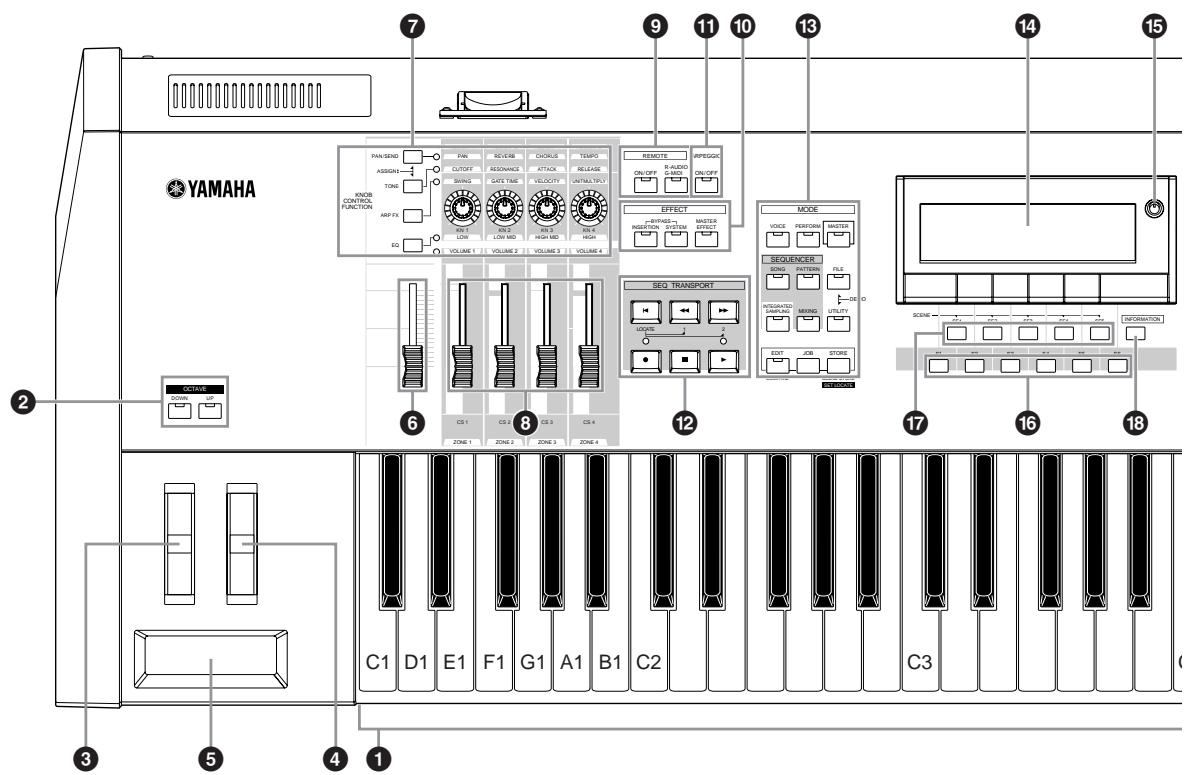
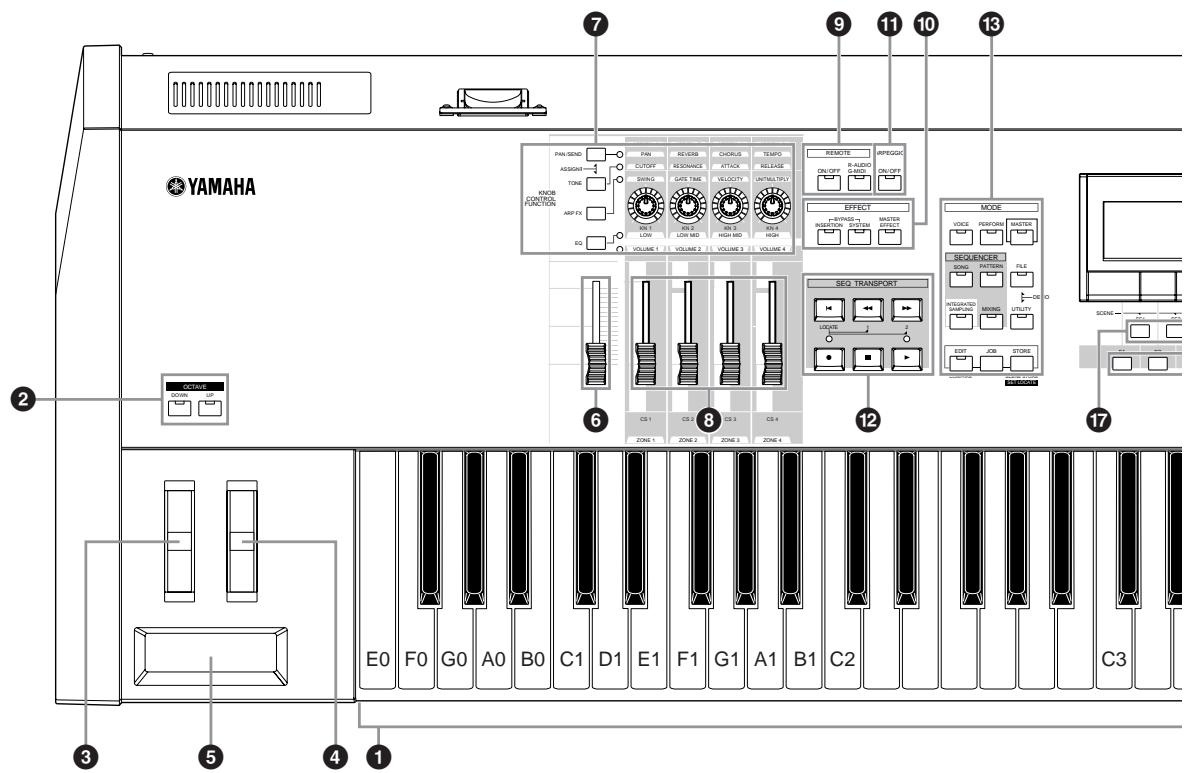
5 Note When both of the [OCTAVE] buttons are turned off, each key corresponds to the note name shown in the illustrations. Refer to this illustration when setting parameters having note name values, such as Note Limit.
MOTIF ES8
1 Keyboard
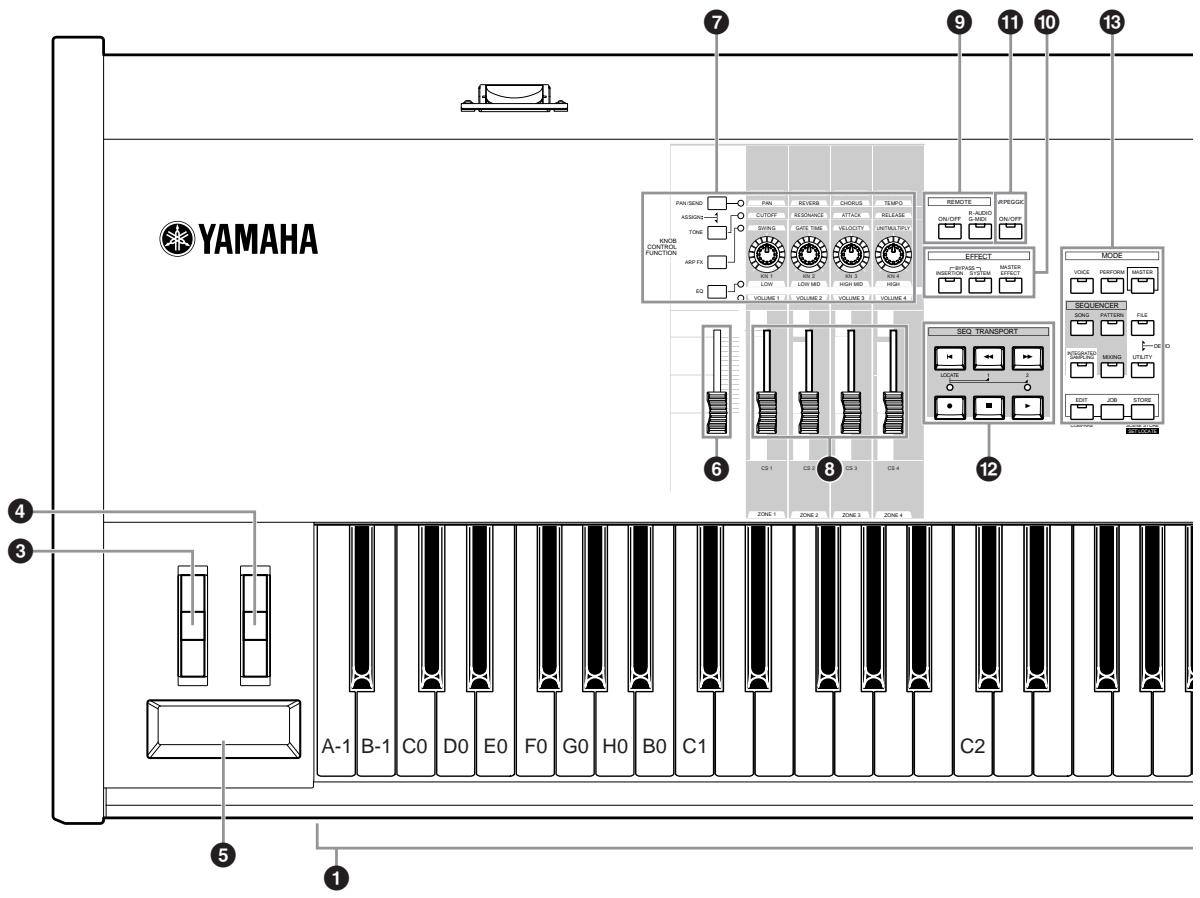
The MOTIF ES6 features a 61-key keyboard, while the MOTIF ES7 has 76 keys and the MOTIF ES8 has 88 keys. All are equipped with a touch response feature (both initial touch and afttouch). With initial touch, the instrument senses how strongly or softly you play the keys, and uses that playing strength to affect the sound in various ways, depending on the selected voice. With afttouch, the instrument senses how much pressure you apply to the keys while playing, and uses that pressure to affect the sound in various ways, depending on the selected voice. Moreover, any of a variety of functions can be assigned to aftouch for each voice.
OCTAVE [UP] and [DOWN] buttons Page 63
Use these buttons to change the note range of the keyboard. To restore the normal octave setting, press both buttons simultaneously.
Note Because of its extended keyboard, the MOTIF ES8 does not have OCTAVE buttons.
Pitch bend wheel
Page 64
Controls the pitch bend effect. You can also assign other functions to this controller.
4 Modulation wheel
Page 64
Controls the modulation effect. You can also assign other functions to this controller.
Ribbon controller
Page 65
This Controller is touch sensitive, and is controlled by running your finger lightly across its surface laterally. You can also assign other functions to this controller.
6 MASTER VOLUME
Adjusts the volume of the overall sound, as output from the rear-panel OUTPUT L/MONO and R jacks as well as the PHONES jack.
Four KNOB CONTROL FUNCTION buttons and four Knobs
Page 50
These four highly versatile knobs let you adjust various aspects or parameters of the current Voice. Use the [KNOB CONTROL FUNCTION] buttons to change the parameter set for the knobs. The corresponding LED lights to indicate which group of parameters are active.
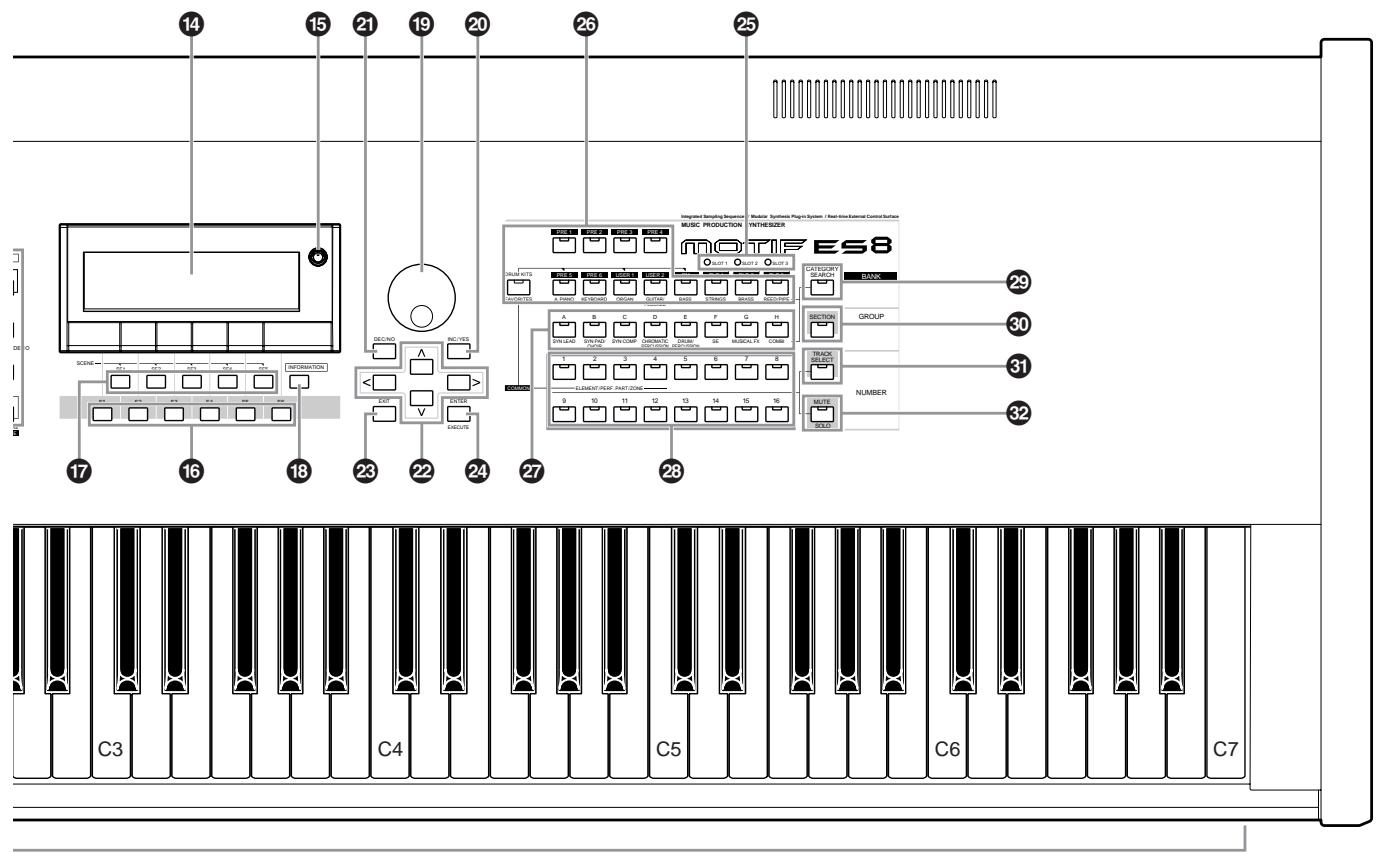
5Note When [UTILITY] [F1] GENERAL [SF2] KBD Octave is set to "0," each key corresponds to the note name shown in the illustrations. Refer to this illustration when setting a note name of a parameter like Note Limit.
[CS1] - [CS4] (Control Slider)
Page 51
These sliders control the volume of four elements which make up a Normal Voice in the Voice mode, the volume of four parts in the Performance mode, the volume of four parts including the current part in the Song mode/Pattern mode, and the volume of four zones in the Master mode.
- NOTE If all of the Control Sliders are set to the minimum, you may not hear any sound from the instrument, even when playing the keyboard or a song/pattern. If this is the case, raise all the sliders to a suitable level.
- NOTE The [MASTER VOLUME] slider adjusts the output level from this instrument. On the other hand, the Control Slider adjusts the MIDI volume value for the corresponding element or part.
REMOTE buttons
Page 147
The Remote mode lets you control sequencer software on your computer from the panel controls of the instrument. Turn the [ON/OFF] button on to enter the Remote mode. You can use the [R-AUDIO/G-MIDI] button to switch control between your audio tracks (red lamp) and MIDI tracks (green lamp), when Mode A or B is set to "General" ([UTILITY] [F4] CTL ASN [SF4] REMOTE).
- NOTE When setting the MIDI IN/OUT parameter to "MIDI" ([UTILITY] [F5] MIDI [SF4] OTHER) or setting both of Mode A and Mode B to "off" ([UTILITY] [F4] CTL ASN [SF4] REMOTE), you cannot enter the Remote mode even by pressing the REMOTE [ON/OFF] button. Set these parameters to appropriate values (page 148) then enter the Remote mode.
10 EFFECT buttons
Page 177
The extensive effect section of the instrument provides Insertion effects (eight sets, with two effect units per set), System effects (Reverb and Chorus), and Master effects. The effects can be applied to the keyboard-played voices and to Song/Pattern playback. These three buttons enable you to turn the corresponding Effect blocks (as printed on the panel) on or off with a single touch.
Keep in mind that the [INSERTION] and [SYSTEM] buttons are bypass switches, while the [MASTER EFFECT] button is an on/off switch. The distinction is important — when the lamp of the [INSERTION] or [SYSTEM] button is on, the effect is off (or bypassed). The [MASTER EFFECT] button is the opposite: when the lamp is on, the Master effect is on. Also, to access the Master Effect setting display, press and hold the [MASTER EFFECT] button for a second or two.
1 [ARPEGGIO ON/OFF] button
Page 66
Press this button to enable or disable playback of the Arpeggio for each Voice, Performance, Song, or Pattern. If the Arpeggio Switch of the selected part is set to off in the Performance/Song/Pattern mode, however, pressing this button has no effect.
SEQ TRANSPORT buttons
Page 56
These buttons control recording and playback of the Song/Pattern sequence data.
[Top] button
Instantly returns to the beginning of the current song or pattern (i.e., the first beat of the first measure).
[←] (Reverse) button
Press briefly to move back one measure at a time, or hold to continuously rewind.
[Forward) button
Press briefly to move forward one measure at a time, or hold to continuously fast-forward.
[●] (Record) button
Press this to enable recording (Song or pattern phrase). (The indicator lights.)
[ ](Stop) button
Press to stop recording or playback.
[>] (Play) button
Press to start playback from the current point in the song or pattern. During recording and playback, the indicator flashes at the current tempo.
MODE buttons
Page 45
These buttons select the operating modes (e.g., Voice mode).
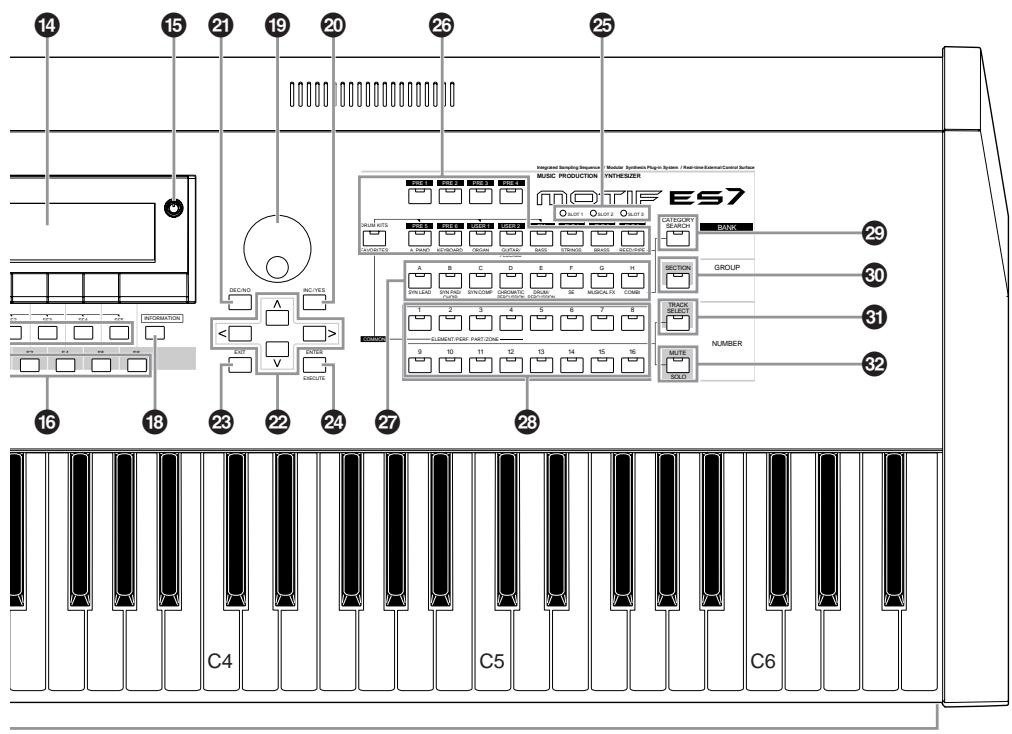
LCD Display
The large backlit LCD displays the parameters and values related to the currently selected operation or mode.
LCD Contrast Control
Page 43
Use this control to set the LCD display for optimum legibility.
[F1] - [F6] (Function) buttons
Page 47
These buttons located directly below the LCD display call up the corresponding functions indicated in the display. In the display hierarchy, these functions [F] rank just below the modes.
[SF1] - [SF5] (Sub Function) buttons
Page 47
These buttons located directly below the LCD display call up the corresponding sub functions indicated in the display. In the display hierarchy, these sub functions [SF] rank just below the functions [F].
These buttons can be also used to store/recall the Arpeggio type in each Play mode and Song/Pattern Record mode. They can be also used to store/recall the Song Scene (page 123) in the Song Play/Song Record/Pattern Chain Record modes.
[INFORMATION] button
Page 53
For calling up a special "help" feature that shows information about the currently selected mode. You can go back to the previous display by pressing this button again or pressing any other button.
Depending on the selected display, this button may be used to call up a window for inputting characters (page 54), for inputting numbers (page 49), for selecting note lengths (page 49), or for selecting keys or note names (page 53).
19 Data dial
Page 49
For editing the currently selected parameter. To increase the value, turn the dial right (clockwise); to decrease the value, turn the dial left (counter-clockwise). If a parameter with a wide value range is selected, you can change the value in broader strokes by quickly turning the dial.
20 [INC/YES] button
Page 49
For increasing the value of the currently selected parameter. Also use it to actually execute a Job or a Store operation.
[DEC/NO] button
Page 49
For decreasing the value of the currently selected parameter. Also use it to cancel a Job or a Store operation.
- NOTE You can also use the [INC/YES] and [DEC/NO] buttons to quickly move through parameter values in 10-unit jumps, especially those with large ranges. Simply hold down one of the buttons (of the direction you want to jump), and simultaneously press the other. For example, to jump in the positive direction, hold down the [INC/ YES] button and press [DEC/NO].
2 Cursor Buttons
Page 49
The cursor buttons move the "cursor" around the LCD display screen, highlighting and selecting the various parameters.
[EXIT] button
Page 46
The menus and displays of this synthesizer are organized according to a hierarchical structure.
Press this button to exit from the current display and return to the previous level in the hierarchy.
24 [ENTER] button
Use this button to execute a Job or a Store operation. Also use this button to actually enter a number when selecting a Memory or Bank for Voice or Performance. In the File mode, use this button to go to the next lowest level in the selected directory.
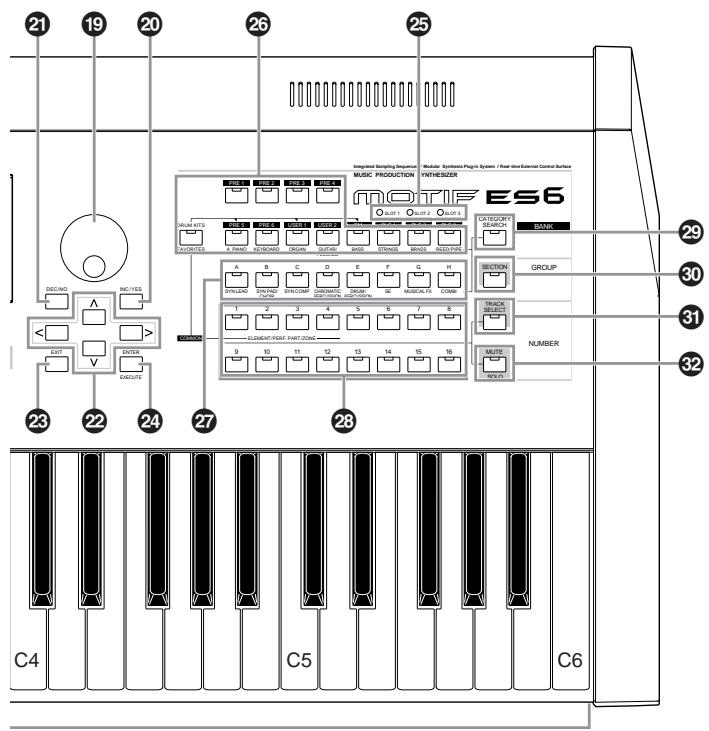
25 SLOT 1-3 lamps
Page 284
These three lamps show the installation status of the Plugin in Boards.
If the Plug-in Board has been correctly installed, the corresponding SLOT lamp will light.
NOTE
The Vocal Harmony Plug-in Board (PLG100-VH) can be installed only to slot 1. It cannot be installed to slot 2 or 3.
5 NOTE
The Multi part Plug-in Board (PLG100-XG) can be installed only to slot 3. It cannot be installed to slot 1 or 2.
26 BANK buttons
Page 60
Each button selects a Voice or Performance Bank.
When the [CATEGORY SEARCH] button is turned on, these buttons can be used to select the desired category (printed below each button). When the [SECTION] button is turned on in the Pattern mode, these buttons are used to select the desired section.
2 GROUP [A] - [H] buttons
Page 48
Each button selects a Voice or Performance Group.
When the [CATEGORY SEARCH] button is turned on, these buttons can be used to select the desired category (printed below each button). When the [SECTION] button is turned on in the Pattern mode, these buttons are used to select the desired section.
NUMBER [1] - [16] buttons
Page 48
Use of these buttons differs depending on the on/off status of the [TRACK SELECT] and [MUTE] buttons.
| Functions of the NUMBER [1] - [16] buttons | |||
| When [TRACK SELECT] is on | When [MUTE] is on | When both [TRACK SELECT] [MUTE] are off | |
| Voice Play mode | Keyboard transmit channel setting | — | Voice selection, according to Groups A - H |
| Voice Edit mode | Element selection (1 - 4) and Element Mute setting (9 - 12) | — | |
| Performance Play mode | Keyboard transmit channel setting | Performance part Mute setting (1 - 4) | Performance or Voice selection (if cursor is located at Voice name), according to Groups A - H |
| Performance Edit mode | Performance part selection (1 - 4) | ||
| Master Play mode | Keyboard transmit channel setting (when memorizing the Voice mode or Performance mode to the current Master) or Song/Pattern track selection (when memorizing the Song mode or Pattern mode to the current Master) | — | Master selection, according to Groups A - H |
| Master Edit mode | Zone selection (1 - 4) | — | — |
| Song/Pattern Play mode | Song/Pattern track selection | Song/Pattern track Mute setting | Song/Pattern selection, according to Groups A - H |
| Song/Pattern Mixing mode | Song/Pattern part selection | Song/Pattern part Mute setting | |
| Mixing Voice Edit mode | Element selection (1 - 4) and Element Mute setting (9 - 12) | — | |
[CATEGORY SEARCH] button
Page 62
When this button is turned on in the Performance mode, the lower row of [BANK] buttons (labeled A.PIANO - REED/PIPE below the buttons) and the [GROUP] buttons can be used to select the Performance category.
When this button is turned on in another mode, the lower row of [BANK] buttons (labeled A.PIANO - REED/PIPE below the buttons) and the [GROUP] buttons can be used to select the Voice category.
[SECTION] button
Page 57
When this button is turned on in the Pattern mode, the GROUP [A] - [H] buttons can be used to select Pattern Sections A - H and the [PRE5] - [PLG3] buttons of the BANK buttons can be used to select Pattern Sections I - P.
⑤ [TRACK SELECT] button
Page 58
Turning this button on in the Song/Pattern mode enables the NUMBER [1] - [16] buttons for selecting corresponding Song/Pattern tracks. The on/off status of this button affects the NUMBER [1] - [16] buttons in different ways, depending on the selected mode. (See 23 "NUMBER [1] - [16] buttons" above.)
[MUTE] button
Page 58
Turning this button on in the Song/Pattern mode enables the NUMBER [1] - [16] buttons for muting corresponding Song/Pattern tracks.
Press one of the NUMBER [1] - [16] buttons while holding this button to solo the corresponding track of the current selected Song/Pattern.
The on/off status of this button affects the NUMBER [1] - [16] buttons in different ways, depending on the selected mode. (See 23 "NUMBER [1] - [16] buttons" above.)
Rear Panel
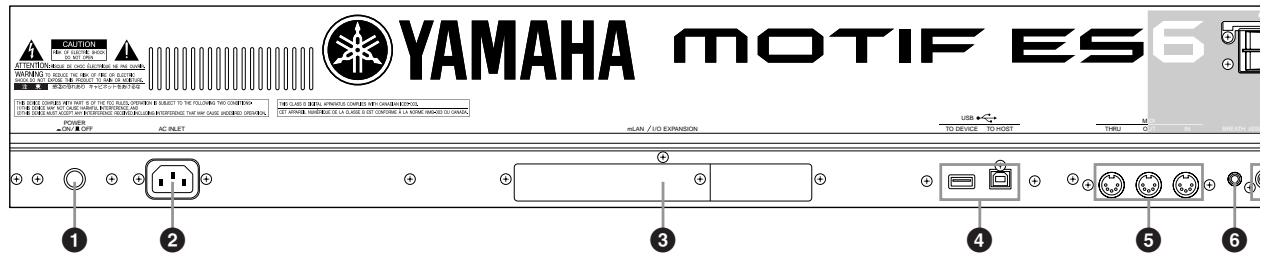
MOTIF ES6
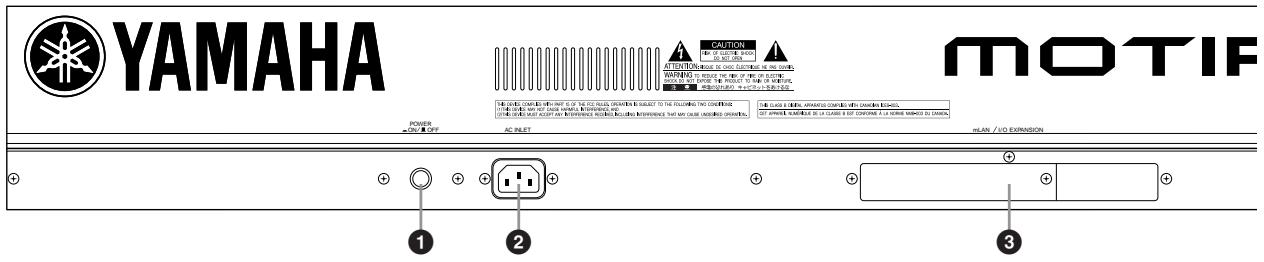
MOTIF ES7
MOTIF ES8
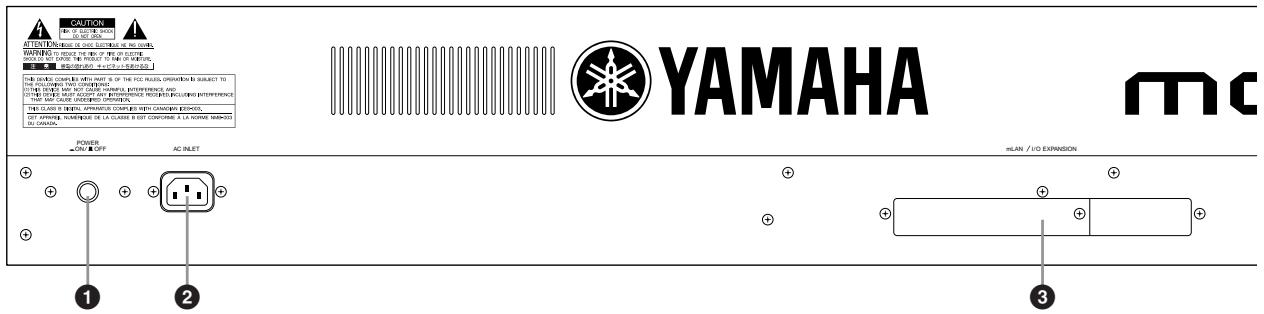
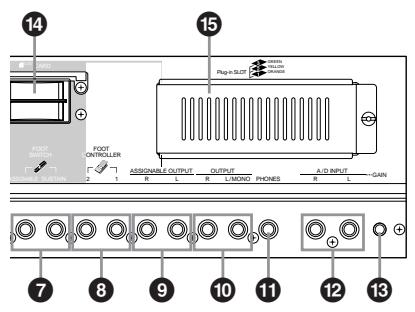
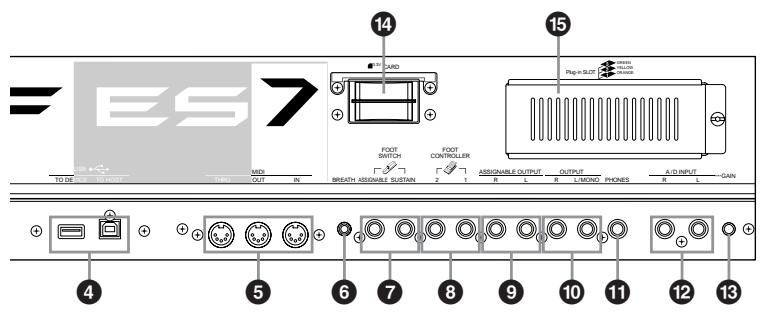
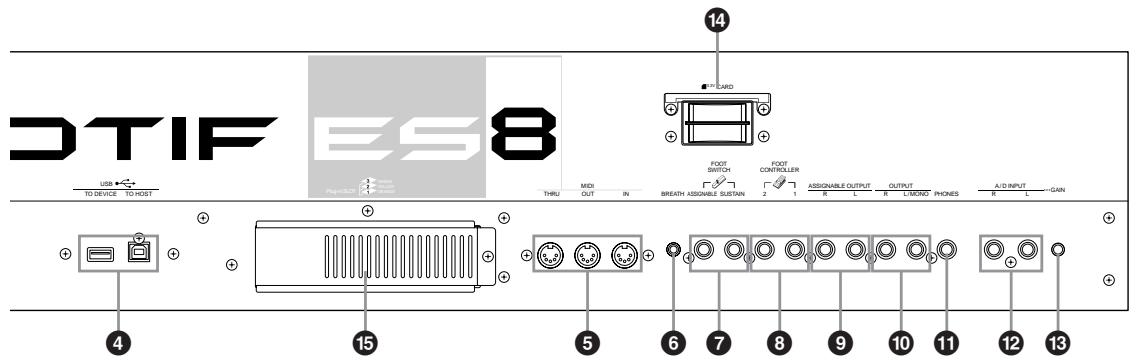
1 POWER Switch
Page 43
Press to turn power ON or OFF.
AC INLET (AC Power Cord Socket)
Page 26
Be sure to plug the AC power cord into this socket before plugging the power cord into an AC outlet. Use only the AC power cord supplied with this instrument. If the supplied cord is lost or damaged and needs to be replaced, contact your Yamaha dealer. The use of an inappropriate replacement can pose a fire and shock hazard!
3 mLAN expansion board (mLAN16E) or I/O expansion board (AIEB2) cover
Either the mLAN expansion board (mLAN16E) or the I/O expansion board (AIEB2) sold separately can be installed to this instrument. With the mLAN16E board, you can conveniently and easily hook up your MOTIF ES to other mLAN compatible instruments or devices.
The AIEB2 board gives you additional digital I/O options, featuring both optical and coaxial connectors. Moreover, the board also includes three stereo ASSIGNABLE OUTPUT pairs (six analog jacks).
4 USB connectors
Page 29
This instrument is equipped with two types of USB connectors on the rear panel - USB TO HOST and USB TO DEVICE. The USB TO HOST connector is used to connect this instrument to the computer via the USB cable. The USB connection between the instrument and the computer can only be used for transfer of MIDI data. No audio data can be transferred via USB. The USB TO DEVICE connector is used to connect this instrument to a USB storage device (hard disk drive, CD-ROM drive, MO drive, flash disk, etc.) via the USB cable. This lets you save the data created on this instrument to the external USB storage device and load the data from the external USB storage device to the instrument. Save/Load operations can be performed in the File mode.
5 NOTE For details about USB, see Page 29.
USB
USB is an abbreviation for Universal Serial Bus. It is a serial interface for connecting a computer with peripheral devices, and enables much faster data transfer compared to conventional serial port connections.
⑤ MIDI IN/OUT/THRU connectors
Page 34
MIDI IN is for receiving control or performance data from another MIDI device, such as an external sequencer.
MIDI THRU is simply for redirecting any received MIDI data (via MIDI IN) to connected devices, allowing convenient chaining of additional MIDI instruments.
MIDI OUT is for transmitting all control, performance and playback data from the MOTIF to another MIDI device, such as an external sequencer.
6 BREATH Controller Jack
Page 42
Connect an optional Yamaha BC3 Breath Controller here for expressive breath control capability.
7 FOOT SWITCH jacks
Page 42
For connection of optional FC4 or FC5 Footswitches. When connected to the SUSTAIN jack, the Footswitch controls sustain. When connected to ASSIGNABLE, it can control one of various different assignable functions.
FOOT CONTROLLER jacks
Page 42
For connection of optional foot controllers (FC7, etc.). Each jack lets you continuously control one of various different assignable functions – such as volume, tone, pitch, or other aspects of the sound.
9 ASSIGNABLE OUT L and R jacks
Page 31
Line level audio signals are output from this instrument via these phone jacks (1/4" mono phone plug). These outputs are independent of the main output (at the L/MONO and R jacks below), and can be freely assigned to any of the Drum Voice keys or the Parts. This lets you route specific Voices or sounds for processing with a favorite outboard effect unit.
The parts which can be assigned to these jacks are as follows:
- Drum Voice key to which the drum/percussion instrument is assigned
- Any part of a Performance* Page 218
- Any part of a Song* Page 235
-
Any part of a Pattern* Page 235
-
Including the Audio Input part
OUTPUT L/MONO and R jacks
Page 31
Line level audio signals are output via these phone jacks. For monophonic output, use just the L/MONO jack.
1 PHONES jack
Page 31
For connection to a pair of stereo headphones.
12 A/D INPUT jacks
Page 33
External audio signals can be input via these phone jacks (1/4" mono phone plug).
Various devices such as microphone, guitar, bass, CD player, synthesizer can be connected to these jacks and their audio input signal can be sounded as the AUDIO IN part of the Performance, Song, or Pattern.
In the Sampling mode, these jacks are used for capturing audio data as samples. For stereo signals (such as from audio equipment), use both jacks. For mono signals (such as from a microphone or guitar), use only the L jack.
GAIN knob
For adjusting the input gain of the audio at the A/D INPUT jacks (above). Depending on the connected device (microphone, CD player, etc.), you may need to adjust this for optimum level.
14 CARD (Card slot)
Insert a SmartMedia (memory) card here to transfer various data to/from this instrument. Read carefully the precautions on using a SmartMedia (page 28) before inserting a SmartMedia card.
15 Plug-in board cover
Installing an optional Plug-in Board to this instrument lets you greatly expand the sonic palette of the instrument. Up to three boards can be installed to the rear panel.
When the optional mLAN16E has been installed:
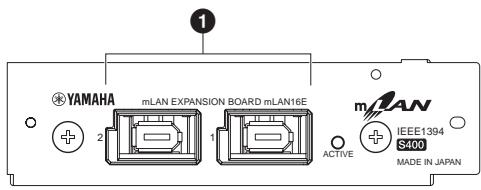
1 mLAN (IEEE1394) connector 1, 2
For connecting mLAN devices or IEEE1394-compatible (FireWire) devices via standard IEEE1394 (6-pin) cables.

About mLAN
"mLAN" is a digital network designed for musical applications. It uses and extends the industry standard IEEE 1394 high performance serial bus. For details, refer to the Guide Book of the mLAN16E.
-
The name "mLAN" and its logo (above) are trademarks.
-
NOTE The digital audio output via the mLAN connector is fixed to a resolution of 24 bit/44.1 kHz.
■ When the optional AIEB2 has been installed:
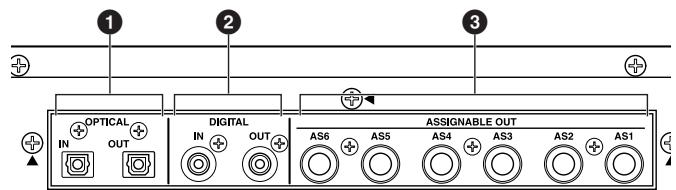
1 OPTICAL IN, OUT connectors
Use these connectors to input or output digital signals over optical-fiber cable. You can use the OPTICAL IN to record a digital signal at frequencies of 48kHz , 44.1kHz , or 32kHz . The OPTICAL OUT connector outputs a digital signal of 44.1kHz .
2 DIGITAL IN, OUT connectors
Use these connectors to input or output digital signals over coaxial (RCA-pin) cable. The digital signal format is CD/DAT (S/P DIF). You can use the DIGITAL IN connector to record a digital signal at frequencies of 48kHz , 44.1kHz , or 32kHz . The DIGITAL OUT connector outputs a digital signal of 44.1kHz .
③ ASSIGNABLE OUT jacks (AS1 to AS6) Page 31
Line level audio signals are output from this instrument via these phone jacks (1/4" mono phone plug).
These outputs are independent of the main output (at the L/MONO and R jacks above), and can be freely assigned to any of the Drum Voice key or the Parts. This lets you route specific Voices or sounds for processing with your favorite outboard effect unit.
The parts which can be assigned to these jacks are as follows:
- Drum Voice key to which the drum/percussion instrument is assigned
- Any part of a Performance* Page 218
- Any part of a Song* Page 235
-
Any part of a Pattern* Page 235
-
Including the Audio Input part
-
NOTE Digital audio output via the OPTICAL OUT connector or DIGITAL OUT connector can be changed between 20-bit and 24-bit resolution in the [UTILITY] [F2] I/O [SF2] OUTPUT display. The frequency, however, is fixed at 44.1kHz
Setting Up
Please read this section carefully before using your new MOTIF ES.
This section explains how to connect your MOTIF ES to an AC power source, external audio and MIDI devices, and a computer system. Only switch the MOTIF ES on after you have made all the necessary connections (page 43).
Power Supply
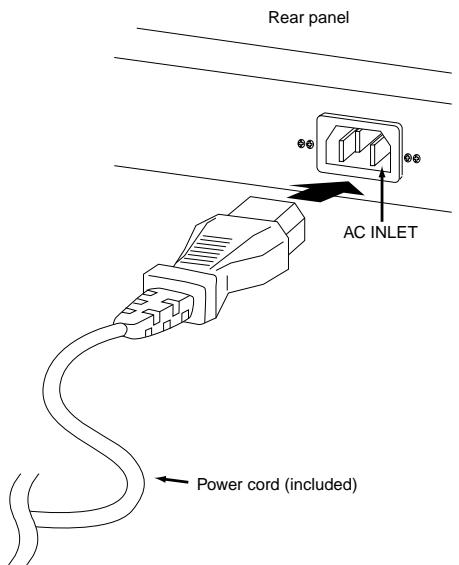
1 Make sure the POWER switch on the MOTIF ES is set to OFF.
2 Connect the supplied power cord to the AC INLET on the instrument's rear panel.
3 Connect the other end of the power cord to an AC outlet. Make sure your MOTIF ES meets the voltage requirement for the country or region in which it is being used.
WARNING
Make sure your MOTIF ES is rated for the AC voltage supplied in the area in which it is to be used (as listed on the rear panel). Connecting the unit to the wrong AC supply can cause serious damage to the internal circuitry and may even pose a shock hazard!
WARNING
Use only the AC power cord supplied with the MOTIF ES. If the supplied cord is lost or damaged and needs to be replaced, contact your Yamaha dealer. The use of an inappropriate replacement can pose a fire and shock hazard!
WARNING
The type of AC power cord provided with the MOTIF ES may be different depending on the country in which it is purchased (a third prong may be provided for grounding purposes). Improper connection of the grounding conductor can create the risk of electrical shock. Do NOT modify the plug provided with the MOTIF ES. If the plug will not fit the outlet, have a proper outlet installed by a qualified electrician. Do not use a plug adapter which defeats the grounding conductor.
About data storage to SmartMedia cards and USB storage devices
As you make music with this instrument, you'll create a wide variety of data — such as custom Voice data (including Voices, Performances, etc.), MIDI sequence data (Songs, Patterns, Arpeggios), and waveform data (with the Sampling function). Naturally, you'll want to store this data for safekeeping and future use, and the instrument is equipped with a variety of storage options. You can save your data to SmartMedia card (inserted to the Card slot) or to a USB storage device (connected to the USB TO DEVICE connector). To recall the data, use the Load function. (Save and Load operations are done in the File mode; see page 266.)
Keep in mind that certain types of data are lost when you turn off the power and should be properly saved. Also keep in mind that since there are several storage options (including SmartMedia card, hard disk, flash disk, etc.), you should always have the proper media formatted and on hand BEFORE you start creating or editing data.
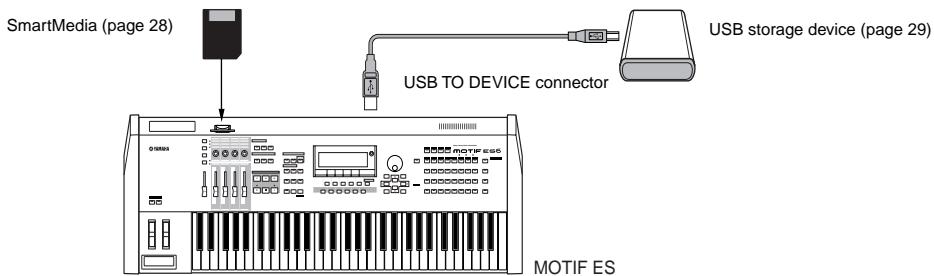
The Save/Load operation in the File mode can be executed between the SmartMedia card inserted to the CARD slot on the rear panel and the instrument, or between the USB storage device connected to the USB TO DEVICE connector and the instrument. Please keep in mind that the Save /Load operation in the File mode cannot be executed between the SmartMedia card inserted to the CARD slot on the rear panel and the USB storage device connected to the USB TO DEVICE connector. In short, data can be saved/loaded between the storage media and the instrument, but not between the two storage media devices.
Data lost and data retained when power is turned off
The chart below lists the data types you can create on the instrument and the internal memory locations to which they are stored, permanently or temporarily.
CAUTION
Make sure to save any data remaining in DRAM to SmartMedia or a USB storage device before turning off the power, other wise the data will be lost.
| Data types | Page | Mode in which data is created | Internal memory types to which data is stored |
| Voice | 79 | Voice mode | Flash ROM |
| Mixing Voice | 105 | Mixing Voice mode | DRAM → Will be lost when turning the power off! |
| Performance | 87 | Performance mode | Flash ROM |
| Song* | 117 | Song mode | DRAM → Will be lost when turning the power off! |
| Song Chain | 59 | Song Chain mode | DRAM → Will be lost when turning the power off! |
| Pattern* | 106 | Pattern mode | DRAM → Will be lost when turning the power off! |
| Pattern Chain | 115 | Pattern Chain mode | DRAM → Will be lost when turning the power off! |
| Phrase (Pattern) | 110 | Pattern mode | DRAM → Will be lost when turning the power off! |
| Arpeggio | 130 | Song mode, Pattern mode | Flash ROM |
| Master | 136 | Master mode | Flash ROM |
| Waveform** | 94 | Sampling mode | DIMM (DRAM) → Will be lost when turning the power off! |
| Mixing Template*** | 103 | Song Mixing mode, Pattern Mixing mode | Flash ROM |
| System settings | 185 | Utility mode | Flash ROM |
- Includes the Mixing settings (pages 103, 127)
** If you create the User Voices or Sample Voices by using the Sampling function, the corresponding Waveforms can be saved automatically by saving the User Voice data or Song/Pattern data to the SmartMedia/USB storage device.
**Song Mixing/Pattern Mixing can be stored as Song/Pattern data and as a Mixing Template (which are not associated with a specific Song/Pattern)
For details about the data types you can create on this instrument, the internal memory locations to which they are stored, and file types when saving the created data to the SmartMedia/USB storage device, refer to "Memory Structure" on page 186.
CAUTION
Data of up to 128 MB can be saved to a SmartMedia card inserted to the CARD slot on the rear panel. Yamaha recommends the use of a large-capacity USB storage device, since you may want to save data more 128 MB — especially if you've installed optional DIMMs (page 289) and are using the Sampling feature.
Using the SmartMedia™* cards
Be sure to handle SmartMedia cards with care. Follow the important precautions below.
- SmartMedia is a trademark of Toshiba Corporation.
Compatible SmartMedia card Type
3.3V (3V) SmartMedia cards can be used. 5V type SmartMedia cards are not compatible with this instrument.
Memory Capacity
There are seven types of SmartMedia cards: 2MB/4MB/8MB/16MB/32MB/64MB/128MB. Keep in mind that only SmartMedia cards conforming to SSFDC standards (bearing the SmartMedia logo) can be used.
Inserting/Removing SmartMedia cards
Inserting a SmartMedia card
With the gold-plated contact side facing down, insert the SmartMedia card firmly but carefully into the card slot, as far as it will go. Be careful not to insert the card upside down or back side in. Also, do not insert anything else into the slot, other than a proper SmartMedia card.
Removing a SmartMedia card
Before removing the SmartMedia card, be sure to confirm that the SmartMedia card is not in use, or it is not being accessed by the instrument. Then pull the SmartMedia card out slowly by hand. If the SmartMedia card is being accessed*, a message indicating that it is in use appears on the instrument's display.
- This includes all save, load, format, delete and create directory operations for the SmartMedia card. Also, be aware that the instrument will automatically access the SmartMedia card to check the media type when it is inserted while the instrument is turned on.
CAUTION
Never attempt to remove the SmartMedia card or turn the power off during accessing. Doing so can damage the data on the instrument/SmartMedia card and possibly the SmartMedia card itself.
■ Formatting SmartMedia cards
Before using a SmartMedia card with your instrument it must first be formatted (page 268). Once it is formatted all data on it will be erased. Make sure that no important data is contained on the card beforehand.
NOTE The SmartMedia cards formatted with this instrument may be unusable with other instruments or devices.
About the SmartMedia cards
Handle SmartMedia cards with care!
- SmartMedia cards are very sensitive and can be damaged by static electricity. Before handling a SmartMedia card, make sure to discharge any static electricity in your body by touching something made of metal, such as a door knob or aluminum blinds.
- Be sure to remove the SmartMedia card from the CARD slot when it is not in use for a long time.
- Do not expose the SmartMedia card to direct sunlight, extremely high or low temperatures, or excessive humidity, dust or liquids.
- Do not place heavy objects on a SmartMedia card or bend or apply pressure to the SmartMedia card in any way.
- Never touch the gold-plated contact with your fingers or let it come in contact with any other metallic or hard surface.
- Do not expose the SmartMedia card to magnetic fields, such as those produced by televisions, speakers, motors, etc., since magnetic fields can partially or completely erase data on the SmartMedia card, rendering it unreadable.
- Do not attach anything other than the provided labels to a SmartMedia card. Also make sure that labels are attached in the proper location.
Protecting your data (write-protect)
To prevent important data from being inadvertently erased, apply the write-protect seal (provided with the SmartMedia card) to the circle spot indicated on the card. If you are saving data to the card, make sure to remove the write-protect seal. Do not reuse a seal that has been removed; it may not stick properly to the card and could come off in the slot.
Data Backup
For maximum data security Yamaha recommends that you keep two copies of important data on separate SmartMedia cards. This gives you a backup if one SmartMedia card is lost or damaged.
Burglarproof Lock
This instrument is equipped with a burglarproof lock for the SmartMedia card. If necessity arises, install the burglarproof lock onto the instrument.
To install the burglarproof lock:
1 Remove the metallic part using a Phillips screwdriver.
2 Turn the metallic part upside down and replace it in the new position.
Using USB storage devices
When using USB storage devices, make sure to connect them to the USB TO DEVICE connector, and follow the important precautions below.
Compatible USB devices
Connect only a USB storage device (such as hard disk, CD-ROM, flash disk and other drives) to the USB TO DEVICE connector. Other devices such as a computer keyboard or mouse cannot be used.
Both bus-powered (powered by the host device) or self-powered (battery or external power supply) types can be used.
The MOTIF ES does not necessarily support all commercially available USB storage devices. Yamaha cannot guarantee operation of USB storage devices that you purchase. Before purchasing USB storage devices, please consult your Yamaha dealer, or an authorized Yamaha distributor (see list at end of the Owner's Manual) for advice, or see the following page:
http://www.yamahasynth.com/

Although CD-R/W drives can be used to load data to the instrument, they cannot be used for saving data. However, you can transfer data to a computer and save data to a CD using the CD-R/W drive on the computer.
■ Formatting USB storage media
When a USB storage device is connected or media is inserted, a "Disk or card unformatted" message may appear in the LCD display, indicating that the device or media must be formatted for use. Execute the Format operation in the File mode (page 268).
Precautions when using the USB TO DEVICE connector

CAUTION
- Never turn the USB device's power on/off and never plug/unplug the USB cable when the connected USB storage device is the self-powered type. Doing so may result in the operation of the synthesizer "freezing" or hanging up.
- While the instrument is accessing data (such as in the Save, Load and Delete operations in the File mode), do NOT unplug the USB cable, do NOT remove the media from the device, and do NOT turn the power off to either device. Doing so may corrupt the data on either or both devices.
Protecting your data (write-protect)
To prevent important data from being inadvertently erased, apply the write-protect provided with each storage device or media.
If you are saving data to the USB storage device, make sure to remove the write-protect.
USB connector types
There are two different types of USB connectors, and the rear panel of the instrument features both. Take care not to confuse the two.
USB TO HOST connector
This type is used to connect the instrument to a computer, and allows you to transfer MIDI data between the devices. Unlike MIDI, USB can handle multiple ports via a single cable.
USB cables have different connectors on each end: the A type and the B type. Connect the A type to your computer and the B type to the USB TO HOST connector.
USB TO DEVICE connector
This type is used to connect the instrument to a USB storage device, and allows you to save data you've created to the connected device, as well as load data from the connected device. Save and Load operations are executed in the File mode.
USB cables have different connectors on each end: the A type and the B type. Connect the A type to the USB TO HOST connector and the B type to the USB storage device.
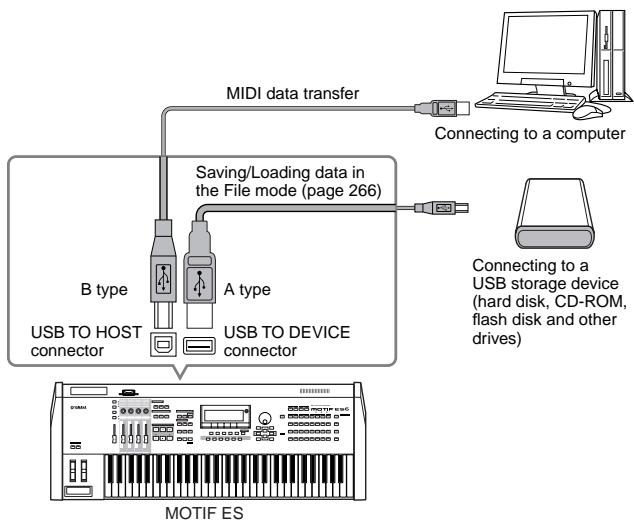
5 Notes The computer cannot access the USB storage device connected to the MOTIF ES's USB TO DEVICE connector, even if connecting as shown above. Only from the File mode on the instrument itself can you access the data on the USB storage device connected to the USB TO DEVICE connector.
- NOTE Though the MOTIF ES supports the USB 1.1 standard, you can connect and use a USB 2.0 storage device with the MOTIF ES. However, note that the transfer speed complies to USB 1.1.
Basic settings for using SmartMedia or a USB storage device
Press the [FILE] button to enter the File mode.
2 Press the [SF1] CURRENT button to check which device is selected.
When Current is set to "CARD"
The instrument recognizes the SmartMedia inserted to the Card slot.
When Current is set to "USB"
The instrument recognizes the USB storage device.
Volume Label of the selected device
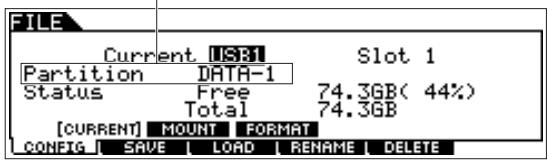
3 Set Current to "CARD" if you wish to access the SmartMedia, or set Current to "USB" if you wish to access the USB storage device.
If the USB storage device supports multiple types of media, you'll need to set the Slot number after setting Current to "USB." To check which media corresponds to which USB number (1 or 2) and which slot number, see the Volume Label or Partition setting in this window.
Once you've made the settings above, you can perform any of the other File operations (in the bottom tabs, called up with the [F2] - [F5] buttons).
- NOTE When a USB storage device is connected or media is inserted, a "Disk or card unformatted" message may appear in the LCD display, indicating that the device or media must be formatted for use. Execute the Format operation in the File mode (page 268).
TIP Backing up your data to a computer
- Backing up MOTIF ES data to a computer
Once you've saved data to a SmartMedia card or USB storage device, you can copy the data to the hard disk of your computer, then archive and organize the files as desired. Simply reconnect the device as shown below.
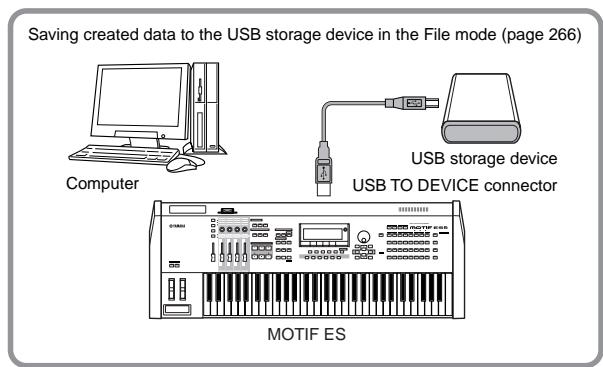

Disconnect the USB storage device from the synthesizer and connect it to the computer
Backing up data to a computer and organizing files/folders
Computer
MOTIF ES
- NOTE Though the example here shows the use of a connected USB storage device, you can also back up your created data that you've saved to a SmartMedia inserted to the CARD slot on the rear panel.
- Loading data from a computer to the MOTIF ES
Data and files contained on the hard disk of a computer can be loaded to the MOTIF ES by copying them first to the storage media, then transferring them to the instrument.
In this way, you can use data created on the computer or another instrument with the MOTIF ES. For example, you can load Standard MIDI files to the instrument as Song/Pattern data, or import audio WAV or AIFF files for use as waveform data.
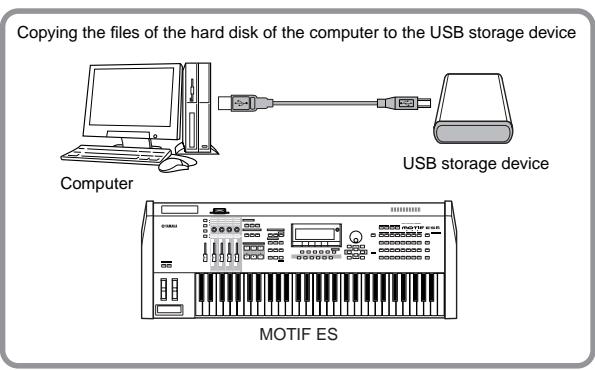

Disconnect the USB storage device from the computer and connect it to the synthesizer
Loading files on the USB storage device to the synthesizer in the File mode (page 266)
Computer
USB storage device
USB TO DEVICE connector
MOTIF ES
Connections
Connecting to External Audio Equipment
Since the MOTIF ES has no built-in speakers, you'll need an external audio system or a set of stereo headphones to properly monitor it. The following illustrations show various connection examples; use the one most similar to your intended setup.
Audio Output
- Connecting stereo powered speakers (analog output)
For optimum, accurate reproduction of the instrument's rich sounds, effects and full stereo image, use a pair of powered speakers. Connect the powered speakers to the OUTPUT L/MONO and R jacks on the rear panel.
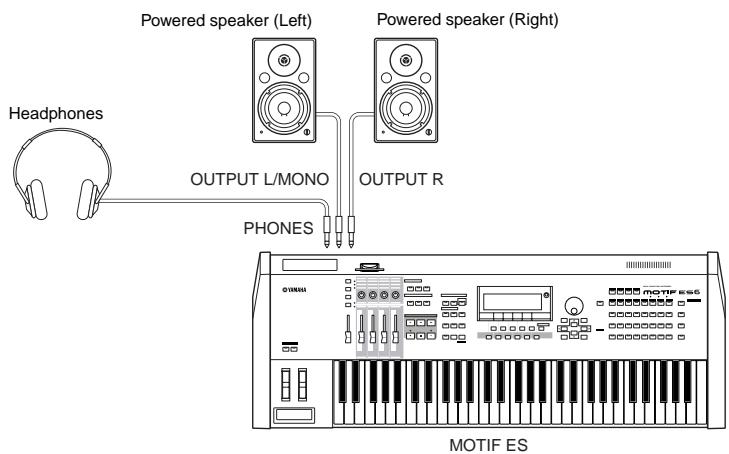
5. Note When using just one powered speaker, connect it to the OUTPUT L/MONO jack on the rear panel.
Connecting a mixer
There are extra audio outputs in addition to the OUTPUT (L/MONO and R) jacks. Connect these outputs to a mixer for separately controlling the analog outputs of Drum keys or parts (Performance, Song, and Pattern). You can expand the output capabilities by installing the optional I/O board (AIEB2) or the optional mLAN16E. Installing the AIEB2 adds six extra OUTPUT jacks, while installing the mLAN16E expands the output capabilities with fourteen addition digital outputs, over a single FireWire (IEEE 1394) connector/cable. For details on how to set the Part/output jack assignments, refer to the chart below.
| Outputting separate notes (keys) of a Drum Voice | Determined from the OutputSel parameter (as selected below) as Drum Voice data. | Page 203 |
| [VOICE] → Drum Voice selection → [EDIT] → Drum Key selection → [F1] OSC → [SF2] OUTPUT → OutputSel | ||
| This setting is available for the Part for which the OutputSel parameter is set to “drum” in another mode (e.g., Performance or Song). | ||
| Outputting separate Parts of a Performance | Determined from the OutputSel parameter (as selected below). | Page 218 |
| [PERFORM] → Performance selection → [EDIT] → Part selection → [F2] OUTPUT → [SF3] SELECT → OutputSel | ||
| Assigning an audio input Part of a Performance to an output is done from the OutputSel parameter (as selected below). | ||
| [PERFORM] → Performance selection → [EDIT] → [COMMON] → [F5] AUDIO IN → [SF1] OUTPUT → OutputSel | ||
| Outputting separate Parts of a Song | Determined from the OutputSel parameter (as selected below). | Page 235 |
| [SONG] → Song selection → [MIXING] → [EDIT] → Part selection → [F2] OUTPUT → [SF3] SELECT → OutputSel | ||
| Assigning an audio input Part of a Song to an output is done from the OutputSel parameter (as selected below). | ||
| [SONG] → Song selection → [MIXING] → [EDIT] → [COMMON] → [F5] AUDIO IN → [SF1] OUTPUT → OutputSel | ||
| Outputting separate Parts of a Pattern | Determined from the OutputSel parameter (as selected below). | Page 235 |
| [PATTERN] → Pattern selection → [MIXING] → [EDIT] → Part selection → [F2] OUTPUT → [SF3] SELECT → OutputSel | ||
| Assigning an audio input Part of a Pattern to an output is done from the OutputSel parameter (as selected below). | ||
| [PATTERN] → Pattern selection → [MIXING] → [EDIT] → [COMMON] → [F5] AUDIO IN → [SF1] OUTPUT → OutputSel |
The following settings can be made from the parameter pages listed above.
| LCD | Output jacks | Stereo/Mono |
| L&R | OUTPUT L and R | Stereo |
| asL&R | ASSIGNABLE OUTPUT L and R | Stereo |
| as1&2 | ASSIGNABLE OUTPUT 1 and 2 | Stereo (1: L, 2: R) * |
| as3&4 | ASSIGNABLE OUTPUT 3 and 4 | Stereo (3: L, 4: R) * |
| as5&6 | ASSIGNABLE OUTPUT 5 and 6 | Stereo (5: L, 6: R) * |
| as7&8 | ASSIGNABLE OUTPUT 7 and 8 | Stereo (7: L, 8: R) ** |
| as9&10 | ASSIGNABLE OUTPUT 9 and 10 | Stereo (9: L, 10: R) ** |
| as11&12 | ASSIGNABLE OUTPUT 11and 12 | Stereo (11: L, 12: R) ** |
| as13&14 | ASSIGNABLE OUTPUT 13 and 14 | Stereo (13: L, 14: R) ** |
- Available only when the optional AIEB2 board or mLAN16E board has been installed.
** Available only when the optional mLAN16E board has been installed.
| LCD | Output jacks | Stereo/Mono |
| asL | ASSIGNABLE OUTPUT L | Mono |
| asR | ASSIGNABLE OUTPUT R | Mono |
| as1 | ASSIGNABLE OUTPUT 1 | Mono * |
| : | : | : |
| as6 | ASSIGNABLE OUTPUT 6 | Mono * |
| as7 | ASSIGNABLE OUTPUT 7 | Mono ** |
| : | : | : |
| as14 | ASSIGNABLE OUTPUT 14 | Mono ** |
5 NOTE About the main output jacks and the Assignable Output jacks
- Connecting a set of headphones to the PHONES jack does not affect the sound output from the OUTPUT L/MONO and R jacks. The sound monitored through the headphones is identical to the sound of the OUTPUT L/MONO and R jacks.
- Any parts assigned to the ASSIGNABLE OUTPUT jacks (including those of the optional AIEB2 interface or mLAN16E interface) will not be output through the OUTPUT L/MONO and R jacks or PHONES jack.
- The System Effects (Reverb, Chorus), the Master EQ, and the Master Effect are not applied to the sound output through the ASSIGNABLE OUTPUT jacks (including those of the optional AIEB2 interface or mLAN16E interface). (Only the Part EQ and the Insertion Effect are applied.)
Connection example when the optional AIEB2 board has been installed (analog output)
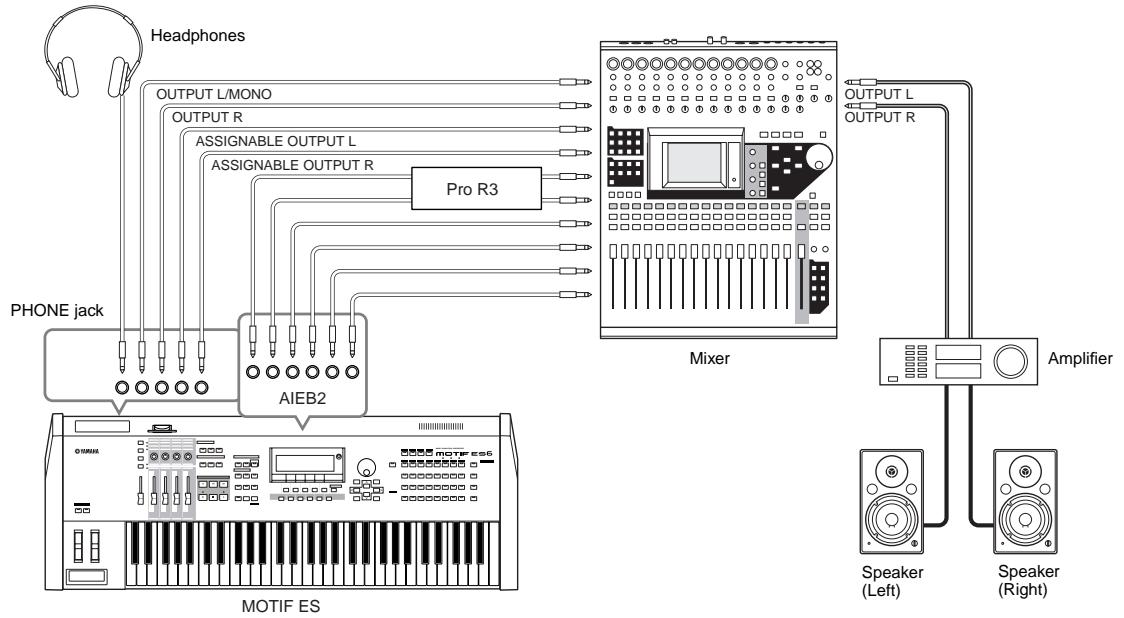
Connection example when the optional mLAN16E board has been installed (analog and digital output)
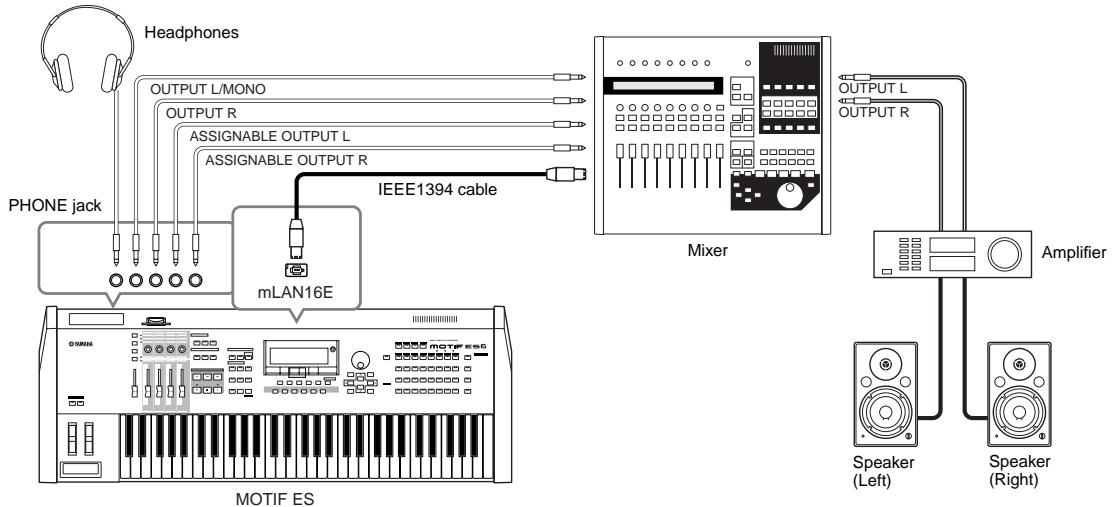
Digital Output using the optional AIEB2
When the optional AIEB2 board has been installed to the rear panel, the sound output through the OUTPUT jacks by analog can also be output by digital through the OPTICAL OUTPUT jack and the DIGITAL OUTPUT jack. Using these digital output jacks, you can record the keyboard performance or Song/Pattern playback of this synthesizer to external media (e.g., an MD recorder) with exceptionally high-quality sound.
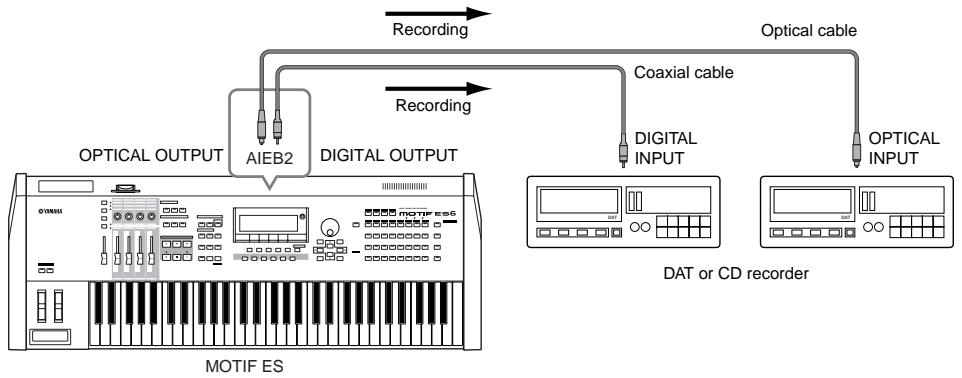
NOTE The digital output resolution of the optionally installed AIEB2 board can be set in the UTILITY mode with the following operation.
[ \text{[UTILITY]} \rightarrow \text{[F2] I/O} \rightarrow \text{[SF2] OUTPUT} \quad \text{Page 261} ]
Audio Input
- Connecting a microphone or other audio equipment to the A/D INPUT jacks (analog input)
External instruments and audio equipment, such as a microphone, guitar, bass, CD player or even another synthesizer/keyboard can be connected to the A/D INPUT jacks. This audio can be used as input for the AUDIO IN Part in the Performance/Song/Pattern mode, and can be used to create samples with the Sampling function (page 172). With the use of an optional PLG100-VH Plug-in Board, you can even apply an automatic vocal harmony effect to the microphone sound.
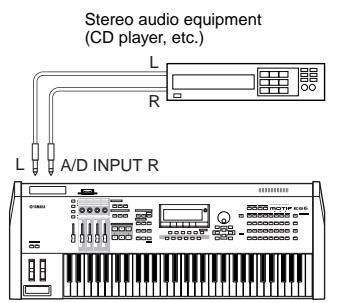
MOTIF ES
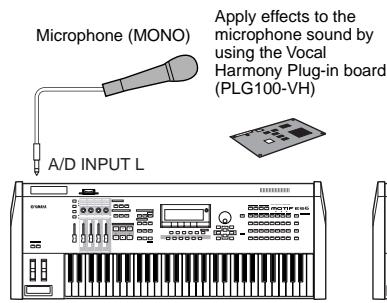
MOTIFS
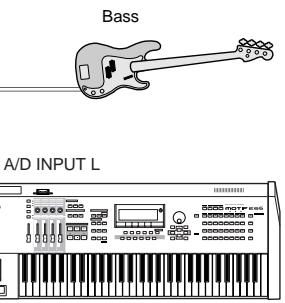
MOTIFS
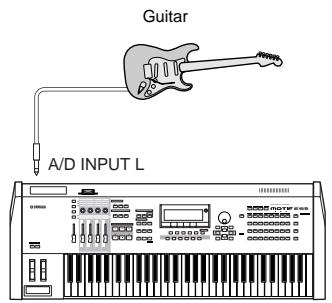
MOTIFS
5Note Depending on the connected equipment, change the parameter settings in the Utility mode as needed, with the following operations.
- When the output level of the connected equipment (such as a microphone, guitar, bass) is low:
[ \text{[UTILITY]} \rightarrow \text{[F2] I/O} \rightarrow \text{[SF1] INPUT} \rightarrow \text{Mic/Line} = \text{mic} ] - When the output level of the connected equipment (such as a synthesizer, keyboard, CD player) is high:
[ \text{[UTILITY]} \rightarrow \text{[F2] I/O} \rightarrow \text{[SF1] INPUT} \rightarrow \text{Mic/Line} = \text{line} ]
5Note After the above connections are complete, you may need to adjust the input gain of the audio source using the GAIN knob (page 73).
Note The audio input sound is not available in the Voice mode because the Voice mode does not have an AUDIO IN Part.
Digital Input using the optional AIEB2
By installing the optional AIEB2 I/O expansion board, you can directly record digital audio from digital sources — such as a CD player or DAT deck. For maximum compatibility and flexibility, the AIEB2 board includes two different input types: OPTICAL (optical fiber) and DIGITAL (coaxial cable).
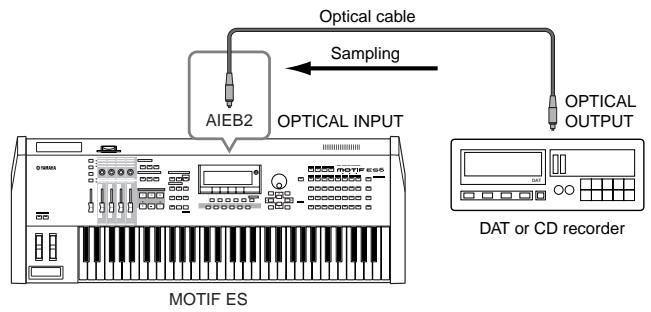
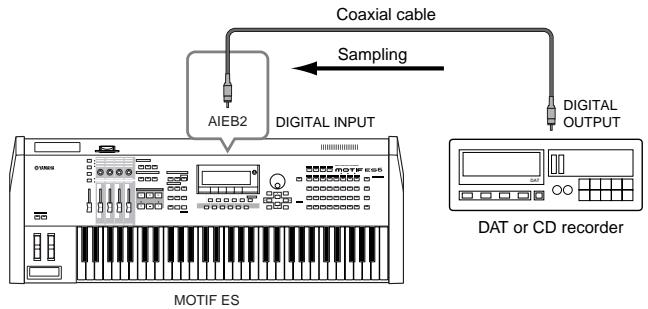
Eeither one of the connectors (OPTICAL or DIGITAL) can be used; however, both cannot be used at the same time. Select which connector is used for digital input in the Utility mode with the following operation.
[ \text{[UTILITY]} \rightarrow \text{[F2] I/O} \rightarrow \text{[SF1] INPUT} \rightarrow \text{Digital} ] Page 261
Digital Input using the optional mLAN16E
The optional mLAN16E allows you to connect this instrument to an mLAN device or computer, giving you high-speed audio and MIDI data transfer between devices with just one IEEE 1394 cable connection.
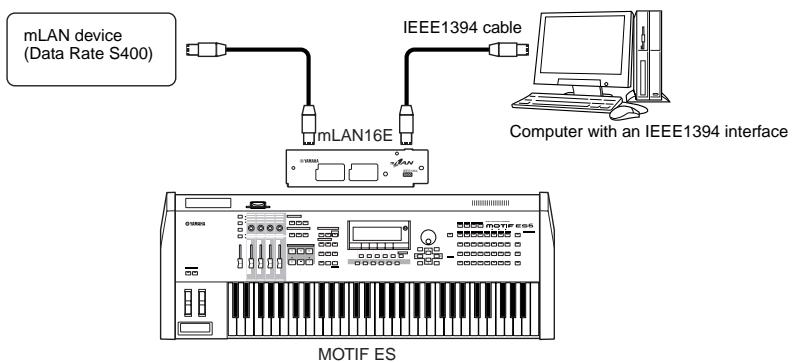
[ \text{[UTILITY]} \rightarrow \text{[F5]} \text{MIDI} \rightarrow \text{[SF4]} \text{OTHER} \rightarrow \text{MIDI IN/OUT} ] Page 265
Connecting External MIDI Instruments
With a standard MIDI cable (available separately), you can connect an external MIDI device, and control it from the MOTIF ES. Likewise, you can use an external MIDI device (such as a keyboard or sequencer) to control the MOTIF ES sounds. Below are several different MIDI connection examples; use the one most similar to your intended setup.
Any one of the these interfaces can be used for MIDI data transmission/reception: the MIDI connectors, the mLAN connector (when an optional mLAN16E has been installed), or the USB connector. However, they cannot be used at the same time. Select which connector is used for MIDL data transfer in the Utility mode with the following operation.
Controlling from an external MIDI keyboard
Use an external keyboard to remotely select and play Voices of the MOTIF ES.
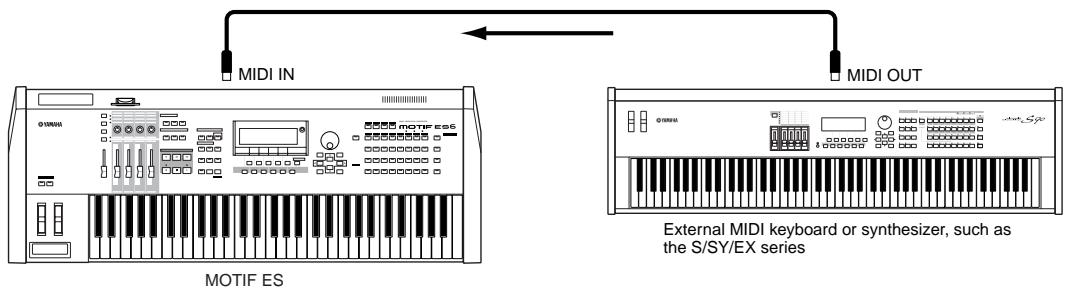
MIDI Transmit Channel and Receive Channel
Make sure match the MIDI Transmit Channel of the external MIDI instrument with the MIDI Receive Channel of the MOTIF ES. For details on setting the MIDI Transmit Channel of the external MIDI instrument, refer to the Owner's Manual of the MIDI instrument. For details on setting the MIDI Receive Channel of the MOTIF ES, check the following points.
- In the Voice mode/Performance mode (using the MOTIF ES as a single timbre tone generator)
Check the MIDI Basic Receive Channel with the following operation.
$$ [ U T I L I T Y ] \rightarrow [ F 5 ] M I D I \rightarrow [ S F 1 ] C H \rightarrow B a s i c R c v C h $$
If necessary, change this parameter to the same number as the MIDI Transmit Channel of the external MIDI instrument.
- In the Song mode/Pattern mode (using the MOTIF ES as a multi-timbral tone generator)
Check the MIDI Receive Channel for each part of the Song/Pattern with the following operation.
$$ [ S O N G ] \text {o r} [ P A T T E R N ] \rightarrow [ M I X I X G ] \rightarrow [ E D I T ] \rightarrow \text {P a r t s e l e c t i o n} \rightarrow [ F 1 ] \text {V O I C E} \rightarrow [ S F 2 ] \text {M O D E} \rightarrow \text {R e c e i v e C h} $$
Change the settings of the desired parts to match the MIDI Transmit Channel settings on the external MIDI instrument. Please note that all the parts whose MIDI Receive Channel are same as MIDI Transmit Channel of the external MIDI instrument are sounded by your keyboard performance.
The functions of the internal tone generator differ depending on whether the Voice/Performance mode (single timbre, keyboard playback) or the Song/Pattern mode (multi-timbral, sequencer playback) is selected. For details, see page 163.
Controlling an external MIDI keyboard from this synthesizer
This connection lets you sound an external MIDI tone generator (synthesizer, tone generator module, etc.) by playing the MOTIF ES or playing back the Song/Pattern of the MOTIF ES. Use this connection when you wish to sound the other instrument as well as the MOTIF ES.
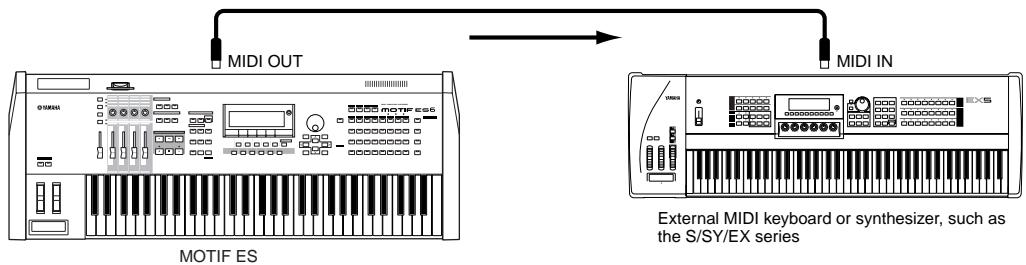
TIP Splitting the sound between the MOTIF ES and an external tone generator by MIDI channel (Part 1)
Using the connection example shown above, you can play both instruments and have them separately sound different parts — for example, having your keyboard performance sound the external instrument while the Song/Pattern plays the sounds of the MOTIF ES. Check the following points.
- In the Voice mode/Performance mode
You can check the MIDI Transmit Channel at the right corner of the [F1] PLAY display in the Voice Play mode/Performance Play mode. If necessary, you can change the MIDI Transmit Channel by turning the [TRACK SELECT] button on and entering the desired value with the [NUMBER] buttons.
When you wish to sound only the external tone generator, set Master Volume to "0" or set Local Control to "off" with the following operation. [UTILITY] [F5] MIDI [SF2] SWITCH LocalCtrl
About how to set the MIDI Receive Channel of the external MIDI instrument, refer to the Owner's Manual of the external MIDI instrument.
- In the Song mode/Pattern mode
You can check the MIDI Transmit Channel for each track of the current Song/Pattern with the following operation. Change this setting as necessary.
$$ [ S O N G ] \text {o r} [ P A T T E R N ] \rightarrow [ F 3 ] T R A C K \rightarrow [ S F 1 ] C H A N N E L $$
Alternately, you can set the output destination (Internal or external MIDI tone generator) for each track from the following display.
$$ [ S O N G ] \text {o r} [ P A T T E R N ] \rightarrow [ F 3 ] T R A C K \rightarrow [ S F 2 ] O U T S W $$
In this case, you'll need to set the external MIDI tone generator to multi-timbral operation and set the MIDI Receive Channel for each part. For details, refer to the owner's manual of the external MIDI tone generator.
Alternately, you can have your keyboard performance split and assigned to different MIDI channels by using the Zone settings in the Master mode. (See page 137.)
The functions of the internal tone generator differ depending on whether the Voice/Performance mode (single timbre, keyboard playback) or the Song/Pattern mode (multi-timbral, sequencer playback) is selected. For details, see page 163.
■ Recording and playback using an external MIDI sequencer
In this connection example, song data on the external MIDI sequencer plays the sounds of the tone generator on the MOTIF ES. The external song data can also be recorded to Song/Pattern tracks on the MOTIF ES.
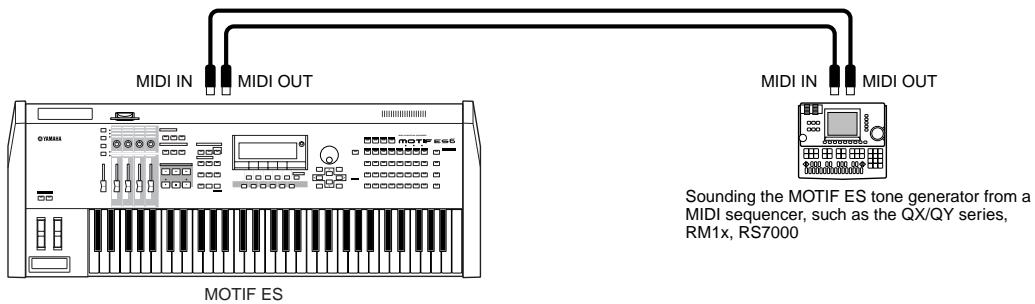
In this case, make sure that the MOTIF ES is set to the Song mode or Pattern mode. If the instrument is set to the Voice mode or to the Performance mode in which multi-channel MIDI messages are not recognized, the external sequence data (containing multi-channel data) will not play back properly on the MOTIF ES. In addition, you may have to make certain MIDI synchronization settings (see below).
Synchronizing with an external MIDI instrument (Master and Slave)
The Songs and Patterns of this instrument can be synchronized to the playback of an external MIDI sequencer, To do this, one device must be set to internal clock operation and the other (as well as all other devices to be controlled) to external clock. The device set to internal clock serves as a reference for all connected devices, and is referred to as the "master" instrument. The connected devices set to external clock are referred to as "slaves."
When recording playback data of the external MIDI sequencer to a Song/Pattern of the MOTIF ES in the above connection example, make sure to set the MIDI synchronization parameter to the use of external clock in the Utility mode with the following operation.
[ \text{[UTILITY]} \rightarrow \text{[F5] MIDI} \rightarrow \text{[SF3] SYNC} \rightarrow \text{MIDI Sync} = \text{MIDI} ]
5Note For details on how to record the playback data of an external MIDI sequencer to a Song on the MOTIF ES, see page 143.
Controlling another MIDI instrument via MIDI THRU
If you have more synthesizers and tone generators than MIDI ports, you can use the MIDI THRU jack to connect and control additional devices. Here, the playback data of a MIDI sequencer is used to play the sounds of another MIDI instrument (connected to the MIDI THRU connector) as well as the MOTIF ES. The MIDI THRU connector simply redirects any received MIDI data (via MIDI IN) to connected instrument.
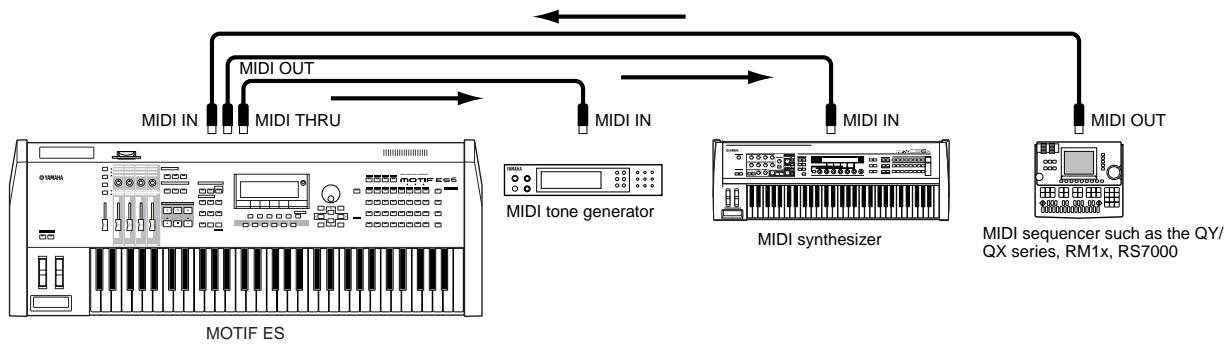
In this case, make sure that the MOTIF ES is set to the Song mode or Pattern mode. If the instrument is set to the Voice mode or to the Performance mode in which multi-channel MIDI messages are not recognized, the external sequence data (containing multi-channel data) will not play back properly on the MOTIF ES. In addition, you may have to make certain MIDI synchronization settings (see below). Likewise, make sure to set the MIDI tone generator (connected to the MIDI THRU connector) to the multi-timbral mode.
Beside, you need to set the MIDI synchronization related parameters of the MOTIF ES to use of the external clock from the following display.
[ \text{[UTILITY]} \rightarrow \text{[F5]} \text{MIDI} \rightarrow \text{[SF3]} \text{SYNC} \rightarrow \text{MIDI} \text{Sync} = \text{MIDI} ]
TIP Splitting the sound between the MOTIF ES and an external tone generator by MIDI channel (Part 2)
In this connection example shown above, you can split the sequence playback between the MOTIF ES and another instrument connected to MIDI THRU and have them sound different parts.
For example, on the MOTIF ES assign the Song/Pattern parts to MIDI Receive Channels 1 through 9 with the following operation, and set the rest of the parts (not to be sounded) to off.
[SONG] or [PATTERN] [MIXING] [EDIT] Part selection [F1] VOICE [SF2] MODE ReceiveCh
On the connected MIDI tone generator, assign the parts to be sounded to MIDI Receive Channels 10 through 16, and set the rest of the parts (not to be sounded) to off.
Using an mLAN interface (when an optional mLAN16E has been installed)
The connection example shown on page 32 lets you transfer MIDI messages as well as audio data. The mLAN connection to computer (page 39) allows you to transfer both audio and MIDI data between your MOTIF ES and a computer.
- Connecting to an MTR (Multi Track Recorder)
Since this synthesizer can receive the MTC (MIDI Time Code) and can transmit the MMC (MIDI Machine Control), you can produce music by synchronizing to a MTC- or MMC-compatible multi-track.
You can use two types of MTR control (illustrated below) by setting the MIDI Sync to MTC in the Utility mode, with the following operation.
[ \text{[UTILITY]} \rightarrow \text{[F5]} \text{MIDI} \rightarrow \text{[SF3]} \text{SYNC} \rightarrow \text{MIDI Sync} = \text{MTC} ]
NOTE MTC and MMC are available only in the Song mode.
- Synchronizing the MOTIF ES to the MTC signal from an external MTR
After receiving the MTC signal transmitted from the MTR by starting the MTR playback, the Song of the MOTIF ES will start at the moment the MTC Start Offset time elapses (set from the display [UTILITY] [F5] MIDI [SF3] SYNC MTC StartOffset in the Utility mode).
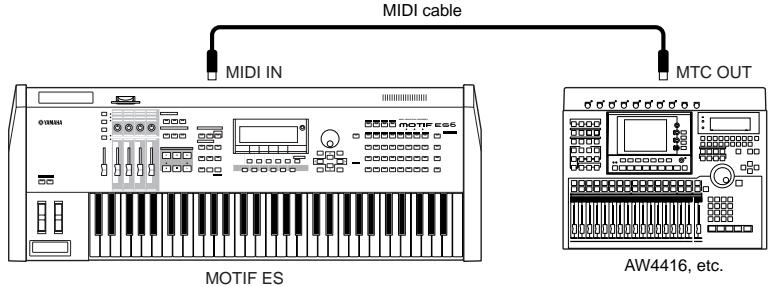
5Note MTC (MIDI Time Code) allows simultaneous synchronization of multiple audio devices via standard MIDI cables. It includes data corresponding to hours, minutes, seconds, and frames. The MOTIF ES does not transmit MTC. An instrument such as the Yamaha AW4416 is necessary as an MTC master.
- Controlling an MTR by using MMC transmitted from the MOTIF ES
You can control the start/stop and fast forward/rewind of the MMC-compatible MTR from the SEQ TRANSPORT buttons on the front panel of this synthesizer, outputting MMC messages via MIDI.
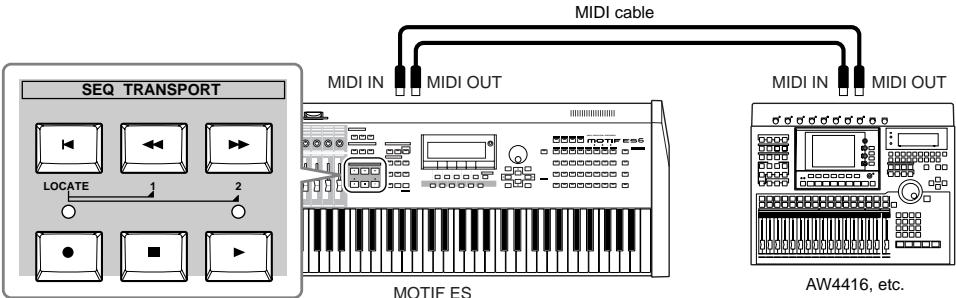
5Note MMC (MIDI Machine Control) allows remote control of multitrack recorders, MIDI sequencers, etc. A MMC-compatible multitrack recorder, for example, will automatically respond to start, stop, fast forward, and rewind operations performed on the controlling sequencer, thus keeping playback of the sequencer and multitrack recorder aligned.
Connecting to a Computer
Connecting this instrument to a computer via MIDI opens up a whole world of musical possibilities — such as using sequencer software to record and play back compositions with the MOTIF ES sounds or using the included Voice Editor software to create and edit your own custom Voices.
5Note When connecting to a Macintosh computer (with the exception of Mac OS X), make sure to install OMS to the computer as well as the desired software (sequence software, Voice Editor, etc.). For details, refer to the separate Install Guide.
Using a USB TO HOST connector
When connecting via this method, make sure to set the following parameter to "USB."
[ \text{[UTILITY]} \rightarrow \text{[F5]} \text{MIDI} \rightarrow \text{[SF4]} \text{OTHER} \rightarrow \text{MIDI IN/OUT} = \text{USB} ]
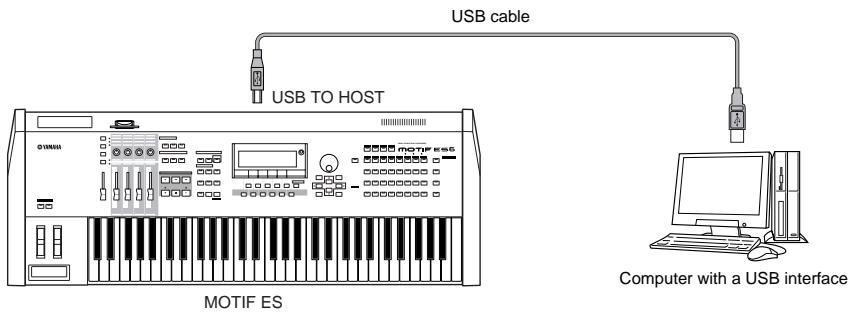
NOTE USB cables have different connectors on each end: the A type and the B type. When connecting this synthesizer to the computer, connect the A type to your computer and the B type to the USB TO HOST connector.
When connecting to a computer (Windows/Macintosh) via USB, make sure to install the USB-MIDI driver to the computer as well as the desired software (sequence software, Voice Editor, etc.). For details, refer to the separate Installation Guide.
5.10 If you are using the Remote Control function to control operations on a computer sequencer, you should make connections with a USB cable.
MIDI channel and MIDI port
While a MIDI cable can transfer MIDI messages of 16 channels simultaneously, a USB cable can transfer MIDI messages of more than 16 channels simultaneously.
MIDI data is assigned to one of sixteen channels, and this synthesizer is capable of simultaneously playing sixteen separate parts, via the sixteen MIDI channels. However, the sixteen-channel limit can be overcome by using separate MIDI "ports," each supporting sixteen channels.
A USB cable can handle MIDI data on up to eight ports, letting you use up to 128 channels (8 ports x 16 channels) on your computer.
NOTE This synthesizer can recognize and use up to three ports at the same time.
When using a USB connection, make sure to match the MIDI transmit port and the MIDI receive port as well as the MIDI transmit channel and the MIDI receive channel.
TIP About the Thru Port Setting
MIDI ports can be used to divide playback among multiple synthesizers, as well as expand the MIDI channel capacity beyond sixteen.
In the example below, a separate synthesizer connected to the MOTIF ES is played by MIDI data via port 5, as set in the ThruPort parameter with the following operation.
[ \text{[UTILITY]} \rightarrow \text{[F5] MIDI} \rightarrow \text{[SF4] OTHER} \rightarrow \text{ThruPort} = 5 ]
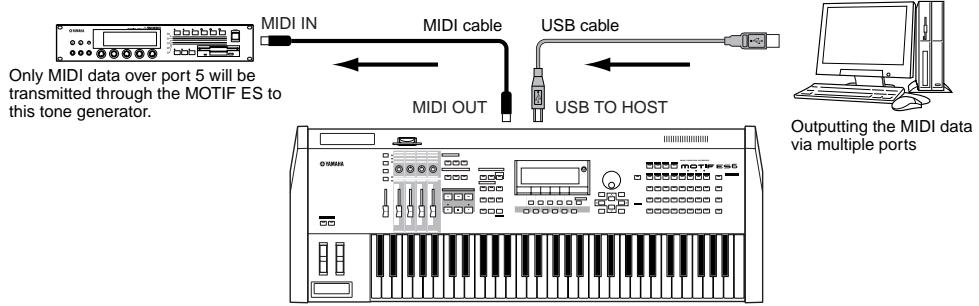
Only MIDI data over ports 1, 2, and 3 are recognized. For details on the relationship between the MIDI port and the tone generator block, see page 163.
Precautions when using the USB TO HOST connector
CAUTION
When connecting the computer to the USB TO HOST connector, make sure to observe the following points.
If you do not observe these points, you risk freezing the computer, corrupting the data, and losing the data. If the computer or the instrument freezes, turn the power to the instrument off or restart the computer.
- Before connecting the computer to the USB TO HOST connector, exit from any power-saving mode (such as suspended, sleep, standby) of the computer.
- Before turning on the power to the instrument, connect the computer to the USB TO HOST connector.
-
Execute the following before turning the power to the instrument on/off or plugging/unplugging the USB cable to/from the USB TO HOST connector.
-
Quit any open applications (such as Voice Editor, Multi Part Editor, and SQ01).
- Make sure that data is not being transmitted from the instrument. (Data is transmitted only by playing notes on the keyboard or playing back a song.)
- While a USB device is connected to the instrument, you should wait for three seconds or more between these operations: When turning the power of the instrument off then on again, or when alternately connecting/disconnecting the USB cable.
Using an IEEE1394 interface (when an optional mLAN16E has been installed)
By installing an optional mLAN16E interface, you can connect a computer (with an IEEE 1394 interface) to this instrument via a single cable.
When connecting via this method, make sure to set the following parameter to "mLAN."
[ \text{[UTILITY]} \rightarrow \text{[F5] MIDI} \rightarrow \text{[SF4] OTHER} \rightarrow \text{MIDI IN/OUT} = \text{mLAN} ]
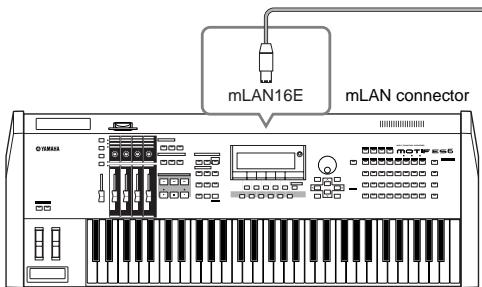
MOTIFS
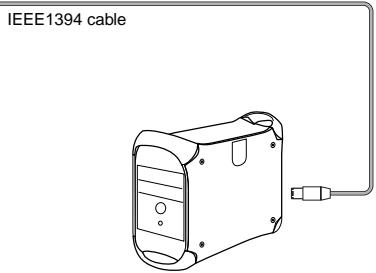
Computer with an IEEE1394 interface
The mLAN connection using an IEEE1394 cable lets you transfer both MIDI data and audio data. For example, you can record your keyboard performance and Song/Pattern playback to hard disk of the computer as audio data (page 153).
Using a MIDI interface
- Using the computer's MIDI interface
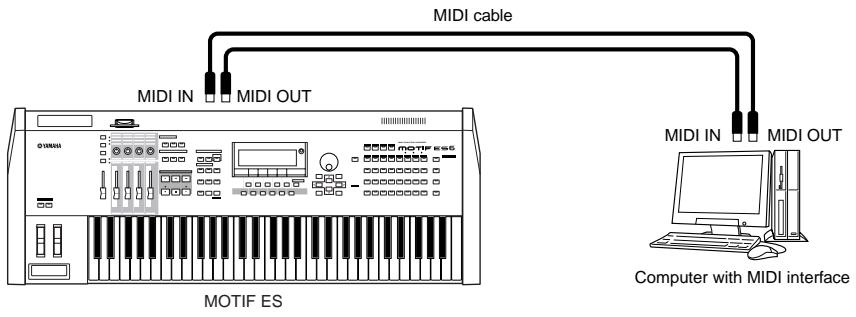
- Using an external MIDI interface
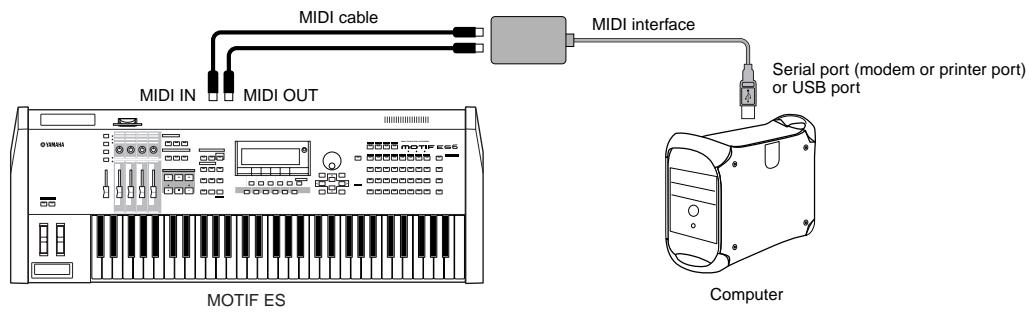
5 NOTE Please use the appropriate MIDI interface for your computer.
5Note If you are using a computer that has a USB interface, make sure to connect the computer and this synthesizer by USB. (The data transfer rate is faster than MIDI and you'll have access to multiple MIDI ports.)
Selecting Voices from a computer
You can select Voices on this instrument from your computer software by specifying the following MIDI messages.
Bank Select MSB
Bank Select LSB
Program Change
For details on what values are assigned to the Voice Bank/Number of this synthesizer, refer to the separate Data List.
Local On/Off - when Connected to a Computer
When connecting this synthesizer to a computer, the keyboard performance data is generally sent to the computer, and then returned from the computer to play the tone generator block. If the Local Control in the Utility mode is set to "on," a "double" sound may result, since the tone generator is receiving performance data from both the keyboard directly and the computer. Use the setting suggestions below as a guideline; specific instructions may differ depending on your computer and the software used.
- When MIDI "Echo" (MIDI through) is set to on the software/computer:
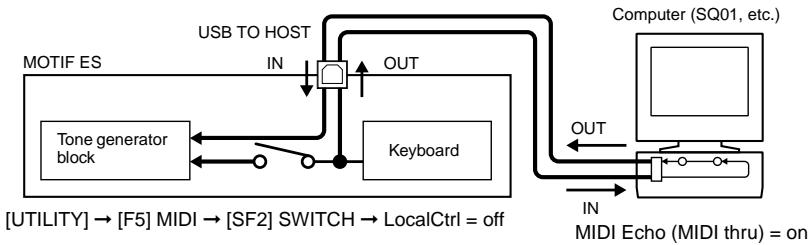
5. Note When transmitting or receiving System Exclusive data (such as with the Bulk Dump function), use the setting example below, making sure that MIDI "Echo" (MIDI through) on the computer software is set to "off."
- When MIDI "Echo" (MIDI through) is set to off the software/computer:
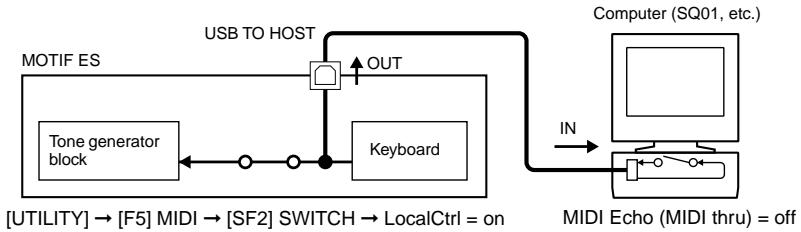
5Note Although not indicated in the illustration above, the MOTIF ES actually receives and responds to MIDI data from the computer application (sequencer), regardless of the Local Control setting on the MOTIF ES.
* MIDI "Echo" is a function on sequencers that takes any data received via the MIDI IN and "echoes" it (or sends it as is) through the MIDI OUT. In some software, this function is also called "MIDI Thru."
5. NOTE For details about the MIDI Echo, refer to the owner's manual of your particular software.
Connecting Various Controllers
The MOTIF ES features several controller jacks on the rear panel — letting you independently control various aspects of the sound and a variety of functions with optional controllers.
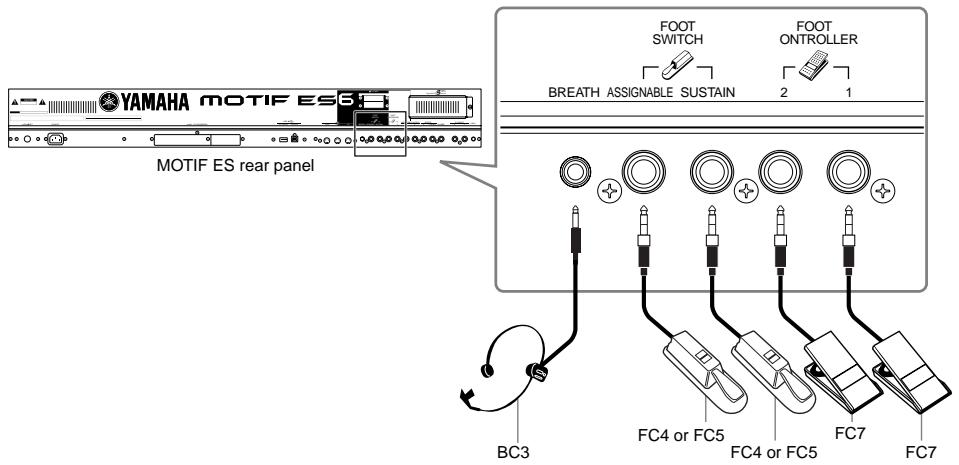
Breath Controller
You can connect an optional Breath Controller (BC3) to the BREATH jack on the rear panel. Then use it to control a large number of this synthesizer's parameters, particularly those controlled by a wind player's breath: dynamics, timbre, pitch and so on. The Breath Controller is ideally suited for realistic expression with wind instrument type Voices.
NOTE Breath Controller parameters can be set for each Voice (page 192).
Footswitch (assignable)
An optional Yamaha FC4 or FC5 Foot Switch connected to the rear panel FOOT SWITCH ASSIGNABLE jack can be assigned to a range of parameters. It is suited for switch-type (on/off) controls, such as Portamento Switch, increment/decrement of a Voice or Performance Number, start/stop of the Sequencer, and holding the Arpeggiator on or off.
- Note The parameter assigned to the Footswitch is set in the Utility mode (page 263).
Footswitch (sustain)
An optional FC4 or FC5 Footswitch connected to the SUSTAIN jack on the rear panel lets you control sustain — particularly useful when playing piano and strings voices.
Keep in mind that some sounds may not be suitable for use in all situations with the Sustain footswitch. For example, for organ sounds that have no natural decay, the sound continues at the same level when holding down the Sustain footswitch.
On the other hand, many sounds benefit from the use of Sustain, such as piano, which has a natural decay when a note is held. Using Sustain with these kinds of Voices provides a smooth after-sound and gives you expressive control in your performance.
The sustain level of the Amplitude EG (page 162) is maintained while holding down the Sustain footswitch, even when releasing your fingers from the keys.
- Note You cannot assign a function other than Sustain to the SUSTAIN jack.
Foot Controller
Optional Foot Controllers (such as the FC7), connected to the FOOT CONTROLLER jacks on the rear panel, can be assigned to a number of controller parameters. By using a foot controller for parameter control, both your hands are left free to play the keyboard (or to operate other controllers) — exceptionally convenient when you're playing live.
- NOTE Foot Controller parameters can be set for each Voice (page 192).
Turning the power on/off
Power-on Procedure
Once you've made all the necessary connections between your MOTIF ES and any other devices, make sure that all volume settings are turned down all the way to zero. Then turn on the every device in your setup in the order of MIDI masters (senders), MIDI slaves (receivers), then audio equipment (mixers, amplifiers, speakers, etc.). This ensures smooth signal flow from the first device to the last (first MIDI, then audio). When powering down the setup, first turn down the volume for each audio devices, then switch off each device in the reverse order (first audio devices, then MIDI).
When using the MOTIF ES as MIDI receiver:
(1)
MIDI sender

(2)
MOTIFS
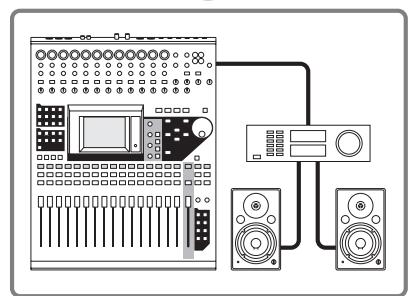
(3)
Audio equipment (first mixer, then amplifier)
Turning the MOTIF ES on/off
The explanations here apply when audio equipment (amplifier and speaker) is connected to the MOTIF ES.
1 Make sure that the external audio equipment is connected to the MOTIF ES properly. Also be sure to set the volume of the MOTIF ES and the external audio equipment to 0.
2 Press the POWER switch on the rear panel to turn the MOTIF ES on.
The Opening display (together with the message that confirms the status of the Plug-in Board installation) appears and after a while, the Master mode display appears.
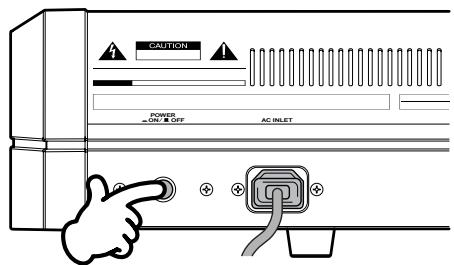
Rear panel of the MOTIF ES

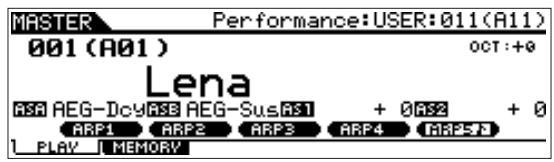
Master mode display
- NOTE At the time this synthesizer is shipped from the factory, the Master mode display will appear when turning the power on. You can change the default display when turning the power on with the following operation. [UTILITY] [F1] GENERAL [SF4] OTHER PowerOnMode (page 261)
Because the Auto Load parameter (page 135) is set to on at the time this synthesizer is shipped from the factory, it takes a short amount of time before the instrument assumes normal playing status (in which you can play the keyboard).
You can switch the on/off status of the Auto Load function from the [UTILITY] [F1] GENERAL [SF5] OTHER display (page 135).
3 Turn the power of the connected audio equipment on.
4 Raise the sound system volume of the audio equipment and the MOTIF ES gradually to a reasonable level.
5 If necessary, adjust the legibility of the LCD display by using the LCD Contrast Control.
6 After turning the power of the audio equipment off or turning down the volume of the audio equipment, turn the MOTIF ES's power off.
Resetting the User Memory to the Initial Factory Settings
The original factory setting of this synthesizer's User Memory (page 186) can be restored as follows.
CAUTION
When the factory settings are restored, all the Voice, Performance, Song, Pattern, and system setting in the Utility mode you created will be erased. Be sure to save all important data to SmartMedia or USB storage device before executing this procedure (pages 85, 91 and 131).
Press the [UTILITY] button to enter the Utility mode (the lamp lights).
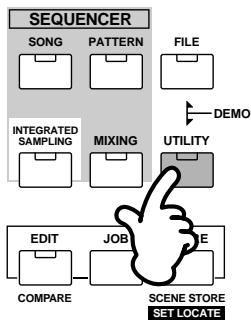
2 Press the [JOB] button to enter the Utility Job mode.
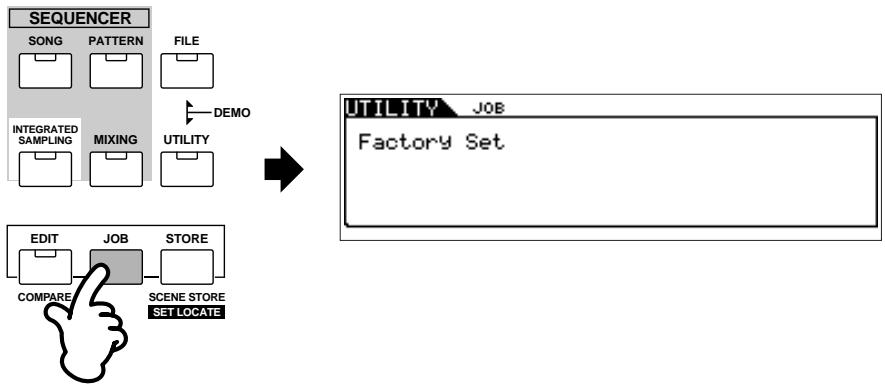
3 Press the [ENTER] button. (The display prompts you for confirmation.)
5Note To cancel the Job, press the [DEC/NO] button.
4 Press the [INC/YES] button to execute the Job.
After the Job has been completed, a "Completed" message appears and operation returns to the original display.
CAUTION
An "Executing..." or "Please keep power on" message is shown when it takes a short amount of time to execute the Job. Never attempt to turn off the power while data is being written to Flash ROM (while an "Executing..." or "Please keep power on" message is shown). Turning the power off in this state results in loss of all user data and may cause the system to freeze (due to corruption of data in the Flash ROM). This means that this synthesizer may not be able to start up properly, even when turning the power on next time.
5Note All settings in the Utility mode that are related to the Plug-in boards are stored only to the memory on those respective boards, and not to the User memory of this synthesizer. Because of this, the Factory Set operation cannot be used to restore settings for those boards.
Basic Operation
In this section, we'll take a look at the fundamental operating conventions of the MOTIF ES. Here, you'll learn the basics - how to select modes, call up the various functions, change settings, and edit parameter values. Take time to familiarize yourself with these nuts-and-bolts operations, and you'll be on your way to mastering the instrument.
Before reading further, familiarize yourself with the basic terms used with the MOTIF ES in the chart below.
| Term | Description | Page |
| Voice | Musical instrument voices | 158 |
| Performance | A program in which multiple Voices are combined in a layer | 158 |
| Song | Music data consisting of MIDI events | 166 |
| Pattern | Rhythm pattern data which consist of MIDI events used for looped playback | 167 |
| Sampling | The function that lets you record the audio data (such as your own voice and CD playback sound) and play those sounds just like any other synthesizer's Voice. | 172 |
| Master | A program which lets you register the settings in each mode – Voice, Performance, Song, and Pattern | 136 |
| File | A collection of settings for storing and managing your created data | 186 |
Modes
Mode Structure
This synthesizer is organized into various modes, each covering a different set of operations and functions.
Keep in mind that there are two basic types of modes, depending on the status of the tone generator block. The first type includes the Voice and Performance modes, and the internal tone generator is used in single timbre operation — meaning that only one Voice, or one channel of MIDI data is used. The second type includes the Song and Pattern modes, and the internal tone generator is used in multi-timbral operation — meaning that several Voices, or multiple MIDI channels are used. Along with each of these types are sub modes — the Sampling mode and the Utility mode. Remember that the particular displays and parameters in these two modes differ depending on which type of mode (Voice/Performance or Song/Pattern) was active before calling up the sub-mode. In addition to the above mentioned, there are two special modes. The Master mode lets you memorize your desired settings in each mode (Voice/Performance/Song/Pattern) and recall them instantly anytime you need them with a single button. The File mode lets you manage your created data.
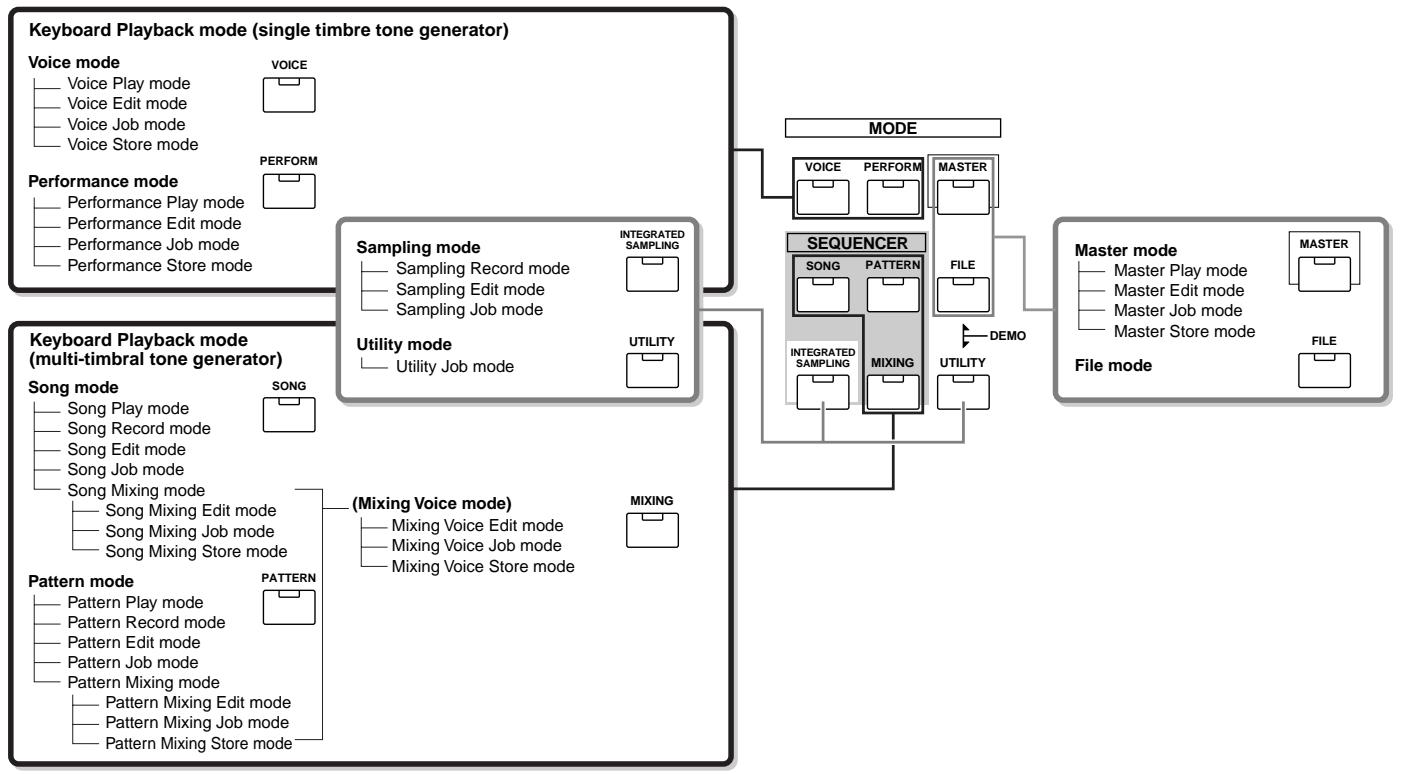
Mode table
The functions of each mode and how to enter each mode are as follows:
| Mode | Function | How to enter the mode | |
| Voice mode | Voice Play mode | Playing a Voice | [VOICE] |
| Voice Edit mode | Editing/Creating a Voice | [VOICE] → [EDIT] | |
| Voice Job mode | Initializing a Voice, etc. | [VOICE] → [JOB] | |
| Voice Store mode | Storing a Voice to internal memory | [VOICE] → [STORE] | |
| Performance mode | Performance Play mode | Playing a Performance | [PERFORM] |
| Performance Edit mode | Editing/Creating a Performance | [PERFORM] → [EDIT] | |
| Performance Job mode | Initializing a Performance, etc. | [PERFORM] → [JOB] | |
| Performance Store mode | Storing a Performance to internal memory | [PERFORM] → [STORE] | |
| Song mode | Song Play mode | Playing a Song | [SONG] |
| Song Record mode | Recording a Song | [SONG] → [●] (REC) | |
| Song Edit mode | Editing a Song MIDI events | [SONG] → [EDIT] | |
| Song Job mode | Converting and transforming Song data | [SONG] → [JOB] | |
| Song Mixing mode | Setting tone generator parameters | [SONG] → [MIXING] | |
| Song Mixing Edit mode | Setting tone generator parameters in detail | [SONG] → [MIXING] → [EDIT] | |
| Song Mixing Job mode | Initializing a Song Mixing, etc. | [SONG] → [MIXING] → [JOB] | |
| Song Mixing Store mode | Storing a Song Mixing internal memory | [SONG] → [MIXING] → [STORE] | |
| Pattern mode | Pattern Play mode | Playing a Pattern | [PATTERN] |
| Pattern Record mode | Recording a Pattern | [PATTERN] → [●] (REC) | |
| Pattern Edit mode | Editing a Pattern MIDI events | [PATTERN] → [EDIT] | |
| Pattern Job mode | Converting and transforming Pattern data | [PATTERN] → [JOB] | |
| Pattern Mixing mode | Setting tone generator parameters | [PATTERN] → [MIXING] | |
| Pattern Mixing Edit mode | Setting tone generator parameters in detail | [PATTERN] → [MIXING] → [EDIT] | |
| Pattern Mixing Job mode | Initializing a Pattern Mixing, etc. | [PATTERN] → [MIXING] → [JOB] | |
| Pattern Mixing Store mode | Storing a Pattern Mixing internal memory | [PATTERN] → [MIXING] → [STORE] | |
| (Mixing Voice mode) | Mixing Voice Edit mode | Editing/Creating a Voice dedicated for Song/Pattern | [SONG] or [PATTERN] → [MIXING] → [F5] VCE ED |
| Mixing Voice Job mode | Initializing a Mixing Voice, etc. | [SONG] or [PATTERN] → [MIXING] → [F5] VCE ED → [JOB] | |
| Mixing Voice Store mode | Storing a Mixing Voice to internal memory | [SONG] or [PATTERN] → [MIXING] → [F5] VCE ED → [STORE] | |
| Sampling mode | Sampling Record mode | Recording a Sample | [INTEGRATED SAMPLING] |
| Sampling Edit mode | Editing a sample | [INTEGRATED SAMPLING] → [EDIT] | |
| Sampling job mode | Converting and transforming Sample data | [INTEGRATED SAMPLING] → [JOB] | |
| Utility mode | Utility mode | Setting System related parameters | [UTILITY] |
| Utility Job mode | Resetting the User Memory to the Initial Factory Settings | [UTILITY] → [JOB] | |
| Master mode | Master Play mode | Playing a Master | [MASTER] |
| Master Edit mode | Editing/Creating a Master | [MASTER] → [EDIT] | |
| Master Job mode | Initializing a Master, etc. | [MASTER] → [JOB] | |
| Master Store mode | Storing a Master to internal memory | [MASTER] → [STORE] | |
| File mode | File mode | Managing Files and Folders (Directories) | [FILE] |
How to leave the current display
For most operations or displays (except for the File mode, Song/Pattern Record mode, and Remote Control mode), pressing the [EXIT] button will let you leave the current display and return you to the previous one. You can return back to any of the modes — Voice Play, Performance Play, Song Play, Pattern Play, and Master Play — by pressing the [EXIT] button several times in the respective mode.
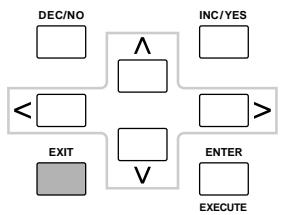
Functions and Sub-Functions
Each mode described above contains various displays, with various functions and parameters. To navigate your way through these displays and select a desired function, use the [F1] - [F6] buttons and the [SF1] - [SF5] buttons. When you select a mode, the available displays or menus appear directly above the buttons at the bottom of the display (as shown below).
Using the Function buttons [F1] - [F6]
![YAMAHA MOTIF ES6 - Using the Function buttons [F1] - [F6] - 1](/content/2025/01/114832/images/81e7886d7c54ef5f907ea849ad636cb78559d3b5268a8e35283ee9ac28e0e912.jpg)
Depending on the currently selected mode, up to six functions are available and can be called up with the [F1] - [F6] buttons. Keep in mind that the available functions differ depending on the selected mode.
Using the Sub-Function buttons [SF1] - [SF5]
![YAMAHA MOTIF ES6 - Using the Sub-Function buttons [SF1] - [SF5] - 1](/content/2025/01/114832/images/229867942769b8a1cf976a0a8602242c74baff64d05d29c15abed2bcdea707e7.jpg)
Depending on the currently selected mode, up to five functions (sub-functions) are available and can be called up with the [SF1] - [SF5] buttons. Keep in mind that the available functions differ depending on the selected mode. (Some displays may not have any sub-functions for these buttons.)
Selecting a Program
In order to play the MOTIF ES you'll need to call up one of its programs, i.e., a Voice, Performance, Song, Pattern, or Master. These programs can be selected in each Play mode via the same procedure.
Using the [INC/YES], [DEC/NO] buttons and the data dial
The [INC/YES] and [DEC/NO] buttons let you step up or down through the program numbers in any of the Play modes (Voice, Performance, Song, Pattern, and Master).
Rotating the data dial to the right (clockwise) increases the program number, while rotating it to the left (counter-clockwise) decreases it. This control works in the same way as the [INC/YES] and [DEC/NO] buttons, but lets you scroll through the programs more quickly.
![YAMAHA MOTIF ES6 - Using the [INC/YES], [DEC/NO] buttons and the data dial - 1](/content/2025/01/114832/images/433bdd5cefbc28a11f2a16cb87dcc2170057e42965677566ed0de69b550882e6.jpg)
Using the [GROUP], [NUMBER] buttons
As shown below, you can select a program number by pressing any of the GROUP [A] - [H] buttons and pressing any of the NUMBER [1] - [16] buttons.
The explanations here apply when these four button indicators are off.
![YAMAHA MOTIF ES6 - Using the [GROUP], [NUMBER] buttons - 1](/content/2025/01/114832/images/0ac2fa16c3e1b9c16ceadfa68320cac0bb1b3356f9865526f2d8cf4e1aa7ff00.jpg)
5Note The convenient Category Search function (page 62) lets you easily locate and select the Voices you want by type.
The Voice program numbers and the corresponding Group/Numbers are listed below.
| Program Number | Group | Number | Program Number | Group | Number | Program Number | Group | Number | Program Number | Group | Number |
| 001 | A | 1 | 033 | C | 1 | 065 | E | 1 | 097 | G | 1 |
| 002 | A | 2 | 034 | C | 2 | 066 | E | 2 | 098 | G | 2 |
| 003 | A | 3 | 035 | C | 3 | 067 | E | 3 | 099 | G | 3 |
| 004 | A | 4 | 036 | C | 4 | 068 | E | 4 | 100 | G | 4 |
| 005 | A | 5 | 037 | C | 5 | 069 | E | 5 | 101 | G | 5 |
| 006 | A | 6 | 038 | C | 6 | 070 | E | 6 | 102 | G | 6 |
| 007 | A | 7 | 039 | C | 7 | 071 | E | 7 | 103 | G | 7 |
| 008 | A | 8 | 040 | C | 8 | 072 | E | 8 | 104 | G | 8 |
| 009 | A | 9 | 041 | C | 9 | 073 | E | 9 | 105 | G | 9 |
| 010 | A | 10 | 042 | C | 10 | 074 | E | 10 | 106 | G | 10 |
| 011 | A | 11 | 043 | C | 11 | 075 | E | 11 | 107 | G | 11 |
| 012 | A | 12 | 044 | C | 12 | 076 | E | 12 | 108 | G | 12 |
| 013 | A | 13 | 045 | C | 13 | 077 | E | 13 | 109 | G | 13 |
| 014 | A | 14 | 046 | C | 14 | 078 | E | 14 | 110 | G | 14 |
| 015 | A | 15 | 047 | C | 15 | 079 | E | 15 | 111 | G | 15 |
| 016 | A | 16 | 048 | C | 16 | 080 | E | 16 | 112 | G | 16 |
| 017 | B | 1 | 049 | D | 1 | 081 | F | 1 | 113 | H | 1 |
| 018 | B | 2 | 050 | D | 2 | 082 | F | 2 | 114 | H | 2 |
| 019 | B | 3 | 051 | D | 3 | 083 | F | 3 | 115 | H | 3 |
| 020 | B | 4 | 052 | D | 4 | 084 | F | 4 | 116 | H | 4 |
| 021 | B | 5 | 053 | D | 5 | 085 | F | 5 | 117 | H | 5 |
| 022 | B | 6 | 054 | D | 6 | 086 | F | 6 | 118 | H | 6 |
| 023 | B | 7 | 055 | D | 7 | 087 | F | 7 | 119 | H | 7 |
| 024 | B | 8 | 056 | D | 8 | 088 | F | 8 | 120 | H | 8 |
| 025 | B | 9 | 057 | D | 9 | 089 | F | 9 | 121 | H | 9 |
| 026 | B | 10 | 058 | D | 10 | 090 | F | 10 | 122 | H | 10 |
| 027 | B | 11 | 059 | D | 11 | 091 | F | 11 | 123 | H | 11 |
| 028 | B | 12 | 060 | D | 12 | 092 | F | 12 | 124 | H | 12 |
| 029 | B | 13 | 061 | D | 13 | 093 | F | 13 | 125 | H | 13 |
| 030 | B | 14 | 062 | D | 14 | 094 | F | 14 | 126 | H | 14 |
| 031 | B | 15 | 063 | D | 15 | 095 | F | 15 | 127 | H | 15 |
| 032 | B | 16 | 064 | D | 16 | 096 | F | 16 | 128 | H | 16 |
- NOTE When selecting a Voice, it is necessary to press one of the [BANK] buttons before pressing the [GROUP] and [NUMBER] buttons.
The amount of numbers differ depending on the program. For example, while the selected number range of the Normal Voice, Performance, and Master is 001 - 128, the selected number range of the Song and Pattern is 001- 064.
Moving the Cursor and Setting Parameters
Moving the cursor
Use these four buttons to navigate the display, moving the cursor around the various selectable items and parameters in the screen. When selected, the relevant item is highlighted (the cursor appears as a dark block with inverse characters). You can change the value of the item (parameter) at which the cursor is located by using the data dial, [INC/YES] and [DEC/NO] buttons.
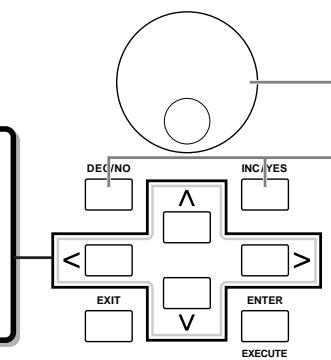
Changing (editing) parameter values
Rotating the data dial to the right (clockwise) increases the value, while rotating it to the left (counter-clockwise) decreases it.
For parameters with large value ranges, you can increase the value by 10 by simultaneously holding down the [INC/ YES] button and pressing the [DEC/NO] button. To decrease by 10, do the opposite; simultaneously hold down the [DEC/NO] button and press the [INC/YES] button
■ Inputting a number directly
For parameters having large value ranges (such as the start and end points of a sample), you can also enter the value directly, using the buttons below the LCD display as a numeric keypad. When the cursor is located on such a parameter, the [NUM] icon appears at the lower right corner of the LCD display indicating that you can call up the number input window by pressing the [INFORMATION] button. From this window, you can input a number directly by pressing the [F1] - [F6] buttons and the [SF1] - [SF5] buttons. First, press the [F6] button so that the cursor appears at the Input Number within the bracket. Move the cursor to the desired digit by using the Cursor buttons [>] and [<] , then input the number of the selected digit. After completing the number input, press the [ENTER] button to actually enter the number. Press the [EXIT] button to go back to the original display.
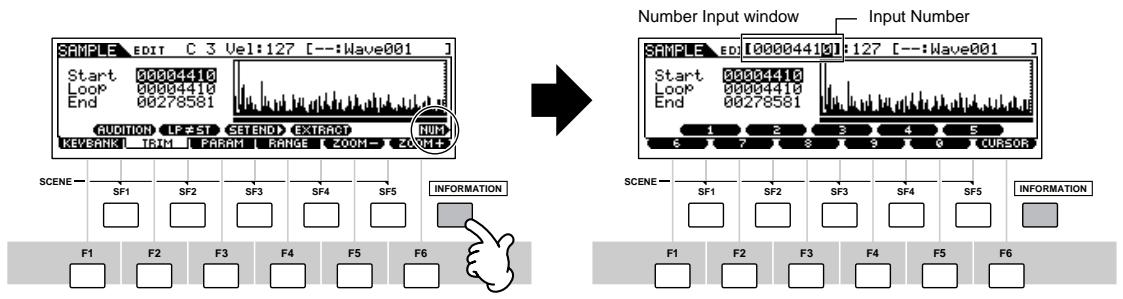
Selecting a note type
When the cursor is located on the parameter to which the note type is set, the note icon appears at the lower right corner indicating that you can call up the Note Type selection window by pressing the [INFORMATION] button. You can specify the note type by pressing the [F1] - [F6] buttons and the [SF1] - [SF5] buttons. After selecting one of the note types, press the [ENTER] button to actually enter the selection. Press the [EXIT] button to go back to the original display.
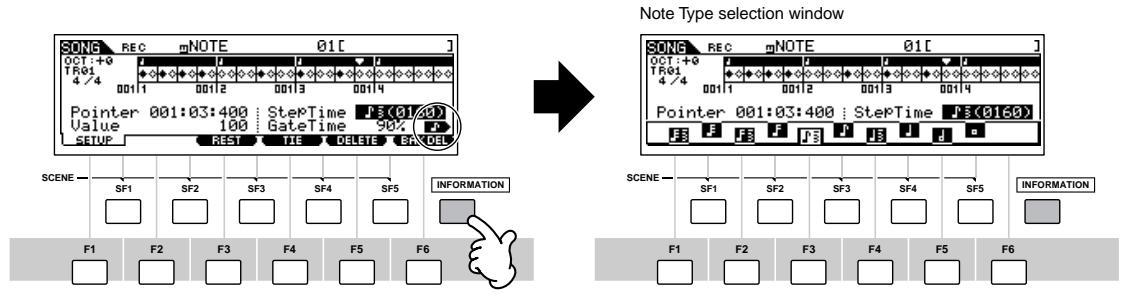
Knob (KN) and Control Slider (CS)
Knob (KN)
You can change the brightness and tone characteristics of the current Voice or Performance in realtime by turning the knobs while you play. Rotating it to the right (clockwise) increases the program number, while rotating it to the left (counter-clockwise) decreases it. You can select the function set assigned to the knobs among the following seven sets by pressing the appropriate [KNOB CONTROL FUNCTION] button.
Function sets assigned to the Knobs (KN)
| Operation | Button of which the lamp is turned on | Functions controlled by each Knob | |||
| KN1 (Knob 1) | KN2 (Knob 2) | KN3 (Knob 3) | KN4 (Knob 4) | ||
| When pressing the [PAN/SEND] button | [PAN/SEND] button | Pan (stereo position) of the Voice/Performance | Reverb Send Level | Chorus Send Level | Tempo of the Song/Pattern/Arpeggio playback |
| When pressing the [TONE] button | [TONE] button | Filter Cutoff Frequency (degree of brightness) | Resonance (the level of the signal in the area of the cutoff frequency) | Attack Time of the sound | Release Time of the sound (decay time after the key is released)* |
| When pressing the [ARP FX] button | [ARP FX] button | Swing degree of the Arpeggio playback | Gate time (length) of the Arpeggio playback | Velocity of the Arpeggio playback | Arpeggio playback time |
| When pressing the [EQ] button | [EQ] button | Low band of the Master EQ in the Voice/Performance mode, part EQ in the Song/Pattern mode | Low-mid band of the Master EQ in the Voice/Performance mode, Mid band of the Part EQ in the Song/Pattern mode | High-mid band of the Master EQ in the Voice/Performance mode. (Not available in the Song/Pattern mode.) | High band of the Master EQ in the Voice/Performance mode, part EQ in the Song/Pattern mode |
| When pressing the [PAN/SEND] button and the [TONE] button simultaneously | [PAN/SEND] button [TONE] button | Function assigned from the [UTILITY] → [F4] CTLASN → [SF2] ASSIGN display (page 263) in the Utility mode | Function assigned for each Voice from the [VOICE] → [EDIT] → [COMMON] → [F4] CTLSET display (page 155) | ||
| When pressing the [TONE] button and the [ARP FX] button simultaneously** | All the buttons are off | Function assigned for each Master from the [MASTER] → [EDIT] → Zone selection → [F5] KN/CS display (page 140) | |||
| When pressing the [ARP FX] button and the [EQ] button simultaneously | [ARP FX] button [EQ] button | Function assigned to the Master Effect parameters from the [UTILITY] → [F4] CTLASN → [SF5] MEF display. | |||
- For Drum Voices, this affects the release time for all played notes, whether held or released.
** Available only when setting the Zone Switch to on in the Master Mode (page 137)
When pressing any of the [KNOB CONTROL FUNCTION] buttons, the lamp(s) of the buttons will light according to the above table and the status of the Knobs and Control Sliders (currently assigned functions and set values) is shown on the LCD display. The appearance of the knob in the display indicates the actual control status of the knob. When a knob indication is black, the control knob on the panel affects the sound. When an indication is white, moving the panel knob does not affect the sound, until the current value is reached (after which the indication turns black, indicating normal control).
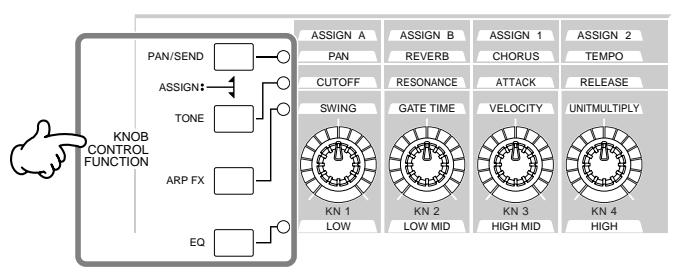
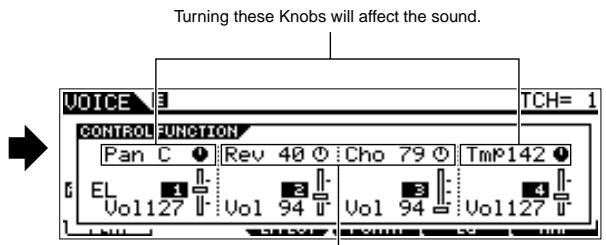
Turning these Knobs will not affect the sound.
Control Slider (CS)
You can adjust the volume of the Voice/Performance you play on the keyboard, or the volume of the specified part (track) of the Song/Pattern by using the Control Sliders (CS). In the Master mode, various functions as well as the volume can be assigned to the Control Sliders (CS) when the Zone Switch is set to on (page 137).
Function sets assigned to the Control Slider (CS)
| Mode | Functions controlled by each Slider | ||||
| CS1 | CS2 | CS3 | CS4 | ||
| Voice mode | When a Normal Voice is selected (page 60) | Element1 Volume | Element2 Volume | Element3 Volume | Element4 Volume |
| When a Drum Voice is selected (page 61) | Volume of the entire Voice sound (moving any Slider produces same volume) | ||||
| Performance mode | Part1 Volume | Part2 Volume | Part3 Volume | Part4 Volume | |
| Song mode/Pattern mode | When tracks (Parts) 1 - 4 are selected | Track1 (Part1) Volume | Track2 (Part2) Volume | Track3 (Part3) Volume | Track4 (Part4) Volume |
| When tracks (Parts) 5 - 8 are selected | Track5 (Part5) Volume | Track6 (Part6) Volume | Track7 (Part7) Volume | Track8 (Part8) Volume | |
| When tracks (Parts) 9 - 12 are selected | Track9 (Part9) Volume | Track10 (Part10) Volume | Track11 (Part11) Volume | Track12 (Part12) Volume | |
| When tracks (Parts) 13 - 16 are selected | Track13 (Part13) Volume | Track14 (Part14) Volume | Track15 (Part15) Volume | Track16 (Part16) Volume | |
| Master mode | When the Zone Switch is set to on (page 137) | Function assigned for each Master from the [MASTER] → [EDIT] → Zone selection → [F4] KN/CS display (page 140) | |||
The [MASTER VOLUME] slider adjusts the overall output level of the instrument, while the Control Sliders adjust the MIDI Volume setting of the corresponding Element or Part.
About the editing functions
There are three types of method for creating data - Editing parameters (Voice, Performance, etc.), Recording MIDI data (Song, Pattern, etc.), and Recording audio data (Sampling).
In this section, we'll explain the basic operations for editing the Voice, Performance, Song Mixing, Pattern Mixing, Mixing Voice settings.
For details on recording MIDI data, see pages 118 (Song) and 110 (Pattern). For details on recording audio data (for Sampling), see pages 94 and 107.
The Song Edit function (for editing the Song MIDI sequence data) and the Pattern Edit function (for editing the Pattern MIDI sequence data) are not explained here. See page 124.
Edit Indicator
You can adjust or set various parameters by using the data dial, [INC/YES] button, [DEC/NO] button, Knobs, and Control Sliders in the Voice mode (Play/Edit mode), Performance mode (Play/Edit mode), Song Mixing mode, Pattern Mixing mode, and Mixing Voice mode. When changing the value of the parameter in these modes, the [E] (Edit Indicator) will appear on the top left corner of the LCD display. This indicates that the current program has been modified but not yet stored. If you wish to store your sound obtained by edit operation, be sure to store the current program to internal User memory in the Store mode before selecting another program.
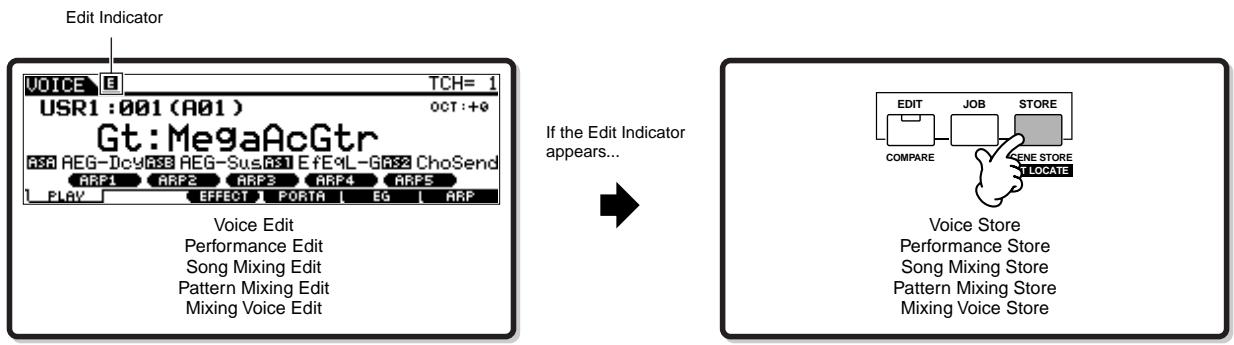
Compare Function
This convenient function lets you switch between the edited sound and its original, unedited condition – allowing you to listen to the difference between the two and better hear how your edits affect the sound.
For example, when editing a Voice in the Voice Edit mode, the "E" Edit indicator is shown. Pressing the [COMPARE] button in this condition reverts to the original unedited sound (the button lamp flashes and the "C" Compare indicator is shown). Press the [COMPARE] button again to return to the edited sound.

Edit Recall Function
If you are editing a program and select a different program without storing your edited one, all the edits you've made will be erased. However, the edited program is maintained in a backup memory location called the Recall buffer (page 187). To restore the lost data with your latest edits intact, use the Edit Recall function in the Job mode.
| Job mode | How to call up the Edit Recall display |
| Voice | [VOICE] → [JOB] → [F2] RECALL |
| Performance | [PERFORM] → [JOB] → [F2] RECALL |
| Song Mixing | [SONG] → [MIXING] → [JOB] → [F2] RECALL |
| Pattern Mixing | [PATTERN] → [MIXING] → [JOB] → [F2] RECALL |
| Mixing Voice | [SONG] or [PATTERN] → [MIXING] → [F5] VCE ED → [JOB] → [F2] RECALL |
Confirmation Message
When you execute certain operations, such as those in the Job, Store, and File modes, this synthesizer shows a confirmation message. This lets you actually execute the operation or cancel it if desired.
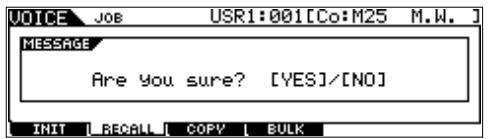
If a confirmation message (like the one illustrated above) appears, press the [INC/YES] button to execute the operation or press the [DEC/NO] button to cancel it.
Information Display
This convenient function lets you call up relevant details about the selected mode - simply by pressing the [INFORMATION] button. For example, when the Voice mode is active, you can quickly check information about which voice bank is selected, what Play mode (poly or mono) is being used, which effects are applied, and so on.

For details, see page 275.
Note (Key) settings
Several parameters let you set a key range for a function – for example, in setting up a keyboard split – by specifying certain note values. You can use the [INC/YES] and [DEC/NO] buttons or data dial to set these parameters, or you can directly enter the values from the keyboard by pressing the appropriate keys (as shown below).
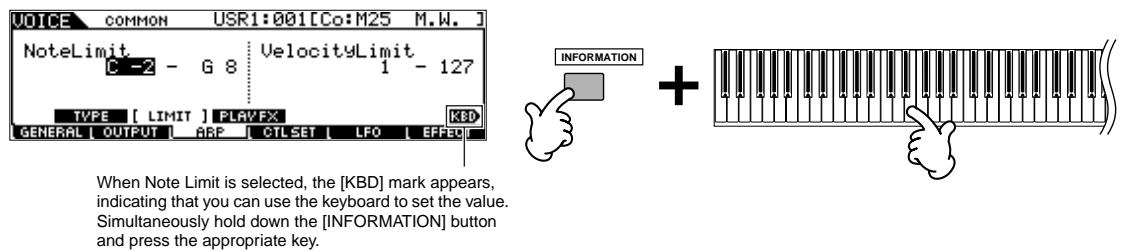
5 NOTE About the note name assigned to each key, see page 16.
Naming
You can freely name the created data like Voice and the file saved to the SmartMedia/USB storage device. The chart below lists the types of data that can be named along with the operations for calling up the respective naming displays.
| Data types that can be named | How to call up the naming display | Page |
| Voice | [VOICE] → [EDIT] → [F1] GENERAL → [SF1] NAME | 80 |
| Performance | [PERFORM] → [EDIT] → [F1] GENERAL → [SF1] NAME | 89 |
| Song | [SONG] → [JOB] → [F6] SONG → 04: Song Name | 233 |
| Pattern | [PATTERN] → [JOB] → [F6] PATTERN → 05: Pattern Name | 248 |
| Mixing Template | [SONG] or [PATTERN] → [MIXING] → [JOB] → [F6] TEMPLATE | 237 |
| Mixing Voice | [SONG] or [PATTERN] → [MIXING] → [F5] VCEED → [F1] GENERAL →[SF1] NAME | 106 |
| Phrase | [PATTERN] → [JOB] → [F4] PPHASE → 09: Phrase Name | 246 |
| Master | [MASTER] → [EDIT] → [F1] NAME | 138 |
| Waveform | [INTEGRATED SAMPLING] → [JOB] → [F2] WAVE → 04: NAME | 259 |
| Arpeggio | [SONG] → [JOB] → [F5] TRACK → 07: Put Track To Arp | 130 |
| [PATTERN] → [JOB] → [F5] TRACK → 06: Put Track To Arp | 130 | |
| Volume Label of the SmartMedia/USB storage device | [FILE] → [F1] CONFIG → [SF3] FORMAT | 266 |
| File/Folder saved to the SmartMedia/USB storage device | [FILE] → [F2] SAVE or [F4] RENAME | 132 |
First, call up the name input display according to the above table, then, move the cursor by using the Cursor button to the desired location and input a character. See below for details.
- Note Since the name of the program is part of the data, make sure that you properly save the program after naming it.
Basic naming operation
As shown below, you can set the name by repeating the two operations - moving the cursor to the desired location by using the Cursor button and selecting a character by using the data dial, [INC/YES] button, and [DEC/NO] button.
Moving the cursor to the desired location on the name
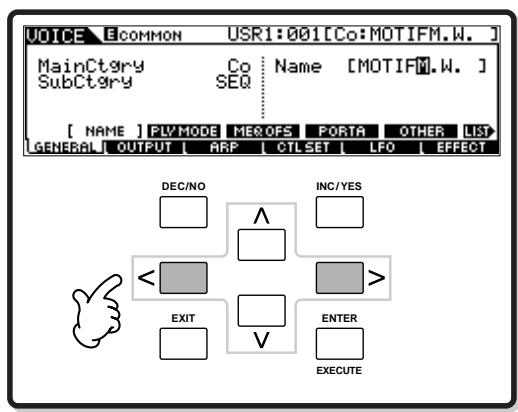
Selecting a character at the cursor location
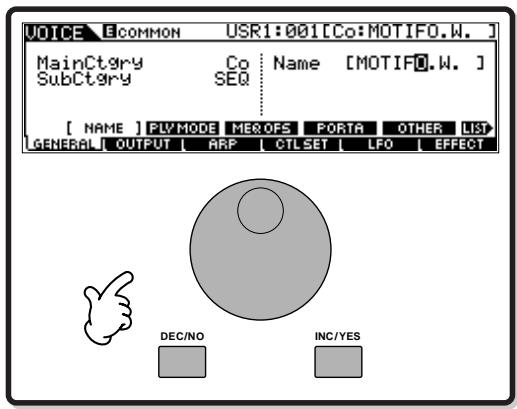
Using the character list
If you find it difficult to select the desired characters with the above method, you may want to use the following method — selecting the characters from a list.
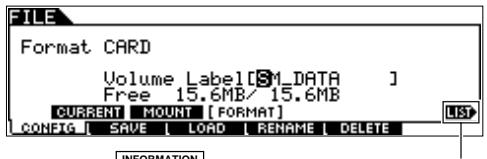
When the cursor is located at the Name, this [LIST] icon appears and you can call up the Character List display by holding the [INFORMATION] button. Release the [INFORMATION] button to return back to the original display.
Perform the operations below while holding the [INFORMATION] button.
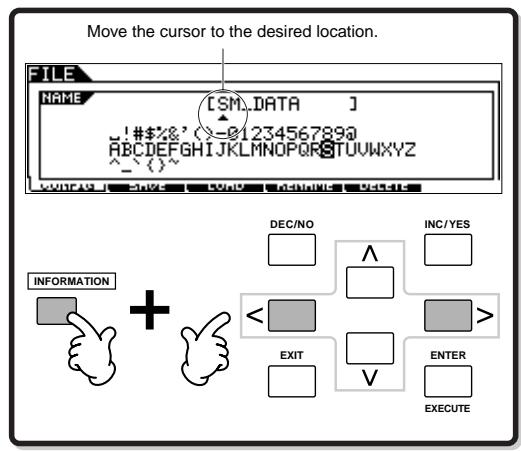

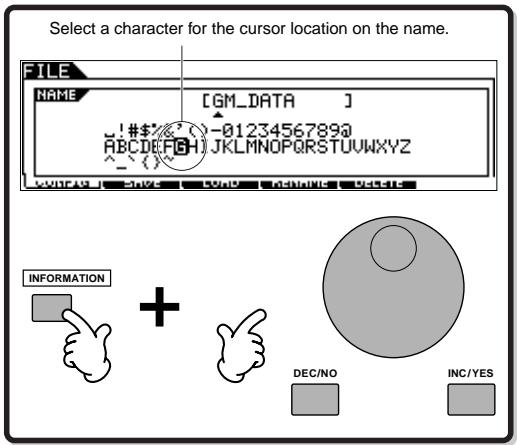
Quick Guide — Playing the MOTIF ES
Playing the Demo Songs/Patterns
Here's the best place to start your explorations of the MOTIF ES. The Song and Pattern Demos have been specially programmed so you can hear just how amazing the sounds are, and find out just how powerful the instrument really is — for music creation, performance and production. Before you can play the Demos, you'll need to load the Demo data (contained in ROM) to the DRAM memory location as shown below.
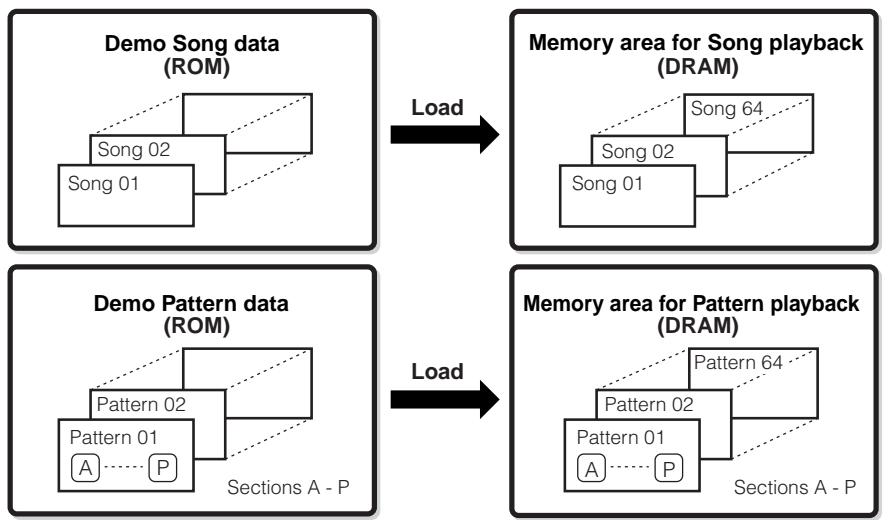
5. NOTE For details about ROM and DRAM, see page 187.
CAUTION
When the Demo Song/Pattern data is loaded, the memory area for playback will be overwritten and the following Utility settings will be changed in order to play back the Demo Song/Pattern properly. [UTILITY] [F1] GENERAL [SF1] TG Volume, NoteShift, Tune [UTILITY] [F1] GENERAL [SF4] OTHER CtrlRest [UTILITY] [F1] GENERAL [SF3] EF BYPAS Important data should always be backed up to a SmartMedia/USB storage device.
In some cases such as those listed below, the Demo Song/Pattern data will be loaded automatically when turning the power on.
- When turning the power on with no SmartMedia card in the CARD slot when the instrument is in its factory-shipped state or after the Factory Set (page 44) is executed.
- When turning the power on with a SmartMedia card containing no Auto Load files in the CARD slot when the instrument is in its factory-shipped state or after the Factory Set (page 44) is executed.
In cases such as those listed above, steps #1-#3 are unnecessary. Press the [SONG] button to enter the Song mode, then perform the instructions below from step #4.
- Note This synthesizer features an Auto Load function by which the Demo Song/Pattern data or the specified files in the SmartMedia card inserted in the CARD slot will be loaded automatically when turning the power on. For details about the Auto Load function, see page 135.
1
Press the [FILE] button and [UTILITY] button simultaneously.
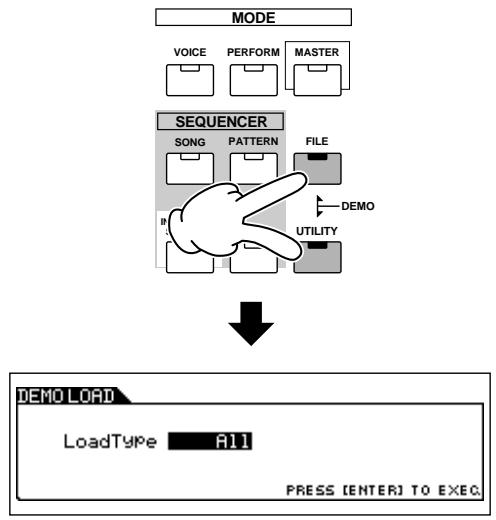
2 Set the LoadType to "All."
You can select from the three Load Types listed below. Here, we'll select "All."
| All | Loads both the Demo Song and Pattern data. |
| Song | Loads only the Demo Song data. |
| Pattern | Loads only the Demo Pattern data. |
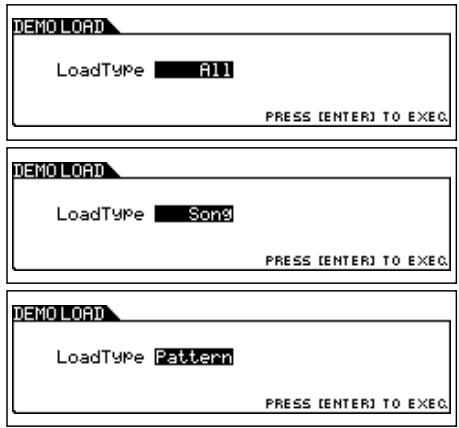
3 Press the [ENTER] button to load the Demo data.
After the data is loaded, the Song Play display is automatically called up.
![YAMAHA MOTIF ES6 - Press the [ENTER] button to load the Demo data. - 1](/content/2025/01/114832/images/afe796bd2278e6d8d69870a4b92873a782bb7475ea6a42c928772e23f5124b17.jpg)
If "Pattern" is selected in step #2 above, the Pattern Play display is automatically called up once the data is loaded.
- NOTE Keep in mind that the example displays shown in this manual are for instruction purposes only, and the contents (for example, the Demo Song/Pattern names) may differ slightly from those on your instrument.
4 Press the [▶] (Play) button to start Song playback.
When playback of the selected Song is finished, the Song automatically stops. You can stop the Song anytime during playback by pressing the [■] (Stop) button. This pauses the song at the current position. To resume playback of the Song from that point, press the [▶] (Play) again. To instantly return to the beginning of the Song, press the [▲] (Top) button.
![YAMAHA MOTIF ES6 - Press the [▶] (Play) button to start Song playback. - 1](/content/2025/01/114832/images/ab6d6c2b7e6d68a5d661319dfa6bc9c9ca3a41ef02d20427c0e58ef7e6aa8b95.jpg)
Top button
![YAMAHA MOTIF ES6 - Press the [▶] (Play) button to start Song playback. - 2](/content/2025/01/114832/images/a0b8c5379a38a27db6d5e8be4cd1946e7c295f0204be32bed296631b6bd4108a.jpg)
5 Select and play another Demo Song.
Move the cursor to "Song Number: Name" (with the cursor buttons) then select another song by using the Data Dial, or the [INC/YES] and [DEC/NO] buttons.
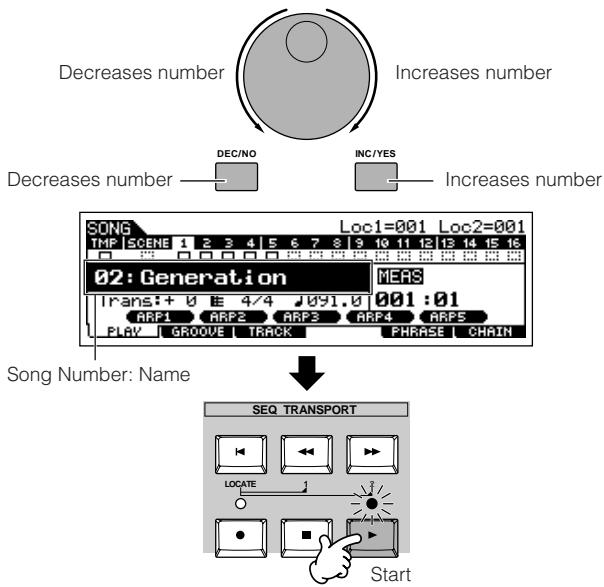
Next, let's play a Demo Pattern.
6 Press the [PATTERN] button to enter the Pattern mode.
![YAMAHA MOTIF ES6 - Press the [PATTERN] button to enter the Pattern mode. - 1](/content/2025/01/114832/images/e6b3118e5c700ba490ca82a1476813342b4cd672233eb7e6ccc0e64101ba2f41.jpg)
![YAMAHA MOTIF ES6 - Press the [PATTERN] button to enter the Pattern mode. - 2](/content/2025/01/114832/images/2625ba7e575b6f37acb9b5fa23c3ad76b5eb643a0c9a20abb162398f37693bcd.jpg)
7 Press the [▶] (Play) button to start Pattern playback.
There is another way to start Pattern playback – by pressing the note son the keyboard. Move the cursor to the keyboard icon and press the [INC/YES] button so that the mark appears. In this status, press any key to start the pattern playback.
![YAMAHA MOTIF ES6 - Press the [▶] (Play) button to start Pattern playback. - 1](/content/2025/01/114832/images/ba76774cee0e72536d3a5e86a930acd7601e5e2cc78365b81d70be3c85810533.jpg)
Press the [DEC/NO] button with the cursor located at the keyboard icon to turn the mark off.
8 Select different Sections of the Pattern.
Make sure that the [SECTION] lamp is on (press the button if necessary), then press any of the buttons shown below to select and play the various Sections contained in a Pattern. Pressing the [A] - [H] buttons calls up Sections A - H and pressing the [PRE5] - [PLG3] buttons calls up the Sections I - P. Try out various rhythm variations by changing the Section.
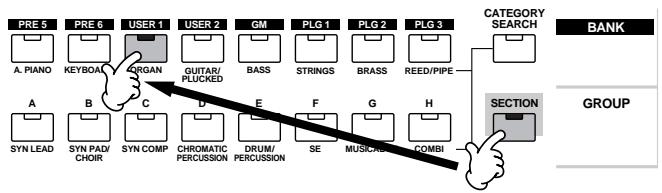
- NOTE Some Sections of the Demo Pattern may have no data. Because of this, selecting some Sections may result in no sound.
9 Press the [■] (Stop) button to stop Pattern playback.
Unlike Song playback, Pattern playback continues in a loop until the [■] (Stop) button is pressed.
You can stop the Pattern anytime during playback by pressing the [■] (Stop) button. This pauses the Pattern at the current position. To resume playback of the Pattern from that point, press the [▶] (Play) again.
To instantly return to the beginning of the Pattern, press the [▶] (Top) button.
![YAMAHA MOTIF ES6 - Press the [■] (Stop) button to stop Pattern playback. - 1](/content/2025/01/114832/images/5782fa87517c2eaf18c7d8a3a2484cfd2444b4a1a3c3fe5e917e4f2c02881574.jpg)
10 Select and play another Demo Song.
Selecting a Pattern is done in the same way as selecting a Song. Refer to step #5 above.
Parameters in the Song Play mode
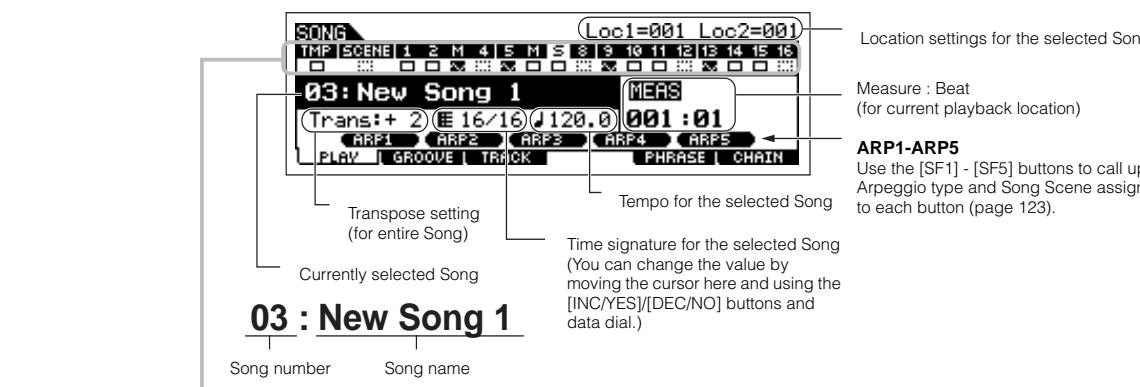
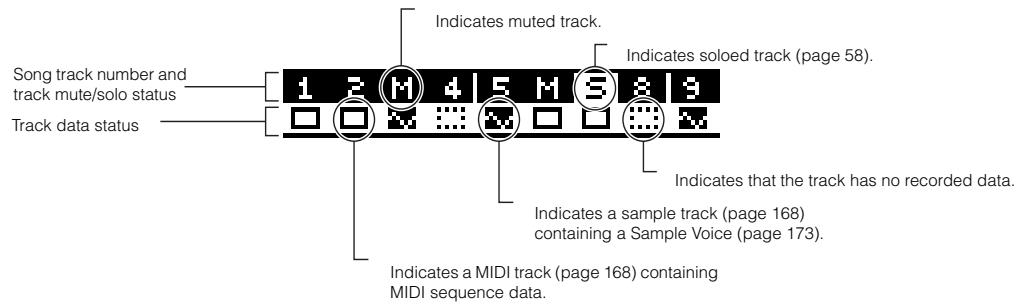
Using Mute/Solo with the Song and Pattern tracks
Try this with the Demo Songs to hear how the tracks sound both in isolation and in various combinations.
To mute a track
1 Press the [MUTE] button (the lamp lights).
2 Press any of the NUMBER [1] - [16] buttons to select the track number to be muted.
The corresponding track is set to mute (its lamp goes off) and produces no sound. When pressing the same number button again, the track mute is canceled (its lamp lights).
![YAMAHA MOTIF ES6 - Press any of the NUMBER [1] - [16] buttons to select the track number to be muted. - 1](/content/2025/01/114832/images/63d4e4cb2bc30171fc7cd6cbc6bfc060a98dbb078ab1ee7a55a3768c97889c32.jpg)
To turn Mute off, press the [MUTE] button again (the lamp goes off).
To solo a track
Simultaneously hold down the [MUTE] button and press one of the NUMBER buttons [1] to [16] to solo the corresponding track. Once you've selected a track for soloing, the [MUTE] button's lamp flashes, indicating the Solo function is active. While Solo is active, you can change the soloed track simply by pressing the corresponding NUMBER button [1] to [16]. To cancel the Solo function, press the [MUTE] button again.
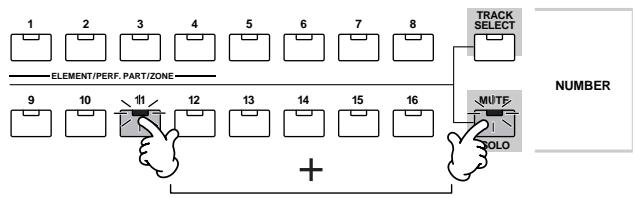
Selecting a Song/Pattern track and playing the keyboard
You can play along with the Song or Pattern using the sound of a track — for example, playing additional drum/percussion sounds on a drum track while the Song plays. Press the [TRACK SELECT] button so that its lamp lights, and select a track by pressing the one of the NUMBER buttons [1] to [16].

If you want you can also mute a track and play the part of the track yourself. To do this, select the desired track as described, then mute the track (as explained in "To mute a track" above).
Song Location
The Song Play mode has a convenient Location function that lets you jump to user-specified parts of a song. This lets you assign a specific measure number in the selected song, and instantly jump to the assigned measure – either during playback or when the song is stopped. Two Locations can be assigned.
■Assigning Locations
Select the desired measure in the recorded song for the Location. (Highlight "MEAS" and use the [INC/YES] and [DEC/NO] buttons or data dial.) Then, to assign the measure to Location 1, simultaneously hold down the [SET LOCATE] button and press the [▲] (Reverse) button. To assign Location 2, use the [▶] (Forward) button.
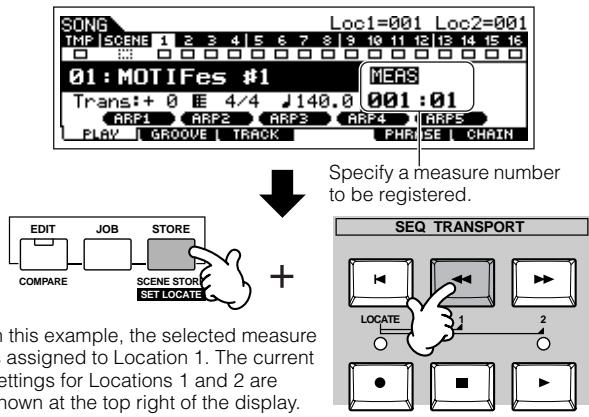
Jumping to an assigned Location
To instantly jump to the assigned Location 1 or 2, simultaneously hold down the [LOCATE] button and pressing the [▲] (Reverse) button (for Location 1) or the [▶] (Forward) button (for Location 2).
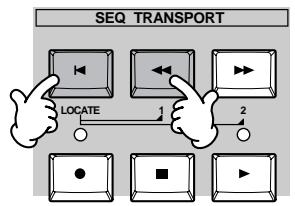
Song Chain
This function allows Songs to be "chained" together for automatic sequential playback. In this section, try using the Song Chain features with the Demo Songs.
1 Press the [F6] CHAIN button to call up the Song Chain display.
From this display you can program and play your own custom Song sequences.
![YAMAHA MOTIF ES6 - Press the [F6] CHAIN button to call up the Song Chain display. - 1](/content/2025/01/114832/images/2b9fed0078627b95a25ab29a04e84e730b90cb145b681216c4b758a8fbef2786.jpg)
2 Program the desired order of the Songs.
Move the cursor to "001" by using the cursor buttons and select the desired Song by using the Data Dial, or the [INC/YES] and [DEC/NO] buttons. Likewise, assign the other Songs to locations 002, 003, 004, and so on.
In addition, the following parameters can be set in the Song Chain.
| skip | Skipping past (ignores) the selected chain number and continues playback from the next chain number. |
| stop | Stops Song Chain playback at that chain number. You can restart Song Chain playback from the next chain number by pressing the [▶] (Play) button. |
| end | Indicates the end mark of the Song Chain data. |
3 | Play the Song Chain.
Move the cursor to the top of the Song Chain display, and press the [▶] (Play) button to start Song playback.
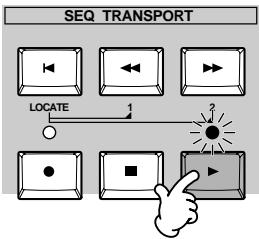
When the Song Chain programmed in step #2 reaches to the end, playback stops automatically. Press the [■] (Stop) button during playback to stop Song Chain playback.
- Note The Song Chain can only be played back in the Song Chain display, and not from any other display.
Parameters in the Pattern Play mode
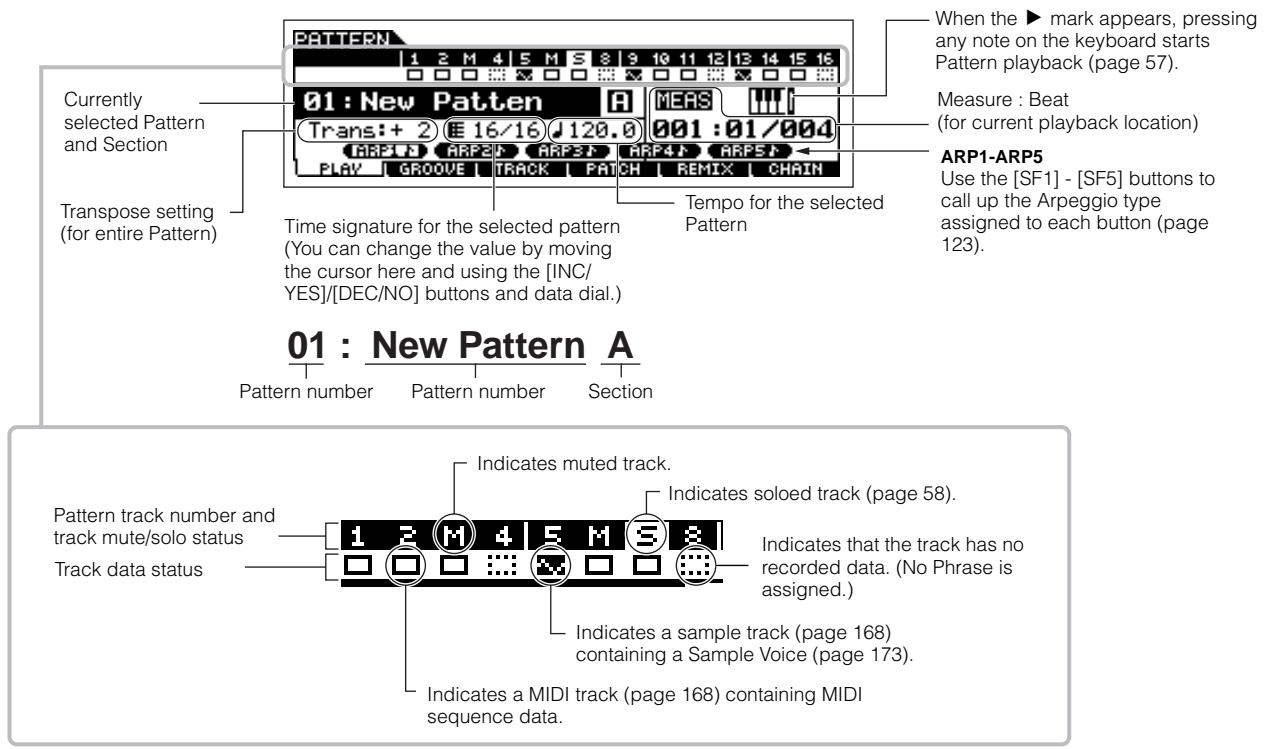
Pattern Chain
Pattern Chain allows you to string several different Sections together to make a single Song.
About the Pattern Chain structure, see page 168. For information on how to create Pattern Chain data, see page 115.
Playing the Keyboard (in the Voice Play mode)
The Voice Play mode is where you select and play the instrument sounds (voices) of this synthesizer.
Selecting a Voice
Selecting a Normal Voice
Internally, there are two Voice Types: Normal Voices and Drum Voices. Normal Voices are mainly pitched musical instrument-type sounds that can be played over the range of the keyboard. Drum Voices are mainly percussion/drum sounds that are assigned to individual notes on the keyboard. In this section, we'll show you how to select a Normal Voice.
You can select the desired Voice from various Voice Banks (Preset 1~6, User 1~2, GM preset, Plug-in 1~3) as shown below.
Voice Bank
Preset Bank
Contains the Voices built into this instrument.
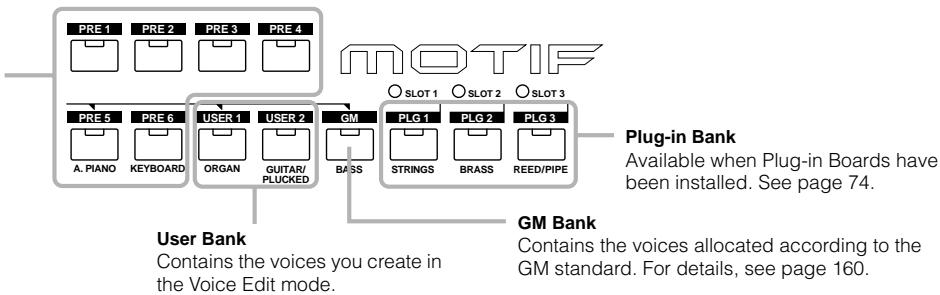
1 Press the [VOICE] button to enter the Voice Play mode.
In this condition, playing the keyboard sounds the Voice indicated in the display.
The parameters shown in the Voice Play mode are briefly explained below.
![YAMAHA MOTIF ES6 - Press the [VOICE] button to enter the Voice Play mode. - 1](/content/2025/01/114832/images/53261f51e254133a97a2b142743cd717f647375402dabcc83033eff0f47f61d7.jpg)
5Note Keep in mind that the example displays shown in this manual are for instruction purposes only, and the contents (for example, the Voice name here) may differ slightly from those on your instrument.
2 Select a Normal Voice Bank.
Select one of the Banks from Preset 1~6, User 1~2, and GM.
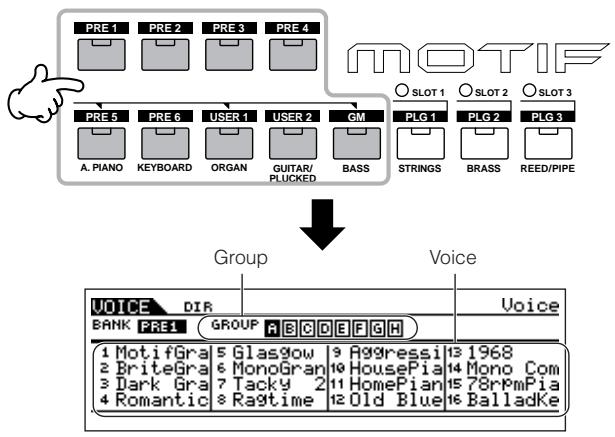
3 Select a Normal Voice Group.
Voices in each Bank are divided into Groups [A] ~ [H]. Select a Group to display the Voices that belong to the selected Group.
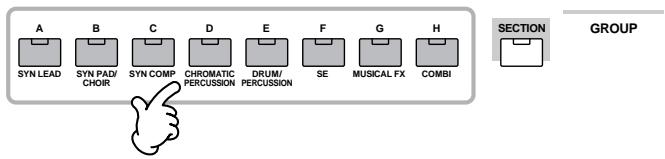
4 Select a Normal Voice Number.
Press one of the NUMBER [1] - [16] buttons.
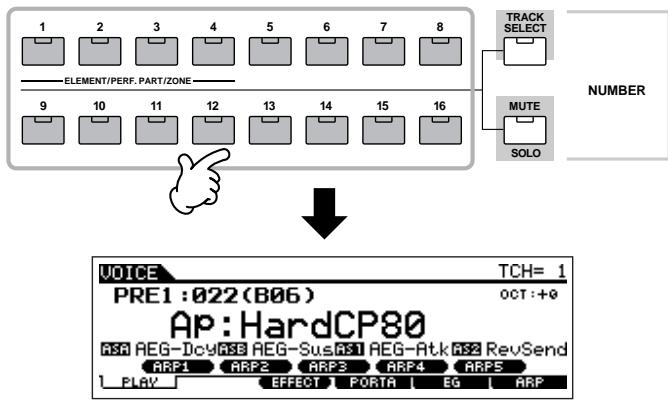
5 | Play the keyboard.
Selecting a Drum Voice
Internally, there are two Voice Types: Normal Voices and Drum Voices. Normal Voices are mainly pitched musical instrument-type sounds that can be played over the range of the keyboard. Drum Voices are mainly percussion/drum sounds that are assigned to individual notes on the keyboard. In this section, we'll show you how to select a Drum Voice.
1 Press the [VOICE] button to enter the Voice Play mode.
2 Select a Drum Voice Bank.
While holding the [DRUM KITS] button, press one of the arrow-indicated buttons: [PRE5] (Preset Drum), [USER1] (User Drum), or [GM] (GM Drum).
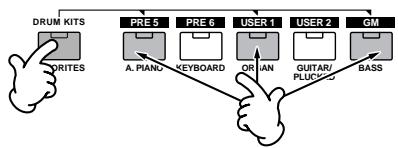
3 Select a Drum Voice Group.
This operation is basically the same as in selecting a Normal Voice. You can select a Group from A to D when selecting the Preset Drum Bank in step #2. You can select a Group from A or B when selecting the User Drum Bank in step #2. You can select only A when selecting the GM Drum Bank in step #2.
4 Select a Drum Voice Number.
This is the same as in selecting a Normal Voice.
5 Play the keyboard and check what instrument is assigned to each key.
5Note For details about the instrument assignments for each key, refer to the separate Data List.
Using the [INC/YES], [DEC/NO] buttons and data dial
You can select a Voice Number by using the [INC/YES], [DEC/NO] buttons and data dial in steps #3 and #4.
![YAMAHA MOTIF ES6 - Using the [INC/YES], [DEC/NO] buttons and data dial - 1](/content/2025/01/114832/images/fa8eb0eeec9dc3c544af928db3e37ac129a61fd33269281db06603958a349e39.jpg)
- NOTE The procedure for selecting Voices in other modes differs from above. For details on selecting Voices in the Performance mode, see page 71. For details on selecting Voices in the Song/Pattern mode, see page 102.
Using the Category Search function
This synthesizer features a powerful Category Search function that gives you quick access to the sounds you want, irrespective of their bank locations. Simply select a Voice category, such as A. PIANO or SYN LEAD, and you can browse through all related Voices one by one – and audition each of them, too. If you've installed a Plug-in Board to the instrument, those Voices are automatically included in the search as well. Plus, you can use the special Favorites category to store the Voices you use most.
1 Turn the Category Search function on by pressing the [CATEGORY SEARCH] button.
In this condition with the button lit, you can use the BANK and GROUP buttons to specify the Category.
Press the [CATEGORY SEARCH] button again to turn this function off.
![YAMAHA MOTIF ES6 - Turn the Category Search function on by pressing the [CATEGORY SEARCH] button. - 1](/content/2025/01/114832/images/6a5dbae0802f92a6496a34af9bd196a498acb4cb9466c59c76d583751d6807f2.jpg)
![YAMAHA MOTIF ES6 - Turn the Category Search function on by pressing the [CATEGORY SEARCH] button. - 2](/content/2025/01/114832/images/2d7758fdefd610d5467f1f10d011a17be538f75dc02f117ee4c656d31add9c16.jpg)
2 Select a Category.
Press one of the BANK and GROUP buttons to call up the selected Category name and the Voice list. The first Voice in the Category is selected.
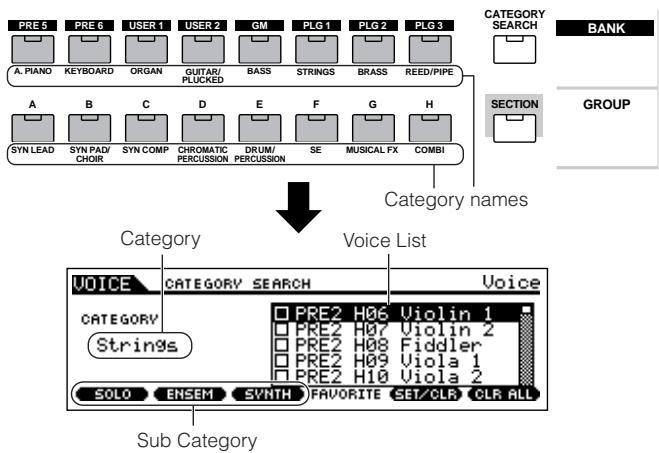
All Categories are divided into two or three Sub Categories for further ease in selection. The Sub Category names are displayed at the bottom of the Category Search display. Press the [F1] - [F3] buttons to select the first Voice in the corresponding Sub Category.
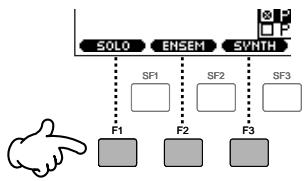
An alternate way of selecting categories is to use the Cursor buttons to select and highlight the Category name in the display, then use the [INC/YES] and [DEC/NO] buttons or the data dial to select the Category. Then, move the cursor to the Voice list at the right of the display to select the Voice (see step #3 below).
5. Note Some Voices such as User Voices may not be registered to any Category. You can search for these Voices by setting the Category to "____.
3 Select a Voice from the Voice List in the display.
Step through the available Voices by using the data dial. You can also use the [INC/YES] and [DEC/NO] buttons, or use the Cursor []/[] buttons.
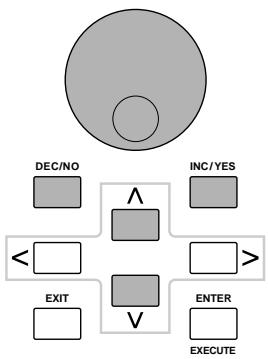
4 Press the [CATEGORY SEARCH] button to turn this function off and go back to the original display.
5 NOTE You can also use the [ENTER] button or [EXIT] button to exit from the Category function.
Favorite Category
Use this convenient function to store all your favorite, often-used Voices in a single, easy-to-access location – and call them up by pressing the [FAVORITES] button. Select any Voice you want, from any desired category, and enter each to the Favorites Category. In this way, you can go directly to all the Voices you use the most, without having to hop around other Categories – a great aid when playing live.
1 | Turn the Category Search function on by pressing the [CATEGORY SEARCH] button.
2 Specify the Category and Sub Category, then select a Voice (page 62).
3 Register the Voice selected in step #2 to the Favorite Category by Pressing the [F5] SET/CLR button to checkmark the box next to the Voice name.
You can un-checkmark it by pressing the [F5] button again.
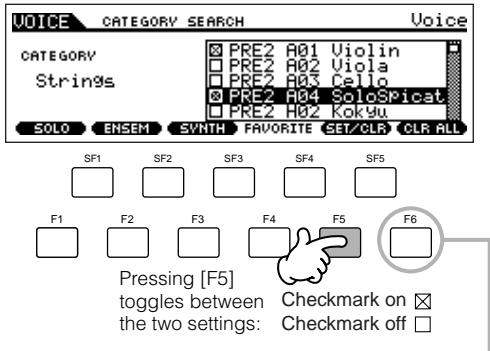
To remove all the marked Voices from the Favorite Category, simply press the [F6] CLR ALL button.
4 Set other Voices to the Favorite Category as required by repeating step #2 - 3.
Press the [FAVORITES] button to see the Voices set to the Favorite Category in steps #2 - 4.
You can use the [F5] SET/CLR and [F6] CLR ALL buttons also in this display to register/remove the voices to/from the Favorite Category.
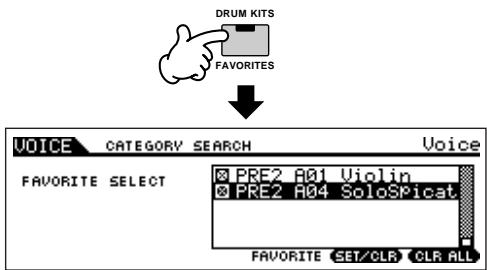
6 Press the [FAVORITES] button again to return to the Category Search display.
7
Pressing the [CATEGORY SEARCH] button to exit from the Category Search display will store the Favorite Category settings to internal Flash ROM automatically.
CAUTION
Make sure to execute step #7. The settings made in steps #3 - 4 will be lost if you turning the power off without executing step #7.
CAUTION
Never attempt to turn off the power while data (e.g., Voice) is being written to Flash ROM (while a "Please keep power on" message is shown). Turning the power off in this state may not only cause the system to freeze (due to data corruption in the Flash ROM) and prevent normal startup the next time the power is turned on, it may also result in loss of all user data.
Keyboard octave setting (MOTIF ES6/MOTIF ES7)
Sometimes when playing a voice, you may wish to play in a lower or higher pitch range. For example, you may want to shift the pitch down lower to get extra bass notes, or shift up to get higher notes for leads and solos. The Octave Up/Down controls let you do this quickly and easily. Each time you press the [OCTAVE UP] button on the panel, the overall pitch of the voice goes up by one octave. Likewise, each press of the [OCTAVE DOWN] button takes the pitch down by one octave. The range is from -3 to +3, with 0 being standard pitch. When this is set to Octave Up, the lamp of the [OCTAVE UP] button lights, and when it is set to Octave Down, the [OCTAVE DOWN] button's lamp lights. The current octave setting is shown at the top right of the display. You can instantly restore standard pitch (0) by simultaneously pressing both the [OCTAVE UP] button and the [OCTAVE DOWN] button (both lamps turn off).
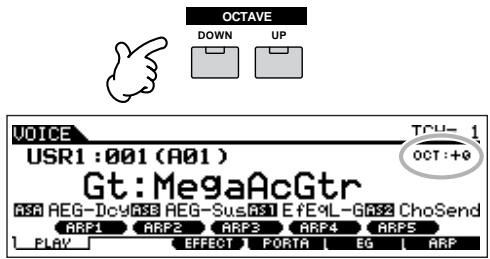
5. NOTE The Octave setting made here is automatically reflected in the identical Octave parameter in the Utility mode ([UTILITY] [F1] GENERAL [SF2] KBD Octave). This setting is available in all modes.
TIP Transpose setting of the keyboard
You can set the amount in semitones by which the range of the keyboard is shifted up or down as well as the octave setting.
Press the [UTILITY] button to enter the Utility mode.
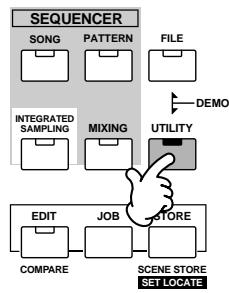
2 Press the [F1] GENERAL button, then the [SF2] KBD button.
![YAMAHA MOTIF ES6 - Press the [F1] GENERAL button, then the [SF2] KBD button. - 1](/content/2025/01/114832/images/899784e71a1b76eecdb64d534e48ed736051bcde95c9e1becdb9df0119971112.jpg)
![YAMAHA MOTIF ES6 - Press the [F1] GENERAL button, then the [SF2] KBD button. - 2](/content/2025/01/114832/images/c3da97441aae88291fbf5dfb1278a641e891a328b74e91bdb3c006a47492f364.jpg)
3 Move the cursor to "Transpose" by using the Cursor button.
4 Change the Transpose value by using the [INC/YES], [DEC/NO] buttons and data dial.
5 Press the [STORE] button to store the Transpose setting to internal Flash ROM.
CAUTION
Make sure to execute step #5. The settings made in step #4 will be lost if you turning the power off without executing step #7.
CAUTION
Never attempt to turn off the power while data (e.g., Voice) is being written to Flash ROM (while a "Please keep power on" message is shown). Turning the power off in this state may not only cause the system to freeze (due to data corruption in the Flash ROM) and prevent normal startup the next time the power is turned on, it may also result in loss of all user data.
5.10 The transpose setting is available in all modes.
Keyboard MIDI transmit channel setting
This function is especially convenient when recording to an external sequencer or controlling another instrument via MIDI. It lets you easily change the transmit channel with just a couple of button presses. Press the [TRACK SELECT] button (the lamp lights), then press the appropriate NUMBER button ([1] - [16]). The transmit channel setting is shown at the top right of the display.
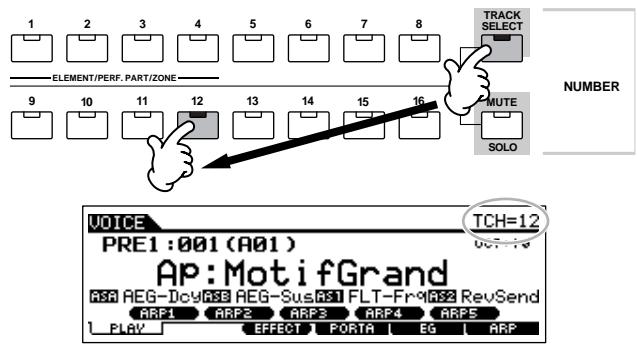
Note You can also set the MIDI keyboard transmit channel from the Utility mode ([UTILITY] [F5] MIDI [SF1] CH KBDTransCh). This parameter is available for the Voice mode/Performance mode but not for the Song mode/Pattern mode.
Using Controllers
Pitch Bend Wheel
Use the Pitch Bend wheel to bend notes up (roll the wheel away from you) or down (roll the wheel toward you) while playing the keyboard. This wheel is self-centering and will automatically return to normal pitch when released. Try out the Pitch Bend wheel while pressing a note on the keyboard.
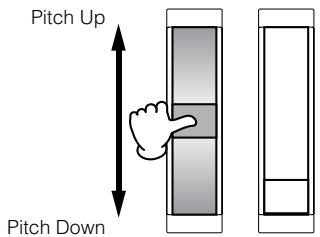
Pitch Bend Wheel
Note Each preset Voice has its own default Pitch Bend Range setting. The Pitch Bend Range setting for each Voice can be changed in the [VOICE] [EDIT] [COMMON] [F1] GENERAL [SF5] OTHER display and stored as a User Voice in the Voice Store mode. From this display you can also reverse the Pitch Bend function — so that moving the wheel up lowers the pitch, and moving it down raises the pitch.
Functions other than Pitch Bend can be assigned to the Pitch Bend Wheel in the [VOICE] [EDIT] [COMMON] [F4] CTL SET display. These assignment settings can be stored as a User Voice in the Voice Store mode. Even if a different function is assigned to this wheel, the Pitch Bend function is available and Pitch Bend messages are still generated when the wheel is used.
5. Note Using the Pitch Bend wheel generates the same MIDI message to extend devices, regardless of the assignments made in the Voice Edit mode.
Modulation Wheel
Even though the Modulation wheel is conventionally used to apply vibrato to the sound, many of the preset Voices have other functions and effects assigned to the wheel. The more you move this wheel up, the greater the effect that is applied to the sound. Try out the Modulation wheel with various preset voices while playing the keyboard.
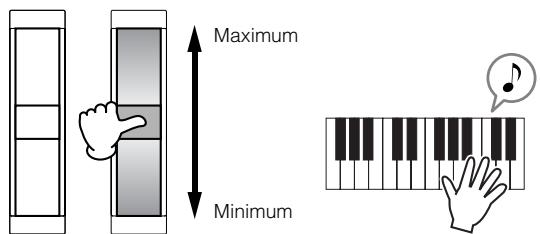
Modulation Wheel
- Note To avoid accidentally applying effects to the current Voice, make sure the Modulation Wheel is set to minimum before you start playing.
- NOTE Various functions can be assigned to the Modulation Wheel in the [VOICE] [EDIT] [COMMON] [F4] CTL SET display. These assignment settings can be stored as a User Voice in the Voice Store mode.
5.101 Using the Modulation wheel generates the same MIDI message to external devices, regardless of the assignments made in the Voice Edit mode.
Ribbon Controller
The Ribbon Controller is touch sensitive, and is controlled by running your finger laterally across the surface. Various function are assigned to each preset Voice. Try out the Ribbon Controller with various preset Voices while playing the keyboard.

You can set the Ribbon Controller to control different functions on connected external MIDI devices from the functions assigned for the instrument itself. You can also determine whether the Ribbon Controller value returns to the center, or stays at the point where you released your finger. Both of these settings can be made in the Utility mode ([UTILITY] [F3] VOICE [SF4] CTL ASN).
Knobs (KN)
These knobs let you change various aspects of the Voice's sound in real time – while you play. Turn a knob to the right to increase the value, and left to decrease it. For each preset Voice, various functions are assigned to four knobs. Try out these knobs with various preset Voices while playing keyboard.
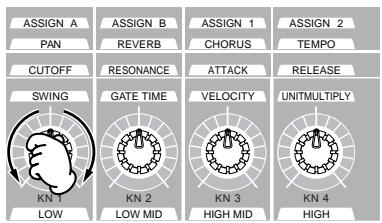
You can change which particular group of functions or parameters the knobs are assigned to by pressing any of the [KNOB CONTROL FUNCTION] buttons. For details, see page 81.
- Note In certain situations, using the knobs may not result in any change in the sound. For more information, refer to page 50 in the Basic Operation section.
Edit Indicator
Tweaking the knobs in the Voice mode directly changes the parameters of the Voice. When any of the Voice parameters are changed, the [E] (Edit) Indicator appears in the top left of the display. This indicates that the current voice has been modified but not yet stored.
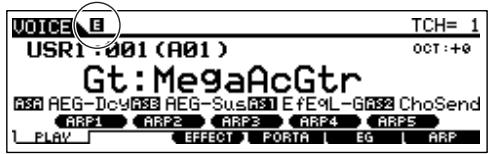
Edit Indicator
If you're satisfied with the tweaks you made and the resulting sound, you can store the changes as a User Voice in the Voice Store mode (page 85).
CAUTION
If you select another Voice during editing, the [E] (Edit) indicator will disappear and all your edits will be lost.
It is a good idea to store the edited Voice data from the Voice Store mode (page 85). Even if you lose the edited Voice data, you can restore it by using the Edit Recall function (page 82).
Control Sliders
In the Voice mode, the four Control Sliders let you independently adjust the levels of the Elements of a Normal Voice or the Drum Voice keys. When Normal Voice is selected, you can adjust the volume balance among the four Elements.
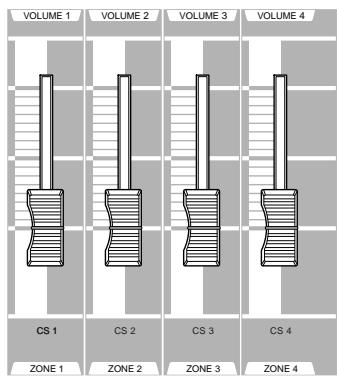
- NOTE Inadvertent use of the sliders may result in no sound. If this occurs, move the sliders upward.
Using the Arpeggio feature
This function lets you trigger rhythm patterns, riffs and phrases using the current Voice by simply playing notes on the keyboard. Since the preset Voices already have their own Arpeggio types pre-assigned, all you need to do is select the desired Voice and turn on the Arpeggio function. Try selecting different Voices and check out the various Arpeggio types.
- Note For details about Arpeggio, see page 169.
1 Press the [ARPEGGIO ON/OFF] button to turn Arpeggio on.
For certain Voices, simply selecting the Voice will turn Arpeggio on.
![YAMAHA MOTIF ES6 - Press the [ARPEGGIO ON/OFF] button to turn Arpeggio on. - 1](/content/2025/01/114832/images/bfb71232f4b303f06f174e5173ff6cd130b0c9e391f8514bfb7a19952f5b5ba2.jpg)
2 Play a note or notes on the keyboard to trigger the Arpeggio playback.
The particular rhythm pattern or phrase that plays depends on the actual notes or chords you play, as well as on the selected Arpeggio type. For details, refer to page 169 in the Basic Operation section.
Changing the Arpeggio type during keyboard performance
A different Arpeggio type is assigned to each of the [SF1] ARP1 - [SF5] ARP5 buttons for each preset Voice. When a musical note icon appears to the right of each Arpeggio number in the display (see below), the corresponding button is assigned an Arpeggio type. Try out various Arpeggio types by pressing the [SF1] - [SF5] buttons.
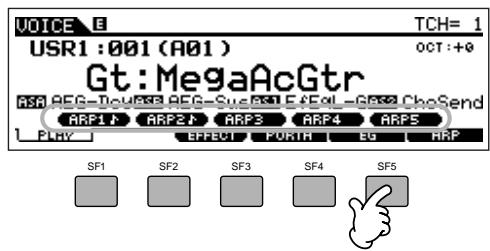
You can confirm the currently selected Arpeggio type in the [F6] ARP display.
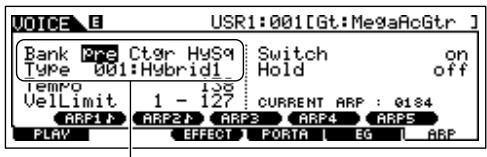
Arpeggio type currently selected
| Bank | Indicates "pre (preset)" or "usr (user)." |
| Ctgr | See page 169. |
| Type | Refer to the separate Data List booklet. |
Register your favorite Arpeggio types to the [SF1] - [SF5] buttons. You can change the default settings and assign any Arpeggio types you like to the [SF1] - [SF5] buttons. The selected Arpeggio indication is highlighted in white. If two buttons share the same type, both will appear in white. The settings can be stored as a User Voice in the Voice Store mode.
Press the [ARPEGGIO ON/OFF] button to turn Arpeggio on.
2 Select the desired Arpeggio type in the [VOICE] [F6] ARP display.
3 While holding the [STORE] button, press one of the [SF1] - [SF5] button.
The currently selected Arpeggio type is assigned to the pressed button. If you execute this operation with the [ARPEGGIO ON/OFF] lamp off, no Arpeggio type will be assigned to the pressed button.
4 Repeat steps #2 - 3 as necessary.
5 Press and release the [STORE] button to enter the Voice Store mode and store the setting as a User Voice (page 85).
- NOTE Keep in mind that holding and releasing the [STORE] button WITHOUT pressing one of the [SF1] - [SF5] buttons will automatically enter the Voice Store mode, instead of storing the Arpeggio type.
Controlling Arpeggio playback by using the knobs
You can adjust the Arpeggio related parameters such as volume and tempo by rotating the knobs. If you are satisfied with the results, you can store the changes as a User Voice in the Voice Store mode.
1 Press the KNOB CONTROL FUNCTION [ARP FX] button (the lamp lights).
Selecting some voices automatically turns this lamp on.
![YAMAHA MOTIF ES6 - Press the KNOB CONTROL FUNCTION [ARP FX] button (the lamp lights). - 1](/content/2025/01/114832/images/f6375a2e21c07fccc3e2c9ea3550327b94549327a14d7d119320049b5b80b787.jpg)
2 Tweak the knobs while the Arpeggio is playing.
For details on what functions each knob controls while the [ARP FX] lamp is on, see page 81.
3 If you're satisfied with the results, you can store the changes as a User Voice in the Voice Store mode (page 85).
Playing the Keyboard (in the Performance Play mode)
As in the Voice Play mode, the Performance Play mode is where you select and play the instrument sounds of this synthesizer. In a Performance, you can mix several different Voices together in a layer, or split them across the keyboard, or even set up a combination layer/split. Each Performance can contain up to four different Parts.
Selecting a Performance
128 Performances (1 bank) are provided in internal User memory (Flash ROM). In the Performance Play mode, you can select and play individual User performances. Since there is only one bank for Performances, you need not select a Performance Bank.
1 Press the [PERFORM] button to enter the Performance Play mode.
In this condition, playing the keyboard sounds the Performance indicated in the display. The parameters shown in the Performance Play mode are briefly explained below.
![YAMAHA MOTIF ES6 - Press the [PERFORM] button to enter the Performance Play mode. - 1](/content/2025/01/114832/images/0b91995d87e1290ad2bcf438a80d0c3a5ac8c8c4c3e8abde65b55052511526bf.jpg)
5. Note: Keep in mind that the example displays shown in this manual are for instruction purposes only, and the contents (for example, the Performance name here) may differ slightly from those on your instrument.
2 Select a Performance Group.
Performances are divided into Groups [A] ~ [H]. Select a Group to show a list of the Performances.
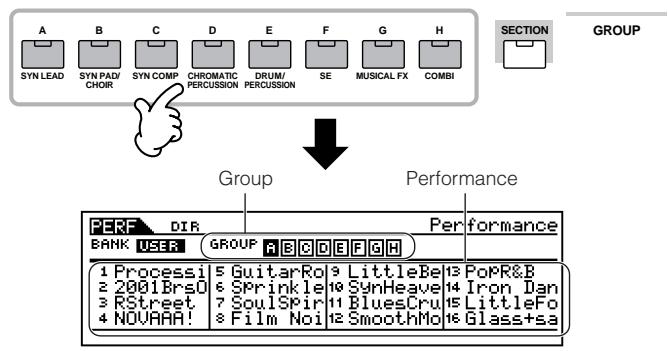
3 Select a Performance Number.
Press one of the NUMBER [1] - [16] buttons.

4 | Play the keyboard.
Using the [INC/YES], [DEC/NO] buttons and data dial
Rather than using the BANK/NUMBER buttons described in steps #2 and 3 above, you can select a Performance by using the [INC/YES], [DEC/NO] buttons and data dial.
![YAMAHA MOTIF ES6 - Using the [INC/YES], [DEC/NO] buttons and data dial - 1](/content/2025/01/114832/images/daf1d87642fa59223b0b0005a36d1e22c1307f1119c526a6f905e42d930b9156.jpg)
Performance Part mute/solo
Each performance can contain a maximum of four Parts, each of which can be turned on or off independently. Muting and soloing of Parts is done in the same way as that of tracks in a Song/Pattern. See page 58.
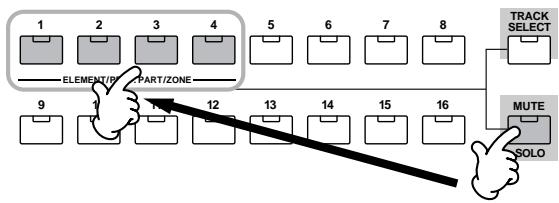
Using the Category Search function
As in the Voice Play mode, you can use the Category Search and Favorite Category functions in the Performance Play mode. For details on how to use the function, see page 62.
Keyboard octave setting (MOTIF ES6/MOTIF ES7)
As in the Voice Play mode, you can use the [OCTAVE UP/DOWN] button to shift the note of the keyboard up or down in octaves.
- Note The Octave setting made here is automatically reflected in the identical Octave parameter in the Utility mode ([UTILITY] [F1] GENERAL [SF2] KBD Octave). This setting is available in all modes.
TIP Transpose setting of the keyboard
As in the Voice Play mode, you can set the amount in semitones by which the range of the keyboard is shifted up or down in the Utility mode.
NOTE The transpose setting is available in all modes.
Keyboard MIDI transmit channel setting
As in the Voice Play mode, you can change the MIDI transmit channel for the keyboard. Press the [TRACK SELECT] button (the lamp lights), then press the appropriate NUMBER button ([1] - [16]). The transmit channel setting is shown at the top right of the display.
5 NOTE You can also set the MIDI keyboard transmit channel from the Utility mode ([UTILITY] [F5] MIDI [SF1] CH KBDTransCh). This parameter is available for the Voice mode/Performance mode but not for the Song mode/Pattern mode.
Using Controllers
Pitch Bend Wheel
This is basically the same as in the Voice Play mode (page 64).
- Note The Pitch Bend Range setting depends on the setting (made in the Voice mode) of the Voice assigned to each Part.
5Note The functions assigned to the Pitch Bend Wheel depend on the setting (made in the Voice mode) of the Voice assigned to each Part. - NOTE Even if a different function is assigned to the wheel, Pitch bend is still available and Pitch Bend messages are still generated when the wheel is used.
Modulation Wheel
This is basically the same as in the Voice Play mode (page 64).
- NOTE To avoid accidentally applying effects to the current Voice, make sure the Modulation Wheel is set to minimum before you start playing.
- Note The functions assigned to the Modulation Wheel depend on the settings (made in the Voice mode) of the Voice assigned to each Part.
5Note Using the Modulation wheel generates the same MIDI message to external devices, regardless of the assignments made in the Voice Edit mode.
Ribbon Controller
This is basically the same as in the Voice Play mode (page 65).
5Note The functions assigned to the Ribbon Controller depend on the settings (made in the Voice mode) of the Voice assigned to each Part.
- Note You can set the Ribbon Controller to control a different function on connected external MIDI devices from the functions assigned for the Performance on the instrument itself. You can also determine whether the Ribbon Controller value returns to the center for each Performance, or stays at the point where you released your finger. Both of these setting can be made in the Performance Edit mode ([PERFORM] Performance selection [EDIT] COMMON [F4] CTL ASN).
Knobs (KN)
These knobs let you change various aspects of the Performance sound in real time – while you play. Turn a knob to the right to increase the value, and left to decrease it. For each Performance, various functions are assigned to four knobs. Try out these knobs with various Performances while playing the keyboard.
You can change which particular group of functions or parameters the knobs are assigned to by pressing any of the [KNOB CONTROL FUNCTION] buttons. For details, see page 90.
- Note In certain situations, using the knobs may not result in any change in the sound. For more information, refer to page 50 in the Basic Operation section.
Edit Indicator
Tweaking the knobs in the Performance mode directly changes the parameters of the Performance. When any of the Performance parameters are changed, the [E] (Edit) Indicator appears in the top left of the display. This indicates that the current Performance has been modified but not yet stored.
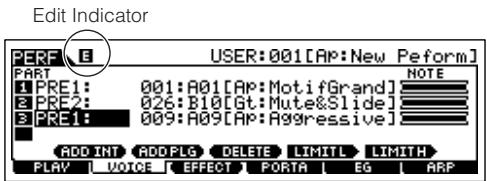
If you're satisfied with the tweaks you made and the resulting sound, you can store the changes as a User Performance in the Performance Store mode (page 91).
CAUTION
If you select another Performance during editing, the [E] (Edit) indicator will disappear and all your edits will be lost. It is a good idea to store the edited Performance data from the Performance Store mode (page 91). Even if you lose the edited Performance data, you can restore it by using the Edit Recall function (page 91).
CAUTION
When shipped from the factory, this synthesizer contains a full set of specially programmed 128 User Performances in the User bank. You can edit and store these Performances and overwrite them in the Performance Store mode. You can also restore them to the original factory presets by pressing the [ENTER] button in the [UTILITY] [JOB] display (page 44).
Control Sliders
In the Performance mode, the four Control Sliders let you independently adjust the levels of the Parts of a Performance. You can adjust the volume balance among four parts.
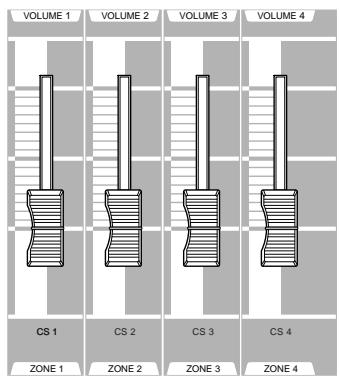
-
NOTE Inadvertent use of the sliders may result in no sound. If this occurs, move the sliders upward.
-
NOTE In certain situations, using the Control Sliders may not result in any change in the sound. For more information, refer to page 50 in the Basic Operation section.
Using the Arpeggio feature
As in the Voice mode, you can use the Arpeggio feature in the Performance mode.
In the Performance mode, you can make independent Arpeggio playback settings for each Part of the Performance — including the on/off setting, as well as the Arpeggio type and related parameters. This means you can set the Performance such that any or all Parts can be used to trigger Arpeggio playback. A useful application of this would be to assign a Drum Voice to one Part and use Arpeggio playback on only that Part — so that you can have a rhythm pattern accompaniment playing while you play another Voice.
Since the preset Performances already have their own Arpeggio types pre-assigned, all you need to do is select the desired Performance and turn on the Arpeggio function. Try selecting different Performances and check out the various Arpeggio types.
5Note Different Arpeggio types cannot be played back for each Part.
5.10 For details about Arpeggio, see page 169.
Changing the Arpeggio type during your performance
As in the Voice Play mode (page 66), the Performance play mode lets you use the [SF1] - [SF5] buttons to assign the Arpeggio types and recall them.
The Arpeggio type for the current Performance can be selected in the [PERFORM] [F6] ARP display or the [PERFORM] [EDIT] [COMMON] [F3] ARP display.
If you assign the desired Arpeggio type to the [SF1] - [SF5] buttons, store the settings as a User Performance in the Performance Store mode (page 91).
Controlling Arpeggio playback by using the knobs
You can tweak Arpeggio related parameters such as volume and tempo by using the knobs. If you're satisfied with the tweaks you made and the resulting sound, you can store the changes as a User Performance in the Performance Store mode.
For information on using the knobs, refer to the Voice Play mode (page 66).
Assigning desired Voices to each part
Performances can be made up of a maximum of four Parts (Voices), selected from the internal tone generator Parts 1 - 4 and Plug-in board Parts 1 - 3.
You can create a Performance by layering several Voices together, and by assigning different Voices to separate ranges of the keyboard. You can then store up to 128 of your original, edited Performances to internal User memory.
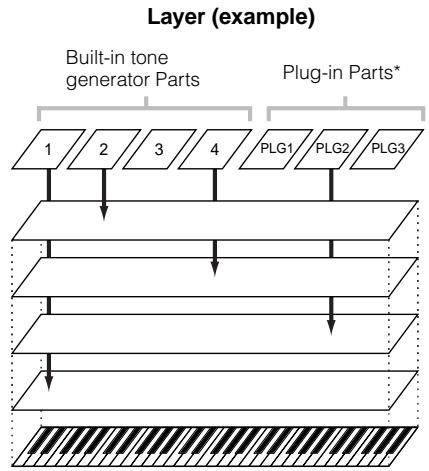
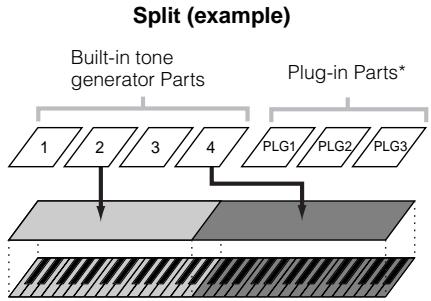
*Available when the Plug-in Board has been installed.
1 Press the [F2] VOICE button in the Performance Play mode.
This calls up a list indicating which Voice is assigned to each Part of the current Performance.
![YAMAHA MOTIF ES6 - Press the [F2] VOICE button in the Performance Play mode. - 1](/content/2025/01/114832/images/9865c9d5ee84287b93ad62f7196bc3595cdb6b4b5c05a06ae294577965e75b7a.jpg)
2 Assign the desired Voice to each Part.
Move the cursor to the desired Part. When a Voice has already been assigned to the selected Part, change the Voice Bank or Number by using the data dial, the [INC/YES] and the [DEC/NO] button. When no Voice is assigned to the selected Part, press the [SF1] ADD INT button or [SF2] ADD PLG button to execute the assignment, then change the Voice Bank or Number.
You can also select a Voice Bank/Number by using the BANK, GROUP, and NUMBER buttons (page 60).
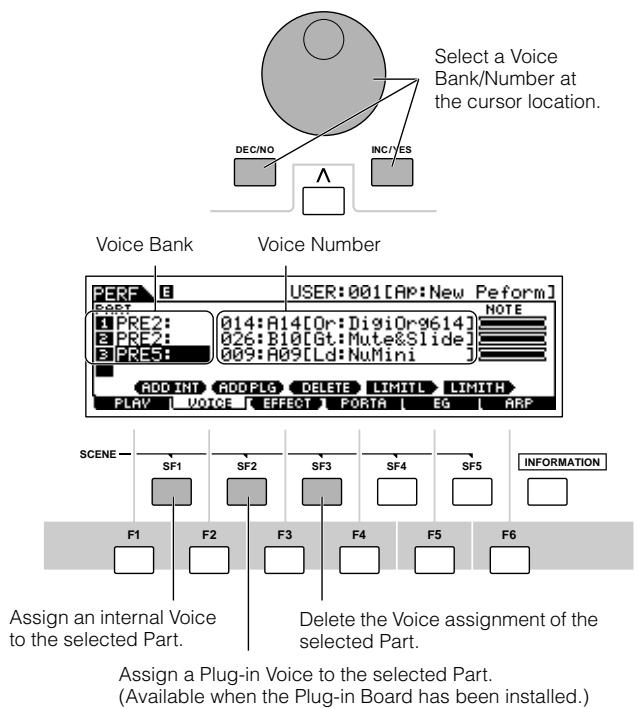
5. Note: Voices of the Multi part Plug-in Board PLG100-XG cannot be assigned to Performance parts.
When an internal Voice is assigned to a Part, the following Voice Banks are available.
| PRE1 (Preset1) ~ PRE6 (Preset 6) | Preset Banks 1 - 6 of the Normal Voice. These correspond to the [PRE1] - [PRE6] buttons in the Voice mode. |
| USER1 ~ USER2 | User Banks 1 - 2 of the Normal Voice. These correspond to the [USER1] - [USER2] buttons in the Voice mode. |
| GM | GM Normal Voice Bank. This corresponds to the [GM] button in the Voice mode. |
| PDR (Preset Drum) | Preset Bank of the Drum Voice. This corresponds to pressing the [DRUM KITS] button and the [PRE5] button simultaneously. |
| GMDR (GM Drum) | GM Drum Voice Bank. This corresponds to pressing the [DRUM KITS] button and the [GM] button simultaneously. |
| UDR (User Drum) | User Bank of the Drum Voice. This corresponds to pressing the [DRUM KITS] button and the [USER1] button simultaneously. |
When a Plug-in Board Voice is assigned to a Part, the available Voice Banks differ depending on the installed Plug-in Board. For details, refer to the Owner's Manual that came with the Plug-in Board.
3 Specify the note range of each part, as required.
You can set the lowest note of the range over which the Voice of the selected Part sounds by simultaneously holding the [SF4] button and pressing the desired key. To set the highest note of the range, simultaneously hold the [SF5] button and press the desired key.
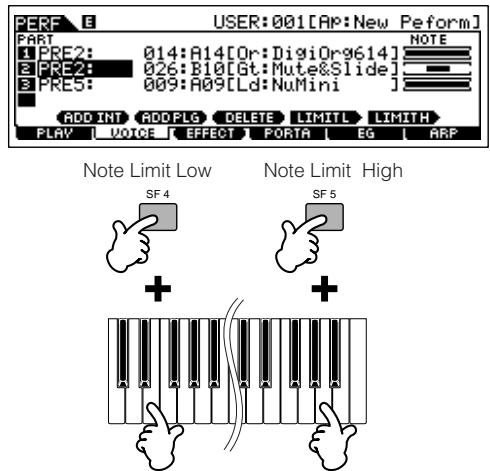
4 Change the volume of each Part and adjust the relative balance among the four Parts by using the Control sliders.
5 Store the settings as a User Performance in the Performance Store mode.
Press the [STORE] button to enter the Performance Store mode, select the destination Performance number, then press the [ENTER] button to execute the store operation. For details about Performance Store, see page 91.
Using the A/D input sound
One of the enormous benefits of the Performance mode is that you can have the A/D input sound — such as your voice through a microphone, a guitar, bass, or CD player — assigned as one of the four Parts of a Performance. Various Part parameters such as volume, pan, and effects can be set for this Part, and the sound of the Part is mixed and output together with the other Parts. These parameters are set and stored in the Performance Store mode for each Performance.
The Audio Input part is available also in the Song mode/Pattern mode, but is not available in the Voice mode. The procedure and explanations here apply to the Song and Pattern modes as well. The microphone related parameters (corresponding to step #8 below) of each Song/Pattern are edited in the Song Mixing mode/Pattern Mixing mode.
Connecting a microphone to the A/D INPUT jack
The explanation below applies in particular to low-level equipment, such as microphones, guitars and basses.
1 Make sure to turn the power of the MOTIF ES off and set the GAIN knob on the rear panel to the minimum.
Plug the microphone to the A/D INPUT jack on the rear panel.
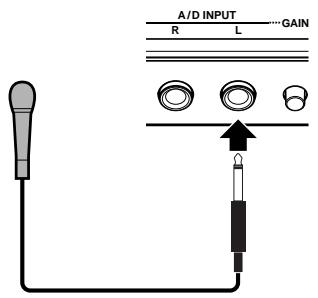
- NOTE A standard dynamic microphone is recommended. (The MOTIF ES does not support phantom-powered condenser microphones.)
3 Turn the power on.
4 Press the [PERFORM] button to enter the Performance Play mode and select the desired Performance.
5
Press the [UTILITY] button to enter the Utility mode, press the [F2] I/O button, then press the [SF1] INPUT button.
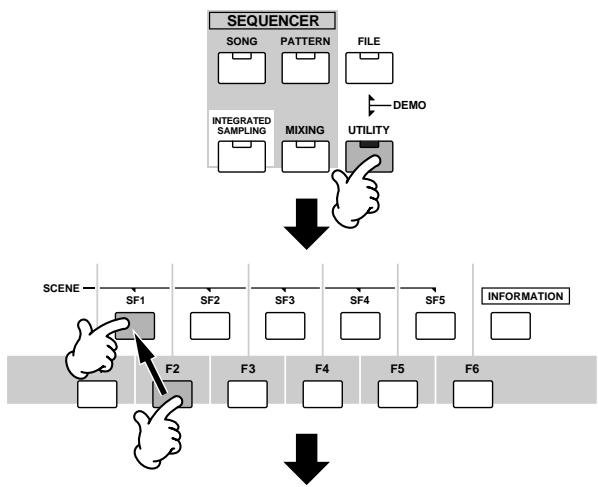
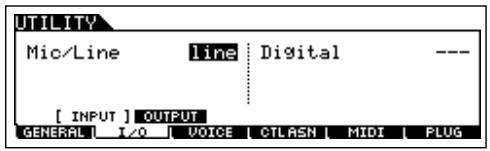
6 Set Mic/Line to "mic."
Move the cursor to the "Mic/Line" parameter by using the Cursor button and set it to "mic" by using the [INC/YES] button, [DEC/NO] button, or data dial.
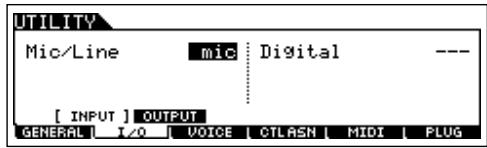
5.103 When the output level of the connected equipment (such as a microphone, guitar, bass) is low, set this parameter to "mic." When the output level of the connected equipment (such as a synthesizer keyboard, CD player) is high, set this parameter to "line."
5 NOTE This setting is available for all modes. If you wish to store this setting, press the [STORE] button.
7 Adjust the microphone input level by using the GAIN knob on the rear panel.
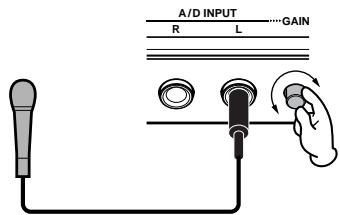
8
Set the audio input related parameters as necessary from the AUDIO IN display ([PERFORM] [EDIT] [COMMON] [F5] AUDIO IN).
For details about each parameter, refer to page 214 in the Reference section.
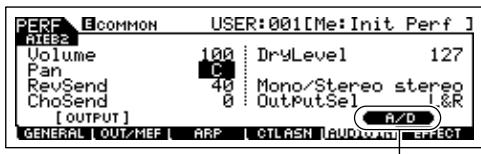
When the optional AIEB2 or mLAN16E has been installed, the [F5] AUDIO IN menu has two indications: "A/D" and "AIEB2" or "mLAN16E." Here, call up the A/D display by pressing the [SF5] button.
9
Store the settings as a User Performance in the Performance Store mode (page 91).
Connecting audio equipment to the A/D INPUT jack
The explanation below applies in particular to high-level audio equipment, such as CD players, synthesizers, and other keyboards.
1
Make sure to turn off the power of both the MOTIF ES and the relevant audio equipment.
2
Plug the audio equipment cable to the A/D INPUT jack on the rear panel.
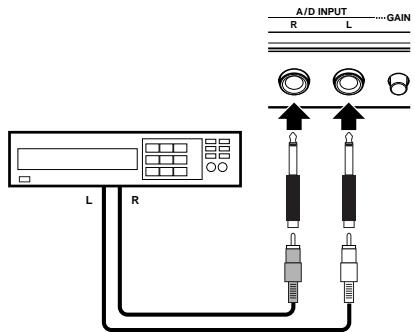
3
Switch the power of the connected audio equipment on, then switch the power of the MOTIF ES on.
4
Press the [PERFORM] button to enter the Performance Play mode and select the desired Performance.
5
Press the [UTILITY] button to enter the Utility mode, press the [F2] I/O button, then press the [SF1] INPUT button.
6
Set Mic/Line to "line."
Move the cursor to the "Mic/Line" parameter by using the Cursor button and set it to "line" by using the [INC/YES] button, [DEC/NO] button, or data dial.
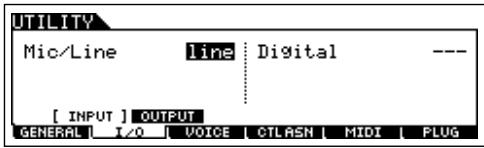
NOTE
When the output level of the connected equipment (such as a microphone, guitar, bass) is low, set this parameter to "mic." When the output level of the connected equipment (such as a synthesizer keyboard, CD player) is high, set this parameter to "line."
NOTE
This setting is available for all modes. If you wish to store this setting, press the [STORE] button.
7
Adjust the audio input level by using the GAIN knob on the rear panel.
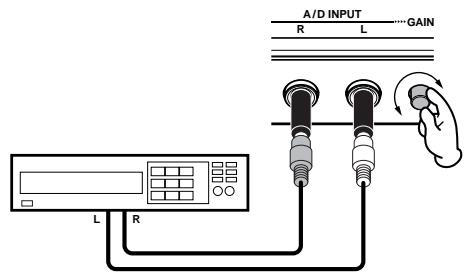
8
Set the audio input related parameters as necessary from the AUDIO IN display ([PERFORM] [EDIT] [COMMON] [F5] AUDIO IN).
For details about each parameter, refer to page 214 in the Reference section. When an optional AIEB2 or mLAN16E has been installed, press the [SF5] button to call up the A/D display.
9
Store the settings as a User Performance in the Performance Store mode (page 91).
NOTE
Audio input signals from the OPTICAL INPUT and DIGITAL INPUT connector (when the optional AIEB2 has been installed) or the mLAN connector (when the optional mLAN16E has been installed) can also be handled as Audio Input Parts. For details, see page 165.
Using the Plug-in Board
Plug-in Boards give you an enormous amount of additional sonic flexibility and power. When installed, they work seamlessly and transparently within the system of this synthesizer – meaning that you can use their sounds and functions just as if they were built right into this synthesizer at the factory.
The boards that are available for and can be installed to this synthesizer are described below.
Up to three Plug-in boards can be installed to the MOTIF ES. These boards are not simply a source of more Voices; they are also full-featured, editable tone generators in their own right and extend the system-level specifications such as maximum polyphony. In addition, they allow you to use synthesis systems besides AWM2. You can play Plug-in Voices just like ordinary internal Voices and use them as Parts in a Song/Pattern/Performance.
This synthesizer is compatible with the Modular Synthesis Plug-in System (see below).
MODULAR SYNTHESIS PLUG-INSYSTEM
About MODULAR SYNTHESIS PLUG-IN SYSTEM
The Yamaha Modular Synthesis Plug-in System offers powerful expansion and upgrade capabilities for Modular Synthesis-Plug-in-compatible synthesizers, tone generators and sound cards. This enables you to easily and effectively take advantage of sophisticated synthesizer and effects technology, allowing you to keep pace with the rapid and multi-faceted advances in modern music production.
Available Plug-in Boards
There are three types of Modular Synthesis Plug-in System-compatible Plug-in Boards: Single Part, Multi-Part and Effect Plug-in Board. Using these, you can build your own system based on the sounds you require.
Single Part Plug-in Boards
Single Part Plug-in Boards let you add a completely different synthesizer or single timbre tone generator (page 162) and play its voices by using a single part of this synthesizer. Some boards allow you to use synthesis systems besides AWM2.
- Analog Physical Modeling Plug-in Board (PLG150-AN)
Using Analog Physical Modeling (AN) synthesis, the very latest digital technology is used to accurately reproduce the sound of analog synthesizers. With this board installed, you have real-time control over the playback of vintage synthesizer sounds as well as the very latest sounds heard in today's club-oriented music.
- Piano Plug-in Board (PLG150-PF)
A massive waveform memory is dedicated to the reproduction of piano sounds. This board offers 136 stereo sounds, including a number of acoustic and electric pianos, and up to 64-note polyphony. You can even install two of these boards to double the polyphony to 128 notes.
- Advanced DX/TX Plug-in Board (PLG150-DX)
The sounds of the DX7 are available on this Plug-in Board. Unlike PCM-based tone generators, this board uses the powerful FM Synthesis system – the same as found on DX-series synthesizers – for extraordinarily versatile and dynamic sound shaping potential. Sounds are compatible with those of the DX7, and the board can even receive DX7 data via MIDI bulk dump.
- Virtual Acoustic Plug-in Board (PLG150-VL)
With Virtual Acoustic (VA) synthesis, the sounds of real instruments are modeled (simulated) in real time, giving a degree of realism that cannot be achieved using conventional PCM-based synthesis techniques. When playing these sounds using an optional MIDI Wind Controller (WX5), you can even capture some of the physical feel of woodwind instruments.
- Drum Plug-in Board (PLG150-DR)/Percussion Plug-in Board (PLG150-PC)
Once connected and installed, the PLG150-DR/PLG150-PC becomes a seamless additional sound source of AWM2 for the host tone generator or synthesizer – providing a total of 88 drum/percussion voices. Thanks to the built-in effect processing power, the PLG150-DR/PLG150-PC has two separate effect blocks – Insertion and Reverb – that can be applied to each kit.
Multi-Part Plug-in Board
Multi-Part Plug-in Boards let you add a completely independent multi-timbral tone generator to the MOTIF ES (page 162) — expanding the Voice capacity and polyphony of the instrument with a full sixteen additional instrument parts.
XG Plug-in Board (PLG100-XG)
This Plug-in Board is a 16-part XG sound generator. You can play back XG/GM song files using the rich variety of sounds and effects on this board.
Effect Plug-in Board
Effect Plug-in Boards let you add a completely different effect block to the host synthesizer.
- Vocal Harmony Plug-in Board (PLG100-VH)
With this board installed, you can add harmonies to selected parts using four types of effects. Chorus parts for vocals can be created automatically from chords that have been prepared and stored as MIDI data. You can also use this synthesizer like a vocoder by connecting and using a microphone while playing the keyboard.
Using a Single Part Plug-in Board
Install any of the Single Part Plug-in Boards such as PLG150-AN, PLG150-PF, PLG150-DX, PLG150-VL, PLG150-DR, and PLG150-PC to the MOTIF ES and play the Plug-in Voice in the Voice Play mode.
1 | After turning the power off, install a Single Part Plug-in Board to the instrument.
See page 283.
2 Switch the MOTIF ES on.
The corresponding slot indicator at the right top of the front panel lights. This indicates that the board has been successfully installed.
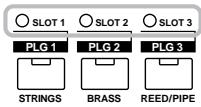
3
Check the status of the installed Plug-in Boards in the [UTILITY] [F6] PLUG [SF1] STATUS display.
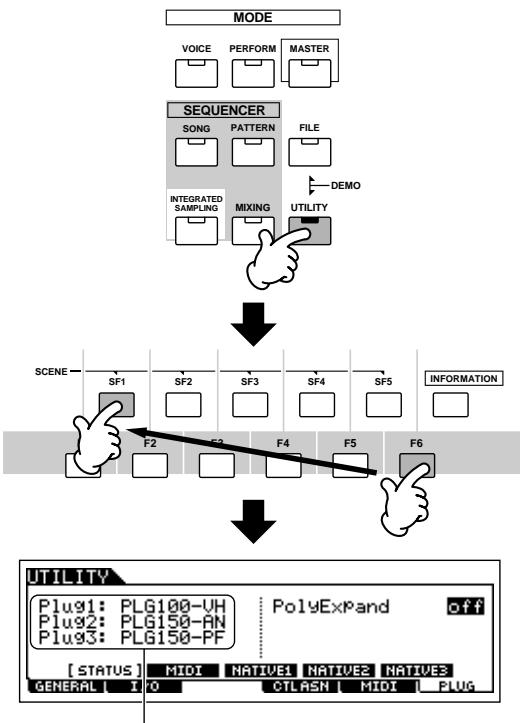
The name of the installed Plug-in Board is displayed.
4
Set the MIDI port of the installed Plug-in Board to "2" or "3" in the [UTILITY] [F6] PLUG [SF2] MIDI display.

- Note If the MIDI Port number here is set to "1" or "off," the Plug-in Voice may sound simultaneously with the internal Voice, when playing back Song/Pattern data. To keep this from happening, make sure the MIDI Port number of the Plug-in Board is set to "2" or "3" — especially when using the Song/Pattern mode. To prevent a similar problem when using both a Single Part Plug-in Board and a Multi Part Plug-in Board together, set each board to a different MIDI Port number.
5
Press the [VOICE] button to enter the Voice Play mode and select a Plug-in Voice.
Selecting a Plug-in Voice is done in the same way as selecting a Normal Voice (page 60) with the exception that you select one of the PLG (Plug-in) Banks. Press the PLG button which corresponds to the slot to which the Plug-in Board has been installed.
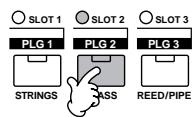
You'll also need to select a Bank within the Plug-in Board. Press the [F2] BANK button to call up the Plug-in Board Bank selection display, then select the desired Bank.
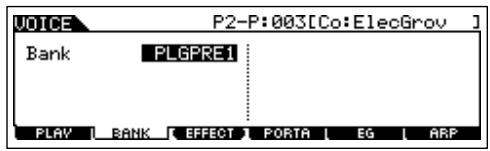
For details about the Bank structure of each Plug-in Board, refer to the Owner's Manual of each Plug-in Board. Regarding the PLGPRE (Plug-in Preset) bank, refer to the Plug-in Voice List. Regarding the Board Voice bank displayed as "035/000," refer to the Voice Map/List. The PLGUSR (Plug-in User) banks contain the Voices you edited and stored as User Voices.
6
Play the keyboard.
- NOTE Playing Voices of the Plug-in User banks (PLG1USR, PLG2USR, PLG3USR) will result in no sound, if the Plug-in Board has just been installed. These banks become available only after you edit a Plug-in Voice and store it as a User Plug-in Voice.
Plug-in Voices and Board Voices
The Voices of a Single Part Plug-in Board installed to this synthesizer can be divided into two types: Board Voices and Plug-in Voices. Board Voices are unprocessed, unaltered Voices of the Plug-in board – the “raw material” used for the Plug-in Voices. Plug-in Voices, on the other hand, are edited Board Voices – Voices that have been specially programmed and processed for optimum use with the host synthesizer.
Since the MOTIF ES includes preset Plug-in Voices for all the Plug-in Boards, you can call up and play appropriate Voices for each board immediately after installing it.
5.10 The Plug-in Voices can be edited in the Voice Edit mode.
5. Note The Board Voices can be edited using the computer software supplied for each Plug-in Board.
TIP Playing the PLG150-VL sound with the Breath Controller
With Virtual Acoustic (VA) synthesis, the PLG150-VL has the sounds of real instruments modeled (simulated) in real time, giving a degree of realism that cannot be achieved using conventional PCM-based synthesis techniques. When playing these sounds using an optional Breath Controller, you can even capture some of the physical feel of woodwind instruments.
Install the PLG150-VL to the MOTIF ES.
2 Connect the Breath Controller BC3 to the BREATH connector on the rear panel (page 42).
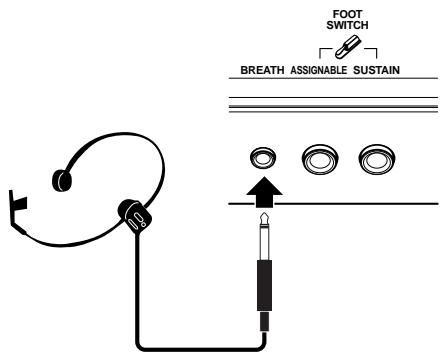
3 Switch the MOTIF ES power on.
4 Set the Plug-in Board related parameters in the Utility mode, corresponding to steps #3 and 4 in the instructions on the previous page.
5 Set the Breath Controller Curve via the [UTILITY] [F1] GENERAL [SF1] TG BCCurve parameter (page 260).
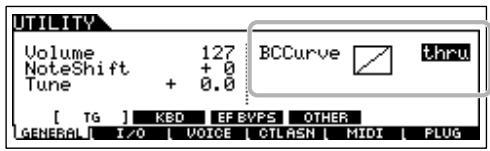
6 Press the [VOICE] button to enter the Voice Play mode, then select a Plug-in Voice of the PLG150-VL.
7 Play the Voice and blow into the Breath Controller to expressively change the sound.
You can also use the MIDI Wind Controller WX5 to play the Plug-in Voice of the PLG150-VL. Connect the WX5 to the MOTIF ES with a MIDI cable.
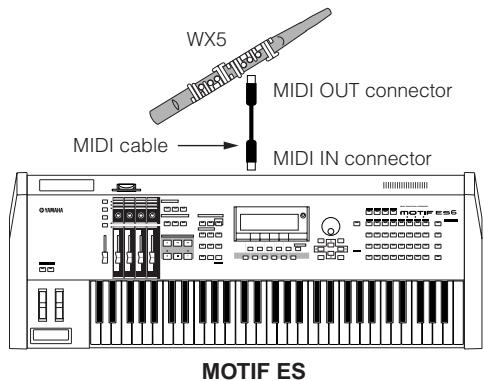
Using a Multi Part Plug-in Board
In this section, we'll explain how to play back an XG format song, using the PLG100-XG Plug-in Board. Naturally, to get the most out of these instructions, you should have XG song data (Standard MIDI File) stored on a SmartMedia card or USB storage device.
1
After turning the power off, install the Multi Part Plug-in Board PLG100-XG to slot 3 of this synthesizer.
See page 283 for details.
2
Switch the MOTIF ES power on.
3
Check the status of the installed Plug-in Boards in the [UTILITY] [F6] PLUG [SF1] STATUS display.
The name of the installed Plug-in Board is displayed.
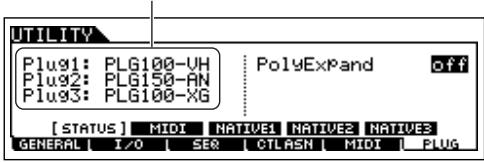
4
Set the MIDI port of the PLG100-XG to "2" or "3" in the [UTILITY] [F6] PLUG [SF2] MIDI display.
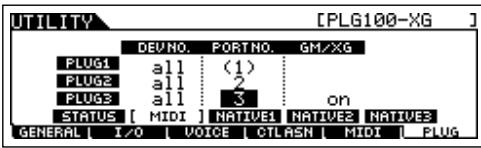
NOTE
If the MIDI Port number here is set to "1" or "off," the Plug-in Voice may sound simultaneously with the internal Voice, when playing back Song/Pattern data. To keep this from happening, make sure the MIDI Port number of the Plug-in Board is set to "2" or "3" — especially when using the Song/Pattern mode. To prevent a similar problem when using both a Single Part Plug-in Board and the PLG100-XG together, set each board to a different MIDI Port number.
5
Press the [SONG] button to enter the Song mode, then press the [FILE] button to enter the File mode.
6
Load the XG song file (Standard MIDI file) from the SmartMedia/USB storage device to the MOTIF ES in the [FILE] [F3] LOAD display, as described in the sub-instructions below.
1 ins
cert a SmartMedia card which contains the XG song files into the CARD slot, or use a USB storage device (connected to the USB TO DEVICE connector) containing appropriate XG song files.
2 Press the [FILE] button to enter the File mode, then set the basic parameters.
Refer to "Basic settings for using SmartMedia or a USB storage device" on page 30.
3 Set the [FILE] [F3] LOAD TYPE parameter to "Song."
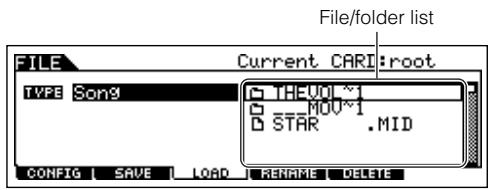
4 Move the cursor to the list of files to be loaded, select the desired file, then press the [ENTER] button.
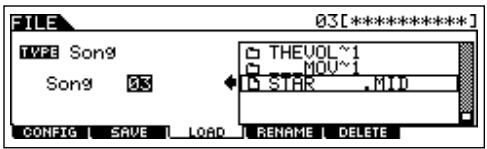
5 Specify the destination Song number, then press the [ENTER] button to execute the Load operation.
CAUTION
Loading data to this synthesizer automatically erases and replaces any existing data in the User memory. Make sure to save any important data to a SmartMedia/USB storage device before performing any Load operations.
Press the [SONG] button to enter the Song Play mode, then select the Song number to which the XG song file was loaded.
Set the MIDI transmit port of all the tracks to the number set in step #4 from the [SONG] [F3] TRACK [SF1] CHANNEL display.
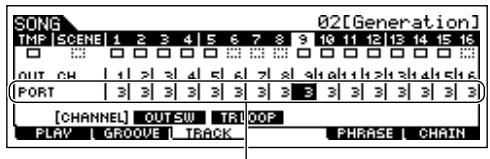
Set MIDI transmit ports.

Press the [▶] (Play) button to play the XG song.
Using an Effect Plug-in Board
In the example explanation below, the PLG100-VH Vocal Harmony Plug-in Board is used to apply harmony effects to the microphone sound in the Performance mode.
For Songs/Patterns, the Effect Plug-in Board related parameters (which correspond to step #6 - 7 below) can be edited in the Song Mixing mode/Pattern Mixing mode.
5. NOTE Please note that the Effect Plug-in Board cannot be used in the Voice mode.
1 After turning the power off, install the Effect Plug-in Board PLG100-VH to slot 1.
See page 283 for details.
Plug the microphone to the A/D INPUT jack on the rear panel (page 72).
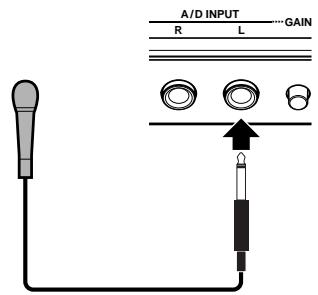
5. NOTE A standard dynamic microphone is recommended. (The MOTIF ES does not support phantom-powered condenser microphones.)
3 Turn the MOTIF ES power on.
4 Press the [PERFORM] button to enter the Performance Play mode, select the desired Performance, then set the microphone related parameters.
For details, refer to steps #4 - 9 on page 72.
Check the status of the installed Plug-in Boards in the [UTILITY] [F6] PLUG [SF1] STATUS display.
Select "PartAD" as the Part to which the Plug-in Insertion Effect is applied in the CONNECT display ([PERFORM] [F3] EFFECT [SF1] CONNECT).
![YAMAHA MOTIF ES6 - Select "PartAD" as the Part to which the Plug-in Insertion Effect is applied in the CONNECT display ([PERFORM] [F3] EFFECT [SF1] CONNECT). - 1](/content/2025/01/114832/images/6352c102ffa626218accbec0888e61194028c6bbddc14c628646f7fef2329de5.jpg)
Move the cursor here, then select the Part.
7 Set related parameters (such as the Effect Type, and others) from the Plug-in Effect display ([PERFORM] [EDIT] [COMMON] [F6] EFFECT [SF3] PLG-EF).
For details, refer to the Owner's Manual of the PLG100-VH.
8 Sing or talk into the microphone to check the effect sound, and adjust the settings as necessary.
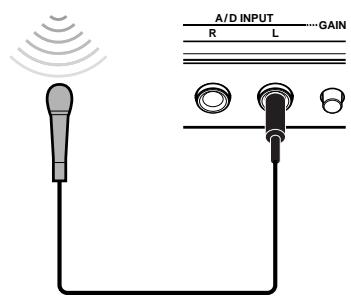
If desired, store the settings for the microphone sound and PLG100-VH as a Performance in the Performance Store mode (page 91).
Quick Guide — Advanced Course
Editing a Voice
The Voice Edit mode ([VOICE] [EDIT]) gives you comprehensive tools for creating your own original Voices, either from scratch by changing the basic sounds, or by tweaking the various Voice parameters. Create your custom sounds by calling up a preset Voice and editing as desired. The actual parameters available and the methods for editing differ depending on the Voice type.
- Normal Voice Edit
A Normal Voice can consist of up to four Elements. There are two types of Voice Edit displays: those for Common Edit to edit the settings common to all four Elements, and those for editing individual Elements.
- Drum Voice Edit
Each Drum voice consists of various Waves and/or Normal voices, each assigned to notes across the keyboard, from C0 to C6. There are two types of Drum Voice Edit displays: those for Common Edit to edit the settings that apply to all Drum keys in the voice, and those for editing individual keys (Elements).
Plug-in Voice Edit
This is basically the same as Normal Voice Edit. Unlike with Normal voices, the Plug-in voices only have one Element for editing.
Normal Voice Edit
1 Press the [VOICE] button to enter the Voice mode, then select a Normal Voice to be edited.
2 Press the [EDIT] button to enter the Voice Edit mode.
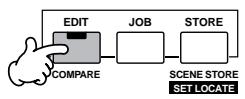
3 Call up the Common Edit display or Element Edit display.
If you wish to edit the sounds that make up a Voice and the basic parameters that determine the sound, such as Oscillator, Pitch, Filter, Amplitude, and EG (Envelope Generator), call up the Element Edit display. If you wish to edit more global parameters related to the overall Voice and how it's processed, such as Arpeggio, Controller, and Effects, call up the Common Edit display.
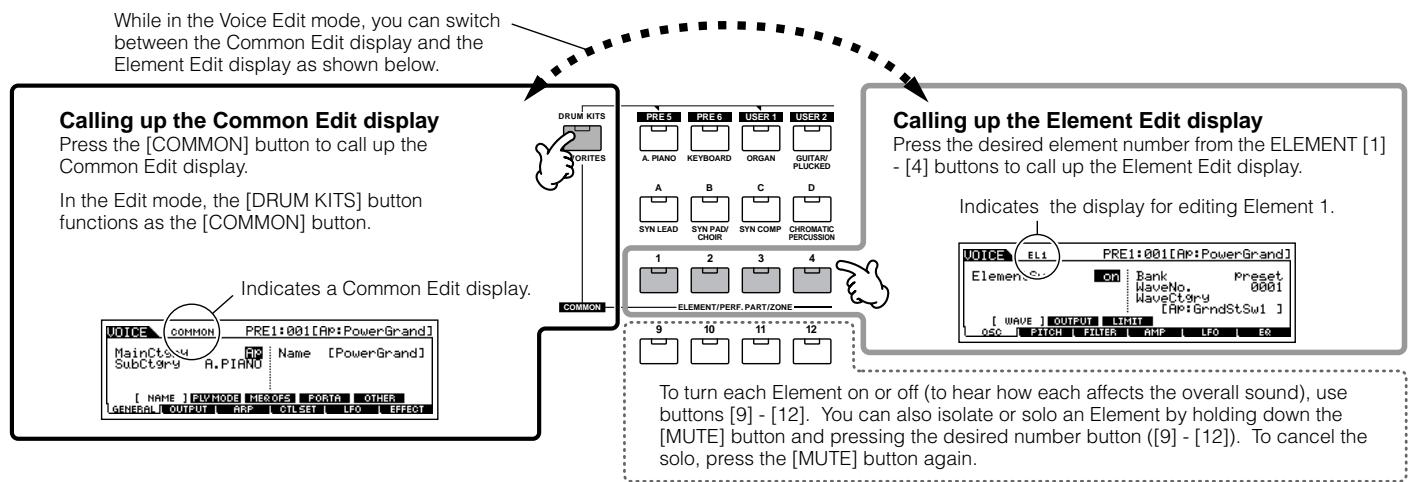

4
Select the menu you wish to edit by pressing the [F1] - [F6] and [SF1] - [SF5] buttons, then edit the parameters.
The following briefly describes the main Voice parameters.
Basic parameters for creating a sound
Element selection [F1] - [F6]
If you wish to edit the basic sound-generating and sound-shaping parameters for the Voice, such as Oscillator, Pitch, Filter, Amplitude, and EG (Envelope Generator), use the Common Edit display.
| [F1] OSC (Oscillator) | pages 160, 195 |
| [F2] PITCH | Pages 160, 196 |
| [F3] FILTER | Pages 161, 197 |
| [F4] AMP (Amplitude) | Pages 162, 199 |
| [F5] LFO | Pages 162, 201 |
| [F6] EQ (Equalizer) | Pages 178, 201 |
Effect related parameters.. Pages 177 and 194
[COMMON] [F6] EFFECT
The Effects use DSP (Digital Signal Processing) to alter and enhance the sound of a Voice. Effects are applied in the final stages of editing, letting you change the sound of the created Voice as desired. The Common Edit display lets you edit the Effect related parameters.
Controller related parameters.. Pages 155 and 192
For each Voice, you can assign various functions to built-in controllers such as Pitch Bend Wheel, Modulation Wheel, Ribbon Controller, Knobs (ASSIGN1 and 2), Keyboard Aftertouch and optionally connected controllers such as Footswitch, Foot Controller, Breath Controller. These settings can be edited in the Common Edit display.
Arpeggio related parameters.. Pages 169 and 191
[COMMON] [F3] ARP (Arpeggio)
For each Voice, you can set the Arpeggio related parameters such as Arpeggio type and playback tempo. These can be edited in the Common Edit display.
5
Repeat #3 - 4 as desired.
6
Name the edited Normal Voice.
Enter a name for the Voice from the NAME display ([COMMON] [F1] GENERAL [SF1] NAME). For detailed instructions on naming, refer to page 53 in the Basic Operation section.
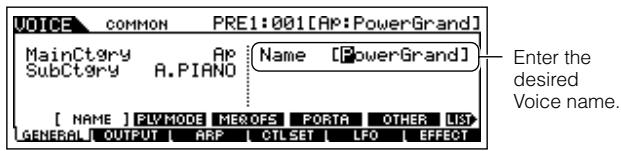
7
Store the edited Voice to internal User memory (page 187).
The edited Voice can be stored in the Voice Store mode. See page 85 for details.
8
If desired, save the edited and stored voices to a SmartMedia/USB storage device.
Keep in mind that edited Voice data is stored to internal User memory (Flash ROM) and is stored even when turning the power off. As such it is not necessary to save the data to SmartMedia card or another device; however, you may want to save it to another media for backup or organizational purposes. For more information, see page 85.
Compare Function
This convenient function lets you switch between the edited Voice and its original, unedited condition - allowing you to listen to the difference between the two and better hear how your edits affect the sound.
1
In the Voice Edit mode (the [EDIT] indicator lighting), press the [EDIT] button so that its indicator flashes.
The [C] indicator is shown at the top of the display (in place of the [E] indicator), and the original, unedited voice is restored for monitoring.
![YAMAHA MOTIF ES6 - In the Voice Edit mode (the [EDIT] indicator lighting), press the [EDIT] button so that its indicator flashes. - 1](/content/2025/01/114832/images/a34f90204cacf408809068d03304c13c7d0c6ad1241157b8a9736bba448d4305.jpg)
2
Press the [EDIT] button again to disable the "Compare" function and restore the settings for your edited Voice.
Compare the edited sound with the unedited sound by repeating steps #1 and 2.
NOTE
While Compare is active, you cannot make edits to the Voice.
TIP Editing a Voice by using the Knobs
The four knobs at the top left of the instrument are not only for tweaking the sound while you perform — you can also use them to edit a Voice, either in the Voice Play mode or the Voice Edit mode.
- When the [PAN/SEND] indicator is turned on:
| PAN | Determines the stereo pan position of the Voice. | [VOICE] → Voice selection → [EDIT] → [COMMON] → [F2] OUTPUT → Pan | Page 190 |
| REVERB | Determines the amount of Reverb effect that is applied to the Voice. | [VOICE] → Voice selection → [EDIT] → [COMMON] → [F2] OUTPUT → RevSend | Page 191 |
| CHORUS | Determines the amount of Chorus effect that is applied to the Voice. | [VOICE] → Voice selection → [EDIT] → [COMMON] → [F2] OUTPUT → ChoSend | Page 191 |
| TEMPO | Determines the tempo of the Arpeggio assigned to the currently selected Voice. | [VOICE] → Voice selection → [F6] ARP → Tempo | Page 189 |
- When the [TONE] indicator is turned on:
| CUTOFF | Raises or lowers the Filter cutoff frequency to adjust the tone brilliance. | [VOICE] → Voice selection → [F5] EG → CUTOF | Page 189 |
| RESONANCE | Boosts or attenuates the level at the area around the Filter cutoff frequency. | [VOICE] → Voice selection → [F5] EG → RESO | Page 189 |
| ATTACK | Determines the attack time of the sound. For example, you can adjust a strings Voice so that the sound gradually swells in volume by setting a slow attack time – simply turn this knob to the right. | [VOICE] → Voice selection → [F5] EG → ATK (AEG) | Page 189 |
| RELEASE | Determines the release time of the sound. Turning the knob to the right sets a long release time and (depending on the selected Voice) lets the sound sustain after the key is released. To produce a sharp release, in which the sound abruptly cuts off, set a short release time. | [VOICE] → Voice selection → [F5] EG → REL (AEG) | Page 189 |
- NOTE The settings above are applied as offsets to the AEG and FEG settings in the Voice Edit mode.
- When the [ARP FX] indicator is turned on:
| SWING | Adjusts the swing feel of the Arpeggio playback. | [VOICE] → Voice selection → [EDIT] → [COMMON] → [F3] ARP → [SF3] PLAY FX → Swing | Page 192 |
| GATE TIME | Adjusts the Gate Time (length) of the Arpeggio notes. | [VOICE] → Voice selection → [EDIT] → [COMMON] → [F3] ARP → [SF3] PLAY FX → GateTimeRate | Page 192 |
| VELOCITY | Adjusts the velocity of the Arpeggio notes. | [VOICE] → Voice selection → [EDIT] → [COMMON] → [F3] ARP → [SF3] PLAY FX → VelocityRate | Page 192 |
| UNITMULTIPLY | Adjusts the Arpeggio playback time based on tempo. | [VOICE] → Voice selection → [EDIT] → [COMMON] → [F3] ARP → [SF3] PLAY FX → UnitMultiply | Page 192 |
- When the [EQ] indicator is turned on:
| LO | Determines the amount of boost or attenuation applied to the low frequency band of the Master EQ. | [VOICE] → Voice selection → [EDIT] → [COMMON] → [F1] GENERAL → [SF3] MEQ OFS → LOW | Page 190 |
| LO MID | Determines the amount of boost or attenuation applied to the low-midrange frequency band of the Master EQ. | [VOICE] → Voice selection → [EDIT] → [COMMON] → [F1] GENERAL → [SF3] MEQ OFS → LOW MID | Page 190 |
| HI MID | Determines the amount of boost or attenuation applied to the high-midrange frequency band of the Master EQ. | [VOICE] → Voice selection → [EDIT] → [COMMON] → [F1] GENERAL → [SF3] MEQ OFS → HIGH MID | Page 190 |
| HI | Determines the amount of boost or attenuation applied to the high frequency band of the Master EQ. | [VOICE] → Voice selection → [EDIT] → [COMMON] → [F1] GENERAL → [SF3] MEQ OFS → HIGH | Page 190 |
5Note The settings above are applied as offsets to the EQ settings in the [VOICE] [UTILITY] [F3] VOICE [SF1] MEQ display.
- When both the [PAN/SEND] and [TONE] indicators are turned on (by pressing them simultaneously):
| ASSIGN A | Adjusts parameters assigned to these knobs in the [UTILITY] → [F4] CTL ASN → [SF2] ASSIGN display. | Page 263 |
| ASSIGN B | ||
| ASSIGN 1 | Adjusts parameters assigned to these knobs in the [VOICE] → Voice selection → [EDIT] → [COMMON] → [F4] CTL SET display. | Page 192 |
| ASSIGN 2 |
In addition to above functions, Master Effect related parameters (set in the [UTILITY] [F3] VOICE [SF2] MEF display) can be assigned to these four knobs by pressing the [ARP FX] and [EQ] buttons simultaneously. The particular parameters assigned to the four knobs can be set in the [UTILITY] [F4] CTL ASN [SF5] MEF display.
TIP Editing a Voice by using the Control Sliders (CS)
$$ [ \text {V O I C E} ] \rightarrow \text {V o i c e s e l e c t i o n} \rightarrow [ \text {E D I T} ] \rightarrow \text {E l e m e n t s e l e c t i o n} \rightarrow [ \text {F 4} ] \text {A M P} \rightarrow [ \text {S F 1} ] \text {L V L / P A N} \rightarrow \text {L e v e l} $$
In the Voice mode, the four Control Sliders let you independently adjust the levels of the Elements of a Normal Voice or the Drum Voice keys. When a Normal Voice is selected, you can adjust the level balance among the four Elements.
- NOTE Inadvertent use of the sliders may result in no sound. If this occurs, move the sliders upward.
To solo an Element for editing
This feature is useful for isolating the sound of single Element, for ease in editing.
In the Normal Voice Edit mode, simultaneously hold down the [MUTE] button and press one of the NUMBER buttons [9] to [12] to solo the corresponding Element.
Once you've selected an Element for soloing, the [MUTE] button's lamp flashes, indicating the Solo function is active and only the selected Element can be edited.
In this example, only Element 3 is turned on and can be edited.
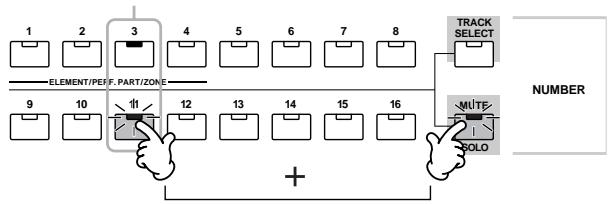
2 To solo another Element, simply press the appropriate number button ([9] - [12]).
3 To exit from the Solo function, press the [MUTE] button again.
Edit Recall
If you are editing a Voice and select a different Voice without storing the one you were editing, all the edits you've made will be erased. If this happens, you can use Edit Recall to restore the Voice with your latest edits intact.
Press the [JOB] button in the Voice mode to enter the Voice Job mode.
2 Press the [F2] RECALL button to call up the Recall display.
3 Press the [ENTER] button. (The display prompts you for confirmation.)
If you wish to cancel the operation, press the [DEC/NO] button.
4 Press the [INC/YES] button to execute Edit Recall to restore the voice.
Drum Voice Edit
Press the [VOICE] button to enter the Voice mode, then select a Drum Voice to be edited.
2 Press the [EDIT] button to enter the Voice Edit mode.
3 Call up the Common Edit display or Key Edit display.
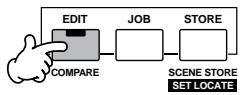
If you want to edit the sounds that make up a Drum Voice and the basic parameters that determine the sound, such as Oscillator, Pitch, Filter, Amplitude, and EG (Envelope Generator), call up the Key Edit display. To edit more global parameters related to the overall Drum Voice and how it's processed, such as Arpeggio, Controller, and Effects, call up the Common Edit display.
While in the Voice Edit mode, you can switch between the Common Edit display and the Element Edit display as shown below.
Calling up the Common Edit display
Press the [COMMON] button to call up the Common Edit display. In the Edit mode, the [DRUM KITS] button functions as the [COMMON] button.
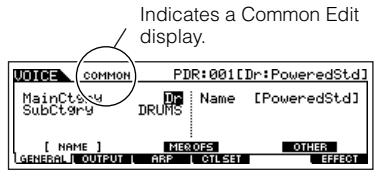
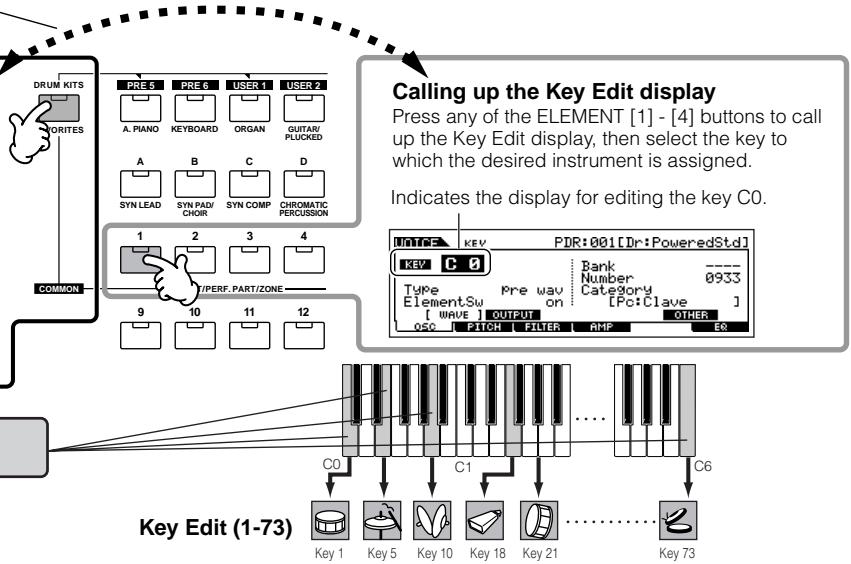
Common Edit
4
Select the desired menu for editing by pressing the [F1] - [F6] and [SF1] - [SF5] buttons, then edit the parameters.
The main parameters available are basically the same as in the Normal Voice Edit (page 80). What is called Key Edit in the Drum Voice corresponds to Element Edit in the Normal Voice. Please keep in mind that the LFO parameters are not available in the Drum Voice.
5
Repeat #3 - 4 as desired.
6
Name the edited Drum Voice.
Enter a name for the Voice from the NAME display ([COMMON] [F1] GENERAL [SF1] NAME). For detailed instructions on naming a voice, refer to page 53 in the Basic Operation section.
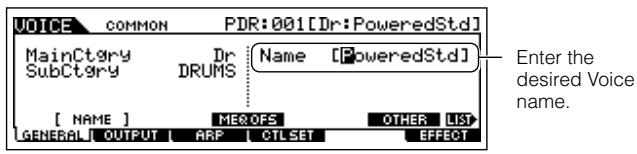
7
Store the edited Voice to internal User memory (page 186).
The edited Voice can be stored in the Voice Store mode. See page 85 for details.
8
If desired, save the edited and stored voices to a SmartMedia/USB storage device.
Keep in mind that edited Voice data is stored to internal User memory (Flash ROM) and is stored even when turning the power off. As such it is not necessary to save the data to SmartMedia card or another device; however, you may want to save it to another media for backup or organizational purposes. For more information, see page 85.
TIP Assigning drum/percussion instruments to individual keys
[VOICE] Drum Voice selection [EDIT] Key selection [F1] OSC [SF1] WAVE
In the Drum Voice Edit mode, you can create your own original drum kits by assigning specific instrument sounds to individual keys — in any desired order — and edit detailed parameters for each key's sound.
1 Call up the Key Edit display in the Voice Edit mode.
Refer to step #3 on page 82.
2 Call up the [F1] OSC [SF1] WAVE display.
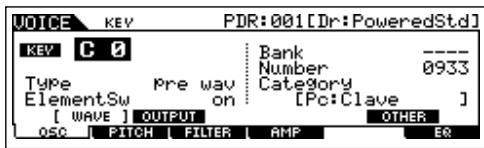
3 Press the key to which you want to assign a sound.
The drum instrument currently assigned to the pressed key will sound.
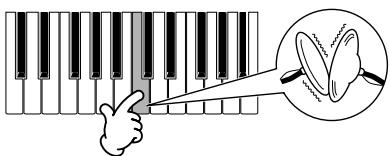

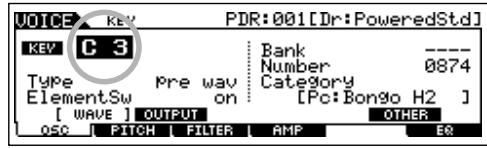
4 Select the desired Waveform to be assigned.
Move the cursor to "Number" and change the value by using the data dial, [INC/YES] button, and [DEC/NO] button. Then, press the same key set in step #3 again to confirm the selected instrument sound.
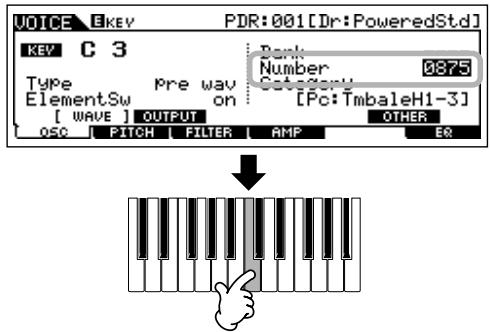
You can also select a different sound category (such as Percussion, or even a Normal Voice sound), by moving the cursor to "Category" and changing the setting.
5 Create your original drum kit by repeating steps #3 - 4.
Store the created drum kit as a Drum Voice in User memory.
The edited Voice can be stored in the Voice Store mode. See page 85 for details.
7 If desired, save the edited and stored voices to a SmartMedia/USB storage device.
TIP Setting the drum key for independent open and closed hi-hat sounds
[VOICE] → Drum Voice selection → [EDIT] → Key selection → [F1] OSC → [SF5] OTHER → AltnateGroup
In a real drum kit, some drum sounds cannot physically be played simultaneously, such as open and closed hi-hats. You can prevent drum instruments from playing back simultaneously by assigning them to the same Alternate Group. The preset Drum Voices have many such Alternate Group assignments to ensure the most authentic, natural sound. When creating a Voice from scratch, you can use this feature — either to ensure authentic sound, or to create special effects, where playing one sound cancels out a previous one.
1 Call up the Key Edit display in the Voice Edit mode. Refer to step #3 on page 82.
2 Call up the [F1] OSC [SF5] OTHER display.
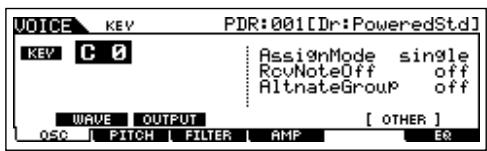
3 Press the key which corresponds to "Hi-Hat Open" and set the Alternate Group to "1."
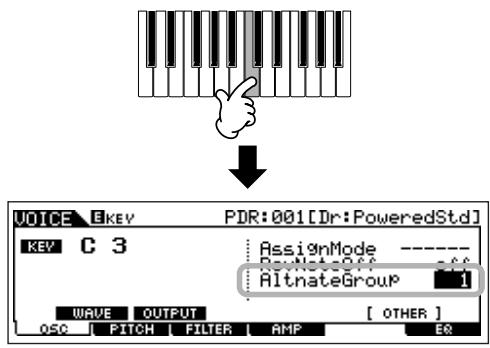
4 Press the key which corresponds to "Hi-Hat Close" and set it to the same Alternate Group (1) as in step #3.
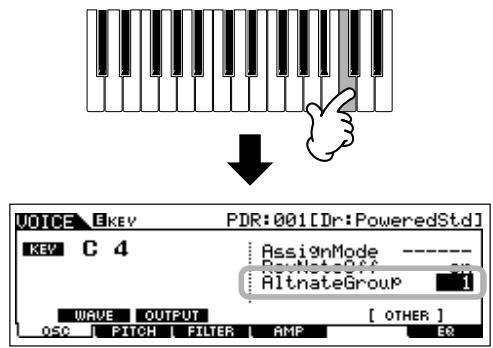
5 Confirm whether the Alternate Group has been set properly.
Immediately after pressing the "Hi-Hat Open" key, press the "Hi-Hat Close" key. Pressing the second key should cut off the sound of the first.
Since the settings above are included in the Drum Voice data, store them as a Drum Voice in the Voice Store mode.
TIP Determining how the Drum Voice responds when the key is released
[VOICE] Drum Voice selection [EDIT] Key selection [F1] OSC [SF5] OTHER RcvNoteOff
You can determine whether or not the selected Drum key responds to MIDI Note Off messages. Setting the Receive Note Off parameter to "off" can be useful for cymbal sounds and other sustaining sounds. This lets you have the selected sounds sustain to the length of their natural decay – even if you release the note, or when a Note Off message is received. If this parameter is set to "on," the sound will stop immediately when the note is released or a Note Off message is received.
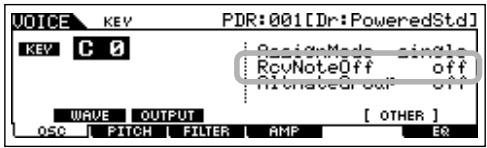
TIP Setting the Output jack for each key (drum/percussion instrument)
[VOICE] Drum Voice selection [EDIT] Key selection [F1] OSC [SF2] OUTPUT OutputSel
You can change the output jack on the rear panel for the individual Drum key signal. This function is useful when you wish to apply a connected external effect to a specific drum instrument.
For details, see page 31.
Plug-in Voice Edit
The Plug-in Voices (available when installing optional Plug-in Boards to the instrument) can be edited in basically the same way as in Normal Voice Edit (page 79). Unlike with Normal voices, the Plug-in voices only have one Element for editing. In addition, some of the other parameters may not be available. Refer to page 205 in the Reference section.
Storing/Saving the created Voice
Two steps are necessary in order to store (save) your voice – storing the edited voice to internal memory and saving the stored voices to a SmartMedia/USB storage device.
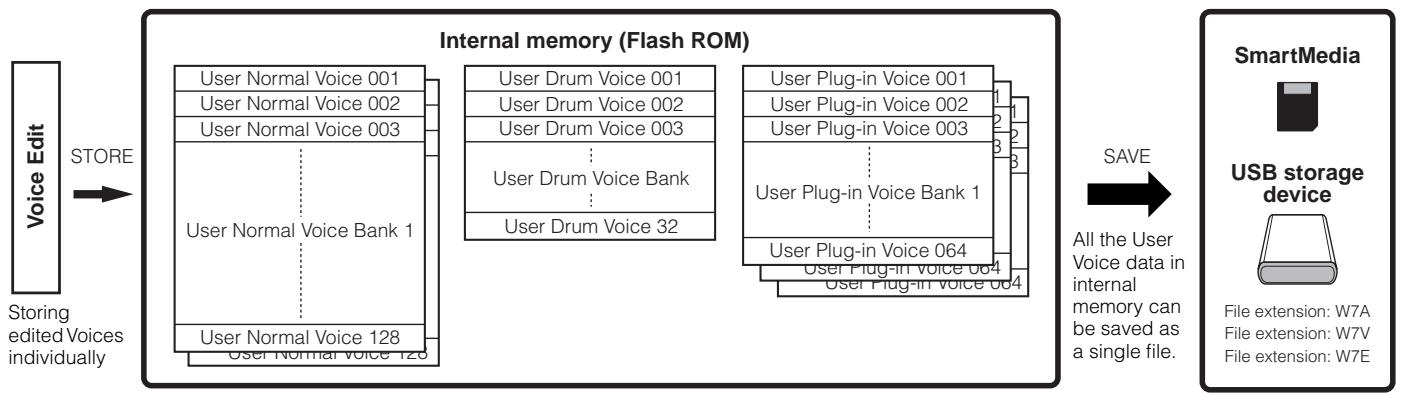
The W7E file can be loaded to the Voice Editor, computer software.
Keep in mind that edited Voice data is stored to internal User memory (Flash ROM) and is stored even when turning the power off. As such it is not necessary to save the data to SmartMedia card or another device; however, you may want to save it to another media for backup or organizational purposes, using the Save operation. For more information, see page 86.
Storing the edited Voice as a User Voice to internal memory
[VOICE] [STORE]
1 After editing the Voice, press the [STORE] button to enter the Voice Store mode.
Make sure to execute the Store operation before selecting another Voice.
2 Select the destination Voice memory.
Select a User Bank ("USR1" or "USR2" when storing a Normal Voice, "UDR" when storing a Drum Voice, "P1-U" ~ "P3-U" when storing a Plug-in Voice) and the desired Voice number by using the data dial, [INC/YES] and [DEC/NO] button.
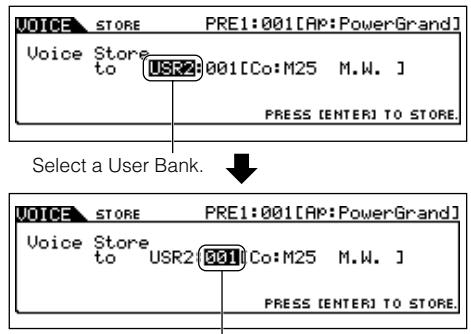
Select a Voice number.
CAUTION
When you execute the Store operation, the settings for the destination memory will be overwritten. Important data should always be backed up to a separate SmartMedia/USB storage device.
3 Press the [ENTER] button.
The display prompts you for confirmation.
To cancel the Store operation, press the [DEC/NO] button.
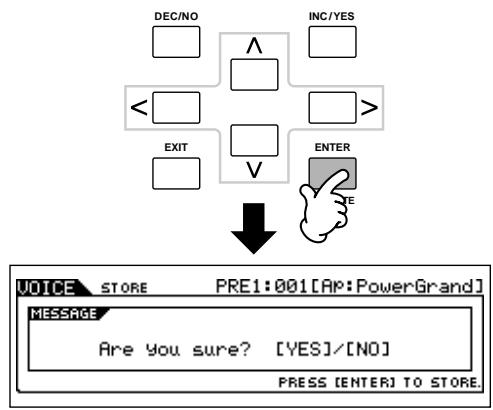
4 Press the [INC/YES] button to execute the Store operation.
After the Voice has been stored, a "Completed" message appears and operation returns to the Voice Play display.
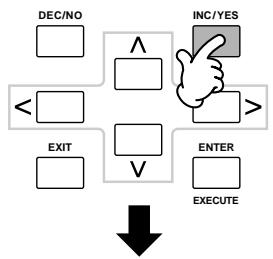
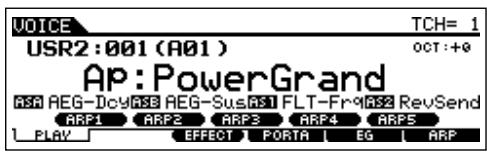
CAUTION
Keep in mind that the Store operation may take a short time to complete, during which an "Executing." or "Please keep power on" message may be shown. Never attempt to turn off the power while data is being written to Flash ROM while such a message is displayed. Turning the power off in this state results in loss of all user data and may cause the system to freeze (due to corruption of data in the Flash ROM). This may also result in the MOTIF ES being unable to properly start up the next time the power is turned on.
CAUTION
If you select another Voice without storing, the currently edited Voice will be lost. Make sure to store the edited Voice before selecting another Voice.
Saving the edited Voices to a SmartMedia/USB storage device
[FILE] [F2] SAVE
Whether you are saving data to SmartMedia or a USB storage device, the procedure is the same. Insert a SmartMedia card (to the CARD slot) or connect the USB device and follow the instructions below.
1 Press the [FILE] button to enter the File mode, then execute the basic settings.
Refer to "Basic settings for using SmartMedia or a USB storage device" on page 30.
2 Press the [F2] SAVE button to call up the Save display.
3 Set the Type parameter to "All Voice."
![YAMAHA MOTIF ES6 - Press the [F2] SAVE button to call up the Save display. - 1](/content/2025/01/114832/images/f5fa63750b19e38802ae716415f3fe03bbdab9ba709c297402cb0d8154a5bc94.jpg)
Move the cursor to TYPE, then select a file type by using the data dial, [INC/YES] and [DEC/NO] buttons. The following three file types are available for saving Voice data. Here, select "All Voice."
| All | When this is selected, execute the Save operation to save all the created data including the User Voices as a single file (extension: W7A). |
| All Voice | When this is selected, execute the Save operation to save all User Voices as a single file (extension: W7V). |
| Voice Editor | When this is selected, execute the Save operation to save all User Voices as a single file (extension: W7E) which can be exported to the Voice Editor software contained in the included CD-ROM. |
4 Input a file name.
Move the cursor to the file name input location, then input a file name. For detailed instructions on naming, refer to page 53 in the Basic Operation section.
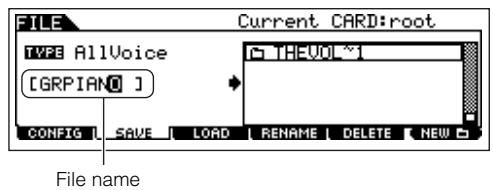
Press the [ENTER] button to execute the Save operation.
![YAMAHA MOTIF ES6 - Press the [ENTER] button to execute the Save operation. - 1](/content/2025/01/114832/images/22c4e9a4ccc3607c4c7b38d7f552929dc79708d99bee5a6886f05ea49e58e252.jpg)
If you are about to overwrite an existing file, the display prompts you for confirmation. Press the [INC/YES] button to execute the Save operation to overwrite the existing file, or press the [DEC/NO] button to cancel it.
CAUTION
While the data is being saved, make sure to follow these precautions:
- Never remove or eject the media from the device (SmartMedia or USB storage).
- Never unplug or disconnect any of the devices.
- Never turn off the power of the MOTIF ES or the relevant devices.
- Loading Voice data from the SmartMedia/USB storage device
[FILE] [F3] LOAD
In the previous section, we saved Voice data as an "All Voice" file to a SmartMedia card or USB storage device. Here, we'll recall that Voice data and load it to the instrument with the Load operation.
1 Press the [FILE] button to enter the File mode, then execute the basic settings.
Refer to "Basic settings for using SmartMedia or a USB storage device" on page 30.
2 Press the [F3] LOAD button to call up the Load display.
3 Select the file type to be loaded.
The file saved in operation explained on the previous page has all the User Voices. If you wish to load all the User Voices, set Type to "All Voice." If you wish to load only a specific voice, set Type to "Voice."
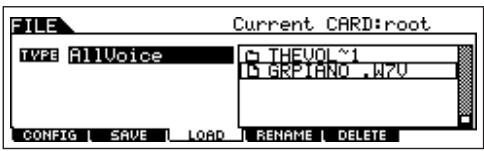
4 Select a file (□) to be loaded.
Move the cursor to the file (extension: W7V) saved in the operation explained on the previous page. If you've set the Type to "AllVoice" in step #3, go to step #5. If you've set the Type to "Voice" in step #3, execute the operations in the following box, then go to step #5.
When Type is set to "Voice":
When Type is set to "Voice," you can specify and load a specific Voice from a file (with the extension W7V or W7A).
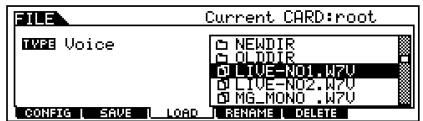
Move the cursor to the file (extension: W7V) saved in the operation explained on the previous page.
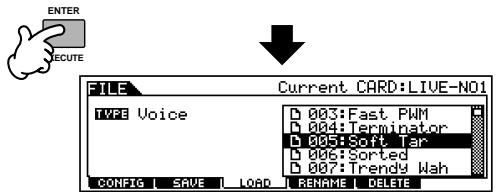
Select a source Voice Bank from the selected file with the following operation. To select a User Normal Voice Bank, press one of the [USER1] and [USER2] buttons. To select a User Drum Voice Bank, simultaneously hold the [DRUM KITS] button and press the [USER1] button. To select a User Plug-in Voice Bank, press one of the [PLG1], [PLG2] and [PLG3] buttons. After selecting a source Voice Bank, all the Voices contained in the selected Bank are listed in the display. Move the cursor to the desired Voice to be loaded.
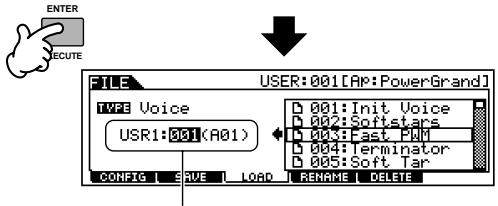
Select a destination Voice Number.
You can also change the destination Voice Bank when loading a Normal Voice or a Plug-in Voice by moving the cursor to the location of "USR1" in the above display and using the data dial. When loading Plug-in Voice data, note that the Plug-in Board for the source Voice Bank should match the one for the destination Voice Bank. When a source Voice Bank is created for the PLG150-AN, for example, you should select the Voice Bank for the PLG150-AN as the destination.

If you want to change the source Voice Bank/Number, press the [EXIT] button to return the display to the first one (shown at the top of this box) then perform the above instructions again.

CAUTION
Loading data to this synthesizer automatically erases and replaces any existing data in the User memory. Make sure to save any important data to a SmartMedia/USB storage device before performing any Load operations.

Press the [ENTER] button to execute the Load operation.
After the data has been loaded, a "Completed" message appears and operation returns to the original display.
![YAMAHA MOTIF ES6 - Press the [ENTER] button to execute the Load operation. - 1](/content/2025/01/114832/images/512b72e17a62e33d439f42ac28071aa125a5261e0c5547ecc096e34f0df1a60e.jpg)
CAUTION
While the data is being saved, make sure to follow these precautions:
- Never remove or eject the media from the device (SmartMedia or USB storage).
- Never unplug or disconnect any of the devices.
- Never turn off the power of the MOTIF ES or the relevant devices.
Editing a Performance
The Performance Edit mode ([PERFORM] [EDIT]) lets you create your own original Performances — containing up to four different Parts (Voices) — by editing the various parameters. The Voices can be selected from the internal tone generator or the installed Plug-in Boards. After assigning different Voices to separate ranges of the keyboard, edit the detailed parameters in the Performance Edit mode.
Press the [PERFORM] button to enter the Performance mode, then select a Performance to be edited.
2 Press the [EDIT] button to enter the Performance Edit mode.
3 Call up the Common Edit display or Part Edit display.
Use the Part Edit to edit the parameters for each Part. Use Common Edit to edit the parameters for all of the Parts.
While in the Voice Edit mode, you can switch between the Common Edit display and the Part Edit display as shown below.
- Calling up the Common Edit display
- Press the [COMMON] button to call up the Common Edit display.
In the Edit mode, the [DRUM KITS] button functions as the [COMMON] button.
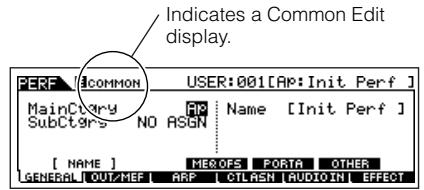
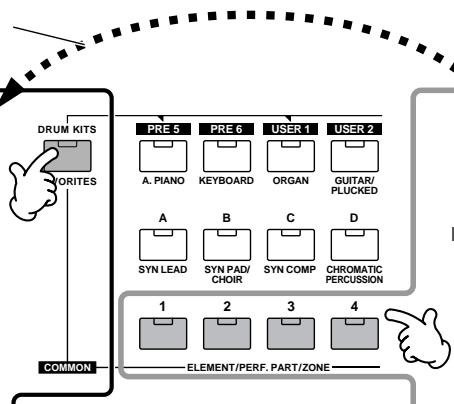
Calling up the Part Edit display Press the desired Part number from the PERF.PART [1] - [4] buttons to call up the Part Edit display.
Indicates the display for editing Part 1.
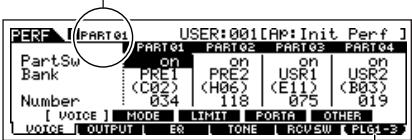
To switch between the Part 1 - 4 display and the Plug-in Part 1 - 3 display, press the [F6] button.

You can mute or solo a Part in the Performance Edit mode, just as in the Performance Play mode or the Song/Pattern mode (page 68).
Common Edit
You can select the four Performance Parts from this group of seven.
Part1 Edit
Part2 Edit
Part3 Edit
Part4 Edit
Plug-in part 1 (PLG1) Edit
Plug-in part 2 (PLG2) Edit
Plug-in part 3 (PLG3) Edit
Parts to which Internal voices are assigned
Parts to which Plug-in Board voices are assigned
4
Select the menu you wish to edit by pressing the [F1] - [F6] and [SF1] - [SF5] buttons, then edit the parameters.
The following briefly describes the main Performance parameters.
Parameters for the Voice assigned to each Part...Page 216
Part selection [F1] VOICE
The Voice assigned to each part and its note range can be set also in the Performance Play mode (page 71). In addition to the parameters available in the Performance Play mode, the Performance Edit mode also lets you set Portamento (pitch glide) and Arpeggio Switch (which determines whether the Arpeggio plays a specific Part or not).
Basic parameters for making sound......Page 218
Part selection [F4] TONE
If you wish to edit the basic parameters for the synthesizer such as Tune, Filter, and Amplitude, use the Part Edit display.
- Parameters related to the Audio Input part...... Page 214
[COMMON] [F5] AUDIO IN
The audio signal input from the A/D INPUT jack (or the optional audio inputs) can be handled as an Audio Input part. You can apply various parameters such as Volume, Pan, and Effect settings to this Part — just as you can with the other Parts. The parameters related to the Audio Input Part can be edited in Common Edit for each Performance.
- Parameters related to the OUTPUT jacks for each part. Page 218
Part selection [F2] OUTPUT [SF3] SELECT OutputSel
You can assign each individual Part's Voice to be output from a specific hardware output jack on the rear panel. This function is useful when you want to output a specific Part to a separate speaker or process it with a favorite external effect.
Effect related parameters.. Pages 177 and 215
[COMMON] [F6] EFFECT
[COMMON] [F2] OUT/MEF [SF3] MEF (Master Effect)
The Effects use DSP (Digital Signal Processing) to alter and enhance the sound of a Performance. The Common Edit display lets you edit the Effect related parameters.
- Master EQ related parameters ....... Pages 178 and 214
These parameters let you use the five-band Master EQ to process the overall sound of the Performance. Master EQ also features separate EQ shape parameters for the Low and High bands, as well as the Frequency, Gain and Q controls for each band.
Controller related parameters.. Pages 155 and 214
[COMMON] [F4] CTL ASN (Controller Assign)
For each Performance, you can assign the Control Change Number to built-in controllers such as Ribbon Controller, Knobs (ASSIGN1 and 2), and optionally connected controllers, such as Foot Controller and Breath Controller.
Note Functions assigned to Controllers depend on the settings of each Part's Voice edited in the Voice Edit mode.
Arpeggio related parameters.. Pages 169 and 214
For each Performance, you can set the Arpeggio related parameters, such as Arpeggio type and playback tempo. These can be edited in the Common Edit display.
5
Repeat steps #3 - 4 as desired.
6
Name the edited Performance.
Enter a name for the Performance from the NAME display ([COMMON] [F1] GENERAL [SF1] NAME).
For detailed instructions on naming, refer to page 53 in the Basic Operation section.
Enter the desired Performance name.
![YAMAHA MOTIF ES6 - Select the menu you wish to edit by pressing the [F1] - [F6] and [SF1] - [SF5] buttons, then edit the parameters. - 1](/content/2025/01/114832/images/f1701cac274c650329f40b9b3a0ffebbe58e01e809f3217d928771e8997f2112.jpg)
7
Store the edited Performance to internal User memory (page 186).
The edited Performance can be stored in the Performance Store mode. See page 91 for details.
8
If desired, save the edited and stored Performances to a SmartMedia/USB storage device.
Keep in mind that edited Performance data is stored to internal User memory (Flash ROM) and is stored even when turning the power off. As such it is not necessary to save the data to SmartMedia card or another device; however, you may want to save it to another media for backup or organizational purposes. For more information, see page 91.
Compare Function
Just as in the Voice Edit mode, you can use the Compare function also in the Performance Edit mode. This convenient function lets you switch between the edited voice and its original, unedited condition – allowing you to listen to the difference between the two and better hear how your edits affect the sound.
In the Performance Edit mode (with the [EDIT] indicator lit), press the [EDIT] button so that its indicator flashes. The [C] indicator is shown at the top of the display (in place of the [E] indicator), and the original, unedited Performance is restored for monitoring.
2 Press the [EDIT] button again to disable the "Compare" function and restore the settings for your edited Performance.
Compare the edited sound with the unedited sound as desired by repeating steps #1 and 2.
- NOTE While Compare is active, you cannot make edits to the Performance.
TIP Editing a Performance by using the Knobs
The four knobs at the top left of the instrument are not only for tweaking the sound while you perform — you can also use them to edit a Performance, either in the Performance Play mode or the Performance Edit mode.
- When the [PAN/SEND] indicator is turned on:
| PAN | Determines the stereo pan position of the Performance. | [PERFORM] → Performance selection → [EDIT] → [COMMON] → [F2] OUT/MEF → [SF1] OUT → Pan | Page 213 |
| REVERB | Determines the amount of Reverb effect that is applied to the Performance. | [PERFORM] → Performance selection → [EDIT] → [COMMON] → [F2] OUT/MEF → [SF1] OUT → RevSend | Page 213 |
| CHORUS | Determines the amount of Chorus effect that is applied to the Performance. | [PERFORM] → Performance selection → [EDIT] → [COMMON] → [F2] OUT/MEF → [SF1] OUT → ChoSend | Page 213 |
| TEMPO | Determines the tempo of the Arpeggio assigned to the currently selected Performance. | [PERFORM] → Performance selection → [F6] ARP → Tempo | Page 213 |
- When the [TONE] indicator is turned on:
| CUTOFF | Raises or lowers the Filter cutoff frequency to adjust the tone brilliance. | [PERFORM] → Performance selection → [F5] EG → CUTOF | Page 213 |
| RESONANCE | Boosts or attenuates the level at the area around the Filter cutoff frequency. | [PERFORM] → Performance selection → [F5] EG → RESO | Page 213 |
| ATTACK | Determines the attack time of the sound. For example, you can adjust a strings Voice so that the sound gradually swells in volume by setting a slow attack time – simply turn this knob to the right. | [PERFORM] → Performance selection → [F5] EG → ATK (AEG) | Page 213 |
| RELEASE | Determines the release time of the sound. Turning the knob to the right sets a long release time and (depending on the Voice assigned to the selected Performance) lets the sound sustain after the key is released. To produce a sharp release, in which the sound abruptly cuts off, set a short release time. | [PERFORM] → Performance selection → [F5] EG → REL (AEG) | Page 213 |
- NOTE The settings above are applied as offsets to the AEG and FEG settings in the Performance Edit mode.
- When the [ARP FX] indicator is turned on:
| SWING | Adjusts the swing feel of the Arpeggio playback. | [PERFORM] → Performance selection → [EDIT] → [COMMON] → [F3] ARP → [SF3] PLAY FX → Swing | Page 214 |
| GATE TIME | Adjusts the Gate Time (length) of the Arpeggio notes. | [PERFORM] → Performance selection → [EDIT] → [COMMON] → [F3] ARP → [SF3] PLAY FX → GateTimeRate | Page 214 |
| VELOCITY | Adjusts the velocity of the Arpeggio notes. | [PERFORM] → Performance selection → [EDIT] → [COMMON] → [F3] ARP → [SF3] PLAY FX → VelocityRate | Page 214 |
| UNITMULTIPLY | Adjusts the Arpeggio playback time based on tempo. | [PERFORM] → Performance selection → [EDIT] → [COMMON] → [F3] ARP → [SF3] PLAY FX → UnitMultiply | Page 214 |
- When the [EQ] indicator is turned on:
| LO | Determines the amount of boost or attenuation applied to the low frequency band of the Master EQ. | [PERFORM] → Performance selection → [EDIT] → [COMMON] → [F1] GENERAL → [SF3] MEQ OFS → LOW | Page 213 |
| LO MID | Determines the amount of boost or attenuation applied to the low-midrange frequency band of the Master EQ. | [PERFORM] → Performance selection → [EDIT] → [COMMON] → [F1] GENERAL → [SF3] MEQ OFS → LOW MID | Page 213 |
| HI MID | Determines the amount of boost or attenuation applied to the high-midrange frequency band of the Master EQ. | [PERFORM] → Performance selection → [EDIT] → [COMMON] → [F1] GENERAL → [SF3] MEQ OFS → HIGH MID | Page 213 |
| HI | Determines the amount of boost or attenuation applied to the high frequency band of the Master EQ. | [PERFORM] → Performance selection → [EDIT] → [COMMON] → [F1] GENERAL → [SF3] MEQ OFS → HIGH | Page 213 |
The settings above are applied as offsets to the EQ settings in the [PERFORM] Performance selection [EDIT] [COMMON] [F2] OUT/MEF [SF2] MEQ (Master EQ) display.
- When both the [PAN/SEND] and [TONE] indicators are turned on (by pressing them simultaneously):
| ASSIGN A | Adjusts parameters assigned to these knobs in the [UTILITY] → [F4] CTL ASN → [SF2] ASSIGN display. | Page 263 |
| ASSIGN B | ||
| ASSIGN 1 | Depends on the settings of the Voice assigned to the selected Performance. | Page 192 |
| ASSIGN 2 |
In addition to above functions, Master Effect related parameters (set in the [PERFORM] Performance selection [COMMON] [F2] OUT/MEF [SF3] MEF display) can be assigned to these four knobs by pressing the [ARP FX] and [EQ] buttons simultaneously. The particular parameters are assigned to the four knobs can be set in the [UTILITY] [F4] CTL ASN [SF5] MEF display.
TIP Editing a Performance by using the Control Sliders (CS)
[PERFORM] Performance selection [EDIT] Part selection [F2] OUTPUT [SF1] VOL/PAN Volume
In the Performance mode, the four Control Sliders let you independently adjust the levels of the Parts (Voices), letting you control the overall balance of the Parts.
- Note Inadvertent use of the sliders may result in no sound. If this occurs, move the sliders upward.
Edit Recall
If you are editing a Performance and select a different Performance without storing the one you were editing, all the edits you've made will be erased. If this happens, you can use Edit Recall to restore the Performance with your latest edits intact.
Press the [JOB] button in the Performance mode to enter the Performance Job mode.
2 Press the [F2] RECALL button to call up the Recall display.
3 Press the [ENTER] button. (The display prompts you for confirmation.)
If you wish to cancel the operation, press the [DEC/NO] button.
4 Press the [INC/YES] button to execute the Edit Recall to restore the Performance.
Storing/Saving the created Performance
Two steps are necessary in order to store (save) your Performance - storing the edited Performance to internal memory and saving the stored Performances to a SmartMedia/USB storage device.
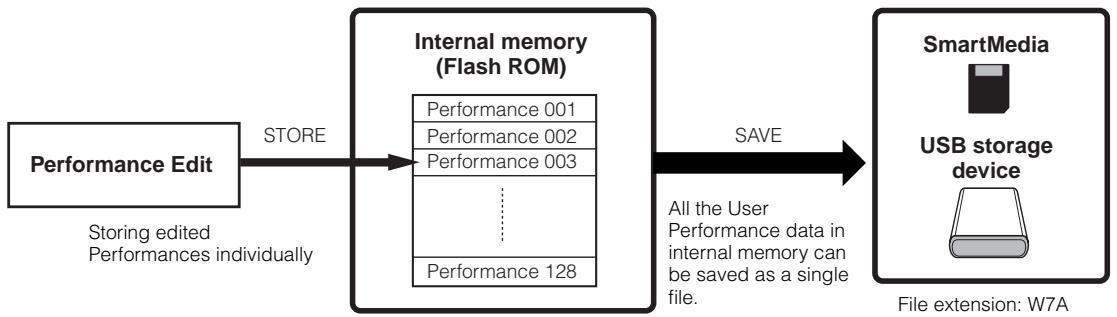
Keep in mind that edited Performance data is stored to internal User memory (Flash ROM) and is stored even when turning the power off. As such it is not necessary to save the data to SmartMedia card or another device; however, you may want to save it to another media for backup or organizational purposes, using the Save operation.
Storing the edited Performance as a User Performance to internal memory
[PERFORM] [STORE]
1 After editing the Performance, press the [STORE] button to enter the Performance Store mode.
Make sure to execute the Store operation before selecting another Performance.
2 Select the destination Performance memory.
Select a Performance number by using the data dial, [INC/YES] and [DEC/NO] button.
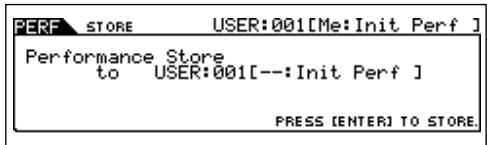
CAUTION
When you execute the Store operation, the settings for the destination memory will be overwritten. Important data should always be backed up to a separate SmartMedia/USB storage device.
3 Press the [ENTER] button.
The display prompts you for confirmation. To cancel the Store operation, press the [DEC/NO] button.
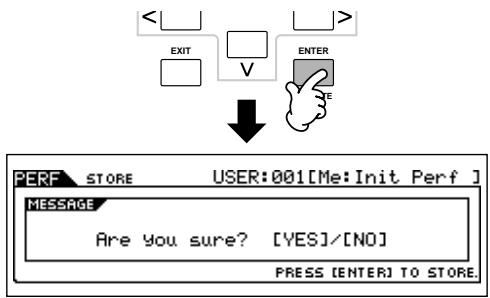
4 Press the [INC/YES] button to execute the Store operation.
After the Performance has been stored, a "Completed" message appears and operation returns to the Performance Play display.
![YAMAHA MOTIF ES6 - Press the [INC/YES] button to execute the Store operation. - 1](/content/2025/01/114832/images/406c069c0bd2ff8b786613cd48fde4b06ed84535446571753aa66bf854fcd824.jpg)
CAUTION
Keep in mind that the Store operation may take a short time to complete, during which an "Executing..." or "Please keep power on" message may be shown. Never attempt to turn off the power while data is being written to Flash ROM while such a message is displayed. Turning the power off in this state results in loss of all user data and may cause the system to freeze (due to corruption of data in the Flash ROM). This may also result in the MOTIF ES being unable to properly start up the next time the power is turned on.
CAUTION
If you select another Performance without storing, the currently edited Performance will be lost. Make sure to store the edited Performance before selecting another Performance.
Saving the edited Performances to a SmartMedia/USB storage device
[FILE] [F2] SAVE
Whether you are saving data to SmartMedia or a USB storage device, the procedure is the same. Insert a SmartMedia card (to the CARD slot) or connect the USB device and follow the instructions below.
1 Press the [FILE] button to enter the File mode, then execute the basic settings.
Refer to "Basic settings for using SmartMedia or a USB storage device" on page 30.
2 Press the [F2] SAVE button to call up the Save display.
3 Set the Type parameter to "All."
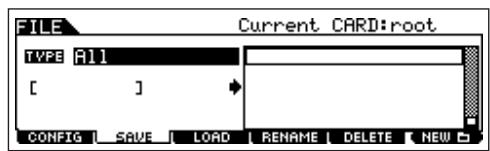
Move the cursor to TYPE, then select a file type by using the data dial, [INC/YES] and [DEC/NO] buttons. When Type is set to "All," execute the Save operation to save all the created data, including the Performances as well as the Voices assigned to them, as a single file (extension: W7A).
4 | Input a file name.
Move the cursor to the file name input location, then input a file name. For detailed instructions on naming, refer to page 53 in the Basic Operation section.
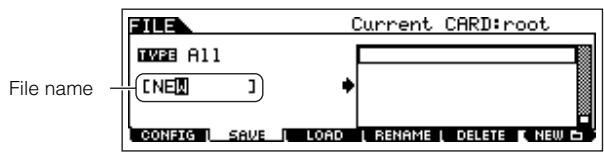
Press the [ENTER] button to execute the Save operation.
![YAMAHA MOTIF ES6 - Press the [ENTER] button to execute the Save operation. - 1](/content/2025/01/114832/images/039866f3501273731444955b2720d9275d4a89e1d5505c0926d35528e81bae44.jpg)
If you are about to overwrite an existing file, the display prompts you for confirmation. Press the [INC/YES] button to execute the Save operation to overwrite the existing file, or press the [DEC/NO] button to cancel it.
CAUTION
While the data is being saved, make sure to follow these precautions:
- Never remove or eject the media from the device (SmartMedia or USB storage).
- Never unplug or disconnect any of the devices.
- Never turn off the power of the MOTIF ES or the relevant devices.
- Loading the Performance data from the SmartMedia/USB storage device
[FILE] [F3] LOAD
In the previous section, we saved Performance data as an "All" file (extension: W7A) to a SmartMedia card or USB storage device. Here, we'll recall that Performance data and load it to the instrument with the Load operation.
1 Press the [FILE] button to enter the File mode, then execute the basic settings.
Refer to "Basic settings for using SmartMedia or a USB storage device" on page 30.
2 Press the [F3] LOAD button to call up the Load display.
![YAMAHA MOTIF ES6 - Press the [F3] LOAD button to call up the Load display. - 1](/content/2025/01/114832/images/d493c3e35239234d21968741e01a4d2d09e5c08cccf30619ba754cd11ee7d425.jpg)
Select the file type to be loaded.
The file saved in operation explained on the previous page contains all the Performances.
If you wish to load all the Performances, set Type to "All." In this case, all data that can be created on the MOTIF ES will be loaded in step #5 below. If you wish to load only a specific Performance, set Type to "Performance."
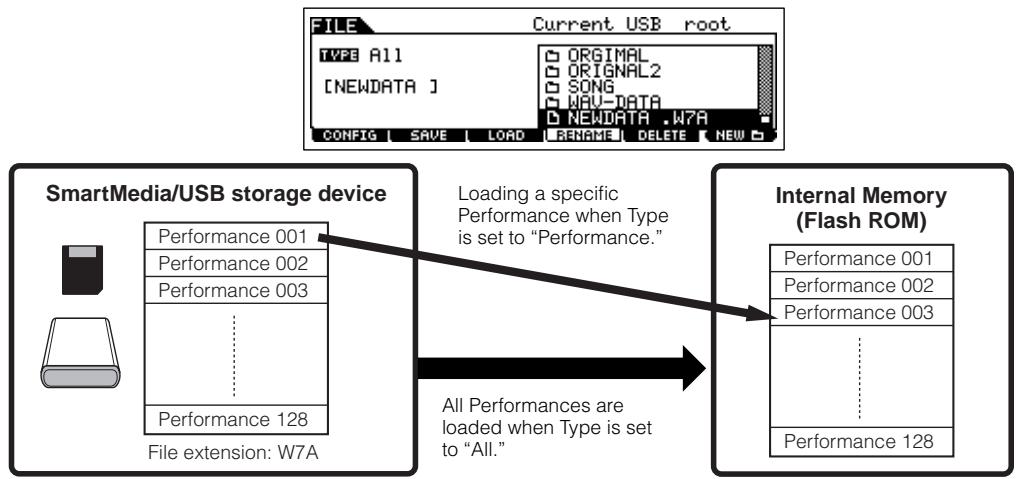

CAUTION
When Type (file type) is set to "All" and the Load operation is executed, all data that can be created on the instrument will be loaded. This means that any existing data in User memory will automatically be overwritten and lost. Make sure to save any important data to a SmartMedia/USB storage device before performing the Load operations, especially when Type is set to "All."
When Type (file type) is set to "Performance" and the Load operation is executed, the sound of the Performances may not be reproduced properly if the User Voices assigned to the Performances saved in the file have been changed by editing.

Select a file (□) to be loaded.
Move the cursor to the file (extension: W7A) saved in the operation explained on the previous page. If you set the Type parameter to "All" in step #3, go to step #5. If you set the Type parameter to "Performance" in step #3, execute the operations in the following box, then go to step #5.
When Type is set to "Performance":
When Type is set to "Performance," you can specify and load a specific Performance from a file (with the extension W7A).


CAUTION
Loading data to this synthesizer automatically erases and replaces any existing data in the User memory. Make sure to save any important data to a SmartMedia/USB storage device before performing any Load operations.

Press the [ENTER] button to execute the Load operation.
After the data has been loaded, a "Completed" message appears and operation returns to the original display.
![YAMAHA MOTIF ES6 - Press the [ENTER] button to execute the Load operation. - 1](/content/2025/01/114832/images/e131150aa81d6597631aa8082c29b9935b60d5c998109e182ce7d71b8e324de6.jpg)
CAUTION
While the data is being saved, make sure to follow these precautions:
- Never remove or eject the media from the device (SmartMedia or USB storage).
- Never unplug or disconnect any of the devices.
- Never turn off the power of the MOTIF ES or the relevant devices.
Creating a Voice by using the Sampling function
Sampling is a powerful function that lets you bring your own recorded sounds – your voice, an instrument, rhythms, special sound effects, etc. – into the system of this synthesizer, and play those sounds just like any other voices. These sounds, the audio data you capture with the Sampling function, are referred to as “Samples.”
The data you create by Sampling differs depending on which mode you enter the Sampling mode from — the Voice/ Performance mode or the Song/Pattern mode. In this section, we'll describe how to use the Sampling function from the Voice/ Performance mode in creating a User Voice.
See page 173 for instructions on using the Sampling function in the Song mode/Pattern mode.
In order to use the Sampling function, DIMM modules must be installed to the instrument. For details on installing DIMMs, see page 289. Depending on the size of the audio (sample) data obtained via the Sampling function, you may not be able to save all of the desired data to a SmartMedia card (maximum capacity: 128MB). For this reason, we recommend using a large-capacity USB storage device for your Sampling data.
Sampling your voice with a microphone and creating a Normal Voice
1 Connect a microphone to the instrument.
Follow steps #1 - 8 on page 72.
Press the [INTEGRATED SAMPLING] button in the Voice mode or Performance mode to enter the Sampling mode.
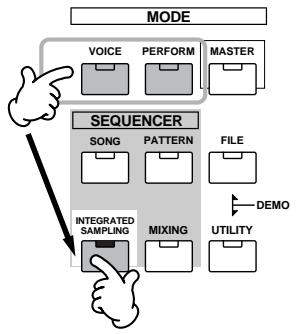
Press the [F2] SOURCE button to call up the display for setting the Sampling Source, then set the parameters as shown below.
Type: sample
Source: A/D
Next: off
Mono/Stereo: L mono
Frequency: 44.1k
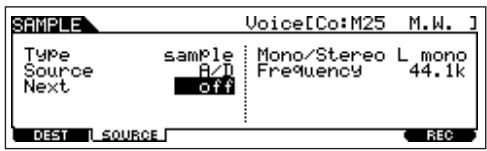
For details about each parameter, see page 251.
4 Press the [F1] DEST button to call up the display for setting the Sampling Destination, then set the parameters as described below.
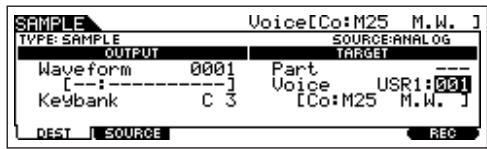
| Waveform | Determines the Waveform number. Select a number which has no data ([---:-----] is indicated). For details about the Waveform, see page 173. |
| Keybank | Here, set this parameter to “C3.” After the Sampling is completed, you can hear the sampled sound by pressing the note set here. For details about the Keybank, see page 173. |
| Part | This is available when entering the Sampling mode from the Performance mode. This parameter determines the Performance Part to which the Voice (below) created by sampling is assigned. |
| Voice | Set the Bank to “USR1” or “USR2” (one of the User Normal Voice Banks), then select a User Normal Voice Number. After the Sampling is completed, you can hear the created Voice by selecting the Voice number set here. |
- NOTE If the Voice parameter above is set to "off," you won't be able to play the sampled sound as a Voice after completing this operation. However, you can call up the sampled sound by selecting a Waveform. For details on how to select a Waveform, see .
5
Press the [F6] REC button to call up the Sampling Record display (Sampling Standby status), then set the parameters as required.
![YAMAHA MOTIF ES6 - Press the [F6] REC button to call up the Sampling Record display (Sampling Standby status), then set the parameters as required. - 1](/content/2025/01/114832/images/aace2eafa15d6e2e6f1dc231cbe6534325345e664d3a06335c59f0e391b4e4aa.jpg)
Turn the Confirm function on or off
- Setting the Confirm function
When the [F2] CONFM (Confirm function) is turned on (□ is indicated), you can easily listen back to your just-recorded sample and conveniently re-record it if you're not satisfied with the results. Here, set the [F2] CONFM button on.
- Setting the Trigger mode
The Trigger mode lets you determine how the Sampling actually starts. For example, you can start the Sampling simply by pressing the button or when the Song/Pattern playback reaches a specified point. Here, set the TrggrMode (Trigger mode) to "level" which lets you start sampling as soon as the microphone level exceeds the specified Trigger Level.
- Setting the Trigger Level
When the Trigger mode is set to "level," you'll also need to set the Trigger Level. This determines when sampling actually starts, depending on the level of the input signal (in this case, your voice). As you sing into the microphone, notice the movement of the level meter (bar), and when the bar crosses the Trigger Level arrow. If necessary, select the Trigger Level value and use the data dial to change it, moving the arrow as low or as high as needed.
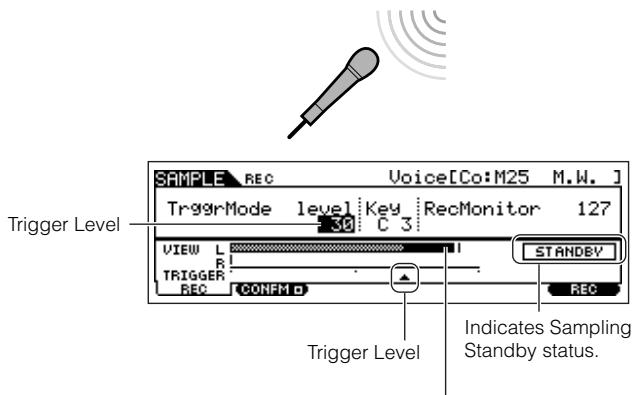
The section of the bar exceeding the Trigger Level becomes black.
6
Press the [F6] REC button again to enable Sampling Trigger Waiting.
Doing this puts sample recording on standby, waiting for an input signal that exceeds the Trigger level.
![YAMAHA MOTIF ES6 - Press the [F6] REC button again to enable Sampling Trigger Waiting. - 1](/content/2025/01/114832/images/449d98631d4456749708ca1fcaa186a069092d251b386e275d3096661f705fa5.jpg)
Indicates that sample recording is waiting for a signal of an appropriate level.
7
Sing into the microphone to start sampling.
Sing into the microphone. (You may want to match the pitch of your voice to the note C3, set in step #4 above.) The sampling actually starts as soon as the an input signal exceeding the specified trigger level is received.
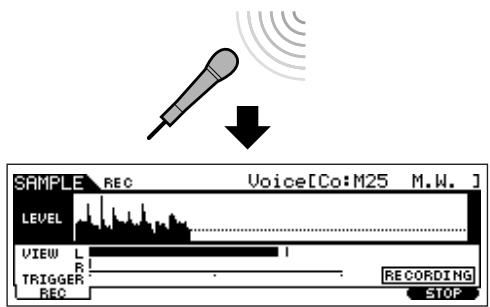
8
Press the [F6] STOP button to stop sampling, then check the results.
![YAMAHA MOTIF ES6 - Press the [F6] STOP button to stop sampling, then check the results. - 1](/content/2025/01/114832/images/ee3ee1182b540674c76e7f63ce3cb514ae2c82df04383b60c1ad63412209d2dc.jpg)
Press the [F3] AUDITION button to hear the sampled sound. If you're not satisfied with the results and you wish to try again, press the [F4] CANCEL button to return to the Sampling Standby display and try sampling from step #5 again. If you are satisfied with the results, press the [F5] OK button to store the sampled sound as a "sample" and return to the [F1] DEST or [F2] SOURCE display.
Keep in mind that if the Confirm function is turned off in step #5 above, the display shown above will not appear when stopping sampling. Instead, stopping sampling returns directly to the [F1] DEST or [F2] SOURCE display.
9
Press the [EDIT] button to enter the Sampling Edit mode, then press the [F4] RANGE button to call up the Range setting display.
![YAMAHA MOTIF ES6 - Press the [EDIT] button to enter the Sampling Edit mode, then press the [F4] RANGE button to call up the Range setting display. - 1](/content/2025/01/114832/images/69dc72fafc2afe8737a316e0fac2387a5f556440e48566f9e0f0902f3c4e121e.jpg)
![YAMAHA MOTIF ES6 - Press the [EDIT] button to enter the Sampling Edit mode, then press the [F4] RANGE button to call up the Range setting display. - 2](/content/2025/01/114832/images/de532fa35a110e96186791ef2f7ce818042307f372f802433511806d2019a988.jpg)
![YAMAHA MOTIF ES6 - Press the [EDIT] button to enter the Sampling Edit mode, then press the [F4] RANGE button to call up the Range setting display. - 3](/content/2025/01/114832/images/923b8c553aab983c714a4217a18c7396c3e8b20bde2aa66f2326d0b6d8a8d037.jpg)
10 Set the key range within which the sample is sounded.
Immediately after sampling, the sample is assigned only to one key — the one set in step #4 as "KeyBank." This display lets you expand the key range within which the sample is sounded. Here, set the key range to C2 - B3.
Indicates the original key of the currently selected sample. If you wish to select a different sample, call up the [F1] KEYBANK display, then press a different key while holding the [INFORMATION] button.
Set the key range.
Use the data dial, [INC/YES] and [DEC/NO] button, or press the key while holding the [INFORMATION] button.
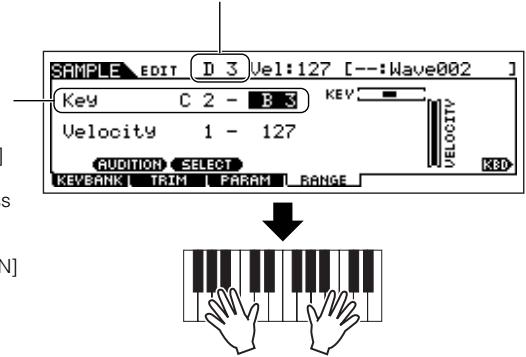
Play the keyboard within the key range set above. Your sampled voice is sounded, following the pitches of the notes you play.
11 Repeat step #4 - 10 to add another sample to the same Voice (Waveform).
For example, in step #4 set Keybank to "G4," sing into the microphone as described in step #7 (matching the pitch G4, if necessary), and set the Key Range to C4 - E5 in step #10. As a result, the sample is assigned to the keys as illustrated below.
The sample is sounded within this key range.
The sample is sounded within this key range.
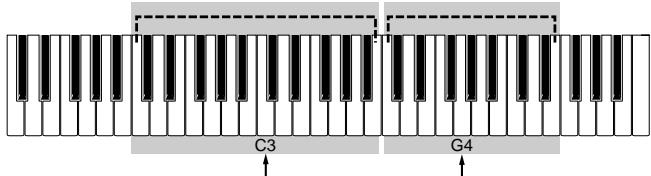
The original sample is assigned to this key.
The original sample is assigned to this key.
When you play the sample from the keyboard, the more distant the played samples are from the original key, the less natural the samples sound. For this reason, you should try to make multiple samples and multiple key ranges, so that each key range is shorter and the samples sound more natural.
12 Save your newly created User Voice to a SmartMedia/USB storage device.
Refer to "Saving a Sample" on page 97.
CAUTION
The recorded (edited) sample data resides temporarily in DIMM (page 187). Because data contained in DIMM is lost when the power is turned off, you should always save any data residing in DIMM to a SmartMedia/USB storage device before turning off the power.
About Samples, Key Banks, Waveforms, and Voices
Understanding the Sampling-related terms below will help you better understand the Sampling function itself and how to use it. Keep in mind the hierarchy here as it relates to sampling — the audio source (e.g., your voice) starts as a Sample, becomes part of a Key Bank, which makes up a Waveform, which is used to create a Voice.
Sample
The sound obtained via the Sampling function is referred to as "Sample."
Key Bank
In order to play the sample from the keyboard, the sample must be assigned to notes on the keyboard. First, assign the sample to a specified key when sampling (step #4 on page 94), then expand the key range within which the sample is sounded (step #10 on page 96). The Key Range and the Velocity Range within which the sample is sounded is referred to as a "Key Bank." In step #10 above, you saw how to set the Key Range. From the same display, you can also set a Velocity Range. Using these two parameters, you can create a Key Bank.
Waveform
The group of Key Banks to which sample data is assigned is referred to as a "Waveform." The Waveform is assigned to each Element of a Normal Voice. In step #11 above, you saw how to add Key Banks one by one to create a Waveform.
Voice
After completing a Waveform, you can create an Element by applying various sound-making parameters such as Pitch, Filter, Amplitude and other parameters such as Effect and EQ to it. Finally, combine four Elements (each containing its own Waveform) to create a Normal Voice.
- NOTE You can select and hear the Waveforms created via the Sampling function as well as all the preset Waveforms in the WAVE display ([VOICE] [EDIT] Element selection [F1] OSC [SF1] WAVE).
Saving a Sample
[FILE] [F2] SAVE
Assign the Samples obtained via the Sampling function to specific Key Ranges to create a Waveform. Because the Waveform data including Samples which resides temporarily in DIMM (page 187) is lost when the power is turned off, you should always save the Waveform data or Samples to a SmartMedia/USB storage device before turning off the power. The following four methods can be used to save a Sample that is assigned to a Waveform. Execute the Save operation in the File mode.

CAUTION
While the data is being saved, make sure to follow these precautions:
- Never remove or eject the media from the device (SmartMedia or USB storage).
- Never unplug or disconnect any of the devices.
-
Never turn off the power of the MOTIF ES or the relevant devices.
-
Saving as a User Voice
When you save a User Voice that contains Samples, all the related data — the Waveform assigned to the Voice, the Samples assigned to the Waveform, as well as the User Voice itself — is automatically saved together. Insert a SmartMedia into the CARD slot or connecting the USB storage device to this synthesizer, and follow the instructions below.
Press the [FILE] button to enter the File mode, then execute the basic settings.
Refer to "Basic settings for using SmartMedia or a USB storage device" on page 30.
2 Press the [F2] SAVE button to call up the Save display.
3 Set the TYPE parameter to "All" or "AllVoice."
When "All" is selected, execute the Save operation to save all the created data including the User Voices as a single file. When "AllVoice" is selected, execute the Save operation to save all User Voices, including Waveforms assigned to Normal Voice Elements or Drum Voice Keys, as a single file.
4 Input a file name.
Move the cursor to the file name input location, then input a file name. For detailed instructions on naming, refer to page 53 in the Basic Operation section.
5 Press the [ENTER] button to execute the Save operation.
If you are about to overwrite an existing file, the display prompts you for confirmation. Press the [INC/YES] button to execute the Save operation to overwrite the existing file, or press the [DEC/NO] button to cancel it.
- Saving as a Waveform
When you save a Waveform that makes up a Voice, all the Samples that are assigned to the Waveform are automatically saved together. The procedure for saving is the same as described in "Saving a User Voice" above, with the exception that Type is set to "AllWaveform" in step #3.
- Saving as a WAV file
You can select a specific Sample from a Waveform and save it as a WAV file (Windows audio format). Insert a SmartMedia into the CARD slot or connecting the USB storage device to this synthesizer, and follow the instructions below.
1 Select a Voice containing the Sample to be saved in the Voice Play mode, then press the [FILE] button to enter the File mode, and execute the basic settings.
Refer to "Basic settings for using SmartMedia or a USB storage device" on page 30.
2 Set the TYPE parameter to "Wav" in the [F2] SAVE display.
3 Input a file name.
Move the cursor to the file name input location, then input a file name. For detailed instructions on naming, refer to page 53 in the Basic Operation section.
4 Press the [ENTER] button, then select a Sample to be saved.
When a Normal Voice is selected in step #1:
Specify the Element and Key Bank to call up the Sample assigned to the selected Voice. You can hear the Sample by pressing the [SF1] AUDITION button. Go through the Samples in this way to find the desired Sample.
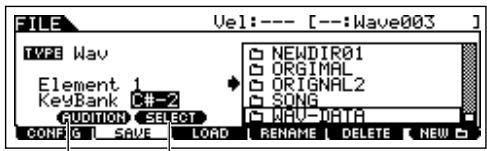
This is available only when the cursor is located at the KeyBank. Each press of the [SF2] button calls up a different Key Bank assigned to a specific velocity range (for the same key).
You can hear the selected sample by pressing the [SF1] button. (Audition function)
When a Drum Voice is selected in step #1:
Specify the Note and Key Bank to call up the Sample assigned to the selected Drum Voice. You can hear the Sample by pressing the [SF1] AUDITION button. Go through the Samples in this way to find the desired Sample.
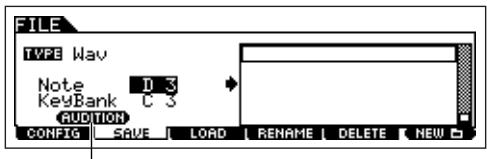
You can hear the selected sample by pressing the [SF1] button. (Audition function)
5 Press the [ENTER] button to execute the Save operation.
If you are about to overwrite an existing file, the display prompts you for confirmation. Press the [INC/YES] button to execute the Save operation and overwrite the existing file, or press the [DEC/NO] button to cancel it.
- Saving as a AIFF file
You can select a specific Sample from a Waveform and save it as a AIFF file (Macintosh audio format). The procedure for saving is the same as described in "Saving as a WAV file" above with the exception that Type is set to "AIFF" in step #2.
Sampling the sound of an audio device to create a Drum Voice
In the previous section on page 94, you learned how to record a Sample using a microphone. Here, you'll learn how to record Samples from an audio device, such as a CD player or MD player, and use the Samples to create a Drum Voice.

In order to use the Sampling function, DIMM modules must be installed to the instrument. For details on installing DIMMs, see page 289.
Depending on the size of the audio (sample) data obtained via the Sampling function, you may not be able to save all of the desired data to a SmartMedia card (maximum capacity: 128MB). For this reason, we recommend using a large-capacity USB storage device for your Sampling data.
1 Connect an audio device (CD player, etc.) to the instrument.
Follow steps #1 - 8 on page 73.
2 the Voice mode or Performance mode to enter the Sampling mode.
3 display for setting the Sampling Source, then set the parameters as shown below.
Type: sample
Source: A/D
Next: on
Mono/Stereo: stereo
Frequency: 44.1k
When creating a Drum Voice consisting of many separate Samples, you'll want to quickly be able to record a Sample, assign it to a key, then move on to the next one. To do this smoothly and easily, set the Next parameter to "on."
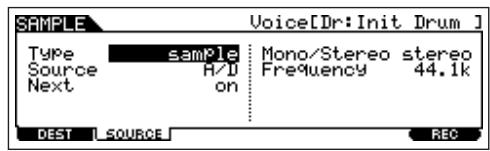
For details about each parameter, see page 251.
4 for setting the Sampling Destination, then set the parameters as described below.
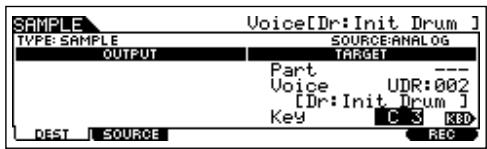
| Part | This is available when entering the Sampling mode from the Performance mode. This parameter determines the Performance Part to which the Voice (below) created by sampling is assigned. |
| Voice | Set the Bank to “UDR” (User Drum Voice Bank), then select a User Drum Voice Number. After the Sampling is completed, you can hear the created Voice by selecting the Voice number set here. |
| Key | Here, set this parameter to “C3.” After the Sampling is completed, you can hear the sampled sound by pressing the note set here. |
- NOTE If the Voice parameter above is set to "off," you won't be able to play the sampled sound as a Voice after completing this operation. However, you can call up the sampled sound by selecting a Waveform. For details on how to select a Waveform, see page 174.
5
Press the [F6] REC button to call up the Sampling Record display (Sampling Standby status), then set the parameters as required.
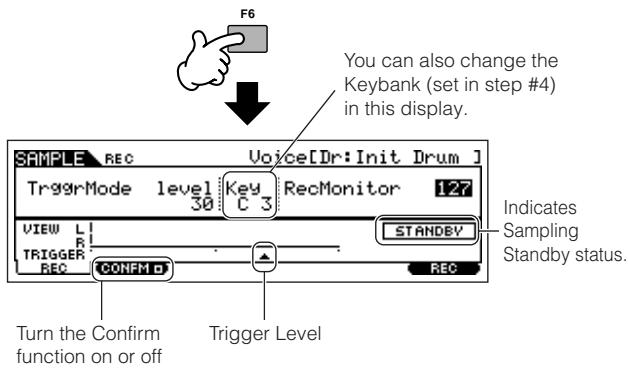
- Setting the Confirm function
When the [F2] CONFM (Confirm function) is turned on (☑ is indicated), you can easily listen back to your just-recorded sample and conveniently re-record it if you're not satisfied with the results. Here, set the [F2] CONFM button on.
- Setting the Trigger mode
The Trigger mode lets you determine how the Sampling actually starts. For example, you can start the Sampling simply by pressing the button or when the Song/Pattern playback reaches a specified point. Here, set the TrggrMode (Trigger mode) to "level" which lets you start sampling as soon as the input signal from the audio device exceeds the specified Trigger Level.
- Setting the Trigger Level
When the Trigger mode is set to "level," you'll also need to set the Trigger Level. This determines when sampling actually starts, depending on the level of the input signal of the audio device. As the sound plays, notice the movement of the level meter (bar), and when the bar crosses the Trigger Level arrow. If necessary, select the Trigger Level value and use the data dial to change it, moving the arrow as low or as high as needed.

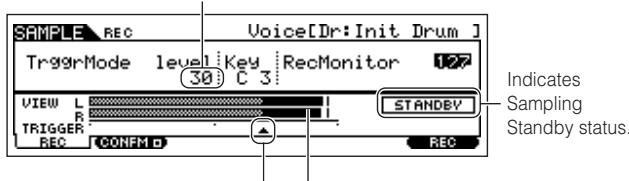
Trigger Level
Trigger Level The section of the bar exceeding the Trigger Level becomes black.
6 Press the [F6] REC button again to enable Sampling Trigger Waiting.
Doing this puts sample recording on standby, waiting for an input signal that exceeds the Trigger level.
![YAMAHA MOTIF ES6 - Press the [F6] REC button again to enable Sampling Trigger Waiting. - 1](/content/2025/01/114832/images/557dcaf1f98d07f0e06a7177a9780eb795d4726c4658b940b78159aa8bba9041.jpg)
Indicates that sample recording is waiting for a signal of an appropriate level.
7 Start the external audio device.
The sampling actually starts as soon as the an input signal exceeding the specified trigger level is received.
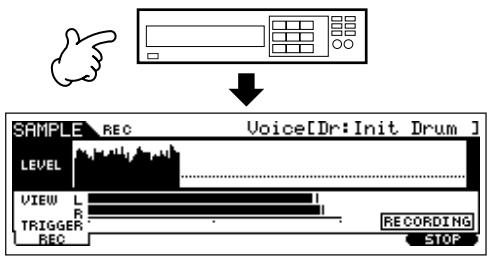
Press the [F6] STOP button to stop sampling, then stop the external audio device.
![YAMAHA MOTIF ES6 - Press the [F6] STOP button to stop sampling, then stop the external audio device. - 1](/content/2025/01/114832/images/3ff712237004be564cc848b0627913b7cba2f832fe2808217c1bfa24939bc042.jpg)
Press the [F3] AUDITION button to hear the sampled sound. If you're not satisfied with the results and you wish to try again, press the [F4] CANCEL button to return to the Sampling Standby display and try sampling from step #5 again. If you are satisfied with the results, press the [F5] OK button to store the sampled sound as a "sample" and return to the Sampling Standby display. Keep in mind that if the Confirm function is turned off in step #5 above, the display shown above will not appear when stopping sampling. Instead, stopping sampling returns directly to the Sampling Standby display.
9 Repeat steps #5 - 8 above to assign additional Samples to the notes as desired to create your Drum Voice.
In step #7, select a different sound (on a CD, for example) for each Sample. Though the Key is automatically set to the note name the next one higher than that just assigned, you can change it in step #5.
By repeating steps #5 - 8 above, you can create a Drum Voice in which each key has a different sound (as shown below).
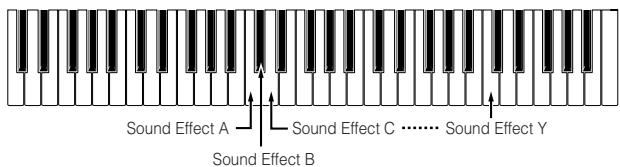
10 Save your newly created User Voice to a SmartMedia/USB storage device.
Refer to "Saving a Sample" on page 97.
CAUTION
The recorded (edited) sample data resides temporarily in DIMM (page 187). Because data contained in DIMM is lost when the power is turned off, you should always save any data residing in DIMM to a SmartMedia/USB storage device before turning off the power.
Example Sampling sources
The examples below show you some of the different audio sources you can use as raw material for your Samples and Sample Voices.
Vocals with effects
With a PLG100-VH Plug-in Board installed, you can apply a vocal harmony effect to your voice, and sample the entire processed sound. After setting the PLG100-VH related parameters as required referring to "Using an Effect Plug-in Board" on page 78, execute the Sampling operation.
The sound of an mLAN compatible instrument
After setting up referring to page 34, execute the Sampling operation. You should set the [INTEGRATED SAMPLING] [F2] SOURCE Source parameter to "mLAN1 - 4."
Electric guitar or bass
Instruments such as guitar and bass can also be sampled, using the A/D INPUT jack. After setting up referring to page 33, execute the Sampling operation. You should set the [INTEGRATED SAMPLING] [F2] SOURCE Source parameter to "A/D."
Digital audio
With an optional AIEB2 interface installed to the instrument, you can connect to the digital out jack on your DAT deck or CD/MD player and directly record digital audio, for the highest possible sound quality. For details on installing the AIEB2, refer to page 285; for details on connecting digital audio devices to the instrument, refer to page 34. When executing AIEB2, you should set the [INTEGRATED SAMPLING] [F2] SOURCE Source parameter to "AIEB2."
- Resampling the MOTIF ES
You can also resample anything you play on the MOTIF ES itself — riffs, rhythms, melodies, thick multi-layered chord pads, etc. You should set the [INTEGRATED SAMPLING] → [F2] SOURCE → Source parameter to “resample.”
WAV or AIFF audio files
Audio data created and edited on a computer can also be used for Samples. (For details, see the next page.)
TIP Loading WAV or AIFF audio files to create a Waveform/Voice
Any audio data created and edited on a computer and saved in the WAV or AIFF format can also be used as material for Samples on the MOTIF ES. Set up the media containing the desired WAV/AIFF audio files (e.g., insert a SmartMedia card to the CARD slot or connect a USB storage device), then follow the instructions below.
In order to use the Sampling function, DIMM modules must be installed to the instrument. For details on installing DIMMs, see page 289. Depending on the size of the audio (sample) data obtained via the Sampling function, you may not be able to save all of the desired data to a SmartMedia card (maximum capacity: 128MB). For this reason, we recommend using a large-capacity USB storage device for your Sampling data.
The instructions here apply when you enter the File mode from the Voice mode. When entering the File mode from the Performance mode, the instructions are the same with the exception that you should set the destination Performance number and Part in step #4.
In the Voice mode, press the [FILE] button to enter the File mode, then execute the basic settings.
Refer to "Basic settings for using SmartMedia or a USB storage device" on page 30.
2 Press the [F3] LOAD button to call up the Load display.
3 Select the file type to be loaded.
Set Type to "Waveform." This setting lets you select and load a specific Waveform from a file (extension: W7W) saved as "AllWaveform" or load a WAV file/ AIFF file as a Waveform.
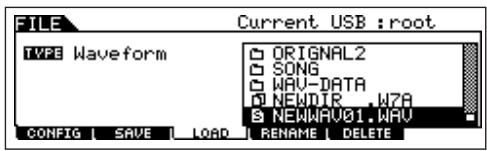
4 Select the file (□) to be loaded and specify the destination.
When moving the cursor to a WAV file (extension: WAV) or AIFF file (extension: AIF), the destination parameter automatically appears in the display.
When assigning a WAV file/AIFF file to a Normal Voice:
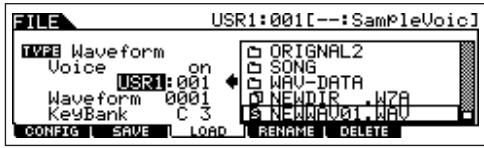
When assigning a WAV file/AIFF file to a Drum Voice:
| Voice | When this is set to “on,” you can load and assign a WAV file/AIFF file to the destination Voice set below. |
| USR1:001 (A01) | This is available when the Voice (above) is set to “on.” Select “USR1” or “USR2” as the destination Normal Voice Bank and select a destination Voice number. |
| Waveform | Determines the destination Waveform number. |
| KeyBank | Determines the destination Key Bank of the Waveform set above. |
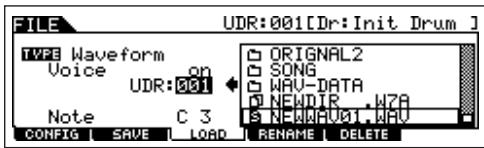
| Voice | When this is set to “on,” you can load and assign a WAV file/AIFF file to the destination Voice set below |
| UDR:001 (A01) | This is available when the Voice (above) is set to “on.” Select “UDR” as the destination Drum Voice Bank and select a destination Voice number. |
| Note | Determines the destination key of the Drum Voice set above. |
- NOTE When assigning a WAV file/AIFF file to a Drum Voice, a Sample from the WAV file/AIFF file is assigned to the empty Waveform automatically.
CAUTION
Loading data to this synthesizer automatically erases and replaces any existing data in the User memory. Make sure to save any important data to a SmartMedia/USB storage device before performing any Load operations.
5 Press the [ENTER] button to execute the Load operation.
After the data has been loaded, a "Completed" message appears and operation returns to the original display.
CAUTION
While the data is being saved, make sure to follow these precautions:
- Never remove or eject the media from the device (SmartMedia or USB storage).
- Never unplug or disconnect any of the devices.
- Never turn off the power of the MOTIF ES or the relevant devices.
6 Depending on whether you're creating a Normal Voice or a Drum Voice, follow the appropriate instructions below.
When creating a Normal Voice in steps #4 - 5
After entering the Sampling Edit mode ([INTEGRATED SAMPLING] [EDIT]), press the [F1] KEYBANK button to call up the Key Bank display. From this display, select a Waveform and Key Bank. To specify the Key Bank, simultaneously hold down the [INFORMATION] button and press the desired note on the keyboard. To select Waveforms assigned to different velocities, hold down the [INFORMATION] button and press the [SF2] SELECT button.
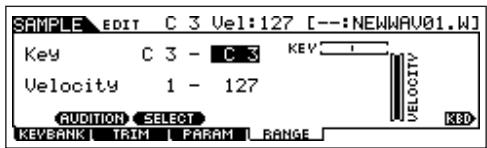
After selecting a Waveform and Key Bank above, press the [F4] RANGE button.
Once you've loaded the sample in step #5, it can only be sounded by playing the note specified in step #4. From this display however, you can expand the note range over which the loaded sample will sound.
Determine the Key Range.
Use the data dial, [INC/YES] and [DEC/NO]
buttons or press the note on the keyboard while holding the [INFORMATION] button.
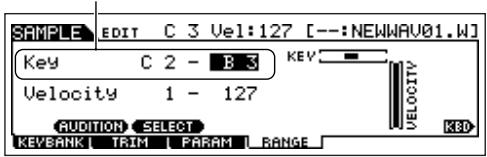
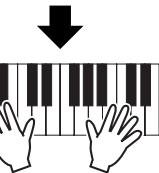
Play the keyboard within the Key Range set above.
You can hear the loaded sample following the pitches of the notes you play.
When creating a Drum Voice in steps #4 - 5
By repeating steps #5 - 8 above, you can create a Drum Voice in which each key has a different sound (as shown below).
After creating the Normal or Drum Voice, go on to step #7 below.
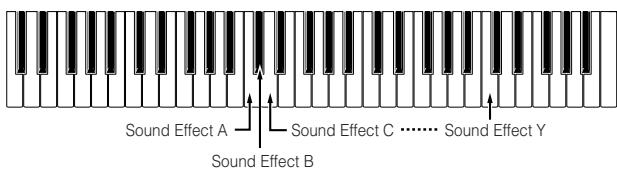
7 Play the Voice created by the Load operation.
Press the [VOICE] button to enter the Voice Play mode, then select the Voice number set in step #4.
Creating a Song on the MOTIF ES
The MOTIF ES is a full-featured and enormously powerful music production machine, and all of the instrument's advanced features and functions come together seamlessly in the creation of a Song. Here, you'll learn how to get the most out of the sequencer-related functions of the MOTIF ES, using primarily the Song and Pattern modes.
This section is quite detailed and comprehensive. However, rather than following it step-by-step all the way through and trying to use every feature in a single song, use it instead as a guide or a springboard for further exploration.
Recording your keyboard performance
Generally, you'll start recording a Song or Pattern by playing a Voice from the keyboard. Since the instrument is set to multimodal operation (page 162), the Voice you actually play and record depends on the Voice settings for the Song or Pattern, made in the Mixing settings described below.
Selecting a Voice
Selecting a Voice for recording is different than selecting a Voice for playing. Voice settings for the Song/Pattern mode are handled in Song Mixing/Pattern Mixing.
1
Press the [SONG] button/[PATTERN] button to enter the Song mode/Pattern mode, then select a Song number/Pattern number to be created.
See page 56 for instructions on how to select a Song or Pattern.
2
Enter the Mixing Edit mode ([MIXING] [EDIT]), then select a Part (track) and call up the Voice setting display ([F1] VOICE [SF1] VOICE).
For information on how to select a Song track or Pattern track, see page 58.
![YAMAHA MOTIF ES6 - Enter the Mixing Edit mode ([MIXING] [EDIT]), then select a Part (track) and call up the Voice setting display ([F1] VOICE [SF1] VOICE). - 1](/content/2025/01/114832/images/cff6be4fa94b5e56e70ca37aa35f9d36252294e2c79017dd12b1f3b718282ab8.jpg)
Indicates the current Part number. Parts 01-16 are internal tone generator Parts. Parts 17-32 are tone generator Parts of the PLG100-XG Multi Part Plug-in Board. Parts PLG01-03 are tone generator parts of the Single Part Plug-in Board. Keep in mind that the example instructions here use the internal tone generator.
Press the [F6] button to switch between the display for Parts 01-16, 17-32, and PLG1-3.
![YAMAHA MOTIF ES6 - Enter the Mixing Edit mode ([MIXING] [EDIT]), then select a Part (track) and call up the Voice setting display ([F1] VOICE [SF1] VOICE). - 2](/content/2025/01/114832/images/da843cdcbe998ae69ca6368b45d434abf4ac9730cc8c6a99747f38885a4f5063.jpg)
3
Select a voice referring to the instructions below.
- Move the cursor to "Bank" and select the desired Voice Bank by using the data dial, [INC/YES] and [DEC/NO] buttons.
| PRE1 (Preset1) ~ PRE6 (Preset 6) | Preset Banks 1 - 6 of the Normal Voice. These correspond to the [PRE1] - [PRE6] buttons in the Voice mode. |
| USER1 ~ USER2 | User Banks 1 - 2 of the User Voice. These correspond to the [USER1] - [USER2] buttons in the Voice mode. |
| GM | GM Normal Voice Bank. This corresponds to the [GM] button in the Voice mode. |
| PDR (Preset Drum) | Preset Bank of the Drum Voice. This corresponds to pressing the [DRUM KITS] button and the [PRE5] button simultaneously. |
| GMDR (GM Drum) | GM Drum Voice Bank. This corresponds to pressing the [DRUM KITS] button and the [GM] button simultaneously. |
| UDR (User Drum) | User Bank of the Drum Voice. This corresponds to pressing the [DRUM KITS] button and the [USER1] button simultaneously. |
| SMPL (Sample Voice) | Indicates the Bank for the Sample Voices created via the Sampling function (page 173). |
| MIXV (Mixing Voice) | This bank is for the Mixing Voices (page 105) dedicated for the Song mode/Pattern mode. |
-
Move the cursor to "Number" and select the desired Voice Number by using the data dial, [INC/YES] and [DEC/NO] button. Refer to the separate Data List.
-
NOTE With the [TRACK SELECT] lamp turned off, Normal Voices can be selected in the way described on page 60.
- Note With the exception of Sample Voices and Mixing Voices, you can also use the Category Search (page 62) in this display.
5.103 The Voice for each Part of the current Song or Pattern can be selected also in the [SONG] Song selection [MIXING] [F2] VOICE display or the [PATTERN] Pattern selection [MIXING] [F2] VOICE display. You can also use the Category Search (page 62) in this display. - NOTE For information on how to select a voice of a Plug-in Board in the Song mode/Pattern mode, see page 121.
4
Play the keyboard to confirm the selected Voice.
5
Repeat steps #2 - 4 to set the Voice settings (Mixing Settings) for each Part (track).
6
If desired, make a backup of the Voice (Mixing) settings made above.
- First, store the Voice settings as Song Mixing/Pattern Mixing. Press the [STORE] button to enter the Song Mixing Store mode/Pattern Mixing Store mode, then press the [ENTER] button to execute the Store operation (page 131).
- Next, save the stored Song Mixing as a file for all Songs created on the instrument before turning the power off. Press the [FILE] button to enter the File mode, then execute the Save operation by following the instructions described on page 132.
Selecting a Mixing Template
Here is an exceptionally convenient Song/Pattern creation tool. The MOTIF ES has 32 different Mixing Templates for use with a Song or Pattern, each pre-programmed for a variety of music styles and applications. Simply dial up the template that comes closest to the type of Song or Pattern you wish to create, tweak the settings as desired, then start recording. It's a quick, smooth and inspiring way to get your ideas down.
1
Press the [SONG]/[PATTERN] button to enter the Song mode/Pattern mode, then select a Song/Pattern number to be created.
2
Call up the Mixing Template selection display in the Song Mixing Job mode ([MIXING] [JOB] [F6] TEMPLATE).
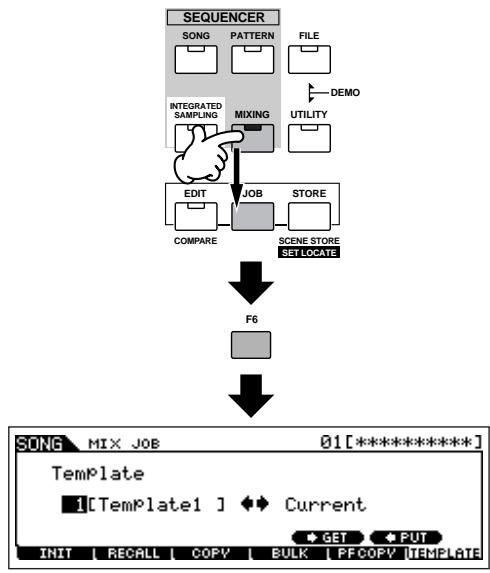
3
Move the cursor to the Template number location, then select a Mixing Template.
Select a Template number by using the data dial, or the [INC/YES]/[DEC/NO] buttons. For details, refer to the Mixing Template list in the separate Data List booklet.
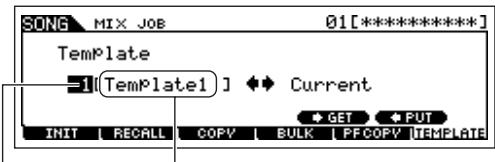
Template number
Template name
4
Press the [SF4] button to actually call up the selected Mixing Template for the current Song.
![YAMAHA MOTIF ES6 - Press the [SF4] button to actually call up the selected Mixing Template for the current Song. - 1](/content/2025/01/114832/images/7bcbd53addd574af93dc9554cf8d9b448ad53756c063e1d70efe4f1988487493.jpg)
5
Play the keyboard to check the Mixing settings — especially the Voices.
You can confirm the Voice settings for the Parts by selecting tracks one by one and playing the keyboard with each. If you wish to check the detailed settings, call up and view each display in the Song Mixing mode and Song Mixing Edit mode.
6
Change the Mixing settings as desired.
Tweak and change the Mixing parameters — especially the Voices — to fit the song you intend to create. For details about the Mixing Edit mode, see page 127.
7 If desired, make a backup of the Mixing settings made above.
- First, store the Voice settings as Song Mixing/Pattern Mixing. Press the [STORE] button to enter the Song Mixing Store mode/ Pattern Mixing Store mode, then press the [ENTER] button to execute the Store operation (page 131).
- Next, save the stored Song Mixing as a file for all Songs created on the instrument before turning the power off. Press the [FILE] button to enter the File mode, then execute the Save operation by following the instructions described on page 132.
The Mixing settings you make can be stored as a Template — letting you create your own custom Mixing/Voice configurations for future use in recording Songs. Press the [SF5] PUT button in step #4 above to store the settings to the destination (current) Template number. The following illustration shows the memory structure for Mixing.
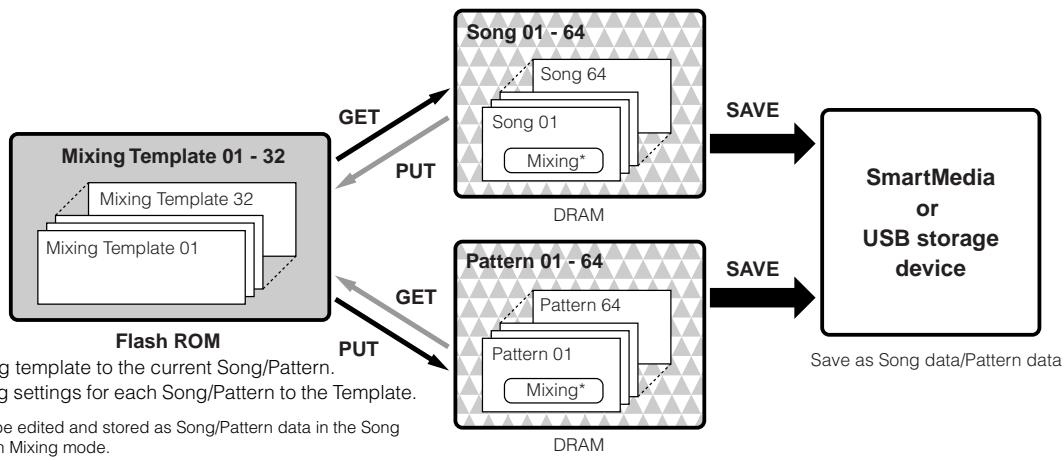
GET...Loads the Mixing template to the current Song/Pattern.
PUT....Stores the Mixing settings for each Song/Pattern to the Template.
* Mixing parameters can be edited and stored as Song/Pattern data in the Song Mixing mode and Pattern Mixing mode.
CAUTION
Whereas Mixing Template data resides in internal Flash ROM, Song data and Pattern data — including the Mixing settings — resides in DRAM. Because data contained in DRAM is lost when the power is turned off, you should always save any data residing in DRAM to a SmartMedia/USB storage device in the File mode before turning off the power.
CAUTION
The currently edited Mixing program will be lost when selecting a different Song/Pattern or going to a different mode without saving (putting) it to a template or storing it to the current Song/Pattern. In addition, simply playing back the Song/Pattern or receiving any MIDI messages from an external MIDI instrument may change the current Mixing program. Make sure to put or store the Mixing program before executing these operations.
Using Controllers
Just as in the Voice/Performance mode, the controllers of the instrument — Pitch Bend wheel, Modulation wheel, Ribbon Controller, Knobs, and Control Sliders — can also be used in the Song/Pattern mode.
- NOTE The Pitch Bend Range in the Song mode/Pattern mode can be set in the Mixing Edit made for each Song/Pattern. This can be changed with the PB Upper/Lower parameters ([SONG] or [PATTERN] Song or Pattern selection [MIXING] [EDIT] Part selection [F1] VOICE [SF5] OTHER PB Upper/PB Lower).
- NOTE The functions assigned to the Pitch Bend Wheel, Modulation Wheel, Ribbon Controller, and Knobs (ASSIGN 1 and 2) in the Song mode/ Pattern mode depends on the setting (made in the Voice mode) of the Voice assigned to each Mixing Part.
- NOTE The functions assigned to the Knobs (ASSIGN A and B) can be set in the [UTILITY] [F4] CTL ASN [SF2] ASSIGN display.
- NOTE You can set the Ribbon Controller to control different functions on connected external MIDI devices from the functions assigned in Song Mixing/Pattern Mixing for the instrument itself. You can also determine whether the Ribbon Controller value returns to the center, or stays at the point where you released your finger. Both of these settings can be made in the Song/Pattern Mixing Edit mode ([SONG] or [PATTERN] Song or Pattern selection [MIXING] [EDIT] [COMMON] [F4] CTL ASN).
- NOTE For information on using the Control Sliders in the Song mode/Pattern mode, see page 130.
Edit Indicator
Tweaking the knobs in the Song or Pattern mode directly changes the Song/Pattern Mixing parameters. When any of the Song Mixing/Pattern Mixing parameters are changed, the [E] (Edit) Indicator appears in the top left of the display. This indicates that the current Song Mixing/Pattern Mixing has been modified but not yet stored. If you're satisfied with the tweaks you made and the resulting sound, you can store the changes as a Song Mixing/Pattern Mixing in the Song Mixing/Pattern Mixing Store mode (page 131).
-
NOTE The [E] (Edit) indicator also appears in the following situations — even if the Mixing parameters are not edited.
-
Playing back song data (either on this instrument or from a connected MIDI sequencer) that changes the settings, such as the Voices.
- Calling up the Mixing template.
CAUTION
If you select another Song/Pattern during editing, the [E] (Edit) indicator will disappear and all your edits will be lost. It is a good idea to store the edited Song Mixing/Pattern Mixing data in the Song Mixing/Pattern Mixing Store mode (page 131). Even if you lose the Song Mixing/Pattern Mixing edited data, you can restore it by using the Edit Recall function (page 129).
Using the Arpeggio Function
Just as in the Voice/Performance mode, you can use Arpeggio playback in the Song/Pattern mode.
1
Set the ArpSwitch parameter for the current part to "on" ([SONG] or [PATTERN] [MIXING] [EDIT] Part selection [F1] VOICE [SF2] MODE).
This parameter can be set to "on" simultaneously for more than one Part, but only if the Parts have the same MIDI Receive Channel settings.
2
Select an Arpeggio type ([SONG] or [PATTERN] [MIXING] [EDIT] [COMMON] [F3] ARP [SF1] TYPE).
3
With the [ARPEGGIO ON/OFF] lamp turned on, press any note on the keyboard to trigger Arpeggio playback.
NOTE
Just as in the Voice mode and Performance mode, the Song mode and Pattern mode let you register the desired Arpeggio type to the [SF1] - [SF5] buttons.
NOTE
Arpeggio related parameters (such as Type, etc.) are included in Song/Pattern Mixing data.
Using the Audio Input sound
Just as in the Performance mode, the audio input can be used as an audio Part in the Mixing settings in the Song mode/Pattern mode. The related parameters can be set with the following operation: [SONG] or [PATTERN] Song/ Pattern selection [MIXING] [EDIT] [COMMON] [F5] AUDIO IN.
Creating Mixing Voices exclusively for Songs/Patterns
If you assign User Voices to your Song or Pattern and then edit them (in the Voice Edit mode), the Voices may sound different than expected. This convenient feature lets you create dedicated Mixing Voices for your songs and Patterns — ensuring that the Voices will play exactly as they were edited for the Song/Pattern.
NOTE
Only Normal Voices can be created/edited as Mixing Voices.
1
Press the [SONG] button/[PATTERN] button to enter the Song mode/Pattern mode, then select the desired Song/Pattern for which the Mixing settings will be edited.
See page 56 for instructions on how to select a Song or Pattern.
2
Press the [MIXING] button (the lamp lights) to enter the Song Mixing mode/Pattern Mixing mode, then select the Part containing the desired Voice.
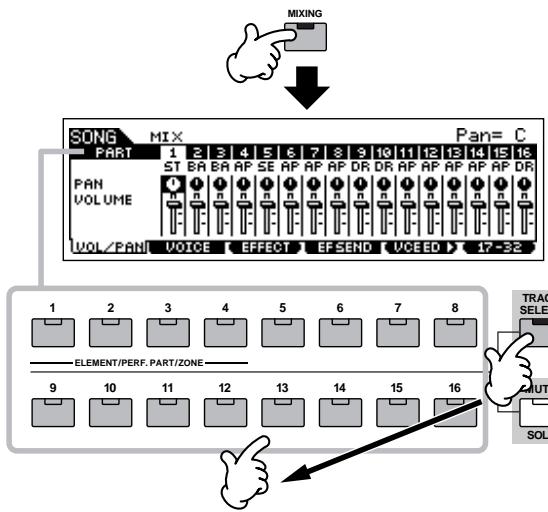
3
Press the [F5] VCE ED (Voice Edit) button to enter the Mixing Voice Edit mode.
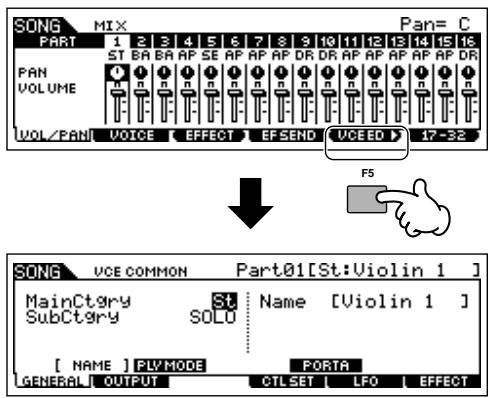
NOTE
You can enter the Mixing Voice Edit mode only when a Normal Voice is assigned to the current Part.
4
Call up the Common Edit or Element Edit display as required.
These displays are the same as in the Voice mode. See page 79.
5
Select the desired menu for editing by pressing the [F1] - [F6] and [SF1] - [SF5] buttons, then edit the parameters.
The actual parameters and procedures for editing them are the same as in the Voice Edit mode. See page 80.
6
Repeat steps #4 and 5 as desired.
7 Name the edited Mixing Voice.
Input a name in the [COMMON] [F1] GENERAL [SF1] NAME display.
For detailed instructions on naming, refer to page 53 in the Basic Operation section.
Store the edited Mixing Voice to internal User memory.
Press the [STORE] button to enter the Mixing Voice Store mode.
2 Set the destination Voice Bank to "MIXV" and select the destination Voice number.
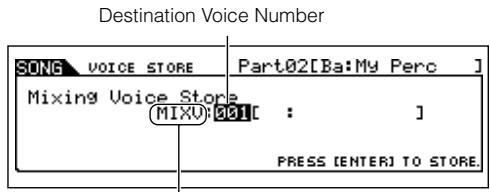
Destination Voice Bank
3 Press the [ENTER] button to execute the Store operation.
- None You can store the Voice edited in the Mixing Voice Edit mode as a User Normal Voice by setting the Voice Bank to "USER1" or "USER2."
9 Store the edited Song Mixing/Pattern Mixing to internal User memory.
Press the [EXIT] button several times to return to the Song Mixing mode/Pattern Mixing mode, press the [STORE] button to enter the Song Mixing Store mode/Pattern Mixing Store mode, then press the [ENTER] button to execute the Store operation (page 131).
10 Save the Song data/Pattern data to a SmartMedia/USB storage device in the File mode (page 132) before turning off the power.
CAUTION
Mixing Voices are assigned to Parts of the Song/Pattern and stored to internal DRAM. Because data contained in DRAM is lost when the power is turned off, you should always save any data residing in DRAM to a SmartMedia/USB storage device in the File mode before turning off the power.
Creating a Pattern
When you create a Song, one of the most essential aspects is the rhythm. It is almost always the first thing you start with, and provides a foundation for the rest of the music. The Pattern mode gives you the tools to create rhythm patterns for the accompaniment of the Song. Here, in brief, are the basic steps in using Patterns to create a Song:
1) In the Pattern mode, create and chain together the phrases that will be used for the accompaniment and the Song.
2) Convert the Pattern data to a Song.
3) In the Song mode, record a melody on a separate track of the Song.
Here, we'll explain in detail the first of these steps.
CAUTION
The created pattern (phrase) data resides temporarily in DRAM (page 187). Because data contained in DRAM is lost when the power is turned off, you should always store any data residing in DRAM to a SmartMedia/USB storage device before turning off the power.
Creating a Phrase by recording a rhythm pattern to a track
In the following sections you'll learn various different methods of creating Pattern data (also called "Phrases" — the raw material for a Pattern) to a single track. The following five methods are explained.
- Sampling a rhythm loop (audio data) to a Pattern track Page 107
- Loading a WAV file/AIFF file to a Pattern track Page 109
Recording your keyboard performance to a Pattern track Page 110 - Recording a rhythm pattern created by Arpeggio playback to a Pattern track............ Page 112
-Assigning a pre-programmed Phrase to a Pattern track
The first two methods involve using both audio data (created via Sampling, or imported from another device) and MIDI data. Keep in mind that to use audio data, DIMM modules must be installed (page 289). The other three use only MIDI data.
■ Sampling a rhythm loop (audio data) to a Pattern track
With this method, you can record drum loops and rhythm patterns from CDs to the MOTIF ES by using the Sampling function, then slice the sample into separate components and assign the slices to different keys. This powerful feature lets you match the sampled rhythm to virtually any tempo without stretching or compressing the audio, since each "hit" becomes a separate MIDI note.
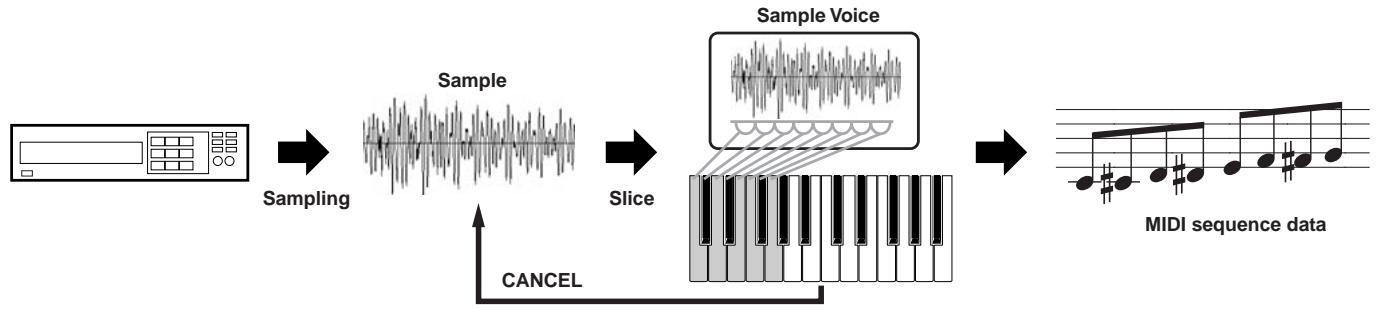
In order to use the Sampling function, DIMM modules must be installed to the instrument. For details on installing DIMMs, see page 289.
1 Connect an audio device (CD player, etc.) to the instrument.
Follow steps #1 - 8 on page 73, substituting the instructions below for steps #4 and 8. In step #4, press the [PATTERN] button to enter the Pattern mode, then select a pattern number and section to be created. In step #8, set the related parameters in the [PATTERN] [MIXING] [EDIT] [COMMON] [F5] AUDIO display.
Press the [INTEGRATED SAMPLING] button in the Pattern Play mode to enter the Sampling mode.
3 Press the [F2] SOURCE button to call up the display for setting the Sampling Source, then set the parameters as shown below.
Type: slice+seq
Source: A/D
Next: off
Mono/Stereo: stereo
Frequency: 44.1k
![YAMAHA MOTIF ES6 - Press the [F2] SOURCE button to call up the display for setting the Sampling Source, then set the parameters as shown below. - 1](/content/2025/01/114832/images/ebcffb68f5fbef9075f769d366ddebc10f57906f6bc136b52ed3b5b1bb94c494.jpg)
For details about each parameter, see page 253.
4 Press the [F1] DEST button to call up the display for setting the Sampling Destination, then set the parameters as described below.
![YAMAHA MOTIF ES6 - Press the [F1] DEST button to call up the display for setting the Sampling Destination, then set the parameters as described below. - 1](/content/2025/01/114832/images/127f56df44b7931a67f70b2edf3ad2114c9f3845e957d44083028e4d60ef4966.jpg)
| Track | This parameter determines the Pattern track to which the Sample Voice is assigned. |
Press the [F6] REC button to call up the Sampling Record display (Sampling Standby status), then set the TrggrMode to "level" and set an appropriate Trigger Level value.
Refer to step #5 on page 98.
6 Press the [F6] REC button again to enable Sampling Trigger Waiting.
Doing this puts sample recording on standby, waiting for an input signal that exceeds the Trigger level.
![YAMAHA MOTIF ES6 - Press the [F6] REC button again to enable Sampling Trigger Waiting. - 1](/content/2025/01/114832/images/866af715061ea348bee8c6062660dd5b11bde13006df69795186e4ed9980affa.jpg)
7 Start the audio device (CD player, etc.).
The sampling actually starts as soon as an input signal exceeding the specified trigger level is received.
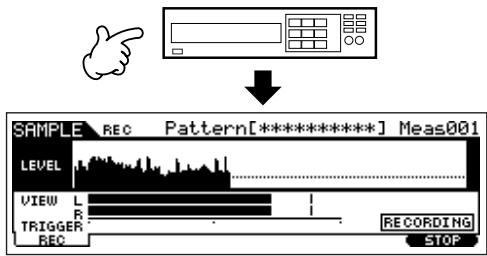
8 Press the [F6] STOP button to stop sampling.
Press the [F6] STOP button at the point you want sample recording to stop, and the Slice display is automatically called up. After stopping recording, stop playback of the connected audio device.
9 Edit the sample data in the [F1] TRIM display.
![YAMAHA MOTIF ES6 - Edit the sample data in the [F1] TRIM display. - 1](/content/2025/01/114832/images/017d6ef8aa9e371e9839b1ed07420ed4a0f447ffa2fb6966e3daaebf4324bf80.jpg)
| A | These parameters determine the portion of the sample that will be used. |
| B | Press the [SF1] AUDITION button to sound the recorded sample according to the settings in this display. |
| C | When the menu indication here is “LP=ST,” the Start (Start Point) and the Loop (Loop Start Point) will share the same address, meaning that both of them will be changed simultaneously, even if just one of them is changed. Pressing the [SF2] button in this condition changes the menu from “LP=ST” to “LP≠ST.” When the menu indication here is “LP≠ST,” the Start (Start Point) and the Loop (Loop Start Point) can be changed independently. When pressing the [SF2] button in this condition, the address value of the Start will be copied to the one of the Loop, with the result that both of them share the same address value. The menu indication also changes from “LP≠ST” to “LP=ST.” |
| D | See below. |
| E | Press the [SF4] EXTRACT button to delete all unnecessary sample data (located ahead of the Start point and located after the End point). |
| F | Press the [F5] and [F6] buttons to zoom in and out of the wave display. |
Press the [SF1] AUDITION button to hear the recorded sample.
2 Set the start and end points to determine the actual portion of the sample to be used.
The "Start" parameter determines the actual start of the sample (letting you cut unwanted sound at the beginning), while the "End" parameter determines the end of the sample (letting you cut unwanted sound at the end).
Pressing [SF3] SET END calls up the following convenient display for making rhythmically accurate End point edits.
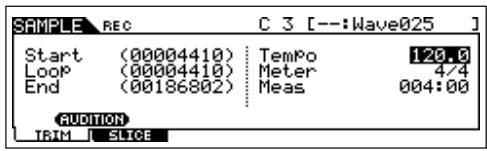
Many commercially available sample/loop CDs include information on the tempo and meter of specific loops. Use that information to make the settings here and ensure proper playback.
After setting the parameters (above right), press the [ENTER] button to automatically determine the proper End point. Listen back to the edited sample by pressing the [SF1] AUDITION button. If you're satisfied with the results, press the [F6] OK button. If you're not and you want to continue editing, press [F5] CANCEL.
3 Once you've trimmed the sample above, you may want to delete the unneeded portions of the sound (before and after the Start/End points), to free up memory space. Press the [SF4] EXTRACT button to delete this excess data.
![YAMAHA MOTIF ES6 - Once you've trimmed the sample above, you may want to delete the unneeded portions of the sound (before and after the Start/End points), to free up memory space. Press the [SF4] EXTRACT button to delete this excess data. - 1](/content/2025/01/114832/images/4ea0898cb66d4549f3f0a7223c753cd425156d625b68f37b58acbb697c0fa8be.jpg)
4 Press the [F2] SLICE button to call up the Slice display.
10 Execute the Slice operation in the [F2] SLICE display.
1 Set the parameters shown below.
| Measure | Determines the number of measures the sample is recognized as having. |
| Meter | Determines the rhythmic meter the sample is recognized as having. |
Set other parameters as necessary, referring to page 254.
2 Press the [ENTER] button (the display prompts you for confirmation), then press the [INC/YES] button to execute the Slice.
3 Confirm the result of the operation.
Play the assigned keys in order (C3, C#3, D3, etc.) to hear the individual slices of the sample.
To hear how the resulting pattern would sound when played by MIDI sequence data, press the [SF1] AUDITION button.
4 If you're satisfied with the results of the Slice operation, press the [F6] OK button.
If you're not satisfied with the results and want to continue editing, press the [F5] CANCEL button and attempt the operation again from step #10-1 above.
![YAMAHA MOTIF ES6 - If you're satisfied with the results of the Slice operation, press the [F6] OK button. - 1](/content/2025/01/114832/images/e5f463eeca06651d4b09ce8ab69870230b82afbc837be09f48e3f22683080f73.jpg)
11 Return to the Pattern Play mode by pressing the [PATTERN] button or [EXIT] button.
12 Press the [▶] (Play) button to play the created Pattern.
13 Save the created Pattern data to a SmartMedia/ USB storage device (page 132) before turning the power off.
- Loading a WAV file/AIFF file to a Pattern track
Audio data you've created and stored in the common WAV or AIFF computer audio formats can be loaded to the instrument and used with the Slice function to divide the sample and assign the slices to different MIDI notes — letting you match the sampled rhythm to virtually any tempo. Set up the media containing the desired WAV/AIFF audio files (e.g., insert a SmartMedia card to the CARD slot or connect a USB storage device), then follow the instructions below.
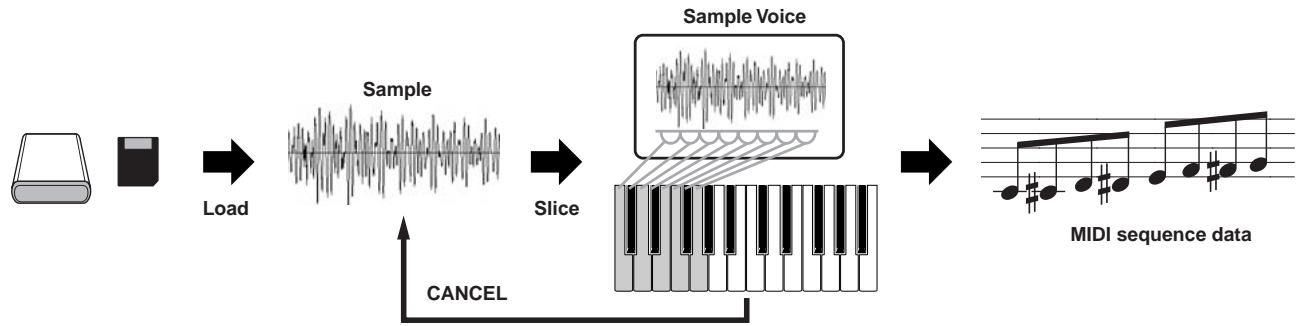

In order to use the Sampling function, DIMM modules must be installed to the instrument. For details on installing DIMMs, see page 289.
Depending on the size of the audio (sample) data obtained via the Sampling function, you may not be able to save all of the desired data to a SmartMedia card (maximum capacity: 128MB). For this reason, we recommend using a large-capacity USB storage device for your Sampling data.
In the Pattern mode, select a Pattern and Section to be created, press the [FILE] button to enter the File mode, then execute the basic settings.
Refer to "Basic settings for using SmartMedia or a USB storage device" on page 30.
![YAMAHA MOTIF ES6 - In the Pattern mode, select a Pattern and Section to be created, press the [FILE] button to enter the File mode, then execute the basic settings. - 1](/content/2025/01/114832/images/2ee7c24ea46f54531978fedd2912e1f163f1a484b141b6b68614492b861ee2ee.jpg)
Press the [F3] LOAD button to call up the Load display.
![YAMAHA MOTIF ES6 - Press the [F3] LOAD button to call up the Load display. - 1](/content/2025/01/114832/images/ce70dfafa7ca02944c1e5a8fb6cbb8789799fc304c4bc982319b98ad81d676fe.jpg)
Select a file type to be loaded.
Set Type to "Waveform." This setting lets you select and load a specific Waveform from a file (extension: W7W) saved as "AllWaveform" or load a WAV file/AIFF file as a Waveform.
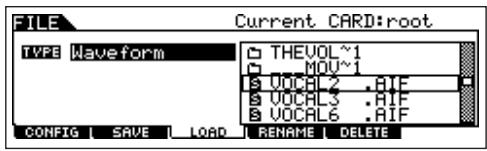

Select the file (□) to be loaded and specify the destination.
When moving the cursor to a WAV file (extension: WAV) or AIFF file (extension: AIF), the destination parameter automatically appears in the display.
| Track | Determines the destination Track number of the current pattern. |
| KeyBank | Determines the key to which the loaded file is to be assigned. Immediately after loading, you can hear the loaded file sound by pressing the key set here. |
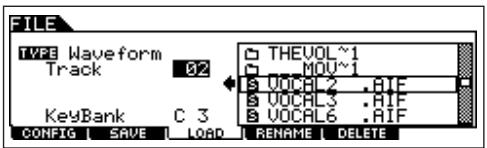

CAUTION
Loading data to this synthesizer automatically erases and replaces any existing data in the User memory. Make sure to save any important data to a SmartMedia/USB storage device before performing any Load operations.

Press the [ENTER] button to execute the Load operation.
After the data has been loaded, a "Completed" message appears and operation returns to the original display.
![YAMAHA MOTIF ES6 - Press the [ENTER] button to execute the Load operation. - 1](/content/2025/01/114832/images/d98629466d910558f7bab88bf495f504e2efa1dd192c4df26095a146510aea05.jpg)
CAUTION
While the data is being saved, make sure to follow these precautions:
- Never remove or eject the media from the device (SmartMedia or USB storage).
- Never unplug or disconnect any of the devices.
- Never turn off the power of the MOTIF ES or the relevant devices.

Press the key set in step #4 for Key Bank to confirm the loaded file sound.
Press the [INTEGRATED SAMPLING] button, then the [JOB] button to enter the Sampling Job mode.
8 Call up the Slice Job display.
Press the [F1] KEYBANK button, move the cursor to "12: Slice," then press the [ENTER] button.
9 Execute the Slice Job.
1 Set the parameters shown below.
| Measure | Determines the number of measures the sample is recognized as having. |
| Meter | Determines the rhythmic meter the sample is recognized as having. |
| LowestKey | Determines the lowest key (first MIDI note) from which the sample slices will be assigned in order. |
Set other parameters as necessary, referring to page 258.
2 Press the [ENTER] button (the display prompts you for confirmation), then press the [INC/YES] button to execute Slice.
3 Confirm the result of the operation.
Play the assigned keys in order (from the one set in step #9-1 above) to hear the individual slices of the sample. To hear how the resulting pattern would sound when played by MIDI sequence data, press the [SF1] AUDITION button.
4 If you're satisfied with the results of the Slice operation, press the [F6] OK button.
If you're not satisfied with the results and want to continue editing, press the [F5] CANCEL button and attempt the operation again from step #9-1 above.
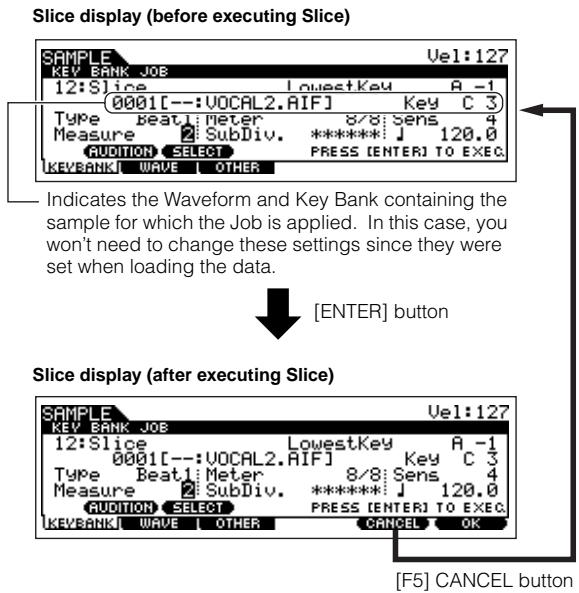
10 Return to the Pattern Play mode by pressing the [PATTERN] button or [EXIT] button.
11 Press the [▶] (Play) button to play the created Pattern.
12 Save the created Pattern data to a SmartMedia/ USB storage device (page 132).
■ Recording your keyboard performance to a Pattern track
1 In the Pattern Play mode, select a Pattern and Section to be created.
2 Set the Mixing parameters (including the Voice settings) by following the instructions on pages 127 - 128.
You can make changes to the Voice settings after entering the Record mode (in step #4 below). However, if you intend to make detailed settings to the Mixing parameters, you should do so before enabling recording.
3 Set the meter (time signature), tempo, and length of the pattern.
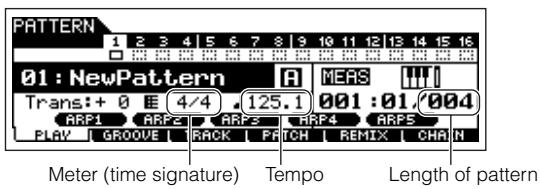
4 Press the [●] (Record) button to enter the Pattern Record mode.
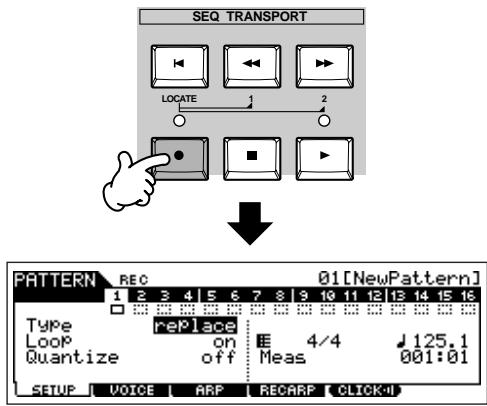
5
Press the [TRACK SELECT] button (the lamp lights), then select the desired track from the number buttons [1] - [16].
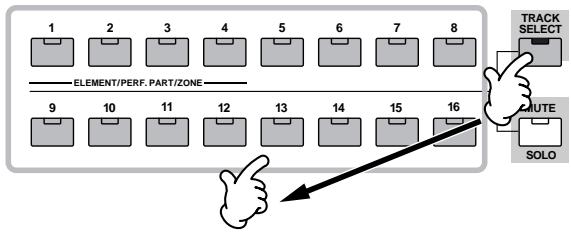
Recording track
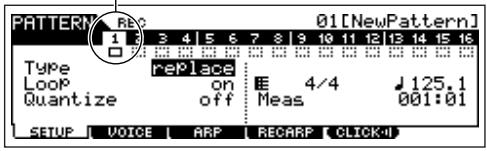
6
Set the parameters related to recording in the [F1] SETUP display.
Set the Type to "overdub" then set the Loop to "on." These settings let you repeat the pattern recording in a "loop" and record additional note events without deleting already-recorded data.
Set other parameters as necessary. See page 243 for details.
7
Set the parameters related to the Voice you wish to use during recording in the [F2] VOICE display.
Call up the display for setting a Voice by pressing the [F2] VOICE button. You won't need to make settings in this display if you've already completed Voice/Mixing settings in step #2 above.
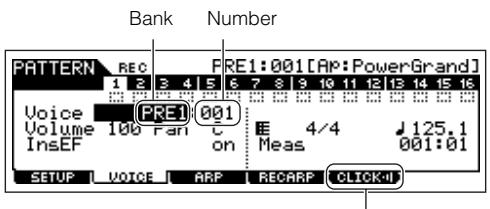
This lets you turn the click sound (metronome) on/off for recording. (Press the [F5] button.)
8
Press the [▶] (Play) button to start recording.
When a Drum Voice is selected, for example, try recording the rhythm pattern shown below.
As shown in the example below, notes that you record will play back from the next repetition (loop), letting you record while hearing previously recorded material.
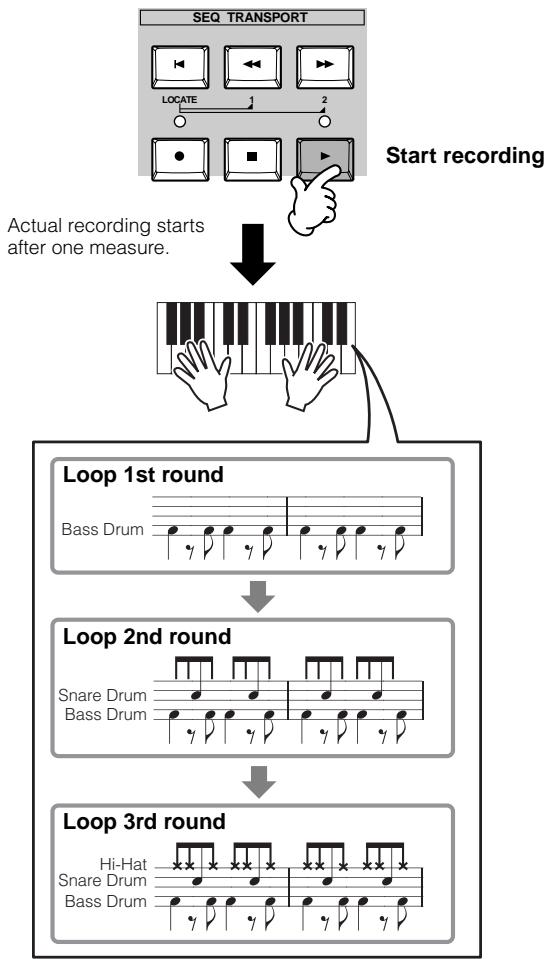
9
Press the [■] (Stop) button to stop recording.
This operation exits from the Pattern Record mode to the Pattern Play mode.
10
Press the [▶] (Play) button to hear your newly recorded phrase.
11
Record different phrases to other tracks by repeating steps #4 - 10.
12
Save the created Pattern data to a SmartMedia/ USB storage device (page 132) before turning the power off.
■ Recording a rhythm pattern created by Arpeggio playback to a Pattern track
The Arpeggio function is a virtually endless source of creative inspiration, putting a huge variety of rhythm patterns, riffs and phrases at your fingertips — patterns that change depending on the notes you play. Once you come with some patterns you like and want to use in a Song, you can record them to a Pattern track.
1 In the Pattern mode, select a Pattern and Section to be created.
2 Set the Mixing parameters (including the Voice settings) by following the instructions on pages 127 - 128.
You can make changes to the Voice settings after entering the Record mode (in step #5 below). However, if you intend to make detailed settings to the Mixing parameters, you should do so before enabling recording.
3 Play with the Arpeggio features and find a rhythmic pattern/phrase you like.
1 Enter the Mixing Edit mode ([MIXING] [EDIT]), select the desired Part (track to be recorded), then press the [F1] VOICE button, followed by the [SF2] MODE button.
2 Set the ArpSwitch (Arpeggio Switch) parameter to "on."
3 Call up the Arpeggio Type selection display ([COMMON] [F3] ARP [SF1] TYPE).
4 Select the desired Arpeggio type in the [SF1] TYPE display, then press the [ARPEGGIO ON/OFF] button (the lamp lights).
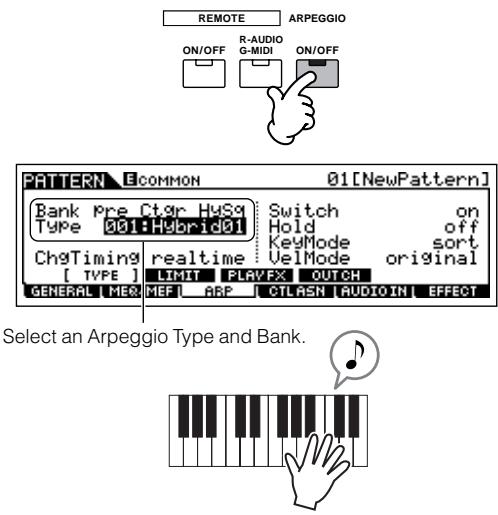
Try out various Arpeggio types, and also try tweaking various parameters in the [SF1] - [SF4] displays. When you find a rhythm or phrase that you like and want to use, go to step #4.
4 Go back to the Pattern Play mode, then set the meter, tempo, and length of the current pattern.
Press the [Record) button to enter the Pattern Record mode.
6 Select the desired track for recording ([1] - [16]).
For details about how to select a track, see page 58.
7 Set the parameters related to recording in the [F1] SETUP display.
Set Type to "replace" and set Loop to "off."
Set other parameters as necessary. See page 243 for details.
8 Set the parameters related to the Voice you wish to use during recording in the [F2] VOICE display.
Call up the display for setting a Voice by pressing the [F2] VOICE button. You won't need to make settings in this display if you've already completed Voice/Mixing settings in step #2 above.
9 Set the parameters related to an Arpeggio you wish to use during recording in the [F3] ARP display.
Call up the display for setting a Voice by pressing the [F3] ARP button. You won't need to make settings in this display if you've already completed Arpeggio settings in the Mixing Edit mode, in step #3 above.
10 Set the RecArp parameter to "on" in the [F4] RECARP display.
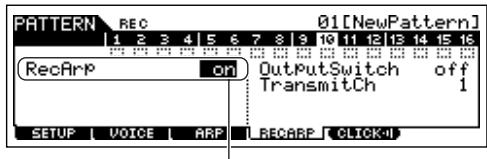
When this is set to "on," the Arpeggio playback data is recorded to a track as MIDI sequence data.
11 Press the [▶] (Play) button to start recording.
During recording, play the note or notes needed to trigger the Arpeggio you found in step #3.
![YAMAHA MOTIF ES6 - Press the [▶] (Play) button to start recording. - 1](/content/2025/01/114832/images/2600940be06a04ffdc8ec56c0ea8842ddec6eda2dc60753846e27fa9ca3d1759.jpg)
Start recording
Arpeggio playback
![YAMAHA MOTIF ES6 - Press the [▶] (Play) button to start recording. - 2](/content/2025/01/114832/images/74708886a33658cb8ce85ad86334d5aef6afa7466c09d7b8d8d2037ca844fe4e.jpg)
12 Turn the [ARPEGGIO ON/OFF] indicator off, and press the [▶] (Play) button to hear your newly recorded phrase.
13 Save the created Pattern data to a SmartMedia/USB storage device (page 132) before turning the power off.
■Assigning a pre-programmed Phrase to a Pattern track
The Pattern mode also has a versatile Patch function that lets you assign pre-programmed one-track rhythm "Phrases" to each track. Use the special preset Phrases already in internal memory, or create your own User Phrases — by recording, or loading Pattern data from the included CD-ROM (Sound Library for MOTIF ES6/MOTIF ES7/MOTIF ES8). Use the Assigning Phrases function to assemble your original Patterns, with up to 16 tracks.
1 In the Pattern Play mode, select a Pattern and Section to be created.
2 Press the [F4] PATCH button to call up the Patch display.
3 Select the desired track and assign a Phrase to the selected track.
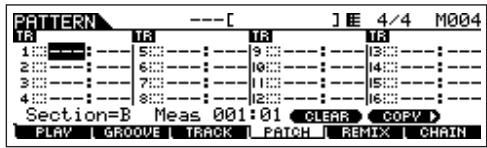
Indicates the category of the preset Phrases. Indicates the Phrase number.
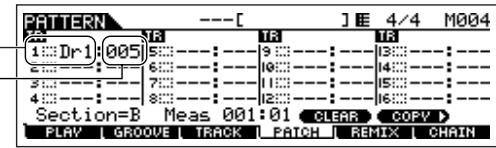
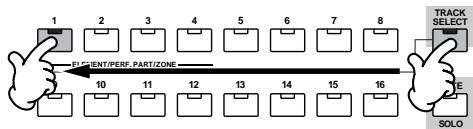
Select a track.

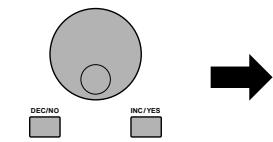
Select a Preset Phrase.
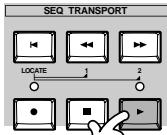
m = 311
Play the Pattern to confirm the assigned Phrase.
4 Select another track and assign a User Phrase to it.
The instrument provides a total capacity of 256 User Phrases. Keep in mind that these are originally empty and have no data, unless you record or load data to them.
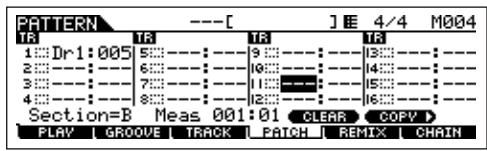
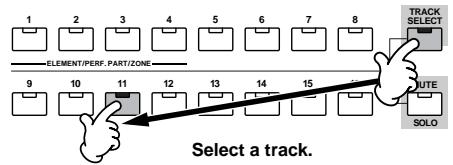

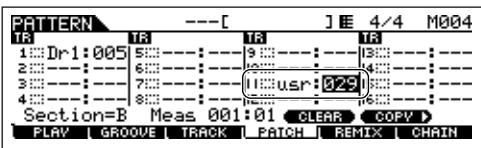
Select a User Phrase.
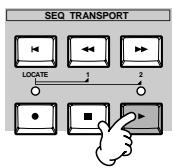
Play the Pattern to confirm the assigned Phrase.
5 Select a different track and copy the User Phrase from the another pattern to the selected Pattern's track.
The User Phrases that can be assigned with the Patch function are limited to the ones contained in the currently selected Pattern. To copy Phrases from other Patterns for use in the current one, follow the instructions below.
In the [F4] PATCH display, press the [SF5] COPY button to call up the Copy Phrase display.
2 First, specify the source Pattern number and Phrase number as well as the destination (current Pattern) Phrase number and track number. Then, press the [ENTER] button to execute the Copy operation.
Source Pattern number, Phrase number Destination Phrase and track of the current edited Pattern.
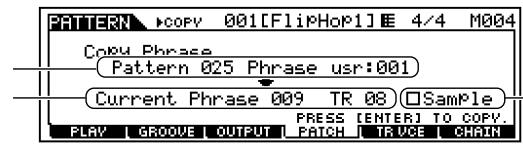
When this box is checkmarked, Sample Voices assigned to the source Phrase are copied to the destination Phrase as Sample Voices, and are assigned to the corresponding tracks in the selected Pattern.
3 Press the [EXIT] button to return to the [F4] PATCH display, then check the assigned Phrase by pressing the [▶] (Play) button to play the Pattern.
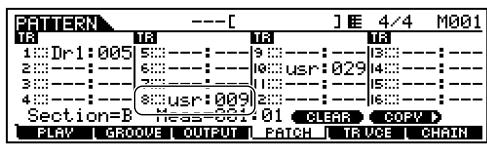
6 Save the created Pattern data to a SmartMedia/USB storage device (page 132) before turning the power off.
Using the Groove function
The Groove function makes it possible to adjust the pitch, timing, length, and velocity of notes in a specified track via a 1-measure 16th-note grid to create interesting, unique "grooves" that would not be possible with precise sequencer-like programming.
Note The Groove settings are applied to all measures of the current Pattern. Keep in mind that you cannot apply different Groove settings to each measure.
The Grid Groove function affects Pattern playback without actually changing the MIDI sequence data (created via the Recording, Sampling, File Loading, and Patch functions). The Groove settings are handled separately from MIDI sequence data. See page 167.
1 In the Pattern Play mode, select a Pattern and Section for which the Groove is to be applied.
2 Press the [F2] GROOVE button to call up the Groove display.
3 Select the desired track and adjust the Groove parameters.

Select a track.
Set each parameter.

Play the Pattern to check the result of the Groove settings.
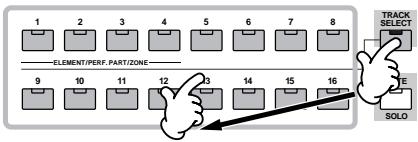
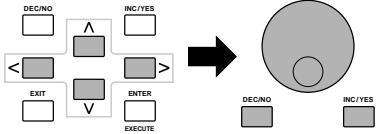
Move the cursor..
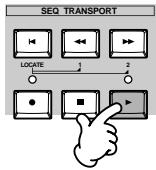
5.101 You can edit the Groove parameters in real time during playback.
Move the cursor to the desired parameter and grid point and set the offset value.
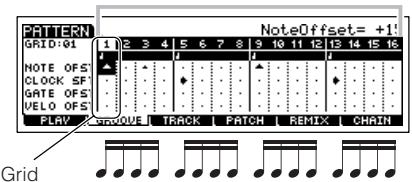
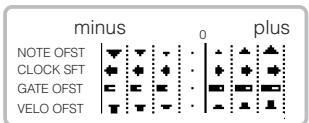
| NOTE OFST (Note Offset) | Raises or lowers the pitch of the note(s) on the selected grid in semitones. |
| CLOCK SFT (Clock Shift) | Shifts the timing of the note(s) on the selected grid forward or backward in clock increments. |
| GATE OFST (Gate time Offset) | Lengthens or shortens the note(s) on the selected grid in clock increments. |
| VELO OFST (Velocity Offset) | Increases or decreases the velocity of the note(s) on the selected grid. |
Save the created Pattern data to a SmartMedia/USB storage device (page 132) before turning the power off.
TIP Using the Groove settings to change the Pattern data
Grid Groove is a playback-only feature that processes the recorded data of a Pattern without actually changing it. In other words, the original data (created via the Recording, Sampling, File Loading and Patch functions) remains intact. If you want to make the Grid Groove settings permanent and change the data, useNormalize Play Effect in the Pattern Jobs ([PATTERN] [JOB] [F5] TRACK 04:Normalize Play Effect). From this display, specify the track to be changed according to the Groove settings, and press the [ENTER] button to execute.
Creating a Section and Pattern Chain
Creating a Section
Each Pattern consists of 16 Sections (A~H) which can be used as Pattern variations. Create the desired rhythm pattern variations, or Sections, that you wish to use as accompaniment and backing for your new Song. After you've created the Sections, you can string these Sections together in any order desired to assemble the backing part of the Song, over which you can record a melody line and any other parts, in the Song Record mode.
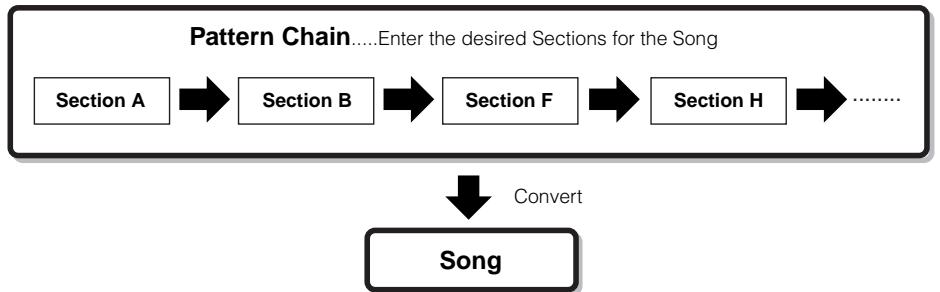
5.10 Pattern Mixing, Groove, and Phrase Voice (Track Voice) on/off (page 167) cannot be set independently for each Section, but apply to all Sections.
CAUTION
The same User Phrases can be assigned to different Sections within a pattern. Keep in mind, however, that the Section data will automatically be changed if another Section sharing the same User Phrase is changed. For example, if you've assigned a certain User Phrase to both Section A and Section D, and you change that User Phrase for Section A, the same Phrase will be changed for Section D as well.
- Creating a Pattern Chain by changing a Section while playing a Pattern
Switching of sections, track muting, scene/mute changes, and tempo changes can all be recorded in real time as the Pattern Chain.
1 In the Pattern Play mode, select a Pattern for which data has already been created.
2 Press the [F6] CHAIN button to call up the Pattern Chain Play display.
3 Press the [●] (REC) button to enter the Pattern Chain Record mode, then set the basic parameters.
In the Pattern Chain Record Setup display, you can set the Recording track and tempo. Three Pattern Chain track types are available. The Tempo track lets you record tempo changes for the Chain, and the Scene track lets you record track on/off changes.
The Pattern ("patt") track lets you record Section changes at the desired measure points in the Song.
![YAMAHA MOTIF ES6 - Press the [●] (REC) button to enter the Pattern Chain Record mode, then set the basic parameters. - 1](/content/2025/01/114832/images/43a4c7a52f5ed03c9afa90d401dbd2d8394c62056e079e3fa98f3c21bc371758.jpg)
Set the recording track to "patt" and enter the Sections to the desired measures.
4 Press the [▶] (Play) button to start recording and play the Pattern.
Change the Section at the desired points, as the Pattern plays.
![YAMAHA MOTIF ES6 - Press the [▶] (Play) button to start recording and play the Pattern. - 1](/content/2025/01/114832/images/3a56c0b0ed732fb24f45c377257f288c7a52af32abff4a5d816aeee6e00fb9a2.jpg)
Press the [■] (Stop) button to stop recording.
Operation returns to the Pattern Chain display.
Press the [▶] (Play) button to hear the recorded Pattern Chain.
7 Save the created Pattern data to a SmartMedia/ USB storage device (page 132) before turning the power off.
You can also record the Tempo track and Scene track as desired. When the recording track is set to "tempo," move the cursor to tempo value (during recording in step #4 above) and use the data dial and the [INC/YES]/[DEC/NO] buttons to change the tempo while the Chain is playing. When the recording track is set to "scene," press the [MUTE] button (the lamp lights) and use the number buttons [1] - [16] to turn each track on/off as desired during recording.
■ Editing a Pattern Chain
The Pattern Chain Edit mode makes it possible to edit the order of the Sections in a chain as well as inserting tempo, and scene/mute event data.
1 In the Pattern Play mode, select a Pattern for which data has already been created.
Press the [F6] CHAIN button to call up the Pattern Chain Play display.
3 Press the [EDIT] button to enter the Pattern Chain Edit mode, then edit each track of the Pattern Chain.
![YAMAHA MOTIF ES6 - Press the [EDIT] button to enter the Pattern Chain Edit mode, then edit each track of the Pattern Chain. - 1](/content/2025/01/114832/images/d19fda2e8287e74d2083e31ce3c3fed8e994addd986dd7a6c98ca7fc46e9b12d.jpg)
4 Press the [EXIT] button to return to the Pattern Chain Play display, then press the [▶] (Play) button to hear the edited Pattern Chain.
Save the created Pattern Chain as Pattern data to a SmartMedia/USB storage device (page 132) before turning the power off.
Converting a Pattern Chain to Song data
In the Pattern Play mode, select a Pattern for which Pattern Chain data has already been created.
2 Press the [F6] CHAIN button to call up the Pattern Chain Play display.
3 Press the [EDIT] button to enter the Pattern Chain Edit mode.
Press the [F3] SONG button to call up the "Convert to Song" display, then specify the destination Song.
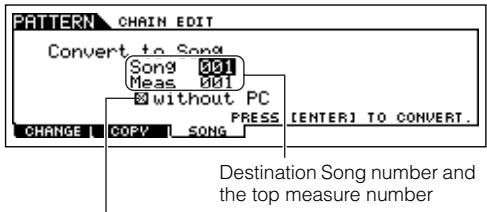
When this box is checkmarked, program change messages in the MIDI sequence data are not copied.
Press the [ENTER] button to execute the Convert operation.
The Pattern Chain data is converted to Song data and copied to the top measure of the destination Song.
CAUTION
This operation overwrites any data already existing at the destination Song.
Save the Song data to a SmartMedia/USB storage device (page 132) before turning the power off.
CAUTION
The created Song data resides temporarily in DRAM (page 187). Because data contained in DRAM is lost when the power is turned off, you should always store any data residing in DRAM to a SmartMedia/USB storage device before turning off the power.
Creating a Song
The following chart illustrates the basic procedure for creating a Song, using the various methods and functions described in this tutorial. Now, that you've assembled the backing tracks for your Song (by converting the Phrases or Pattern Chain to Song data, you can now record melody parts on top of them.
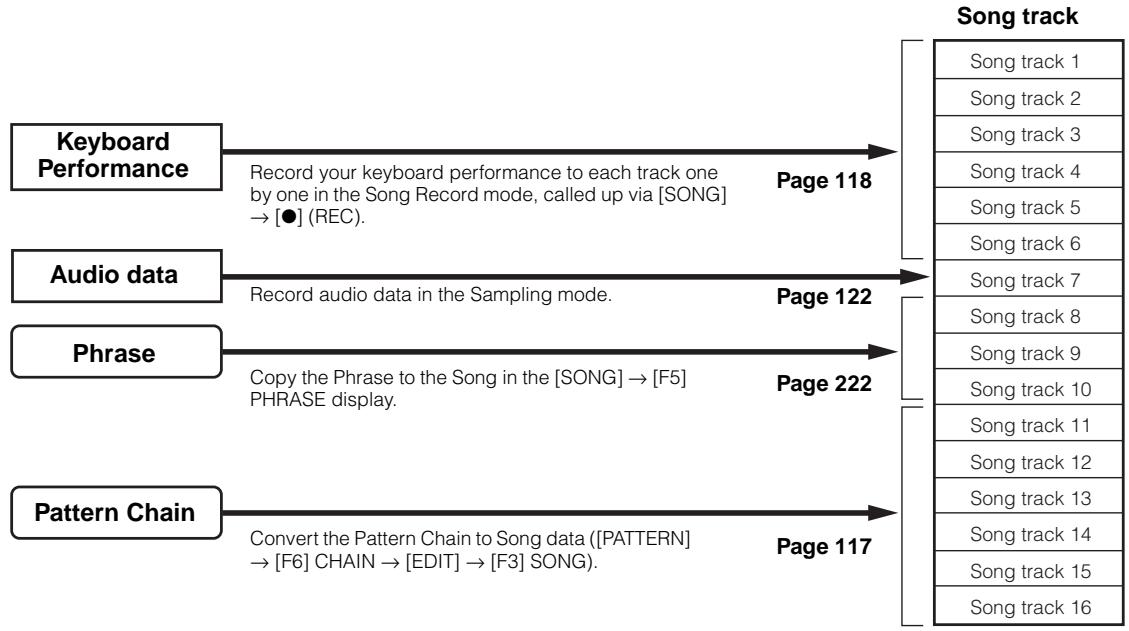
CAUTION
The created Song data resides temporarily in DRAM (page 187). Because data contained in DRAM is lost when the power is turned off, you should always store any data residing in DRAM to a SmartMedia/USB storage device before turning off the power.
Recording with the keyboard to a Song track (in the Song Record mode)
■ Recording your keyboard performance to an empty track (Replace)
Use the Replace recording method to record your keyboard performance to an empty track or overwriting an already recorded track with new data.
1 In the Song Play mode, select a Song to be created.
2 Set the Mixing parameters (including the Voice settings) by following the instructions on pages 103 - 104.
You can make changes to the Voice settings after entering the Record mode (in step #3 below). However, if you intend to make detailed settings to the Mixing parameters, you should do so before enabling recording.
3 Press the [Record) button to enter the Song Record mode.
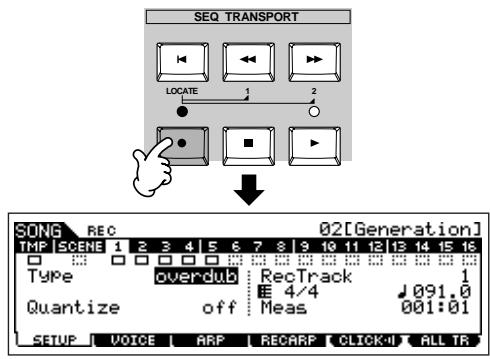
4 lights), then select the desired track from the number buttons [1] - [16].
Song data is made up of three different types — Scene, Tempo and Pattern — each of which have their own separate tracks. The Scene track contains Song Scene (page 123) changes and the Tempo track contains playback tempo changes. The Song tracks (1 - 16) contain the actual note data. Since you'll be recording a melody with the keyboard, select one of the number tracks, using the [1] - [16] buttons.
![YAMAHA MOTIF ES6 - lights), then select the desired track from the number buttons [1] - [16]. - 1](/content/2025/01/114832/images/0603d029089958038cc1929e5bfbfeb28b2c5760f8f3f7c13fad3a00d9e7eaf5.jpg)
5. NOTE When the RecTrack is set to "multi," you can simultaneously record multiple channels of MIDI data (up to 16 channels) to all 16 tracks. For details, see page 143.
5 Set the parameters related to recording in the [F1] SETUP display.
Set the Type parameter to "replace."
Set other parameters as necessary. See page 222 for details.
6 Set the parameters related to the Voice you wish to use during recording in the [F2] VOICE display.
Call up the display for setting a Voice by pressing the [F2] VOICE button. You won't need to make settings in this display if you've already completed Voice/Mixing settings in step #2 above.
![YAMAHA MOTIF ES6 - Set the parameters related to the Voice you wish to use during recording in the [F2] VOICE display. - 1](/content/2025/01/114832/images/d35c04f1fa3c7e4fd7a081b1badf1ad517cfb3f94e45b8b5716cc54f87437445.jpg)
This lets you turn the click sound (metronome) on/off for recording. (Press the [F5] button.)
NOTE Non-note settings (such as Voice, volume and pan) that are made at the beginning of a Song are not recorded as MIDI sequence data but rather as Mixing setup data. However, when these non-note settings are recorded in the middle of a Song, they are recorded as part of the MIDI sequence data.
7 Press the [▶] (Play) button to start recording.
Listen to the playback of the already recorded tracks and play (record) the keyboard along with them.
![YAMAHA MOTIF ES6 - Press the [▶] (Play) button to start recording. - 1](/content/2025/01/114832/images/bd116bbb0eebe306b1a04426adb4b718a5389435356e866715f9da3520e4a363.jpg)
8 Press the [■] (Stop) button to stop recording.
This operation exits from the Song Record mode to the Song Play mode.
Press the [▶] (Play) button to hear your newly recorded song.
10 Record additional melody parts to the other tracks as needed by repeating steps #3 - 9 above.
11 Save the created Song data to a SmartMedia/USB storage device (page 132) before turning the power off.
■ Re-recording a specific part of a Song (Punch In/Out)
Use the Punch In/Out recording method to record over only a specific portion of the track. In the example instructions below, you'll see how to re-record measures three through five of an already recorded Song.
1 In the Song Play mode, select a Song to be created.
Press the [●] (Record) button to enter the Song Record mode.
3 Press the [TRACK SELECT] button (the lamp lights), then select the desired track from the number buttons [1] - [16].
4 Set the parameters related to recording in the [F1] SETUP display.
Set the Type parameter to "punch" and specify the area to be re-recorded.
Set other parameters as necessary. See page 222 for details.
Punch In (Recording start measure : beat)
Playback of the recording track is turned off from this point, and your keyboard performance will be recorded to the track.
Location setting (page 58)
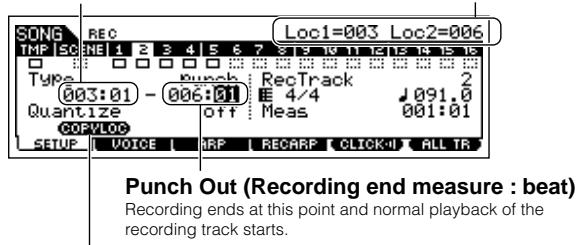
Press the [SF1] COPY LOC to assign the measure numbers registered to the Locations (Loc1 and Loc2) to the Punch In and Punch Out points.
Press the [▶] (Play) button to start recording.
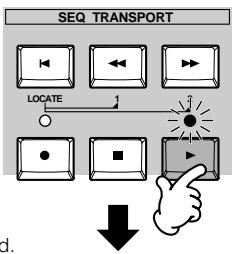
Playback start
When Song playback reaches the Punch In point, play the keyboard.
Press the [■] (Stop) button to stop recording after the Song playback reaches the Punch Out point.
7 Press the [▶] (Play) button to hear the part you've just re-recorded.
8 Save the created Song data to a SmartMedia/USB storage device (page 132) before turning the power off.
- NOTE Punch In/Out recording is available only in the Song Record mode. This is not available in the Pattern Record mode.
■ Recording additional notes to an already-recorded track (Overhub)
Use the Overhub recording method when you want to add more data to a track that already contains data. This is useful not only for recording more notes to a track; it's also convenient for adding non-note, sound-shaping data, such as that of the Knobs and Ribbon Controller.
1 In the Song Play mode, select a song to be created.
Press the [●] (Record) button to enter the Song Record mode.
3 Press the [TRACK SELECT] button (the lamp lights), then select the desired track from the number buttons [1] - [16].
4 Set the parameters related to recording in the [F1] SETUP display.
Set the Type parameter to "override."
Set other parameters as necessary. See page 222 for details.
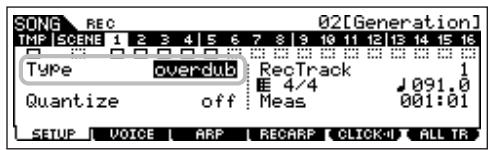
Press the [▶] (Play) button to start recording.
Playback starts, and the notes (or controller data) you play are added to the existing data.
Press the [■] (Stop) button to stop recording after the Song playback reaches the Punch Out point.
7 Press the [▶] (Play) button to hear the part you've just re-recorded.
8 Save the created Song data to a SmartMedia/USB storage device (page 132) before turning the power off.
TIP Rehearsing parts before recording
The MOTIF ES has a convenient Rehearsal mode in recording, that lets you easily and temporarily disable recording in order to practice a part or try out various ideas (while listening to the other tracks) without actually recording.
To temporarily disengage the record mode and enter the "Rehearsal" mode, simply press the [●] (Record) button during realtime recording – the [●] (Record) indicator will flash and playback will continue uninterrupted but no data will be recorded. To return to the record mode press the [●] (Record) button again – the [●] (Record) indicator will light continuously. You can repeat this process as often as you wish, pressing the [■] (Stop) button to cancel the Rehearsal mode. The Record button lamp indicates the Recording/Rehearsal status: continuously lit indicates Recording, and flashing indicates Rehearsal.
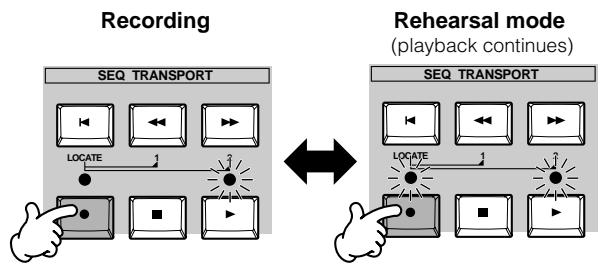
TIP Insert a Tempo change event to the middle of the Song
You can use the following three methods to change the tempo in the middle of the already-recorded song.
- Using the Tempo track
Start recording after setting the Type parameter to "replace," setting RecTrack to "tempo," and moving the cursor to the tempo value in step #4 on page 118. During recording, change the tempo value while listening to Song playback.
Song Edit
In the Song Play mode, press the [EDIT] button to enter the Song Edit mode. Select the Tempo track (TMP) by pressing the [F4] TR SEL button once or twice, then change the existing tempo value or insert a new tempo value by using the [F5] INSERT button. For details about Song Edit, see page 124.
Step Recording
In step #4 on page 118, set the Type parameter to "step" and RecTrack to "tempo" then press the [▶] (Play) button to start Step recording. After moving the cursor to "Value," move the song pointer by using the [▶▶] (Forward) button and change the tempo value at the desired point.
For details about Step Recording, see page 238.
TIP Song Recording using a Performance
If you have a favorite Performance or one that would fit the Song to be recorded, you can copy certain settings of up to four Parts of the Performance to the Song Mixing settings currently being edited.
1 Enter the Song Mixing Job mode ([SONG] [MIXING] [JOB]).
2 Press the [F5] PF COPY button to call up the Performance Copy display.
3 Set the parameters as necessary in the [F5] PF COPY display, then press the [ENTER] button to execute the Copy operation.
Select a source Performance.
Checkmark the boxes of the desired parameters.
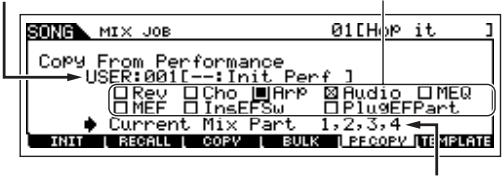
The destination Mixing Parts appear automatically. The displayed Part numbers differ depending on the source Performance. If the source Performance contains four Parts, "1, 2, 3, 4" appears here.
4 Press the [SONG] button to return to the Song Play mode, then select Track 1 and play the keyboard.
Check whether the sound you hear is the same as that of the source Performance or not.
5 Record your keyboard performance to Track 1.
Store the Song Mixing in the [SONG] [MIXING] [STORE] display.
The settings copied from the Performance should be stored as Song Mixing data.
7 Save the created Song data to a SmartMedia/USB storage device (page 132) before turning the power off.
5. NOTE The explanations above also apply to the Pattern mode.
Step Recording
The explanations in this Quick Guide have concentrated on Realtime Recording. However, the Step Recording method is also available, letting you record a Song by entering notes and events individually — much like writing them down on paper. This is especially useful for recording passages that would be difficult or impossible to play. The Step Recording can be executed by setting the Type to "step" in the [F1] SETUP display in the Song Record mode. For details on using Step Recording, see page 238.
- NOTE Step Recording can be used both in the Song Record mode and the Pattern Record mode.
TIP Song Recording using Plug-in Voices
This section shows you how to use the Voices of an optional Single Part Plug-in Board (such as PLG150-AN, PLG150-PF and PLG150-DX) in recording a Song.
1\~4
Install a Single Part Plug-in Board to the instrument, then follow steps #1 - 4 on page 75 to set the necessary parameters.
In step #4, set PORT.NO (port number) to "2" or "3." Keep in mind that if you've also installed a PLG100-XG Multi-Part Plug-in Board, the boards should be set to different numbers.
When a Single Part Plug-in Board has been installed to slot 1, move the cursor here then set the port number.
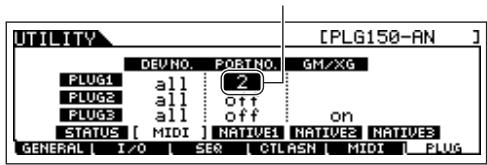
5 Enter the Song Play mode and call up the MIDI output setting display ([SONG] [F3] TRACK [SF1] CHANNEL).
6 Select the track for recording, making sure that the track number is the same as that of the slot to which the Plug-in Board is installed, and set the port number.
The track number must match the slot number, and the port number must be the same as set in step #4 above.
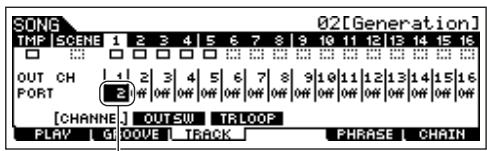
When a Single Part Plug-in Board has been installed to slot 1, move the cursor here then set the port number.
7 Select a Voice of the installed Plug-in Board.
Enter the Mixing Edit mode ([MIXING] [EDIT] Part selection). Press the [F6] button once or twice to call up the display for the Plug-in Board parts (PLG parts) as shown below (page 164). Next, press the [TRACK SELECT] button (the lamp lights), and select the PLG Part of Slot 1 by pressing the [1] button. Finally, press the [F1] VOICE button, followed by the [SF1] VOICE button, then select the desired Voice on the Plug-in Board.
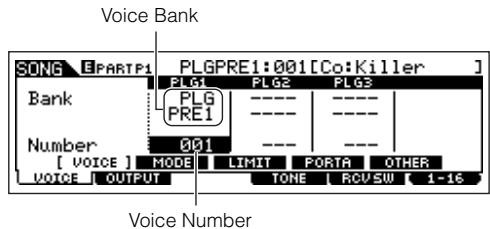
When you play the keyboard, you should be able to hear the selected Voice of the Plug-in Board. If the Voice of the Plug-in Board does not sound as expected, check the following points.
- Make sure that the OUT CH of the track matches the Receive Channel of the corresponding Part of the tone generator.
Check the ReceiveCh (MIDI Receive Channel) in the display called up by pressing the [SF2] MODE in the above display, then check the OUT CH (MIDI Output Channel) of track 1 in the display shown in step #6. These two channels should be same.
- Make sure that the destination tone generator is set to internal, not external.
Check the settings in the display called up via the [F1] PLAY [SF2] OUT CH button. The INT SW of the corresponding track (1 in this case) should be set to "on."
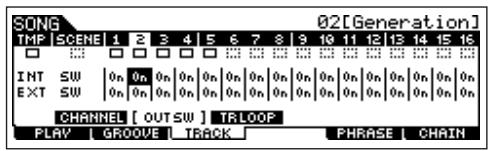
8 Record your keyboard performance using the Plugin in Voice to track 1.
9 Store the Song Mixing settings in the [SONG] → [MIXING] → [STORE] display (page 131).
The settings related to the Plug-in Board voice should be stored as Song Mixing data.
10 Save the created Song data to a SmartMedia/USB storage device (page 131) before turning the power off.
5NOTE The explanations above apply also to the Pattern modes.
Using the Groove function
Just as in the Pattern Play mode, the Groove function is available also in the Song Play mode.
For details, refer to the explanation of Groove in the Pattern Play mode (page 114).
1 In the Song Play mode, select a Song for which the Groove settings are to be applied.
Press the [F2] GROOVE button to call up the Groove setting display.
3 Select a track, then adjust the Groove settings.
Save the created Song data to a SmartMedia/USB storage device (page 132) before turning the power off.
The created Song data resides temporarily in DRAM (page 187). Because data contained in DRAM is lost when the power is turned off, you should always store any data residing in DRAM to a SmartMedia/USB storage device before turning off the power.
Sampling a one-shot sound to a Song track
The MOTIF ES conveniently lets you sample audio material, even while a Song is playing. This allows you to quickly and easily "fly in" samples to your Song as you need them — for example, capturing short sound effects from a CD, or recording background vocal phrases with a microphone. Sounds like these can be added to the Song as desired, and can even be aligned in time as needed after recording in the Song Edit mode.
In order to use the Sampling function, DIMM modules must be installed to the instrument. For details on installing DIMMs, see page 289.
1 Connect an audio device (CD player, etc.) to the instrument.
Follow steps #1 - 8 on page 73, substituting the instructions below for steps #4 and 8.
In step #4, press the [SONG] button to enter the Song Play mode then select a song to be created.
In step #8, set the related parameters from the AUDIO IN display ([SONG] [MIXING] [EDIT] [COMMON] [F5] AUDIO IN).
2 Press the [INTEGRATED SAMPLING] button in the Song mode to enter the Sampling mode.
Press the [F2] SOURCE button to call up the display for setting the Sampling Source, then set the parameters as shown below.
Type: sample+note
Source: A/D
Next: off
Mono/Stereo: stereo
Frequency: 44.1k
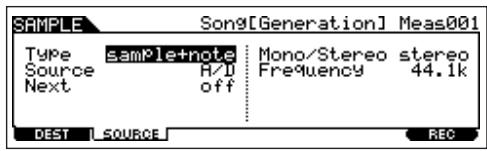
For details about each parameter, see page 253.
4 Press the [F1] DEST button to call up the display for setting the Sampling Destination, set the parameters as described below.
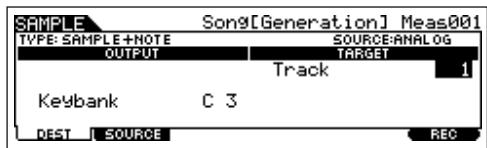
| Track | This parameter determines the Song track to which the Sample Voice is assigned. |
| Keybank | This parameter determines the note to which the sample is assigned. |
Press the [F6] REC button to call up the Sampling Record display (Sampling Standby status), then set the parameters as required.
Set the TrggrMode (Trigger Mode) to "meas" then specify the Punch In measure (at which the Sampling starts automatically) and the Punch Out measure (at which Sampling stops automatically).
Punch In measure
Measure number at which
Sampling starts automatically
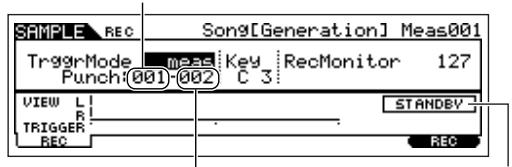
Punch Out measure
Measure number at which Sampling stops automatically
Indicates Sampling Standby status.
6 Press the [F6] REC button again enable Punch In Waiting.
Doing this puts sample recording on standby, waiting for song/pattern playback to reach the specified Punch-in measure.
![YAMAHA MOTIF ES6 - Press the [F6] REC button again enable Punch In Waiting. - 1](/content/2025/01/114832/images/90d02d0347e755674cfd1e9077b6b152dc217249f2ebdd29e9423659834a36ca.jpg)
Indicates that sample recording is waiting for song/pattern playback to reach the specified Punch-in measure.
7 Press the [▶] (Play) button to start Song playback.
8 Start the audio equipment when the Song reaches the Punch In point (when sampling actually starts).
Audio is recorded to the instrument.
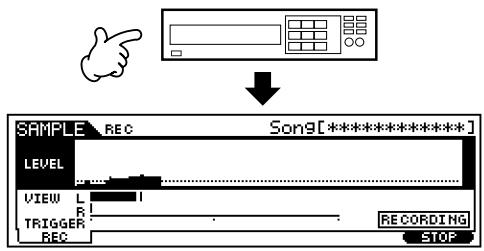
9 Stop the audio equipment when the Song reaches the Punch Out point (when sampling stops).
Press the [F3] AUDITION button to hear the sampled sound. If you're not satisfied with the results and you wish to try again, press the [F4] CANCEL button to return to the Sampling Standby display and try sampling from step #5 again. If you are satisfied with the results, press the [F5] OK button to store the sampled sound as a "sample" and return to the [F1] DEST or [F2] SOURCE display.
Keep in mind that if the Confirm function is turned off in step #5 above, the display shown above will not appear when stopping sampling. Instead, stopping sampling returns directly to the [F1] DEST or [F2] SOURCE display.
10 Press the [SONG] button or [EXIT] button to return to the Song Play mode.
11 Press the [▶] (Play) button to play the Song.
Listen back to the Song (the sample automatically sounds along with playback) and check that the timing is correct. If you're not satisfied with the timing, you can adjust it as needed in the Song Edit mode. For details about Song Edit, see page 124.
Save the Song data to a SmartMedia/USB storage device in the File mode (page 132) before turning the power off.
Registering a Song Scene and Arpeggio type simultaneously to the [SF1] - [SF5] buttons
Song Scenes and Arpeggio types can both be registered to the [SF1] - [SF5] buttons (when the ARP1 - ARP5 menu items are shown at the bottom of the display). These settings are stored as Song data. Song Scene is a powerful function that allows you to store five different "snapshots" of important Song related parameters – including transpose, tempo, track mute status, and the basic sound/ mixing controls (all parameter settings controllable from the Knobs with the [PAN/SEND] or [TONE] lamp turned on, and the Control Sliders). The Arpeggio function and Arpeggio types are discussed in detail in the Voice mode, on page 66. You can call up both the Song Scene and Arpeggio type simultaneously by simply pressing one of the [SF1] - [SF5] buttons (when ARP1 - ARP5 are shown at the bottom of the display in the Song mode).
![YAMAHA MOTIF ES6 - Registering a Song Scene and Arpeggio type simultaneously to the [SF1] - [SF5] buttons - 1](/content/2025/01/114832/images/62e081e492575849a9b803505ef15b76b82eb15f0ba403f3c1aa1453c7dae6a4.jpg)
■ Recalling a Song Scene and Arpeggio type during recording
ARP1 - ARP5 menus appear also in the [F3] ARP display in the Song Record mode as well as the [F1] PLAY display in the Song Play mode. These indicate that you can change the Song Scene and Arpeggio type simultaneously during Song recording from the [F3] ARP display.
■ Recording Song Scene changes to a song
Each Song contains a Scene track to which you can record Scene changes. When the RecTrack is set to "scene" in step #4 described on page 118, you can record Scene changes from any display (even from those in which ARP1 - ARP5 are not shown) by pressing the [SF1] - [SF5] buttons during recording.
- NOTE The explanations on Arpeggio here also apply to the Pattern mode.
As in the Voice mode and Performance mode, Arpeggio types can only be registered to the [SF1] - [SF5] buttons when the [ARPEGGIO ON/OFF] button is turned off. - NOTE For details on how to select an Arpeggio type in the Song mode/Pattern mode, see page 105.
Editing the recorded song
The Song Edit mode and Song Job mode can be used to edit or change the data of the already recorded song.
The Song Edit mode lets you change the recorded data and insert new data if needed. This includes note data as well as non-note data, such as program (Voice) changes and MIDI control change messages. The Song Job mode on the other hand provides a comprehensive variety of tools you can use to transform the recorded data — such as cleaning up the timing (Quantize), transposing, changing the velocity of notes, modifying the length of notes, and other useful operations for altering the sound. It also includes a variety of convenient operations, such as copying or erasing data. Most of these operations can be performed on either an entire track or a selected range of measures in the track.
5Note The explanations here also apply to the Pattern mode.
■ Editing the recorded Song data by MIDI event (in the Song Edit mode)
Press the [SONG] button to enter the Song Play mode, then select a Song to be edited.
2 Enter the Song Edit mode by pressing the [EDIT] button (the lamp lights), then press the [F1] CHANGE button to call up the MIDI event list display.
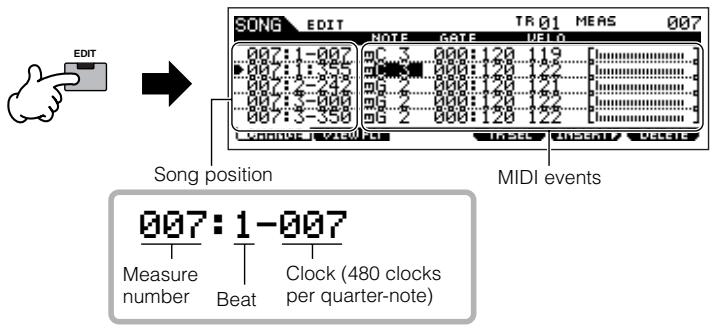
3
Select a track to be edited.
Select one of the three available track types by pressing the [F4] TR SEL (Track Select) button. Each press of the button alternates among the track types.
To select one of the Pattern tracks (1 - 16), make sure the 1-16 track edit display is selected (see below), then turn the [TRACK SELECT] button on and press any of the [1] - [16] buttons.
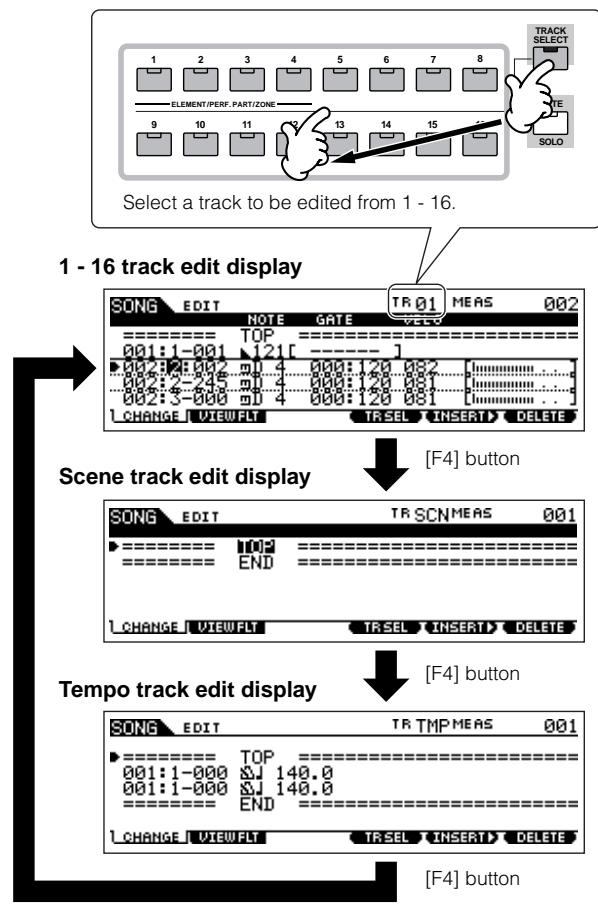
4
Edit the MIDI events of the Song.
- Editing/Deleting Existing Events
To edit data in the Event List, use the up/down cursor buttons to highlight the specific event you want to edit, and use the left/right cursor buttons to highlight the data type or parameter to be edited. Then, change the value as needed by using the [INC/YES] and [DEC/NO] buttons or the data dial.
The entire line of the edited event will flash on the display. Press the [ENTER] button to actually enter the edited data (the entire line of the edited event will stop flashing). To abort an edit simply highlight to a new event location without pressing the [ENTER] button.
Press the [F6] button to delete the event at the current location.
When changing the value, the entire line will flash on the display indicating this is being edited and not fixed yet.
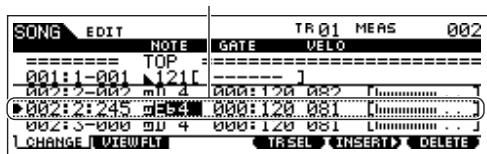

[ENTER] button
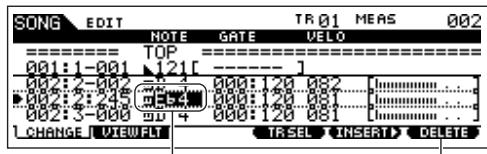
This value has been fixed as data.
Press the [F6] button to delete the event at the current location.
- Inserting New Events
To insert an event, use the up/down cursor buttons to highlight an event at the desired point in the track measure, beat, clock) - this is the location to which the new event will be inserted. Then, follow the steps below.
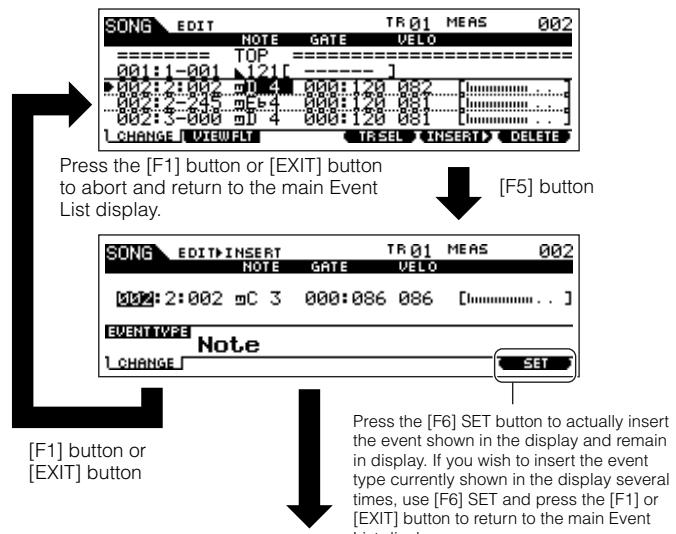
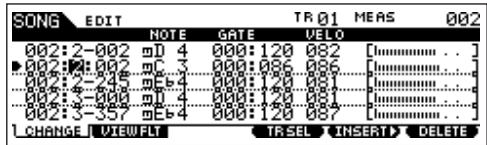
Press the [ENTER] button to actually insert the event and return to the main Event List display.
In the Event List display, you can edit various types of events such as Voice, volume, and pan as well as note events. This means that you could, for example, enter Voice changes to the middle of a track, even if the track was recorded using only one Voice.
- NOTE For details about the MIDI events handled in the Event List display, see page 225.
- NOTE If you find the display too cluttered, you can filter out certain event types with the View Filter. Simply press the [F2] VIEW FLT button and select the event types you want to be displayed. For details, see page 225.
Press the [▶] (Play) button to hear your edited data.
Since the Song can be played back from within the Song Edit mode, you can instantly hear and check the changes you've made while editing. If you want to hear just the track being edited, use the Solo function (page 58).
6 Edit other tracks as required by repeating steps #3 through #5 as desired.
7 After editing, press the [SONG] button to return to the Song Play mode.
8 Save the edited Song data to a SmartMedia/USB storage device (page 132) before turning the power off.
Transforming the recorded data and other operations — Song Job mode
The Song Job mode has a wide variety of operations for changing and working with Song data. Virtually all of the Jobs share the same procedure, so we'll explain only one of them here — Quantize, which lets you clean up the timing of a previously recorded track.
In the following example, this musical passage has been written with exact quarter-note and eighth-note values.
Even though you think you may have recorded the passage accurately, your actual performance may be slightly ahead of or behind the beat (or both!). Quantize allows you to align all the notes in a track so that the timing is absolutely accurate to the specified note value.
Press the [SONG] button to enter the Song Play mode, then select a Song for which the Job is to be applied.
2 Press the [JOB] button to enter the Song Job mode.
As shown below, the Jobs are divided into six main groups, each of which is selected using the [F1] - [F6] buttons.
Indicates the Job List. Because all the Jobs cannot be displayed simultaneously, you will need to use the cursor buttons to scroll the display in order to find the desired Job.
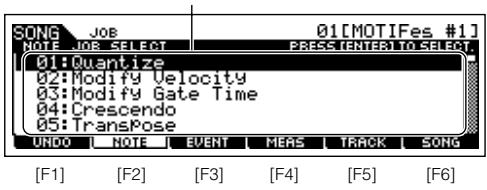
| [F1] UNDO | Undo (Canceling the executed Job)/Redo (Restoring the executed Job) functions |
| [F2] NOTE | Note Data Job |
| [F3] EVENT | Event Job |
| [F4] MEAS | Measure Job |
| [F5] TRACK | Track Job |
| [F6] SONG | Song Job |
3 Press the [F2] NOTE button, move the cursor to "01: Quantize" then press the [ENTER] button to call up the Quantize Job display.
4 Set the relevant Job parameters.
After specifying the track and range over which the Job is to be applied, set Quantize to “ ” (8th note) according to the notation example above. Set the Strength to “ 100% ,
SwingRate to "050%," and GateTime to "100%. Regarding these parameters, see page 227.
Track over which the Job is applied Range over which the Job is applied
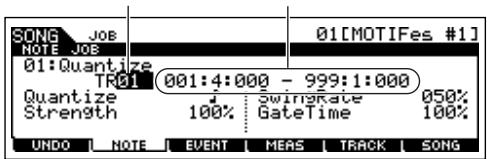
- Note Set the Quantize value to correspond to the smallest value notes in the track you are working with. For example, if the data was recorded with both quarter notes and eighth notes, use eighth note for the quantize value.
Press the [ENTER] button to execute the Job.
After the Job has been completed, a "Completed" message appears and operation returns to the original display.
CAUTION
An "Executing..." message is shown when it takes a short amount of time to execute the Job. Never attempt to turn off the power while the Job is being executed. Turning the power off in this state results in loss of all user data.
Press the [SONG] button to return to the Song Play mode, then press the [▶] button to hear the song over which the Job is applied.
If you are satisfied with the result of the Job, go to step #7. If not, execute the UNDO Job in the [F1] UNDO display in the Song Job mode to restore the data to its previous state, then try out the Job (from step #4) again. For details about Undo, see next page.
7 Save the Song data to a SmartMedia/USB storage device in the File mode (page 132) before turning the power off.
In addition to Quantize, you'll find a variety of other useful and powerful Jobs in the Song Job mode (page 226) and Pattern Job mode (page 244).
TIP Using the Undo/Redo functions
If you're not satisfied with the results of a just-executed Job, or you want to hear the difference of the sound before and after using a Job, you can use the convenient Undo and Redo functions. After changing the data with a particular Job, repeat steps #1 -4 as desired.
Press the [SONG] button to return to the Song Play mode, then press the [▶] button to hear the Song as it was changed by the Job.
This lets you check the results of the Job.
2 After stopping the song, press the [JOB] button followed by the [F1] UNDO button to call up the Undo display. Press the [ENTER] button to execute Undo.
The Song data is restored to its previous state.
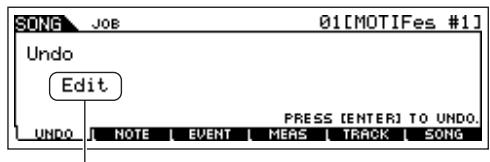
Indicates the operation to be affected by Undo.

[ENTER] button
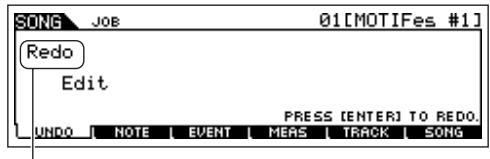
Changes to "Redo."
3 Press the [SONG] button to return to the Song Play mode, then press the [▶] (Play) button to play the song.
This lets you check the sound before actually making changes to it with the Job.
4 After stopping the song, press the [JOB] button followed by the [F1] UNDO button to call up the Undo display. Press the [ENTER] button to execute the Redo.
This lets you "redo" the Job, restoring the Song to the changes you made before using Undo in step #2 above.
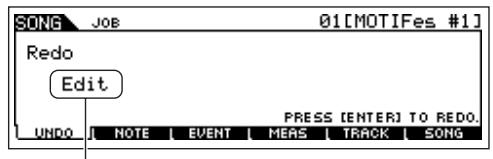
Indicates the operation to be affected by Redo.

[ENTER] button
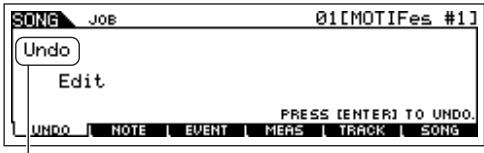
Changes to "Undo."
NOTE Undo/Redo is applied to the most recent operation (Job, Edit, Record, etc.).
NOTE The Undo/Redo Job is available also in the Pattern Job mode.
Editing Mixing parameters to complete a Song (in the Mixing mode/Mixing Edit mode)
In this final step (other than saving your precious work, which we'll cover next), you can mix down your tracks with the Song Mixing function – adjusting the volume balance and pan setting of all the parts and tweaking the effect levels.
- Note The explanations here also apply to the Pattern mode.
1 Press the [SONG] button to enter the Song Play mode, then select a Song for which Mixing edits have been made.
2 Enter the Song Mixing mode by pressing the [MIXING] button (the lamp lights).
Select the menu you wish to edit by pressing the [F1] - [F4] buttons, then edit the parameters in each display.
If you alter any parameters, the [E] indicator will appear in the top left of the display.
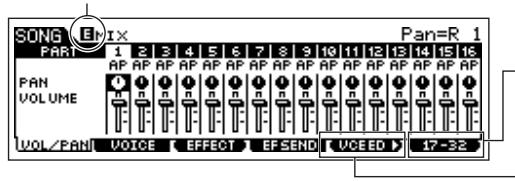
Press the [F6] button to switch between the display for Parts 01-16 (for the internal tone generator), 17-32 (for the Multi-Part Plug-in Board PLG100-XG), and PLG1-3 (for the Single Part Plug-in Board).
Press the [F5] VCE ED button to enter the Mixing Voice Edit mode (page 105).
You can use the Song Mixing mode for Sample Mixing as well. For information on the available parameters, see page 233. If you wish to edit more detailed Mixing parameters, enter the Song Mixing Edit mode.
3 Press the [EDIT] button to enter the Song Mixing Edit mode.
![YAMAHA MOTIF ES6 - Press the [EDIT] button to enter the Song Mixing Edit mode. - 1](/content/2025/01/114832/images/f17ced62230e0696a5834d44ca2922300d7492b4914b4e332cd3d020c6cc1223.jpg)
4 Call up the Common Edit display or Part Edit display.
Use Part Edit to edit the parameters for each Part. Use Common Edit to edit the parameters for all of the Parts.
NOTE
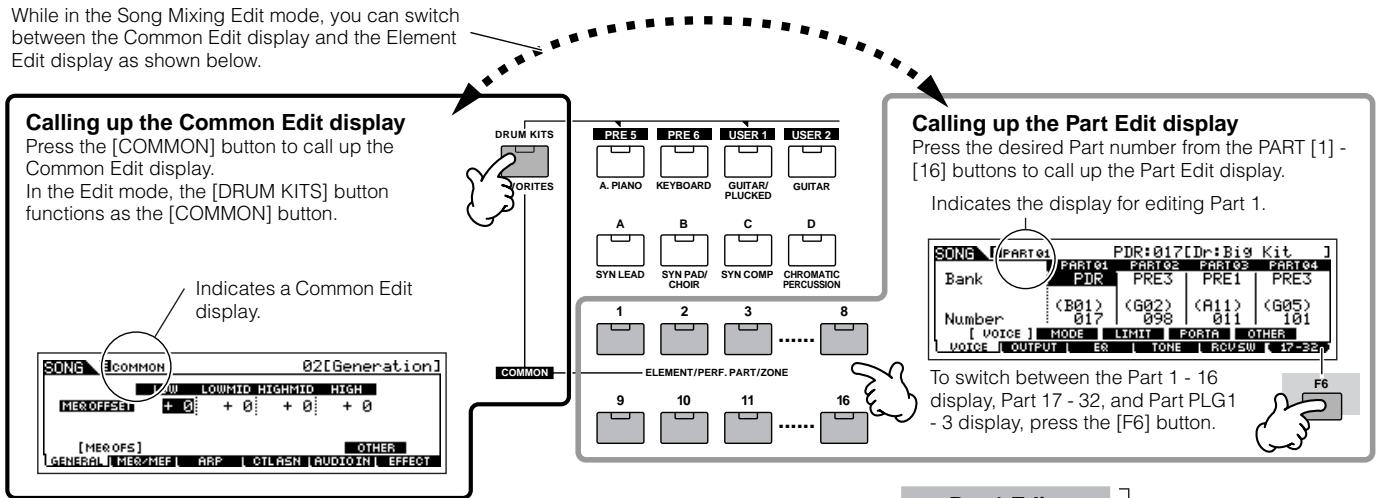
You can mute or solo a Part just as is done with tracks in the Song Play mode or Pattern Play mode.
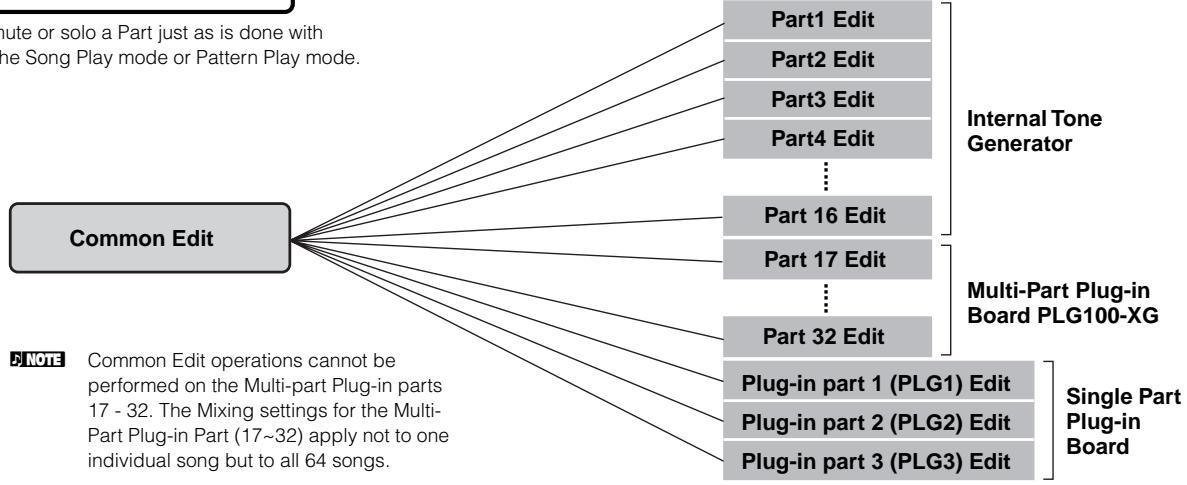
5 Select the menu you wish to edit by pressing the [F1] - [F5] buttons and [SF1] - [SF5] buttons, then edit the parameters in each display.
For details on the available parameters, see page 234.
6 Repeat steps #4 - 5 as desired.
7 Store the edited Song Mixing settings to internal User memory (DRAM).
After pressing the [EXIT] button to return to the Song Mixing mode, press the [STORE] button to enter the Song Mixing Store mode, then press the [ENTER] button to execute the Store operation (page 131).
8 Before turning the power off, save the stored Song Mixing settings to a SmartMedia/USB storage device as Song data in the File mode (page 132).
TIP Editing a Mixing by using the Knobs (in the Song mode/Pattern mode)
The four knobs at the top left of the instrument can be used to tweak the Song/Pattern Mixing settings as they play (in the Song Play/Pattern Play mode). What's mode, you can use them to edit the Mixing settings, in the Song Mixing Edit/Pattern Mixing Edit modes.
For details on the parameters edited by the knobs, refer to the descriptions in the Performance mode (page 90).
- When the [PAN/SEND] indicator is turned on:
| PAN | [SONG] or [PATTERN] → Song/Pattern selection → [MIXING] → [EDIT] → Part selection → [F2] OUTPUT → [SF1] VOL/PAN → Pan | Page 235 |
| REVERB | [SONG] or [PATTERN] → Song/Pattern selection → [MIXING] → [EDIT] → Part selection → [F2] OUTPUT → [SF2] EF SEND → RevSend | Page 235 |
| CHORUS | [SONG] or [PATTERN] → Song/Pattern selection → [MIXING] → [EDIT] → Part selection → [F2] OUTPUT → [SF2] EF SEND → ChoSend | Page 235 |
| TEMPO | Tempo of the current Song/Pattern | Pages 57 and 59 |
- When the [TONE] indicator is turned on:
| CUTOFF | [SONG] or [PATTERN] → Song/Pattern selection → [MIXING] → [EDIT] → Part selection → [F4] TONE → [SF2] FILTER → Cutoff | Page 236 |
| RESONANCE | [SONG] or [PATTERN] → Song/Pattern selection → [MIXING] → [EDIT] → Part selection → [F4] TONE → [SF2] FILTER → Resonance | Page 236 |
| ATTACK | [SONG] or [PATTERN] → Song/Pattern selection → [MIXING] → [EDIT] → Part selection → [F4] TONE → [SF4] AEG → Attack | Page 236 |
| RELEASE | [SONG] or [PATTERN] → Song/Pattern selection → [MIXING] → [EDIT] → Part selection → [F4] TONE → [SF4] AEG → Release | Page 236 |
- When the [ARP FX] indicator is turned on:
| SWING | [SONG] or [PATTERN] → Song/Pattern selection → [MIXING] → [EDIT] → [COMMON] → [F3] ARP → [SF3] PLAY FX → Swing | Page 234 |
| GATE TIME | [SONG] or [PATTERN] → Song/Pattern selection → [MIXING] → [EDIT] → [COMMON] → [F3] ARP → [SF3] PLAY FX → GateTimeRate | Page 234 |
| VELOCITY | [SONG] or [PATTERN] → Song/Pattern selection → [MIXING] → [EDIT] → [COMMON] → [F3] ARP → [SF3] PLAY FX → VelocityRate | Page 234 |
| UNITMULTIPLY | [SONG] or [PATTERN] → Song/Pattern selection → [MIXING] → [EDIT] → [COMMON] → [F3] ARP → [SF3] PLAY FX → UnitMultiply | Page 234 |
- When the [EQ] indicator is turned on:
| LO | [SONG] or [PATTERN] → Song/Pattern selection → [MIXING] → [EDIT] → Part selection → [F3] EQ → Low Gain | Page 236 |
| LO MID | [SONG] or [PATTERN] → Song/Pattern selection → [MIXING] → [EDIT] → Part selection → [F3] EQ → Mid Gain | Page 236 |
| HI MID | — | - |
| HI | [SONG] or [PATTERN] → Song/Pattern selection → [MIXING] → [EDIT] → Part selection → [F3] EQ → High Gain | Page 236 |
- When both the [PAN/SEND] and [TONE] indicators are turned on (by pressing them simultaneously):
| ASSIGN A | Adjusts parameters assigned to these knobs in the [UTILITY] → [F4] CTL ASN → [SF2] ASSIGN display. | Page 263 |
| ASSIGN B | Page 263 | |
| ASSIGN 1 | Depend on the settings of the voice assigned to the currently selected part. | Page 192 |
| ASSIGN 2 | Page 192 |
In addition to the above functions, Master Effect related parameters ([SONG] or [PATTERN] Song/Pattern selection [MIXING] [EDIT] [COMMON] [F2] MEQ/MEF [SF2] MEF) can be assigned to these four knobs, and the knobs can be used for these assignments by pressing the [ARP FX] and [EQ] buttons simultaneously to turn them on. The particular parameters assigned to the four knobs can be set in the [UTILITY] [F4] CTL ASN [SF5] MEF display.
Compare function and Edit Recall (in the Song mode/Pattern mode)
These are the same as in the Voice mode and Performance mode. See pages 80 and 82.
TIP Editing a Mixing by using Control Sliders (in the Song mode/Pattern mode)
[SONG] Song selection [MIXING] [EDIT] Part selection [F2] OUTPUT [SF1] VOL/PAN Volume
In the Song/Pattern mode, the four Control Sliders let you independently adjust the levels of the Parts (Voices), letting you control the overall balance of the Parts.
5Note Inadvertent use of the sliders may result in no sound. If this occurs, move the sliders upward.
TIP Creating an Arpeggio
In addition using the preset Arpeggios, you can also create your own original Arpeggio data.
Actually, there is no direct operation for recording Arpeggios. First, you have to record a Phrase to a Song or Pattern track.
Then, use the appropriate Song or Pattern Job function to convert the data to Arpeggio data.
1 Record the MIDI sequence data to be used as the basis for base of the Arpeggio to a Song or Pattern.
2 Convert the MIDI sequence data (recorded to the Song or Pattern) as Arpeggio data.
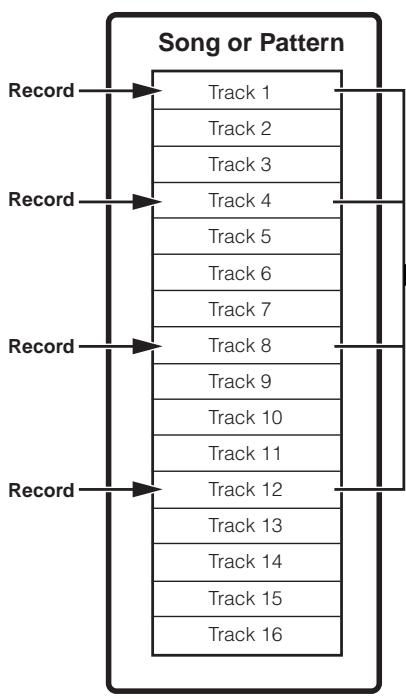
You can record MIDI sequence data for the Arpeggio to any of the tracks. After recording, select four tracks from all sixteen and convert them to Arpeggio data.
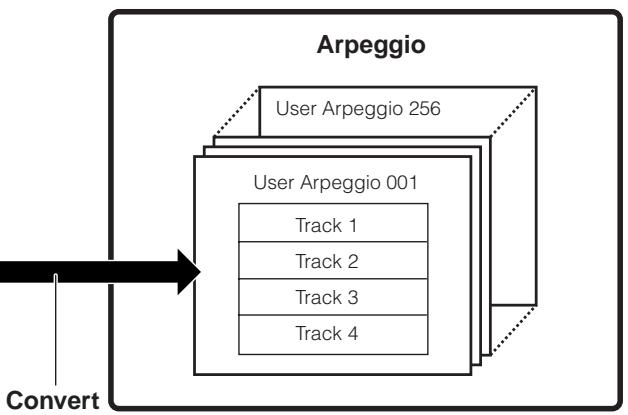
[SONG] [JOB] [F5] TRACK 07: Put Track To Arp
After setting the parameters as shown below, press the [ENTER] button to execute Convert.
Specify the destination Arpeggio number.
Specify the source Song/ Pattern number and measure range.
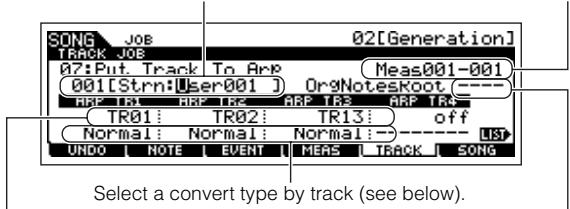
Specify the tracks of the source Song or Pattern. Set unused tracks to "off."
Set the root note when the convert type of any track is set to "OrgNote."
■ Determining how Song/Pattern data is converted to an Arpeggio — Convert Type
MIDI sequence data (of Song/Pattern tracks) can be converted to Arpeggio data in one of three ways, according to the Convert types below. These types can also be selected independently for each destination track — providing enormous flexibility and performance control.
| Normal | The Arpeggio is played back using only the played note and its octave notes. |
| Fixed | Playing any note(s) will trigger the same MIDI sequence data. |
| OrgNotes (Original Notes) | Basically same as "Fixed" with the exception that the Arpeggio playback notes differ according to the played chord. |
Record the MIDI sequence data to a Song or Pattern track, referring to the previous instructions in this chapter as needed. The examples listed below are used as reference.
- Creating a rhythm pattern (using a Drum Voice)
| Track 1 | Record a basic rhythm pattern using various drum instruments. | → Convert via "Fixed." |
| Track 2 - 4 | Record a different rhythm pattern using a specific drum instrument to each track. | → Convert via "Normal." |
- Creating a bass line (using a Normal Voice)
| Track 1 | Record a bass line using a specific desired key (root). | → Convert via “OrgNote” after the OrgNotesRoot is set. |
| Track 2 - 4 | → off |
- Creating a guitar backing (using a Keyboard Mega Voice)
| Track 1 | Record a guitar backing part using a specific desired key (root). | → Convert via "Normal." |
| Track 2 | Record a different rhythm using one of the "special" sounds, such as a finger mute or scratching noise. | → Convert via "Fixed." |
| Track 3 - 4 | → off |
Up to 16 unique note numbers can be recorded to the Arpeggio track. (This does not apply to multiple instances of the same note number.) If more than 16 different note numbers have been recorded to the MIDI sequence data, the Convert operation reduces the notes in excess of the limit. Because of this, be careful to record only up to 16 different notes when you create an Arpeggio, especially when using all four tracks.
Convert type which determines how the Song/Pattern data is converted to the Arpeggio data
The Arpeggio data created via the above instructions is stored on internal Flash ROM, meaning that it will not be lost, even if you turn the power off. When saving the Arpeggio data to a SmartMedia/USB storage device, set the file type (TYPE) to "All" or "UsrArp" in step #3 described on page 132.
Storing/Saving the created Song/Pattern
The created Song/Pattern data resides on DRAM (page 187). Because data contained in DRAM is lost when the power is turned off, you should always save any data residing in DRAM to a SmartMedia/USB storage device in the File mode before turning off the power. Please note that the edited Mixing settings should be stored before saving to a SmartMedia/USB storage device.
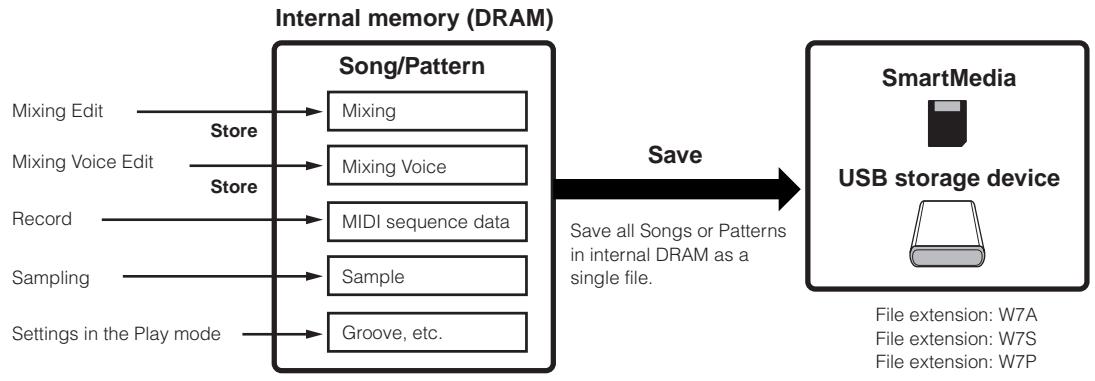
Storing the edited Song Mixing/Pattern Mixing settings to internal memory (DRAM)
[MIXING] [STORE]
Press the [STORE] button to enter the Song Mixing Store mode/Pattern Mixing Store mode, then press the [ENTER] button to execute the Store operation. The Mixing settings are actually stored to a Song/Pattern by executing the Store operation.
CAUTION
The currently edited Mixing program will be lost when selecting a different Song/Pattern or going to a different mode without storing it to the current Song/Pattern. In addition, simply playing back the Song/Pattern or receiving any MIDI messages from an external MIDI instrument may change the current Mixing program.
Make sure to store the Mixing program before executing these operations.
Saving the Song/Pattern data to the SmartMedia/USB storage device
[FILE] [F2] SAVE
CAUTION
The recorded Song, Pattern and Sample (Waveform) data resides temporarily in DIMM (page 187). Because data contained in DIMM is lost when the power is turned off, you should always save any data residing in DIMM to a SmartMedia/USB storage device before turning off the power.
After inserting a SmartMedia into the CARD slot or connecting the USB storage device to this synthesizer, follow the instructions below.
1 Press the [FILE] button to enter the File mode, then execute the basic settings.
Refer to "Basic settings for using SmartMedia or a USB storage device" on page 30.
2 Press the [F2] SAVE button to call up the Save display.
3 Set the TYPE parameter to "All."
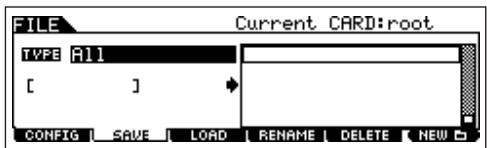
Move the cursor to the TYPE, then set the File type by using the data dial, [INC/YES] and [DEC/NO] button. You can select one of the following four file types to save the Song or Pattern data. Here, select "All" because various kinds of data have been created in order to complete a song.
| All | All data in this synthesizer's internal User Memory is treated as a single file (extension: W7A), and can be saved to a SmartMedia/USB storage device. |
| All Song | All the User Song data in this synthesizer's internal User Memory (DRAM) is treated as a single file (extension: W7S), and can be saved to a SmartMedia/USB storage device. Please keep in mind that Sample Voices and assigned Waveforms created via the Sampling function in the Song mode are also saved together. |
| All Pattern | All the User Pattern data in this synthesizer's internal User Memory (DRAM) is treated as a single file (extension: W7P), and can be saved to a SmartMedia/USB storage device. Please keep in mind that Sample Voices and assigned Waveforms created via the Sampling function in the Pattern mode are also saved together. |
| SMF | Sequence track (1 - 16) and Tempo track data of a Song/Pattern created in the Song/Pattern mode can be saved to a SmartMedia/USB storage device as Standard MIDI File (format 0) data. |
4 | Input a file name.
Move the cursor to the file name input location, then input a file name. For detailed instructions on naming, refer to page 53 in the Basic Operation section.
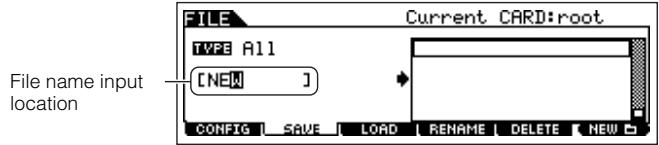
5
Press the [ENTER] button to execute the Save operation.
If you are about to overwrite an existing file, the display prompts you for confirmation. Press the [INC/YES] button to execute the Save operation to overwrite an existing file, or press the [DEC/NO] button to cancel it.
After the data has been saved, a "Completed" message appears and operation returns to the original display.
CAUTION
While the data is being saved, make sure to follow these precautions:
- Never remove or eject the media from the device (SmartMedia or USB storage).
- Never unplug or disconnect any of the devices.
- Never turn off the power of the MOTIF ES or the relevant devices.
Saving a Song or a Pattern Section as a Standard MIDI File
After inserting a SmartMedia into the CARD slot or connecting the USB storage device to the instrument, follow the instructions below.
Press the [FILE] button to enter the File mode, then execute the basic settings.
Refer to "Basic settings for using SmartMedia or a USB storage device" on page 30.
2 Press the [F2] SAVE button to call up the Save display.
3 Set the TYPE parameter to "SMF" then select a Song/Pattern to be saved.
When saving a Song as SMF:
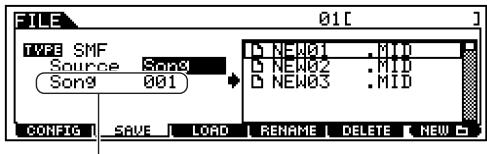
Select a Song number.
When saving a Pattern as SMF:
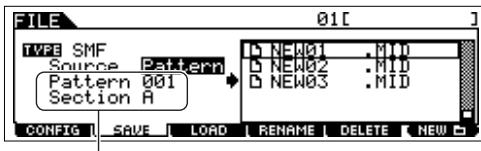
Select a Pattern number and Section.
4 Input a file name.
Move the cursor to the file name input location, then input a file name. For detailed instructions on naming, refer to page 53 in the Basic Operation section.
5 Press the [ENTER] button to execute the Save operation.
If you are about to overwrite an existing file, the display prompts you for confirmation. Press the [INC/ YES] button to execute the Save operation to overwrite an existing file, or press the [DEC/NO] button to cancel it. After the data has been saved, a "Completed" message appears and operation returns to the original display.
- NOTE When loading a SMF (Standard MIDI File), set the file type to "Song" or "Pattern."
- NOTE Only the sequence track (1 - 16) and tempo track data of a Song/Pattern created in the Song/Pattern mode can be saved to a SmartMedia/USB storage device as Standard MIDI File (format 0) data. The Mixing settings will not be saved to a Standard MIDI File. If you wish to save the entire Song/Pattern including the Mixing settings, set the file type to "All" or "AllSong." or "AllPattern."
Saving a Sample Voice as a WAV file/AIFF file
After inserting a SmartMedia into the CARD slot or connecting the USB storage device to the instrument, follow the instructions below.
In the Song mode/Pattern mode, select a Song/ Pattern including the desired Sample, press the [FILE] button to enter the File mode, then execute the basic settings.
Refer to "Basic settings for using SmartMedia or a USB storage device" on page 30.
2 Press the [F2] SAVE button to call up the Save display.
3 Set the TYPE parameter to "Wav" or "Aiff," press the [ENTER] button, then select a sample to be saved.
Select the track containing the sample to be saved.
![YAMAHA MOTIF ES6 - Set the TYPE parameter to "Wav" or "Aiff," press the [ENTER] button, then select a sample to be saved. - 1](/content/2025/01/114832/images/52cdaa8e1286b8b4a30274e43105754cad13b8d9596626012fd6083286666a66.jpg)
You can hear the selected sample by pressing the [SF1] button. (Audition function)
This is available only when the cursor is located at KeyBank. Each press of the [SF2] SELECT button selects, one by one, the Key Banks assigned to specific velocity ranges for the selected key.
4 Press the [ENTER] button to execute the Save operation.
If you are about to overwrite an existing file, the display prompts you for confirmation. Press the [INC/ YES] button to execute the Save operation to overwrite an existing file, or press the [DEC/NO] button to cancel it.
After the data has been saved, a "Completed" message appears and operation returns to the original display.
Loading a file saved to a SmartMedia/ USB storage device
[FILE] [F3] LOAD
These instructions describe how to recall the data saved as a file type "All (extension: W7A)" described on page 132 from the SmartMedia/USB storage device to the instrument by using the Load operation.
CAUTION
Loading a file (extension: W7A) to this synthesizer automatically erases and replaces all existing data in the User memory. Make sure to save any important data to a SmartMedia/USB storage device before performing any Load operations.
5. Note If you wish to select and load a specified Waveform in the file (extension: W7A), enter the File mode (in step #1 below) after executing the following operations:
- Enter the Voice mode if you wish to assign the Waveform to a Voice.
- Select a Performance in the Performance mode if you wish to assign the Waveform to a Part of the Performance.
- Select a Song in the Song mode if you wish to assign the Waveform to a Part of the Song.
- Select a Pattern in the Pattern mode if you wish to assign the Waveform to a Part of the Pattern.
5. NOTE If you wish to select and load a specified Sample Voice in the file (extension: W7A), enter the File mode (in step #1 below) after executing the following operations:
- Select a Song in the Song mode if you wish to assign the Sample Voice to a Song.
- Select a Pattern in the Pattern mode if you wish to assign the Sample Voice to a Pattern.
1 Press the [FILE] button to enter the File mode, then execute the basic settings.
Refer to "Basic settings for using SmartMedia or a USB storage device" on page 30.
2 Press the [F3] LOAD button to call up the Load display.
3 Select a file type to be loaded.
You can load the file (extension: W7A) saved as “All” by selecting one of the following file types.
| All | All data in a file that is saved to the SmartMedia/USB storage device as an “All” type can be loaded and restored to this instrument. |
| Voice | A specified Voice in a file can be individually selected and loaded to this instrument. |
| Performance | A specified Performance in a file can be individually selected and loaded to this synthesizer. |
| Song | A specified Song in a file can be individually selected and loaded to this instrument. |
| Pattern | A specified Pattern in a file can be individually selected and loaded to this instrument. |
| Waveform | A specified Waveform in a file can be individually selected and loaded to this instrument. |
| Sample Voice | A specified Sample Voice in a file can be individually selected and loaded to this instrument. |
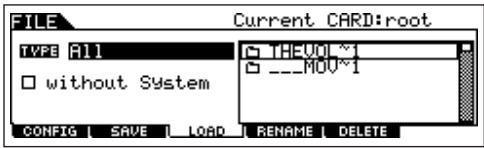
4 Select a file (D) to be loaded.
Move the cursor to the file (extension: W7A) which was saved as "All" on previous page.
When Type is set to "All," go to step #5.
When Type is set to something other than "All," follow the instructions below then go to step #5.
- When Type is set to "Voice" or "Performance":
You can select and load a specified Voice or Performance in the file (extension: W7A) to this instrument.

- When Type is set to "Song" or "Pattern":
You can select and load a specified Song or Pattern in the file (extension: W7A) to this instrument.

- When Type is set to "Waveform":
You can select and load a specified Waveform in the file (extension: W7A) to this instrument.

In this case, the destination differs depending on the mode selected before entering the File mode.
| When entering the File mode from the Voice mode: | Set the Voice bank and number as the destination. |
| When entering the File mode from the Performance mode: | Set the Part of the current Performance then set the Voice bank/number of the Part as the destination. |
| When entering the File mode from the Song mode/Pattern mode: | Set the track of the current Song/Pattern as the destination. |
- When Type is set to "Sample Voice":
Only when entering the File mode from the Song mode/Pattern mode, you can select and load a specified Sample Voice in the file (extension: W7A) to this instrument.

All Sample Voices assigned to the selected Song or Pattern in the selected file are listed. Move the cursor to the desired Sample Voice to be loaded.

Select the track of the current Song or Pattern as destination.
CAUTION
Loading data to this synthesizer automatically erases and replaces any existing data in the User memory. Make sure to save any important data to a SmartMedia/USB storage device before performing any Load operations.
5 Press the [ENTER] button to execute the Load operation.
After the data has been loaded, a "Completed" message appears and operation returns to the original display.
CAUTION
While the data is being saved, make sure to follow these precautions:
- Never remove or eject the media from the device (SmartMedia or USB storage).
- Never unplug or disconnect any of the devices.
- Never turn off the power of the MOTIF ES or the relevant devices.
TIP Setting a specific file to load automatically when the power is turned on
The MOTIF ES is very easy to use and you can create Voices, Performances, Patterns and Songs very quickly on it. However, there may be times that creating and editing of data may be spread out over several sessions. In such a case, you may find it convenient to have the instrument automatically load the appropriate files for you when you turn it on, so you can easily resume your editing session.
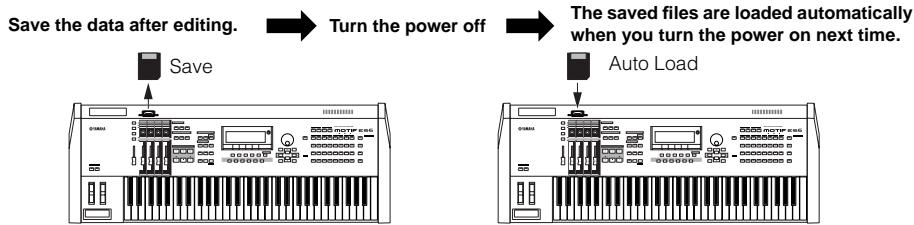
5. NOTE The Auto Load parameter is set to on when this synthesizer is shipped from the factory.
5 NOTE The file types which can be loaded automatically are "All," "Plugin All Bulk 1," "Plugin All Bulk 2," and "Plugin All Bulk 3."
1 Change the names of the files you wish to have load automatically when the power is turned on as described below, and save them together in a single folder or in the root directory.
| File type | File name |
| All | AUTOLOAD. W7A |
| Plugin All Bulk 1 (for slot 1) | AUTOLD1. W7B |
| Plugin All Bulk 2 (for slot 2) | AUTOLD2. W7B |
| Plugin All Bulk 3 (for slot 3) | AUTOLD3. W7B |
After you've finished naming the appropriate files, keep the corresponding folder selected in the display and go to step #2.
2 Enter the Utility mode and call up the Auto Load display ([UTILITY] [F1] GENERAL [SF4] OTHER).
3 Set "Auto Load" to on, and press the [SF5] GET button. The device and folder selected in step #1 (the folder containing the desired files for auto loading) are registered as the Auto Load path.
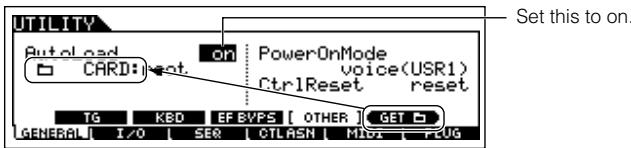
4 Press the [STORE] button to store the Auto Load setting.
5 NOTE If the Auto Load files cannot be found (for example, a SmartMedia/USB storage device is not installed properly or a SmartMedia/USB storage device containing no Auto Load files is installed, etc.) when turning the power on even with the Auto Load parameter set to on, the Demo Song/Pattern data (page 55) in the internal ROM will be loaded automatically.
Using as a Master Keyboard
This synthesizer is loaded with such a wealth of different features, functions and operations, you may find it difficult to locate and call up the particular feature you need. This is where the Master function comes in handy. You can use it to memorize the operations you use most often in each mode, and call them up instantly anytime you need them with a single button press. This synthesizer has space for a total of 128 of your own User Master settings.
| Master Number | Setting examples | ||
| Memorized mode | Memorized program number | Zone Switch * | |
| 001 | Voice mode | Voice number 102 (Preset 1) | Off |
| 002 | Voice mode | Voice number 088 (Preset 3) | Off |
| 003 | Voice mode | Voice number 049 (Preset 2) | Off |
| 004 | Voice mode | Voice number 092 (Preset 2) | Off |
| 005 | Performance mode | Performance number 044 | Off |
| : | : | : | : |
| 127 | Pattern mode | Pattern number 061 | On |
| 128 | Song mode | Song number 025 | On |
- See page 137 about "Zone Switch."
Selecting a Master
The MOTIF ES features 128 specially programmed Masters, stored to internal User memory (Flash ROM). Try some of these out now.
1 Press the [MASTER] to enter the Master Play mode.
![YAMAHA MOTIF ES6 - Press the [MASTER] to enter the Master Play mode. - 1](/content/2025/01/114832/images/f8be030115e9d0cd72f32d67e3bdda95a9d1a81049dbfe21e24a9006d734350a.jpg)
2 Select a Master.
Selecting a Master is done in basically the same way as selecting a Voice. Since the there is only one bank for Masters, you need not select a Master Bank.
3 Play the selected Master program.
When the Mode is set to Voice or Performance, play the keyboard.
When the Mode is set to Song or Pattern, press the [▶] (Play) button.
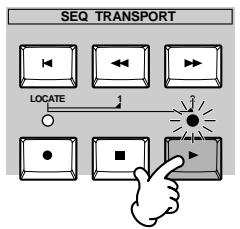
Memorize to a Master
1 Select a Master to be created.
2 Press the [F2] MEMORY button to call up the Mode setting display.
3 on/off (page 138) which you wish to memorize to the Master.
Determine the mode that is called up when the Master number is selected.
Set the Zone Switch (below) to on or off.
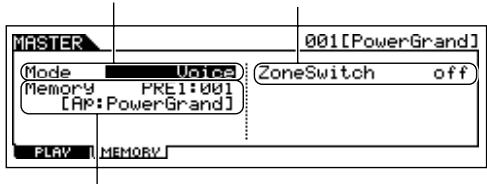
Determine the Program number that is called up when the Master is selected.
| When the Mode is set to Voice | Select a Voice bank and number. |
| When the Mode is set to Performance | Select a Performance bank and number. |
| When the Mode is set to Song | Select a Song number. |
| When the Mode is set to Pattern | Select a Pattern number. |
4 | Name the edited Master.
Input a name in the [EDIT] [COMMON] [F1] NAME display.
For detailed instructions on naming, refer to page 53 in the Basic Operation section.
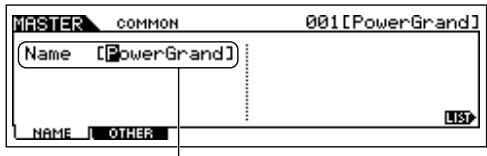
Input a Master name.
5 Store the edited Master to internal User memory.
Press the [STORE] button to enter the Master Store mode.
2 Select the destination Master by using the data dial, [INC/YES] and [DEC/NO] button.
CAUTION
When you execute the Store operation, the settings for the destination memory will be overwritten. Important data should always be backed up to a separate SmartMedia/USB storage device.
3 Press the [ENTER] button. (The display prompts you for confirmation.)
To cancel the Store operation, press the [DEC/NO] button.
4 Press the [INC/YES] button to execute the Store operation.
CAUTION
Keep in mind that the Store operation may take a short time to complete, during which an "Executing..." or "Please keep power on" message may be shown. Never attempt to turn off the power while data is being written to Flash ROM while such a message is displayed.
Turning the power off in this state results in loss of all user data and may cause the system to freeze (due to corruption of data in the Flash ROM). This may also result in the MOTIF ES being unable to properly start up the next time the power is turned on.
CAUTION
If you select another Master without storing, the currently edited Master will be lost. Make sure to store the edited Master before selecting another Master.
6 As necessary, save the edited and stored Masters to a SmartMedia/USB storage device.
For details, see page 132. Set the file type to "All."
Using Zones (keyboard area)
In the Master mode, you can divide the keyboard into (up to) four independent areas (called “Zones”). To each Zone can be assigned different MIDI channels and different functions of the Knobs and Control Sliders. This makes it possible to control several parts of the multi-timbral tone generator simultaneously by a single keyboard or to control voices of an external MIDI instrument over several different channels in addition to the internal voices of this synthesizer itself — letting you use the MOTIF ES to effectively do the work of several keyboards. You can set the parameters related to the four Zones in the Master Edit mode and store the settings as a User Master.
1 Select a Master to be created.
2 Press the [F2] MEMORY button to call up the Mode setting display.
After setting the Mode and Program number which you wish to memorize to the Master, set the Zone Switch to "on".
Determine the mode that is called up when the Master number is selected.
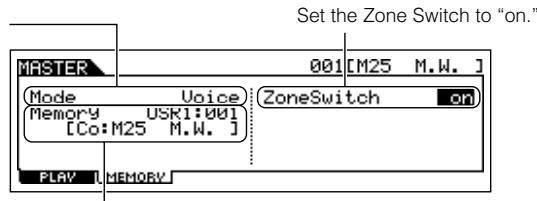
Determine the Program number that is called up when the Master is selected.
4 Press the [EDIT] button to enter the Master Edit mode.
5 Call up the Common Edit display or Zone Edit display.
Use Zone Edit to edit the parameters for each Zone. Use Common Edit to edit the parameters for all of the Zones.
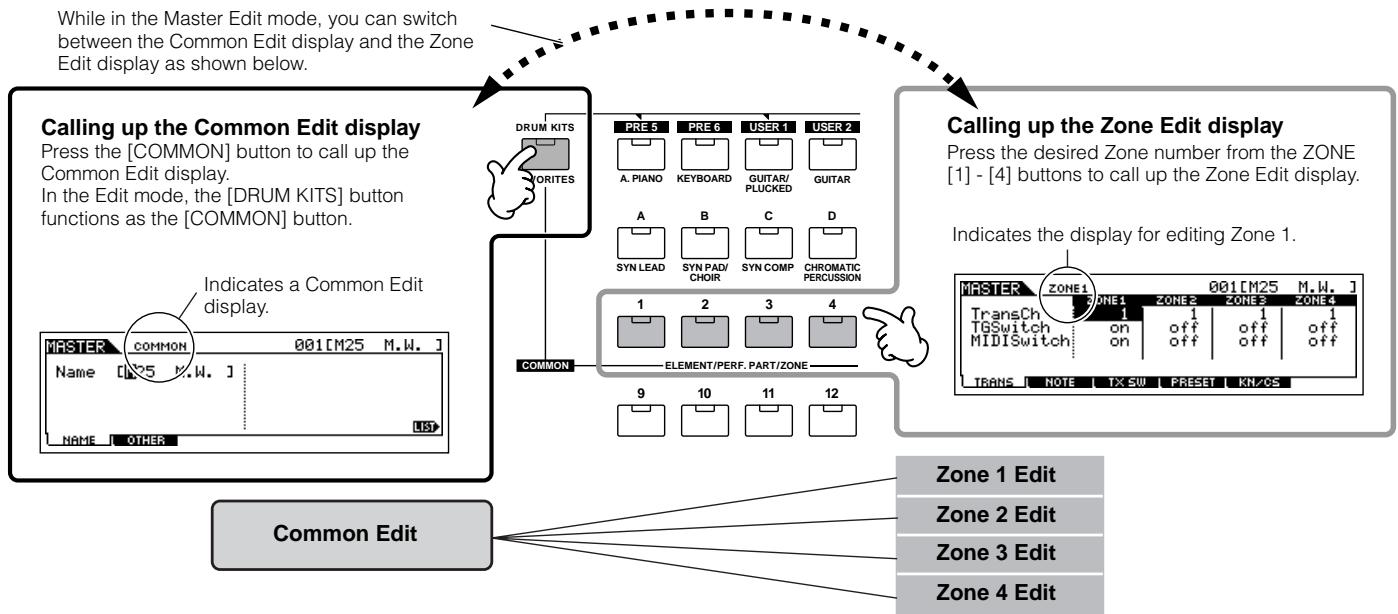
6 Select the menu you wish to edit by pressing the [F1] - [F6] and [SF1] - [SF5] buttons, then edit the parameters.
See the next page for details and some setting examples.
7 | Name the edited Master.
Input a name in the [EDIT] [COMMON] [F1] NAME display.
For detailed instructions on naming, refer to page 53 in the Basic Operation section.
8 | Store the edited Master to internal User memory.
For details, refer to steps #5 - 6 on page 137.
Using Zones effectively with external
The two examples below show how to use the Zones with both the internal tone generator and a connected external tone generator. These instructions correspond to step #6 on the previous page.
Though all four Zones are used in the example below, you can use any number of Zones (two, three, or four). The settings are made with the MIDISwitch parameter ([MASTER] [EDIT] Zone selection [F1] TRANS MIDISwitch) and the TGSwitch parameter ([MASTER] [EDIT] Zone selection [F1] TRANS TGSwitch).
5. NOTE In these examples, the Zones are assigned to different areas of the keyboard. However, two or more Zones can also be assigned to the same area in a layer, from the NOTE display ([MASTER] [EDIT] Zone selection [F2] NOTE).
■ Master settings with the Voice mode/Performance mode (Single-timbre tone generator mode)
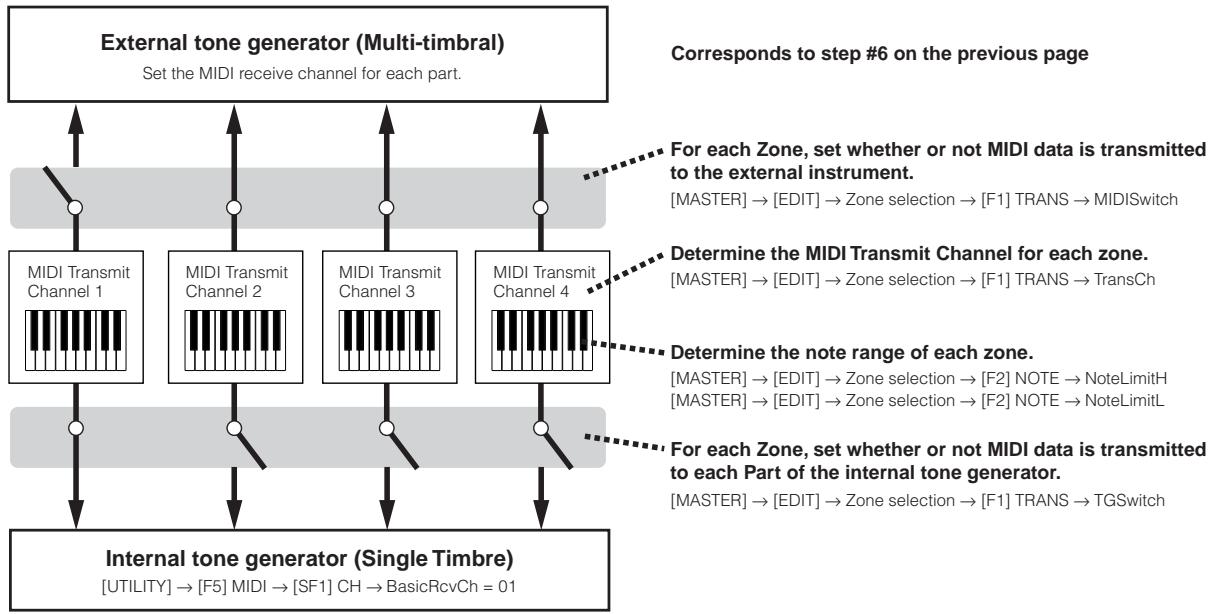
■ Master settings with the Song mode/Pattern mode (Multi-timbral tone generator mode)
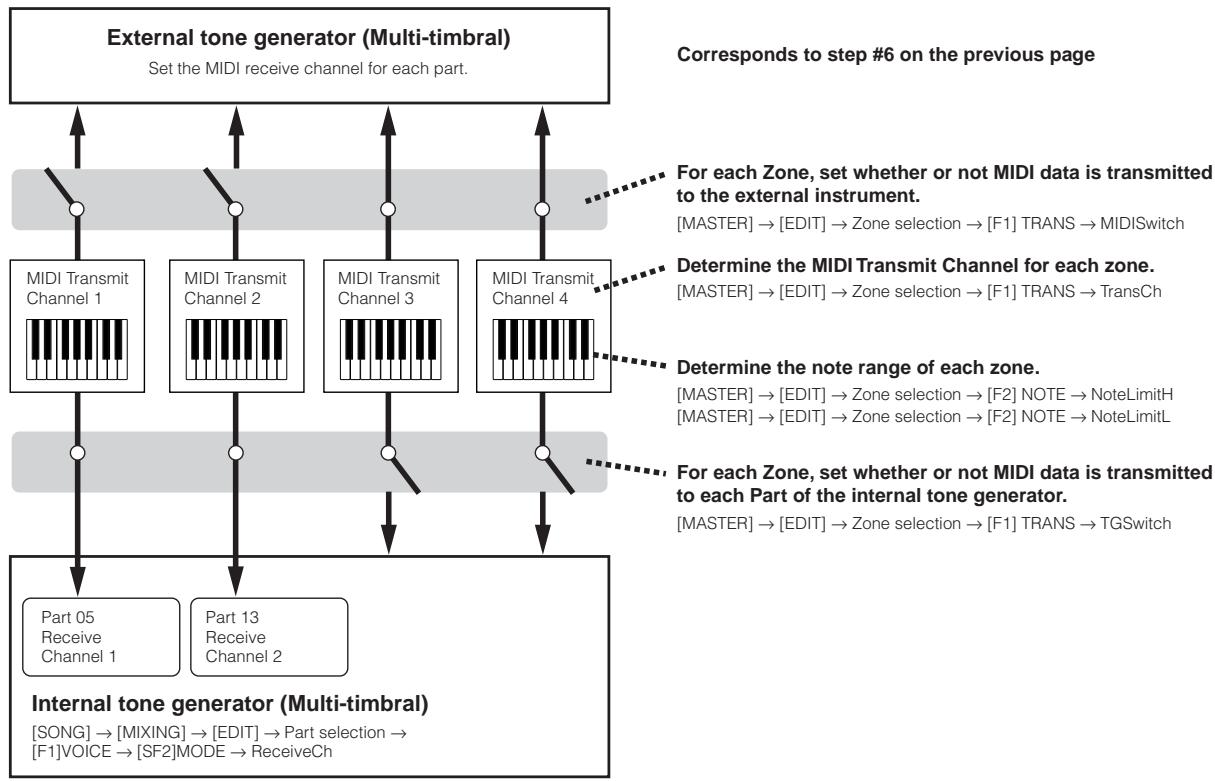
Assigning Control Change numbers to the Knobs/Sliders for each Zone
Here in the KN/CS display of the Master Edit mode, you can set how the Control Knobs and Sliders will affect each Zone. This lets you specify a separate MIDl Control Change number for each Knob and Slider. Set the parameters as shown below, corresponding to step #6 on page 138.
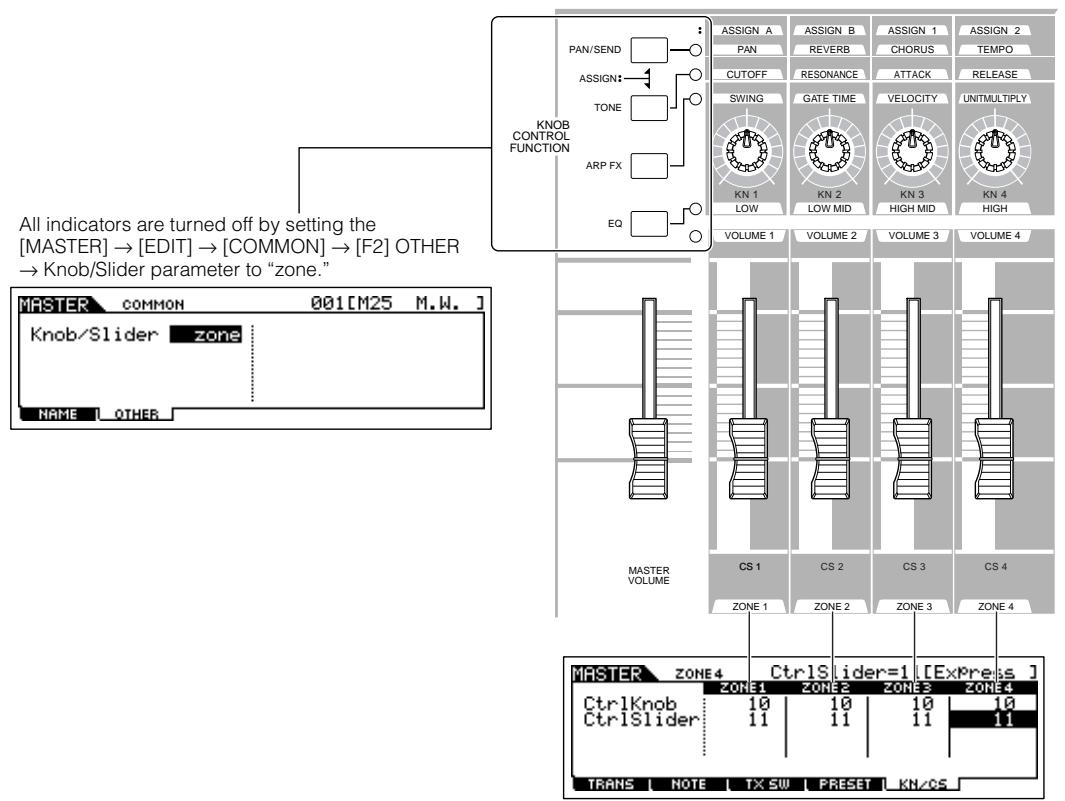
You can determine which Control Change numbers are used for the Knobs and Sliders for each zone in the [MASTER] [EDIT] Zone selection [F5] KN/CS display.
In the example above, the Control Knobs for all Zones have been set to 10 (Pan), and the Sliders have been set to 11 (Expression). In this way, you can control the stereo position of each Zone with the appropriate Knob, and use the Sliders to adjust the relative volume balance among the Zones.
TIP Setting up the Master Zones to Split or Layer
This operation lets you easily determine whether the Zones of the selected Master are to be used in a Split or a Layer. The note range settings for each Zone can be determined by setting the NoteLimitH and NoteLimitL parameters from the NOTE display ([MASTER] [EDIT] Zone selection [F2] NOTE).
5NOTE Zones 1 and 2 are used in the explanations here.
In the Master Play mode, press the [JOB] button to enter the Master Job mode.
2 Press the [F1] INIT button to call up the Initialize display.
3 Uncheckmark the box of "All" by using the [DEC/NO] button and checkmark the box of "Zone."
4 Set the Type to "Split" or "Layer."
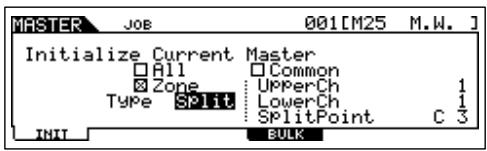
When Type is set to "Split"
Set the UpperCh (MIDI transmit channel of the upper range), LowerCh (MIDI transmit channel of the lower range), and Split Point (which separates the keyboard into the upper range and lower range).
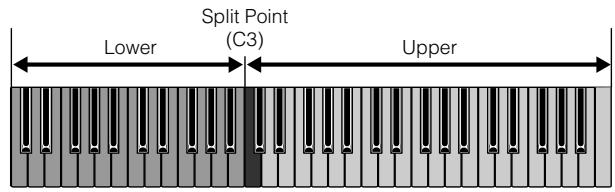
When Type is set to "Layer"
Set the UpperCh (MIDI transmit channel of Zone 1) and LowerCh (MIDI transmit channel of Zone 2).
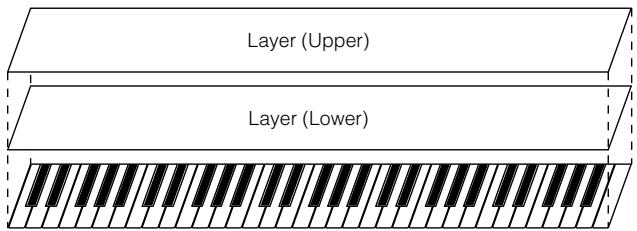
5 Press the [ENTER] button. (The display prompts you for confirmation.)
To cancel the Job, press the [DEC/NO] button.
6 Press the [INC/YES] button to execute the Job.
After the Job has been completed, a "Completed" message appears and operation returns to the original display.
CAUTION
Keep in mind that the Job may take a short time to complete, during which an "Executing." or "Please keep power on" message may be shown. Never attempt to turn off the power while data is being written to Flash ROM while such a message is displayed. Turning the power off in this state results in loss of all user data and may cause the system to freeze (due to corruption of data in the Flash ROM). This may also result in the MOTIF ES being unable to properly start up the next time the power is turned on.
Quick Guide — Computer applications
Although the MOTIF ES is a powerful instrument in its own right and can effectively be used by itself for music creation and production, it is also designed for easy and comprehensive interfacing with a computer system. In this section, we'll show you how set up the instrument with a computer (via USB) and how to use it with the software provided on the included CD-ROM, "Tools for MOTIF ES."
- Note For information on how to install each software and the minimum system requirements, refer to the separate Installation Guide.
- NOTE About how to use each software, refer to the relevant documentation (PDF manual or on-line Help).
5Note By installing an optional mLAN16E board and using the mLAN connection with your computer, you can transfer both audio and MIDI data between the devices over the same mLAN cable. See page 39.
Setting up
1 Confirm the minimum system requirements of the software you wish to use.
- For software on the included "Tools for MOTIF ES" CD-ROM (Voice Editor, USB MIDI driver, etc.), refer to the separate Installation Guide.
- For other software, refer to the relevant manual or documentation.
2 Connect the computer to the instrument with a USB cable.
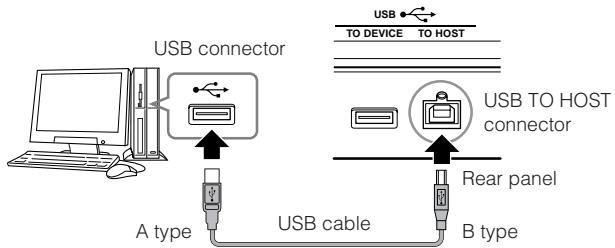
5. NOTE You can also connect the instrument to a computer by using MIDI cables (page 40) or IEEE1394 cable (page 39).
3 MOTIF ES" CD-ROM into the CD drive of the computer.
4 Turn the power of the MOTIF ES on.
5 Install the USB MIDI driver to the computer.
- For a computer running Windows, the Add New Hardware Wizard may appear on the computer display. In this case, install the driver following the on-screen instructions. For details, refer to the separate Installation Guide.
-
For a Macintosh computer, install OMS then install the USB MIDI driver. Refer to the separate Installation Guide.
-
NOTE If you have installed the optional mLAN16E and are connecting the instrument to a computer with an IEEE 1394 cable, you'll need to install the mLAN driver.
6 Install the desired software to the computer.
- To install software from the included "Tools for MOTIF ES" CD-ROM (Voice Editor, SQ01, etc.), refer to the separate Installation Guide.
- To install other software, refer to the relevant manual or documentation.
7
Set the MIDI IN/OUT parameter to "USB" ([UTILITY] [F5] MIDI [SF4] OTHER), then press the [ENTER] button to store the Utility settings.
![YAMAHA MOTIF ES6 - Set the MIDI IN/OUT parameter to "USB" ([UTILITY] [F5] MIDI [SF4] OTHER), then press the [ENTER] button to store the Utility settings. - 1](/content/2025/01/114832/images/05ae22f7f63c1acd28e1f8da0c2ad67b3b8129546bc02f111632c8def06cd0f3.jpg)
CAUTION
The settings in the Utility mode are stored as system settings to internal Flash ROM. Never attempt to turn off the power while data is being written to Flash ROM (while a "Please keep power on" message is shown). Turning the power off in this state results in loss of all user data and may cause the system to freeze (due to corruption of data in the Flash ROM). This may also result in the MOTIF ES being unable to properly start up the next time the power is turned on.
Controlling the instrument from a computer
Using a sequencer to play multiple Voices on the MOTIF ES
The sequence software program SQ01 contained in the included CD-ROM lets you create and edit multi-part song data — which can be played using the sounds of the MOTIF ES.
1 Follow the instructions described in "Setting up for using a computer" (page 142) then install the SQ01 to the computer.
Refer to the separate Installation Guide.
2 Start the SQ01 on the computer then set all MIDI-related parameters, including synchronization.
For details on the MIDI settings, refer to the separate Installation Guide.
For details on synchronization settings, refer to the on-line help of the SQ01.
3 Open the desired song file on the SQ01.
From the "File" menus on the SQ01, select "Open" to call up the dialog box. Then select the desired song file.
4 Set the MIDI Sync parameter to "MIDI" and SeqCtrl to "in" in the SYNC display ([UTILITY] [F5] MIDI [SF3] SYNC).
These settings make it possible for the Songs and Patterns on the MOTIF ES to start, play and stop in exact synchronization with the external controlling device (in this case, the computer sequencer).
Press the [SONG] button to enter the Song mode.
6 Start the song playback on the SQ01.
Click the [▶] (Play) button on the SQ01 to start the selected song.
TIP Recording sequencer song data to Song tracks on the MOTIF ES
If you have MIDI sequence data on your computer and want to use it as a Song on the MOTIF ES, you can play back the data on a MIDI sequencer (such as the SQ01) and record it to the MOTIF ES.
1 Follow the instructions described in "Setting up for using a computer" (page 142).
2 Start the SQ01 on the computer then set all MIDI-related parameters, including synchronization.
For details on the MIDI settings, refer to the separate Installation Guide.
For details on synchronization settings, refer to the online help of the SQ01.
3 Open the desired song file on the SQ01.
From the "File" menus on the SQ01, select "Open" to call up the dialog box. Then select the desired song.
4 Set the MIDI Sync parameter to "MIDI" and the SeqCtrl to "in" in the SYNC display ([UTILITY] [F5] MIDI [SF3] SYNC).
These settings make it possible for the Songs and Patterns on the MOTIF ES to start, play and stop in exact synchronization with the SQ01.
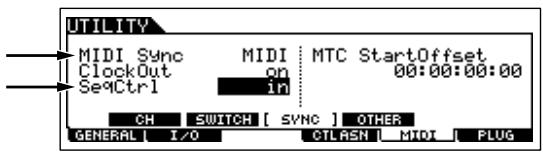
5 Press the [SONG] button to enter the Song Play mode, then select a Song to be recorded.
6 Press the [●] (Record) button to enter the Song Record mode.
7 Set RecTrack to "multi."
This setting makes it possible to record MIDI sequence data to 16 tracks simultaneously.
8 Start song playback on the SQ01.
Song recording on the MOTIF ES automatically starts at the same time.
9 Stop the song playback on the SQ01.
Song recording on the MOTIF ES automatically stops at the same time.
10 Save the recorded song on the MOTIF ES.
Before selecting a different Song, store the Mixing settings as Song data (page 131).
Before turning the power off, save the recorded Song to a SmartMedia/USB storage device (page 132).
Using the Multi Part Editor to create/edit Mixing settings
The Multi Part Editor software (included on the CD-ROM) provides an intuitive way to create and edit the Mixing settings of the currently selected Song or Pattern. Thanks to the easy-to-understand graphical interface, you can edit virtually all of the Mixing parameters right from your computer – using the mouse to adjust the virtual knobs, sliders, and buttons and entering values from the computer keyboard.
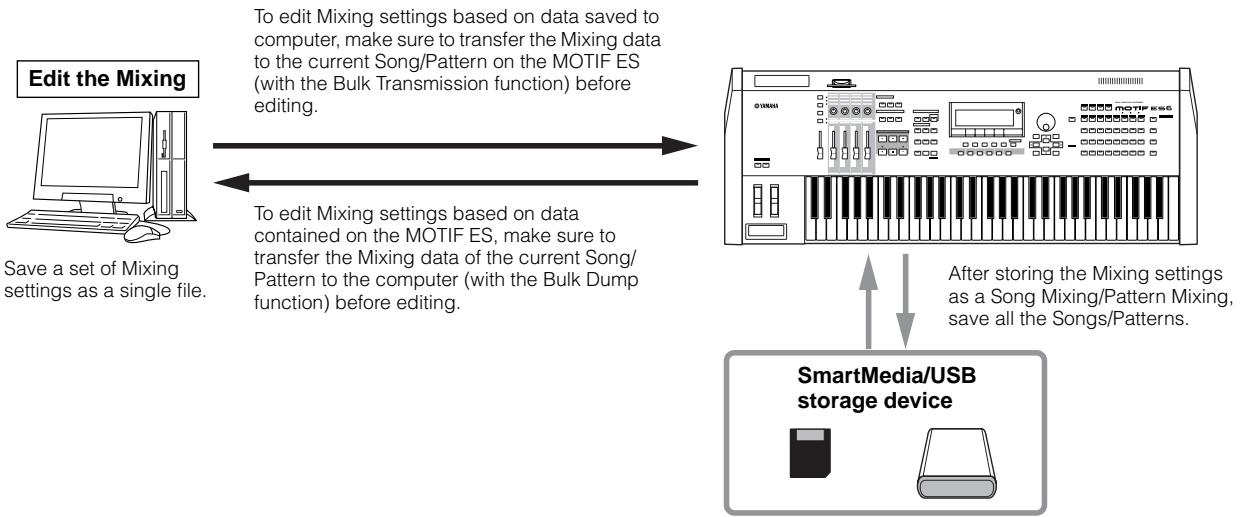
5Note If you want to assign a User Voice to a Part, make sure to transfer the User Voice data on the MOTIF ES to the computer (with the Bulk Dump function) before editing parameters on the Multi Part Editor.
5. Note Parts to which Mixing Voices have been assigned cannot be edited with the Multi Part Editor.
1 Follow the instructions described in “Setting up for using a computer” (page 142) then install the Multi Part Editor to the computer.
For details about how to install the Multi Part Editor, refer to the separate Installation Guide.
2 Enter the Song mode or Pattern mode on the MOTIF ES, then select the desired Song or Pattern.
3 Start the Multi Part Editor on the computer.
Refer to the PDF manual of the Multi Part Editor.
4 Set the MIDI related parameters on the Multi Part Editor.
Refer to the PDF manual of the Multi Part Editor.
5 Edit the parameters on the Multi Part Editor to create your original Mixing.
Refer to the PDF manual of the Multi Part Editor.
6 Check the results of your edits by playing the Song/Pattern or playing the keyboard on the MOTIF ES.
7 Store the edited Mixing settings to the current Song Mixing/Pattern Mixing.
Press the [MIXING] button then [STORE] button to enter the Song Mixing mode/Pattern Mixing mode, then press the [ENTER] button to execute the Store operation.
8 Save all the songs or patterns to a SmartMedia/ USB storage device.
5 Notes You can store the settings as a Mixing Template. See page 132.
9 Also save the edited data as a Multi Part Editor file to your computer's hard disk.
Using the Voice Editor to create/edit a Voice
The Voice Editor software (included on the CD-ROM) provides an intuitive way to create and edit Voices for the MOTIF ES.
Thanks to the easy-to-understand graphical interface, you can edit virtually all of the Voice parameters right from your computer – using the mouse to adjust the virtual knobs, sliders, and buttons and entering values from the computer keyboard.
Library file = Voice Editor file (extension: W7E)
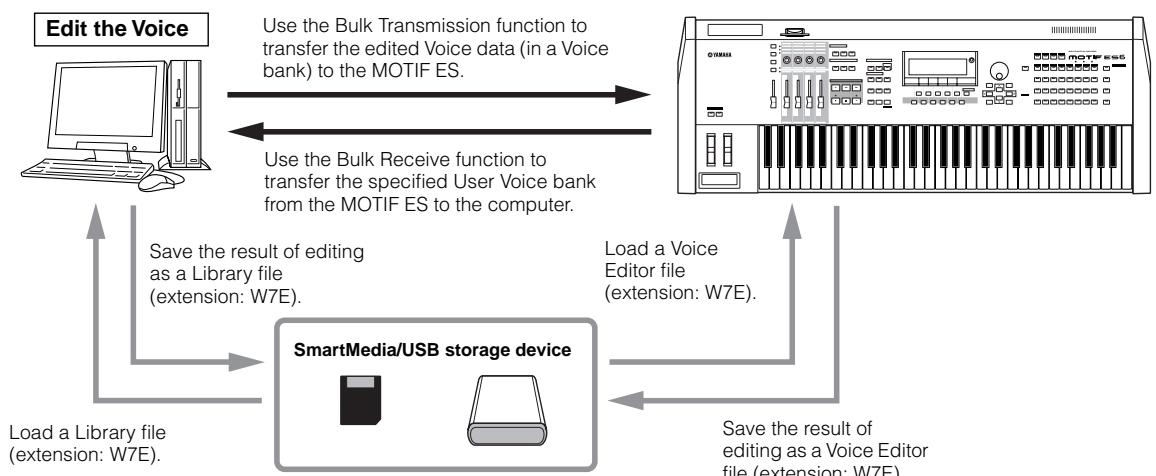
All voices stored on internal User memory are saved to a single file which can be loaded to the Voice Editor on the computer.
1 Follow the instructions described in “Setting up for using a computer” (page 142) then install the Voice Editor to the computer.
For details about how to install the Voice Editor, refer to the separate Installation Guide.
2 Enter the Voice mode on the MOTIF ES, then start the Voice Editor on the computer.
Refer to the PDF manual of the Multi Part Editor.
3 Set the MIDI related parameters on the Voice Editor.
Refer to the PDF manual of the Voice Editor.
4 Call up the Voice data to be edited on the Voice Editor.
Create a new Library file or open an existing Library file. To edit data contained on the MOTIF ES, use the Bulk Receive function to transfer User Voice data to the computer. For details, refer to the PDF manual of the Voice Editor.
5 Edit the parameters on the Voice Editor to create your original Voice.
Refer to the PDF manual of the Voice Editor.
6 After editing the Voice, store the data, then transfer it to the MOTIF ES with the Bulk Transmission function on the Voice Editor.
Refer to the PDF manual of the Voice Editor.
CAUTION
The Bulk Transmission from the computer to the MOTIF ES will erase (overwrite) the destination Voice Bank data on the MOTIF ES. If you wish to maintain the voices of the destination Bank, save the Voice data to a SmartMedia/USB storage device before executing Bulk Transmission.
7 Save the edited data as a Library file to your computer's hard disk.
8 Check the results of your edits by selecting the User Voice and playing the keyboard in the Voice Play mode.
Editing Plug-in Voices and Board Voices
As described on page 76, the voices of a Plug-in Board installed to the MOTIF ES can be divided into two types: Board voices and Plug-in voices. Plug-in Voices can be edited in the Voice Edit mode on the MOTIF ES or can be edited by using the Voice Editor on the computer. Board Voices, however, are edited using the dedicated editor software contained on the included CD-ROM, "TOOLS for Modular Synthesis Plug-in System."
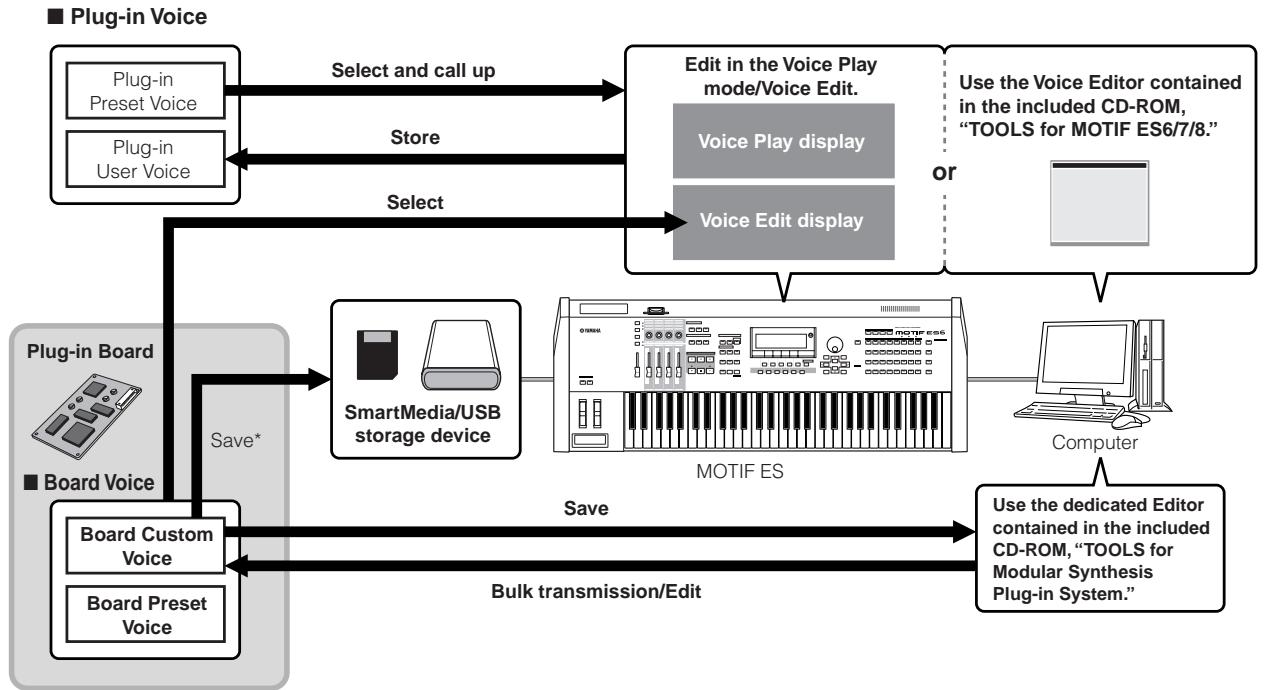
* Set the file type to Plugin All Bulk 1, 2 or 3 (file extension: W2B)
Using the TWE Wave Editor to edit Samples
The TWE wave editing software (included on the CD-ROM) lets you edit audio on your computer and save them as samples for use with the MOTIF ES. Thanks to the easy-to-understand graphical interface, you can edit virtually all of the wave parameters right from your computer.
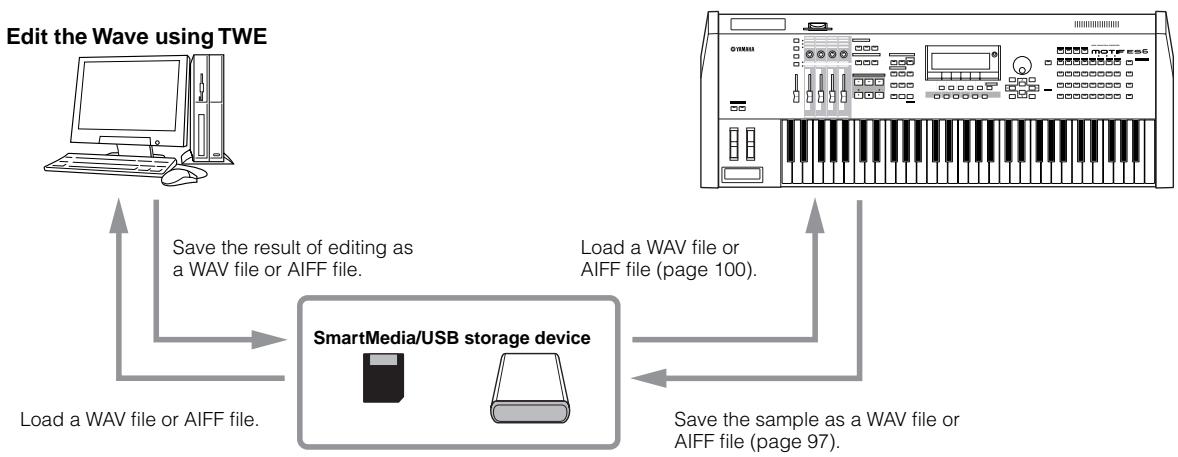
Note For details on how to install TWE and the minimum system requirements, refer to the separate Installation Guide.
- Note For information on how to use TWE, refer to the TWE manual (PDF format) on the CD-ROM.
Controlling a computer from the instrument
As you've seen in previous sections, the MOTIF ES can be controlled from a computer. In this section, we'll see how it can do the opposite — control the operation of music/audio software on the computer. This powerful feature lets you control two different software programs by using knobs, sliders and buttons on the panel of the MOTIF ES, rather than your computer's mouse and keyboard. The MOTIF ES can be used to control DAW (digital audio workstation) software, such as Cubase SX and SONAR, as well as the Multi Part Editor program (contained on the included CD-ROM). The Remote Control function emulates popular hardware controllers such as the Yamaha 01X, letting you use the panel buttons/controllers on the MOTIF ES for controlling your music/audio software.
As shown in the example below, the MOTIF ES uses two of the four available USB ports to control two different software programs, while the two remaining ports handle MIDI sequence data.
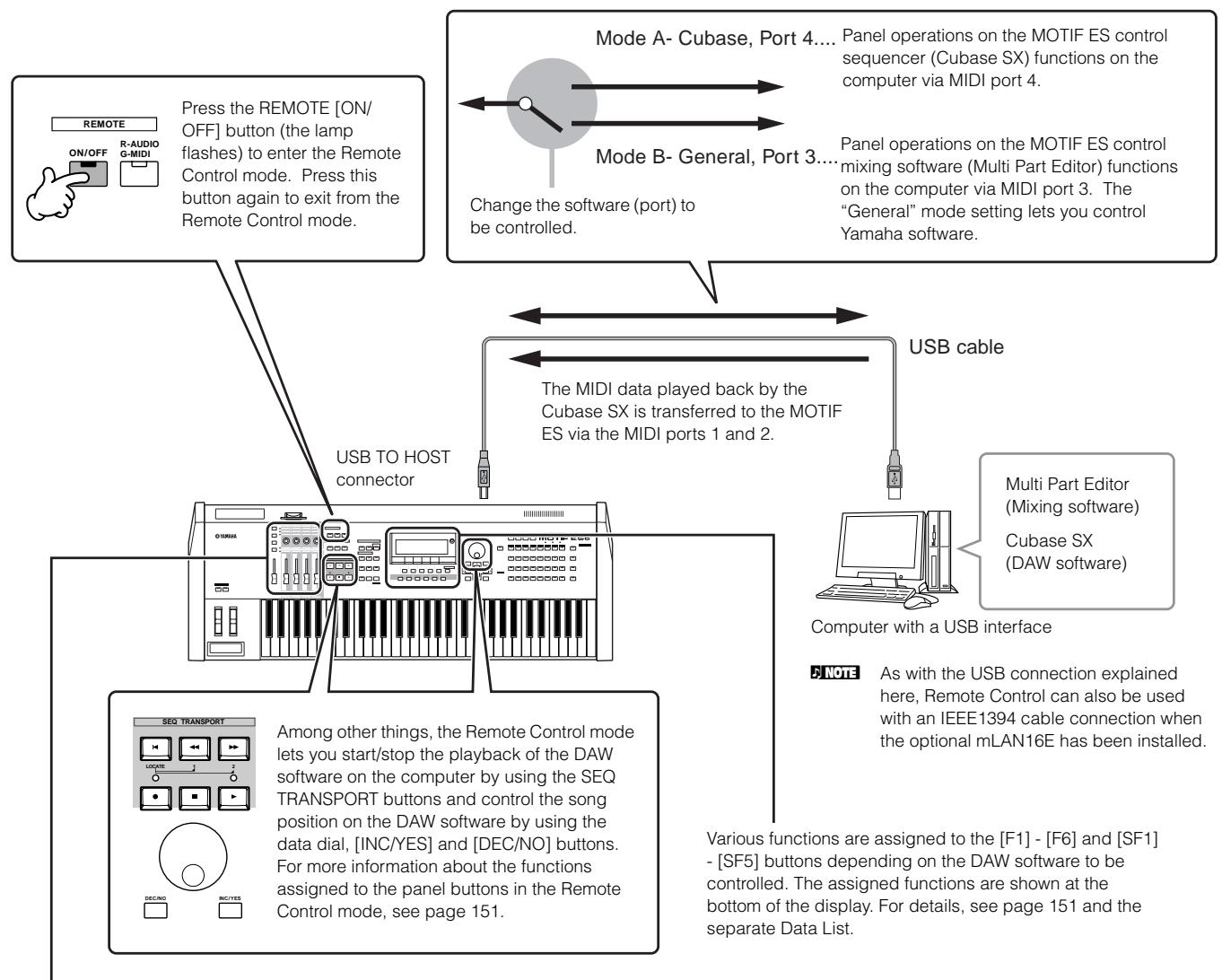
The functions of eight knobs/faders on the emulated hardware controllers (such as the Yamaha 01X) are assigned to the four Knobs/Slides on the MOTIF ES. Pressing the [SF5] button changes which group's functions (1 - 4 or 5 - 8) are assigned to the four Knobs/Slides.
The eight knobs on the emulated hardware controllers (such as the Yamaha 01X) can also be used as switches. However, since the four Knobs on the MOTIF ES do not have switch capability, the [PRE1] - [PRE4] buttons are used instead. While the eight knobs on the emulated devices have "endless" rotary control, the four Knobs on the MOTIF ES stop at certain points. For some parameters this may mean that the value may not reach to the minimum and maximum points. If this occurs, you can use the data dial to adjust the value as desired. The data dial is active for the parameter corresponding to the Knob last turned.
Computer Software that can be controlled from the instrument
For Windows
For Macintosh
| SQ01 V2 |
| Cubase SX |
| SONAR 2.0 |
| Multi Part Editor for MOTIF-RACK |
| Multi Part Editor for MOTIF ES6/7/8 |
Logic 5.5
Digital Performer 3.1
Setting up for Remote Control
Setting up on the MOTIF ES
1
Set the MIDI IN/OUT parameter to "USB" ([UTILITY] [F5] MIDI [SF4] OTHER), When connecting the computer to the MOTIF ES via mLAN (with the optional mLAN16E installed), set this parameter to "mLAN."
2
Call up the Remote Control Setup display by pressing the [F4] CTL ASN button, followed by the [SF4] REMOTE button.
3
Set the software to be controlled and Port number, referring to the illustration on the previous page.
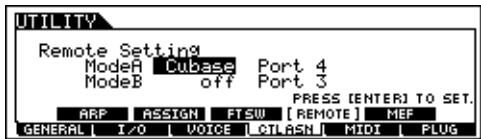
4
Press the [ENTER] button to actually call up the settings made in step #3 above.
5
Press the [STORE] button to store the settings made in steps #1 and 4 above.
CAUTION
The settings in the Utility mode are actually stored on internal User memory (Flash ROM) by pressing the [STORE] button. Please keep in mind that the settings will be lost if you turn off the power without executing the Store operation.
CAUTION
The settings in the Utility mode are stored as system settings to internal Flash ROM. Never attempt to turn off the power while data is being written to Flash ROM (while a "Please keep power on" message is shown). Turning the power off in this state results in loss of all user data and may cause the system to freeze (due to corruption of data in the Flash ROM). This may also result in the MOTIF ES being unable to properly start up the next time the power is turned on.
Setting up on the computer
1
After following the instructions in "Setting up for using a computer" on page 147, install the desired software to your computer.
For details on the Yamaha software contained in the included CD-ROM, refer to the separate Installation Guide.
2
Enter the Song mode or Pattern mode on the MOTIF ES, then start the software on the computer.
For instructions on how to start the software, refer to the relevant documentation.
3
Set the parameters related to MIDI and Remote Control on the computer software.
Set the MIDI port, referring to the illustration on the previous page.
For details, refer to the documentation of the particular software. Instructions on how to set up the various software follow on the next page.
Cubase SX
Pull down the [Devices] menu and select [Device Setup] to call up the "Device Setup" window.
2 Click the [Add/Remove] tab and add the "Mackie Control."
3 Select the added Mackie Control device and click the [Setup] tab.
4 When setting the Port to "4," for example, in step #3 of "Setting up on the MOTIF ES," set the MIDI Input to "YAMAHA USB IN 0-4" and the MIDI Output to "YAMAHA USB OUT 0-4."
- NOTE The functions of buttons on the Mackie Control are assigned to the buttons of the MOTIF ES, with the exception of UserA and UserB (FootSw) which are not supported by the MOTIF ES.
■ SONAR
Pull down the [Options] menu and select [MIDI Devices] to call up the "MIDI Devices" window.
2 When setting the Port to "4" for example in step #3 of "Setting up on the MOTIF ES," add "YAMAHA USB IN 0-4" to the "Inputs" and add "YAMAHA USB OUT 0-4" to the "Outputs."
3 Pull down the [Options] menu and select [Control Surfaces] to call up the Control Surface window.
4 Click the "New" icon, select "Mackie Control," then set the Input Port to "YAMAHA USB IN 0-4" and the Output Port to "YAMAHA USB OUT 0-4" (for example, when setting the Port to "4" in step #3 of "Setting up on the MOTIF ES").
Digital Performer
Pull down the [Basics] menu and select [Control Surface Setup] to call up the "Control Surface" window.
2 Select "Mackie Control" in the Driver section. If Mackie Control is not available here, see the supplementary instructions below.
3 In the box for setting "Unit" and "MIDI," select "Mackie Control" in the "Unit" section and select the MIDI port in the "MIDI" section.
When you cannot select "Mackie Control" in step #2:
1) Download the Mackie Control Plug-in software from "www.motu.com" and save it to your hard disk.
2) Move the Mackie Control file to the "Plug-ins" folder contained in the folder to which Digital Performer has been installed.
3) Start Digital Performer.
- Mackie Control is the trademark of Mackie Designs, Inc.
Logic
When turning on the power of the MOTIF ES before starting Logic:
1 Set the software to be controlled to "Logic" in the Utility mode, then enter the Remote Control mode.
2 Start Logic on the computer.
Logic automatically recognizes the MOTIF ES and performs the required settings.
When starting Logic before turning on the power of the MOTIF ES:
1 Start Logic on the computer, then turn the power to the MOTIF ES on.
If you have already set the software to be controlled to "Logic" in the Utility mode, you need not perform step #2 because Logic automatically recognizes the MOTIF ES when this step is performed.
2 Set the software to be controlled to "Logic" in the Utility mode, then enter the Remote Control mode.
Logic automatically recognizes the MOTIF ES and performs the required settings.
If for some reason Logic fails to recognize the MOTIF ES, follow the instructions below.
1) Select [Option] [Preference] [Control Surface] [Install] from the menu.
2) Scan Logic Control on the window called up in step #1). When the scanning is successful, the Logic recognizes the MOTIF ES and performs the required settings automatically.
If Logic still fails to recognize the MOTIF ES even after performing the above instructions, follow the instructions below.
1) Select [Option] [Preference] [Control Surface] [Install] from the menu.
2) Add Logic Control on the window called up in step #1).
3) Specify the Input Port and Output Port on the CONTROL SURFACE SETUP window called up in step #2).
- Logic Control is the registered trademark of Emagic, Inc.
■ SQ01
For information about how to set the MIDI port, refer to the separate Installation Guide. For information on using Remote Control, follow the instructions below.
1 Select [Setup] [Remote Control] to call up the Remote Control Setup window.
2 Select "01X" as mode, then set the Input Device/Output Device to the appropriate port number.
Functions assigned to the panel buttons in the Remote Control mode
To enter the Remote Control mode, press the REMOTE [ON/OFF] button (the lamp flashes). The REMOTE display appears (like those shown below), and the panel controls are enabled for Remote operation of the computer software (their normal functions are disabled).
Press this button again to exit from the Remote Control mode.
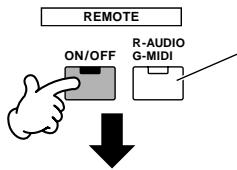
This button is available when the Mode is set to "General" and is used to switch between editing audio tracks (lamp is red) and MIDI tracks of the sequence software (lamp is green).
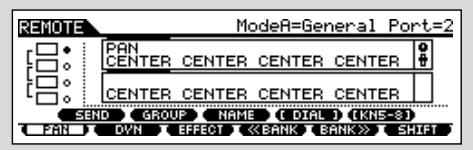
Mode A
Changing the Mode (Changing the software to be controlled)
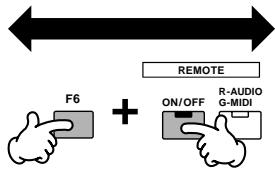
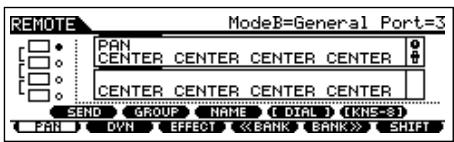
Mode B
Change the Mode by pressing the REMOTE [ON/OFF] button while holding the [F6] SHIFT button.
Press the [KNOB
CONTROL FUNCTION]
button to change the
functions assigned to the
[F1] - [F6] and [SF1] -
[SF5] buttons (shown at the bottom of the
display).
Refer to the separate
Data List.
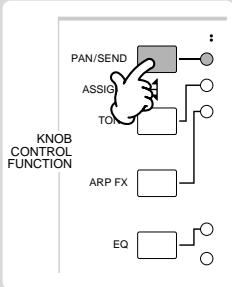
This is the cursor which indicates the currently edited track/part by the knob/slide.
Controlling the knob/slider moves the cursor to the
corresponding track/part automatically. You can also
move the cursor by using the Cursor [<] and [>] buttons.

When [<<BANK] and [BANK>>] are shown here, you can use the [F4] and [F5] buttons to change the bank of eight tracks/parts (shown in the display) to be controlled.
Controlling the knob may change the [SF4] menu to indicate [DIAL]. When [DIAL] is shown here, the function of the last operated knob is assigned to the data dial, [INC/YES] and [DEC/NO] buttons. If you wish to restore these to the original function (song position control), press the [SF4] button to delete the [DIAL] menu.
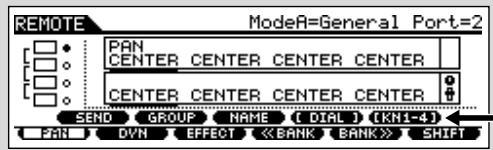
Parameters and their values controlled by knobs/ sliders are shown in two rows, in the boxes.
NOTE
Parameter names are shown according to the information transferred from the DAW software on the computer. The characters may be garbled depending on the DAW software or OS language of your computer.
To switch the cursor between the upper and lower row, press the [SF5] button.
The following explains which sequencer functions are assigned to which panel controls in the Remote Control mode.
SEQTRANSPORTbuttons
The Remote Control mode lets you start/stop playback of the DAW software on the computer by using the SEQ TRANSPORT buttons and control the song position on the DAW software by using the data dial, [INC/YES] and [DEC/ NO] buttons.
- Note When the cursor is shown at any track/part in the boxes of two rows of the LCD display, the data dial, [INC/YES] and [DEC/NO] buttons function as the last operated knob and cannot be used to control the song position. To restore these to the original song position control, press the Cursor [ ] / [ ] buttons several times or press the [SF4] button (if the [DIAL] menu is shown) to delete the cursor.
Knob, Data dial, and [PRE1] - [PRE4] buttons
The functions of eight knobs on the emulated hardware controllers (such as the Yamaha 01X) are assigned to the four Knobs on the MOTIF ES. Pressing the [SF5] button changes which group's functions (1 - 4 or 5 - 8) are assigned to the four Knobs. When [<
The eight knobs on the emulated hardware controllers (such as the Yamaha 01X) can also be used as switches. However, since the four Knobs on the MOTIF ES do not have switch capability, the [PRE1] - [PRE4] buttons are used instead. For convenience, the switch function corresponding to the last Knob operated is also assigned automatically to the [ENTER] button.
While the eight knobs on the emulated devices have "endless" rotary control, the four Knobs on the MOTIF ES stop at certain points. With some parameters this may mean that the value may not reach to the minimum and maximum points. If this occurs, you can use the data dial to adjust the value as desired. For convenience, the data dial is active for the parameter corresponding to the Knob last turned.
- Note To restore the function of the data dial, [INC/YES] and [DEC/NO] buttons to the original song position control, press the [SF4] button (if the [DIAL] menu is shown) to delete the cursor.
Control Sliders
The functions of eight faders on the Mackie Control, Logic Control and 01X are assigned to the four Sliders on the MOTIF ES. Pressing the [SF5] button changes which group's functions (1 - 4 or 5 - 8) are assigned to the four Sliders. When [<
[F1] - [F6] buttons and [SF1] - [SF5] buttons
The functions assigned to these buttons depends on the selected Mode (A or B) and the particular software being used (as set in step #3 in "Setting up on the MOTIF ES" on page 148).
When the Mode is set to "General," these buttons are assigned to perform the same functions as panel buttons on the Yamaha 01X, for controlling various Yamaha music/audio software. The corresponding names of the 01X panel buttons are also indicated at the bottom of the display of the MOTIF ES.
When the Mode is set to "Logic," these buttons are assigned to perform the same functions as panel buttons on the Logic Control, for controlling Logic on the computer. The corresponding names of the Logic Control panel buttons are also indicated at the bottom of the display of the MOTIF ES.
When the Mode is set to "Cubase" or "SONAR" or "D.Perf," these buttons are assigned to perform the same functions as panel buttons on the Mackie Control, for controlling the corresponding software on the computer. The corresponding names of the Mackie Control panel buttons are also indicated at the bottom of the display of the MOTIF ES.
The function assignment can be changed by pressing the [KNOB CONTROL FUNCTION] buttons.
The function assignment tables of the [F1] - [F6] buttons and [SF1] - [SF5] buttons for each DAW software are contained in the separate Data List.
- NOTE Among the functions assigned to the [F1] - [F6] buttons and [SF1] - [SF5] buttons, the functions indicated with brackets (such as [DIAL]) are not related to the Mackie Control, Logic Control and 01X but are unique to the MOTIF ES.
Data dial, [INC/YES] and [DEC/NO] buttons
Although the data dial and [INC/YES]/[DEC/NO] buttons are generally to change the song position on the DAW software, when you turn one of the Knobs on the MOTIF ES, the control function assigned to that Knob is automatically assigned to these panel controls as well, and the [DIAL] menu appears (at the [SF4] button). In this condition, these controllers cannot be used to control the song position. To restore the function of the data dial, [INC/YES] and [DEC/NO] buttons to the original song position control, press the [SF4] button (if the [DIAL] menu is shown) to delete the [DIAL] menu.
Cursor [<] and [>] buttons
By moving the cursor left/right, you can change the track or part to controlled by the data dial and [INC/YES]/[DEC/NO] buttons. For example, when the cursor is at the upper box in the display, pressing the Cursor [> button moves through the columns in succession (1, 2, 3, 4...). After 4, the cursor is hidden and wraps around to 1. When the cursor is shown in the display, the parameter at which the cursor is located can be edited by the data dial, [INC/YES] and [DEC/NO] buttons. When the cursor is hidden, the data dial and [INC/YES]/[DEC/ NO] buttons can be used for their normal function — controlling the song position.
Cursor [ ] and [ ] buttons
When the Mode is set to "General," the Cursor [] /[v] buttons perform the same function as that of the DISPLAY [] /[v] buttons on the 01X.
When the Mode is set to something other than "General," the Cursor []/[] buttons perform the same function as that of the Cursor []/[] buttons on the Mackie Control and Logic Control.
[EXIT] button
When the Mode is set to "General," this button performs the same function as that of the [PAGE SHIFT] button on the 01X. When the Mode is set to something other than "General," the button has no control function.
■ BANK, GROUP and NUMBER button
These buttons are assigned to perform the same functions as the buttons directly over the faders on the 01X, Mackie Control and Logic Control.
| [PRE1] - [PRE4] buttons | The eight knobs on the 01X, Mackie Control and Logic Control can also be used as switches. However, since the four Knobs on the MOTIF ES do not have switch capability, the [PRE1] - [PRE4] buttons are used instead. |
| [PRE5] - [PLG3] buttons | The functions of the eight [REC/RDY] buttons on the Mackie Control and Logic Control are assigned to these buttons. Please note that these buttons are not available when the Mode is set to “General.” |
| [A] - [H] buttons | The functions of the eight [SOLO] buttons on the Mackie Control and Logic Control are assigned to these buttons. Please note that these buttons are not available when the Mode is set to “General.” |
| [1] - [8] and [TRACK SELECT] buttons | When the Mode is set to “General,” the functions of the nine [SEL] buttons on the 01X are assigned to these buttons. When the Mode is set to something other than “General,” the functions of the eight [MUTE] buttons on the Mackie Control and Logic Control are assigned to the [1] - [8] buttons. |
| [9] - [16] and [MUTE] buttons | When the Mode is set to “General,” the functions of the nine [ON] buttons on the 01X are assigned to these buttons. When the Mode is set to something other than “General,” the functions of the eight [SELECT] buttons on the Mackie Control and Logic Control are assigned to the [9] - [16] buttons. |
Checking the Remote Control assignments
If you're unsure as to which software function has been assigned to a particular panel control on the MOTIF ES, this convenient feature lets you quickly check it from the display.
In the Remote Control mode, press the [INFORMATION] button to call up the information display, indicating the function of the last pressed button.
2 Press the button for which you want to check the assignment.
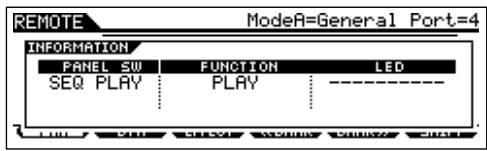
This display shown above appears when you press the [▶] (Play) button of SEQ TRANSPORT. In this way, you can check each button's control assignment simply by pressing it.
3 Press the [INFORMATION] button again to return to the Remote Control mode.
- NOTE While the Information display is shown, the panel buttons cannot be used to control the computer software.
Recording the sounds of the MOTIF ES to computer via mLAN
By using the optional mLAN16E interface and an IEEE 1394 cable connection, you can record multitrack audio from the MOTIF ES to an mLAN-compatible DAW (digital audio workstation) program on your computer. This lets you transfer the audio data of multi-part Songs on the MOTIF ES to the DAW application for further editing and storage on your computer's hard disk drive.
In the example instructions below, Song playback and/or your keyboard performance in the Song mode can be recorded to the computer, on separate tracks of the DAW application.
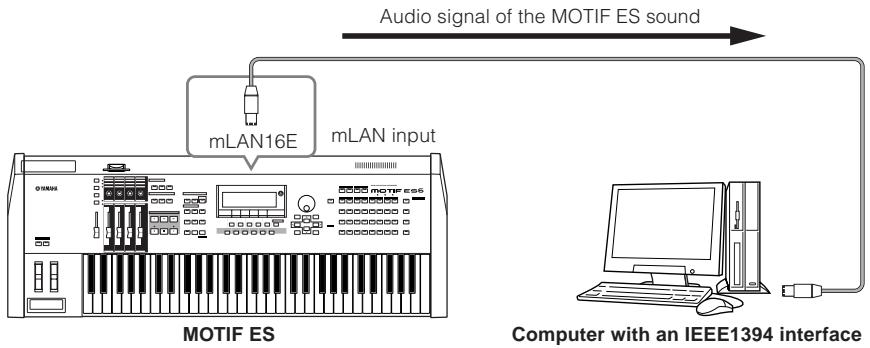
Setup for connecting the computer to the MOTIF ES via mLAN
Setup on the MOTIF ES
Install the optional mLAN16E to the MOTIF ES (page 288).
2 After turning the power on, set the MIDI IN/OUT parameter to "mLAN" ([UTILITY] [F5] MIDI [SF4] OTHER).
3 Press the [SONG] button to enter the Song mode and select the desired Song for playback, or the particular Mixing settings you want to use.
4 Set the mLAN MonitorSw parameter to "on" ([UTILITY] [F2] I/O [SF2] OUTPUT).
When this parameter is set to on, the audio signal output via mLAN to the computer is also output to the external audio equipment via the main OUTPUT L/MONO and R jacks. This allows you to monitor the sound going to the computer with a set of headphones.
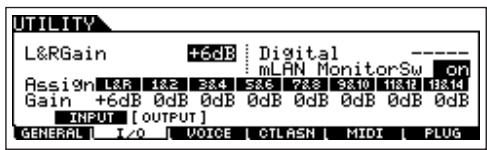
5 Determine the Output connector or channel of audio signal for each part.
Make the desired OutputSel parameter settings ([SONG] [MIXING] [EDIT] Part selection [F2] OUTPUT [SF3] SELECT). For example, set the OutputSel parameter for Part 1 to "as1&2," Part 2 to "as3&4," and Part 3 to "as5&6." These settings (as1&2, as3&4, etc.) indicate the hardware output jacks on the optional AIEB2, when the device has been installed. When the mLAN16E is
installed, these indicate the different audio channels within the single mLAN connection.
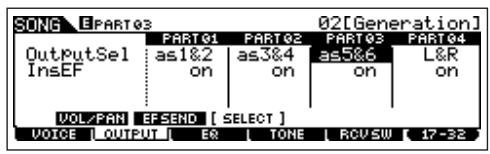
Setup on the computer
1 Connect the computer to the MOTIF ES using an IEEE1394 cable.
2 Install all necessary software to the computer, including the mLAN driver.
Refer to the relevant documentation for the mLAN16E.
3 Install an mLAN-compatible audio sequencer or DAW application to the computer.
Refer to the separate Installation Guide for information on how to install mLAN-compatible Yamaha applications.
4 Set the audio related parameters on the DAW software.
Refer to the relevant documentation for the particular software.
Executing the Hard Disk Recording
After completing the setup described above, try out to record your keyboard performance to the hard disk of the computer by using the DAW software. For details about how to execute this, refer to the relevant document of the software.
Basic Structure
This section gives you an easy-to-understand overview of the MOTIF ES — its wide range of sophisticated features, its MIDI control and performance functions, and its convenient file management system for original data you've created with the instrument.
Internal Structure (System Overview)
This synthesizer is made up of several blocks, as shown here.
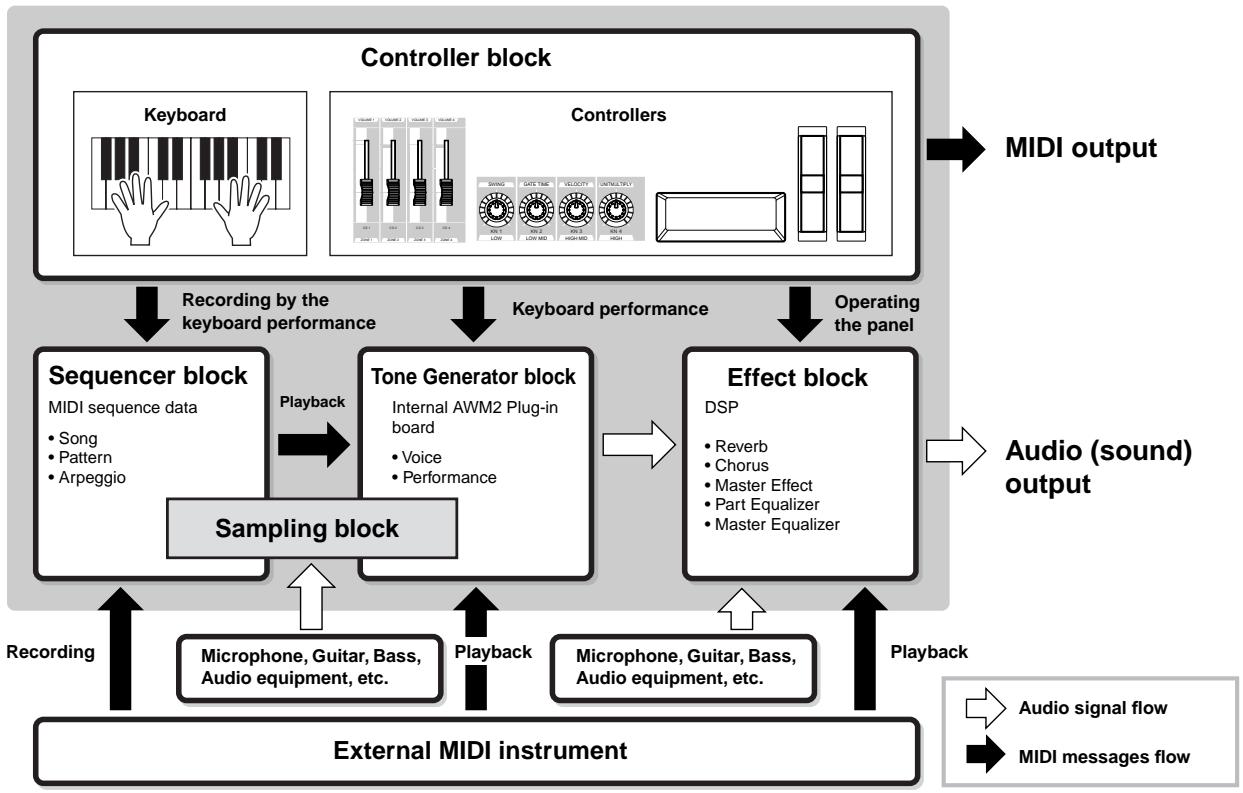
Controller Block
This block consists of the keyboard, Pitch Bend and Modulation Wheels, Ribbon Controller, Knobs, Control Sliders and so on.
The keyboard itself doesn't generate sounds, but instead generates/transmits note on/off, velocity and other information (MIDI messages) to the synthesizer's tone generator block when you play notes. The controllers also generate/transmits MIDI messages.
The synthesizer's tone generator block produces the sound according to the MIDI messages transmitted from the keyboard and controllers.
Controller supported by the MOTIF ES
The controllers you can use on this synthesizer and the reference pages are as follows:
- Controllers with which the MOTIF ES is equipped
Keyboard (Initial Touch, Aftertouch) page 18
Pitch Bend Wheel page 64
Modulation Wheel.. page 64
Ribbon Controller.. page 65
Knob (KN) page 50
Control Slider (CS). page 51
- Controllers (sold separately) that can be connected to the rear panel of the MOTIF ES
Foot Controller page 42
Footswitch page 42
Breath Controller.. page 42
Controller related parameters in each mode
The chart below shows the operations for calling up the Controller related parameters in each mode. Parameters for the Footswitch and the Assign Knobs A/B apply to the entire instrument, regardless of the selected program (Voice/Performance/ Song/Pattern).
| Voice mode | Controller Set (for each Voice) | [VOICE] → Voice selection → [EDIT] → [COMMON] → [F4] CTL SET | See below. |
| Assigning the Control Change number to each Controller (for all Voices) | [VOICE] → [UTILITY] → [F3] VOICE → [SF4] CTL ASN | Page 262 | |
| Performance mode | Assigning the Control Change number to each Controller (for each Performance) | [PERFORM] → Performance selection → [EDIT] → [COMMON] → [F4] CTL ASN | Page 214 |
| Song mode | Assigning the Control Change number to each Controller (for each Song Mixing) | [SONG] → Song selection → [MIXING] → [EDIT] → [COMMON] → [F4] CTL ASN | Page 234 |
| Pattern mode | Assigning the Control Change number to each Controller (for each Pattern Mixing) | [PATTERN] → Pattern selection → [MIXING] → [EDIT] → [COMMON] → [F4] CTL ASN | Page 248 |
| All modes | Assigning the function and Control Change number to the Assign Knob A/B | [UTILITY] → [F4] CTL ASN → [SF2] ASSIGN | Page 263 |
| Assigning the function and Control Change number to the Footswitch (connected to the ASSIGNABLE connector) | [UTILITY] → [F4] CTL ASN → [SF3] FT SW | Page 263 |
Controller Set
[VOICE] Voice selection [EDIT] [COMMON] [F4] CTL SET
Page 192
Aside from their default control parameters, the controllers of the instrument, such as the Pitch Bend wheel and the Modulation wheel, can be freely assigned to a variety of different parameters. For example, you could assign Resonance to the Modulation Wheel and set aftertouch to apply vibrato. These settings for all the controllers are referred to as a "Controller Set," and up to six Controller Sets can be created for each Voice.
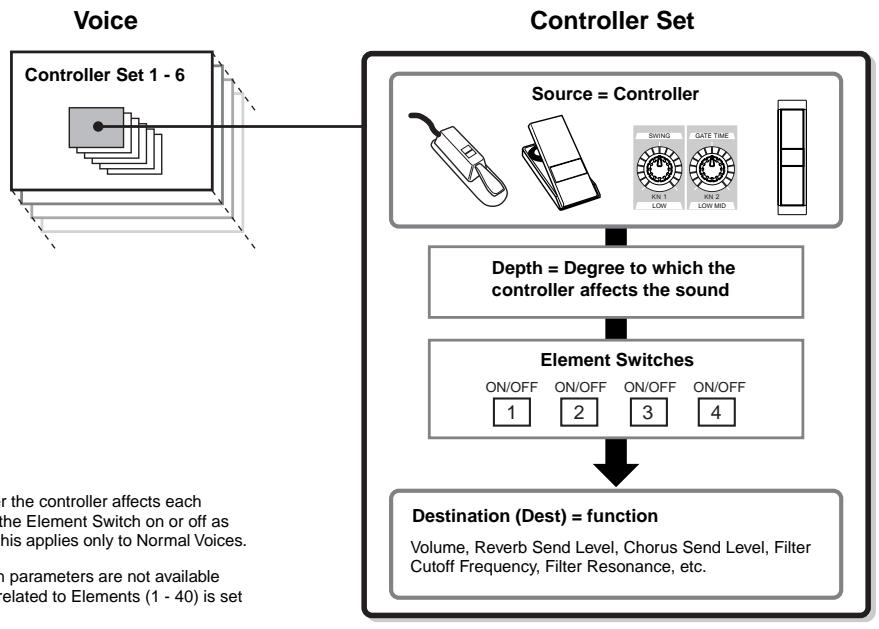
Source and Destination
“source” refers to the hardware controller and “destination” refers to the parameter or function being controlled. An extensive variety of destination parameters are available, far more than those listed above. For a complete list of destination parameters, see the separate Data List.
- Using one source to control several destinations
For example, set the Source parameter of Control Set 1 to MW (Modulation Wheel) and the Destination parameter to ELFO-PM (Element LFO Pitch Modulation Depth). Then set the Source parameter of Control Set 2 also to MW, but set the Destination parameter to ELM PAN (Element Pan). You will also need to specify the Element to be controlled and also the depth (amount) of control.
In this example, when you move the Modulation Wheel upward, the amount of Pitch Modulation increases accordingly, and the Element is panned from left to right. In this way, you can have the sound change in several different ways, simply by adjusting a single controller.
- Using several sources to control one destination
For example, set the Source parameter of Control Set 1 to MW (Modulation Wheel) and the Destination parameter to ELFO-PM (Element LFO Pitch Modulation Depth). Then set the Source parameter of Control Set 2 to FC (Foot Controller) and set the Destination parameter also to ELFO-PM (Element LFO Pitch Modulation Depth).
Now, Pitch Modulation is assigned to both the Modulation Wheel and Foot Controller. In this way, you can have several different controllers affect the same aspect of the sound. This can be useful in live performance situations, letting you use any one of several controllers depending on which is convenient at the time.
The Controller Set edited in the Voice Edit mode is available when the corresponding Voice is selected in the Performance mode, Song mode, and Pattern mode.
The function assigned to the Controller by the Controller Set function can be applied only to the internal tone generator block. Operating the Controller will transmit the MIDI message (Control Change Number assigned below) to the external MIDI instrument.
Assigning Control Change numbers to the controllers
The functions assigned to the controllers by the Controller Set function can be applied only to the internal tone generator block. For connected external MIDI instruments, use of the controllers generates MIDI Control Change messages, as shown in the chart below.
| Controller | Generated MIDI message | Display |
| Aftertouch | Channel Aftertouch (DnH) | - |
| Pitch Bend Wheel | Pitch Bend (EnH) | - |
| Modulation Wheel | Control Change (BnH, 01H) | - |
| Footswitch (connected to the SUSTAIN connector)* | Control Change (BnH, 40H) | - |
| ASSIGN Knob A, B* | Control Change (BnH) | [UTILITY] → [F4] CTL ASN → [SF2] ASSIGN |
| Footswitch (connected to the ASSIGNABLE connector)* | Control Change (BnH) | [UTILITY] → [F4] CTL ASN → [SF3] FT SW |
| Ribbon Controller | Control Change (BnH) | [VOICE] → [UTILITY] → [F3] VOICE → [SF3] CTL ASN |
| ASSIGN Knob 1, 2 | [PERFORM] → Performance selection → [EDIT] → [COMMON] → [F4] CTL ASN | |
| Foot Controller 1, 2 | [SONG] → Song selection → [MIXING] → [EDIT] → [COMMON] → [F4] CTL ASN | |
| Breath Controller | [PATTERN] → Pattern selection → [MIXING] → [EDIT] → [COMMON] → [F4] CTL ASN |
- These Controllers are not used in the Controller Set function
As shown above, the keyboard Aftertouch, Pitch Bend Wheel, Modulation Wheel, Footswitch connected to the SUSTAIN connector, were originally designed for a particular purpose, and send pre-defined MIDI Control Change messages when used, regardless of their Control Set allocations within the synthesizer. For example, when the pan function is assigned to the Pitch Bend Wheel with the Controller Set, using the Pitch Bend Wheel will apply the pan function to the internal tone generator and will transmit the Pitch Bend messages to the external MIDI instrument.
Using the other controllers will transmit the Control Change messages set from the display shown above to the external MIDI instrument while it will apply the functions set via the Controller Set to the internal tone generator block.
You can also set up a controller such that it sends one kind of Control message to the synthesizer's internal tone generator yet another kind to the external MIDI instrument. For example, in a Controller Set you could assign Resonance to the ASSIGN Knob 1. Then, in the Utility mode, you could assign Control Change Number 1 (modulation) to the same knob. Now, when you turn the knob, resonance will be applied to the sound of the internal tone generator block; however, at the same time, modulation messages will be transmitted to the external MIDI instrument.
Tone Generator block
The Tone Generator block is what actually produces sound in response to the MIDI messages generated by playing the keyboard, using the controllers, and the playback of the sequencer (Song/Pattern/Arpeggio).
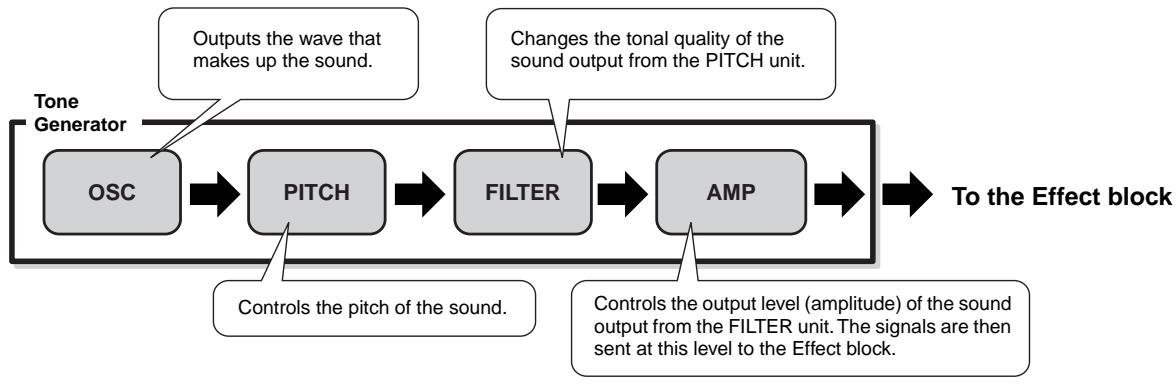
Internal AWM2 Tone Generator and optional Plug-in boards
The tone generator block in this synthesizer consists of the built-in AWM2 sound source and optional Plug-in Board(s).
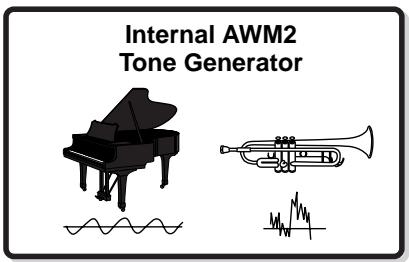
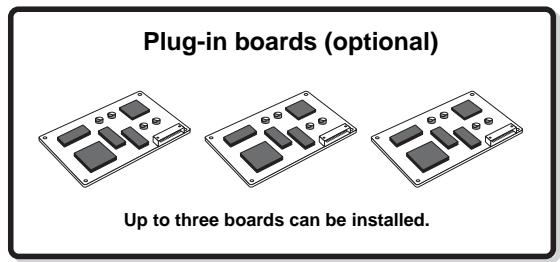
- AWM2 (Advanced Wave Memory 2)
AWM2 (Advanced Wave Memory 2) is a synthesis system based on sampled waves (sound material), and is used in many
Yamaha synthesizers. For extra realism, each AWM2 Voice uses multiple samples of a real instrument's waveform. Furthermore,
a wide variety of parameters - envelope generator, filter, modulation, and others - can be applied.
You can also create your own waves (Samples) via microphone or from external audio equipment by using the Sampling
function. These are then stored in internal memory (DRAM) and can be used just like the preset waves.
Plug-in Board
For details on using the optional Plug-in Boards for even more sounds, see page 74.
Voice, Performance, and Mixing
This instrument features three different types of programs, that form the basis for creating and playing sounds.
Voice
A program that contains the sonic elements for generating a specific musical instrument sound is referred to as a "Voice." Each Voice consists of up to four elements (Normal Voice) or up to 73 keys (Drum Voice). Each Voice is created by editing parameters unique to each element/ key and parameters common to all the elements/keys in the Voice mode (page 188) or in the Mixing Voice mode (page 249).
Performance
A program in which multiple Voices (parts) are combined in a layer, or in other configurations is referred to as a
"Performance." Each Performance can contain up to four different parts (Voices). Each Performance can be created by editing parameters unique to each part and parameters common to all the parts in the Performance mode (page 212).
- Mixing
A program in which multiple Voices are assigned to Parts for multi-timbral play in the Song and Pattern modes is referred to as a “Mixing.” Each Mixing can contain up to 34 parts (page 163). Each Mixing can be created by editing parameters unique to each part and parameters common to all the parts in the Song Mixing mode (page 233) or in the Pattern Mixing mode (page 248).
- NOTE The Mixing belongs to the Song or Pattern.
The illustration below shows the structure and interrelationship of the Voices, Performances, and Mixings.
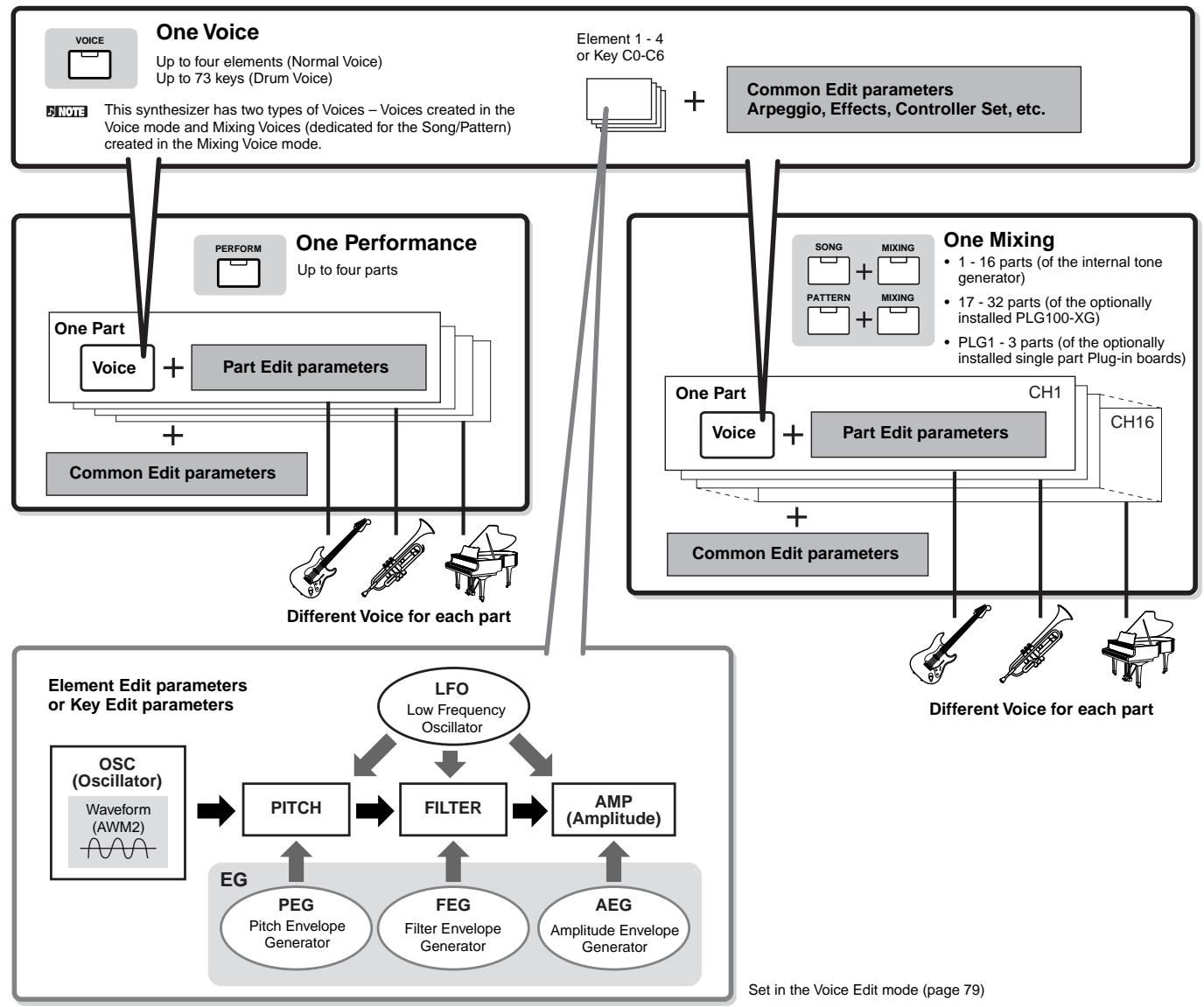
5. Note The Drum Voice Key Edit parameters do not contain LFO settings.
The following illustrations may help in understanding the memory structure of the Voices, Performances, and Mixings.
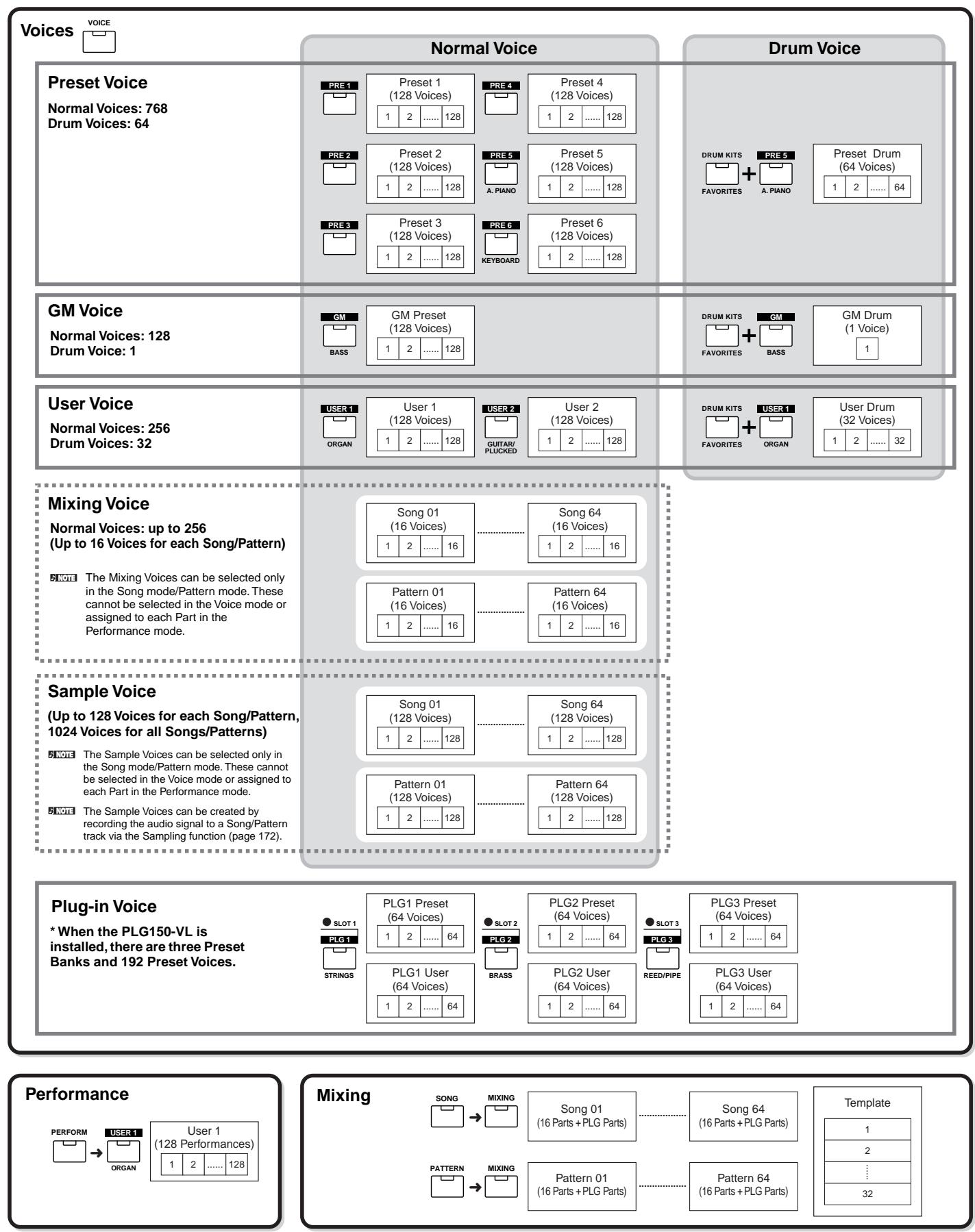
■ Normal Voices & Drum Voices
Internally, there are two Voice Types: Normal Voices and Drum Voices. Normal Voices are mainly pitched musical instrument-type sounds that can be played over the range of the keyboard. Drum Voices are mainly percussion/drum sounds that are assigned to individual notes on the keyboard. A collection of assigned percussion/drum waves or Normal Voices is known as a Drum Kit.
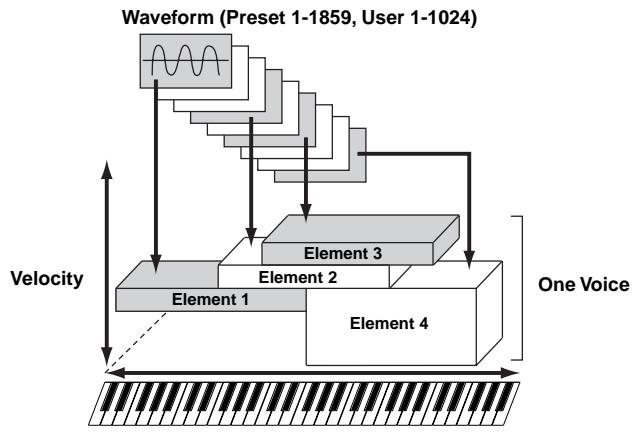
Normal Voice
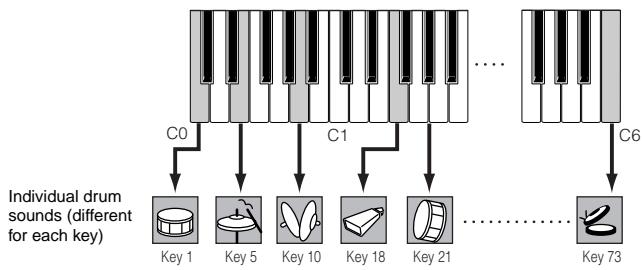
Drum Voice
GM Voices
GM (General MIDI) is a worldwide standard for Voice organization and MIDI functions of synthesizers and tone generators. It was designed primarily to ensure that any song data created with a specific GM device would sound virtually the same on any other GM device – no matter the manufacturer or the model. The GM Voice bank on this synthesizer is designed to appropriately play back GM song data. However, keep in mind that the sound may not be exactly the same as played by the original tone generator.
■ Tone generator parameters that produce the Voice sound
Among various parameters that makes up one Voice, Oscillator, Pitch, Filter, Amplitude, LFO and three Envelope Generators (PEG, FEG, AEG) shown in the illustration on pages 160-162 are the basic parameters for creating the Voice sound. Parameters about Oscillator, Pitch, Filter and Amplitude determine the three basic elements of the sound - Pitch (how low or high it is), Tone (or its overall sound quality), and Volume (how loud its volume level is) of the Voice. Parameters such as LFO and EG (Envelope Generator) determine the transition in these three basic elements of the sound from the moment the sound starts to the moment the sound stops.
In the sections that follow, we'll explain in detail about the sound-related parameters and provide an introduction to the basics of electronic synthesis.
Oscillator
VOICE] Voice selection [EDIT] Element selection/ Drum Key selection [F1] OSC
This unit outputs the wave which determines the basic pitch. You can assign the wave (or basic sound material) to each Element of the Normal Voice or each Key of the Drum Voice. In the case of the Normal Voice, you can set the note range for Element (the range of notes on the keyboard over which the Element will sound) as well as the velocity response (the range of note velocities within which the Element will sound). For example, you could set one Element to sound in an upper range of the keyboard, and another Element to sound in a lower range. Thus, even within the same Voice, you can have two different sounds for different areas of the keyboard or you can make the two Element ranges overlap so that their sounds are layered over a set range. Furthermore, you can set each Element to respond to different velocity ranges so that one Element sounds for lower note velocities, whereas another Element sounds for higher note velocities. See the illustration at left of this page.
NOTE
You can assign the wave with the following operation.
[VOICE] Voice selection [EDIT] Element selection/Drum Key selection [F1] OSC [SF1] WAVE
Strictly speaking, what is assigned here to an Element or Key is not a "wave" but a "waveform." The difference between the two terms is explained on page 173.
Pitch
[VOICE] Voice selection [EDIT] Element selection/ Drum Key selection [F2] PITCH
This unit controls the pitch of the sound (wave) output from the Oscillator. In the case of the Normal Voice, you can detune separate Elements, apply Pitch Scaling and so on. Also, by setting the PEG (Pitch Envelope Generator), you can control how the pitch changes over time.
PEG (Pitch Envelope Generator)
Using the PEG, you can control the transition in pitch from the moment the sound starts the moment the sound stops. You can create the PEG by setting parameters as illustrated below. When you press a note on the keyboard, the pitch of the Voice will change according to these envelope settings. This is useful for creating automatic changes in pitch, which is effective for the Synth Brass. Furthermore, different PEG parameters can be set for each Element or each Key.
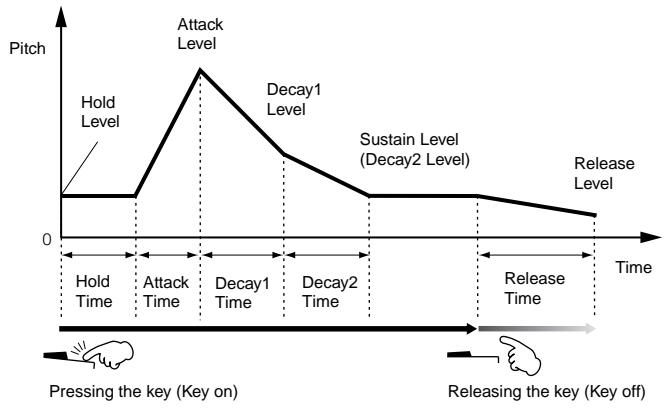
Filter
[VOICE] Voice selection [EDIT] Element selection/ Drum Key selection [F3] FILTER
This unit modifies the tone of the sound output from Pitch by cutting the output of a specific frequency portion of the sound.
Cutoff Frequency and Resonance
Here's how filters work. In the example below (a low pass filter), a portion of the signal lower than a given frequency is allowed to pass, and signals above that frequency are cut. This frequency is referred to as the cutoff frequency. You can produce a relatively bright or darker sound by setting the cutoff. Resonance is a parameter that boosts the level of the signal in the area of the cutoff frequency. By emphasizing the overtones in this area, this can produce a distinctive "peaky" tone, making the sound brighter and harder.
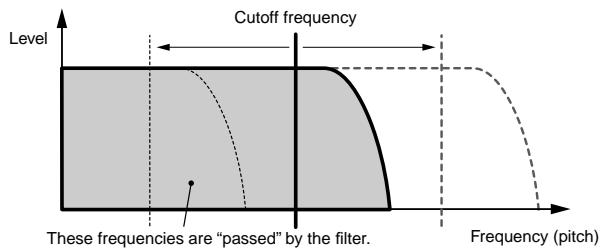
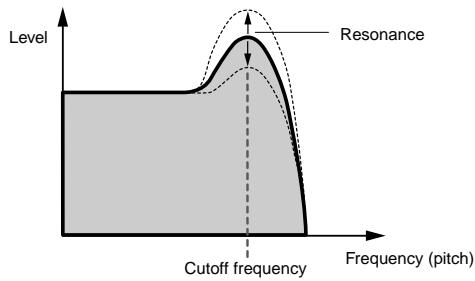
About the main Filter types
The Low Pass Filter is shown in the illustration above – however, this synthesizer features other Filter types (four total) as shown below.
- Low Pass Filter (above)
This passes only those signals below the Cutoff frequency. You can then use the Reso (Resonance) parameter to add further character to the sound.
High Pass Filter
This passes only those signals above the Cutoff frequency. You can then use the Reso (Resonance) parameter to add further character to the sound.
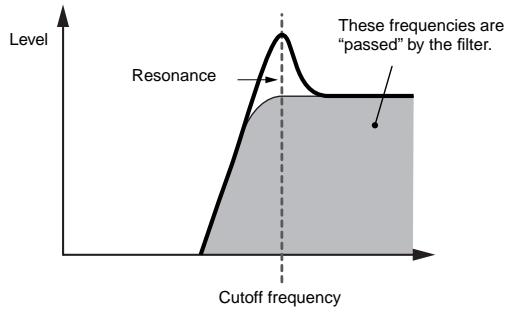
- Band Pass Filter
This passes only those a band of signals around the Cutoff frequency. The width of this band can be varied.
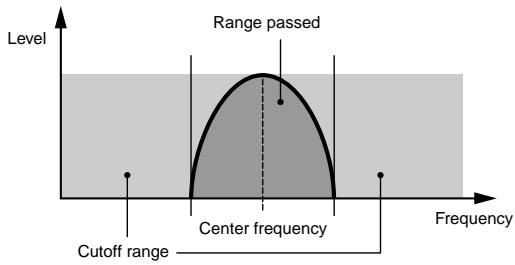
- Band Elimination Filter
This attenuates a band of signals around the Cutoff frequency, but passes everything else.
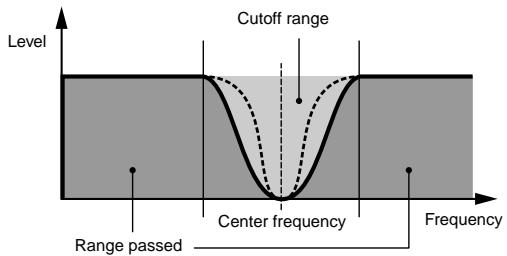
FEG (Filter Envelope Generator)
Using the FEG, you can control the transition in tone from the moment the sound starts to the moment the sound stops. You can create the FEG by setting parameters as illustrated below. When you press a note on the keyboard, the cutoff frequency will change according to these envelope settings. This is useful for creating automatic wah or filter sweep effects, for example. Furthermore, different FEG parameters can be set for each Element Key.
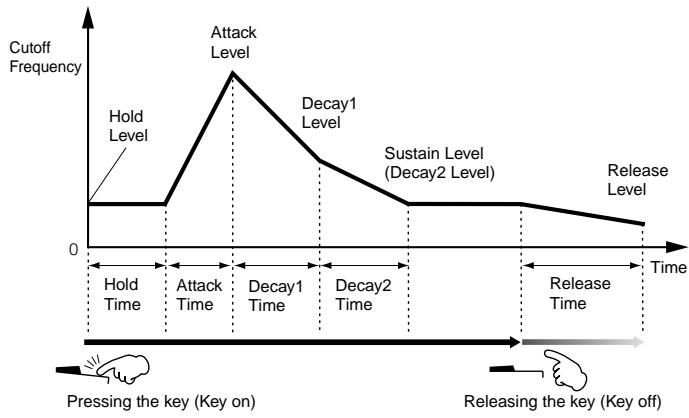
Amplitude
[VOICE] Voice selection [EDIT] Element selection/ Drum Key selection [F4] AMP
This unit controls the output level (amplitude) of the sound output from Filter. The signals are then sent at this level to the Effect block. Also, by setting the AEG (Amplitude Envelope Generator), you can control how the volume changes over time.
AEG (Amplitude Envelope Generator)
Using the AEG, you can control the transition in volume from the moment the sound starts is to the moment the sound stops. You can create the AEG by setting parameters as illustrated below. When you press a note on the keyboard, the volume will change according to these envelope settings. Furthermore, different AEG parameters can be set for each Element Key.
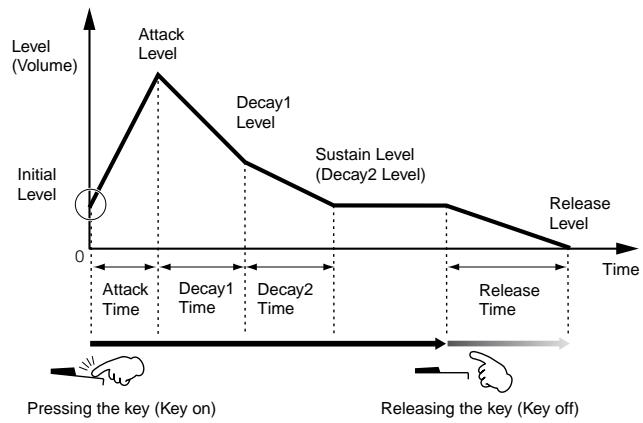
5. Note When you release the key while holding the Footswitch connected to the SUSTAIN connector, the sound will maintain at the Sustain Level shown above. For Voices having a Sustain Level value greater than 0, the sound continues. For Voices having a Sustain Level of 0, the sound decays naturally to silence.
LFO (Low Frequency Oscillator)
[VOICE] Voice selection [EDIT] Element selection/ Drum Key selection [F5] LFO
[VOICE] Voice selection [EDIT] [COMMON] [F5] LFO
As its name suggests, the LFO produces a wave of a low frequency.
These waves can be used to vary the pitch, filter or amplitude of each Element to create effects such as vibrato, wah and tremolo. LFO can be set independently for each Element; it can also be set globally for all Elements.
Single Timbre Tone Generator (Voice/ Performance mode) and Multi-timbral Tone Generator (Song/Pattern mode)
The internal tone generator block operates in two different ways (Single timbre and Multi-timbral) depending on the selected mode. The difference between the two is whether they can handle the multi-MIDI channels or not at the same time.
- Single Timbre Tone Generator (Voice/Performance mode)
A MIDI tone generator that receives over a single MIDI channel and plays a single instrument part is referred to as a "single timbre" tone generator. This is the operating status of the internal tone generator in the Voice and Performance modes.
- Note To set the MIDI receive channel for single timbre operation (Voice and Performance modes), use the following operation in the Utility mode. [UTILITY] [F5] MIDI [SF1] CH BasicRcvCh
- Multi-timbral Tone Generator (Song/Pattern mode)
A MIDI tone generator that simultaneously receives over multiple MIDI channels and plays multiple instrument parts is referred to as a "multi-timbral" tone generator. This allows playback of multi-channel MIDI song data — such as on a MIDI sequencer or computer — with each internal part being assigned to and played by a different track or channel. This is the operating status of the internal tone generator in the Song and Pattern modes.
Note To set the MIDI receive channel for multi-timbral operation (Song and Pattern modes), use the following operation in the Utility mode. [SONG] or [PATTERN] [MIXING] [EDIT] Part selection [F1] VOICE [SF2] MODE ReceiveCh
5 NOTE When using an external MIDI sequencer or computer to play this instrument, make sure to use the Song mode or Pattern mode.
Maximum Polyphony
Maximum polyphony refers to the highest number of notes that can be sounded simultaneously from the internal tone generator of the instrument.
The maximum polyphony of this synthesizer is 128. When the internal tone generator block receives a number of notes exceeding the maximum polyphony, previously played notes are cut off. Keep in mind this may be especially noticeable with Voices not having decay. Furthermore, the maximum polyphony applies to the number of voice elements used, not the number of voices. When the normal voices that include up to four elements are used, the maximum number of simultaneous notes may be less than 128.
- Note When the Plug-in board is installed, the maximum polyphony increases accordingly. For details on maximum polyphony for the Plug-in Boards, refer to the Owner's Manual of the particular board.
Part structure of the tone generator block
This synthesizer plays the sounds in the tone generator block in response to MIDI messages received from the controller or sequencer block. The MIDI messages are assigned to sixteen independent channels, and this synthesizer is capable of simultaneously playing sixteen separate parts, via the sixteen MIDI channels. However, the sixteen-channel limit can be overcome by using separate MIDI "ports," each supporting sixteen channels. The multiple sound sources of this synthesizer (internal tone generator and Plug-in Boards) take advantage of the three MIDI ports included on the instrument.
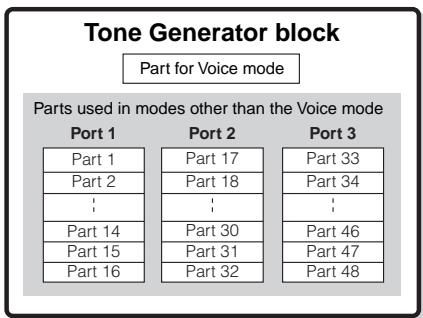
As shown in the above illustration, up to 48 parts are provided for the modes (excepting the Voice mode). However, the number of parts that are actually used is a maximum of 34 in the Song and Pattern modes, as we will see later in some examples.
- Note The USB cable supports up to eight separate MIDI ports. The Tone Generator block of this synthesizer supports three separate ports as illustrated above.
5 NOTE A single MIDI cable/connection cannot handle data over multiple MIDI ports.
Part structure of the tone generator block in the Voice mode
In this mode, a Voice is played from the keyboard, using a single part. This part is used also when the Plug-in Voice is selected. The tone generator block in the Voice mode receives MIDI data over a single channel. Keep in mind that song data on an external sequencer consisting of multiple MIDI channels will not play back properly in this mode. If you are using an external MIDI sequencer or computer to play the instrument, make sure to use the Song mode or Pattern mode.
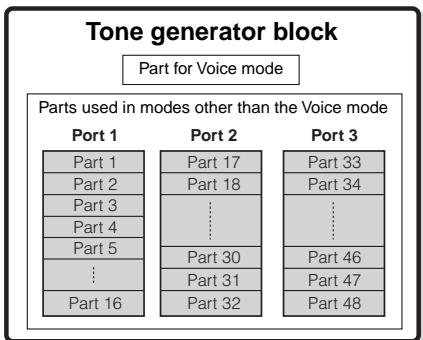

Parts 1-48 are not used.
Note3 The MIDI receive channel in the Voice mode can be set from the following display in the Utility mode.
[ \text{[UTILITY]} \rightarrow \text{[F5]} \text{MIDI} \rightarrow \text{[SF1]} \text{CH} \rightarrow \text{BasicRcvCh} ]
The MIDI port number which this synthesizer can recognize in the Voice mode is 1.
5. Note The Multi-Part Plug-in Board (PLG100-XG) cannot be used in the Voice mode.
■ Part structure of the tone generator block in the Performance mode
This mode lets you play a Performance (which multiple Voices (parts) are combined – in a layer, or in other configurations) using the keyboard. While a total of seven parts are available in this mode (as shown below), a maximum of four parts can be used simultaneously. Although this mode lets you play several parts at the same time, all are set to receive over the same single MIDI channel, as in the Voice mode. For this reason, song data on an external sequencer consisting of multiple MIDI channels will not play back properly in this mode. If you are using an external MIDI sequencer or computer to play the instrument, make sure to use the Song mode or Pattern mode.
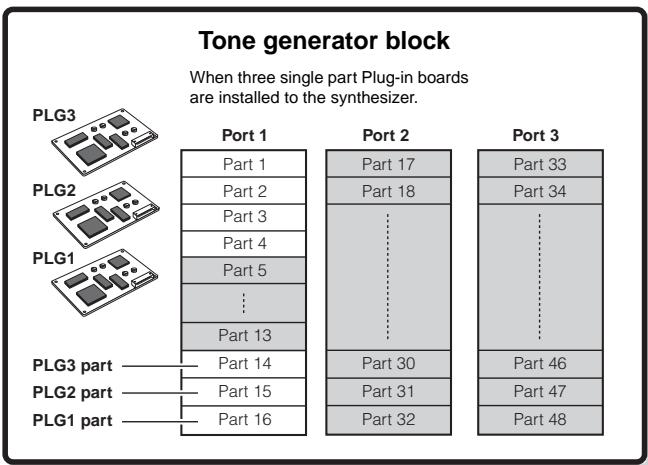

Parts 5-13 and 17-48 are not used.

These seven parts (1, 2, 3, 4, 14, 15, 16) are reserved for use in the Performance mode; however, only up to four of them can be used at the same time.
- Note The MIDI receive channel in the Performance mode can be set with the following operation in the Utility mode. [UTILITY] [F5] MIDI [SF1] CH BasicRcvCh In the Voice mode, the instrument recognizes only data over MIDI Port 1.
5.101 The Multi-part Plug-in Board (PLG100-XG) cannot be used in the Performance mode.
■ Part structure of the tone generator block in the Song mode/Pattern mode
In these modes, multiple parts are provided and different voice and different melodies or phrases can be played back for each part. Because these modes let you set the MIDI channel for each part of the tone generator block, you can use an external MIDI sequencer as well as the sequencer block of the instrument to play the sounds.
As illustrated below, the sequence data of each track plays the corresponding parts (those having the same MIDI channel assignment) in the tone generator block.
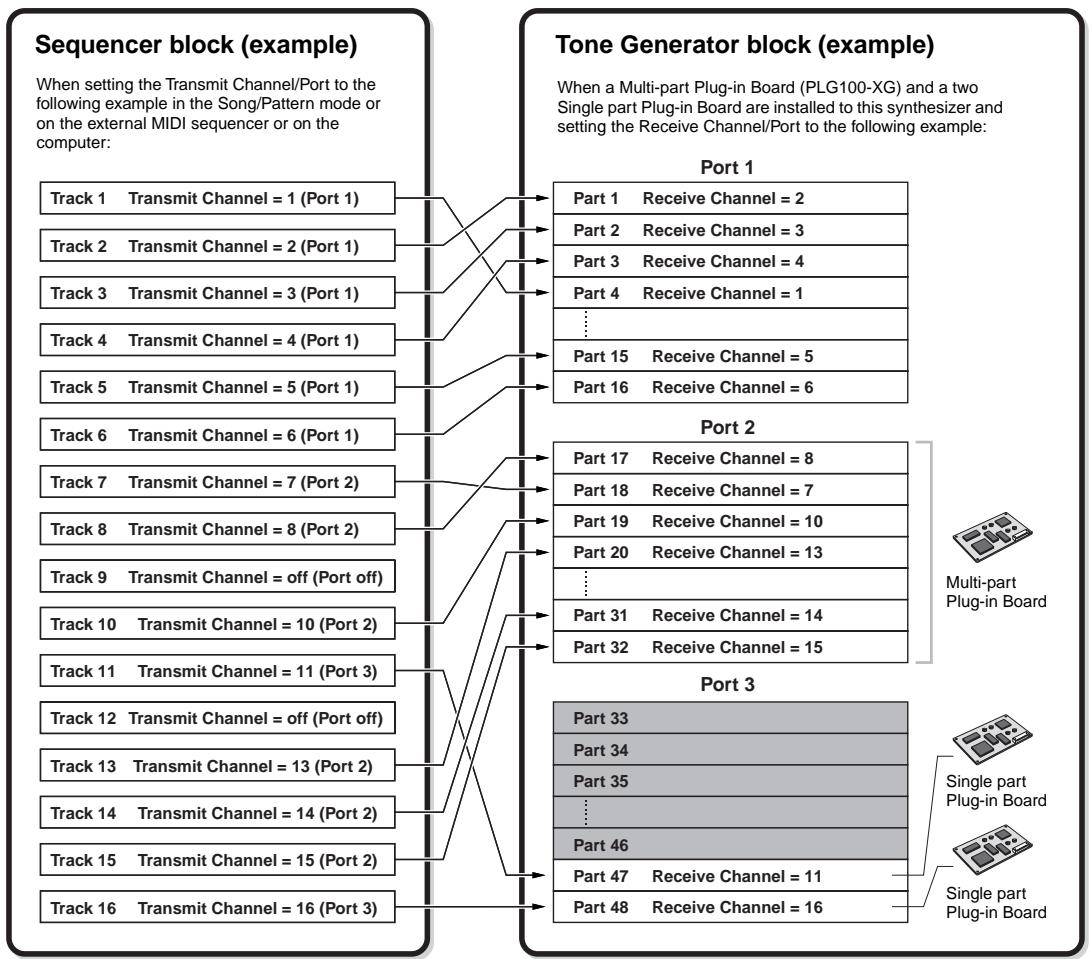

Parts 33-46 are not used.
The MIDI Transmit Channel/Port of the Song/Pattern can be set with the following operation.
In the Song mode: [SONG] Song selection [F3] TRACK [SF1] CHANNEL In the Pattern mode: [PATTERN] Pattern selection [F3] TRACK [SF1] CHANNEL
When sounding the internal tone generator block, assign the tracks to Transmit Port 1 and use Parts 1 - 16. Keep in mind that data over Transmit Ports 2 or 3 cannot sound the internal tone generator block. The tone generator of the installed Plug-in Board can be sounded via any of the MIDI ports 1 - 3.
The MIDI Receive Channel of the tone generator's part can be set with the following operation.
In the Song mode: [SONG] Song selection [MIXING] [EDIT] Part selection [F1] VOICE [SF2] MODE ReceiveCh In the Pattern mode: [PATTERN] Pattern selection [MIXING] [EDIT] Part selection [F1] VOICE [SF2] MODE ReceiveCh
You can set the port number assignment for the Plug-in Board with the following operation.
[ \text{[UTILITY]} \rightarrow \text{[F6]} \text{PLUG} \rightarrow \text{[SF2]} \text{MIDI} ]
- NOTE For details about MIDI, see page 181.
The Plug-in Board lets you use only a single Voice at the same time. Please note that you cannot assign multiple Voices of the Plug-in Board to multiple parts at the same time.
The Voice and related settings (volume, pan, etc.) are sounded by the keyboard according to the Part parameters in the Mixing settings of the current Song/ Pattern and Part. Other settings such as Controllers and Effect types correspond to the Common parameters in the Mixing settings of the current Song/ Pattern.
Audio Input Part (AUDIO IN)
The Performance mode, Song mode, and Pattern mode are capable of handling the audio input signal as a Part. Various parameters such as volume, pan, and effect can be set to this Part and the sound is output together with other Parts. Other available settings include how stereo input signals are handled, as well the output assignment of the audio Part. These parameters are set and stored for each Performance, Song Mixing, and Pattern Mixing. Please note that the Audio Input Part is not available in the Voice mode.
Among the following three types of Audio Input parts which this synthesizer can handle, two types (five stereo parts if the mLAN16E has been installed) can be handled at the same time, since the optional mLAN16E and AIEB2 cannot be installed together.
| A/D Input part | This part (one stereo part) is input from the external audio equipment connected to the A/D INPUT jack. |
| mLAN Input parts (when the optional mLAN16E has been installed) | These four stereo parts are input from external mLAN-compatible audio equipment connected to the mLAN jack via a single IEEE1394 cable. |
| AIEB2 parts (when the optional AIEB2 has been installed) | This part (one stereo part) is input from external audio equipment connected to the OPTICAL INPUT or the DIGITAL INPUT (Coaxial) connector. Either one of the connectors (OPTICAL or DIGITAL) can be used; however, both cannot be used at the same time. Select which connector is used for digital input with the following operation in the Utility mode. [UTILITY] → [F2] I/O → [SF1] INPUT → Digital |
Parameters for the above Parts can be set with the following operations.
| In the Performance mode | [PERFORM] → Performance selection→ [EDIT] → [COMMON] → [F5] AUDIO IN |
| In the Song mode | [SONG] → Song selection → [MIXING] → [EDIT] → [COMMON] → [F5] AUDIO IN |
| In the Pattern mode | [PATTERN] → Pattern selection → [MIXING] → [EDIT] → [COMMON] → [F5] AUDIO IN |
5Note Although the Insertion Effects of this synthesizer can be applied to the A/D Input Part, they cannot be applied to the mLAN Input part and the AIEB2 Input part.
Sequencer Block
This block lets you create songs and patterns by recording and editing your performances as MIDI data (from the controller block), then playing it back with the tone generator block. The sequencer block can be operated in the Song mode, in the Pattern mode, and with the Arpeggio feature. When a Song or a Pattern is played back, the musical data of each sequence track is transmitted to the tone generator block according to the Transmit Channel settings.
Songs can be played back only in the Song mode. They cannot be played back in other modes. Patterns can be played back only in the Pattern mode. They cannot be played back in other modes. Arpeggios can be played back in any modes.
Song and Pattern
Songs and Patterns are MIDI sequence data consisting of up to 16 tracks.
A Song on this synthesizer is effectively the same as a Song on a MIDI sequencer, and playback automatically stops at the end of the recorded data.
In the MOTIF ES, the term "Pattern" refers to a relatively short musical or rhythmic phrase — 1 to 256 measures — which is used for looped playback. Therefore, once Pattern playback starts, it continues until you press the [■] (Stop) button. This synthesizer features a variety of preset Phrase data that is used as the basic material in making up Patterns.
■ Song data structure
The following illustration shows the track structure of a Song. Songs are created by recording MIDI sequence data to individual tracks and by setting tone generator related parameters (in Song Mixing).
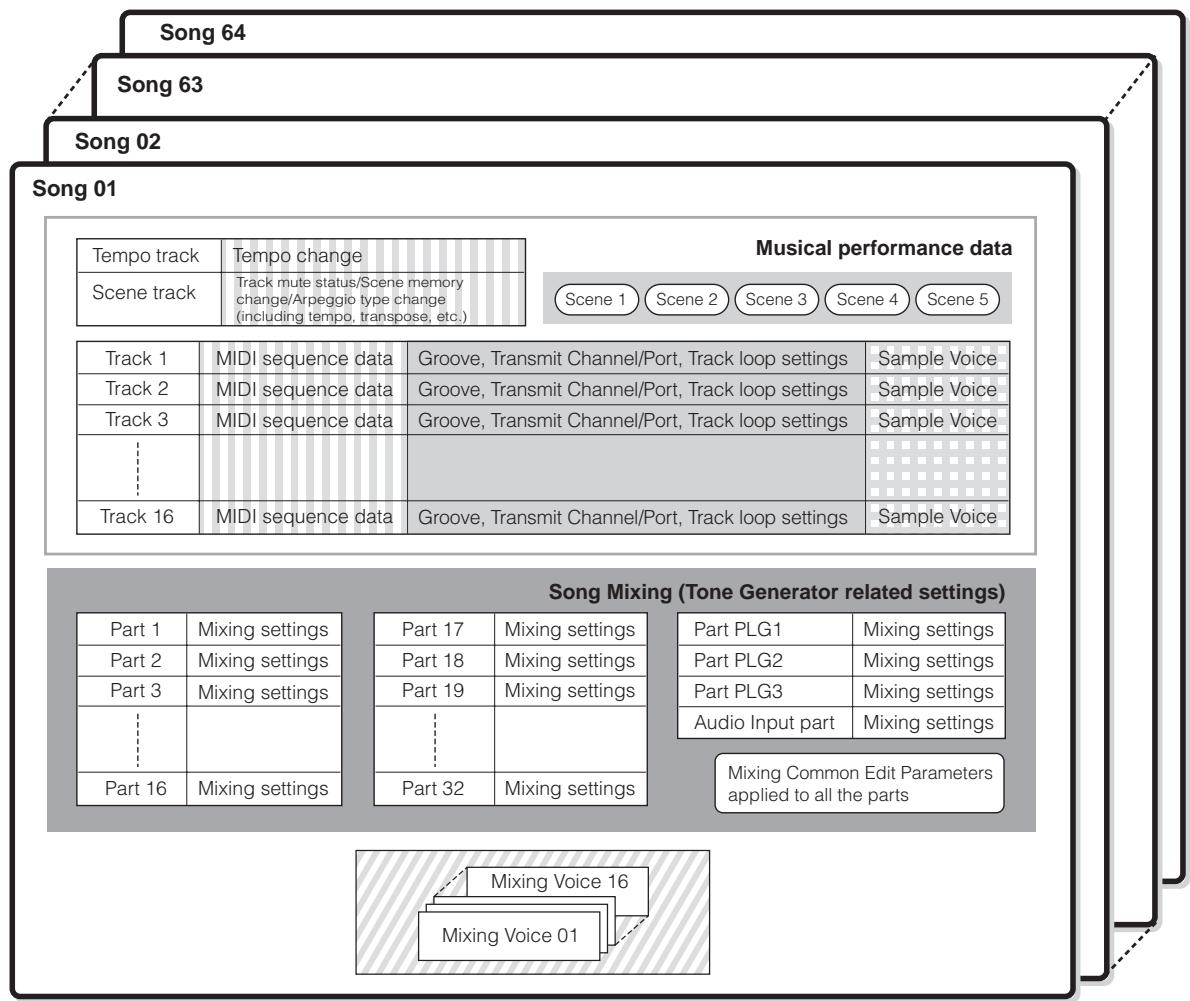
5Note Please note that the Multi-part Plug-in Part (17-32) settings apply not to one individual Song but to all 64 Songs.
Set in the Song Play mode
Created in the Song Record mode, Song Edit mode, and Song Job mode
Set in the Song Mixing mode and Song Mixing Edit mode
Created in the Mixing Voice Edit mode
Created in the Sampling mode entered from the Song mode
Song Mixing
Even if you record your keyboard performance to a Song track, the setup data (non-note events such as voice, pan, volume) which for proper playback should be recorded at the top of the Song will not be recorded to it. For this reason, the setup data handled as Song Mixing settings should be stored in the Song Mixing Store mode. Because the Song Mixing is a collection of settings related to the tone generator, it can be applied to the sequence data transmitted from the external MIDI sequencer as well as this synthesizer's Song playback.
- NOTE When the Multi-Part Plug-in Board PLG100-XG has been installed, Mixing of sixteen parts (17 - 32) can be set. Please note that the Multi-part Plug-in Part (17 - 32) settings apply not to one individual Song but to all 64 Songs.
- Scene
A Song Scene is a “snapshot” of important settings, and contains parameter settings such as transpose, tempo, and track mute and the tone generator related parameters controllable from the Knobs with the [PAN/SEND] or [TONE] lamp turned on, and the Control Sliders. Five settings can be registered to the [SF1] - [SF5] buttons for each Song.
Song Chain
This function allows songs to be "chained" together for automatic sequential playback. The Song Chain can be created and played back from the [SONG] [F6] CHAIN display. This instrument allows you to create one Song Chain data.

■ Pattern data structure
The following illustration shows the track structure of a Pattern. Patterns are created by recording MIDI sequence data to individual tracks, by assigning Phrases (Preset and User) which is material for a Pattern to individual tracks, and by setting tone generator related parameters (in a Pattern Mixing).
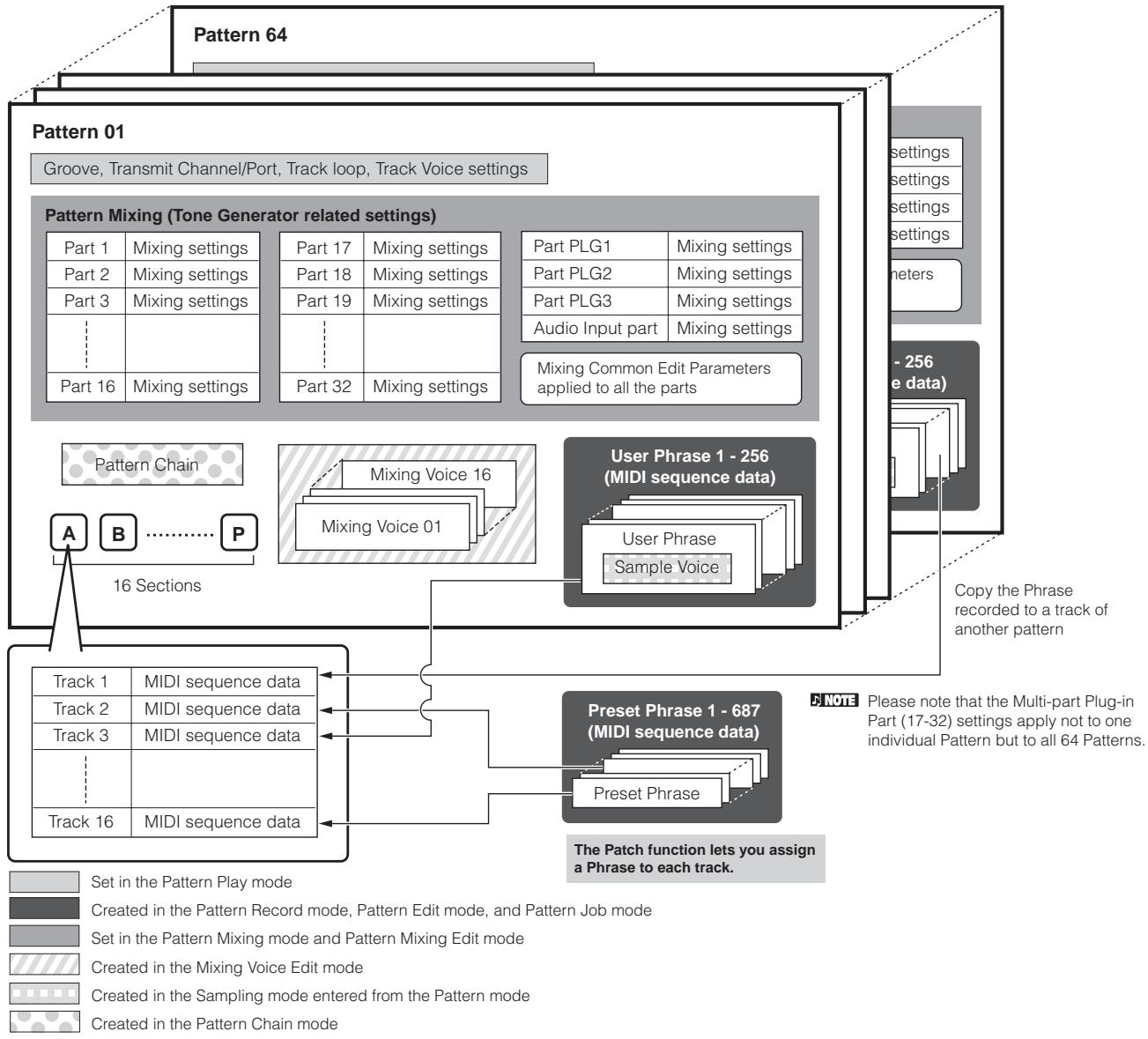
Pattern Mixing
Even if you record your keyboard performance to a Pattern track, the setup data (non-note events such as voice, pan, volume) which for proper playback should be recorded at the top of the Pattern will not be recorded to it. For this reason, the setup data handled as Pattern Mixing settings should be stored in the Pattern Mixing Store mode. Unlike the Song, only the voice number is recorded to a track as a Track Voice (Phrase Voice) which is used for playback normally. Because the Pattern Mixing is a collection of settings related to the tone generator, it can be applied to the sequence data transmitted from the external MIDI sequencer as well as this synthesizer's Pattern playback.
- Note When the Multi-Part Plug-in Board PLG100-XG has been installed, Mixing of sixteen parts (17 - 32) can be set. Please note that the Multi-Part Plug-in Part (17 - 32) settings apply not to one individual Pattern but to all 64 Patterns.
Section
A Pattern consists of one or more "Sections" (Pattern variations). You can play the Pattern by specifying a Section after selecting a Pattern.
- Phrase
This is the basic MIDI sequence data – and the smallest unit – used in creating a Pattern. “Phrase” is a short musical/ rhythmic passage for a single instrument, such as a rhythm pattern for the rhythm part, a bass line for the bass part, or a chord backing for the guitar part. This synthesizer features 687 Preset Phrases, and features memory space for 256 of your own original User Phrases.
Pattern Chain
Pattern Chain allows you to string several different Sections (within a single Pattern) together to make a single Song. You can have the synthesizer automatically change Sections by creating Pattern Chains in this way beforehand.
You can create the Pattern Chain by recording a Pattern playback with Section changes from the [PATTERN] [F6] CHAIN display or by editing the timing of Section changes from the [PATTERN] [F6] CHAIN [EDIT] display. The created Pattern Chain can be played back when calling up the [PATTERN] [F6] CHAIN display.
You can also use them when creating Songs based on a certain Pattern, since the created Pattern Chain can be converted into a Song from the [PATTERN] [F6] CHAIN [EDIT] [F3] SONG display. This synthesizer lets you create one Pattern Chain for each Pattern.
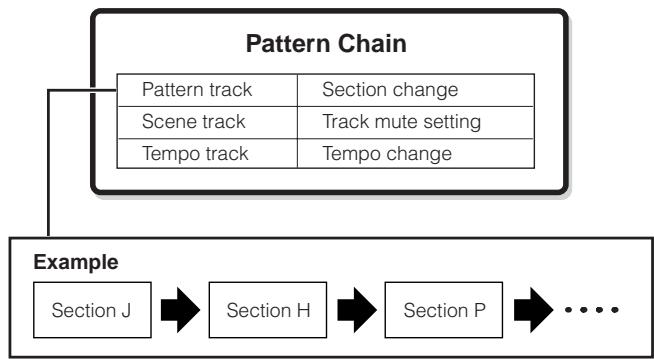
■ MIDI tracks and Sample tracks
The Song/Pattern tracks (1 - 16) of this synthesizer are divided into two groups: MIDI tracks and Sample tracks. MIDI tracks are created by recording your keyboard performance in the Song Record mode/Pattern Record mode. On the other hand, Sample tracks are created by recording and obtaining a Sample in the Sampling mode.
- Sample tracks — with Sample Voices
Voices which are automatically created and stored using the Sampling feature in the sequencer (Song/Pattern) mode, are referred to as "Sample Voices." Tracks using these Sample Voices are referred to as "Sample" tracks — to distinguish them from the MIDI tracks. Sample Voices are stored as original, dedicated Voices for each Song or Pattern. If you wish to use a Sample Voice of a certain song/pattern for another song/pattern, execute the copy operation in the Song Job mode (page 226) or in the Pattern Job mode (page 244).
■ MIDI track recording method
[SONG] or [PATTERN] [●] (Record) [F1] SETUP Type
The following explanations are important points for you to keep in mind as you record your User Songs/Patterns. The recording methods explained here should be set from the Setup display in the Song Record mode/Pattern Record mode before recording.
- NOTE See page 173 for details about the Sample track recording method.
Realtime recording and Step recording
Realtime recording
With realtime recording, the instrument functions in the same way as a tape recorder, recording the performance data as it is played. This allows you to capture all the nuances of an actual performance. This method is used for the Recording types explained below, such as Replace, Overdub, Loop, and Punch In/Out.
Step recording (Type = step)
With step recording, you can compose your performance by "writing" it down one event at a time. This is a non-realtime, step recording method — similar to writing music notation onto paper.
Replace and Overdub (Song/Pattern)
Replace
You can use this method when you want to overwrite an already recorded track with new data. The first recording is lost, and the new one takes its place.
Overdub
You can use this method when you want to add more data to a track that already contains data. The first recording is kept, and the new one is added. This method lets you build up a complex phrase together with Loop recording (below).
- Loop Recording (Pattern)
[PATTERN] [] (Record) [F1] SETUP loop = on
Pattern repeats the rhythm pattern of several measures (1 to 256 measures) in a "loop," and its recording is also done using loops. This method is used when recording a Pattern Phrase using the Overdub method (above). As shown in the example below, notes that you record will play back from the next repetition (loop), letting you record while hearing previously recorded material.
When recording a rhythm of Bass Drum, Snare Drum, Hi-Hat cymbal in order:

5 NOTE Loop Recording can only be used with Realtime recording.
- Punch In/Out (Song)
You can use this method when you want to re-record only over a specific area of the track. You'll need to set the start and end points before re-recording.
In the eight-measure example below, the third measures through the fifth measure are re-recorded.
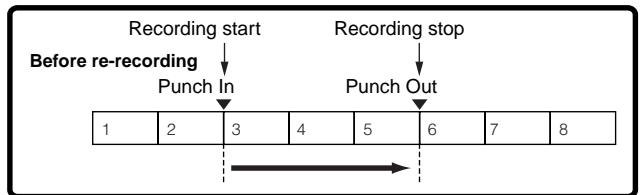

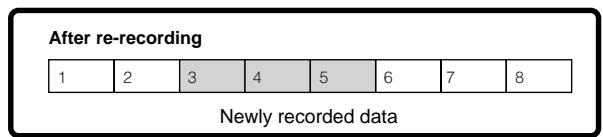
5. Note Punch In/Out Recording can only be used with Realtime recording.
Note that the Punch In/Out method always replaces (destroys) the original data over the specified area.
Arpeggio
This function lets you automatically trigger musical and rhythmic phrases using the current Voice by simply pressing a note or notes on the keyboard. The Arpeggio sequence also changes in response to the actual notes or chords you play, giving you a wide variety of inspiring musical phrases and ideas — both in composing and performing.
A single Arpeggio type can be played back at the same time even in the Performance, Song, and Pattern mode, enabling you to play multiple tone generator's parts simultaneously.
Category of the Arpeggio type
The Arpeggio types are divided into 18 categories as listed below.
| LCD | Category Name | Description |
| Seq | Synth Sequence | Various arpeggio phrases suited for synth voices. |
| ChSq | Synth Chord Sequence | Various rhythmic chord phrases or synth voices. |
| HySq | Synth Hybrid Sequence | Various arpeggio types programmed so that bass phrases are played with the lower keys and chords or melodies are played with the midrange and higher keys. These arpeggio types are useful for split voice combinations. In addition, there are also Hybrid Velocity ("HybVel...") types that feature different phrases for different velocity ranges, letting you change the arpeggio phrase depending on how strongly you play the keyboard. |
| APKb | Acoustic Piano & Keyboard | Various arpeggio types suited for piano and other keyboard voices, such as electric piano and clav. |
| Orgn | Organ | Various arpeggio types suited for organ voices. |
| GtPI | Guitar & Plucked | Various arpeggio types suited for guitar and harp voices. |
| GtKM | Guitar - Keyboard Mega Voice | Various arpeggio types suited for guitar Keyboard Mega voices (see note below). |
| Bass | Bass | Various arpeggio types suited for bass or synth bass voices. |
| BaKM | Bass - Keyboard Mega Voice | Various arpeggio types suited for bass Keyboard Mega voices (see note below). |
| Strn | Strings | Various arpeggio types suited for strings and pizzicato voices. |
| Bras | Brass | Various arpeggio types suited for brass voices. |
| RdPp | Reed & Pipe | Various arpeggio types suited for saxophone and flute voices. |
| Lead | Synth Lead | Various arpeggio types suited for synth lead voices. |
| PdMe | Synth Pad & Musical FX | Various arpeggio types suited for synth pad voices and special musical effects voices, including percussive sounds. |
| CPrc | Chromatic Percussion | Various arpeggio types suited for chromatic percussion voices. |
| DrPc | Drum & Percussion | Various arpeggio types suited for drum and percussion voices (drum kits). |
| Comb | Combination | Various arpeggio types suited for Performances. These are combination arpeggios, with separate phrases suitable for drum voices, bass voices, and chord/melody instruments. |
| Cntr | Control | Various arpeggio types programmed primarily with Control Change and Pitch Bend data. These arpeggio types change the tone or pitch of the sound, rather than play specific notes. In fact, some types contain no note data at all. When using a type of this category, set the KeyMode parameter to "direct" in each mode. |
5None Keyboard Mega Voices
Normal voices use velocity switching to make the sound quality and/or level of a voice according to how strongly or softly you play it. This makes the voices sound authentic and natural. However, with Keyboard Mega Voices, each velocity range (the measure of your playing strength) has a completely different sound. For example, a guitar voice includes the sounds of various performance techniques. In conventional instruments, different voices having those sounds would be called up via MIDI and played in combination to achieve the desired effect. However, now with Keyboard Mega voices, a convincing guitar part can be played with just a single voice, using specific velocity values to play the desired sounds.
Arpeggio playback types
The MOTIF ES features a total of 1787 Arpeggio types divided into 18 categories, each with its own playback type designed for use with particular types of Voices, as described below.
Arpeggios for Normal Voices
Arpeggio types (belonging to the categories except for the DrPC and Cntr) created for use of Normal Voices have the following two playback types.
| Playback only of the played notes | The Arpeggio is played back using only the played note and its octave notes. |
| Playback of a programmed sequence according to the played chord | These Arpeggio types have the several sequences each of which is suited for a certain chord type. Even if you press only one note, the Arpeggio is played back using the programmed sequence — meaning that notes other than the ones you play may be sounded. Adding notes to those already held changes the sequence accordingly — in other words, the arpeggio plays back according to the chord you play. |
The two playback types above are not distinguished by the category name or type name. You'll have to actually play the types and hear the difference.
NOTE Since these types are programmed for Normal Voices, using them with Drum Voices may not give musically appropriate results.
Arpeggios for Drum/Percussion Voices — Category: DrPc
These arpeggio types are programmed specifically for use with Drum Voices, giving you instant access to various rhythm patterns. Three different playback types are available.
| Playback of a drum pattern | Pressing any note(s) will trigger the same rhythm pattern. |
| Playback of a drum pattern, plus additional played notes (assigned drum instruments) | Pressing any note will trigger the same rhythm pattern. Adding notes to the one already held produces additional sounds (assigned drum instruments) for the drum pattern, |
| Playback only of the played notes (assigned drum instruments) | Playing a note or notes will trigger a rhythm pattern using only the notes played (assigned drum instruments). Keep in mind that even if you play the same notes, the triggered rhythm pattern differs depending on the order of the notes played. This gives you access to different rhythm patterns using the same instruments simply by changing the order in which you play the notes. |
The three playback types above are not distinguished by the category name or type name. You'll have to actually play the types and hear the difference.
5Note Since these types are programmed for Drum Voices, using them with Normal Voices may not give musically appropriate results.
Arpeggios for Performances — Category: Comb
The Arpeggio types belonging to the category "Comb" are programmed so that different arpeggios are triggered — an arpeggio for a Normal Voice and an arpeggio for a Drum Voice — depending on the played note. These types are useful in the Performance mode in which multiple voices (Drum Voice and Normal Voice) are combined in a layer since these types enable you trigger the arpeggio for the Normal Voice and the Drum Voice at the same time.
Arpeggios containing mainly non-note events — Category: Cntr
These arpeggio types are programmed primarily with Control Change and Pitch Bend data. They are used to change the tone or pitch of the sound, rather than play specific notes. In fact, some types contain no note data at all. When using a type of this category, set the KeyMode parameter to "direct" with the following operations.
| Voice mode | [VOICE] → Voice selection → [EDIT] → [COMMON] → [F3] ARP → [SF1] TYPE → KeyMode |
| Performance | [PERFORM] → Performance selection → [EDIT] → [COMMON] → [F3] ARP → [SF1] TYPE → KeyMode |
| Song mode | [SONG] → Song selection → [MIXING] → [EDIT] → [COMMON] → [F3] ARP → [SF1] TYPE → KeyMode |
| Pattern mode | [PATTERN] → Pattern selection → [MIXING] → [EDIT] → [COMMON] → [F3] ARP → [SF1] TYPE → KeyMode |
Arpeggio related parameters
The Arpeggio related parameters can be set from the following displays, depending on the selected mode.
Voice mode
| Arpeggio type parameters called up when selecting a Voice | [VOICE] → Voice selection → [F6] ARP | Page 189 |
| [VOICE] → Voice selection → [EDIT] → [COMMON] → [F3] ARP | Page 191 | |
| Assigning Arpeggio types to the [SF1] - [SF5] buttons for each Voice | [VOICE] → Voice selection → [F1] PLAY | Page 188 |
| MIDI output parameters for Arpeggio playback for all the Voices | [VOICE] → [UTILITY] → [F3] VOICE → [SF3] ARP CH | Page 262 |
NOTE MIDI output parameters for Arpeggio playback are set for each Voice in the Voice mode. In the other modes, however, they can be set for each Performance, Song, and Pattern.
Performance mode
| Arpeggio type parameters called up when selecting a Performance (including MIDI output parameters for Arpeggio playback) | [PERFORM] → Performance selection → [F6] ARP | Page 213 |
| [PERFORM] → Performance selection → [EDIT] → [COMMON] → [F3] ARP | Page 214 | |
| Assigning Arpeggio types to the [SF1] - [SF5] buttons for each Performance | [PERFORM] → Performance selection → [F1] PLAY | Page 212 |
Song mode
| Parameters about the Arpeggio type called up when selecting a Song (including MIDI output parameters for Arpeggio playback) | [SONG] → Song selection → [MIXING] → [EDIT] → [COMMON] → [F3] ARP | Page 234 |
| Assigning Arpeggio types to the [SF1] - [SF5] buttons for each Song | [SONG] → Song selection → [F1] PLAY | Page 221 |
| [SONG] → Song selection → [●] (Record) → [F3] ARP | Page 223 | |
| Arpeggio type parameters in recording | [SONG] → Song selection → [●] (Record) → [F4] REC ARP | Page 223 |
5Note Arpeggio related parameters in the Song mode belong to the Mixing. Therefore, if desired, store them to internal memory (DRAM) in the Song Mixing Store mode and save them to the SmartMedia/USB storage device as Song data in the File mode.
Pattern mode
| Parameters about the Arpeggio type called up when selecting a Pattern (including MIDI output parameters for Arpeggio playback) | [PATTERN] → Pattern selection → [MIXING] → [EDIT] → [COMMON] → [F3] ARP | Page 248 |
| Assigning Arpeggio types to the [SF1] - [SF5] buttons for each Pattern | [PATTERN] → Pattern selection → [F1] Play | Page 241 |
| [PATTERN] → Pattern selection → [●] (Record) → [F3] ARP | Page 243 | |
| Arpeggio type parameters in recording | [PATTERN] → Pattern selection → [●] (Record) → [F4] REC ARP | Page 243 |
5Note Arpeglio related parameters in the Pattern mode belong to the Mixing. Therefore, if desired, store them to internal memory (DRAM) in the Pattern Mixing Store mode and save them to the SmartMedia/USB storage device as Pattern data in the File mode.
Sampling Block
Sampling is a powerful function that lets you bring your own recorded sounds – voice, instrument, rhythm, special sound effects, etc. – into the system of this synthesizer, and play those sounds just as you would the Voices of the instrument.
In order to use the Sampling features of the instrument, you'll need to install DIMM memory modules (sold separately) to the instrument.
In addition to being able to record samples directly with the MOTIF ES, you can also import existing audio data (in WAV or AIFF file format) in the File mode. This lets you use audio you've recorded and edited on computer with the instrument.
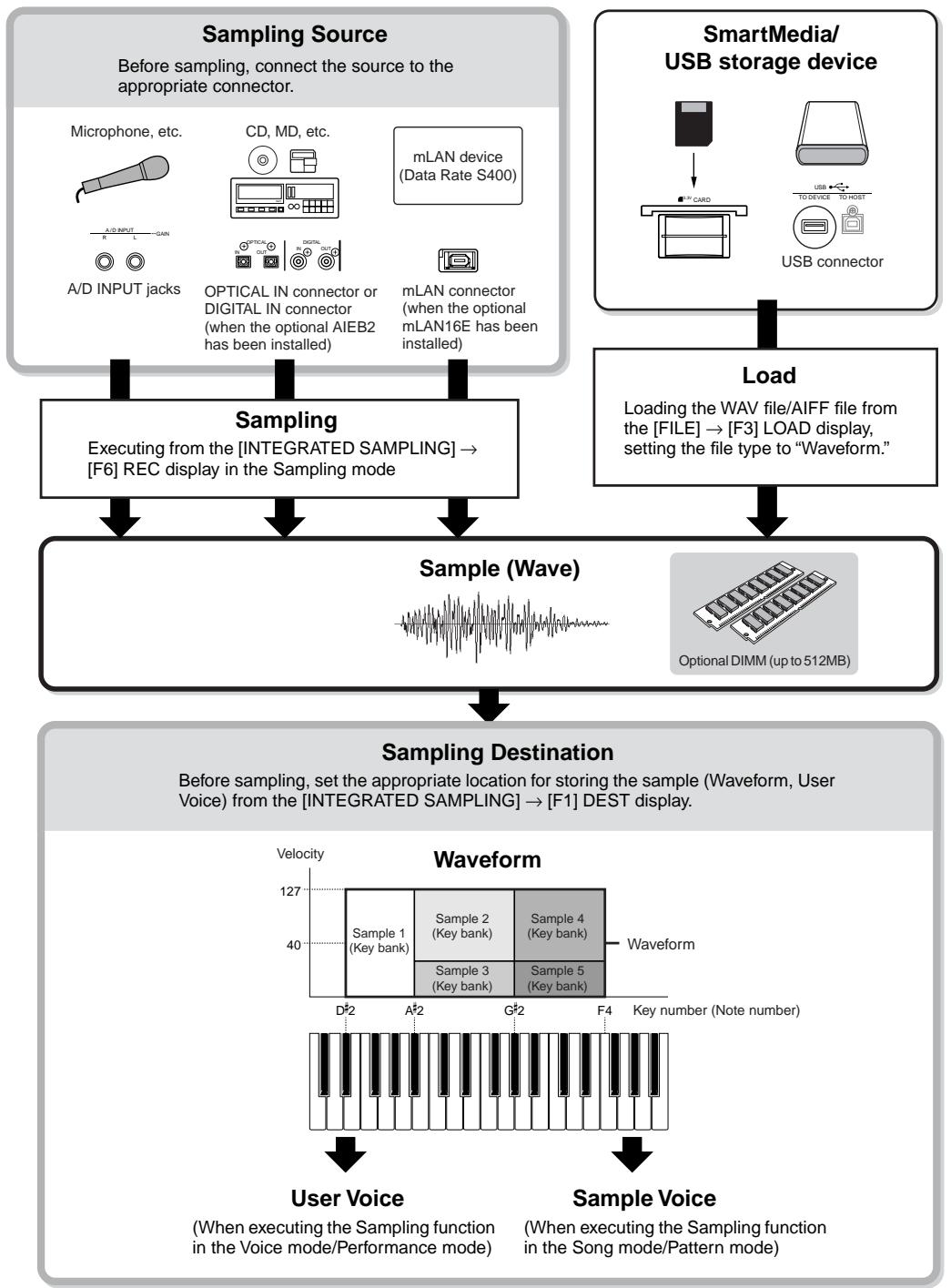
Data created by Sampling
Regardless of the mode, the raw Sampled data is the same, of course. However, various parameters are different, depending on the particular mode or settings. Briefly, here is an explanation of what kinds of data are created in the Sampling function.
Sampling data common to all modes
Wave (Sample data)
This is the raw audio data stored in this synthesizer's internal memory when sampling.
Key Bank
The note range and velocity range to which the Sample is assigned, is called the Key Bank.
Waveform
The group of Key Banks to which sample data is assigned is called the Waveform.
- Data created by sampling in the Voice/Performance mode
User Voice
Before you can play the recorded/imported sample data (Waves), you'll need to save them as User Voices, after which they can be selected and played from the keyboard or sequencer — the same as other Voices. Also, these User Voices can be assigned as Performance parts – just as with the Preset Voices.
- Data created by sampling in the Song/Pattern mode
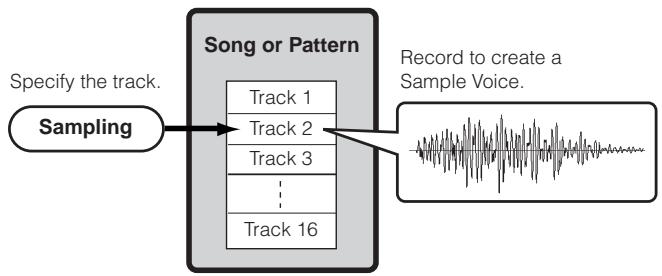
Sample Voice
When sampling in the Song/Pattern mode, the recorded/ imported sample data is automatically stored as a Sample Voice.
Sample Voices can be assigned to the Mixing parts corresponding to the track which was assigned from the [INTEGRATED SAMPLING] [F1] DEST display, and they can be sounded while Song/Pattern data is being played back. Sample Voices are original, dedicated Voices for the particular Song/Pattern that was selected when sampling. Because of this, you cannot take a Sample Voice belonging to one Song or Pattern and use it in another Song or Pattern.

You cannot select Sample Voices in the Voice or Performance mode.
(However, you CAN select the Wave of the Sample Voice in Voice Edit.)
Note Data
When you set the Type to "Sample + note" from the [SONG] or [PATTERN] [INTEGRATED SAMPLING] [F2] SOURCE display and execute Sampling, a Sample Voice is created and the sampled wave is assigned to a specified note and recorded as simple MIDI sequence data to a specified track (as shown below).
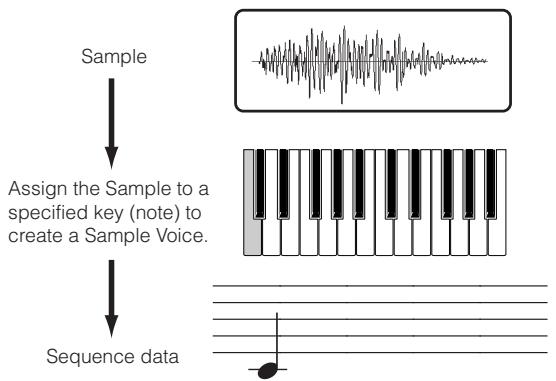
Key Bank and Sequence data
When you set the Type to "Sample + seq" from the [SONG] or [PATTERN] [INTEGRATED SAMPLING] [F2] SOURCE display and execute Sampling, a Sample Voice is created and the sampled wave is "sliced" or divided into several component samples — and each is assigned to specific notes, with sequence data for playing the notes to recreate the sample. This is useful with rhythmic samples, giving you fine control over the playback, including tempo changes.
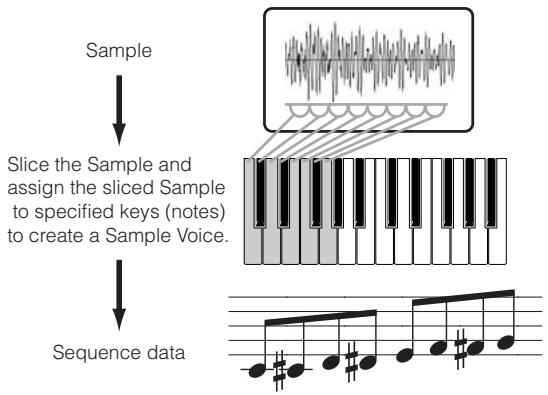
Waveform and User Voices/Sample Voices
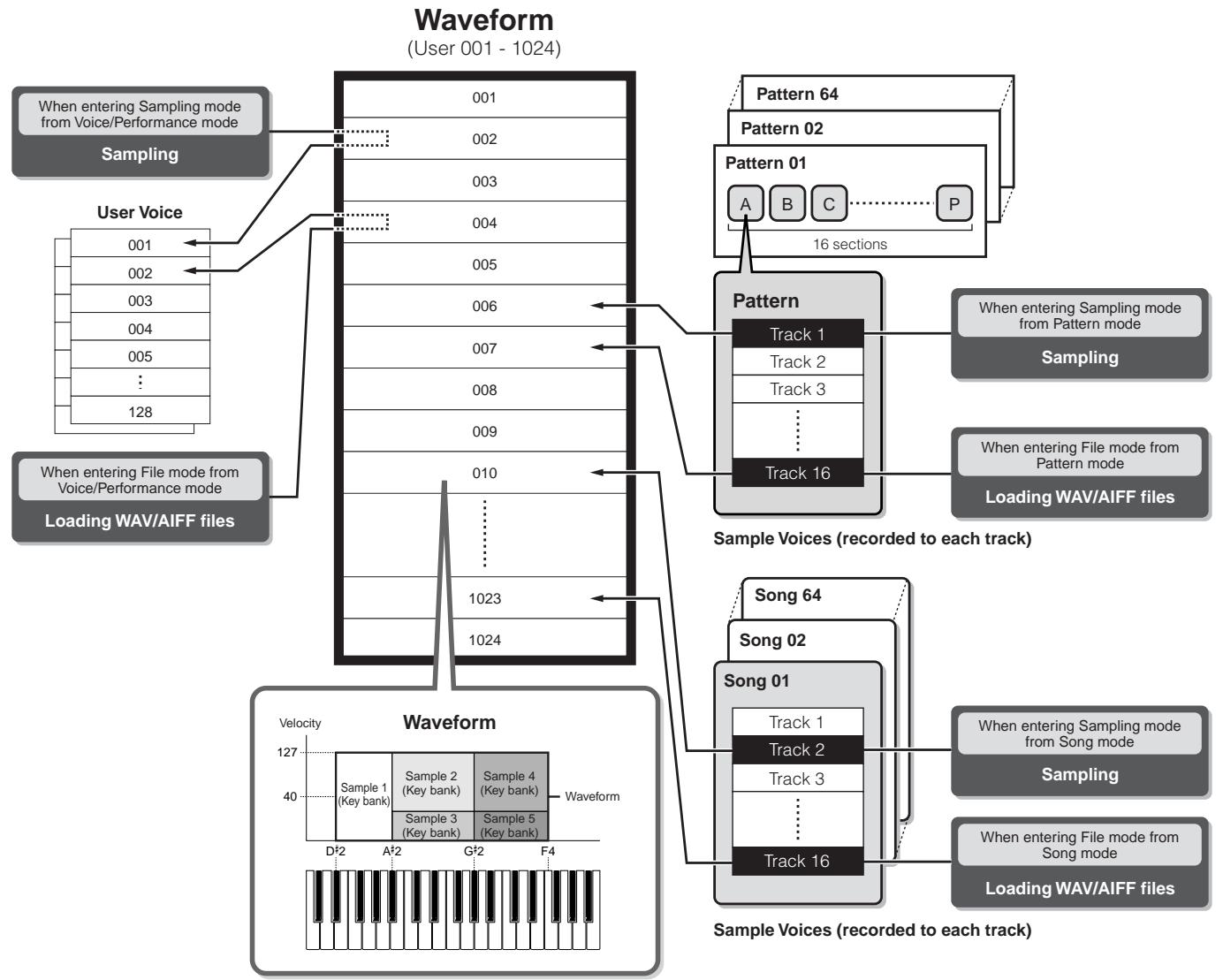
- Note When executing the Sampling in the Sampling mode entered from the Voice mode/Performance mode, you can specify the Waveform number and User Voice number as a Destination (location to which the sampled wave is stored) beforehand. Likewise, you can specify the same parameters also when loading the WAV file/AIFF file in the File mode entered from the Voice mode/Performance mode.
- Note When executing the Sampling in the Sampling mode entered from the Song mode/Pattern mode, you can specify the track number as a Destination (location to which the sampled wave is stored) beforehand. Likewise, you can specify the same parameters also when loading the WAV file/AIFF file in the File mode entered from the Song mode/Pattern mode. When creating Waveforms, sampled audio waves are automatically stored starting from the lowest numbered available space.
- NOTE Up to 128 key banks can be assigned to a single waveform. Up to a maximum of 4096 key banks can be created on the instrument.
How to select and hear the Waveform
You can select and hear any of Waveforms from the following display in the Voice Edit mode.
$$ \begin{array}{l}\text {[ V O I C E ] \rightarrow [ E D I T ] \rightarrow E l e m e n t s e l e c t i o n \rightarrow [ F 1 ] O S C \rightarrow [ S F 1 ]}\\text {W A V E}\end{array} $$
If you set the Bank parameter to "usr wave," you can select and hear the Waveform obtained by using the Sampling function or loading the WAV file/AIFF file.
You can also select and hear the User Waveform from the following display in the Sampling mode.
$$ [ I N T E G R A T E D S A M P L I N G ] \rightarrow [ E D I T ] \rightarrow [ F 1 ] K E Y B A N K $$
Trigger mode
[INTEGRATED SAMPLING] [F6]REC TriggerMode
The Trigger mode is a convenient feature in Sampling that lets you determine how sample recording is started — manually or automatically, based on the audio level.
Start recording manually
[INTEGRATED SAMPLING] [F6]REC TriggerMode =manual
Regardless of the audio input signal level or the Song/Pattern playback status, sampling starts soon after you press the [F6] REC button in the Sampling Setup display. Sampling also starts regardless of the playback/stop status of the Song/Pattern.
Start recording when the input signal exceeds the Trigger Level
[INTEGRATED SAMPLING] [F6]REC TriggerMode =level
After pressing the [F6] REC button in the Sampling Setup display (in any mode), sampling starts as soon as a strong enough audio signal is received. The threshold for this audio-triggered start is called the Trigger Level (explained in the illustration below).
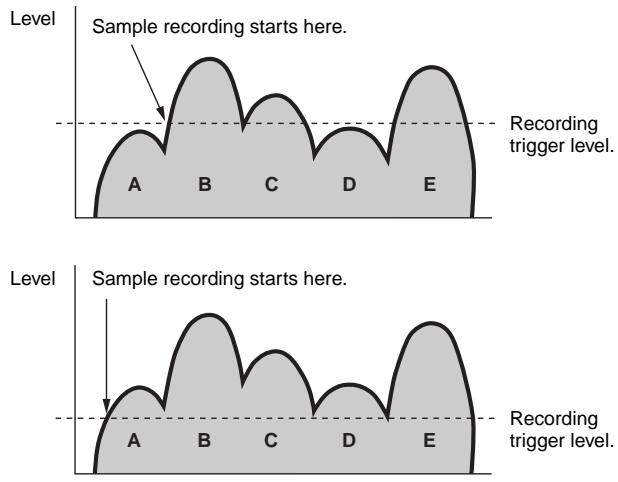
As you can see, the higher the Trigger Level setting, the louder the input audio needs to be in order to start sampling. On the other hand, if the Trigger Level is set too low, a soft noise may be enough to inadvertently start sampling.
Start recording when the Song/Pattern playback reaches a specified point
[INTEGRATED SAMPLING] [F6] REC TriggerMode = meas
After pressing the [F6] REC button in the Sampling Setup display, start and stop of sampling is linked to playback of the Song/Pattern.
This setting is available only when the Song/Pattern mode and recording type (Rec Type) are set to "Slice + Seq" or "Sample + Note."
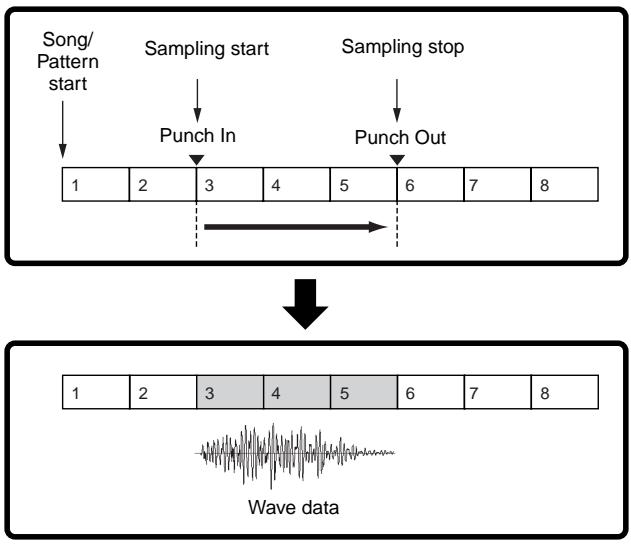
Sample playback types
[INTEGRATED SAMPLING] [EDIT] [F3] PARAM PlayMode
Samples can be set to play back in the following three different ways.
One Shot
[INTEGRATED SAMPLING] [EDIT] [F3] PARAM PlayMode = oneshot
When you press a note on the keyboard, the Sample plays from beginning to end just once. This type of playback is commonly used for drum and percussion sounds.
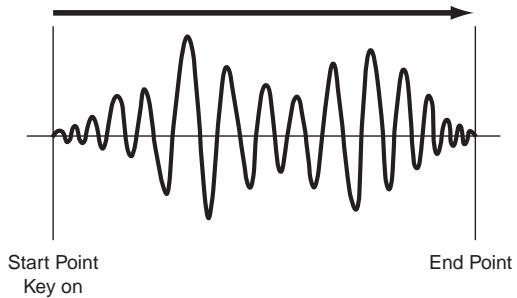
Loop
[INTEGRATED SAMPLING] [EDIT] [F3] PARAM PlayMode = loop
This is used primarily to create long continuous sounds, such as brass and strings, or instruments with naturally long decay, such as piano. An appropriate part of the sample near the end is looped to reproduce a long sustain or decay.
When you play a note on the keyboard, the Sample plays from the start point to the end point. It then returns to the loop start point and plays to the end point again, and keeps doing this until you release the note. With musical instruments in general, the characteristic part of the sound (the "attack" section) is usually at the beginning, just after the start point. After this, the sound does not vary a great deal while the note is being held, and you can set the loop and end points at either end of this section. When playing back a Sample of an instrument that has been looped like this, the attack section of the sound is played back once and then the looped section is played back continuously until you release the note. Looping is also way of creating usable instrument sounds without using up too much memory.
You can set each point in the Sampling mode. Since this synthesizer is capable of displaying the entire image of the sampled audio data in the LCD (zoom in and zoom out are available), you can edit the loop points visually – making sample editing accurate and easy.
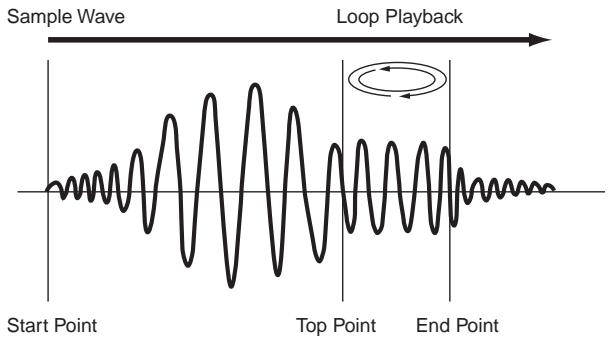
■ Reverse
[INTEGRATED SAMPLING] [EDIT] [F3] PARAM PlayMode = reverse
When you press a note on the keyboard, the Sample plays from end to beginning just once. This is useful for creating reversed cymbal sounds and other special effects.
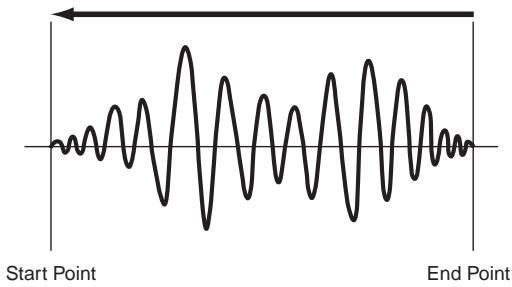
Effect Block
This block applies effects to the output of the tone generator block, processing and enhancing the sound using sophisticated DSP (digital signal processing) technology.
Effect structure
The effect processing of this synthesizer features the System Effects, Insertion Effects, Master Effect, Part EQ (Equalizer), and Master EQ (Equalizer).
System Effects (Reverb, Chorus)
System Effects are applied to the overall sound, whether it be a Voice, an entire Performance, a Song, etc. With System effects, the sound of each Part is sent to the effect according to the effect Send Level for each Part. The processed sound (referred to as "wet") is sent back to the mixer, according to the Return Level, and output - after being mixed with the unprocessed "dry" sound. This arrangement lets you prepare an optimum balance of the effect sound and the original sound of the Parts.
Reverb
The Reverb effects add a warm ambience to the sound, simulating the complex reflections of actual performance spaces, such as a concert hall or a small club. A total of 20 different Reverb types are available.
Chorus
The Chorus effects use various types of modulation processing, including flanger and phaser, to enhance the sound in a variety of ways. A total of 49 types are available, including reverb and delay effects.
- Note About the System Effect related display in each mode, see pages 179 and 180.
Insertion Effects A, B
Insertion effects can be applied individually to each part. Insertion effects are mainly used to directly process a single part. The depth of the effect is adjusted by setting the dry/wet balance. Since an Insertion effect can only be applied to one particular part, it should be used for sounds you want to drastically change or for sounds that use an effect unintended for other sounds. You can also set the balance so that only the effect sound is heard, by setting Wet to 100% . This synthesizer features eight sets of Insertion effects (one set has A and B units). They can be applied to all parts of the Performance, and applied to eight parts (maximum) of the Song/Pattern.
A total of 116 different Chorus types are available.
- NOTE In the Voice mode, only one set of the Insertion effects is available.
- NOTE For details on the displays related to the Insertion effects in each mode, see pages 179 and 180.
- NOTE Among the AUDIO IN parts, Insertion effects cannot be applied to the mLAN parts and AIEB2 parts.
Plug-in Insertion Effects
This is a special effect system, only available when an effect-type Plug-in Board is installed. Plug-in Board effects are not available in the Voice mode.
- NOTE For details on the displays related to the Plug-in Insertion effects in each mode, see pages 179 and 180.
■ Master Effect
This block applies effects to the final stereo output signal of the entire sound. A total of 8 different Master Effect types are available.
- NOTE For details on the displays related to the Master effects in each mode, see pages 179 and 180.
EFFECT Buttons
Three EFFECT buttons on the panel let you switch each effect block on and off.
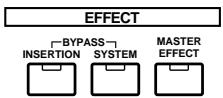
Press the [INSERTION] button below "BYPASS" so that the lamp lights to turn the Insertion effects off. You can specify which Insertion effects (only the internal Insertion effect, only the Plug-in Insertion effect, or both of them) are bypassed from the [UTILITY] [F1] GENERAL [SF3] EF BYPS display in the Utility mode. Press the [SYSTEM] button below "BYPASS" so that the lamp lights to turn the System effects off. You can specify which System effects (only the Reverb effect, only the Chorus effect, or both of them) are bypassed from the [UTILITY] [F1] GENERAL [SF3] EF BYPS display in the Utility mode.
Press the [MASTER EFFECT] button so that the lamp lights to turn the Master effect on. Keep in mind that pressing and holding this button calls up the Master effect setup display in the current mode.
Controlling the Master effect by using the Knobs
When pressing the [ARP FX] button and the [EQ] button simultaneously (both lamps light), you can control the Knobs to adjust the Master effect related parameters specified in the [UTILITY] [F4] CTL ASN [SF5] MEF display of the Utility mode.
Equalizer (EQ)
Usually an equalizer is used to correct the sound output from amps or speakers to match the special character of the room, or to change the tonal character of the sound. The sound is divided into several frequency bands, and adjustments are made to the sound by raising or lowering the level of each band.
By adjusting the sound according to the genre - classical music being more refined, pop music more crisp, and rock music more dynamic - you can draw out the special characteristics of the music and make your performance more enjoyable.
Three separate EQ sections are available on the instrument: Element EQ, Part EQ, and Master EQ.
- Element EQ
[VOICE] Voice selection [EDIT] Element selection/ Key selection [F6] EQ
The Element EQ is applied to each element of the Normal Voice and each key of the Drum Voice. You can specify which shape is used among the two shapes described below and set the related parameters.
Peaking type
This type of EQ shape lets you attenuate/boost the signal at the specified Frequency setting.
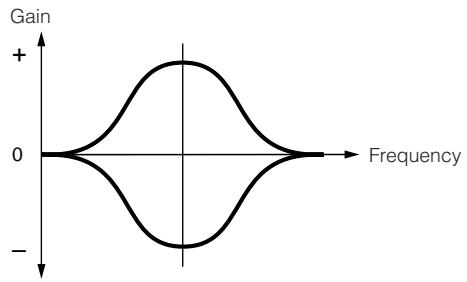
Shelving type
This type of EQ shape lets you attenuate/boost the signal at frequencies above or below the specified Frequency setting.
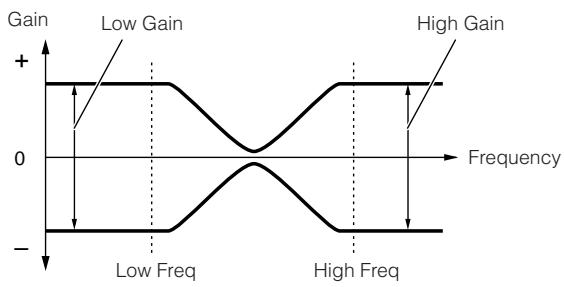
5Note In addition to the individual gain controls, there is also an overall level parameter that attenuates/boosts the entire frequency range.
Part EQ
This 3-band EQ is applied to each part of the Performance/ Song/Pattern, The high band and low band are the shelving type. The middle band is the peaking type.
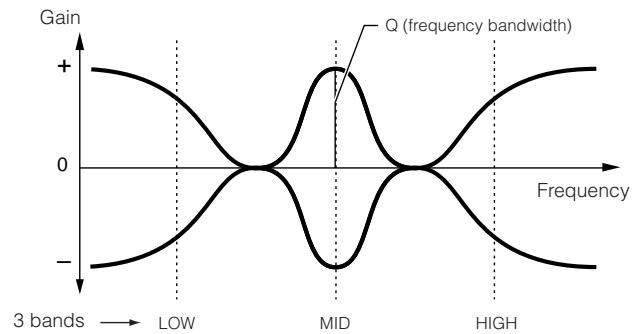
5. NOTE The part EQ is not available in the Voice mode.
Master EQ
Master EQ is applied to the final (post-effect), overall sound of the instrument. In this EQ, all bands can be set to peaking, or the lowest and highest bands can be set to shelving (as shown below).
EQ for which all bands are set to peaking type
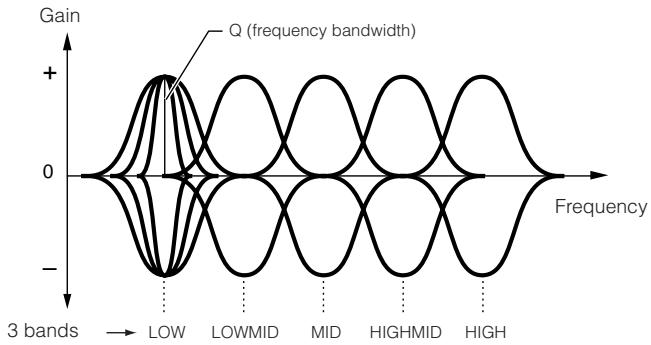
EQ for which LOW and HIGH are set to shelving type
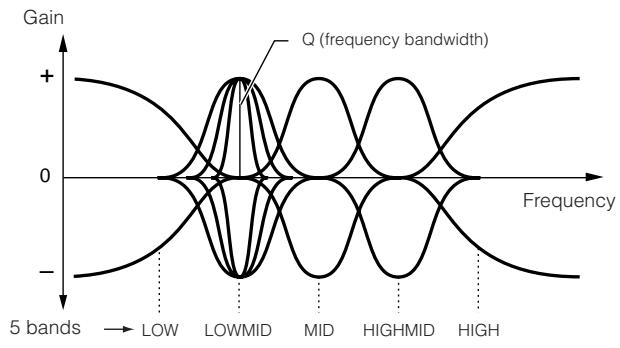
In the Voice mode
The Effect parameters in the Voice mode are set for each Voice and the settings are stored to internal flash ROM as a User Voice. Please note that the Master Effect and Master EQ parameters are set for all the Voices in the Utility mode and stored to internal flash ROM as System settings by pressing the [STORE] button also in the Utility mode.
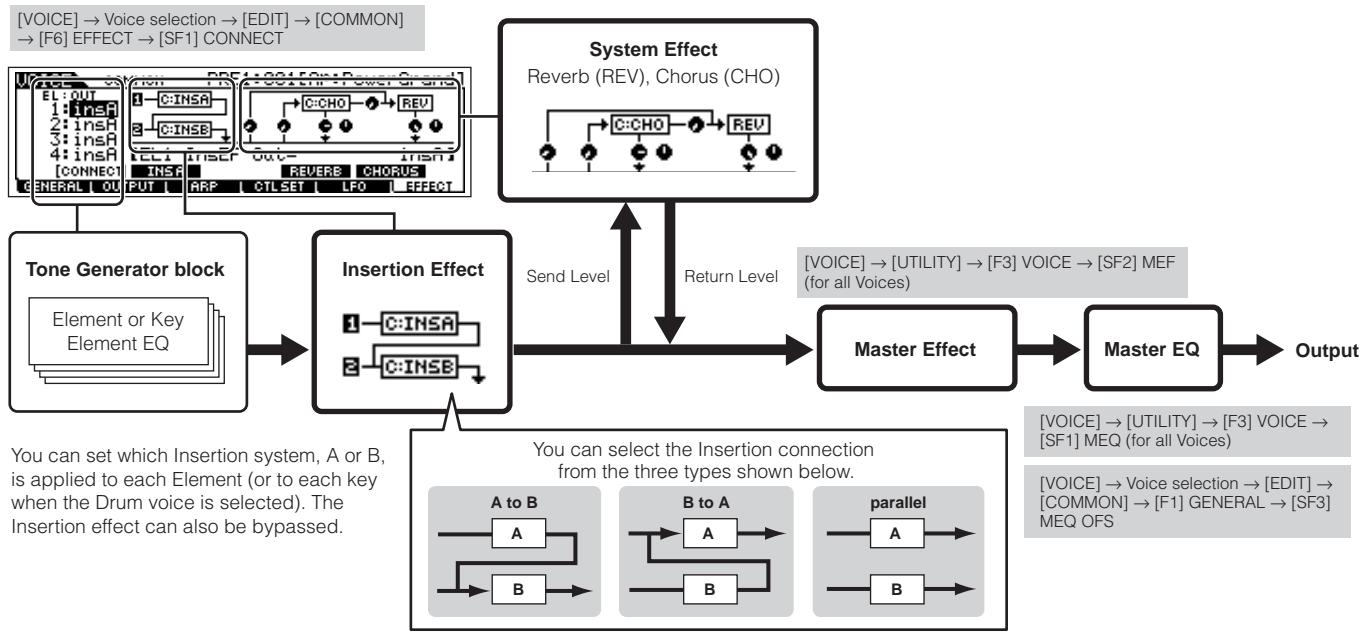
5. Note The parallel connection is not available for Plug-in voices.
NOTE The Plug-in Insertion effect (when the Effect Plug-in board has been installed) is not available in the Voice mode.
In the Performance mode
The Effect parameters in the Performance mode are set for each Performance and the settings are stored to internal flash ROM as User data.
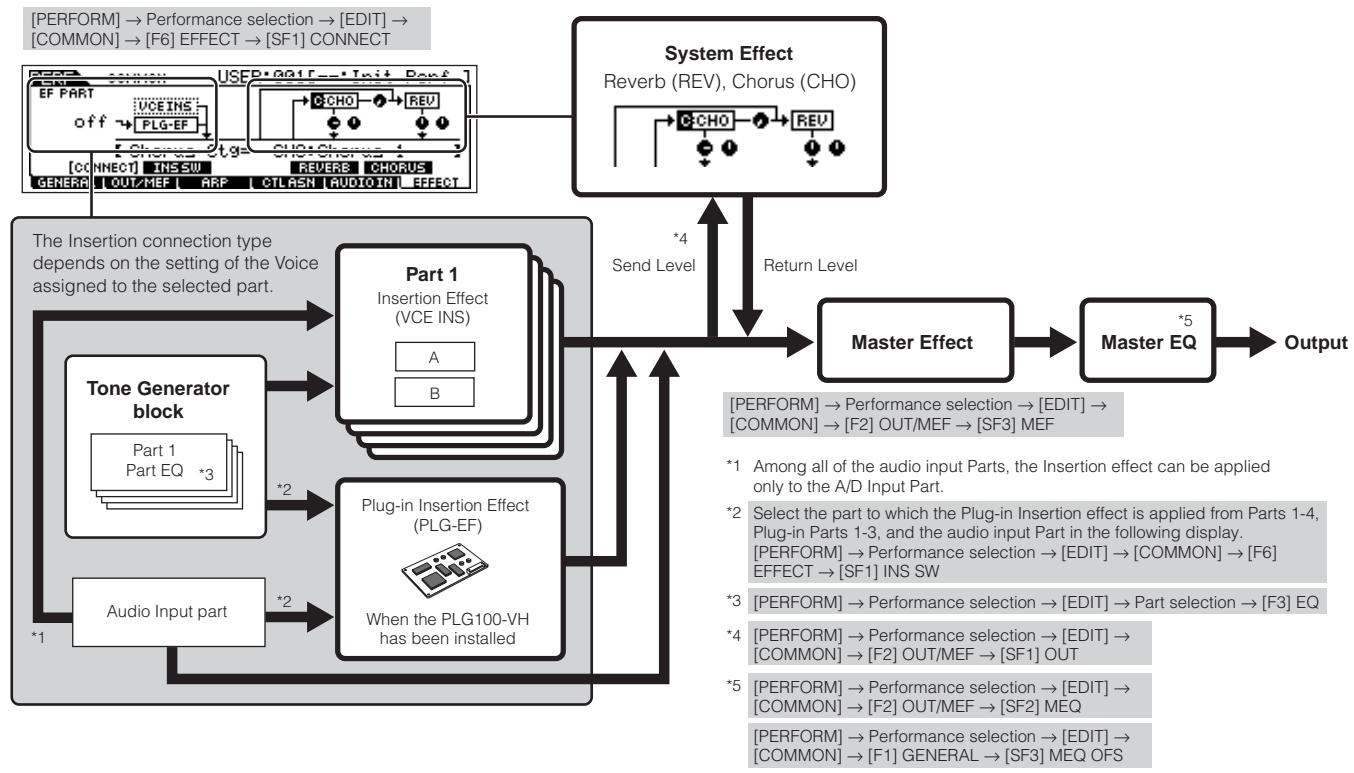
In the Song mode/Pattern mode
The Effect parameters in the Song mode/Pattern mode are set for each Song/Pattern. The Effect settings are stored to internal DRAM in the Song Mixing mode/Pattern Mixing mode and saved to the SmartMedia/USB storage device in the File mode.

5Note The Insertion Effect, Plug-in Insertion Effect, and the System Effect cannot be applied to Parts 17-32 (using the Multi-part Plug-in board PLG100-XG).
5. NOTE The Part EQ cannot be applied to parts of the Plug-in Board.
The System Effects (Reverb, Chorus), the Master EQ, and the Master Effect are not applied to the sound output through the ASSIGNABLE OUTPUT jacks (including those of the AIEB2) or the mLAN connector of the mLAN16E board. (Only the Part EQ and the Insertion Effect are applied.)
About MIDI
MIDI (Musical Instrument Digital Interface) is a standard which allows electronic musical instruments to communicate with each other, by sending and receiving compatible Note, Control Change, Program Change and various other types of MIDI data, or messages.
This synthesizer can control other MIDI devices by transmitting note related data and various types of controller data. It can also be controlled by incoming MIDI messages which automatically determine the tone generator mode, select MIDI channels, voices and effects, change parameter values, and of course play the voices specified for the various Parts.
Many MIDI messages are expressed in hexadecimal or binary numbers. Hexadecimal numbers may include the letter "H" as a suffix. The letter "n" indicates a certain whole number.
The chart below lists the corresponding decimal number for each hexadecimal/binary number.
MIDI channels
MIDI performance data is assigned to one of sixteen MIDI channels. Using these channels, 1 - 16, the performance data for sixteen different instrument parts can be simultaneously sent over one MIDI cable.
Think of the MIDI channels as TV channels. Each TV station transmits its broadcasts over a specific channel.
Your home TV set receives many different programs simultaneously from several TV stations and you select the appropriate channel to watch the desired program.
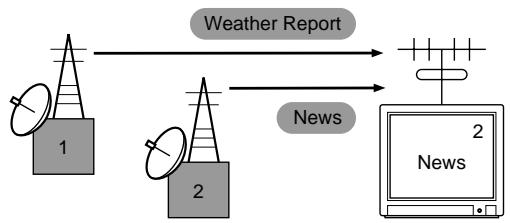
MIDI operates on the same basic principle.
The transmitting instrument sends MIDI data on a specific MIDI channel (MIDI Transmit Channel) via a single MIDI cable to the receiving instrument. If the receiving instrument's MIDI channel (MIDI Receive Channel) matches the Transmit Channel, the receiving instrument will sound according to the data sent by the transmitting instrument.
For information on how to set the MIDI transmit channel and the MIDI receive channel, see page 35.

MIDI data is assigned to one of sixteen channels. However, we can overcome the sixteen-channel limit by using separate MIDI "ports," each supporting sixteen channels. For details, see page 38.
MIDI Messages Transmitted/Recognized by this synthesizer
MIDI messages can be divided into two groups: Channel messages and System messages. Below is an explanation of the various types of MIDI messages which this synthesizer can recognize/transmit. The messages transmitted/recognized by this synthesizer are shown in the MIDI Data Format and MIDI Implementation Chart of the separate Data List.
5Note This synthesizer's tone generator and sequencer blocks handle different MIDI events. These are listed separately in the MIDI Data Format as well as in the MIDI Implementation Chart.
CHANNEL MESSAGES
Channel messages contain data related to the performance on the keyboard for the specific channel.
Note On/Note Off (Key On/Key Off)
Messages which are generated when the keyboard is played.
Reception note range = C - 2 (0)-G8 (127), C3 = 60
Velocity range = 1 - 127 (Only the Note On velocity is received)
Note On: Generated when a key is pressed.
Note Off: Generated when a key is released.
Each message includes a specific note number which corresponds to the key which is pressed, plus a velocity value based on how hard the key is struck.
Control Change
Control Change messages let you select a voice bank, control volume, panning, modulation, portamento time, brightness and various other controller parameters, through specific Control Change numbers which correspond to each of the various parameters.
Bank Select MSB (Control #000) Bank Select LSB (Control #032)
Messages which select variation voice bank numbers by combining and sending the MSB and LSB from an external device. The functions of MSB and LSB messages differ depending on the tone generator mode. MSB numbers select voice type (Normal Voice or Drum Voice), and LSB numbers select voice banks.
(For more information about Banks and Programs, see Voice List in the separate Data List.)
A new bank selection will not become effective until the next Program Change message is received.
Modulation (Control #001)
Messages which control vibrato depth using the Modulation Wheel.
Setting the value to 127 produces maximum vibrato and 0 results in vibrato off.
Portamento Time (Control #005)
Messages which control the duration of portamento, or a continuous pitch glide between successively played notes.
When the parameter Portamento Switch (Control #065) is set to on, the value set here can adjust the speed of pitch change.
Setting the value to 127 produces maximum portamento time and 0 results in minimum portamento time.
Data Entry MSB (Control #006) Data Entry LSB (Control #038)
Messages which set the value for the parameter specified by RPN MSB/LSB (page 183) and NRPN MSB/LSB (page 183). Parameter value is determined by combining the MSB and LSB.
Main Volume (Control #007)
Messages which control the volume of each Part.
Setting the value to 127 produces maximum volume and 0 results in volume off.
Pan (Control #010)
Messages which control the stereo panning position of each Part (for stereo output).
Setting the value to 127 positions the sound to the far right and 0 positions the sound to the far left.
Expression (Control #011)
Messages which control intonation expression of each Part during performance.
Setting the value to 127 produces maximum volume and 0 results in volume off.
Hold1 (Control #064)
Messages which control sustain on/off.
Setting the value between 64 - 127 turns the sustain on, between 0 - 63 turns the sustain off.
Portamento Switch (Control #065)
Messages which control portamento on/off.
Setting the value between 64 -127 turns the portamento on, between 0 - 63 turns the portamento off.
Sostenuto (Control #066)
Messages which control sustainuto on/off.
Holding specific notes and then pressing and holding the sostenuto pedal will sustain those notes as you play subsequent notes, until the pedal is released.
Setting the value between 64 -127 turns the sostenuto on, between 0 - 63 turns the sostenuto off.
Harmonic Content (Control #071)
Messages which adjust the filter resonance set for each Part. The value set here is an offset value which will be added to or subtracted from the voice data. Higher values will result in a more characteristic, resonant sound. Depending on the voice, the effective range may be narrower than the range available for adjustment.
Release Time (Control #072)
Messages which adjust the AEG release time set for each Part.
The value set here is an offset value which will be added to or subtracted from the voice data.
Attack Time (Control #073)
Messages which adjust the AEG attack time set for each Part. The value set here is an offset value which will be added to or subtracted from the voice data.
Brightness (Control #074)
Messages which adjust the filter cutoff frequency set for each Part.
The value set here is an offset value which will be added to or subtracted from the voice data. Lower values result in a softer sound.
Depending on the voice, the effective range may be narrower than the range available for adjustment.
Decay Time (Control #075)
Messages which adjust the AEG decay time set for each Part. The value set here is an offset value which will be added to or subtracted from the voice data.
Effect1 Depth (Reverb Send Level) (Control #091)
Messages which adjust the send level for the Reverb effect.
Effect3 Depth (Chorus Send Level) (Control #093)
Messages which adjust the send level for the Chorus effect.
Data Increment (Control #096)
Decrement (Control #097) for RPN
Messages which increase or decrease the MSB value of pitch bend sensitivity, fine tune, or coarse tune in steps of 1. You will need to assign one of those parameters using the RPN in the external device in advance. The data byte is ignored. When the maximum value or minimum value is reached, the value will not be incremented or decremented further. (Incrementing the fine tune will not cause the coarse tune to be incremented.)
NRPN (Non-Registered Parameter Number)
LSB (Control #098) (Plug-in Board only)
NRPN (Non-Registered Parameter Number)
MSB (Control #099) (Plug-in Board only)
Messages which adjust a voice's vibrato, filter, EG, drum setup or other parameter settings.
First send the NRPN MSB and NRPN LSB to specify the parameter which is to be controlled. Then use Data Entry (page 182) to set the value of the specified parameter.
Note that once the NRPN has been set for a channel, subsequent data entry will be recognized as the same NRPN's value change. Therefore, after you use the NRPN, you should set a Null (7FH, 7FH) value to avoid unexpected results.
For details, refer to the owner's manual of the relevant Plug-in Board.
RPN (Registered Parameter Number) LSB (Control #100) RPN (Registered Parameter Number) MSB (Control #101)
Messages which offset, or add or subtract values from a Part's pitch bend sensitivity, tuning, or other parameter settings. First send the RPN MSB and RPN LSB to specify the parameter which is to be controlled. Then use Data Increment/Decrement (page 183) to set the value of the specified parameter. Note that once the RPN has been set for a channel, subsequent data entry will be recognized as the same RPN's value change. Therefore after you use the RPN, you should set a Null (7FH, 7FH) value to avoid unexpected results.
The following RPN numbers can be received.
| RPN MSB | RPN LSB | PARAMETER |
| 00 | 00 | Pitch Bend Sensitivity |
| 00 | 01 | Fine Tune |
| 00 | 02 | Coarse Tune |
| 7F | 7F | Null |
■ Channel Mode Messages
The following Channel Mode Messages can be received.
| 2nd BYTE | 3rd BYTE | MESSAGE |
| 120 | 0 | All Sounds Off |
| 121 | 0 | Reset All Controllers |
| 123 | 0 | All Notes Off |
| 126 | 0 - 16 | Mono |
| 127 | 0 | Poly |
All Sounds Off (Control #120)
Cleared all sounds currently sounding on the specified channel. However, the status of channel messages such as Note On and Hold On is maintained.
Reset All Controllers (Control #121)
The values of the following controllers will be reset to the defaults.
| CONTROLLER | VALUE |
| Pitch Bend Change | 0 (center) |
| Aftertouch | 0 (off) |
| Polyphonic Aftertouch | 0 (off) |
| Modulation | 0 (off) |
| Expression | 127 (max) |
| Hold1 | 0 (off) |
| Portamento | 0 (off) |
| Sostenuto | 0 (off) |
| Soft Pedal | 0 (off) |
| Portamento Control | Cancels the Portamento source key number |
| RPN | Number not specified; internal data will not change |
| NRPN | Number not specified; internal data will not change |
All Notes Off (Control #123)
Clearly all notes currently on for the specified channel. However, if Hold1 or Sostenuto is on, notes will continue sounding until these are turned off.
Mono (Control #126)
Performs the same function as when an All Sounds Off message is received, and if the 3rd byte (mono number) is in the range of 0 - 16, it sets the corresponding channel to Mono Mode (Mode 4: m = 1 ).
Poly (Control #127)
Performs the same function as when an All Sounds Off message is received, and sets the corresponding channel to Poly Mode.
■ Program Change
Messages that determine which voice to select for each Part. With a combination of Bank Select, you can select not only basic voice numbers, but also variation voice bank numbers. For a list of the Voices, see the separate Data List.
Pitch Bend
Pitch Bend messages are continuous controller messages that allow the pitch of designated notes to be raised or lowered by a specified amount over a specified duration.
■ Channel Aftertouch
Messages which let you control the sounds by the pressure you apply to the keys after the initial striking of the keys, over the entire channel.
This synthesizer does not transmit this data from the keyboard; however, this synthesizer does properly respond to this data when received from an external device.
■ Polyphonic Aftertouch
Messages which let you control the sounds by the pressure you apply to the keys after the initial striking of the keys, for each individual key. This synthesizer does not transmit this data from the keyboard; however, the data is transmitted from the internal sequencer.
SYSTEM MESSAGES
System messages are the data related to the overall system of the device.
System Exclusive Messages
System Exclusive messages control various functions of this synthesizer, including master volume and master tuning, tone generator mode, effect type and various other parameters.
General MIDI (GM) System On (Song mode/Pattern only)
When "General MIDI system on" is received, the MOTIF ES will receive the MIDI messages which are compatible with GM System Level 1, and consequently will not receive NRPN and Bank Select messages.
F0 7E 7F 09 01 F7 (Hexadecimal)
5Note Make sure that the interval between this message and the first note data of the song is at least a quarter note or greater in length.
Master Volume
When received, the Volume MSB will be effective for the System Parameter.
F0 7F 7F 04 01 II mm F7 (Hexadecimal)
- mm (MSB) = appropriate volume value, II (LSB) = ignored
System Realtime Messages
These messages control the sequencer, that is to say Song and Pattern.
Active Sensing (FEH)
Once FEH (Active Sensing) has been received, if no MIDl data is subsequently received for longer than an interval of approximately 300 msec, the MOTIF ES will perform the same function as when All Sounds Off, All Notes Off, and Reset All Controllers messages are received, and will then return to a status in which FEH is not monitored
Timing Clock (F8H)
This message is transmitted with a fixed interval (24 times per 1/4 note) to synchronize connected MIDI instruments. You can select whether the sequencer block uses the internal Timing Clock, or external Timing Clock messages received via MIDI IN by setting the MIDI Sync parameter: [UTILITY] [F5] MIDI [SF3] SYNC MIDI Sync.
Start (FAH)
This message lets the MIDI sequence data start playing back from the beginning. This message will be transmitted when pressing the [▶] (Play) button at the top of the Song or Pattern.
Continue (FBH)
This message lets the MIDI sequence data start playing back from the current song position. This message will be transmitted when pressing the [▶] (Play) button at the middle of the Song or Pattern.
Stop (FCH)
This message causes MIDI sequence data (song) to stop playing back. This message will be transmitted when pressing the [■] (Stop) button during playback.
- NOTE You can select whether this synthesizer will transmit Timing Clock, Start, Continue, and Stop messages by setting the SeqCtrl parameter: [UTILITY] [F5] MIDI [SF3] SYNC SeqCtrl.
System Common Message
System Common messages also control the sequencer, including Song Select and Song Position Pointer messages.
Internal Memory and File Management
As you use the MOTIF ES, you'll create many different kinds of data, including Voices, Performances, Songs, and Patterns. This section describes how to maintain the various types of data and use the memory devices/media for storing them.
Maintaining data
You can maintain the data you've created via the following three methods.
Store
This is a process of transferring or saving the created data of this synthesizer to a dedicated location (User Memory) in the internal memory. Each type of data can be stored with the following operations.
| Voice | [VOICE] → Voice selection → [STORE] | Page 85 |
| Performance | [PERFORM] → Performance selection → [STORE] | Page 91 |
| Song Mixing | [SONG] → Song selection → [MIXING] → [STORE] | Page 131 |
| Pattern Mixing | [PATTERN] → Pattern selection → [MIXING] → [STORE] | Page 131 |
| Mixing Voice | [SONG] or [PATTERN] → Song/Pattern selection → [MIXING] → [F5] VCE ED → [STORE] | Page 106 |
| Master | [MASTER] → Master selection → [STORE] | Page 137 |
| System settings | [UTILITY] → [STORE] * | Page 260 |
- Please note that pressing the [STORE] in the Utility mode starts the Store operation of the System settings immediately.
CAUTION
Since Song Mixing, Pattern Mixing, and Mixing Voice data is stored to DRAM (page 187), all such data is lost when turning off the power — even if the data has been stored with the operations above. Make sure to save this data to the SmartMedia/USB storage device in the File mode after storing.
CAUTION
Never attempt to turn off the power while data (e.g., Voice) is being written to Flash ROM (while an "Executing..." or "Please keep power on" message is shown). Turning the power off in this state may cause the system to freeze (due to corruption of data in the Flash ROM) and prevent normal startup the next time the power is turned on, as well as resulting in the loss of all user data.
Save
[FILE] [F2] SAVE
This is a process of transferring or saving the created data of this synthesizer to an external memory device (SmartMedia/USB storage device). This process can be done in the File mode. The Save operation can be done via various methods, such as saving all data as a single file or saving a specified type of data (e.g., only Voices) as a single file. For details, see Memory Structure (page 186) and Reference (page 188). The saved data as files can be recalled by loading them in the File mode.
- Bulk Dump
This function lets you save the data in the Edit buffer (DRAM) or Flash ROM by transmitting it as Bulk data (system exclusive message) to an external MIDI instrument or sequence software on a computer. This can be done with the following operations.
| Voice | [VOICE] → Voice selection → [JOB] → [F4] BULK |
| Performance | [PERFORM] → Performance selection → [JOB] → [F4] BULK |
| Song Mixing | [SONG] → Song selection → [MIXING] → [JOB] → [F4] BULK |
| Pattern Mixing | [PATTERN] → Pattern selection → [MIXING] → [JOB] → [F4] BULK |
| Master | [MASTER] → Master selection → [JOB] → [F4] BULK |
- NOTE Mixing Voice data cannot be transmitted as Bulk data via panel operations.
5.10ne User Arpeggio data and some of the System settings are not handled as Bulk data.
The data in the User Memory of Flash ROM can be transmitted to an external MIDI instrument or computer upon reception of a bulk request message. For details about the bulk request message and bulk dump format, see the separate Data List.
Voice and Plug-in Voice data can be transmitted to a computer for editing with the Voice Editor software (on the included CD-ROM). The edited Voice data can then be transmitted back to the instrument in banks as bulk data. Similarly, Voice data created in the Voice Edit mode can be sent to the computer in banks as bulk data.
Song Mixing and Pattern Mixing data can also be transmitted to a computer for editing, using the Multi Part Editor software (on the included CD-ROM). The edited Mixing data can then be transmitted back to the instrument as bulk data. Mixing data created in the Song Mixing Edit and Pattern Mixing modes can also be sent to the computer in banks as bulk data.
Memory Structure
This diagram details the relationship among the functions of the MOTIF ES and the internal memory and SmartMedia/USB storage device.
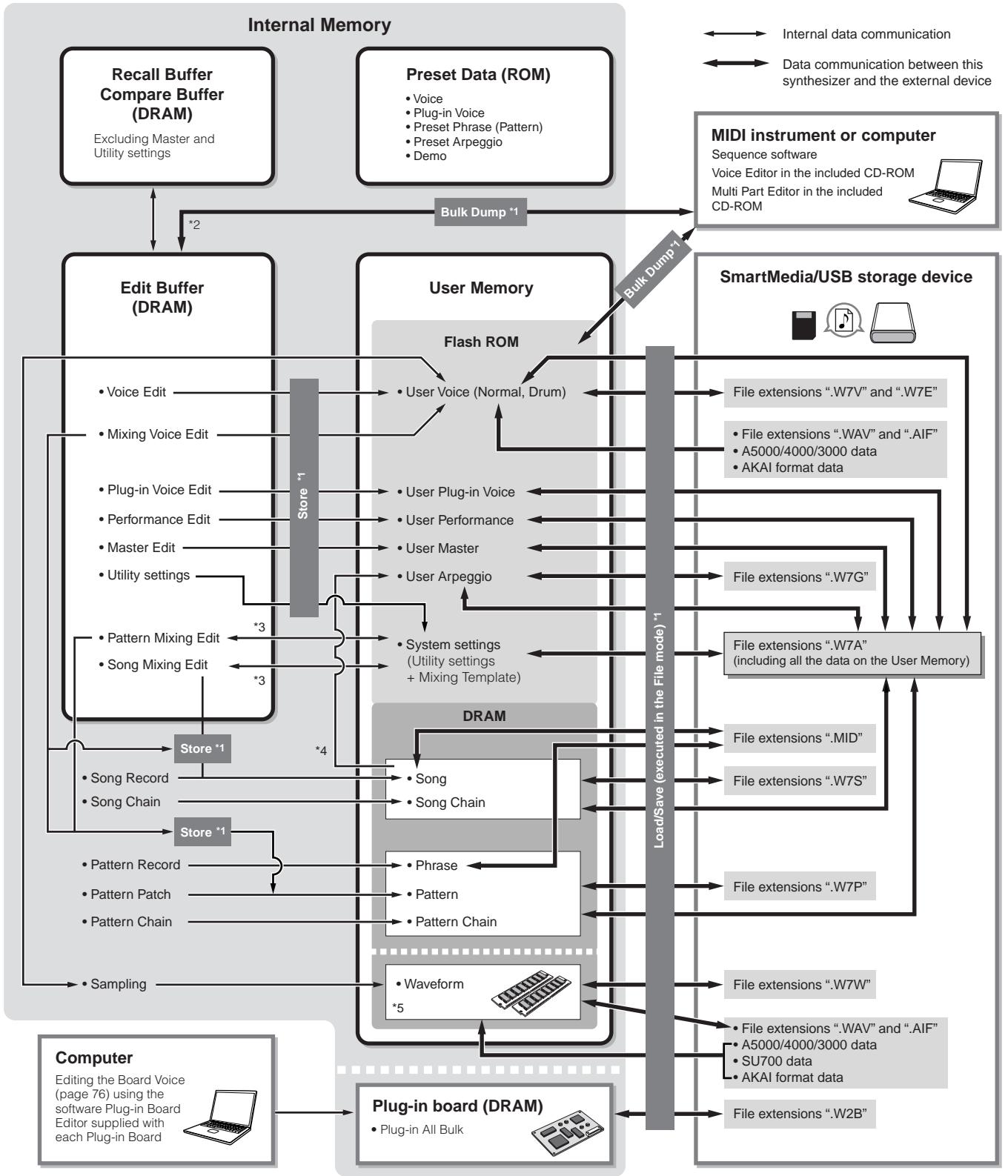
1 For details on the Bulk Dump, Save, and Store operations, see page 185.
2 Only the currently edited data can be transmitted as Bulk data. Note that the Mixing Voice cannot be transmitted as Bulk data.
3 The Mixing settings can be stored/recalled as a template in the Song Mixing Job mode/Pattern Mixing Job mode.
4 You can convert the MIDI sequence data recorded in the Song Record mode/Pattern Record mode to Arpeggio data. This can be executed with the following operations: • [SONG] → [JOB] → [F5] TRACK → 07: Put Track to Arp • [PATTERN] → [JOB] → [F5] TRACK → 06: Track to Arp
*5 In order to create a Waveform by sampling or importing an audio file, optional DIMM modules must be installed.
Internal Memory
Below are explanations of the basic terms used in the Memory Structure illustration on the previous page.
- Flash ROM
ROM (Read Only Memory) is memory designed specifically for reading out of data, and as such data cannot be written to it. Unlike conventional ROM, Flash ROM can be overwritten – allowing you to store your own original data. The contents of Flash ROM are maintained even when the power is turned off.
- DRAM
RAM (Random Access Memory) is memory designed specifically for data writing and data reading operations. There are two different kinds of RAM, depending on the condition for storing the data: SRAM (Static RAM) and DRAM (Dynamic RAM). The created data stored on DRAM is lost when the power is turned off. Because of this, you should always store any data residing in DRAM to the SmartMedia/USB storage device before turning off the power.
DIMM
DIMM modules must be installed in order to use the Sampling function or to load audio data (Waveform/WAV file/AIFF file) to the instrument. As with DRAM described above, the created data stored on DIMM is lost when the power is turned off. Because of this, you should always store any data residing in DIMM to the SmartMedia/USB storage device before turning off the power.
Edit Buffer and User Memory
The edit buffer is the memory location for edited data of these types: Voice, Performance, Master, Song Mixing, and Pattern Mixing. Data edited in this location will be stored to the User Memory. If you select another Voice, Performance, Master, Song, or Pattern, the entire contents of the edit buffer will be rewritten with the newly selected Voice/Performance/Master/Song Mixing/Pattern Mixing data. Make sure to store any important data before selecting another Voice, etc.
Edit Buffer and Recall Buffer
If you've selected another Voice/Performance/Song/Pattern without storing the one you were editing, you can recall your original edits, since the edit buffer's contents are stored in backup memory.
5NOTE Keep in mind that the recall buffer is not available in the Master Edit mode.
Reference
Voice mode
Creating Voices - basic procedure
You can create and edit your original Voices by setting various parameters in both the Voice Play mode and Voice Edit mode, while the Voice Job mode provides some basic parameter-related tools, such as Initialize and Copy. Once you've edited a Voice, you can store it to a User Bank in internal memory (Flash ROM) and save all edited Voices to a SmartMedia/USB storage device in the File mode.
Voice Play mode
[VOICE] Voice selection
The Voice Play mode lets you perform a variety of general editing operations on the selected voice. For more detailed and comprehensive editing operations, use the Voice Edit mode.
In the Voice Play mode and Voice Edit mode, you can set the parameters for each Voice. The parameters for all the Voices such as Master EQ and Master Effect can be set from the [UTILITY] [F3] VOICE display in the Utility mode.
5NOTE The parameters that have the same name in the Voice Play mode and in the Voice Edit mode have the same functions and settings.
5NOTE When a Plug-in voice is selected, certain parameters are not available for editing, even if they're described here.
[F1] PLAY
| TCH (Transmit Channel) | Indicates the Keyboard MIDI transmit channel. You can change the Keyboard MIDI transmit channel by pressing the [TRACK SELECT] button so that its indicator lights and pressing any of the NUMBER [1] - [16] buttons. The Keyboard MIDI transmit channel can be changed also with the following operation: [UTILITY] → [F5] MIDI → [SF1] CH → KBDTransCh. |
| OCT (Octave) | Indicates Keyboard Octave setting set via the [OCTAVE] buttons. This can be changed also with the following operation: [UTILITY] → [F1] GENERAL → [SF2] KBD → Octave. |
| ASA (ASSIGN A), ASB (ASSIGN B) | Indicates the functions assigned to the respective Knobs (printed “ASSIGN A” and “ASSIGN B”) when the lamps of both the [PAN/SEND] and [TONE] buttons are turned on. The functions are assigned with the following operation: [UTILITY] → [F4] CTL ASN → [SF2] ASSIGN. |
| NOTE TCH (Transmit Channel), OCT (Octave), ASA (ASSIGN A), and ASB (ASSIGN B) settings do not belong to each Voice. Because of this, these are not stored as an individual Voice in the Voice Store mode (page 208). | |
| AS1 (ASSIGN 1), AS2 (ASSIGN 2) | Indicates the functions assigned to the respective Knobs (printed “ASSIGN 1” and “ASSIGN 2”) when the lamps of both the [PAN/SEND] and [TONE] buttons are turned on. The functions are assigned by setting the Voice Edit common parameters with the following operation: [VOICE] → [EDIT] → [COMMON] → [F4] CTL SET. |
| [SF1] ARP1 (Arpeggio 1) - [SF5] ARP5 (Arpeggio 5) | You can register the desired Arpeggio types to these buttons and call them up any time during your keyboard performance. Refer to page 66 in the Quick Guide section. |
[F2] BANK
This display is available only when a Plug-in Board has been installed and a Voice of the Plug-in Board is selected.
From this display you can select the particular bank on the Plug-in board, and determine whether you will be using a Plug-in voice or a "Board" voice. Board voices are unprocessed, unaltered voices of the Plug-in board – the "raw material" for Plug-in voices. Plug-in voices are edited Board voices – voices that have been specially programmed and processed for optimum use with this synthesizer. For more details, see page 74.
Settings: The following selections are available, for example, when a Plug-in voice using the Plug-in board installed to slot 1 is selected: PLG1USR (User Plug-in voice), PLGPRE1 (Preset Plug-in voice), 032/000 ... (Indicates the Bank Select MSB/LSB of the Board voice. These values differ depending on the installed Plug-in board.)
[F3] EFFECT
Pressing the [F3] EFFECT button in the Voice Play mode calls up the same EFFECT display in the Voice Edit mode ([VOICE] [EDIT] [COMMON] [F6] EFFECT). From this display, you can set the effect related parameters for the current Voice. See page 194.
[F4] PORTA (Portamento)
From this display you can select monophonic or polyphonic playback and set the Portamento parameters.
Portamento is used to create a smooth transition in pitch from the first note played on the keyboard to the next.
| Mono/Poly | Determines whether the Voice is played back monophonically (single notes only) or polyphonically (multiple simultaneous notes). Settings: mono, poly 5Note 1 When pressing the second note while holding the first note with the PortaSw set to on and the Mono/Poly set to on, the second note sound starts succeeding the transition of the first note, or the second note starts not from the EG (AEG/PEG/FEG) start point but from the EG (AEG/PEG/FEG) point the first note reaches. This realizes the legato performance. This legato degree can be set with the following operation: [VOICE] → [EDIT] → [COMMON] → [F1] GENERAL → [SF4] PORTA → LegatoSlope (page 190). |
| PortaSw (Portamento Switch) | Determines whether Portamento is applied to the current Voice or not. Settings: off, on |
| PortaTime (Portamento Time) | Determines the pitch transition time. Higher values result in longer transition times. Settings: 0 ~ 127 |
| PortaMode (Portamento Mode) | Determines the Portamento mode. The behavior of the Portamento varies depending on whether Mono/Poly is set to “mono” or “poly.” Settings: fingered, fulltime fingered .....................Portamento is only applied when you play legato (playing the next note before releasing the previous one). fulltime .....................Portamento is always applied. |
[F5] EG (Envelope Generator)
This display contains the basic EG settings, both volume and filter, for the voice, as well as the filter's cutoff frequency and resonance settings. The settings made here are applied as offsets to the AEG and FEG settings in the Voice Edit mode.
The full names of the available parameters are shown in the chart below, as they appear in the display.
| ATK | DCY | SUS | REL | DEPTH | CUTOFF | RESO | |
| AEG | Attack time | Decay time | Sustain level | Release Time | --- | --- | --- |
| FEG | --- | Depth | Cutoff frequency | Resonance |
Settings: -64 0 +63 (except --- above)
[F6] ARP (Arpeggio)
This display contains the basic settings for Arpeggio playback, including Type and Tempo. About the [SF1] - [SF5] buttons, see the explanation of the [F1] PLAY display.
| Bank, Ctrg (Category), Type | These three parameters determine the Arpeggio Type. The three-letter prefix number before the Type name indicates the number within the selected Category. Settings: Refer to the separate Data List. |
| Tempo | Determines the Arpeggio Tempo. When MIDI Sync ([UTILITY] → [F5] MIDI → [SF3] SYNC → MIDI Sync) is set to "MIDI," "MIDI" is displayed here and cannot be set.Settings: 1 ~ 300 |
| Vellimit (Velocity Limit) | Determines the lowest and highest velocity which can trigger the Arpeggio playback. The Arpeggio plays when you play notes at velocities within in this range.Settings: 1 ~ 127Keynote Keys played outside the set limit sound normally without any Arpeggio. |
| Switch | Determines whether Arpeggio is on or off. You can also turn Arpeggio on/off from the front panel with the [ARPEGGIO ON/OFF] button.Settings: off, on |
| Hold | Determines whether the Arpeggio playback is "held" or not. When this is set to "on," the Arpeggio cycles automatically, even if you release your fingers from the keys, and it continues to cycle until the next key is pressed.Settings: sync-off (see below), off, onsync-off.......When set to "sync-off," the Arpeggio playback continues to run silently, even when you release the keys. Pressing any key turns the Arpeggio playback on again. In other words, you can use the key to "un-mute" or "mute" (not start or stop) the Arpeggio playback by, respectively, holding it down or releasing it. |
Voice Edit mode
[VOICE] Voice selection [EDIT]
There are three kinds of Voices: Normal Voices, Drum Voices and Plug-in Voices (if a Plug-in board has been installed). The following section shows how to edit the different types of voices and explains the parameters available. Note that available parameters to be edited differ depending on the Voice types (Normal Voice, Drum Voice, Plug-in Voice).
Normal Voice Edit
When a Normal Voice is selected, the Voice Edit parameters are divided into Common Edit (parameters common to all four Elements), and Element Edit (parameters of individual Elements).
| Common Edit | [VOICE] → Normal Voice selection → [EDIT] → [COMMON] |
These parameters are for making global (or common) edits to all four Elements of the selected Normal Voice.
[F1] GENERAL
| [SF1] NAME | From this display you can assign the category (sub and main) of the selected voice, and create a name for the voice. The voice name can contain up to 10 characters. For detailed instructions on naming a voice, see “Basic Operation” on page 53. |
| [SF2] PLY MODE (Play mode) | From this display you can make various settings for the tone generator of this synthesizer, and assign different Micro Tuning settings. |
| Mono/Poly | Determines whether the Voice is played back monophonically (single notes only) or polyphonically multiple simultaneous notes). Settings: mono, poly |
| KeyAsgnMode (Key Assign Mode) | When this is set to "single," double playback of the same note is prevented. This is useful when two or more instances of the same note are received nearly simultaneously, or without a corresponding note off message. To allow playback of each instance of the same note, set this to "multi." Settings: single, multi |
| M. TuningNo. (Micro Tuning Number) | Determines the tuning system for the voice. Normally, this should be set to 00 (Equal temperament); however additional tuning systems are available for a variety of tuning applications and effects. Settings: See the Micro Tuning List on page 209. |
| M. TuningRoot (Micro Tuning Root) | Determines the root note of the Micro Tuning set above. Settings: C ~ B |
| [SF3] MEQ OFS (Master EQ Offset) | From this display you can adjust the master (global) EQ settings for the entire Voice. The settings made here are applied as offsets to the EQ settings (with the exception of "MID") from the Utility mode, with the following operation: [VOICE] → [UTILITY] → [F3] VOICE → [SF1] MEQ. You can edit these parameters by using the Knobs. Settings: -64 ~ 0 ~ +63 |
| [SF4] PORTA (Portamento) | This display allows you to set the Portamento related parameters. Portamento is used to create a smooth transition in pitch from the first note played on the keyboard to the next. |
| Switch | Determines whether Portamento is applied to your keyboard performance using the current Voice or not. Settings: off, on |
| Time | Determines the pitch transition time. Higher values result in a longer pitch change time, when Time Mode below is set to "Time." Settings: 0 ~ 127 |
| Mode | Determines how the Portamento is applied to your keyboard performance. Settings: fingered, fulltime fingered.........Portamento is only applied when you play legato (playing the next note before releasing the previous one). fulltime..........Portamento is always applied. |
| TimeMode | This determines how the pitch changes in time. Settings: rate1, time1, rate2, time2 rate1..........Pitch changes at the specified rate. time1..........Pitch changes in the specified time. rate2..........Pitch changes at the specified rate within a octave. time2..........Pitch changes in the specified time within a octave. |
| LegatoSlope | Determines the speed of the attack of legato notes, when Switch above is set to on and Mono/Poly is set to mono. (Legato notes "overlap" each other, the next being played before the previous is released.) The higher the value, the slower the attack rate. Settings: 0 ~ 7 |
| [SF5] OTHER | From this display you can set the control functions for the Knobs, and determine the up/down range for the Pitch Bend wheel. |
| Knob Assign | Determines the function for the assignable Knobs (1-4). Pressing the [KNOB CONTROL FUNCTION] button on the panel sets the desired function row, which is automatically stored to memory with the currently selected voice. Settings: pan, tone, assign, MEQofs, MEF, arpFx |
| PB Upper (Pitch Bend range Upper), PB Lower (Pitch Bend range Lower) | These two parameters determine the pitch change range of the Pitch Bend wheel. Settings: -48 ~ 24 |
| AssignA, AssignB, Assign1, Assign2 | Simply tweaking the knob with setting the Knob Assign (above) to "assign" to the desired value, which is automatically stored to memory with the currently selected voice. |
[F2] OUTPUT
| Volume | Determines the output level of the Voice. Settings: 0 ~ 127 |
| Pan | Determines the stereo pan position of the Voice. You can also adjust this parameter using the PAN knob on the front panel. Settings: L63 (Left) ~ C (Center) ~ R63 (Right) NOTE When a stereo Voice is selected, this parameter setting may not be effective. Voices with Elements set to opposite Pan settings (set in [F4] AMP → [SF1] LVL/PAN → Pan) — i.e., one at L63 and another at R63 — are considered stereo Voices. |
| RevSend | Determines the Send level of the signal sent from Insertion Effect A/B (or the bypassed signal) to the Reverb effect. You can also adjust this parameter using the REVERB knob on the front panel. Settings: 0 ~ 127 |
| ChoSend | Determines the Send level of the signal sent from Insertion Effect A/B (or the bypassed signal) to the Chorus effect. You can also adjust this parameter using the CHORUS knob on the front panel. Settings: 0 ~ 127 |
- NOTE See page 179 for the Effect connection in the Voice mode.
[F3] ARP (Arpeggio)
| [SF1] TYPE | The basic Arpeggio parameters (e.g., type, tempo) are provided in this display. |
| Bank, Ctrg (Category), Type | These three parameters determine the Arpeggio Type. The three-letter prefix number before the Type name indicates the number within the selected Category. When user arpeggio is selected here, you can clear the selected arpeggio data by using the [SF5] button. Settings: Refer to the separate Data List. |
| Tempo | Determines the Arpeggio Tempo. When MIDI Sync ([UTILITY] → [F5] MIDI → [SF3] SYNC → MIDI Sync) is set to "MIDI," "MIDI" is displayed here and Tempo cannot be set. Settings: 1 ~ 300 |
| ChgTiming (Change Timing) | Determines the actual timing at which the Arpeggio type is switched when you select another type during Arpeggio playback. Settings: realtime, measure realtime. The Arpeggio type is switched immediately when you select another type. measure. The Arpeggio type is switched at the top of the next measure after you select another type. |
| Switch | Determines whether Arpeggio is on or off. You can also turn Arpeggio on/off from the front panel with the [ARPEGGIO ON/OFF] button. Settings: off, on |
| Hold | Determines whether the Arpeggio playback is "held" or not. When this is set to "on," the Arpeggio cycles automatically, even if you release your fingers from the keys, and it continues to cycle until the next key is pressed. Settings: sync-off (see below), off, on sync-off. When set to "sync-off," the Arpeggio playback continues to run silently, even when you release the keys. Pressing any key turns the Arpeggio playback on again. In other words, you can use the key to "un-mute" or "mute" (not start or stop) the Arpeggio playback by, respectively, holding it down or releasing it. |
| KeyMode | Determines how the Arpeggio plays back when playing the keyboard. Settings: sort, thru, direct, sortdirect, thrudirect sort. When you play specific notes (for example, the notes of a chord), the same sequence plays, no matter what order you play the notes. thru. When you play specific notes (for example, the notes of a chord), the resulting sequence differs depending on the order of the notes. direct. Note events of the Arpeggio sequence do not play; only the notes you play on the keyboard are heard. This setting is for use with non-note Arpeggio data, such as Control Change or Pitch Bend. When the Arpeggio plays back, these events are applied to the sound of your keyboard performance. Use this setting when the Arpeggio types includes non-note data or when the Category type "Ctrl" is selected. sortdirect. The Arpeggio is played back according to the "sort" setting here, and the note pressed is also sounded. thrudirect. The Arpeggio is played back according to the "thru" setting here, and the note pressed is also sounded. NOTE Some Arpeggio types belonging to the "Cntr" Category may not have note events (page 170). When such an Arpeggio type is selected and the KeyMode is set to "sort" or "thru," no sound is produced even if you press the note on the keyboard. NOTE With the "sort" and "thru" settings, the order in which notes are played back will depend on the Arpeggio sequence data. |
| VelMode (Velocity Mode) | This determines the playback velocity of the Arpeggio, or how it responds to your own playing strength. Settings: original, thru original. The Arpeggio plays back at the preset velocities included in the Arpeggio sequence data. thru. The Arpeggio plays back according to the velocity of your playing. For example, if you play the notes strongly, the playback volume of the Arpeggio increases. |
| [SF2] LIMIT | |
| NoteLimit | Determines the lowest and highest notes in the Arpeggio's note range. Notes played in this range trigger the Arpeggio. Settings: C-2 ~ G8 |
| You can also create a lower and an upper trigger range for the Arpeggio, with a note range "hole" in the middle, by specifying the highest note first. For example, setting a Note Limit of "C5 - C4" lets you trigger the Arpeggio by playing notes in the two ranges of C-2 to C4 and C5 to G8; notes played between C4 and C5 have no effect on the Arpeggio. | |
| You can also set the range directly from the keyboard, by holding down the [INFORMATION] button and pressing the desired low and high keys. | |
| Please keep in mind that no sound is produced when the KeyMode is set to "sort" or "thru" and notes are played outside the Note Limit setting here. | |
| VelocityLimit | Determines the lowest and highest velocity in the Arpeggio's velocity range. This lets you control when the Arpeggio sounds by your playing strength. Settings: 1 ~ 127 |
| You can also create separate low and high trigger ranges for the Arpeggio playback, with a velocity "hole" in the middle, by specifying the maximum value first. For example, setting a Velocity Limit of 93 - 34 lets you play the Arpeggio from two separate velocity ranges: soft (1 - 34) and hard (93 - 127). Notes played at middle velocities between 35 and 92 do not play the Arpeggio. | |
| [SF3] PLAY FX | These Play Effect parameters let you control the playback of the Arpeggio in useful and interesting ways. By changing the timing and velocity of the notes, you can change the rhythmic "feel" of the Arpeggio. |
| UnitMultiply (Unit Multiply) | Adjust the Arpeggio playback time. For example, if you set a value of 200%, the playback time will be doubled (tempo is halved). On the other hand, if you set a value of 50%, the playback time will be halved (tempo is doubled). Normal playback time is 100%. Settings: 50%, 66%, 75%, 100%, 133%, 150%, 200% |
| Swing | Delays notes on even-numbered beats (backbeats) to produce a swing feel. Settings: -120 ~ +120 |
| QuntValue (Quantize Value) | Determines to what beats the note data in the Arpeggio sequence data will be aligned, or determines to what beats in the Arpeggio sequence data the swing is applied. Settings: 32nd note F 8th note triplet F F 1/4 note J 16th note triplet F F 8th note J 16th note F 1/4 note triplet F F |
| QuntStrength (Quantize Strength) | The Strength value sets the "strength" by which note events are pulled toward the nearest quantize beats. A setting of 100% produces exact timing set via the QuntValue parameter above. A setting of 0% results in no quantization. Settings: 0% ~ 100% |
| VelocityRate | Determines how much the Velocity of the Arpeggio playback is offset from the original value. For example, a setting of 100% means the original values are used. Settings below 100% will reduce the velocity of the Arpeggio notes, whereas settings above 100% will increase the velocities. Settings: 0% ~ 200% Note The Velocity cannot be decreased or increased beyond its normal range of 1 to 127; any values outside that range will automatically be limited to the minimum or maximum. |
| GateTimeRate | Determines how much the Gate Time (length) of the Arpeggio notes is offset from the original value. A setting of 100% means the original values are used. Settings below 100% will shorten the gate times of the Arpeggio notes, whereas settings above 100% will lengthen them. Settings: 0% ~ 200% Note The Gate Time cannot be decreased beyond its normal minimum of 1; any values outside that range will automatically be limited to the minimum. |
[F4] CTL SET (Controller Set)
[F5] LFO (Low Frequency Oscillator)
| [SF1] SET1/2 - [SF3] SET5/6 | Since up to six Controller Sets can be assigned to each Voice, three pages (Sets 1/2, Sets 3/4 and Sets 5/6) are provided. For more information on Controller Sets, see page 155. |
| ElementSw | Determines whether or not the selected controller affects each individual Element. Settings: Elements 1 to 4 enabled ("1" to "4") or disabled ("-") Note This parameter is disabled when the Dest (Destination) described below is set to a parameter unrelated to the Voice Elements. |
| Source | Determines which panel controller is to be assigned and used for the selected Set. This controller then is used to control the parameter set in Destination below. Settings: PB (Pitch Bend Wheel), MW (Modulation Wheel), AT (After Touch), FC1 (Foot Controller 1), FS (Footswitch), RB (Ribbon Controller), BC (Breath Controller), AS1 (Knob ASSIGN 1), AS2 (Knob ASSIGN 2), FC2 (Foot Controller2) Note Keep in mind that unlike the other controllers, the ASSIGN A and B knobs can each be assigned to one common function for the entire system of this synthesizer, and not to different functions for each individual voice. Also refer to the Utility mode (page 263). |
| Dest (Destination) | Determines the parameter that is controlled by the Source controller (above). Settings: For a complete list of the available parameters/controls, refer to the separate Data List booklet. |
| Depth | Determines the degree to which the Source controller affects the Destination parameter. For negative values, the controller operation is reversed; maximum controller settings produce minimum parameter changes. Settings: -64 ~ 0 ~+63 |
From these displays, you can make a variety of LFO related settings. As its name suggests, the LFO creates waveforms of a low frequency. These waveforms can be used to vary the pitch, filter or amplitude to create effects such as vibrato, wah and tremolo.
| [SF1] WAVE | |
| Wave | Determines the LFO Wave. Settings: tri, tri+, sawup, sawdwn, squ1/4, squ1/3, squ, squ2/3, squ3/4, trpzp, S/H 1, S/H 2, user |
| Speed | Determines the speed of the LFO Wave modulation. Higher values result in faster modulation speeds. Settings: 0 ~ 63 |
| TempoSync | Determines whether or not the LFO is synchronized to the tempo of the Arpeggio or sequencer (song or pattern). Settings: off (not synchronized), on (synchronized) |
| TempoSpeed | This parameter is available only when TempoSync above has been set to "on." It allows you to make detailed note value settings that determine how the LFO pulses in sync with the Arpeggio or sequencer. Settings: 16th, 8th/3 (eighth-note triplets), 16th. (dotted sixteenth notes), 8th, 4th/3 (quarter-note triplets), 8th. (dotted eighth notes), 4th (quarter notes), 2nd/3 (half-note triplets), 4th. (dotted quarter notes), 2nd (half notes), whole/3 (whole-note triplets), 2nd. (dotted half notes), 4th x 4 (quarter-note quadruplets; four quarter notes to the beat), 4th x 5 (quarter-note quintuplets; five quarter notes to the beat), 4th x 6 (quarter-note sextuplets; six quarter notes to the beat), 4th x 7 (quarter-note septuplets; seven quarter notes to the beat), 4th x 8 (quarter-note octuplets; eight quarter notes to the beat) The actual length of the note depends on the internal or external MIDI tempo setting. |
| KeyOnReset | Determines whether or not the LFO is reset each time a note is pressed. The following three settings are available. Settings: off, each-on, 1st-on off. . . . . . . . . . . . . . . . . . . . . . . . . . . . . . . . . . . . . . . . . . . . . . . . . . . . . . . . . . . . . . . . . . . . . . . . . . . . . . . . . . . . . . . . . . . . . . . . . . . . . each-on. . . . . . . . . . . . . . . . . . . . . . . . . . . . . . . . . . . . . . . . . . . . . . . . . . . . . . . . . . . . . . . . . . . . . . . . . . . . . . . . . . . . . . . . . . . . . . . 1st-on. . . . . . . . . . . . . . . . . . . . . . . . . . . . . . . . . . . . . . . . . . . . . . The LFO resets with every note you play and starts a waveform at the phase specified by the Phase parameter (below). However, if you play a second note while the first is being held, the LFO continues cycling according to the same phase as triggered by the first note. In other words, the LFO only resets if the first note is released before the second is played. off. . . . . . . . . . . . . . . . . . . . . . . . . . . . . . . . . . . . Key on. Time Key on (Key on (first note) Key on (second note) Key on (first note) Key on (second note) 1st-on Time Key on (Key on (Key on (Key on (Key on Key on Key on Key on Key on Key on Key on Key on Key on Key on Key on Key on Key on Key on Key on Key on Key on Key on Key on Key on Key on Key on Key on Key on Key on Key on Key on Key on Key on Key on Key on Key on Key on Key on Key ON Max Hold Max Hold Max Hold Max Hold Max Hold Max Hold Max Hold Max Hold Max Hold Max Hold Max Hold Max Hold Max Hold Max Hold Max Hold Max Hold Max Hold Max Hold Max Hold Max Hold Max Hold Max Hold Max Hold Max Hold Max Hold Max hold Max hold Max hold Max hold Max hold Max hold Max hold Max hold Max hold Max hold Max hold Max hold Max hold Max hold Max hold Max hold Max hold Max hold Max hold Max hold Max hold Max hold Max hold Max hold Max hold Max Hold Max Hold Max Hold Max Hold Max Hold Max Hold Max Hold Max Hold Max Hold Max Hold Max Hold Max Hold Max Hold Max Hold Max Hold Max Hold Max Hold Max Hold Max Hold Max Hold Max Hold Max Hold Max Hold Max Hold Max Hold Hold Hold Hold Hold Hold Hold Hold Hold Hold Hold Hold Hold Hold Hold Hold Hold Hold Hold Hold Hold Hold Hold Hold Hold Hold Hold Hold Hold Hold Hold Hold Hold Hold Hold Hold Hold Hold Hold Hold Hold Hold Hold Hold Hold Hold Hold Hold Hold Hold Hold hold Hold Hold Hold Hold Hold Hold Hold Hold Hold Hold Hold Hold Hold Hold Hold Hold Hold Hold Hold Hold Hold Hold Hold Hold Hold Hold Hold Hold Hold Hold Hold Hold Hold Hold Hold Hold Hold Hold Hold Hold Hold Hold Hold Hold Hold Hold Hold Hold Hold Hold Hold Hold Hold Hold Hold Hold Hold Hold Hold Hold Hold Hold Hold Hold Hold Hold Hold Hold Hold Hold Hold Hold Hold Hold Hold Hold Hold Hold Hold Hold Hold Hold Hold Hold Hold Hold Hold Hold Hold Hold Hold Hold Hold Hold Hold Hold Hold Hold hold hold hold hold hold hold hold hold hold hold hold hold hold hold hold hold hold hold hold hold hold hold hold hold hold hold hold hold hold hold hold hold hold hold hold hold hold hold hold hold hold hold hold hold hold hold hold hold hold hold Hold Hold Hold Hold Hold Hold Hold Hold Hold Hold Hold Hold Hold Hold Hold Hold Hold Hold Hold Hold Hold Hold Hold Hold Hold Hold Hold Hold Hold Hold Hold Hold Hold Hold Hold Hold Hold Hold Hold Hold Hold Hold Hold Hold Hold Hold Hold Hold hold hold hold hold hold hold hold hold hold hold hold hold hold hold hold hold hold hold hold hold hold hold hold hold hold hold hold hold hold hold hold hold hold hold hold hold hold hold hold hold hold hold hold hold hold hold hold hold hold hold hold hold hold hold hold hold hold hold hold hold hold hold hold hold hold hold hold hold hold hold hold hold hold hold hold hold hold hold hold hold hold hold hold hold hold hold hold hold hold hold hold hold hold hold hold hold hold hold hold Hold Hold hold hold hold hold hold hold hold hold hold hold hold hold hold hold hold hold hold hold hold hold hold hold hold hold hold hold hold hold hold hold hold hold hold hold hold hold hold hold hold hold hold hold hold hold hold hold hold Hold Hold HOLD Hold Hold Hold Hold Hold Hold Hold Hold Hold Hold Hold Hold Hold Hold Hold Hold Hold Hold Hold Hold Hold Hold Hold Hold Hold Hold Hold Hold Hold Hold Hold Hold Hold Hold Hold Hold Hold Hold Hold Hold Hold Hold Hold Hold Hold Hold Hold Hold Hold HOLD Hold Hold Hold Hold Hold Hold Hold Hold Hold Hold Hold Hold Hold Hold Hold Hold Hold Hold Hold Hold Hold Hold Hold Hold Hold Hold Hold Hold Hold Hold Hold Hold Hold Hold Hold Hold Hold Hold Hold Hold Hold Hold Hold Hold Hold Hold Hold Hold Hold Hold Hold Hold Hold Hold Hold Hold Hold Hold Hold Hold Hold Hold Hold Hold Hold Hold Hold Hold Hold Hold Hold Hold Hold Hold Hold Hold Hold Hold Hold Hold Hold Hold Hold Hold Hold Hold Hold Hold Hold Hold Hold Hold Hold Hold Hold Hold |
[F6] EFFECT
| [SF3] PHASE | |
| Phase | Determines the starting phase point for the LFO Wave when it is reset. Settings: 0, 90, 120, 180, 240, 270 Phase 0° 90° 180° 270° 120° 240° |
| Offset EL1 - EL4 (Phase Offset Element1 - Element4) | Determines the offset values of the Phase parameter (above) for the respective Elements. Settings: +0, +90, +120, +180, +240, +270 |
| [SF4] BOX1 - 3 | From this display you can select the destination parameter for the LFO (which aspect of the sound the LFO controls), the Elements to be affected by the LFO, and the LFO Depth. Three pages (boxes) provided for setting the destination let you assign multiple destinations. |
| ElemSw (Element Switch) | Determines whether or not each Element is to be affected by the LFO. The Element number (1-4) is shown when the LFO is enabled; a dash (-) indicates the LFO is disabled for that Element. |
| Dest (Destination) | Determines the parameters which are to be controlled (modulated) by the LFO Wave. Settings: amd, pmd, fmd, reso (Resonance), pan, ELFOSpd (Element LFO Speed) |
| Depth | Determines the LFO Wave Depth. Settings: 0 ~ 127 |
| DptRatio EL1 - EL4 (Depth Offset Element1 - Element4) | Determines the offset values of the Depth parameter (above) for the respective Elements. Settings: 0 ~ 127 |
| [SF5] USER | This menu is available only when the User LFO wave is selected. You can create a custom LFO wave consisting of up to sixteen steps. |
| Template | You can select a pre-programmed template for the LFO wave. The selected template's wave graph appears on the display and you can create the LFO wave by viewing it. Each time pressing the [SF1] random button, different LFO wave is appears on the display randomly. Settings: all0 Values of all the steps are set to 0. all64 Values of all the steps are set to 64. all127 Values of all the steps are set to 127. saw up Creates a saw shaped upward wave. saw down......Creates a saw shaped downward wave. even step Values of all even steps are set to 127, and values of all odd steps are set to 0. odd step Values of all odd steps are set to 127, and values of all even steps are set to 0. |
| Slope | Determines the slope or ramp characteristics of the LFO wave. Settings: OFF (no slope), up, down, up&down |
| Value | Edits the value for each step. Settings: 0 ~ 127 |
| Step | Selects the step number of the LFO wave. Settings: 1 ~ 16 |
For details on the Effect connections in the Voice mode, see page 179. For details on the Effect Types, refer to the Effect Type list in the separate Data List booklet.
| [SF1] CONNECT | This display gives you comprehensive control over the effects. |
| EL: OUT 1-4 (Element 1-4 Effect Output) | Determines which Insertion effect (A or B) is used to process each individual Element. The "thru" setting lets you bypass the Insertion effects for the specific Element. Settings: insA, insB, thru |
| InsEF Connect (Insertion Effect Connect) | Determines the effect routing for Insertion effects A and B. The setting changes are shown on the diagram in the display, giving you a clear picture of how the signal is routed. Settings: Para, InsAtoB, InsBtoA (See page 179.) |
| InsA Ctglry (Insertion A Category), InsA Type (Insertion A Type) | Determines the effect type for Insertion A. |
| [SF2] INS A (Insertion A) | These are for adjusting the various parameters of the Effect blocks. The number of parameters and values available differs depending on the currently selected effect type. For more information, see the Effect Type List in the separate Data List booklet. Note that the menu of the corresponding Effect block disappears when the "thru" type is selected. |
| [SF3] INS B (Insertion A) | |
| [SF4] REVERB | |
| [SF5] CHORUS | |
| [Chorus Send | Determines the level of the sound (from Insertion A or B, or the bypassed signal) that is sent to Reverb effect. A setting of "0" results in no Reverb processing of the sound. Settings: 0 ~ 127 |
| Chorus Send | Determines the level of the sound (from Insertion 1 or 2, or the bypassed signal) that is sent to Chorus effect. A setting of "0" results in no Chorus processing of the sound. Settings: 0 ~ 127 |
| Reverb Return | Determines the Return level of the Reverb Effect. Settings: 0 ~ 127 |
| Chorus Return | Determines the Return level of the Chorus Effect. Settings: 0 ~ 127 |
| Chorus to Reverb | Determines the Send level of the signal sent from the Chorus Effect to the Reverb Effect. Settings: 0 ~ 127 |
| Reverb Pan | Determines the pan position setting for the Reverb effect. Settings: L63 (far left) ~ cnt (center) ~ R63 (far right) |
| Chorus Pan | Determines the pan position setting for the Chorus effect. Settings: L63 (far left) ~ cnt (center) ~ R63 (far right) |
| Element Edit | [VOICE] → Normal Voice selection → [EDIT] → Element selection |
These parameters are for editing the individual Elements that make up a Normal Voice.
| [F1] OSC (Oscillator) | |
| [SF1] WAVE | From this display you can select the desired waveform or sound used for the Element. |
| ElementSw (Element Switch) | Determines whether the currently selected Element is on or off. Settings: off (inactive), on (active) |
| Bank | Determines whether the Preset Waveform or User Waveform is used. Settings: preset, usr wav Note The User Waveform contains audio data you have created with the Sampling function or imported (as WAV or AIFF files) from a SmartMedia/USB storage device. |
| Wave No. (Waveform Number), WaveCtgry (Waveform Category) | Determines the Waveform for the selected Element. See the Waveform list in the separate Data List. |
| [SF2] OUTPUT | From this display you can set certain output parameters for the selected Element. |
| KeyOnDelay | Determines the time (delay) between the moment you press a note on the keyboard and the point at which the sound is played. You can set different delay times for each Element. Settings: 0 ~ 127 |
| DelayTempoSync | Determines whether or not the KeyOnDelay is synchronized to the tempo of the Arpeggio or sequencer (song or pattern). Settings: off (not synchronized), on (synchronized) |
| DelayTempo | Determines the timing of the KeyOnDelay when the DelayTempoSync is set to on. Settings: 16th, 8th/3 (eighth-note triplets), 16th. (dotted sixteenth notes), 8th, 4th/3 (quarter-note triplets), 8th. (dotted eighth notes), 4th (quarter notes), 2nd/3 (half-note triplets), 4th. (dotted quarter notes), 2nd (half notes), whole/3 (whole-note triplets), 2nd. (dotted half notes), 4th x 4 (quarter-note quadruplets; four quarter notes to the beat), 4th x 5 (quarter-note quintuplets; five quarter notes to the beat), 4th x 6 (quarter-note sextuplets; six quarter notes to the beat), 4th x 7 (quarter-note septuplets; seven quarter notes to the beat), 4th x 8 (quarter-note octuplets; eight quarter notes to the beat) |
| InsEffectOut (Insertion Effect Output) | Determines which Insertion effect (1 or 2) is used to process each individual Element. The "thru" setting lets you bypass the Insertion effects for the specific Element. (This parameter is the same as "EL: OUT" on the [F6] EFFECT → [SF1] CONNECT display in Normal Common Edit. Making a setting here automatically changes the setting of that parameter as well.) Settings: thru, insA (Insertion Effect A), insB (Insertion Effect B) |
| [SF3] LIMIT | |
| NoteLimit | Determines the lowest and highest notes of the keyboard range for each Element. The selected Element will sound only when you play notes within this range. Settings: C-2 ~ G8 5NOTE You can also create a lower and an upper range for the Element, with a note range "hole" in the middle, by specifying the highest note first. For example, setting a Note Limit of "C5-C4" lets you play the Element from two separate ranges: C-2 to C4 and C5 to G8. Notes played between C4 and C5 do not play the selected Element. 5NOTE You can also set the range directly from the keyboard, by holding down the [INFORMATION] button and pressing the desired low and high keys. Refer to the Basic Operation section, page 53. |
| VelocityLimit | Determines the minimum and maximum values of the velocity range within which each Element will respond. Each Element will only sound for notes played within its specified velocity range. For example, this lets you have one Element sound when you play softly and have a different one sound when you play strongly. Settings: 1 ~127 5NOTE You can also create separate low and high ranges for the Element, with a velocity "hole" in the middle, by specifying the maximum value first. For example, setting a Velocity Limit of 93-34 lets you play the Element from two separate velocity ranges: soft (1-34) and hard (93-127). Notes played at middle velocities between 35 and 92 do not play the selected Element. |
| VelCrossFade (Velocity Cross Fade) | This determines how gradually the sound of an Element decreases in volume in proportion to the distance of velocity changes outside the Velocity Limit setting (above). The practical application of this parameter is to create natural-sounding velocity cross fades, in which different Elements change gradually depending on how strongly or softly you play. The higher the value, the more gradual the level change. Settings: 0 ~ 127 |
| [F2] PITCH | |
| [SF1] TUNE | From this display you can set various pitch-related parameters for the selected Element. |
| Coarse | Determines the pitch of each Element in semitones. Settings: -48 ~ 0 ~ +48 |
| Fine | Determines the fine tuning for the pitch of each Element. Settings: -64 ~ 0 ~ +63 |
| FineScaling | Determines the degree to which the notes (specifically, their position or octave range) affect the pitch in fine tuning (set above) of the selected Element, regarding C3 as the basic pitch. A positive setting will cause the pitch of lower notes to change lower and that of higher notes to change higher. Negative values will have the opposite effect. Settings: -64 ~ 0 ~ +63 |
| Random | This lets you randomly vary the pitch of the Element for each note you play. This is effective in reproducing the natural pitch variations in acoustic instruments. It is also useful for creating unusual random pitch changes. The higher the value, the greater the pitch variation. A value of "0" results in no pitch change. Settings: 0 ~127 |
| [SF2] VEL SENS (Velocity Sensitivity) | From this display you can determine how the Pitch EG responds to velocity. |
| EGTime, Segment | Determines the velocity sensitivity of the PEG's Time parameters. Select the Segment first, then set its Time parameter. Positive Time settings will play back the specified Segment faster in proportion to the played velocity and negative values will play it back slower. Settings: EGTime -64 ~0 ~+63 Settings: Segment: atk, atk+dcy, dcy, atk+rls, all atk (attack)......................................EG Time Value affects Attack time. atk+dcy (attack + decay)......................................EG Time Value affects Attack/Decay1 time. dcy (decay)......................................EG Time Value affects Decay time. atk+rls (attack + release)......................................EG Time Value affects Attack/Release time. all......................................EG Time Value affects all PEG Time parameters. |
| EGDepth, Curve | Determines the velocity sensitivity of the PEG Level. Positive settings will cause the pitch change to rise the harder you play the keyboard, and negative values will cause it to fall. The Curve parameter lets you select from five different preset velocity curves (graphically indicated in the display), that determine how velocity affects the Pitch EG Depth. Settings: EGDepth: -64 ~ 0 ~ +63 Settings: Curve: 0 ~ 4 |
| Pitch | Determines the velocity sensitivity of the Pitch. Extreme values produce greater variation in PEG Depth. For positive values, the harder you play the keys, the greater the change in PEG Depth. Settings: -64 ~ 0 ~ +63 |
| [SF3] PEG(Pitch Envelope Generator) | From this display you can make all the time and level settings for the Pitch EG, which determine how the pitch of the sound changes over time. These can be used to control the change in pitch from the moment a note is pressed on the keyboard to the moment the sound stops.The full names of the available parameters are shown in the chart below, as they appear in the display. |
| HOLD ATK DCY1 DCY2 REL DEPTH | |
| TIME | Hold time Attack time Decay1 time Decay2 time Release time |
| LEVEL | Hold level Attack level Decay1 level Decay2 level Release level Depth |
| Settings: TIME: 0 ~ 127LEVEL: -128 ~ 0 ~ +127DEPTH: -64 ~ 0 ~ +63 | |
| For details on the PEG, see page 160. | |
| [SF4] KEY FLW (Key Follow) | From this display you can set the Key Follow effect – in other words, how the pitch of the Element and its Pitch EG respond to the particular notes (or octave range) you play. |
| PitchSens (Pitch Sensitivity) | Determines the sensitivity of the Key Follow effect (the pitch interval of adjacent notes).At +100 (the normal setting), adjacent notes are pitched one semitone (100 cents) apart. At 0, all notes are the same pitch. At +50, one octave is stretched out over twenty-four notes. For negative values, the settings are reversed.Settings: -200 ~ 0 ~ +200This parameter is useful for creating alternate tunings, or for use with sounds that do not need to be spaced in semitones, such as pitched drum sounds in a Normal Voice. |
| CenterKey | Determines the central note or pitch for the Key Follow effect on pitch. The note number set here is the same pitch as normal regardless of the Pitch Sensitivity setting. Depending on the Pitch Sensitivity parameter above, the further away from the Center Key the keys are played, the greater the degree of pitch change.Settings: C-2 ~ G8You can also set the Center Key directly from the keyboard, by holding down the [INFORMATION] button and pressing the desired key. Refer to the Basic Operation section, page 53. |
| EGTimeSens(EG Time Sensitivity) | Determines the degree to which the notes (specifically, their position or octave range) affect the Pitch EG times of the selected Element. The Center Key (next parameter) is used as the basic pitch for this parameter.A positive setting will cause the pitch of lower notes to change slower and that of higher notes to change faster.Negative values will have the opposite effect.Settings: -64 ~ 0 ~ +63 |
| CenterKey | Determines the central note or pitch for the Key Follow effect on Pitch EG.When the Center Key note is played, the PEG behaves according to its actual settings. The pitch change characteristics for other notes will vary in proportion to the EG Time settings.Settings: C-2 ~ G8You can also set the Center Key directly from the keyboard, by holding down the [INFORMATION] button and pressing the desired key. Refer to the Basic Operation on page 53. |
![YAMAHA MOTIF ES6 - [F1] GENERAL - 1](/content/2025/01/114832/images/f9cc553b48b656c4768e6d28e51c9dd63ac6a7d97a13d226cff993a123d6ac68.jpg)
Pitch Sensitivity and Center Key
![YAMAHA MOTIF ES6 - [F1] GENERAL - 2](/content/2025/01/114832/images/369cd0b8e8e29013e4afff0b409416ee4539dc90f0ef46b57ebf5d3e2a172a63.jpg)
EG Time Sensitivity and Center Key
[F3] FILTER
| [SF1] TYPE | From this display you can make comprehensive settings for the Filter unit. The available parameters differ depending on which Filter type is selected here. For more information on the Filter types as well as illustrations of each type, refer to page 161. |
| Type | Basically, there are four different Filter types: an LPF (Low Pass Filter), an HPF (High Pass Filter), a BPF (Band Pass Filter) and a BEF (Band Elimination Filter). Each type has a different frequency response and produces a different effect on the sound. This synthesizer also features special combination Filter types, for additional sonic control. Settings: Refer to page 209. |
| Gain | Determines the Gain (the amount of boost applied to the signal sent to the Filter). Settings: 0 ~ 255 |
| Cutoff | Determines the cutoff frequency for the Filter, or the central frequency around which the Filter is applied. Settings: 0 ~ 255 |
| Resonance/Width | This parameter's function varies according to the selected Filter Type. If the selected filter is an LPF, HPF, BPF (excluding the BPFw), or BEF, this parameter is used to set the Resonance. For the BPFw, it is used to adjust the Width of the band. Resonance is used to set the amount of Resonance (harmonic emphasis) applied to the signal at the cutoff frequency. This can be used in combination with the cutoff frequency parameter to add further character to the sound. The Width parameter is used to adjust the width of the band of signal frequencies passed by the filter with the BPFw. Settings: 0 ~ 127 |
| Distance | Determines the distance between the Cutoff frequencies, for the Dual Filter types (which feature two identical filters combined in parallel, and the LPF12 + BPF6 type). Settings: 0 ~ 255 |
| HPFCutoff | Determines the central frequency for the Key Follow parameter (below) of the HPF. When a filter type "LPF12" or "LPF6" is selected, this parameter is available. Settings: 0 ~ 255 |
| HPFKeyFlaw (Key Follow) | Determines the Key Follow setting for the HPF Cutoff frequency. This parameter varies the center frequency according to the position of the notes played on the keyboard. A positive setting will raise the center frequency for higher notes and lower it for lower notes. A negative setting will have the opposite effect. When a filter type "LPF12" or "LPF6" is selected, this parameter is available. Settings: -200 ~ 0 ~ +200 |
| [SF2] VEL SENS (Velocity Sensitivity) | From this display you can determine how the Filter and the FEG respond to velocity. |
| EGTime, Segment | Determines the velocity sensitivity of the FEG's Time parameters. Select the Segment first, then set its Time parameter. Positive Time settings will play back the specified Segment faster in proportion to the played velocity and negative values will play it back slower. Settings: EG Time -64 ~ 0 ~ +63 Settings: Segment: atk, atk+dcy, dcy, atk+rls, all atk (attack)EG Time Value affects Attack time. atk+dcy (attack + decay)EG Time Value affects Attack/Decay1 time. dcy (decay)EG Time Value affects Decay time. atk+rls (attack + release)EG Time Value affects Attack/Release time. allEG Time Value affects all FEG Time parameters. |
| EGDepth, Curve | Determines the velocity sensitivity of the FEG Level. For positive settings, the more strongly you play the keyboard, the more Filter changes the sound. Negative settings do the opposite; the more softly you play, the more the sound changes. The Curve parameter lets you select from five different preset velocity curves (graphically indicated in the display), that determine how velocity affects the Filter EG. Settings: EGDepth: -64 ~ 0 ~ +63 Settings: Curve: 0 ~ 4 |
| Cutoff | Determines the degree to which velocity affects the Cutoff frequency of the Filter EG. For positive values, the more strongly you play the keys, the greater the change in the Cutoff frequency. Negative values do the opposite; the more softly you play, the greater the change in frequency. Settings: -64 ~ 0 ~ +63 |
| Resonance | Determines the degree to which velocity affects the Resonance of the Filter EG. For positive values, the more strongly you play the keys, the greater the Resonance change. Negative values do the opposite; the more softly you play, the greater the change in Resonance. Settings: -64 ~ 0 ~ +63 |
| [SF3] FEG (Filter Envelope Generator) | From this display you can make all the time and level settings for the Filter EG, which determine how the tonal quality of the sound changes over time. These can be used to control the change in Cutoff Frequency from the moment a note is pressed on the keyboard to the moment the sound stops. The full names of the available parameters are shown in the chart below, as they appear in the display. |
| HOLD ATK DCY1 DCY2 REL DEPTH | |
| TIME Hold time Attack time Decay1 time Decay2 time Release time | |
| LEVEL Hold level Attack level Decay1 level Decay2 level Release level Depth | |
| Settings: TIME: 0 ~ 127 LEVEL: -128 ~ 0 ~ +127 DEPTH: -64 ~ 0 ~ +63 | |
| For details on the FEG, see page 161. | |
| [SF4] KEY FLW (Key Follow) | From this display you can set the Key Follow effect for the Filter – in other words, how the tonal qualities of the Element and its Filter EG respond to the particular notes (or octave range) you play. |
| CutoffSens (Cutoff Sensitivity) | Determines the degree to which the notes (specifically, their position or octave range) affect the Filter of the selected Element. A Center Key setting (next parameter) of C3 is used as the basic setting by the Cutoff parameter. A positive setting will lower the Cutoff frequency for lower notes and raise it for higher notes. A negative setting will have the opposite effect. Settings: -200 ~ 0 ~ +200 |
| ►CenterKey | This indicates that the central note for Cutoff Sensitivity above is C3. At C3, the tone remains unchanged. For other notes played, the Cutoff Frequency varies according to the particular note and the Cutoff Sensitivity setting. Keep in mind that this is for display purposes only; the value cannot be changed. Settings: C -2 ~ G8 |
| EGTimeSens (EG Time Sensitivity) | Determines the degree to which the notes (specifically, their position or octave range) affect the Filter EG times of the selected Element. The basic speed of change for the FEG is at the note specified in the Center Key (next parameter). A positive setting will cause slower changes for lower notes and faster changes for higher notes. A negative setting will have the opposite effect. Settings: -64 ~ 0 ~ +63 |
| ►CenterKey | Determines the central note or pitch for the Key Follow effect on Filter EG. Depending on the EG Time Sensitivity parameter above, the further away from the Center Key the keys are played, the more the time of the Filter EG deviates from the normal. When the Center Key note is played, the FEG behaves according to its actual settings. The Filter change characteristics for other notes will vary in proportion to the EG Time settings. Settings: C -2 ~ G8 ■NOTE You can also set the Center Key directly from the keyboard, by holding down the [INFORMATION] button and pressing the desired key. Refer to the Basic Operation section, page 53. |
![YAMAHA MOTIF ES6 - [F1] GENERAL - 3](/content/2025/01/114832/images/cfe2314b27c156539366cbcb28e5f097cbe41343f341e7cd99f8f1ca4ba432fc.jpg)
Cutoff Sensitivity and Center Key
![YAMAHA MOTIF ES6 - [F1] GENERAL - 4](/content/2025/01/114832/images/20acf3d6dc5e64624833070545d80514c2444804c47fe8d52dc1abd0345db6b2.jpg)
EG Time Sensitivity and Center Key
Center key
[SF5] SCALE (Filter Scaling)
Filter Scaling controls the filter cutoff frequency according to the positions of the notes on the keyboard. You can divide the entire keyboard by four break points, and assign different offset values of Cutoff Frequency to them respectively. Refer to the setting example on page 211.
Settings: BREAK POINT 1 ~ 4; C-2 ~ G8
OFFSET 1 4 .. 128 0 +127
You can also set the Break Point directly from the Keyboard, by holding down the [INFORMATION] button and pressing the desired key. Refer to the Basic Operation section, page 53.
[F4] AMP (Amplitude)
| [SF1] LVL/PAN (Level/Pan) | This display not only lets you make basic Level and Pan settings for each individual Element, it also gives you some detailed and unusual parameters for affecting Pan position. |
| Level | Determines the output level for the selected Element.Settings: 0 ~ 127 |
| Pan | Determines the stereo Pan position for the selected Element. This will also be used as the basic Pan position for the Alternate, Random and Scale settings.Settings: L63 (Left) ~ C (Center) ~ R63 (Right) |
| AlternatePan | Determines the amount by which the sound of the selected Element is panned alternately left and right for each note you press. The Pan setting (above) is used as the basic Pan position.Settings: L64 ~ 0 ~ R63 |
| RandomPan | Determines the amount by which the sound of the selected Element is panned randomly left and right for each note you press. The Pan setting is used as the Center Pan position.Settings: 0 ~ 127 |
| ScalingPan | Determines the degree to which the notes (specifically, their position or octave range) affect the Pan position, left and right, of the selected Element. At note C3, the main Pan setting (above) is used for the basic Pan position.Settings: -64 ~ 0 ~ +63 |
| [SF2] VEL SENS (Velocity Sensitivity) | From this display you can determine how the Amplitude (volume) EG responds to velocity. |
| EG Time, Segment | Determines the velocity sensitivity of the AEG's Time parameters.Select the Segment first, then set its Time parameter. Positive Time settings will play back the specified Segment faster in proportion to the played velocity and negative values will play it back slower.Settings: EG Time -64 ~0 ~+63Settings: Segment: atk, atk+dcy, dcy, atk+rls, allatk (attack)......................................EG Time Value affects Attack time.aty+dcy (attack + decay)......................................EG Time Value affects Attack/Decay1 time.dcy (decay)......................................EG Time Value affects Decay time.atk+rls (attack + release)......................................EG Time Value affects Attack/Release time.all......................................EG Time Value affects all AEG Time parameters. |
| Level, Curve | Determines the velocity sensitivity of the Amplitude EG Level. For positive settings, the more strongly you play the keyboard, the more the volume changes. Negative settings do the opposite; the more softly you play, the more the volume changes. The Curve parameter lets you select from five different preset velocity curves (graphically indicated in the display), that determine how velocity affects the Amplitude EG. Settings: Level: 64 ~ 0 ~ +63 Curve: 0 ~ 4 | |||||
| [SF3] AEG (Amplitude Envelope Generator) | From this display you can make all the time and level settings for the Amplitude EG, which determine how the volume of the sound changes over time. These can be used to control the change in volume from the moment a note is pressed on the keyboard to the moment the sound stops. The full names of the available parameters are shown in the chart below, as they appear in the display. | |||||
| INIT | ATK | DCY1 | DCY2 | REL | DEPTH | |
| [TIME] | --- | Attack time | Decay1 time | Decay2 time | Release time | |
| [LEVEL] | Initial level | Attack level | Decay1 level | Decay2 level | --- | --- |
| Settings: TIME: 0 ~ 127 LEVEL: 0 ~ 127 | ||||||
| [BLOU] For details on the AEG, see page 162. | ||||||
| [SF4] KEY FLW (Key Follow) | From this display you can set the Key Follow effect for Amplitude – in other words, how the volume of the Element and its Amplitude EG respond to the particular notes (or octave range) you play. | |||||
| [LevelSens (Level Sensitivity) | Determines the degree to which the notes (specifically, their position or octave range) affect the volume of the selected Element. A Center Key setting of C3 is used as the basic setting. A positive setting will lower the output level for lower notes and raise it for higher notes. A negative setting will have the opposite effect. Settings: -200 ~ 0 ~ +200 | |||||
| ▶CenterKey | This indicates that the central note for Level Sensitivity above is C3. At C3, the volume (level) remains unchanged. For other notes played, the volume varies according to the particular note and the Level Sensitivity setting. Keep in mind that this is for display purposes only; the value cannot be changed. | |||||
| EGTimeSens (EG Time Sensitivity) | Determines the degree to which the notes (specifically, their position or octave range) affect the Amplitude EG times of the selected Element. The Center Key (next parameter) is used as the basic amplitude for this parameter. A positive setting will cause the amplitude of lower notes to change slower and that of higher notes to change faster. Negative values will have the opposite effect. Settings: -64 ~ 0 ~ +63 | |||||
| ▶CenterKey | Determines the central note or pitch for the Key Follow effect on Amplitude EG. Depending on the EG Time Sensitivity parameter above, the further away from the Center Key the keys are played, the more the time of the Amplitude EG deviates from the norm. When the Center Key is played, the AEG behaves according to its actual settings. The amplitude change characteristics for other notes will vary in proportion to the EGTime settings. Settings: C-2 ~ G8 [BLOU] You can also set the Center Key directly from the keyboard, by holding down the [INFORMATION] button and pressing the desired key. Refer to the Basic Operation section, page 53. | |||||
| Level Sensitivity and Center Key | EG Time Sensitivity and Center Key | |||||
| When Level Sensitivity is set to 100 Large Amount of AEG level change Lower range — Center key — Higher range | Positive value Negative value Lower range Faster speed +63 +30 +40 Slower speed +30 +40 Center key | |||||
| [SF5] SCALE (Amplitude Scaling) | Amplitude Scaling controls the output level (set in the [F4] AMP → [SF1] LVL/PAN display) according to the positions of the notes on the keyboard. You can divide the entire keyboard by four break points, and assign different offset values of amplitude to them respectively. Refer to the setting example on page 211. Settings: BREAK POINT 1 ~ 4: C-2 ~ G8 Settings: OFFSET 1 ~ 4: -128 ~ 0 ~ +127 [BLOU] You can also set the Break Point directly from the Keyboard, by holding down the [INFORMATION] button and pressing the desired key. Refer to the Basic Operation section, page 53. | |||||
[F5] LFO (Low Frequency Oscillator)
This display gives you a comprehensive set of controls over the LFO for each individual Element. The LFO can be used to create vibrato, wah, tremolo and other special effects, by applying it to the pitch, filter and amplitude parameters.
| Wave | Determines the LFO waveform used to vary the sound. Settings: saw, tri, squ saw (sawtooth wave) tri (triangle wave) squ (square wave) | ||
| Speed | Determines the speed of the LFO waveform. The higher the value, the faster the speed. Settings: 0 ~ 63 | ||
| KeyOnReset | Determines whether or not the LFO is reset each time a note is played. Settings: off, on Off Key on Time On Key on | ||
| KeyOnDelay | Determines the delay time between the moment you play a note on the keyboard and the moment the LFO comes into effect. A higher value results in a longer delay time. Settings: 0 ~ 127 | ||
| PMod (Pitch Modulation Depth) | Determines the amount (depth) by which the LFO waveform varies (modulates) the pitch of the sound. The higher the value, the greater the amount of pitch modulation. Settings: 0 ~ 127 | ||
| FMod (Filter Modulation Depth) | Determines the amount (depth) by which the LFO waveform varies (modulates) the Filter Cutoff frequency. The higher the value, the greater the amount of filter modulation. Settings: 0 ~ 127 | ||
| AMod (Amplitude Modulation Depth) | Determines the amount (depth) by which the LFO waveform varies (modulates) the amplitude or volume of the sound. The higher the value, the greater the amount of amplitude modulation. Settings: 0 ~ 127 | ||
| FadelInTime | Determines the amount of time for the LFO effect to fade in (after the KeyOnDelay time has elapsed). A higher value results in a slower fade-in. Settings: 0 ~ 127 | ||
[F6] EQ (Equalizer)
| Type | Determines the Equalizer Type. This synthesizer features a wide selection of various equalizer types, which can be used not only to enhance the original sound, but even completely change the character of the sound. The particular parameters and settings available depend on the specific Equalizer Type that is selected. Settings: EQ L/H, P.EQ, boost6, boost12, boost18, thru EQ L/H (Low/High) . . . . . . . . . . . . . . . . . . . . . . . . . . . . . . . . . . . . . . . . . . . . . . . . . . . . . . . . . . . . . . . . . . . . . . . . . . . . . . . . . . . . . . . . . . . . . . . . . . . . P.EQ (Parametric EQ) . . . . . . . . . . . . . . . . . . . . . . . . . . . . . . . . . . . . . . . . . . . . . . . . . . . . . . . . . . . . . . . . . . . . . . . . . . . . . . . boost6 (boost 6dB)/boost12 (boost 12dB)/boost18 (boost 18dB) These can be used to boost the level of the entire signal by 6dB, 12dB and 18dB, respectively. thru . . . . . . . . . . . . . . . . . . . . . . . . . . . . . . . . . . . . . . . . . . . . . . . . . . . . . . . . . . . . . . . . . . . . . . . . . . . . . . . . . . . . . . . . . . . . . . . . . . . . If you select this, the equalizers are bypassed and the entire signal is unaffected. |
![YAMAHA MOTIF ES6 - [F6] EQ (Equalizer) - 1](/content/2025/01/114832/images/76e692da36b7df413592d1f2c54ca3753de06fb353dd8b7a5f300e1ae91494bb.jpg)
When set to EQ L/H
![YAMAHA MOTIF ES6 - [F6] EQ (Equalizer) - 2](/content/2025/01/114832/images/ab202fd5c386ff5ee979716b64eb878a59f7c62a702c2148ca16f5887bffd34b.jpg)
When set to P.EQ
Drum Voice Edit
When a Drum Voice is selected, Voice Edit parameters are divided into Common Edit (parameters common to all keys, up to 73), and Key Edit (parameters of individual keys).
| Common Edit | [VOICE] → Drum Voice selection → [EDIT] → [COMMON] |
These parameters are for making global (or common) edits to all keys of the selected Drum Voice.
| [F1] GENERAL | |
| [SF1] NAME | Same as in Normal Voice Common Edit. See page 189. |
| [SF3] MEQ OFS (Master EQ Offset) | |
| [SF5] OTHER | |
| [F2] OUTPUT | |
| Same as in Normal Voice Common Edit. See page 190. In addition, the following two parameters are also available. | |
| InsRevSend(Insertion Reverb Send) | Determines the Send level for the entire Drum voice (all keys), sent from Insertion Effect A/B to the Reverb effect.Settings: 0 ~ 127 |
| InsChoSend(Insertion Chorus Send) | Determines the Send level for the entire Drum voice (all keys), sent from Insertion Effect A/B to the Chorus effect.Settings: 0 ~ 127 |
5Note Send level (to Reverb and Chorus) cannot be set independently for each Drum key; the value is fixed at 127 (maximum).
| [F3] ARP (Arpeggio) | |
| [SF1] TYPE | Same as in Normal Voice Common Edit. See page 191. |
| [SF2] LIMIT | |
| [SF3] PLAY FX | |
[F4] CTL SET (Controller Set)
Same as in Normal Voice Common Edit. See page 192.
Please note that the Element Switch parameter is not available in Drum Voice Common edit.
[F6] EFFECT
Same as in Normal Voice Common Edit. See page 194.
The only difference here is that "KEY: OUT" appears in the [SF1] CONNECT display instead of "EL: OUT" (in Normal Common Effect).
| Key Edit | [VOICE] → Drum Voice selection → [EDIT] → Key selection |
These parameters are for editing the individual keys that make up a Drum Voice.
| [F1] OSC (Oscillator) | |
| [SF1] WAVE | From this display you can select the desired wave or Normal voice used for the individual Drum key. |
| Type | Determines whether a Wave or a Normal voice is to be used for the selected key. Also, use the Bank, Number and Category parameters below to specify the desired Wave or Normal voice. Settings: pre wav (Preset wave), voice, usr wav (User wave) 5Note When the Type is set to "voice" here, some parameters in the Drum Voice Edit mode cannot be edited. |
| ElementSw (Element Switch) | This parameter is available when Type (above) is set to "pre wav" or "user wav." This determines whether the currently selected key is on or off, or in other words, whether the wave for the key is active or inactive. Settings: on, off |
| Bank | This parameter is available when Type (above) is set to "voice." Any of the Normal voice banks can be selected. Plug-in voices cannot be selected for Drum keys. |
| Number | Determines the Wave/Voice number. The number differs depending on the selected Type. For details about available Waves and Voices, refer to the separate Data List booklet. Settings: When Type is set to "pre wav": 001 ~ 1859 When Type is set to "voice": 001 ~ 128 When Type is set to "usr wav": 001 ~1024 |
| Category | Determines the Category of the Wave/Normal Voice. If you switch to another Category, the first Wave/Normal Voice in that Category will be selected. For more information about the Categories, refer to the separate Data List booklet. |
| [SF2] OUTPUT | From this display you can set certain output parameters for the selected Drum key. |
| InsEFOut (Insertion Effect Output) | Determines which Insertion effect (A or B) is used to process each individual Drum key. The "thru" setting lets you bypass the Insertion effects for the specific key. Settings: thru, insA (Insertion Effect A), insB (Insertion Effect B) |
| RevSend (Reverb Send) | Determines the level of the Drum key sound (the bypassed signal) that is sent to Reverb effect. A setting of "0" results in no Reverb processing of the Drum key sound. This is available only when Insertion Effect Output (above) is set to "thru." Settings: 0 ~ 127 |
| ChoSend (Chorus Send) | Determines the level of the Drum key sound (the bypassed signal) that is sent to Chorus effect. A setting of "0" results in no Chorus processing of the Drum key sound. This is available only when Insertion Effect Output (above) is set to "thru." Settings: 0 ~ 127 |
| OutputSel (Output Select) | Determines the specific output(s) for the individual Drum key signal. You can assign each individual Drum key sound to be output from a specific hardware output jack on the rear panel. This is available only when Insertion Effect Output (above) is set to "thru." Settings: See page 31. |
| [SF5] OTHER | From this display you can set various parameters related to how the individual notes of the Drum voice respond to the keyboard and MIDI data. |
| AssignMode | When this is set to "single," double playback of the same note is prevented. This is useful when two or more instances of the same note are received nearly simultaneously, or without a corresponding note off message. To allow playback of each instance of the same note, set this to "multi." Settings: single, multi |
| RcvNoteOff (Receive Note Off) | Determines whether or not the selected Drum key responds to MIDI Note Off messages. Settings: off, on This parameter is available when the Type is set to "pre wav" or "usr wav" in the [F1] OSC → [SF1] WAVE display (page 202). |
| AlternateGroup | Set the Alternate Group to which the key is assigned. In a real drum kit, some drum sounds cannot physically be played simultaneously, such as open and closed hi-hats. You can prevent keys from playing back simultaneously by assigning them to the same Alternate Group. Up to 127 Alternate Groups can be defined. You can also select "off" here if you wish to allow the simultaneous playback of sounds. Settings: off, 1 ~ 127 |
| [F2] PITCH | |
| [SF1] TUNE | From this display you can set various pitch-related parameters for the selected key. |
| Coarse | Determines the pitch of each Drum Key Wave (or Normal Voice) in semitones. Settings: -48 ~ +48 If a Normal voice has been assigned to the key, this parameter adjusts the position of its note (not its pitch) relative to note C3. |
| Fine | Determines the fine tuning for the pitch of each Drum Key Wave (or Normal Voice). Settings: -64 ~ +63 |
| [SF2] VEL SENS (Velocity Sensitivity) | |
| Pitch | Determines how the pitch of the selected Drum key responds to velocity. For positive values, the more strongly you play the key, the higher the pitch becomes. For negative values, the more strongly you play the key, the lower the pitch. Settings: -64 ~ +63 |
| [F3] FILTER | |
| [SF1] CUTOFF | This synthesizer lets you apply a low pass filter and high pass filter to each individual Drum key — giving you exceptionally detailed and comprehensive sonic control over the Drum voice. Settings: This parameter is available when the Type is set to "pre wav" or "usr wav" in the [F1] OSC → [SF1] WAVE display (page 202). |
| LPFCutoff | Determines the Cutoff frequency of the Low Pass Filter. Settings: 0 ~ 255 |
| LPFRiso | Determines the amount of Resonance (harmonic emphasis) applied to the signal at the Cutoff frequency. Settings: 0 ~ 127 |
| HPFCutoff | Determines the Cutoff frequency of the High Pass Filter. Settings: 0 ~ 255 |
| [SF2] VEL SENS (Velocity Sensitivity) | |
| LPFCutoff | Determines the velocity sensitivity of the Low Pass Filter Cutoff frequency. For positive settings, the more strongly you play the keyboard, the higher the cutoff frequency becomes. For negative settings, the more strongly you play, the lower the cutoff frequency. Settings: -64 ~ 0 ~ +63 |
| [F4] AMP (Amplitude) | |
| [SF1] LVL/PAN (Level/Pan) | This display not only lets you make basic Level and Pan settings for the sound of each individual Drum key, it also gives you some detailed and unusual parameters for affecting Pan position. |
| Level | Determines the output for the selected Drum key (Wave). This lets you make detailed balance adjustments among the various sounds of the Drum voice. Settings: 0 ~ 127 |
| Pan | Determines the stereo Pan position for the selected Drum key (Wave). This will also be used as the basic Pan position for the Alternate and Random settings. Settings: L63 (Left) ~ C (Center) ~ R63 (Right) |
| AlternatePan | Determines the amount by which the sound of the selected Drum key is panned alternately left and right for each note you press. The Pan setting (above) is used as the basic Pan position. Settings: L64 ~ 0 ~ R63 5Note This parameter is available when the Type is set to "pre wav" or "usr wav" in the [F1] OSC → [SF1] WAVE display (page 202). |
| RandomPan | Determines the amount by which the sound of the selected Drum key is panned randomly left and right for each note you press. The Pan setting (above) is used as the Center Pan position. Settings: 0 ~ 127 5Note This parameter is available when the Type is set to "pre wav" or "usr wav" in the [F1] OSC → [SF1] WAVE display (page 202). |
| [SF2] VEL SENS (Velocity Sensitivity) | |
| Level | Determines the velocity sensitivity of the Amplitude Envelope Generator's output level. Positive settings will cause the output level to rise the harder you play the keyboard and, conversely, negative values will cause it to fall. Settings: -64 ~ 0 ~ +63 |
| [SF3] AEG (Amplitude Envelope Generator) | |
| AttackTime | Settings: 0 ~ 127 |
| Decay1Time | Settings: 0 ~ 127 |
| Decay1Lvl (Level) | Settings: 0 ~ 127 |
| Decay2Time | Settings: 0 ~ 126, hold Decay2Time=0 ~ 126 Level Attack time Decay1 level Time Key on Decay2 time Decay1 time Decay2 time Key on Decay1 time Decay2 time Key on |
| [F6] EQ (Equalizer) | |
| Same as in Normal Voice Element Edit. See page 201. #Note This parameter is available when the Type is set to "pre wav" or "usr wav" in the [F1] OSC → [SF1] WAVE display (page 202). | |
Plug-in Voice Edit
These parameters are basically the same as in Normal Voice Edit. Unlike with Normal voices, the Plug-in voices only have one Element for editing.
Depending on the particular Plug-in board you are using, some of the parameters described here may not be available. For details, refer to the relevant owner's manual of the Plug-in board.
5Note For details on the current lineup of available Plug-in boards, see page 74.
| Common Edit | [VOICE] → Plug-in Voice selection → [EDIT] → [COMMON] |
| [F1] GENERAL | |
| [SF1] NAME | Same as in Normal Voice Common Edit. See page 189. |
| [SF2] PLY MODE (Play mode) | Same as in Normal Voice Common Edit. See page 190.Please note that Micro Tuning is not available in Plug-in Voice Common Edit. |
| [SF3] MEQ OFS(Master EQ Offset) | Same as in Normal Voice Common Edit. See page 190. |
| [SF4] PORTA (Portamento) | Same as in Normal Voice Common Edit. See page 190.Please note that Portamento Mode and Time Mode are not available in Plug-in Voice Common Edit. |
| [SF5] OTHER | Same as in Normal Voice Common Edit. See page 190.Unlike with Normal Voice Edit, the Upper and Lower ranges cannot be independently set here. |
| [F2] OUTPUT | |
| Same as in Normal Voice Common Edit. See page 190. | |
| [F3] ARP (Arpeggio) | |
| [SF1] TYPE | Same as in Normal Voice Common Edit. See page 191. |
| [SF2] LIMIT | |
| [SF3] PLAY FX | |
| [F4] CTL SET (Controller Set) | |
| [SF1] SET1/2 | Same as in Normal Voice Common Edit. See page 192.Please note that Element Switch is not available in Plug-in Voice Common Edit. |
| [SF2] MW (Modulation Wheel) | From this display you can set how the Plug-in voice responds to the Modulation wheel, by changing the control depth for the filter, pitch and amplitude (volume). |
| Filter | Determines the depth of control of the Modulation Wheel over the filter cutoff frequency. Negative settings result in reversed Modulation wheel operation (i.e., moving the wheel up results in less modulation).Settings: -64 ~ 0 ~ +63 |
| PMod (Pitch Modulation Depth) | Determines the depth of control the Modulation Wheel has over pitch modulation. The higher the setting, the greater the depth of control.Settings: 0 ~ 127 |
| FMod (Filter Modulation Depth) | Determines the depth of control the Modulation Wheel has over filter cutoff modulation. The higher the setting, the greater the depth of control.Settings: 0 ~ 127 |
| AMod(Amplitude Modulation Depth) | Determines the depth of control the Modulation Wheel has over amplitude modulation. The higher the setting, the greater the depth of control.Settings: 0 ~ 127 |
| [SF3] AT (After Touch) | This synthesizer gives you a comprehensive set of after touch controls for the Plug-in voice, allowing you to change the pitch and filter settings, and produce modulation effects (pitch, filter and amplitude) — simply by pressing down hard on the keys. |
| Pitch | Determines the depth of control of keyboard aftertouch over pitch. You can set a value (in semitones) of up to two octaves.Settings: -24 ~ 0 ~ +24 |
| Filter | Determines the depth of control of keyboard aftertouch over the filter cutoff frequency.Settings: -64 ~ 0 ~ +63 |
| PMod (Pitch Modulation Depth) | Determines the depth of control that keyboard aftertouch has over pitch modulation. The higher the setting, the greater the depth of control.Settings: 0 ~ 127 |
| FMod (Filter Modulation Depth) | Determines the depth of control that keyboard aftertouch has over filter cutoff modulation. The higher the setting, the greater the depth of control. Settings: 0 ~ 127 |
| AMod (Amplitude Modulation Depth) | Determines the depth of control that keyboard aftertouch has over amplitude modulation. The higher the setting, the greater the depth of control. Settings: 0 ~ 127 |
| [SF4] AC (Assignable Control) | From this display you can assign MIDI Control Change numbers (as Src) and determine the degree to which the assigned controllers affect the filter and the modulation effects (pitch, filter and amplitude). |
| Src (Source) | Determines the MIDI Control Change number used to control the filter, PMod, FMod, and AMod. Settings: 0 ~ 95 |
| Filter | Determines the depth of control the Control Change numbers (set in the Src parameter above) have over the filter cutoff frequency. Settings: -64 ~ 0 ~ +63 |
| PMod (Pitch Modulation Depth) | Determines the depth of control the Control Change messages (set in the Src parameter above) have over pitch modulation. The larger the setting, the greater the depth of control. Settings: 0 ~ 127 |
| FMod (Filter Modulation Depth) | Determines the depth of control the Control Change messages (set in the Src parameter above) have over filter cutoff modulation. The larger the setting, the greater the depth of control. Settings: 0 ~ 127 |
| AMod (Amplitude Modulation Depth) | Determines the depth of control the Control Change messages (set in the Src parameter above) have over amplitude modulation. The larger the setting, the greater the depth of control. Settings: 0 ~ 127 |
[F6] EFFECT
Same as in Normal Voice Common Edit. See page 194.
Please note that the EL: OUT settings are not available in the [SF1] CONNECT display and the parallel setting (Insertion Connection) is not available in the [SF1]
CONNECT display.
Element Edit
[VOICE] Plug-in Voice selection [EDIT] Element selection
[F1] OSC (Oscillator)
| [SF1] WAVE | From this display you can select the desired Board Voice used for the Element of the Plug-in voice. Keep in mind that a Plug-in voice only has one Element. |
| Bank | Determines the Board Voice Bank. Settings: These depend on the particular Plug-in board; refer to the relevant owner's manual for details. |
| Number | Determines the Board Voice Number. Settings: These depend on the particular Plug-in board; refer to the relevant owner's manual for details. |
| [SF5] OTHER | |
| VelocityDepth | Determines the velocity sensitivity of the Plug-in Voice. For higher values, the harder you play the keyboard, the louder the voice becomes. Settings: 0 ~ 127 |
| VelocityOffset | This lets you specify an offset value for Velocity Depth (above). In other words, you can increase the relative velocity (or level) of the voice by a set amount – so that all the notes you play have the added velocity. Settings: 0 ~ 127 |
| NoteShift | Determines the transpose setting for the Plug-in voice, or the amount (in semitones) by which the pitch is raised or lowered. The pitch range is two octaves, up or down. Settings: -24 ~ 0 ~ +24 |
[F2] PITCH
From this display you can make various time and level settings for the Pitch EG, which determine how the pitch of the Plug-in Voice changes over time. The full names of the available parameters are shown in the chart below, as they appear in the display.
| INIT | ATK | DCY1 | DCY2 | REL | DEPTH | |
| TIME | --- | Attack time | --- | --- | Release time | |
| LEVEL | Initial level | --- | --- | --- | Release level | --- |
Settings: -64 0 +63
![YAMAHA MOTIF ES6 - [F2] PITCH - 1](/content/2025/01/114832/images/df51a95d2d56f32a0b6ceb5184ae07800e7d35986974990ce0763686a257ec12.jpg)
[F3] FILTER
HPFCutoff (High Pass Filter Cutoff frequency)
Determines the Cutoff frequency for the High Pass Filter.
Settings: -64 0 +63
[F4] NATIVE
With a Plug-in board installed to this synthesizer, you can create a Plug-in Voice by editing both native parameters (those parameters exclusive to the particular board) and unique parameters (related specifically to this synthesizer). Pressing [F4] gives you access to the native parameters of the Plug-in board. The parameters will vary depending on the Plug-in Board. For details about each parameter and its functions, refer to the Owner's Manual or the on-line help that came with your Plug-in Board.
[F5] LFO (Low Frequency Oscillator)
From this display you can set the basic LFO parameters for modulating the pitch to create vibrato and other special effects.
| Speed | Determines the speed of the LFO waveform. Positive settings increase the speed and negative settings decrease it. Settings: -64 ~ 0 ~ +63 |
| Delay | Determines the delay time between the moment you press note on the keyboard and the moment the LFO comes into effect. Positive settings lengthen the delay and negative settings shorten it. Settings: -64 ~ 0 ~ +63 |
| PMod (Pitch Modulation Depth) | Determines the amount by which the LFO waveform controls the pitch. Positive settings increase the amount and negative settings decrease it. Settings: -64 ~ 0 ~ +63 |
[F6] EQ (Equalizer)
From this display you can apply equalizer settings to the Plug-in Voice. This is a shelving equalizer with two bands; one for high frequencies and the other for low frequencies.
- NOTE For details on the EQ, see page 178.
![YAMAHA MOTIF ES6 - [F6] EQ (Equalizer) - 1](/content/2025/01/114832/images/449f3b753b3f9c36ceec46d5b3ae84c594fae479aeff4b43415e925cec4d1e38.jpg)
| LowFreq (Low Frequency) | Determines the shelving point for the low frequencies. The levels of signals below this frequency will be boosted/ attenuated by the amount set in the LowGain parameter. Settings: 32Hz ~ 2.0kHz |
| LowGain (Low Gain) | Determines the amount by which signals below the LowFreq frequency will be boosted/attenuated. Settings: -64 ~ 0 ~ +63 |
| HighFreq (High Frequency) | Determines the shelving point for the high frequencies. The levels of signals above this frequency will be boosted/ attenuated by the amount set in the HighGain parameter. Settings: 500Hz ~ 16.0kHz |
| HighGain (High Gain) | Determines the amount by which signals above the HighFreq frequency will be boosted/attenuated. Settings: -64 ~ 0 ~ +63 |
Voice Job mode
[VOICE] Voice selection [JOB]
The Voice Job mode features several basic operations, such as Initialize and Copy. After setting parameters as required from the selected display, press the [ENTER] button to execute the Job.
[F1] INIT (Initialize)
This function lets you reset (initialize) all Voice parameters to their default settings. It also allows you to selectively initialize certain parameters, such as Common settings, settings for each Element/Drum key, and so on – very useful when creating a completely new voice from scratch.
Type of parameter to be initialized
When a Normal Voice is selected: ALL, Common, EL1 ~ 4, without Wave
When a Drum Voice is selected: ALL, Common, EL, without Wave
When a Plug-in Voice is selected: ALL, Common, EL, without Wave
Note If you turn the check mark on when a Drum voice is selected, you can select a Drum key. For details on selecting a key, refer to page 53 in the Basic Operation section.
[F2] RECALL (Edit Recall)
If you are editing a Voice and select a different Voice without storing your edited one, all the edits you've made will be erased. If this happens, you can use Edit Recall to restore the Voice with your latest edits intact.
[F3] COPY
![YAMAHA MOTIF ES6 - [F3] COPY - 1](/content/2025/01/114832/images/ef37082f262439c79ceccf485a8d9b1c6441469b31f41e24c32675d7c7c0bb4a.jpg)
From this display you can copy Common and Element/Drum Key parameter settings from any Voice to the Voice you are editing. This is useful if you are creating a Voice and wish to use some parameter settings from another Voice.
| Source voice | Determines the Voice and data type to be copied.Data typeWhen a Normal voice is selected: Common, Element 1 ~ 4When a Drum voice is selected: Common, Drum key C0 ~ C6When a Plug-in voice is selected: Common, ElementIf the source Voice type (Normal/Drum/Plug-in) differs from one of the Voice you are currently editing (destination), you will only be able to copy Common parameters. |
| Data type of Destination voice(current selected voice) | If the source is a Normal or Drum Voice and data type is set to Element or Drum Key, you can set the data type of the destination Voice.Data typeWhen a Normal voice is selected: Common, Element 1 ~ 4When a Drum voice is selected: Common, Drum key C0 ~ C6If you choose to copy Common parameters from the source, this display will change to "Common." |
| [F4] BULK (Bulk Dump) | |
| This function lets you send all your edited parameter settings for the currently selected Voice to a computer or another MIDI instrument for data archiving.For details, see page 185.5Note In order to execute Bulk Dump, you'll need to set the correct MIDI Device Number, with the following operation: [UTILITY] → [F5] MIDI → [SF1] CH → DeviceNo. | |
Voice Store mode
[VOICE] Voice selection [STORE]
This function lets you store your edited voice to User memory (Flash ROM).
For details, refer to page 85 in the Quick Guide section.
Supplementary information
Micro Tuning List
[ \text{[VOICE]} \rightarrow [\text{EDIT}] \rightarrow [\text{COMMON}] \rightarrow [\text{F1}] \text{GENERAL} \rightarrow [\text{SF2}] \text{PLY MODE} \rightarrow \text{M.TuningNo./M.TuningRoot} ] (page 190)
| M.TuningNo. | Type | M.TuningRoot | Comments |
| 00 | Equal Temp (Equal temperament) | -- | The “compromise” tuning used for most of the last 200 years of Western music, and found on most electronic keyboards. Each half step is exactly 1/12 of an octave, and music can be played in any key with equal ease. However, none of the intervals are perfectly in tune. |
| 01 | PureMaj (Pure major) | C ~ B | This tuning is designed so that most of the intervals (especially the major third and perfect fifth) in the major scale are pure. This means that other intervals will be correspondingly out of tune. You need to specify the key (C~B) you will be playing in. |
| 02 | PureMin (Pure minor) | C ~ B | The same as Pure Major, but designed for the minor scale. |
| 03 | Werckmeist (Werckmeister) | C ~ B | Andreas Werckmeiser, a contemporary of Bach, designed this tuning so that keyboard instruments could be played in any key. Each key has a unique character. |
| 04 | Kirnberger | C ~ B | Johann Philipp Kirnberger, an 18th century composer, created this tempered scale to allow performances in any key. |
| 05 | Vallot&Yng (Vallotti & Young) | C ~ B | Francescatonio Vallotti and Thomas Young (both mid-1700s) devised this adjustment to the Pythagorean tuning, in which the first six fifths are lower by the same amount. |
| 06 | 1/4 Shift (1/4 shifted) | -- | This is the normal equal tempered scale shifted up 50 cents. |
| 07 | 1/4 tone | -- | Twenty-four equally spaced notes per octave. (Play twenty-four notes to move one octave.) |
| 08 | 1/8 tone | -- | Forty-eight equally spaced notes per octave. (Play forty-eight notes to move one octave.) |
| 09 | Indian | -- | Usually observed in Indian music (white keys only). |
| 10 | Arabic 1 | C ~ B | Usually observed in Arabic music. |
| 11 | Arabic 2 | ||
| 12 | Arabic 3 |
Filter Type List
[VOICE] [EDIT] Element selection [F3] FILTER [SF1] TYPE Type (page 197)
LPF24D (24dB/oct Digital Low Pass Filter)
A dynamic 24dB/oct low-pass filter with a characteristic digital sound. Compared to the LPF24A type (below), this filter can produce a more pronounced resonance effect.
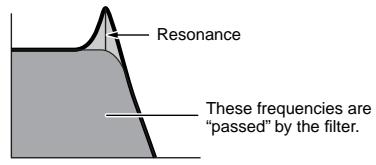
LPF24A (24dB/occt Analog Low Pass Filter)
A digital dynamic low-pass filter with characteristics similar to a 4-pole analog synth filter.
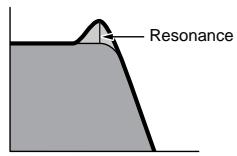
LPF18 (18dB/act Low Pass Filter)
3-pole 18dB/occt low-pass filter.
LPF18s (18dB/occt Staggered Low Pass Filter)
3-pole 18dB/occt low-pass filter. This filter has a smoother cutoff slope than the LPF18 type.
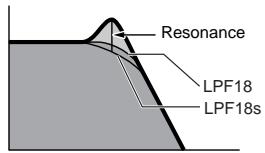
LPF12 (12dB/occt Low Pass Filter)
12dB/oct low-pass filter. This filter is designed to be used in conjunction with a high-pass filter.
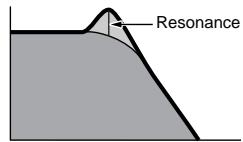
LPF6 (6dB/occt low-pass Filter)
1-pole 6dB/oct low-pass filter. No resonance. This filter is designed to be used in conjunction with a high-pass filter.
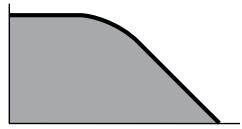
HPF24D (24dB/oct Digital High Pass Filter)
A dynamic 24dB/oct high-pass filter with a characteristic digital sound. This filter can produce a pronounced resonance effect.
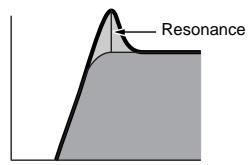
HPF12 (12dB/oct High Pass Filter)
12dB/oct dynamic high-pass filter.
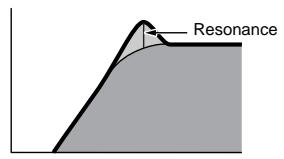
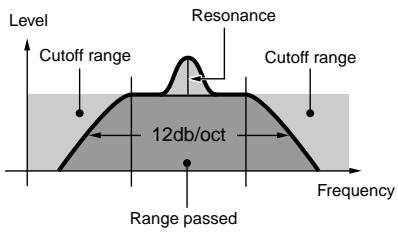
BPF12D (12dB/Oct Digital Band Pass Filter)
BPFw (Wide Band Pass Filter)
A 12dB/ocb BPF that combines HPF and LPF filters to allow wider bandwidth settings.
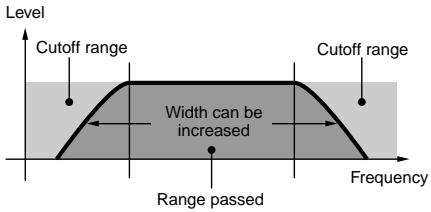
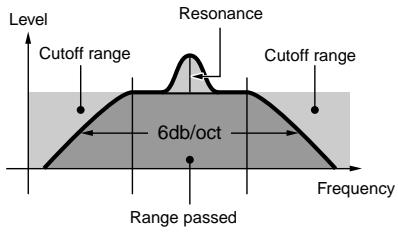
BPF6 (6dB/act Band Pass Filter)
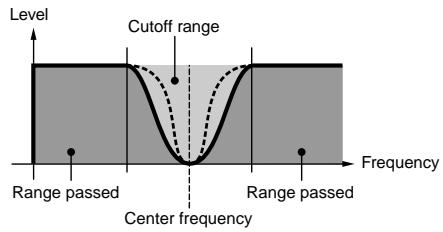
BEF12 (12dB/occt Band Elimination Filter) BEF6 (6dB/occt Band Elimination Filter)
Dual LPF (Dual Low Pass Filter)
Two 12dB/oct low-pass filters connected in parallel.
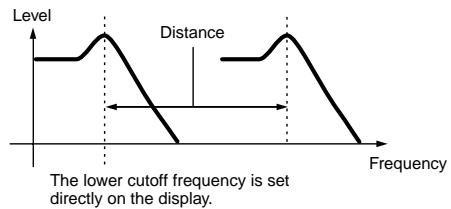
Dual HPF (Dual High Pass Filter)
Two 12dB/occt high-pass filters connected in parallel.
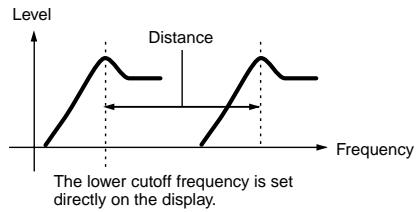
Dual BPF (Dual Band Pass Filter)
Two 6dB/oct band-pass filters connected in parallel.
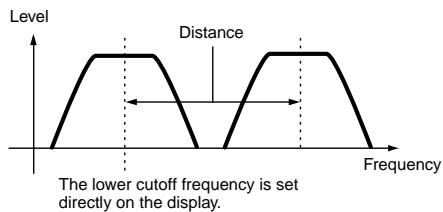
Dual BEF (Dual Band Elimination Filter)
Two 6dB/oct band-elimination filters connected in serial.
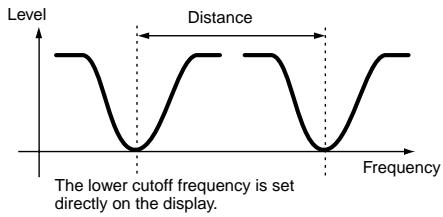
LPF12 + BPF6 (12dB/oct Low Pass Filter + 6dB/ oct Band Pass Filter)
A combined low-pass and high-pass filter.
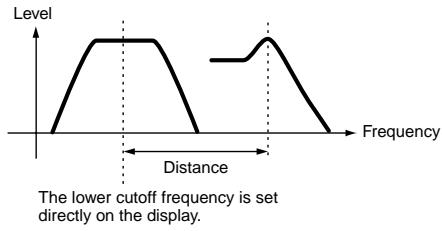
thru
The filters are bypassed and the entire signal is unaffected.
Setting example of Filter Scaling
[VOICE] [EDIT] Element selection [F3] FILTER [SF5] SCALE (page 199)
The best way to understand Filter Scaling is by example. For the settings shown in the example display below, the basic Cutoff frequency value is 64, and the various Offset values at the selected Break point settings change that basic value accordingly. The specific changes to the Cutoff frequency are shown in the diagram below. The Cutoff frequency changes in a linear fashion between successive Break Points as shown.
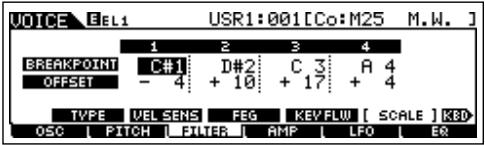
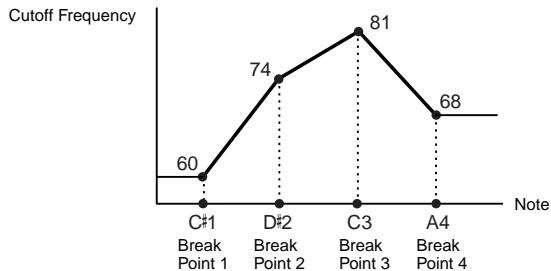
Setting example of Amplitude Scaling
[VOICE] [EDIT] Element selection [F4] AMP [SF5] SCALE (page 200)
The best way to understand Amplitude Scaling is by example. For the settings shown in the example display above, the basic Amplitude (volume) value for the selected Element is 80, and the various Offset values at the selected Break point settings change that basic value accordingly. The specific changes to the Amplitude are shown in the diagram below. The Amplitude changes in a linear fashion between successive Break Points as shown.
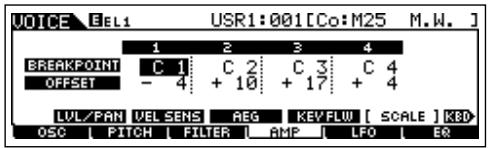
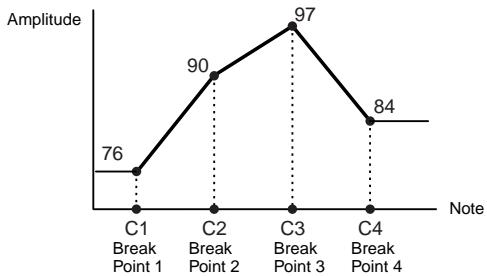
Performance mode
Creating Performances - basic procedure
You can create and edit your original Performances by setting various parameters in both the Performance Play mode and Performance Edit mode, while the Performance Job mode provides some basic parameter-related tools, such as Initialize and Copy. Once you've edited a Performance, you can store it to a User Bank in internal memory (Flash ROM) in the Performance Store mode and save all the edited Performances to a SmartMedia/USB storage device in the File mode.
Performance Play mode
[PERFORM] Performance selection
The Performance Play mode lets you perform a variety of general editing operations on the selected Performance. For more detailed and comprehensive editing operations, use the Performance Edit mode.
- Note The parameters that have the same name in the Performance Play mode and in the Performance Edit mode have the same functions and settings.
[F1] PLAY
[F2] VOICE
| TCH (Transmit Channel) | Same as in Voice Play mode. These parameters are available both in the Voice mode and the Performance mode regardless of the selected Voice or Performance. |
| OCT (Octave) | |
| ASA (ASSIGN A), ASB (ASSIGN B) | |
| [Note] TCH (Transmit Channel), OCT (Octave), ASA (ASSIGN A), and ASB (ASSIGN B) settings do not belong to each Performance. Because of this, these are not stored as an individual Performance in the Performance Store mode (page 220). | |
| AS1 (ASSIGN 1), AS2 (ASSIGN 2) | Indicates the values obtained by controlling the respective Knobs (printed “ASSIGN 1” and “ASSIGN 2”) when the lamps of both the [PAN/SEND] and [TONE] buttons are turned on. The functions assigned to these knobs depend on the setting of the Voice assigned to each Part of the Performance. |
| [SF1] ARP1 (Arpeggio 1) - [SF5] ARP5 (Arpeggio 5) | You can register the desired Arpeggio types to these buttons and call them up any time during your keyboard performance. Refer to page 70 in the Quick Guide section. |
From this display you can select a Voice for each Part and determine the note range it can be played from.
[F3] EFFECT
| [SF1] ADD INT (Add Internal Voice) | Press this button to assign an internal Voice to the selected Part. |
| [SF2] ADD PLG (Add Plug-in Voice) | Press this button to assign a Plug-in Voice to the selected Part. |
| [SF3] DELETE | Pressing this button deletes the Voice assignment for the selected Part, leaving the Part blank. |
| [SF4] LIMIT L (Note Limit Low) | This sets the lowest note of the range over which the Voice of the selected Part sounds. Simultaneously hold down this button and press the desired key on the keyboard to set the note. |
| [SF5] LIMIT H (Note Limit High) | This sets the highest note of the range over which the Voice of the selected Part sounds. Simultaneously hold down this button and press the desired key on the keyboard to set the note. |
Pressing the [F3] EFFECT button in the Performance Play mode calls up the same EFFECT display in the Performance Edit mode ([PERFORM] [EDIT] [COMMON] [F6] EFFECT). From this display, you can set the effect related parameters for the current Performance. See page 215.
From this display you can set the Portamento parameters. Portamento is used to create a smooth transition in pitch from the first note played on the keyboard to the next.
[F4] PORTA (Portamento)
| PortaSw (Portamento Switch) | Determines whether Portamento is on or off for all Parts. (This is a global switch and overrides the individual Part settings in Part Switch below.) Settings: off, on |
| PortaTime (Portamento Time) | Determines the pitch transition time. This parameter offsets the same parameter in Part Edit (page 216). Higher values result in longer transition times. Settings: -64 ~ 0 ~ +63 |
| PartSwitch | Determines whether Portamento is on or off for each individual Part. This is available only when the PortaSw (above) is set to on. |
[F5] EG (Envelope Generator)
This display contains the basic EG settings, both volume and filter, for the Performance, as well as the filter's cutoff frequency and resonance settings. The settings made here are applied as offsets to the AEG and FEG settings in the Performance Edit mode (pages 218, 219).
The parameters are same as in Voice Play mode. See page 189.
[F6] ARP (Arpeggio)
This display contains the basic settings for Arpeggio playback, including Type and Tempo. Note that the Performance mode lets you independently enable or disable Arpeggio playback for each Part.
The parameters are same as in the Voice Play mode (page 189) except for the following one.
| PartSw | Determines whether Arpeggio is on or off for the selected Part. The Parts for which boxes are checkmarked are enabled for Arpeggio play. |
Performance Edit mode
[PERFORM] Performance selection [EDIT]
Voice Edit parameters are divided into Common Edit (parameters common to all four Parts), and Part Edit (parameters of individual Parts).
| Common Edit | [PERFORM] → Performance selection → [EDIT] → [COMMON] |
[F1] GENERAL
| [SF1] NAME | From this display you can assign the category (sub and main) of the selected Performance, and create a name for the Performance. The Performance name can contain up to 10 characters. For detailed instructions on naming a Performance, see "Basic Operation" on page 53. |
| [SF3] MEQ OFS (Master EQ Offset) | From this display you can adjust the master (global) EQ settings for all Parts of the selected Performance. The level of each of the four bands (with the exception of "MID") can be adjusted. Moreover, you can also tweak these settings directly from the four Knobs on the front panel. Editing by Knobs can be done in the Performance Play mode. Settings: -64 ~ 0 ~+63 |
| [SF4] PORTA (Portamento) | This display allows you to set the Portamento related parameters. The parameters are the same as in the Performance Play mode. See page 212. |
| [SF5] OTHER | From this display you can set the control functions for the Knobs and related parameters. With the exception of Pitch Bend, which cannot be set here, these parameters are the same as in the Voice Edit mode (page 190). |
[F2] OUT/MEF (Output/Master Effect)
| [SF1] OUT (Output) | |
| Volume | Determines the output level of the selected Performance. You can adjust the overall volume, keeping the balance between all Parts.Settings: 0 ~ 127 |
| Pan | Determines the stereo pan position of the selected Performance. This parameter offsets the same parameter in the Part Edit setting. You can also adjust this parameter using the PAN knob (with the [PAN/SEND] lamp turned on) on the front panel. Editing by using the Knobs can be done also in the Performance Play mode.Settings: L63 (Left) ~ C (Center) ~ R63 (Right)Note A setting of "C" (center) maintains the individual Pan settings of each Part. |
| RevSend | Determines the Send level of the signal sent from Insertion Effect A/B (or the bypassed signal) to the Reverb effect. You can also adjust this parameter using the REVERB knob (with the [PAN/SEND] lamp turned on) on the front panel. Editing by using the Knobs can be done also in the Performance Play mode.Settings: 0 ~ 127 |
| ChoSend | Determines the Send level of the signal sent from Insertion Effect A/B (or the bypassed signal) to the Chorus effect. You can also adjust this parameter using the [CHORUS] knob (with the [PAN/SEND] lamp turned on) on the front panel. Editing by using the Knobs can be done also in the Performance Play mode.Settings: 0 ~127Note For details on Effect connections in the Performance mode, see page 179. |
| [SF2] MEQ (Master EQ) | From this display you can apply five-band equalization to all Parts of the selected Performance. You can raise or lower the signal level at the Frequency of each band (LOW, LOWMID, MID, HIGHMID, HIGH). |
| SHAPE | Determines whether the equalizer type used is Shelving or Peaking. The Peaking type attenuates/boosts the signal at the specified Frequency setting, whereas the Shelving type attenuates/boosts the signal at frequencies above or below the specified Frequency setting. This parameter is available only for the LOW and HIGH frequency bands. Settings: shelv (Shelving type), peak (Peaking type) |
| FREQ (Frequency) | Determines the center frequency. Frequencies around this point are attenuated/boosted by the Gain setting. Settings: LOW: Shelving 32Hz ~ 2.0kHz, Peaking 63Hz ~ 2.0kHz LOWMID, MID, HIGHMID: 100Hz ~ 10.0kHz HIGH: 500Hz ~ 16.0kHz |
| GAIN | Determines the level gain for the Frequency (set above), or the amount the selected frequency band is attenuated or boosted. Settings: -12dB ~ 0dB ~ +12dB |
| Q (Frequency Characteristic) | This varies the signal level at the Frequency setting to create various frequency curve characteristics. Settings: 0.1 ~ 12.0 |
- NOTE For details on the EQ, see page 178.
The available parameters except for the above two differ depending on the currently selected effect type. For more information, refer to the separate Data List booklet.
| [SF3] MEF (Master Effect) | From this display you can set the Master Effect related parameters. This display can be called up by pressing and holding the [MASTER EFFECT] button on the front panel. |
| Switch | Determines whether Master Effect is applied or not to the selected Performance. You can turn it on or off by pressing the [MASTER EFFECT] button on the front panel.Settings: off, on |
| Type | Determines the Master effect type.Settings: Refer to the Effect Types list in the separate Data List booklet. |
[F3] ARP (Arpeggio)
From this display you can set the Arpeggio related parameters.
| [SF1] TYPE | Same as in Normal Voice Common Edit. See page 191. |
| [SF2] LIMIT | |
| [SF3] PLAY FX (Play Effect) | |
| [SF4] OUT CH (Output Channel) | From this display you can set a separate MIDI output channel for the Arpeggio playback data, letting you have the Arpeggio sound from an external tone generator or synthesizer. |
| OutputSwitch | When this is set to on, Arpeggio playback data is output via MIDI. Settings: on, off |
| TransmitCh | Determines the MIDI transmit channel for Arpeggio playback data. When set to "KbdCh," the Arpeggio playback data is output via the MIDI Keyboard Transmit Channel ([UTILITY] → [F5] MIDI → KBDTransCh). Settings: 1 ~ 16, KbdCh (Keyboard Channel) |
[F4] CTL ASN (Controller Assign)
You can assign Control Change numbers to the controllers listed below, letting you use the hardware controllers on the keyboard to alter the sound of external MIDI devices, via the appropriate MIDI messages. When the MOTIF ES receives Control Change data corresponding to the settings here, the internal tone generator responds as if the instrument's controllers were used.
Note Keep in mind that the functions of these controllers set here are not changed for the internal tone generator. The controller assignments for the MOTIF ES itself depend on the settings of the Voices assigned to each Part.
| BC (Breath Controller) | Determines the Control Change number generated when you apply breath pressure to the Breath Controller connected to the BREATH connector. |
| RB (Ribbon Controller) | Determines the Control Change number generated when you run your finger across the surface of the Ribbon Controller. |
| RBMode (Ribbon Controller Mode) | Determines whether the Ribbon Controller value returns to a center value when you release your finger from the Ribbon Controller (reset), or the value is retained at the value at the last point of contact (hold). |
| AS1 (Assign 1), AS2 (Assign 2) | Determines the Control Change number generated when you control the KN3 (Knob3) and the KN4 (Knob4) with both the [PAN/SEND] and [TONE] lamp turned on. |
| FC1 (Foot Controller 1), FC2 (Foot Controller 2) | Determines the Control Change number generated when you use the Foot Controller connected to the FOOT CONTROLLER jack. |
[F5] AUDIO IN
The audio signal input from the A/D INPUT jack, mLAN connector (when the optional mLAN16E has been installed to this synthesizer), DIGITAL IN or OPTICAL IN connector (when the optional AIEB2 has been installed to this synthesizer) can be handled as an Audio Input Part. You can apply various parameters such as Effect settings to this Part, just as with the other Parts.
NOTE For details about the Audio Input Parts, see page 165.
[F6] EFFECT
| [SF1] OUTPUT | |
| Volume | Determines the output level of the Audio Input Part. Settings: 0 ~ 127 |
| Pan | Determines the stereo pan position of the Audio Input Part. Settings: L63 (Left) ~ C (Center) ~ R63 (Right) |
| RevSend | Determines the Send level of the Audio Input Part signal sent to the Reverb effect. Settings: 0 ~ 127 |
| ChoSend | Determines the Send level of the Audio Input Part signal sent to the Chorus effect. Settings: 0 ~ 127 |
| DryLevel | Determines the level of the Audio Input Part which has not been processed with the System Effects (Reverb, Chorus). Settings: 0 ~ 127 |
| NOTE For details about Effect connection in the Performance mode, see page 179. | |
| Mono/Stereo | Determines the signal configuration for the Audio Input Part, or how the signal or signals are routed (stereo or mono). Settings: stereo, L mono, R mono, L+R mono stereo............ Both the L and R channels of the audio input are used. L (left) mono ....... Only the L channel of the audio input is used. R (right) mono . Only the R channel of the audio input is used. L+R mono............ The L and R channels of the audio input are mixed and processed in mono. |
| OutputSel (Output Select) | Determines the output jack assignment for the Audio Input Part. Settings: See page 31. |
| [SF2] INS TYPE (Insertion Type) | This display is available only when the AD (A/D Part) is set to on from the [F6] EFFECT → [SF2] INS SW display. The type and connection of the Insertion Effect applied to the A/D Part can be set from this display. |
| InsEF Connect (Insertion Effect Connection) | Same as in the CONNECT display in the Voice Edit mode ([VOICE] → [EDIT] → [COMMON] → [F6] EFFECT → [SF1] CONNECT). Please note that the InsEF Connect cannot be set to “parallel” here. |
| InsA Ctgry (Insertion A Category) InsA Type (Insertion A Type) | |
| InsB Ctgry (Insertion B Category) InsB Type (Insertion B Type) | |
This menu gives you comprehensive control over the effects. For details about the Effect connections in the Performance mode, see page 179.
| [SF1] CONNECT (Connection) | |
| EF PART → PLG-EF (Plug-in Insertion Effect) | Determines the Part to which the Insertion effect is applied. This parameter is available only when a special Effect Plug-in board (PLG100-VH) has been installed. Settings: Part 1~4, PartP2~P3, AD, off |
| Chorus Ctg (Category), Chorus Type | Determines the Chorus effect type. Settings: Refer to the Effect Types list in the separate Data List booklet. |
| Chorus Return (Level) | Determines the Return level of the Chorus Effect. Settings: 0 ~ 127 |
| Chorus Pan | Determines the pan position of the Chorus effect sound. Settings: L63 (far left) ~ C (center) ~ R63 (far right) |
| Chorus to Reverb | Determines the Send level of the signal sent from the Chorus Effect to the Reverb Effect. Settings: 0 ~ 127 |
| Reverb Type | Determines the Reverb effect type. Settings: Refer to the Effect Types list in the separate Data List booklet. |
| Reverb Return | Determines the Return level of the Reverb Effect. Settings: 0 ~ 127 |
| Reverb Pan | Determines the pan position of the Reverb effect sound. Settings: L63 (far left) ~ C (center) ~ R63 (far right) |
| [SF2] INS SW (Insertion Switch) | The Insertion Effects can be applied to up to eight Parts. This display lets you set to which Parts the Insertion Effects are applied. |
| [SF3] PLG-EF (Plug-in Effect) | This display lets you set the Plug-in Insertion Effect related parameters when the Effect Plug-in Board PLG100-VH has been installed to this synthesizer. For details on each parameter, refer to the Owner's Manual included with the PLG100-VH. |
| [SF4] REVERB | The number of parameters and values available differs depending on the currently selected effect type. For more information, see the Effect Type List in the separate Data List booklet. |
| [SF5] CHORUS |
Part Edit
[PERFORM] Performance selection [EDIT] Part selection
These parameters are for editing the individual Parts that make up a Performance.
To switch between the display for Parts 1 - 4 to which the internal Voices are assigned and the display for Plug-in Parts (PLG1 - 3) to which the Plug-in Voices are assigned, press the [F6] button.
5Note When a Plug-in Voice is assigned to a Part of the selected Performance, some parameters may not be available depending on the installed Plug-in board.
| [F1] VOICE | |
| [SF1] VOICE | |
| PartSw (Part Switch) | Determines whether each Part is on or off. Since a Performance can consist of up to four Parts, you can select four Parts from Parts 1 - 4 and the Plug-in Parts 1 - 3.Settings: on, off |
| Bank | Determines the Voice Bank (page 60) for each Part.For details about the Plug-in Voice Bank, refer to the Owner's Manual included with your Plug-in Board.BNOTE When the cursor is located on the Bank, you can select a Voice via the way explained on page 60. |
| Number | Determines the Voice Program number for each Part.For details about the Plug-in Voice Program number, refer to the Owner's Manual included with your Plug-in Board. |
| [SF2] MODE | |
| Mono/Poly | Determines the playback method of the Voice for each Part — monophonic (single notes only) or polyphonic (multiple notes).Settings: mono, polyBNOTE This parameter is not available for the Part to which a Drum Voice is assigned. |
| ArpSwitch (Arpeggio Switch) | Determines whether Arpeggio is on or off for the currently selected Part.Settings: on, off |
| [SF3] LIMIT | |
| NoteLimitH (Note Limit High) | Determines the lowest and highest notes of the keyboard range for each Part. Each Part will only sound for notes played within its specified range.Settings: C-2-G8BNOTE If you specify the highest note first and the lowest note second, for example "C5 to C4," then the note range covered will be "C-2 to C4" and "C5 to G8."BNOTE You can set the note by pressing the keyboard while holding the [INFORMATION] button. |
| NoteLimitL (Note Limit Low) | |
| VelLimitH (Velocity Limit High) | Determines the minimum and maximum values of the velocity range within which each Part will respond. Each Part will only sound for notes played within its specified velocity range.Settings: 1~127BNOTE If you specify the maximum value first and the minimum value second, for example "93 to 34," then the velocity range covered will be "1 to 34" and "93 to 127." |
| VelLimitL (Velocity Limit Low) | |
| [SF4] PORTA (Portamento) | Determines the Portamento parameters for each Part. Portamento is used to create a smooth transition in pitch from the first note played on the keyboard to the next. |
| Switch | Determines whether Portamento is on or off.Settings: off, on |
| Time | Determines the pitch transition time. Higher values mean longer transition times.Settings: 0~127 |
| Mode | Determines the Portamento mode.Settings: fingr (fingered), full (full time)fingr (fingered)...... Portamento is only applied when you play legato (playing the next note before releasing the previous one).full (full time)...... Portamento is always applied.BNOTE The Mode setting is not available for the Plug-in Part.BNOTE These Portamento parameters above are not available for the Part to which the Drum Voice is assigned. |
| [SF5] OTHER | |
| PB (Pitch Bend) Upper, PB (Pitch Bend) Lower | These two parameters are available for Parts 1 - 4 to which the internal Normal Voices are assigned. These determine the pitch change range (in semitones) of the Pitch Bend wheel for the Part's Voice. For example, a Lower setting of -12 would result in the pitch being lowered up to a maximum of one octave (12 semitones) when the Pitch Bend wheel is moved downwards. Similarly, setting the Upper parameter to +12 would result in a maximum pitch rise of one octave when the wheel is moved upwards. Settings: -48 ~ 0 ~ +24 |
| PB (Pitch Bend) Range | This parameter is available for Parts 1 - 4 to which the internal Drum Voices are assigned and Plug-in Parts 1 - 3. This determines the pitch change range (in semitones) of the Pitch Bend wheel. Unlike the Pitch Bend setting for Parts 1 - 4 to which the internal Normal Voices are assigned described above, the Upper and Lower ranges of the Drum Voice Parts and Plug-in Parts cannot be set independently. Settings: -24 ~ 0 ~ +24 |
| VelSensDpt (Velocity Sensitivity Depth) | Determines the degree to which the resulting volume of the tone generator responds to your playing strength. The higher the value, the more the volume changes in response to your playing strength (as shown at right). Settings: 0 ~ 127 When Depth (above) = 64 and Offset = 32 Actual resulting velocity (affecting the tone generator) When Depth (above) = 64 and Offset = 64 When Depth (above) = 64 and Offset = 96 Actual resulting velocity (affecting the tone generator) When Depth (above) = 64 and Offset = 96 When Depth (above) = 64 and Offset = 96 When Depth (above) = 64 and Offset = 96 When Depth (above) = 64 and Offset = 96 When Depth (above) = 64 and Offset = 96 When Depth (above) = 64 and Offset = 96 When Depth (above) = 64 and Offset = 96 When Depth(above) = 64 and Offset = 96 When Depth(above) = 64 and Offset = 96 When Depth(above) = 64 and Offset = 96 When Depth(above) = 64 and Offset = 96 When Depth(above) = 64 and Offset = 96 When Depth(above) = 64 and Offset = 96 When Depth(above) = 0 0 0 0 0 0 0 0 0 0 0 0 0 0 0 0 0 0 0 0 0 0 0 0 0 0 0 0 0 0 0 0 0 0 0 0 0 0 0 0 0 0 0 0 0 0 0 0 0 0 127 127 127 127 127 127 127 127 127 127 127 127 127 127 127 127 127 127 127 127 127 127 127 127 127 128 128 128 128 128 128 128 128 128 128 128 128 128 128 128 128 128 128 128 128 128 128 128 128 128 127 127 127 127 127 127 127 127 127 127 127 127 127 127 127 127 127 127 127 127 127 127 127 127 126 126 126 126 126 126 126 126 126 126 126 126 126 126 126 126 126 126 126 126 126 126 126 126 126 127 127 127 127 127 127 127 127 127 127 127 127 127 127 127 127 127 127 127 127 127 127 127 127 129 129 129 129 129 129 129 129 129 129 129 129 129 129 129 129 129 129 129 129 129 129 129 129 129 128 128 128 128 128 128 128 128 128 128 128 128 128 128 128 128 128 128 128 128 128 128 128 128 129 129 129 129 129 129 129 129 129 129 129 129 129 129 129 129 129 129 129 129 129 129 129 129 126 126 126 126 126 126 126 126 126 126 126 126 126 126 126 126 126 126 126 126 126 126 126 126 128 128 128 128 128 128 128 128 128 128 128 128 128 128 128 128 128 128 128 128 128 128 128 128 126 126 126 126 126 126 126 126 126 126 126 126 126 126 126 126 126 126 126 126 126 126 126 126 129 129 129 129 129 129 129 129 129 129 129 129 129 129 129 129 129 129 129 129 129 129 129 129 127 127 127 127 127 127 127 127 127 127 127 127 127 127 127 127 127 127 127 127 127 127 127 127 125 125 125 125 125 125 125 125 125 125 125 125 125 125 125 125 125 125 125 125 125 125 125 125 125 126 126 126 126 126 126 126 126 126 126 126 126 126 126 126 126 126 126 126 126 126 126 126 126 125 125 125 125 125 125 125 125 125 125 125 125 125 125 125 125 125 125 125 125 125 125 125 125 128 128 128 128 128 128 128 128 128 128 128 128 128 128 128 128 128 128 128 128 128 128 128 128 125 125 125 125 125 125 125 125 125 125 125 125 125 125 125 125 125 125 125 125 125 125 125 125 127 127 127 127 127 127 127 127 127 127 127 127 127 127 127 127 127 127 127 127 127 127 127 127 12 127 127 127 127 127 127 127 127 127 127 127 127 127 127 127 127 127 127 127 127 127 127 127 127 127 |
| [F2] OUTPUT | |
| [SF1] VOL/PAN (Volume/Pan) | |
| Volume | Determines the volume for each Part, giving you detailed control over the level balance among the Parts. Settings: 0-127 |
| Pan | Determines the stereo pan position for each Part. Settings: L63 (far left) ~ C (center) ~ R63 (far right) |
| VoiceELPan (Voice Element Pan) | Determines whether the individual pan settings for each Voice (made via [VOICE] → [EDIT] → Element selection → [F4] AMP → [SF1] LVL/PAN → Pan) are applied or not. When this is set to "off," the basic pan position for the selected Part is set to center. Settings: on, off |
| [BF] EF SEND (Effect Send) | From this display you can set the Send Level and Dry Level sent to the System Effects for each Part. For details about the Effect connection in the Performance mode, see page 179. |
| RevSend (Reverb Send) | Determines the send level for the Reverb effect of the selected Part, giving you detailed control over the Reverb balance among the Parts. Settings: 0-127 |
| ChoSend (Chorus Send) | Determines the send level for the Chorus effect of the selected Part, giving you detailed control over the Chorus balance among the Parts. Settings: 0-127 |
| Dry Level | Determines the level of the unprocessed (dry) sound of the selected Part, letting you control the overall effect balance among the Parts. Settings: 0-127 |
| [SF3] SELECT (Output Select) | From this display you can assign individual Parts to sound from independent output connectors (jacks). |
| OutputSel (Output Select) | Determines the specific output(s) for the individual Part. You can assign each individual Part's Voice to be output from a specific hardware output jack on the rear panel.Settings: See page 31. |
| InsEF (Insertion Effect) | Determines whether the Insertion effects are applied to individual Parts or not.Settings: on, off |
[F3] EQ (Equalizer)
From this display you can adjust the EQ settings for each Part. Note that two different display types listed below are provided and you can switch between them by pressing the [SF5] button. Each display type features the same settings in a different format; use the type you feel most comfortable with.
-
Display showing four Parts
-
Display showing all parameters for one Part
Keep in mind that since all the available parameters cannot be simultaneously displayed in the four-Part display, you will need to use the cursor controls to scroll the display in order to see and set the other parameters.
For details about the Effect connection including the EQ in the Performance mode, see page 179.
Note This display is not available for the Plug-in Part.
| LowFreq (Low Frequency) | Determines the center frequency of the low EQ band that is attenuated/boosted. Settings: 50.1 ~ 2.00K |
| LowGain (Low Gain) | Determines the amount of boost or attenuation applied to the low EQ band. Settings: -32 ~ +32 |
| MidFreq (Middle Frequency) | Determines the center frequency of the middle EQ band that is attenuated/boosted. Settings: 139.7 ~ 10.1K |
| MidGain (Middle Gain) | Determines the amount of boost or attenuation applied to the middle EQ band. Settings: -32 ~ +32 |
| MidReso (Middle Resonance) | Determines the resonance applied to the center frequency of the middle EQ band. Settings: 0 ~ 31 |
| HighFreq (High Frequency) | Determines the center frequency of the high EQ band that is attenuated/boosted. Settings: 503.8 ~ 14.0K |
| HighGain (High Gain) | Determines the amount of boost or attenuation applied to the high EQ band. Settings: -32 ~ +32 |
[F4] TONE
You can set parameters related to the pitch and tone for each Part. Keep in mind that the settings made here are applied as offsets to the Voice Edit settings.
| [SF1] TUNE | |
| NoteShift | Determines the pitch (key transpose) setting for each Part in semitones. Settings: -24 ~ +24 |
| Detune | Determines the fine tuning for each Part. Settings: -12.8Hz ~+12.7Hz |
| [SF2] FILTER | |
| Cutoff | Determines the cutoff frequency for each Part. This parameter is available for the LPF when the filter used by the Part is a combination type of LPF and HPF. Settings: -64 ~ 0 ~ +63 |
| Resonance | Determines the amount of filter resonance or emphasis of the Cutoff Frequency for each Part. The setting here attenuates/boosts the resonance applied to the element of the Voice assigned to each Part. Settings: -64 ~ 0 ~ +63 |
| FEGDepth | Determines the Filter Envelope Generator depth (amount of cutoff frequency) for each Part. Settings: -64 ~ 0 ~ +63 Note3 The FEG Depth setting is not available for the Plug-in Parts. Note3 For details about Filter, see page 161. |
| [SF3] FEG (Filter Envelope Generator) | From this display you can set the FEG (Filter Envelope Generator) parameters for each Part. Note3 The FEG settings are not available for Plug-in Parts. |
| Attack (Attack Time) | Determines each parameter of the FEG for each Part. For details about FEG, see page 161. Settings: -64 ~ 0 ~ +63 |
| Decay (Decay Time) | |
| Sustain (Sustain Level) | |
| Release (Release Level) | |
| [SF4] AEG (Amplitude Envelope Generator) | From this display you can set the AEG (Amplitude Envelope Generator) parameters for each Part. |
| Attack (Attack Time) | Determines each parameter of the AEG for each Part. Please note that Sustain Level is not available for the Plug-in Part. For details about AEG, see Settings: -64 ~ 0 ~ +63 |
| Decay (Decay Time) | |
| Sustain (Sustain Level) | |
| Release (Release Level) |
[F5] RCV SW (Receive Switch)
From this display you can set how each individual Part responds to various MIDI data, such as Control Change and Program Change messages. When the relevant parameter is set to "on," the corresponding Part responds to the appropriate MIDI data.
Note that two different display types listed below are provided and you can switch between them by pressing the [SF5] button. Each display type features the same settings in a different format; use the type you feel most comfortable with.
-
Display showing four Parts
-
Display showing all parameters for one Part
Keep in mind that since all the available parameters cannot be simultaneously displayed in the four-Part display, you will need to use the cursor controls to scroll the display in order to see and set the other parameters.
Settings: See below. Parameters marked with * are not available for the Plug-in Part.
| CtrlChange (Control Change) | Indicates all the Control Change messages. |
| PB (Pitch Bend) | MIDI messages generated by using the Pitch Bend Wheel. |
| MW (Modulation Wheel) | MIDI messages generated by using the Modulation Wheel. |
| RB (Ribbon Controller)* | MIDI messages generated by using the Ribbon Controller. |
| ChAT (Channel After Touch) | MIDI messages generated by pressing and holding the note on the keyboard. |
| FC1 (Foot Controller 1)* | MIDI messages generated by using the optional Foot Controller connected to the rear panel. |
| FC2 (Foot Controller 2)* | |
| Sus (Sustain) | MIDI messages generated by using the optional Footswitch connected to the SUSTAIN jack on the rear panel. |
| FS (Footswitch)* | MIDI messages generated by using the optional Footswitch connected to the ASSIGNABLE jack on the rear panel. |
| AS1 (Assign1)*, AS2 (Assign2)* | MIDI messages generated by using the ASSIGN1 and ASSIGN2 Knobs with both the [PAN/SEND] and [TONE] lamps turned on. |
| BC (Breath Controller)* | MIDI messages generated by using the optional Breath Controller connected to the BREATH jack on the rear panel. |
| Exp (Expression) | MIDI messages generated by using the optional Foot Controller connected to the rear panel. |
Performance Job mode
[PERFORM] Performance selection [JOB]
The Performance Job mode features several basic operations, such as Initialize and Copy. After setting parameters as required from the selected display, press the [ENTER] button to execute the Job.
- None Among the Audio Parts shown in the Job display, Audio 1 indicates the A/D Input Part. When the optional AIEB2 has been installed to this synthesizer, Audio 2 indicates the AIEB2 Input Part. When the optional mLAN16E has been installed, Audio 2, 3, 4, and 5 indicate the mLAN Input Parts.
[F1] INIT (Initialize)
This function lets you reset (initialize) all Performance parameters to their default settings. It also allows you to selectively initialize certain parameters, such as Common settings, settings for each Part, and so on — very useful when creating a completely new Performance from scratch.
Type of parameter to be initialized
All (all settings for the selected Performance are initialized)
Common (Common parameter settings for the selected Performance are initialized)
Part 1 - 4, PLG 1 - 3 (Plug-in Part 1 - 3), Audio 1 - 5
[F2] RECALL (Edit Recall)
If you are editing a Performance and select a different Performance without storing your edited one, all the edits you've made will be erased. If this happens, you can use Edit Recall to restore the Performance with your latest edits intact.
[F3] COPY
![YAMAHA MOTIF ES6 - [F3] COPY - 1](/content/2025/01/114832/images/7e6c67e99ef5857ff3d33ba6a7447c5e98d758c4677657ef0c8ad6403c805f0a.jpg)
Source Performance/Part
Data type of Destination Performance (currently selected Performance)/Part
From this display you can copy Part parameter settings from any Performance including the currently edited (but not yet stored) one to a particular Part of the Performance you are editing. This is useful if you are creating a Performance and wish to use some parameter settings from another Performance.
Source Performance/Part
Determines the Performance and Part to be copied. You can specify "Current" (the Performance you are editing but have not yet stored) as a Source Performance.
Type: Part 1 - 4, PartP1 - P3 (Plug-in Part 1 - 3), PartA1 - A5 (Audio Part 1 - 5)
Data type of Destination Performance (currently selected Performance)/Part
Determines the Part of the destination Performance.
Type: Part 1 - 4, PartP1 - P3, PartA1 - A5, Arp, Effect (Reverb, Chorus)
Note If you choose Arp (Arpeggio) or Effect, the Arpeggio data or Effect settings for the Voice assigned to the source Part will be copied.
[F4] BULK (Bulk Dump)
This function lets you send all your edited parameter settings for the currently selected Performance to a computer or another MIDl instrument for data archiving. For details, see page 185.
In order to execute Bulk Dump, you'll need to set the correct MIDI Device Number, with the following operation: [UTILITY] [F5] MIDI [SF1] CH DeviceNo.
Performance Store mode
[PERFORM] Performance selection [STORE]
This function lets you store your edited Performance to User memory (Flash ROM).
For details, refer to page 91 in the Quick Guide section.
Song mode
Creating Songs — basic procedure
Songs consist of the following three types of data:
- MIDI sequence data (created in the Song Record mode, Song Edit mode, and Song Job mode)
- Setup data (created in the Song Play mode)
- Mixing data (created in the Song Mixing mode/Mixing Edit mode and stored in the Song Mixing Store mode)
After creating the data in these modes described above, store the Mixing settings in the Song Mixing Store mode to archive it as Song data and save the entire Song to the SmartMedia/USB storage device in the File mode.
Non-note MIDI events (such as Voice number, volume, pan, and effect send level) which are necessary at the start of a Song are not recorded as MIDI sequence data, but are stored instead as Mixing data.
CAUTION
Because Song data (MIDI sequence data, Setup data, and Mixing data) is recorded to DRAM (page 187), it will be lost when turning the power off. Make sure to save any Song data created via the Record, Edit, Job, and Mixing setting to the SmartMedia/USB storage device in the File mode before turning the power off. For details on saving Song data, see page 132.
Song Play mode
[SONG] Song selection
[F1] PLAY
See page 55.
Loc1 (Location1), Loc2 (Location 2)
Indicates the measure number to which the Song playback can be jumped by using the Location feature (page 58).
Trans (Transpose)
Determines the key transpose setting for the entire Song, and can be adjusted in semitones.
Settings: -36 +36
Note If Transpose is applied to a Drum Voice, the results may not be musically appropriate. To ensure proper playback of a Drum Voice, set the Note Shift parameter for the Drum Voice Part to an appropriate value ([SONG] [MIXING] [EDIT] Part selection [F4] TONE [SF1] TUNE NoteShift).
MEAS (Measure)
Indicates the current measure number and beat for the current Song. During playback, this indication changes automatically according to the Song playback. You can input the desired measure number directly by using the Number Input window called up via the [INFORMATION] button.
[SF1] ARP1 (Arpeggio 1) - [SF5] ARP5 (Arpeggio 5)
You can register the desired Arpeggio types to these buttons and call them up any time during your keyboard performance. Refer to page 105 in the Quick Guide section.
[F2] GROOVE (Grid Groove)
![YAMAHA MOTIF ES6 - [F2] GROOVE (Grid Groove) - 1](/content/2025/01/114832/images/ec0a94aa01cd4d7096df3091f2643cceaf437b5a75fceb35df9538bd3b1fc121.jpg)
![YAMAHA MOTIF ES6 - [F2] GROOVE (Grid Groove) - 2](/content/2025/01/114832/images/ba4857fd03b435d9b58b175533dae35fa38f8c79bf2cbba3949dff6a935b8c58.jpg)
![YAMAHA MOTIF ES6 - [F2] GROOVE (Grid Groove) - 3](/content/2025/01/114832/images/4258b98790ebe20c03112b8ada115f561d488ae2ec27b2d85eab6015b1b71174.jpg)
![YAMAHA MOTIF ES6 - [F2] GROOVE (Grid Groove) - 4](/content/2025/01/114832/images/4e8a8f25d88618c91b6051e646a4dfc938e8c3ff0fd53a924601ed1174a48553.jpg)
![YAMAHA MOTIF ES6 - [F2] GROOVE (Grid Groove) - 5](/content/2025/01/114832/images/865a748f4075873c146b5a330fd957b0f47e03d24de10913ef8086978842b0df.jpg)
The Grid Groove function makes it possible to adjust the pitch, timing, length, and velocity of notes in a specified track via a 1-measure 16th-note grid to create "grooves" that would not be possible with precise sequencer-like programming. The Grid Groove function affects Song playback without actually changing the sequence data.
NOTE OFST (Note Offset)
CLOCK SFT (Clock Shift)
GATE OFST (Gate Time Offset)
VELO OFST (Velocity Offset)
![YAMAHA MOTIF ES6 - [F2] GROOVE (Grid Groove) - 6](/content/2025/01/114832/images/8cfc53d5af2a4d9e227ae12f6d6a77cdb2ff7c9b40d56def365fbcc2c6f2343c.jpg)
NOTE OFST (Note Offset)
Raises or lowers the pitch of the note(s) on the selected grid in semitones.
Settings: -99 +99
CLOCK SFT (Clock Shift)
Shifts the timing of the note(s) on the selected grid forward or back ward in clock increments.
Settings: -120 ~ +120
GATE OFST (Gate time Offset)
Lengthens or shortens the note(s) on the selected grid in clock increments.
Settings: -120 ~ +120
VELO OFST (Velocity Offset)
Increases or decreases the velocity of the note(s) on the selected grid.
Settings: -127 ~ +127
[F3] TRACK
[SF1] CHANNEL
From this display you can set the MIDI output channel/port for each of the sixteen tracks of the corresponding internal/external tone generator.
OUT CH (Output Channel)
Sets up the MIDI output channel for each track. Tracks set to "Off" will not sound.
Settings:off,01\~16
NOTE In the Song/Pattern mode, the MIDI message created by playing the keyboard/knobs/wheels is sent to the tone generator block or the external MIDI instruments via the MIDI output channel of the currently selected track.
| PORT | Determines the MIDI transmission port for the corresponding track. Playback data of tracks set to off is output without Port signal via MIDI. When using the internal tone generator block, the Port setting here is available for the tracks assigned to the Plug-in Parts 1-3 (when the single Plug-in Board has been installed) and Multi Plug-in Parts 17-32 (when the PLG100-XG has been installed) are assigned. Tracks using the internal tone generator parts of this synthesizer are automatically fixed to Port 1. Settings: off, 1 ~ 3 NOTE: Port data can be output only through the USB terminal. No port data is transmitted through the MIDI OUT terminal, even if the corresponding track is set to a specific port number. |
| [SF2] OUT SW (Output Switch) | |
| INT SW (Internal Switch) | Determines whether playback data is transmitted to the internal tone generator block or not. Settings: on, off |
| EXT SW (External Switch) | Determines whether playback data is output to the external MIDI tone generator via MIDI or not. Settings: on, off |
| [SF3] TR LOOP (Track Loop) | From this display you can determine whether the data in the selected track loops or not in playback. Using Loop can be an effective way to repeat short patterns and phrases throughout the Song. For details, see page 238. Settings: off, on |
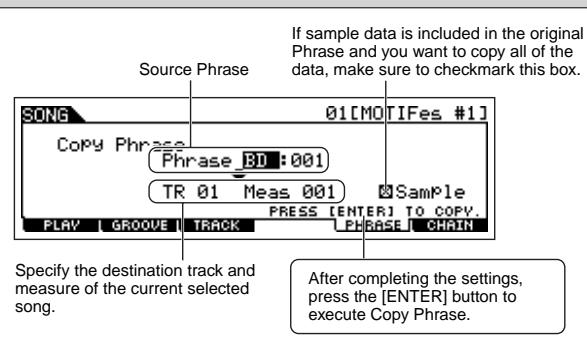
[F5]PHRASE
You can copy Pattern track data (Phrase) to a Song track. You can also copy preset phrases that are not assigned to the Pattern track by using the Patch function (page 241). For details, refer to page 113 in the Quick Guide section.
[F6] CHAIN
This function allows Songs to be "chained" together for automatic sequential playback. For details, refer to the Quick Guide on page 59.
skip.........Skips past (ignores) the selected chain number and continues playback from the next chain number.
stop . . . . . . . . . . . . . . . . . . . . . . . . . . . . . . . . . . . . . . . . . . . . . . . . . . . . . . . . . . . . . . . . . . . . . . . . . . . . . . . . . . . . . . . .
end.. Indicates the end mark of the Song chain data.
Song Record mode
[ \text{[SONG]} \rightarrow \text{Song selection} \rightarrow [ \bullet ] ] (Record)
Song Record Standby mode
[F1] SETUP
| Type (Recording Type) | Determines the recording method. For details on each method, refer to page 168 in the Basic Structure section. |
| Settings: When the RecTrack is set to any of 1-16: replace, overdup, punch, stepWhen the RecTrack is set to tempo: replace, punch, stepWhen the RecTrack is set to scene: replace, punchWhen the RecTrack is set to multi: replace, overdup, punch | |
| Step 1: When "punch" is selected, "Punch-in measure: beat" and "Punch-out measure: beat" appear in the display and should be set.If you've set the Locate 1 and 2 points (Loc1, Loc2; see page 58), the punch-in/out points can be set with a single button press. Move the cursor to the punch-in/out value, and notice that a "COPYLOC" menu item appears. Press the [SF1] COPYLOC button, and the punch-in/out settings are automatically assigned to the existing Locate points. | |
| Step 2: When "step" is selected, you should specify the event type to be entered. | |
| Quantize | This parameter is available when the Recording Type is set to something other than "step." Record quantize aligns the timing of notes automatically, as you record.You can set this parameter also by using the Note Type selection window called up via the [INFORMATION] button.For details, see page 49.Settings: off, 60 (32nd note), 80 (16th note triplet), 120 (16th note), 160 (8th note triplet), 240 (8th note), 320 (1/4 note triplet), 480 (1/4 note) |
| Event | This parameter is available when the Recording Type is set to "step." This lets you specify the event type to be entered. Settings: note, p.bend (pitch bend), CC#000~#119 (Control Change) |
| RecTrack | Determines the track to be recorded. Pressing the [F6] button lets you switch between Single Track recording and All Track recording. Settings: tempo, scene, 1~16, multi |
| (Tempo) | Determines the Song tempo. Settings: 001.0 ~300.0 |
| Meas (Measure) | Determines the measure from which Song recording will be started. |
[F2] VOICE
In this display you can set the voice related parameters for the recording track. The settings here affect the Part for which the receive channel (set in the Mixing mode) matches the transmit (output) channel of the recording track.
| Voice | Determines the voice used in the recording track. When the cursor is located here, you can select a voice by using the BANK, GROUP, NUMBER buttons and the Category Search function (page 62). You can also select a Sample Voice obtained via the Sampling function. |
| Volume | Determines the volume of the recording track. Settings: 0 ~ 127 |
| Pan | Determines the stereo pan position of the recording track. Settings: L63 (Left) ~ C (Center) ~ R63 (Right) |
| InsEF (Insertion Effect Part Switch) | Determines whether the Insertion effects are applied to the recording track or not. Settings: on, off |
| (Tempo) | Determines the Song tempo. Settings: 001.0 ~300.0 |
| Meas (Measure) | Determines the measure from which Song recording will be started. |
[F3] ARP (Arpeggio)
From this display you can set parameters related to the Arpeggio of the recording track.
| Bank, Ctrg (Category), Type | These three parameters determine the Arpeggio Type. The three-letter prefix number before the Type name indicates the number within the selected Category. Settings: Refer to the separate Data List. |
| Vellimit (Velocity Limit) | Determines the lowest and highest velocity which can trigger the Arpeggio playback. The Arpeggio plays when you play notes at velocities within this range. Settings: 1 ~ 127 |
| Hold | Determines whether the Arpeggio playback is "held" or not. When this is set to "on," the Arpeggio cycles automatically, even if you release your fingers from the keys, and it continues to cycle until the next key is pressed. Settings: sync-off, off, on Note3 About sync-off, see page 191. |
| PartSw (Part Switch) | Determines whether Arpeggio is on or off for the tone generator Part corresponding to the recording track. Settings: off, on |
| Meas (Measure) | Determines the measure from which Song recording will be started. This parameter is same as the Meas parameter in the [F1] SETUP display. |
| [SF1] ARP1 (Arpeggio 1) - [SF5] ARP5 (Arpeggio 5) | You can register the desired Arpeggio types to these buttons and call them up any time during your keyboard performance. Refer to page 123 in the Quick Guide section. |
[F4] RECARP (Record Arpeggio)
| RecArp (Record Arpeggio) | Determines whether the sequence data played by Arpeggio is recorded to the Song track or not. When this is set to on, the played sequence data is recorded. Settings: off, on |
| OutputSwitch | Determines whether the sequence data played by Arpeggio during recording is output via MIDI or not. When this is set to on, the played sequence data by Arpeggio during recording is output via MIDI. Settings: off, on |
| TransmitCh (Transmit Channel) | Determines the MIDI transmit channel of the Arpeggio playback during recording. Settings: 1 ~ 16, KbdCh |
[F5] Click
Pressing the [F5] button lets you turn the click sound (metronome) on/off for recording.
[F6] ALL TR (All Track)/1TR (1 track)
Pressing the [F6] button lets you switch between Single Track recording and All Track recording.
During Song Recording
[ \text{[SONG]} \rightarrow \text{Song selection} \rightarrow [\bullet] \text{(Record)} \rightarrow [\triangleright] \text{(Play)} ]
Realtime Recording
Refer to page 118 in the Quick Guide section.
Step Recording
Examples of Step Recording are described on page 238.
[F1] SETUP
Pointer indicating the current note position.
![YAMAHA MOTIF ES6 - [F1] SETUP - 1](/content/2025/01/114832/images/6dc2c406bd79dd16da6870570fddd82c0f80124ea32bd09722cf84d4fb6555ec.jpg)
![YAMAHA MOTIF ES6 - [F1] SETUP - 2](/content/2025/01/114832/images/dc5563e8455351dd4965b5098ef46615ca15a444141abf21378cacd810d7ae74.jpg)
| Beat Graph | This is the display in which notes are "placed" during step recording. When the meter is 4/4, the display is divided into four beats (one measure). Each diamond-shaped marker in the display represents one 32nd beat (each 1/4 note division is divided into eight 32nd beats). For example, if the following rhythmic pattern "↓↓↓↓↓" is entered in 4/4 time, a display like the one shown above right will appear. |
| Pointer | Determines the data-entry position. The triangular pointer above the beat graph indicates the data-entry position. To move the pointer right or left, use the [INC/YES] and [DEC/NO] buttons or the data dial. |
| Value | When the Event to be entered ([F1] SETUP → Event) is set to "note," this value specifies the velocity with which the note will be entered. Settings: When the Event is set to "note": 1 ~ 127, kbd, rnd1 ~ rnd4 When the Event is set to "p.bend": -8192 ~ +8191 When the Event is set to "CC (Control Change 001 - 119): 000 ~ 127 When the Event is set to "tempo" with the RecTrack = tempo: 001 ~ 300 |
| 5NOTE You can select "kbd" (keyboard) and "rnd1" - "rnd4" (random1 - 4) as well as the values 1 - 127 when the Event to be entered is set to "note." When "kbd" is selected, the actual playing strength will be entered as the velocity value. When one of the random settings is selected, a random velocity value will be entered. | |
| StepTime | The "size" of the current recording step time for the next note to be entered. This determines to what position the pointer will advance after a note has been entered. Settings: 0001 - 0059, 32nd note, 16th note triplet, 16th note, 8th note triplet, 8th note, 1/4 note triplet, 1/4 note, half note, whole note |
| GateTime | Sets the gate time to produce slurs, staccato notes, etc. "Gate time" refers to the actual length of time the note sounds. For the same 1/4 note, for example, a long gate time will produce a slur while a short gate time will produce a staccato effect. Gate time is indicated as a percent value of the step time. A setting of 50% produces a staccato sound, values between about 80% and 90% produce normal note length, and a value of 99% will produce a slur. Settings: 1% ~ 200% |
[F3] REST
Press [F3] to enter a rest as long as the specified step time. The point will move ahead to the next data-entry position. Rests do not appear on the display.
There is no actual data representing rests in the MIDI sequencer. When a "rest" is entered the pointer simply moves ahead to the next data-entry position, effectively leaving a rest.
[F4] TIE
![YAMAHA MOTIF ES6 - [F4] TIE - 1](/content/2025/01/114832/images/b507671635b574554e5a99cf1879cab32ef50b01ddc04208c2cef89162daafd9.jpg)
![YAMAHA MOTIF ES6 - [F4] TIE - 2](/content/2025/01/114832/images/83bfa17ecea07015f84632339769a1ae5abe36388d7b59cd4e8bce68336c2943.jpg)
When the [F4] button is pressed to enter a tie, the preceding note is lengthened to the full step time.
For example, in the phrase shown at left, note ① is entered with 1/4 note step time. If the step time is then changed to an 8th note and [F4] is pressed, note ② is entered.
Dotted notes can also be entered using the TIE function. To produce a dotted 1/4 note, for example, set the step time to an 8th note, enter a note and then press [F4] twice.
NOTE This display is available only when the Event to be entered is set to "note."
[F5] DELETE
Press this to actually delete the note events at the current cursor position.
[F6] BAK DEL (Back Delete)
Moves the pointer backward by one step and deletes all notes at that location.
5.103 Mistakenly entered notes can be erased by pressing [F6] immediately after they are entered (before changing the step time value).
Song Edit mode
[SONG] Song selection [EDIT]
This mode gives you comprehensive, detailed controls for editing the MIDI events of individual Song tracks. MIDI events are messages (such as note on/off, note number, program change number, etc.) that make up the data of a recorded Song.
[F1] CHANGE
Shows the Event List of the selected Song track. For information on how to edit the Event List, see page 124.
[F2] VIEW FLT(View Filter)
The Event View Filter lets you select the event types that appear on the Event List display ([F1] CHANGE display). For example, if you wish to edit only note events, place a checkmark in the box next to "Note" so that only the note events appear in the Event List display.
Settings: Note, PitchBend, ProgramChange, ControlChange, Ch.AfterTouch, PolyAfterTouch, RPN (Registered Parameter Number), NRPN (Non Registered Parameter Number), Exclusive
[F5] CLR ALL (Clear All)
[F6] SET ALL
Press the [F5] button to remove all checkmarks at once.
Press the [F6] button to set checkmarks into all boxes.
[F4] TR SEL (Track Select)
You can switch between the display for 1 - 16 tracks, SCN (Scene) track, and TMP (Tempo) track by pressing this button.
[F5] INSERT
When the cursor is located at the desired position in the [F1] CHANGE display (Event List), pressing this button calls up the display for inserting new MIDI events in the Song mode or Pattern mode.
| Note | This is the most common and prevalent type of data — the individual notes of a Song. |
| ►NOTE (Note name) | Determines the note name or the specific keyboard pitch of the note.Settings: C -2 ~ G8 |
| ►GATE (Gate time) | Determines the length of time that a note actually sounds in beats and clocks.Settings: 00:001 ~ 999:479 ►NOTE On this synthesizer, one clock is 1/480th of a quarter note. |
| ►VELO (Velocity) | Determines how strongly the selected note sounds.Settings: 1 ~ 127 |
| PitchBend | These are the events that define continuous changes in pitch and these events are generated by Pitch Bend Wheel operation. |
| ►DATA | Determines the Pitch Bend data.Settings: -8192 ~ +8191 |
| ProgramChange | These events determine the Voice for the selected track. |
| ►BANK | Determines the Voice bank.Settings: 000 ~ 127, *** |
| Bank select MSB and LSB are actually part of the Control Change set of messages (below). However, since they apply specifically to Voice selection, they are grouped and described here. | |
| ►PC NO (Program Change Number) | Determines the specific Voice (from the bank selected by MSB and LSB above).Settings: 000 ~ 127 ►NOTE For a complete list of the available voice banks and numbers, refer to the Voice List in the separate Data List booklet. |
| ControlChange | These events control the sound and certain response characteristics of the voice, and are usually generated/recorded by moving a controller (such as a modulation wheel, knob, slider or foot controller). |
| CTRL NO (Control Number) | Determines the Control Change number.Settings: 000 ~ 127For details on the specific functions assigned to each of the numbers, see page 182. |
| DATA | See page 182.Settings: 000 ~ 127 |
| Ch.AfterTouch(Channel After Touch) | This event is generated when pressure is applied to a key after the note is played. |
| DATA | This represents the amount of pressure applied to the key.Settings: 000 ~127 |
| PolyAfterTouch(Polyphonic Aftertouch) | This event is generated when pressure is applied to a key after the note is played. Unlike Channel Aftertouch above, this is recorded and applied independently for each key pressed. |
| NOTE (Note name) | Determines the key to which aftertouch is applied.Settings: C-2 ~ G8 |
| DATA | This represents the amount of pressure applied to the key.Settings: 000 ~ 127 |
| RPN(Registered Parameter Number) | This event changes parameter values for each tone generator Part. This event is used to set Part settings such as Pitch Bend Sensitivity or Tuning. |
| MSB-LSB | See page 183.Settings: 000 ~ 127 |
| DATA (Data Entry MSB-LSB) | See page 182.Settings: 000 ~ 127, *** |
| 5NOTI Normally three types of control change data are sent: RPN MSB (101), RPN LSB (100), and Data Entry MSB (6). In this synthesizer, Data Entry LSB (38) is added to this and the resulting group of control change events is handled as one in this display. | |
| NRPN (Non Registered Parameter Number) | These events are used to change the parameter values for each tone generator Part. They can be used to edit sounds via MIDI, allowing you to edit filter or EG settings, or adjust the pitch or level for each instrument of a drum voice. |
| MSB-LSB | See page 183.Settings: 000 ~ 127 |
| DATA (Data Entry MSB-LSB) | See page 182.Settings: 000 ~ 127, *** |
| 5NOTI Normally three types of control change data are sent: NRPN MSB (99), NRPN LSB (98), and Data Entry MSB (6). In this synthesizer, this group of control change events is handled as one in this display. For a complete list of the available RPN and NRPN numbers and their corresponding controls, refer to the MIDI Data Format in the separate Data List booklet. | |
| Exclusive (System Exclusive) | A type of MIDI message used to exchange data unique to a specific model or type of device.Unlike other MIDI events, these events differ depending on the manufacturer/device, and are incompatible among different devices. |
| DATA (HEX) | See page 184.Settings: 00 ~7F, F7 (Data must be entered in hexadecimal format.) |
Song Job mode
[SONG] Song selection [JOB]
The Song Job mode contains a comprehensive set of editing tools and data transform functions you can use to change the sound of the Song. It also includes a variety of convenient operations, such as copying or erasing data.
After setting parameters as required from the selected display, press the [ENTER] button to execute the Job.
CAUTION
An "Executing..." message is shown when it takes a short amount of time to execute the Job. Never attempt to turn off the power while an "Executing..." message is shown. Turning the power off in this state results in loss of all user data.
[F1] UNDO/REDO
The Undo Job cancels the changes you made in your most recent recording session, editing session, or Job, restoring the data to its previous state. This allows you to recover from accidental data loss. Redo is available only after using Undo, and lets you restore the changes you made before undoing them.
CAUTION Undo/Redo does not work with Sample Voice and Mixing Voice operations.
[F2] NOTE (Note data Job)
Before executing the Note data Job, make sure that you specify the track (01~16, all) and range (measure : beat : clock) to which the Job is applied.
| 01: Quantize | Quantization is the process of adjusting the timing of note events by moving them closer to the nearest exact beat. You can use this feature, for example, to improve the timing of a performance recorded in real time. |
| TR (Track)001 : 1 : 000 - 999 : 4 : 479 | Determines the track (01-16, all) and range of measures/beats/clocks over which the Job is applied. |
| Quantize (Resolution) | Determines to what beats the note data in the specified track will be aligned.Settings: 32nd note, 16th note triplet, 16th note, 8th note triplet, 8th note, 1/4 note triplet, 1/4 note, 16th note + 16th note triplet, 8th note + 8th note triplet |
| Strength | The Strength value sets the "strength" by which note events are pulled toward the nearest quantize beats. A setting of 100% produces exact timing. A setting of 0% results in no quantization.Settings: 000%~100% |
| SwingRate | Delays notes on even-numbered beats (backbeats) to produce a swing feel.For example, if the meter is 4/4 and the quantize value is quarter notes, the 2nd and 4th beats of the measure will be delayed. When a triplet quantize value is used, the last note of each triplet is delayed. When the quantize value is even-numbered, beats will be delayed.Settings: See below.If the quantize value is 1/4 note, 8th note, 16th note, 32nd note: 50%~75%A setting of 100% is equivalent to twice the length of the specified quantize value. A setting of 50% produces exact timing and therefore no swing feel. Settings above 51% increase the amount of swing, with 75% being equivalent to a dotted-note delay.If the quantize value is 1/4 note triplet, 8th note triplet, 16th note triplet: 66%~83%A setting of 100% is equivalent to three times the length of the specified quantize value. A setting of 66% produces exact timing and therefore no swing feel. Settings above 67% increase the amount of swing, with 83% being equivalent to a sextuplet delay.If the quantize value is 8th note + 8th note triplet, 16th note + 16th note triplet: 50%~66%A setting of 100% is equivalent to twice the length of a 8th note or 16th note. A setting of 50% produces exact timing and therefore no swing feel. Settings above 51% increase the amount of swing, with 66% being equivalent to a triplet delay.If a swing value other than 100% results in notes being positioned after other non-swing notes, the latter notes are delayed accordingly. |
| GateTime | Determines the gate time (the length of time a note sounds) of the even-numbered backbeat notes to enhance the swing feel. When a triplet quantize value is used, the gate time of the last note of each triplet is adjusted.When the quantize value is 8th note + 8th note triplet or 16th note + 16th note triplet, the gate time of the even-numbered 8th note or 16th note beats will be adjusted. A setting of 100% leaves the original gate time unchanged.If an adjusted gate time value is less than 1, the value is rounded off to 1.Settings: 000%~200% |
| 02: Modify Velocity | This Job alters the velocity values of the specified range of notes, letting you selectively boost or cut the volume of those notes. Velocity changes are calculated as follows:Adjusted velocity = (original velocity x Rate) + OffsetIf the result is 0 or less, the value is set to 1. If the result is higher than 127, the value is set to 127. |
| TR (Track)001 : 1 : 000 - 999 : 4 : 479 | Determines the track (01-16, all) and range of measures/beats/clocks over which the Job is applied. |
| SetAll | Sets the velocities of all target notes to the same fixed value (1 to 127). When set to "off" the Set All parameter has no effect. When set to a value other than "off" the Rate and Offset parameters are unavailable and appear as “***” on the display.Settings: off (0), 001~127 |
| Rate | Determines the percentage by which the target notes will be shifted from their original velocities.Settings below 100% reduce the velocities, and settings above 100% increase the velocities proportionately. When the Set All parameter is not "OFF" this parameter appears as “****” and cannot be changed.Settings: 000% ~ 200%, *** |
| Offset | Adds a fixed value to the Rate-adjusted velocity values. A setting of 0 produces no change. Settings below 0 reduce the velocities, and settings above 0 increase the velocities. When the Set All parameter is not “OFF” this parameter appears as “****” and cannot be changed.Settings: -127 ~ +127, *** |
| 03: Modify Gate Time | This Job alters the gate times of the specified range of notes. Gate time changes are calculated as follows:Adjusted gate time = (original gate time x Rate) + OffsetIf the result is 0 or less, the value is rounded off to 1. |
| TR (Track)001 : 1 : 000 - 999 : 4 : 479 | Determines the track (01-16, all) and range of measures/beats/clocks over which the Job is applied. |
| SetAll | Sets the gate times of all target notes to the same fixed value. When set to "off" the Set All parameter has no effect. When set to a value other than "off," the Rate and Offset parameters are unavailable and appear as “****” on the display.Settings: off (0), 0001 ~ 9999 |
| Rate | Determines the percentage by which the gate time of the target notes will be changed.Settings below 100% shorten the notes, and settings above 100% lengthen the notes proportionately. When the Set All parameter (above) is set to something other than "off," this parameter appears as "****" and cannot be changed.Settings: 000% ~ 200%, *** |
| Offset | Adds a fixed value to the Rate-adjusted gate time values. A setting of 0 produces no change. Settings below 0 shorten the gate time, and settings above 0 lengthen the gate time. When the Set All parameter (above) is set to something other than "off," this parameter appears as "****" and cannot be changed.Settings: -9999 ~ +9999, *** |
| 04: Crescendo | This Job lets you create a crescendo or decrescendo over the specified range of notes. (Crescendo is a gradual increase in volume, and decrescendo is a gradual decrease.) |
| TR (Track) 001 : 1 : 000 - 999 : 4 : 479 | Determines the track (01-16, all) and range of measures/beats/clocks over which the Job is applied. |
| VelocityRange | Determines the intensity of the crescendo or decrescendo. The velocity values of the notes in the specified range are gradually increased or decreased starting at the first note in the range. The velocity of the last note in the range becomes the original velocity of the note plus the Velocity Range value. If the resultant velocity is outside the 1 ~ 127 range, it is set to 1 or 127 accordingly. Settings greater than 0 produce a crescendo, and settings less than 0 produce a decrescendo. A setting of 0 produces no effect.Settings: -127 ~ +127 |
| 05: Transpose | Transpose lets you change the key or pitch of the notes in the specified range. |
| TR (Track) 001 : 1 : 000 - 999 : 4 : 479 | Determines the track (01-16, all) and range of measures/beats/clocks over which the Job is applied. |
| Note | Determines the range of note pitches over which the Job is applied. You can also set the Note directly from the Keyboard, by holding down the [INFORMATION] button and pressing the desired key (page 53).Settings: C-2 ~ G8 |
| Transpose | Transposes notes in the specified range (in semitones). A setting of +12 transposes up one octave, while a setting of -12 transposes down an octave. A setting of 0 produces no change.Settings: -127 ~ +127 |
| 06: Glide | The Glide Job replaces all notes following the first note in the specified range with pitch bend data, producing smooth glides from note to note. This is ideal for producing guitar-like slide or note-bending effects. |
| TR (Track) 001 : 1 : 000 - 999 : 4 : 479 | Determines the track (01-16, all) and range of measures/beats/clocks over which the Job is applied. |
| GlideTime | Determines the length of the glide. Higher values produce a longer glide between notes.Settings: 000~100 |
| PBRange (Pitch Bend Range) | Determines the maximum pitch bend range to be applied by the Glide Job (in semitones).Settings: 01~24 |
| 07: Create Roll | This Job creates a series of repeated notes (like a drum roll) in the specified range with the specified continuous changes in clock step and velocity. This is ideal for creating fast staccato rolls and special stuttering effects. |
| TR (Track) 001 : 1 : 000 - 999 : 4 : 479 | Determines the track (01-16) and range of measures/beats/clocks over which the Job is applied. |
| StartStep (Starting Step) EndStep (Ending Step) | Determines the size of the step (i.e. the number of clocks) between each note in the roll. Both the starting and ending clock values can be specified, making it easy to create rolls in which the step size varies during the roll.Settings: StartStep: 001~999, EndStep: 001~999 |
| Note | Determines the specific note (or instrument in Drum voices) for the roll effect. You can also set the note directly from the Keyboard, by holding down the [INFORMATION] button and pressing the desired key (page 53).Settings: C-2~G8 |
| StartVelo (Starting Velocity) EndVelo (Ending Velocity) | Determines the velocity of the notes in the roll. Both the starting and ending velocity values can be specified, making it easy to create rolls in which the velocity increases or decreases. This lets you create rolls that gradually increase or decrease in volume (crescendo/decrescendo) — a technique often used in dance music.Settings: StartVelo: 001~127, EndVelo: 001~127 |
| 08: Sort Chord | This Job sorts chord events (simultaneous note events) by order of pitch. The sort affects the order of the notes in the Event List display (page 124), but does not change the timing of the notes. When used to pre-process chords before using the Separate Chord Job (below), Chord Sort can be used to simulate the "stroke" or strumming sound of guitars and similar instruments. |
[F3] EVENT (Event Job)
| TR (Track) 001:1:000-999:4:479 | Determines the track (01-16, all) and range of measures/beats/clocks over which the Job is applied. |
| Type | Determines how the chord note data is sorted. Settings: up, down, up&down, down&up up………………………………… The notes are sorted in ascending order. After executing this Job with this setting, execute the Separate Chord Job to create a guitar-like upstroke strum. down………………………………… The notes are sorted in descending order. After executing this Job with this setting, execute the Separate Chord Job to create a guitar-like downstroke strum. up&down………………………………… Sorts chord notes on downbeats in ascending order and chord notes on upbeats in descending order, based on the Grid setting (below). down&up………………………………… Sorts chord notes on downbeats in descending order and chord notes on upbeats in ascending order, based on the Grid setting (below). |
| Grid | Determines the type of note that serves as the basis for the Chord Sort Job. Settings: 32nd note, 16th note triplet, 16th note, 8th note triplet, 8th note, 1/4 note triplet, 1/4 note |
| 09: Separate Chord | This Job slightly separates notes in chords within the specified range, inserting a specified number of clocks between each note. Use this Job after the Chord Sort Job above, to create guitar-like upstroke or downstroke effects. |
| TR (Track) 001:1:000-999:4:479 | Determines the track (01-16, all) and range of measures/beats/clocks over which the Job is applied. |
| Clock | Determines the number of clock cycles inserted between adjacent chord notes. Settings: 000~999 NOTE: Note that there are 480 clock cycles per quarter note. NOTE: It is not possible to separate chords so that they cross the next chord or they overstep the range (set above). |
Before executing the Event Job, make sure that you specify the track and range (measure : beat : clock) to which the Job is applied. Please note that the track to be specified varies depending on the Job.
| 01: Shift Clock | This Job shifts all data events in the specified range forward or backward by the specified number of clocks. | |
| TR (Track) 001:1:000-999:4:479 | Determines the track (01-16, TMP, SCN, all) and range of measures/beats/clocks over which the Job is applied. | |
| Clock | Determines the amount by which the data will be delayed or advanced in measures, beats, and clocks. Settings: 000:0:000 ~ 999:3:479 | |
| Direction | Determines the direction in which the data will be shifted. ADVANCE moves the data toward the beginning of the sequence, while DELAY shifts the data toward the end of the sequence. Settings: Advance, Delay | |
| 02: Copy Event | Source track and range in measures, beats, and clocks SONG JOB EVENT JOB 02:Copy Event TR01 001:1:000 - 999:1:000 TR01 001:1:000 x01 UNDO NOTE EVENT MEAS TRACK SONG Destination track and the top (measure, beat, and clock) of the destination. | This Job copies all data from a specified source range to a specified destination location. Execute this Job after setting: • Source track (01-16, TMP, SCN, all) • Source range (measure : beat : clock) • Destination track (01-16, TMP, SCN, all) • Destination range (measure : beat : clock) • Top measure of destination • Count (number of times data is to be copied) |
| NumberOfTimes | Determines the number of times the data is copied. Settings: 01 ~ 99 | |
CAUTION When Copy Event is executed, any data already existing at the Destination location will be overwritten.
| 03: Erase Event | This Job clears all specified events from the specified range, effectively producing a segment of silence. |
| TR (Track) 001:1:000-999:4:479 | Determines the track (01-16, TMP, SCN, all) and range of measures/beats/clocks over which the Job is applied. |
| Event Type | Determines the event type to be erased. All events are cleared when ALL is selected. Individual control change numbers can be specified when erasing control change events. Settings: When TR is set to 01~16: Note (Note events), PC (Program Change), PB (Pitch Bend), CC (Control Change)*, CAT (Channel Aftertouch), PAT (Polyphonic Aftertouch), EXC (System Exclusive), All (all events) When TR is set to "TMP" (Tempo): TMP (tempo) When TR is set to "SCN" (Scene): SceneMemory (Scene change information), TrackMute (Track mute setting change information) * You can also specify the CC No. (Control Change number). |
F t
| 04: Extract Event | This Job moves all instances of specified event data from a specified range of a track to the same range in a different track. | |
| TR (Track)001 : 1 : 000 - 999 : 4 : 479 | Determines the track (01 - 16) and range of measures/beats/clocks over which the Job is applied. | |
| EventType | Selects the event type to be extracted. Specific note and control change numbers can also be specified as required.Settings: Note, PC (Program Change), PB (Pitch Bend), CC (Control Change), CAT (Channel Aftertouch), PAT (Polyphonic Aftertouch), EXC (System Exclusive) | |
| → TR | Determines the destination track (01 - 16). | |
| 05: Create Continuous Data | This Job creates continuous pitch bend or control change data over the specified range. | |
| TR (Track)001 : 1 : 000 - 999 : 4 : 479 | Determines the track (01 - 16, TMP, all) and range of measures/beats/clocks over which the Job is applied. | |
| EventType | Determines the event type to be created.Settings: PB (Pitch Bend), CC (Control Change)*, CAT (Channel Aftertouch), EXC (System Exclusive), TMP (Tempo)* You can also specify the CC No. (Control Change number). | |
| Data (Data Range) | Determines the lower and upper limits for the data range to be created. The left value is the lower limit, and the right value is the upper limit.Settings: When Event Type is set to PB:-8192~+8191When Event Type is set to TMP: 1.0~300.0When Event Type is set to other: 0~127 | |
| Clock | Determines the number of clocks to be inserted between each created event.Settings: 001~999 | |
| Curve | Determines the "curve" of the continuous data.Refer to the graph for approximate curve shapes.Settings: -16 ~ +16 | |
| NumberOfTimes | Determines the number of times the data creation is to be repeated.For example, if data is created in the range M001:1:000 ~ M003:1:000 and this parameter is set to 03, the same data will be created at M003:1:000 ~ M005:1:000 and M005:1:000 ~ M007:1:000. This Job lets you insert continuous volume or filter cutoff variations to create tremolo or wah effects.Settings: 01~99 | |
| 06: Thin Out | This Job thins out the specified type of continuous data in the specified range — allowing you to free up memory space for other data or further recording. | |
| TR (Track)001 : 1 : 000 - 999 : 4 : 479 | Determines the track (01 - 16, TMP, all) and range of measures/beats/clocks over which the Job is applied. | |
| EventType | Determines the event type to be thinned.Settings: PB (Pitch Bend), CC (Control Change)*, CAT (Channel Aftertouch), PAT (Polyphonic Aftertouch), TMP (Tempo)* You can also specify the CC No. (Control Change number). | |
| 07: Modify Control Data | This Job lets you change the values of a specified type of control change data — pitch bend, control change, aftertouch, etc. — in the specified range. Data changes are calculated as follows:Modified value = (original value x Rate) + Offset.The modified value cannot exceed the minimum/maximum limits of the parameter. Any result lower than the minimum is set to the minimum; any result higher than the maximum is set to the maximum. | |
| TR (Track)001 : 1 : 000 - 999 : 4 : 479 | Determines the track (01 - 16, TMP, all) and range of measures/beats/clocks over which the Job is applied. | |
| EventType | Determines the event type to be modified.Settings: PB (Pitch Bend), CC (Control Change)*, CAT (Channel Aftertouch), PAT (Polyphonic Aftertouch), TMP (Tempo)* You can also specify the CC No. (Control Change number). | |
| SetAll | Sets all target events to the same fixed value. When set to "off," the Set All parameter has no effect. When set to a value other than "off," the Rate and Offset parameters are unavailable and appear as “***” on the display.Settings: off, 000 ~ 127 (-8192 ~ +8191 for pitch bend, 0.1 ~ 300.0 for tempo) | |
| Rate | Determines the percentage by which the target events will be shifted from their original values. When the Set All parameter (above) is set to something other than "off," this parameter appears as “***” and cannot be changed.Settings: 000% ~ 200%, *** | |
| Offset | Adds a fixed value to the Rate-adjusted event values. When the Set All parameter (above) is set to something other than "off," this parameter appears as “***” and cannot be changed.Settings: -127~127 (-8192 ~ +8191 for pitch bend, -275 ~ +275 for tempo), *** | |
| 08: Beat Stretch | This Job performs time-expansion or compression over the selected range. Keep in mind that this operation affects all event timing, note step times, and note gate times. | |
| TR (Track) 001 : 1 : 000 - 999 : 4 : 479 | Determines the track (01 - 16, all) and range of measures/beats/clocks over which the Job is applied. | |
| Rate | Determines the amount of time expansion or compression as a percentage. Settings higher than 100% produce expansion, and settings below 100% produce compression. Settings: 025%~400% Note3 Only MIDI data is affected by this Job. Sample Voices are not expanded or compressed. However, for samples recorded using the Slice+Seq feature, the Beat Stretch Job expands or compresses the timing of the note data, step times, and gate times that control playback of the sliced samples. The sample data itself is not affected. | |
| [F4] MEAS (Measure Job) | ||
| 01: Create Measure | This Job creates empty measures at the specified location in all tracks. Meter (time signature) of Number of measures to be inserted SONG JOE 01[ ]MEASURE JOE 01:Create Measure 01Meas UNDO NOTE EVENT MEAS TRACK SONG Insertion point (measure number) | Source data 001-004 005 - 016 8 measures inserted at measure 5 001-004 005 - 012 013 - 024 The inserted 8 measures |
| Meter of measures to be inserted | Determines the meter or time signature of the measures to be created. You may find it convenient to use this parameter when you need to create a Song that incorporates meter changes. Settings: 1/16-16/16, 1/8-16/8, 1/4-8/4 | |
| Insertion point (Measure number) | Determines the insert point (measure number) at which the newly created blank measures will be inserted. Settings: 001~999 | |
| Number of measures to be inserted | Determines the number of empty measures to be created and inserted. Settings: 01~99 | |
| [BLOU3 When empty measures are inserted, measure and meter data following the insert point are moved forward accordingly. BLOU3 If the insert point is set after the last measure containing data, only the meter data at that point is set without actually inserting the measures. | ||
| 02: Delete Measure | This Job deletes the specified measures. Measure and meter data following the deleted measures are moved backward accordingly. SONG JOE 01[ ]MEASURE JOE 02:Delete Measure 02:Delete Measure UNDO NOTE EVENT MEAS TRACK SONG Delete range | Source data 001-004 005 - 012 013 - 024 ↓ Measures M006-M012 deleted 001-004 005 - 016 |
| Delete Range | Settings: 001~999 BLOU3 Keep in mind that applying this Job to a range of measures with Sample Voices erases the events that trigger the samples, but it does not erase the actual samples themselves. | |
| [F5] TRACK (Track Job) | ||
| 01: Copy Track | Source Song and Track Destination Song and Track SONG JOE 01[ ]MEASURE JOE 01:Copy Track (Song01 TR01) (Song02 TR01) Grid Groove Mix Part Param UNDO NOTE EVENT MEAS TRACK SONG Data Type to be copied | This Job copies all data from a specified source track to the specified destination track. CAUTION The copy operation overwrites any data previously existing on the destination track. CAUTION Undo/Redo cannot be used to undo/redo a sample voice copy operation. |
| Data Type to be copied | Determines the type(s) of data to be copied. Select the desired type by checkmarking the appropriate box. Settings: Seq Event (all events in the track), Grid Groove (for the selected track), Mix Part Param (all Mixing Part parameters), Sample (all samples used by the track) | |
| [BLOU3 When there is no memory available in the destination Song for sample voice data, an alert message will appear on the display and the Sample Voice data will not be copied. If this occurs, use Sample Job 02 "Delete" (page 256) to delete any unused samples, then attempt the operation again. | ||
| 02: Exchange Track | Target tracks for the Exchange operation (01-16) | This Job exchanges or " swaps" the specified type of data between two specified tracks in the current Song. | ||||||
| SONG JOB TRACK JOB 02:Exchange Track TR01 02:Track Event Grid Groove Mix Part Param UNDO NOTE EVENT MEAS TRACK SONG | ||||||||
| Data Type to be exchanged | Determines the type(s) of data to be exchanged. Select the desired type by checkmarking the appropriate box. Settings: Seq Event (all events in the track), Grid Groove (for the selected track), Mix Part Param (all Mixing Part parameters) | |||||||
| 03: Mix Track | This Job mixes all data from two selected tracks ("A" and "B"), and places the result in track B. One useful application for this would be to free up the data in track A, letting you record new data to it. Track A (01-16) Track B (01-16) SONG JOB TRACK JOB 03:Mix\Track TR01 + TR02 TR02 UNDO NOTE EVENT MEAS TRACK SONG | Track A Track B Track B Mix Track Track B CHAUDHAN Udo/Redo cannot be used to undo/redo a Clear operation for tracks that contain sample data. | ||||||
| Target tracks for the Mix operation | Settings: 01~16 LINE 1 Keep in mind that applying this Job to tracks with Sample Voices does not mix the Sample Voices. | |||||||
| 04: Clear Track | Track for which data will be cleared (01-16, TMP, SCN, all) SONG JOB TRACK JOB 04:Clear Track TR01 04:Track Event Grid Groove Mix Part Param UNDO NOTE EVENT MEAS TRACK SONG | This Job deletes all data of the selected type from the selected track, or from all tracks. CAUTION Undo/Redo cannot be used to undo/redo a Clear operation for tracks that contain sample data. | ||||||
| Data type to be cleared | Determines the type(s) of data to be cleared. Select the desired type by checkmarking the appropriate box. Settings: Seq Event (all events in the track), Grid Groove (for the selected track), Mix Part Param (all Mixing Part parameters), Sample (all samples used by the track) | |||||||
| 05:Normalize Play Effect | This Job rewrites the data in the selected track so that it incorporates the current Grid Groove settings. | |||||||
| TR (Track) | Determines the Song track to which the Job is applied. Settings: 01~16, all | |||||||
| 06: Divide Drum Track | Separates the note events in a drum performance assigned to a specified track, and places the notes corresponding to different drum instruments in separate tracks (tracks 1 through 8). | |||||||
| TR (Track) | Determines the Song track to which the Job is applied. Settings: 01~16 | |||||||
| 07: Put Track To Arp | This Job copies data in the specified measures of a track for creating Arpeggio data. For details, refer to page 130 in the Quick Guide section. | |||||||
| [F6] SONG (Song Job) | ||||||||
| 01: Copy Song | Source Song SONG JOB TRACK JOB 01:Copy Song Track JOB 01:Track Event MEAS TRACK SONG Destination Song | This Job copies all data from a selected source Song to a selected destination Song. The Sample Voice and Mixing Voice used by the source Song are also copied. CAUTION This Job overwrites any data already existing in the destination Song. | ||||||
| 02: Split Song To Pattern | Source Song range (in measures) | This Job allows you to copy a part of the current Song – all 16 tracks over a specific range of measures – to a specific Pattern, letting you use Song data to create a Pattern. ▲CAUTION This Job overwrites any data already existing in the destination Pattern and section. | ||||||
| SONG | JOB | 01[ ] | ||||||
| SONG | JOB | 02:Split Song | To Pattern | Meas 001 - 001 | ||||
| Pattern01 | Section A | |||||||
| UNDO | NOTE | EVENT | MEAS | TRACK | SONG | |||
| Copy Sample | When this box is checkmarked, sample voices assigned to each track in the source Song are copied to the split destination Pattern as Sample Voices and are assigned to the corresponding tracks in that Pattern. This checkbox has no effect if no Sample Voices are assigned to the tracks in the source Song. | |||||||
| 03: Clear Song | This Job deletes all data from the selected Song or all Songs, including the Sample Voices and Mixing Voices. | |||||||
| 04: Song Name | This Job lets you assign a name to the selected Song. See “Basic Operation” on page 53. | |||||||
Song Mixing mode
[SONG] Song selection [MIXING]
In this mode, you can set up mixing data for your songs, and set various parameters for the tone generator parts — including the desired Voice, as well as its level, pan, EQ, effect and other settings.
Pressing the [F6] button can switch between the display for the Parts 1 - 16 to which the internal Voices are assigned, the display for Multi Plug-in Parts (17 - 32) to which the PLG100-XG voices are assigned and the display for Plug-in Parts (PLG1 - 3) to which the Plug-in Voices of the single part Plug-in board are assigned.
Song Mixing parameters are not actually part of the Song sequence data in each track, but rather are settings for the tone generator, as it is played back by the Song data. As such, the Song Mixing parameter settings are not recorded to the Song tracks.
CAUTION
Parameter settings made in the Song Mixing mode and Song Mixing Edit mode should be stored to internal memory (DRAM) as part of the Song data. In addition, make sure to save the entire Song data (including the Mixing settings) to the SmartMedia/USB storage device, since the data in DRAM is stored only temporarily (page 187).
5Note Parameter settings in the Song Mixing mode and Song Mixing Edit mode can be stored as a template to internal Flash ROM, as well as being stored as part of a Song. See page 104 for details.
[F1] VOL/PAN
From this display you can set the Pan and Volume for each Part (track).
You can select a Part by moving the cursor or by using the NUMBER buttons while the [TRACK SELECT] indicator is on (page 58).
| PAN | Determines the stereo pan position for each part. Settings: L63 (far left)~C (center)~R63 (far right) |
| VOLUME | Determines the volume for each Part, allowing you to set the optimum level balance of all the Parts. Settings: 0~127 5NOTE You can also adjust the Volume by using the Control Sliders. See page 130 for details. |
[F2] VOICE
From this display you can select a voice for each Part. Sample Voices and Mixing Voices can also be selected.
You can select a Part by moving the cursor or by using the NUMBER buttons while the [TRACK SELECT] indicator is on (page 58).
The Category Search function can also be used to select Voices here, except for Voices of the Multipart Plug-in Parts 17 - 32 (when the PLG100-XG has been installed), Sample Voices, and Mixing Voices.
[F3] EFFECT
Pressing the [F3] EFFECT button in the Song Mixing mode calls up the [SONG] [MIXING] [EDIT] [COMMON] [F6] EFFECT display in the Song Mixing Edit mode. From this display, you can set the effect related parameters for the current Song. See page 235 for details.
[F4] EF SEND (Effect Send)
From this display you can make basic effect settings for each Part — Send Level for the System Effect (Reverb, Chorus) as well as the Dry Level for Insertion Effects.
NOTE For information on the effect connections in the Song mode, see page 180.
[F5]VCEED (MixingVoiceEdit)
Press the [F5] VCE ED button in the Song Mixing mode to enter the Mixing Voice Edit mode. Press the [EXIT] button to return to the original display in the Song Mixing mode. For details, see page 105.
Normal Voices can be edited specifically for use with the Song/Pattern modes, creating a dedicated "Mixing Voice." Refer to "Mixing Voice mode" on page 249 for details.
[F6] 17-32/PLG1-3/1-16
You can switch between the displays for three types of parts by pressing this button. 1 - 16 are Parts of the internal tone generator, 17 - 32 are Multi Plug-in Parts of the optionally installed PLG100-XG, and PLG1 - 3 are Plug-in Parts of the optionally installed Single Part Plug-in board.
Please note that the Multi-Part Plug-in Part (17~32) settings apply not to one individual Song but to all 64 Songs.
Note If you wish to edit more detailed Mixing parameters, you can enter the Song Mixing Edit mode by pressing the [EDIT] button.
Song Mixing Edit mode
[ \text{[SONG]} \rightarrow \text{Song selection} \rightarrow \text{[MIXING]} \rightarrow \text{[EDIT]} ]
This mode provides more detailed Mixing parameters than in the Song Mixing mode.
Keep in mind that Song Mixing parameters are not actually part of the Song sequence data in each track, but rather are settings for the tone generator, as it is played back by the Song data. As such, the Song Mixing parameter settings are not recorded to the Song tracks.

Parameter settings made in the Song Mixing mode and Song Mixing Edit mode should be stored to internal memory (DRAM) as part of the Song data. In addition, make sure to save the entire Song data (including the Mixing settings) to the SmartMedia/USB storage device, since the data in DRAM is stored only temporarily (page 187).
Note Parameter settings in the Song Mixing mode and Song Mixing Edit mode can be stored as a template to internal Flash ROM, as well as being stored as part of a Song. See page 104 for details.
Common Edit
[ \text{[SONG]} \rightarrow \text{Song selection} \rightarrow \text{[MIXING]} \rightarrow \text{[EDIT]} \rightarrow \text{[COMMON]} ]
Use Common Edit to edit the settings common to all Parts.
5NOTE Common Edit operations cannot be performed on the Multi-part Plug-in Parts 17 - 32.
[F1] GENERAL
| [SF1] MEQ OFS (Master EQ Offset) | The Song Mixing parameters feature global EQ settings for all Parts of the selected Song (see “MEQ,” below). The settings made here in this display are applied as offsets to those MEQ settings. Settings: -64~+63 |
| [SF5] OTHER | |
| KnobAssign | Determines the function for the assignable Knobs (1 - 4). Pressing any of the [KNOB CONTROL FUNCTION] buttons on the panel sets the desired function row, which is automatically stored to memory with the currently selected Song. Settings: pan, tone, assign, partEQ, MEF, arpFx |
| Assign A, Assign B, Assign 1, Assign 2 | This lets you directly set and memorize the value for each Assign Knob (A, B, 1, and 2), from the Knob itself. Simply tweak the knob to the desired setting. Settings: -64 ~ 0 ~+63 |
| [F2] MEQ/MEF (Master EQ/Master Effect) | |
| [SF1] MEQ (Master EQ) | From this display you can apply five-band equalization to all Parts of the selected Song. The parameters are the same as in Performance Common Edit. See page 214. |
| [SF2] MEF (Master Effect) | From this display you can set parameters related to the Master Effect (page 177). The parameters are the same as in Performance Common Edit. See page 214. |
| [F3] ARP (Arpeggio) | |
| [SF1] TYPE | The basic parameters (e.g., type) of the Arpeggio are provided in this display. This is the same as in Normal Voice Common Edit (page 191), except that the Tempo setting is not available here, since the Arpeggio plays according to the Song tempo. |
| [SF2] LIMIT | Same as in Normal Voice Common Edit. See page 191. |
| [SF3] PLAY FX (Play Effect) | Same as in Normal Voice Common Edit. See page 192. |
| [SF4] OUT CH (Output Channel) | Same as in Performance Common Edit. See page 214. |
| [F4] CTL ASN (Controller Assign) | |
| From this display, you can assign Control Change numbers to the hardware controllers of the instrument (such as the Knobs), for each Song. The parameters are the same as in Performance Common Edit. See page 214. | |
[F5] AUDIO IN
From this display, you can set parameters related to the Audio Input Part in the Song mode. The parameters are the same as in Performance Common Edit. See page 214.
[F6] EFFECT
- NOTE For information on the effect connections in the Song mode, see page 180.
| [SF1] CONNECT | This display gives you comprehensive control over the effect connections. The parameters are the same as in Performance Common Edit. See page 215. |
| [SF2] INS SW (Insertion Switch) | The Insertion Effects can be applied to up to eight parts. This display lets you set to which parts the Insertion Effects are applied. |
| [SF3] PLG EF (Plug-in Effect) | This display lets you set the Plug-in Insertion Effect related parameters when the Effect Plug-in Board PLG100-VH has been installed. For details on each parameter, refer to the Owner's Manual included with the PLG100-VH. |
| [SF4] REVERB | The number of parameters and values available differs depending on the currently selected effect type. For more information, see the Effect Type List in the separate Data List booklet. |
| [SF5] CHORUS |
Part Edit
[SONG] Song selection [MIXING] [EDIT] Part selection
These parameters are for editing the individual Parts that make up a Song Mixing. Press the [F6] button to switch among the various Part displays — the display for Parts 1 - 16 to which the internal Voices are assigned, the display for Multi-part Plug-in Parts (17 - 32) to which the PLG100-XG voices are assigned, and the display for Plug-in Parts (PLG1 - 3) to which the Plug-in Voices of the single part Plug-in board are assigned.
5 No Please note that the Multi-Part Plug-in Part (17~32) settings apply not to one individual Song but to all 64 Songs.
[F1] VOICE
| [SF1] VOICE | Determines the Voice for each Part. For details, see page 102. 2NOTE When the cursor is located on the Bank, you can select a Voice (with the exception of Sample Voices, Mixing Voices, and Voices of Multi-part Plug-in Parts) via the method explained in the Quick Guide on page 102. |
| [SF2] MODE | |
| Mono/Poly | Determines the playback method of the Voice for each Part — monophonic (single notes only) or polyphonic (multiple notes). Settings: mono, poly 2NOTE This parameter is not available for the part to which a Drum Voice is assigned. |
| ArpSwitch (Arpeggio Switch) | Determines whether Arpeggio is on or off for the currently selected Part. Settings: on, off 2NOTE Arpeggio Switch is applied to only one Part at the same time. It cannot be applied to multiple Parts simultaneously. 2NOTE Arpeggio Switch is not available for the Multi-part Plug-in Parts 17~32. |
| ReceiveCh (Receive Channel) | Determines the MIDI receive channel for the selected Part. Since MIDI data may be coming from many channels at once, you should set this to match the particular channel over which the desired controlling data is being sent. Settings: 01~16, off |
| [SF3] LIMIT | From this display you can determine the note range and velocity range for each Part. The parameters are the same as in Performance Part Edit. See page 216. |
| [SF4] PORTA (Portamento) | Determines the Portamento parameters for each Part. The parameters are the same as in Performance Part Edit. See page 216. 2NOTE The Mode setting is not available for the Multi Plug-in parts 17-32 and the Plug-in parts 1-3. |
| [SF5] OTHER | Same as in Performance Part Edit. See page 217. 2NOTE For Multi-part Plug-in Parts 17 - 32 and Plug-in Parts 1 - 3, Pitch Bend Upper and Lower become a single parameter: PB Range. Upper and Lower values cannot be set independently for Plug-in Parts. See page 164. |
| [F2] OUTPUT | |
| [SF1] VOL/PAN (Volume/Pan) | Same as in Performance Part Edit. See page 217. 2NOTE The Voice Element Pan setting is not available for Multi-part Plug-in Parts 17 - 32 and Plug-in Parts 1 - 3. |
| [SF2] EF SEND (Effect Send) | Same as in Performance Part Edit. See page 217. |
| [SF3] SELECT (Output Select) | From this display you can assign individual Parts to sound from independent output connectors (jacks). The parameters are the same as in Performance Part Edit. See page 218. |
[F3] EQ (Equalizer)
From this display you can set parameters related to the Part EQ (page 178). The parameters are the same as in Performance Part Edit. See page 218.
[F4] TONE
| [SF1] TUNE | Same as in Performance Part Edit. See page 218. |
| [SF2] FILTER | Same as in Performance Part Edit. See page 218. ■Non The FEG Depth setting is not available for Multi-part Plug-in Parts 17 - 32 and Plug-in Parts 1 - 3. |
| [SF3] FEG (Filter Envelope Generator) | From this display you can set the FEG (Filter Envelope Generator) parameters for each Part. The parameters offset the same parameters of the assigned Voice set in the Voice (Element) Edit mode (page 198). The parameters are the same as in Performance Part Edit. See page 218. ■Non The FEG setting is not available for Multi-part Plug-in Parts 17-32, Plug-in Parts 1-3, or Parts to which Drum Voices have been assigned. |
| [SF4] AEG (Amplitude Envelope Generator) | From this display you can set the AEG (Amplitude Envelope Generator) parameters for each Part. The parameters offset the same parameters of the assigned Voice set in the Voice (Element) Edit mode (page 200). The parameters are the same as in Performance Part Edit. See page 219. ■Non The Sustain setting is not available for Multi-part Plug-in Parts 17 - 32, Plug-in Parts 1 - 3 or Parts to which Drum Voices have been assigned. ■Non The Release setting is not available for Parts to which Drum Voices have been assigned. |
[F5] RCV SW (Receive Switch)
From this display you can set how each individual Part responds to various MIDI data, such as Control Change and Program Change messages. When the relevant parameter is set to "on," the corresponding Part responds to the appropriate MIDI data. Note that two different display types listed below are provided and you can switch between them by pressing the [SF5] button. Each display type features the same settings in a different format; use the type you feel most comfortable with.
- Display showing four Parts
This display type shows the Receive Switch status for four Parts at a time. Set the desired Part on or off, for the corresponding MIDI data type. To view and edit another set of four Parts, press the appropriate [NUMBER] button, [1] to [16]. Keep in mind that since all the available parameters cannot be simultaneously displayed, you will need to use the cursor controls to scroll the display in order to see and set the other parameters.
- Display showing all parameters for one Part
This display type shows all of the Receive Switch settings for a single selected Part. Set the desired MIDI data type on or off for the selected Part. To select other Parts, use the NUMBER [1] - [16] buttons (making sure that the [TRACK SELECT] button is on).
Song Mixing Job mode
[SONG] Song selection [MIXING] [JOB]
The Song Mixing Job mode features several basic operations, such as Initialize and Copy. After setting parameters as required from the selected display, press the [ENTER] button to execute the Job.
5Note Among the Audio Parts shown in the Song Mixing Job display, Audio Part 1 indicates the A/D Input Part. When the optional AIEB2 has been installed, Audio Part 2 indicates the AIEB2 Input Part. When the optional mLAN16E has been installed, Audio Parts 2 - 5 are mLAN Input Parts.
[F1] INIT (Initialize)
This function lets you reset (initialize) all Song Mixing parameters to their default settings. It also allows you to selectively initialize certain parameters, such as Common settings, settings for each Part, and so on — very useful when creating a completely new Song Mixing program from scratch. Type of parameter to be initialized: All, Common (Common parameter settings for the selected Song Mixing), Part 1~16, PLG 1~3, Audio1~5
[F2] RECALL (Edit Recall)
If you are editing a Song Mixing program and select a different program without storing your edited one, all the edits you've made will be erased. If this happens, you can use Edit Recall to restore the Song Mixing program with your latest edits intact.
[F3] COPY
![YAMAHA MOTIF ES6 - [F3] COPY - 1](/content/2025/01/114832/images/8cb616357fab952b8a8460fde5a6e644e4db94f176a5afe1952c0e111cdaac54.jpg)
Destination song (current song) and part
From this display you can copy Part parameter settings from any Song Mixing program including the currently edited (but not yet stored) one to a particular Part of the Song Mixing program you are editing. This would come in handy when you want to use some settings from another program.
Source song
Select a Song and Part to be copied. You can specify "Current" (the Song Mixing program you are editing and have not yet stored) as a Source Song.
Part to be copied (Type): Part 1~16, PartP1~P3 (Plug-in Part 1~3), PartA1~A5 (Audio Part 1~5)
Data type of Destination Song (current selected song)
Set the Part of the destination Song.
Destination part (Type): Part 1~16, PartP1~P3 (Plug-in Part 1~3), PartA1~A5 (Audio Part 1~5), Arp, Effect (Reverb, Chorus)
NOTE If you choose Arp (Arpeggio) or Effect, the Arpeggio data or Effect settings for the Voice assigned to the source Part will be copied.
[F4] BULK (Bulk Dump)
This function lets you send all your edited parameter settings for the currently selected Song Mixing program to a computer or another MIDl instrument for data archiving.
5.10 In order to execute Bulk Dump, you'll need to set the correct MIDI Device Number. For details, see page 264.
[F5] PF COPY (Performance Copy)
This convenient operation lets you copy certain settings of the four Parts in a performance to the Song Mixing program currently being edited. This would come in handy when a certain performance has settings that you want to use in your Song Mixing program. Use this Job to simply copy the settings you need. The MIDI receive channel settings are set to match the basic channel settings (page 263). When the basic channel is set to "omni," the receive channel here is set to 1. To select a group of parameters for copying, checkmark the appropriate box in the display.
[F6] TEMPLATE
![YAMAHA MOTIF ES6 - [F6] TEMPLATE - 1](/content/2025/01/114832/images/8eeeb7ad30e35a341e5a25bd7eb68d4a3143ca0385f9806cb235ef7b1fa73f0f.jpg)
Press the [SF5] button lets you save the current setting to the template selected at left.
This convenient function lets you store your mixing settings as a template — allowing you to easily set up similar mixes by calling up the proper template, then tweaking it as needed. Templates are saved as part of the System data (page 186) in the Utility mode and not as data for each song.
After inputting a Template number and name, press the [SF5] PUT button to save the current setting to the Template. After selecting the desired Template number, press the [SF4] GET button to call it up.
NOTE Since the Mixing templates are stored as System data (page 186) in Flash ROM, the data is maintained even when the power is turned off. The Mixing template stored here can be called up in the Pattern mode as a Pattern Mixing program.
Song Mixing Store mode
[SONG] Song selection [STORE]
This function lets you store your edited Song Mixing program to User memory (DRAM). For details, refer to page 131 in the Quick Guide section.
Supplementary information
Song Track Loop — setting example
[SONG] [F3] TRACK [SF3] TR LOOP (Track Loop) page 222
In the example below, a 40-measure song has been recorded and Track 1 is set to play back normally over the 40 measures. Track 2 has been set to loop, and will repeat until the [ ] (Stop) button is pressed.
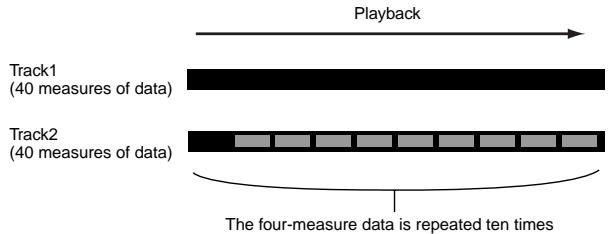
When Track Loop has been set to on, you can specify the range to be looped. (Only the end point can be set; the start point of looped playback is fixed to the beginning of the song.)
CAUTION
Please note that changing the Track Loop from off to on will delete the data of the area that is not looped.
Press [F1] to call up the Song Play display. Here, change the change the current measure — this will be used for the last measure of the loop.
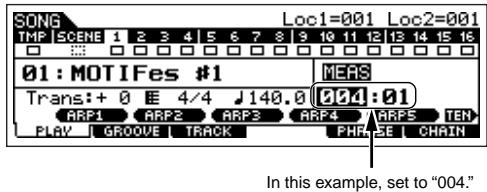
2 Call up the [F3] TRACK [SF3] TR LOOP display and move the cursor to the track to be looped.
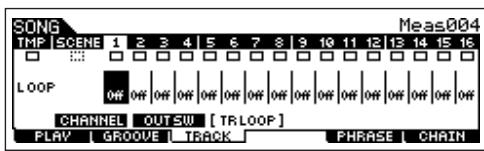
3 Set the selected track to on by using the [INC/YES] and [DEC/NO] buttons or the data dial. (The display prompts you for confirmation.)
4 Press the [INC/YES] button. The Loop is set to on and the data after the loop end is deleted
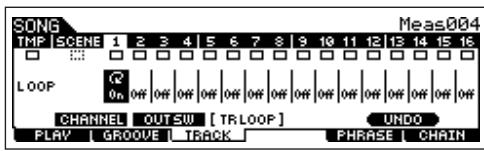
If you want to restore the deleted data and return the selected track to off, press the [SF5] UNDO button.
CAUTION
The Undo function can only be used on the last Track Loop operation. If you've set other tracks to loop, the data of those previous tracks cannot be recovered.
Step Recording — examples
[SONG] or [PATTERN] [●] (Record) [F1] SETUP Type = step
This section explains how to step-record notes, using three specific examples.
- NOTE The explanations here using the Song mode display apply also to the Pattern mode.
Example 1
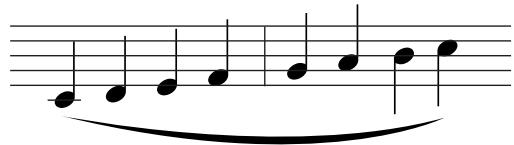
1 Set the parameters as illustrated below.
Press the Record button to call up the display below. Here, we'll set the Step Time to (480) so that quarter notes will be entered, and set the GateTime to 100% to have the notes play in legato.
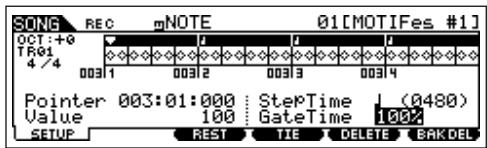
2 Play the keys C, D, E, F, G, A, B and C in order.
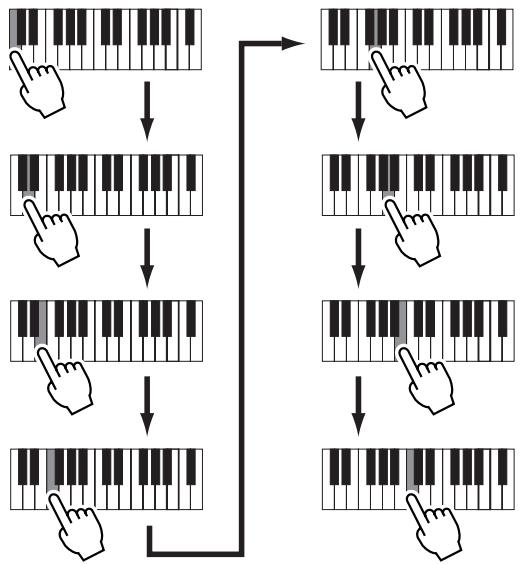
Each time you press a key and release it, the pointer moves forward by one step and the played note is recorded.
3 Move the pointer to the top (beginning) of the song and press the [▶] (Play) button to hear the note data you just recorded in steps #1 and 2.
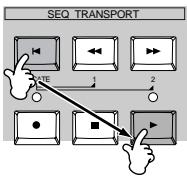
Example 2 (Using the Tie function)

1 Set the parameters as illustrated below.
Since the first note is a half note, set the StepTime to the half-note icon (a value of 960), and set the GateTime to 80% , since you don't want the notes to play in legato.
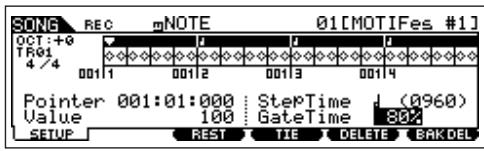
2 Enter the first note F.
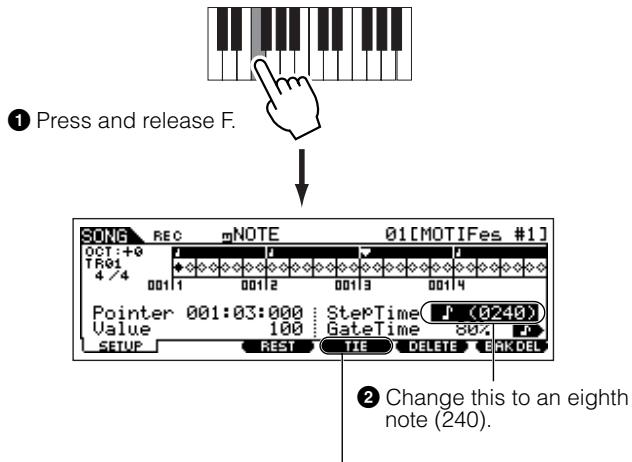
Press the [F4] button to tie the two F notes (half note and 8th note).
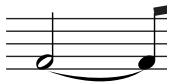
3 Enter the next 8th notes.
Keep the display settings unchanged for the remaining notes in the measure, and press/release each key one by one as shown below.
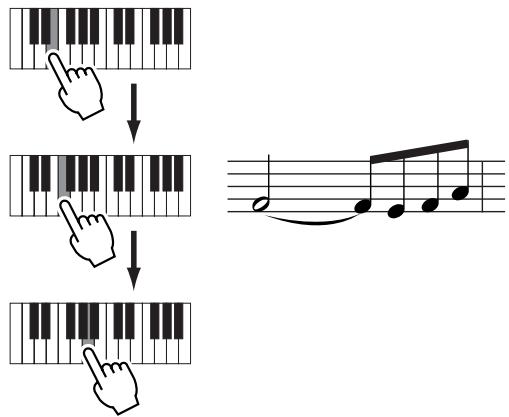
4 Follow the instructions below to enter the next dotted half note.
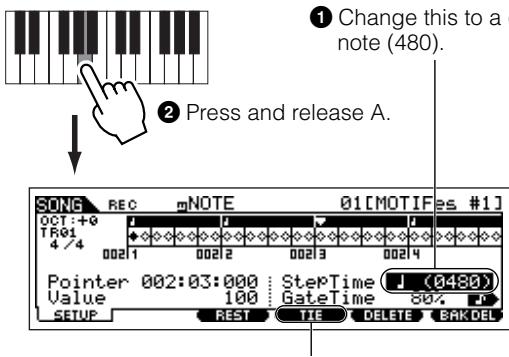
Press the [F4] button twice to expand the quarter note to a dotted half note.
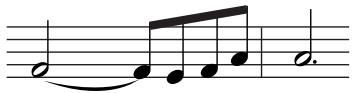
5 Enter the last quarter note by pressing and releasing F.
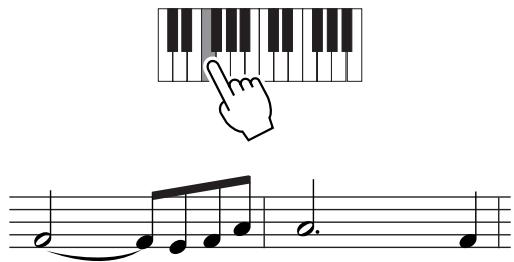
6 Move the pointer to the top (beginning) of the song and press the [▶] (Play) button to hear the note data you just recorded in steps #1 - 5.
![YAMAHA MOTIF ES6 - Move the pointer to the top (beginning) of the song and press the [▶] (Play) button to hear the note data you just recorded in steps #1 - 5. - 1](/content/2025/01/114832/images/f634da5d5f4372a773ff8bdbd9f404bb9b4b958c8ce9455c63b859c24e7eab98.jpg)
Example 3 (Using the Rest function)
![YAMAHA MOTIF ES6 - Move the pointer to the top (beginning) of the song and press the [▶] (Play) button to hear the note data you just recorded in steps #1 - 5. - 2](/content/2025/01/114832/images/94ba13f3d3441c0bb3cdddb7311ff1b5f9b420a03c6e28a1595a7083911b2e85.jpg)
1 Set the parameters as illustrated below.
Set the StepTime to a quarter note (480) and the Gate Time to 80% .
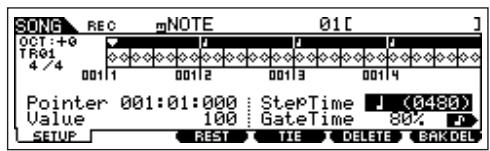
2 Enter the first note, F.
Press and release A.
3 Enter the next 8th rest as shown below.
1 Change this to an eighth note (240), since we'll be entering an eighth-note rest.
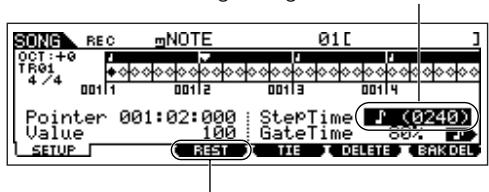
Enter the selected rest value (eighth note) by pressing the [F3] button
4 Enter the next 8th note A.
Press and release A.
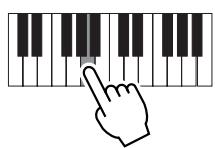
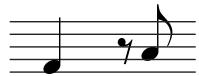
5 Enter the next 4th note C as shown below.
1 Change this value to 480, since the rest value is a quarter note.
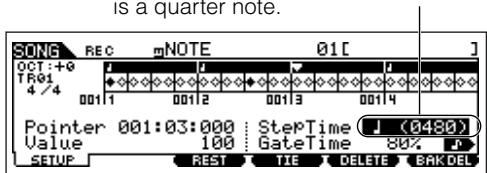

Press and release C.
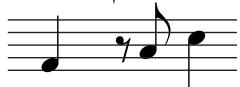
6 Enter the next 8th rest as you did in step #3 above.
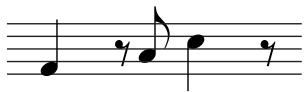
7 Enter the last 8th note, F.
Press and release F.
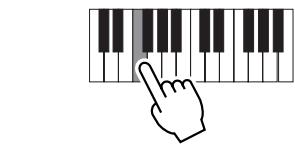
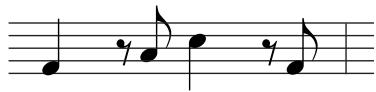
8 Move the pointer to the top (beginning) of the song and press the [▶] (Play) button to hear the note data you just recorded in steps #1 - #7.
![YAMAHA MOTIF ES6 - Move the pointer to the top (beginning) of the song and press the [▶] (Play) button to hear the note data you just recorded in steps #1 - #7. - 1](/content/2025/01/114832/images/9073f893bf7193ca2eaf3a25b4c69ee4681332d0b24cff8f11cdf9613a30a743.jpg)
TIP Entering a chord
In Step recording, you can also enter chords. Press and hold down each note of the chord in succession, then release them all together to record them as a chord. Keep in mind that notes are not actually recorded to a track until they are released.
Pattern mode
Creating Patterns — basic procedure
Patterns consist of the following three types of data:
- MIDI sequence data (created in the Pattern Record mode, Pattern Edit mode, and Pattern Job mode)
- Setup data (created in the Pattern Play mode)
- Mixing data (created in the Pattern Mixing mode/Mixing Edit mode and stored in the Pattern Mixing Store mode)
After creating the data in these modes described above, store the Mixing settings in the Pattern Mixing Store mode to archive it as Pattern data and save the entire Pattern to the SmartMedia/USB storage device in the File mode.
Non note Ml t a sequence data, but are stored instead as Mixing data.
CAUTION
Because Pattern data (MIDI sequence data, Setup data, and Mixing data) is recorded to DRAM (page 187), it will be lost when turning the power off. Make sure to save any Pattern data created via the Record, Edit, Job, and Mixing setting to the SmartMedia/USB storage device in the File mode before turning the power off. For details on saving Pattern data, see page 132.
Pattern Play mode
[PARTERM] Pattern selection
| [F1] PLAY | Refer to page 56 in the Quick Guide section. |
| Trans (Transpose) | Determines the key transpose setting for the Pattern, and can be adjusted in semitones. Settings: -36 ~ +36 NOTE If Transpose is applied to a Drum Voice, the results may not be musically appropriate. To ensure proper playback of a Drum Voice, set the Note Shift parameter for the Drum Voice Part to an appropriate value ([PATTERN] → [MIXING] → [EDIT] → Part selection → [F4] TONE → [SF1] TUNE → NoteShift). |
| MEAS (Measure) | Indicates the current measure number and beat for the current Pattern. During playback, this indication changes automatically according to the Pattern playback. You can input the desired measure number directly by using the Number Input window called up via the [INFORMATION] button. |
| [SF1] ARP1 (Arpeggio 1) - [SF5] ARP5 (Arpeggio 5) | You can register the desired Arpeggio types to these buttons and call them up any time during your keyboard performance. |
| [F2] GROOVE (Grid Groove) | |
Same as in the Song Play mode. See page 221.
[F3] TRACK
[F4] PATCH
| [SF1] CHANNEL | Same as in the Song Play mode. See page 221. |
| [SF2] OUT SW (Output Switch) | Same as in the Song Play mode. See page 222. |
| [SF3] TR VCE (Track Voice) | Determines whether the program change data contained in the phrase data is effective or not. For most purposes, this should be set to “off.” For example, if a phrase has embedded Voice changes (program change messages) but you don’t want the Voice to change in the middle of the phrase, set this to “off.” Tracks that are set to “off” here automatically play back with the Voice number assigned to the Part set in the Mixing mode. The Phrase Voice embedded in the Phrase can be specified from the Voice display in the Pattern Record mode (page 243). |
Refer to page 113 in the Quick Guide section.
From this display, you can assign a Preset phrase or a User phrase (recorded in the Pattern Record mode) to each track and create a Pattern that contains up to 16 tracks.
The Patch function allows you to use only User phrases recorded to a track of the currently selected Pattern. If you wish to use User phrases recorded to tracks of other Patterns, use the Phrase Data Copy function, selected with [SF5] button.
| Section | Shows the current edited section. For details about how to change sections, see page 57. |
| Meas | Shows Measure: Beat for current playback location. |
| [SF4] CLEAR | This clears the Phrase assignment to the currently selected track and leaves the track empty. |
[SF5] COPY
Source Pattern number, phrase number
When this box is checkmarked, Sample Voices assigned to the source phrase are copied to the destination phrase as Sample Voices, and are assigned to the corresponding tracks in the selected Pattern.
![YAMAHA MOTIF ES6 - [SF5] COPY - 1](/content/2025/01/114832/images/f48a8de6a5e36c70a090750cb34110bc1e541fde9508e242dfe95933a199b78d.jpg)
Destination phrase and track of the current edited Pattern
After setting, press the [ENTER] button to copy the phrase.
The User phrases that can be assigned with the Patch function are limited to the ones contained in the currently selected Pattern. This function lets you copy phrases in another Pattern to the selected one. Press the [SF5] button to call up the display shown at left. After setting the parameters as needed, press the [ENTER] button to copy the phrase data.
CAUTION
The copy operation overwrites any data previously existing in the destination phrase.
[F5] REMIX
This function gives you a variety of semi-random presets for dividing the MIDl sequence data and altering the note lengths, letting you create completely new variations of a Pattern. This function is particularly effective when used on a track which contains a sample voice created by using the Sampling feature with the SLICE+SEQ sample type or samples sliced using the Sample Slice Job.
Set the parameters below, then press the [ENTER] button to execute the Remix operation. You can press the Play button at this point to hear the results of the Remix. If you're not satisfied with the results, try another Type/Variation and press [ENTER]. If you want to keep the changes, press [SF5] OK. (Undo cannot be used with Remix.) To return to the original display without altering the data, press the [SF4] CANCEL button.
Note Since the remixed data is stored as a new phrase and assigned to the current track, the original phrase data remains as an unassigned phrase.
| Type | Determines how the data in the selected track will be divided and rearranged. The division and rearrangement rules are different for each remix type. The type is also shown graphically in the display.Settings: 1~16 |
| Variation | Determines how the original MIDI sequence data will be modified.Settings: Normal1~16, Reverse1~16, Break 1~16, Pitch 1~16, Roll 1~16Normal 1~16....The original data is only divided and rearranged. 16 variations are provided.Reverse1~16....In addition to division and rearrangement, some portions of the data may be played in reverse. 16 variations are provided.Break 1~16....In addition to division and rearrangement, some portions of the data may be deleted to create breaks. 16 variations are provided.Pitch 1~16....In addition to division and rearrangement, some portions of the data may be pitch-shifted. 16 variations are provided.Roll 1~16....In addition to division and rearrangement, some portions of the data may be played with a roll effect. 16 variations are provided. |
[F6] CHAIN
Refer to page 115 in the Quick Guide section.
Pattern Chain Play mode
[PAATTERN] [F6]
This mode lets you play the programmed section chain sequence created in the Pattern Record mode and Pattern Edit mode. The parameters are the same as in the [F1] PLAY display.
Pattern Chain Record mode
[PATTERN] [F6] [●] (Record)
Recording Standby mode
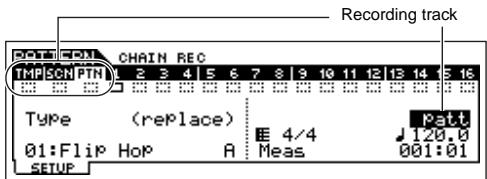
You can select one of the following tracks for recording.
- patt (Pattern): Records section changes during playback
- tempo: Records tempo change information during playback
- scene: Records track mute settings during playback
Pattern Chain Edit mode
During Recording [PATTERN] [F6] [●] (Record) [▶] (Play)
When recording the tempo track, you can change the tempo value.
When recording the scene track, you can change the track mute setting.
When recording the Pattern track, you can change the section.
[PATTERN] [F6] [EDIT]
The Pattern Chain Edit mode makes it possible to edit the order of the sections in a chain, as well as insert tempo, and scene/mute event data.
Call up the desired track display by pressing the [F4] TR SEL button to edit the selected track.
From this display, you can edit the section changes for each measure. Move the cursor to the "Section" column for the desired measure, and enter the desired section. To set the end of the chain, enter an END mark at the appropriate measure. (For more information, see page 116.)
To clear the event at the currently selected location, press the [F6] CLEAR button.
You can edit the track mute change in beats. Use the [F5] INSERT and [F6] DELETE button to insert/delete the event.
You can edit the tempo change in beats. Use the [F5] INSERT and [F6] DELETE button to insert/delete the event.
| [F2] COPY | Source range PATTERN CHAIN EDIT Copy Event (Meas 001 - 001) (Meas 001 NumberOfTimes 001) CHANGE | COPY | SONG | PRESS [ENTER] TO COPY. Top measure of destination | This display lets you copy all Pattern chain events from a specified range of measures (source) to a destination location. After specifying the source range in measures, the top measure of the destination location, and NumberOfTimes (number of times the data is copied), press the [ENTER] button to execute the Copy operation. |
| [F3] SONG | This function converts the Pattern chain data to Song data (standard MIDI format) and places the results in the normal Song tracks. After specifying the desired destination Song and measure number to which the converted data is to be copied, then press the [ENTER] button to execute. CAUTION This operation overwrites any data already existing at the destination range. | |
Pattern Record mode
[PArTERN] Pattern selection [ ] (Record)
Pattern Record Standby mode
[F1]SETUP
| Type (Recording Type) | Determines the recording method. For information on each method, refer to page 168 in the Basic Structure section. Settings: replace, overdub, step Unlike in the Song Record mode, Punch recording is not available for Pattern recording. |
| Loop | Turns loop recording ON or OFF. When ON, the phrase will play repeatedly during real-time recording. This can be handy when recording drum parts (page 168), allowing you to add different instruments on each pass. When OFF recording stops after one pass through the phrase. Settings: on, off |
| Quantize | Same as in the Song Record mode. See page 222. |
| Event | Same as in the Song Record mode. See page 223. |
| (Tempo) | Determines the Pattern tempo. Settings: 001.0 ~300.0 Unlike in Songs, Scene track and Tempo track are not available for Patterns. |
| Meas (Measure) | Determines the measure from which Pattern recording will be started. |
[F2] VOICE
From this display you can set Voice-related parameters for the selected track. The settings made here affect the tone generator parts whose MIDI receive channels match the MIDI transmit channel of the song track. The Voice set here becomes the phrase Voice (page 167). Parameters are the same as in the Song Record mode. See page 223.
[F3] ARP (Arpeggio)
From this display you can set parameters related to the Arpeggio of the recording track. Parameters are the same as in the Song Record mode. See page 223.
[F4] REC ARP (Record Arpeggio)
From this display you can determine whether the sequence data played by Arpeggio is recorded to the Pattern track or not. Parameters are the same as in the Song Record mode. See page 223.
[F5] Click
Pressing the [F5] button lets you turn the click sound (metronome) on/off for recording.
During Pattern Recording
[PARTERM] Pattern selection [ ] (Record) [▶] (Play)
Realtime Recording
Refer to page 110 in the Quick Guide section.
Step Recording
Examples of Step Recording are described on page 238.
Parameters in the displays are the same as in the Song Record mode. See page 224.
Pattern Edit mode
[PATTERN] Pattern selection [EDIT]
Same as in the Song Edit mode. See page 225.
Pattern Job mode
[PATTERN] Pattern selection [JOB]
The Pattern Job mode contains a comprehensive set of editing tools and functions you can use to change the sound of the Pattern. It also includes a variety of convenient operations, such as copying or erasing data.
After setting parameters as required from the selected display, press the [ENTER] button to execute the Job.
CAUTION
An "Executing..." message is shown when it takes a short amount of time to execute the Job. Never attempt to turn off the power while an "Executing..." message is shown. Turning the power off in this state results in loss of all user data.
[F1] UNDO/REDO
The Undo Job cancels the changes you made in your most recent recording session, editing session, or Job, restoring the data to its previous state. This allows you to recover from accidental data loss.
Redo is available only after using Undo, and lets you restore the changes you made before undoing them.
CAUTION Undo/Redo does not work with Sample Voice and Mixing Voice operations.
[F2] NOTE (Note data Job)
![YAMAHA MOTIF ES6 - [F2] NOTE (Note data Job) - 1](/content/2025/01/114832/images/d180f521aa3c520c0ba3acdb9b076ecd10a563d2a17c75fef8c32dcd64fb6587.jpg)
Specify the phrase and the range (in measures/beats/clocks) over which the Job is applied.
The Note data Jobs in the Pattern mode are basically same as in the Song Job mode. However, unlike in the Song Job mode, Pattern Note data Jobs are applied to the phrases (001 - 256) and a selected range in the phrase (measure : beat : clock).
| 01: Quantize | Same as in the Song Job mode. See page 227. |
| 02: Modify Velocity | Same as in the Song Job mode. See page 227. |
| 03: Modify Gate Time | Same as in the Song Job mode. See page 227. |
| 04: Crescendo | Same as in the Song Job mode. See page 228. |
| 05: Transpose | Same as in the Song Job mode. See page 228. |
| 06: Glide | Same as in the Song Job mode. See page 228. |
| 07: Create Roll | Same as in the Song Job mode. See page 228. |
| 08: Sort Chord | Same as in the Song Job mode. See page 228. |
| 09: Separate Chord | Same as in the Song Job mode. See page 229. |
| [F3] EVENT (Event Job) | |
| The Event Jobs in the Pattern mode are basically same as in the Song Job mode. However, unlike in the Song Job mode, Pattern Event Jobs are applied to the phrases (001 - 256) and a selected range in the phrase (measure : beat : clock). | |
| 01: Shift Clock | Same as in the Song Job mode. See page 229. |
| 02: Copy Event | Same as in the Song Job mode. See page 229. |
| 03: Erase Event | Same as in the Song Job mode. See page 229. UNOTE Unlike in the Song Job mode, "Tempo," "Scene Memory," or "Track Mute" cannot be selected as Event Types. |
| 04: Extract Event | Same as in the Song Job mode. See page 230. |
| 05: Create Continuous Data | Same as in the Song Job mode. See page 230. UNOTE Unlike in the Song Job mode, "Tempo" cannot be selected as an Event Type. |
| 06: Thin Out | Same as in the Song Job mode. See page 230. |
| 07: Modify Control Data | Same as in the Song Job mode. See page 230. UNOTE Unlike in the Song Job mode, "Tempo" cannot be selected as an Event Type. |
| 08: Beat Stretch | Same as in the Song Job mode. See page 231. |
| [F4] PHRASE (Phrase Job) | |
| 01: Copy Phrase | Selects the Pattern and phrase to be copied. (Preset phrase also can be selected.) PATTERN JOB PHRASE JOB 01:Copy Phrase Pattern 01 Phrase E01:001 Pattern 01 Phrase 001 T COPY SAMPLE UNOTE EVENT L PHRASE J TRACK PATTERN Specify the destination Pattern and phrase. UNOTE When there is no memory available in the destination Pattern for Sample Voice data, an error message will appear on the display and the Sample Voice data will not be copied. If this occurs, use Sample Job 02 "Delete" to delete any unused Sample Voices, then try again. CAUTION Any previous data in the copy destination will be overwritten. CAUTION Undo/Redo (page 244) cannot be used to undo/redo a Sample Voice copy operation. |
| 02: Exchange Phrase | This Job exchanges or " swaps" the contents of two specified phrases ("A" and "B"). UNOTE If this Job is applied to phrases which use Sample Voices, the Sample Voices will not be exchanged. |
| 03: Mix Phrase | This Job mixes all data from two selected user phrases ("A" and "B"), and places the result in phrase B. UNOTE Keep in mind that applying this Job to phrases with Sample Voices does not mix the Sample Voices. |
| 04: Append Phrase | This Job appends one phrase (A) to the end of another (B) to create one longer phrase (B). UNOTE If this Job is applied to phrases which use Sample Voices, the Sample Voices will not be appended. UnNote When either Pattern or Phrase is set to "off," the split Phrase B data is erased. UNOTE If this Job is applied to phrases which use Sample Voices, the Sample Voices will not be split. CAUTION The Job overwrites any data already existing in destination phrase B. |
| 05: Split Phrase | This Job splits a selected phrase (A) into two separate phrases (A and B). The data before the split point is stored to the original phrase A and the data after the split point is moved and stored to another phrase B. You can also set the Meter of the phrase B after the Split Phrase Job. UNOTE When either Pattern or Phrase is set to "off," the split Phrase B data is erased. UNOTE If this Job is applied to phrases which use Sample Voices, the Sample Voices will not be split. CAUTION The Job overwrites any data already existing in destination phrase B. |
| 06: Get Phrase From Song | Source Song, track, and range of measures to be copied. Destination phrase | This Job copies a segment of sequence-track data from a Song into the designated destination phrase. After specifying the source Song/track/range of measures to be copied, the destination phrase, and setting the checkbox of Copy Sample, press the [ENTER] button to execute this Job. When the Copy Sample box is checkmarked, Sample Voices used by the source track are copied to the destination Pattern as Sample Voices, and are assigned to the destination phrase. This parameter has no effect when no Sample Voice is used by the source track. CAUTION The Job overwrites any data already existing in the destination phrase. Undo/Redo (page 244) cannot be used to undo/redo a Sample Voice copy operation. | |
| 07: Put Phrase To Song | Source phrase Destination Song, track, and top measures | This Job copies a selected user phrase into a specified area of a selected song. After specifying the source phrase, destination Song/track/top measure, and setting the Copy Sample checkbox, press the [ENTER] button to execute this Job. When the Copy Sample box is checkmarked, Sample Voices used by the source phrase are copied to the destination Song as Sample Voices, and are assigned to the destination Song track. This parameter has no effect when no Sample Voice is used by the source phrase. CAUTION The Job overwrites any data already existing in the destination track. Undo/Redo (page 244) cannot be used to undo/redo a Sample Voice copy operation. | |
| 08: Clear Phrase | This Job deletes all data from the selected phrase. When the Delete Sample box is checkmarked, sample data assigned to the selected phrase will be deleted. This parameter has no effect when no Sample Voice is used by the selected phrase. CAUTION Undo/Redo (page 244) cannot be used to undo/redo a Delete Sample operation. | ||
| 09: Phrase Name | This Job lets you assign a name (of up to eight characters) to the selected phrase. For instructions on naming, refer to page 53 in the Basic Operation section. | ||
| [F5] TRACK (Track Job) | |||
| 01: Copy Track | Source Pattern, section, and track | This Job copies all data from a specified source track to the specified destination track. The types of data to be copied are the same as in the Song Job mode. See page 231. | |
| 02: Exchange Track | Types of data to be copied Destination Pattern, section, and track | ||
| 03: Clear Track | Section and track from which data is to be cleared | This Job deletes all data of the selected type from the selected Pattern track. The types of data to be cleared are the same as in the Song Job mode. See page 232. | |
| 04:Normalize Play Effect | This Job rewrites the data in the selected track so that it incorporates the current Grid Groove settings. After specifying a track (TR 01-16) to which this Job is applied, press the [ENTER] button to execute this Job. | |
| 05:Divide Drum Track | Separates the note events in a drum performance assigned to a specified track, and places the notes corresponding to different drum instruments in separate tracks (tracks 1 through 8). After specifying a track (TR 01-16) to which this Job is applied, press the [ENTER] button to execute this Job. In order to use this Job, tracks 1 - 8 must be empty. If there aren't enough empty tracks, an error message appears. If this happens, use the Clear Track Job (page 246) to delete tracks 1 - 8, then try the Job again. | |
| 06:Put Track To Arp | This Job copies data in the specified measures of a section/track for creating Arpeggio data. For details, refer to page 130 in the Quick Guide section. | |
| [F6] PATTERN (Pattern Job) | ||
| 01:Copy Pattern | Source Pattern and section Destination Pattern and section pattern JOB 01[**********] pattern JOB 01:Copu/Pattern 01:Copu/Pattern 01:all(Pattern 02:all)Preset PhraseUserPlicate User PhraseChainUNDO NOTE EVENT PHRASE TRACK PATTERN | This Job copies all data from a selected source Pattern to a selected destination Pattern. After specifying the source Pattern/section, and the destination Pattern/section, as well as setting the checkboxes as necessary, press the [ENTER] button to execute this Job. |
| Preset Phrase→User | When this box is checkmarked, Preset Phrases (if included in the source Pattern) are copied to the User Phrase, which will be assigned to the destination Pattern. | |
| Duplicate User Phrase | When this box is checkmarked, User Phrases (if included in the source Pattern) are copied to another User Phrase, which will be assigned to the destination Pattern. | |
| Chain | When this box is checkmarked, Pattern chain data (if included in the source Pattern) is copied to the destination Pattern. | |
| 02:Addend Pattern | Source Pattern and section Destination Pattern and section pattern JOB 01:Keep Original PhraseUNDO NOTE EVENT PHRASE TRACK PATTERN | Appends one Pattern to the end of another to create one longer Pattern with all 16 tracks. |
| Keep Original Phrase | When the KEEP ORIGINAL PHRASE checkbox is checked, this Job requires twice the number of empty user phrases as the number of tracks containing data in which to store the appended phrase data. If the required space is unavailable, an alert message will appear and the Job will be aborted. If this occurs use the Clear Phrase Job (page 246) to delete unused phrases and try again. | |
| 03:Split Pattern | Source Pattern and section Destination Pattern and section pattern JOB 01:Split Pattern(Pattern 01:A)Preset PhraseKeeP Original PhraseSampleUNDO NOTE EVENT PHRASE TRACK PATTERN | This Job splits a selected Pattern (all 16 tracks data) into two Patterns. After the Split Pattern operation, the part of the Pattern before the specified Split Point will remain, and the part following the Split Point will be moved to the destination Pattern. The Job overwrites any data already existing in the destination Pattern. |
| Split Point | Determines the Split Point by setting a measure number. | |
| Keep Original Phrase | When this box is checkmarked, the original Source Pattern data is retained in memory and the results of the Split Job are written to empty phrases. When this box is not checkmarked, the original Source Pattern is erased and replaced with the newly created data. | |
| Sample | When this box is checkmarked, Sample Voices (if included in the source pattern) are copied to the destination Pattern. | |
| SIGNATURE When the KEEP ORIGINAL PHRASE checkbox is checked, this Job requires twice the number of empty user phrases as the number of tracks containing data in which to store the appended phrase data. If the required space is unavailable, an alert message will appear and the job will be aborted. If this occurs use the Clear Phrase Job (page 246) to delete unused phrases and try again. | ||
| 04: Clear Pattern | ||
| This Job deletes all data from the selected Pattern, or from all Patterns. When the specific section is selected to be cleared, you can unmark the Chain box. If the Chain box is not checkmarked, the Pattern Chain data will be kept even though the Clear Pattern Job is executed. | ||
| 05: Pattern Name | ||
| This Job lets you assign a name to the selected Pattern. For instructions on naming, refer to page 53 in the Basic Operation section. | ||
Pattern Mixing mode
[PATTERN] Pattern selection [MIXING]
In this mode, you can set up mixing data for your patterns, and set various parameters for the tone generator parts — including the desired Voice, as well as its level, pan, EQ, effect and other settings.
Pattern Mixing parameters are not actually part of the Pattern sequence data in each track, but rather are settings for the tone generator, as it is played back by the Pattern data. As such, the Pattern Mixing parameter settings are not recorded to the Pattern tracks.
Mixing operations and parameters are the same as those of the Song Mixing mode. See page 236.
CAUTION
Parameter settings made in the Pattern Mixing mode and Pattern Mixing Edit mode should be stored to internal memory (DRAM) as part of the Pattern data. In addition, make sure to save the entire Pattern data (including the Mixing settings) to the SmartMedia/USB storage device, since the data in DRAM is stored only temporarily (page 187).
Note Parameter settings in the Pattern Mixing mode and Pattern Mixing Edit mode can be stored as a template to internal Flash ROM, as well as being stored as part of a Pattern. See page 104 for details.
Pattern Mixing Edit mode
[PARTERN] Pattern selection [MIXING] [EDIT]
This mode provides more detailed Mixing parameters than in the Pattern Mixing mode.
Keep in mind that Pattern Mixing parameters are not actually part of the Pattern sequence data in each track, but rather are settings for the tone generator, as it is played back by the Pattern data. As such, the Pattern Mixing parameter settings are not recorded to the pattern tracks.
Mixing operations and parameters are the same as those of the Song Mixing mode. See page 234.
CAUTION
Parameter settings made in the Pattern Mixing mode and Pattern Mixing Edit mode should be stored to internal memory (DRAM) as part of the Pattern data. In addition, make sure to save the entire Pattern data (including the Mixing settings) to the SmartMedia/USB storage device, since the data in DRAM is stored only temporarily (page 187).
5Note Parameter settings in the Pattern Mixing mode and Pattern Mixing Edit mode can be stored as a template to internal Flash ROM, as well as being stored as part of a Pattern. See page 104 for details.
Pattern Mixing Job mode
[PARTERN] Pattern selection [MIXING] [JOB]
Same as in the Song Mixing Job mode. See page 236.
Pattern Mixing Store mode
[PEARN] Pattern selection [MIXING] [STORE]
This function lets you store your edited Pattern Mixing to User memory (DRAM).
For details, refer to page 131 in the Quick Guide section.
Mixing Voice mode
Creating Mixing Voices — basic procedure
The Mixing Voice mode provides most of the same Normal Voice editing parameters as the Voice mode, with the main exception that these Voices are dedicated for use with the Songs and Patterns, and are stored specifically as Mixing Voices.
The Mixing Voice Job mode lets you use the supplementary functions like Copy and Delete. After completing the Mixing Voice editing, you can store the edited Voice to a User Bank to internal memory (Flash ROM) or you can store it as a part of the current Song/Pattern data to internal memory (DRAM). When storing the edited Mixing Voice as a part of the current Song/Pattern data, make sure to save the data to a SmartMedia/USB storage device in the File mode.
Mixing Voice Edit mode
[SONG] or [PATTERN] [MIXING] [F2] VOICE Normal Voice selection [F5] VCE ED
The Mixing Voice Edit mode is divided into Common Edit, for setting parameters common to all four Elements, and Element Edit, for setting parameters of individual Elements.
Common Edit
[SONG] or [PATTERN] [MIXING] [F2] VOICE Normal Voice selection [F5] VCE ED [COMMON]
These parameters are for making global (or common) edits to all four Elements of the selected Normal Voice.
The Mixing Voice Edit parameters are basically the same as those in the Voice Edit mode. However, some parameters having the same name as those in the Song Mixing/Pattern Mixing Part Edit mode are not available in the Mixing Voice Edit mode.
[F1] GENERAL
Same as in the Normal Voice Common Edit mode. See page 189.
Please note that the [SF3] MEQ OFS (Master EQ Offset) display is not available in the Mixing Voice Edit mode.
[F2] OUTPUT
Same as in the Normal Voice Common Edit mode. See page 190.
[F4] CTL SET (Controller Set)
Same as in the Normal Voice Common Edit mode. See page 192.
[F5] LFO
Same as in the Normal Voice Common Edit mode. See page 192.
[F6] EFFECT
Same as in the Normal Voice Common Edit mode. See page 194.
Please note that the [SF4] REVERB and [SF5] CHORUS displays are not available in the Mixing Voice Edit mode.
Element Edit
[SONG] or [PATTERN] [MIXING] [F2] VOICE Normal Voice selection [F5] VCE ED Element selection
These parameters are for editing the individual Elements that make up a Normal Voice.
[F1] OSC (Oscillator)
Same as in the Normal Voice Element Edit mode. See page 195.
[F2] PITCH
Same as in the Normal Voice Element Edit mode. See page 196.
[F3] FILTER
Same as in the Normal Voice Element Edit mode. See page 197.
[F4] AMP (Amplitude)
Same as in the Normal Voice Element Edit mode. See page 199.
[F5] LFO (Low Frequency Oscillator)
Same as in the Normal Voice Element Edit mode. See page 201.
[F6] EQ (Equalizer)
Same as in the Normal Voice Element Edit mode. See page 201.
Mixing Voice Job mode
[SONG] or [PATTERN] [MIXING] [F5] VCE ED [JOB]
The Mixing Voice Job mode features two basic operations, Copy and Delete. After setting parameters as required from the selected display, press the [ENTER] button to execute the Job.
[F2] RECALL
If you are editing a Mixing Voice and select a different Mixing Voice, Mixing program, Song or Pattern without storing your edited one, all the edits you've made will be erased. Edits are also erased if the current part to which the edited Mixing Voice is assigned receives a program change from an external MIDI instrument. If this happens, you can use Edit Recall to restore the Mixing Voice with your latest edits intact by pressing the [ENTER] button from the [F2] RECALL display.
![YAMAHA MOTIF ES6 - [F2] RECALL - 1](/content/2025/01/114832/images/88374fb2b6902e34ec44658f8fa59d6b8beb6ce358a07411d4a2db982184900d.jpg)
Since a Recall Buffer for the Mixing Voice is prepared for each Part of the current Song or Pattern, you can specify the Part to which the Mixing Voice to be recalled is assigned before executing the Edit Recall.
[F3] COPY
![YAMAHA MOTIF ES6 - [F3] COPY - 1](/content/2025/01/114832/images/63c0d99d45a597a21aeedb9e694315899ead1a642dae54d3099cb9636fdfa904.jpg)
Source song/pattern and part
Destination song/pattern and part
This Job lets you copy the Mixing Voice stored to a specified Part in one Song/Pattern to a Part in another Song/Pattern.
[F5] DELETE
This Job lets you delete a Mixing Voice assigned to a specified Song/Pattern's Part.
Mixing Voice Store mode
[SONG] or [PATTERN] [MIXING] [F5] VCE ED [STORE]
This function lets you store your edited Mixing Voice to User memory (Flash ROM or DRAM). For details, refer to page 106 in the Quick Guide section.
Sampling mode
Creating samples — basic procedure
In the Sampling mode, the following three types of data can be created.
Waveform: Created by recording a sample.
- Sample Voice: Created by recording a sample (depending on the settings before recording) in the Sampling mode entered from the Song mode/Pattern mode. The resulting Waveform can be assigned to a Sample Voice.
- User Voice: Created by recording a sample (depending on the settings before recording) in the Sampling mode entered from the Voice mode/Performance mode. The resulting Waveform can be assigned to a User Voice.
After creating the data described above, save them to a SmartMedia/USB storage device in the File mode. Sample Voices that are assigned to Song tracks can be saved along with Song data. When saving Song data (that includes Sample Voices) or User Voice data, all Waveforms assigned to the data will be saved automatically. Waveforms assigned to the Sample Voices or User Voices will be saved together automatically. Waveforms which are not assigned to any Song or Voice data should be saved individually as Waveforms.
IMPORTANT:
The Sampling mode is available only when optional DIMMs (page 289) have been installed to the MOTIF ES.
CAUTION
The waveforms created in the Sampling mode reside temporarily in the optionally installed DIMMs (page 187). Because data contained in DIMM is lost when the power is turned off, you should always save the waveforms created by recording, editing, and using Jobs to a SmartMedia/USB storage device before turning off the power. For information on how to save, see page 97.
Sampling Record mode
[INTEGRATED SAMPLING]
In this mode, you can record sounds to this synthesizer (for example, your voice, a guitar, or sounds from a CD), edit them, and use them to create voices you can play from the keyboard. Or, if you enter this mode from the Song or Pattern mode, the sounds you record (commonly called "sample") can be assigned to the tracks and played back automatically with the song or pattern. What's more, by using the Resampling function, you can create new samples from your edits, or make samples from the sounds of this synthesizer itself.
When entering the Sampling mode from the Voice mode/Performance mode
In this case, you can create a Waveform or User Voice by recording sounds input from external devices such as a microphone and audio equipment.
[F1] DEST (Destination)
From this display you can determine the destination location to which the recorded sample will be stored.
| Waveform | Determines the Waveform number to which the recorded sample is assigned. Settings: 001~1024 |
| Keybank | Determines the note number located at the center of the Key Bank. Settings: C-2 ~G8 |
| NOTE For details about Waveform and Key Bank, see page 173. | |
| Part | Determines the Performance Part to which the recorded sample is assigned. This is available only when entering the Sampling mode from the Performance mode. When set to "off," only the Voice will be created by sampling. Settings: off, 1~4 |
| Voice | The recorded sample can be stored as a User voice. This parameter determines the User voice bank and number to which the recorded sample is assigned. NOTE When this is set to "--," only a Waveform is created; the sample is not stored as a User voice. The sample is stored to the smallest numbered Waveform available. If you wish to hear the new sample, go to the WAVE display ([VOICE] → Voice selection → [EDIT] → Element selection → [F1] OSC → [SF1] WAVE) or KEYBANK display ([INTEGRATED SAMPLING] → [EDIT] → [F1] KEYBANK) and search through the User Waveforms to find the desired sample. |
| Key | Available only when the User voice bank is set to UDR (User Drum). This parameter lets you determine the key to which the sample obtained via the Sampling feature will be assigned. Settings: C0 ~ C6 |
[F2] SOURCE
From this display you can set parameters related to the audio source.
| Type | Determines the Sampling type. Keep in mind that this parameter is fixed to “sample” when entering the Sampling mode from the Voice/Performance mode. |
| Source | Determines the recording source. Settings: A/D, resample, AIB2, mLAN1~4 A/D.........Analog audio from the A/D INPUT jacks is recognized as the recording source. resample............The audio signal produced from the instrument when you play the keyboard along with the Audio Input part (in other words all the audio signals output from the OUTPUT jacks) is recognized as a recording source and "resampled." AIEB2..........Digital audio from the DIGITAL IN terminal or OPTICAL IN terminal (with optional AIEB2) is recognized as the recording source. mLAN1~4..........The mLAN connector (with optional mLAN16E) is recognized as the recording source. |
| Next | Determines whether multiple samples can be recorded without exiting from the Record mode (on) or not (off). When you wish to assign individual samples to the keys one by one to create a Drum Voice, set this parameter to on. Keep in mind that the Next parameter may be fixed to "off" and cannot be changed. This occurs when you enter the Sampling mode from the Voice mode/Performance mode, set the Voice to something other than "off" in the [F1] DEST display, and set the Source (above) to "resample" in the [F2] SOURCE display. |
| Mono/Stereo | Determines whether new samples will be recorded as stereo or mono samples. Settings: monoL, monoR, monoL+R, stereo L mono............The L-channel signal will be recorded as a mono sample. R mono............The R-channel signal will be recorded as a mono sample. L+Rmono............The L-channel and R-channel signals will be mixed and recorded as a mono sample. stereo............A stereo sample will be recorded. |
| Frequency (Sampling Frequency) | Specifies the sampling frequency. The rate at which digital readings are taken is referred to as the sampling frequency. Higher sampling frequencies result in higher quality sound, but use up more memory. Settings: 44.1k (44.1 kHz), 22.0kLo (22.05 kHz Lo-Fi), 11.0kLo (11.025 kHz Lo-Fi), 5.5kLo (5.5125 kHz Lo-Fi) 5NOTE3 When the Source is set to any of mLAN1~4 and the mLAN terminal is used as an audio input, the Frequency is fixed to 44.1 kHz and cannot be changed. 5NOTE3 At settings other than 44.1 kHz, the sound monitored during recording may be different from the recorded sound, depending on the source signal. |
[F6]REC
Even if you press the [F6] REC button, recording (sampling) will not start immediately. Set various parameters such as Trigger Mode in the Sampling Standby display, then start the actual sampling according to the settings.
| STANDBY (Sampling Standby) | Press the [REC] button to enter the Sampling Standby display. From this display you can turn the Confirm function on or off by pressing the [F2] CONFM button as well as set parameters listed below. For details on the Confirm function, refer to page 95 in the Quick Guide section. |
| TrggrMode (Trigger Mode) | Specifies the method by which sampling will be triggered. Settings: level, manual level......When this is selected, press the [F6] REC button to enable the Trigger Waiting condition. Sampling will then begin as soon as an input signal exceeding the specified trigger level is received. When this is selected, you need also set the Trigger Level (1~127). manual......When this is selected, sampling will begin as soon as the [F6] START button is pressed, regardless of the input signal level. |
| Key | This is the same parameter as Keybank in the [F1] DEST display. |
| RecMonitor (Recording Monitor) | Determines the output level of the monitor for the input signal. This monitor signal is output from the PHONES jack or the OUTPUT R and L/MONO jacks. This has no effect on the recording level. Settings: 0 ~ 127 |
| RecGain (Recording Gain) | Determines the recording gain when resampling. This parameter is available only when the Source is set to "resample." Settings: -12dB ~ +12dB |
| WAITING (Trigger Waiting) | When Trigger Mode is set to "level" in the Sampling Standby display, press the [F6] REC button again to enter the Trigger Waiting condition; the [F6] menu changes to "STOP." In this status, sampling will begin as soon as an input signal exceeding the specified trigger level is received. Before recording starts, press the [F6] STOP button or [EXIT] button to return to the Sampling Standby display. Keep in mind that the Confirm function can also be turned on or off by using the [F2] CONFM button in the Trigger Waiting condition. |
| RECORDING | During recording, press the [F6] STOP button or [EXIT] button to stop the sampling. |
| After sampling (recording) stops: | The following menus appear only when the Confirm function is turned on. |
| [F3] AUDITION | Pressing this lets you hear the sample obtained by recording (sampling). |
| [F4] CANCEL | Pressing this deletes the sample obtained by recording (sampling) and return to the Sampling Standby display. |
| [F5] OK | Pressing this stores the sample obtained by recording (sampling) to the specified destination. |
When entering the Sampling mode from the Song mode/Pattern mode
In this case, you can create a Waveform or Sample Voice by recording sounds input from external devices such as a microphone and audio equipment.
[F1] DEST (Destination)
From this display you can determine the destination location to which the recorded sample will be stored.
[F2] SOURCE
| Track | Determines the track number to which the recorded sample is assigned. Settings: 1 ~ 16 |
| Keybank | Determines the note number located at the center of the Key Bank. This parameter is available only when the Sampling type is set to “sample” or “sample+note” (in the Type parameter below). Settings: C-2 ~ G8 |
From this display you can set parameters related to the audio source.
[F6]REC
| Type | Determines the Sampling type. When entering the Sampling mode from the Song/Pattern mode, the data created by Sampling varies depending on this setting. Settings: sample, sample+note, slice+seq sample............ Only sample (wave) data is created. sample+note............ In addition to sample data, the appropriate note data for playing the sample is created and recorded to the track specified in the [F1] DEST display. slice+seq............ The recorded sample is automatically divided into "slices," and these are assigned to successive notes on the keyboard. Note Detailed settings (meter, measure number etc.) are specified in the Slice display after sampling. |
| Source | Determines the recording source. Same as in the Sampling mode from the Voice mode/Performance mode. See above. |
| Next | Determines whether multiple samples can be recorded without exiting from the Record mode (on) or not (off). When you wish to assign individual samples to the keys one by one to create a Drum Voice, set this parameter to on. Keep in mind that this parameter is fixed to off when the Source is set to "slice + seq." |
| Mono/Stereo | Determines whether new samples will be recorded as stereo or mono samples. Same as in the Sampling mode from the Voice mode/Performance mode. See above. |
| Frequency (Sampling Frequency) | Specifies the sampling frequency. Same as in the Sampling mode from the Voice mode/Performance mode. See above. |
Even if you press the [F6] REC button, recording (sampling) will not start immediately. Set various parameters such as Trigger Mode in the Sampling Standby display, then start the actual sampling according to the settings.
| STANDBY (Sampling Standby) | Press the [REC] button to enter the Sampling Standby display. From this display you can turn the Confirm function on or off by pressing the [F2] CONFM button as well as set parameters listed below. For details about the Confirm function, refer to page 95 in the Quick Guide section. Please keep in mind that the Confirm function is not available when the Type in the [F2] SOURCE display is set to “slice+seq.” |
| TrggrMode (Trigger Mode) | Specifies the method by which sampling will be triggered. Settings: level, meas, manual level Same as in the Sampling mode from the Voice mode/Performance mode. See above. meas (measure) ... This should be set together with the Punch-in/out measure. After the [F6] START button is pressed, sampling will begin at the specified punch-in measure, and end at the specified punch-out measure. Sampling will also stop when the Song/Pattern is stopped by pressing the [■] (Stop) button. manual Same as in the Sampling mode from the Voice mode/Performance mode. See above. |
| Key | This appears when Type in the [F2] SOURCE display is set to something other than “slice+seq.” This is the same parameter as Keybank in the [F1] DEST display. |
| RecMonitor (Recording Monitor) | Determines the output level of the monitor for the input signal. This monitor signal is output from the PHONES jack or the OUTPUT R and L/MONO jacks. This has no effect on the recording level. Settings: 0 ~ 127 |
| RecGain (Recording Gain) | Determines the recording gain when resampling. This parameter is available only when the Source is set to “resample.” Settings: -12dB ~ +12dB |
| WAITING (Trigger Waiting or Punch-in Waiting) | When Trigger Mode is set to "level" in the Sampling Standby display, press the [F6] REC button again to enter the Trigger Waiting condition; the [F6] menu changes to "STOP." In this condition, sampling will begin as soon as an input signal exceeding the specified trigger level is received. When the Trigger Mode is set to "meas" in the Sampling Standby display, press the [F6] REC button again to enter the Punch-in Waiting condition; the [F6] menu changes to "STOP." In this condition, sampling will begin as soon as a song or pattern playback reaches the punch-in measure. Before recording starts in either condition, press the [F6] STOP button or [EXIT] button to return to the Sampling Standby display. Keep in mind that the Confirm function can be tuned on or off by using the [F2] CONFM button also in the Trigger Waiting or Punch-in Waiting condition if the Sampling type is set to other than "slice+seq." |
| RECORDING | During recording, press the [F6] STOP button or [EXIT] button to stop sampling. |
| After sampling (recording) stops: | The following menus appear when the Sampling type is set to "sample" or "sample+note" and the Confirm function is turned on. |
| [F3] AUDITION | Pressing this lets you hear the sample obtained by recording (sampling). |
| [F4] CANCEL | Pressing this deletes the sample obtained by recording (sampling) and return to the Sampling Standby display. |
| [F5] OK | Pressing this stores the sample obtained by recording (sampling) to the specified destination. |
| TRIM/SLICE display after sampling stops | If you've entered the Sampling Record mode for the Song or Pattern mode and you've set the sampling type to "slice+seq," you should set the following Slice related parameters after the Sampling stops. Please note that the Confirm function is not available in this case. |
| [F1] TRIM | |
| The trim function makes it possible to specify the beginning and end points to be played back within an entire sample. You can also specify the tempo for the range of the looped playback and determine its beat. | |
| Start (Start Point) | Determines the Start point for the sample playback. |
| Loop (Loop Start Point) | Determines the Top point of the loop playback (the point where the loop begins) within the range of the entire sample. |
| End (End Point) | Determines the End point of the loop playback within the range of the entire sample. |
| Beat | Indicates the (beat) and tempo of the range from the Loop Start Point to the End Point. |
| [SF1] AUDITION | Press the [SF1] button to sound the recorded sample according to the settings in this display. |
| [SF2] LP=ST | When the menu indication here is "LP=ST," the Start (Start Point) and the Loop (Loop Start Point) will share the same address, meaning that both of them will be changed simultaneously, even if just one of them is changed. Pressing the [SF2] button in this condition changes the menu from "LP=ST" to "LP≠ST." When the menu indication here is "LP≠ST," the Start (Start Point) and the Loop (Loop Start Point) can be changed independently. When pressing the [SF2] button in this condition, the address value of the Start will be copied to that of the Loop, with the result that both of them will have the same address value. The menu indication also changes from "LP≠ST" to "LP=ST." |
| [SF3] SET END | Pressing this calls up the display for determining the End Point, from which you can set the tempo, beat, and measure for the sample. Press the [ENTER] button to actually set End Point. If you are satisfied with the results (press [SF1] to audition the sample), press the [F6] OK button to return to the original display. Doing this stores your edited sample to the DIMM memory. To return to the original display without changing the data, press the [F5] CANCEL button. |
| [SF4] EXTRACT | Delete all unnecessary sample data located ahead of the Start point and located after the End point) by pressing the [SF4] button. |
| [F5] ZOOM-[F6] ZOOM+ | Press the [F5] and [F6] buttons to zoom in and out of the wave display. |
| [F2] SLICE | |
| This powerful feature lets you automatically divide the recorded sample into separate "slices." These slices are then assigned to successive notes and arranged as sequence data. Before executing the Slice operation, you'll need to accurately adjust the length of the sample. Use the [SF1] AUDITION button in the [F1] TRIM display to loop the sample and precisely set the Start and End points as required. After specifying the following parameters, press the [ENTER] button. (The display prompts you for confirmation.) Press the [INC/YES] button to execute the Slice. You can hear and confirm the sliced samples by pressing the [SF1] AUDITION button. If you are satisfied with the result of the operation, press the [F6] OK button to store the result of the Slice operation and go back to the Sampling Setup display. If not, press the [F5] CANCEL button to go back to the Sampling Setup display without storing the result. | |
| Type (Slice Type) | Specifies how the sample is sliced, and to some extent determines the resulting sound quality. Select the type that best suits the original phrase. Settings: beat1-3, phrase1-4, quick beat1-3......This slice type is suited for percussive phrases such as drums or bass with a fast attack and short decay. Three variations are provided. phrase1-4......Ideal for phrases containing cymbals or other instruments with a long decay. Four variations are provided. quick......Regardless of the phrase content, the sample is divided at the specified note sub-divisions. The number of slices per measure is calculated by multiplying the top number of the Meter (time signature) parameter by the bottom number of the SubDivide parameter. For helpful hints on getting the Slice Type parameter to work for different samples, see "Tips for using the Slice Types" on page 259. |
| Measure | Determines the number of measures in the sample to be sliced. When the slice operation is executed, sequence data corresponding to the specified number of measures is created. The sequence data is created from the beginning of the current measure at which sampling is started. Settings: 1~8 |
| Meter | Specifies the meter (time signature) of the sample. The setting here is the basic slice unit. Settings: 1/16 ~ 16/16, 1/8 ~ 16/8, 1/4 ~ 8/4 |
| SubDivide | The Meter parameter sets the basic slice unit, and SubDivide specifies even finer resolution for phrases containing regions with shorter notes. For the phrase shown at right, for example, the Meter should be set to 4/4 and SubDivide to 1/2. Settings: When Meter is set to 1 ~ 8/4 ............ quarter note (1/1), 8th note (1/2), 4th note triplet (1/3), 16th note (1/4), 8th note triplet (1/6), 32nd note (1/8), 16th note triplet (1/12) When Meter is set to 1 ~ 16/8 ............ 8th note (1/1), 16th note (1/2), 8th note triplet (1/3), 32nd note (1/4), 16th note triplet (1/6) When Meter is set to 1 ~ 16/16 ............ 16th note (1/1), 32nd note (1/2), 16th note triplet (1/3) Note This parameter has no effect when the Slice Type parameter is set to beat 1~3. Note The maximum slice resolution for stereo samples is 64 slices, and for mono samples 128 slices. |
| Sens (Envelope Sensitivity) | Further adjusts the sub-divisions specified by the SubDivide parameter. Higher values result in higher resolution, allowing even finer notes and smaller sounds to be detected and sliced. Use the Audition function (press [SF1]) to hear the results, and if you're not satisfied with them, change the setting and try again. Settings: 1 ~ 5 Note This parameter has no effect when the "quick" slice type is selected. |
Sampling Edit mode
[INTEGRATED SAMPLING] [EDIT]
This mode gives you a variety of sample editing tools, with which you can change the samples you've recorded in the Sampling Record mode, and customize them for your applications as needed.
For samples that have been recorded in stereo (with Stereo Sampling), both the left and right waves of the sample are edited together. In the actual process, any edits made to the left channel wave are duplicated exactly in the right channel. The exception to this, of course, is Pan — since the sample already is in stereo.
5.10 Unlike in the Sampling Record mode, all parameters and functions of the Sampling Edit mode are the same, no matter which mode was previously selected.
5. Note All Sampling Edit operations apply to the Waveform (actual sample), not the voice.
[F1] KEYBANK
From this display you can determine the destination location to which the recorded sample will be stored.
| Waveform | Select a Waveform that contains a Sample you wish to edit. Move the cursor to the Waveform number and select the desired number by using the [INC/YES] button, [DEC/NO] button, or the data dial. To select the desired Key Bank, simultaneously hold down the [INFORMATION] button and press the appropriate key on the keyboard. Press the [SF2] SELECT button to call up in order the Samples assigned to the selected Key Bank. |
| Keybank | Indicates information about the selected Key Bank. The Key Range and Velocity Range (which cannot be edited here) can be edited in the [F4] RANGE display. |
| [SF1] AUDITION | You can hear (audition) the selected sample by pressing the [SF1] button. |
| [SF2] SELECT | Press the [SF2] button to call up in order the Samples assigned to the selected Key Bank. |
The [SF1] AUDITION and [SF2] SELECT buttons can be used in the same way also with other displays in the Sampling Edit mode and the Sampling Job mode.
[F2]TRIM
operation is the same as in the Sampling Record mode (when Sampling Type is set to "slice+seq"). See page 253.
[F3] PARAM (Parameter)
| Level | Determines the output level of the selected sample. Settings: -94.5dB ~ -0.0dB |
| Pan | Determines the stereo position of the selected sample. Please note that this is not available for samples recorded in stereo. Settings: L64 (far left) ~ C (center) ~ R63 (far right) |
| PlayMode | Determines how the selected sample is to be played back. Settings: oneshot, reverse, loop oneshot.......The Sample plays back one time from Start point to End point. reverse.......The Sample plays back one time in reverse from End point to Start point. loop.......Sample playback begins from the Start point, continues to the Loop point, then repeats indefinitely between the Loop point and End point. 5Note For details on the above settings, see page 176. |
| OriginalKey | Determines the base key for the sample. Since the sample will be pitched shifted for keys played around this base key, this should be set as close as possible to the original pitch or note value of the actual sample. Settings: C-2~G8 |
| FineTune | Determines the fine tuning for the pitch of the sample. Settings: -100 cent ~ 0 cent ~ 99 cent |
| [SF1] AUDITION | You can hear (audition) the selected sample by pressing the [SF1] button. |
| [SF2] SELECT | Press the [SF2] button to call up in order the Samples assigned to the selected Key Bank. |
[F4] RANGE
From this display you can set the Key Range and the Velocity Range for the sample assigned to the selected Key Bank. Note that both the Key range and Velocity range values are graphically indicated in the display.
Note When the cursor is at one of the Key Range values, you can directly set the Key Range parameter from the keyboard. (Simultaneously hold down the [INFORMATION] button and press the appropriate key on the keyboard.)
[SF1] AUDITION
You can hear (audition) the selected sample by pressing the [SF1] button.
[SF2] SELECT
Press the [SF2] button to call up in order the Samples assigned to the selected Key Bank.
Sampling Job mode
[INTEGRATED SAMPLING] [JOB]
The Sampling Job mode contains a comprehensive set of editing tools and functions you can use to change the sound of the sample you've created and edited in the Sampling Edit mode. It also includes a variety of convenient operations, such as copying or erasing data. After setting parameters as required in the selected display, press the [ENTER] button to execute the Job.
Unlike in the Sampling Record mode, all parameters and functions of the Sampling Job mode are the same, no matter which mode was previously selected. The only exception to this is the Slice Job ([F1] 12 below), which varies depending on whether the previously selected mode was Voice/Performance or Song/Pattern.
5. NOTE All Sampling Job operations apply to the Waveform (actual sample), not the Voice.
[F1] KEYBANK (Key Bank Job)
Before executing the Key Bank Job by pressing the [ENTER] button, you'll need to specify the Waveform and Key Bank.
First, select the desired Waveform by moving the cursor to the 4-digit number in the display and change it by using the [INC/YES] and [DEC/NO] buttons or the data dial. Second, move the cursor to the Key value, select the desired key by using the [INC/YES] and [DEC/NO] buttons or the data dial, then use the [SF2] SELECT button to select in order the Key Bank (sample) assigned to the selected key. You can select the desired key also by pressing the note on the keyboard directly while holding the [INFORMATION] button. As in the Sampling Edit mode, the [SF1] AUDITION button lets you hear the sample assigned to the selected Key Bank.
01: Copy
Source Waveform and Key Bank
![YAMAHA MOTIF ES6 - [F1] KEYBANK (Key Bank Job) - 1](/content/2025/01/114832/images/109c2e2407f720ff5bc8936ed51353d00605e0dea5bfe07e21a11d694448723e.jpg)
Destination Waveform and Key Bank
This Job copies the data of a sample contained in a specified Key Bank to another Key Bank. After specifying the source Waveform and Key Bank as well as the destination Waveform and Key Bank, press the [ENTER] button to execute the Copy Job.
02:Delete
This Job deletes the specified Key Bank and its sample. After specifying the Waveform and Key Bank, press the [ENTER] button to execute the Delete Job. If the Key Bank is set to "all" and the Job is executed, all the samples of the selected Waveform are deleted.
5.10 If all the samples of the specified Waveform are deleted, the Waveform itself is deleted.
03: Extract
This Job deletes all unnecessary sample data (located ahead of the Start point and located after the End point). In effect, it extracts only the sample data you want to use, trimming all unneeded sound from the start and end of the sample.
After specifying the Waveform and Key Bank, press the [ENTER] button to execute the Extract Job. If the
Key Bank is set to "all" and the Job is executed, this Job is applied to all the samples of the selected Waveform.
| 04: Move | Source Waveform and Key Bank | This Job lets you move a sample contained in a specified Key Bank to another Key Bank. This would be useful for creating a new Waveform from the samples of various other existing Waveforms. After specifying the source Waveform and Key Bank as well as the destination Waveform and Key Bank, press the [ENTER] button to execute the Move Job. Note If the last remaining sample is moved from the source Waveform, the source Waveform itself is deleted. | |
| Destination Waveform and Key Bank | |||
| 05:Normalize | Set the Waveform and Key Bank containing the sample to be normalized. | This Job maximizes (normalizes) the overall level of the specified sample. The "100%" setting is a quick and convenient way to boost the level of an entire sample, to make it as loud as possible without distorting. After specifying the Waveform and Key Bank, then press the [ENTER] button to execute the Normalize Job. Ratio = less than 100% Source Wave Ratio = 100% Ratio = more than 100% | |
| Press the [ENTER] button to execute the job. | |||
| Press the [ENTER] button to execute the operation. If you are not satisfied with the results, change the Ratio value and press the [ENTER] button again. This automatically reverts back to the original settings and executes the operation again with the new settings. | |||
| Ratio | Specifies the post-normalization sample level. A setting of 100% maximizes the level so that the highest peak level in the sample is just below clipping (maximum digital signal level). Settings below 100% reduce the level of the sample accordingly. Settings higher than 100% will raise the sample level above the maximum, producing deliberate clipping. Settings: 001 ~ 800% | ||
| 06: Time-Stretch | This Job lets you change the length of the sample without changing the pitch. The basic steps in using this Job are the same as in 05:Normalize explained above. | ||
| Ratio | Determines the length of post-process sample as a ratio of the length of the original sample (100%). Lower values compress the sample, while higher values expand the sample. Settings: 0~400% | ||
| Accuracy | Determines the quality of the resulting sample by specifying which aspect of the original is to be emphasized: sound quality or rhythmic feel. Settings: sound4 - sound1, normal, rhythm1 - rhythm2 sound4 - sound1............ These settings place emphasis on sound quality, with the "SOUND 4" setting producing the highest sound quality. normal............ Produces an optimum balance of sound quality and rhythmic feel. rhythm1 - rhythm2 ......... These settings place emphasis on rhythmic feel, with the "Rhythm 2" setting producing the most accurate rhythmic feel. | ||
| 07: Convert Pitch | This Job lets you change the pitch of the sample without changing the length. The basic steps in using this Job are the same as in 05:Normalize explained above. | ||
| Pitch | Determines the amount and direction of pitch shift in semitone increments. Settings: -12 ~ 0 ~+12 | ||
| Fine | Determines the amount and direction of fine pitch shift in cent increments (1 cent = 1/100th of a semitone). Settings: -50 ~ 0 ~ +50 | ||
| 08: Fade In/Out | This Job lets you create fade-ins and fade-outs for the sample. The basic steps in using this Job are the same as in 05:Normalize explained above. | ||
| Type | Determines the type of level fade: fade-in or fade-out. Settings: in (fade-in), out (fade-out) | ||
| Length | Determines the length of the fade-in or fade-out. When a fade-in is selected, this parameter specifies the length of the fade starting at the specified Start point. When a fade-out is selected, this parameter specifies the length of the fade starting at the beginning of the fade and ending at the specified End point. Settings: 0000000 ~ End point | Fade In Length Start point Fade Out Start point | |
| 09: Convert Freq (Convert Frequency) | This Job lets you halve the sampling frequency of the specified sample. This can be used to convert hi-fi samples to a lo-fi sound, and reduce the sample size by half to conserve memory. The basic steps in using this Job are the same as in 05: Normalize explained above. | ||
| 10: Stereo to Mono | This Job lets you convert a stereo sample to a mono sample. The basic steps in using this Job are the same as in 05: Normalize explained above. | ||
| Type | Determines which channel, or both channels, of the stereo sample will be converted to a mono sample. Settings: L+R>mono, L>mono, R>mono L+R>mono...... The left and right channels of the stereo sample are mixed and converted to a mono sample. L>mono...... The left channel of the stereo sample is converted to a mono sample. R>mono...... The right channel of the stereo sample is converted to a mono sample. | ||
| 11: Loop-Remix | This Job lets you automatically cut the sample into separate "slices" and randomly rearrange the slices for special effects and unusual rhythmic variations. A variety of audio transform operations are also included for even greater changes in the sound. The basic steps in using this Job are the same as in 05: Normalize explained above. | ||
| Type | Determines the degree to which the looped portion of the sample will be sliced. Settings: 1~4 | ||
| Variation | Determines how the original sample is varied by the this Job. Settings: normal1~2, reverse1~2 normal1~2...... These settings slice and rearrange the sample data, without performing any other audio changes. reverse1~2...... In addition to slicing and rearranging, these settings reverse the playback of some of the slices. | ||
| 12: Slice | This Job lets you divide the sample into separate "slices," the number of which is determined by the note length (with Measure, Meter, and SubDivide). When entering this Job from the Song/Pattern mode, note data for playing the slices in sequence is also created. (Keep in mind that the results of this Job vary depending on the previously selected mode: Voice/Performance or Song/Pattern.) The basic steps in using this Job are the same as in 05: Normalize explained above. With the exception of the parameter below, all parameters and settings are the same as in the Slice display of the Sampling Record mode (page 254). | ||
| Lowest Key | Specifies the lowest key number from which the sliced samples are assigned in order. Settings: C-2~G8 NOTI In the Slice display of the Sampling Record mode (page 254), this parameter is fixed to "C-1" for the MOTIF ES6, "E0" for the MOTIF ES7, and "A-1" for the MOTIF ES8, and cannot be set. | ||
| [F2] WAVEFORM (Waveform Job) | |||
| 01: Copy | Source Waveform SAMPLE WAVEFORM 008 01:Copy 0001[----Wave001] 0001[----] KEVBANK WAVE OTHER Destination Waveform | This Job lets you copy the data of one Waveform to another. After specifying the source Waveform and destination Waveform, press the [ENTER] button to execute the Copy Job. | |
| 02: Delete | This Job lets you delete a specific Waveform from memory. | ||
| 03: Transpose | This Job lets you transpose the Key bank setting of a specified Waveform. | ||
| Octave | Determines the amount in octaves by which the Key Bank is transposed. When you want to transpose by less than one octave, set this to "0" and use the Note parameter below. Settings: -3~0~+3 | ||
| Note | Determines the amount in semitones by which the Key Bank is transposed. When you want to transpose by exact octaves, set this to "0" and use the Octave parameter above. Settings: -11~0~+11 | ||
| 04: Name | This Job lets you assign a name to the selected Waveform. For specific instructions on naming, refer to page 53 in the Basic Operation section. | ||
| [F3] OTHER | |||
| 01: Clean Up Memory | This Job deletes all the waveforms to which User voices or Sample voices are not assigned. | ||
| 02: Optimize Memory | This Job optimizes the memory (DRAM) for sampling. | ||
| 03: Delete All | This Job deletes all the waveforms. | ||
| 04: Convert to Drum Voice | This Job lets you convert the selected waveform to a specific Drum voice. | ||
Supplementary
Tips for using the Slice Types
- Slicing percussive phrases having short decays
First, try slicing using "beat1." If the result has a weak attack or the release portions of the phrase seem to overlap, try again using "beat2." Try adjusting the envelope sensitivity for finer control.
If after using "beat1" the attack portions overlap or the overall rhythmic feel is degraded, try again using "beat3." Use the SubDivide parameter to adjust the slice resolution, and make final adjustments with the Envelope Sensitivity parameter.
- Slicing phrases having long decays
First, try slicing using "phrase1." If the result has a weak attack or the release portions of the phrase seem to overlap, try again using "phrase2." Use the SubDivide parameter to adjust the slice resolution, and make final adjustments with the Envelope Sensitivity parameter.
If after using "phrase1" the points between the slices sounds rough and the overall feel is choppy, try again using "phrase3" or "phrase4" and set SubDivide to a finer resolution. Make final adjustments with the Envelope Sensitivity parameter. The "phrase3" setting is generally best for sustained strings or brass type sounds with no vibrato — in other words, the pitch remains constant. It can also produce echo-like effects when applied to percussive phrases with short decay. The "phrase4" setting is generally best for sustained strings or brass type sounds with vibrato, as well as vocal phrases.
Wave Memory Required for Slice Operations
Individual wave data slices created through slice operations require approximately 1.5 times the original memory because a tail section is automatically added and fade-in and fade-out sections are automatically created at the beginning and end of the wave data. This helps to maintain maximum sound quality when the tempo is increased, and results in smoother connections between slices (no tail section is created when the "quick" slice type is selected).
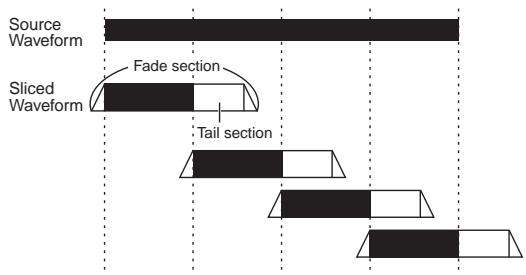
A memory work area is required for the processing calculations carried out for each slice operation, as well as sufficient memory to hold the completed waveforms. When the sampling frequency is 44.1kHz , the approximate amount of memory (expressed in kilobytes) required for each slice type is listed below.
beat1: Original wave size × N + (0.3 x number of slices)
beat2: Original wave size x N + (0.2 x number of slices)
beat3: Original wave size x N + (0.3 x number of slices)
phrase1: Original wave size × N + (5.8× number of slices)
phrase2: Original wave size x N + (1.4 x number of slices)
phrase3: Original wave size × N + (0.4× number of slices)
phrase4: Original wave size x N + (1.4 x number of slices)
quick: Original wave size × 3 + (0.7 × number of slices)
For monaural samples N = 5.5 , and for stereo samples N = 8 . Also, the number of slices is doubled for stereo samples.
Utility mode
The Utility mode features a variety of important settings related to overall operation of the MOTIF ES. These settings can also be stored — simply press the [STORE] button from any mode (with the exception of the Utility Job mode), and store the data to internal Flash ROM as system settings (page 186). You can also save the settings to a SmartMedia/USB storage device in the File mode.
Utility mode
[UTILITY]
In this mode, you can set parameters that apply to the entire system of the MOTIF ES.
This mode is actually a sub-mode of the Voice/Performance/Song/Pattern mode. Press the [UTILITY] button in each mode to enter the Utility mode and press the [EXIT] button after making settings to go back to the previous mode.
[F1] GENERAL
| [SF1] TG (Tone Generator) | From this display you can make overall settings for the internal tone generator. Settings here do not affect MIDI messages transmitted to the external MIDI instrument. |
| Volume | Determines the overall volume of the instrument.Settings: 0~127 |
| NoteShift | Determines the amount (in semitones) by which the pitch of all notes is shifted.Settings: -24~0~+24 |
| Tune | Determines the fine tuning (in 0.1 cent steps) of the internal tone generator's overall sound.Settings: -102.4~+102.3 |
| BCCurve(Breath Controller Curve) | These four curves determine how the sound of the internal tone generator responds to use of a Breath Controller. The setting here affects the Destination parameters when the Source is set to "BC," both of which can be set in the CTL SET displays ([VOICE] → [EDIT] → [COMMON] → [F4] CTL SET).The graph shown in the display indicates the controller response curve. (The horizontal line represents the received breath control values, while the vertical line represents the actual response of the internal tone generator.)Settings: thru, soft, hard, wide |
| [SF2] KBD (Keyboard) | From this display you can set the keyboard-related parameters. The settings here affect the MIDI messages generated by playing the keyboard. |
| Octave | Determines the amount in octaves by which the range of the keyboard is shifted up or down. This setting can be changed also by pressing any of the [OCTAVE] buttons.Settings: -3~0~+3 |
| Transpose | Determines the amount in semitones by which the range of the keyboard is shifted up or down.Settings: -11~0~+11IFNOTE If you transpose beyond the note range limits (C-2 and G8), notes in the adjacent octaves will be used. For example, a transposed note of F9 will be changed to F8. |
| VelCurve (Velocity Curve) | These five curves determine how the actual velocity will be generated and transmitted according to the velocity (strength) with which you play notes on the keyboard.The graph shown in the display indicates the velocity response curve. (The horizontal line represents the received velocity values (strength of your playing), while the vertical line represents the actual velocity values transmitted to the internal/external tone generators.)Settings: norm, soft, hard, wide, fixednorm (normal)......This linear "curve" produces one-to-one correspondence between the strength of your keyboard playing (velocity) and the actual sound change柔软......This curve provides increased response, especially for lower velocities. In other words, playing softly results in higher response than the "norm" curve-hard......This curve provides increased response, especially for higher velocities. In other words, playing hard results in higher response than the "norm" curve.large......This setting provides opposite response curves for lower and higher velocities. It widens the apparent dynamic range of the controller, producing less sound change in the softer range and more change in the higher range.fixed......This setting produces the same amount of sound change (set in Fixed Velocity below), no matter what your playing strength. |
| FixedVelocity | This parameter is only available if you select the "fixed" Velocity Curve above. The velocity of the note you play is fixed at the value set here.Settings: 1 ~ 127 |
| [SF3] EF BYPS (Effect Bypass) | From this display you can select the specific effect(s) to be bypassed when the [INSERTION] or [SYSTEM] button of EFFECT BYPASS buttons is turned on. |
| Insertion | |
| ► Internal | When this is set to on and the [INSERTION] button is turned on, the internal Insertion effect is bypassed. |
| ► PLG-EF (Plug-in Effect) | When this is set to on and the [INSERTION] button is turned on, the PLG100-VH Insertion effect is bypassed. This is available only when the PLG100-VH has been installed. |
| System | |
| ▷ Reverb | When this is set to on and the [SYSTEM] button is turned on, the Reverb effect is bypassed. |
| ▷ Chorus | When this is set to on and the [SYSTEM] button is turned on, the Chorus effect is bypassed. |
| For details about the Effects, see page 177. | |
| [SF4] OTHER | |
| AutoLoad | Determines whether the Auto Load function is on or off. When this is on, the instrument will automatically load the specified files (from SmartMedia/USB storage device) to User memory — whenever the power is turned on. For details about the Auto Load function, see page 135. Settings: on, off |
| PowerOnMode | This determines the default power-on mode (and memory bank) — letting you select which condition is automatically called up when you turn the power on. Settings: performance, voice (USR1), voice (PRE1), GM, last, master performance... When turning the power on next time, the Performance Play mode is entered and the first program number (USER: 001) is selected automatically. voice (USR1)... When turning the power on next time, the Voice Play mode is entered and the first program number of the User Voices (USR1: 001) is selected automatically. voice (PRE1)... When turning the power on next time, the Voice Play mode is entered and the first program number of the Preset Voices (PRE 1: 001) is selected automatically. GM... When turning the power on next time, the Voice Play mode is entered and the first program number of the GM Voices (GM: 001) is selected automatically. last... When turning the power on next time, the mode and program number (Voice/Performance/Song/Pattern/Master) registered the last time before turning the power off are called up. For information on how to register the mode and program number for "last," see page 265. master... When turning the power on next time, the Master Play mode is entered and the first program number (001) is selected automatically. |
| CtrlReset (Controller Reset) | Determines the status of the controllers (Modulation Wheel, Aftertouch, Foot Controller, Breath Controller, Knobs, etc.) when switching between voices. When this is set to "hold," the controllers are kept at the current setting. When this is set to "reset," the controllers are reset to the default states (below). Settings: reset, hold If you select "reset," the controllers will be reset to the following states/positions: Pitch Bend... Center Modulation Wheel... Minimum Aftertouch... Minimum Foot Controller... Maximum Breath Controller... Maximum Foot Switch... Off Expression... Maximum Foot Volume... Maximum Sustain... Off |
| [F2] I/O (Input/Output) | |
| [SF1] INPUT | From this display you can set parameters related to audio input. |
| Mic/Line | When using the A/D INPUT jacks, this determines the input source, microphone (mic) or line. Settings: mic, line mic... Intended for low output equipment, such as a microphone, electric guitar or bass. line... Intended for high output equipment, such as a keyboard, synthesizer, or CD player. |
| Digital | When the optional AIEB2 board is installed, two separate input connections for digital audio transfer are available: coaxial and optical. One or the other must be set; the two cannot be used at the same time. Settings: coaxial, optical |
| [SF2] OUTPUT | From this display you can set parameters related to audio output. |
| L&RGain | Set the output gain of each jack. Settings: 0dB, +6dB |
| Assign Gain L&R, 1&2, 3&4, 5&6, 7&8, 9&10, 11&12, 13&14 | |
| Digital | Specify the digital output resolution of the optionally installed AIEB2 board (page 25). Settings: 20bit, 24bit |
| mLAN MonitorSw | When this is set to on, the audio signal of the instrument output via an IEEE1394 cable to a computer will be output also via the main OUTPUT L/MONO and R jacks. When this is set to on, the audio signal sent from a computer to the instrument will be output via the main OUTPUT L/MONO and R jacks directly, bypassing the Effect block. Settings: on, off |
| [F3] VOICE | [VOICE] → [UTILITY] → [F3] |
| These special voice-related settings are available only when entering the Utility mode from the Voice mode, letting you set parameters related to all the Voices. | |
| [SF1] MEQ (Master EQ) | From this display you can apply five-band equalization to all Voices, raising or lowering the level of each frequency band (LOW, LOWMID, MID, HIGHMID, HIGH). The parameters are the same as in the Performance Common Edit. See page 214. Settings: For details about EQ, see page 178. |
| [SF2] MEF (Master Effect) | From this display you can set the Master Effect related parameters applied to all the Voices. This display can be called up by pressing and holding the [MASTER EFFECT] button on the front panel in the Voice mode. The parameters are the same as in the Performance Common Edit. See page 214. |
| [SF3] ARP CH (Arpeggio Channel) | From this display you can set parameters related to output of the Arpeggio MIDI data in the Voice mode. |
| OutputSwitch | This enables or disables MIDI data output for the Arpeggio function. When this is set to "on," Arpeggio data is sent via MIDI — allowing you to send the Arpeggio data to an external sequencer or play back the Arpeggios on connected MIDI tone generators. Settings: on (enable), off (disable) |
| TransmitCh (Transmit channel) | Determines the MIDI channel through which Arpeggio playback data will be sent (when Output Switch above is on). Settings: 1 ~ 16 |
| [SF4] CTL ASN (Controller Assign) | Sets the parameters related to the controllers in the Voice mode. Details on each parameter are the same as in Performance Common Edit. See page 214. |
| [F3] SEQ (Sequencer) | [SONG] or [PATTERN] → [UTILITY] → [F3] |
| These special song- and pattern-related settings are available only when entering the Utility mode from the Song or Pattern mode. | |
| [SF1] CLICK | From this display you can set the parameters related to the click sound (metronome) that is used during recording or playback in the Song/Pattern mode. |
| Mode | Determines whether and when the metronome click will sound. Settings: off, rec, rec/play, all off . . . . . . . . . . . . . . . . . . . . . . . . . . . . . . . . . . . . . . . . . . . . . . . . . . . . . . . . . . . . . . . . . . . . . . . . . . . . . . . . . . . . . . . . . . . . . . . . . . . . . rec... . . . . . . . . . . . . . . . . . . . . . . . . . . . . . . . . . . . . . . . . . . . . . . . . . . . . . . . . . . . . . . . . . . . . . . . . . . . . . . . . . . . . . . . . . . . . . . . . . . .. rec/play . . . . . . . . . . . . . . . . . . . . . . . . . . . . . . . . . . . . . . . . . . . . . . . . . . . . . . . . . . . . . . . . . . . . . . . . . . . . . . . . . . . . . . . . . . . . . . . . . . . all . . . . . . . . . . . . . . . . . . . . . . . . . . . . . . . . . . . . . . . . . . . . . . . . . . . . . . . . . . . . . . . . . . . . . . . . . . . . . . . . . . . . . . . . . . . . . . . . . . . |
| Beat | Determines on which beats the metronome click will sound. Settings: 16 (16th notes), 08 (8th notes), 04 (quarter notes), 02 (half notes), 01 (whole notes) |
| Volume | Determines the click sound volume. Settings: 0 ~ 127 |
| Type | Determines the click sound type. Settings: 1 ~ 10 |
| RecCount | Sets the number of count-in measures provided before recording actually starts after pressing the [▶] (Play) button in the Record standby mode. Settings: off (Recording starts as soon as the [▶] button is pressed), 1 measles ~ 8 measles |
| SmplPrCnt (Sampling pre-count) | This is available when entering the Sampling mode from the Song mode/Pattern mode, setting the Type to "sample+note" then setting the Trigger mode to "meas." This parameter sets the number of count-in measures provided before a song/pattern starts after starting sampling. |
| [Simon] Since the click sound is created with the internal tone generator, using click playback affects the overall polyphony of this synthesizer. | |
| [SF2] FILTER (MIDI Filter) | From this display you can set which MIDI events will be recognized/transmitted via MIDI. The settings made here apply only to Song/Pattern playback data; they do not affect the MIDI events generated by your keyboard playing or panel operations in the Voice and Performance modes. MIDI events to which the Filter is applied: Note, PgmChange (Program Change), CtrIChange (Control Change), PB (Pitch Bend), ChAt (Channel Aftertouch), PolyAT (Polyphonic Aftertouch), Exclusive |
| [SF3] OTHER | |
| PtnQuantize (Pattern Quantize) | Determines the quantize value for Pattern switching during playback. When set to "1," Patterns (sections) will always switch on the first beat of the measure during playback. When "1/16" is selected, Patterns (sections) can be switched on any 16th beat during playback. Settings: 1 (1 measure), 1/2 (Half note), 1/4 (Quarter note), 1/8 (8th note), 1/16 (16th note) |
| PtnTempoHold (Pattern Tempo Hold) | Determines whether or not the tempo setting will switch to the tempo value stored with each Pattern when a new Pattern is selected during playback. When set to "on," the tempo will be retained when Patterns are switched. When set to "off," the tempo will switch to that stored with the new Pattern when Patterns are switched. Settings: on, off |
| SongEventChase | Event Chase allows you to specify which non-note data types are properly recognized during fast-forward and rewind operations. Normally, if a Song or Pattern is played back from mid-point and/or fast-forward or rewind are used, certain data types (such as Program Change, Pitch Bend, and Control Change) may not play back as expected. Setting this to a specific event ensures the playback integrity of the event, even when fast forwarding or rewinding.Settings: Off, PC (Program Change), PC+PB+Ctrl (Program Change+Pitch Bend+Control Change), all (All events) |
| DumpInterval (Bulk Dump Exclusive Interval Time) | When playing back system exclusive data (bulk data) that is recorded on the sequence tracks, this sets the interval that is inserted for each 1KB. When sending bulk data from this synthesizer to a connected MIDI device, a MIDI error may result if the device cannot handle large amounts of data in a short time. This parameter compensates for that by setting an interval that provides enough time for the receiving device to process the bulk data.Settings: 0 ~ 900 (msec) |
| LoadMix | The playback may be a little slower depending on the currently set interval. Also when a MIDI error occurs, try to set the interval a little higher and send the data again. |
| SendXGOn ToMultiPartPB | Determines whether the Mixing settings are loaded (on) or not (off) when the Song/Pattern number is changed.Settings: off, on |
| This setting affects the Song/Pattern change during Song/Pattern chain playback. | |
| Determines whether an XG reset message is sent to the Multi-part Plug-in board tone generator block (on) or not (off) when starting an XG song or changing the Song/Pattern number.Settings: on, off | |
| [F4] CTL ASN (Controller Assign) | |
| [SF1] ARP (Arpeggio) | |
| Switch | Determines the Control Change Number that controls on/off status of Arpeggio playback.Settings: 00~95 |
| Hold | Determines the Control Change Number that controls on/off status of Arpeggio Hold (page 189). Settings: 00~95 |
| [SF2] ASSIGN | From this display you can assign specific functions to the ASSIGN A and B knobs (when the [PAN/SEND] and [TONE] lamps are on). |
| ASA (Assign A) Dest (Destination) | Two parameters are available here. The first (ASA) determines the Control Change number generated by the ASSIGN A knob. The second, Destination (Dest), determines what parameter or aspect of the sound is affected by the knob. Keep in mind that if the same MIDI Control Change messages as set here are received from an external device, the internal tone generator also responds to those messages.Settings: Refer to the separate Data List booklet. |
| ASB (Assign B) Dest (Destination) | Two parameters are available here. The first (ASB) determines the Control Change number generated by the ASSIGN B knob. The second, Destination (Dest), determines what parameter or aspect of the sound is affected by the knob. Keep in mind that if the same MIDI Control Change messages as set here are received from an external device, the internal tone generator also responds to those messages.Settings: Refer to the separate Data List booklet. |
| [SF3] FT SW (Footswitch) | From this display you can determine the Control Change number generated by using the Footswitch connected to the ASSIGNABLE jack. Keep in mind that if the same MIDI Control Change messages as set here are received from an external device, the internal tone generator also responds to those messages as if the Footswitch of the instrument was used.Settings: 000~100 (000, 032: off, 096: Arpeggio Switch, 097: Arpeggio Hold, 098: Song/Pattern playback start/stop, 099/100: Program Change INC/DEC 101: Octave Rest) |
| [SF4] REMOTE | Two different computer sequencer control modes can be selected here, as well as the respective MIDI port settings for control. When you've made the desired settings, press the [ENTER] button to actually call up the preset control templates for the software. For details, refer to the Quick Guide on page 147. |
| [SF5] MEF (Master Effect) | From this display you can set the parameters related to the Master Effect Knob operations. (Press both the [ARP FX] and [EQ] buttons so that their lamps light.) |
| Knob1 ~ Knob4 | Assigns a parameter of the Master Effect to each knob. Available parameters differ depending on the selected Master Effect type. |
| [F5] MIDI | |
| [SF1] CH (Channel) | From this display you can make basic MIDI settings. |
| BasicRcvCh (Basic Receive Channel) | Determines the MIDI receive channel when this synthesizer is set to single-timbre tone generator mode (Voice/Performance modes). Settings: 1~16, omni (all channels), off |
| In the multi-timbral tone generator mode (Song/Pattern modes), each Part receives MIDI data according to its assigned MIDI receive channel ([SONG] or [PATTERN] → [MIXING] → [EDIT] → Part selection → [F1] VOICE → [SF2] MODE → ReceiveCh). | |
| KBDTransCh (Keyboard Transmit Channel) | Determines the MIDI channel over which the instrument sends MIDI data (to an external sequencer, tone generator, or other device). This parameter is available in the single-timbre tone generator mode (Voice/Performance modes). Settings: 1-16, off In the multi-timbral tone generator mode (Song/Pattern modes), MIDI data generated by playing the keyboard (and its controllers) is sent to the internal tone generator and external devices via the MIDI output channel, set from the CHANNEL display ([SONG] or [PATTERN] → [F3] TRACK → [SF1] CHANNEL). |
| DeviceNo. (Device Number) | Determines the device number used by this synthesizer in receiving or transmitting data. This number must match the Device Number of the external MIDI device when transmitting/receiving bulk data, parameter changes or other system exclusive messages. Settings: 1-16, all, off |
| [SF2] SWITCH | |
| BankSel | This switch enables or disables Bank Select messages, both in transmission and reception. When this is set to "on," this synthesizer responds to incoming Bank Select messages, and it also transmits appropriate Bank Select messages (when using the panel). Settings: off, on |
| PgmChange (Program Change) | This switch enables or disables Program Change messages, both in transmission and reception. When this is set to "on," this synthesizer responds to incoming Program Change messages, and it also transmits appropriate Program Change messages (when using the panel). Settings: off, on |
| CtrlChange (Control Change mode) | Determines how this synthesizer receives and recognizes the AEG Sustain MIDI message. When set to mode1, it is received as a Parameter Change. When set to mode2, it is received as a Control Change message. Settings: mode1, mode2 |
| LocalCtrl (Local Control On/Off) | This determines whether or not the tone generator of the instrument responds to your keyboard playing. Normally, this should be set to "on" — since you'll want to hear the sound of the MOTIF ES as you play it. However, for external sequencer applications, you may need to set this to "off" to avoid getting "double" notes, in which the tone generator of the instrument is played twice — once by the keyboard and once again by the keyboard data routed through the sequencer. Even if this is set to "off," the data will be transmitted via MIDI. Also, the internal tone generator block will respond to messages received via MIDI. Settings: off, on |
| RcvBulk (Receive Bulk) | Determines whether or not Bulk Dump data can be received. Settings: protect (not received), on (received) |
| [SF3] SYNC (Synchronization) | From this display you can set various parameters related to MIDI clock and synchronization. |
| MIDI Sync | Determines whether Song/Pattern/Arpeggio playback will be synchronized to the instrument's internal clock or an external MIDI clock. Settings: internal, MIDI, MTC internal — Synchronization to internal clock. Use this setting when this synthesizer is to be used alone or as the master clock source for other equipment. MIDI — Synchronization to a MIDI clock received from an external MIDI instrument via MIDI. MTC (MIDI Time Code) — Synchronization to an MTC signal received via MIDI. MMC signals are transmitted via MIDI. Use this setting when this synthesizer is to be used as a MIDI slave, such as when synchronized to an MTC-capable MTR. The MTC Sync function is available only in the Song mode. Please keep in mind that the song or pattern will not start even if you press the [▶] (Play) button when the MIDI Sync is set to other than "internal." MTC (MIDI Time Code) allows simultaneous synchronization of multiple audio devices via standard MIDI cables. It includes data corresponding to hours, minutes, seconds, and frames. This synthesizer does not transmit MTC. A device such as the Yamaha AW4416 is necessary in order to use this synthesizer as an MTC master. MMC (MIDI Machine Control) allows remote control of multitrack recorders, MIDI sequencers, etc. A MMC-compatible multitrack recorder, for example, will automatically respond to start, stop, fast forward, and fast reverse operations performed on the controlling sequencer, thus keeping playback of the sequencer and multitrack recorder aligned. |
| ClockOut | Determines whether MIDI clock (F8) messages will be transmitted via MIDI. Settings: on (transmitted), off |
| SeqCtrl (Sequencer Control) | Determines whether Sequencer Control signals – start, continue, stop, and song position pointer – will be received and/or transmitted via MIDI. Settings: off, in, out, in/out off — Not transmitted/recognized. in — Recognized but not transmitted. out — Transmitted but not recognized. in/out — Transmitted/recognized. |
| MTC StartOffset | Determines the specific time code point from which sequence playback starts, when MTC is received. This feature can be used to accurately align playback of this synthesizer with an external MTC-compatible device. Settings: Hour : Minute : Second : Frame Hour — 00–23 Minute — 00–59 Second — 00–59 Frame — 00–29 |
| [SF4] OTHER | |
| MIDI IN/OUT | Determines which physical output terminal(s) will be used for transmitting/receiving MIDI data: MIDI IN/OUT, USB, or mLAN (when the optional mLAN16E has been installed). Settings: MIDI, USB, mLAN NOTE Three types of terminals above cannot be used at the same time. Only one of them can be used to transmit/receive MIDI data. |
| ThruPort (Through Port) | Many computer sequencers are capable of transmitting data over several MIDI ports, effectively breaking the 16-channel barrier. When using the USB terminal or mLAN terminal (when the optional mLAN16E has been installed) for MIDI transmission/reception, you can have this synthesizer respond to MIDI data over one port, while relaying the data for another port number (you can set here) to a separate tone generator (connected to the MIDI OUT terminal). In this way, 16 channels of data can be played on this synthesizer and another 16 can be played on the connected MIDI device. Settings: 1~8 NOTE When the mLAN16E has been installed and the MIDI IN/OUT is set to mLAN, ports 5 ~ 8 are not available even if you set them here. |
| [F6] PLUG | |
| [SF1] STATUS | |
| Plug1: ~ Plug3: | Indicates the name of the Plug-in Board which has been installed to this synthesizer. |
| PolyExpand | This parameter is accessible only when you have two or three identical Plug-in boards installed. The "off" setting enables two or three boards to work separately (you can select them for two or three different Parts). When this is set to "on," the two boards effectively function together as one board (used in a single part) — giving you double the amount of polyphonic notes you can play at one time. Settings: on, off |
| [SF2] MIDI | From this display you can set various MIDI-related parameters for the Plug-in board. |
| DEVNO. (Device Number) | Determines the MIDI Device Number of the Plug-in Board. This number must match the Device Number of the external MIDI device when transmitting/receiving bulk data, parameter changes or other system exclusive messages. Settings: 1~16, all, off |
| PORTNO. (Port number) | Determines the MIDI Port number over which the Plug-in board receives MIDI data in the multi-timbral tone generator mode (Song/Pattern modes). One port can be set for a Multi-part Plug-in board and two ports can be set for a Single part Plug-in board. Settings: off, 1~3 NOTE The Port number for the Effect Plug-in board (VH) is fixed to 1. NOTE For information on the Plug-in board and the internal tone generator block, see page 163. |
| GM/XG | Determines whether "GM on" and "XG on" messages are recognized (on) or not (off). This parameter is available only when a Multi-part Plug-in board has been installed to slot 3. Settings: on, off |
| [SF3] NATIVE1 | From this display you can set the Native System parameters of the Plug-in board installed to slot 1. For details on the parameters, refer to the owner's manual of your particular Plug-in board. |
| [SF4] NATIVE2 | From this display you can set the Native System parameters of the Plug-in board installed to slot 2. For details on the parameters, refer to the owner's manual of your particular Plug-in board. |
| [SF5] NATIVE3 | From this display you can set the Native System parameters of the Plug-in board installed to slot 3. For details on the parameters, refer to the owner's manual of your particular Plug-in board. |
Utility Job mode
[UTILITY] [JOB]
In this Mode, you can restore this synthesizer's User memory (page 186) to the factory default settings (Factory Set). For details, see page 44.
5Note Since the settings of the Plug-in Boards in the Utility mode are stored not to internal User memory but to the memory on the respective boards themselves, the data cannot be restored with this Job.
Supplementary
Setting the default display when turning the power on
[UTILITY] [F1] GENERAL [SF4] OTHER PowerOnMode
1 Enter the desired mode and the program number you wish to call up first when turning the power on.
2 Press the [ENTER] button while holding the [STORE] button to register the mode and program number set in step #1.
3 Set the PowerOnMode parameter to "last" in the [UTILITY] [F1] GENERAL [SF4] OTHER display.
4 Press the [STORE] button to store the Utility setting made in step #3 above.
5 Turn the power off and turn the power on again to call up the mode/program number set in step #2 to the display.
File mode
The File mode provides tools for transferring data between the instrument and various storage media and devices, such as SmartMedia cards, hard disk drives and compact flash devices.
5Note For details about SmartMedia and USB storage devices, see page 27.
5. NOTE For details about the relationship between the data created on this synthesizer and the files for saving, see page 186.
File mode
[FILE]
NOTE For information on how to select a file/folder and how to create a new folder, see page 268.
[F1] CONFIG
| [SF1] CURRENT | From this display you can set the parameters about the currently recognized device (SmartMedia/USB storage device). |
| Current | In this display you can select the device to be recognized by this synthesizer — a SmartMedia inserted to the Card slot or a properly USB storage device connected to the USB TO DEVICE connector. When Current is set to CARD, the Volume Label is shown on the second line. When Current is set to USB, the partition information is shown on the second line. If the connected USB storage device supports multiple media, set the slot number at the right corner of the display. Settings: CARD, USB |
| Status | Indicates the status of the storage device recognized by this synthesizer. |
| ► Free | Indicates the amount of unused (free) memory on the current device. |
| ► Total | Indicates the amount of total memory on the current device. |
| [SF2] MOUNT | From this display you can select specific partitions for saving/loading data, within the device mounted in the [SF1] CURRENT display (above). |
| [SF3] FORMAT | Before you can use a new SmartMedia/USB storage device with this synthesizer, you will need to format it. Use this operation to format the SmartMedia/USB storage device and assign a Volume Label to it. For instructions on formatting, see page 268. |
| Format | Determines the storage device to be formatted. When set to "USB," "Slot" appears at the right corner of this display. Select a slot to be accessed when the connected USB storage device supports multiple media. Settings: CARD, USB |
| Type | This is available when Format (above) is set to "USB." Specify the partition to be formatted. Settings: all, partition1 ~ 4 |
| Volume Label | Names the Volume Label. For instructions on naming, refer to page 53 in the Basic Operation section. |
[F2] SAVE
![YAMAHA MOTIF ES6 - [F2] SAVE - 1](/content/2025/01/114832/images/405f8b4be4019b1b3df7c0cf37cba8c14351712072f4adb11c73b91705faaa5f.jpg)
Press the [F6] NEW button to create a new folder.
This operation lets you save files to a SmartMedia/USB storage device.
For instructions on saving files of the various data types, refer to the following pages: page 86 (Voices), page 92 (Performances), page 97 (Waveforms), page 132 (Songs/Patterns).
| Current | Indicates the current directory (folder). This indication is automatically changed according to the current directory (folder) specified in the File/Folder selection box. |
| TYPE | Among the various types of data created on this synthesizer, you can save all of them or only a specific type of data to a single file. This parameter determines which specific type of data will be saved to a single file. Settings: Refer to “Supplementary information” on page 268. |
[F3] LOAD
This operation lets you load files from a SmartMedia/USB device to this synthesizer.
| Current | Indicates the current directory (folder). This indication is automatically changed according to the current directory (folder) specified in the File/Folder selection box. |
| TYPE | Among the various types of data saved in a single file on a SmartMedia/USB storage device, you can load all of them or only a specific type of data to this synthesizer. This parameter determines which specific type of data will be loaded from a single file.Settings: Refer to “Supplementary information” on page 268. |
[F4] RENAME
Select the desired file type. Select the file/folder to be renamed.
![YAMAHA MOTIF ES6 - [F4] RENAME - 1](/content/2025/01/114832/images/1ea9bbea14d0441f6277429441e79e2d02f1a70f44a71ea2abe0086faeffddc6.jpg)
From this display you can rename files or folders in the selected SmartMedia/USB storage device, using up to eight alphabetic and numeric characters.
Files are named according to the MS-DOS naming convention. If the file name contains spaces and other characters unrecognized in MS-DOS, these characters will automatically be replaced by " _" (underscore) characters when saving.
[F5] DELETE
Select the desired file type.
![YAMAHA MOTIF ES6 - [F5] DELETE - 1](/content/2025/01/114832/images/853743e6addc3b309f91a79599e9ae4fc14ac07bda568bcffa242a9739ab9ed4.jpg)
Select the file or folder to be deleted.
From this display you can delete files/folders from the selected SmartMedia/USB storage device. Select the desired file or folder as shown below, then press the [ENTER] button.
NOTE When you wish to delete a folder, delete all the files and folders contained in the folder beforehand. Please keep in mind that only folders that contain no files or other nested folders can be deleted.
Supplementary information
File (B)/Folder (B) selection
The illustrations and instructions below show you how to select files and folders on the SmartMedia/USB storage devices within the File mode.
Move the cursor to the desired file or folder by using the [INC/YES] and [DEC/NO] buttons or the data dial.
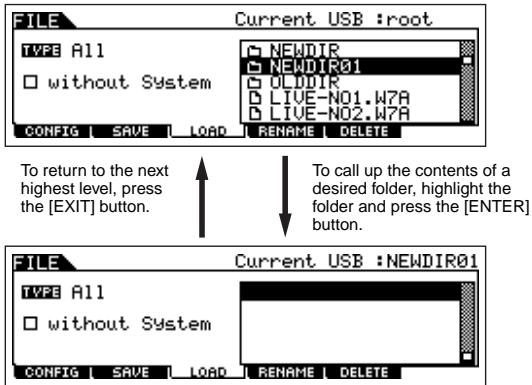
Move the cursor to the desired file or folder by using the [INC/YES] and [DEC/NO] buttons or the data dial.
Formatting a SmartMedia/USB storage device
Before you can use a new SmartMedia/USB storage device with this synthesizer, you will need to format it. Follow the instructions below.
CAUTION
If data is already saved on the SmartMedia/USB storage device, be careful not to format it. If you format the SmartMedia/USB storage device, all the previously recorded data will be deleted.
1 Insert a SmartMedia into the CARD slot or connect a USB storage device to the USB TO DEVICE connector.
If necessary, insert the proper media into the slot of the USB storage device.
2 Press the [FILE] mode to enter the File mode.
3 Press the [F1] CONFIG button, then [SF3] FORMAT button to call up the Format display.
![YAMAHA MOTIF ES6 - Press the [F1] CONFIG button, then [SF3] FORMAT button to call up the Format display. - 1](/content/2025/01/114832/images/78ccb1f91816b81a205ada496d18a54a8cfbb31144aededbbf9a5bd58769c8a1.jpg)
4 Select the media to be formatted.
Move the cursor to the Format value location and select "CARD" or "USB." When selecting "USB," specify the slot number at the right top of the display as necessary and select the partition to be formatted at the Type value location in the second line of the display.
5 Set the Volume Label.
Move the cursor to the "Volume Label" and input a Volume Label. For instructions on naming, refer to page 53 in the Basic Operation section.
6 Press the [ENTER] button. (The display prompts you for confirmation.)
Press the [DEC/NO] button to cancel the Format operation.
7 Press the [INC/YES] button to execute the Format.
After formatting has been completed, a "Completed" message appears and operation returns to the original display.
CAUTION
While formatting is in process, make sure to follow these precautions:
- Never remove or eject the media from the device (SmartMedia or USB storage).
- Never unplug or disconnect any of the devices.
- Never turn off the power of the MOTIF ES or the relevant devices.
Press the [SF1] CURRENT button and check whether the currently recognized device is "CARD" (SmartMedia in the CARD slot) or "USB" (USB storage device connected to this synthesizer).
![YAMAHA MOTIF ES6 - Press the [SF1] CURRENT button and check whether the currently recognized device is "CARD" (SmartMedia in the CARD slot) or "USB" (USB storage device connected to this synthesizer). - 1](/content/2025/01/114832/images/522e1938a17c170d6c580cbda0d33c2edc4ee1cadbb423eb6ddf4d112da6ed6d.jpg)
Volume Level of the selected partition.
Change the Current setting as needed.
- NOTE By executing the Format operation in the File mode, the SmartMedia/USB storage device will be formatted to MS-DOS or Windows format. The formatted SmartMedia/USB storage device may not be compatible with other devices such as a Macintosh computer or digital camera.
File types that can be handled by the MOTIF ES
File types that can be saved from the instrument to the SmartMedia/USB storage device [FILE] [F2] SAVE TYPE
| TYPE | File extension* | Description |
| Dir | When this is set to "TYPE," only the directories (Folders) are displayed in the File/Folder selection box and the Save operation cannot be executed. | |
| All | .W7A | All data in this synthesizer's internal User Memory (Flash ROM) is treated as a single file, and can be saved to the SmartMedia/USB storage device. |
| AllVoice | .W7V | All the User Voice data in this synthesizer's internal User Memory (Flash ROM) is treated as a single file, and can be saved to the SmartMedia/USB storage device. Also the Waveforms obtained via the Sampling function and assigned to any of the voices are saved together. |
| PluginAllBulk1, 2, 3 | .W2B | All the data in a Plug-in board (Board Voice data created by using the editor software that comes with the Plug-in Board and the Board related settings in the Utility mode) is treated as a single file, and can be saved to the SmartMedia/USB storage device. The numbers 1, 2, and 3 correspond to the Plug-in slots. |
| UserARP | .W7G | All the User Arpeggio data in this synthesizer's internal User Memory (Flash ROM) is treated as a single file, and can be saved to the SmartMedia/USB storage device. |
| AllSong | .W7S | All the User Song data in this synthesizer's internal User Memory (DRAM) is treated as a single file, and can be saved to the SmartMedia/USB storage device. |
| AllPattern | .W7P | All the User Pattern data in this synthesizer's internal User Memory (DRAM) is treated as a single file, and can be saved to the SmartMedia/USB storage device. |
| SMF | .MID | Sequence track (1 - 16) and Tempo track data of Songs or Patterns created in the Song/Pattern mode can be saved to the SmartMedia/USB storage device as Standard MIDI File (format 0) data. |
| AllWaveform | .W7W | All the User Wave and Sample data in this synthesizer's internal User Memory (DRAM) is treated as a single file, and can be saved to the SmartMedia/USB storage device. |
| Wav | .WAV | Sample data created in the Sampling mode can be saved to the SmartMedia/USB storage device as a WAV file (Windows audio format). |
| Aiff | .AIF | Sample data created in the Sampling mode can be saved to the SmartMedia/USB storage device as an AIFF file (Macintosh audio format). |
| Voice Editor | .W7E | All the User Voice data stored on User Banks (Flash ROM) is handled as a single file and saved to the SmartMedia/USB storage device. The saved file can be loaded to the Voice Editor software (included in the CD-ROM) on your computer. |
- Automatically assigned to the saved file.
5Note When selecting "AllSong" or "AllPattern" as a file type, Sample Voices and assigned Waveforms created via the Sampling function in the Song/Pattern mode are also saved together.
File types that can be loaded from SmartMedia/USB storage device to the instrument [FILE] [F3] LOAD TYPE
| TYPE | File extension* | Description |
| Dir | When this is set to “TYPE,” only the directories (Folders) are displayed in the File/Folder selection box and the Load operation cannot be executed. | |
| All | .W7A | Files of the “All” type saved to SmartMedia/USB storage device can be loaded and restored to the instrument. When the box at the left of “without System” is checkmarked, only the Utility mode settings will not be loaded. |
| AllVoice | .W7V | Files of the “All Voice” type saved to SmartMedia/USB storage device can be loaded and restored to the instrument. |
| Voice | .W7A.W7V | A specified voice in a file that is saved to the SmartMedia/USB storage device as “All” or “All Voice” type can be individually selected and loaded to the instrument. Please note that the file icons of “W7A” and “W7V” are changed to (as virtual folders) when this file type is selected (Quick Guide on page 87). |
| Performance | .W7A | A specified performance in a file that is saved to the SmartMedia/USB storage device as “All” type can be individually selected and loaded to the instrument. Please note that the file icon of “W7A” is changed to (as a virtual folder) when this file type is selected (Quick Guide on page 92). |
| PluginAllBulk 1, 2, 3 | .W2B | A file that is saved to the SmartMedia/USB storage device as “Plugin All Bulk 1, 2, 3” type can be loaded and restored to the Plug-in board installed to the instrument. Please note that the same Plug-in Boards should be installed to the same slot as when the file was saved. |
| UserARP | .W7G | Files of the “Usr ARP” type saved to SmartMedia/USB storage device can be loaded and restored to the instrument. |
| AllSong | .W7S | Files of the “All Song” type saved to SmartMedia/USB storage device can be loaded and restored to the instrument. |
| Song | .W7A.W7S.MID | A specified Song in a file that is saved to the SmartMedia/USB storage device as “All” or “All Song” type can be individually selected and loaded to the instrument. Please note that the file icons of “W7A” and “W7S” are changed to (as virtual folders) when this file type is selected (Quick Guide on page 133). In addition, selecting this file type lets you load the Standard MIDI file (format 0, 1) to a specific Song. |
| AllPattern | .W7P | Files of the “All Pattern” type saved to SmartMedia/USB storage device can be loaded and restored to the instrument. |
| Pattern | .W7A.W7P.MID | A specified Song in a file that is saved to the SmartMedia/USB storage device as “All” or “All Pattern” type can be individually selected and loaded to the instrument. Please note that the file icons of “W7A” and “W7P” are changed to (as virtual folders) when this file type is selected (Quick Guide on page 133). In addition, selecting this file type lets you load the Standard MIDI file (format 0, 1) to a specific section of a Pattern. |
| AllWaveform | .W7W | Files of the "All" or "All Waveform" types saved to SmartMedia/USB storage device can be loaded and restored to the instrument. |
| Waveform | .W7A .W7W .WAV .AIF | A specified Waveform in a file that is saved to the SmartMedia/USB storage device as "All" or "All Waveform" type can be individually selected and loaded to the instrument. Please note that the file icons ☑ of "W7A" and "W7W" are changed to ☑ (as virtual folders) when this file type is selected (Quick Guide on page 133). In addition, selecting this file type lets you load the WAV file and AIFF file to the specified destination, which differs depending on the mode before entering the File mode (Quick Guide on pages 100 and 109). |
| SampleVoice | .W7A .W7S .W7P | A specified Sample Voice in a file that is saved to the SmartMedia/USB storage device as "All" or "All Song" or "All Pattern" type can be individually selected and loaded to the instrument. Please note that the file icons ☑ of "W7A" and "W7S" and "W7P" are changed to ☑ (as virtual folders) when this file type is selected (Quick Guide on page 133). This file type is available only when entering the File mode from the Song mode/Pattern mode. |
| Voice Editor | .W7E | The Voice data edited via the included Voice Editor software on your computer can be loaded to the instrument. |
- Assigned to the file which can be loaded.
Note In addition to the file types above, Yamaha A5000/A4000/A3000/SU700 files and AKAI S1000/S3000 files can be loaded to the MOTIF ES.
Note When files of the Yamaha A series samplers (A5000/4000/3000) are loaded, an "S" mark by the file name indicates the file contains only sample data and a "P" mark indicates program data (voice related parameters and so on). When entering the File mode from the Voice/Performance mode, the "P" marked file can be loaded and the following two types can be selected instead of Waveform or Key Bank. - Type 1: Only one sample is imported to a certain waveform. This type utilizes the various settings of the MOTIF ES, and the parameters corresponding to the four elements are also loaded. Extra samples are not loaded.
- Type 2: Several samples are imported to a certain waveform. Parameters corresponding to the four elements are not loaded to the MOTIF ES. Extra samples are not loaded.
Data Compatibility with the MOTIF 6/MOTIF 7/MOTIF 8
Among the data created on the MOTIF 6/MOTIF 7/MOTIF 8, Voices, Waveforms, Sample Voices can be loaded to the MOTIF ES6/MOTIF ES7/MOTIF ES8.
- Voices
A specified Voice in a file (extension: W2A, W2V) that is saved to the storage device as "All" or "AllVoice" type on the MOTIF can be individually selected and loaded to the MOTIF ES. Set the TYPE in the [F3] LOAD display to "Voice" and execute the Load procedure.
Likewise, a file (extension: W2V) that is saved to the SmartMedia/USB storage device as "AllVoice" type on the MOTIF can be loaded to the MOTIF ES. Set the TYPE in the [F3] LOAD display to "AllVoice" and execute the Load procedure.
In addition, Voice Editor files (extension: W2E) can be loaded to the MOTIF ES. Set the TYPE in the [F3] LOAD display to "Voice Editor" and execute the Load procedure.
The Voices loaded to the MOTIF ES 6/7/8 may not produce the exact same sound as those on the original MOTIF 6/7/8, since the contents of the preset Waveforms and the Effect structure are different between the two instrument series.
Waveforms
A specified Waveform in a file (extension: W2A, W2W) that is saved to the storage device as "All" or "AllWaveform" type on the MOTIF can be individually selected and loaded to the MOTIF ES. Set the TYPE in the [F3] LOAD display to "Waveform" and execute the Load procedure. Likewise, a file (extension: W2W) that is saved to the storage device as "AllWaveform" type on the MOTIF can be loaded to the MOTIF ES. Set the TYPE in the [F3] LOAD display to "AllWaveform" and execute the Load procedure.
- Sample Voices
A specified Sample Voice (extension: W2A, W2S, W2P) in a file that is saved to the storage device as "All" or "AllSong" or "AllPattern" type on the MOTIF can be individually selected and loaded to the MOTIF ES. Set the TYPE in the [F3] LOAD display to "SampleVoice" and execute the Load procedure.
Master mode
Creating Masters — basic procedure
The Master mode lets you play and edit special program combinations called "Masters." A Master can contain up to four different Voices or Performances, each assigned to a separate MIDI "Zone." Alternately, it can contain specific Songs or Patterns. As such, it lets you set up the instrument just as you need for live performance, switching through the Masters in order as you need them.
To create a Master, set the various parameters below in the Master Play and Master Edit modes. Use the Master Job mode to initialize data or transfer it to another device.
Once you've edited a Master, you can store it to a User Bank in internal memory (Flash ROM) and save all the edited Masters to a SmartMedia/USB storage device in the File mode.
Master Play mode
[MASTER] Master selection
The Master Play mode lets you perform a variety of general editing operations on the selected Master. For more detailed and comprehensive editing operations, use the Master Edit mode. Edited parameters with the exception of some parameters are stored to internal Flash ROM as a User Master.
[F1] PLAY
| OCT (Octave) | Indicates Keyboard Octave setting set via the [OCTAVE] buttons. This can be changed also with the following operation: [UTILITY] → [F1] GENERAL → [SF2] KBD → Octave. |
| ASA (ASSIGN A), ASB (ASSIGN B) | Indicates the functions assigned to the respective Knobs (printed “ASSIGN A” and “ASSIGN B”) when the lamps of both the [PAN/SEND] and [TONE] buttons are turned on. The functions are assigned from the [UTILITY] → [F4] CTL ASN → [SF2] ASSIGN display. |
| NOTE OCT (Octave), ASA (ASSIGN A), and ASB (ASSIGN B) settings are not independently assignable for each Master. Because of this, these are not stored as an individual Master in the Master Store mode (page 137). | |
| AS1 (ASSIGN 1), AS2 (ASSIGN 2) | Indicates the values obtained by controlling the respective Knobs (printed “ASSIGN 1” and “ASSIGN 2”) when the lamps of both the [PAN/SEND] and [TONE] buttons are turned on. The functions assigned to these knobs depend on the setting of the Voice selected as a Master program. |
| [SF1] ARP1 (Arpeggio 1) - [SF5] ARP5 (Arpeggio 5) | You can call up the Arpeggio types by pressing these buttons to which the Arpeggio types are assigned. The Arpeggio type assigned to each button depends on the program (Voice, Performance, Song, Pattern) selected as a Master. |
[F2] MEMORY
| From this display you can set basic parameters for the Master, including the mode that is called up with the Master and the program number. | |
| Mode | Determines the mode that is called up when the Master number is selected. Settings: Voice, Performance, Pattern, Song |
| Memory | Determines the Program number that is called up when the Master is selected. Settings: When the Mode is set to Voice: Select a Voice bank and number. Refer to the instructions page 60. When the Mode is set to Performance: Select a Performance bank and number. Refer to the instructions on page 67. When the Mode is set to Pattern: Select a Pattern and section. Refer to the instructions on page 57. When the Mode is set to Song: Select a Song number. Refer to the instructions on page 56. |
| ZoneSwitch | Determines whether the Zone function is used (on) or not (off). See page 137 for details about the Zone function. Note When the Mode is set to "Voice" or "Performance" and the Zone Switch is turned on, only Zone 1 can be used in the default setting (playing Zones 2-4 will produce no sound). You can use these Zones by setting various parameters in the Master Edit mode. |
Master Edit mode
[MASTER] Master selection [EDIT]
The Master Edit is divided into Common Edit, for setting parameters common to all four Zones, and Zone Edit, for setting parameters of individual Zones.
When Zone Switch is set to on in the [F2] MEMORY display in the Master Play mode, only the Common Edit is available.
| Common Edit | [MASTER] → Master selection → [EDIT] → [COMMON] |
These parameters are for making global (or common) edits to all four Zones of the selected Master.
[F1] NAME
From this display you can create a name for the Master. For instructions on naming, refer to page 53 in the Basic Operation section.
[F2] OTHER
| Knob/Slider | From this display you can set which row of Knob/Slider functions will be lit and selected. Settings: pan...........................................................Selecting the Master lights the [PAN/SEND] lamp, for control over the Pan/Send row. tone...........................................................Selecting the Master lights the [TONE] lamp, for control over the Tone row. assign...........................................................Selecting the Master lights the [PAN/SEND] and [TONE] lamps, for control over the Assign row. MEQofs or partEQ...........................................................Selecting the Master lights the [EQ] lamp, for control over the EQ row. When the Mode is set to Voice, MEQofs is available. When the Mode is set to Performance, Song, or Pattern, partEQ is available. MEF...........................................................Selecting the Master lights the [ARP FX] and [EQ] lamps, for control over the Master Effects row. arpFx...........................................................Selecting the Master lights the [ARP FX] lamp, for control over the Arpeggio FX row. zone...........................................................Selecting the Master lights no lamp and automatically calls up the Knob/Slider functions specifically set for each respective Zone (page 137). This is available only when the Zone Switch is set to on in the [F2] MEMORY display in the Master Play mode. |
Zone Edit
[MASTER] Master selection [EDIT] Zone selection
These parameters are for editing the individual Zones that make up a Master. Zone Edit is available only when the Zone Switch is turned on in the [F2] MEMORY display in the Master Play mode.
[F1] TRANS (Transmit)
From this display you can set how each Zone transmits MIDI messages when you play the keyboard.
| TransCh (Transmit Channel) | Determines the MIDI Transmit Channel for each Zone. Settings: 1 ~ 16 |
| TGSwitch (Tone Generator Switch) | Determines whether or not MIDI data for each Zone is transmitted to the internal tone generator. Settings: on, off |
| MIDISwitch | Determines whether or not MIDI data for each Zone is transmitted to an external MIDI device. Settings: on, off |
[F2] NOTE
From this display you can set the pitch- and keyboard-related parameters for each Zone — allowing you to set up Zone splits and determine the pitch range for each Zone.
| Octave | Determines the amount in octaves by which the range of the Zone is shifted up or down. Settings: -3 ~ 0 (Default) ~ +3 |
| Transpose | Determines the amount in semitones by which the range of the Zone is shifted up or down. Settings: -11 ~ 0 (Default) ~ +11 |
| NoteLimitH, L (High, Low) | Determines the lowest and highest notes of the range for each Zone. The selected Zone will sound only when you play notes within this range. Settings: C -2 ~ G8 Note You can also set the range directly from the keyboard, by holding down the [INFORMATION] button and pressing the desired low and high keys. |
[F3] TX SW (Transmit Switch)
From this display you can set how the playing of each individual Zone affects transmission of various MIDI messages, such as Control Change and Program Change messages. When the relevant parameter is set to "on," playing the selected Zone will transmit the corresponding MIDI messages.
Note that two different display types are provided (see below). Each display type features the same settings in a different format; use the type you feel most comfortable with.
- Display showing four Zones
- Display showing all parameters for one Zone
Keep in mind that since all the available parameters cannot be simultaneously displayed in the four-Zone display, you will need to use the cursor controls to scroll the display in order to see and set the other parameters.
Settings:
| Bank (TG) | Determines whether or not to transmit Bank Select MSB/LSB messages to the internal tone generator. |
| PC (TG) | Determines whether or not to transmit Program Change messages to the internal tone generator. |
| Bank (MIDI) | Determines whether or not to transmit Bank Select MSB/LSB messages to the external tone generator via MIDI. |
| PC (MIDI) | Determines whether or not to transmit Program Change messages to the external tone generator via MIDI. |
| PB (Pitch Bend) | Determines whether or not to transmit Pitch Bend messages to the internal and external tone generator. |
| MW (Modulation Wheel) | Determines whether or not to transmit MIDI messages generated by using the Modulation Wheel to the internal and external tone generator. |
| RB (Ribbon Controller) | Determines whether or not to transmit MIDI messages generated by using the Ribbon Controller to the internal and external tone generator. |
| ChAT (Channel Aftertouch) | Determines whether or not to transmit Channel Aftertouch messages generated by pressing the keys to the internal and external tone generator. |
| FC1 (Foot Controller1) | Determines whether or not to transmit MIDI messages generated by pressing the optional Foot Controller to the internal and external tone generator. |
| FC2 (Foot Controller2) | |
| Sus (Sustain) | Determines whether or not to transmit Sustain messages generated by pressing the Footswitch connected to the SUSTAIN jack to the internal and external tone generator. |
| FS (Footswitch) | Determines whether or not to transmit MIDI messages generated by pressing the Footswitch connected to the ASSIGNABLE jack to the internal and external tone generator. |
| Knob | Determines whether or not to transmit MIDI messages generated by using the Knobs to the internal and external tone generator. |
| Slider | Determines whether or not to transmit MIDI messages generated by using the Sliders to the internal and external tone generator. |
| BC (Breath Controller) | Determines whether or not to transmit MIDI messages generated by using the Breath controller connected to the BREATH connector to the internal and external tone generator. |
| Vol (Volume) | Determines whether or not to transmit Volume messages to the internal and external tone generator. |
| Pan | Determines whether or not to transmit Pan messages to the internal and external tone generator. |
[F4] PRESET
From this display you can make the Voice-related settings for each Zone, in the selected Master program number. In this way, selecting a different Master automatically calls up a completely different set of Voices and Voice-related settings for the four Zones.
| BankMSB, BankLSB, PgmChange (Program Change) | Determines the Voice assignment for each Zone in the selected Master. Settings: Refer to the Voice List in the separate Data List booklet. |
| Volume | Determines the output level of the Voice in each Zone. Settings: 0 ~ 127 |
| Pan | Determines the stereo pan position of the Voice in each Zone. Settings: L64 (Left) ~ C (Center) ~ R63 (Right) |
[F5] KN/CS (Knob/Control Slider)
From this display you can determine which Control Change numbers are used for the Knobs and Sliders for each Zone. These settings are available only when the Knob/Slider parameter (in the [F2] OTHER display in Common Edit) is set to "zone."
Settings: off, 1~95
Master Job mode
[MASTER] [JOB]
The Master Job mode contains two convenient operations (called "Jobs") — one letting you initialize (reset) the Master data, and the other letting you transmit your edited Master data to an external MIDI device or computer.
After setting parameters as required from the selected display, press the [ENTER] button to execute the Job.
[F1] INIT (Initialize)
This function lets you reset (initialize) all Master parameters to their default settings. It also allows you to selectively initialize certain parameters, such as Common settings, settings for each Zone, and so on — very useful when creating a completely new Master from scratch.
Parameter Types (for Initializing): All, Common, Zone
| ALL | All settings for the selected Master are initialized. | ||
| Common | Common parameter settings for the selected Master are initialized. | ||
| Zone | You can initialize the Zone setting to one of the following three types. | ||
| Split | Splits the keyboard range using Zone 1 and Zone 2. "UpperCh" determines the MIDI transmit channel of the upper range of the keyboard, "LowerCh" determines the MIDI transmit channel of the lower range of the keyboard, and "SplitPoint" determines the note (C2 ~ G8) number which separates the upper range and lower range of the keyboard. | ||
| 4Zone | Initializes all four Zones. | ||
| Layer | Lets you layer two parts using Zone 1 and Zone 2. "UpperCh" and "LowerCh" determine the MIDI transmit channels of the two Zones respectively. | ||
[F4] BULK (Bulk Dump)
This function lets you send all your edited parameter settings for the currently selected Master to a computer or another MIDI device for data archiving. For details, see page 185.
In order to execute Bulk Dump, you'll need to set the correct MIDI Device Number, with the following operation: [UTILITY] [F5] MIDI [SF1] CH DeviceNo.
Master Store mode
[MASTER] Master selection [STORE]
This function lets you store your edited Master to User memory (Flash ROM). For details, refer to page 137 in the Quick Guide section.
Appendix
Information Displays
The convenient Information displays let you see at-a-glance some of the more important settings relevant to each mode. Select the desired mode, then press the [INFORMATION] button to call up the Information display for that mode. To exit from the display, press the button again (or any other panel button).
Voice mode
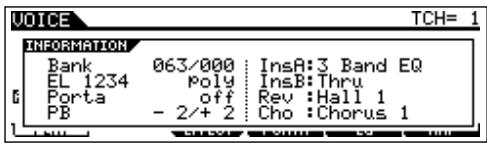
Bank
Indicates the Bank/Number (page 60) of the currently selected Voice.
EL 1234
Indicates the currently selected Voice, on/off status of the four Elements and mono/poly (page 79) status.
Porta (Portamento)
Indicates the Portamento switch on/off status of the currently selected Voice.
PB (Pitch Bend)
Indicates the Upper/Lower setting of the Pitch Bend range.
InsA (Insertion A), InsB (Insertion B), Rev (Reverb), Cho (Chorus)
Indicates the currently selected effect type for each effect block (page 179).
Performance mode
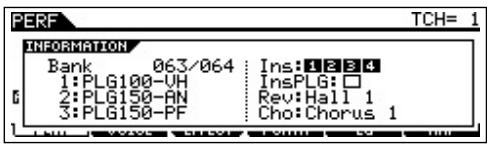
Bank
Indicates the Bank/Number (page 67) of the currently selected Performance.
1 (Plug-in board 1), 2 (Plug-in board 2), 3 (Plug-in board 3)
Indicates the installation status of the respective Plug-in board.
The Plug-in board name is displayed at the right of the corresponding slot number. When PolyExpand (page 265) is set to on in the Utility mode, "P" is indicated at the left of the slot number.
Ins (Insertion), InsPLG (Plug-in Insertion)
Indicates the Part number to which the Insertion effect is applied and the Part number to which the Plug-in Insertion effect is applied (when the PLG100-VH is installed).
Rev (Reverb), Cho (Chorus)
Indicates the currently selected effect type for each effect block (page 179).
Song mode
Song Play mode
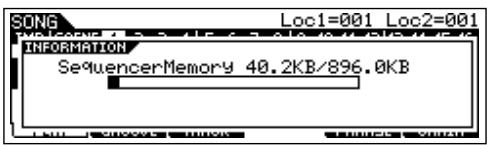
Indicates the amount of currently unused (available) memory (DRAM) for song recording.
Song Mixing mode
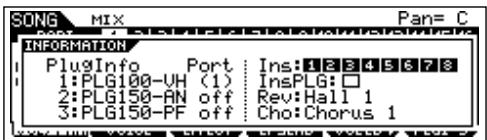
PlugInfo/Port (Plug-in board installation status)
Indicates the Plug-in board name and its MIDI port number page 265) at the right of the slot number. When PolyExpand (page 265) is set to on in the Utility mode, "P" is indicated at the left of the slot number.
Ins (Insertion), InsPLG (Plug-in Insertion)
Indicates the Part number to which the Insertion effect is applied and the Part number to which the Plug-in Insertion effect is applied (when the PLG100-VH is installed).
Rev (Reverb), Cho (Chorus)
Indicates the currently selected effect type for each effect block (page 180).
Pattern mode
Pattern Play mode
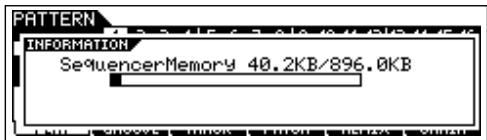
Indicates the amount of currently unused (available) memory (DRAM) for Pattern Phrase recording.
Pattern Mixing mode
Same as in the Song Mixing mode.
- Mixing Voice Edit mode
Same as in the Voice mode.
Sampling mode
Sampling mode
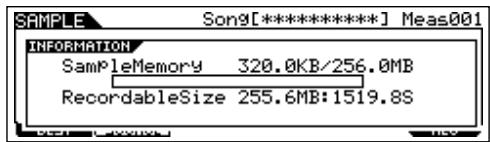
SampleMemory
Indicates the amount of memory used by Sampling.
RecordableSize
Indicates the amount of the available sampling memory (unused memory) and the available sampling time.
- Note: Keep in mind that 320 KB of memory in the installed DIMMs is needed for wave (sample) management, even if no actual samples are contained in memory.
Utility mode
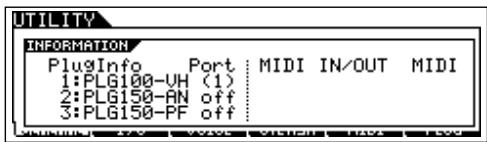
PlugInfo/Port (Plug-in board installation status)
Indicates the Plug-in board name and its MIDI port number (page 265) at the right of the slot number. When PolyExpand (page 265) is set to on in the Utility mode, "P" is indicated at the left of the slot number.
MIDI IN/OUT
Indicates which physical output terminal(s) will be used for transmitting/receiving MIDI data: MIDI IN/OUT/THRU, USB, or mLAN (when the optional mLAN16E has been installed).
File mode
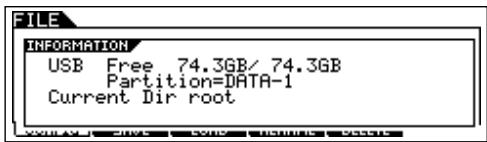
Card Free/USB Free
Indicates the amount of currently available (unused) memory of the SmartMedia inserted to the Card slot or the USB storage device connected to the MOTIF ES.
Partition
Indicates the mounted partition of the connected USB storage device.
Current Dir (Current Directory)
Indicates the currently selected directory.
Master mode
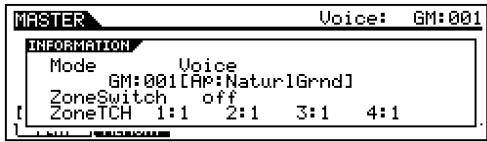
Mode
Indicates the mode and program number memorized to the currently selected Master.
ZoneSwitch
Indicates the on/off status of the Zone switch.
ZoneTCH (Zone Transmit Channel)
Indicates the MIDI transmit channel of each Zone (when the Zone Switch is set to on).
Remote Control mode
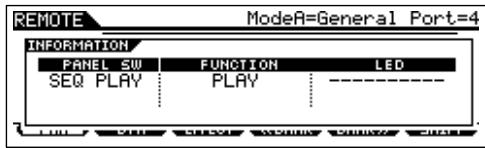
For details, see page 152.
Display Messages
| LCD Indication | Explanation |
| Are you sure? [YES]/[NO] | Confirms whether you want to execute a specified operation or not. Press [INC/YES] or [DEC/NO] as required. |
| Arp memory full | The internal memory for Arpeggio data is full, preventing storing the recorded sequence data as an Arpeggio. |
| Arpeggio type stored | The current Arpeggio type has been stored to one of the [SF1] - [SF5] buttons. |
| Bad disk or card. | The SmartMedia or USB storage device is unusable. Format the SmartMedia or USB storage device and try again. |
| Bulk protected. | Bulk data was received when RcvBulk was set to "protect." (See page 264.) |
| Can't find associated files. | The related voice file cannot be found when loading an AKAI S1000/S3000 format file. |
| Can't undo OK? [YES]/[NO] | When certain Song/Pattern Jobs are executed, internal memory becomes too full for use of the Undo operation. Press [INC/YES] if this is OK, or [DEC/NO] to abort the operation. Try again after erasing unwanted Songs, Patterns, or User phrases. |
| Choose user phrase. | You have attempted to record a Pattern track to which a preset phrase is assigned. If you wish to use a preset phrase as raw material for Pattern recording, copy it to a User phrase before recording. |
| Completed. | The specified load, save, format, or other Job has been completed. |
| Copy protected. | You have attempted to export or save a copy-protected digital audio source. |
| Device number is off. | Bulk data cannot be transmitted/received since the device number is off. |
| Device number mismatch. | Bulk data cannot be transmitted/received since the device numbers don't match. |
| Digital in unlocked. | Digital input signal of the AIEB2 is unlocked (not properly received or recorded). |
| Disk or card full. | The SmartMedia or USB storage device is full and no more data can be saved. Use a new SmartMedia or USB storage device, or make space by erasing unwanted data from the SmartMedia or USB storage device. |
| Disk or card not ready. | A SmartMedia or USB storage device is not properly inserted in or connected to the MOTIF ES. |
| Disk or card read/write error. | An error occurred while reading or writing to/from a SmartMedia or USB storage device. |
| Disk or card write protected. | The SmartMedia or USB storage device is write protected, or you have attempted to write to a read-only medium such as CD-ROM. |
| Effect plug-in is not in slot 1. | The Effect Plug-in board does not work because it has not been installed to slot 1. The Effect Plug-in board should be installed to slot 1. |
| Executing... | A format operation or Job is being executed. Please wait. |
| File already exists. | A file having the same name as the one you are about to save already exists. |
| File not found. | The file of the specified type cannot be found on the SmartMedia/USB storage device |
| Folder is too deep. | Directories below this level cannot be accessed. |
| Illegal check box. | No check boxes have been checked in a Sequencer track Job which requires a check box selection. Check the appropriate check box. |
| Illegal file | The file specified for loading is unusable by the MOTIF ES or cannot be loaded in the current mode. |
| Illegal file name. | The specified file name is invalid. Try entering a different name. |
| Illegal input. | An invalid input or value has been specified. Check the input method or value. |
| Illegal measure. | An invalid measure number has been specified in the Song/Pattern mode. Select the measure again. |
| Illegal phrase number. | An invalid phrase number has been specified in the Pattern mode. Select the phrase again. |
| Illegal sample data. | The sample file specified for loading is unusable by the MOTIF ES. |
| Illegal track number. | An invalid track number has been specified in the Song/Pattern mode. Select the track again. |
| Incompatible USB device | A USB device which cannot be used with the MOTIF ES has been connected to the USB TO DEVICE connector. |
| Meter mismatch | In the Pattern Job mode, the meter (time signature) of the destination Pattern is different from the meter of the source Pattern. |
| MIDI buffer full. | Failed to process the MIDI data because too much data was received at one time. |
| MIDI checksum error. | An error occurred when receiving bulk data. |
| MIDI data error. | An error occurred when receiving MIDI data. |
| Mixing stored | In the Song/Pattern mode, the Mixing settings have been loaded from the file. |
| Mixing Voice full | The Mixing Voice cannot be stored because the number of Voices already stored has exceeded the maximum capacity. |
| Multi plug-in is not in slot 3. | The Multi-Part Plug-in board does not work because it has not been installed to slot 3. The Multi-Part Plug-in board should be installed to slot 3. |
| No data. | When a Song/Pattern Job is executed, the selected track or range contains no data. Select an appropriate track or range. In addition, this message appears when a Job related to a Mixing Voice cannot be executed because the specified Mixing Voice is not available. |
| No DIMM Memory Installed. | An appropriate pair of expansion DIMMs is not properly installed, or the pair is not properly matched (page 289). |
| No F7 (End of Exc.) | Exclusive data has been entered or changed without the necessary "End of Exclusive" byte (F7). Make sure F7 is included. |
| No response from USB device | There is no response from the USB device connected to the USB TO DEVICE terminal. |
| No sample data. | This message appears when a sample-related Job cannot be executed because the specified sample is not available. |
| Not empty folder | You have attempted to delete a folder that contains data. |
| Now checking plug-in board. | The MOTIF ES is checking the Plug-in board installation status during power-on. |
| Now loading... (xxxx) | Indicates that a file is being loaded. |
| Now saving... (xxxx) | Indicates that a file is being saved. |
| Now scanning auto loaded files | Scanning for the files specified for Auto Load. |
| Now working... | Executing the memory arrangement after finishing Sampling or canceling the Load/Save operation by pressing the [EXIT] button. |
| Overwrite? [YES]/[NO] | A save operation will overwrite data on the SmartMedia/USB storage device, and this message confirms whether it is OK to continue or not. Press [INC/YES] or [DEC/NO] as required. |
| Pattern length mismatch. | A Pattern Job will result in the length of a Pattern being greater than 256 measures. |
| Phrase length mismatch | A Pattern Job will result in the length of a phrase being greater than 256 measures. |
| Phrase number overflow | The maximum number of phrases (256) has been exceeded when recording, executing a Pattern Job, or editing. |
| Please keep power on. | The data is being written to Flash ROM. Never attempt to turn off the power while data is being written to Flash ROM. Turning the power off while this message is shown results in loss of all user data and may cause the system to freeze (due to corruption of data in the Flash ROM). This may also result in the MOTIF ES being unable to properly start up the next time the power is turned on. |
| Please stop sequencer. | The operation you've attempted to execute cannot be done during Song/Pattern playback. |
| PLG100 not supported. | The Plug-in All Bulk Save function does not apply to the PLG100 series boards. |
| Plug-in1 communication error. | The Plug-in board that has been installed to slot 1 does not work. |
| Plug-in1 type mismatch. | The User Voice created by using the Plug-in board previously installed to slot 1 (but now removed from the slot) has been selected. |
| Plug-in2 communication error. | The Plug-in board that has been installed to slot 2 does not work. |
| Plug-in2 type mismatch. | The User Voice created by using the Plug-in board previously installed to slot 2 (but now removed from the slot) has been selected. |
| Plug-in3 communication error. | The Plug-in board that has been installed to slot 3 does not work. |
| Plug-in3 type mismatch. | The User Voice created by using the Plug-in board previously installed to slot 3 (but now removed from the slot) has been selected. |
| Power on mode stored | The setting of the program number automatically selected when turning the power on has been stored. |
| Receiving MIDI bulk | The MOTIF is receiving MIDI bulk data. |
| Sample freq is too low. | The sampling frequency is too low and the Frequency Convert Job cannot be executed. |
| Sample is protected. | The sample cannot be overwritten because it is protected. |
| Sample is too long. | The sample size is too large and the Time Stretch Job cannot be executed. |
| Sample is too short. | The sample length is too short and the Frequency Convert Job cannot be executed. |
| Sample memory full. | The sample memory is full and further sampling operations, Jobs, or load operations cannot be executed. |
| Scene & Arpeggio type stored | The Song Scene and current Arpeggio type has been stored to one of the [SF1] - [SF5] buttons. |
| Seq memory full. | The internal memory for Sequence data is full, preventing any further operation (such as recording, editing, Job execution, MIDI reception/transmission, or loading from the SmartMedia/USB storage device). Try again after erasing unwanted Song, Pattern, or User phrase data. |
| System memory crashed. | Writing data to Flash ROM has failed. |
| This performance uses user voices. | The performance you have loaded includes User voice data. Check whether the voice you saved exists at the appropriate User voice bank. |
| Too many favorites | You've attempted to assign more than 257 voices to the Favorite category. |
| Too many fixed notes | When converting the song or pattern data to the Arpeggio data, the amount of different notes in the data to be converted has exceeded sixteen. |
| Too many samples. | The maximum overall number of samples (8192) has been exceeded. |
| Transmitting MIDI bulk | The MOTIF ES is transmitting MIDI bulk data. |
| USB connection terminated. Press [ENTER]. | A break in the connection with the USB storage device has occurred because of an abnormal electric current. Disconnect the USB storage device from the USB TO DEVICE connector, then press the [ENTER] button. |
| USB device connecting | Recognizing the USB storage device connected to the USB TO DEVICE terminal. |
| USB power consumption exceeded. | The power consumption of the USB storage device connected to the USB TO DEVICE connector exceeds the regulated value. |
| USB transmission error | An error occurs when communicating with the USB storage device. |
| Utility stored | The settings in the Utility mode have been stored. |
Troubleshooting
No sound is produced even when playing the keyboard
- Are all four Sliders set to appropriate levels (other than zero or minimum)?
- Check the value of the [UTILITY] [F1] GENERAL [SF1] TG Volume parameter.
- Check the setting of the [UTILITY] [F5] MIDI [SF2] SWITCH LocalCtrl parameter. If this is set to off, the internal tone generator will not sound. ..... page 264
- Is the power of the MOTIF ES and any external equipment connected to the MOTIF ES turned on?
- Have you made all the appropriate level settings – including the Master Volume on the MOTIF ES and the volume settings on any connected external equipment?
Is the Foot Controller pressed down (when it is connected to the FOOT CONTROLLER jack)? page 42 - Is the MOTIF ES properly connected to related external equipment (e.g., amplifier or speaker) via audio cables?
- When the Voice produces no sound, are the effect and filter settings appropriate? (Inappropriate filter cutoff frequency settings can result in no sound.)...... page 197
- When the Voice produces no sound, are all four Elements properly turned on?
- When the Voice produces no sound, is the volume parameter set appropriately in the Voice Common Edit? page 190
- When the Voice produces no sound, are the parameters in the Voice Element Edit (e.g., Element Switch, Note Limit, Velocity Limit) set appropriately in the Voice Common Edit?
- When the Performance produces no sound, has a Voice been assigned to each Part? Check this in the [PERFORM] [F2] VOICE display. .... page 71
- When the Performance produces no sound, are the Note Limit, volume, and output parameters of each Part set appropriately?...... page 71
- When playing the keyboard in the Song/Pattern mode produces no sound, check whether or not the Sample Voice or Mixing Voice is assigned to the current Part.
- When the Song/Pattern playback produces no sound, are any or all of the tracks muted?
- When the Song/Pattern playback produces no sound, are the output channel of each track in the play mode and the receive channel of each Part in the Mixing mode set appropriately?
- When the Song/Pattern playback produces no sound, is the volume or output setting of each Part in the Mixing mode set appropriately?...... page 233
- When the Song/Pattern playback produces no sound, is the MIDI filter set so that note-on messages are blocked in the [SONG] or [PATTERN] [UTILITY] [F3] SEQ [SF2] FILTER display?
Playback continues without stopping
- When the [ARPEGGIO ON/OFF] button is turned on, press it so that its lamp is turned off.
- When in the Song mode or Pattern mode, press the [■] (Stop) button.
- When the click sound continues, set the [SONG] or [PATTERN] [UTILITY] [F3] SEQ [SF1] CLICK Mode parameter to something other than "all." .... page 262
Sound level is too low
Are the MIDI volume or MIDI expression settings too low (by using the Foot Controller)?
Is the cutoff frequency of the filters set too high/low? page 161
- When the Song/Pattern playback produces a soft sound, is the velocity offset in the Groove display set too low?
Distorted sound
- Are the effect settings appropriate?
- Are the filter settings appropriate? (Excessively high filter resonance settings can cause distortion.)
Is the MASTER VOLUME set so high that clipping is occurring? page 18
Is the volume of each Element in the Voice mode or the volume of each part in the Performance mode or the volume of each track/Part in the Song/ Pattern mode set too high?
Sound is cut off
- Are you exceeding the maximum polyphony of the MOTIF ES?
Only one note sounds at a time
- When this situation occurs in the Voice mode, is the [VOICE] [F4] PORTA Mono/Poly parameter set to "mono"? If you wish to play the chord, set this parameter to "poly."
- When this situation occurs in the Song mode/Pattern mode, is the Mono/Poly parameter set to "mono" in the [SONG] or [PATTERN] [MIXING] [EDIT] Part selection [F1] VOICE [SF2] MODE display? If you wish to play chords, set this parameter to "poly." page 235
Pitch or intervals are wrong
- Is the Master Tune parameter in the [UTILITY] [F1] GENERAL [SF1] TG display set to a value other than "0"?
- Is the Note Shift parameter in the [UTILITY] [F1] GENERAL [SF1] TG display set to a value other than "0"?
- When the Voice produces a wrong pitch, check the Micro Tuning setting in the [VOICE] [EDIT] [COMMON] [F1] GENERAL [SF2] PLY MODE display. .... page 190
- When the Voice produces a wrong pitch, is the LFO Pitch Modulation Depth in the Voice Edit mode set too high?
- When the Performance produces a wrong pitch, is the Note Shift parameter of each Part set to a value other than "0"? page 218
- When the Performance produces a wrong pitch, is the Detune parameter of each Part set to a value other than "0"? page 218
- When the Song/Pattern playback produces a wrong pitch, is the Note Offset parameter in the Groove display set to a value other than "0"? page 114
No effect is applied
- Is the [EFFECT BYPASS] button turned off?
- Have the [REVERB] and [CHORUS] knobs been turned fully counter-clockwise (to the minimum)?
- Have any or all of the Elements' Effect Output parameters been set to "thru" in the effect setting display in the Voice Edit mode? page 194
- Have any or all of the effect types been set to "thru" or "off"?
- When this occurs in the Performance mode/Song mode/Pattern mode, check whether the Insertion Switch (INS SW) parameters are set properly or not. .....pages 216, 235
The Edit Indicator appears, even when parameters are not being edited
- Keep in mind that even though the Voice Play mode or Performance Play mode is active, simply moving a Knob or Slider changes the current Voice or Performance, automatically displaying the Edit indicator. pages 65, 69
- In the Song Mixing mode or Pattern Mixing mode, keep in mind that simply playing back a Song or Pattern may change the Mixing parameters of the current Song/Pattern, automatically displaying the Edit indicator.
Arpeggio problems
Cannot start the Arpeggio
Check whether the [ARPEGGIO ON/OFF] button is turned on or off. When the Arpeggio doesn't start even though the button is turned on, check the following points.
- When the User Arpeggio type is selected, does the currently selected Arpeggio actually contain data?
- Are the Arpeggio related parameters such as Note Limit and Velocity Limit set appropriately?
- When this situation occurs in the Performance mode, check the ArpSwitch parameters for all Parts in the [PERFORM] [EDIT] Part selection [F1] VOICE [SF2] MODE display. If parameters of all Parts are turned off, the Arpeggio will not be played back even if the [ARPEGGIO ON/OFF] button is turned on.
- When this situation occurs in the Song mode/Pattern mode, check the ArpSwitch parameter in the [SONG] or [PATTERN] [MIXING] [EDIT] Part selection [F1] VOICE [SF2] MODE display. If this parameter for the current Part is turned off, Arpeggio playback will not be triggered by your keyboard performance even if the [ARPEGGIO ON/OFF] button is turned on.
Cannot stop the Arpeggio
-
When Arpeggio playback does not stop even if you release the key, set the Arpeggio Hold parameter to "off."
-
NOTE For details and a list of the Arpeggio related functions, see page 169.
Song/Pattern problems
The Song/Pattern cannot be started even when pressing the [▶] (Play) button.
- Does the selected Song or Pattern (phrase) actually contain data? pages 57, 59
Is the Remote Control feature turned on? - Is the MIDI sync parameter set to internal (using internal clock) in the [UTILITY] [F5] MIDl [SF3] SYNC display? page 264
■ Song/Pattern (Phrase) cannot be recorded.
- Is there enough free memory for recording? The total MOTIF ES memory capacity determines the number of Songs/Patterns (phrases) that can be recorded. For example, if the memory contains Songs/Patterns (phrases) that use up a large amount of memory, the memory may become full even though the available Pattern or Song numbers are not all used.
- In the Pattern Record mode, does the specified track to which the Phrase is assigned have preset data? Recording cannot be done to a track that contains preset data.
Cannot enter the Pattern Job mode even when pressing the [JOB] button in the Pattern mode.
- Check whether the MOTIF ES is in the Pattern Chain mode or not. If so, exit from the Pattern Chain mode, then press the [JOB] button.
Cannot enter the Pattern Mixing mode even when pressing the [MIXING] button in the Pattern mode.
- Check whether the MOTIF ES is in the Pattern Chain mode or not. If so, exit from the Pattern Chain mode, then press the [MIXING] button.
The drum sound is wrong or unexpected when changing the transpose value.
- This is normal. Changing the transpose setting while playing a Drum Voice will produce different sounds for the same keys played.
Microphone does not work properly
- Check the current mode. In the Voice mode and Voice Edit mode, the A/D part which handles the microphone sound cannot be recognized. 165
- Check whether the Mic/Line parameter is set to "mic" or not in the [UTILITY] [F2] I/O [SF1] INPUT display. page 261
- Check whether the Gain Knob on the rear panel is set to minimum position or not.
Can't record samples
- If you cannot enter the Sampling mode, check whether DIMMs have been installed or not. In order to enter the Sampling mode and record Samples, DIMM modules must be installed.
- Have you exceeded the maximum allowable number of samples (key banks)?
- Is there enough sample memory available?
Is the Sampling Source setting appropriate? page 172
Is the Trigger mode set appropriately? page 175
Plug-in Board problems
A Plug-in Voice cannot be selected even if the Plug-in Board has been installed.
- Check whether the SLOT lamp (from SLOT1 - 3) corresponding to the selected PLG button ([PLG1] - [PLG3]) is turned on or off. ..... page 21
- If the User bank is selected in the [VOICE] [F2] BANK display, select the preset bank.
- Check whether the PLG which corresponds to the PLG100-XG slot is selected or not. The Voice on the PLG100-XG cannot be selected in the Voice mode or Performance mode.
- Check whether the PLG which corresponds to the PLG100-VH slot is selected or not. The PLG100-VH contains no Voices for selection, since it is an Effect Plug-in Board.
Plug-in board does not work.
Is the lamp of the corresponding slot number to which the Plug-in board has been installed lit? page 21
- Has the PLG100-VH been installed to slot 2 or 3? (The PLG100-VH should be installed to slot 1.)
- Has the PLG100-XG been installed to slot 1 or 2? (The PLG100-XG should be installed to slot 3.)
Computer/MIDI instrument problems
Data communication between the computer and the MOTIF ES does not work properly.
- Check whether the Port setting on the computer is appropriate or not.
- Check whether the MIDI IN/OUT parameter is set properly in the [UTILITY] [F5] MIDI [SF4] OTHER display. Set this parameter to "USB" when using a USB cable to connect to the computer. Set this parameter to "mLAN" when using an IEEE 1394 cable to connect to the computer. Set this parameter to "MIDI" when using MIDI cables to connect to the computer.
Data communication between the MIDI instrument and the MOTIF ES does not work properly.
- Check whether the MIDI IN/OUT parameter is set to "MIDI" or not in the [UTILITY] [F5] MIDI [SF4] OTHER display. page 265
The MOTIF ES does not sound properly even when playing back the song data on the computer or the MIDI instrument connected to the MOTIF ES.
- Make sure to set the MOTIF ES to the Song mode or Pattern mode. The Voice mode or Performance mode may not produce the proper sound even when playing back the Song data on the MIDI instrument or the computer connected to the MOTIF ES.
■ MIDI bulk data transmission/reception does not work properly.
- When reception does not work properly, is the Receive Bulk parameter set to "protect" in the [UTILITY] [F5] MIDI [SF2] SWITCH display? page 264
- When transmission does not work properly, is the device number of the MIDI instrument connected to the MOTIF ES set to match the DeviceNo. parameter in the [UTILITY] [F5] MIDI [SF1] CH display?
Can't save data to the SmartMedia card or the USB storage
- Is the SmartMedia/USB storage device being used write protected? (Write-protect should be set to off for saving data.)
- Is the SmartMedia/USB storage device being used properly formatted?
Can't enter the Edit mode
- Is the Category Search function turned on? After exiting from the Category Search function, press the [EDIT] button.
Is the MOTIF ES in the File mode? After exiting from the File mode, press the [EDIT] button. page 266
Installing Optional Hardware
Available devices
The following optional devices can be installed to the MOTIF ES.
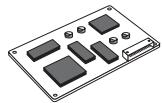
- Plug-in Boards
Up to three boards can be installed.
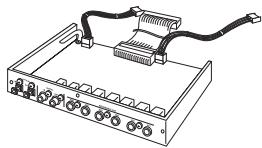
- AIEB 2 or mLAN16E
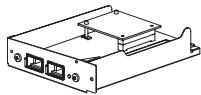
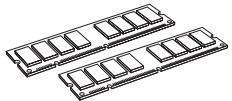
DIMM
Installation locations
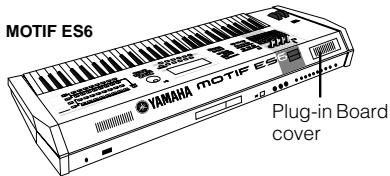
Plug-in Boards
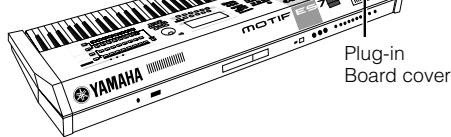
MOTIF ES7
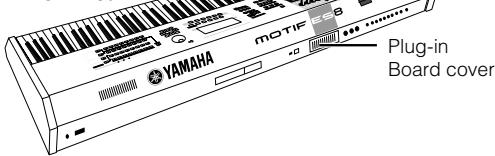
MOTIF ES8
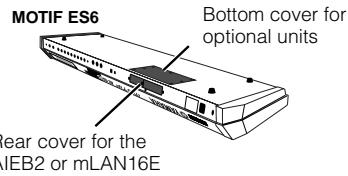
- AIEB2, mLAN16E, DIMM
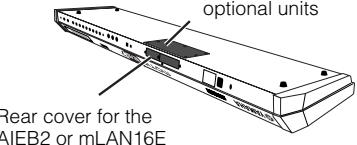
MOTIF ES7
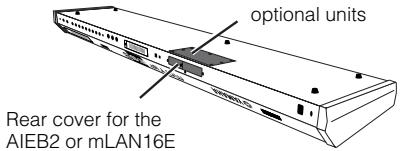
MOTIF ES8
Installation Precautions
Before installing the optional hardware, make sure you have a Philips screwdriver and ample space to work. Protective cushions or supports for the instrument may also be needed.
WARNING
- Before beginning installation, switch off the power to the instrument and connected peripherals, and unplug them from the power outlet. Then remove all cables connecting the instrument to other devices. (Leaving the power cord connected while working can result in electric shock. Leaving other cables connected can interfere with work.) Installation or removal of any devices should be started ONLY after the instrument (and the optional hardware) returns to normal room temperature.
- Be careful not to drop any screws inside the instrument during installation (this can be prevented by keeping the optional units and cover away from the instrument while attaching). If this does happen, be sure to remove the screw(s) from inside the unit before turning the power on. Loose screws inside the instrument can cause improper operation or serious damage. If you are unable to retrieve a dropped screw, consult your Yamaha dealer for advice.
- Install the optional units carefully as described in the procedure below. Improper installation can cause shorts which may result in irreparable damage and pose a fire hazard.
- Do not disassemble, modify, or apply excessive force to board areas and connectors on optional units. Bending or tampering with boards and connectors may lead to electric shock, fire, or equipment failures.
Before handling the optional units, you should briefly touch the metal surface to which the optional unit cover is attached (or other such metallic area \ be careful of any sharp edges) with your bare hand so as to drain off any static charge from your body. Note that even a slight amount of electrostatic discharge may cause damage to these components.
CAUTION
- It is recommended that you wear gloves to protect your hands from metallic projections on optional units and other components. Touching leads or connectors with bare hands may cause finger cuts, and may also result in poor electrical contact or electrostatic damage.
- Handle the optional units with care. Dropping or subjecting them to any kind of shock may cause damage or result in a malfunction.
- Be careful of static electricity. Static electricity discharge can damage the IC chips on the Plug-in board. Before you handle the optional Plug-in board, to reduce the possibility of static electricity, touch the metal parts other than the painted area or a ground wire on the devices that are grounded.
- Do not touch the exposed metal parts in the circuit board. Touching these parts may result in a faulty contact.
- When moving a cable, be careful not to let it catch on the circuit Plug-in board. Forcing the cable in anyway may cut the cable, cause damage, or result in a malfunction.
- Be careful not to misplace any of the screws since all of them are used.
- Do not use any screws other than what are installed on the instrument.
Optional Plug-in Board Installation
A variety of optional Plug-in boards sold separately let you expand the voice library of your instrument. For details about the Plug-in Board line up which can be used with the MOTIF ES, see page 74.
The MOTIF ES provides three slots on the rear panel for Plug-in Boards, allowing you to install up to three boards for simultaneous use.
- NOTE The Vocal Harmony Plug-in board (PLG100-VH) can be installed only to slot 1.
5NOTE The Multi part Plug-in board (PLG-100XG) can be installed only to slot 3.
5.10 The Single part Plug-in board can be installed to any of three slots.
Installing the Plug-in Board
1 Turn the power of the MOTIF ES off, and disconnect the AC power cord. Also, make sure to disconnect the MOTIF ES from any connected external devices.
2 Remove the large screw from the expansion bay cover on the rear panel using a Phillips screwdriver.
IMPORTANT Keep the removed screw in a safe place. It will be used when re-attaching the cover to the instrument.
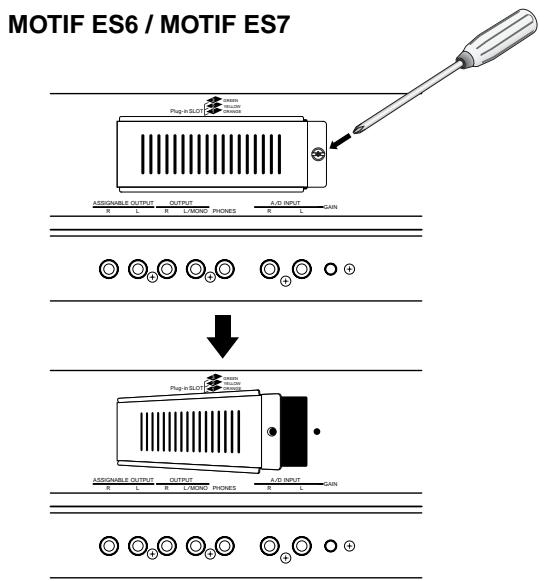
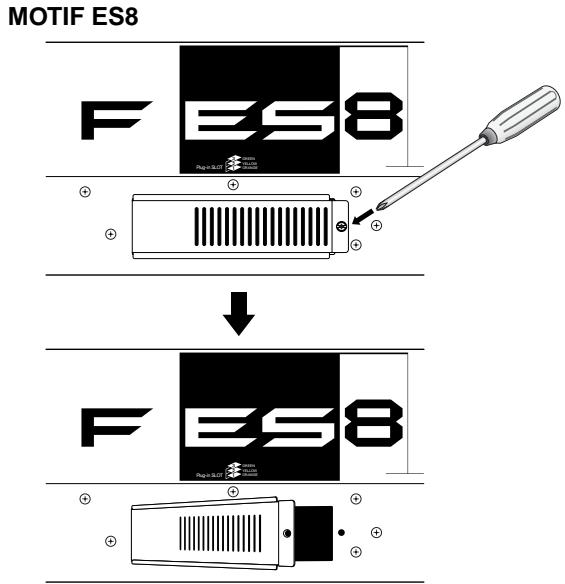
3 Remove the ribbon cables that are to be connected to the Plug-in board from the inside of the MOTIF ES.
The slots are assigned to the color-coded cables as follows:
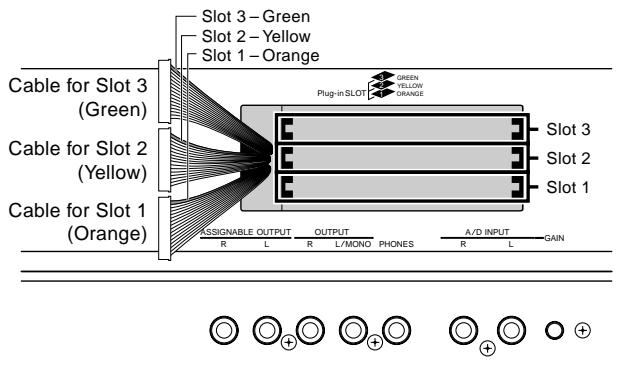
4 Insert the board along the guide rails about two-thirds of the way inside the MOTIF ES, with the connector side face up and toward you.
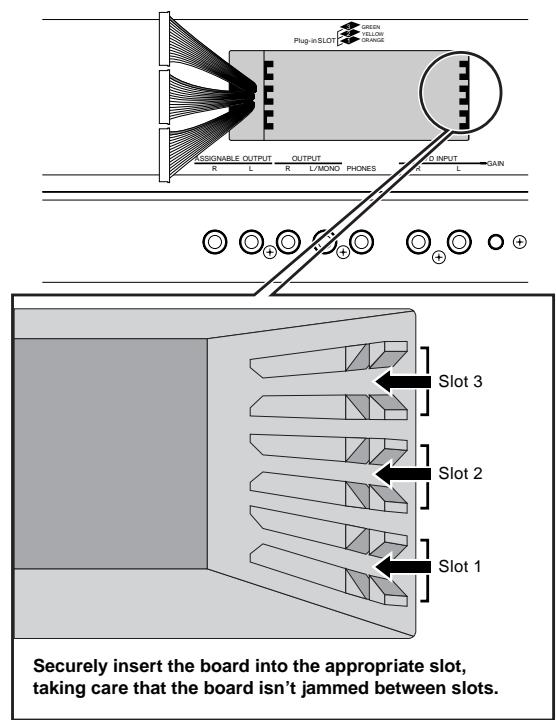
5 With the board still protruding slightly from the expansion bay, bring the cable end around and connect it to the board.
Make sure to connect the proper cable, matching the color of the cable to the slot used. Also, take care not to pull too strongly on the cable as you connect it to the board.
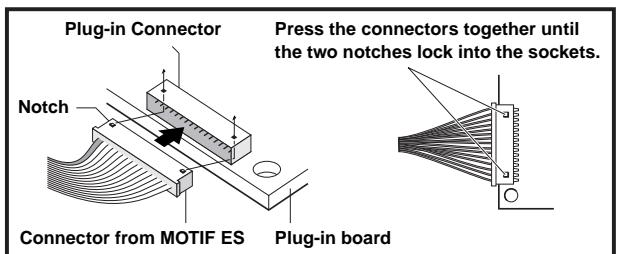
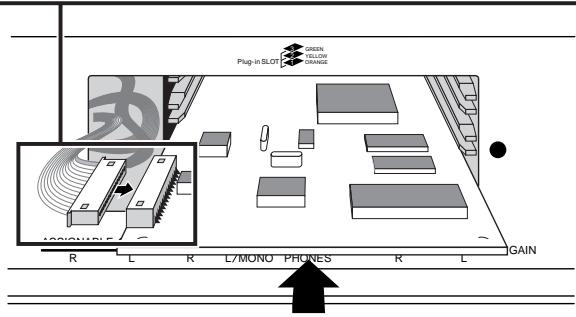
NOTE The Vocal Harmony Plug-in board (PLG100-VH) can be installed only to slot 1.
Note The Multi part Plug-in board (PLG-100XG) can be installed only to slot 3.
6 Insert the Plug-in board the rest of the way into the expansion bay.
Carefully put the ribbon cable back into the MOTIF ES, making sure that no part of the cable sticks out of the instrument.
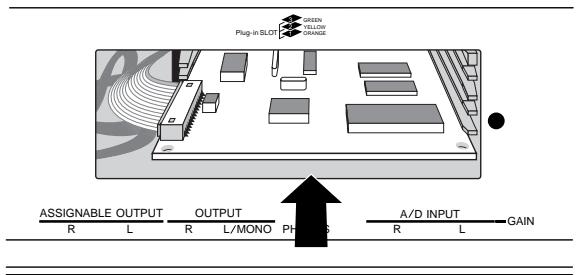
7 Replace the cover with the screw you removed in step 2 above.
8 Check that the installed Plug-in board is functioning properly.
After connecting the AC power cord to the MOTIF ES, turn on the power.
A message appears indicating that the installed Plug-in Board is being checked. The main display then appears and the corresponding slot indicator at the right top of the front panel lights. This indicates that the board has been successfully installed.
If the cable is not connected properly (refer to the notes above) or firmly, the indicator will not light.
In this example, a Plug-in board has been installed to slot 1.
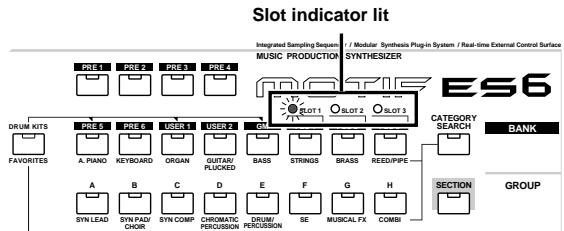
Optional AIEB2 or mLAN16E Installation
By installing an optional mLAN expansion board (mLAN16E) or an I/O expansion board (AIEB2), you can increase the input/output capability and interfacing options of the MOTIF ES.
Installing the AIEB2
1 Turn the power of the MOTIF ES off, and disconnect the AC power cord. Also, make sure to disconnect the MOTIF ES from any connected external devices.
2 Turn over the MOTIF ES so that the keyboard faces down, giving you direct access to the underside of the instrument.
To protect the Knobs, Wheels and Sliders from damage, place the keyboard so the four corners are supported by something that provides sufficient support like magazines or cushions.
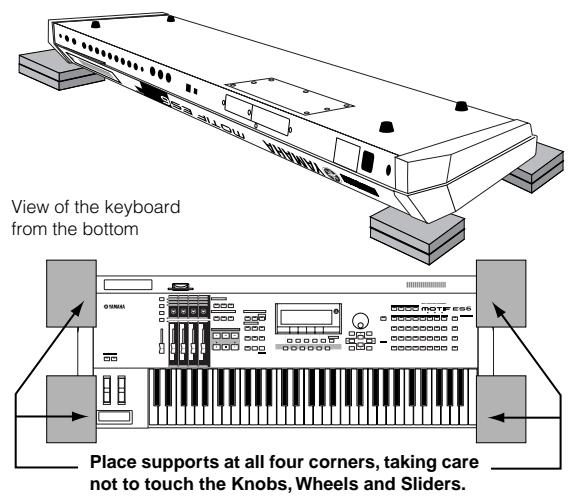
CAUTION
Since the instrument — particularly the MOTIF ES8 — is very heavy, this procedure should not be done alone, but by two or three people.
3 Remove the cover from the bottom.
With the rear panel of the instrument facing you, remove the screws from the cover and slide the cover away to remove it. (The MOTIF ES6 and MOTIF ES7 have seven screws, while the MOTIF ES8 has five.) On the MOTIF ES6/7, slide the cover away from you (toward the front of the instrument, as shown). On the MOTIF ES8, slide the cover to the right.
IMPORTANT Keep the removed screws in a safe place. They will be used when re-attaching the cover to the instrument after installing the AIEB2.
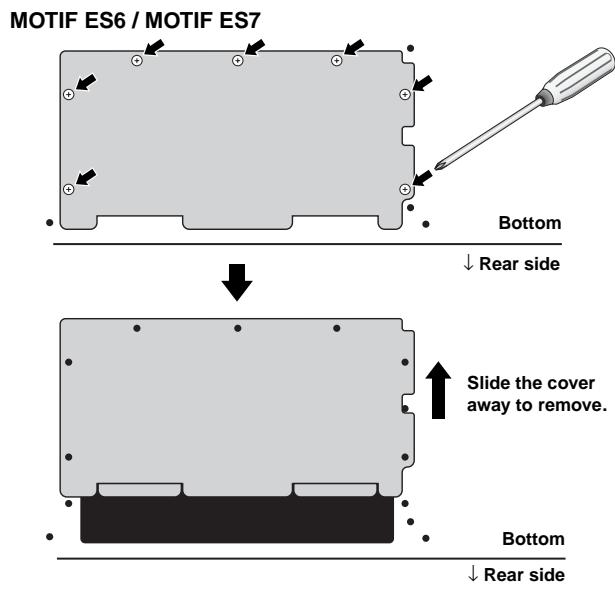
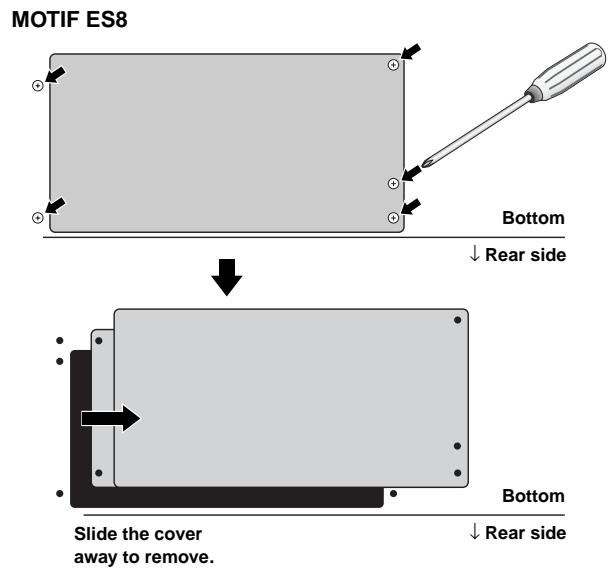
4 Remove the three screws from the rear cover while holding it from inside the MOTIF ES with your left hand.
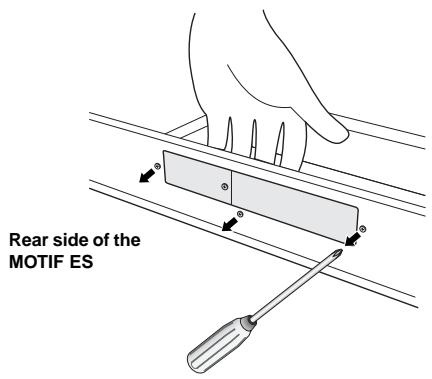
IMPORTANT Keep the removed screws in a safe place. They will be used when re-attaching the cover to the instrument after installing the AIEB2.
5 Remove the AIEB2 power cables from the hook shaped cable clip in the MOTIF ES.
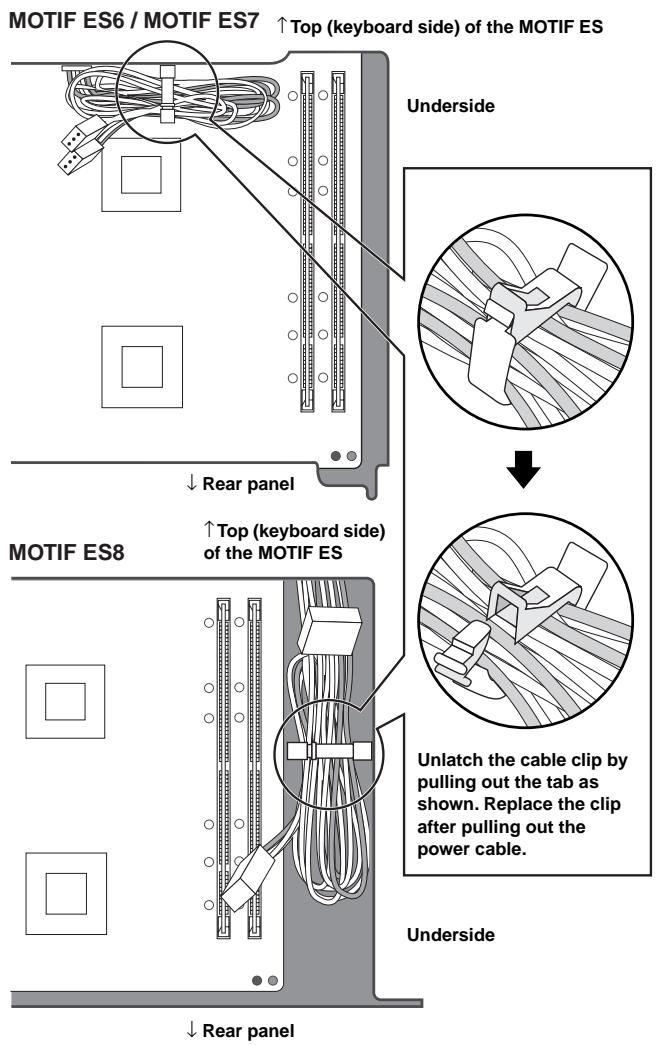
6 Remove the AIEB2 from its package.
The AIEB2 has one flat ribbon cable and two power cables. Since these two power cables are used for the main body and are not needed when installing to the MOTIF ES, you can remove them from the AIEB2.
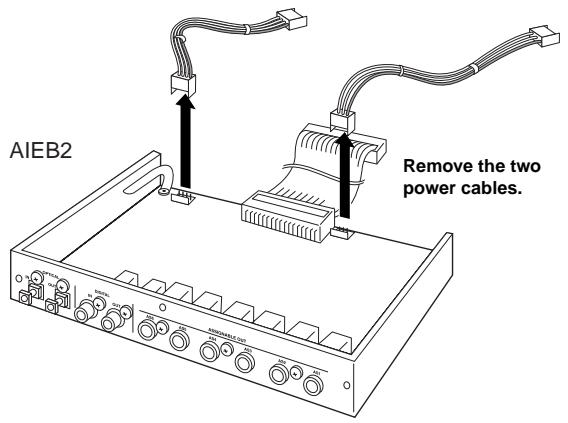
7 Connect the flat ribbon cable coming from AIEB2 to the circuit board of the MOTIF ES.
Be careful to connect the cable in the proper direction as shown.
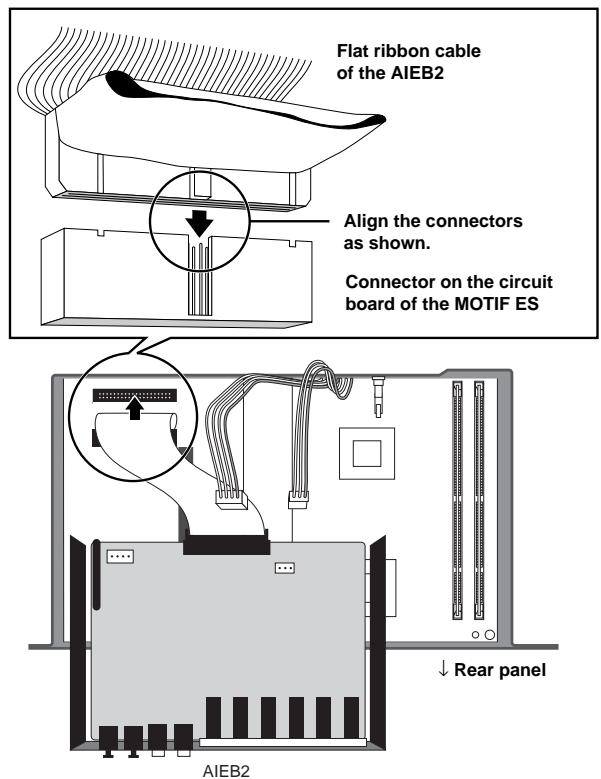
8 Connect the power cable coming from MOTIF ES to the AIEB2.
Connect the 3-pin cable to the CN3 connector of the AIEB2, and the 4-pin cable to the CN1 connector.
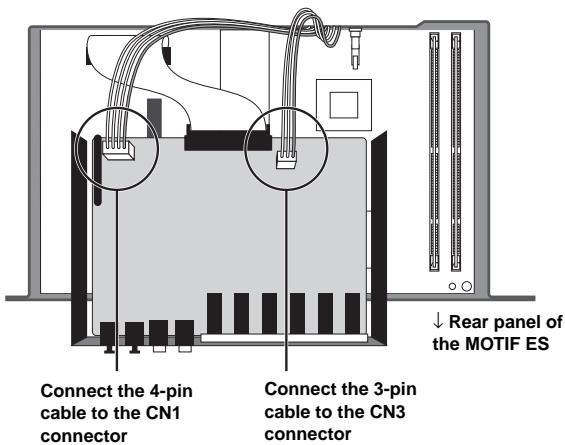
* Make sure to properly match the cables and connectors. Avoid applying excessive force when connecting.
9 Fasten the AIEB2 to the MOTIF ES.
Flip the unit over, so that the bottom of the plate can be seen, and that each connector section of the AIEB2 can be seen from the back (rear) side of MOTIF ES. Supporting the unit with one hand, attach it to the rear of the MOTIF ES with the three screws you removed in step 4. If you start replacing the screws from the center screw, it will be easy to replace the remaining screws.
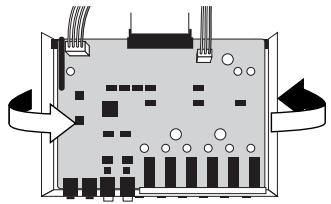
Flip over the AIEB2 taking care not to bend or damage the flat ribbon cable.
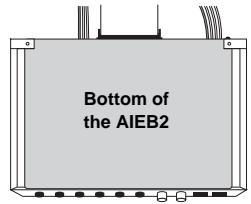
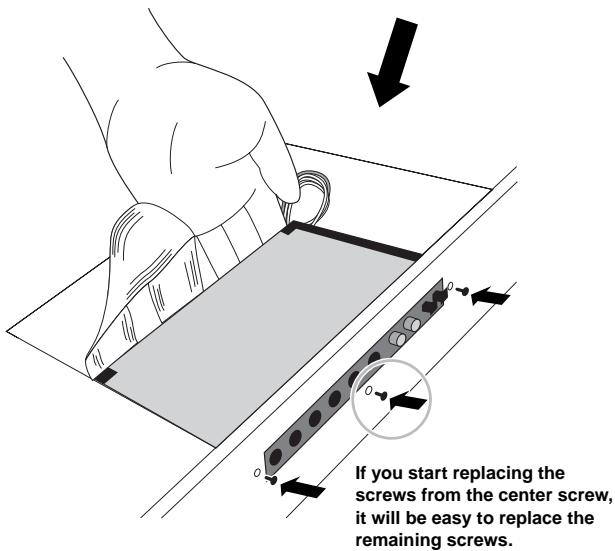
10 Let the ribbon cable fall into place between the AIEB2 and the circuit board of the MOTIF ES.
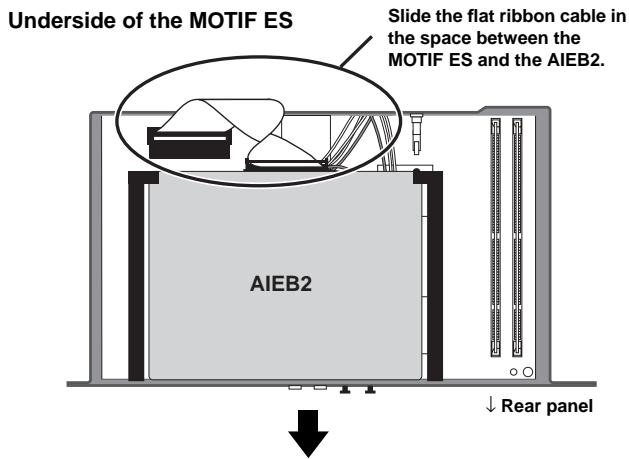
Underside of the MOTIF ES
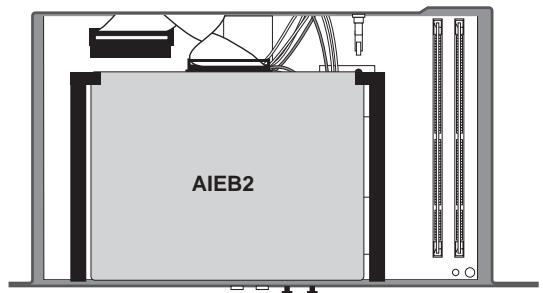
↓ Rear panel
11 Re-install the cover you removed in step #3, in reverse order.
Installing the mLAN16E
1~4
Using the same procedure as in steps 1 - 4 of "Installing the AIEB2" above, remove the cover on the underside of the MOTIF ES, then remove the cover of the mLAN-I/O expansion bay on the rear panel.
5 Remove the mLAN16E from its package.
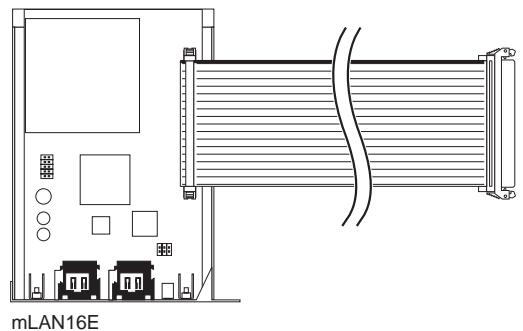
6 Insert the connector on the other end of the flat ribbon cable to the circuit board of the MOTIF ES.
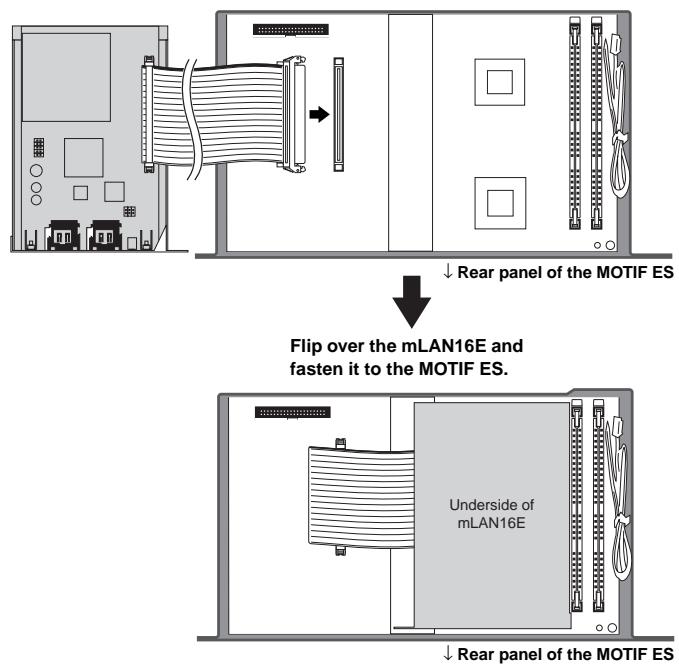
7 Fasten the mLAN16E to the MOTIF ES.
Flip the unit over, so that each connector section of the mLAN16E can be seen from the back side of MOTIF ES. Supporting the unit with one hand, attach it to the rear of the MOTIF ES with the two screws you removed in step #4, as shown below.
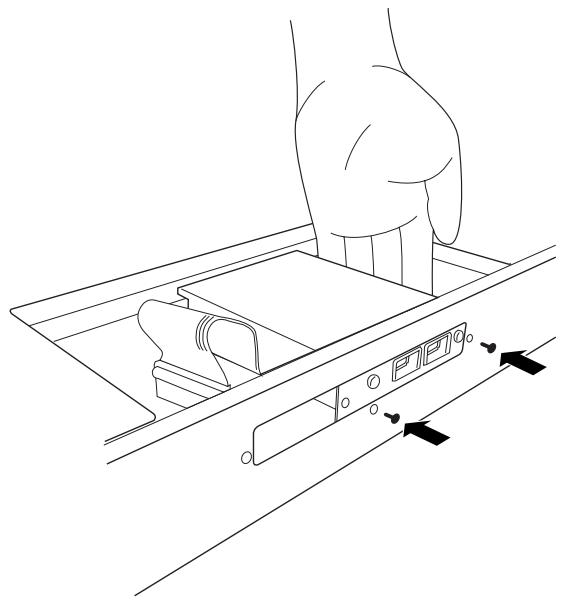
8 Separate the cover you removed in step #4 into two parts (A and B shown below), then attach part A to the rear panel of the MOTIF ES, covering the empty space left by the installation of the mLAN16E.
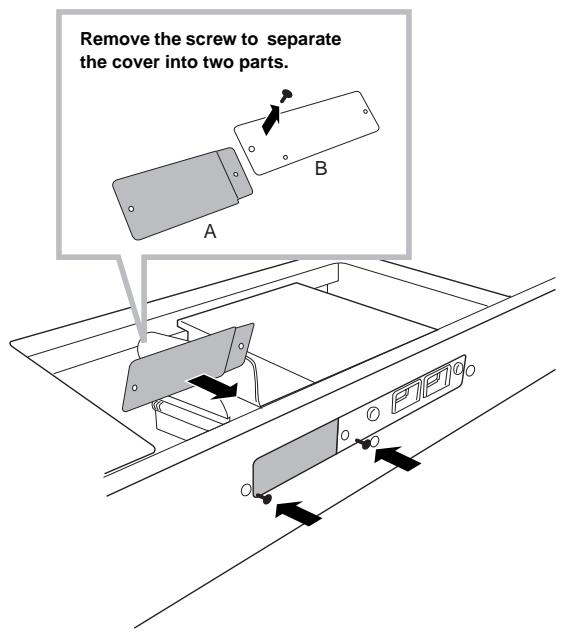
9 Let the flat ribbon cable fall into place between the mLAN16E and the circuit board of the MOTIF ES.
10Re-install the cover you removed in step #3, in reverse order.
Optional DIMM Installation
This section explains how to install DIMM memory modules to the MOTIF ES.
Compatible DIMMs
The MOTIF ES does not necessarily support all commercially available DIMMs. Yamaha cannot guarantee operation of DIMMs that you purchase. Before purchasing DIMMs, please consult your Yamaha dealer, or an authorized Yamaha distributor (see list at end of the Owner's Manual) for advice, or see the following page:
http://www.yamahasynth.com/
DIMM Type and DIMM Configuration
- Yamaha recommends that you purchase DIMMs that conform to the JEDEC* standard. Please be aware, however, that conformance to this standard does not constitute a guarantee that the DIMMs will operate correctly on the MOTIF ES.
- JEDEC (Joint Electron Device Engineering Council) sets standards for terminal configurations within electronic devices.
- Use only 168-pin DIMMs of 64, 128 or 256 MB capacity (synchronized DRAM; PC100 or PC133).
- When installing DIMMs, make sure to install them in a matched pair of the same capacity. You cannot install only one module and leave the second memory socket open. Also make sure each DIMM in the pair is of the same manufacturer and the same type. DIMMs of different makers and configurations may not work together.
- When purchasing DIMMs, make sure that the DIMM design does not utilize more than 18 memory chips per module. (DIMMs comprised of more than 18 chips do not operate correctly on the MOTIF ES.)
$$ 6 4 \mathrm {M B} \times 2 = 1 2 8 \mathrm {M B} $$
$$ 1 2 8 M B \times 2 = 2 5 6 M B $$
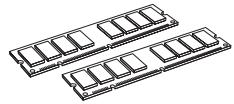
$$ 2 5 6 M B \times 2 = 5 1 2 M B $$
DIMM Installation
1~3
Use the same operation as in "Installing the AIEB2."
4 Insert the two DIMMs into the DIMM sockets.
168-pin DIMMs
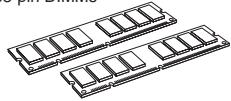
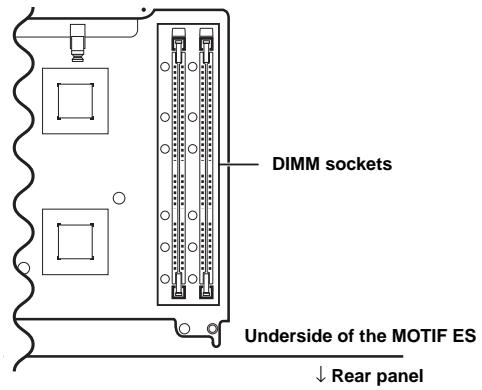
Location for DIMM installation
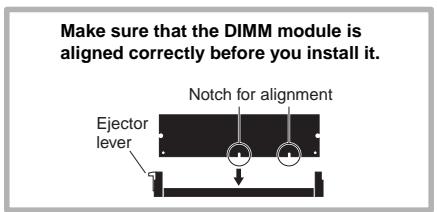
Installing the DIMM modules to the sockets
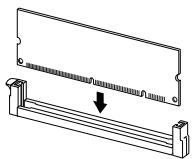
Insert the DIMM vertically in the socket.
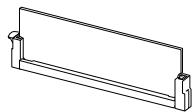
Press it in firmly until it "snaps" or locks in place.
5 Re-install the cover you removed in step #3, in reverse order (page 285).
6 Check that the installed DIMMs are functioning properly.
Set the MOTIF ES right-side up, and connect the power cord to the rear-panel AC INLET jack and an AC outlet. Turn on the power, go to the SAMPLING display by pressing the [INTEGRATED SAMPLING] button, and press the [INFORMATION] button (page 276). If the DIMMs have been installed properly, the appropriate available memory size is indicated in the display.
NOTE
If the DIMMs have not been installed properly, the MOTIF ES may freeze when you press the [INTEGRATED SAMPLING] button. If this occurs, turn the power off, perform the instructions above again, and make sure to install the DIMMs firmly in step #4.
Removing DIMMs
Press the ejector lever until the DIMM unlocks.
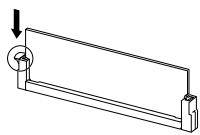
Pull the DIMM vertically out of the socket.
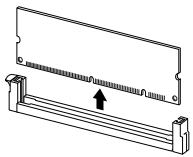
Glossary
This section explains in detail various words and terms that were not covered in the manual. Another resource for looking up unfamiliar technical terms related to music, synthesis and audio is a special website we've prepared, the Glossary for Electronic Musical Instruments. If you come across a musical or technical term you don't know, click on the following URL.
■ Glossary for Electronic Musical Instruments
http://www2.yamaha.co.jp/manual/english/word/index.html (This URL and title may be changed without notice.)
A
Audition
The function or process of hearing the edited sample (in the Sampling function).
C
Channel
There are two types of channels: MIDI channels, which are used to transmit MIDI messages, and audio channels, which are used to send audio signals. You can set the MIDI channel in the display of the MOTIF ES.
Clock
[1] A unit of note resolution for MIDI Sequence data. The sequencer determines the playback position of the Song or Pattern (MIDI sequence data) by using the units Measure, Beat, and Clock.
[2] Also referred to as "MIDI Clock" or "Timing Clock" defined as System Realtime Message in MIDI. This message is transmitted at a fixed interval (24 times per 1/4 note) to synchronize connected MIDI instruments. On the MOTIF ES, the Utility mode lets you select whether the instrument's internal clock will be used as the Timing Clock, or external Timing Clock messages received via MIDI IN will be used.
Common
This edit related term refers to the editing of parameters that affect all Elements or Parts of a program. For each program, this term is used as listed below.
- Normal Voice............Common Edit and Element Edit
Plug-in Voice ....Common Edit and Element Edit - Drum Voice............Common Edit and Key Edit
Performance ....Common Edit and Part Edit
Song Mixing............Common Edit and Part Edit - Pattern Mixing ....Common Edit and Part Edit
- Master............Common Edit and Zone Edit
D
Destination
The MOTIF ES provides the following three types of destination.
[1] In copy operations, this refers to the location to which the original "source" data or file is to be copied.
[2] In sampling operations, this refers to the internal memory area to which the external audio "source" is to be recorded.
[3] In the Controller Set function, this refers to the parameter adjusted by the controller defined as "Source."
Directory
This is a path created on a data storage device (such as SmartMedia card or hard disk), allowing a tree-like hierarchical organization of data files and folders. Effectively a virtual file cabinet, this is the place where files are stored and arranged according to type or application.
F
Filter
The MOTIF ES provides the following three types of Filter.
[1] A circuit or processor that modifies tone by blocking or passing a specific frequency range of the sound. This is one of the Voice parameters (page 161).
[2] A function (referred to as "Event View Filter") that lets you select the event types that appear on the Event List display in the Song Edit/Pattern Edit display (page 225).
[3] A function (referred to as "MIDI Filter") that determines which MIDI events will be transmitted/recognized via the MIDI IN/OUT (page 262).
Folder
This is an organizational feature on a data storage device (such as SmartMedia card or hard disk), allowing you to group data files together according to type or application.Folders can be nested in hierarchical order for organizing data. (Also see "Directory.")
L
LSB
[1] An abbreviation for Least Significant Byte, referring to the lower byte of data when MIDI control change data (such as Bank Select and Data Entry) is divided into two bytes (the MSB and LSB) for transmission.
[2] An abbreviation for Least Significant Bit, referring to the lowest bit among eight bits that make up one byte.
M
MSB
[1] An abbreviation for Most Significant Byte, referring to the upper byte of data when MIDI control change data (such as Bank Select and Data Entry) is divided into two bytes (the MSB and LSB) for transmission.
[2] An abbreviation for Most Significant Bit, referring to the uppermost bit among the eight bits that make up one byte. In MIDI, this "bit" is very important because it determines whether the byte to which this "bit" belongs is a status byte or data byte.
0
Offset
A type of editing in which a specified value (the "offset") is added to or subtracted from the current parameter value. Unlike normal editing, in which the parameter is given a specific, new value, offset editing changes the parameter relative to its current value.
P
Parameter
A setting or data item which you can edit in the various mode and sub mode displays.
Part
This refers to sound producing sections in the tone generator block that make up a Song, Pattern or Performance. In the Performance mode, all four Parts are set to the same MIDI channel; in the Song/Pattern mode, each Part can be independently assigned to a speicfC MIDI receive channel.
Preset
This refers to pre-programmed data supplied with the internal memory of the instrument as shipped from the factory. There are various types of Preset data, such as Preset Voices and Preset Phrases. The other type of data, User, is for data you've created or edited on the instrument (or computer), such as User Voices and User Phrases.
Q
Quantize
A function that lets you "clean up" or "tighten" the timing of notes. The MOTIF ES provides three different Quantize functions:
[1] One of the Jobs provided in the Song Job mode/Pattern Job mode, which lets you "clean up" or "tighten" the timing of notes you've recorded in Realtime recording (page 227).
[2] A function in the Song Record mode/Pattern Record mode, which aligns the timing of notes automatically as you record (page 222).
[3] A parameter that determines the timing (such as measure, 1/2 note, and 1/4 note) by which the pattern actually switches when changing a pattern during playback (page 262).
R
Record
On the MOTIF ES, this term refers to the following operations.
[1] Recording of your musical performance using the keyboard or controllers to a Song track as MIDI events. Song Record mode . page 118
[2] Recording of your musical performance using the keyboard or controllers to a Pattern track as MIDI events.
Pattern Record mode ..... page 110
[3] Recording the audio signal from a microphone or an external audio source (played back via the audio equipment such as a CD player) to the internal memory as a Sample (Audio data). Sampling Record mode pages 94 and 107
s
Sequencer
An instrument or function that records, edits, modifies, and plays back a musical performance in the form of MIDI messages. You can use the MOTIF ES as a sequencer in the Song mode and Pattern mode.
Source
On the MOTIF ES, "source" has three different meanings or uses:
[1] In copy operations, this refers to the original file or data which is to be copied.
[2] In sampling operations, this refers to external audio which is to be recorded (to the internal memory "destination" area) (page 172).
[3] In the Controller Set function, this refers to the controller that is assigned to adjust a particular parameter (the "destination") (page 155).
Synchronization
Refers to the function or process of "locking" the timing of two devices (for example, two sequencers connected via MIDI), using the timing clock of one to control the other.
T
Track
A memory location on the sequencer where musical performance (MIDI event) and audio data is recorded.
Tune/Tuning
A process of matching the pitch of two or more instruments when playing in an ensemble. Normally, A3 is tuned to 440Hz . There are two types of tune: Coarse Tune that adjusts the tuning in semitones and Fine Tune that adjusts the tuning in cents. In addition, the MOTIF ES has a Voice parameter (Micro Tuning) that lets you set the tuning of each individual note of the keyboard.
U
User
Refers to the data you create via various functions on the MOTIF ES (or computer).
There are various types of User data, such as User Voices and User Phrases. The other type of data, Preset, refers to data that has been created or pre-programmed for the instrument at the factory, such as Preset Voices and Preset Phrases.
V
Velocity
A parameter within the MIDI Note On message that conveys the force of the note.
Voice
A musical instrument sound built into the MOTIF ES. The following types of Voices are available on the instrument.
Normal Voice.. page 160
- Drum Voice...... page 160
Plug-in Voice.. page 76
- Board Voice...... page 76
- Mixing Voice page 105
Sample Voice.. page 173
- Phrase Voice...... page 167
Voice data that is supplied with the internal memory of the instruments shipped from the factory is referred to as a "Preset Voice." Voice data you create or edit via the Voice Edit or the Sampling function, using the preset waves supplied with the instrument or the wave obtained via the Sampling function is referred to as a "User Voice."
Volume Label
This refers to the name you can assign to storage devices such as a SmartMedia and hard disk.
Specifications
| Keyboards | MOTIF ES8 | 88 keys, Balanced Hammer Effect Keyboard (Initial Touch/Aftertouch) |
| MOTIF ES7 | 76 keys, FS Keyboard (Initial Touch/Aftertouch) | |
| MOTIF ES6 | 61 keys, FS Keyboard (Initial Touch/Aftertouch) | |
| Tone Generator block | Tone Generator | AWM2 (complying with the Modular Synthesis Plug-in System) |
| Polyphony | 128 notes + the polyphony of the Plug-in Board (if installed) | |
| Multi Timbral Capacity | 16 parts (internal) + 3 or more Plug-in Board parts (1 for each Single Plug-in Board; 16 for Multi Plug-in Board), Audio Input parts (A/D, AIEB2, mLAN*) * 4 stereo parts | |
| Wave | 175MB (when converted to 16- bit linear format), 1859 waveforms | |
| Voice | Preset: 768 normal voices + 64 drum kits GM: 128 normal voices + 1 drum kit User: 128 x 2 (Bank1: Original, Bank2: Picked up from Preset) Normal Voice + 32 drum kits | |
| Plug-in Voice | Preset for the PLG150-AN/DX/PF/DR/PC: 64 Preset for the PLG-150VL: 192 User: 64 for each Plug-in slot | |
| Performance | User: 128 (up to 4 parts) | |
| Filter | 18 types | |
| Effect System | Reverb x 20 types, Chorus x 49 types, Insertion (A, B) x 116 types x 8 blocks, Master Effect x 8 types, Master Equalizer (5 bands), Part EQ (3 bands, stereo), Plug-in Insertion (available when the PLG100-VH has been installed to slot 1) | |
| Expandability | 3 Slots for Modular Synthesis Plug-in Boards | |
| Sampling block (Available when DIMMs have been installed.) | Samples | Up to 1024 Waveforms (Multi Samples) Up to 128 Key Banks per Waveform Up to 4096 Key Banks |
| Sampling Source | Analog input L/R, Stereo output (Resampling), Digital/Optical (available when the AIEB2 has been installed), mLAN (available when the mLAN16E has been installed) | |
| A/D Conversion | 20-bit, 64 x oversampling | |
| D/A Conversion | 24-bit, 128 x oversampling | |
| Sample Data Bits | 16 | |
| Sampling Frequency | 44.1kHz, 22.05kHz, 11.025kHz, 5.5125kHz (Stereo/Mono) • Digital Sampling Frequency (when the AIEB2 has been installed) 48kHz, 44.1kHz, 32kHz • Can be input, with converted to the Sampling Frequency of the MOTIF ES. • Sampling Frequency via the mLAN (when the mLAN16E has been installed) 44.1kHz (fixed) | |
| Sampling Memory | Optionally installed, expandable to 512MB (256MB DIMM x 2 slots) * DIMMs are not installed to the instrument when shipped from the factory. | |
| Sample Length | Mono: 32 MB Stereo: 64 MB | |
| Sampling Time | 44.1kHz: 6 min. 20 sec., 22.05kHz: 12 min. 40 sec., 11.025kHz: 25 min. 20 sec., 5.0125kHz: 55 min. 40 sec. * Mono/Stereo | |
| Sample Format | Original format, WAV, AIFF, A3000/4000/5000/SU700 format (loadable only), AKAI S1000/S3000 format (loadable only) | |
| Sequencer block | Note Capacity | Approx. 226,000 notes |
| Note Resolution | 480 ppq (parts per quarter note) | |
| Maximum Polyphony | 124 notes | |
| Tempo | 1 - 300 | |
| Recording type | Real time replace, Real time overdub (with the exception of the Pattern Chain), Real time punch (Song only), Step (with the exception of the Pattern Chain) | |
| Tracks | Pattern Mode: 16 phrase tracks Pattern Chain Mode: Pattern track, Tempo track, Scene track Song Mode: 16 sequence tracks (Loop on/off can be set for each track), Tempo track, Scene track | |
| Patterns | 64 patterns (x 16 sections) Measures: 256 maximum | |
| Phrases | Preset Phrases: 687 phrases User Phrases: 256 per pattern | |
| Songs | 64 songs | |
| Arpeggio | Preset x 1787 types User x 256 types * MIDI Sync, MIDI transmit/receive channel, Velocity Limit, and Note Limit can be set. | |
| Scene Memory | 5 per Song | |
| Squence Format | Original format, SMF format 0, 1 (Format 1 load only) | |
| Others | Master | User: 128 * 4 Zones (Master keyboard settings), Assignable Knob/Slider settings, Program Change Table |
| Sequence Software compatible with the Remote Control function | ||
| For Windows® SQ01 V2, Cubase SX, SONAR 2.0, Multi Part Editor for MOTIF-RACK, Multi Part Editor for MOTIF ES For Macintosh® Logic 5.5, Digital Performer 3.1 | ||
| Controllers | Pitch Bend wheel, Modulation wheel, Ribbon Controller, Assignable Control Sliders (4), Assignable Knobs (4), Data dial | |
| Display | 240 x 64 dot graphic backlit LCD | |
| External Memory | SmartMedia™ (3.3V) * Up to 128MB can be used. | |
| Connectors | OUTPUT L/MONO, R (standard phone jack) ASSIGNABLE OUTPUT L, R (standard phone jack) AD INPUT L, R (standard phone jack) PHONES (standard stereo phone jack) BOOT CONTROLLER 1, 2 BOOT SWITCH x 2 (SUSTAIN, ASSIGNABLE) BREATH, MIDI IN/OUT/THRU, USB (TO HOST, TO DEVICE), AC INLET | |
| Power Consumption | 38W | |
| Dimensions, Weight | MOTIF ES8: 1,458 (W) x 465 (D) x 167.4 (H)mm, 28.3kg MOTIF ES7: 1,255 (W) x 394 (D) x 136.4 (H)mm, 19.2kg MOTIF ES6: 1,048 (W) x 394 (D) x 136.4 (H)mm, 16.5kg | |
| Accessories | AC Power cord, CD-ROM x 3, Owner's Manual (this book), Data List, Installation Guide | |
- Specifications and descriptions in this owner's manual are for information purposes only. Yamaha Corp. reserves the right to change or modify products or specifications at any time without prior notice. Since specifications, equipment or options may not be the same in every locale, please check with your Yamaha dealer.
Index
1/4 Shift (1/4 shifted) 209
1/4 tone 209
1/8 tone 209
1st-on 193
A
A/D Input 165
A/D INPUT jacks 24
AC (Assignable Control) 206
AC INLET (AC Power Cord Socket) 24
Accuracy 257
ADD INT 71,212
ADD PLG 71,212
Advanced DX/TX Plug-in Board 74
AEG (Amplitude Envelope Generator) ... 162, 200, 204, 219, 236
Aftertouch 184
AIEB2 25, 285
Aiff (AlFF) 269
All 269
AllPattern 269
AllSong 269
AllVoice 269
AllWaveform 269, 270
AlternateGroup 203
AlternatePan 199,204
AltnateGroup 84
AMod 205, 206
Amplitude 162
Amplitude Envelope Generator 162
analog output 31, 32
Analog Physical Modeling Plug-in Board 74
Append Pattern 247
Append Phrase 245
Arabic 209
ARP (Arpeggio) 189, 191, 213, 214, 223
ARP CH (Arpeggio Channel) 262
ARP FX 81,90,129
Arpeggio 66,70,105,130,169
[ARPEGGIO ON/OFF] button 19
Arpeggio type 169
ArpSwitch (Arpeggio Switch) 216, 235
AS1 (ASSIGN 1) 188, 212, 271
AS1 (Assign 1) 214
AS2 (ASSIGN 2) 188, 212, 271
AS2 (Assign 2) 214
ASA (ASSIGN A) 188, 212, 271
ASB (ASSIGN B) 188, 212, 271
ASSIGN 263
ASSIGNABLE OUT 24, 25
AssignMode 203
AT (After Touch) 205
ATTACK 81,90,129
Attack Time 160, 161, 162, 183
AUDIO IN 214
Audio Input 33
Audio Input Part 165
Audition 290
Auto Load 135
AutoLoad 261
AWM2 (Advanced Wave Memory 2) 157
B
BAKDEL 225
Band Elimination Filter 161
Band Pass Filter 161
BANK buttons 21
Bank Select 40, 182
BankLSB 273
BankMSB 273
BankSel 264
BasicRcvCh (BasicReceiveChannel) 263
BC (Breath Controller) 214, 219, 273
BCCurve 76
BCCurve (Breath Controller Curve) 260
Beat 57, 59
Beat Graph 224
Beat Stretch 231, 245
BEF12 210
BEF6 210
Board Voice 146
BPF12D 210
BPF6 210
BPFw 210
BREAK POINT 199,200,211
Breath Controller 42, 76
BREATH Controller Jack 24
Brightness 183
BULK (Bulk Dump) 208, 220, 237, 274
BulkDump 185
Burglarproof Lock 28
C
CARD (Card slot) 25
CAT (Channel Aftertouch) 229, 230
Category Search 62
[CATEGORY SEARCH] button 21
CD-ROM 6
CenterKey 197, 199, 200
Chain 247
Channel 290
Channel Aftertouch 184
ChAT (Channel Aftertouch) 273
ChgTiming (Change Timing) 191
CHORUS 81,90,129,195,216,235
Chorus 177
Chorus Ctg (Category) 215
Chorus Ctg (Chorus Effect Category) 195
Chorus Pan 195, 215
Chorus Return 195, 215
Chorus Send 195
Chorus to Reverb 195, 215
Chorus Typ (Chorus Effect Type) 195
Chorus Type 215
ChoSend 191,203,213,215,217
Clean Up Memory 259
Clear Pattern 248
Clear Phrase 246
Clear Song 233
Clear Track 232, 246
Clock 229, 230, 290
CLOCK SFT 114,221
ClockOut 264
Coarse 196,203
Common 290
Common Edit (Drum Voice) 202
Common Edit (Master) 138
Common Edit (Normal Voice) 79, 189
Common Edit (Performance) 88
Common Edit (Plug-in Voice) 205
Common Edit (Song Mixing/Pattern Mixing) 128
Compare 52
CONFIG 266
Confirmation Message 52
Connections 5,31
Control Change 182
Control Change numbers 140, 156
Controller 42, 154
Controller Block 154
Controller Set 155
Convert Freq 258
Convert Pitch 257
Convert to Drum Voice 259
COPY 208, 220, 242, 243, 250
Copy 256, 258
Copy Event 229, 245
Copy Pattern 247
Copy Phrase 245
Copy Sample 233, 245, 246
Copy Song 232
Copy Track 231, 246
Create Continuous Data 230, 245
Create Measure 231
Create Roll 228,244
Crescendo 228, 244
CS (Control Sliders) 19, 50
[CS1] - [CS4] (Control Slider) 19
CTL ASN (Controller Assign) 214, 234, 262, 263
CTRL NO (Control Number) 226
CtrlChange (Control Change mode) 264
CtrlChange (Control Change) 219
CtrlReset (Controller Reset) 261
CURRENT 266
Cursor 49
Cursor buttons 20, 152
Curve 196, 198, 200, 230
CUTOFF 81,90,129,189,203
Cutoff 197, 198, 218
D
Cutoff Frequency 161
CutoffSens (Cutoff Sensitivity) 198
Data (Data Range) 230
Data dial 20
Data Entry 182
[DEC/NO] button 20
Decay 218, 219
Decay Time 183
Decay1 Level 160, 161, 162
Decay1 Time 160, 161, 162
Decay1Lvl (Level) 204
Decay1Time 204
Decay2 Level 160, 161, 162
Decay2 Time 160, 161, 162
Decay2Time 204
Delay 193,207
DelayTempo 195
DelayTempoSync 195
DELETE 225, 250, 267
Delete 256, 258
Delete All 259
Delete Measure 231
Demo 55
Depth 192, 194
DEST(Destination) 251,253
Dest (Destination) 192, 194
Destination 290
Detune 218
DeviceNo. (Device Number) 264
DEVNO. (Device Number) 265
Digital 261
DIGITAL IN, OUT connectors 25
Digital Input 34
Digital Output 33
DIMM 187,289
direct 191
Direction 229
Display Messages 277
Distance 198
Divide Drum Track 232, 247
DRAM 187
Drum Plug-in Board 74
DrumVoiceEdit 79,202
DryLevel 215
Dual BEF 210
Dual BPF 210
Dual HPF 210
Dual LPF 210
DumpInterval (Bulk Dump Exclusive Interval Time) 263
E
each-on 193
Echo 41
Edit Buffer 187
Edit Indicator 51,65,69,104
Edit Recall 52,82,91,129
EF BYPS (Effect Bypass) 260
EF PART 215
EFSEND (Effect Send) 217,233,235
Effect 177
Effect Block 177
EFFECT buttons 19, 177
Effect Bypass 177, 260
[EFFECT BYPASS] buttons 177
Effect connection 179
Effect Plug-in Board 74, 78
Effect structure 177
EG (=Envelope Generator) 158
EGDepth 196, 198
EGTime 196, 198
EGTimeSens 197, 199, 200
Element 158
Element Edit 79
ElementSw 192, 195, 202
end 222
End (End Point) 254
End Point 176
EndStep 228
EndVelo 228
[ENTER] button 20
Envelope Generator (EG) 158
EQ (Equalizer) 201, 204, 207, 218, 236, 249
Equal Temp (Equal temperament) 209
Equalizer 178
Erase Event 229, 245
Event 223, 243
EVENT(Event Job) 229,244
Event Type 229
Exchange Phrase 245
Exchange Track 232, 246
[EXIT] button 20,46,152
EXT SW (External Switch) 222
Extract 256
Extract Event 230, 245
F
[F1] - [F6] (Function) buttons 20
Factory Settings 44
Fade In/Out 257
FadelnTime 201
FadeOut 193
Favorite Category 63
FC1 (Foot Controller 1) 214, 219
FC2 (Foot Controller 2) 214, 219
FEG (Filter Envelope Generator) 161, 218, 236
FEGDepth 218
File 185
File mode 46,266
File types 269
FILTER 197,203,207,218,236
Filter 161
FILTER (MIDI Filter) 262
Filter Envelope Generator 161
Filter type 161
Filter Type List 209
Fine 196,203,257
FineTune 256
fingered 189, 190, 216
Fixed 130
FixedVelocity 260
Flash ROM 187
FMod 205, 206
Folder 290
Foot Controller 42
FOOT CONTROLLER jacks 24
FOOT SWITCH jacks 24
Footswitch 42
Format 266, 268
Forward button 20
FREQ (Frequency) 214
Frequency 252, 253
Front Panel 16
fulltime 189, 190
G
Gain 197
GAIN knob 25, 73
GATE OFST 114,221
GATE TIME 81,90,129
GateTime 224, 227
GateTimeRate 192
Get Phrase From Song 246
Glide 228
GlideTime 228
GM Voices 160
Grid 229
Grid Groove 221
GROOVE 221
GROUP 48
GROUP [A] - H] buttons
H
HIGH 214
High Pass Filter 161
HighFreq 207,218
HighGain 207, 218
HIGHMID 214
Hold 189, 191, 193, 223, 263
Hold Level 160, 161
Hold time 197, 198
How to leave the current display 46
HPF12 210
HPF24D 209
HPFCutoff 198,203,207
HPFKeyFlw 198
1
IEEE1394interface 34,39,153
[INC/YES] button 20
Indian 209
[INFORMATION] button 20, 53
Information Display 53
INIT (Initialize) 208, 219, 273
InsA Ctgry (Insertion A Category) 215
InsA Ctgry (Insertion A Category),
InsA Type (Insertion A Type) 194
InsA Type (Insertion A Type) 215
InsB Ctgry (Insertion B Category) 195, 215
InsB Type (Insertion B Type) 195, 215
InsChoSend (Insertion Chorus Send) 202
InsEF (Insertion Effect Part Switch) 223
InsEF (Insertion Effect) 218
InsEF Connect (Insertion Effect Connect) 194
InsEF Connect (Insertion Effect Connection) 215
InsEFOut (Insertion Effect Output) 203
Insertion Effects 177
InsRevSend (Insertion Reverb Send) 202
Installing Optional Hardware 282
INT SW (Internal Switch) 222
Internal AWM2 Tone Generator 157
Internal Memory 185
J
Job 126
K
KBDTransCh (Keyboard Transmit Channel) 264
Key Bank 96, 173
KEYFLW(KeyFollow) 197,198,200
KeyAsgnMode(Key Assign Mode) 190
Keybank 251,253,255
KEYBANK (Key Bank Job) 256
Keyboard 18
Keyboard Transmit Channel 264
KeyMode 191
KeyOnDelay 195,201
KeyOnReset 193,201
Kirnberger 209
Knob 50
[KNOB CONTROL FUNCTION] button 18, 50
Knob/Slider 272
KnobAssign 234
L
last 261
Layer 70,141,273
LCD Contrast Control 20
LCD Display 20
Level 199,200,204,255
level 252, 253
LevelSens (Level Sensitivity) 200
LFO (Low Frequency Oscillator) 162, 192, 201
LIMIT 191, 196, 202, 205, 214, 216, 234, 235
LIMIT H 212
LIMIT L 212
LOAD 266
Load 87,92,100
LoadMix 263
Loc1 (Location1) 221
Loc2 (Location 2) 221
LocalCtrl(Local Control On/Off) 264
Location 58
Loop 176
Loop (Loop Recording) 243
Loop (Loop Start Point) 254
Loop Recording 168
Loop-Remix 258
LOW 214
Low Frequency Oscillator 162
Low Pass Filter 161
Lowest Key 258
LowFreq 207, 218
LowGain 207, 218
LOWMID 214
LPF12 209
LPE18 209
LPF18s 209
LPF24A 209
LPF24D 209
LPF6 209
LPFCutoff 203, 204
LPFReso 203
LVL/PAN (Level/Pan) 199, 204
M
M.TuningNo.(Micro Tuning Number) 190,209
M.TuningRoot(MicroTuningRoot) 190,209
manual 175,252,253
MASTER 271
Master 36,136
Master Edit mode 46, 271
Master Effect 177
Master EQ 178
Master Job mode 46,273
Master Keyboard 136
Master mode 46, 271
Master Play mode 46, 271
MasterStoremode 46,274
MASTER VOLUME 18
Maximum Polyphony 162
MEAS 221, 231, 241
Meas 223, 243
meas 175,253
Measure 110,255
Measure Job 231
MEF (Master Effect) 214, 262, 263, 272
Memory 271
Memory Structure 186
MEQ (Master EQ) 234
MEQ OFS (Master EQ Offset) 190, 202, 205, 213, 234
Meter 255
Mic/Line 261
Micro Tuning List 209
MIDI 181
MIDI channels 181
MIDI IN/OUT/THRU connectors 24
MIDI interface 40
MIDI Sync 264
MIDI tracks 168
MIDISwitch 272
Mix Phrase 245
Mix Track 232
Mixing 158
Mixing Voice 105, 159
Mixing Voice Edit mode 46, 249
Mixing Voice Job mode 46, 250
Mixing Voice mode 46, 249
Mixing Voice Store mode 46, 250
mLAN 25
mLAN (IEEE1394) connector 25
mLAN MonitorSw 261
mLAN16E 25
Mode 271
Mode A 147, 150
Mode B 147, 150
MODE buttons 20
Modes 45
Modify Control Data 230, 245
Modify Gate Time 227, 244
Modify Velocity 227, 244
MODULAR SYNTHESIS PLUG-IN SYSTEM 74
Modulation Wheel 18,64,69
Mono/Poly 188, 190, 216, 235
Mono/Stereo 215, 252, 253
Move 257
MTC 37,264
MTC StartOffset 264
Multi Part Editor 144
Multi-Part Plug-in Board 74
Mute 58
[MUTE] button 21
MW (Modulation Wheel) 205, 219, 273
N
Name 259
Naming 53
NATIVE1 265
NATIVE2 265
NATIVE3 265
Normal Voice 60,160
Normal Voice Edit 79
Normalize 257
Normalize Play Effect 232, 247
NOTE 225, 226, 244, 272
Note (Key) settings 53
NOTE OFST 114,221
Note On/Note Off (Key On/Key Off) 182
NoteLimit 191, 196
NoteShift 260
NRPN (Non-Registered Parameter Number) 183
Number 202, 206, 216
NUMBER [1] - [16] buttons 21
NumberOfTimes 229,230
0
OCT (Octave) 188, 212, 271
Octave 258, 260, 272
OCTAVE[UP] and [DOWN] buttons 18
Offset 227, 228, 230
OFFSET 1\~4 199,200
One Shot 176
oneshot 256
OPTICAL IN, OUT connectors 25
Optimize Memory 259
OrgNotes (Original Notes) 130
OriginalKey 256
OSC 195,202,206,249
Oscillator 160
OUT (Output) 213
OUT CH (Output Channel) 214, 221, 234
OUT SW (Output Switch) 222, 241
OUTPUT 215
OUTPUT L/MONO and R jacks 24
OutputSel (Output Select) 203, 218
OutputSwitch 214,223,262
Overdub 119, 168, 222, 243
P
PAN 233
Pan 182, 190, 199, 204, 213, 215, 217, 223, 255, 273
PAN/SEND 50,81,90,129
Parameter 291
Part 251
Part Edit 216, 235
Partition 276
PartSw 216, 223
PartSwitch 212, 213
PATCH 241
Patch 113
Pattern 165
Pattern Chain 168
Pattern Chain Play mode 242
Pattern Chain Record mode 242
Pattern Edit mode 46, 244
Pattern Job mode 46, 244
Pattern Mixing 167
Pattern Mixing Edit mode 46, 248
Pattern Mixing Job mode 46, 248
Pattern Mixing mode 46, 248
Pattern Mixing Store mode 46, 248
Pattern mode 46, 241
Pattern Play mode 46, 241
Pattern Record mode 46, 243
PB Lower 190
PB Upper 190
PBRange (Pitch Bend Range) 228
PEG (Pitch Envelope Generator) 160, 197
Performance 158
Performance Edit mode 46, 213
Performance Job mode 46, 219
Performance mode 46, 212
Performance Play mode 46, 212
PerformanceStoremode 46,220
PF COPY (Performance Copy) 237
PgmChange 264, 273
Phase 194
PHONES jack 24
Phrase 167
PHRASE (Phrase Job) 245
Phrase Name 246
Piano Plug-in Board 74
PITCH 196,203,207,249
Pitch 196,203,205,257
Pitch Bend Wheel 18,64,69
Pitch Envelope Generator 160
PitchBend 225
PitchSens 197
Play button 20
PLAY FX 192, 202, 205, 214, 234
PLG100-VH 74,78
PLG100-XG 74,77
PLG150-AN 74
PLG150-DR 74
PLG150-DX 74
PLG150-PC 74
PLG150-PF 74
PLG150-VL 74
PLUG 265
Plug-in Board 74,283
Plug-in board cover 25
Plug-in Insertion 215, 275
Plug-in Voice Edit 79,85,146,205
Plug-in Voices 76, 121
PluginAllBulk 269
PLY MODE (Play mode) 190, 205
PMod 205,206,207
Pointer 224
PolyExpand 265
Polyphonic Aftertouch 184, 226
PORTA (Portamento) 188, 190, 205, 212, 213, 216, 235
Portamento Switch 182
Portamento Time 182
PortaMode (Portamento Mode) 189
PortaSw (Portamento Switch) 188, 212
PortaTime (Portamento Time) 189,212
PORTNO. (Port number) 265
Power Supply 26
POWER Switch 24
Power-on Procedure 43
PowerOnMode 261
Preset 291
Preset Phrase 167
Program 47
Program Change 184
PtnQuantize (Pattern Quantize) 262
PtnTempoHold (Pattern Tempo Hold) 262
punch 222
Punch In/Out 169
Punch-in Waiting 254
PureMaj (Pure major) 209
PureMin (Pure minor) 209
Put Phrase To Song 246
Put Track To Arp 232, 247
Q
Q (Frequency Characteristic) 201, 214
Quantize 222, 227, 243, 291
R
Random 196
RandomPan 199
Rate 227, 228, 230, 231
Ratio 257
RB (Ribbon Controller) 214, 219, 273
RBMode (Ribbon Controller Mode) 214
RCV SW (Receive Switch) 219, 236
RcvBulk 264
RcvNoteOff 203
Realtime Recording 168, 224
Rear Panel 22
RECARP 243
RECALL 208, 219, 236
Recall Buffer 187
RecGain 252, 253
RecMonitor 253
Record button 20
Recording Type 222
RecTrack 223
RELEASE 81,90,129
Release Level 160, 161, 162
Release Time 160, 161, 162, 183
REMOTE buttons 19
Remote Control 147
RENAME 267
Replace 168
replace 222, 243
resample 252
Resampling the MOTIF ES 99
RESONANCE 81,90,129
Resonance 161, 198, 218
REST 224
REVERB 81,90,129,195,216,235
Reverb 177,261
Reverb Pan 195, 215
Reverb Return 195, 215
Reverb Send 195
Reverb Type 195, 215
Reverse 176
reverse 256
Reverse button 20
RevSend 203,213,215,217
Ribbon Controller 18,65,69
ROM 187
RPN (Registered Parameter Number) 183
s
Sample 96, 173
Sample playback types 176
Sample tracks 168
Sample Voice 159, 251
Sample+note 173
sample+note 253
Sampling Block 172
Sampling Edit mode 46, 255
Sampling Job mode 256
Sampling job mode 46
Sampling mode 46, 251
Sampling Record mode 46, 251
SAVE 266
Save 185
ScalingPan 199
scene 223
Section 167
[SECTION] button 21
Segment 196, 198, 199
SendXGOnt ToMultiPartPB 263
Sens 255
Separate Chord 229, 244
SEQ 262
SEQ TRANSPORT buttons 20
SeqCtrl 264
Sequencer Block 165
SetAll 227, 230
[SF1] - [SF5] (Sub Function) buttons 20
SHAPE 214
ShiftClock 229,244
Single Part Plug-in Boards 74
skip 222
Slave 36
SLICE 254
Slice 107,258
slice+seq 253
Slope 194
SLOT 1-3 lamps 21
SMF (Standard MIDI File) 132, 269
SmplPrCnt (Sampling pre-count) 262
Solo 58, 82
Song 165
Song Chain 166
Song Edit mode 46,225
Song Job mode 46, 226
Song Location 58
Song Mixing Edit mode 46,234
Song Mixing Job mode 46, 236
Song Mixing mode 46, 233
Song Mixing Store mode 46,131,237
Song mode 46, 221
Song Name 233
Song Play mode 46,221
Song Record mode 46,222
Song Scene 123, 166
SongEventChase 263
sort 191
SortChord 228,244
Source 155, 192, 252, 253
Specifications 292
Speed 192, 201, 207
Split 273
Split Pattern 247
Split Phrase 245
Split Song To Pattern 233
Src (Source) 206
STANDBY (Sampling Standby) 252
Start 254
Start (Start Point) 108
Start Point 176
StartStep 228
StartVelo 228
STATUS 265
Status 266
Step Recording 120, 168
StepTime 224
Stereo to Mono 258
stop 222
Stop button 20
Store 185
Strength 227
Sub Function 20, 47
SubDivide 255
sustain 42
Sustain Level 160, 161, 162
SWING 81,90,129
SwingRate 227
Switch 189, 190, 191, 214, 216
SYNC 264
Synchronization 291
System Effects 177
System Exclusive Messages 184
System Overview 154
System settings 185
T
TCH (Transmit Channel) 188, 212
TEMPLATE 237
Template 194
TEMPO 81,90,129
Tempo 189, 191
TempoSpeed 193
TempoSync 193
TG (Tone Generator) 260
TGSwitch 272
Thin Out 230, 245
ThruPort 265
TIE 224
TIME 197, 198, 200, 207
Time 190,216
TimeMode 190
Time-Stretch 257
TONE 81,90,129
Tone Generator block 157
Top button 20
TR (Track) 227, 228, 229, 230, 231
TR Loop (Track Loop) 222
TR SEL (Track Select) 225
TRVCE(TrackVoice) 241
TRACK (Track Job) 246
[TRACK SELECT] button 21
Track Voice 167
TRANS(Transmit) 272
Trans (Transpose) 221, 241
TransCh 272
TransmitCh 214, 223, 262
Transpose 228, 244, 258, 260, 272
TrggrMode (Trigger Mode) 252, 253
Trigger mode 95, 98, 175
Trigger Waiting 252, 254
TRIM 254, 255
Troubleshooting 279
TUNE 196,203,218,236
Tune 260
TX SW (Transmit Switch) 272
TYPE (Arpeggio) 234
Type (Arpeggio) 189, 191
Type (Equalizer) 201
Type (Filter) 197
Type (Master Effect) 214
Type (Recording Type) 222, 243
Type (Remix) 242
Type (Sampling) 253
Type (Slice Type) 254
Type (Waveform) 202
U
UNDO/REDO 226,244
Undo/Redo 127
UNITMULTIPLY 81,90,129
UnitMultiply (Unit Multiply) 192
USB 24
USB connectors 24
USB storage devices 29
USB TO DEVICE 29
USB TO HOST 29
User 291
User Arpeggio 130
UserMemory 186
User Phrase 167
User Voice 251
UserARP 269
Utility Job mode 46,265
Utility mode 46, 260
V
Vallot&Yng (Vallotti & Young) 209
Value 194,224
Variation 242, 258
VCE ED (Mixing Voice Edit) 233, 249
VEL SENS (Velocity Sensitivity) 196, 198, 199, 203, 204
VelCrossFade 196
VelCurve (Velocity Curve) 260
Vellimit (Velocity Limit) 189,223
VellimitH 216
VellimitL 216
VelMode (Velocity Mode) 191
VELO OFST 221
VelocityDepth 206
VelocityLimit 191, 196
VelocityOffset 206
VelocityRange 228
VelocityRate 192
VelSensDpt 217
VelSensOfst 217
VIEW FLT(View Filter) 225
Virtual Acoustic Plug-in Board 74
Vocal Harmony Plug-in Board 74
VOICE 212,216,223,233,235,243,261
Voice 60,158
Voice Bank 60
Voice Edit 79
Voice Edit mode 46, 189
Voice Editor 145
Voice Job mode 46, 208
Voice mode 46, 188
Voice Play mode 46, 188
VoiceStoremode 46
VoiceELPan 217
VOL/PAN 217,233,235
Volume 190,213,215,217,223,260,262,273
Volume Label 266
W
WAITING (Trigger Waiting) 252, 254
WAV 269
Wave 192, 201
Wave No. 195
WaveCtgry 195
Waveform 96, 173, 251
WAVEFORM (Waveform Job) 258
Werckmeist 209
Width 198
X
XG Plug-in Board 74
z
Zone 137,273
Zone Edit 272
ZoneSwitch 271,276
FCC INFORMATION (U.S.A.)
1. IMPORTANT NOTICE: DO NOT MODIFY THIS UNIT!
This product, when installed as indicated in the instructions contained in this manual, meets FCC requirements. Modifications not expressly approved by Yamaha may void your authority, granted by the FCC, to use the product.
2. IMPORTANT: When connecting this product to accessories and/or another product use only high quality shielded cables. Cable/s supplied with this product MUST be used. Follow all installation instructions. Failure to follow instructions could void your FCC authorization to use this product in the USA.
3. NOTE: This product has been tested and found to comply with the requirements listed in FCC Regulations, Part 15 for Class "B" digital devices. Compliance with these requirements provides a reasonable level of assurance that your use of this product in a residential environment will not result in harmful interference with other electronic devices. This equipment generates/uses radio frequencies and, if not installed and used according to the instructions found in the users manual, may cause interference harmful to the operation of other electronic devices. Compliance with FCC regulations does not guarantee that interference will not occur in all installations. If this
product is found to be the source of interference, which can be determined by turning the unit "OFF" and "ON", please try to eliminate the problem by using one of the following measures:
Relocate either this product or the device that is being affected by the interference.
Utilize power outlets that are on different branch (circuit breaker or fuse) circuits or install AC line filter/s.
In the case of radio or TV interference, relocate/reorient the antenna. If the antenna lead-in is 300 ohm ribbon lead, change the lead-in to coaxial type cable.
If these corrective measures do not produce satisfactory results, please contact the local retailer authorized to distribute this type of product. If you can not locate the appropriate retailer, please contact Yamaha Corporation of America, Electronic Service Division, 6600 Orangethorpe Ave, Buena Park, CA90620
The above statements apply ONLY to those products distributed by Yamaha Corporation of America or its subsidiaries.
- This applies only to products distributed by YAMAHA CORPORATION OF AMERICA.
(class B)
IMPORTANT NOTICE FOR THE UNITED KINGDOM Connecting the Plug and Cord
WARNING: THIS APPARATUS MUST BE EARTHED
IMPORTANT. The wires in this mains lead are coloured in accordance with the following code:
GREEN-AND-YELLOW : EARTH
BLUE NEUTRAL
BROWN : LIVE
As the colours of the wires in the mains lead of this apparatus may not correspond with the coloured markings identifying the terminals in your plug proceed as follows:
The wire which is coloured GREEN-and-YELLOW must be connected to the terminal in the plug which is marked by the letter E or by the safety earth symbol or colored GREEN or GREEN-and-YELLOW.
The wire which is coloured BLUE must be connected to the terminal which is marked with the letter N or coloured BLACK.
The wire which is coloured BROWN must be connected to the terminal which is marked with the letter L or coloured RED.
This applies only to products distributed by Yamaha-Kemble Music (U.K.) Ltd. (3 wires)
For details of products, please contact your nearest Yamaha representative or the authorized distributor listed below.
Yamaha Canada Music Ltd.
135 Milner Avenue, Scarborough, Ontario,
M1S 3R1, Canada
Tel: 416-298-1311
U.S.A.
Yamaha Corporation of America
6600 Orangethorpe Ave., Buena Park, Calif. 90620,
U.S.A
Tel: 714-522-9011
CENTRAL & SOUTH AMERICA
MEXICO
Yamaha de Mexico S.A. de C.V.
Calz. Javier Rojo Gomez #1149
Col. Guadalupe del Moral
C.P.09300, Mexico, D.F., Mexico
Tel: 55-5804-0600
BRAZIL
Yamaha Musical do Brasil Ltda.
Av. Reboucas 2636-Pinheiros CEP: 05402-400
Sao Paulo-SP. Brasil
Tel: 011-3085-1377
ARGENTINA
Yamaha Music Latin America, S.A.
Sucursal de Argentina
Viamonte 1145 Piso2-B 1053,
Buenos Aires, Argentina
Tel: 1-4371-7021
PANAMA AND OTHER LATIN
AMERICAN COUNTRIES/
CARIBBEAN COUNTRIES
Yamaha Music Latin America, S.A.
Torre Banco General, Piso 7, Urbanizacion Marbella,
Calle 47 y Aquilino de la Guardia,
Ciudad de Panamá, Panama
Tel: +507-269-5311
EUROPE
THE UNITED KINGDOM
Yamaha-Kemble Music (U.K.) Ltd.
Sherbourne Drive, Tilbrook, Milton Keynes,
MK7 8BL, England
Tel: 01908-366700
IRELAND
Danfay Ltd.
61D, Sallynoggin Road, Dun Laoghaire, Co. Dublin
Tel: 01-2859177
GERMANY
Yamaha Music Central Europe GmbH
Siemensstraße 22-34, 25462 Rellingen, Germany
Tel: 04101-3030
Yamaha Music Central Europe GmbH,
Branch Switzerland
Seefeldstrasse 94, 8008 Zurich, Switzerland
Tel: 01-383 3990
AUSTRIA
Yamaha Music Central Europe GmbH,
Branch Austria
Schleiergasse 20, A-1100 Wien, Austria
Tel: 01-60203900
THE NETHERLANDS
Yamaha Music Central Europe,
Branch Nederland
Clarissenhof 5-b, 4133 AB Vianen, The Netherlands
Tel: 0347-358 040
BELGIUM/LUXEMBOURG
Yamaha Music Central Europe GmbH,
Branch Belgium
Rue de Geneve (Genevastraat) 10, 1140 - Brussels,
Belgium
Tel:02-726 6032
FRANCE
Yamaha Musique France
BP 70-77312 Marne-la-Vallee Cedex 2, France
Tel: 01-64-61-4000
ITALY
Yamaha Musica Italia S.P.A.
Combo Division
Viale Italia 88, 20020 Lainate (Milano), Italy
Tel: 02-935-771
SPAIN/PORTUGAL
Yamaha-Hazen Música, S.A.
Ctra.de la Coruna km.17,200,28230
Las Rozas (Madrid), Spain
Tel: 91-639-8888
GREECE
Philippos Nakas S.A. The Music House
147 Skiathou Street, 112-55 Athens, Greece
Tel: 01-228 2160
SWEDEN
Yamaha Scandinavia AB
J. A. Wettergrens Gata 1
Box 30053
S-400 43 Göteborg, Sweden
Tel: 031 89 34 00
DENMARK
YS Copenhagen Liaison Office
Generatorvej 8B
DK-2730 Herlev, Denmark
Tel: 44 92 49 00
FINLAND
OTHER EUROPEAN COUNTRIES
Yamaha Music Central Europe GmbH
Siemensstraße 22-34, 25462 Rellingen, Germany
Tel: +49-4101-3030
AFRICA
Yamaha Corporation,
Asia-Pacific Music Marketing Group
Nakazawa-cho 10-1, Hamamatsu, Japan 430-8650
Tel: +81-53-460-2312
MIDDLE EAST
TURKEY/CYPRUS
Yamaha Music Central Europe GmbH
Siemensstraße 22-34, 25462 Rellingen, Germany
Tel: 04101-3030
OTHER COUNTRIES
Yamaha Music Gulf FZE
LB21-128 Jebel Ali Freezone
P.O.Box 17328, Dubai, U.A.E.
Tel: +971-4-881-5868
ASIA
THE PEOPLE'S REPUBLIC OF CHINA
Yamaha Music & Electronics (China) Co., Ltd.
25/F., United Plaza, 1468 Nanjing Road (West),
Jingan, Shanghai, China
Tel: 021-6247-2211
HONG KONG
Tom Lee Music Co., Ltd.
11/F., Silvercord Tower 1, 30 Canton Road,
Tsimshatsui, Kowloon, Hong Kong
Tel: 2737-7688
INDONESIA
PT. Yamaha Music Indonesia (Distributor)
PT. Nusantik
Gedung Yamaha Music Center, Jalan Jend. Gatot SubROTO
Kav. 4, Jakarta 12930, Indonesia
Tel: 21-520-2577
KOREA
Yamaha Music Korea Ltd.
Tong-Yang Securities Bldg. 16F 23-8 Yoido-dong,
Youngdungpo-ku, Seoul, Korea
Tel: 02-3770-0660
MALAYSIA
Yamaha Music Malaysia, Sdn., Bhd.
Lot 8, Jalan Perbandaran, 47301 Kelana Jaya,
Petaling Jaya, Selangor, Malaysia
Tel: 3-78030900
PHILIPPINES
Yupangco Music Corporation
339 Gil J. Puyat Avenue, P.O. Box 885 MCPO,
Makati, Metro Manila, Philippines
Tel: 819-7551
SINGAPORE
Yamaha Music Asia Pte., Ltd.
03-11 A-Z Building
140 Paya Lebor Road, Singapore 409015
Tel: 747-4374
TAIWAN
Yamaha KHS Music Co., Ltd.
3F, #6, Sec.2, Nan Jing E. Rd. Taipei.
Taiwan 104, R.O.C.
Tel: 02-2511-8688
THAILAND
Siam Music Yamaha Co., Ltd.
891/1 Siam Motors Building, 15-16 floor
Rama 1 road, Wangmai, Pathumwan
Bangkok 10330, Thailand
Tel: 02-215-2626
OTHER ASIAN COUNTRIES
Yamaha Corporation,
Asia-Pacific Music Marketing Group
Nakazawa-cho 10-1, Hamamatsu, Japan 430-8650
Tel: +81-53-460-2317
OCEANIA
AUSTRALIA
Yamaha Music Australia Pty. Ltd.
Level 1, 99 Queensbridge Street, Southbank,
Victoria 3006, Australia
Tel: 3-9693-5111
NEW ZEALAND
Music Houses of N.Z. Ltd.
146/148 Captain Springs Road, Te Papapa,
Auckland, New Zealand
Tel: 9-634-0099
COUNTRIES AND TRUST
TERRITORIES IN PACIFIC OCEAN
Yamaha Corporation,
Asia-Pacific Music Marketing Group
Nakazawa-cho 10-1, Hamamatsu, Japan 430-8650
Tel: +81-53-460-2312

YAMAHA
Yamaha Web Site (English only)
http://www.yamahasynth.com
Yamaha Manual Library
http://www2.yamaha.co.jp/manual/english/