Ear Force Z60 DTS - Audio Equipment TURTLE BEACH - Free user manual and instructions
Find the device manual for free Ear Force Z60 DTS TURTLE BEACH in PDF.


User questions about Ear Force Z60 DTS TURTLE BEACH
0 question about this device. Answer the ones you know or ask your own.
Ask a new question about this device
Download the instructions for your Audio Equipment in PDF format for free! Find your manual Ear Force Z60 DTS - TURTLE BEACH and take your electronic device back in hand. On this page are published all the documents necessary for the use of your device. Ear Force Z60 DTS by TURTLE BEACH.
USER MANUAL Ear Force Z60 DTS TURTLE BEACH
7.1- CHANNEL PC GAMING HEADSET
User Guide
EAR FORCE® Z60
7.1-Channel PC Gaming Headset
natural_image
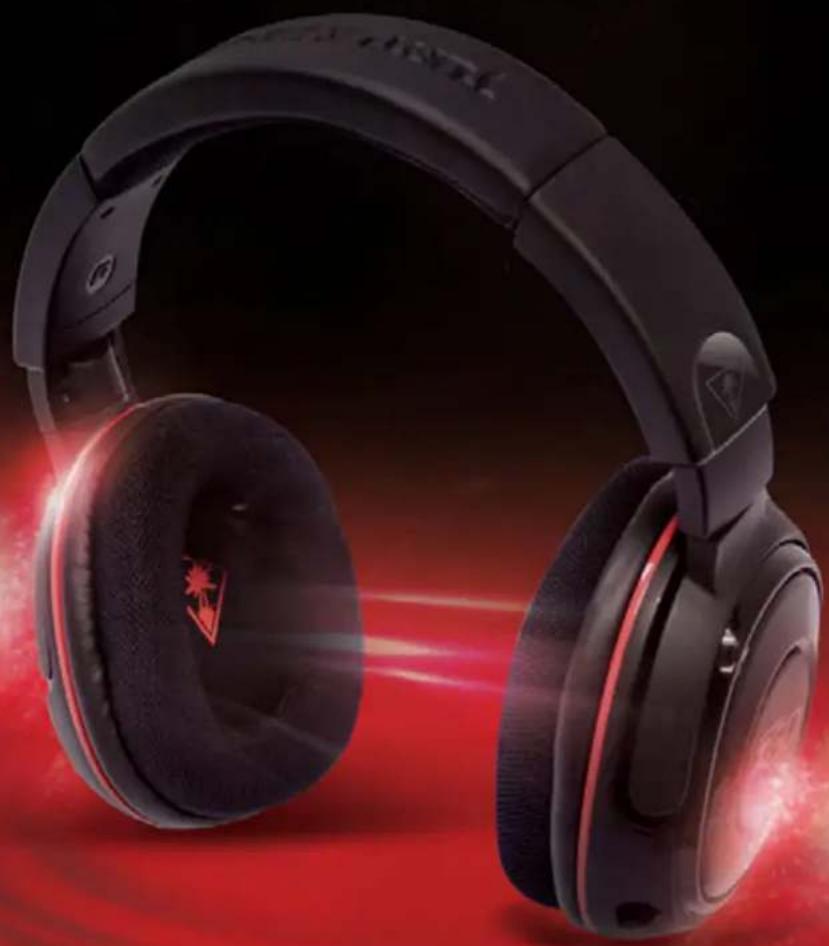
Black and white headboard with red laser effect on black background (no visible text or symbols)Congratulations on your purchase of the Ear Force Z60 headset from Turtle Beach. Designed for PC gaming, the Z60 also supports music, movies, chat and Skype® communication. Turtle Beach brings over 35 years of expertise to transforming your listening experience.
In the Box
For our Knowledgebase and Technical Support please visit: turtlebeach.com/support
natural_image
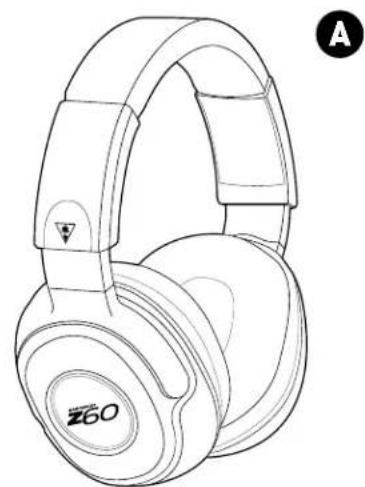
Line drawing of a Z60 headphones with earbuds and headband (no text or symbols on the headset body)Ear Force Z60 Headset
text_image
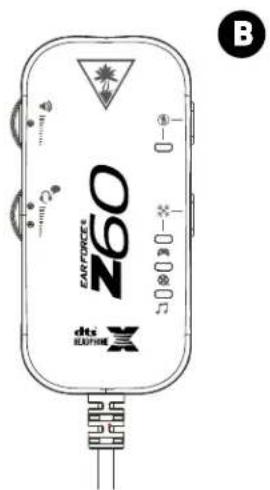
60 DTI SLATONE CERFORATE -0 -0 -0 -0 -0 BEar Force Z60 Surround Sound Control Unit
natural_image
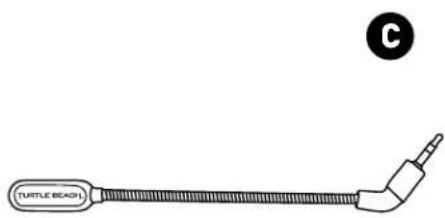
Simple line drawing of a turtle bead with a pointed tip and a label 'C' in the corner (no text or symbols on the object itself)Removable Mic Boom
text_image
TURTLE BEACH. DTurtle Beach Sticker

natural_image
Abstract digital graphic with red glowing arrows and a circular target-like shape against a dark background (no text or symbols)Table of Contents
About the Z60 P5
Parts and Controls
P6
Connections P7
Windows PC Setup P8
Mac OSX Setup P11
Skype Setup P14
Connecting Mobile Devices P15
Adjusting Sound P16
Specifications P17
Troubleshooting Tips P18
Important Safety Information P19
About the Z60
The Z60 is a sophisticated PC gaming headset designed to unlock the audio potential of games, music, movies and more. To get the most from your Z60, please take a few moments to review this introduction.
Overview
Get a powerful audio ally with the Ear Force® Z60. Play on a thunderous soundstage with 7.1 channel DTS Headphone:X Surround Sound driven by PC gaming's largest speakers at 60mm! Get the audio advantage from Dynamic Chat Boost™, a choice of surround sound modes and more. Plus, the Z60 easily plugs directly into your mobile devices.
- DTS 7.1 Surround Sound. Unleash the processing power of 7.1 channel DTS Headphone:X surround sound technology on your favorite games, movies and streaming content.
- DTS Surround Sound Audio Modes. With the flick of a switch get enhanced DTS surround sound experiences designed for games, music or movies.
- Largest-in-class 60mm speakers. Enjoy bone-rattling bass with extra-large speakers and powerful, Neodymium magnets.
- Comfortable, Lightweight Design. Breathable mesh ear cushions and soft, padded headband for hours of comfort.
- Maximize Multimedia Audio. Go beyond games! The Z60 will be your go-to headset for music, Skype™, Netflix™ and more.
- Simple, Plug & Play USB Setup. No software to install or manage.
- Dynamic Chat Boost™. Chat volume automatically increases as the game volume gets louder so you never miss a command.
- Independent Volume Controls. Separate game & chat volume controls plus mic mute right on the amp.
- Microphone Monitor. Turn on Mic Monitoring to hear your voice in the headset while speaking, so you don't have to shout.
- Mobile Versatility. Pop out the mic boom, disconnect from the Surround Sound Control Unit and use the Z60 on the go with your mobile devices.
- Turtle Beach Audio Advantage. With more than 35 years of audio experience, Turtle Beach delivers innovative technology to provide a competitive advantage and the most realistic and immersive audio experience built into a high quality, comfortable headset. Outstanding sound, features and quality. That's why we are #1 in Gaming Audio.
Parts and Controls
text_image
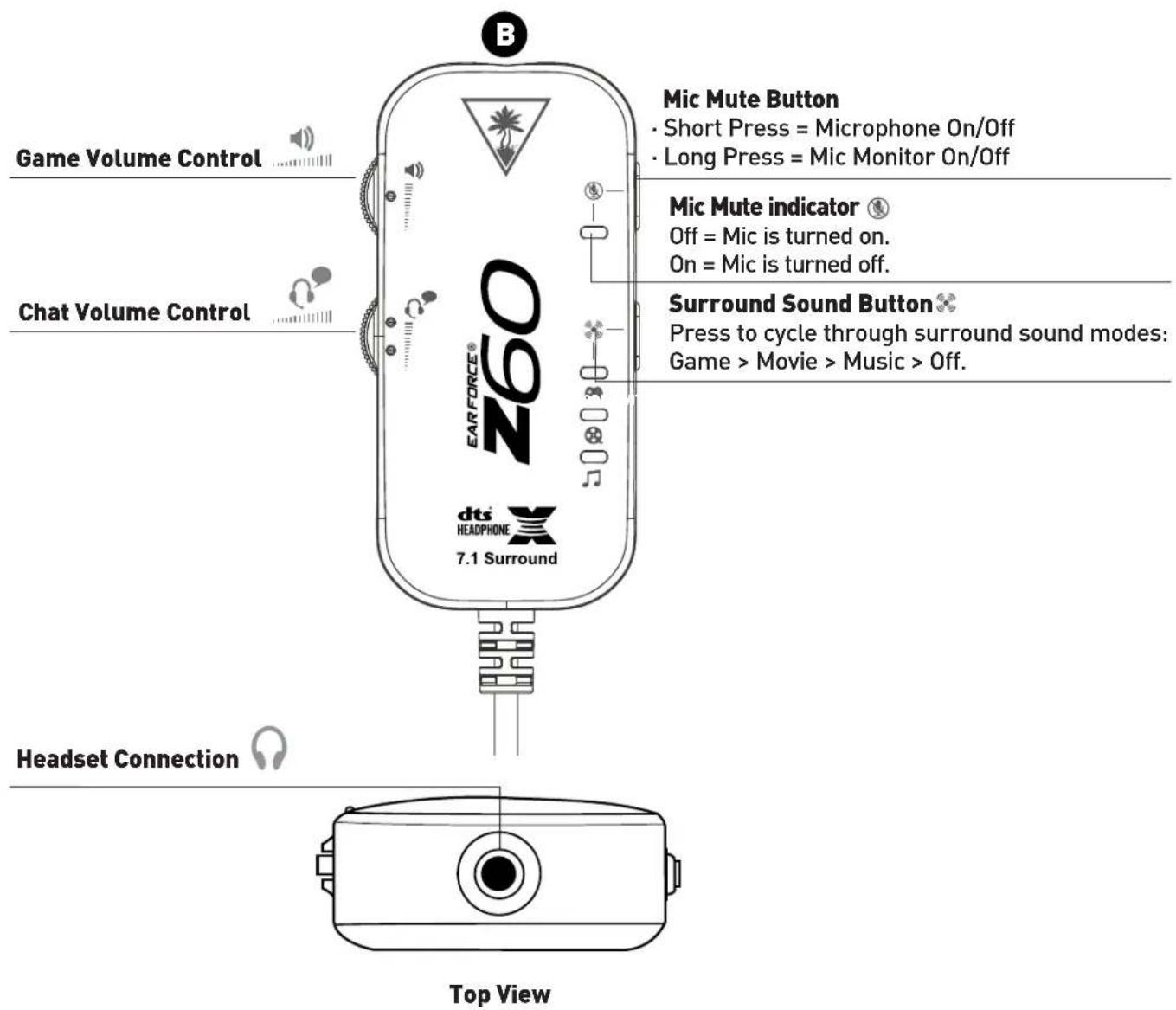
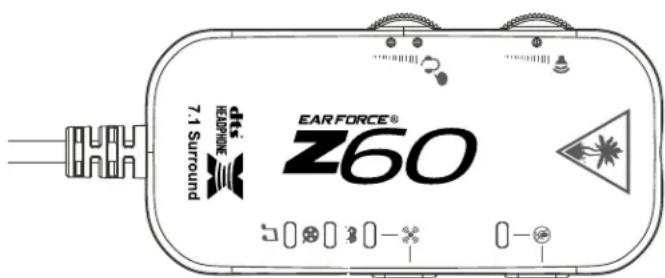
Game Volume Control Chat Volume Control Mic Mute Button • Short Press = Microphone On/Off • Long Press = Mic Monitor On/Off Mic Mute indicator Off = Mic is turned on. On = Mic is turned off. Surround Sound Button Press to cycle through surround sound modes: Game > Movie > Music > Off. Headset Connection Top ViewConnections
text_image
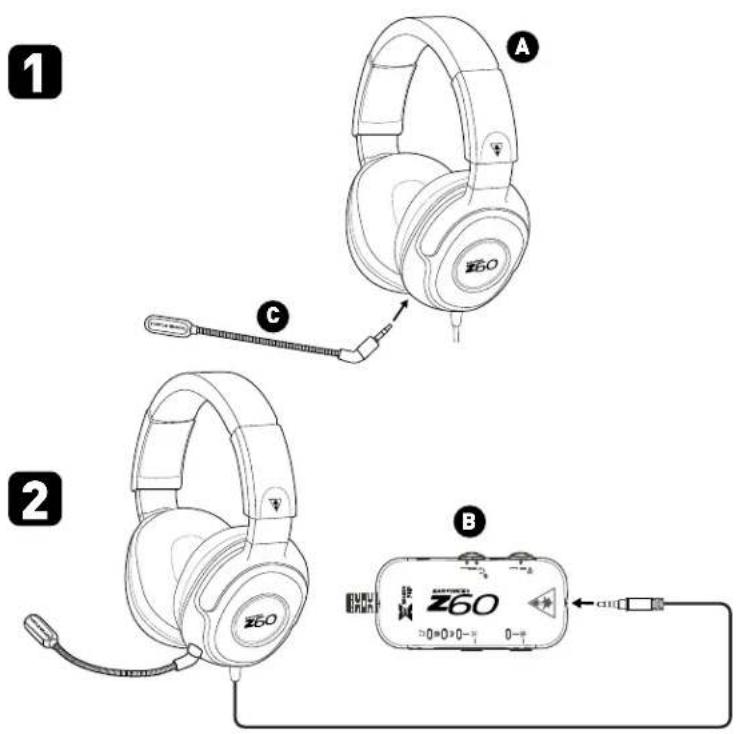
Diagram showing two types of Z60 headphones (1 and 2) with labeled parts A, B, and C, illustrating headset connection and audio signal transmission.-
Insert the plug of the Removable Mic Boom into the jack on the left earcup of the Headset.
-
Insert the Headset cable into the Headset Connection on the Surround Sound Control Unit.
text_image
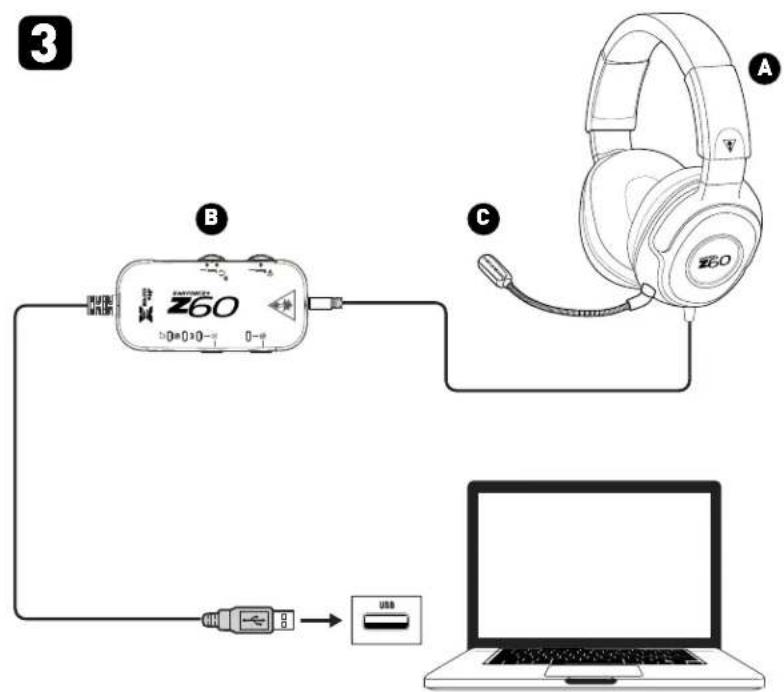
3 B Z60 C A USB- Plug the USB cable of the Surround Sound Control Unit into an available USB port on the computer.
Windows PC Setup
The Ear Force Z60 headset is designed for use with Windows 7 and Windows 8® PCs.
text_image
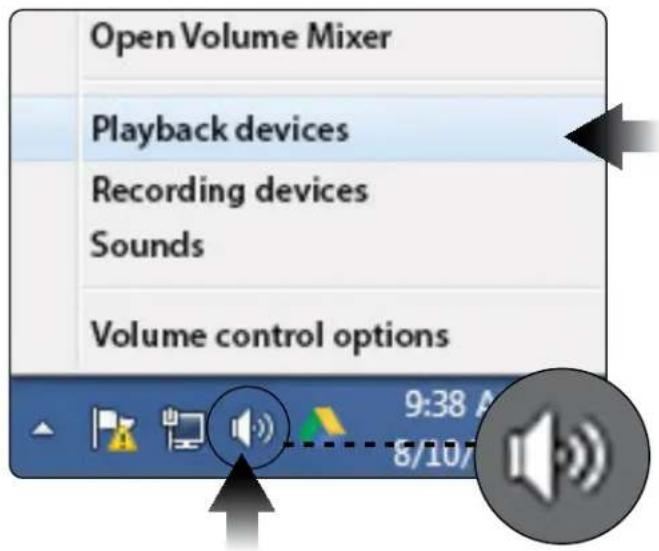
Open Volume Mixer Playback devices Recording devices Sounds Volume control options 9:38 A 8/107- Right click the Speaker icon in your task bar and select Playback Devices.
text_image
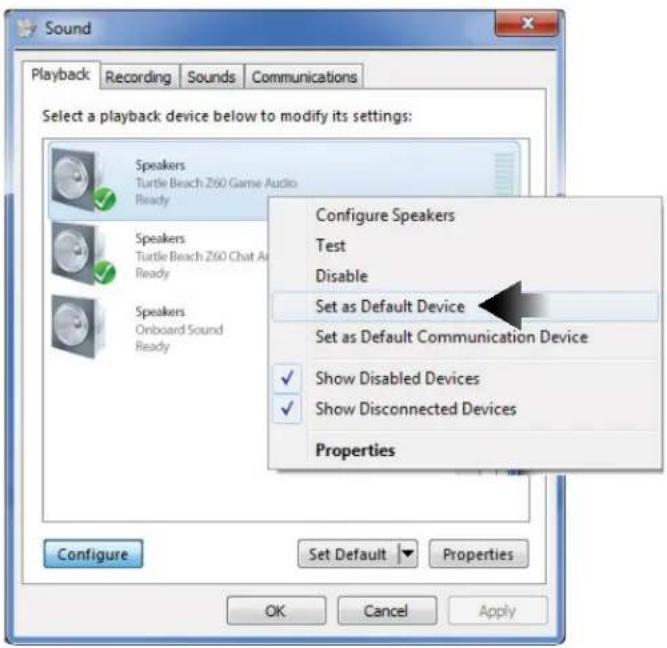
Sound Playback Recording Sounds Communications Select a playback device below to modify its settings: Speakers Turtle Beach Z60 Game Audio Ready Speakers Turtle Beach Z60 Chat Air Ready Speakers Onboard Sound Ready Configure Speakers Test Disable Set as Default Device Set as Default Communication Device ✓ Show Disabled Devices ✓ Show Disconnected Devices Properties Configure Set Default Properties OK Cancel Apply- Right click on Turtle Beach Z60 Game Audio and select Set as Default Device.
Windows PC Setup
text_image
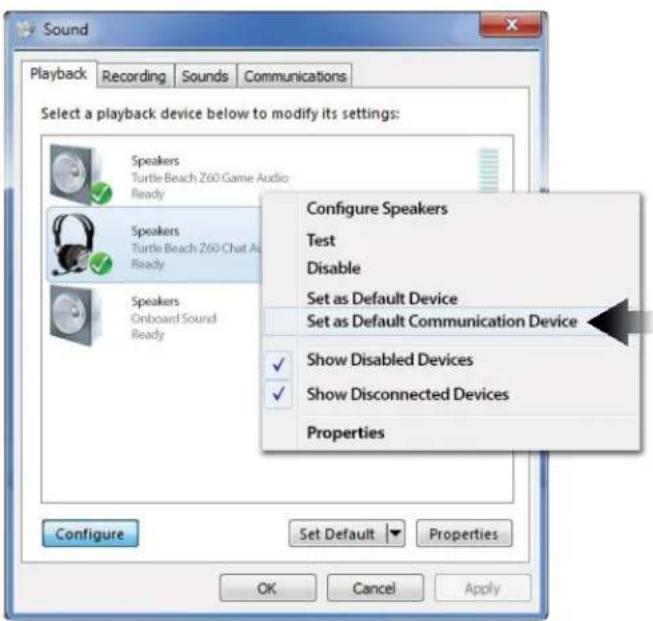
Sound Playback Recording Sounds Communications Select a playback device below to modify its settings: Speakers Turtle Beach Z60 Game Audio Ready Speakers Turtle Beach Z60 Chat As Ready Speakers Onboard Sound Ready Configure Speakers Test Disable Set as Default Device Set as Default Communication Device ✓ Show Disabled Devices ✓ Show Disconnected Devices Properties Configure Set Default Properties OK Cancel Apply- Right click on Turtle Beach Z60 Chat Audio and select Set as Default Communication Device.
text_image
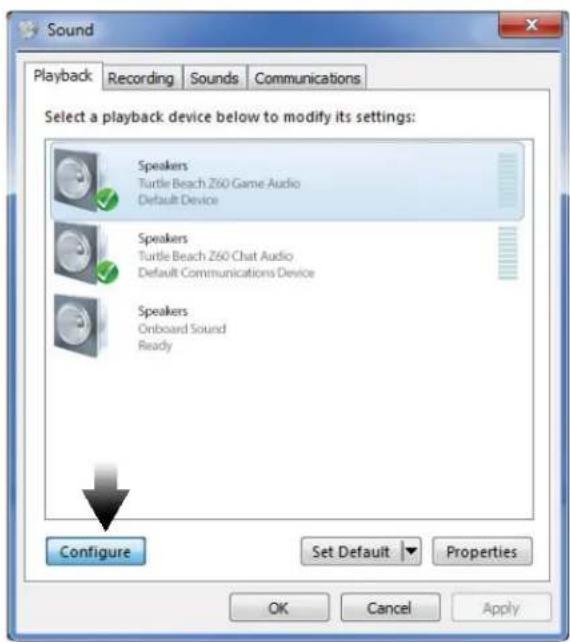
Sound Playback Recording Sounds Communications Select a playback device below to modify its settings: Speakers Turtle Beach Z60 Game Audio Default Device Speakers Turtle Beach Z60 Chat Audio Default Communications Device Speakers Onboard Sound Ready Configure Set Default Properties OK Cancel Apply- Left click Turtle Beach Z60 Game Audio and then click the Configure button.
Windows PC Setup
text_image
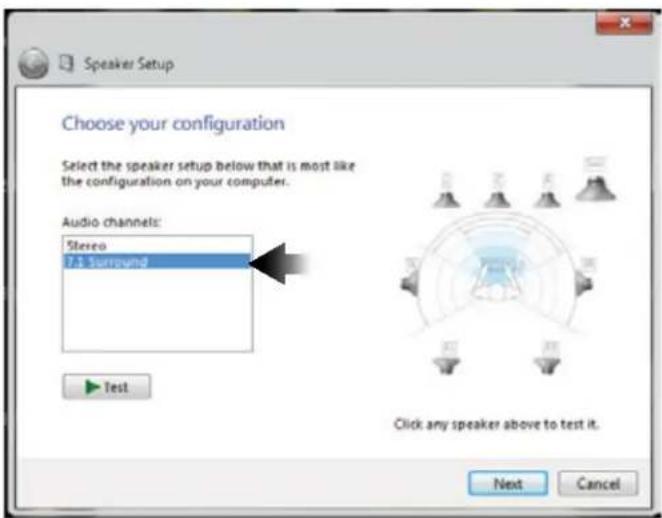
Speaker Setup Choose your configuration Select the speaker setup below that is most like the configuration on your computer. Audio channels: Stereo 7.1 Surround Test Click any speaker above to test it. Next Cancel- In the Audio Channels list, make sure 7.1 Surround is selected.
- Click on Next two times to ensure that Front Left and Right and Surround Speakers are set to full range. Then click on Next again to confirm setting.
text_image
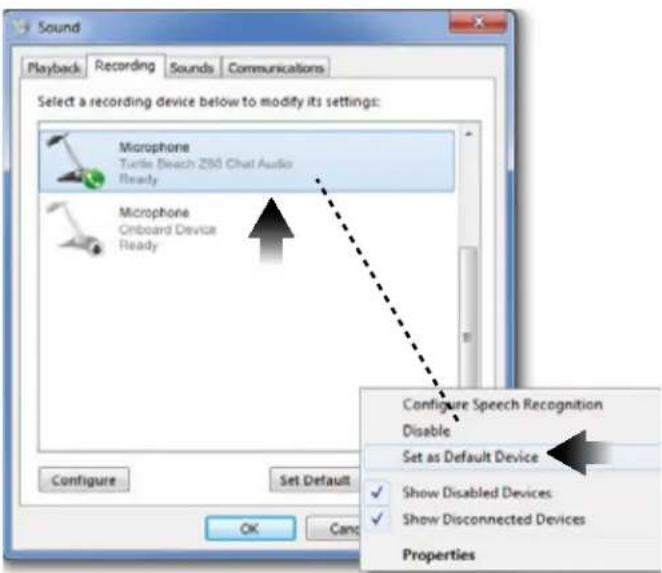
Sound Playback Recording Sounds Communications Select a recording device below to modify its settings: Microphone Turtle Beach 200 Chat Audio Ready Microphone Onboard Device Ready Configure Speech Recognition Disable Set as Default Device ✓ Show Disabled Devices ✓ Show Disconnected Devices Properties OK Cancel- Click on the Recording tab, then right click Turtle Beach Z60 Chat Audio and select Set as Default Device. When you speak, you should see the green sound level meter bars on the right respond.
- Click on OK to accept the settings and close the Sound dialog box.
NOTE: When you use a new game or entertainment program, be sure to select Surround Sound in the software's audio setting if available. If "Virtual Surround Sound" or "Surround Sound Processing" are options in-game, do not select it.
Mac OSX Setup
text_image
Finder File Edit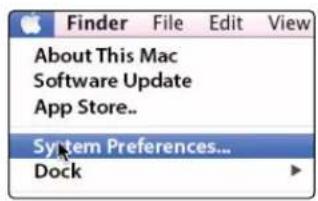
text_image
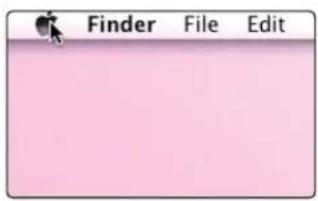
Finder File Edit View About This Mac Software Update App Store... System Preferences... Dock- In the Apple menu, select System Preferences. Depending on your OS version, the screens may differ, but the steps remain the same.
text_image
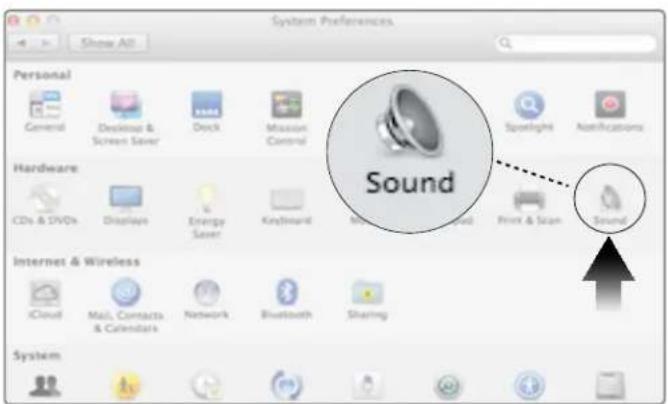
System Preferences Personal General Desktop & Screen Saver Dock Mission Control Spotlight Notifications Hardware CDs & DVDs Displays Energy Saver Keyboard Microsoft Word Print & Scan Sound Internet & Wireless iCloud Mail, Contacts & Calendars Network Bluetooth Sharing System- In the System Preferences folder, click on Sound.
text_image
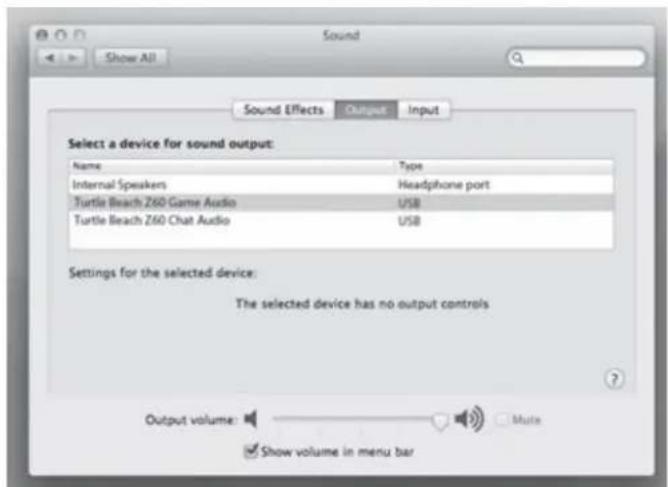
Sound Show All Sound Effects Output.Input Select a device for sound output: Name Way Internal Speakers Headphone port Turtle Beach Z60 Game Audio USB Turtle Beach Z60 Chat Audio USB Settings for the selected device: The selected device has no output controls Output volume: Show volume in menu bar- In the Sound dialog box, click on the Output tab and select Turtle Beach Z60 Game Audio.
Mac OX Setup
text_image
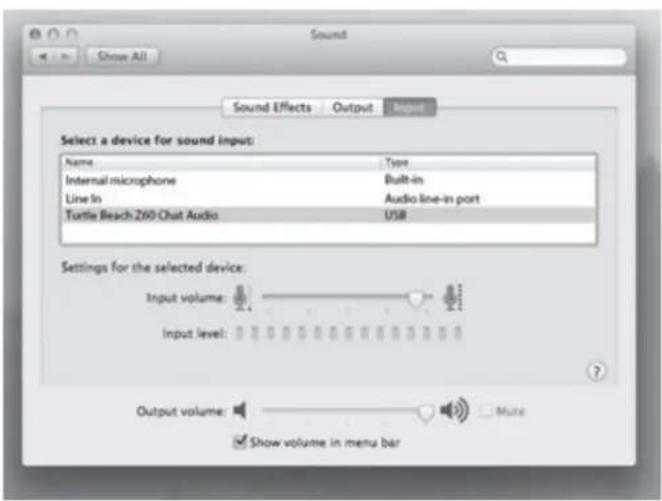
Sound Show All Sound Effects Output Import Select a device for sound input: Name Way Internal microphone Built-in Line In Audio line-in port Turtle Beach Z60 Chat Audio USB Settings for the selected device: Input volume: Input level: Output volume: Mute Show volume in menu bar- Click on the Input tab and select Turtle Beach Z60 Chat Audio. Close the Sound dialog box and close the System Preferences folder.
text_image
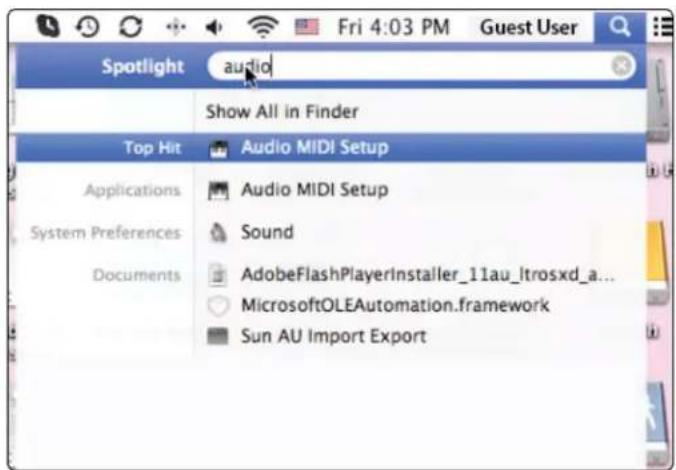
Spotlight audio Show All in Finder Top Hit Audio MIDI Setup Applications Audio MIDI Setup System Preferences Sound Documents AdobeFlashPlayerInstaller_11au_ltrosxd_a... MicrosoftOLEAutomation.framework Sun AU Import Export- In Finder, click into the Spotlight line and type Audio MIDI Setup.
Mac OX Setup
text_image
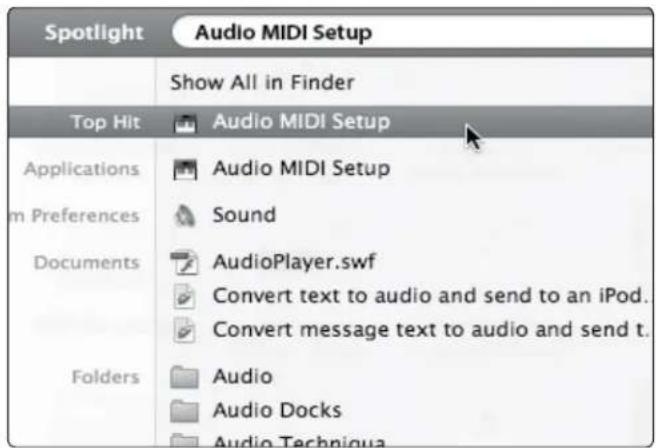
Spotlight Audio MIDI Setup Show All in Finder Top Hit Audio MIDI Setup Applications Audio MIDI Setup m Preferences Sound Documents AudioPlayer.swf Convert text to audio and send to an iPod. Convert message text to audio and send t. Folders Audio Audio Docks Audio Techniqua- In the list of search results, click on the Audio MIDI Setup application.

text_image
Audio Devices Built-in Microphone 3 in/ 2 out Built-in Output 0 in/ 2 out Turtle Beach Z60 Game Audio 0 in/ 2 out Turtle Beach Z60 Game Audio Clock source: Default Input Output Source: Default Format: 44100.0 Hz ▼ 8ch-16bit Integer Ch Volume Value dB Muse Master 1 Fro... 2 Fro... 3 Fro... 4 Lo... 5 Bac... 6 Bac... 7 Sid... 8 Sid... Configure Speakers...- In the Audio MIDI Setup application, select Turtle Beach Z60 Game Audio, select the Output tab, select 8ch-16bit Integer from the drop-down menu and click on Configure Speakers.
text_image
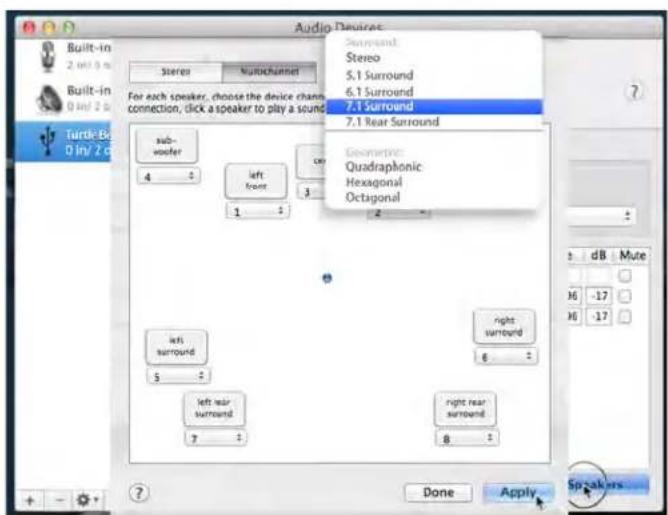
Audio Devices Stereo Multichannel For each speaker, choose the device channels connection, click a speaker to play a sound Sub- worder 4 left front 1 3 Turtle-Be 0 in/ 2 c Left Surround $ - left rear surround 7 Left rear surround 8 7.1 Surround 7.1 Rear Surround Geometric: Quadraphonic Hexagonal Octagonal Right Surround 6 Right rear surround Done Apply Spakers- Select the Multichannel tab, select 7.1 Surround from the drop-down menu and click Apply. Close the Audio MIDI Setup application.
NOTE: When you use a new game or entertainment program, be sure to select Surround Sound in the software's audio setting if available. If "Virtual Surround Sound" or "Surround Sound Processing" are options in-game, do not select it.
Skype® Setup
The Z60 is ideal for clear, hands-free Skype communication. Skype setup takes just a few seconds.
text_image
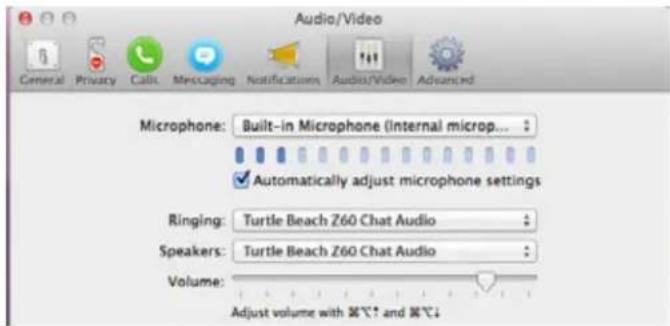
Audio/Video General Privacy Calls Messaging Notifications Audios/Video Advanced Microphone: Built-in Microphone (internal microp... ✓ Automatically adjust microphone settings Ringing: Turtle Beach Z60 Chat Audio Speakers: Turtle Beach Z60 Chat Audio Volume: Adjust volume with 36°C? and 38°C↓- For Windows® PCs, in the Skype application menu bar, click on Call >Audio Settings. For Macintosh® OSX computers, in the Skype application menu bar, click Skype >Preferences and then select Audio/Video.
NOTE: Screens vary by operating system. Mac OSX shown here.
text_image
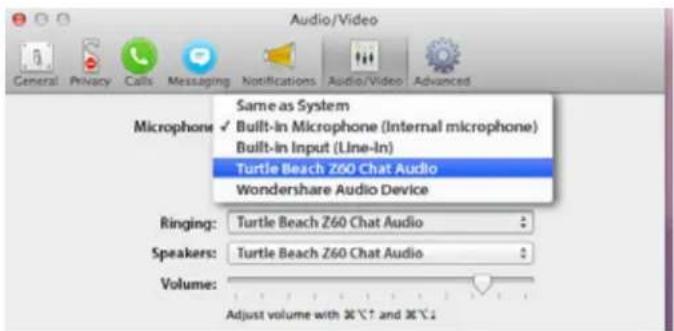
Audio/Video General Privacy Calls Messaging Notifications Audio/Video Advanced Same as System Microphone ✓ Built-in Microphone (Internal microphone) Built-in Input (Line-In) Turtle Beach Z60 Chat Audio Wondershare Audio Device Ringing: Turtle Beach Z60 Chat Audio Speakers: Turtle Beach Z60 Chat Audio Volume: Adjust volume with 30°C↑ and 30°C↓- In the Audio Settings dialog box, select Turtle Beach Z60 Chat Audio in the Microphone drop down box.
- Select Turtle Beach Z60 Chat Audio in the Speakers drop down box.
- To test the microphone, first confirm that the Z60 Removable Mic Boom is attached, the Z60 Mic Mute Button is set to Off and that Z60 Chat Volume Control is turned up. Then speak into the headset. When you speak, look in the dialog box. You should see the Mic Volume indicator level bars respond.
- By default, the Skype application adjusts microphone volume automatically. You can disable this feature by de-selecting Automatically adjust microphone settings.
Connecting Mobile Devices
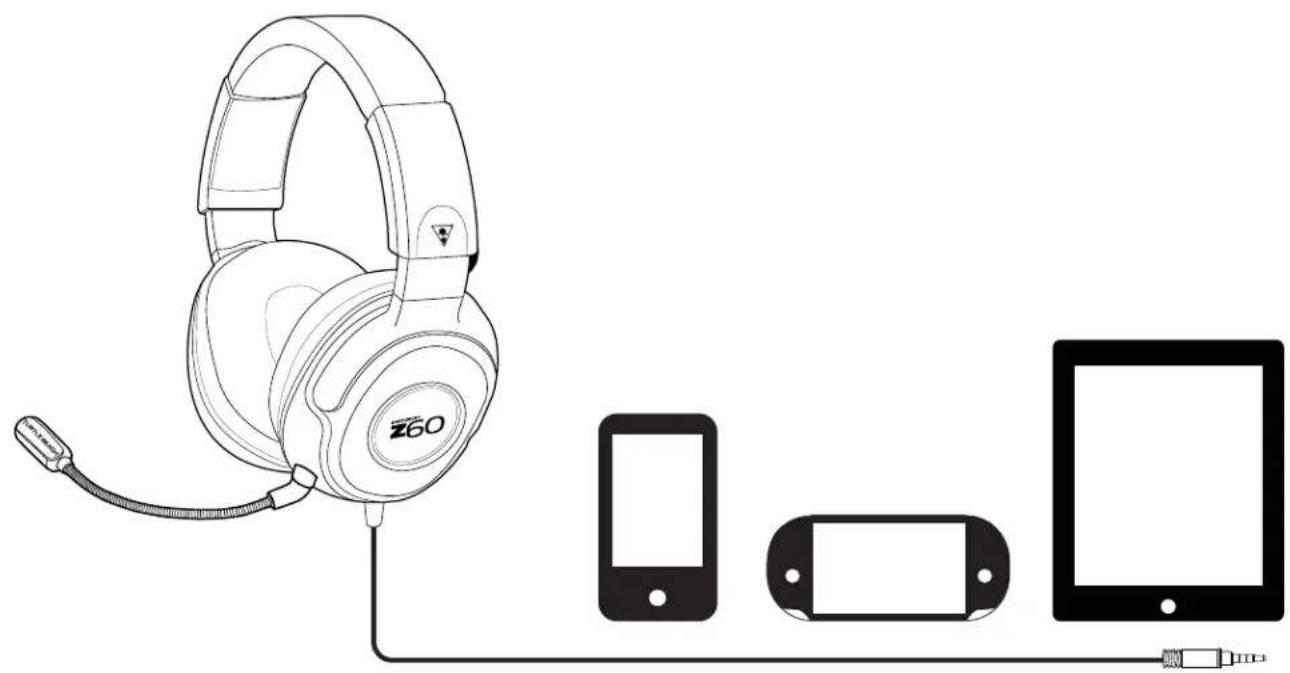
You can plug the Z60 headset directly into mobile phones, tablets and other devices that provide a 3.5 mm headphone output jack.
natural_image
Line drawing of a Z60 headphones connected to devices including smartphone, tablet, and USB cable (no text or symbols)Adjusting Sound
| If you want to... Then... | |
| Adjust game/media volume. Use the Game Volume Control on the Surround Sound Control Unit. A single raised bump in the Surround Sound Control Unit housing helps you identify the control without looking so you can keep your eyes on the game. | |
| If you want to... Then... | |
| Adjust chat volume. Use the Chat Volume Control on the Surround Sound Control Unit. Two raised bumps in the Surround Sound Control Unit housing help you identify the control without looking so you can keep your eyes on the game. | |
| If you want to... Then... | |
| Turn the microphone on or off. Give the Mic Mute Button on the Surround Sound Control Unit a short press. The Mic Mute Indicator will glow red whenever the microphone is turned off. To turn the microphone on again, give the Mic Mute Button a short press. The Mic Mute Indicator will switch off. | |
| If you want to... Then... | |
| Turn microphone monitoring on or off. | The Z60 incorporates microphone monitoring, so you can hear your own voice in the headset and you won't be shouting needlessly. To activate the feature, press and hold the Mic Mute Button on the Surround Sound Control Unit until this Mic Mute Indicator flashes briefly. To deactivate this feature, press and hold the Mic Mute Button until the Mic Mute Indicator flashes briefly. |
| If you want to... Then... | |
| Adjust surround sound. The Z60 takes advantage of DTS® Headphone:X Surround Sound, which uses sophisticated processing to create surround sound using just two speakers. The system reproduces the sonic characteristics of specific rooms, optimized for specific types of content. The surround sound button on the Surround Sound Control Unit cycles through 4 Custom DTS Headphone: X Modes.Game The Game LED glows blue.Movie The Movie LED glows blue.Music The Music LED glows blue.Off The surround LEDs switch off. | |
text_image
EAR FORCE® Z60 7.1 Surround dts RETURNONE 0 - 0 - 0 - 0 - 0 - 0 - 0 - 0 - 0 - 0 - 0 - 0 - 0 - 0 - 0 - 0 - 0 - 0 - 0 - 0 - 0 - 0 - 0 - 0 - 0 - 0 - 0 - 0 - 0 - 0 - 0 - 0 - 0 - 0 - 5Specifications
- Speakers: 60mm Diameter with neodymium magnets
- Headset frequency response: 20 Hz - 20 kHz
- Microphone Design: Removable Omni-Directional
- Headset input: 3.5 mm 4-pole
- Surround Sound Control Unit interfaces: USB-A, 3.5 mm 4-pole mini-jack
- Headset weight: 10oz (285 g) headset only
natural_image
Line drawing of a Z60 hardcover with earbuds and bezel (no text or symbols on the device itself)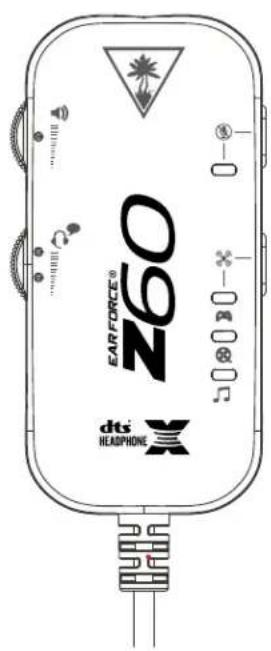
text_image
EARFORCE® Z60 dts HEADPHONETroubleshooting Tips
No sound:
| Possible Cause Solution | |
| Game Volume Control turned down Check that the Game Volume Control on the Surround Sound Control Unit is turned up.Additionally, check that your PC Volume is turned up as well. | |
| Loose connection Confirm that the Headset is plugged firmly into the Surround Sound Control Unit andthat the USB plug of the Surround Sound Control Unit is firmly inserted into thecomputer USB port. | |
| Incorrect Settings Go to the Sound Settings and make sure ‘Z60 Game’ is set as the Default Playback/Output Device. In addition, check the Audio Settings of the specific software you’reusing. |
Voice Chat Drops:
Most in-game voice chat drops are caused by network congestion or "lag." They usually subside after a few moments so please be patient. You may need to leave the game and return to reset the chat function. If you use a wireless internet connection, low signal strength from your modem/router can make the voice chat malfunction. For best results, we recommend a wired connection from your modem/router to your computer.
Microphone not working:
| Possible Cause Solution | |
| Not selected as an Input Device Select | the Z60 as an Input Device as described in “Windows PC Setup” on page 9 or “Mac OSX Setup” on page 12. Additionally, check the Audio Settings in the specific software program you are using. |
| Mic muted On the Surround Sound Control Unit, the Mic Mute Indicator will be lit red. Give the Mic Mute Button a short press. The Mic Mute Indicator will turn off. | |
| Mic disconnected Confirm that the Removable Mic Boom is firmly inserted into the Headset. | |
If your issue is not resolved by these steps, please visit turtlebeach.com/support
Important Safety Information
To avoid potential damage to the device, always disconnect all cables before transporting it.
WARNING: Permanent hearing damage can occur if a headset is used at high volumes for extended periods of time, so it is important to keep the volume at a safe level. Over time, your ears adapt to loud volume levels, so a level that may not cause initial discomfort can still damage your hearing. If you experience ringing in your ears after listening with the headset, it means the volume is set too loud.
The louder the volume is set, the less time it takes to affect your hearing. So, please take care to listen at moderate levels.
- Before placing a headset on your ears, turn the volume down completely, then slowly increase it to a comfortable level.
- Turn down the volume if you can't hear people speaking near you.
- Avoid turning up the volume to block out noisy surroundings.
Regulatory Compliance Statements for EAR FORCE Z60 Model
Federal Communications Commission (FCC) Compliance Notices
Class B Interference Statement
This equipment has been tested and found to comply with the limits for a Class B digital device, pursuant to Part 15, Subpart B of the FCC Rules. These limits are designed to provide reasonable protection against harmful interference in a residential installation. This equipment generates, uses, and can radiate radio frequency energy and, if not installed and used in accordance with the instructions, may cause harmful interference to radio communications. However, there is no guarantee that interference will not occur in a particular installation. If this equipment does cause harmful interference to radio or television reception, which can be determined by turning the equipment off and on, the user is encouraged to try to correct the interference by one or more of the following measures:
- Reorient or relocate the receiving antenna.
- Increase the separation between the equipment and receiver.
- Connect the equipment into an outlet on a circuit different from that to which the receiver is connected.
- Consult the dealer or an experienced radio/TV technician for help.
FCC Caution:
This device complies with Part 15 of the FCC Rules. Operation is subject to the following two conditions: (1) This device may not cause harmful interference, and (2) this device must accept any interference received, including interference that may cause undesired operation.
Canadian ICES Statements
Canadian Department of Communications Radio Interference Regulations
This digital apparatus does not exceed the Class B limits for radio-noise emissions from a digital apparatus as set out in the Radio Interference Regulations of the Canadian Department of Communications. This Class B digital apparatus complies with Canadian ICES-003.
European Union and European Fair Trade Association (EFTA) Regulatory Compliance
This equipment may be operated in the countries that comprise the member countries of the European Union and the European Fair Trade Association. These countries, listed below, are referred to as The European Community throughout this document:
AUSTRIA, BELGIUM, BULGARIA, CYPRUS, CZECH REPUBLIC, DENMARK, ESTONIA, FINLAND, FRANCE, GERMANY, GREECE, HUNGARY, ICELAND, IRELAND, ITALY, LATVIA, LICHTENSTEIN, LITHUANIA, LUXEMBOURG, MALTA, NETHERLANDS, NORWAY, POLAND, PORTUGAL, ROMANIA, SLOVAKIA, SLOVENIA, SPAIN, SWEDEN, SWITZERLAND, UNITED KINGDOM
Declaration of Conformity
Marking by this symbol:

indicates compliance with the Essential Requirements of the EMC Directive of the European Union (2004/108/EC). This equipment meets the following conformance standards:
Safety: EN 60950-1: 2006 + A11 + A1 + A12 (T-Mark License)
Also Licensed for Standards:
EC 60950-1: 2005 + A1: 2009, (CB Scheme Report/Certificate),
UL60950-1 (NRTL License), CSA22.2, 60950-1 (SCC License)
Additional licenses issued for specific countries available on request
Emissions: EN 55022: 2010, EN 50332-1: 2000, EN 50332-2: 2003
CISPR 22: 2008
Immunity: EN 55024: 2010, EN61000-4-2: 2008, EN61000-4-3: 2010,
EN61000-4-4: 2011, EN 61000-4-6: 2008,
EN61000-4-8: 2009
The products are licensed, as required, for additional country specific standards for the International Marketplace. Additional issued licenses available upon request.
Environmental: Low Voltage Directive 2006/95/EC,
RoHS 2011/65/EU,
REACH 2006/1907/EC,
WEEE 2012/19/EU,
Packaging 94/62/EC
Warning!
This is a Class B product. In a domestic environment, this product may cause radio interference, in which case, the user may be required to take appropriate measures.
Achtung!
Voyetra Turtle Beach, Inc. ("VTB") warrants to the original end-user purchaser ("Purchaser") that the retail Turtle Beach hardware product herein ("Product") will be free of defects in materials and workmanship for a period of one year from the date of purchase by the Purchaser ("Warranty Period"). Any Extended Warranty or Service Plans purchased through a Retail store are not honored by VTB. The Warranty refers to the repair/ replacement of a defective product during this period and not a refund.
This limited warranty is extended only to the original Purchaser of a new product, which was not sold "AS IS". It is not transferable or assignable to any subsequent purchaser. This limited warranty is applicable only in the country or territory where the Product was purchased from an authorized VTB retailer and does not apply to a Product that has been purchased as used or refurbished or was included as part of a non-VTB product.
WARRANTY SERVICE:
In the USA and CANADA Warranty Service is provided by our Turtle Beach USA offices and in all other Countries it is provided by our local International Distributors when available. Refurbished/Recertified products are sold on an AS IS basis with a 90-day Warranty or less in accordance with each vendor's policy.
VTB does not warrant uninterrupted or error-free operation of the Product and is under no obligation to support the Product for all computer operating systems or future versions of such operating systems.
If a defect should occur during the Warranty Period, Purchaser must contact VTB to obtain a Return Merchandise Authorization ("RMA") number on the basis of the dated purchase receipt. Purchaser will be responsible for shipping costs incurred in returning the defective Product to an authorized VTB service center, or to the repair facility located at VTB's corporate headquarters. VTB will not be responsible for other products or accessories included with the defective Product sent to VTB. The RMA number must be clearly indicated on the outside of the package. Packages without an RMA number will be refused by VTB or its representatives and returned to sender at the sender's expense.
In the event of a defect, Purchaser's sole and exclusive remedy, and VTB's sole liability, is expressly limited to the correction of the defect by adjustment, repair, or replacement of the Product at VTB's sole option and expense. VTB owns all Products it has replaced and all parts removed from repaired Products. VTB uses new and reconditioned parts made by various manufacturers in performing warranty repairs and building replacement products. If VTB repairs or replaces a product, the original Warranty Period is not extended, however, VTB warrants that repaired or replacement parts will be free from defects in material and workmanship for a period of thirty (30) days from the date of repair or replacement, or for the remainder of the Warranty Period, whichever is greater.
This warranty does not apply to any Product that has had its serial number altered, removed or defaced, or any Product damage caused by shipping, improper storage, accident, problems with electrical power, abuse, misuse, neglect, ordinary wear, acts of God (e.g. flood), failure to follow directions, improper maintenance, use not in accordance with product instructions, unauthorized modification or service of the Product or damage resulting from the use of the Product with hardware, software or other products not provided by or specifically recommended by VTB.
NOTES:
- Replacement Parts and accessories that are subject to “wear and tear” such as earpads, mic foam covers, talkback cables, etc. have a three (3) month Warranty.
- Replacement Parts for Discontinued Products are sold on an AS IS basis, they are not supported and come with a 30 day Warranty.
THIS LIMITED WARRANTY IS PURCHASER'S SOLE AND EXCLUSIVE REMEDY AND IS IN LIEU OF ALL OTHER WARRANTIES, EXPRESS OR IMPLIED. TO THE EXTENT PERMITTED BY APPLICABLE LAW, VTB HEREBY DISCLAIMS THE APPLICABILITY OF ANY IMPLIED WARRANTY OF MERCHANTABILITY, FITNESS FOR A PARTICULAR PURPOSE OR USE FOR THE PRODUCT. IF SUCH A DISCLAIMER IS PROHIBITED BY APPLICABLE LAW, THE IMPLIED WARRANTY IS LIMITED TO THE DURATION OF THE FOREGOING LIMITED WRITTEN WARRANTY.
IN NO EVENT SHALL VTB BE LIABLE FOR ANY INDIRECT, INCIDENTAL, SPECIAL, PUNITIVE OR CONSEQUENTIAL DAMAGES, OR DAMAGES, INCLUDING BUT NOT LIMITED TO ANY LOST PROFITS, DATA, OR LOSS OF USE, ANY THIRD PARTY CLAIMS, AND ANY INJURY TO PROPERTY OR BODILY INJURY (INCLUDING DEATH) TO ANY PERSON, ARISING FROM OR RELATING TO THE USE OF THIS PRODUCT OR ARISING FROM BREACH OF THE WARRANTY, BREACH OF CONTRACT, NEGLIGENCE, TORT, OR STRICT LIABILITY, EVEN IF VTB HAS BEEN ADVISED OF THE POSSIBILITY OF SUCH DAMAGES.
This warranty supersedes all prior agreements or understandings, oral or written, relating to the Product, and no representation, promise or condition not contained herein will modify these terms. Some states do not allow the exclusion or limitation of incidental or consequential damages, so the above exclusion or limitation may not apply to you. This warranty gives you specific legal rights. You may also have other rights, which vary from state to state. Any action or lawsuit for breach of warranty must be commenced within eighteen (18) months following the purchase of the Product.
EXCLUSIONS FROM LIMITED WARRANTY:
This Limited Warranty shall not apply and VTB has no liability under this Limited Warranty if the Turtle Beach Product:
- is used for commercial purposes such as "LAN, Call Centers" (including rental or lease);
- is modified or tampered with;
- is damaged by Acts of God, power surge, misuse, abuse, negligence, accident, wear and tear, mishandling, misapplication, or other causes unrelated to defective materials or workmanship;
- serial number is defaced, altered or removed;
- is not used in accordance with the documentation and use instructions; or
- is repaired, modified or altered by other than authorized repair centers.
- is no longer available because it was discarded.

Watch Turtle Beach product training videos at: youtube.com/TurtleBeachVideos

Product support and warranty information: TurtleBeach.com/support