
DZ-MV230EUK - Camera HITACHI - Free user manual and instructions
Find the device manual for free DZ-MV230EUK HITACHI in PDF.


| Product Type | Camcorder (DVD) |
| Brand | Hitachi |
| Model | DZ-MV230EUK |
| Recording Media | 8cm DVD-R, DVD-RW, DVD-RAM |
| Image Sensor | 1/6-inch CCD, approx. 680,000 pixels |
| Optical Zoom | 10x |
| Digital Zoom | 120x |
| Display | 2.5-inch color LCD |
| Viewfinder | 0.33-inch color LCD |
| Dimensions (W x H x D) | Approx. 58 x 82 x 118 mm (excluding protrusions) |
| Weight | Approx. 400 g (with battery and DVD disc) |
| Power Source | Rechargeable lithium-ion battery (7.2 V) |
| Battery Charging Time | Approx. 2 hours 30 minutes |
| Max Recording Time (DVD) | Approx. 30 minutes on one side (HQ mode) |
| Video Output | Composite video (RCA), S-Video |
| Audio Output | Stereo (RCA) |
| USB Interface | USB 2.0 for file transfer |
| Maintenance | Clean lens with soft cloth; avoid direct sunlight on lens; do not use solvents |
| Safety | Do not open casing; keep away from moisture; use only specified battery/charger |
| Spare Parts and Repairability | Contact authorized Hitachi service center; some parts may be discontinued |
Frequently Asked Questions - DZ-MV230EUK HITACHI
User questions about DZ-MV230EUK HITACHI
0 question about this device. Answer the ones you know or ask your own.
Ask a new question about this device
Download the instructions for your Camera in PDF format for free! Find your manual DZ-MV230EUK - HITACHI and take your electronic device back in hand. On this page are published all the documents necessary for the use of your device. DZ-MV230EUK by HITACHI.
USER MANUAL DZ-MV230EUK HITACHI
Instruction manual
To obtain the best performance and ensure years of trouble-free use, please read this instruction manual completely.
Important Information
For Your Safety
The power switch turns the DVD video camera/recorder on and off, leaving the date/time feature unaffected. If the camera/recorder is to be left unattended for a long period of time, turn it off.
WARNING : TO PREVENT FIRE OR SHOCK HAZARD, DO NOT EXPOSE THIS UNIT TO RAIN OR MOISTURE.
WARNING : TO PREVENT FIRE OR SHOCK HAZARD, USE THE RECOMMENDED ACCESSORIES ONLY.
The DVD video camera/recorder and AC adapter have the following caution marks.

CAUTION
RISK OF ELECTRIC SHOCK DO NOT OPEN

CAUTION: TO REDUCE THE RISK OF ELECTRIC SHOCK, DO NOT OPEN. NO USER-SERVICEABLE PARTS INSIDE. REFER SERVICING TO QUALIFIED SERVICE PERSONNEL.
WARNING: Many television programmes and films are copyrighted. In certain circumstances, copy-right law may apply to private in-home videotaping of copyrighted materials.
This Class B digital apparatus complies with Canadian ICES-003.
The liquid crystal display (LCD) panel is made by highly precise technology. More than 99.99% of its picture elements (pixels) are effective, but some (less than 0.01%) may appear as coloured bright dots. This does not indicate a fault as the LCD panel stretches the limits of current technology.
Identifications of caution marks

This symbol warns the user that uninsulated voltage within the unit may have sufficient magnitude to cause electric shock. Therefore, it is dangerous to make any kind of contact with any inside part of this unit.

This symbol alerts the user that important literature concerning the operation and maintenance of this unit has been included. Therefore, it should be read carefully to avoid any problems.
WARNING: To prevent risk of injury or damage to your camera/recorder and the AC adaptor, use only the specified batteries and AC adaptor.
Batteries; DZ-BP14(R), DZ-BP16 and DZ-BP28. (The DZ-BP14(R) is supplied with this camera/recorder.)
AC adapter; DZ-ACE1
CLASS 1 LASERPRODUCT
CAUTION
This product contains a laser diode of higher class than 1. To ensure continued safety, do not remove any covers or attempt to gain access to the inside of the product. Refer all servicing to qualified personnel.
IMPORTANT SAFEGUARDS
In addition to the careful attention devoted to quality standards in the manufacture of your video product, safety is a major factor in the design of every instrument. But, safety is your responsibility too.
This page lists important information that will help to assure your enjoyment and proper use of DVD video camera/recorder and accessory equipment. Please read it carefully before operating your video product and keep it in a handy place for future reference.
INSTALLATION
1 Read and Follow Instructions — All the safety and operating instructions should be read before the video product is operated. Follow all operating and use instructions.
2 Retain Instructions — The safety and operating instructions should be retained for future reference.
3 Heed Warnings — Comply with all warnings on the video product and in the operating instructions.
4 Polarized Plug — This video product is equipped with a polarized alternating-current line plug (a plug having one blade wider than the other). This plug will fit into the mains outlet only one way. This is safety feature. If you are unable to insert the plug fully into the outlet, try reversing the plug. If the plug should still fail to fit, contact your electrician to replace your obsolete outlet. To prevent electric shock do not use this polarized plug with an extension cord, receptacle or other outlet unless the blades can be fully inserted without blade exposure. If you need an extension, use a polarized cord.
5 Power Sources — This video product should be operated only from the type of power source indicated on the marking label. If you are not sure of the type of mains supply to your home, consult your video dealer or local power company. For video products intended to operate from battery power, or other sources, refer to the operating instructions.
6 Overloading — Do not overload wall outlets and extension cords as this can result in a risk of fire or electric shock. Overloaded AC outlets and extension cords are dangerous, and so are frayed mains cables, damaged or cracked wire insulation and broken plugs. They may result in a shock or fire hazard. Periodically examine the cord and have it replaced by your service technician if appearance indicates damage or deteriorated insulation.

7 Mains-Lead Protection — Mains leads should be routed so that they are not likely to be walked on or pinched by items placed upon or against them, paying particular attention to cords at plugs, convenience receptacles, and the point where they exit from the appliance.
8 Ventilation — Slots and openings in the cabinet are provided for ventilation to ensure reliable operation of the video product and to protect it from overheating. These openings must not be blocked or covered. The openings should never be blocked by placing the video product on a bed, sofa, rug, or other similar surface. This video product should never be placed near or over a radiator or heat register. This video product should not be placed in a built-in installation such as a bookcase or rack unless proper ventilation is provided or the video product manufacturer's instructions have been followed.
9 Attachments — Do not use attachments unless recommended by the video product manufacturer as they may cause hazards.
Caution: Maintain electrical safety. Mains operated equipment or accessories connected to this unit should bear the UL listing mark or CSA certification mark on the accessory itself and should not have been modified so as to defeat the safety features. This will help avoid any potential hazard from electric shock or fire. If in doubt, contact qualified service personnel.
10 Water and Moisture — Do not use this video product near water — for example, near a bath, wash bowl, kitchen basin, or laundry tub, in a wet basement, or near a swimming pool, and the like.
11 Accessories — Do not place this video product on an unstable cart, stand, tripod, bracket, or table. The video product may fall, causing serious injury to a child or adult, and serious damage to the appliance. Use only with a cart, stand, tripod, bracket, or table recommended by the manufacturer, or sold with the video product. Any mounting of the product should follow the manufacturer's instructions, and should use a mounting accessory recommended by the manufacturer.
12 An appliance and cart combination should be moved with care. Quick stops, excessive force, and uneven surfaces may cause the appliance and cart combination to overturn.

13 Power Lines — An outside antenna system should not be located in the vicinity of overhead power lines or other electric light or power circuits, or where it can fall into such power lines or circuits. When installing an outside antenna system, extreme care should be taken to keep from touching or approaching such power lines or circuits as contact with them might be fatal. Installing an outdoor aerial can be hazardous and should be left to a professional aerial installer.
USE
14 Cleaning — Unplug this video product from the wall outlet before cleaning. Do not use liquid cleaners or aerosol cleaners. Use a damp cloth for cleaning.
15 Object and Liquid Entry — Never push objects of any kind into this video product through openings as they may touch dangerous voltage points or short-out parts that could result in a fire or electric shock. Never spill liquid of any kind on the video product.
16 Lightning — For added protection for this video product during a lightning storm, or when it is left unattended and unused for long periods of time, unplug it from the wall outlet and disconnect the aerial or cable-system. This will prevent damage to the video product due to lightning and power-line surges.
SERVICE
17 Servicing — Do not attempt to service this video product yourself as opening or removing covers may expose you to dangerous voltage or other hazards. Refer all servicing to qualified service personnel.
18 Conditions Requiring Service — Unplug this video product from the wall outlet and refer servicing to qualified service personnel under the following conditions.
a. When the mains lead or plug is damaged.
b. If liquid has been spilled, or objects have fallen into the video product.
c. If the video product has been exposed to rain or water.
d. If the video product does not operate normally by following the operating instructions. Adjust only those controls that are covered by the operating instructions. Improper adjustment of other controls may result in damage and will often require extensive work by a qualified technician to restore the video product to its normal operation.
e. If the video product has been dropped or the cabinet has been damaged.
f. When the video product exhibits a distinct change in performance — this indicates a need for service.
19 Replacement Parts — When replacement parts are required, have the service technician verify that the replacements he uses have the same safety characteristics as the original parts. Use of replacements specified by the video product manufacturer can prevent fire, electric shock or other hazards.
20 Safety Check — Upon completion of any service or repairs to this video product, ask the service technician to perform safety checks recommended by the manufacturer to determine that the video product is in safe operating condition.
21 Heat — The product should be situated away from heat sources such as radiators, heat registers, stoves, or other products (including amplifiers) that produce heat.
Important for United Kingdom (for DZ-MV230E(UK)/DZ-MV200E(UK))
The mains lead on this equipment is supplied with a moulded plug incorporating a fuse, the value of which is indicated on the pin face of the plug.
Should the fuse need to be replaced, an ASTA or BSI approved BS 1362 fuse must be used of the same rating. If the fuse cover is detachable never use the plug with the cover omitted. If a replacement fuse cover is required, ensure it is of the same colour as that visible on the pin face of the plug. Fuse covers are available from your dealer.
DO NOT cut off the mains plug from this equipment. If the plug fitted is not suitable for the power points in your home or the cable is too short to reach a power point, then obtain an appropriate safety approved extension lead or consult your dealer.
If there is no alternative to cutting off the mains plug, ensure that you dis pose of it immediately, having first removed the fuse, to avoid a possible
shock hazard by inadvertent connection to the mains supply.
IMPORTANT
The wires in the mains lead are coloured in accordance with the following code:
Blue= Neutral, Brown= Live
As these colours may not correspond with the coloured markings identifying the terminals in your plug, proceed as follows:
The wire coloured BLUE must be connected to the terminal marked with the letter N or coloured BLUE or BLACK.
The wire coloured BROWN must be connected to the terminal marked with the letter L or coloured BROWN or RED. On no account connect either of these wires to the terminal marked E or by the earth symbol 1/2 or coloured green or green and yellow.
Microsoft, MS, MS-DOS, Windows and Windows NT are registered trademarks of Microsoft Corporation.
Manufactured under license from Dolby Laboratories.
"Dolby" and double-D symbol are trademarks of Dolby Laboratories.
Other company names and product names listed are trademarks or brand names belonging to each company.
Read This First
To guide you, we've included following six chapters.
- The section on "Setups" explains how to set up the DVD video camera/recorder, battery pack, and set the date/time.
- The section on “Basic Techniques” explains the basic operation of this DVD video camera/recorder – recording of movies and still images and playback of recorded images.
- The section on “Advanced Techniques” explains settings on this DVD video camera/recorder for more advanced usage.
- The section on "Using Disc Navigation" explains editing with Disc Navigation: Refer to this section when finalising DVD-R disc and initialising DVD-RAM disc.
- The section on “Connecting to Other Devices” explains how to connect to TV, another AV device and PC, and how to operate after connections.
- “Subsidiary Information” includes an introduction to products sold separately, proper cleaning, and troubleshooting.
We want this manual to be as helpful as possible, so it includes two easy ways to find the information you need:
- A quick index for the information you use most often (this page).
- A detailed table of contents directing you to specific information quickly (page 8\~9).
Get to know your DVD video camera/recorder by using this manual, and get to know Hitachi. We appreciate your business.
Quick Index
| Charging Battery | 31 |
| Recording Movie | 42 |
| Immediately Checking Recorded Scene ... | 44 |
| Functions Available with Disc Navigation .... | 68 |
| Connecting to a TV and Viewing | 91 |
| Connecting to Your PC | 95 |
■ Type of difference
| DZ-MV238E(AU) | DZ-MV208E(AU) | DZ-MV230E(UK) | DZ-MV200E(UK) | |
| Movie recording mode | XTRA*/FINE/STD | FINE/STD | XTRA*/FINE/STD | FINE/STD |
| CCD (Number of total pixels) | 1,160,000 | 800,000 | 1,160,000 | 800,000 |
| Number of still image pixels (JPEG) | 1,280 · 960 | 1,024 · 768 | 1,280 · 960 | 1,024 · 768 |
| Input Selection | Yes | Yes | No | No |
| External still input | Yes | Yes | No | No |
* On DVD-RAM disc only
With this DVD video camera/recorder you can view the picture being recorded or the playback picture whether on the LCD monitor or in the viewfinder. Opening or closing the LCD monitor switches the picture to appear on the LCD monitor or in the viewfinder. The following text describes the operation assuming that the viewfinder is used as a major monitor device.
Important Information 2
For Your Safety....2
IMPORTANT SAFEGUARDS 3
Read This First 7
About This Manual....10
Checking Provided Accessories....11
Names of Parts 12
Viewing Demonstration 16
Features of DVD video camera/recorder ..... 17
Versatile Functions Available 17
Recording on Disc.... 18
Recording Movie and Still 18
Immediate Reviewing of Recorded Image 18
Editing in Various Ways on DVD video camera/recorder Alone 18
Using with Various Devices 18
Cautions When Using 19
Cautions When Storing 22
Suggestions and Restrictions.... 22
Discs 23
Removing and Replacing Disc from/in Cartridge or Caddy 24
Disc Storage Capacity 26
Setups
Setting Up the DVD video camera/ recorder.... 27
Holding DVD video camera/recorder ...... 27
Attaching Shoulder Strap 27
Attaching Lens Cap 28
Attaching Ferrite Cores 28
Inserting Batteries into Remote Control .... 29
Setting Up the Battery 30
Attaching Battery to DVD video camera/ recorder 30
Removing Battery 30
Charging Battery 31
Battery Remaining Level Indicator 33
Using DVD video camera/recorder with AC Adapter 34
Setting Date and Time 35
Changing Display Format of Date and Time 36
Inserting and Ejecting Disc 37
Inserting Disc 37
Removing Disc 39
Basic Techniques
Basic Handling of DVD video camera/
recorder 40
Turning DVD Video Camera/
Recorder On 40
Opening LCD Monitor 40
LCD Screen Brightness Adjustment ..... 41
Closing LCD Monitor 41
Viewing Subject through Viewfinder 41
Recording Movie 42
Using External Microphone 42
Recording Stills 43
Playing Back 44
Immediately Checking Recorded Scene .... 44
Skip Playback 44
Search Playback 45
Frame Advance/Frame Back/ Slow Playback 45
Searching for Point You Wish to View by Specifying It (Go To) 46
Zooming 47
Focusing When Recording Movie 48
Macro Recording 48
Manually Focusing Subject during Movie
Recording.... 49
Adjusting Exposure Manually 50
On-Screen Information 51
Information Display During Recording ..... 51
Information Display During Playback...... 53
Advanced Techniques
Setting Up Camera Functions 54
Selecting Shooting Mode to Match the Subject (Switching Programme AE Mode) 54
White Balance (Auto/Hold) 55
Using the Electronic Image Stabilizer (EIS) 56
Switching Digital Zoom Off 57
Switching to 16:9 Mode 58
Setticng Up Record Functions 59
Switchisng Movie Quality Mode 59
Input Selection (for DZ-MV238E(AU) and DZ-MV208E(AU)) 60
Changing Method for Recording Stills (for DZ-MV238E(AU) and
DZ-MV208E(AU) 61
Self-Timer 62
Switching On-Screen Display Output On or Off 63
Initial Settings 64
Switching Operating Sound On or Off ..... 64
Setting or Releasing Power Save 64
Turning Record LED On or Off 65
Changing Display Language.... 65
Initialising All Settings to Defaults 66
Disc Navigation
Before Using Disc Navigation 67
Structure of Data Recorded On This DVD
Video Camera/Recorder 67
Using Disc Navigation 68
Functions Available with
Disc Navigation 68
Starting Disc Navigation and Interpreting
Navigation Screen 70
Playing Back Scenes 71
Selecting Random Scenes 71
Selecting Consecutive Scenes Together .... 71
Understanding Flow of Disc Navigation
Menu 72
Programme 73
Switching to Thumbnail Display of Specific
Date (Selecting Programme).... 73
Playing Back Programme 73
Changing Title of Programme .....74
Play List 75
Creating New Play List 75
Switching Play List
(Switching to Display of Each Play List) ..... 76
Playing Back A Play List 76
Adding Scenes to Play List 77
Deleting Scenes from Play List.... 78
Editing Play List
(Adding Scenes Using Menu) 78
Editing Play List
(Deleting Scenes Using Menu) 79
Editing Play List
(Selecting Scenes Using Menu) 79
Changing Title of Play List 80
Deleting Play List 80
Scene....81
Deleting Scenes 81
Adding Special Effects (Fade) 82
Combining Multiple Scenes 84
Dividing Movies 84
Arranging Order of Scenes (Move) 85
Playing Back by Skipping Scenes (Skip) ..... 86
Selecting Scenes Using Menu Screen ..... 86
Displaying Information Using Menu
Screen 87
Disc Management 88
Verifying Remaining Free Space on Disc
(Capacity) 88
Initialising DVD-RAM Disc 88
Updating Control Information 89
Finalising Disc 90
Playing Back Scenes Repeatedly
(Repeat Play) 90
Connecting to Other Devices
Viewing on TV Screen 91
Connecting to a TV 91
Viewing on TV Screen 92
Recording Image from Other AV Devices (for DZ-MV238E(AU)
and DZ-MV208E(AU))....93
Connecting to Other AV Device 93
Recording Image from Other Camcorder or AV Device 94
Cautions when connecting DVD video
camera/recorder to PC 95
Capturing Data for PC 96
Using DZ-WINPC3(W) PC kit 96
Using Disc on PC 98
Subsidiary Information
Cleaning 99
If dust adheres to viewfinder lens 99
Trouble Messages 100
Trouble shooting 105
System Reset 110
Major Specifications 111
Introduction to Optional Accessories ...... 112
Camera Accessories 112
Power Supplies 112
Miscellaneous 112
Index....113
About This Manual
• Photographs in this manual:
Photographs taken using digital still camera are used for explanation of images that appear in the viewfinder or on the LCD screen in this manual. Understand that they look different from those you will actually view in the viewfinder or on the LCD screen.
Note: The DZ-MV238E(AU) displays are used for the following explanation. Some items do not appear, depending on the model.
- About joystick:
You can tilt it up, down, to left or right, or press its centre: The way you move it will determine the results. Normally, move the joystick up, down to left or right to select a menu item or scene, and then press the centre to enter the selection.
| Operation Notation in this manual | |
 | ▲▼◄► |
 | ►/II button |
- Notation of cancel button:
Press the stop/cancel button to stop your operation midway, or return the menu screen to the preceding one. The expression "press the □ button" will be used in this text.
• andRama marks beside headings:
This DVD video camera/recorder has some functions available only with DVD-RAM disc, or operation only necessary for DVD-R disc. Refer to these marks and identify the functions and operation to match the disc you use.
Checking Provided Accessories
Make sure that you have all the following accessories in package:
Battery (model DZ-BP14(R)):Portable power supply for this DVD video camera/recorder. Charge it before use. | Ac adapter (model DZ-ACE1):Connect this device to the DVD video camera/recorder to power it from AC outlet. | Power cable:Connect between household AC outlet and AC adapter.for DZ-MV238E(DZ-MV208E(AU 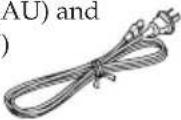 for DZ-MV230E(UK) and DZ-MV200E(UK for DZ-MV230E(UK) and DZ-MV200E(UK  |
Infrared remote control (model DZ-RM2W):Use to control the DVD video camera/recorder from a distance. | 2 “AA” batteries:To power the remote control. | AV input/output cableUsed when viewing the picture played back on the DVD video camera/recorder on TV screen, or input or output video from/to another video device. |
Shoulder strap:Attach to the DVD video camera/ recorder to hang it from shoulder. | Lens cap and lens cap string:Attach the lens cap when not recording, to protect the lens. | 2 Ferrite cores:Attach these to the S-VIDEO cable, and the external microphone cable if you are using one. |
8 cm DVD-R disc: | 8 cm DVD-RAM disc (sample):(for DZ-MV238E(AU), DZ-MV208E(AU) and DZ-MV230E(UK)) |
Names of Parts

①Optical 12x zoom lens (p. 47)
②Lens hood (p. 48)
③Accessory shoe (p. 43)
Slide the cover to remove it, and then attach the optional video flash, etc., here. (See the instruction manual of device to be attached for details.)
④Disc guide (p. 37)
⑤SELECT button (p. 71)
⑥MENU button (p. 54, 72)
Press this button to display the menu for setting camera functions and Disc Navigation.
The camera menu will appear even if disc is not loaded.
⑦Recording indicator (p. 65)
The red indicator will light during recording.
⑧Infrared receiver (p. 29)
When the remote control is used to operate the DVD video camera/ recorder, this receiver will receive the infrared signal.
⑨Stereo microphone (p. 42)
⑩2.5" type liquid crystal display (inside) (p. 40)
⑪OPEN button (p. 40)
Press this button and hold it while opening the liquid crystal display (LCD).
⑫Stop/ cancel button (p. 16, 44)
To end playback or set menu.
⑬Joystick (p. 10)

Move the joystick to select a scene or menu item, and play back scenes.
⑭DISC NAVIGATION button (p. 70)

⑮AV input/output jack (p. 91)
⑯PC connection terminal (TO PC) (p. 97)
⑰External microphone jack (p. 42)
⑱Viewfinder (p. 41)
⑲DISC EJECT button (p. 37)
Press down this button to open the disc guide.
⑳CHARGE/ ACCESS indicator (p. 21, 31)
Will blink or light during charging, or while the DVD video camera/ recorder is operating.
②1Zoom lever (p. 47)
Push the lever to the T side for telephoto, or to the W side for wide-angle.
②2 Battery attachment platform (p. 30)
②3DC cord connection terminal (DC IN 8.4V) (p. 31)
⑳S-VIDEO output jack (p. 91)
⑲Record button (REC) (p. 42)
②6Power switch (p. 42, 43)
□PHOTO: To record still images
VIDEO: To record a movie
POWER OFF: To turn off the DVD video camera/re-corder
Press the red button at the centre of power switch and turn it only when turning power on: It is not necessary to press the button when setting the switch to "POWER OFF".
The power switch cannot be changed over during recording.
For playback, set the power switch to either "☐PHOTO" or "☑VIDEO".
⑳LOCK switch (p. 42)
To lock the recording mode, so that the VIDEO mode is not switched to the PHOTO mode by mistake.
⑳Hand strap (p. 27)

⑲Speaker (p. 44)
The sound accompanying a movie being played back will be heard from here.
③0Screen display button (DISPLAY) (p. 52)
Press this button to display the details of image being played back or camera setting status, or switch the display off.
③1Eyecup (p. 41, 99)
③2 Dioptre control (p. 41)
To adjust the focus of image appearing in the viewfinder.
③3RESET button (p. 110)
To reset all settings to defaults.
③4LCD BRIGHT button (p. 41)
Press this button to start LCD screen brightness adjustment.
③5EXPOSURE button (p. 50)
Press this button to adjust the exposure.
③6FOCUS button (p. 49)
To switch between manual focus and auto-focus.
③7Volume control buttons (VOL)/
⊖ ⊕buttons (p. 41, 44)
To adjust the volume of sound from speaker, etc.
③8BATTERY EJECT button (p. 30)
To release the battery.

⑲DISPLAY button (p. 52)
④0DIG. ZOOM button (p. 57)
④1DISC NAVIGATION button (p. 70)
④2REVERSE SEARCH button (p. 45)
④3 STOP button (p. 16, 44)
④4 FORWARD SKIP button (p. 44)
④5REC button (p. 42)
④6ZOOM T button (p. 47)
④7ZOOM W button (p. 47)
④8 SELECT button (p. 71)
④9REVERSE SKIP button (p. 44)
⑤MENU button (p. 54, 72)
⑤1PLAY/ PAUSE button (p. 44)
⑤2 FORWARD SEARCH button (p. 45)
⑤3DELETE button (p. 78)
* The buttons on remote control will function the same as those on DVD video camera/recorder.
Viewing Demonstration
This DVD video camera/recorder has versatile functions, including special effects.
Before using the DVD video camera/recorder, view the demonstration to see what it can do.
Referring to step 2 on page 31, connect the DVD video camera/recorder, AC adapter and power cable to power the DVD video camera/recorder from AC outlet.
1 Press the MENU button.

2 Choose "Initial Setup", "Demo Mode", and then press the ▶/II button.
The options will appear on the right of "Demo Mode": The □ mark will be attached to the currently selected option.

3 Use the joystick to choose "Start", and then press the ▶/II button.
The demonstration will start: View it in the viewfinder or on the LCD screen.
To stop the demonstration midway, press the □button.
The demo mode will end when the DVD video camera/recorder is turned off or the DISC EJECT button is pressed down.

Note: If you choose "Auto" in step 3, the demonstration will automatically start approximately three minutes after the DVD video camera/recorder is turned on.
Note: If a disc is loaded in the DVD video camera/recorder, the demonstration will not start even if "Auto" has been set.
Note: When connecting the power cable to the DVD video camera/recorder, the pin of power cable cannot be completely inserted into the DC IN 8.4V jack, but this does not indicate a malfunction. Do not insert the power cable with undue force: Doing so could result in malfunction.
Note: The demonstration function will not work when the DVD video camera/recorder is connected to PC.
Note: While the demonstration is being given, the recording indicator will blink.
Features of DVD video camera/recorder
Versatile Functions Available
This DVD video camera/recorder has numerous useful functions. However, the functions that can be used will vary depending on whether DVD-RAM or DVD-R disc is used.
Use the functions, following the table below:
Camera Functions:
| Function | Disc used | Reference page | ||
| DVD-RAM | DVD-R | |||
| Camera Functions Setup | Program AE | ○ | ○ | 54 |
| White Bal. | ○ | ○ | 55 | |
| EIS | ○ | ○ | 56 | |
| Dig.Zoom | ○ | ○ | 57 | |
| 16:9 | ○ | ○ | 58 | |
| Record Functions Setup | VIDEO Mode* | ○ | ○ | 59 |
| Input Source** | ○ | ○ | 60 | |
| PHOTO Input** | ○ | X | 61 | |
| Self Timer | ○ | X | 62 | |
| OSD Output | ○ | ○ | 63 | |
| Date Setup | Date Mode | ○ | ○ | 36 |
| Date Set | ○ | ○ | 35 | |
| Initial Setup | Beep | ○ | ○ | 64 |
| Power Save | ○ | ○ | 64 | |
| Record LED | ○ | ○ | 65 | |
| Language | ○ | ○ | 65 | |
| Demo Mode | ○ | ○ | 16 | |
| Reset | ○ | ○ | 110 | |
○: Available; X: Unavailable
(* Except for XTRA mode, which can be set on DZ-MV238E(AU) and DZ-MV230E(UK) only)
(** for DZ-MV238E(AU) and DZ-MV208E(AU))
Disc Navigation Functions:
| Function | Disc used | Reference page | ||
| DVD-RAM | DVD-R | |||
| Play List | Switch | ○ | X | 76 |
| Play | ○ | X | 76 | |
| Create | ○ | X | 75 | |
| Edit | ○ | X | 78 | |
| Title | ○ | X | 80 | |
| Delete | ○ | X | 80 | |
| Program | Switch | ○ | ○ | 73 |
| Play | ○ | ○ | 73 | |
| Title | ○ | X | 74 | |
| Scene | Delete | ○ | X | 81 |
| Edit | ○ | X | 82 | |
| Skip | ○ | X | 86 | |
| Select | ○ | ○ | 86 | |
| Detail | ○ | ○ | 87 | |
| Disc | Capacity | ○ | ○ | 88 |
| Format Disc | ○ | X | 88 | |
| Update Control Info. | ○ | X | 89 | |
| Finalize Disc | X | ○ | 90 | |
| Others | Repeat Play | ○ | ○ | 90 |
Recording on Disc
You can use both 8 cm DVD-RAM and DVD-R discs on this DVD video camera/recorder for recording. The recorded video and audio will be stored on an 8 cm DVD-RAM disc or 8 cm DVD-R disc.
Using disc allows you to record without overwriting previous recordings, and also to store your valuable recordings for as long as need be while retaining clarity.
With disc you can immediately access recording and playback, in contrast to videotape, which must be fast-forwarded or rewound.
In addition, simply loading a DVD-RAM disc into a PC equipped with DVD-RAM drive and DVD video recording software compatible with 8 cm DVD-RAM allows you to easily view the recorded disc.
You can finalise a recorded DVD-R disc on this DVD video camera/recorder so that you can play it back on a DVD player or DVD recorder that is compatible with 8 cm DVD-R disc (however, the finalised DVD-R disc may not be usable on some DVD players).
Recording Movie and Still
The DVD video camera/recorder can record movies of events and sports, in the same way as with conventional camcorders.
It can also record stills on a DVD-RAM disc, as with a digital still camera. With CCD of 1,160,000 pixels (800,000 pixels for DZ-MV208E(AU) and DZ-MV200E(UK)), high-quality movies and stills (on DVD-RAM disc only) can be recorded. In both recordings of movie and still (on DVD-RAM disc only), zooming up to 240 times is possible using the 12 power optical zoom multiplied by the 20 power digital zoom. Movies and stills can be recorded on the same disc, by simply switching the recording mode (power switch). However, if you use a DVD-R disc, a still image cannot be recorded. (If the DVD video camera/recorder is connected to PC, the DVD video camera/recorder can capture still images, such as JPEG data.)
Immediate Reviewing of Recorded Image
You can check the movie or still recorded in the viewfinder or on the LCD screen.
Editing in Various Ways on DVD video camera/recorder Alone
This DVD video camera/recorder is provided with a useful editing/playback tool. Disc Navigation allows you to easily attach a title or special video effect to the recorded movie or still. With Disc Navigation, you can arrange the playback order and edit multiple images to play them back continuously. You can create an entire movie on this DVD video camera/recorder alone, without inputting video to a PC for editing.
Using with Various Devices
Connect this DVD video camera/recorder to your TV and you can enjoy the playback picture with your family and friends on the large TV screen; or connect it to a video printer (generally available) to print the recorded image. You can also transfer recorded movies and stills (for DVD-RAM disc only) to PC, using the optional PC kit (DZWINPC3(W)).
Cautions When Using
Handle the liquid crystal display (LCD) with care:
- The LCD is a very delicate display device: Do not press its surface with any force, hit it, or puncture it with a sharp object.
- If you push the LCD surface, unevenness in the display may occur. If unevenness does not disappear soon, turn the DVD video camera/recorder off, wait for a while, and then turn it on again.
- Do not place the DVD video camera/recorder with the open LCD screen down.
- Close the LCD monitor when not using the DVD video camera/recorder.
- Do not hold by the LCD monitor as this could cause a malfunction.
- Open the LCD monitor by 90° before changing its direction. If you attempt to invert its direction before opening it completely, it could cause a malfunction.
- Do not disassemble the LCD monitor as this might cause a malfunction.
- When opening the LCD monitor, be careful that no water droplets adhere to the monitor screen and that no water or dust enters the DVD video camera/recorder as it could cause a malfunction.
Liquid Crystal Display and viewfinder:
- The LCD screen and viewfinder will be slightly dimmer than usual when the DVD video camera/recorder is at low temperature, as in cold areas, or immediately after power is turned on. The normal brightness will be restored when the temperature inside the DVD video camera/recorder rises.
Hold the DVD video camera/recorder correctly:
- Do not hold the viewfinder or LCD monitor when lifting the DVD video camera/recorder: The viewfinder or LCD monitor may become detached and the DVD video camera/recorder could fall.
Do not subject the DVD video camera/ recorder to impact:
- This DVD video camera/recorder is a precision machine: Take great care that you do not strike it against a hard object or allow it to fall.
- Do not use the DVD video camera/recorder on a tripod in a place where it is subject to severe vibrations or impact.
No sand or dust!
- Fine sand or dust entering the DVD video camera/recorder or AC adapter could cause it to malfunction.
No water or oil!
- Water or oil entering the DVD video camera/ recorder or AC adapter could cause a short-circuit or other malfunctions.
Heat on surface of product:
- The surface of the DVD video camera/recorder will be slightly warm, but this does not indicate a fault. Be careful when touching the bottom of the DVD video camera/recorder, since it will be hot.
Be careful of ambient temperature:
- Using the DVD video camera/recorder in a place where the temperature is over 40 °C or under 0 °C will not allow it to make normal recording/ playback.
- When using the DVD video camera/recorder connected to PC, operate it at room temperature. If you use the DVD video camera/recorder where the temperature is high for an extended period of time, it will overheat and may not operate normally.
- Do not leave the DVD video camera/recorder in a closed vehicle where the temperature is very high for a long time: This could cause malfunctions.
Do not point directly at the sun:
- If direct sunlight strikes the lens or viewfinder, the DVD video camera/recorder could malfunction or burn in CCD or viewfinder.
- Do not leave the DVD video camera/recorder with the LCD screen exposed to direct sunlight: This could cause malfunctions.
Do not use the DVD video camera/ recorder near TV or radio:
- This could cause noise to appear on the TV screen, or interference could enter radio broadcasts.
Do not use the DVD video camera/ recorder near strong radio waves or magnetism:
- If the DVD video camera/recorder is used near strong radio waves or magnetism, such as near radio wave tower or electric appliances containing motors, noise could enter video and audio that are being recorded. During playback of normally recorded video and audio, noise could also enter the picture and sound. At worst the DVD video camera/recorder could malfunction.
Do not expose the DVD video camera/ recorder to soot or steam:
- Heavy soot or steam could damage the DVD video camera/recorder case or cause malfunctions.
Do not use the DVD video camera/ recorder near corrosive gas:
- Using it in a place where there is dense exhaust gas generated by gasoline and diesel engines, or corrosive gas such as hydrogen sulfide, could corrode the battery connecting terminals, which could result in loss of power.
Do not use the DVD video camera/ recorder near ultrasonic humidifier:
- With some water in humidifier, calcium and others dissolved in water could scatter in the air, and white particles could adhere to the optical head of the DVD video camera/recorder, which could cause it to operate abnormally.
Do not expose the DVD video camera/ recorder to insecticide:
- Insecticide entering the DVD video camera/recorder could dirty the optical head, and the DVD video camera/recorder may not operate normally. Turn the DVD video camera/recorder off and cover it with vinyl sheet, etc. before using insecticide.
Be careful of moisture condensation:
- When you move the DVD video camera/recorder between places where the difference in temperatures is great, such as entering a lodge from a ski slope, or going out of a cooled room or vehicle, condensation (vapour in air warmed or cooled to water droplets) could occur on the lens and/or inside the DVD video camera/recorder. If condensation occurs, do not open the cover of disc insertion block if possible. If condensation occurs on the lens, wipe it off with a soft, dry cloth. Even if the external surface of the DVD video camera/recorder has dried, condensation may remain inside. Turn the DVD video camera/recorder off and leave it in a dry place for at least 1-2 hours before using it again.
Do not use the DVD video camera/ recorder for a long uninterrupted period of time:
- This DVD video camera/recorder is designed and produced for home-use recording and playback. Do not use it for an extended time continuously, e.g., as a surveillance camera/monitor. - If you use the DVD video camera/recorder for a long uninterrupted period of time, the temperature of DVD video camera/recorder may exceed the limit and the recording/playback operation could be slowed down. If this occurs, turn it off and wait for a while before using it again.
Be careful when removing the disc:
- When the DVD video camera/recorder is used for a long period of time, the temperature of disc will be high: Wait for a few moments before removing the disc after the DVD video camera/recorder is turned off.
Do not turn the DVD video camera/ recorder off while the CHARGE/ ACCESS indicator is blinking:
- The CHARGE/ACCESS indicator is blinking to show that data is being written to disc, or being read from it. Do not do any of the following so as not to damage the data:
- Disconnect AC adapter.
- Plug or unplug PC connection cable.
- Remove disc.
- Subject disc to severe vibrations or impact. If the DVD video camera/recorder is turned off while the CHARGE/ACCESS indicator is blinking, turn it on again with the disc cartridge or caddy loaded in it: Repair of the disc will be executed.

CHARGE/ACCESS indicator
Note: The CHARGE/ACCESS indicator will blink in red while the disc is being accessed, and it will blink or light in red during charging.
Do not wipe the DVD video camera/ recorder case with benzene or thinner:
- The coating of case could peel off or the case could deteriorate.
- When using chemical cleaning cloth, follow the instructions.
Also read the instructions attached with optional accessories:
- For optional accessories, follow the cautions and instruction manuals attached.
Use the AC adapter only in a well-ventilated, open space:
- Do not use the AC adapter in a narrow space where flow of air is blocked, or where it is very near any object or inside any object: Ignoring this will increase heat inside the AC adapter which could cause fire, burns, electric shock or fault.
Cautions When Storing
Do not leave the DVD video camera/ recorder in a place where the temperature is very high for a long period of time:
- The temperature inside a closed vehicle or trunk becomes very high in the hot season. If you leave the DVD video camera/recorder in such a place, it could malfunction or the case could be damaged. Also, do not expose the DVD video camera/recorder to direct sunlight or place near a heater.
Do not store the DVD video camera/ recorder in a place where the humidity is high or in a dusty place:
- Dust entering the DVD video camera/recorder could cause malfunctions. If the humidity is high, the lens could become mouldy, and the DVD video camera/recorder could be unusable. It is recommended that you put the DVD video camera/recorder with desiccant in a box when storing it in a closet, etc.
Do not store the DVD video camera/ recorder in a place subject to strong magnetism or intense vibrations:
• This could cause malfunctions.
Detach the battery from DVD video camera/recorder and store it in a cool place:
• Leaving the battery attached or storing it at high temperature could shorten its life.
Suggestions and Restrictions
Make a trial recording:
- Be sure to make a trial recording before an actual take to make sure that recording is normal. Data that was not stored normally because of a defect in the DVD video camera/recorder cannot be restored.
- It is recommended that you use DVD-RAM disc for trial recording, since a recording stored on it can be deleted.
The recorded contents cannot be compensated for:
- Hitachi will not compensate for any damages caused when a recording is not made normally or the recorded contents cannot be played back because of a defect in the DVD video camera/ recorder or disc. Also, Hitachi will not be responsible for your recorded video and audio.
Copyright:
- The data recorded on the disc in your DVD video camera/recorder through other digital/analog media or devices are protected by the copyright act and cannot be used without permission of the owner of copyright, except for personal enjoyment. Note that, even for personal enjoyment, recording is prohibited for some demonstrations, performances and exhibitions.
• Available Discs
| Usable discs and logos | |
| DVD-RAM Ver. 2.1 (8 cm) |  |
| DVD-R [for General Ver. 2.0 (8 cm)] |  |
This DVD video camera/recorder can use 8 cm DVD-RAM discs and 8 cm DVD-R discs for camcorder use.
An uncovered disc cannot be used on this DVD video camera/recorder: It must be left in a cartridge or caddy for 8 cm disc.
Note: It is recommended that you use Hitachi Maxell discs because their compatibility with this DVD video camera/recorder has been confirmed. Using a disc other than that made by Hitachi Maxell may not allow the DVD video camera/recorder to deliver optimum performance.
• Information on DVD-R disc
For optimum recording on DVD-R disc, the DVD video camera/recorder writes control data to the disc in order to make adjustment when it is inserted and ejected accompanying recording.
However, repeating this adjustment many times may cause the disc to become unrecordable: Do not insert or eject the disc accompanying recording more than 50 times.
Examples of discs that cannot be used on this DVD video camera/recorder:
Discs other than those with diameter of 8 cm, DVD-RAM (2.6 G) Ver. 1.0, DVD-R (3.9 G) Ver. 1.0, DVD-R (4.7 G) for Authoring Ver. 2.0, DVD-RW, DVD+RW, DVD+R, DVD-Video, DVD-ROM, CD-R, CD-RW, CD, CD-ROM, MO, MD, iD, LD, floppy disk, etc.
- Initialising (formatting) DVD-RAM Discs
This DVD video camera/recorder can use DVD-RAM discs for AV formatted in accordance with the UDF 2.01 file system: No recording can be made on an unformatted disc.
See "Initialising DVD-RAM Disc" on page 88 for the initialising procedure.
- Finalising DVD-R Disc
Before using the 8 cm DVD-R disc recorded on this DVD video camera/recorder on a DVD player or DVD recorder that is compatible with 8 cm DVD-R disc, the disc must be finalised on this DVD video camera/recorder. For the finalising procedure of 8 cm DVD-R disc, refer to "Finalising Disc" (p. 90).
- When using DVD-R disc
If you finalise a recorded DVD-R disc, you can play it back on devices that are compatible with 8 cm DVD-R disc, or (on) computers* with DVD-ROM drive, DVD-R drive or DVD-RAM drive.
- Although most DVD-R discs recorded on this DVD video camera/recorder are compatible for playback on other DVD players, playback of all DVD-R discs cannot be guaranteed.
Depending on the DVD player, DVD-R disc, or recording conditions, playback may not be possible. In such cases, use this DVD video camera/recorder to play back the DVD-R disc.
* To play back the finalised DVD-R disc on PC, you will need DVD playback software. The DVD playback software “Power DVD XP” is supplied with the optional DZ-WINPC3(W).
- Handling Disc
- If you use a DVD-RAM disc or DVD-R disc to which dirt or dust adheres, recognition of the disc may not be possible when it is inserted into this DVD video camera/recorder. Also, the DVD video camera/recorder may stop during recording or playback, or noise/disturbance of image may occur during playback. The same phenomenon may appear if condensation occurs because of abrupt change in temperature.
- If an error message appears on the LCD screen while this DVD video camera/recorder is being used, turn off the DVD video camera/recorder once, and then turn it on again (P.101).
- If an error message appears when the DVD video camera/recorder is being used in an environment where the temperature is high or it is used continuously, turn off the DVD video camera/recorder, and after a while turn it on again.
- If an error message appears when the DVD video camera/recorder is being used in an environment where the temperature is low, leave it powered for several minutes, turn it off, and then on again.
- When the disc is used for an extended period of time, the temperature will increase because of the heat inside the DVD video camera/recorder: Be careful when removing the disc.
- Normally, do not remove the disc from the cartridge or caddy, and do not open the shutter of cartridge or caddy. 23
Note: Most generally available 8 cm discs can be removed from cartridges or caddies if they are for video cameras; However, before removing disc from cartridge or caddy, read the instruction sheet provided with the disc or consult the disc maker. Take care with the following when handling the removed disc:
- Be sure not to touch disc surfaces.
- Be careful not to drop the disc removed from cartridge or caddy.
- Be sure not to bend the disc.
- Do not leave the disc outside the cartridge or caddy.
- Do not subject the disc to heat.
- Do not write on disc with a ball-point pen or pencil. (With one-side recordable disc, writing on the label surface is possible with a pen that does not scratch the surface. No writing of any kind is possible on both-side recordable disc.)
- Be sure not to wipe disc surfaces with thinner, water or anti-static agent. Use dry, soft cloth to lightly wipe off dust or dirt that adheres to the disc. Never use solvents to clean the disc.
Note: If the disc is removed from cartridge or caddy and the data stored by this DVD video camera/recorder is rewritten on devices other than this DVD video camera/recorder, recording or playback may not be normal, or Disc Navigation may not operate normally, when the disc replaced in cartridge or caddy is used on this DVD video camera/recorder again.
Note: The cartridge or caddy protects the surfaces of disc on which high-density recording is possible. Once removed from cartridge or caddy, the disc can be replaced in the cartridge or caddy and used with this DVD video camera/recorder, but be sure to observe the following:
- Before replacing the disc in cartridge or caddy, make sure that disc surfaces are not scratched, and that no dirt or fingerprint adheres to them.
- Do not record, edit or delete on the disc when scratches, dirt or fingerprints cannot be removed even if disc surface is cleaned.
- When replacing the DVD-RAM disc in cartridge, insert it until a click is heard.
- Be careful not to allow condensation.
- To store disc cartridge or caddy, insert in plastic case provided.
Do not place the disc cartridge or caddy in the following places:
- Where exposed to direct sunlight for a long time.
- Where the humidity is high, or in dusty place.
- Where exposed to heat from heater, etc.
- Where there may be condensation.
- About Stored Data
If you handle or use the disc incorrectly, the recorded data may be lost. Hitachi cannot be responsible for damages from loss of recorded data.
Removing and Replacing Disc from/in Cartridge or Caddy
The DVD-RAM disc used with this DVD video camera/recorder can be removed from the cartridge or caddy and used with DVD-RAM drives, DVD players and DVD recorders that are compatible with 8 cm DVD-RAM discs. The finalised DVD-R disc can also be removed from the cartridge or caddy and used with DVD players and DVD recorders that are compatible for 8 cm DVD-R discs. Refer to the disc instruction sheet for details on how to remove disc from cartridge or caddy.
Perform the following to remove the disc:
- With disc packed in cartridge
Removing the disc
1 Release the lock pins of cartridge. The two lock pins are at the bottom left corners of sides A and B.

Use a fine tipped pen to slide the lock pin in the direction of arrow ①, and then turn it in the direction of arrow ② to release it.
2 While pushing the release levers from both sides inward, hold the centre of disc tray and pull it out to the front.

- With disc packed in caddy
Removing the disc
1 Insert your finger into the hole in the centre of disc and lightly lift it up (in the direction of arrow ①).

2 Hold the disc at its edge and centre hole, and remove it in the direction of arrow ②.
Replacing the disc in caddy
1 Hold the disc at its edge and centre hole with the recording surface down.
2 Insert the disc under the claws at the disc hold portion from the direction of arrow ③. Gently push the disc in until it is completely stored.

Replacing the disc in cartridge
1 Insert the disc into cartridge.

2 Fit in the disc tray until a click is heard.
Write-protect tabs
The cartridge has write-protect tabs to prevent overwriting on recorded data. Make sure that the write-protect tab is set to the side where recording is possible.
![graph TD A["Tab for side B"] --> B["Tab for side A"] B --> C["Recording possible"] C --> D["Recording not possible"] style A fill:#f9f,stroke:#333 style B fill:#f9f,stroke:#333 style C fill:#ccf,stroke:#333 style D fill:#ccf,stroke:#333](/content/2026/05/1143997/images/9e1f86e9b85c24d7148a1bd45bfef7d6b9bb306392a3d5fb6475ac58781c29e2.jpg)
Note: When recording special events, be sure to use a new disc which has never been removed from cartridge or caddy.
Note: Writing similar to recording is performed even with simple editing or deletion. Make sure that editing or deletion has been securely performed with the disc removed from cartridge or caddy.
Note: If there are dust, scratches or dirt on the surface of disc, block noise may appear in image or sound may be interrupted. Take great care when handling discs so that no dirt or fingerprints adheres to them.
Note: This DVD video camera/recorder has a function that allows recording, avoiding portions of the disc with dust, scratches or dirt [The DVD video camera/recorder sets to pause (●II) status and automatically restarts recording (●REC)]. This will interrupt recording for several seconds to several minutes, and multiple thumbnails will be created (see p. 67) in one recording as shown in the figure. In this case, the recordable time will decrease.


Disc Storage Capacity
The movies and stills that can be recorded on an 8 cm disc used in this DVD video camera/recorder are as follows: Prepare discs according to the scheduled recording time and conditions.
- DVD-RAM disc storage capacity Recordable time of movies on DVD-RAM disc
| Movie quality mode | Recordable time |
| XTRA (VBR*1) | approx. 36-120 minutes(varies depending on the subject) |
| FINE (MPEG2, approx. 6 Mbps) | approx. 60minutes |
| STD (MPEG2, approx. 3 Mbps) | approx. 120 minutes |
* When recording only movies (containing video and audio)
* The total recordable time is half on each side of disc.
*1VBR stands for Variable Bit Rate.
Number of recordable stills on DVD-RAM disc
Up to 999 stills per side (when recording only stills)
If the disc still has free space after recording 999 stills, movie can be recorded.
- Recordable time on DVD-R disc
| Movie quality mode | Recordable time |
| FINE (MPEG2, approx. 6 Mbps) | approx. 30 minutes/side |
| STD (MPEG2, approx. 3 Mbps) | approx. 60 minutes/side |
- When using DVD-R disc, no still image can be recorded on this DVD video camera/recorder.
- When using DVD-R disc, the recording quality mode first used for recording on that disc is a fixed mode: It cannot be changed on that disc.
Setups
This section explains preparations for recording - setting up the DVD video camera/recorder and battery pack.
Setting Up the DVD video camera/recorder
Holding DVD video camera/recorder
Insert your right hand from the bottom of DVD video camera/recorder up to the base of your thumb.
Put your hand in a position where you can easily operate the REC button and the Zoom lever.
Adjust the length of hand strap so that the DVD video camera/recorder is stable when you press the REC button with your thumb.

Note: Do not adjust the hand strap while holding the DVD video camera/recorder: Doing this could cause the DVD video camera/recorder to fall and be damaged.
Caution: Do not lift the DVD video camera/recorder by holding the viewfinder or LCD monitor: If the viewfinder or LCD monitor comes off, the DVD video camera/recorder will fall.

Attaching Shoulder Strap

Attaching Lens Cap
Pass the provided string through the hole in the lens cap and attach it to the hand strap of DVD video camera/recorder.
1 Use the string to attach the cap to the DVD video camera/recorder.
2 Push the both sides of cap inward and attach it over the lens.
Note: Always keep the lens cap on when not using the DVD video camera/recorder, to protect the lens.
Note: When recording, attach the lens cap to the hand strap by hooking the tab inside the cap onto strap for comfortable shooting.
![graph TD A["Initial clamp device"] --> B["Locking component"] B --> C["Adjustment to lock"] C --> D["Final clamp device with fastening and mounting"]](/content/2026/05/1143997/images/2ff653cf1948aaeea42f84aee3a77a85a51e1a6d3a42046273d447485c713db8.jpg)
Attaching Ferrite Cores
Although the cores are not attached in the illustrations of the cables in text, be sure to attach the ferrite core (provided) to the S-VIDEO cable (for DZ-MV238E(AU) and DZ-MV208E(AU)) using the following procedure (the ferrite core was attached to the AV input/output cable at the factory): (Ferrite cores reduce radio interference with your radio and TV.)
1 Open the cover of ferrite core.
2 Attach the core to the S-VIDEO cable at a position approximately 5 cm from its end.
3 Close the cover of core, taking care that it does not catch the S-VIDEO cable.
Note: If you use an external microphone when recording, attach the ferrite core (provided) to the cable at a position approximately 5 cm from its end: Wind the microphone cable round the core once in the same way as for the S-VIDEO cable. Using external microphone in modes other than camera recording is not recommended.

Inserting Batteries into Remote Control
Insert two AA (LR06) batteries (provided) into the remote control to power it.
1 Open the battery compartment lid on the back of remote control and insert the batteries.
Note: If the batteries are discharged, pressing any button on remote control cannot operate the DVD video camera/recorder: Replace the batteries.
2 Close the lid.

• Using Remote Control
Point the remote control to the infrared receiver on the DVD video camera/recorder. The remote controllable distance is up to 5 m.

Note: When using the remote control, make sure that the infrared receiver on DVD video camera/recorder is not exposed to direct sunlight or any intense light. If the infrared receiver is subject to light stronger than the infrared light from remote control, the DVD video camera/recorder cannot be operated by remote control.
Note: If there is an obstacle between the remote control and infrared receiver on DVD video camera/recorder, remote control may not be possible.
Note: The DVD video camera/recorder uses the "VCR2" remote control code of Hitachi VCRs. If you use a Hitachi VCR, etc. with remote control code set to "VCR2", a VCR placed near the DVD video camera/recorder will also be operated by the remote control: To prevent this, change the remote control code of the VCR.
Setting Up the Battery
The DZ-BP14(R) battery pack provided with this DVD video camera/recorder has not been charged at purchase time: Charge it before using the DVD video camera/recorder.
Note: Be sure to use the specified battery DZ-BP14(R)/DZ-BP16 (sold separately) or DZ-BP28 (sold separately) for the DVD video camera/recorder: Using other batteries could cause the DVD video camera/recorder to malfunction, or result in fire.
Attaching Battery to DVD video camera/recorder
1 Raise the view-finder.
2 Align the top of battery with the top surface of battery attachment platform of DVD video camera/recorder.

3 While fitting the battery onto the DVD video camera/recorder, slide it downward until a click is heard.
Note: Make sure that the battery is securely attached: Incomplete attachment could cause the battery to fall, resulting in damage.
Removing Battery
After using the DVD video camera/recorder, remove the battery from it.
1 Set the power switch to "POWER OFF" to turn the DVD video camera/recorder off.
2 Raise the view-finder.

3 While holding the BATTERY EJECT button above the battery attachment platform, sllide the battery upward to remove it.
Note: For safety, be sure to turn the DVD video camera/recorder off before attaching or removing the battery.
Note: If the battery remains attached, minute level current will flow even if the DVD video camera/recorder is off, and the battery will discharge.
Charging Battery
Use the provided AC adapter to charge the battery.
1 Attach the battery pack to the DVD video camera/recorder.
2 Connect the AC adapter between the DC IN 8.4V jack on DVD video camera/ recorder and an AC outlet.
The CHARGE/ACCESS indicator will blink in green and charging will start.
Note: Charge the battery in the temperature range of 10 °C - 30 °C.
Note: Make sure that the battery is securely installed: Incomplete attachment could cause the battery to fall and be damaged.
Note: If the power switch is set to "VIDEO" or "PHOTO", charging will not be performed.
Note: When connecting the power cable to the DVD video camera/recorder, the pin of power cable cannot be completely inserted into the DC IN 8.4V jack, but this does not indicate a malfunction. Do not insert the power cable with undue force: Doing so could result in malfunction.

- Battery pack charged status
You can realise the charged status of battery by checking the CHARGE/ACCESS indicator:
| Charged status CHARGE/ ACCESS indicator | |
| 0-50% Blinks once per 1-2 seconds | |
| 51-75% Blinks twice per 1-2 seconds | |
| 76% or more Blinks three times per 1-2 seconds | |
| Fully charged Remains lit |
- Continuously recordable time on DVD video camera/ recorder with fully charged battery
The reference for DVD video camera/recorder recordable time with fully charged battery is between 40 and 60 minutes [with model DZ-BP14(R)/DZ-BP16 (sold separately)] or between 70 and 100 minutes (with model DZ-BP28 (sold separately)):
| Battery | DZ-BP14(R)/DZ-BP16(Sold separately) | DZ-BP28(Sold separately) | ||
| DVD-RAM | DVD-R | DVD-RAM | DVD-R | |
| When using viewfinder (in XTRA mode*) | 120 min | — | 210 min | — |
| When using LCD monitor (in XTRA mode*) | 105 min | — | 180 min | — |
| When using viewfinder (in FINE mode) | 120 min | 115 min | 210 min | 200 min |
| When using LCD monitor (in FINE mode) | 105 min | 100 min | 180 min | 170 min |
| When using viewfinder (in STD mode) | 130 min | 125 min | 225 min | 215 min |
| When using LCD monitor (in STD mode) | 115 min | 110 min | 200 min | 190 min |
(approx.)
* The time in XTRA mode is only for reference: It varies depending on recording contents (the XTRA mode can be set on the DZ-MV238E(AU) and DZ-MV230E(UK) only).
Without any extraordinary operation, such as zooming:
The continuously DVD video camera/recorder recordable time in the above table shows the time available when the DVD video camera/recorder is in the recording mode without using any other function after recording is started. In actual recording, the battery will discharge 2-3 times faster than this reference, since the REC button and zoom are being operated, and playback is performed. Assume that the recordable time with a fully charged battery is between 40 and 60 minutes [with model DZ-BP14(R)/DZ-BP16 (sold separately)] or between 70 and 100 minutes (with model DZ-BP28 (sold separately)), and prepare the type and number of batteries to allow for the time you are planning to record on the DVD video camera/recorder.
Note that the battery discharges faster in cold places.
- The time taken for charging the battery is as follows (at 25 °C)
| DZ-BP14(R)/ DZ-BP16(sold separately) | DZ-BP28(sold separately) |
| 170 min | 270 min |
Note: During and after charging, the battery will be warm, but this does not indicate a fault.
Note: If the following phenomena appear, the battery may be dead: Replace it.
- Charging does not start within 10 seconds (the CHARGE/ACCESS indicator does not light)
– The battery cannot be charged up to 75% if more than 9 hours has elapsed after charging started. - The battery cannot be fully charged if more than 5 hours has elapsed after it was charged to 75% .
Note: Charge the battery at ambient temperature 10° C - 30° C: Charging at temperatures other than this range could damage the battery.
Battery Remaining Level Indicator
When the battery is used to power the DVD video camera/recorder, the battery remaining level appears in the viewfinder or on the LCD screen as follows:

Handling the dead battery
- Do not dispose of the dead battery: Let a rechargeable battery recycling cooperative store take charge of it.
Using charge marker
- For a charged battery, slide the charge marker knob at rear so that the charge marker (●) is visible: Uncharged batteries can thus be easily identified.

Note: Be sure to use the specified battery (DZ-BP14(R)/DZ-BP16 (sold separately) or DZ-BP28 (sold separately)). Using other batteries could cause faulty DVD video camera/recorder operation, or possibly a fire.
Note: If a charged battery is stored, it will discharge on its own; therefore, it is recommended that you charge the battery shortly before using the DVD video camera/recorder, such as on the day before you plan to use it. You do not need to completely discharge the battery before charging it.
Note: When you are not using the DVD video camera/recorder, remove the battery and store it in a dark, cool place. If you store it in a place where the temperature is high, the battery life will be shortened. Especially be sure not to store the battery in an environment (in a closed vehicle) over 60 °C: Neglecting this could damage the battery.
Note: It is recommended that you fully charge the battery once a year, attach it to the DVD video camera/recorder and use it up; then remove the battery and store it in a cool place again.
Note: The battery can be repeatedly charged and used, but will eventually be dead: The battery life varies greatly depending on the ambient environment and how often the DVD video camera/recorder is used. If the usable time of DVD video camera/recorder with a fully charged battery is noticeably short, the battery is probably dead: Purchase a new battery.
Using DVD video camera/recorder with AC Adapter
It is recommended that you use the AC adapter to power the DVD video camera/recorder from household AC outlet when you perform settings on it, play back or edit images, or use it indoors. And be sure to use the AC adapter to power the DVD video camera/recorder when finalising a disc.
Note: Be sure to use the specified AC adapter to power the DVD video camera/recorder. Using other AC adapters could cause electric shock or result in fire.

1 Set the power switch to "POWER OFF" to turn the DVD video camera/recorder off.
2 Connect the AC adapter between the DC IN 8.4V jack on DVD video camera/recorder and an AC outlet.
Note: The AC adapter can be used around the world. An AC plug adapter is required in some foreign countries. If you need one purchase it from your Hitachi distributor.
Note: If the CHARGE/ACCESS indicator does not light when the AC adapter is plugged into AC outlet, unplug it from the AC outlet, wait a few moments, and then plug it into the AC outlet again. If the CHARGE/ACCESS indicator still does not light, the AC adapter may be faulty. Unplug it from the AC outlet and consult your dealer.
Setting Date and Time
Set the current date and time correctly so that the date and time you make a recording can be recorded correctly.
Setting the correct date and time will allow you to store the correct information on recording. (The following procedure can also be used to correct the date and time you have already set.)

Power switch

1 Set the power switch to "VIDEO" or "PHOTO" to turn the DVD video camera/ recorder on.
2 Press the MENU button.
The menu screen will appear.
3 Use the joystick to choose "Date Setup" and then "Date Set".

4 Press the ▶button.
The figure for the day will be selected.
[The digit that is highlighted first depends on the date display format (set up in Date Mode): The digit on the left end of the date display will be first highlighted.]

Note: After setting the figure for the day, tilt the joystick to right to select the digit to be set. If you press the ▶/II button after selecting the figure for the day, the screen for verifying the set date will appear instead of screen for setting month, year or time.
5 Tilt the joystick to left or right to select the digit you want to set in sequence.
Tilt the joystick up or down to select the number for current date/time, and then repeat step 5 to set the current date and time.

6 After setting the current date and time, press the ▶/□ button.
The screen for verifying the set date will appear.

7 If the displayed date and time are correct, use the joystick to choose "YES", and then press the ▶/11 button.
The date and time will be set, and the DVD video camera/recorder will enter the recording pause status.
Choosing "NO" will restore the menu screen.
Note: This DVD video camera/recorder incorporates a rechargeable battery to store the date and time in memory. If this built-in battery is exhausted, the date and time will be reset. To prevent this, connect the AC adapter to DVD video camera/recorder, and leave them for at least 24 hours with the DVD video camera/recorder turned off: The built-in battery will be charged.
Changing Display Format of Date and Time
You can select one of three date display formats: day/month/year, month/day/year or year/month/day. Associated with the selected date display, the time display format will also change as follows:
| Display format | Example of display |
| D/M/Y | 17:3025/5/2002 |
| M/D/Y | 5:30PM5/25/2002 |
| Y/M/D | PM5:302002/5/25 |
1 Press the MENU button. The menu screen will appear.
2 Use the joystick to choose "Date Mode" on the "Date Setup" menu screen, and then press the ▶/11 button.

The options will appear on the right of "Date Mode": The □mark will be attached to the currently selected option.
3 Use the joystick to select the desired date display format, and then press the ▶/□button.

The menu screen for setting date will be restored, and the "Date Mode" has been changed as you designated.
4 Press the MENU button to switch off the menu screen.
Note: If the date display format has been changed, the display format during playback as well as during recording will also be changed (see p. 53).
Inserting and Ejecting Disc
Inserting Disc
With this DVD video camera/recorder the recorded video and audio are stored on DVD-RAM* or DVD-R disc. * When using an uninitialized DVD-RAM disc, it must be formatted (see p. 88).
1 Make sure that the DVD video camera/ recorder is turned off.
Set the power switch to "POWER OFF".

Power switch
2 Press down the DISC EJECT button.
The cover of disc insertion block (hand strap) will slightly open.

DISC EJECT button
3 Gently open the cover by hand until it stops.

4 Insert the disc, in cartridge or caddy, into the disc guide.
Set a both-side recordable disc into the disc guide so that the label of side on which you want to record faces the hand strap.
How to set both-side recordable disc
- The actual recording surface of side [A] is opposite to that on which "SIDE A" is marked. If you view the image recorded on side [A] on another device, set the disc in it with indication "SIDE A" facing up.

- The cartridge has a fixed orientation when it is inserted into the DVD video camera/recorder: Insert it correctly referring to the illustration shown below. To record on side [B], turn the cartridge over.

How to set one-side recordable disc
- Set the disc with the label side up in the caddy, and then insert the caddy correctly referring to the illustration shown below.
The caddy has a ▶ mark: Insert it with this mark forward.

5 Gently push the section indicated "PUSH/CLOSE" on the cover of disc insertion block (hand strap), to close the cover.

6 Turn the DVD video camera/recorder on.
Set the power switch to "VIDEO" or "PHOTO": An image will appear in the viewfinder and disc recognition will start.
Note: If the disc is forcibly inserted from the wrong direction, the DVD video camera/recorder, or cartridge or caddy could be damaged.
Note: When using a one-sided recordable disc, insert it with the recording surface facing the inside of DVD video camera/recorder.
- When using DVD-RAM disc
The subject image will appear in the viewfinder or on LCD screen, and the DVD video camera/recorder will start to recognise the disc. Subsequently, the DVD video camera/recorder will enter the recording pause status.

- When using DVD-R disc
Recognition of the disc will start.
When you use a brand-new disc, the messages on the right will appear in sequence by pressing the ▶/11 button between messages.
When recording on this DVD video camera/recorder:
When message "Format the disc now?" appears, choose "YES" and then press the ▶/II button. The disc will be automatically formatted for use on this DVD video camera/recorder.
After formatting, message "DVD-R disc, Video mode cannot be changed" will appear (see page 26): Press the ▶/Ⅱ button to erase the message.
![graph TD A["Format Disc"] --> B["Disc is not formatted.<br>If it formats, it becomes<br>possible to use for camera."] B --> C["Next Cancel"] D["Format Disc"] --> E["However, when you record<br>from PC connection<br>terminal,<br>please do not format."] E --> F["Next Cancel"] G["Format Disc"] --> H["F…](/content/2026/05/1143997/images/755d9ed850c8ea18d80e3dce816f880718520a43f5bb48f8e24511e5b2879591.jpg)
Once formatted, a DVD-R disc can no longer be changed to a disc for PC, even if it has not been recorded on this DVD video camera/recorder.
When recording data from PC:
While the above messages are being displayed, press the □ button, or when message "Format the disc now?" appears, choose "NO" and then press the ▶/Ⅱ button.
However, if data from PC has not yet been recorded, the disc can be made usable on this DVD video camera/recorder. When inserting the disc into this DVD video camera/recorder, the same message will appear: If you wish to use it on this DVD video camera/recorder, choose "YES".
Note: It will take more time than usual after the disc is inserted before recording can begin in the following cases:
- When the cover of disc insertion block is open
- When the date changes (first recording of a day)
- When the temperature has changed greatly from the previous recording status
- When a disc with scratches, dirt or fingerprints is inserted
Note: If the following discs are inserted, the Disc Navigation screen will appear or some message will be displayed:
- Disc with little remaining free space
- Write-protected disc
- Finalised DVD-R disc
– Disc recorded on another device - Unknown type of disc
Removing Disc
1 Set the power switch to "POWER OFF" to turn the DVD video camera/recorder off.
A click will be heard, which means that the disc is unlocked and can be removed.
2 Push down the DISC EJECT button.
The cover of disc insertion block (hand strap) will open slightly.
3 Gently open the cover until it stops.
When the cover is fully open, the disc will slightly come out from the disc guide, and stop.
Note: Do not remove the disc with the battery attachment platform of DVD video camera/re-corder facing down: Disc could fall out.
4 Remove the disc.
Hold the disc by its sides as shown in the illustration and gently pull it out.

Note: Be careful when removing the disc, since the temperature at the shutter will be very high.
5 Gently push the section indicated "PUSH/CLOSE" on the cover of disc insertion block (hand strap), to close the cover.

Note: Even after the DVD video camera/recorder is turned on, the disc can be removed unless it is in recording status. Press down the DISC EJECT button and hold it for at least 2 seconds: A click will be heard and the disc will be unlocked. Push down the DISC EJECT button once again to remove the disc. (The DISC EJECT indicator on the LCD screen will change from white to pink at this time.) It is recommended that you turn the DVD video camera/recorder off before inserting or ejecting disc to prevent misoperation.
Note: Do not insert anything other than the 8 cm DVD-RAM disc or DVD-R disc into the disc insertion block: Doing so could cause malfunctions.
Note: Set the power switch to "POWER OFF" to turn the DVD video camera/recorder off. Do not remove the battery to turn the camera/recorder off: If you do so, the disc cannot be removed. If the disc cannot be removed, use the AC adapter, etc. to power the DVD video camera/recorder. Set the power switch to "VIDEO", then "POWER OFF" to make sure by the sound that the disc is unlocked, and then remove the disc.
Note: If you push down the DISC EJECT button, the disc will not come out until it completely stops rotating. After the lock release sound is heard, wait for a few moments and then push down the DISC EJECT button again.
Basic Techniques
This section explains about recording of movies and still images, and also basic settings on DVD video camera/recorder.
Basic Handling of DVD video camera/recorder
Turning DVD Video Camera/Recorder On
While holding down the red button at the centre of power switch, turn the switch to set it to "VIDEO" or "PHOTO".
Note: When power is turned on, the self-diagnosis function of DVD video camera/recorder may work, and some message may appear. If any message appears, refer to "Trouble Messages" (p. 100).

Power switch
Opening LCD Monitor
If you open the LCD monitor, you can monitor subject image on the LCD screen. If the monitor is open, the viewfinder will be off.
Press the OPEN button to open the LCD monitor.
The LCD monitor can be opened up to approximately 90°.
If the LCD monitor is open 90°, it can be tilted with screen down as much as 90°, and can also be tilted with screen up and turned up to 180° so the screen faces in the same direction as the lens. Tilt the LCD monitor to adjust its vertical angle so that you can see the screen easily.
Note: Be sure to open the LCD monitor approximately 90° before changing its vertical angle.
Note: Do not record for a prolonged time with the LCD monitor turned approximately 180° in close contact with the DVD video camera/recorder body: Doing this could cause the DVD video camera/recorder and LCD monitor to become hot.

LCD Screen Brightness Adjustment
1 Press the LCD BRIGHT button.
The "BRIGHT" indicator will light on the screen. (The indicator will go out in approximately 5 seconds.)


2 Use the -button to adjust the brightness.
Pressing ⏻ will change the brightness of LCD screen and also move the position of "BRIGHT" bar scale.
Closing LCD Monitor
Before closing the LCD monitor, be sure to reset it at right angles to the DVD video camera/recorder.
Replace the LCD monitor on the DVD video camera/recorder with the LCD screen facing inward until a click is heard.
Note: Be sure to return the LCD monitor at right angles to the DVD video camera/recorder before closing it or replacing it on the DVD video camera/recorder with its screen facing outside. If the LCD monitor is tilted, it cannot be closed to the DVD video camera/recorder.
Note: If the LCD monitor is not securely locked to the DVD video camera/recorder, no image will appear in the viewfinder.

Viewing Subject through Viewfinder
Adjust the angle of viewfinder as you like, and fit your eye to the eyecup.
If the image is blurred, you can adjust the focus. Adjust the dioptre control under the eyecup so that the subject image can be seen clearly.
Note: If the LCD monitor is open, the viewfinder will be off.

Recording Movie
Insert a recordable DVD-RAM or DVD-R disc into this DVD video camera/recorder.

1 Set the power switch to "VIDEO".
Once the DVD video camera/recorder starts to recognise the disc, the CHARGE/ACCESS indicator will light.
When recognition is finished, the CHARGE/ACCESS indicator will go out.
2 Press the REC button.
The “●II” mark in the viewfinder or on the LCD screen will change to the “●REC” mark, and recording will start.
During recording, the recording indicator on the front of DVD video camera/recorder will light. Pressing REC again during recording will set the DVD video camera/recorder to the recording pause status.
3 When recording is finished, set the power switch to "POWER OFF" to turn the DVD video camera/recorder off.
Note: When recording in a dark place, it is recommended that you use the optional video light (model DZ-LD9). Refer to the instruction manual of video light for details.
Note: Press down the LOCK switch above the power switch to lock movie recording: The power switch will lock and thereafter will not move to "PHOTO" by mistake.
Note: Sound is recorded from the stereo microphone on the front of DVD video camera/recorder: Take care that this microphone is not blocked.
Note: You can press the REC button immediately after recording is finished, but no further recording will be made while "DISC ACCESS" is being displayed. Recording will restart after the message disappears.
Note: If a very bright subject is recorded, stripe-like lights may appear above and below the subject.
Note: Take care that power is not interrupted while the CHARGE/ACCESS indicator is blinking.
Note: The minimum recordable time of movie is approximately 3 seconds.
Note: See page 65 for setting of Record LED (recording indicator) On/Off.
Note: For various functions available during recording, see "Setting Up Camera Functions" on page 54.
Note: Hitachi cannot be responsible for video and audio that cannot be recorded or edited because of any defect.
Note: The power switch can be changed over even during recording, but the operation will not be changed.
• Power save and discharge of battery
If, when "Power Save: On" is specified, the DVD video camera/recorder is left in the recording pause status for approximately 5 minutes, it will automatically turn off. To restart recording, set the power switch to "POWER OFF", and then set it to "VIDEO".
To set or release power save, see "Setting or Releasing Power Save" on page 64.
It is recommended that you specify "Power Save: On", since even during recording pause battery power is consumed at the same level as during recording. Especially when power save has been released, turn the DVD video camera/recorder off when not in use.
DVD-RAM
DVD-R
Using External Microphone
Connect external microphone (generally available) to the external microphone jack of this DVD video camera/recorder. Clearer sound can be recorded. Turn on the switch on microphone and start recording. For details on microphone, see “Major Specifications” on page 111.

Recording Stills
This DVD video camera/recorder can record two types of still image on disc - a still to be viewed on TV (MPEG image of 704 · 576 pixels) and a still to be used on PC [JPEG image of 1280 · 960 pixels (on DZ-MV238E(AU) and DZ-MV230E(UK)), 1024 · 768 pixels (on DZ-MV208E(AU) and DZ-MV200E(UK))].
Note: Recording of still images is possible only on DVD-RAM disc.
1 Set the power switch to "PHOTO" to turn the DVD video camera/recorder on.
Once the DVD video camera/recorder starts to recognise the disc, the CHARGE/ACCESS indicator will light.
When recognition is finished, the CHARGE/ACCESS indicator will go out.
Make sure that □ appears on the screen (viewfinder or LCD).

Note: If the power switch is set to "☐ PHOTO", the LOCK switch cannot be moved. Do not try to force it: Doing so could cause a fault.
2 Check the subject on the screen (viewfinder or LCD).
3 Press the REC button.
The DVD video camera/recorder automatically focuses on the subject at the centre of screen (when auto focus is selected).
The screen will be black, and then the recorded still will be displayed.
When message "DISC ACCESS" disappears, recording of still will be complete.
4 Set the power switch to "POWER OFF" to turn the DVD video camera/recorder off.
Note: When the power switch is set to "☐ PHOTO", flickering may occur in image on the LCD screen.
- Image quality
| Model | Still image Ex | External input still image | ||
| JPEG | MPEG | JPEG | MPEG | |
| DZ-MV238E(AU)/DZ-MV230E(UK) | 1,280· 960 | 704· 576 | 640· 480 | 704· 576 |
| DZ-MV208E(AU)/DZ-MV200E(UK) | 1,024· 768 | 704· 576 | 640· 480 | 704· 576 |
(pixels)
The quality of still recording cannot be switched.
- Setting Video Flash (sold separately)
When recording still images in a dark place, or when the subject is lit from rear, it is recommended that you use the optional Video Flash (model DZ-FLH3). Refer to the instruction manual of Video Flash for details.
| Setting of Video Flash | On-screen information | Manner for emitting light |
| Auto | (No display) | Automatically emits light in dark place or in a place lit from rear. |
| On | [2700] | Always emits light regardless of brightness |
| Off |  | No light emission |
Note: Dark subjects may not be in clear focus even if the Video Flash is used. It is recommended that you light a subject when recording in a dark place.
Note: The DVD video camera/recorder automatically sets the shutter speed between 1/800 and 1/30 second (between 1/800 and 1/10 second if Programme AE has been set to Low Light) depending on the subject brightness.
Note: During recording of stills, the electronic image stabilizer will not function.
Playing Back
Immediately Checking Recorded Scene
You can check your recording immediately on the spot.

1 Press ▶ button in the recording pause status.
The DVD video camera/recorder will enter the playback mode, and playback will start from the first image of the scene you have recorded last. When playback is finished, the DVD video camera/recorder will enter the pause status at the last image on disc.
2 Press the button.
Playback will stop, and recording pause status will be restored.
Note: When the LCD monitor is opened, playback sound will be heard from the speaker. Adjust the sound volume using the volume control buttons (⊖, ⊕).
Note: To temporarily stop playback, press the ▶/11 button. Press the ▶/button again to re-start playback.
Note: Even if you stop playback midway and immediately start recording again, the new image will always be recorded after previously recorded images (these images will not be overwritten).
Note: When playback is finished, the ▶mark will appear at the last image. If the DVD video camera/recorder is left without being operated, it will return to the recording pause status after approximately 5 minutes.
Note: If the ▶/II button is pressed while the ▶ mark is being displayed, playback will start from the first scene recorded on disc.
Skip Playback
During playback, tilt the joystick up ▲ or down ▼ to locate the start of desired scene.
Tilt ▲ once :To return to the first image of the scene being played back, and start playback.
Tilt ▼ once :To skip to the first image of the scene following the one being played back, and start play-back.
Tilt ▲ and hold: To continuously locate the beginnings of scenes, starting from the scene preceding the scene being played back. When the desired image appears, release the joystick: Playback will start from that point.
Tilt ▼ and hold: To continuously locate the beginnings of scenes, starting from the scene following the scene being played back. When the desired image appears, release the joystick: Playback will start from that point.
![graph TD A["Scene 1"] --> B["Scene 2"] B --> C["Scene 3"] C --> D["Tilt up twice"] D --> E["Tilt up once"] E --> F["Tilt down once"] F --> G["Tilt down twice"] G --> H["Portion being played back"]](/content/2026/05/1143997/images/e176e56db27b7a9bba2e2714076183f4629d096c99c96db4a0b4b263d90f134f.jpg)
![graph TD A["Scene 1"] --> B["Tilt up once"] B --> C["Scene 2"] C --> D["Tilt down once"] D --> E["Scene 3"] E --> F["Tilt down twice"] style A fill:#f9f,stroke:#333 style B fill:#ccf,stroke:#333 style C fill:#cfc,stroke:#333 style D fill:#fcc,stroke:#333 style E fill:#cff,stroke:#333](/content/2026/05/1143997/images/15abfc90efc001653aa19aafad5018ef3ee32ca7498024db83829e41c63d51a5.jpg)
Tilting up the joystick at a portion several seconds from the start of scene being played back will return to the start of the scene preceding that being played back.
Note: If you perform skip playback during play-back pause, the DVD video camera/recorder will enter the playback pause status at the beginning of the located scene.
Note: Tilting down ▼ in the last scene on disc will set the DVD video camera/recorder to the playback pause status at the last image.
Note: If the temperature inside the DVD video camera/recorder is high, it may not operate normally. In such a case, turn the DVD video camera/recorder off, wait for a while, and then turn it on again.
Search Playback
During playback, tilt the joystick to left ♦r right
▶ and hold it: Search playback of scenes will start.
▶: Scenes will be visually scanned forward
◀: Scenes will be visually scanned backward
Release the joystick when you find the desired image: Normal playback will start from that point.
Note: When you skip or search scenes from play-back or playback pause, the screen will be dark briefly.
Note: If the temperature inside the DVD video camera/recorder is high, it may not operate normally. In such a case, turn the DVD video camera/recorder off, wait for a while, and then turn it on again.
Frame Advance/Frame Back/Slow Playback
During playback pause, tilt the joystick to left or right ▶Frame advance, frame back or slow playback will start.
Tilt ▶ once :Picture will advance one frame.
Tilt ◀ once : Picture will go back half a second.
Tilt ▶ and hold:Forward slow playback
Tilt ◀ and hold: Reverse slow playback
Note: In forward slow, a rapidly moving subject image may be distorted.
Note: In reverse slow, the image will be rougher.
Note: No sound will be heard during search playback or slow playback.
Searching for Point You Wish to View by Specifying It (Go To)
You can specify any point that you want to view in order to search for it.
1 Press the MENU button during playback or playback pause.
The "Go To" menu screen will appear.

2 Use the joystick to choose the option (point you want to go to), and then press the ▶ button.
Top : To go to the start of first scene on disc (scene 1), and enter playback pause.
End : To go to the end of last scene on disc, and enter playback pause.
Specify : To go to a specified point and enter playback pause. See the following for details.
- Specifying the point to view
1 Choose "Specify" in step 2 above, and then press the ▶/Ⅱ button.
The screen for specifying the point to go to will appear.

2 Use the joystick to select the desired time of chosen point.
: To select the start of first scene on disc. : To select the end of last scene on disc. : To move the cursor toward the end of last scene on disc in one-minute units. : To move the cursor toward the start of first scene on disc in units of a minute.

(When the start of scene is selected)
3 Press the ▶ button to enter the selection.
The DVD video camera/recorder will go to the specified point and enter the playback pause status.
To cancel the "Go To" procedure midway, press the □button before going to the specified point.
Note: The cursor may not move at same-pitch intervals.
Zooming
This DVD video camera/recorder can optically zoom in on subject up to 12 powers, digitally multiplied by 20 powers for movie recording and 4 powers for still recording.
Move the zoom lever down to "T" control side, and the subject image will gradually become telescopic: Move the zoom lever up to "W" control side, and the image will widen.
If Dig. Zoom 48x or 240x is specified, moving the zoom lever down to "T" control side will engage the digital zoom midway (see page 57).
Note: The setting of digital zoom 240x is effective only during movie recording. If you specify 240x in the still recording mode, the digital zoom will automatically be set to 48x.
Note: When a subject is zoomed, it may be momentarily out of focus.
Note: When digital zoom is engaged, the image quality will be rougher.
Note: If the zoom ratio is frequently changed at short intervals, the recorded image will be unclear.


Focusing When Recording Movie
This DVD video camera/recorder automatically focuses a subject at the centre of screen (auto-focus). When the DVD video camera/recorder is turned on, auto-focus will always be set.
Focusing range
You can switch the display mode of on-screen information:
- On T (tele) side: approximately 1 m from lens surface to infinity
- On W (wide) side: approximately 1 cm from lens surface to infinity
- How to install conversion lens (optional)
The installation screw diameter of this lens is 37 mm.

1 Remove the lens hood from the DVD video camera/recorder.

2 Remove the lens cap from the conversion lens and screw it all the way into the filter screw of the DVD video camera/recorder.
Note: Be careful not to lose the lens hood.
Note: If the optional tele-conversion lens (DZ-TL1) is attached over the lens, the range where a subject is focused at T end (telephoto side) will be from approximately 5 m to infinite.
Note: If the optional tele-conversion lens (DZ-TL1) is attached over the lens, the four corners of screen will be darker (vignetting) on W (wide-angle) side when a subject is zoomed in.
Macro Recording
Use the macro function when recording a small object from close-up position: You can shoot the subject as close as approximately 1 cm from the lens surface, magnifying the image to fill the screen.
A im the DVD video camera/recorder at the subject, and press down the zoom lever to "W" control side.
Note: Zoom can be used, but the subject may not be focused, depending on the distance to the subject.
Note: The amount of light tends to be insufficient during macro recording: If the subject image is too dark, use additional lighting.
Manually Focusing Subject during Movie Recording
The DVD video camera/recorder measures the distance to a subject viewed at the centre of screen and automatically focuses on it. If you want to record by adding special effects or focusing on a subject image off the centre of screen, adjust the focus manually.
1 Press the FOCUS button in the recording pause status.
"MF" will appear on the screen.

2 Press the zoom lever down to "T" control side to zoom in on subject.
3 Use the ⏻buttons to adjust the focus, while viewing the image in the viewfinder or on the LCD screen.

Note: Pressing FOCUS will alternate between manual focus and auto focus. With auto focus, no indication will appear on the screen.
Note: Be sure to zoom up to your subject only when manually focusing on it. If you bring the subject into focus at the wide-angle position, focus will be incorrect when you zoom up to the subject.
Note: Manual focus is released when the DVD video camera/recorder is turned off. When you turn the DVD video camera/recorder on next time, auto focus will be restored.
Manually focus the following objects, which may not be automatically focused (see p. 48):

Objects not in the centre of screen

Objects with little variation in brightness, such as white wall

Objects that are far and near at the same time

Objects moving rapidly

Objects lit by neon sign, spotlight, etc. which glares or emits strong light

Dark objects

Object behind glass with water droplets, dirt on it

Night view
Adjusting Exposure Manually
This DVD video camera/recorder measures the subject brightness and automatically adjusts the exposure. You can also adjust the exposure manually when the subject is lit from rear or for special effects recording.
1 Press the EXPOSURE button in the recording pause status.
The exposure indicator will appear on the screen.

Exposure indicator
2 Use the ⏻ buttons to adjust the exposure, while viewing the image in the viewfinder or on the LCD screen.
3 Press the REC button to start recording.

Note: Pressing EXPOSURE will alternate between manual adjustment and auto exposure. With auto exposure, no indication will appear on the screen.
Note: The exposure setting will return to Auto when the DVD video camera/recorder is turned off.
On-Screen Information
Various types of information will appear in the viewfinder or on the LCD screen during recording and playback.
Information Display During Recording

* No remaining time will be displayed with a write-protected disc or finalised DVD-R disc.
** The displayed number of recordable stills is for reference: The decreasing number may not be correct, depending on recording condition (not displayed with a DVD-R disc).
*** When no disc is in the DVD video camera/recorder, or disc has not yet been initialised, write-protected disc or disc with no remaining space has been inserted.
**** Will not appear when a disc that cannot be used in this DVD video camera/recorder is inserted.
- Switching the information display mode
You can switch the display mode of on-screen information:
Press the DISPLAY button.
• Full display mode: All types of information will appear.
- Minimum display mode: Only the recording mode, status display and warning will appear.
The full and minimum display modes will alternate.
Note: The DVD video camera/recorder does not record the recording date/time as a part of image. However, this information when recording will be recorded with image as data which can be checked on Disc Navigation screen during playback. (See “Information display during playback” on page 53.)
- Display when recording an image of yourself
When recording with the LCD screen facing the same direction as the lens, only the operating status and battery remaining level will appear, and the battery remaining level will appear only when the battery has almost no remaining charge.
The following operating status indicator will blink to give warning message to user. The message can be checked when returning the LCD monitor 180° to the original status from the status in which the LCD screen was facing the same direction as the lens.
:The disc has almost no free space. :Write-protected disc is loaded. :You are attempting to record a still on DVD-R disc.
No display :Disc that cannot be used has been loaded.
The disc is full, or you are attempting to record a copy-guarded image.
Note: If the LCD screen is set facing the same direction as the lens, the LCD screen will display a mirror image (left and right reversed).
Note: If the LCD screen is set facing the same direction as the lens, you can also view subject image in the viewfinder.

DISPLAY button


Information Display During Playback
Various types of information on recording will be superimposed on playback image you are viewing in the viewfinder or on the LCD screen.
![graph TD A["No display"] --> B["Playback information display"] B --> C["Recording date/time"]](/content/2026/05/1143997/images/2f5879f50c8deb5ef5c8328ca11a9e18cc13d3cbabb00cf5efd8aeae45a12348.jpg)
- Switching the information display mode
Press the DISPLAY button: You can switch the display mode of on-screen information.

*1 VIDEO or PHOTO
*2 Programme or Play List
*3 Refer to "Disc type" on page 51.
*4 : Will appear when "Repeat play :On" is specified
*5 ▶ : Standard playback
: Playback pause
: Forward search playback
◀ : Reverse search playback
▶: Forward skip playback
◀: Reverse skip playback
: Forward frame advance
◀ : Reverse frame back
Refer to "Playback" beginning on page 44 for how to operate.
The "◀" mark will appear on the first image on disc.
The “▶” mark will appear on the last image on disc.
- Playback information display: Shows the status of DVD video camera/recorder during playback.
- Recording date/time display: Shows the date/time when recording was started.
- No display: No information will appear. However, when the mode of playback operation is switched, the symbol will appear for approx. 3 seconds.
Advanced Techniques
This section explains about various settings to further extend the usefulness of this DVD video camera/ recorder.
Setting Up Camera Functions
DVD-RAM
DVD-R
Selecting Shooting Mode to Match the Subject (Switching Programme AE Mode)
This DVD video camera/recorder automatically sets the shutter speed and aperture according to the subject brightness for optimum recording: You can also specify one of six modes depending on the subject conditions, recording environment or purpose of filming.
1 Press the MENU button in the recording pause status.
The menu screen will appear.
2 Use the joystick to choose "Program AE" on the "Camera Functions Setup" screen, and then press the ▶/11 button.

The options will appear on the right of "Program AE".
3 Use the joystick to choose the desired option, and then press the ▶/□ button: The selected option will be set.

You can check the selected AE mode by the on-screen information display. However, nothing will appear in the Auto mode.

4 Press the MENU button.
The menu screen will disappear.
Note: The shooting mode set as above will be stored in memory even if the DVD video camera/ recorder is turned off.

Auto : The camera/recorder automatically judges the subject and surrounding environment for optimum recording.
Sports : Reduces blurring when recording rapidly moving subjects such as in golf or tennis.
Portrait: Makes a subject, such as a person or a creature, stand out from a blurred background.
Spotlight : Prevents overexposure of subject portrait face, etc. when strong light strikes the subject, as in a wedding or on stage.
Sand & Snow : Prevents underexposure of subject portrait face, etc. in a place where reflection of light is intense, such as at the seaside in midsummer or on a ski slope.
Low Light : Allows user to record in a dark place even with decreased lighting: However, an after-image will appear with a moving subject.
It is recommended that you use the FINE or XTRA record quality mode since noise is likely to occur with Low Light setting.
However, note that the Low Light mode cannot be used when the recording quality mode is STD.
With this DVD video camera/recorder you can switch the white balance between Auto and Hold.
| Mode | Details of setting | On-screen display |
| Auto | White balance is always adjusted automatically. | no display |
| Hold | White balance at the time when “Hold” is selected is held. | WB |
1 Press the MENU button in the recording pause status.
The menu screen will appear.
2 Use the joystick to choose "White Bal." on the "Camera Functions Setup" screen, and then press the ▶/II button.

Options will be displayed on the right of "White Bal.".
The □ mark will be attached to the currently selected option.
3 Use the joystick to select "Auto" or "Hold", and then press the ▶/11 button.

If White Balance is set to "Hold", "WB" will appear on the screen.
White balance mode
4 Press the MENU button.
The menu scree will disappear.
The white balance setting will always be "Auto" when the DVD video camera/recorder is turned off.
Using the Electronic Image Stabilizer (EIS)
This DVD video camera/recorder is equipped with an electronic image stabilizer function: When you use zoom to record a magnified subject image, it will correct fuzziness in the recorded image.
1 Press the MENU button in the recording pause status.
The menu screen will appear.
2 Use the joystick to choose "EIS" on the "Camera Functions Setup" screen, and then press the ▶/II button.
The options will appear on the right of "EIS".

3 Use the joystick to choose the desired option, and then press the ▶/II button: The selected option will be set.

4 Press the MENU button.
The menu screen will disappear.
- Checking EIS On or Off
You can check EIS On or Off by the on-screen information display.

After recording with EIS set to "Off", it is recommended that you return the setting to "On" and then turn the DVD video camera/recorder off, unless you normally record with "Off" setting. This function is effective only during movie recording: It will not work during still recording.
Note: The EIS setting will not change if the DVD video camera/recorder is turned off.
Note: Although you can switch EIS between on and off during still recording, the setting will be effective only during movie recording.
Note: It is recommended that you specify "EIS Off" when using the DVD video camera/recorder on a desk or tripod.
Note: When "EIS On" is specified, there will be a slight difference between the actual movement and the movement on screen.
Note: Gross camera shake may not be entirely corrected even if "EIS On" is specified.
Note: EIS may not operate correctly when the conversion lens (optional) is used.
Switching Digital Zoom Off
When the zoom lever is moved down to "T" control side with Dig. Zoom 48x or 240x specified, digital zoom will automatically kick in when optical 12x zoom range is exceeded. You can set the digital zoom to 48x or 240x for movie recording, or 48x for still recording.
1 Press the MENU button in the recording pause status.
The menu screen will appear.
Note: Pressing MENU during recording will not display the menu screen.
2 Use the joystick to choose "Dig. Zoom" on the "Camera Functions Setup" screen, and then press the ▶/11 button.

Options will be displayed on the right of "Dig. Zoom".
The □ mark will be attached to the currently selected option.
3 Use the joystick to choose "Off", and then press the ▶/11 button.

4 Press the MENU button.
The menu screen will disappear.

Dig. Zoom "240x", "48x" or "Off" setting will be stored in memory even if the DVD video camera/recorder is turned off.
Note: The subject image will be slightly rougher in the digital zoom range.
Note: You can check whether Dig.Zoom is "240x", "48x" or "Off" by pressing the DISPLAY button and reviewing the on-screen information.
Note: You can also use the DIGITAL ZOOM button on remote control to switch the digital zoom setting: Pressing the button in the movie recording mode will switch the setting between "Off", "48x" and "240x": Pressing the button in still recording mode will switch between "Off" and "48x".
Switching to 16:9 Mode
If you intend to play back recorded images on a wide-screen TV, it is recommended that you switch the screen size to 16:9 mode.
1 Press the MENU button in the recording pause status.
The menu screen will appear.
2 Use the joystick to choose "16:9" on the "Camera Functions Setup" screen, and then press the ▶/II button.

3 Use the joystick to choose "On" and then press the ▶/11 button.

4 Press the MENU button.

The menu screen will disappear. Black bands will appear across the top and bottom of screen.
Note: The black bands that appear across the top and bottom of screen will not be recorded. If you record in the 16:9 mode and play back on a TV other that wide-screen TV, the portions masked by the black bands will also be displayed. Use the black bands as a guide for recording when playing back on a wide-screen TV.
Setticng Up Record Functions
Switchisng Movie Quality Mode
Choose the movie quality from "XTRA" (only with DVD-RAM disc on DZ-MV238E(AU) and DZ-MV230E(UK)), "FINE" and "STD".
However, it is recommended that you record critical subjects in the "XTRA1" or "FINE" mode when you are using a DVD-RAM disc, or in the "FINE" mode with a DVD-R disc.
1 Press the MENU button in the recording pause status.
The menu screen will appear.
2 Use the joystick to choose "VIDEO Mode" on the "Record Functions Setup" screen, and then press the ▶/II button.

Options will be displayed on the right of "VIDEO Mode".
The □ mark will be attached to the currently selected option.
3 Use the joystick to select the desired quality mode, and then press the ▶/Ⅱ button.

4 Press the MENU button.
The menu screen will disappear.

Note: The "VIDEO Mode" setting will not change even after the DVD video camera/recorder is turned off. However, if "XTRA" has been set with DVD-RAM disc, "FINE" will be set when the disc is changed.
Block-like noise may appear in recorded image, or the outline of subject image is distorted under the recording conditions listed below: Pan the DVD video camera/recorder as slowly as possible. (Block noise is likely to appear in the "STD" mode):
- If there is a complicated pattern in background
- If the DVD video camera/recorder is panned or tilted greatly or rapidly
- If subject is moving rapidly even when the DVD video camera/recorder is not moving (as in following figure on left)


(Image when block-like noise occurs) (Image without block-like noise)
- Recordable times in each movie quality mode (on one side of disc)
| Quality mode | Disc used | |
| DVD-RAM | DVD-R | |
| XTRA* | approx. 18~60 min | — |
| FINE | approx. 30 min | approx. 30 min |
| STD | approx. 60 min | approx. 60 min |
The recordable times are only for reference. * The XTRA mode can be set on the DZ-MV238E(AU) and DZ-MV230E(UK) only: The recordable times will vary depending on recording contents.
Note: When using DVD-R disc, you cannot switch the movie quality mode during recording on the disc: The DVD video camera/recorder will be automatically set to the quality mode first used with the disc for recording.
Note: The setting of movie quality mode is effective only during movie recording: Switching the mode will not work during still recording.
DVD-RAM
DVD-R
Input Selection (for DZ-MV238E(AU) and DZ-MV208E(AU))
If you wish to input an image from another device to this DVD video camera/recorder, you must first switch the setting on the DVD video camera/recorder.
Refer to the explanation starting from page 93 on how to connect the DVD video camera/recorder to other devices or record images input from them.
| CAMERA | Usually select this option. |
| LINE | To view image from another device on this DVD video camera/recorder |
1 Press the MENU button in the recording pause status.
The menu screen will appear.
2 Use the joystick to choose "Input Source" on the "Record Functions Setup" menu screen, and then press the ▶/Ⅱ button.
The options will appear on the right of "Input Source": The □ mark will be attached to the currently selected option.
3 Select the desired option and then press the ▶/II button: The selected option will be set.
4 Press the MENU button.
The menu screen will disappear.

Note: The "Input Source" setting will return to "CAMERA" whenever the DVD video camera/recorder is turned off.
Changing Method for Recording Stills (for DZ-MV238E(AU) and DZ-MV208E(AU))
You can record stills of externally input images on a DVD-RAM disc in the Frame or Field mode. The DVD video camera/recorder can record an external image with little movement by specifying "Frame", but "Field" is recommended for recording image with movement.
| Mode | Details of setting | On-screen display |
| Frame | Does not suit recording of frequently moving video subjects, despite high image quality. Frame suits recording of less moving video. |  |
| Field | Suitable for recording of frequently moving video subjects. |  |
1 Press the MENU button in the recording pause status.
The menu screen will appear.
2 Use the joystick to choose "PHOTO Input" on the "Record Functions Setup" screen, and then press the ▶/II button.

The options will appear on the right of "PHOTO Input": The □ mark will be attached to the currently selected option.
3 Use the joystick to select the desired option, and then press the ▶/II button.
The selected option will be set.
You can check the still recording format of external input image by reviewing the on-screen information.
Still external input mode


4 Press the MENU button.
The menu screen will disappear.
Self-Timer
You can record stills of yourself alone or with your family, friends, etc., using the self-timer function, as with ordinary cameras. A still will be recorded approximately 10 seconds after the REC button is pressed.
1 Press the MENU button.
The menu screen will appear.
2 Use the joystick to choose "Self Timer" on the "Record Functions Setup" screen, and then press the ▶/II button.

Options will be displayed on the right to "Self Timer".
The □ mark will be attached to the currently selected option.
3 Use the joystick to select "On", and then press the ▶/11 button.

4 Press the MENU button. The menu screen will disappear.
You can also check that self-timer has been set by reviewing the on-screen information.

5 Press the REC button.
The recording indicator at the front of DVD video camera/recorder will blink.
The self-timer indicator will start to count down, and recording will commence approximately 10 seconds later.
Note: To release the self-timer mode, choose "Off" on the menu screen or turn DVD video camera/ recorder off.
Note: To suspend self-timer, press the REC button again before recording starts, or press the □button.
Note: When the REC button is pressed, the ●II mark on LCD screen will be pink. It will also change in the same way when recording with the LCD screen facing the same direction as the lens.
Switching On-Screen Display Output On or Off
If you connect this DVD video camera/recorder to a TV and operate it while watching the TV screen, you can switch off the on-screen information (displayed in the viewfinder or on the LCD monitor) from the TV scree n. (See "Viewing on TV Screen" on page 92)
1 Press the MENU button.
The menu screen will appear.
2 Choose "OSD Output" on the "Record Functions Setup" menu screen, and then press the ▶/11 button.
The options will appear on the right of "OSD Output": The □ mark will be attached to the currently selected option.
3 Choose the desired option and press the ▶/II button.
4 Press the MENU button. The menu screen will disappear.
The "OSD Output" setting will not change even if the DVD video camera/recorder is turned off.
Note: Even if "Off" is chosen, the on-screen information will appear during playback. See page 52 for playback on-screen information display.
Note: Even after the on-screen information is removed from the TV screen, it will still appear in the viewfinder or on the LCD screen.
![graph TD A["LCD screen or viewfinder"] --> B[""On" setting"] A --> C[""Off" setting"] B --> D["TV screen TV screen"] C --> E["TV screen TV screen"]](/content/2026/05/1143997/images/3c0e3dee87ef4de3e3426f25003b3a124f6438b57340054914b3d698c58b75df.jpg)
Initial Settings
Switching Operating Sound On or Off
This DVD video camera/recorder will emit sound when the power switch is changed over, the REC button is pressed, or other operations are engaged. If you do not need operating sound, you can switch it off.
1 Press the MENU button.
The menu screen will appear.
2 Use the joystick to choose "Beep" on the "Initial Setup" menu screen, and then press the ▶/11 button.

The options will appear on the right of "Beep": The □mark will be attached to the currently selected option.
3 Use the joystick to choose "On" or "Off", and then press the ▶/II button.

4 Press the MENU button.
The menu screen will disappear.
Note: The "Beep" setting will not change even if the DVD video camera/recorder is turned off.
Setting or Releasing Power Save
This DVD video camera/recorder is equipped with power save function. Specify "Power Save: On": If the DVD video camera/recorder is left in the recording pause status without being operated for 5 minutes, it will automatically turn off to prevent the battery from discharging needlessly.
1 Press the MENU button.
The menu screen will appear.
2 Use the joystick to choose "Power Save" on the "Initial Setup" menu screen, and then press the ▶/11 button.

The options will appear on the right of "Power Save": The □ mark will be attached to the currently selected option.
3 Use the joystick to choose "On" or "Off", and then press the ▶/II button.

4 Press the MENU button.
The menu screen will disappear.
Note: The power save setting information does not appear in the on-screen display, and this setting will not change when the DVD video camera/recorder is turned off.
Note: If you want to use up the battery when you have no intention of using the DVD video camera/recorder for a long time, specify "Power Save: Off".
Note: To turn the DVD video camera/recorder on again from automatic off activated by the power save function, set the power switch to "POWER OFF", and then set it to "VIDEO" or "PHOTO".
Turning Record LED On or Off
You can switch off the recording indicator on the front of DVD video camera/recorder even during recording.
| On | The recording indicator will light red to show that the DVD video camera/recorder is recording. |
| Off | The recording indicator will not light even during recording. |

Recording indicator
3 Use the joystick to choose "On" or "Off", and then press the ▶/II button: The selected option will be set.

4 Press the MENU button.
The menu screen will disappear.
1 Press the MENU button.
The menu screen will appear.
2 Use the joystick to choose "Record LED" on the "Initial Setup" menu screen, and then press the ▶/11 button.

The options will appear on the right of "Record LED": The □ mark will be attached to the currently selected option.
The Record LED setting will not appear on the on-screen information display, and will not change even if the DVD video camera/recorder is turned off.
Note: Specify "Record LED: Off" when recording subject behind a glass or water tank that will reflect the recording indicator light.
Note: When using the self-timer function, the recording indicator will blink when the REC button is pressed regardless of whether Record LED is On or Off.
Changing Display Language
You can change the language used to display the menu and information. The following shows that English is changed to French.
1 Press the MENU button.
The menu screen will appear.
2 Use the joystick to choose "Language" on the "Initial Setup" menu screen, and then press the ▶/II button.

The options will appear on the right of "Language": The □ mark will be attached to "English".
3 Use the joystick to choose "Français", and then press the ▶/II button: The display language will be changed to French.

4 Press the MENU button.
The menu screen will disappear.
The language setting will not change even if the DVD video camera/recorder is turned off.
Initialising All Settings to Defaults
You can restore all camera menu settings to defaults (initial settings at the factory). (The date and time will not be reset.)
1 Press the MENU button.
The menu screen will appear.
2 Use the joystick to choose "Reset" on the "Initial Setup" menu screen, and then press the ▶/11 button.

The "Reset" verification screen will appear.
3 If you are sure that you wish to reset, use the joystick to choose "YES", and then press the ▶/II button.
All the setting items have now been reset to defaults.
4 Press the MENU button.
The menu screen will disappear.
Note: To cancel resetting midway, choose "NO" on the screen for verification in step 2 or press the □button.
Disc Navigation
This section explains about how to edit recorded images using the Disc Navigation function.
Before Using Disc Navigation
Disc Navigation is a tool for editing scenes recorded on this DVD video camera/recorder.
Here is an explanation on “scene” and “programme”, so that you will be able to make most use of Disc Navigation function.
Structure of Data Recorded On This DVD Video Camera/Recorder
Video recorded using this DVD video camera/recorder will be stored on disc in units of scene, in the order of recording.
- Movie: One scene refers to images recorded between each press of the REC button until recording is temporarily stopped by pressing REC again.
- Still: One scene refers to a still recorded by pressing REC button.
The recorded scenes are collected as "programmes" on each recording date.
All programmes

* Times on each scene show when recordings were started.
* Numbers ① - ⑲ show the order in which recordings were made.
Scenes of one programme are lined up in the order of recording. Usually, when the ▶/II button is pressed immediately after recording, the last scene of the last programme on disc (scene 29 of programme No. 10 in the above diagram) will be played back.
To view previously recorded scenes (scenes ① - ②8 in the above diagram), you can use the skip and search playback functions to find any desired scene. By using the Disc Navigation function, you can easily find any desired scene, since you can specify a programme or a scene.
You can also fade the image recorded on the DVD video camera/recorder, and rearrange the order of scenes.
Note: Thumbnails (first images of recorded scenes) are displayed from the top left of screen, and up to 12 thumbnails can appear on one screen. If there are 13 scenes or more recorded, tilt down the joystick and hold it to display 13th and any later scenes as thumbnails.
Note: “Scene No.” is not inherent to that scene, but is a serial number of thumbnails being displayed. Therefore, the Scene No. when all programmes are displayed may be different from that for the same scene when a specific programme is displayed.
Note: Disc Navigation thumbnail screen, skip and title attached to each scene, and special effects (fade) are original functions of this DVD video camera/recorder. They will not operate on devices other than this DVD video camera/recorder.
Note: Even though thumbnails may not appear, depending on the recording conditions, playback of the images may be possible.
Using Disc Navigation
Functions Available with Disc Navigation
Disc Navigation allows you to do the following:
- Selecting scene(s) (Select)
DVD-RAM DVD-R
You can select a scene from all programmes or a specific programme and start playback from that scene.
You can also select adjacent multiple scenes and play back only the selected scenes.
- Switching/ playing back program (Switch/Play) DVD-RAM DVD-R
You can select one programme to be viewed from all programmes and play it back.
- Changing title DVD-RAM
You can change titles of programmes and play lists.
• Editing scene(s) DVD-RAM
You can delete unnecessary scenes, skip scenes you do not want to play back, or arrange the order of scenes for playback.
You can also divide a scene on play list or arrange scenes on play list.
- Displaying information on scenes (Detail) DVD-RAM DVD-R
You can get the information on movie quality mode, recording time, etc. of a scene or adjacent multiple scenes.
- Displaying remaining free space on disc (Capacity)
DVD-RAM DVD-R
You can display how much free space the disc being driven has.
- Settings on disc DVD-RAM
You can check the remaining free space of disc being used, and initialise an unformatted disc.
You can also update the control information of disc.
- Finalising disc DVD-R
If you wish to view a DVD-R disc that was recorded with this DVD video camera/recorder on other devices that are compatible with 8 cm DVD-R disc, the recorded DVD-R disc must be finalised.
- Repeat playback
DVD-RAM DVD-R
If “Repeat Play: On” is specified, all programmes, or any selected programme or scene, will be repeatedly played back.
- Create and Edit Play List DVD-RAM
You can display all programmes or a specific programme, select scenes, and create up to 99 original stories (up to 999 scenes in 99 play lists).
Programme various scenes in a play list to create your own original movie (play list, p. 75).
Only the data will be stored in play list. If you create, edit or delete a play list, the original scenes will not be erased from the disc.
Since scenes are not duplicated, the disc capacity will not decrease.
Example: To select scenes from programme No. 1 and programme No. 10 and create a play list
![graph TD A["Programme No. 1 (recorded on 3rd May, 2002)"] --> B["1: 9:00"] A --> C["2: 11:30 14:00"] A --> D["3: 16:00"] A --> E["4: 16:30"] F["Programme No. 10 (recorded on 27th May, 2002)"] --> G["13: 14:45 10:30"] F --> H["14:45 10:30"] F --> I["16:30"] F --> J["18:00"] F --> K["21:30"] B --> L["…](/content/2026/05/1143997/images/e938986dd5c54309fdb997de8d91f60e9ac2a60bfecd1f7e88e5410a212ced97.jpg)
Play list created
Starting Disc Navigation and Interpreting Navigation Screen

Note: Do not proceed with a following step while the disc is being recognised or the CHARGE/ACCESS indicator is blinking.
1 Press the DISC NAVIGATION button.
The thumbnails for all programmes will appear.
Note: The DISC NAVIGATION button will not work without a disc inserted.
2 Press the DISC NAVIGATION button.
Disc Navigation will be terminated and the DVD video camera/recorder will enter the recording pause status.
You can also press the □ button to end Disc Navigation.
You can know the status of scenes from the colours of cursor and bar graph:
| Cursor | Bar graph | Status of scenes |
| Yellow | Blue | Current cursor position |
| Blue | Blue | Range of scenes being selected |
| Red | Red | Scenes already selected |
Tilt the joystick to right when the yellow cursor is in the scene at the bottom right corner of thumbnail display screen, or tilt down the joystick when the yellow cursor is in any scene on the bottom row: The following 12 thumbnails (following page) will appear.
Note that when the following pages cannot be displayed, you are on the last page.
Tilt the joystick to left when the yellow cursor is in the scene at the top left corner, or tilt up the joystick when the yellow cursor is in any scene on the top row: The preceding 12 thumbnails (preceding page) will appear.
Note that when the previous pages cannot be displayed, you are on the first page.
Note: Tilting up or down the joystick and holding it will continuously change the page in units of 12 thumbnails.
Note: Each time Disc Navigation is started with a DVD-R disc inserted, message "Creating Thumbnail ..." will appear. After the message appears, the thumbnail display screen will appear.
Note: If the following discs are inserted, the Disc Navigation screen will appear or some message will be displayed:
- Write-protected disc
- Finalised DVD-R disc
Selected scene number/Number of all scenes

Operating guide* and recording date/time of scene being selected
* The operating guide will vary depending on the current status of DVD video camera/recorder.
** When there are two or more thumbnail display pages.
Playing Back Scenes
1 Press the DISC NAVIGATION button. The thumbnails for all programmes will appear.
2 Use the joystick to select a scene.
The selected scene will be framed. This is called a "cursor".
3 Press the ▶ button. Playback will start from the selected scene, and continue to the last scene on disc.
- When playback finishes:
The ▶hark will appear in the last image on disc, and after approx. 5 minutes the thumbnail screen will be restored.
- Playback of still images (with DVD-RAM disc only):
Still images will be displayed for approx. 3 seconds.
Note: Press the ▶/□ on to temporarily stop playback. Pressing ▶/□ again will start from that point.
Note: If you press the ▶/II button after playback of the last scene on disc finishes, playback will start again from the first image of first scene on disc.
Note: Pressing the □button will always restore the thumbnail screen.
Note: You can select scenes randomly and play them back. See below for how to select scenes.
DVD-RAM
DVD-R
Selecting Random Scenes
1 Use the joystick to select a scene.
2 Press the SELECT button once.
The selected scene will be framed in red.
Repeat steps 1 and 2 to randomly select multiple scenes.
To cancel a selected scene, select the scene to be cancelled, and then press the SELECT button.
To cancel all selected scenes, press the □button.

Note: Although scenes can be randomly selected, playback will always start from the lowest scene number.
Note: To release all the selected scenes, press the □button.
DVD-RAM
DVD-R
Selecting Consecutive Scenes Together
1 Use the joystick to select the first scene.
2 Hold down the SELECT button for at least one second.
The selected scene will be double-framed in yellow and blue.
3 Use the joystick to select the last scene in the range you want, and then press the ▶/□ button.
The scenes in the specified range will be framed in red, and then selected.
Note: You can also select scenes in reverse from the last scene in the range.
Note: To release multiple selection, press the SELECT or □button after step 3.
Understanding Flow of Disc Navigation Menu
Press the DISC NAVIGATION button and then the MENU button: The menu screens for Disc Navigation and Disc management will appear.
For details on each menu item, see pages explaining each separate function.


![graph TD A["Scene Delete (p. 81)"] --> B["Edit Fade (p. 82)"] B --> C["Combine (p. 84)"] B --> D["Divide (p. 84)"] B --> E["Move (p. 85)"] A --> F["Skip (p. 86)"] A --> G["Select (p. 86)"] A --> H["Detail (p. 87)"]](/content/2026/05/1143997/images/92a5dc3dc3e078e1cc316bb460f86e59f9423bc08c9e13bbb603029a7e0bd988.jpg)

ETC. Others Repeat-Play (p. 90)


ETC. Others Repeat-Play (p. 90)
* Will not appear when a finalised disc is loaded.
Programme
DVD-RAM
DVD-R
Switching to Thumbnail Display of Specific Date (Selecting Programme)
Since the scenes recorded on this video camera/recorder are collected as "programmes" for each recording date, selecting a programme will allow you to display only the scenes on a specific date.
1 Press the DISC NAVIGATION button.
2 Press the MENU button.
The Disc Navigation menu screen will appear.
3 Use the joystick to choose "Switch" on the "Program" menu screen, and then press the ▶/□ button.

4 Use the joystick to select the programme to be displayed, and then press the ▶/II button.
The Disc Navigation screen will be restored, and the thumbnails of the selected programme will appear.

Note: If you press the button to stop programme selection midway, the original screen (thumbnail select screen) will be restored.
Note: The dates displayed on the programme select screen will be in the Date Mode used when the first scenes of programmes were recorded, and the date displays D/M/Y, M/D/Y and Y/M/D may be mixed.
DVD-RAM
DVD-R
Playing Back Programme
You can play back only the selected programme.
1 Press the DISC NAVIGATION button and then the MENU button.
The Disc Navigation menu screen will appear.
2 Use the joystick to choose "Play" on the "Program" menu screen, and then press the ▶/□ button.

3 Use the joystick to select the programme to be played back, and then press the ▶/II button.
Playback will start from the first scene of the selected programme.

Changing Title of Programme
The recording date/time has initially been attached to any programme: You can change the recording date/time to any desired title.
1 Press the DISC NAVIGATION button and then the MENU button.
The Disc Navigation menu screen will appear.
2 Use the joystick to choose "Title" on the "Program" menu screen, and then press the ▶/11 button.

The "Program Title" screen will appear.
3 Use the joystick to select the programme whose title you want to change, and then press the ▶/11 button.

The screen for entering a title will appear.
4 Use the joystick to select a letter and then press the ▶/11 button: The selected letter will be entered.

Repeat this procedure to create a title.
5 After entering the title, use the joystick to choose "Enter" and then press the ▶/11 button.

The screen for verifying the entered title will appear: Choose "YES" and then press the ▶/11 button.

After the following message appears, the thumbnail display screen of the programme whose title was set will be restored. Choosing "NO" or pressing the □ button will restore the screen for inputting a title.
Note: If you wish to delete the letter for title, press the □ button once: The input letter will be deleted. Holding down the stop button will delete all letters in the TITLE column. You can also use the DELETE button on remote control to delete any input letters.
Note: To cancel the setting of title, choose "NO" on the screen for verifying the entered title: The screen for verifying cancellation of title setting will appear. To cancel title setting, choose "YES".
• Characters available for entering title
You can select characters from the "capital letter", "small letter" and "symbol" input modes.
With step 4, select the input mode and then press the ▶/II button, or press the DISPLAY button on the DVD video camera/recorder.
Input mode

Play List
Creating New Play List
Use play list to edit recorded scenes.
1 Use the joystick to select a scene to be programmed in a play list.
When selecting multiple scenes, refer to "Selecting Consecutive Scenes Together" or "Selecting Random Scenes" on page 71.
With the created play list, you can also add scenes recorded on another day or unnecessary scenes afterwards.
2 Press the MENU button.
The Disc Navigation menu screen will appear.
3 Use the joystick to choose "Create" on the "Play List" menu screen, and then press the ▶/11 button.
The "Create Play List" screen will appear.
A new play list including the selected scenes will be created, and a thumbnail of the created play list will appear.

Note: If the scene added to play list had skip or fade setting, that information will also be added to the play list.
Note: The time when the play list was created will appear in the title bar.
Note: If you have selected multiple scenes, you can stop the creation of play list midway by pressing the □button. In this case, the play list will be created with the scenes up to the point where the □button was pressed.
Note: If free space available on disc is insufficient, creation of new play list may not be possible: Delete unnecessary scenes.
Switching Play List (Switching to Display of Each Play List)
If multiple play lists are stored on disc, you can switch the thumbnail display for each play list or switch to the thumbnail display of all programmes.
1 Press the MENU button.
The Disc Navigation menu screen will appear.
2 Use the joystick to choose "Switch" on the "Play List" menu screen, and then press the ▶/11 button.


The "Switch Play List" screen will appear.

3 Select the play list you wish to display, and then press the ▶/Ⅱ button.
The thumbnail screen of the selected play list will appear.

Note: To display the thumbnails of all programmes (all recorded scenes), choose "All Programs" on the "Switch Program" screen.
Playing Back A Play List
1 Press the MENU button.
The Disc Navigation menu screen will appear.
2 Use the joystick to choose "Play" on the "Play List" menu screen, and then press the ▶/11 button: The "Start Play List" screen will appear.

3 Use the joystick to select the play list, and then press the ▶/II button.
The selected play list will be played back from the first scene. To cancel playback midway, press the □button: The thumbnail screen of the play list being played back will appear.
Note: If "Repeat Play On" is specified, the play list will be repeatedly played back (see page 90).
Adding Scenes to Play List
You can later add scenes to the created play list.
1 Display the thumbnails of scenes to be added to the play list, and then press the MENU button.
See "Switching to Thumbnail Display of Specific Data (Selecting Programme)" on page 73 for how to display the thumbnails. The Disc Navigation menu screen will appear.
2 Use the joystick to choose "Edit" on the "Play List" menu screen, and then press the ▶/11 button: The "Edit Play List" screen will appear.
3 Use the joystick to select the play list to which you wish to add scenes, and then press the ▶/11 button.
The thumbnails of the programme that was displayed in step 1 will appear in the upper row, and the thumbnails of selected play list will appear in the lower row.


Note: If the DISPLAY button is pressed when the thumbnails are displayed, the recording date/time of the selected scene will appear across the bottom of screen. Press DISPLAY to restore the previous screen.

4 Tilt the joystick down ▼ to move the cursor to the lower row, and tilt it to left ◀ or right ▶ to select the point where the scene is to be inserted.

5 Tilt the joystick up ▲ to move the cursor to the upper row, and tilt it to left ◀ or right ▶ to point the cursor to the scene to be added.
To select multiple scenes, refer to "Selecting Consecutive Scenes" or "Selecting Random Scenes" on page 71.
6 Press the ▶ button to copy the scene: The screen showing that the scene is being copied will appear.
While multiple scenes are being copied, copying can be cancelled at any time by pressing the □button: The scenes up to the point where the □button was pressed will be added.
After adding scenes is completed, the edited play list of thumbnails will appear.
Note: Pressing in steps 3-5 will display the screen for verifying an exit from "Edit Play List". Choose "YES" to exit the edition of play list. Choosing "NO" will restore the "Edit Play List" screen. Note: Pressing the □button on the screen for verification will restore the thumbnail display screen. Note: If you press the MENU button in step 5, the menu screen for editing play list will appear. You can also use this menu to add scenes. (See page 78.)
Deleting Scenes from Play List
1 Display the "Edit Play List" menu screen of the play list to be edited.
Perform steps 1 - 3 on page 77.

2 From the play list in lower row, point the cursor to the scene you want to delete.
To select multiple scenes, refer to "Selecting Consecutive scenes Together" or "Selecting Random Scenes" on page 71.

3 If you are sure that you wish to delete the scene, press the ▶/Ⅱ button: The screen being deleted will appear.
When multiple scenes are being deleted, you can stop deletion midway: Press the □button. The scenes up to the point where the □button was pressed will be deleted.
Note: Place the cursor on scene to be deleted, and then press the DELETE button on remote control: You can also delete the scene.
Editing Play List (Adding Scenes Using Menu)
You can use the menu screen to add scenes to a created play list.
1 Display the "Edit Play List" menu screen of the play list to be edited.
Perform steps 1-3 on page 77.
2 Select the scenes to be added from the upper row.

4 Choose "Add", and then press the ▶/II button.
The selected scenes will be added to the end of play list to be edited.

Note: The selected scenes will be added in the insertion position.
3 Press the MENU button.
The menu screen for editing play list will appear.

Editing Play List (Deleting Scenes Using Menu)
If, by mistake, you insert undesired scenes to the play list to be edited in “Editing Play List (Adding Scenes using Menu)” on page 78, or if there are unnecessary scenes in the play list to be edited, you can delete the scenes without exiting the screen for editing play list.
1 Display the "Edit Play List" menu screen of the play list to be edited.
Perform steps 1-3 on page 77.

2 Move the cursor to the play list to be edited in lower row, and select the scene(s) to be deleted.
3 Press the MENU button.
The menu screen for editing play list will appear.

4 Choose "Delete" on the "Edit" menu screen, and then press the ▶/11 button.
The selected scene(s) will be deleted.

Note: If all scenes on play list are deleted, the play list itself will also be deleted.
Editing Play List (Selecting Scenes Using Menu)
You can specify the range of scenes when adding or deleting consecutive multiple scenes to/from play list. This "Select" menu item is useful when selecting consecutive multiple scenes in items for adding or deleting scenes using menu on page 78.
1 Display the "Edit Play List" menu screen of the play list to be edited.
Perform steps 1-3 on page 77.

3 Choose "Current→End" or "Start→Current" on the "Select" menu screen, and then press the ▶/Ⅱ button.

2 Specify the first scene of those you wish to select, and then press the MENU button.
The menu screen for editing play list will appear.

Changing Title of Play List
The play lists have serial numbers in the order you have created them. At any time you can change the title of play list, which was the recording date/time set on this DVD video camera/recorder.
1 Press the MENU button.
The Disc Navigation menu screen will appear.
2 Use the joystick to choose "Title" on the "Play List" menu screen, and then press the ▶/11 button.


The "PlayList Title" screen will appear. See "Changing Title of Programme" on page 74 for how to enter a title.

3 After entering the title, use the joystick to choose "Enter", and then press the ▶/□ button.
The screen for verifying registration of title will appear.

Note: The registered title can be changed at any time using the same procedure.
Deleting Play List
1 Press the MENU button.
The Disc Navigation menu screen will appear.
2 Use the joystick to choose "Delete" on the "Play List" menu screen, and then press the ▶/11 button: The "Delete Play List" screen will appear.

3 Use the joystick to select the play list you wish to delete, and then press the ▶/□ button.

The screen for verifying deletion of play list will appear.

4 If you are sure that you wish to delete the play list, use the joystick to choose "YES", and then press the ▶/11 button.
The selected play list will be deleted, and the original screen will be restored.
Note: If you choose "NO" on the screen for verifying deletion of play list, deletion will be cancelled, and the original screen will be restored.
Note: Pressing the □button on the screen for verification will restore the thumbnail display screen.
Note: Even if you delete a play list, the original scenes stored on disc will not be deleted.
Deleting Scenes
1 Use the joystick to select the scene to be deleted, and then press the MENU button.
The Disc Navigation menu screen will appear.
2 Use the joystick to choose "Delete" on the "Scene" menu screen, and then press the ▶/11 button.

The screen for verifying deletion will appear.

3 Use the joystick to choose "YES", and then press the ▶/Ⅱ button.
The message “Deleting...” → “Finished” will appear and the selected scene will be deleted, after which the thumbnail display screen will be restored.
To cancel deletion, choose "NO", and then press the ▶/Ⅱ button while the screen for verification is being displayed.
Note: Pressing the button on the screen for verification will restore the thumbnail display screen.
Note: If you wish to delete multiple scenes, select them referring to "Selecting Consecutive Scenes Together" or "Selecting Random Scenes" on page 71.
Note: If you delete all data on disc, initialising the disc will be recommended (see p. 88).
Note: If even one play list has been created, message "Same scenes on PlayList will be deleted. Delete scenes?" will appear before deleting scene(s). This message will appear even if the scene(s) to be deleted is not used in the corresponding play list. In this case, choose "YES" and then press the ▶/II button to delete the scene(s).
Note: If the time of deleted scenes (stills) is quite short, the remaining free space of disc may not increase in the time remaining indicator.
Adding Special Effects (Fade)
When switching scenes, you can add fading to the beginning and/or end of scene.
There are three types of special effects:
White: Fades in from white screen, fades out to white screen
![graph LR A["Fade Out"] --> B["Fun 1"] B --> C["Fun 2"] C --> D["Fun 3"] D --> E["Fun 4"] E --> F["Fun 5"] F --> G["Fun 6"] G --> H["Fun 7"] H --> I["Fun 8"] I --> J["Fun 9"] J --> K["Fun 10"] K --> L["Fun 11"] L --> M["Fun 12"] M --> N["Fun 13"] N --> O["Fun 14"] O --> P["Fun 15"] P --> Q["Fun 16"]…](/content/2026/05/1143997/images/44a81107b2ec1ae517346c448cdb9c26b251bab8e0a031c6a45393e17ca6535c.jpg)
Wipe: Fades in from black screen to vertical direction of screen, Fades out from vertical direction of screen to black screen
![graph LR A["Fade Out"] --> B["Fade In"] B --> C["Final Stage"] style A fill:#000,stroke:#000 style B fill:#000,stroke:#000 style C fill:#000,stroke:#000](/content/2026/05/1143997/images/24356bb2115a5797ce7395468f510a5b2838ac1b945e8b63a553a4b4bbdae75e.jpg)
B/W: Fades in from Black and White screen to colour screen, Fades out from colour screen to Black and White screen

1 Select the scene for adding special effects and press the MENU button.
The Disc Navigation menu screen will appear.
2 Use the joystick to choose, "Scene", "Edit", "Fade", and then press the ▶/11 button.
The fade setting screen will appear.


The options will appear under IN and OUT: The □ mark will be attached to the currently selected option.

3 Use the joystick to select the special effects for "IN" and "OUT", choose "Enter", and then press the ▶/II button.

After the proceeding message appears, the thumbnail display screen will be restored. The scenes for which special effects have been set will be attached with marks “▲”, “▼”

Note: Setting fade will also fade the sound.
Note: Fading can also be set to either "IN" or "OUT".
Note: Any registered fade can be changed at any time using the same procedure as above.
Note: Fade can also be added to on-screen information displayed during playback.
Note: If the playback time of scene is short, fade will cut off midway.
Note: If you set fade-in and fade-out to a still image or a movie with recording time of no more than 3 seconds, only fade-in will be valid.
Note: No fade effect will operate if you start play-back in the recording pause status.
Note: If you locate the start of a scene by skipping, the image at the start of the scene will appear for a moment, and then fade will operate.
Note: The fade effect will not function during frame advance, frame back, slow playback or search playback.
Note: Pressing the □button on the screen for verification will restore the thumbnail display screen.
Combining Multiple Scenes
You can combine multiple scenes into one.
Be sure to select consecutive multiple scenes when combining.
1 Use the joystick to select the scenes to be combined, referring to "Selecting Consecutive Scenes Together" on page 71, and then press the MENU button.
The Disc Navigation menu screen will appear.
2 Use the joystick to choose, "Scene", "Edit", "Combine", and then press the ▶/II button.
The screen for verifying combination of scenes will appear.

3 If you are sure that you wish to combine the scenes, use the joystick to choose "YES", and then press the ▶/□ button.

The selected movies will be combined into one, and the thumbnail display screen will be restored: The first scene before combination will appear as a thumbnail.
Note: Still images cannot be combined.
Note: If you choose "NO" on the screen for verifying combination, combination will be cancelled.
Note: To restore the separated status of a combined scene, divide it.
Note: With special effects, the "in" effect of the first scene in the selected range and the "out" effect of the last scene will be chosen.
Note: If you combine scenes from different programmes (different recording dates), a message that prompts you to update the control information will appear each time Disc Navigation is started. Even if you have chosen "YES" and updated the control information, the same message will appear when Disc Navigation is started next time. To prevent this, when combining scenes from different programmes, create a new play list and then combine the scenes on it.
Note: Pressing the □button on the screen for verification will restore the thumbnail display screen.
DVD-RAM
Dividing Movies
You can divide a scene into two parts. To delete unnecessary portion of scene, first divide the scene, and then delete the unnecessary portion. You can also cut out a part of scene and use it in the play list.
1 Use the joystick to select the scene to be divided, and then press the MENU button.
The Disc Navigation menu screen will appear.
2 Use the joystick to choose, "Scene", "Edit", "Divide", and then press the ▶/II button.
The "Select Division Point" screen will appear, and playback of the selected scene will start.

3 When you reach the point where you want to divide the scene, press the SELECT button.
The screen for verifying division of scene will appear.

Status bar of scene being played back
4 If you are sure that you wish to divide the scene, use the joystick to choose "YES", and then press the ▶/II button.

The scene will be divided at the specified point, and the thumbnail display screen will be restored, with the divided thumbnails, appearing side by side.
Note: The status bar of scene being played back can be switched off or on by pressing the DISPLAY button.
Note: If you choose "NO" on the screen for verifying division in step 4, division will be cancelled.
Note: Search and frame advance are useful when designating division points.
Note: If you press the MENU button while the scene to be divided is being played back in step 2, the DVD video camera/recorder will enter the playback pause status, and the "Go To" menu will appear. You can jump to the first image, end image or any specified point of the scene. (See "Searching for Scene You Wish to View by Specifying It (Go To)" for details on "Go To".) You can divide the scene at the point you have jumped to.
Note: If a special effect has been added to the original scene, the "In" effect will be added to the first half of scene, and the "Out" effect, to the latter half.
Note: The division point may drift before or after the designated point by approximately 0.5 seconds.
Note: Since a scene with a skip set cannot be played back, no division point can be specified: Release the skip for the scene before dividing it.
Note: If the division point is at a still, a message will appear, but no division will be made.
Note: If the division point is at the start or end of a scene, a message will appear, but no division will be made.
Note: A scene of 0.5 seconds or less cannot be divided.
Note: If free space available on disc is insufficient, division will not be possible: Delete unnecessary scenes.
Note: Pressing the □button on the screen for verification will restore the thumbnail display screen.
DVD-RAM
Arranging Order of Scenes (Move)
You can move scenes within a play list to arrange the order as you want.
1 Select the scene to be moved, and then press the MENU button.
The Disc Navigation menu screen will appear.
2 Use the joystick to choose "Scene", "Edit", "Move", and then press the ▶/Ⅱ button.


The "Select Insert Point" screen will appear, and the "I" mark will appear.

Insertion position
3 Move the "I mark to the position where you wish to move the scene, and then press the ▶/II button.

The screen for verifying movement of scene will appear.
4 If you are sure that you wish to move the scene, choose "YES", and then press the ▶/II button.
The message for movement will appear, and then the thumbnail display screen will be restored.
Note: To move consecutive multiple scenes together, select scenes referring to "Selecting Consecutive Scenes Together" or "Selecting Random Scenes" on page 71.
Note: Choosing "NO" on the screen for verifying movement in step 4 will cancel movement.
Note: Still images can also be moved.
Note: Pressing the □button on the screen for verification will restore the thumbnail display screen.
Playing Back by Skipping Scenes (Skip)
You can specify "Skip" for scenes you do not want to play back: The selected scenes will be skipped.
1 Use the joystick to select a scene to be skipped, and then press the MENU button.
The Disc Navigation menu screen will appear.
2 Use the joystick to choose "Scene", "Skip", "Set", and then press the ▶/11 button.

The message showing that skip is being set will appear, and the thumbnail display screen will be restored.
A skip mark " ” will be attached to the scene for which skipping has been set.
Skip mark

- Releasing Skip
Select the scene set to be skipped, and choose "Cancel" in step 2: The skip mark will disappear and skipping of the scene will be released.
Note: If you wish to release skipping for multiple scenes, select them referring to "Selecting Consecutive Scenes Together" or "Selecting Random Scenes" on page 71.
DVD-RAM
DVD-R
Selecting Scenes Using Menu Screen
Using the Disc Navigation menu screen, you can simultaneously select consecutive scenes: This function is useful when there are numerous scenes.
1 Use the joystick to select the first scene to be selected.
2 Press the MENU button.
The Disc Navigation menu screen will appear.
3 Use the joystick to choose "Select" on the "Scene" menu screen, and then press the ▶/11 button.
4 Use the joystick to choose "Current → End", and then press the ▶/□ button.

The scenes from the one specified to the last scene on disc will be selected.
Note: If you select "Start → Current" in step 4, the scenes from the first scene on disc to the one specified will be selected.
![graph TD A["Scene that the cursor is on"] --> B["Choose "Current → End": To select the scenes from the one that the cursor is on to the last scene on disc."] A --> C["Choose "Start → Current": To select the scenes from the first scene on disc to the one that the cursor is on."]](/content/2026/05/1143997/images/1bb0dfe5da3e7a7b753f5da83bea340451fe7962fa72e514290128d231cd939c.jpg)
Displaying Information Using Menu Screen
You can display various information for a scene: the recording mode, recording date/time and length, special effects and movie quality mode.
1 Use the joystick to select the scene whose information you wish to know, and then press the MENU button: The Disc Navigation menu screen will appear.
2 Use the joystick to choose "Scene", "Detail", and then press the ▶/11 button.
The detailed information on the scene will appear. Pressing the □ button will restore the thumbnail display screen.
Note: Tilting the joystick to right will display information on the following scene; tilting the joystick to left will display information on the preceding scene.

If you have selected multiple scenes, the information shown below will appear.
Pressing the □ button will restore the thumb-nail display screen.

(When using DVD-RAM disc)
* With DVD-R disc, the quality mode (FINE or STD) selected first will appear.
The XTRA mode will appear only with the DZ-MV238E(AU) and DZ-MV230E(UK).
** Number of scenes whose quality mode is unknown: This will appear when the disc has a scene recorded on a device other than this DVD video camera/recorder, only if the disc has a scene whose mode is unknown.
Also, this will not appear when a DVD-R disc is used.
*** This will not appear with DVD-R disc, since no still image can be recorded on it.
Note: If multiple scenes have been selected, the total recording time of the selected scenes will appear.
Disc Management
DVD-RAM
DVD-R
Verifying Remaining Free Space on Disc (Capacity)
You can find out how long you will be able to record on one side of disc.
1 Press the MENU button.
The Disc Navigation menu screen will appear.
2 Use the joystick to choose "Capacity" on the "Disc" menu screen, and then press the ▶/11 button.
The screen for checking "Capacity" will appear.

(When using DVD-RAM disc)
* With DVD-R disc: The quality mode first used for recording with disc will appear. The XTRA mode will appear only with the DZ-MV238E(AU) and DZ-MV230E(UK).
** With DVD-R disc: This will not be displayed.
3 Press the ☐ button.
The Disc Navigation screen will be restored.
Note: With a write-protected or finalised disc, the remaining space will always be displayed as "0". Note: The displayed remaining free space is only for the side being currently recorded.
Initialising DVD-RAM Disc
DVD-RAM
If you want to erase all data on a recorded disc and reuse it, you can initialise it rather than deleting the data: Initialisation is useful in this case since it takes less time than deleting all data.
1 Press the MENU button.
The Disc Navigation menu screen will appear.
2 Use the joystick to choose "Format Disc" on the "Disc" menu screen, and then press the ▶/11 button.

The screen for verifying "Format Disc" will appear.
3 If you are sure that you wish to format the disc, use the joystick to choose "YES", and then press the ▶/II button.
When initialising one side of the disc is complete, the DVD video camera/recorder will return to the recording pause status.
Note: When initialising the other side of disc, turn it over and start again from step 1.
Note: Choosing "NO" in step 3 will cancel initialisation.
Note: Initialising a disc will delete all the recorded contents on disc: Be careful not to delete data by mistake.
Note: Be sure to use the AC adapter when initialising disc so that the DVD video camera/ recorder is not turned off midway. If initialisation is interrupted by power off, the disc will not be initialised correctly, or it may be damaged.
Note: It may not be possible to initialise a disc with many scratches or dirt: Such a disc cannot be used.
Note: If you use a brand-new DVD-R disc, message "Disc is not formatted" will appear: Initialise the disc, following the subsequent messages (see page 100).
Note: Pressing the □button on the screen for verification will restore the thumbnail display screen.
Updating Control Information
Disc Navigation in this DVD video camera/recorder manages information on scenes, such as skip, fade and thumbnails, in a specified manner. If you use another device to edit the video data recorded on this DVD video camera/recorder, and then use the data again with Disc Navigation in this video camera/recorder, the control information must be updated: It will be automatically updated each time the pages on the thumbnail display screen are turned. This is useful when you have edited many scenes using another device, since the control information can be updated all at once using Disc Navigation.
1 Press the MENU button.
The Disc Navigation menu screen will appear.
2 Use the joystick to choose "Update Control Info." on the "Disc" menu screen, and then press the ▶/II button.


The screen for verifying "Update Control Info." will appear.

3 If you are sure that you wish to update the control information, use the joystick to choose "YES", and then press the ▶/II button.
The message for proceeding will appear, and then the Disc Navigation menu screen will be restored.
A black screen may appear while the message for updating is displayed.
If you choose "NO" on the screen for verifying updating of control information, updating will be cancelled.
Note: Be sure to use the AC adapter when updating the control information so that the DVD video camera/recorder is not turned off midway. If updating of control information is interrupted by power off, the control information will not be updated correctly.
Note: Even if the control information on disc is updated, the disc may no longer be usable on this DVD video camera/recorder.
Note: It may take time to update the control information if the disc has many recorded scenes.
Note: Pressing the □button on the screen for verification will restore the thumbnail display screen.
Finalising Disc
If you wish to play back the contents recorded on this DVD video camera/recorder using a DVD player, etc. that is compatible with 8 cm DVD-R disc, finalise the disc following the procedure below:
1 Press the MENU button.
The Disc Navigation menu screen will appear.
2 Use the joystick to choose "Finalize Disc" on the "Disc" menu screen, and then press the ▶/11 button.

The disc will be finalised.
3 If you are sure that you wish to finalise the disc, use the joystick to choose "YES", and then press the ▶/11 button.

When finalising the other side of disc, turn the disc over, and repeat the above procedure from step 2.
Note: You can play back a finalised DVD-R disc on a compatible DVD player by specifying "DVD video" (the programme will be registered on the DVD menu as a title).
Note: No recording or editing can be done on any disc that has been finalised.
Note: If the disc in the DVD video camera/re-corder has already been finalised, you cannot choose "Finalize Disc".
Note: Be sure to use the AC adapter when finalising disc so that the DVD video camera/ recorder is not turned off midway. Finalisation cannot be executed using a battery pack. If finalisation is interrupted by power off, the disc will not be finalised correctly, or it may be damaged.
Note: The time required to finalise disc that appears on the "Finalize Disc" screen is only for reference.
Note: The shorter the recording time on disc, the longer it will take to finalise it.
Note: Pressing the □button on the screen for verification will restore the thumbnail display screen.
Playing Back Scenes Repeatedly (Repeat Play)
DVD-RAM
DVD-R
1 Press the MENU button.
The Disc Navigation menu screen will appear.
2 Use the joystick to choose "Repeat Play" on the "Others" menu screen.

The options will appear on the right of "Repeat Play": The □ mark will be attached to the currently selected option.
3 Use the joystick to choose "On", and then press the ▶/Ⅱ button:
Repeat Play has now been set.
Choosing "Off" will cancel Repeat Play.
When Repeat Play is set:
If one scene has been selected: When playback of the last scene is finished, playback of all scenes will repeat from the first scene.
If the range for playback has been specified: Playback of the scenes in that range will repeat.
Note: Press the button to terminate playback. However, the Repeat Play setting will not be cancelled.
Note: Still images can also be played back repeatedly.
Note: The Repeat Play setting is cancelled whenever the DVD video camera/recorder is turned off or DISC EJECT button is pressed.
Connecting to Other Devices
This section explains about the connections to another AV device, such as TV, and how to transfer data in DVD video camera/recorder to PC.
DVD-RAM
DVD-R
Viewing on TV Screen
Connect this DVD video camera/recorder to a TV and you can play back the recorded video or monitor the video being recorded on the TV screen. This is also useful when editing or playing back with Disc Navigation.
Connecting to a TV
Use the provided AV input/output cable** to connect the DVD video camera/recorder to a TV as follows:

* If your TV has an S-VIDEO input jack, the connection using S-VIDEO cable will be possible.
** Only the DZ-MV238E(AU) and DZ-MV208E(AU) can input a signal.
Note: Before connecting, make sure that the volume on TV is turned down: Forgetting this may cause howling from the TV speakers.
Note: Insert the AV input/output cable plugs into jacks straight: Obliquely inserting them could damage the jacks.
Note: Disconnect the S-VIDEO cable before removing the disc.


Use the provided AV input/output cable to connect the DVD video camera/recorder to a TV as follows:
1 Turn the TV on and set the input selector to "VCR" whichever applicable Video input.
Refer to the TV instruction manual for how to switch the TV input.
2 Set the power switch to "VIDEO" or "PHOTO" to turn the DVD video camera/recorder on.
The image that the DVD video camera/recorder is seeing will appear on the TV screen. You can also monitor the image on the LCD screen or viewfinder of the DVD video camera/recorder.
3 Perform playback or recording.
Turn down TV volume in record mode, or feedback could result.
Note: The infrared remote control is useful when operating the DVD video camera/recorder while viewing an image on TV screen. However, if you use a Hitachi VCR, the remote control may inadvertently operate the VCR if it is near the DVD video camera/recorder. To prevent this, set the remote control code of the VCR to a position other than "VCR2".
Note: Information that the DVD video camera/ recorder is recording will appear on the TV screen: You can also display only part of information or switch off the display. Refer to "Switching On-Screen Display Output On or Off" on page 63, and press the DISPLAY button to switch the display status.
Note: When copy-guarded disc is played back, no image will appear on TV screen.
Note: If you use TV with wide mode (aspect ratio 16:9) and set the TV to the wide mode, the Disc Navigation screen may malfunction. If this happens, release the wide mode setting on TV (see the TV instruction manual for releasing the wide mode).
Recording Image from Other AV Devices (for DZ-MV238E(AU) and DZ-MV208E(AU))
You can transfer any image recorded on videotape, etc. to the DVD video camera/recorder via the AV input/output jack, and record it on disc.
DVD-RAM
DVD-R
Connecting to Other AV Device
Use the AV input/output cable (provided) to connect the DVD video camera/recorder to other AV device as follows:

Note: If you operate the DVD video camera/re-corder connected to another device, always power the camera/recorder from AC outlet using the AC adapter.
Note: In case of camera recording with this DVD video camera/recorder, do not connect the AV input/output cable to the output jacks of any other device: If you do this, sound from the other device may leak to this DVD video camera/recorder.
Note: If you use a Hitachi VCR, it will be operated by the remote control provided with the DVD video camera/recorder. When recording an image from a Hitachi VCR, change the remote control code of the VCR to other than "VCR2".
Note: If you increase the volume of speaker in this DVD video camera/recorder when recording an externally input image, noise may occur in the image that is being recorded. To prevent this, reduce the speaker volume when recording an externally input image.
Recording Image from Other Camcorder or AV Device
1 Set the input selection on the DVD video camera/recorder to "LINE".
Switch the input referring to "Input Selection" on page 60.

2 Turn on the connected device, and start play-back of picture.
The picture will appear on the LCD screen or viewfinder of this DVD video camera/recorder.
3 Press the REC button.
Recording will start on this DVD video camera/recorder.
The operation of this line-input recording is the same as for recording movie (video).
Note: Still images can also be recorded on DVD-RAM disc. See "Changing Method for Recording Stills" on page 61 for details, and "Recording Stills" on page 43 for how to record still images.
Note: The "Input Source" setting will return to "CAMERA" whenever DVD video camera/recorder is turned off.
Note: Recording of most images is prohibited by the copy-guard signal to protect the copyright, except for images recorded on camcorders for personal enjoyment. These images cannot be recorded on this DVD video camera/recorder: Typical copyright protected images include those of DVD video, LD, prerecorded videotape, rental videotape, digital satellite broadcast, etc.
Note: If a video signal that cannot be read by this DVD video camera/recorder is present - even in images recorded on camcorder for personal enjoyment without copy-guard signal - the input image may not be recorded normally.
Note: If the input signal is interrupted by switching the channel on TV or switching the signal using video selector, normal recording cannot be performed.
Cautions when connecting DVD video camera/ recorder to PC
Do not plug in or unplug any cables when you are using PC to access the disc in the DVD video camera/recorder:
- If you plug in or unplug the PC connection cable or power cable while the CHARGE/ACCESS indicator is blinking, the data on disc may be damaged.
The mode for connection to PC does not function in the following cases:
- When DVD video camera/recorder is turned off.
- When no disc is in DVD video camera/recorder.
The icon displayed on PC will be CD-ROM in the following cases:
- When a DVD-RAM disc or DVD-R disc is not set in DVD video camera/recorder.
- When an unformatted DVD-RAM disc or a disc other than UDF formatted is in DVD video camera/recorder.
- When a DVD-R disc is not finalised.
The mode for connection to PC may not function in the following cases:
- When a DVD-RAM disc formatted on a device other than this DVD video camera/recorder is inserted.
- When DVD video camera/recorder is connected via USB HUB.
- When a USB device other than this DVD video camera/recorder is connected to the same USB bus.
The PC connection cable must be unplugged and then plugged in again when using the mode for connection to PC in the following cases:
- When the connected PC is set to suspended status.
The following cannot be performed on this DVD video camera/recorder when it is connected to PC:
- Camera operation, using button on DVD video camera/recorder.
• Power off, using the power switch.
The following functions are not supported:
- Writing ordinary file other than AV data.
- Writing and reading to/from the disc in DVD video camera/recorder at the same time.
- Compression of drive or disc utility programme.
- Writing to disc, using an application other than that provided in PC kit.
- Formatting disc from PC.
In addition, take note of the following:
- The recording mode, playback status, special effects, or title displayed on this DVD video camera/recorder, will not be transferred to PC.
- The volume name of the DVD-RAM disc initialised on this DVD video camera/recorder will be displayed on PC as "Dvd_camera"; the volume name of the DVD-RAM disc initialised on a device other than this DVD video camera/recorder will conform to the specifications of the previous initialising device.
- Do not use the DVD video camera/recorder in an environment of high temperatures for an extended period of time.
- Use an unformatted DVD-R disc to record data from PC on this DVD video camera/recorder.
- When recording data from PC on DVD-RAM disc using this DVD video camera/recorder, always use a brand-new DVD-RAM disc or a DVD-RAM disc formatted on this DVD video camera recorder.
Capturing Data for PC
You can capture the data recorded on this DVD video camera/recorder and transfer it to PC.
DVD-RAM
DVD-R
Using DZ-WINPC3(W) PC kit
Using the DZ-WINPC3(W) optional PC kit, you can capture the data of images recorded on this DVD video camera/recorder and transfer it to your PC*.
You can also write video data edited on the PC to disc. See the instruction manual of DZ-WINPC3(W) PC kit for details.
* There are numerous types of PC, including those personally assembled. Hitachi will occasionally update compatibility information on Internet for PCs with which the PC kit can be operated: See "Conditions for using DZ-WINPC3(W) PC kit" shown below and information on Internet, for whether or not the PC kit can be used with your PC.
- Conditions for using DZ-WINPC3(W) PC kit
To connect the DVD video camera/recorder to PC using the DZ-WINPC3(W) PC kit, the PC must satisfy the following conditions:
- Windows 98, 98 Second Edition, Me, 2000, or XP
• IBM PC/AT compatible
• USB port equipped in standard
• CD-ROM or DVD-ROM drive equipped
- PC kit should include the following:
- PC connection cable
- Device driver software for the DVD video camera/recorder
• UDF2.01 file system (InstantWrite) - Software using still images (Photo Explorer)
• DVD Authoring software (DVD Movie Factory)
• DVD playback software (PowerDVD XP)
- Connecting DVD video camera/recorder to PC via PC connection cable
Use the PC connection cable supplied with the DZ-WINPC3(W) optional PC kit to connect the DVD video camera/recorder to a PC that has been turned off, as shown in the following illustration:

Note: When connecting this DVD video camera/ recorder to PC, you can also use a mini-USB B connector 5-pin type cable (generally available), as well as the PC connection cable.
Note: The PC connection cable does not supply power to the DVD video camera/recorder. Use the AC adapter to power the DVD video camera/recorder.
Note: The PC connection cable supplied with the DZ-WINPC3(W) optional PC kit is to be exclusively used with the DVD video camera/recorder: A generally available USB cable cannot be used.
Note: Before connecting DVD video camera/re-corder to PC, disconnect any other cables, such as AV input/output cable, from the DVD video camera/recorder.
Note: If you connect this DVD video camera/re-corder to PC, nothing will appear in the viewfinder or on the LCD screen. The CHARGE/ACCESS indicator will blink only while the disc is being accessed.
Note: If you wish to transfer data recorded on DVD-R disc with this DVD video camera/recorder to PC, finalise the DVD-R disc (see page 90).
Note: After transferring the data on disc to PC, keep the original disc as your backup.
Note: When capturing for PC the video data input from another AV device and recorded on disc in DVD video camera/recorder, note that data may not be played back correctly.
Note: The DVD video camera/recorder connected to PC should be used at normal room temperature.
Note: Note that Hitachi does not guarantee operation in the following cases:
- If connection is made using a cable other than that supplied with the DZ-WINPC3(W) PC kit
Note: Connect the DVD video camera/recorder to PC and use it at room temperature.
Note: Take care that the temperature of this DVD video camera/recorder, when connected to PC, does not rise excessively (reference for usage: approx. 30 minutes at about 30°C.
Note: If you use a PC equipped with DVD-RAM drive, change the provided UDF file system to the UDF2.01 file system included in the DZ-WINPC3(W) PC kit.
If your PC is compatible with the disc used, you can immediately use a disc removed from the cartridge or caddy on PC.
- Making use of recorded still images (with DVD-RAM disc only)
Still images are stored in the "DCIM"-100HPNX1" folder of disc as JPEG images (1280 · 960 pixels on DZ-MV238E(AU) and DZ-MV230E(UK), or 1024 · 768 pixels on DZ-MV208E(AU) and DZ-MV200E(UK)). Use the still images on an application that is compatible with JPEG data. * Stills from another AV device are JPEG images (704 · 576 pixels).
- Making use of recorded movies
- When using DVD-RAM disc Movies will be recorded conforming to DVD video recording standard.
The DVD-RAM disc can be used on PCs that satisfy the following conditions: - Compatible with 4.7 GB DVD-RAM disc
- Equipped with DVD-RAM(RAM/R) drive that is compatible with 8 cm disc
- UDF2.01 file system installed
When playing back or editing a DVD-RAM disc on the PC, use the application software that conforms to the DVD video recording standard. - When using DVD-R disc Movies will be recorded conforming to DVD-video standard.
The DVD-R disc can be used on PCs that are equipped with one of the following drives: - DVD-ROM drive compatible with 8 cm disc
- DVD-RAM(RAM/R) drive compatible with 8 cm disc
- DVD-R/RW drive compatible with 8 cm disc When playing back or editing a DVD-R disc on the PC, use the application software that conforms to the DVD-video standard.
Note: If you wish to write the images edited on PC to a brand-new DVD-R disc, do not format the new disc on this DVD video camera/recorder.
Note: If you wish to use a DVD-R disc recorded on this DVD video camera/recorder directly on PC, finalise the disc on the DVD video camera/recorder (see page 90).
Note: Writing of the images edited on PC to DVD-RAM or DVD-R disc may not be possible, depending on the combination of PC and DVD-RAM or DVD-R disc.
Subsidiary Information
Cleaning
Be sure to set the power switch to "POWER OFF" before cleaning this DVD video camera/recorder.
- Cleaning LCD screen and lens
Use dry, soft cloth to wipe dirt off. When cleaning the LCD screen, be careful not to use force, scratch it, or subject it to impact: Doing such could cause a defect in the screen, result in display unevenness, or damage the LCD monitor.
- Do not use benzene or thinner to clean DVD video camera/re-corder case
The coating of case could peel off or the case could deteriorate. Wipe off dirt on the case with a moist cloth which has been completely wrung out. When using chemical cleaning cloth, follow instructions for use.
If dust adheres to viewfinder lens
Use a cotton swab to wipe it off. Do not use force when rubbing the lens: Doing so could damage it.
1 Push up the tab on the back of viewfinder to remove the lens block of viewfinder.
2 Use a soft object, such as a cotton swab, to clean the lens in viewfinder.
3 Reattach the lens block. Check the orientation of lens block and slowly fit it in until a click is heard.

Trouble Messages
A message may appear while you are operating the DVD video camera/recorder. If a message appears, refer to the following table and take appropriate corrective action.
| Message Cause & Troubleshooting | Reference page | |
| (1) Error has occurred. Please restart. | Error has occurred. Try to restart the DVD video camera/recorder using the following methods:(1) Turn power off, remove the battery pack or AC adapter and reattach it, and then turn power on again.(2) Turn power off, and reinsert the disc. Then turn power on again.(3) Take note of the number (xxxx), and then consult your dealer.Condensation might have occurred: Use the DVD video camera/recorder only after it has dried.(4) Try to repair using methods (1) and (2) above. If the message still appears, take note of the number (xxxx) and consult your dealer. | 30, 34, 37 |
| (2) Error has occurred. Please reinsert a disc. | ||
| (3) Error has occurred. Error code No. xxxx. Please read the manual | ||
| (4) ERROR xxxx | 20 | |
| Control Information Error. | Mismatch may occur between the recorded image and scene information.Update the control information. | 89 |
| Disc may be dirty.Remove the disc and wipe off fingerprints, dust, etc. before reusing it, or use another disc. | 23 | |
| Disc error. | Disc may be dirty.Remove the disc and wipe off fingerprints, dust, etc. before reusing it, or use another disc. | 23 |
| Mismatch in recording information may be caused by editing done on some device other than this DVD video camera/recorder.Initialise the disc or use another disc. | 88 | |
| No more scenes. Play List was deleted. | All scenes are deleted from the play list. | 79 |
| Write protected. Check disc cartridge. | Release write-protect of the cartridge. If the message still appears, the disc may be software protected from a device other than this DVD video camera/recorder. To release this case, use a device that has executed software-protect. | 25 |
| Battery is almost empty. Replace it. | Replace with a charged battery, or use AC adapter to power the DVD video camera/recorder. | 31, 34 |
| Cannot combine. Select multiple scenes. | Select a range of at least 2 scenes to be combined, and then combine them. | 84 |
| Cannot combine. Deselect PHOTO scenes. | Select only movies and combine them. | 84 |
| Scenes over limit. Cannot divide scenes. | The number of entered scenes has reached the limit that can be entered.Delete several scenes. | 78, 79 |
| Scenes over limit. Cannot add scenes. | The number of scenes entered in play list has reached the limit that can be entered.Delete several scenes. | 78, 79 |
| Cannot delete scenes. | This may occur when scene that was edited for division, etc. is to be deleted.Combine the divided scenes, and then delete them. | 84 |
| Scene without control info. Update control information. | The thumbnail at the start of programme or play list may not appear when disc edited on device other than this DVD video camera/recorder is used, or, when editing, such as combining, is performed on this DVD video camera/recorder.Choose "YES" on screen for verification.If thumbnail information is insufficient, Disc Navigation will automatically create thumbnails after it starts. | — |
| Disc is full. Cannot add control info. | The number of entered scenes has reached the limit that can be entered, so the control information for generating thumbnails cannot be added.Combine several scenes or delete them. | 78, 79 |
| Disc is not formatted.Format the disc now? | Has the disc been initialised on a PC?Choose "YES" and initialise the disc when using it on this DVD video camera/recorder. | 88 |
| Disc error has occurred. Format the disc now? | Has the disc been initialised on PC? Has initialising the disc on PC been interrupted?Choose "YES" and initialise the disc when using it on this DVD video camera/recorder. | 88 |
| Disc error has occurred. Formatting is not complete. | The disc may be dirty.Remove the disc and wipe off fingerprints, dust, etc. before reusing it, or use another disc. | 23 |
| Disc error has occurred. Keep disc inside & restart. | Disc error could have occurred during editing of scenes.Turn off the DVD video camera/recorder with the disc being used in it, connect AC adapter, and then power the DVD video camera/recorder again. Repair of scenes will be tried. | 40 |
| If this message appears during recording, turn off the DVD video camera/recorder with the disc loaded, and then turn it on again. After that, operate the DVD video camera/recorder following the instructions on screen.If the battery is being used to power the DVD video camera/recorder, the message "Use AC adapter." will appear. If an AC adapter is not handy, press the stop (□) button, and then remove the disc. If the disc is inserted when the AC adapter is later used to power the DVD video camera/recorder, the data may be repaired. | ||
| Disc full. Cannot execute. | Delete unnecessary scenes before using this disc, or use another disc. | 81 |
| Drive overheat. Please retry later. | The temperature inside the DVD video camera/recorder is too high, and reading or writing of the data on disc may not be performed normally.Turn the DVD video camera/recorder off and wait for a while. The temperature will be effectively decreased if the DVD video camera/recorder is placed in a well-ventilated spot. | 40 |
| Stop processing | The □ button was pressed to stop processing of multiple scenes. | 75 |
| (1) Data error in a part of image file. Repair disc now?(2) Found error in image file. Repair disc now?(3) Data error in all image files. Repair all data now? | It is possible that the system cannot normally complete writing of file when power is turned off for some reason during recording or editing (deleting, dividing or combining scenes, or creating play list). Selecting “YES” will automatically repair the video file, but even if “NO” is selected, the same message will appear when the DVD video camera/recorder is turned on next time. (Do not remove the disc while the DVD video camera/recorder is recognising it: Ignoring this will deactivate the file repair function.)Follow the instructions on screen, taking note of the following cautions:Data may not be repaired, depending on the timing when power was turned off.Data may not be repaired normally if data recorded on another recorder is mixed in.The repaired data may be different from the original recorded content because of partial deletion of defective portion.Since the date/time for repair is added to the repaired data (only the corrected portion for partial repair), the original date/time information will be lost.Since all movies, and then all stills, are repaired, the order of recorded contents will be lost.(In case of message (2) (3) only) | — |
| Use AC adapter. | Scene cannot be repaired when the DVD video camera/recorder is powered by a battery.If the AC adapter is unavailable in handy place, remove the disc, use the opposite side, or use another disc. To repair the removed disc, insert the disc into the DVD video camera/recorder afterwards, and connect the AC adapter. | 34 |
| Error occurred. Please replace disc or format disc. | Abnormality has occurred with the DVD-RAM disc to be repaired. Initialise the disc before using it, or use the other side of the same disc or another disc. | 88 |
| Error occurred. Please replace disc. | Abnormality has occurred with the DVD-R disc to be repaired. Use the other side of the same disc or another disc. | — |
| Disc has no data. | The MENU button was pressed with no scene recorded. | — |
| Disc has no Play List. | Switching of play list was selected with no play list stored. | 76 |
| Disc includes protected scenes. Delete scenes. | The disc may be software protected from a device other than this DVD video camera/recorder. To release this case, use a device that has executed software-protect. | — |
| Play Lists over limit. | An attempt was made to create new play list or copy play list, even though limit specified for play lists in the video recording standard had already been stored. | 75 |
| Cannot execute. Unselect multiple scenes. | Division or change in thumbnail was executed when multiple scenes were selected. | 71 |
| Cannot move scene in program mode. | Move was executed when a programme was selected. | 73 |
| (1) Disc is not formatted. If it formats, it becomes possible to use for camera.(2) However, when you record from PC connection terminal, please do not format.(3) Format the disc now? | DVD-R disc that was not initialised for camera use was inserted. | 38 |
| In DVD-R Disc, Video mode of the disc recorded once cannot be changed. | With DVD-R disc, the movie quality mode once used for recording cannot be changed. | 59 |
| Finalize may not be complete. Finalize again now? | Instantaneous shutoff occurred during finalising, after which power was supplied and disc was inserted. | 90 |
| Disc error has occurred. Finalizing is not complete. | Disc error occurred during finalising, and finalising failed. Replace the disc. | 90 |
| Scenes over limit. Cannot move scenes. | An attempt was made to move a scene, even though number of storable scenes was exceeded. | 69, 85 |
| Top scene cannot be divided. | Division is not possible at the start of scene. | 84 |
| End scene cannot be divided. | Division is not possible at the end of scene. | 84 |
| Photo cannot be divided. | Still image cannot be divided. | 85 |
| Cannot combine scene. | Unless consecutive scenes are selected, they cannot be combined. | 84 |
| Same scenes on Play List will be deleted. Delete scenes? | This will appear when scenes are to be deleted. | 81 |
| This disc is recorded by the NTSC system. Please replace disc. | This DVD video camera/recorder can use only discs recorded on the PAL system. A disc recorded on the NTSC system cannot be used on this DVD video camera/recorder. | — |
| This disc cannot be used. Please replace disc. | A disc that cannot be used on this DVD video camera/recorder has been loaded. Check the type of disc. | 23 |
| COPY PROTECTED | The video signal input to this DVD video camera/re-corder may be copy-guarded.Some prerecorded video materials, such as movies, are guarded against copying.Copy-guarded materials cannot be recorded on this DVD video camera/recorder. | 94 |
| CHECK DISC | Disc that cannot be used on this DVD video camera/recorder has been inserted or disc is damaged.Check whether the type of disc is correct or not, or whether the disc is write protected or not. | 23 |
| UNFORMAT DISC | The disc is not initialised or it is damaged.If this message appears, be sure to initialise the disc on this DVD video camera/recorder before using it.Reinitialising even a disc used on this DVD video cam-era/recorder may be necessary (initialising will erase all recorded contents on disc). If this message appears, try to initialise the disc. If the same message still ap-pears, the disc may be damaged: Use another disc. | 88 |
| END OF DISC | The disc is full.You cannot record on this disc anymore. Prepare another disc or delete unnecessary movie scenes from this disc. | 37, 81 |
| DISC ALMOST FULL | The disc will soon be full, and recording will be impossi-ble.Replace the disc. | 37 |
| DISC ACCESS | The recorded scene is being stored on disc.Wait until the message disappears, and you can start to use the DVD video camera/recorder. | 42, 43 |
| This DVD video camera/recorder is verifying whether the correct disc has been inserted.Wait until the message disappears, and you can start to use the DVD video camera/recorder.This message will be displayed for a little longer when the date changes. | — | |
| NO DISC | The disc has not been inserted.Insert it. | 37 |
| This message may appear when the DVD video cam-era/recorder or disc is moved from a cold place to a warm place.Condensation has occurred on the camera/recorder lens or DVD-RAM drive. Do not remove the disc; leave the DVD video camera/recorder turned off in a place as dry as possible for 1-2 hours. | 20 | |
| CANNOT RECORD PHOTOS | Are you using DVD-R disc? You cannot record still im-age on DVD-R disc (recordable of still images from PC).Use DVD-RAM disc to record still images. | 26 |
Trouble shooting
Check to see the following before asking for a repair. If the suggested solution still cannot restore the DVD video camera/recorder to normal, do not attempt to repair it yourself, but consult your dealer.
Power supplies
| Symptom Cause | and Correction | Reference page |
| Power turns off immediately after being turned on. | Is battery charged?Charge it. | 31 |
| When power is turned on, the LCD screen will turn on and off. | ||
| Power goes off unexpectedly. | Is Power Save set to “On”?If the powered DVD video camera/recorder is left for as long as 5 minutes without recording or playback with “Power Save: On” specified, it will automatically turn off to save battery power. To restart recording in this case, set the power switch to “POWER OFF” and then set it to “VIDEO”. You can also specify “Power Save: Off” to stop automatic power off. | 64 |
| Power cannot be turned off. | Remove the battery or AC adapter. In this case, the disc cannot be removed. To remove the disc, reattach the battery or AC adapter and turn the DVD video camera/ recorder on again. | — |
| No image appears on the LCD screen or in the viewfinder. | Is DVD video camera/recorder connected to PC using PC connection cable?Unplug the PC connection cable. | 97 |
| Does DVD video camera/recorder stop at the end of the scene to which wipe-out was set and played back.Press the DISC NAVIGATION button. | 70, 82 | |
| Battery weakens fast | Are you using the DVD video camera/recorder where the temperature is very low?The DVD video camera/recorder can normally be used for 40 minutes to one hour with a fully charged DZ-BP14(R)/DZ-BP16 (sold separately) battery, but this time will be shorter at low temperatures. Prepare extra batteries. | 32 |
| Battery may be dead.Replace it. | 33 | |
| Symptom Cause and Correction | Reference page | |
| Battery cannot be charged. | Was the CHARGE/ACCESS indicator lit or blinking during charging?The battery might have been attached incorrectly to the battery attachment platform on DVD video camera/re-corder: Remove the battery, and then attach it again. If a correctly attached battery cannot be charged, the battery is dead: Purchase a new one. | 31 |
| Is the battery abnormally hot?Remove the battery, leave it for a while to cool down, then charge it. | — | |
| Is the ambient temperature too low or too high?Charge the battery at 10-30°C. | 31 | |
| Has the battery been unused for a long time?Remove the battery, and then reattach it. If the battery is still not charged, it may be dead: Purchase a new one. | 32 | |
During recording
| Symptom Cause and Correction | Reference page | |
| Pressing the REC button will not start recording. | Is input image copy-guarded?Copy-guarded image cannot be recorded on this DVD video camera/recorder. | 22, 94 |
| Recording starts but stops immediately. | Is disc scratched or does dirt or fingerprint adhere to it?Clean the disc. If there is still no improvement, replace the disc. | 23 |
| Is some other AV device directly connected to the video/audio input jack of this DVD video camera/recorder?If the AV device is connected via several other devices, such as AV selector, the video signal may not be transmitted incorrectly. In such a case, reduce the number of devices through which the video signal is transmitted, or connect AV device directly. | 93 | |
| Are you attempting to record image from video game or PC?From some video games or PCs, image cannot be recorded on this DVD video camera/recorder. | 94 | |
| LCD screen is hard to see. | Has brightness of LCD screen been adjusted?Stop recording and adjust the brightness. | 41 |
| Is the DVD video camera/recorder being used outdoors?Use the viewfinder. When using LCD monitor, adjust its angle so that LCD screen is not exposed to direct sunlight. | 40 | |
| Symptom Cause | and Correction | Reference page |
| Focus is not correct. | Is it difficult to use auto focus with your subject? Focus manually. | 49 |
| Does “MF” appear? The DVD video camera/recorder is set to manual focus. Focus the subject manually, or release manual focus. | 49 | |
| Is the dioptre control correctly adjusted if you are using the viewfinder as a monitor? Adjust the dioptre control. | 41 | |
| In cases other than the above, set the power switch to “POWER OFF”, and then set it to “VIDEO” or “PHOTO” again. | 40 | |
During playback
| Symptom Cause | and Correction | Reference page |
| Pressing the REC button will not start recording. | Is disc dirty?Use soft, dry cloth to clean it. | 23 |
| Pressing the play-back button will not start playback. | Has the image been recorded by devices other than this DVD video camera/recorder?Playback of image recorded on devices other than this DVD video camera/recorder may be impossible on this DVD video camera/recorder. | 89 |
| Has scene been edited by applications other than Disc Navigation?If the scene recorded on this DVD video camera/recorder is edited with applications other than Disc Navigation, playback may not be possible on this DVD video camera/recorder. | 89 | |
| No playback picture appears on TV screen. | Is TV input selector set correctly?Some TVs have multiple video input jacks. Check whether the correct input was selected on TV to match the connected jacks. If the DVD video camera/recorder is connected to VCR, set its input selector to “external input (LINE)". | 92 |
| Is the DVD video camera/recorder connected to TV correctly?Check the connections. | 91 | |
| Is input selector of this DVD video camera/recorder set to “LINE”?Change it to “CAMERA” mode. | 60 | |
| Playback picture is momentarily interrupted. | Is disc scratched or does dirt or fingerprint adhere to it?Clean the disc. | 23 |
| Poor playback picture | Was the image input from analogue VCR (VHS, 8 mm) and recorded?The problem may be improved if a VCR equipped with TBC circuit is used for playback. | 93 |
| Symptom Cause and Correction | Reference page | |
| Playback picture is greatly distorted. | Was recording of external input made with “Frame” specified?Specify “Field” for “PHOTO Input” in record mode settings. | 61 |
| No sound | Is the TV volume control set correctly?Adjust TV volume control, and be sure to adjust the volume on TV. | 92 |
| Disc Navigation thumbnails do not appear. | Was the image recorded from AV input/output jack with interference?Record image with no noise or disturbance. | — |
Miscellaneous
| Symptom Cause and Correction | Reference page | |
| Power does not come on, or no operation occurs by pressing button. | Detach the battery or AC adapter, and use a fine tipped pen to hold down the reset button for several seconds. Then reattach the battery or AC adapter, and operate the DVD video camera/recorder. Resetting the DVD video camera/recorder will return the date/time and all setting items on the menu screen to defaults: Reset the date/time and each menu setting item as needed. | 110 |
| Has the DVD video camera/recorder been subjected to impact?The DVD video camera/recorder could be damaged.Consult your dealer. | — | |
| The date and time are incorrect. | Has the DVD video camera/recorder been left unused for a long period of time?The internal backup memory may be discharged:Charge it. | 35 |
| Disc cannot be removed. | Has disc rotation stopped?Disc cannot be removed unless rotation has stopped. Wait before trying to remove it again. | 39 |
| Did you detach the battery or AC adapter before setting the power switch to “POWER OFF”.Connect the battery pack or AC adapter, set the power switch to “VIDEO” and then “POWER OFF”, and remove the disc after the disc unlocking sound is heard. | 39 | |
| Symptom Cause | and Correction | Reference page |
| DVD video camera/recorder cannot be operated from remote control. | Is the remote control pointed at the infrared receiver on DVD video camera/recorder?Point it at the infrared receiver to operate the DVD video camera/recorder. | 29 |
| Is the infrared receiver on DVD video camera/recorder exposed to direct sunlight or strong fluorescent light, etc.?The remote control cannot operate the DVD video camera/recorder when strong light strikes the infrared receiver.Adjust the place or angle of the DVD video camera/recorder. | ||
| Are there batteries in the remote control?Also check the polarities of batteries. The batteries could be dead: Try replacing them. | ||
| Is the DVD video camera/recorder powered?Turn it on. | 40 | |
| Disc cover cannot be closed. | Is disc correctly inserted?Was disc inserted until it locked?Was disc inserted from wrong direction?Remove the disc and then reinsert it. | 37 |
| Operating sound is heard cyclically. | This sound is heard because the disc is cyclically operated and does not indicate a fault. | — |
| Scene cannot be deleted. | Is the cursor pointing to the scene to be deleted? If you select a scene with yellow cursor when a scene already selected (framed in red) exists, the scene framed in red will be deleted. Carefully check the colours of cursor and bar graph on the thumbnail display screen. | 70, 81 |
System Reset
If the DVD video camera/recorder does not operate normally, perform "System Reset": The DVD video camera/recorder may recover to normal. "System Reset" will reset all settings to factory defaults. The date and time will also be reset: Set the date and time again before using the DVD video camera/recorder.
1 Turn the DVD video camera/recorder off.
2 Use a fine tipped pen to hold down the reset button for several seconds.
All settings will be reset.
Note: Do not press the reset button with undue force.

RESET button
- List of setting items
| Disc used | Item | Settings | Page of Setting | |
| Camera Functions Setup | DVD-RAMDVD-R | Program AE | Auto/ Sports/ Portrait/ Spotlight/ Sand&Snow/ Low Light | 54 |
| White Bal. | Auto/ Hold | 55 | ||
| EIS | On/ Off | 56 | ||
| Dig.Zoom | 240x/ 48x/ Off | 57 | ||
| 16 : 9 | On / Off | 58 | ||
| Record Functions Setup | DVD-RAM | VIDEO Mode | DZ-MV238E(AU) and DZ-MV230E(UK): XTRA/FINE/ STDDZ-MV208E(AU) and DZ-MV200E(UK): FINE/ STD | 59 |
| DVD-R | VIDEO Mode | FINE/ STD | 59 | |
| DVD-RAMDVD-R | Input Source | CAMERA/ LINE | 60 | |
| DVD-RAM | PHOTO Input | Frame/Field | 61 | |
| Self Timer | On/Off | 62 | ||
| DVD-RAMDVD-R | OSD Output | On/ Off | 63 | |
| Date Setup | DVD-RAMDVD-R | Date Mode | D/M/Y/ M/D/Y/Y/M/D | 36 |
| Date Set | 1/1/2002 0:00 | 35 | ||
| Initial Setup | DVD-RAMDVD-R | Beep | On/ Off | 64 |
| Power Save | On/Off | 64 | ||
| Record LED | On/ Off | 65 | ||
| Language | English/ Français/ Español/ Deutsch/ Italiano | 65 | ||
| Demo Mode | Auto/ Off/ Start | 16 |
Major Specifications
Specifications of DZ-MV238E(AU)/DZ-MV208E(AU)/DZ-MV230E(UK)/DZ-MV200E(UK)
| CCD (number of effective pixels) | 1/4-inch interlaced | |
| DZ-MV238E(AU)DZ-MV230E(UK) | total number of pixels: approx. 1,160,000movie: approx. 880,000still: approx. 1,060,000 | |
| DZ-MV208E(AU)DZ-MV200E(UK) | total number of pixels: approx. 800,000movie: approx. 410,000still: approx. 740,000 | |
| Lens | F2.0-2.7, f = 4.1-49.2 mmFilter diameter: 37 mm | |
| Focal length (converted to 35 mm camera) | Movie: approx. 44-528 mmStill: approx. 38-456 mm | |
| Focus | Auto/Manual | |
| Zoom | Optical 12x, 48x-240x with digital zoom added | |
| Required minimum illumination | DZ-MV238E(AU)DZ-MV230E(UK) | 0.5 lx (When Low Light mode is selected) |
| DZ-MV208E(AU) | 0.1 lx (When Low Light mode is selected) | |
| DZ-MV200E(UK) | 0.3 lx (When Low Light mode is selected) | |
| Viewfinder | Black & White | |
| LCD monitor | 2.5-inch colour TFT (approx. 60,000 pixels) | |
| Electronic image stabilizer | Electronic type | |
| Shutter speed | 1/60 - 1/4000 second (movie) | |
| Flash [using Video Flash (optional)] | (Auto/On/Off) Still recording only | |
| Self-timer recording | Still recording only | |
| External microphone jack | External microphone jack / ø3.5 mm stereo mini-jack:Recommended microphone impedance 600 Ω - 1 kΩ | |
| Recording mode | Movie (with sound)Still (only with DVD-RAM disc) | |
| Maximum DVD-RAM disc* recordable (on both sides of disc) time | approx. 36~120 minutes (XTRA) (only with DZ-MV238E(AU) and DZ-MV230E(UK))approx. 60 minutes (FINE)approx. 120 minutes (STD) | |
| Maximum number of recordable stills* (on both sides of DVD-RAM disc) | 1998 | |
| Recording DVD-RAM disc format | Movie: Conforming to DVD video recording standard (MPEG Audio layer 2)Still: Simultaneous recording, conforming to DVD video recording standard (704 · 576 pixels)and JPEG (1,280 · 960 pixels on DZ-MV238E(AU)and DZ-MV230E(UK), 1,024 · 768 pixels on DZ-MV208E(AU) and DZ-MV200E(UK) | |
| Audio playback format | MPEG Audio layer 2, linear PCM (only for playback), Dolby AC3 | |
| Recording medium | 8 cm DVD-RAM disc (conforming to DVD-RAM Ver. 2.1 Book 2.1)8 cm DVD-R disc (conforming to DVD-R for General Ver. 2.0) | |
| Jacks | Video/audio input/output · 1,S-video output · 1, External microphone input · 1,Digital input/output terminal (connected to PC USB jack) · 1 | |
* The total recordable time or recordable number of stills is half on each side of disc.
| Battery system | Lithium-ion |
| Power consumption | approx. 5.8 W when recording with LCD monitor off |
| Dimensions(W · H · D) | approx. 82 · 101 · 143 mm (excluding hood and projections) |
| Operating temperature (humidity) | 0-40 °C (less than 80%). 0-30 °C when connected to PC |
| Storage temperature | -20-60 °C |
| Weight | approx. 670 g (without battery or disc) |
| Total weight when recording | approx. 830 g (when using DZ-BP14(R)/DZ-BP16 (sold separately) battery) |
| Provided accessories | AC adapter, battery, AV input/output cable, infrared remote control, 2 “AA” batteries for remote control, lens cap, lens cap string, shoulder strap, mains cable, 2 ferrite cores, DVD-R disc, DVD-RAM disc |
Introduction to Optional Accessories
Camera Accessories
Wide conversion lens (DZ-WL1)

Video flash (DZ-FLH3)

Tele-conversion lens (DZ-TL1)

Video light (DZ-LD9)

- If you use the video light, you will need a battery pack (DZ-BP16, DZ-BP28 (sold separately)), in addition to the battery used in the DVD video camera/recorder.
- When using optional accessories, be sure to read the instruction manuals for each accessory.
Power Supplies
Battery pack (DZ-BP16)

Battery pack (DZ-BP28)

Miscellaneous
PC kit [DZ-WINPC3(W)]

Number
16:9 58
2.5" type liquid crystal display 40
240x (Dig.zoom) 57
48x (Dig.zoom) 57
8 cm DVD-R disc 23
8 cm DVD-RAM disc 23
A
AC adapter 34
Accessory shoe 112
Add (edit) 78
All programmes.... 73
Auto (programme AE).... 54
Auto (white bal.) 55
Auto-focus 49
A/V input/output jack 91
B
B/W 82
Battery attachment platform.... 30
Battery eject button 30
Battery pack.... 30
Attaching to DVD video/recorder ..... 30
Charging 31
Recordable time on DVD video/ recorder 32
Removing from DVD video/ recorder 30
Setting up 30
Beep 64
Built-in battery 30
C
Caddy 24
Camera functions setup 17,54
Capacity 88
Cartridge 24
Charge/access indicator 31
Cleaning 99
Combine 84
Connecting 91
To other AV device 93
To PC 95
To TV....91
Copyright 22
Create 75
D
Date and time 35
Date setup 35
DC cord connection terminal 31
Defaults 66
Delete (edit) 79
Delete (play list) 80
Delete (scene) 81
Demo mode 16
Detail (scene) 87
Dig.zoom 57
Dioptre control 41
Disc 23
Disc eject button 39
Disc guide 37
Disc Navigation button 70
Disc Navigation Functions 17
Display 51
Information LCD 51
Liquid crystal display.... 40
Scenes information 87
Thumbnail 70
Viewfinder 41
Display button 52
Divide 84
DVD-R 23
DVD-RAM 23
E
Edit (play list) 78
Edit (scene) 82
Edit menu....79
EIS 56
Exit (edit) 79
Exposure button 50
Exposure control 50
External microphone jack.... 42
Eyecup 41
F
Fade 82
Ferrite core 28
Field (photo input) 61
Finalise disc 90
FINE (video mode) 59
Focus button 49
Format disc 88
Frame (photo input) 61
Frame advance / frame back 45
H
Hand strap 27
Hold (white bal.) 55
|
Image quality 60
Information display mode 51
Information LCD 51
Infrared receiver 29
Initial setup.... 64
Input source 60
J
Joystick.... 10
L
Language 65
LCD bright button 41
Lens cap 28
Lens hood 48
Lock switch 42
Low light (programme AE).... 54
M
Menu button 54,72
MF 49
Move 85
0
Open button 40
Optical 12x zoom lens .... 12
OSD output 63
P
PC connection terminal 97
Photo input 61
Play (play list) 76
Play (programme) 73
Play list 75
Portrait (programme AE) 54
Power save 64
Power switch.... 35,40
Programme 73
Play 73
Switch 73
Title 74
Programme AE 54
R
Record button.... 42
Record functions setup 17
Recording indicator 65
Remote control 29
Repeat play 90
Reset.... 66
Settings 66
System 110
Reset button 110
S
Sand & Snow (programme AE) 54
Scene 17
Combine 84
Delete 81
Detail 87
Divide 84
Edit 82
Fade 82
Move 85
Select....86
Skip 86
Searching for image 45
Select (scene) 71
Select button....71
Self timer 62
Shoulder strap 27
Skip (scene) 86
Speaker 44
Sports (programme AE).... 54
Spotlight (programme AE) 54
STD (video mode) 59
Stereo microphone 42
Stop/cancel 10
S-video output jack 91
Switch (play list) 76
Switch (programme) 73
T
Title (play list) 80
Title (programme) 74
U
Update control info. 89
V
Video flash 43
Video light 42
Video mode 59
FINE 59
STD 59
XTRA 59
Viewfinder.... 41
Vol. button.... 44
W
WB....55
White 82
White Bal. 55
Wipe 82
X
XTRA (video mode) 59
Z
Zoom lever 47

BATTERY SAFETY
GUIDELINES
PLEASE PHOTOCOPY AND DISPLAY
Used correctly, domestic batteries are a safe and dependable source of portable power. Problems can occur if they are misused or abused — resulting in leakage or, in extreme cases, fire or explosion.
Here are some simple guidelines to safe battery use designed to eliminate any such problems.
ALWAYS

Take care to fit your batteries correctly, observing the plus and minus marks on the battery and appliance. Incorrect fitting can cause leakage or, in extreme cases, fire or even an explosion.
ALWAYS

Replace the whole set of batteries at one time, taking care not to mix old and new batteries or batteries of different types, since this can result in leakage or, in extreme cases, fire or even an explosion.
ALWAYS

Store unused batteries in their packaging and away from metal objects which may cause a short-circuit resulting in leakage or, in extreme cases, fire or even an explosion.
ALWAYS

Remove dead batteries from equipment and all batteries from equipment you know you are not going to use for a long time. Otherwise the batteries may leak and cause damage.
NEVER

Never dispose of batteries in fire as this can cause them to explode. Please put dead batteries in with the normal household waste.
NEVER

Never attempt to recharge ordinary batteries, either in a charger or by applying heat to them. They may leak, cause fire or even explode. There are special rechargeable batteries which are clearly marked as such.
ALWAYS

Supervise children if they are replacing batteries themselves in order to ensure these guidelines are followed.
ALWAYS

Remember that small button cell batteries such as used in some hearing aids, toys, games and other appliances, are easily swallowed by young children and this can be dangerous.
ALWAYS

Keep loose button cells away from young children.
ALWAYS

Make sure battery compartments are secure.
ALWAYS

Seek medical advice if you believe a cell has been swallowed.
SOME DO'S AND DON'TS ON THE SAFE USE OF EQUIPMENT
This equipment has been designed and manufactured to meet international safety standards but, like any electrical equipment, care must be taken if you are to obtain the best results and safety is to be assured.
★★★★★★★★★
DO read the operating instructions before you attempt to use the equipment.
DO ensure that all electrical connections (including the mains plug, extension leads and interconnections between pieces of equipment) are properly made and in accordance with the manufacturer's instructions. Switch off and withdraw the mains plug when making or changing connections.
DO consult your dealer if you are ever in doubt about the installation, operation or safety of your equipment.
DO be careful with glass panels or doors on equipment.
★★★★★★★★★★
DON'T continue to operate the equipment if you are in any doubt about it working normally, or if it is damaged in any way — switch off, withdraw the mains plug and consult your dealer.
DON'T remove any fixed cover as this may expose dangerous voltages.
DON'T leave equipment switched on when it is unattended unless it is specifically stated that it is designed for unattended operation or has a standby mode. Switch off using the switch on the equipment and make sure that your family know how to do this. Special arrangements may need to be made for infirm or handicapped people.
DON'T use equipment such as personal stereos or radios so that you are distracted from the requirements of traffic safety. It is illegal to watch television whilst driving.
DON'T listen to headphones at high volume, as such use can permanently damage your hearing.
DON'T obstruct the ventilation of the equipment, for example with curtains or soft furnishings. Overheating will cause damage and shorten the life of the equipment.
DON'T use makeshift stands and NEVER fix legs with wood screws — to ensure complete safety always fit the manufacturer's approved stand or legs with the fixings provided according to the instructions.
DON'T allow electrical equipment to be exposed to rain or moisture.
ABOVE ALL
— NEVER let anyone especially children push anything into holes, slots or any other opening in the case — this could result in a fatal electrical shock;
— NEVER guess or take chances with electrical equipment of any kind
— it is better to be safe than sorry!
★★★★★★★★★★
The image contains only background horizontal lines, which are stylistic or background elements and not text placeholders. According to the correction guidelines, such lines must be ignored. Therefore, the correct OCR output is empty.
(no text)
HITACHI
Hitachi, Ltd. Tokyo, Japan
International Sales Division
THE HITACHI ATAGO BUILDING,
No. 15–12 Nishi Shinbashi, 2 – Chome,
Minato - Ku, Tokyo 105-8430, Japan.
Tel: 03 35022111
HITACHI EUROPE LTD,
Whitebrook Park
Lower Cookham Road
Maidenhead
Berkshire
SL6 8YA
UNITED KINGDOM
Tel: 01628 643000
Fax: 01628 643400
Email: consumer-service@hitachi-eu.com
HITACHI EUROPE S.A.
364 Kifissias Ave. & 1, Delfon Str.
152 33 Chalandri
Athens
GREECE
Tel: 1-6837200
Fax: 1-6835964
Email: service.hellas@hitachi-eu.com
HITACHI EUROPE GmbH
Munich Office
Dornacher Strasse 3
Email: HSE-DUS.service@hitachi-eu.com
HITACHI EUROPE S.A.
Gran Via Carlos III, 101-1
08028 Barcelona
SPAIN
Tel: 93 409 2550
Fax: 93 491 3513
Email: customerservice.italy@hitachi-eu.com
HITACHI Europe AB
Box 77 S-164 94 Kista
SWEDEN
Tel: +46 (0) 8 562 711 00
Fax: +46 (0) 8 562 711 13
Email: csgswe@hitachi-eu.com
HITACHI EUROPE S.A.S
Lyon Office
B.P. 45, 69671 BRON CEDEX
FRANCE
Tel: 04 72 14 29 70
Fax: 04 72 14 29 99
HITACHI EUROPE LTD (Norway) AB
STRANDVEIEN 18
1366 Lysaker
NORWAY
Tel: 67 5190 30
Fax: 67 5190 32
Email: csgnor@hitachi-eu.com
HITACH EUROPE AB
Egebækgård
Egebækvej 98
DK-2850 Nærum
DENMARK
Tel: +45 43 43 6050
Fax: +45 43 60 51
Email: csgnor@hitachi-eu.com
HITACHI EUROPE AB
Neopoli / Niemenkatu 73
FIN-15140 Lahti
FINLAND
- INSTRUCTION MANUAL
- IMPORTANT INFORMATION
- FOR YOUR SAFETY
- CAUTION
- IDENTIFICATIONS OF CAUTION MARKS
- IMPORTANT SAFEGUARDS
- INSTALLATION
- USE
- SERVICE
- IMPORTANT FOR UNITED KINGDOM (FOR DZ-MV230E(UK)/DZ-MV200E(UK))
- IMPORTANT
- READ THIS FIRST
- SETUPS
- BASIC TECHNIQUES
- ADVANCED TECHNIQUES
- DISC NAVIGATION
- CONNECTING TO OTHER DEVICES
- SUBSIDIARY INFORMATION
- ABOUT THIS MANUAL
- PHOTOGRAPHS IN THIS MANUAL
- ABOUT JOYSTICK
- NOTATION OF CANCEL BUTTON
- ANDRAMA MARKS BESIDE HEADINGS
- CHECKING PROVIDED ACCESSORIES
- NAMES OF PARTS
- VIEWING DEMONSTRATION
- FEATURES OF DVD VIDEO CAMERA/RECORDER
- VERSATILE FUNCTIONS AVAILABLE
- RECORDING ON DISC
- RECORDING MOVIE AND STILL
- IMMEDIATE REVIEWING OF RECORDED IMAGE
- EDITING IN VARIOUS WAYS ON DVD VIDEO CAMERA/RECORDER ALONE
- USING WITH VARIOUS DEVICES
- CAUTIONS WHEN USING
- HANDLE THE LIQUID CRYSTAL DISPLAY (LCD) WITH CARE
- LIQUID CRYSTAL DISPLAY AND VIEWFINDER
- HOLD THE DVD VIDEO CAMERA/RECORDER CORRECTLY
- DO NOT SUBJECT THE DVD VIDEO CAMERA/ RECORDER TO IMPACT
- NO SAND OR DUST
- NO WATER OR OIL
- HEAT ON SURFACE OF PRODUCT
- BE CAREFUL OF AMBIENT TEMPERATURE
- DO NOT POINT DIRECTLY AT THE SUN
- DO NOT USE THE DVD VIDEO CAMERA/ RECORDER NEAR TV OR RADIO
- DO NOT USE THE DVD VIDEO CAMERA/ RECORDER NEAR STRONG RADIO WAVES OR MAGNETISM
- DO NOT EXPOSE THE DVD VIDEO CAMERA/ RECORDER TO SOOT OR STEAM
- DO NOT USE THE DVD VIDEO CAMERA/ RECORDER NEAR CORROSIVE GAS
- DO NOT USE THE DVD VIDEO CAMERA/ RECORDER NEAR ULTRASONIC HUMIDIFIER
- DO NOT EXPOSE THE DVD VIDEO CAMERA/ RECORDER TO INSECTICIDE
- BE CAREFUL OF MOISTURE CONDENSATION
- DO NOT USE THE DVD VIDEO CAMERA/ RECORDER FOR A LONG UNINTERRUPTED PERIOD OF TIME
- BE CAREFUL WHEN REMOVING THE DISC
- DO NOT TURN THE DVD VIDEO CAMERA/ RECORDER OFF WHILE THE CHARGE/ ACCESS INDICATOR IS BLINKING
- DO NOT WIPE THE DVD VIDEO CAMERA/ RECORDER CASE WITH BENZENE OR THINNER
- ALSO READ THE INSTRUCTIONS ATTACHED WITH OPTIONAL ACCESSORIES
- USE THE AC ADAPTER ONLY IN A WELL-VENTILATED, OPEN SPACE
- CAUTIONS WHEN STORING
- DO NOT LEAVE THE DVD VIDEO CAMERA/ RECORDER IN A PLACE WHERE THE TEMPERATURE IS VERY HIGH FOR A LONG PERIOD OF TIME
- DO NOT STORE THE DVD VIDEO CAMERA/ RECORDER IN A PLACE WHERE THE HUMIDITY IS HIGH OR IN A DUSTY PLACE
- DO NOT STORE THE DVD VIDEO CAMERA/ RECORDER IN A PLACE SUBJECT TO STRONG MAGNETISM OR INTENSE VIBRATIONS
- DETACH THE BATTERY FROM DVD VIDEO CAMERA/RECORDER AND STORE IT IN A COOL PLACE
- SUGGESTIONS AND RESTRICTIONS
- MAKE A TRIAL RECORDING
- THE RECORDED CONTENTS CANNOT BE COMPENSATED FOR
- COPYRIGHT
- AVAILABLE DISCS
- INFORMATION ON DVD-R DISC
- EXAMPLES OF DISCS THAT CANNOT BE USED ON THIS DVD VIDEO CAMERA/RECORDER
- INITIALISING (FORMATTING) DVD-RAM DISCS
- FINALISING DVD-R DISC
- WHEN USING DVD-R DISC
- HANDLING DISC
- ABOUT STORED DATA
- REMOVING AND REPLACING DISC FROM/IN CARTRIDGE OR CADDY
- WITH DISC PACKED IN CARTRIDGE
- REMOVING THE DISC
- WITH DISC PACKED IN CADDY
- REPLACING THE DISC IN CADDY
- REPLACING THE DISC IN CARTRIDGE
- WRITE-PROTECT TABS
- DISC STORAGE CAPACITY
- DVD-RAM DISC STORAGE CAPACITY RECORDABLE TIME OF MOVIES ON DVD-RAM DISC
- NUMBER OF RECORDABLE STILLS ON DVD-RAM DISC
- RECORDABLE TIME ON DVD-R DISC
- SETTING UP THE DVD VIDEO CAMERA/RECORDER
- HOLDING DVD VIDEO CAMERA/RECORDER
- ATTACHING SHOULDER STRAP
- ATTACHING LENS CAP
- ATTACHING FERRITE CORES
- INSERTING BATTERIES INTO REMOTE CONTROL
- USING REMOTE CONTROL
- SETTING UP THE BATTERY
- ATTACHING BATTERY TO DVD VIDEO CAMERA/RECORDER
- REMOVING BATTERY
- CHARGING BATTERY
- BATTERY PACK CHARGED STATUS
- CONTINUOUSLY RECORDABLE TIME ON DVD VIDEO CAMERA/ RECORDER WITH FULLY CHARGED BATTERY
- WITHOUT ANY EXTRAORDINARY OPERATION, SUCH AS ZOOMING
- THE TIME TAKEN FOR CHARGING THE BATTERY IS AS FOLLOWS (AT 25 °C)
- BATTERY REMAINING LEVEL INDICATOR
- HANDLING THE DEAD BATTERY
- USING CHARGE MARKER
- USING DVD VIDEO CAMERA/RECORDER WITH AC ADAPTER
- SETTING DATE AND TIME
- CHANGING DISPLAY FORMAT OF DATE AND TIME
- INSERTING AND EJECTING DISC
- INSERTING DISC
- HOW TO SET BOTH-SIDE RECORDABLE DISC
- HOW TO SET ONE-SIDE RECORDABLE DISC
- WHEN USING DVD-RAM DISC
- WHEN RECORDING ON THIS DVD VIDEO CAMERA/RECORDER
- WHEN RECORDING DATA FROM PC
- REMOVING DISC
- BASIC HANDLING OF DVD VIDEO CAMERA/RECORDER
- TURNING DVD VIDEO CAMERA/RECORDER ON
- OPENING LCD MONITOR
- LCD SCREEN BRIGHTNESS ADJUSTMENT
- 1 PRESS THE LCD BRIGHT BUTTON
- 2 USE THE -BUTTON TO ADJUST THE BRIGHTNESS
- CLOSING LCD MONITOR
- VIEWING SUBJECT THROUGH VIEWFINDER
- RECORDING MOVIE
- USING EXTERNAL MICROPHONE
- RECORDING STILLS
- SETTING VIDEO FLASH (SOLD SEPARATELY)
- PLAYING BACK
- IMMEDIATELY CHECKING RECORDED SCENE
- 1 PRESS ▶ BUTTON IN THE RECORDING PAUSE STATUS
- 2 PRESS THE BUTTON
- SKIP PLAYBACK
- SEARCH PLAYBACK
- FRAME ADVANCE/FRAME BACK/SLOW PLAYBACK
- SEARCHING FOR POINT YOU WISH TO VIEW BY SPECIFYING IT (GO TO)
- SPECIFYING THE POINT TO VIEW
- ZOOMING
- FOCUSING WHEN RECORDING MOVIE
- FOCUSING RANGE
- HOW TO INSTALL CONVERSION LENS (OPTIONAL)
- MACRO RECORDING
- MANUALLY FOCUSING SUBJECT DURING MOVIE RECORDING
- ADJUSTING EXPOSURE MANUALLY
- ON-SCREEN INFORMATION
- INFORMATION DISPLAY DURING RECORDING
- SWITCHING THE INFORMATION DISPLAY MODE
- DISPLAY WHEN RECORDING AN IMAGE OF YOURSELF
- INFORMATION DISPLAY DURING PLAYBACK
- SETTING UP CAMERA FUNCTIONS
- SELECTING SHOOTING MODE TO MATCH THE SUBJECT (SWITCHING PROGRAMME AE MODE)
- USING THE ELECTRONIC IMAGE STABILIZER (EIS)
- CHECKING EIS ON OR OFF
- SWITCHING DIGITAL ZOOM OFF
- SWITCHING TO 16:9 MODE
- SETTICNG UP RECORD FUNCTIONS
- SWITCHISNG MOVIE QUALITY MODE
- RECORDABLE TIMES IN EACH MOVIE QUALITY MODE (ON ONE SIDE OF DISC)
- INPUT SELECTION (FOR DZ-MV238E(AU) AND DZ-MV208E(AU))
- CHANGING METHOD FOR RECORDING STILLS (FOR DZ-MV238E(AU) AND DZ-MV208E(AU))
- SELF-TIMER
- SWITCHING ON-SCREEN DISPLAY OUTPUT ON OR OFF
- INITIAL SETTINGS
- SWITCHING OPERATING SOUND ON OR OFF
- SETTING OR RELEASING POWER SAVE
- TURNING RECORD LED ON OR OFF
- CHANGING DISPLAY LANGUAGE
- INITIALISING ALL SETTINGS TO DEFAULTS
- BEFORE USING DISC NAVIGATION
- STRUCTURE OF DATA RECORDED ON THIS DVD VIDEO CAMERA/RECORDER
- ALL PROGRAMMES
- USING DISC NAVIGATION
- FUNCTIONS AVAILABLE WITH DISC NAVIGATION
- SELECTING SCENE(S) (SELECT)
- SWITCHING/ PLAYING BACK PROGRAM (SWITCH/PLAY) DVD-RAM DVD-R
- CHANGING TITLE DVD-RAM
- EDITING SCENE(S) DVD-RAM
- DISPLAYING INFORMATION ON SCENES (DETAIL) DVD-RAM DVD-R
- DISPLAYING REMAINING FREE SPACE ON DISC (CAPACITY)
- SETTINGS ON DISC DVD-RAM
- FINALISING DISC DVD-R
- REPEAT PLAYBACK
- CREATE AND EDIT PLAY LIST DVD-RAM
- STARTING DISC NAVIGATION AND INTERPRETING NAVIGATION SCREEN
- 1 PRESS THE DISC NAVIGATION BUTTON
- 2 PRESS THE DISC NAVIGATION BUTTON
- PLAYING BACK SCENES
- WHEN PLAYBACK FINISHES
- PLAYBACK OF STILL IMAGES (WITH DVD-RAM DISC ONLY)
- SELECTING RANDOM SCENES
- SELECTING CONSECUTIVE SCENES TOGETHER
- UNDERSTANDING FLOW OF DISC NAVIGATION MENU
- PROGRAMME
- SWITCHING TO THUMBNAIL DISPLAY OF SPECIFIC DATE (SELECTING PROGRAMME)
- PLAYING BACK PROGRAMME
- CHANGING TITLE OF PROGRAMME
- CHARACTERS AVAILABLE FOR ENTERING TITLE
- PLAY LIST
- CREATING NEW PLAY LIST
- SWITCHING PLAY LIST (SWITCHING TO DISPLAY OF EACH PLAY LIST)
- PLAYING BACK A PLAY LIST
- ADDING SCENES TO PLAY LIST
- DELETING SCENES FROM PLAY LIST
- EDITING PLAY LIST (ADDING SCENES USING MENU)
- EDITING PLAY LIST (DELETING SCENES USING MENU)
- EDITING PLAY LIST (SELECTING SCENES USING MENU)
- CHANGING TITLE OF PLAY LIST
- DELETING PLAY LIST
- DELETING SCENES
- ADDING SPECIAL EFFECTS (FADE)
- COMBINING MULTIPLE SCENES
- DIVIDING MOVIES
- ARRANGING ORDER OF SCENES (MOVE)
- PLAYING BACK BY SKIPPING SCENES (SKIP)
- RELEASING SKIP
- SELECTING SCENES USING MENU SCREEN
- DISPLAYING INFORMATION USING MENU SCREEN
- DISC MANAGEMENT
- VERIFYING REMAINING FREE SPACE ON DISC (CAPACITY)
- INITIALISING DVD-RAM DISC
- UPDATING CONTROL INFORMATION
- FINALISING DISC
- PLAYING BACK SCENES REPEATEDLY (REPEAT PLAY)
- WHEN REPEAT PLAY IS SET
- VIEWING ON TV SCREEN
- CONNECTING TO A TV
- RECORDING IMAGE FROM OTHER AV DEVICES (FOR DZ-MV238E(AU) AND DZ-MV208E(AU))
- CONNECTING TO OTHER AV DEVICE
- RECORDING IMAGE FROM OTHER CAMCORDER OR AV DEVICE
- CAUTIONS WHEN CONNECTING DVD VIDEO CAMERA/ RECORDER TO PC
- DO NOT PLUG IN OR UNPLUG ANY CABLES WHEN YOU ARE USING PC TO ACCESS THE DISC IN THE DVD VIDEO CAMERA/RECORDER
- THE MODE FOR CONNECTION TO PC DOES NOT FUNCTION IN THE FOLLOWING CASES
- THE ICON DISPLAYED ON PC WILL BE CD-ROM IN THE FOLLOWING CASES
- THE MODE FOR CONNECTION TO PC MAY NOT FUNCTION IN THE FOLLOWING CASES
- THE PC CONNECTION CABLE MUST BE UNPLUGGED AND THEN PLUGGED IN AGAIN WHEN USING THE MODE FOR CONNECTION TO PC IN THE FOLLOWING CASES
- THE FOLLOWING CANNOT BE PERFORMED ON THIS DVD VIDEO CAMERA/RECORDER WHEN IT IS CONNECTED TO PC
- THE FOLLOWING FUNCTIONS ARE NOT SUPPORTED
- IN ADDITION, TAKE NOTE OF THE FOLLOWING
- CAPTURING DATA FOR PC
- USING DZ-WINPC3(W) PC KIT
- CONDITIONS FOR USING DZ-WINPC3(W) PC KIT
- PC KIT SHOULD INCLUDE THE FOLLOWING
- CONNECTING DVD VIDEO CAMERA/RECORDER TO PC VIA PC CONNECTION CABLE
- MAKING USE OF RECORDED STILL IMAGES (WITH DVD-RAM DISC ONLY)
- MAKING USE OF RECORDED MOVIES
- CLEANING
- CLEANING LCD SCREEN AND LENS
- DO NOT USE BENZENE OR THINNER TO CLEAN DVD VIDEO CAMERA/RE-CORDER CASE
- IF DUST ADHERES TO VIEWFINDER LENS
- TROUBLE MESSAGES
- TROUBLE SHOOTING
- SYSTEM RESET
- INTRODUCTION TO OPTIONAL ACCESSORIES
- CAMERA ACCESSORIES
- POWER SUPPLIES
- MISCELLANEOUS
- NUMBER
- A
- B
- C
- D
- E
- F
- H
- J
- L
- M
- 0
- P
- R
- S
- T
- U
- V
- W
- X
- Z
- BATTERY SAFETY
- GUIDELINES
- PLEASE PHOTOCOPY AND DISPLAY
- SOME DO'S AND DON'TS ON THE SAFE USE OF EQUIPMENT
- ★★★★★★★★★
- ★★★★★★★★★★
- ABOVE ALL
- HITACHI
- HITACHI EUROPE LTD
- UNITED KINGDOM
- HITACHI EUROPE S.A
- GREECE
- HITACHI EUROPE GMBH
- SPAIN
- HITACHI EUROPE AB
- SWEDEN
- HITACHI EUROPE S.A.S
- FRANCE
- HITACHI EUROPE LTD (NORWAY) AB
- NORWAY
- HITACH EUROPE AB
- DENMARK
- FINLAND
Brand : HITACHI
Model : DZ-MV230EUK
Category : Camera