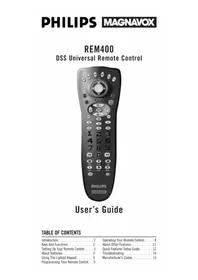
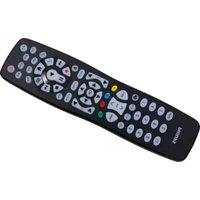
REM400 - Remote control PHILIPS - Free user manual and instructions
Find the device manual for free REM400 PHILIPS in PDF.


| Product Type | Remote Control |
| Brand | Philips |
| Model | REM400 |
| Compatibility | Philips TVs and select devices |
| Technology | Infrared (IR) |
| Dimensions (HxWxD) | Approx. 8.7 x 4.3 x 2.2 cm |
| Weight | Approx. 55 g (with batteries) |
| Power Supply | 2 x AAA batteries (1.5V) |
| Battery Life | Up to 6 months under normal use |
| Key Functions | Power, volume, channel, mute, input source, number keys, navigation, OK, back |
| Number of Keys | Approx. 30 |
| Range | Up to 10 meters (30 ft) |
| Programming | Pre-programmed for Philips TVs; code setup for other brands via manual codes |
| Cleaning | Wipe with a soft, dry cloth. Do not use liquids or abrasives. |
| Safety | Keep away from moisture and heat sources. Remove batteries if not used for extended periods. |
| Spare Parts | Batteries commonly available; remote itself may be replaced through Philips support or retailers. |
| Repairability | Not designed for user repair. Contact authorized service for issues. |
| Operating Temperature | 0°C to 40°C (32°F to 104°F) |
| Storage Temperature | -20°C to 60°C (-4°F to 140°F) |
| Package Contents | Remote control, user manual (free online), no batteries |
| Certification | CE, RoHS compliant |
| Manufacturer Support | Philips website and customer service |
Frequently Asked Questions - REM400 PHILIPS
User questions about REM400 PHILIPS
0 question about this device. Answer the ones you know or ask your own.
Ask a new question about this device
Download the instructions for your Remote control in PDF format for free! Find your manual REM400 - PHILIPS and take your electronic device back in hand. On this page are published all the documents necessary for the use of your device. REM400 by PHILIPS.
USER MANUAL REM400 PHILIPS
| Operating Your Remote Control. | 8 |
| About Other Features | 11 |
| Quick Features Setup Guide | 12 |
| Troubleshooting | 14 |
| Manufacturer's Codes | 15 |
INTRODUCTION
The DSS Universal Remote Control is the complete solution for all of your DSS remote control needs. Specifically designed to operate the features of your DSS satellite system, it can be programmed to operate a variety of components, up to six at a time, and is packed with easy-to-use features such as:
- Fingertip navigation control of interactive DSS on-screen menus (see page 8).
-
Auto Scan code search to h remote control for a variety of components, including older/discontinued models.
-
Channel Scan, a convenient way to "channel surf" by scanning channels.
- Multi-component Power Key for master on/off control of home entertainment components with a single key press.
- Favorite Command Keys that allow you to define and program a number of key presses into a sequence that can be accessed by a single key press.
• Program Learning capability to store and recall additional remote control functions.
KEYS AND FUNCTIONS
Use the illustration below to locate DSS keys and then study the numbered Key Charts
(on the next page) to learn how each one functions.

Key Charts
① Red Indicator Light
The Red Indicator Light blinks to show that the remote control is working and also provides feedback during programming sequences.
② Component Keys
Press TV, VCR, CBL, AUD, DSS, or CD once to select a home entertainment component to control.
③ DSS Directional Pad
Use the pad to move the cursor in the program guide and menu screens.
④ MENU Key
Press MENU to access the menu of your chosen component.
⑤ SELECT Key
Use SELECT to choose options from your selected component's menu or guide.
⑥ GUIDE Key
Use GUIDE to display the programming guide for your components (if applicable).
⑦ EXIT Key
Use EXIT to exit out of the selected component's menu or guide.
⑧ POWER Key
Press POWER once to turn on or off the selected home entertainment component.
⑨ VOL Keys
Use VOL + (or VOL -) to raise (or lower) the sound volume.
⑩ CH Keys
Use CH + (or CH-) to select the next higher (or lower) channel for the selected home entertainment component.
⑪ MUTE Key
Press MUTE once to turn sound off or on.
⑫ SLEEP Key
Press SLEEP to activate your TV's internal sleep timer.(Not available for all TVs.)
⑬ LIGHT Key
Press LIGHT once to turn on or off the keypad back light.
⑭ LAST Key
Press LAST once to recall the last channel and to page back one screen in the main menu.
⑮ L1\~L3 Keys
Use the learning keys, L1\~L3, to store and recall additional remote control functions.
⑯ FC1 And FC2 Keys
User-programmable Favorite Command Keys (see page 9 for details).
⑰ MCP Key
Multiple-component On/Off Key (see page 9 for details).
⑱ Keypad
Use the keypad (0 \~ 9) to directly enter in channels (for example, 09 or 31). The keypad is also used for all programming sequences, such as entering in your programming codes.
⑲ SCAN Key
Press SCAN once to change channels every 3 seconds. Press it again to stop the scan.
⑳ ENTER Key
Press ENTER once after entering channel numbers on some TV models.
②1 VCR Transport Keys
Use the VCR Transport Keys to control your VCR, as well as CD or DVD player. Press REC twice to record a tape.
② TV/VCR Key
Press TV/VCR once to view VCR playback or TV through the VCR.
②3 SET Key
Use SET for all programming sequences.
SETTING UP YOUR REMOTE CONTROL
Before using your new DSS remote control, you will need to obtain and install new batteries, as described on the next page.
Then you'll also need to program the DSS remote control with the correct code numbers for your specific components. See instructions starting on page 5.
ABOUT BATTERIES
NOTE: The DSS requires four (4) new "AAA" alkaline batteries (not supplied). Do not mix old and new batteries or mix alkaline with manganese-type batteries.
Installing Batteries

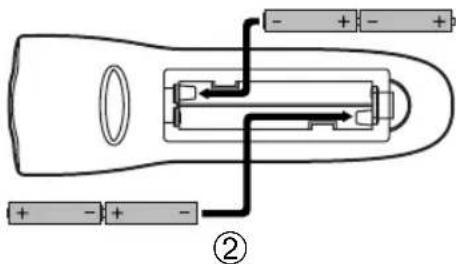

- On the back of the remote control, push the tab and lift the battery compartment cover off.
- Match the + and - marks on the batteries to the + and - marks in the battery case and insert four (4) "AAA" alkaline batteries.
- Press the battery cover back into place. The tab should click when the cover is locked.
USING THE LIGHTED KEYPAD
When activated, the DSS remote control features a lighted keypad that illuminates all of the remote control keys whenever you press any key.
-
To turn on the keypad back light, press LIGHT once. The keypad will remain lit for 5 seconds after you release any key.
-
Test the unit by pressing POWER and any Component key (e.g., TV, VCR, CBL, etc.). If the batteries are inserted correctly, the red indicator light will blink once.
Battery Saver
The DSS has a Time-Out feature that will automatically deactivate the remote control if a key is depressed for more than 30 seconds. This feature will help conserve the battery life should your remote control get stuck in a place where keys remain depressed (e.g., between the sofa cushions).
Replacement And Code Saver
When the batteries need replacing, the DSS remote control will stop working and will require four (4) new "AAA" alkaline batteries for continued operation. Simply replace the batteries, and the DSS remote control will be restored to its full functionality, complete with your favorite settings.
All of the codes and programmed information will be stored, ensuring that you will not have to reprogram the DSS remote control.
- To turn off the keypad back light, press LIGHT once again.(The keypad will not light whenever you press any key.)
Philips/Magnavox Components
The DSS remote control can control up to six different components and is already pre-programmed for use with newer Philips/Magnavox audio/video equipment. Unless you want to change a factory setting, skip the programming instructions and simply start using your new remote control.
Programming Other Components
To control component brands other than Philips/Magnavox, you'll need to perform the following steps to manually program the DSS with codes listed under Manufacturer's Codes on pages 15 through 19. Or as alternative, you can use the Auto Scan feature, on page 6, to program your component codes.
The following chart lists the remote control's component keys and what type of device each key will control:
Key Programmed To Control
TV TV
VCR VCR, DVD or LD Player
CBL Cable Box
AUD Amplifier, Tuner, Misc.Audio, or CD Player
DSS Digital Satellite System
CD CD Player, Amplifier, Tuner, or Misc. Audio
NOTE: If you want the component keys to control other types of devices, you'll need to reassign the component keys. See page 7.
IMPORTANT: Please completely read and review the following steps before proceeding. We recommend highlighting the codes (starting on page 15) for the brands you wish to program or writing them down in the supplied chart.
Setup Codes For My Components
| TV | ||||
| VCR | ||||
| CBL | ||||
| DSS | ||||
| CD | ||||
| DVD | ||||
| AUDIO | ||||
| LD | ||||
| OTHER |
To Manually Program The Remote Control:
NOTE: To program a TV/VCR Combo, skip these instructions and follow the steps on the next page.
- Manually turn on a component (e.g., TV, VCR, etc.) and, if applicable, insert media (e.g., cassette).
- On the remote control, press a component key once (e.g., TV, VCR, CBL, AUD, DSS, or CD).
- SET Press and hold SET (approx. 5 seconds) until the red light blinks twice, then release SET.
- Enter the first four-digit code for your brand of component. If performed correctly, the red light will blink twice.
- AIM the remote control at the component and press POWER once. It should turn off. If it does not respond, repeat steps 2 and 3, trying each code for your brand until you find one that works. If it still does not work, try using Auto Scan (on page 6) to program your component.
- Repeat steps 1 through 5 for each component you want to program into the DSS remote control.
NOTES: Press each key within 10 seconds of the previous entry. Otherwise, the remote control will exit the programming mode.
If you press SET at any time (except during step 3), the remote control will exit the programming mode without saving your entries. You will have to start with step 1 to begin programming again.
Programming A TV/VCR Combo
Perform the following instructions to have the DSS control a TV/VCR Combo. For Sharp and Sony models, also see page 14.
IMPORTANT: Please completely read and review these steps before proceeding. Highlight the code (on page 17) for the brand you wish to program or write it down in the supplied chart.
Setup Code For My Component
TV/VCR

- Manually turn on the TV/VCR Combo; insert a video cassette.
- On the remote control, press VCR once.
- Press and hold SET until the red light blinks twice, then release SET.
- Use the Setup Codes For TV/VCR Combos (on page 17) to find the brand name.Enter the first four-digit code for your component.If performed correctly, the red light will blink twice.
- A the remote control at the TV/VCR Combo. Press POWER once. It should turn off. If it does not respond, repeat steps 2-3, trying each code for your brand until you find one that works. If it still doesn't work, use Auto Scan (later on this page) to program your TV/VCR combo.
NOTE: If the TV/VCR Combo does not have a Power key, press PLAY on the DSS.
- If you've located a TV/VCR code that works, but it has a separate TV code, you'll also need to program it into the remote control to access volume control as follows:
a. Press TV once. The red light will blink twice.
b. Press and hold SET until the red light blinks twice, then release SET.
c. Enter the TV code for
the TV/VCR Combo.
If performed correctly, the red light will blink twice.
- (continued)
If there is no separate TV code listed, you will need to perform the following steps to access volume control:
a. Press VCR once.
b. Press and hold SET until the red light blinks twice, then release SET.
c. Press VOL +.
Programming With Auto Scan
If your component does not respond to the remote control after trying all codes listed for your brand, or if your brand is not listed at all, try searching for your code using Auto Scan. For example, to search for a code for a TV:
- On the remote control, press TV once.
- Press and hold SET until the red light blinks twice, then release SET.
- Aim the remote control at the TV and press SCAN. The red light will blink twice.
- Continue aiming the remote control at the TV (which may take up to 5 minutes) until it turns off. Immediately press any key except VOL+, VOL-, EXIT, SCAN, or SET.
NOTES: In the search mode, the remote will send IR (infrared) codes from its library to the selected device, starting with the most popular code first.
If you have passed by the code that turns off the TV, press VOL—one or more times until the TV turns on again.
- Tolook in the code and exit Auto Scan, press and release SET the red light will blink twice.
- To search for codes of other com- ponents, repeat steps 1 through 5, but substitute the appropriate key (e.g., VCR, CBL, AUD, DSS, or CD) for the (VCR, Cable, Audio, Satellite, or CD) component you are searching for.
Checking The Auto Scan Codes
If you have set up the remote control using Auto Scan, you can now find out which four-digit code is operating your component:
- On the remote con-

trol, press a component key once (e.g., AUD, DSS, or CD).
-
Press and hold SET until the red light blinks twice, then release SET.
-
Enter 9-9-0. The red light will blink twice.

- To view the code for the first digit, press 1 once. Wait 3 seconds, count the red light blinks (e.g., 3 blinks = 3) and write down the number.
NOTE: If a code digit is "0", the red light will not blink.
-
Repeat step 4 three more times 3 for remaining digits. Use 2 for the second digit, 3 for the third digit, and 4 for the fourth digit.
-
To find codes of other components, repeat steps 1 through 5, but substitute the appropriate key (e.g., VCR, CBL, AUD, DSS, or CD) for the component you are checking. As before, write down each four-digit code.
Re-Assigning Component Keys
The DSS remote can be set up to control any combination of six home entertainment components. By following these instructions, you can re-assign or duplicate a component key onto an unused component key.
-
Press and hold SET until the red light blinks twice, then release SET.
-
9 Enter 9-9-2. The red light will blink twice.

-
Press the Component key (e.g., TV, VCR, etc.) to be moved once, then press the Component key (e.g., AUD, etc.) to be re-assigned once. When re-assignment is done, the red light will blink twice to confirm your choice.
-
The re-assigned key is now ready to be programmed for the new component. See Programming Other Components on page 5.
Example – Re-assigning The AUD Key To Be A DVD (Or VCR) Key:
For example, to have the DSS control a TV, a Cable Converter, and two VCRs, you will need to re-assign the unused AUD key to operate the second VCR as follows:
-
Press and hold SET until the red light blinks twice, then release SET.
-
9 Enter 9-9-2. The red light will blink twice.
-
Press VCR once.
-
Then press AUD once. When re-assignment is done, the red light will blink twice to confirm your choice.
-
The AUD key is now ready to be programmed for your DVD (or VCR) player. See Programming Other Components on page 5.
The DSS Universal Remote Control is designed to be an enhanced replacement for your original remote control. Although most keys operate the same (see Key Charts on page 3), some do differ or provide unique features as described below.
DSS Directional Pad
The DSS remote control allows you to control the on-screen menu just like you would with your original remote control. Pressing the MENU key allows you to access the on-screen menu of the component you have selected (e.g. TV, VCR, CBL, AUD, DSS, or CD).
While in the menu, you can use the directional pad* to navigate and change the settings of the menu. To exit out of the Menu mode, either press the MENU key again or the EXIT key (depending on how the original remote control functioned).
*NOTE: If your component's On-Screen menu requires the use of the Volume and Channel keys to navigate and change the On-Screen menu settings, you will need to use the VOL+, VOL-, CH+, and CH- keys.
GUIDE Key
The GUIDE key works just like the Guide key of your original remote control and allows you to access the On-Screen guide* of the component you have selected (e.g.CBL, DSS, and some newer TVs).
While in the Guide mode, the directional pad will allow you to navigate Up, Down, Left and Right just like you would with your original remote control.
To exit out of the Guide mode, either press the GUIDE key again or EXIT (depending on how the original remote control functioned) to return to normal operation.
NOTE: *On-Screen guide is an interactive channel listings menu that is available on most DSS Satellite systems and is also used with advanced converters being offered by some cable systems. This feature is not applicable for all DSS or cable boxes.
SELECT Key
The SELECT key lets you choose features displayed on the On-Screen menu and programs while in the Guide mode.
If your original remote includes a Select key, then the DSS's SELECT key will operate in the same manner for the selected component.
L1\~L3 Keys
Use the learning (L1, L2, L3) keys to add functions that are unique to your home entertainment components (e.g., Tracking Up or Down for a VCR).
NOTE: Please have your original remote controls handy before programming learning. Be sure to press each key within 10 seconds of the previous entry. If not, the remote control will exit the programming mode.
To Program The L Keys:
-
On the DSS remote control, press and hold SET until the red light blinks twice, then release SET.
-
9 Enter 9-7-5. The red light will blink twice.

-
Press the component key once in which you want to learn a feature (e.g., TV).
-
Press the L key once (e.g., L1\~L3) in which the new feature is to be learned. The red light will blink rapidly.
-
Place your original remote control head to head (about 2" apart) from the DSS remote control.

-
On your original remote control, press and hold the key (i.e., feature) to be learned until the red light on the DSS remote control blinks twice. If the red light does not blink twice, stop and repeat steps 1 through 5.
-
To learn functions on the other L keys, repeat steps 3 through 6.
-
To block in new feature(s) on the DSS remote control, press and hold SET until the red light blinks twice.
-
To test a new feature, press the component key that was learned once. Then press the L key where the component's feature was learned.
Deleting Functions From The L Keys:
- On the DSS remote control, press and hold SET until the red light blinks twice, then release SET.
- Enter 9 - 7 - 6.
- Press the component key once where the learned feature to be deleted is stored (e.g., TV).
- Press the L key to be deleted twice. The red light will blink twice after the second press.
- To clear additional functions stored on the L keys, repeat steps 1 through 4.
SCAN Key
The SCAN key allows the remote control to scan the TV, VCR, CBL and DSS channels. When activated, the remote control will change channels every 3 seconds.
- On the remote con-
trol, press TV, VCR, CBL, or DSS once.
- ProSS SCAN once. Scanning will start with the current channel, then proceed to the next channel up, and continue until all channels of your TV, VCR, CBL or DSS component are scanned.
- To stop scanning channels, press SCAN.
MCP Key
The DSS remote control includes a multi-component power (MCP) key that can be programmed for master power on/off control of components using a single key.
To program the MCP key:
- SET On the remote control, press and hold SET until the red light blinks twice, then release SET.
- 9 Enter 9-9-5. The red light will blink twice.
- Press MCP once.
4.

Press a Component key once (e.g., TV, VCR, CBL, AUD, DSS, or CD).
-
Press POWER.
-
Repeat steps 4 and 5 for each component you want under master power on/off control.
- Press and hold SET until the red light blinks twice, then release SET.
To Clear The MCP Key:
- On the remote control, press and hold SET until the red light blinks twice, then release SET.
- 9 Enter 9-9-5. The red light will blink twice.
- Press MCP once.
- Press and hold SET until the red light blinks twice, then release SET.
FC1 And FC2 Keys
The FC1 and FC2 keys can be setup to perform a number of functions with a single key press once the selection is programmed. Repetitive, time-consuming operations can be grouped for easy, convenient access through the press of one key.
The FC keys are ideal for home theater operations, setting a favorite channel, adding to multiple component uses, guide steps or other multiple functions you would like to control with one key press. On one key, you can define and program a sequence of events.
Moreover, each FC key can hold up to 15 key presses, allowing optimal individual customization. Below are a few examples to get you started.
Programming A Favorite Channel
With so many channels available through your cable system or satellite provider, a favorite channel can be programmed for easy, direct channel selection with one key press.
For example, let's assume your favorite programs are on channel 71. Use the following instructions to program the FC1 or FC2 key for this channel:
continued on next page...
FC1 And FC2 Keys
Programming A Favorite Channel (cont.)
-
On the remote control, press and hold SET until the red light blinks twice, then release SET.
-
Enter 9-9-5. The red light will blink twice.

9-9-5. The red light will blink twice.
-
Press and release either FC1 or FC2.
-
On the remote con-
-
Ent 7-1.
NOTE: If you have access to over 100 channels, enter in 071.
- Press and hold SET until the red light blinks twice, then release SET.
Programming A Secondary MCP Key With Instant Channel Selection
Just like the MCP key, the FC1 and FC2 keys can be programmed to turn on and off your equipment. For instance, let's say you want your child to be able to easily turn on the equipment and select their favorite channel. You can setup a sequence on the FC1 or FC2 key to turn on the TV and cable box, and then tune the cable box to a specific channel (e.g., 11) with the push of one key.
-
On the remote control, press and hold SET until the red light blinks twice, then release SET.
-
En 9-9-5. The red light will blink twice.
-
Press and release either FC1 or FC2.
-
Enter the following sequence:

CBL, POWER, TV, POWER, CBL, an
1-1 (or 0-1-1 if you have access to over 100 channels)
- Press and hold SET until the red light blinks twice, then release SET.
Now when you press the programmed FC key, the Cable box and TV will turn on and the Cable box will tune to channel 11.
Volume Lock
The DSS remote control is set at the factory to control the volume independently while in the TV, VCR, DSS, CBL, AUD, and CD modes.
To control the volume from one mode (e.g., TV) while in another mode (e.g., CBL, DSS, or VCR*), perform the instructions below to lock the volume setting. This procedure will not affect separate control of your audio component's volume in the AUD and CD modes*.
*NOTE: By pressing AUD or CD before entering the sequence below, the DSS remote control will operate your stereo and home theater volume controls in all modes.
Example – To Set Volume Lock To TV Mode:
- On the remote control, press TV once.
- Press and hold SET until the red light blinks twice, then release SET.
- Press VOL+. The red light will blink twice.
Punch Through
The VCR Transport Keys (i.e., REW, PLAY, FFWD, REC, STOP, and PAUSE) are set at the factory to control the VCR, even if TV, CBL, or DSS is the selected mode. In other words, VCR control “punches through” regardless of what mode is on. Moreover, you do not have to press VCR before pressing the mode key.
However, if AUD or CD is the selected mode, the VCR Transport Keys will not control the VCR unless you press VCR first. In these two modes, the VCR Transport Keys will operate the functions for the selected component.
QUICK FEATURES SETUP GUIDE
This guide is provided here for your convenience as a quick reference for performing remote control sequences.
If you need more details, reread the full instructions presented in earlier pages.
Component Setup
| Turn on component (e.g., TV). | Press component key once (e.g., TV). | Press SET until Red Light blinks twice; release SET. | Enter 4-digit code for your brand; Red Light blinks twice after last #. | Press POWER once; if no response, repeat steps with next code. |
| 1 | 2 | 3 | 4 | 5 |
Auto Scan
| Turn on component (e.g., TV).* NOTE: Not VOL+, VOL-, EXIT, SCAN, or SET. | Press component key once (e.g., TV). | Press SET until Red Light blinks twice; release SET. | Aim remote control at component; press SCAN once. When off, press any key* to stop. | Press SET until Red Light blinks twice; release SET to lock code. |
Code Verification
| Press component key once (e.g., TV). | Press SET until Red Light blinks twice; release SET. | 9 9 0 | 1 2 3 4 |
| 1 | 2 | Enter 9-9-0; the Red Light will blink twice. | Press 1 once for 1st digit. Wait 3 sec. and count blinks. Number of blinks equals value of code digit. Repeat with 2, 3, and 4. |
Volume Lock
| Press component* key once (e.g., CBL).* NOTE: Component must have volume capabilities.1 | Press SET until Red Light blinks twice; release SET.2 | Press VOL+ once. Volume now controlled through component selected in step 1.3 |
Device Re-Assignment (e.g., AUD Key Becomes Secondary VCR Key)

Press SET until Red Light blinks twice; release SET.

Enter 9-9-2; the Red Light will blink twice.

Press component key to be moved once (e.g., VCR).

Press component key to be reassigned once (e.g., AUD). Red Light will blink twice. Reassigned key is now ready for programming.
①
②
③
④
Programming The FC Keys (See Page 9 For Further Instructions)
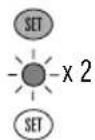
Press SET until Red Light blinks twice; release SET.

Enter 9-9-5; the Red Light will blink twice.

Press FC1 or FC2 once.

Press component key that controls channels once (e.g., CBL). Then enter channel # (e.g. 7-1)*.

Press SET until Red Light blinks twice; release SET.
* NOTE: If over 100 channels, enter 0-7-1.
①
②
③
④
⑤
Programming The L1\~L3 Keys (See Page 8 For Further Instructions)

Press SET until Red Light blinks twice; release SET.

Enter 9-7-5; the Red Light will blink twice.

Press component key once (e.g., TV).
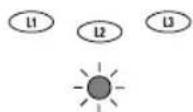
Press an L key once where new feature is to be learned; the Red Light will blink rapidly.
①
②
③

Place remote controls 2" apart; on original one, press and hold key to be learned until Red Light on DSS unit blinks twice.
⑤
[Non-Text]
To learn functions onto other L keys (or if Red Light does not blink twice in step 5), repeat steps 1\~5.
⑥
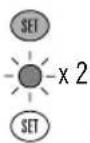
To lock in new feature, press SET until Red Light blinks twice; then release SET.
⑦
PROBLEM: Red Indicator Light does not blink when you press a key.
SOLUTION: Replace the batteries with four (4) new “AAA” alkaline batteries (see page 4).
PROBLEM: The VOL+, VOL−, and MUTE keys are not functional.
SOLUTION: Make sure that volume control is locked to a component that has volume capabilities and is programmed into the DSS remote control.
PROBLEM: The DSS remote control will not learn a function properly from your original remote control.
SOLUTION: Make sure the IR LED from your original remote control is lined up with the IR LED on the DSS remote control (see step 5 on page 8). If your original remote control has a lens covering the IR LED, try moving the original remote to the left or right, until the DSS remote control picks up the signal.
PROBLEM: Red Indicator Light blinks when you press a key, but home entertainment component does not respond.
SOLUTION: Make sure you are aiming the DSS remote control at your home entertainment component and that you are within 15 feet of the component you are trying to control.
PROBLEM: The remote control does not control home entertainment components or commands are not working properly.
SOLUTION: Try all listed codes for the component brand being set up. Make sure all components can be operated with an infrared remote control.
PROBLEM: TV/VCR combo does not respond properly.
SOLUTION: Use the VCR codes for your brand. Some combo units may require both a TV code and a VCR code for full operation (see page 6).
PROBLEM: CH+, CH-, and LAST do not work for your RCA TV.
SOLUTION: Due to an RCA design (1983-1987), only the original remote control will operate these functions.
PROBLEM: Changing channels does not work properly.
SOLUTION: If original remote control required pressing ENTER to change channels, press ENTER on the DSS remote control after entering a channel number.
PROBLEM: Tried Auto Scan and still could not find a working code.
SOLUTION: Try Auto Scan again after clearing out the component key as follows: Press and hold ENTER until Red Light blinks twice, then release. Next enter 9 - 9 - 2. Then press and release the component key to be cleared twice.
PROBLEM: Remote control does not turn on Sony or Sharp TV/VCR Combo.
SOLUTION: For power on, these products require programming TV codes into the DSS remote control. For Sony, use TV code 0029 and VCR code 0061. For Sharp, use TV code 0112 and VCR code 0077.
Setup Codes For TVs:
| AOC 0048, 0059, 0214 | |
| Admiral 0122, 0492 | |
| Aiko 0121 | |
| Akai 0059 | |
| Alaron 0208 | |
| Ambassador 0206 | |
| America Action 0209 | |
| Ampro 0780 | |
| Anam 0209 | |
| Anam National 0084 | |
| Audiovox 0121, 0209, 0480, 0652 | |
| Baysonic 0209 | |
| Belcor 0048 | |
| Bell & Howell 0045, 0183 | |
| Bradford 0209 | |
| Brockwood | 0048 |
| Broksonic | 0265, 0492 |
| CXC | 0209 |
| Candle 0059, 0085 | |
| Carnivale | 0059 |
| Carver 0083 | |
| Celebrity | 0029 |
| Cineral | 0121, 0480 |
| Citizen 0059, 0068, 0085, 0089, 0121, 0309 | |
| Clairtone | 0214 |
| Concerto | 0085 |
| Contec 0209,0214 | |
| Craig | 0209 |
| Crosley | 0083 |
| Crown | 0068, 0209 |
| Curtis Mathes | 0045, 0059, 0068, 0076, 0080, 0083, 0085, 0089, 0122, 0174, 0183, 0195, 0480, 0495, 1176, 1376 |
| Daewoo | 0048, 0068, 0121, 0480, 0652, 0653 |
| Daytron | 0048 |
| Denon 0174 | |
| Dumont 0046, 0048 | |
| Dwin | 0749, 0803 |
| Electroband | 0029, 0214 |
| Emerson | 0048, 0068, 0183, 0206, 0207, 0208, 0209, 0214, 0265, 0309, 0311, 0492, 0652, 0653 |
| Envision | 0059 |
| Fisher | 0183, 0188 |
| Fujitsu 0208 | |
| Funai | 0200, 0208, 0209 |
| Futuretech | 0209 |
| GE | 0050, 0076, 0080, 0084, 0122, 0164, 0207, 0311, 0480, 1176, 1376 |
| Gibraltar 0046, 0048,0059 | |
| GoldStar 0048, 0059, 0085, 0207 | |
| Gradiente | 0082, 0085 |
| Grunpy | 0208, 0209 |
| Hallmark | 0207 |
| Harley Davidson | 0208 |
| Harman/Kardon | 0083 |
| Harvard | 0209 |
| Hitachi | 0085, 0174, 0180 |
| Infinity | 0083 |
| Intcq | 0046 |
| JBL | 0083 |
| JCB | 0029 |
| JVC | 0082 |
| KFC | 0209 |
| KTV 0059, 0068, 0209, 0214, 0309 | |
| Kenwood | 0048, 0059 |
| LG | 0085 |
| LXI | 0076, 0083, 0183, 0185, 0207 |
| Logik | 0045 |
| Luxman 0085 | |
| MEI | 0214 |
| MGA | 0048, 0059,0179,0207 |
| MTC | 0048, 0059,0085,0089,0214 |
| Magnavox | 0049, 0059, 0083, 0125, 0208, 0216 |
| Majestic 0045 | |
| Marantz 0059, 0083 | |
| Matsushita | 0279 |
| Mcgatron | 0174,0207 |
| Memorex | 0045,0085,0179,0183,0207,0279,0492 |
| Midland | 0046, 0068, 0076, 0080, 0164 |
| Minutz | 0050 |
| Mitsubishi | 0048, 0122, 0179, 0207 |
| Motorola | 0084, 0122 |
| Multitech | 0209 |
| NAD 0185,0195,0207 | |
| NEC 0048, 0059, 0085 | |
| NTC 0121 | |
| Nikko | 0059, 0121, 0207 |
| Noshi | 0047 |
| Onwa | 0209 |
| Optimus 0183, 0195,0279 | |
| Optonica | 0122, 0194 |
| Orion | 0208,0265,0492 |
| Panasonic | 0080, 0084, 0279 |
| Penney | 0047,0048,0050,0059,0068,0076,0080, 0085, 0089, 0164, 0185, 0207,1376 |
| Philco 0048, 0049,0059,0083,0125,0174,0492 | |
| Philips 0083 | |
| Pilot 0048,0059,0068 | |
| Pionccr | 0195 |
| Portland | 0048,0068, 0121 |
| Prism | 0080 |
| Proscan | 0076 |
| Proton 0207,0495 | |
| Pulsar 0046, 0048 | |
| Quasar | 0080, 0084,0194,0279 |
| RCA 0047,0048,0076,0080,0119,0122,0164, 1076, 1176, 1276, 1376, 1476 | |
| Radio Shack | 0048, 0059, 0068, 0076, 0085, 0183,0194, 0207, 0209 |
| Realistic | 0048, 0059, 0068, 0085, 0183, 0194,0207, 0209 |
| Rhapsody | 0214 |
| Runco 0046,0059,0632 | |
| SSS | 0048, 0209 |
| Sampo | 0059, 0068 |
| Samsung 0048, 0059,0085,0089,0207 | |
| Samsux | 0068 |
| Sansci | 0480 |
| Sansui 0492 | |
| Sanyo | 0183, 0188 |
| Scimitsu 0048 | |
| Scotch | 0207 |
| Scott | 0048, 0207,0208,0209,0265 |
| Sears | 0076,0083,0085,0183,0185,0188,0200, 0207, 0208 |
| Semivox 0209 | |
| Semp | 0185 |
| Sharp | 0068, 0122, 0194 |
| Shogun | 0048 |
| Signature | 0045 |
| Simpson | 0216 |
| Sony | 0029 |
| Soundesign | 0207, 0208, 0209 |
| Squarcview | 0200 |
| Starlite | 0209 |
| Supreme 0029 | |
| Sylvania | 0049, 0059, 0083,0125 |
| Symphonic | 0200 |
| TMK | 0085, 0206,0207 |
| Tandy 0122 |
continued next page...
Setup Codes For TVs (cont.):
| Tatung 0084 | |
| Technics 0080, 0279 | |
| Technol Ace 0208 | |
| Techwood 0080, 0085 | |
| Teknika 0045, 0048,0068,0083,0085,0089,0121, 0179,0208,0209 | |
| Telcfunkcn 0085 | |
| Toshiba 0089, 0183, 0185 | |
| Tosonic 0214 | |
| Totevision 0068 | |
| Vector Research 0059 | |
| Victor 0082 | |
| Vidikron 0083 | |
| Vidtech 0048, 0207 | |
| Wards 0045, 0048, 0049, 0050, 0059, 0083,0085, 0125, 0194, 0207, 0208 | |
| White Wcstinghouse | 0492, 0652,0653 |
| Yamaha 0048,0059 | |
| Zenith | 0045, 0046,0121,0492 |
Setup Codes For VCRs:
| Admiral | 0077, 0238 | |
| Adventura | 0029 | |
| Aiko | 0307 | |
| Aiwa | 0029, | 0066, |
| Akai | 0070, | 0090, |
| America Action | 0307 | |
| American High | 0064 | |
| Asha | 0269 | |
| Audiovox | 0066 | |
| Beaumark 0269 | ||
| Bell & Howell | 0133 | |
| Brocksonic | 0238 | |
| Broksonic 0031,0150,0213,0238,0508 | ||
| CCF | 0101, 0307 | |
| Calix | 0066 | |
| Canon | 0064 | |
| Capehart | 0049 | |
| Carver | 0110 | |
| Cincral | 0307 | |
| Citizen 0066,0307 | ||
| Colt | 0101 | |
| Craig | 0066, 0076, 0101, 0269, 0300 | |
| Curtis Mathes | 0064, 0070, 0089, 0191 | |
| Cybernex | 0269 | |
| Daewoo | 0049, 0074, 0307, 0590 | |
| Daytron | 0049 | |
| Denon | 0071 | |
| Dynatech | 0029 | |
| Electrohome | 0066 | |
| Electrophonic | 0066 | |
| Emerex 0061 | ||
| Emerson | 0029, 0031, 0066, 0072, 0090, 0150, 0213, 0237, 0238, 0241, 0307, 0508, 0590 | |
| Fisher | 0076, 0083, 0133 | |
| Fuji | 0062, 0064 | |
| Funai | 0029 | |
| GE | 0064, 0077, 0089, 0231, 0269 | |
| Garrard 0029 | ||
| Go Video | 0461, 0555 | |
| GoldStar 0066, 0067 | ||
| Gradiente | 0029, 0037 | |
| HI-Q | 0076 | |
| Harley Davidson | 0029 | |
| Harman/Kardon | 0067,0110 | |
| Harwood | 0101 | |
| Headquarter | 0075 | |
| Hitachi | 0029, 0070, 0071, 0134 | |
| Hughes Network Sys. | 0071 |
| JVC | 0037, 0070, 0096 |
| Jensen | 0070 |
| KEC | 0066, 0307 |
| KLII | 0101 |
| Kenwood | 0067, 0070, 0096 |
| Kodak | 0064, 0066 |
| LXI | 0066 |
| Lloyd's | 0029,0237 |
| Logik | 0101 |
| MEI | 0064 |
| MGA | 0072,0090,0269 |
| MGN Technology | 0269 |
| MTC | 0029, 0269 |
| Magnasonic | 0307 |
| Magnavox 0029,0064,0068,0110,0178,0592 | |
| Magnin 0269 | |
| Marantz | 0064, 0110 |
| Marta | 0066 |
| Matsushita 0064,0191,0483 | |
| Memorex | 0029, 0064,0066,0068,0075,0076,0077, 0133, 0238, 0269, 0336, 1066,1191, 1291 |
| Minolta 0071,0134 | |
| Mitsubishi | 0072, 0077, 0090, 0096 |
| Motorola | 0064, 0077 |
| Multitech | 0029, 0101 |
| NFC | 0067, 0070,0096,0133 |
| Nikko | 0066 |
| Sikon | 0063 |
| S Noblex 0269 | |
| Olympus | 0064 |
| Optimus 0066, 0077,0133,0191,0461,0483,1077,1091, 1191,1291 | |
| Optonica | 0091 |
| Orion | 0031,0213, 0238,0508 |
| Panasonic | 0064,0191, 0254,0483, 1191 |
| Penney | 0064,0066, 0067,0071,0083,0269 |
| Pentax | 0071, 0134 |
| Philco 0064, 0238,0508 | |
| Philips 0064,0091, 0110 | |
| Pilot | 0066 |
| Pioneer 0096 | |
| Portland 0049 | |
| Profitronic | 0269 |
| Proscan 0089,0231 | |
| Protec 0101 | |
| Pulsar 0068 | |
| Quarter 0075 | |
| Quartz | 0075 |
| Quasar | 0064, 0191,0483, 1191 |
| RCA | 0064, 0071, 0077, 0089, 0134, 0135,0178,0231, 0269 |
| Radio Shack | 0029, 1066 |
| Radix | 0066 |
| Randex 0066 | |
| Realistic | 0029,0064, 0066,0075, 0076,0077,0091,0133 |
| Ricoh | 0063 |
| Runco 0068 | |
| STS | 0071 |
| Samsung | 0074, 0269 |
| Sanky 0068, 0077 | |
| Sansui | 0029, 0070, 0096, 0238, 0300, 0508 |
| Sanyo | 0075, 0076, 0133, 0269 |
| Scott | 0072, 0074,0150, 0213, 0241 |
| Sears | 0029,0064, 0066,0071, 0075,0076,0083,0133, 0134 |
| Semp | 0074 |
| Sharp | 0077, 0091 |
| Shintom | 0101 |
| Shogun 0269 | |
| Singer 0101 | |
| Sony | 0029,0061, 0062,0063, 0064 |
Setup Codes For VCRs (cont.):
| Sylvania 0029, 0064, 0072, 0110 |
| Symphonic 0029 |
| TMK 0237, 0269 |
| Tatung 0070 |
| Teac 0029, 0070 |
| Technics 0064, 0191 |
| Teknika 0029, 0064, 0066 |
| Thomas 0029 |
| Toshiba 0072, 0074,0241 |
| Totevision 0066, 0269 |
| Unitech 0269 |
| Vector 0074 |
| Vector Research 0067 |
| Video Concepts 0074, 0090 |
| Videosonic 0269 |
| Wards 0029, 0064, 0071, 0076, 0077, 0089,0091, 0101, 0110, 0178, 0241, 0269 |
| White Westinghouse 0238, 0307 |
| XR-1000 0029, 0064,0101 |
| Yamaha 0067 |
| Zenith 0029, 0062,0063,0068,0238,0508 |
Setup Codes For TV/VCR Combos:
| American High | 0064 (for TV use 0080) |
| Brocksonic 0031, 0323, Colt | 0101 |
| Curtis Mathis | 0064 (for TV use 0080) |
| Daewoo 0307 | |
| Emerson | 0031, 0323, 0508 |
| Funai | 0029 |
| GE | 0064 (for TV use 0080), 0089 (for TV use 0076), 0077 (for TV use 0122), 0269 |
| Hitachi 0064 (for TV use 0080),0029 | |
| HQ | 0029 |
| Lloyds | 0029 |
| MGA | 0269 |
| Magnavox | 0110 (for TV use 0083), 0064 (for TV use 0080), 0029 |
| Magnin 0269 | |
| Memorcx | 0066, 0191 (for TV use 0279) |
| Mitsubishi | 0077 (for TV use 0122) |
| Orion | 0031,0323,0508 |
| Panasonic | 0064 (for TV use 0080), 0191 (for TV use 0279) |
| Penney | 0064 (for TV use 0080), 0269, 0191 (for TV use 0279) |
| Quasar | 0064 (for TV use 0080), 0191 (for TV use 0279) |
| RCA | 0089 (for TV use 0076), 0064 (for TV use 0080), 0077 (for TV use 0122) |
| Sansui | 0029, 0508 |
| Sanyo | 0269 |
| Sears 0029,0066 | |
| Sharp | 0077 (for TV use 0122) |
| Sony | 0061 (for TV use 0029) |
| Symphonic 0029 | |
| Zcnith | 0029 |
Setup Codes For Cable Converters:
| ABC | 0032, 0036, 0037, 0040, 0042, 0043, 0046 |
| Allegro | 0182,0344 |
| Archer | 0182,0826 |
| Bell & Howell | 0043 |
| Century | 0182 | |
| Citizen 0182,0344 | ||
| Comtronics | 0069 | |
| Contcc | 0048 | |
| Eastern | 0031 | |
| Emerson | 0826 | |
| Everquest | 0044, 0069 | |
| Focus | 0429 | |
| Garrard 0182 | ||
| Gemini | 0044, 0826 | |
| General Instrument | 0040, 0305, 0505, 0839 | |
| GoldStar | 0069, 0173 | |
| Goodmind | 0826 | |
| Hamlin 0038, 0049,0063,0288 | ||
| Hitachi | 0040 | |
| Hytex | 0036 | |
| Jasco | 0044,0182,0344 | |
| Jerrold | 0032, 0040, 0505, 0839 | |
| Memorex | 0029 | |
| Movie Time | 0092 | |
| NSC 0092 | ||
| Oak | 0036, 0048 | |
| Optimus | 0050 | |
| Panasonic | 0029, 0050, 0136 | |
| Paragon 0029 | ||
| Philips 0182 | ||
| Pioneer 0173, 0562 | ||
| Popular Mechanics | 0429 | |
| Pulsar 0029 | ||
| Quasar | 0029 | |
| RCA | 0050 | |
| Radio Shack | 0044, 0344, 0826 | |
| Recoton 0429 | ||
| Regal | 0049, 0288 | |
| Regency | 0031 | |
| Rembrandt | 0040 | |
| Runco 0029 | ||
| SI. Marx | 0069 | |
| Samsung | 0069, 0173 | |
| Scientific Atlanta | 0037, 0046,0506,0906 | |
| Signal | 0044, 0069 | |
| Signature | 0040 | |
| Sprucer 0050 | ||
| Starcom 0032, 0044 | ||
| Stargate 0044, 0069,0826 | ||
| Starquest | 0044 | |
| TV86 | 0092 | |
| Teleview | 0069 | |
| Tocom | 0041,0042 | |
| Toshiba 0029 | ||
| Tusa | 0044 | |
| Unika | 0182 | |
| United Artists | 0036 | |
| Universal | 0182, 0220 | |
| Viewstar 0092 | ||
| Zenith | 0029, 0554 | |
| Zentek | 0429 | |
Setup Codes For Satellite/DBS:
| AlphaStar | 0801 |
| Echostar | 0804 |
| Expressvu 0804 | |
| General Instrument | 0390, 0656, 0898 |
| IITS | 0804 |
| Hitachi | 0848 |
| Hughes Network Sys. | 0778 |
| JVC | 0804 |
| Jerrold | 0390,0656 |
| Magnavox 0751,0753 | |
continued on next page...
Setup Codes For Satellite/DBS (continued):
Memorex 0753
Next Level 0898
Panasonic 0730
Philips 0751, 0753
Primestar 0390, 0656
RCA 0172, 0421, 0595, 0884
Radio Shack 0898
Sony 0668
Star Choice 0898
Toshiba 0819
Uniden 0751, 0753
Zenith 0885
Setup Codes For CD Players:
ADC 0047
Aiwa 0153,0186
Burmester 0449
California Audio Labs 0058
Carver 0186,0208,0466
DKK 0029
Denon 0032,0873
Emerson 0334
Fisher 0203,0208
Garrard 0422,0449
Genexxa 0061,0334
Harman/Kardon 0186,0202
Hitachi 0061
JVC 0101
Kenwood 0057, 0066,
Krell 0186
Kyocera 0047
LXI 0334
Linn 0186
MCS 0058
MTC 0449
Magnavox 0186, 0334
Marantz 0058, 0186,
Mission 0186
NSM 0186
Nikko 0203
Onkyo 0130, 0868
Optimus 0029, 0061,
0449, 0466,
Panasonic 0058,0332,
Parasound 0449
Philips 0186, 0655
Pioneer 0061, 0273,
Proton 0186
QED 0186
Quasar 0058
RCA 0082, 0208,
Realistic 0208, 0209,
Rotel 0186, 0449
SAE 0186
STS 0047
Sansui 0186, 0334
Sanyo 0208
Scott 0334
Sears 0334
Sharp 0066, 0209,
Sherwood 0209
Sony 0029, 0214,
Soundesign 0174
Tascam 0449
Teac 0203, 0209,
Technics 0058,0332
Victor 0101
Wards 0082, 0186
Yamaha 0065,0216
Yorx 0490
Setup Codes For DVD Players:
Harman/Kardon 0611
JVC 0587,0652
Kenwood 0563
Magnavox 0532
Mitsubishi 0550
Onkyo 0532,0656
Panasonic 0519
Philips 0532, 0568
Pioneer 0554, 0600
Proscan 0551
RCA 0551
Samsung 0602
Sony 0562
Technics 0519
Theta Digital 0600
Toshiba 0532
Yamaha 0519,0574
Zenith 0532, 0620
Setup Codes For LD Players:
Denon 0088
Mitsubishi 0088
NAD 0088
Panasonic 0233
Pioneer 0088
Quasar 0219, 0233 0655, 0855
Sony 0222, 0230
Technics 0233
Setup Codes For Tuners/Receivers:
ADC 0560
Aiwa 0150,0187,0218,0434,1118,1434
Capetronic 0560
Carver 0071,0218,1118,1218
Casio 0224
Clarinette 0224
Curtis Mathes 0109
Denon 0033,1133,1189
Fisher 0071
Garrard 0492
Harman/Kardon 0139, 0218, 0920.
JBI. 0139
JVC 0103
Kenwood 0056, 0071, 0215, 1056, 1342, 1598
LXI 0334 0210
Linn 0449 0218
Lloyd's 0224
MCS 0068
Magnavox 0218, 0224,
Marantz 0068, 0218, 1118
Modulaire 0224
NAD 0349
Nakamichi 0126
Onkyo0890 0164
Optimus 0071, 0210, 0215
0519 0830, 0633 1052 0634
Panasonic 0068, 0338
Penney 0224
Philips0422 0218, 0449 0420, 1118,
Pioneer 0043, 0109, 0179,
Quasar 0068
Setup Codes For Tuners/Receivers (continued):
| RCA 0083, 0560 | ||
| Realistic 0210, 0224 | ||
| Sansui 0218, 1118 | ||
| Sanyo | 0830 | |
| Sharp | 0215 | |
| Sherwood | 0520, | 0531 |
| Sony | 0187, | 0503,1087,1187,1287 |
| Soundesign | 0699 | |
| Teac | 0492 | |
| Technics | 0068,0338, | 1337, |
| Thorens | 1218 | |
| Victor | 0103 | |
| Wards | 0043, | 0083,0109,0187,02 |
| Yamaha | 0205, | 0215 |
| Yorx | 0224 | |
| Zcnith | 0886 | |
Setup Codes For Audio Amplifiers:
| Aiwa | 0435 | |
| Carver 0298 | ||
| Curtis Mathes | 0329 | |
| Denon 0189 | ||
| GE | 0107 | |
| Harman/Kardon | 0921 | |
| JVC | 0360 | |
| Linn | 0298 | |
| Magnavox | 0298 | |
| Marantz | 0298 | |
| Optimus | 0424 | |
| Panasonic 1338, | 0337 1547 | |
| Philips | 0298, | 0921 |
| Pioneer | 0042, | 0329 |
| Realistic | 0424 | |
| Sony | 0249, | 0718 |
| Sounddesign | 0107 | |
| Technics | 0337 | |
| Victor | 0360 | |
| Wards | 0042, | 0107 |
| Yamaha | 0383 |
Setup Codes For DBS Audio:
| Aiwa | 0039, 0188 |
| JVC | 0102 |
| Jerrold 0488,0549 | |
| Scientific Atlanta | 0489 |
| Sony 0039, 0188 | |
| Starcom 0488 |
©1999

- INTRODUCTION
- KEYS AND FUNCTIONS
- REC STOP PAUSE
- KEY CHARTS
- ① RED INDICATOR LIGHT
- ② COMPONENT KEYS
- ③ DSS DIRECTIONAL PAD
- ④ MENU KEY
- ⑤ SELECT KEY
- ⑥ GUIDE KEY
- ⑦ EXIT KEY
- ⑧ POWER KEY
- ⑨ VOL KEYS
- ⑩ CH KEYS
- ⑪ MUTE KEY
- ⑫ SLEEP KEY
- ⑬ LIGHT KEY
- ⑭ LAST KEY
- ⑮ L1\~L3 KEYS
- ⑯ FC1 AND FC2 KEYS
- ⑰ MCP KEY
- ⑱ KEYPAD
- ⑲ SCAN KEY
- ⑳ ENTER KEY
- ②1 VCR TRANSPORT KEYS
- ② TV/VCR KEY
- ②3 SET KEY
- SETTING UP YOUR REMOTE CONTROL
- ABOUT BATTERIES
- USING THE LIGHTED KEYPAD
- BATTERY SAVER
- REPLACEMENT AND CODE SAVER
- PHILIPS/MAGNAVOX COMPONENTS
- PROGRAMMING OTHER COMPONENTS
- KEY PROGRAMMED TO CONTROL
- SETUP CODES FOR MY COMPONENTS
- TO MANUALLY PROGRAM THE REMOTE CONTROL
- PROGRAMMING A TV/VCR COMBO
- SETUP CODE FOR MY COMPONENT
- TV/VCR
- PROGRAMMING WITH AUTO SCAN
- CHECKING THE AUTO SCAN CODES
- RE-ASSIGNING COMPONENT KEYS
- EXAMPLE – RE-ASSIGNING THE AUD KEY TO BE A DVD (OR VCR) KEY
- DSS DIRECTIONAL PAD
- GUIDE KEY
- SELECT KEY
- L1\~L3 KEYS
- TO PROGRAM THE L KEYS
- DELETING FUNCTIONS FROM THE L KEYS
- SCAN KEY
- MCP KEY
- TO PROGRAM THE MCP KEY
- TO CLEAR THE MCP KEY
- FC1 AND FC2 KEYS
- PROGRAMMING A FAVORITE CHANNEL
- PROGRAMMING A FAVORITE CHANNEL (CONT.)
- PROGRAMMING A SECONDARY MCP KEY WITH INSTANT CHANNEL SELECTION
- VOLUME LOCK
- EXAMPLE – TO SET VOLUME LOCK TO TV MODE
- PUNCH THROUGH
- QUICK FEATURES SETUP GUIDE
- DEVICE RE-ASSIGNMENT (E.G., AUD KEY BECOMES SECONDARY VCR KEY)
- PROGRAMMING THE FC KEYS (SEE PAGE 9 FOR FURTHER INSTRUCTIONS)
- PROGRAMMING THE L1\~L3 KEYS (SEE PAGE 8 FOR FURTHER INSTRUCTIONS)
- SETUP CODES FOR SATELLITE/DBS (CONTINUED)
- SETUP CODES FOR CD PLAYERS
- SETUP CODES FOR DVD PLAYERS
- SETUP CODES FOR LD PLAYERS
- SETUP CODES FOR TUNERS/RECEIVERS
Brand : PHILIPS
Model : REM400
Category : Remote control