
Andy A3.5EP - Smartphone YEZZ - Free user manual and instructions
Find the device manual for free Andy A3.5EP YEZZ in PDF.


| Product Type | Smartphone |
| Brand | YEZZ |
| Model | Andy A3.5EP |
| Dimensions (approx.) | 125 x 65 x 10 mm |
| Weight (approx.) | 120 g |
| Display | 3.5 inch TFT, 320 x 480 pixels |
| Operating System | Android (version not specified) |
| Processor | 1 GHz single-core |
| RAM | 512 MB |
| Internal Storage | 4 GB |
| Memory Card Support | microSD/HC up to 32 GB |
| Battery | Removable Li-Ion 1500 mAh |
| Rear Camera | 2 MP |
| Front Camera | VGA |
| SIM Type | Dual SIM (Mini-SIM) |
| Network | GSM / GPRS / EDGE / 3G (HSPA) |
| Wi-Fi | 802.11 b/g/n |
| Bluetooth | 4.0 with A2DP |
| GPS | Yes (via cellular) |
| Sensors | Proximity, Accelerometer |
| Security Features | PIN lock, screen lock |
| Maintenance | Keep dry, avoid liquids, clean with soft cloth |
| Safety Precautions | Keep away from pacemakers, switch off in hospitals/aircraft, avoid extreme temperatures |
| Spare Parts Included | Battery, charger, earphones |
| Repairability | User-replaceable battery, memory card; no further repairability information |
Frequently Asked Questions - Andy A3.5EP YEZZ
User questions about Andy A3.5EP YEZZ
0 question about this device. Answer the ones you know or ask your own.
Ask a new question about this device
Download the instructions for your Smartphone in PDF format for free! Find your manual Andy A3.5EP - YEZZ and take your electronic device back in hand. On this page are published all the documents necessary for the use of your device. Andy A3.5EP by YEZZ.
USER MANUAL Andy A3.5EP YEZZ
SECURITY INFORMATION
Please remember to obey relevant rules and regulations whenever use your phone. This will prevent bad effect from you and the environment.
General security
 | Don’t make or receive handheld calls while driving. And never text while driving. |
 | Don’t use at petrol stations. |
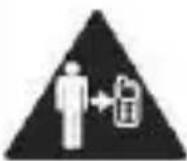 | Keep your phone at least 15 mm away from your ear or body while making calls. |
 | Your phone may produce a bright or flashing light. |
 | Small parts may cause a choking. |
 | Don’t dispose of your phone in fire. |
 | Your phone can produce a loud sound. |
 | Avoid contact with anything magnetic. |
 | Keep away from pacemakers and other electronic medical devices. |
 | Avoid extreme temperatures. |
 | Switch off when asked to in hospitals and medical facilities. |
 | Avoid contact with liquids. Keep your phone dry. |
 | Switch off when told to in aircrafts and airports. |
 | Don’t take your phone apart. |
 | Switch off when near explosive materials or liquids. |
 | Only use approved accessories. |
 | Don’t rely on your phone for emergency communications. |
INTRODUCING YOUR MOBILE PHONE
Learn about your mobile phone's layout, keys, display and icons.
Unpacking
Check the product box for the following items:
- Mobile phone
- Battery
- Travel adapter (charger)
- User manual
The supplied accessories perform best for your phone.
Phone layout
From the front view of your phone you will observe the following elements:

From the front view of your phone you will observe the following elements:

Keys
The following table offers you a quick description about the phone's keys:
| Key | Function |
| Power button | Allow you to turn on/off the device and to lock the screen. |
| Volume | Allow you to adjust the volume of ringing and notifications. Also allow you to adjust the volume of multimedia content playback. |
| Back | Allow you to return to the previous menu or screen. Also allow you to close some applications. |
| Home | It takes you directly to the home screen, leaving any application open. |
| Menu | Allow you to access to the functions menu of the application or screen you are. |
Screen
The screen of your mobile phone is designed as follows:

Icons
Learn about the icons that are displayed on the top of the screen, indicating the status of the phone:
 | Signal strength |  | Wi-Fi connection |
 | GPRS connected |  | EDGE connected |
 | 3G connected |  | HSPA connected |
 | Bluetooth On |  | New message |
 | USB connected |  | New email |
 | Battery meter |  | Alarm active |
 | Vibration profile |  | Headset connected |
Get started setting up your mobile phone for its first use.
Install the SIM card and battery
When you subscribe to a cellular service, you will receive a Subscriber Identity Module (SIM) card, with subscription details, such as your personal identification number (PIN) and optional services.
To install the SIM card and battery,
- Remove the battery cover.

- Insert the SIM card.
Your phone has 2 SIM card slots to allow you use 2 SIM cards and switch between them.

- Place the SIM card in the phone with the gold-colored contacts facing down.
- Without inserting a SIM card, you can use your phone's non-network services and some menus.
- Insert the battery.

- Replace the battery cover
Insert a memory card (optional)
To store additional multimedia files, you must insert a memory card. Your phone accepts MicroSD™ or MicroSDHC™ memory cards up to 32 GB (depending on memory card manufacturer and type).
- Formatting the memory card on a PC may cause incompatibility with your phone. Format the memory card only on the phone.
- Remove the battery cover.

natural_image
Diagram of a smartphone with two red downward arrows indicating movement or control, no text or symbols present.- Insert a memory holder with the label side facing up.

- Replace the battery cover.
To remove the memory card, remove the battery cover, unlock and lift the memory card holder, and remove the memory card.
USING BASIC FUNCTIONS
Learn how to perform basic operations of your mobile phone.
Turn your phone on and off
To turn your phone on,
- Long press the power button [ ] on the left side of your phone.
- Type in your PIN number and press OK (if it is needed).
To shut down your phone, go to step 1 above.
Access menus and applications
To get access to the Menu and Applications,
- At the home screen, touch the button [ ] on the screen to pop up the list of Installed Applications in your phone.
- Slide your finger to the right or left to access other pages of apps.
- Touch any icon to enter to the application.
- To exit the application, press Back or Home at the bottom of the screen.
Use basic call functions
Learn to make or answer calls in this section
Make a call:
- At the home screen or applications menu, touch the Phone icon [ ]
- Dial the area code and phone number.
- Touch [] to start the call.
- To end a call, touch [ ].
To answer a call:
- When you receive a call, slide the phone icon to the right to answer it or slide it to the left to reject it [ ]
- To end the call, touch [ ].
Send and view messages
In this section, learn how to send and receive:
- Text Messages (SMS).
- Multimedia Message (MMS).
Steps to send Text and Multimedia Messages:
- Touch [] Messages at the application list, then touch
[ ] on the left bottom corner.
- Type in the phone number or contact name on the field "To" or touch [ ] to access to Contacts.
- Type in your message in the field "Enter message".
To send as text message go to step 5.
To attach a multimedia object (audio, image, etc.) continue to step 4.
- Touch [ ] on the top right corner, select the attach type then choose the item.
- Touch [ ] to send the message.
Add contacts
Learn the basics of using the phonebook feature.
Add a new contact:
- In the application list touch Contacts, then touch [ ] on the bottom right corner to add a new contact.
- Fill the contact information (Name, Last name and phone number). You can add more fields such as, email, address, etc.
- Touch [ ] on the top of the screen to save.
Search for a contact
-
In the application list touch [ ] Contacts.
-
Slide your finger from bottom to top to scroll the list or touch the search button [ ] and type in the first letters of the name or last name.
-
To see the contact details touch the name or the picture of the contact.
If you want to call a contact touch the phone number.
Listen to music
Learn how to listen to music via the music player or FM radio.
Listen to the FM radio:
-
Plug in the earphones in your phone.
-
In the application list touch [ ] FM Radio.
-
Use the tool bar at the bottom to change of station.
Listen to music files:
First, copy the music files into your phone internal memory or a MicroSD card.
-
In the application list, touch [ ] Music.
-
Select an order at the top of the screen and touch the song that you want to listen to.
-
You can Pause, Loop, or change of song using the tool bar at the bottom.
Browse the web
Learn how to access to your favorites Web Sites.
-
In the application list, touch [ ] Browser.
-
Touch the address bar and type in the address of the web site you want to go and touch [ ] Go.
USING THE CAMERA
Learn the basics to capture and view photos.
Capture pictures
- In the applications list, touch [ ] Camera.
- Adjusts the lens at the photo target and make the desired adjustments by touching the settings button [ ]
- Touch the shot button [ ] on the screen to capture the picture. It will be saved automatically.
See the captured pictures
In the applications list, touch [ ] Gallery and then select the Camera folder [ ] to access and visualize all the pictures captured by your phone.
CONNECTING TO INTERNET
Learn the basics to configure your phone and connect to Internet.
Add a new connection
- In the applications list, touch [] Settings to access to the device configuration.
- Touch the option “More…”, then touch Mobile networks and touch APN. Now select the SIM Card that you want to configure.
- Touch the Menu key and select New APN, then, type in the parameters according with your Carrier.
The basic parameters are:
- Account name
- APN
- Username
- Password
Some carriers use Proxy Servers, refer to your carrier configuration for more information.
- When you finish typing in the parameters needed, touch Menu then Save.
If you have multiples APN Configurations for the same SIM
card, choose which one you want to use touching the radio button [ ] at the right side of the name.
To add another connection, repeat from step 3.
Switch between carriers (SIM cards)
If you use multiple SIM cards and want to switch to another one, follow these steps:
- In the applications list, touch [] Settings to access to the device configuration.
- Touch SIM management [ ]
- Choose the option Data Connection [ Data connection on ] and select the SIM Card that you want to use.
USING THE BLUETOOTH
Learn about your phone's ability to connect to other wireless devices for exchanging data.
Turn on the Bluetooth wireless feature
- In the applications list, touch [ ] Settings to access to the device configuration.
- Touch the Bluetooth option [ ] Bluetooth
- To turn the Bluetooth touching the button [ ] on the right top corner.
Find and pair with other Bluetooth enabled devices
- When you turn the Bluetooth on, the list will show all the available devices near you.
- Touch the device that you want to pair with your phone.
- Enter a PIN for the Bluetooth wireless feature or the other device's Bluetooth PIN, if it has one, and press OK.
When the owner of the other device enters the same code or accepts the connection, the pairing will be complete.
Send images using the Bluetooth wireless feature
-
Open Gallery [ ]
-
Choose a picture and press Share [ ] on the top right corner of the screen and select Bluetooth
[ ]. Bluetooth
- Touch the device that you want to send the picture then accept the file in the receiver.
Receive images using the Bluetooth wireless feature
- Turn on the Bluetooth at System Settings.
- Type in the Bluetooth PIN or accept it (if it is needed).
- Accept the receiving file if you want to receive data from the other device.
When the transferring is finished you can see the picture using the Gallery Application [ ]
USING THE Wi-Fi
Learn to use the phone's wireless capabilities to connect to any wireless local area network compatible.
Connect to a wireless network
- In the applications list, touch [ ] Settings to access to the device configuration.
- Touch the Wi-Fi option [ ] Wi-Fi
- To turn the On the Wi-Fi touching the button [ ] on the right top corner.
- Choose a wireless network and enter the security password if it is needed.
Disconnect from a wireless network
- In the applications list, touch [ ] Settings to access to the device configuration.
- Touch the Wi-Fi option [ ] Wi-Fi
- To turn the Wi-Fi off touch the button [ ] on the right top corner.
View the technical details of a wireless network
- In the applications list, touch [ ] Settings to access to
the device configuration.
- Touch the Wi-Fi option [
- Touch the active wireless network to see details such as Link Speed, Signal strength and more.
natural_image
Diagram of a smartphone with two down arrows and a logo, no readable text or symbols present.


- SECURITY INFORMATION
- INTRODUCING YOUR MOBILE PHONE
- Unpacking
- Phone layout
- Keys
- Screen
- Icons
- Install the SIM card and battery
- Insert a memory card (optional)
- USING BASIC FUNCTIONS
- Turn your phone on and off
- Access menus and applications
- Use basic call functions
- Make a call:
- To answer a call:
- Send and view messages
- Steps to send Text and Multimedia Messages:
- Add contacts
- Add a new contact:
- Search for a contact
- Listen to music
- Listen to the FM radio:
- Listen to music files:
- Browse the web
- USING THE CAMERA
- Capture pictures
- See the captured pictures
- CONNECTING TO INTERNET
- Add a new connection
- Switch between carriers (SIM cards)
- USING THE BLUETOOTH
- Turn on the Bluetooth wireless feature
- Find and pair with other Bluetooth enabled devices
- Send images using the Bluetooth wireless feature
- Receive images using the Bluetooth wireless feature
- USING THE Wi-Fi
- Connect to a wireless network
- Disconnect from a wireless network
- View the technical details of a wireless network
Brand : YEZZ
Model : Andy A3.5EP
Category : Smartphone