WDL-U600AC - NAS Planet - Free user manual and instructions
Find the device manual for free WDL-U600AC Planet in PDF.


User questions about WDL-U600AC Planet
0 question about this device. Answer the ones you know or ask your own.
Ask a new question about this device
Download the instructions for your NAS in PDF format for free! Find your manual WDL-U600AC - Planet and take your electronic device back in hand. On this page are published all the documents necessary for the use of your device. WDL-U600AC by Planet.
USER MANUAL WDL-U600AC Planet
natural_image
Woman in business attire using a laptop on stairs (no visible text or symbols)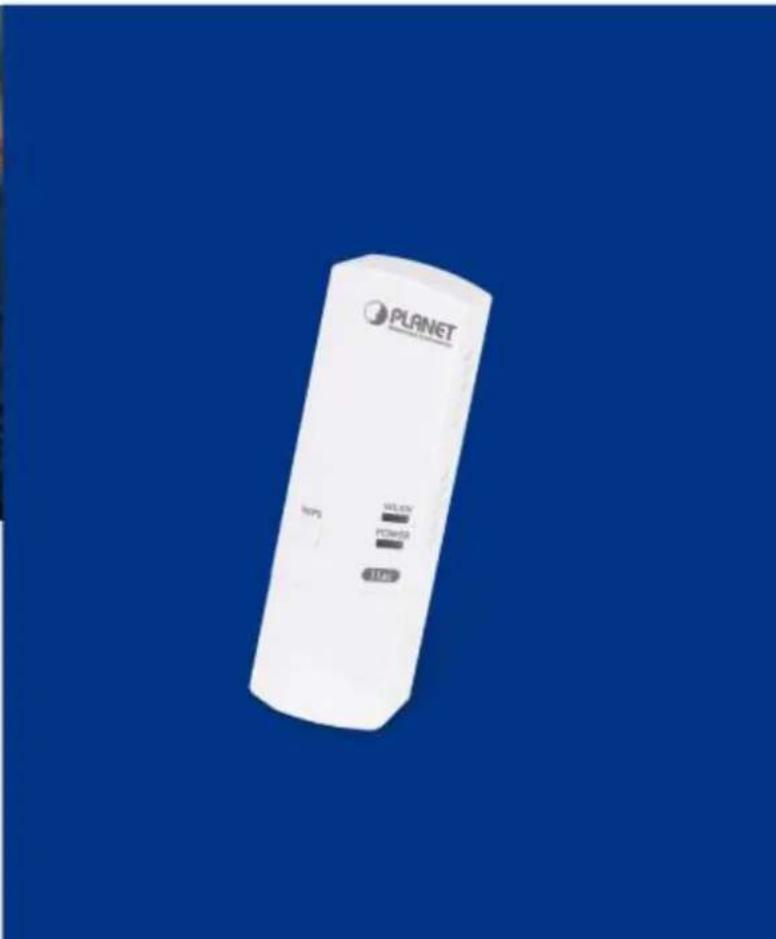
natural_image
White Planet air conditioner device with control buttons and indicator lights against a solid blue background (no text or symbols on body)Copyright
Copyright © 2014 by PLANET Technology Corp. All rights reserved. No part of this publication may be reproduced, transmitted, transcribed, stored in a retrieval system, or translated into any language or computer language, in any form or by any means, electronic, mechanical, magnetic, optical, chemical, manual or otherwise, without the prior written permission of PLANET.
PLANET makes no representations or warranties, either expressed or implied, with respect to the contents hereof and specifically disclaims any warranties, merchantability or fitness for any particular purpose. Any software described in this manual is sold or licensed "as is". Should the programs prove defective following their purchase, the buyer (and not PLANET, its distributor, or its dealer) assumes the entire cost of all necessary servicing, repair, and any incidental or consequential damages resulting from any defect in the software. Further, PLANET reserves the right to revise this publication and to make changes from time to time in the contents hereof without obligation to notify any person of such revision or changes.
All brand and product names mentioned in this manual are trademarks and/or registered trademarks of their respective holders.
Federal Communication Commission Interference Statement

This equipment has been tested and found to comply with the limits for a Class B digital device, pursuant to Part 15 of FCC Rules. These limits are designed to provide reasonable protection against harmful interference in a residential installation. This equipment generates, uses, and can radiate radio frequency energy and, if not installed and used in accordance with the instructions, may cause harmful interference to radio communications. However, there is no guarantee that interference will not occur in a particular installation. If this equipment does cause harmful interference to radio or television reception, which can be determined by turning the equipment off and on, the user is encouraged to try to correct the interference by one or more of the following measures:
- Reorient or relocate the receiving antenna.
- Increase the separation between the equipment and receiver.
- Connect the equipment into an outlet on a circuit different from that to which the receiver is connected.
- Consult the dealer or an experienced radio technician for help.
FCC Caution
To assure continued compliance, (Example - use only shielded interface cables when connecting to computer or peripheral devices) any changes or modifications not expressly approved by the party responsible for compliance could void the user's authority to operate the equipment.
This device complies with Part 15 of the FCC Rules. Operation is subject to the Following two conditions:
(1) This device may not cause harmful interference.
(2) This Device must accept any interference received, including interference that may cause undesired operation.
Federal Communication Commission (FCC) Radiation Exposure Statement
This equipment complies with FCC radiation exposure set forth for an uncontrolled environment. In order to avoid the possibility of exceeding the FCC radio frequency exposure limits, human proximity to the antenna shall not be less than 20 cm (8 inches) during normal operation.
CE mark Warning
This is a class B device, in a domestic environment; this product may cause radio interference, in which case the user may be required to take adequate measures.
R&TTE Compliance Statement
This equipment complies with all the requirements of DIRECTIVE 1999/5/CE OF THE EUROPEAN PARLIAMENT AND THE COUNCIL OF 9 March 1999 on radio equipment and telecommunication terminal Equipment and the mutual recognition of their conformity (R&TTE). The R&TTE Directive repeals and replaces in the directive 98/13/EEC (Telecommunications Terminal Equipment and Satellite Earth Station Equipment) As of April 8, 2000.
Safety
This equipment is designed with the utmost care for the safety of those who install and use it. However, special attention must be paid to the dangers of electric shock and static electricity when working with electrical equipment. All guidelines of this and of the computer manufacture must therefore be allowed at all times to ensure the safe use of the equipment.
EU Countries Intended for Use
The ETSI version of this device is intended for home and office use in Austria Belgium, Denmark, Finland, and France (with Frequency channel restrictions). Germany, Greece, Ireland, Italy, Luxembourg. The Netherlands, Portugal, Spain, Sweden and United Kingdom.
The ETSI version of this device is also authorized for use in EFTA member states Iceland, Liechtenstein, Norway and Switzerland.
WEEE regulation

To avoid the potential effects on the environment and human health as a result of the presence of hazardous substances in electrical and electronic equipment, end users of electrical and electronic equipment should understand the meaning of the crossed-out wheeled bin symbol. Do not dispose of WEEE as unsorted municipal waste and have to collect such WEEE separately.
Revision
User's Manual for PLANET 802.11ac Dual Band Wireless USB Adapter
Model: WDL-U600AC
Rev: EM-WDL-U600AC_v1.0 (February, 2014)
Part No. 2081-E23210-000
CONTENTS
Chapter 1.PRODUCT INTRODUCTION ......6
1.1 Package Contents......6
1.2 Product Description....6
1.3 Product Features....9
1.4 Hardware Description ......9
1.5 Software Description.... 10
1.5.1 Tray Icon 10
1.5.2 Main Screen....11
Chapter 2.INSTALLATION....16
2.1 Microsoft Windows Driver Installation 16
Chapter 3. CONNECTING TO WIRELESS NETWORK....20
3.1 PLANET 11ac USB Wireless LAN Utility 20
3.2 Windows Zero Configuration 22
3.2.1 Windows XP - Use Windows Zero Configuration.... 23
3.2.2 Windows 7 - Use Windows 7 WLAN AutoConfig.... 27
Chapter 4.PLANET USB WIRELESS LAN UTILITY 29
4.1 Connection Profile Management 29
4.1.1 Adding a new profile.... 29
4.1.2 Removing an existing profile 32
4.1.3 Editing an existing profile 33
4.1.4 Setting as the default profile 33
4.2 General Information, Status, and Network Statistics 34
4.2.1 General Information 34
4.2.2 Network Transmission Statistics 35
4.2.3 About / Status 36
4.3 Advanced Settings 36
4.4 Wi-Fi Protected Setup (WPS).... 38
4.4.1 Push Button Config (PBC) 38
4.4.2 PIN Input Config (PIN) 40
Chapter 5. CLIENT + AP MODE .... 43
5.1 Switch to Client + AP Mode 43
5.1.1 Configuration....44
Chapter 6.AP MODE 45
6.1 Switch between AP Mode 46
6.1.1 Configure SSID and Channel.... 47
6.2 Access Control List.... 51
6.3 Connected Devices 52
6.4 About (AP Mode) 53
Appendix: Specifications.... 55
Appendix: Troubleshooting.... 57
Appendix: Glossary.... 58
Appendix: FAQ....63
Chapter 1. PRODUCT INTRODUCTION
1.1 Package Contents
The following items should be contained in the package:

natural_image
White cylindrical device labeled 'PLANET' with control buttons and indicator lights (no readable text beyond branding)WDL-U600 -- 802.11ac Dual Band Wireless USB adapter
text_image
Scanned document page with multiple sections including 'A-PLUNT', 'Software Settings', and 'Database Settings' with embedded images and text blocks.▶ Quick Installation Guide
text_image
PLANET Wireless Adapter 40.86g/80.17.4C (Business Wireless USB Adapter)CD (includes driver/utility/user's manual)

If there is any item missing or damaged, please contact the seller immediately.
1.2 Product Description
High Speed 802.11AC Wireless Experience
The WDL-U600AC offers a reliable and cost effective wireless extending solution. It adopts IEEE 802.11ac standard with 1T1R antenna technology and is backward compatible with IEEE 802.11a and 802.11n. The WDL-U600AC supports USB 2.0 interface that integrates with one transmit channel and one concurrent receive channel to enable the speed to go up to 433Mbps for both data upload and download.

bar
| Category | Value (Mbps) | |---|---| | ac | 433 | | n | 150 | | g | 54 | Theoretical throughput; 3x fasterMaximum Speed: Next Generation 802.11ac vs. 802.11n
2.4G & 5G Dual Band Wireless Connectivity
The WDL-U600AC is a cost-effective, highly integrated USB Wireless Adapter containing the dual band technology that supports 2.4GHz or 5GHz wireless signals on a Wireless Adapter. It supports up to 433Mbps data rate and fully complies with 802.11a/b/g/n/ac specifications, providing feature-rich wireless connectivity at high standards, and delivering reliable throughput from an extended distance. Optimized RF architecture and baseband algorithms provide superb performance with low power consumption. The WDL-U600AC Wireless USB Adapter is designed to support standard based features in the areas of security, quality of service and international regulation, giving end users the greatest performance anytime in any circumstance.
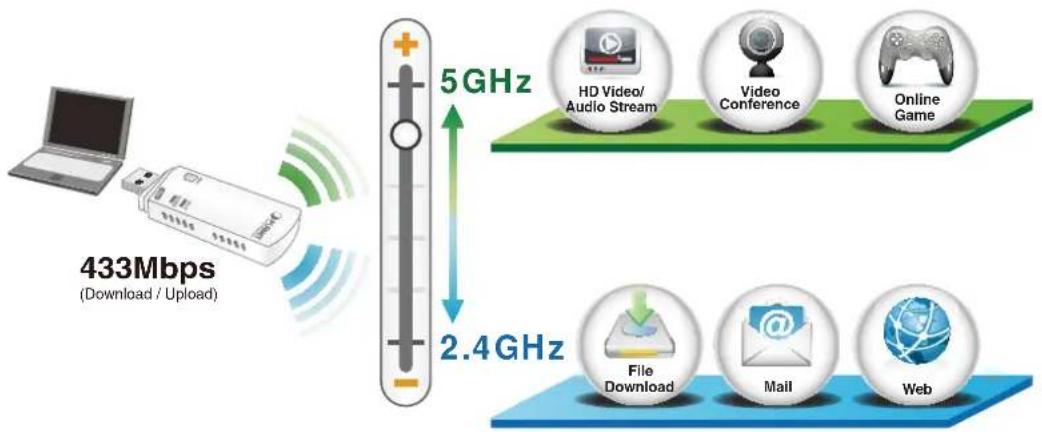
flowchart
graph TD
    A["433Mbps (Download / Upload)"] --> B["5GHz"]
    B --> C["HD Video/ Audio Stream"]
    B --> D["Video Conference"]
    B --> E["Online Game"]
    B --> F["2.4GHz"]
    F --> G["File Download"]
    F --> H["Mail"]
    F --> I["Web"]
Benefits of High-speed 5GHz Signal
Since there are more and more wireless applications and electric devices using the radio frequency of 2.4GHz, the wireless channel of 2.4GHz has been already too crowded for clients to enjoy the high-speed wireless connection. In order to avoid the wireless interference between each other, the WDL-U600AC provides users with the radio frequency of 5GHz for watching HD videos or playing online games additionally. This function makes the WDL-U600AC more suitable for multimedia applications requiring wider bandwidth.

text_image
5GHz Up to 24 non-overlapping channels WDL-U600 AC More free channels, less interference, better connections Avoids Interference 2.4GHz Only 3 non-overlapping channels = Wireless Interference Wi-Fi Cordless Phone Bluetooth Device Microwave Oven Baby Monitor* The 24 channels are defined by the theory. The actual application will vary based on the regulation in different regions and countries.
Advanced Wireless Security
The WDL-U600AC provides advanced security features including 64/128-bit WEP, WPA / WPA2 and WPA-PSK / WPA2-PSK with TKIP/AES encryption. Furthermore, in order to simplify the security configurations, WPS (Wi-Fi Protected Setup) function is included to offer a convenient and fast connection method for users as well.
WPS (Wi-Fi Protected Setup)
Quick & Easy Wireless Connection
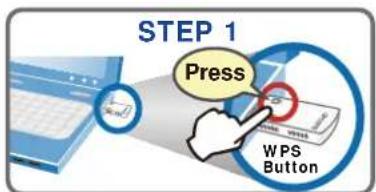
text_image
STEP 1 Press WPS Button
text_image
STEP 2 Press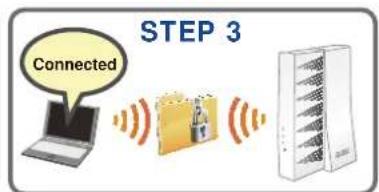
text_image
STEP 3 ConnectedSoftware Access Point Function for Wireless Connection Sharing
More than just being an adapter for PC and laptop connecting to high speed wireless network, the WDL-U600AC can also become a wireless access point. By applying the USB Wireless LAN Utility included in the package, users can switch the WDL-U600AC operation mode between Station mode and Access Point mode. When the WDL-U600AC is in the Access Point mode, it turns to a Wi-Fi Hotspot. The Wi-Fi supported devices such as iPhone / Android / Windows Phone / iPad / NDS / PSP can connect to it and share the wireless access easily. Therefore, travelers would then be worry free to connect to Internet wirelessly via the WDL-U600AC when there is only wired Internet available anywhere.
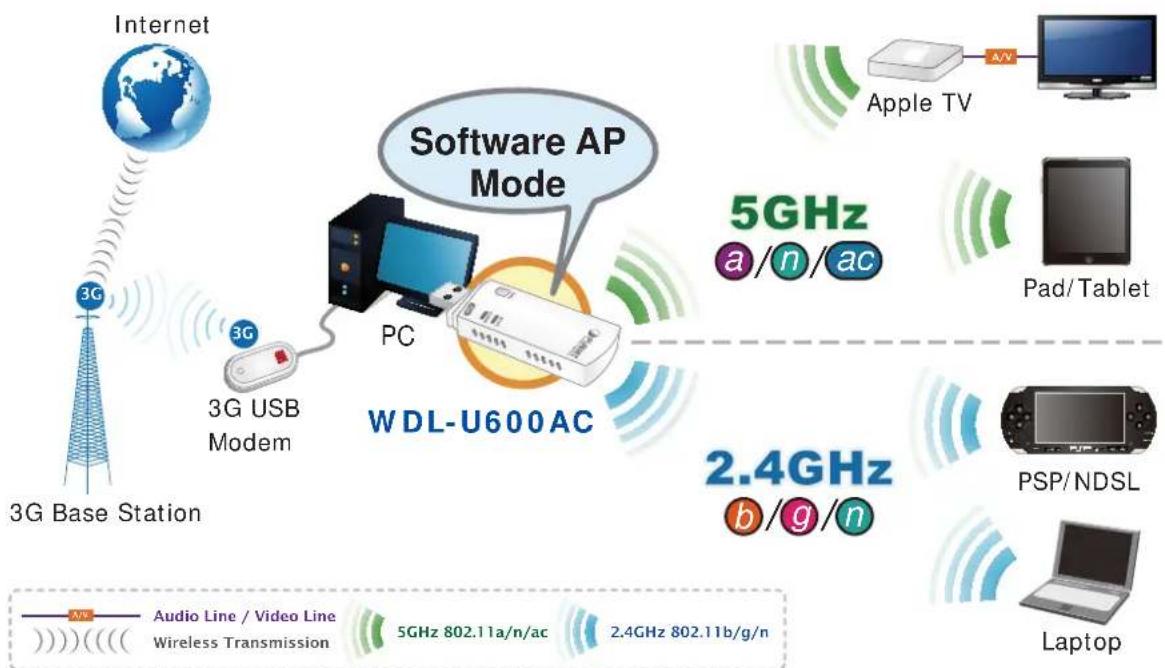
flowchart
graph TD
    A["Internet"] --> B["3G Base Station"]
    B --> C["3G USB Modem"]
    C --> D["PC"]
    D --> E["WDL-U600AC"]
    E --> F["5GHz a/n/ac"]
    E --> G["2.4GHz b/g/n"]
    H["Apple TV"] --> I["A/V"]
    J["Pad/Tablet"] --> K["Computer"]
    L["PSP/NDSL"] --> M["Laptop"]
    N["Audio Line / Video Line Wireless Transmission"] --> O["5GHz 802.11a/n/ac"]
    N --> P["2.4GHz 802.11b/g/n"]
1.3 Product Features
■ 2.4GHz & 5GHz Dual Band Wireless Connectivity
■ Complies with IEEE 802.11a/n/ac & IEEE 802.11/b/g/n Standard
■ Built-in internal antennas with 1T1R MIMO technology
■ Maximal Speed up to 433Mbps Upload and Download
■ 5GHz band support to optimize HD video streaming and online gaming
■ USB 2.0 / 1.1 attached interface
■ Low Power usage with Advanced Power Management
■ Easy Wireless Configuration Utility
■ Supports WEP 64/128-bit, WPA, WPA-PSK, WPA2, WPA2-PSK (TKIP/AES encryption)
■ Wi-Fi Protected Setup (WPS) support
■ Supports Software AP mode
■ Windows XP, Win7, Win 8, Linux, and MAC OS X ready
■ Easy to install using the Multi-language Setup Wizard
1.4 Hardware Description
■ Case Outlook
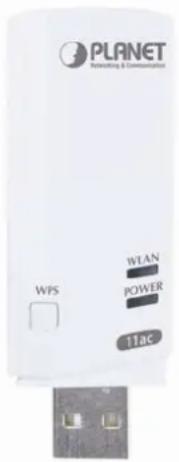
text_image
PLANET WPS WLAN POWER 11ac■ LED Definition
There is an LED equipped on the wireless adapter. When the data is transmitting, the LED will be flashing.

text_image
PLNET LED Indicator| LED Description | |
| Flashing Data transmitting or receiving | |
| Off | The USB adapter has not been installed or the radio of the wireless USB adapter has been disabled from wireless utility |
1.5 Software Description
1.5.1 Tray Icon
■ Client Mode

Wireless connection is established, good signal reception.

Wireless connection is established, normal signal reception.

Wireless connection is established, weak signal reception.

Connection is not established yet.

Wireless network card is not detected.

Wireless encryption is wrong.
■ AP Mode

Wireless connection is established, good signal reception.

Wireless connection is established, normal signal reception.

Wireless connection is established, weak signal reception.

Connection is not established yet.

Wireless network card is not detected.
1.5.2 Main Screen
■ Client Mode

text_image
PLANET Networking & Communication A B SSID PLANET Rate 433.3 Mbps IP Address 192,168,1.2 Channel 149 (5745 MHz) Mask 255.255,255.0 CD
Launch Config Utility Switch to Client + AP Mode Switch to AP Mode Exit
A. Click these buttons to open the following screens and access the utility's features.
 | Available Networks | Use the Available Networks screen to find out about available wireless networks and their network status, and to connect to a wireless network. |
 | Link Information | Use the Link Information screens to find detailed information on the status of your wireless connection. |
 | Profile Settings | Use the Profile Settings screens to set up and use profiles to more quickly connect using frequently used settings, and to set up wireless security. |
 | Advanced | Use the Advanced screens to select your region code, and to install WAPI certificates. |
 | About | Use the About screen to find version information for your Utility. |
B. Use these buttons and icons to manage transmission and to find information about your wireless connection.

Click this button to enable or disable wireless transmission.
Indicates the security status of your connection.
Indicates the quality of your wireless connection.
C. Use this screen to find information on wireless network settings.
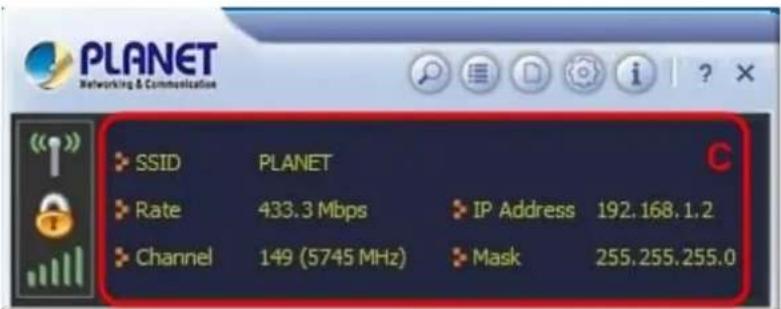
text_image
PLANET Networking & Communication SSID PLANET Rate 433.3 Mbps IP Address 192.168.1.2 Channel 149 (5745 MHz) Mask 255.255.255.0| SSID | This shows the name of your wireless network. |
| Rate | This shows the speed of your connection. |
| Channel | This is the channel assigned to your connection. Change this if interference is a problem on your network. |
| IP Address | This identifies the Adapter on your wireless network; much like a physical mailing address identifies a house on a street. |
| Mask | The subnet mask hides your IP address from outside your wireless network. |
D. Lets you change the operation mode of the utility.
| Launch Config Utility | Select this option to display the Utility's main screen. |
| Use Zero Configuration as Config Utility | (Windows XP only) Select this option to use Windows to set up and manage your network connection. Selection of this mode is not necessary in Windows Vista, 7 or higher, as you can use Windows and the Utility to manage the Adapter without changing operating modes. |
| Switch to Client + AP Mode | Select this option to let computers and devices connected to the AP access the Internet (or another network to which the AP is connected). |
| Switch to AP Mode | Select this option to use the Utility as an access point and to set up a wireless network of your own. |
| Exit | Select this option to close the main screen and exit the program. Any wireless connections managed by the Utility will be disconnected. |
■ Client + AP Mode

text_image
PLANET Networking & Communication A B SSID PLANET Rate 433.3 Mbps IP Address 192.168.0.1 Channel 149 (5745 MHz) Mask 255.255.255.0 D Open Utility Switch to Client Mode ExitA. Click these buttons to open the following screens and access the utility's features.
 | AP | Use the AP screen to set up a secure wireless network. |
 | Available Networks | Use the Available Networks screen to find out about available wireless networks and their network status, and to connect to a wireless network. |
 | Link Information | Use the Link Information screens to find detailed information on the status of your wireless connection. |
 | Advanced | Use the Advanced screen to configure advanced network settings. |
 | Profile Settings | Use the Profile Settings screens to set up and use profiles to more quickly connect using frequently used settings, and to set up wireless security. |
 | About | Use the About screen to find information on specifications for the Utility. |
B. Use these buttons and icons to manage transmission and to find information about your wireless connection.


Click this button to enable or disable wireless transmission.
Indicates the security status of your connection.
Indicates the quality of your wireless connection.
C. Use this screen to find information on wireless network settings.

text_image
PLANET Networking & Communication SSID PLANET Rate 433.3 Mbps IP Address 192.168.0.1 Channel 149 (5745 MHz) Mask 255.255.255.0| SSID | This shows the name of your wireless network. |
| Mode | Indicates the mode and hence frequency supported by your wireless connection. |
| Channel | The channel assigned to your connection. Default is 6, options are 1-12. |
| IP Address | The IP address identifies your Adapter on your wireless network. |
| Mask | The subnet mask hides your IP address from outside your wireless network. |
D. Lets you change the operation mode of the utility.
| Open Utility | Select this option to display the Utility's main screen. |
| Switch to Client Mode | Select this option to let devices connected to the AP access the Internet (or another network to which the AP is connected). |
| Exit | Select this option to close the main screen and exit the program. Any wireless connections managed by the Utility will be disconnected. |
■ AP Mode

text_image
PLANET Networking & Communication A B SSID SoftAP-F3 Mode 2.4 GHz IP 192.168.123.1 Channel 1 (2412 MHz) Mask 255.255.255.0 CD
Open Utility Switch to Client Mode Exit
A. Click these buttons to open the following screens and access the utility's features.
 | AP Setup | Use the AP Setup screen to set up a secure wireless network. |
 | Advanced | Use the Advanced screen to configure advanced network settings. |
 | Access Control List | Use the Access Control List screen to configure an access policy for your network based on a client's MAC address. |
 | Connected Devices | Use the Connected Devices screen to find information on clients currently connected to your network. |
 | About | Use the About screen to find information on specifications for the Utility. |
B. Use these buttons and icons to manage transmission and to find information about your wireless connection.
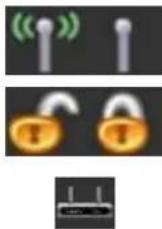
Click the RF buttons to enable or disable wireless transmission.
Indicates the security status of your connection.
Indicates AP Mode is enabled.
C. Use this screen to find information on wireless network settings.
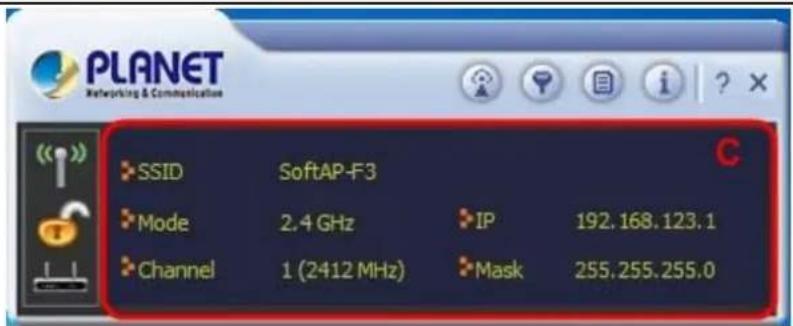
text_image
PLANET Networking & Communication SSID SoftAP-F3 Mode 2.4 GHz IP 192.168.123.1 Channel 1 (2412 MHz) Mask 255.255.255.0| SSID | This shows the name of your wireless network. |
| Mode | Indicates the mode and hence frequency supported by your wireless connection. |
| Channel | The channel assigned to your connection. Default is 6, options are 1-12. |
| IP Address | The IP address identifies your Adapter on your wireless network. |
| Mask | The subnet mask hides your IP address from outside your wireless network. |
D. Lets you change the operation mode of the utility.
| Open Utility | Select this option to display the Utility's main screen. |
| Switch to Client Mode | Select this option to let devices connected to the AP access the Internet (or another network to which the AP is connected).. |
| Exit | Select this option to close the main screen and exit the program. Any wireless connections managed by the Utility will be disconnected. |
Chapter 2. INSTALLATION
2.1 Microsoft Windows Driver Installation

- If you have installed other wireless adapters before, please uninstall the existing drivers and utilities first.
- The following installation is performed in Windows 7. The procedures in other operating systems are similar.
Please follow the instructions below to install the USB Wireless Adapter:
Step 1. Insert the USB wireless network card into an empty USB 2.0 port of your computer when computer is switched on. Never use force to insert the card, if you feel it's stuck, flip the card over and try again.

natural_image
Illustration of a hand inserting a USB into a device component (no text or symbols visible)Step 2. The system will find the new hardware and display the below message.
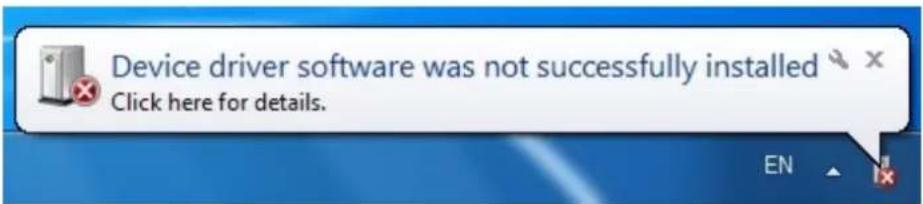
text_image
Device driver software was not successfully installed Click here for details.Step 3. Insert the bundled CD into the CD-ROM drive.
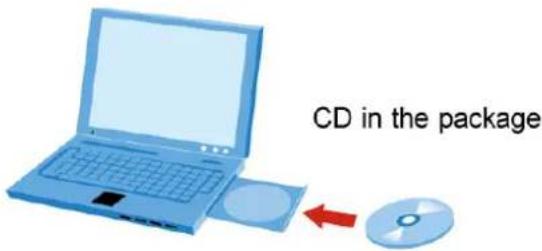
text_image
CD in the packageStep 4. Then a webpage will appear. Click the "Windows Utility" hyperlink to initiate the installing wizard.
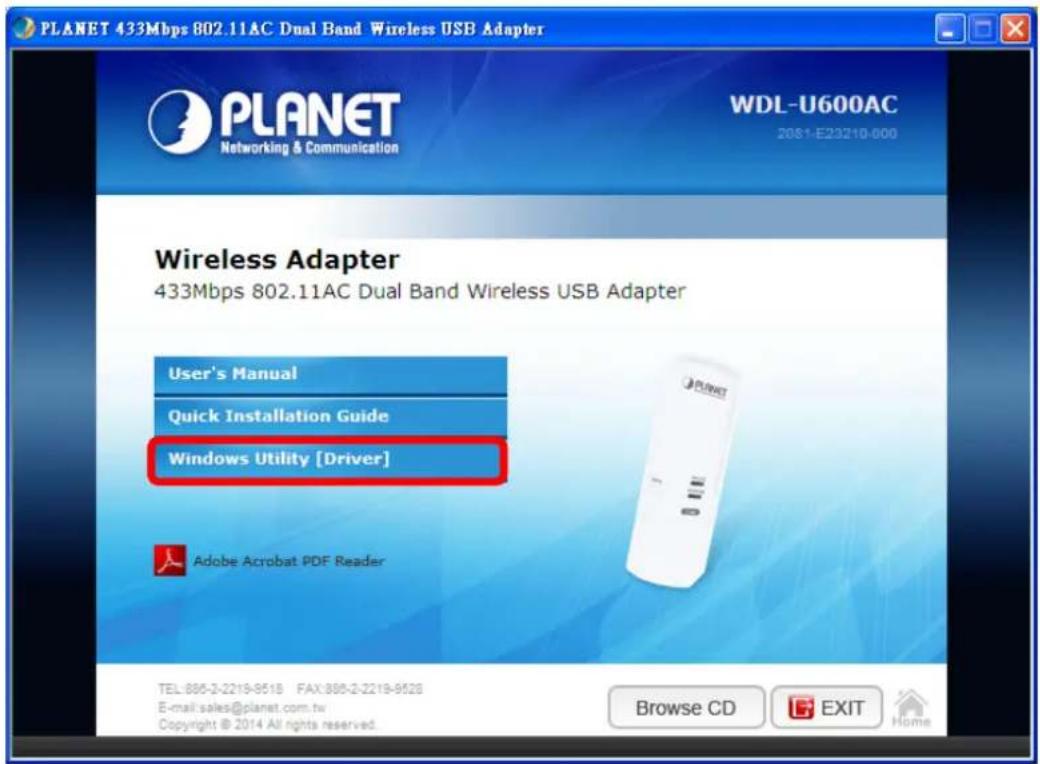
text_image
PLANET 433Mbps 802.11AC Dual Band Wireless USB Adapter WDL-U600AC 2081-E23210-000 Wireless Adapter 433Mbps 802.11AC Dual Band Wireless USB Adapter User's Manual Quick Installation Guide Windows Utility [Driver] Adobe Acrobat PDF Reader TEL:886-2-2219-9518 FAX:886-2-2219-9528 E-mail:sales@planet.com.tw Copyright © 2014 All rights reserved. Browse CD EXIT HomeStep 5. Read the License Agreement carefully. Select "I accept the term of the license agreement" and click "Next" button to accept it and continue.

text_image
Planet - InstallShield Wizard License Agreement Please read the following license agreement carefully. EndUser License Agreement PLANET Software for Windows XP/Vista/Win7/Vin8 Copyright (C) PLANET TECHNOLOGY CORP. All Rights Reserved. Thank you for purchasing and/or using PLANET product. Please read this End-User License Agreement ("Agreement") case.IfI and agree to comply with the terms of this Agreement before downloading, installing, copying or using the software of PLANET ("Software"). By downloading, installing, copying or using this Software, in whole or in part, you agree to be bound by the terms of this Agreement. SOFTWARE LICENSE All the rights and interests of the Software belong to PLANET. The Software is protected by applicable copyright laws and international copyright treaties, as well as other intellectual property laws and treaties. The Software is licensed, not sold. 1. GRANT OF LICENSE. This Agreement grants you the following rights: (1) Installation and Use: You may install and use an unlimited number of copies of the Software. (2) Reproduction and Distribution: You may reproduce and distribute an unlimited number of copies of the Software, provided that each copy shall be a true and complete copy, including • Accept the terms of the license agreement • Do not accept the terms of the license agreement InstallShield < Back Next > CancelStep 6. Click "Next" button to start installing the driver and utility.
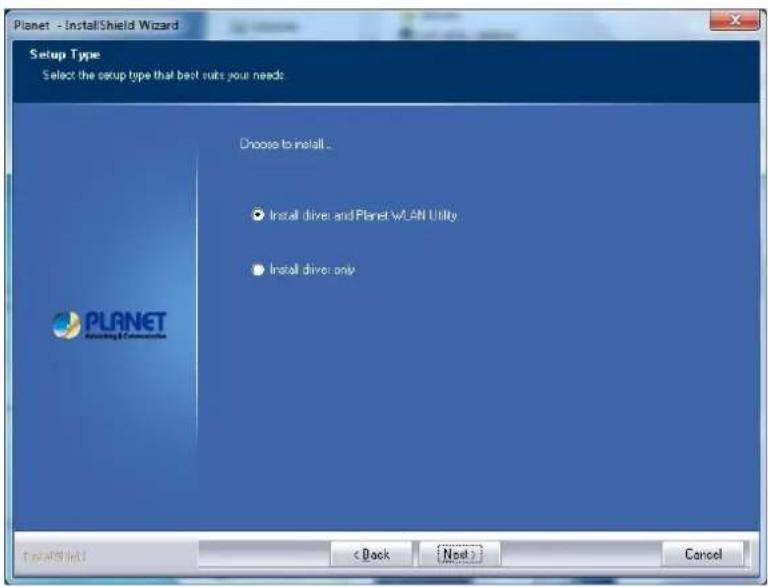
text_image
Planet - InstallShield Wizard Setup Type Select the setup type that best suits your needs Choose to install... • Install drive and PLANET WLAN Utility • Install drive only InstallShield < Back Next > CancelStep 7. Please click "Finish" to finish the installation.
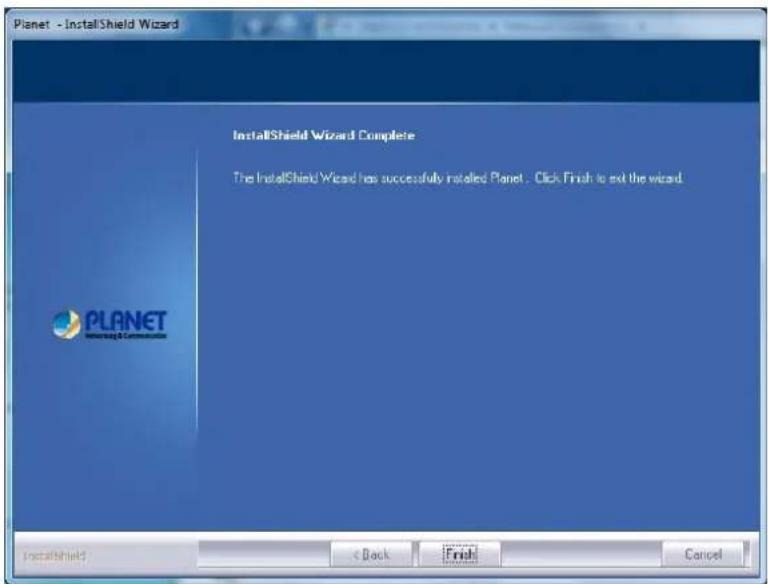
text_image
Planet - InstallShield Wizard InstallShield Wizard Complete The InstallShield Wizard has successfully installed Planet. Click Finish to exit the wizard. PLANET CancelStep 8. Execute the WDL-U600AC utility, and then right-click the tray icon of WDL-U600AC from the system task bar. Select "Launch Config Utility" to start setting your wireless network.
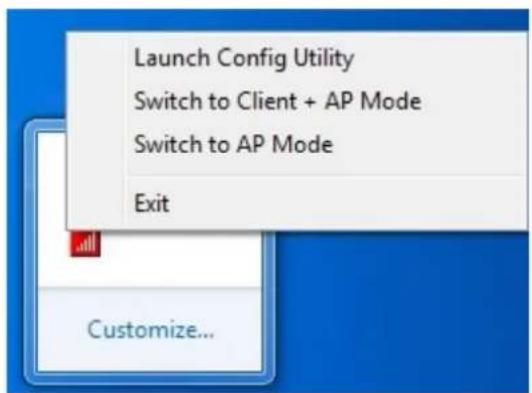
text_image
Launch Config Utility Switch to Client + AP Mode Switch to AP Mode Exit Customize...After the driver of wireless adapter has been installed successfully, you'll see another message pop-up at lower-right corner of the screen. And there is also a new icon appeared on the system tray.
Left-click the new icon will launch PLANET 11ac USB Wireless LAN Utility, and right-click the icon will show the quick menu of configuration utility. This icon also uses different colors to show the status of wireless connection:
Wireless connection is established, good signal reception.
Wireless connection is established, normal signal reception.4
Wireless connection is established, weak signal reception.
Connection is not established yet..
Wireless network card is not detected.
Wireless encryption is wrong.


Chapter 3. CONNECTING TO WIRELESS NETWORK
To use wireless network, you have to connect to a wireless access point first. You can either use PLANET 11ac USB Wireless LAN Utility (comes with network adapter), or Windows Zero Config utility (comes with Windows XP operating system).
3.1 PLANET 11ac USB Wireless LAN Utility
Please follow the instructions below to connect the wireless access point via PLANET 11n USB Wireless LAN Utility.
Step 1. Left-click the PLANET Wireless Utility icon located at lower-right corner of the screen, and configuration menu will appear:
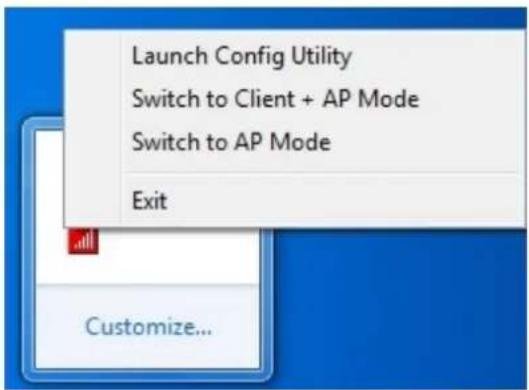
text_image
Launch Config Utility Switch to Client + AP Mode Switch to AP Mode Exit Customize...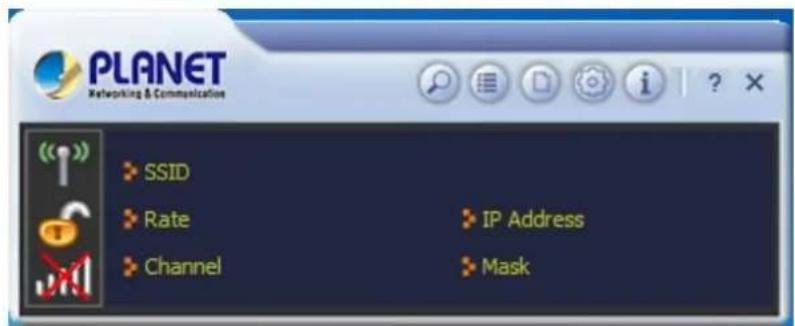
text_image
PLANET Networking & Communication SSID Rate Channel IP Address MaskStep 2. Click "Available Network" icon. Please wait for a while, and all wireless access points nearby which can be reached by the wireless adapter will be displayed here.
If the wireless access point you wish to connect does not appear here, you can click "Refresh" button to scan for wireless access points again; if the wireless access point you're looking for still does not appear, try to move the computer closer to the access point.

text_image
User interface toolbar with a red button labeled 'Search' and icons for search, document, gear, info, and unknown items.Step 3. Click twice on the AP you would like to connect or click the "Connect" icon at the lower-right corner of the window.

bar
Available Networks | Category | Percentage (%) | | :--- | :--- | | b | 100 | | g | 42 | | n | 31 | | b | 20 | | g | 13 | | n | 23 | | b | 47 | | g | 100 | | n | 29 | | b | 55 | | g | 100 | | n | 100 | | b | 100 | | g | 100 | AP Information SSID PLANET Authentication WPA2-PSK MAC Address 00-30-4F-92-DD-0C Encryption AESStep 4. If a password (Network Key) is required to access the wireless access point, please confirm the Authentication and Encryption method first, and then key in the password in the "WPA Preshared Key".
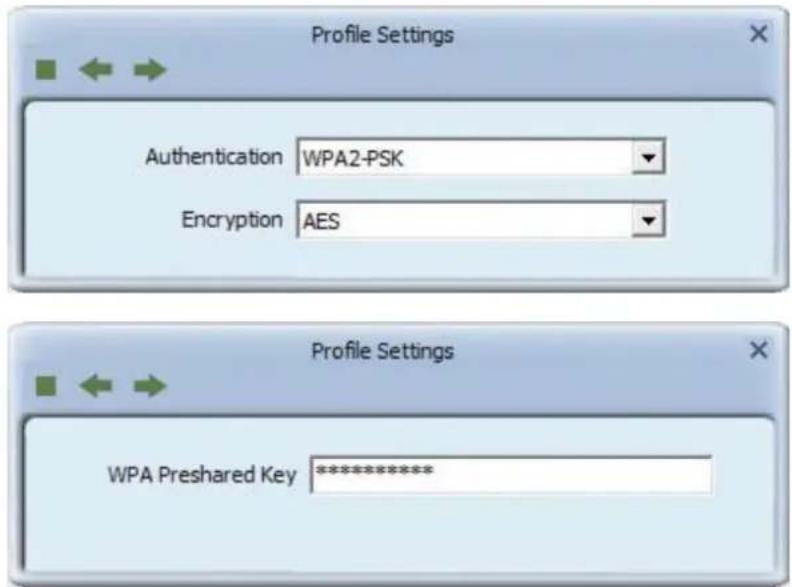
text_image
Profile Settings Authentication WPA2-PSK Encryption AES Profile Settings WPA Preshared Key ********
Note
Network security option ("Authentication" and "Encryption") will be selected automatically based on the security setting of the wireless access point you selected. It's not necessary to change these settings by your own self.
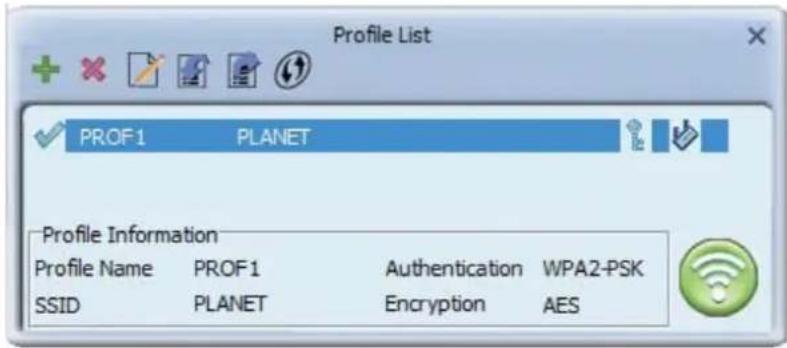
Step 5. Click "Right arrow" button, and you'll see the connection has been added to the profile and then you can connect to the wireless network successfully.
text_image
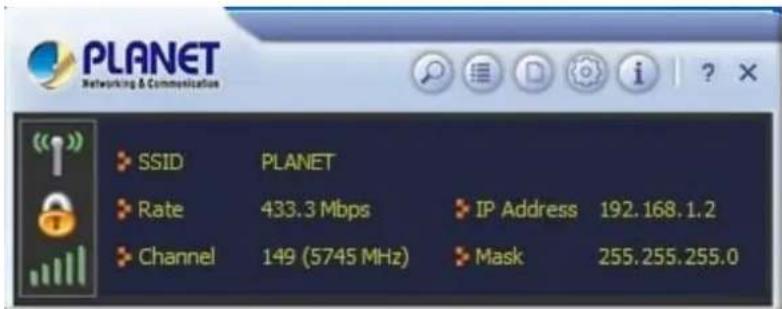
Profile List PROF1 PLANET Profile Information Profile Name PROF1 Authentication WPA2-PSK SSID PLANET Encryption AESStep 6. Wireless adapter will attempt to connect to access point; this may require few seconds to minutes. When the SSID and IP address are displayed in the main window, your computer is connected to access point you selected. Click "Close" icon to close configuration window.
text_image
PLANET Networking & Communication SSID PLANET Rate 433.3 Mbps IP Address 192.168.1.2 Channel 149 (5745 MHz) Mask 255.255.255.0
Note
If you are connected to an access point but the connection drops, please check security settings and re-check password spelling.
3.2 Windows Zero Configuration
Windows XP / Vista / 7 have a built-in wireless network configuration utility called "Windows Zero Configuration" (WZC). You can also use WZC to configure your wireless network parameter:
Step 1. Right-click PLANET Wireless Utility icon, and click "Use Zero Configuration as Configuration Utility".

text_image
Launch Config Utility Use Zero Configuration as Configuration Utility Switch to AP Mode Exit
To return to using PLANET wireless utility, click "Use RaConfig as Configuration Utility".
3.2.1 Windows XP - Use Windows Zero Configuration
Step 2. Click "Start" button (should be located at the bottom-left corner of windows desktop), click "Control Panel", and then click "Network and Internet Connections" in Control Panel.

text_image
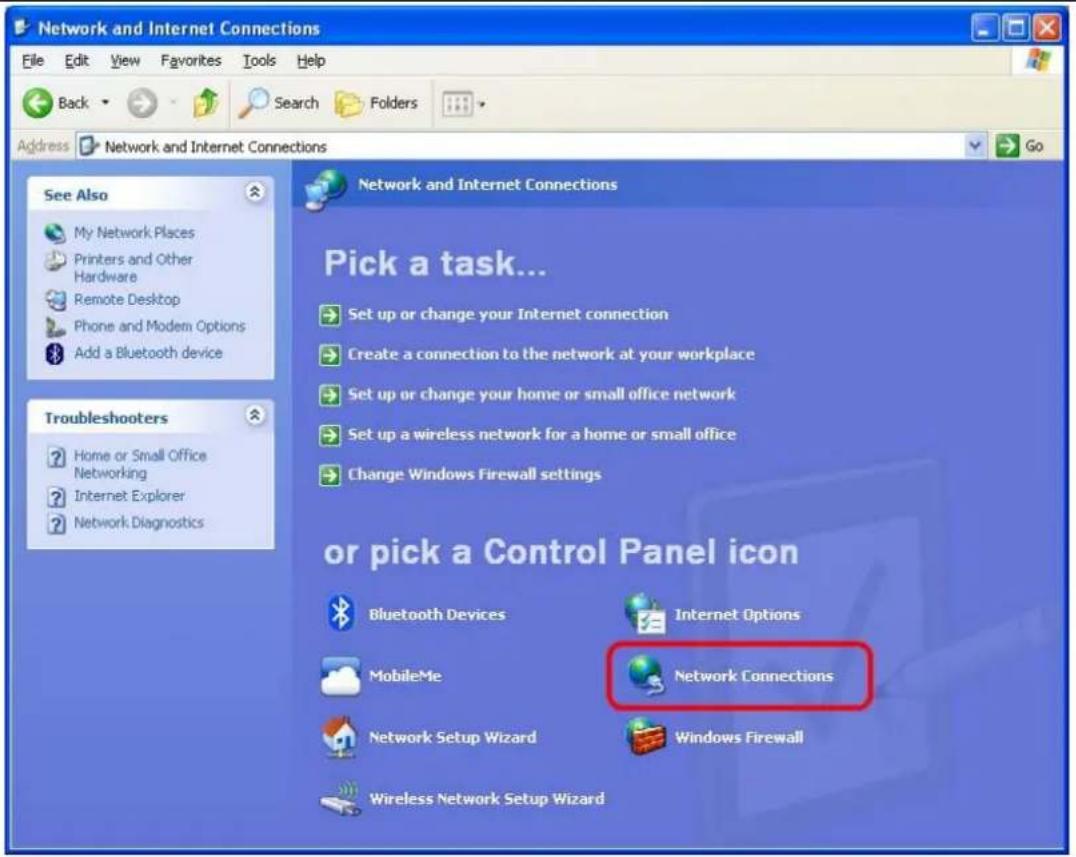
Control Panel File Edit View Favorites Tools Help Back Search Folders Address Control Panel Control Panel Switch to Classic View See Also Windows Update Help and Support Other Control Panel Options Pick a category Appearance and Themes Printers and Other Hardware Network and Internet Connections User Accounts Add or Remove Programs Date, Time, Language, and Regional Options Sounds, Speech, and Audio Devices Accessibility Options Performance and Maintenance Security CenterStep 3. Double-click "Network Connections".
text_image
Network and Internet Connections File Edit View Favorites Tools Help Back Search Folders Address Network and Internet Connections See Also My Network Places Printers and Other Hardware Remote Desktop Phone and Modem Options Add a Bluetooth device Troubleshooters Home or Small Office Networking Internet Explorer Network Diagnostics Network and Internet Connections Pick a task... Set up or change your Internet connection Create a connection to the network at your workplace Set up or change your home or small office network Set up a wireless network for a home or small office Change Windows Firewall settings or pick a Control Panel icon Bluetooth Devices Internet Options MobileMe Network Connections Network Setup Wizard Windows Firewall Wireless Network Setup WizardStep 4. Right-click "Wireless Network Connection" (it may have a number as suffix if you have more than one wireless network adapter; please make sure you right-click the PLANET Wireless LAN 802.11n USB Network Adapter), and then select "View Available Wireless Networks".

text_image
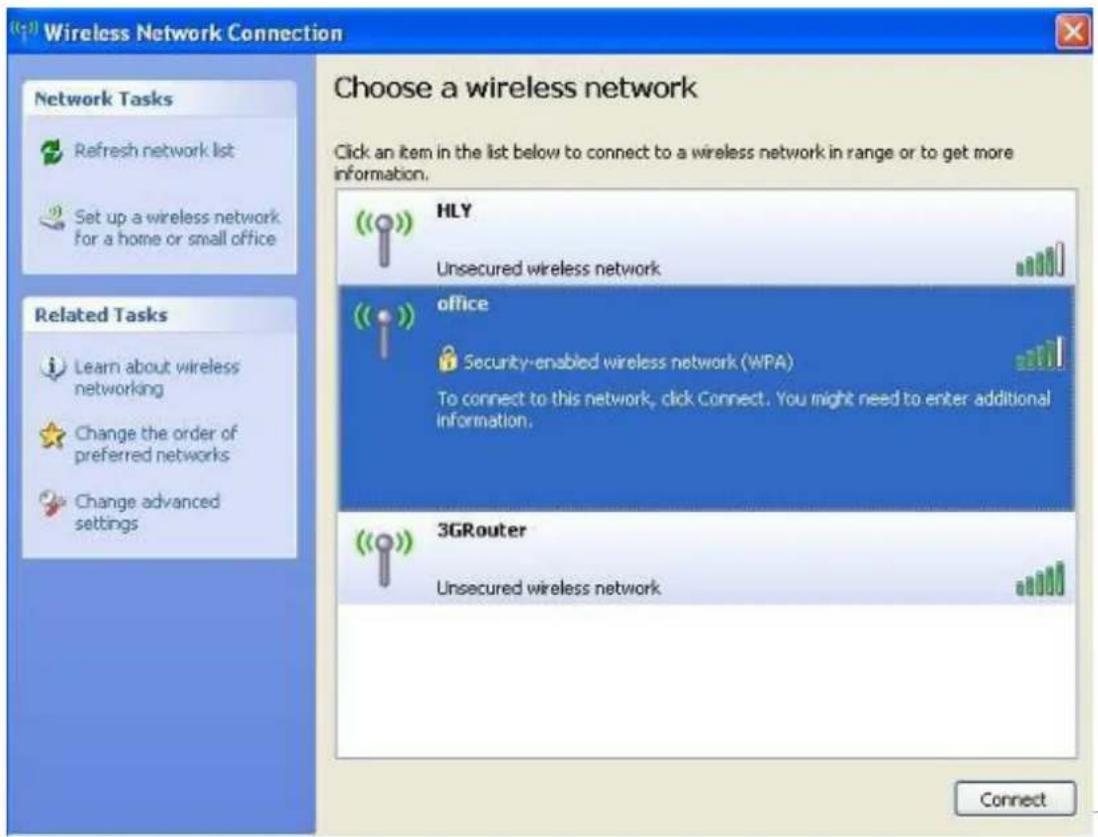
Local Area Connection 2 Local Area Connection Disable View Available Wireless Networks Status Repair Bridge Connections Create Shortcut Delete Rename PropertiesStep 5. All wireless access points in proximity will be displayed here. If the access point you want to use is not displayed here, please try to move your computer closer to the access point, or you can click "Refresh network list" to rescan access points. Click the access point you want to use if it's shown, and then click "Connect".
text_image
Wireless Network Connection Choose a wireless network Click an item in the list below to connect to a wireless network in range or to get more information. Network Tasks Refresh network list Set up a wireless network for a home or small office Related Tasks Learn about wireless networking Change the order of preferred networks Change advanced settings HLY Unsecured wireless network office Security-enabled wireless network (WPA) To connect to this network, click Connect. You might need to enter additional information. 3GRouter Unsecured wireless network ConnectStep 6. If the access point is protected by encryption, you have to input its Network key or passphrase here. It must match the encryption setting on the access point. If the access point you selected does not use encryption, you'll not be prompted for network key or passphrase.

text_image
Wireless Network Connection The network 'office' requires a network key (also called a WEP key or WPA key). A network key helps prevent unknown intruders from connecting to this network. Type the key, and then click Connect. Network key: Confirm network key: Connect CancelStep 7. If you can see "Connected" message, the connection between your computer and wireless access point you selected is successfully established.
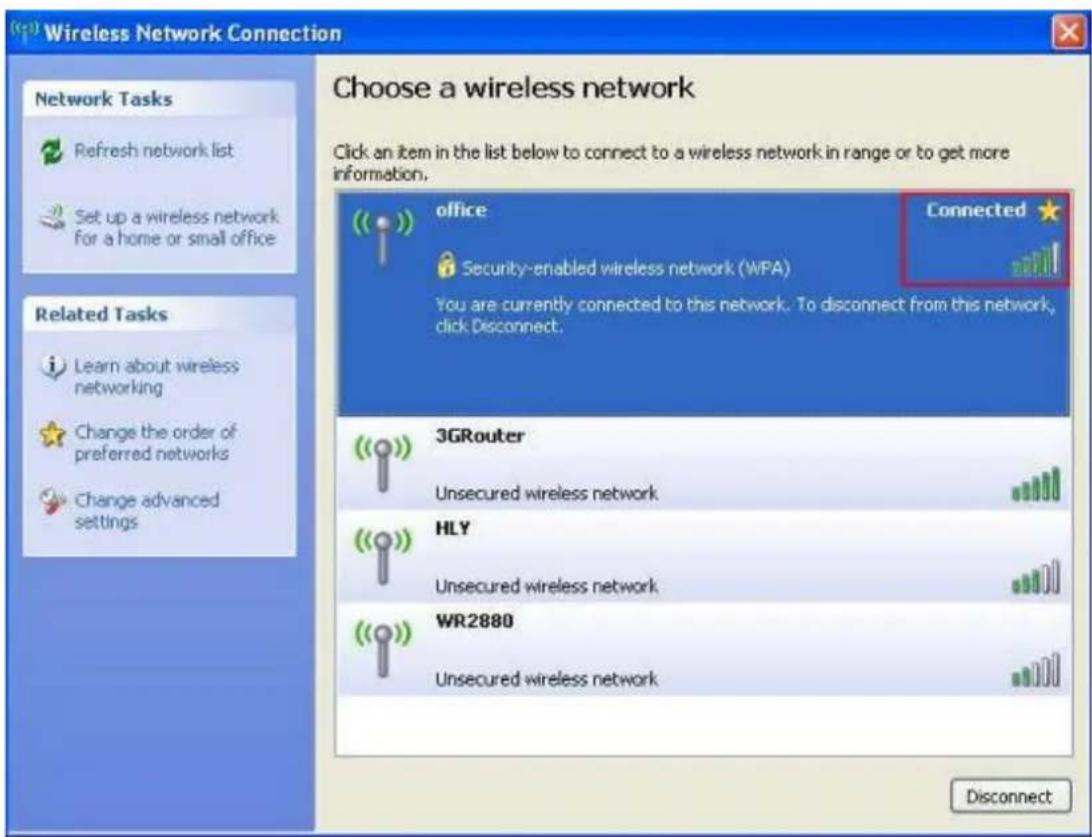
text_image
Wireless Network Connection Choose a wireless network Click an item in the list below to connect to a wireless network in range or to get more information. Network Tasks Refresh network list Set up a wireless network for a home or small office Related Tasks Learn about wireless networking Change the order of preferred networks Change advanced settings office Connected ★ Security-enabled wireless network (WPA) You are currently connected to this network. To disconnect from this network, click Disconnect. 3GRouter Unsecured wireless network HLY Unsecured wireless network WR2880 Unsecured wireless network Disconnect3.2.2 Windows 7 - Use Windows 7 WLAN AutoConfig
WLAN AutoConfig service is built-in in Windows 7 that can be used to detect and connect to wireless network. This built-in wireless network connection tool is similar to wireless zero configuration tool in Windows XP.
Step 1: Right-click on the network icon displayed in the system tray

text_image
Not connected - Connections are available CH 12:49 AM 2/10/2011Step 2: Highlight and select the wireless network (SSID) to connect.
(1) All wireless access points in proximity will be displayed here. If the access point you want to use is not displayed here, please try to move your computer closer to the access point, or you can click "Refresh network list" to rescan access points.
(2) Click the access point you want to use if it's shown, and then click "Connect".
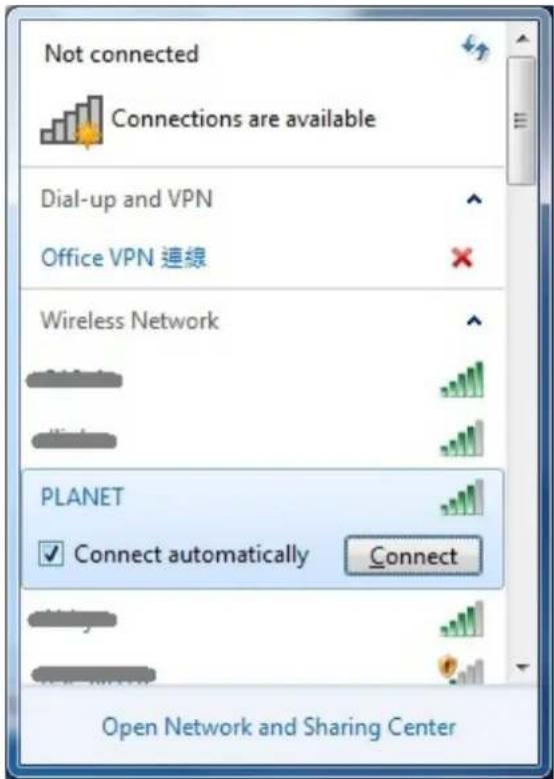
text_image
Not connected Connections are available Dial-up and VPN Office VPN 連線 Wireless Network PLANET Connect automatically Connect Open Network and Sharing Center
If you will be connecting to this Wireless Router in the future, give a check to [Connect automatically].
Step 3: Enter the network security key of the wireless access point.
(1) The Connect to a Network box will appear
(2) Enter the security key
If the access point is protected by encryption, you have to input its network key or passphrase here. It must match the encryption setting on the access point.
(3) Click the [OK] button

text_image
Connect to a Network Type the network security key Security key: Hide characters You can also connect by pushing the button on the router. OK Cancel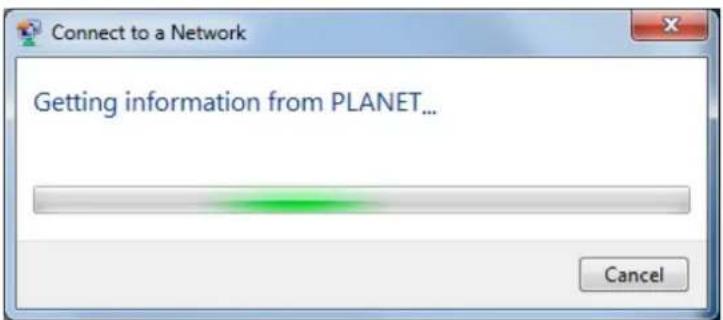
text_image
Connect to a Network Getting information from PLANET... CancelStep 4: Check if "Connected" is displayed
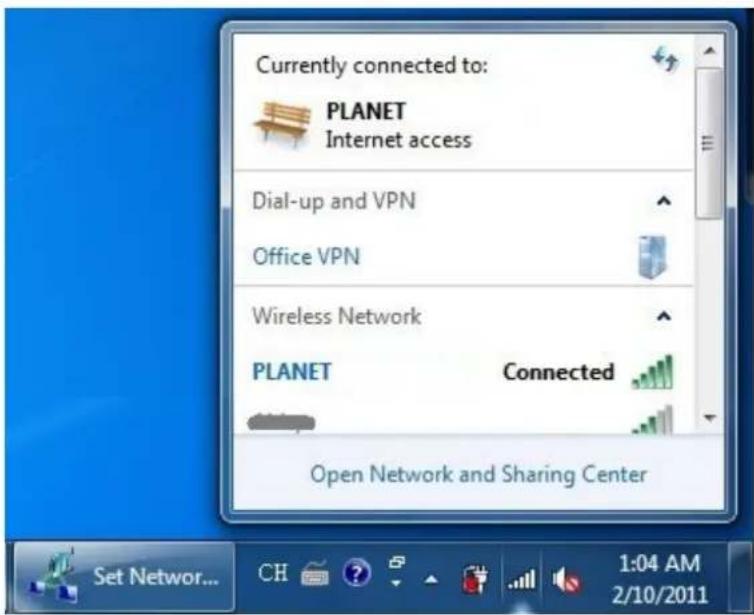
text_image
Currently connected to: PLANET Internet access Dial-up and VPN Office VPN Wireless Network PLANET Connected Open Network and Sharing Center Set Network... CH 1:04 AM 2/10/2011Chapter 4. PLANET USB WIRELESS LAN UTILITY
4.1 Connection Profile Management
If you need to connect to different wireless access points at a different time, like access point at home, office, cyber-cafe, or public wireless service, you can save the connection parameters (encryption, passphrase, security, etc.) as profiles for every access point, so you don't have to input these parameters every time when you want to connect to the specific wireless access point.
To manage profiles, right-click the PLANET wireless utility icon located at the lower-right corner of the screen, and then click "Launch Config Utility".

text_image
Launch Config Utility Use Zero Configuration as Configuration Utility Switch to AP Mode ExitClick the "Profile Settings" button.

text_image
PLANET Networking & Communication Profile Settings SSID PLANET Rate 433.3 Mbps IP Address 192.168.1.2 Channel 149 (5745 MHz) Mask 255.255.255.0 Profile List Profile Information Profile Name Authentication SSID Encryption4.1.1 Adding a new profile
You can set up the connection parameters for the specific wireless access point in advance. If you want to create a new profile, click "Add" icon.
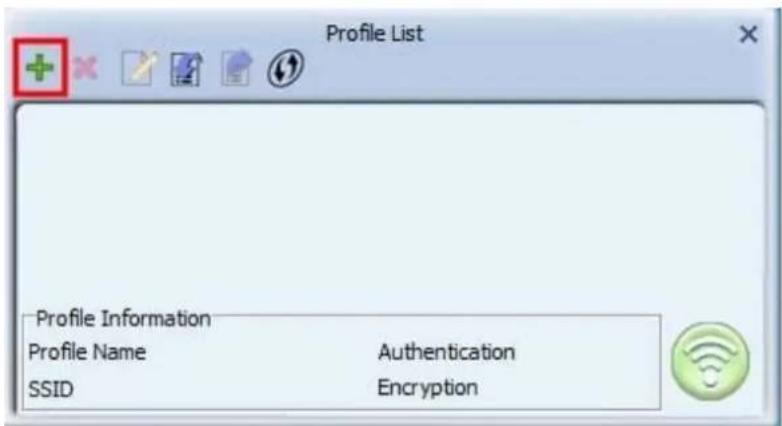
text_image
Profile List Profile Information Profile Name Authentication SSID EncryptionYou'll be prompted to input connection parameters for the wireless access point you wish to connect:
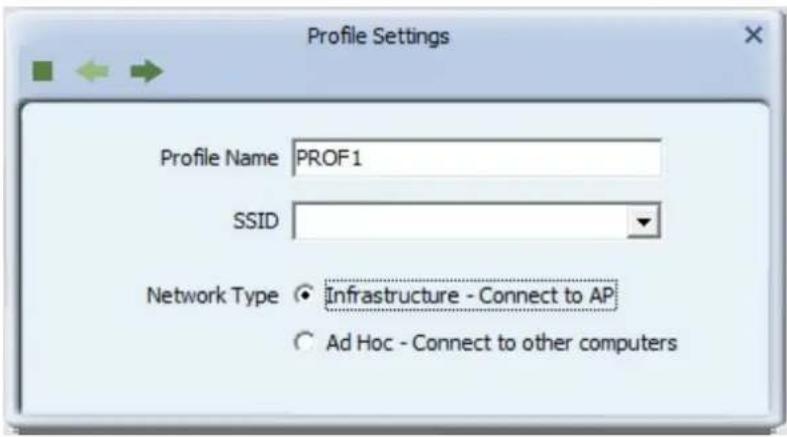
text_image
Profile Settings Profile Name PROF1 SSID Network Type ● Infrastructure - Connect to AP ○ Ad Hoc - Connect to other computersRequired parameters are as follows:
| Object Description | |
| • Profile Name | You can give a name to this profile, so you can remember its purpose easily. It can be any phrase to help you remember. |
| • Network Name (SSID) | The SSID (Service Set Identifier, i.e. access point's name). This field will be filled as the access point you selected when SSID is not hidden and grayed out. If SSID is hidden, you have to input correct SSID you yourself. |
| • Infrastructure – Connect to AP | This operation mode requires the presence of an 802.11 Access Point. All communication is done via the Access Point or Router. |
| • Ad-Hoc – Connect to other computers | Check this box if you wish to connect to another computer / network device by ad-hoc method. When not accessing to wireless access point, you have to check this box. |
| • Authentication | Select the authentication type from the drop-down menu. This setting must be identical with the setting of wireless access point you wish to connect.Open – No authentication is needed among the wireless networks.Shared – Only wireless devices using a shared key (WEP Key identified) are allowed to connect each other.WPA – WPA provides a scheme of mutual authentication using either IEEE 802.1x/Extensible Authentication Protocol (EAP) authentication or pre-shared key (PSK) technology. It provides a high level of assurance to enterprises, small businesses and home users that data will remain protected and that only authorized users may access their networks. For enterprises that have already deployed IEEE 802.1x authentication, WPA offers the advantage of leveraging the existing authentication databases and infrastructure.WPA-PSK – It is a special mode designed for home and small business users who do not have access to network authentication servers. In this mode, known as Pre-Shared Key, the user manually enters the starting password in their access point or gateway, as well as in each wireless station on the network. WPA-PSK takes over automatically from that point, keeping unauthorized users that don't have the matching password from joining the network, while encrypting the data traveling between authorized devices.WPA2 – Like WPA, WPA2 supports IEEE 802.1 x/EAP authentications or PSK technology. It also includes a new advanced encryption mechanism using the Advanced Encryption Standard (AES). AES is required to the corporate user or government users. The difference between WPA and WPA2 is that WPA2 provides data encryption via the AES. In contrast, WPA uses Temporal Key Integrity Protocol (TKIP).WPA2-PSK – WPA2-PSK is also for home and small business. The difference between WPA-PSK and WPA2-PSK is that WPA2-PSK provides data encryption via the AES. In contrast, WPA-PSK uses Temporal Key Integrity Protocol (TKIP).802.1X – 802.1x wireless authentication. |
| • EAP Method / Tunnel Authentication / Tunnel ID | When selecting 802.1X, you have to select EAP method, Tunnel authentication, and Tunnel ID from the dropdown menu. This setting must be identical with your 802.1x authentication server. |
| • Encryption | None – Disable the encryption mode.WEP – Enable the WEP Data Encryption. When the item isselected, you have to continue setting the WEP Encryption keys.TKIP - TKIP (Temporal Key Integrity Protocol) changes the temporal key every 10,000 packets (a packet is a kind of message transmitted over a network.) This ensures much greater security than the standard WEP security.AES - AES has been developed to ensure the highest degree of security and authenticity for digital information and it is the most advanced solution defined by IEEE 802.11i for the security in the wireless network.Note: All devices in the network should use the same encryption method to ensure the communication. |
| Default Key (Key index) | Select WEP key index. For most of access points you can select “1”, but please refer to the setting of the access point. |
| Key Format | When the encryption type is “WEP”, it’s required to input a set of “passphrase” to connect to wireless access point. Check “ASCII” or “PASSPHRASE” depends on the security setting of access point, and input it in the box; if you select “PASSPHRASE”, you also need to select the length of the key. The passphrase must be identical with the setting of wireless access point you wish to connect. |
| WEP Key | The WEP keys are used to encrypt data transmitted in the wireless network. |
| WPA Preshared Key | The WPA-PSK key can be from 8 to 64 characters and can be letters or numbers. This same key must be used on all of the wireless stations on the network. |
| Show Password | Check this box and all passphrases or security keys you inputted will be displayed as you type, but do not replace your input with asterisk. |
When all required parameters are set, click "Right arrow" icon to create and save a new profile.
4.1.2 Removing an existing profile
If you want to remove a profile no longer needed, click "Profile Settings" button, then select the existing profile you wish to remove, and click "Delete" icon.
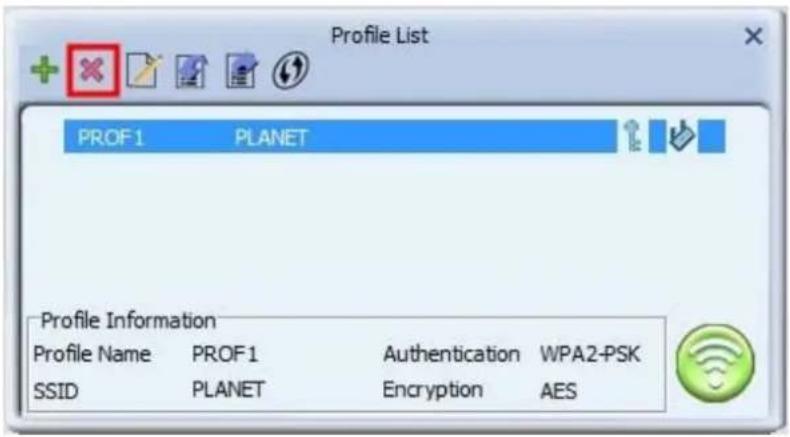
text_image
Profile List PROF1 PLANET Profile Information Profile Name PROF1 Authentication WPA2-PSK SSID PLANET Encryption AES4.1.3 Editing an existing profile
If you have added a profile before, and now you wish to change the settings of the profile, you can use this function. Please select the profile from the list first, and then click "Edit" button. The contents of the selected profile will appear. After editing them, you can click "Right arrow" icon to save changes, or click "Cancel" to discard changes.
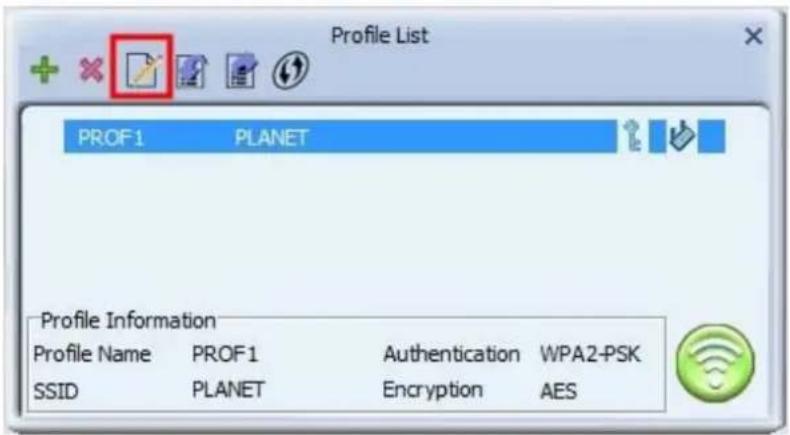
text_image
Profile List PROF1 PLANET Profile Information Profile Name PROF1 Authentication WPA2-PSK SSID PLANET Encryption AES
text_image
Cancel Next Profile Settings Profile Name PROF1 SSID PLANET Network Type ● Infrastructure - Connect to AP ○ Ad Hoc - Connect to other computers4.1.4 Setting as the default profile
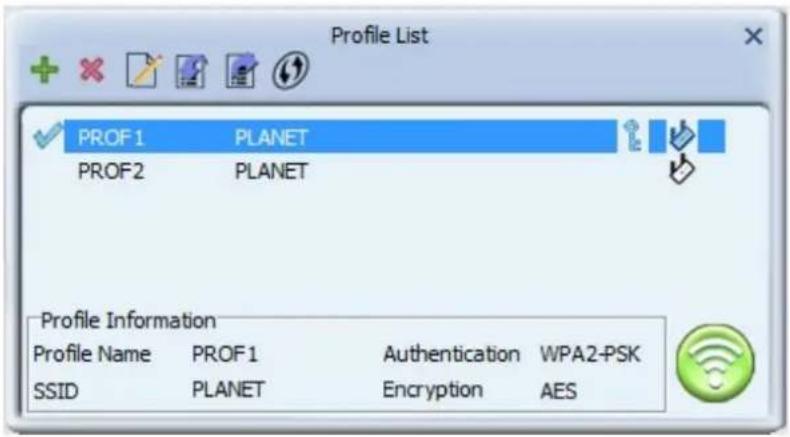
If you wish to use a specific profile as the default wireless connection, you can select the profile in the list, and click "Active". The selected profile will become default selection and PLANET wireless utility will attempt to connect to the selected access point.
text_image
Profile List PROF1 PLANET PROF2 PLANET Profile Information Profile Name PROF1 Authentication WPA2-PSK SSID PLANET Encryption AES4.2 General Information, Status, and Network Statistics
PLANET wireless utility provides the detailed information about the wireless connection you're using.
4.2.1 General Information
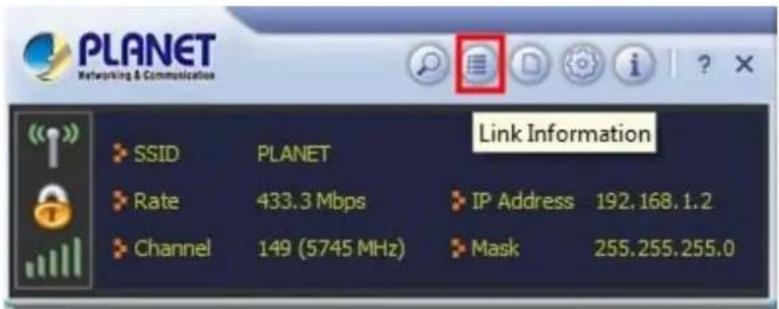
If you want to know the general information of the access point you're connecting to, click "Link Information" icon.
text_image
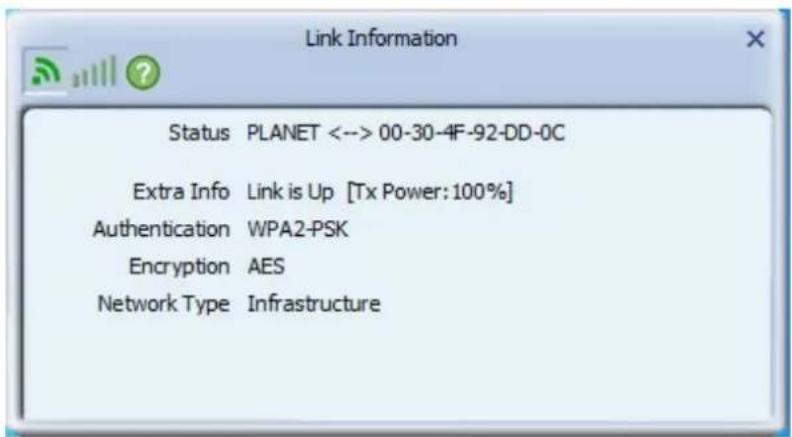
PLANET Networking & Communication SSID PLANET Rate 433.3 Mbps IP Address 192.168.1.2 Channel 149 (5745 MHz) Mask 255.255.255.0 Link InformationAll general information like signal strength and link quality will be displayed here. The information is very useful when you encounter some problems in connecting to access point.
text_image
Link Information Status PLANET <--> 00-30-4F-92-DD-0C Extra Info Link is Up [Tx Power: 100%] Authentication WPA2-PSK Encryption AES Network Type Infrastructure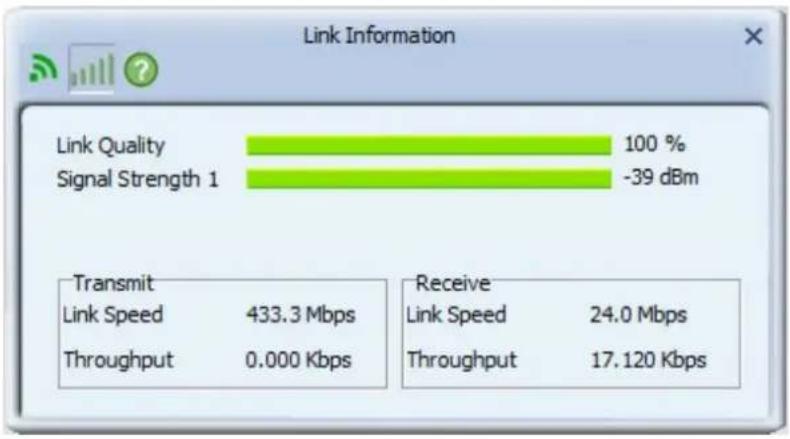
bar
| Metric | Value | | ---------------- | --------- | | Link Quality | 100 % | | Signal Strength 1| -39 dBm | | Transmit | 433.3 Mbps| | Link Speed | 433.3 Mbps| | Throughput | 0.000 Kbps| | Receive | 24.0 Mbps | | Link Speed | 24.0 Mbps | | Throughput | 17.120 Kbps |4.2.2 Network Transmission Statistics
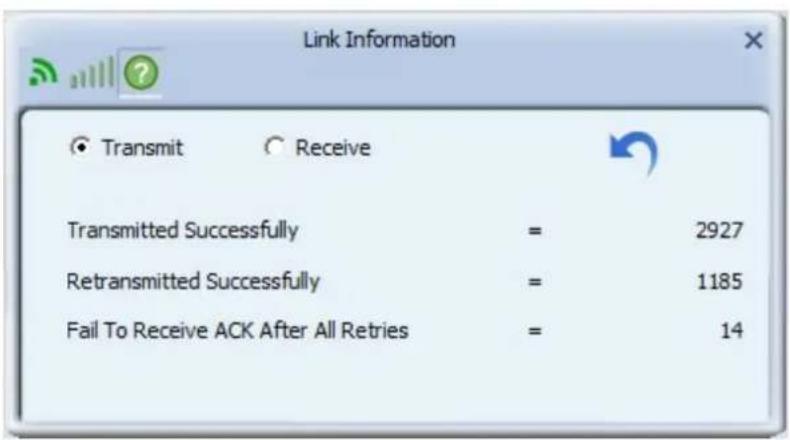
To view the statistical data of wireless adapter, click "Statistics" icon, and the statistics of wireless connection will be displayed:
text_image
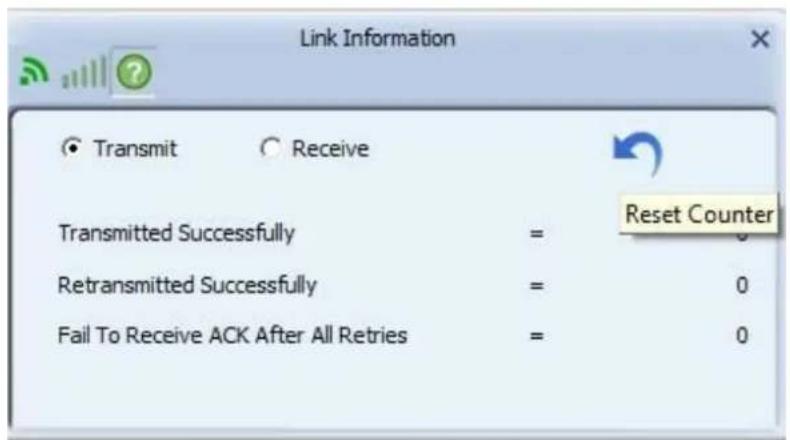
Link Information ● Transmit ○ Receive Transmitted Successfully = 2927 Retransmitted Successfully = 1185 Fail To Receive ACK After All Retries = 14All connection-related statistics is displayed here. You can click "Reset Counter" button to reset the statistics of all items back to 0.
text_image
Link Information ● Transmit ○ Receive Transmitted Successfully = Reset Counter Retransmitted Successfully = 0 Fail To Receive ACK After All Retries = 04.2.3 About / Status
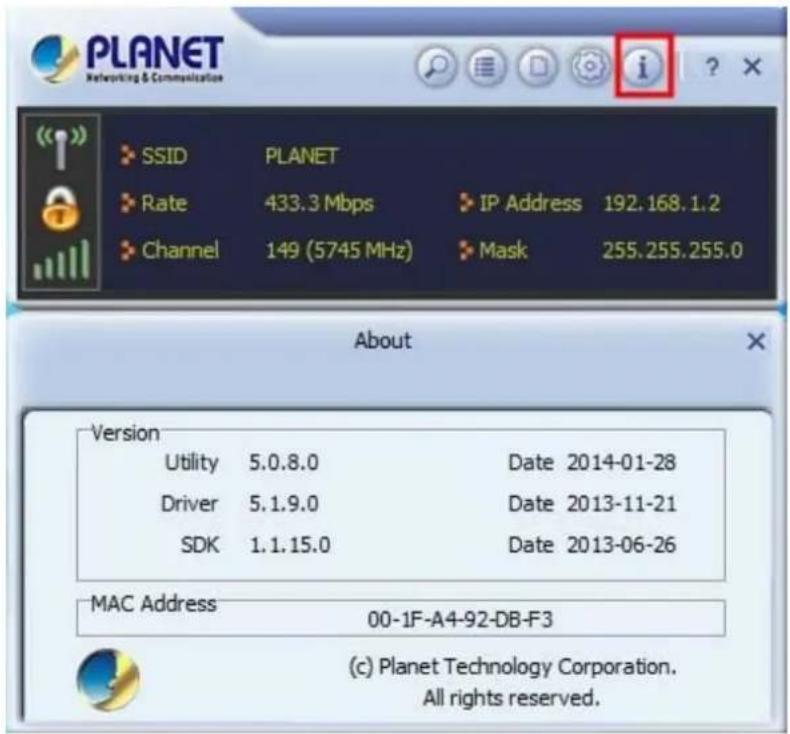
If you want to know the status of your wireless network card, click "About" icon.
text_image
PLANET Networking & Communication SSID PLANET Rate 433.3 Mbps IP Address 192.168.1.2 Channel 149 (5745 MHz) Mask 255.255.255.0 About Version Utility 5.0.8.0 Date 2014-01-28 Driver 5.1.9.0 Date 2013-11-21 SDK 1.1.15.0 Date 2013-06-26 MAC Address 00-1F-A4-92-DB-F3 (c) Planet Technology Corporation. All rights reserved.4.3 Advanced Settings
This section is used to configure certificate management.

text_image
Advanced Install Certificate User certificate Issuer certificate Certificate Details Issuer Version Subject Type Valid From Valid ToThe descriptions of the function are listed as follows:
| Object Description | |
| User certificate | Click on the icon to locate and load a certificate file. |
| Issuer certificate | Click on the icon to locate and load an issuer certificate file. |
4.4 Wi-Fi Protected Setup (WPS)
Wi-Fi Protected Setup (WPS) is the latest wireless network technology which makes setting up wireless network more quickly and easily. If you have WPS-supported wireless access point, and you want to establish a secure connection to it, you don't have to configure the wireless access point and set up data encryption by your own self.
There are two kinds of WPS method supported, "PIN Input Config (PIN)" and "Push Button Config (PBC)". Please follow the instructions below to establish the secure connection between WPS-supported wireless access point and the PLANET wireless adapter.
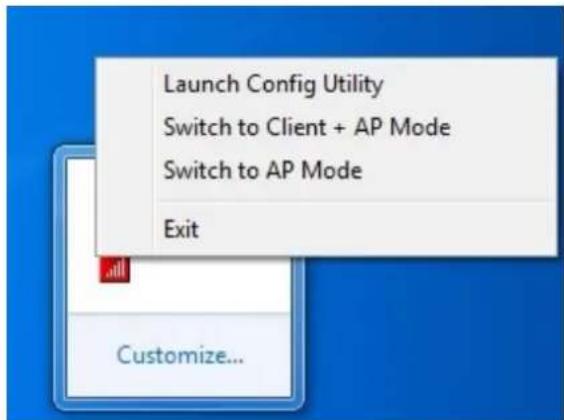
Step 1. Right-click PLANET wireless utility icon, and click "Launch Config Utility".
text_image
Launch Config Utility Switch to Client + AP Mode Switch to AP Mode Exit Customize...Step 2. Go to Profile List, and then click "WPS" icon.

text_image
Profile List Profile Information Profile Name Authentication SSID EncryptionStep 3. You can choose which WPS method to use, Push-Button Configuration(PBC) or PIN / numeric code, and WPS-supported wireless access point must use the same method. See the next two chapters for the detailed instructions of each WPS method.
4.4.1 Push Button Config (PBC)
This is the easiest way to establish secure connection by WPS, but if there're more than one WPS-supported access point using Push-Button config, please use PIN / numeric code instead.
a. To use the PBC method, select "Push-Button Configuration (PBC)". Click the right arrow to save your settings.

text_image
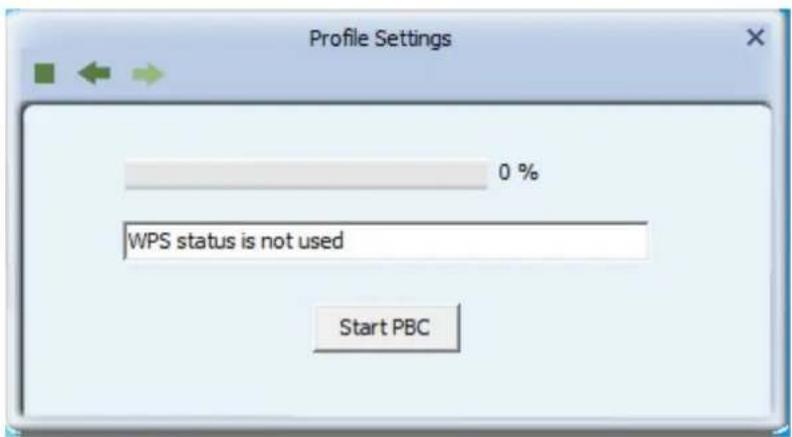
Profile Settings WPS Method ○ Push-Button ○ PIN WPS Version 2.0 WPS AP List WDRT-750AC_2.4Gb. Click "Start PBC". At the same time (within 120 seconds) click the WPS button on the device to which you are connecting.
text_image
Profile Settings 0 % WPS status is not used Start PBCPlease activate WPS function of wireless access point now, and the secure connection between wireless adapter and the WPS-supported access point will be established automatically.
WPS (Wi-Fi Protected Setup)
Quick & Easy Wireless Connection

text_image
STEP 1 Press WPS Button
text_image
STEP 2 Press
text_image
STEP 3 Connectedc. Once connected, your WPS profile will appear in the Profile List screen.

text_image
Profile List PROF 1 PLANET Profile Information Profile Name PROF 1 Authentication WPA2-PSK SSID PLANET Encryption AES4.4.2 PIN Input Config (PIN)
a. To use the PIN method, select "PIN / numeric code" and, in the "WPS AP List" field, select the name of the network to which you are connecting. Click the right arrow to save your settings.

text_image
Profile Settings WPS Method ○ Push-Button ● PIN WPS Version 2.0 WPS AP List WDRT-750AC_2.4Gb. You can use either the PIN provided by the Wireless Utility or the PIN provided by the device to which you are connecting.
- PIN provided by the Wireless Utility.
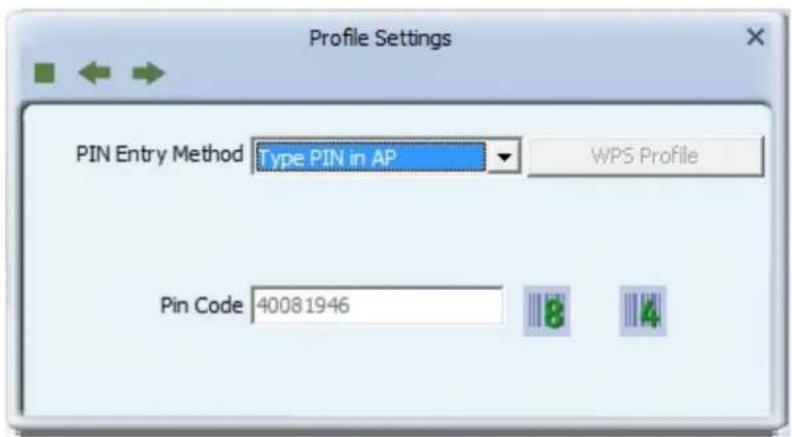
If the device to which you are connecting requires a PIN, in the "Config Mode" field, from the drop-down list, select "Enrollee". Your PIN is displayed in the "Pin Code" field on your Utility. Then in the corresponding WPS interface on the device, to which you are connecting, enter your PIN in its PIN entry field.
text_image
Profile Settings PIN Entry Method Type PIN in AP WPS Profile Pin Code 40081946- PIN provided by the device to which you are connecting.
If the device to which you are connecting provides a PIN (e.g. on the device casing), in the "Config Mode" field, select "Registrar". In the "Pin Code" field, type the PIN provided by the device to which you are connecting.
To optionally configure the connection name and security type on your WPS connection, click the "WPS Profile" button. Otherwise leave settings at their default and click the right arrow to save your settings.

text_image
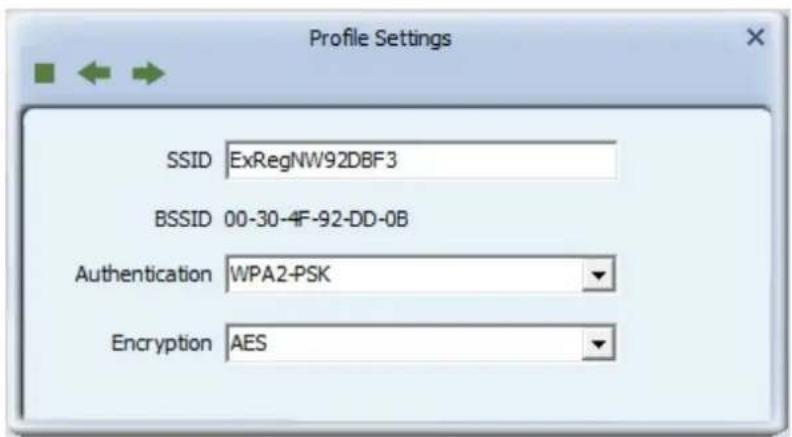
Profile Settings PIN Entry Method Type PIN below WPS Profile Pin Code 40081946If you click on the "WPS Profile" button, the following screen appears, allowing you to configure the name of your network connection and security method. In "SSID" type a name for your WPS connection, and select an Authentication and Encryption method.
text_image
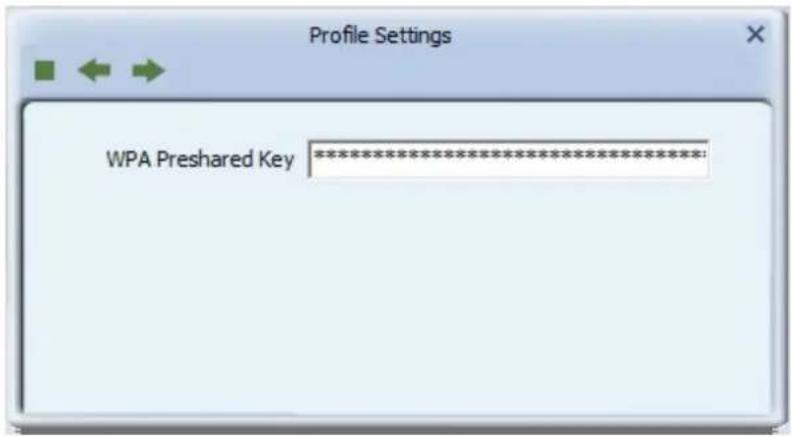
Profile Settings SSID ExRegNW92DBF3 BSSID 00-30-4F-92-DD-0B Authentication WPA2-PSK Encryption AESIn the "WPA Preshared Key" field, type a passphrase 8-63 characters long made up of characters '0'-9', 'a'-z', 'A'-Z', keyboard symbols and spaces. Click the right arrow to save your settings.
text_image
Profile Settings WPA Preshared Key *************************:c. For both PIN methods, the following screen displays. Click the Start PIN button. At the same time (within 120 seconds) activate the corresponding WPS PIN connection function on the device to which you are connecting.

text_image
Profile Settings 0 % WPS status is not used Start PINd. Once connected, your WPS profile will appear in the Profile List screen.
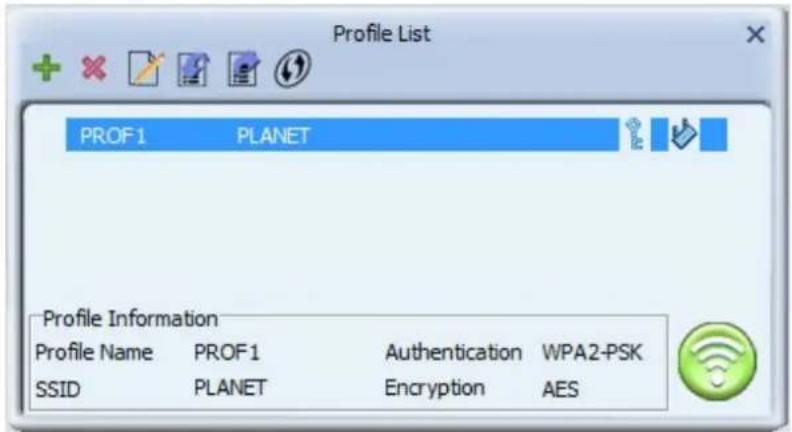
text_image
Profile List PROF1 PLANET Profile Information Profile Name PROF1 Authentication WPA2-PSK SSID PLANET Encryption AESChapter 5. CLIENT + AP MODE
The WDL-U600AC can serve as a wireless adapter while as an access point to receive and transmit wireless signals at the same time which allows other wireless clients to access the network.
5.1 Switch to Client + AP Mode
The default operating mode of the wireless adapter is "Station Mode" (being a client of other wireless access points).
Please follow the instructions below to switch to Client + AP mode:
Step 1. Right-click PLANET wireless utility icon, and select "Switch to Client + AP Mode".

text_image
Launch Config Utility Switch to Client + AP Mode Switch to AP Mode Exit Customize...It requires a few seconds to go to switch mode.
After the switch mode is completed, you can make basic configuration under this window.
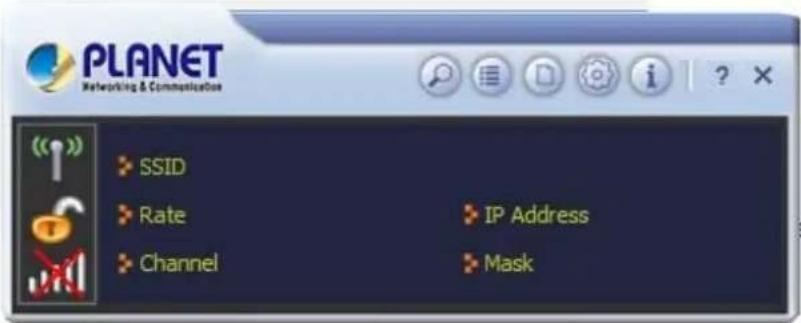
text_image
PLANET Networking & Communication SSID Rate Channel IP Address Mask5.1.1 Configuration
We recommend that you connect to the wireless signal first, in order to avoid possible IP conflict. Please follow the steps in Chapter 3 CONNECTING TO WIRELESS NETWORK to first make connections to your desired SSID and wireless signal.
After connecting to the wireless signal, click on the AP button from the menu bar and the following window will pop out. On the AP Configuration page, you can choose some basic configurations, such as wireless network name, and security setting.
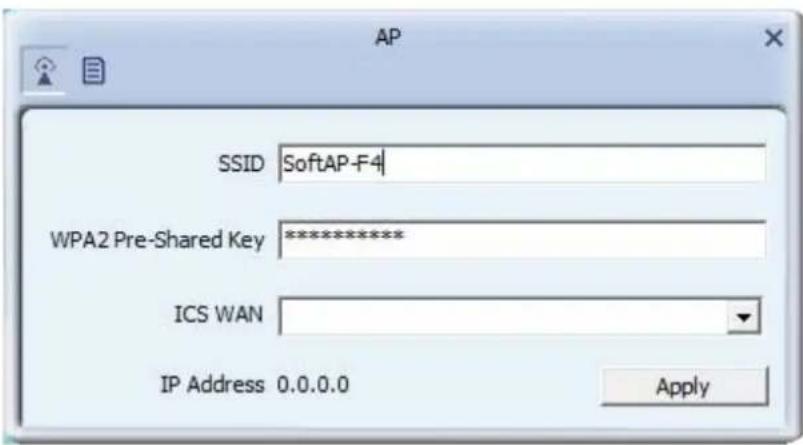
text_image
AP SSID SoftAP-F4 WPA2 Pre-Shared Key ********** ICS WAN IP Address 0.0.0.0 ApplyClick Apply to start broadcast the SSID.
You should be seeing two active networks as shown below. The SoftAP is the WDL-U600AC broadcast.
Chapter 6. AP MODE
Besides being a wireless client of other wireless access points, PLANET wireless adapter can also act as a wireless service provider. You can switch the operation mode of wireless adapter to "AP" mode to simulate the function of a real wireless access point by software. And all other computers and Wi-Fi supported devices can connect to your computer wirelessly, and even share your internet connection service.
■ Application: Software AP Mode with xDSL/Cable Internet Connection
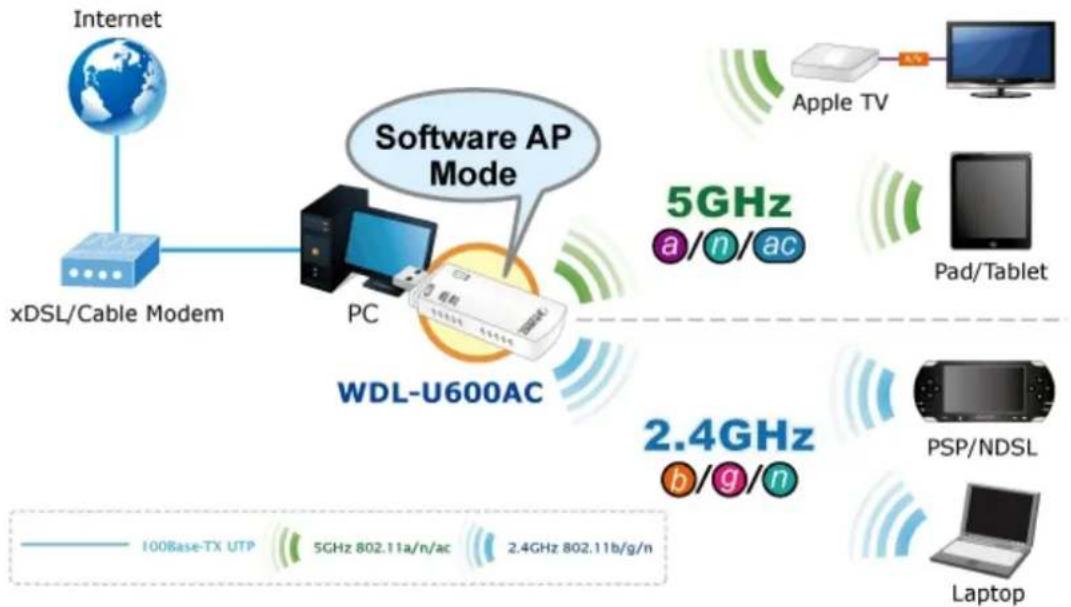
flowchart
graph TD
    A["Internet"] --> B["xDSL/Cable Modem"]
    B --> C["Software AP Mode"]
    C --> D["PC"]
    D --> E["WDL-U600AC"]
    E --> F["5GHz a/n/ac"]
    E --> G["2.4GHz b/g/n"]
    H["Apple TV"] --> I["Computer"]
    J["Pad/Tablet"] --> K["Computer"]
    L["PSP/NDSL"] --> M["Laptop"]
    N["100Base-TX UTP"] --> O["5GHz 802.11a/n/ac"]
    N --> P["2.4GHz 802.11b/g/n"]
■ Application: Software AP Mode with 3G/LTE Internet Connection

flowchart
graph TD
    A["Internet"] --> B["3G Base Station"]
    B --> C["3G USB Modem"]
    C --> D["PC"]
    D --> E["WDL-U600AC"]
    E --> F["5GHz a/n/ac"]
    E --> G["2.4GHz b/g/n"]
    H["Apple TV"] --> I["Laptop"]
    J["Pad/Tablet"] --> K["PSP/NDSL"]
    L["Audio Line / Video Line Wireless Transmission"] --> M["5GHz 802.11a/n/ac"]
    N["2.4GHz 802.11b/g/n"] --> O["Wireless Transmission"]
6.1 Switch between AP Mode
The default operating mode of the wireless adapter is "Station Mode" (being a client of other wireless access points).
Please follow the instructions below to switch to Access Point mode:
Right-click PLANET wireless utility icon, and select "Switch to AP Mode".
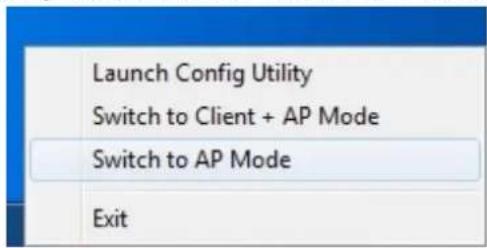
text_image
Launch Config Utility Switch to Client + AP Mode Switch to AP Mode ExitIt requires a few seconds to go to switch mode.
After the switch mode is completed, the window of general information about software access point will appear, including SSID, IP address of the Soft AP and connected wireless clients.

text_image
PLANET Networking & Communication SSID SoftAP-F3 Mode 2.4 GHz IP 192.168.123.1 Channel 1 (2412 MHz) Mask 255.255.255.0Also the wireless LAN Utility icon in you system tray (lower-right corner) will be changed to another icon.

Station mode icon.
Access Point icon.
6.1.1 Configuring SSID and Channel
To configure software Access Point, click "AP Setup" button, and the "AP Setup" will be displayed.
a. The Network Settings Screen
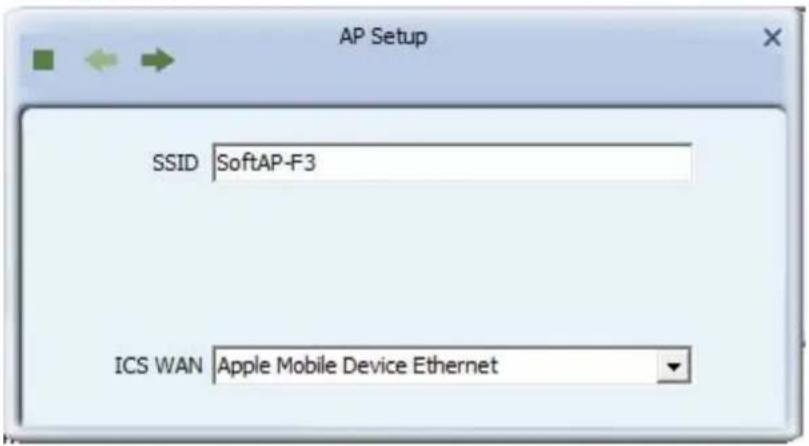
text_image
AP Setup SSID SoftAP-F3 ICS WAN Apple Mobile Device Ethernet
Use the left and right arrows to navigate through the Setup screens.

Click the Stop button to cancel setting up your device.
Please note that Ad-Hoc mode is not available when the wireless adapter is in Access Point mode. The setup options are listed below:
| Object Description | |
| SSID (Network Name) | Please input the SSID (the name used to identify this wireless access point) here. Up to 32 numerical characters can be accepted here, except the space. |
| ICS WAN | Please select the wireless operating mode. The option is only 2.4GHz available if the wireless adapter only supports 2.4GHz. |
b. The Channel Settings Screen
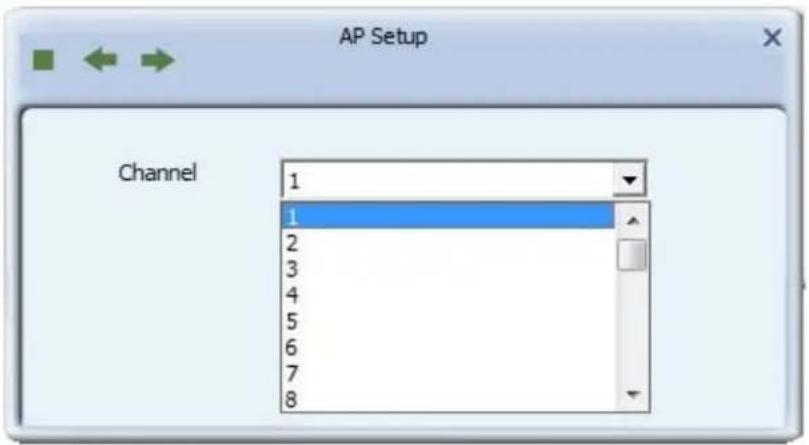
text_image
AP Setup Channel 1 1 2 3 4 5 6 7 8The setup options are listed below:
| Object Description | |
| Channel | Leave at its default value, or if interference is a problem on your network, choose a channel which experiences less interference. |
6.1.2 Soft Access Point Security
To set up security options for Soft Access Point, configure "AP Setup" as follows:
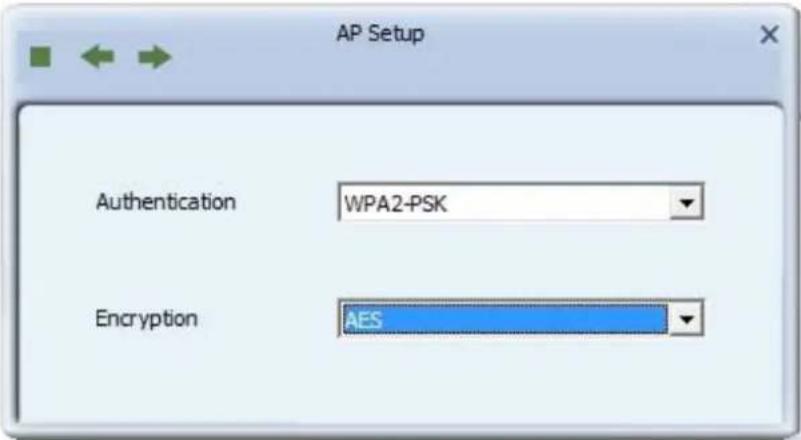
text_image
AP Setup Authentication WPA2-PSK Encryption AESThe setup items about wireless security are listed below:
| Object Description | |
| Authentication | Select the strongest security method supported by your network. Options include Open, Shared, WPA-PSK, WPA2-PSK, or WPA-PSK/WPA2-PSK. |
| Encryption | Select the strongest encryption supported by your network and the selected authentication method. Options for each authentication method are as shown in the following table. |
The authentication types are listed below:
| Authentication Method | Encryption Method Description | |
| Open | No Encryption Select Open will not have any encryption. | |
| WPA-PSK | AES WPA-PSK security is safer than WEP. | |
| WPA2-PSK | AES | WPA2-PSK is a faster, more recent authentication standard than WPA-PSK.AES is a stronger, more recent encryption standard than TKIP. |
| WPA-PSK/WPA2-PSK | AES | Select the strongest security method supported by your network. Options include Open, Shared, WPA-PSK, WPA2-PSK, or WPA-PSK/WPA2-PSK. |
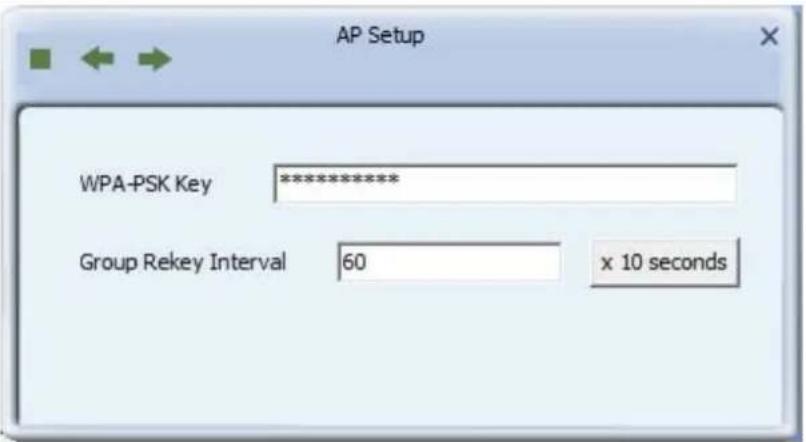
a. The WPA-PSK, WPA2-PSK or WPA-PSK/WPA2-PSK Security Screen
text_image
AP Setup WPA-PSK Key ********** Group Rekey Interval 60 x 10 seconds- WPA-PSK Key: Type a security key 8-63 characters long made up of characters '0'-9', 'a'-z', 'A'-Z', keyboard symbols and spaces.
- Group Rekey Interval: The interval after which the AP resets the group key. This key supports wireless security on your network. If uncertain, leave at its default value.
- x 10 seconds: Sets the unit for the 'Group Key Interval' to 10 seconds. After the specified period the group key is reset.
- x 1000 packets: Sets the unit for the Group Key Interval to 1000 packets. After sending the specified number of packets the group key is reset.
6.2 Access Control List
If you're not going to open your computer and wireless resources to the public, you can use MAC address filtering function to enforce your access control policy, so only wireless clients with MAC address you defined by this function can be connected to your software access point.
Click "Access Control List" button and the following screens will be displayed.

text_image
PLANET Networking & Communication SSID SoftAP-F3 Mode 2.4 GHz IP 192.168.123.1 Channel 1 (2412 MHz) Mask 255.255.255.0 Access Control List Access Policy Disable MAC Address ApplyThe setup items are listed below:
| Object Description | ||
| Access Policy | Options include Disable (default), Reject All, and Allow All.Disable:Disables access control to your network based on MAC address.Allow All:All packets with a source MAC address matching those in the access control list have access to your network.Reject All:All packets with a source MAC address matching those in | |
| the access control list cannot access your network. | ||
| MAC Address | Type a MAC address in hexadecimal format without additional characters (e.g. colons or hyphens). | |
 | Adds the MAC address in the MAC Address field to the MAC address control list. | |
 | Removes the selected MAC address from the MAC address control list. | |
 | Removes all MAC addresses from the MAC address control list. | |
| Apply | Saves all changes made to the MAC address control list. | |
6.3 Connected Devices
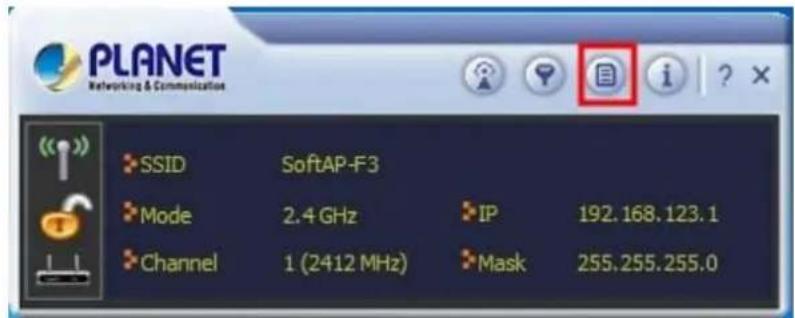
If you want to see the list of all wireless clients connected to this access point, please follow the following instructions:
Click "Connected Devices" button, and a list containing all connected wireless clients will appear:
text_image
PLANET Networking & Communication SSID SoftAP-F3 Mode 2.4 GHz IP 192.168.123.1 Channel 1 (2412 MHz) Mask 255.255.255.0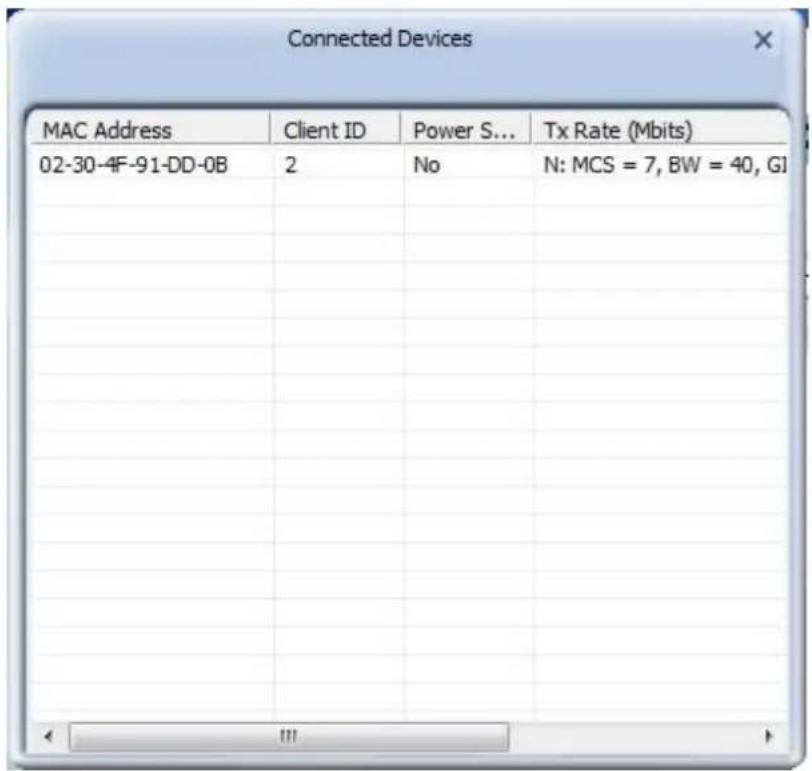
The information items are listed below:
| Object Description | |
| MAC Address | The unique hexadecimal manufacturer-assigned identifier of a device connected to the this AP. |
| Client ID | An ID number assigned to each device on your AP's network, starting at 2 with a maximum of 32. |
| Power Saving Mode | Indicates whether the connection with the associated device supports power-saving. |
| Tx Rate (Mbits) | Provides detailed information on factors affecting the data transfer rate. IEEE 802.11ac specific information includes the MCS (modulation and coding scheme) index value applied in a connection, the BW (bandwidth), GI (guard interval), and the transmission rate of the current connection in megabits (Mbit). |
6.4 About (AP Mode)
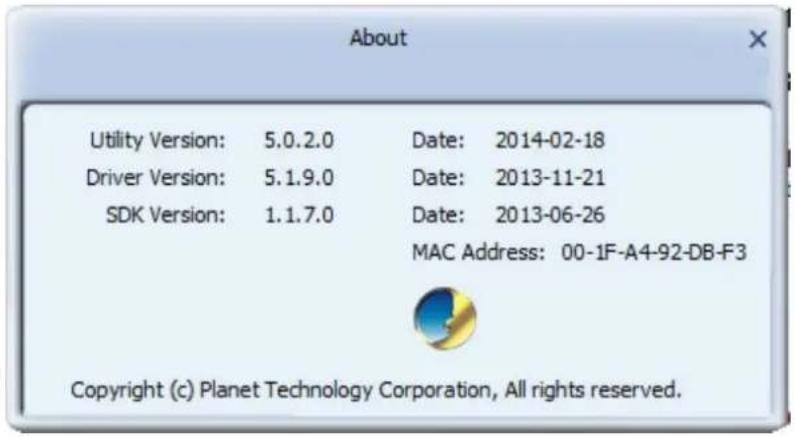
The "About" screen provides you the information about version number of the configuration utility, driver, and other important information about your wireless access point.
text_image
About Utility Version: 5.0.2.0 Date: 2014-02-18 Driver Version: 5.1.9.0 Date: 2013-11-21 SDK Version: 1.1.7.0 Date: 2013-06-26 MAC Address: 00-1F-A4-92-DB-F3 Copyright (c) Planet Technology Corporation, All rights reserved.The information items are listed below:
| Object Description | |
| Utility Version | Shows the version number of the Utility (different from the utility version in station mode). |
| Driver Version | Shows the version number of this driver (the same as that in station mode). |
| DLL Version | Displays the version number of the RaAPAPI.dll file, for use by downstream developers. |
| Date | Shows the date of release for the utility version shown. |
| Date | Shows the date of release for the driver version shown. |
| Date | Shows the date of release for the DLL version shown. |
| MAC Address | The unique hexadecimal identifier assigned to the Adapter. |
Appendix: Specifications
| Product Dual Band 802.11ac Wireless USB Adapter | |
| Model | WDL-U600AC |
| Hardware Specifications | |
| Chipset | MediaTek MT7610U |
| Interface | USB 2.0, Type-A |
| Antenna Type | Internal antenna |
| LED | 1 x Link / Active1 x Power |
| Operation Voltage | 5V DC, power input from USB port |
| Dimensions | 81x 25.5 x 11 mm with USB cap72 x 25.5 x 11 mm without USB cap |
| Wireless Specifications | |
| StandardsConformance | IEEE 802.11ac standard compliantIEEE 802.11b/g/n backwards compatibleIEEE 802.11a/n backwards compatible |
| RF Modulation | PSK/CCK, DQPSK, DBPSK, OFDM |
| Frequency Band | 2.412-2.484 GHz5.180-5.240 GHz5.745-5.825 GHz |
| Data Rate | 802.11a: 54, 48, 36, 24, 18, 12, 9 and 6Mbps802.11b: 11, 5.5, 2 and 1 Mbps with auto-rate fall back802.11g: 54, 48, 36, 24, 18, 12, 9 and 6Mbps802.11n (20MHz): up to 72Mbps802.11n (40MHz): up to 150Mbp802.11ac: up to 433Mbps |
| Operating Mode | Ad-Hoc / Infrastructure, Soft AP |
| Encryption Security | WEP 64/128-bitWPA / WPA2 (TKIP/AES)WPA-PSK / WPA2-PSK (TKIP/AES) |
| Wireless Advanced | Supports Software WPS (Wi-Fi Protected Setup) |
| Management | The utility included in the package or Windows XP Zero Configuration utility |
| Operating systems | Windows 2000/XP (x86/x64) / VISTA (x86/x64) / Win7 (x86/x64)Linux Kernel 2.4Macintosh 10.7/10.8/10.9 |
| Certification | |
| Emission | LVD |
| Environment | |
| Operating Temperature | 0°C~40°C (32°F~104°F) |
| Humidity | 10% ~ 90%, non-condensing |
| Package | |
| Package Contents | ■ WDL-U600AC (dual band 802.11ac wireless USB adapter)■ Quick Installation Guide■ CD (including driver, utility and user's manual) |
Appendix: Troubleshooting
| Symptom : The LED is off. | |
| Remedy : | Make sure the wireless USB adapter is inserted properly. Otherwise contact your vendor. |
| Symptom : The LED is always on, but not blinking. | |
| Remedy : | Make sure that you have installed the driver from the CD that comes with the package. Otherwise contact your vendor. |
| Symptom : | The LED is blinking but the Wireless Utility icon does not appear in the icon tray. |
| Remedy : | Make sure that you have installed the Utility from the CD that comes with the package. |
| Symptom : The USB adapter is linking, but can't share files with others. | |
| Remedy : | Make sure the file and printer sharing function is enabled.You can enable the function by checking the icon of My Computer -> Control Panel -> Network -> file and printer sharing -> I want to be able to give others to access to my files. |
| Symptom : Slow or poor performance under AP mode | |
| Remedy : | Try to select another channel for the communicating group or move your device closer to the Access Point. |
Appendix: Glossary
1. IEEE 802.11 Standard
The IEEE 802.11 Wireless LAN standards subcommittee, which is formulating a standard for the industry.
2. Access Point
An internetworking device that seamlessly connects wired and wireless networks together.
3. Ad Hoc
An Ad Hoc wireless LAN is a group of computers, each with a WLAN adapter, connected as an independent wireless LAN
Ad Hoc wireless LAN is applicable at a departmental scale for a branch or SOHO operation.
4. BSSID
A specific Ad Hoc LAN is called a Basic Service Set (BSS). Computers in a BSS must be configured with the same BSSID.
5. DHCP
Dynamic Host Configuration Protocol - a method in which IP addresses are assigned by server dynamically to clients on the network. DHCP is used for Dynamic IP Addressing and requires a dedicated DHCP server on the network.
6. Direct Sequence Spread Spectrum
This is the method the wireless cards use to transmit data over the frequency spectrum. The other method is frequency hopping. Direct sequence spreads the data over one frequency range (channel) while frequency hopping jumps from one narrow frequency band to another many times per second.
7. ESSID
An Infrastructure configuration could also support roaming capability for mobile workers. More than one BSS can be configured as an Extended Service Set (ESS). Users within an ESS could roam freely between BSSs while served as a continuous connection to the network wireless stations and Access Points within an ESS must be configured with the same ESSID and the same radio channel.
8. Ethernet
Ethernet is a 10/100Mbps network that runs over dedicated home/office wiring. Users must be wired to the network at all times to gain access.
9. Gateway
A gateway is a hardware and software device that connects two dissimilar systems, such as a LAN and a mainframe. In Internet terminology, a gateway is another name for a router. Generally a gateway is used as a funnel for all traffic to the Internet
10. IEEE
Institute of Electrical and Electronics Engineers Infrastructure. An integrated wireless and wired LAN is called an Infrastructure configuration. Infrastructure is applicable to enterprise scale for wireless access to central database, or wireless
11. ISM Band
The FCC and their counterparts outside of the U.S. have set aside bandwidth for unlicensed use in the so-called ISM (Industrial, Scientific and Medical) band. Spectrum in the vicinity of 2.4 GHz, in particular, is being made available (Industrial, Scientific and Medical) band. Spectrum in the vicinity of 2.4 GHz, in particular, is being made available of users around the globe.
12. Local Area Network (LAN)
A LAN is a group of computers, each equipped with the appropriate network adapter card connected by cable/air, that share applications, data, and peripherals. All connections are made via cable or wireless media, but a LAN does not use telephone services. It typically spans a single building or campus.
13. Network
A network is a system of computers that is connected. Data, files, and messages can be transmitted over this network. Networks may be local or wide area networks.
14. Protocol
A protocol is a standardized set of rules that specify how a conversation is to take place, including the format, timing, sequencing and/or error checking.
15. SSID
A Network ID unique to a network. Only clients and Access Points that share the same SSID are able to communicate with each other. This string is case-sensitive.
16. Static IP Addressing
A method of assigning IP addresses to clients on the network. In networks with Static IP address, the network administrator manually assigns an IP address to each computer. Once a Static IP address is assigned, a computer uses the same IP address every time it reboots and logs on to the network, unless it is manually changed.
17. Temporal Key Integrity Protocol (TKIP)
The Temporal Key Integrity Protocol, pronounced tee-kip, is part of the IEEE 802.11i encryption standard for wireless LANs. TKIP is the next generation of WEP, the Wired Equivalency Protocol, which is used to secure 802.11 wireless LANs. TKIP provides per-packet key mixing, a message integrity check and a re-keying mechanism, thus fixing the flaws of WEP.
18. Transmission Control Protocol / Internet Protocol (TCP/IP)
TCP/IP is the protocol suite developed by the Advanced Research Projects Agency (ARPA). It is widely used in corporate Internet works, because of its superior design for WANs. TCP governs how packet is sequenced for transmission the network. The term “TCP/IP” is often used generically to
refer to the entire suite of related protocols.
19. Transmit / Receive
The wireless throughput in Bytes per second averaged over two seconds.
20. Wi-Fi Alliance
The Wi-Fi Alliance is a nonprofit international association formed in 1999 to certify interoperability of wireless Local Area Network products based on IEEE 802.11 specification. The goal of the Wi-Fi Alliance's members is to enhance the user experience through product interoperability. The organization is formerly known as WECA.
21. Wi-Fi Protected Access (WPA)
The Wi-Fi Alliance put together WPA as a data encryption method for 802.11 wireless LANs. WPA is an industry-supported, pre-standard version of 802.11i utilizing the Temporal Key Integrity Protocol (TKIP), which fixes the problems of WEP, including using dynamic keys.
22. Wide Area Network (WAN)
A WAN consists of multiple LANs that are tied together via telephone services and / or fiber optic cabling. WANs may span a city, a state, a country, or even the world
23. Wired Equivalent Privacy (WEP)
Now widely recognized as flawed, WEP was a data encryption method used to protect the transmission between 802.11 wireless clients and APs. However, it used the same key among all communicating devices. WEP's problems are well-known, including an insufficient key length and no automated method for distributing the keys. WEP can be easily cracked in a couple of hours with off-the-shelf tools.
24. Wireless LAN (WLAN)
A wireless LAN does not use cable to transmit signals, but rather uses radio or infrared to transmit packets through the air. Radio Frequency (RF) and infrared are the commonly used types of wireless transmission. Most wireless LANs use spread spectrum technology. It offers limited bandwidth, usually under 11Mbps, and users share the bandwidth with other devices in the spectrum; however, users can operate a spread spectrum device without licensing from the Federal Communications Commission (FCC).
25. Fragment Threshold
The proposed protocol uses the frame fragmentation mechanism defined in IEEE 802.11 to achieve parallel transmissions. A large data frame is fragmented into several fragments each of size equal to fragment threshold. By tuning the fragment threshold value, we can get varying fragment sizes. The determination of an efficient fragment threshold is an important issue in this scheme. If the fragment threshold is small, the overlap part of the master and parallel transmissions is large.
This means the spatial reuse ratio of parallel transmissions is high. In contrast, with a large fragment threshold, the overlap is small and the spatial reuse ratio is low. However high fragment threshold leads to low fragment overhead. Hence there is a trade-off between spatial re-use and fragment overhead. Fragment threshold is the maximum packet size used for fragmentation. Packets larger than the size programmed in this field will be fragmented If you find that your corrupted packets or
asymmetric packet reception (all send packets, for example). You may want to try lowering your fragmentation threshold. This will cause packets to be broken into smaller fragments. These small fragments, if corrupted, can be resent faster than a larger fragment. Fragmentation increases overhead, so you'll want to keep this value as close to the maximum value as possible.
26. RTS (Request To Send) Threshold
The RTS threshold is the packet size at which packet transmission is governed by the RTS/CTS transaction. The IEEE802.11-1997 standard allows for short packets to be transmitted without RTS/CTS transactions. Each station can have a different RTS threshold. RTS/CTS is used when the data packet size exceeds the defined RTS threshold. With the CSMA/CA transmission mechanism, the transmitting station sends out an RTS packet to the receiving station, and waits for the receiving station to send back a CTS (Clear to Send) packet before sending the actual packet data. This setting is useful for networks with many clients. With many clients, and a high network load, there will be many more collisions. By lowering the RTS threshold, there may be fewer collisions, and performance should improve. Basically, with a faster RTS threshold, the system can recover from problems faster. RTS packets consume valuable bandwidth, however, so setting this value too low will limit performance.
27. Beacon Interval
In addition to data frames that carry information from higher layers, 802.11 includes management and control frames that support data transfer. The beacon frame, which is a type of management frame, provides the "heartbeat" of a wireless LAN, enabling stations to establish and maintain communications in an orderly fashion. Beacon Interval represents the amount of time between beacon transmissions. Before a station enters power save mode, the station needs the beacon interval to know when to wake up to receive the beacon (and learn whether there are buffered frames at the access point).
28. Preamble Type
There are two preamble types defined in IEEE 802.11 specification. A long preamble basically gives the decoder more time to process the preamble. All 802.11 devices support a long preamble. The short preamble is designed to improve efficiency (for example, for VoIP systems). The difference between the two is in the Synchronization field. The long preamble is 128 bits, and the short is 56 bits.
29. WPA2
It is the second generation of WPA. WPA2 is based on the final IEEE 802.11i amendment to the 802.11 standard.
30. Temporal Key Integrity Protocol (TKIP)
The Temporal Key Integrity Protocol, pronounced tee-kip, is part of the IEEE 802.11i encryption standard for wireless LANs. TKIP is the next generation of WEP, the Wired Equivalency Protocol, which is used to secure 802.11 wireless LANs. TKIP provides per-packet key mixing, a message integrity check and a re-keying mechanism, thus fixing the flaws of WEP.
31. 802.1x Authentication
802.1x is a framework for authenticated MAC-level access control, defines Extensible Authentication Protocol (EAP) over LANs (WAPOL). The standard encapsulates and leverages much of EAP, which was defined for dial-up authentication with Point-to-Point Protocol in RFC 2284. Beyond encapsulating EAP packets, the 802.1x standard also defines EAPOL messages that convey the shared key information critical for wireless security.
32. Advanced Encryption Standard (AES)
Security issues are a major concern for wireless LANs, AES is the U.S. government's next-generation cryptography algorithm, which will replace DES and 3DES.
Appendix: FAQ
1. What is WMM?
Wi-Fi Multimedia (WMM), a group of features for wireless networks that improve the user experience for audio, video and voice applications. WMM is based on a subset of the IEEE 802.11e WLAN QoS draft standard. WMM adds prioritized capabilities to Wi-Fi networks and optimizes their performance when multiple concurring applications, each with different latency and throughput requirements, compete for network resources. By using WMM, end-user satisfaction is maintained in a wider variety of environments and traffic conditions. WMM makes it possible for home network users and enterprise network managers to decide which data streams are most important and assign them a higher traffic priority.
2. What is WMM Power Save?
WMM Power Save is a set of features for Wi-Fi networks that increase the efficiency and flexibility of data transmission in order to conserve power. WMM Power Save has been optimized for mobile devices running latency-sensitive applications such as voice, audio, or video, but can benefit any Wi-Fi device. WMM Power Save uses mechanisms included in the IEEE 802.11e standard and is an enhancement of IEEE 802.11 legacy power saves. With WMM Power Save, the same amount of data can be transmitted in a shorter time while allowing the Wi-Fi device to remain longer in a low-power “dozing” state.
3. What is GI?
GI stands for Guard Interval. It's a measure to protect wireless devices from cross- interference. If there are two wireless devices using the same or near channel, and they are close enough, radio interference will occur and reduce the radio resource usability.
4. What is STBC?
STBC stands for Space-Time Block Coding, which is a technique used to transfer multiple copies of data by multiple antenna, to improve data transfer performance. By using multiple antennas, not only data transfer rate is improved, but also the wireless stability.
EC Declaration of Conformity
| English | Hereby, PLANET Technology Corporation, declares that this 802.11ac Wireless USB Adapter is in compliance with the essential requirements and other relevant provisions of Directive 1999/5/EC. | Lietuviškai | Šiuo PLANET Technology Corporation,, skelbia, kad 802.11ac Wireless USB Adapter tenkina visus svarbiausius 1999/5/EC direktyvos reikalavimus ir kitas svarbias nuostatas. |
| Česky | Společnost PLANET Technology Corporation, tímto prohlašuje, že tato 802.11ac Wireless USB Adapter splňuje základní požadavky a další příslušná ustanovení směrnice 1999/5/EC. | Magyar | A gyártó PLANET Technology Corporation, kijelenti, hogy ez a 802.11ac Wireless USB Adapter megfelel az 1999/5/EK irányelv alapkövetelményeinek és a kapcsolódó rendelkezéseknek. |
| Dansk | PLANET Technology Corporation, erklærer herved, at følgende udstyr 802.11ac Wireless USB Adapter overholder de væsentlige krav og øvrige relevante krav i direktiv 1999/5/EF | Malti | Hawnhekk, PLANET Technology Corporation, jiddikjara li dan 802.11ac Wireless USB Adapter jikkonforma mal-ħtiġijiet essenzjali u ma provvedimenti oħrajn relevanti li hemm fid-Dirrettiva 1999/5/EC |
| Deutsch | Hiermit erklärt PLANET Technology Corporation, dass sich dieses Gerät 802.11ac Wireless USB Adapter in Übereinstimmung mit den grundlegenden Anforderungen und den anderen relevanten Vorschriften der Richtlinie 1999/5/EG befindet". (BMWi) | Nederlands | Hierbij verklaart , PLANET Technology orporation, dat 802.11n Wireless USB Adapter in overeenstemming is met de essentiële eisen en de andere relevante bepalingen van richtlijn 1999/5/EG |
| Eesti keeles | Käesolevaga kinnitab PLANET Technology Corporation, et see 802.11ac Wireless USB Adapter vastab Euroopa Nõukogu direktiivi 1999/5/EC põhinõuetele ja muudele olulistele tingimustele. | Polski | Niniejszym firma PLANET Technology Corporation, oświadcza, že 802.11ac Wireless High Power USB Adapter spełnia wszystkie istotne wymogi i klauzule zawarte w dokumencie „Directive 1999/5/EC”. |
| Ελληνικά | ME THN ΠΑΡΟΥΣΑ , PLANET Technology Corporation, ΔΗΛΩΝΕΙ ΟΤΙ ΑΥΤΟ 802.11ac Wireless USB AdapterΣΥΜΜΟΡΦΩΝΕΤΑΙ ΠΡΟΣ ΤΙΣ ΟΥΣΙΩΔΕΙΣ ΑΠΑΙΤΗΣΕΙΣ ΚΑΙ ΤΙΣ ΛΟΙΠΕΣ ΣΧΕΤΙΚΕΣ ΔΙΑΤΑΞΕΙΣ ΤΗΣ ΟΔΗΓΙΑΣ 1999/5/EK | Português | PLANET Technology Corporation, declara que este 802.11ac Wireless USB Adapter está conforme com os requisitos essenciais e outras disposições da Directiva 1999/5/CE. |
| Español | Por medio de la presente, PLANET Technology Corporation, declara que 802.11ac Wireless USB Adapter cumple con los requisitos esenciales y cualesquiera otras disposiciones aplicables o exigibles de la Directiva 1999/5/CE | Slovensky | Výrobca PLANET Technology Corporation, týmto deklaruje, že táto 802.11ac Wireless USB Adapter je v súlade so základnymi požiadavkami a ďalšími relevantnými predpismi smernice 1999/5/EC. |
| Français | Par la présente, PLANET Technology Corporation, déclare que les appareils du 802.11ac Wireless USB Adapter sont conformes aux exigences essentielles et aux autres dispositions pertinentes de la directive 1999/5/CE | Slovensko | PLANET Technology Corporation, s tem potrjuje, da je ta 802.11ac Wireless USB Adapter skladen/a z osnovnimi zahtevami in ustreznimi določili Direktive 1999/5/EC. |
| Italiano | Con la presente , PLANET Technology Corporation, dichiara che questo 802.11ac Wireless USB Adapter è conforme ai requisiti essenziali ed alle altre disposizioni pertinenti stabilite dalla direttiva 1999/5/CE. | Suomi | PLANET Technology Corporation, vakuuttaa täten että 802.11ac Wireless USB Adapter typpinen laite on direktiivin 1999/5/EY oleellisten vaatimusten ja sită koskevien direktiivin muiden ehtojen mukainen. |
| Latviski | Ar šo PLANET Technology Corporation, apliecina, ka ší 802.11ac Wireless USB Adapter atbilst Direktīvas 1999/5/EK pamatprasībām un citiem atbilstošiem noteikumiem. | Svenska | Härmed intygar, PLANET Technology Corporation, att denna 802.11ac Wireless USB Adapter står i överensstämmelse med de väsentliga egenskapskrav och övriga relevanta bestämmelser som framgår av direktiv 1999/5/EG. |