GEF-HDCAT5-ELRPOL2 - Émetteur AV Gefen - Free user manual and instructions
Find the device manual for free GEF-HDCAT5-ELRPOL2 Gefen in PDF.


User questions about GEF-HDCAT5-ELRPOL2 Gefen
0 question about this device. Answer the ones you know or ask your own.
Ask a new question about this device
Download the instructions for your Émetteur AV in PDF format for free! Find your manual GEF-HDCAT5-ELRPOL2 - Gefen and take your electronic device back in hand. On this page are published all the documents necessary for the use of your device. GEF-HDCAT5-ELRPOL2 by Gefen.
USER MANUAL GEF-HDCAT5-ELRPOL2 Gefen
natural_image
Exterior view of a black electronic device labeled 'Esterometer for Home SLR' with control knobs and audio equipment in the background (no readable text beyond labels)1080P
PROGRESSIVE
HDMI®
HIGH-DEFINITION MULTIMEDIA INTERFACE
Extender for
HDMI ELR with POL 2 over CAT5
GEF-HDCAT5-ELRPOL2
User Manual
Technical Support:
Telephone (818) 772-9100
(800) 545-690U
Fax (818) 772-9120
Technical Support Hours:
8:00 AM to 5:00 PM Monday thru Friday, Pacific Time
For 24 / 7 support, see the back of the product for the support number
Write To:
Geten, LLC.
c/o Customer Service
20600 Nordhoff St
Chatsworth, CA 91311
support@gefenpro.com
www.gefenpro.com
Notice
Gefen, LLC reserves the right to make changes in the hard ware, packaging, and any accompanying doc u men ta tion without prior written notice.
Extender for HDMI ELR with PoL 2 over CAT5
is a trademark of Gefen, LLC
HDMI, the HDMI logo, and High-Definition Multimedia Interface are trademarks or registered trademarks of HDMI Licensing in the United States and other countries.
1 Introduction
2 Operation Notes
3 Features
4 Sender unit Layout
5 Sender unit Descriptions
6 Receiver unit La yout
7 Receiver unit Descriptions
8 IR RemotControl
8 RMT-2IR RemControl
9 Install in the Battery
9 Setting the IR Channel
10 Connecting the Extender for HDMI ELR PoL 2 over CAT5
11 Wiring Diagram
12 DIP Switch Configuration
12 Sender unt
14 R eceiver unit
17 Firmware Update
18 Network Cable Wiring Diagram
19 Troubleshooting
20 Specifications
21 Warranty
Congratulations on your purchase of the Extender for HDMI ELR PoL 2 over CAT5. Your complete satisfaction is very important to us.
GefenPRO
In the realm of video distribution, certain features are invaluable in a commercial or broadcast environment. Accommodations such as a build-in power supply and flat black rack-mount enclosures set GefenPRO apart from our traditional products. Complex distribution units allow for professional DVI, 3G-SDI, and HDMI signals to be routed and converted easily and seamlessly, while being backed up by a renowned and dependable technical support team. Gefen invites you to explore the GefenPRO product line and hopes that you find the solution that fits your needs.
The GefenPRO Extender for HDMI ELR with PoL 2 over CAT5
The GetenPRO Extender for HDMI ELR PoL 2 over CAT5 does everything that the GefenPRO Extender for HDMI ELR with PoL over CAT5 does, but adds active source switching, with an additional Hi-Def input on the Receiver unit. This feature provides the capability to switch between the (remote) Hi-Def source connected to the Sender unit and a local source connected to the Receiver unit. It a new source is connected to the Receiver unit and turned on, the Receiver unit will automatically switch to the local input. The Receiver unit will revert to the remote input once the local device is turned off or disconnected. The Select button on the Receiver unit can be used to manually switch between the remote and local inputs. An optional IR Remote Control Unit (Gefen part no. RMT-2IR) can also be purchased to switch between the remote input and the local input on the Receiver unit. The GefenPRO Extender for HDMI ELR PoL 2 over CAT5 extends a Hi-Def source with multichannel digital audio at resolutions of up to 1080p Full HD to 330 feet (100 meters), using one CAT-5 cable.
The Extender for HDMI ELR PoL 2 over CAT5 extends Ethernet and provides an RS-232 and IR back channel to control A/V sources using the same CAT-5 cable extension. The built-in IR Blaster allows you to point the IR remote(s) at the display to control the Hi-Def sources as if they were located in the same room.
How It Works
The GefenPRO Extender for HDMI ELR PoL 2 over CAT5 Sender unit is located next to a set-top box or DVD player source. Use the supplied HDMI cable to connect an HDMI source to the Sender unit. The GefenPRO Extender for HDMI ELR PoL 2 over CAT5 Receiver unit is located up to 330 feet away, near the display. Connect the HDTV display and another Hi-Def source to the Receiver unit.
One CAT-5 cable connects the Sender and Receiver units to each other. The Ethernet ports on both the Sender and Receiver units are connected to standard network devices, such as 100Base-T routers and hubs. Multichannel digital audio is embedded in the HDMI signal (Dolby® TrueHD/ DTS-HD Master Audio™).
READ THESE NOTES BEFORE INSTALLING OR OPERATING THE EXTENDER FOR HDMI ELR WITH POL 2 OVER CAT5
- The Extender for HDMI ELR with PoL 2 over CAT5 units are housed in a metal box for better RF shielding.
• CAT-5 cables should not exceed 330 feet.
• Shielded CAT-6 with metal RJ-45 connectors are recommended to safeguard against random video flashes caused by electromagnetic interference (EMI). - The Extender for HDMI ELR with PoL 2 over CAT5 features the ability to generate compatible EDID and Hot Plug signals for troubleshooting purposes when dealing with difficult interfacing issues between Source devices and Displays. Refer to page 13 for details.
- HDCP content is not supported when the unit is in DVI mode. See page 16 for details.
- Ethernet works as a Full Duplex system.
HDMI Features
• 225 M(Hzp to 12-bit YUV 444 @ 1080p)
- Deep Color
• x.v.Color
• Dolby® TrueHD and DTS-HD Master Audio™
- Lip Sync
3DTV
Features
- Extends HDMI at 1080p Full HD and 1920x1200 up to 330 feet
• Extends SP232 up to 330 feet over a single CAT5 - Supports high bit-rate audio formats (Dolby® TrueHD and DTS-HD Master Audio™)
• Supports 3DTV - Locking HDMI input port on Receiver unit allows the connection of a secondary Hi-Def source.
• Source-switching between Sender unit source and Receiver unit source.
• Fully HDMI and HDCP compliant
• EDID management for rapid integration of source and display devices
• Built-in IR Blaster allows IR remote control of source devices from remote viewing location
• Internal 1/1020 V AC Power Supply
• 5V DC, 2.5 A Locking Power Supply output connector on Receiver unit - Rack-mountable (with optionalG efen EXT-RACK-1U Rack Shelf)
Package Includes
(1) Extender for HDMI ELR with PoL 2 over CAT5 -Sender unit
(1) Extender for HDMI ELR with PoL 2 over CAT5 - Receiver unf
(1) 6 ft. HDMI locking cable (M-M)
(2) Sets of Rack Ears
(1) AC power cord
(1) Quick-S tartGuide
Front
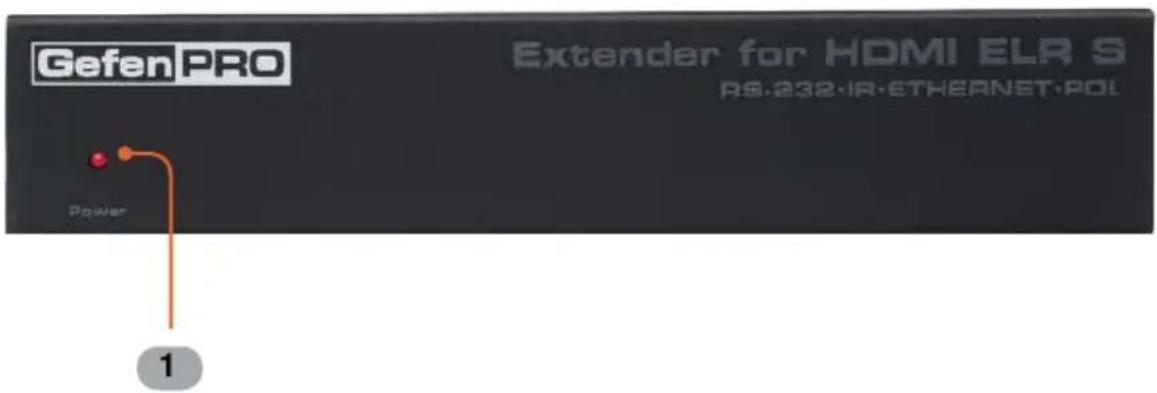
text_image
Gefen PRO Extender for HDMI ELR S RS.232-IR-ETHEANET-POL Power 1Back
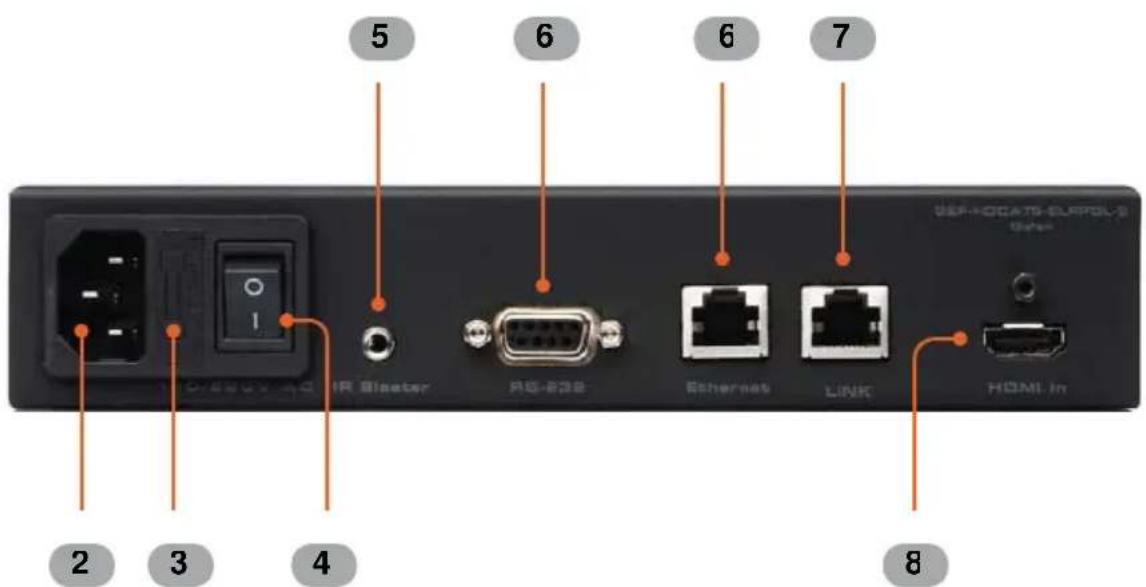
text_image
5 6 6 7 IR Cluster RG-838 Ethernet LINK HDMI In 2 3 4 81 Power
This 2-color LED indicator will glow bright RED when there is no HDMI source connected and will glow bright GREEN when an HDMI source is present.
2 110 / 220 V AC
Connect the included AC power cord to this power receptacle.
3 Fuse Drawer
Each power receptacle houses a fuse drawer. The fuse drawer contains an active fuse and a spare fuse. Both fuses are 250 V.
4 Power Switch
Turn the power ON or OFF using this switch.
5 IR Blaster
Connect an IR Blaster cable (Gefen part no. EXT-2IREMIT) from this port to the Hi-Def source to control the source from the viewing location.
6 RS-232
This RS-232 serial port is used to update the Receiver unit firmware.
7 Ethernet
Connects the Sender unit to the network using Ethernet cabling.
8 Link
Connects the Sender unit to the Receiver unit using CAT-5 cabling.
9 HDMI In
Connect a Hi-Def source to this locking HDMI port, using the included HDMI cable.
Front

text_image
Gefen PRO Extender for HDMI ELR 2A RS-232·IR·ETHERNET·POL Local Select IR Rover 1 2 3 4Back
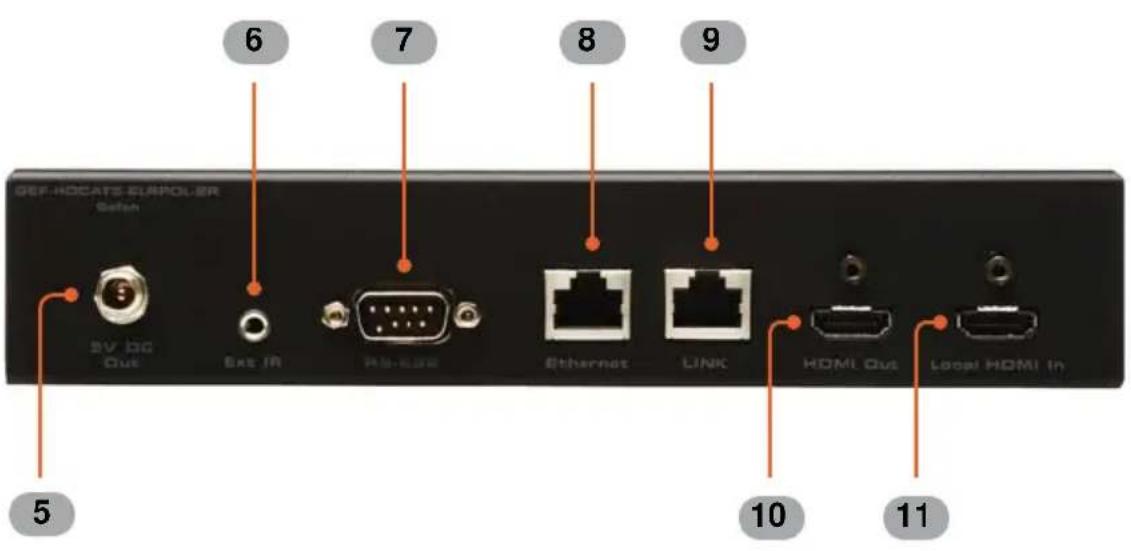
text_image
GEF-HOCATS-FLAPOLER Safen SV IDG Out ESE IR RS-CEE Ethernet LINK HDMI Out Local HDMI In 5 6 7 8 9 10 111 Local
This LED indicator will glow bright green when the Receiver unit is switched to use the Local HDMI input.
2 Select
Switches between the HDMI input on the Sender unit and the Local HDMI Import on the Receiver unit.
3 IH
This IR window receives signals from the Hi-Def source IR remote control. The IR signals are sent back to the source device, when using an IR Blaster on the Sender.
4 Power
This 2-color LED indicator will glow bright RED when there is no HDMI source connected and will glow bright GREEN when an HDMI source is present.
5 5V DC Ou 1
Connect an optional locking (Gefen part no. CAB-PWR-06LL) or non-locking (Gefen Part no. CAB-PWR-06NL) power cord to this the included 5 V DC locking power supply connector to power additional devices.
6 Ext RI
Connect an IR Extender (Gefen part no. EXT-RMT-EXTIR) cable from this port to the Hi-Def source to extend the IR control.
7 RS-232
This RS-232 serial port is used to update the Receiver unit firmware.
8 Ethernet
Connects the Receiver unit to the network device.
9 Link
Connects the Receiver unit to the Sender unit using CAT-5 cabling.
10 HDMI Ou
Connect an HDTV display or other output device to this locking HDMI port.
11 Local HDMI In
Connect a secondary Hi-Det source device to this locking HDMI port.
RMT-2IR Remote Control (not included)

text_image
PMT-21R 1 2 1 2 Gefen1 Activity Indicator
This LED will be activated momentarily each time a button is pressed.
2 Input Source Selection Buttons (1 - 2)
These buttons function the same as the Select button on the Receiver unit. Press button 1 to switch to the remote input (source connected to the Sender unit). Press button 2 to switch to the local input (source connected to the Receiver unit).
IR Codes
| ASCII | Corresponding RMT-2IR Button | Binary |
| 1 | 1 | 00 11 0001 |
| 2 | 2 | 00 11 0010 |

NOTE: An Activity Indicator that flashes quickly while holding down any one of the 16 buttons indicates a low battery. Replace the IR Remote Control battery as soon as possible.
Installing the Battery
The Remote Control unit ships with two batteries. One battery is required for operation and the other battery is a spare.
-
Remove the battery cover on the back of the IR Remote Control unit.
-
Insert the included battery y into the open battery slot. The positive (+) side of the battery should be facing up.
-
Replace the battery cover

Setting the IR Channel
The IR channel on the IR Remote Control must match the IR channel used by the Extender for HDMI ELR with PoL 2 over CAT5. For example, if both DIP switches on the IR Remote Control unit are set to IR channel 0 (both DIP switches down), then the Extender for HDMI ELR with PoL 2 over CAT5 must also be set to IR channel 0. See page 15 for information on how to change the IR channel on the Extender for HDMI ELR with PoL 2 over CAT5.

WARNING: Risk of explosion if battery is replaced by an incorrect type. Dispose of used batteries according to the instructions.
- Connect the Hi-Def source to the Sender unit using the included HDMI cable.
- Optionally connect a secondary Hi-Def source to the Receiver unit.
Connecting a secondary Hi-Def source to the Receiver unit provides the ability to switch between the a Hi-Def source connected to the Sender unit and the Hi-Def source connected to the Receiver unit. In this way, the Extender for HDMI ELR with Pol 2 over CAT5 functions as both a 2x1 Switcher and an Extender.
- Use an HDMI cable to connect the HDTV display to the Receiver unit.
- Connect the Ethernet device/router to the Ethernet input port on the Sender unit using a CAT-5, CAT-5e or CAT-6 cable. Connect the Ethernet output port on the Receiver unit to the remote device/router with a CAT-5, CAT-5e or CAT-6 cable.
- Use a CAT-5 or CAT-6 cable up to 330 feet (100 meters) to connect the Link ports on both the Sender unit and Receiver unit.

NOTE: It terminating network cables in the fi eld, please adhere to the TIA/EIA568B specification. See page 18 for details.
- Connect the included AC power cord to the Sender unit Plug the power cord into an available electrical outlet.

NOTE: Connect an optional power cable (C AB-PWR-06LL or CAB-PWR-06NL) to the Receiver unit. The Receiver unit supplies 5V DC (@ 2.5A) to power an additional device.
- Power on the HDTV display and the Hi-Def source(s) connected to the Sender unit and the Receiver unit.
Wiring Diagram for the Extender for HDMI ELR with PoL 2 over CAT5
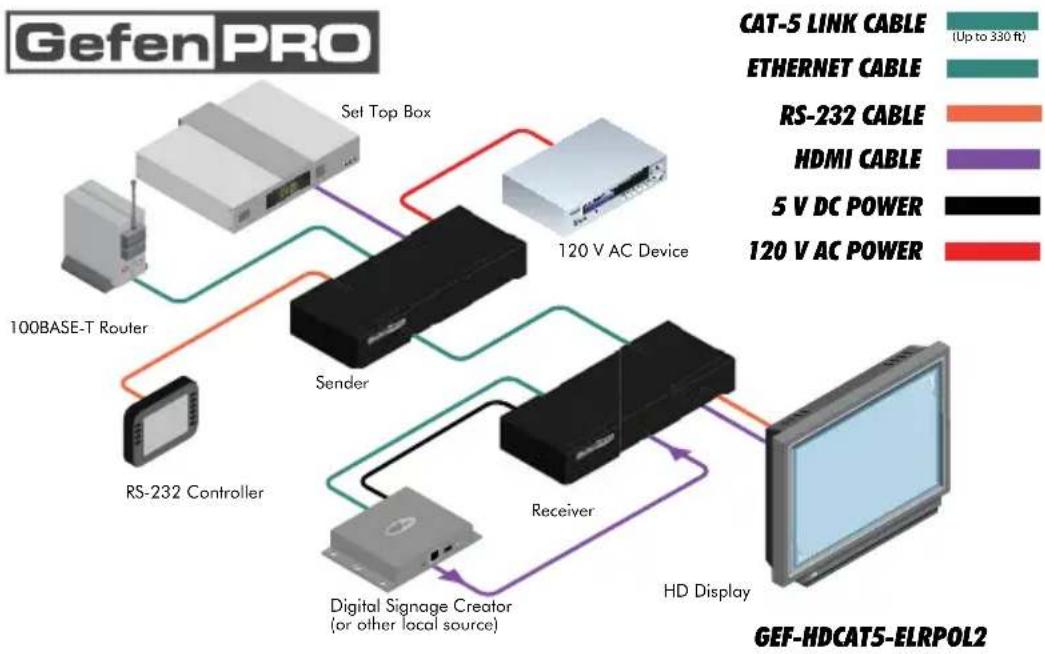
flowchart
graph TD
    A["100BASE-T Router"] --> B["Set Top Box"]
    B --> C["120 V AC Device"]
    C --> D["Receiver"]
    D --> E["HD Display"]
    E --> F["Digital Signage Creator (or other local source)"]
    F --> G["RS-232 Controller"]
    G --> H["100BASE-T Router"]
    H --> I["Set Top Box"]
    I --> J["120 V AC Device"]
    J --> K["Receiver"]
    K --> L["HD Display"]
    L --> M["Digital Signage Creator (or other local source)"]
    M --> N["RS-232 Controller"]
    N --> O["100BASE-T Router"]
    O --> P["Set Top Box"]
    P --> Q["120 V AC Device"]
    Q --> R["Receiver"]
    R --> S["HD Display"]
    S --> T["Digital Signage Creator (or other local source)"]
    T --> U["RS-232 Controller"]
    U --> V["100BASE-T Router"]
    V --> W["Set Top Box"]
    W --> X["120 V AC Device"]
    X --> Y["Receiver"]
    Y --> Z["HD Display"]
    Z --> AA["Digital Signage Creator (or other local source)"]
    AA --> AB["RS-232 Controller"]
    AB --> AC["100BASE-T Router"]
    AC --> AD["Set Top Box"]
    AD --> AE["120 V AC Device"]
    AE --> AF["Receiver"]
    AF --> AG["HD Display"]
    AG --> AH["Digital Signage Creator (or other local source)"]
    AH --> AI["RS-232 Controller"]
    AI --> AJ["100BASE-T Router"]
    AJ --> AK["Set Top Box"]
    AK --> AL["120 V AC Device"]
    AL --> AM["Receiver"]
    AM --> AN["HD Display"]
    AN --> AO["Digital Signage Creator (or other local source)"]
    AO --> AP["RS-232 Controller"]
    AP --> AQ["100BASE-T Router"]
    AQ --> AR["Set Top Box"]
    AR --> AS["120 V AC Device"]
    AS --> AT["Receiver"]
    AT --> AU["HD Display"]
    AU --> AV["Digital Signage Creator (or other local source)"]
    AV --> AW["RS-232 Controller"]
    AW --> AX["100BASE-T Router"]
    AX --> AY["Set Top Box"]
    AY --> AZ["120 V AC Device"]
    AZ --> BA["Receiver"]
    BA --> BB["HD Display"]
    BB --> BC["Digital Signage Creator (or other local source)"]
    BC --> BD["RS-232 Controller"]
    BD --> BE["100BASE-T Router"]
    BE --> BF["Set Top Box"]
    BF --> BG["120 V AC Device"]
    BG --> BH["Receiver"]
    BH --> BI["HD Display"]
    BI --> BJ["Digital Signage Creator (or other local source)"]
    BJ --> BK["RS-232 Controller"]
    BK --> BL["100BASE-T Router"]
    BL --> BM["Set Top Box"]
    BM --> BN["120 V AC Device"]
    BN --> BO["Receiver"]
        BO --> BP["HD Display"]

WARNING: This product should always be connected to a grounded electrical socket.
Sender Unit
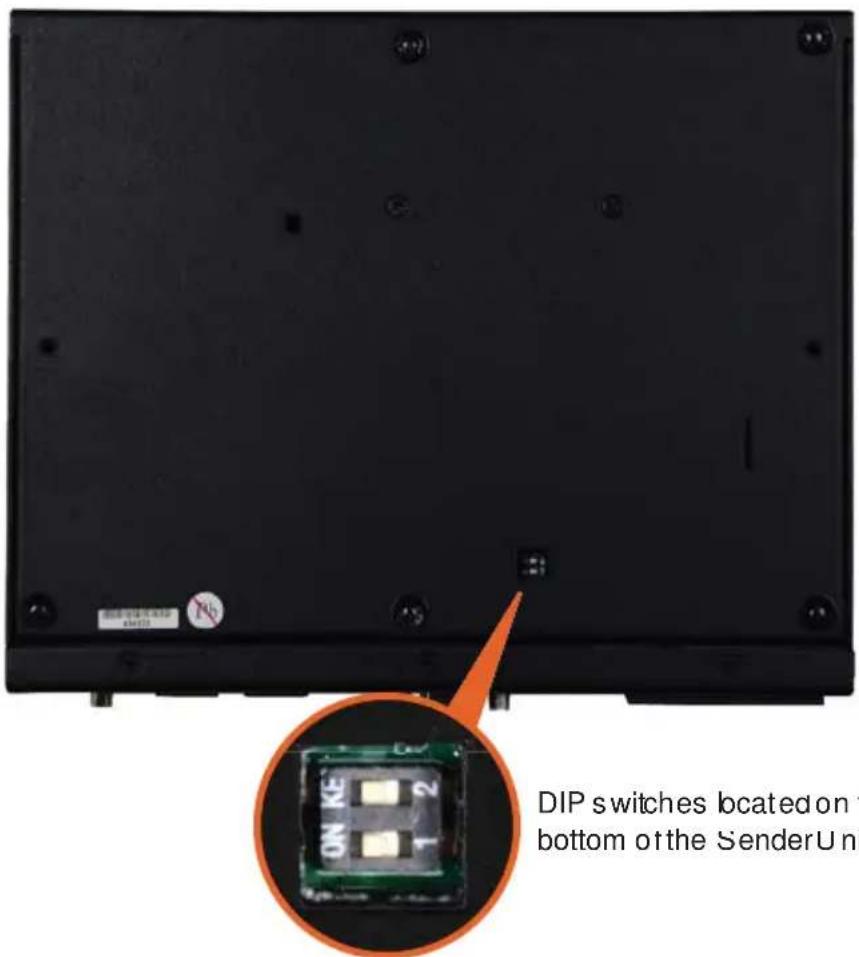
The Extender for HDMI ELR with PoL 2 over CAT5 contains two DIP switches on the bottom of the Sender Unit. Each DIP switch performs a different function.
text_image
DIP switches located on the bottom of the SenderUniDIP switches located on the bottom of the SenderUnit.
DIP Switch 1 - Green Mode (Default = OFF)
• OFF - Enable Green Mode
When DIP switch 1 on the Sender Unit is set to the OFF position, the Sender Unit is placed in Green Mode. In this mode, the unit is not powered unless +5V is detected on pin 18 of the HDMI cable. Green Mode consumes less than 1 Watt of power.
• ON - Disable Green Mode
If DIP switch 1 is set to the ON position, then the Sender Unit is always powered.

NOTE: Both the Sender Unit and Receiver Unit must be placed in Green Mode in order to use the Green Mode feature
Sender Unit
DIP Switch 2 - Field-Upgrade Mode (Default = OFF)
• ON - Enable Field Upgrade Mode (VALENS chip)
Allows the firmware to be upgraded on the Receiver unit. If DIP switch 6 and/or 7 are in the ON position, RS-232 cannot be extended. See page 15 for details on upgrading the firmware.
• OFF - RS-232 Pass-Through
Use when extending RS-232 between the Sender unit and the Receiver unit. DIP switch 6 and 7 must be set to the OFF position for normal operation of the Extender for HDMI ELR with PoL 2 over CAT5.
Receiver Unit
The Extender for HDMI ELR with Pol 2 over CAT5 contains eight DIP switches on the bottom of the Receiver Unit. Each of these DIP switch performs a different function.

text_image
DIP switches located on the bottom of the Receiver Unit.DIP Switch 1 - EDID Mode (Default = OFF)
• ON - Pass-Through Mode
DDC and HPD are passed through. Both the connection status and the full video capabilities of the monitor are used by the source device.
• OFF- Local EDID Mode
Local EDID is used instead of the EDID from the display device. EDID features newer than HDMI 1.3 are removed when the display is read. This provides a general EDID which is compatible with more displays.
Receiver Unit
DIP Switch 2 - Hot Plug Detect (Default = OFF)
• ON - HPD Pass-Through
HPD follows upstream HPD towards the source. The HPD signal will reflect the connection status between the display device and the source device. If the source or monitor is temporarily disconnected then reconnected, there will be a delay of 20 - 30 seconds before the content is restored to the monitor.
• OFF - HPD Always High
The HPD signal remains high regardless of the downstream HPD state. If the source or monitor does not properly handle HPD (no picture after connecting / reconnecting source or display), set this DIP switch to the OFF position.
DIP Switch 3 - Support DVI Connections (Default = OFF)
• ON - Disable HD CP
It a DVI connection is used, set DIP 3 to the ON position. DVI is supported by disabling HDC P pass-through.
• OFF - Enable HDCP
If an HDMI device is connected, set DIP 3 in the OFF position.
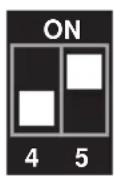
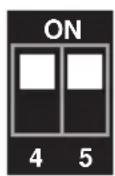
DIP Switch 4 and DIP Switch 5 - IR Channel
- The grams below indicate the settings for DIP switches 4 and 5 in order to set the IR channel on the Extender for HDMI ELR with PoL 2 over CAT5.
Channel 0 (de fault):

Remote Channel 1:

RemoteChannel 2:
Remote Channel 3

NOTE DIP switch 2 (HPD) and 3 (HDCP) are operational only if DIP switch 1 (EDID mode) is set to the OFF position.
Receiver Unit
DIP Switch 6 - Field-upgrade Mode (Default = OFF)
• ON - Enable Field Upgrade Mode (Cortex chip)
Allows the firmware to be upgraded on the Receiver unit. If DIP switch 6 and/or 7 are in the ON position, RS-232 cannot be extended. See page 15 for details on upgrading the firmware.
• OFF - RS-232 Pass-Through
Use when extending RS-232 between the Sender unit and the Receiver unit. DIP switch 6 and 7 must be set to the OFF position for normal operation of the Extender for HDMI ELR with PoL 2 over CAT5.
DIP Switch 7 - Field-Upgrade Mode (Default = OFF)
- ON - Enable Field Upgrade Mode (VALENS chip)
Allows the firmware to be upgraded on the Receiver unit. If DIP switch 6 and/or 7 are in the ON position, RS-232 cannot be extended. See page 15 for details on upgrading the firmware.
• OFF - RS-232 Pass-Through
Use when extending RS-232 between the Sender unit and the Receiver unit. DIP switch 6 and 7 must be set to the OFF position for normal operation of the Extender for HDMI ELR with PoL 2 over CAT5.
DIP Switch 8 - Green Mode (Default = OFF)
• OFF - Enable Green Mode
When DIP switch 1 on the Receiver Unit is set to the OFF position, the Receiver Unit is placed in Green Mode. In this mode, the unit is not powered unless +5V is detected on pin 18 of the HDMI cable. Green Mode consumes less than 1 Watt of power.
• ON - Disable Green Mode
If DIP switch 1 is set to the ON position, then the Receiver Unit is always powered.

NOTE: Both the Sender Unit and Receiver Unit must be placed in Green Mode in order to use the Green Mode feature
Firmware Update Procedure
The latest firmware update can be found on the Gefen Web site under Support > Downloads.
Sender Unit
- Set DIP switch 1 and 2 on the Sender unit to the ON position.
- Connect an RS-232 cable from the Sender unit to the computer containing the firmware.
- Reboot the Sender unit by disconnecting and reconnecting the power supply.
- Run the .BAT file to begin in the update process.
- After the firmware update process has completed, return DIP switch 1 and 2 to the OFF position.
Receiver Unit
- Set DIP switch 7 and 8 on the Receiver unit to the ON position.
- Connect a null modem R S-232 cable from the Receiver unit to the computer containing the firmware.
- Reboot the Receiver unit by disconnecting and reconnecting the power supply.
- Run the .BAT file to begin in the update process.
- After the firmware update process has completed, return DIP switch 7 and 8 to the OFF position.
natural_image
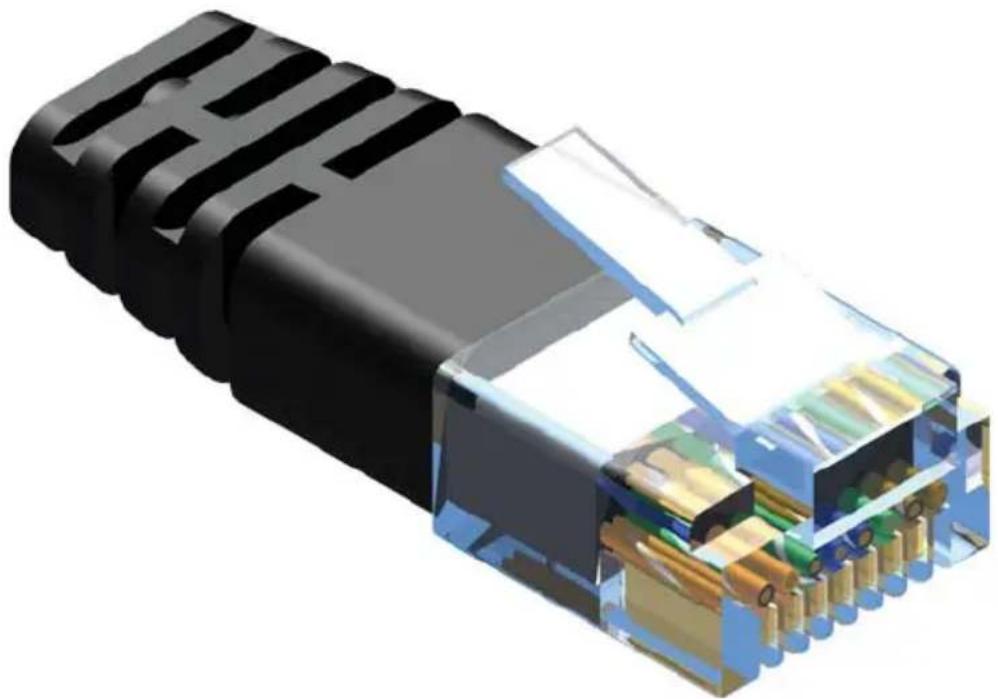
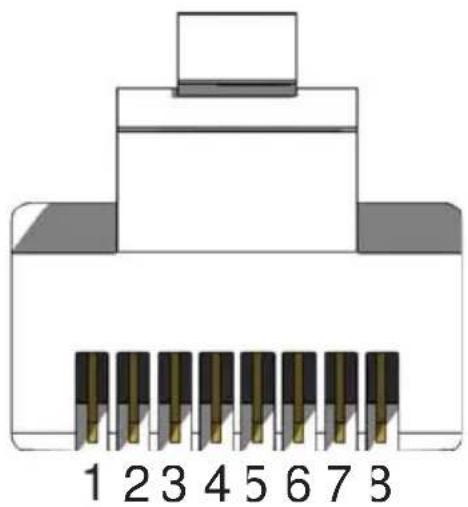
3D cutaway illustration of a black USB connector showing internal structure and terminal connections (no text or symbols)Gefen recommends the TIA/EIA-568-B wiring option. Please adhere to the table below when field terminating cable for use with Gefen products.
| Pin Color | |
| 1 | Orange / White |
| 2 | Orange |
| 3 | Green / White |
| 4 | Blue |
| 5 | Blue / White |
| 6 | Green |
| 7 | Brown / White |
| 8 | Brown |
natural_image
Diagram of an Ethernet cable connector with pin numbering (1-7-3) and a top connector, no text or symbols present.CAT-5, CAT-5e, and CAT-6 cabling comes in stranded and solid core types. Gefen recommends using solid core cabling. CAT-6 cable is also recommended.
It is recommended to use one continuous run from one end to the other. In some cases, connecting through a patch might not work.
Cable recommendations
Solid core CAT-5e cable rated at 350 MHz and terminated in 568a or 568b is the minimum requirement. For resolutions greater than 1280x1024 or 1080i, Gefen recommends solid shielded CAT-6 cables.
No video
Make sure that DIP switch 2 on the Sender unit is set to the OFF position. Also make sure that both DIP switch 6 and 7 on the Receiver unit is set to the OFF position. If either of these DIP switches are in the ON position (External Boot Loader Enable, see page 14 and 17) then the Sender unit or Receiver unit will not function as an extender. Next, make sure that the CAT-5 cable, connecting the Sender unit and Receiver unit is connected to the LINK port. If this does not solve the issue, try disconnecting and then reconnecting the AC power cord from the Sender unit. Also, verify that both units are working with short CAT-5e cables (15 - 20 feet).
Intermittent loss of video
Flickering or a blinking image is the result of a loss of sync between the display and the source. Try lowering the source resolution (e.g. from 1080p to 720p). If this solves the issue, then the CAT-5 cables being used to connect the Sender unit and the Receiver unit are unable to handle the bandwidth of the higher resolution and thus you are losing sync. Replace the existing CAT-5 cables with a shielded CAT-6 cable. Electromagnetic Interference (EMI) from fluorescent lights, generators, and A/C unit motors can also cause intermittent loss of video. Shielded CAT-6 cable with the drain wire soldered to the connectors will resolve the issue. Also make sure to eliminate any patch panels and wall plates. Patch panels and wall plates are prone to EMI if they are not shielded properly
Image is tinted green or pink
An image that is tinted green or pink is the result of the incorrect color space being transmitted. Make sure that the display and source both support the same color space. Setting DIP switch 1 on the Receiver unit, to the OFF position, will use the Local EDID. EDID features newer than HDMI 1.3 are removed when the display is read. This provides a general EDID which is compatible with more displays.
Maximum Pixel Clock 225 MHz
Input Video Signal 1.2V p-p
Input DDC Signal 5V p-p (TTL)
HDMI Input Connector (Sender / Receiver) ...... (1) 19-pin, Type A, female
HDMI Output Connector (Receiver) .....(1) 19-pin, Type A, female
RS-232 Connector (Sender) ...... (1) DB-9, female
RS-232 Connector (Receiver) ...... (1) DB-9, male
Ethernet Connector (Sender / Receiver) ...... (1) RJ-45, shielded
Link Connectors (Sender / Receiver) ...... (1) RJ-45, shielded
IR Blaster connector (Sender) ...... (1) 3.5 mm mini-mono jack
IR Extender connector (Receiver) ...... (1) 3.5 mm mini-stereo jack
Power Supply (Sender) 100 - 240VAC
Power Output Connector (Receiver) 5 V / 2.5 A DC, locking
Operating Temperature.... 0 °C \~ 45 °C / 32 °F \~ 113 °F
Storage Temperature.... -20°C \~ 60 °C / -4 °F \~ 140 °F
Humidity Range.... 20% - 90% RH (no condensation)
Dimensions (Sender / Receiver) 8.4" W x 1.7" H x 6.7" D
Shipping Weight 8 lbs.
Gefen warrants the equipment it manufactures to be free from defects in material and workmanship.
If equipment fails because of such defects and Gefen is notified within two (2) years from the date of shipment, Gefen will, at its option, repair or replace the equipment, provided that the equipment has not been subjected to mechanical, electrical, or other abuse or modifications. Equipment that fails under conditions other than those covered will be repaired at the current price of parts and labor in effect at the time of repair. Such repairs are warranted for ninety (90) days from the day of reshipment to the Buyer.
This warranty is in lieu of all other warranties expressed or implied, including without limitation, any implied warranty or merchantability or fitness for any particular purpose, all of which are expressly disclaimed.
- Proof of sale may be required in order to claim warranty.
- Customers outside the US are responsible for shipping charges to and from Geten.
- Copper cables are limited to a 30 day warranty and cables must be in their original condition.
The information in this manual has been carefully checked and is believed to be accurate. However, Geten assumes no responsibility for any inaccuracies that may be contained in this manual. In no event will Gefen be liable for direct, indirect, special, incidental, or consequential damages resulting from any defect or omission in this manual, even if advised of the possibility of such damages. The technical information contained herein regarding the features and specifications is subject to change without notice.
For the latest warranty coverage information, refer to the Warranty and Return Policy under the Support section of the Gefen Web site at www.gefen.com.
PRODUCT REGISTRATION
Please register your product online by visiting the Register Product page under the Support section of the Gefen Web site.

text_image
* M A - G E F - H D C A T 5 - E L R P O L 2 *20600 Nordhoff St., Chatsworth CA 91311
1-800-545-6900 818-772-9100 fax: 818-772-9120
www.gefenpro.com support@gefenpro.com