
ZX5 - Digital Camera KODAK - Free user manual and instructions
Find the device manual for free ZX5 KODAK in PDF.


| Product type | Compact digital camera |
| Brand | KODAK |
| Model | ZX5 |
| Category | Digital camera |
| Dimensions (approx.) | 100 x 20 x 50 mm |
| Weight (approx.) | 100 g |
| Power supply | Rechargeable lithium-ion battery |
| Battery type | Li-ion |
| Main function | HD video recording and photos |
| Screen | Built-in LCD screen |
| Storage | Memory card (SD/MicroSD type) |
| Video capture | HD resolution 720p or 1080p depending on version |
| Photo capture | Resolution up to 5 MP |
| Connectivity | USB |
| Care and cleaning | Soft dry cloth, avoid solvents |
| Safety | Avoid humidity and shocks |
| Spare parts | Battery, charger, USB cable |
| Repairability | Removable battery and memory card |
| General information | Compliant with Canada's NMB-003 standard |
Frequently Asked Questions - ZX5 KODAK
User questions about ZX5 KODAK
0 question about this device. Answer the ones you know or ask your own.
Ask a new question about this device
Download the instructions for your Digital Camera in PDF format for free! Find your manual ZX5 - KODAK and take your electronic device back in hand. On this page are published all the documents necessary for the use of your device. ZX5 by KODAK.
USER MANUAL ZX5 KODAK
KODAK PLAYSPORT Video Camera / Zx5
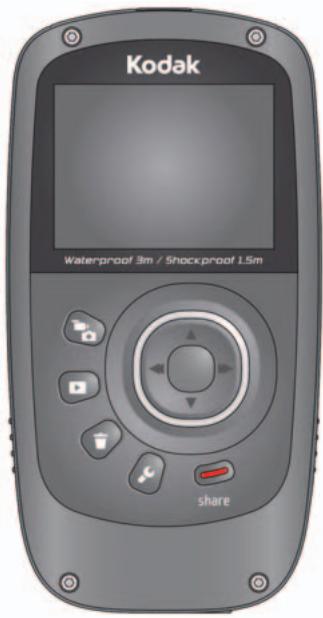
Extended user guide
www.kodak.com
For help with your camera: www.kodak.com/go/Zx5support
Kodak
Eastman Kodak Company
Rochester, New York 14650
© Kodak, 2011
All screen images are simulated.
Kodak and PlaySport are trademarks of Eastman Kodak Company.
ArcSoft and Medialmpression are trademarks of ArcSoft, Inc.
HDMI, the HDMI Logo, and High-Definition Multimedia Interface are trademarks or registered trademarks of HDMI Licensing LLC.
4H7333_en
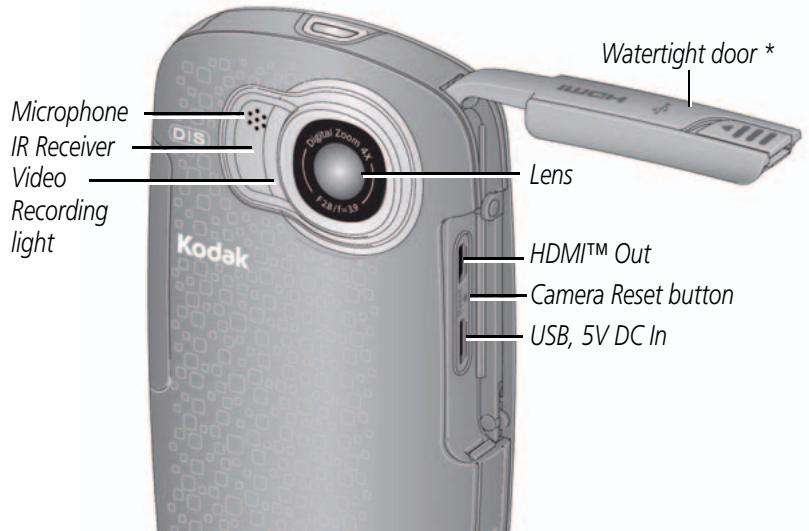
Front view
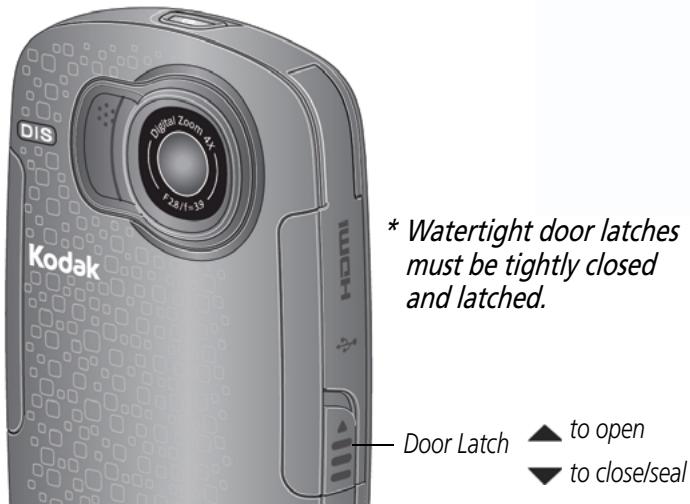
Back view
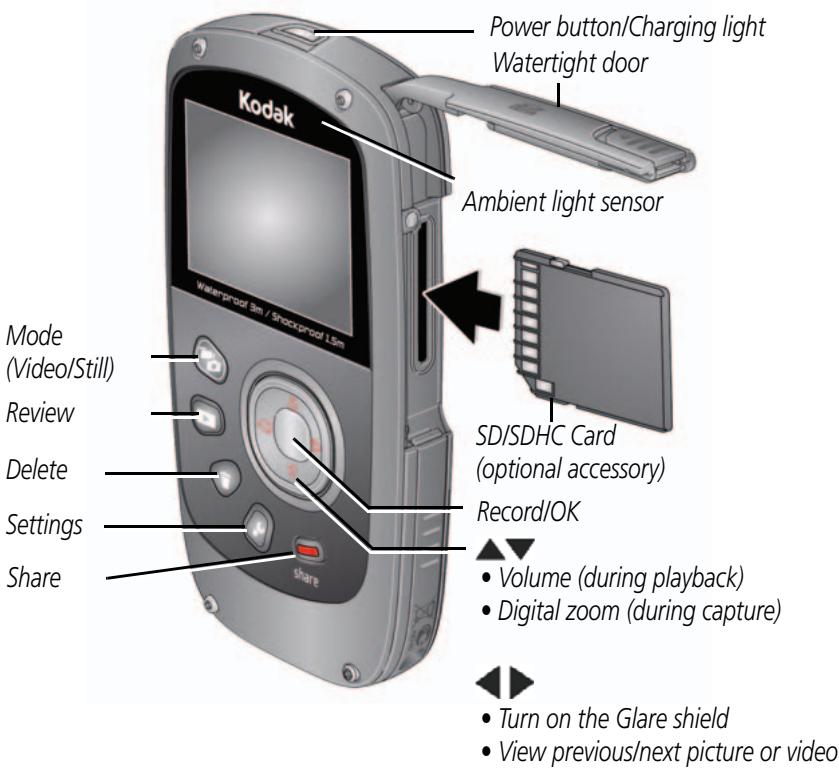
Understanding the status icons
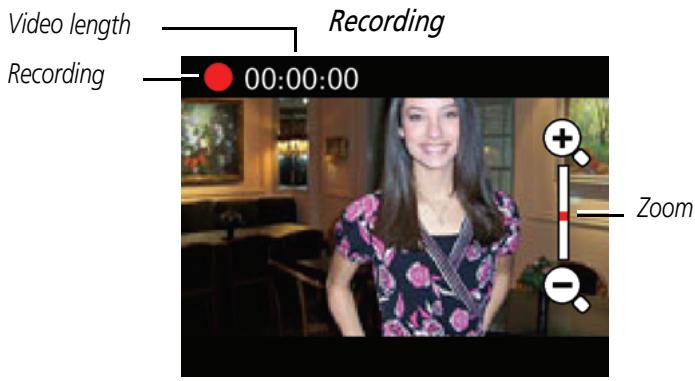
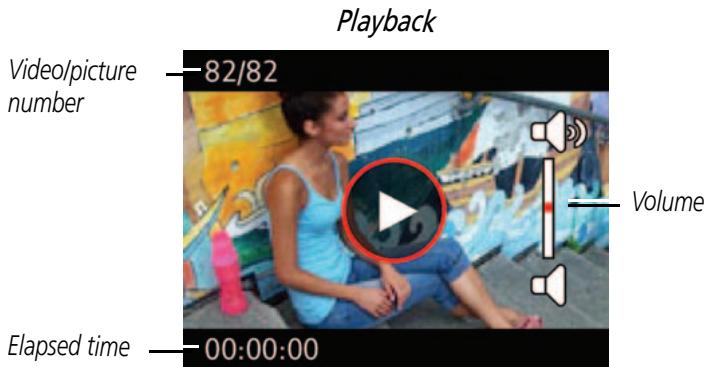
Table of contents
1 Setting up your camera 1
Charging the battery 1
Charging using USB 2
Inserting an SD or SDHC Card (optional accessory) 3
Connecting the strap 4
2 Using your camera 5
Turning on the camera 5
Setting the date/time. 5
Recording videos, taking pictures 6
Adjusting the LCD to improve viewability 7
Playing videos 8
Transferring, sharing online, editing. 9
Sharing through email and social networks. 10
Deleting videos/pictures 12
Viewing on a TV. 13
Using the Settings menu 14
Using the camera under water. 15
Using the Trim Video feature 16
Using the Make Picture feature 16
Using the optional remote control 17
3 Getting help 18
Troubleshooting 18
Getting help on the Web 20
4 Appendix 21
Specifications 21
Safety 23
Care and maintenance 23
Limited warranty 24
Regulatory compliance 26
1 Setting up your camera
Charging the battery
Use this procedure to charge the battery or power the camera with AC power. Charge the battery as often as you like—you can't over-charge—but always fully charge before using.
IMPORTANT: The battery is not removable.
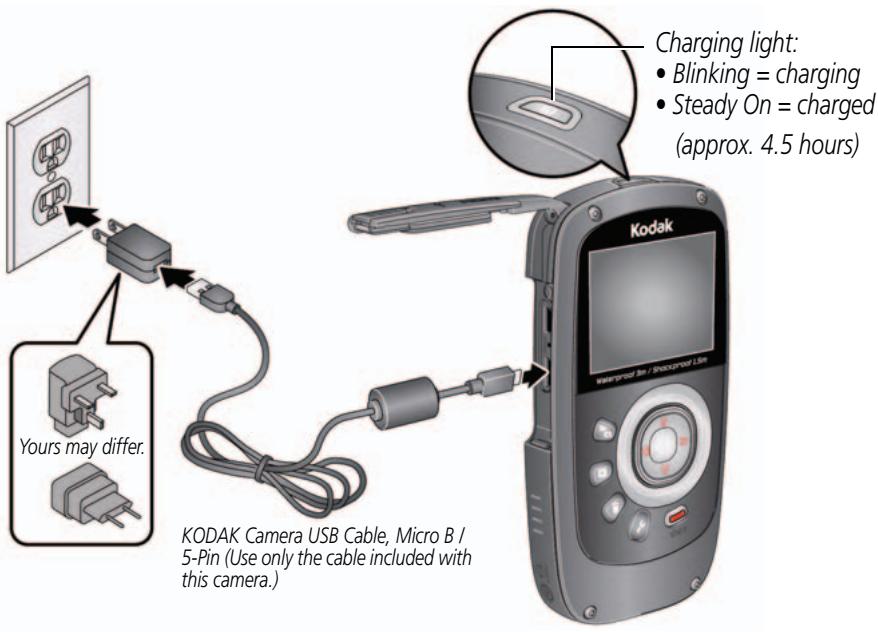
| See other charging solutions | see page 2 |
| Keep doors watertight | see page i |
Charging using USB
IMPORTANT: The battery charges when the computer is on and awake; so disable your computer's hibernation, sleep, and standby modes.
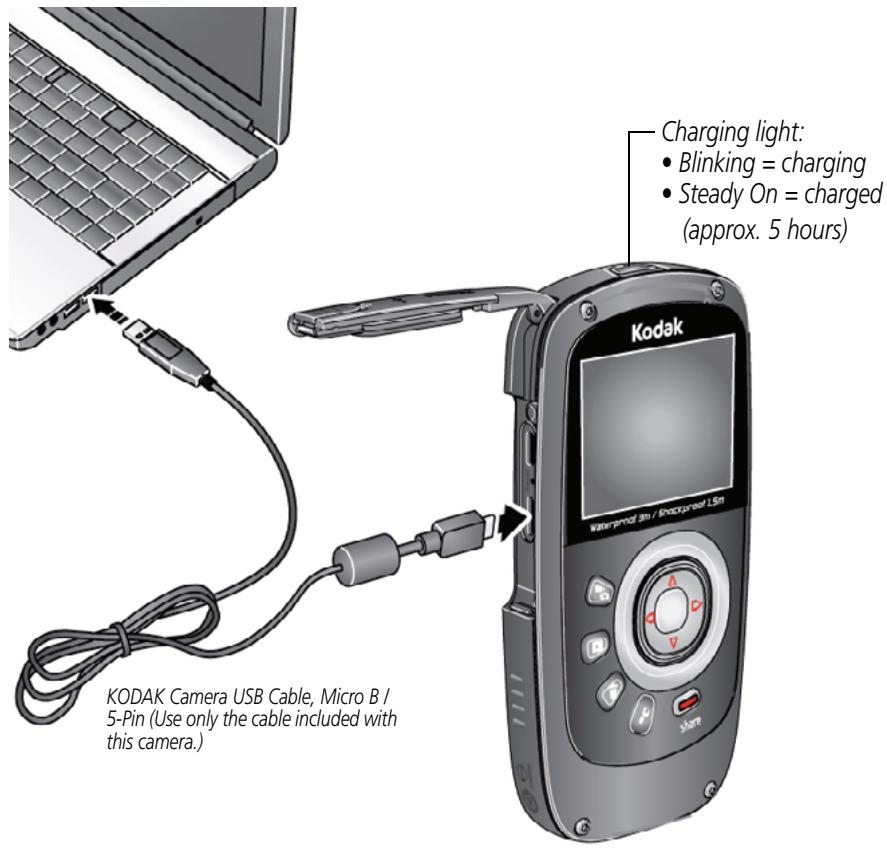
Keep doors watertight see page i
Inserting an SD or SDHC Card (optional accessory)
Your camera has limited internal memory—perfect for a few practice videos/pictures. For the best experience, we strongly suggest purchasing a card (SDHC Class 4 or higher) to store more. (Maximum supported size: 32 GB.)

CAUTION:
A card can only be inserted one way; forcing it may cause damage. Inserting or removing a card while the camera is on may damage the video/pictures, the card, or the camera.
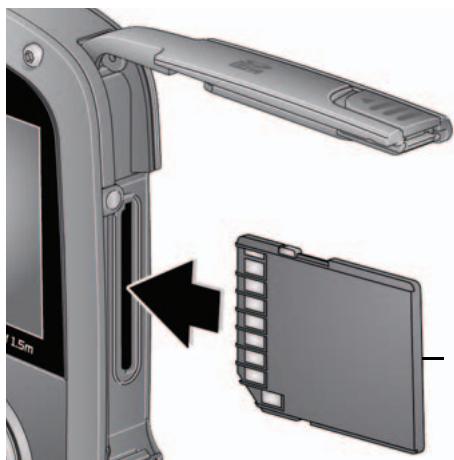
① Turn off the camera.
② Insert the card until it clicks.
To remove the card, press and release it, then pull it out.
Optional accessory
IMPORTANT: When you turn on the camera, it checks to see if a card is inserted. If so, new pictures/videos are stored on the card. If no card is inserted, new pictures/videos are stored in the camera's internal memory. If pictures/videos are detected in internal memory and a card is inserted, the camera prompts you to move the pictures to the card (and erase those in internal memory).
| Keep doors watertight | see page i |
| Purchase accessories | www.kodak.com/go/accessories |
Connecting the strap
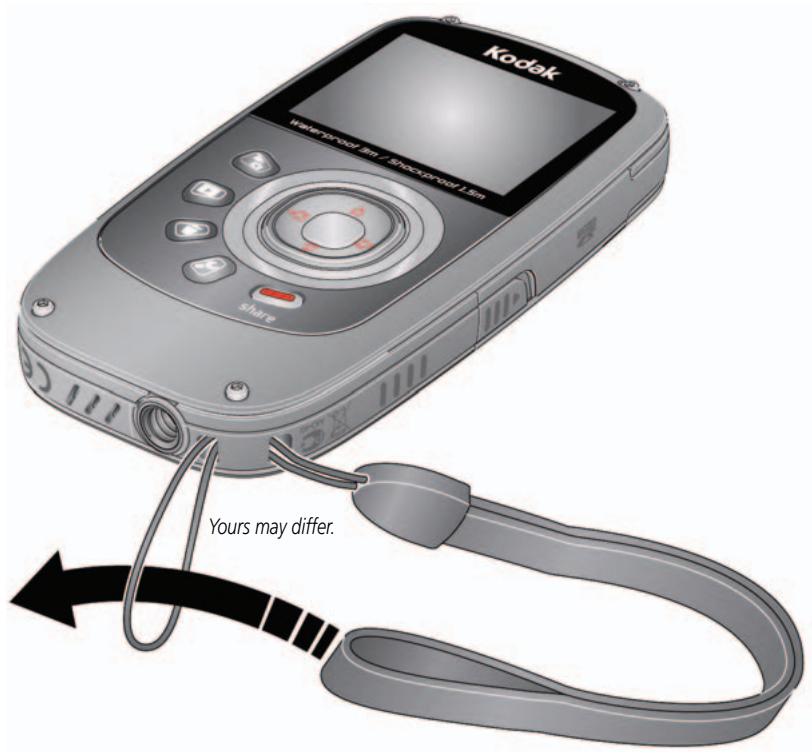
2 Using your camera
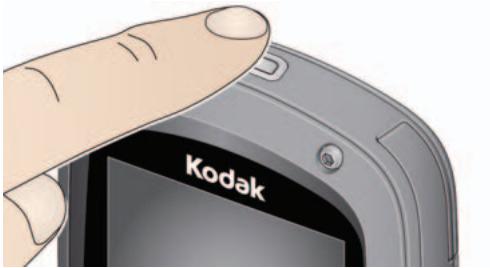
Turning on the camera
Setting the date/time
Language
to change.
OK to accept.
Date/Time
At the prompt, press OK.
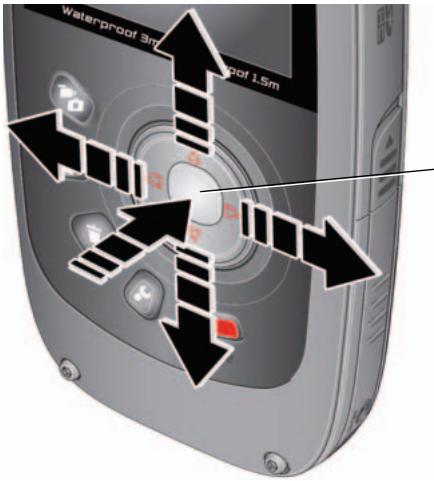
to change current field.
for previous/next field.
OK to accept.
Change date/time later
see page 14
Recording videos, taking pictures
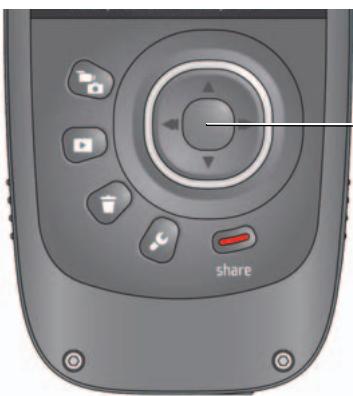
When you turn on the camera, it's ready to record.
Start/stop recording.
Zoom in/out.

Turn on the Glare Shield (if enabled in the Settings menu) to improve LCD viewability.

In Liveview, press to change recording modes (video/pictures).
In Review or in a menu, press to go to Liveview.
Recording modes
| 1080p | 720p/60 fps | 720p | WVGA (iPad Compatible) | Still |
| best for viewing on an HDTV | best for sports and action | best for viewing on a computer, sharing on YouTube™ and FACEBOOK | best for conserving memory card space | for pictures |
Adjusting the LCD to improve viewability
The camera has the ability to sense the light level in your environment and adjust LCD brightness so it's easier to see. You can let the camera control LCD brightness or change the setting to suit your needs.
| To | Do this | Result |
| Let the camera automatically adjust LCD brightness | Leave the LCD Brightness setting at Automatic. (See page 14.) | The LCD automatically adjusts to changing light conditions. |
| Conserve battery power | 1 Press the Settings button .2 Press ▲▼ to choose LCD Brightness & Glare Shield, then press OK.3 Press OK to uncheck Automatic.4 Press ▼ to highlight LCD Brightness, then ▲▶ to change the setting to Low.5 Press ▲ to choose Done, then press OK. | The LCD stays relatively dim to save power. |
| Manually control LCD brightness | 1 Press the Settings button .2 Press ▲▼ to choose LCD Brightness & Glare Shield, then press OK.3 Press OK to uncheck Automatic.4 Press ▼ to highlight Enable Glare Shield, then press OK to check it.5 Press ▲ to choose Done, then press OK.6 Press ▲ to return to liveview.7 In Liveview, press ▲▶ to turn on Glare Shield. | Glare is reduced and viewability improved, but recorded videos and pictures are not affected. |
Playing videos
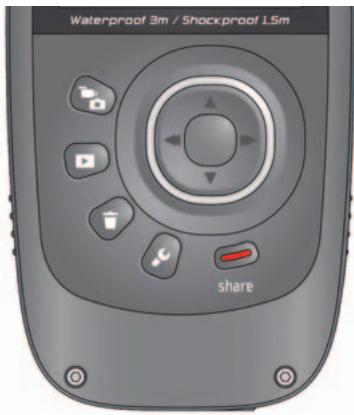
1 Review.
(2) Previous/next video/picture.
(3) OK Play/Pause. (Press and hold to Stop.)
Adjust video volume (or magnify a picture).
Delete video/pictures.
While playing a video, press:
OK Play/Pause.
Play fast-forward.
Play in reverse. (Press again to fast-reverse.)
While paused, press:
Play in slow motion. (Press again to play even slower.)
Play in reverse slow motion. (Press again to play even slower.)
Use the optional remote control see page 17
Transferring, sharing online, editing
①
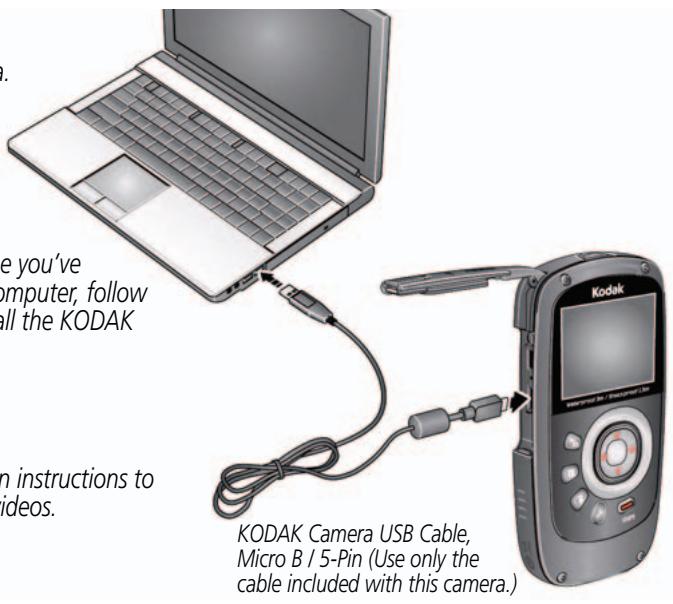
Connect the camera. (It turns on automatically.)
(2)
If this is the first time you've connected to this computer, follow the prompts to install the KODAK Share Button App.
(3)
Follow the on-screen instructions to transfer and share videos.
WINDOWS OS-based computers: Install ARCSOFT MEDIAIMPRESSION for KODAK Software to help organize and edit videos.
MAC OS-based computers: Use the APPLE ILIFE suite of products to edit, personalize, and make DVDs.
| Keep doors watertight | see page i |
| Get KODAK Share Button App support | www.kodak.com/support |
| See HD video system requirements for playback on your computer | www.kodak.com/go/HDsysreq |
| Get ArcSoft product support | www.arcsoft.com/support |
Sharing through email and social networks
It's never been easier to share pictures on your favorite social networking sites.
IMPORTANT: To use the sharing and social networking features, you must install KODAK Software (see page 10).
1 Press the Share button to share anytime—in Liveview or in Review.
Social networking sites and email addresses are offered.
To edit the list of social networking sites, see page 11.
To add an email address or KODAK PULSE Display, see page 11.
2 Press to choose a picture/video to share.
3 Press and OK to choose social networking sites or email addresses.
4 Press to choose Done, then press OK.
When you transfer these pictures/videos to your computer, they are sent to the sharing destinations you chose.
Choose which social networking sites to display on your camera
You can show/hide networking sites so that only your favorite sites appear on your camera's Share menu.
1 Press the Settings button ±b
2 Press to choose Share Settings, then press OK.
3 Press to highlight a site, then press OK.
4 Press to choose Show or Hide, then press OK.
5 Press to choose Done, then press OK.
When you are in Review and press the Share button, your favorite sites appear. Press the Mode button to return to liveview.
Manage email addresses and KODAK PULSE Displays
You can add, edit, or delete email addresses and KODAK PULSE Displays on your camera.
1 Press the Settings button
2 Press to choose Share Settings, then press OK.
3 To add an email address, press to choose New Email, then use the on-screen keyboard. When finished, press to choose OK, then press the OK button.
To delete an email address, press to choose Delete Email, choose the address to delete, then press OK.
4 Press to choose Done, then press OK.
Press the Mode button to return to liveview.
Deleting videos/pictures
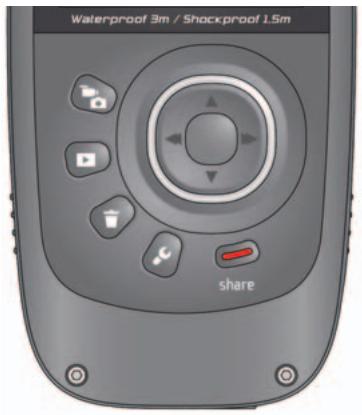
1 Review
(2) Previous/next
3 Delete
(4) Highlight Delete, then press the OK button.
Viewing on a TV
If you have an HD television, use an HDMI cable—and get the richest playback experience. (Cables may be sold separately.)
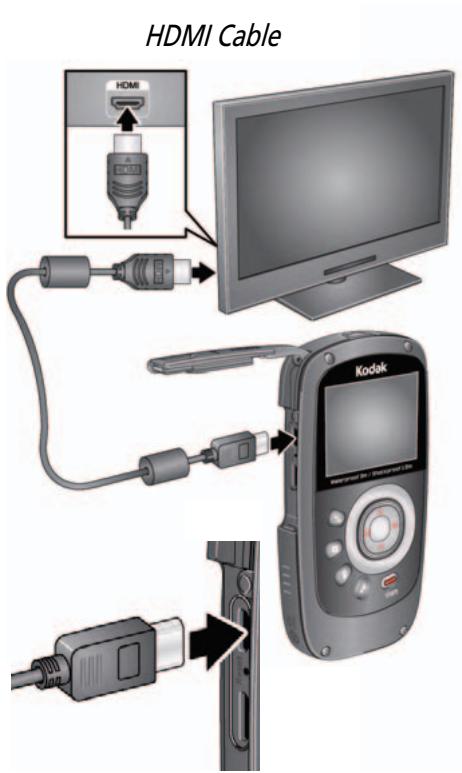
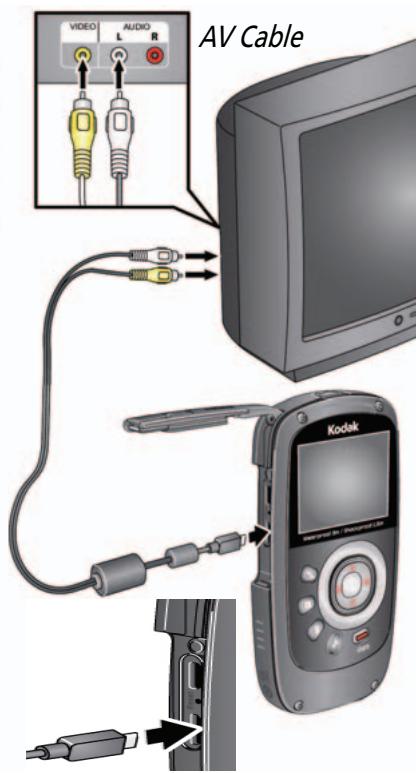
NOTE: Set your TV's input setting to HDMI or AV, according to your TV's specifications.
| Set Video Output (NTSC/PAL) | see page 14 |
| Purchase cables | www.kodak.com/go/accessories |
Using the Settings menu
Press the Settings button.
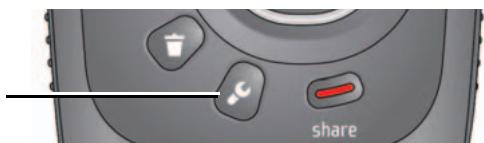
Effects—Normal Color, High Saturation, 70's Film, B&W, or Sepia
Underwater Correction—Turn on if taking videos/pictures under water. (See page 15.)
Video Resolution—HD 1080p, HD 720p, HD 720p 60 fps, WVGA
Microphone Gain—Adjust sensitivity of the internal microphone.
Sounds & LED—Turn sounds and the Video Recording light on/off.
LCD Brightness & Glare Shield—Choose the setting that's best for your light conditions. (See more about the Glare Shield feature, page 7.)
Date/Time—Set the date/time.
Share Settings—Choose which social networking sites and email addresses are offered when you share a picture/video.
Video Output—Choose the setting (NTSC, PAL) for your region.
Focus mode—Choose Auto for most picture/videos, or Macro for close-ups.
Image Stabilization—Turn on to reduce video blur.
Language—Choose your language.
Reset Settings—Return settings to their factory default.
Format Memory Card—CAUTION: Everything is erased from the card.
About—View firmware and ARCSOFT Software versions.
If you're reviewing a video and press the Settings button, you also get these choices:
Trim—See page 16.
Make Picture—See page 16.
Using the camera under water
The camera does not float. To prevent it from sinking, secure it with the strap. (See a floating accessory strap at www.kodak.com/go/accessories.) To keep the camera waterproof, tightly close and latch all doors. Do not open doors in water or when hands are wet. Waterproof integrity may be compromised if the camera is dropped. For more information, see page 22.
For the best focus and color balance under water:
1 Press the Settings button , then choose Underwater Correction.
2 Press to choose the On, then press OK.
3 Press the Mode button, then take videos/pictures.
4 When finished taking underwater videos/pictures, go back to Step 1 and turn Underwater Correction off.
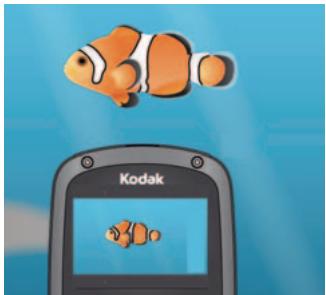
3 meters (9.8 feet)
After using the camera in water
Wipe off water or debris. If the camera was used in chemically treated water or saltwater, rinse it in fresh water, then use a soft towel to dry it.
If water has entered the camera, remove the card. Allow camera to air-dry for at least 24 hours before using.
Keep doors watertight see page i
Using the Trim Video feature
Use the Trim Video feature to remove an unwanted video start and/or finish, leaving only the desired portion.
1 Press the Review button then to find a video to trim. Optional: Play, then pause the video at the desired new start point.
2 Press the Settings button
3 Press to choose Trim Video, then press OK. An instruction screen appears. After you read it, press OK.
4 When prompted, press to move the Start marker to the new position, then press OK. Press to move the End marker to the new position, then press OK.
NOTE: If you need to make adjustments, press ▲▼ to highlight the Start or End marker, then press ▲▶ to move it. When finished, press OK.
5 When prompted, choose Go Back, Preview Trimmed Video, or Save As New. (The original video is not altered.)
Using the Make Picture feature
You can choose a single frame from a video, then make it into a picture. (Size and quality depend on video resolution.)
1 Press the Review button , then to find a video from which you want to extract a single video frame. Play, then pause the video at the desired frame.
2 Press the Settings button
3 Press to choose Make Picture, then press OK. An instruction screen appears. After you read it, press OK.
4 Follow the prompts to save the picture. (The original video is not altered.)
Using the optional remote control
Use the optional remote control to review videos and pictures. Go to www.kodak.com/go/accessories.
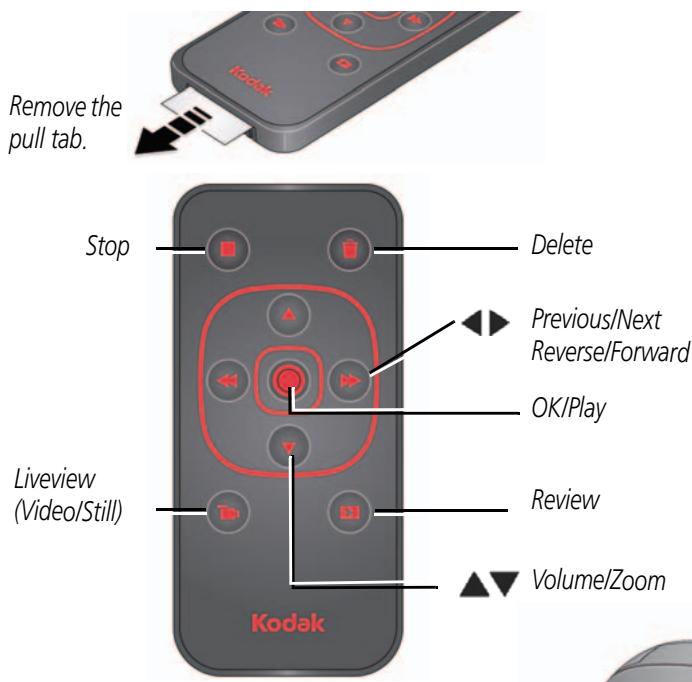
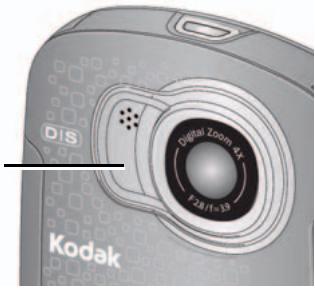
Aim the remote at the camera's IR Receiver
3 Getting help
Troubleshooting
| Problem | Solution |
| Low battery. | Charge the battery (page 1). |
| Corrupt or unusable card. | Transfer videos/pictures to your computer (page 9), then format (erase) the card in the camera or card reader. For the best experience, we strongly suggest purchasing a Class 4 or higher SDHC Card. |
| Card is full. | Transfer videos/pictures to your computer (page 9) or use another card (page 3). |
| Unrecognized file. | Transfer videos/pictures to your computer (page 9). |
| Camera will not turn off. | Use a pin or paperclip to press the Camera Reset button (page i). |
| Camera will not turn on. | Ensure that the battery is charged (page 1). Ensure the camera is clean and dry. (If it's wet inside, open all doors. Remove the card. Do not turn on the camera. Let it dry for at least 24 hours.) |
| LCD is hard to see. | Adjust the LCD (page 7). |
| Videos are choppy or jumpy when played on a computer. | Use ARCSOFT MEDIAIMPRESSION for KODAK Software for video playback (page 9). Ensure that the computer system requirements are met. Go to www.arcsoft.com/support or www.kodak.com/go/HDsysreq. For the best experience, we strongly suggest purchasing a Class 4 or higher SDHC Card. |
| Underwater videos are not clear. | Turn on Underwater Correction (page 14). |
| The camera gets wet inside. | ■ Keep doors watertight (page i). ■ If the camera is wet inside, open all doors. Remove the card. Do not turn on the camera. Let it dry for at least 24 hours. |
| Videos are blurry. | ■ Ensure that the lens is clean. ■ Ensure that the subject is at least 1 m (3.3 ft) from the lens. ■ If your hand is unsteady, turn on Image Stabilization (page 14). |
| Videos do not play on a TV. | ■ Ensure that an HDMI or AV Cable is properly connected directly to the TV input (page 13). ■ Ensure that the TV's settings are correct for an HDMI or AV connection, according to your TV's specifications. ■ Ensure that the Video Output is set correctly (page 14). |
| Long videos are divided at the 4 GB mark. | ■ To accommodate the FAT32 file structure, videos are split at the 4 GB mark. |
| Videos are low resolution. | ■ If no card is inserted and the camera is powered by the AC adapter, then videos are taken in low resolution and are not saved. (The camera is in Demo mode.) Insert a card or unplug the AC adapter. |
| Videos are not saved. | |
| Camera will not work with optional remote control. | ■ Ensure that the battery is correctly inserted in the remote control. ■ Ensure that the camera infrared receiver (on bottom of camera) and the remote control have an unobstructed path. ■ Try a different angle, or move closer. |
| Solve problems with ARCSOFT MEDIAIMPRESSION for KODAK Software. | ■ Go to www.arcsoft.com/support. (For other applications, go to their support sites.) |
Getting help on the Web
| Get support for your product (FAQs, troubleshooting information, arrange for repairs, etc.) | www.kodak.com/go/Zx5support |
| Purchase camera accessories (lenses, cards, etc.) | www.kodak.com/go/accessories |
| Download the latest camera firmware and software | www.kodak.com/go/Zx5downloads |
| Register your camera | www.kodak.com/go/register |
| Chat, email, write, or phone Kodak (Chat not available in all languages) | www.kodak.com/go/contact |
| Get information on ARCSOFT Software | www.arcsoft.com/support |
4 Appendix
Specifications
Image Sensor—1/3.2-type, 5 MP, CMOS
Lens—5.5 mm, f/2.8; 35 mm equivalent: 48 mm (1080p), 36 mm (720p/60 fps, 720p, WVGA), 36 mm (Still)
Zoom—4X digital
LCD—5 cm (2 in.); 154K pixels
Image Storage—128 MB internal memory (approximately 20 MB available for image storage. 1 MB equals one million bytes); optional SD/SDHC Card (The SD logo is a trademark of the SD Card Association.) Maximum supported size: 32 GB SDHC.
Focusing System—Auto
Focus Range
Normal: 10 cm (4 in.)-infinity @ Auto; 7-17 cm (2.8-6.7 in.) @ Macro
Underwater: 13 cm (5.1 in.)-infinity @ Auto; 9-22 cm (3.5-8.7 in.) @ Macro
White Balance—Auto
Exposure—Auto
File Format—Still: JPEG with Kodak EXIF; Video: H.264 (.MP4);
Audio: MPEG-4 AAC LC
HD 1080p 30 fps
HD 720 60 fps
HD 720 30 fps
WVGA (iPad compatible) 30 fps
Still (16:9): 5.3 MP picture
Video recording limits—< 4GB or < 29 minutes @ HDV
Shutter Speed—Automatically set 1/8000-1/30
Image stabilization-Digital, in all video modes
ISO—Automatically set (100-1600)
Microphone—Mono
Speaker—Mono
I/O Interface—USB 2.0 (high speed); component output; HDMI
Tripod Mount—1/4-in. standard
Power—KODAK 5V AC adapter or built-in Li-ion battery
Battery life—Approximately 120 minutes in video recording mode, 720p @ 30 fps
Waterproof capability—Conforms to IEC60529 IPX8, up to 3 meters (9.8 ft)
Shockproof capability—MIL-STD-810F, Method 516.5, Shock Equivalent 1.5m (5 ft) onto plywood
IMPORTANT: The shock resistance and water resistance of this product are based on Kodak test results and do not constitute any guarantee that the product will perform, will not be damaged, or will not malfunction under such conditions. Though the camera is designed to withstand the effects of impact occurring during normal use, impact due to rough handling (such as throwing or dropping it from excessive heights) can cause serious damage. Even if a drop does not result in functional problems, it can cause scratching and other cosmetic damage to the camera.
Size—111.9 x 58.2 x 17.7 mm (4.4 x 2.3 x 0.7 in.)
Weight—125 g (4.4 oz) with battery and card
Operating temperature— 0 - 40^ C (32-104°F); do not expose camera to higher temperatures.
Safety

CAUTION:
Do not disassemble this product; there are no user-serviceable parts inside. Refer servicing to qualified service personnel. KODAK AC Adapters and battery chargers are intended for indoor use only. The use of controls, adjustments, or procedures other than those specified herein may result in exposure to shock and/or electrical or mechanical hazards. If the LCD breaks, do not touch the glass or liquid. Contact Kodak customer support.
The use of an accessory that is not recommended by Kodak may cause fire, electric shock, or injury. For approved accessories, go to www.kodak.com/go/accessories.
Use only a USB-certified computer equipped with a current-limiting motherboard. Contact your computer manufacturer if you have questions.
If using this product in an airplane, observe all instructions of the airline.
Follow all warnings and instructions supplied by the battery manufacturer.
In the unlikely event that battery fluid leaks inside the product, contact Kodak customer support.
In the unlikely event that battery fluid leaks onto your skin, wash immediately with water and contact your local health provider. For additional health-related information, contact your local Kodak customer support.
- Go to www.kodak.com/go/reach for information about the presence of substances included on the candidate list according to article 59(1) of Regulation (EC) No. 1907/2006 (REACH).
For more information, go to www.kodak.com/go/batteries.
Care and maintenance
Before inserting or removing the card, make sure your hands, the camera, and the card are completely dry.
In water, do not use below a depth of 3 meters (9.8 ft).
Do not open/close camera doors in water.
The camera will not float. Use the strap at all times.
If water has entered the camera, remove the card. Allow all components to air-dry for at least 24 hours before using the camera.
If the camera was used in chemically treated water or saltwater, rinse it in fresh water, then use a soft towel to dry it.
Wipe off dirt or sand from the door seals—debris could compromise the seal and cause a leak when in water.
-
Do not subject the camera to temperatures lower than 0 ( 32^ F) or higher than 40^ C ( 104^ F) for an extended time—the integrity of the seals may be compromised. Wait until camera reaches operating temperatures before using.
-
Blow gently on the lens or LCD to remove dust and dirt. Wipe gently with a soft, lint-free cloth or an untreated lens-cleaning tissue. Do not use cleaning solutions unless designed specifically for camera lenses. Do not allow chemicals, such as suntan lotion, to contact painted surfaces.
Service agreements may be available in your country. Contact a dealer of KODAK Products for more information.
For camera disposal or recycling information, contact your local authorities. In the US, go to the Electronics Industry Alliance Web site at www.eiae.org or go to Kodak at www.kodak.com/go/support.
Limited warranty
Kodak warrants its digital cameras and accessories (excluding batteries) to be free from malfunctions and defects in both materials and workmanship for the warranty period specified on your KODAK Product packaging. Retain the original dated sales receipt. Proof of purchase date is required with any request for warranty repair.
Limited warranty coverage
Warranty service is only available from within the country where the Products were originally purchased. You may be required to ship Products, at your expense, to the
authorized service facility for the country where the Products were purchased. Kodak will repair or replace Products if they fail to function properly during the warranty period, subject to any conditions and/or limitations stated herein. Warranty service will include all labor as well as any necessary adjustments and/or replacement parts. If Kodak is unable to repair or replace a Product, Kodak will, at its option, refund the purchase price paid for the Product provided the Product has been returned to Kodak along with proof of the purchase price paid. Repair, replacement, or refund of the purchase price are the sole remedies under the warranty. If replacement parts are used in making repairs, those parts may be remanufactured, or may contain remanufactured materials. If it is necessary to replace the entire Product, it may be replaced with a remanufactured Product. Remanufactured Products, parts and materials are warranted for the remaining warranty term of the original Product, or 90 days after the date of repair or replacement, whichever is longer.
Limitations
This warranty does not cover circumstances beyond Kodak's control. This warranty does not apply when failure is due to shipping damage, accident, alteration, modification, unauthorized service, misuse, abuse, use with incompatible accessories or attachments (such as third party ink or ink tanks), failure to follow Kodak's operation, maintenance or repacking instructions, failure to use items supplied by Kodak (such as adapters and cables), or claims made after the duration of this warranty. Kodak makes no other express or implied warranty for this product. In the event that the exclusion of any implied warranty is ineffective under the law, the duration of the implied warranty will be the length of the express warranty period specified on your KODAK Product packaging. The option of repair, replacement, or refund is Kodak's only obligation. Kodak will not be responsible for any special, consequential or incidental damages resulting from the sale, purchase, or use of this product regardless of the cause. Liability for any special, consequential or incidental damages (including but not limited to loss of revenue or profit, downtime costs, loss of the use of the equipment, cost of substitute equipment, facilities or services, or claims of your customers for such damages resulting from the purchase, use, or failure of the Product), regardless of cause or for breach of any written or implied warranty is expressly disclaimed.
Your rights
Some states or jurisdictions do not allow exclusion or limitation of incidental or consequential damages, so the above limitation or exclusion may not apply to you. Some states or jurisdictions do not allow limitations on how long an implied warranty lasts, so the above limitation may not apply to you. This warranty gives you specific rights, and you may have other rights which vary from state to state or by jurisdiction.
Outside the United States and Canada
In countries other than the United States and Canada, the terms and conditions of this warranty may be different. Unless a specific Kodak warranty is communicated to the purchaser in writing by a Kodak company, no warranty or liability exists beyond any minimum requirements imposed by law, even though defect, damage, or loss may be by negligence or other act.
Regulatory compliance
FCC compliance and advisory
This equipment has been tested and found to comply with the limits for a Class B digital device, pursuant to Part 15 of the FCC Rules. These limits are designed to provide reasonable protection against harmful interference in a residential installation. This equipment generates, uses, and can radiate radio frequency energy and, if not installed or used in accordance with the instructions, may cause harmful interference to radio communications. However, there is no guarantee that interference will not occur in a particular installation. If this equipment does cause harmful interference to radio or television reception, which can be determined by turning the equipment off and on, the user is encouraged to try to correct the interference by one or more of the following measures: 1) reorient or relocate the receiving antenna; 2) increase the separation between the equipment and the receiver; 3) connect the equipment to an outlet on a circuit different from that to which the receiver is connected; 4) consult the dealer or an experienced radio/TV technician for additional suggestions. Any changes or modifications not expressly approved by the party responsible for compliance could void the user's authority to operate the equipment. Where shielded interface cables have been provided with the
product or specified additional components or accessories elsewhere defined to be used with the installation of the product, they must be used in order to ensure compliance with FCC regulation. The KODAK High Performance USB AC Adapter K20-AM complies with part 15 of the FCC Rules. Operation is subject to the following two conditions: (1) This device may not cause harmful interference, and (2) this device must accept any interference received, including interference that may cause undesired operation.
CE
Hereby, Eastman Kodak Company declares that this KODAK Product is in compliance with the essential requirements and other relevant provisions of Directive 1999/5/EC.
Waste Electrical and Electronic Equipment labeling/battery disposal

In Europe: For human/environmental protection, it is your responsibility to dispose of this equipment and batteries at a collection facility established for this purpose (separate from municipal waste.) For more information, contact your retailer, collection facility, or appropriate local authorities; or go to www.kodak.com/go/recycle. Product weight: 125 g (4.4 oz) with battery and card.

Korean Class B ITE
Canadian DOC statement
DOC Class B Compliance—This Class B digital apparatus complies with Canadian ICES-003.
Korean Li-ion Regulatory
用国
Use of this product in any manner that complies with the MPEG-4 visual standard is prohibited, except for use by a consumer engaging in personal and non-commercial activities.
Index
Numerics
5V DC In, i
A
about the camera, 14
accessing settings, 14
accessories, purchase, 20
adjust LCD brightness, 7
ambient light sensor, ii
B
battery charging, 1
brightness, LCD, 7, 14
C
camerainfo,14
camera reset button, i
card, loading, 3
care and maintenance, 23
cautions, 23
charging battery, 1
charging light, ii
clock, setting, 5
close doors, i
connecting
trap, 4
to a computer, 9
to a TV, 13
conserve power, 7
crop video, 16
D
date setting, 5
delete pictures, videos, 12
digital image stabilization, 14
disposal,recycling,24
door, seal, i
E
edit video, 16
editing videos, 9
email, 10
erase pictures, videos, 12
extract picture from video, 16
F
face detection, 14
FF video, 8
filters, LCD, 7
format card, 14
G
glare shield, LCD, 7
H
help, Web links, troubleshooting, 18
1
icons, iii
image stabilization, 14
info, 14
K
Kodak Web sites, 18
L
latch, door, i
LCD brightness, 14
LCD glare shield, 7
lens, i
lens, cleaning, 23
light
charging, ii
sensor, ii
video recording, i
M
maintenance, camera, 23
make picture, 16
memory card, loading, 3
menus, 14
microphone, i
microphone gain, 14
modes, recording, 6
0
on/off, 5
P
PC charging, 2
playing a video, 8
playing on a TV, 13
power button, ii
R
recording, 6
recording light, i
recording modes, 6
recycling,disposal,24
remote control, 17
repair, 20
S
SD/SDHC card loading, 3
setting date and time, 5
setting up the camera, 1
settings menu, 14
sharing online, 9
social networks, 10
sounds, 14
specifications, 21
start recording, 6
status icons, iii
wrap, connecting, 4
T
taking videos, pictures, 6
telephoto, 6
time and date, setting, 5
tips, care, & maintenance, 23
transferring videos, 9
trim video, 16
troubleshooting, 18
turning on camera, 5
TV playback, 13
TV video out, 14
U
underwater cautions, 23
underwater correction, 15
URLs, Kodak Web sites, 18
USB charging, 2
V
video
delete, 12
FF, rewind, slow motion, 8
modes, 6
out, 14
playback, 8
volume, 8
videoedit,16
video recording light, i
video trim, 16
volume, 14
W
warranty, 24
watertight door, i
Z
zoom, 6