Fresh - Docking Station KitSound - Free user manual and instructions
Find the device manual for free Fresh KitSound in PDF.


| Product Type | Docking Station |
| Brand | KitSound |
| Model | Fresh |
| Dimensions (W x H x D) | 150 x 80 x 50 mm |
| Weight | 350 g |
| Power Supply | 5V 2A via USB |
| Battery Capacity | 1800 mAh (rechargeable) |
| Bluetooth Version | 5.0 |
| Speaker Output | 5W RMS |
| Frequency Range | 20 Hz - 20 kHz |
| Playback Time | 8 hours (at 50% volume) |
| Charging Time | 3 hours |
| Functions | Bluetooth audio, AUX input, built-in microphone for hands-free calls |
| Compatible Devices | Smartphones, tablets, MP3 players, laptops |
| Cleaning | Wipe with a soft, dry cloth. Avoid liquids. |
| Safety | Do not expose to water or extreme temperatures. Keep away from children. |
| Spare Parts | USB cable available separately |
| Repairability | No user-serviceable parts. Contact support. |
| Warranty | 1 year limited |
Frequently Asked Questions - Fresh KitSound
User questions about Fresh KitSound
0 question about this device. Answer the ones you know or ask your own.
Ask a new question about this device
Download the instructions for your Docking Station in PDF format for free! Find your manual Fresh - KitSound and take your electronic device back in hand. On this page are published all the documents necessary for the use of your device. Fresh by KitSound.
USER MANUAL Fresh KitSound
JB. 2754 / Made in China, © KitSound™ 2013 Christchurch, Dorset. BH23 4FL
natural_image
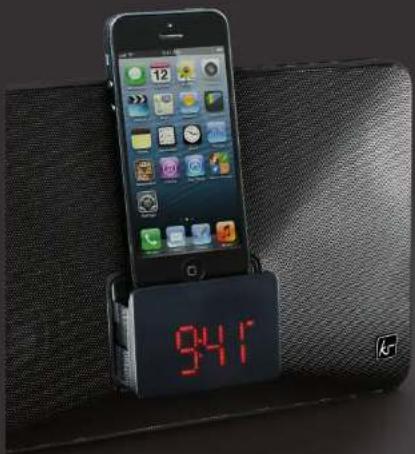
Black electronic device with a smartphone displaying a red LED display showing 941 degrees (no readable text or symbols on the device body)
KITSOUND
FRESH
CLOCK RADIO
SPEAKER DOCK
User ManUal

natural_image
Close-up of a black and white electronic audio workstation with multiple knobs and capacitors (no visible text or labels)We are craftspeople. We are musicians. We are KitSound
And we all commit ourselves to achieving one shared goal: Bringing people closer to their music. By truly understanding music we stay true to its craft. Pure, rich, incredible sound. We'll settle for nothing less.
THE
At KS we believe your music deserves to be showcased on great quality products that don't cost the earth. We might not all share the same taste in music (the ferocious disputes on music forums prove that), but whether it's Irish folk, death metal or any number of obscure genres which seem to be multiplying by the minute, the artists responsible for connecting with you through their craft have bared their souls to do so. And we think that's worth celebrating.

natural_image
Crowd silhouettes raising hands at a concert with dramatic lighting (no text or symbols visible)Box contents
- KS Fresh clock radio dock
- Mains adaptor
- User manual
Functions
- Play and charge iPhone5/Touch5/Nano7
- FM radio: save up to 10 stations
- Dual alarm clock radio
-
- Wake to iPod/iPhone/FM/Buzzer
- Bright LED display
Keys and controls
- STANDB and hold to enter standby mode or press once to switch between iPod/radio/aux-in modes
• VOL- Volume down/Alarm 1
• VOL+ Volume up/Alarm 2
• Previous track/down
Play/pause
• ➤ Next track/up
• SNOOZE When alarm rings, press to snooze

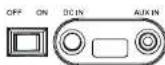
• ON/OFF switch button
- DC IN socket
- AUX IN socket
Turning the Fresh on
- First, make sure the mains adaptor is connected and that the main power switch on the rear of the unit is in the 'ON' position.
- Press the STANDBY button to turn the unit on. The screen will now be illuminated. Wait two seconds for the unit to boot up.
- While the unit is turned on, press the STANDBY button to scroll through the various audio input modes, which are: iPod, FM radio and auxiliary audio (AUX).
- If you press and hold STANDBY again, the unit will turn off and the screen will become dim, entering standby mode.
Setting the clock
- Simply press the drawer on the front of the unit to eject it and dock your iPod/iPhone or alternatively: With the Fresh in standby mode, press and hold the ▶ button to set the time and choose between the 12 or 24 hour formats by pressing the ▶ or ▶ button. Press ▶ to confirm. The hour digit will then be flashing.
- Press the ▶ or ▶ button to increase or decrease the hours and press the ▶ button to confirm your setting. The minute digits will now be flashing. Press the ▶ or ▶ button to decrease or increase the minutes and press ▶ to save the time.
Note: There may be up to 59 seconds time difference between your iPod/iPhone and the Fresh.
Setting alarm 1
- Put the Fresh into standby mode.
- Press and hold the VOL- button. The alarm 1 icon will show up and the hour digit will be flashing. Press the ▶ or ◀ button to change the hours, followed by VOL- to confirm.
- Press the ▶ or ▶ button to change the minutes, followed by VOL- to confirm.
- The alarm I icon will then flash. Press the or button to select between buzzer, FM or iPod to wake you up, followed by VOL- to confirm. Note: If the alarm sound is set to iPod and there is no iPod or iPhone connected, the alarm sound will automatically switch to buzzer. In order to wake to your iPod or iPhone, it must be connected. If it is in play mode, no alarm will sound. If your iPod or iPhone has less than one hour of songs, put it in repeat mode.
- The alarm is now set.
Setting alarm 2
- Put the Fresh into standby mode.
- Press and hold the VOL+ button. The alarm 2 icon will show up and the hour digit will be flashing. Press the ▶ or ◀ button to change the hours, followed by VOL+ to confirm.
- Press the or to change the minutes, followed by VOL+ to confirm.
- The alarm 2 icon will then flash. Press the ➕ or ➕ button to select between buzzer, FM or iPod to wake you up, followed by VOL+ to confirm. Note: If the alarm sound is set to iPod and there is no iPod or iPhone connected, the alarm sound will automatically switch to buzzer. In order to wake to your iPod or iPhone, it must be connected and powered off. If it is in play mode, no alarm will sound. If your iPod or iPhone has less than one hour of songs, put it in repeat mode.
- The alarm is now set.
Snoozing
Press the SNOOZE button. The alarm will then go off and will resume again in nine minutes. Note: The alarm will repeat every day until it is reset.
Turning off the alarm
Press the STANDBY button.
Cancelling the alarm(s) you have set
With the Fresh in standby mode, press the VOL-/VOL+ button once until the alarm icon stops showing on the LED display.
Playing your music
- To listen to music, dock your iPod or iPhone, turn the Fresh on and select iPod mode. Your music will start playing automatically.
- To pause your music, press the ▶ button. To resume playback, press it again.
- To go to the next or previous track, use the 🎯 or ➞ button. To search the current track using fast forward or rewind, press and hold 🎯 or ➞ while the track is playing.
- To adjust the volume, press the VOL+ or VOL- button. Note: When you connect your iPod or iPhone, the time will be synchronized automatically.
Connect other audio devices
By using the aux-in jack located at the rear of the Fresh, you can listen to other audio players too.
- Insert the plug of a 3.5 mm audio cable into the HEADPHONE or LINE-OUT socket on your audio device, then insert the other end of the cable into the aux-in socket on the Fresh.
- To put the Fresh into aux mode, press the STANDBY button until the aux icon appears on the display.
- Turn your device on and press play.
Listen to the radio
For the best FM radio clarity, fully extend the wire antenna which is located at the rear of the Fresh. It is important not to alter, obstruct or attach other antennas to this wire antenna.
- To turn the radio on, press the STANDBY button until FM appears on the LED screen.
- To tune in a desired station manually, press the ▶ or ◀ button to search.
- To tune in a desired station using auto scan, press and hold the ▶ or ▶ button.
- To save the station to a channel preset, press and hold the ▶ button until the letters 'ch' with a number next to them flash on the screen. Then press the ▶ or ▶ button to select a channel from 1 to 10. Press the ▶ button to confirm.
- To listen to a preset station when in radio mode, press the ▶ button. The display will show the letters 'ch' with a number next to them. Then press the ▶ or ▶ button to select a channel from 1 to 10. Press the ▶ button to confirm.
Sleep
- To enter into sleep mode, press the SNOOZE button on the top of the Fresh while listening to your iPod/iPhone or the radio.
- Cycle through to choose from 10 minutes to 90 minutes.
- The unit will automatically turn off after the selected time.
- To adjust the sleep time, press SNOOZE again and choose from 10 to 90 minutes.
- To cancel the sleep time, press SNOOZE repeatedly until '00' flashes on the display.
- To stop listening at any time, press and hold the STANDBY button.
Care for your Fresh
Please DON'T
• Get the Fresh wet
- Drop the Fresh as this will invalidate your warranty
- Open up the Fresh. There are no user serviceable parts inside
- Use any other mains adaptor than the one supplied
- Expose the Fresh to extreme temperatures or rapid changes of hot to cold or vice versa
Please DO
- Clean the Fresh with a soft dry cloth and no detergents
Specifications
• Frequency response: 60 Hz - 20 kHz
- Sensitivity: 70 dB
• S/N: 50 dB
- Output RMS: 2 x 5 W @ 4 ohms + passive bass radiator
- Unit size: H167 x W265 x D92 (mm)
Troubleshooting
We hope you've now got all the information you need to get started, but if you're having problems with anything, please feel free to contact us at: support @kitsound.co.uk
We apologise for any inconvenience caused by minor inconsistencies in these instructions, which may occur as a result of product improvement and development.