Thecus D16000 - NAS Origin Storage - Free user manual and instructions
Find the device manual for free Thecus D16000 Origin Storage in PDF.


| Product Type | Rackmount Network Attached Storage (NAS) |
| Number of Drive Bays | 16 |
| Drive Compatibility | 2.5/3.5-inch SATA HDD/SSD, hot-swappable |
| Form Factor | 3U Rackmount |
| Dimensions (W x D x H) | 482.6 x 600 x 132 mm (19.0 x 23.6 x 5.2 in) |
| Weight (without drives) | 20 kg (44 lbs) |
| Power Supply | Dual redundant 800W hot-swappable PSU |
| Supported RAID Levels | 0, 1, 5, 6, 10, 50, 60, JBOD |
| Main Functions | File sharing, iSCSI target, backup server, media streaming, virtualization storage, cloud sync |
| Network Interfaces | 4 x Gigabit Ethernet (RJ-45), optional 10GbE upgrade |
| Maximum Storage Capacity | Up to 256 TB (with 16TB drives) |
| Maintenance & Cleaning | Regularly clean dust from front and rear vents; check system logs for fan status |
| Safety | Operate in well-ventilated area; do not disable safety interlocks; use only approved power cords |
| Spare Parts & Repairability | Hot-swappable drives, fans, and power supplies; user-replaceable components |
| Software Included | ThecusOS 7.0 (or later) |
| Warranty | 3-year limited hardware warranty |
| Package Contents | NAS unit, power cords, screws for drives, quick installation guide, CD/DVD (manual) |
| Environmental Conditions | Operating temperature: 0-40°C; humidity: 20-80% non-condensing |
Frequently Asked Questions - Thecus D16000 Origin Storage
User questions about Thecus D16000 Origin Storage
0 question about this device. Answer the ones you know or ask your own.
Ask a new question about this device
Download the instructions for your NAS in PDF format for free! Find your manual Thecus D16000 - Origin Storage and take your electronic device back in hand. On this page are published all the documents necessary for the use of your device. Thecus D16000 by Origin Storage.
USER MANUAL Thecus D16000 Origin Storage
D16000 Quick Installation Guide
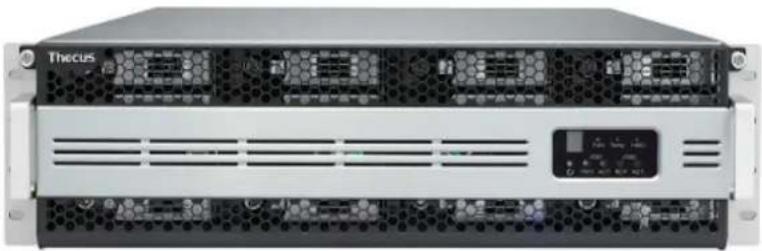
The Thecus D16000 is a JBOD device to connect with Thecus N8900/N12000/N16000 series for storage capacity expansion via SAS wide port 8088 cable.
natural_image
Front view of a Thecus server rack unit with ventilation grilles and drive bays (no visible text or labels)Please follow the steps below to start the installation of the D16000.
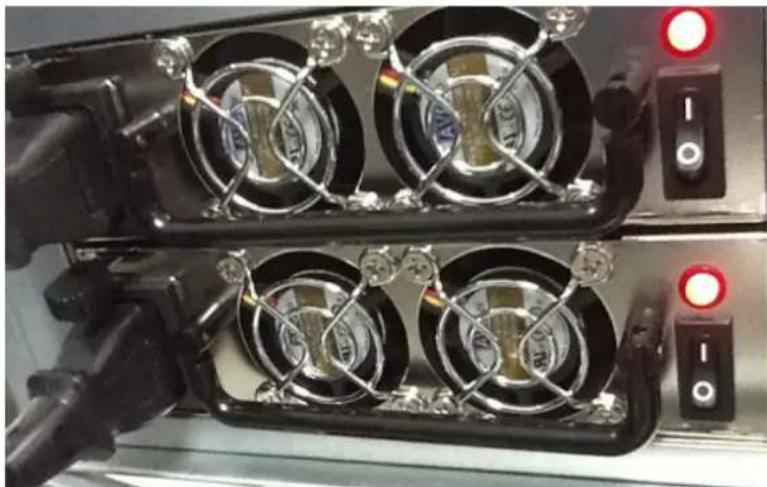
- Connect the power cord to its redundant power supply
natural_image
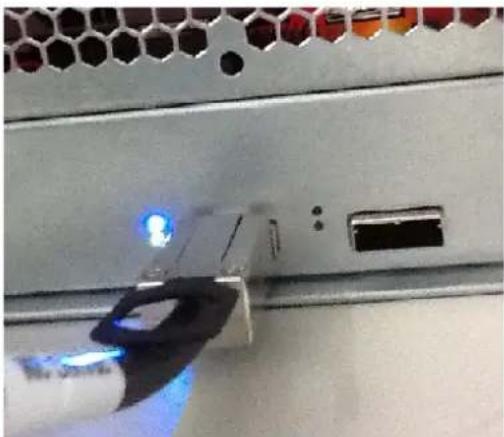
Close-up of server rack-mounted fans with metallic blades and black connectors (no visible text or symbols)- Connect the SAS-Wide port to "Host", if there is a 2^nd D16000 in daisy chain then please connect it to "EXP".
natural_image
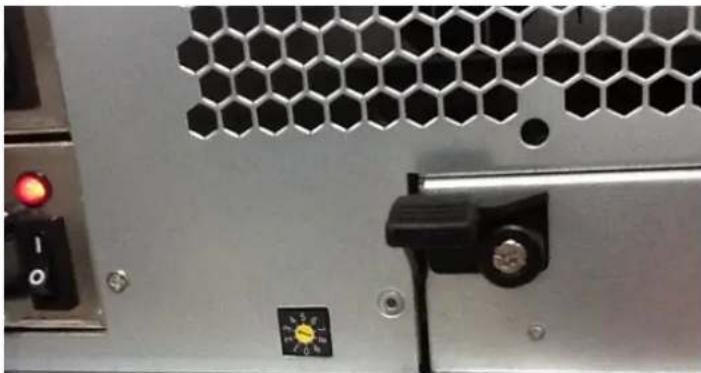
Close-up of a server rack with a blue LED indicator light and a USB port, no visible text or symbols- By using a coin or a screw driver, turn the yellow disk shown below to setup the device ID. For all of the D16000 JBOD devices connect to a Thecus NAS, a unique ID is required to recognize the differences in between each device.
natural_image
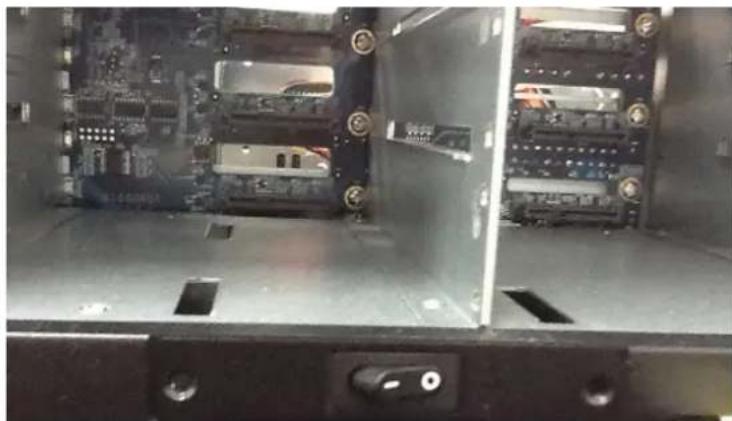
Close-up of a server rack with hexagonal ventilation grille and control buttons (no readable text or symbols)- Power on the D16000 JBOD device.
natural_image
Interior view of an electronic device showing internal circuit boards and connectors (no visible text or symbols)- The front panel will display the following information
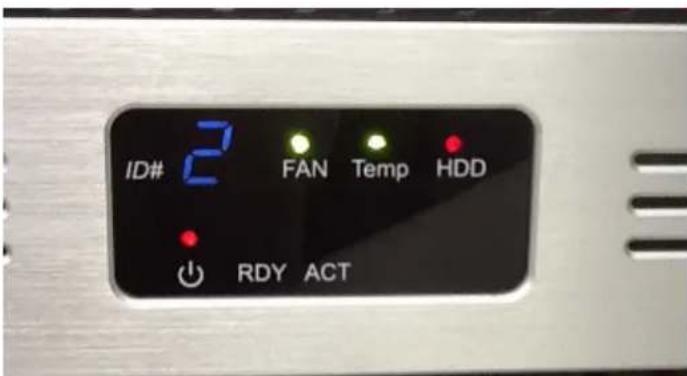
a. The device ID is 2
b. The system fan and temperature are healthy
c. The HDD light will stay red until all 16 disks have been installed
d. The RDY light will turn on when the SAS wide port is connected
e. The ACT light will flash when there is I/O activity