N2200-4000 - NAS Origin Storage - Free user manual and instructions
Find the device manual for free N2200-4000 Origin Storage in PDF.


| Product Type | Network Attached Storage (NAS) |
| Brand | Origin Storage |
| Model | N2200-4000 |
| Number of Drive Bays | 2 |
| Supported Drive Form Factor | 3.5" SATA HDD / 2.5" SATA SSD |
| Processor | Dual-core ARM Cortex-A9 1.2 GHz |
| Memory | 1 GB DDR3 RAM |
| Ethernet Ports | 1 x Gigabit RJ-45 |
| USB Ports | 2 x USB 2.0 Host |
| Dimensions (W x D x H) | 165 x 108 x 222 mm (6.5 x 4.25 x 8.74 in) |
| Weight | Approx. 2.1 kg (4.63 lb) without drives |
| Power Supply | External adapter, 12V DC, 5A (60W) |
| Power Consumption | Typical 30W (with 2 HDDs) |
| Supported RAID Levels | JBOD, RAID 0, RAID 1 |
| File System (Internal) | EXT4, Btrfs |
| Network Protocols | SMB/CIFS, NFS, AFP, FTP, HTTP/HTTPS |
| Operating Temperature | 0°C to 40°C (32°F to 104°F) |
| Humidity | 20% to 80% RH non-condensing |
| Maintenance | Keep vents clean; avoid dust; update firmware regularly |
| Safety | Power off before inserting/removing drives; use surge protector |
| Spare Parts & Repairability | Replaceable hard drives, power adapter; contact support for other parts |
Frequently Asked Questions - N2200-4000 Origin Storage
User questions about N2200-4000 Origin Storage
0 question about this device. Answer the ones you know or ask your own.
Ask a new question about this device
Download the instructions for your NAS in PDF format for free! Find your manual N2200-4000 - Origin Storage and take your electronic device back in hand. On this page are published all the documents necessary for the use of your device. N2200-4000 by Origin Storage.
USER MANUAL N2200-4000 Origin Storage
natural_image
Front view of a Thecus device with illuminated ports and control panel (no readable text or symbols)Thecus N2200
Combo NAS
FW v3.00.08
User Manual
Copyright and Trademark Notice
Thecus and other names of Thecus products are registered trademarks of Thecus Technology Corp. Microsoft, Windows, and the Windows logo are registered trademarks of Microsoft Corporation. Apple, iTunes and Apple OS X are registered trademarks of Apple Computers, Inc. All other trademarks and brand names are the property of their respective owners. Specifications are subject to change without notice.
Copyright © 2009 Thecus Technology Corporation. All rights reserved.
About This Manual
All information in this manual has been carefully verified to ensure its correctness. In case of an error, please provide us with your feedback. Thecus Technology Corporation reserves the right to modify the contents of this manual without notice.
Product name: Thecus N2200
Manual Version: 1.2
Release Date: April 2010
Limited Warranty
Thecus Technology Corporation guarantees all components of Thecus N2200 are thoroughly tested before they leave the factory and should function normally under general usage. In case of any system malfunctions, Thecus Technology Corporation and its local representatives and dealers are responsible for repair without cost to the customer if the product fails within the warranty period and under normal usage. Thecus Technology Corporation is not responsible for any damage or loss of data deemed to be caused by its products. It is highly recommended that users conduct necessary back-up practices.
Safety Warnings
For your safety, please read and follow the following safety warnings:
Read this manual thoroughly before attempting to set up your N2200.
Your N2200 is a complicated electronic device. DO NOT attempt to repair it under any circumstances. In the case of malfunction, turn off the power immediately and have it repaired at a qualified service center. Contact your vendor for details.
DO NOT allow anything to rest on the power cord and DO NOT place the power cord in an area where it can be stepped on. Carefully place connecting cables to avoid stepping or tripping on them.
Your N2200 can operate normally under temperatures between 0^ C and 40^ C, with relative humidity of 20% – 85%. Using the N2200 under extreme environmental conditions could damage the unit.
Ensure that the N2200 is provided with the correct supply voltage (AC 100V \~ 240V, 50/60 Hz, 5A). Plugging the N2200 to an incorrect power source could damage the unit.
Do NOT expose the N2200 to dampness, dust, or corrosive liquids.
Do NOT place the N2200 on any uneven surfaces.
DO NOT place the N2200 in direct sunlight or expose it to other heat sources.
DO NOT use chemicals or aerosols to clean the N2200. Unplug the power cord and all connected cables before cleaning.
DO NOT place any objects on the N2200 or obstruct its ventilation slots to avoid overheating the unit.
Keep packaging out of the reach of children.
If disposing of the device, please follow your local regulations for the safe disposal of electronic products to protect the environment.
Table of Contents
Copyright and Trademark Notice 2
About This Manual 2
Limited Warranty.... 2
Safety Warnings 3
Table of Contents 4
Chapter 1: Introduction......8
Overview 8
Product Highlights 8
File Server 8
FTP Server 8
iTunes Server....8
Media Server....9
Backup Server....9
Printer Server....9
Superior Power Management....9
Package Contents 9
Front Panel 10
Rear Panel 11
Chapter 2: Hardware Installation .... 13
Overview 13
Before You Begin 13
Hard Disk Installation.... 13
Cable Connections 14
Chapter 3: First Time Setup ...... 16
Overview 16
Thecus Smart Utility 16
USB Copy 20
Typical Setup Procedure 20
Step 1: Network Setup ...... 20
Step 2: RAID Creation 20
Step 3: Create Local Users or Setup Authentication.... 20
Step 4: Create Folders and Set Up ACLs 21
Step 5: Start Services 21
Chapter 4: System Administration ...... 22
Overview 22
Web Administration Interface.... 22
Menu Bar 22
Message Bar 23
Logout.... 24
Language Selection.... 24
System Information 24
Product Information 24
System/Service Status 25
Logs.... 25
System Management 27
Time: Setting System Time.... 27
Notification Configuration.... 28
Firmware Upgrade 28
Schedule Power On/Off 29
UPS Setting 30
Utility 31
Administrator Password.... 31
Config Mgmt 31
Factory default.... 32
Reboot & Shutdown 32
File System Check 32
System Network 34
LAN Configuration.... 34
Samba / CIFS.... 35
Samba Service.... 36
Samba Recycle Bin 36
AFP (Apple Network Setup) 36
NFS Setup 36
FTP 37
Media Server 38
Media Manager Settings 38
Shared Media Folders 39
Connecting DMAs to the Media Server 39
HTTP/ Web Disk 39
UPnP 40
Nsync Target 40
Bonjour Setting 41
Storage Management 41
Disks Information 41
S.M.A.R.T. Information.... 42
Bad Block Scan.... 43
RAID Information 43
Create a RAID.... 44
RAID Level 45
Edit RAID 46
Remove RAID 46
Share Folder 46
Adding Folders 47
Modify Folders 47
Remove Folders 48
NFS Share 49
Folder and Sub-Folder Access Control List (ACL).... 50
ISO Mount 52
A. Add an ISO file.... 52
User and Group Authentication.... 55
Local User Configuration 55
Add Users.... 55
Edit Users.... 56
Remove Users.... 57
Local Group Configuration.... 57
Add Groups 58
Edit Groups 58
Remove Groups 59
Batch Create Users and Groups 59
Application Server 60
Printer Information 60
Windows XP SP2 61
Windows Vista.... 61
iTunes® Server 64
Module Management 65
Module Installation 65
System Module 65
User Module.... 65
Backup....66
Nsync.... 66
Add Nsync Task 66
Setting Up an Nsync Target on an Nsync Device.... 68
Setting Up an Nsync Target on Another Device 68
Designating N2200 as an Nsync Target 68
Chapter 5: Using the N2200....69
Overview 69
Login Page.... 69
Using WebDisk 69
Photo Server....71
Windows XP Publishing Wizard 72
Managing Albums and Photos 77
Creating Albums 78
Password Protecting Albums.... 78
Uploading Pictures to Albums 78
EXIF Information 78
Slide Shows 79
Mapping a Client PC to the N2200....79
Windows....79
Apple OS X 79
Chapter 6: Tips and Tricks 81
USB Storage Expansion 81
Replacing Damaged Hard Drives.... 81
Hard Drive Damage 81
Replacing a Hard Drive 81
RAID Auto-Rebuild 82
Chapter 7: Troubleshooting 83
Forgot My Network IP Address 83
Resetting NAS IP Address and Admin Password 83
Can't Map a Network Drive in Windows XP 83
Restoring Factory Defaults.... 83
Problems with Time and Date Settings 84
Appendix A: Product Specifications 85
Hardware Specifications 85
Software Specifications 85
Appendix B: Customer Support.... 87
Appendix C: RAID Basics 88
Overview 88
Benefits.... 88
Improved Performance 88
Data Security 88
RAID Levels 88
RAID 0 88
RAID 1 88
JBOD....89
Stripe Size 89
Disk Usage 89
Appendix D: UPS Compatibility List 90
Appendix E: Licensing Information.... 93
Overview 93
Source Code Availability 93
CGIC License Terms.... 94
GNU General Public License 94
Chapter 1: Introduction
Overview
Thank you for choosing the Thecus N2200 IP Storage Server. The Thecus N2200 is an easy-to-use storage server that allows a dedicated approach to storing and distributing data on a network. Data reliability is ensured with RAID features that provide data security and recovery. Gigabit Ethernet ports enhance network efficiency, allowing the N2200 to take over file management functions, increase application and data sharing and provide faster data response. The N2200 offers data mobility with a disk roaming feature that lets you hot swap working hard drives for use in another N2200, securing the continuity of data in the event of hardware failure. The N2200 allows data consolidation and sharing between Windows (SMB/CIFS), UNIX/Linux, and Apple OS X environments. The N2200's user-friendly GUI supports multiple languages.
Product Highlights
File Server
First and foremost, the N2200 allows you to store and share files over an IP network. With a Network Attached Storage (NAS) device, you can centralize your files and share them easily over your network. With the easy-to-use web-based interface, users on your network can access these files in a snap.
To learn about the Web User Interface, go to Chapter 5: Using the N2200 > Using WebDisk.
FTP Server
With the built-in FTP Server, friends, clients, and customers can upload and download files to your N2200 over the Internet with their favorite FTP programs. You can create user accounts so that only authorized users have access.
To set up the FTP Server, refer to
Chapter 4: System Network> FTP.
iTunes Server
With the built-in iTunes server capability, the N2200 enables digital music to be shared and played anywhere on the network!
To set up the iTunes Server, refer to
Chapter 4: Application Server>iTunes Configuration.
Media Server
With the built-in Media Server capability, the N2200 provides media streaming service to stand-alone networked home media adapters that support the UPnP AV protocol or are Digital Living Network Alliance (DLNA) standard compliant.
To set up the Media Server, refer to
Chapter 4: System Network >Media Server.
Backup Server
Don't leave precious data to chance. With advanced backup capabilities, you can easily upload mission critical files to the N2200, and even automate your backup tasks for true peace-of-mind.
To find out how to backup your files with the N2200, refer to
Chapter 4: Backup >Nsync.
Printer Server
With the N2200's Printer Server, you can easily share an IPP printer with other PCs connected to your network.
To set up the Printer Server, refer to
Chapter 4: Application Server>Printer Information.
Superior Power Management
N2200 supports schedule power on/off. With this feature, administrator can set at what time to turn on or off the system. This feature is a big plus for people who want to conserve energy. To schedule system on and off, refer to
Chapter 4: System Management> Scheduled Power On/Off
Package Contents
Your N2200 package should contain the following items:
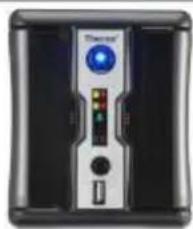
- N2200 Unit x1
● (2.5"+3.5") HDD Tray x2 (Installed)
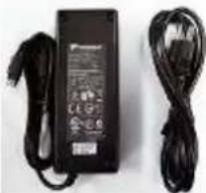
● Power Adaptor + Power cord x1
● QIG (Quick Installation Guide) x1 - CD-Title x1 (Universal CD) x1
- Ethernet Cable x1
- Screw Kit bag x1
- HDD Compatibility list Card x1
● Multiple Languages Warranty Card x1
natural_image
Front view of a black electronic device with a blue indicator light and control buttons (no visible text or symbols)
natural_image
Electric charger with black body, connected to two black cables (no visible text or symbols)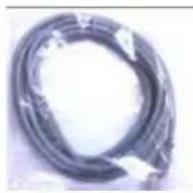
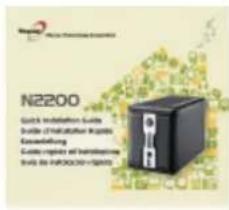
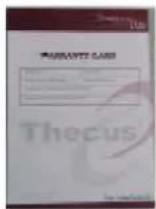
Please check to see if your package is complete. If you find that some items are missing, contact your dealer.
Front Panel
The Thecus N2200's front panel has the device's controls, indicators, and hard disk trays:
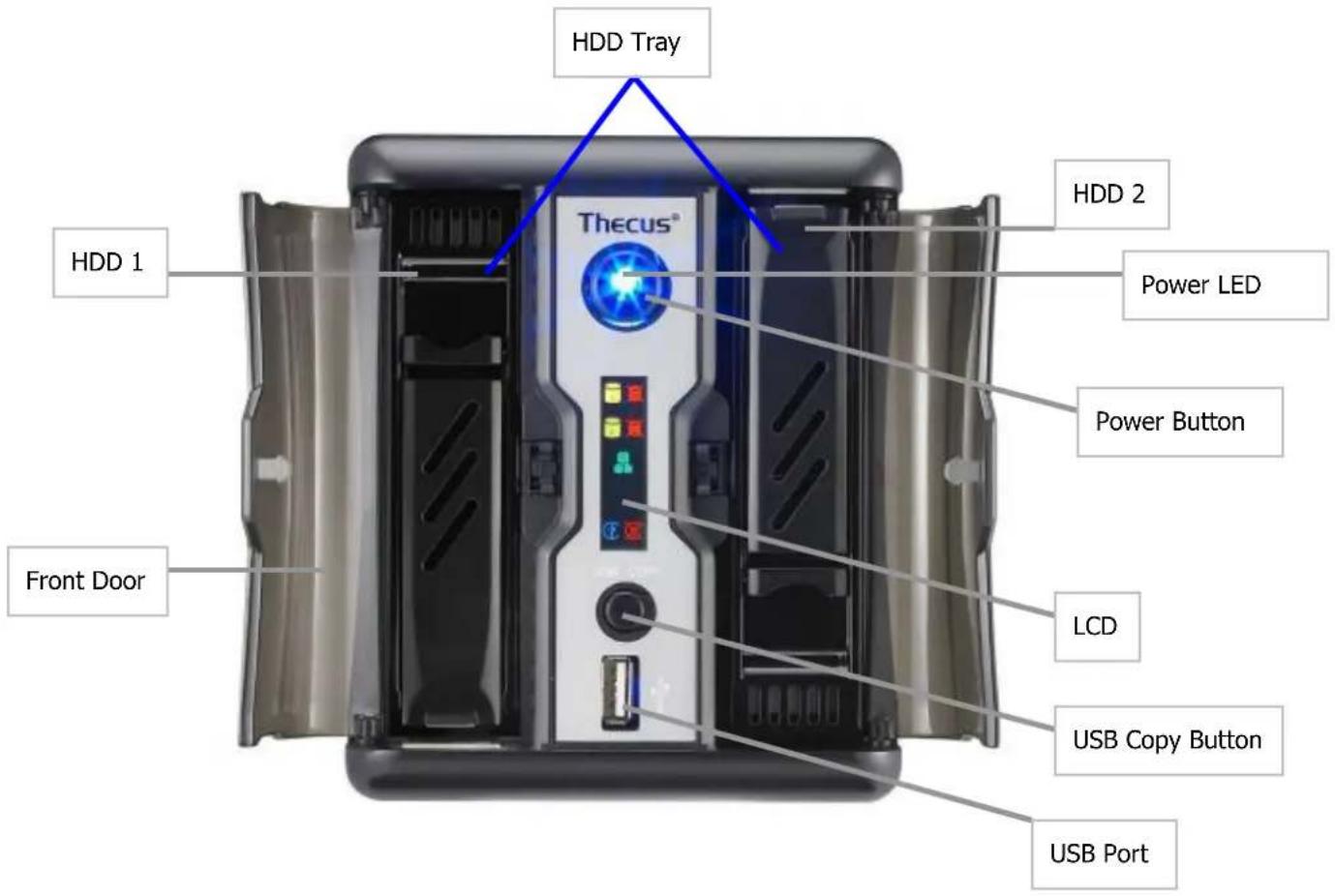
| Front Panel | ||
| Item Description | ||
| Power LED | Solid blue: system is readyBlinking Blue: system is re-build | |
| Power Button • Power on/off N2200 | ||
| LCD | Displays current system status and messages | |
| HDD 1 LED | Blinking Yellow: HDD activityBlinking Red: HDD failure | |
| HDD 2 LED | Blinking Yellow: HDD activityBlinking Red: HDD failure | |
| WAN LED • Blinking green: network activity | ||
| USB Copy | Blinking Blue: USB Copy activityBlinking Red: USB Copy failure | |
| HDD Tray • Two HDD D trays support 2x 3.5" or 2 x 2.5" HDDs | ||
| USB Copy Button | Copy USB storage contents to N2200 | |
| USB Port | USB 2.0 port for compatible USB devices, such as digital cameras, USB disks, USB printers, and USB wireless dongles**Note: For supported USB wireless dongles, please contactsupport@thecus.com | |
Rear Panel
The N2200 rear panel features ports and connectors.
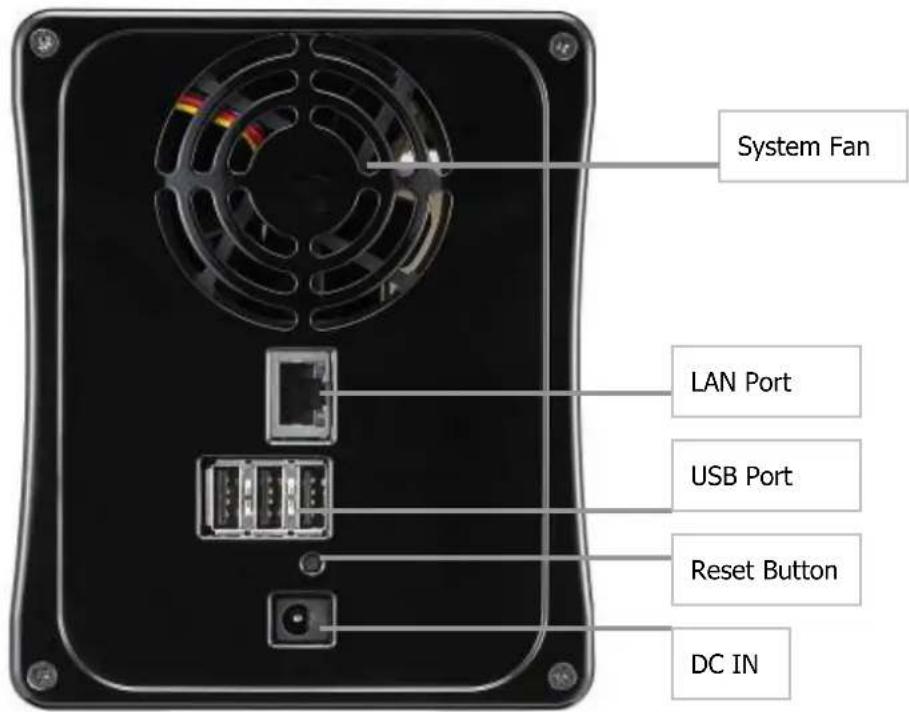
| Back Panel | |
| Item Description | |
| System Fan • System fan that exhausts heat from the unit | |
| LAN Port | • LAN port for connecting to an Ethernet network through a switch |
or router
Reset Button
- Resets the N2200
- Immediately press the Reset button on the back. This will reset your network setting, password.
- USB 2.0 port for compatible USB devices, such as digital cameras, USB disks, and USB printers
DC IN • For connect the power adaptor
Chapter 2: Hardware Installation
Overview
Your N2200 is designed for easy installation. To help you get started, the following chapter will help you quickly get your N2200 up and running. Please read it carefully to prevent damaging your unit during installation.
Before You Begin
Before you begin, be sure to take the following precautions:
-
Read and understand the Safety Warnings outlined in the beginning of the manual.
-
If possible, wear an anti-static wrist strap during installation to prevent static discharge from damaging the sensitive electronic components on the N2200.
-
Be careful not to use magnetized screwdrivers around the N2200's electronic components.
Hard Disk Installation
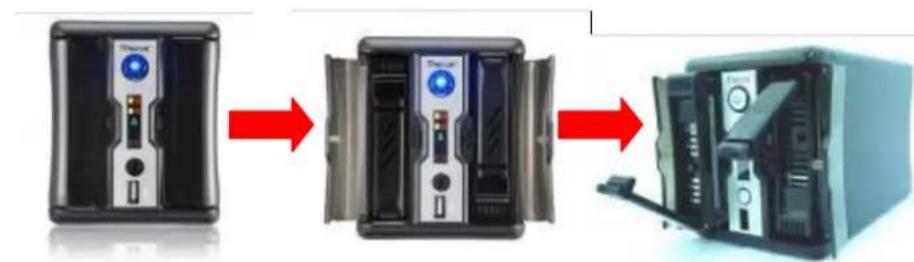
The N2200 supports both 2.5" and 3.5" Serial ATA (SATA) hard disks. To install a hard disk into the N2200, follow the steps below:
- Open front cover of the N2200.
flowchart
graph LR
    A["Device 1"] --> B["Device 2"]
    B --> C["Device 3"]
    C --> D["Device 4"]
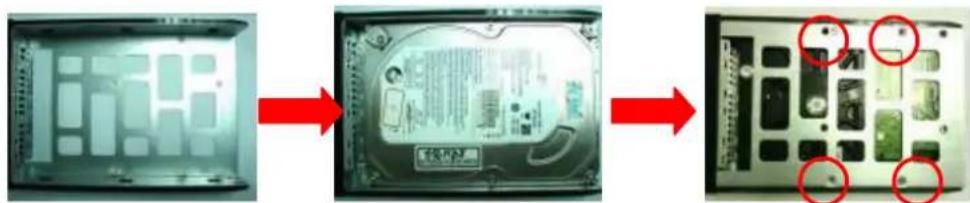
- For 3.5" HDDs
a. Remove an HDD tray and install a 3.5" SATA hard disk onto it. b. Slide the HDD tray back into the N2200 until it snaps into place.
natural_image
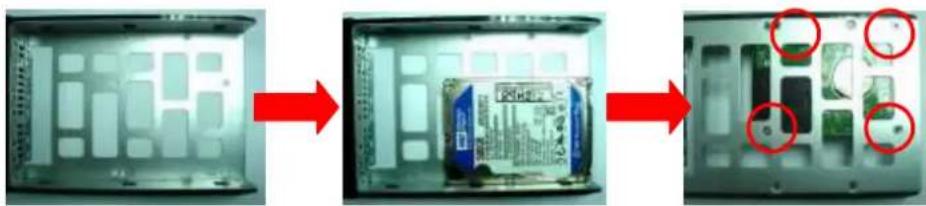
Three-step diagram showing a computer hard drive with internal components, no text or symbols present.- For 2.5" HDDs
a. Remove an HDD tray and install a 2.5" SATA hard disk onto it. b. Slide the HDD tray back into the N2200 until it snaps into place.
natural_image
Three-panel photo showing a computer chassis with internal components, each being processed by red arrows (no text or symbols visible)Cable Connections
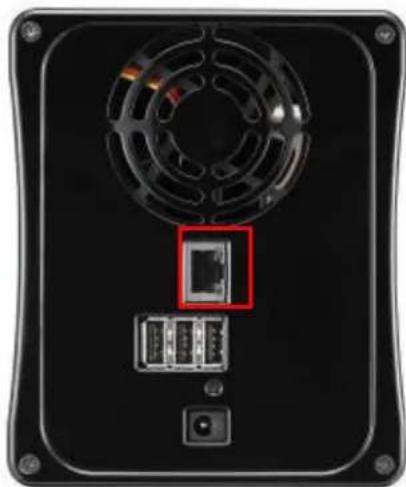
To connect the N2200 to your network, follow the steps below:
- Connect an Ethernet cable from your network to the LAN port on the back panel of the N2200.
natural_image
Back view of a black electronic device with a fan, internal components, and a red box highlighting a component (no text or symbols visible)- Connect the provided power cord into the power socket on the back panel.
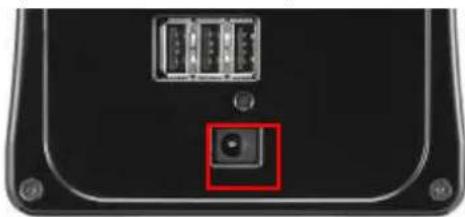
natural_image
Close-up of a black electronic device rear panel showing ports and a central button (no text or symbols visible)- Press the power button boot up the N2200.
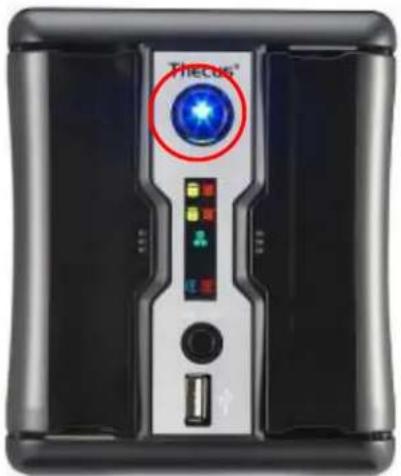
Chapter 3: First Time Setup
Overview
Once the hardware is installed, physically connected to your network, and powered on, you can configure the N2200 so that it is accessible to your network users. There is one way to set up your N2200: using the Thecus Smart Utility. Follow the steps below for initial software setup.
Thecus Smart Utility
The handy Thecus Smart Utility makes configuring N2200 a snap. To configure the N2200 using the Smart Utility, perform the following steps:
- Insert the installation CD into your CD-ROM drive (the host PC must be connected to the network).
- The Smart Utility should launch automatically. If not, please browse your CD-ROM drive and double click on autorun.exe. Click "N2200".
NOTE
For MAC OS X users, double click on Thecus Smart Utility Wizard .pkg file.
- Select the N2200 that you like to configure. Press Next to continue.
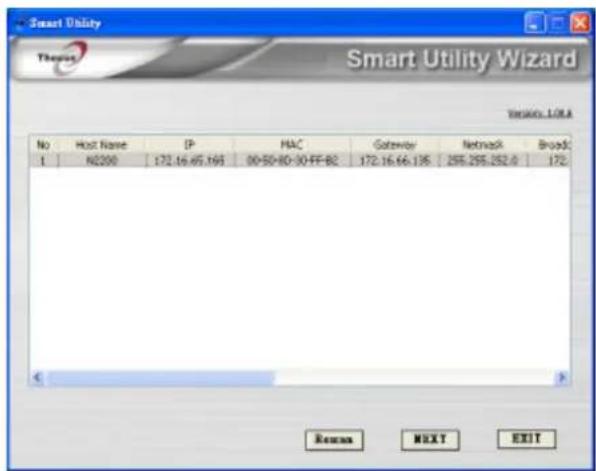
- First, please select System Installation Wizard.
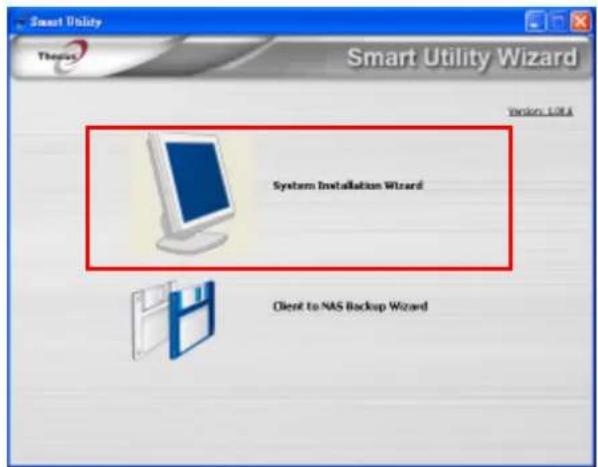
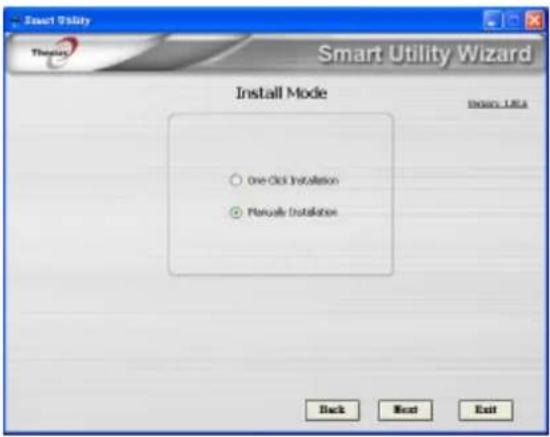
- Please select your installation mode, One Click Installation or Manual Installation.
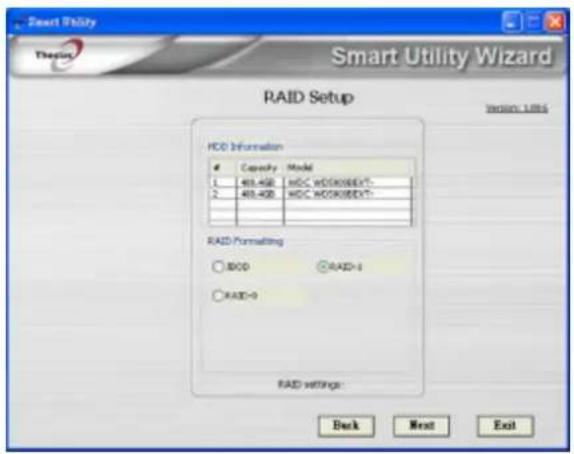
- After your installed HDDs are detected, select your desired RAID level. Press Next to continue.
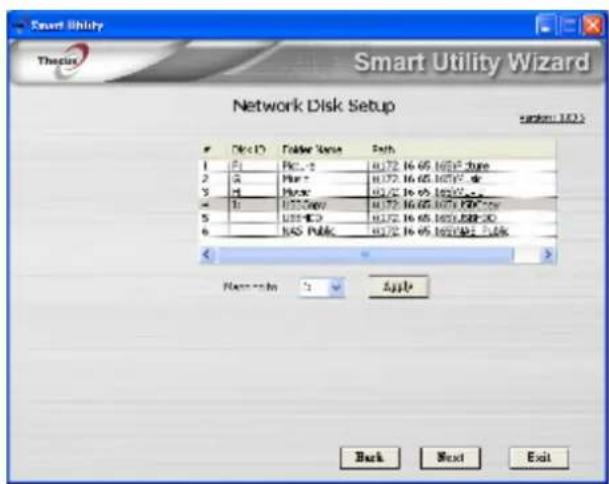
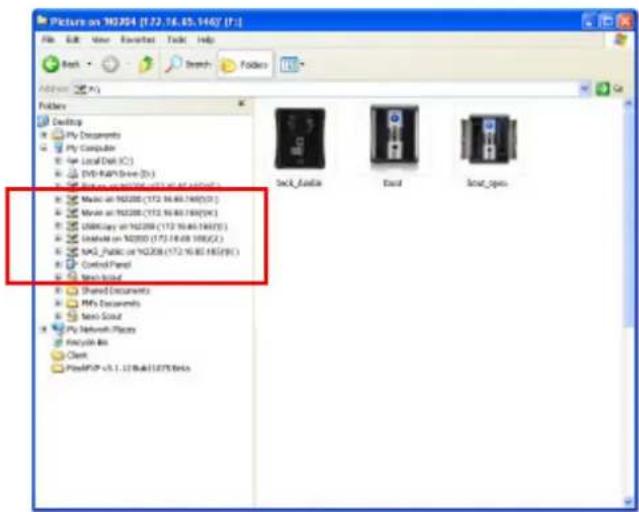
- The N2200 will automatically create several folders. Select your desired folder and map it to your local PC/NB as a Network Device.
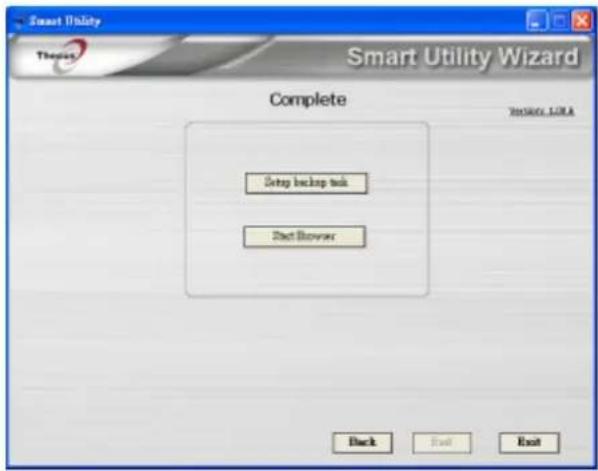
- Complete the N2200 Smart Utility Wizard.
A. You can access the N2200 Web Administrator interface by clicking the Start Brower button. The default password is "admin". You can also setup a backup task at this point by clicking the Setup backup task button.
B. Press Exit to exit the windows utility.
NOTE
The Thecus Smart Utility Wizard is designed for installation on systems running Windows XP/2000 or Mac OSX or later. Users with other operating systems will need to install the Thecus Smart Utility Wizard on a host machine with one of these operating systems before using the unit.
C. Press the Setup backup task button to configure backup tasks on your N2200.
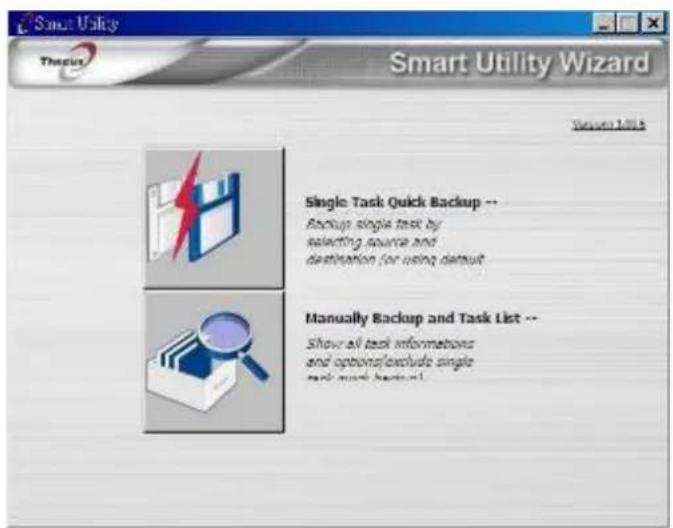
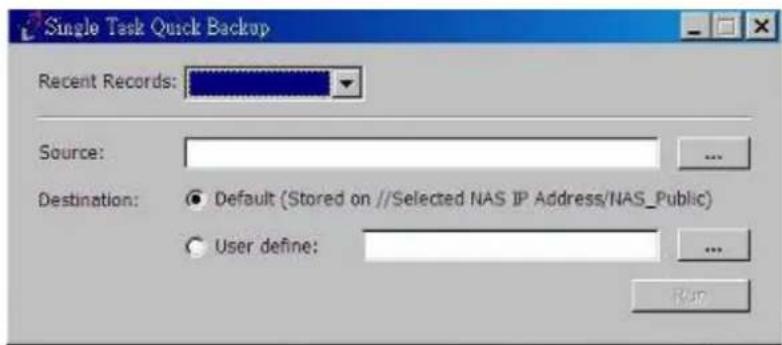
- Single Task Quick Backup: Perform a single backup by selecting the source and destination.
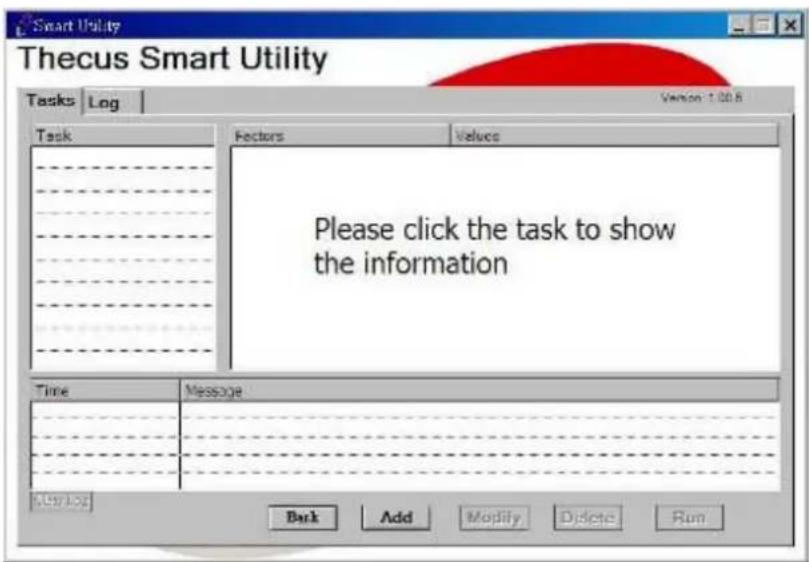
- Manually Backup and Task List: Show all task information and options.
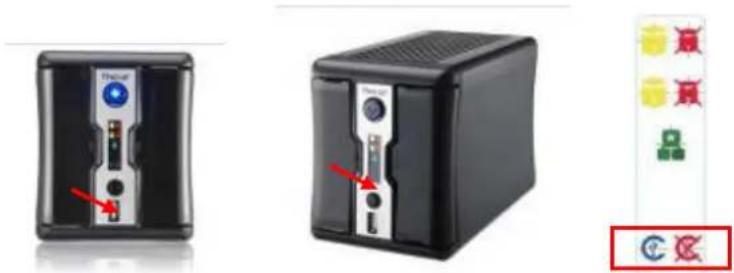
USB Copy
The USB Copy function enables you to copy files stored on USB devices such as USB disks and digital cameras to the N2200 with a press of a button. To use USB copy, follow the steps below:
- Plug your USB device into an available USB port on the Front Panel.
- Press the "USB Copy Button".
- The N2200 will start copying USB disks connected to the front USB port. The LCD will display the USB copy progress and result.
Typical Setup Procedure
From the Web Administration Interface, you can begin to setup your N2200 for use on your network. Setting up the N2200 typically follows the five steps outlined below.
For more on how to use the Web Administration Interface, see
Chapter 4: Web Administration Interface.
Step 1: Network Setup
From the Web Administration Interface, you can configure the network settings of the N2200 for your network. You can access the Network menu from the menu bar. For details on how to configure your network settings, refer to
Chapter 4: System Network.
Step 2: RAID Creation
Next, administrators can configure their preferred RAID setting and build their RAID volume. You can access RAID settings from the menu bar of the Web Administration Interface by navigating to Storage Management > RAID Configuration.
For more information on configuring RAID, see
Chapter 4: System Management > RAID Configuration.
Don't know which RAID level to use? Find out more about the different RAID levels from Appendix C: RAID Basics.
Step 3: Create Local Users or Setup Authentication
Once the RAID is ready, you can begin to create local users for the N2200, or choose to setup authentication protocols.
For more on managing users, go to Chapter 4: User and Group Authentication.
Step 4: Create Folders and Set Up ACLs
Once users are introduced into your network, you can begin to create various folders on the N2200 and control user access to each using Folder Access Control Lists.
For more information on managing folders, see
Chapter 4: Storage Management > Share Folder.
To find out about configuring Folder Access Control Lists, see Chapter 4: Storage Management > Share Folder> Folder Access Control List (ACL).
Step 5: Start Services
Finally, you can start to setup the different services of the N2200 for the users on your network. You can find out more about each of these services by clicking below:
SMB/CIFS
Apple File Protocol (AFP)
Network File System (NFS)
File Transfer Protocol (FTP)
iTunes Server
Media Server
Printer Server
Photo Server
Chapter 4: System Administration
Overview
The N2200 provides an easily accessible Web Administration Interface. With it, you can configure and monitor the N2200 anywhere on the network.
Web Administration Interface
Make sure your network is connected to the Internet. To access the N2200 Web Administration Interface:
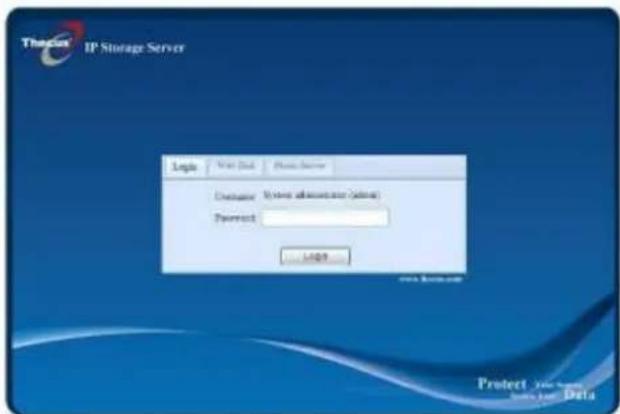
- Type the N2200's IP address into your browser. (Default IP address is http://192.168.1.100)
NOTE
Your computer's network IP address must be on the same subnet as thN2200. If the N2200 has default IP address of 192.168.1.100, your managing PC IP address must be 192.168.1.x, where x is a number between 1 and 254, but not 100.
- Login to the system using the administrator user name and password. The factory defaults are:
User Name: admin
Password: admin
Once you are logged in as an administrator, you will see the Web Administration Interface. From here, you can configure and monitor virtually every aspect of the N2200 from anywhere on the network.
Menu Bar
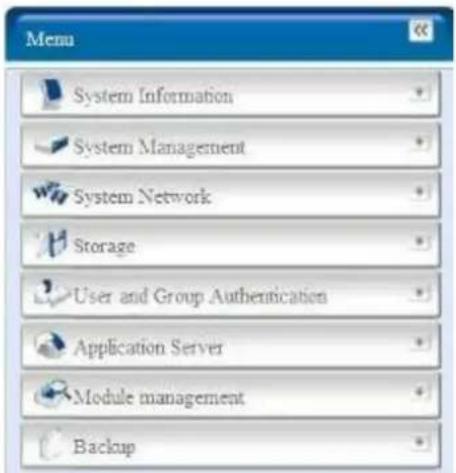
The Menu Bar is where you will find all of the information screens and system settings of the N2200. The various settings are placed in the following groups on the menu bar:
| Menu Bar | |
| Item Description | |
| System Information Current system status of the N2200. | |
| System Management Various N2200 system settings and information. | |
| System Network Information and settings for network connections, as well as various services of the N2200. | |
| Storage Information and settings for storage devices installed into the N2200. | |
| User and Group Authentication | Allows configuration of users and groups. |
| Application Server Printer Server and iTunes Server to set up of the N2200. | |
| Module Management System and user Module to install of the N2200. | |
| Backup Category of Backup Features set up of the N2200. | |
Moving your cursor over any of these items will display the dropdown menu selections for each group.
In the following sections, you will find detailed explanations of each function, and how to configure your N2200.
Message Bar
You can get information about system status quickly by moving mouse over.

| Message Bar | ||
| Item Status Description | ||
 | RAID Information. | Display the status of created RAID volume. Click to go to RAID information page as short cut. |
 | Disks Information. | Display the status of disks installed in the system. Click to go to Disk information page as short cut. |
 | FAN. | Display system FAN Status. Click to go to System Status page as short cut. |
 | UPS. | Display UPS device status. Click to go to UPS Setting page as short cut. |
 | Temperature. | Green: Systematic temperature is normal.Red: Systematic temperature is unusual.Click to go to System Status page as short cut. |
 | Network. | Green: Connection to network is normal.Red: abnormal connection to the network |
Logout
Click to logout Web Administration Interface.
Language Selection
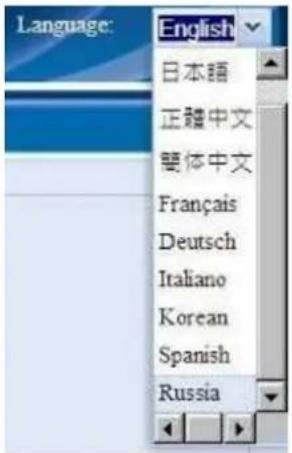
The N2200 supports multiple languages, including:
- English
- Japanese
• Traditional Chinese
• Simplified Chinese - French
- German
- Italian
- Korean
- Spanish
- Russia
- Polish
On the menu bar, click Language and the selection list appears. This user interface will switch to selected language for the N2200.
System Information
Information provides viewing on current Product info, System Status, Service Status and Logs.
The menu bar allows you to see various aspects of the N2200. From here, you can discover the status of the N2200, and also other details.
Product Information
Once you login, you will first see the basic Product Information screen providing Manufacturer, Product No., Firmware Version, and System Up Time information.
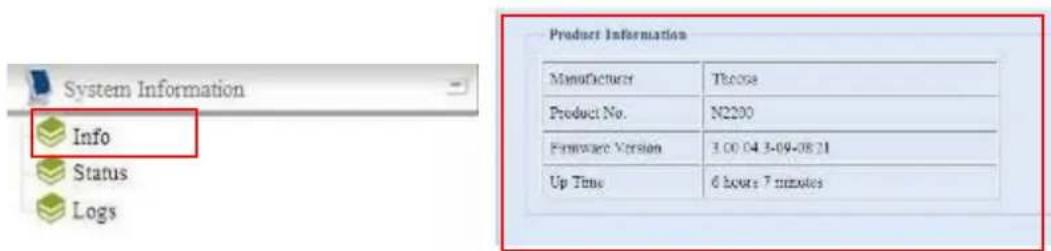
| Product Information | |
| Item Description | |
| Manufacturer Displays the name of the system manufacturer. | |
| Product No. Shows the model number of the system. | |
| Firmware version Shows the current firmware version. | |
| Up time Displays the total run time of the system. | |
System/Service Status
From the Status menu, choose the System item, System Status and Service Status screens appear. These screens provide basic system and service status information.
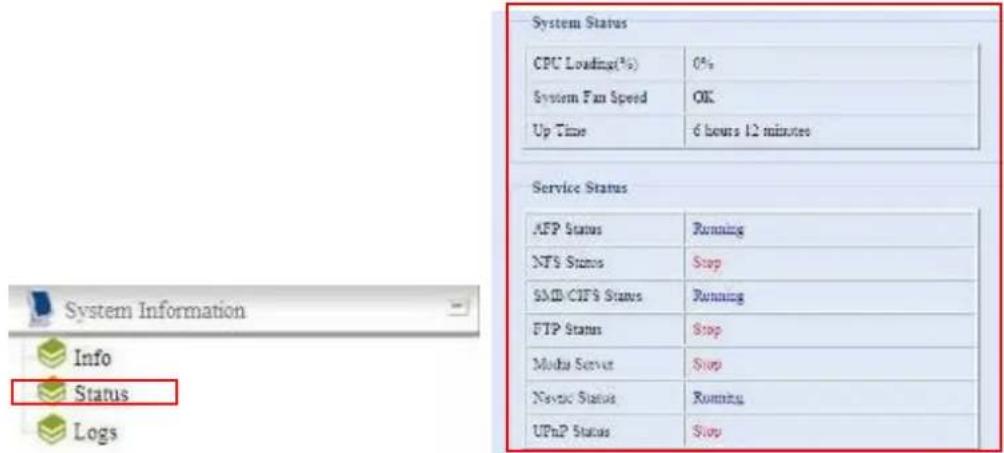
| System Status | |
| Item Description | |
| CPU Loading (%) Displays current CPU workload of the N2200. | |
| System Fan Speed Displays the current status of the system fan. | |
| Up Time Shows how long the system has been up and running. | |
| Service Status | |
| Item Description | |
| AFP Status The status of the Apple Filing Protocol server. | |
| NFS Status The status of the Network File Service Server. | |
| SMB/CIFS Status The status of the SMB/CIFS server. | |
| FTP Status The status of the FTP server. | |
| Media Server | The status of the Media Server |
| Nsync Status | The status of the Nsync server. |
| UPnP Status | The status of the UPnP service. |
Logs
From the System Information menu, choose the Logs item and the System Logs screen appears. This screen shows a history of system usage and important events such as disk status, network information, and system booting. See the following table for a detailed description of each item:
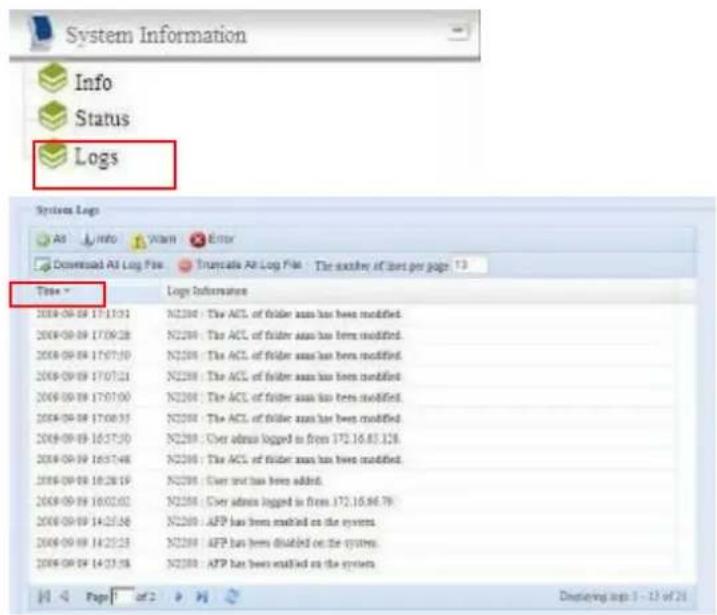
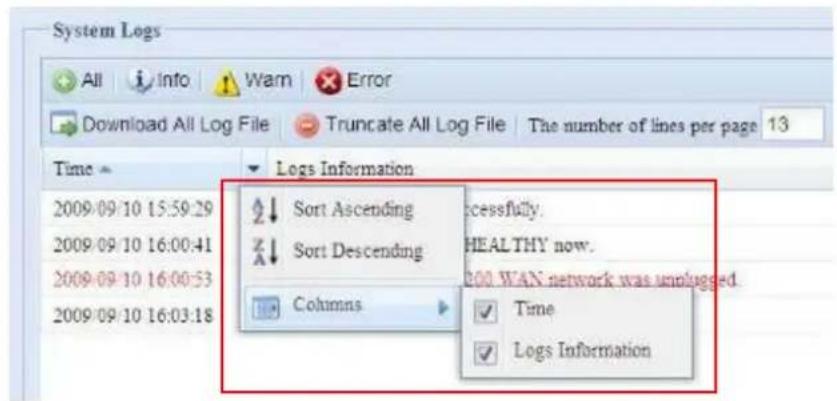
See the following table for a detailed description of each item:
| System Logs | |
| Item Description | |
| All Provides all log information including system messages, warning messages and error messages. | |
| INFO | Records information about system messages. |
| WARN Shows only warning messages. | |
| ERROR Shows only error messages. | |
| Download All Log File Export all logs to an external file. | |
| Truncate All Log File Clear all log files. | |
| The number of lines per page □ | Specify desired number of lines to display per page. |
| Sort Ascending Shows logs by date in ascending order. | |
| Sort Descending Shows logs by date in descending order. | |
| |<< < > >>| | Use the forward ( > >>| ) and backward ( |<< < ) buttons to browse the log pages. |
 | Refresh the logs. |
System Management
The System Management menu gives you a wealth of settings that you can use to configure your N2200's system administration functions. You can set up system time, system notifications, and even upgrade firmware from this menu.
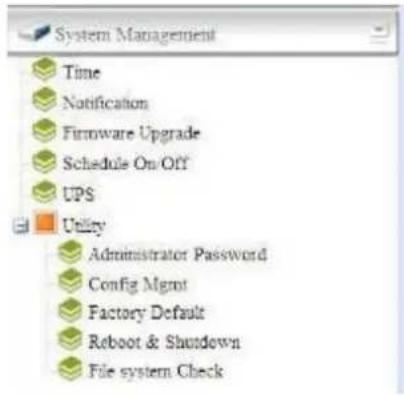
Time: Setting System Time
From the Time menu, choose the Time item and the Time screen appears. Set the desired Date, Time, and Time Zone. You can also elect to synchronize the system time on the N2200 with an NTP (Network Time Protocol) Server.
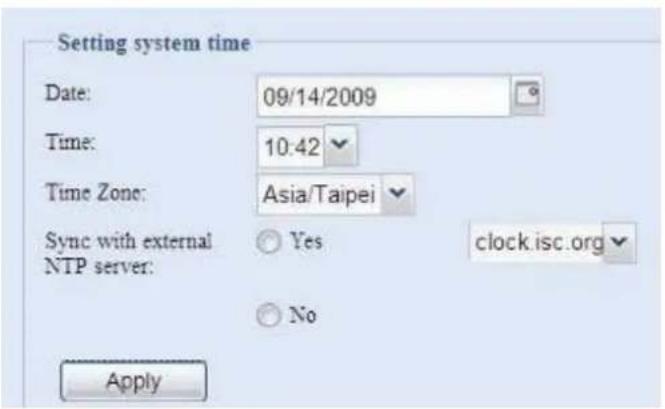
See the following table for a detailed description of each item:
| Time | |
| Item Description | |
| Date Sets the system date. | |
| Time Sets the system time. | |
| Time Zone Sets the system time zone. | |
| Sync with external NTP Server | Select YES to allow the N2200 to synchronize with an NTP server of your choice. Press Apply to change. |

Notification Configuration
From the menu, choose the Notification item, and the Notification
Configuration screen appears. This screen lets you have the N2200 notify you in case of any system malfunction. Press Apply to confirm all settings. See following table for a detailed description of each item.
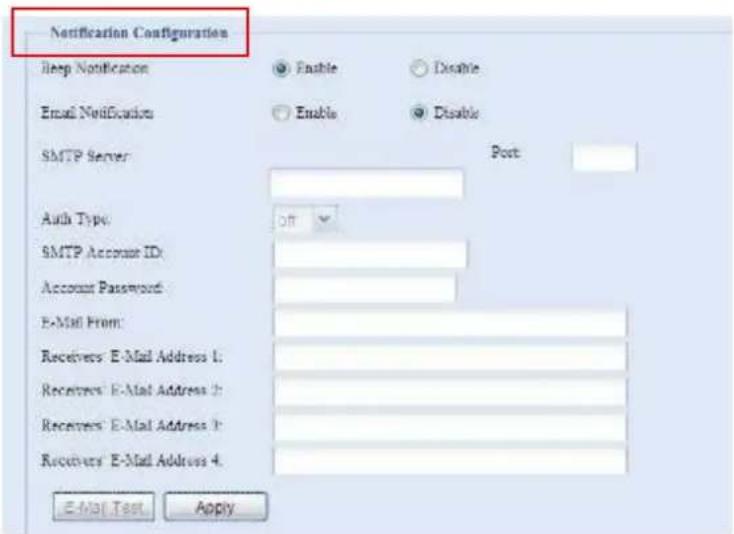
| Notification Configuration | |
| Item Description | |
| Beep Notification Enable | or disable the system beeper that beeps when a problem occurs. |
| Email Notification Enable | or disable email notifications of system problems. |
| Account Password Enter | a new password. |
| E-mail From Set email address to send email. | |
| Receiver's E-mail Address (1,2,3,4) | Add one or more recipient's email addresses to receive email notifications. |
NOTE
Consult with your mail server administrator for email server information.
Firmware Upgrade
From the menu, choose the Firmware Upgrade item and the Firmware Upgrade screen appears.

Follow the steps below to upgrade your firmware:
-
Use the Browse button to find the firmware file.
-
Press Apply.
- The beeper beeps and the Busy LED blinks until the upgrade is complete.
NOTE
- The beeper only beeps if it is enabled in the System Notification menu.
- Check Thecus website for the latest firmware release and release notes.
• Downgrading firmware is not permitted.
WARNING
Do not turns off the system during the firmware upgrade processing. This will lead to a catastrophic result that may render the system inoperable.
Schedule Power On/Off
Using the N2200's System Management, you can save energy and money by scheduling the N2200 to turn itself on and off during certain times of the day.
From the menu, choose the Schedule Power On/Off item and the Schedule Power On/Off screen appears.
To designate a schedule for the N2200 to turn on and off, first enable the feature by checking the Enable Schedule Power On/Off checkbox.
Then, simply choose an on and off time for each day of the week that you would like to designate a schedule by using the various dropdowns.
Finally, click Apply to save your changes.
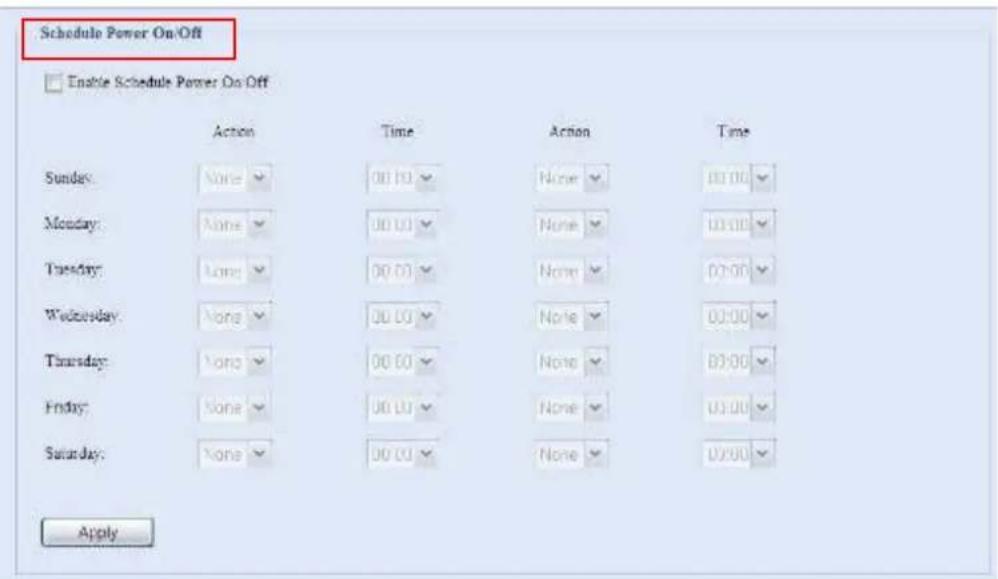
Example - Monday: On: 8:00; Off: 16:00
System will turn on at 8:00 AM on Monday, and off at 16:00 on Monday. System will turn on for the rest of the week.
If you choose an on time, but do not assign an off time, the system will turn on and remain on until a scheduled off time is reached, or if the unit is shutdown manually.
Example - Monday: On: 8:00
System will turn on at 8:00 AM on Monday, and will not shut down unless powered down manually.
You may also choose two on times or two off times on a particular day, and the system will act accordingly.
Example - Monday: Off: 8:00; Off: 16:00
System will turn off at 8:00 AM on Monday. System will turn off at 16:00 PM on Monday, if it was on. If the system was already off at 16:00 PM on Monday, system will stay off.
UPS Setting
The N2200 can also support various uninterruptible power supply units via either "USB" interface, providing extra data security and accessibility in the case of a power failure.
From the Status menu, choose the UPS item and the UPS Setting screen appears. Make any changes you wish, and press Apply to confirm changes.
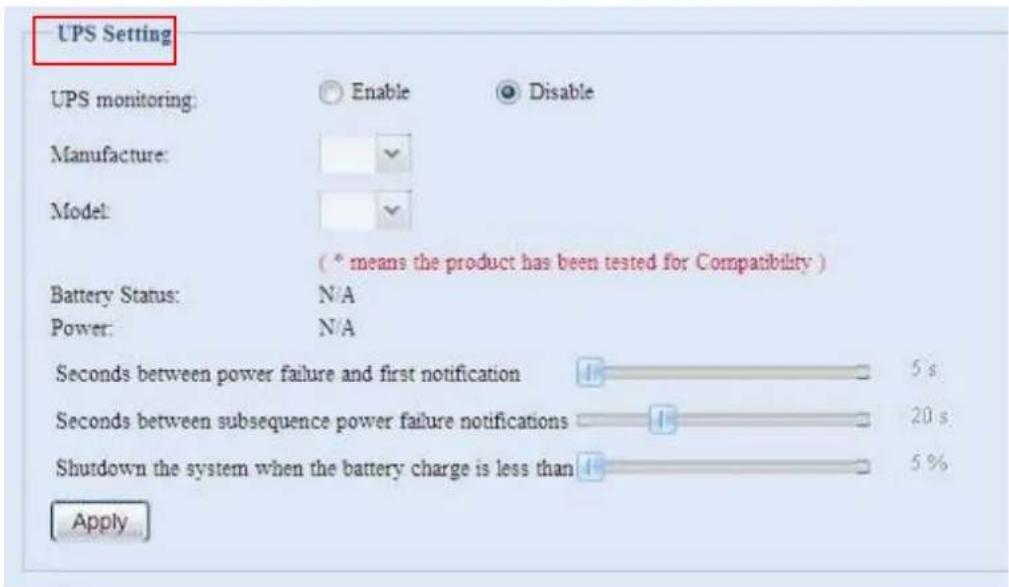
See the following table for a detailed description of each item.
| UPS Setting | |
| Item Description | |
| UPS Monitoring Enable or disable UPS | monitoring. |
| Manufacturer Choose the UPS manufacturer from the dropdowns. | |
| Model Choose the UPS model number from the dropdowns. | |
| Battery Status Current status of the UPS battery | |
| Power Current status of the power being supplied to the UPS | |
| Seconds between power failure and first notification | Delay between power failure and first notification in seconds. |
| Seconds between subsequent power failure notifications | Delay between subsequent notifications in seconds. |
| Shutdown the system when the battery charge is less than | Amount of UPS battery remaining before system should auto-shutdown. |
| Apply Press Apply to save your changes. | |
For a list of supported UPS units, see Appendix D: UPS Compatibility List.
Utility
Administrator Password
From the menu, choose the Administrator Password item and the Change Administrator Password screen appears. Enter a new password in the New Password box and confirm your new password in the Confirm Password box. Press Apply to confirm password changes.
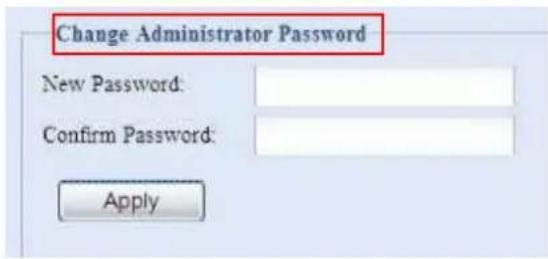
See the following table for a detailed description of each item.
| Change Administrator and LCD Entry Password | |
| Item Description | |
| New Password Type in a new administrator password. | |
| Confirm Password Type the new password again to confirm. | |
| Apply Press this to save your changes. | |
Config Mgmt
From the menu, choose the Config Mgmt item and the System Configuration Download/Upload screen appears. From here, you can download or upload stored system configurations.

See the following table for a detailed description of each item.
| System Configuration Download/Upload | |
| Item Description | |
| Download Save and export the current system configuration. | |
| Upload Import a saved configuration file to overwrite current system configuration. | |
NOTE
Backing up your system configuration is a great way to ensure that you can revert to a working configuration when you are experimenting with new system settings. The system configuration you have backup can be only restore in same firmware version. And the backup details have excluded user/group accounts.
Factory default
From the menu, choose the Factory Default item and the Reset to Factory Default screen appears. Press Apply to reset the N2200 to factory default settings.
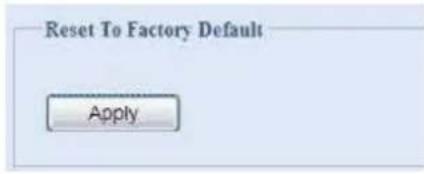
WARNING
Resetting to factory defaults will not erase the data stored in the hard disks, but WILL revert all the settings to the factory default values.
Reboot & Shutdown
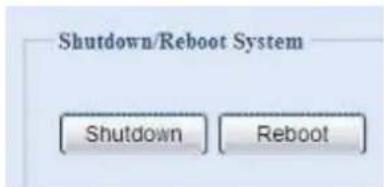
From the menu, choose Reboot & Shutdown item, and the Shutdown/Reboot System screen appears. Press Reboot to restart the system or Shutdown to turn the system off.
File System Check
The File System Check allows you to perform a check on the integrity of your disks' file system. Under the menu, click File system Check and the File System Check prompt appears.
![File System Check Filesystem Check has been Enable successfully. The system needs to reboot to make the changes effective ZFS is not need file system check! Press [ Apply ] to reboot the system now. Apply](/content/2026/05/1141566/images/d4ad1937cf3024d09a437b18fc895a43c687d0b22b0bcbb6956ede907e312f5c.jpg)
To perform a file system check, click Apply.
Once clicked, the following prompt will appear:
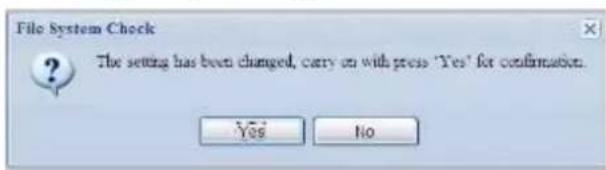
Click Yes to reboot the system.

flowchart
graph LR
    A["File System Check\nReboot\n64"] --> B["File System Check\nReboot\nDone."]
Once the system has rebooted, you will be returned to the File System Check prompt. Check the desired RAID volumes and click Next to proceed with the file system check. Click Reboot to reboot without running the check.
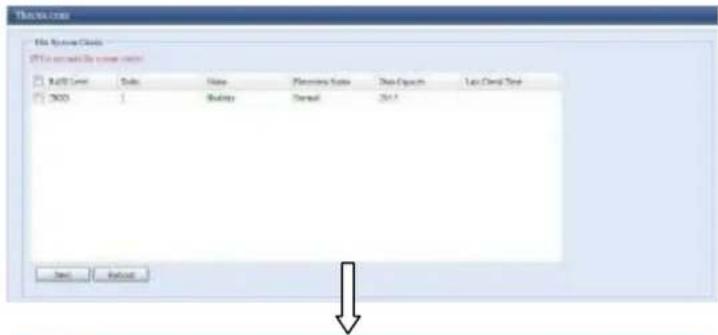
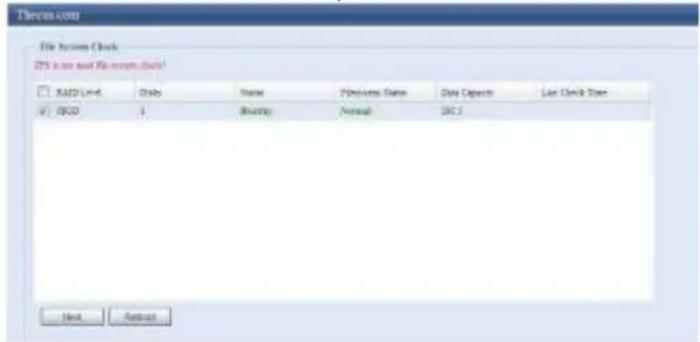
Once you click Next, you will see the following screen:
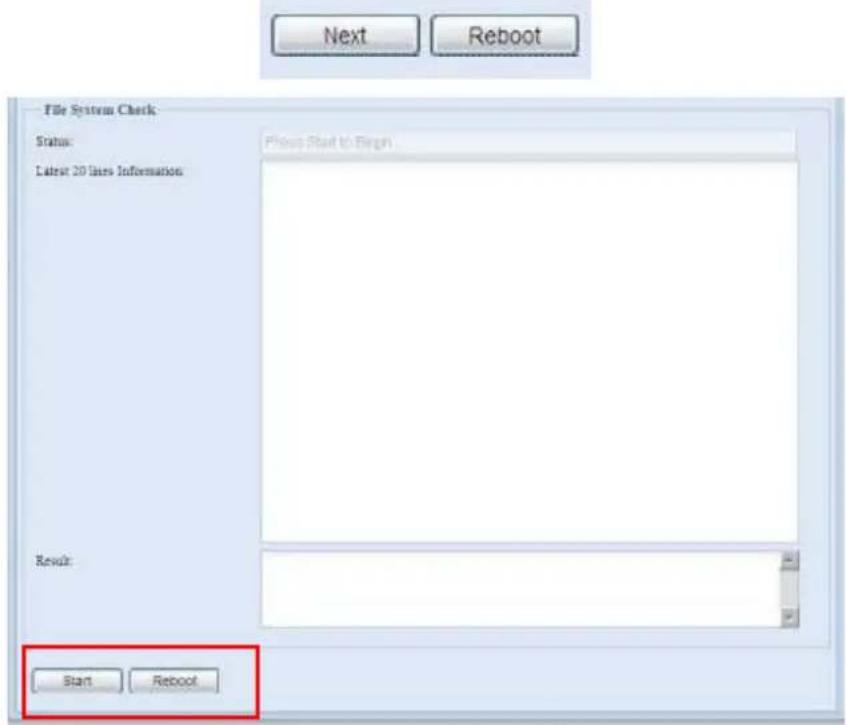
Click Start to begin the file system check. Click Reboot to reboot the system. When the file system check is run, the system will show 20 lines of information until it is complete. Once complete, the results will be shown at the bottom.
![File System Check Status: Latest 24 key information [2009/9/10 18:15:4] - agno = 1 [2009/9/10 18:15:4] - agno = 2 [2009/9/10 18:15:4] - agno = 3 [2009/9/10 18:15:4] - process newly discovered indev... [2009/9/10 18:15:4] Phase 4 - check for duplicate blocks... [2009/9/10 18:15:4] - setting up duplicate errors Set... [2009/9/10 18:15:4] - check for inodes claiming duplicate blocks... [2009/9/10 18:15:4] - agno = 3 [2009/9/10 18:15:4] - agno = 1 [2009/9/10 18:15:4] - agno = 2 [2009/9/10 18:15:4] - agno = 3 [2009/9/10 18:15:4] Phase 5 - build A# headers and trees... [2009/9/10 18:15:4] - sweet superblock... [2009/9/10 18:15:4] Phase 6 - check inside connectivity... [2009/9/10 18:15:4] - resetting contents of realtime bitmap and summary indev [2009/9/10 18:15:4] - traversing filterystem ... [2009/9/10 18:15:4] - traversed finished ... [2009/9/10 18:15:4] - moving disconnected inodes to Inset found ... READ [ 1 ] ; wait code = 0 , no keys. Start About](/content/2026/05/1141566/images/f14d9dec4273a3384ce5f51c3bf55b744b793d206da7f6da2de9e9c32aef2fa1.jpg)
NOTE
The system must be rebooted before the N2200 can function normally after file system check complete.
System Network
Use the System Network menu to make network configuration settings as well as service support settings.
LAN Configuration
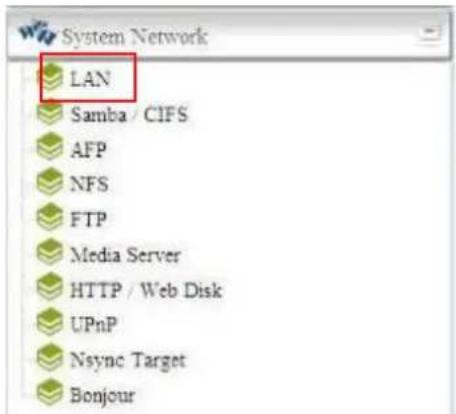
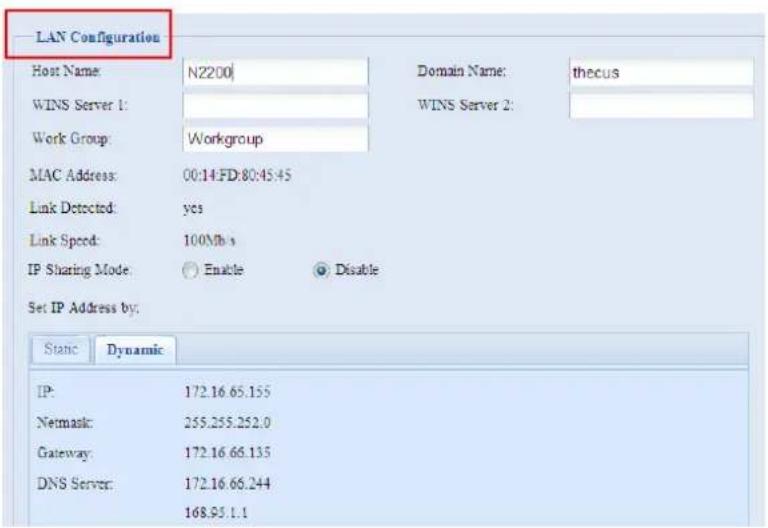
From the System Network menu, choose LAN, and the LAN Configuration screen appears. This screen displays the network parameters of the LAN connection. You may change any of these items and press Apply to confirm your settings. See a description of each item in the following table:
| LAN Configuration | |
| Item Description | |
| Host name Host name that identifies the N2200 on the network. | |
| Domain name Specifies the domain name of the N2200. | |
| WINS Server | To set a server name for NetBIOS computer. |
| MAC Address MAC address of the network interface. | |
| IP Sharing Mode When enabled, PCs connected to the LAN port will be able to access the LAN. | |
| Set IP Address by: Static / Dynamic | You can choose a static IP or Dynamic IP, and input your network configuration. |
| IP IP address of the LAN interface. | |
| Netmask Network mask, which is generally: 255.255.255.0 | |
| Gateway Default Gateway IP address. | |
| DNS Server Domain Name Service (DNS) server IP address. | |
NOTE
- Enabling DHCP automatically turns on UPnP—see the Service Support Screen.
- A correct DNS setting is vital to networks services, such as NTP.
Samba / CIFS
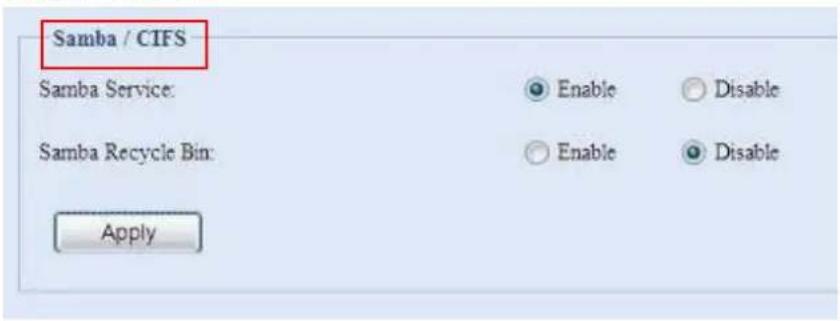
There are 2 options is currently allow Admin to Enable/Disable to operate N2200 associated with Samba / CIFS protocol. With the option changed, it will need to reboot system to activate.
Samba Service
Used for letting the operating system of UNIX series and SMB/CIFS of Microsoft Windows operating system (Server Message Block / Common Internet File System). Do the link in network protocol. Enable or Disable SMB/CIFS protocol for Windows, Apple, Unix drive mapping.
Samba Recycle Bin
The N2200 is supported recycle bin via SMB/CIFS protocol. Simply enable it then all of deleted files/folders will reside in the ".recycle" folder with hidden attribution in each share.
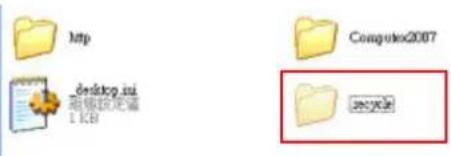
In general, Windows has default to invisible all of hidden folders/files. So please enable this option to view ".recycle" folder.
AFP (Apple Network Setup)
From the System Network menu, choose the AFP item, and the AFP Support screen appears. This screen displays the configuration items for the Apple Filing Protocol. You can change any of these items and press Apply to confirm your settings.
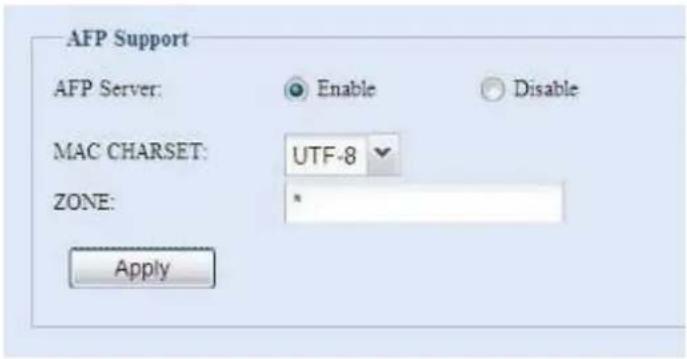
A description of each item follows:
| Apple Network Configuration | |
| Item Description | |
| AFP Server Enable or dis | sable Apple File Service to use the N2200 with MAC OS-based systems. |
| Zone Specifies Zone for | Applet Talk service.If your AppleTalk network uses extended networks and is assigned with multiple zones, assign a zone name to the N2200. If you do not want to assign a network zone, enter an asterisk (*) to use the default setting. |
NFS Setup
From the System Network menu, choose the NFS item, and the NFS Support screen appears. The N2200 can act as an NFS server, enabling users to download and upload files with the favorite NFS clients. Press Apply to confirm your settings.
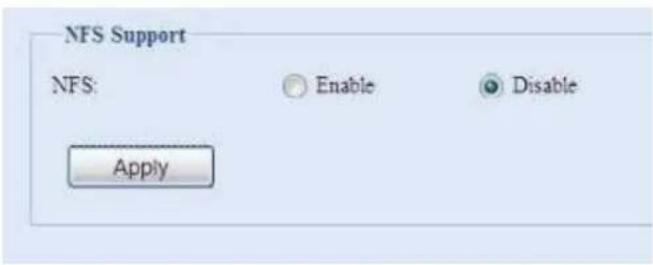
A description of each item follows:
| NFS Server Setting | |
| Item Description | |
| NFS Enable or Disable | NFS support. |
| Apply Click Apply to save your changes. | |
FTP
N2200 can act as a FTP server, enabling users to download and upload files with their favorite FTP programs. From the System Network menu, choose the FTP item, and the FTP screen appears. You can change any of these items and press Apply to confirm your settings.
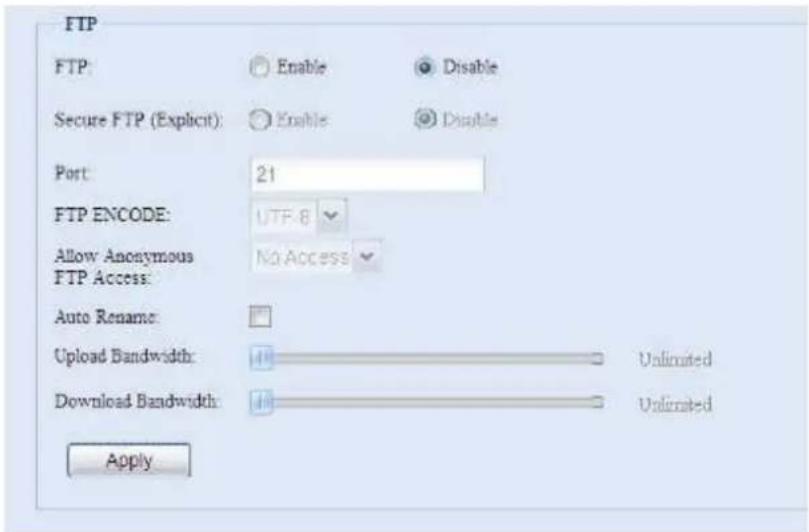
A description of each item follows:
| FTP | |
| Item Description | |
| FTP Enable FTP Service | on the N2200. |
| Security FTP | Enable or disable Security FTP, be sure the client FTP software has also security FTP setting enabled. |
| Port Specifies the port number of an incoming connection on a non-standard port. | |
| FTP ENCODE If your FTP client or operating system does not support Unicode (e.g. Windows® 95/98/ME or MAC OS9/8), select the same encoding as your OS here in order to properly view the files and directories on the server. Available options are BIG5, HZ, GB2312, GB18030, ISO, EUC-JP, SHIFT-JIS and UTF-8. | |
| Allow Anonymous FTP Upload/Download: Allow anonymous FTP users to upload or | |
| Access download files to/from public folders. | Download: Allow anonymous FTP users to download files from public folders.Upload only: Allow anonymous FTP users to upload files from public folders.No access: Block anonymous FTP user access. |
| Auto Rename If checked, the system will automatically rename files that are uploaded with a duplicate file name. The renaming scheme is [filename].#, where # represents an integer. | |
| Upload Bandwidth You may set the maximum bandwidth allocated to file uploads. Selections include Unlimited, 1, 2, 4, 8, 16 and 32 MB/s. | |
| Download Bandwidth You may set the maximum bandwidth allocated to file downloads. Selections include Unlimited, 1, 2, 4, 8, 16 and 32 MB/s. | |
To access the share folder on the N2200, use the appropriate user login and password set up on the Users page. Access control to each share folder is set up on the ACL page (Storage Management > Shore Folder > ACL).
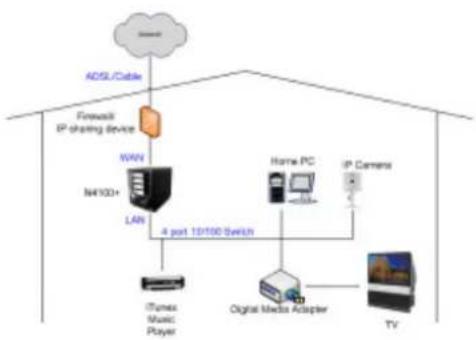
Media Server
With the built-in Media Server capability, the N2200 provides media streaming service to stand-alone networked home media adapters that support the UPnP AV protocol or are Digital Living Network Alliance (DLNA) standard compliant.
With the N2200's built-in media server capability, you can share digital media such as music, pictures, and movies with any compatible device throughout your entire home.
flowchart
graph TD
    A["ADSL/Cable"] --> B["Firewire IP sharing device"]
    B --> C["WAN"]
    C --> D["LAN"]
    D --> E["4 port 13/100 switch"]
    E --> F["Home PC"]
    E --> G["IP Camera"]
    F --> H["Digital Media Adapter"]
    G --> I["TV"]
    J["ITV/Music Player"] --> K["Computer"]
Media Manager Settings
To configure the media server, under the System Network menu, click Media Server and the Media Manager Settings window will appear.
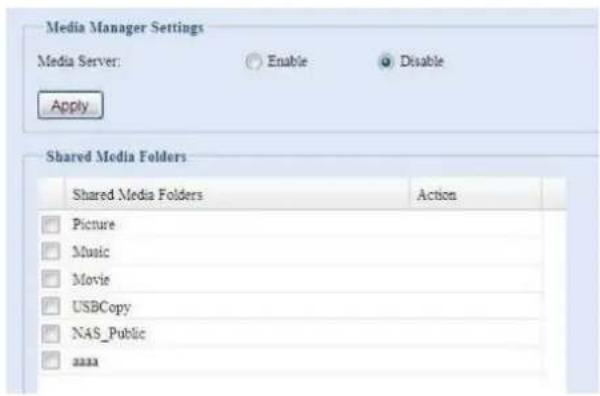
A description of each field follows:
| Media Manager Settings | |
| Item Description | |
| Media Server Enable or | disable the Media Server service. |
| Shared Media Folders S | Select the folder(s) that contains media files to be shared. |
| Rescan Click the Rescan | button to have the N2200 for new contents in the selected media folder. |
Shared Media Folders
Once the Media Server software is installed, you can start adding folders that contain the media that you would like to share. To create a media share folder, follow the steps below:
- Click on System Network > Media Server in the menu bar.
- From the Shared Media Folders window, select the folder that contains your media files, and click its checkbox.
- The contents in the folder will be scanned for the Media Server. The time required for scanning depends on the size of the folder.
Connecting DMAs to the Media Server
Next, it's time to connect your Digital Media Adapter (DMA) to the media server:
- Connect your DMA to your Media Server
a. Configure your DMA to use a Dynamic IP address. The IP address will be assigned by the router.
b. Some DMAs are wireless enabled. You can connect the DMA to a wireless router. For instructions on how to connect your DMA to a wireless router, please refer to your DMA's user manual.
- Connect your DMA's video output to video input of your TV set.
- Turn on the TV and change the video signal input to DMA.
- Setup the DMA (These steps will be different if you use a different DMA)
a. From the Server List screen, select "N2200: Media Server" as the server.
b. Go to My Media
c. Click on the Up/Down Arrow buttons to select Music Jukebox, Photo Albums, or Video Clips
d. Start enjoying the contents stored in your N2200.
HTTP/ Web Disk
From the System Network menu, choose the HTTP/ Web Disk item, and the Web Disk (HTTP) Support screen appears. This screen displays the service support parameters of the system. You can change any of these items and press Apply to confirm your settings.
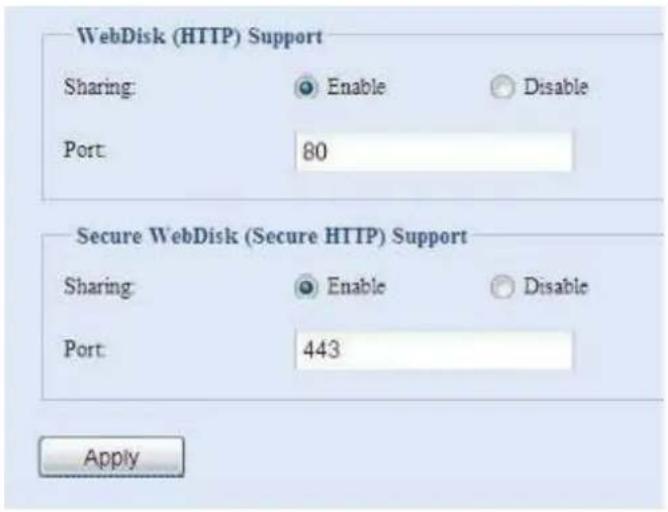
A description of each item follows:
| Web Service | |
| Item Description | |
| HTTP (WebDisk) Support | Enable or disable WebDisk support. Enter the port number if this option is enabled. The port number is default 80. |
| HTTPS (Secure WebDisk) Support | Enable or disable secure WebDisk support. Enter the port if this option is enabled. |
NOTE
- Disable HTTP support and Enable Secure HTTP support to guarantee secure access.
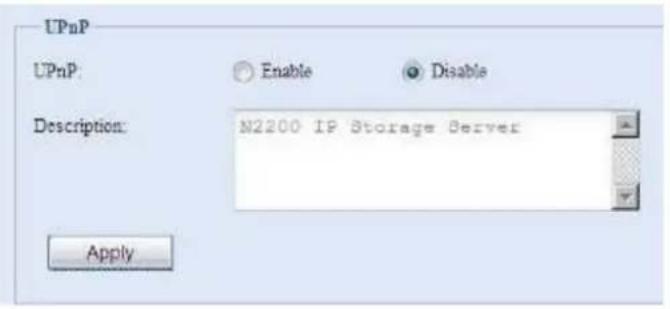
UPnP
This device supports UPnP Media server, which allows users to play media files with UPnP client (ex. DMA devices). Enable or disable Universal Plug and Play protocol. UPnP helps to find the IP address of the N2200.
Nsync Target
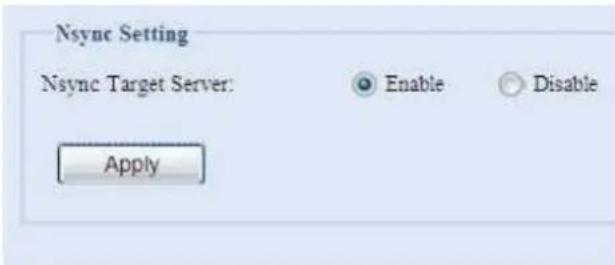
From the System Network menu, choose the Nsync Target item, and the Nsync Setting screen appears. Enable or Disable your Nsync Target Server and press Apply to confirm your settings.
Once Nsync Target has been enabled, other Thecus NAS products able to operate remote replication to this NAS system.
Bonjour Setting
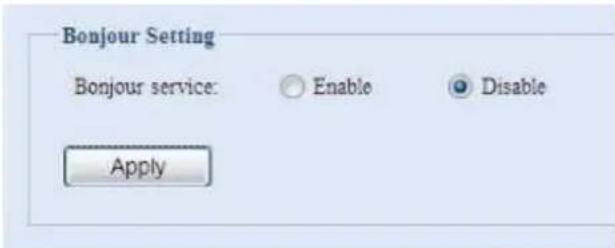
Bonjour is Apple Inc.'s trade name for its implementation of Zeroconf, a service discovery protocol. Bonjour locates devices such as printers, as well as other computers, and the services that those devices offer on a local network using multicast Domain Name System service records.
Storage Management
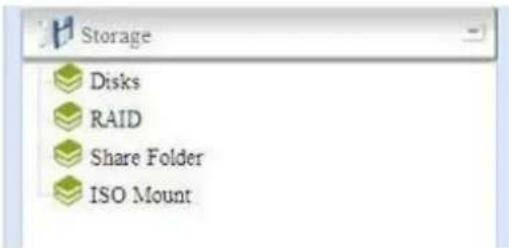
The Storage menu displays the status of storage devices installed in the N2200, and includes storage configuration options such as RAID and disk settings, folder configuration, space allocation and ISO Mount.
Disks Information
From the Storage menu, choose the Disks item and the Disks Information screen appears. From here, you can see various items about installed SATA hard disks. Blank lines indicate that a SATA hard disk is not currently installed in that particular disk slot.
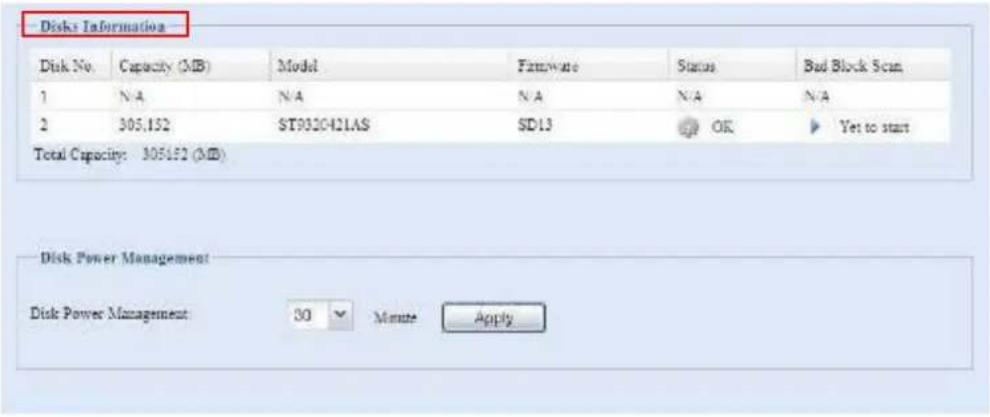
| Disks Information | |
| Item Description | |
| Disk No. Indicates disk | location. |
| Capacity Shows the SATA hard disk capacity. | |
| Model Displays the SATA | A hard disk model name. |
| Firmware Shows the SATA hard disk firmware version. | |
| Status Indicates the status of the disk. Can read OK, Warning, or Failed. | |
| Bad Block Scan Click Yet to start to begin scanning for bad blocks. | |
| Total Capacity Shows the total SATA hard disk capacity. | |
| Disk Power Management | The administrator can set the disk to power down after a period of inactivity. |
NOTE
When the Status shows Warning, it usually means there are bad sectors on the hard disk. It is shown only as a precaution and you should consider changing the drives.
S.M.A.R.T. Information
On the Disks Information screen, the status of each disk will be displayed in the Status column. Clicking on an OK or Warning link will display the S.M.A.R.T Information window for that particular disk.
You may also perform disk SMART test, simply to click "Test" to start with. The result is only for reference and system will not take any action from its result.
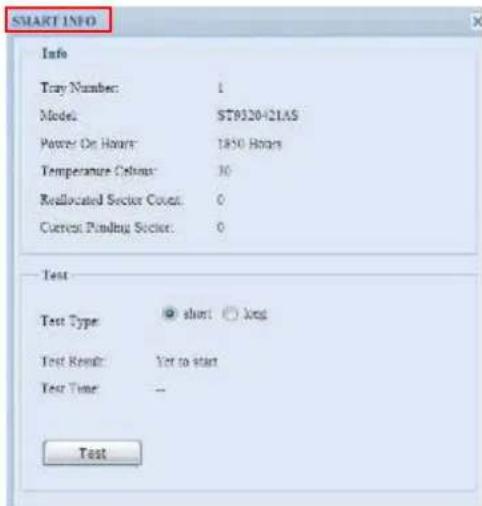
| S.M.A.R.T. Information | |
| Item Description | |
| Tray Number Tray the hard disk is installed in. | |
| Model Model name of the installed hard disk. | |
| Power ON Hours Count of hours in power-on state. The raw value of this attribute | |
| shows total count of hours (or minutes, or seconds, depending on manufacturer) in power-on state. | |
| Temperature Celsius The current temperature of the hard disk in degrees Celsius | |
| Reallocated Sector Count | Count of reallocated sectors. When the hard drive finds a read/write/verification error, it marks this sector as "reallocated" and transfers data to a special reserved area (spare area). This process is also known as remapping and "reallocated" sectors are called remaps. This is why, on a modern hard disks, you can not see "bad blocks" while testing the surface - all bad blocks are hidden in reallocated sectors. However, the more sectors that are reallocated, the more a decrease (up to 10% or more) can be noticed in disk read/write speeds. |
| Current Pending Sector | Current count of unstable sectors (waiting for remapping). The raw value of this attribute indicates the total number of sectors waiting for remapping. Later, when some of these sectors are read successfully, the value is decreased. If errors still occur when reading sectors, the hard drive will try to restore the data, transfer it to the reserved disk area (spare area), and mark this sector as remapped. If this attribute value remains at zero, it indicates that the quality of the corresponding surface area is low. |
| Test Type | Set short or long time to test. |
| Test Result | Result of the test. |
| Test Time | Total time of the test. |
NOTE
If the Reallocated Sector Count > 32 or Current Pending Sector of a hard disk drive > 0, the status of the disk will show "Warning". This warning is only used to alert the system administrator that there are bad sectors on the disk, and they should replace those disks as soon as possible.
Bad Block Scan
On the Disks Information screen, you may also perform a disk bad block scan. Simply click Yet to start to begin scanning. The result is only for reference and system will not take any action from its result.
Disks Information
| Disk No. | Capacity (MB) | Model | Firmware | Status | Bad Block Scan |
| 1 | 305,152 | ST9320421AS | SD13 | Yet to start | |
| 2 | N/A | N/A | N/A | N/A | N/A |
| Total Capacity: 305152 (MB) | |||||
The testing result will be stay until the next system reboot with "Yet to start" displayed as default.
RAID Information
From the Storage menu, choose the RAID item and the RAID Information screen appears.
This screen lists the RAID volumes currently residing on the N2200. From this screen, you can get information about the status of your RAID volumes, as well as
the capacities allocated for data. There is also a graph which represents how the RAID volume is currently allocated.

| RAID Information | |
| Item Description | |
| ID ID of the current RAID volume. NOTE: All RAID IDs must be unique. | |
| RAID Level Shows the current RAID configuration. | |
| Status Indicates status of the RAID. Can read either Healthy, Degraded, or Damaged. | |
| Disks Used Hard disks used to form the current RAID volume. | |
| Total Capacity Total capacity of the current RAID. | |
| Data Capacity Indicates the used capacity and total capacity used by user data. | |
Create a RAID
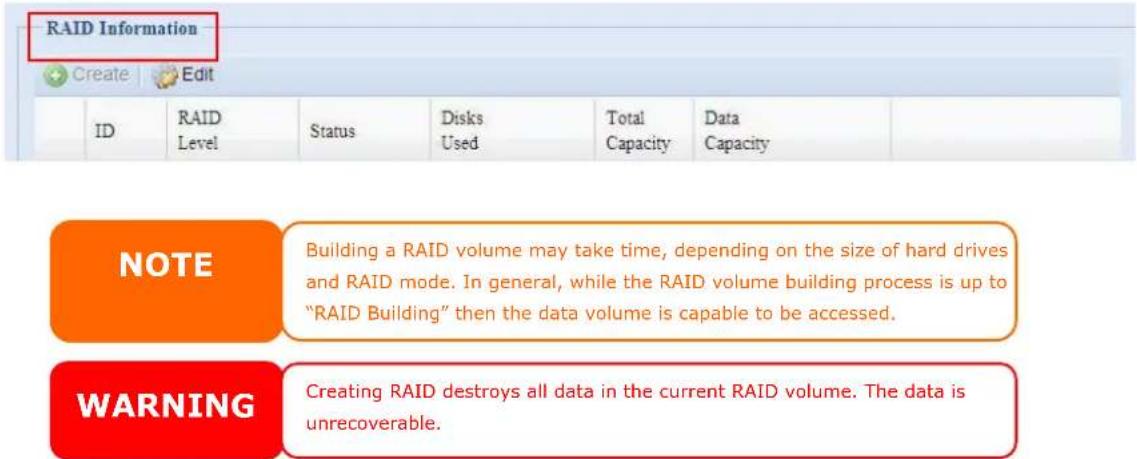
On the RAID Information screen, press the create button to go to the CREATE RAID screen. In addition to RAID disk information and status, this screen lets you make RAID configuration settings.
Using Create RAID, you can select stripe size, choose which disks are RAID disks or the Spare Disk.

| RAID Configurations | |
| Item | Description |
| Disk No. Number assigned to the installed hard disks. | |
| Capacity (MB) Capacity of the installed hard disks. | |
| Model | Model number of the installed hard disks. |
| Status Status of the installed hard disks. | |
| Used | If this is checked, current hard disk is a part of a RAID volume. |
| Spare | If this is checked, current hard disk is designated as a spare for a RAID volume. |
| Stripe Size | This sets the stripe size to maximize performance of sequential files in a storage volume. Keep the 64K setting unless you requirea special file storage layout in the storage volume. A larger stripe size is better for large files. |
| Data Percentage The percentage of the RAID volume that will be used to store data. | |
| Create Press this button to configure a file system and create the RAID storage volume. | |
To create a RAID volume, follow the steps below:
- On the RAID Information screen, click create.
- On the RAID Configuration screen, set the RAID storage space as JBOD, RAID 0, RAID 1—see Appendix C: RAID Basics for a detailed description of each.
- Specify a RAID ID.
- Specify a stripe size — 64K is the default setting.
-
Specify the percentage allocated for user data by drag the horizontal bar.
-
Press Create to build the RAID storage volume.
RAID Level
You can set the storage volume as JBOD, RAID 0, RAID 1. RAID configuration is usually required only when you first set up the device. A brief description of each RAID setting follows:
| RAID Levels | |
| Level Description | |
| JBOD The storage volume | is a single HDD with no RAID support. JBOD requires a minimum of 1 disk. |
| RAID 0 Provides data striping but no redundancy. Improves performance but not data safety. RAID 0 requires a minimum of 2 disks. | |
| RAID 1 Offers disk mirroring. Provides twice the read rate of single disks, but same write rate. RAID 1 requires a minimum of 2 disks. | |
WARNING
If the administrator improperly removes a hard disk that should not be removed when RAID status is degraded, all data will be lost.
Edit RAID
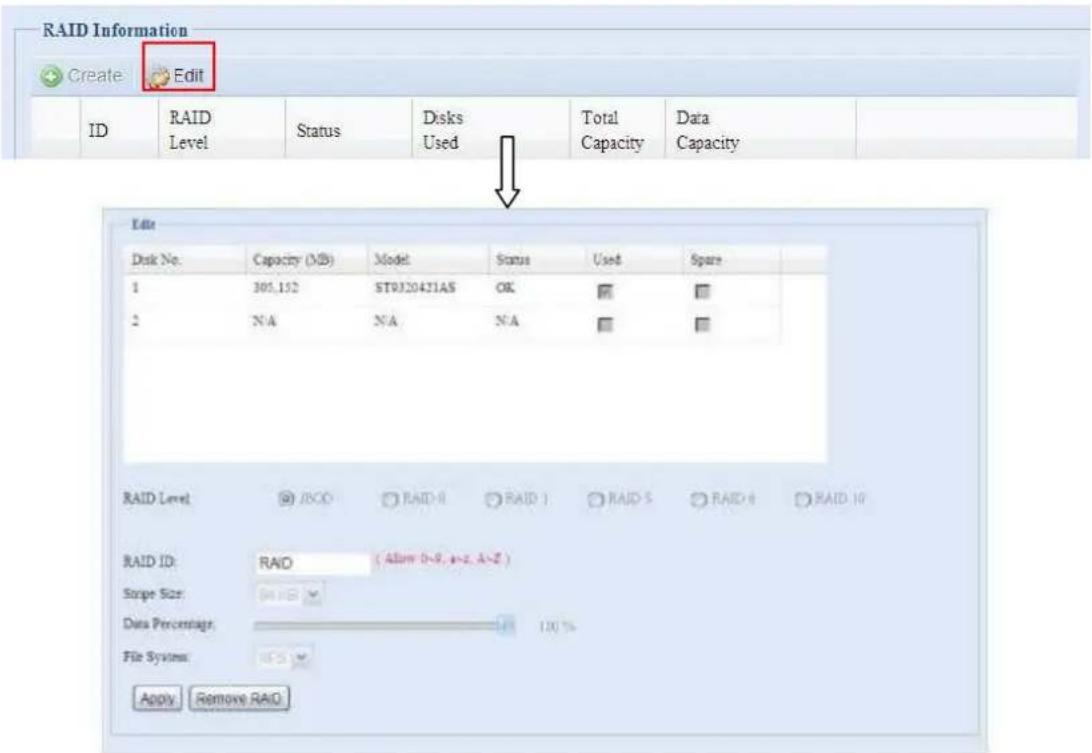
On the RAID Information screen, press the Edit button to go to the RAID Information screen.
Using Edit RAID, you can select RAID ID and the Spare Disk.
Remove RAID
Click to remove the RAID volume. All user data has been created in selected RAID volume will be removed.
To remove a RAID volume, follow the steps below:
- On the RAID List screen, select the RAID volume by clicking on its radio button, and click RAID Information to open the RAID Configuration screen.
- On the RAID Configuration screen, click Remove RAID.
- The confirmation screen appear, you will have to input "Yes" with exactly wording case to complete "Remove RAID" operation
WARNING
Remove RAID destroys all data in the current RAID volume. The data is unrecoverable.
Share Folder
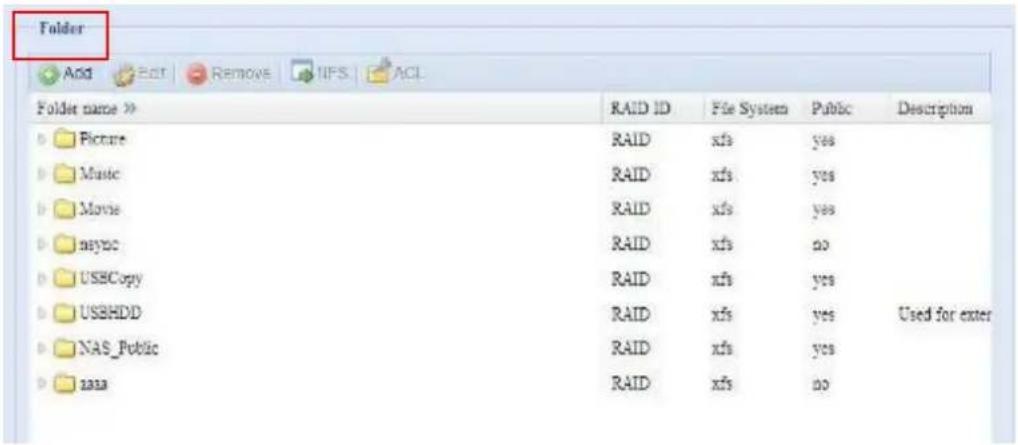
From the Storage menu, choose Share Folder, and the Folder screen appears. This screen allows you to create and configure folders on the N2200 volume.
Adding Folders
On the Folder screen, press the Add button and the Add Folder screen appears. This screen allows you to add a folder. After entering the information, press Apply to create new folder.
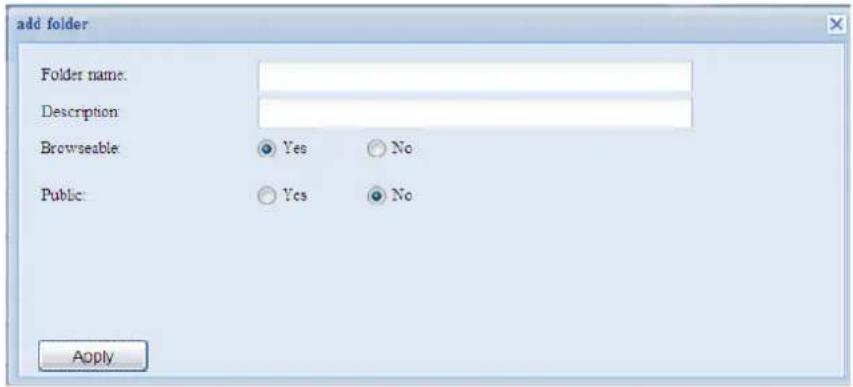
| Add Folder | |
| Item Description | |
| RAID ID RAID volume | where the new folder will reside. |
| Folder Name Enter the | name of the folder. |
| Description Provide a description the folder. | |
| Browseable Enable or disable users from browsing the folder contents. If Yes is selected, then the share folder will be browseable. | |
| Public | Admit or deny public access to this folder. If Yes is selected, then users do not need to have access permission to write to this folder. When accessing a public folder via FTP, the behavior is similar to anonymous FTP. Anonymous users can upload/download a file to the folder, but they cannot delete a file from the folder. |
| Apply Press Apply to create the folder. | |
NOTE
Folder names are limited to 60 characters. Systems running Windows 98 or earlier may not support file names longer than 15 characters.
Modify Folders
On the Folder screen, press the Edit button and the Modify Folder screen appears. This screen allows you to change folder information. After entering the information, press Apply to save your changes.
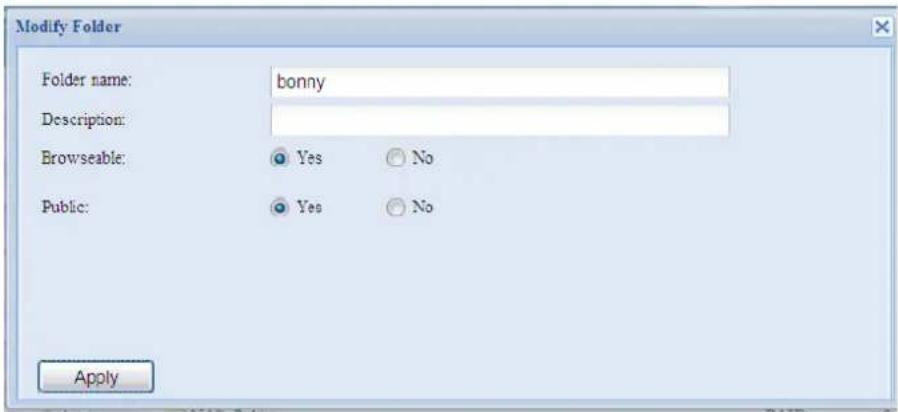
| Modify Folder | |
| Item Description | |
| RAID ID RAID volume where the folder will reside. | |
| Folder Name Enter the name of the folder. | |
| Description Provide a description the folder. | |
| Browseable Enable or disable users from browsing the folder contents. This setting will only apply while access via SMB/CIFS and web disk. | |
| Public Admit or deny public access to this folder. | |
Remove Folders
To remove a folder, press the Remove button from the specified folder row. The system will confirm folder deletion. Press Yes to delete the folder permanently or No to go back to the folder list.
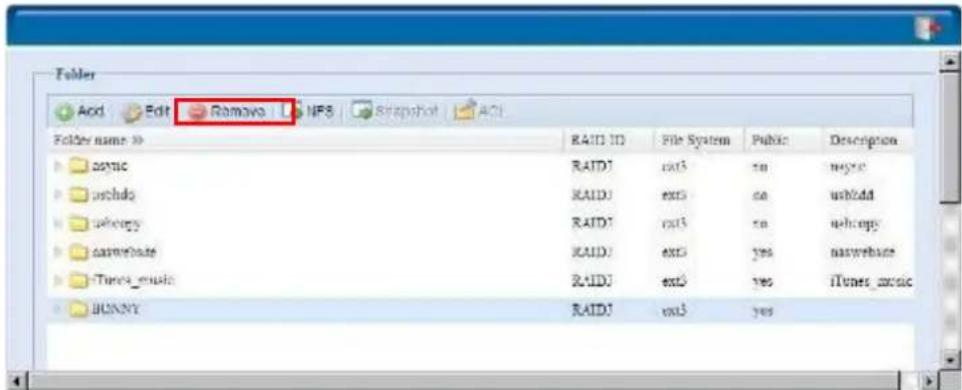
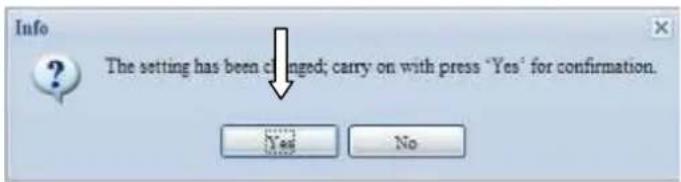
WARNING
All the data stored in the folder will be deleted once the folder is deleted. The data will not be recoverable.
NFS Share
To allow NFS access to the share folder, enable the NFS Service, and then set up hosts with access rights by clicking Add.
![Config NFS share NFS Shift point: [red00-data/wayne] Edit Remove Host Name Privings OS Support ID Mapping](/content/2026/05/1141566/images/9722dbcef0d86b861e22c39fe6c07ff0b9599333432519fdb90a0e52294b9f67.jpg)
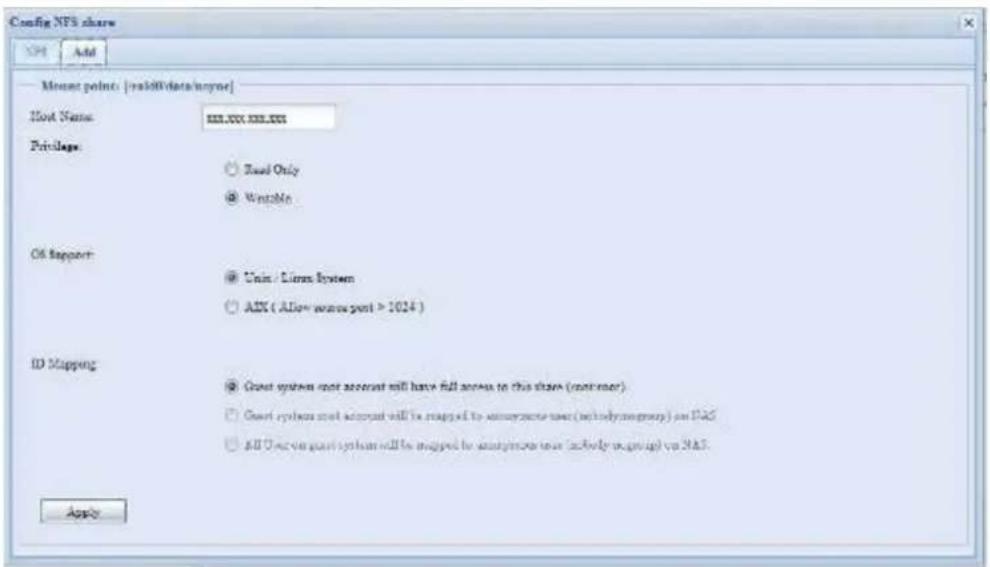
| NFS Share | |
| Item Description | |
| Hostname Enter the name or IP address of the host | |
| Privilege Host has either read only or writeable access to the folder. | |
| Guest System Support | There are two selections available:Unix / Linux SystemAIX (Allow source port > 1024)Choose the one which best fits your needs. |
| IO Mapping There are three selections available:Guest system root account will have full access to this share (root:root).Guest system root account will be mapped to anonymous user (nobody:nogroup) on NAS.All user on guest system will be mapped to anonymous | |
| user (nobody:nogroup) on NAS.Choose the one which best fits your needs. | |
| Apply Click to save your changes. | |
Folder and Sub-Folder Access Control List (ACL)
On the Folder screen, press the ACL button, and the ACL setting screen appears. This screen allows you to configure access to the specific folder and sub-folders for users and groups. Select a user or a group from the left hand column and then choose Deny, Read Only, or Writable to configure their access level. Press the Apply button to confirm your settings.
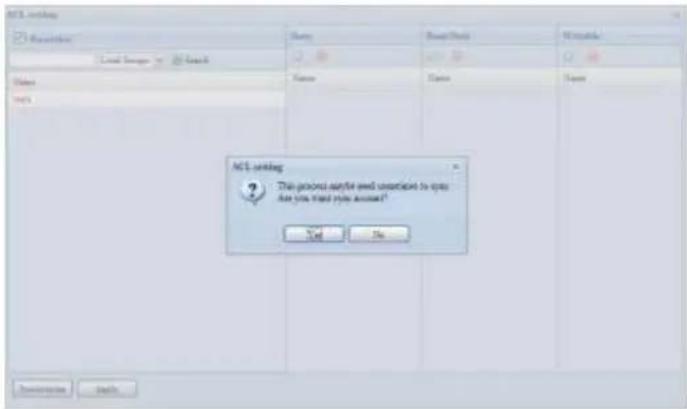
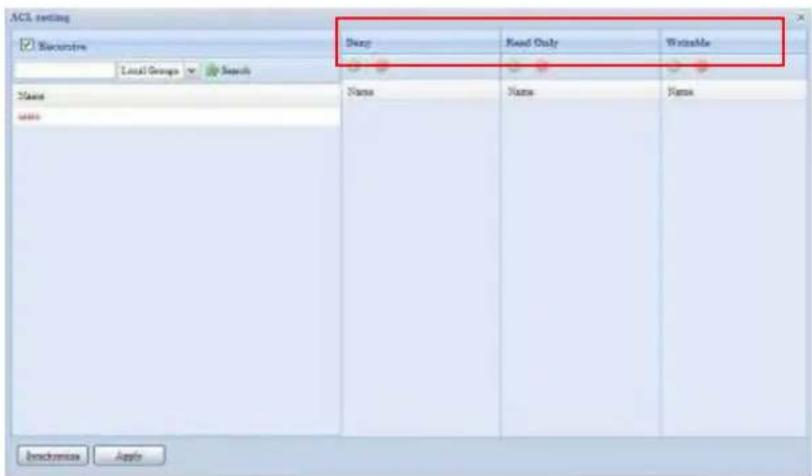
| ACL setting | |
| Item Description | |
| Deny Denies access to | users or groups who are displayed in this column. |
| Read Only Provides Read | Only access to users or groups who are displayed in this column. |
| Writable Provides Write | access to users or groups who are displayed in this column. |
| Recursive Enable to inherit the access right for all its sub-folders. | |
To configure folder access, follow the steps below:
- On the ACL screen, all network groups and users are listed in the left hand column. Select a group or user from this list.
-
With the group or user selected, press one of the buttons from the three access level columns at the top. The group or user then appears in that column and has that level of access to the folder.
-
Continue selecting groups and users and assigning them access levels using the column buttons.
- To remove a group or user from an access level column, press the Remove

button in that column.
- When you are finished, press Apply to confirm your ACL settings.
NOTE
If one user has belonged to more than one group but different privilege than the priority Deny > Read Only > Writable
To setup sub-folders ACL, click on the ▶ symbol to extract sub folders list as screen shot shows below. You may carry on with same steps as share level ACL setting.
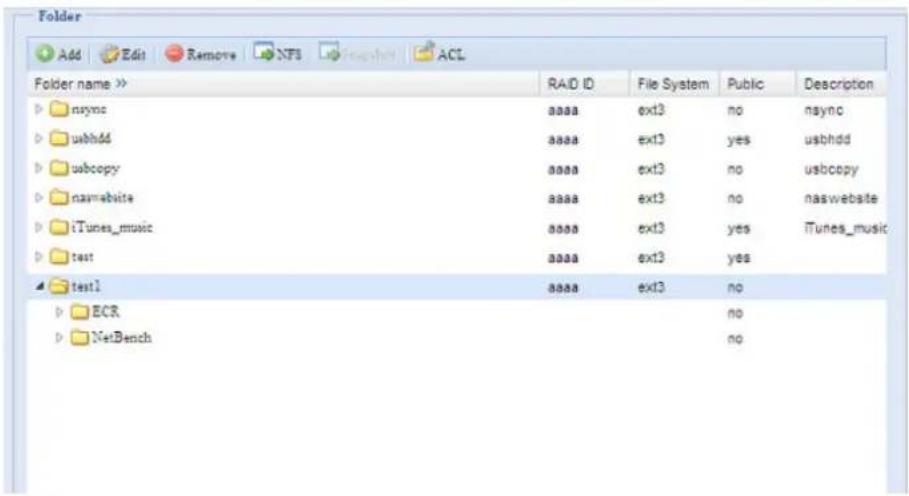
NOTE
The ACL can be set for share and sub-folders level, not for files.
The ACL screen also allows you to search for a particular user. To do this, follow the steps below:
- In the blank, enter the name of the user you would like to find.
- From the drop down select the group you would like to search for the user in.
- Click Search.

ISO Mount
The ISO Mount feature is very useful tool included with Thecus products. With it, users can mount an ISO file and have the export name display all details from mounted ISO file.
From the main menu, the ISO Mount feature is located under Storage. Please refer the figure below for reference.
Select the ISO Mount function and you will see the following window:
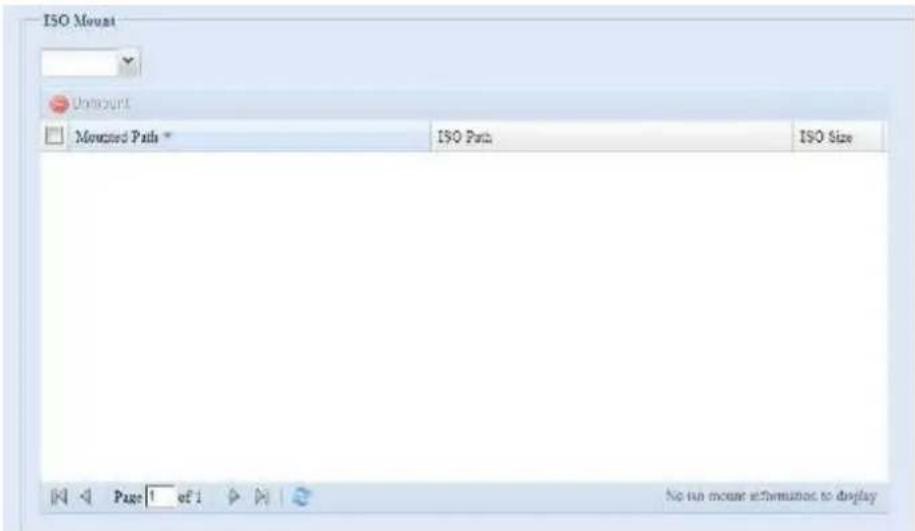
A. Add an ISO file
From the figure above, select ISO file from drop down share list.
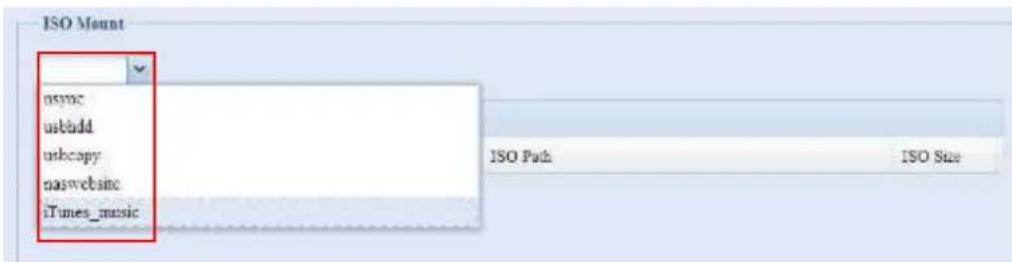
After making a selection, the system will bring up Mount table to enable further settings.
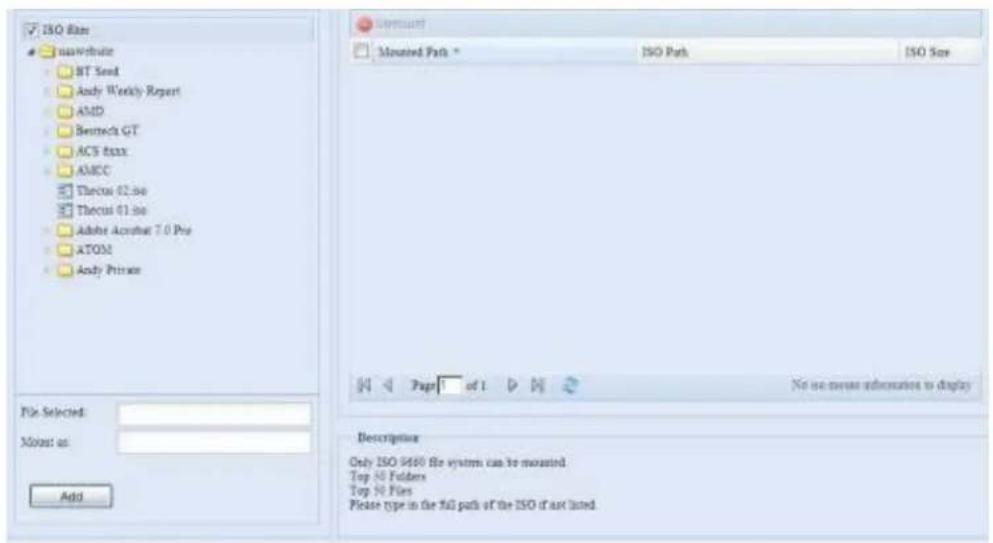
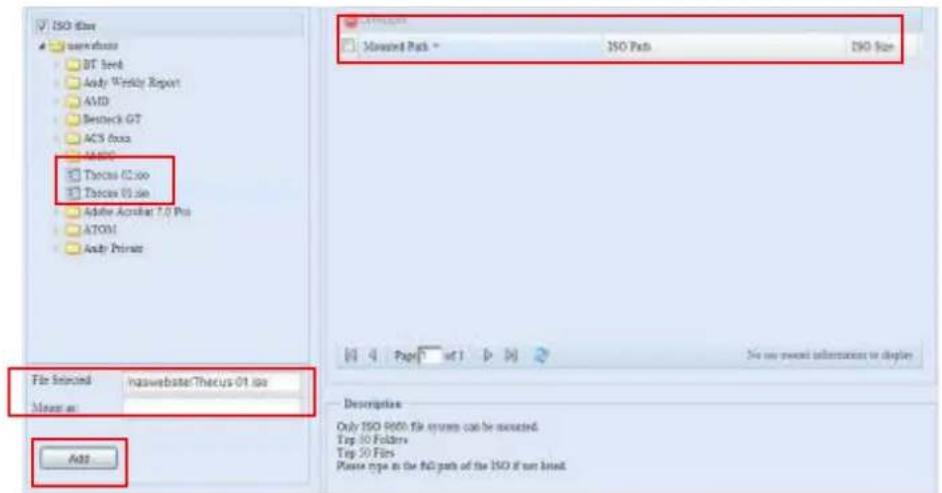
To mount a new ISO file, select one from the listed ISO files and input the desired mounting name into the "Mount as:" field. Click Add to complete mounting the ISO file. If you do not enter a "Mount as" ISO file export name, the system will automatically assign the export name as the ISO file name.
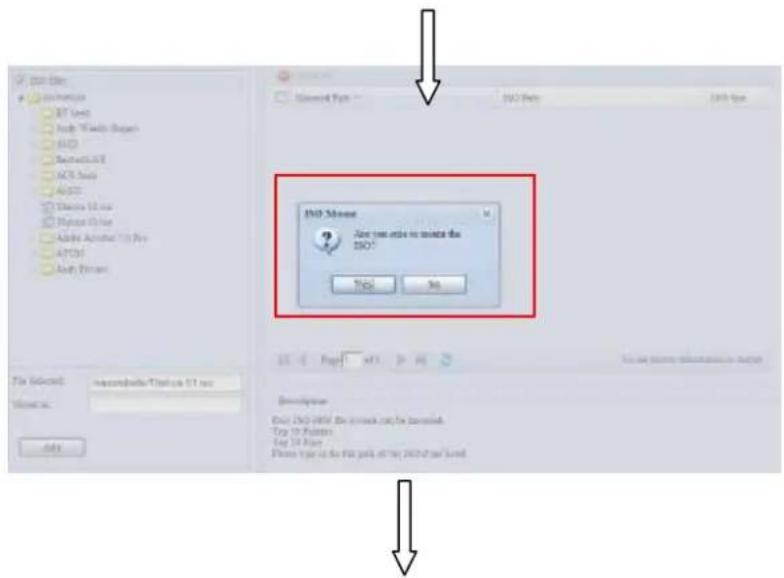
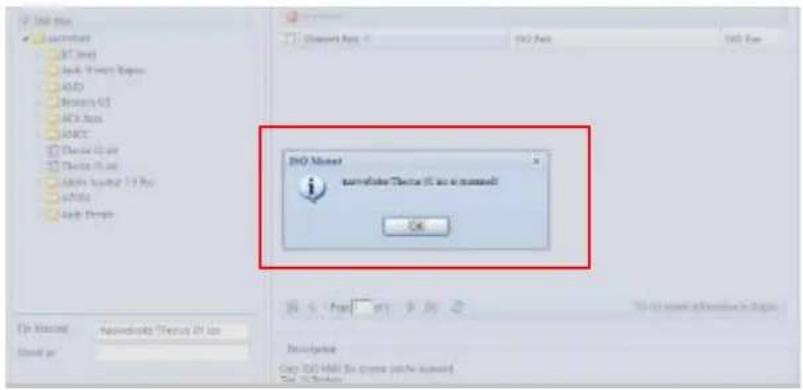
After you have completed adding the ISO image, then the page will display all mounted ISO files:
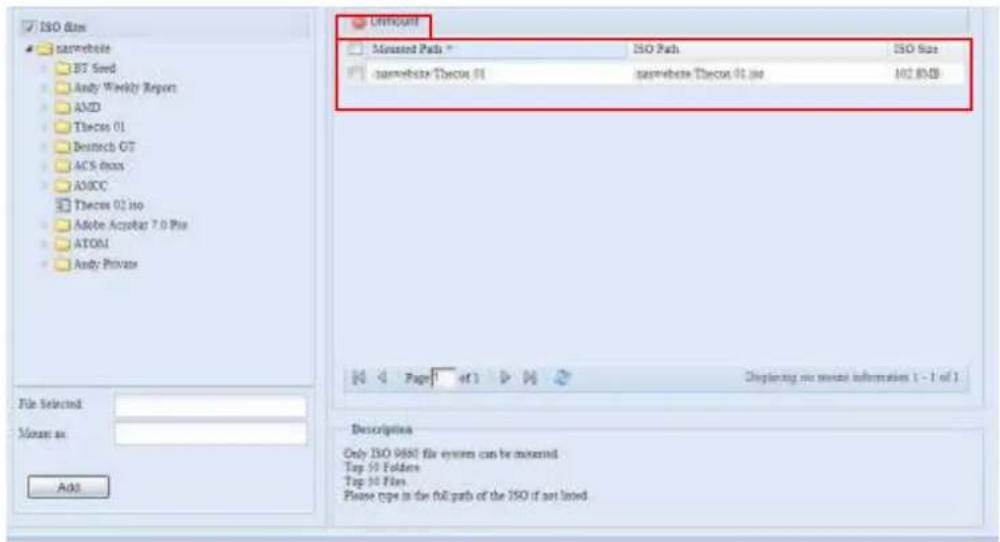
You can click Unmount to remove the mounted ISO file.
B. Using ISOs
The mounted ISO file will be located in a share folder with the assigned ISO image name. Please refer the screen shot below.
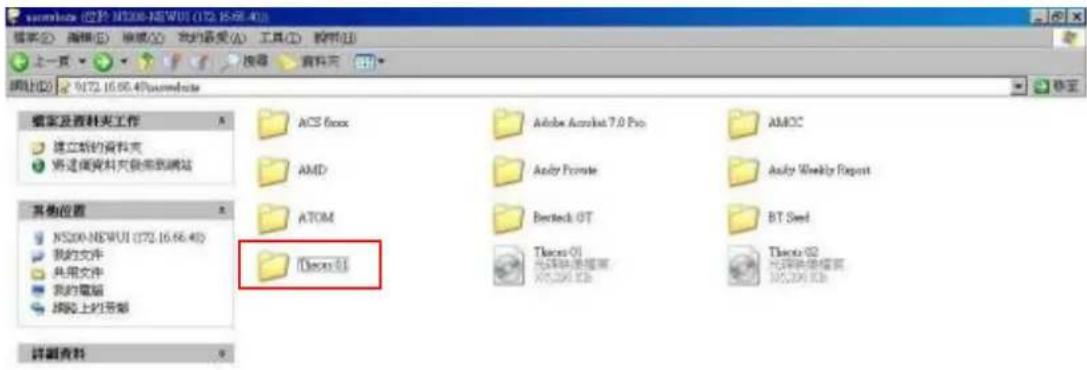
ISO file "image" has been mounted in the "Image" folder. The ISO file "Thecus 01," without an assigned mounting name, has caused the system to automatically create a "Thecus 01" folder.
User and Group Authentication
The N2200 has built-in user database that allows administrators to manage user access using different group policies. From the User and Group Authentication menu, you can create, modify, and delete users, and assign them to groups that you designate.
Local User Configuration
From the Accounts menu, choose the User item, and the Local User Configuration screen appears. This screen allows you to Add, Edit, and Remove local users.
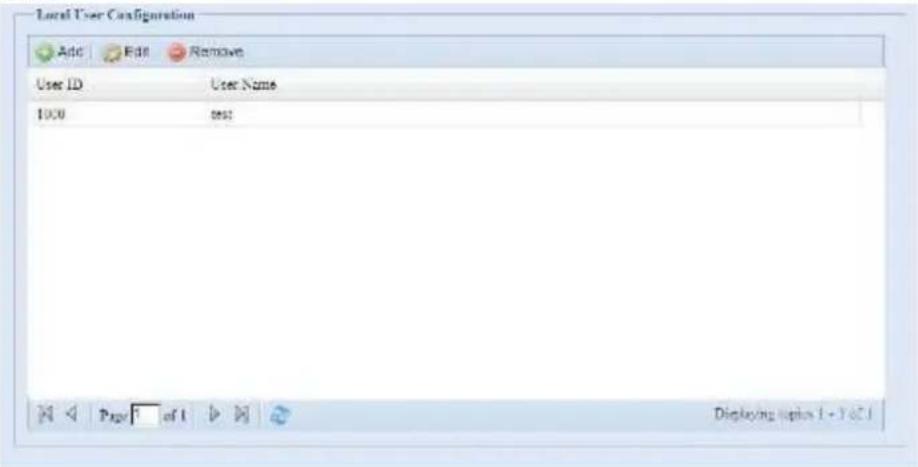
| Local User Configuration | |
| Item Description | |
| Add Press the Add button to add a user to the list of local users. | |
| Edit Press the Edit button to modify a local user. | |
| Remove Press the Remove button to delete a selected user from the system. | |
Add Users
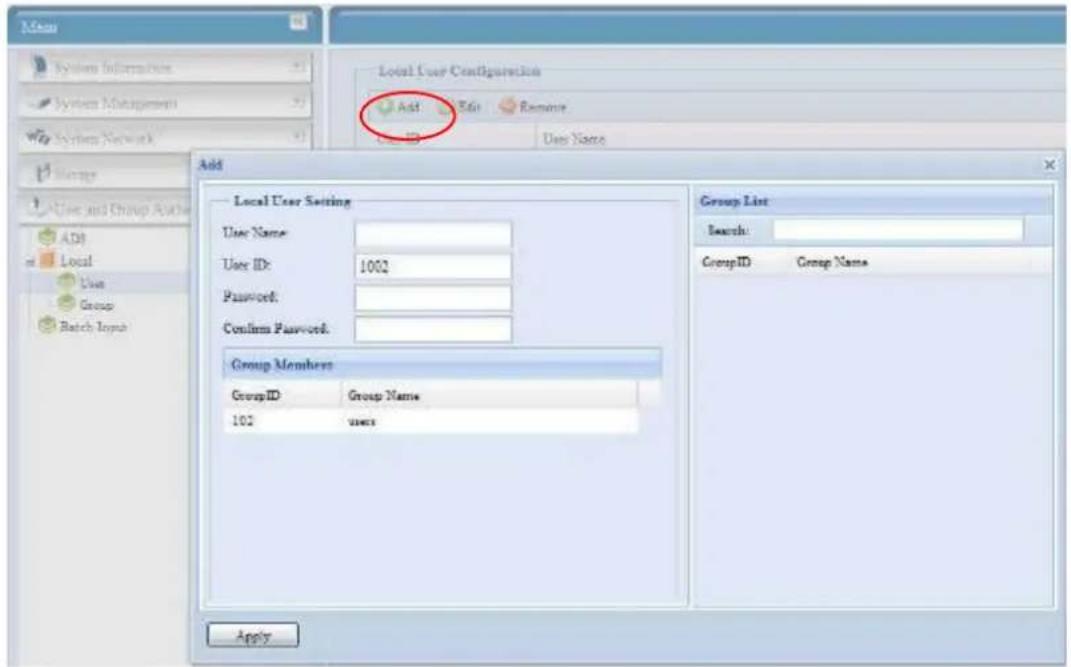
- Click on the Add button on Local User Configuration screen, and Local User Setting screen appears.
- On the Local User Setting screen, enter a name in the User Name box.
- Enter a User ID number. If left blank, the system will automatically assign one.
- Enter a password in the Password box and re-enter the password in the Confirm box.
- Select which group the user will belong to. Group Members is a list of groups this user belongs to. Group List is a list of groups this user does not belong to. Use the << or >> buttons to have this user join or leave a group.
- Press the Apply button and the user is created.
NOTE
All users are automatically assigned to the 'users' group.
Edit Users
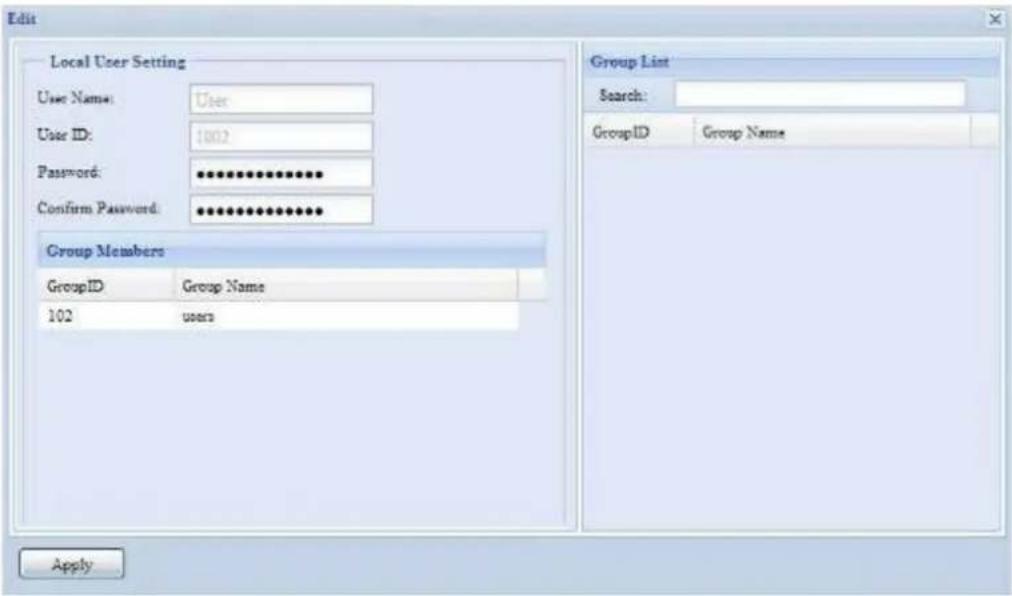
- Select an existing user from the Local User Configuration screen.
- Click on the Edit button, and Local User Setting screen appears.
- From here, you can enter a new password and re-enter to confirm, or use the << or >> buttons to have this user join or leave a group. Click the Apply button to save your changes.
Remove Users
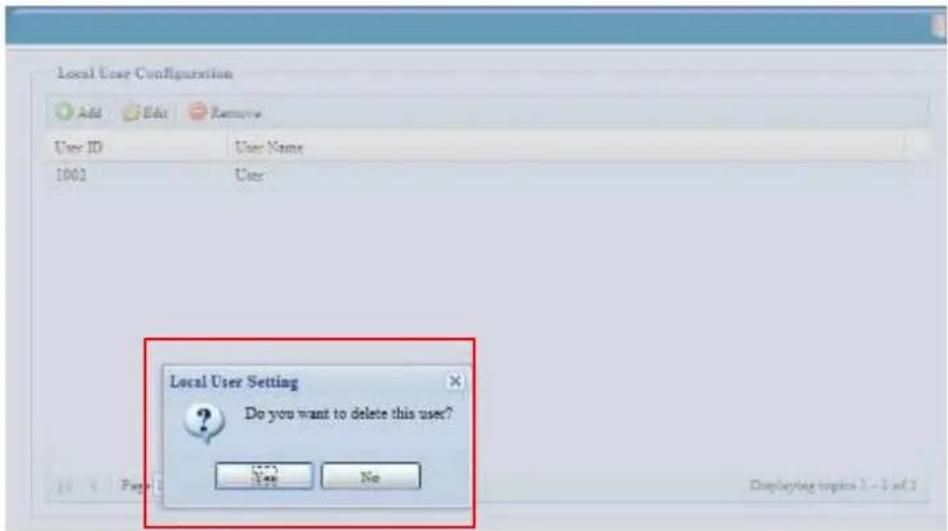
- Select an existing user from the Local User Configuration screen.
- Click on Remove button and the user is deleted from the system.
Local Group Configuration
From the Accounts menu, choose the Group item, and the Local Group Configuration screen appears. This screen allows you to Add, Edit, and Remove local groups.
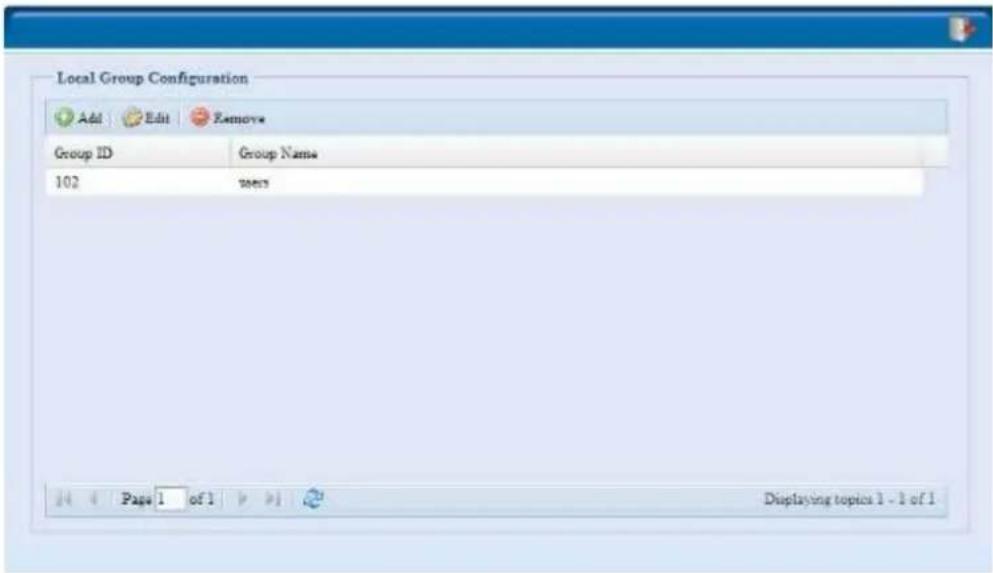
| Local Group Configuration | |
| Item Description | |
| Add Press the Add button to add a user to the list of local groups. | |
| Edit | Press the Edit button to modify a selected group from the system. |
| Remove Press the Remove button to delete a selected group from the system. | |
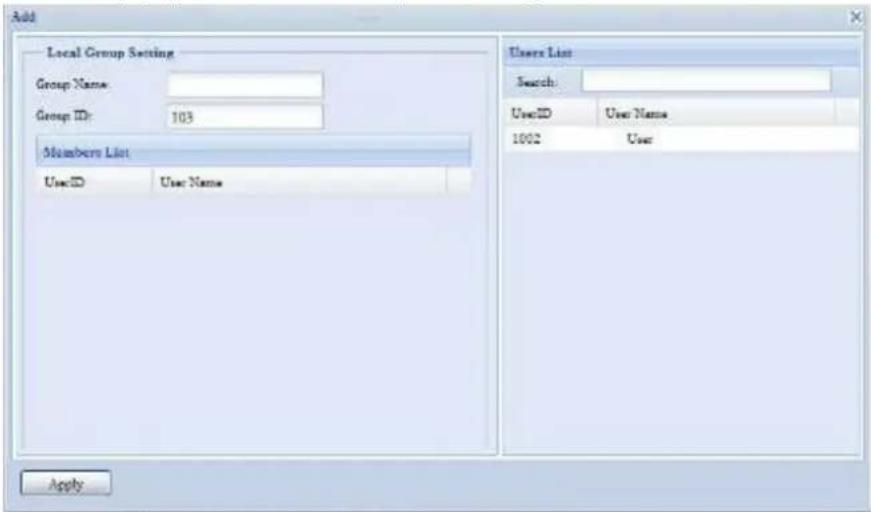
Add Groups
- On the Local Group Configuration screen, click on the Add button.
- The Local Group Setting screen appears.
- Enter a Group Name.
- Enter a Group ID number. If left blank, the system will automatically assign one.
- Select users to be in this group from the Users List by adding them to the Members List using the << button.
- Click the Apply button to save your changes.
Edit Groups
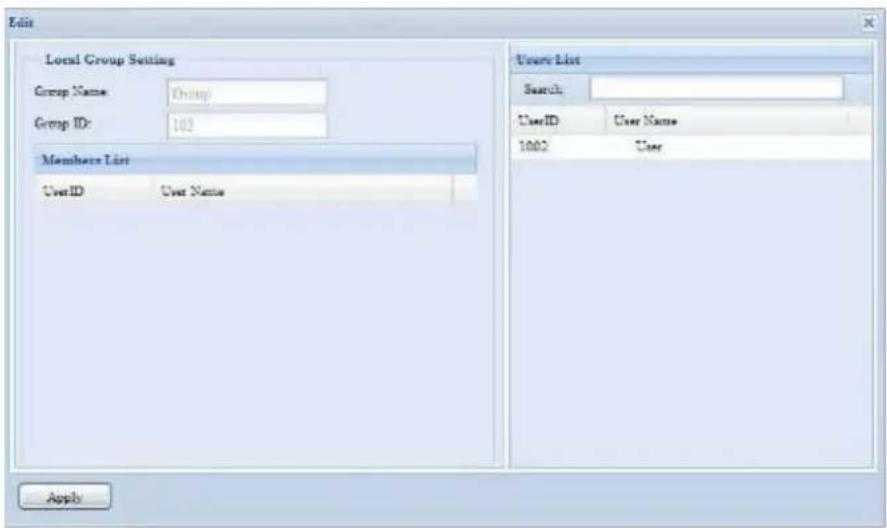
- On the Local Group Configuration screen, select a group name from the list.
- Press the Edit button to modify the members in a group.
- To add a user into a group, select the user from the Users List, and press the << button to move the user into the Members List.
- To remove a user from a group, select the user from Members List, and press the >> button.
- Click the Apply button to save your changes.
Remove Groups
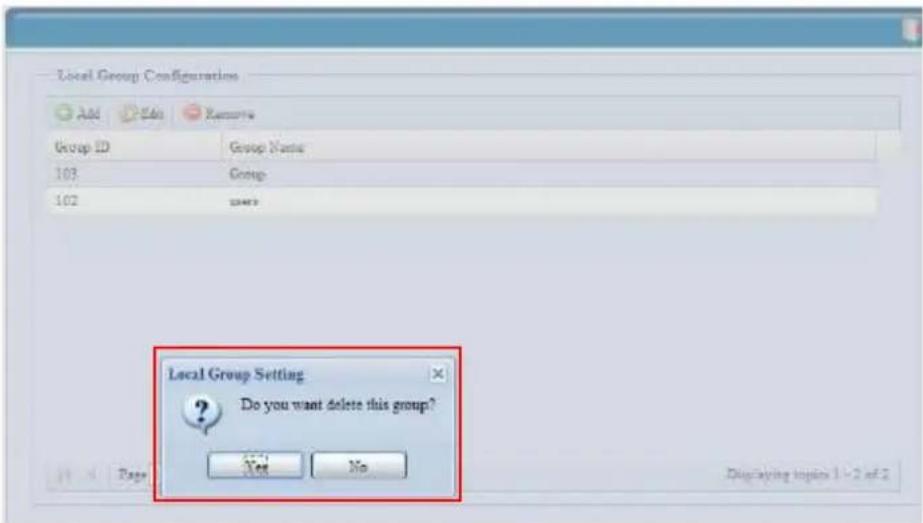
- On the Local Group Configuration screen, select a group name from the list.
- Press Remove to delete the group from the system.
Batch Create Users and Groups
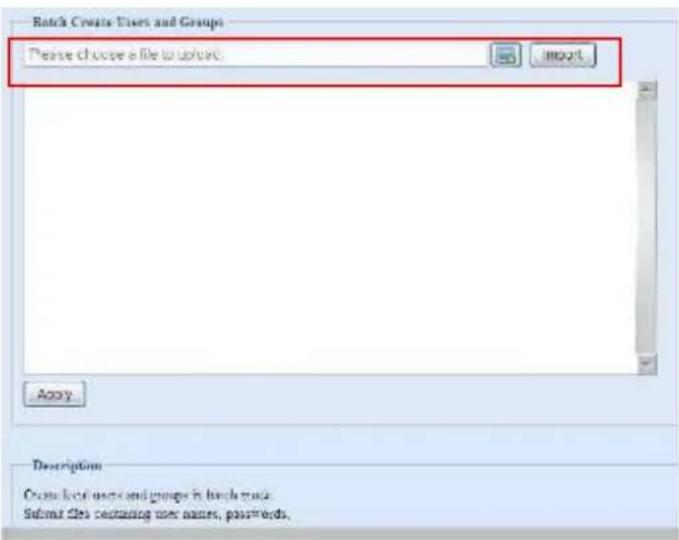
The N2200 can also add users and groups in batch mode. This enables you to conveniently add numerous users and groups automatically by importing a simple comma-separated plain text (*.txt) file.
From the Accounts menu, click Batch Mgmt and the Batch Create Users and Groups dialogue will appear. To import your list of users and groups, follow these steps:
- Click Browse... to locate your comma-separated text file. The information in the text file should follow this format:
[USERNAME], [PASSWORD], [GROUP]
- Click Open.
- Click Import to begin the user list import.
Application Server
The N2200 supports a Printer Server and iTunes Server. The integrated Printer Server allows you to share a single USB printer will all users on the network. By activating the iTunes Server on the N2200, you will be able to directly play music files on this device with your iTunes client software. The following section shows you how.
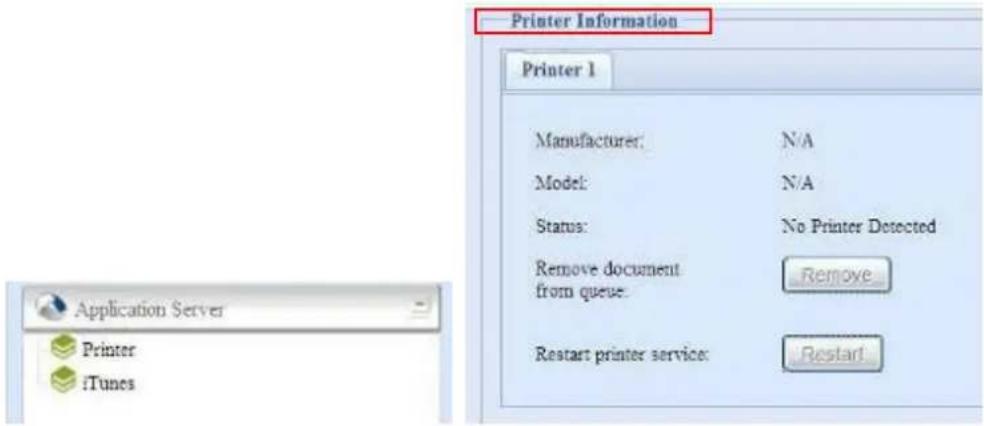
Printer Information
From the Application Server menu, choose the Printer item, and the Printer Information screen appears. This screen provides the following information about the USB printer connected to the USB port.
| Printer Information | |
| Item Description | |
| Manufacturer Displays the name of the USB printer manufacturer. | |
| Model Displays the model of the USB printer. | |
| Status Displays the status of the USB printer. | |
| Remove document from Queue | Click to remove all documents from printer queue |
| Restart Printer service | Click to restart printer service |
If a corrupt print job is sent to a printer, printing may suddenly fail. If your print jobs seem to be locked up, pressing the Remove All Documents button to clear the print queue may resolve the issue.
You can configure the N2200 to act as a printer server. That way, all PCs connected to the network can utilize the same printer.
Windows XP SP2
To set up the Printer Server in Windows XP SP2, follow the steps below:
- Connect the USB printer to one of the USB ports (preferably the rear USB ports; front USB ports can be used for external HDD enclosures).
- Go to Start > Printers and Faxes.
- Click on File > Add Printer.
- The Add Printer Wizard appears on your screen. Click Next.
- Select the "A network printer, or a printer attached to another computer" option.
- Select "Connect to a printer on the Internet or on a home or office network", and enter "http://N2200_IP_ADDRESS:631/printers/usb-printer" into the URL field.
- Your Windows system will ask you to install drivers for your printer. Select correct driver for your printer.
- Your Windows system will ask you if you want to set this printer as "Default Printer". Select Yes and all your print jobs will be submitted to this printer by default. Click Next.
- Click Finish.
NOTE
- Not all USB printers are supported. Please check Thecus website for a list of supported printers.
- Note that if a multi-function (all-in-one) printer is attached to the N2200, usually only the printing and fax functions will work. Other features, such as scanning, will probably not function.
Windows Vista
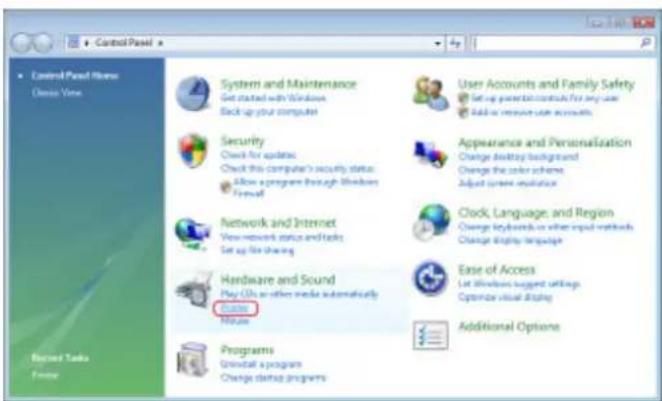
To set up the Printer Server in Windows Vista, follow the steps below:
- Open Printer Folder from the Control Panel.
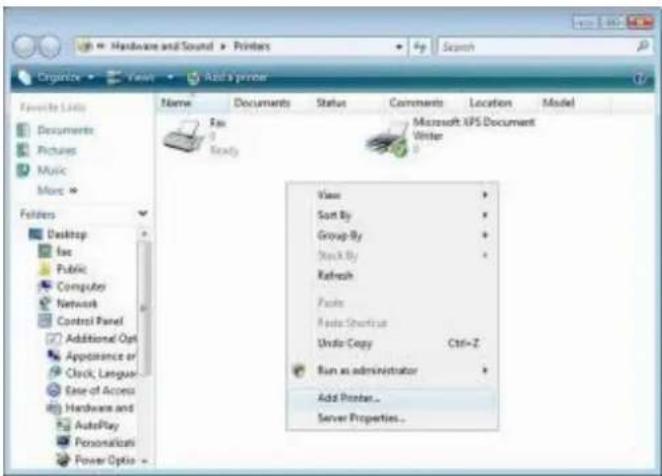
- Click the right mouse button in anywhere on the Printers folder and then select Add Printer.
- Select Add a network, wireless or Bluetooth printer.
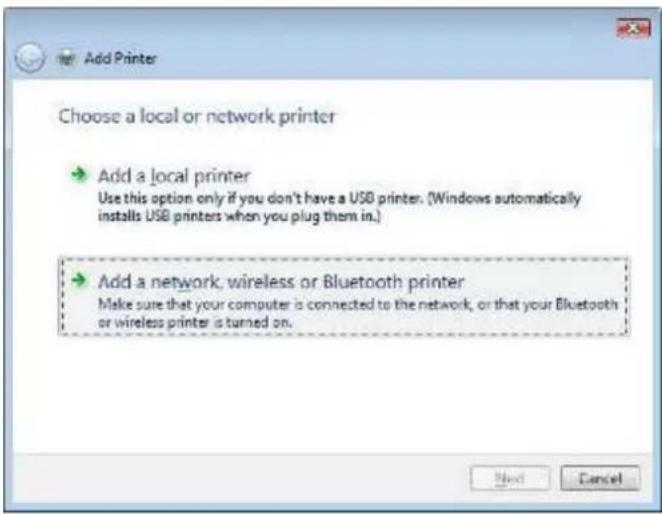
- Select The printer that I want isn't listed.
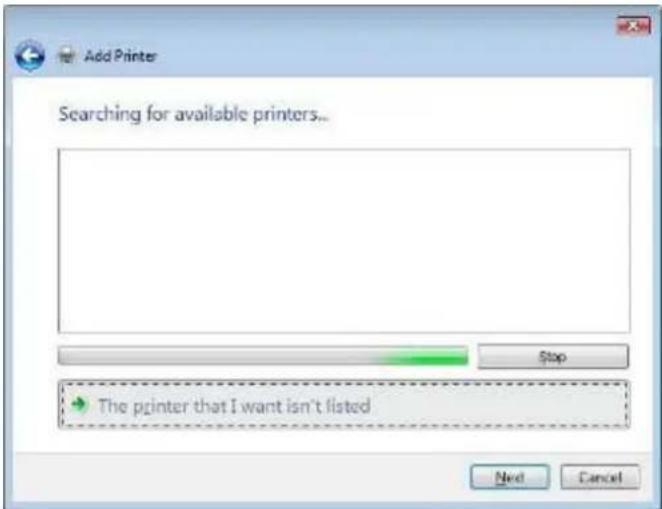
You can press The printer that I want isn't listed to go into next page without waiting for Searching for available printers to finish.
- Click Select a shared printer by name.
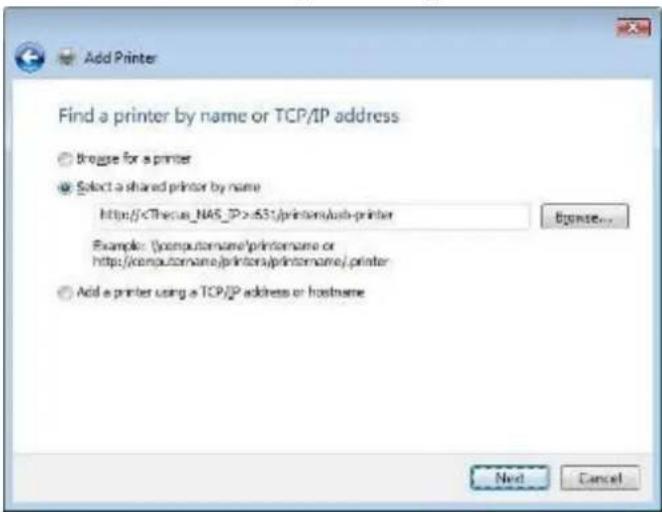
Type http://
- Select or install a printer and then press OK.
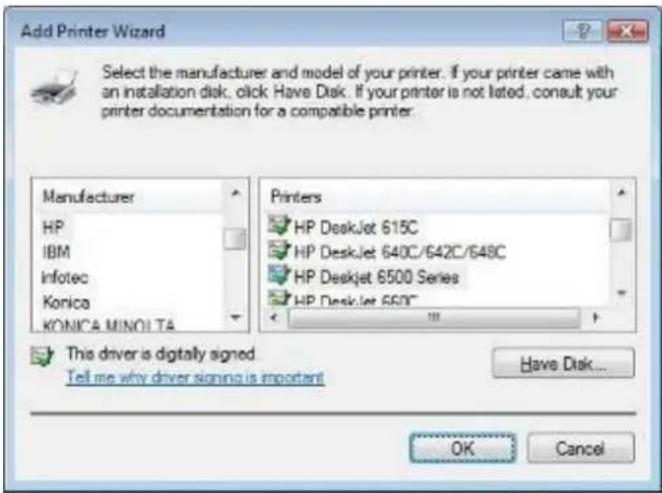
contact your printer manufacturer for help.
If your printer model is not listed, please
- Windows will attempt to connect to the printer.
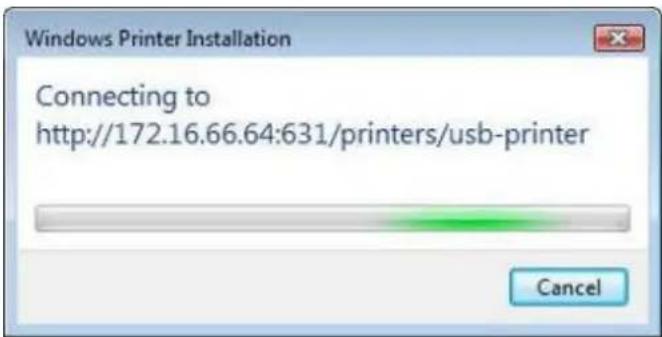
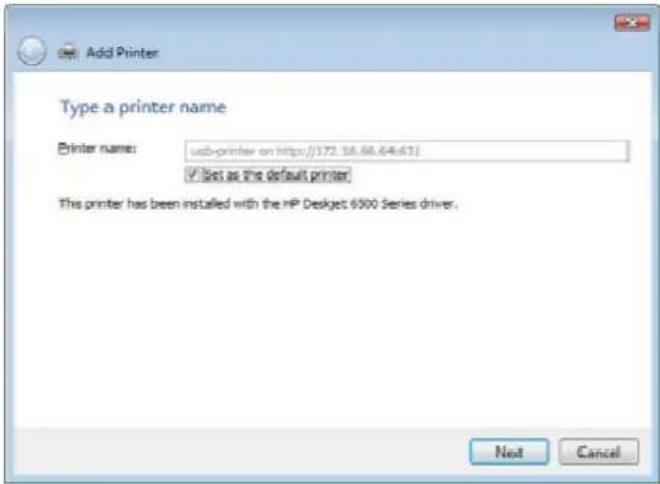
- You can choose to set this printer as the default printer by checking the Set as the default printer box. Click Next to continue.
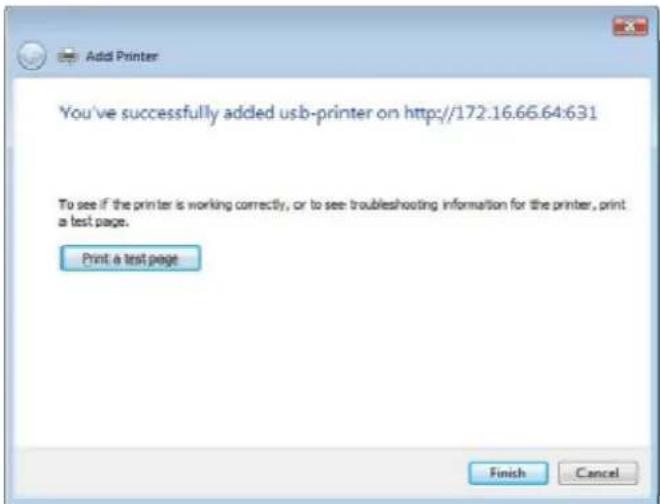
- Done! Click Finish.
iTunes® Server
With the built-in iTunes server capability, the N2200 enables digital music to be shared and played anywhere on the network!
From the Network menu, choose the iTunes item, and the iTunes Configuration screen appears. You may enable or disable the iTunes Service from here. Once enabled, enter correct information for each field and press Apply to save your changes.
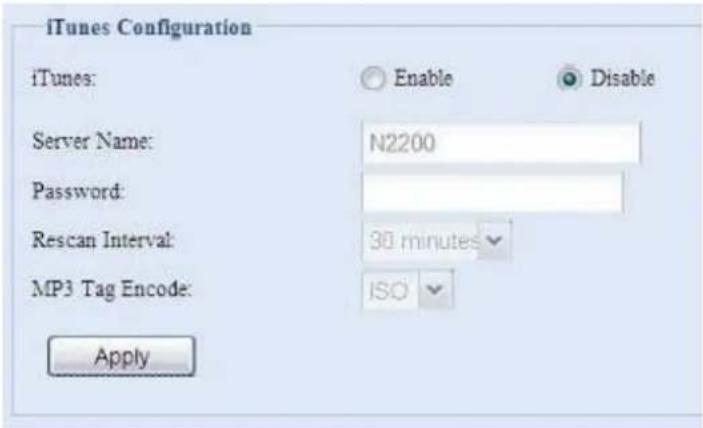
See the following table for detailed descriptions of each field:
| iTunes Configuration | |
| Item Description | |
| iTunes Enable or disable | the iTunes Service. |
| Server Name Name used | to identify the N2200 to iTunes clients. |
| Password Enter password | to control access to your iTunes music. |
| Rescan Interval Rescan | interval in seconds. |
| MP3 Tag Encode Specify | tag encoding for MP3 files stored in N2200. All ID3 tags will be sent out in UTF-8 format. |
Once the iTunes service is enabled, the N2200 will make all music located in the Music folder available for iTunes-equipped computers on the network.
Module Management
Module Installation
From the Module Management menu, choose the Module Installation item and the Module Management screen appears. From here, you can install separate software modules to extend the functionality of your N2200.
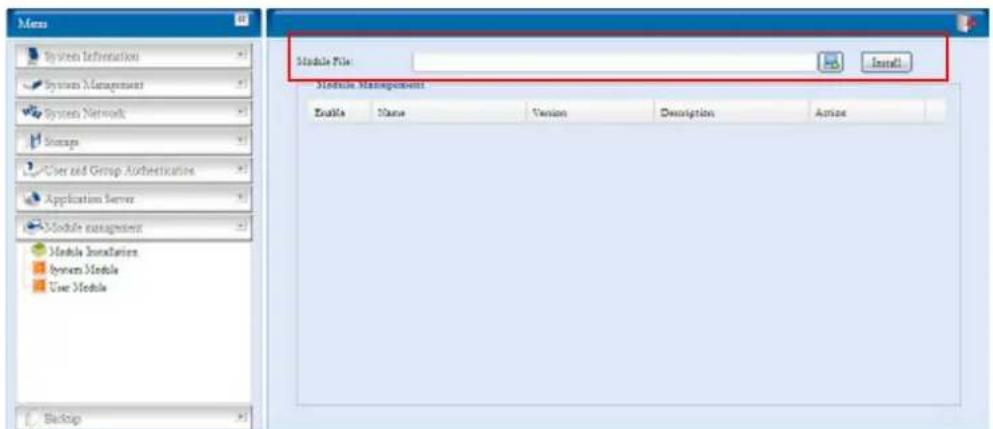
System Module
The system module is officially provided by Thecus for new features added.
User Module
The user module section is reserved for Thecus fans to build up 3^rd party functions in the future.
Backup
There are a number of ways to back up data with the N2200.
Nsync
You can backup a share folder to another N2200 (Nsync Target) or any FTP server for safe keeping as long as you have appropriate access right on that target. When using Nsync between two N2200s, you have the option to transmit files securely between them.
If the files on your N2200 are lost for any reason, you can restore those files from the target N2200. To backup files regularly, you can set up a scheduled task to run only once, daily, weekly, or monthly. You can also limit the bandwidth of your Nsync tasks, so other users on the network can share the bandwidth equally.
Under the Backup menu, click Nsync and the Nsync window appears.
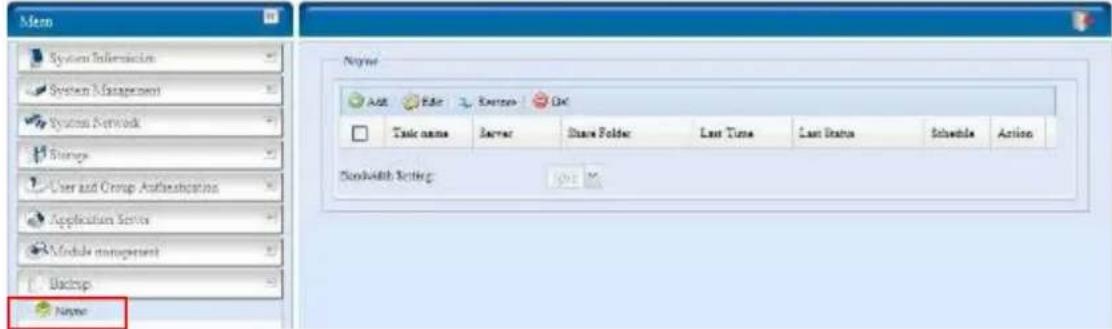
Below is a description of each field:
| Nsync | |
| Item Description | |
| Add Click to add a Nsync task | |
| Edit Click to Edit an Nsync task. | |
| Restore Restore share folder from an Nsync target. | |
| Del Click to delete an Nsync task. Backup files on Nsync target is also deleted. | |
| Task name The name of your Nsync task. | |
| Server The IP address of your target server | |
| Share folder The share folder you would want to backup. | |
| Last Time The time when the last Nsync task was executed. | |
| Last Status The status of your last Nsync task. | |
| Schedule Schedule backup of your share folders. | |
| Action | Administrator can run or stop an Nsync task by pressing the action button. |
| Bandwidth Setting | Bandwidth control on Nsync tasks. |
Add Nsync Task
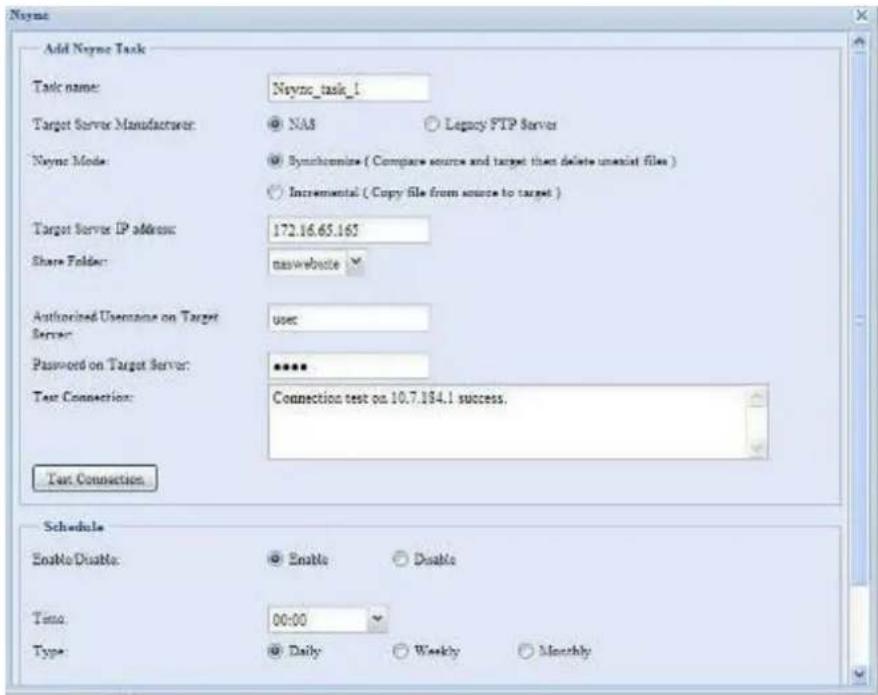
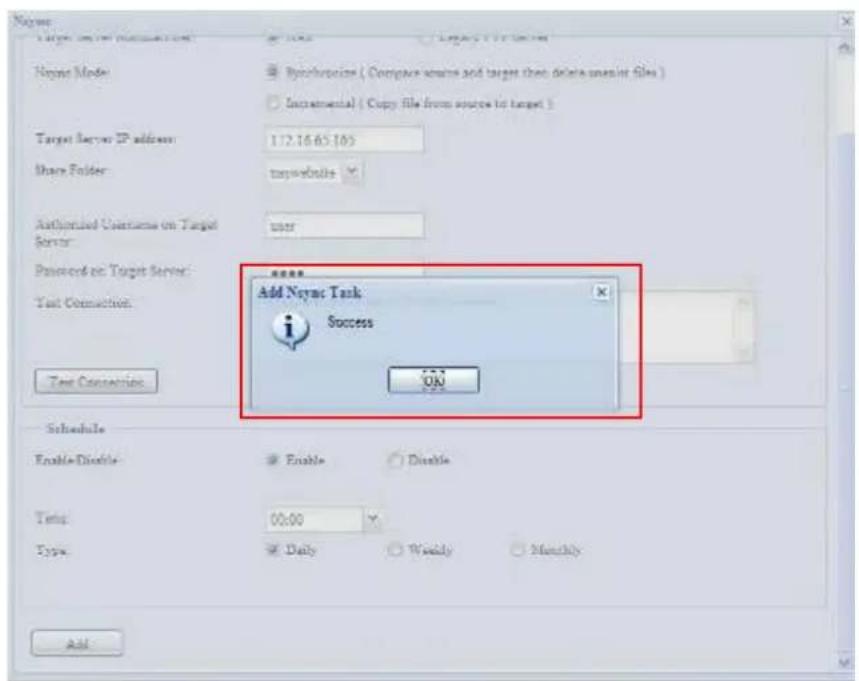
From the Nsync screen, click Add to display the Add Nsync Task screen.
| Add Nsync Task | |
| Item Description | |
| Task Name The name of your Nsync task. | |
| Target Server Manufacturer | Select whether the target is a Thecus Product (e.g. N2200) or FTP server. |
| Nsync Mode Synchronize mode or Incremental mode . | |
| Target Server IP Address | The IP address of your target server. |
| Source Folder The share folder you want to backup. | |
| Authorized Username on Target Server | The account name on the target server. |
| Password on Target Server | The password for the username on the target server. |
| Test Connection Click to check the connection to the Target Server. | |
| Schedule Enable or Disable schedule backup of your share folders. | |
| Time The time when the Nsync task will run. | |
| Type Select whether to run the Nsync task daily, weekly, or monthly.Daily: input the time of day to execute Nsync task.Weekly: input which day of the week to execute the task.Monthly: decide which day of the month to execute the task. | |
| Add Press Add to submit your settings. | |
NOTE
Before starting an Nsync Task, make sure the target server's Nsync Server (or FTP Server) is enabled.
Setting Up an Nsync Target on an Nsync Device
On the Nsync target server, the administrator of that server has to set up a user account with a folder named "nsync" and grant write access.
- On the Nsync server, add a user for Nsync source (ex. nsyncsource1). For instructions on how to add a user on the N2200, see Chapter 4: User and Groups Authentication> Local User Configuration > Add Users.
- On the Nsync server, grant that user (ex. nsyncsource1) write access to the nsync folder. For instructions on how to set up a folder's ACL, see Chapter 4: Storage management> Shore Folder> Folder Access Control List (ACL).
- Once this is done, the target server will start accepting Nsync tasks from server using that ID and password.
Setting Up an Nsync Target on Another Device
If you selected "Other Device" when setting up your Nsync task, the N2200 will use the FTP protocol to back up the share folder. On the external storage device, make sure there is a folder named "nsync", and the Auth ID has writable permission in that folder.
Designating N2200 as an Nsync Target
The N2200 can act as an Nsync server, enabling another Nsync-equipped Thecus NAS at a remote location backup their files to this N2200. From the System Network menu, choose the Nsync Target item, and the Nsync Target Server screen appears.
| Nsync Target Server Setting | |
| Item Description | |
| Nsync Target Server Enable or Disable Nsync Target support. | |
NOTE
To enable Nsync task to go through a firewall, you have to open port TCP/1194 on your firewall in both directions.
Chapter 5: Using the N2200
Overview
Once the N2200 is setup and operating, users on the network may manage all varieties of digital music, photos, or files by simply using their web browsers. To manage your personal files or access public files on the N2200, just enter its IP address into your browser (default IP address is http://192.168.1.100), and you will be taken to the N2200 Login page.
NOTE
Before proceeding, make sure that WebDisk Support or Secure WebDisk Support is enabled in the Service Support screen in the system's Network menu. See Service Support in Chapter 4: System Network >HTTP/Web Disk.
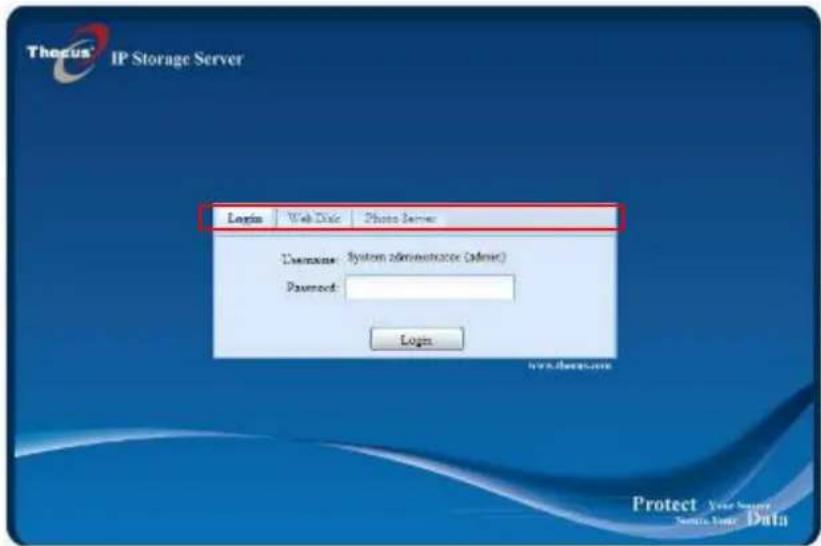
Login Page
To login to the system, enter your user name and password, and select Web Disk or Photo server then click Login to log into the system. You will be taken to the selected interface.
Using WebDisk
The N2200 provides a WebDisk function that allows you to access the system over the Internet from any browser.
-
In the Login page, type in the User ID and password that were previously set for you in the Accounts menu. See
Chapter 4:User and Group Authentication > Local User Configuration. -
The WebDisk page appears showing folders made currently available to you via the Access Control List (ACL).
-
Click on a folder name to enter the folder.
-
The folder's page appears displaying files and folders. Click on a file to download the file.
-
Buttons on the folder page allow you to create a new folder, upload files and delete files in the folder.
-
To create a new folder within the current folder, press the New folder button. When the screen appears enter a name for the folder. Press OK to create the folder.
- To upload a file from your computer to the current folder, press the New file (upload) button. When the screen appears, press Browse and locate the file to upload. Press OK and the file is uploaded to the current folder.
- To delete a file or folder, select the file or folder's check box. Press the Delete selected items button. You can also check the check box as the red circle indicates to select all files and folders in this folder.
To access folders with access control, you must first login with a local user account.
For more information on how to setup user rights to the folders, please check Chapter 4: Storage Management >Share Folder >Folder Access Control List (ACL).
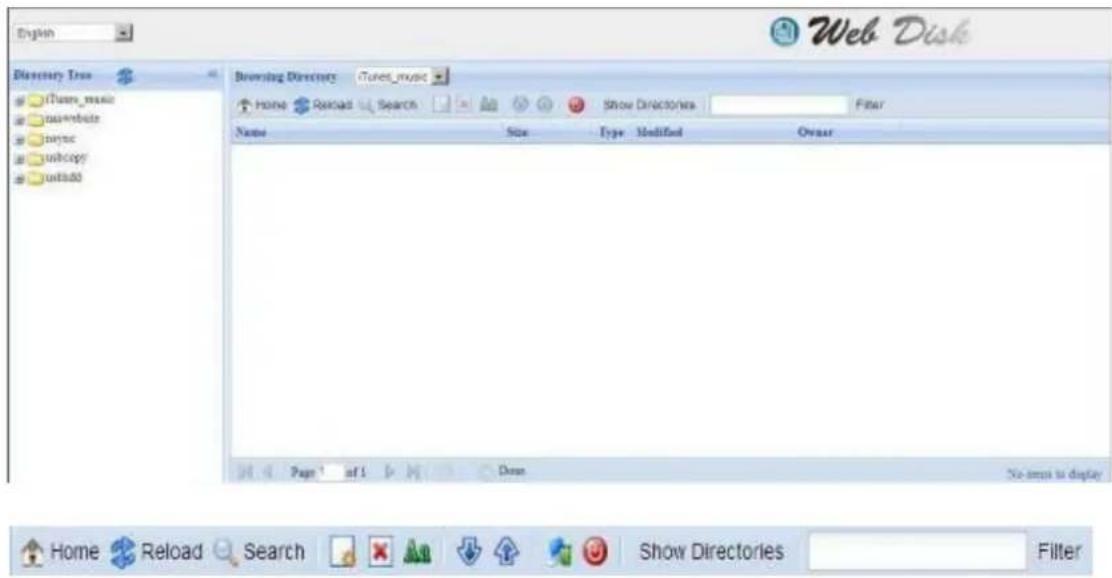
| Folder Page | |
| Button Description | |
| Directory Tree List all directory trees according to the login user's privileges. | |
| Browsing Directory Browsing selected directory of its folders and files. | |
| Home Go back to the web disk directory layer. | |
| Reload Re-load the current list. | |
| Search Search files in the current web disk directory.(Must input the complete file name.) | |
| (new file/Directory) Creates a new folder or directory. | |
| (delete) Deletes selected files or folders. | |
| (Rename) Rename a directory or file. | |
| (download) | Download a file to current folder of your computer. |
| (upload) Upload file | from your computer to current web disk folder. | |
| (Admin) Change password and confirm new password. | ||
| (logout) To logout of the web disk interface. | ||
| Show Directories Show the files and folders in the directory. | ||
| Filter Search files in the directory.(You can only input word strings.) | ||
| Name Displays the names of folders and files. | ||
| Size Shows the size of folders and files. | ||
| Type Displays the type of folders and files. | ||
| Modified Shows the time of most recent modification of folders and files. | ||
| Owner Owner of the file. | ||
There is also the way by using right click button to bring up contact windows as a shortcut.
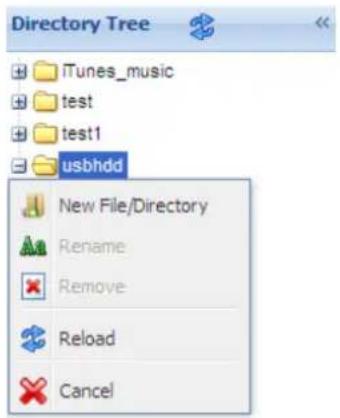
Photo Server
Using the Photo Server, users can view and share photos, and even create their own albums right on the N2200.
You will see your own Photo Gallery and all public Photo Albums on the network.
To manage any picture files, you must first select the item by clicking the box.
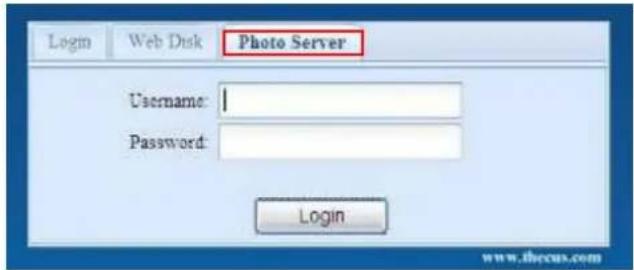
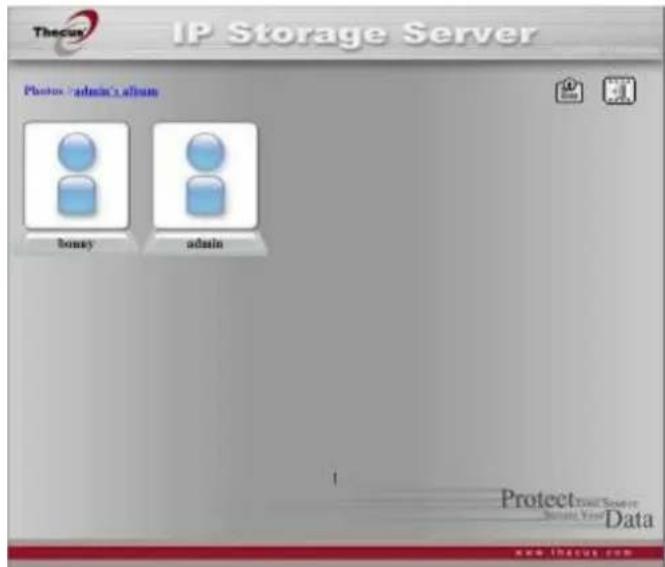
Windows XP Publishing Wizard
There are many ways for a local user to upload pictures into their photo album. Users of Windows XP can upload their pictures using the Windows XP Publishing Wizard.

- Click on the XP Publishing Wizard icon on top right corner.
- The XP Web Publishing Wizard Client screen appears. Click on the link to install the Publishing Wizard.
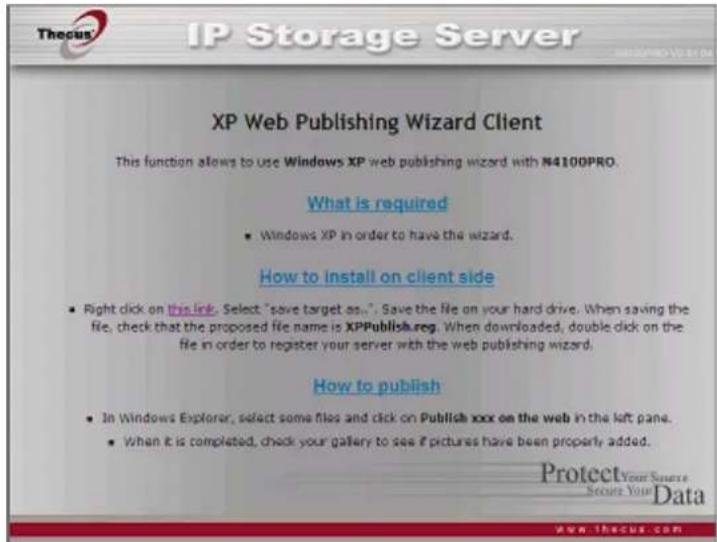
- Windows XP will ask whether you want to run or save this file. Click Save to save the register file.
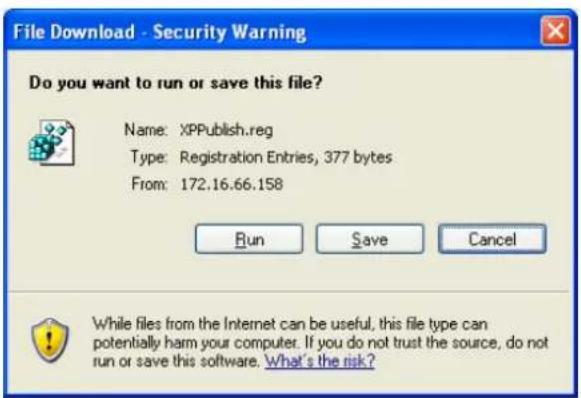
- Once the register file is installed, use the Windows file manager to browse the folder that contains the picture you want to publish. On the left pane, there will be an icon labeled "Publish this folder to the Web".
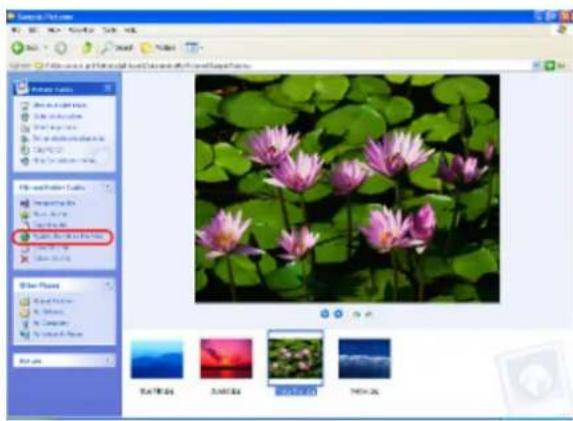
- Click on this icon and Web Publishing Wizard will start.
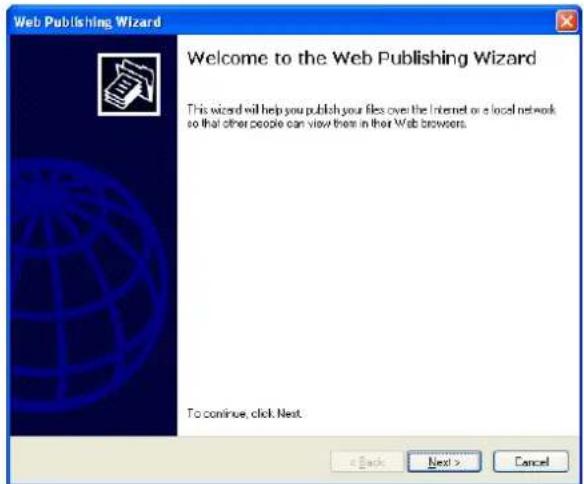
- Select the pictures you want to publish to the Photo Web Server by placing a check mark on the top left hand corner of the picture. Click Next.
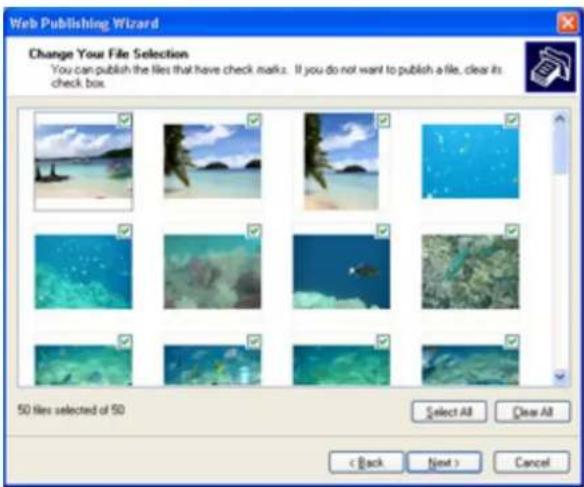
- Your PC will start to connect to the Photo Web Server.
- Select N2200 Photo Gallery Wizard to publish your pictures to the N2200.
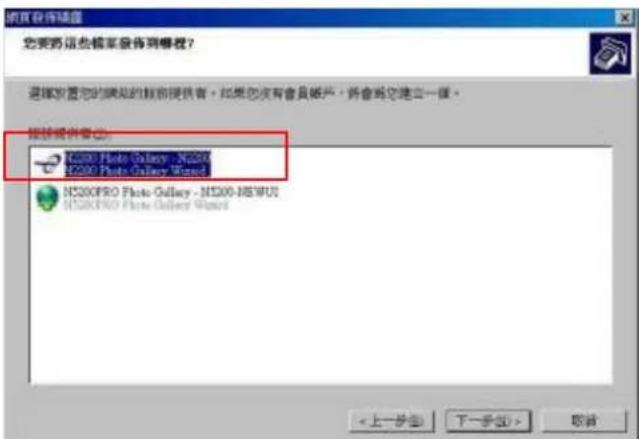
- Login into the N2200 with your local user name and password.
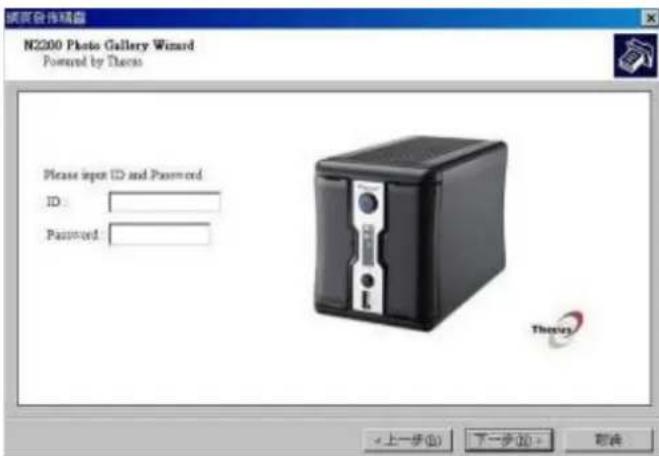
- Create your album by entering an album name and clicking on the Create Album button.
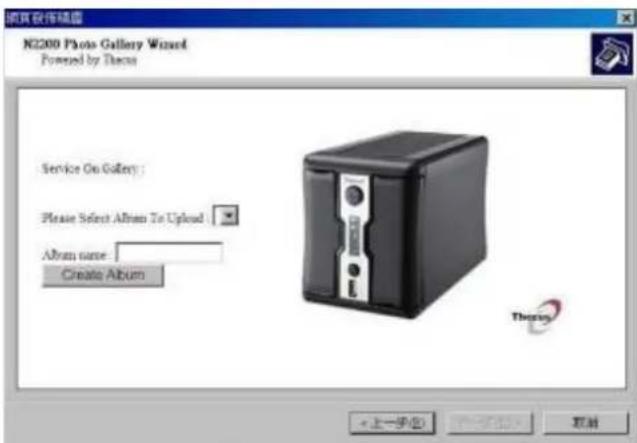
- Select the album you want to upload your pictures to.
- Confirm the target album.
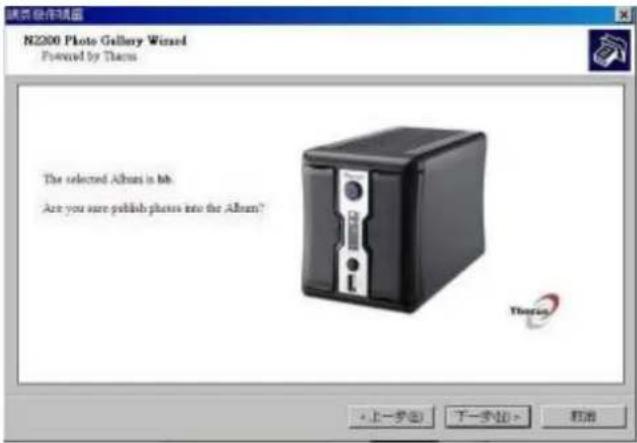
- Windows will show you that the picture upload is in progress.
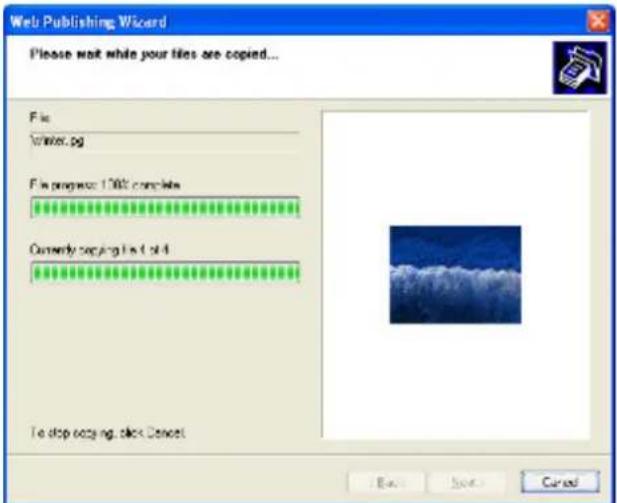
- When the upload is finished, the Wizard will ask you whether if you want to go to the website. Click Finish to go to your Photo Web Server.
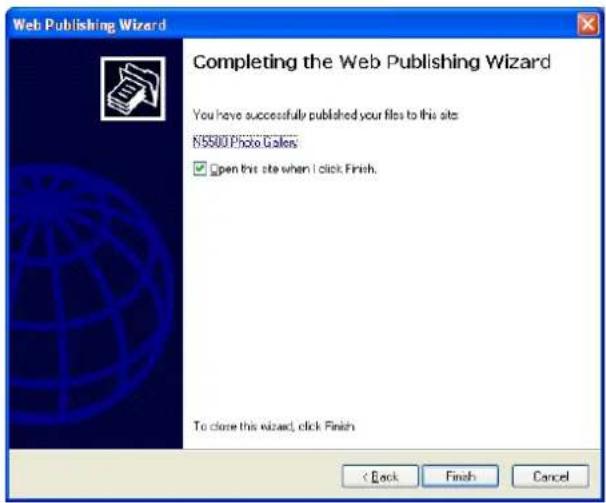
- Click on the user's icon to go to that user's album.
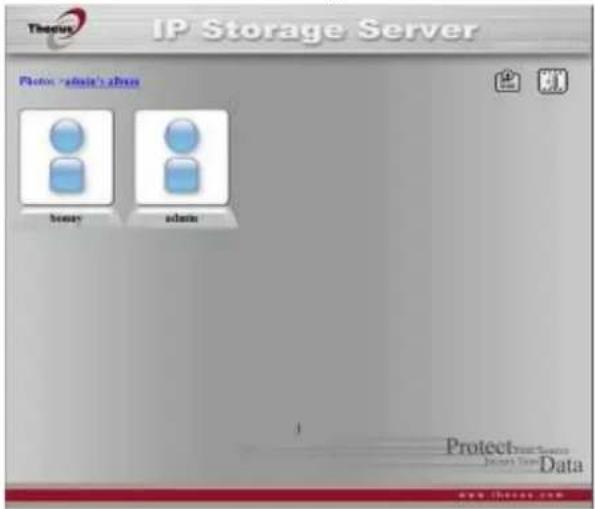
- You will see the user's album list. Click on Album.
- Finished! You will see the pictures just selected in the album.
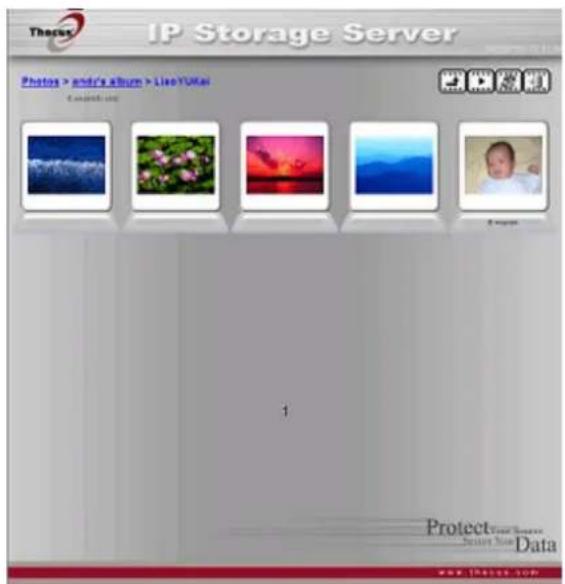
Managing Albums and Photos
Icon Function Description

Make Cover Make selected photo your cover picture.

Back Return to the previous screen.

Add Add a new album or photos.

Modify Edit the name and description of the selected album or photo. Each name is limited to 20 characters and each description is limited to 255 characters.

Delete Delete the selected albums or photos.
NOTE
- Only logged in users will see these icons.
- To prevent system errors, the N2200 sets the following limitations on photo files:
- Each file upload is limited to a size of 8MB. Files exceeding 8MB will NOT be uploaded and no error message will appear.
- Only these photo file types will be uploaded: *.jpg, *.gif, *.bmp, *.png, *.pcx, *.psd, *.bmp.
- If duplicate file names exist during upload process, system will add a number in front of the original file name (abc → 1abc).
Creating Albums
To create a photo album, follow the steps below:
- Click the Add button to create a new album.
- Enter a name for the album, and enter a description if you wish. Then, click on the Create Album button.
Password Protecting Albums
If you would like to put a password on a particular album, follow these steps:
- Select the album to be protected, click on the Edit button, and the Album Edit screen will appear.
- The owner of the album can enter an album password to protect the album, so that only people with the correct password can view the album.
Uploading Pictures to Albums
Uploading pictures to albums using the Web User Interface is easy:
- When the album is created, click the album icon to enter the album. Initially the album is empty.
- Click the Add button to upload pictures into the album. The Upload Photos screen will appear. Users can select and upload up to 8 pictures at a time.
- Once the picture is uploaded, you can view it in the album. The owner of the album can delete or modify the pictures with the Delete or Modify buttons on the top right hand corner
EXIF Information
While viewing pictures, you can also have the N2200 display the EXIF information for each photo.
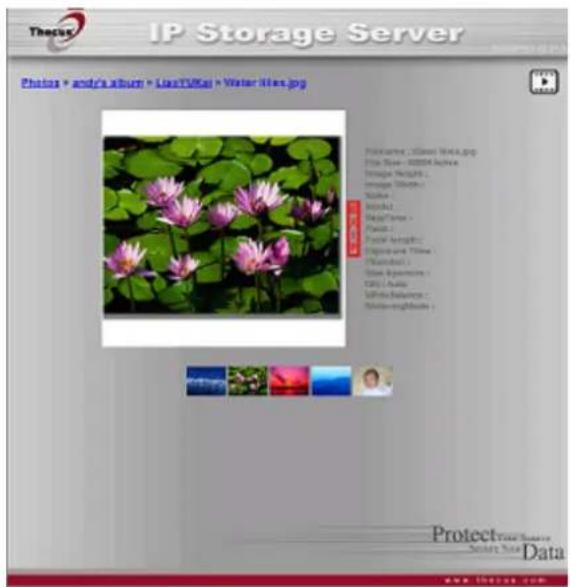
Simply click the EXIF button to display EXIF information. To hide this information, click the EXIF button again.
Slide Shows
Slide shows are a great way to enjoy pictures stored on your N2200.
You can click on the Start Slide Show icon on the top right hand corner to start the slide show.
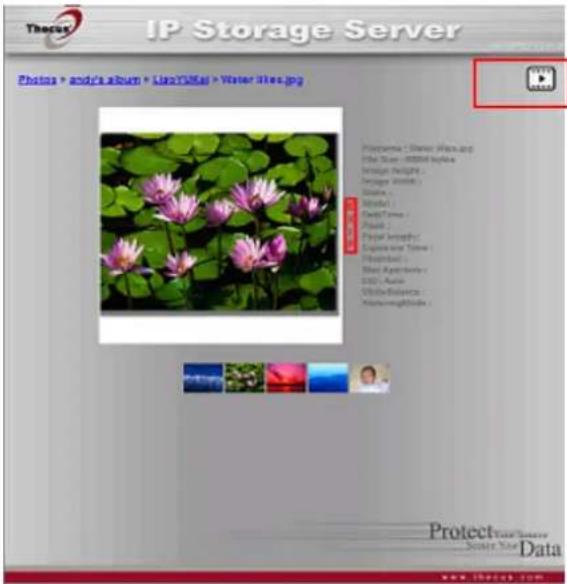
To stop the slide show, click on the Stop Slide Show icon on the top right hand corner.
Mapping a Client PC to the N2200
You can map share folders on the N2200 so that you can access them as if they were drives on your computer. You can connect to the shared network folders on the N2200 as follows:
Windows
-
Go to the My Computer folder in Windows.
-
In the menu bar, select Tools and then Map Network Drive...
-
The Map Network Drive window appears.
-
Assign a drive letter for the share folder.
-
Click the Browse button to find the folder over your network. Alternatively, you may enter the folder name you wish to connect to or enter its IP address. (i.e. \192.168.1.100\share)
-
Click Finish. When the Connect As... window appears, enter your user name and password.
-
Click OK. The share folder appears as the drive you assigned. You can now access this folder as though it were a drive on your computer.
Apple OS X
On an Apple computer, you can connect to shared computers and servers using a network address.
- Choose Go > Connect to Server...
- Enter the network address for the server in the Server Address text box. When connecting using SMB/CIFS protocol, type:
smb://192.168.1.100/Folder1
When connecting using AFP protocol, type:
afp://192.168.1.100/Folder1
Click Connect.
- When MAC OS X is trying to connect N2200, it will ask for a User Name and Password which has access to the folder.
- When MAC OS X has connected to the N2200 successfully, an icon representing the folder will appear on the MAC OS X desktop. You can access the folder by double clicking on the icon.
Chapter 6: Tips and Tricks
USB Storage Expansion
The N2200 supports external USB hard disks through its four USB ports. Once a USB hard disk has successfully mounted, the entire volume will be linked automatically to the default USB HDD folder. The N2200 supports up to 6 USB external storage devices. All file names on the USB disk volume are case sensitive.
Before attaching an USB disk drive to N2200, you have to partition and format it on a desktop computer or a notebook first. The attached device will be located at \192.168.1.100\usbhdd\sdf1 where 192.168.1.100 means the IP address of N2200 and sdf1 stands for the first partition on disk #6, the USB disk drive. If it is an NTFS partition, NAS users can open or copy files from \192.168.1.100\usbhdd\sdf1 but cannot add new files or modify existing files.
NOTE
If you want to write to a USB storage device, the file system must be FAT32.
| USB Storage FAT32 Partition | NTFS Partition |
| Read OK OK | |
| Write OK - |
Replacing Damaged Hard Drives
If you are using RAID 1, you can easily replace a damaged hard drive in the Thecus N2200 while keeping your data secure with the system's automatic data recovery.
Hard Drive Damage
When a hard drive is damaged and data in the RAID volume, the system LCD will display warning message and begin beeping.
Replacing a Hard Drive
To replace a hard disk drive in the N2200:
- Open front door of the N2200.
- For 3.5" HDDs
a. Remove the HDD tray
b. Get the HDD tray, remove failed hard disk(s) and install new hard disk(s).
c. Slide hard disks into the N2200 until they snap into place.
- For 2.5" HDDs
a. Remove the 2.5" HDD tray
b. Remove failure hard disk
c. Install new HDD on to the hard HDD tray
d. Slide into HDD tray till it snap into place.
RAID Auto-Rebuild
When using RAID 1 on the N2200, you can use the auto-rebuild function when an error is detected.
- When a hard disk fails the system beeps and/or an email notification is sent to specified recipients.
- Check the LCD to see which disk has failed.
- Follow the steps mentioned above to replace the failed hard disk.
- The system automatically recognizes the new hard disk and starts the auto-rebuild sequence to resume its status before the hard disk crash.
Chapter 7: Troubleshooting
Forgot My Network IP Address
If you forget your network IP address and have no physical access to the system, you can use the Smart _Utility to retrieve the IP of your N2200.
- Start the Smart Utility, and it will automatically detect all Thecus IP storage products on your network.
Resetting NAS IP Address and Admin Password
In case you changed the N2200 IP address and then forgot it, or forgot the administration password, follow the steps below to reset to default settings:
- Power on the N2200 and immediately press the Reset button for 5 seconds. (The reset button is near the LAN connector)
- This resets the N2200 to its default IP address and password settings.
Default IP: 192.168.1.100
Default admin password: admin
Can't Map a Network Drive in Windows XP
You may have problems mapping a network drive under the following conditions:
- The network folder is currently mapped using a different user name and password. To connect using a different user name and password, first disconnect any existing mappings to this network share.
- The mapped network drive could not be created because the following error has occurred: Multiple connections to a server or shared resource by the same user, using more than one user name, are not allowed.
Disconnect all previous connections to the server or shared resource and try again.
To check out existing network connections, type net use under the DOS prompt. You may refer the URL below for more network mapping information.
http://esupport.thecus.com/support/index.php?_m=downloads&_a=viewdownload&downloaditemid=57&nav=0
Restoring Factory Defaults
From the System menu, choose the Factory Default item and the Reset to Factory Default screen appears. Press Apply to reset the N2200 to factory default settings.
WARNING
Resetting to factory defaults will not erase the data stored in the hard disks, but WILL revert all the settings to the factory default values.
Problems with Time and Date Settings
The administrator is able to select an NTP Server to keep the N2200's time synchronized. However, if the N2200 can not access the Internet, you may encounter a problem when setting the Time and Time Zone. If this happens:
- Login to the Web Administration Interface.
- Navigate to System Management>Time.
- Under NTP Server, select No.
- Set the Date, Time, and Time Zone.
- Click Apply.
In addition, if the N2200 is able to access the Internet and you want to keep the NTP Server clock.isc.org by default, please make sure the DNS Server is correctly entered, thereby allowing the NTP Server name to correctly resolve. (See System Network > WAN > DNS Server)
Appendix A: Product Specifications
Hardware Specifications
| Product Model N2200 | |
| Network Interfaces | |
| LAN Gigabit RJ-45 connector | |
| Storage | |
| HDD Bays 2 x 3.5" or 2 x | 2.5" SATA HDD, hot-swappable |
| I/O Interfaces | |
| USB Ports 4 x USB type A | ports (Host mode), |
| System Information | |
| LCD Control Panel | HDD1 Power, Activity/FailHDD2 Power, Activity/FailLAN_WAN (Activity)USB_COPY BusyUSB_COPY Fail |
| System LED Display 1 x Power LED (Blue) | |
| Physical | |
| Buttons 1. System Power | On buttonReset to factory default buttonUSB Copy button |
| Power Supply | External Power adapter 12V/5A 60W |
| Environment | |
| Temperature 5 ~ 40°C | |
| Humidity 20 ~ 85% relative humidity (non-condensing) | |
| Certifications CE, FCC, BS | MI, C-Tick, RoHS Compliant |
Software Specifications
| Network File Protocols Microsoft Networks (CIFS/SMB)Apple Filing Protocol (AFP 3.0)Network File System (NFS v3)File Transfer Protocol (FTP)Hyper Text Transfer Protocol (HTTP)Secure Hyper Text Transfer Protocol (HTTPS) | |
| Authentication | Local User Account & Group |
| Network Client Type | Microsoft Windows NT/2000/XP/2003/VistaUnix/Linux/BSDMAC OS X/9 |
| Network Configuration | Fixed IP addressDynamic IP address |
| Disk Management | Disk status monitoring (S.M.A.R.T.)Disk idle spin-down (SATA only)Bad Block scan |
| RAID | RAID 0, 1and JBODAuto rebuildHot swappable |
| Folder Management | Share and sub-folders level permissionPublic folder |
| Backup Thecus Backup Utility (Windows XP/2000 and MAC OS X)-Smart_UtilityThecus Nsync | |
| System Management Web | GUIMultilingual support (English, French, German, Italian, Traditional Chinese, Simplified Chinese, Japanese, Korean, Spanish, Russian and Polish)NTP supportScheduled Power On/Off |
| Event Notification Email notificationBuzzer notificationLCD | |
| UPS Support UPS monitoring via USB interface , and system shutdown on low battery | |
| Printer Server USB Printer (IPP support) | |
| Supported USB Devices USB PrinterExternal HDD/flash diskUSB IEEE 802.11 b/g dongle w/AP mode support** | |
| Smart Utility Windows 2000/XP/2003MAC OS X | |
**For supported USB dongles, please contact sales@thecus.com
Appendix B: Customer Support
If your N2200 is not working properly, we encourage you to check out Chapter 7: Troubleshooting, located in this manual. You can also try to ensure that you are using the latest firmware version for your N2200. Thecus is committed to providing free firmware upgrades to our customers. Our newest firmware is available on our Download Center:
http://www.thecus.com/download.php
If you are still experiencing problems with your N2200, or require a Return Merchandise Authorization (RMA), feel free to contact technical support via our Technical Support Website:
http://www.thecus.com/support_tech.php
Customers in the US should send all technical support enquiries to the US contact window included in the following web page:
http://www.thecus.com/support_tech.php
For Sales Information you can e-mail us at:
sales@thecus.com
Thank you for choosing Thecus!

Appendix C: RAID Basics
Overview
A Redundant Array of Independent Disks (RAID) is an array of several hard disks that provide data security and high performance. A RAID system accesses several hard disks simultaneously, which improves I/O performance over a single hard disk. Data security is enhanced by a RAID, since data loss due to a hard disk failure is minimized by regenerating redundant data from the other RAID hard disks.
Benefits
RAID improves I/O performance, and increases data security through fault tolerance and redundant data storage.
Improved Performance
RAID provides access to several hard disk drives simultaneously, which greatly increases I/O performance.
Data Security
Hard disk drive failure unfortunately is a common occurrence. A RAID helps prevent against the loss of data due to hard disk failure. A RAID offers additional hard disk drives that can avert data loss from a hard disk drive failure. If a hard drive fails, the RAID volume can regenerate data from the data and parity stored on its other hard disk drives.
RAID Levels
The Thecus N2200 supports standard RAID levels 0, 1, and JBOD. You choose a RAID level when you create a system volume. The factors for selecting a RAID level are:
- Your requirements for performance
- Your need for data security
- Number of hard disk drives in the system, capacity of hard disk drives in the system
The following is a description of each RAID level:
RAID 0
RAID 0 is best suited for applications that need high bandwidth but do not require a high level of data security. The RAID 0 level provides the best performance of all the RAID levels, but it does not provide data redundancy.
RAID 0 uses disk striping and breaking up data into blocks to write across all hard drives in the volume. The system can then use multiple hard drives for faster read and write. The stripe size parameter that was set when the RAID was created determines the size of each block. No parity calculations complicate the write operation.
RAID 1
RAID 1 mirrors all data from one hard disk drive to a second one hard disk drive, thus providing complete data redundancy. However, the cost of data storage capacity is doubled.
This is excellent for complete data security.
JBOD
Although a concatenation of disks (also called JBOD, or "Just a Bunch of Disks") is not one of the numbered RAID levels, it is a popular method for combining multiple physical disk drives into a single virtual one. As the name implies, disks are merely concatenated together, end to beginning, so they appear to be a single large disk.
As the data on JBOD is not protected, one drive failure could result total data loss.
Stripe Size
The length of the data segments being written across multiple hard disks. Data is written in stripes across the multiple hard disks of a RAID. Since multiple disks are accessed at the same time, disk striping enhances performance. The stripes can vary in size.
Disk Usage
When 2 disks are of the same size, and used in RAID, N2200 disk usage percentage is listed below:
| RAID Level Percentage Used |
| RAID 0 100% |
| RAID 1 1/n x 100% |
| JBOD 100% |
n : number of installed HDDs
Appendix D: UPS Compatibility List
| Brand Series Model Notes | |||
| Ablerex MS-RT | |||
| ActivePower 1400VA | |||
| AEC MiniGuard UPS 700 M2501 cable | |||
| APC | Back-UPS Pro | ||
| Matrix-UPS | |||
| Smart-UPS | |||
| Back-UPS 940-0095A/C cables, 940-0020B/C cables, 940-0023A cable | |||
| Back-UPS Office | 940-0119A cable | ||
| Masterswitch Not a UPS - 940-0020 cable | |||
| Back-UPS RS 500 custom non-USB cable | |||
| Belkin | Regulator Pro serial | ||
| Resource | |||
| Home Office | F6H350-SER, F6H500-SER, F6H650-SER | ||
| Universal UPS | F6C800-UNV, F6C120-UNV, F6C1100-UNV, F6H500ukUNV | ||
| Best Power | Fortress (newer) | ||
| Fortress Telecom | |||
| Axxium Rackmount | |||
| Patriot Pro | |||
| Patriot Pro II | |||
| Patriot INT51 cable | |||
| Micro-Ferrups | |||
| Fortress/Ferrups f-command support | |||
| Centralion | Blazer | ||
| Clary | ST-800 | ||
| Compaq | T1500h | ||
| Cyber Power Systems | 320AVR, 500AVR, 650AVR, 700AVR, 800AVR850AVR, 900AVR, 1250AVR,. 1500AVR, Power99550SL, 725SL, CPS825VA, 1100AVR, 1500AVR-HO | ||
| Deltec | PowerRite Pro II | ||
| Dynex | 975AVR | ||
| Effekta MI/MT/MH 2502 cable | |||
| Energy Sistem | (various) | ||
| ETA | mini+UPS WinNT/Upsoft cable | ||
| ETA | mini+UPS PRO UPS Explorer cable | ||
| Ever UPS | NET *-DPC | ||
| AP *-PRO | |||
| Ever-Power | 625/1000 | ||
| Exide | NetUPS SE | ||
| Fenton Technologies | PowerPal P-series | ||
| PowerPal L-series | |||
| PowerOn | |||
| PowerPure | |||
| Fairstone | L525/L625/L750 | ||
| Fideltronik | Ares 700 and larger | ||
| Other Ares models | |||
| Fiskars | PowerRite MAX | ||
| PowerServer 10, 30 | |||
| Gamatronic | All models with alarm interface | ||
| MP110/210 | |||
| MS-T | |||
| MS | |||
| μPS3/1 | |||
| Gemini | UPS625/UPS1000 | ||
| HP | R3000 XR | ||
| R5500 XR | |||
| INELT | Monolith 1000LT | ||
| Infosec | iPEL | 350, 500, 750, 1000 | |
| Ippon | (various) | ||
| Liebert | UPStation GXT2 contact-closure cable | ||
| Masterguard | (various) | ||
| Meta System | HF Line | 1..4 boards, /2 5..8 boards | |
| HF Millennium | 810, 820 | ||
| HF TOP Line | 910, 920, 930, 940, 950, 960, 970, 980 | ||
| ECO Network | 750, M1000, M1050, M1500, M1800M2000, M2100, M2500, M3000 | ||
| ECO | 305, 308, 311, 511, 516, 519, 522 | ||
| ally HF | 800, 1000, 1250, 1600, 2000, 2500 | ||
| Megaline | 1250, 2500, 3750, 5000, 6250, 7500, 8750, 10000 | ||
| MGE UPS SYSTEMS | NOVA AVR 600 Serial | ||
| NOVA AVR 1100 Serial | |||
| Pulsar Ellipse | USBS Serial cable, S, Premium USBS Serial cable, Premium S | ||
| Ellipse Office | 600 Serial cable, 750 Serial cable, 1000 Serial cable, 1500 Serial cable | ||
| Pulsar EXtreme C / EX RT | |||
| Comet EX RT | Serial port, 3:1 Serial port | ||
| Pulsar Esprit | |||
| Comet EXtreme | |||
| Comet / Galaxy (Serial) | Utalk Serial Card (ref 66060), HID COM Serial Card (ref 66066) | ||
| MicroDowell | B.Box BP | 500, 750, 1000, 1500 | |
| Microsol | Solis | 1.0 1000VA, 1.5 1500VA, 2.0 2000VA, 3.0 3000VA | |
| Rhino | 6.0 6000VA, 7.5 7500VA, 10.0 10000VA, 20.0 20000VA | ||
| Mustek | Various | ||
| Powermust | 400VA Plus, 600VA Plus, 800VA Pro1000VA Plus, 1400VA Plus, 2000VA USB | ||
| Nitram | Elite | 500, 2002 | |
| Oneac | EG/ON Series advanced interface | ||
| Online | P-Series | ||
| OnLite | AQUA 50 | ||
| Orvaldi | various not 400 or 600 | ||
| Powercom | SMK-800A | ||
| ULT-1000 | |||
| Powercom | TrustTrust 425/625 | ||
| BNT-1000AP | |||
| Advice Partner/King Pr750 | |||
| BNT-2000AP | |||
| PowerGuard PG-600 | |||
| PowerKinetics | 9001 | ||
| PowerTech Comp1000 DTR cable power | |||
| Power Walker Line-Interactive VI1000 | |||
| Powerware | 3110, 3115, 5119, 5125, 5119 RM, PW5115PW5125PW9120, PW9125, 9120, 9150, 9305 | ||
| Powerwell | PM525A/-625A/-800A/-1000A/-1250A | ||
| Repotec | RPF525/625/800/1000 | ||
| RPT-800A | |||
| RPT-162A | |||
| SMS (Brazil) Manager III | |||
| SOLA | 325, 520, 610, 620, 330 | ||
| SOLA/BASIC Mexico | various ISBMEX protocol | ||
| Socomec Sicon | Egys 420 VA | ||
| Soltec | Winmate 525/625/800/1000 | ||
| Soyntec | Sekury C | 500, 800 | |
| SquareOne Power | QP1000 | ||
| SuperPower | HP360, Hope-550 | ||
| Sweex | 500/1000 smart - shipped with SafeNet | ||
| 500/1000 contact closure - shipped with UPSmart | |||
| BC100060 800VA | |||
| Sysgration | UPGUARDS Pro650 | ||
| Tecnoware | Easy Power 1200 | ||
| Tripp-Lite | SmartUPS | ||
| SmartOnline | |||
| (various) Lan 2.2 interface - black 73-0844 cable | |||
| Trust | UPS 1000 Management PW-4105 | ||
| UNITEK | Alpha | 500 IC, 1000is, 500 ipE | |
| UPSonic | LAN Saver 600 | ||
| Power Guardian | |||
| Victron/IMV | (various) | ||
| Lite crack cable | |||
NOTE
• The UPSes marked Blue have been tested and work well
- If your UPS is not in the support list, be sure that the UPS supports one of following protocols:
o SEC protocol
- Generic RUPS model
- Generic RUPS 2000 (Megatec M2501 cable)
- PhoenixTec protocol
- Safenet software
Appendix E: Licensing Information
Overview
This product included copyrighted third-party software licensed under the terms of GNU General Public License. Please see THE GNU General Public License for extra terms and conditions of this license.
Source Code Availability
Thecus Technology Corp. has exposed the full source code of the GPL licensed software. For more information on how you can obtain our source code, please visit our web site, http://www.thecus.com.
Copyrights
- This product includes cryptographic software written by Eric Young (eay@cryptsoft.com).
- This product includes software developed by Mark Murray.
- This product includes software developed by Eric Young (eay@cryptsoft.com).
- This product includes software developed by the OpenSSL Project for use in the OpenSSL Toolkit (http://www.openssl.org/).
- This product includes PHP, freely available from (http://www.php.net/).
- This product includes software developed by the University of California, Berkeley and its contributors.
- This product includes software developed by Winning Strategies, Inc.
- This product includes software developed by the Apache Group for use in the Apache HTTP server project (http://www.apache.org/).
- This product includes software developed by Softweyr LLC, the University of California, Berkeley, and its contributors.
- This product includes software developed by Bodo Moeller.
- This product includes software developed by Greg Roelofs and contributors for the book, "PNG: The Definitive Guide," published by O'Reilly and Associates.
- This product includes software developed by the NetBSD Foundation, Inc. and its contributors.
- This product includes software developed by Yen Yen Lim and North Dakota State University.
- This product includes software developed by the Computer Systems Engineering Group at Lawrence Berkeley Laboratory.
- This product includes software developed by the Kungliga Tekniska Högskolan and its contributors.
- This product includes software developed by the Nick Simicich.
- This product includes software written by Tim Hudson (tjh@cryptsoft.com).
- This product includes software developed by Christopher G. Demetriou for the NetBSD Project.
CGIC License Terms
Basic License
CGIC, copyright 1996, 1997, 1998, 1999, 2000, 2001, 2002, 2003, 2004 by Thomas Boutell and Boutell.Com, Inc.
Permission is granted to use CGIC in any application, commercial or noncommercial, at no cost. HOWEVER, this copyright paragraph must appear on a "credits" page accessible in the public online and offline documentation of the program. Modified versions of the CGIC library should not be distributed without the attachment of a clear statement regarding the author of the modifications, and this notice may in no case be removed. Modifications may also be submitted to the author for inclusion in the main CGIC distribution.
GNU General Public License
Version 2, June 1991
Copyright © 1989, 1991 Free Software Foundation, Inc. 51 Franklin St, Fifth Floor, Boston, MA 02110-1301 USA
Everyone is permitted to copy and distribute verbatim copies of this license document, but changing it is not allowed.
PREAMBLE
The licenses for most software are designed to take away your freedom to share and change it. By contrast, the GNU General Public License is intended to guarantee your freedom to share and change free software--to make sure the software is free for all its users. This General Public License applies to most of the Free Software Foundation's software and to any other program whose authors commit to using it. (Some other Free Software Foundation software is covered by the GNU Library General Public License instead.) You can apply it to your programs, too.
When we speak of free software, we are referring to freedom, not price. Our General Public Licenses are designed to make sure that you have the freedom to distribute copies of free software (and charge for this service if you wish), that you receive source code or can get it if you want it, that you can change the software or use pieces of it in new free programs; and that you know you can do these things.
To protect your rights, we need to make restrictions that forbid anyone to deny you these rights or to ask you to surrender the rights. These restrictions translate to certain responsibilities for you if you distribute copies of the software, or if you modify it.
For example, if you distribute copies of such a program, whether gratis or for a fee, you must give the recipients all the rights that you have. You must make sure that they, too, receive or can get the source code. And you must show them these terms so they know their rights.
We protect your rights with two steps: (1) copyright the software, and (2) offer you this license which gives you legal permission to copy, distribute and/or modify the software.
Also, for each author's protection and ours, we want to make certain that everyone understands that there is no warranty for this free software. If the software is modified by someone else and passed on, we want its recipients to know that what
they have is not the original, so that any problems introduced by others will not reflect on the original authors' reputations.
Finally, any free program is threatened constantly by software patents. We wish to avoid the danger that redistributors of a free program will individually obtain patent licenses, in effect making the program proprietary. To prevent this, we have made it clear that any patent must be licensed for everyone's free use or not licensed at all.
The precise terms and conditions for copying, distribution and modification follow.
TERMS AND CONDITIONS FOR COPYING, DISTRIBUTION AND MODIFICATION
- This License applies to any program or other work which contains a notice placed by the copyright holder saying it may be distributed under the terms of this General Public License. The "Program", below, refers to any such program or work, and a "work based on the Program" means either the Program or any derivative work under copyright law: that is to say, a work containing the Program or a portion of it, either verbatim or with modifications and/or translated into another language. (Hereinafter, translation is included without limitation in the term "modification".) Each licensee is addressed as "you".
Activities other than copying, distribution and modification are not covered by this License; they are outside its scope. The act of running the Program is not restricted, and the output from the Program is covered only if its contents constitute a work based on the Program (independent of having been made by running the Program).
Whether that is true depends on what the Program does.
- You may copy and distribute verbatim copies of the Program's source code as you receive it, in any medium, provided that you conspicuously and appropriately publish on each copy an appropriate copyright notice and disclaimer of warranty; keep intact all the notices that refer to this License and to the absence of any warranty; and give any other recipients of the Program a copy of this License along with the Program.
You may charge a fee for the physical act of transferring a copy, and you may at your option offer warranty protection in exchange for a fee.
- You may modify your copy or copies of the Program or any portion of it, thus forming a work based on the Program, and copy and distribute such modifications or work under the terms of Section 1 above, provided that you also meet all of these conditions:
a) You must cause the modified files to carry prominent notices stating that you changed the files and the date of any change.
b) You must cause any work that you distribute or publish, that in whole or in part contains or is derived from the Program or any part thereof, to be licensed as a whole at no charge to all third parties under the terms of this License.
c) If the modified program normally reads commands interactively when run, you must cause it, when started running for such interactive use in the most ordinary way, to print or display an announcement including an appropriate copyright notice and a notice that there is no warranty (or else, saying that you provide a warranty) and that users may redistribute the program under
these conditions, and telling the user how to view a copy of this License. (Exception: if the Program itself is interactive but does not normally print such an announcement, your work based on the Program is not required to print an announcement.)
These requirements apply to the modified work as a whole. If identifiable sections of that work are not derived from the Program, and can be reasonably considered independent and separate works in themselves, then this License, and its terms, do not apply to those sections when you distribute them as separate works. But when you distribute the same sections as part of a whole which is a work based on the Program, the distribution of the whole must be on the terms of this License, whose permissions for other licensees extend to the entire whole, and thus to each and every part regardless of who wrote it.
Thus, it is not the intent of this section to claim rights or contest your rights to work written entirely by you; rather, the intent is to exercise the right to control the distribution of derivative or collective works based on the Program.
In addition, mere aggregation of another work not based on the Program with the Program (or with a work based on the Program) on a volume of a storage or distribution medium does not bring the other work under the scope of this License.
- You may copy and distribute the Program (or a work based on it, under Section 2) in object code or executable form under the terms of Sections 1 and 2 above provided that you also do one of the following:
a) Accompany it with the complete corresponding machine-readable source code, which must be distributed under the terms of Sections 1 and 2 above on a medium customarily used for software interchange; or,
b) Accompany it with a written offer, valid for at least three years, to give any third party, for a charge no more than your cost of physically performing source distribution, a complete machine-readable copy of the corresponding source code, to be distributed under the terms of Sections 1 and 2 above on a medium customarily used for software interchange; or,
c) Accompany it with the information you received as to the offer to distribute corresponding source code. (This alternative is allowed only for noncommercial distribution and only if you received the program in object code or executable form with such an offer, in accord with Subsection b above.)
The source code for a work means the preferred form of the work for making modifications to it. For an executable work, complete source code means all the source code for all modules it contains, plus any associated interface definition files, plus the scripts used to control compilation and installation of the executable. However, as a special exception, the source code distributed need not include anything that is normally distributed (in either source or binary form) with the major components (compiler, kernel, and so on) of the operating system on which the executable runs, unless that component itself accompanies the executable.
If distribution of executable or object code is made by offering access to copy from a designated place, then offering equivalent access to copy the source code from the same place counts as distribution of the source code, even though third parties are not compelled to copy the source along with the object code.
-
You may not copy, modify, sublicense, or distribute the Program except as expressly provided under this License. Any attempt otherwise to copy, modify, sublicense or distribute the Program is void, and will automatically terminate your rights under this License. However, parties who have received copies, or rights, from you under this License will not have their licenses terminated so long as such parties remain in full compliance.
-
You are not required to accept this License, since you have not signed it. However, nothing else grants you permission to modify or distribute the Program or its derivative works. These actions are prohibited by law if you do not accept this License. Therefore, by modifying or distributing the Program (or any work based on the Program), you indicate your acceptance of this License to do so, and all its terms and conditions for copying, distributing or modifying the Program or works based on it.
-
Each time you redistribute the Program (or any work based on the Program), the recipient automatically receives a license from the original licensor to copy, distribute or modify the Program subject to these terms and conditions. You may not impose any further restrictions on the recipients' exercise of the rights granted herein. You are not responsible for enforcing compliance by third parties to this License.
-
If, as a consequence of a court judgment or allegation of patent infringement or for any other reason (not limited to patent issues), conditions are imposed on you (whether by court order, agreement or otherwise) that contradict the conditions of this License, they do not excuse you from the conditions of this License. If you cannot distribute so as to satisfy simultaneously your obligations under this License and any other pertinent obligations, then as a consequence you may not distribute the Program at all. For example, if a patent license would not permit royalty-free redistribution of the Program by all those who receive copies directly or indirectly through you, then the only way you could satisfy both it and this License would be to refrain entirely from distribution of the Program.
If any portion of this section is held invalid or unenforceable under any particular circumstance, the balance of the section is intended to apply and the section as a whole is intended to apply in other circumstances.
It is not the purpose of this section to induce you to infringe any patents or other property right claims or to contest validity of any such claims; this section has the sole purpose of protecting the integrity of the free software distribution system, which is implemented by public license practices. Many people have made generous contributions to the wide range of software distributed through that system in reliance on consistent application of that system; it is up to the author/donor to decide if he or she is willing to distribute software through any other system and a licensee cannot impose that choice.
This section is intended to make thoroughly clear what is believed to be a consequence of the rest of this License.
-
If the distribution and/or use of the Program is restricted in certain countries either by patents or by copyrighted interfaces, the original copyright holder who places the Program under this License may add an explicit geographical distribution limitation excluding those countries, so that distribution is permitted only in or among countries not thus excluded. In such case, this License incorporates the limitation as if written in the body of this License.
-
The Free Software Foundation may publish revised and/or new versions of the General Public License from time to time. Such new versions will be similar in spirit to the present version, but may differ in detail to address new problems or concerns.
Each version is given a distinguishing version number. If the Program specifies a version number of this License which applies to it and "any later version", you have the option of following the terms and conditions either of that version or of any later version published by the Free Software Foundation. If the Program does not specify a version number of this License, you may choose any version ever published by the Free Software Foundation.
- If you wish to incorporate parts of the Program into other free programs whose distribution conditions are different, write to the author to ask for permission. For software which is copyrighted by the Free Software Foundation, write to the Free Software Foundation; we sometimes make exceptions for this. Our decision will be guided by the two goals of preserving the free status of all derivatives of our free software and of promoting the sharing and reuse of software generally.
NO WARRANTY
-
BECAUSE THE PROGRAM IS LICENSED FREE OF CHARGE, THERE IS NO WARRANTY FOR THE PROGRAM, TO THE EXTENT PERMITTED BY APPLICABLE LAW. EXCEPT WHEN OTHERWISE STATED IN WRITING THE COPYRIGHT HOLDERS AND/OR OTHER PARTIES PROVIDE THE PROGRAM "AS IS" WITHOUT WARRANTY OF ANY KIND, EITHER EXPRESSED OR IMPLIED, INCLUDING, BUT NOT LIMITED TO, THE IMPLIED WARRANTIES OF MERCHANTABILITY AND FITNESS FOR A PARTICULAR PURPOSE. THE ENTIRE RISK AS TO THE QUALITY AND PERFORMANCE OF THE PROGRAM IS WITH YOU. SHOULD THE PROGRAM PROVE DEFECTIVE, YOU ASSUME THE COST OF ALL NECESSARY SERVICING, REPAIR OR CORRECTION.
-
IN NO EVENT UNLESS REQUIRED BY APPLICABLE LAW OR AGREED TO IN WRITING WILL ANY COPYRIGHT HOLDER, OR ANY OTHER PARTY WHO MAY MODIFY AND/OR REDISTRIBUTE THE PROGRAM AS PERMITTED ABOVE, BE LIABLE TO YOU FOR DAMAGES, INCLUDING ANY GENERAL, SPECIAL, INCIDENTAL OR CONSEQUENTIAL DAMAGES ARISING OUT OF THE USE OR INABILITY TO USE THE PROGRAM (INCLUDING BUT NOT LIMITED TO LOSS OF DATA OR DATA BEING RENDERED INACCURATE OR LOSSES SUSTAINED BY YOU OR THIRD PARTIES OR A FAILURE OF THE PROGRAM TO OPERATE WITH ANY OTHER PROGRAMS), EVEN IF SUCH HOLDER OR OTHER PARTY HAS BEEN ADVISED OF THE POSSIBILITY OF SUCH DAMAGES.
END OF TERMS AND CONDITIONS