179997 - Radio MANHATTAN - Free user manual and instructions
Find the device manual for free 179997 MANHATTAN in PDF.


| Product Type | Radio |
| Brand | Manhattan |
| Model | 179997 |
| Dimensions (W x H x D) | 200 x 130 x 70 mm |
| Weight | 0.5 kg |
| Power Source | AC 230V, 50Hz or 2 x AA batteries (not included) |
| Frequency Range | FM 87.5 - 108 MHz, AM 520 - 1710 kHz |
| Tuning | Digital tuner with 20 presets |
| Antenna | Telescopic for FM, built-in ferrite for AM |
| Display | LCD with backlight |
| Speaker | Built-in mono speaker, 3W RMS |
| Audio Input | 3.5 mm AUX input |
| Headphone Jack | 3.5 mm |
| Clock and Alarm | Digital clock with alarm and sleep timer |
| Controls | Rotary volume knob, tuning knob, and function buttons |
| Power Consumption | 10 W |
| Operating Temperature | 0°C to 40°C |
| Storage Temperature | -20°C to 60°C |
| Care and Cleaning | Wipe with a soft dry cloth; do not use solvents |
| Safety Precautions | Do not expose to moisture; keep away from heat sources; unplug during storms |
| Spare Parts / Repairability | No spare parts available; contact manufacturer for service |
Frequently Asked Questions - 179997 MANHATTAN
User questions about 179997 MANHATTAN
0 question about this device. Answer the ones you know or ask your own.
Ask a new question about this device
Download the instructions for your Radio in PDF format for free! Find your manual 179997 - MANHATTAN and take your electronic device back in hand. On this page are published all the documents necessary for the use of your device. 179997 by MANHATTAN.
USER MANUAL 179997 MANHATTAN
USB INTERNET RADIO USER MANUAL MODEL 179997

text_image
MANHATTAN
text_image
MANHATTAN™INTRODUCTION
Thank you for purchasing the MANHATTAN® USB Internet Radio, Model 179997.
If you have Internet access and a USB port, then you can enjoy the MANHATTAN USB Internet Radio, delivering more than 14,000 radio stations from around the world to a desktop or notebook computer. Unlike some popular media players and Web-based sources of entertainment, this USB Internet Radio allows you to instantly connect, hear and enjoy favorite sports, talk, music and news broadcasts from almost anywhere without subscriptions, use restrictions or costly upgrades.
It's easy to enjoy, too! As detailed below, just insert the MANHATTAN USB Internet Radio into a USB port to activate its multi-function onscreen control panel with search, sort, audio controls and settings. Choose from seven auto-play options to start selected broadcasts without delay or locate stations using built-in keyword search, Top 10 genre and region lists or explore comprehensive, updated station genre and region lists. Enter personal station ratings to influence Top 10 lists, contribute to trends and share opinions with other listeners. Save and add favorite stations and easily capture content to share and replay with convenient, one-touch recording.
Using the instructions and references in this manual, you'll soon be enjoying the benefits of these additional features:
- No monthly cost
- Search music by genre (for example, classical, pop, country) and geographically in more than 150 countries
- Multi-function on-screen control panel manages search, sort, favorites, recording and more
- Plug and Play: No software installation required
- Lifetime Warranty
System Requirements
• Available USB 1.1 or 2.0 port
- Intel Pentium III 700 / Celeron 667 or above, AMD Athlon 3500+ or above with 10 MB HDD space and 256 MB memory
- Internet Explorer 6 or 7
• Windows Media Player 9 or above
• VGA graphics with overlay support
• Windows 2000, XP (SP2) or Vista
Package Contents
• USB Internet Radio
- Quick install guide (this user manual can be downloaded from this Web site)
NOTE: Some screen images have been modified to fit the format of this manual.
INSTALLATION
To begin enjoying your USB Internet Radio, simply plug it into a USB port on your computer: The operating software will automatically be launched!
Upon initial installation, a Preferred Language prompt will display. Once you make your selection, a second prompt will display to download an ActiveX Control file: VBIRDPlayer.CAB. As this file is needed to play and record, click "Yes" to proceed.
Installation Suggestions to Ensure Proper Operation
Because computers vary with regard to OS versions, language and Preferences settings, the USB Internet Radio is designed to be compatible with the most common environment; i.e., general settings. If the stick's software doesn't appear to launch properly, check the following possible causes and solutions.
- If the USB Internet Radio software doesn't automatically display when the device is installed, confirm that AutoPlay is enabled.
NOTE: For Windows XP, only the Professional version allows a change to this setting; if using the Home version of XP, this change is not an option.
- Go to Start → Run. Enter "gpedit.msc" in the "Open" text field (shown at right).
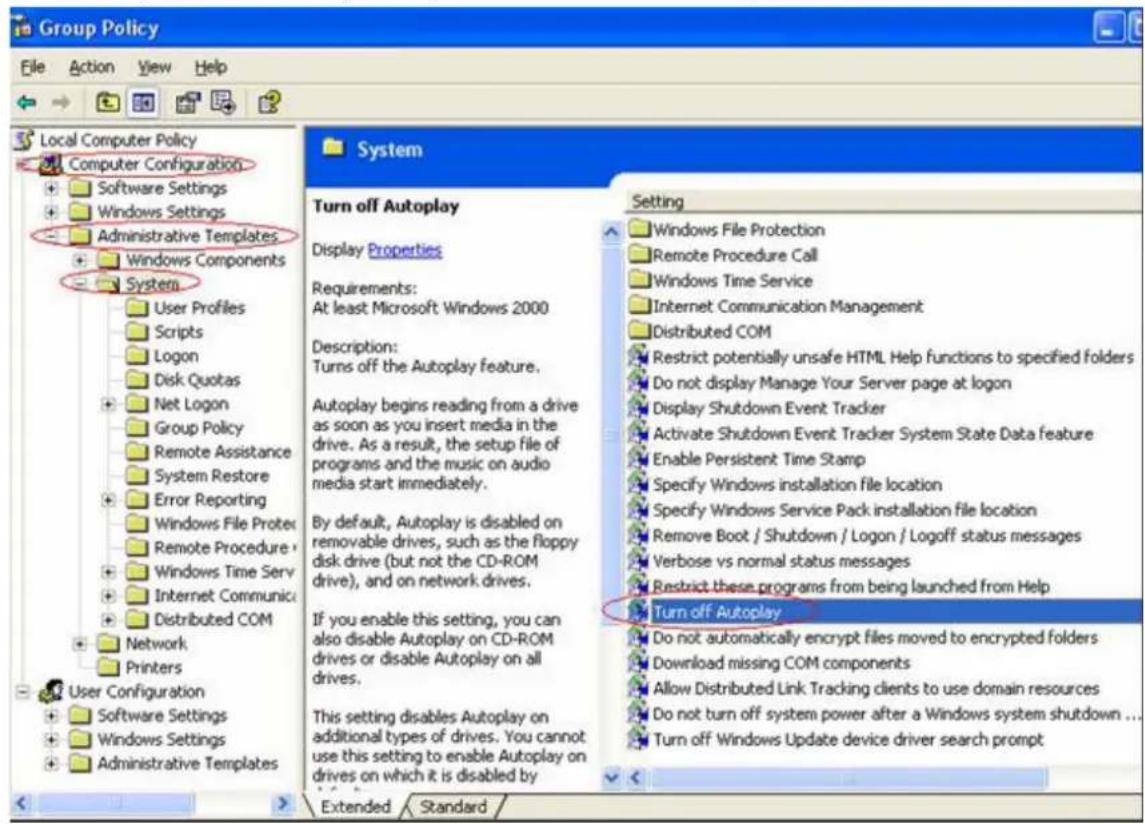
- In the left-side folder menu (shown below), select/open Computer Configuration → Administrative Templates → System.

text_image
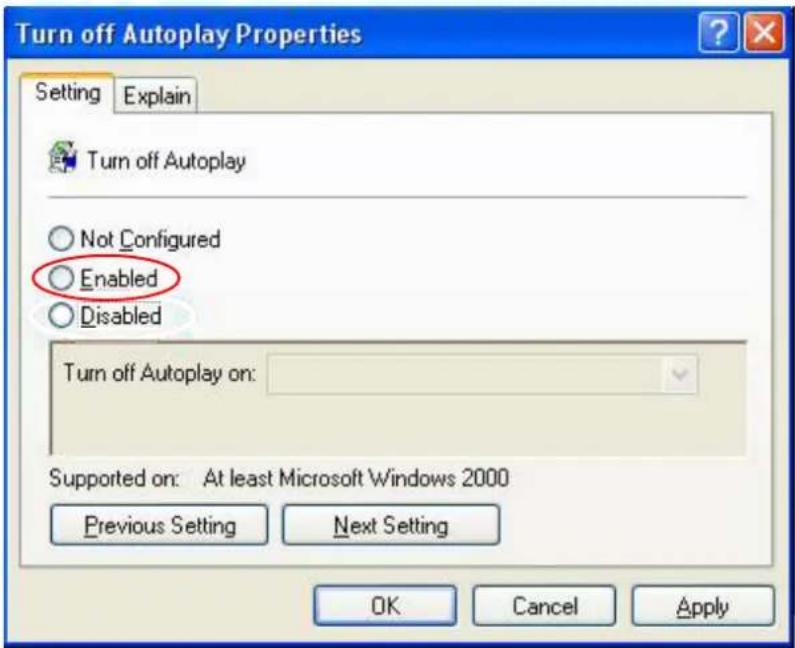
Run Type the name of a program, folder, document, or Internet resource, and Windows will open it for you. Open: gpedit.msc OK Cancel Browse...- In the right-side window, double-click the "Turn off AutoPlay" listing to display the Properties screen (below) and confirm the setting is "Enabled." Click "OK."
text_image
Group Policy File Action View Help Local Computer Policy Computer Configuration Software Settings Windows Settings Administrative Templates Windows Components System User Profiles Scripts Logon Disk Quotas Net Logon Group Policy Remote Assistance System Restore Error Reporting Windows File Protec Remote Procedure Windows Time Serv Internet Communic Distributed COM Network Printers User Configuration Software Settings Windows Settings Administrative Templates System Turn off Autoplay Display Properties Requirements: At least Microsoft Windows 2000 Description: Turns off the Autoplay feature. Autoplay begins reading from a drive as soon as you insert media in the drive. As a result, the setup file of programs and the music on audio media start immediately. By default, Autoplay is disabled on removable drives, such as the floppy disk drive (but not the CD-ROM drive), and on network drives. If you enable this setting, you can also disable Autoplay on CD-ROM drives or disable Autoplay on all drives. This setting disables Autoplay on additional types of drives. You cannot use this setting to enable Autoplay on drives on which it is disabled by Setting Windows File Protection Remote Procedure Call Windows Time Service Internet Communication Management Distributed COM Restrict potentially unsafe HTML Help functions to specified folders Do not display Manage Your Server page at logon Display Shutdown Event Tracker Activate Shutdown Event Tracker System State Data feature Enable Persistent Time Stamp Specify Windows installation file location Specify Windows Service Pack installation file location Remove Boot / Shutdown / Logon / Logoff status messages Verbose vs normal status messages Restrict these programs from being launched from Help Turn off Autoplay Do not automatically encrypt files moved to encrypted folders Download missing COM components Allow Distributed Link Tracking clients to use domain resources Do not turn off system power after a Windows system shutdown ... Turn off Windows Update device driver search prompt Extended Standard- Return to Computer Configuration (Step 2); select/open User Configuration (as shown below), then continue with Steps 2 and 3.
NOTE: If you prefer to not change this setting, you can launch the program by clicking the software icon in My Computer and selecting AutoPlay.
text_image
Turn off Autoplay Properties Setting Explain Turn off Autoplay ○ Not Configured ○ Enabled ○ Disabled Turn off Autoplay on: Supported on: At least Microsoft Windows 2000 Previous Setting Next Setting OK Cancel Apply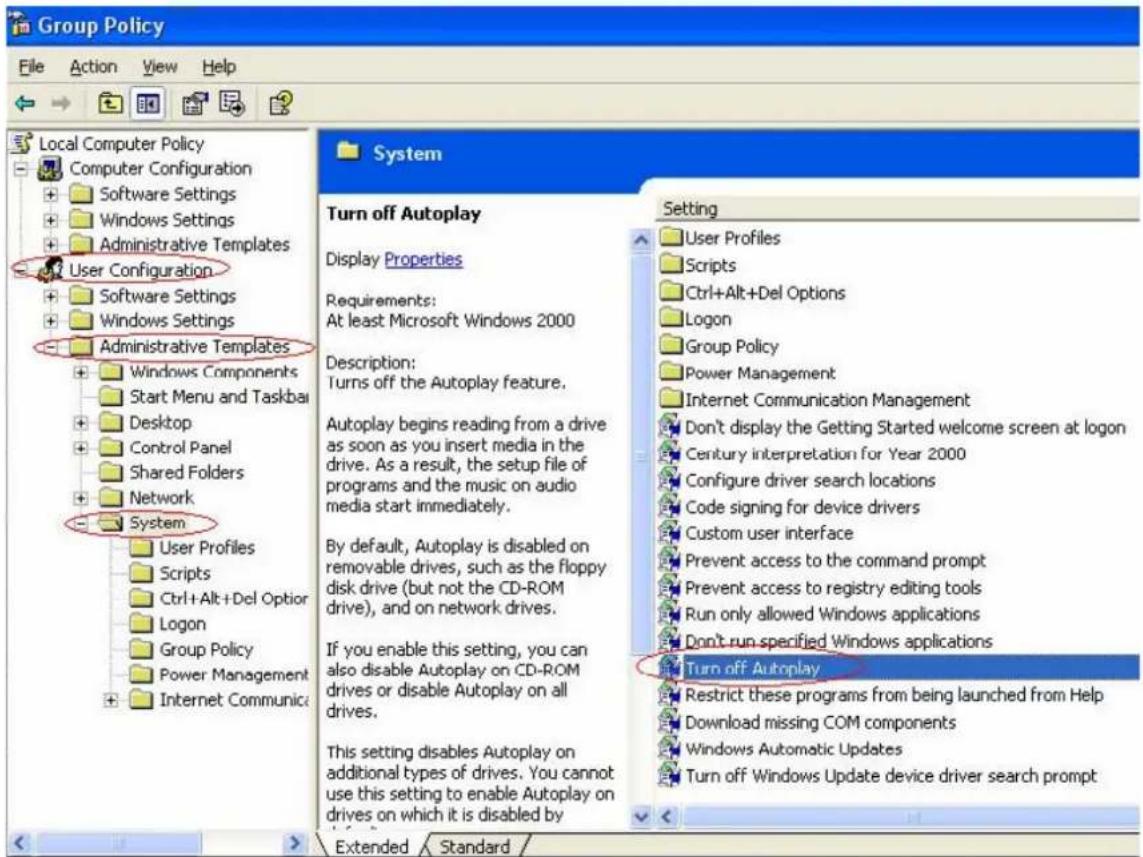
text_image
Group Policy File Action View Help Local Computer Policy Computer Configuration Software Settings Windows Settings Administrative Templates User Configuration Software Settings Windows Settings Administrative Templates Windows Components Start Menu and Taskbai Desktop Control Panel Shared Folders Network System User Profiles Scripts Ctrl+Alt+Del Option Logon Group Policy Power Management Internet Communicac System Turn off Autoplay Display Properties Requirements: At least Microsoft Windows 2000 Description: Turns off the Autoplay feature. Autoplay begins reading from a drive as soon as you insert media in the drive. As a result, the setup file of programs and the music on audio media start immediately. By default, Autoplay is disabled on removable drives, such as the floppy disk drive (but not the CD-ROM drive), and on network drives. If you enable this setting, you can also disable Autoplay on CD-ROM drives or disable Autoplay on all drives. This setting disables Autoplay on additional types of drives. You cannot use this setting to enable Autoplay on drives on which it is disabled by Setting User Profiles Scripts Ctrl+Alt+Del Options Logon Group Policy Power Management Internet Communication Management Don't display the Getting Started welcome screen at logon Century interpretation for Year 2000 Configure driver search locations Code signing for device drivers Custom user interface Prevent access to the command prompt Prevent access to registry editing tools Run only allowed Windows applications Don't run specified Windows applications Turn off Autoplay Restrict these programs from being launched from Help Download missing COM components Windows Automatic Updates Turn off Windows Update device driver search prompt- If a "Connection failed" message displays, check the Internet connection.
- If ActiveX fails to download, go to Control Panel → Internet Explorer → Tools → Internet Options. Click on the Security tab, click "Custom Level," then change the "Download signed ActiveX controls" option to "Enable."
- If the device fails to play, make sure your Media Player is version 9 or above.
- If none of the above notes/tips address or resolve the issue, check to see if your Internet service provider has a firewall in place that prevents the streaming of signal transmissions.
- In Vista, an AutoPlay window displays (image at right). Click/ select "Run IRDApp.exe." To preempt subsequent prompts, select "Always do this for software and games."

text_image
AutoPlay CD Drive (F:) 'iRadioPOP Always do this for software and games: Install or run program Run IRDApp.exe Publisher not specified General options Open folder to view files using Windows Explorer Set AutoPlay defaults in Control PanelOPERATION
The main screen of the USB Internet Radio is divided into four areas (with five primary functions), as detailed in the following sections:
A — Function Menu
B — Top 10 Station List
C — Internet Radio Station List
D — Live Radio Area
E — Control Area

text_image
Solace.fm Dreamradio Soft Rock Play to go 00:00:00 y referenced website or live stream belongs to the broadcaster. Search Top 10 - Genre Top 10 - Region Station - Genre Station - Region My Favorites History Add Stations Setting Help >> Top 10 - Genre 70s 80s 90s Adult Alternative Adult Contemporary Adult Hits Alternative Ambient Celtic Christian Christmas Music Classic Rock Classical College Comedy Community Contemporary Country Hill FM 91.7 BSSRADIO TB Rays Radio Beethoven Only RBP Radio Mozat KIRAY ESPN Radio TB Lightning Radio TB Buccaneers Radio NetSound - Beethoven and Maza... MANHATTAN 14009 Radio Stations & Counting USB INTERNET RADIOA — Function Menu
- Keyword Search — Enter a string and press the Enter key. The USB Internet Radio will search the station names that contain the string you entered.
-
Top 10 – Genre — Displays the top 10 stations for each genre, based on selections by all users.
-
Top 10 – Region — Displays the top 10 stations for each region, based on selections by all users.
- Station – Genre — Categorizes radio stations by genre.
- Station – Region — Categorizes radio stations by region.
- My Favorites — Displays your favorite stations added to this list using the "Add to Favorites" button. Newly added stations appear at the bottom of the list.
- History — Displays the 20 stations you listened to most recently, with the most recently played station at the top.
- Add Stations — Lets you suggest stations you'd like to see added to the system's primary station list.
- Setting — Lets you customize settings to find personal preferences quicker. Default Radio Station – Plug and Play: Assigns a station to be automatically played at launching, with several options for specifying a selection:

text_image
Default Radio Station - Plug and Play : None Random The most popular station at the time The No.1 in My Favorite List The station which I played last time Specified below Random from My Favorite Search Station : Select language : English Save Cancel- None — Don't play any station automatically. (Good for times when you want to check the station before others can hear it.)
- Random — The system will randomly pick one station from the radio station database.
- The most popular station at the time — The No. 1 station in the Top 10 – Genre list will play.
• The No. 1 in My Favorites List — Whatever is at the top of the list. - The station which I played last time — Whatever was playing when you exited this system.
- Random from My Favorites — Randomly picks a station from your favorite station list.
- Specified below — Specify a station by entering a string and search for all matched station names. All matched stations will be displayed in the pull-down list so you can pick one.
Select language: Use the pull-down menu to select your preferred language.
Click "Save" to save the settings. Now you can enjoy the music as you wish the next time.
- Help — Links to the MANHATTAN product information Web site, where you can then display this user manual and the product's quick install guide.
B — Top 10 Station List
text_image
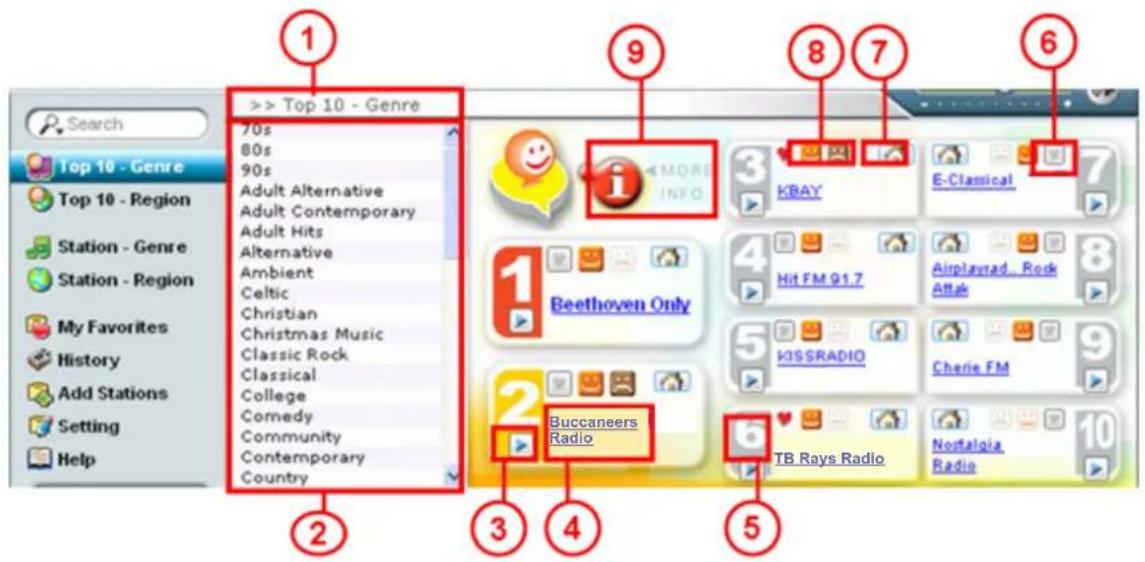
Search Top 10 - Genre Top 10 - Region Station - Genre Station - Region My Favorites History Add Stations Setting Help >> Top 10 - Genre 70s 80s 90s Adult Alternative Adult Contemporary Adult Hits Alternative Ambient Celtic Christian Christmas Music Classic Rock Classical College Comedy Community Contemporary Country Beethoven Only Buccaneers Radio KBAY E-Classical Hit FM G1.7 Airplayrad_Rock Attack KISSRADIO Cherie FM TB Rays Radio Nostalgia Radio- Path of the present position. Click along the path to backtrack.
- Select the genre or region to see the Top 10 in the category.
- Click the Play button to play the station; click the Stop button to stop.
- Radio station name, which you can click on to tune in this station.
- Radio station ranking.
- Click on this heart icon to add the station to My Favorites. A red heart means it has been added to My Favorites.
- Click the home icon to open the Web site of the station in another window.
- Vote to recommend a station by clicking the outlined smiling face in the station panel. The button will turn to a solid smiling face. To discommend a station (one you don't recommend), click the outlined frowning face in the station panel. The button will turn into a solid frowning face. Votes (positive or negative) determine each station's favorability ranking, which is refreshed in the Top 10 list.
- Click the More Info icon to see the details of the ranking on the screen that will subsequently display (below).

text_image
a b c d Search Top 10 - Genre 70s 80s 90s Adult Alternative Adult Contemporary Adult Hits Alternative Ambient Celtic Christian Christmas Music Classic Rock Classical College Comedy Community Contemporary Country 129 4 126 Country 20 Kbps Beethoven Only United Kingdom 2 97 5 92 Country 64 Kbps TB Rays Radio Boston 3 94 3 91 Country 32 Kbps KBAY 4 89 4 65 Country 64 Kbps Hit FM 91.7a. The ranking from 1 to 100.
b. The number of recommending votes, which increases with each click.
c. The number of discommending votes, which increases with each click.
d. The net voting (recommending votes minus discommending votes).
C — Internet Radio List

text_image
> Station - Genre / Adult Contemporary Search Top 10 - Genre Top 10 - Region Station - Genre Station - Region My Favorites History Add Stations Setting Help No Station Name Country Kbps Favorite Vote 1 100% Radio France 20 2 107.7 Splash FM United Kingdom 20 3 107.7 Splash FM United Kingdom 128 4 2GO FM Australia 128 5 4FM Belgium 96 6 91.4 Coast FM Cyprus 32 7 92.2 More FM New Zealand 32 8 92.2 More FM New Zealand 96 9 92.2 More FM New Zealand 192 10 97.3FM Australia 32 11 Adampio 91 FM Italy 22 2 3 4 5 6 7 8- Path of the present position. Click along the path to backtrack.
- Click the Play button to play the station; click the Stop button to stop.
- Radio station name, which you can click on to tune in this station.
- Click to open the Web site of the station in a new window.
- Country/Genre. In the Station - Genre list, this column will display the country in which this station originates. In the Station - Region list, this column will display the genre of this station's music.
- The transmission bit rate is displayed in kbps.
- Click the heart icon to add the station to My Favorites. A red heart indicates it's been added to your My Favorites list.
- Vote to recommend a station by clicking the outlined smiling face in the station panel. The button will turn to a solid smiling face. To discommend a station (one you don't recommend), click the outlined frowning face in the station panel. The button will turn into a solid frowning face. Votes (positive or negative) determine each station's favorability ranking, which is refreshed in the Top 10 list and detailed on the More Info screen (see Top 10 Station List above).
D — Live Radio Area

text_image
HIGH and MIGHTY COLOR HIGH and MIGHTY COLOR (haikara)- Radio station name.
- This dynamic label will show the name and information of the currently playing radio station.
- Status of the Play / Record function.
- Current recording time in hours, minutes and seconds (HH : MM : SS).
E — Control Area
-
Click the Play button to play the station; click Stop to stop.
-
Click the (−) button to minimize the program screen; click the (x) button to close the program altogether.
-
Click the red radio button to record the radio station currently being played; click it
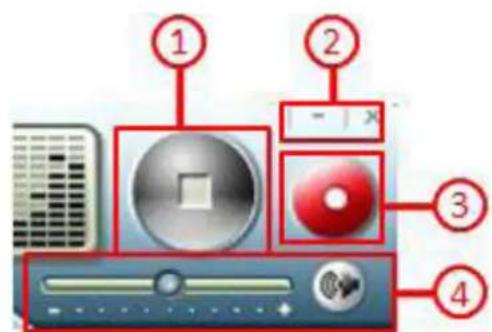
text_image
Diagram of computer interface components with numbered labels pointing to different media and display areasagain to stop recording. When you begin recording, you'll be prompted to select the path and filename for the recorded file. Switching to play another station will stop the recording process.
- Slide the Volume Control bar left (−) to lower the volume; slide it right (+) to raise the volume. Click the sound button to mute; click it again to reinstate sound.
FREQUENTLY ASKED QUESTIONS
Q: What is Internet radio?
A: Internet radio simply identifies any radio station or network distributing its signal over the Internet. As long as your computer connects to the Internet, you'll be able to listen to the radio without any proximity limitation. You can literally listen to a whole world of music from any location.
Q: What is "kbps"?
A: Kbps — displayed in a column on the USB Internet Radio List screen — is the number of kilobytes of a radio signal transferred each second. The bigger the number, the more data being transferred, which means that the sound quality will be better but more bandwidth will be used, which could affect other programs in use on your computer. When it displays “--,” it means the transfer speed has not yet been determined.
Q: Does any software need to be installed to use the USB Internet Radio?
A: No installation is needed. However, the first time the USB Internet Radio is installed you need to download an ActiveX control file. Simply plug the stick into a USB port and click "OK" when prompted. It'll take just few seconds to complete the download. After that, you won't need to download the file again.
Q: What are the software/hardware requirements of the USB Internet Radio?
A: Your computer needs to have Internet Explorer 6 (IE6) or Internet Explorer 7 (IE7) installed, and the operating system needs to be Windows 2000, XP (SP2) or Vista. It also needs Windows Media Player version 9 or above. For optimal music quality, connecting to the Internet by a wired LAN is recommended.
Q: Why can't the USB Internet Radio start automatically after plugging it in?
A: Settings of each computer will depend on the operating system, the selected language and user preferences. See the Installation Suggestions... section for operation details.
Q: Why doesn't the USB Internet Radio play all the radio stations after starting the program?
A: The ActiveX component may not be enabled. First make sure the computer's been connected to the Internet, then go to Control Panel → Internet Explorer → Tools → Internet Options → Security → Custom Levels → Download signed ActiveX controls → Enable.
Q: Why can't some radio stations be played on the USB Internet Radio?
A: Many Internet radio stations are non-profit entities with minimal funding (often operated by students or even home-office hosts), so they may not be “up and running” 24 hours a day or provide enough bandwidth to support an unlimited number of connected listeners. As a result, shoestring budgets and less-than-top-grade equipment can lead to connection problems. In order to maintain the highest possible degree of reliability to ensure user satisfaction, stations are regularly reviewed and, when necessary, removed from the database.
Another reason is that some sources may be blocked by the firewall.
Q: What causes noise and interrupted sound?
A: Noise can be caused by an unstable signal transmitted by an Internet radio station. Interruptions (“broken” sound) can occur when the bandwidth is insufficient or the Internet is congested. In the latter case, select a station with a lower bit rate (kbps).
Q: Can I listen to Internet radio after unplugging the USB Internet Radio?
A: No. The program shuts down automatically when the stick is removed from the USB port. If you inadvertently unplug the stick while listening, you can select the History list after you plug the device back in to see the station(s) you were listening to.
Q: Why do some stations disappear suddenly?
A: To ensure all stations that are made available remain connectable, their connection status is continually monitored. Once a connection-failed station is detected, it's removed from all station lists, including My Favorites and Recommended lists.
Q: Are new radio stations added on a regular basis?
A: Yes! So be sure you stay tuned!
SPECIFICATIONS
Standards and Certifications
• CE
- FCC
- USB 1.1
- USB 2.0
General
- Connector: (1) USB A-type male with protective cover
- Displays: multi-function menu, station lists, broadcast source, timer and acoustic graphic analyzer
- Multi-function menu: Keyword search, genre and region displays, genre and region categories, favorites, history, add stations and settings
• Controls: play/stop, volume, mute and record/stop
• Recording format: Windows Media (WMA)
• Language preference: manual selection (Chinese, Dutch, English, French, German, Italian, Japanese, Korean, Portuguese, Russian, Spanish) - LED indicator
- Operating temperature: 0 – 60°C (32 – 140°F)
• Storage temperature: 20 – 60°C (-4 – 185°F)
• Dimensions: 5 x 1.8 x 0.9 cm (2 x 0.7 x 0.35 in.)
• Weight: 10 g (0.33 oz.)
System Requirements
• Available USB 1.1 or 2.0 port
- Intel Pentium III 700 / Celeron 667 or above, AMD Athlon 3500+ or above with 10 MB HDD space and 256 MB memory
• Internet Explorer 6 or 7
• Windows Media Player 9 or above
• VGA graphics with overlay support
• Windows 2000, XP (SP2) or Vista
MANHATTAN™
BRINGING COMPUTERS TO LIFE
MANHATTAN® offers a complete line of PC Components, Peripherals, Cables and Accessories. Ask your local computer dealer for more information or visit us online at
www.manhattan-products.com