
Premier Office Keyboard - Keyboard Tripp Lite - Free user manual and instructions
Find the device manual for free Premier Office Keyboard Tripp Lite in PDF.


| Product Type | Wired Keyboard with Integrated Audio and USB Hub |
| Model | IN3007KB |
| Brand | Tripp Lite |
| Connectors | 1 x USB Type-A (black), 1 x PS/2 (purple), 1 x Microphone (pink), 1 x Earphone (light green), 1 x Speaker bypass (light green female) |
| Built-in Ports | 1 x USB 2.0 (right side), 1 x Headset (left side) |
| Hot Keys | 17 programmable hot keys with default functions (Back, Forward, Stop, Refresh, Volume, Media playback, Search, Favorites, Email, My Computer, Calculator, etc.) |
| Software | iOfficeWorks (customization) and iKeyWorks (for Windows 98) |
| Operating Systems Supported | Windows 95/98/ME/2000/NT4.0/XP; hot keys supported natively on Windows 2000 and above |
| Power Source | USB bus-powered |
| Dimensions (Approx.) | 18.5 x 6.5 x 1.2 inches (47 x 16.5 x 3 cm) |
| Weight (Approx.) | 1.5 lbs (0.68 kg) |
| Cable Length | 6 ft (1.8 m) |
| Color | Black |
| Warranty | Limited lifetime warranty (as per Tripp Lite policy) |
| Cleaning Instructions | Wipe with a soft, dry cloth. Do not use liquids or solvents. |
| Safety Precautions | Read user guide before installation; turn off computer before connecting. |
| Spare Parts Availability | Not specified; contact Tripp Lite support. |
Frequently Asked Questions - Premier Office Keyboard Tripp Lite
User questions about Premier Office Keyboard Tripp Lite
0 question about this device. Answer the ones you know or ask your own.
Ask a new question about this device
Download the instructions for your Keyboard in PDF format for free! Find your manual Premier Office Keyboard - Tripp Lite and take your electronic device back in hand. On this page are published all the documents necessary for the use of your device. Premier Office Keyboard by Tripp Lite.
USER MANUAL Premier Office Keyboard Tripp Lite
Premier Office Keyboard
User's Guide
Model: IN3007KB
CAUTION: To use this device properly, please read the user's guide before installation.
Tripp Lite World Headquarters 1111 W. 35th Street • Chicago, IL 60609 USA (773) 869-1234 • www.tripplite.com
Copyright © 2006 Tripp Lite. All rights reserved. All trademarks are the property of their respective owners. The policy of Tipp Lite is one of continuous improvement.
Specifications are subject to change without notice.
Installation
To connect your keyboard:
1) Turn off your computer power
2) Unplug the existing keyboard
3) Connect your new keyboard using the steps below
| The keyboard comes with 5 connectors1. Plug the black pluginto the USB port.2. Plug the purple plug into the PS/2keyboard port (purple round port).3. Plug the pink plug into the sound card'smicrophone port (pink round port).4. Plug the light green plug into the soundcard's earphone (speaker) port (light greenround port).5. Plug the speaker plug (light green femaletype port) into BOTH the headset andspeaker ports. | 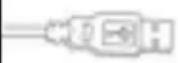 | USB plug |
 | PS/2 plug | |
 | Microphoneplug | |
 | Earphoneplug | |
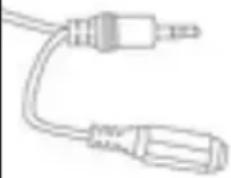
| Extraspeakerbypass plug | ||
| Headset extension port is located on theleft side of the keyboard. | 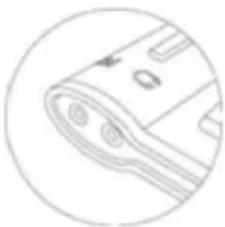 Headset extension port Headset extension port | |
| USB 2.0 extension port is locatedon the right side of the keyboard.Supports most IT devices:Mouse • Digital Camera • MP3 PlayerFlash Drive • And more | 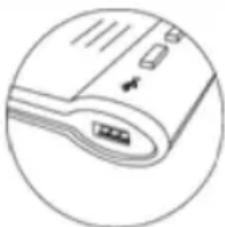 USB 2.0 extension port USB 2.0 extension port | |
NOTE: For built-in extension ports on the keyboard
The built-in extension ports (1 USB/1 Audio in/1 Audio out) on the keyboard are available only when the USB plug and headset plugs are connected to your computer.
Installing the Keyboard Software
Before you can take advantage of the many features of your keyboard, you must install the driver. The driver is in the installation CD that came packaged with the keyboard.
Windows 95/98/ME/2000/NT4.0/XP installation:
- Insert the included CD into your CD-ROM.
- The Auto-run installation Menu window will pop up for your setup.
- Follow the on-screen instructions to accomplish the installation.
Using the iOfficeWorks Software
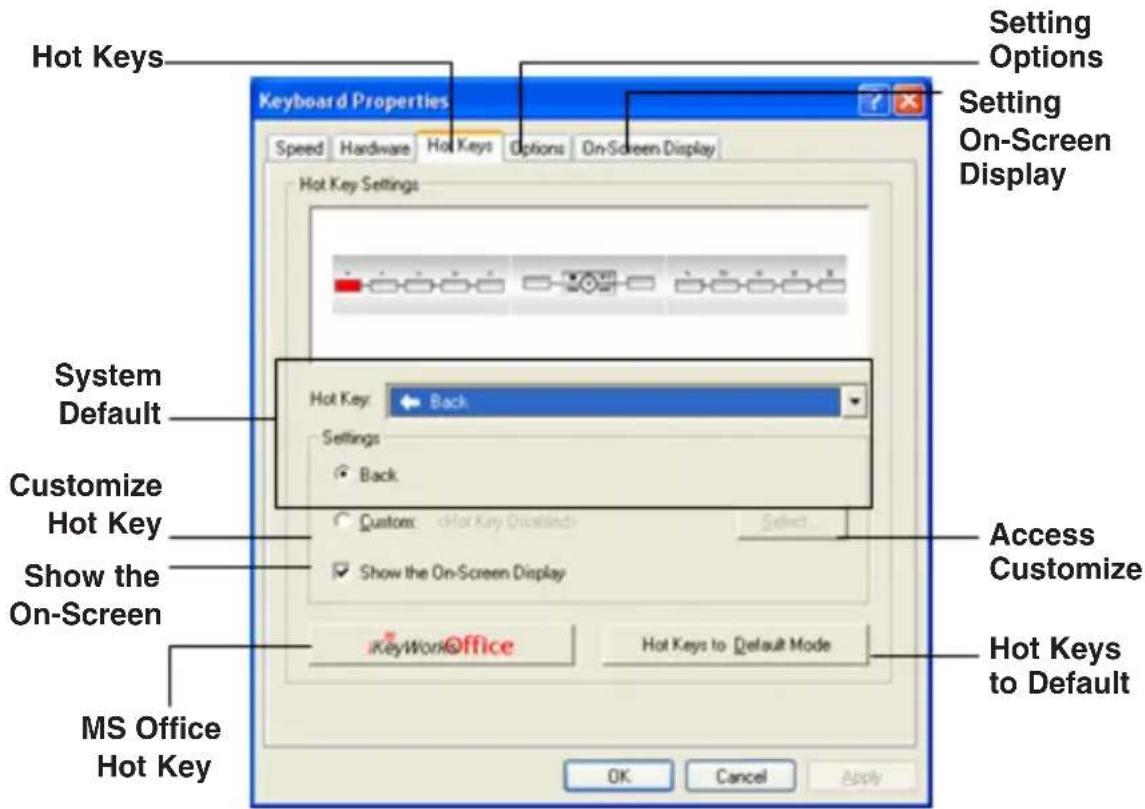
To launch the iOfficeWorks software, double-click the iOfficeWorks icon on the Windows Taskbar. The iOfficeWorks software brings you closer to your desktop, allowing you to set up and organize your keyboard for optimal use. Using the Hot keys and the iOfficeWorks software, customize your keyboard to access your Internet home page, favorite chat room, or run your e-mail application with the push of a button.
Popular Hot Keys
There are 17 programmable Hot Keys with default functions that are automatically supported by Windows 2000 or above Windows OS. (You have to establish the iKeyWorks to enable the Hot Keys in Windows 98 OS.)
| Hot Keys Default Functions Microsoft Office Program Functions | |||
 | Back Back to previous page Back to previous document | ||
 | Forward Forward to next page Forward to next document | ||
 | Stop Stop the page Open Address Book | ||
| [82HZ] | Refresh Refresh the page Open Winzip | ||
 | Internet Browser Access your default web page Back to your default home web page | ||
 | Volume Increase | Increase the sound volume | Zoom out |
 | Stop Stop play | Adobe Photoshop | |
 | Play/Pause | Play or pause the media | Acrobat Reader |
 | Mute | Decrease the sound volume to silence | Office Tools |
 | Previous Track | Play the previous track | Decrease font size in Microsoft Word |
 | Next Track | Play the next track | Increase font size in Microsoft Word |
 | Volume Decrease | Decrease the sound volume Zoom in | |
 | Search | Web search | Microsoft PhotoDraw |
 | Favorite | Open your "Favorites" folder | Open documents |
 | E -mail | Launches an e-mail application | Open default Email Software (Ex: Outlook Express) |
 | My Computer | Open My Computer folder | My documents |
 | Calculator | Display the online calculator | Microsoft Outlook |

Tripp Lite World Headquarters 1111 W. 35th Street • Chicago.IL60609 USA (773)869-1234 • www.tripplite.com
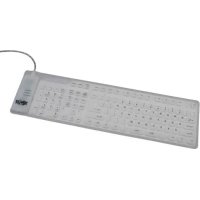
Brand : Tripp Lite
Model : Premier Office Keyboard
Category : Keyboard