CNP-VTW1 - Simulateur Canyon - Free user manual and instructions
Find the device manual for free CNP-VTW1 Canyon in PDF.


User questions about CNP-VTW1 Canyon
0 question about this device. Answer the ones you know or ask your own.
Ask a new question about this device
Download the instructions for your Simulateur in PDF format for free! Find your manual CNP-VTW1 - Canyon and take your electronic device back in hand. On this page are published all the documents necessary for the use of your device. CNP-VTW1 by Canyon.
USER MANUAL CNP-VTW1 Canyon
CNP-VTW1 User Manual
Contents
- Product Introduction----1
1.1 Features----2
1.2 Packing Contents----2
1.3 Hardware and Button Introduction----3
1.4 LCD Description----4
- Installation----5
2.1 Installing Skype Software----5
2.2 Installing the API Software----5
2.3 Hardware Installation----7
2.4 Setting Audio and Sound Device----8
- Function Instruction----9
3.1 Power Up----9
3.2 Power Down----9
3.3 Basic Operation and Option----9
3.4 Calling a Skype User----10
3.5 Calling a Phone Number (Skype Out)----10
3.6 Answer a Call----10
3.7 Adjust Volume----10
3.8 Assign Speed-Dial----10
- API Program Instruction----11
Wireless Bluetooth VoIP Phone (CNP-VTW1) is a wireless Skype™ phone, which allows you to make and receive Skype calls from a handset without being confined to a PC. The Skype services provided on the PC are now moved to the LCD Display-equipped handset. The regular PC-to-PC Skype calls, SkypeOut™ calls, Skype-In™ calls, and features including Contact list browsing, miss-call lists, call histories, Hold, Profile viewing, are provided. Besides, the echo-eliminating technology improves the voice quality. CNP-VTW1 also can be used as the handset when talking through MSN Messenger™ and Yahoo Messenger™. Once correctly installed, you are able to use this phone anywhere in a home or office like a mobile phone, as long as it is within the proximity of 30 meters from the PC, which runs Skype.
1.1 Features
Good immunity to other 2.4GHz RF interference
Bluetooth 1.2 compliant with Adaptive Frequency Hopping
④ 25-30 meters from PC
③ Friendly call handling and operation by LCD display and function keys
Stylish mobile handset design, comfortable to use and carry
Concurrent Contact list, Missing call list, and Call history as in PC
Support Skype
Implement Echo-elimination technology for quality sound
Built-in Li-Ion battery for up to 6 hours talking time and 3 days standby time.
③ 5 types of hold music and 10 types of ringers
1.2 Packing Contents
Wireless Bluetooth VoIP phone x1
USB Bluetooth Cradle x 1
Installation CD x 1 (API Software and user manual)
USB Cable x 1
User Manual
1.3 Hardware and Button Introduction
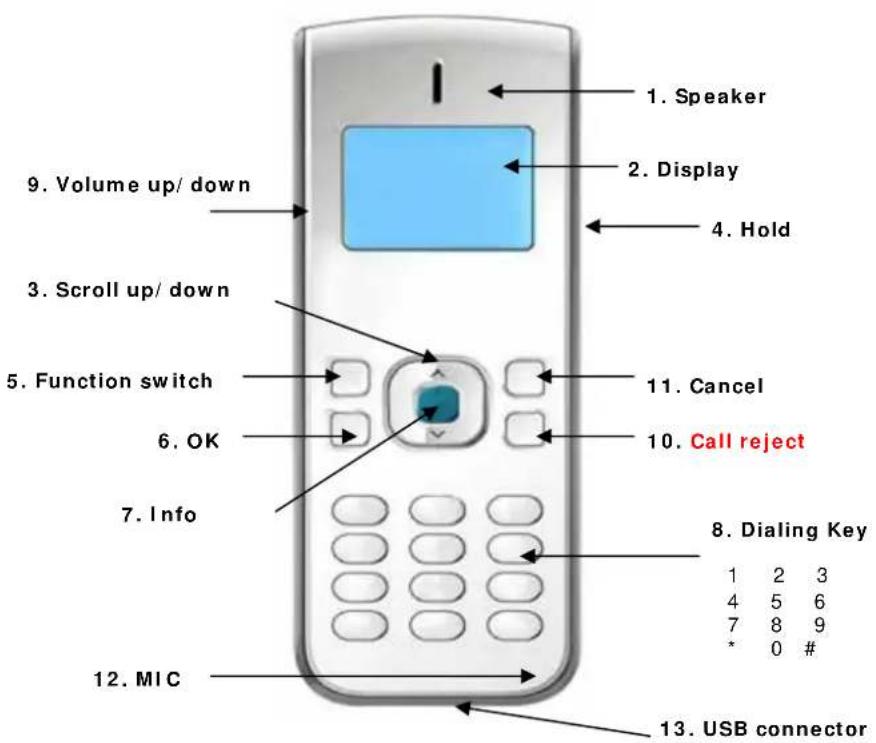
| 1 | Speaker Speaker | ||
| 2 | LCD Screen Display information of Skype | ||
| 3 | Scroll Up/Down | Select list of contact list, missed call list, called list | |
| 4 | Hold Hold the Skype call | ||
| 5 | Function Switch contacts/dial/history of skype function | ||
| 6 | OK | Answer make or answer a call (Power on) | |
| Enter sub-menu entering | |||
| Confirm for option setting | |||
| 7 | Info | Skype friends Profile like Cell phone number ...etc | |
| 8 | Digits Keys Skype out dialer button | ||
| 9 | Volume up/Down | Adjust Volume Up and Down | |
| 10 | Call reject | Hang up a call (Power off) | |
| Escape sub-menu | |||
| 11 | Cancel | Press & hold to delete all dialed numbers | |
| Press to delete one dialed number | |||
| 12 | Microphone | Microphone | |
| 13 | Mini USB | MiniUSB Jack to connect to PC USB for power recharge | |
1.4 LCD Description
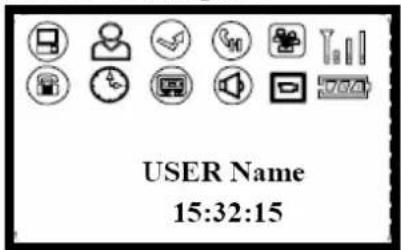
Device Status Icon
 | Show Call List User Online status |
 | Voice mail indicator(reserved for future) |
 | RF signal strength indication |
 | Battery meter |
Device Function Icon
| Icon Meaning | What users can do | |
 | Shows Contact ListUsername/Alias | 1. Press “Scroll Up/Down” to select whom to contact2. Press “Info” key to display the Contact’s profile3. Press “OK” key to make a call to the contact |
 | Shows Missed call listUser name/Alias | 1. Press “Scroll Up/Down” to select whom to contact2. Press “Info” key to display the Contact’s profile3. Press “OK” key to make a call to the contact |
 | Shows Call ListUsername/Alias | 1. Press “Scroll Up/Down” to select whom to contact2. Press “Info” key to display the Contact’s profile3. Press “OK” key to make a call to the contact |
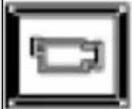 | Handset Setting 1. Volume setting: 7 levels2. Calls ringtone3. Hold ringtone4. Key tone5. Ring volume6. Standby mode | |
2. Installation
2.1 Installing Skype Software
If Skype is not yet installed on your computer, please download the latest version of the software from http://www.skype.com
Double-click the installation file you downloaded and then follow the on-screen prompts to complete the installation.
If you have any installation problem about Skype, please refer to Q&A on Skype Website.
2.2 Installing the API Software
(1) Install the Utility CD into your CD-ROM drive; you will see an Autorun display.
(2) Click the "Install Driver" to start the installation.
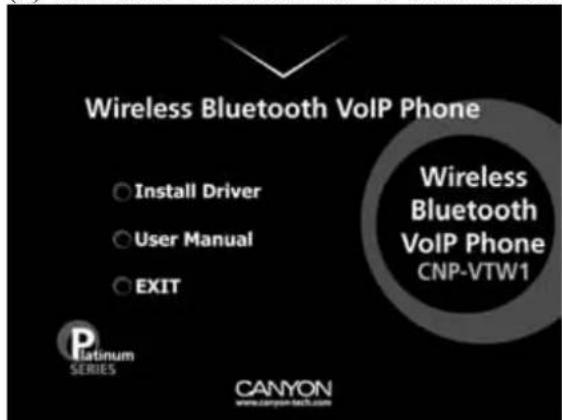
(3) Follow the pop-up window and click "next"
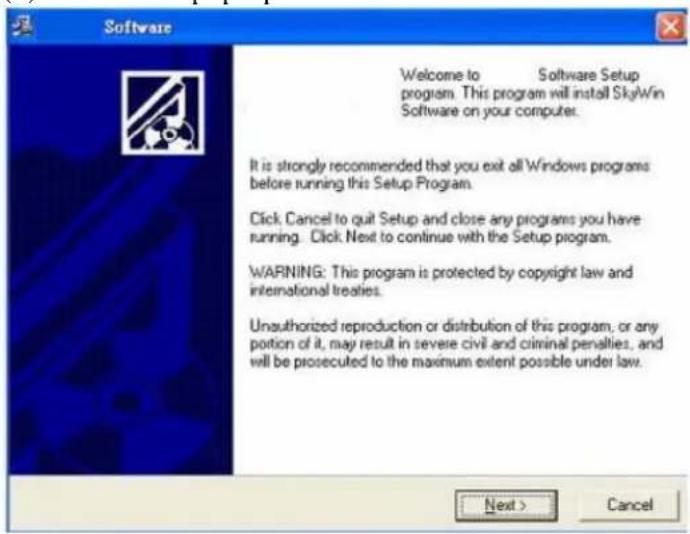
(4) Continue next window and Click "Next". Or if you want to change the driver folder, click "browse", and designate the folder you want, and then click "Next".
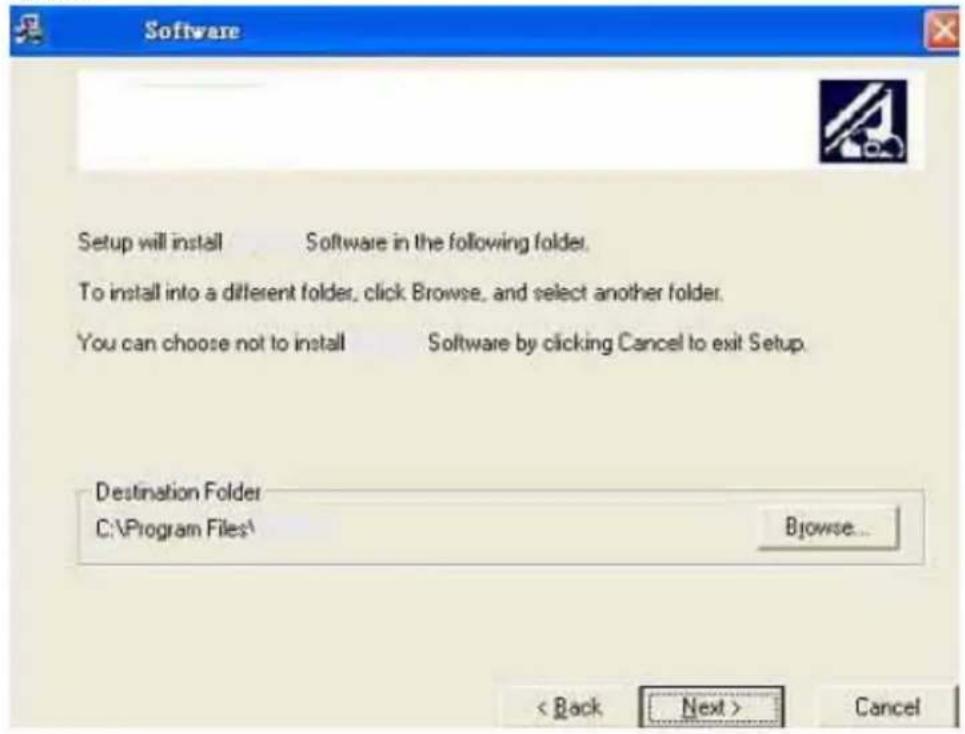
(5) Click Finish button to complete installation.
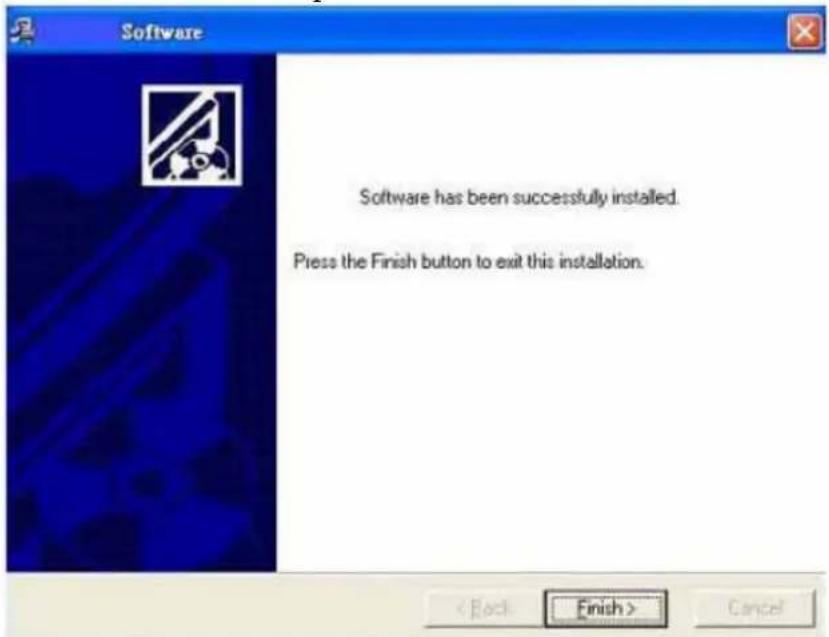
(6) Now the driver installation is completed. Please take a look at the small icon located at the Window System Tray, which is at the right-bottom corner of desktop screen. The icon indicates the status of the Bluetooth VoIP phone.
 | Bluetooth VoIP Phone On line | |
 | USB Bluetooth cradle is not connected | |
 | Skype not talk to SkyWin driver | |
 | Skype Not Installed on PC |
For example, if your USB Bluetooth cradle is not yet inserted into USB port, the above second icon will appear. Please continue with next step.
2.3 Hardware Installation
First, you may want to select a USB port on your PC. Make sure there are no metallic stuffs surrounding the USB port at close proximity. This may hinder RF signal from transmitting. Then insert the USB Bluetooth cradle into USB port. After a few seconds, you will see the blue LED on the USB Bluetooth cradle flashing at a frequency of 2-3 seconds. Meanwhile, the following pop-up window will appear on your PC screen. You may select either “Allow this program to use Skype”, or “Allow this program to use Skype, but ask again in the future”. And then click “OK”.
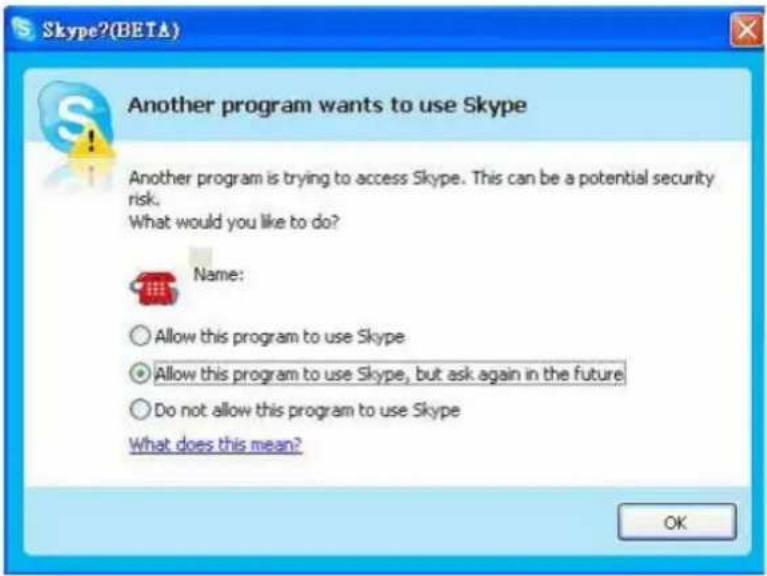
If you select “Allow this program to use Skype”, you will not see this pop-up screen appear again next time when you re-install the driver.
2.4 Setting Audio and Sound Device
Open Skype window, click Tools→ Options → Sound Devices. In the items "Audio In" and "Audio Out", please select "USB AUDIO DEVICE", then click Save.
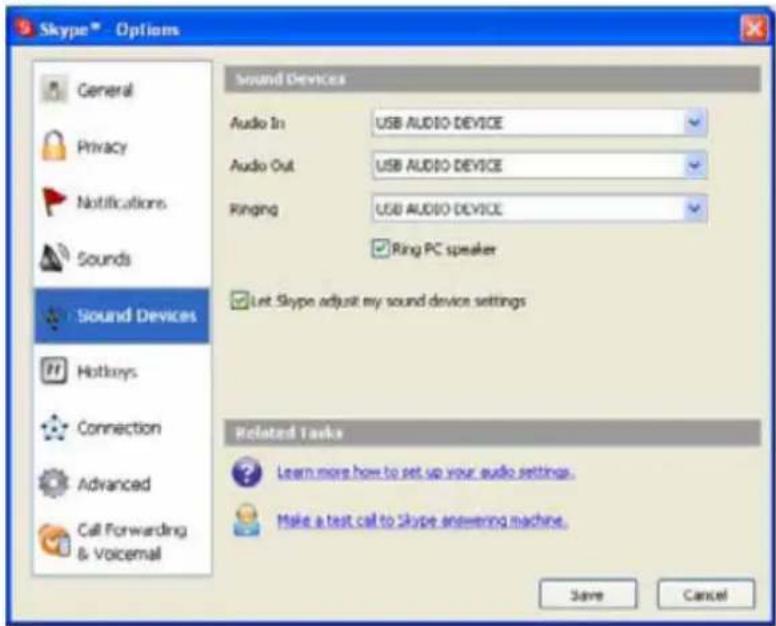
This will make sure that PC will not mix the Skype Phone with other Sound devices
3. Function Instruction
3.1 Power Up
By pressing the "OK" button for a couple of seconds, the Bluetooth VoIP phone will power up, showing all the icons, and clock.
3.2 Power Down
By pressing the "Call reject" button for a couple of seconds, the Bluetooth VoIP phone will power down.
3.3 Basic Operation and Option
In clock mode, pressing "OK" will display the Skype table. Users may press the "Call reject" to quit. Press "Up" or "Down" arrow to browse the Skype table. Press the "OK" button to enter the table; Users may exit the table by pressing "Call reject" button. The following table describes the Contents in the Skype table.
| CONTACT | Contact list | ||
| MISS LIST | Missed Calls | ||
| CALL LIST | Calls list | ||
| OPTION | VOL SET 1~7 7 level volume adjustment | ||
| Calls Ring 1~10 10 melodies | |||
| RING 1~5 5 types of ringers Hold Ring | |||
| RING mute Mute | |||
| KEY TONE | TONE OFF | Turn off key tone | |
| TONE ON | Turn on key tone | ||
| Ring volume | 1~3 | 3 types of rings | |
| Standby mode | ON/OFF | ON/OFF | |
3.4 Calling a Skype User
While the Contact, Miss list, or Call list in the Skype table.
You may press “Up” and “Down” key to scroll the list. Then press “OK” key to dial for target user via Skype.
If you want to cancel the dialing, you may press "Call reject".
3.5 Calling a Phone Number (SkypeOut)
Before starting to use this function, please make sure you have paid for the service. Further information about Skype Out, please go to web http://www.skype.com/. Dial the phone number by pressing the Digit keypads. Press the "OK" to call the number. Please note that all the telephone number dialed in SkypeOut service shall be pre-fixed by "00" and destination "Country Code". Namely, the digit strings shall contain "00 + Country Code + Area code + phone number".
3.6 Answer a Call
When the Bluetooth VoIP Phone is ringing for an incoming call, press “OK” to answer it.
3.7 Adjust Volume
Use “Volume Up/Volume Down” button to control the volume while calling.
3.8 Assign Speed-Dial
Open Skype window, right-click the user name on the contact list and select Assign Speed-Dial.
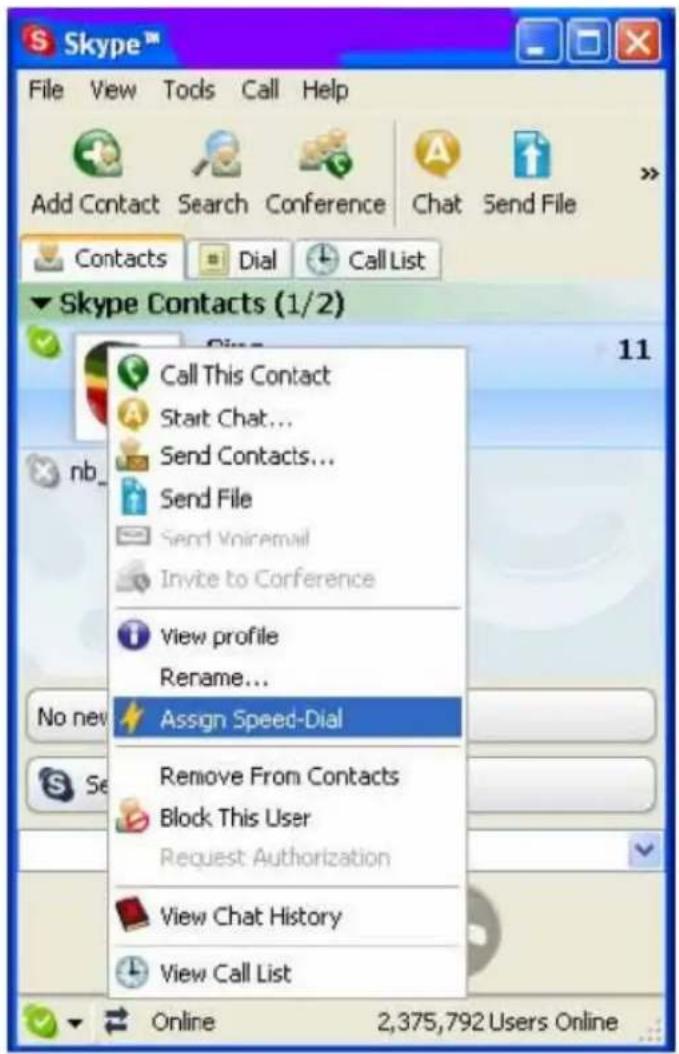
Set speed dial number, example "11" and press "OK"
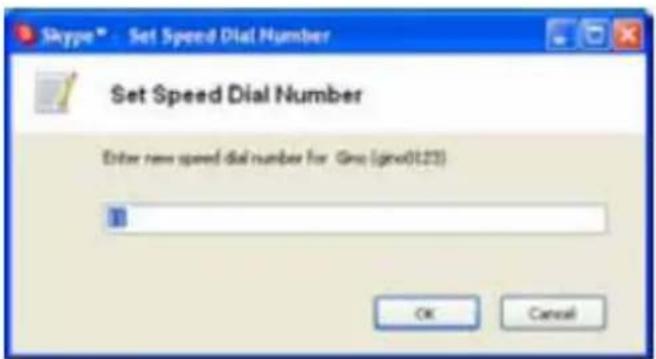
Press number "11" on CNP-VTW1, this number will be shown on the LCD screen, then press "OK" on Bluetooth VoIP Phone to call out.
4. API Program Instruction
Right-click the CNP-VTW1 icon in the System Tray, there are two items on the list.
| About |
| Exit |
4.1 About
The window shows the information of API.
4.2 Exit
To quit the API program.
5. Battery Power Recharge
Connect the Bluetooth VoIP phone into USB Bluetooth cradle or into Mini-USB, and connect the other end of USB cable into a PC's USB port. The VoIP phone will start to charge the power. It will take 3-4 hours to fully charge the handset.
6. Other IM Software Setting
6.1 MSN Messenger
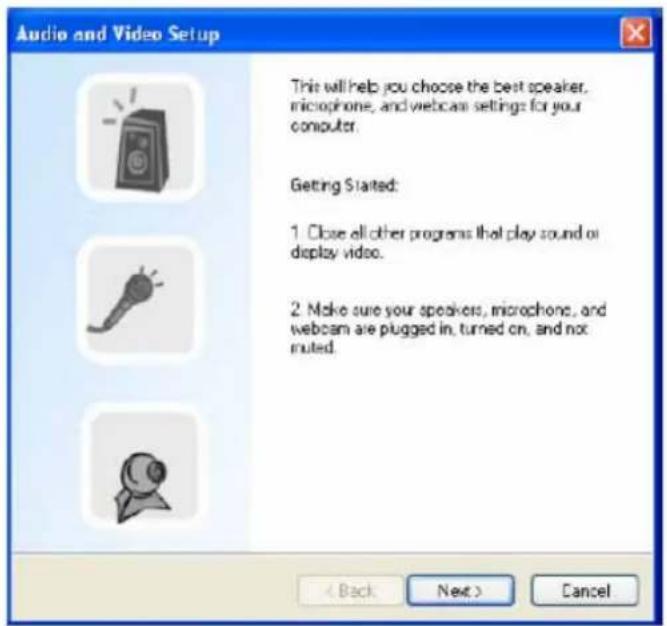
Open MSN Messenger window, Click Tools → Audio and Video Setup. Follow the installation wizard, select USB AUDIO DEVICE as audio device and test.
6.2 Yahoo Messenger
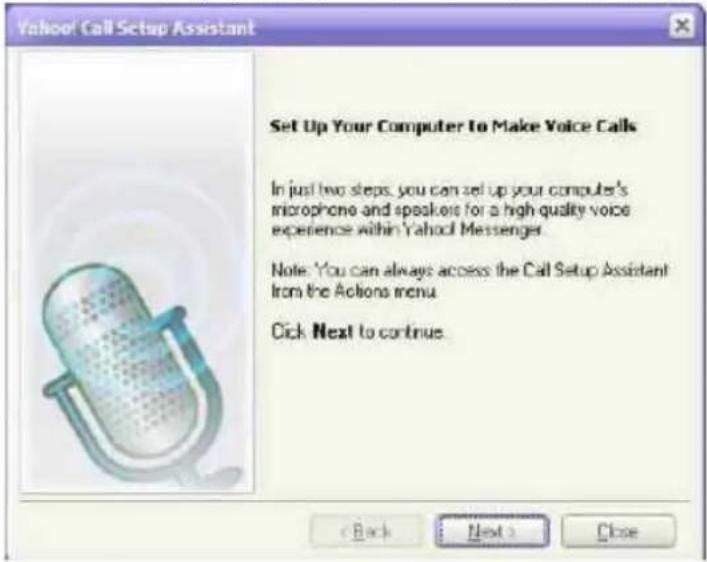
Open Yahoo Messenger, Click Action → Call Setup. Follow the installation wizard, select USB AUDIO DEVICE as audio device and test.
7. FAQ
Q1. Skype is installed and works well without the CNP-VTW1. But it has no response when I first install the CNP-VTW1 and press any key of the VoIP phone does not help.
Answer: 1. Make sure the USB Bluetooth cradle is plugged into a USB port of PC
2. Make sure the VoIP phone is powered up
Q2. The USB Bluetooth cradle has been plugged into a USB port of a PC. But the blue LED keeps on flashing
Answer: Make sure you have powered up the handset. If the handset has been powered up, but the LCD on the cradle still keep on flashing, the handset and cradle are not communicating. Make sure there is no other Bluetooth dongle the VoIP is trying or has pair up with. Then power up the handset again.
Q3. The VoIP phone has been synchronized with the USB Bluetooth cradle (with LCD steady), but the clock on the VoIP phone ticks from 00:00:00, not at the same time of date as PC's.
Answer: Check the CNP-VTW1 icon on the System tray. If “USB Bluetooth cradle not connected”, re-insert the USB cable of cradle again. If it is “Skype does not talk to CNP-VTW1 driver”, you may un-install the driver, and install again following the steps in this manual. If “Skype not installed on the PC” appears, you shall install it.
Q4. How to un-install the SkyWin driver?
Answer: go to PC's "Console" (Start->Setting->Console), select "Add or Remove program", then click "CNP-VTW1". And click the program removal.
Q5. When you try to browse through the Contact list, the LCD display shows "Contacts". But you cannot go any further to the detailed list.
Answer: Make sure the Skyphone is ready (the CNP-VTW1 icon on the System tray is "Skyphone online"). If yes, wait several seconds will help. Occasionally the wireless transmission may become slow due to traffic congestion. If otherwise, please refer to Q3..
Q6. While using Skype or Messenger software, the voice is coming from PC instead of from handset
Answer: Make sure you have configured the Phone as USB Audio Devices. Refer to 2.4 Setting Audio and Sound Device and 3.7 Adjust Volume. In addition, please also refer to 6.1 MSN Messenger setting in MSN Messenger,
Q7. There is no voice coming out when play music?
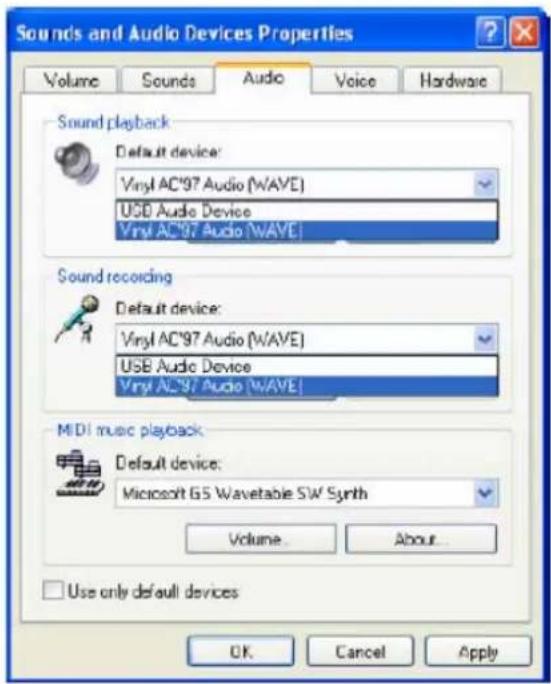
Answer. Please go to PC's Control Panel→ Sound and Audio Devices, set the default device of Sound playback and Sound Recording to PC sound card, it shown as below:
Q8. The other end cannot hear my voice when in Skype calls. Answer: Check if your Handset is muted.
- Specification
| Support OS Window 2000 / XP | |
| Interface USB 1.1 | |
| Audio Frequency 100 Hz to 15 KHz | |
| Signal / Noise Description 90 dB | |
| Power Requirement USB Powering | |
| Current Consumption Active mode: 140 mASilent Mode: 45 mAStandby mode: 9 mAInactive: 0.3mA | |
| Wireless Technology Bluetooth 1.2 with AFH | |
| RF Frequency 2.4-2.4835GHz | |
| Transmit power 16 dBm | |
| Receive Sensitivity -80dBm | |
| Max. number of Contact list, Miss list, Call record | Unlimited, as on PC |
| Phone call types PC-to-PC (Skype), PC-to Phone (Skype Out) | |
| Other IM/Internet phone support | Yahoo! Messenger, M/S MSN |
| Function Keys | M(Information), Power on/off , Clear, Hold, Off-hook, On-Hook, Volume Up, Volume Down, Up, Down |
| Audio devices | Ringer: BuzzerMicrophoneSpeaker |
| System Reset | Reset button |
| Battery | Rechageable Li-Ion 700 mhA |
| Battery Indicator | Low power, Charging, and capacity icon on LCD |
| RF Signal indicator | RSSI with 4 level icon on LCD |
| LCD | 10 Icons and 128 x 32 dot-matrix mono LCD |
| Operate Temperature | 0°C to 40°C |
| Storage Temperature | -10 °Cto 60°C |
| Operate Humidity | < 90 % |
| Storage Humidity | < 95% |
| Dimension | 125 x 45 x 15mm |
| Weight | 75 (Handset with Battery) |