RPLC-200KIT - NAS Rosewill - Free user manual and instructions
Find the device manual for free RPLC-200KIT Rosewill in PDF.


User questions about RPLC-200KIT Rosewill
0 question about this device. Answer the ones you know or ask your own.
Ask a new question about this device
Download the instructions for your NAS in PDF format for free! Find your manual RPLC-200KIT - Rosewill and take your electronic device back in hand. On this page are published all the documents necessary for the use of your device. RPLC-200KIT by Rosewill.
USER MANUAL RPLC-200KIT Rosewill
Package Contents ....3
Chapter 1 Introduction to Hardware....4
1.1 Expanding your Network with RPLC-200....4
1.2 Key Features....4
1.3 Application ....5
1.4 System Requirement ....6
1.5 Hardware Diagram of RPLC-200....6
1.5.1 LED 7
1.5.2 Powerline Adapter's Button and Connector....7
Chapter 2 Introduction to Utility ....8
2.1 Utility Installation....9
2.2 Utility Introduction ...... 11
2.2.1 Main Tab 11
2.2.2 Privacy Tab 14
2.2.3 Diagnostics Tab 16
2.2.4 About Tab....18
Chapter 3 Forming a Powerline (HomePlug AV) Network ....18
3.1 Using the Security Pushbutton....19
3.2 Using the Utility....19
Chapter 4 Joining a Network....21
4.1 Using the Security Pushbutton....21
4.2 Using the Utility 22
Appendix A: Improving the Transmission Quality ....23
Appendix B: Specifications 24
Appendix C: Acronyms and Abbreviations....26
Appendix D: RPLC-200 QoS Support....27
Package Contents
The following items should be found in your package:
2x Rosewill RPLC-200 200Mbps Powerline Fast Ethernet Adapter
2x RJ45 Ethernet Cable
1x Quick Installation Guide
➢ 1x Resource CD for RPLC-200, including:
- Rosewill Powerline Utility
- Quick Installation Guide
- User Guide

Note:
Make sure that the package contains the above items. If any of the listed items are damaged or missing, please contact with your distributor.
Chapter 1 Introduction to Hardware
Thank you for purchasing Rosewill's RPLC-200 Homeplug AV compliant Powerline Adapter. The RPLC-200 adapter can transmit data up to 200mbps via household's power outlet. RPLC-200 can help you to establish a high-speed network that supports video, voice and data without wiring and drilling. It is suitable for using in a wide range of both residential (at home) and commercial (offices, apartments, hotels, warehouses) network applications.
1.1 Expanding your Network with RPLC-200
The RPLC-200 plugs into an power outlet to extend cable or DSL modem connection or your current Ethernet Network to almost any power outlet in your home with any new cabling.* Devices can securely communicate with each other via the 128-bit Advanced Encryption Standard (AES) through RPLC-200 at a high speed transfer rate of 200Mbps and at 10/100mbps LAN support.

Note:
Powerline Technology has certain limitations.
- The best performance for Powerline Data transmission will be under one power circuit
- Performance may be decreased under different circuits but within one Electricity Meter due to the drop-off via hardware.
1.2 Key Features
● Plug and Play with Quick and Easy Installation
■ Installation requires no new wiring
■ Every power socket becomes a connection node in the household.
RPLC-200 supports connection for a total of 16 nodes.
- Plug-and-play to your routers, computers and other network devices.
● Enjoy Stable HD Videos and Gaming
■ With a pair of plug-and-play RPLC-200 installed, you can easily extend your home network through any electrical outlet for Internet access by HDTVs, Blu-ray™ players, DVRs, PCs and game consoles.
● QoS Management Enhances Streaming Quality
■ RPLC-200 supports 4-level type QoS and 8-level VLAN priority fields which automatically improves the streaming quality
● Green Feature for Power saving mode
■ RPLC-200 will detect signals when there is no signal transmit, it will automatically enters Power Saving mode which saves near 80% of the energy consumption.
1.3 Application
● Shared broadband internet access
● Higher data rate broadband sharing for power line LAN
● Backbone for Wireless and Wireless Extender
● TV over IP (IPTV) and Voice over Internet Protocol (VoIP)
● High Definition (HD) and Standard Definition (SD) video distribution
- Video surveillance
- Online Gaming
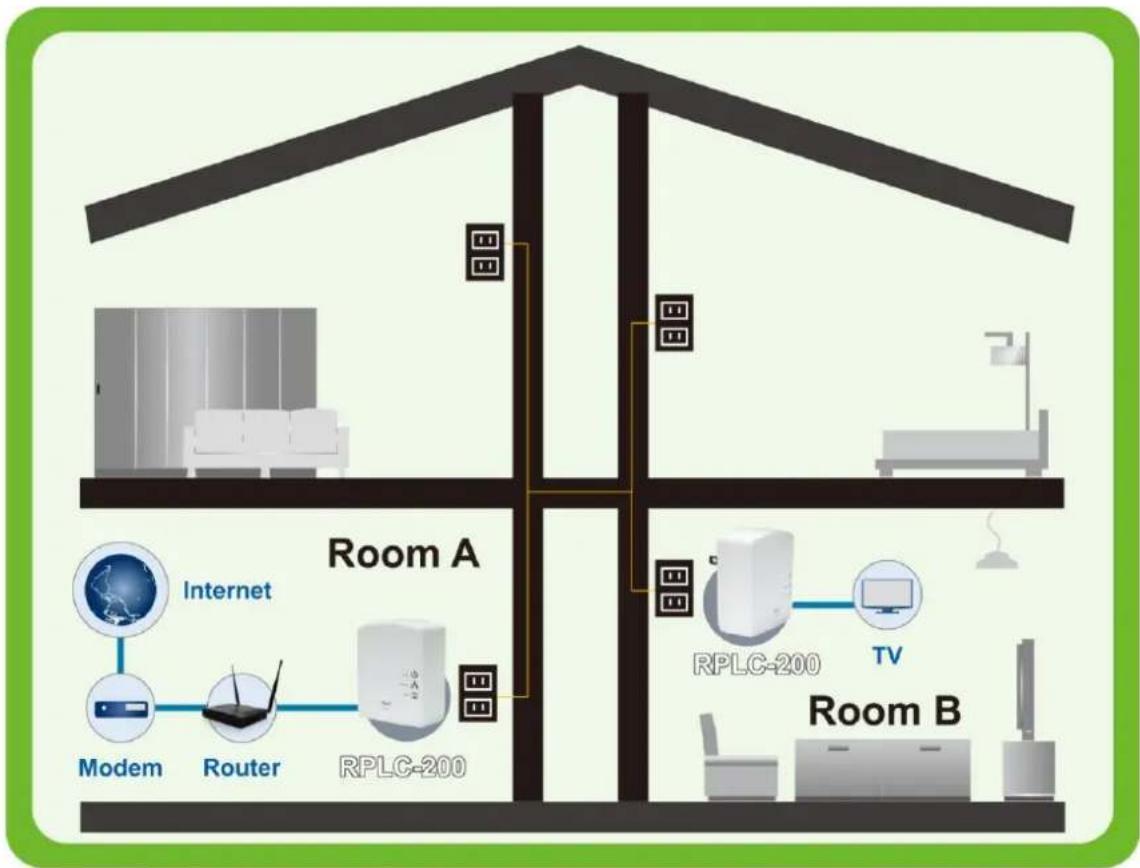
flowchart
graph TD
    subgraph_Room_A["Room A"]
        A1["Internet"] --> A2["Modem"]
        A2 --> A3["Router"]
        A3 --> A4["RPLC-200"]
        A4 --> A5["Server"]
        A5 --> A6["Desktop"]
        A6 --> A7["Bed"]
        A7 --> A8["Apartment"]
    end
    subgraph_Room_B["Room B"]
        B1["RPLC-200"] --> B2["TV"]
        B2 --> B3["Desktop"]
        B3 --> B4["Apartment"]
        B4 --> B5["Apartment"]
        B5 --> B6["Apartment"]
    end
    Room_A -->|Connection| Room_A
    Room_B -->|Connection| Room_B
1.4 System Requirement
- If need to use Powerline Utility: Operating system: Windows 98SE, 2000, ME, XP 32/64 bit and Vista 32/64bit, otherwise, no OS require
● CPU: Intel Pentium III or better, clock rate faster than 2.0GHz recommended
● RAM: At least 128MB - Screen resolution: Any resolution
● Free disk space: At least 20MB
● Network interface: At least one Fast Ethernet (100 Mbps) network card, and a Ethernet Cord
1.5 Hardware Diagram of RPLC-200
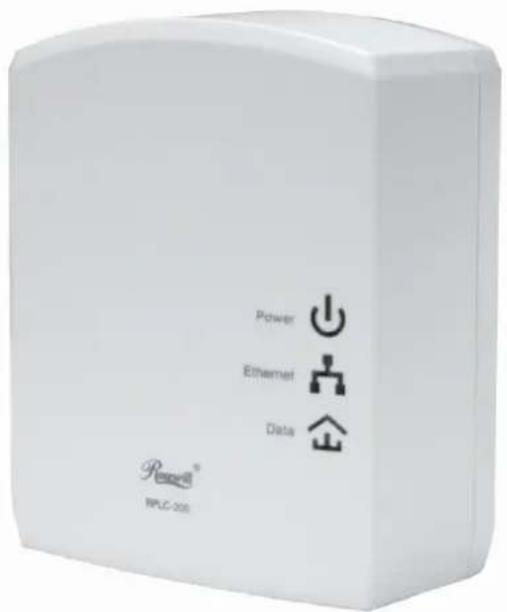
text_image
Power Ethernet Data RPC-205 RPC-205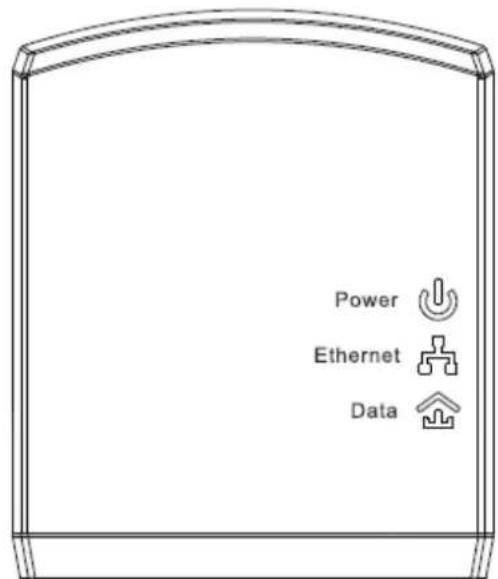
text_image
Power Ethernet Data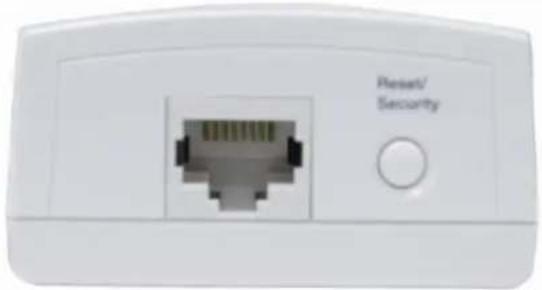
text_image
Reset/ Security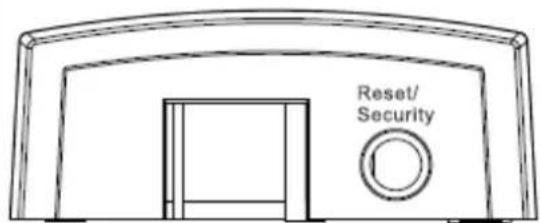
text_image
Reset/ Security1.5.1 LED
| LED | Color | Behavior | Description |
| [WA36](Power) | Green | On | System runs normally. |
| Green | Blink | ● System is resetting.● System is in the process of password synchronization. | |
| - | Off | The PLC adapter is powered off. | |
 (Ethernet) (Ethernet) | Green | On | Ethernet connection has established. |
| Blink | Data is being transmitted. | ||
| - | Off | No Ethernet connection. | |
 (Data) (Data) | Green | On | The PLC adapter has connected to the powerline network. |
| - | Off | The PLC adapter does not connect to the powerline network. |
1.5.2 Powerline Adapter's Button and Connector
Reset/Security:
Reset: Pressing and holding the Button for between 10 seconds and 15 seconds makes the adapter restore the factory default settings.
Security: Pressing and holding the button for less than 3 seconds makes the adapter a member of the existing Powerline Network.
Ethernet Port (RJ45 Port): The Ethernet port connects to an Ethernet network cable. The other end of the cable connects to your computer or other Ethernet-enabled network device.
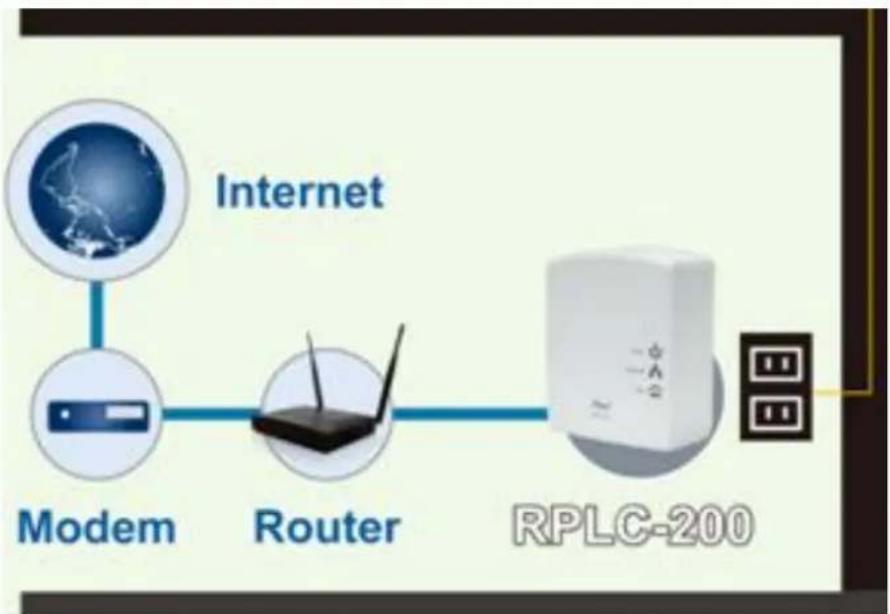
Connecting to the router/modem: Insert One end of the RJ45 Cable (Recommend
using Cat 5E cable or above) to this port, and the other end to the router or modem. Then plug into the electrical outlet.
flowchart
graph LR
    A["Internet"] --> B["Modem"]
    B --> C["Router"]
    C --> D["RPLC-200"]
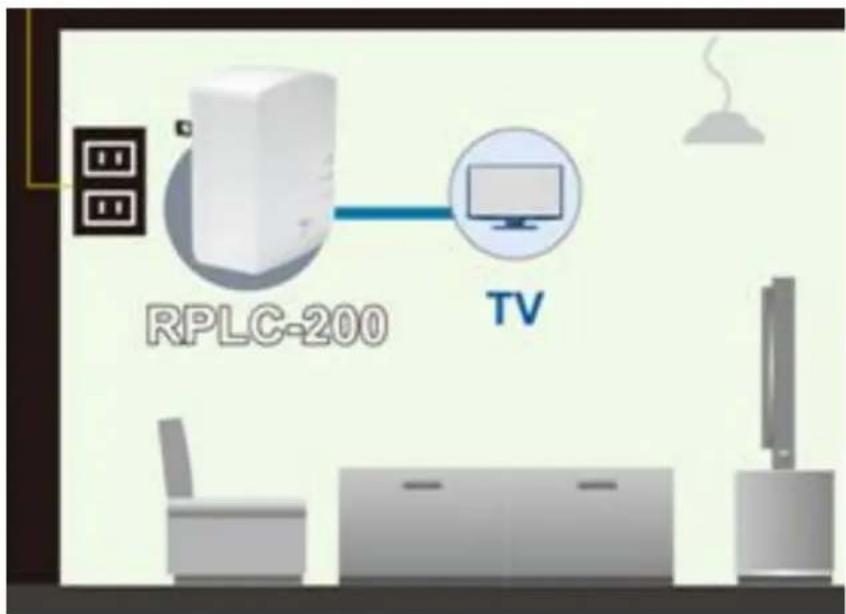
Connecting to PC / Smart TV / NB / Blu-ray Player / Media Player / IP Phone: Insert One end of the RJ45 Cable (Recommend using Cat 5E cable or above) to this port, and the other end to the other devices. Then plug into the electrical outlet.
text_image
RPLC-200 TVChapter 2 Introduction to Utility
Note:
Before installing the PLC utility software, make sure that there is no any other powerline utility installed on your computer. If there is another utility installed, please uninstall it and restart your computer.
2.1 Utility Installation
Please follow the steps below to install the utility.
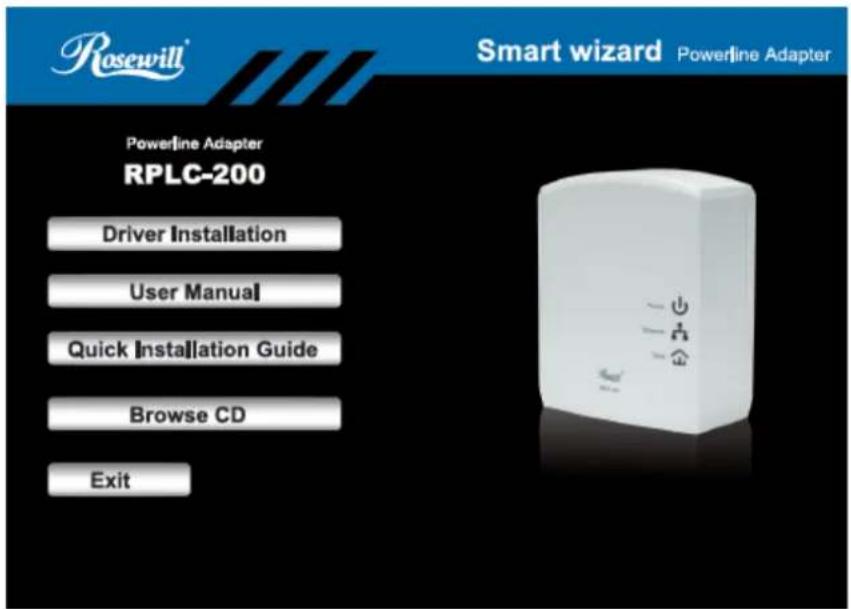
- Please insert the utility CD into the computer's CD-ROM drive. Select the Utility Installation from the Wizard Page.
text_image
Rosewill® Smart wizard Powerline Adapter Powerline Adapter RPLC-200 Driver Installation User Manual Quick Installation Guide Browse CD Exit- The window for installing the utility software will display. Click Next to continue.
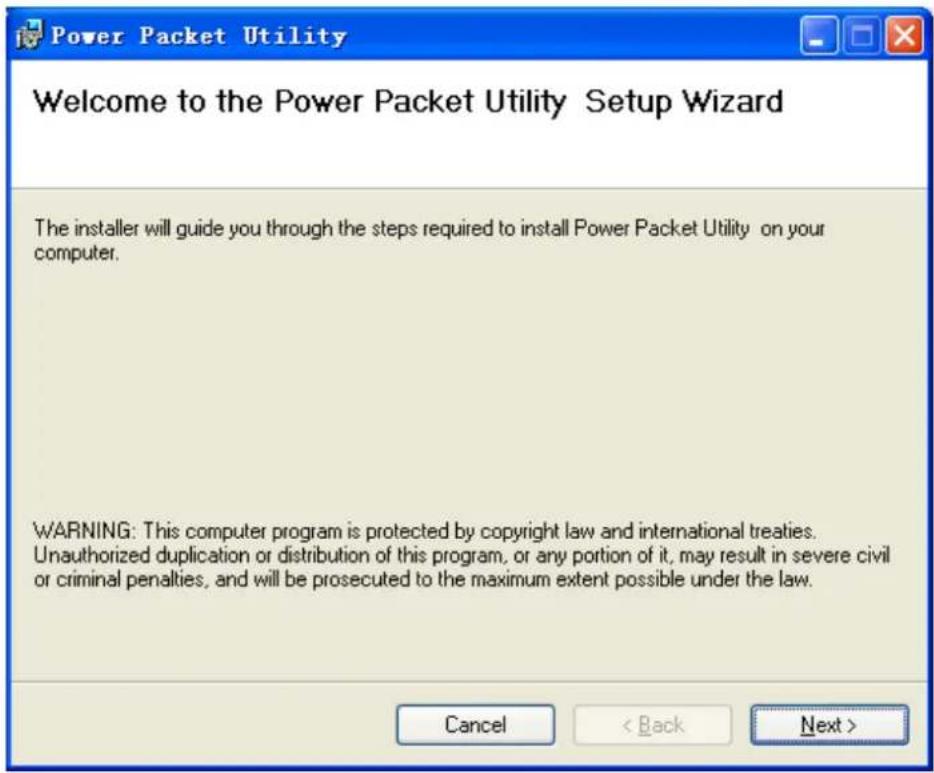
text_image
Power Packet Utility Welcome to the Power Packet Utility Setup Wizard The installer will guide you through the steps required to install Power Packet Utility on your computer. WARNING: This computer program is protected by copyright law and international treaties. Unauthorized duplication or distribution of this program, or any portion of it, may result in severe civil or criminal penalties, and will be prosecuted to the maximum extent possible under the law.3. Select I Agree, and then Next to continue.
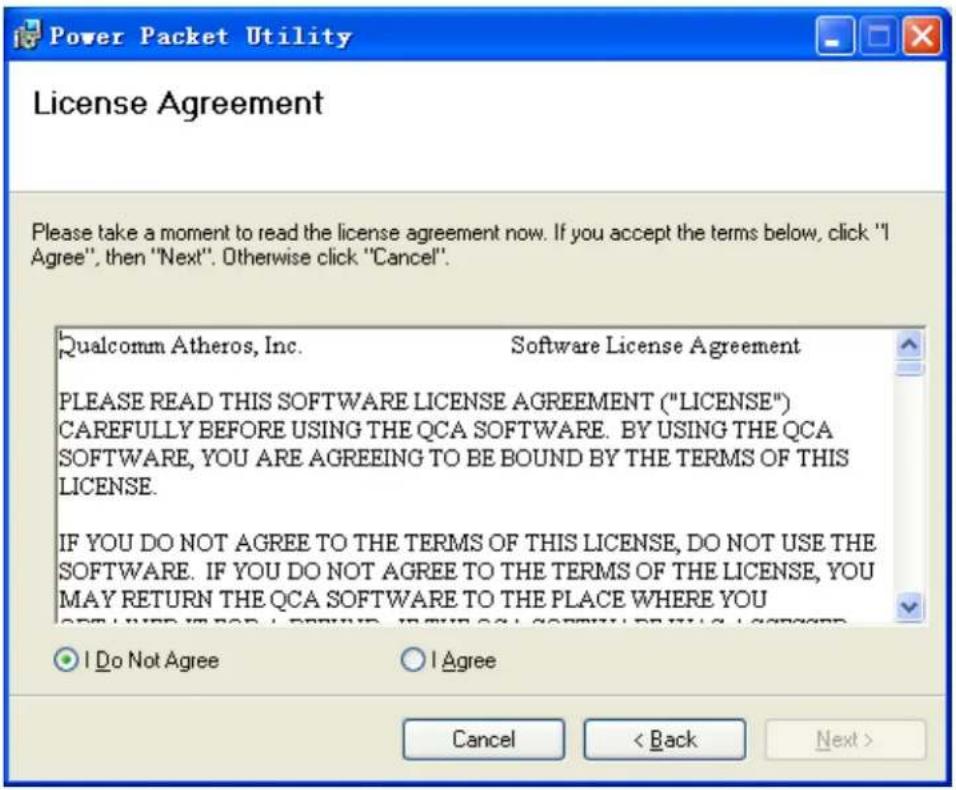
text_image
Power Packet Utility License Agreement Please take a moment to read the license agreement now. If you accept the terms below, click "I Agree", then "Next". Otherwise click "Cancel". Qualcomm Atheros, Inc. Software License Agreement PLEASE READ THIS SOFTWARE LICENSE AGREEMENT ("LICENSE") CAREFULLY BEFORE USING THE QCA SOFTWARE. BY USING THE QCA SOFTWARE, YOU ARE AGREEING TO BE BOUND BY THE TERMS OF THIS LICENSE. IF YOU DO NOT AGREE TO THE TERMS OF THIS LICENSE, DO NOT USE THE SOFTWARE. IF YOU DO NOT AGREE TO THE TERMS OF THE LICENSE, YOU MAY RETURN THE QCA SOFTWARE TO THE PLACE WHERE YOU SET UVEE IT FOR / RETURN. IF THE QCA SOFTWARE BE VIND A LICENSE? Do Not Agree I Agree Cancel < Back Next >4. You can choose your own destination folder to install or click Browse... to select the installation folder, and then click Next to continue..
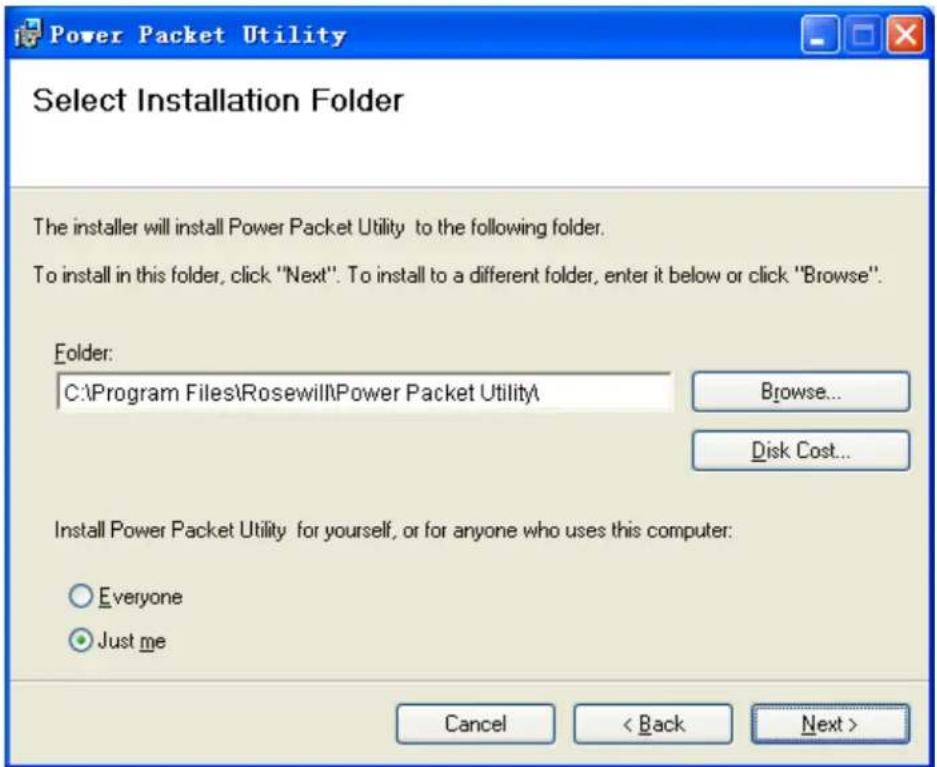
text_image
Power Packet Utility Select Installation Folder The installer will install Power Packet Utility to the following folder. To install in this folder, click "Next". To install to a different folder, enter it below or click "Browse". Folder: C:\Program Files\Rosewill\Power Packet Utility\ Browse... Disk Cost... Install Power Packet Utility for yourself, or for anyone who uses this computer: Everyone Just me Cancel < Back Next >- You can choose your own destination folder to install or click Browse... to select the installation folder, and then click Next to continue.
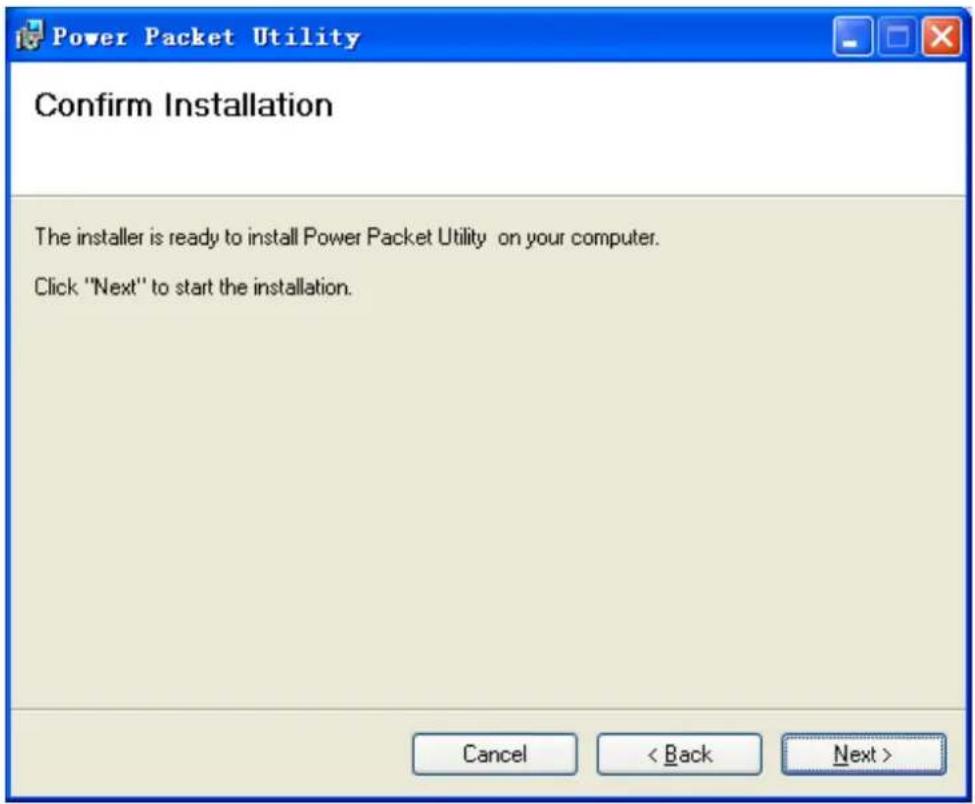
text_image
Power Packet Utility Confirm Installation The installer is ready to install Power Packet Utility on your computer. Click "Next" to start the installation. Cancel < Back Next >2.2 Utility Introduction
Click the desktop icon below to enter the configuration page.

2.2.1 Main Tab
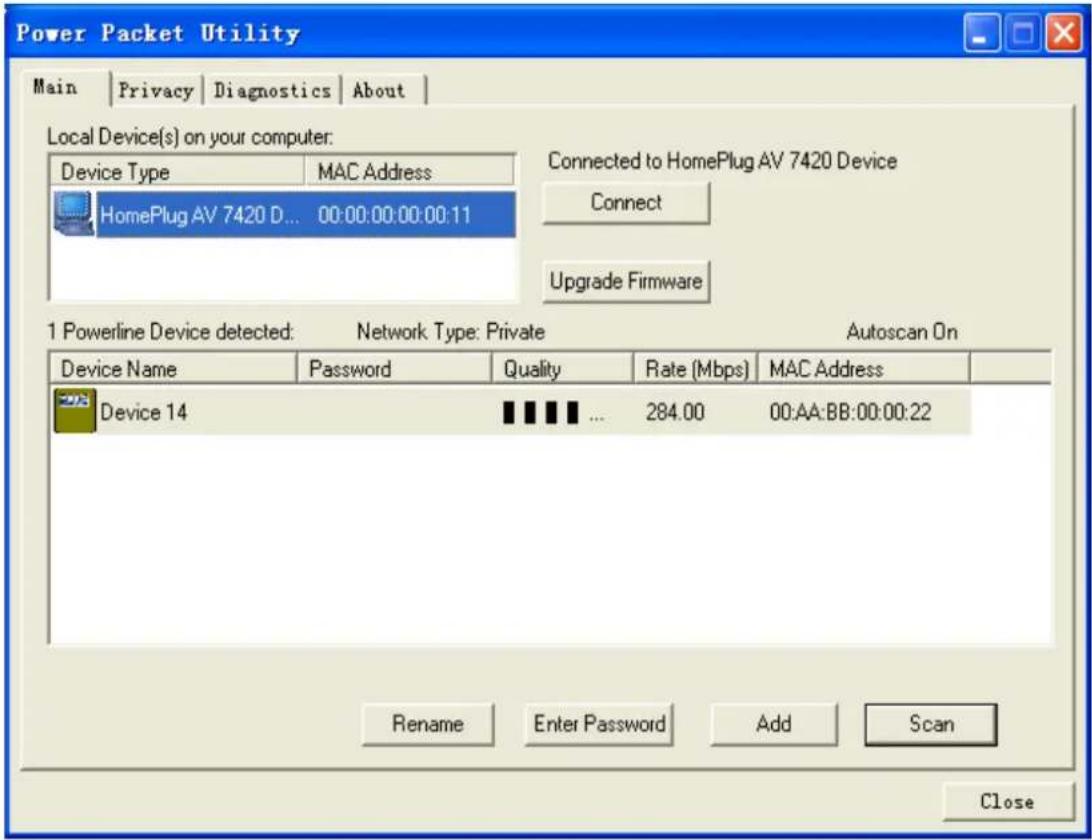
The Main screen provides a list of all powerline devices logically connected to the computer when the utility is running. The top panel shows the local HomePlugAV devices connected to the network interface card (NIC) of the computer. Click Connect. The utility automatically scans the powerline periodically for other HomePlugAV devices connected to it. If no local HomePlugAV device is discovered, the status bar displays NO HOMEPLUG ADAPTERS DETECTED.
text_image
Power Packet Utility Main | Privacy | Diagnostics | About | Local Device(s) on your computer: Device Type MAC Address HomePlug AV 7420 D... 00:00:00:00:00:11 Connected to HomePlug AV 7420 Device Connect Upgrade Firmware 1 Powerline Device detected: Network Type: Private Autoscan On Device Name Password Quality Rate (Mbps) MAC Address Device 14 284.00 00:AA:BB:00:00:22 Rename Enter Password Add Scan CloseThe lower panel displays all the HomePlugAV remote devices, which are discovered in the current logical network. The total number of remote devices connected in the same network is displayed above the remote device panel. Network type (Public or Private) depends on the network status of the local device. Autoscan shows whether the autoscan function is on. The following information is displayed for all the devices that appear in the lower panel.
Device Name
This column shows the default device name, which may be modified. To change the name, click Rename, or click the name and edit it in the list.
MAC Address
This column shows the MAC addresses of the remote devices.
Password
By default, this column is blank. You can click Enter Password to change it.
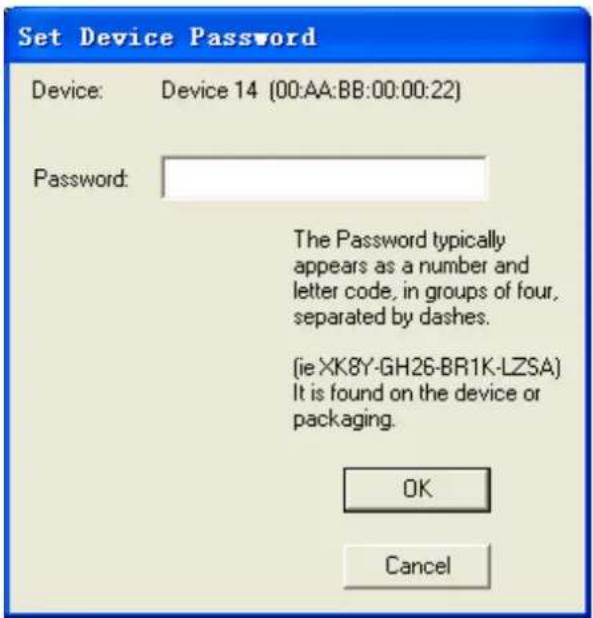
The steps for setting the password of the device (required when creating a private network) are as follows:
- Click the device name to select the device in the lower panel.
- Click Enter Password. A dialog box appears, showing the device name and password. 錯誤!找不到參照來源。
text_image
Set Device Password Device: Device 14 (00:AA:BB:00:00:22) Password: The Password typically appears as a number and letter code, in groups of four, separated by dashes. (jie XK8Y-GH26-BR1K-LZSA) It is found on the device or packaging. OK Cancel- Click OK to verify the password. The password field accepts the device password in any case formats, with or without dash.
A confirmation box appears if the password is entered correctly. If a device is not found, a message appears, providing suggestions to solve the common problems. This process might take a few seconds to get completed.
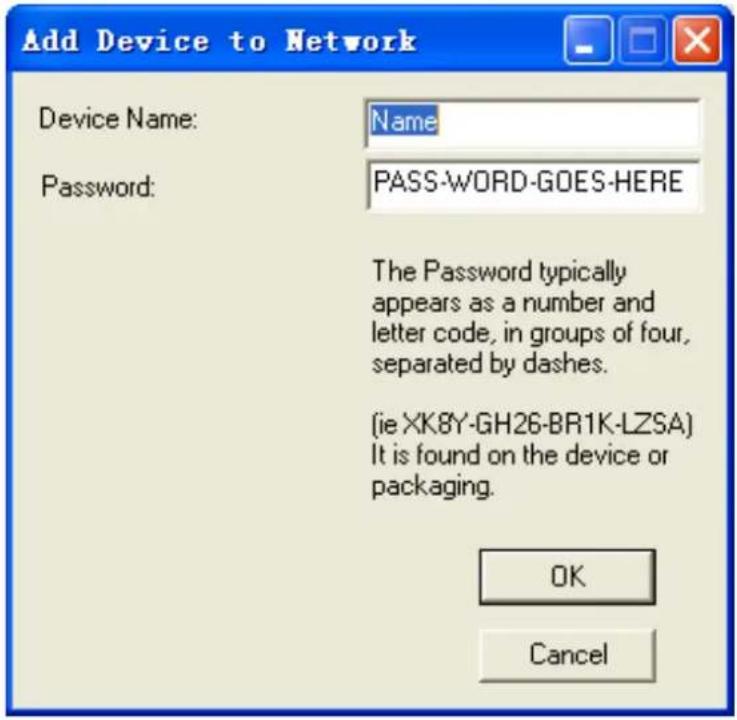
Add
This button is used to add a remote device to the existing network by entering the device password of the device. A dialog box will appear. You can enter a device name and the password. (Also refers as DEK on the back Label, this DEK is generated via MAC address)
If the device is found and the password is entered correctly, a confirmation box appears. If a device is not found, a message appears, providing suggestions to solve the common problems.
text_image
Add Device to Network Device Name: Name Password: PASS-WORD-GOES-HERE The Password typically appears as a number and letter code, in groups of four, separated by dashes. (jie XK8Y-GH26-BR1K-LZSA) It is found on the device or packaging. OK Cancel
Note:
The device must be in the powerline (plugged in), so that you can confirm the password and add the device to the network. If the device is not located, a warning message appears.
Scan
This button is used to perform an immediate search for HomePlugAV devices connected to the powerline network. By default, the utility automatically scans every a few seconds and updates the displayed information.
2.2.2 Privacy Tab
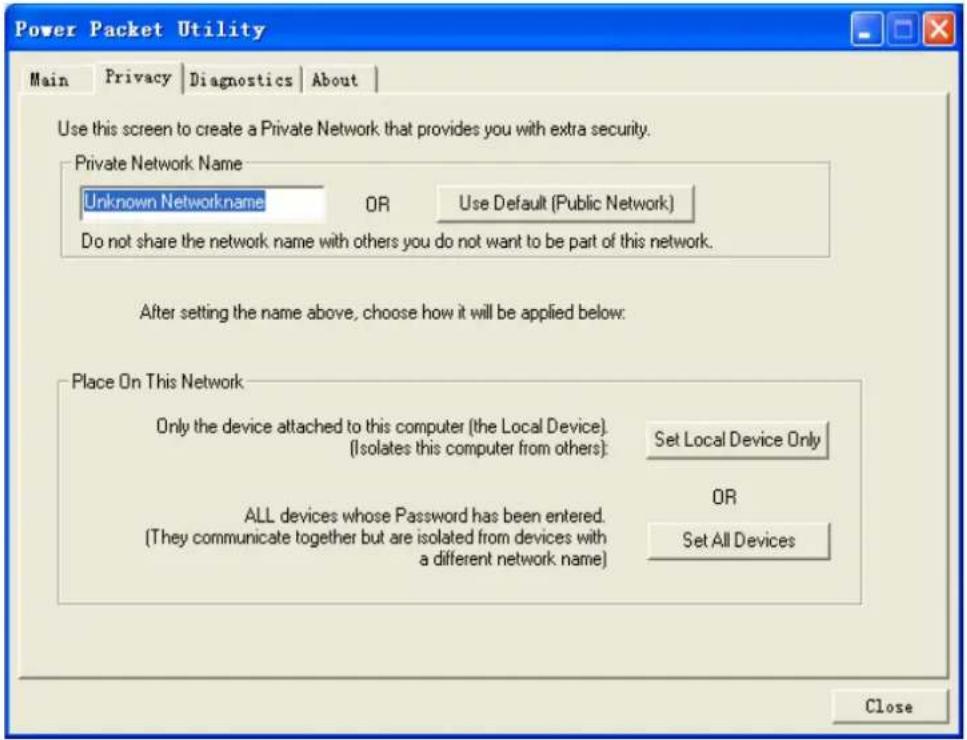
In the Privacy screen, you can maintain security for the logical network and select the device included in the network.
text_image
Power Packet Utility Main | Privacy | Diagnostics | About | Use this screen to create a Private Network that provides you with extra security. Private Network Name Unknown Networkname OR Use Default (Public Network.) Do not share the network name with others you do not want to be part of this network. After setting the name above, choose how it will be applied below. Place On This Network Only the device attached to this computer (the Local Device). (Isolates this computer from others): Set Local Device Only ALL devices whose Password has been entered. (They communicate together but are isolated from devices with a different network name) OR Set All Devices CloseAll HomePlugAV devices are loaded using a default logical network (network name), which is normally "HomePlugAV". In the Privacy screen, you can modify a private network by changing the network names and the passwords of the devices.
You can always reset to the HomePlugAV network (Public) by entering "HomePlugAV" as the network name or by clicking on the Use Default button.
Note:
If the network name changes to anything other than HomePlugAV, the network type in the main screen is displayed as Private.
Set Local Device Only
This button is used to change the network name and password of the local device. If a new network password is entered, all the devices appeared in the main panel prior to this are no longer present in the new network, effectively making the local devices not to communicate to the devices which are in the old logical network. Click Set Local Device Only, the devices previously set up with the same logical network (same network name) appears in the device list.
Set All Devices
This button is used to change the logical network of all devices that appear in
the main panel. If these devices whose passwords have been entered for the same logical network, a dialog box appears, indicating the success of this operation. For the devices whose passwords are not entered, this operation will fail and it will report a failure message.
2.2.3 Diagnostics Tab
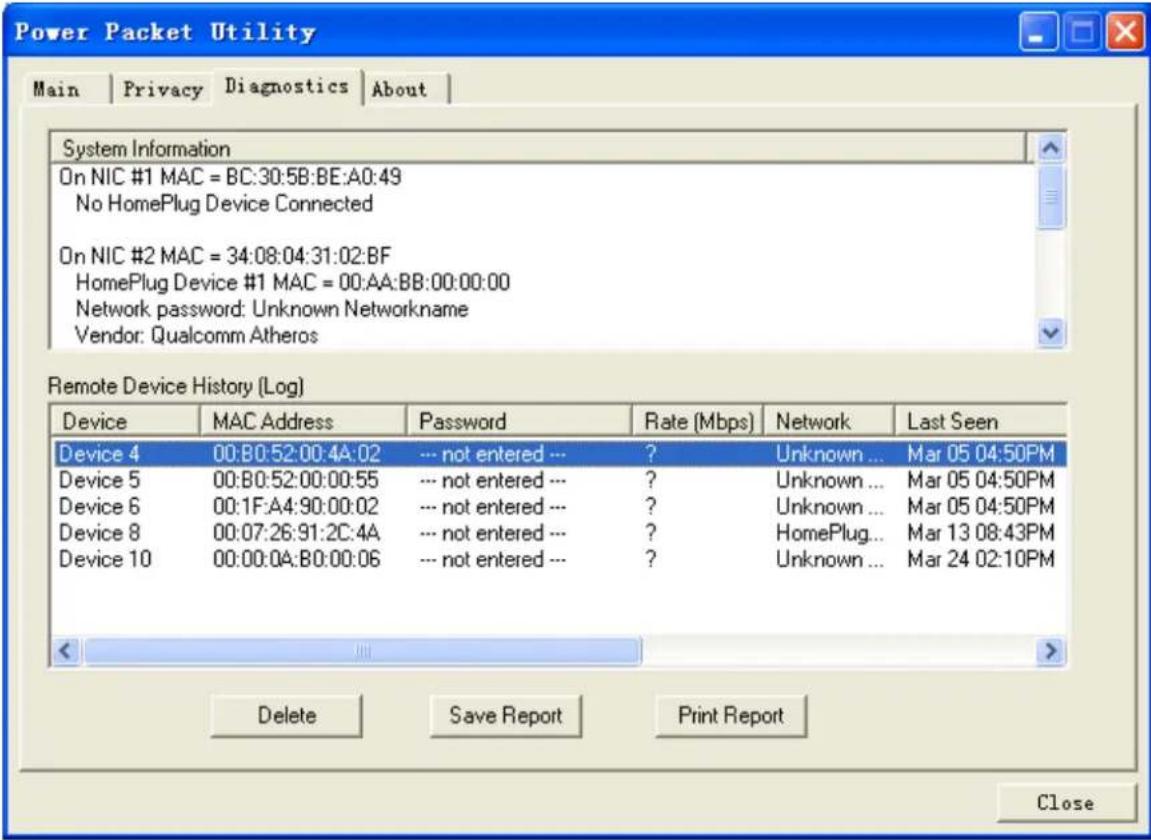
The Diagnostics screen shows the system information and history of all remote devices appeared over a period of time.
The Upper panel shows technical data concerning software and hardware on the host computer that are used to communicate through HomePlug on the powerline network. It includes the following:
- Operating system platform/version
- Host network name
- User name
● MAC address of all NICs (Network interface card) connected to the host - Identify versions of all driver DLLs and libraries used (NDIS) and optionally
● HomePlug chipset manufacturer name (Turbo Only devices)
● MAC firmware version (Turbo Only devices)
● MAC addresses of all devices connected locally to the host - Version of the configuration utility
- Vendor name
text_image
Power Packet Utility Main | Privacy | Diagnostics | About | System Information On NIC #1 MAC = BC:30:5B:BE:A0:49 No HomePlug Device Connected On NIC #2 MAC = 34:08:04:31:02:BF HomePlug Device #1 MAC = 00:AA:BB:00:00:00 Network password: Unknown Networkname Vendor: Qualcomm Atheros Remote Device History (Log) Device MAC Address Password Rate (Mbps) Network Last Seen Device 4 00:B0:52:00:4A:02 --- not entered --- ? Unknown ... Mar 05 04:50PM Device 5 00:B0:52:00:00:55 --- not entered --- ? Unknown ... Mar 05 04:50PM Device 6 00:1F:A4:90:00:02 --- not entered --- ? Unknown ... Mar 05 04:50PM Device 8 00:07:26:91:2C:4A --- not entered --- ? HomePlug... Mar 13 08:43PM Device 10 00:00:0A:B0:00:06 --- not entered --- ? Unknown ... Mar 24 02:10PM < < Delete Save Report.Print Report CloseThe Lower panel displays the history of all remote devices appeared on the computer over a certain period of time. All the devices and the parameters of the devices on the powerline network are listed. Devices that are active on the current logical network show a transfer rate in the rate column. Devices on other networks, or devices that no longer exist are shown with a “?” in the rate column. The following remote device information is available from the diagnostics screen:
- Device alias name
- MAC address
- Password
● Device last known rate
● Device last known network name
● HomePlug chipset manufacturer name
● Date device last seen on the network - MAC firmware version
The diagnostics information displayed can be saved to a text file for later use, or be printed for reference for a technical support call. Click Delete to delete the devices which are no longer part of the network. A dialog window pops up with a confirmation
message if the user wants to delete a device whose password has been entered.
2.2.4 About Tab
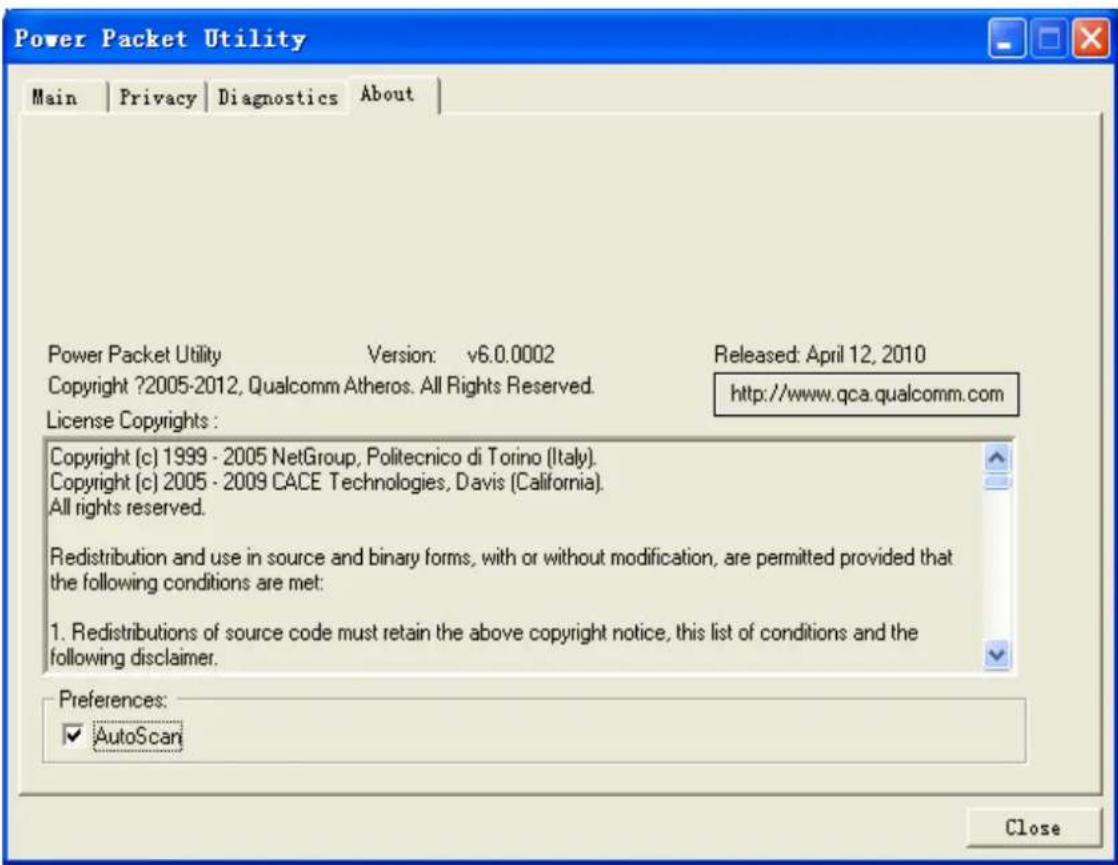
The About screen shows the software version and provides a html link to a website, such as http://www.qua.qualcomm.com. Clicking the web address, you can visit the web site.
text_image
Power Packet Utility Main | Privacy | Diagnostics | About | Power Packet Utility Version: v6.0.0002 Released: April 12, 2010 Copyright ?2005-2012, Qualcomm Atheros. All Rights Reserved. http://www.qca.qualcomm.com License Copyrights : Copyright (c) 1999 - 2005 NetGroup, Politecnico di Torino (Italy). Copyright (c) 2005 - 2009 CACE Technologies, Davis (California). All rights reserved. Redistribution and use in source and binary forms, with or without modification, are permitted provided that the following conditions are met: 1. Redistributions of source code must retain the above copyright notice, this list of conditions and the following disclaimer. Preferences: ✓ AutoScan CloseChapter 3 Forming a Powerline (HomePlug AV) Network
This chapter describes how to form a HomePlug AV logical network (AVLN) using the Security pushbutton and using the Utility. Operation progress and outcome can be monitored by observing the behavior of the power LED.
3.1 Using the Security Pushbutton
Scenario:
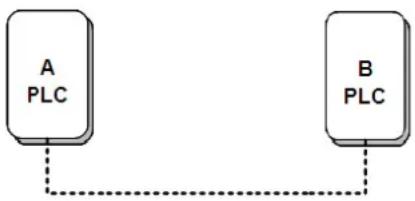
Devices A and B with different NMK (Network Membership Key used to authenticate/access) values are connected to the same powerline. Users want to use them to form a logical network.
flowchart
graph TD
    A["A PLC"] --> B["B PLC"]
    style A fill:#f9f,stroke:#333
    style B fill:#f9f,stroke:#333
Forming a HomePlug AV logical network
Please follow below steps to form a logical network using the Security button:
- Press the Security button on Device A for less than 3 seconds.
- Press the Security button on Device B for less than 3 seconds. The button on B must be pressed within 2 minutes
- Wait for connection to complete.
The Power indicator on both devices will flash evenly at 1 second interval until the operation succeeds or fails. The Power indicator will illuminate steadily on successful completion. If an error occurs, the Power indicator on both devices will flash unevenly for 2 minutes.
3.2 Using the Utility
Scenario:
Devices A and B are located in different networks. Users want to use them to form a logical network.
In this case, using the Security pushbutton cannot pair Devices A and B. Users can only use the Utility to form a logical network.
Please follow below to form a logical network using the Utility:
- Connect Device A to the network card of a PC.
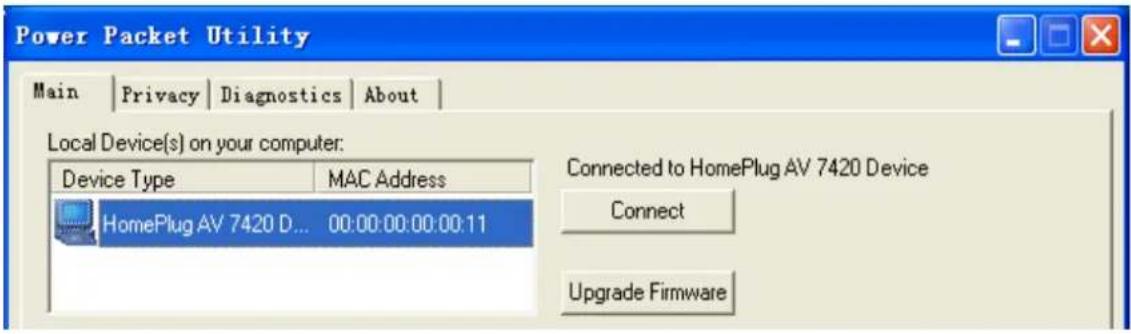
- Open the Utility. The Main tab page displays information about Device A after connection succeeds.
text_image
Power Packet Utility Main | Privacy | Diagnostics | About | Local Device(s) on your computer: Device Type MAC Address HomePlug AV 7420 D... 00:00:00:00:00:11 Connected to HomePlug AV 7420 Device Connect Upgrade FirmwareSearch for Local device on your computer
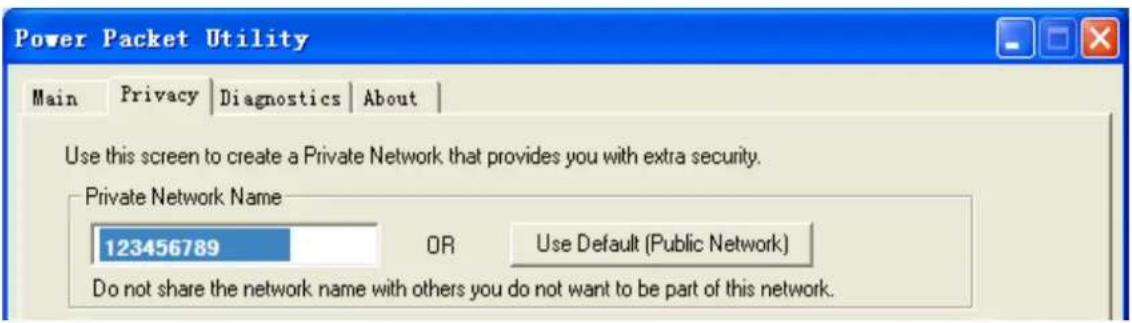
- Click the Privacy tab page. Enter a name in the Private Network Name field.
text_image
Power Packet Utility Main | Privacy | Diagnostics | About | Use this screen to create a Private Network that provides you with extra security. Private Network Name 123456789 OR Use Default (Public Network) Do not share the network name with others you do not want to be part of this network.Setting the network name for your PLC
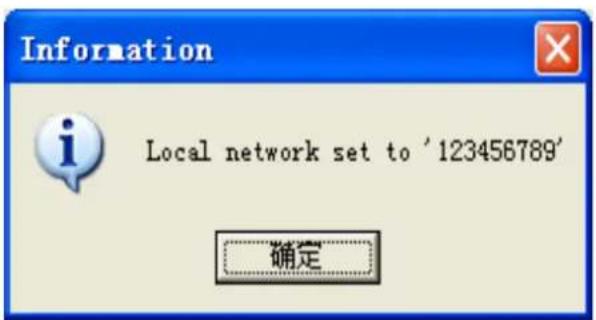
- Click Set Local Device Only. When the following page is displayed, the setting succeeds. Now Device A has been removed from its logical network.
text_image
Information Local network set to '123456789' 确定Network name setting success
- Repeat the procedures above to configure Device B. Configure Device B with the same Private Network Name as Device A. After the operation success, Devices A and B form a new logical network.
Chapter 4 Joining a Network
This chapter describes how to add a device to an existing HomePlug AV logical network (AVLN) using the Security/Reset pushbutton and using the Utility.
Operation progress and outcome can be monitored by observing the behavior of the power LED.
4.1 Using the Security Pushbutton
Scenario:
Devices A and B are located in network N. Device C (the joiner) that is not located in any networks attempts to join Network N. Any devices on Network N can become the 'adder'.
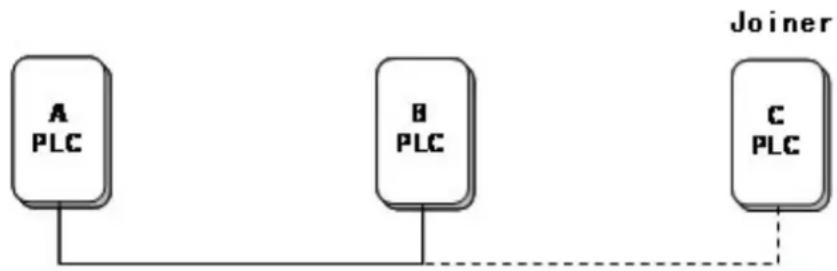
Please follow below to add Device C to Network N using the Security button:
- Press the Security button on Device A (or Device B) for less than 3 seconds, making it the 'adder'.
- Within 2 minutes, press the Security button Device C (the 'joiner') for less than 3 seconds.
- Wait for connection to complete.
The Power indicator on Device A (or Device B) and Device C will flash at 1 second intervals until the process succeeds or fails. It will illuminate steadily on success. If an error occurs, the Power indicator on Device A (or Device B) and Device C will flash unevenly for 2 minutes.
4.2 Using the Utility
Scenario:
Devices A and B are located in Network N. Device C (the joiner) that is located in another network attempts to join Network N. See
Do as follows to add Device C to Network N using the Utility:
- Connect Device C to the network card of a PC.
- Open the Utility. The Main tab page displays information about Device C after connection succeeds.
- Click the Privacy tab page. Enter a name in the Private Network Name field.
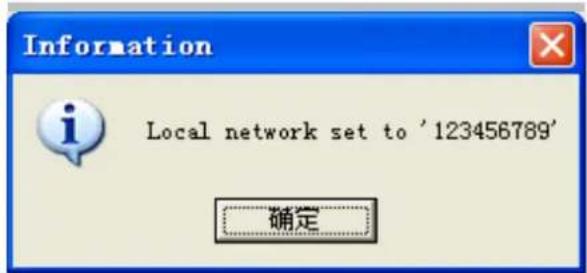
- Click Set Local Device Only. When the page shown as below displayed, the setting success. Now Device C has been removed from its logical network.
text_image
Information Local network set to '123456789' 确定- Press the pushbutton on Device A or B for less than 3 seconds, making it the 'adder'.
- Within 2 minutes, press the pushbutton on Device C (the 'joiner') for less than 3 seconds.
- Wait for connection to complete.
The Power indicator on Device A (or Device B) and Device C will flash at 1 second intervals until the process succeeds or fails. It will illuminate steadily on success. If an error occurs, the Power indicator on Device A (or Device B) and Device C will flash unevenly for 2 minutes.
Appendix A: Improving the Transmission
Quality
It is important to use the PLC product complying with the following "correct rules", because it can significantly improve the transmission capacity of the network.
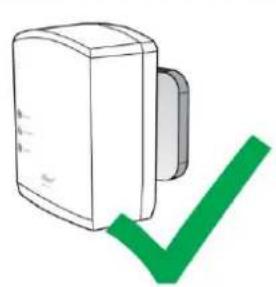
PLC device is recommended to plug the device directly into a wall socket, not to power stripe.
natural_image
Simple line drawing of a server unit with a green checkmark (no text or symbols)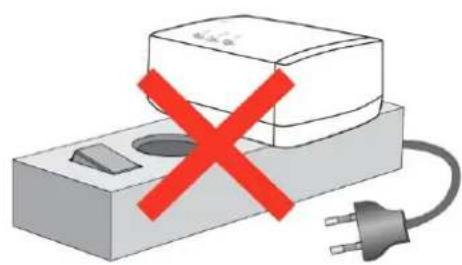
natural_image
Illustration of a plug electrical outlet with a red X mark symbol (no text or labels)Appendix B: Specifications
| Spec | |
| Chipset | Atheros AR7420 |
| Standards | Compliant with IEEE 1901Compatible with HomePlug AV standard Co-existence with HomePlug 1.0 NodesIEEE802.3, IEEE802.3u |
| Encryption | 128-bit AES Encryption |
| Ports | 10/100Mbps Ethernet port |
| LEDs | Power, Ethernet, Data |
| Powerline Speeds | Up to 200Mbps |
| Powerline Range | Up to 300 meters over Electricity line |
| Maximum PLC support | Capable of extending up to total of 16 Powerline adapters in one environment |
| Connection Type | RJ45 |
| Connection Speeds | 10/100M |
| Kit Type | Double |
| Frequency Band | 2 MHz ~ 67.5 MHz |
| Power Consumption | <2.7 W Operation Mode1.6 W Idle Mode0.34 W Standby Mode |
| QoS Support | ToSSupport up to 4-level type QoSSupport up to 8-level VLAN priority fieldIGMP snooping for multicast to multiple unicast mapping |
| System Requirement | Deployment requirements:Devices with 10/100 or 10/100/1000 Mbps Ethernet port Operates system not require.Utility software OS support:Microsoft Windows 2000/XP/Vista/7 |
| Dimensions | 2.72 x 2.28 x 1.22 in (69 x 58 x 31 mm) (1 Powerline adapter) |
| Weight | 0.18 lbs. (80 g) (1 Powerline adapter) |
| Temperature | 0°C ~ 40°C |
| Humidity | 10% ~ 90% Non-condensing |
Appendix C: Acronyms and Abbreviations
| AVLN | AV In-home Logical Network, the AVLAN is the set of STAs that possess the same network membership key. Every AVLN is managed by a single CCo. |
| CCo | Central Coordinator |
| CSMA/CA | Carrier Sense Multiple Access / Collision Avoidance |
| DAK | Device Access Key |
| DM | Device Manager |
| IGMP | Internet Group Management Protocol |
| NEK | Network Encryption Key |
| NID | Network ID (Identification) |
| NMK | Network Membership Key |
| PLC | Powerline Communication |
| PIB | Parameter Information Block |
| STA | Station, a STA in the network with a connection to the powerline and being able to source or sink traffic |
| TDMA | Time Division Multiple Access |
| TEI | Terminal Equipment Identifier |
| TOS | Type Of Service |
| VLAN | Virtual Local Area Network |
Appendix D: RPLC-200 QoS Support
RPLC-200 allows for 4 levels of Channel Access Priority (CAP (0 – 3)). The 8 levels of VLAN Ethernet tags must be mapped to the 4 levels of CAP priority, where CAP 3 is the highest priority and CAP 0 is the lowest. CAP 3 priority might be used for voice and network management frames, and CAP 2 is used for streaming video and music while CAP 1 and CAP 0 are used for data.
Default CAP
The ‘Default CAP’ group allows for default priority mapping of packets that do not have a VLAN TAG. The settings are available for Unicast (directed to a host).
- Unicast - (default CAP 1) - sets the default channel access priority for unicast frames not matching any other classification or mapping.
- IGMP managed Multicast Stream (Fixed to CAP 2) - sets the default channel access priority for stream data belonging to a snooped IGMP multicast group.
- IGMP - (default CAP 3) - sets the channel access priority for IGMP frames - these are the group management frames, not the stream data.
- Multicast/Broadcast - sets the default CAP for multicast frames not in a snooped group and for broadcast frames.
The following are the factory default settings for VLAN Tags and TOS Bits:
| VLAN Tag User Priority | Default CAP Priority | TOS Bit User Priority | Default CAP Priority |
| 0 | CAP1 | 0 | CAP1 |
| 1 | CAP0 | 1 | CAP0 |
| 2 | CAP0 | 2 | CAP0 |
| 3 | CAP1 | 3 | CAP1 |
| 4 | CAP2 | 4 | CAP2 |
| 5 | CAP2 | 5 | CAP2 |
| 6 | CAP3 | 6 | CAP3 |
| 7 | CAP3 | 7 | CAP3 |
Thank you for purchasing a quality Rosewill Product. Please register your product at: www.rosewill.com for complete warranty information and future support for your product.
Rosewill Customer Service Hotline: 1-800-575-9885 Rosewill Customer Service Support: techsupport@rosewill.com
COPYRIGHT & TRADEMARKS
Specifications are subject to change without notice. Is a registered trademark of Rosewill Inc. Other brands and product names are trademarks or registered trademarks of their respective holders.
No part of the specifications may be reproduced in any form or by any means or used to make any derivative such as translation, transformation, or adaptation without permission from Rosewill Inc. Copyright © 2010 Rosewill Inc. All rights reserved.
http://www.rosewill.com
Safety Warning
This device is intended for connection to the AC powerline. For installation instructions, please refer to the installation section of this guide. The following precautions should be taken when using this product.
- Read all instructions before installing and operating this product.
● Follow all warnings and instructions marked on the product.
● Unplug the device from the wall outlet before cleaning. Use a damp cloth for cleaning. Do not use liquid cleaners or aerosol cleaners.
● Do not operate this product near water.
● This product should never be placed near or over a radiator or heat register. - Do not use an extension cord between the device and the AC power source.
- Only a qualified technician should service this product. Opening or removing covers may result in exposure to dangerous voltage points or other risks.
- Do not plug the device into a power strip or surge protector because these devices may consist of filter and impair signal.
-
Avoid plugging the device right next to noisy sources such as cell phone charger, Halogen light, noisy desktop computer, vacuum cleaner, etc. These cases result in poor transmission speed.
● Unplug the device from the wall outlet and refer the product to qualified service personnel for the following conditions: -
If liquid has been spilled into the product
- If the product has been exposed to rain or water
- If the product does not operate normally when the operating instructions are followed
- If the product exhibits a distinct change in performance
Your product is marked with this symbol, which is known as the WEEE mark. WEEE stands for Waste Electronics and Electrical Equipment. It means that used electrical and electronic products should not be mixed with general waste. Used electrical and electronic equipment should be treated separately.