DN-16066 - Security Camera Digitus - Free user manual and instructions
Find the device manual for free DN-16066 Digitus in PDF.


| Product Type | Security Camera |
| Brand | Digitus |
| Model | DN-16066 |
| Dimensions (approx.) | 70 mm x 70 mm x 150 mm (without bracket) |
| Weight (approx.) | 0.5 kg |
| Power Supply | DC 12V / PoE (802.3af) |
| Power Consumption | Max. 5W |
| Resolution | 1080p Full HD (1920x1080) |
| Lens | 3.6 mm fixed lens |
| Night Vision | IR LEDs up to 20m |
| Field of View | 70° diagonal |
| Video Compression | H.265+ |
| Motion Detection | Yes, with push notification |
| Weatherproof Rating | IP66 |
| Operating Temperature | -20°C to 50°C |
| Storage | MicroSD up to 128GB / NVR / Cloud |
| Connectivity | Ethernet (10/100 Mbps), Wi-Fi (optional) |
| Audio | Built-in microphone and speaker |
| Mounting | Wall or ceiling mount included |
| Maintenance/Cleaning | Wipe with dry soft cloth; avoid solvents |
| Safety | Do not expose to water spray directly; use a surge protector |
| Spare Parts/Repair | No user-serviceable parts; contact support for repairs |
| General Information | Digitus DN-16066 is a versatile indoor/outdoor security camera suitable for home and small business surveillance. For detailed instructions, refer to the user manual. |
Frequently Asked Questions - DN-16066 Digitus
User questions about DN-16066 Digitus
0 question about this device. Answer the ones you know or ask your own.
Ask a new question about this device
Download the instructions for your Security Camera in PDF format for free! Find your manual DN-16066 - Digitus and take your electronic device back in hand. On this page are published all the documents necessary for the use of your device. DN-16066 by Digitus.
USER MANUAL DN-16066 Digitus
All lead-free products offered by the company comply with the requirements of the European law on the Restriction of Hazardous Substances (RoHS) directive, which means our manufacture processes and products are strictly “lead-free” and without the hazardous substances cited in the directive.

The crossed-out wheeled bin mark symbolizes that within the European Union the product must be collected separately at the product end-of-life. This applies to your product and any peripherals marked with this symbol. Do not dispose of these products as unsorted municipal waste. Contact your local dealer for procedures for recycling this equipment.

This apparatus is manufactured to comply with the radio interference requirements.
Federal Communications Commission Interference Statement
This equipment has been tested and found to comply with the limits for a Class B digital service, pursuant to Part 15 of the FCC rules. These limits are designed to provide reasonable protection against harmful interference in a residential installation.
Any changes or modifications made to this equipment may void the user's authority to operate this equipment. This equipment generates, uses, and can radiate radio frequency energy. If not installed and used in accordance with the instructions, may cause harmful interference to radio communications. However, there is no guarantee that interference will not occur in a particular installation. If this equipment does cause harmful interference to radio or television reception, which can be determined by turning the equipment off and on, the user is encouraged to try to correct the interference by one or more of the following measures:
➢ Reorient or relocate the receiving antenna.
- Increase the separation between the equipment and receiver.
Connect the equipment into an outlet on a circuit different from that to which the receiver is connected.
Consult the dealer or an experienced radio/TV technician for help.
➢ FCC Caution: Any changes or modifications not expressly approved by the party responsible for compliance could void the user's authority to operate this equipment.
All external cables connecting to this basic unit must be shielded.
For cables connecting to PCMCIA cards, see the option manual or installation instructions.
This device complies with Part 15 of the FCC Rules. Operation is subject to the following two conditions:
(1) This device mat not cause harmful interference, and
(2) This device must accept any interference received, including interference that may cause undesired operation.
Trademark Acknowledgements
iPad® & iPhone® are the registered trademarks of Apple Inc.
Android ^™ is a trademark of Google Inc. Use of this trademark is subject to Google Permissions.
Microsoft®, Windows® & Internet Explorer® are registered trademarks of Microsoft Corporation in the United States and/or other countries.
Disclaimer
We reserve the right to revise or remove any content in this manual at any time. We do not warrant or assume any legal liability or responsibility for the accuracy, completeness, or usefulness of this manual. The content of this manual is subject to change without notice.
This product doesn't have a standby / shutdown mode.
MPEG4 Licensing
THIS PRODUCT IS LICENSED UNDER THE MPEG4 VISUAL PATENT PORTFOLIO LICENSE FOR THE PERSONAL AND NON-COMMERCIAL USE OF A CONSUMER FOR (i) ENCODING VIDEO IN COMPLIANCE WITH THE MPEG4 VISUAL STANDARD ("MPEG-4 VIDEO") AND/OR (ii) DECODING MPEG4 VIDEO THAT WAS ENCODED BY A CONSUMER ENGAGED IN A PERSONAL AND NON-COMMERCIAL ACTIVITY AND/OR WAS OBTAINED FROM A VIDEO PROVIDER LICENSED BY MPEG LA TO PROVIDE MPEG4 VIDEO. NO LICENSE IS GRANTED OR SHALL BE IMPLIED FOR ANY OTHER USE. ADDITIONAL INFORMATION INCLUDING THAT RELATING TO PROMOTIONAL INTERNAL AND COMMERCIAL USES AND LICENSING MAY BE OBTAINED FROM MPEG LA, LLC. SEE HTTP://WWW.MPEGLA.COM.
GPL Licensing

This product contains codes which are developed by Third-Party-Companies and which are subject to the GNU General Public License ("GPL") or the GNU Lesser Public License ("LGPL").
The GPL Code used in this product is released without warranty and is subject to the copyright of the corresponding author.
Further source codes which are subject to the GPL-licenses are available upon request.
We are pleased to provide our modifications to the Linux Kernel, as well as a few new commands, and some tools to get you into the code. The codes are provided on the FTP site, and please download them from the following site or you can refer to your distributor:
http://download.dvrtw.com.tw/GPL/076D_Series/arm-linux-2.6.tar.gz
TABLE OF CONTENTS
1. OVERVIEW.... 1
1.1 Product Features....1
1.2 Package Content....1
1.3 Product Overview....1
1.4 Rear Panel 1
1.5 Status Indicator....2
2. CAMERA ACCESS WITH INTERNET EXPLORER.... 3
2.1 Camera Login....3
2.2 Control Panel Overview .... 3
3. CAMERA CONFIGURATIONS....5
3.1 System configuration menu....5
3.2 Network 6
3.2.1 Network....6
3.2.2 QoS 6
3.2.3 DDNS 6
3.2.4 SNTP 7
3.2.5 FTP....7
3.2.6 MAIL....7
4.4.7 SMS....8
3.2.8 Filter 8
3.2.9 UPnP / Bonjour....9
3.2.10 RTP 10
3.3 Camera 11
3.3.1 Camera....11
3.3.2 Video 11
3.3.3 Color 11
3.3.4 Advance....12
3.4 Trigger 12
3.4.1 Trigger 12
3.5 General 13
3.5.1 General....13
3.5.2 Time....14
3.5.3 Server Log....14
3.5.4 Online....15
3.5.5 Account....15
3.5.6 Google Maps....16
3.5.7 Maintenance....16
APPENDIX 1 PRODUCT SPECIFICATIONS.... 18
APPENDIX 2 BIT RATE TABLE FOR REFERENCE 19
APPENDIX 3 API ID APPLICATION FOR SMS MESSAGING....20
APPENDIX 4 Q&A 22
1. OVERVIEW
1.1 Product Features
● Easy network setup with your iPhone / iPad
- ONVIF standard supported to simplify system integration
● H.R. image sensor gives users clear and sharp pictures
- Remote Surveillance
-- Fully compatibility on iPhone & iPad, and Internet Explorer® on Windows® operating system
1.2 Package Content
Network camera
□ Camera Bracket
☐ Quick Setup with iPhone / iPad ☐ Adapter
1.3 Product Overview
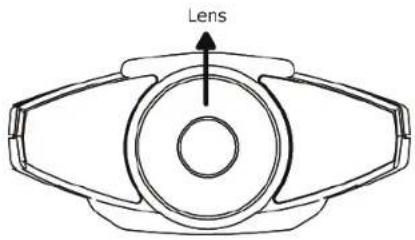
text_image
LensFront View
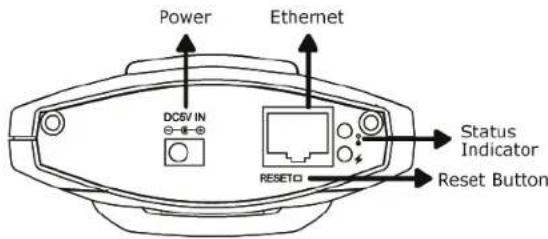
text_image
Power Ethernet DC5V IN RESET Status Indicator Reset ButtonRear View
1.4 Rear Panel
| Ethernet: | Connect a RJ45 network cable. |
| Power: Connect the supplied regulated power supply. | |
| Reset Button: With the power connected, press to reset all parameters, including the IP address to factory default settings.The camera will reboot after default reset. Please do not disconnect your camera during the reset process. | |
| Status Indicator | ♀ is the indicator for LAN connection, and is the indicator for Internet connection. For details, please refer to “1.5 Status Indicator” at page 2. |
1.5 Status Indicator
| ICON | LAN connection status Internet connection status | |
| System Status | ||
| During powering on | Always on | Always on |
| Reset default | Blinking (on 250 ms, off 250 ms)●○●○●○●○●○ | Always |
| Upgrade | Blinking (on 250 ms, off 250 ms)●○●○●○●○●○ ●○●○●○●○●○ | Blinking (on 250 ms, off 250 ms) |
| Connection Status | ||
| LAN connected | Always on -- | |
| LAN disconnected | Blinking (on 100 ms, off 500 ms)●○○●○○●○○ | -- |
| Internet connected -- | Always on | |
| Internet disconnected -- | Blinking (on 100 ms, off 500 ms)●○○●○○●○○ | |
| 3G Connection Error on iPhone / iPad / Android Mobile Device | ||
| 3G Connection Setting Uncompleted | -- | Blinking(on 5 sec, off 0.5 sec, on 0.5 sec, off 0.5 sec, on 5 sec) |
| -- ●●●●○●○●●●● | ||
* LED blinking frequency - ● LED on / ○ LED off
2. CAMERA ACCESS WITH INTERNET EXPLORER
This network camera can be accessed via Microsoft® Internet Explorer® and iPhone / iPad / Android mobile devices with our self-developed program "EagleEyes" installed depending on different using situations.
Note: For details about accessing network cameras via iPhone / iPad / Android mobile devices, please refer to http://www.eagleeyescctv.com.
Before using the camera, make sure you have configured the network settings, and the network connection is fine.
For network configurations, please refer to:
■ "Quick Setup With iPhone / iPad" supplied with your camera if you're using iPhone / iPad, and your network environment is wireless.
■ "ADVANCED NETWORK SETUP" downloadable from www.surveillance-download.com/user/n216.swf if your network environment is not wireless.
2.1 Camera Login
Step1: Open your web browser, and key in http://ipaddress:portnum in the URL address box.
For example, for the IP address 60.121.46.236 and port No. 888, please key in "http://60.121.46.236:888" into the URL address box, and press "Enter".
Step2: In the login page, key in the user name and password, and enter the security code from the image below if any. Then, click "LOGIN".
Step3: The wizard is then started.
• To skip the wizard and directly access the camera live view, click "Close".
• To directly access the camera live view without starting the wizard for the login next time, check "Do not start wizard at login".
Note: If you're prompted to install "VLC player", "Software" or "H264 Streaming Viewer", please agree to proceed the installation. Or, you might not be able to see the live view properly.
Step5: When the login is successful, the live view is shown.
2.2 Control Panel Overview
Note: The buttons available depend on the model number used and the user level used to log in.
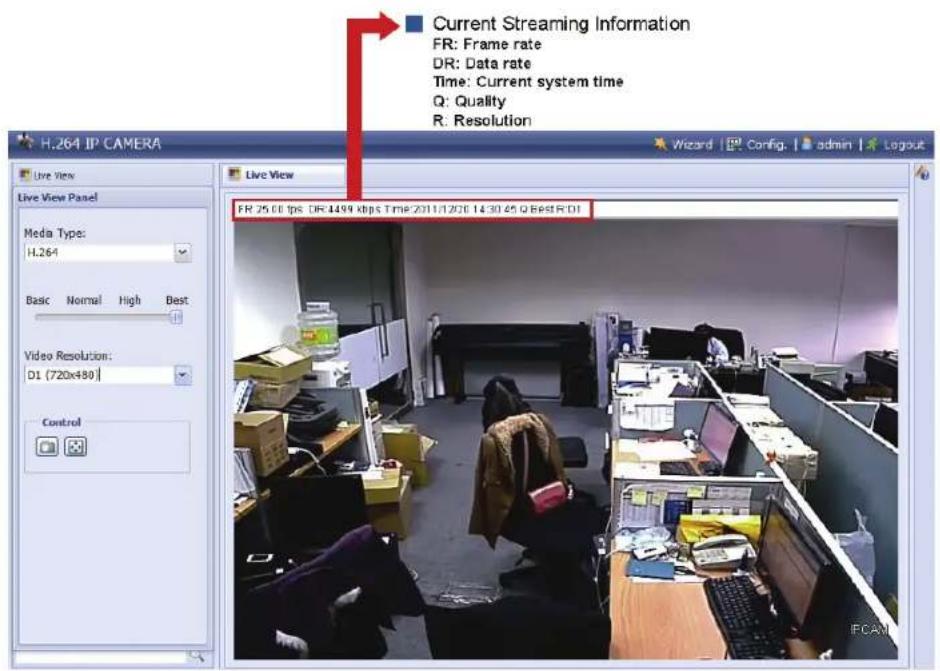
text_image
Current Streaming Information FR: Frame rate DR: Data rate Time: Current system time Q: Quality R: Resolution H.264 IP CAMERA Live View Live View Panel Media Type: H.264 Basic Normal High Best Video Resolution: D1 (720x480) Control Live View FR 25.00 fps DR:1499 kbps Time:2011/1/2014:30:45 Q Best R D1 IFCAI| Function | Icon | User Level | Description |
| Live | [0071] | Supervisor / Power User / Normal User / Guest | Switch to the live view page. |
| Config. | [0029] | Supervisor | Switch to the system configuration page, and the functions available for "Supervisor" and "Power User" are different.For details, please refer to "3.1 System configuration menu" at page 5. |
| Media Type -- Supervisor / Power User | / Normal User / Guest | Select the image player from the drop-down list:■ H.264 / MPEG-4 / Motion JPEG■ QuickTimeQuickTime is Apple Inc.'s multimedia software. You need to have QuickTime installed in your operating system before selecting "QuickTime".When it is selected, you will be promoted to enter the user name and password to access the camera.■ VLC | |
| Quality -- Supervisor / Power User | / Normal User | Click & drag the slider to select the video quality:Basic / Normal / High / Best. | |
| Video Resolution -- Supervisor / Power User / Normal User | Select the image resolution from the drop list:■ D1 (720 x 480)■ CIF (352 x 240) | ||
| Live View Size: | Supervisor / Power User / Normal User | ||
| Full Screen | [003] | Click to display the image in full screen.To exit the full screen mode, press "Esc" on your keyboard.This icon appears only when the selected resolution is D1. | |
| Double size | [004] | The QVGA resolution is resized to fit into the current live view size.This icon appears only when the selected resolution is CIF. | |
| Snapshot | [005] | Supervisor / Power User / Normal User | Click to take a snapshot of the current view on a new window. Right click on the picture and re-save it to the location you want. |
3. CAMERA CONFIGURATIONS
Users can further configure this network camera by accessing via Internet Explorer.
3.1 System configuration menu
Click "Config." to enter the configuration page.
Note: You need to be "Supervisor" to enter the system configuration page. If you're not a "Supervisor", please re-log into the camera with the correct user name and password.
The functions are categorized into six menus: Network, Camera, Record Timer, Storage, Trigger and General.
■ For details about "Network", please refer to "3.2 Network" at page 6.
■ For details about "Camera", please refer to "3.3 Camera" at page 10.
■ For details about "Trigger", please refer to "3.4 Trigger" at page 12.
■ For details about "General", please refer to "3.5 General" at page 13.
| Main Menu Sub-Menu Reference | ||
| Network Network | Configure network settings. | |
| DDNS Enter DDNS SNTP Synchronize | QoS Limit the data flow for live streaming. | |
| information when the network type is PPPOE or DHCP. | ||
| your camera time with the networked computer systems. | ||
| Filter | FTP | Enter the FTP information for event notifications when "FTP" is chosen in "Trigger" → "Trigger". |
| Enter Email information for event notifications when "Email" is chosen in "Trigger" → "Trigger". | ||
| SMS | Enter text messaging information for SMS notifications when "SMS" is chosen in "Trigger" → "Trigger". | |
| Choose to permit or block the IP address(es) which can access this camera. | ||
| UPnP | *Suitable for Windows-based operating system.Allow this camera to be detected among devices within the same network area for easy and quick usage. | |
| Bonjour | *Suitable for Apple Mac-based operating system.Allow this camera to be detected among devices within the same network area for easy and quick usage. | |
| RTP | Set the parameters for video data transmission when you're using multimedia other than web browsers and Video Viewer for remote access. | |
| Camera | Camera | 1. Rename the camera.2. Change the place where the camera name is shown on the screen. |
| Video | Adjust video-related settings in different video format. | |
| Color | Adjust the color performance. | |
| Advance | Adjust the camera parameters if necessary. | |
| Trigger | Trigger | 1. Enable / disable the motion detection.2. Set the motion detection area.3. Configure how the camera reacts for any event. |
| General | General | 1. Select the language of the web browser.2. Check the MAC address of the camera.3. Lock camera access after the specified time.4. Enable or disable LED status indication. |
| Time Set daylight | saving time and the current time. | |
| Server Log Check | the system event logs. | |
| Online Check the | current online user(s). | |
| Google Maps Allow | Account | 1. Create a new user account with different access privilege.2. Modify or delete an existing user account. |
| you to know where the network camera is. | ||
| Maintenance | 1. Check the current firmware version and upgrade your camera.2. Copy system configurations.3. Reboot the camera.4. Download the video player to play the recorded data. | |
3.2 Network
3.2.1 Network
You can set the network configuration of the network camera depending on your network type.
For details, please refer to "Advanced Network Setup" from www.surveillance-download.com/user/n216.swf.
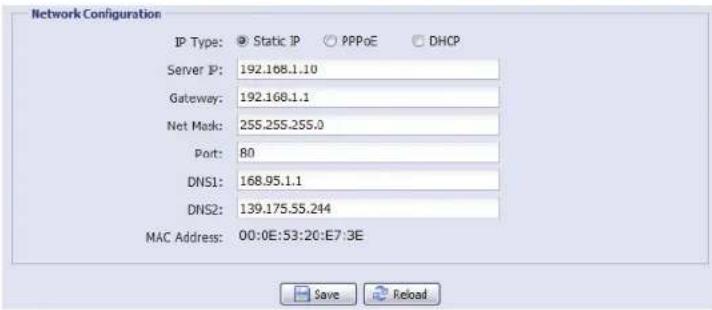
text_image
Network Configuration IP Type: Static IP PPPoE DHCP Server IP: 192.168.1.10 Gateway: 192.168.1.1 Net Mask: 255.255.255.0 Port: 80 DNS1: 168.95.1.1 DNS2: 139.175.55.244 MAC Address: 00:0E:S3:20:E7:3E Save Reload3.2.2 QoS
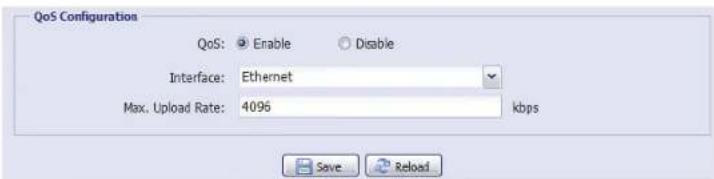
QoS, Quality of Service, is the ability to control the data flow for real-time streaming. This function is important if your network bandwidth is insufficient and you have other devices to share the network bandwidth.
Check "QoS Enable", and set the max. upload rate from 256 to 10240 kbps.
text_image
QoS Configuration QoS: Enable Disable Interface: Ethernet Max. Upload Rate: 4096 kbps Save Reload3.2.3 DDNS
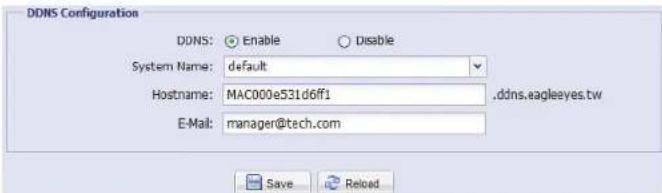
Select "On" when the selected network type in "Network" is "PPPOE" or "DHCP".
For details, please refer to "Advanced Network Setup" from www.surveillance-download.com/user/n216.swf.
text_image
DDNS Configuration DDNS: Enable Disable System Name: default Hostname: MAC000e531d6ff1 .ddns.eagleeyes.tw E-Mail: manager@tech.com Save Reload3.2.4 SNTP
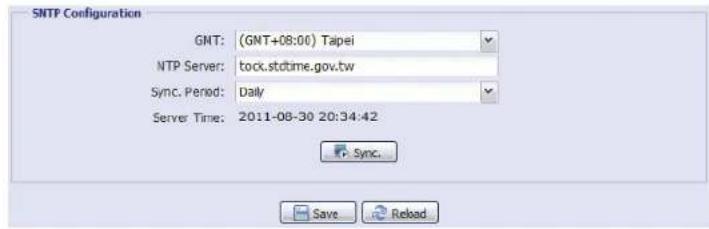
SNTP (Simple Network Time Protocol) is used to synchronize your camera time with the networked computer systems.
text_image
SNTP Configuration GNT: (GNT+08:00) Taipei NTP Server: tock.stdtime.gov.tw Sync. Period: Daily Server Time: 2011-08-30 20:34:42 Sync... Save ReloadFunction Description
| GMT Once users choose the time zone, the network camera will adjust the local area time of the system automatically. | |
| NTP Server | Simply use the default SNTP server (For example, tock.stdtime.gov.tw) or change to another server with which users are familiar. |
| Sync. Period | Select “Daily” to synchronize the camera time with the network time every day or “None” to turn off this function. |
| Sync Click and the network camera will synchronize the time with the network time. | |
3.2.5 FTP
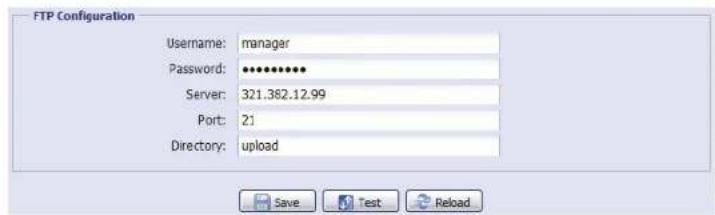
Enter the detailed FTP information and click "Save" to confirm. The information you set here will be applied when "FTP" is selected in "Trigger" → "Trigger".
text_image
FTP Configuration Username: managar Password: ****** Server: 321.382.12.99 Port: 21 Directory: upload3.2.6 MAIL
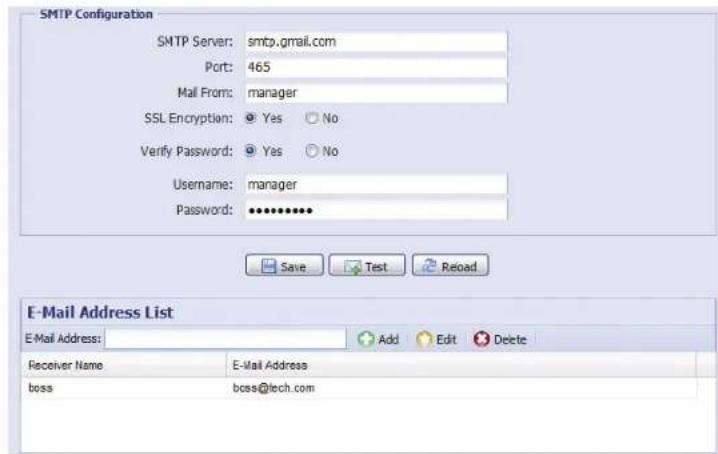
Enter the detailed e-mail information and click "Save" to confirm. The information you set here will be applied when "Email" is selected in "Trigger" > "Trigger".
text_image
SMTP Configuration SMTP Server: smtp.gmail.com Port: 465 Mail From: manager SSL Encryption: Yes No Verify Password: Yes No Username: manager Password: ************ Save Test Reload E-Mail Address List E-Mail Address: Add Edit Delete Receiver Name E-Mail Address boss boss@tech.comFunction Description
| SMTP Server Enter the SMTP server address provided from your e-mail system supplier. | |
| Port | Enter the port number provided from your e-mail system supplier. If this column is left blank, the e-mail server will use port 25 to send e-mails. |
| Mail From Enter the name of the sender. | |
| SSL Encryption | Select "Yes" if your e-mail server is using SSL encryption to protect your e-mail content from unauthorized access. |
| Verify Password Some mail servers are required to verify the password. Please enter the "user name" and "password". | |
| E-Mail Address List Add the e-mail address(s) of the assigned recipient(s). | |
| Test When all information is entered, click "Test Mail" to try if the receipt. | |
4.4.7 SMS
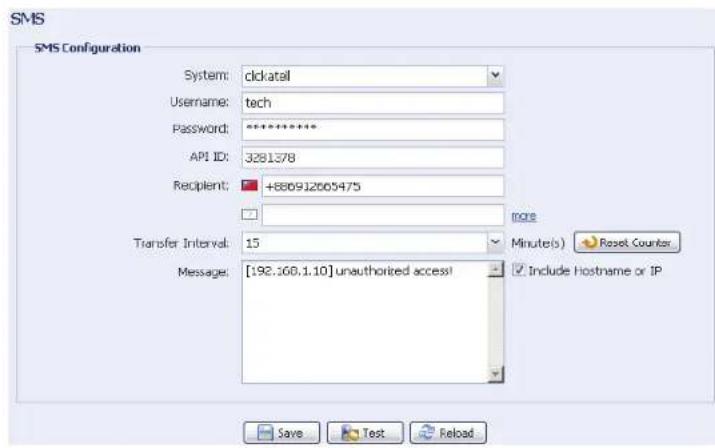
Note: Before using this function, you need to apply an API ID from the mobile messaging company, Clickatell, and you will be charged starting from the 11 ^th message. For details, please refer to "APPENDIX 3 API ID APPLICATION FOR SMS MESSAGING' at page 20.
Enter the detailed information needed for text messaging, and click "Save" to confirm. The information you set here will be applied when "SMS" is selected in "General" > "Trigger".
text_image
SMS SMS Configuration System: clickatall Username: tech Password: ********** API ID: 3281378 Recipient: +886912665475 Transfer Interval: 15 Message: [192.168.1.10] unauthorized access! more Minute(s) Reset Counter Include Hostname or IP Save Test ReloadFunction Description
| System The text messaging service provider is Clickatell. | |
| User name / Password Enter the account user name and password you created in Clickatell. | |
| API ID Enter the API ID you applied from Clickatell. | |
| Recipient Click "Add" to enter the phone number, including the country code, to receive the text message. Five sets of phone numbers are allowed. | |
| Transfer Interval Set the interval time in minutes between two-message sending.The options are 0, 15, 30 & 60. | |
| Reset Counter Click to restart the text messaging, and the SMS will be sent after the specified time interval since you click this button. | |
| Message Enter the text content (up to 70 characters) you want to send with the text message. | |
| Test To know whether your SMS setting is correct, click this button to immediately send a SMS to your phone.Note: This testing is not free and you will be charged for SMS sending base on your local rate. |
3.2.8 Filter
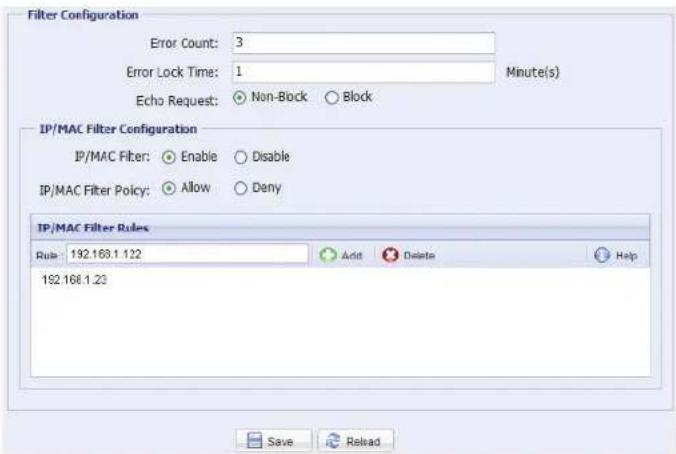
Choose to permit or block the IP address(es) which can access this camera, and click "Save" to confirm.
text_image
Filter Configuration Error Count: 3 Error Lock Time: 1 Minute(s) Echo Request: Non-Block Block IP/MAC Filter Configuration IP/MAC Filter: Enable Disable IP/MAC Filter Policy: Allow Deny IP/MAC Filter Rules Rule 192.168.1.122 Add Delete Help 192.168.1.23 Save ReloadFunction Description
■ Filter Configuration
| Error Count | Set the maximum count for login failure. When the maximum count is reached, the IP address trying to access the network camera will be locked. |
| Error Lock Time Set the lock time in minutes when the maximum count of error login for an IP address is reached. | |
| Echo Request | Select “Non-Block” to allow other users to use the ping command to detect the IP address of your network camera, or “Block” to deny the ping command request. |
| ■ IP/MAC Filter Configuration | |
| IP/MAC Filter Choose to enable or disable the filter function. | |
| IP/MAC Filter Policy | If “Enable” is selected, choose whether you want to permit (Allow) or block (Deny) the IP address list below. |
| ■ IP/MAC Filter Rules | |
| Rule | To add an item to the IP address list, key in the IP address in “Rule”, and click “Add”.To remove an existing item in the IP address list, click the item you want to remove, and click “Delete”. |
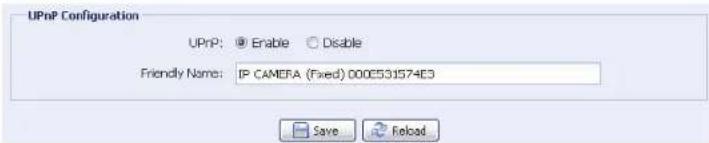
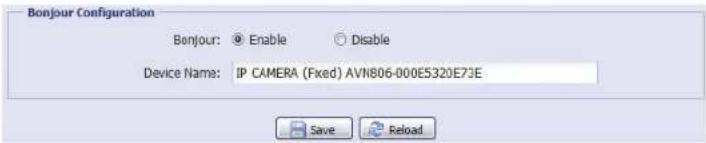
"UPnP" stands for "Universal Plug and Play", which allows devices to connect seamlessly in the home and corporate environments and simplify installation of computer components, and is only suitable for Microsoft Windows-based operating system.
"Bonjour" functions the same as "UPnP", but it's only suitable for Apple Mac-based operating system.
UPnP
text_image
UPnP Configuration UPnP: Enable Disable Friendly Name: IP CAMERA (Fixed) 000531574E3 Save Reload> Bonjour
text_image
Bonjour Configuration Bonjour: Enable Disable Device Name: IP CAMERA (Fixed) AVN806-000E5320E73E Save ReloadCheck "Enable" to allow the network camera to be detected among devices within the same network area, and set the identification name of the camera in "Friendly name".
When this function is activated, the other PC within the same domain as this camera will be able to search this camera in:
“Network Neighbor” with the identification name set in “Friendly name” for Windows-based PC, or
“” (finder) or “Bookmark” with the identification name set in “Device Name” for Mac-based PC.
Double-click it to quickly open the web browser for camera access.
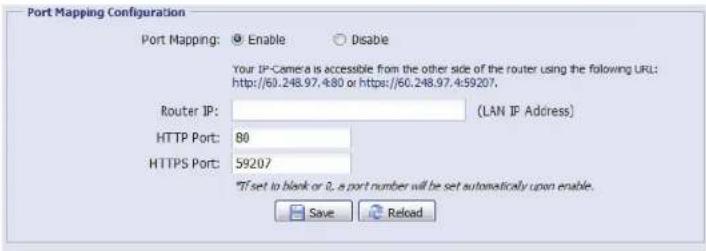
Port Mapping (Available only in UPnP)
This function can eliminate the need to additionally access the router for port forwarding.
For details, please refer to "Advanced Network Setup" from www.surveillance-download.com/user/n216.swf.
Note: Before using this function, make sure your router supports UPnP, and this function is enabled. If not, please access your router additionally for port forwarding.
When "Port Mapping" is set to "Enable", the system will automatically assign an IP address or port number for you if no IP address or port number is entered.
text_image
Port Mapping Configuration Port Mapping: Enable Disable Your IP-Camera is accessible from the other side of the router using the following URL: http://60.248.97.4:80 or https://60.248.97.4:59207. Router IP: (LAN IP Address) HTTP Port: 80 HTTPS Port: 59207 *If set to blank or 2, a port number will be set automatically upon enable. Save ReloadNote: When the configurations are saved successfully, you'll see a message indicating the IP address and port number assigned to this network camera.
3.2.10 RTP
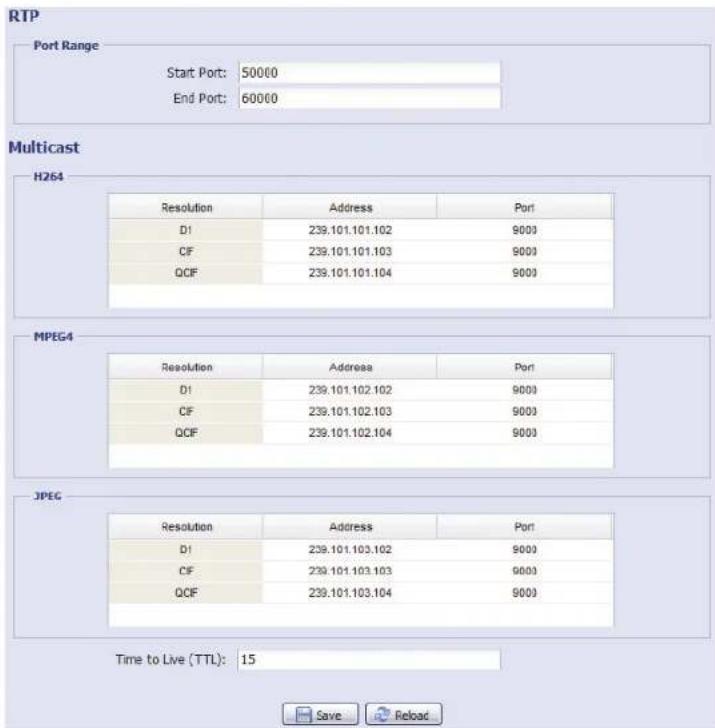
The Real-time Transport Protocol (RTP) is an Internet protocol standard to manage the real-time transmission of multimedia, such as VLC player.
The media player you want to use for remote access must support RTP transmission for this function to work normally.
Note: When you're about to end the remote access, please press the stop button on your media player first, and then close the program. This is to ensure the server receives the stop command, and also help to protect the server from redundant data transmission.
text_image
RTP Port Range Start Port: 50000 End Port: 60000 Multicast H264 Resolution Address Port D1 239.101.101.102 9000 CF 239.101.101.103 9000 QCF 239.101.101.104 9000 MPEG4 Resolution Address Port D1 239.101.102.102 9000 CF 239.101.102.103 9000 QCF 239.101.102.104 9000 JPEG Resolution Address Port D1 239.101.103.102 9000 CF 239.101.103.103 9000 QCF 239.101.103.104 9000 Time to Live (TTL): 15 Save Reload| Function Description | |
| ■ Port RangeThe port range used by RTP is limited, and preserving 100 ports between the start port and end port is necessary. | |
| Start Port The range of the start port is 1024 ~ 65434. | |
| End Port The range of the end port is 1124 ~ 65534. | |
| ■ Multicast | |
| Address and port for H264 / MPEG4 / JPEG transmission | Set a specific address and port for multicast of each stream format (H264/ MPEG4/ JPEG).The range of the address is limited between 224.0.0.1 ~ 239.255.255.255.The port for multicast must be an even number. |
| Time to Live (TTL) The range of Time to Live of the package is between 1 ~ 255. As soon as Time to Live of the package is 0, it will be dropped. | |
3.3 Camera
3.3.1 Camera
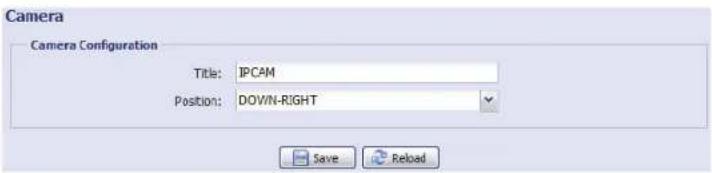
Rename the camera, and change the place where the camera name is shown on the screen, UP-LEFT / UP-RIGHT / DOWN-LEFT / DOWN-RIGHT.
text_image
Camera Camera Configuration Title: IPCAM Position: DOWN-RIGHT Save Reload3.3.2 Video
Adjust video-related settings in different video format.
■ "Quality" is related to image clearness.
■ "FPS" is related to the fluency of the video. The more the FPS, the more fluent the video.
■ "Max Bit Rate" is the maximum limitation of data transmission in the selected image format and resolution.
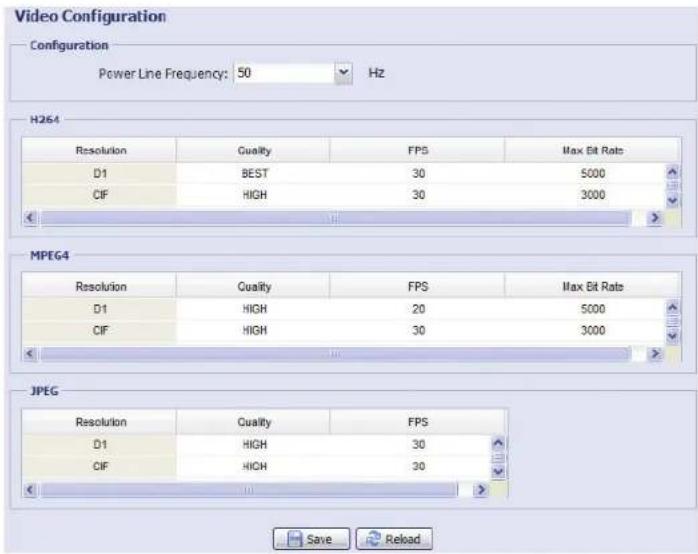
text_image
Video Configuration Configuration Power Line Frequency: 50 Hz H264 Resolution Cuality FPS Max Bit Rate D1 BEST 30 5000 CIF HIGH 30 3000 MPEG4 Resolution Cuality FPS Max Bit Rate D1 HIGH 20 5000 CIF HIGH 30 3000 JPEG Resolution Cuality FPS D1 HIGH 30 CIF HIGH 30 Save Reload3.3.3 Color
Adjust the color performance from Brightness, Contract and Saturation. Click and drag the slider to preview the color change on the right side of this page and adjust the image color.
To restore the default values, click "Back to Default".
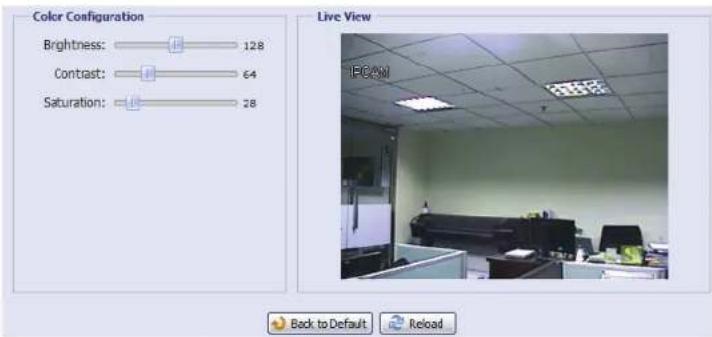
text_image
Color Configuration Brightness: 128 Contrast: 64 Saturation: 28 Live View IFCAM Back to Default Reload3.3.4 Advance
Adjust the camera parameters if necessary.
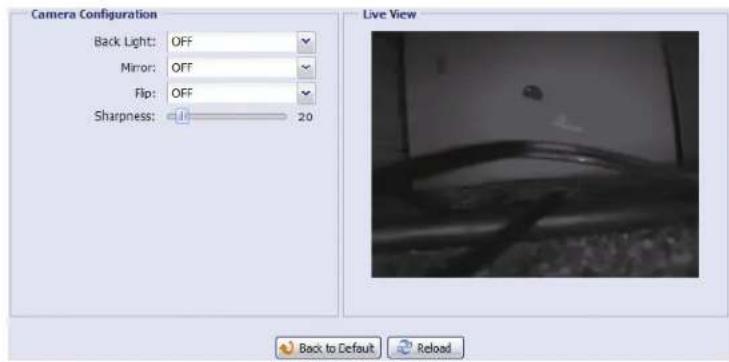
text_image
Camera Configuration Back Light: OFF Mirror: OFF Flip: OFF Sharpness: 20 Live View Back to Default Reload| Item Description | |
| Back Light | It is the function to adjust the image to compensate for an area that is overpowered by brightness because of excessive light. The image will be properly exposed for cleanness. Select to activate (ON) or disable (OFF) this function.Note: This function is available only in the day mode. |
| Mirror Select “ON” to rotate the images horizontally based on your installation situation when necessary. | |
| Flip Select “ON” to rotate the image 180° when necessary. | |
| Sharpness | Sharpness enhances the clarity of image detail by adjusting the aperture and sharpening the edges in the pictures.Hold and drag the slider to adjust the level of sharpness from 0 ~ 100. The higher the value, the sharper the image. |
3.4 Trigger
3.4.1 Trigger
You can configure how this camera reacts when there's a motion event.
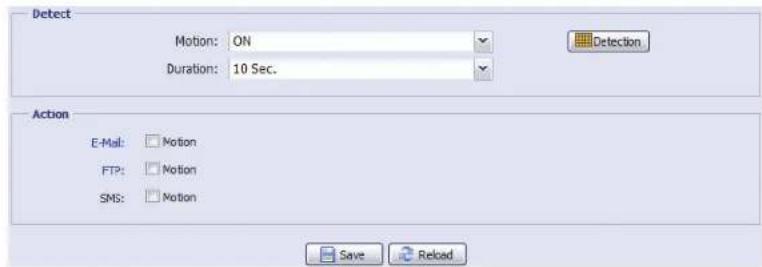
text_image
Detect Motion: ON Duration: 10 Sec. Detection Action E-Mail: Motion FTP: Motion SMS: Motion Save ReloadDetect
| Item Description | |
| Motion Enable or disable motion detection. Motion detection is not supported when the stream format is Motion JPEG. | |
| When "Enable" is selected, click "Detection" to enter the motion detection area setting page as follows: | |
| Sensitivity: Set the detection sensitivity from the drop-down list: High, Normal or Low. | |
| Area Setting: Set the motion detection area by selecting the area grids with your mouse. Pink grids represent the area that is not being detected while the transparent grids are the area under detection. You can set multiple areas under detection. Click "Clear All" to set the whole area undetected. | |
| Click "Select All" to set the whole area under detection. | |
| Duration Set the duration time for trigger recording (5 / 10 / 20 / 40 seconds). | |
Action
Here defines how the camera delivers alerts to you for any event.
| Item Description | |
| E-Mail Select the event type you want to receive E-mail notifications when it occurs.Then, click the title “E-Mail” (in blue) to configure the media type (H264 / JPEG / MPEG4), file format (AVC / AVI), and record time (1 ~ 5 seconds) for the event video clip.The camera will send the captured video clip to the E-mail address(s) you assigned in “Network” → “Mail” once the selected event type occurs. | |
| FTP Select the event type you want to receive FTP notifications when it occurs.Then, click the title “FTP” (in blue) to configure the media type (H264 / JPEG / MPEG4), file format (AVC / AVI), and record time (1 ~ 5 seconds) for the event video clip.The camera will upload the captured video clip to the FTP site you assigned in “Network” → “Mail” once the selected event type occurs. | |
| SMS Select the event type you want to receive a text message when it occurs.The camera will send a text message to the mobile phone number you assigned in “Network” → “SMS” once the selected event type occurs. |
3.5 General
3.5.1 General
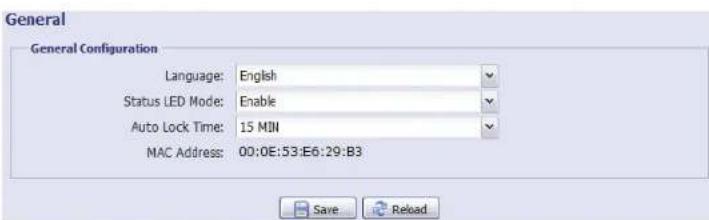
To change the language of UI interface, select from the drop-down list in "Language".
To allow the status LED indicators to show the status as indicated in "1.5 Status Indicator" at page 2, select "Enable" in "Status LED Mode"; to hide the status, select "OFF"; to only show the error status, select "Temporary Disable".
Note: The status LED mode will be restored to "Enable" after camera reboot when "Temporary OFF" is selected.
To lock camera access when it's not used after the specified time, select "5 MIN", "15 MIN" or "30 MIN" from the drop-down list of "Auto Lock Time", or select "NEVER" to disable this function.
Note: When the camera access is locked after the specified time, to resume camera access, please enter the password.
text_image
General General Configuration Language: English Status LED Mode: Enable Auto Lock Time: 15 MIN MAC Address: 00:0E:53:E6:29:B3 Save Reload3.5.2 Time
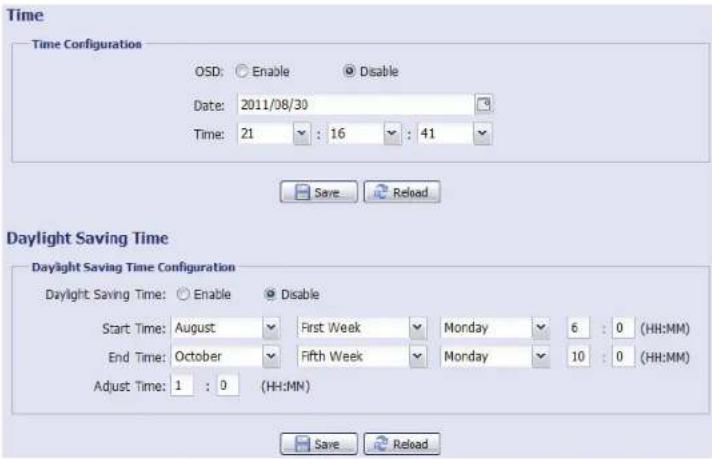
Set daylight saving time and the current time, and click "Save" to confirm.
text_image
Time Time Configuration OSD: Enable Disable Date: 2011/08/30 Time: 21 : 16 : 41 Daylight Saving Time Daylight Saving Time Configuration Daylight Saving Time: Enable Disable Start Time: August First Week Monday 6 : 0 (HH:MM) End Time: October Fifth Week Monday 10 : 0 (HH:MM) Adjust Time: 1 : 0 (HH:MN) Save Reload| Function Description | |
| ■ Time Configuration | |
| Date | Set the current date. |
| Time | Set the current time. |
| ■ Daylight Saving Time Configuration | |
| Daylight Saving Time | Specify whether to use daylight saving time (Enable / Disable). |
| If this function is enabled, set the time period (Start Time / End Time), and adjust the daylight saving time in hours (Adjust Time). | |
3.5.3 Server Log
To quickly search the system logs you want by event type, click "Prev. Page" or "Next Page" to find the logs you want, or check the event type(s) and click "Reload" to start searching.
To clear all system event logs, click "Clear All".
| Server Log List | |||
| No. | Event | Time | Result |
| 1 | Remote Login | 2011/08/30 20:54:41 | admin |
| 2 | Remote Login | 2011/08/30 20:29:58 | admin |
| 3 | Remote Login | 2011/08/30 18:22:08 | admin |
| 4 | SNTP Update | 2011/08/30 18:20:06 | Failed |
| 5 | Remote Login | 2011/08/30 18:20:03 | admin |
| 6 | Power On | 2011/08/30 18:19:24 | ON |
| 7 | Power On | 2011/08/30 18:18:46 | OFF |
| 8 | Remote Login | 2011/08/30 18:11:21 | admin |
| 9 | Remote Login | 2011/08/30 18:11:16 | admin |
| 10 | Remote Login | 2011/08/30 18:07:19 | admin |
| 11 | Remote Login | 2011/08/30 18:03:19 | admin |
| 12 | Remote Login | 2011/08/30 18:02:15 | admin |
| 13 | Remote Login | 2011/08/30 18:02:07 | admin |
| 14 | Remote Login | 2011/08/30 18:01:51 | admin |
| 15 | Remote Login | 2011/08/30 17:57:01 | admin |
| 16 | Remote Login | 2011/08/30 17:56:59 | admin |
| 17 | Remote Login | 2011/08/30 17:56:53 | admin |
| 18 | Remote Login | 2011/08/30 17:54:44 | admin |
| 19 | SNTP Update | 2011/08/30 17:50:48 | Failed |
| 20 | Power On | 2011/08/30 17:50:07 | ON |
3.5.4 Online
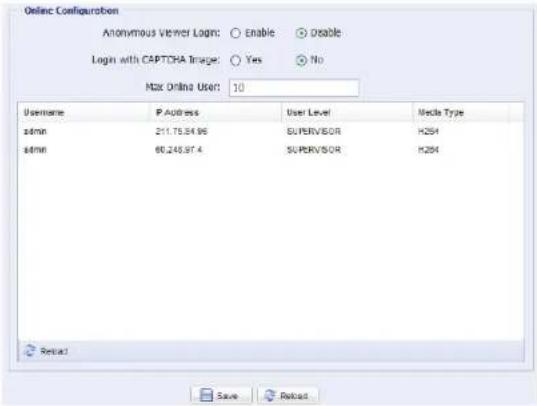
You can check the current online user(s) with respective online information. To refresh the list, click "Reload".
To allow anonymous login, select "Enable" in "Anonymous Viewer Login".
To disable image code verification at login, select "No" in "Login with CAPTCHA Image".
text_image
Online Configuroben Anonymous Viewer Login: ○ Enable ○ Enable Login with CAPTCHA Image: ○ Yes ○ No Max Online User: 10 Username P Address User Level Media Type admin 211.75.94.96 SUPERVISOR H254 admin 66.248.97.4 SUPERVISOR H254 Rev3 Save Cancel3.5.5 Account
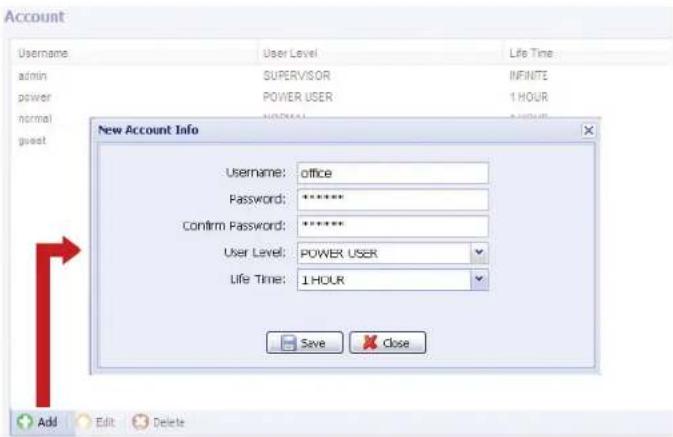
You can create a new account with different user access privilege, or delete or modify an existing account setting.
How to create a new account
Step1: Click "New", and fill in the following columns.
text_image
Account Username admin power normal guest User Level SUPERVISOR POWER USER 1 HOUR New Account Info Username: office Password: ****** Confirm Password: ****** User Level: POWER USER Life Time: 1 HOUR Save Close Add Edit Delete| Column Description | |
| User Name Set a user | name that will be used for camera access. The user name allows up to 16 alphanumeric characters. |
| Password Set the password that will be used for remote login. The password allows up to 16 alphanumeric characters. | |
| Confirm Password Enter the password again to confirm. | |
| User Level | Set the security level of an account to give the permission to control different functions. There are four user levels: SUPERVISOR, POWER USER, NORMAL USER and GUEST. |
| Life Time Select how long this account is allowed to stay online (1 MIN / 5 MIN / 10 MIN / 1 HOUR / 1 DAY / INFINITE) | |
Step2: Then, click "Save" to save your setting and create a new account.
How to modify or delete an existing account
Step1: Select the account you want to modify or delete.
Step2: To modify the account, click "Edit" to change the settings, and click "Save". To remove the account, click "Delete".
Note: It's not allowed to remove an account when there's only one account in the account list.
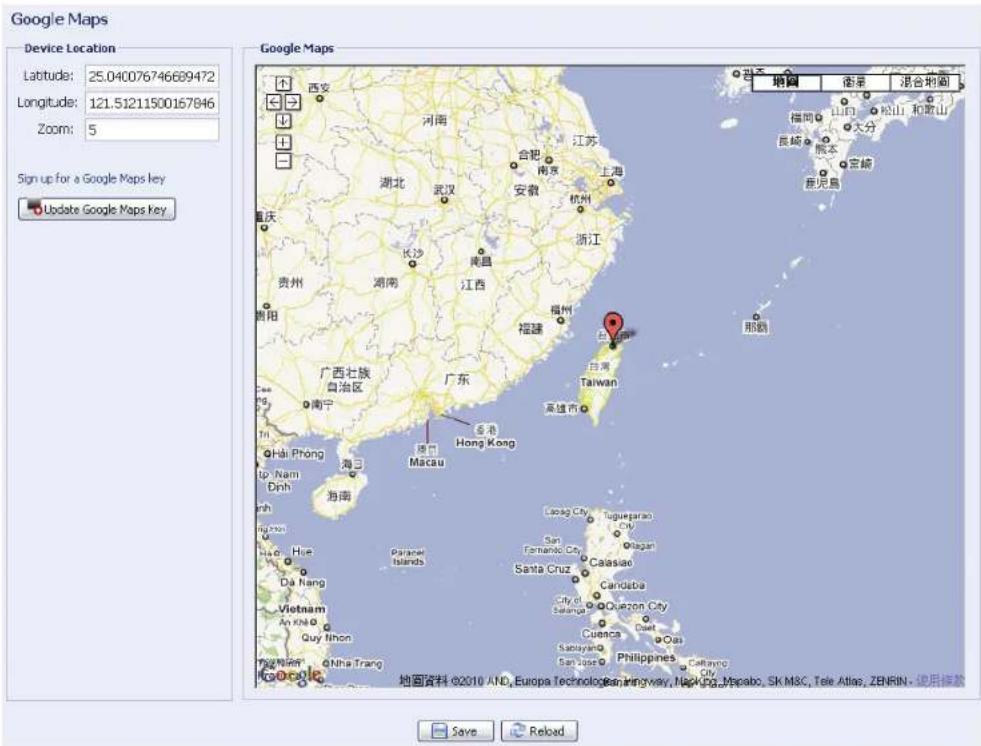
3.5.6 Google Maps
This function is used to let you know where the network camera is.
The system will prompt you to apply a Goole Maps Key if your access is denied. Please follow the instructions below when you're denied:
Step1: Click "Sign up for a Google Maps key" to enter the application page.
Step2: Check the terms and conditions, and enter the IP address of the network camera. Then, click "Generate API Key".
Step3: Copy the generated API key, and click "Update Google Maps Key" on the web browser to paste it.
text_image
Google Maps Device Location Latitude: 25.040076746689472 Longitude: 121.51211500167846 Zoom: 5 Sign up for a Google Maps key Update Google Maps key Google Maps 地图: 智图 衡录 混合地图 西文 河南 江苏 上海 浙江 广州 台湾 Taiwan 香港 Hong Kong Macau Hai Phong 海南 南海 海南 Hawaii Shang Haiti Dinh Hui Dai Nang Vietnam An NH Quy Ihon Peng Khan QNha Trang 地图资料 ©2010 AND, Europa Technologie, Nanjingway, Nanjing, Macabo, SK M3C, Tele Atlas, ZENRIN - 使用预览 Save Reload3.5.7 Maintenance
Firmware Upgrade
This function is used when users need to upgrade the camera for function scalability.
Note: Before using this function, make sure you have the correct upgrade files provided by your installer or distributor.
Note: The event videos saved in the camera will be removed after firmware upgrade. Make sure you've copied important events to your PC before firmware upgrade.
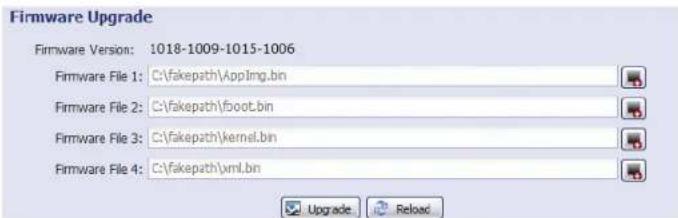
Step1: Select "☐" to browse to where you save the upgrade files, and select them one by one until all files are selected (up to four files).
text_image
Firmware Upgrade Firmware Version: 1018-1009-1015-1006 Firmware File 1: C:\fakepath\AppImg.bin Firmware File 2: C:\fakepath\boot.bin Firmware File 3: C:\fakepath\kernel.bin Firmware File 4: C:\fakepath\xml.bin Upgrade ReloadStep2: Select "Upgrade" to start system upgrading.
Note: You'll be prompted to keep current configurations. It's recommended to keep them, or all configurations will be restored to default values after upgrade.
Note: It takes a few minutes to finish the upgrade process. Do not disconnect the power during firmware upgrade, or the upgrade may be failed. The camera will reboot after the upgrade.
System Configuration Backup
This function is used to copy your system configuration to a "System.bin" file.
You may import the same system configuration to another camera, or restore your system configuration when the camera is reset to default values.
Select "System.bin" in "Firmware Upgrade", and select "Upgrade" to import the system configuration.

text_image
System Configuration Backup If you want to backup your system configuration before upgrade firmware version, click 'Backup' to start the backup process. BackupSystem Reboot
Select "Reboot" to restart your camera if needed.

Player Download
To see the event video clips downloaded to your PC, you need to first install our own video player in your PC. Select "Free Download" to download the video player, and double click the file to install it.

text_image
Player Download If you want to open the video downloaded from playback. Please download and install the player at first. ★ Free DownloadAPPENDIX 1 PRODUCT SPECIFICATIONS
| AVN216 | |
| ■ Network | |
| Network Compression H.264 / MPEG4 / MJPEG | |
| Multiple Video Streaming (Encode Modes, IPS, Resolution) | 3 (H.264, MJPEG, MPEG4) |
| LAN Port YES | |
| LAN Speed 10/100 Based-T Ethernet | |
| Supported Protocols | DDNS, PPPoE, DHCP, NTP, SNTP, TCP/IP, ICMP, SMTP, FTP, HTTP, RTP, RTSP, RTCP,IPv4, Bonjour, UPnP, DNS,UDP,IGMP, QoS |
| ONVIF Compatible YES | |
| Frame Rate NTSC: 30 FPS / PAL: 25 | |
| Number of Online Users 10 | |
| Security | 1. Multiple user access levels with password2. IP address filtering3. Digest authentication |
| Remote Access | 1. Internet Explorer on Windows operating system2. EagleEyes on iPhone, iPad and Android mobile devices |
| ■ Camera | |
| Image Sensor 1/3" H.R. image sensor | |
| Video Resolution D1 / CIF | |
| Min Illumination 0.1 Lux / F1.5 | |
| Shutter Speed 1 / 60 (1/50) to 1 / 100,000 sec. | |
| S/N Ratio | More than 48dB (AGC off) |
| Lens | f3.8mm / F1.5 |
| Viewing Angle | 80.4°(Diagonal) |
| White Balance | ATW |
| AGC | Auto |
| IRIS Mode | AES |
| Power Source (±10%) | 5V / 1A |
| Operating Temperature | 0°C~40°C |
| ■ Others | |
| Mobile Surveillance | iPad, iPhone & Android |
| RTC (real-time clock) | YES |
| Motion Detection | YES |
| Event Notification | FTP / Email / SMS |
| Minimum Web Browsing Requirements | Pentium 4 CPU 1.3 GHz or higher, or equivalent AMD256 MB RAMAGP graphics card, Direct Draw, 32MB RAMWindows 7, Vista & XP, DirectX 9.0 or laterInternet Explorer 7.x or later |
** The specifications are subject to change without notice.
** Dimensional tolerance: ± 5mm
APPENDIX 2 BIT RATE TABLE FOR REFERENCE
The data below is for reference only.
The bit rates listed here may vary depending on the resolution, image quality & frame rate you choose, the complexity of your monitoring area, and how often the moving objects show in your monitoring area.
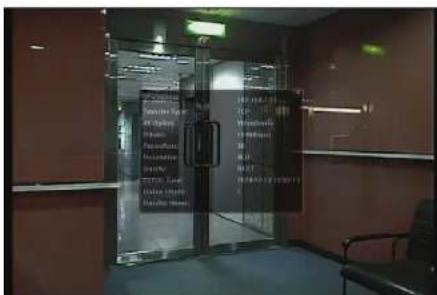
Testing Environment
■ Place: Office Entrance
■ Network translation: H.264
text_image
Photo of a glass door with illuminated text panels and a blackboard, showing partial OCR or system information on the wall.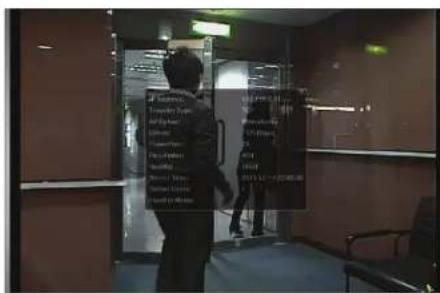
text_image
Street photo with visible store signboards and a person standing in front of a glass doorStatic: No one coming in and out. Dynamic: One or two people coming in and out
| Resolution Quality Frame Rate | (Dynamic) kbps (Static) kbps | |||
| D1 | Best | FULL | 2786 | 1546 |
| High | 1375 | 705 | ||
| Normal | 1234 | |||
| Basic | 441 | |||
| CIF | Best | 955 | ||
| High | 364 | 171 | ||
| Normal | 328 | 111 | ||
| Basic | 161 | |||
| D1 | Best | 1/5 | 935 | 474 |
| High | 506 | 272 | ||
| Normal | 297 | 175 | ||
| Basic | 223 | |||
| CIF | Best | 222 | 109 | |
| High | 133 | 67 | ||
| Normal | 81 | |||
| Basic | 71 | 32 | ||
| D1 | Best | 1/30 | 127 | 70 |
| High | 197 | 20 | ||
| Normal | 61 | 11 | ||
| Basic | 50 | |||
| CIF | Best | 42 | 7 | |
| High | 38 | 2 | ||
| Normal | 22 | 1 | ||
| Basic | 28 | |||
APPENDIX 3 API ID APPLICATION FOR SMS MESSAGING
To allow the camera automatically sending a text message when an event happens, you need to apply an API ID from Clickatell, one mobile messaging company, first.
Note: The SMS messaging is not totally free. You will be charged starting from the 11^th message.
Please follow the steps below for application.
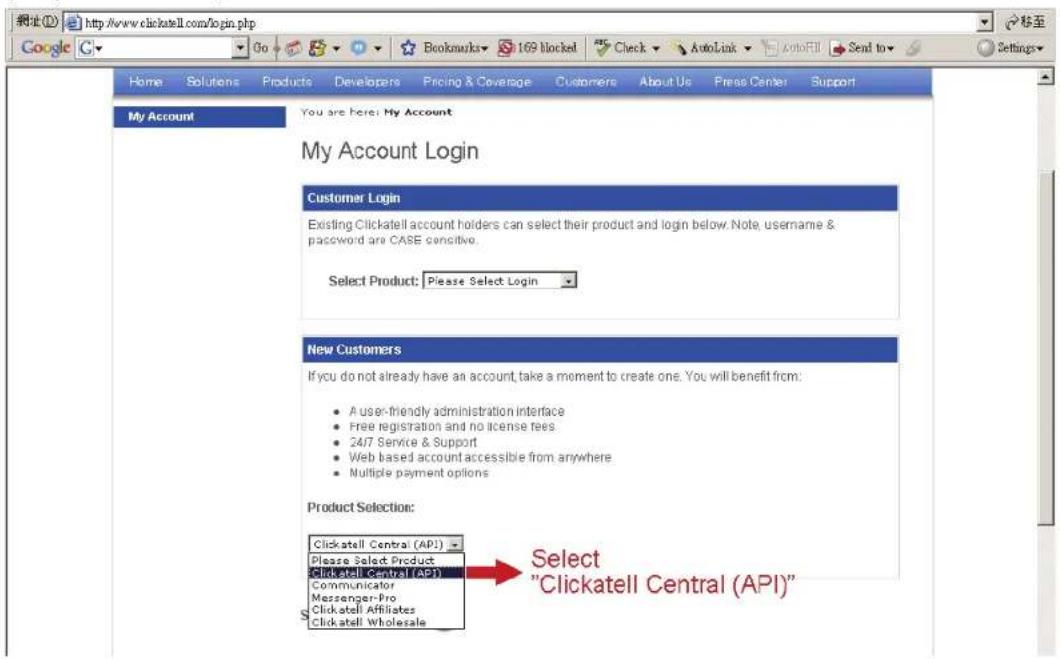
Step1: Go to http://www.clickatell.com/login.php. In "New Customers", select "Clickatell Central (API)" from the drop-down list.
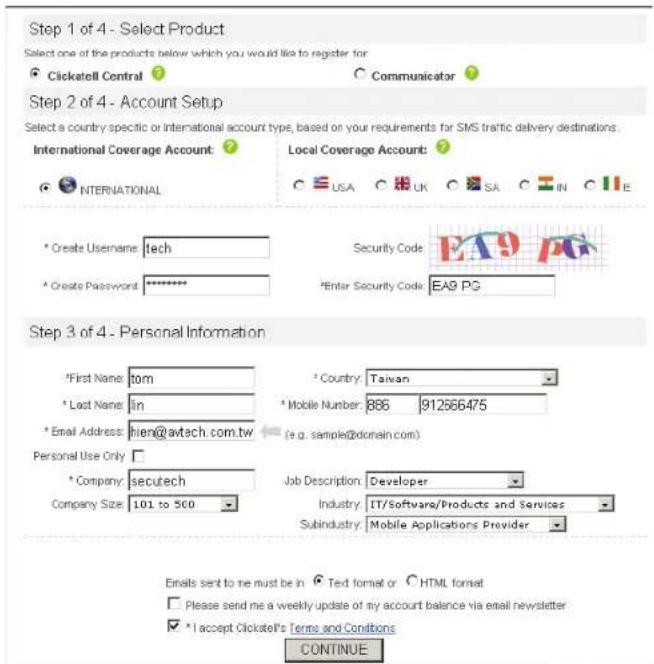
text_image
http://www.clickatell.com/login.php Google Home Solutions Products Developers Pricing & Coverage Customers About Us Press Center Support My Account You are here: My Account My Account Login Customer Login Existing Clickatell account holders can select their product and login below. Note, username & password are CASE sensitive. Select Product: Please Select Login New Customers If you do not already have an account, take a moment to create one. You will benefit from: • A user-friendly administration interface • Free registration and no license fees • 24/7 Service & Support • Web based account accessible from anywhere • Multiple payment options Product Selection: Clickatell Central (API)... Please Select Product Clickatell Central (API) Communicator Messenger-Pro Clickatell Affiliates Clickatell Wholesale Select "Clickatell Central (API)"Step2: Fill in your information to create an account, and click "CONTINUE".
Note: Note down the user name and password, and the mobile phone number you specified here for SMS notification setting later.
text_image
Step 1 of 4 - Select Product Select one of the products below which you would like to register for Clickatell Control Communicator Step 2 of 4 - Account Setup Select a country specific or international account type, based on your requirements for SMS traffic delivery destinations. International Coverage Account Local Coverage Account: INTERNATIONAL * Create Username: tech * Create Password: ******** Security Code: EA9 PG *Enter Security Code: EA9 PG Step 3 of 4 - Personal Information *First Name: tom *Last Name: in *Email Address: hien@awtech.com.tw *Company: secutech Company Size: 101 to 500 *Country: Taiwan *Mobile Number: 886 912566475 (e.g. sampler@domain.com) Personal Use Only: *Company: secutech Job Description: Developer Industry: IT/Software/Products and Services Subindustry: Mobile Applications Provider Emails sent to me must be in * Text format or * HTML format Please send me a weekly update of my account balance via email newsletter * I accept Clickatell's Terms and Conditions CONTINUEStep2: When the account is created, the system will automatically send an Email to your specified Email address and ask you to activate your account.
Click the link in the Email to complete account activation, and enter the login page as follows. Enter the password you set, and click "Login".
My Account Login
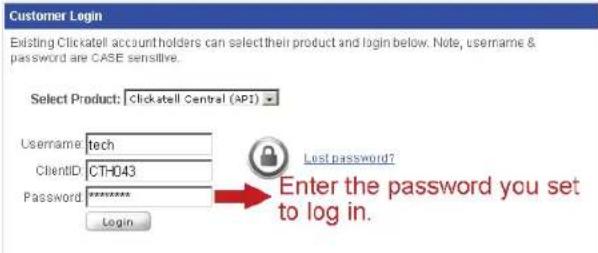
text_image
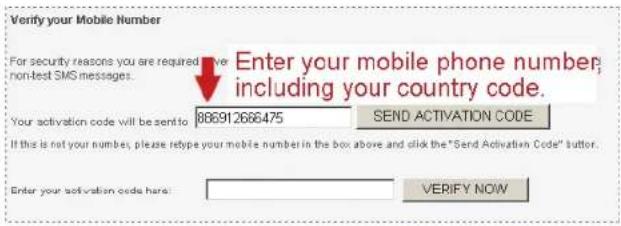
Customer Login Existing Clicktell account holders can select their product and login below. Note, username & password are CASE sensitive. Select Product: Clicktell Central (API) Username tech ClientID CTH043 Password ******** Login Last password? Enter the password you set to log in.Step3: Enter the mobile phone number (including your country code) you want the text message to be sent, and click "SEND ACTIVATION CODE". The system will send an activation code to that number for verification.
Check if you receive a text message from Clickatell.
text_image
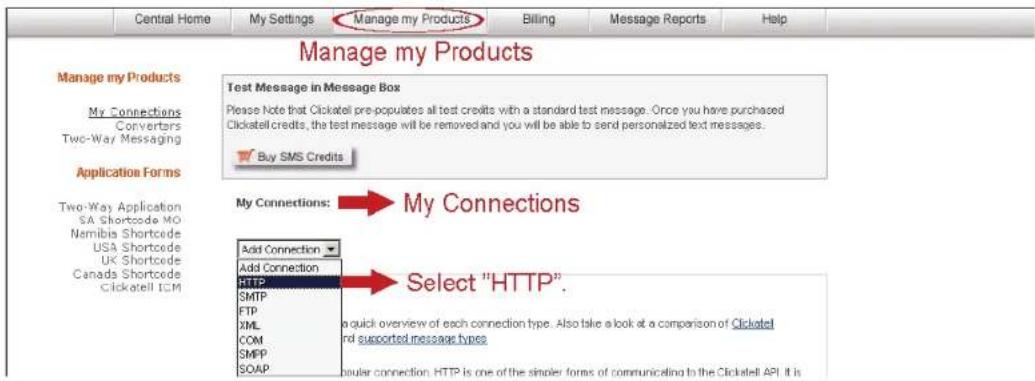
Verify your Mobile Number For security reasons you are required to have non-test SMS messages. Enter your mobile phone number, including your country code. Your activation code will be sent to 886912666475 SEND ACTIVATION CODE If this is not your numbers, please resype your mobile number in the box above and click the "Send Activation Code" button. Enter your activation code here: VERIFY NOWStep4: Go back to Clickatell, and click the tab "Manage my Products". Then, select "HTTP" from the drop-down list "My Connections".
text_image
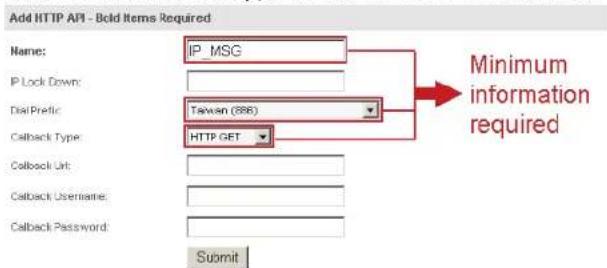
Central Home My Settings Manage my Products Billing Message Reports Help Manage my Products Manage my Products Test Message in Message Box Please note that Clicktell pre-populates all test credits with a standard test message. Once you have purchased Clicktell credits, the test message will be removed and you will be able to send personalized text messages. Buy SMS Credits Application Forms Two-Way Application SA Shortcode MO Namibia Shortcode USA Shortcode UK Shortcode Canada Shortcode Clicktell ICM My Connections: My Connections Add Connection Add Connection HTTP SMTP FTP XML COM SMPP SOAP Select "HTTP". a quick overview of each connection type. Also take a look at a comparison of Clicktell and supported message types polar connection. HTTP is one of the simpler forms of communicating to the Clicktell API. It isStep5: In "Add HTTP API", enter a descriptive name for this service, and make sure the dial prefix is correct and callback type is "HTTP GET". Then, click "Submit".
text_image
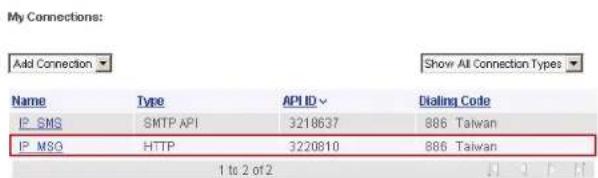
Add HTTP API - Bold Items Required Name: IP_MSG IP Lock Down: Dial Profile: Taiwan (386) Callback Type: HTTP GET Submit Minimum information requiredStep5: You will get an API ID as follows.
Note: Note down the API ID for SMS notification setting later.
text_image
My Connections: Add Connection Show All Connection Types Name Type APID Dialing Code IP SMS SMTP API 3218637 886 Taiwan IP MSG(HTTP 3220810 886 Taiwan 1 to 2 of 2APPENDIX 4 Q&A
For more details about EagleEyes Q&A, please visit our official website: www.eagleeyescctv.com/supp_QnA.aspx.
| Question Answer | |
| I can connect to this camera in my house or office where it's installed with wireless network.But when I leave my house or office, I can't connect to it from my mobile phone (with 3G network), or other PC (connected to Internet). Why? | You didn't configure this camera to Internet, but only in LAN.Please follow the steps in the advanced network setup guide to complete network configurations, or it's recommended for you to check with your local installer or reseller for this service because it's usually hard for a person who doesn't have network knowledge to set network configurations. |
| My live images are not fluent. Why? | Image fluency could be affected by the local network upload bandwidth, router efficiency, client network download bandwidth, complexity of live view, and more.To have better image fluency, select "CIF"; to have better image quality, select "D1". |
| My image is vague. Why? | The camera might lose its focus. Please rotate the lens to adjust. |
| The live video keeps flickering. Why? | Please try adjusting the power line frequency to "60 Hz" or "50 Hz" for the camera.For iPhone users, access the camera, and select "on the top right corner to enter IPCAM Configuration page. Then, go to "Advance Setup" → "Camera" to change setting.For access from Internet Explorer, log into the camera, and select "Config." → "Camera" → "Video". |