XAUB2511-100PES - Power adapter NETGEAR - Free user manual and instructions
Find the device manual for free XAUB2511-100PES NETGEAR in PDF.


| Product Type | Power Adapter |
| Brand | NETGEAR |
| Model | XAUB2511-100PES |
| Input Voltage | 100-240 V AC, 50/60 Hz |
| Output Voltage | 12 V DC |
| Output Current | 2.5 A |
| Power | 30 W |
| Connector Type | 5.5 mm x 2.5 mm barrel jack |
| Cable Length | 1.5 m |
| Dimensions | 95 x 45 x 30 mm |
| Weight | 200 g |
| Safety Certifications | CE, FCC, RoHS |
| LED Indicator | Green (power on) |
| Operating Temperature | 0°C to 40°C |
| Storage Temperature | -20°C to 60°C |
| Material | ABS plastic |
| Color | Black |
| Protection Features | Overvoltage, overcurrent, short circuit |
| Usage | Power NETGEAR switches, routers, and other compatible devices |
| Maintenance | Clean with a dry cloth; avoid liquids |
| Safety Warnings | Do not cover during use; unplug when not in use |
| Spare Parts & Repairability | Replace only with identical model; no user-serviceable parts |
| General Information | Designed for indoor use only |
Frequently Asked Questions - XAUB2511-100PES NETGEAR
User questions about XAUB2511-100PES NETGEAR
0 question about this device. Answer the ones you know or ask your own.
Ask a new question about this device
Download the instructions for your Power adapter in PDF format for free! Find your manual XAUB2511-100PES - NETGEAR and take your electronic device back in hand. On this page are published all the documents necessary for the use of your device. XAUB2511-100PES by NETGEAR.
USER MANUAL XAUB2511-100PES NETGEAR
Connect with Innovation™
Powerline Music Extender (XAUB2511) Installation Guide
natural_image
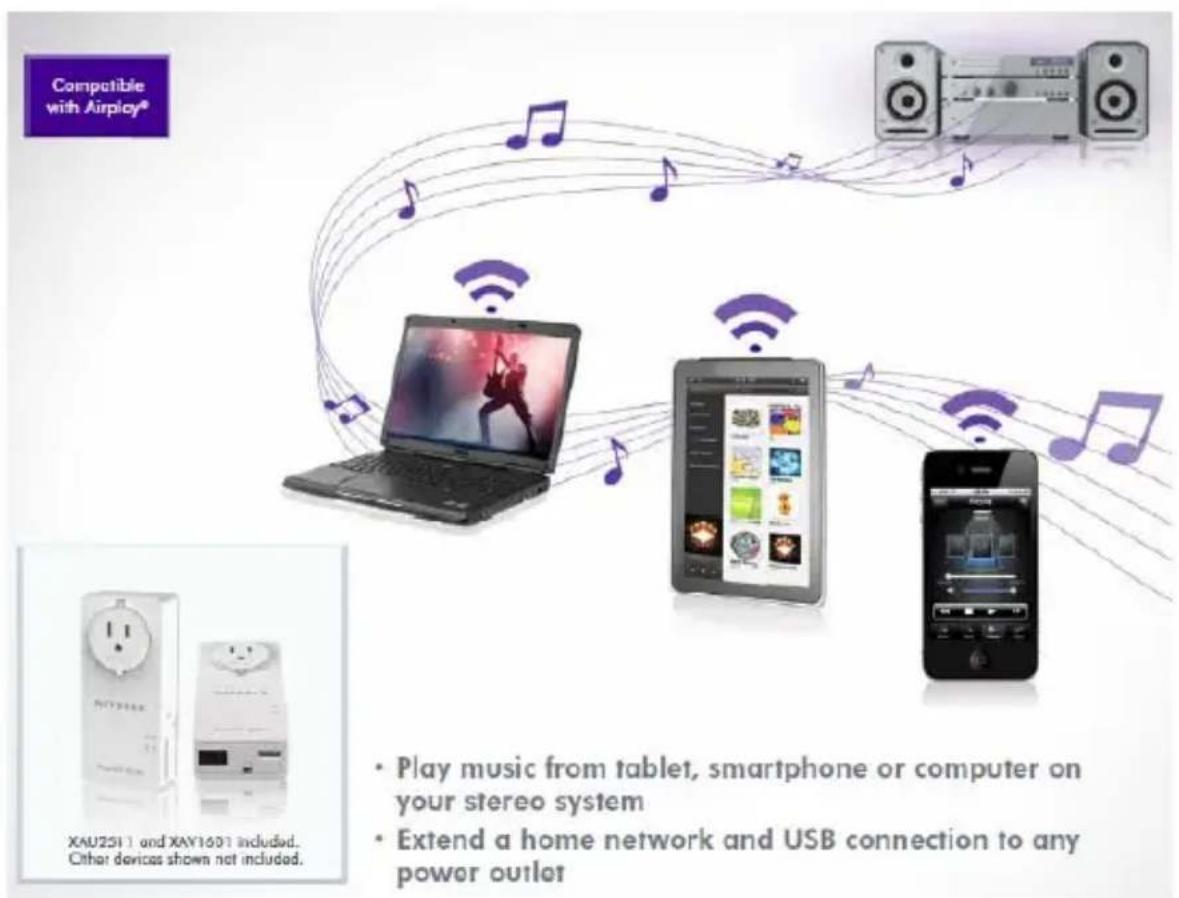
Two white electrical connectors with power socket and connector symbols, one open and one closed (no visible text or labels)- Play music from tablet, smartphone or computer on your stereo system
- Extend a home network and USB connection to any power outlet
© 2012 NETGEAR, Inc. All rights reserved.
No part of this publication may be reproduced, transmitted, transcribed, stored in a retrieval system, or translated into any language in any form or by any means without the written permission of NETGEAR, Inc. For indoor use only in all EU countries and Switzerland.
WARNING: Do not stack equipment or place equipment in tight spaces, in drawers, or on carpets. Make sure your equipment is surrounded by at least 2 inches of air space.
Technical Support
Thank you for choosing NETGEAR. To register your product, get the latest product updates, or get support online, visit us at http://support.netgear.com.
Phone (US & Canada only): 1-888-NETGEAR
Phone (Other Countries):
See http://support.netgear.com/app/answers/detail/a_id/984.
Trademarks
NETGEAR, the NETGEAR logo, and Connect with Innovation are trademarks and/or registered trademarks of NETGEAR, Inc. and/or its subsidiaries in the United States and/or other countries. Information is subject to change without notice. Other brand and product names are registered trademarks or trademarks of their respective holders. © 2012 NETGEAR, Inc. All rights reserved.
Statement of Conditions
In the interest of improving internal design, operational function, and/or reliability, NETGEAR reserves the right to make changes to the products described in this document without notice. NETGEAR does not assume any liability that may occur due to the use or application of the product(s) or circuit layout(s) described herein.
Package Contents
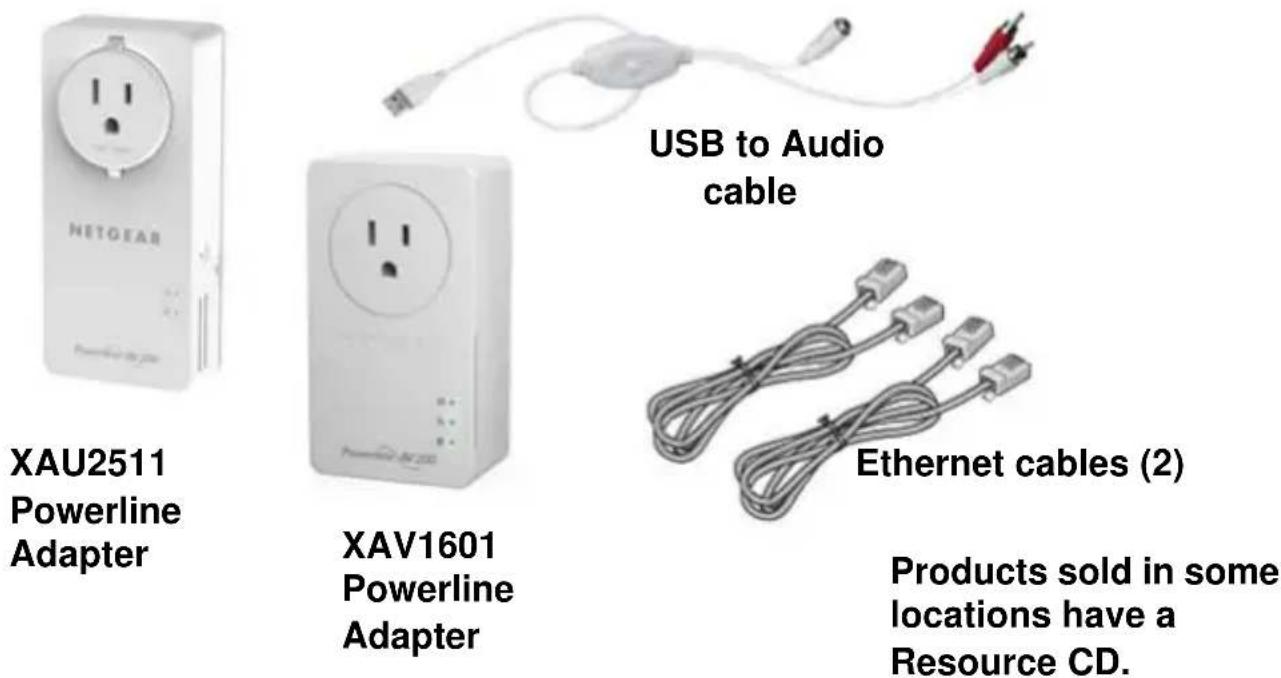
Note: NETGEAR recommends that you do not plug a Powerline adapter directly into a power strip. See Advanced Setup on page 23 for instructions.
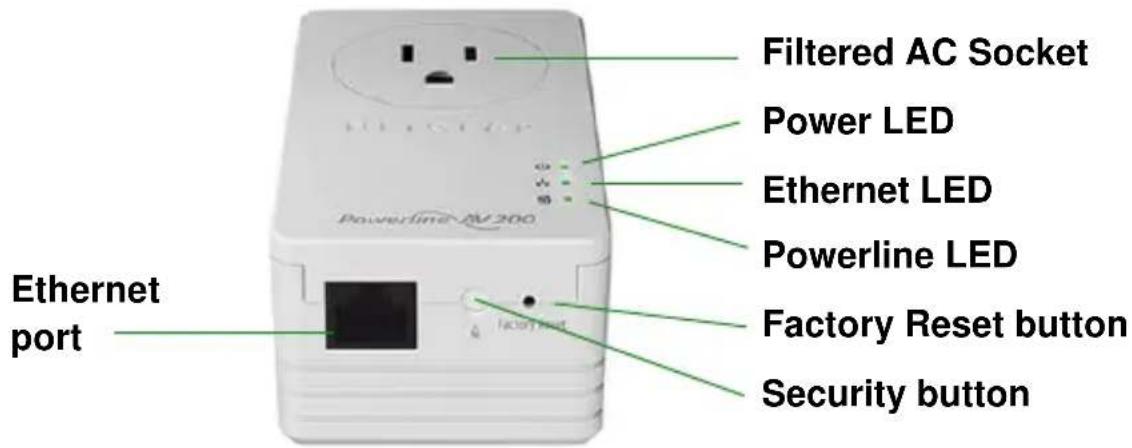
Hardware Features
XAV1601
Powerline Adapter Setup
If you do not have Powerline adapters at home, do the following:
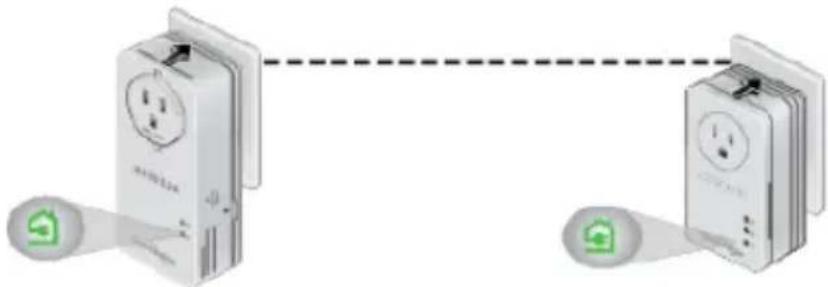
- Plug the XAV1601 adapter into an AC wall outlet near your Wi-Fi router/gateway.
- Plug the XAU2511 adapter into the AC wall outlet where you want to hear the music or put the printer.
- Make sure the Powerline LEDs on each adapter are lit.
The lit LEDs indicate that the adapters are associated and connected to the network.
natural_image
Diagram showing two connected devices with power outlets and green icons, no text or symbols present- Optional. If you want to change the default security key on your Powerline network, see Advanced Setup on page 23.
If you have Powerline adapters at home, do the following:
Make sure the new XAU2511 and XAV1601 adapters and your existing adapters are on the same security key so they can work together:
- Plug the XAU2511 into a power outlet.
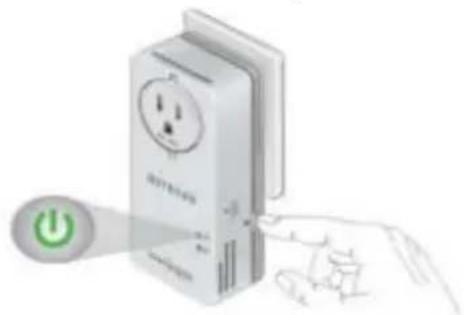
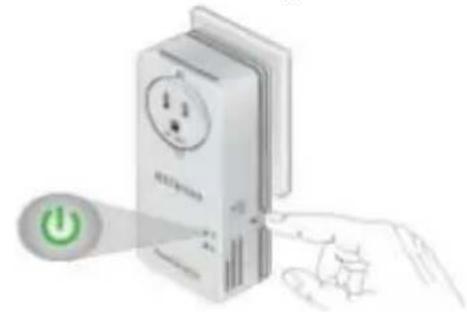
- When the Power LED lights, press the Security button for 2 seconds until the Power LED starts to blink.
- On one of your existing Powerline adapters, press the Security button for 2 seconds until the Power LED starts to blink. When the Power LED stops blinking, the two devices are connected and paired on the same network key.
natural_image
Illustration of a power switch with a green power button, next to a wall-mounted device (no text or symbols visible)- Do the same pairing operations with the XAV1601.
Troubleshooting
If the Powerline LED is not green, plug the Powerline adapter into the wall power outlet. If there is a power strip, plug the power strip into the Powerline adapter socket.
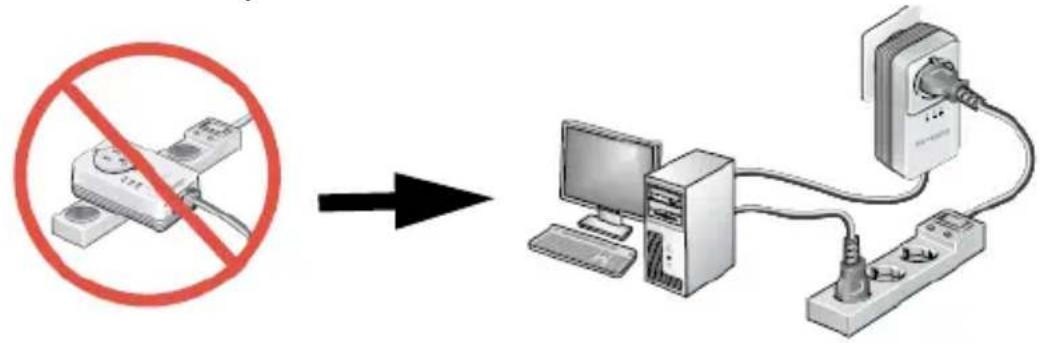
flowchart
graph LR
    A["No Prohibition Symbol"] --> B["-->"]
    B --> C["Server with CPU, Monitor, Tablet, Plug-in, and Power Hub"]
After you finish plugging in the adapter and if the Powerline LED is off or red, place the Powerline adapter into another AC wall outlet.
Note: See LED Descriptions on page 24 for a description of the LEDs
Powerline Music Extender Features
The Powerline Music Extender provides music and networking features. The Play Music Anywhere features let you play music wirelessly. The networking features let you connect USB storage devices and USB printer/scanners to your home network.
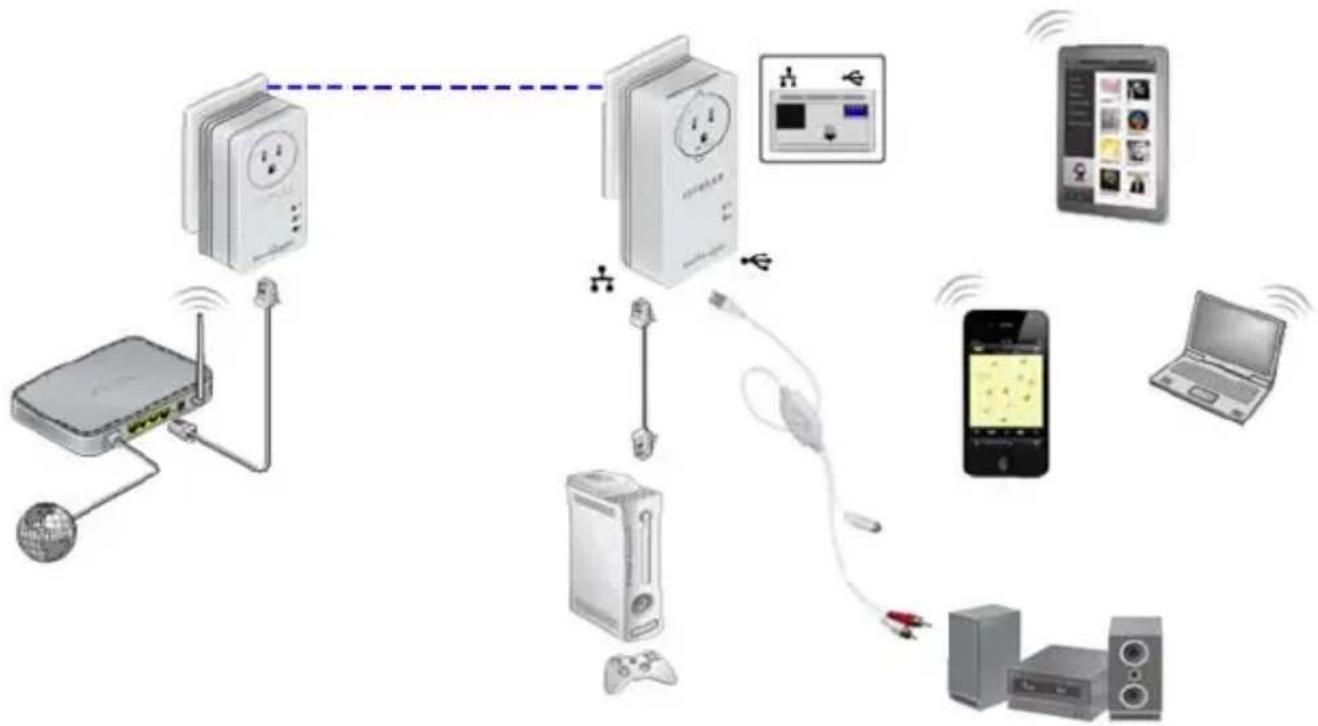
flowchart
graph TD
    A["Router"] -->|Wireless Signal| B["TV"]
    B --> C["Mobile Device"]
    C --> D["Laptop"]
    C --> E["Desktop"]
    C --> F["Smartphone"]
    C --> G["Video Player"]
    C --> H["Radio System"]
    C --> I["Desktop Computer"]
    style A fill:#f9f,stroke:#333
    style B fill:#ccf,stroke:#333
    style C fill:#cfc,stroke:#333
    style D fill:#fcc,stroke:#333
    style E fill:#cff,stroke:#333
    style F fill:#ffc,stroke:#333
    style G fill:#cfc,stroke:#333
    style H fill:#fcc,stroke:#333
    style I fill:#ffc,stroke:#333
Play Music Anywhere Features
The Play Music Anywhere features are ReadySHARE AirMusic and ReadySHARE Music.
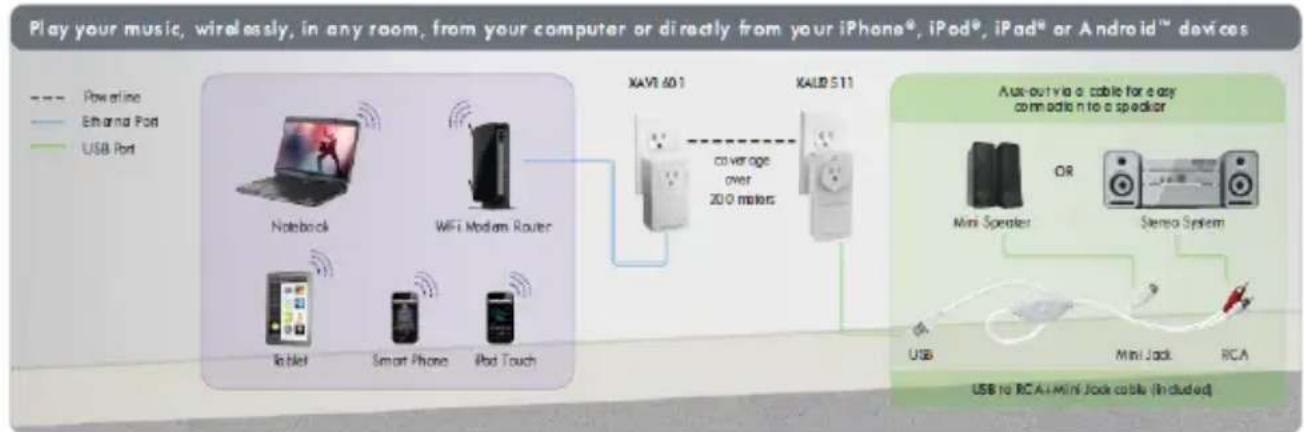
flowchart
graph LR
    A["Play your music, wirelessly, in any room, from your computer or directly from your iPhone*, iPod*, iPad* or Android™ devices"] --> B["Powerline"]
    B --> C["Ether and Port"]
    B --> D["USB Port"]
    A --> E["Keyboard"]
    A --> F["Smart Phone"]
    A --> G["Ipad Touch"]
    E --> H["WiFi Modium Router"]
    F --> H
    G --> H
    H --> I["XAVI 601"]
    I --> J["KALD 511"]
    J --> K["coverage over 200 motors"]
    K --> L["Aux-out via a cable for any connection to a speaker"]
    L --> M["OR"]
    L --> N["Mini Speaker"]
    L --> O["Stereo System"]
    M --> P["USB"]
    N --> Q["Mini Jack"]
    O --> R["RCA"]
    S["USB to RCA"] --> T["Mini Lock cable (Included)"]
ReadySHARE AirMusic
ReadySHARE AirMusic lets you play music wirelessly from your iPhone, iPad, iPod touch, or Android devices. The music is played on audio speakers, such as USB speakers or a Hi-Fi stereo system. NETGEAR supports all types of stereo speaker because it has a USB to RCA + 3.5 mm Mini jack cable (included).
ReadySHARE Music
ReadySHARE Music lets you play music from your computer on a remote audio speaker, such as USB speakers or a Hi-Fi system.
Networking Features
The networking features let you connect any USB printer and USB hard drive to your home network so they can be accessed through WiFi. The XAU2511 adapter shares the USB devices for remote access with other users or computers anywhere in the home. The networking features are ReadySHARE Printer and ReadySHARE USB Storage access.
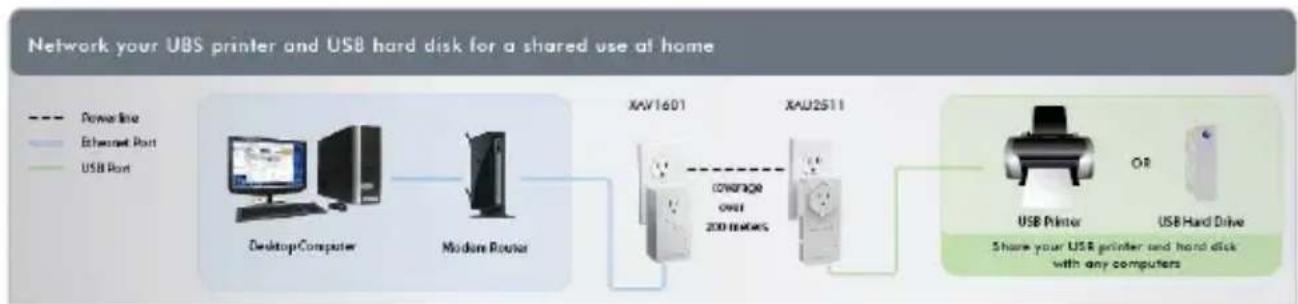
flowchart
graph LR
    A["Desktop Computer"] --> B["Modine Router"]
    B --> C["XAV1601"]
    C --> D["XAU2S11"]
    D --> E["USB Printer"]
    E --> F["USB Hard Drive"]
    style A fill:#f9f,stroke:#333
    style B fill:#f9f,stroke:#333
    style C fill:#ccf,stroke:#333
    style D fill:#ccf,stroke:#333
    style E fill:#cfc,stroke:#333
    style F fill:#fcc,stroke:#333
ReadySHARE Printer
ReadySHARE Printer lets you place your USB printer anywhere in your house. When you connect the USB printer to the XAU2511 USB port, the printer is shared among all computers on the home network.
ReadySHARE USB Storage
ReadySHARE USB Storage lets you share the content on a hard disk or memory stick across your home network. All you do is connect the hard disk or memory stick to the XAU2511 USB port.
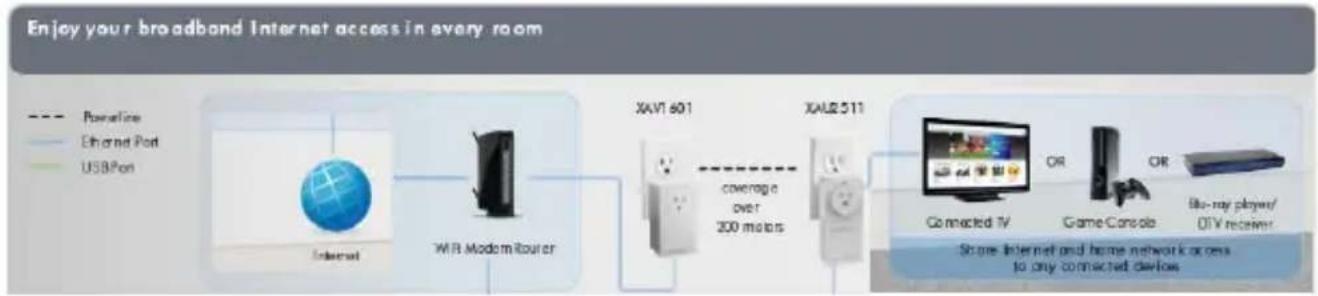
Extend Internet and Home Network to Any Outlet
The Powerline Music Extender uses an Ethernet port to convert a standard electrical wall outlet into a high-speed network connection. The high-speed network connection brings Internet connectivity to any device with an Ethernet port, such as a game console, Blu-ray™ player, smart TV, HD set-top box, network DVR, or PC. All devices on your home network that are plugged into a Powerline adapter are interoperable.
flowchart
graph LR
    A["Powerline"] --> B["Internet"]
    C["Ethernet Port"] --> D["USB Port"]
    E["XAV1 601"] --> F["XAL2 511"]
    G["Coverage over 200 motors"] --> H["Connected TV"]
    I["Game Console"] --> J["80-ray player/OTV receiver"]
    K["Show Internet and home network access to any connected devices"]
Set up ReadySHARE AirMusic
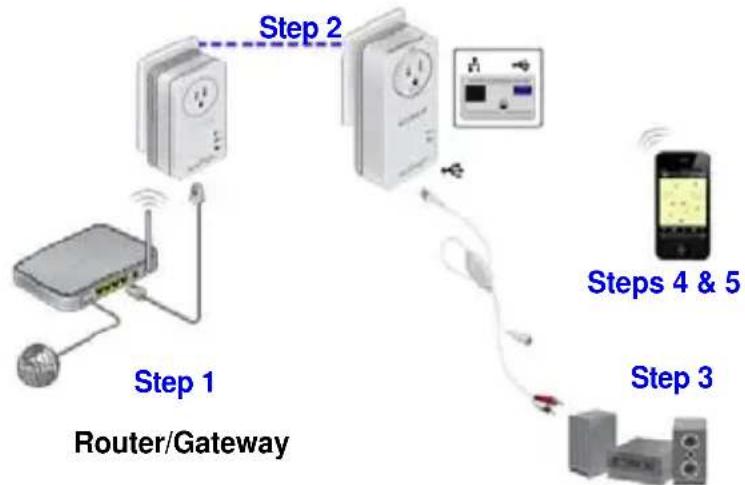
ReadySHARE AirMusic is for smart phones and tablets. This setup procedure only works if you have a Wi-Fi network at home that comes from a WiFi router, gateway, or extender.
flowchart
graph TD
    A["Router"] -->|Step 1| B["Switch"]
    B -->|Step 2| C["Switch"]
    C -->|Steps 4 & 5| D["Mobile Device"]
    style A fill:#f9f,stroke:#333
    style B fill:#ccf,stroke:#333
    style C fill:#cfc,stroke:#333
    style D fill:#fcc,stroke:#333
- Connect your Powerline XAV1601 to your WiFi router/gateway with one of the Ethernet cables.
- Plug the Powerline Music Extender into any electrical outlet in your home.
- Connect the XAU2511 to your stereo system with the mini jack connector or the RCA connectors.
- Select the WiFi router/gateway network SSID on your smart phone or tablet.
- Select music on your smart phone or tablet and beam it to the speaker by way of the Airplay feature.
Note: Make sure that the smart phone or tablet is connected to the WiFi network of the Router/Gateway that is connected to the XAV1601 Powerline adapter.
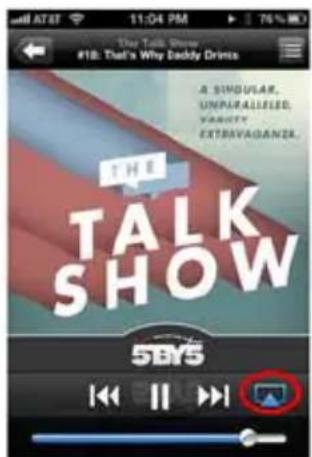
For iOS devices (such as an iPhone, iPad, or iPod):
- Launch the music application (for example, iPod).
- Click the arrow on the right side of the screen.
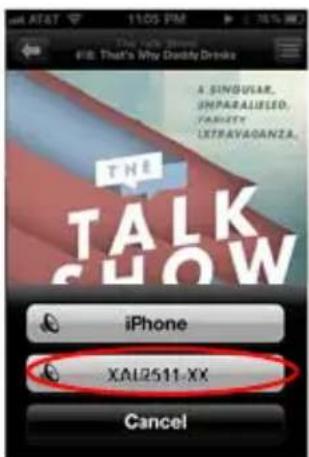
- Select XAU2511-XX in the devices list.
You should hear the XAU2511 play music on the remote speaker.
For Android devices (such as a smart phone or tablet):
You can also play music on the NETGEAR Powerline Music Extender through specific Airplay-compatible applications running on an Android OS.
-
Launch the Google Play app (previously Android Market).
-
Download a free Airplay application and launch it. Twonky Mobile is recommended.
- Select the music source.
- Choose a song and play it.
- Once the music plays, press the Beam button and select XAU2511.
Music plays on your remote speaker through the XAU2511.
Use the USB to Audio Cable
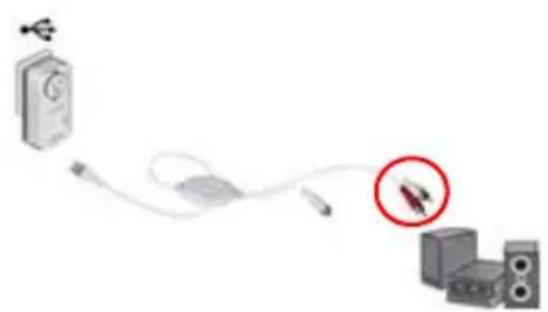
Depending on the speaker you want to use, you can connect a USB speaker directly into the XAU2511 or use the USB to Audio cable.
Use the two RCA connectors to connect a Hi-Fi audio system with RCA aux-in connectors.
Or, use the 3.5 mm mini jack to connect a speaker with the mini jack connector.
natural_image
Diagram showing a USB cable connected to a CD-ROM and audio equipment via a cable, with a red circle highlighting a component (no text or symbols present)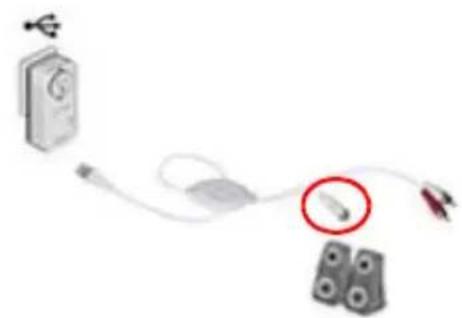
natural_image
Diagram showing a USB device connected to a cable with a magnified inset of a connector (no text or symbols present)Set up ReadySHARE Music on Computers
First Installation
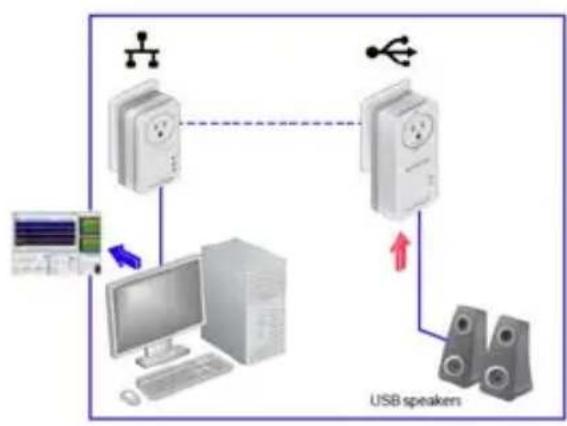
- Plug the speaker into the XAU2511.
flowchart
graph TD
    A["User Interface"] --> B["Device 1"]
    B --> C["Device 2"]
    C --> D["Device 3"]
    D --> E["USB Speaker"]
    E --> F["Device 4"]
    style A fill:#f9f,stroke:#333
    style B fill:#ccf,stroke:#333
    style C fill:#cfc,stroke:#333
    style D fill:#fcc,stroke:#333
    style E fill:#cff,stroke:#333
    style F fill:#ffc,stroke:#333
- Insert the CD-ROM into your computer.
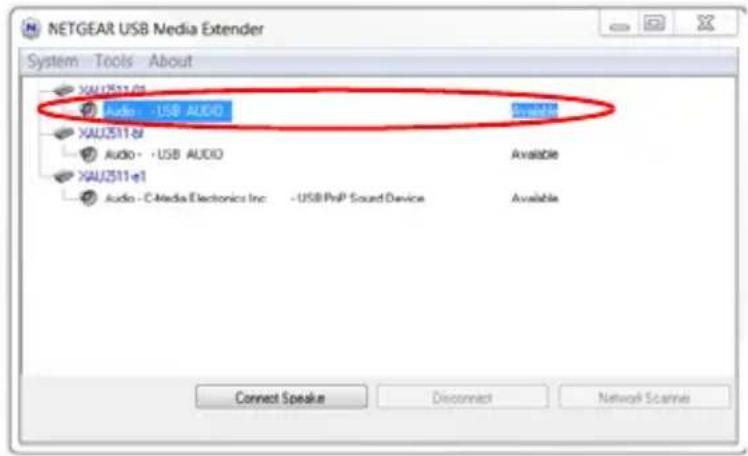
- Install the NETGEAR USB Media Extender utility that is available on the CD-ROM.
- Launch the utility. After 30 seconds, it finds and displays the remote XAU2511 devices on your home network.
- Select the XAU2511 device to which you want to stream the music by selecting the line below the corresponding XAU2511-XX device. See figure in Step 1.
You can identify the device by its AirMusic name, which is shown on the product label on the back of the XAU2511 adapter.
- Click the Connect button. The music played on the computer is played on the remote audio system.
- To stop playing the music on the XAU2511 device, select the Disconnect button as shown in the figure.
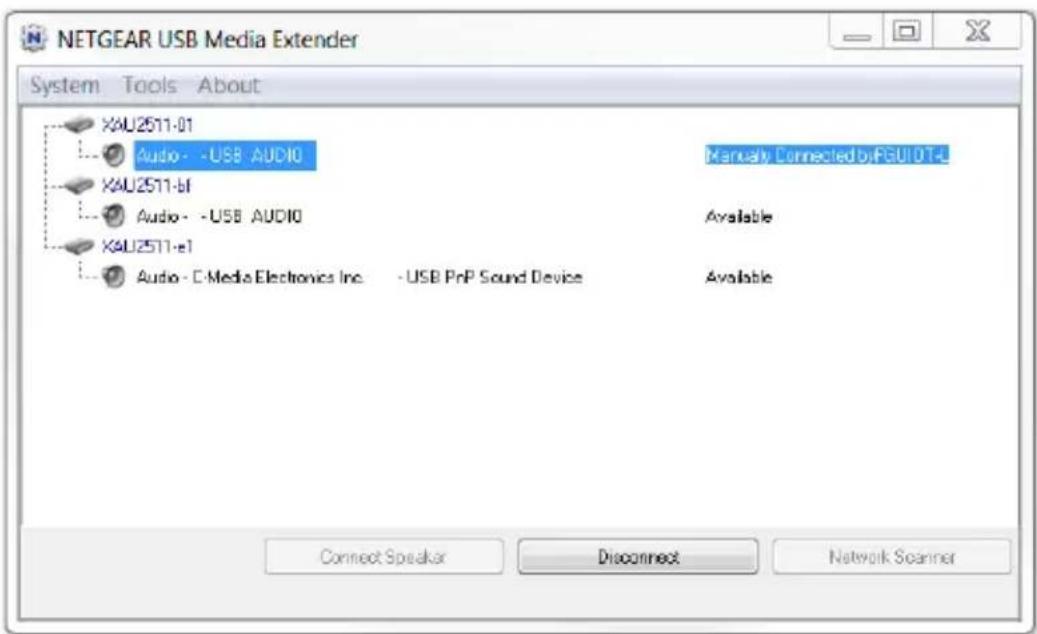
After the First Installation
The NETGEAR USB Media Extender utility is always running in the background. To display the utility on the screen, click the icon on the Windows tray. To play music remotely, select the XAU2511-XX and connect to it.
Troubleshooting
- It takes between 30 seconds to 1 minute to detect the remote XAU2511 the first time.
- If after pressing the Connect button the music is not played remotely, press the Disconnect button and press the Connect button again.
- The XAU2511 cannot be used by another device (smart phone or tablet) in AirMusic mode unless you press the Disconnect button in the utility on the computer.
- All of the music and Windows sounds that come from the computer are redirected and played remotely on the XAU2511. To play only the music without the Windows sounds, launch an Airplay application such as iTunes on your computer.
Set up ReadySHARE Printer
You can have multiple printers or scanners working simultaneously if each USB printer/scanner is connected to an XAU2511 adapter.
- Connect the USB printer or scanner/fax to the USB port on the XAU2511.
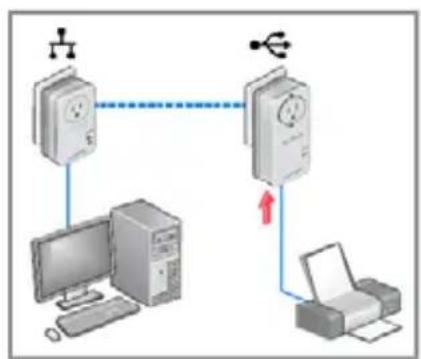
flowchart
graph TD
    A["Router"] -->|Data Link| B["Client"]
    B --> C["Printer"]
    C -->|Data Link| A
    style A fill:#f9f,stroke:#333
    style B fill:#ccf,stroke:#333
    style C fill:#cfc,stroke:#333
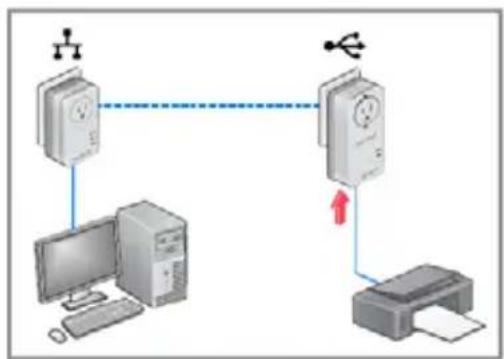
flowchart
graph TD
    A["Desktop"] -->|Wireless| B["Router"]
    B -->|Wireless| C["Printer"]
    C -->|Wireless| D["Computer"]
    style A fill:#f9f,stroke:#333
    style B fill:#ccf,stroke:#333
    style C fill:#cfc,stroke:#333
    style D fill:#fcc,stroke:#333
- Install the NETGEAR USB Media Extender utility and launch the application.
The utility is available on the CD-ROM.
- After a few seconds, the USB Media Extender utility shows that the XAU2511-XX detected the printer/scanner/fax and is waiting for the connection.
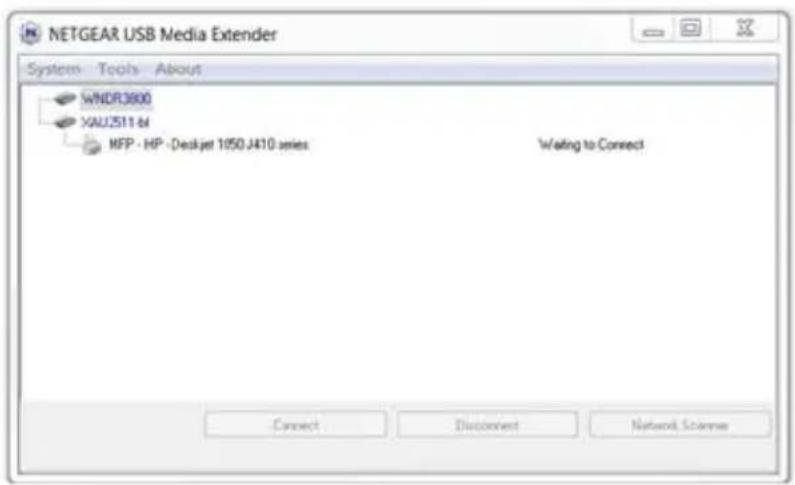
- Click the printer/scanner device listing and press the Connect for Scan/Fax function button.
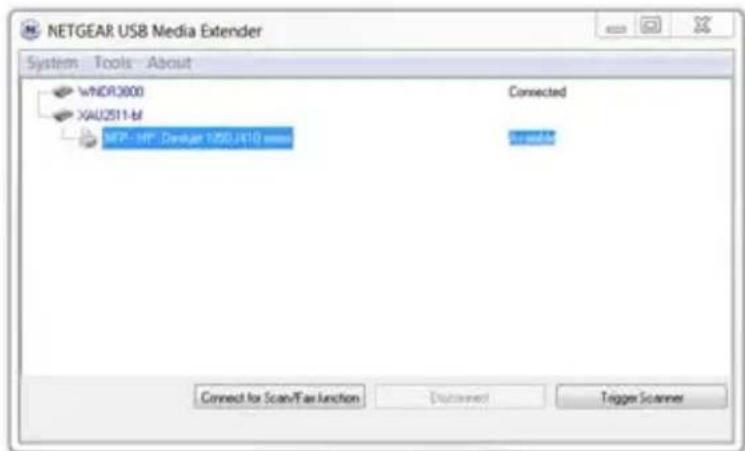
Your remote printer/scanner/fax is now connected as if it was connected locally through the USB cable. To print or scan, open the application (such as, Word or Excel), select the Print function and select the printer.
Troubleshooting
If the remote printer/scanner is not detected, make sure that you have already installed the printer/scanner software on the computer where you want to print. The printer/scanner driver must be installed on the computer first.
Set Up ReadySHARE USB Storage
- Connect any storage device to the USB port of the XAU2511. For example, you could connect a USB hard drive or a USB memory stick.
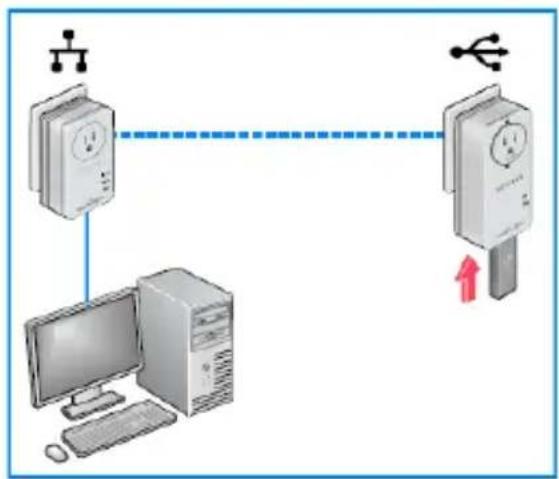
flowchart
graph TD
    A["Computer"] -->|Data Line| B["Rear"]
    B --> C["Switch"]
    D["Router"] -->|Data Line| C
    C --> E["Switch"]
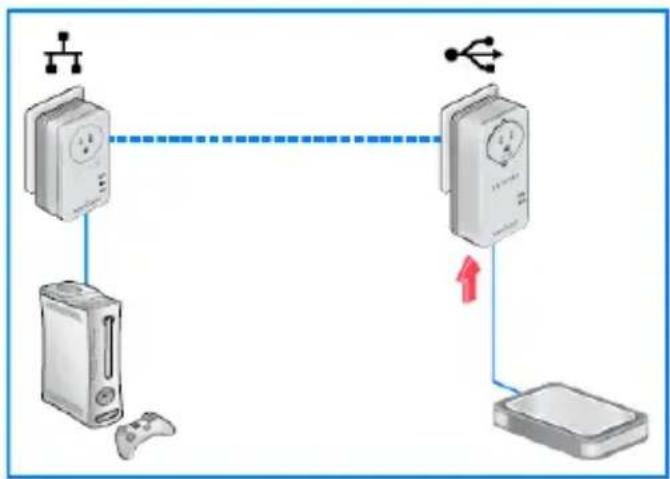
flowchart
graph TD
    A["Router"] -->|Wireless Interface| B["Switch"]
    B --> C["Monitor"]
    C -->|Wireless Interface| D["Device"]
- Install the NETGEAR USB Media Extender utility and launch the application.
The utility is available on the CD-ROM.
- After a few seconds, the USB Media Extender utility shows that the storage device is connected to the XAU2511-XX.
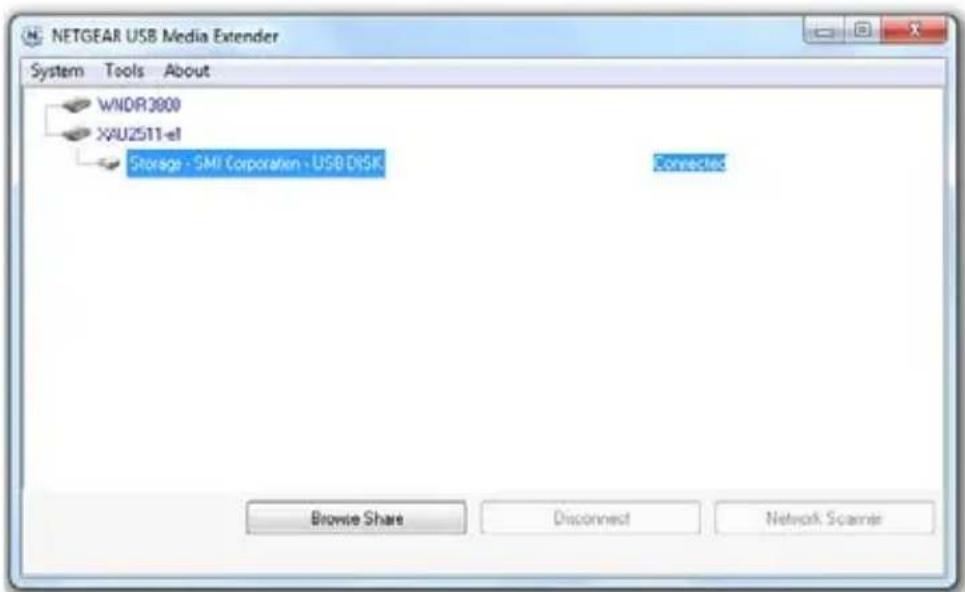
- Select the storage device and press the Browse Share button. A window displays that lets you browse the remote storage device directories.
Troubleshooting
If you use a USB Hub to simultaneously connect different USB hard drives, the power on the USB port of XAU2511 might not be sufficient to power on all of the USB devices. You might need to power on some hard disks with an external power supply.
Advanced Setup
Use Advanced Setup to secure the Powerline network.
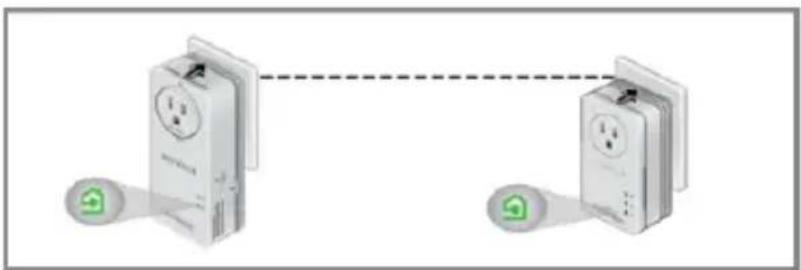
- Plug the two adapters (XAU2511 and XAV1601) into AC wall outlets.
- Make sure that the Powerline LEDs on each adapter are lit. When the LEDs are lit, it means that the adapters are associated with each other and connected to the network.
natural_image
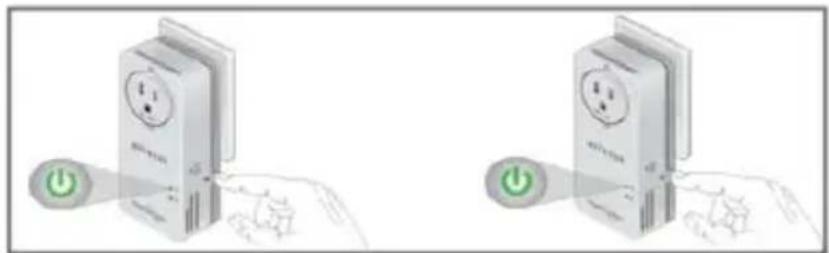
Diagram showing two connected devices with a dashed line indicating connection (no text or symbols present)- On each adapter, press the Security button for 2 seconds and then release.
natural_image
Two identical 3D illustrations of a power switch device with green indicator lights, shown from different angles (no text or symbols)After a few seconds, the Power LED stops blinking and turns back on. The two devices are now connected and paired on a secure random key.
LED Descriptions
The LEDs indicate the status of your Powerline adapters.
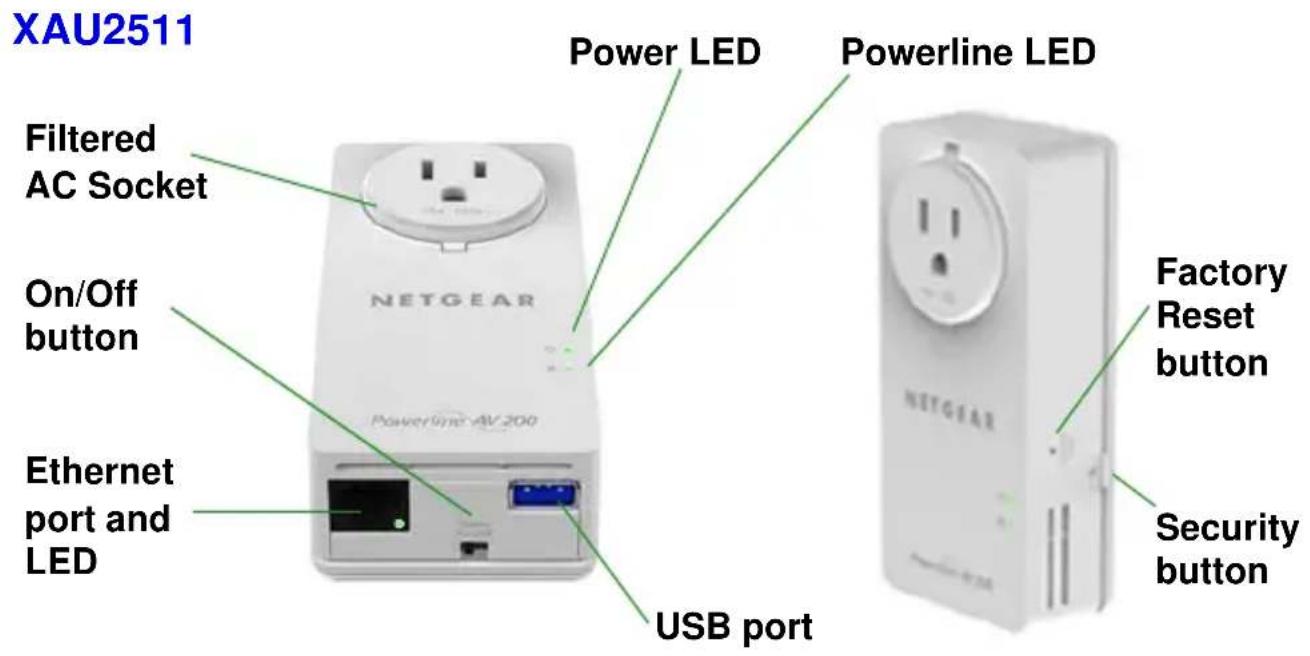
- When you plug in the adapter, the Power LED lights up and turns green.
- The Powerline LED lights up when the adapter detects at least one other compatible Powerline device.
-
The Pick A Plug feature lets you pick the electrical outlet with the strongest link rate.
-
Green: Link rate > 80 Mbps (Best)
- Amber: Link rate > 50 and < 80 Mbps (Better)
- Red: Link rate < 50 Mbps (Good)
Button Descriptions
The buttons on your Powerline adapters let you do the following:
- Security button: Use the Security button to secure the Powerline network between adapters. Press the Security button for 2 seconds on each adapter to pair adapters and to set a new random security key.
For more information about Security settings, see Advanced Setup on page 23.
- Power On/Off: Use the Power On/Off button to turn the device on and off. When this button is in the Off position, the pass-through socket still has power.
- Factory Reset: Use the Factory Reset button to return your Powerline adapter to its default factory settings. Press the Factory Reset button for 2 seconds with the device plugged into the electrical socket, and then release it.
Technical Support
Thank you for selecting NETGEAR products.
After installing your device, locate the serial number on the label of your product and use it to register your product at https://my.netgear.com.
Registration is required before you can use the telephone support service. Registration through the NETGEAR website is recommended.
Go to http://support.netgear.com for product updates and web support.
For additional information about setting up, configuring, and using your Powerline adapter, see the User Manual.
Compliance
Declarations of Conformity
For complete DoC, visit the NETGEAR EU Declarations of Conformity website at: http://support.netgear.com/app/answers/detail/a_id/11621/.
For GNU General Public License (GPL) related information, visit http://support.netgear.com/app/answers/detail/a_id/2649.
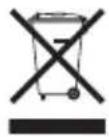
This symbol is placed in accordance with the European Union Directive 2002/96 on the Waste Electrical and Electronic Equipment (the WEEE Directive). If disposed of within the European Union, this product should be treated and recycled in accordance with the laws of your jurisdiction implementing the WEEE Directive.

NETGEAR, Inc.
350 East Plumeria Drive San Jose, CA 95134 USA
July 2012