
A3FP - Computer ASUS - Free user manual and instructions
Find the device manual for free A3FP ASUS in PDF.


| Product type | Laptop |
| Brand | ASUS |
| Model | A3FP |
| Dimensions (L x P x H) | Approximately 330 x 270 x 30 mm |
| Weight | Approximately 2.5 kg |
| Power supply | AC 100-240V power adapter, rechargeable lithium-ion battery |
| Processor | Intel Pentium or Celeron depending on configuration |
| RAM memory | 512 MB to 2 GB (depending on version) |
| Hard drive | 40 GB to 160 GB (depending on version) |
| Screen | 15 inches, resolution 1024x768 pixels |
| Main functions | BIOS and driver updates via ASUS Live Update, Wi-Fi connectivity, USB ports, DVD burner |
| Maintenance and cleaning | Clean with a soft, dry cloth, avoid liquids |
| Safety | Do not expose to moisture or extreme temperatures, unplug before cleaning |
| Spare parts and repairability | Battery, power adapter, hard drive, RAM accessible |
| Operating system | Windows XP (original) or later version |
| Connectivity | Wi-Fi 802.11b/g, Ethernet, USB 2.0 ports, VGA, audio input/output |
| Included software | ASUS Live Update, drivers, ASUS utilities |
Frequently Asked Questions - A3FP ASUS
User questions about A3FP ASUS
0 question about this device. Answer the ones you know or ask your own.
Ask a new question about this device
Download the instructions for your Computer in PDF format for free! Find your manual A3FP - ASUS and take your electronic device back in hand. On this page are published all the documents necessary for the use of your device. A3FP by ASUS.
USER MANUAL A3FP ASUS
1.1 Introduction 1 1.2 How to update BIOS and Drivers via ASUS Live Update
Chapter 1 ASUS Live Update
1.1 Introduction
ASUS Live Update is a useful utility to update BIOS and Drivers of your NB units automatically from the web to the current latest version to avoid any probable bugs.
You may install the program via Driver & Utility CD if you cannot find the program from Start -> All Programs -> ASUS Utility.
1.2 How to update BIOS and Drivers via ASUS Live Update
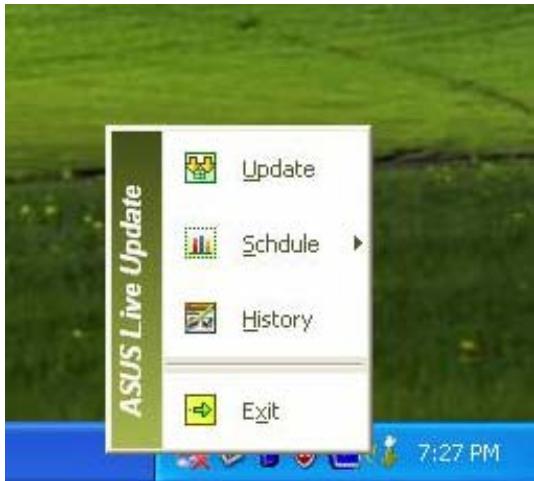
- Click Start \ All Programs \ ASUS Utility \ ASUS Live Update \ ASUS Live Update or click its icon in the toolbar.
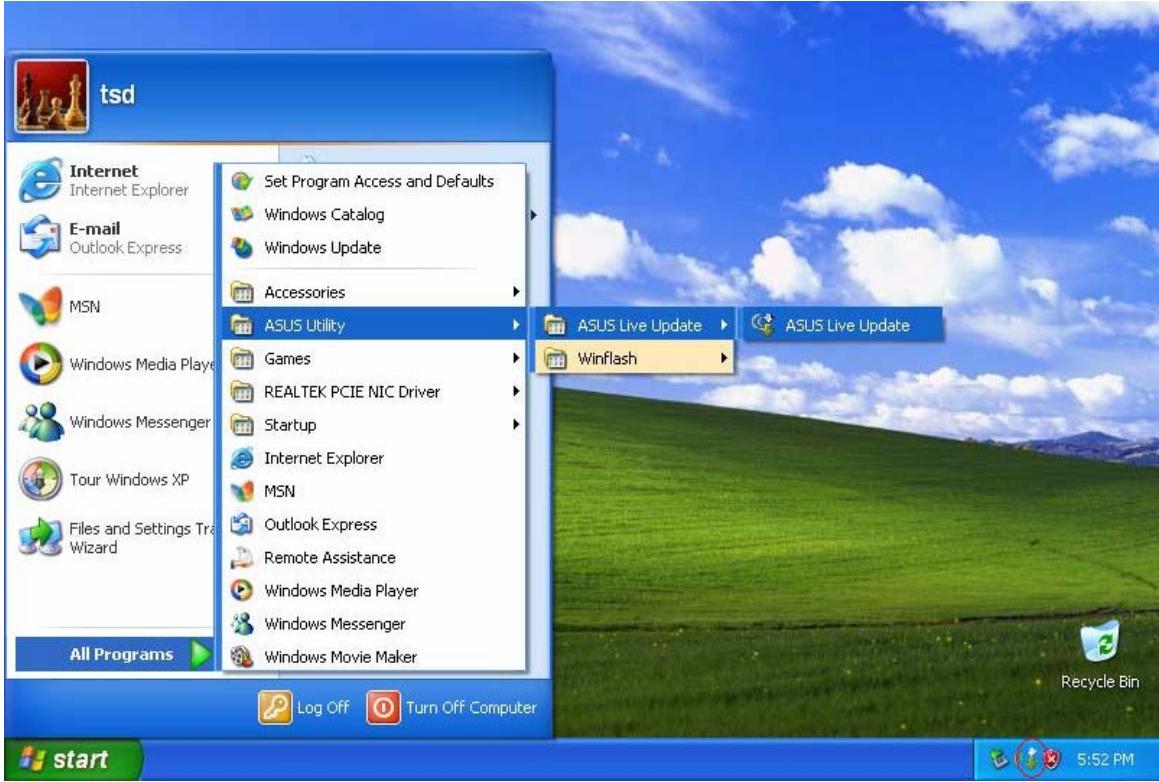
- Then Live Update will detect the current version of BIOS and Drivers of your NB unit and compare them with what we have posted on the web automatically, then list all the BIOS and Drivers newer than your current version.
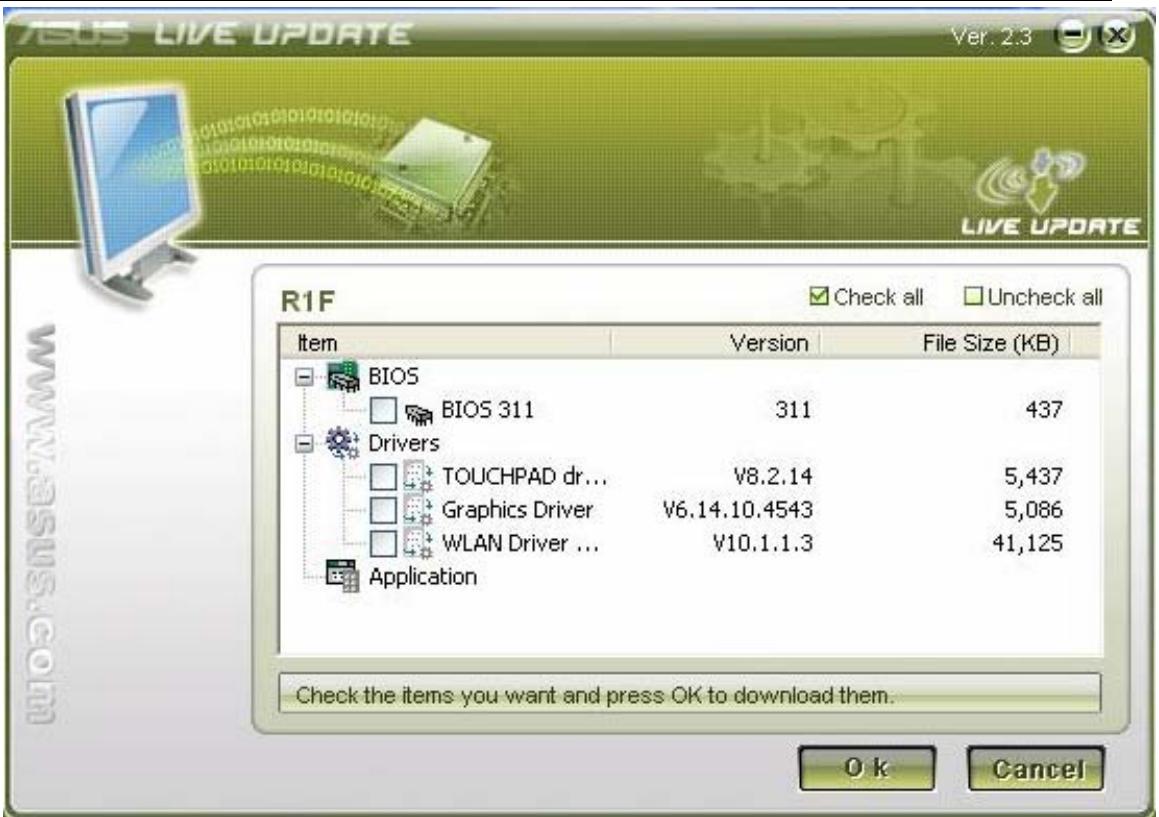
- You could select any BIOS or Drivers and click "OK" to update via Live Update.
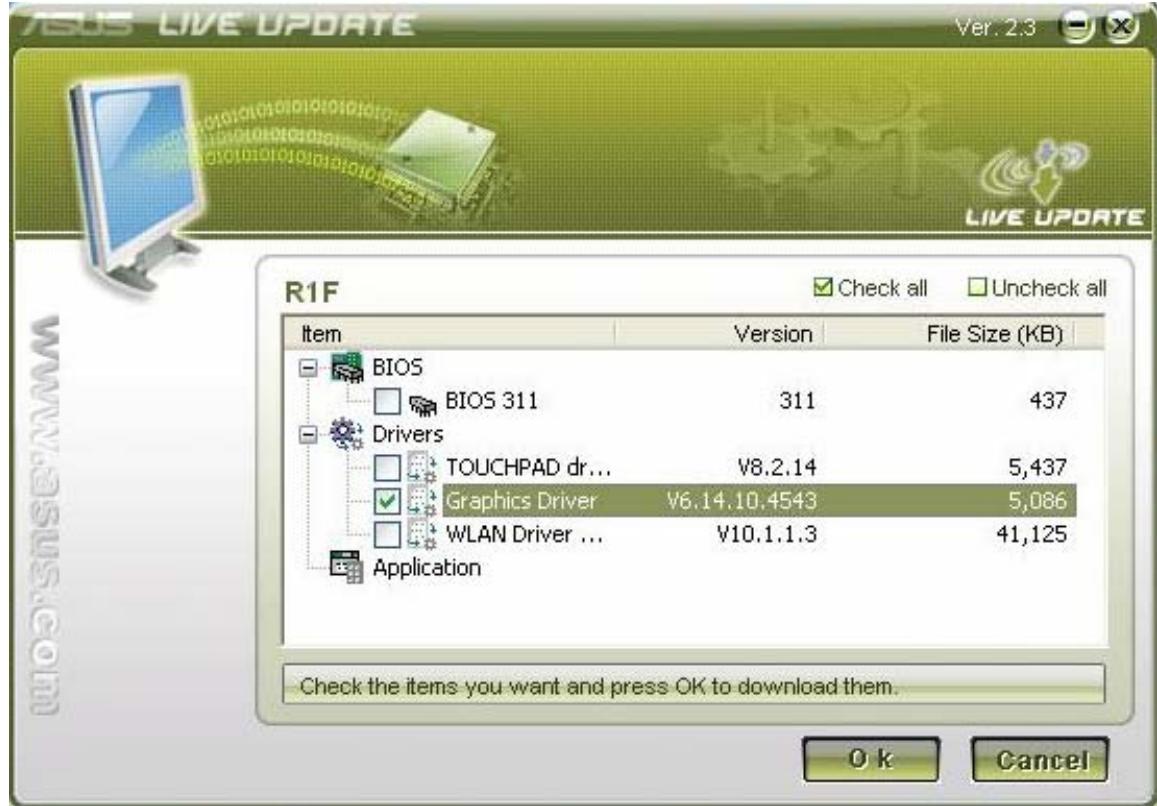
- If you select a Driver, Live Update will download the latest Driver.
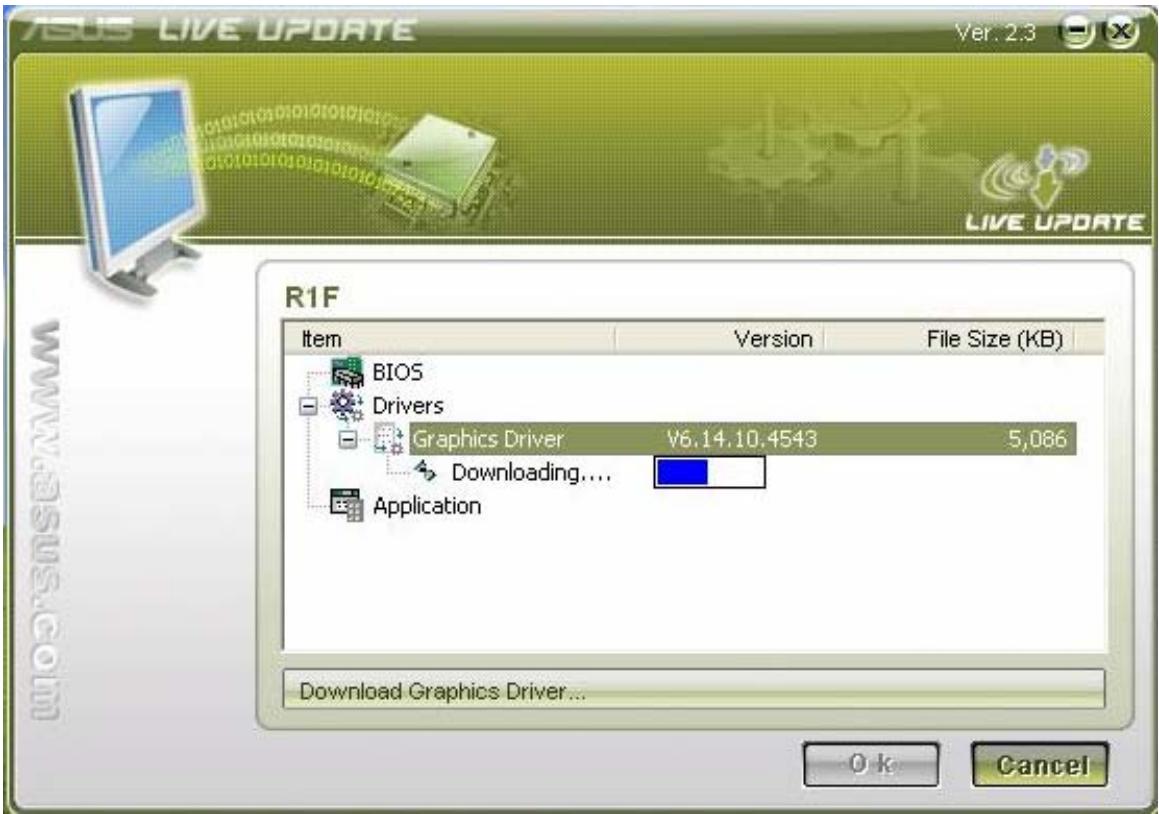
- Then install the Driver automatically.
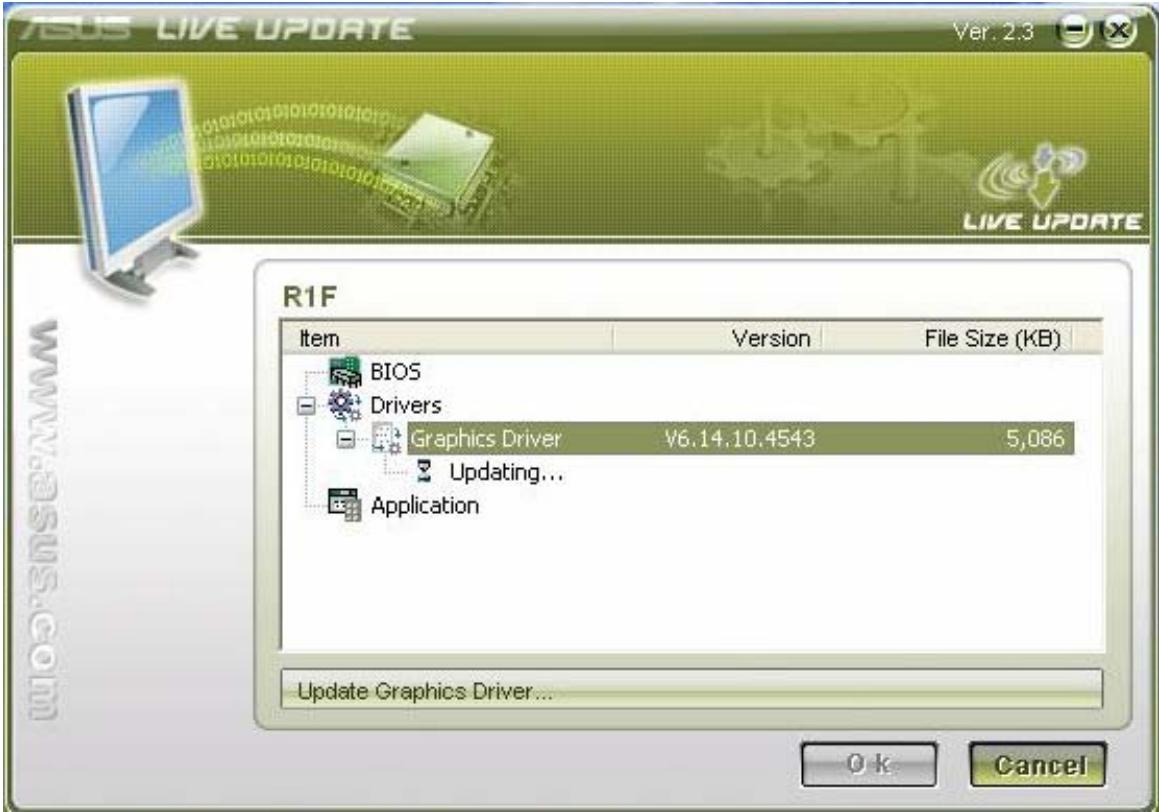
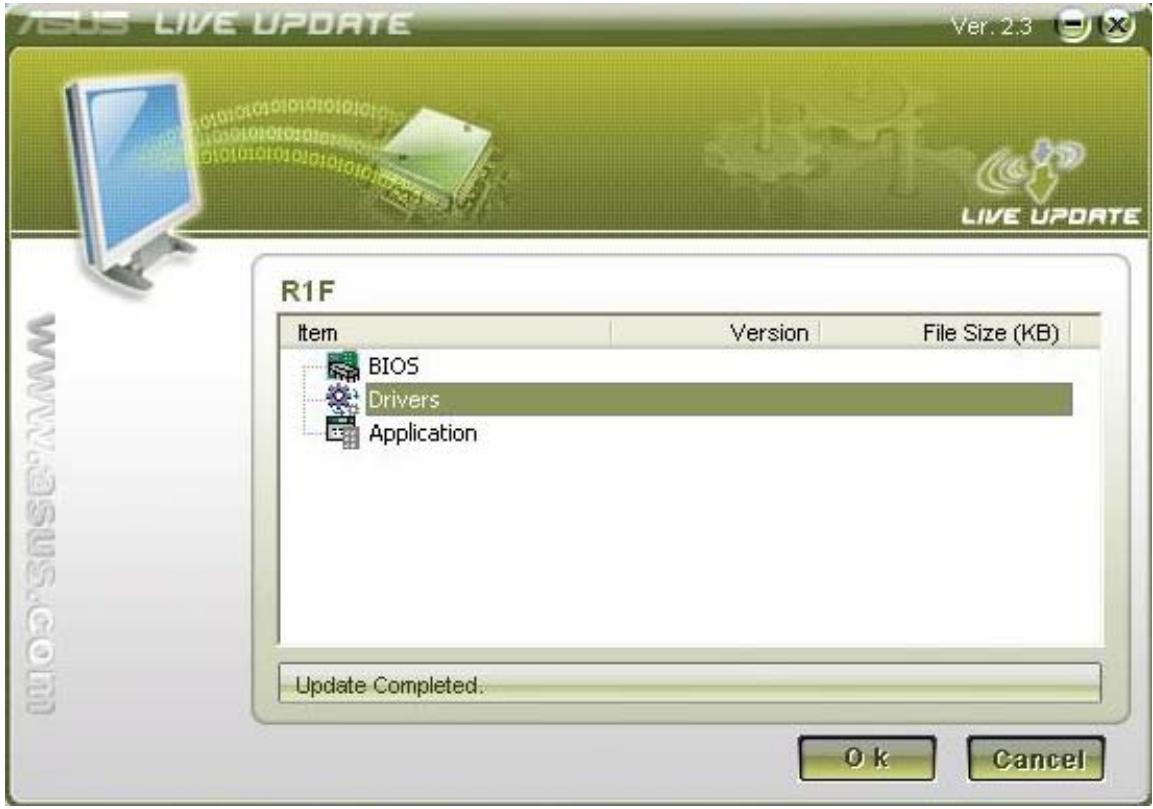
- At last, Live Update will tell you that the Driver live update is completed.
- If you select the BIOS, Live Update will download the latest BIOS as well.
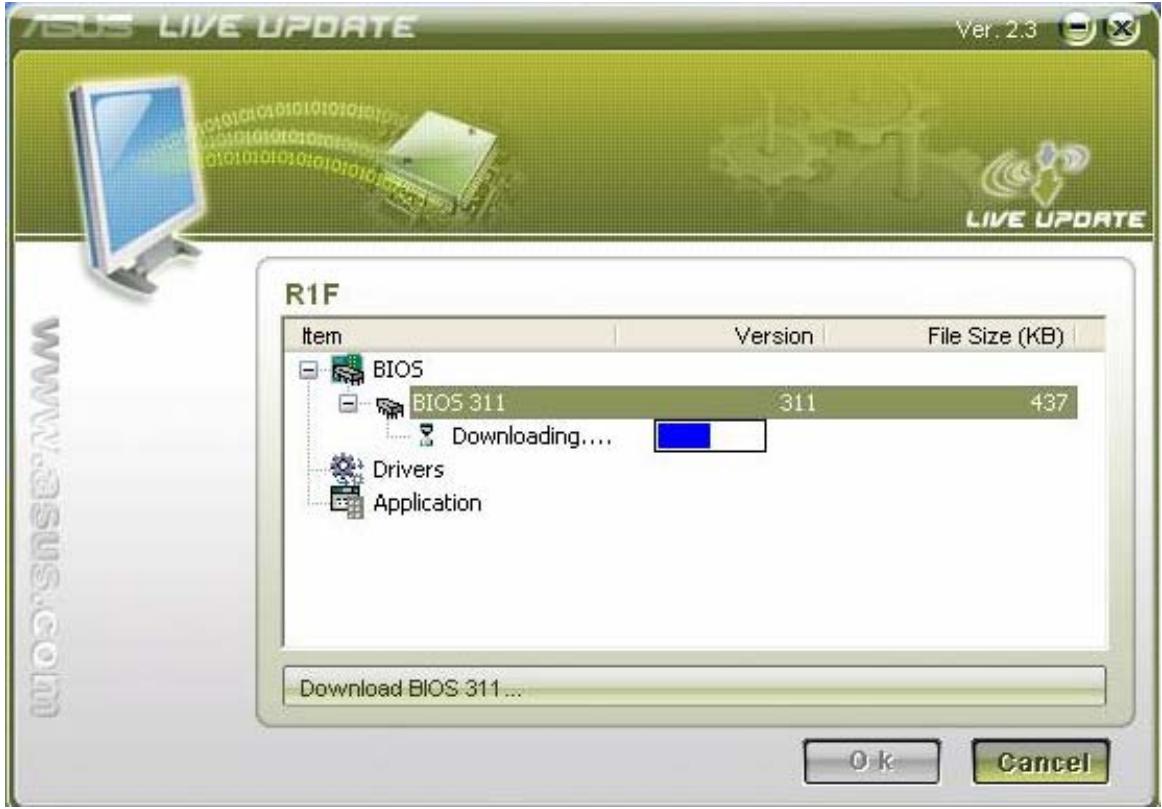
- When the Download is completed, you will receive a message to notice the system will restart and enter BIOS to flash the latest BIOS.
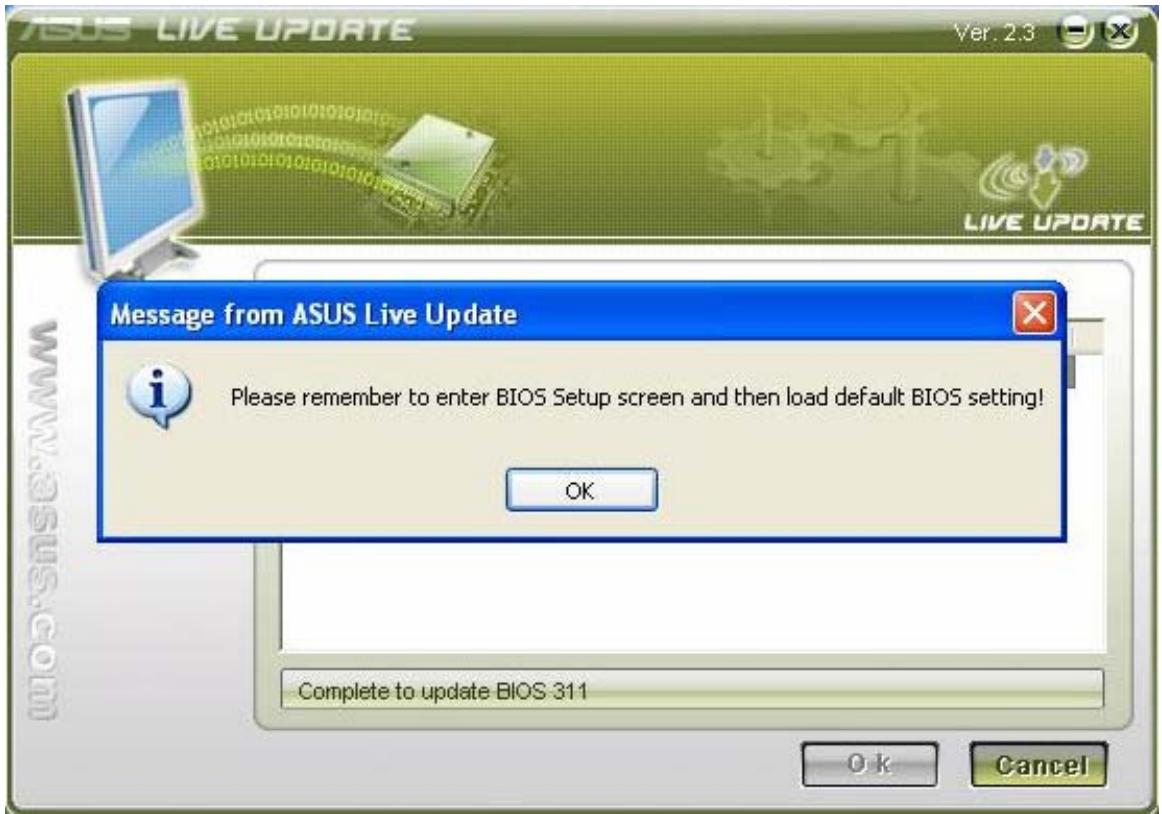
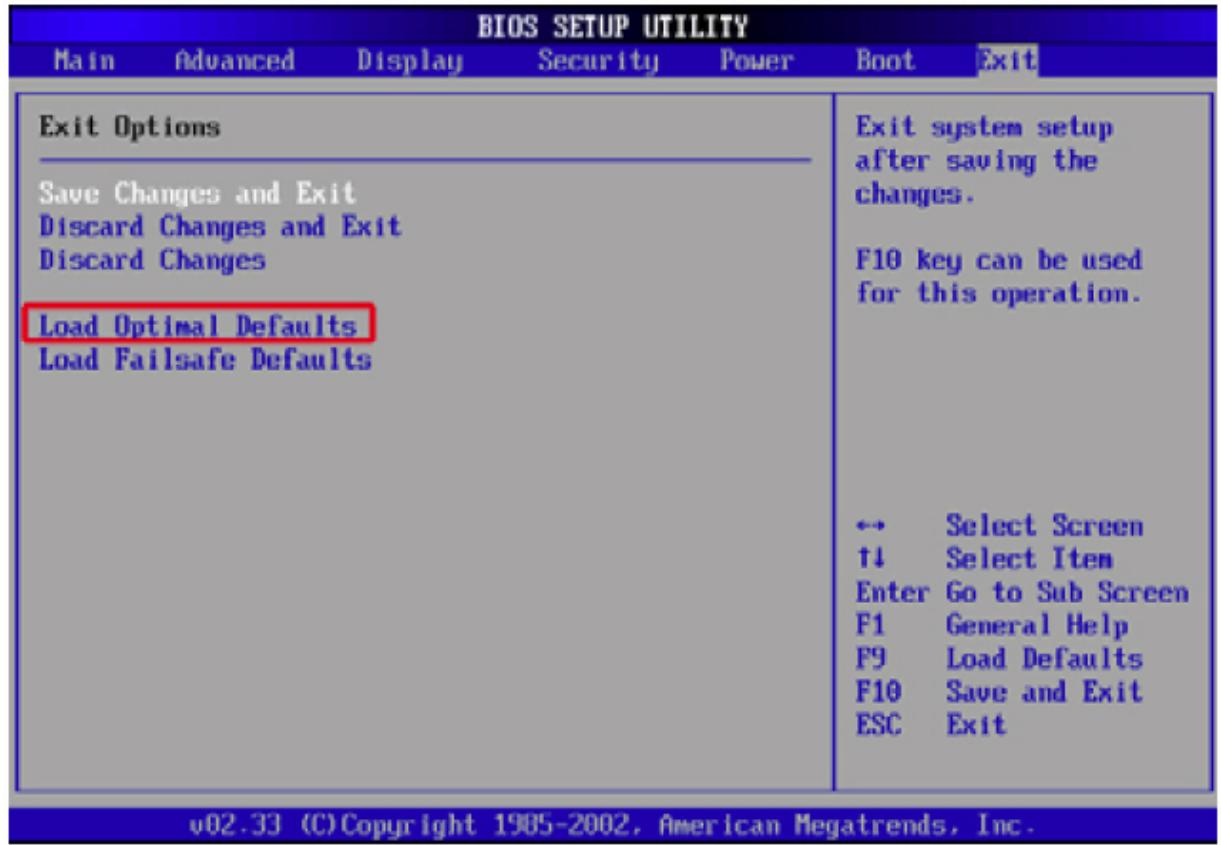
- After the latest BIOS is flashed OK, the system will power off, then you need to power the unit again and press F2 to enter BIOS to "Load Optimal Defaults". Then click "Save and Exit" and reboot system again.
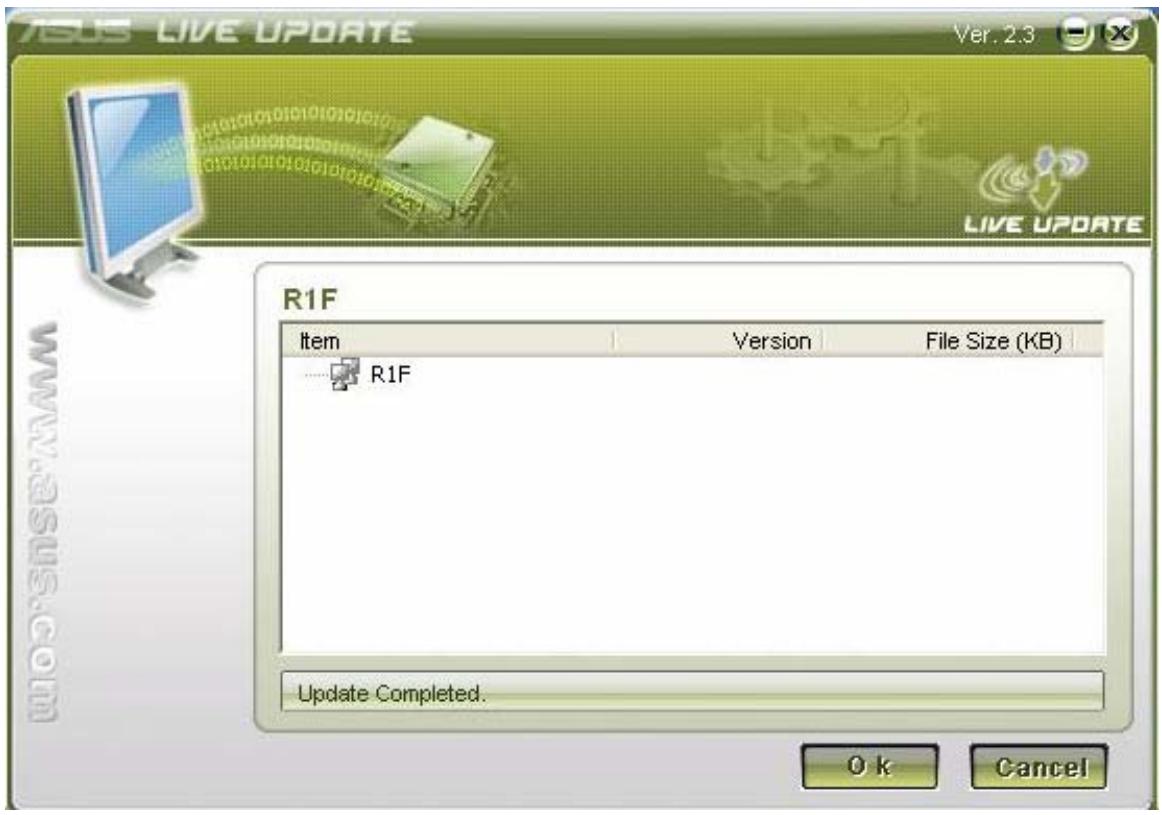
- Then you will enter OS and Live Update will tell you the BIOS live update is
completed.
- You can right-click the Live Update icon on the toolbar and click Schedule to arrange the schedule for the live update.
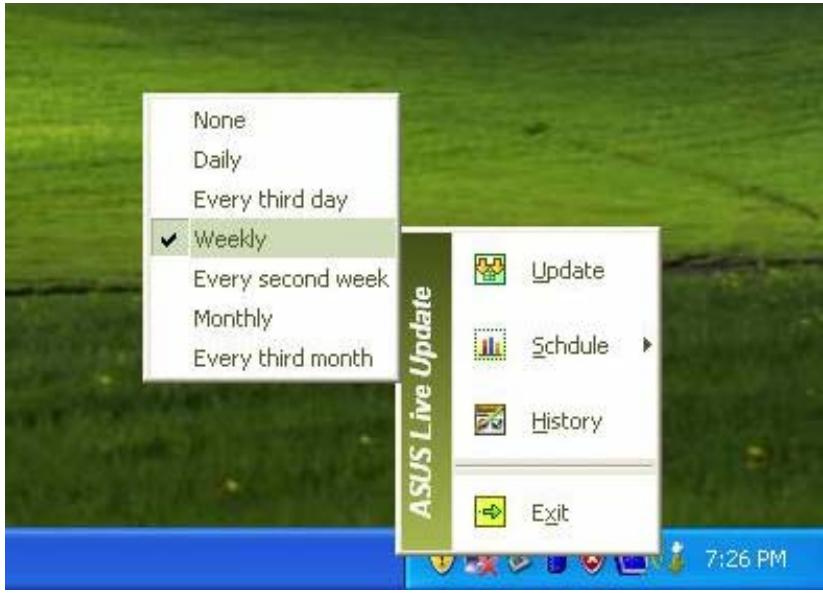
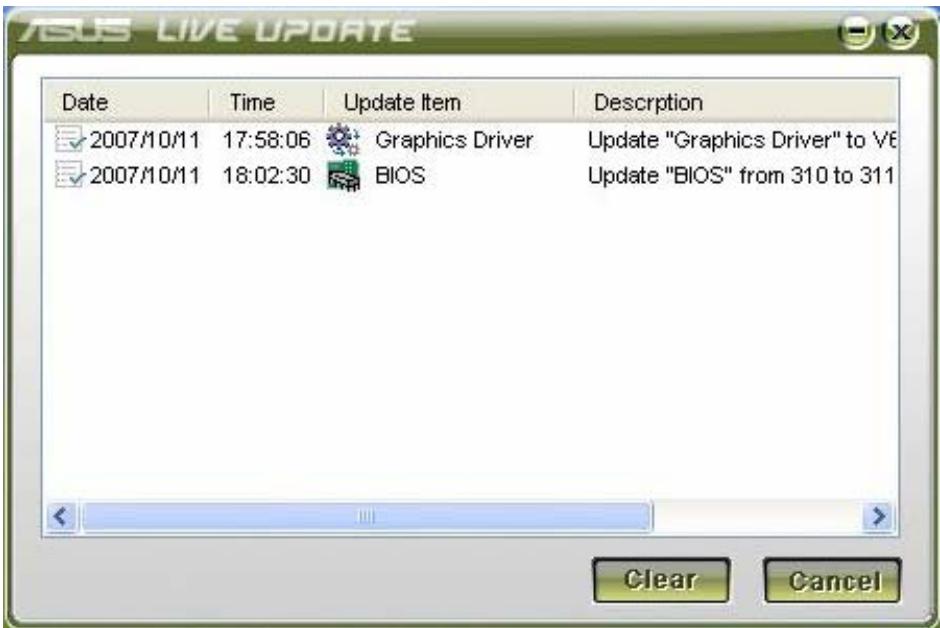
- You can right-click the Live Update icon on the toolbar and click History to check the live update history, which records the live updates of the BIOS and drivers.
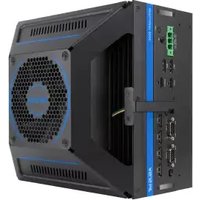


Brand : ASUS
Model : A3FP
Category : Computer