SRT 8150 - Satellite receiver STRONG - Free user manual and instructions
Find the device manual for free SRT 8150 STRONG in PDF.


| Product Type | Satellite Receiver |
| Brand | Strong |
| Model | SRT 8150 |
| Dimensions (approx.) | 25 x 15 x 4 cm |
| Weight (approx.) | 0.5 kg |
| Power Supply | 12V DC / 230V AC adapter |
| Power Consumption | 10 W (max) |
| Tuner Type | DVB-S2 |
| Video Decoding | MPEG-4 / H.264 |
| Output Resolution | 1080p, 720p, 576i |
| HDMI Output | Yes |
| USB Port | 1 x USB 2.0 for playback/recording |
| DiSEqC | 1.0/1.1 |
| Number of Channels | Up to 5000 |
| Channel Memory | Yes |
| Electronic Program Guide | Yes |
| Parental Control | Yes |
| Maintenance | Clean with a soft dry cloth. Do not use liquid cleaners. |
| Safety | Keep away from moisture and heat sources. Disconnect during lightning storms. |
| Spare Parts | Remote control available separately. |
Frequently Asked Questions - SRT 8150 STRONG
User questions about SRT 8150 STRONG
0 question about this device. Answer the ones you know or ask your own.
Ask a new question about this device
Download the instructions for your Satellite receiver in PDF format for free! Find your manual SRT 8150 - STRONG and take your electronic device back in hand. On this page are published all the documents necessary for the use of your device. SRT 8150 by STRONG.
USER MANUAL SRT 8150 STRONG
text_image
STRONG 5000 8150 POWER MENU DR DR CH DR VOL VOL Digital High Definition Terrestrial Receiver High Definition DVD Picture similarUser Manual

text_image
TELEVISION TV SCART TV SCART COMPONENT VIDEO VIDEO CCAMUL S/POFF AUDIO R OPTICAL S/POFF RS-232 USB RoHS MOUNTAINER Supplyed by S/TRONG & Co. Japan OFF POWER SD 0591 V- SD No/80 Hz Max. 43 W HDD S/PDIF DIGITAL AUDIO AMPLIFIERFig.3

text_image
TELEVISION TV SCART TV SCART COMPONENT VIDEO VIDEO COUNK SPORF RS-232 OFFIC SPORF HDMI LED FOR POWER 92-250 V- 50 Hz/10 Hz Max. 43 W RoHS PROSHARES Supplied by STRONG & Co. Japan IN OUT VCRFig.4
TABLE OF CONTENTS
1.0 INTRODUCTION 2
1.1 Safety Instructions 2
1.2 Storage 3
1.3 Equipment Set-up 3
1.4 Features & Accessories 3
2.0 YOUR RECEIVER 4
2.1 Front Panel 4
2.2 Rear Panel 5
2.3 Remote Control Unit 6
3.0 CONNECTIONS 8
3.1 Connecting to Terrestrial antenna 8
3.2 Connecting to TV & VCR 8
3.3 Connecting to Digital Audio Amplifier 9
3.4 Connecting to computer by serial cable 9
3.5 Connecting to external USB Hard disk 9
4.0 STARTING UP FOR THE FIRST TIME
4.1 Language Selection 10
4.2 Terrestrial Settings 10
5.0 MAIN MENU
5.1 Channel Organizer 10
5.2 Terrestrial Search 12
5.3 Installation 13
5.4 Timer 15
5.5 Application 15
6.0 OTHER OPERATIONS
6.1 Program Guide (EPG) 16
6.2 Zapping and information banners 17
6.3 Channel list and view mode 17
6.4 PDR functions 18
A.1 TROUBLESHOOTING
A.2 SPECIFICATIONS
A.2 SPECIFICATIONS 20
HOTLINE

0180 500 75 43*
*€0.14/Min. from German wired line

0820 400 150*
* €0.12/Min. from Austrian wired line

0826 029 928*
* €0.14/Min. from French wired line
per June 2008
1.0 INTRODUCTION
1.1 Safety Instructions



CAUTION: TO REDUCE THE RISK OF ELECTRICAL SHOCK, DO NOT REMOVE COVER (OR BACK). NO USER-SERVICEABLE PARTS INSIDE. REFER TO QUALIFIED SERVICE FOR SERVICING.
Explanation of WARNING symbols
The lightning flash with arrowhead symbol within an equilateral triangle is intended to alert the user to the presence of not isolated dangerous voltage within the inside of the product that may be of sufficient magnitude to constitute a risk of electric shock to persons.
The exclamation point within an equilateral triangle is intended to alert the user to the presence of important operating and servicing instructions in the literature accompanying the appliance.
Read the following instructions carefully
WARNING: TO REDUCE THE RISK OF FIRE, ELECTRICAL SHOCK OR ANNOYING INTERFERENCE, DO NOT EXPOSE THIS APPLIANCE TO RAIN OR MOISTURE AND ONLY USE THE RECOMMENDED ACCESSORIES.
- Read All Instructions — Before you use the product, read all operating instructions. For more information on accessories such as the lithium ion battery, refer to the manuals provided with those products
■ Save These Instructions — Save all safety and operating instructions for future reference
■ Heat Warnings — Read carefully and follow all warning labels on the product and those described in the instructions.
■ Follow Instructions — Follow all instructions provided with this product
■ Cleaning — Always unplug this product from the wall outlet before cleaning. Use only a damp cloth for cleaning. Never use any type of liquid or aerosol cleaner, or any type of organic solvent to clean this product
■ Attachments — For your safety, and to avoid damaging the product, use only accessories recommended by STRONG.
■ Water and Moisture — Never use this product around water (near a bathtub, kitchen sink, laundry tub, wet basement, swimming pool or in the rain)
■ Location — To avoid damage to the product and prevent personal injury, never place this product on an unstable stand, tripod, bracket, table or cart. Mount only on a stable tripod, stand, or bracket. Follow the instructions that describe how to safely mount the product, and use only the mounting devices recommended by the manufacturer
■ Power Sources — Connect this product only to the power source described on the product label. If you are not sure about the type of power supply in your home, consult your local power company
■ Refer to instruction pages for information on using the product with a battery
■ Grounding, Polarization — If this product is used with a specified AC adapter, the adapter may be equipped with a polarized alternating current line plug (a plug with one blade wider than the other). This safety feature allows the plug to fit into the power outlet only one way. If you cannot insert the plug into the wall outlet, pull it out, reverse it, and then reinsert it. If the plug still fails to fit, contact an electrician and have the receptacle replaced
■ Protecting the Power Cord — The power supply cord should be placed so it will not bewalked on. Never put a heavy object on the power cord or wrap it around the leg of a table or chair. Keep the area around the power cord connection points, at the power outlet, and at the product connection, free of all AC adapter or accessory power cords
GENERAL PRECAUTIONS SAFETY PRECAUTIONS
■ Lightning — If a lightning storm occurs while using a specified AC adapter, remove it from the wall outlet immediately. To avoid damage from unexpected power surges, always unplug the AC adapter from the power outlet and disconnect it from the receiver when the receiver is not in use
■ Overloading — Never overload wall outlets, extension cords, power strips, or other power connection points with too many plugs
■ Foreign Objects, Liquid Spillage — To avoid personal injury caused by fire or electrical shock from contact with internal high voltage points, never insert a metal object into the product. Avoid using the product where there is a danger of spillage
■ Heat — Never use or store this product near any heat source such as a radiator, heat register, stove, or any type of equipment or appliance that generates heat, including stereo amplifiers
■ Servicing — Refer all servicing to qualified personnel. Attempting to remove the covers or disassemble the product, could expose you to dangerous high voltage points
■ Damage Requiring Service — If you notice any of the conditions described below while using a specified AC adapter, unplug it from the wall outlet and refer servicing to qualified service personnel:
1. Liquid has been spilled onto the product or some other object has fallen into the product.
2. The product has been exposed to water.
3. The product does not operate normally despite following operating instructions. Adjust only the controls described in the operating instructions as improper adjustment of other controls could damage the product and require extensive repair work by a qualified technician.
4. The product has been dropped or damaged in any way.
5. The product exhibits a distinct change in performance.
■ Replacement Parts — When replacement parts are required, make sure that the authorized service center uses only parts with the same characteristics as the originals, as recommended by the manufacturer. Unauthorized substitution of parts could result in fire, electrical shock, or create other hazards
■ Safety Check — Upon completion of servicing or repairs, ask the service technician to perform safety checks to determine that the product is in good working order
■ Apparatus shall not be exposed to dripping or splashing and no objects filled with liquids, such as vases, shall be placed on the apparatus.
■ Where the mains plug or all-pole mains switch is used as the disconnect device, the disconnect device shall remain readily operable.
1.2 Storage
Your receiver and its accessories are stored and delivered in a packaging designed to protect against electric shocks and moisture. When unpacking it, make sure that all the parts are included and keep the packaging away from children. When transporting the receiver from one place to another or if you are returning it under warranty make sure to repack the receiver in its original packaging with its accessories. Failing to comply with such packaging procedures could void your warranty.
1.3 Equipment Set-up
We recommend you consult a professional installer to set up your equipment. Otherwise, please follow the instructions below:
Refer to the user manual of your TV and your antenna.
Make sure that Audio/Video cables and outdoor components are in a good condition and the SCART connections are well shielded. This manual provides complete instructions for installing and using this receiver. The following symbols will serve as follow.

WARNING: Indicates warning information.

TIPS Indicates any other additional important or helpful information.
MENU Represents a button on the remote control or the receiver (Bold Character) Move to Represents a menu item within a window. (Italic Character)
1.4 Features & Accessories
■ HDTV receiver for all digital Free-To-Air TV and Radio programmes via terrestrial antenna
■ Exceptional bright and clear TV pictures and excellent sound in DVD quality
■ High speed storage, copy and loading function for channel list(s) and software from USB storage devices
■ 5 000 channels memory capacity
■ Display showing channel number or time
■ 4 Favourite lists for TV and Radio
■ Zoom functions for TV pictures
■ Electronic TV Programme Guide for present/following event information
■ 7 Timers with 3 modes (daily, weekly, once)
■ Teletext via receiver, multi-lingual subtitling and audio track support
■ Parental lock function with rating control
■ Quick and easy installation & user-friendly menu
■ Multi-lingual support on screen menu (OSD)
■ USB 2.0 for USB storage devices
■ Selectable output for 1080i, 720p and 576p format
■ Aspect ratio adjustment 4:3, 16:9, Pan & Scan, Letterbox
■ Software Update via USB 2.0 port and RS-232
■ Digital sound through optical and coaxial output (S/PDIF)
■ Fully DVB compliant, supports MPEG-2, MPEG-4 and H.264.
■ Multiple Video Outputs: HDMI, Component(Y, Pb, Pr), SCART (RGB, CVBS), Video RCA.
Accessories
■ 1 x User Manual
■ 1 x Remote control unit
■ 2 x Batteries (AAA type)

Note: The batteries should not be recharged, disassembled, electrically short-circuited or be mixed or used with other types of batteries.
2.0 YOUR RECEIVER
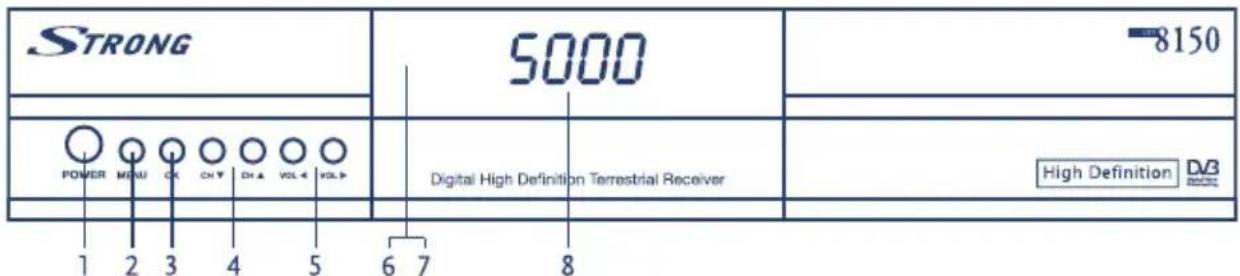
2.1 Front Panel
text_image
STRONG 5000 8150 POWER MENU CK CH V CH A VOL V VOL Digital High Definition Terrestrial Receiver High Definition D/B 1 2 3 4 5 6 7 8-
POWER
Switches the receiver power On and Standby. -
MENU
Gets into Main Page screen.
- OK
Executes the selected item.
- CH Up/Down
Channel up/down or selects the item of Menu.
- VOL Up/Down
Volume up/down or selects the item of Menu.
- Stand-by LED
Light up RED when receiver is in stand-by mode. Off when receiver is in awake mode.
- USB LED
Light up GREEN when USB device is connected to USB connector at the back of the receiver.
- 4 digits indicator
In awake mode displays channel number. In stand-by mode displays current time
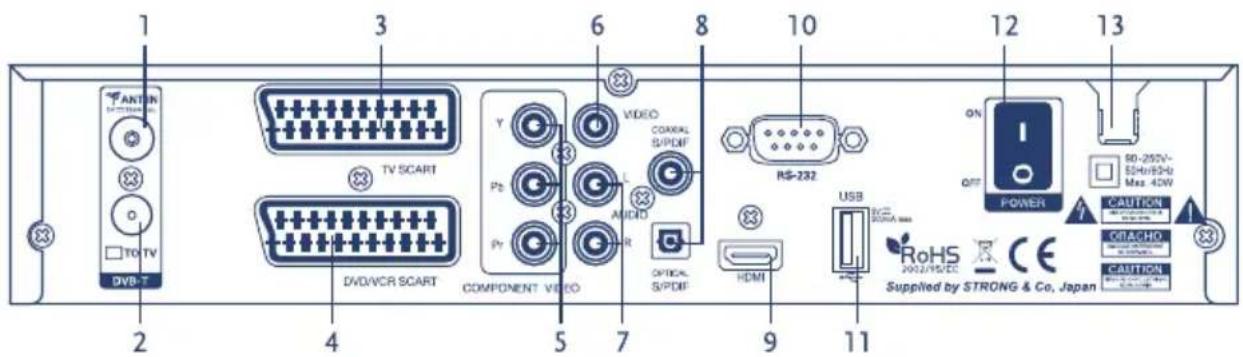
2.2 Rear Panel
text_image
1 2 3 4 5 6 7 8 9 10 11 12 13 ANTON TV SCART DVD/VCR SCART COMPONENT VIDEO VIDEO COXIAL S/PDIF L AMID OPTICAL S/PDIF HDMI USB RoHS 2002/19/DC CE Supplied by STRONG & Co. Japan ON OFF POWER SD-257V- SD-H/SS-B Max. 4DW CAUTION CIRACHIO CAUTION- ANT IN
To connect the antenna cable to this connector.
- TO TV
Gives you the possibility to connect an extra terrestrial receiver.
- TV SCART Connector
Use this connector to connect your receiver with your TV set using a SCART cable.
- DVD/ VCR SCART
Use this connector to connect your receiver to your video recorder using a SCART cable.
When receiver in stand-by mode a video/audio signals from your VCR will be looped through receiver to your TV set.
- Y, Pb, Pr
Connects to Component jack of TV.
- VIDEO
This connector has a constant video signal for additional VCR-connections.
- Audio L/R
Outputs for Audio Left (White) and Right (RED).
- S/PDIF Coax and Optical
Output for connecting to a digital audio amplifier.
- HDMI
Connects to HDMI jack of TV.
- RS-232 Serial Port
This serial port can be used to connect your PC to your receiver to download new software versions to your receiver.
- USB
Connects to USB device.
- Power ON/OFF Switch
Powers on/off.
- Power Cord
Your receiver requires a current of 90 \~ 240 V AC (Auto-selectable), 50 \~ 60 Hz ± - 5%.
Make sure to check the power specification before connecting your receiver to the wall outlet.
2.3 Remote Control Unit

text_image
MUTE POWER 1 2 3 4 5 RCL TV/RDO AV/TV HDMI ABS REF 1 2 3 GHI JKL MNO 4 5 6 PQRS TUV WXYZ 7 8 9 FAV 0 SAT 8 9 10 11 12 EPG TeleText AUDIO CH Subtitle 13 14 OK VOL VOL CH 15 16 MENU INFO EXIT 17 18 19 VOL+ CH▲ VOL- CH▼ 20 21 22 23 ■ ■ ■ ■ ■ ■ ■ ■ ■ ■ ■ ■ ■ ■ ■ ■ ■ ■ ■ ■ ■ ■ ■ ■ ■ ■ ■ ■ ■ ■ ■ ■ ■ ■ ■ ■ ■ ■ ■ ■ ■ ■ ■ ■ ■ ■ ■ ■ ■ ■ STRONG DIGITAL TV- MUTE Enables or disables the audio.
- POWER Switches the receiver between operation and standby mode.
- RCL Selects the previously viewed channel.
- HDMI Changes the resolutions of video (Switch HD type)
- TV/RADIO Switches between TV and Radio.
- A/TV Selects the TV, VCR, STB (receiver output) or AUTO (Automatic) mode for the TV SCART output.
- Numeric buttons Select the TV or Radio service channels and individual menu.
- FAV Toggles the selected favorite mode.
- SA No function
- EPG Displays the TV or Radio program guide. (Electronic Program Guide)
- TELETEXT Enables teletext mode.
- AUDIO Changes the audio languages.
- SUBTITLE Enables subtitle mode.
- CH ▲▼ Changes channels or moves to the item in the menu.
- VOL ▶ Adjust the volume or moves to left or move item in the menu
- MENU Displays the main menu on screen.
-
EXIT Returns to the previous menu or normal viewing mode from a menu.
-
INFO Displays the program information box on the screen.
-
V+/V- Turns volume up or down.
-
CH+/CH-
Changes channels up or down on normal mode.
21.
Moves up a page in the channel list.(Selects zoom In/out)
22.
Moves down a page in the channel list.
- STOP
Stops recording, timeshift or playback.
- PAUSE
Timeshift deactivated: Pauses the playing picture or go again to normal mode. Timeshift activated: Starts the function. Further it is used to pause the playback.
- RECORD
Records the program.
- PLAY
Starts the playback assumed that recording/s were already done. Then you can select a file from the Recording File List.
- REWIND
Starts reverse playback and changes the speed of reverse playback.
- F/F
Starts fast forward or fast motion playback and changes the speed of forward playback.
3.0 CONNECTIONS
3.1 Connecting to Terrestrial antenna
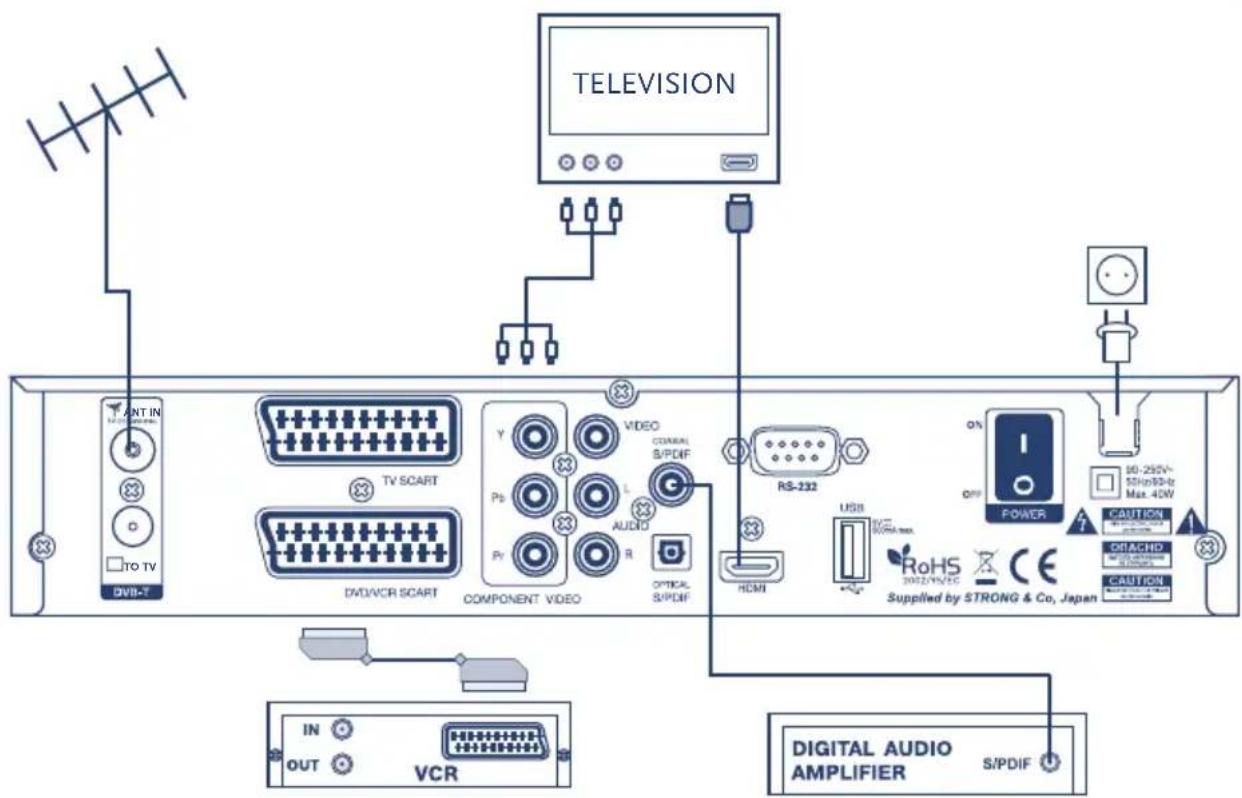
To receive the broadcast signal, the terrestrial antenna cable should be connected to the ANT IN connector at the back of the receiver
Fig. 3
text_image
TELEVISION INT IN TV SCART TV/VR SCART COMPONENT VIDEO VIDEO CANAL S/PDIF Rs-232 USB USB MAX. RoHS 2022/19/20 Supplied by STRONG & Co., Japan POWER 10-250V~ 50Hz/80Hz Max. 4DW CAUTION CAUTION DIGITAL AUDIO AMPLIFIER S/PDIF IN OUT VCR3.2 Connecting to TV & VCR
Connecting by HDMI cable
To fully enjoy your HDTV channels it is advisable to use HDMI or Component video outputs of your receiver. Connect one end of HDMI cable to the HDMI output of your receiver and another end of cable to HDMI IN connector on your TV.
Connecting to component output
- Make sure to use proper cable (3 RCA on each side of cable, usually coloured as GREEN, BLUE, RED).
- Connect chinches at one side of the cable to Y, Pb, Pr (GREEN, BLUE, RED) outputs on your receiver and another side of the cable to corresponded inputs on your TV. Very important to follow colour mark.
Connecting by SCART cables
-
Connect the TV SCART connector at the back of the receiver to the SCART IN connector on your TV set or connect Video RCA and Audio L/R RCA connectors at the back of the receiver to corresponded inputs on your TV set.
-
Connect the VCR SCART connector of the receiver to the SCART-IN connector on your VCR set.

Note: Please, make sure that your receiver is connected by SCART or 3 RCA cable (Video, Audio L/R) to your TV set when you connect your VCR (or DVD) to receiver. You will not get video signal from your VCR (DVD) through the receiver if your receiver is connected only by HDMI or YPbPr connector to your TV set.
Fig. 3

3.3 Connecting to Digital Audio Amplifier
Connect S/PDIF connector at the back of your receiver to appropriated input of your Digital Audio Amplifier.
Fig. 3
3.4 Connecting to computer by serial cable
Connect the RS-232 connector on the back of your receiver to the Serial port of your computer using a serial cable. Instructions how to download software can be found on our website www.strong.tv (support > download). However, this receiver can download new system software from USB stick.
3.5 Connecting to external USB Hard disk
Switch on your external HDD (connect the power adapter if applicable) before you connect the USB connector at the back of your receiver. After finishing the First Installation (Cap. 4.0) proceed with following steps:
-
Unless the USB-Hard disk is already formatted in FAT32 and recognised successfully for the first time you will get a message to format your device to FAT32 in "Application" > "USB" menu.
-
In this menu press the YELLOW (Format) button on your remote control to confirm. After \~10 to 20 sec. (depends on HDD size) formatting will be finished and you can leave the menu with the MENU or EXIT button.
-
Go to "Application" >"PDR" menu to adjust the preferred recording duration and set Timeshift to OFF or ON as desired.
4.0 STARTING UP FOR THE FIRST TIME
Ensure that your receiver is correctly connected to your television and terrestrial antenna. Make sure terrestrial signals are of good quality. Ask your local STRONG dealer to check your terrestrial installation or signal if you are not sure how to do this.
Confirm that the power plug of receiver is plugged into the wall outlet. Turn on the receiver by power switch on rear panel. The language section menu will be showing on your TV Screen. It is recommended that you do first time installation following Installation Wizard step by step. It will help you easily achieve system configuration and channel installation.
If you are advanced user then you can skip wizard by pressing EXIT button and set-up channels using Installation menu.
4.1 Language Selection
Press OK to choose the language.
4.2 Terrestrial Settings
Select your "Country", "Antenna Supply" and "Channel Numbering" mode. Use ▲▼ buttons to select an item and ◀▶ buttons to change the value of the item. With OK you can open the list to select your home country. To continue installation press BLUE (Save & Exit) button.
At the next step of installation wizard you can adjust your terrestrial antenna for best reception condition. Please, use ◀▶ buttons select channel number where digital terrestrial signal is available and adjust your antenna direction and position (If necessary) to get maximum levels on the signal strength and quality indicators. You can check with your dealer on which channels digital terrestrial broadcast is available at your location.
Press BLUE (Next) button to continue to Digital Terrestrial TV scan once you are sure that signal strength and quality on the maximum.
At the end of installation process the receiver will switch to the first found TV channel. Enjoy your TV and Radio channels!

Tip: If your home country/broadcaster supports LCN (Logical Channel Numbering), then please adjust channel numbering mode to "Operator defined" if you are not sure about this ask your local STRONG dealer. If the LCN is not supported then please select "Appearing order".
5.0 MAIN MENU
All the important settings and features of your receiver can be operated in Main Menu. The Main Menu consists of following sub-menus: "Channel Organizer", "Terrestrial Search" "Installation", "Timer" and "Application". Press the MENU button when the menu is off, the MAIN MENU screen will appear.
5.1 Channel Organizer
In MAIN MENU screen, use ▲▼ buttons to select Channel Organiser, then press OK or ▶ to enter the Channel Organiser menu, which consists of the sub-menus Sort Channels, Add to Favourites and Edit Channels.
5.1.1 Sort Channels
In this menu, you can sort channels by order or move channels to specified position.

Note: Channels are sorted in the selected channel list only. Sorting of the channels in one list do not change order of the channels in another list. I.e. sorting of the channels in 1 Favourite list do not change order of the channels in list of all channels and vice versa.

Note: Please note, that channel sort function is not available if the setting for "Channel numbering" (Menu: Terrestrial Search - Terrestrial Settings) is set to "Operator defined".
Sort (RED button)
Press RED button to select one of available sort options.
■ Original Order the order of the channels will be restored to last stored order.
■ Alphabet A-Z or Z-A channels will be sorted in alphabet order.
■ Frequency Low High channels will be sorted in frequency order: first channels with low frequency, then with higher frequency.
■ First FTA Free-To-Air channels will be placed at the beginning of the list, Scrambled channels at the end.
■ First scrambled Scrambled channels will be placed at the beginning of the list, Free-To-Air channels at the end.
If you want to store new order of channels press YELLOW (Save) or BLUE (Save & Exit) button. If you do not want to store result of sorting press EXIT button. Message "Do you want to save?" will appear on screen. Select "NO" to cancel or press OK to save result of channel sort.
Move (GREEN button)
Press GREEN (Move) button to manual sort channels. Use ▲▼ buttons to select channel that you want to move. Press OK button to confirm channel selection. You can select several channels to move them simultaneously. Now, you can select new position of the channel using ▲▼ buttons. Press GREEN (Move) button to confirm new position of the channel. Repeat these steps for all channels that you want to move. To save new order of the channels press YELLOW (Save) or BLUE (Save & Exit) button.
5.1.2 Add to Favourites
Enter to this menu in order to prepare lists of your favourite channels.
Use ▲▼ buttons to select channels of your choice.
Use ◀▶ buttons to select favourite group where to add selected channel.
Press OK button to mark/unmark channel to selected favourite group.
To rename Favourite group press RED button, select group that you wish to rename and press OK. On screen will appear keyboard. To delete current name of the group select Backspace (GREEN) and press OK. Select CAPS (RED) to toggle between Capital and small letters. To enter new name use navigation and OK buttons.
To save new name press YELLOW (Save) or BLUE (Save & Exit) button. To cancel your modifications press EXIT.
5.1.3 Edit Channels
In this menu you can edit channel name, lock and delete channels.
Edit
Press RED button to edit name of the channel. On screen will appear keyboard. To delete current name select Backspace (GREEN Button) and press OK. To enter new name use navigation and OK buttons. To save new name press YELLOW (Save) or BLUE (Save & Exit) button. Channel name will be changed in all channel lists. To cancel your modifications press EXIT..
Lock
Lock function can be used in order to block access to some channels. Press GREEN button to lock/unlock channel of your choice. Locked channel will be marked by Lock symbol. In order to watch locked channel you will need to enter PIN code. Channel will be locked in all channel lists.
Delete
Pressing YELLOW button will mark selected channel to delete. To unmark channel select it and press YELLOW button again. Channel(s) will be deleted after you press BLUE button. Be aware: after pressing BLUE button channel(s) will be deleted from all channel lists. To cancel delete operation you can press EXIT button. Message "Do you want to save?" will appear on screen. Press EXIT to cancel or OK to confirm.
5.2 Terrestrial Search
The Terrestrial Search menu contains following sub-menus: "Channel Setup" and "Terrestrial Settings" In first order make sure that Terrestrial settings are correct and corresponds to the country where you leave.
5.2.1 Channel set-up
There are 2 possible ways of terrestrial channel search: Auto Scan (RED button) and Manual Scan (GREEN button).
■ Manual Search
Select one or several frequencies by OK button then Manual Scan (GREEN button) to search for channels on selected frequencies.
■ AutoScan
Press Auto Scan (RED) to scan all frequencies in the list.
On completing the search, the receiver will save automatically the services information.
5.2.2 Terrestrial settings
Use ▲▼◀▶ buttons to select your Country, Antenna Supply and Channel Numbering.
■ Country: With OK you can open the list to select your home country.
■ Antenna Supply: Select this option to ON in case you use active antenna powered through coaxial cable. The receiver supply DC power +5 V into 50 mA load maximum.
■ Channel Numbering: select this option to "Operator defined" in case your operator provide logical channel numbering feature. Otherwise select "Appearing order".
5.3 Installation
5.3.1 Preference
In this menu, you can set up your personal preferences.
■ OSD language, Audio language, Subtitle language Use ▲▼◀▶ buttons select the item and OK button to display the list.
■ Banner Timeout To set banner duration (how long information banner will be displayed on screen). Use ▲▼◀▶ buttons select the item and OK button to display the list.
■ Transparency Use ▲▼◀▶ buttons to select the transparency level and OK button to display the list.
■ CAM messages To enable or disable displaying of messages from Conditional Access Module. Disabling of CAM messages could be necessary in order to not disturb you while zapping through channels which can't be descrambled by your smart card.
■ Power On Channel Use ▲▼◀▶ buttons to select the item. If your choice is Fixed channel: press OK button to display a channel list, select a channel and confirm selection with OK button. Your receiver will always start with defined channel. If your choice is Last Viewed then receiver will awake with the last watched channel.
■ S/PDIF Use ▲▼◀▶ buttons to select the Digital audio mode. PCM – the receiver will downmix AC3 audio to PCM stereo. Dolby – the receiver will by-pass AC3 audio for future decoding by Digital Audio Amplifier.
5.3.2 TV Setting
In this menu, you can configure the TV setting such as HD type, TV type, Aspect Ratio, Screen Control, RGB/YUV, Brightness, Contrast, Saturation.
■ HD type Use ▲▼◀▶ buttons to select the item and press OK button to display the list of options, use ▲▼ buttons to select a video output resolution and press OK button to confirm selection.

Tip: HD type is not selectable if output mode (YUV/RGB) set to RGB.
■ TV Type Use ▲▼◀▶ buttons to select the item and press OK button to display the list of options, use ▲▼ buttons to select TV Type and press OK button to confirm selection.

Tip: If you have changed TV type and Video on screen not appears in 15 seconds – press EXIT button 2 times. Such a problem can appear if your TV do not supports video in NTSC format.
■ Aspect Ratio Set accordingly to aspect ratio of your TV.
Use ▲▼◀▶ buttons to select the item and press OK button to display the list of options, use ▲▼ buttons to select Aspect Ratio then press OK button to confirm selection.
■ Screen Control
Use ▲▼◀▶ buttons to select the item and press OK button to display the list of options, use ▲▼ buttons to select Aspect Conversion then press OK button to confirm selection.
RGB/YUV
Selects a mode of video output signal.
If you have connected your TV to receiver only by SCART cable then it is recommended to set RGB mode. If you have connected your TV to receiver by HDMI or Component cable then this value must be set to YUV.
Use ▲▼◀▶ buttons to select the item and press OK button to display the list of options, use ▲▼ buttons to select YUV or RGB mode then press OK button to confirm selection.

WARNING: If you have selected RGB mode then HDMI (digital) and YPbPr (component) outputs on the receiver would be disabled!
■ Brightness / Contrast / Saturation
Use ▲▼◀▶ buttons to select the item and press OK button to display the list of options, use ▲▼ buttons to select level of Brightness / Contrast / Saturation then press OK button to confirm selection.
5.3.3 Time Setting
To synchronise time in your receiver with broadcaster: set GMT usage to ON, select your time zone and set Summer time accordingly to season.
In some cases it is recommended to set GMT usage to OFF and setup date/time manually.
5.3.4 Parental Control
In this menu, you can set menu lock status (Disabled or Enabled) and change the PIN code. Parental rate menu allows you to block watching content which is rated for age equal or higher then you have set in this menu. Function of this feature depends from broadcast and STRONG would not take any responsibility if it doesn't work. The default PIN code is 0000.
5.3.5 System Information
Displays the information about software version installed in the receiver.
5.3.6 Factory Reset
Use Factory Reset only when you want to return the receiver to the condition of factory default. This will delete all user settings and installed channels.
5.4 Timer
You can set the timer to make the receiver perform designated actions including timer based wake up or sleep instructions to the receiver.
Timer Index
Use the ◀▶ buttons to select.
■ Active
Use ◀▶ buttons to select among Power on, Power off, Duration, Recording and OFF (disable timer)
Mode
You can set the cycle of the action designated in the timer mode (Once, Daily or Weekly)
■ Channel Type
Press OK button to display current channel list and using navigation buttons select channel to be shown when the receiver will power on by timer event. You can use TV/R button to select between TV and Radio channels.
■ Starting Time
You can set the starting date or days of the week for the timer action. Use Numeric buttons to enter the starting time of the timer action.
Duration
Use Numeric buttons to enter the duration of channel view when the Timer mode is set to Time Interval.
5.5 Application
This menu will help you to use USB, Calendar, Tetris (Game).
5.5.1 USB
The Receiver is equipped with host controller. Insert your USB memory device to USB connector. Make sure, that power consumption of your USB device is not higher than 500 mA. In case your USB memory device power consumption is higher – make sure to connect an external power supply to your memory device before connecting it to your receiver. Usage of memory device with high power consumption may damage your receiver.
Select USB menu in application with ▲▼ and press OK
If you would like to backup channels or software to USB memory:
- Press GREEN button and select type of data to store ("Channel data (UDB)" will store only channels while "All SW dates (UAD)" will store software and channels).
- Select one item and press OK to proceed.
- Name of created file will be "STB_ALL_MMDDhhmm.UAD" or "STB_DB_MMDDhhmm.UDB", where: MM – month when file is created; DD – date; hh – hours; mm - minutes
To restore backed up data:
- Select file (UAD or UDB) and press OK.
- List of possible actions will be displayed. Make your choice and press OK to proceed.
- After updating data from selected file your receiver will reboot automatically in 3 seconds.
To format USB memory device
Please press YELLOW Button (Format). A warning window will appear to get your confirmation of operation.
To delete file
Press BLUE Button (Delete). A warning window will appear to get your confirmation of operation.

Tip: When USB memory device is not inserted to the USB port, OSD would not show any files.
5.5.2 Calendar
Use ▲▼ buttons to move to Calendar OK button. The calendar will appear on screen. Use ▲▼◀◀ buttons to move between days in a month or ▲/▼buttons to go previous or next Month. Press EXIT buttons to return.
5.5.3 Tetris
Use ▲▼ buttons to move to Tetris and press OK button. Before starting a game, you will be prompt to select level. Press numeric button to select a level which you want (1\~15) and press OK.
◀: Move block to left or right.
▲▼: Drop block.
OK: Rotate block.
Press EXIT buttons to exit from game.
5.5.4 PDR
Here you can adjust your preferred Record Size (max. duration of record) and set Timeshift to ON or OFF.
6.0 OTHER OPERATIONS
6.1 Program Guide (EPG)
EPG shows the program schedule for the current channel. Availability of EPG depends from broadcast and may not be available for all channels.
In no-menu state, press EPG button, the EPG Menu will appear. Screen is divided to 3 main parts: at the left channel list, at the right program schedule list and bottom part provide short program description with program start-end time.
In channel list:
Use ▲▼ buttons to choose the channel. Use ◀▶ to switch between channel list and program schedule. In program schedule list:
Use ▲▼ buttons to choose program. Use RED/GREEN buttons to select previous/next day of schedule.
Use ◀▶ to switch between channel list and program schedule.
Use YELLOW button to display detailed program information.
Use BLUE button to programme timer for selected program.
In program details:
Use ▲▼ to scroll information in the window.
Use EXIT to return to the list of programs.
6.2 Zapping and information banners
Zapping banner displayed automatically every time when you change channel in normal view mode. It provides information about current channel list type, carrier name, time and date information, channel number and name as well as current program name.
Information banner can be displayed by pressing to INFO button.
In addition to zapping banner it provides information about next program, availability of subtitles and teletext on current channel.
Information banner can be toggled to Extended and Signal modes by pressing RED (Extended) and GREEN (Signal) buttons accordingly. In Extended mode can be displayed short description of current program (if available). In Signal mode displayed technical information such as transponder parameters, audio and video PIDs of current channel, signal strength and quality.
6.3 Channel list and view mode
To call up on screen the current channel list press OK button from view mode.
Use ▲▼◀▶ buttons to select channel and press OK to switch to full screen view mode.
6.3.1 Fast alphabet filtering
Press RED (Filter) button to filter channels in alphabetical order. The alphabet will be displayed at the right side. Select first letter of the channel name that you need to find in the list and press OK.
6.3.2 Selection of the list
From view mode or channel list mode press FAV button to display the list of favourite groups. Use ▲▼ buttons to select an item in the list and press OK to confirm selection.
To toggle between TV and Radio channels use TV/RAD button.

Tip: FAV will only be displayed if you have already added channels to a FAV list.
6.3.3 Favorite list selection
From view mode or channel list mode press FAV button and use ▲▼ buttons to select favourite group of your choice. Press OK to confirm selection.

Tip: If you want to exit from FAV mode press TV/RAD button.
6.3.4 Selection of Audio Language
From view mode press the AUDIO button on your remote control. Use ◀▶ buttons to select an audio language from the list of available. Use ◀▶ buttons to select audio channel between Left, Right and Stereo. Press OK to confirm your selection. Additionally you can select volume level for this channel.
6.3.5 TELETEXT function
In channel view mode press TEXT button. If Teletext is available in several languages, then select language from the list.
6.3.6 Subtitles function
In channel view mode press SUB button. List of available subtitles languages will be displayed on the screen. Use ◀▶ buttons to select language and OK to confirm. To disable subtitles select OFF from the list of the languages.
6.4 PDR functions
The software supports full range of PDR functionality! The usage is based on your own risk! Recording of HD signals requires very high record speed. Therefore the accurate function is depending on the used external USB device. STRONG cannot guarantee for USB devices used. Especially when Timeshift is activated at channels with high data rate, STRONG cannot guarantee an accurate Playback of the Timeshift file. Any risk of the PDR function usage shall not be passed to STRONG!
6.4.1 Record
- Select the desired TV channel you want to record.
Press the ● (Record) button on the remote control to start recording. - Recording Info banner appears and shows the file name, recording time and duration (which can be adjusted in Application > PDR menu). It will disappear within OSD-timeout interval. To recall this banner during recording press the INFO button.
- During recording you can call up the Record Channel List by pressing the OK button to watch another Free-To-Air channel within the same transponder.
- To stop recording at any time press ■ (Stop) button.
- If you want to delete recorded file(s) from the Recording File List press the RED (delete) or GREEN (All delete) button.
6.4.2 Play
- Press ▶ (Play) button in TV mode and the Recording File List will appear on screen.
- Select with the ▲▼ buttons the file you want to watch and start playback by pressing OK.
- You can activate Fast Forward or Fast Rewind during playback by pressing the ◀ or ▶ button. Another pressing of these buttons will change the speed (FF: x2, x4, x8; FR: x1, x2, x4, x8). Press ▶ (Play) button to continue playback at desired position.
- To choose a specific position or scene in the playback press INFO and select the desired position with the ◀▶ buttons.
- To stop the playback press ■ (Stop) button.
6.4.3 Timeshift
-
Make sure that in PDR menu the Timeshift function is set to ON. This can be adjusted in "Application" > "PDR" menu.
-
Press II (Pause) button in TV mode to start Timeshift. The Recording Info banner appears and shows the recorded time.
-
To continue watching the programme press ▶ (Play) button.
-
If you start Timeshift during recording the receiver keeps recording.
-
You can activate Fast Forward or Fast Rewind during Timeshift by pressing the ◀ or ▶ buttons. Another pressing of these buttons will change the speed (FF: x2, x4, x8; FR: x1, x2, x4, x8).
-
To choose a specific position or scene in Timeshift mode press INFO and choose the desired position with the ◀▶ buttons.
-
To leave Timeshift press ■ (Stop) button.
A.1 TROUBLESHOOTING
There may be various reasons for the abnormal operation of the receiver. Check the receiver according to the procedures shown below. If the receiver does not work properly after checking it, please contact the dealer. Don't open the receiver cover. This may cause a dangerous situation and will void the warranty.
| Symptom Cause Remedy | ||
| The 4 digits display on front panel does not light up. | The power cord is not plugged in. | Check that the power cord is plugged in to the wall outlet. Make sure power switch on rear panel is in ON position. |
| No picture or sound W | rong connection of the Audio/Video output of the receiver to TV.Audio muting.TV power off. | Connect the Audio/Video output of the receiver to TV correctly.Press the MUTE buttonTurn TV on. |
| No picture The receiver can't receive the signalIncorrect values of channel parameters.You have switched to a Radio channel | Check the antenna cable, replace the cable, or connect the cable to the receiver tightly.Set the values channel parameters correctly in installation menu.Press TV/Radio to get back to TV channels. | |
| The remote control does not work | The batteries of the remote control are not inserted or exhausted | Check whether the batteries are inserted correctly in your remote control. Check the batteries, and if exhausted replace the batteries in the remote control. |
A.2 SPECIFICATIONS
Demodulator DVB-T
Modulation: COFDM
Demodulation: QSPK, 16-QAM/64-QAM
IF bandwidth: 6, 7 or 8 Mhz
Guard Interval: 1/4, 1/8 1/16, 1/32
Code rate: 1/2, 2/3, 3/4, 5/6, 7/8
Video Decoder
Profile Level: MPEG-2 MP@ML, MP@HL, MPEG-4 H.264/AVC
Input Rate: Max. 90 Mbit/s
Aspect Ratio: 4:3, 16:9, Pan & Scan, Letterbox
Frame Rate: 25 Hz for PAL, 30 Hz for NTSC
Video Resolution: 576p, 720p, 1080i
Audio Decoder
Audio Decoding: MPEG-1 Layer 1 & 2, Dolby Downmix
Audio Mode: Mono L/R, Stereo, AC3
Frequency Response: 20 Hz \~ 20 kHz, <+/-2 dB
60 Hz \~ 18 kHz <+/- 0.5 dB
Sampling Rate: 32, 44.1, 48 kHz
Tuner DVB-T
Connector type: Female, IEC60169-2, 75 Ohm nominal
Frequency Rage: VHF: 174 \~ 230 MHz
UHF: 470 \~ 862 MHz
Signal Level: -78.5 dBm \~ -25 dBm
(64-QAM, Code Rate 2/3, Guard Interval 1/8, Gaussian Channel)
COFDM Spectrum: COFDM 2K/8K-Carrier
Antenna supply: 5 Volt DC, Max. 50 mA overload protected
System & Memory
CPU: STi7100
Flash Memory: 8 MBytes
System Memory: 64 MBytes
A/V Memory: 64 MBytes
Connectors
ANT IN
TO TV
TV SCART (RGB, CVBS, Audio L/R Output with Volume control)
VCR Scart (Input - RGB, CVBS, Audio L/R; Output - CVBS, Audio L/R)
HDMI (V/A -Output) Type A -Version: 1.0
RCA Output - Audio L/R & Video Output
Component Video Out (YPbPr)
S/PDIF Dolby Digital Out (Coaxial, Optical)
Data Interface – serial port: RS-232, 9-Pin D-Sub Male type
USB 2.0, Type A Connector
General Data
Input Voltage Range: 90 – 250 V AC 50 – 60 Hz
Power Consumption: max 40 W
Power Consumption/Standby: max. 12.1 W
Operating Temperature: 0 \~ +40 °C
Storage Temperature: -10 \~ +50 °C
Operating Humidity Range: 10 \~ 85 % RH, Non-condensing
Size (W x D x H) in mm: 300 x 215 x 65
Weight: 1.6 kg
Subject to alterations. In consequence of continuous research and development technical specifications, design and appearance of products may change. CryptoWorks and Irdeto are trademarks of Irdeto Access B.V., Conax is a trademark of Telenor Conax AS, Viaccess is a trademark of France Telecom, all other product names are trademarks or registered trademarks of their respective owners.
© STRONG 2009. All rights reserved. 01/2009
ENVIRONMENTAL ISSUES
STRONG is committed to reducing the impact of its products on the environment. To maximise the benefits of our design enhancements, your co-operation is required.
Electronic product recycling
Do not dispose of this product with your domestic rubbish.
At the end of its useful life, this product contains materials which when processed correctly can be recovered and recycled. By participating in the responsible recycling of this product you will be reducing the requirement for new raw materials and reducing the amount of material that would otherwise end up in landfill.
When you purchase a new, similar product your retailer may offer to take this old one off you. Alternatively, you can take it to your local recycling centre. Your retailer or local municipal authority will advise you of the collection facilities available for waste electronically products in your area. User of this service will be free to you.
Within the scope of the European legislation on Waste Electrical and Electronic Equipment (Directive 2002/96/EC valid as of August 2005) STRONG provides a recycling system free of charge for consumers to returning products after end of life. For more information about STRONG's environmental policy to you:
www.strong.tv - select "About us" and "Environmental Policy" from the submenu.
Packaging
When disposing of this product packaging, please ensure that it is recycled. Packaging material is to be depolluted in waste separation.

Power Saving
To save power and money, please put the product into standby mode when not in use. We also recommend disconnection from mains supply when not in use for longer periods of time.

Batteries
Do not dispose of the batteries from your handset with your domestic waste.

Where they are available, participate in your local municipal or retailer collection schemes for spent batteries. Batteries discarded in landfill sites or incinerated increases the chances of pollutants being dispersed into the atmosphere.
Alternations reserved 05/2009