Adapt-IQ MCT-70HPQ - Screen Mimo Monitors - Free user manual and instructions
Find the device manual for free Adapt-IQ MCT-70HPQ Mimo Monitors in PDF.


User questions about Adapt-IQ MCT-70HPQ Mimo Monitors
0 question about this device. Answer the ones you know or ask your own.
Ask a new question about this device
Download the instructions for your Screen in PDF format for free! Find your manual Adapt-IQ MCT-70HPQ - Mimo Monitors and take your electronic device back in hand. On this page are published all the documents necessary for the use of your device. Adapt-IQ MCT-70HPQ by Mimo Monitors.
USER MANUAL Adapt-IQ MCT-70HPQ Mimo Monitors
Adapt-IQ 7" User's Manual
Model: MCT-70QDS, MCT-70QDS-POE, MCT-70HPQ, MCT-70HPQ-POE
natural_image
Autumn forest path winding through golden sunlight, no text or symbols visiblePlease keep this manual for future reference.
TABLE OF CONTENTS
PAGE
DECLARATION....1
PRODUCT INSTRUCTIONS....1
POWERING ON THE PRODUCT....2
INSERTING THE SD CARD....3
INSERTING USB DEVICES....3
HOME SCREEN....4
COMBINED SYSTEM BAR......8
USE APPS....11
LANGUAGE....12
DATE & TIME....13
VOLUME....14
WI-FI....19
ETHERNET....20
VIRTUAL KEYBOARD....23
SWITCH INPUT METHODS....24
SURF ONLINE....29
BROWSE FILES....30
PLAY MEDIA....31
RESET TO FACTORY DEFAULT....36
Declaration
√ Please read the instructions carefully before equipment installation and using the device.
√ Do not put the product in high temperature, humid or dusty environment.
√ Do not drop, crash or break down this product.
√ Do not power off the device when it's formatting or upgrading, otherwise it will cause operation system error.
√ This product is not waterproof.
√ Use only approved add-on enhancements.
Product Instruction
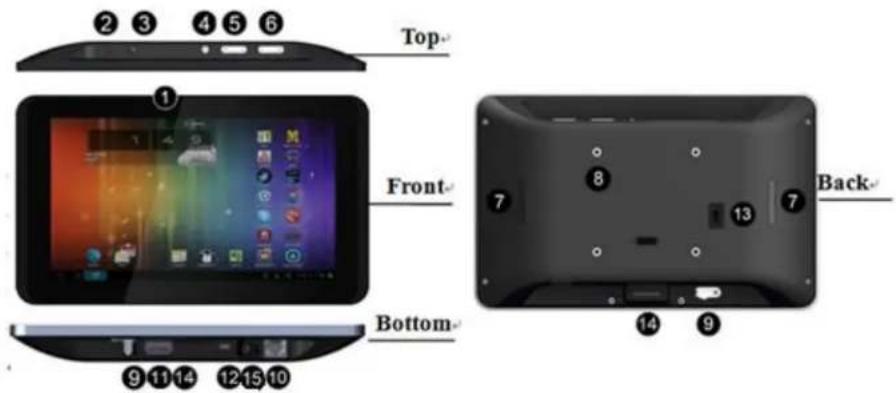
- Camera (optional): 2M pixel camera
- LED Indicator:
| Red | System is booting. |
| Green | System is working properly. |
| Light Off | Power supply is off. |
- SD Card Slot / Cover: support external SD card
- Escape Button: return to the previous page
- Function Keys (Up / Down): select the up/down item
- Function Keys (Vol+ / Vol-): adjust the system volume
- Speaker: audio output
- VESA Mount Holes: for installing the bracket
- DC In Jack: powered by 12V/2A DC input
- Ethernet RJ45 Port: support Ethernet connection (10/100Mbps LAN)
- USB Port: support USB 2.0 high speed 480Mbps
- Micro-USB Port: support USB 2.0 high speed 480Mbps
- Power Switch: switch power ON/OFF
- Add-on module slot: to put optional add-on module
- Headset + Microphone Jack
- WIFI: 802.11b/g/n/ac 2.4G
- Temperature: Operation: 0°C \~ 40°C (32F \~104F)
Storage: -10^ 55^ ( 14^ 131^ )
Mimo Monitors
info@mimomonitors.com
Sales: 1-855-YES-MIMO (937-6466)
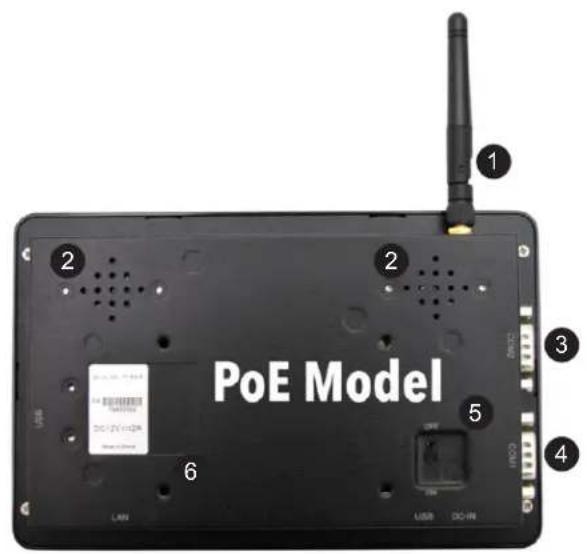
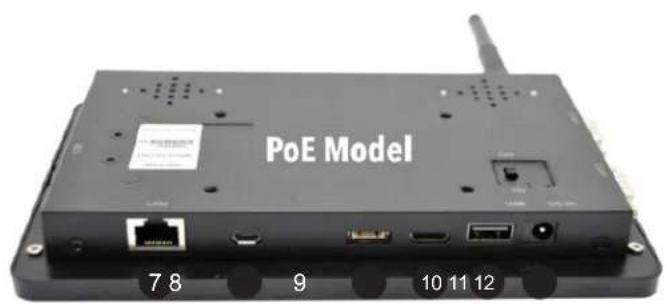
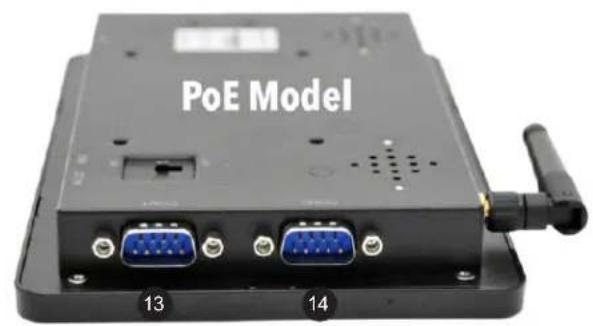
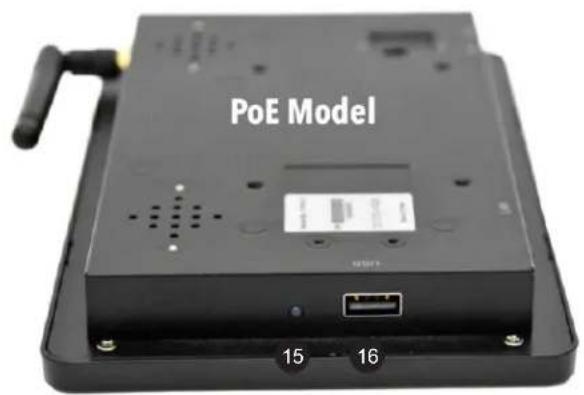
Mechanical Design
- Wi-Fi Antenna
- Speakers x 2 (8-ohm, 2W)
- COM2 (RS-232)
- COM1 (RS-232)
- Power Switch
- VESA mount (75mm x 50mm)
- LAN
- Micro USB
- GPIO
- Mini HDMI
- USB Type-A
- DC Power IN
- COM1 (RS-232)
- COM2 (RS-232)
- Power LED
- USB Type-A
Power on the Product
Step1 Power on the power adapter that connected to this product.
Step2 Switch the power switch (#13 in Product Instruction) on the back of this product to ON.
Insert SD Card
This product supports external SD card. Please insert your SD card into the SD Card Slot (#3 in Product Instruction) on the top of this product.
Insert USB Devices
This product supports USB and Micro-USB to deal with your files.
USB
Plug your USB memory into the USB port (#11 in Product Instruction) on the bottom of this product, and then you can do the file operations via the File Browser. (See the details in Browse Files).
Micro-USB
Connect the Micro-USB port (#12 in Product Instruction) on the bottom of this product and the USB port on your computer with a Micro-USB-to-USB cable.
Click the “Turn on USB storage” button in the “USB mass storage” window that pops up automatically to make the device memory visible in your computer.
Home Screen
When the system starting completed, you will see the home screen.
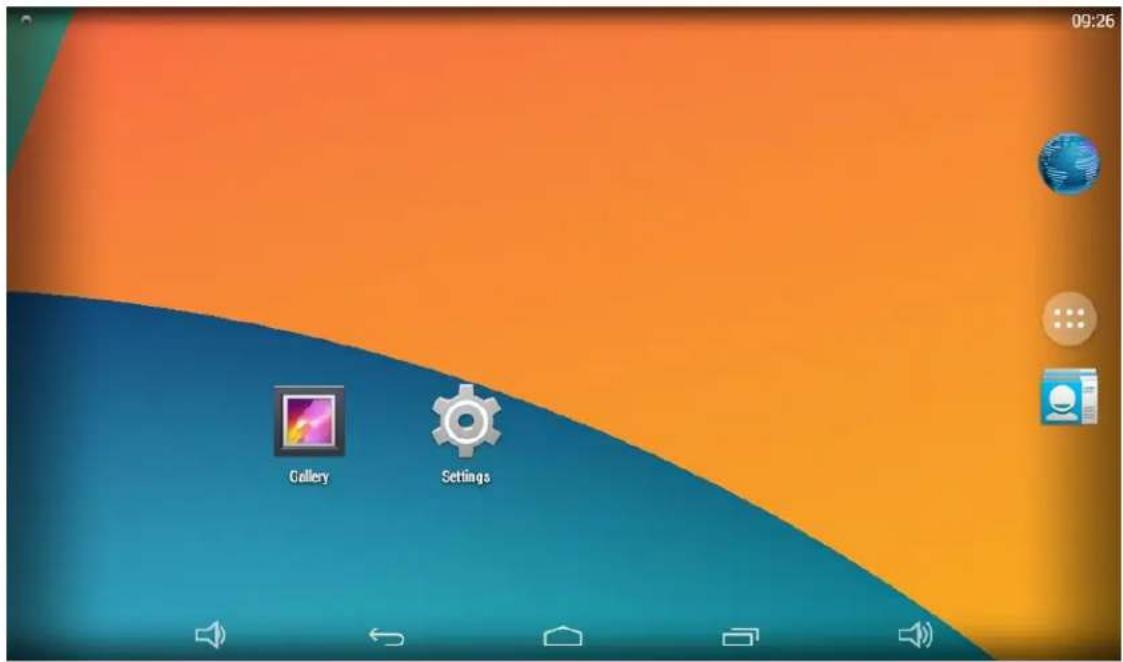
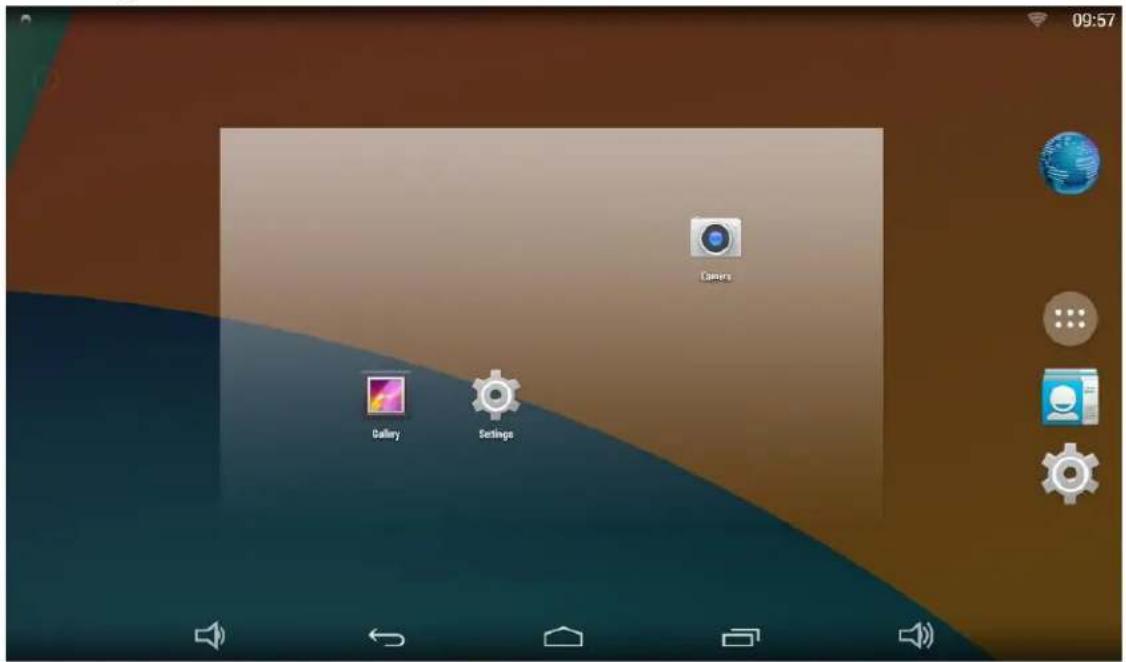
In the home screen, you will see some app or widget icons. By long-press of an icon, you can drag it to where you like.
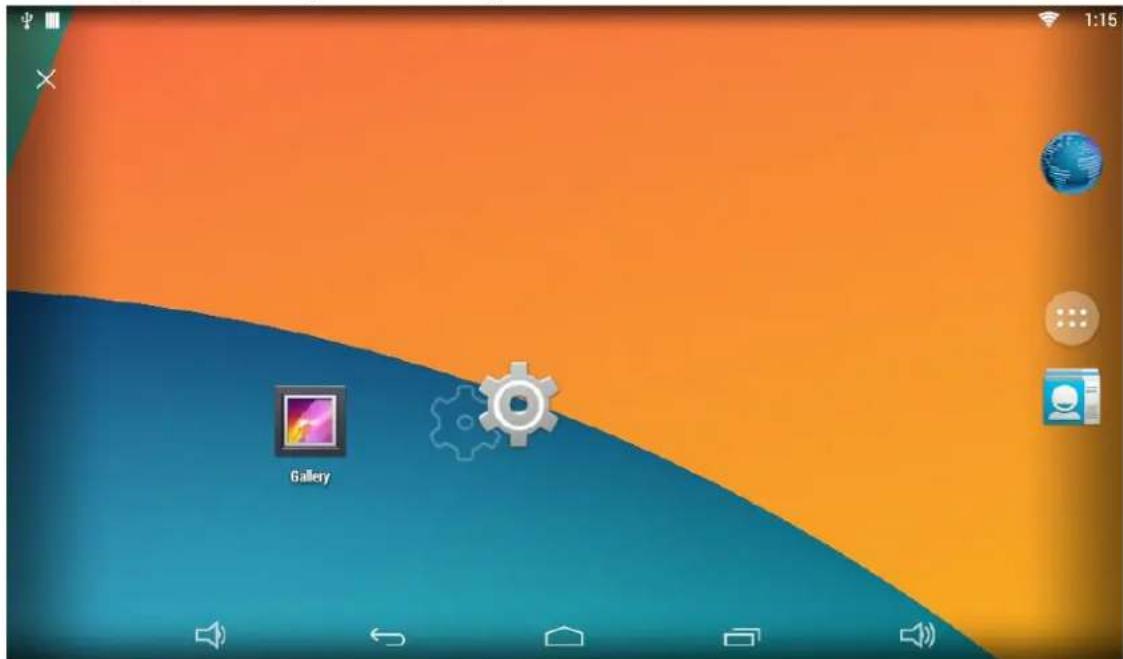
If you want to remove an icon, sweep the icon up to the top of the screen.
By long-press of any space on a screen, wallpaper selection and widget icons will occur. You could choose your wallpaper from "Wallpapers".
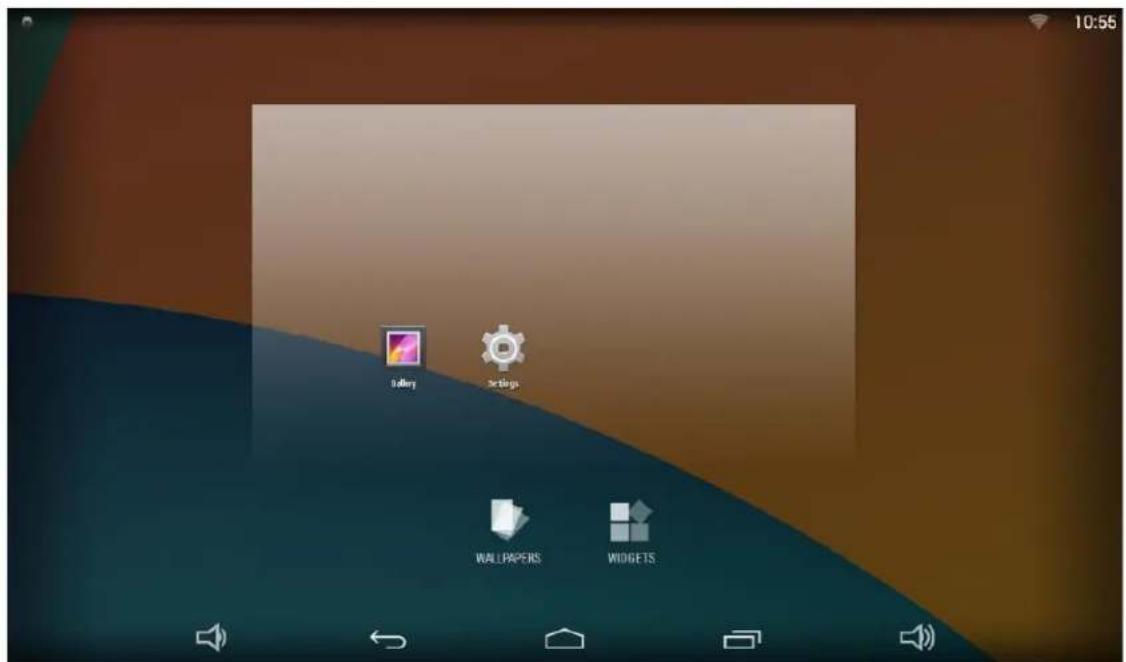
Widgets
Clicking the "widgets" will open the widgets tab.
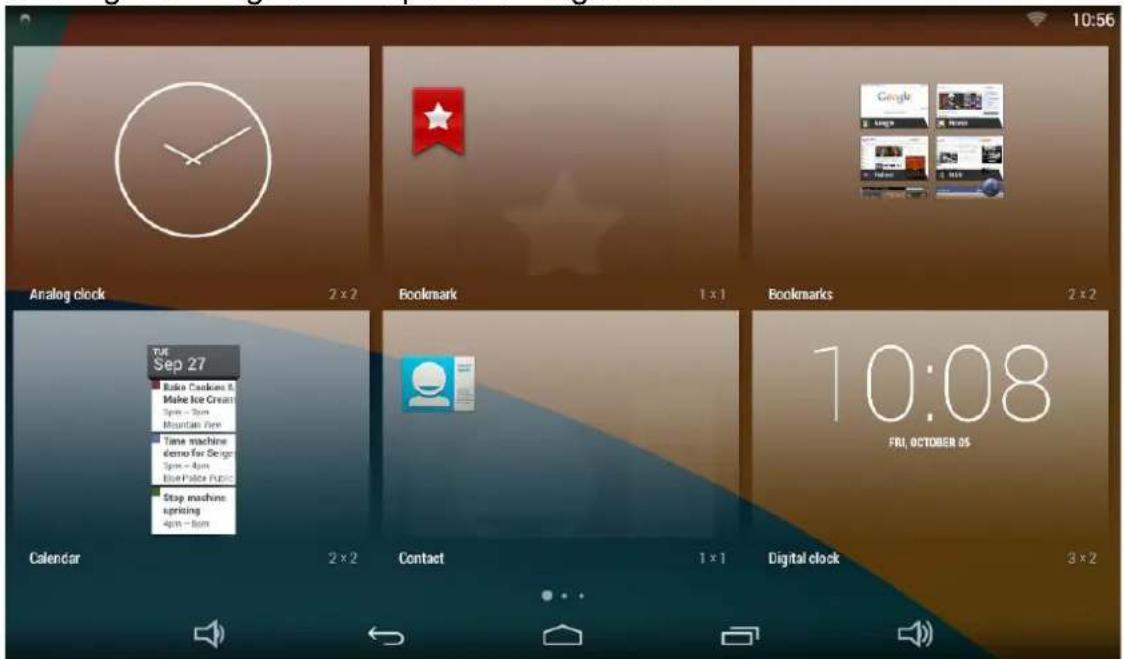
By long pressing an application, you could create a widget in the home page.
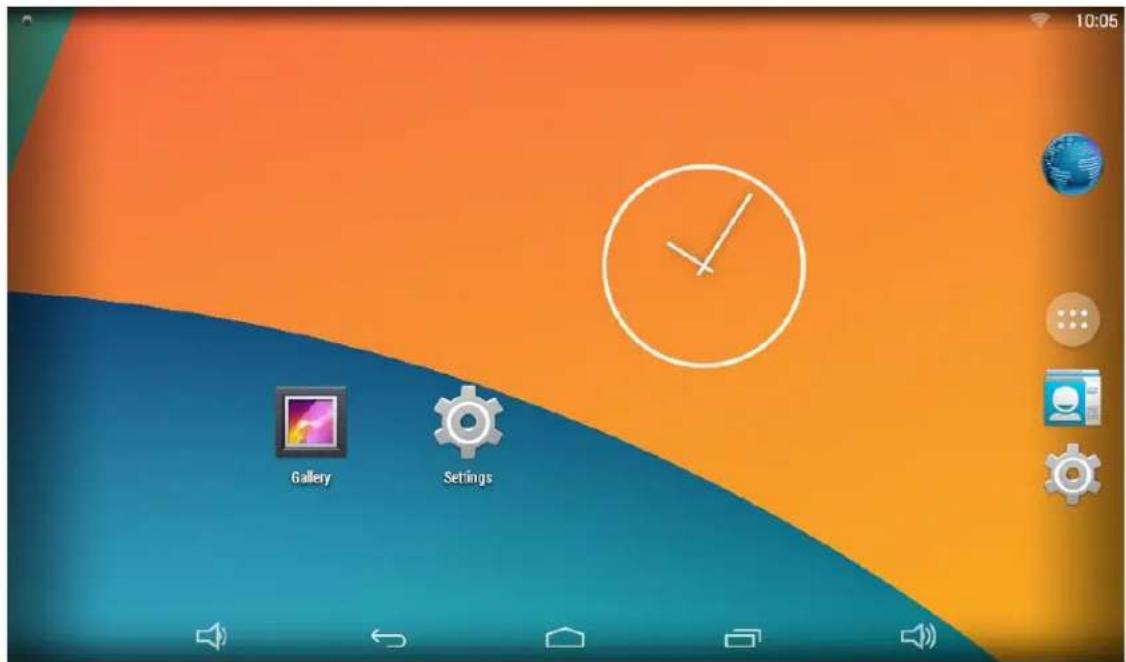
Combined System Bar
Navigation Buttons

- Volume-: Decrease the system volume.
- Back: Return to the previous page.
- Home: Return to the home screen.
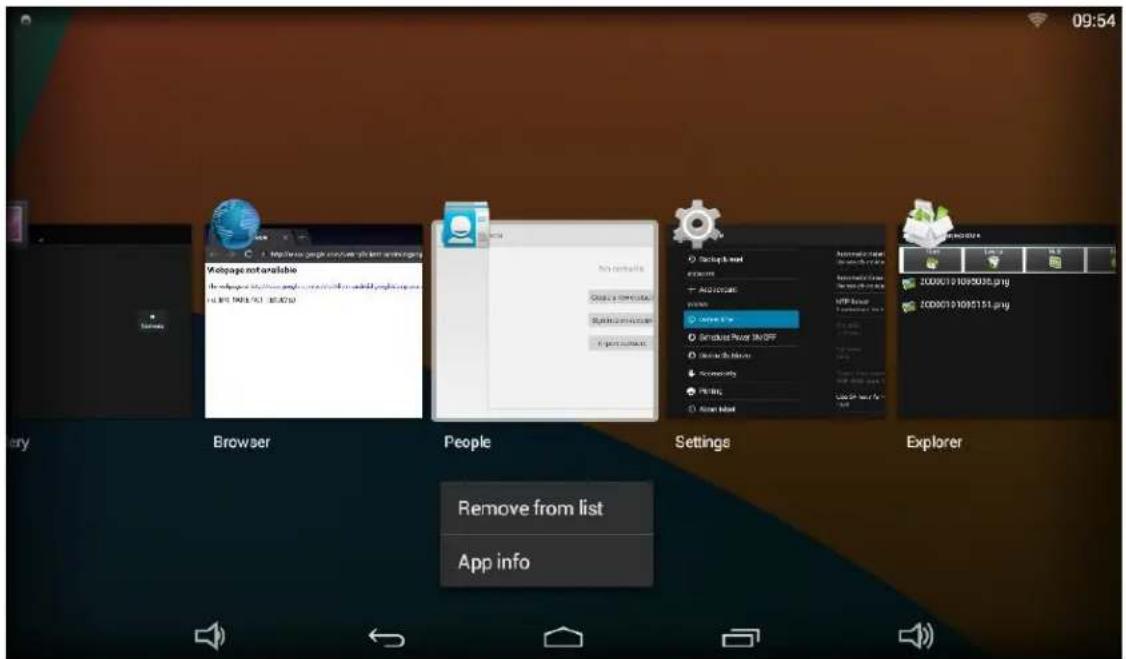
- Recents: Switch between recently used apps.
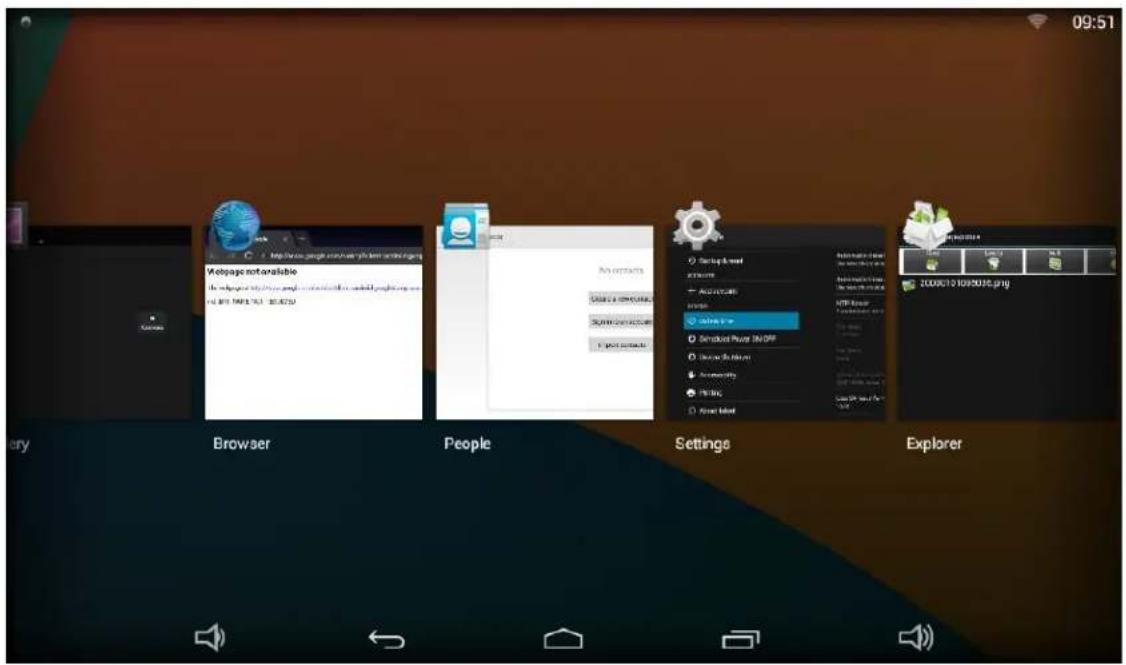
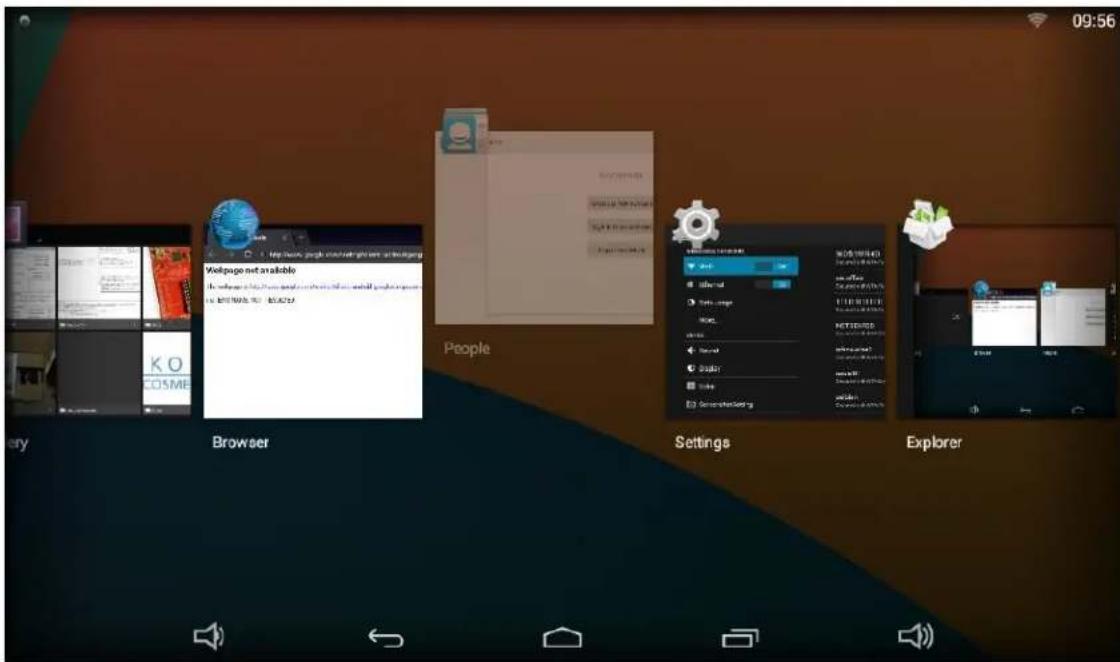
To remove an app from the list, you could long-press the icon to select "Remove from the list".
Or swipe the app item up or down to remove it.
- Volume+: Increase the system volume.
Status Notifications
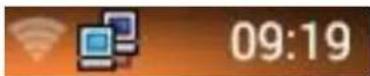
The upper-right corner of the home page displays time, Wi-Fi and Ethernet connection.
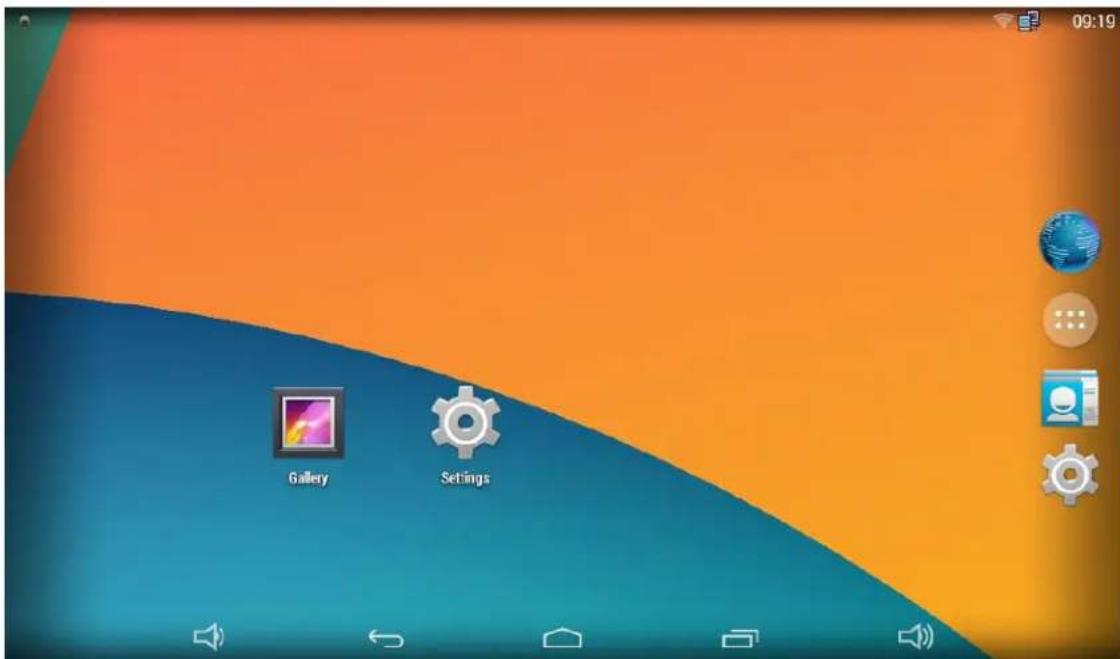
Slide down the upper-right of screen to open context menu.
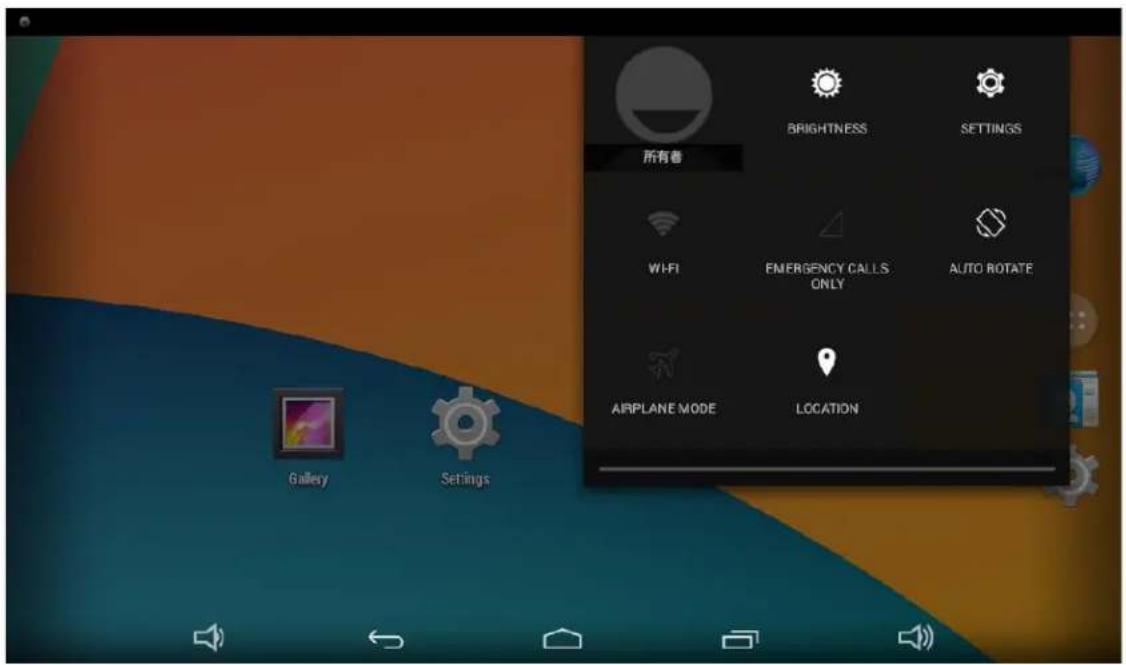
Brightness
Click "BRIGHTNESS" in context menu. In details, you can see the brightness tool.

Slide the brightness button to adjust the brightness of the screen.
Use Apps
Click 🤨 at the right side of home screen to show the applications' page.
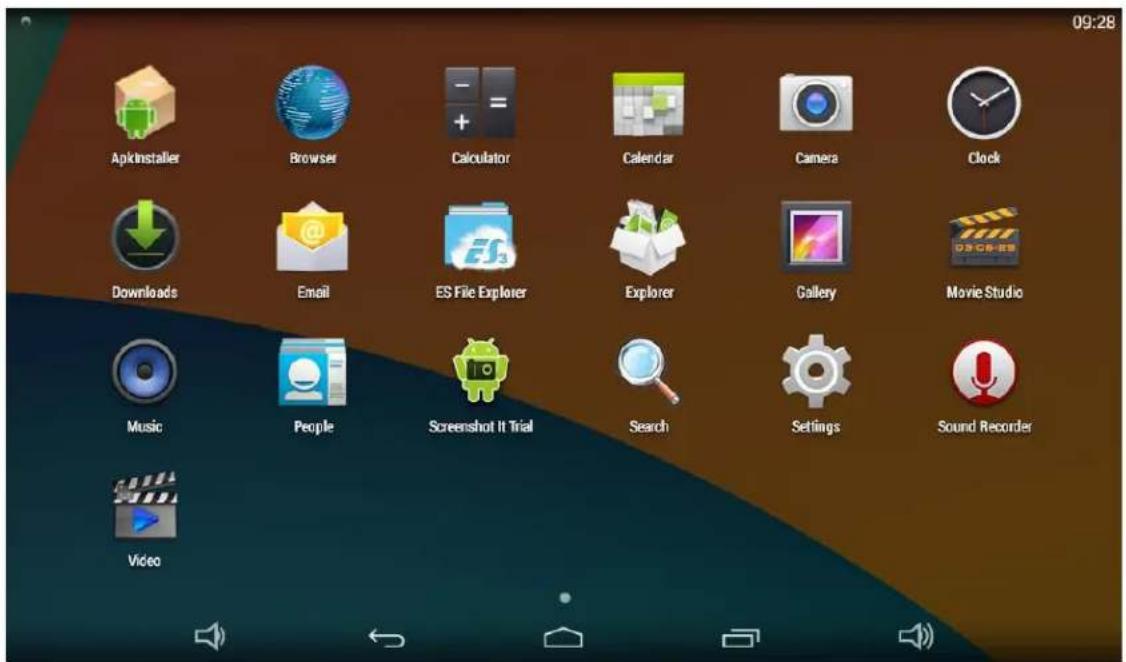
The installed applications will be shown here and you can open an app by clicking its icon.
To find an app easily, you can create a shortcut of the icon by long-pressing and drag it to the home screen.
Language
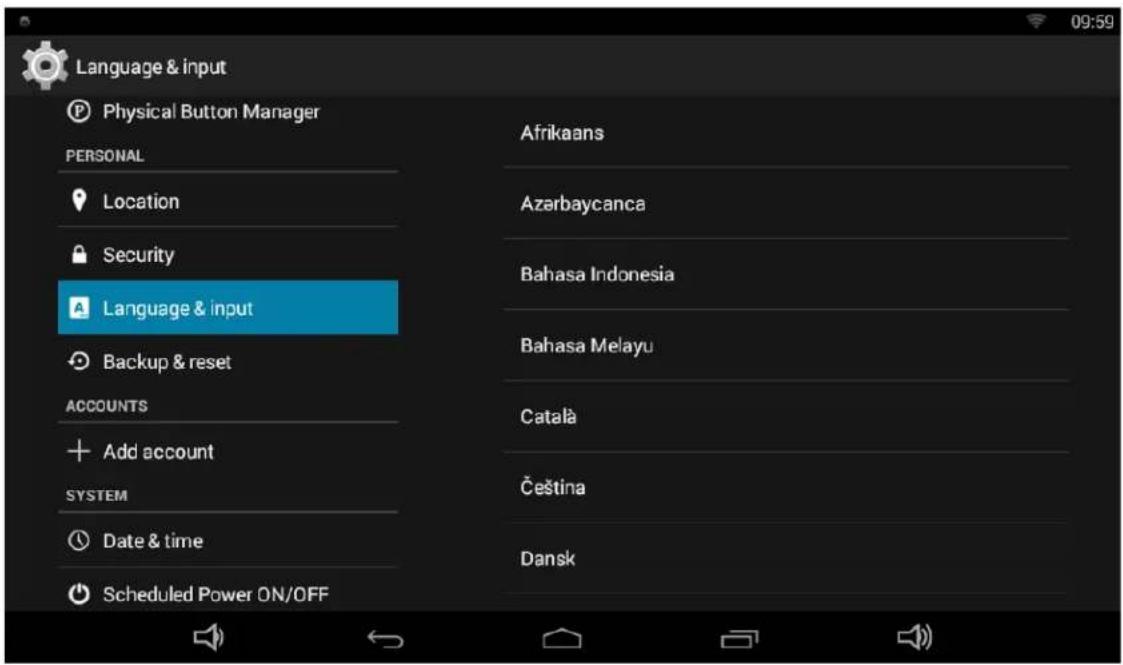
In the App list, click "Settings" to open the system setting app, and select the option "Language & input".
Click the first option "Language" under "Language & input", and then you can change the system language according to your preference.
Date & Time
In the App list, click "Settings" to open the system setting app, and select the option "Date & time".
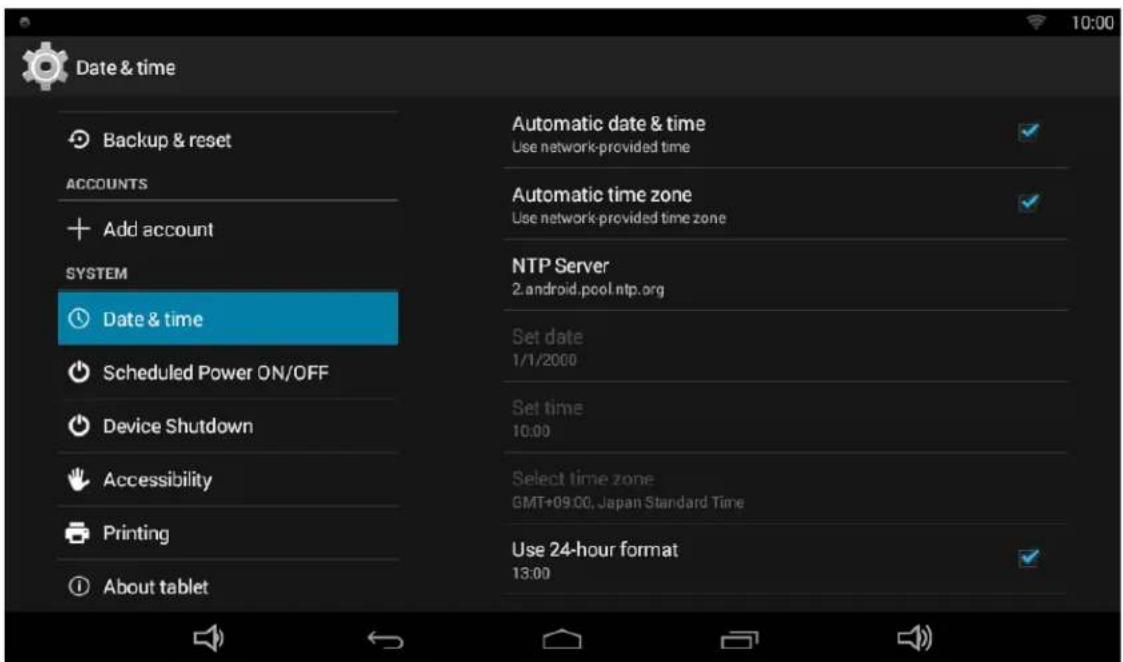
If you enabled the option "Automatic date & time" under "Date & time",
system date and time will be synchronized automatically with network time when you connected a Wi-Fi network.
If you want to set the time manually, you need to disable "Automatic date & time".
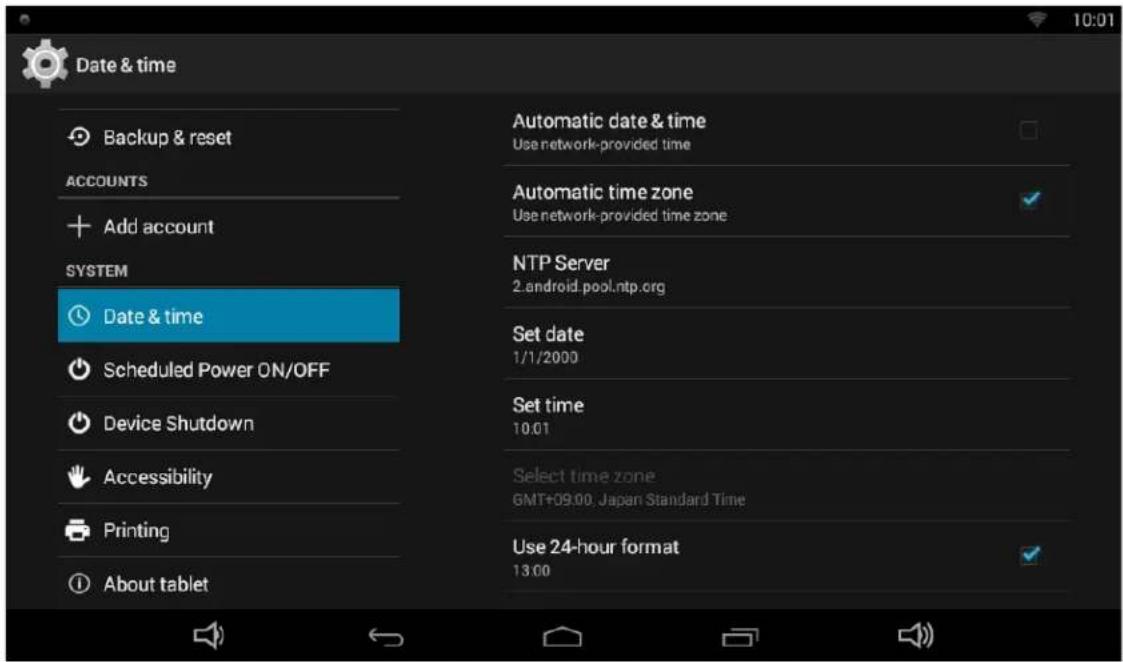
In this option, you can also set time zone, time notation and date format.
Volume
On the system bar, click the Volume- icon to decrease the system volume, and click the Volume+ icon to increase the system volume. Or you can press the function keys (#6 in Product Instruction) on the top of the product to adjust the volume.
Wi-Fi
In the App list, click "Settings" to open the system setting app, and select the option "Wi-Fi".
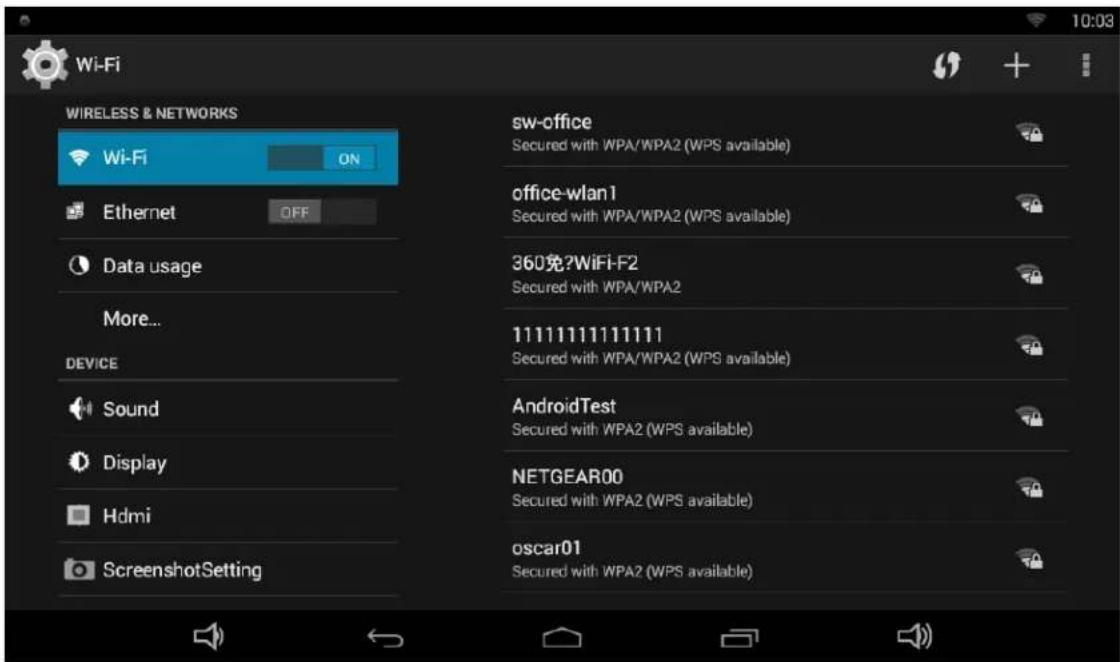
Switch the Wi-Fi button to ON. The product will scan available wireless networks automatically. Select a network under Wi-Fi networks and input the password to connect.
Ethernet
In the App list, click "Settings" to open the system setting app, and select the option "Ethernet".
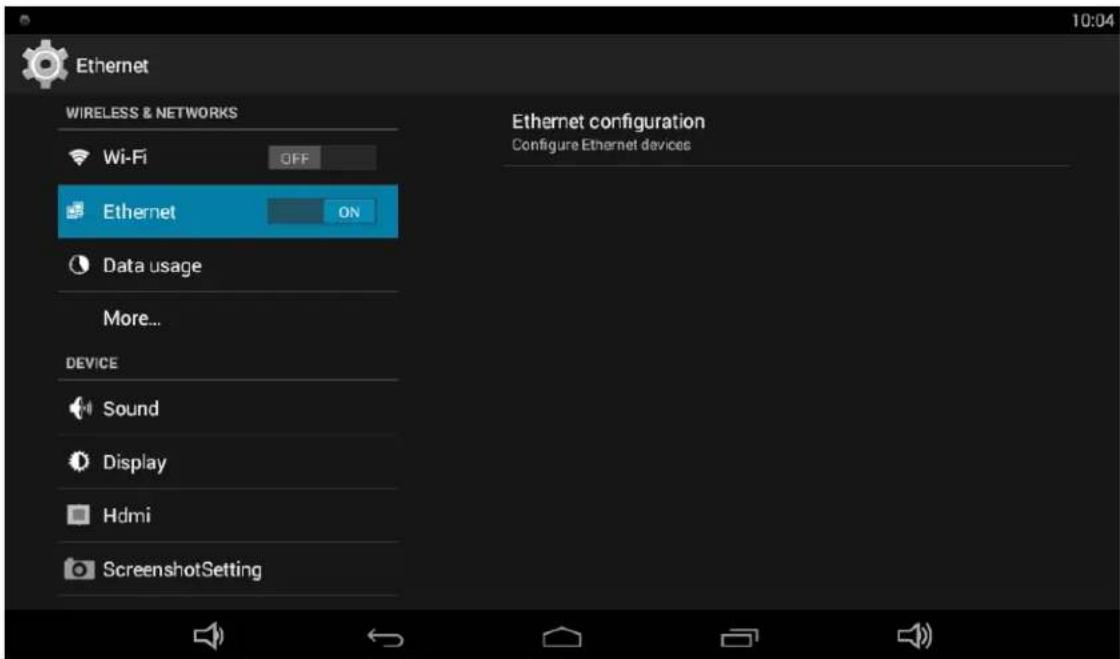
Switch the Ethernet button to ON and plug the Internet cable into the Ethernet port (#10 in Product Instruction). If you are Static IP user, please set the configurations manually.
Virtual Keyboard
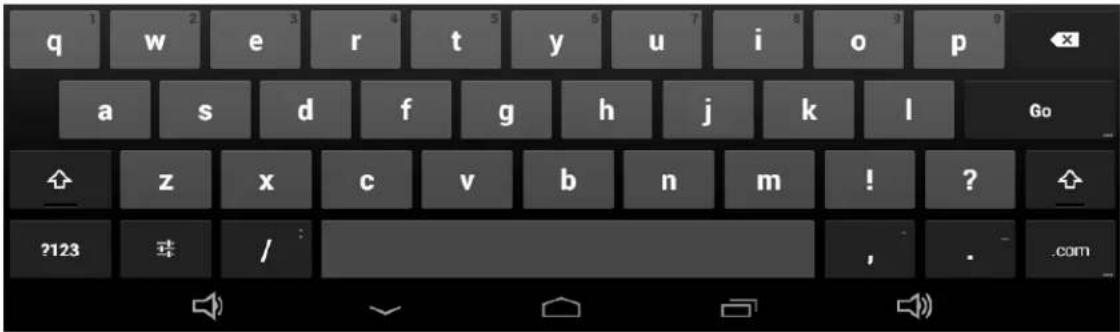
The device provides a virtual keyboard for typing. You can use it as a real one.
When you click in a text input box, the virtual keyboard will appear at the bottom of the screen.
To collapse the virtual keyboard, you can click the icon in the system bar.

Webpage not available
The webpage at http://www.baidu.com/ could not be loaded because:
net::ERR_NAME_NOT_RESOLVED
Switch Input Methods
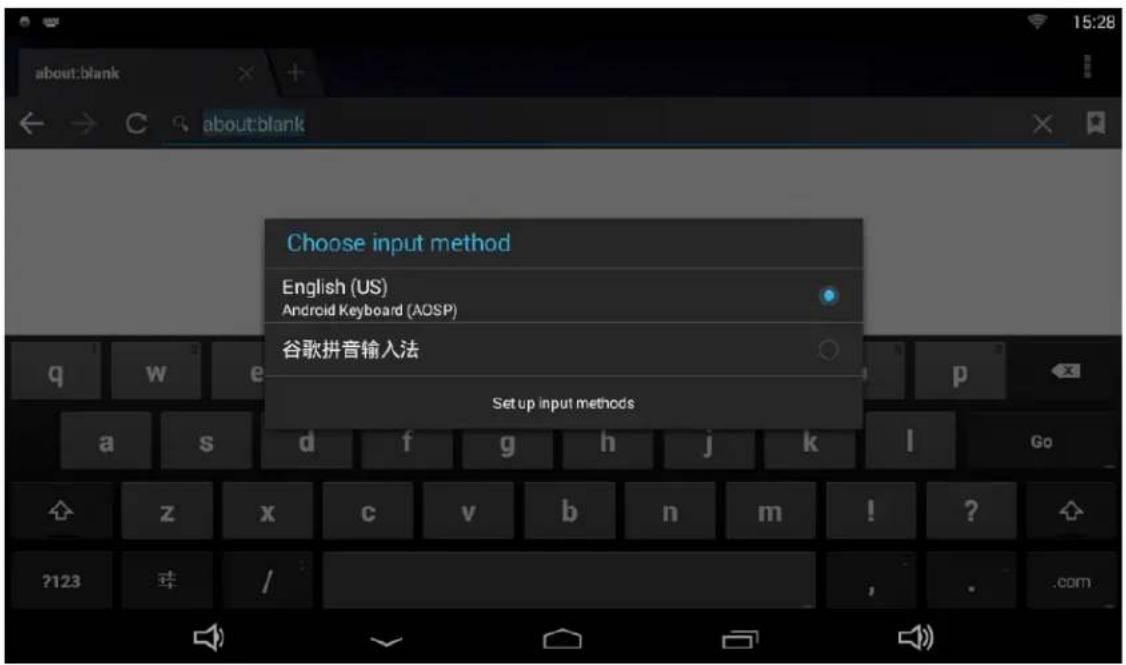
Click the second key in the lower left corner of the software disk to switch languages, pop-up "Choose input method" dialog box.
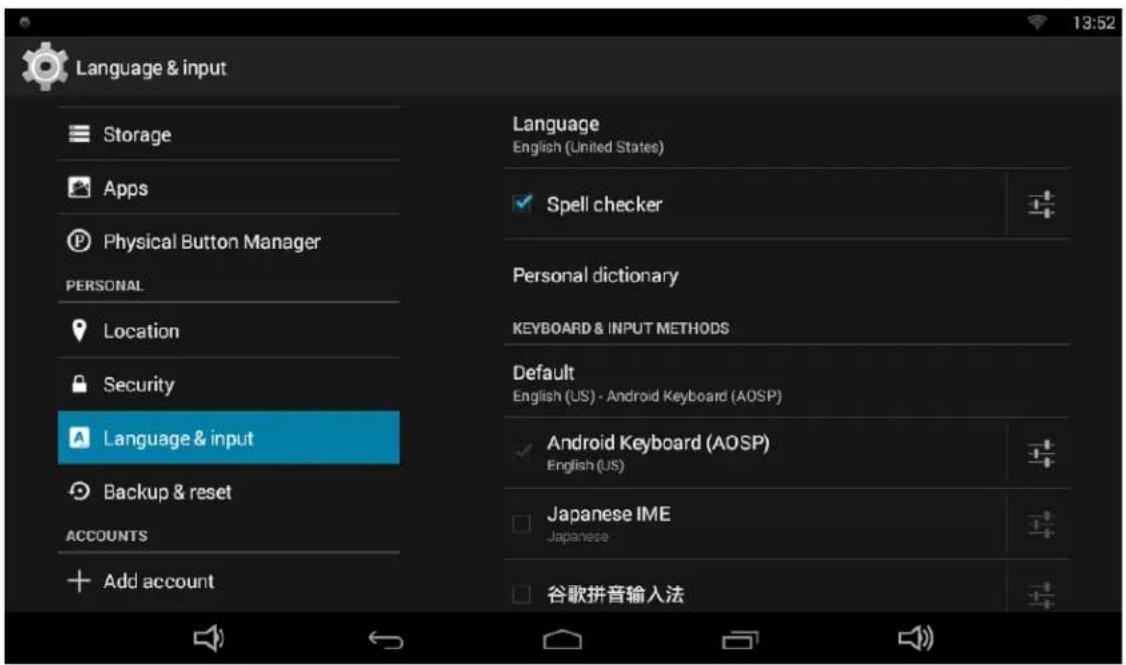
If the keyboard icon is invisible, please check whether the installed input method is selected in the "Language & input" option under the system setting app.
Surf Online

In the App list, click "Browser"

to open the browser.
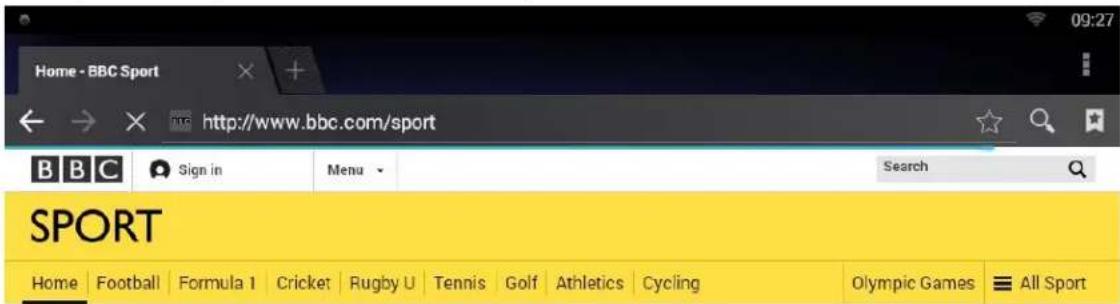
When connecting the device to a network, you can visit websites, play online media or download files via the browser.
In a browser window, enter in a URL in the address bar and click "Go" in the virtual keyboard to go. You can also click + to add new tabs to make multiple tabs opened simultaneously.

Browse Files
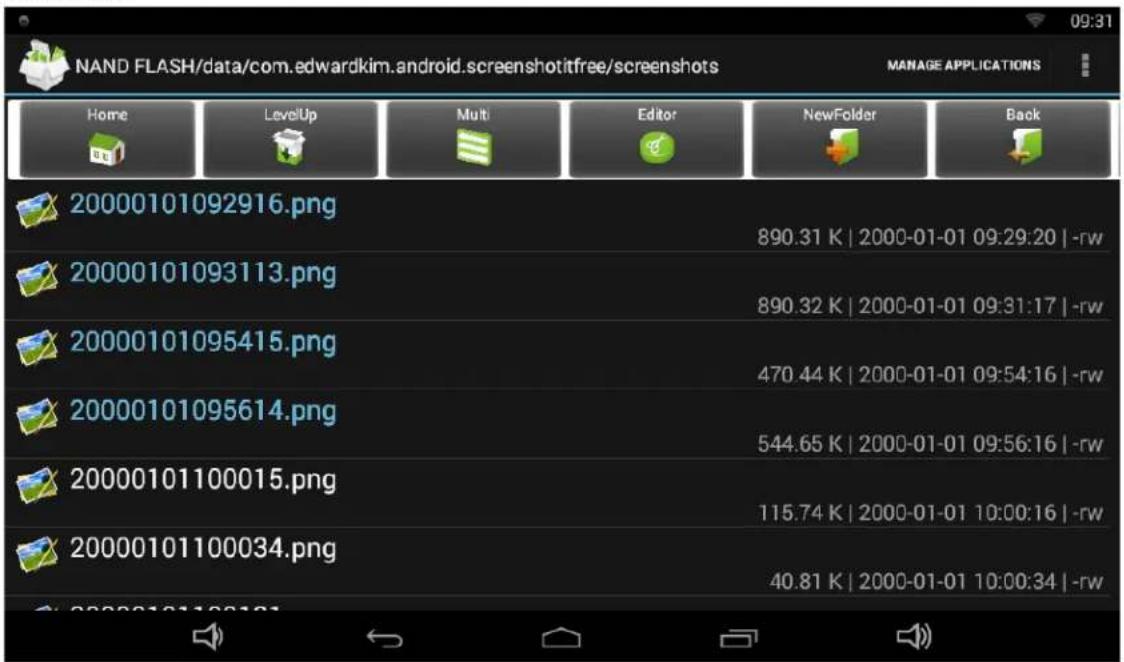
In the App list, click "Explorer"

to view local files.
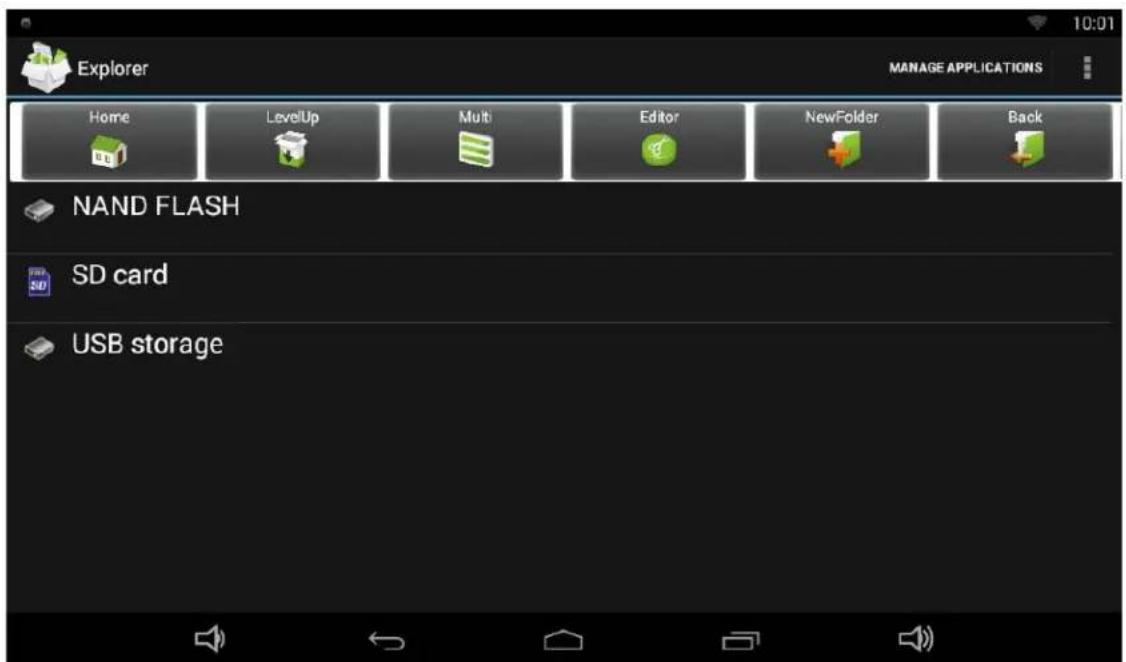
Click 📄 to select one or several files, and click it again when you want to deselect.
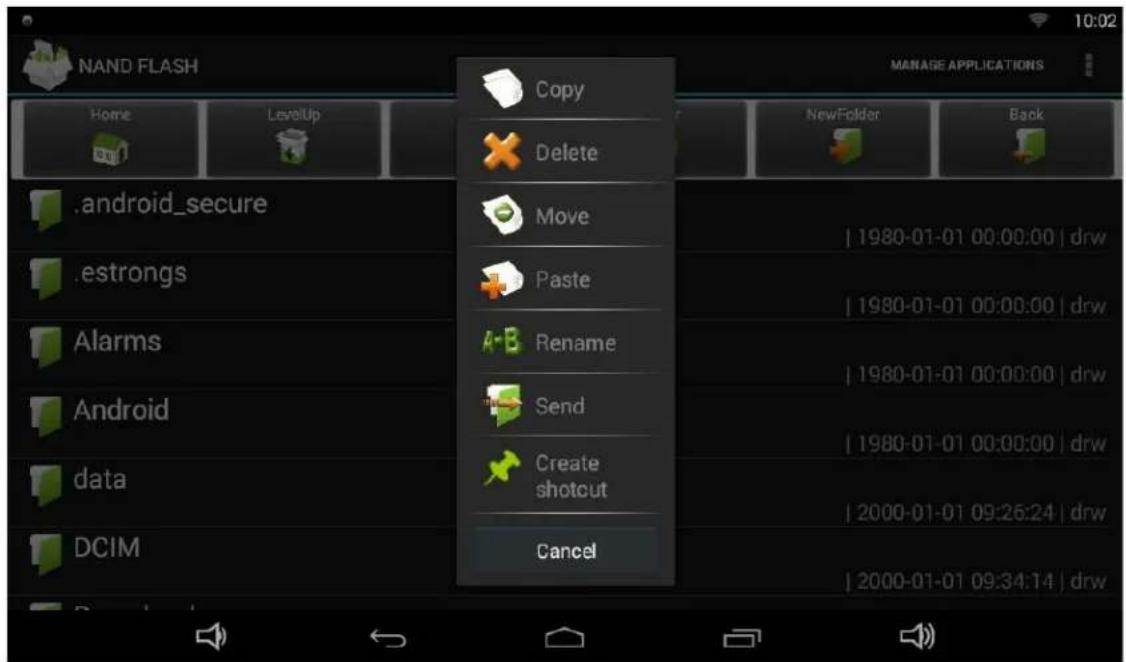
Click to do file operations, such as cut, copy, paste, delete, rename and send.
Play Media
With the provided apps, you can play your media files on your storage, such as pictures, music and videos.

Picture Player:
Support jpg, gif, png, bmp, etc.

Music Player:
Support mp1, mp2, mp3, aac, flac, ape, ogg, wav, wma, etc.

Movie Player:
Support mkv, ts, flv, avi, vob, mpg, dat, asf, rm,mov, 3gp, mp4,wmv, etc.
Reset to Factory Default
Please make sure to back up the important data before resetting the device.
In the App list, click "Settings"

to open the system setting app, and
select the option "Backup & reset".
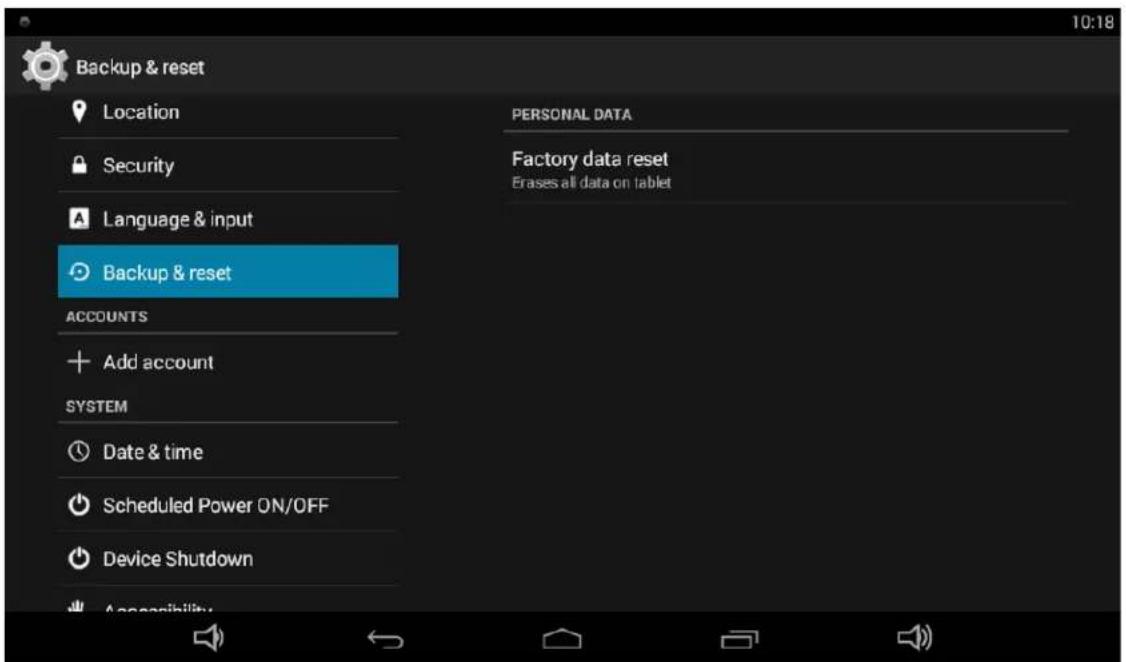
Click "Factory data reset".
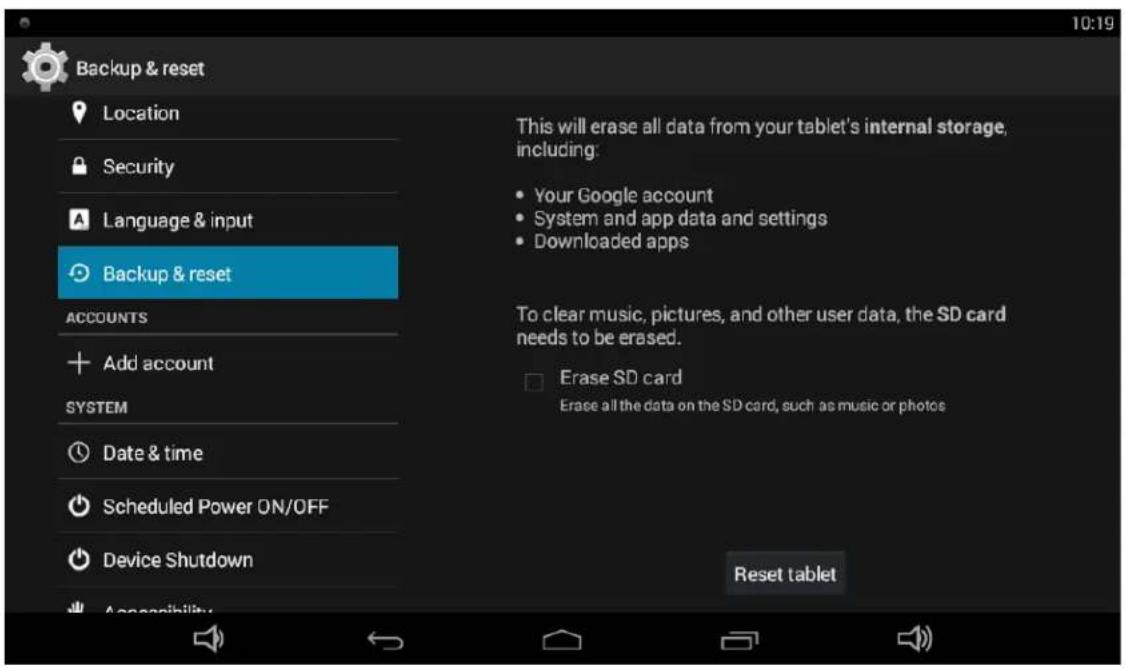
Click "Reset tablet" button.
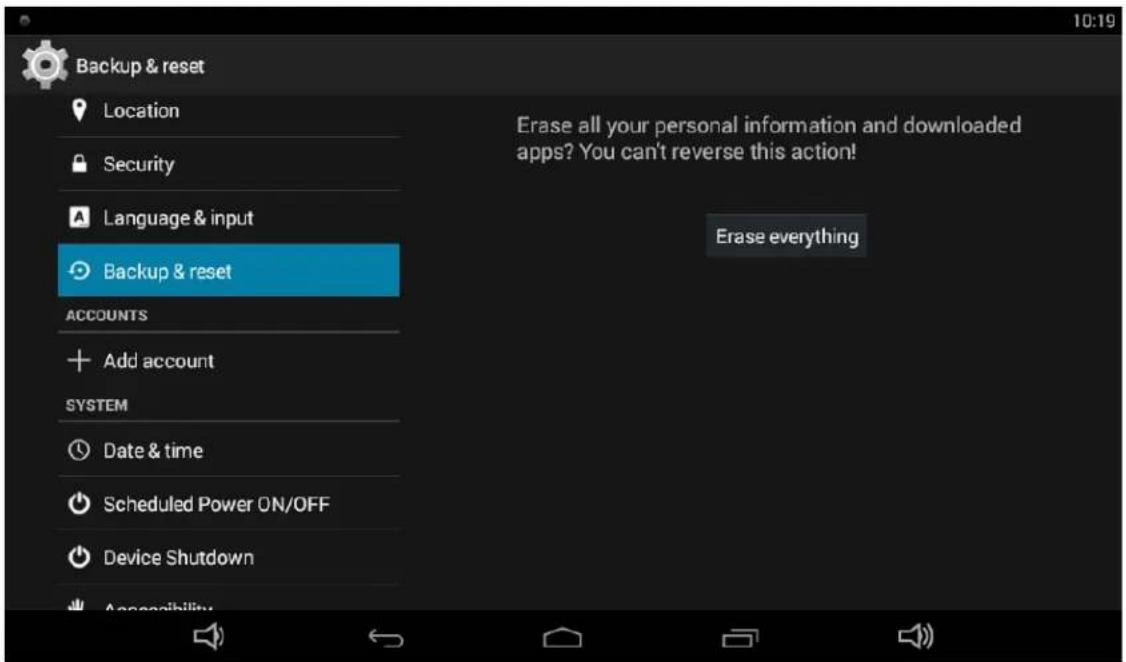
Click "Erase everything" button, and then waiting system reboots and resets to factory default.