40UB8900 - TV VESTEL - Free user manual and instructions
Find the device manual for free 40UB8900 VESTEL in PDF.


| Product Type | LED TV |
| Screen Size | 40 inches (101.6 cm) |
| Resolution | 1920 x 1080 (Full HD) |
| Refresh Rate | 60 Hz |
| Smart TV | Yes, with built-in Wi-Fi |
| Connectivity | 2 x HDMI, 1 x USB, 1 x AV, 1 x RF, 1 x LAN, CI+ slot |
| Audio | 2 x 8W speakers, Dolby Audio |
| Power Consumption | 70 W (typical), 0.5 W standby |
| Energy Class | A+ |
| Dimensions (without stand) | 900 x 520 x 80 mm (WxHxD) |
| Weight (without stand) | 8.2 kg |
| Remote Control | Infrared remote with dedicated buttons |
| Warranty | 2 years |
| Cleaning Instructions | Wipe with a soft, dry cloth. Do not use abrasive cleaners. |
| Safety Precautions | Do not block ventilation; keep away from heat sources and moisture. |
| Spare Parts | Power cord, remote control, stand. Can be ordered from Vestel service. |
| Reparability | Designed for professional repair; user-replaceable external power supply. |
| Additional Features | Parental control, sleep timer, USB media playback, EPG |
Frequently Asked Questions - 40UB8900 VESTEL
User questions about 40UB8900 VESTEL
0 question about this device. Answer the ones you know or ask your own.
Ask a new question about this device
Download the instructions for your TV in PDF format for free! Find your manual 40UB8900 - VESTEL and take your electronic device back in hand. On this page are published all the documents necessary for the use of your device. 40UB8900 by VESTEL.
USER MANUAL 40UB8900 VESTEL
natural_image
Black triangular warning symbol with an exclamation mark (no text or numbers)DİKKAT
natural_image
Black triangular warning symbol with a lightning bolt inside, indicating electrical hazard (no text)text_image
CLASS 1 LASER PRODUCTtext_image
Diagram showing a device with labeled ports (Pt, V1, V2) and directional arrows indicating flow or movement.natural_image
Close-up of a mechanical component with labeled points and polarity indicators (no readable text or symbols)Elektrik Bağlantısı
natural_image
Symbol of a trash bin with crossed lines indicating no waste, and a solid black rectangle below (no text or labels)First of all, congratulations for choosing our environment and technology friend product. Taking it as a goal to offer you products beyond your expectations, we present the television which is elaborately manufactured in modern facilities and subjected to strict quality controls for your use.
This user manual will guide you through use of your device; you will realize that your device includes cutting edge technological solutions and is very easy to use.
Your device will serve you for long years as long as you display the necessary care and maintenance. We hope you enjoy using your device.
Your device will serve you for long years as long as you display the necessary care and maintenance. We hope you enjoy using your device.
This product was manufactured in environmentally friendly VESTEL ELEKTRONİK A.Ş. facilities with no harm to the nature.
Important Safety-Related Information
Please read the instructions in this manual carefully to know your device quickly and make use of all of its functions and keep for future reference.
This user manual includes important information regarding first use, installation, safety, intended uses, cleaning and maintenance and troubleshooting of your device.
Follow the instructions in the user manual.

WARNING: Risk of serious injury or death.

RISK OF ELECTRIC SHOCK: Dangerous voltage.

CAUTION: Risk of injury or damage to properties.

IMPORTANT: Running the system properly.

WARNING: Additional remarks are highlighted.

MAINTENANCE: Important maintenance component.
Contents
Safety Information to Be Observed During Transport and Shipping....65
Batteries 65
WARNING......65
Liability Limitation 65
Features......65
Accessories Included....66
Standby Notifications....66
TV Control Buttons & Operation....66
Operation with the Remote Control 67
Inserting the Batteries into the Remote....67
Connect Power 67
Antenna Connection....67
Notification....67
Remote Control....70
Switching On/Off 73
To Switch the TV On....73
To Switch the TV Off....73
First Time Installation....73
About Selecting Broadcast Type....73
TKGS (Türksat Kanal Güncelleme Sistemi) installation....74
Using SatcoDX Feature....75
Media Playback via USB Input....76
Media Browser Menu....76
Custom Boot Up Logo....76
FollowMe TV (if available)....77
CEC and CEC RC Passthrough....77
System Audio Control....77
E-Manual (if available)....78
TV Menu Contents....79
Using the Channel List....83
Managing the Favourite Lists....83
Configuring Parental Settings 83
Electronic Programme Guide (EPG)....84
Timeline Schedule....84
List Schedule(*) 84
Now/Next Schedule 84
Event Options 84
Advanced EPG and Extended Programme Info Banner....85
Extended Info Banner 85
Teletext Services....85
Digital Teletext....85
Software Upgrade....85
Software upgrade search via user interface....85
3 AM search and upgrade mode....86
Wired Connectivity 86
To Connect to a Wired Network....86
Configuring Wired Device Settings....86
Network Type 86
Internet Speed Test....86
Advanced Settings 87
Wireless Connectivity 87
To Connect to a Wireless Network 87
Configuring Wireless Device Settings....88
Other Information....88
Connecting to your mobile device via WiFi....88
Wireless Display....88
Using with mobile devices....88
Connecting Other Wireless Devices....89
Connectivity Troubleshooting....89
Wireless Network Not Available....89
Connection is Slow....89
Distruption during playback or slow reactions....90
Internet Connection Not Available / Audio Video Sharing Not Working....90
Invalid Domain 90
Using Audio Video Sharing Network Service 90
-
Nero Media Home Installation....90
-
Connect to a Wired or Wireless Network....90
-
Play Shared Files via Media Browser 90
Audio Video Sharing....90
Nero MediaHome Installation....91
Internet Portal....92
SMART RECOMMENDATION....92
Internet Browser....93
HBBTV System....94
Smart Center 95
Getting Started....95
Mobile Device screen 95
Detail Page....96
Media Share Page....97
Portal Launcher 97
Smart Remote Feature....97
Voice Recognition....97
Keyboard Page 97
Quick Standby....97
Requirements....97
Troubleshooting....99
PC Input Typical Display Modes....103
AV and HDMI Signal Compatibility....103
Supported Video File Formats for USB Mode....104
Supported Picture File Formats for USB Mode ....104
Supported Audio File Formats for USB Mode....105
Supported DVI Resolutions....106
Disposing Of Your Appliance and Battery In An Environment-Friendly Way....106
Recommendations for Energy Saving....107
Environmental Information....107
IMPORTANT WARNINGS....108
-
Rights reserved by the manufacturer:....108
-
Warnings about Screen Technology:....108
-
A continuous fixed image on the screen:....108
-
In Full HD products;....108
-
About Working Sound of the Appliance:....108
-
Make sure that the panel (screen) of your appliance is never subjected to any external mechanical impact:....109
-
About the use of the appliance:....109
Optional Rights of Customer....109
Safety Information

natural_image
Black triangular warning symbol with exclamation mark (no text or numbers)CAUTION
RISK OF ELECTRIC SHOCK DO NOT OPEN

natural_image
Black triangular warning symbol with a lightning bolt inside, indicating electrical hazard (no text)CAUTION: TO REDUCE THE RISK OF ELECTRIC SHOCK DO NOT REMOVE COVER (OR BACK). NO USER-SERVICEABLE PARTS INSIDE. REFER SERVICING TO QUALIFIED SERVICE PERSONNEL.
In extreme weather (storms, lightning) and long inactivity periods (going on holiday) disconnect the TV set from the mains.
The mains plug is used to disconnect TV set from the mains and therefore it must remain readily operable. If the TV set is not disconnected electrically from the mains, the device will still draw power for all situations even if the TV is in standby mode or switched off.
Note: Follow the on screen instructions for operating the related features.
Markings on the Product
The following symbols are used on the product as a marker for restrictions and precautions and safety instructions. Each explanation shall be considered where the product bears related marking only. NOTE such information for security reasons.
Class II Equipment: This appliance is

designed in such a way that it does not require a safety connection to electrical earth.
Class II Equipment With Functional
Earthing: This appliance is designed in such
a way that it does not require a safety connection to electrical earth, the earth connection is used for functional
purposes.
Protective Earth Connection: The marked
terminal is intended for connection of the protective earthing conductor associated with the supply wiring.
Hazardous Live Terminal: The marked

terminal(s) is/are hazardous live under normal operating conditions.
Caution, See Operating Instructions: The

marked area(s) contain(s) user replaceable coin or button cell batteries.
Class 1 Laser Product: This product contains

text_image
CLASS 1 LASER PRODUCTClass 1 laser source that is safe under reasonably foreseeable conditions of operation.
WARNING
Never place a television set in an unstable or inclined locations. A television set may fall, causing serious personal injury or death. Many injuries, particularly to children, can be avoided by taking simple precautions such as;
Using cabinets or stands recommended by the manufacturer of the television set.
Only using furniture that can safely support the television set.
Ensuring the television set is not overhanging the edge of the supporting furniture.
Not placing the television set on tall furniture (for example, cupboards or bookcases) without acnhoring both the furniture and the television set to a suitable support.
Not standing the television set on cloth or other materials placed between the television and supporting furniture.
Educating children about the dangers of climbing on furniture to reach the television set or its controls. If your existing television set is being retained and relocated, the same considerations as above should be applied.
WARNING
Do not ingest the battery, Chemical Burn Hazard
This product or the accessories supplied with the product may contain a coin/button cell battery. If the coin/button cell battery is swallowed, it can cause severe internal burns in just 2 hours and can lead to death.
Keep new and used batteries away from children.
If the battery compartment does not close securely, stop using the product and keep it away from children.
If you think batteries might have been swallowed or placed inside any part of the body, seek immediate medical attention.
WALL MOUNTING WARNINGS
Read the instructions before mounting your TV on the wall.
The wall mount kit is optional. You can obtain from your local dealer, if not supplied with your TV.
Do not install the TV on a ceiling or on an inclined wall.
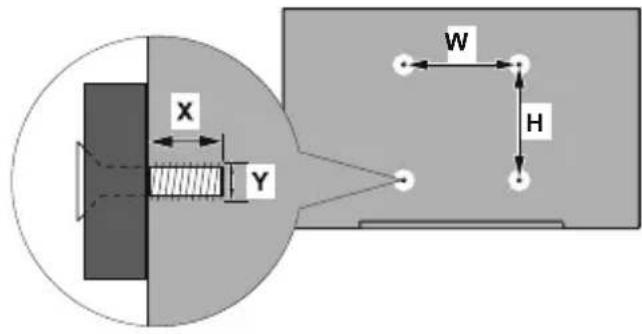
Use the specified wall mounting screws and other accessories.
Tighten the wall mounting screws firmly to prevent the TV from fall. Do not over-tighten the screws.
WARNING
Apparatus connected to the protective earthing of the building installation through the MAINS connection or through other apparatus with a connection to protective earthing – and to a television distribution system using coaxial cable, may in some circumstances create a fire hazard. Connection to a television distribution system has therefore to be provided through a device providing electrical isolation below a certain frequency range (galvanic isolator, see EN 60728-11)
IMPORTANT - Please read these instructions fully before installing or operating
⚠ WARNING: Never let people (including children) with reduced physical, sensory or mental capabilities or lack of experience and / or knowledge use electrical devices unsupervised.
- Use this TV set at an altitude of less than 2000 meters above the sea level, in dry
locations and in regions with moderate or tropical climates.
- The TV set is intended for household and similar general use but may also be used in public places.
- For ventilation purposes, leave at least 5cm of free space around the TV.
- The ventilation should not be impeded by covering or blocking the ventilation openings with items, such as newspapers, table-cloths, curtains, etc.
- The power cord plug should be easily accessible. Do not place the TV, furniture, etc. on the power cord. A damaged power cord/plug can cause fire or give you an electric shock. Handle the power cord by the plug, do not unplug the TV by pulling the power cord. Never touch the power cord/plug with wet hands as this could cause a short circuit or electric shock. Never make a knot in the power cord or tie it with other cords. When damaged it must be replaced, this should only be done by qualified personnel.
- Do not expose the TV to dripping or splashing of liquids and do not place objects filled with liquids, such as vases, cups, etc. on or over the TV (e.g., on shelves above the unit).
- Do not expose the TV to direct sunlight or do not place open flames such as lit candles on the top of or near the TV.
- Do not place any heat sources such as electric heaters, radiators, etc. near the TV set.
- Do not place the TV on the floor and inclined surfaces.
- To avoid danger of suffocation, keep plastic bags out of the reach of the babies, children and domestic animals.
- Carefully attach the stand to the TV. If the stand is provided with screws, tighten the
screws firmly to prevent the TV from tilting. Do not over-tighten the screws and mount the stand rubbers properly.
- Do not dispose of the batteries in fire or with hazardous or flammable materials.
Safety Information to Be Observed During Cleaning and Maintenance
• Always unplug the device before starting cleaning and maintenance.
- Make sure that device is off and disconnected from all electrical outlets.
- Wipe the cabin with a dry soft cloth.
- Do not use damp cloth, alcohol, ammonia, corrosive material included cleaning liquid or inflammables such as thinner.
- Do not allow liquid or foreign entry bodies to enter into speaker grills or other gaps.
Safety Information to Be Observed During Transport and Shipping
- Your device must be kept in its original package to protect from damage to its accessories during transport and shipping.
Keep the product in normal position during transport.
Do not drop the device during transport and protect it against impacts.
Damages and faults that occur during transport after the delivery of the appliance to the customer are not included in the warranty cover.
Batteries
- Do not expose batteries to direct sunlight, fire etc. factors or extreme temperatures.
-
Replace the discharged battery with a battery in shape and type explained in the section “installing the batteries to remote”.
-
Do not use rechargeable batteries.
- Do not use remote if there is a leak from the battery.
- Do not touch the liquid leaking from battery. Wash with water in case of contact.
WARNING
- Do not ingest the battery, Risk of Chemical Burn
- (Accompanying accessories or) This product can include a pull/button type battery. If button type battery is ingested, it may cause serious burns within your body and death only within 2 hours.
- Keep new and used batteries away from children.
- If battery housing doesn't close properly, do not use the product and keep away from children.
- If you think that batteries were ingested or exists within your body, please get medical care immediately.
Liability Limitation
Manufacturing company does not assume any responsibility for damages and injuries that might be caused due to not observing the instructions in this user manual,
using the device outside its intended use, unauthorized repairs, unauthorized modifications on the device and using spare parts not approved by the manufacturer.
Features
• TV supports Ultra HD (Ultra High Definition - also known as 4K) which provides resolution of 3840 x 2160 (4K:2K). It equals 4 times the resolution of Full HD
TV by doubling the pixel count of the Full HD TV both horizontally and vertically. Ultra HD contents are supported from HDMI, USB inputs and over DVB-T2 and DVB-S2 broadcasts.
- Remote controlled colour TV
- Fully integrated digital terrestrial/cable/satellite TV (DVB-T-T2/C/S-S2)
- HDMI inputs to connect other devices with HDMI sockets
- USB input
- OSD menu system
- Scart socket for external devices (such as DVD Players, PVR, video games, etc.)
- Stereo sound system
- Teletext
- Headphone connection
• Automatic programming system
- Manual tuning
• Automatic power down after up to eight hours.
- Sleep timer
- Child lock
• Automatic sound mute when no transmission.
- NTSC playback
• AVL (Automatic Volume Limiting)
- PLL (Frequency Search)
- PC input
- Game Mode (Optional)
- Picture off function
- Pixellence
- Ethernet (LAN) for Internet connectivity and service
• 802.11 a/b/g/n built in WIFI Support
CE
- Audio Video Sharing
• HbbTV
Accessories Included
- Remote Control
- Batteries: 2 x AAA
- Instruction Book
- Wall Mount Kit
Standby Notifications
If the TV does not receive any input signal (e.g. from an aerial or HDMI source) for 5 minutes, it will go into standby. When you next switch-on, the following message will be displayed: "TV switched to stand-by mode automatically because there was no signal for a long time." Press OK to continue.
If the TV is on and it isn't being operated for a while it will go into standby. When you next switch-on, the following message will be displayed. "TV switched to stand-by mode automatically because no operation was made for a long time." Press OK to continue.
TV Control Buttons
& Operation
text_image
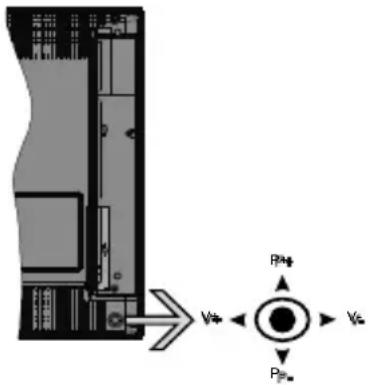
Technical diagram showing a mechanical component with labeled ports and directional arrows, including P4 and V4.The joystick allows you to control the Volume / Programme / Source and Standby-On functions of the TV.
NOTE: The position of the joystick may differ depending on the model.
To change volume: Increase the volume by pushing the joystick right. Decrease the volume by pushing the joystick left.
To change channel: Scroll through the stored channels by pushing the joystick up or down.
To change source: Press the centre of the joystick in, the sources list will appear on the screen. Scroll through the available sources by pushing the joystick up or down.
To turn the TV off: Press the centre of the joystick in and hold it down for a few seconds, the TV will turn into standby mode.
To turn on the TV: Press the centre of the joystick in, the TV will turn on.
NOTE: Main menu OSD cannot be displayed via control button.
Operation with the Remote Control
Press the Menu button on your remote control to display main menu screen. Use the directional buttons to select a menu tab and press OK to enter. Use the directional buttons again to select or set an item. Press Return/Back or Menu button to quit a menu screen.
Input Selection
Once you have connected external systems to your TV, you can switch to different input sources. Press the Source button on your remote control consecutively to select the different sources.
Changing Channels and Volume
You can change the channel and adjust the volume by using the Volume +/- and Programme +/- buttons on the remote.
Inserting the Batteries into the Remote
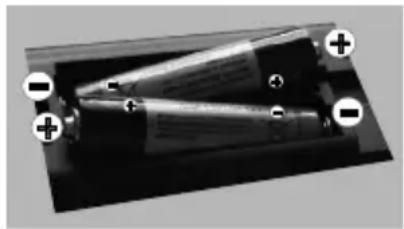
Remove the back cover to reveal the battery compartment. Insert two size AAA batteries. Make sure the (+) and (-) signs match (observe correct polarity). Do not mix old and new batteries. Replace only with same or equivalent type. Place the cover back on.
natural_image
Diagram of a mechanical or optical setup with two lenses and directional arrows, no visible text or symbolsConnect Power
IMPORTANT: The TV set is designed to operate on 220-240V AC, 50 Hz socket. After unpacking, allow the TV set to reach the ambient room temperature before you connect the set to the mains. Plug the power cable to the mains socket outlet.
Antenna Connection
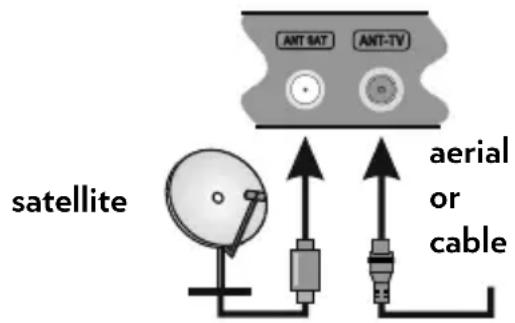
Connect the aerial or cable TV plug to the AERIAL INPUT (ANT-TV) socket or satellite plug to the SATELLITE INPUT (ANT SAT) socket located on the rear bottom side of the TV.
Rear bottom side of the TV
text_image
ANT SAT ANT-TV satellite aerial or cableNotification
TRADEMARK ACKNOWLEDGMENT
The terms HDMI and High-Definition Multimedia Interface, and the HDMI Logo are trademarks or registered trademarks of HDMI Licensing Administrator, inc. in the United States and other countries.

Manufactured under license from Dolby Laboratories. Dolby and the double-D symbol are trademarks of Dolby Laboratories.

DOLBY. DIGITAL PLUS
YouTube and the YouTube logo are trademarks of Google Inc.
For DTS patents, see http://patents.dts.com. Manufactured under license from DTS Licensing Limited. DTS, the Symbol, & DTS and the Symbol together are registered trademarks, and DTS TruSurround is a trademark of DTS, Inc.© DTS, Inc. All Rights Reserved.

dts
TruSurround
For DTS patents, see http://patents.dts.com. Manufactured under license from DTS Licensing Limited. DTS, DTS-HD, the Symbol, & DTS or DTS-HD and the Symbol together are registered trademarks of DTS, Inc. © DTS, Inc. All Rights Reserved.

dts-HD®
This product contains technology subject to certain intellectual property rights of Microsoft. Use or distribution of this technology outside of this product is prohibited without the appropriate license(s) from Microsoft.
Content owners use Microsoft PlayReady™ content access technology to protect their intellectual property, including copyrighted content. This device uses PlayReady technology to access PlayReady-protected content and/or WMDRM-protected content. If the device fails to properly enforce restrictions on content usage, content owners may require Microsoft to revoke the device's ability to consume PlayReady-protected content. Revocation should not affect unprotected content or content protected by other content access technologies. Content owners may require you to upgrade PlayReady to access their content. If you decline an upgrade, you will not be able to access content that requires the upgrade.
Information for Users on Disposal of Old Equipment and Batteries
[European Union only]
Equipment bearing these symbols should not be disposed as general household waste. You should look for appropriate recycling facilities and systems for the disposal of these products.
NOTICE: The sign Pb below the symbol for batteries indicates that this battery contains lead.
![VESTEL 40UB8900 - [European Union only] - 1](/content/2026/05/1129327/images/0d941871c5914355b2db53b11984e5d8edd397d3ae9b0a37125ae050ebf4666d.jpg)
![VESTEL 40UB8900 - [European Union only] - 2](/content/2026/05/1129327/images/b24737628fd7ae805cef580b4ca9fb3569c651038d0ee70cb97be93395fc251e.jpg)
Products
![VESTEL 40UB8900 - [European Union only] - 3](/content/2026/05/1129327/images/8e2bfea5116caddf579f05902ae16ee3aff44ee3efff6d927336534d3c8506dd.jpg)
Battery
"In conformity with the AEEE Regulation."
Specification
| TV Broadcasting | PAL BG/I/DK/LL' SECAM BG/DK |
| Receiving Channels | VHF (BAND I/III) - UHF (BAND U) - HYPERBAND |
| Digital Reception | Fully integrated digital terrestrial-cable-satellite TV(DVB-T-C-S) (DVB-T2, DVB-S2 compliant) |
| Number of Preset Channels | 10.000 |
| Channel Indicator On | Screen Display |
| RF Aerial Input 75 Ohm | (unbalanced) |
| Operating Voltage 220 | -240V AC, 50Hz. |
| Audio | DTS TruSurround |
| Audio Output Power (WRMS.) (10% THD) | 2x10W |
| Power Consumption (W) | 110W |
| TV Dimensions DxLxH (with foot) (mm) | 275 x 912 x 594 |
| TV Dimensions DxLxH (without foot) (mm) | 32(min)/54 (max) x 912 x 529 |
| Display 40" | |
| Operation temperature and operation humidity | 0°C up to 40°C, 85% humidity max |
Wireless LAN Transmitter Specifications
| Frequency Ranges | Max Output Power |
| 2400 - 2483,5 MHz (CH1-CH13) < 100 mW | |
| 5150 - 5250 MHz (CH36 - CH48) < 200 mW | |
| 5250 - 5350 MHz (CH52 - CH64) < 200 mW | |
| 5470 - 5725 MHz (CH100 - CH140) < 200 mW |
Country Restrictions
This device is intended for home and office use in all EU countries (and other countries following the relevant EU directive) without any limitation except for the countries mentioned below.
| Country Restriction | |
| Bulgaria | General authorization required for outdoor use and public service |
| France In-door use | only for 2454-2483.5 MHz |
| Italy | If used outside of own premises, general authorization is required |
| Greece | In-door use only for 5470 MHz to 5725 MHz band |
| Luxembourg | General authorization required for network and service supply(not for spectrum) |
| Norway | Radio transmission is prohibited for the geographical area within a radius of 20 km from the centre of Ny-Ålesund |
| Russian Federation | In-door use only |
The requirements for any country may change at any time. It's recommended that user checks with local authorities for the current status of their national regulations for both 2.4 GHz and 5 GHz wireless LAN's.
Remote Control
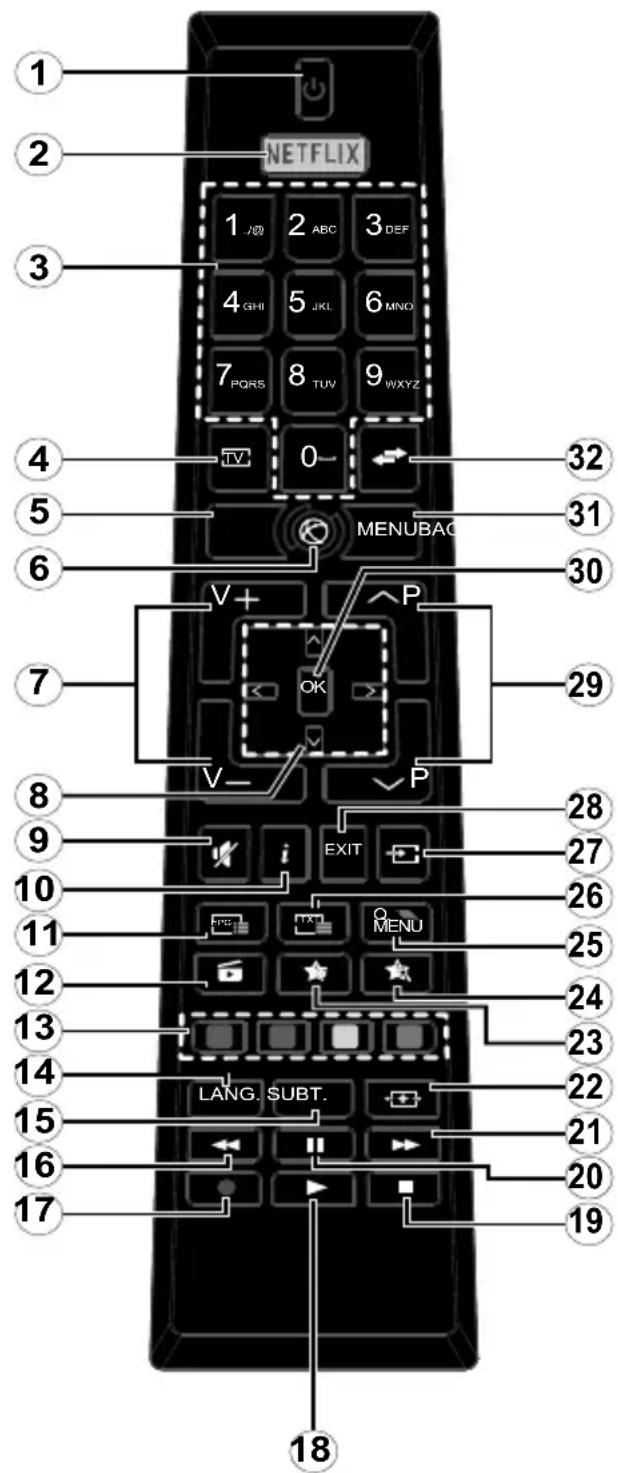
text_image
1 2 NETFLIX 3 1 J0 2 ABC 3 DEF 4 GHI 5 JKL 6 MNO 7 PQRS 8 TUV 9WXYZ 4 TV 0- 32 5 MENUBAC 31 6 V+ P 30 7 OK 29 V- P 8 EXIT 28 9 i 27 10 26 11 25 12 24 13 23 14 22 15 LANG. SUBT. 21 16 20 17 18- Standby: Switches On / Off the TV
- Netflix: Launches the Netflix application
- Numeric buttons: Switches the channel, enters a number or a letter in the text box on the screen.
- TV: Displays channel list / Switches to TV Source
- Back/Return: Returns to previous screen, opens index page (in TXT mode)
- Internet: Opens the portal page, where you can reach many web based applications
- Volume +/-
- Directional buttons: Helps navigate menus, content etc. and displays the subpages in TXT mode when pressed Right or Left
- Mute: Completely turns off the volume of the TV
- Info: Displays information about on-screen content, shows hidden information (reveal - in TXT mode)
- EPG (Electronic programme guide): Displays the electronic programme guide
- Media browser: Opens the media browsing screen
- Coloured Buttons: Follow the on-screen instructions for coloured button functions
- Language: Switches among sound modes (analogue TV), displays and changes audio/subtitle language (digital TV, where available)
- Subtitles: Turns subtitles on and off (where available)
- Rapid reverse: Moves frames backwards in media such as movies
- No function
- Play: Starts to play selected media
- Stop: Stops the media being played
-
Pause: Pauses the media being played
-
Rapid advance: Moves frames forward in media such as movies
- Screen: Changes the aspect ratio of the screen
- My button 1 (*)
- My button 2 (*)
- Quick Menu: Displays a list of menus for quick access
- Text: Displays teletext (where available), press again to superimpose the teletext over a normal broadcast picture (mix)
- Source: Shows all available broadcast and content sources
- Exit: Closes and exits from displayed menus or returns to previous screen
- Programme +/-
- OK: Confirms user selections, holds the page (in TXT mode), views channel list (DTV mode)
- Menu: Displays TV menu
- Swap: Quickly cycles between previous and current channels or sources
(\*) MY BUTTON 1 & MY BUTTON 2:
These buttons may have default functions depending on the model. However you can set a special function to these buttons by pressing on them for five seconds when on a desired source or channel. A confirmation message will be displayed on the screen. Now the selected MY BUTTON is associated with the selected function.
Note that if you perform First Time Installation, MY BUTTON 1&2 will return to their default function.
Connections
| Connector Type Cables Device | |||
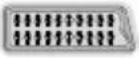 | Scart Connection (back) | 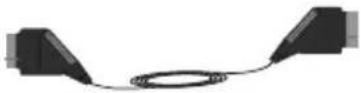 |  |
| YPBPRY / Video | YPbPr Video Connection (back) | YPbPr Connection Cable | |
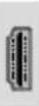 | HDMI Connection (bottom&side) | 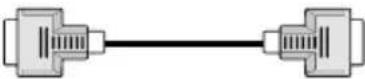 | |
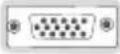 | VGA Connection (bottom) |  | 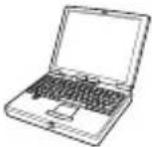 |
AUDIO IN  | PC/YPbPr/ Back AV Audio Connection (back) |  YPbPr/PC Audio Cable YPbPr/PC Audio Cable | |
| [7XTK] | SPDIF (Optical Out) Connection (bottom) |  |  |
BACK AV  | Back AV (Audio/Video) Connection (back) | 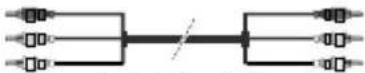 Audio Video Cable Audio Video Cable |  |
HEADPHONE | Headphone Connection (side) | [72X0] | |
 | USB Connection (back&side) |  |  |
 | CI Connection (side) | [6Z7C] |  |
  | Ethernet Connection (bottom) |  LAN / Ethernet Cable LAN / Ethernet Cable | [2X8K] |
 | Subwoofer Connection (back)(*) |  |  |
NOTE: When connecting a device via the YPbPr or Back AV input, you must use the connection cables to enable connection. See the illustrations on the left side. | To enable PC/YPbPr audio, you will need to use the Back Audio inputs with a YPbPr/PC audio cable for audio connection. | If an external device is connected via the SCART socket, the TV will automatically switch to AV mode. | When receiving DTV channels (Mpeg4 H.264) or while in Media Browser mode, output will not be available via the scart socket. | When using the wall mounting kit (available from third party in the market, if not supplied), we recommend that you plug all your cables into the back of the TV before mounting on the wall. | Insert or remove the CI module only when the TV is SWITCHED OFF. You should refer to the module instruction manual for details of the settings. | Obtain the Conditional Access Module (CAM) and the viewing card by subscribing to Digiturk or D-Smart. | The USB 2.0 inputs on the back side and on the left side of the TV support devices up to 500mA. Connecting devices that have current value above 500mA may damage your TV. If available, for the optional USB 3.0 input on the left side of the TV, which will be positioned above the other USB input, this limit value is 1A. | By connecting an HDMI cable to your TV, you have to use only a shielded (high grade) HDMI cable with ferrites to guarantee a sufficient immunity and emission against parasitic frequency radiation. And make sure to use a High-Speed HDMI cable that can transmit high definition signals, such as 4K contents, for trouble-free transmission..
If you want to connect a device to the TV, make sure that both the TV and the device are turned off before making any connection. After the connection is done, you can turn on the units and use them.
Switching On/Off
To Switch the TV On
Connect the power cord to a power source such as a wall socket (220-240V AC, 50 Hz).
To switch on the TV from standby mode either:
- Press the Standby button, Programme +/- or a numeric button on the remote control.
- Press the centre of the joystick on the TV in or push it up/down until the TV comes on from standby.
To Switch the TV Off
Press the Standby button on the remote control or press the centre of the joystick on the TV in and hold it down for a few seconds, the TV will switch into standby mode.
To power down the TV completely, unplug the power cord from the mains socket.
NOTE: When the TV is switched into standby mode, the standby LED can blink to indicate that features such as Standby Search, Over Air Download or Timer is active. The LED can also blink when you switch on the TV from standby mode.
First Time Installation
When turned on for the first time, the language selection screen is displayed. Select the desired language and press OK.
On the next screen, set your preferences using the directional buttons.
NOTE: Depending on the Country selection you may be asked to set and confirm a PIN at this point. The selected PIN cannot be 0000. You have to enter it if you are asked to enter a PIN for any menu operation later.
About Selecting Broadcast Type
Digital Aerial: If Digital Aerial broadcast search option is turned on, the TV will search for digital terrestrial broadcasts after other initial settings are completed.
Digital Cable: If Digital Cable broadcast search option is turned on, the TV will search for digital cable broadcasts after other initial settings are completed. According to your other preferences a confirmation message may be displayed before starting to search. Select YES and press OK to proceed. To cancel operation, select NO and press OK. You can select Network or set values such as Frequency, Network ID and Search Step. When finished, press OK button.
D-Smart Option
If desired, you can search and store D-Smart cable channels. On the Network channel scan screen set the Network option as DSmart Auto or DSmart Manual. If manual option is selected, the other options can be set as desired. When finished, press OK button.
NOTE: Searching duration will change depending on the selected Search Step.
Satellite: If Satellite broadcast search option is turned on, the TV will search for digital satellite broadcasts after other initial settings are completed. Before satellite search is performed some settings should be made.
Digiturk and D-Smart Options
If desired, you can search and store Digiturk or D-Smart channels. Before the satellite search starts, a menu will be displayed where you can select to install Digiturk or D-Smart channels. Set the Install Type as Operator and than set the Satellite Operator accordingly.
If you select DSmart operator, next menu item will be Apartment Installation. If you are using an individual D-Smart account, you should skip this step by setting as
No. If an apartment installation system is available in your apartment, select Yes and press OK to proceed. Shifting is processed in accordance with the IF frequency values. You can also select one of the Manual channel scan or Automatic channel scan procedures by using the Preferred Scan option.
If you select Digiturk operator, next menu item will be Select Satellite. Set the satellite and press OK to proceed.
If you select Standard as Install Type and press OK, Antenna Type menu will be displayed first. You can select Antenna Type as Direct, Single Satellite Cable or DiSEqC switch by using “◀” or “▶” buttons.
- Direct: If you have a single receiver and a direct satellite dish, select this antenna type. Press OK to continue. Select an available satellite on the next screen and press OK to scan for services.
- Single Satellite Cable: If you have multiple receivers and a single satellite cable system, select this antenna type. Press OK to continue. Configure settings by following instructions on the next screen. Press OK to scan for services.
- DiSEqC switch: If you have multiple satellite dishes and a DiSEqC switch, select this antenna type. Press OK to continue. You can set four DiSEqC options (if available) on the next screen. Press OK button to scan the first satellite in the list.
TKGS (Türksat Kanal Güncelleme Sistemi) installation
If desired, you can start a TKGS Installation if the Satellite broadcast search option is turned on. Before the satellite search starts, a menu will be displayed where you can select to start a TKGS Installation. Set the Install Type as Operator and then set the Satellite Operator as TKGS. Then press the OK button to start TKGS Installation. Set your antenna type as described abow. You can select to install HD or SD channels during the installation. This selection can be done later too using the Preferred List option under the Installation>TKGS Installation menu. The selection will be activated, after switching the TV off and back on again or after a manual update as described below.
If wanted TKGS Installation can be applied manually after the First Time Installation. Press the Menu button. Highlight Installation and press OK. In the sub menu highlight Satellite Settings and press OK. Then select Antenna Installation. After the antenna type is selected and other satellite settings are made press the RED button to start a TKGS Installation.
The second way to apply TKGS installation manually after the First Time Installation is starting an update. To do this press the Menu button and select Installation>TKGS Installation>Start Update. But to be able to do so the Satellite Settings should be done first.
To use the update options of TKGS
TKGS feature keeps your satellite channel lists up-to-date in three different ways.
Standby: While going into standby mode, the TV controls the TKGS table version number whether it is the last version or not. If any changes are detected, TV starts to update. On the next switch-on a message will be displayed to inform the user about the changes.
Background: When a channel is opened which isn't defined in the TKGS channel lists, the TV controls the TKGS table version number whether it is the last version or not. If any changes are detected, TV starts to
update. When the update is completed a message will be displayed to inform the user about the changes.
Manual: An update can be started manually any time. Press the Menu button. Highlight Installation and press OK. In the sub menu highlight TKGS Installation and press OK. Than select Start Update and press OK.
Analogue: If Analogue broadcast search option is turned on, the TV will search for analogue broadcasts after other initial settings are completed.
Additionally you can set a broadcast type as your favourite one. Priority will be given to the selected broadcast type during the search process and the channels of it will be listed on the top of the Channel List. When finished, press OK to continue.
You can activate Store Mode option at this point. This option will configure your TV's settings for store environment and depending on the TV model being used, the supported features of it may be displayed on the top of the screen as an info banner. This option is intended only for store use. It is recommended to select Home Mode for home use. This option will be available in System>Settings>More menu and can be turned off/on later.
Press OK button on the remote control to continue and the Network/Internet Settings menu will be displayed, if you confirm the previously displayed message asking whether you want to do the network settings. Please refer to Connectivity section to configure a wired or a wireless connection. After the settings are completed press OK button to continue. To skip to the next step without doing anything select No and press the OK button when the message is displayed asking whether you want to do the network settings. After the initial settings are completed TV will start to search for available broadcasts of the selected broadcast types.
After all the available stations are stored, scan results will be displayed. Press OK to continue. The Edit Channel List menu will be displayed next. You can edit the channel list according to your preferences or press the Menu button to quit and watch TV.
While the search continues a message may appear, asking whether you want to sort channels according to the LCN(*). Select Yes and press OK to confirm.
(*) LCN is the Logical Channel Number system that organizes available broadcasts in accordance with a recognizable channel number sequence (if available).
NOTE: Do not turn off the TV while initializing first time installation. Note that, some options may not be available depending on the country selection.
In the TKGS system, channels can be blocked by the service provider and Audio/Video transmission will not be available from these channels.
Using SatcoDX Feature
You can perform SatcoDX operations using the Installation>Satelite Settings menu. In the SatcoDX menu, there are two options regarding to the SatcoDx.
You can download or upload SatcoDX data. In order to perform these functions a USB device must be connected to the TV.
You can upload current services and related satellites & transponders in TV, to a USB device.
Additionally you can download one of the SatcoDx files stored in USB device, to the TV.
When you select one of these files, all services and related satellites and transponders in the selected file will be stored in the TV. If there are any installed terrestrial, cable and/or analog services, they will be kept and only satellite services will be removed.
Afterwards, check your antenna settings and make changes if necessary. An error message stating “No Signal” may be displayed if the antenna settings are not configured properly.
Media Playback via USB Input
You can connect 2.5" and 3.5" inch (hdd with external power supply) external hard disk drives or USB memory stick to your TV by using the USB inputs of the TV.
IMPORTANT! Back up the files on your storage devices before connecting them to the TV. Manufacturer will not be responsible for any file damage or data loss. Certain types of USB devices (e.g. MP3 Players) or USB hard disk drives/memory sticks may not be compatible with this TV. The TV supports FAT32 and NTFS disk formatting.
Wait a little while before each plugging and unplugging as the player may still be reading files. Failure to do so may cause physical damage to the USB player and the USB device itself. Do not pull out your drive while playing a file.
You can use USB hubs with your TV's USB inputs. External power supplied USB hubs are recommended in such a case.
It is recommended to use the TV's USB input(s) directly, if you are going to connect a USB hard disk.
NOTE: When viewing image files the Media Browser menu can only display 1000 image files stored on the connected USB device.
Media Browser Menu
You can play photo, music and movie files stored on a USB disk by connecting it to your TV. Connect a USB disk to one of the USB inputs located on the side of the TV. Pressing the Menu button while in the Media Browser mode will access the Picture, Sound and Settings menu options. Pressing the Menu button again will exit from this screen. You can set your Media Browser preferences by using the Settings menu.
| Loop/Shuffle Mode Operation | |
| Start playback with the Play button and activate | All files in the list will be continuously played in original order |
| Start playback with the OK button and activate | The same file will be played continuously (repeat) |
| Start playback with the Play button and activate | All files in the list will be played once in random order |
| Start playback with the Play button and activate | All files in the list will be continuously played in the same random order. |
Custom Boot Up Logo
You can personalize your TV and see your favorite image or photo on the screen each time your TV boots up. To do this, copy your favorite image files into a USB disk and open them from the Media Browser menu. When you have chosen the desired image, highlight it and press OK to view it in full screen. Press OK again to choose the image as custom logo. A confirmation message will be displayed. Select Yes and press OK again. If the image is suitable(*) you will see it on the screen during the TV's next boot up.
NOTE: If you perform a First Time Installation the TV will return to using the default logo, if any.
(*) Images must have an aspect ratio between 4:3 to 16:9 and they must be in .jpeg, .jpg or .jpe file formats. The image cannot be set as boot logo, which's resolution doesn't appear on the info banner.
FollowMe TV (if available)
With your mobile device you can stream the current broadcast from your smart TV using the FollowMe TV feature. Install the appropriate Smart Center application to your mobile device. Start the application.
For further information on using this feature refer to the instructions of the application you use.
NOTE: This application may not be compatible with all mobile devices. Both of the devices must be connected to the same network.
CEC and CEC RC Passthrough
This function allows to control the CEC-enabled devices, that are connected through HDMI ports by using the remote control of the TV.
The CEC option in the System>Settings>More menu should be set as Enabled at first. Press the Source button and select the HDMI input of the connected CEC device from the Sources List menu. When new CEC source device is connected, it will be listed in source menu with its own name instead of the connected HDMI ports name(such as DVD Player, Recorder 1 etc.).
The TV remote is automatically able to perform the main functions after the connected HDMI source has been selected. To terminate this operation and control the TV via the remote again, press Quick Menu button on the remote, highlight the CEC RC Passthrough and set as Off by pressing Left or Right button. This feature can also be enabled or disabled under the System>Settings>More menu.
The TV supports also ARC(Audio Return Channel) feature. This feature is an audio link meant to replace other cables between the TV and the audio system (A/V receiver or speaker system).
When ARC is active, TV does not mute its other audio outputs automatically. So you need to decrease TV volume to zero manually, if you want to hear audio from connected audio device only (same as other optical or co-axial digital audio outputs). If you want to change connected device's volume level, you should select that device from the source list. In that case volume control keys are directed to connected audio device.
NOTE: ARC is supported only via the HDMI3 input.
System Audio Control
Allows an Audio Amplifier/Receiver to be used with the TV. The volume can be controlled using the remote control of the TV. To activate this feature set the Speakers option in the System>Settings>More menu as Amplifier. The TV speakers will be muted and the sound of the watched source will be provided from the connected sound system.
NOTE: The audio device should support System Audio Control feature and CEC option should be set as Enabled.
E-Manual (if available)
You can find instructions for your TV's features in the E-Manual.
To use E-Manual, press to the Info button while main menu is displayed on the screen or press Quick Menu button, select Information Booklet and press OK.
By using the directional buttons select a desired category. Every category includes different topics. Select a topic and press OK to read instructions.
To close the E-Manual screen press the Exit or Menu button.
NOTE: The contents of the E-Manual may vary according to the model.
TV Menu Contents
| System - Picture Menu Contents | ||
| Mode | You can change the picture mode to suit your preference or requirements. Picture mode can be set to one of these options: Cinema, Game, Sports(optional), Dynamic and Natural.Pixellence Demo Mode: While Mode option is highlighted, Pixellence demo mode will be displayed bottom of the menu screen. Pixellence function optimizes the TV's video settings and helps to acquire a better image quality. Press OK to start Pixellence demo mode to experience Pixellence quality. Press OK button to cancel (except Game Mode). | |
| Contrast Adjusts the light and dark values on the screen. | ||
| Brightness | Adjusts the brightness values on the screen. | |
| Sharpness Sets the sharpness value for the objects displayed on the screen. | ||
| Colour | Sets the colour value, adjusting the colours. | |
| Energy Saving | For setting the Energy Saving to Custom, Minimum, Medium, Maximum, Auto, Screen Off or Off.NOTE:Available options may differ depending on the selected Mode. | |
| Backlight | This setting controls the backlight level. The backlight function will be inactive if the Energy Saving is set to an option other then Custom. | |
| Advanced Settings | ||
| Dynamic Contrast | You can change the dynamic contrast ratio to desired value. | |
| Noise Reduction | If the signal is weak and the picture is noisy, use the Noise Reduction setting to reduce the amount of noise. | |
| Colour Temp | Sets the desired colour temperature value. Cool, Normal, Warm and Custom options are available. | |
| White Point | ||
| Picture Zoom Sets the | desired image size format. | |
| Film Mode | Films are recorded at a different number of frames per second to normal television programmes. Turn this feature on when you are watching films to see the fast motion scenes clearly. | |
| Skin Tone | Skin tone can be changed between -5 and 5. | |
| Colour Shift Adjust the | desired colour tone. | |
| HDMI Full Range | While watching from a HDMI source, this feature will be visible. You can use this feature to enhance blackness in the picture. | |
| PC Position Appears only when the input source is set to VGA/PC. | ||
| Autoposition | Automatically optimizes the display. Press OK to optimize. | |
| H Position | This item shifts the image horizontally to the right hand side or left hand side of the screen. | |
| V Position This item shifts the image vertically towards the top or bottom of the screen. | ||
| Dot Clock | Dot Clock adjustments correct the interference that appear as vertical banding in dot intensive presentations like spreadsheets or paragraphs or text in smaller fonts. | |
| Phase | Depending on the input source(computer etc.) you may see a hazy or noisy picture on the screen. You can use phase to get a clearer picture by trial and error. | |
| Reset | Resets the picture settings to factory default settings (except Game mode). | |
| While in VGA (PC) mode, some items in Picture menu will be unavailable. Instead, VGA mode settings will be added to the Picture Settings while in PC mode. | ||
| System - Sound Menu Contents | ||
| Volume | Adjusts the volume level. | |
| Equalizer | Selects the equalizer mode. Custom settings can be made only when in User mode. | |
| Balance | Adjusts whether the sound comes from the left or right speaker. | |
| Headphone | Sets headphone volume.Please ensure before using headphones that the headphone volume is set to a low level, to prevent damage to your hearing. | |
| DTS TruSurround (Optional) | Enables or disables the DTS TruSurround. | |
| Audio Link | Press OK to open the Audio Link menu screen. Using this screen you can discover and connect the sound devices to your TV wirelessly. | |
| AVL (Automatic Volume Limiting) | Sets the sound to obtain fixed output level between programmes. | |
| Headphone/Lineout | When you connect an external amplifier to your TV using the headphone jack, you can select this option as Lineout. If you have connected headphones to the TV, set this option as Headphone.Please ensure before using headphones that this menu item is set to Headphone.If it is set to Lineout, the output from the headphone socket will be set to maximum which could damage your hearing. | |
| Digital Out Sets digital out audio type. | ||
| Bass Gain Controls the bass gain level. Use Left or Right button to set. | ||
| System - Settings Menu Contents | ||
| Conditional Access Controls | Is conditional access modules when available. | |
| Language You may set a different language depending on the broadcaster and the country. | ||
| Parental | Enter correct password to change parental settings. You can easily adjust Menu Lock, Maturity Lock, Child Lock or Guidance in this menu. You can also set a new PIN or change the Default CICAM PIN using the related options.NOTE: Some menu options may not be available depending on the country selection in the First Time Installation. Default PIN can be set to 0000 or 1234. If you have defined the PIN(is requested depending on the country selection) during the First Time Installation use the PIN that you have defined. | |
| Timers | Sets sleep timer to turn off the TV after a certain time. Sets timers for selected programmes. | |
| Date/Time Sets date and time. | ||
| Sources | Enables or disables selected source options. There are Regular, Enhanced and Disabled options available for HDMI sources. Regular and Enhanced options are affecting the colour settings of the selected HDMI source. To be able to watch 4K images from an HDMI source related source setting should be set as Enhanced if the connected device is HDMI 2.0 compatible. Set as Regular if the connected device is HDMI 1.4 compatible. Set accordingly or disable the related HDMI source by setting as Disabled. | |
| Network/Internet Settings | Displays network/internet settings. | |
| Accessibility Displays accessibility options of the TV. | ||
| Hard of Hearing Enables any special feature sent from the broadcaster. | ||
| Audio Description A narration track will be played for the blind or visually impaired audience. Press OK to see all available Audio Description menu options. This feature is available only if the broadcaster supports it. | ||
| Netflix You can view your ESN(*) number and deactivate Netflix.(*) ESN number is an unique ID number for Netflix, created especially to identify your TV. | ||
| More | Displays other setting options of the TV. | |
| Menu Timeout Changes timeout duration for menu screens. | ||
| HBBTV You can enable or disable this feature by setting it as On or Off. | ||
| Software Upgrade Ensures that your TV has the latest firmware. Press OK to see the menu options. | ||
| Application Version Displays current software version. | ||
| Subtitle Mode This option is used to select which subtitle mode will be on the screen (DVB subtitle / Teletext subtitle) if both is available. Default value is DVB subtitle. This feature is available only for the country option of Norway. | ||
| Auto TV OFF Sets the desired time for the TV to automatically go into standby mode when not being operated. | ||
| Biss Key Biss is a satellite signal scrambling system that is used for some broadcasts. If you need to enter Biss key on a broadcast, you can use this setting. Highlight Biss Key and press OK to enter keys on the desired broadcast. | ||
| Store Mode Select this mode for store display purposes. Whilst Store Mode is enabled, some items in the TV menu may not be available. | ||
| Audio Video Sharing Audio Video Sharing feature allows you to share files stored on your smartphone or tablet pc. If you have a compatible smartphone or tablet pc and the appropriate software is installed, you can share/play photos on your TV. See instructions of your sharing software for more information. Audio Video Sharing mode will not be available with internet portal feature. | ||
| Power Up Mode This setting configures the power up mode preference. Last State and Standby options are available. | ||
| Virtual Remote | Enable or disable the virtual remote feature. | |
| CEC | With this setting you can enable and disable CEC functionality completely. Press Left or Right button to enable or disable the feature. | |
| CEC Auto Power On | This function allows the connected HDMI-CEC compatible device to turn on the TV and switch to its input source automatically. Press Left or Right button to enable or disable the feature. | |
| Speakers | To hear the TV audio from the connected compatible audio device set as Amplifier. You can use the remote control of the TV to control the volume of the audio device. | |
| Smart Remote | Press OK to open the Smart Remote menu screen. Using this screen you can discover and connect the remote controller devices to your TV wirelessly. | |
| Quickstandby | If this feature is enabled the TV can be turned on again through the virtual remote in the Smart Center application if it is turned off through it. Press Left or Right button to enable or disable the feature. |
| Installation Menu Contents | |
| TKGS Installation | Displays TKGS Installation menu options. This option may not be available according to the selected Satellite Operator in the First Time Installation. If not, re-do the First Time Installation and select the Satellite Operator as TKGS. |
| Automatic channel scan (Retune) | Displays automatic tuning options. Digital Aerial: Searches and stores aerial DVB stations. Digital Cable: Searches and stores cable DVB stations. Analogue: Searches and stores analogue stations. Satellite: Searches and stores satellite stations. |
| Manual channel scan | This feature can be used for direct broadcast entry. |
| Network channel scan | Searches for the linked channels in the broadcast system. Digital Aerial: Searches for aerial network channels. Digital Cable: Searches for cable network channels. |
| Analogue fine tune | You can use this setting for fine tuning analogue channels. This feature is not available if no analogue channels are stored. |
| Satellite Settings | Displays satellite settings. Satellite list: Displays available satellites. You can Add, Delete satellites or Edit satellite settings on the list. Antenna installation: You can change satellite antenna settings and/or start a satellite scan. SatcoDX: You can upload or download SatcoDX data using the related options. |
| Installation Settings | Displays installation settings menu. Standby Search (Optional): Your TV will search for new or missing channels while in standby. Any new found broadcasts will be shown. |
| Clear Service List | Use this setting to clear channels stored. This setting is visible only when the Country option is set to Denmark, Sweden, Norway or Finland. |
| Select Active Network | This setting allows you to select only the broadcasts within the selected network to be listed in the channel list. This feature is available only for the country option of Norway. |
| First time installation | Deletes all stored channels and settings, resets TV to factory settings. You will be asked to enter a PIN number to start with the First Time Installation if you performed Digiturk installation previously. NOTE: Default PIN can be set to 0000 or 1234. If you have defined the PIN(is requested depending on the country selection) during the First Time Installation use the PIN that you have defined. |
General TV Operation
Using the Channel List
The TV sorts all stored stations in the Channel List. You can edit this channel list, set favourites or set active stations to be listed by using the Channel List options. Press the OK/TV button to open the Channel List. You can filter the listed channels by pressing the Blue button or open the Edit Channel List menu by pressing the Green button in order to make advanced changes in the current list.
NOTES:
The commands Move, Delete and Edit name in the Edit Channel List menu may not be available according to Opreting Mode setting in the TKGS Installation menu. To get rid of all restrictions on configuring the channel list set this option to TKGS Off. Move and Edit Name commands will be still available if this option is set to Customizable.
If you have performed Digiturk or D-Smart installation, Move, Delete and Edit name commands in the Edit Channel List menu will not be available.
Managing the Favourite Lists
You can create four different lists of your favourite channels. Enter the Channel List in the main menu or press the Green button while the Channel List is displayed on the screen in order to open the Edit Channel List menu. Select the desired channel on the list. You can make multiple choices by pressing the Yellow button. Then press the OK button to open the Channel Edit Options menu and select Add/Remove Favourites option. Press the OK button again. Set the desired list option to On. The selected channel/s will be added to the list. In order to remove on a channel or channels from a favourite list follow the same steps and set the desired list option to Off.
You can use the Filter function in the Edit Channel List menu to filter the channels in the Channel list permanently according to your preferences. Using this Filter option, you can set one of your four favourite lists to be displayed every time the Channel list is opened. The filtering function in the Channel list menu will only filter the currently displayed Channel list in order to find a channel and tune in to it. This changes will not remain the next time the Channel list is opened.
Furthermore, you can filter channels according to categories using the Channel list filter menu. Highlight Favourites option and select the desired channel category using the left/right directional buttons. The channels will be filtered according to the selected category.
Configuring Parental Settings
The Parental Settings menu options can be used to prohibit users from viewing of certain programmes, channels and using of menus. These settings are located in the System>Settings>Parental menu.
To display parental lock menu options, a PIN number should be entered. After coding the correct PIN number, Parental Settings menu will be displayed.
Menu Lock: This setting enables or disables access to all menus or installation menus of the TV.
Maturity Lock: If this option is set, TV gets the maturity information from the broadcast and if this maturity level is disabled, disables access to the broadcast.
NOTE: If the country option in the First Time Installation is set as France, Italy or Austria,
Maturity Lock's value will be set to 18 as default.
Child Lock: If this option is set to ON, the TV can only be controlled by the remote control. In this case the control buttons on the TV will not work.
Internet Lock: If this option is set to ON, the open browser application in the portal will be disabled. Set to OFF to release the application again.
Set PIN: Defines a new PIN number.
Default CICAM PIN: This option will appear as greyed out if no CI module is inserted into the CI slot of the TV. You can change the default PIN of the CI CAM using this option.
NOTE: Default PIN can be set to 0000 or 1234. If you have defined the PIN(is requested depending on the country selection) during the First Time Installation use the PIN that you have defined.
Some options may not be available depending on the country selection in the First Time Installation.
Electronic Programme Guide (EPG)
Some channels send information about their broadcast schedules. Press the Epg button to view the Programme Guide menu.
There are 3 different types of schedule layouts available, Timeline Schedule, List Schedule and Now/Next Schedule. To switch between them follow the instructions on the bottom of the screen.
Timeline Schedule
Zoom (Yellow button): Press the Yellow button to see events in a wider time interval. Filter (Blue button): Views filtering options. Select Genre (Subtitles button): Displays Select Genre menu. Using this feature, you can search the programme guide database in accordance with the genre. Info available in the programme guide will be searched and results matching your criteria will be highlighted.
Options (OK button): Displays event options.
Event Details (Info button): Displays detailed information about selected events.
Next/Prev Day (Programme +/- buttons): Displays the events of previous or next day.
Search (Text button): Displays Guide Search menu.
Now (Swap button): Displays current event of the highlighted channel.
List Schedule(\*)
(*) In this layout option, only the events of the highlighted channel will be listed.
Prev. Time Slice (Red button): Displays the events of previous time slice.
Next/Prev Day (Programme +/- buttons): Displays the events of previous or next day.
Event Details (Info button): Displays detailed information about selected events.
Filter (Text button): Views filtering options. Next Time Slice (Green button): Displays the events of next time slice.
Options (OK button): Displays event options.
Now/Next Schedule
Options (OK button): Displays event options.
Event Details (Info button): Displays detailed information about selected events.
Filter (Blue button): Views filtering options.
Event Options
Use the directional buttons to highlight an event and press OK button to display Event
Options menu. The following options are available.
Select Channel: Using this option, you can switch to the selected channel.
Set Timer on Event / Delete Timer on Event: After you have selected an event in the EPG menu, press the OK button. Select Set Timer on Event option and press the OK button. You can set a timer for future events. To cancel an already set timer, highlight that event and press the OK button. Then select Delete Timer on Event option. The timer will be cancelled.
NOTES: You cannot switch to any other channel while there is an active timer on the current channel.
It is not possible to set timer for two or more individual events at the same time interval.
Advanced EPG and Extended Programme Info Banner
If your TV is connected to a network the Advanced EPG screen will be displayed by pressing the Epg button on the remote. In this advanced mode of EPG application all the informations about the events are collected from the internet database.
You can navigate through the application using the coloured buttons via the defined short-cuts for each. Follow the on-screen instructions.
Extended Info Banner
A network connection is also needed to access extended info banner. Press the Info button on the remote twice to open the extended Info bar. Using left or right buttons you can see the previous or next events of the channel being watched. Informations such as event type, channel name etc. can be seen on the info banner.
Teletext Services
Press the Text button to enter. Press again to activate mix mode, which allows you to see the teletext page and the TV broadcast at the same time. Press once more to exit. If available, sections in the teletext pages will become colour-coded and can be selected by pressing the coloured buttons. Follow the instructions displayed on the screen.
Digital Teletext
Press the Text button to view digital teletext information. Operate it with the coloured buttons, cursor buttons and the OK button. The operation method may differ depending on the contents of the digital teletext. Follow the instructions displayed on the digital teletext screen. When the Text button is pressed again, the TV returns to television broadcast.
Software Upgrade
Your TV is capable of finding and updating the firmware automatically via the broadcast signal or via Internet.
Software upgrade search via user interface
On the main menu select System>Settings and then More. Navigate to Software upgrade and press the OK button. In Upgrade options menu select Scan for upgrade and press OK button to check for a new software upgrade.
If a new upgrade is found, it starts to download the upgrade. After the download is completed confirm the question asking about rebooting the TV by pressing the OK to continue with the reboot operation.
3 AM search and upgrade mode
Your TV will search for new upgrades at 3:00 o'clock if Automatic scanning option in the Upgrade options menu is set to Enabled and if the TV is connected to an aerial signal or to Internet. If a new software is found and downloaded successfully, it will be installed at the next power on.
NOTE: Do not unplug the power cord while led is blinking during the reboot process. If the TV fails to come on after the upgrade, unplug, wait for two minutes then plug it back in.
Connectivity
Wired Connectivity
To Connect to a Wired Network
- You must have a modem/router connected to an active broadband connection.
- Ensure that Nero Media Home software is installed to your PC (for Audio Video Sharing function). See “Nero Media Home Installation” section.
- Connect your PC to your modem/router. This can be a wired or wireless connection.
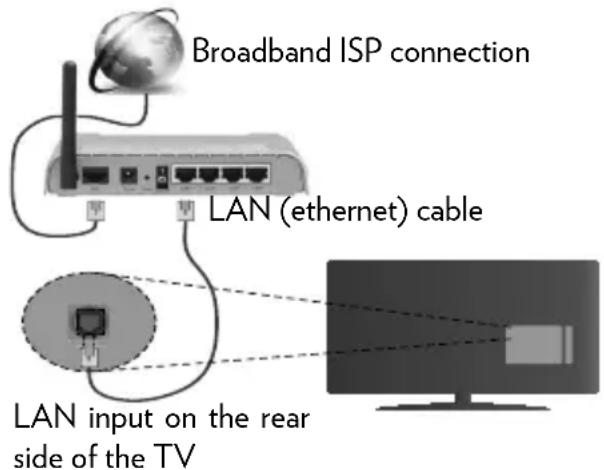
- Connect your TV to your modem/router via an ethernet cable. There is a LAN port at the rear (back) of your TV.
text_image
Broadband ISP connection LAN (ethernet) cable LAN input on the rear side of the TV- To access and play shared files, you must select the Media Browser. Press the Menu button and select Media Browser. Press OK to continue. Select the desired file type and press OK. You must always use the Media Browser screen to access and play shared network files.
- PC/HDD/Media Player or any other devices that are compatible should be used with a wired connection for higher playback quality.
To configure wired settings please refer to the Network/Internet Settings section in the System>Settings Menu.
- You might be able to connect your TV to your LAN depending on your network's configuration. In such a case, use an ethernet cable to connect your TV directly to the network wall outlet.
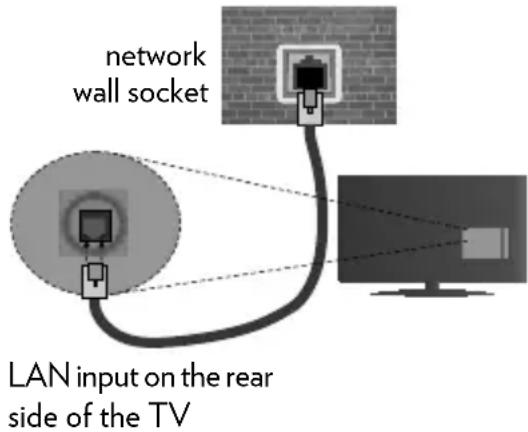
text_image
network wall socket LAN input on the rear side of the TVConfiguring Wired Device Settings Network Type
The Network Type can be selected as Wired Device, Wireless Device or Disabled, in accordance with the active connection to the TV set. Select this as Wired Device if you are connecting via an ethernet.
Internet Speed Test
Highlight Internet Speed Test and press the OK button. TV will check the internet connection bandwidth and display the result when complete.
Advanced Settings
Highlight Advanced Settings and press the OK button. On the next screen you can change the IP and DNS settings of the TV. Highlight the desired one and press Left or Right button to change the setting from Automatic to Manual. Now you can enter the Manual IP and / or Manual DNS values. Select the related item in the drop down menu and enter the new values using the numeric buttons of the remote. Press the OK button to save settings when complete.
Wireless Connectivity
To Connect to a Wireless Network
The TV cannot connect to the networks with a hidden SSID. To make your modem's SSID visible, you should change your SSID settings via the modem's software.
To Connect to a wireless LAN, you should perform the following steps:
- Ensure that Nero Media Home software is installed to your PC (for Audio Video Sharing function).
- To configure your wireless settings please refer to the Network/Internet Settings section in the System>Settings Menu.
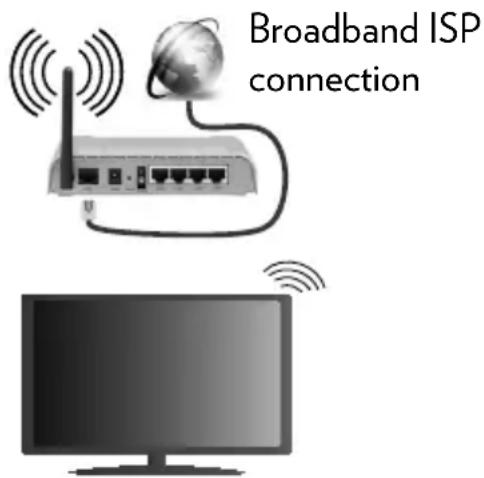
text_image
Broadband ISP connectionA Wireless-N router (IEEE 802.11a/b/g/n) with simultaneous 2.4 and 5 GHz bands is designed to increase bandwidth. These are optimized for smoother and faster HD video streaming, file transfers and wireless gaming.
- Use a LAN connection for quicker file sharing between other devices like computers.
- The frequency and channel differ depending on the area.
-
The transmission speed differs depending on the distance and number of obstructions between the transmission products, the configuration of these products, the radio wave conditions, the line traffic and the products that you use. The transmission may also be cut off or may get disconnected depending on the radio wave conditions, DECT phones or any other WiFi 11b appliances. The standard values of the transmission speed are the theoretical maximum values for the wireless standards. They are not the actual speeds of data transmission.
-
The location where the transmission is most effective differs depending on the usage environment.
- The Wireless feature of the TV supports 802.11 a,b,g & n type modems. It is highly recommended that you should use the IEEE 802.11n communication protocol in order to avoid any possible problems while watching videos.
- You must change your modem's SSID when there are any other modems around with the same SSID. You can encounter connection problems otherwise. Use a wired connection if you experience problems with a wireless connection.
Configuring Wireless Device Settings
Open the Network/Internet Settings menu and select Network Type as Wireless Device to start connection process.
The TV will scan the wireless networks automatically. A list of available networks will be displayed. Please select your desired network from the list.
NOTE: If the modem supports N mode, you should set N mode settings.
If the selected network is protected with a password, please enter the correct key by using the virtual keyboard. You can use this keyboard via the directional buttons and the OK button on the remote control.
Wait until the IP address is shown on the screen. This means that the connection is now established. To disconnect from a wireless network, highlight Network Type and press Left or Right buttons to set as Disabled.
Highlight Internet Speed Test and press the OK button to check your internet connection speed. Highlight Advanced Settings and press the OK button to open the advanced setting menu. Use directional and numeric buttons to set. Press the OK button to save settings when complete.
Other Information
The status of the connection will be displayed as Connected or Not Connected and the current IP address, if a connection is established.
Connecting to your mobile device via WiFi
- If your mobile device has WiFi feature, you can connect it to your TV via a router, in order to access the content in your device. For this, your mobile device must have an appropriate sharing software.
- Connect to your router following the steps stated above in the Wireless Connectivity section.
• Afterwards, engage your mobile device with the router and then activate the sharing software on your mobile device. Then, select files that you want to share with your TV. - If the connection is established correctly, you will be able to access the shared files from your mobile device via the Media Browser of your TV.
- Enter the Media Browser menu and the playback device selection OSD will be displayed. Select your mobile device and press the OK button to continue.
- If available, you can download a virtual remote controller application from the server of your mobile device application provider.
NOTE: This feature may not be supported on all mobile devices.
Wireless Display
Wireless Display is a standard for streaming video and sound content by Wi-Fi Alliance. This feature provides the ability to use your TV as wireless display device.
Using with mobile devices
There are different standards which enable sharing of screens including graphical, video and audio content between your mobile device and TV.
Plug the wireless USB dongle to TV first, if the TV doesn't have internal WiFi feature.
Then press the Source button on the remote and switch to Wireless Display source.
A screen appears stating that the TV is ready for connection.
Open the sharing application on your mobile device. These applications are named differently for each brand, please refer to the instruction manual of your mobile device for detailed information.
Scan for devices. After you select your TV and connect, the screen of your device will be displayed on your TV.
NOTE: This feature can be used only if the mobile device supports this feature. Scanning and connecting processes differ according to the programme you use. Android based mobile devices should have the software version V4.2.2 and above.
Connecting Other Wireless Devices
Your TV supports another short range wireless connection technology too. A pairing is required before using these kind of wireless devices with the TV set. You should do the followings to pair your device with the TV:
- Set the device to pairing mode
- Start device discovery on the TV
NOTE: Refer to the user manual of the wireless device to learn how to set the device to pairing mode.
You can connect audio devices or remote controllers wirelessly to your TV. Unplug or switch off any other connected audio device in order for wireless connection feature to work correctly. For audio devices you should use the Audio Link option in the System>Sound menu, for remote controllers the Smart Remote option in the System>Settings>More menu. Select the menu option and press the OK button to open the related menu. Using this menu you can discover and connect the devices that use the same wireless technology and start to use them. Follow the on-screen instructions. Start the device discovery. A list of available wireless devices will be displayed. Select the device you want to connect from the list and press the OK button to connect. If “Device connected” message is displayed, the connection is successfully established. If the connection fails try it again.
NOTE: Wireless devices may operate within the same radio frequency range and may interfere with one another. To improve the performance of your wireless device place it at least 1 meter away from any other wireless devices.
Connectivity Troubleshooting Wireless Network Not Available
- Ensure that any firewalls of your network allow the TV wireless connection.
- Try searching for wireless networks again, using the Network/Internet Settings menu screen.
If the wireless network does not function properly, try using the wired network in your home. Refer to the Wired Connectivity section for more information on the process.
If the TV does not function using the wired connection, check the modem (router). If the router does not have a problem, check the internet connection of your modem.
Connection is Slow
See the instruction book of your wireless modem to get information on the internal service area, connection speed, signal quality and other settings. You need to have a high speed connection for your modem.
Distruption during playback or slow reactions
You could try the following in such a case: Keep at least three meters distance from microwave ovens, mobile telephones, bluetooth devices or any other Wi-Fi compatible devices. Try changing the active channel on the WLAN router.
Internet Connection Not Available / Audio Video Sharing Not Working
If the MAC address (a unique identifier number) of your PC or modem has been permanently registered, it is possible that your TV might not connect to the internet. In such a case, the MAC address is authenticated each time when you connect to the internet. This is a precaution against unauthorized access. Since your TV has its own MAC address, your internet service provider cannot validate the MAC address of your TV. For this reason, your TV cannot connect to the internet. Contact your internet service provider and request information on how to connect a different device, such as your TV, to the internet.
It is also possible that the connection may not be available due to a firewall problem. If you think this causes your problem, contact your internet service provider. A firewall might be the reason of a connectivity and discovery problem while using the TV in Audio Video Sharing mode or while browsing via Audio Video Sharing feature.
Invalid Domain
Ensure that you have already logged on to your PC with an authorized username/password and also ensure that your domain is active, prior to sharing any files in your media server program on your PC. If the domain is invalid, this might cause problems while browsing files in Audio Video Sharing mode.
Using Audio Video Sharing Network Service
Audio Video Sharing feature uses a standard that eases the viewing process of digital electronics and makes them more convenient to use on a home network.
This standard allows you to view and play photos, music and videos stored in the media server connected to your home network.
1. Nero Media Home Installation
The Audio Video Sharing feature cannot be used if the server programme is not installed onto your PC or if the required media server software is not installed onto the companion device. Please prepare your PC with the Nero Media Home programme. For more information about the installation, please refer to the “Nero Media Home Installation” section.
2. Connect to a Wired or Wireless Network
See the Wired/Wireless Connectivity chapters for detailed configuration information.
3. Play Shared Files via Media Browser
Select Media Browser by using the directional buttons from the main menu and press OK. The media browser will then be displayed.
Audio Video Sharing
Audio Video Sharing support is only available in the Media Browser Folder mode. To enable folder mode, go to the Settings tab in the main media browser screen and press OK. Highlight View Style and set to Folder using the Left or Right buttons. Select the desired media type and press OK.
If sharing configurations are set properly, Device Selection screen will be displayed after selecting the desired media type. If available networks are found, they will be
listed on this screen. Select media server or network that you want to connect to using the Up or Down buttons and press OK. If you want to refresh the device list, press the Green button. You can press Menu to exit. If you select the media type as Videos and choose a device from the selection menu. Then select the folder with video files in it on the next screen and all the available video files will be listed.
To play other media types from this screen, you can go back to main Media Browser screen and select the media type as desired and then perform the network selection again. Or press the Blue button to switch to next media type quickly without changing the network. Refer to the Media Browser menu section for further information on file playback.
Subtitle files do not work if you watch videos from your network through Audio Video Sharing feature.
You can connect only one television to the same network. If a problem occurs with the network, please switch your television off at the wall socket and back on again. Trick mode and jump are not supported with the Audio Video Sharing feature.
NOTE: There may be some PC's which may not be able to utilize the Audio Video Sharing feature due to administrator and security settings (such as business PC's).
For best home network streaming with this TV, the Nero software should be installed.
Nero MediaHome Installation
To install Nero MediaHome, please proceed as follows:
NOTE: The Audio Video Sharing feature cannot be used if the server programme is not installed onto your PC or if the required media server software is not installed onto the companion device.
-
Enter the link below completely in the adress-bar of your web browser. http://www.nero.com/mediahome-tv
-
Click the Download button on the opening page. The installation file will be downloaded onto your PC.
-
After the download is completed, double click on the installation file to start the installation. The installation wizard will guide you through the installation process.
-
The prerequisites screen will be displayed first. The installation wizard checks the availability of required third-party software on your PC. If applications are missing they are listed and must be installed before continuing installation.
-
Click the Install button. The integrated serial will be displayed. Please do not change the displayed serial.
-
Click the Next button. The License Conditions (EULA) screen will be displayed. Please read the license agreement carefully and select the appropriate check box if you agree to the terms of the agreement. Installation is not possible without this agreement.
-
Click the Next button. On the next screen you can set your installation preferences.
-
Click the Install button. The installation begins and finishes automatically. A progress bar will indicate the state of the installation process.
-
Click the Finish button. The installation is completed. You will be directed to the web site of the nero software.
-
A shortcut is now placed on your desktop.
Congratulations! You successfully installed Nero MediaHome on your PC.
Run Nero MediaHome by double clicking on the shortcut icon.
Internet Portal
HINT: A broadband internet connection is required for high quality viewing. You must set the country option accordingly in the First Time Installation for proper operation of the internet portal.
Portal feature adds your TV a feature that allows you to connect a server on the Internet and view the content provided by this server over your Internet connection. Portal feature allows you to view the music, video, clip or web content with defined short-cuts. Whether you can view this content without interruption depends on the connection speed provided by your internet service provider.
Press the Internet button on your remote control to open internet portal page. You will see icons of the available applications and services on the portal screen. Use the directional buttons on your remote to select the desired one. You may view the desired content by pressing OK after selecting. Press Back/Return button to return back to the previous screen.
Moreover, you can access some features using the short-cut feature defined for the coloured or numeric buttons of your remote. Press the Exit button to quit the Internet portal mode.
PIP Window (depending on portal service)
Current source content will be displayed in the PIP window, if you switch to portal mode while on any active source.
If you switch to portal mode while watching TV channels, current programme will be displayed in the PIP window. You can change channels using Programme +/- buttons.
NOTES:
Possible application dependent problems may be caused by the content service provider.
Portal service content and the interface may be changed at any time without prior notice.
Third party internet services may change, be discontinued or restricted at any time.
SMART RECOMMENDATION
Smart Recommendation is an application, which recommends to user TV programmes relevant to his watching habits. The application collects data about watched programmes to do this. This type of data collection is subject to the approval of the user.
The application recommends TV programmes according to one of the following options:
- Popular TV programmes
- Currently broadcasted programmes that are relevant to the user's watching habits
- Programmes that will be broadcasted on prime-time
Smart Recommendation application is available on portal and on the Advanced EPG screen. Timer can be set for the selected programme. Timer settings can be changed from Timers menu in the TV
System>Settings menu.
Internet Browser
To use the internet browser, enter the portal first. Then launch the Internet application on the portal.
(*) The appearance of the internet browser logo may change
In the initial screen of the browser, the thumbnails of the predefined (if any) links to web sites available will be displayed as Speed Dial options along with the Edit Speed Dial and the Add to Speed Dial options.
To navigate the web browser, use the directional buttons on the remote or a connected mouse. To see the browser options bar, move the cursor to the top of the page or press the Back/Return button. History, Tabs and Bookmarks options and the browser bar which contains previous/next buttons, the refresh button, the adress/search bar, the Speed Dial and the Opera buttons are available.
To add a desired website to the Speed Dial list for quick access, move the cursor to the top of the page or press the Back/Return button. The browser bar will appear. Highlight the Speed Dial - button and press the OK button. Then select Add to Speed Dial option and press the OK button. Fill in the blanks for Name and Address, highlight OK and press the OK button to add. Whilst you are on the site you wish to add to the Speed Dial list, highlight the Opera-button and press the OK button. Then highlight Add to Speed Dial option in the submenu and press the OK button again. Name and Address will be filled automatically according to the site you are visiting. Highlight OK and press the OK button to add.
You can also use the Opera menu options to manage the browser. Highlight the Opera-0 button and press the OK button to see available page specific and general options. There are various ways to search or visit websites using the web browser.
Enter the address of a website(URL) into the search/address bar and highlight the Submit button on the virtual keyboard and press the OK button to visit the site.
Enter keyword/s into the search/address bar and highlight the Submit button on the virtual keyboard and press the OK button to start a search for the related websites.
Highlight a Speed Dial thumbnail and press the OK button to visit the related website.
Your TV is compatible with USB mice. Plug your mouse or wireless mouse adaptor into the USB input of your TV for easier and quicker navigation.
Some web pages include flash content. These are not supported by the browser.
Your TV does not support any download processes from the internet via the browser.
HBBTV System
HbbTV (Hybrid Broadcast Broadband TV) is a new industry standard that seamlessly combines TV services delivered via broadcast with services delivered via broadband and also enables access to Internet only services for consumers using connected TVs and set-top boxes. Services delivered through HbbTV include traditional broadcast TV channels, catch-up services, video-on-demand, EPG, interactive advertising, personalisation, voting, games, social networking and other multimedia applications.
HbbTV applications are available on channels where they are signalled by the broadcaster. The broadcaster marks one application as “autostart” and this one is started by the platform automatically. The autostart applications are generally launched with a small red button icon to notify the user that there is an HbbTV application on that channel. Press the red button to open the application page. After the page is displayed you can go back to the initial red button icon state by pressing the red button again. You can toggle between the red button icon mode and full UI mode of the application via pressing red button. It should be noted that the red button switching capability is provided by the application and some application may behave differently.
If you switch to another channel while an HbbTV application is active (either in red button icon mode or full UI mode), the following scenarios can occur.
- The application can continue running.
- The application can be terminated.
- The application can be terminated and another autostart red button application can be launched.
HbbTV allows the applications to be retrieved both from broadband or broadcast. The broadcaster may enable both ways or one of them. If the platform does not have an operational broadband connection, the platform can still launch applications transmitted on broadcast.
The autostart red button applications generally provide links to other applications. An example of this is shown below. The user then can switch to other applications by using the links provided. The applications should provide a way to terminate themselves, usually Exit button is used for this.
text_image
TRT @rtu 18:11:2016 16:05:31 ANSARA 16/9 °C BezidaFigure a: Start bar application
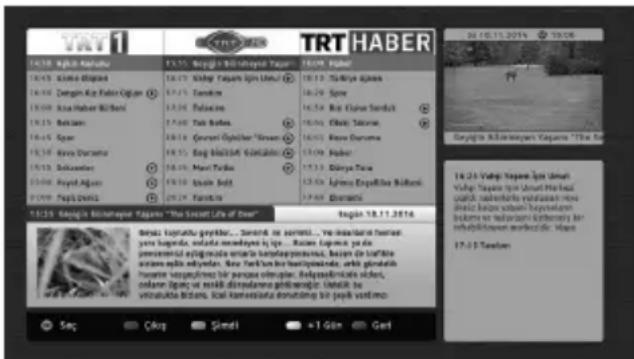
text_image
1 TRT HABER 14:18. Yapin Akatulu 14:19. Zama Dipad 14:20. Dengin Kap Fulin Oğlar 15:00. Asa Haber Biloni 15:13. Birlam 16:14. Qvar 16:15. Yara Duratru 16:16. Schulam 16:17. Ryoil Adira 16:18. Papi Drital 16:20. Yara Duratru 16:21. Schulam 16:22. Ryoil Adira 16:23. Papi Drital 16:24. Yara Duratru 16:25. Schulam 16:26. Ryoil Adira 16:27. Papi Drital 16:28. Yara Duratru 16:29. Schulam 16:30. Ryoil Adira 16:31. Papi Drital 16:32. Yara Duratru 16:33. Schulam 16:34. Ryoil Adira 16:35. Papi Drital 16:36. Yara Duratru 16:37. Schulam 16:38. Ryoil Adira 16:39. Papi Drital 16:40. Yara Duratru 16:41. Schulam 16:42. Ryoil Adira 16:43. Papi Drital 16:44. Yara Duratru 16:45. Schulam 16:46. Ryoil Adira 16:47. Papi Drital 16:48. Yara Duratru 16:49. Schulam 16:50. Ryoil Adira 16:51. Papi Drital 16:52. Yara Duratru 16:53. Schulam 16:54. Ryoil Adira 16:55. Papi Drital 16:56. Yara Duratru 16:57. Schulam 16:58. Ryoil Adira 16:59. Papi Drital 16:60. Yara Duratru 16:61. Schulam 16:62. Ryoil Adira 16:63. Papi Drital 16:64. Yara Duratru 16:65. Schulam 16:66. Ryoil Adira 16:67. Papi Drital 16:68. Yara Duratru 16:69. Schulam 16:70. Ryoil Adira 16:71. Papi Drital 16:72. Yara Duratru 16:73. Schulam 16:74. Ryoil Adira 16:75. Papi Drital 16:76. Yara Duratru 16:77. Schulam 16:78. Ryoil Adira 16:79. Papi Drital 16:80. Yara Duratru 16:81. Schulam 16:82. Ryoil Adira 16:83. Papi Drital 16:84. Yara Duratru 16:85. Schulam 16:86. Ryoil Adira 16:87. Papi Drital 16:88. Yara Duratru 16:89. Schulam 16:90. Ryoil Adira 16:91. Papi Drital 16:92. Yara Duratru 16:93. Schulam 16:94. Ryoil Adira 16:95. Papi Drital 16:96. Yara Duratru 16:97. Schulam 16:98. Ryoil Adira 16:99. Papi Drital 17:00. Yara DuratruFigure b: EPG application, broadcast video is shown in the upper-right corner of the screen.
HbbTV applications use keys on the remote control to interact with the user. When an HbbTV application is launched, the control of some keys are owned by the application.
For example, numeric channel selection may not work on a teletext application where the numbers indicate teletext pages. HbbTV requires AV streaming capability for the platform. There are numerous applications providing VOD (video on demand) and catch-up TV services. The user can use play, pause, stop, forward, and rewind keys on the remote control to interact with the AV content.
NOTE: You can enable or disable this feature from the More menu in System>Settings menu.
Smart Center
Smart Center is a mobile application running on iOS and Android platforms. With your tablet or phone, you can easily stream your favourite live shows and programmes from your smart TV. Also; you can launch your portal applications, use your tablet as a remote control for your TV and share media files.
NOTE: Being able to use all functions of this application depends on the features of your TV.
Getting Started
To use Smart Center features, connections have to be done properly. To get connected to your network wirelessly, plug in the Wi-Fi dongle to one of the USB ports if your TV doesn't have internal wifi feature. To be able to use internet based features, your modem/router must be connected to the internet.
IMPORTANT: Make sure the TV and mobile device are connected to the same network.
For media sharing feature Audio Video Sharing option should be enabled(if available). Press the Menu button on the remote, select System>Settings>More menu and press OK. Highlight Audio Video Sharing and change as Enabled. Your TV is ready to connect to your mobile device now. Install the Smart Center application onto your mobile device.
Start the smart center application. If all connections are configured properly, you will see your TV's name on your mobile device. If your TV's name doesn't appear on the list, wait a while and tap on the Refresh widget. Select your TV from the list.
Mobile Device screen
On the main screen you can find tabs to access various features.
The application retrieves actual channel list from TV first when it starts.
MY CHANNELS: The programmes of first four channels from the channel list retrieved from the TV are shown. You can change the listed channels. Press on the channel thumbnail and hold. A list of channels will be displayed and you can choose your desired channel to be replaced.
TV: You can watch content through the TV tab. In this mode you can navigate through the channel list retrieved from your TV and click on thumbnails to view the detail pages.
RECORDINGS: You can view your active recordings(if available) and reminders through this tab. To delete any item, simply press on the delete icon found on each row.
EPG: You can view the broadcast schedules of selected channel lists through this tab. You can also navigate through channels by pressing on the selected channel on the EPG grid. Please note that updating / refreshing the EPG information may take a while depending on your network and web service quality.
NOTE: Internet connection is required for WEB based EPG informations.
PORTAL: This tab displays the Portal applications in scrollable view. Unless FollowMeTV (if available) is active, the selected application will be displayed on your TV screen.
NOTE: Internet connection is required. This tab is enabled if a portal page is in use.
SETTINGS: Configure the application to your liking. You can change;
Auto-lock (Only in IOS): The screen of the device automatically turns off after a certain amount of time. Default is off, which means the screen will always stay on.
Auto-enable FollowMeTV: FollowMeTV function (if available) will start automatically when this setting is enabled. Default is disabled.
Auto-connection to TV: When enabled, your mobile device will automatically connect to last connected TV and skips the TV search screen.
Change TV (Only in IOS): Shows the currently connected TV. You can press on this setting to go to the "TV search" screen and change to a different TV.
Edit custom channel list: You can edit your custom channel list using this setting.
Choose channel list source: You can choose the channel list source to be used in the application. The options are “TV List” and “Custom List”. Additionally you can activate “Remember my choice” option to set the selected channel list source as a constant choice. In this case if the selected source is available it will be used in the application.
Version No: Displays the current version of the application.
Detail Page
To open detail page tap on a programme. On the detail page screen you can get detailed information of the programmes you select. There are “Details”, “Cast&Crew” and “Videos” tabs to find on this page.
DETAILS: This tab provides summary and information about the selected programme. Also there are links to facebook and twitter pages of the programme selected.
CAST&CREW: Shows all the people contributed to the current programme.
VIDEOS: Provides videos on Youtube related to the selected programme.
NOTE: For some functions an internet connection may be required.
FollowMe TV Feature (if available)
Tap on the FOLLOWME TV widget located at the bottom left of the screen of your mobile device to change the layout for FollowMe TV feature.
Tap the play icon to start streaming of the content from the TV to your mobile device. Available if your device is in your routers operation range.
Mirror Mode
This mode of FollowMe TV feature is enabled by deafult and allows streaming the content from any other selected TV sources and Media Browser.
NOTES:
Note that only digital(DVB-T/C/S) SD and HD channels are supported.
Multilanguage audio support and subtitle on/off features are not functional.
The streaming performance may change depending on the quality of your connection.
Media Share Page
To access the Media Share widget tap on the Up-arrow on the bottom left side of the screen.
If the Media Share widget is pressed, a screen is displayed where you can select the media file type to share with your TV.
NOTE: Not all image file formats are supported. This function will not work if Audio Video Sharing feature is not supported.
Portal Launcher
To access the Portal Launcher(■) widget tap on the Up-arrow on the bottom left side of the screen.
You can access the portal page by tapping on the Portal Launcher widget.
NOTE: Internet connection is required. This function will not work if a portal page is not in use.
Smart Remote Feature
You can use your mobile device as a remote control for your TV once it has connected to the TV. To use smart remote's full features tap on the Up-arrow on the bottom left side of the screen.
Voice Recognition
You can tap on the Microphone(☐) widget and manage your application, giving voice commands such as "Portal!", "Volume Up/Down!", "Programme Up/Down!".
NOTE: This feature is only for android based devices available.
Keyboard Page
The keyboard page can be opened in two ways; by pressing the Keyboard(☐) widget on the application screen or automatically by receiving a command from the TV.
Quick Standby
If the TV is turned off through the virtual remote control in the Smart Center application, it can be turned on again in the same way. This feature can be enabled or disabled by changing the Quickstandby option in the System>Settings>More menu of the TV.
Requirements
- Smart TV
- Network connection
- Mobile Device based on Android or iOS platform (Android OS 4.0 or higher; IOS 6 or higher version)
- Smart Center app.(to be found on online application stores based on Android and iOS platforms)
- Router modem
- USB storage device in FAT32 format (required for PVR feature, if available)
NOTES:
For Android devices, Normal(mdpi), Large(hdpi) and Extra Large(xhdpi) screen sizes are supported. Devices with 3" or smaller screen sizes are not supported.
For iOS devices, all screen sizes are supported. User interface of the Smart Center application is subject to change according to version installed on your device.
Cleaning and
Maintenance
• Always unplug the device before starting cleaning and maintenance.
- Pay attention to the comments stated in "Safety Information to Be Observed During Cleaning and Maintenance".
- Do not apply alcohol, solvent containing chemicals, surface active agents such as thinner, pesticides, air freshener, lubricant or cleaning detergent to the product. These chemicals might cause product to fade away or crack or removal of labels or instructions.
- As surface or lenses can crack easily, use only a soft cloth such as super thin fibre or cotton cloth to clean the product. As product can be easily scratched by foreign bodies, beat out the dust before using the cloth.
Troubleshooting
When you detect an abnormal condition on your device, you may try to resolve the issue as per the description given on the table.
If your device does not resume normal operation still, contact Vestel Call Center.
You can find authorized services list and contact information from the web site.
| PROBLEM CAUSE | REMEDY | |
| Device doesn’t turn on. | Power cable might be unplugged. | Make sure it’s plugged into the wall plug. |
| Batteries of remote controller might be discharged. | Replace the batteries of remote controller with new ones. Press the On/Off button on TV. | |
| Bad image quality. | Correct TV system might not have been selected. | Make sure you have selected right TV system. |
| Signal level might be low. | Low signal level might cause distortion of the image. Please check the antenna connection. | |
| If you’re performing a manual search, frequency settings of the channel might be incorrect. | Make sure you entered frequency settings correctly. | |
| Antenna is connected to two external devices simultaneously. | Disconnect either device. | |
| There is shade, reflection on the display. | Tuning might be not performed. | Automatic or manual tuning/fine tuning must be made. |
| Display contrast, brightness and colour are low. | Display settings might be incorrect. | Adjust contrast, brightness and colour. |
| PROBLEM CAUSE REMEDY | ||
| No display. | Means that your TV doesn't receive any broadcast. | Make sure that you have broadcast on your TV. |
| Antenna might have been connected incorrectly. | Make sure antenna is connected correctly. | |
| Antenna cable might be damaged. | Make sure antenna cable isn't damaged. | |
| Incorrect connectors might be used for connecting the antenna. | Have an authorized person check antenna connection is made correctly. | |
| Incorrect buttons might have been pressed on the remote control. | Retry and make sure you press the correct buttons. | |
| Correct input source might not have been selected. | Make sure you have selected the correct input. | |
| Displaying, no sound. | TV might be muted. | To cancel the mute option, press the button or turn up the volume. |
| Display is bad in computer mode. | Screen resolution and settings of computer and TV might be incompatible. | Change resolution information on your computer. |
| Sound is received from one speaker only. | Balance set might be adjusted to one direction extreme. | Check from audio menu section. |
| Remote control does not work. | Battery may have been discharged. | Replace the batteries. |
| Batteries might have been inserted incorrectly. | Check the directions of batteries and make sure you install them correctly. | |
| There might be a barrier between remote and TV. | Remove the barrier. | |
| Remote control does not work. | Battery may have been discharged. | Replace the batteries. |
| Batteries might have been inserted incorrectly. | Check the directions of batteries and make sure you install them correctly. | |
| There might be a barrier between remote and TV. | Remove the barrier. | |
| Input options can't be selected. | No device might be connected. | Make sure a device is connected to your TV. |
| AV cables and connections might be incorrect if you have tried to connect a device. | Make sure AV cables and connections are correct. | |
| Audio Video sharing program cannot be found | Audio - video sharing program is not open or started. | Make sure the audio-video sharing program is open and working. |
| Network connection settings may not be set up. | Check the network settings | |
| Videos do not stream properly during either wired or wireless internet connection. | Connection is Slow. | Contact your internet service provider.Either your internet pack is insufficient or there is a problem in internet infrastructure |
| Error messages about connection problems are seen on the screen. | TV might not be connected to the wireless network. | Check the TV connection to the wireless internet. |
| Modem may not connect to internet, or have connection problems. | Make sure that internet works properly. You may check with a different device. | |
| According to the place and position of viewing (up / down / right / left) there might be differences in brightness and color of the panel. | Panel's feature might cause that. | It is not a problem. It does not affect device's performance. |
Information
Turn off all the devices and Television from power buttons before plugging a device to your Television. If there is no power button, unplug the devices.
PC Input Typical Display Modes
The following table is an illustration of some of the typical video display modes. Your TV may not support all resolutions.
| Index Resolution Frequency | ||
| 1 | 350 85Hz | |
| 2 | 480 60Hz | |
| 3 | 480 72Hz | |
| 4 | 480 75Hz | |
| 5 | 600 56Hz | |
| 6 | 600 60Hz | |
| 7 | 600 72Hz | |
| 8 | 600 75Hz | |
| 9 | x768 60Hz | |
| 10 | 4x768 70Hz | |
| 11 | x768 75Hz | |
| 12 | 4x768 85Hz | |
| 13 | x864 75Hz | |
| 14 | 0x768 60Hz | |
| 15 | 0x768 75Hz | |
| 16 | 1280x960 60Hz | |
| 17 | 1280x960 75Hz | |
| 18 | 1280x1024 60Hz | |
| 19 | 1280x1024 | 75Hz |
| 20 | 1360x768 60Hz | |
| 21 | 6x768 60Hz | |
| 22 | 1400x1050 59Hz | |
| 23 | 1400x1050 60Hz | |
| 24 | 1400x1050 75Hz | |
| 25 | 1440x900 60Hz | |
| 26 | 1440x900 75Hz | |
| 27 | 1600x1200 60Hz | |
| 28 | 1680x1050 59Hz | |
| 29 | 1680x1050 60Hz | |
| 30 | 1920x1080 60Hz | |
AV and HDMI Signal Compatibility
| Source | Supported Signals | Available | |
| EXT(SCART) | PAL | ○ | |
| SECAM | ○ | ||
| NTSC4.43 | ○ | ||
| NTSC3.58 | |||
| RGB 50/60 | ○ | ||
| Back AV | PAL | ○ | |
| SECAM | ○ | ||
| NTSC4.43 | ○ | ||
| NTSC3.58 | ○ | ||
| YPbPr | 480i, 480p | 60Hz | ○ |
| 576i, 576p | 50Hz | ○ | |
| 720p | 50Hz,60Hz O | ||
| 1080i | 50Hz,60Hz O | ||
| HDMI | 480i | 60Hz | ○ |
| 480p | 60Hz | ○ | |
| 576i, 576p | 50Hz | ○ | |
| 720p | 50Hz,60Hz O | ||
| 1080i | 50Hz,60Hz O | ||
| 1080p | 24Hz, 25Hz,30Hz, 50Hz,60Hz | ○ | |
| 3840x2160p | 24Hz, 25Hz,30Hz, 50Hz,60Hz | ○ | |
| 4096x2160p | 24Hz, 25Hz,30Hz, 50Hz,60Hz | ○ | |
(X: Not Available, O: Available)
In some cases a signal on the TV may not be displayed properly. The problem may be an inconsistency with standards from the source equipment (DVD, Set-top box, etc.). If you do experience such a problem please contact your dealer and also the manufacturer of the source equipment.
Supported Video File Formats for USB Mode
| Video Codec Resolution Bit Rate Container | |||
| MPEG1/2 | 1080Px2@30fps, 1080P@60fps .mov), AVI (.avi), LV (.flv), AVI (.avi), SWF(.swf) | 40Mbps MKV (.mkv), SWF(.swf) | MPEG program stream (.DAT, .VOB, .MPG, .MPEG), MPEG transport stream (.ts, .trp, .tp), MP4 (.mp4, .mov), 3GPP (.3gpp, .3gp), AVI (.avi), MKV (.mkv), ASF (.asf) |
| MPEG4 | MPEG program stream (.MPG, .MPEG), MP4 (.mp4, .mov), 3GPP (.3gpp, .3gp), AVI (.avi), MKV (.mkv), ASF (.asf) | ||
| XviD MP4 (.mp4, .mov), AVI (.avi), LV (.flv), AVI (.avi), SWF(.swf) | ASF (.asf) | ||
| Sorenson H.263 FL | |||
| H.263 | MP4 (.mp4, .mov), 3GPP (.3gpp, .3gp), AVI (.avi), MKV (.mkv) | ||
| H.264 | 3840x2160@30fps, 1080P@60fps | 135Mbps | FLV (.flv), MP4 (.mp4, .mov), 3GPP (.3gpp, .3gp), MPEG transport stream (.ts, .trp, .tp), ASF (.asf), AVI (.avi), MKV (.mkv) |
| Motion JPEG 720P@30fps 10Mbps | AVI (.avi), 3GPP (.3gpp, .3gp), MP4 (.mp4, .mov), MKV (.mkv), ASF (.asf) | ||
| VP8 1080P@30fps 20Mbps MKV (.mkv), WebM (.webm) | |||
| HEVC 4K2K@60fps 160Mbps | MP4 (.mp4, .mov), MKV (.mkv), MPEG transport stream (.ts, .trp, .tp) | ||
| VP9 4K2K@30fps 100Mbps MKV (.mkv), WebM (.webm) | |||
Supported Picture File Formats for USB Mode
| Image | Photo | Resolution (width x height) | Remark |
| JPEG | Base-line | 15360x8640 | The limit for max resolution depends on DRAM size |
| Progressive 10 | 24x768 | ||
| PNG | non-interlace | 9600x6400 | |
| interlace | 1200x800 | ||
| BMP | 9600x6400 |
Supported Audio File Formats for USB Mode
| Audio Codec Sample rate Bit Rate | Container | |
| MPEG1/2 Layer1 | 16KHz - 48KHz | 32Kbps - 448Kbps |
| MPEG1/2 Layer2 | 16KHz - 48KHz | 8Kbps - 384Kbps |
| MPEG1/2 Layer3 | 16KHz - 48KHz | 8Kbps - 320Kbps |
| AC3 | 32KHz, 44.1KHz, 48KHz | 32Kbps - 640Kbps |
| EAC3 | 32KHz, 44.1KHz, 48KHz | 32Kbps - 6 Mbps |
| AAC, HEAAC 8 | KHz - 48KHz | |
| WMA 8KHz - 48 | KHz | 128bps - 320Kbps |
| WMA 10 Pro M0 | 48KHz < 192kbps | |
| WMA 10 Pro M1 | 48KHz < 384kbps | |
| WMA 10 Pro M2 | 96KHz < 768kbps | |
| G711 A/mu-law 8 | KHz | 64Kbps - 128Kbps |
| LBR (cook) | 8KHz, 11.025KHz, 22.05KHz, 44.1KHz | 6Kbps - 128Kbps |
| FLAC 8KHz~96 | KHz < 1.6Mbps Matroska (.mkv, .mka) | |
Supported DVI Resolutions
When connecting devices to your TV's connectors by using DVI converter cable(DVI to HDMI cable - not supplied), you can refer to the following resolution information.
| 56Hz 60Hz | 66Hz 70Hz | 72Hz 75Hz | ||||
| 640x480 | ☑ | ☑ | ||||
| 800x600 | ☑ ☑ ☑ | |||||
| 1024x768 | ☑ ☑ ☑ | |||||
| 1280x768 | ☑ | ☑ | ||||
| 1280x960 | ☑ | |||||
| 1360x768 | ☑ | |||||
| 1366x768 | ☑ | |||||
| 1280x1024 | ☑ ☑ ☑ | |||||
| 1400x1050 | ☑ | |||||
| 1600x900 | ☑ |
Disposing Of Your Appliance and Battery In An Environment-Friendly Way
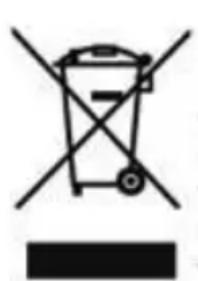
natural_image
Symbol of a trash bin crossed with a diagonal line, no text or numbers presentThis symbol on the product or package implies that the product should not be treated as domestic waste. Instead, they must be delivered to valid collection point recycling
electrical and electronic equipment. You will contribute to avoid potential negative results regarding environment and human health, which will arise due to wrong waste procedure for the product by ensuring that this product is annihilated properly. Recycling materials will help natural resources be preser-
ved. For more detailed information regarding recycling of this product, please contact local municipality, domestic waste annihilation service or the shop you have purchased the product.
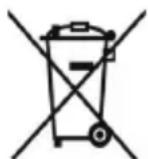
Battery
If you'd like to dispose of the batteries, please use collection systems or facilities for proper recycling. Thus, you'll have contributed to prevention of potential damages to environment and human health.
CAUTION: In case battery includes lead, there is “Pb” mark under “the shape of wheeled container” for batteries.
Package information
Product package is made of recyclable materials. Do not dispose the packaging waste with the household waste or other wastes, dispose it to the packaging collection areas specified by local municipality.
Recommendations for Energy Saving
Environmental Information
This television is designed to consume less energy to help protection of environment. You can follow the below steps to reduce energy consumption:
If you set the Energy Saving to Minimum, Medium, Maximum or Auto the TV will reduce the energy consumption accordingly. If you like to set the Backlight to a fixed value set as Custom and adjust the Backlight (located under the Energy Saving setting) manually using Left or Right buttons on the remote. Set as Off to turn this setting off.
NOTE: Available Energy Saving options may differ depending on the selected Mode in the System>Picture menu.
- The Energy Saving settings can be found in the System>Picture menu. Note that some picture settings will be unavailable to be changed.
- If pressed Right button while Auto option is selected or Left button while Custom option is selected, "Screen will be off in 15 seconds." message will be displayed on the screen. Select Proceed and press OK to turn the screen off immediately. If you don't press any button, the screen will be off in 15 seconds. Press any button on the remote or on the TV to turn English - the screen on again.
NOTE: Screen Off option is not available if the Mode is set to Game.
- Turn off the device by switching to standby position when you don't use your device. If you won't use the device for a long period, disconnect the device from mains plug.
Use volume, contrast and brightness of your device at low levels, otherwise consumed energy is increased. You can reduce the level of noise in the surrounding environment to use the device with low volume; adjust the location of the television so that day light will be on back side of television.
IMPORTANT WARNINGS
1. Rights reserved by the manufacturer:
The manufacturer reserves the right to change the features stated in the product or in the user's manual of the product without giving any information, when required by the improvements in technology.
2. Warnings about Screen Technology:
LCD screen, in parallel with its technology, consists of millions of high-fidelity pixels. Black and/or bright red, blue or green tiny dots could be observed on the panel. That does not indicate that the product is faulty. It does not affect the product's performance and reliability too. This is a structural feature of the panel, not a fault. This could also be the case with third-party products and not subject to product replacement or refund. These panels could be encountered during production as well as daily usage.
3. A continuous fixed image on the screen:
Due to TFT and Plasma technologies, “burning” effect may arise in the screen after a continuous fixed image on the screen, displaying the same background continuously or watching a 4:3 video on a 16:9 television for a long time. In order to avoid this effect, it is highly recommended that you follow the followings.
- Do not watch a fixed image continuously.
- Do not watch videos in the format of 4:3 in your television which supports the format of 16:9.
- Try to use contrast and brightness at a minimum level.
4. In Full HD products;
The expected performance may not be achieved in TV broadcasts and the broadcasts of satellite receivers which are not supported by other sources in terms of high definition, DVD players or cable television; and in these broadcasts, mosaic images may occur, sharpness and resolution of the image may be low; some effects may arise on the screen. This is not a failure. It is advisable to watch high definition broadcasts for your TV which supports high definition (1920x1080) to work with a high performance as a requirement of the Full HD technology. The expected performance may not be achieved in TV broadcasts and the broadcasts of satellite receivers which are not supported by other sources in terms of high definition, DVD players or cable television; and in these broadcasts, mosaic images may occur, sharpness and resolution of the image may be low; some effects may arise on the screen. This is not a failure. If your appliance supports high definition, it is recommended that you use high definition broadcast sources in order to achieve a high screen performance as a requirement of the high definition (HD) technology.
5. About Working Sound of the Appliance:
A working sound may be generated in the electronic circuits in your appliance as a requirement of its technology depending on the current on it while running or in standby status. This sound can sometimes be heard depending on the sensitivity of human ear and watching
distance although it is within the compass of the standards. This sound does not affect the performance of your appliance and it is not a failure.
A click sound may be heard when watching TV or as it is being shut down. This is a result of loosening and contracting thermal plastic due to heat and humidity. Besides the “click” sound, it doesn’t hinder the reliability or the performance.
6. Make sure that the panel (screen) of your appliance is never subjected to any external mechanical impact:
The panels (screens) of the TFT-LCS televisions are not only a piece of glass; on the contrary they are composed of layers. If your appliance is damaged in its panel (screen) which is the front part by an external impact, the inner layer of the screen might be broken / cracked even when no break/crack arises in the layer of the screen which is the closest to the outer environment. This can be technically detected by the authorized service. Therefore, make sure that the panel (screen) of your appliance is never subjected to any external mechanical impact. Otherwise, as any damage “caused by an external hit” is considered as a usage error, the manufacturer will not have any legal responsibility.
7. About the use of the appliance:
The appliance you purchased was produced for home-type use, and it can be used only at home and for the specified purposes, not for commercial or collective use. Otherwise, the manufacturer and the dealer will not be responsible for the failures within the period of warranty and free repair, which is determined in the provisions of the Act on the Protection of Consumers.
Optional Rights of Customer
Consumer may exercise any of his/her optional rights below within two years of expiry period starting with the date of delivery of the good to the consumer if the good is found to be defective as per the provisions of Law on the Protection of Consumers no. 6502, even if the defect is found later;
- To terminate the contract by stating that he is ready to return the sold good,
- To request a discount on the sale price proportional to the defect and keep the defective good, against the Seller;
- To request the sold good to be repaired at the seller's expense by bringing all repair costs to the seller if such costs are not excessive,
- If possible, to request the purchased good to be exchanged for a non-defective good, against the Seller, manufacturer or importer.
Consumer may exercise either of its rights to terminate the contract or discount from the price in proportion to the defect if free repair or replacement of the good with a non-defective fungible will bring about disproportional challenges.
Consumer may apply to Consumer Courts and Arbitration Committees for their complaints and concerns.
| A | Product Fiche | ||
| B | Commercial Brand:VESTEL | ||
| C | Product No. 10105809 | ||
| D | Model No. 4K SMART 40UB8900 40” LED TV | ||
| E | Energy efficiency class A+ | ||
| F | Visible screen size (diagonal,approx.) (inch/cm) | 40 inches 102 cm | |
| G | On mode average power consumption (Watt) | 48 | |
| H | Annual energy consumption (kWh/annum) | 70 | |
| I | Standby power consumption (Watt) | 0,5 | |
| J | Off mode power consumption (Watt) | 0 | |
| K | Display resolution (px) 3840x2160 | ||
| A | B | C | D | E | F | Visible screen size(diagonal, approx.) (inch/cm) | |
| English | Product Fiche Commercial Brand Product No | Model No. | Energy efficiency class | ||||
| Deutsch | Produkt-Datenblatt | Markenzeichen | Produkt-Nr. | Modell-Nr. | Energieeffizienzklasse | Stichtbare Bildschirmgröße(diagonal,ca.) (Zoll /cm) | |
| عربي | قابس امتحج | العامة التجارية فيونكن | رقم المعتج | رقم الموديل | قيمة فعلية الطاقة | حجم الشاتبة المربنية (فطري) (يو峪/سم) | |
| Български | Справочен лист с техническите данни | Търговска марка | Продукт No | Модел No | Клас на енергийна ефективност | Видим размер на екрана(диагонал,прибл.) (инча /см ) | |
| čeština | Produktový list | Značka výrobce | Čísло produktu | Model č. | Energetická třída | Viditelná velikost obrazovy(ühlopříčka,přibl.) (palcú /cm) | |
| Dansk | Produktoplysningsskema | Varemærke | Produktnr. | Model nr. | Energieffektivitetsklasse | Synlig skaermstørrelse (diagonalt,ca.) (HK/cm) | |
| Suomi | Tuote fiche | Kaupallinen merkki | Tuote nro. | Malli nro. | Virran tehokkuusluokka | Nakyván kuvaruudun koko(diagonaalinen,n.) (tuumaa/cm) | |
| Français | Fiche du produit | Marque commerciale | Produit N° | Modèle N° | Classe d'efficacité énergétique | Taille d'écran visible (diagonale,approx. (pouces/cm) | |
| Hrvatski | SAŽETAK PROIZVODA | Trgovačka marka | Br. proizvoda | Br. modela | Klasa energetske učinkovitosti | Vidljiva veličina ekrana(dijagonalna,približno) (inča/cm) | |
| Nederlands | Productfiche | Commercieel merk. | Productnr. | Modelnr. | Energie efficiëntie klasse | Zichtbare schermgroote(diagonaal,ca.) (inches/cm) | |
| Español | Ficha del Producto | Marca Comercial | N° de Producto | N° de Modelo | Clasificación Energética | Tamaño de pantalla visible(diagonal,aprox.) (pulgadas/cm) | |
| Svenska | Produktspecifikation | Varumärke | Produktnr. | Modellnr. | Energiklass | Synlig skärmstorlek(diagonal,ungefärlig) (tum/cm) | |
| Italiano | Scheda prodotto | Marchio commerciale | Numero prodotto | Numero modello | Classe di efficienza energetica | Dimensioni visibili dello schermo(diagonale,circa)(pollici/cm) | |
| Polski | KARTA PRODUKTU | Marka produktu | Nr produktu | Nr modelu | Klasa efektywności energetycznej | Widoczny obraz ekranu(przekątna,okolo)(cali/cm) | |
| Magyar | Termékismertető adatlap | Kereskedelmi márka | Termékszám | Modellszám | Energiahatékonysági osztály | Látható képtartomány (diagonalis,kb.) (inches/cm) | |
| Norsk | Produktinformasjon | Kommersiell merkevare | Produkt nr. | Modell nr. | Energieffektivitet klasse | Synlig skjermstørrelse (diagonal, ca.) (tommer/cm) | |
| Português | Ficha do produto | Marca Comercial | Produto N° | Modelo N° | Classificação eficiência energética | Tamanho ecrà visível (diagonal, aprox.,(polegadas/cm) | |
| Română | Fişă produs | Marcă comercială | Nr. Produs | Nr. Model | Clasa de eficiență energetică | Dimensiunea ecranului vizibili(diagonală, aprox.) (inch/cm) | |
| Русский | Справочный листок технических данных изделия | Торговая марка | Номер изделия | Номер модели | Класс энергопотребления | Видимый размер экрана (по диагонали, приблизительно)(дюймов/см) | |
| беларуская | Справочный листок технических данных изделия | Торговая марка | Номер изделия | Номер модели | Класс энергопотребления | Видимый размер экрана (по диагонали,Около)(дюймов/см ) | |
| македонски | Технички податоци | Комерцијална марка | Производ бр. | Модел бр. | Класа на енергетска ефикасност | ГОлемина на видлив екран(дијагонала, околу) (инчи/см) | |
| український | Технічні дані | Кормеційна марка | Артикул | Модель | Клас енергоспоживання | Видимий розмір екрана (diагональ,Приблизно) (дюймів/см) | |
| Srpski | Tehničke odlike | Komercijalna marka | Proizvod br. | Model br. | Klasa energetske efikasnosti | Velicina vidljyog ekrana (diagonala,tokom) (inča/cm) | |
| Slovenčina | Produktový list | Značka výrobcu | Čísло produktu | Model č. | Energetická trieda | Viditelná velikost obrazovy(uhlopriečka, zhruba) (palcov/cm) | |
| Slovenščina | Opis izdelka | Komercialna znamka | Št. Izdelka | Št. Modela | Razred energetske učinkovitosti | Vidna velikost zaslona (diagonala,pribl.) (palcev/cm) | |
| Еллянік | Делтію проїєвтоș | Емпоріко σήμα | Ар. Проїєвтоș | Ар. Монтёлou | Катніорія евергейікің апобостіні | Орого мегевос обовнє (диагушвіоș,тер.) (інтаєє/см) | |
| Bosanski | Tehnički podaci | Komercijalna marka | Produkt br. | Model br. | Klasa energetske efikasnosti | Vidljiva veličina ekrana (diagonalapribližno.) (inca/cm) | |
| Эрёзу | Эрёзу ороёзу | Эрёзу ороёзу | Эрёзу ороёзу | Эрёзу ороёзу | Эрёзу ороёзу ороёзу ороёзу ороёзу ороёзу ороёзу ороёзу ороёзу ороёзу ороёзу ороёзу ороёзу ороёзу ороёзу ороёзу ороёзу ороёзу ороёзу ороёзу ороёзу ороёзу ороёзу ороёзу ороёзу ороёзу орёзу ороёзу ороёзу ороёзу ороёзу ороёзу ороёзу ороёзу ороёзу ороёзу ороёзу ороёзу ороёзу ороёзу ороёзу ороёзу ороёзу ороёзу ороёзу ороёзу ороёзу ороёзу ороёзу ороёзу ороёзу oроёзу ороёзу ороёзу ороёзу ороёзу ороёзу ороёзу ороёзу ороёзу ороёзу ороёзу ороёзу ороёзу ороёзу ороёзу ороёзу ороёзу ороёзу ороёзу ороёзу ороёзу ороёзу ороёзу ороёзу ороёзу oреёзу ороёзу ороёзу ороёзу ороёзу ороёзу ороёзу ороёзу ороёзу ороёзу ороёзу ороёзу ороёзу ороёзу ороёзу ороёзу ороёзу ороёзу ороёзу ороёзу ороёзу ороёзу ороёзу ороёзу ороёзу ореёзу ороёзу ороёзу ороёзу ороёзу ороёзу ороёзу ороёзу ороёзу ороёзу ороёзу ороёзу ороёзу ороёзу ороёзу ороёзу ороёзу ороёзу ороёзу ороёзу ороёзу ороёзу ороёзу ороёзу ороёзу oрёзу ороёзу ороёзу ороёзу ороёзу ороёзу ороёзу ороёзу ороёзу ороёзу ороёзу ороёзу ороёзу ороёзу ороёзу ороёзу ороёзу ороёзу ороёзу ороёзу ороёзу ороёзу ороёзу ороёзу ороёзу | ||
| Türkçe | Ürün fişi | Ticari Marka | Ürün No. | Model No. | Enerji verimliliği sınıfı | Gorülen ekran boyutu (çapraz, yakışk.) (ing/cm) | |
| Shqip | Të dhēnat e produktit | Marka tregtare | Nr. i produktit. | Nr. i modelit. | Klasa e eficiencës së energjisë | Madhësla e ekranit të dukshëm(diagonal, afërsisht) (inc/cm) | |
| Lietuvių | Gaminio etiketė | Gamintojas | Gaminio Nr. | Modelio Nr. | Energetinio efektyvumo klasė | Matomas ekranio dydis (jstržainė,approx.) (coliq/cm) | |
| Latviešu | Produkta apraksts | Marka | Produkta nr. | Modela nr. | Energoefektivitätes klase | Ekrāna izmērs (pa diognali, apmçram)(collas/cm) | |
| Eesti | TOOTEKIRJELDUS | Tootja firma | Toote nr. | Mudeli nr. | Energiaklass | Vaadatava ekraani suurus (diagonaal,umbes) (tolli/cm) | |
| فارسی | مشخصات محصول | مارک تنجازی | 朦اره محصول | 朦اره منل | گروه کارایی لززی | (انزه م Flashه باین مشناده (هندستی له ریا) (بیچ) | |
| G | H | I | J | K | |
| English | On mode average power consumption (Watt) | Annual energy consumption (kWh/annum) | Standby power consumption (Watt) | Off mode power consumption (Watt) | Display resolution (px) |
| Deutsch | Durchschnittlicher Stromverbrauch im eingeschaltetem Zustand (Watt) | Jährlicher Energieverbrauch (kWh/Jahr) Standby-Stromverbrauch | (Watt) | Stromverbrauch im ausgeschaltetem Zustand (Watt) Display-Auflösung (px) | |
| عربية | متوسط استهلاك الشقة عند التسعير (فراط) | (الاستهلاك الشوي للطقة) (كيلو واط) | (استهلاك الطاقة في ضعع الاستeganد) (فراط) | (استهلاك الطاقة في ضعع الابتر) (فراط) | (WR) |
| Български | Средна консумация на електроенергия във включено състояние(Watt) | Годишна консумация на електроенергия (kWh/Годишна) | Консумация на електроенергия в режим на готовност (Watt) | Консумация на електроенергия в изключено състояние (Watt) | Разделителна способност на дисплея(пиксела) |
| čeština | Prüměmá spotřeba elektrické energie v zaputném režimu (Wattü) | Roční spotřeba energie (kWh/Roční) | Spotřeba elektrické energie v pohotovostním režimu (Wattü) | Spotřeba elektrické energie ve vypnutém režimu (Wattü) Rozlišení dispelje (px) | Peje (px) |
| Dansk | Gennemsnitligt stromforbrug i tændt tilstand (Watt) | Ärligt energiforbrug (kWh/Ärligt) | Strømforbrug (standby)(Watt) | Strømforbrug i slukket tilstand (Watt) | Skærmopløsning (px) |
| Suomi | Päällä-tilan keskimääräinen virrankulutus (Wattia) | Vuosittainen sähkönkulutu (kWh/Vuosittainen) | Vakovirran kulutus (Wattia) | Pois-tilan virrankulutus (Wattia) | Näytön erottelukyky (pikselia) |
| Français | Consommation énergétique moyenne en mode "marche" (Watt) | Consommation énergétique annuelle (kWh/annuel) | Consommation d'énergie en veille (Watt) | Consommation d'énergie en mode "arrêt" (Watt) | Résolution de l'écran (px) |
| Hrvatski | Prosječna potrošnja el. energije kada je proizvod uključen (Watta) | Godišnja potrošnja el. Energije (kWh/Godišnja) | Potrošnja el. energije u modu pripravnosti (Watta) | Potrošnja el. energije kada je proizvod isključen (Watta) | Rezolucija zaslona (piksela) |
| Nederlands | Aan-modus gemiddeld stroomverbruik (Watt) | Jaarlijks energieverbruik(kWh/Jaarlijks ) | Stand-by stroomverbruik (Watt) | Jit-modus stroomverbruik (Watt) | Schemresolutie (px) |
| Español | Consumo eléctrico medio, en funcionamiento (Vatio) | Consumo eléctrico anual (kWh/anual) Consumo en modo espera (Vatio) | Consumo eléctrico modo apagado (Vatio) | Consumo eléctrico modo apagado (Vatio) | Resolución de pantalla (px) |
| Svenska | Strömkonsumtion i PÅ-läge (Watt) | Energiokonsumtion per år (kWh/Arlig) | Strömkonsumtion i viloläge (Watt) | Strömkonsumtion i AV-läge (Watt) | Skärmupplösning (pixlar) |
| Italiano | Consumo di corrente medio da accesa (Watt) | Consumo annuale di energia (kWh/annuo) | Consumo di corrente in modalità standby (Watt) | Consumo di corrente da spenta (Watt) | Risoluzione del display (px) |
| Polski | Średnie zużycie energii w trybie włączonym (Watów) | Roczne zużycie energii (kWh/Roczne) | Średnie zużycie energii w trybie oczekiwania (Watów) | Zużycie energii w trybie włączonym (Watów) | Rozdzielczość obrazu (pikseli) |
| Magyar | Energiafogyasztás bekapcsolva hagyott üzemmódban (Watt) Éves energiafogyasztás | (kWh/Éves) | Energiafogyasztás standby üzemmódban (Watt) | Energiafogyasztás kikapcsolt üzemmódban (Watt) | Képemyőfelbontás (px) |
| Norsk | Pàmodus gjennomsnittlig strømforbruk (Watt) | Ärlig strømforbruk (kWh/Ärlig) | Hvilemodus strømforbruk (Watt) | Av-modus strømforbruk (Watt) | Skjermoppløsning (piksel) |
| Português | Consumo energia em modo médio (Watt) | Consumo annual energia (kWh/anual) Consumo energia em stand-by (Watt) | Consumo energy em modo alimentação (Watt) | Consumo energia em modo alimentação (Watt) | Resolução do visor (pixel) |
| Română | Consum electric mediu in modul pornit (Wat) | Consum anual de energie (kWh/anual) | Consum electric in stare de repaus (Waj) | Consum electric in modul oprit (Waj) | Rezolutja ecranului (pixeli) |
| Русский | Средний расход энергии в режиме включения (ватт) | Ежегодный расход энергии (кВтч/Год) | Расход энергии в режиме ожидания (ватт) | Расход энергии в режиме выключения (ватт) | Разрешение экрана (пикселей) |
| беларуская | Средний расход энергии в режиме включения (ватт) | Ежегодный расход энергии (kWh/радавое) | Расход энергии в режиме ожидания (ватт) | Расход энергии в режиме выключения (ватт) | Разрешение экрана (пикселей) |
| македонски | Просечна потрошувачка кога е включен | Годишна потрошувачка на енергија (kWh/Годишна) | Потрошувачка во мирување (вати) | Потрошувачка кога е исклучен (вати) | Резолуција на екран (пиксели) |
| український | Середня сложивана потужність у робочому режимі (Вт) | Середньорична сложивана потужність (kWh/Річче) | Сложивана потужність у режимі очікування (Вт) | Сложивана потужність у вимкненому стані (Вт) | Розрільна здатність екрана (пикселів) |
| Srpski | Prosečna potrošnja kada je uključeni (Vati) | Godišnja potrošnja energije (kWh/Godišnja) | Potrošnja tokom mirovanja (Vati) | Potrošnja kada je isključeni (Vati) | Rezolucija displeja (piks.) |
| Slovenčina | Priemernă spotreba elektrickej energie v zapnutom režime (Wattov) | Ročnă spotreba energie (kWh/Ročnă) | Spotreba elektrickej energie v pohotovostnom režime (Wattov) | Spotreba elektrickej energie vo vypnutom režime (Wattov) | Rezlišenie displeja (pixl.) |
| Slovenščina | Poraba električne energije v povprečnem načinu (Wattov) | Letna poraba energije (kWh/Letna) | Poraba energije v stanju pripravljenosti (Wattov) | Poraba energije načinu izklopa (Wattov) | Resolucija zaslona (piks.) |
| Еллянік | Мёсяن катавálшо́ن реúµatóс λειτουργίας (Watt) | Ετήρια κατανάλωση ενέργειας (kWh/Ετήσιο) | Κατανάλωση ρεύματος στην αναρονή (Watt) | Κατανάλωση ρεύματος σε αττενεργοποίηση (Watt) | Ανάλυση οθόνης (Піξελ) |
| Bosanski | Prosječna potrošnja kada je uključen (Watt) | Godišnja potrošnja energije (kWh/Godišnja) | Potrošnja tokom mirovanja (Watt) | Potrošnja kada je isključen (Watt) | Rezolucija ekrana (piks.) |
| لازام | (###)### ### ### ### ### ### ### ### ### ### ### ### ### ### ### ### ### ### ### ### ### ### ### ### ### ### ### ### ### ### ### ### ### ### ### ### ### ### ### ### ### ### ### ### ### ### ### ### ### ### ### ### ### ### ### ### ### ### ### ### ### ### ### ### ### ### ### ### ### ### ### ### ### ### ### ### ### ### ### ### ### ### ### ### ### ### ### ### ### ### ### ### ### ### ### ### ### ### ### ### ### ## | (###)### ### ### ### ### ### ### ### ### ### ### ### ### ### ### ### ### ### ### ### ### ### ### ### ### ### ### ### ### ### ### ### ### ### ### ### ### ### ### ### ### ### ### ### ### ### ### ### ### ### ### ### ### ### ### ### ### ### ### ### ### ### ### ### ### ### ### ### ### ### ### ### ### ### ### ### ### ### ### ### ### ### ### ### ### ### ### ### ### ### ### ### ### ### ### ## | (###)###### ### ### ### ### ### ### ### ### ### ### ### ### ### ### ### ### ### ### ### ### ### ### ### ### ### ### ### ### ### ### ### ### ### ### ### ### ### ### ### ### ### ### ### ### ### ### ### ### ### ### ### ### ### ### ### ### ### ### ### ### ### ### ### ### ### ### ### ### ### ### ### ### ### ### ### ### ### ### ### ### ### ### ### ### ### ### ### ### ### ### ### ### ### ### ### ### ### ### ### | ||
| Türkçe | Açık moddaki ortalama güç tüketimi (Watt) | Yillik enerji tüketimi(kWh/yillik) | Bekleme durumunda enerji tüketimi (Watt) | Kapalı moddaki güç tüketimi (Watt) | Ekran çözünürlüğü (piks.) |
| Shqip | Konsumi mesatar i energijisë si ndezur (Watt) | Konsumi vjetor i energijisë (kWh/vjetor) | Konsumi i energijisë si në gatishmëri (Watt) | Konsumi i energijisë si ifikur (Watt) | Rezolucioni i ekranit (piks.) |
| Lietuvių | Vidulinës energijos sąnaudos jungus (Vatai) | Metinës energijos sąnaudos (kWh/Metinës) | Energijos sąnaudos budëjimo režimu (Vatai) | Energijos sąnaudos išjungus (Vatai) | Ekrano skiriamoji geba (pikselių) |
| Latviešu | Energijas patērīņš aktīvā režimā (Vati) | Gada energijas patērīņš (kWh/gada) | Energijas patērīņš gaidīšanas režimā (Vati) | Energijas patērīņš izslēgtā stāvokli (Vati) | Displeja rezolúcija (piksēiem) |
| Eesti | Keskmine energiakulu töörežilim (Vatti) | Aastane energiakulu (kWh/aastane) | Energiakulu ooterežiimil (Vatti) | Energiakulu väljalūlitatud olekus (Vatti) | Ekraani resolutsioon (piksllì) |
| فارسی | (###)### ### ### ### ### ### ### ### ### ### ### ### ### ### ### ### ### ### ### ### ### ### ### ### ### ### ### ### ### ### ### ### ### ### ### ### ### ### ### ### ### ### ### ### ### ### ### ### ### ### ### ### ### ### ### ### ### ### ### ### ### ### ### ### ### ### ### ### ### ### ### ### ### ### ### ### ### ### ### ### ### ### ### ### ### ### ### ### ### ### ### ### ### ### ### |
| A | VESA WALL MOUNT MEASUREMENTS | ||
| B | Hole Pattern Sizes (mm) | W | H |
| 200 | 200 | ||
| C | Screw Sizes | ||
| D | Length (X) | min. (mm) | 10 |
| max. (mm) | 13 | ||
| E | Thread (Y) | M6 | |